How to Create a Compliance Email Notification SOP for Transaction Monitoring
Learn the step-by-step SOP for creating compliance email notifications for out-of-compliance transactions, including PIN debit skipped and fee waived credit sale issues. This guide covers report generation, data filtering, and automated email notifications for managers at multiple business locations.
In this guide, we'll learn how to create and send compliance email notifications for transactions that are out of compliance. The objective is to identify two types of compliance issues—PIN debit skipped and fee waived credit sales—using transaction reports from portal.ipospays.com. We will cover how to filter, flag, and organize the necessary data, and then prepare and send targeted email notifications to the appropriate managers at each business location.
Let's get started
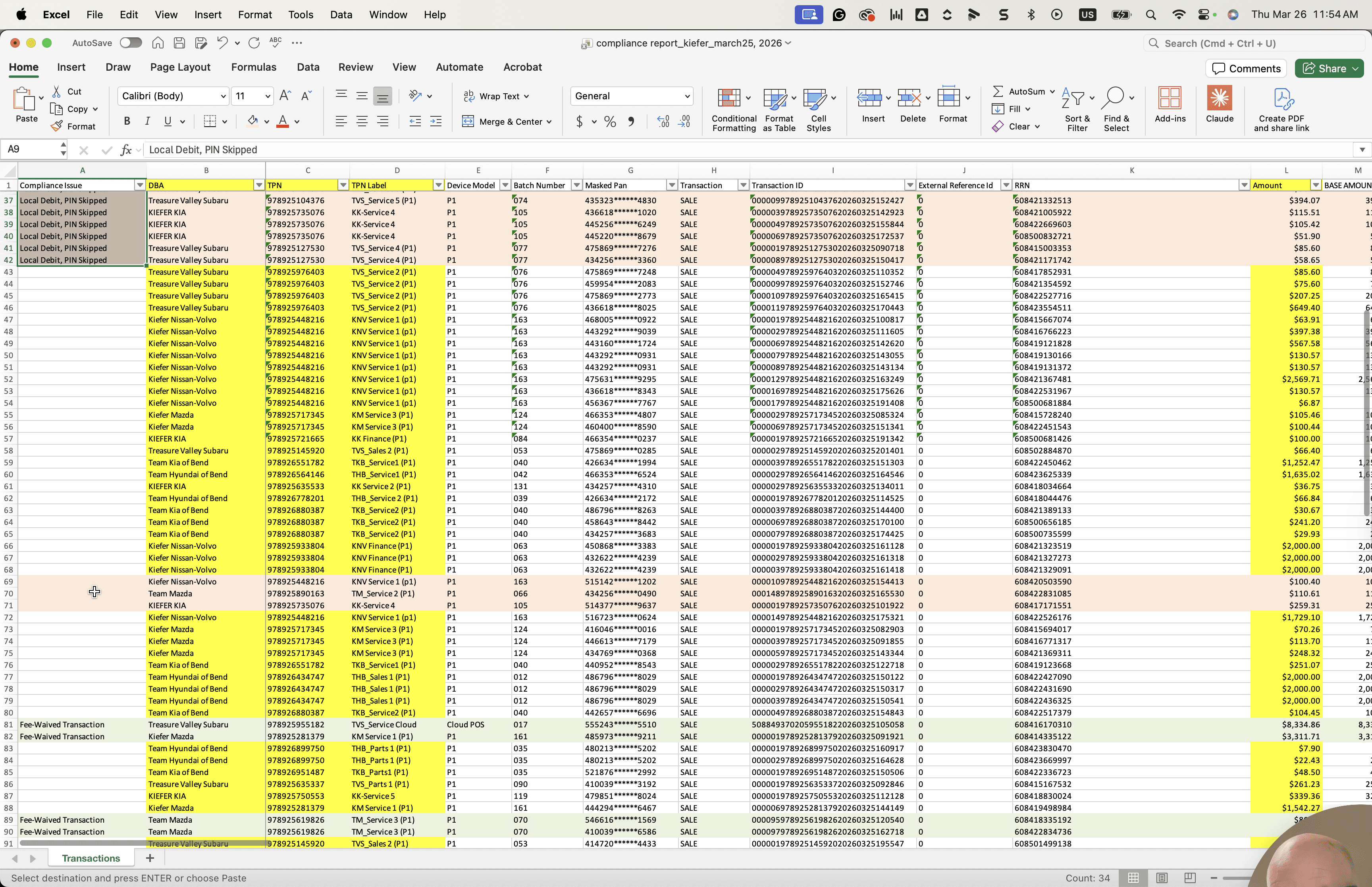
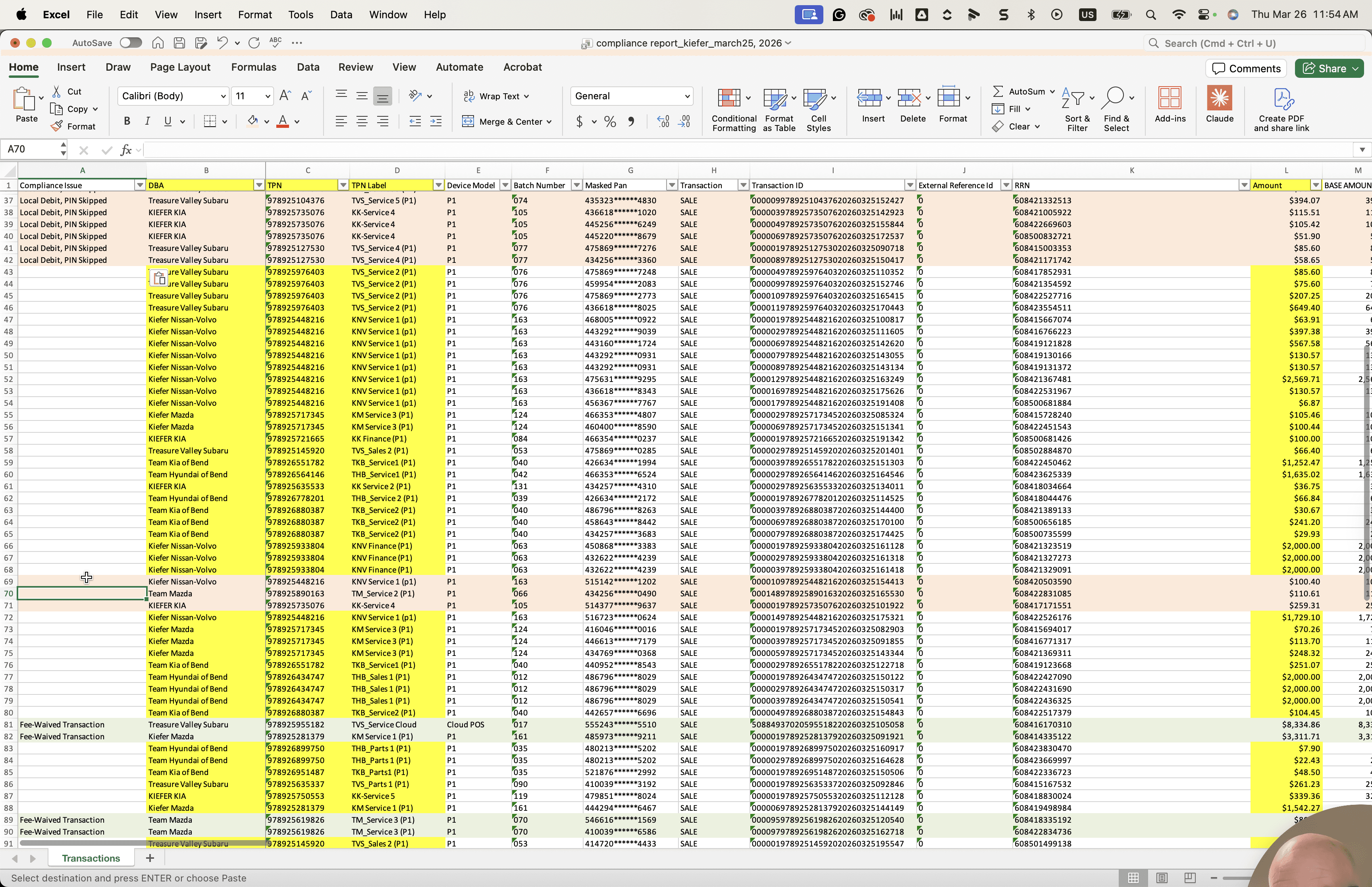
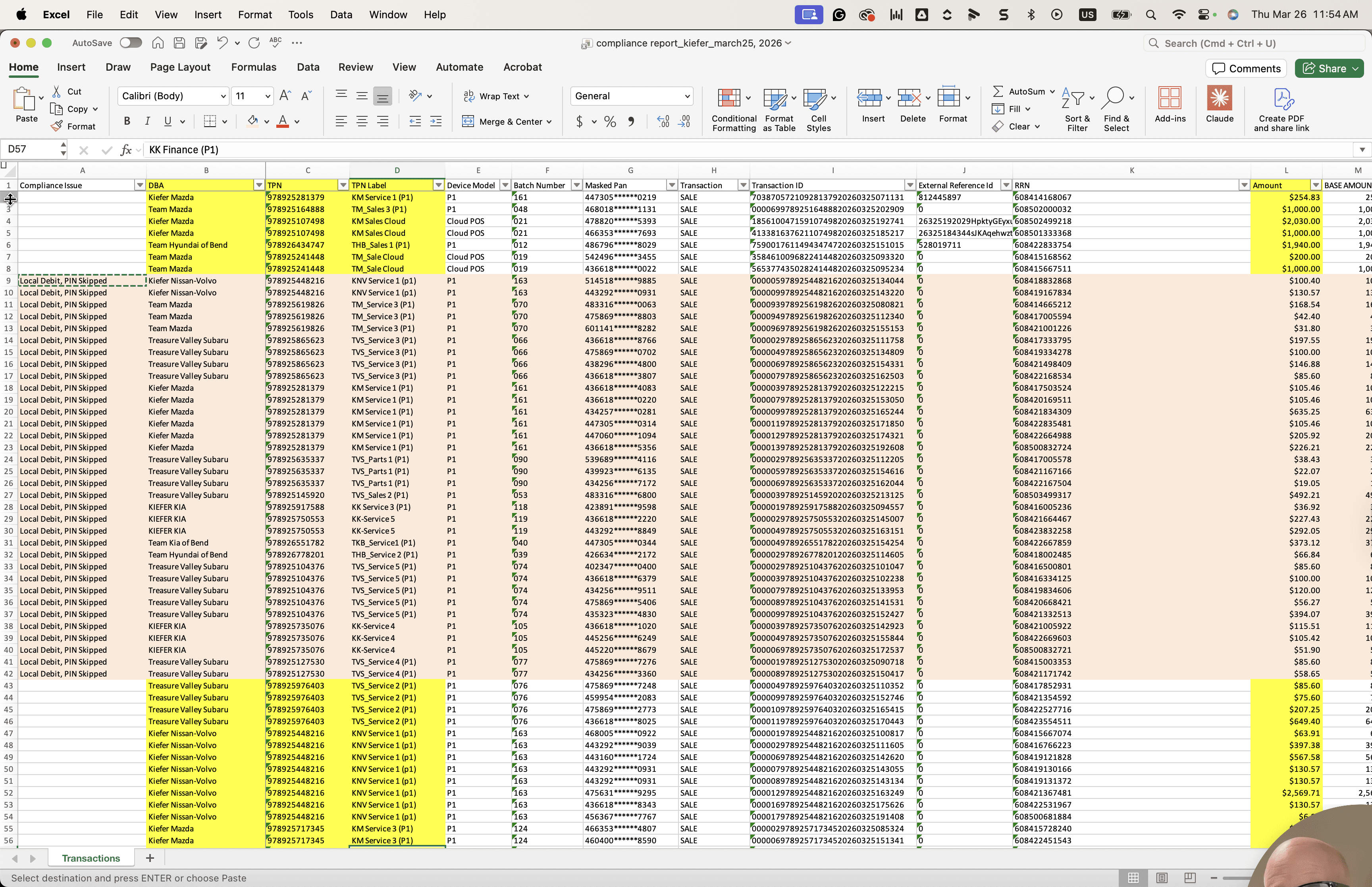
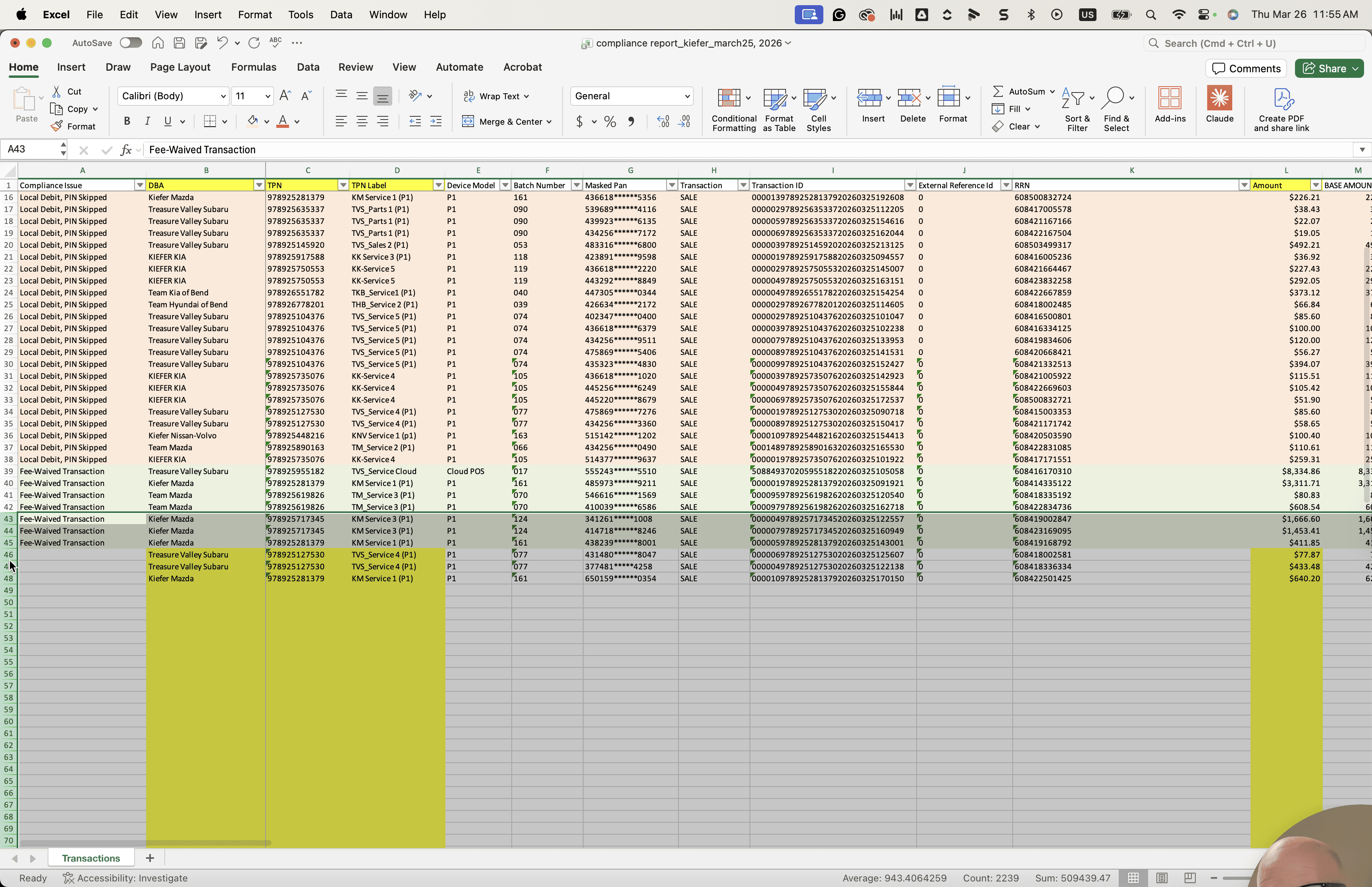
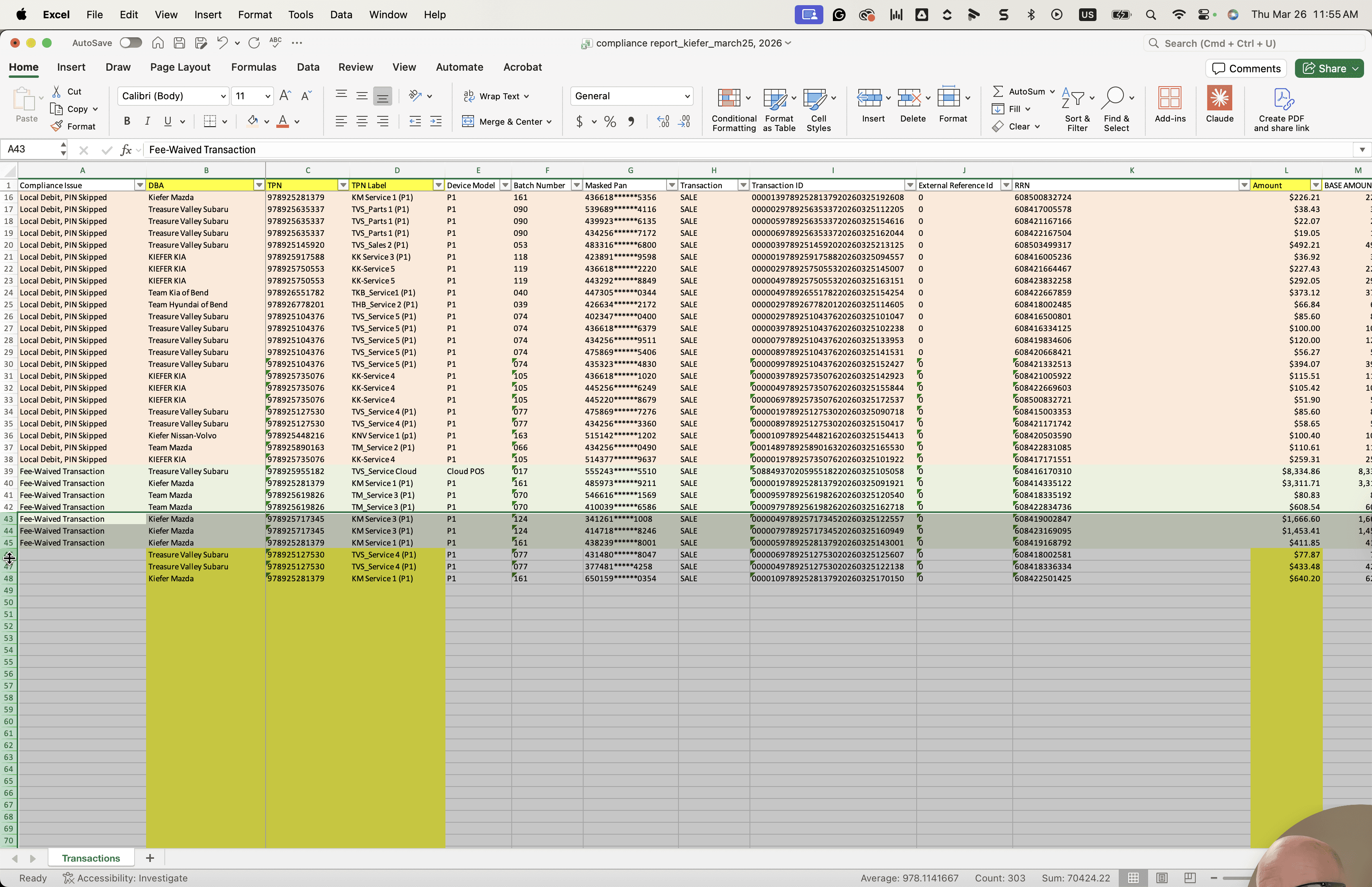
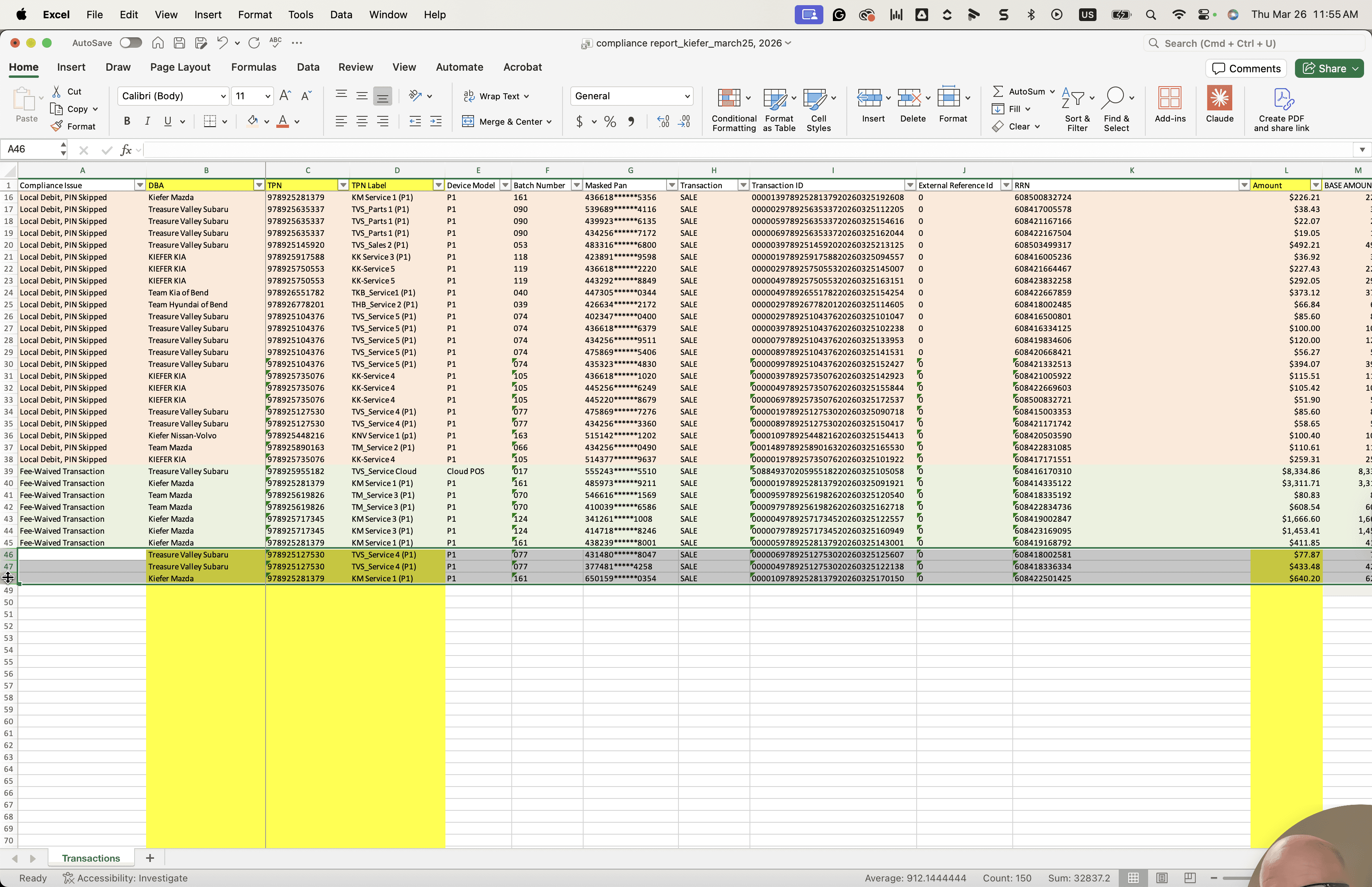
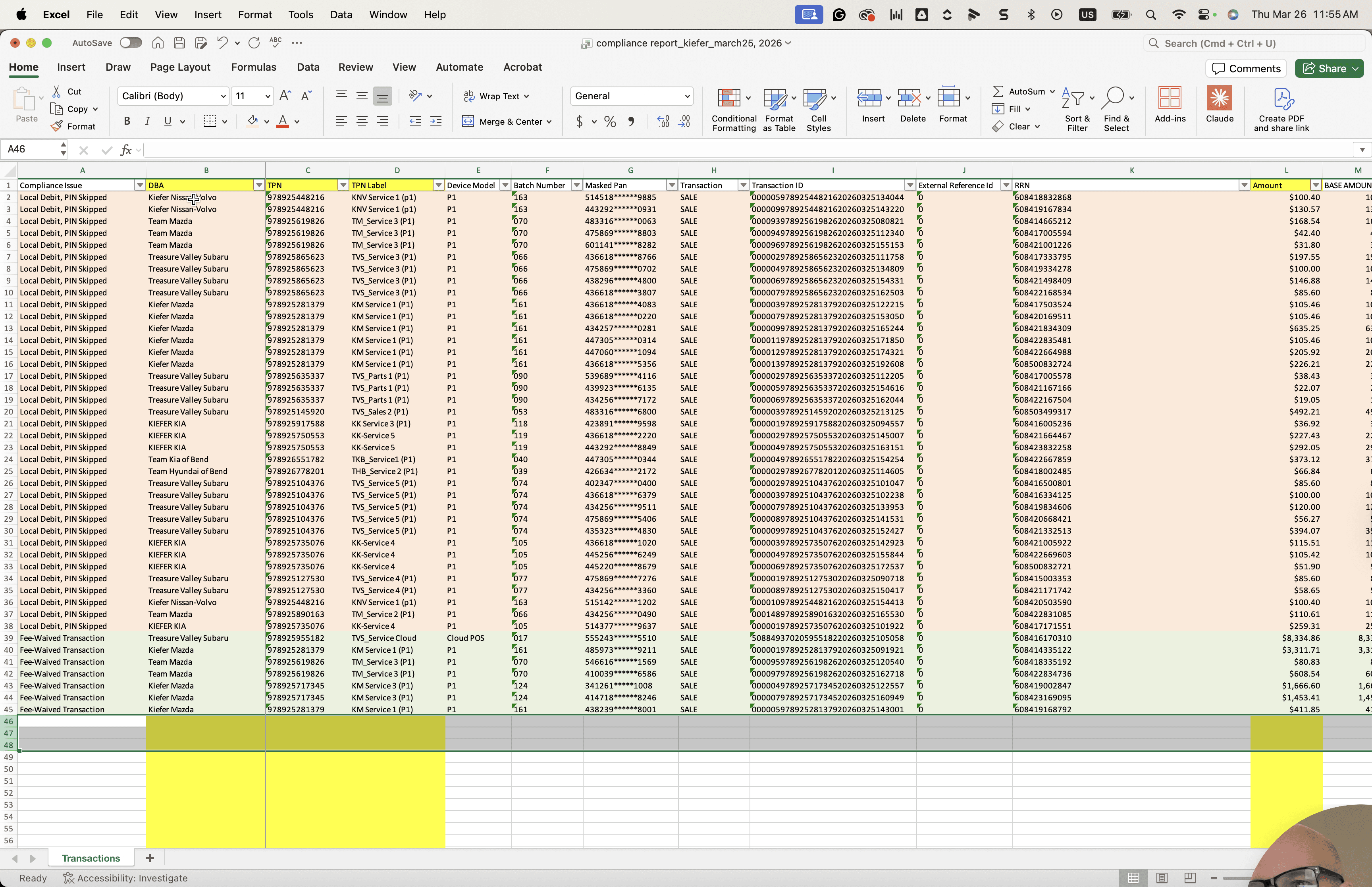
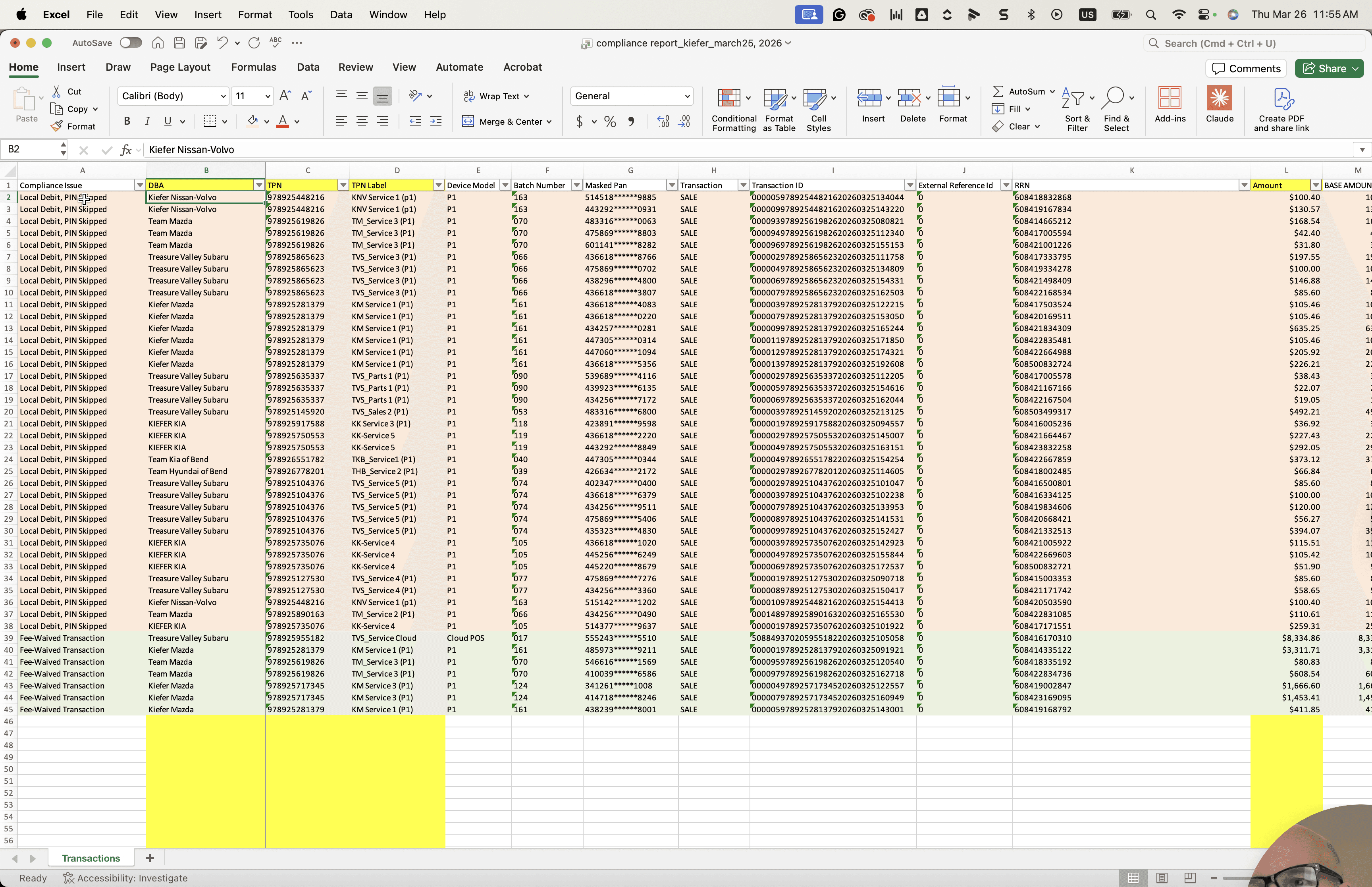
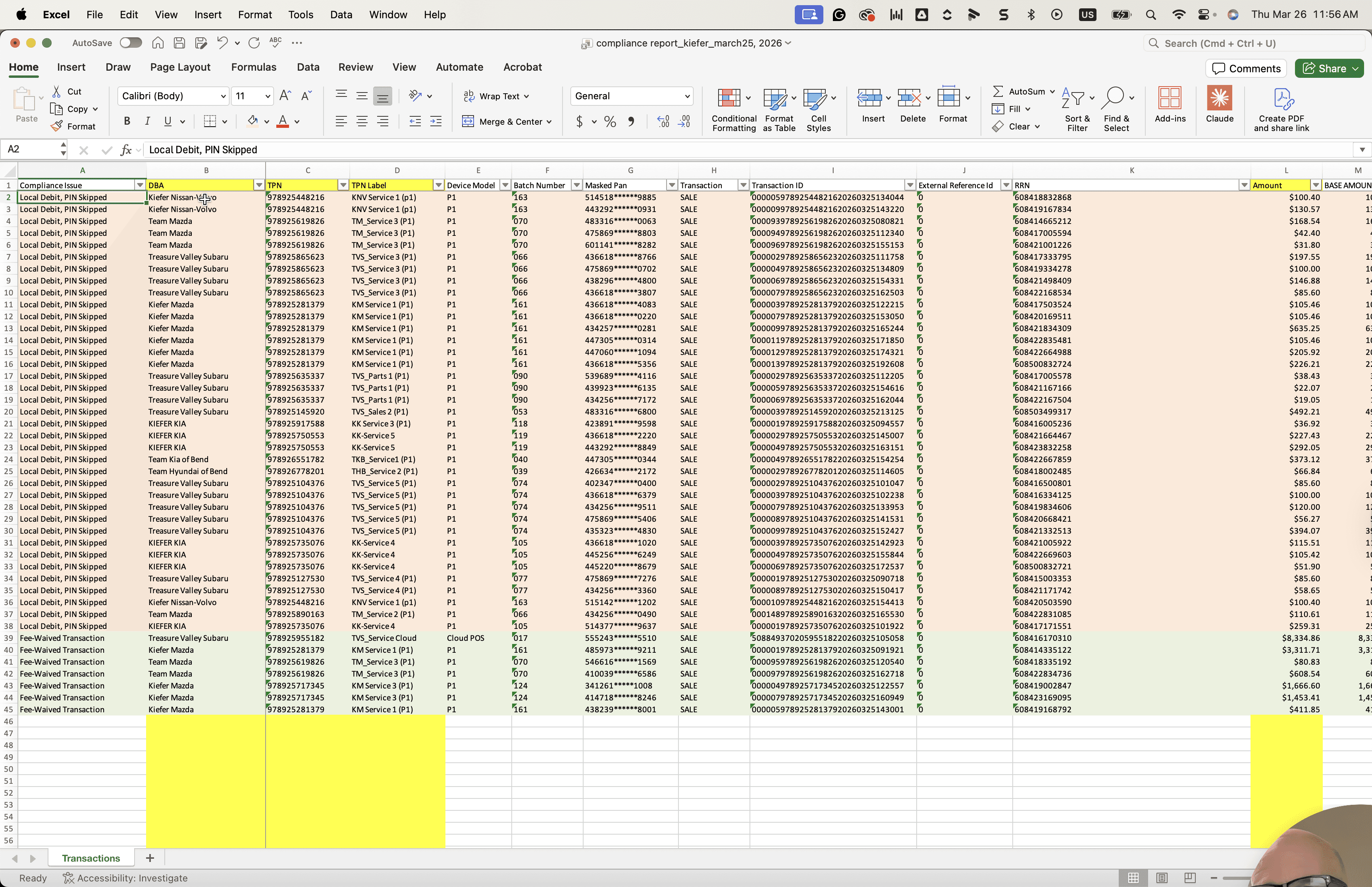
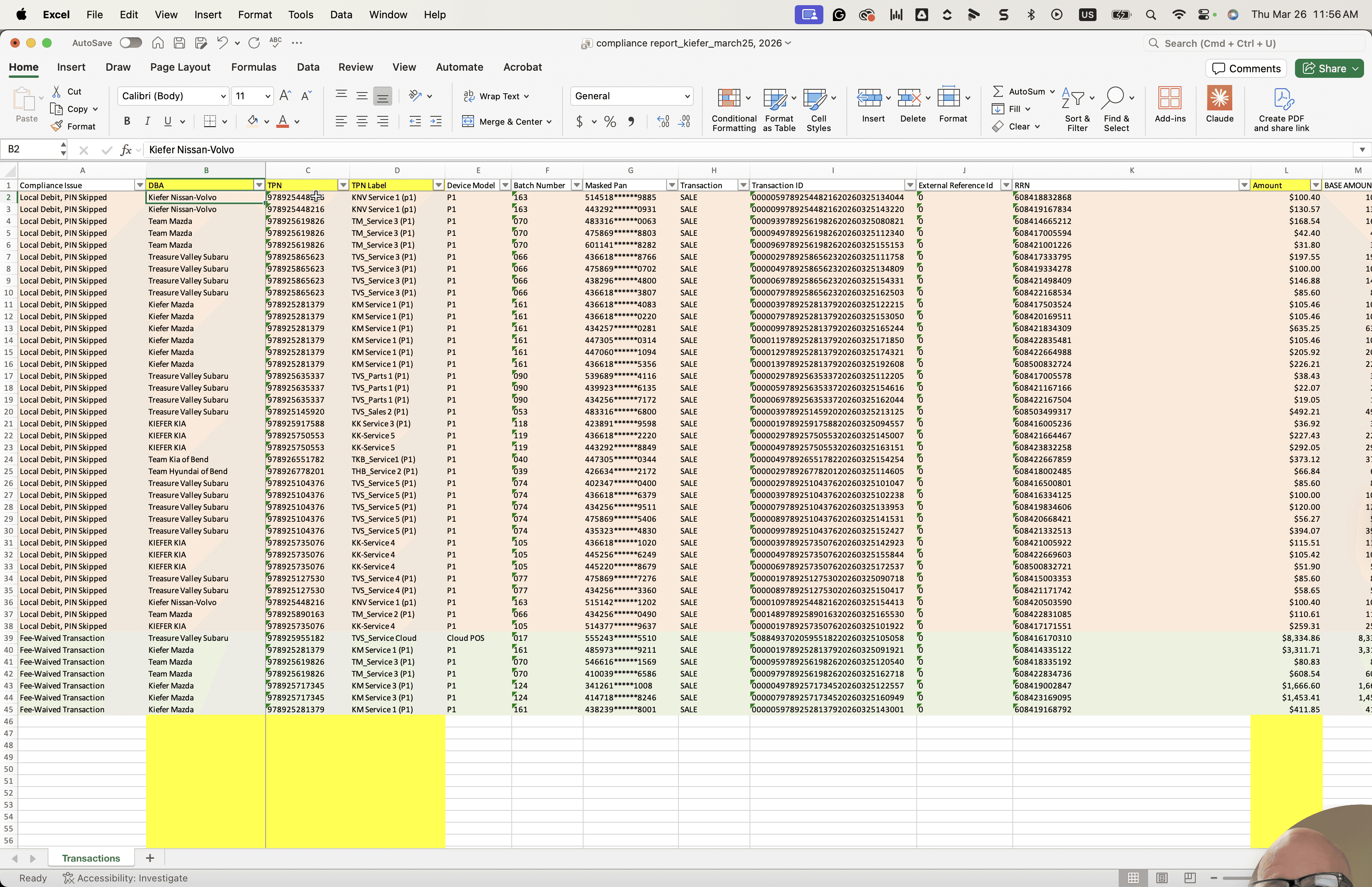
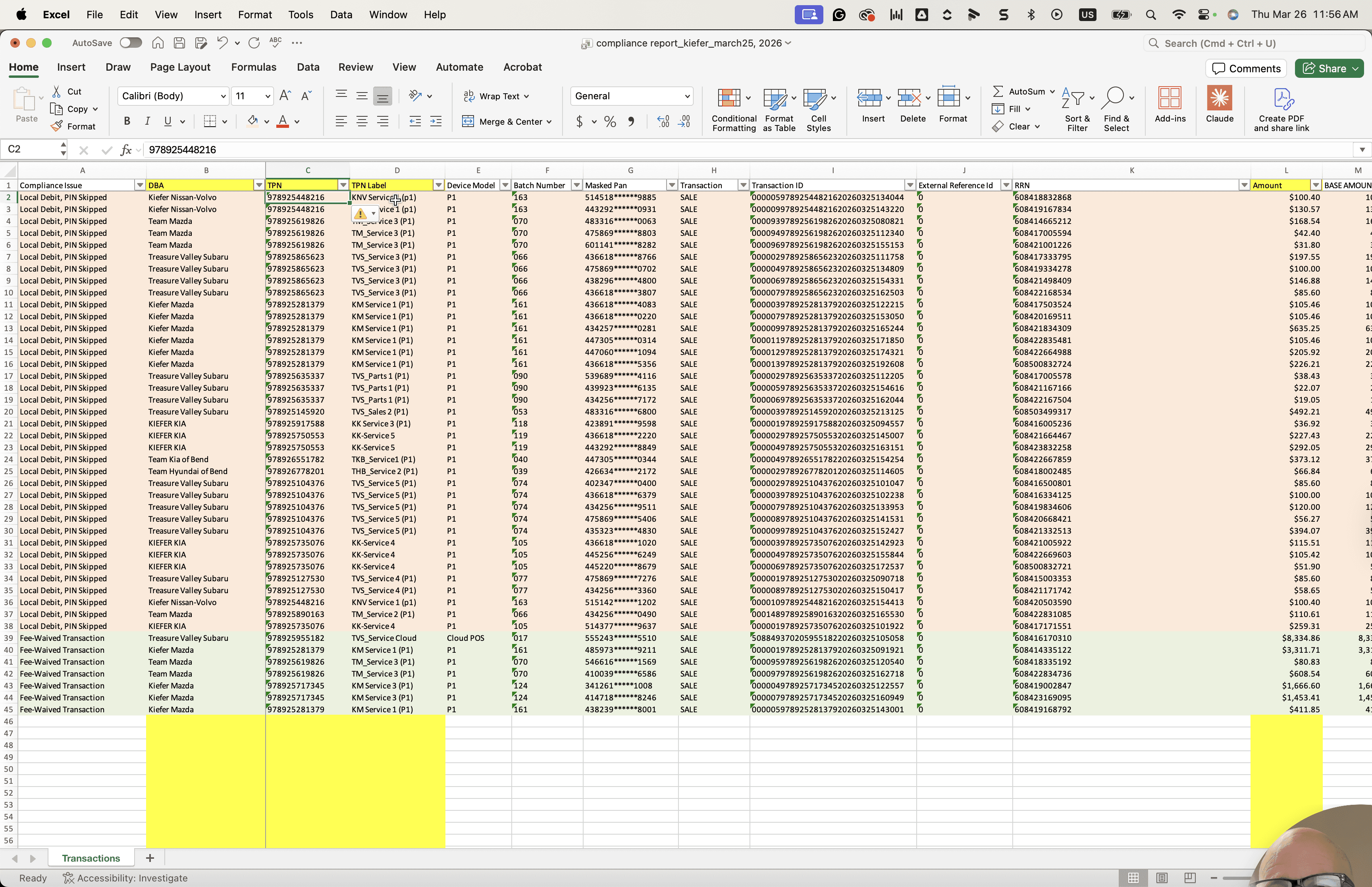
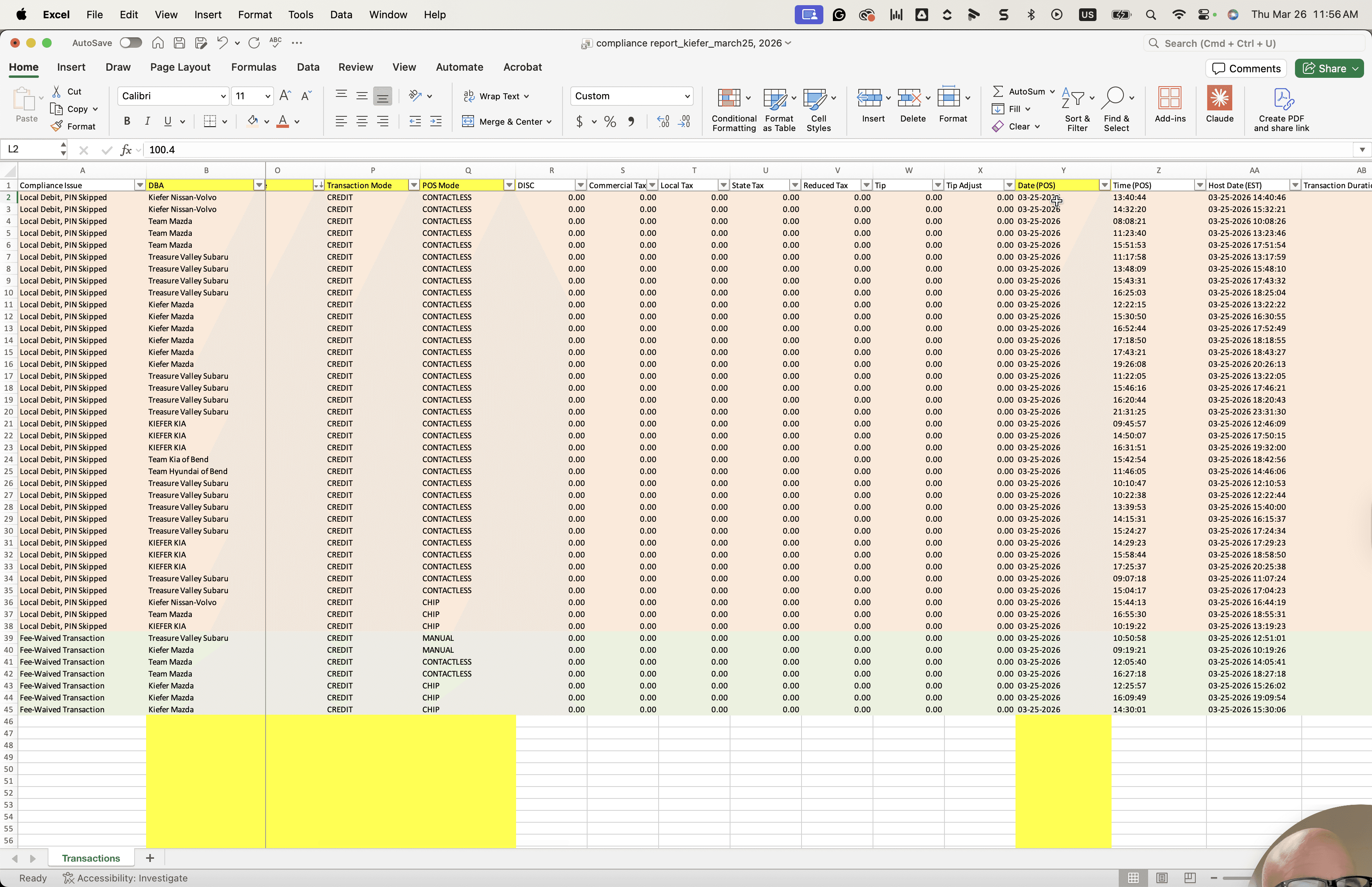
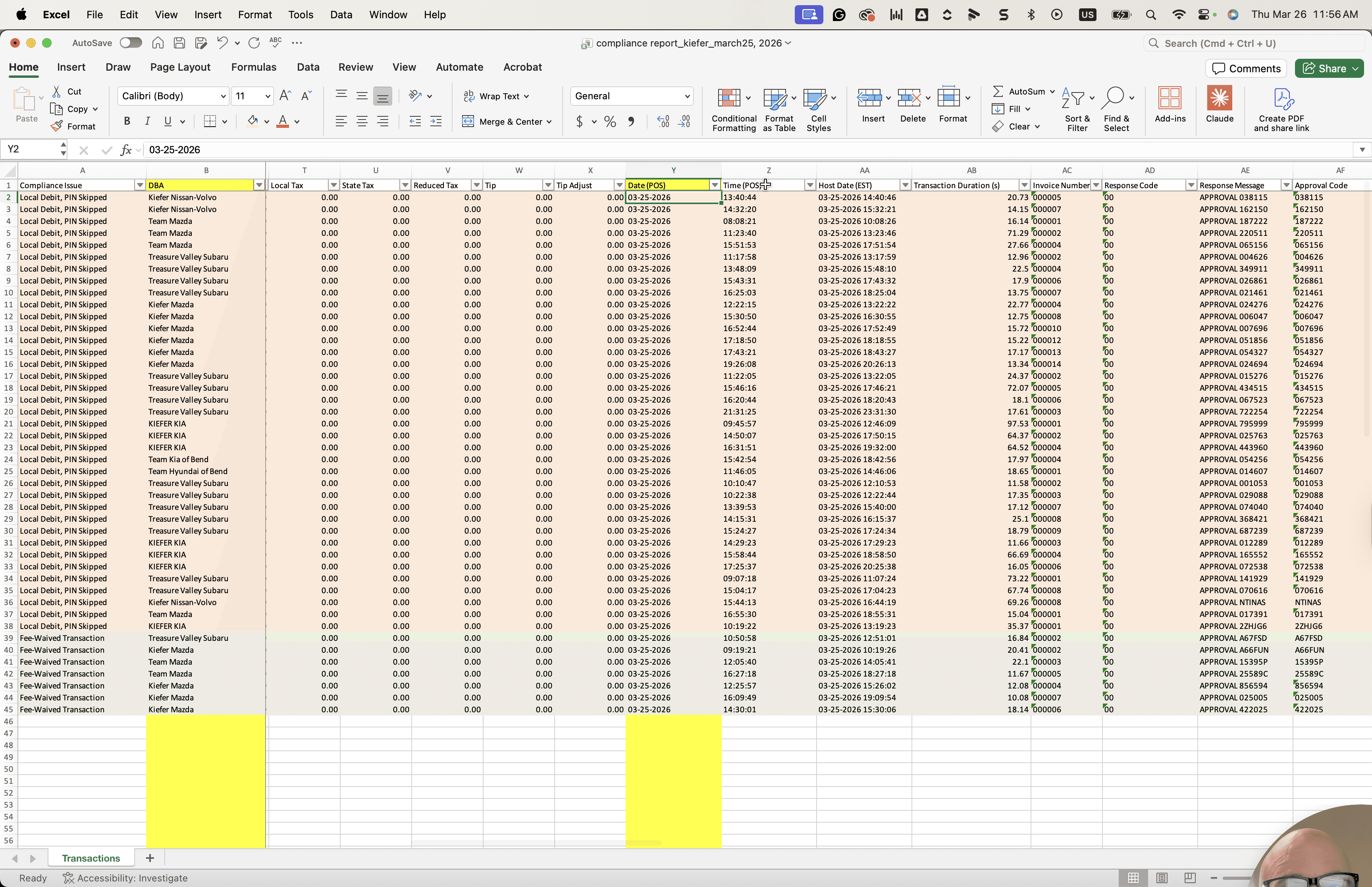
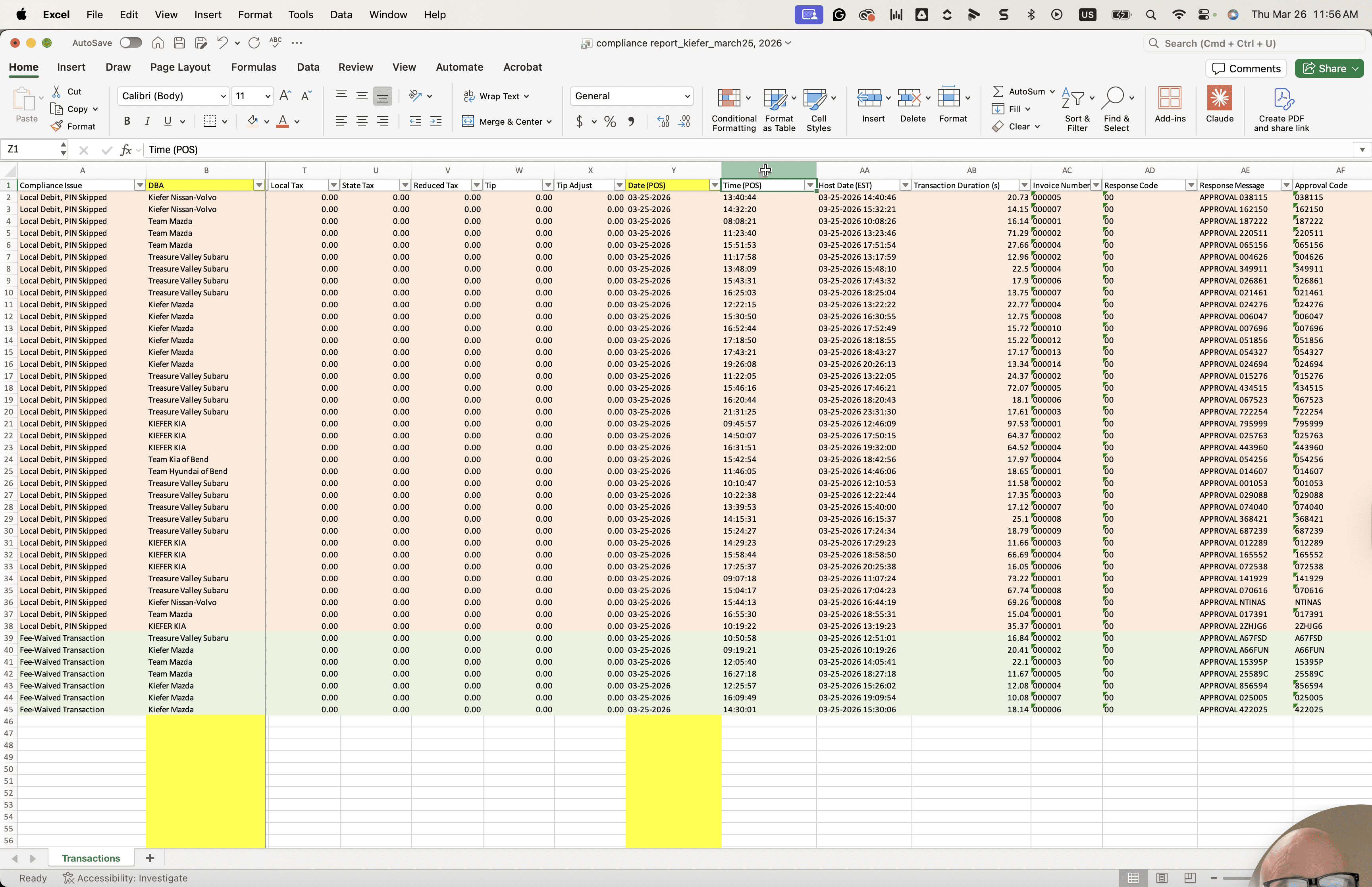
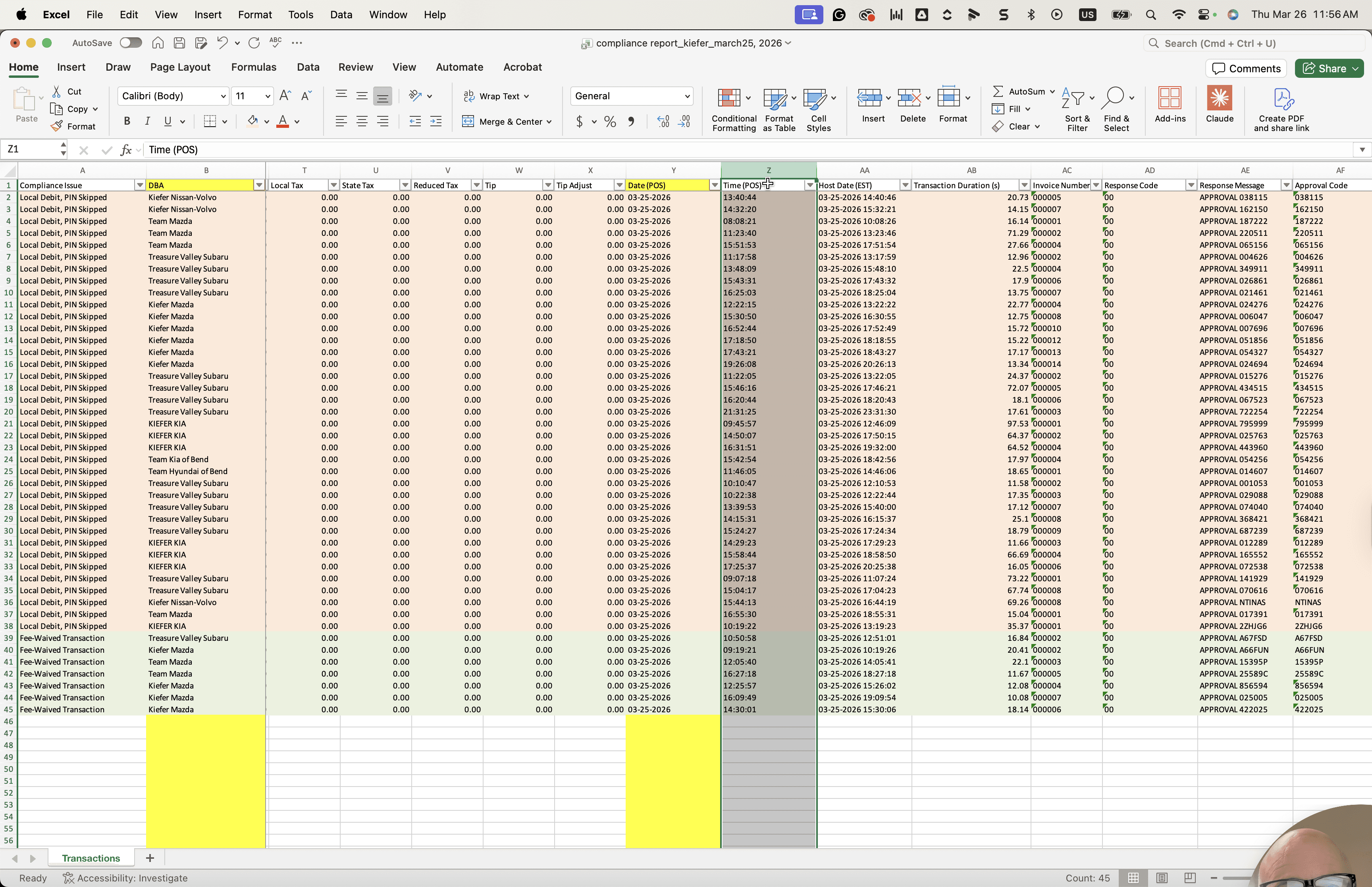
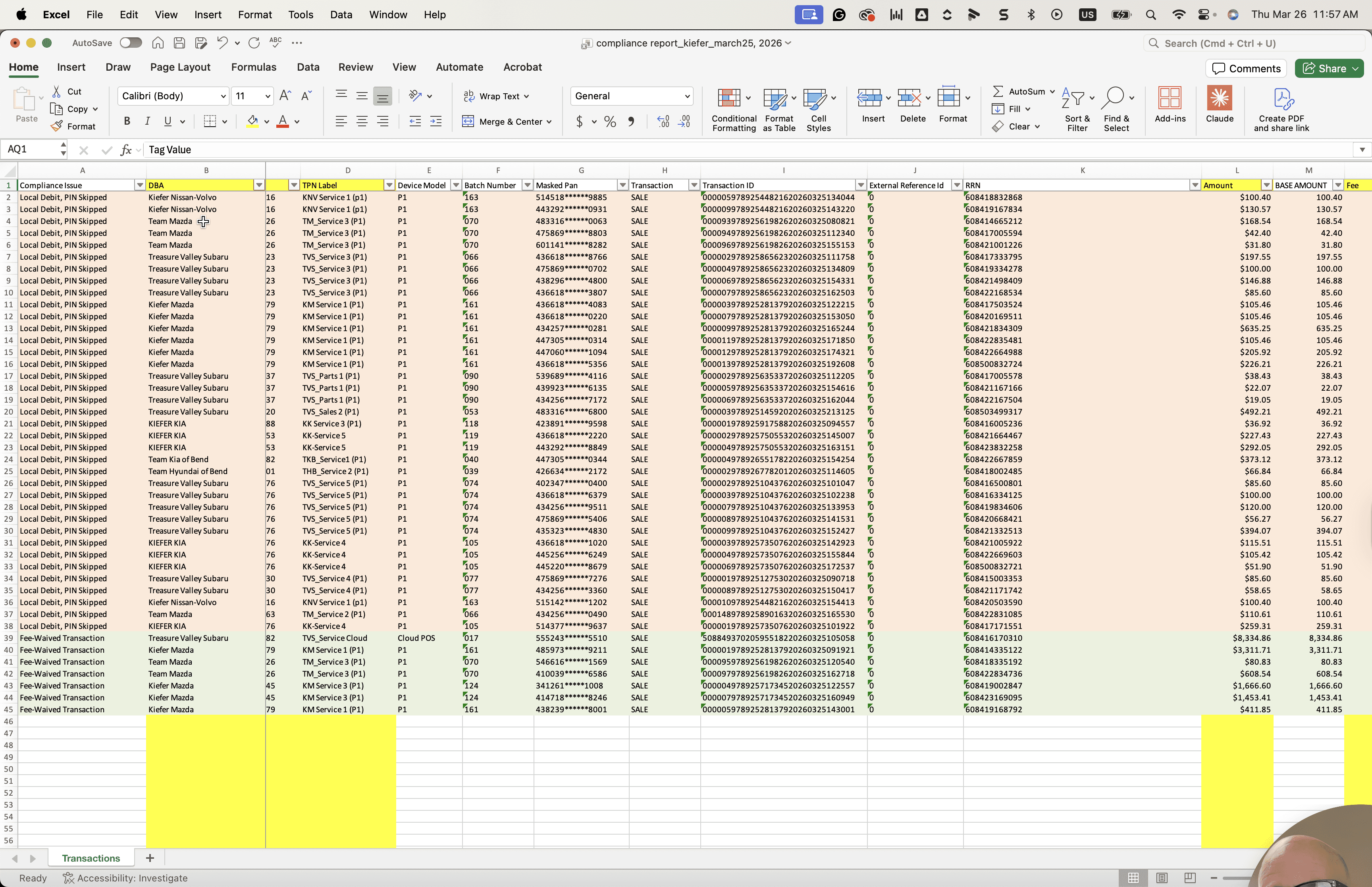
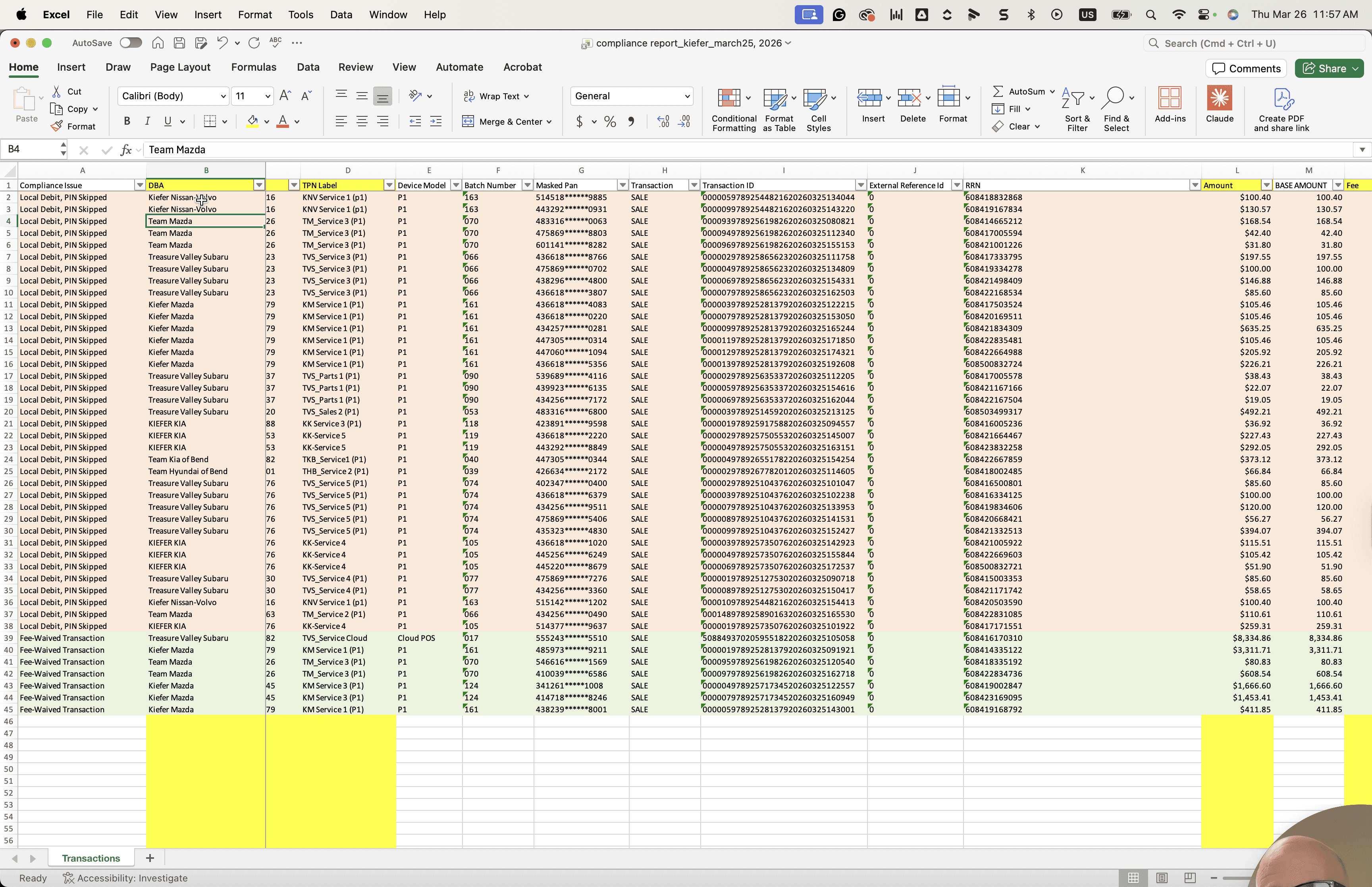
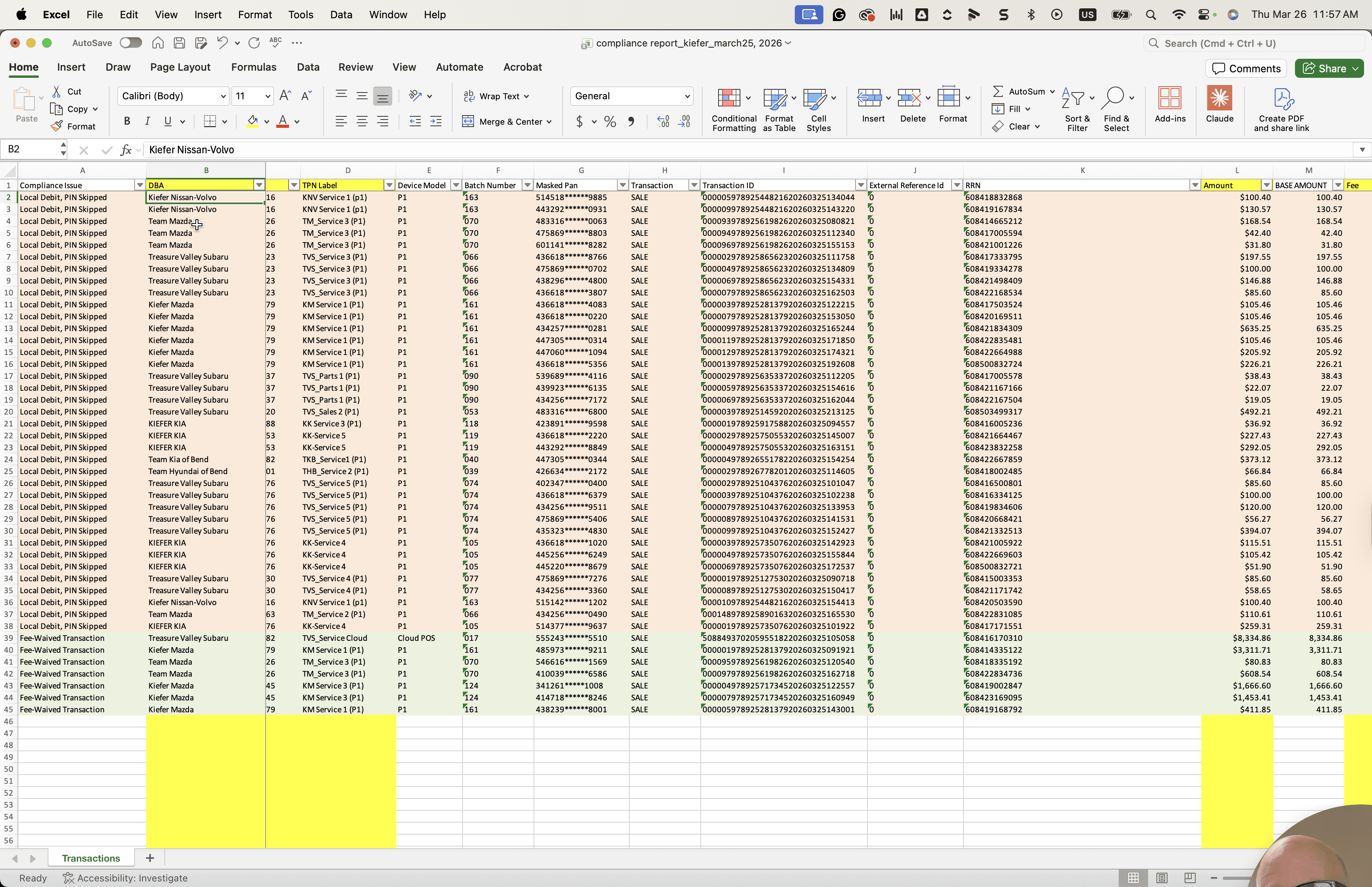
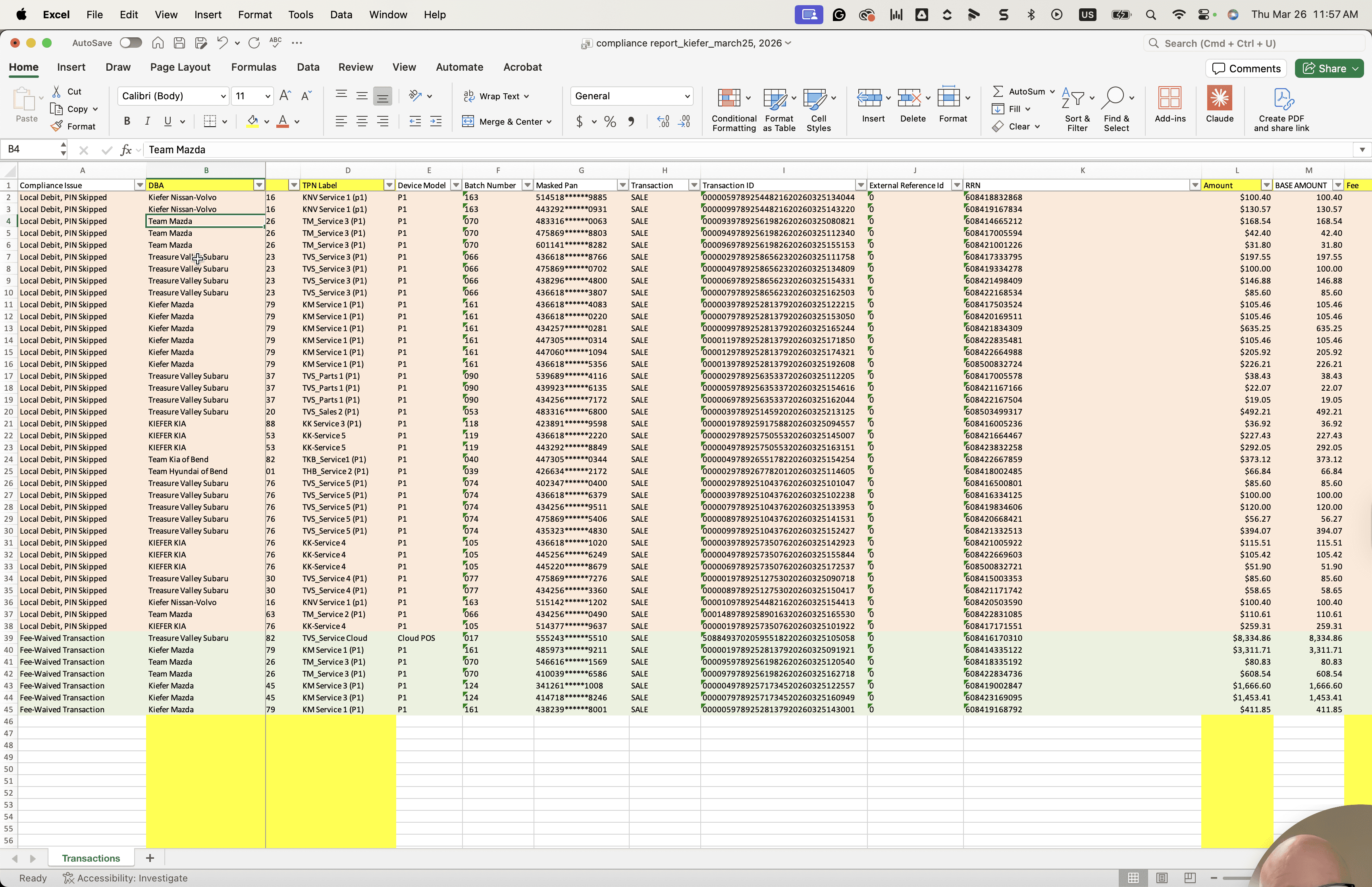
Okay. This is the SOP for creating the compliance email notification SOP. The goal is to create email notifications for transactions that are out of compliance in two different ways. There are two ways it can be out of compliance: either a PIN debit was skipped, which is shown in this column as a PIN debit skipped compliance issue, or a fee was waived on a credit sale, resulting in a fee waived credit sale compliance issue. That column, which we can create in the final output, is the end goal.
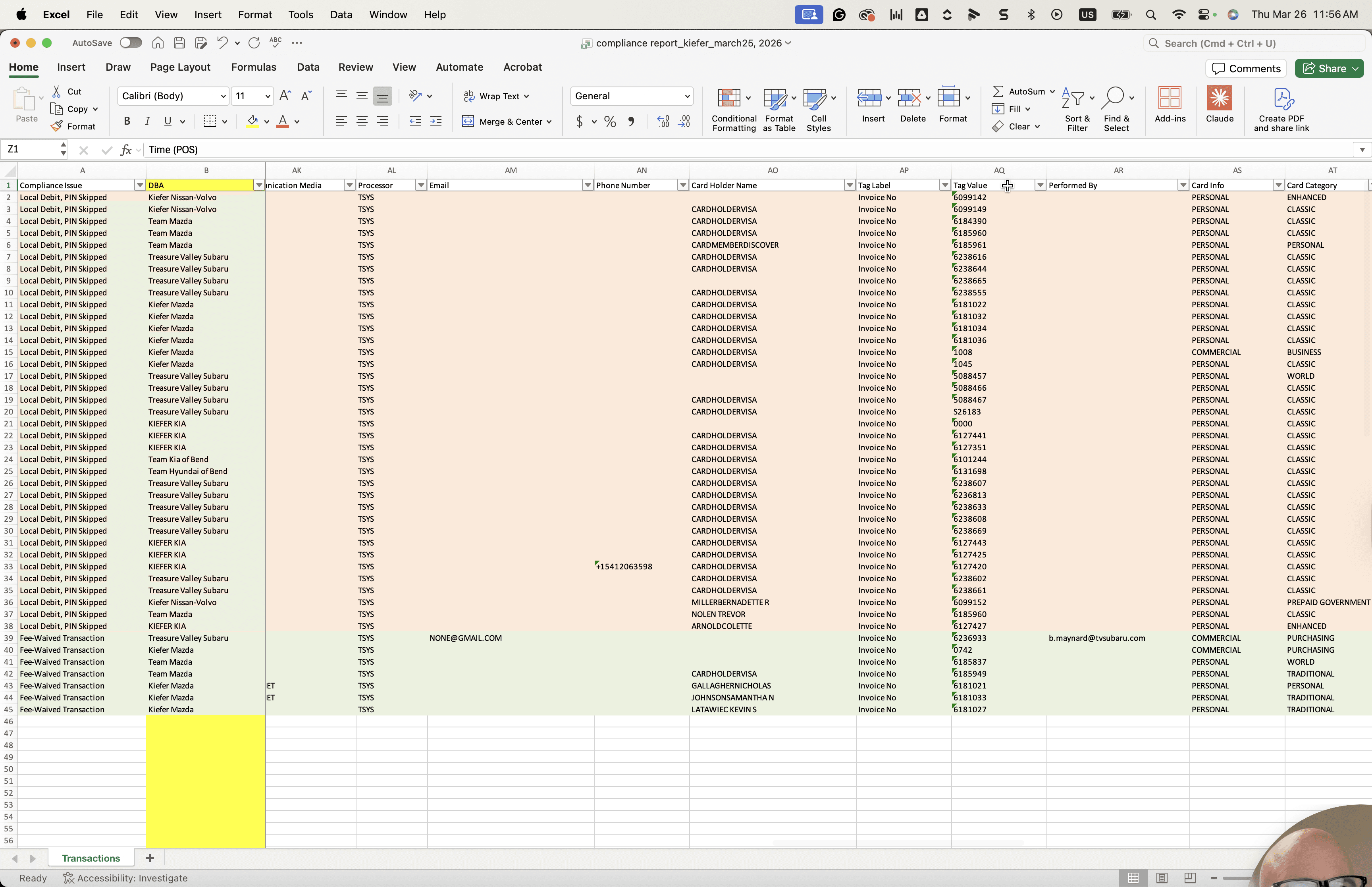
Each of these will be sent to the managers at each DBA location. Here, you see Marquart Toyota and Marquart RV. These are the different locations. Some have two, some have multiple, and some have only one. Each person receives an email highlighting the compliance issue, including the store name, the TPN involved, the amount, and the tag value. This provides all the necessary information. The compliance issue involves the DBA, the TPN it was done on, the TPN label, the transaction amount in question, and the tag value, which is the transaction value.
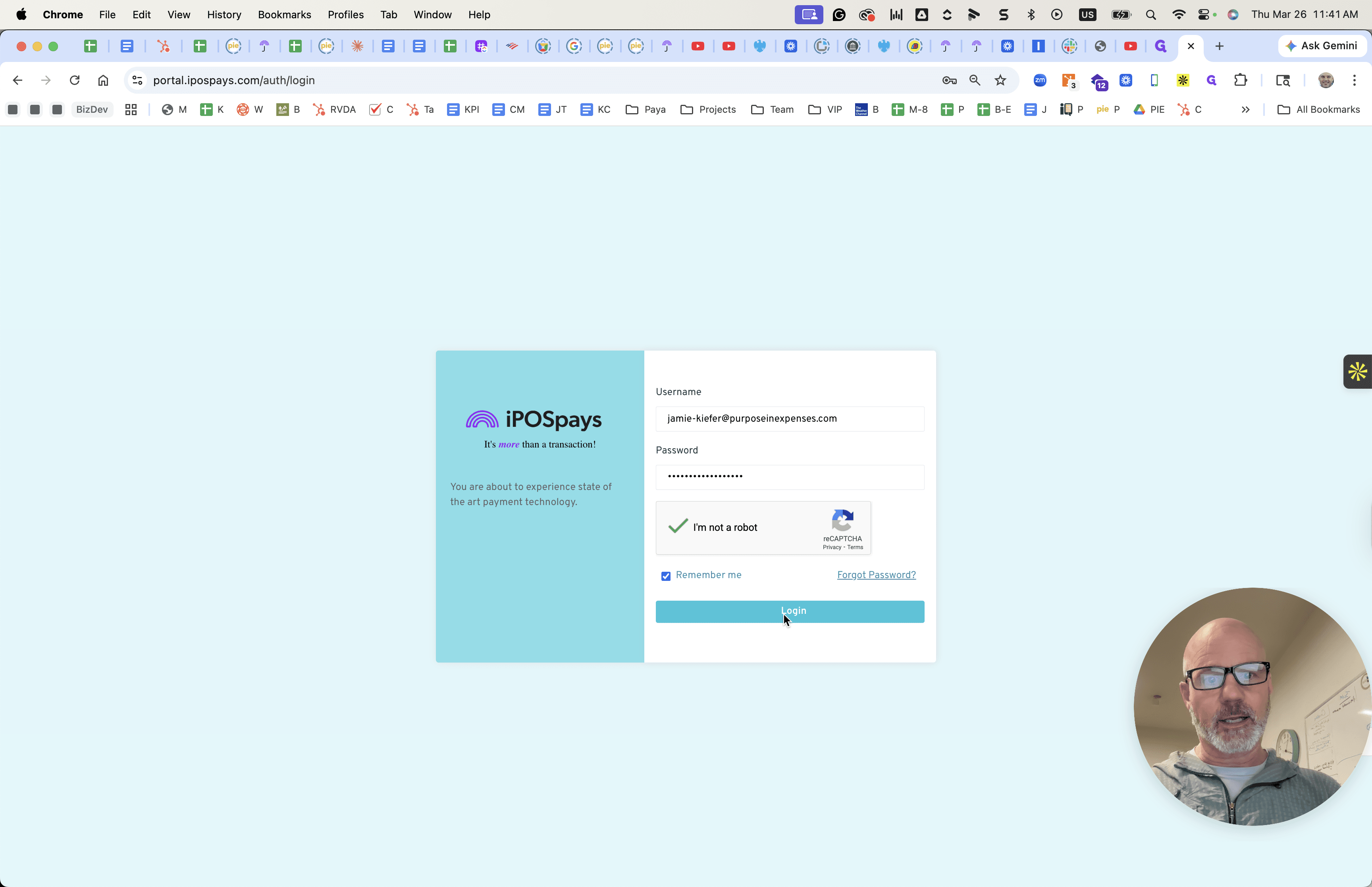
That is the end goal. Here is how to achieve it. First, log in to the website at portal.ipospays.com. You will need to log in, depending on which report you are running.
There are two different ones we are doing. One is Kiefer, and the other is Marquart.
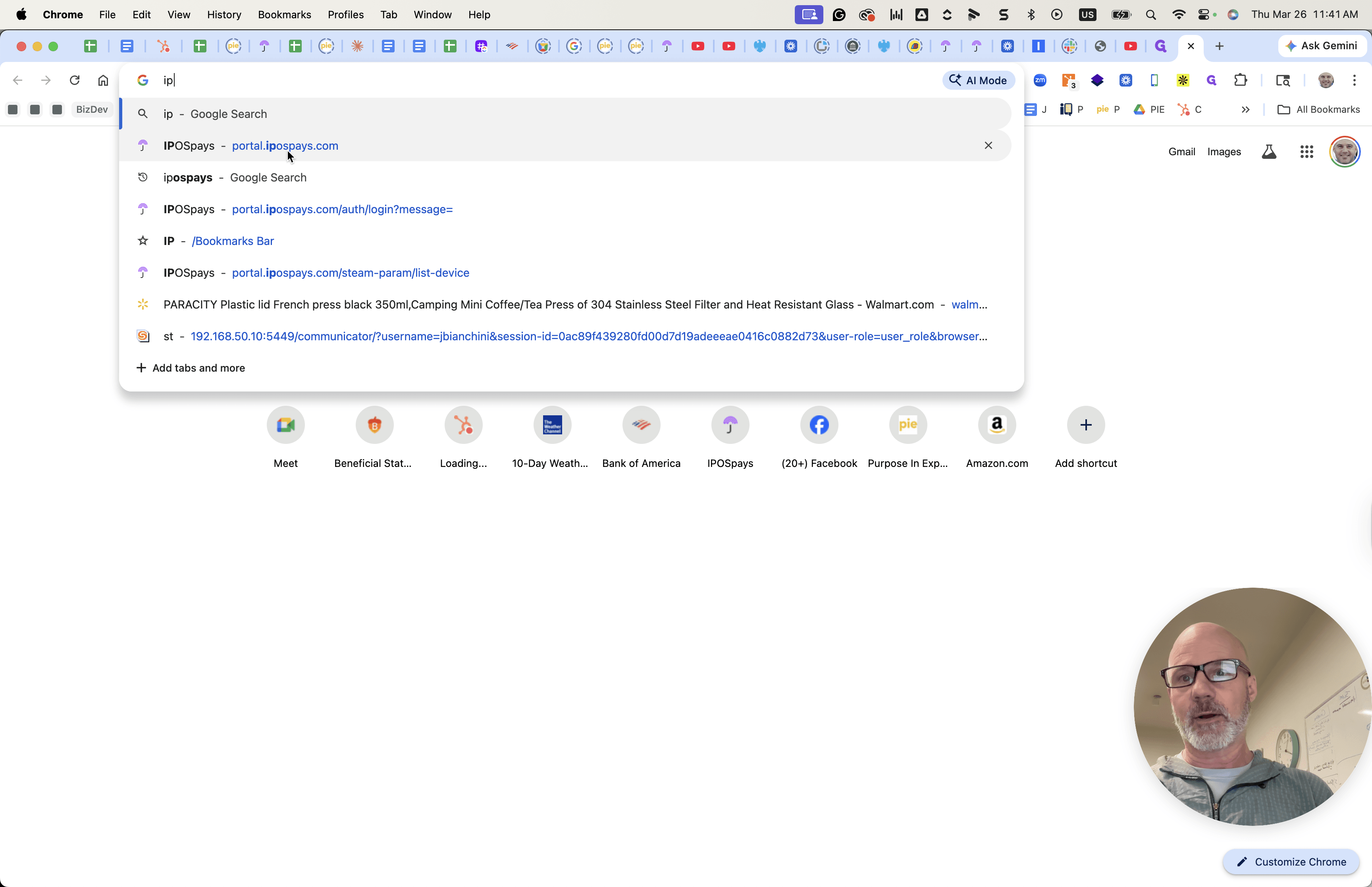
Those are the two we are running right now. Assuming we are using Kiefer as an example, log in with the username jamie-kiefer@purposeandexpenses.com.
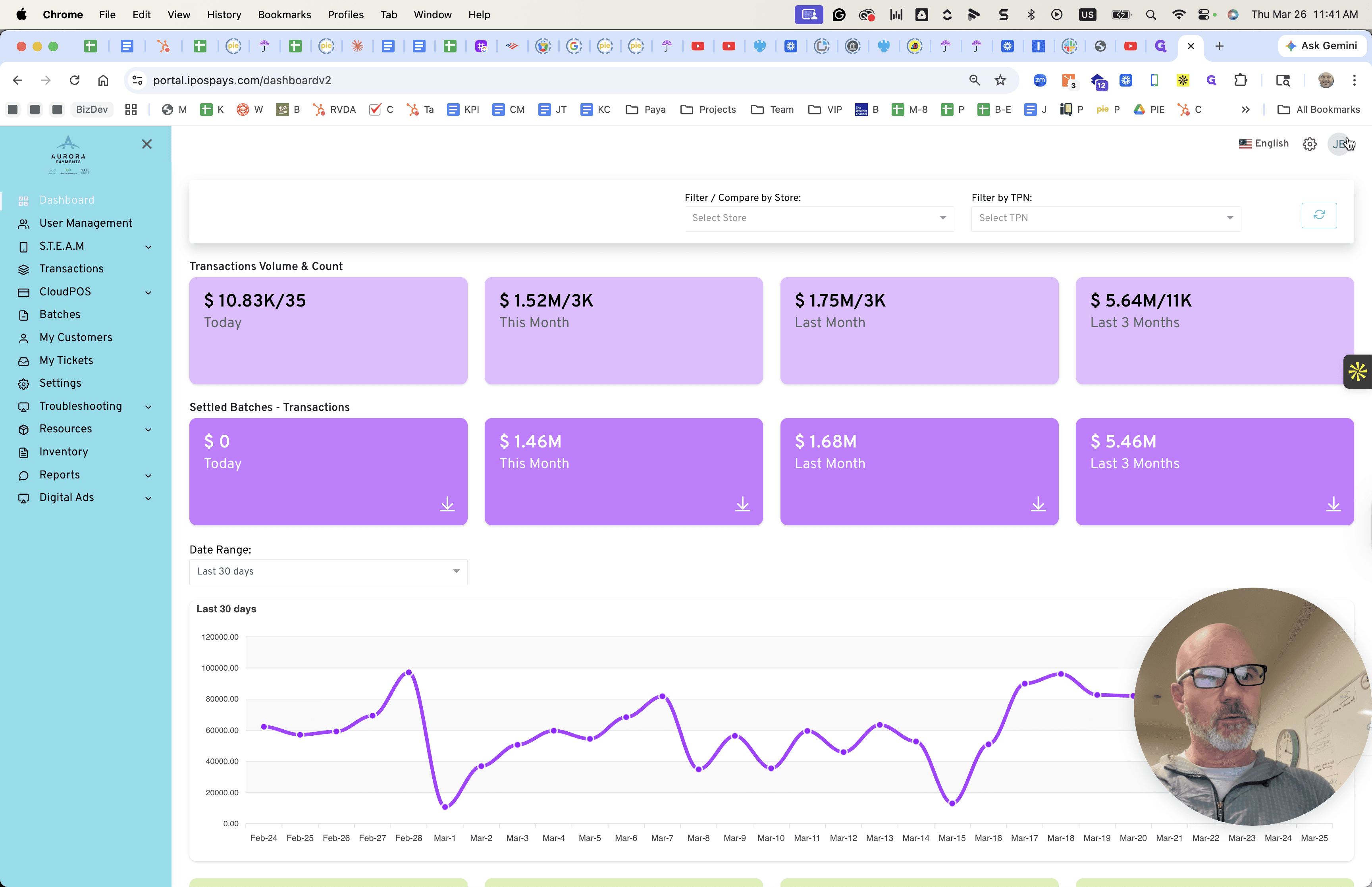
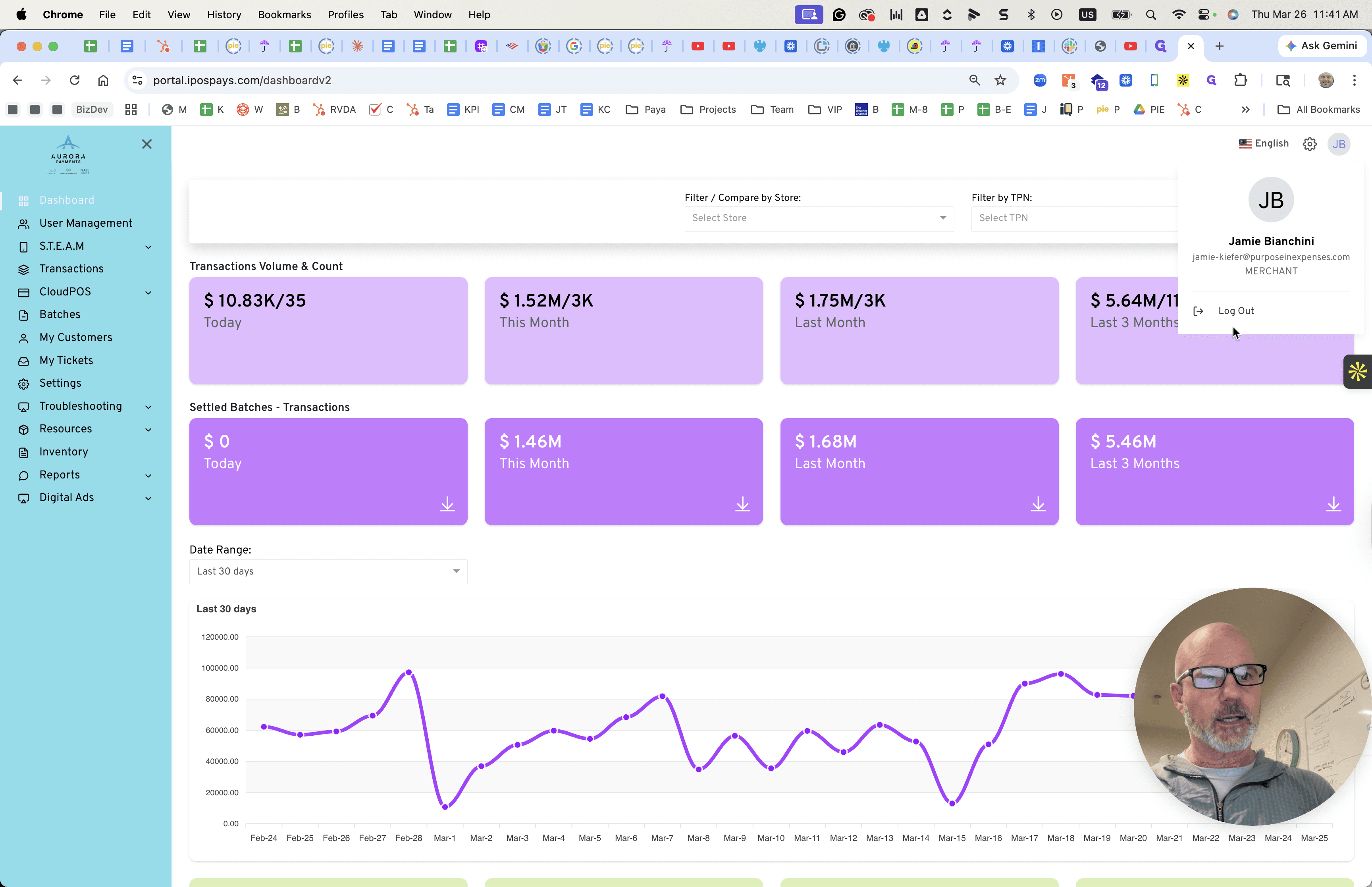
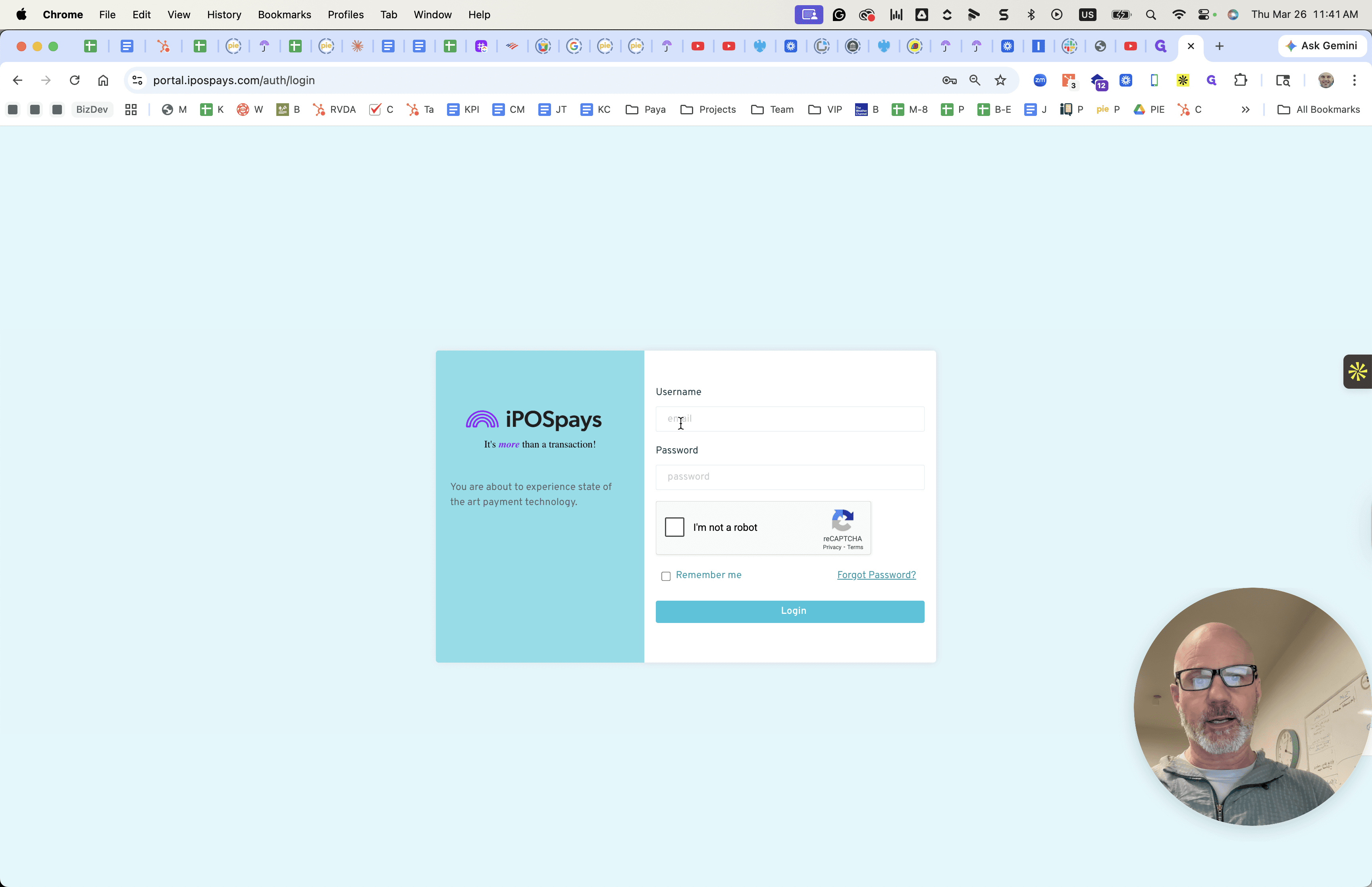
And my password will not be included here.
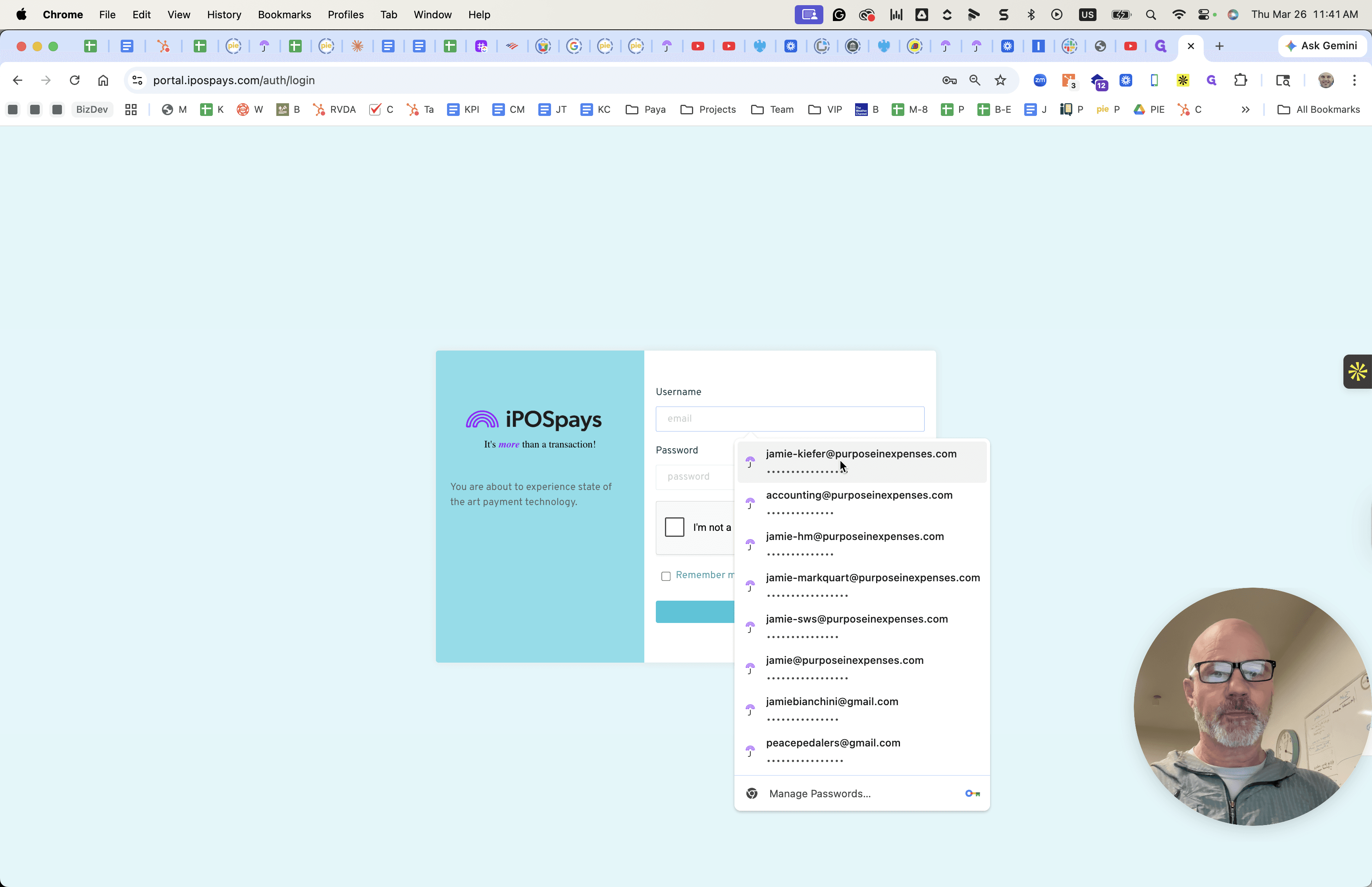
We will give you the password later. Log in with your credentials. The MFA code will be sent to my email.
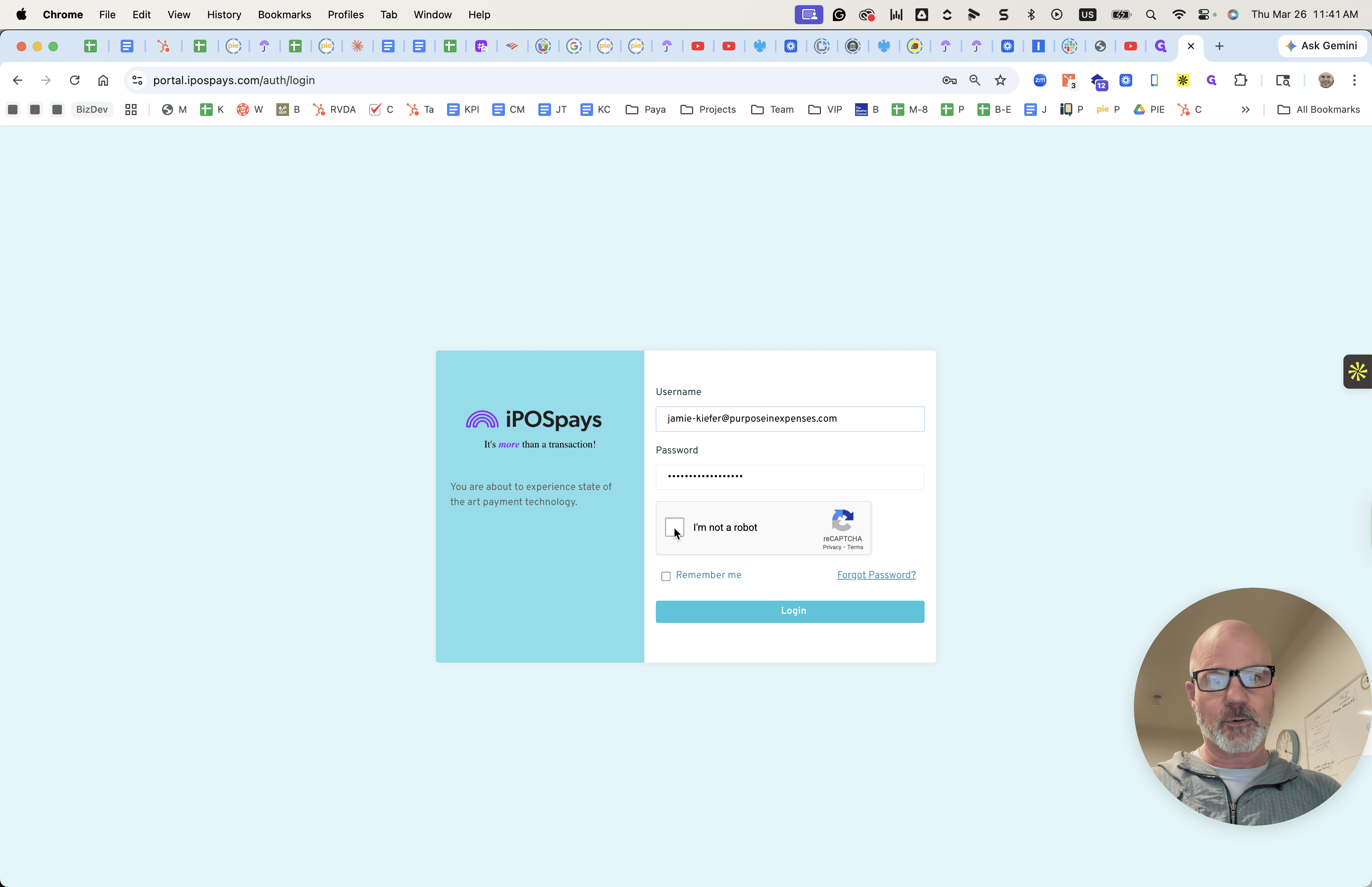
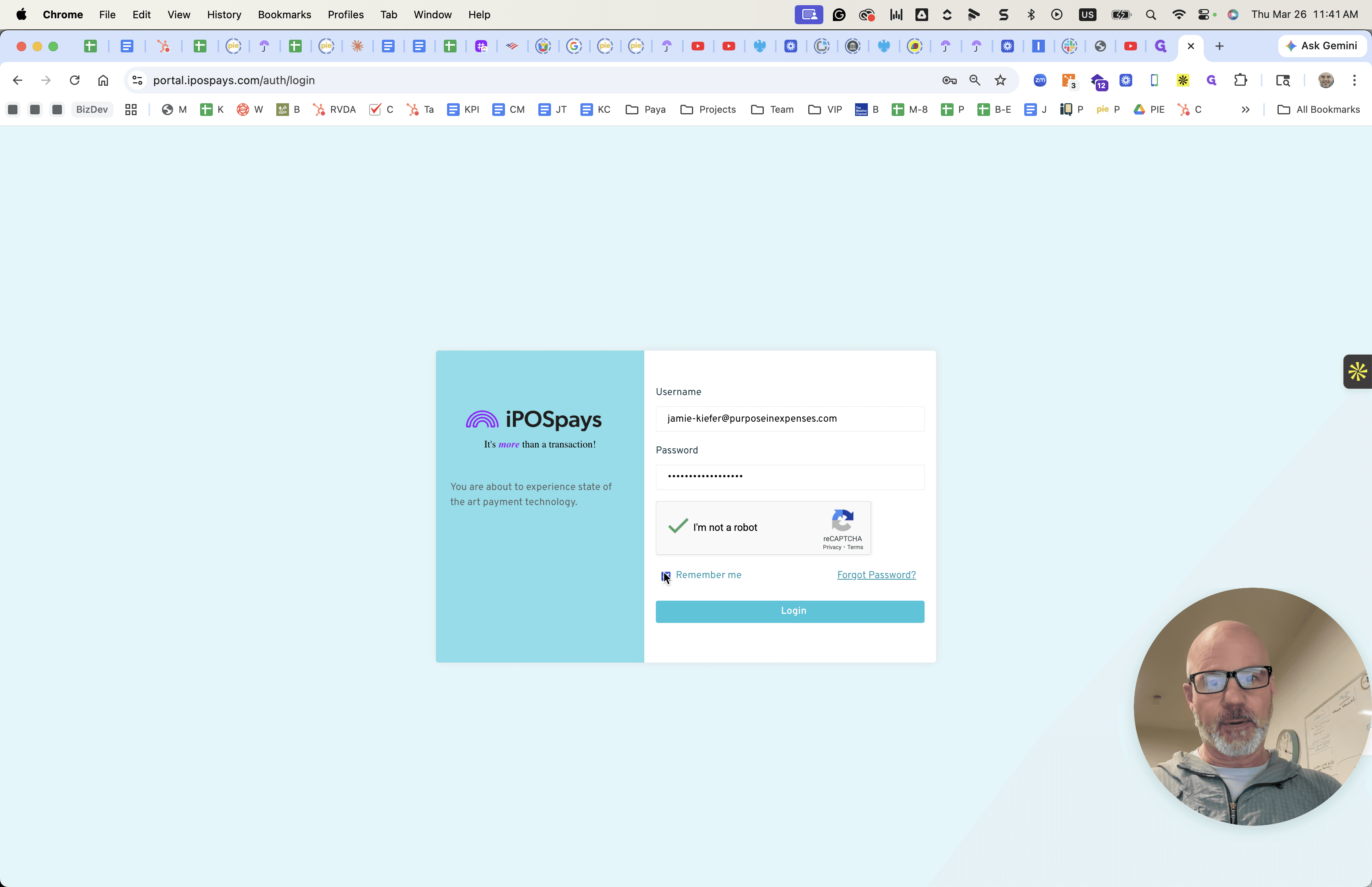
Part of it will come by email. This has already been approved for me, but it will be sent to the email.
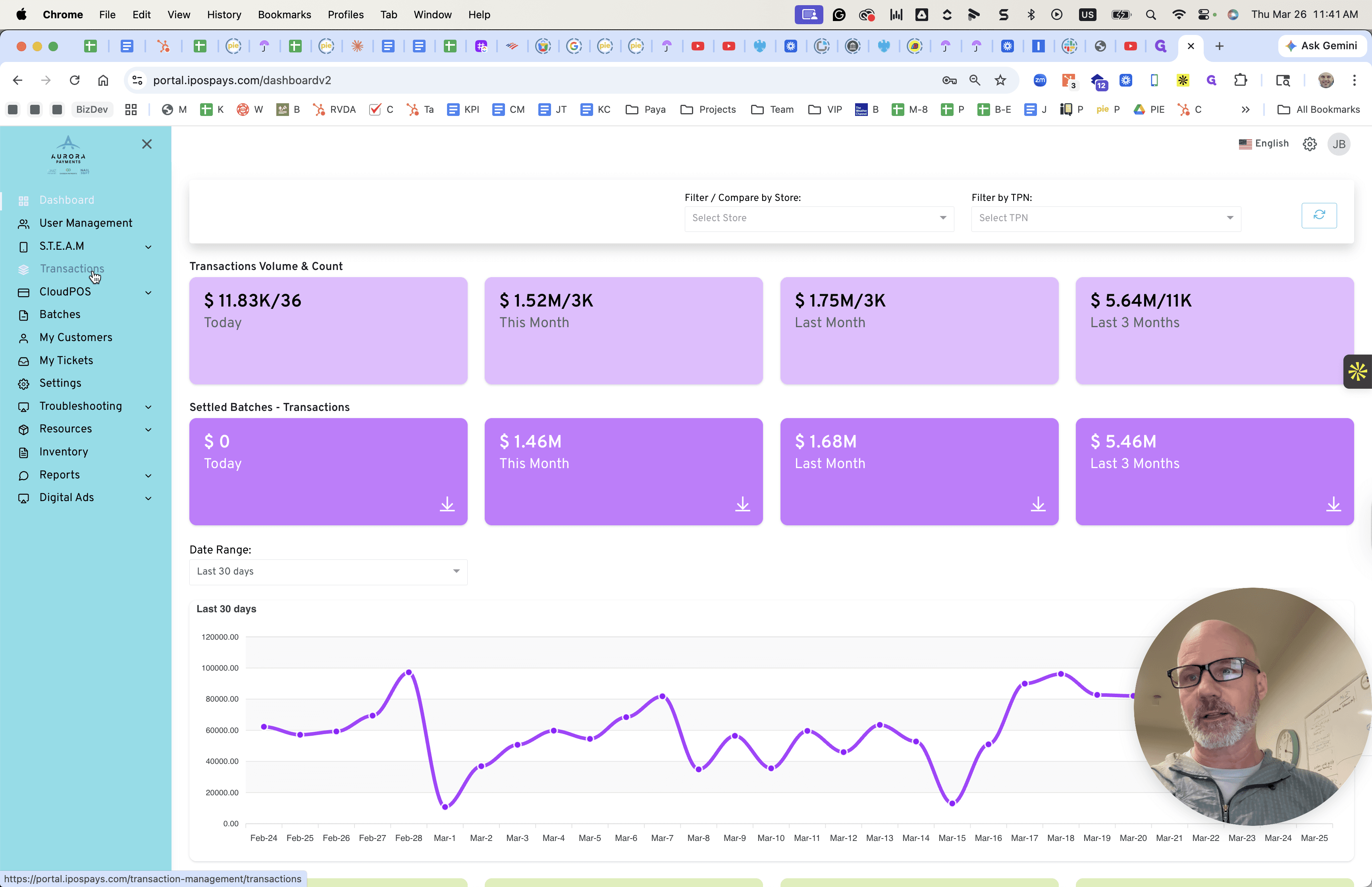
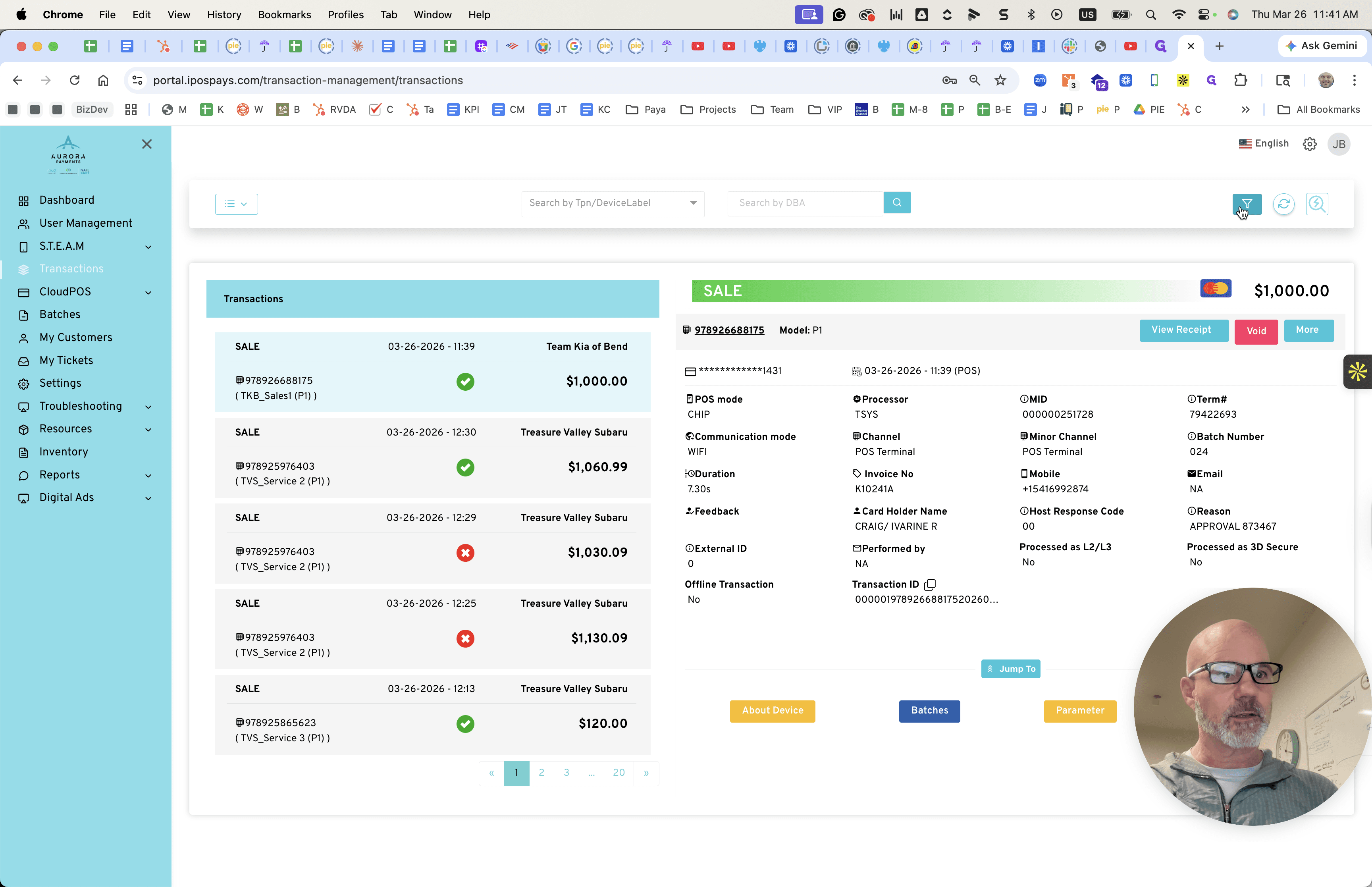
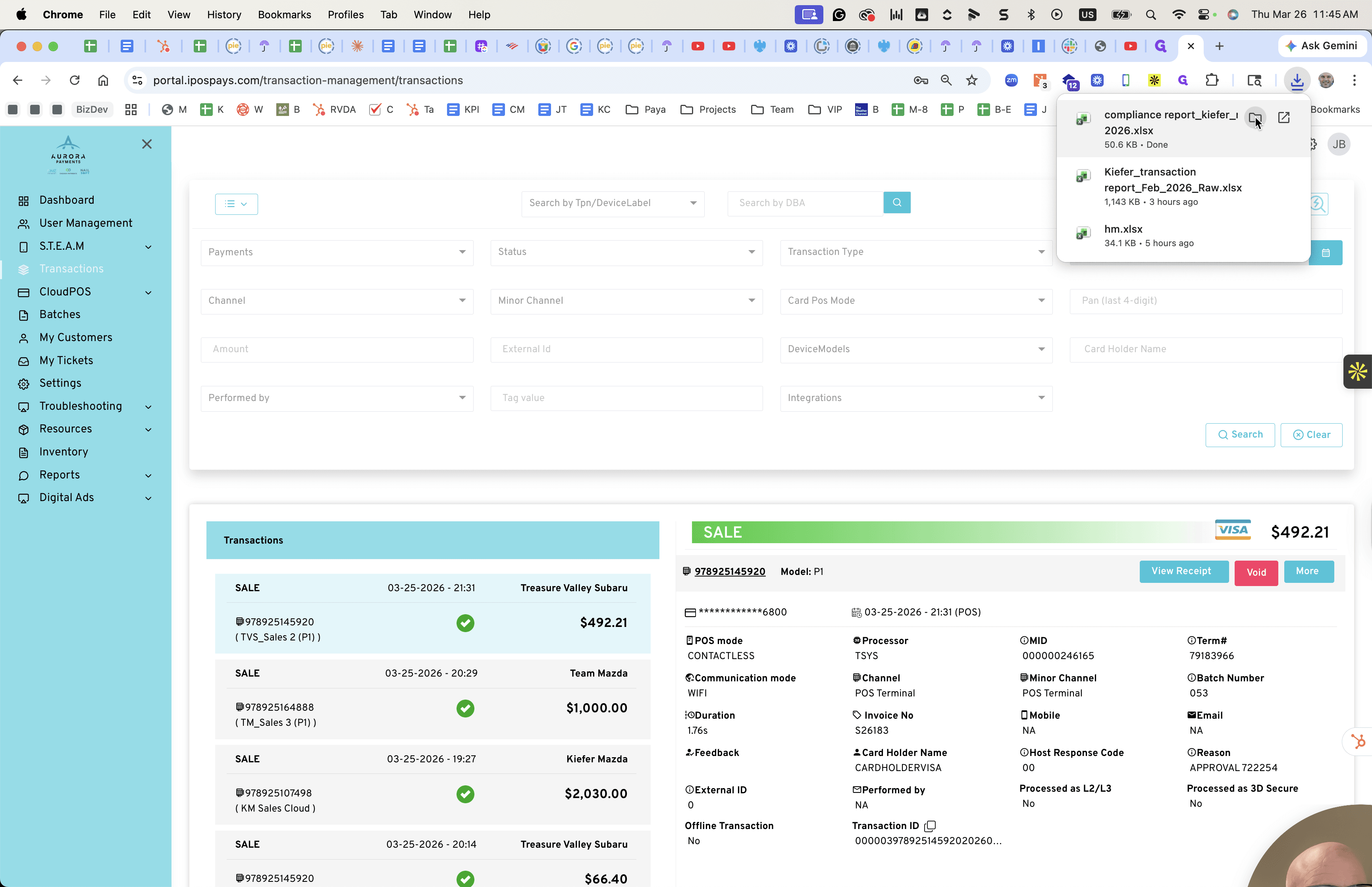
Once you are in, click on Transactions on the left side. Next, go to the small funnel icon labeled "Filter" in the top right. Next, go to Date Sections just below and select yesterday's date, since we are working with yesterday.
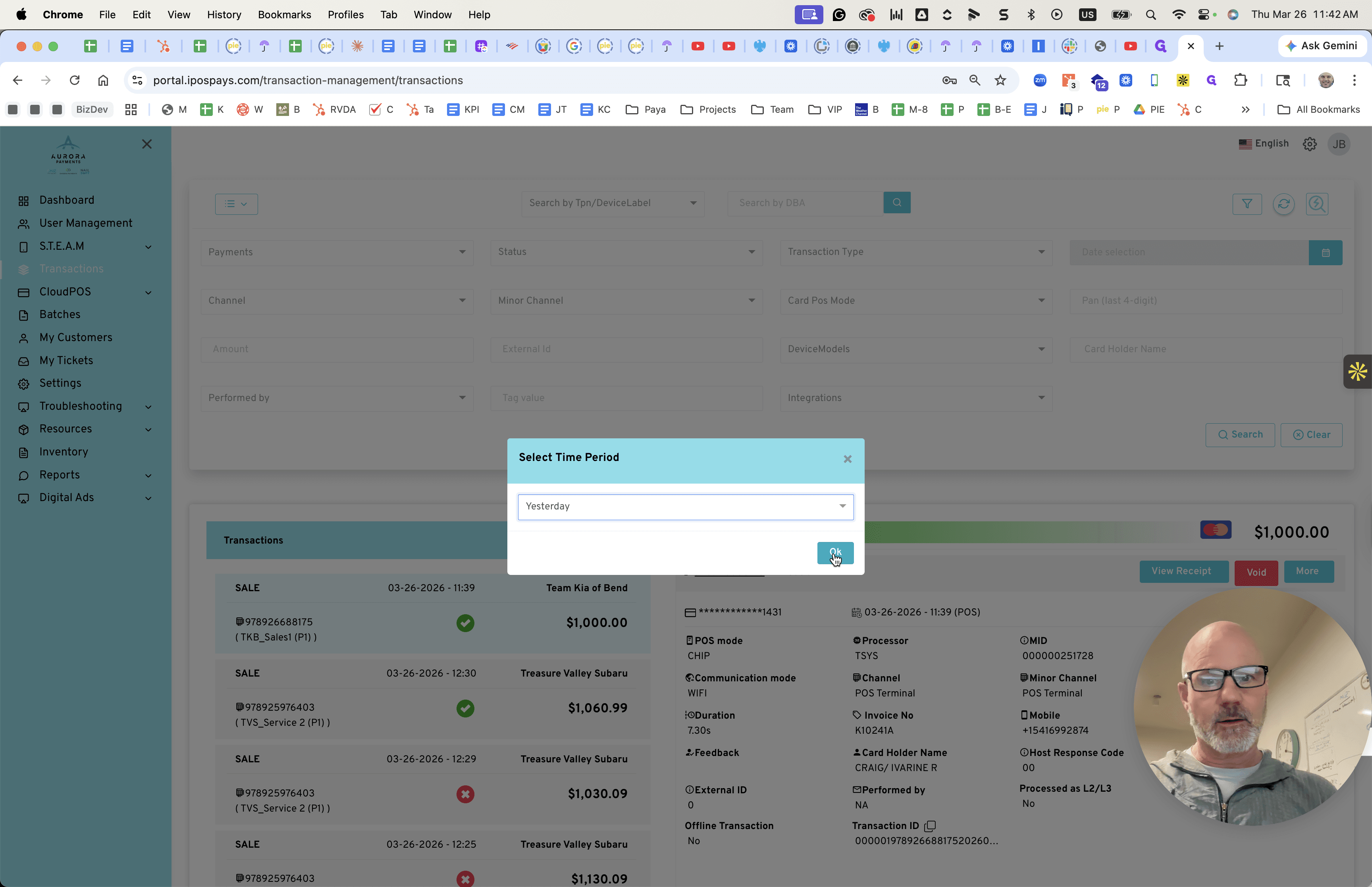
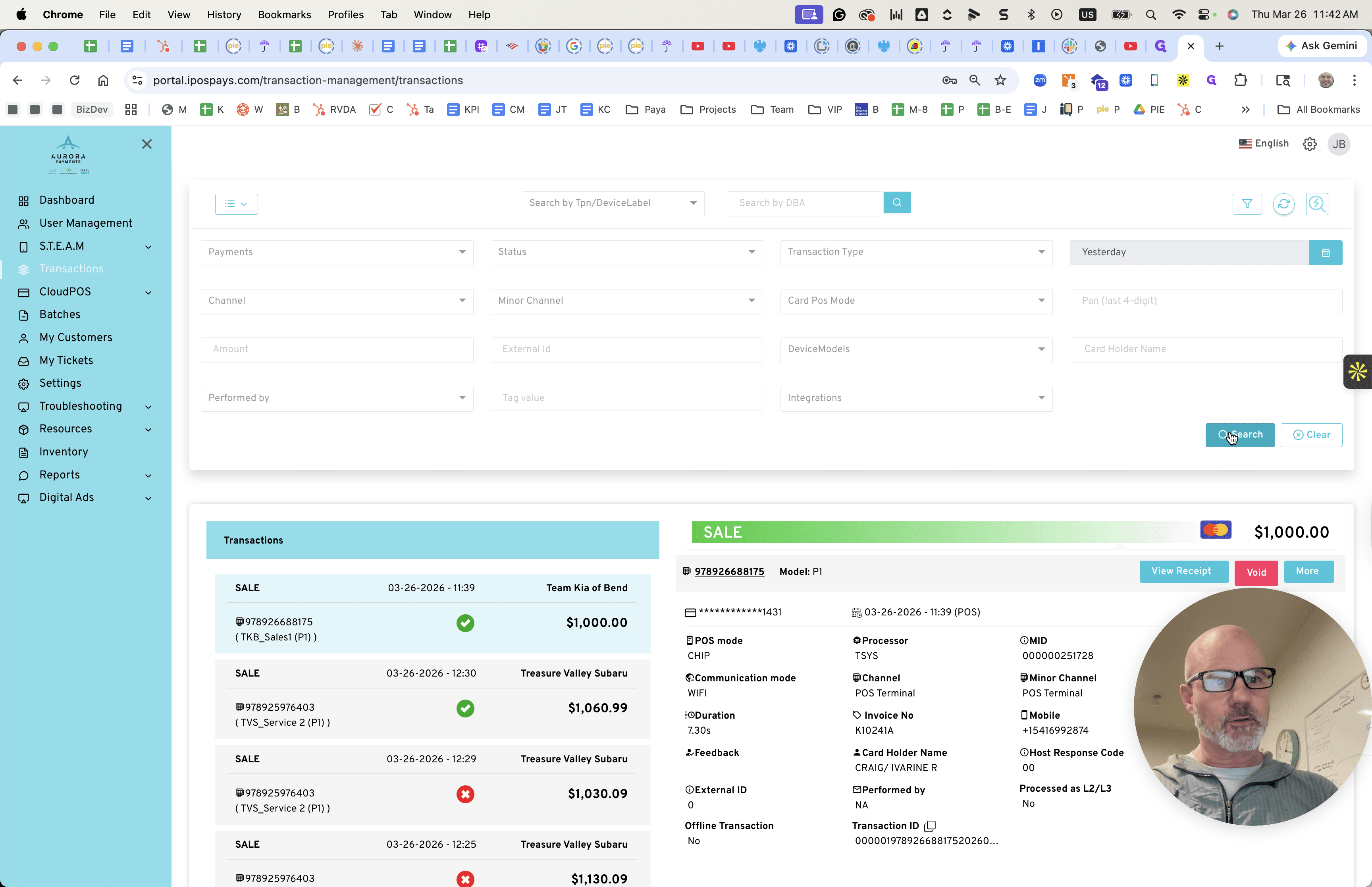
In the early morning, we will run this and review yesterday's transactions. Then, click Search.
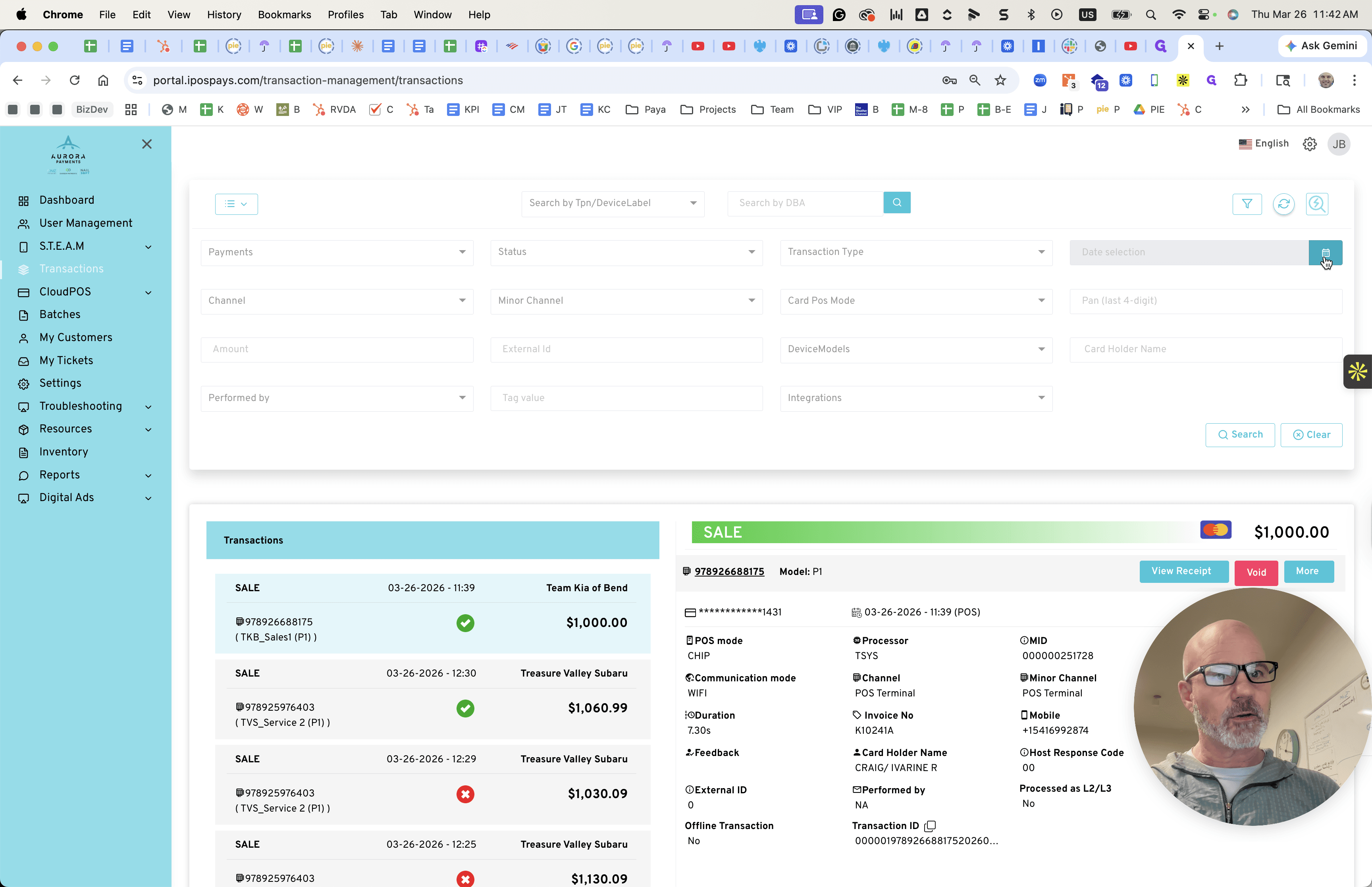
After clicking Search, click Download.
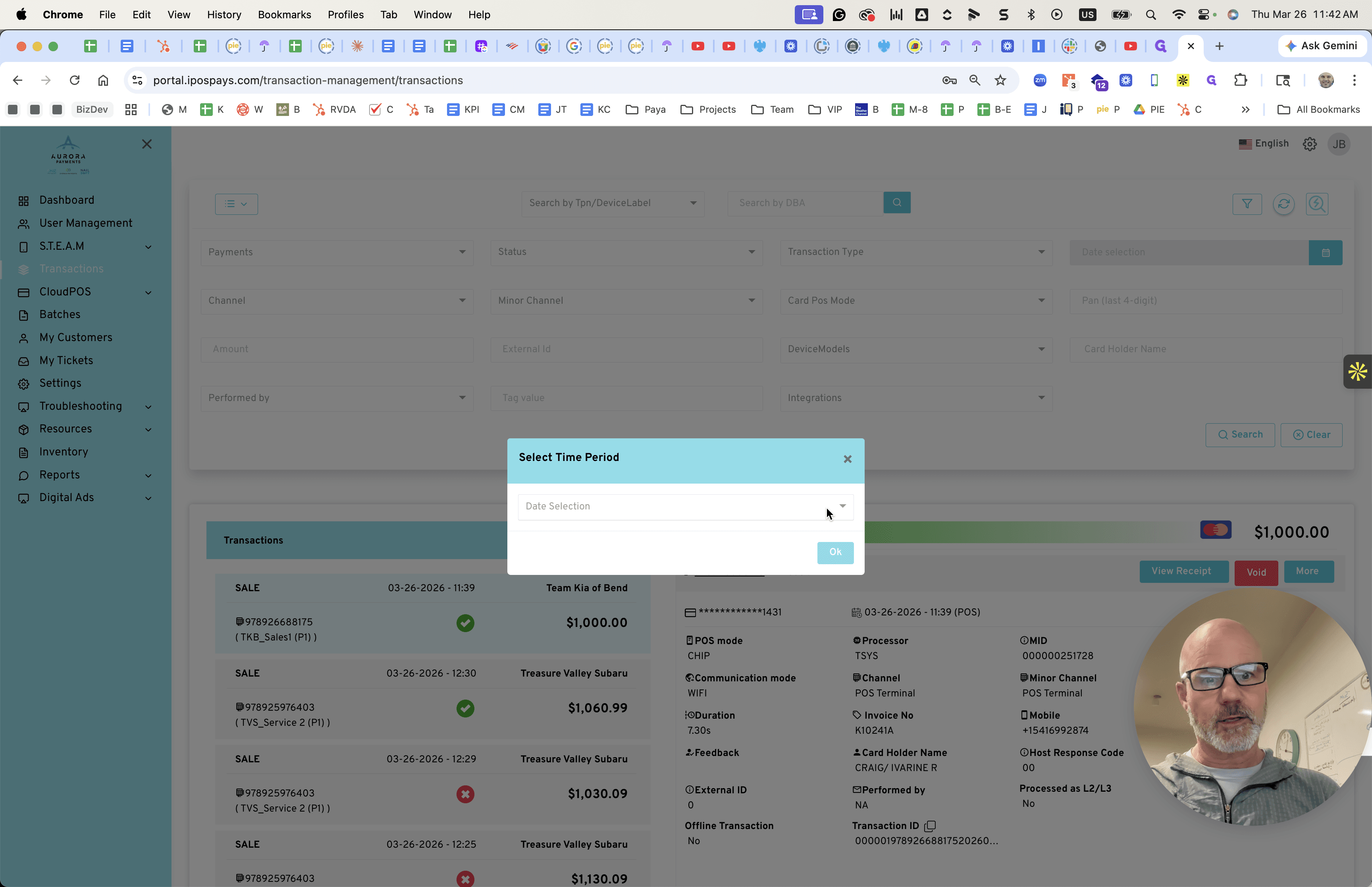
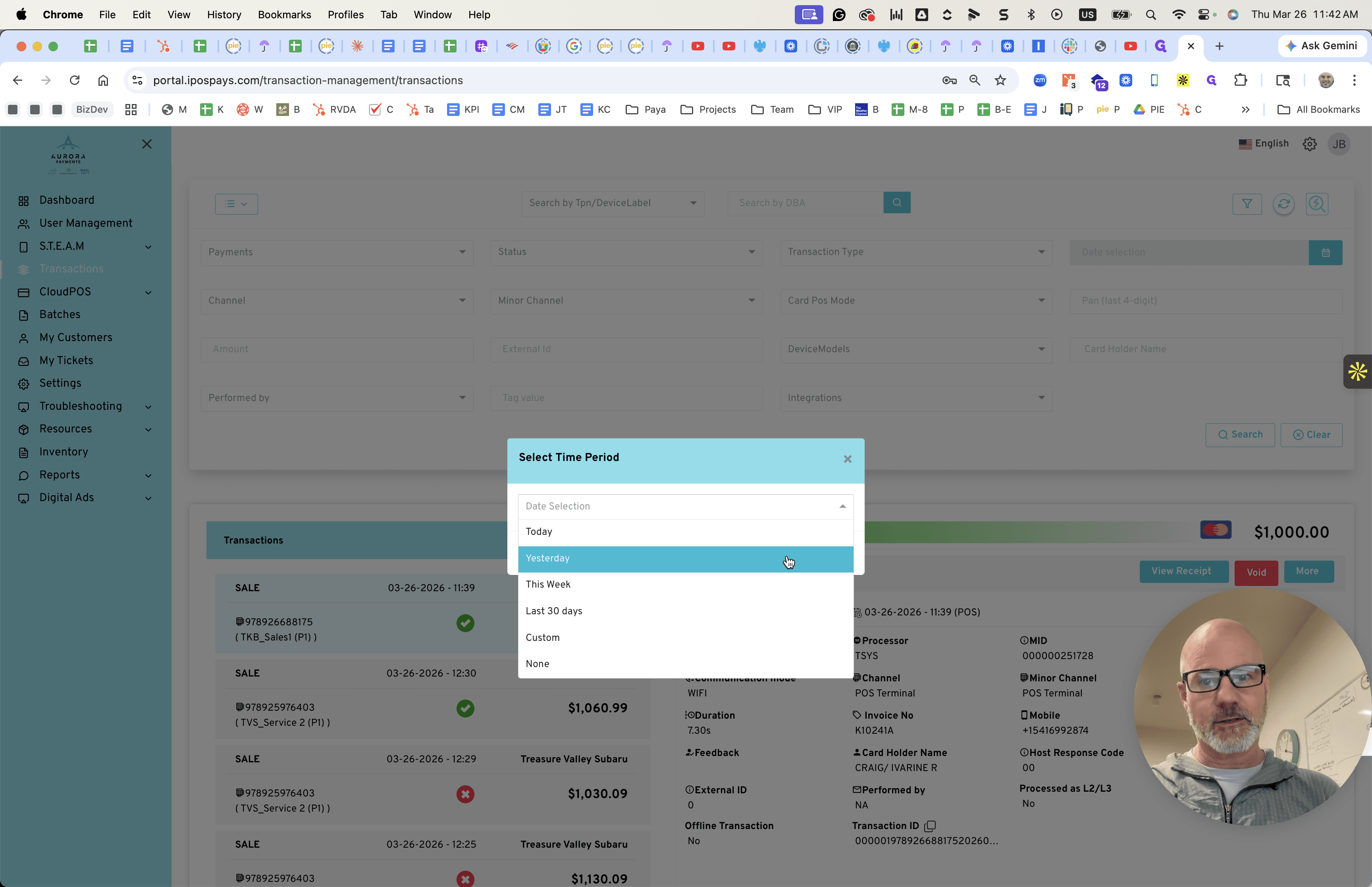
After clicking Download, save the transaction report in a specific folder.
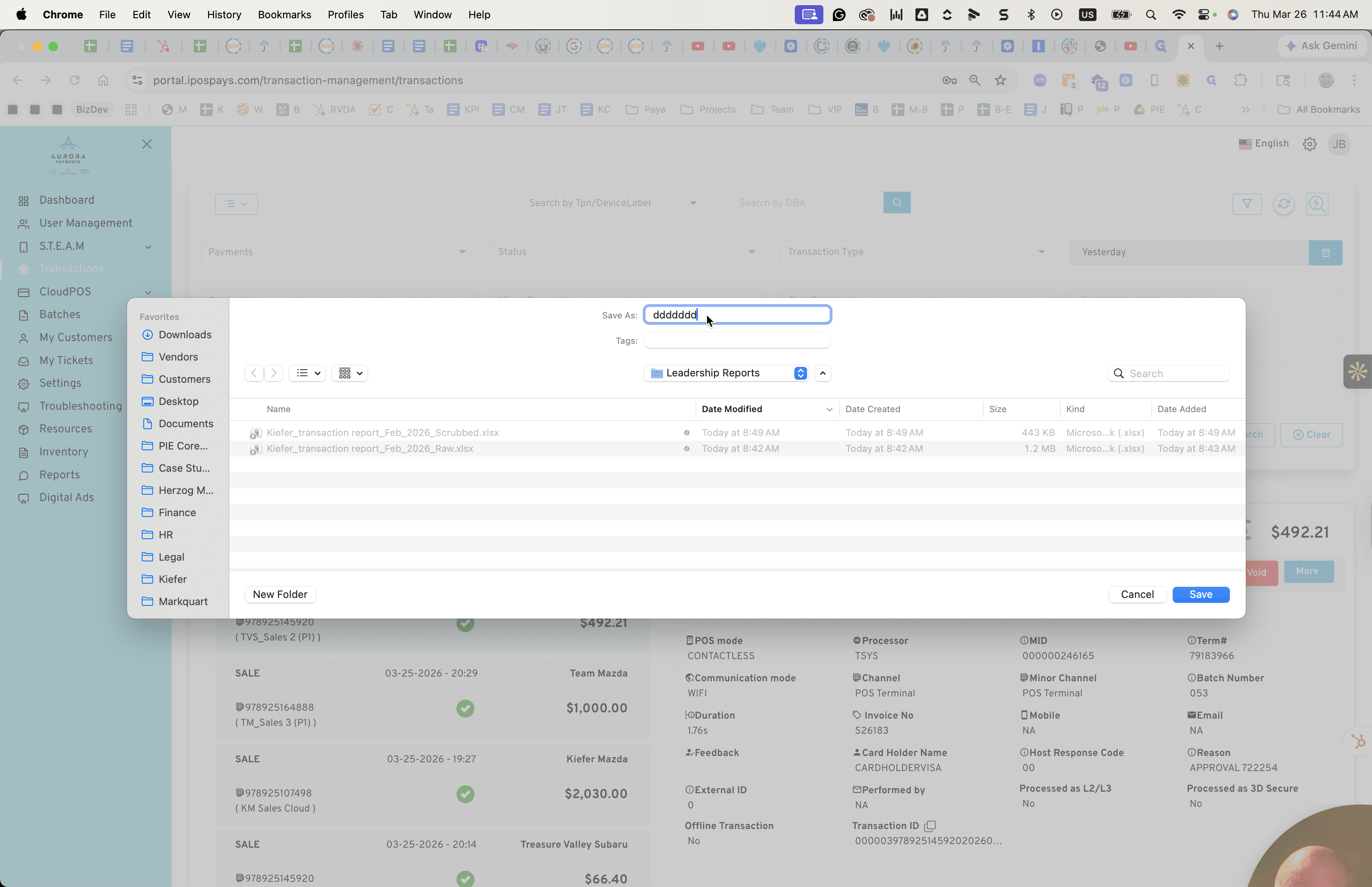
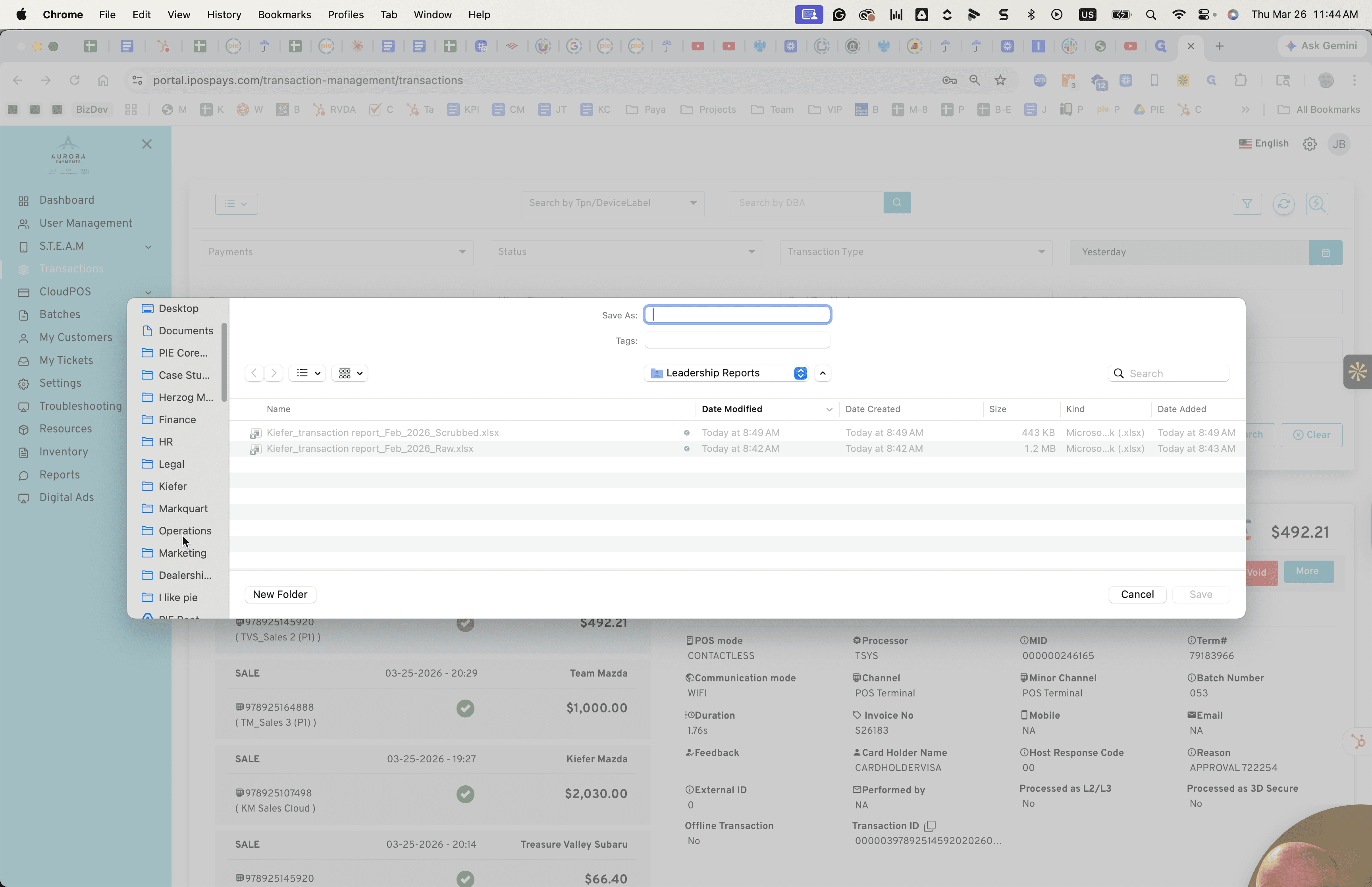
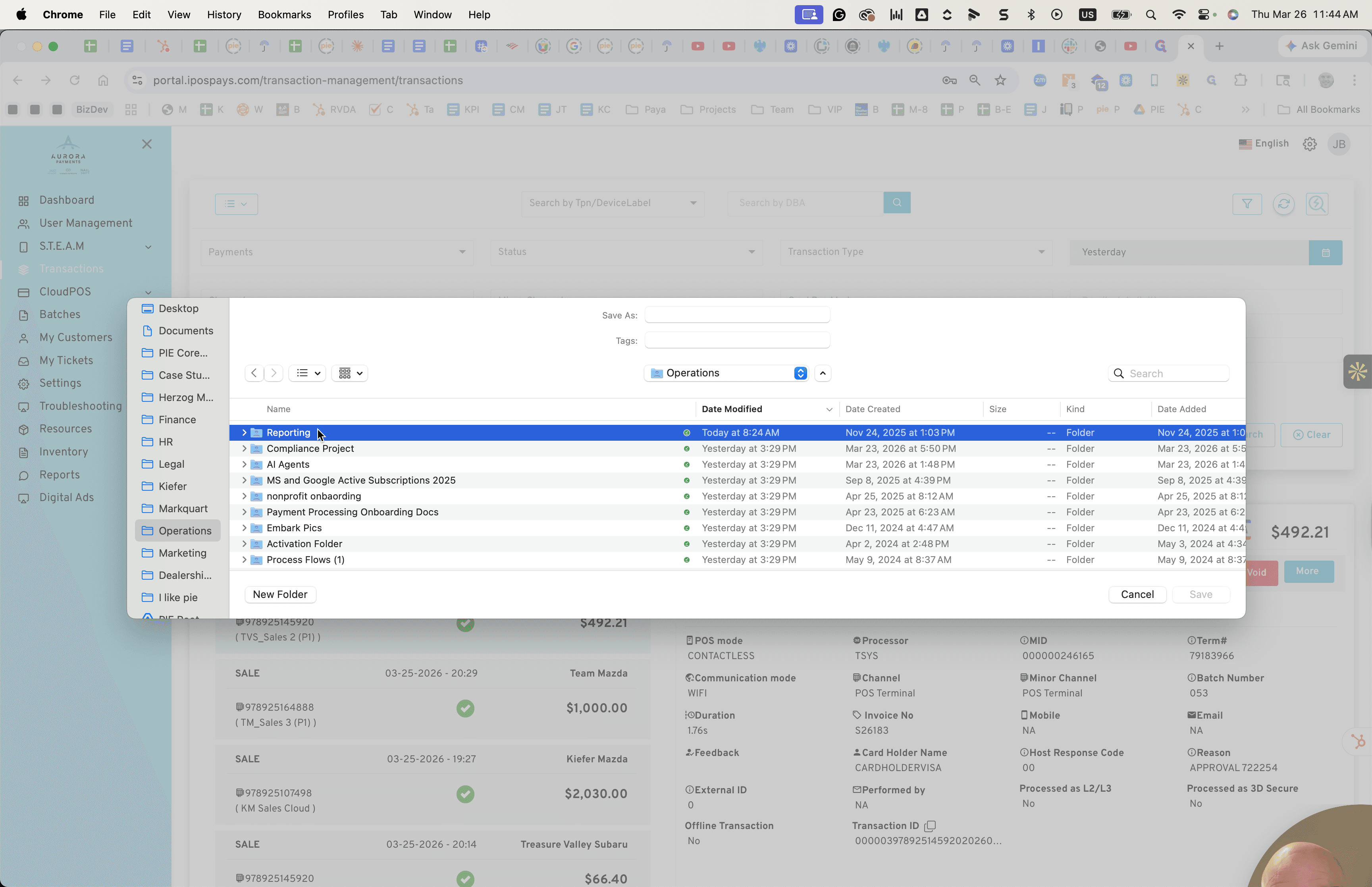
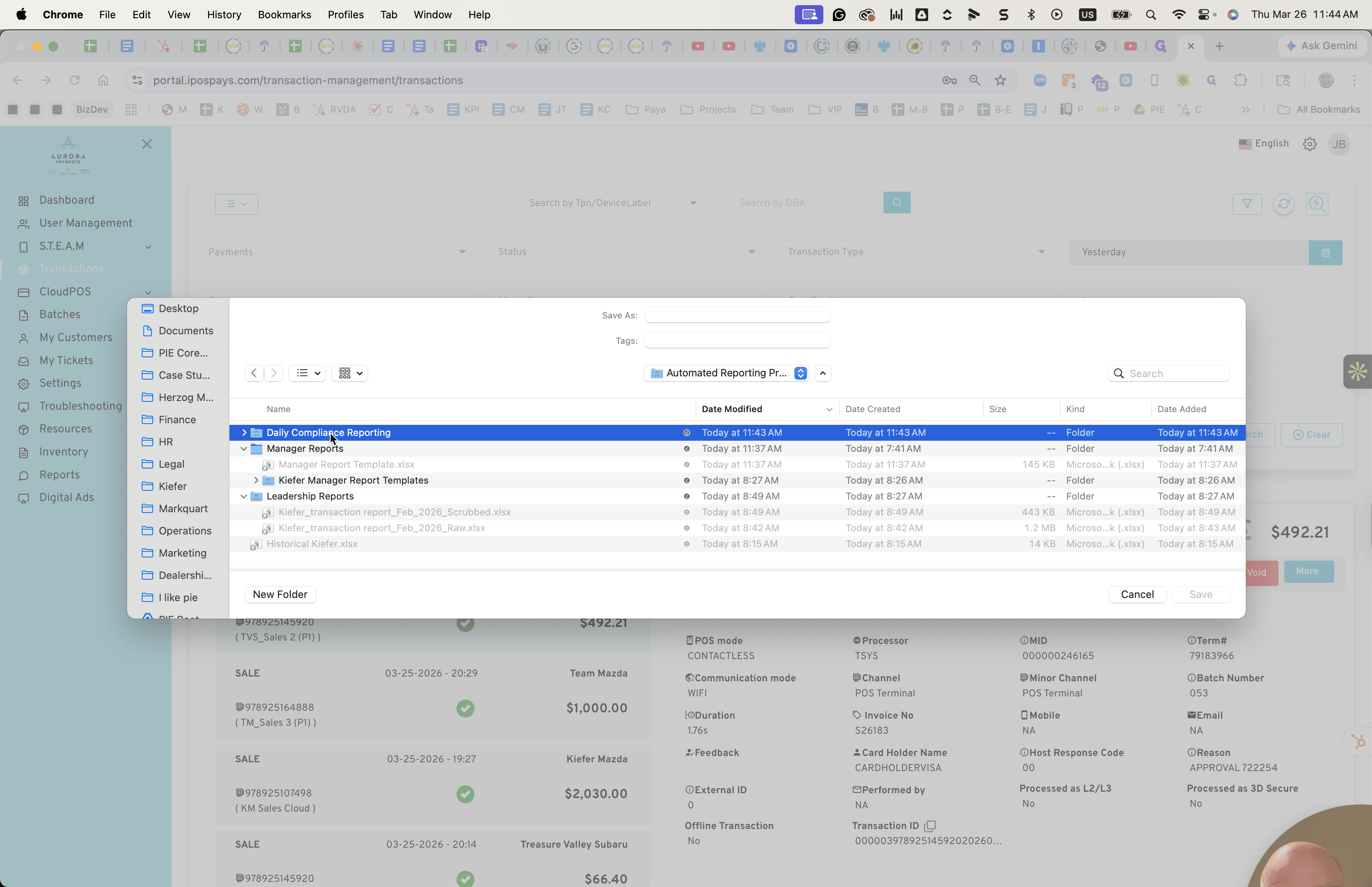
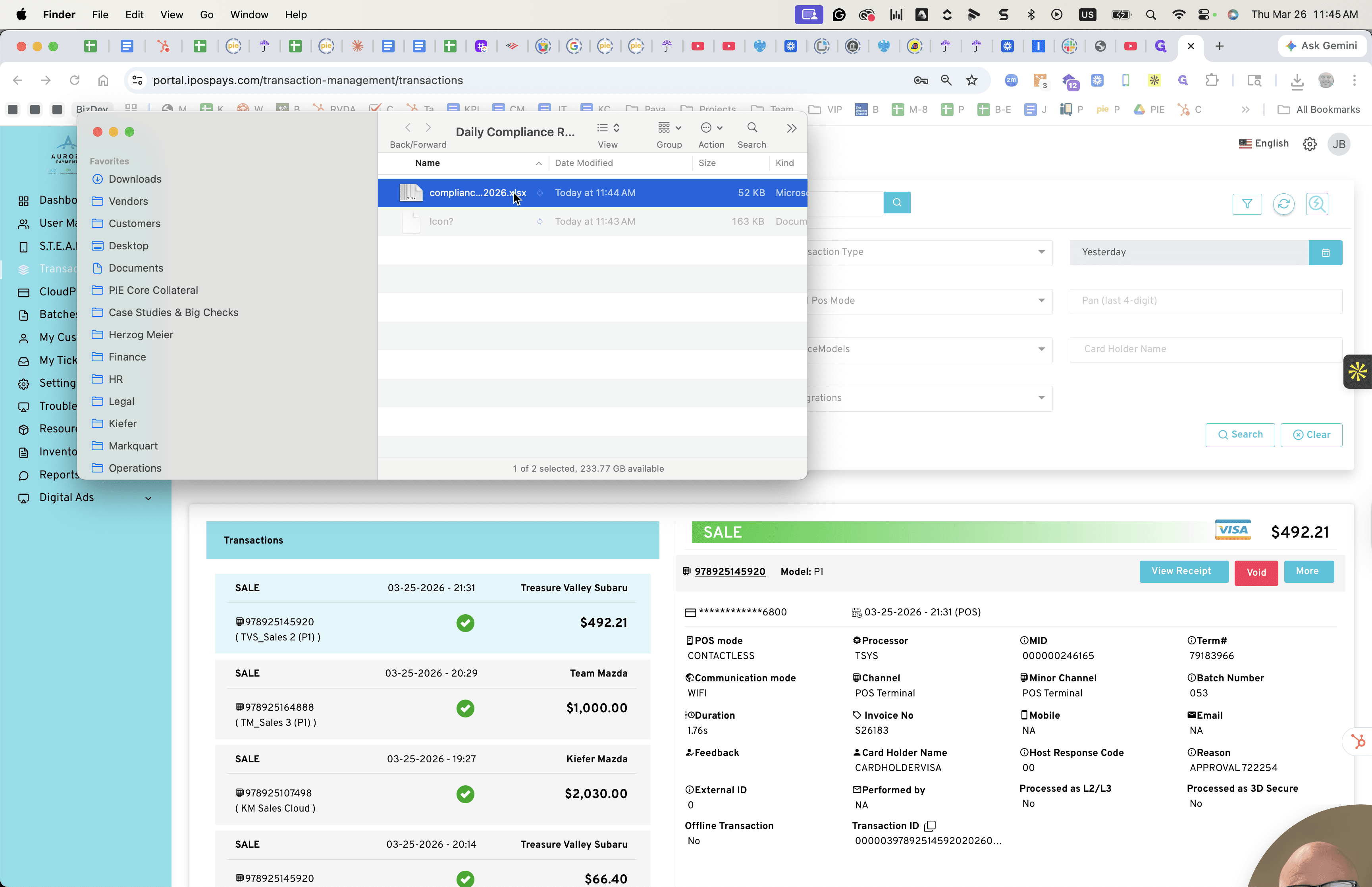
Save this in the PI Shared, Document Report Operations, then Reporting, and finally Automated Reporting.
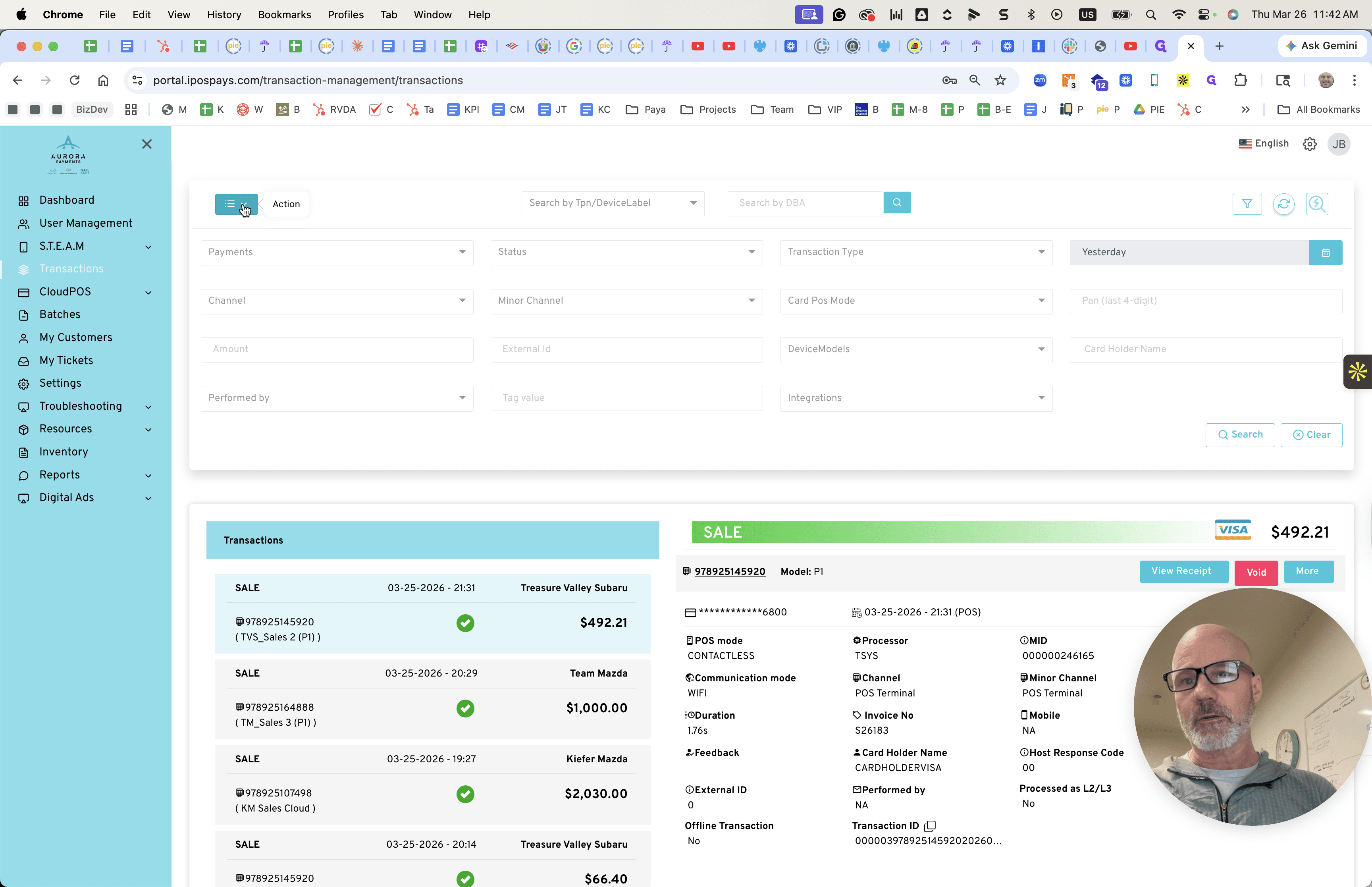
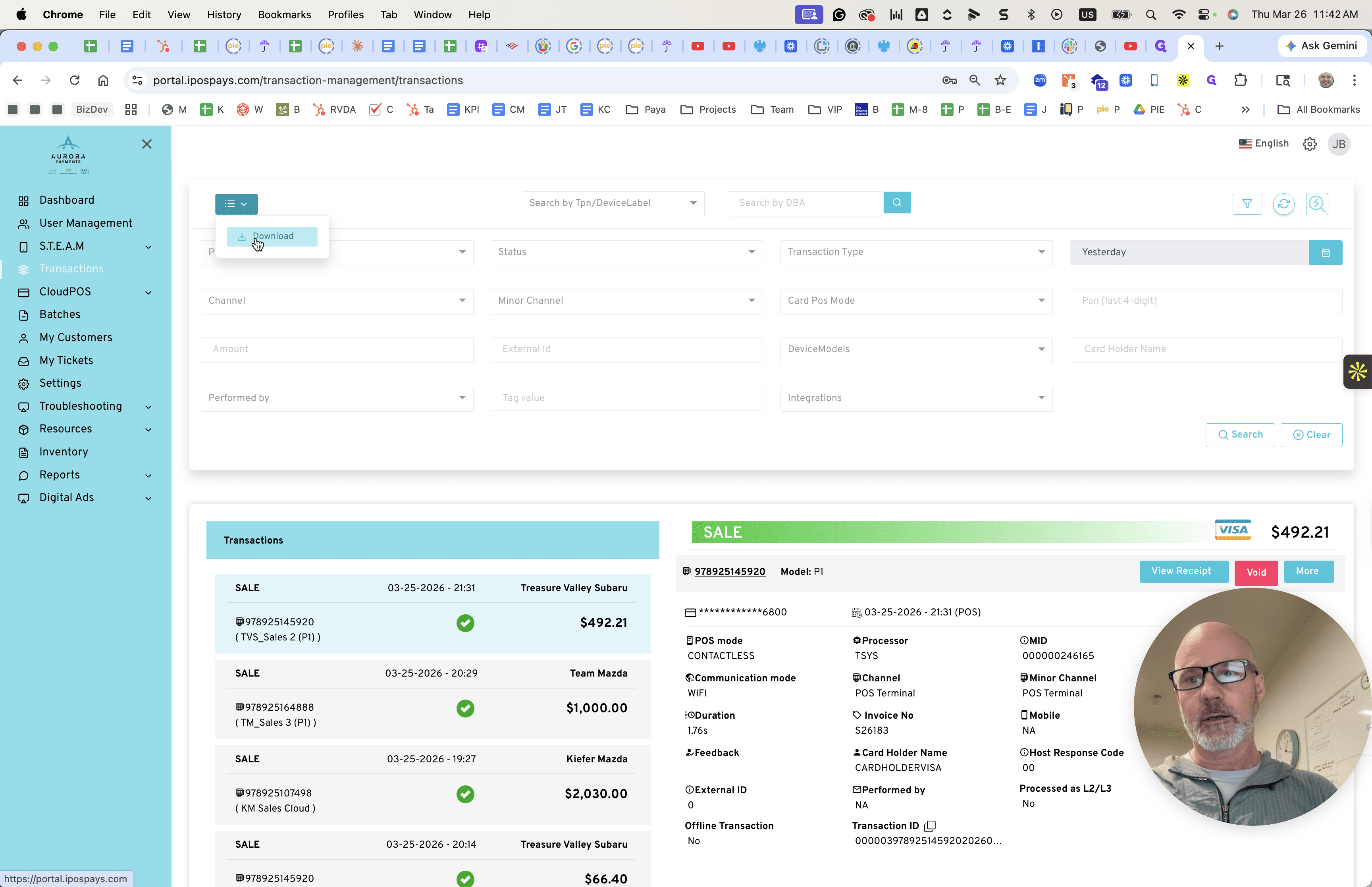
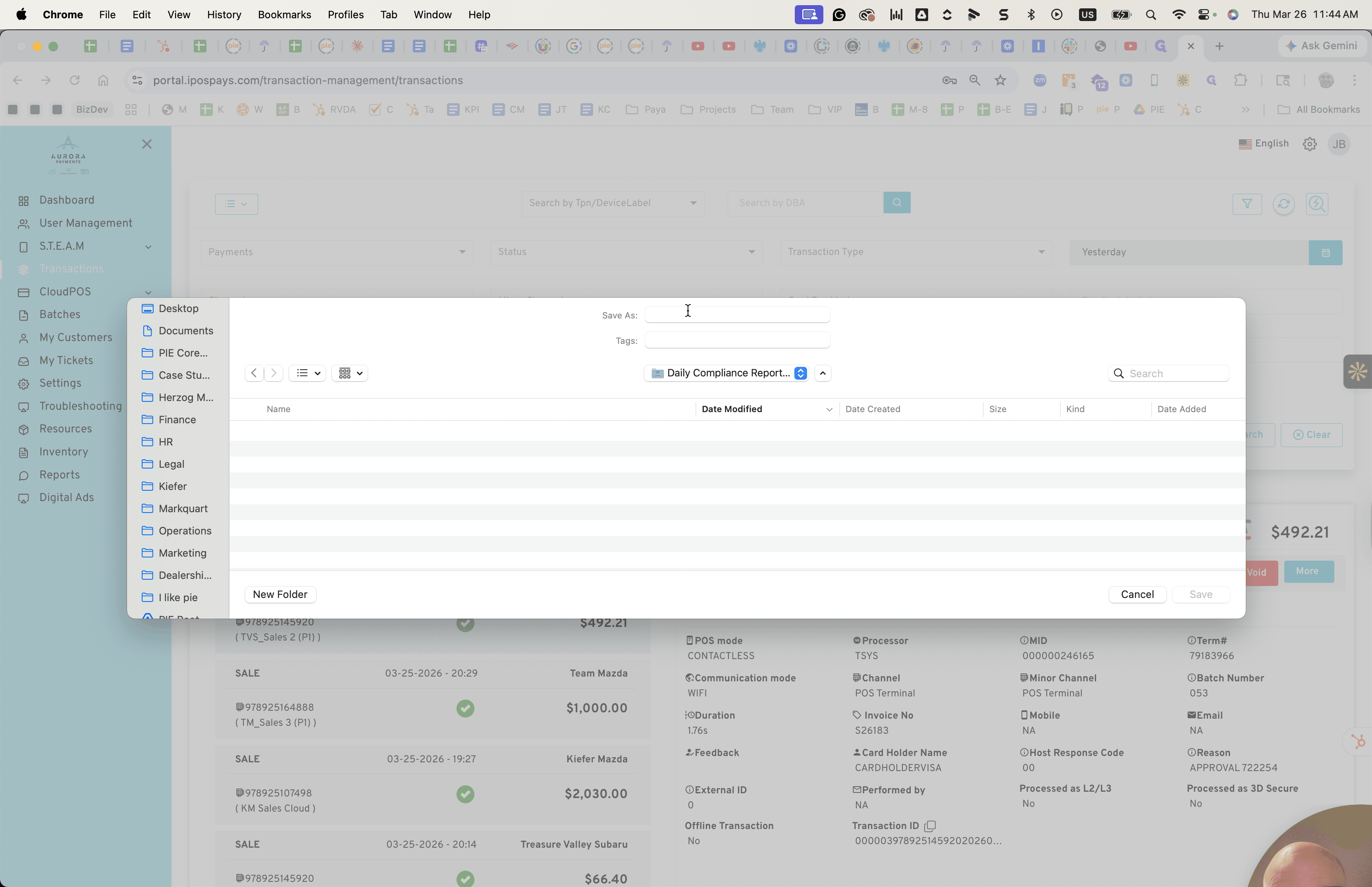
That will be saved in the Daily Compliance Reporting folder. Save that as the date, since the report is already listed here.
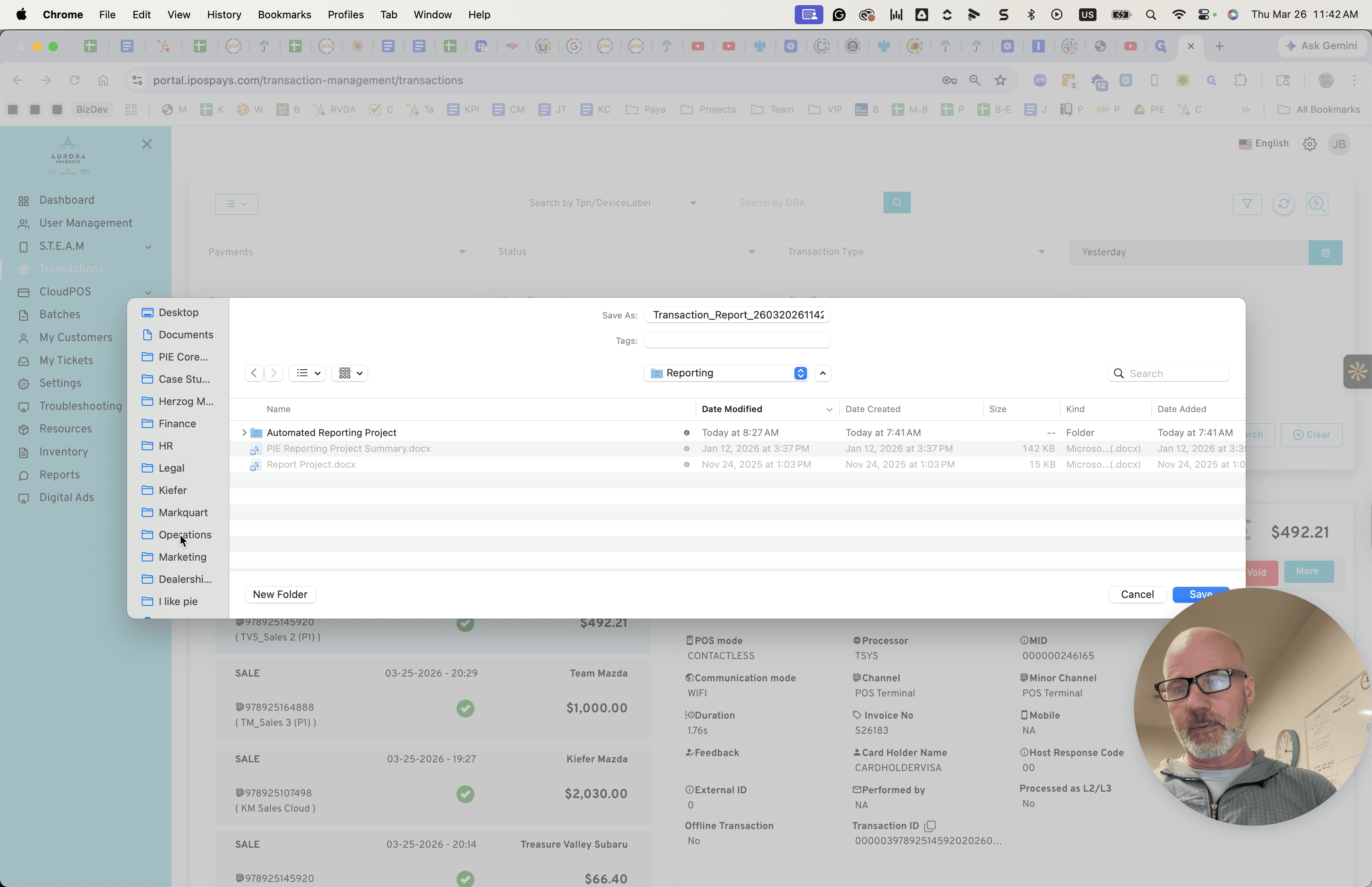
We'll save it as Compliance. Oops.
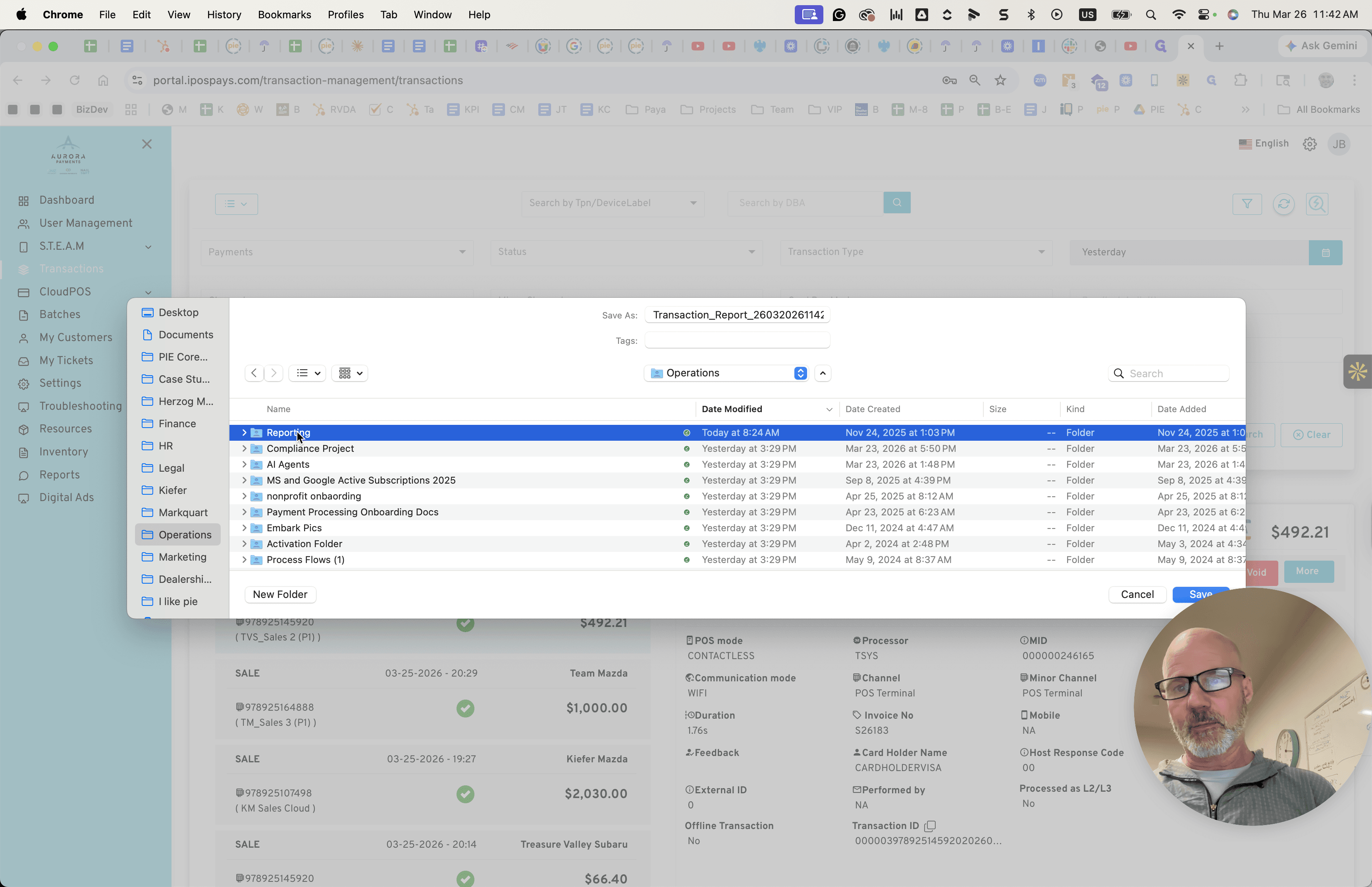
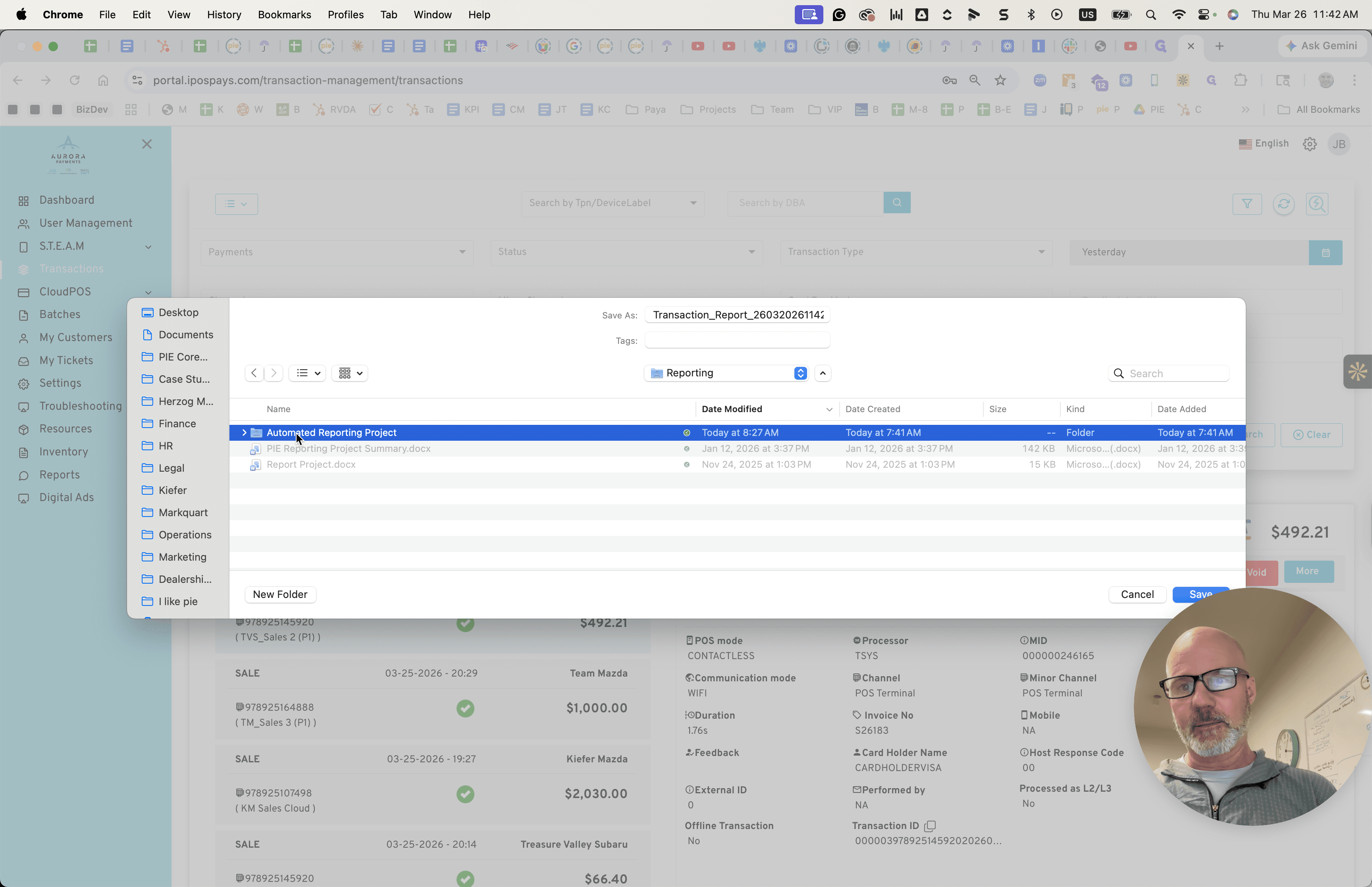
Oops. Why isn't it letting me save it?
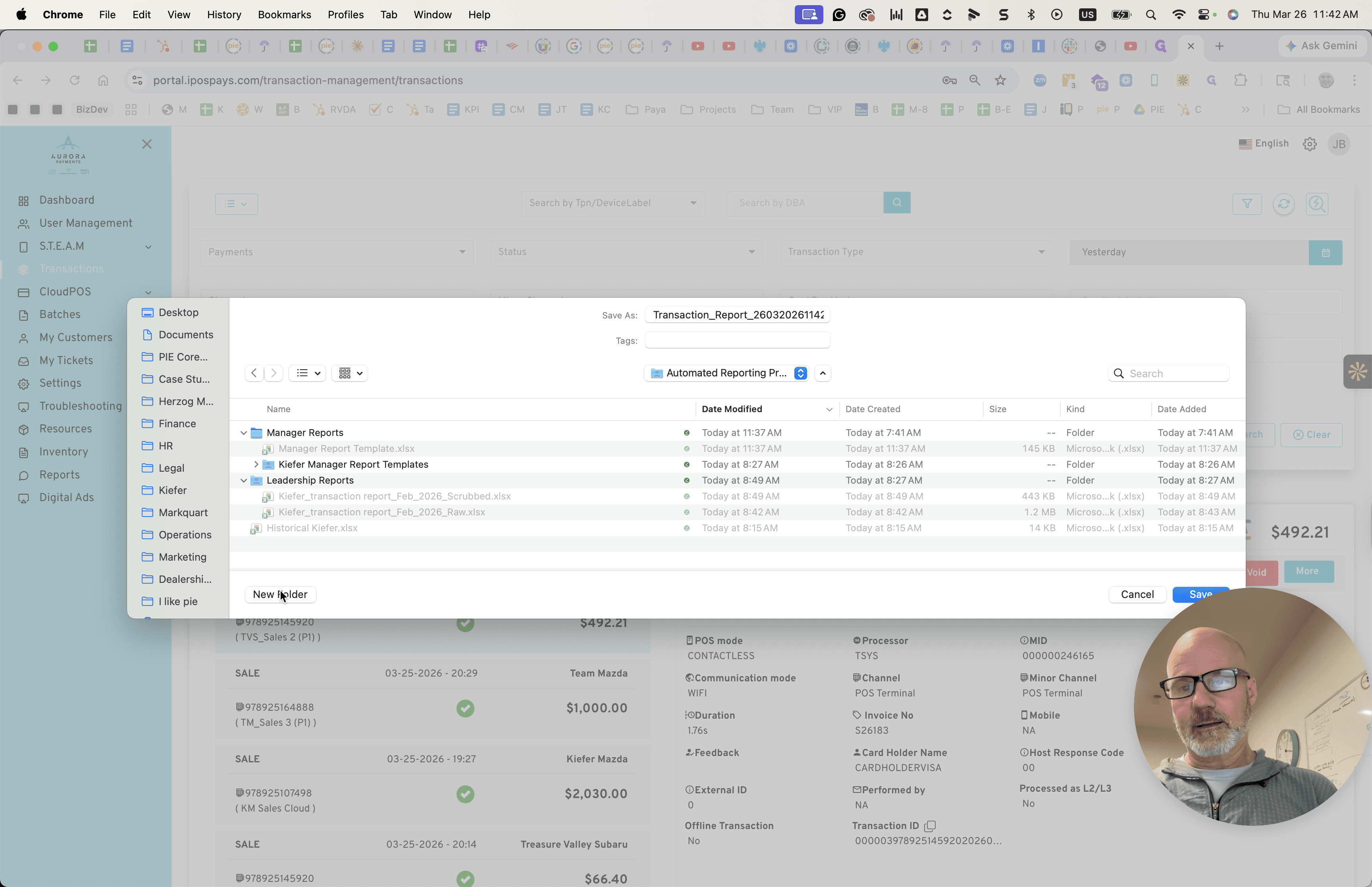
We'll save it as Compliance. It won't let me do that. We'll save it as Compliance. This goes on.
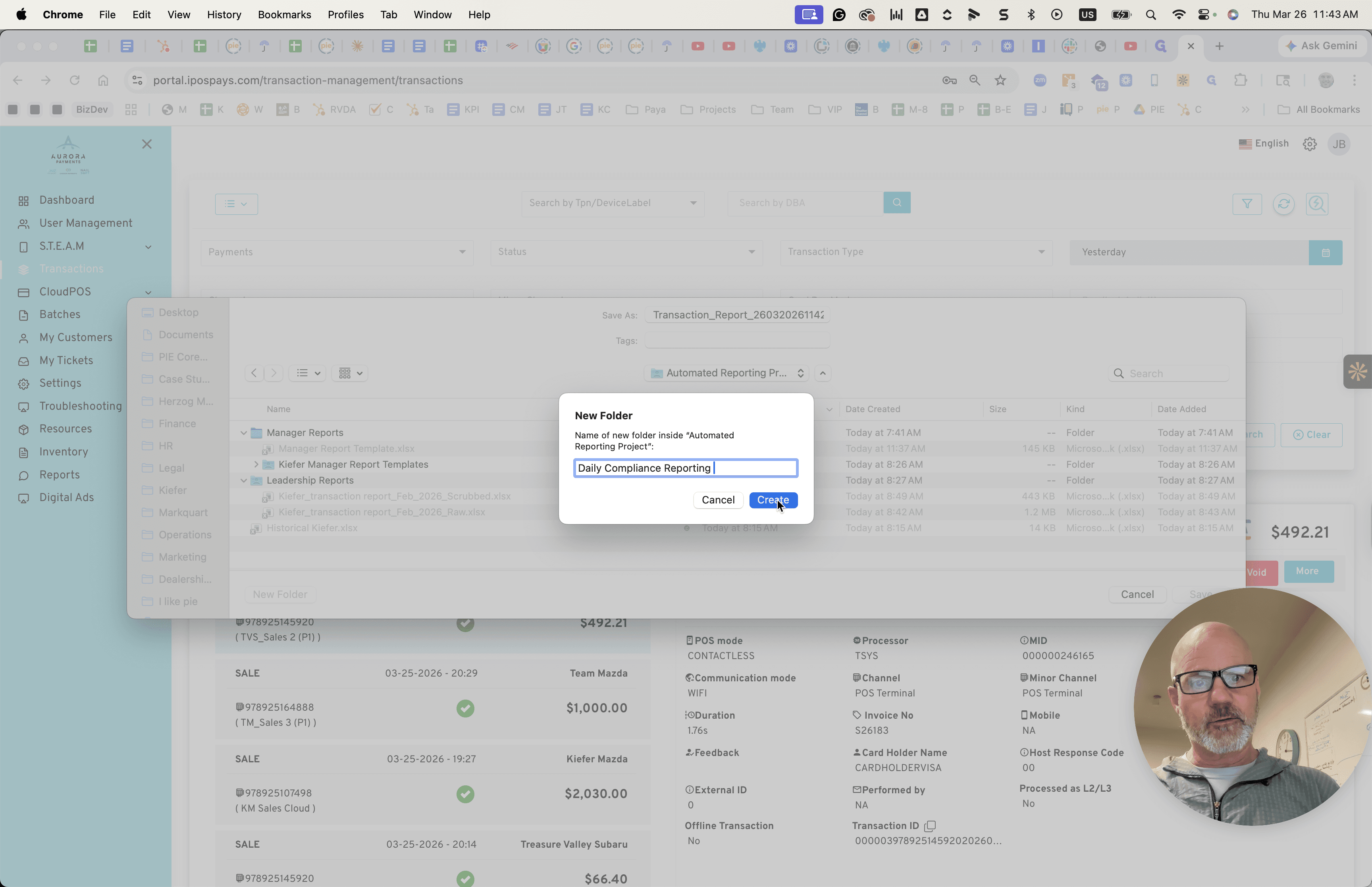
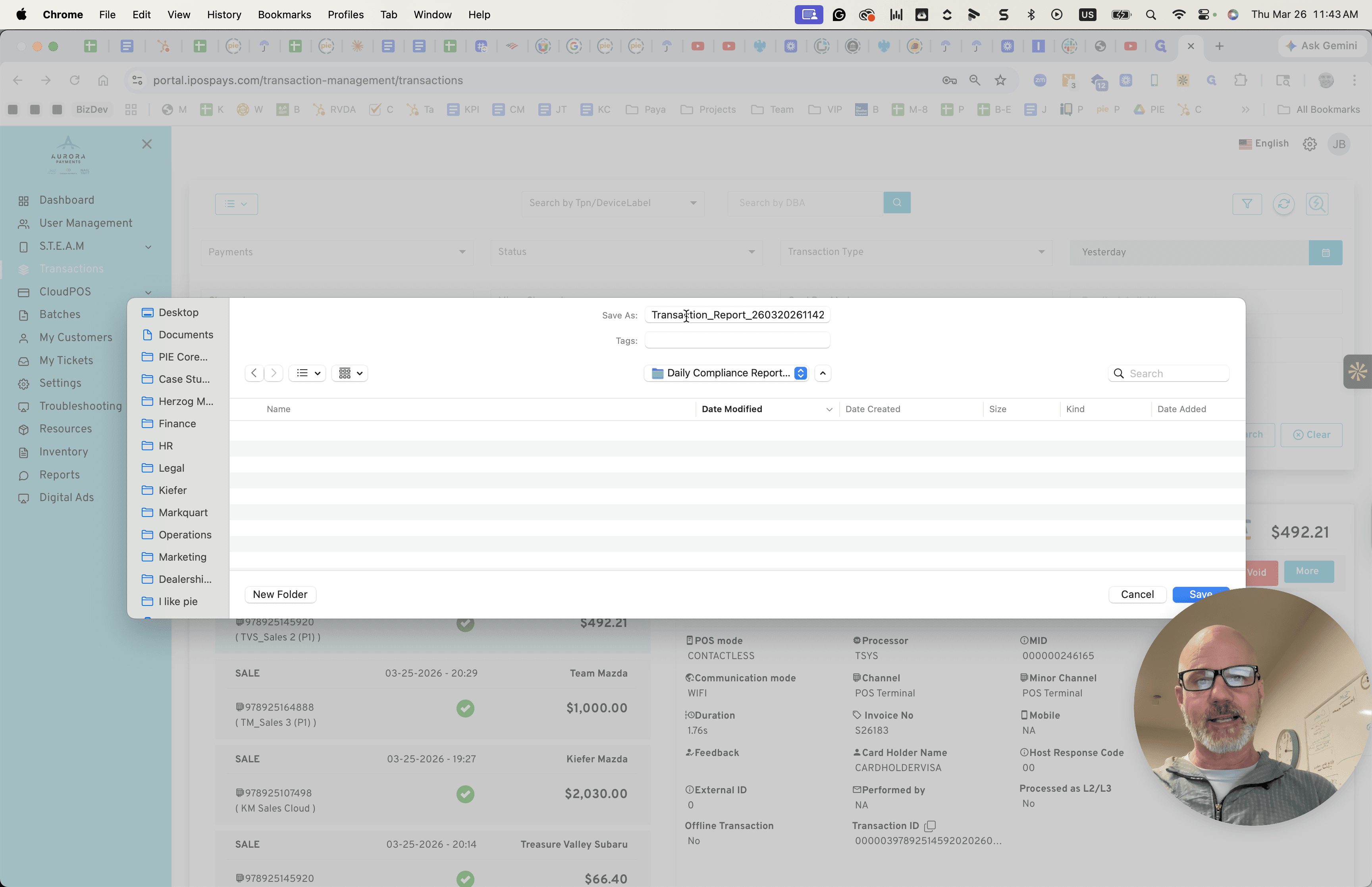
It's working now.
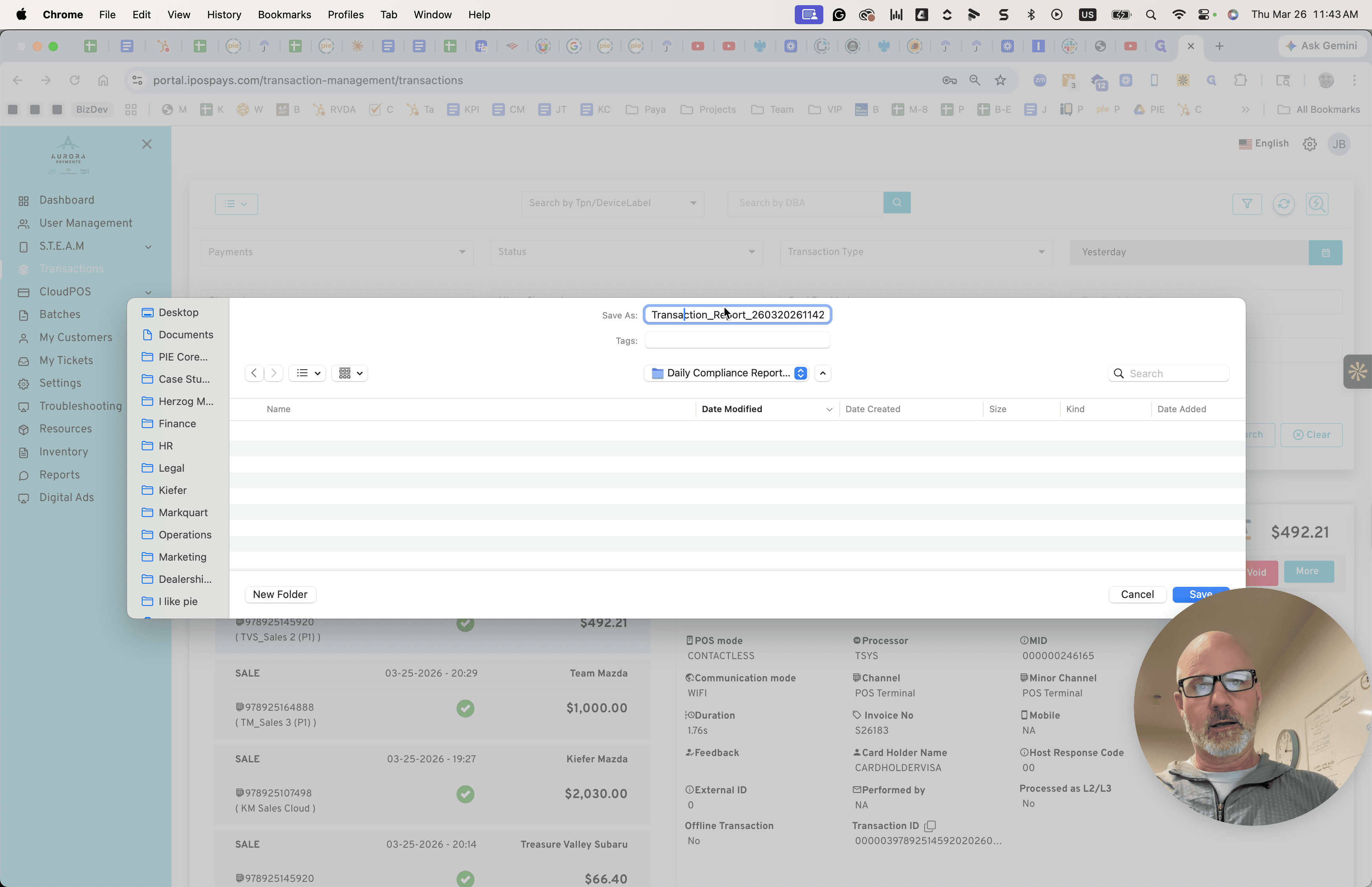
Let's try again. It just locked up. I would close out of that so that your Save As...
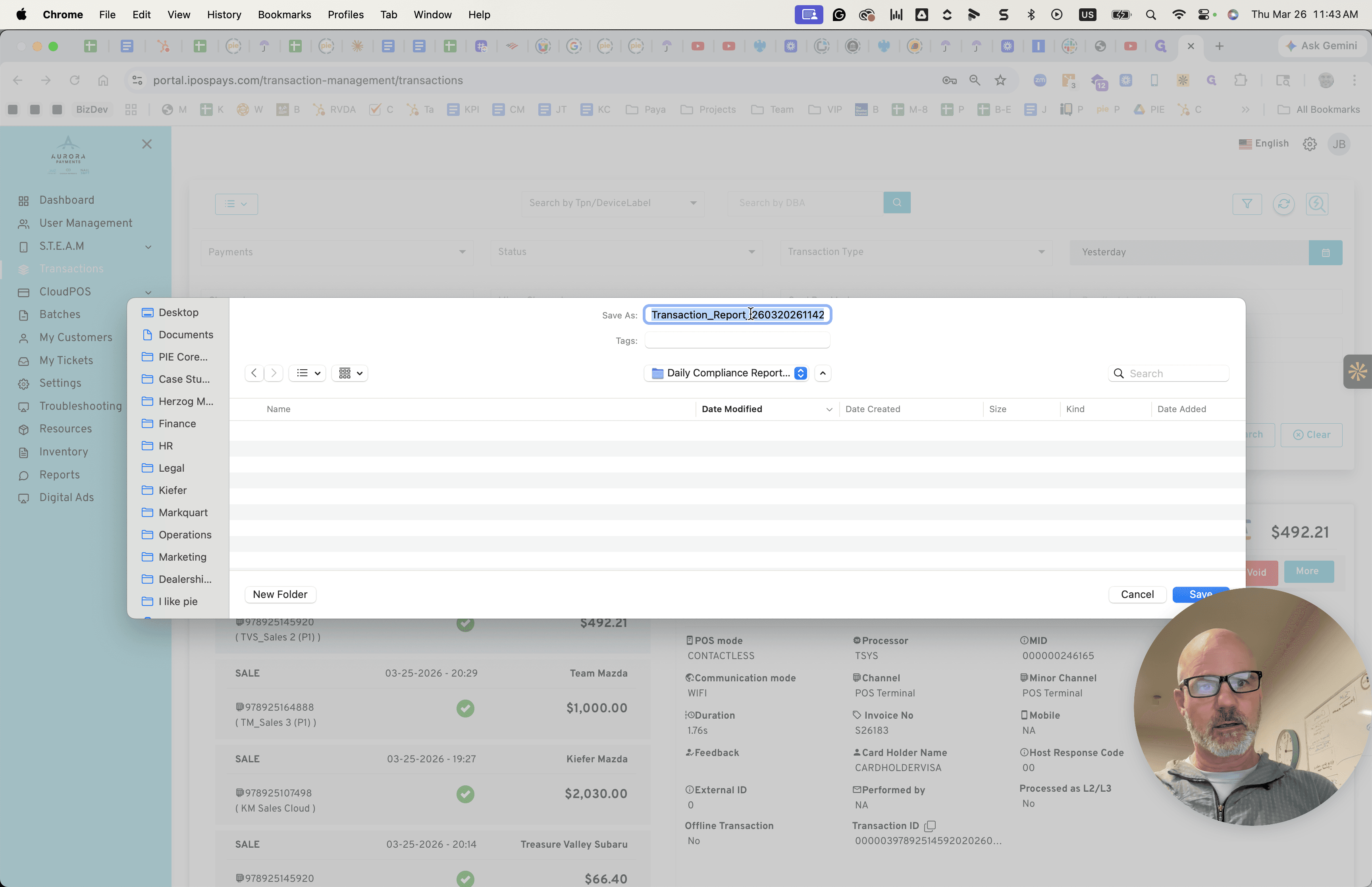
It's okay. We have Operations, Reporting, and Automated Reporting.
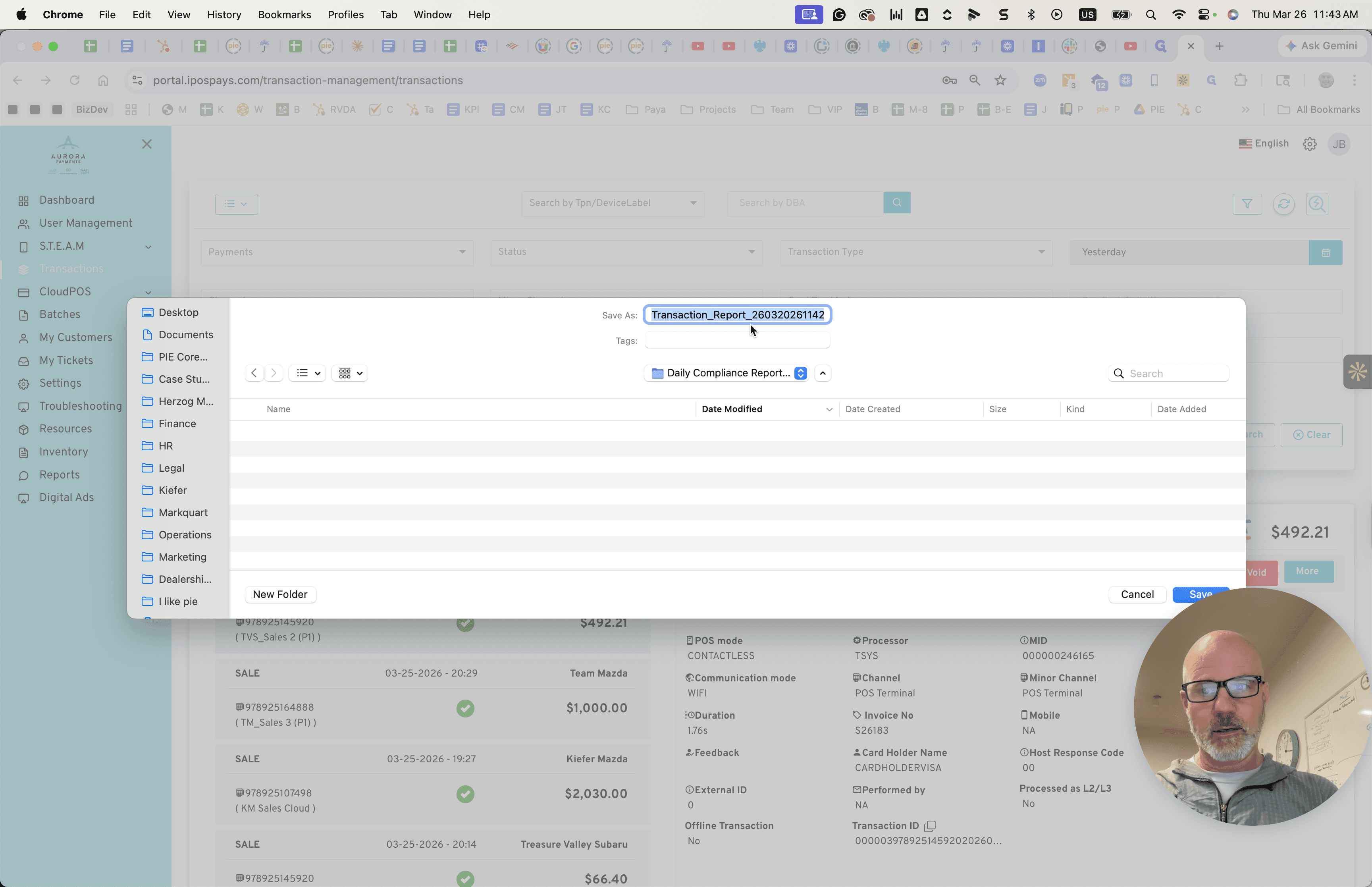
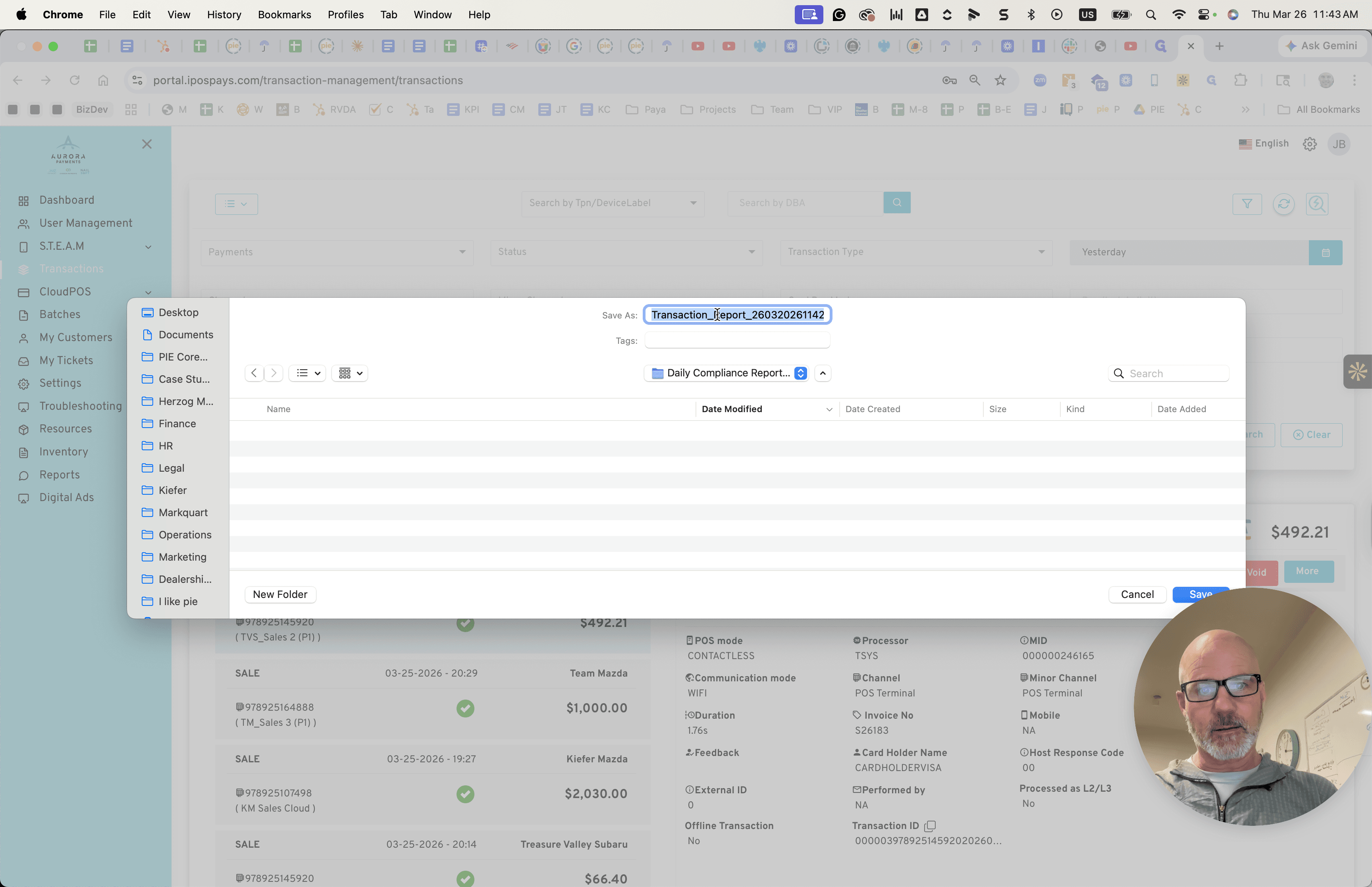
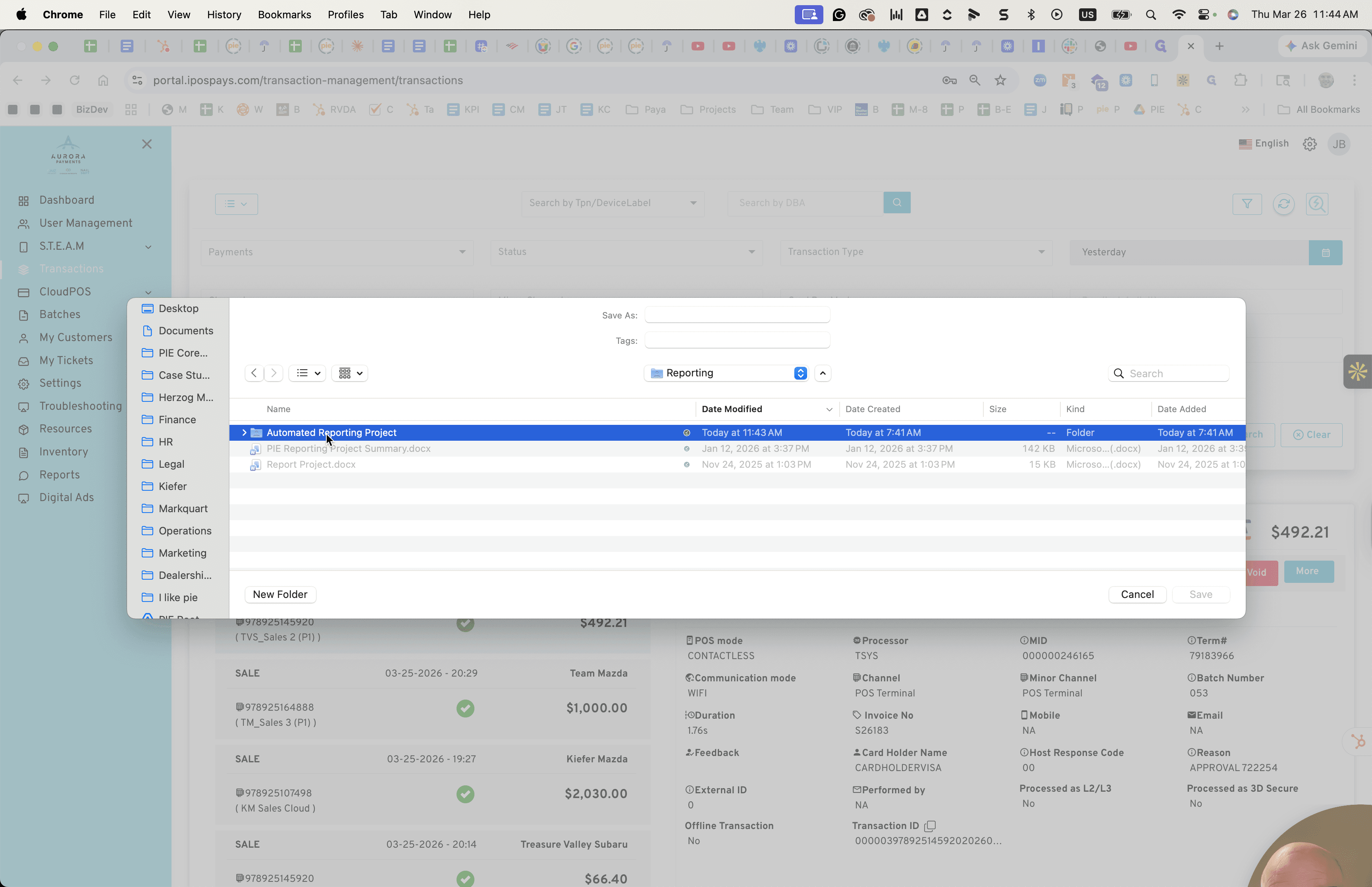
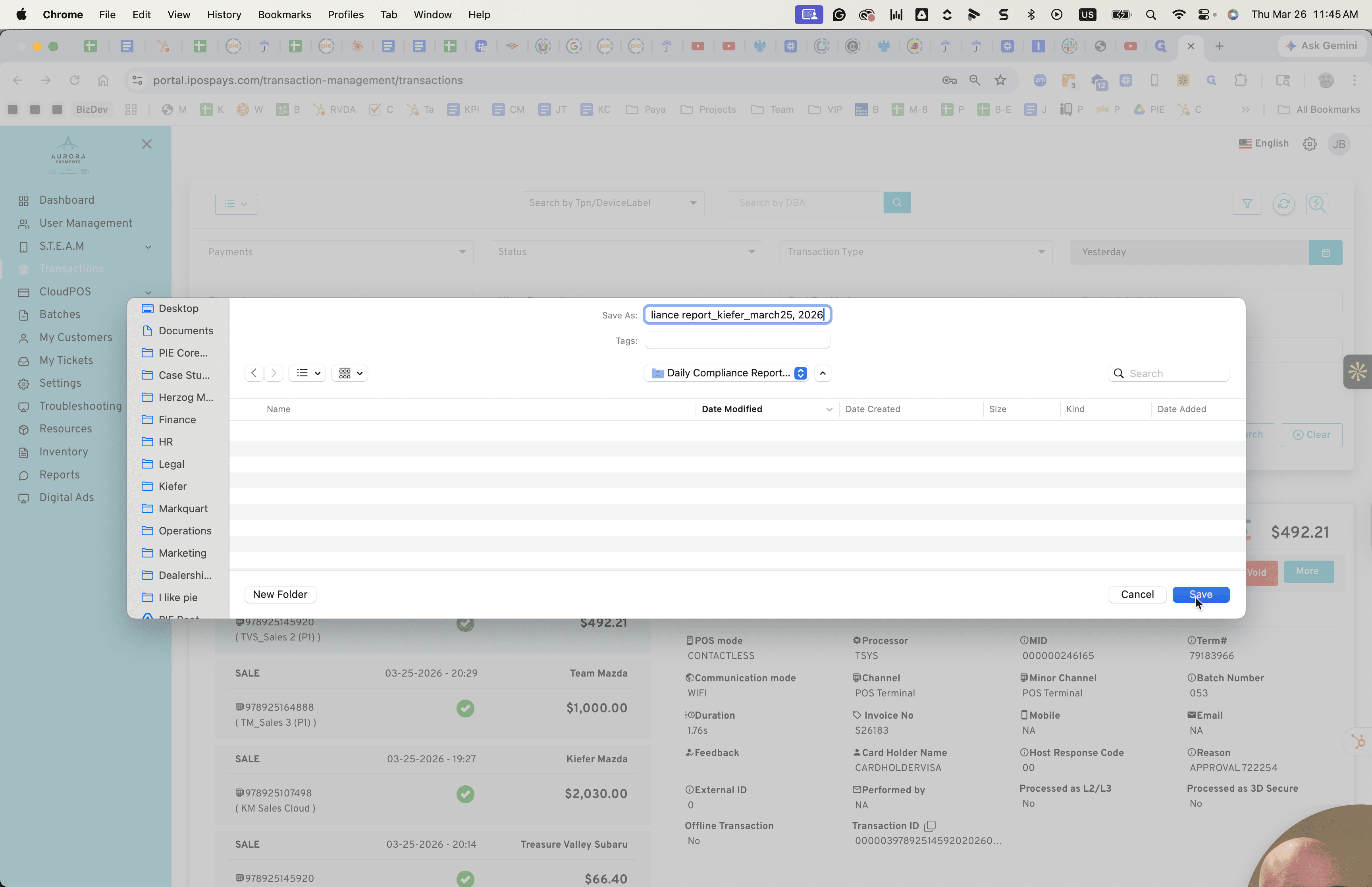
Save the file as "Compliance Report," including the business name, Kiefer, and the date.
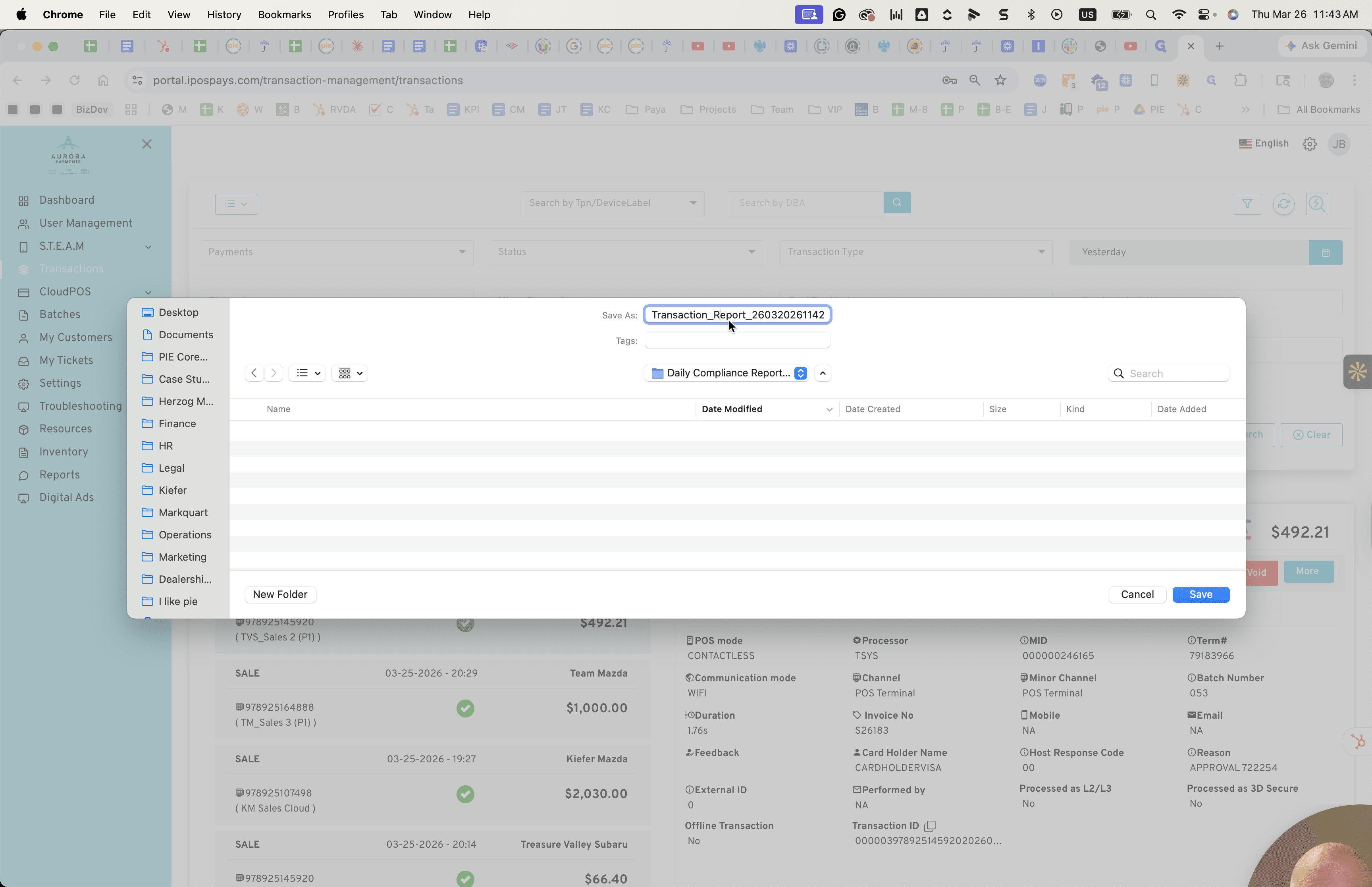
March 24, 2026; March 26, 2026. Yesterday was March 25, 2026. That's yesterday's report. Click Save. We now have that saved.
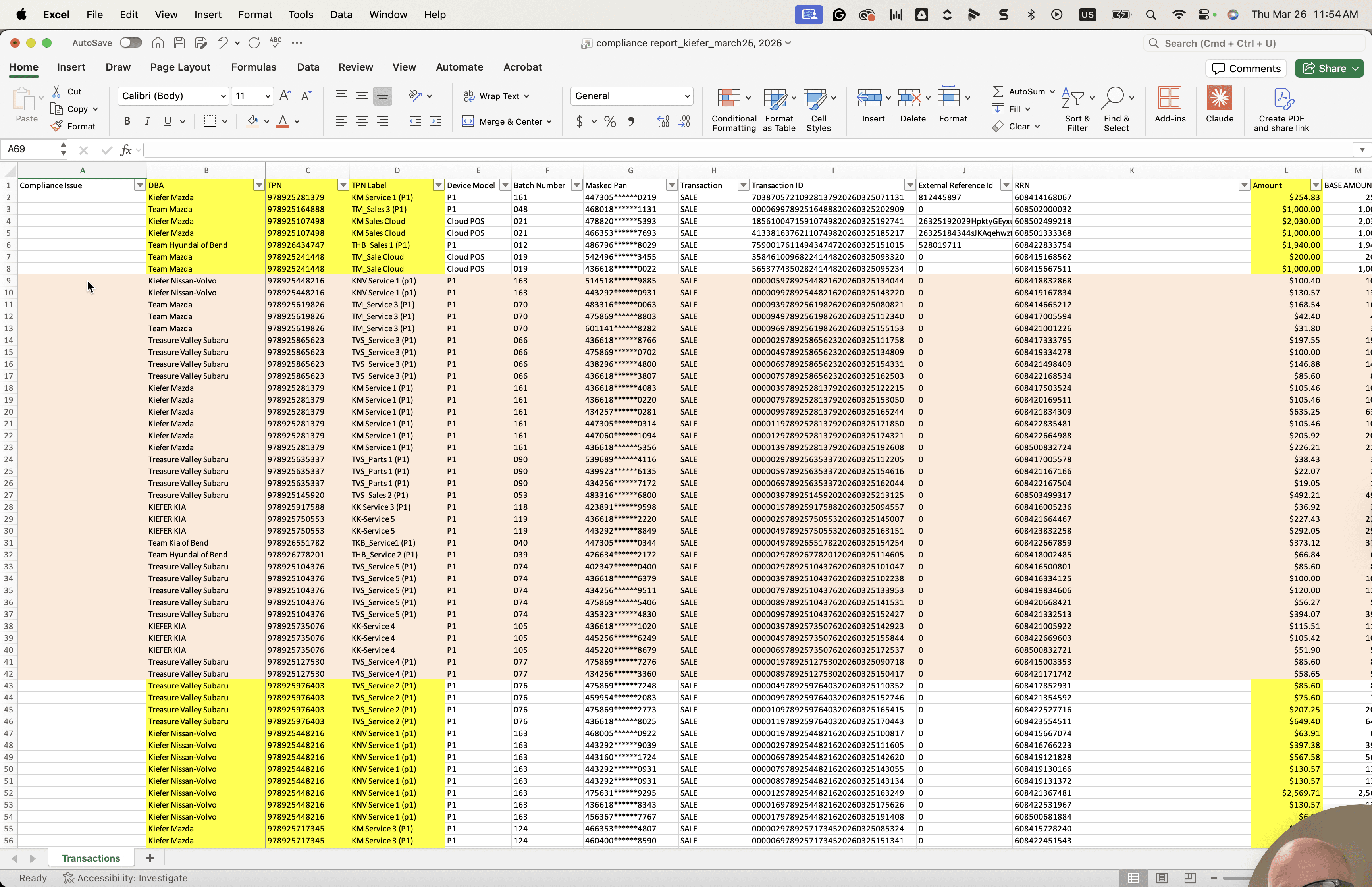
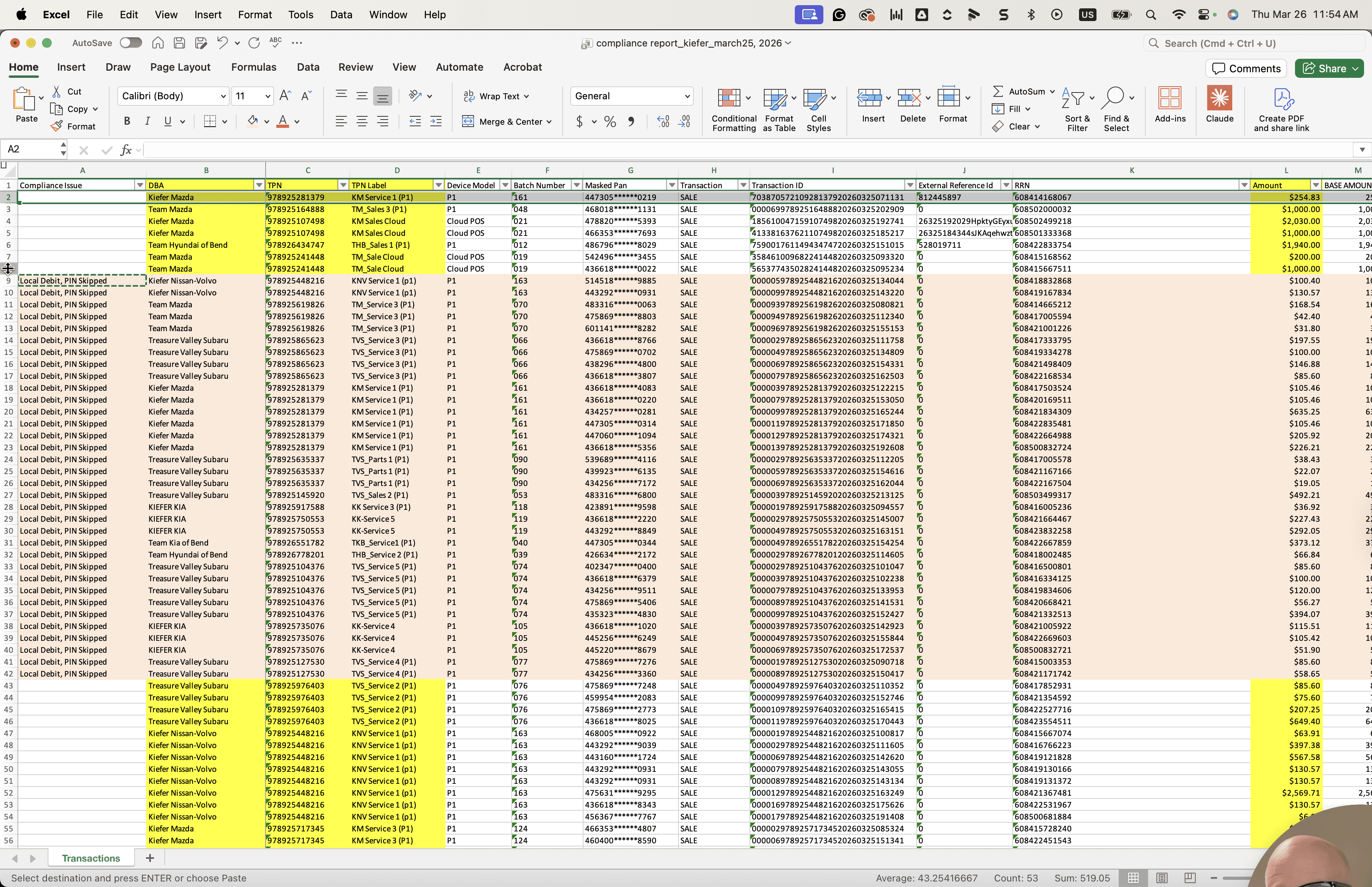
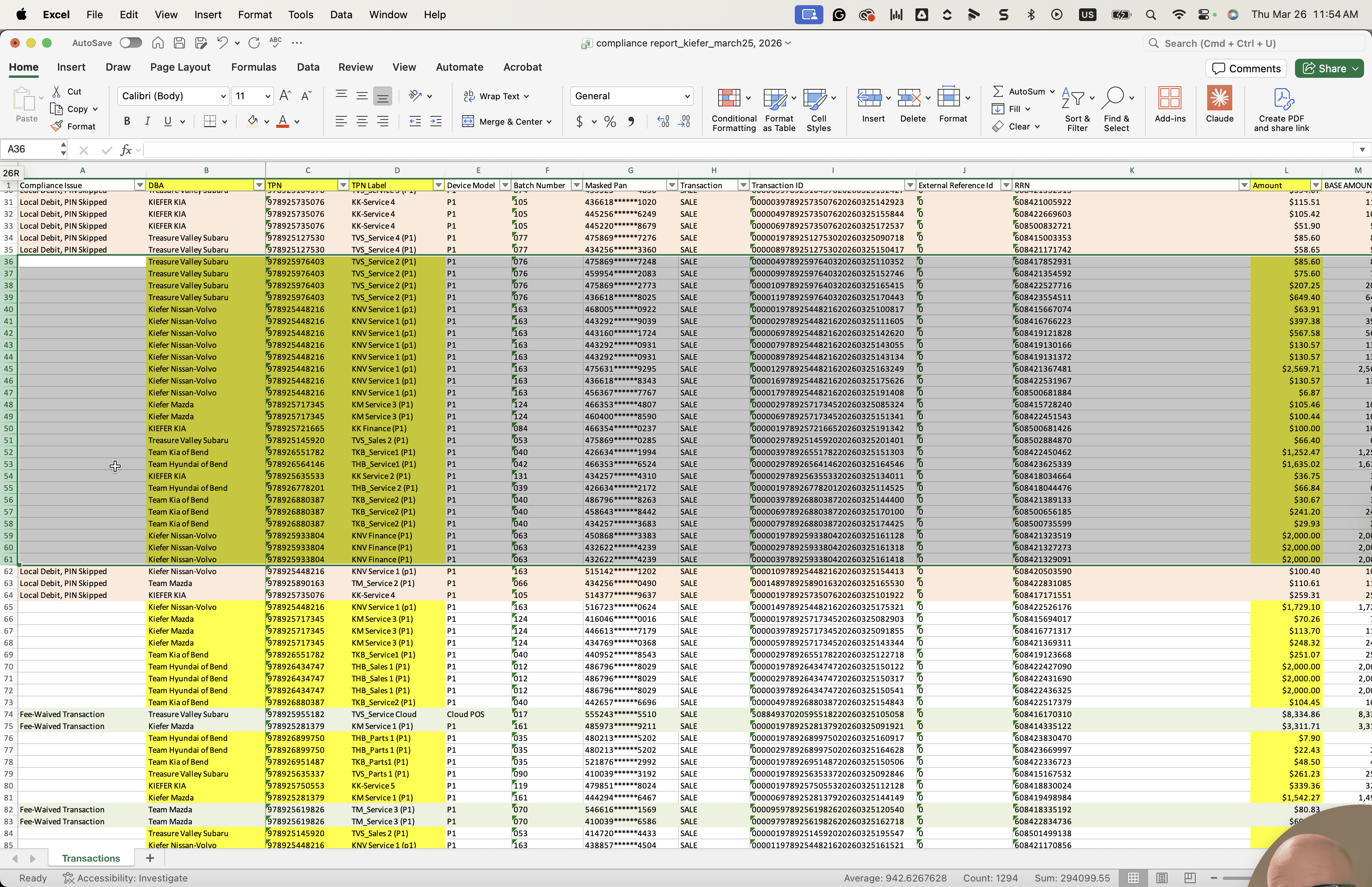
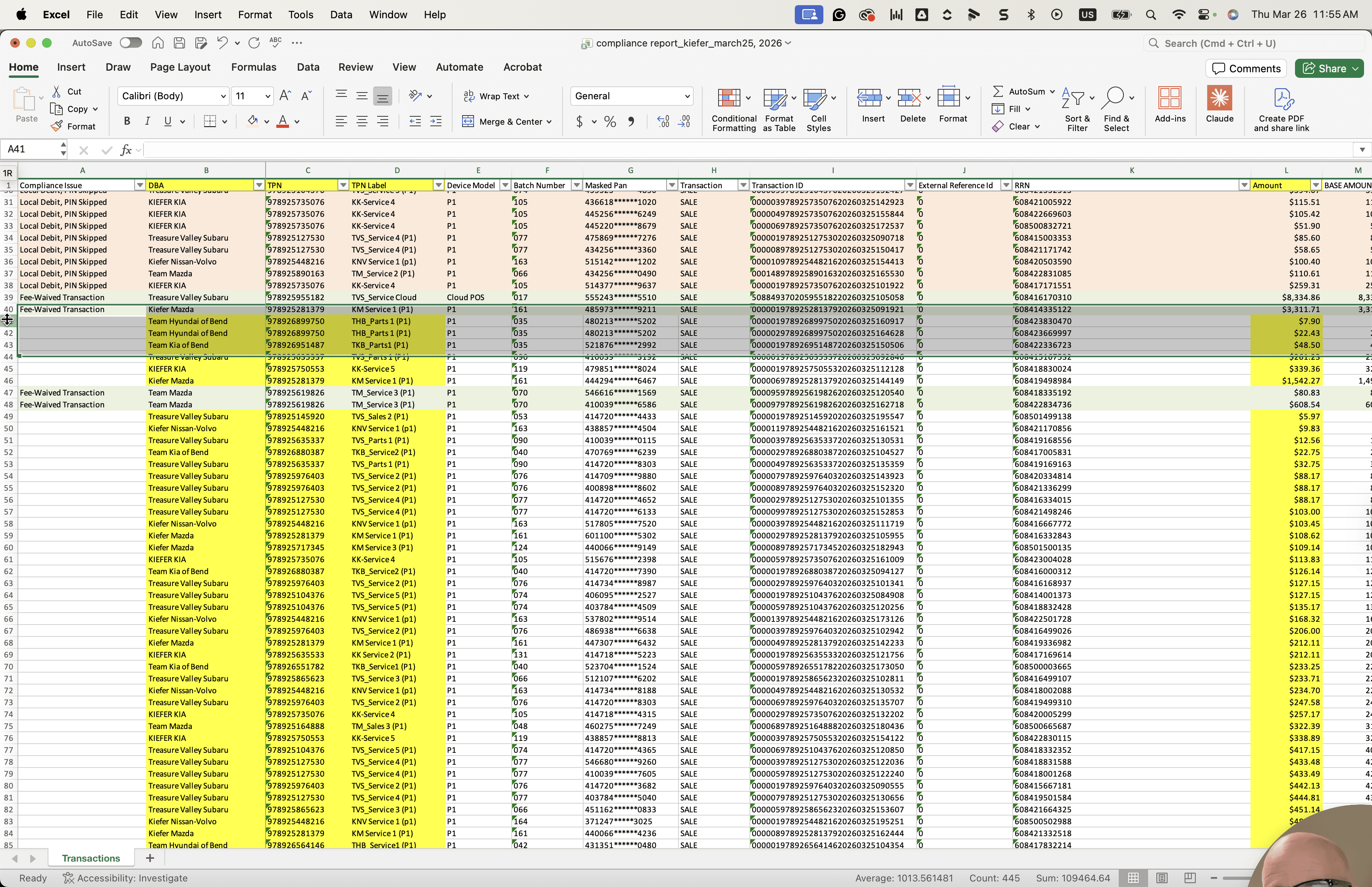
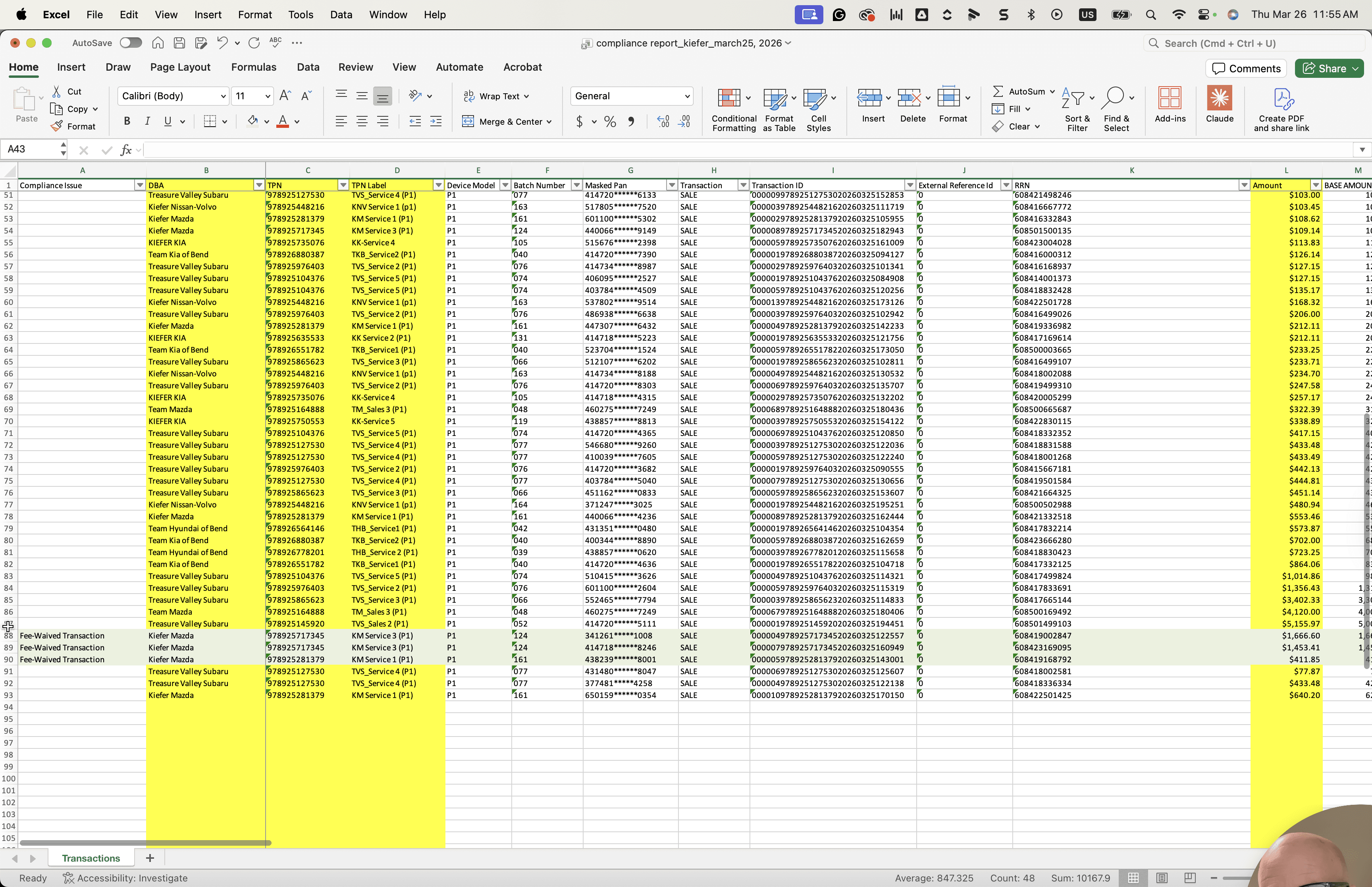
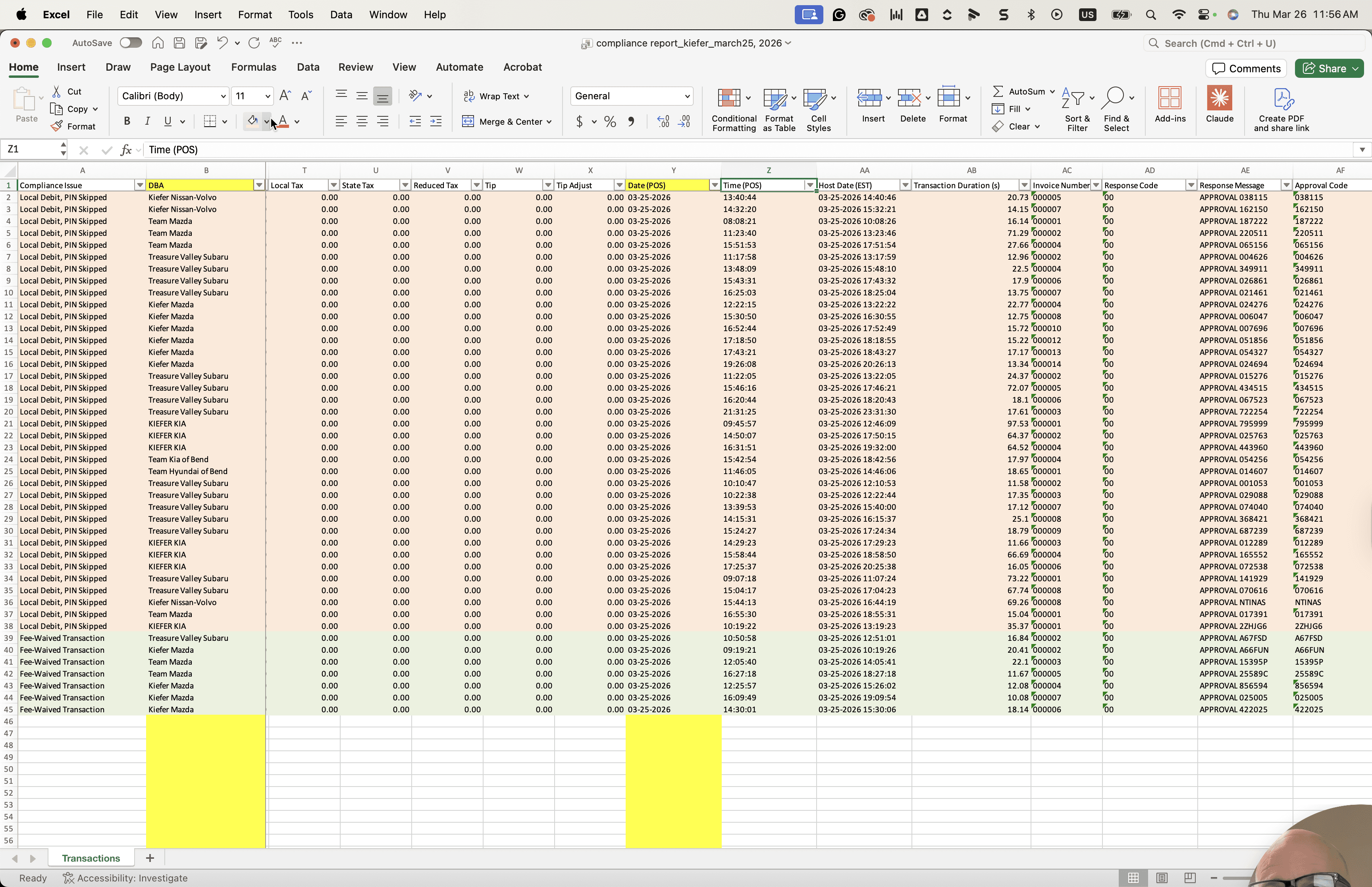
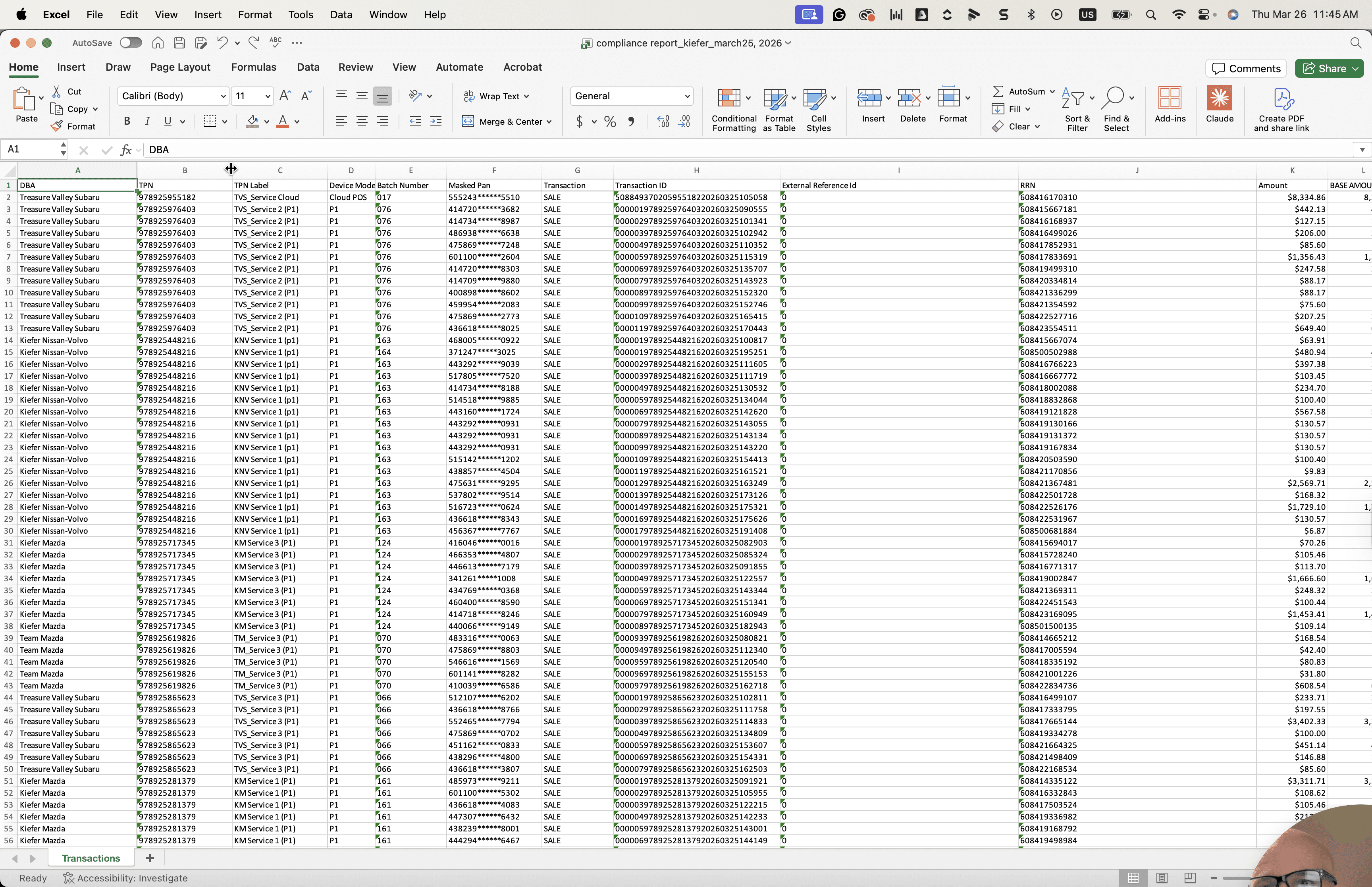
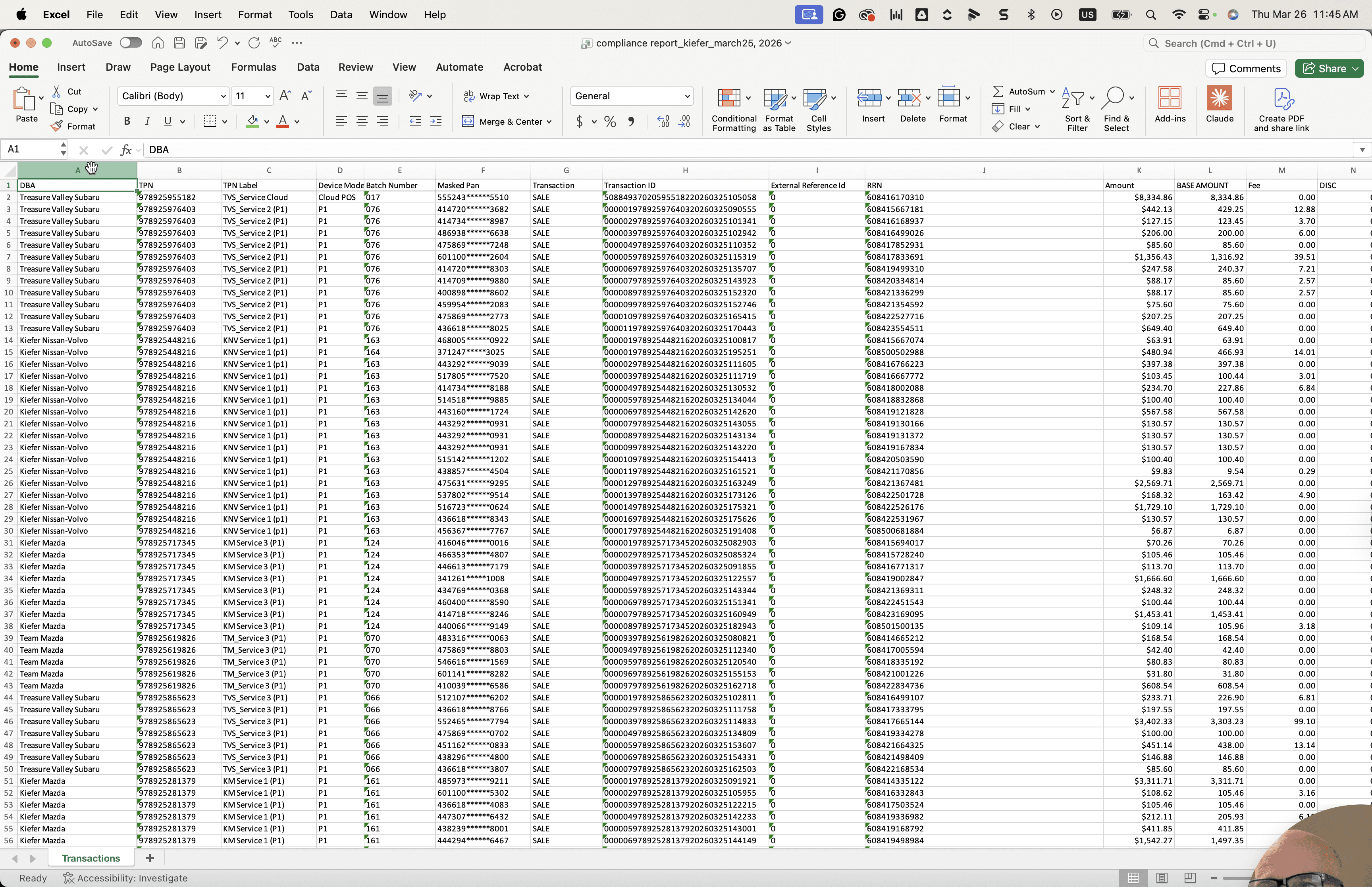
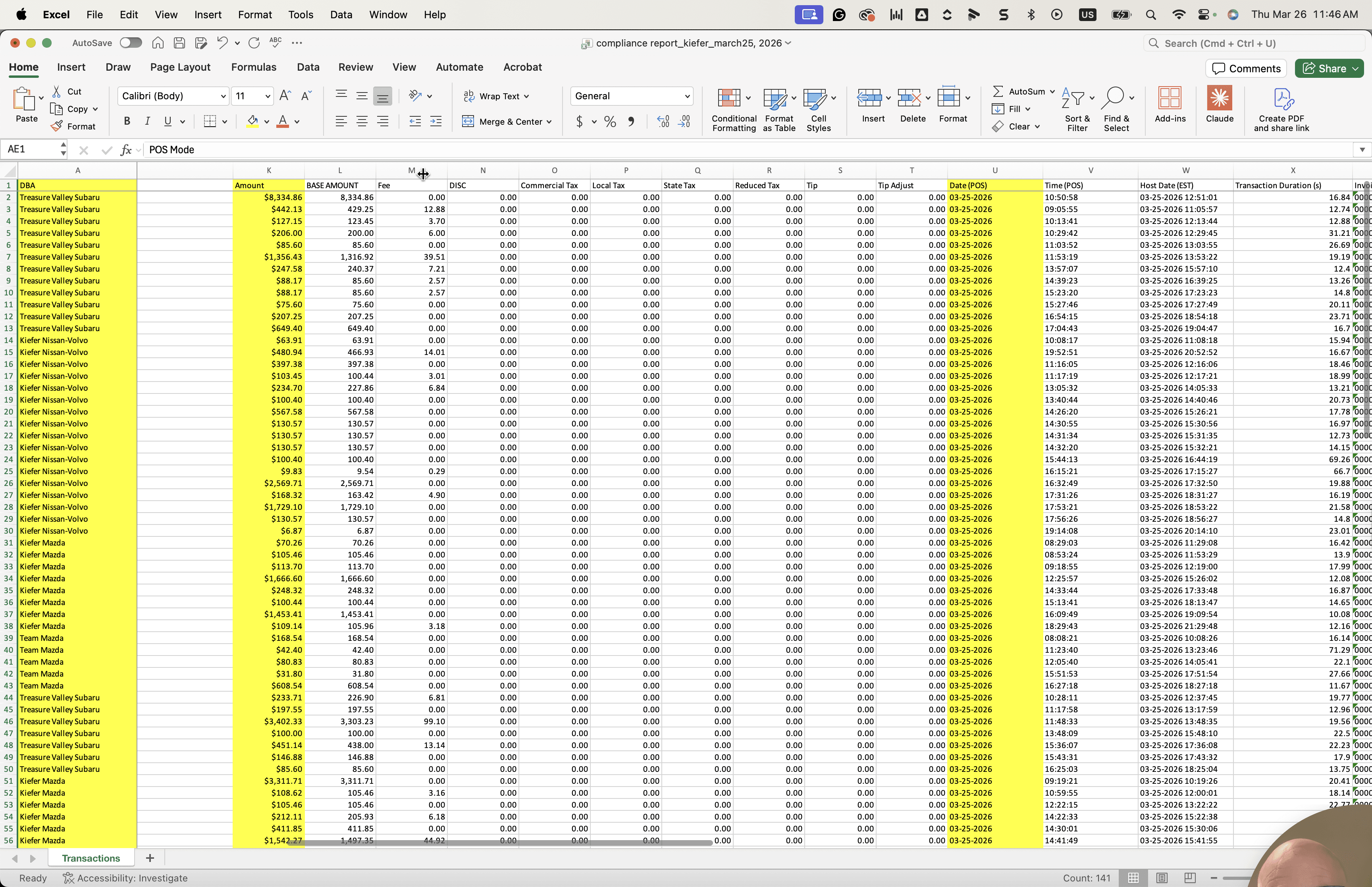
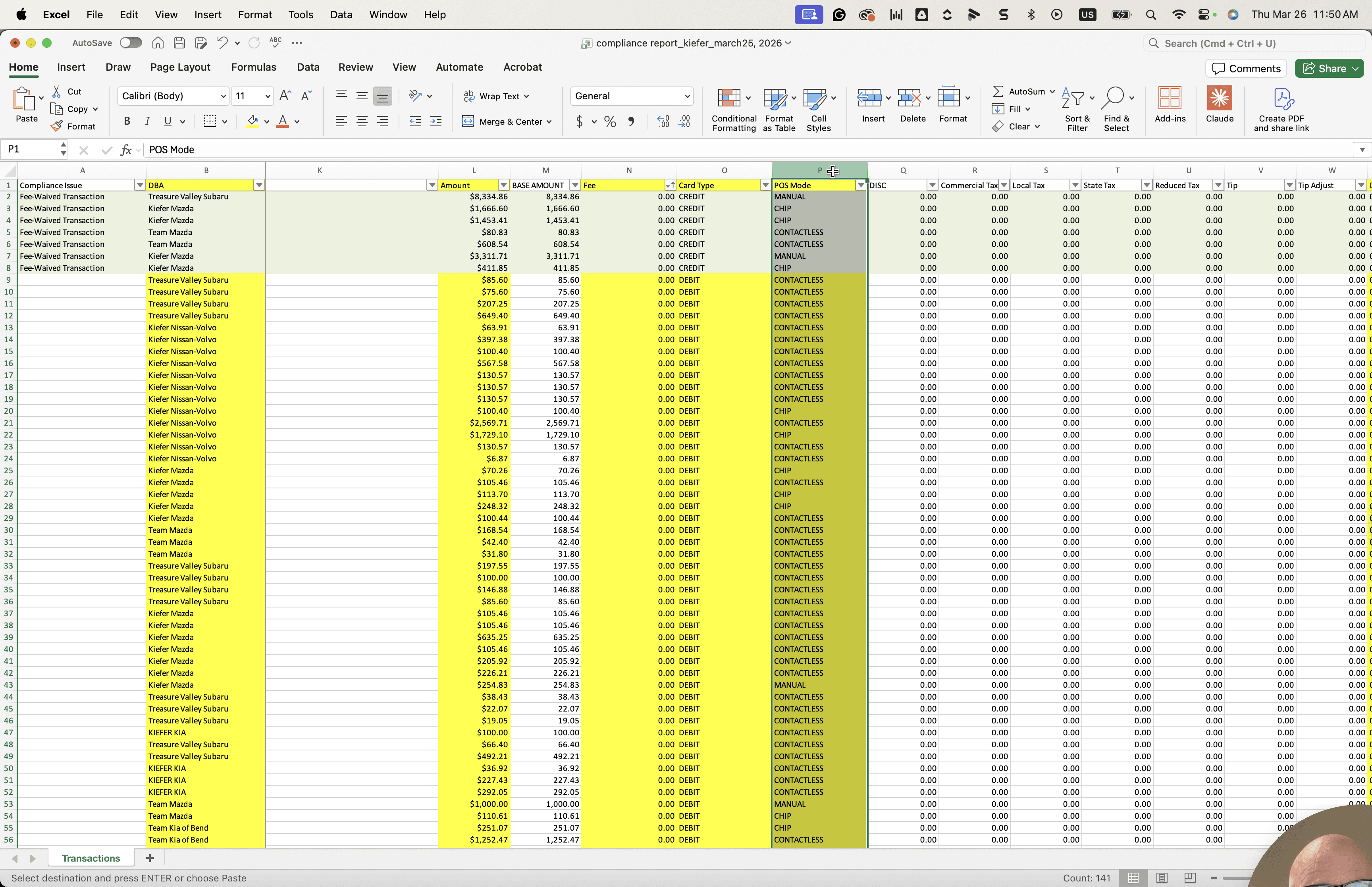
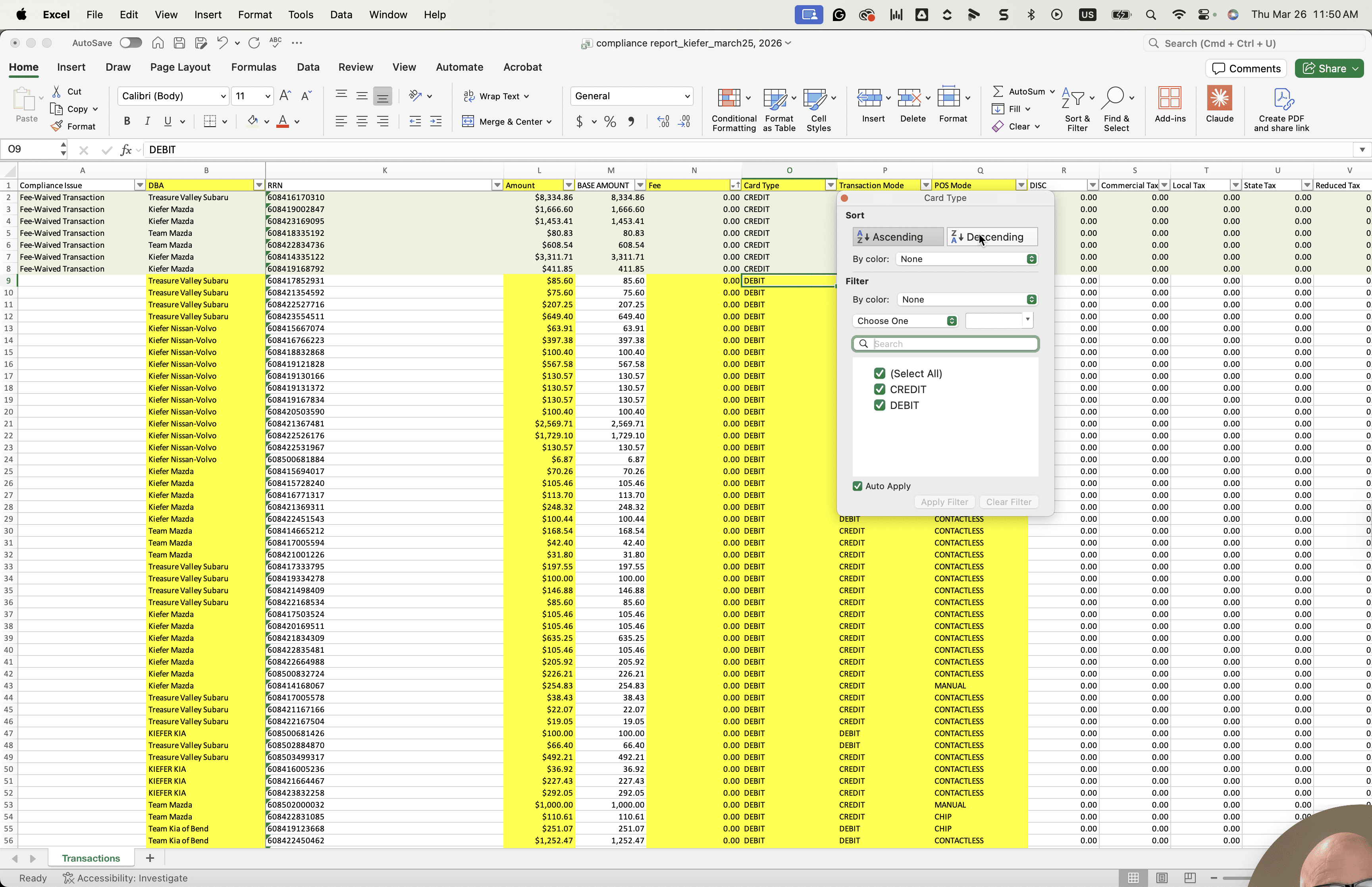
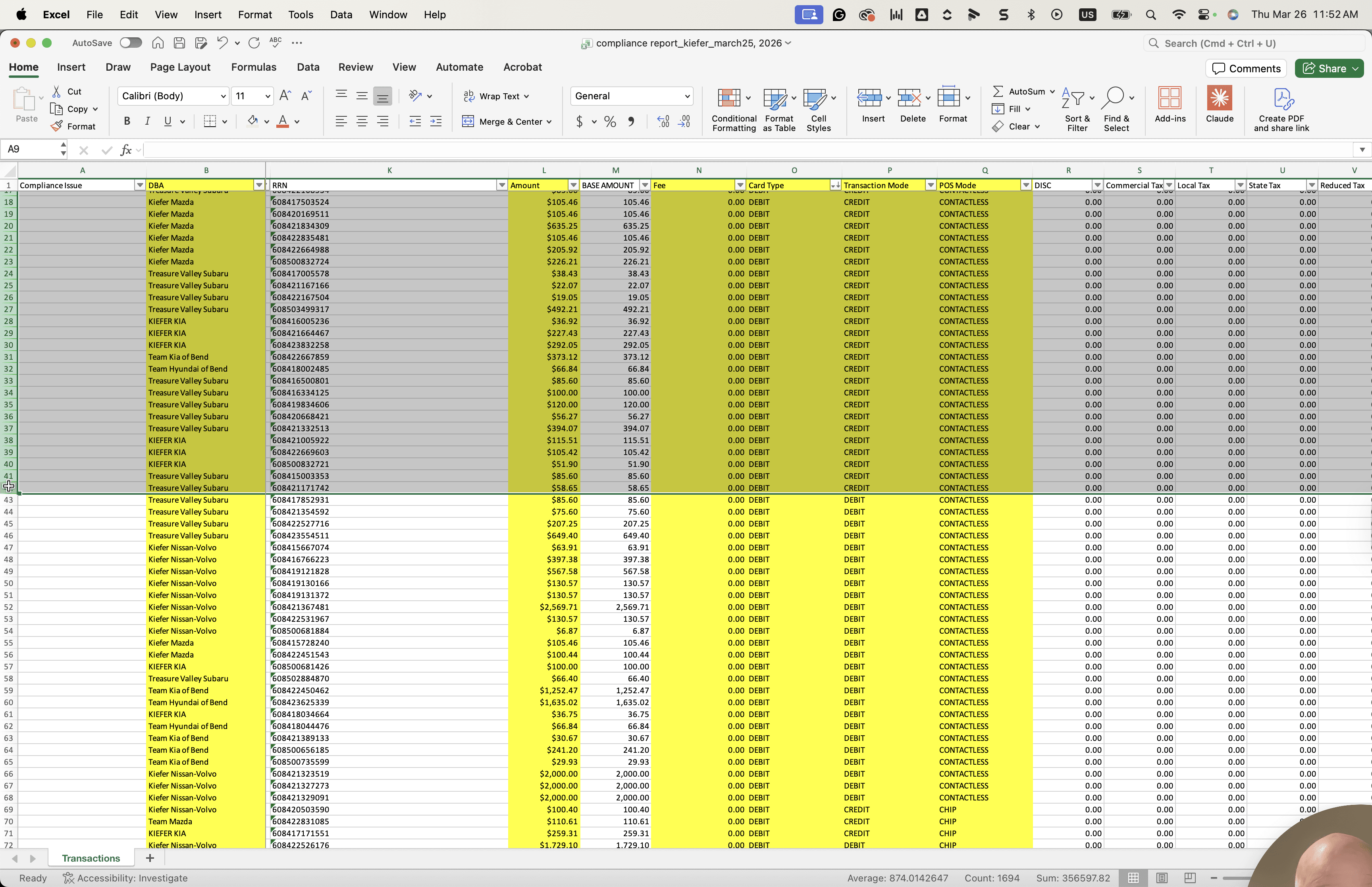
Go to the folder, open it, and view the raw data inside. In the raw data, we won't need everything. Now, I will highlight all of the important columns for illustration. We need to know what the DBA is. We also need to know what the TPN is and the device label, as both will be included.
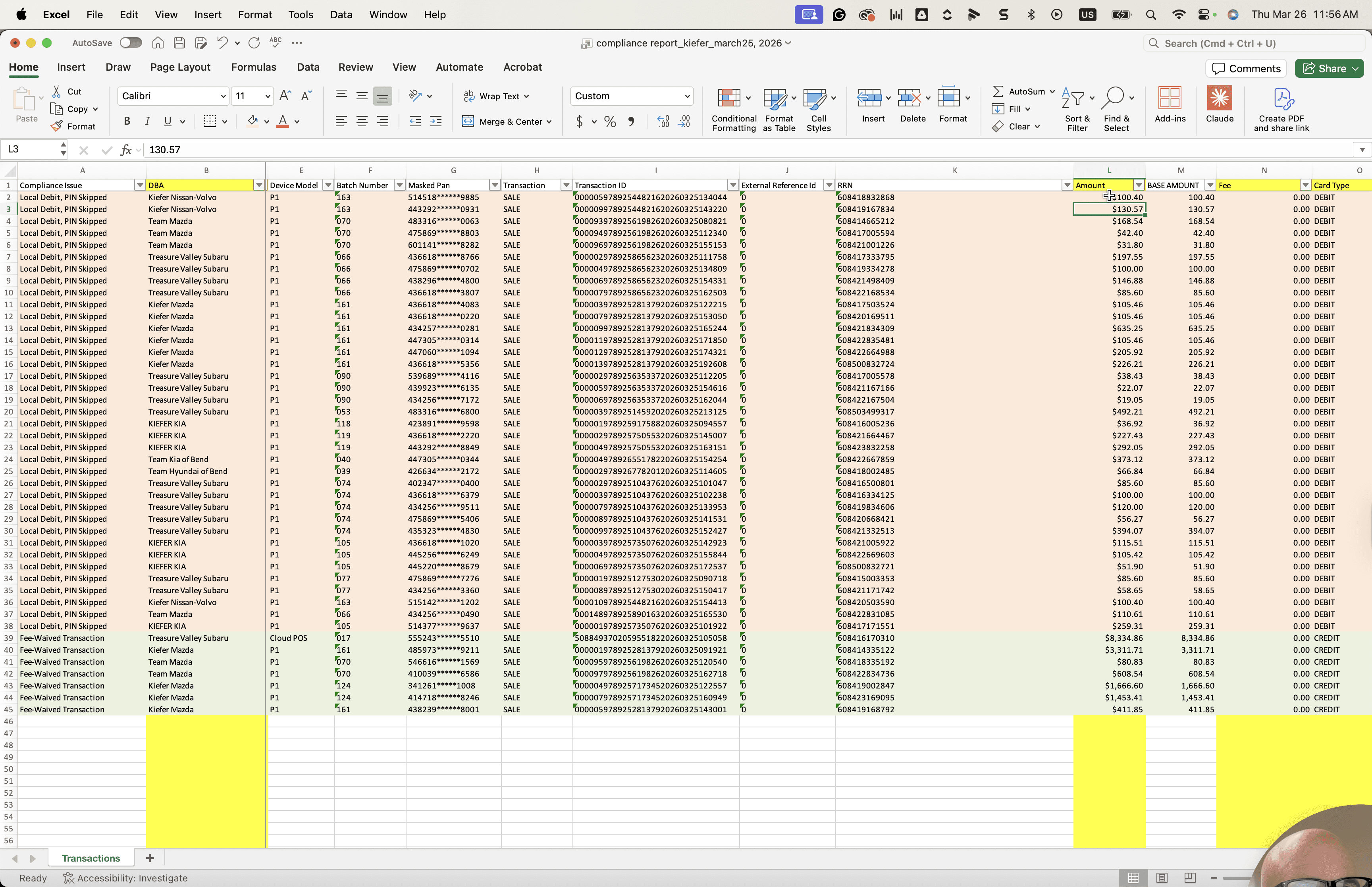
Next, we need to determine the amount to be included.
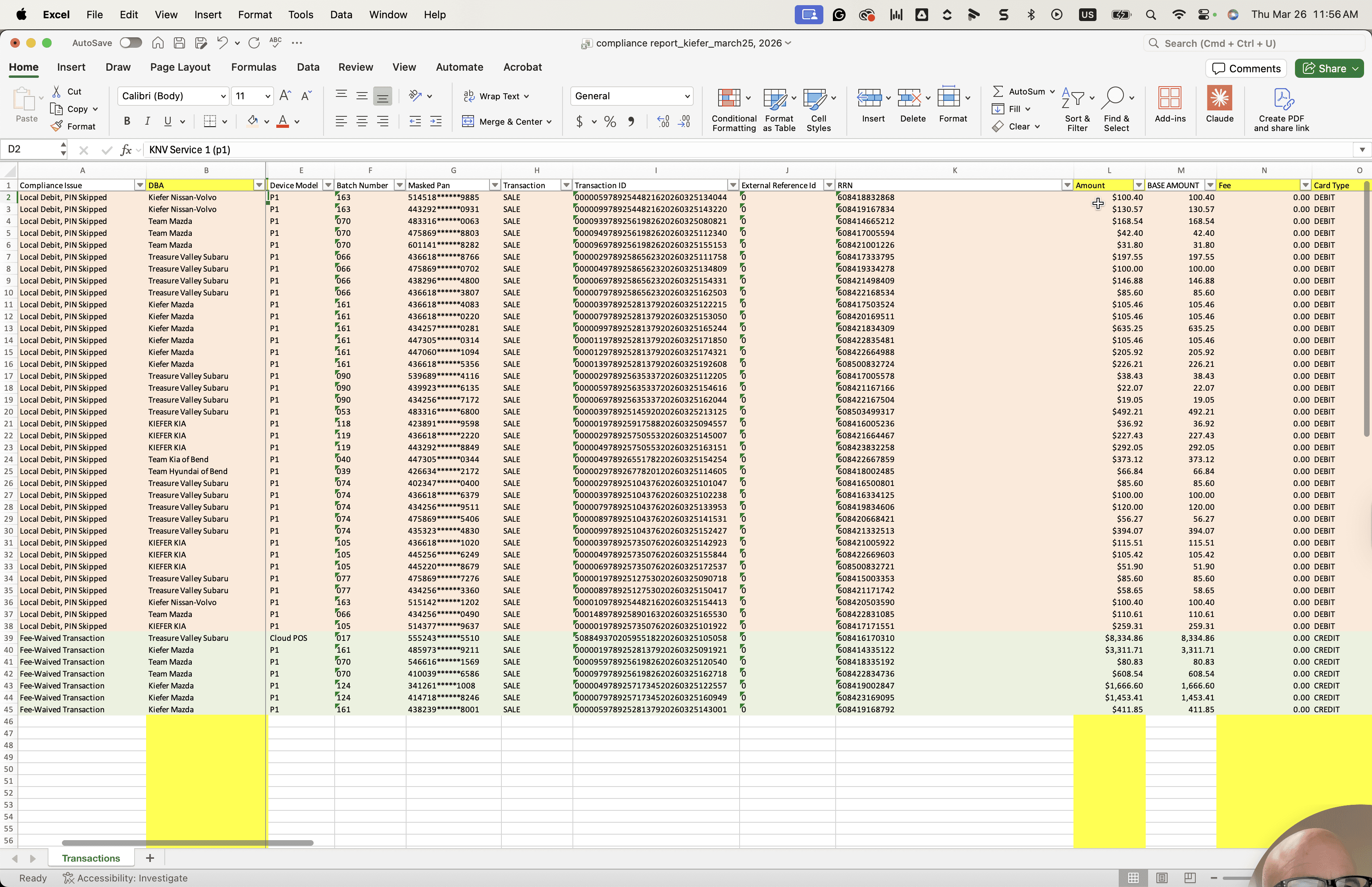
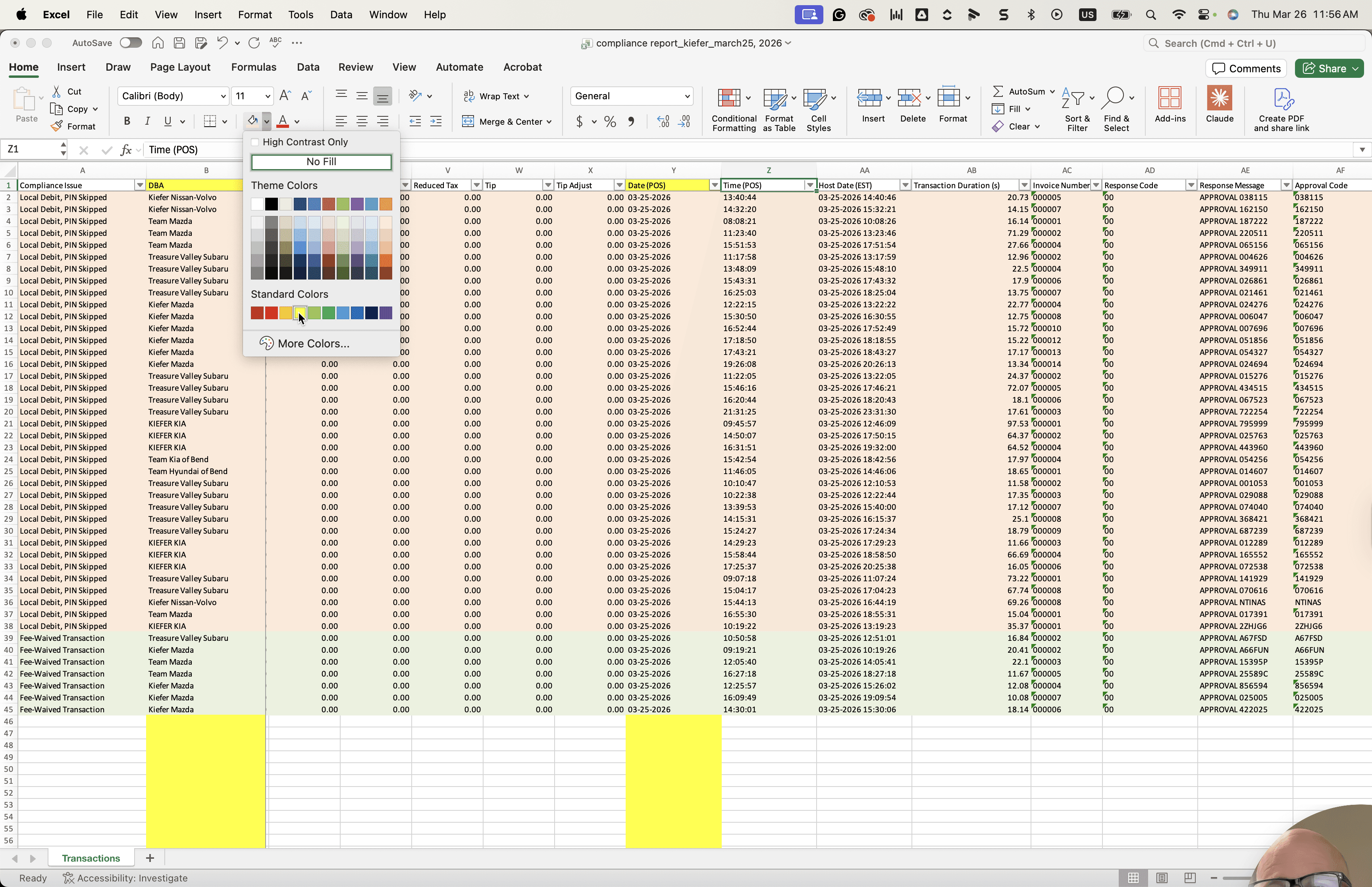
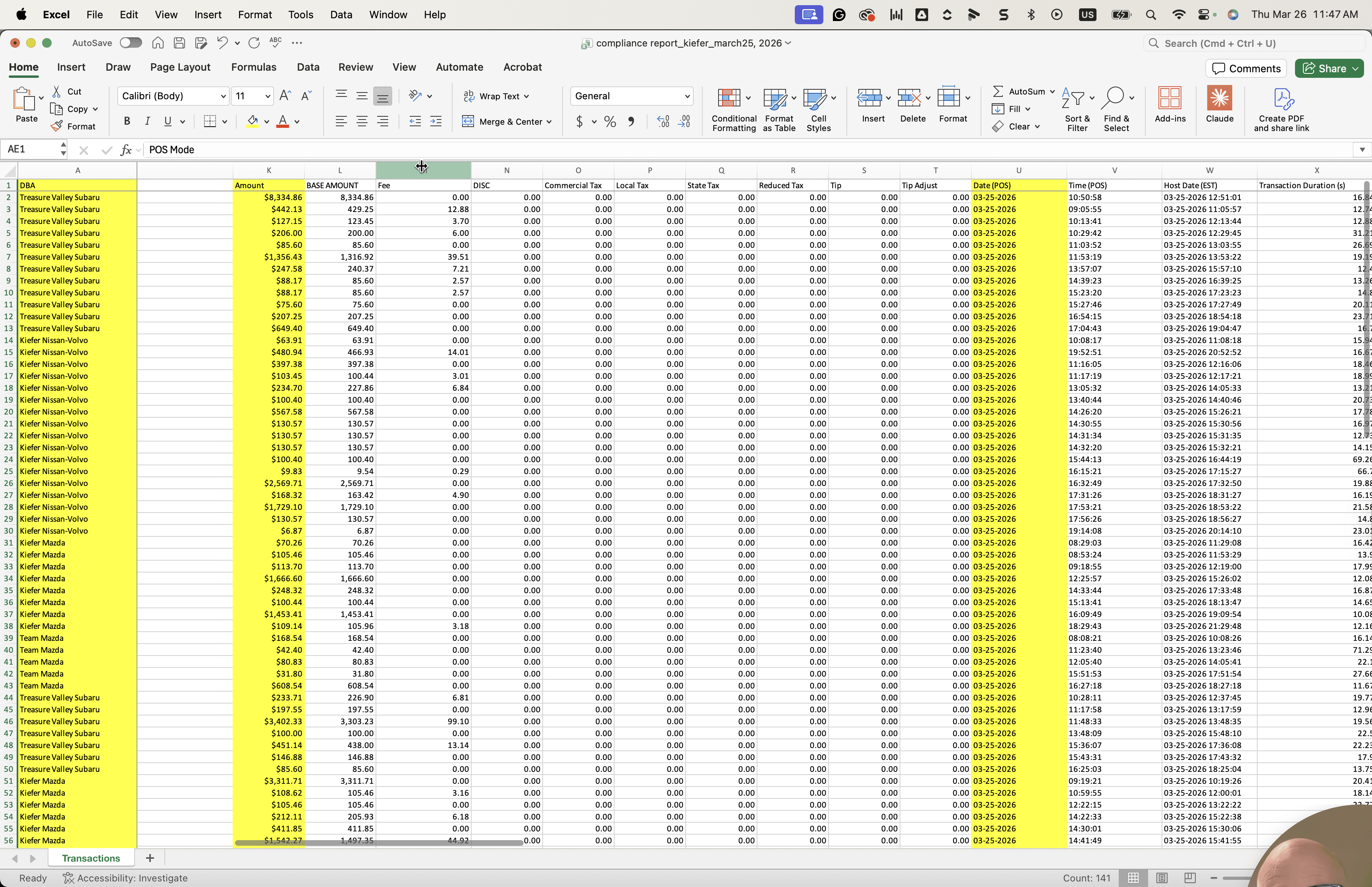
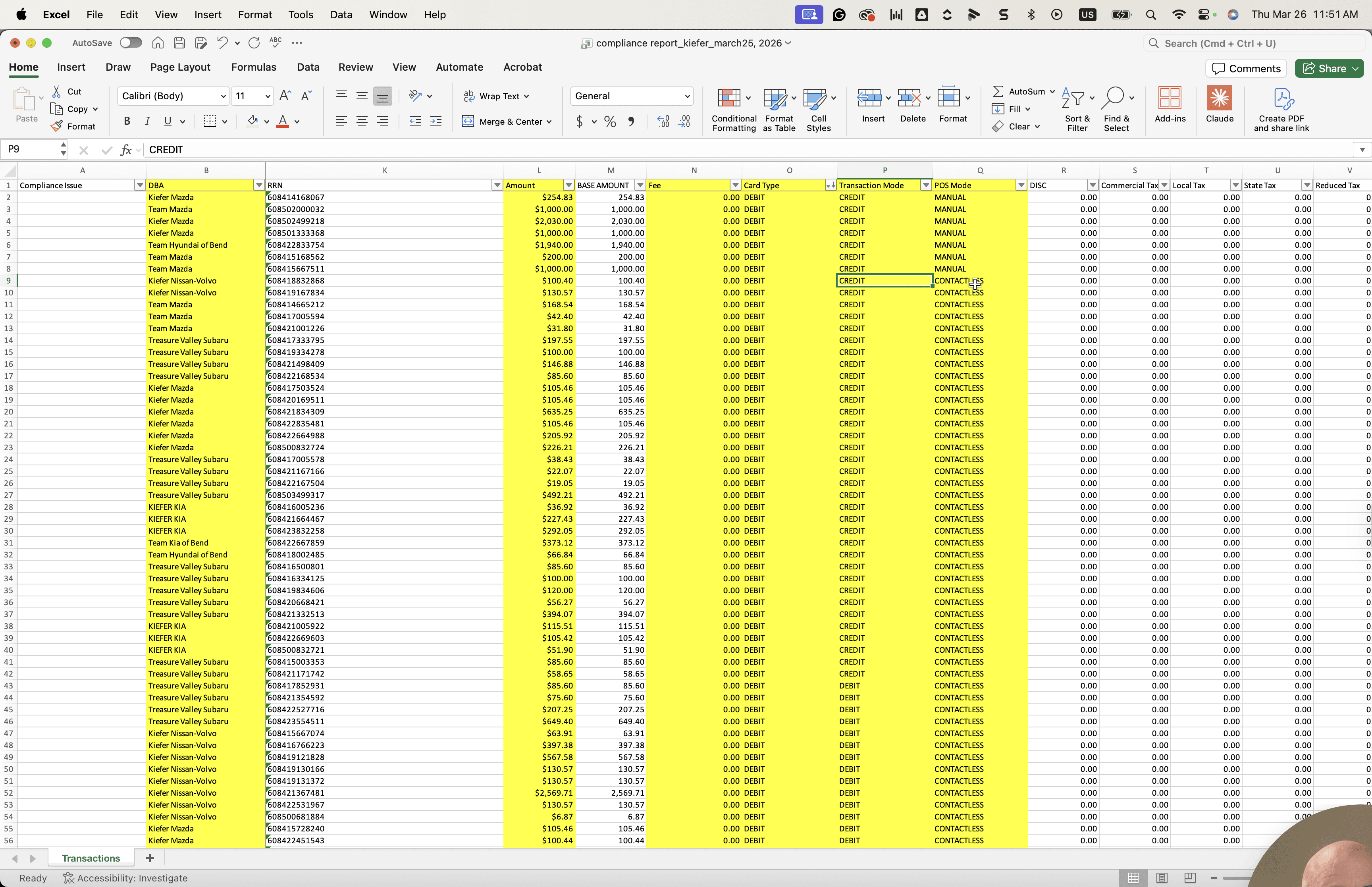
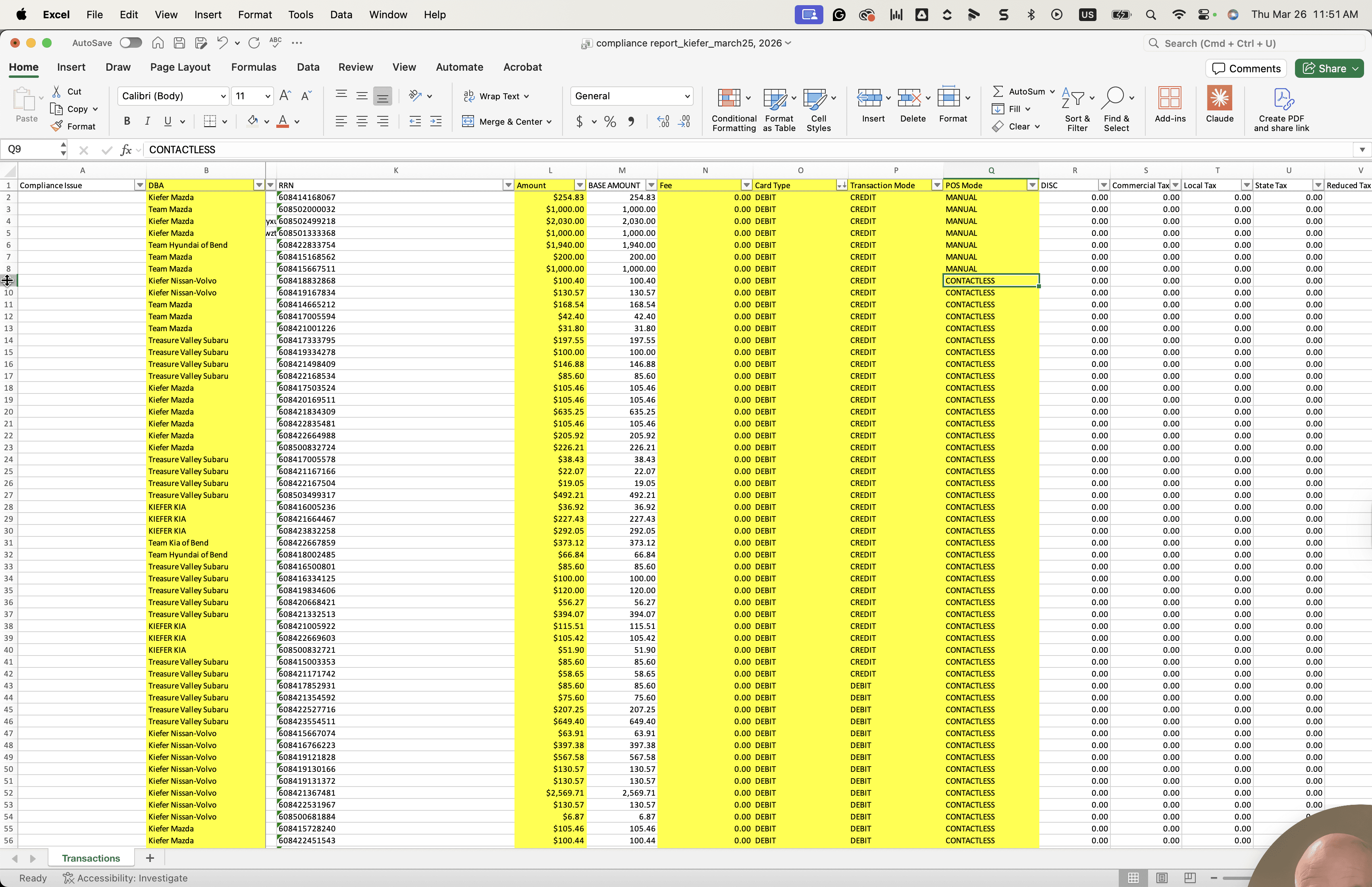
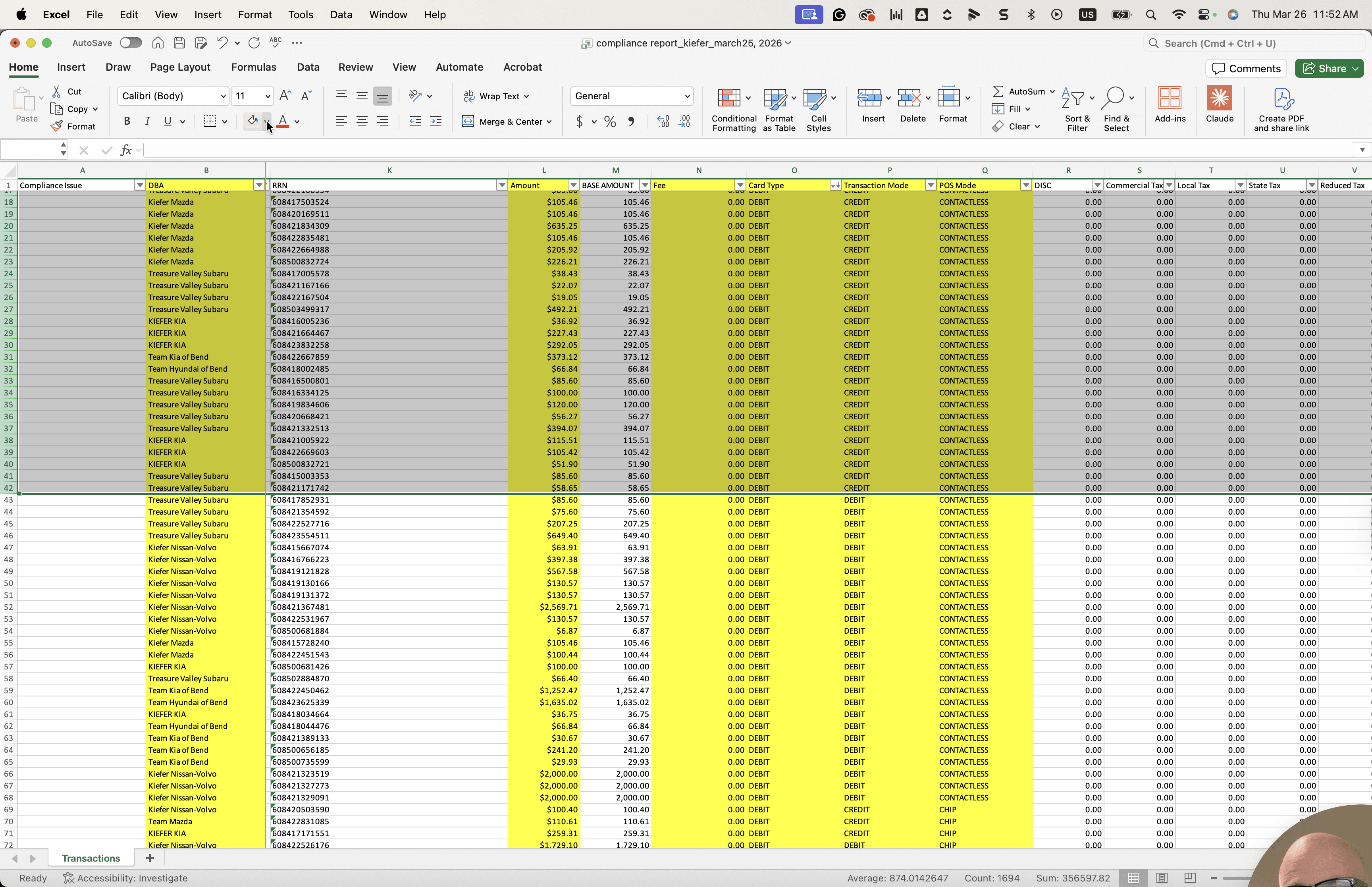
We will include the amount and the transaction date in the report. We will also look at POS mode, which I will highlight in yellow. I will also highlight the fee amount and the fee column to gather all the necessary information.
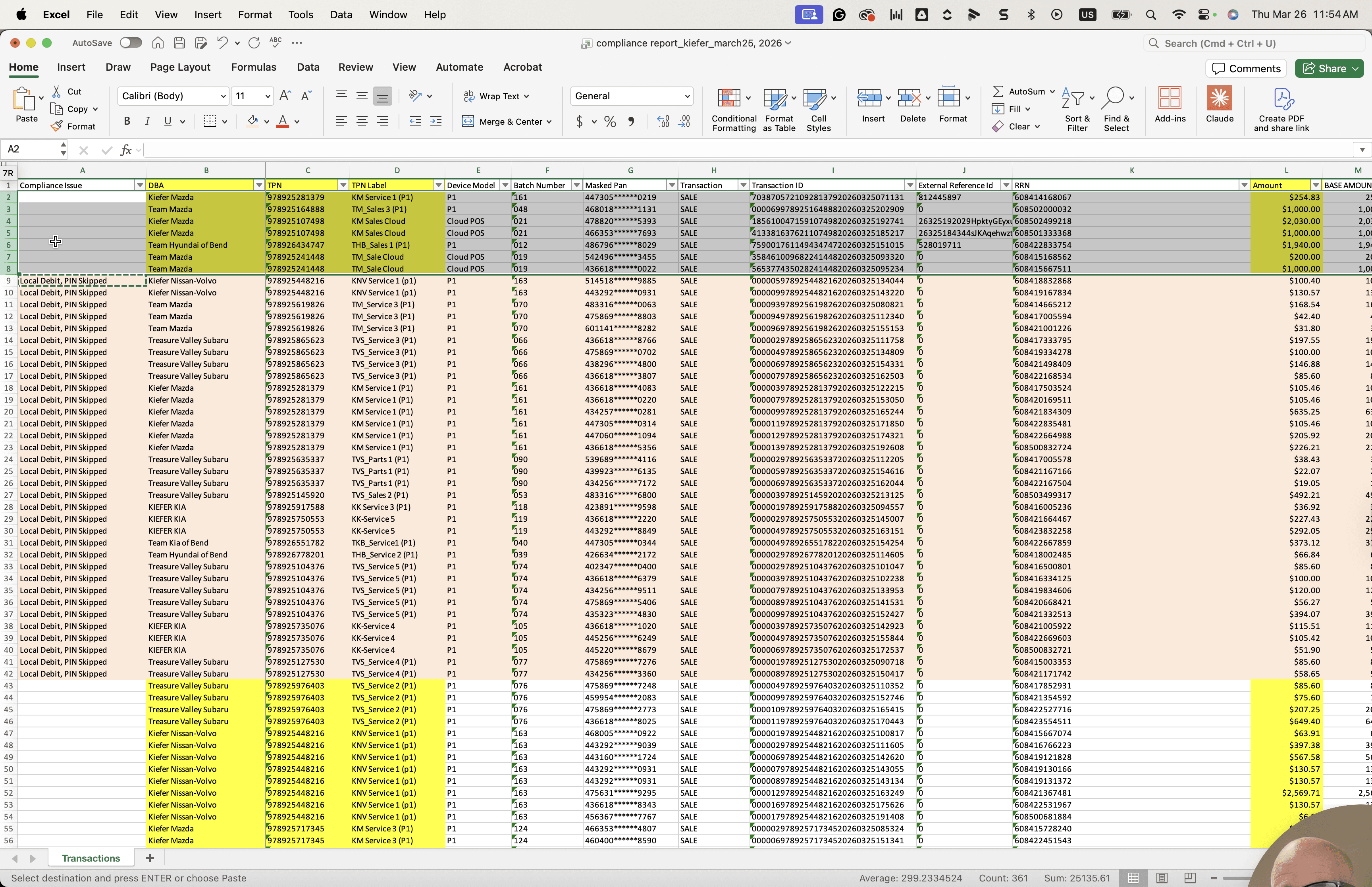
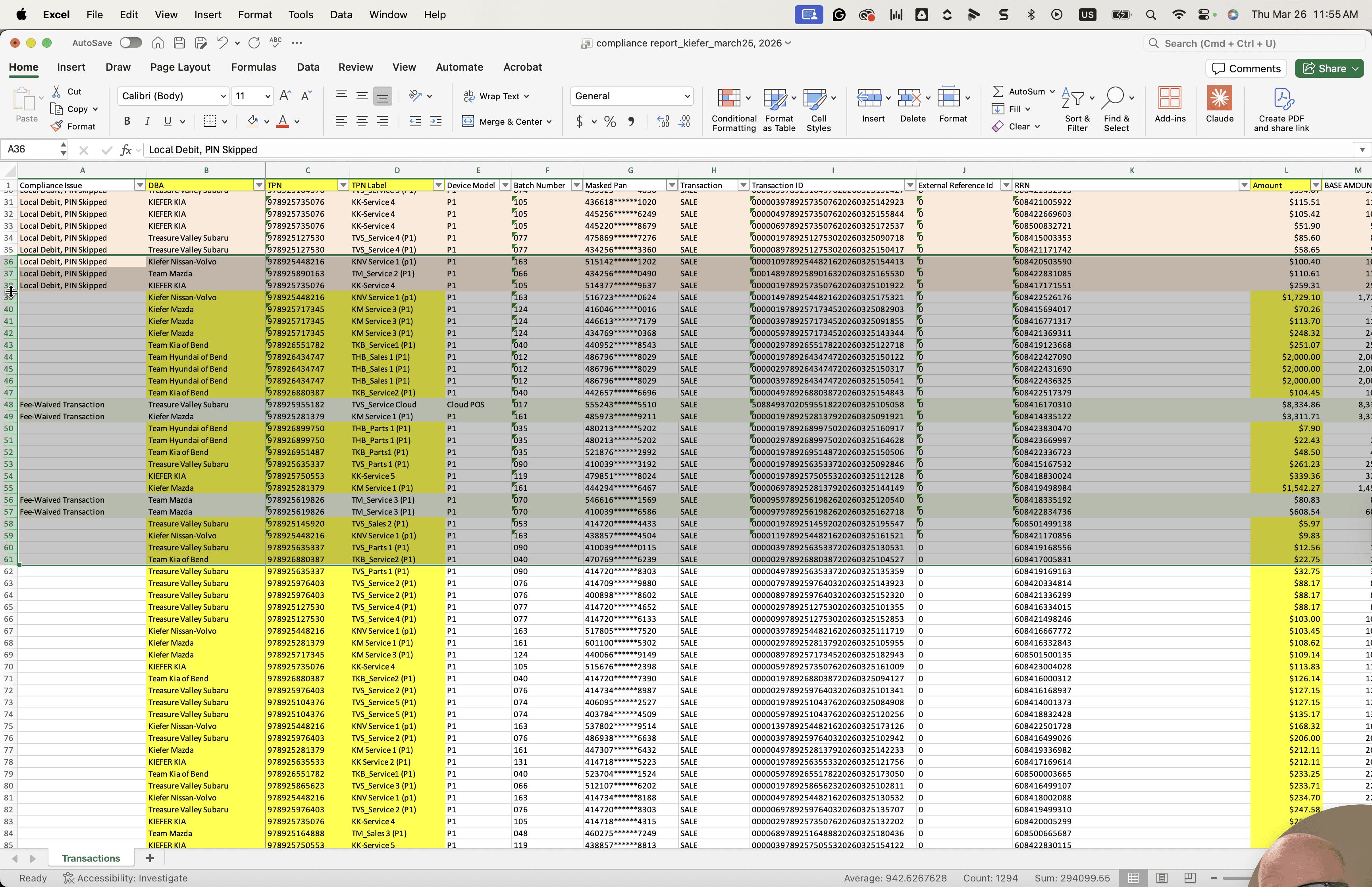
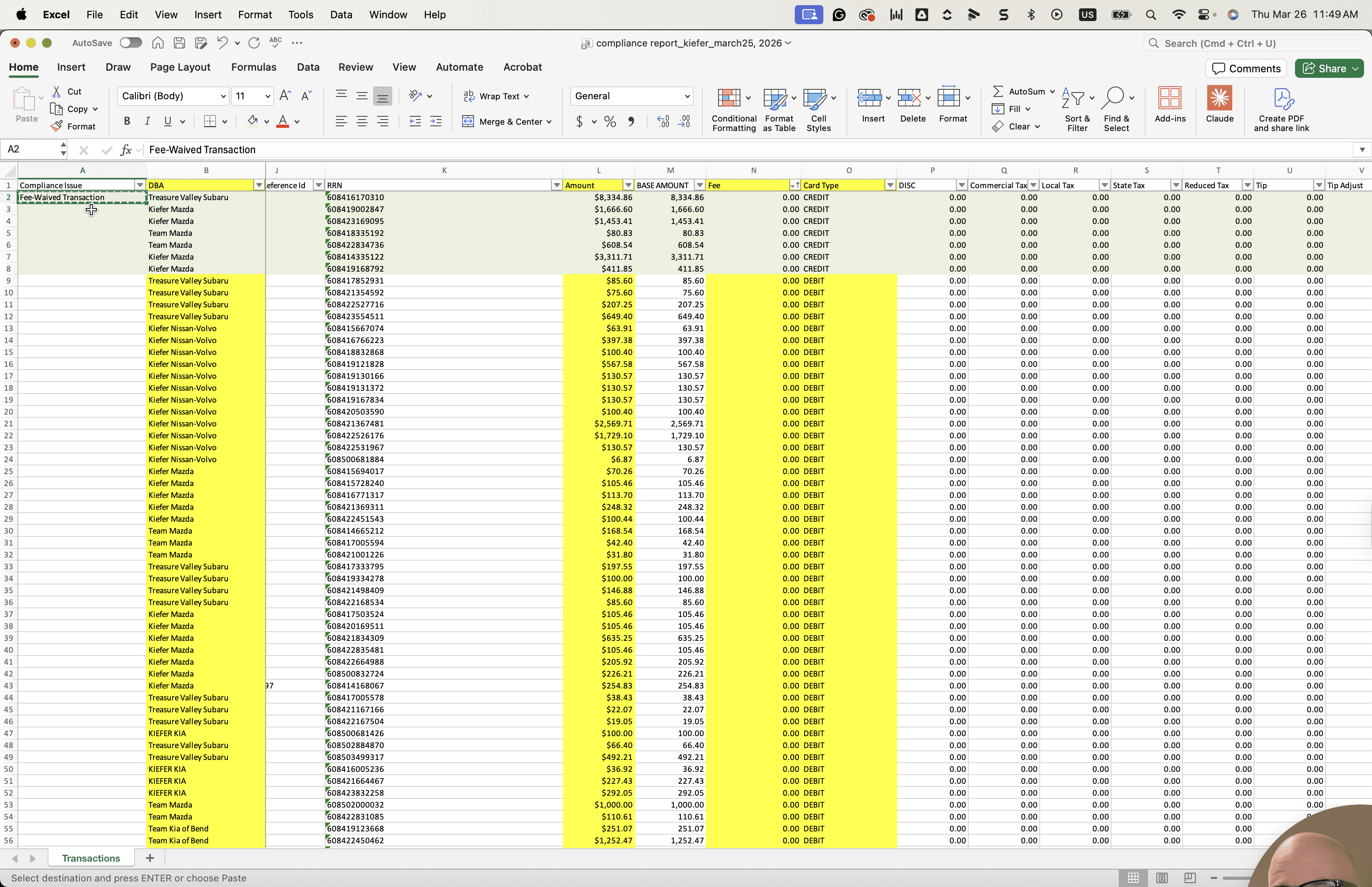
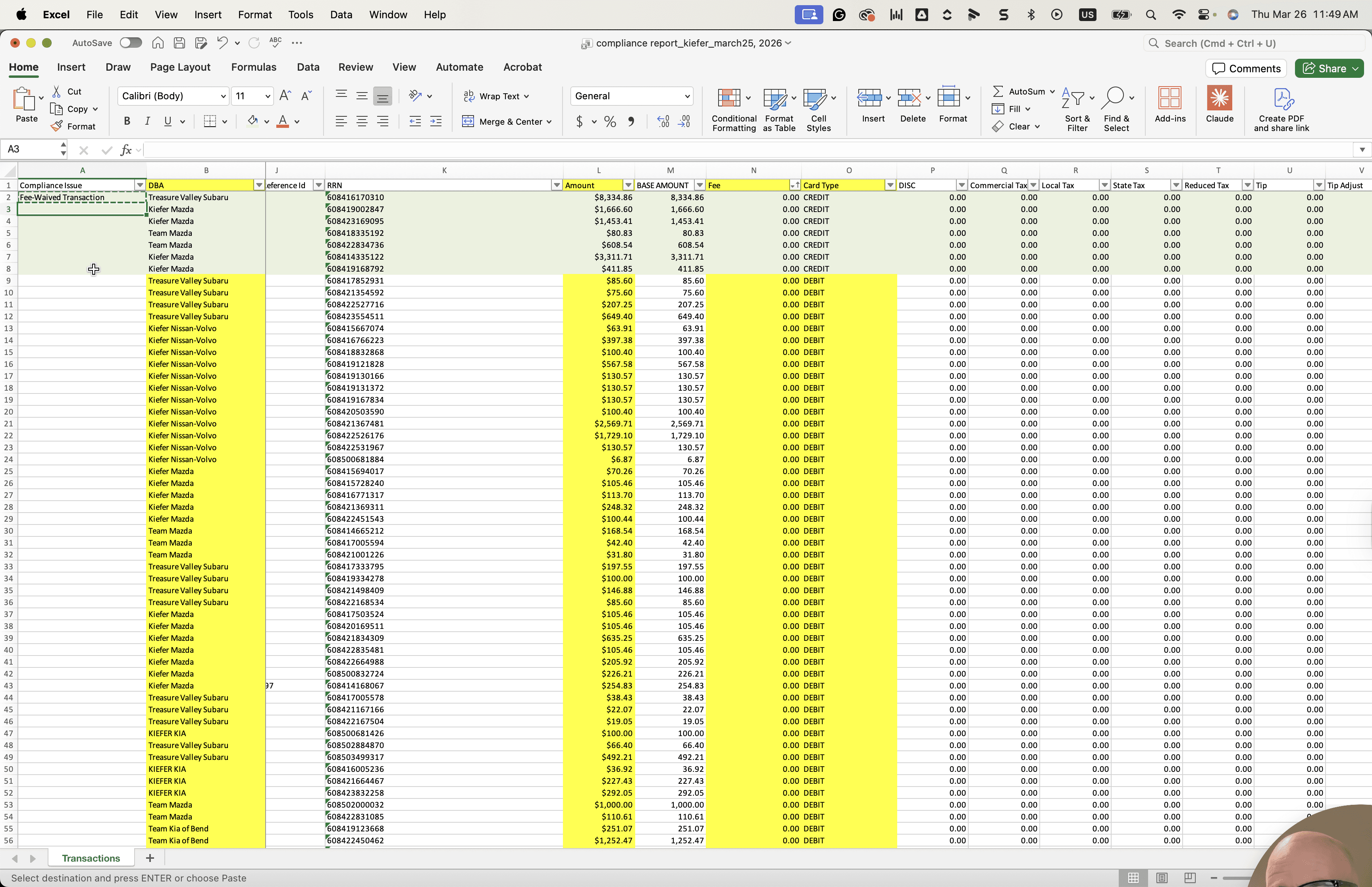
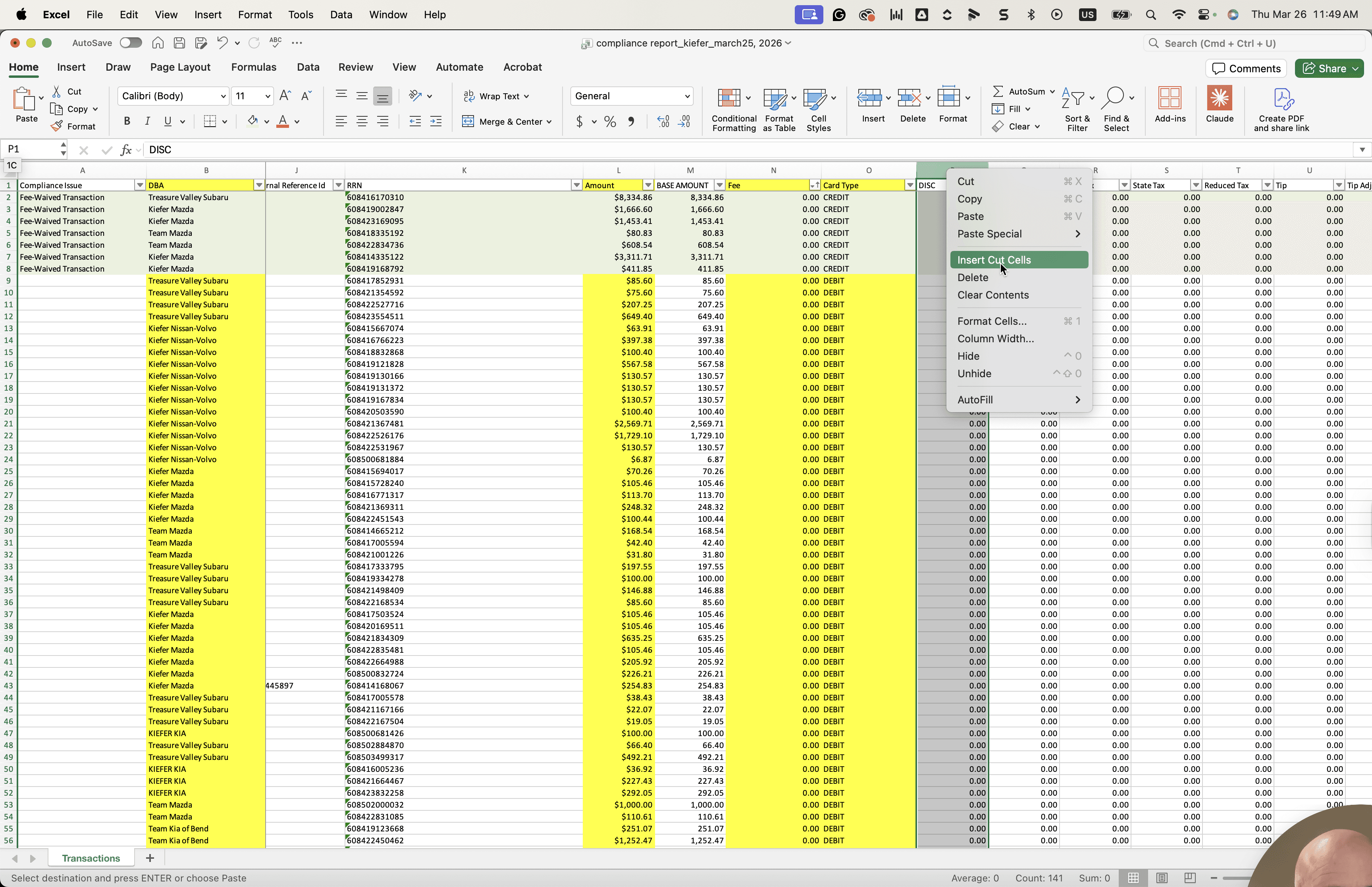
Next, create a new column at the front called Compliance Issue.
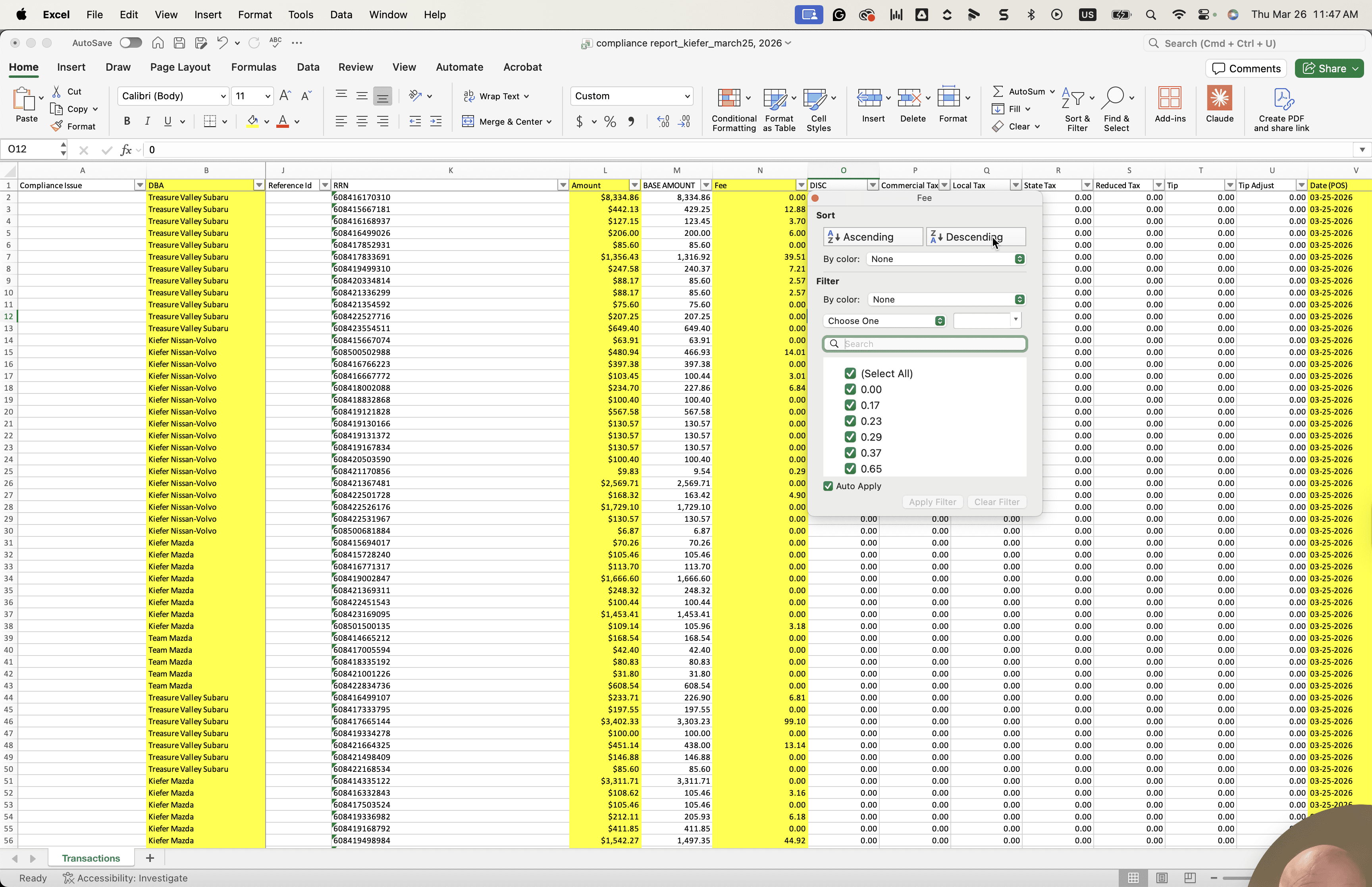
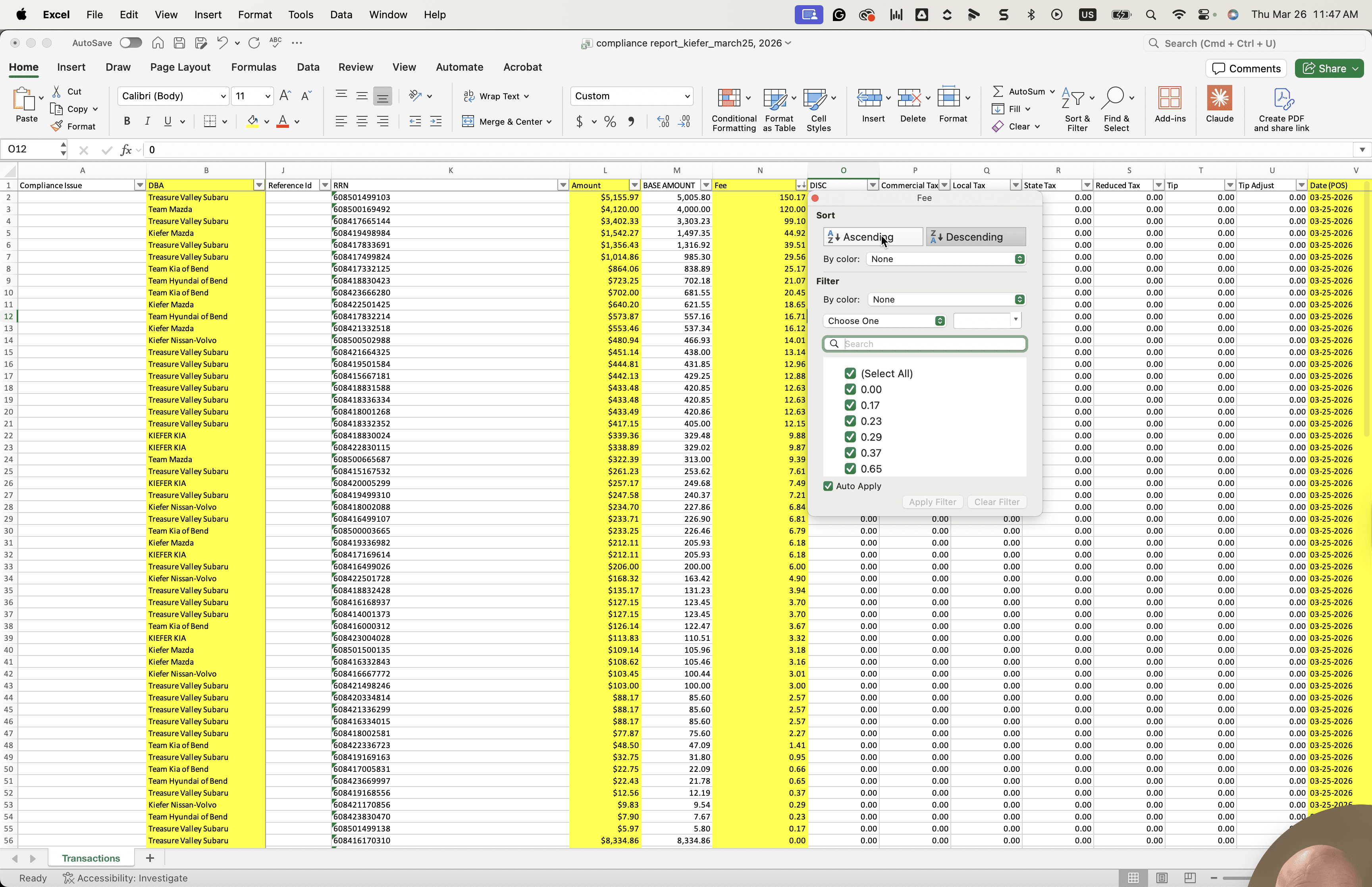
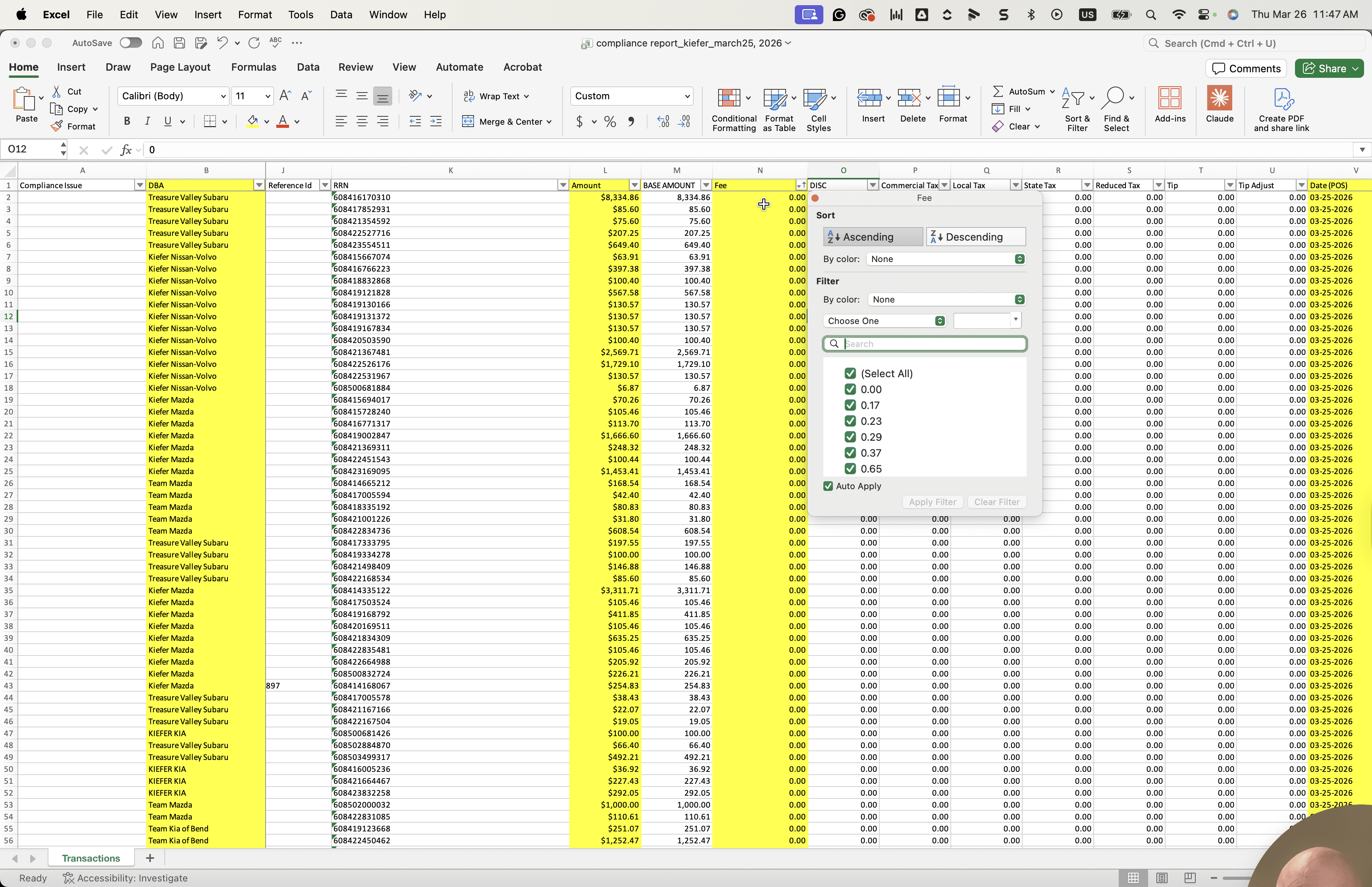
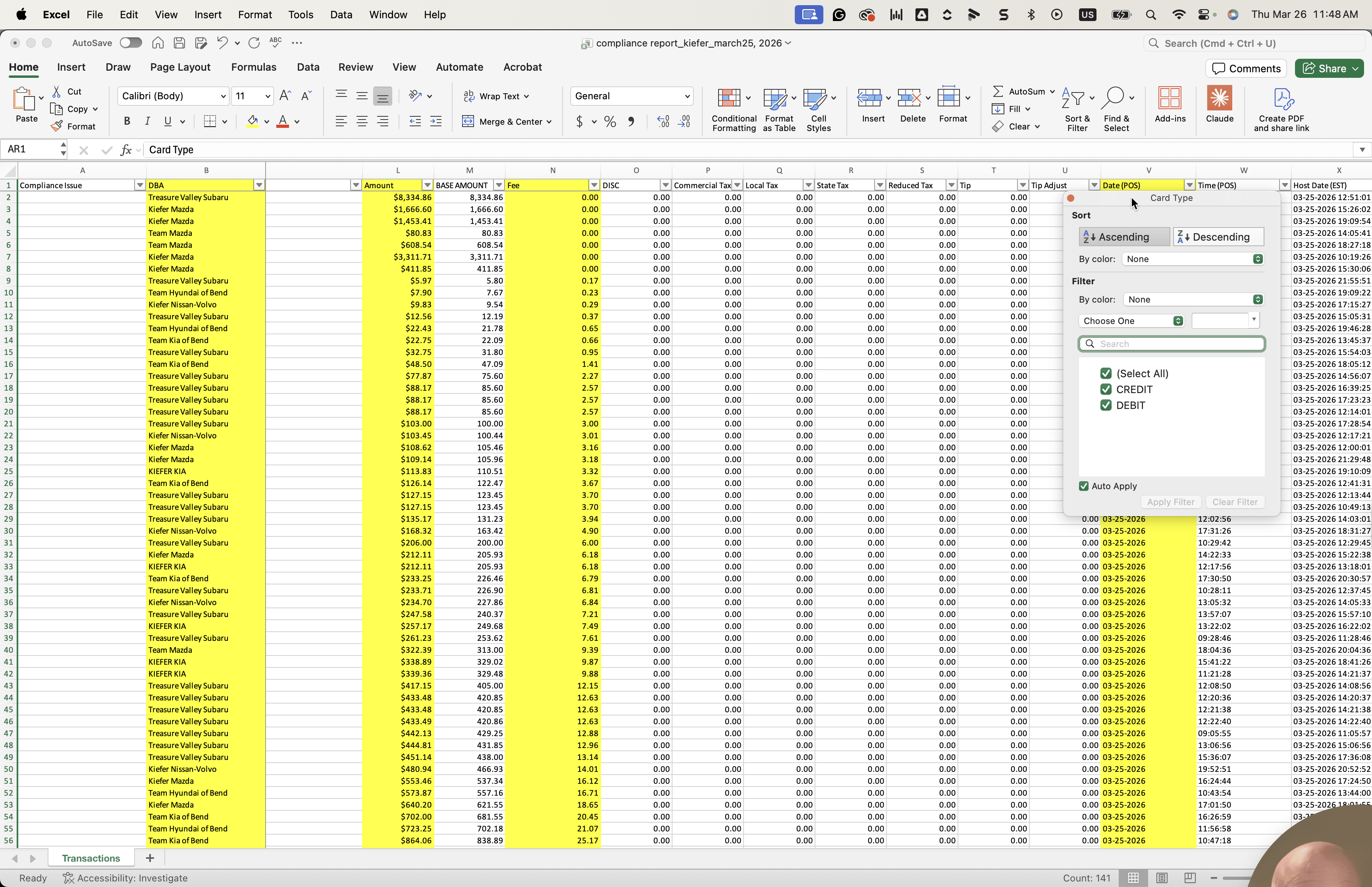
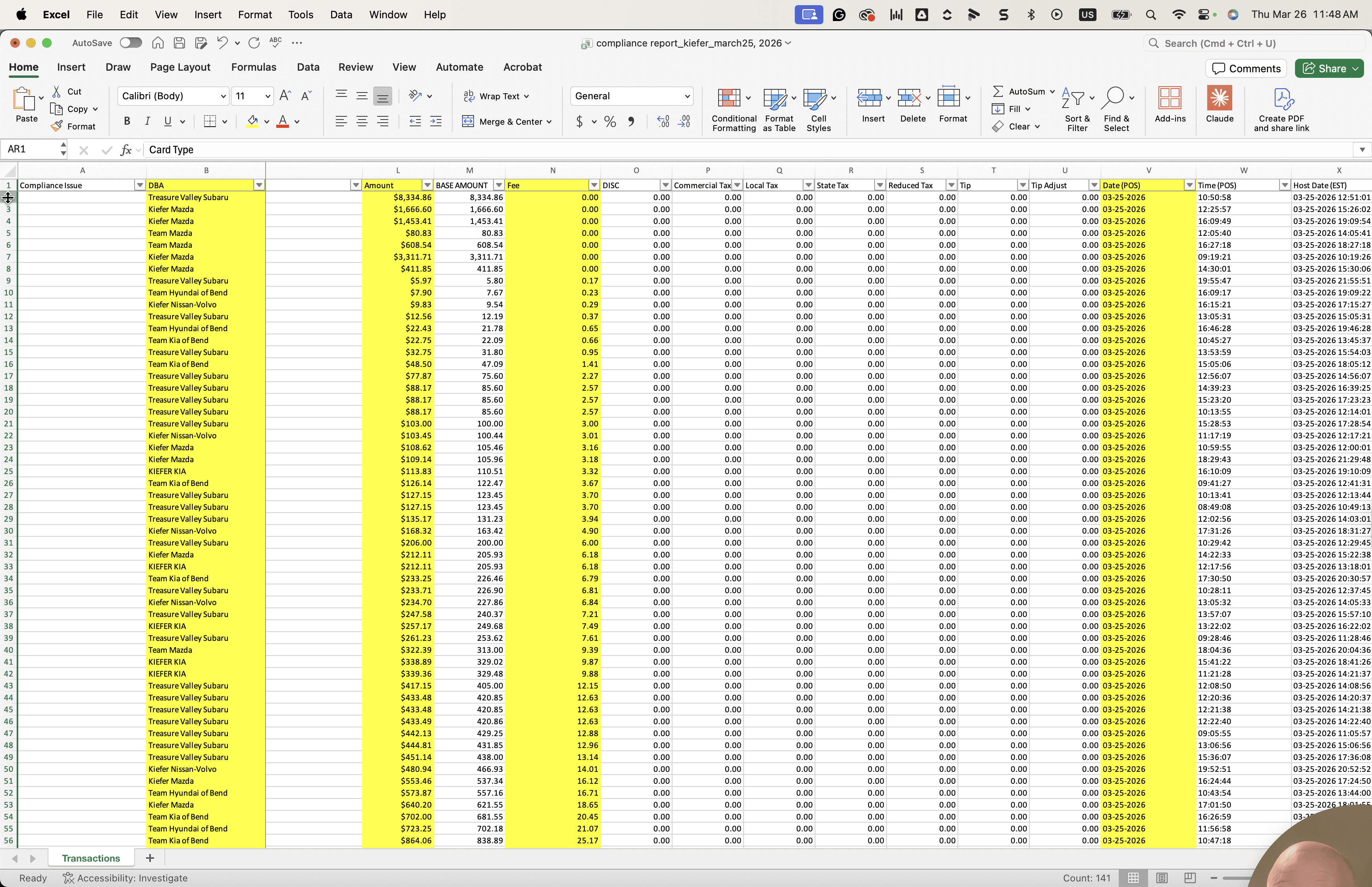
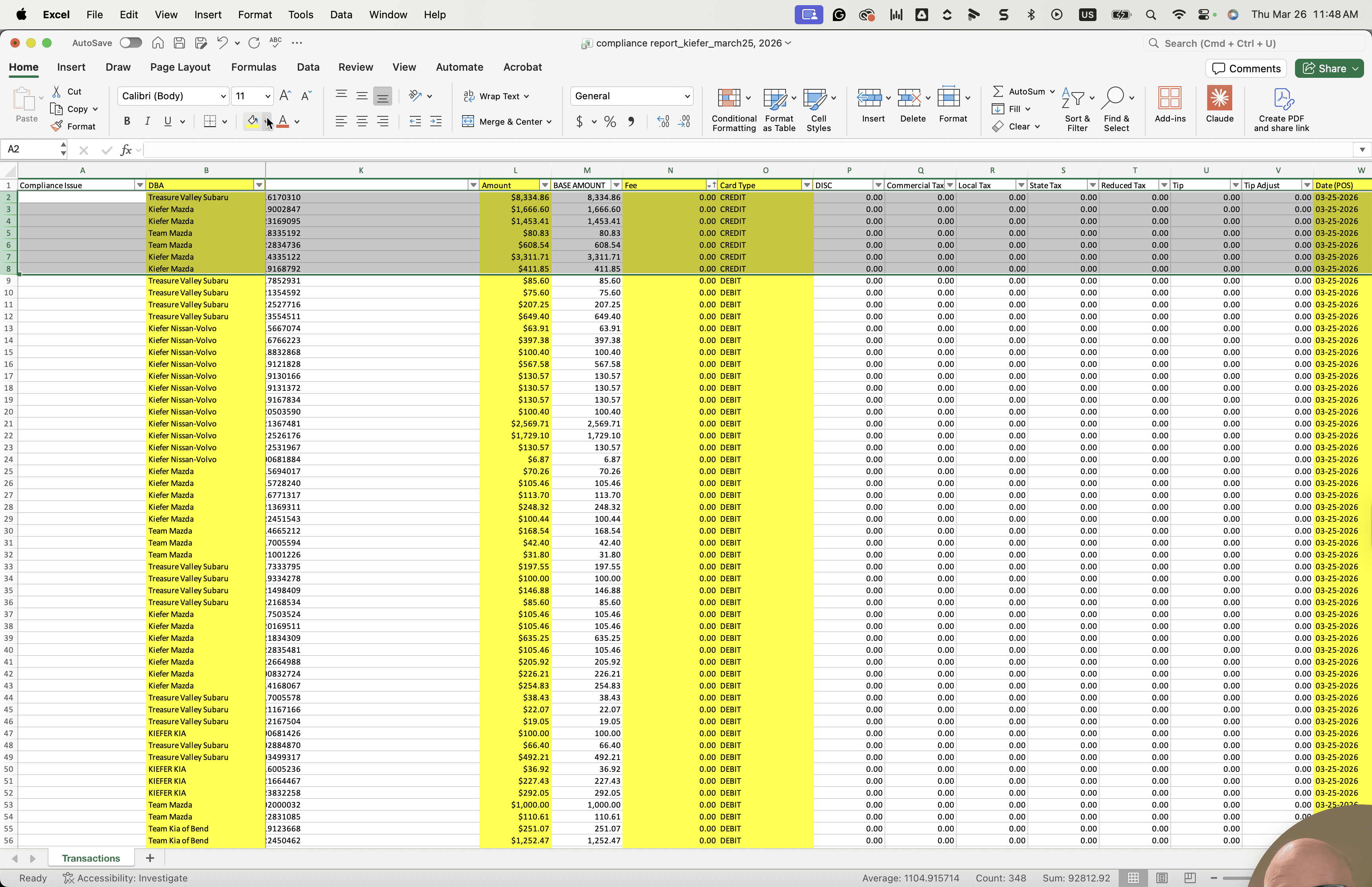
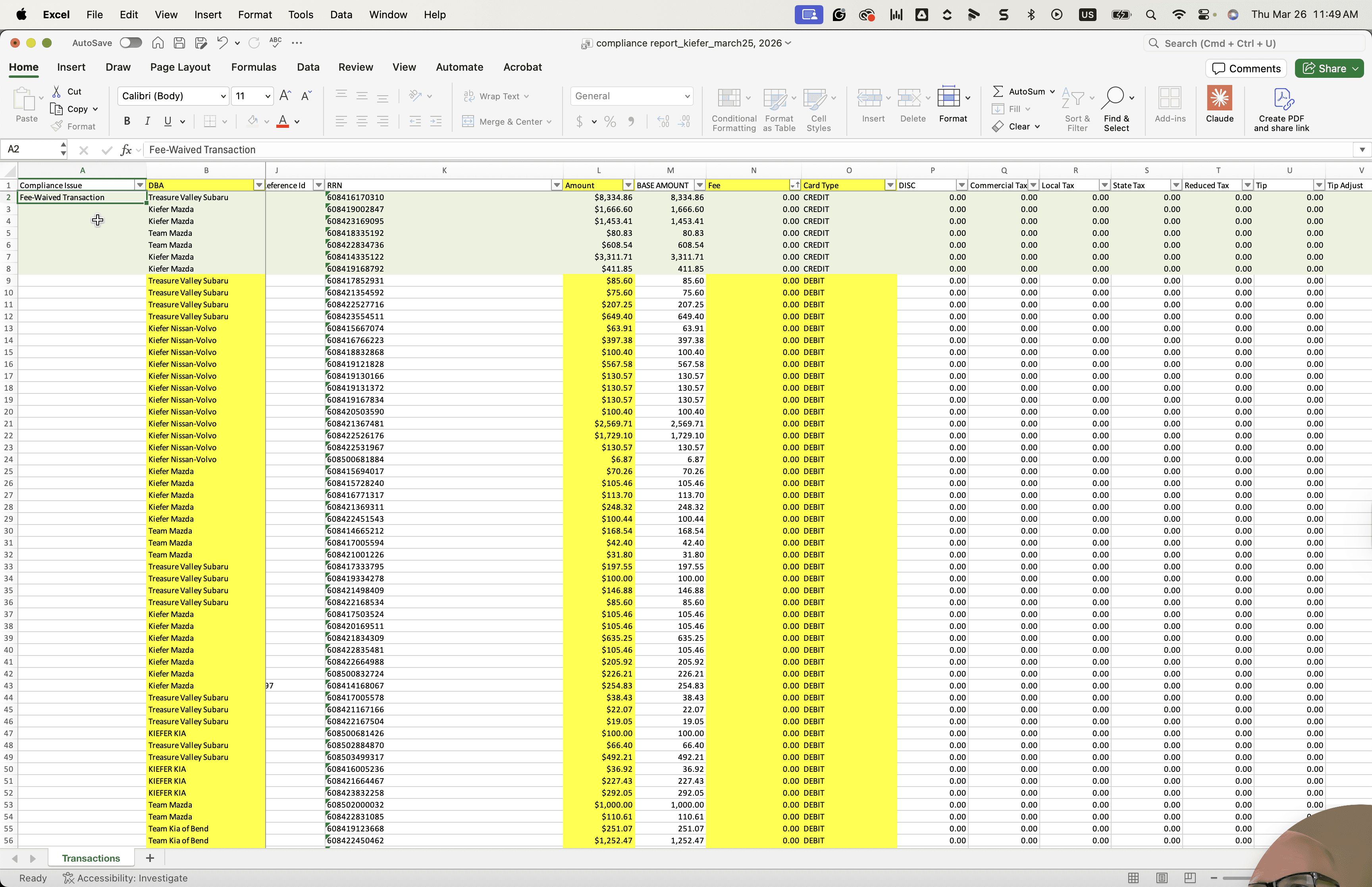
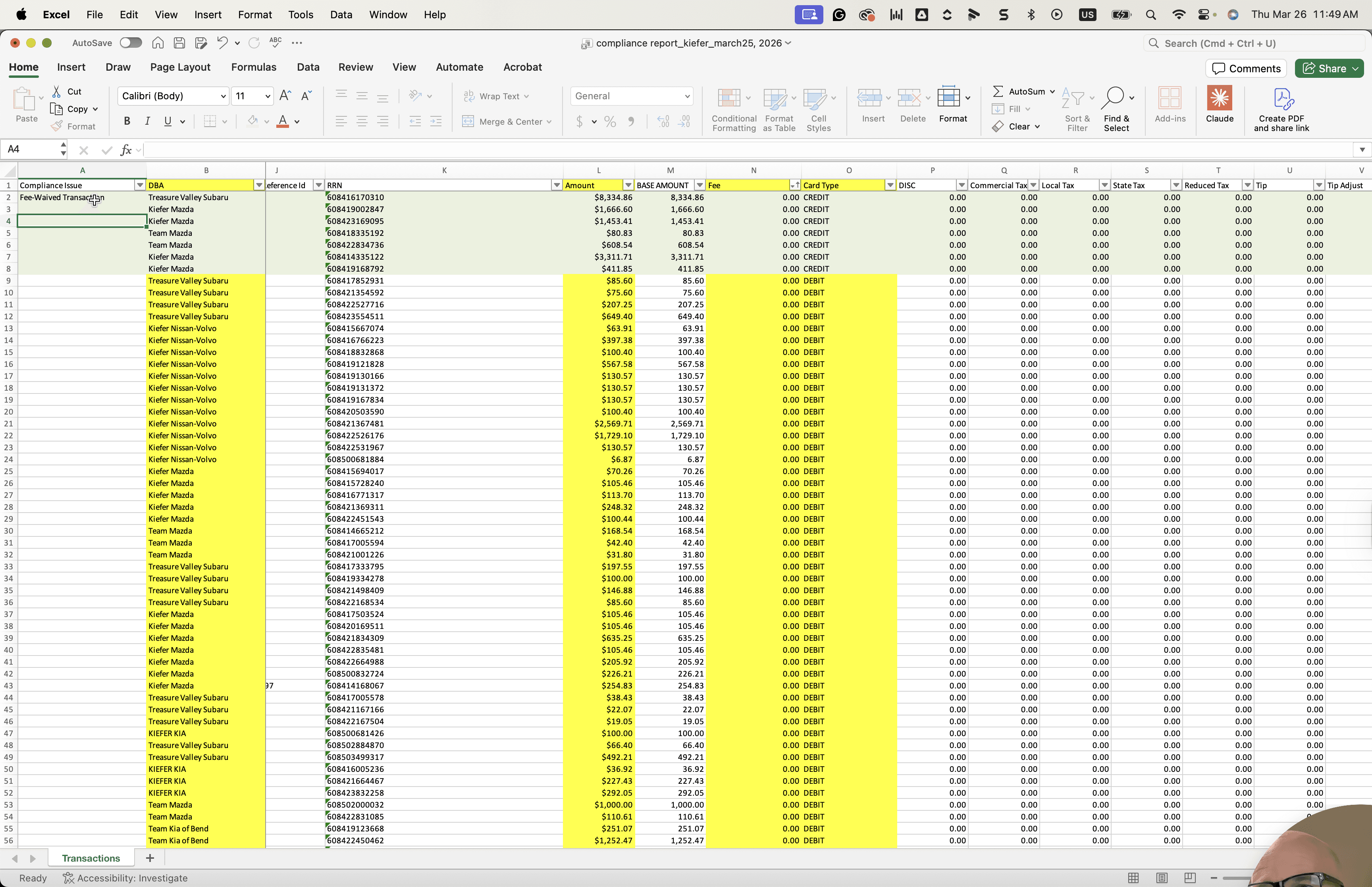
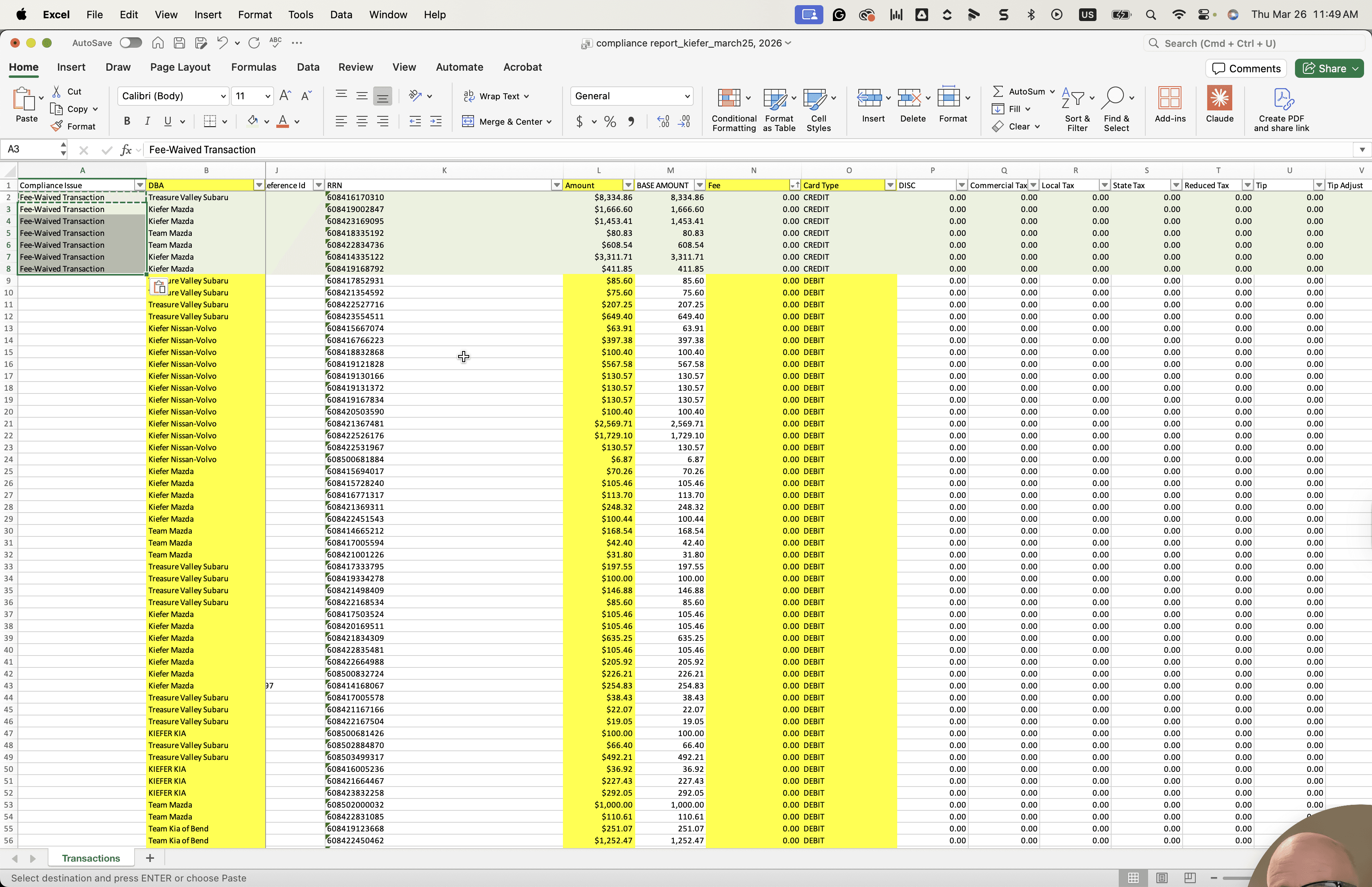
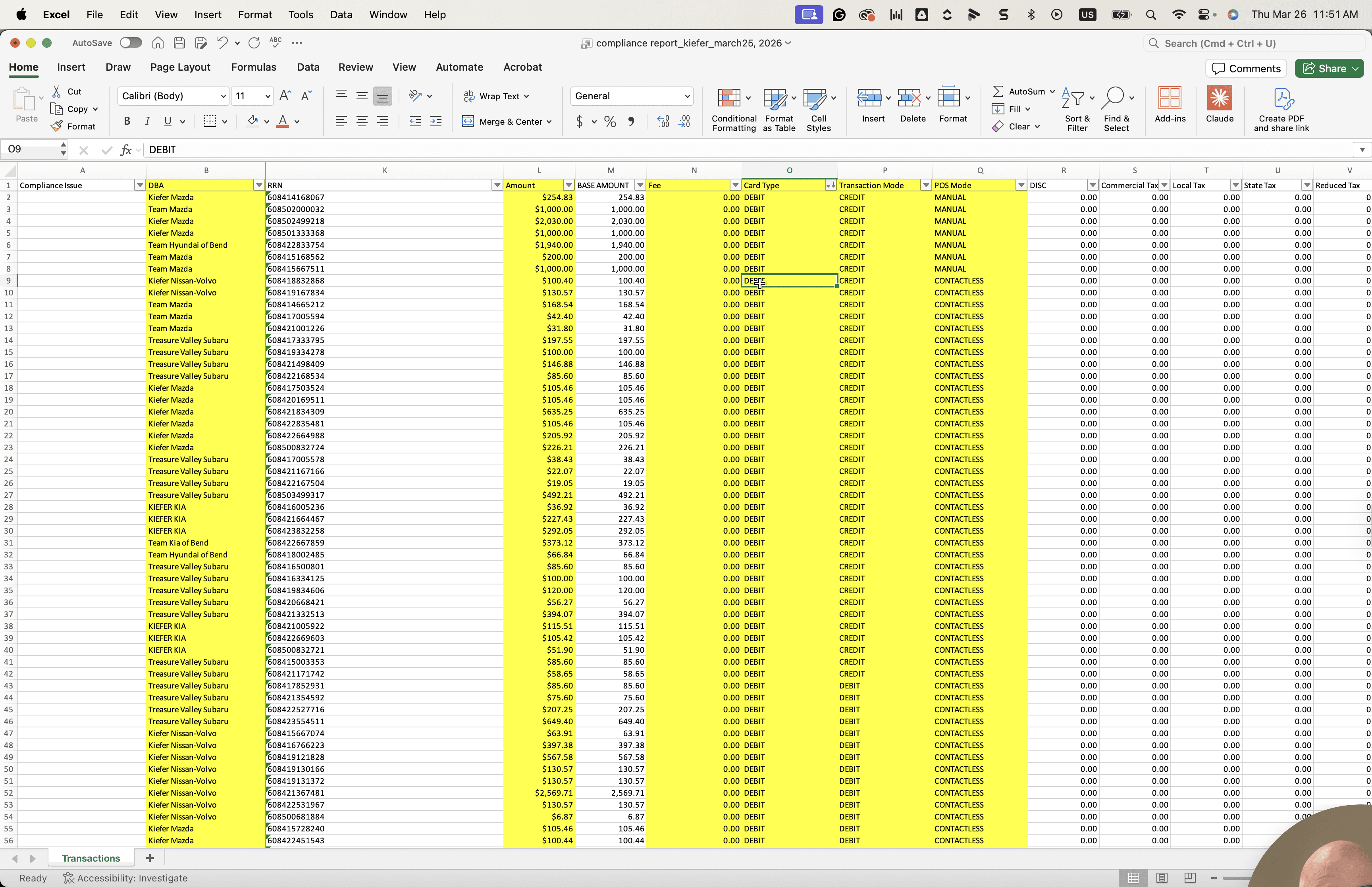
Maybe with this. Compliance issue. There will be two different types that we will have. First, we will find any transactions with a zero fee. As you can see, all these transactions have a fee of zero. Over here, the card type is credit.
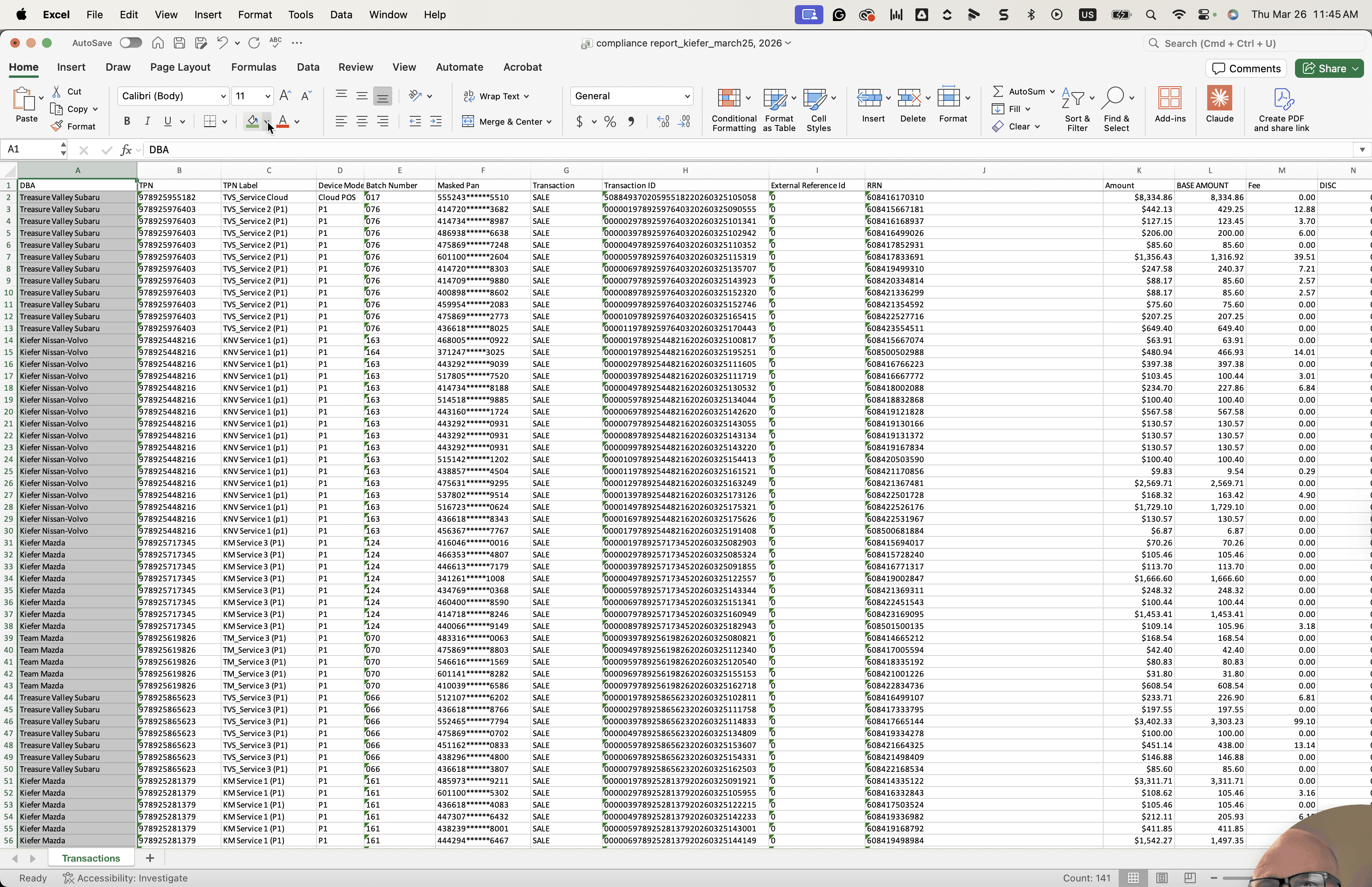
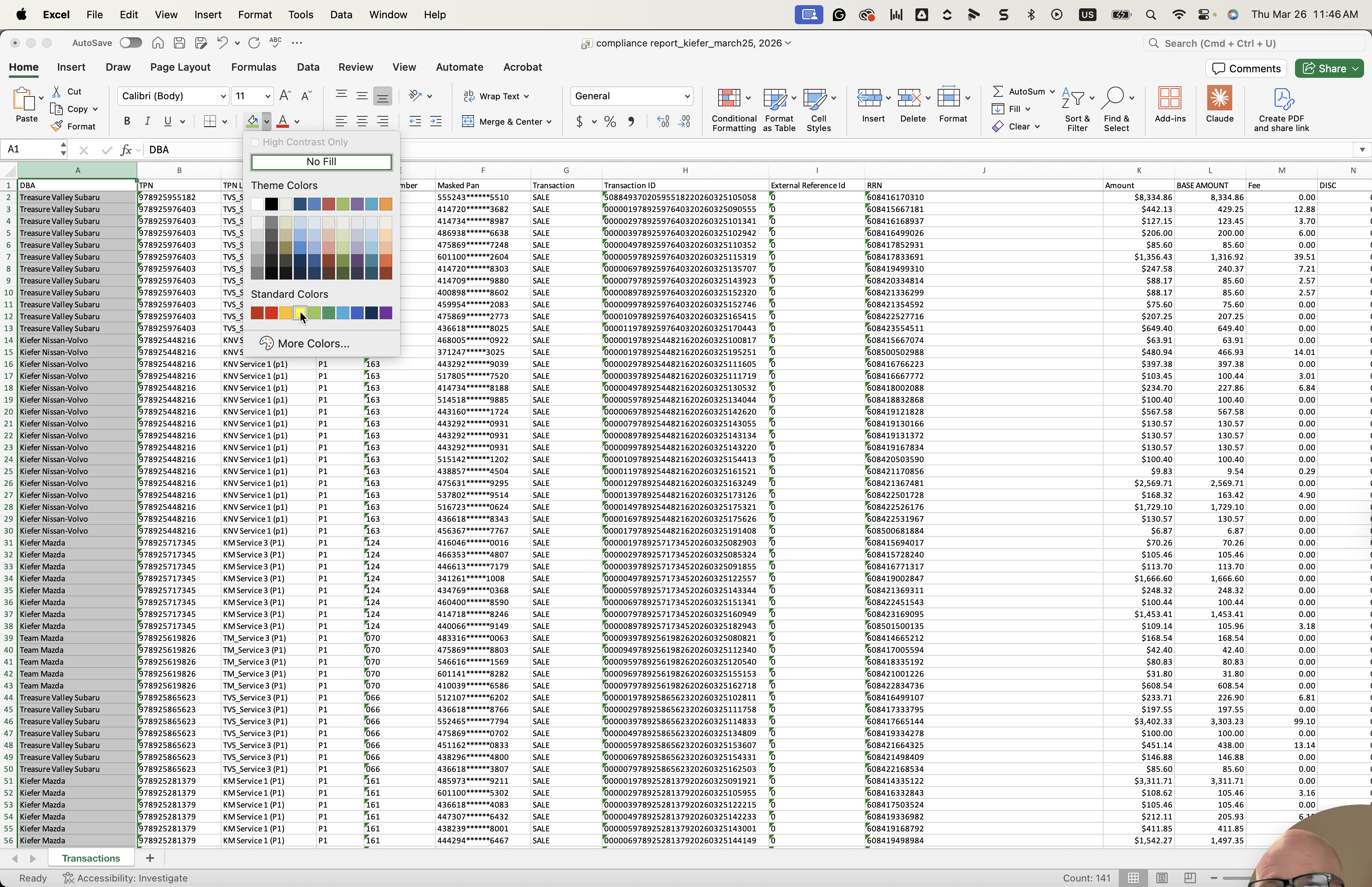
Way over here. Card type is credit.
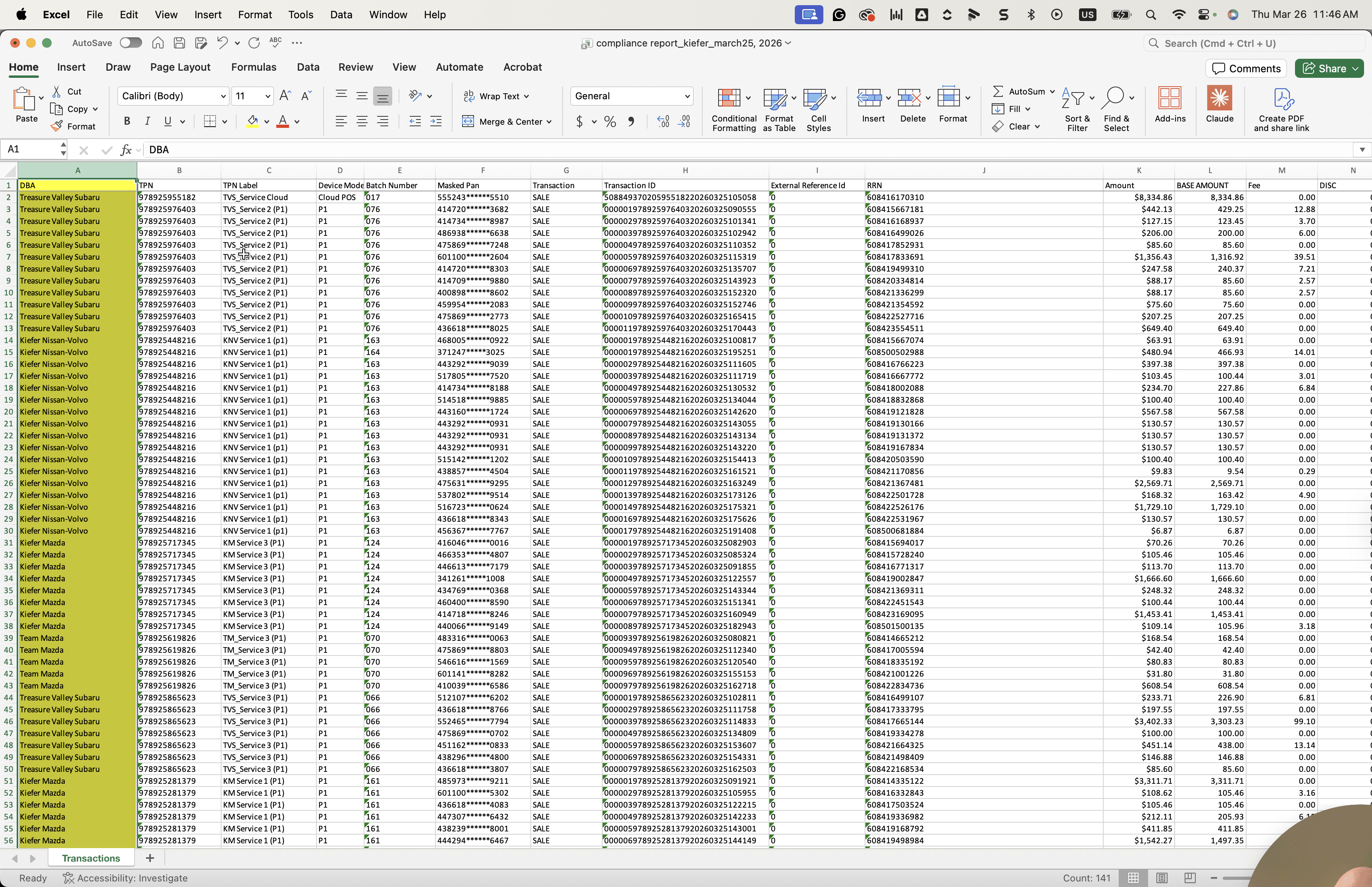
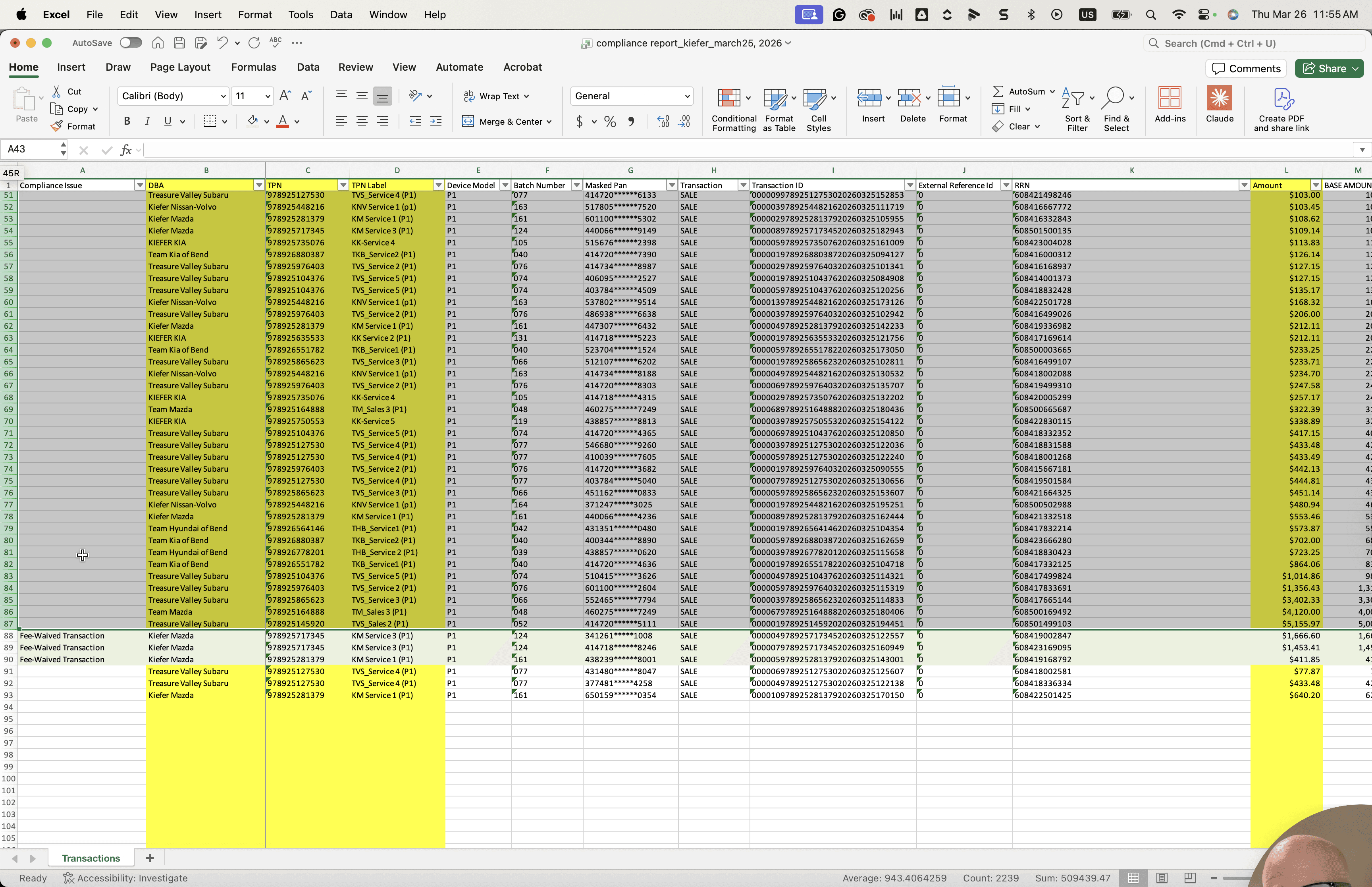
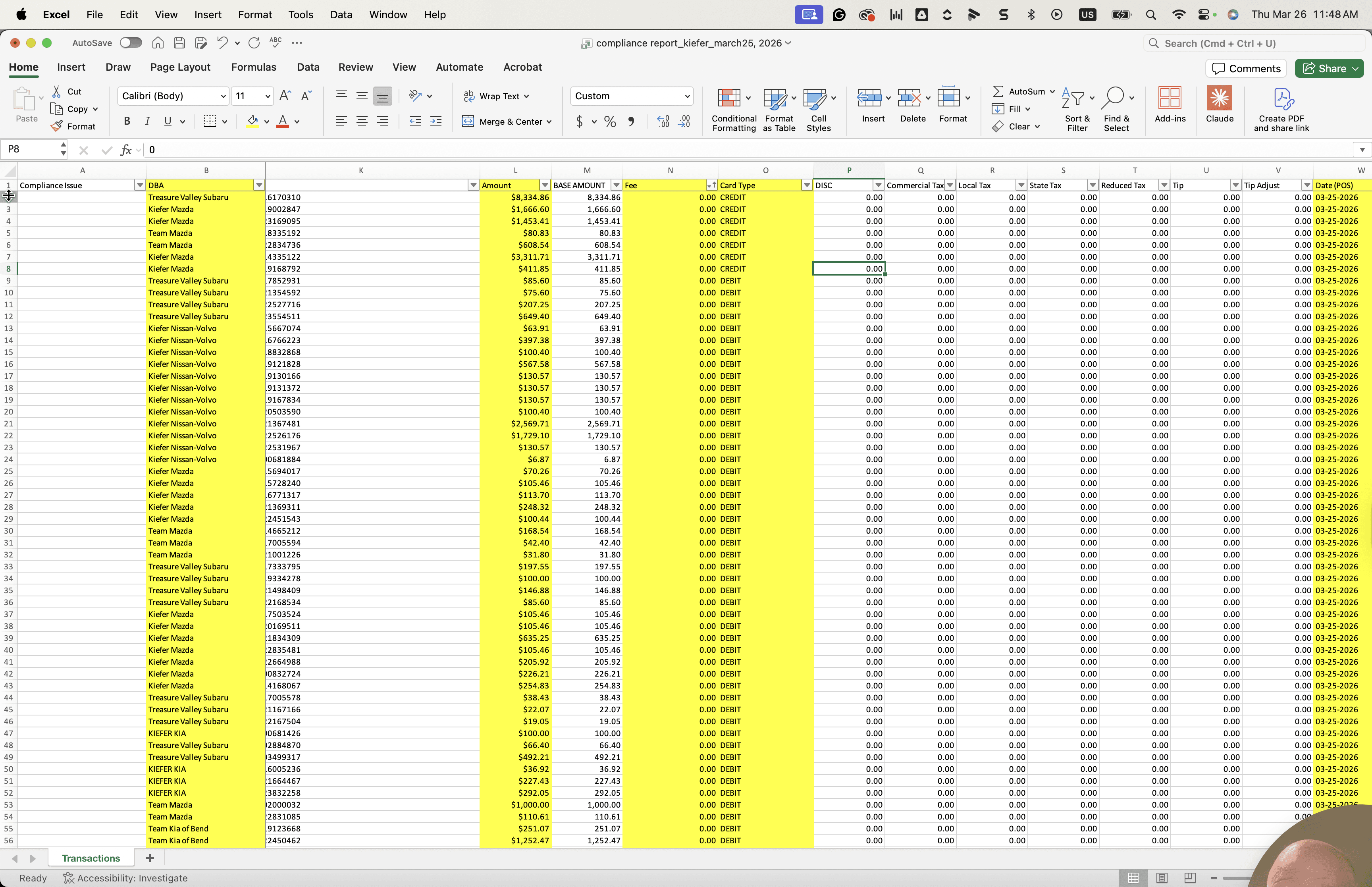
Put that yellow as well. If the card type is credit and the fee is zero, these are flagged. This condition can be hard to spot, but when both are true, the items are flagged.
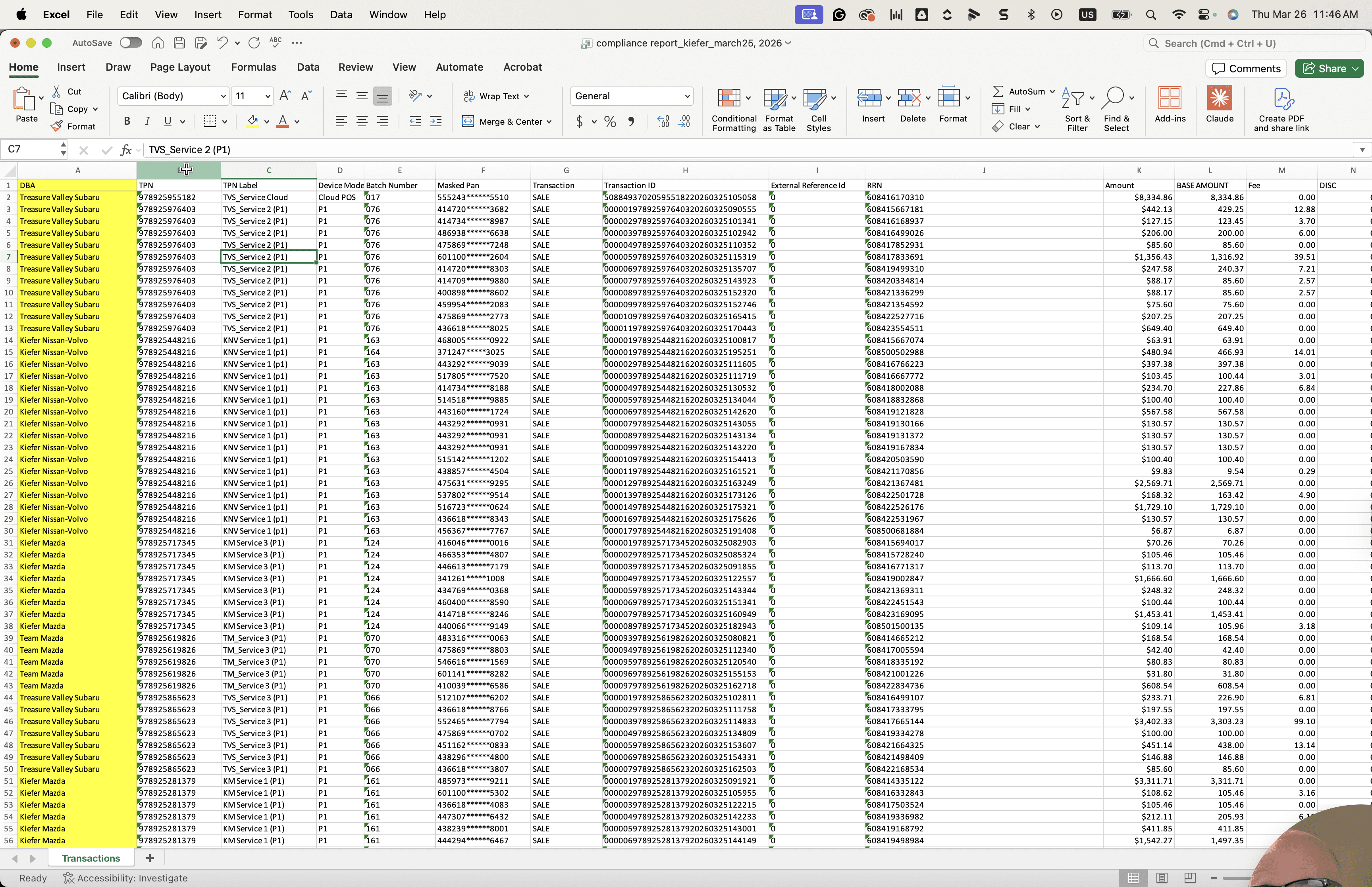
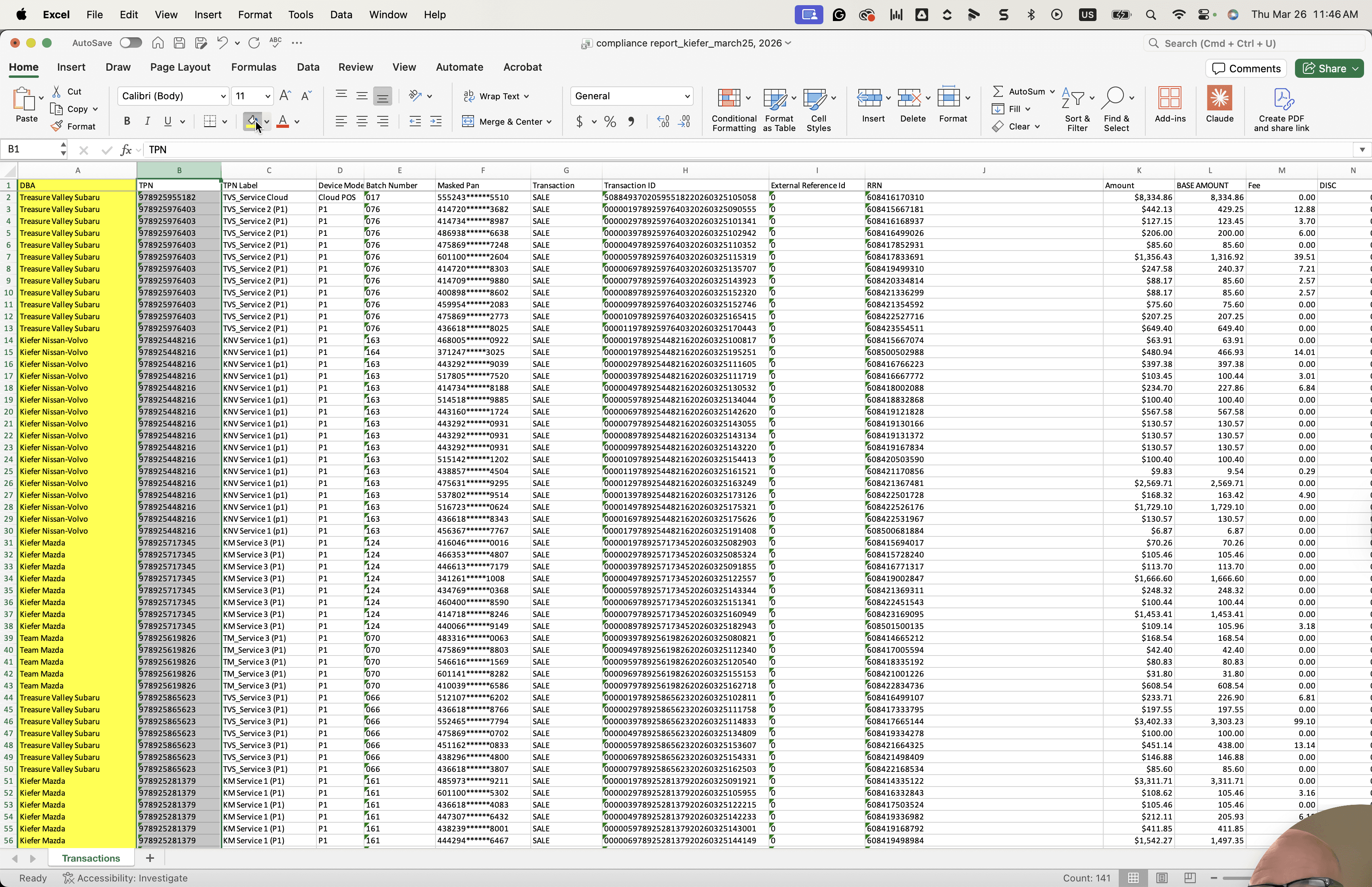
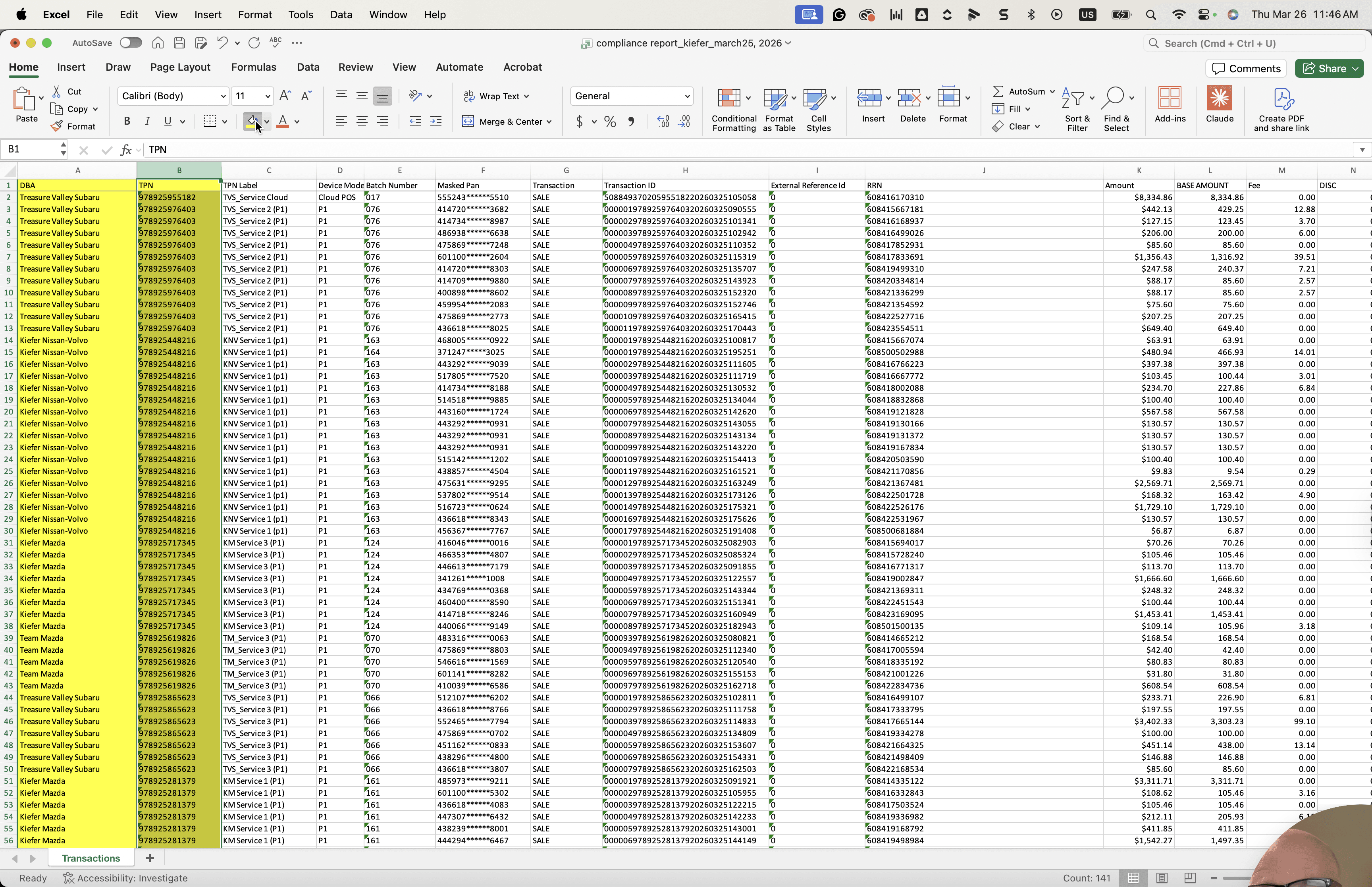
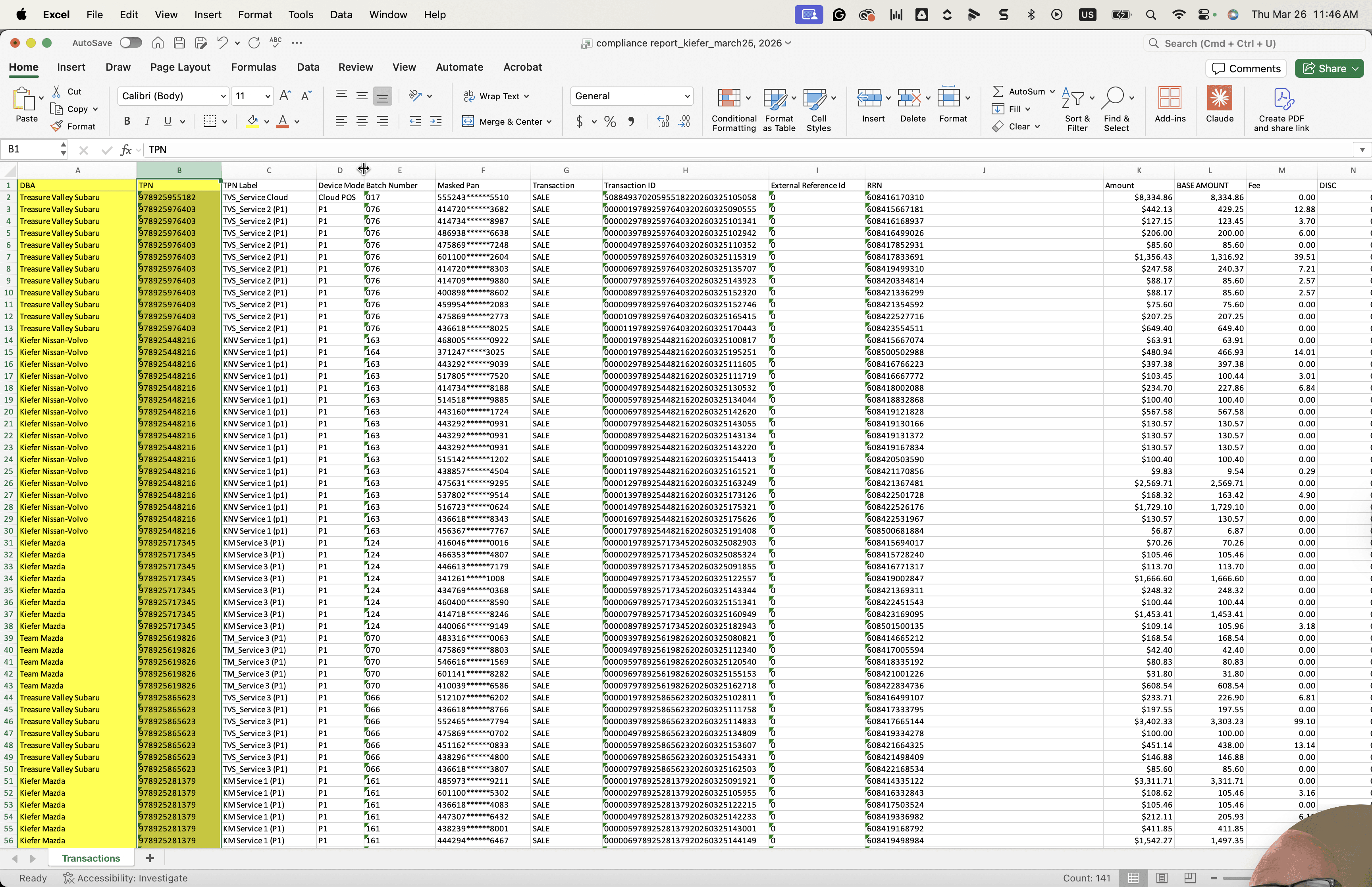
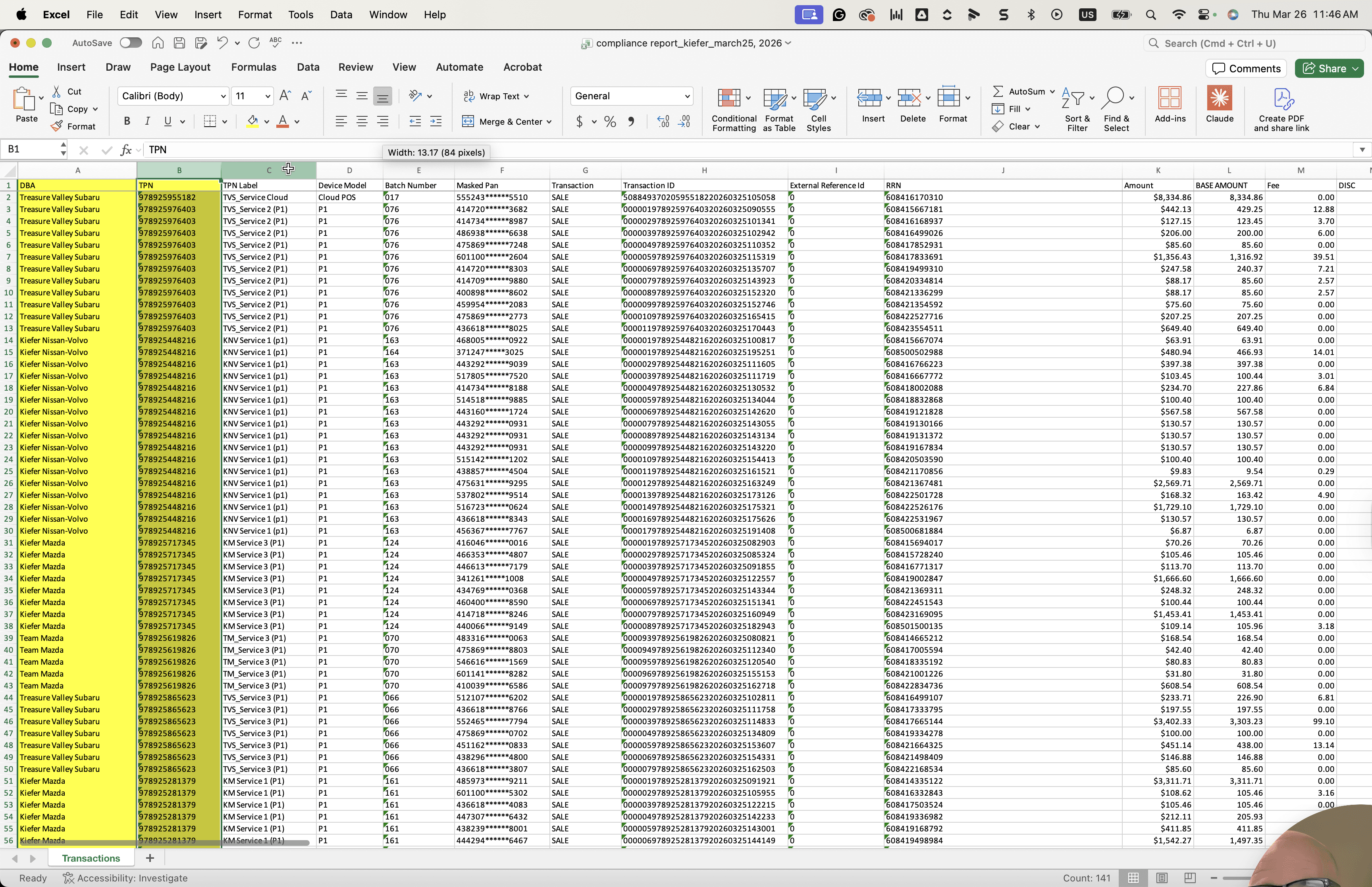
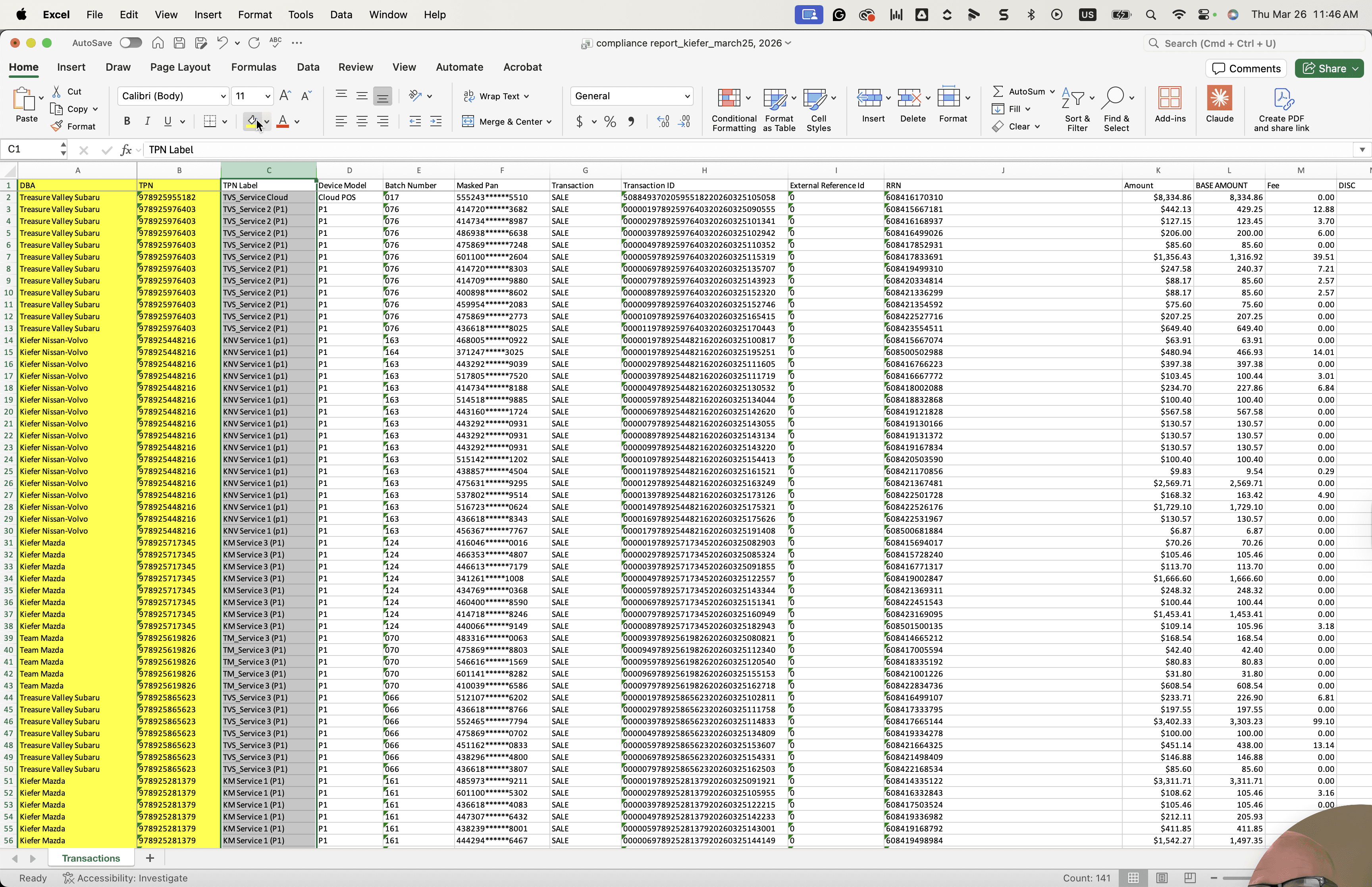
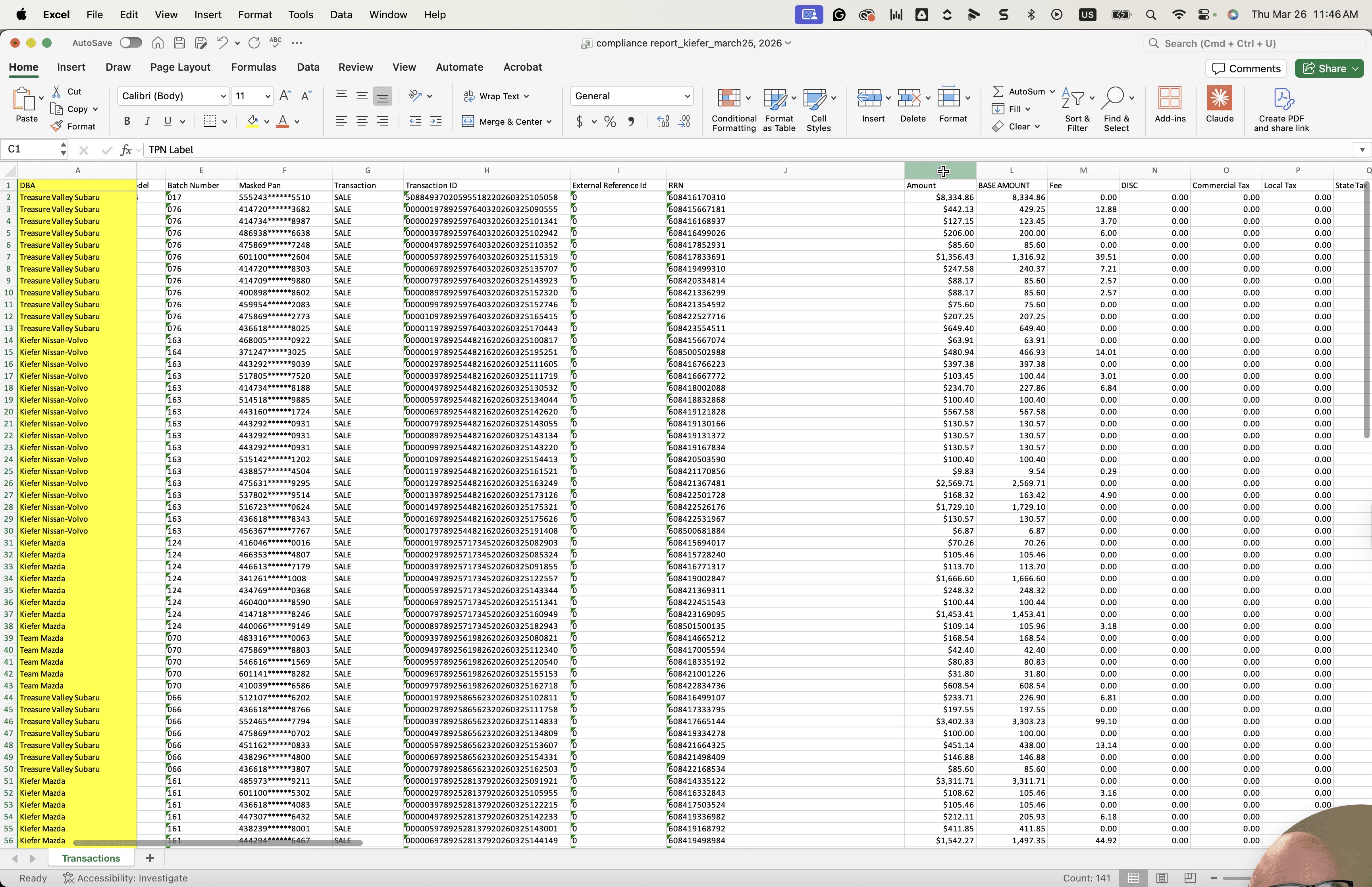
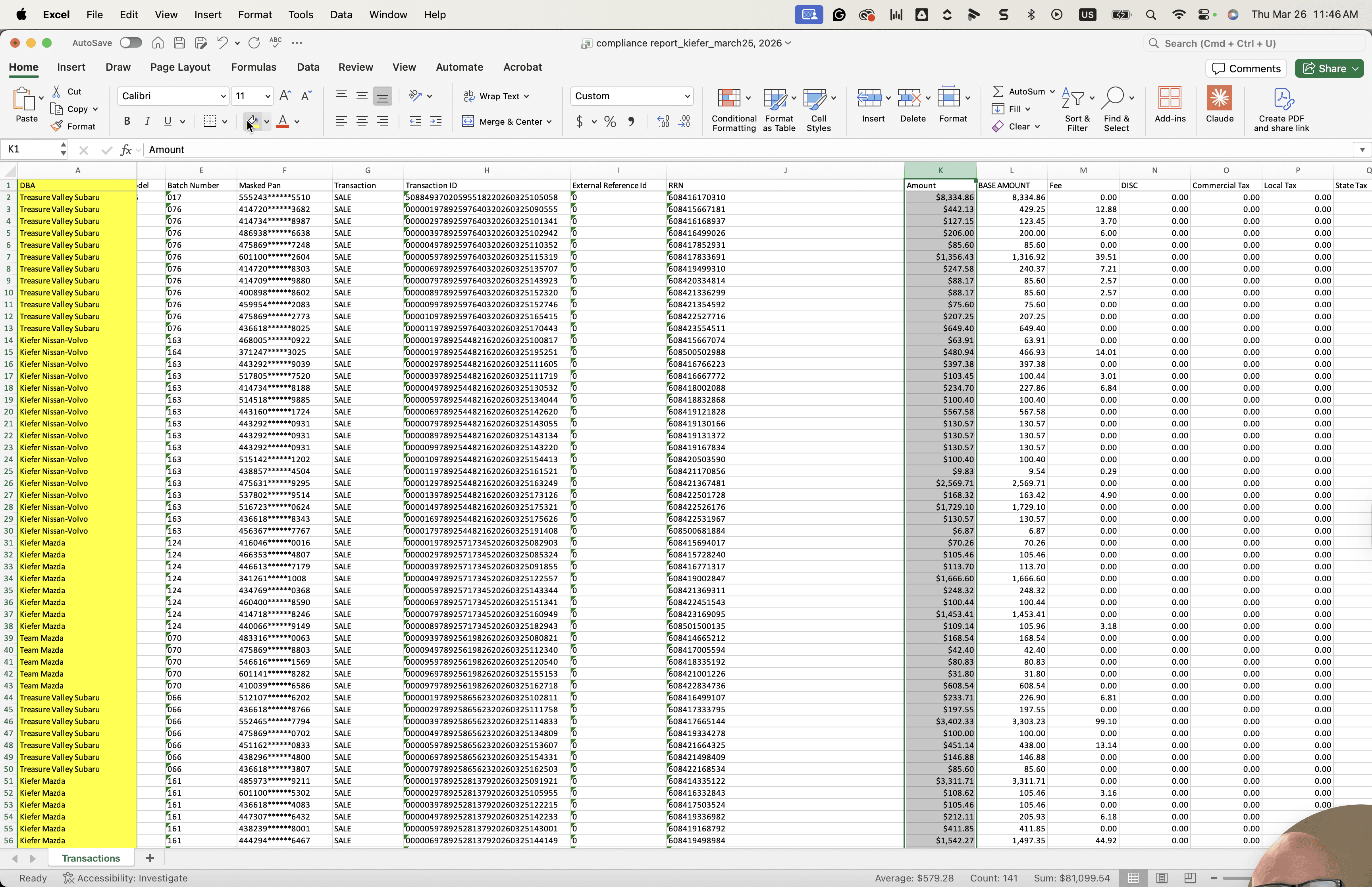
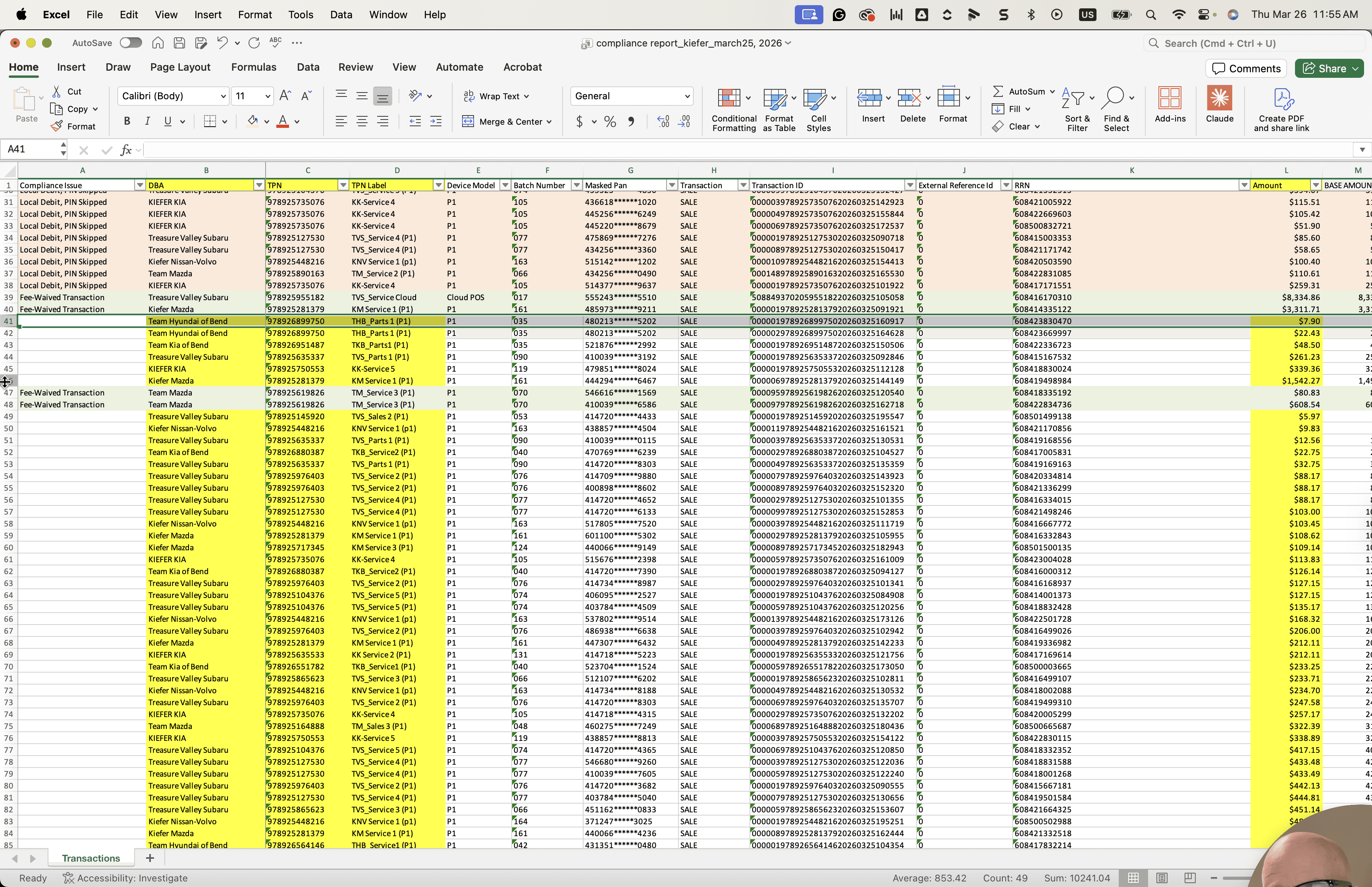
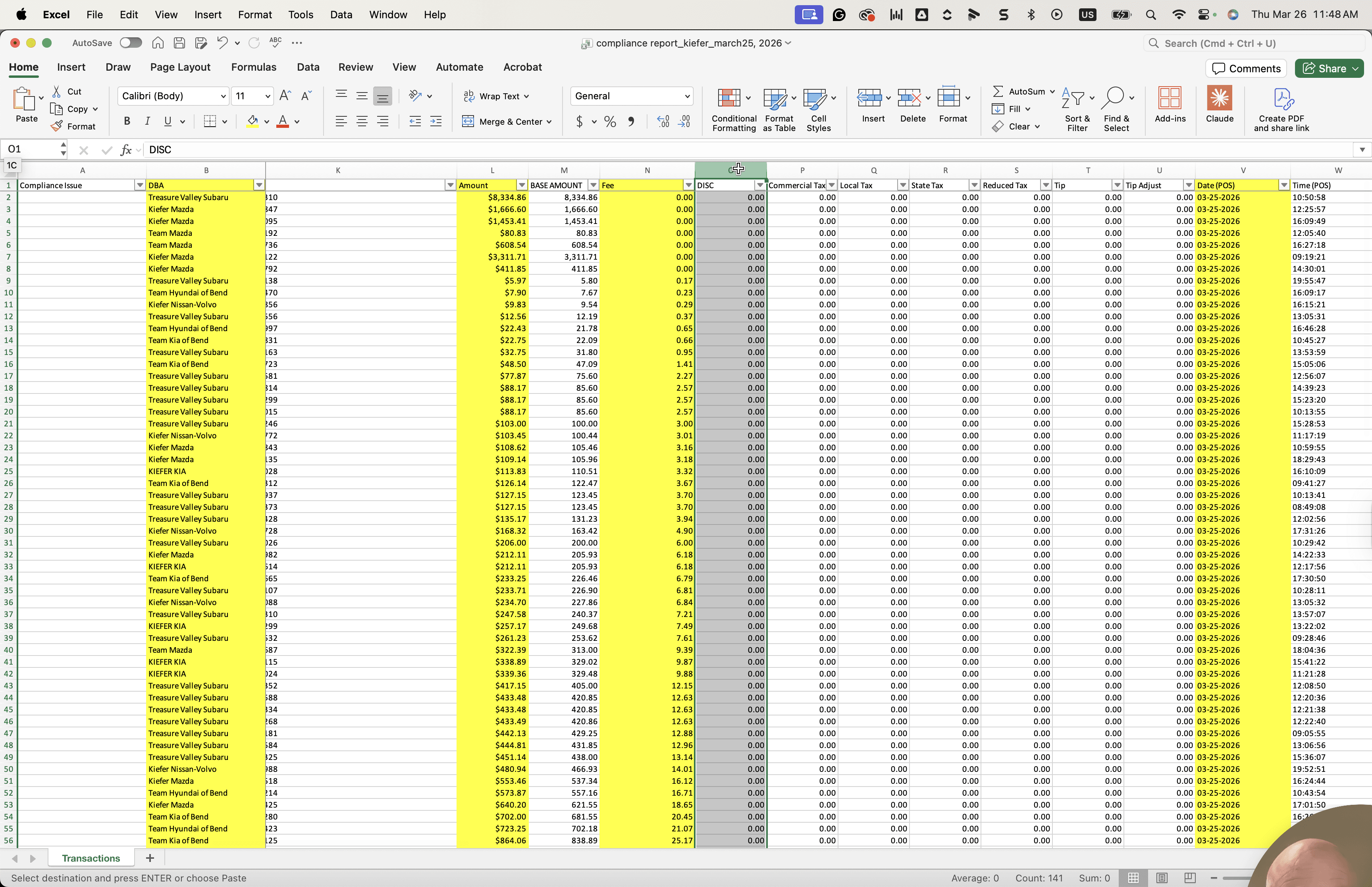
I'll cut this one and move it closer so I can easily see where it is.
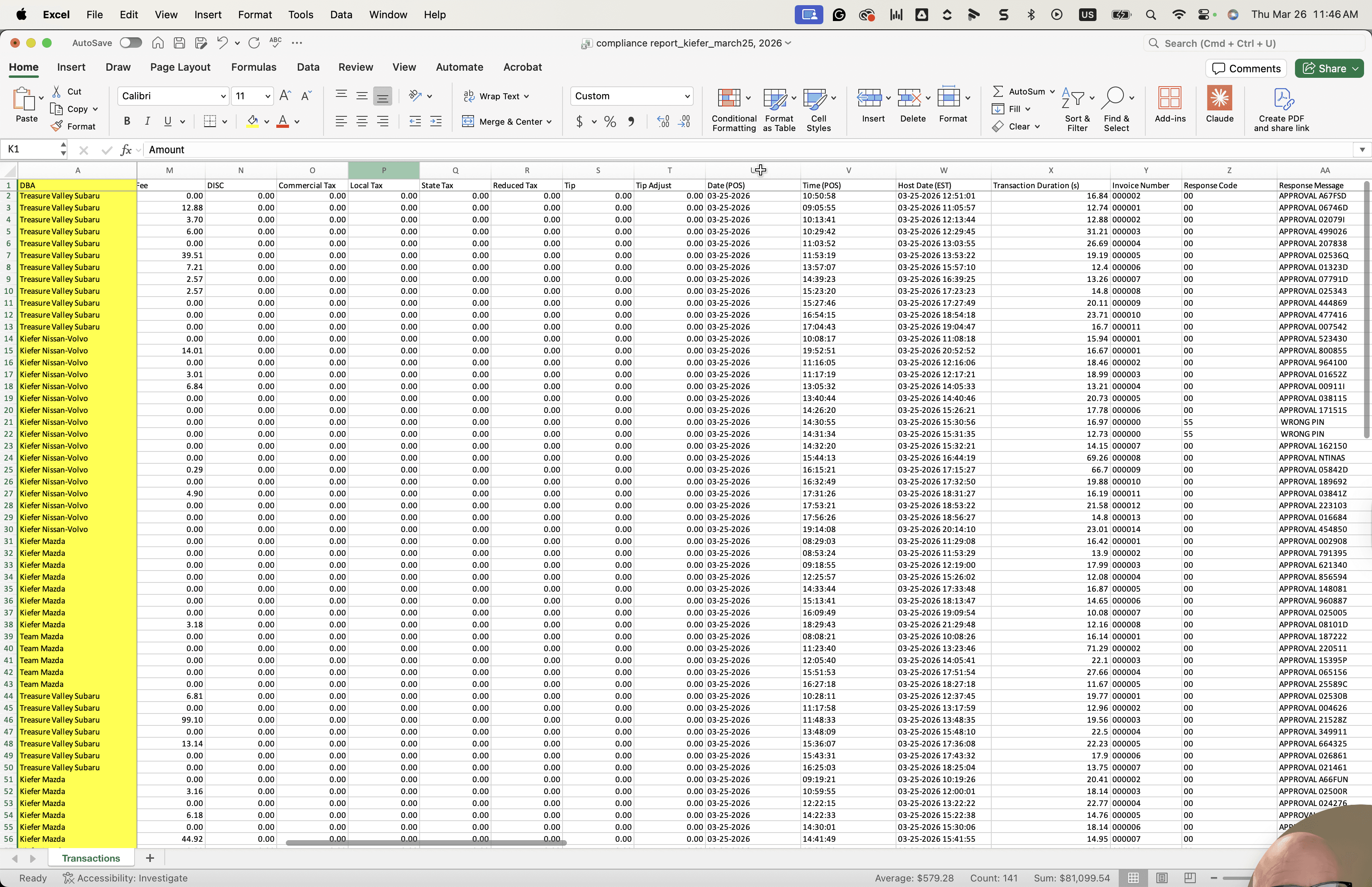
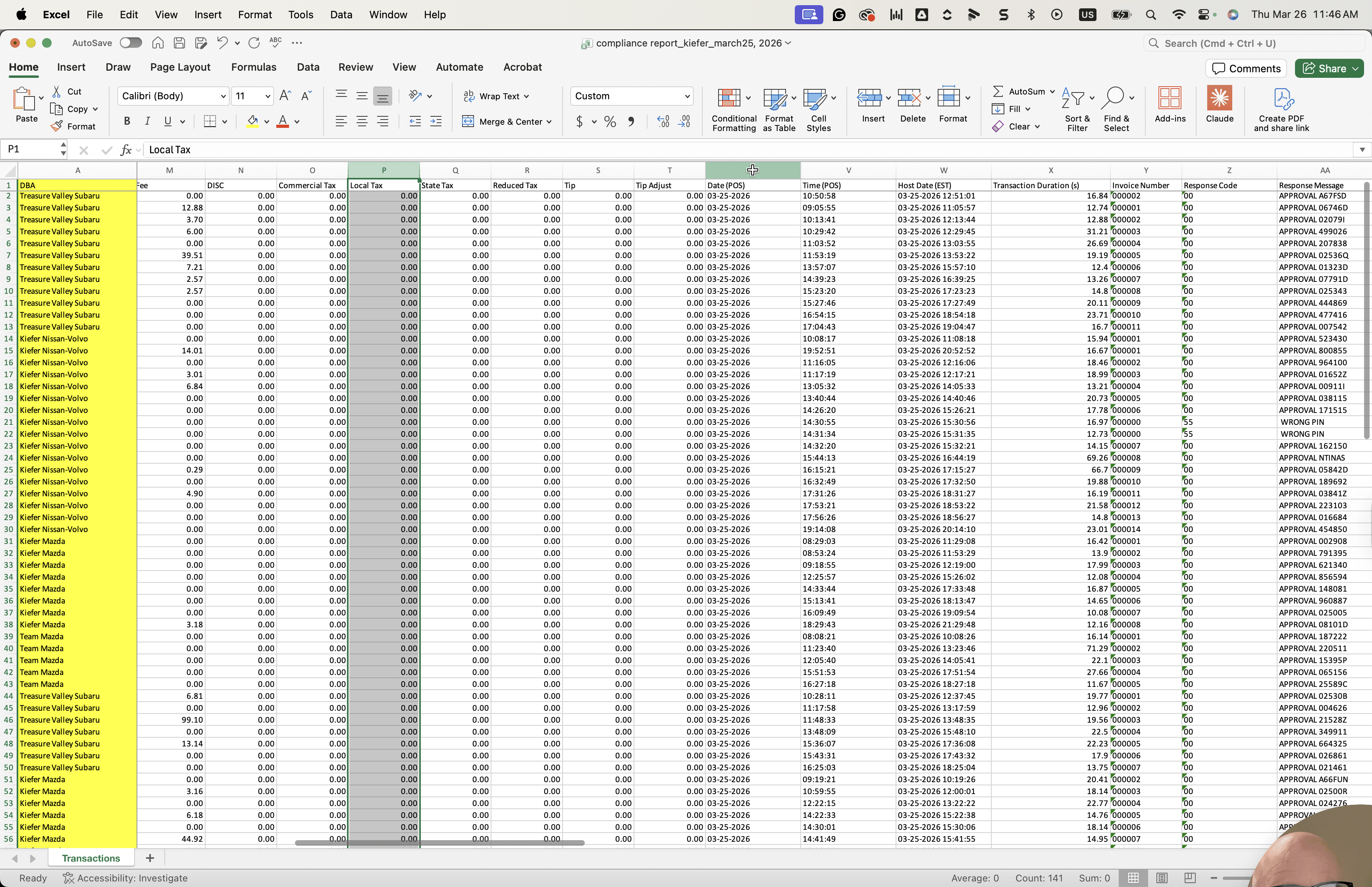
Right, so the fee is zero.
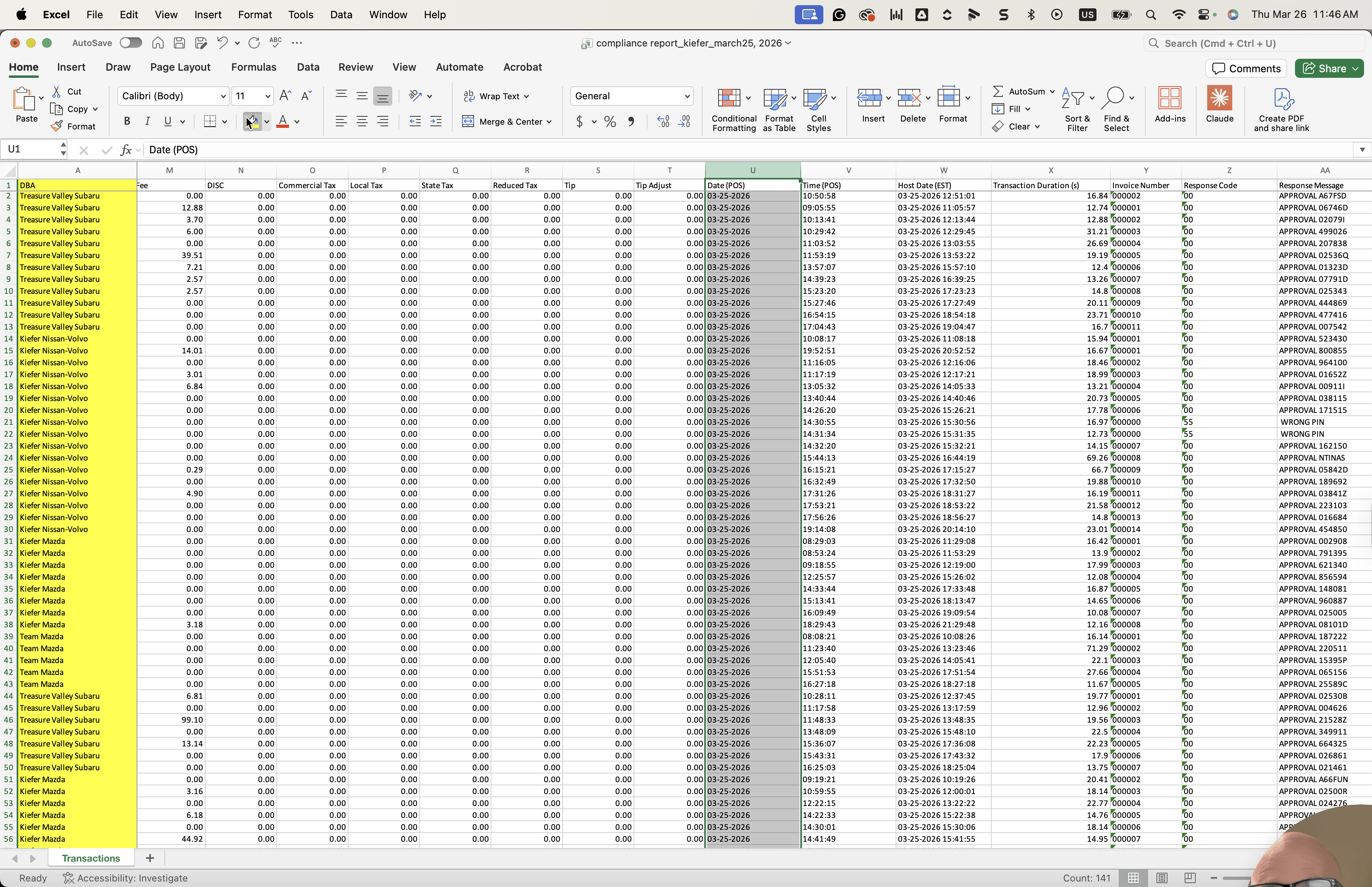
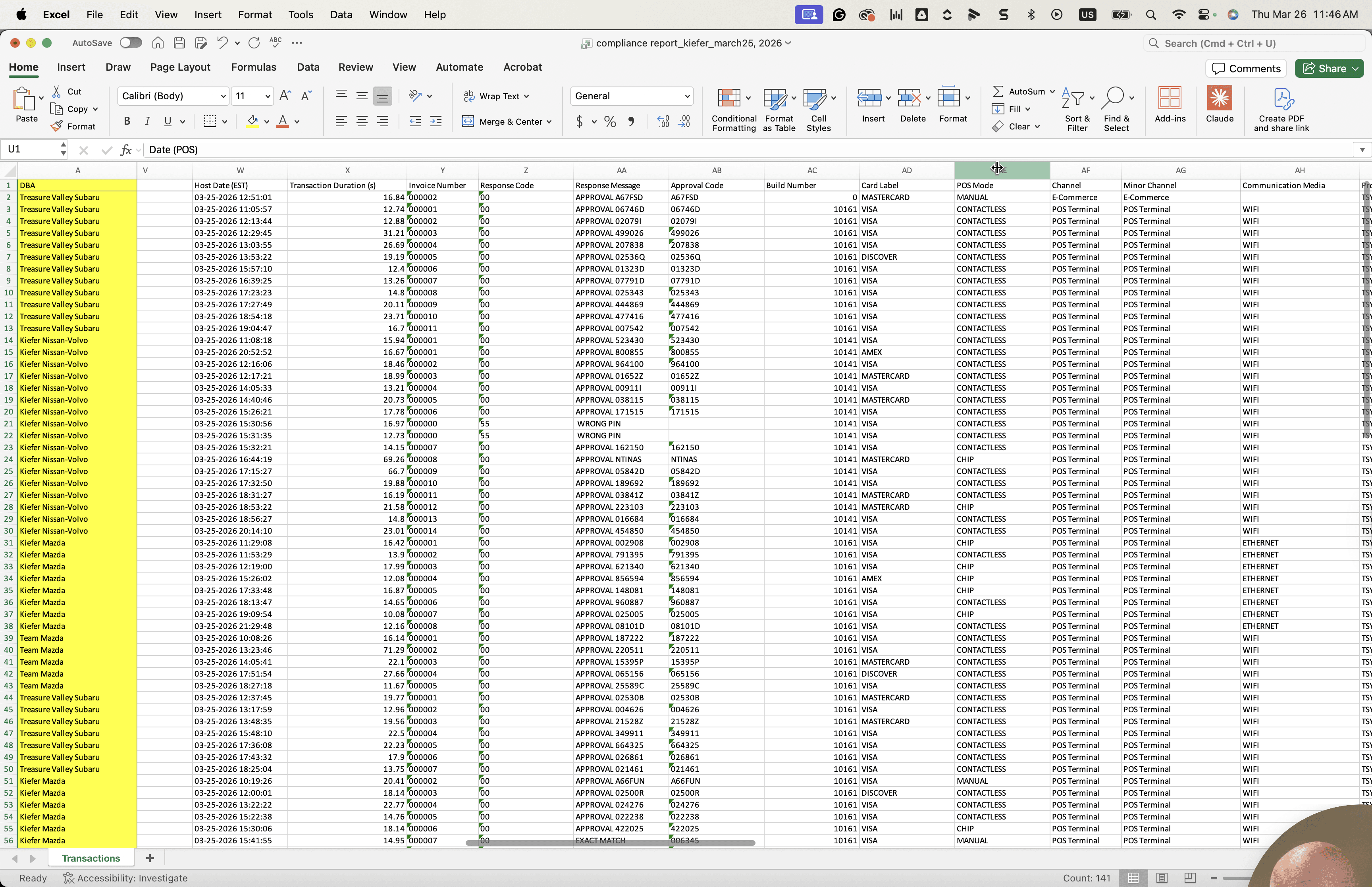
There are several here that are also zero.
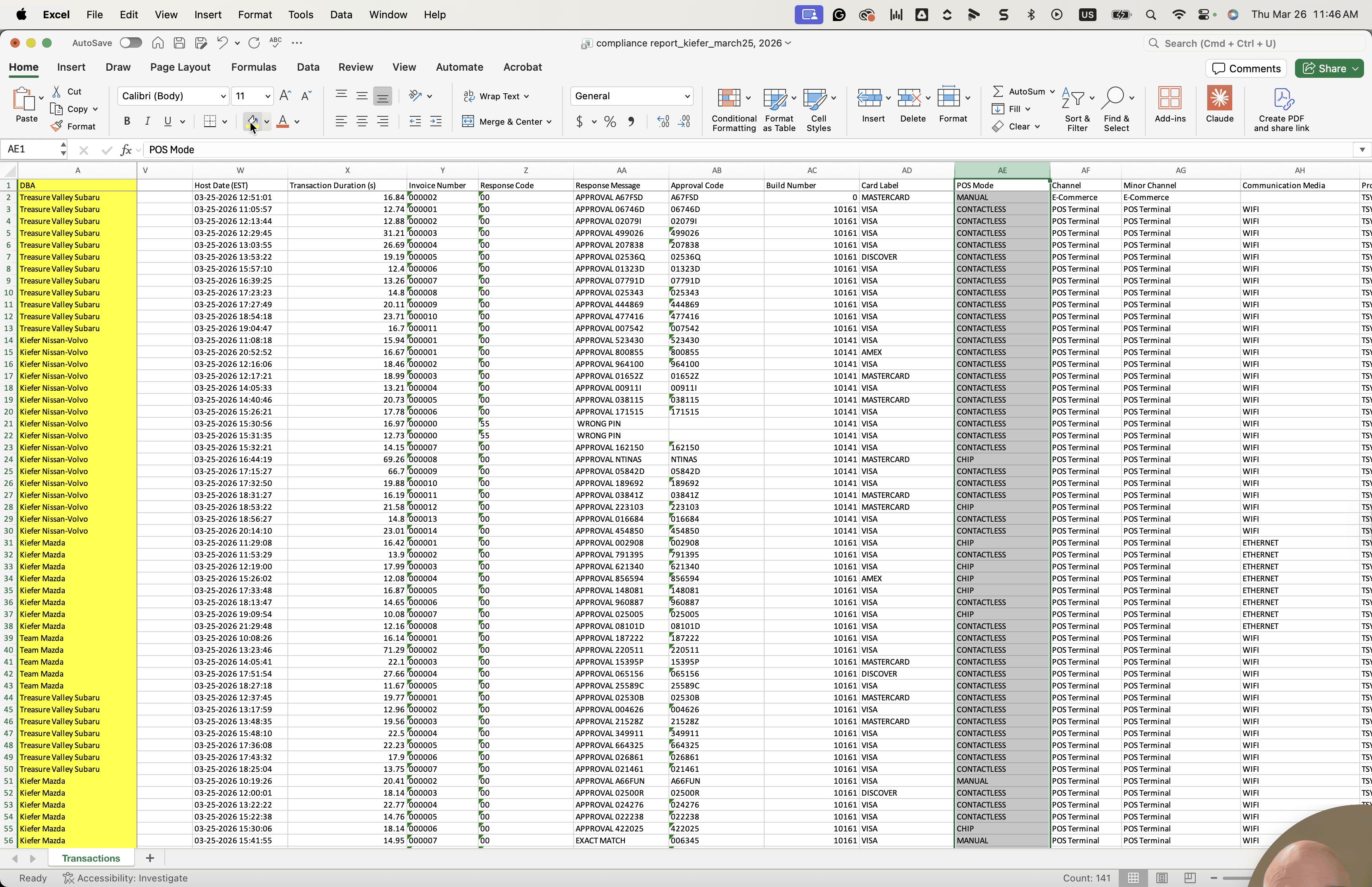
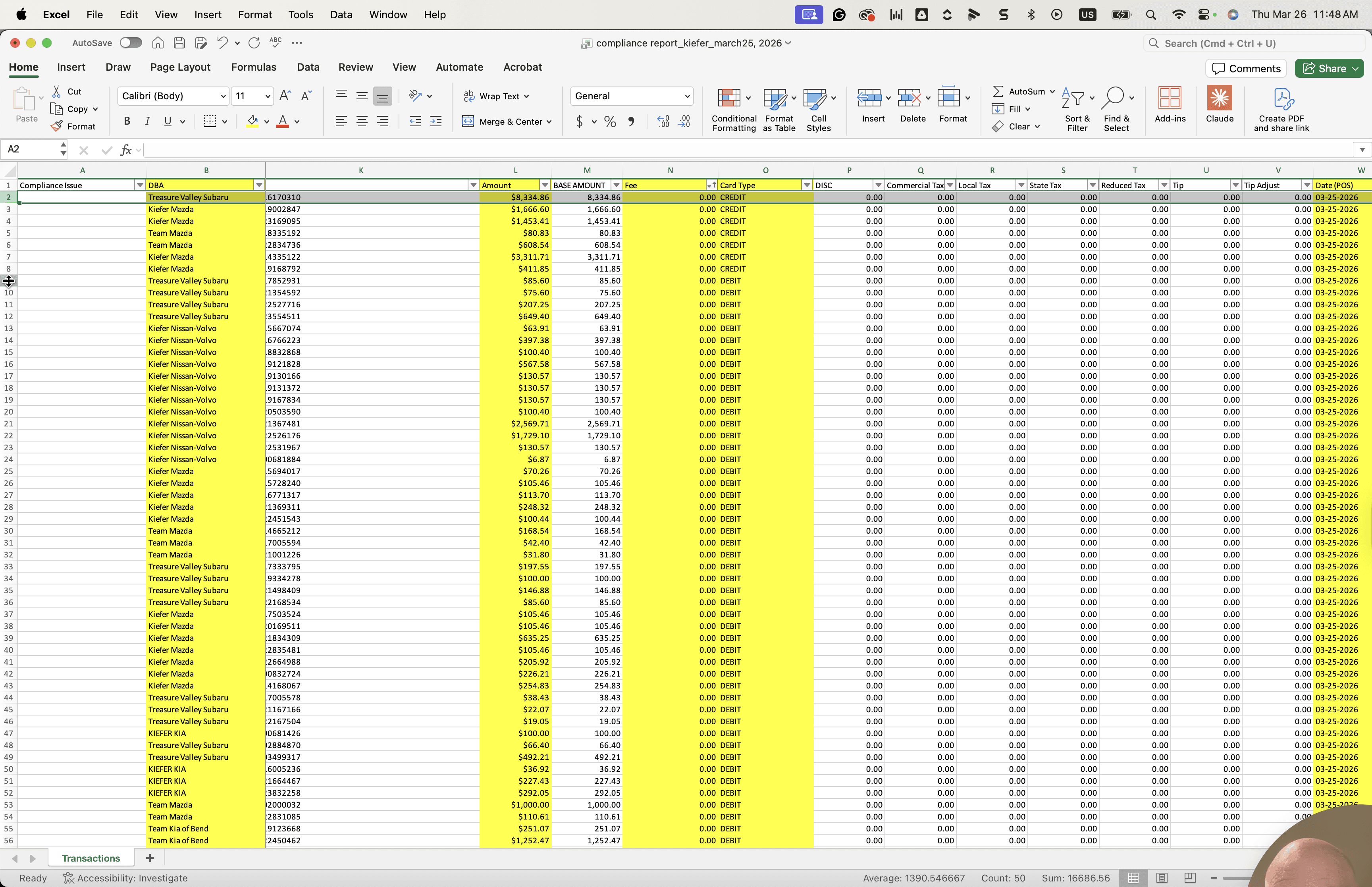
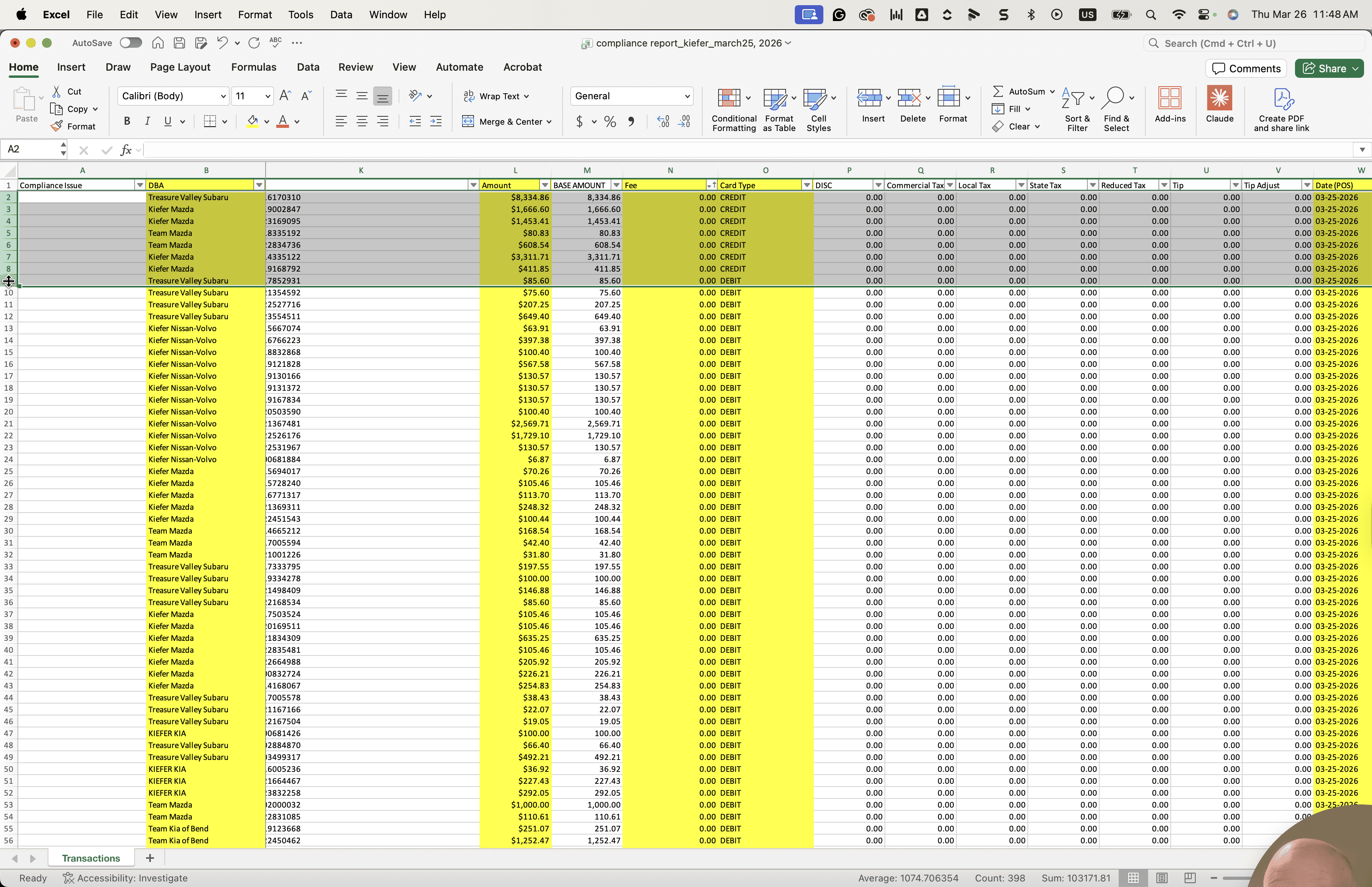
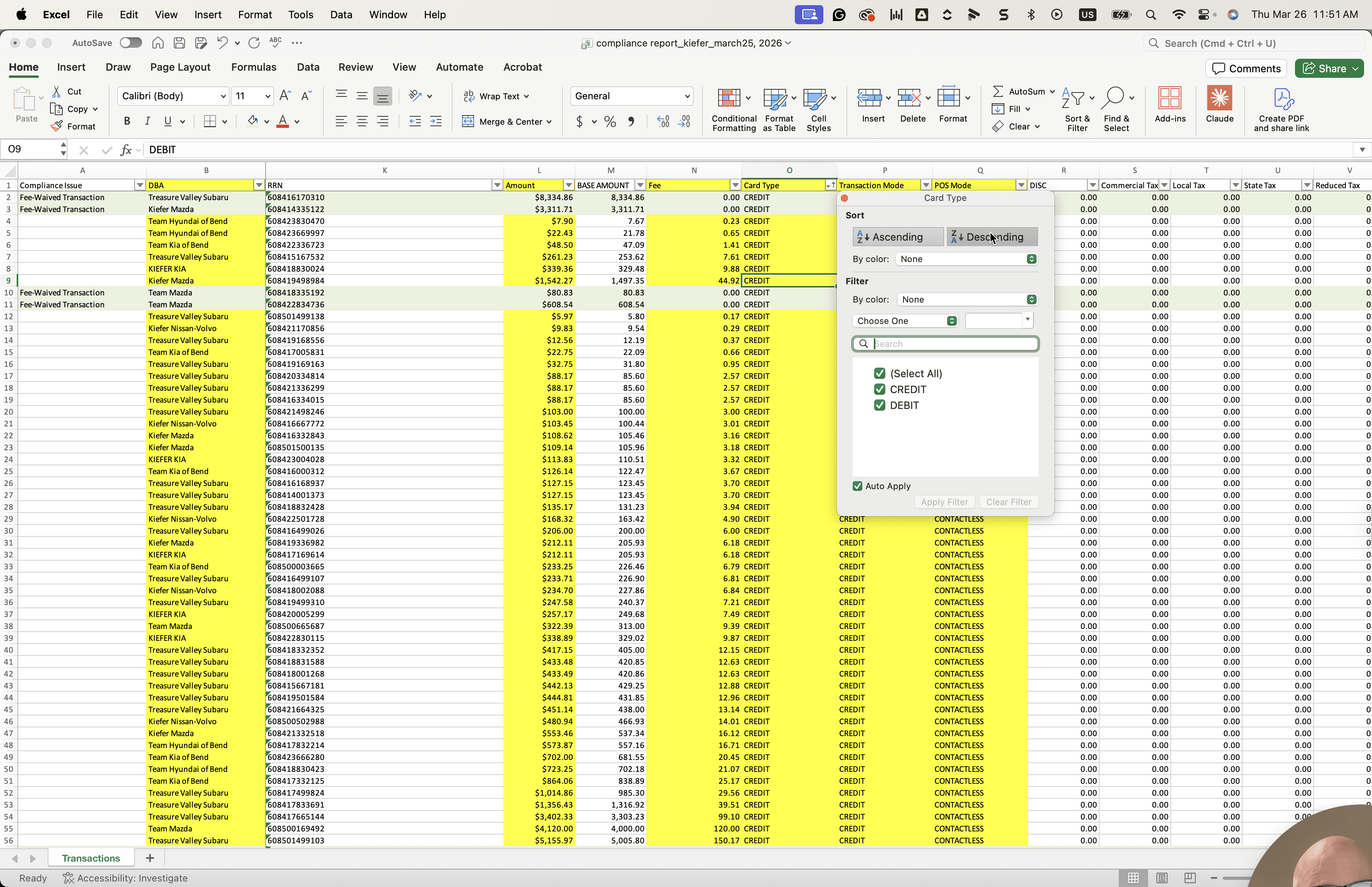
The fee is zero and the card type is credit. Any case where the fee is zero and the card type is credit is out of compliance.
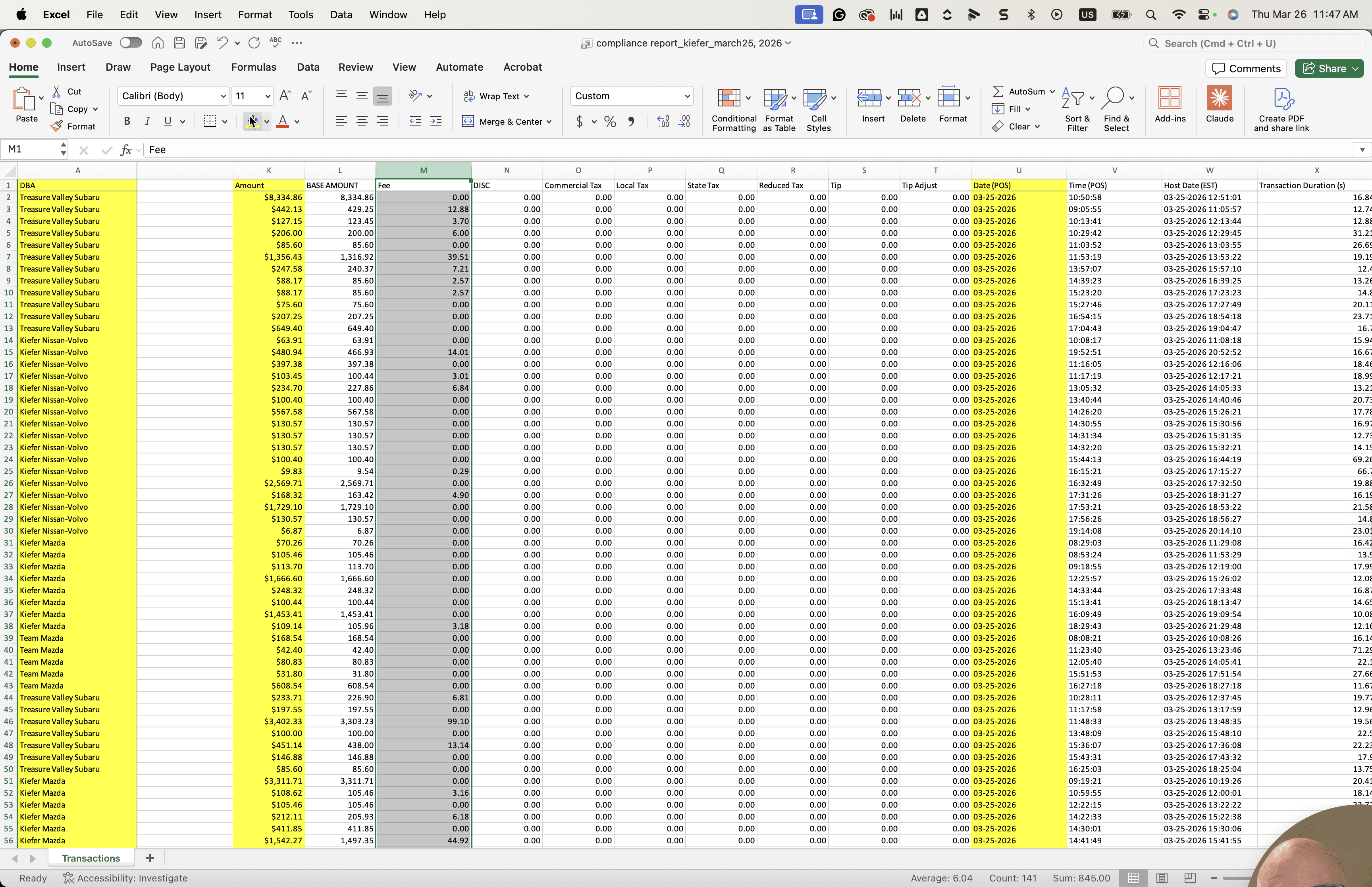
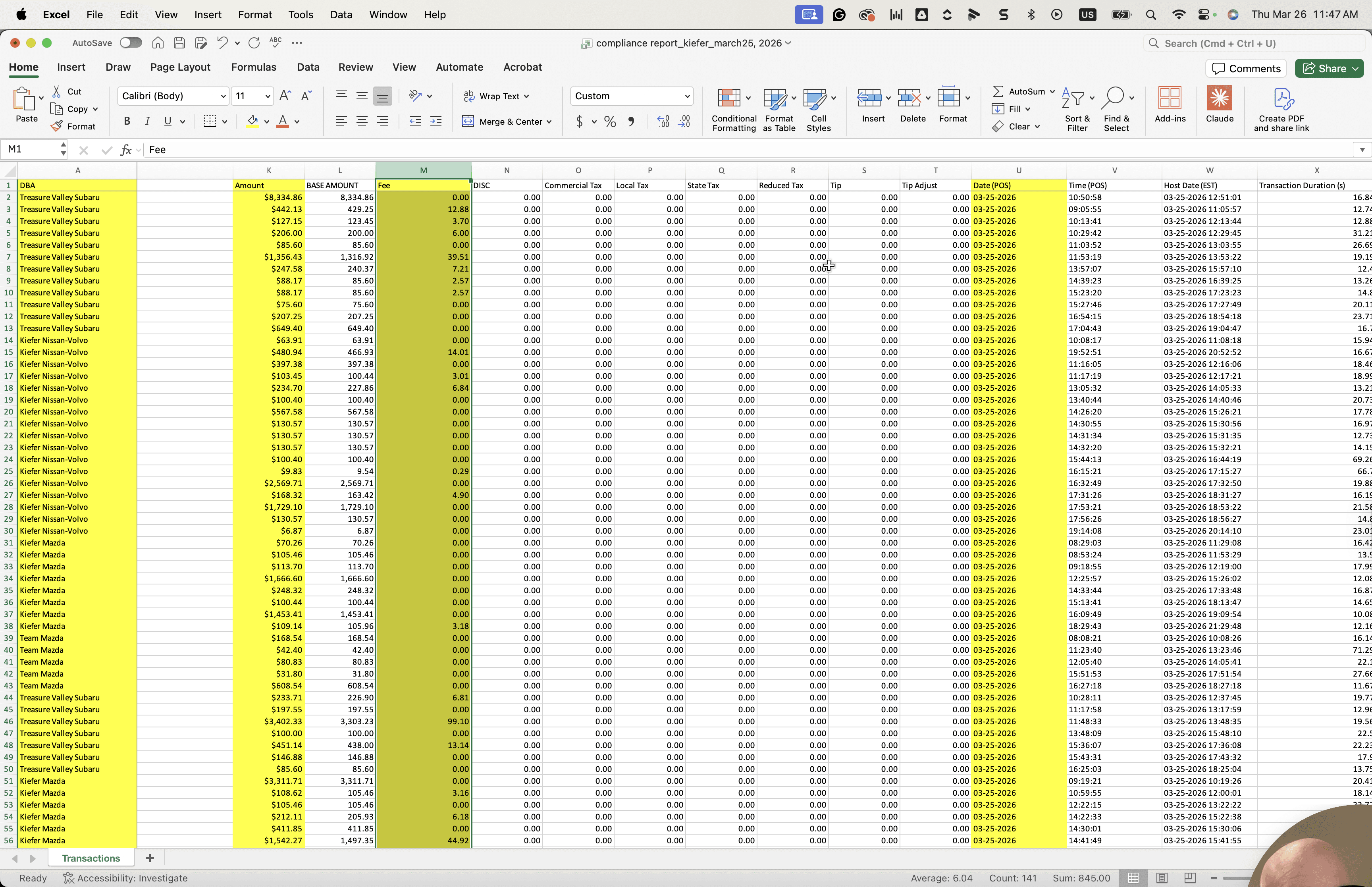
Flag all the transactions you see here.
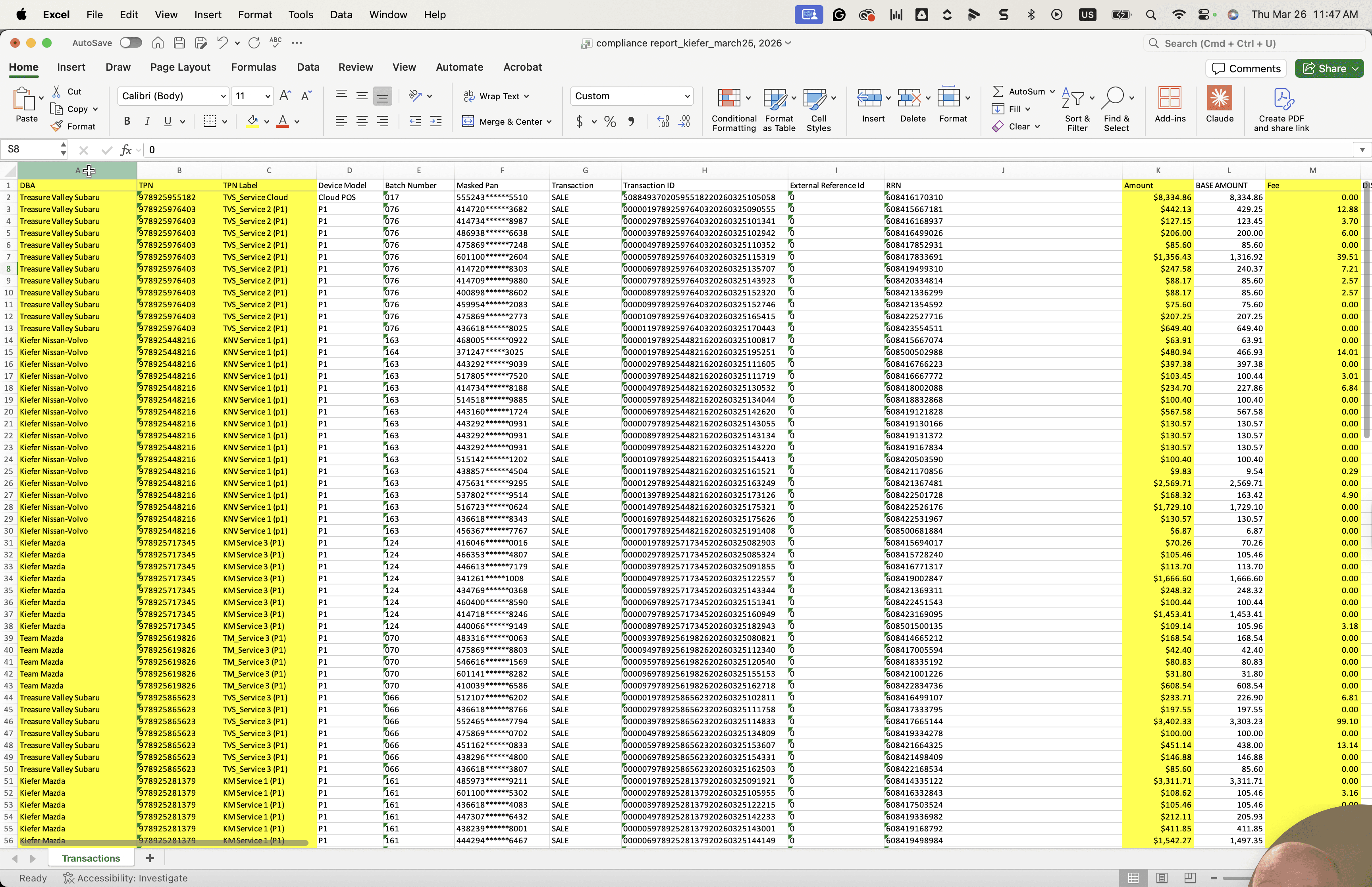
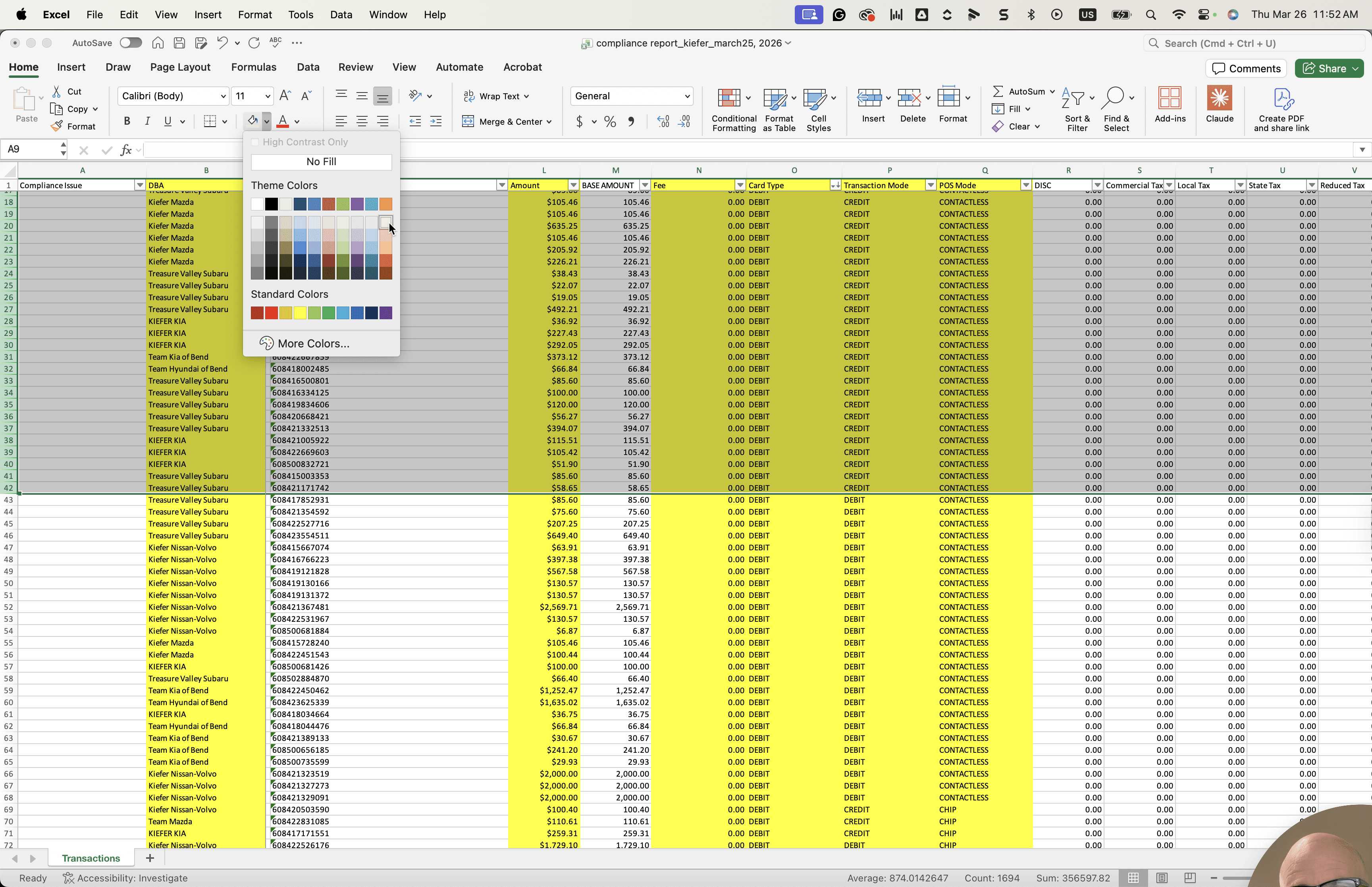
I will make the color easy to see.
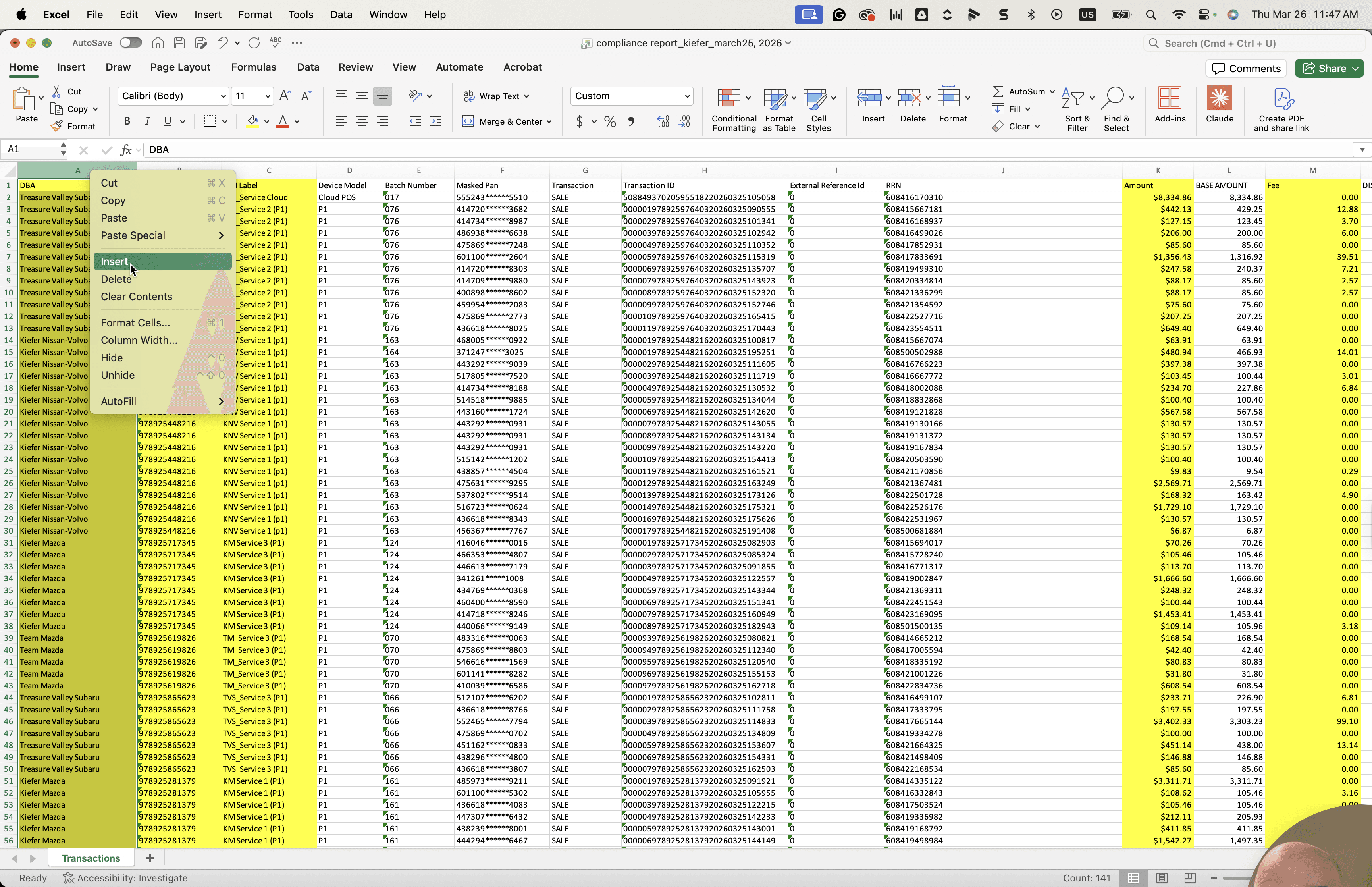
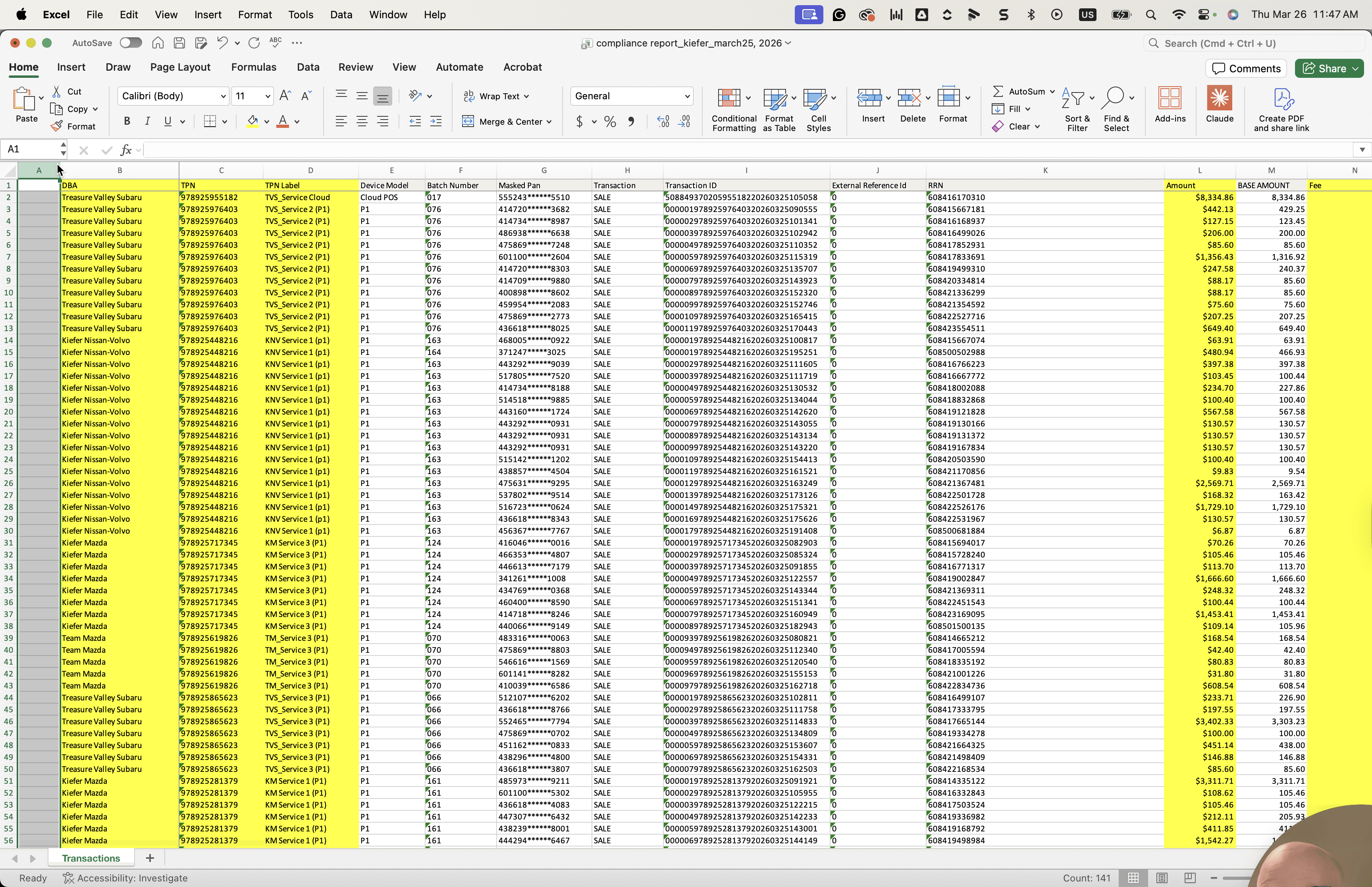
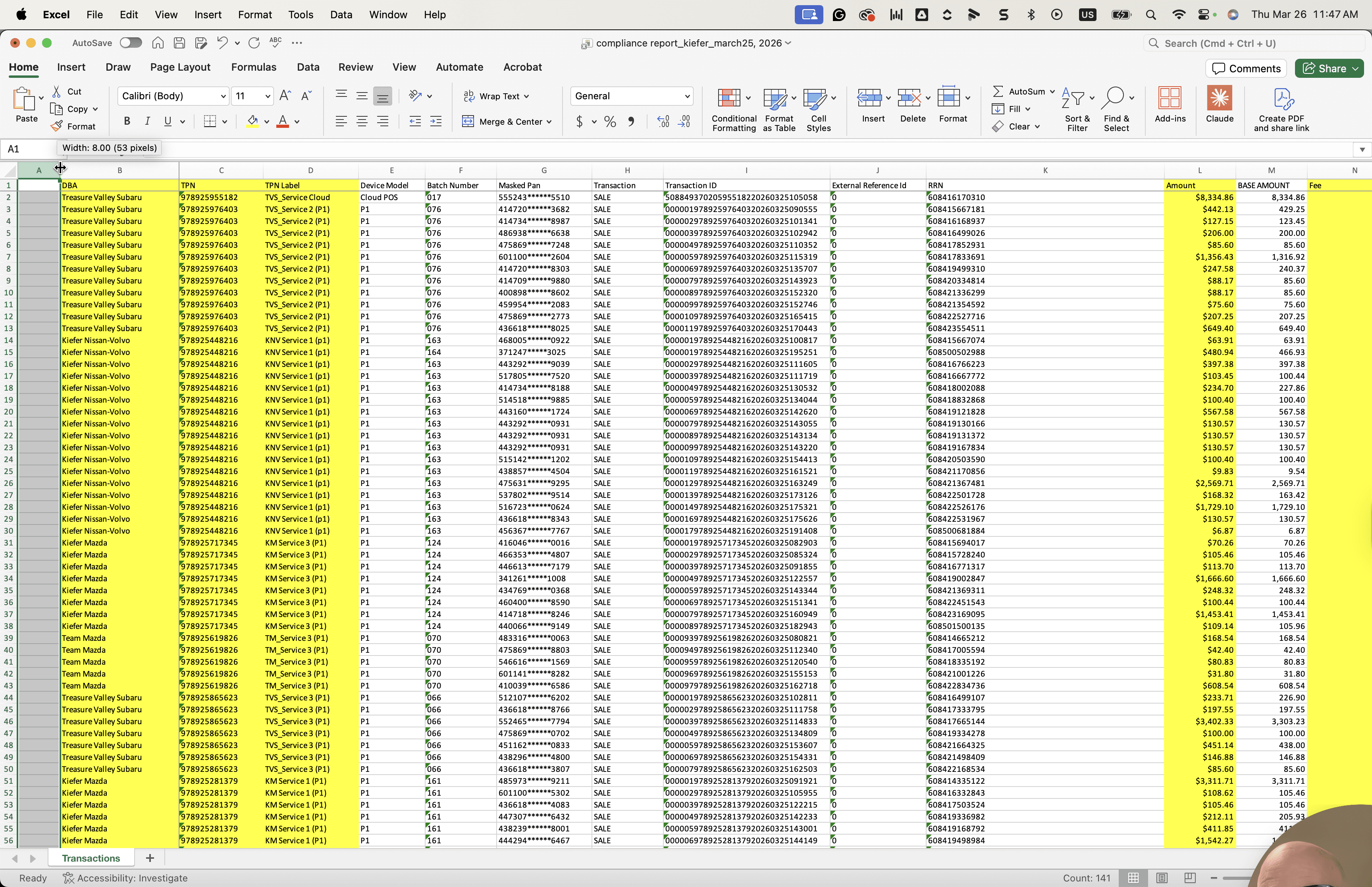
You need to go down and validate.
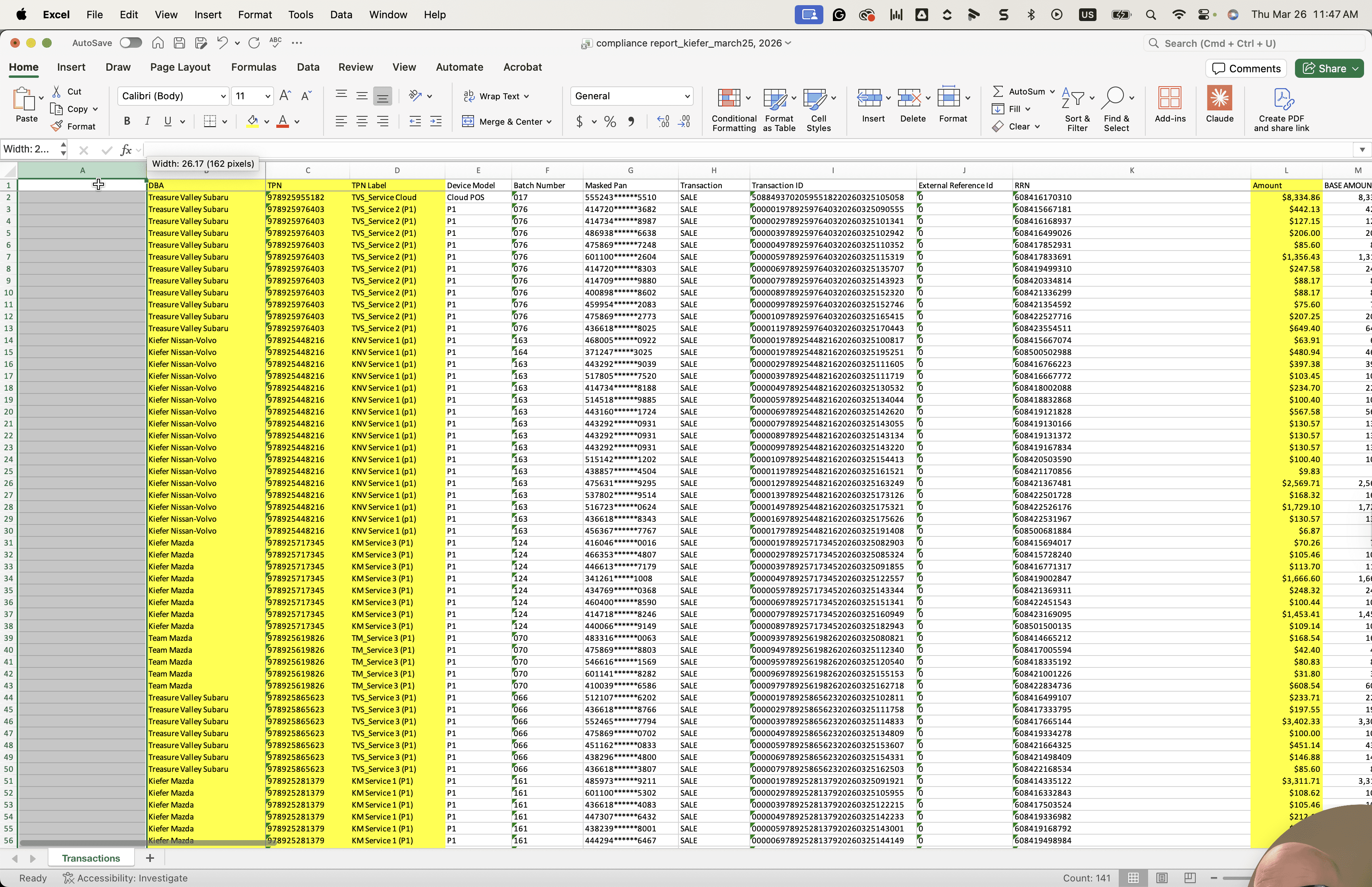
Anything with a fee of zero and card type credit should be called out.
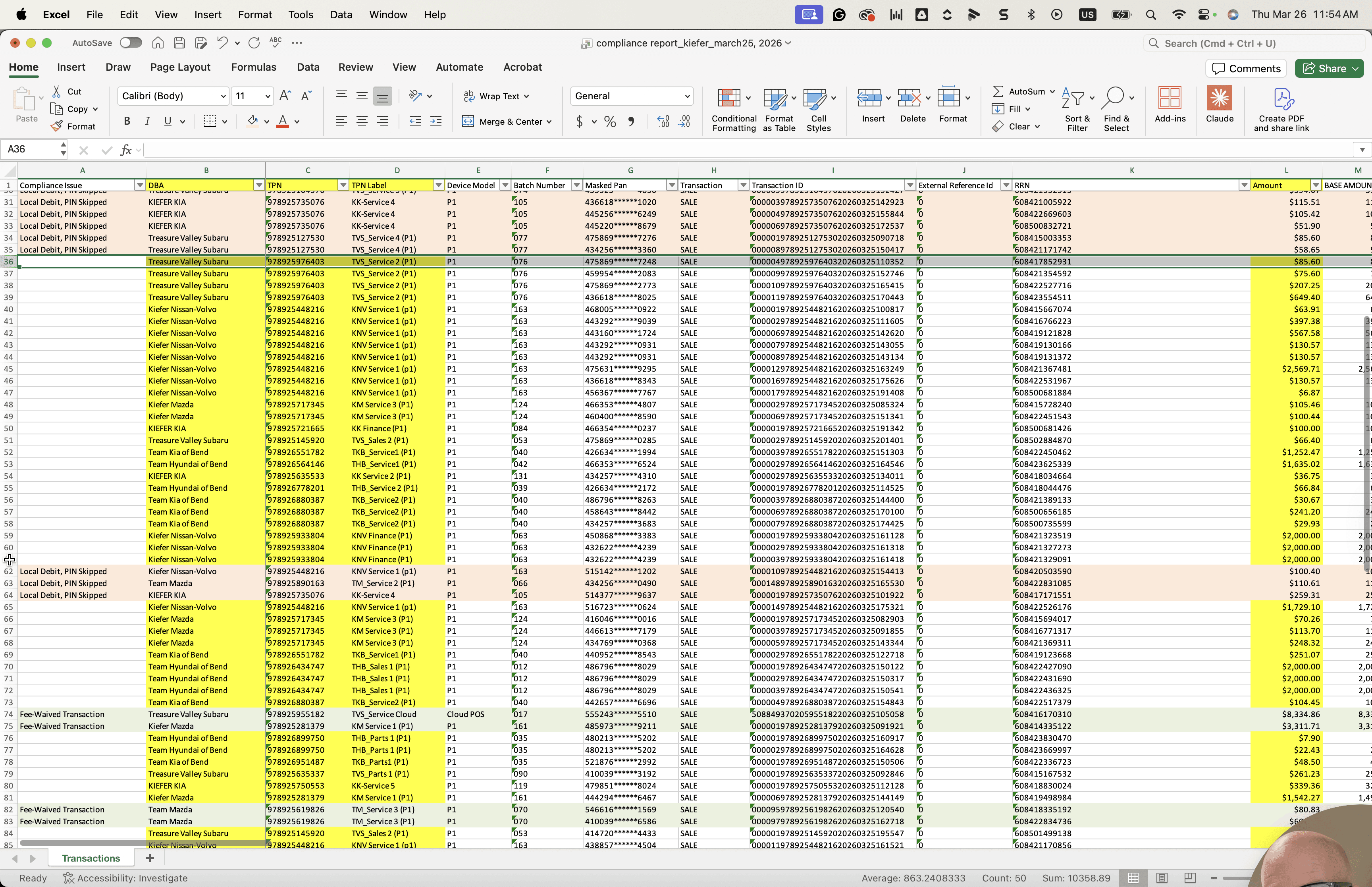
Everything looks good here. There aren't that many. The compliance issue listed here is the waived transaction.
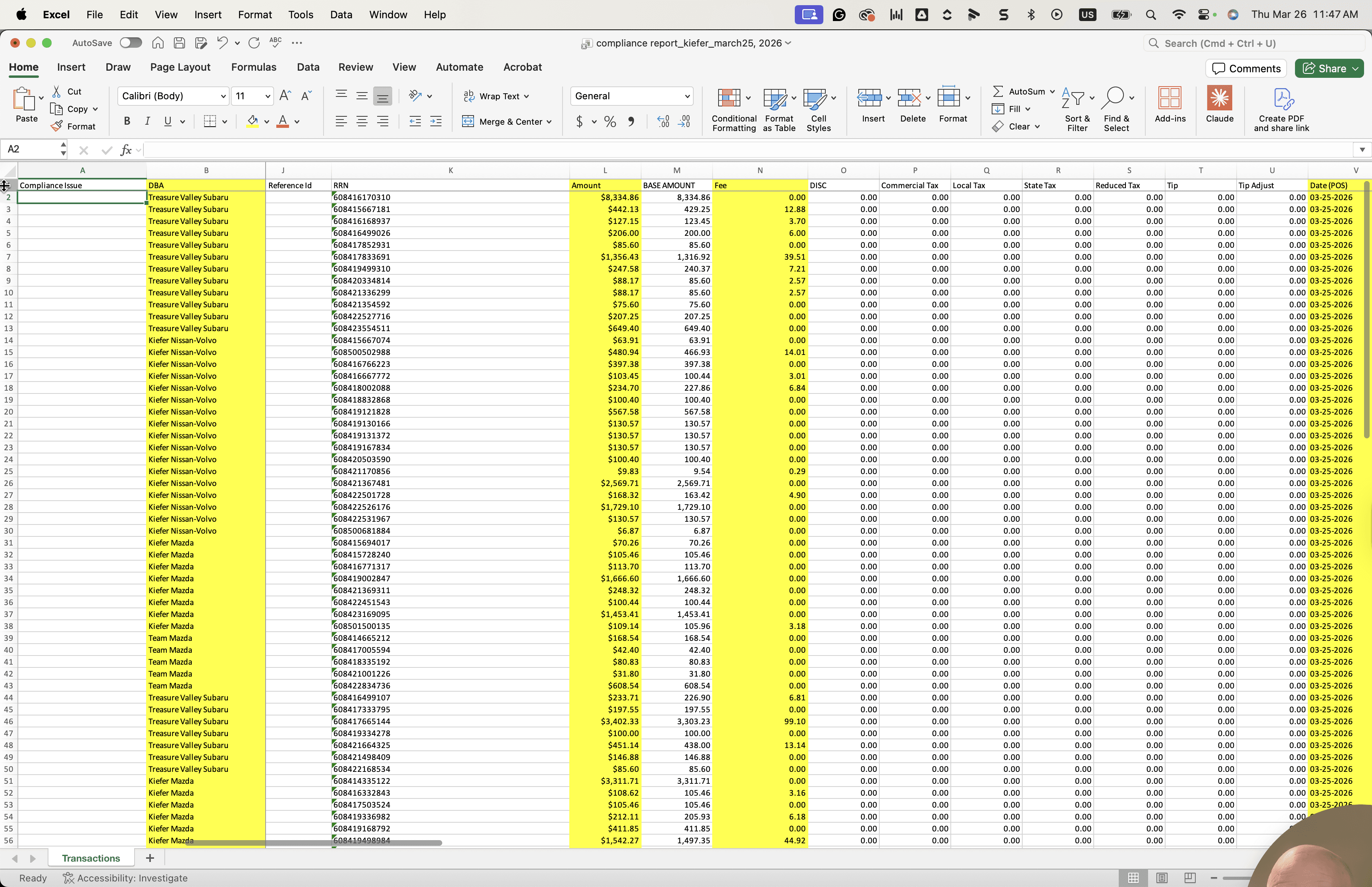
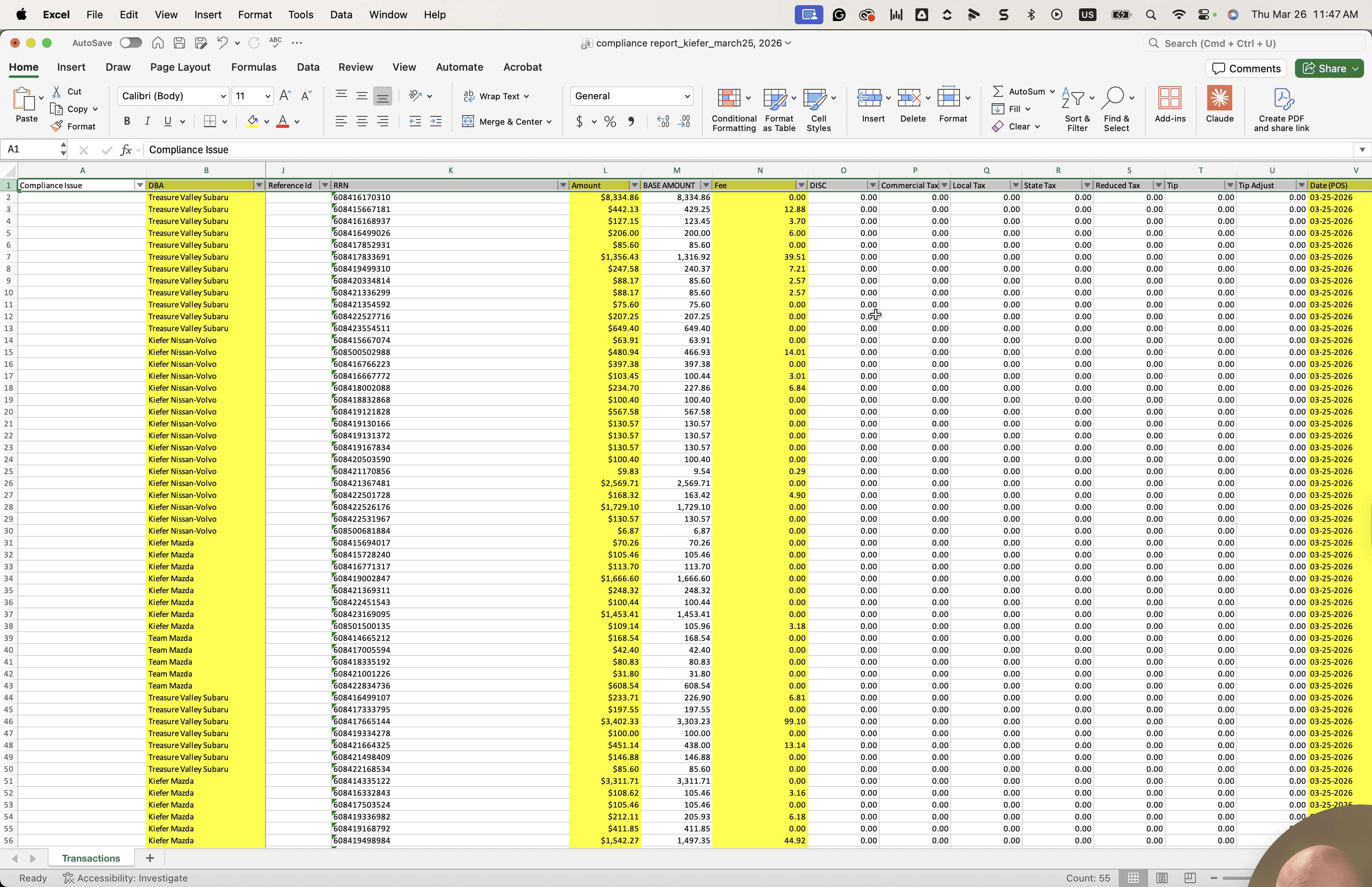
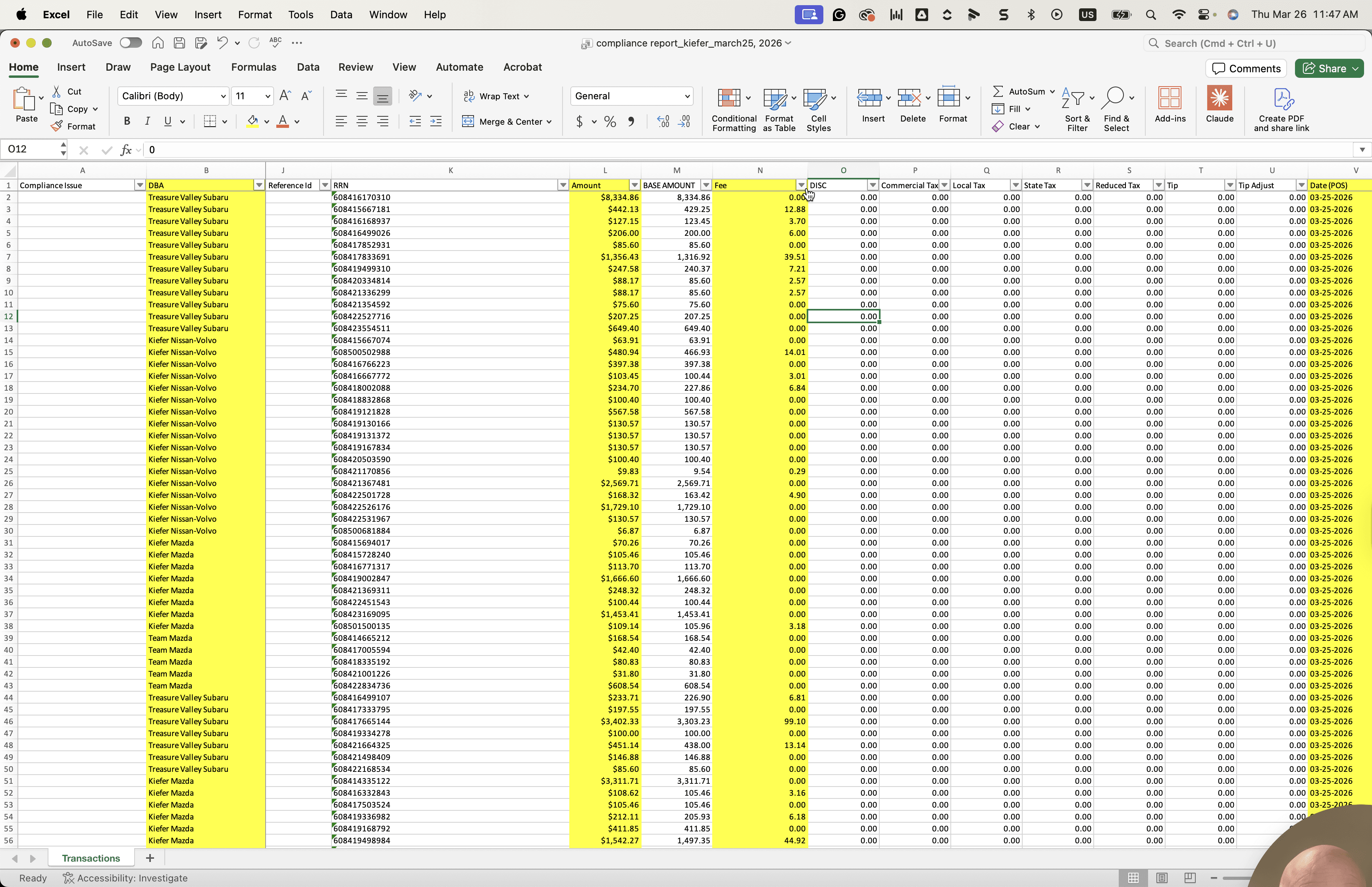
Okay. The next aspect we will look at is if...
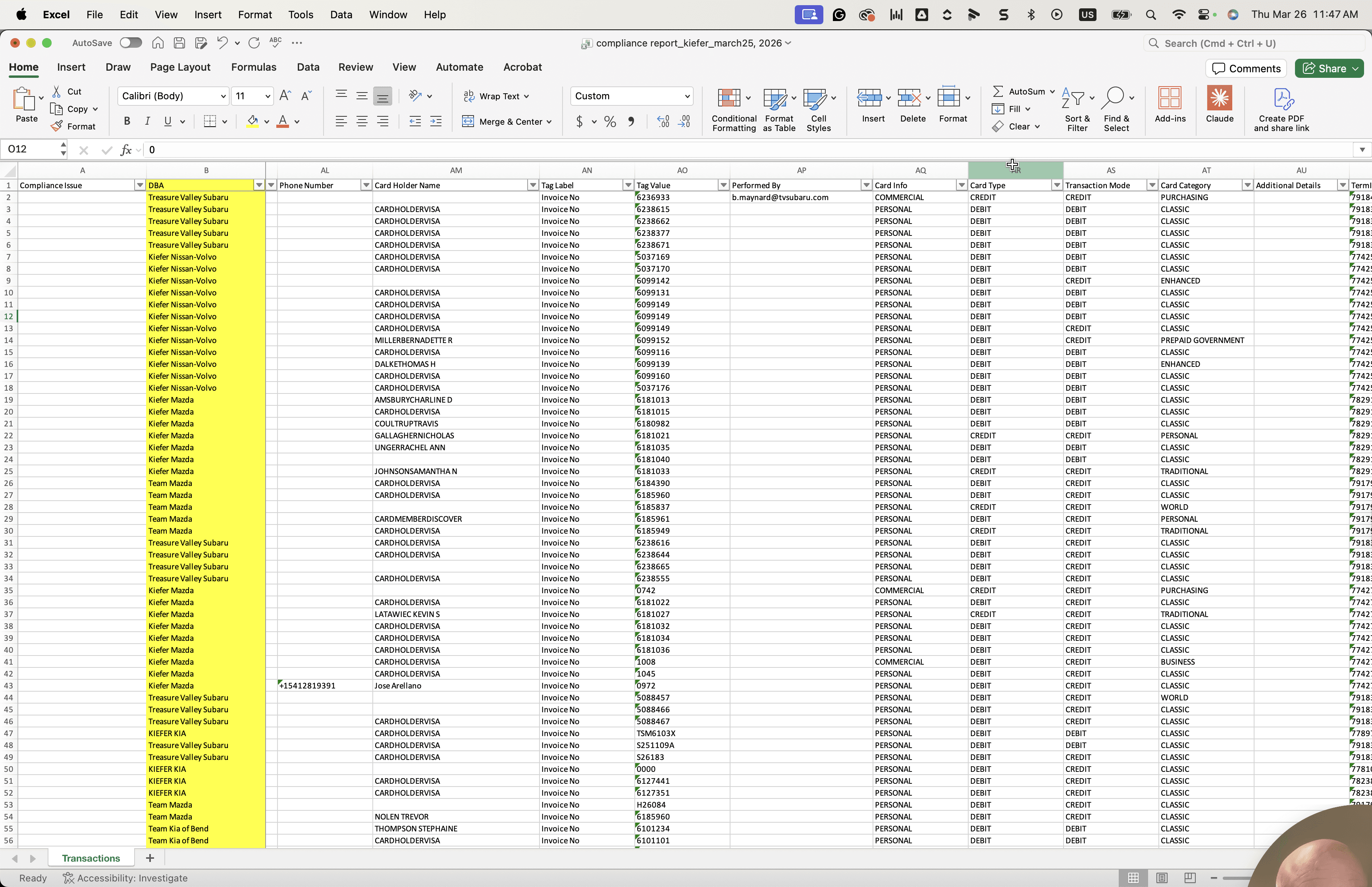
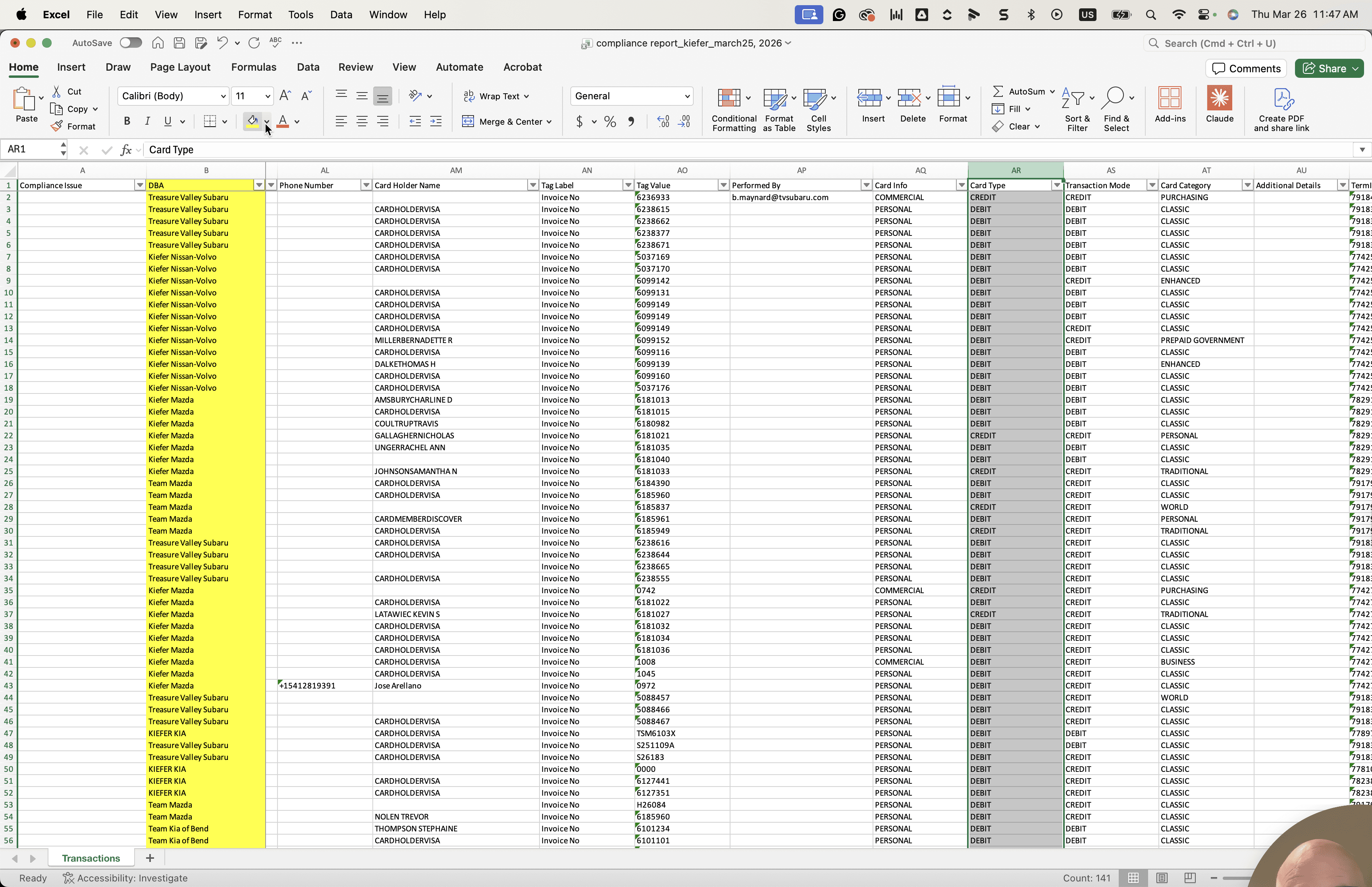
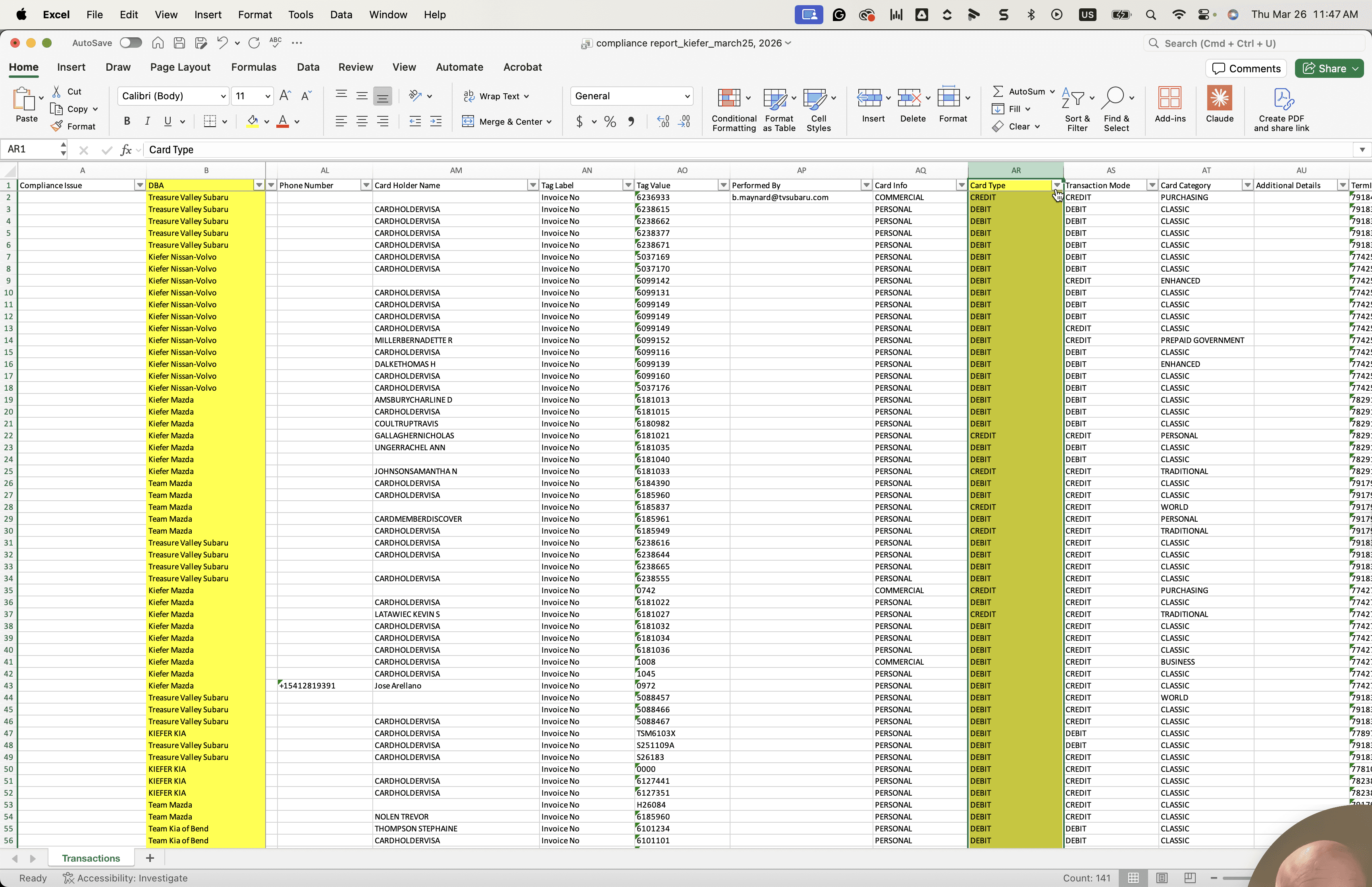
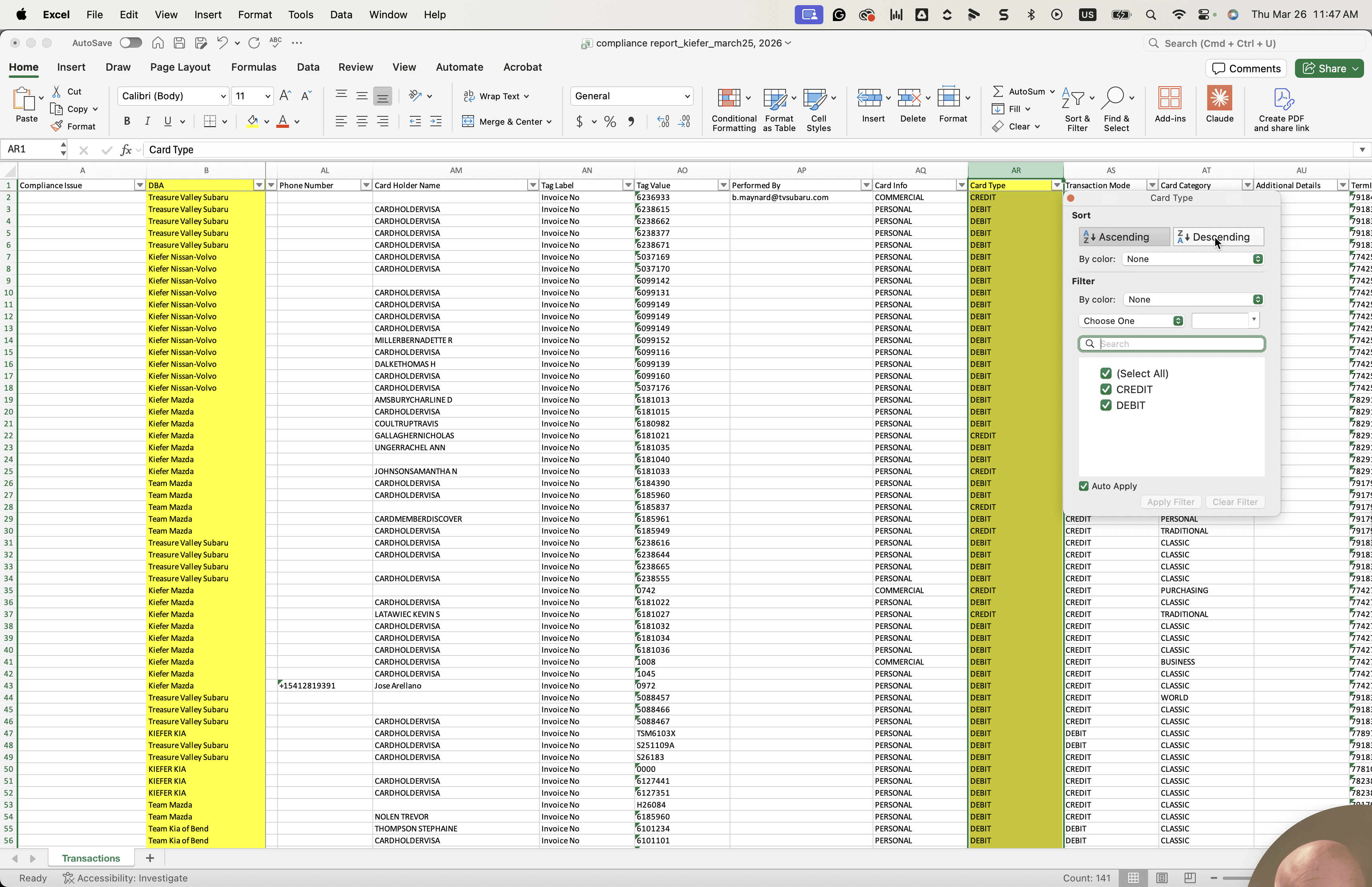
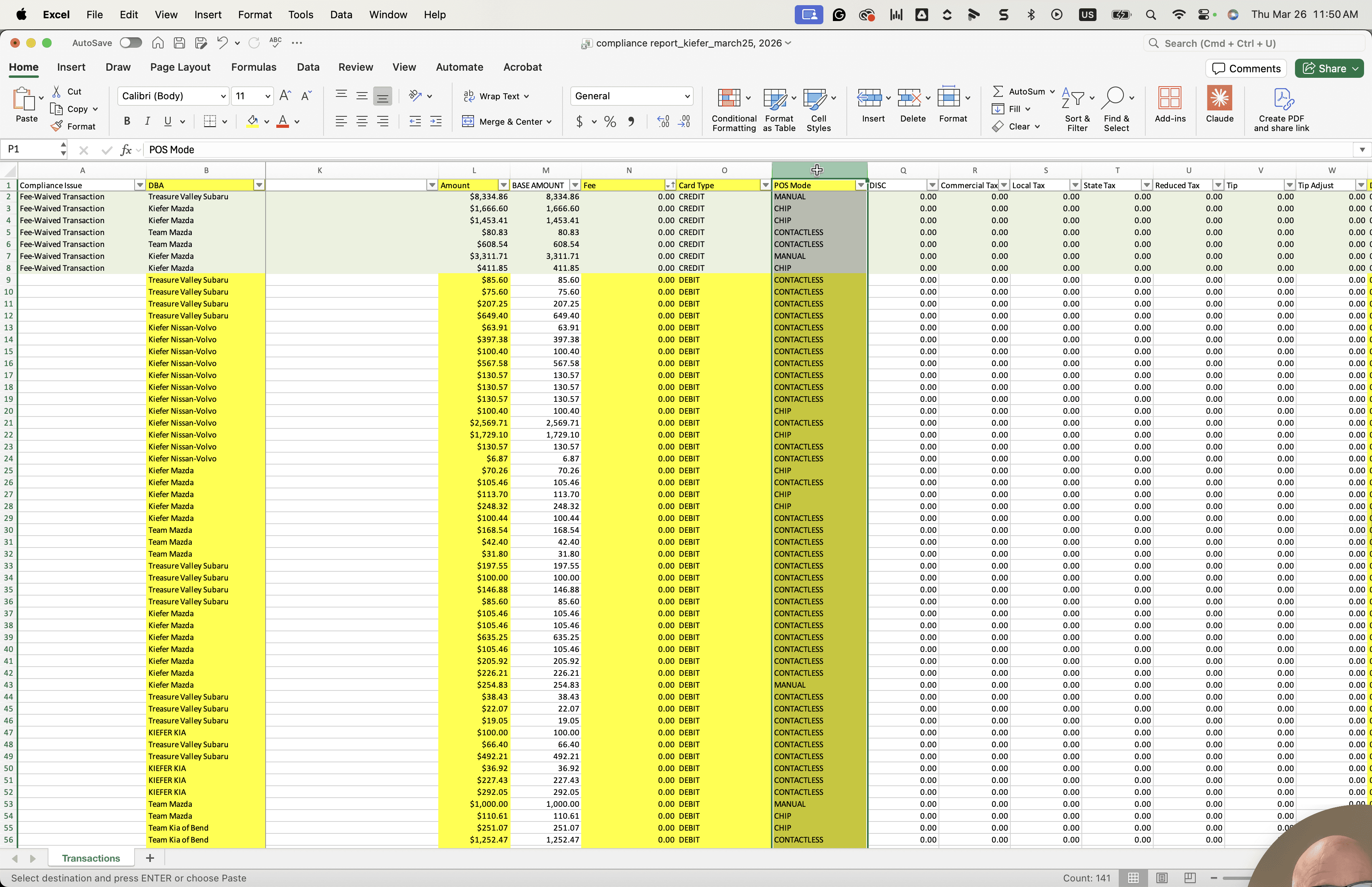
I'm going to select another option, the POS mode, to make it easier to see.
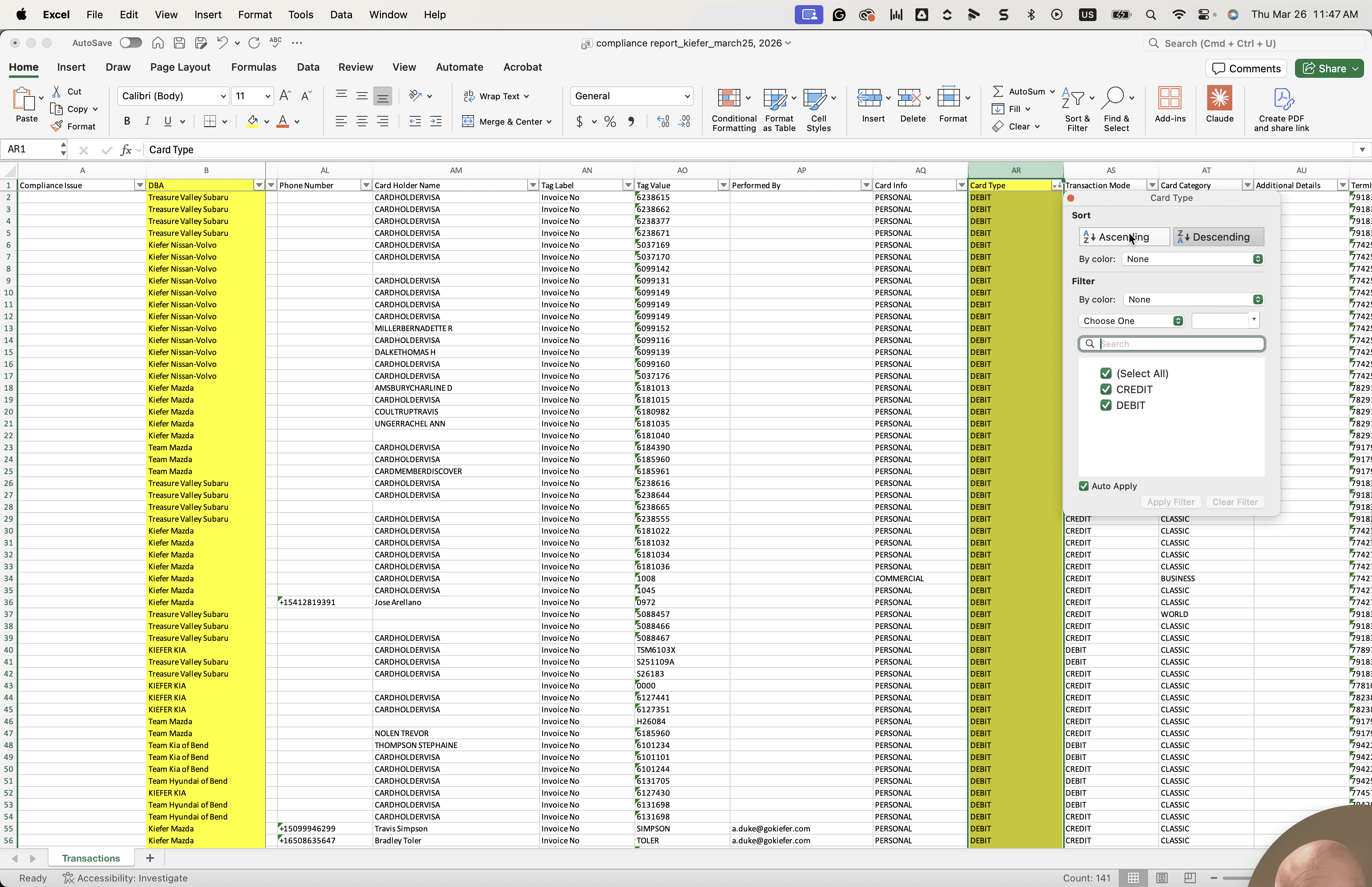
If the POS mode is enabled on the debit card type...
"" Also gonna...
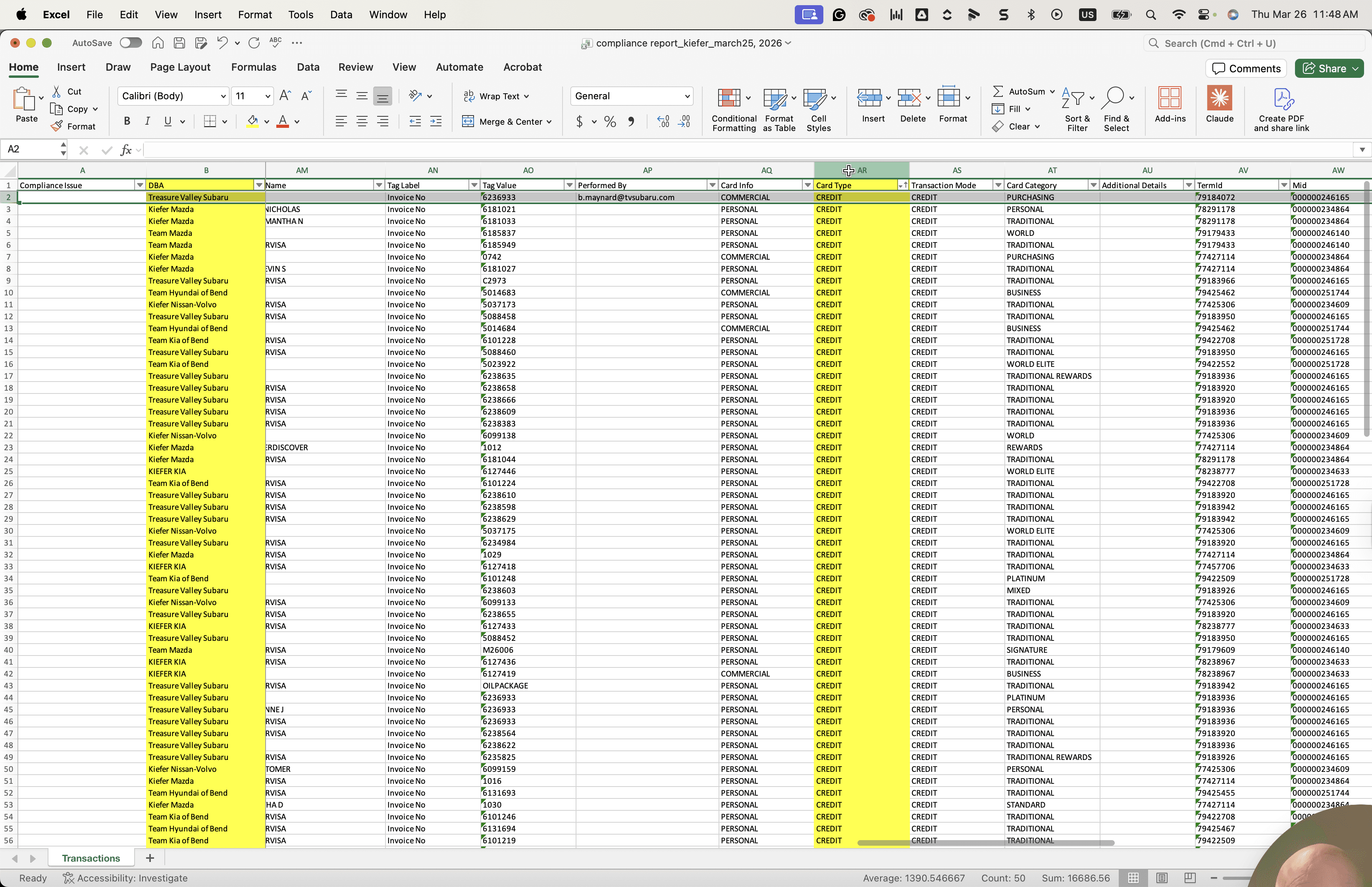
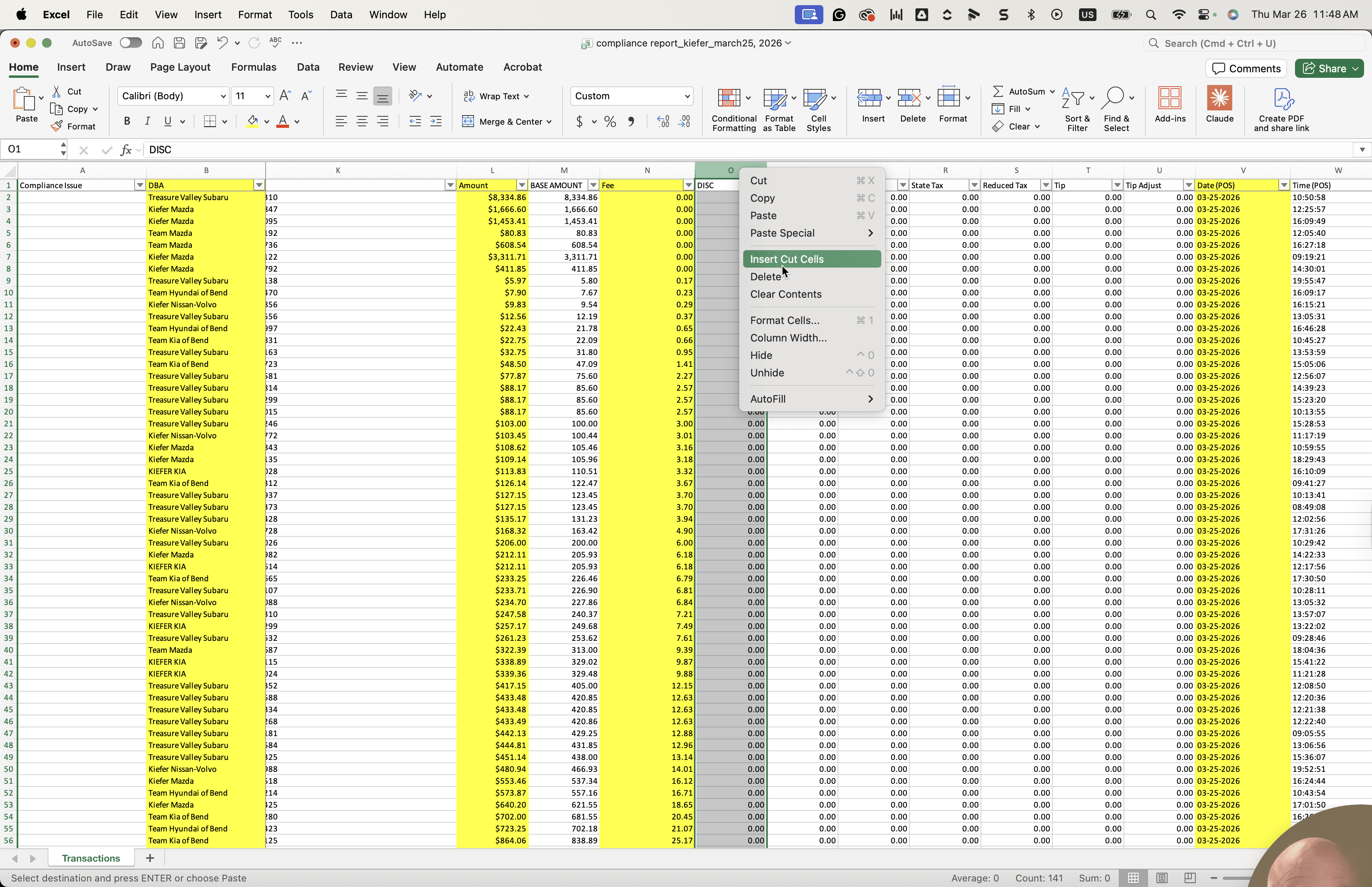
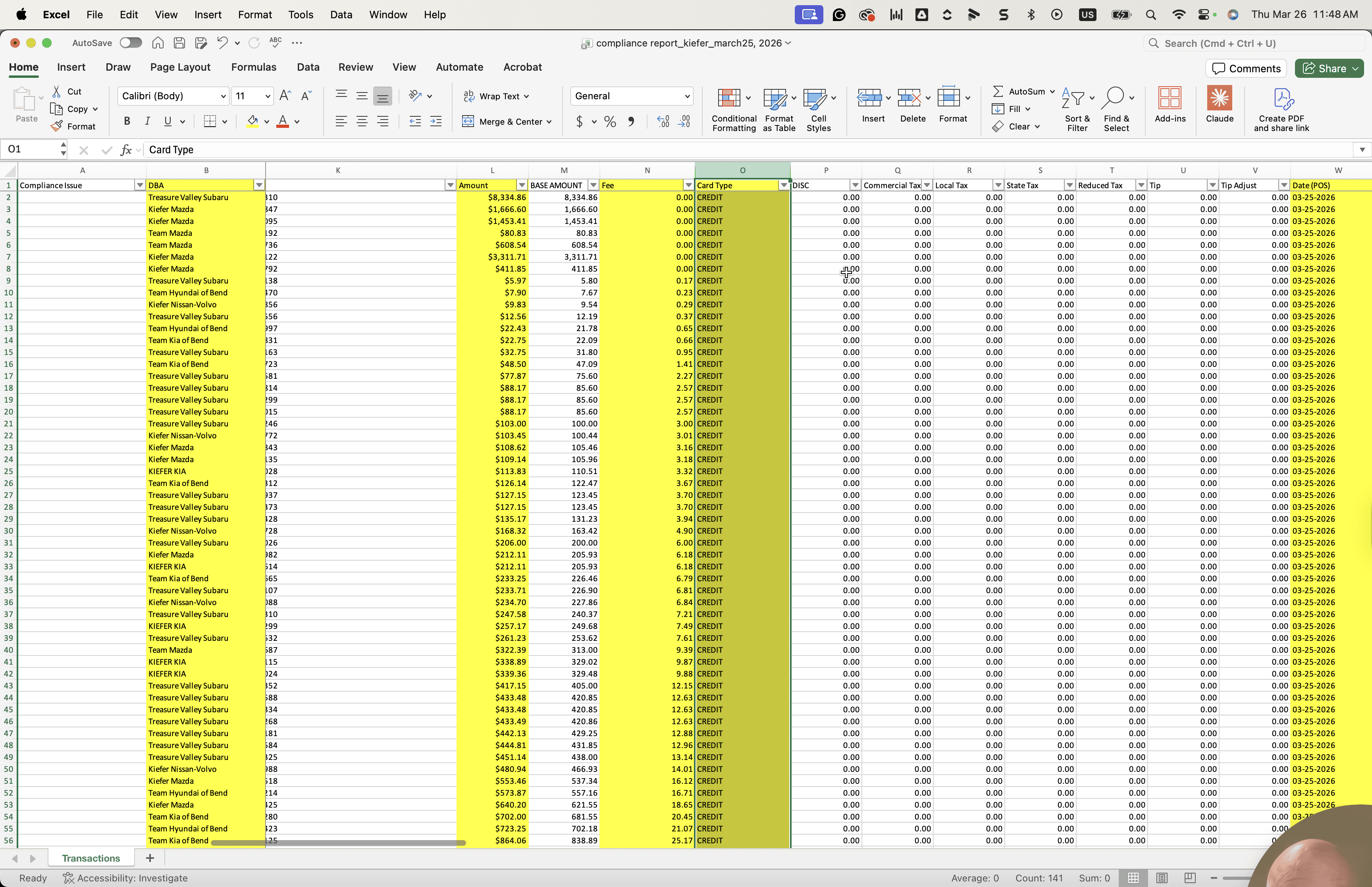
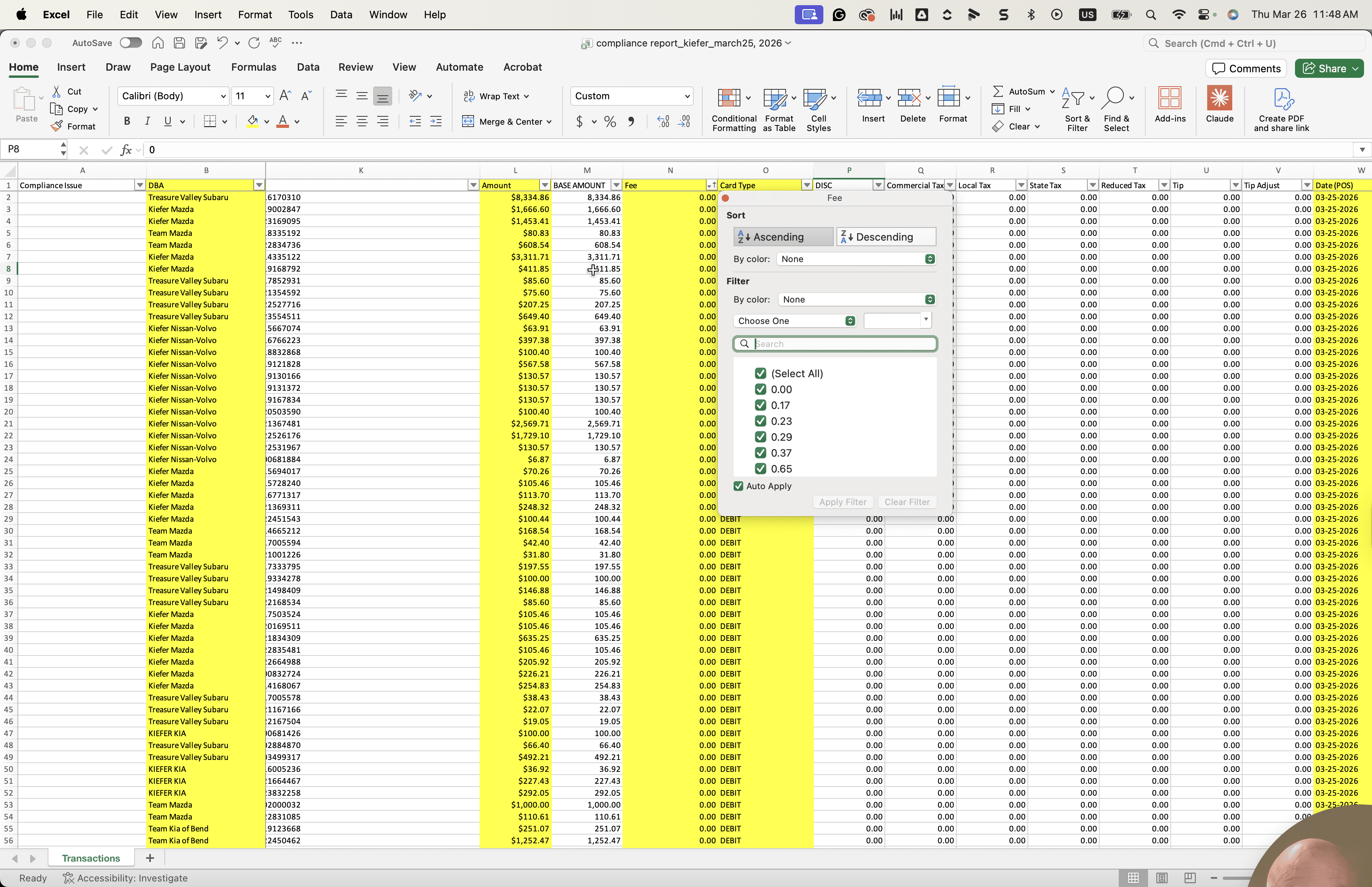
I will also look at and highlight transaction mode. Transaction mode is another important data field.
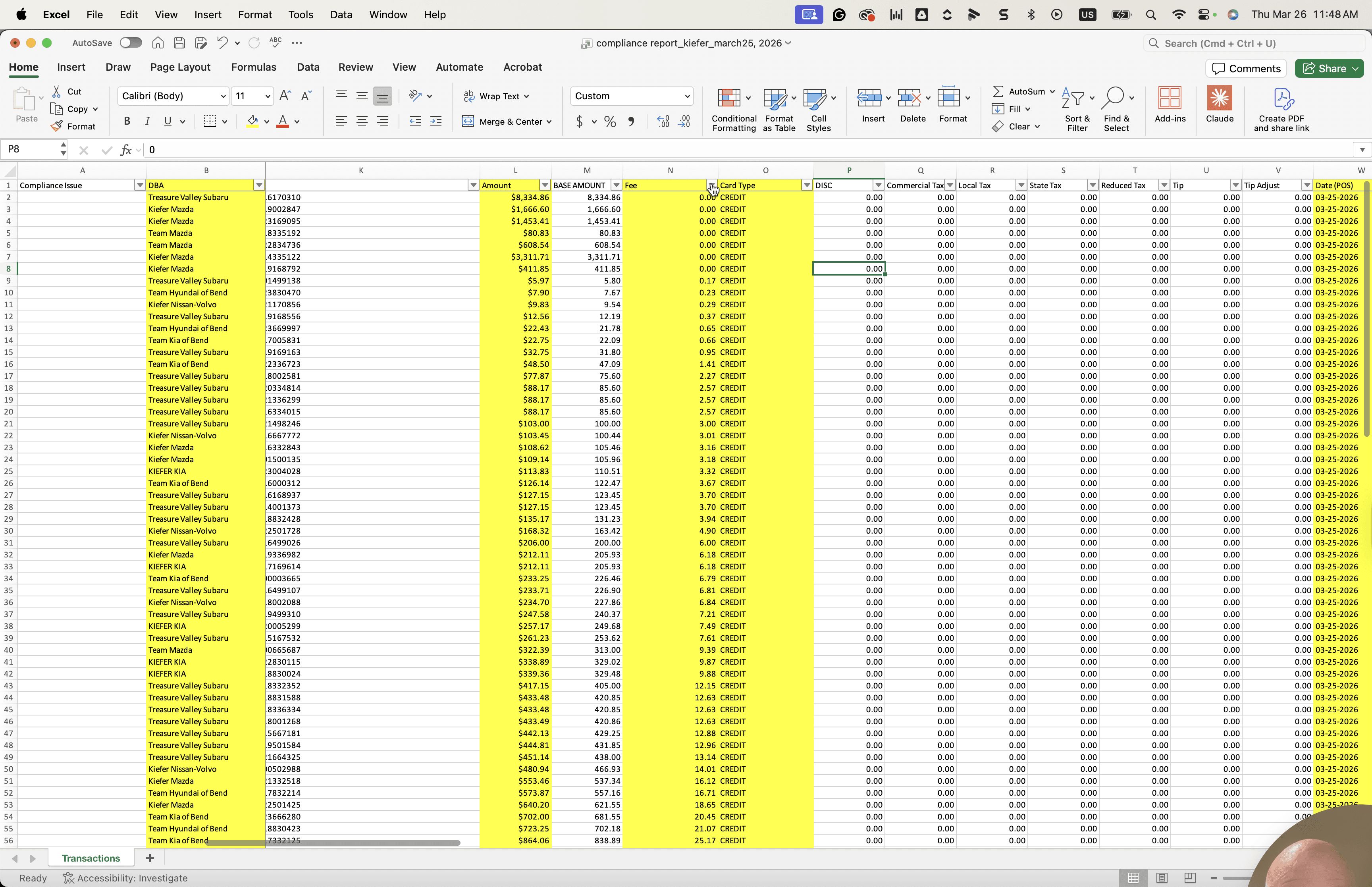
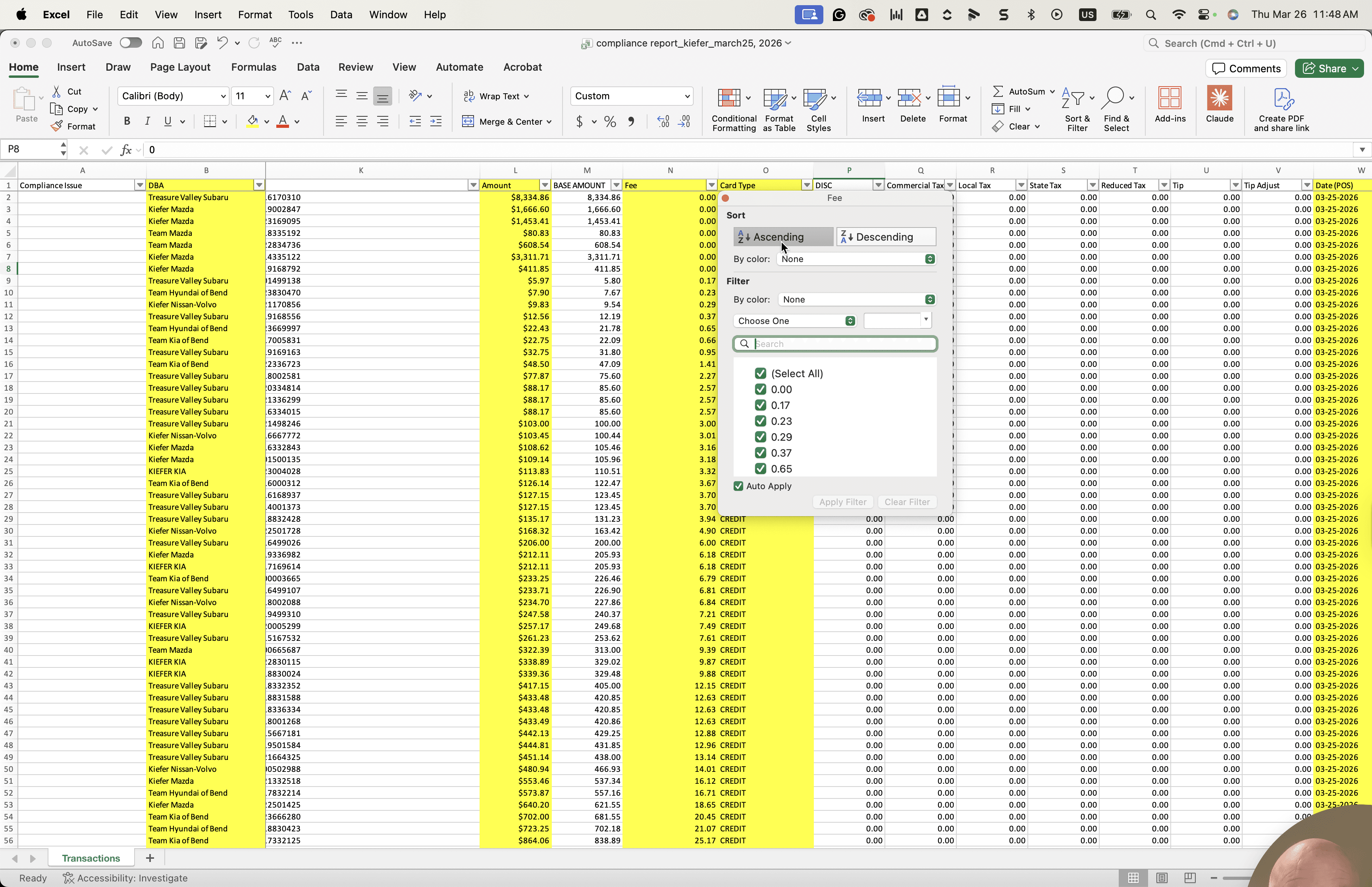
Transaction mode.
Um, so if...
The next one we will look at is if the trans- Put this one back in the same color.
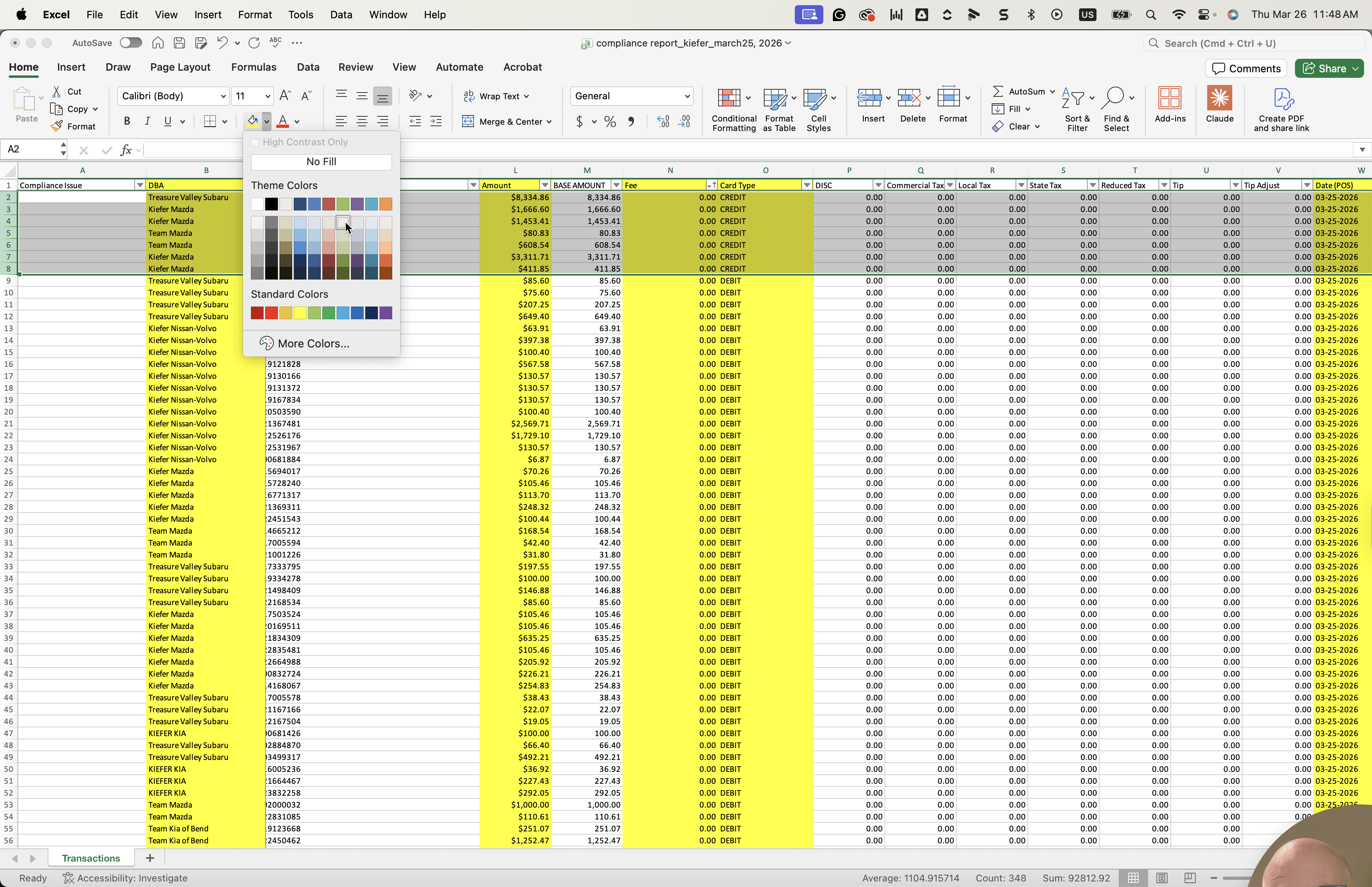
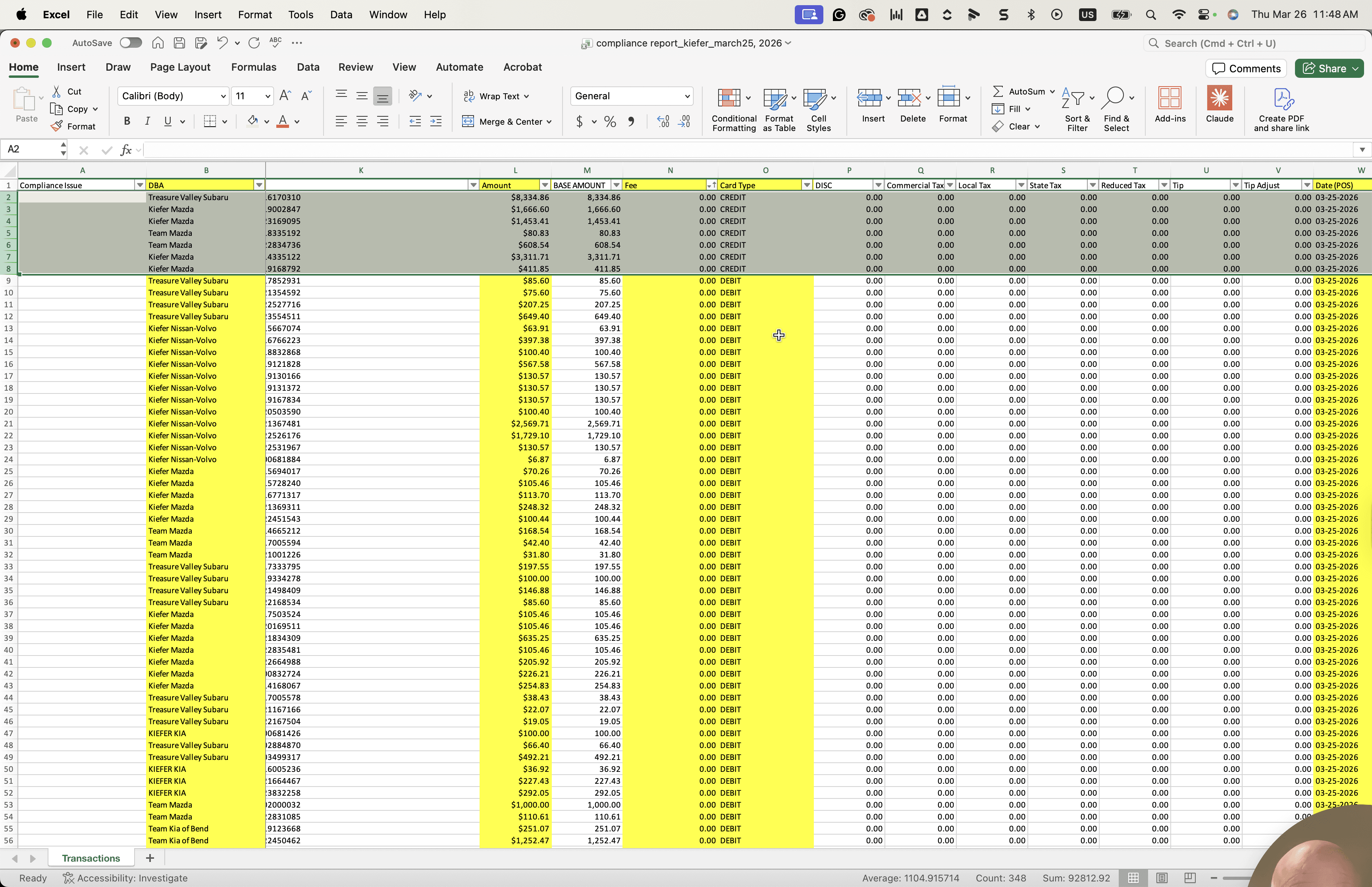
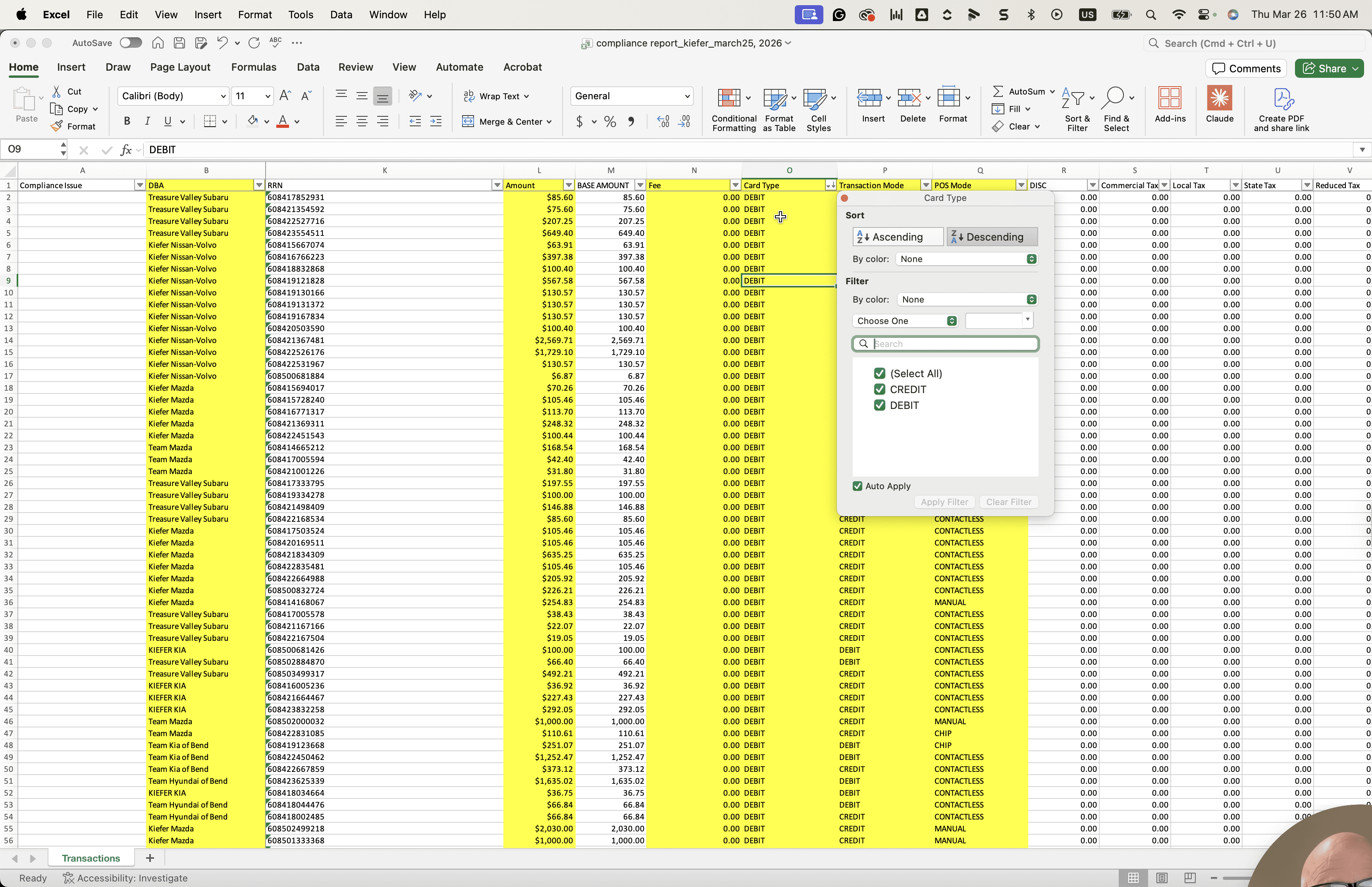
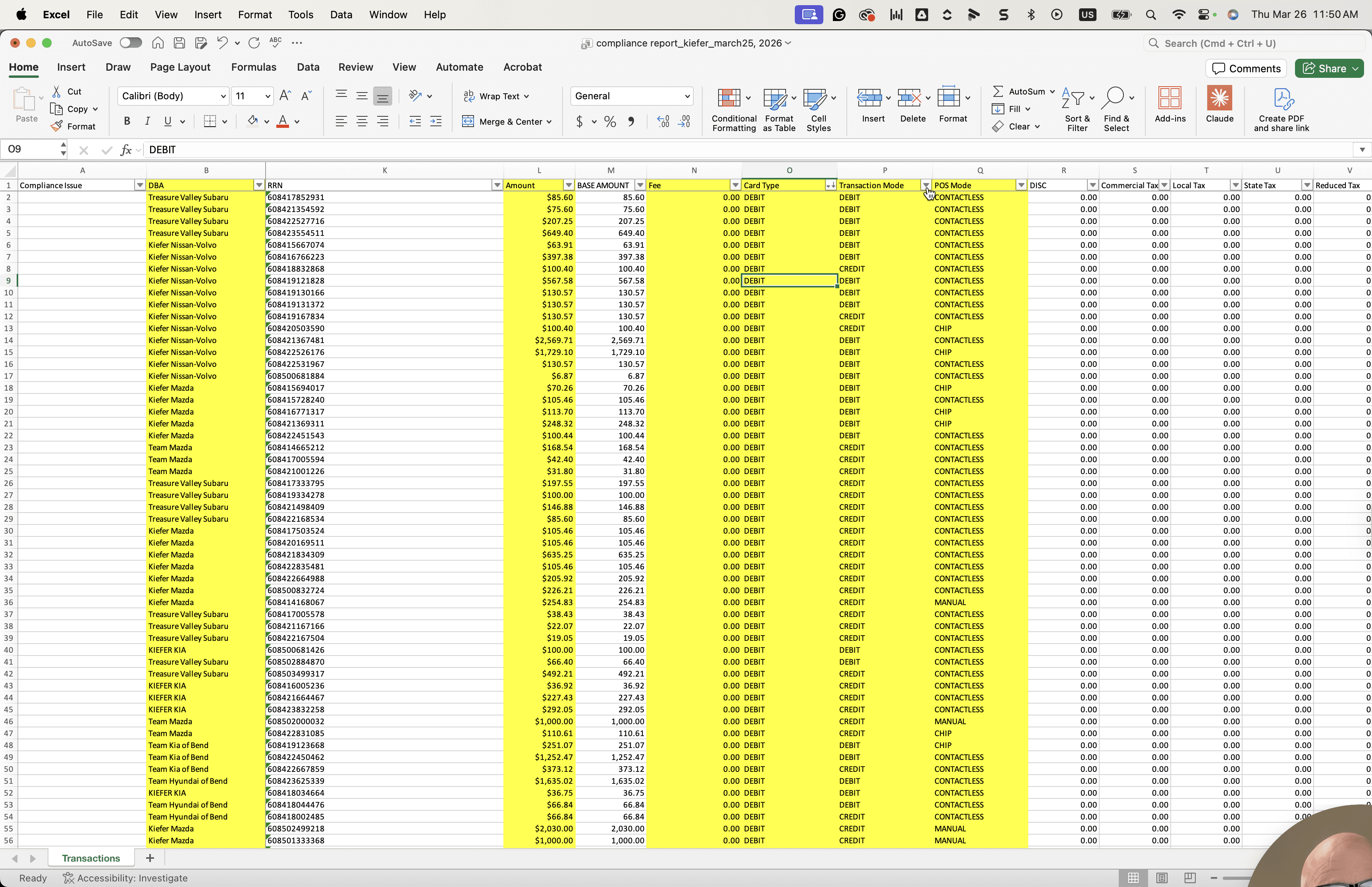
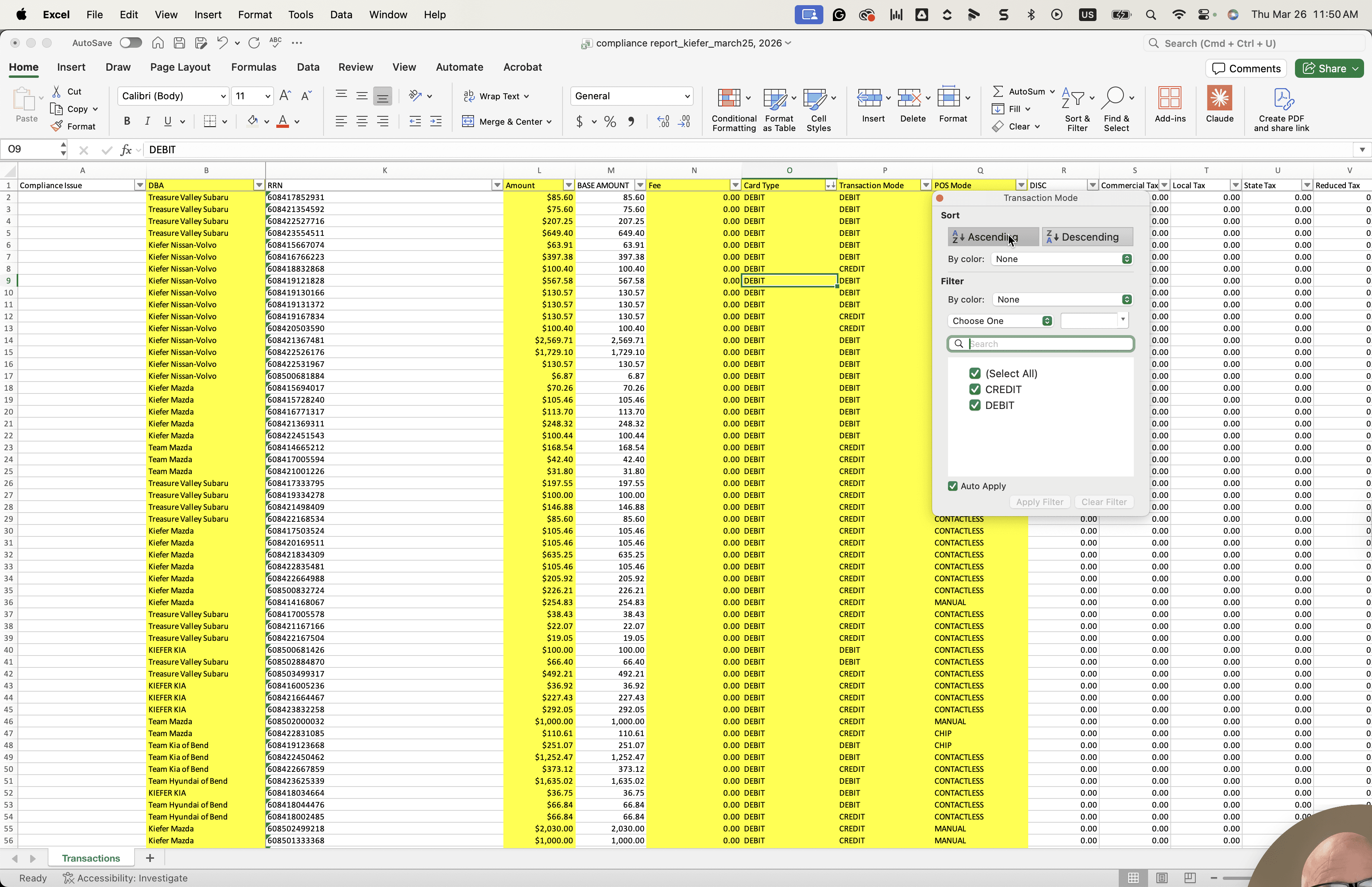
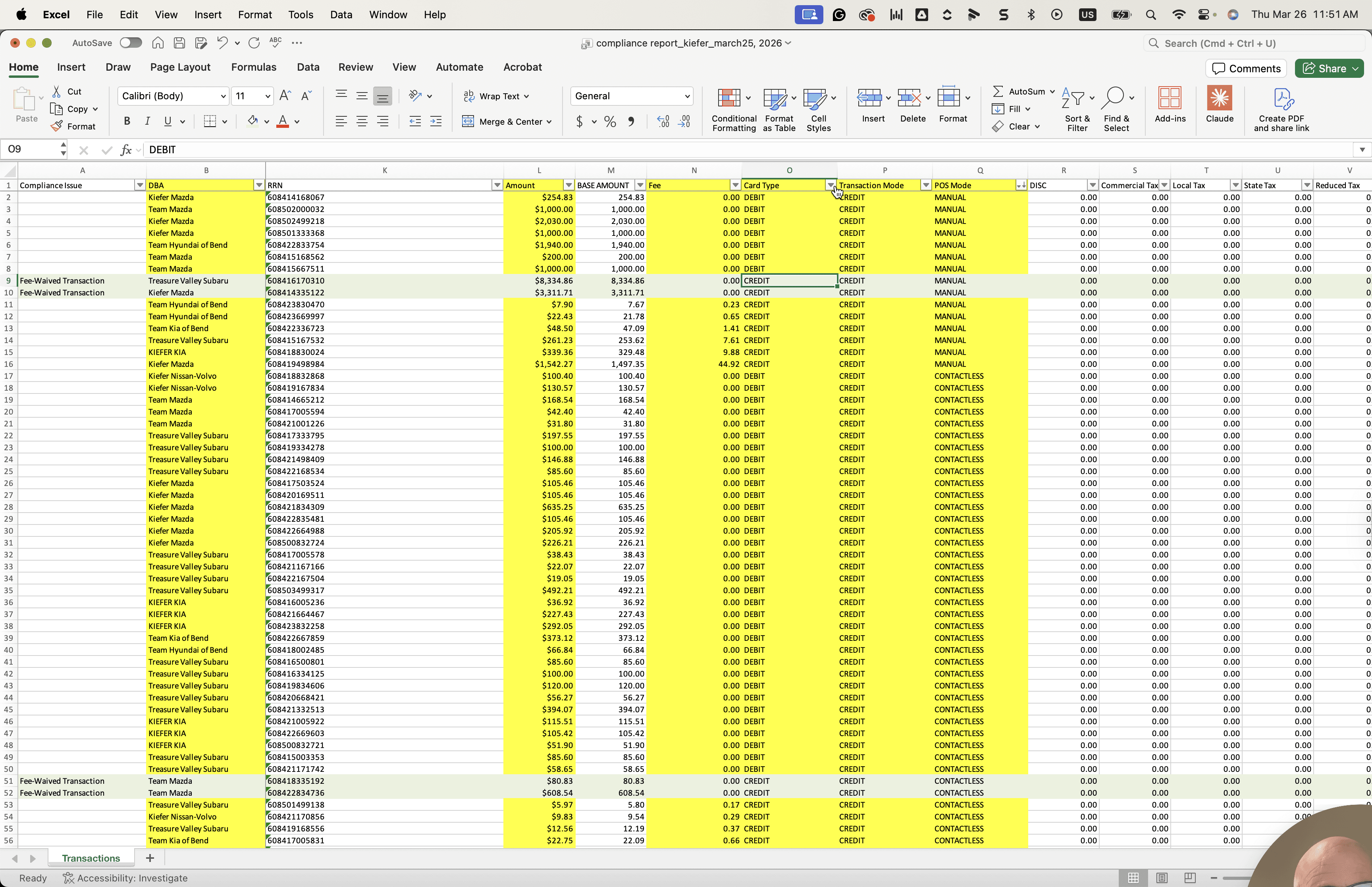
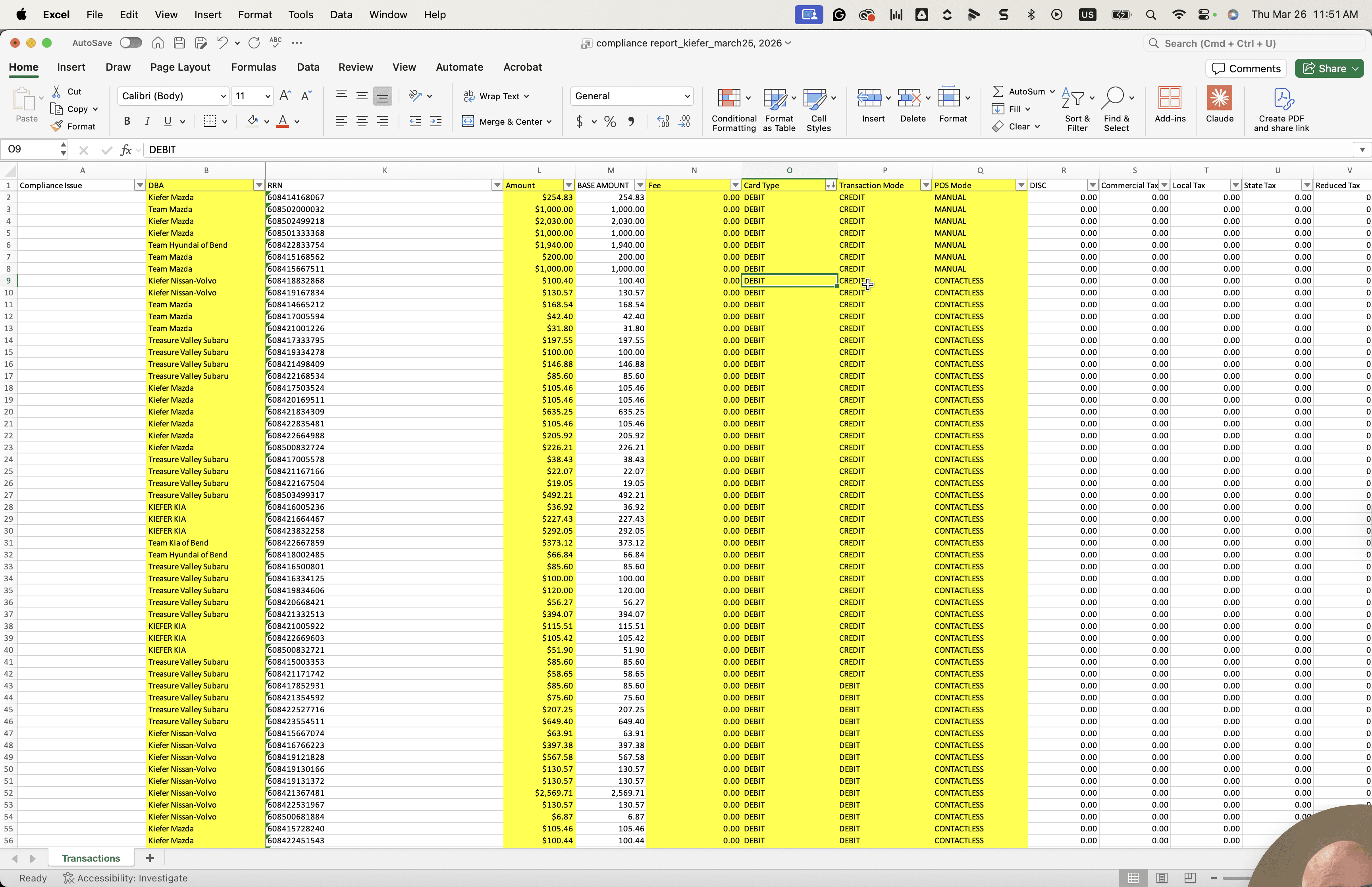
If the transaction mode card type is debit, select debit. If the transaction mode is also credit, select credit. For POS mode, if it is anything other than manual, it is compliant. If it is manual, it is not compliant.
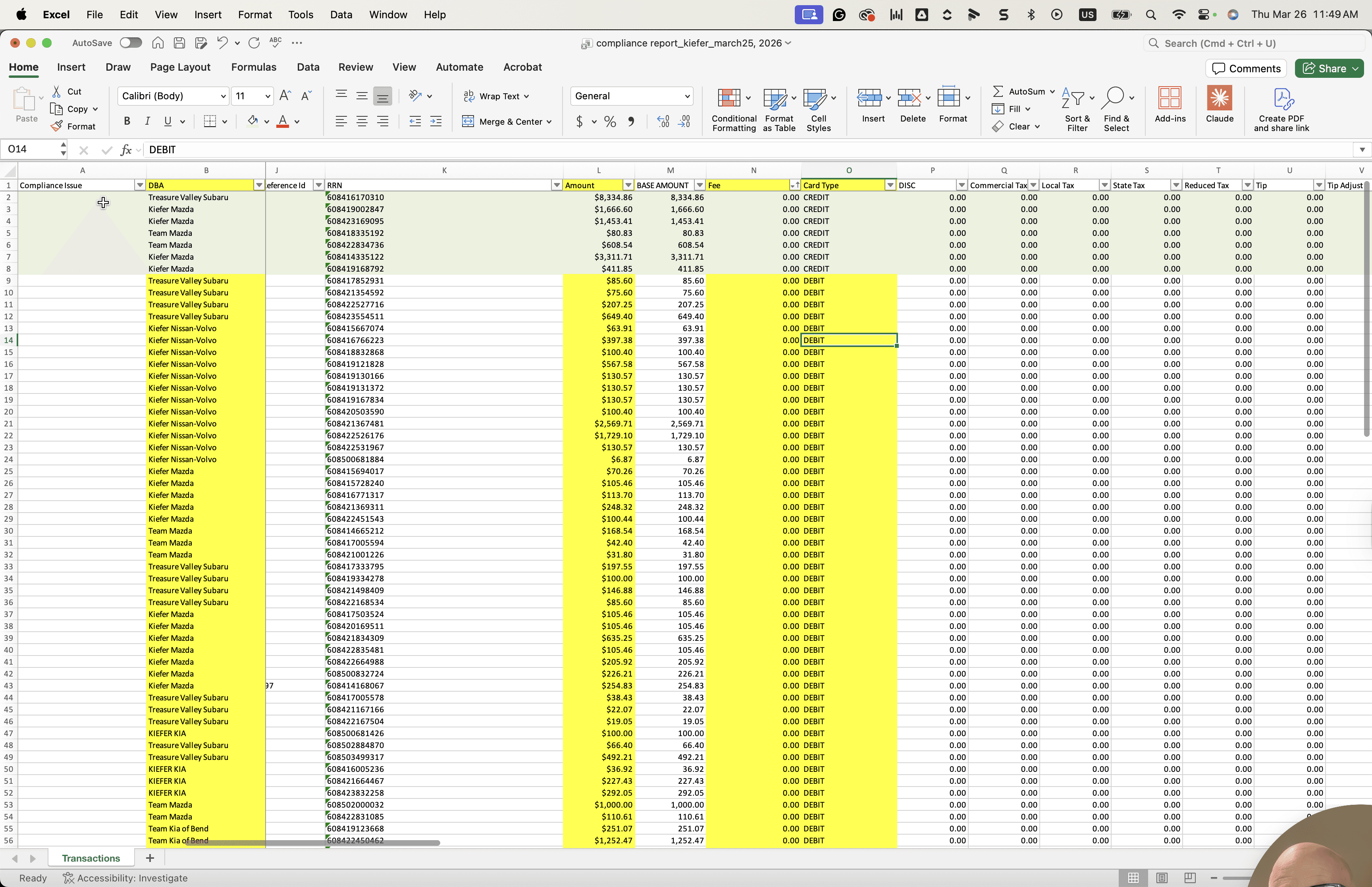
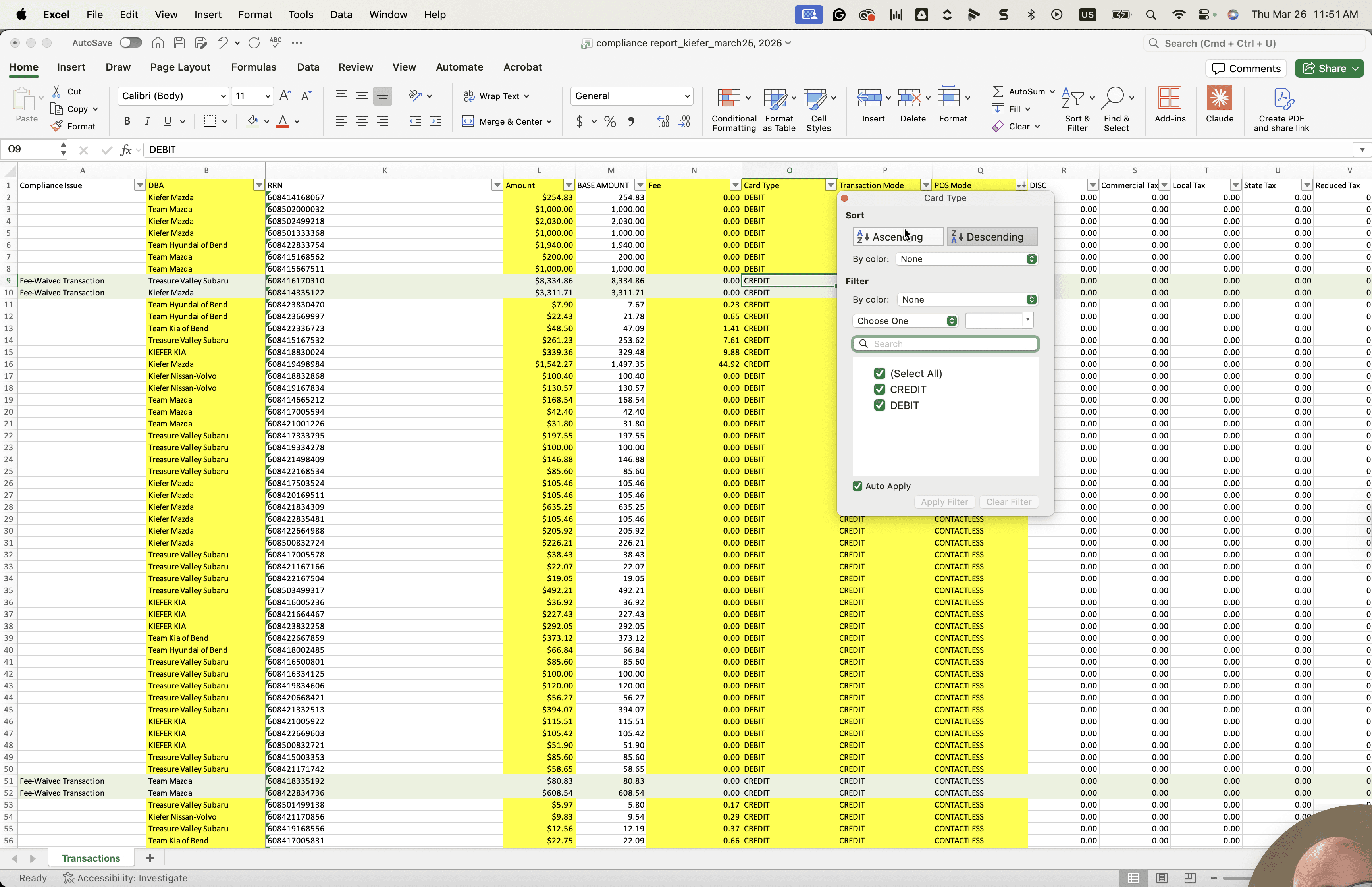
Keep sorting for this here.
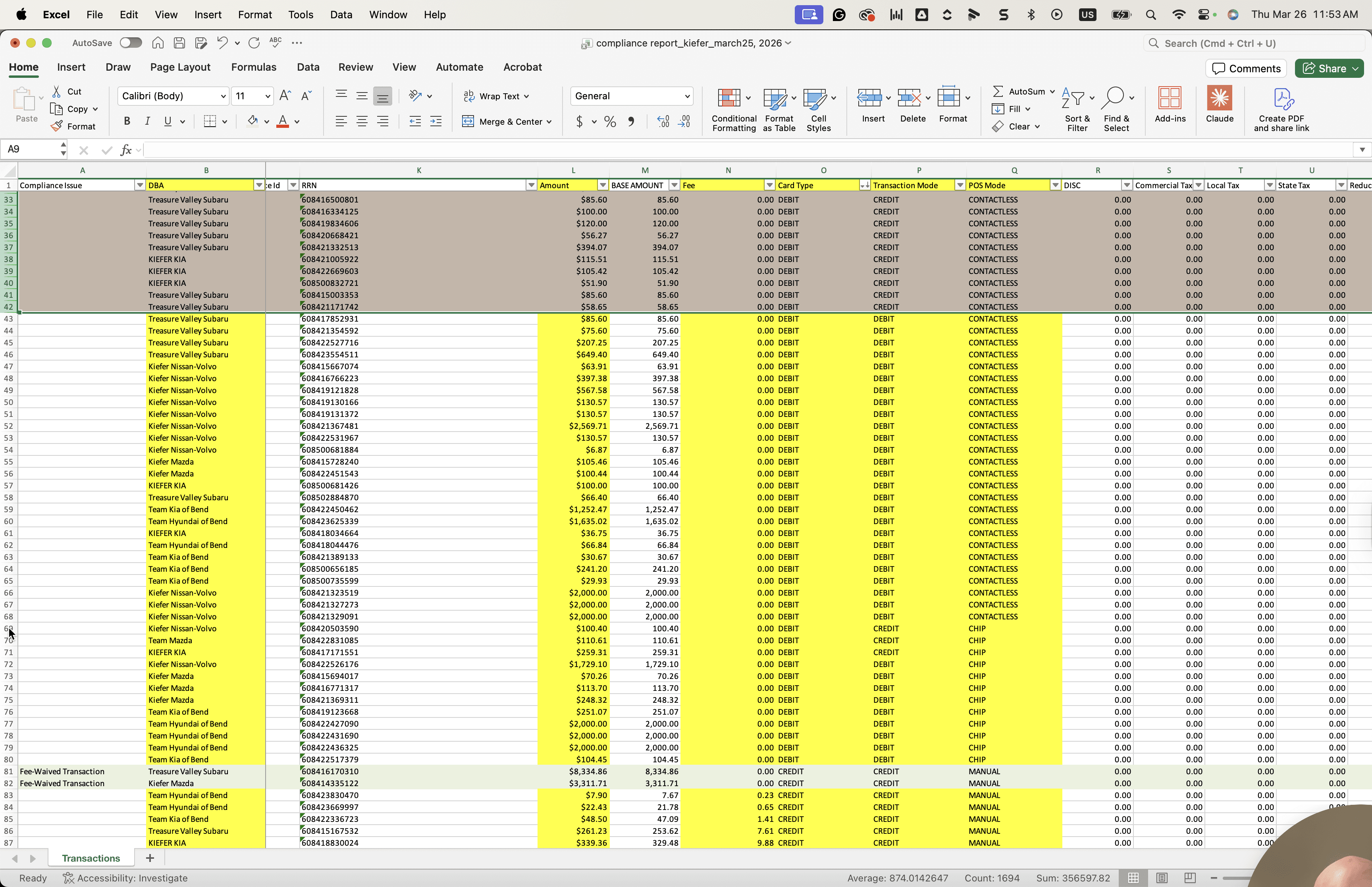
We have debit, run as credit, and manual. Manual is acceptable because it means the card is not present, so we can ignore that as a compliance issue.
If it's a debit, run it as credit unless it's a manual transaction.
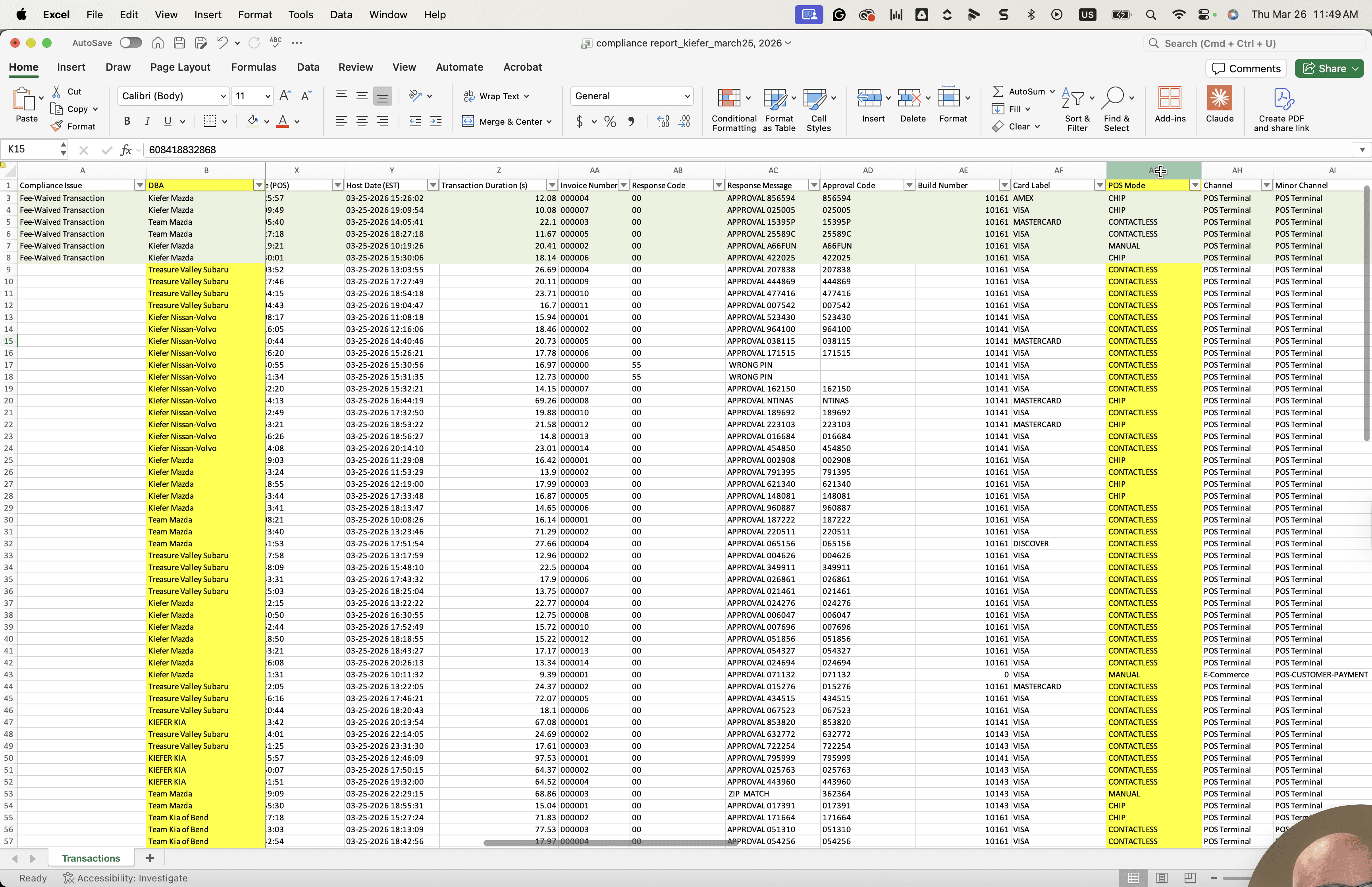
It must be contactless, chip, or swipe; anything else is out of compliance.
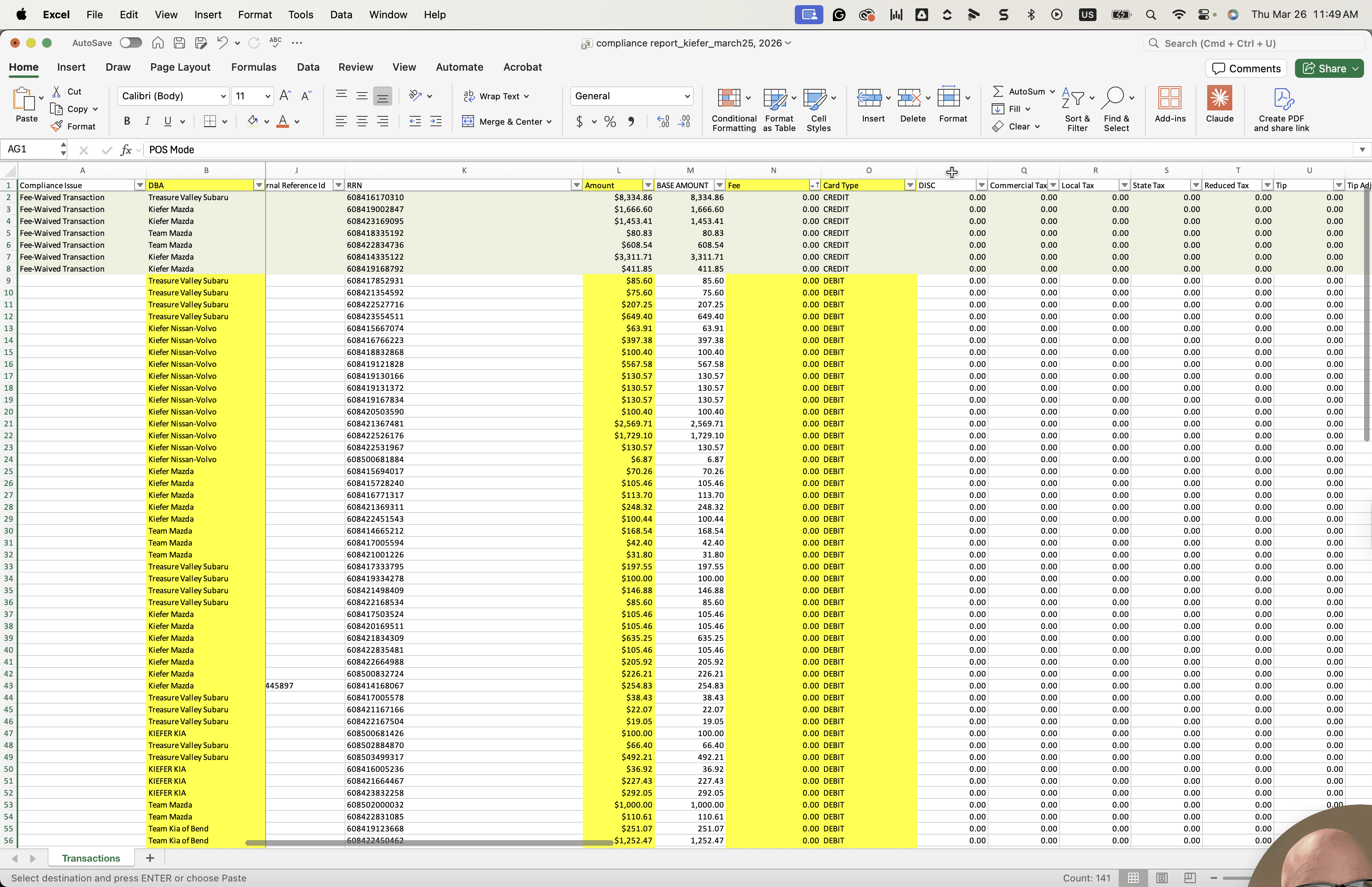
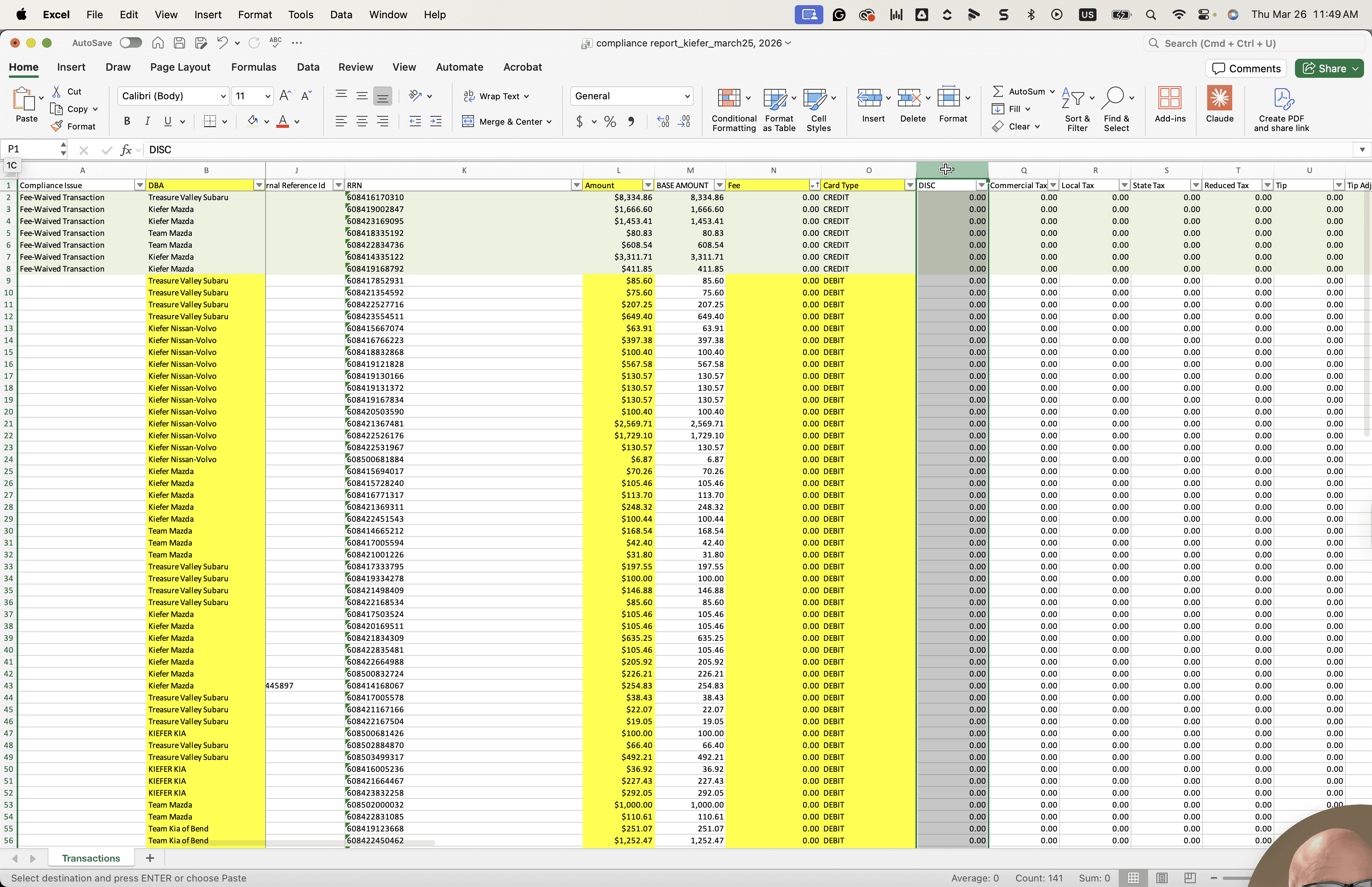
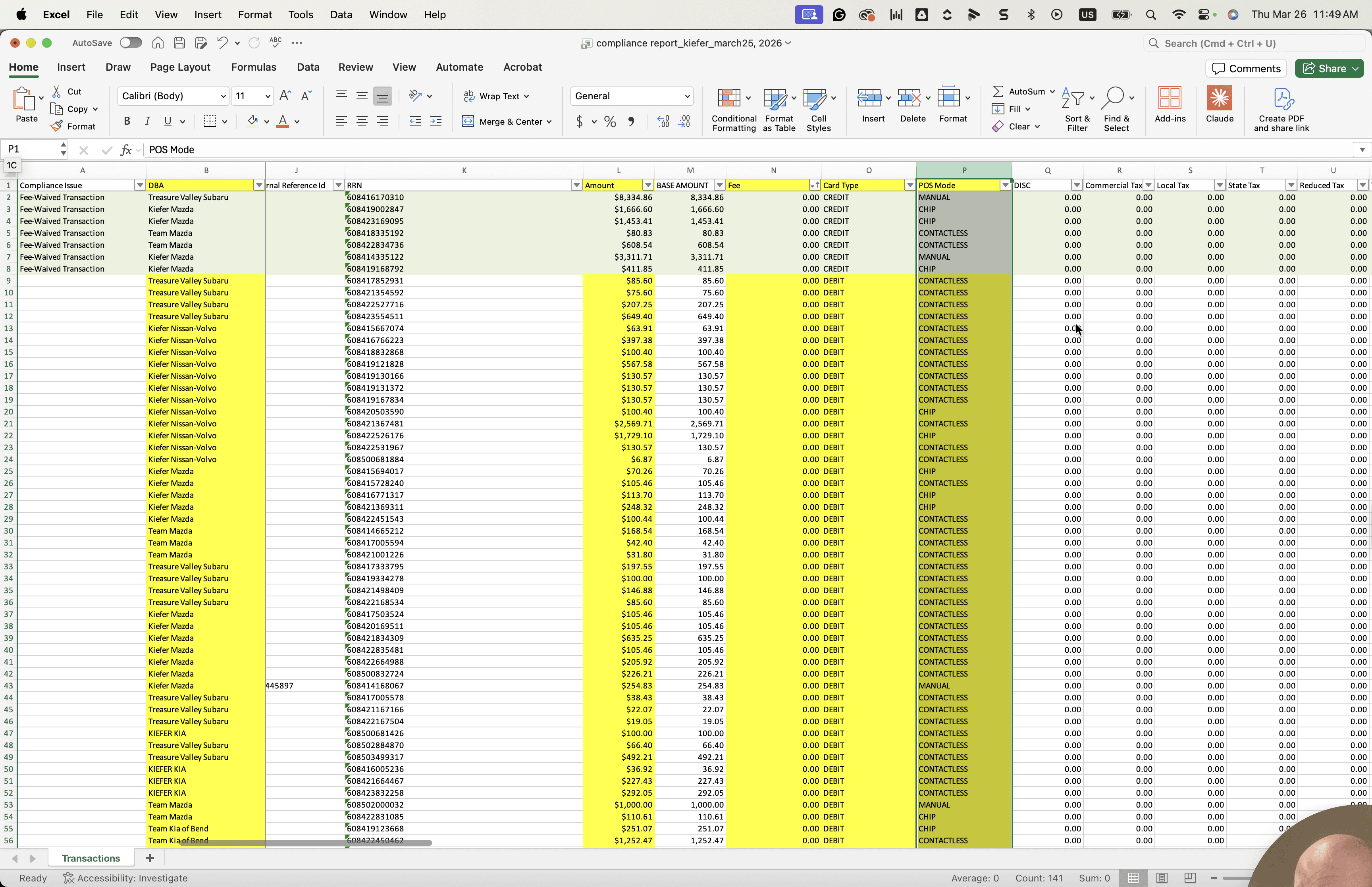
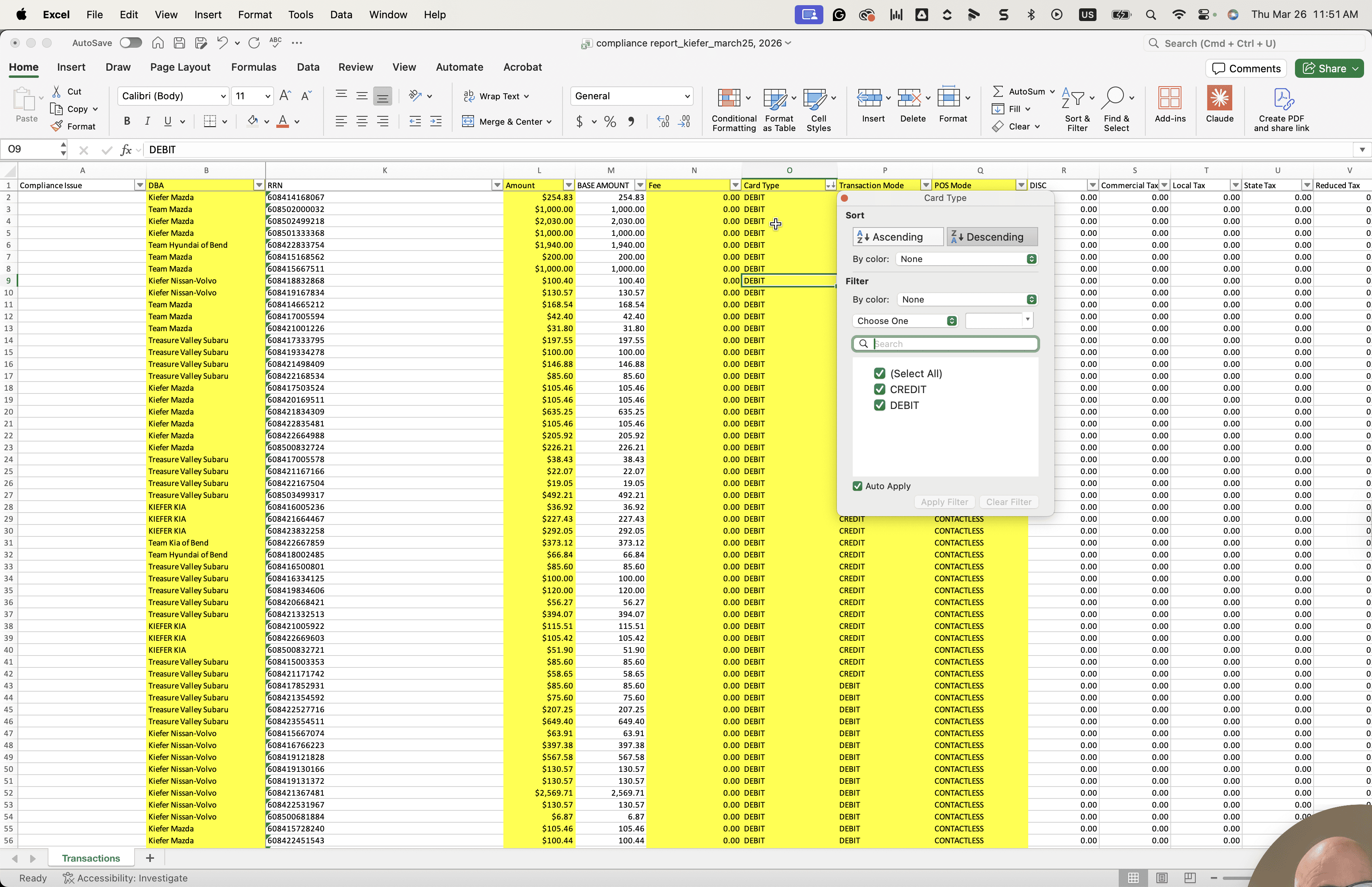
Anytime you see debit or credit contactless used, it means the card is present. This is out of compliance. We look at all of these here. There are many options: debit, debit, debit, or run as credit.
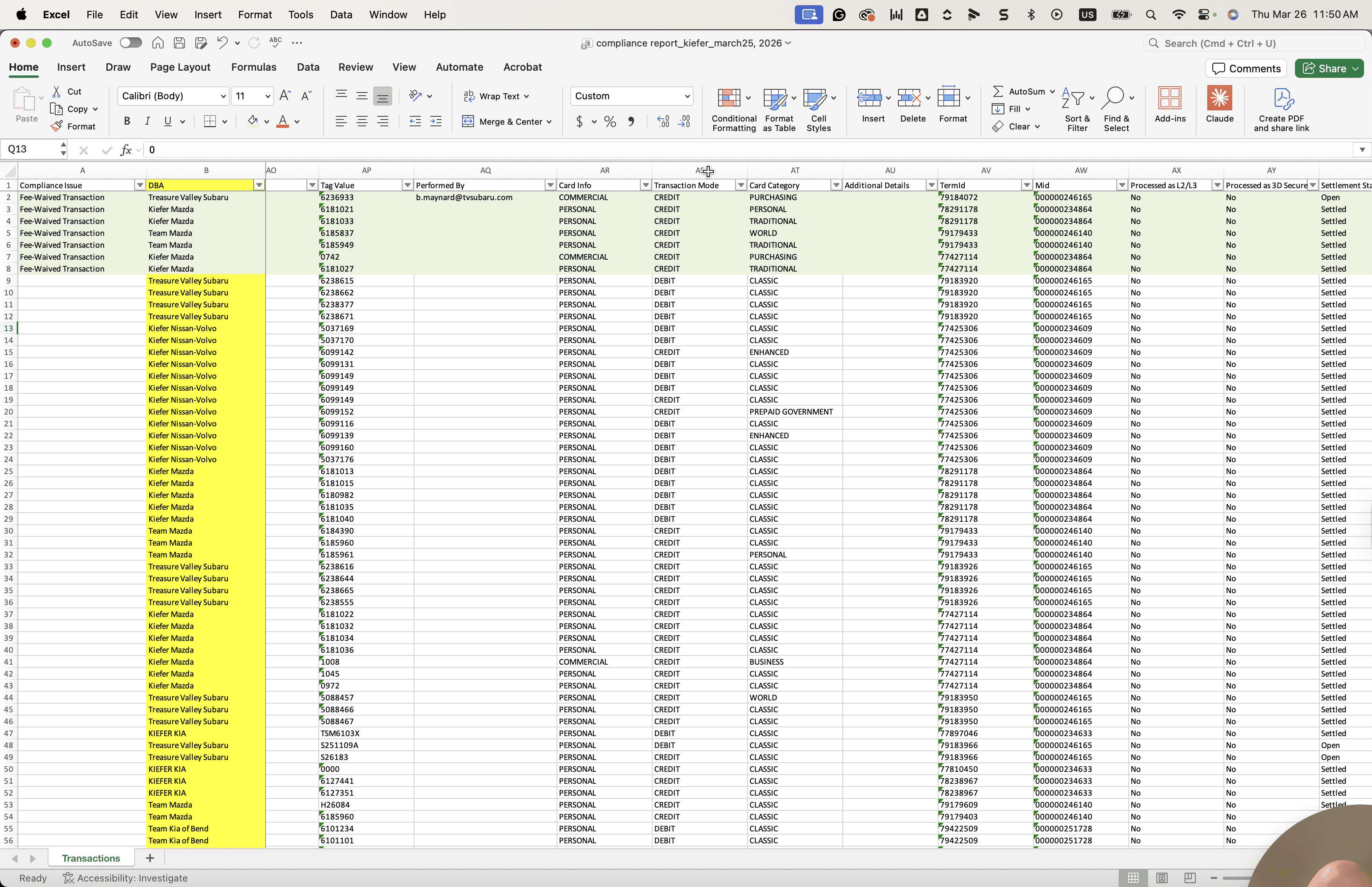
As soon as it says "debit debit," we address that right away, because at that point it has run correctly.
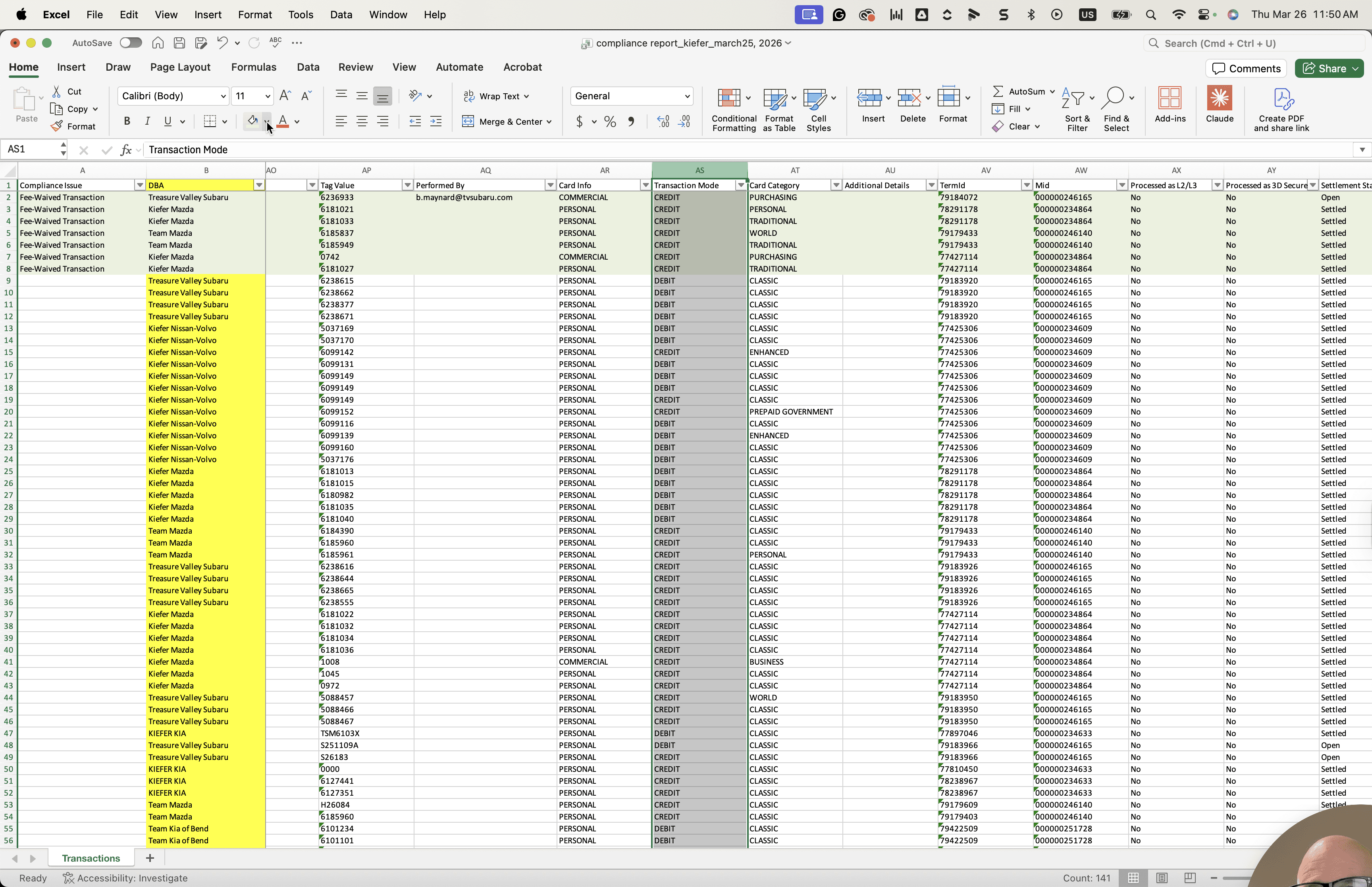
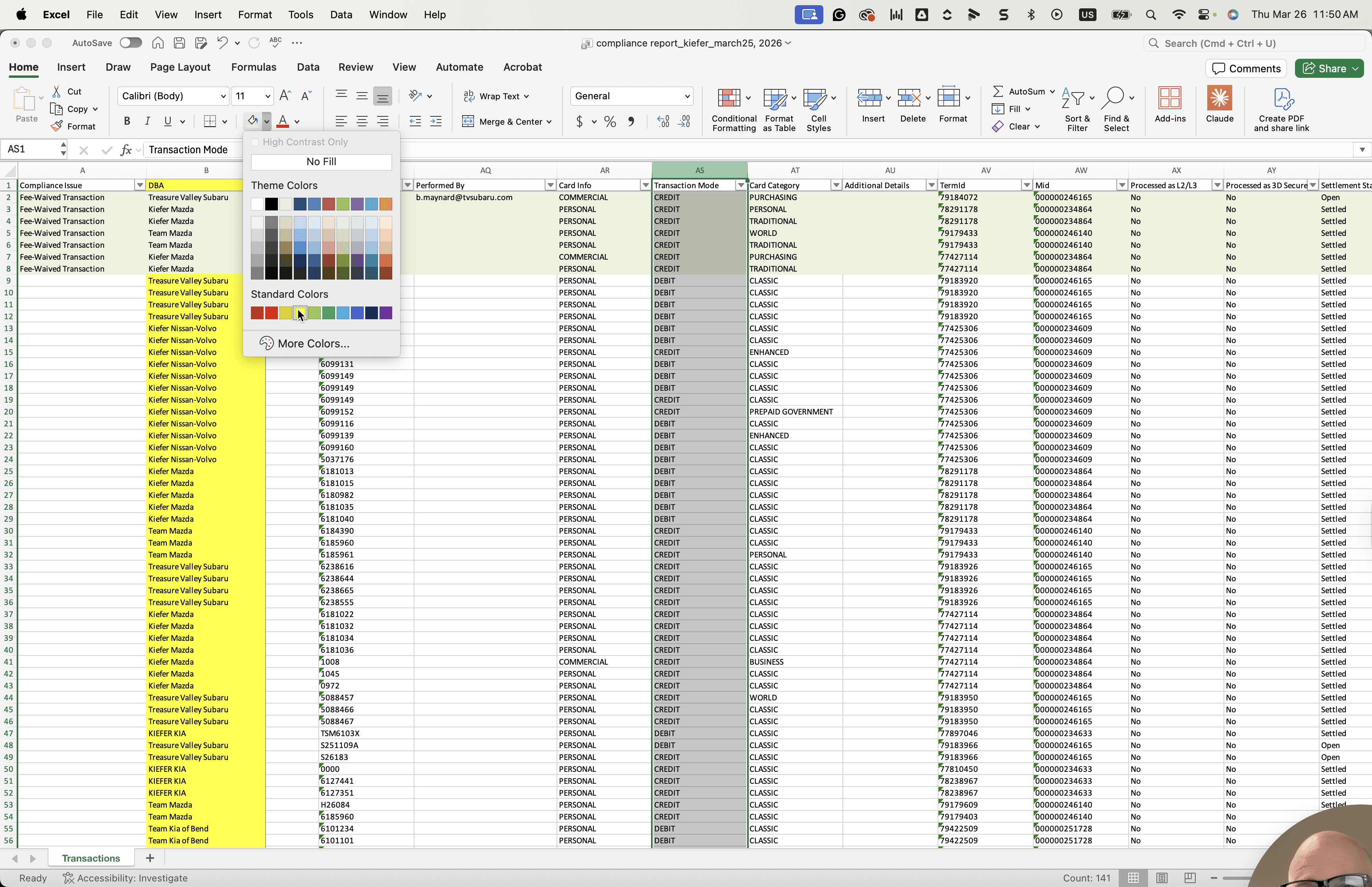
We will use a different color for this.
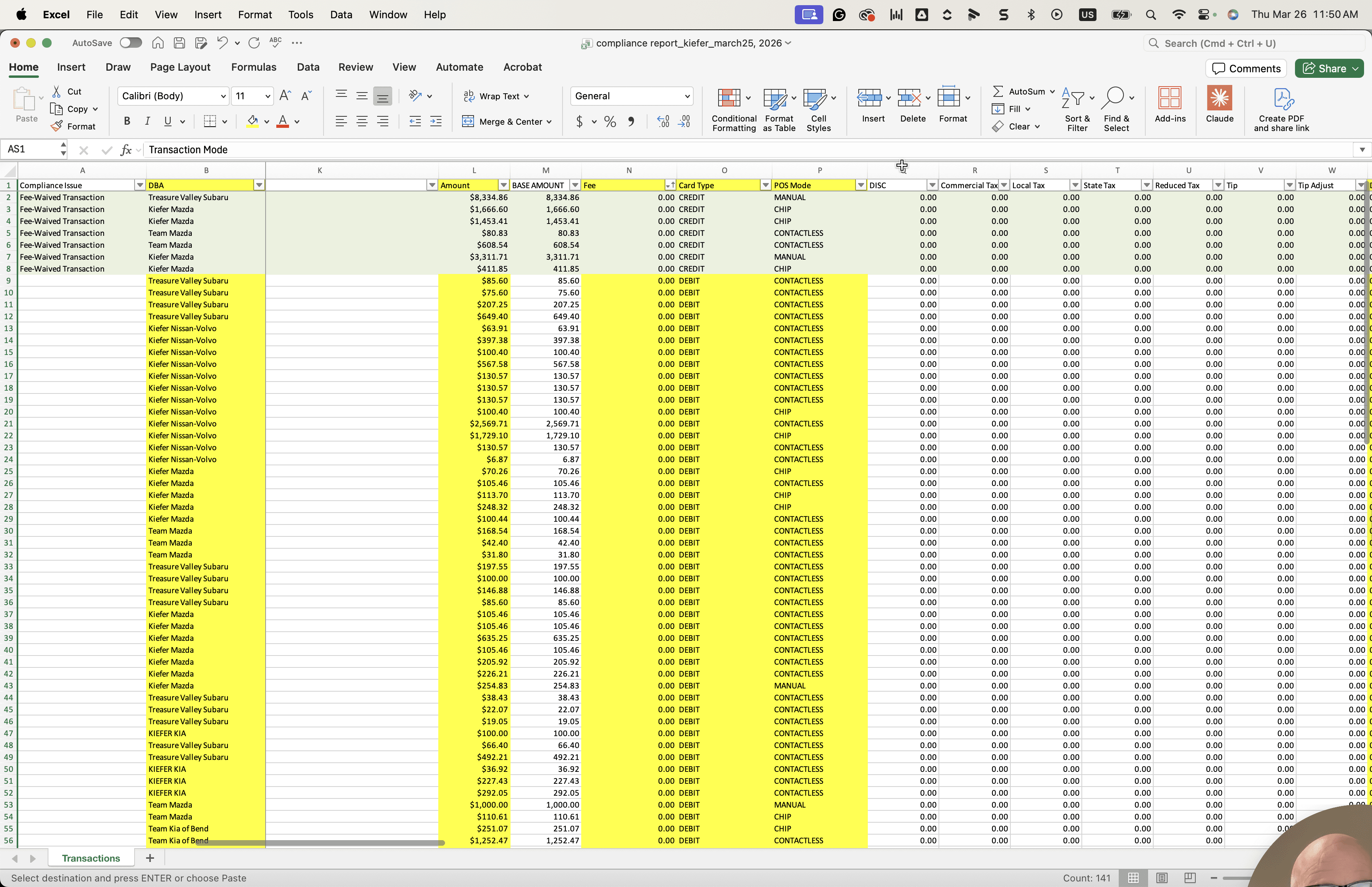
We'll call this one orange.
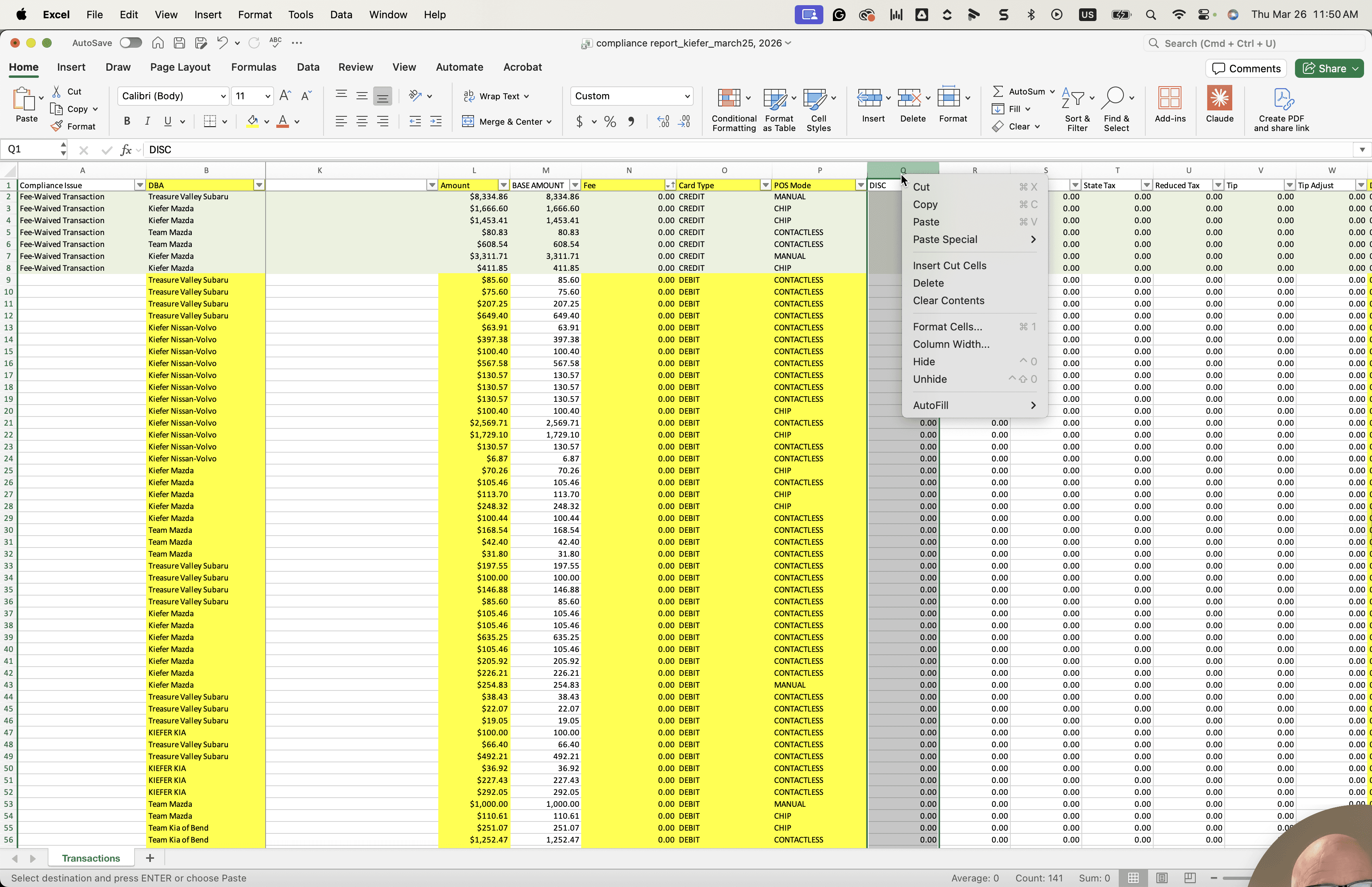
Again, running a debit as a debit is not out of compliance.
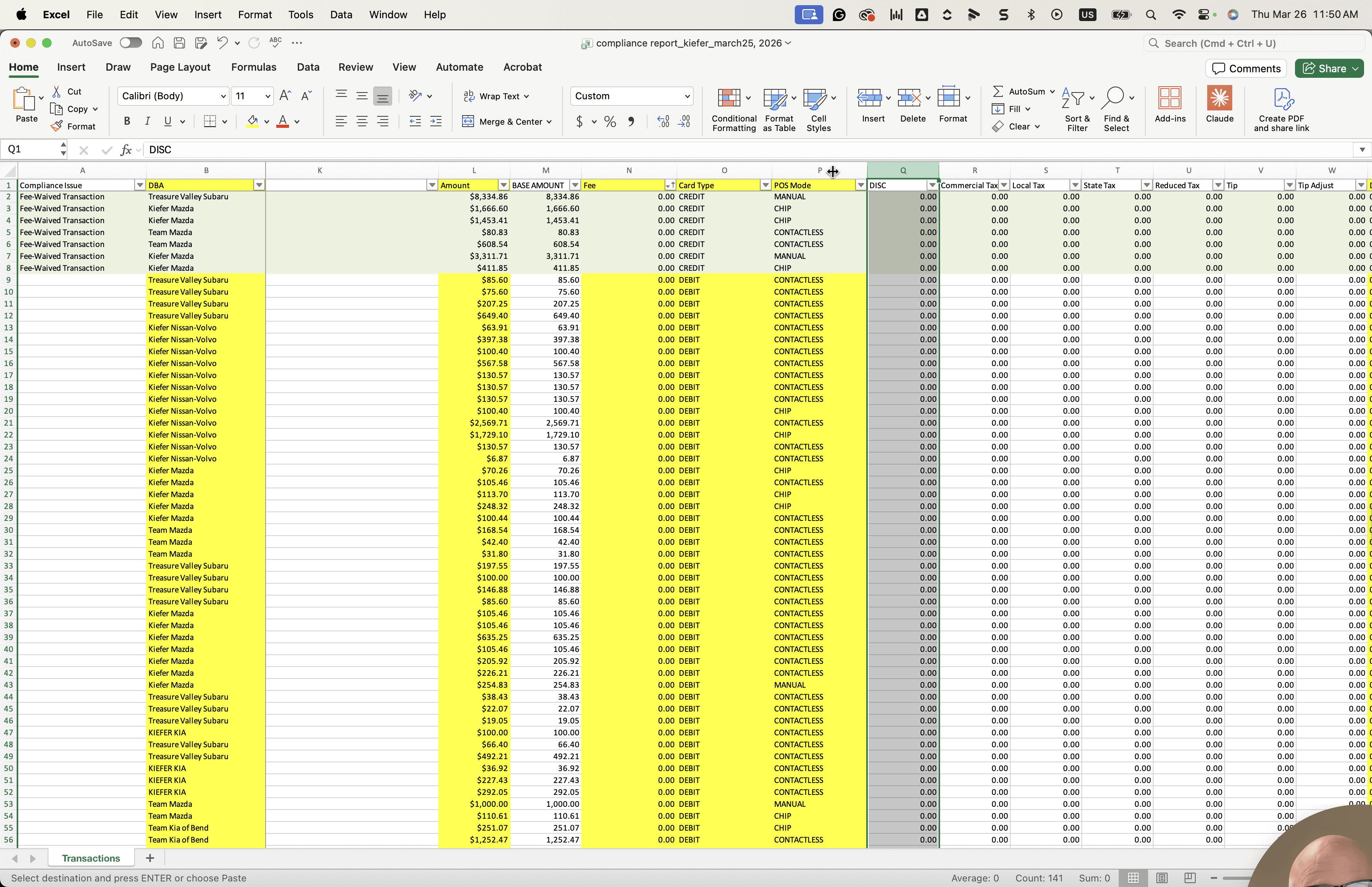
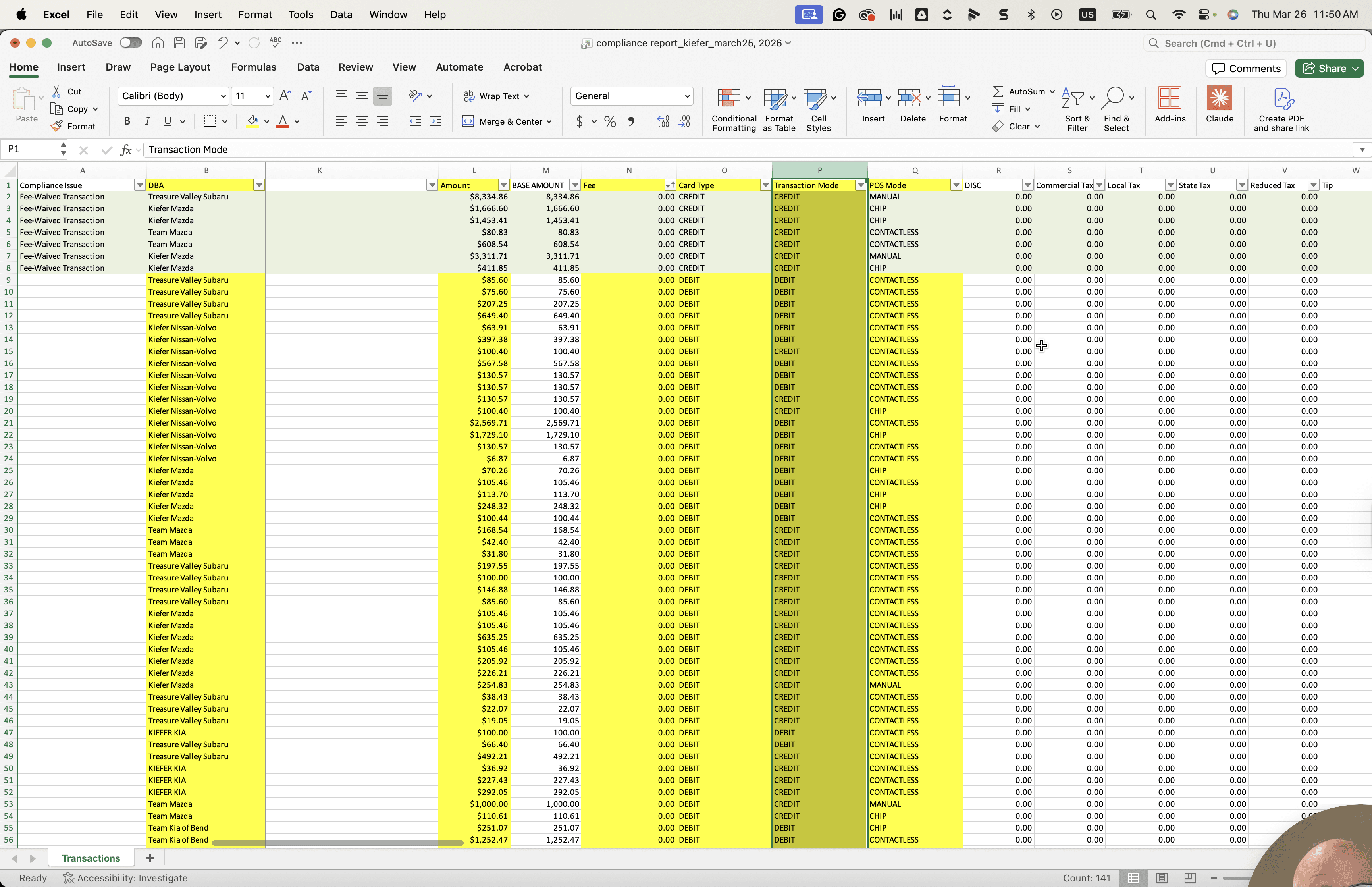
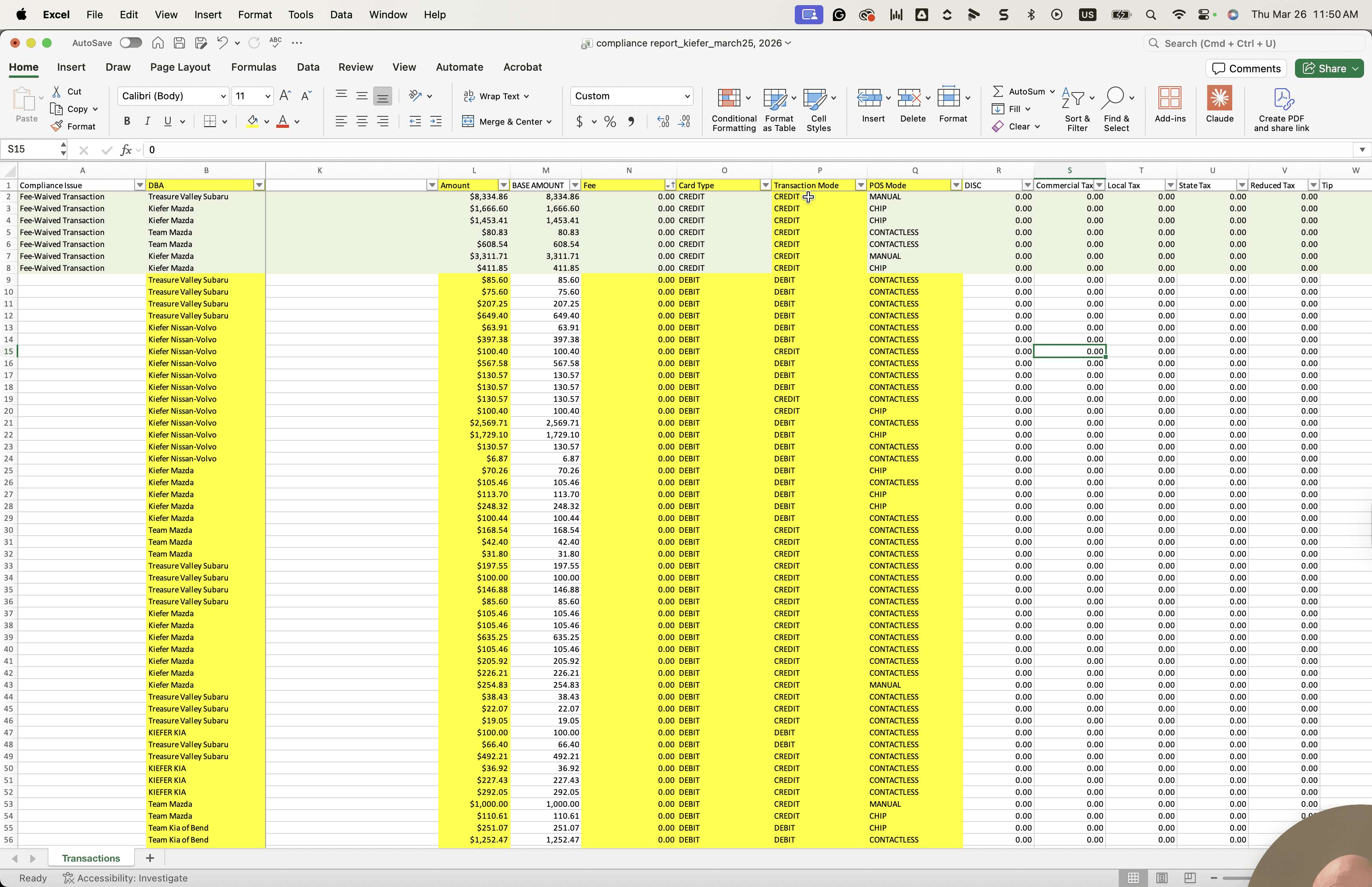
Here we have a debit run processed as credit using a chip.
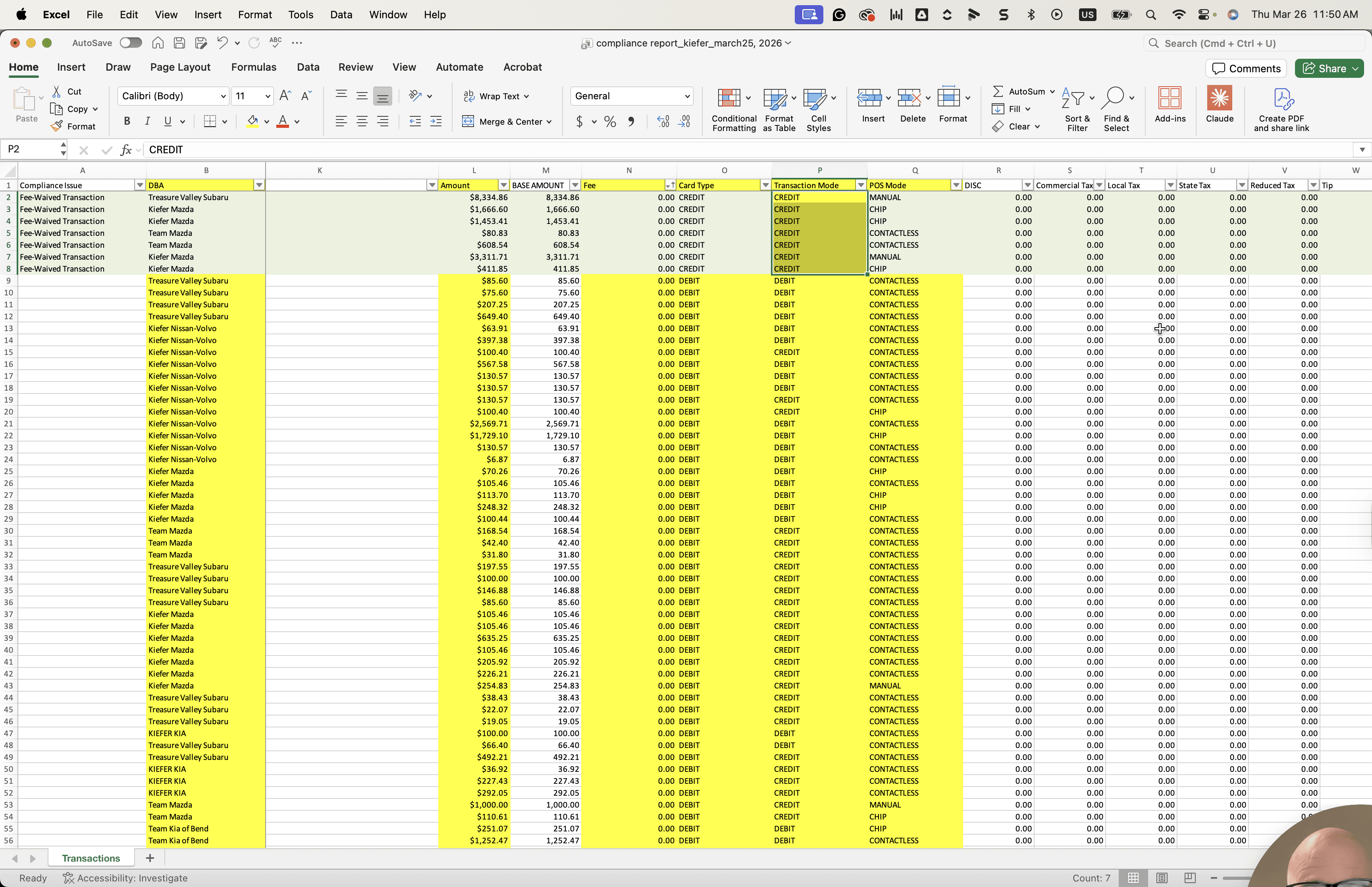
This is also non-compliant. There are three of these.
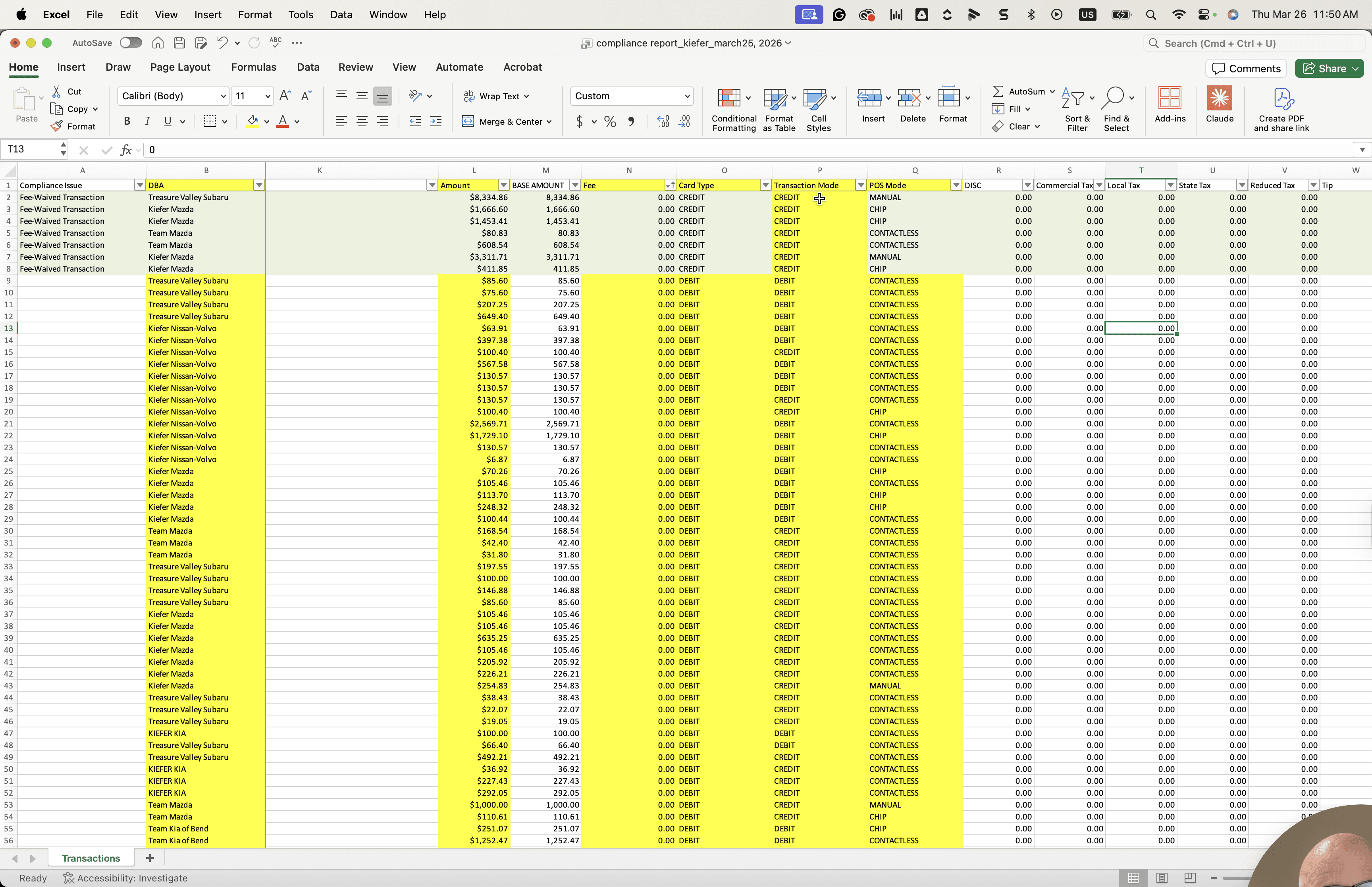
I think that is it.
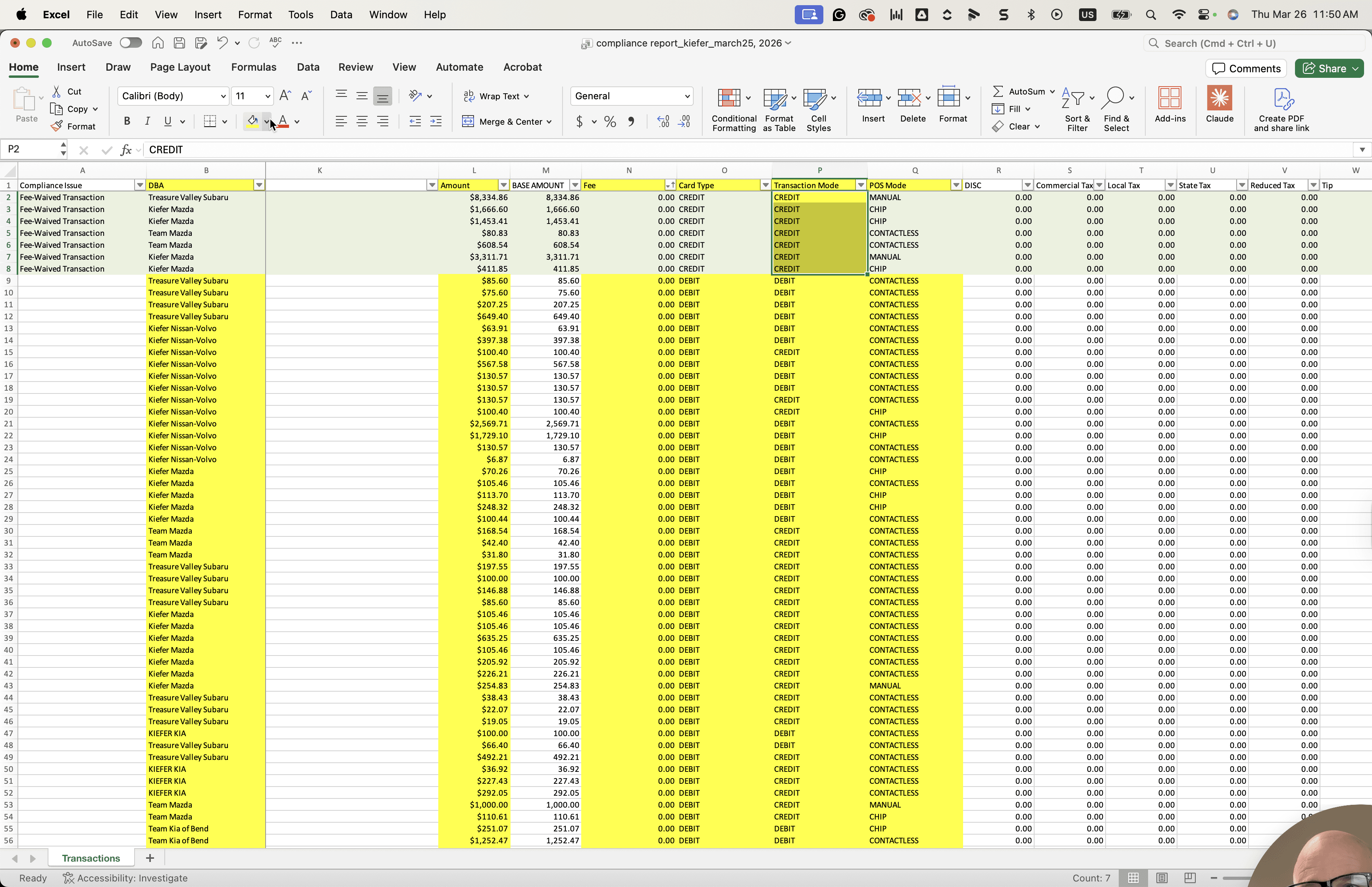
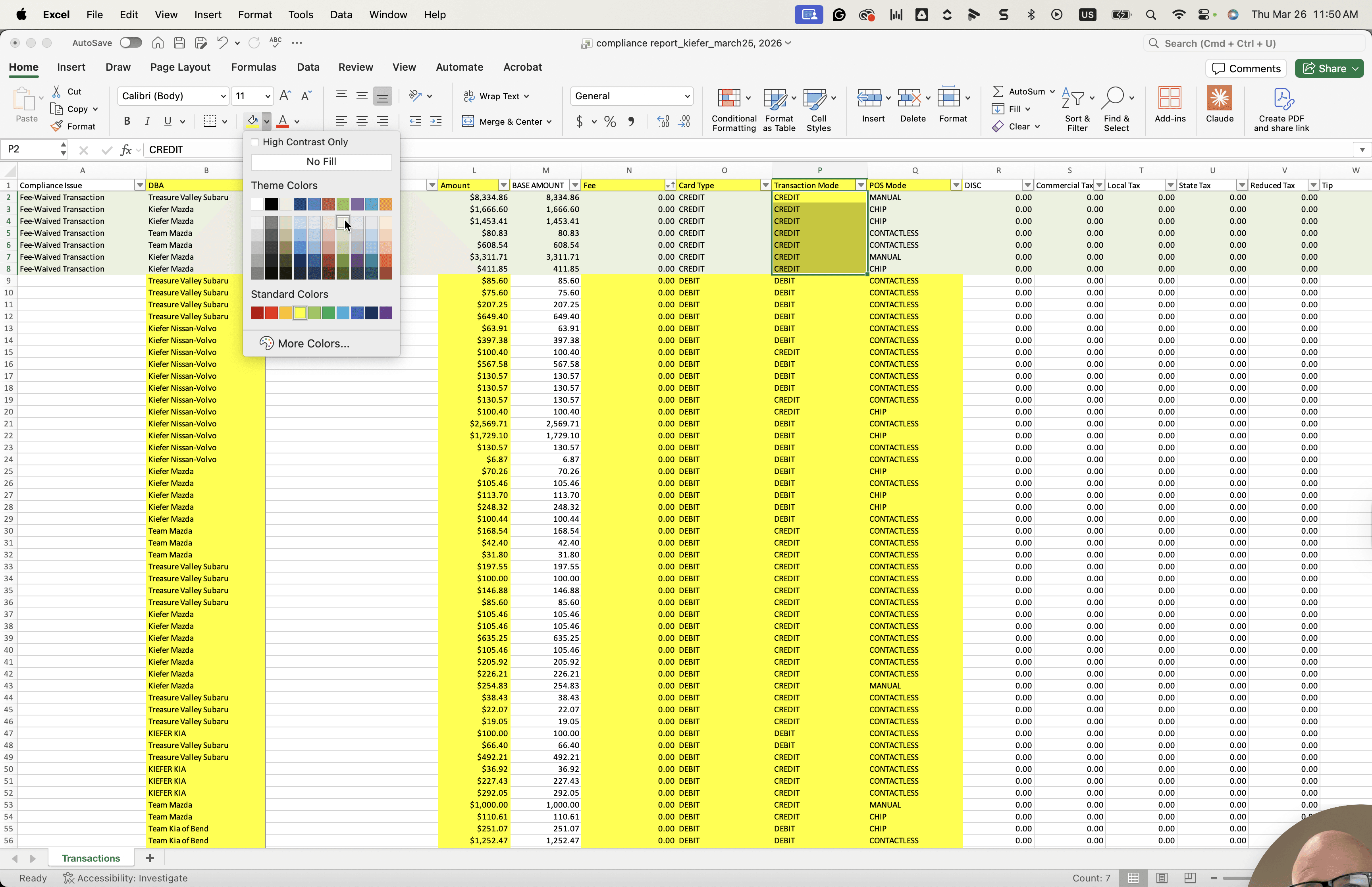
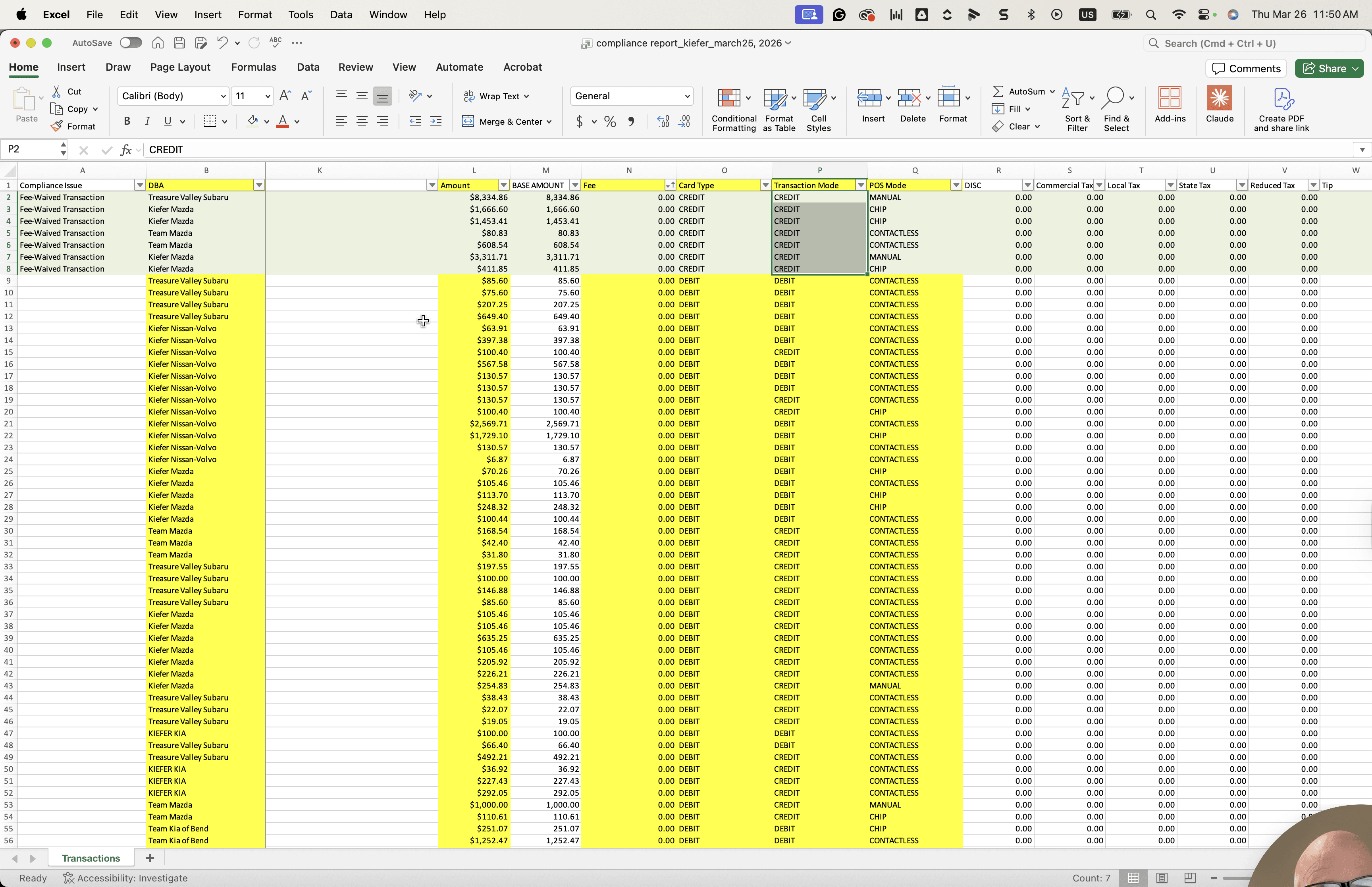
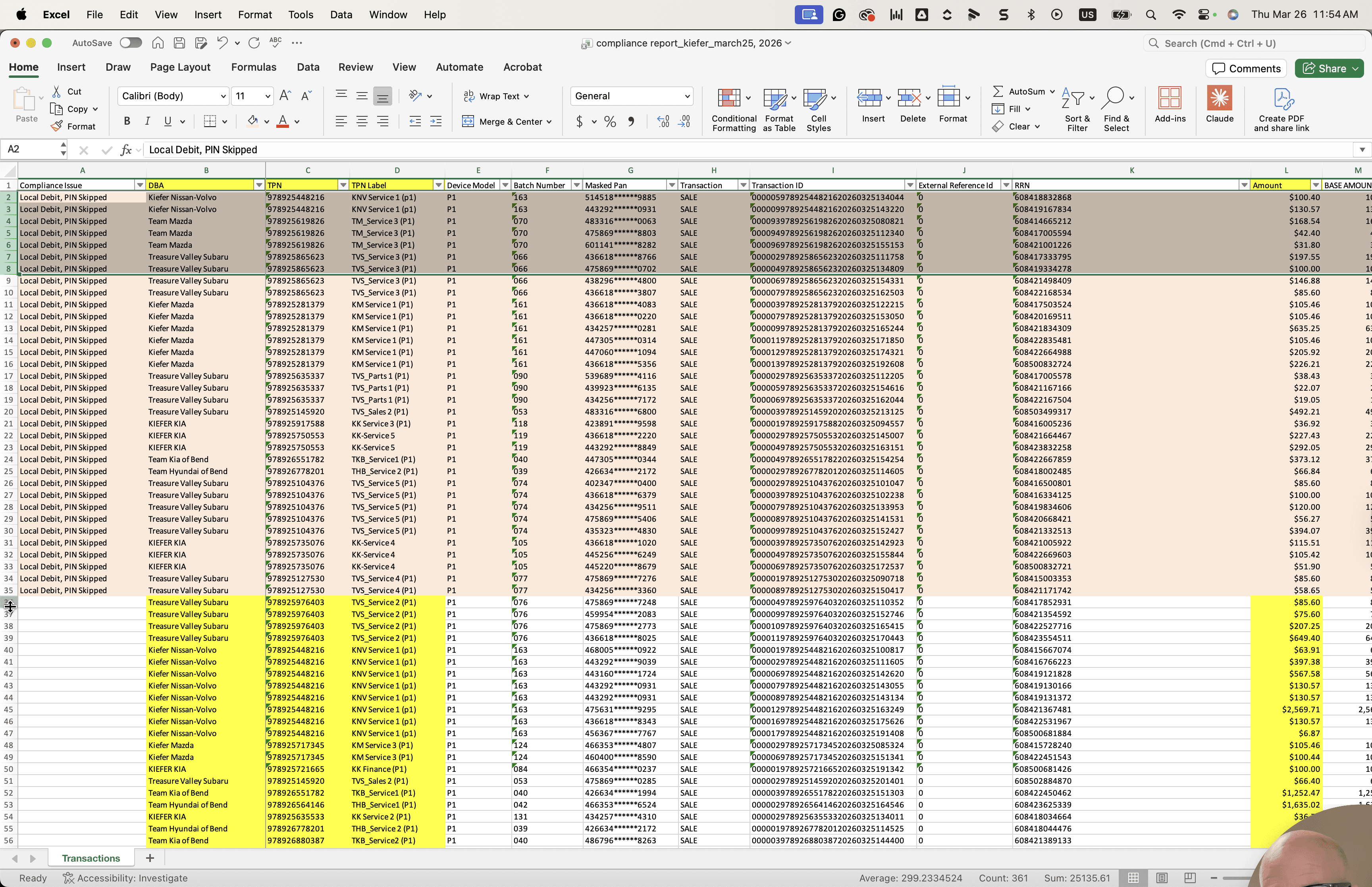
Now that we've identified all the items that meet the requirements, we can label them.
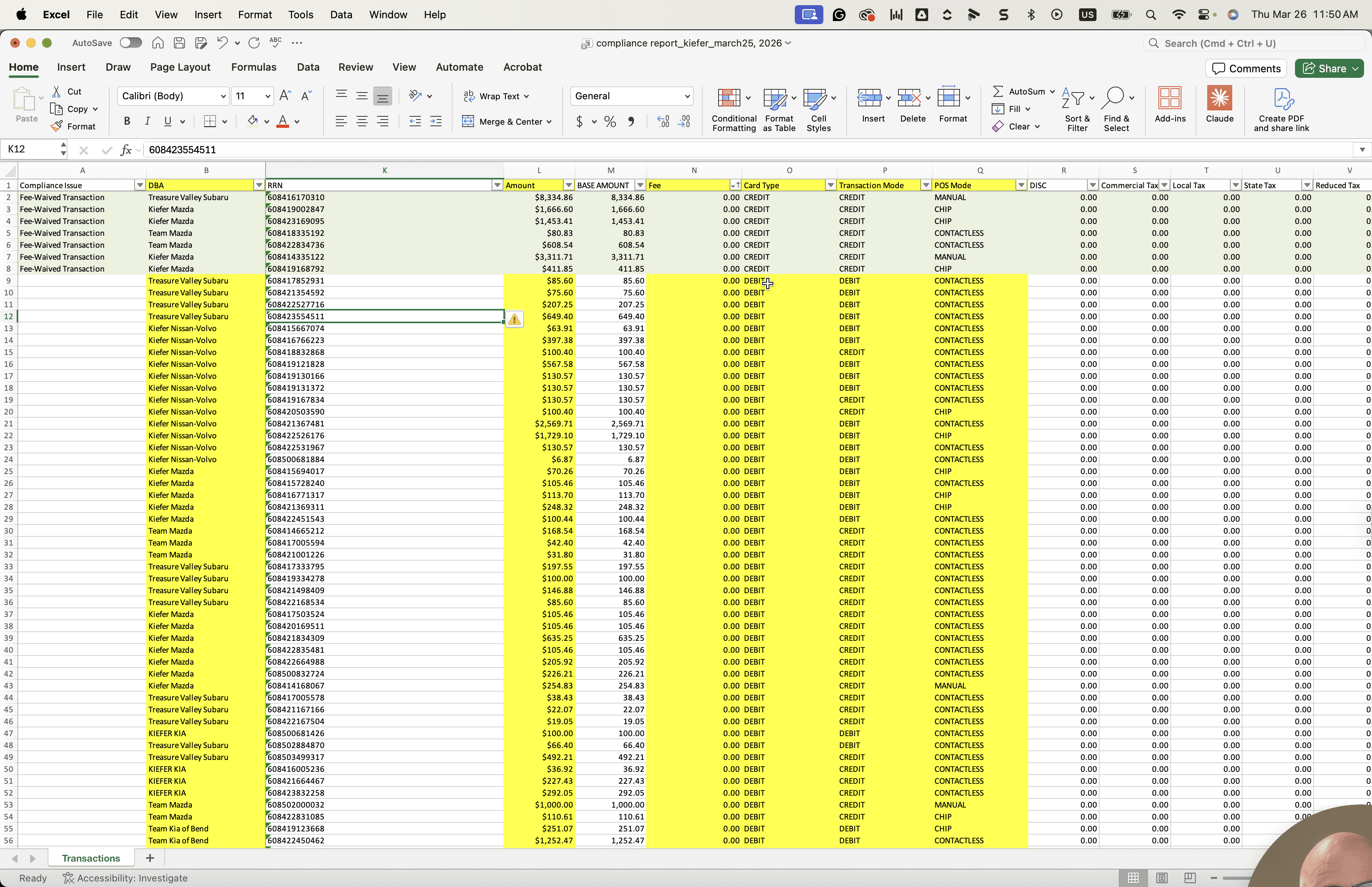
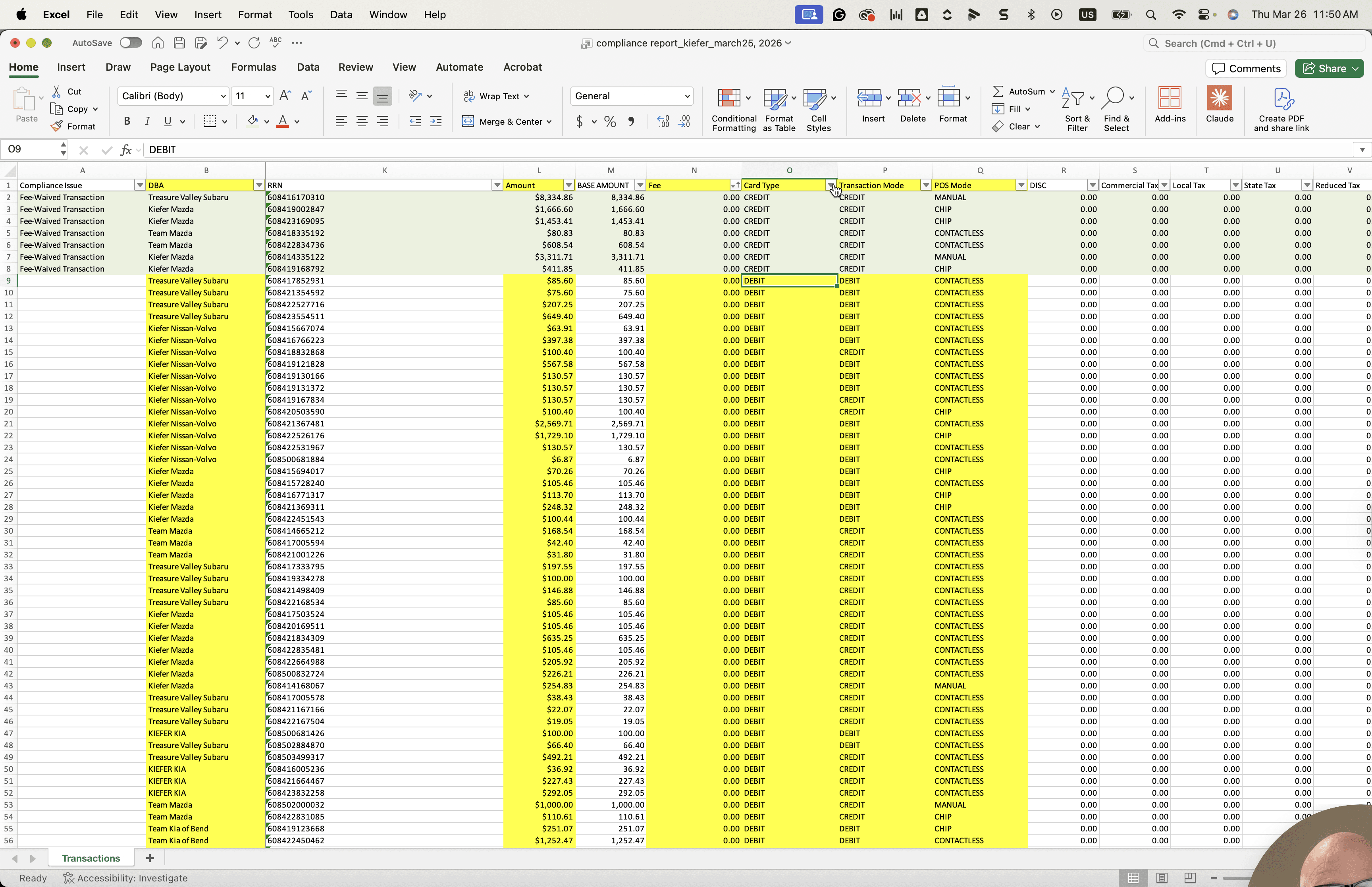
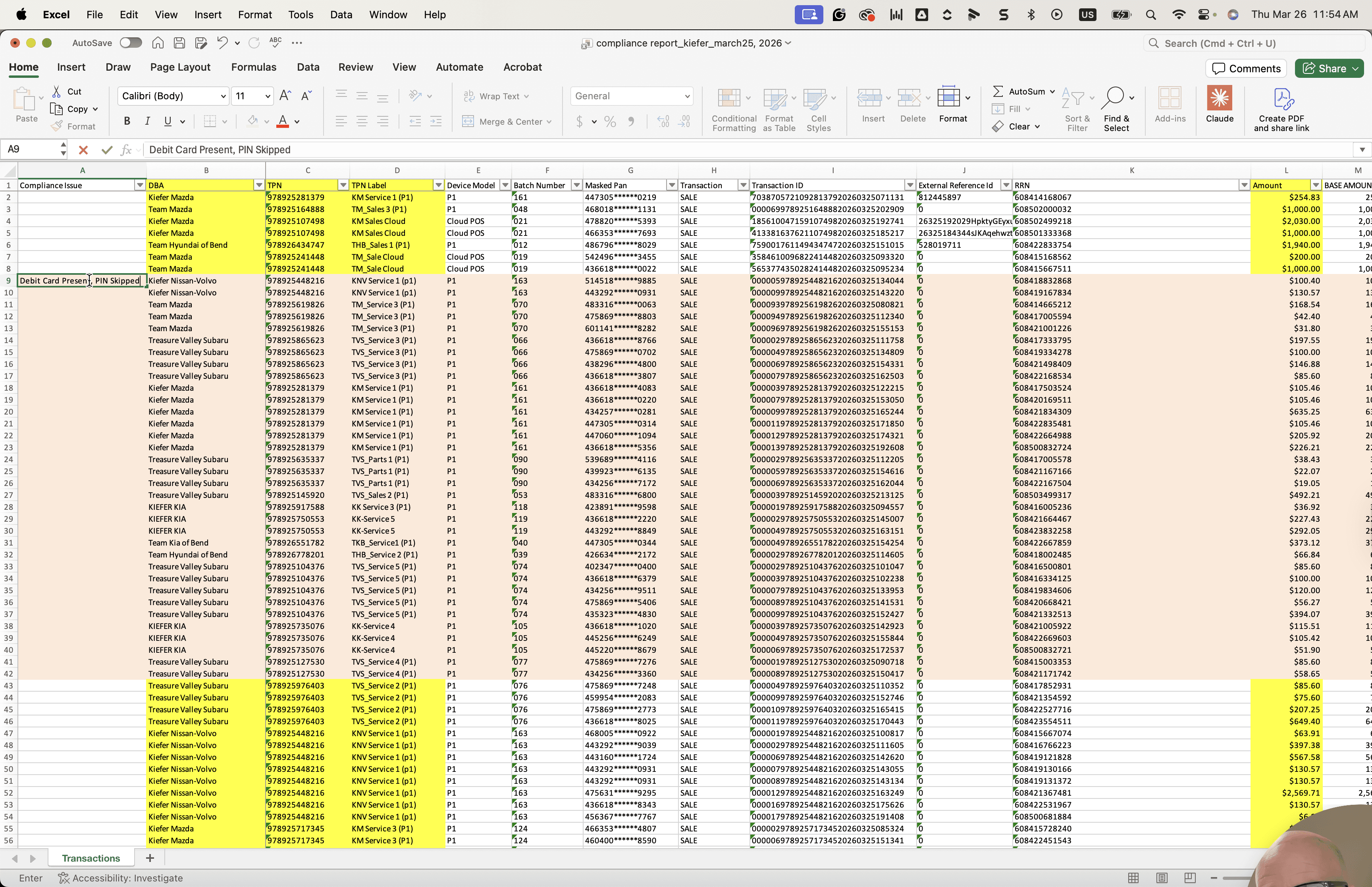
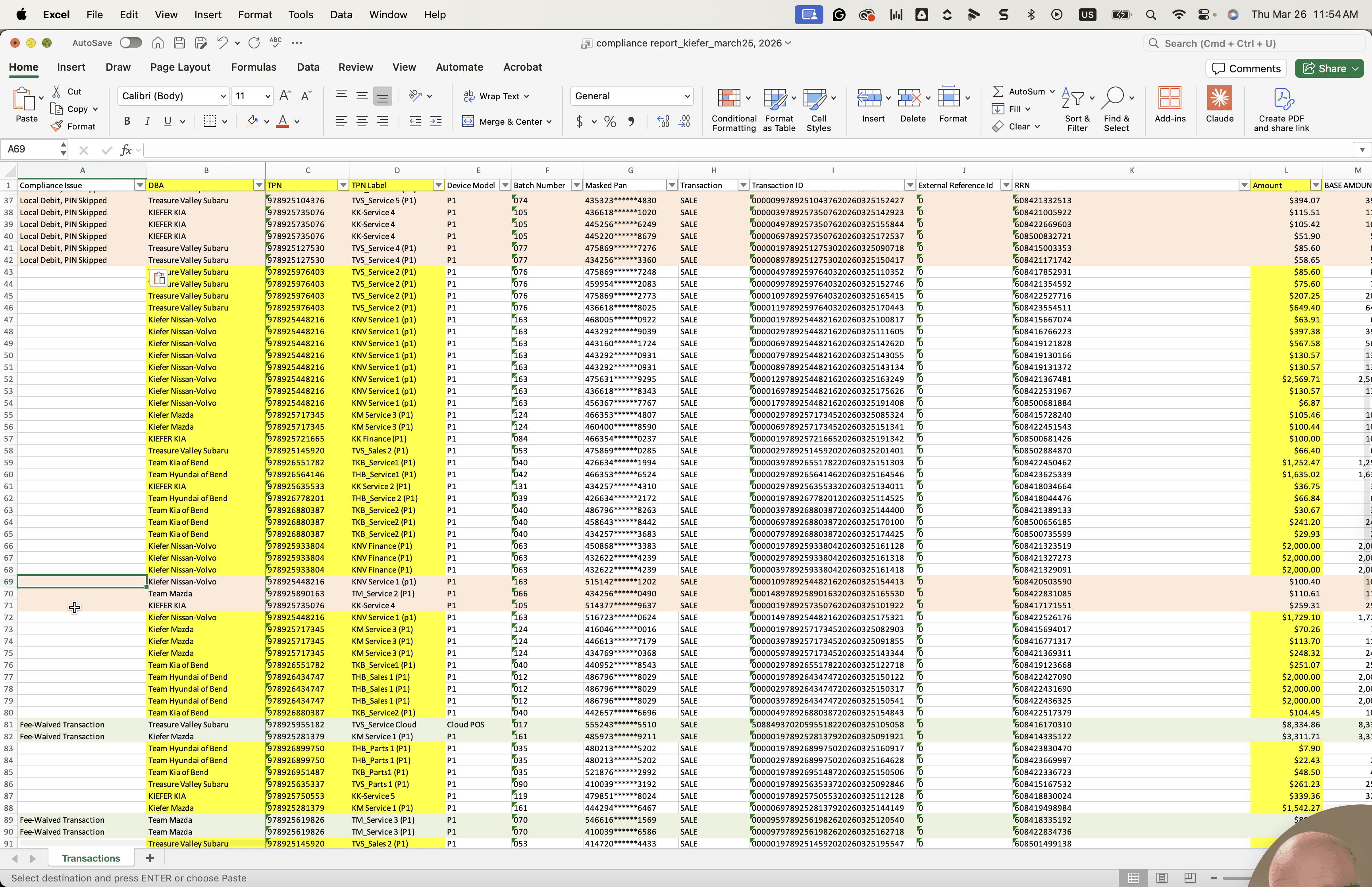
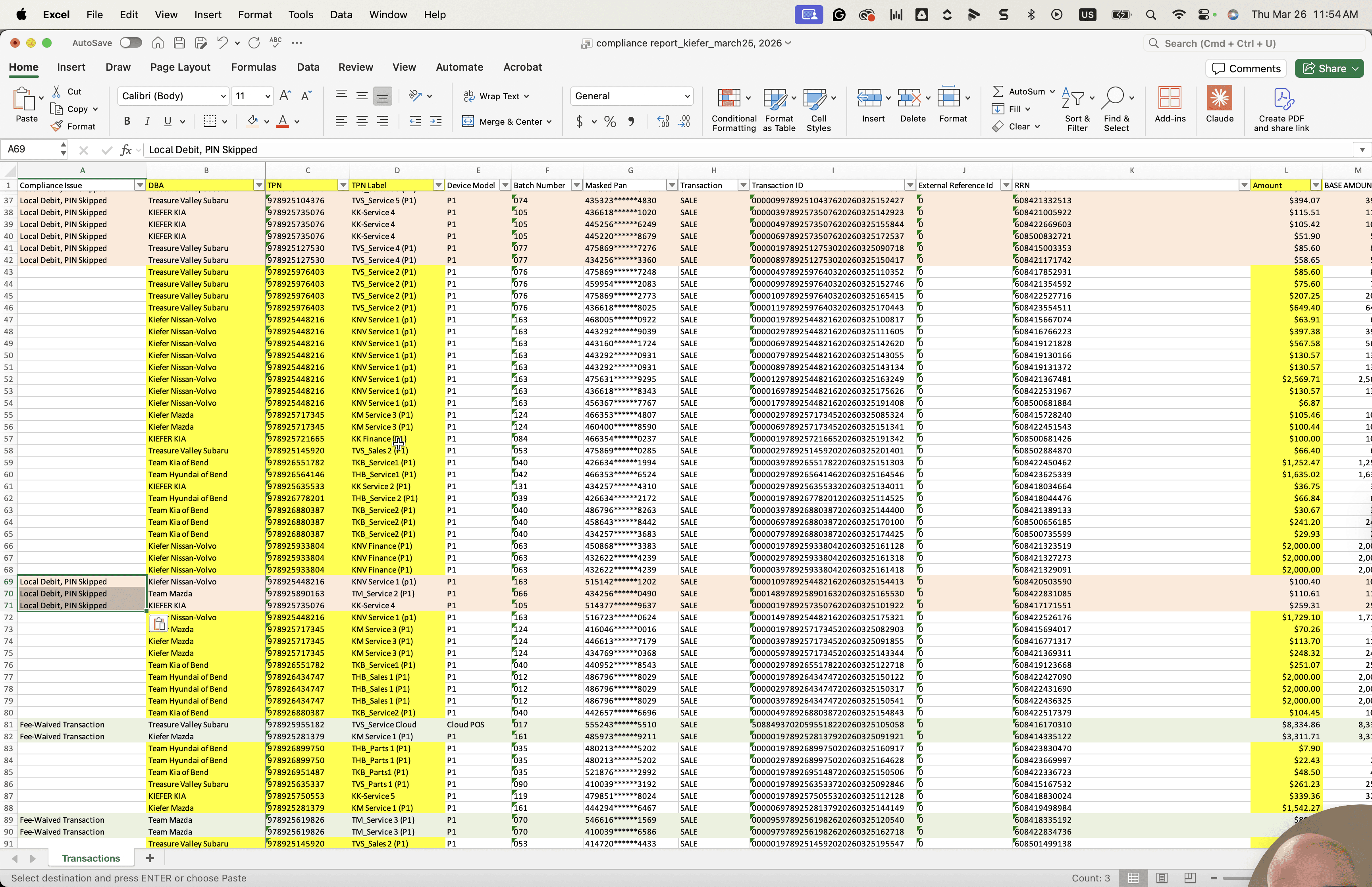
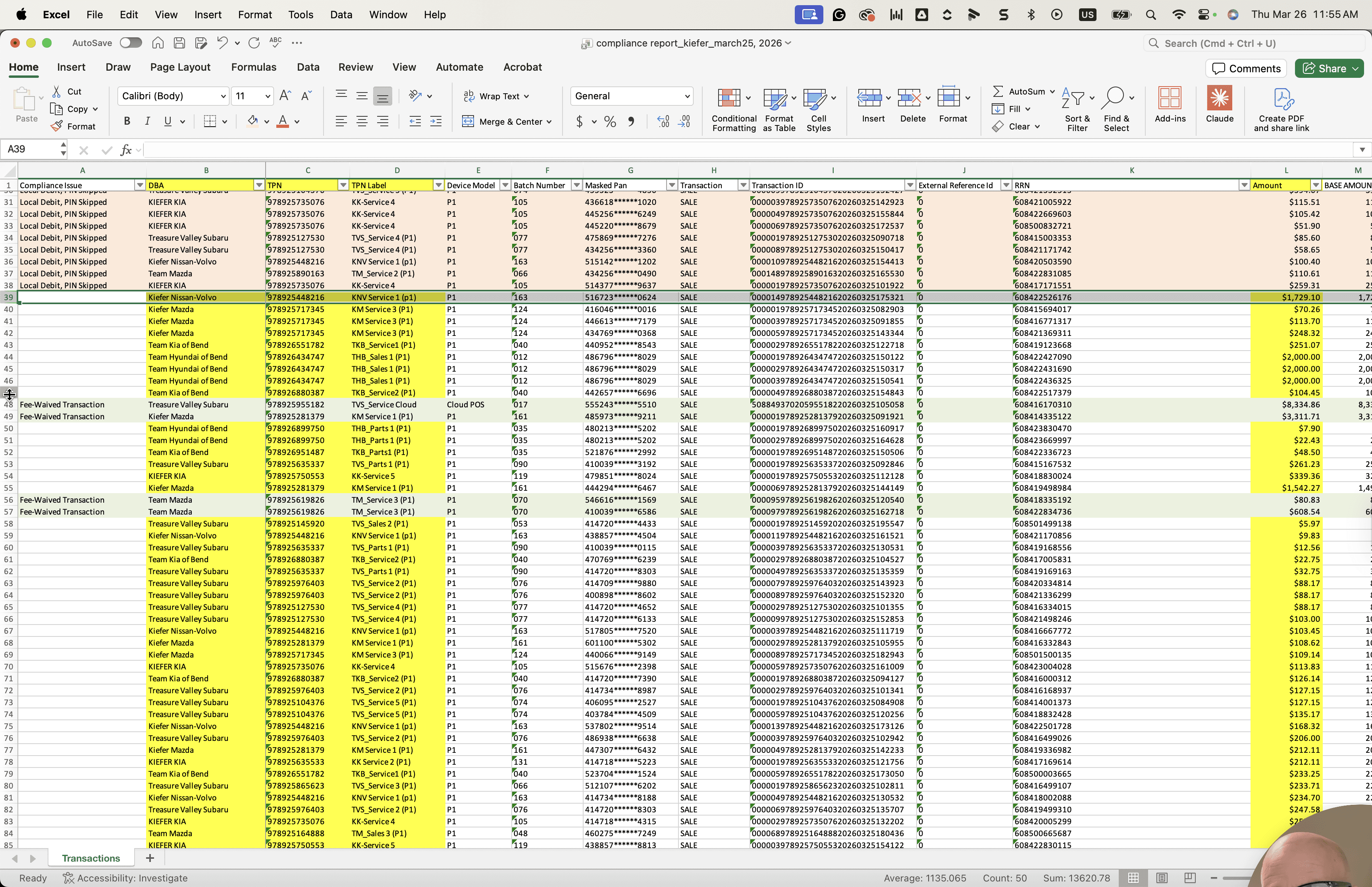
The compliance issue here is that pin debit was skipped.
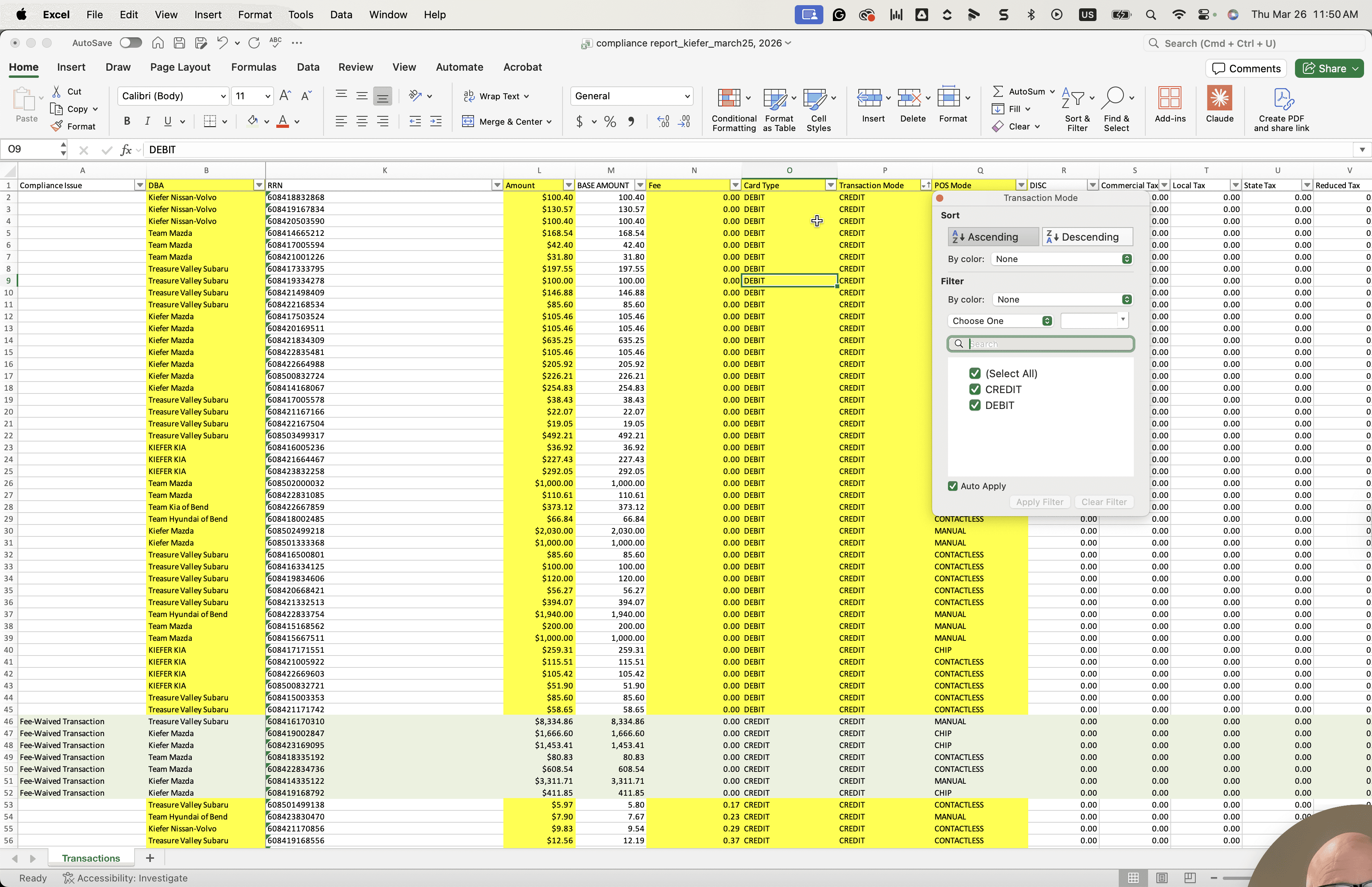
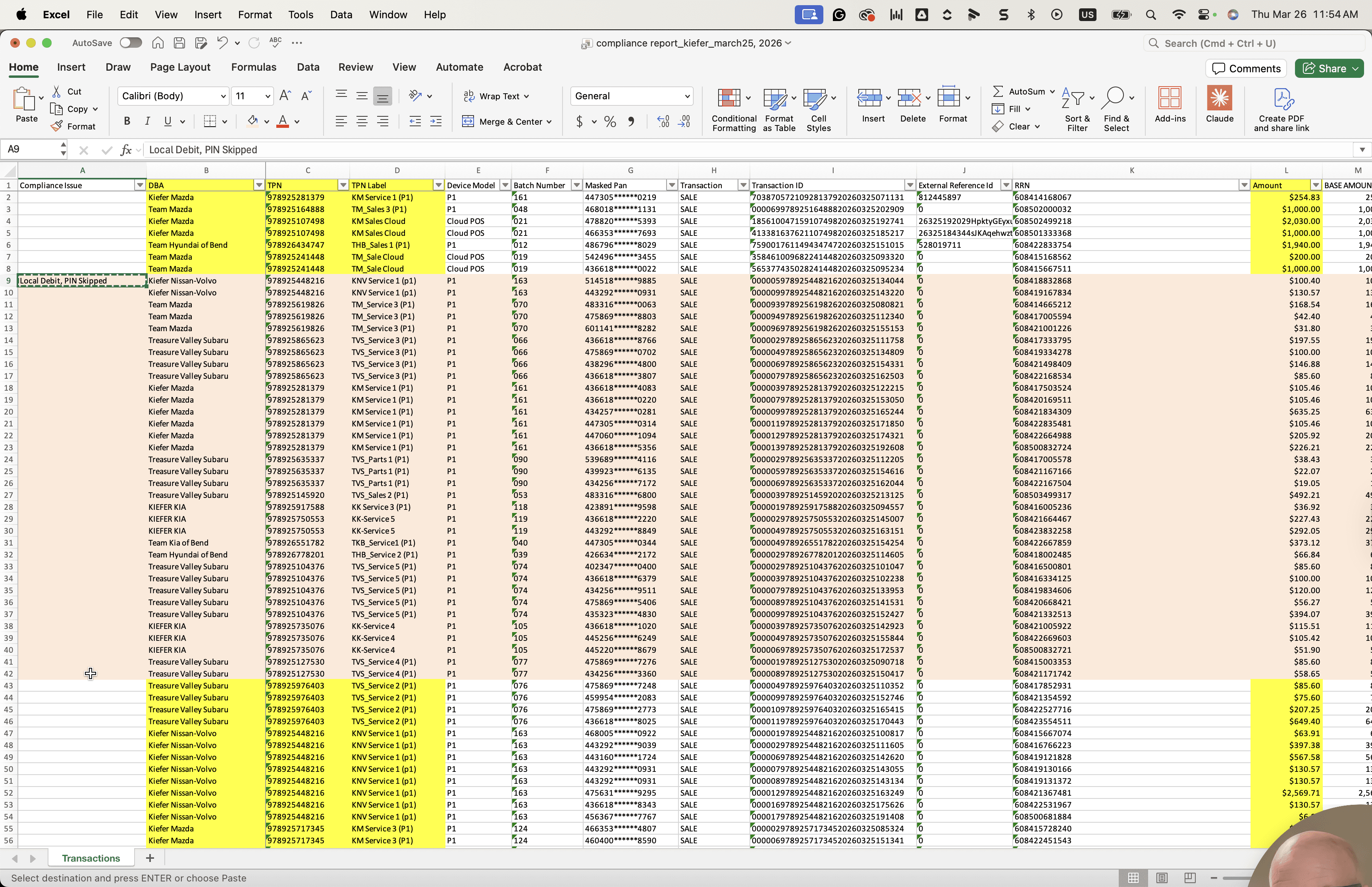
Debit card present, PIN skipped. To make it easier, we'll call it "Local Debit PIN Skipped." This applies to anyone in that area.
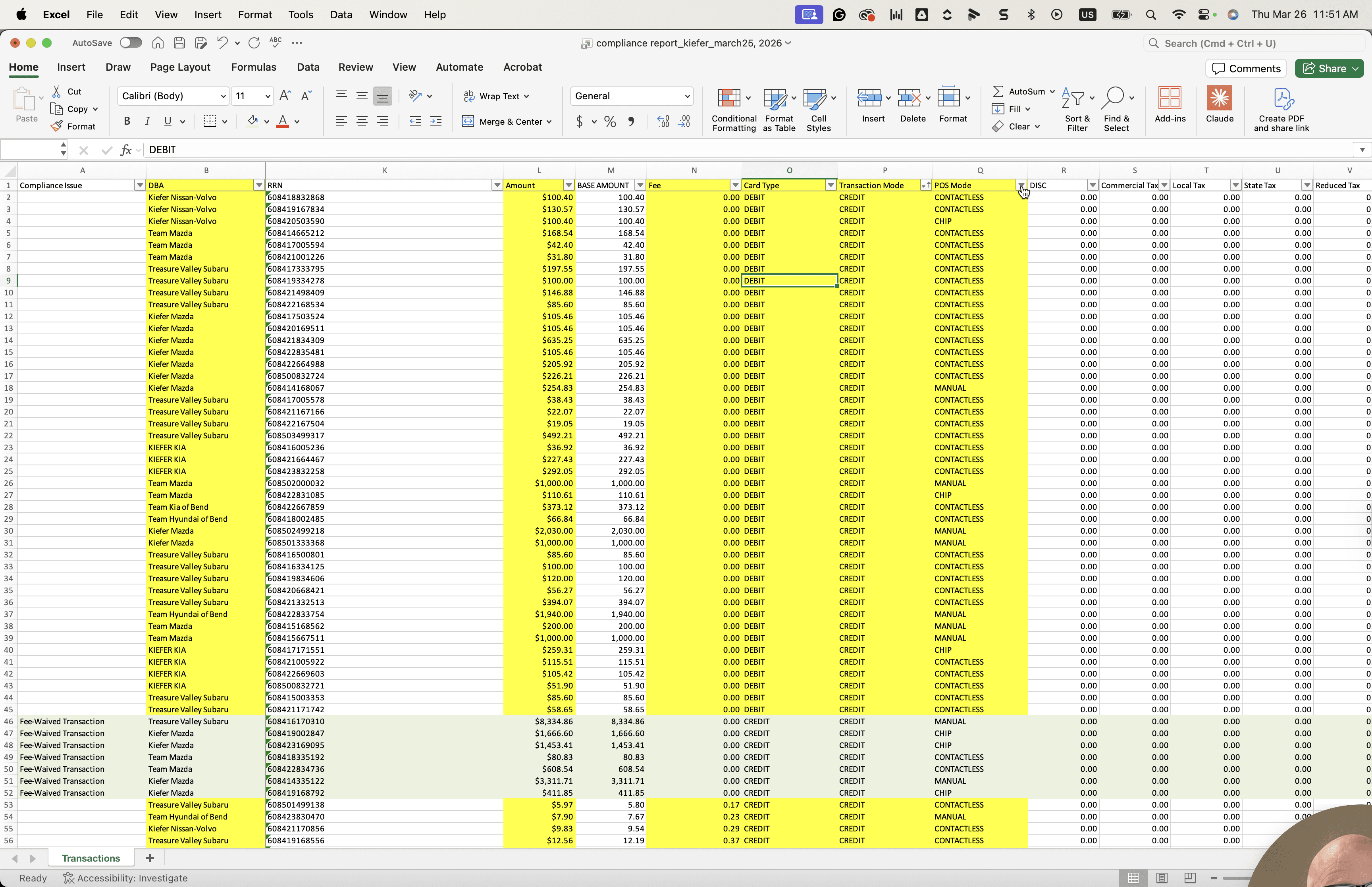
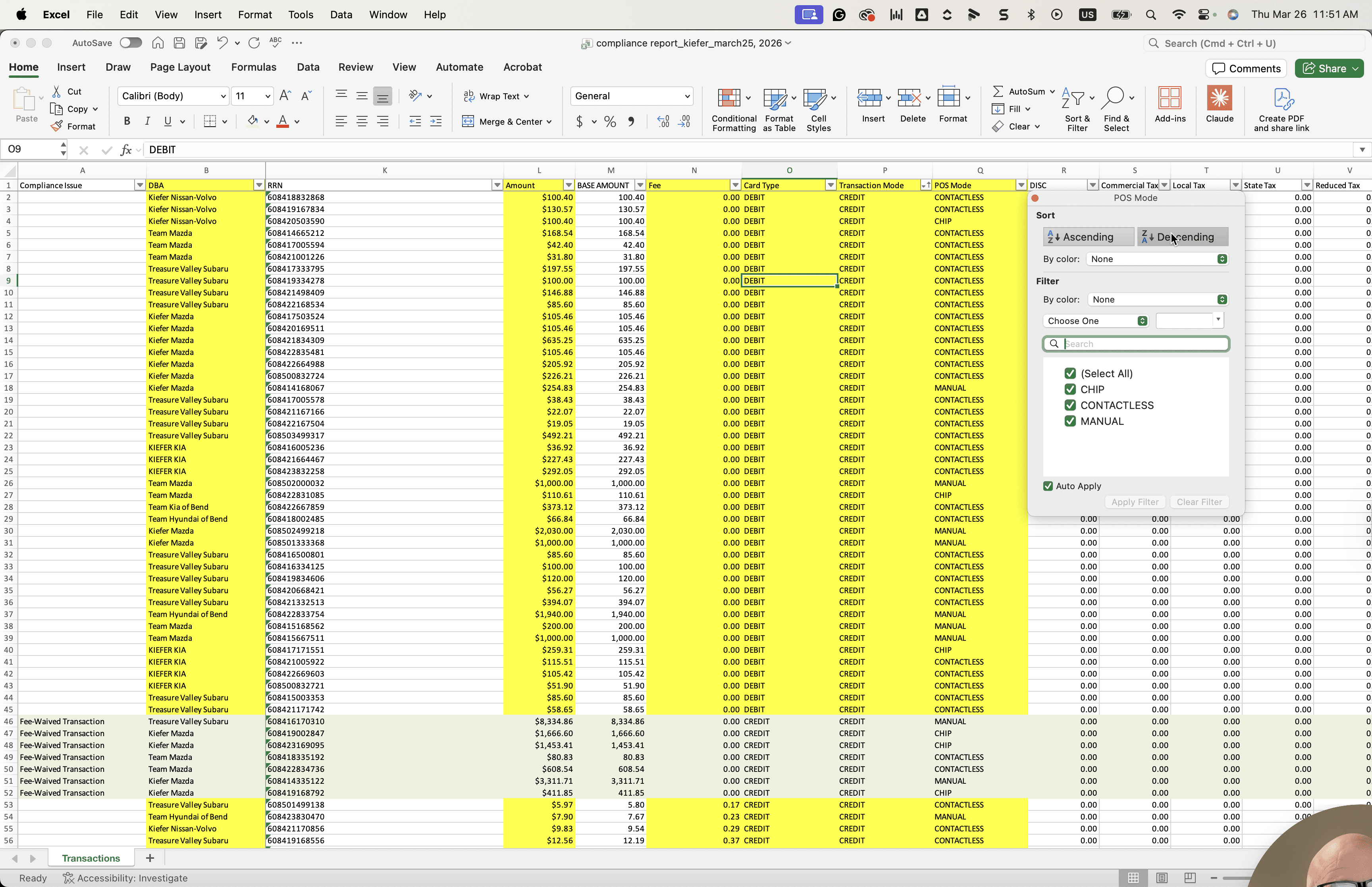
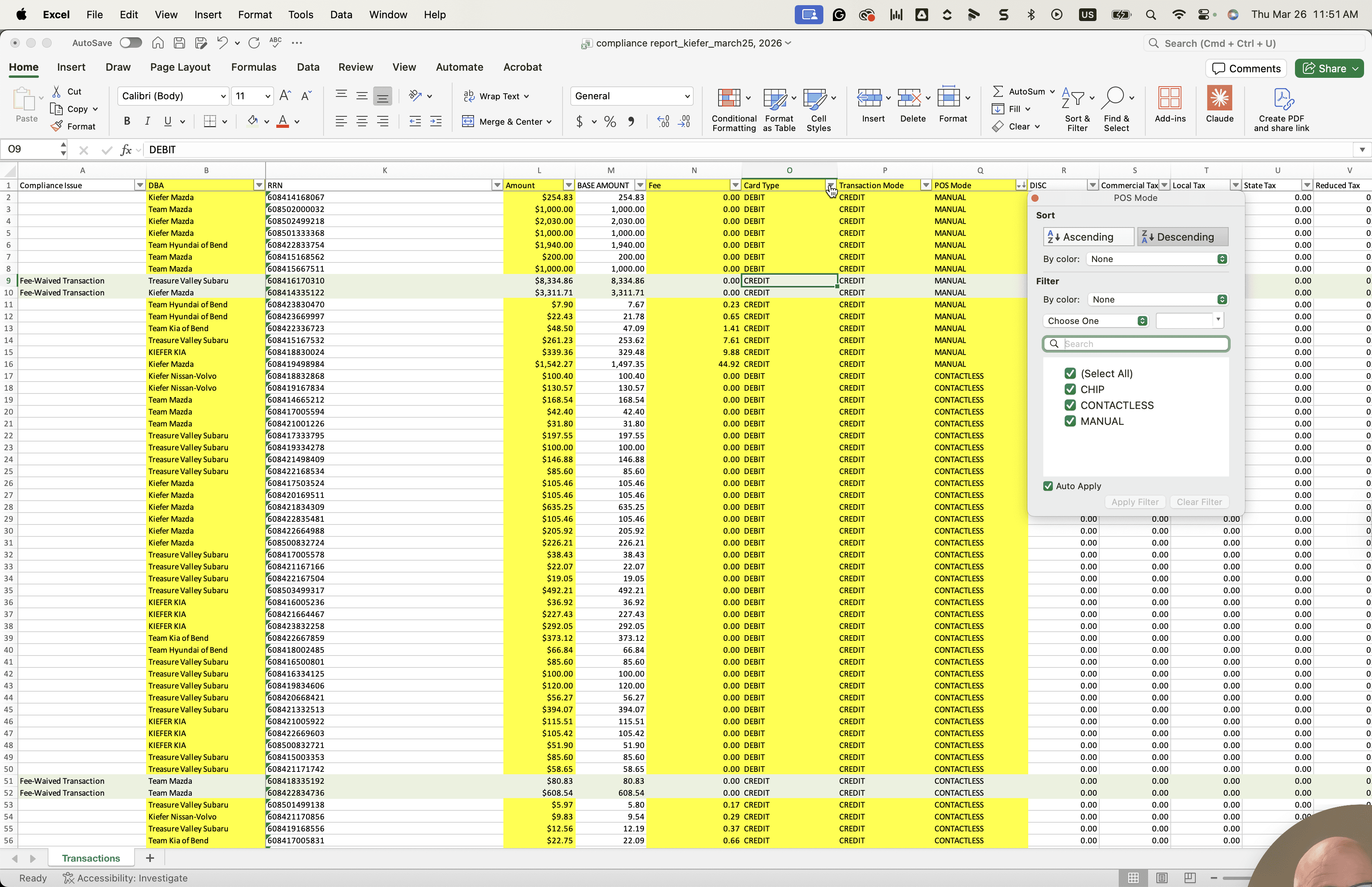
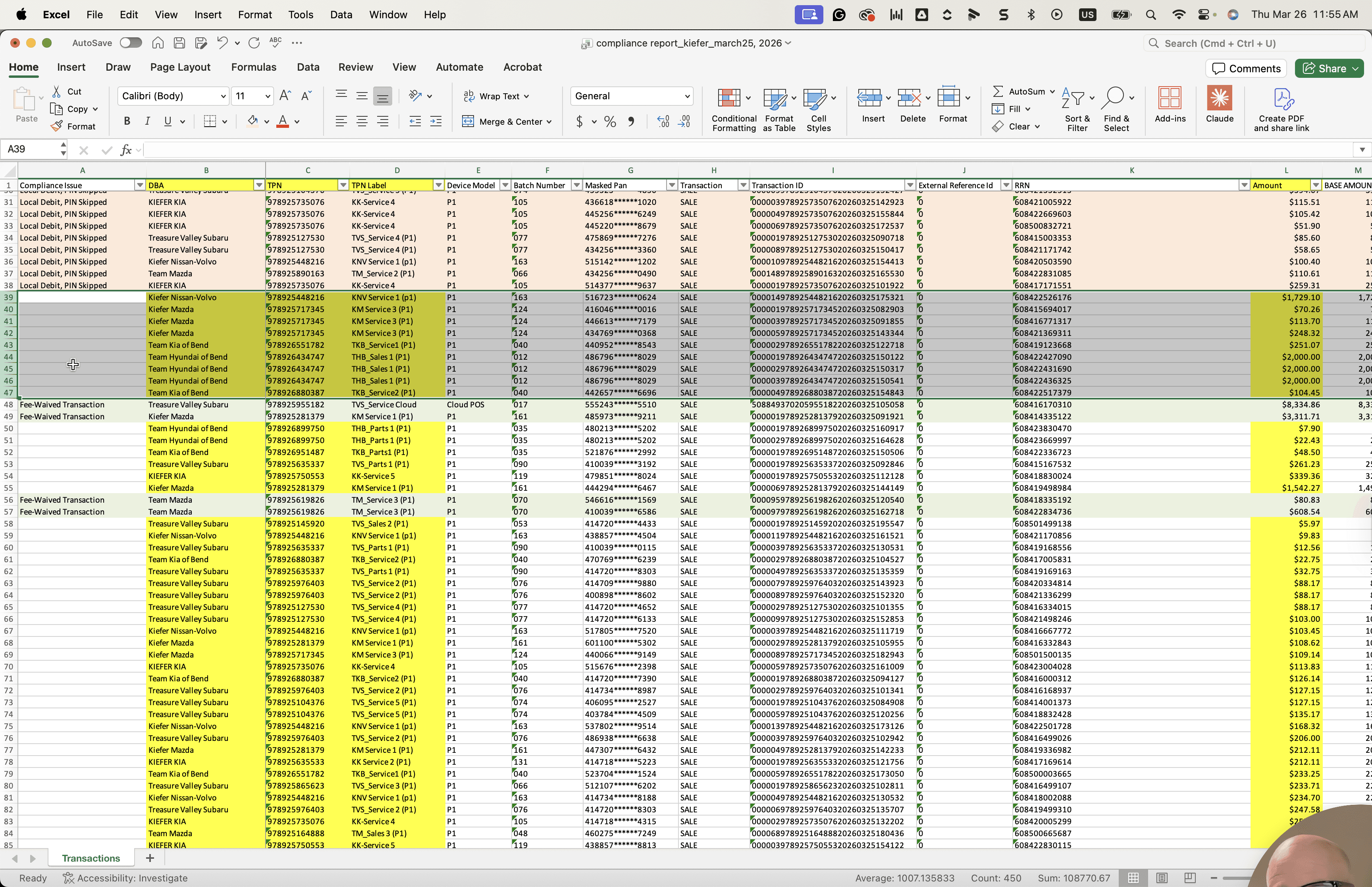
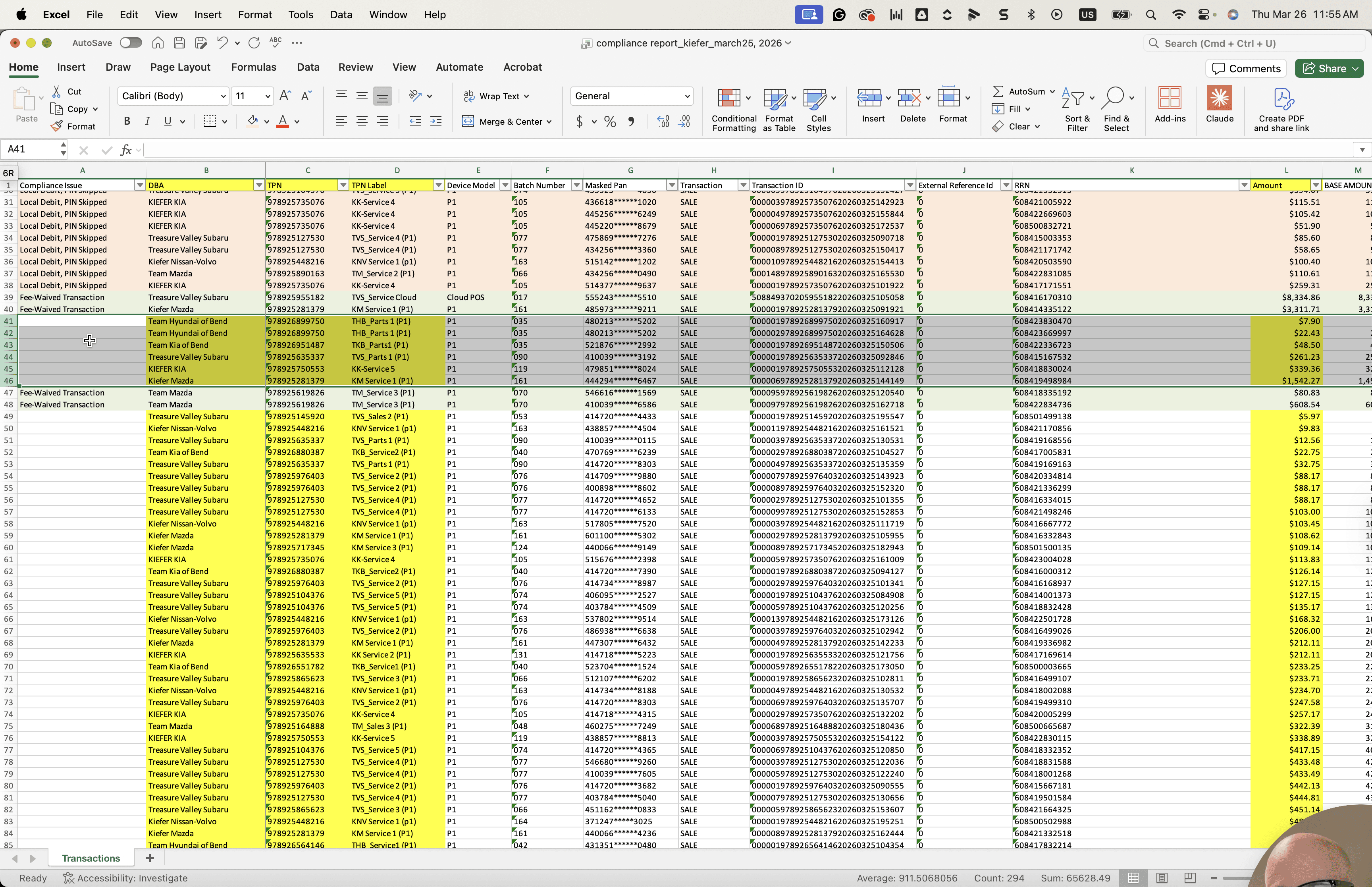
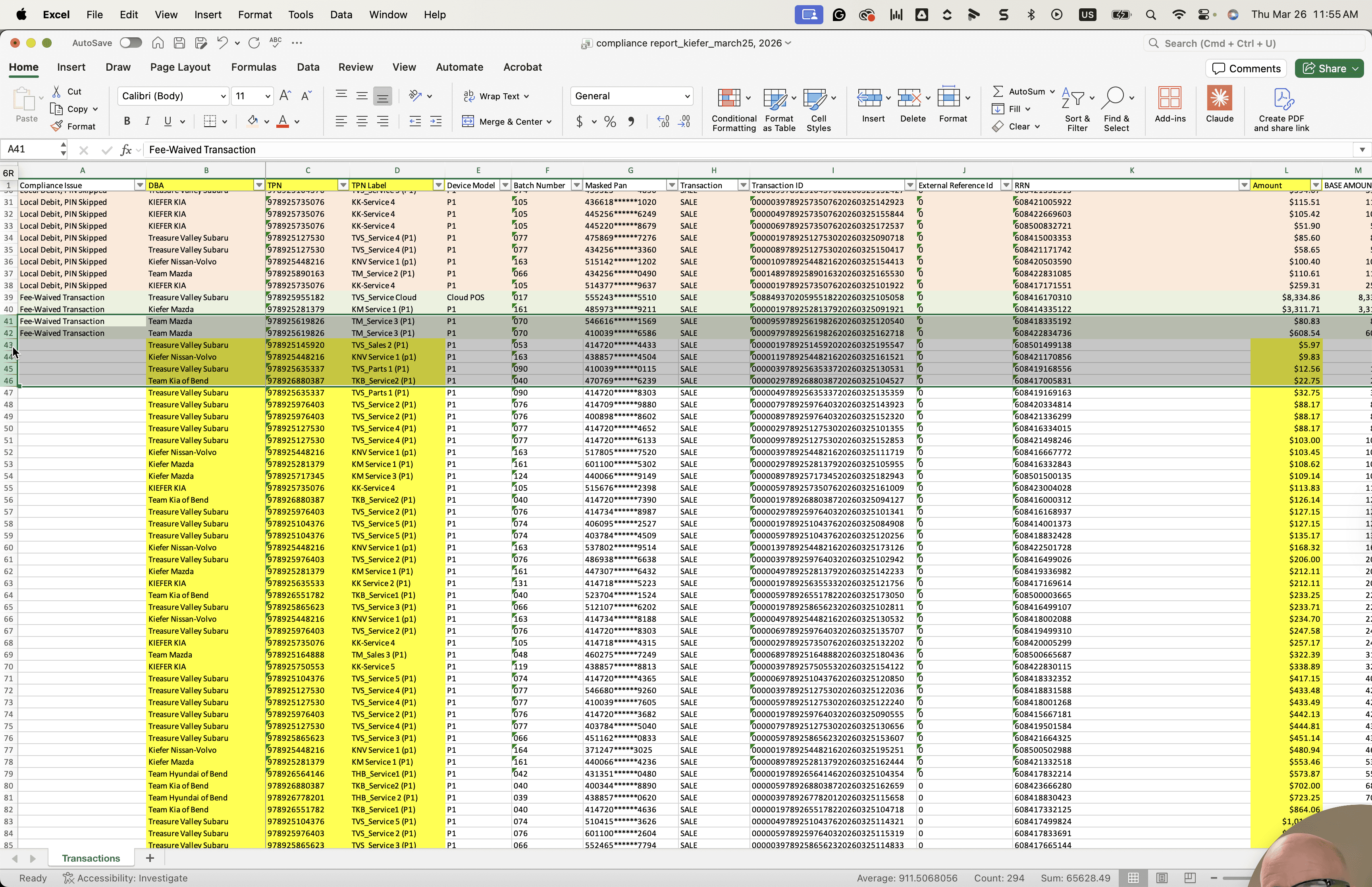
The goal is that anyone who is in compliance does not receive any notifications.
Remove those from the report or filter them out, whichever method you prefer. At this point, you will have what you need to start the mailing campaign.
Email the appropriate people about the compliance issue. Most of these are PIN debit skipped. We will provide you with the email address.
In the email report, version 1.0, we will write, "Dear first name," and include the first and last names of each recipient. It would say, "Dear, Dear, Dear," We'll leave it at "Dear Kiefer Nissan Team," and whoever receives it will get it. We'd like to inform you of the following compliance transaction issues for your review. The report will mention the name of the business, the TPN number with the KN-TPN label, the amount of the sale, the date of the sale, and the time of the sale.
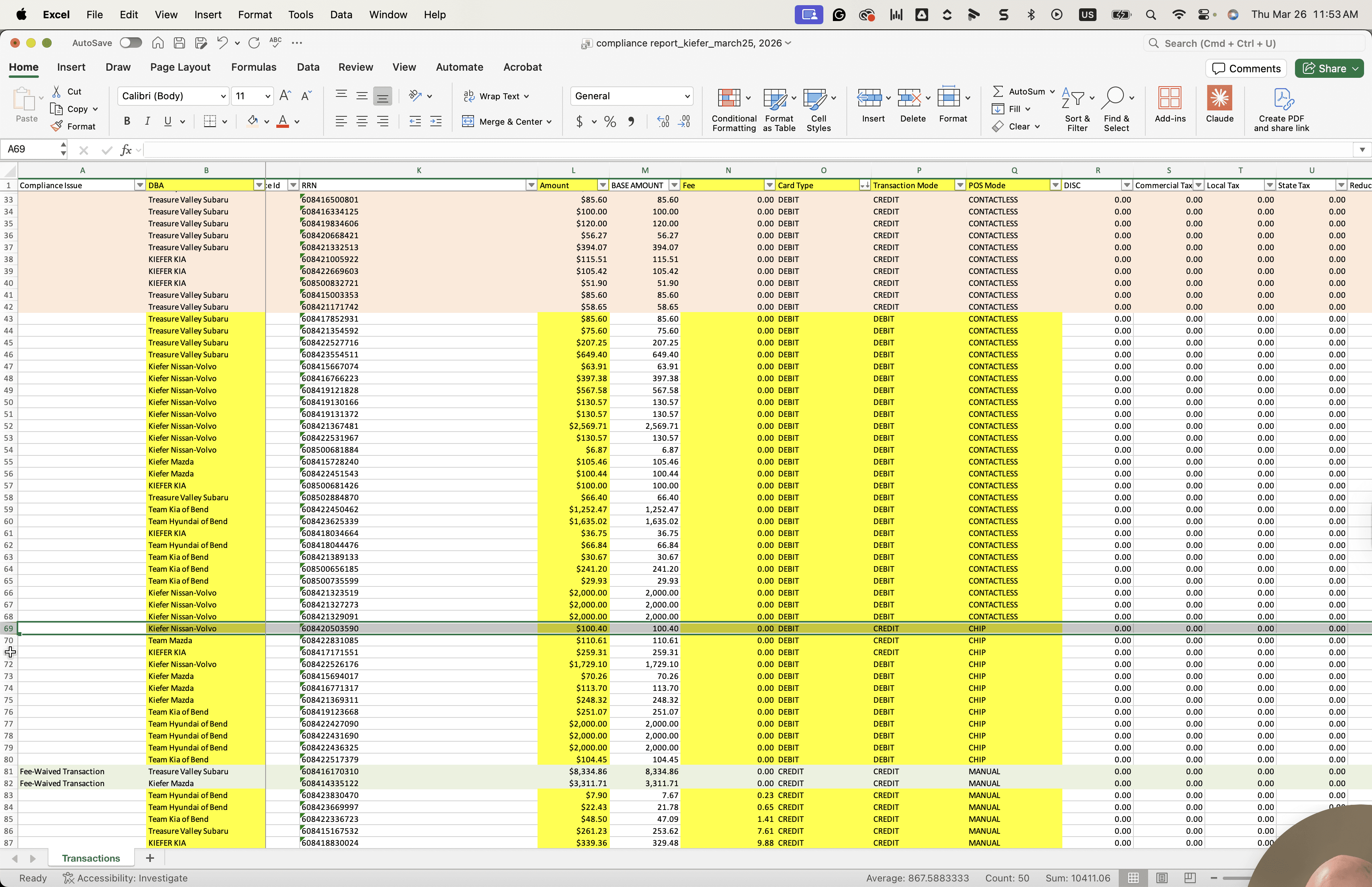
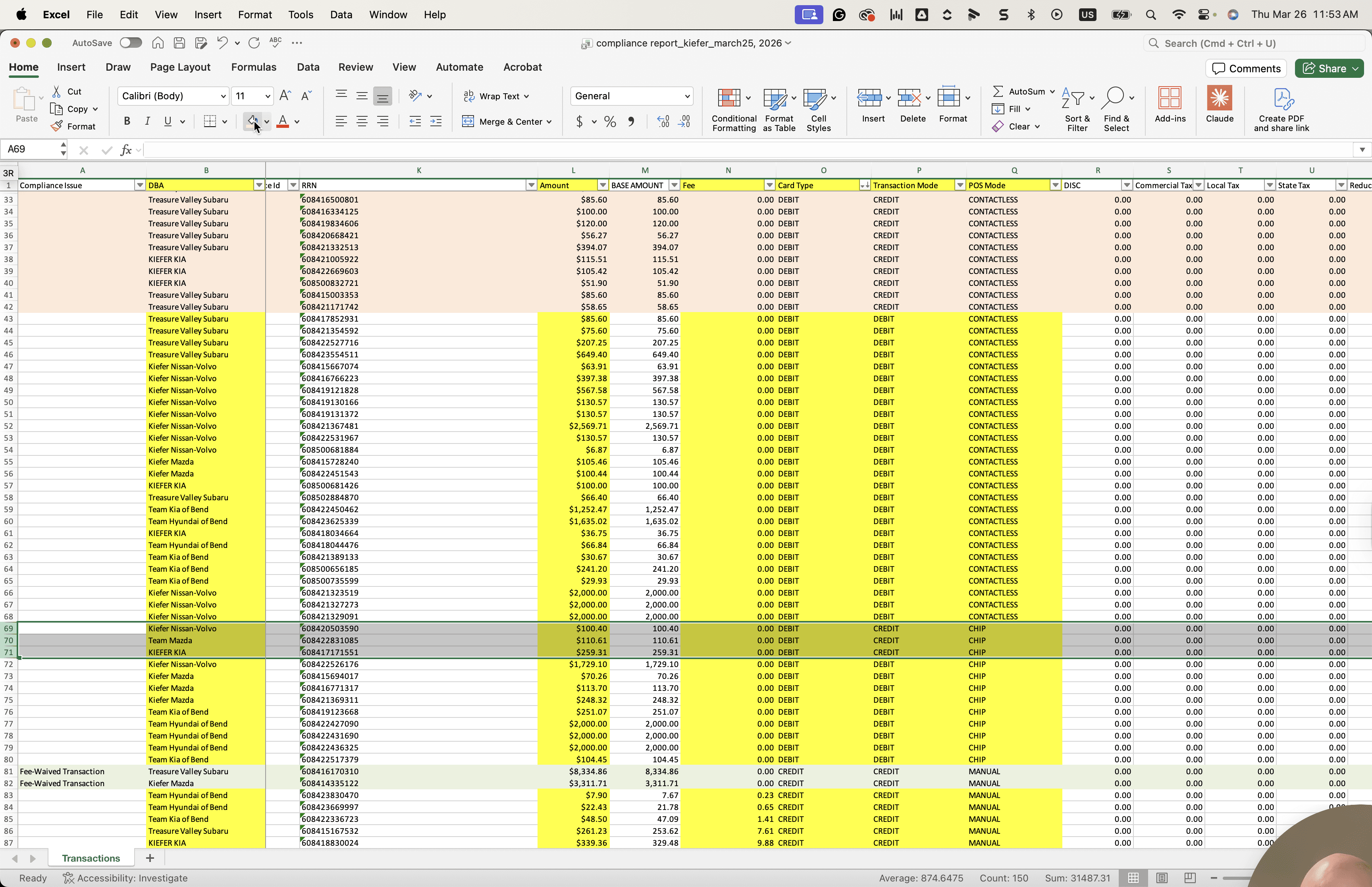
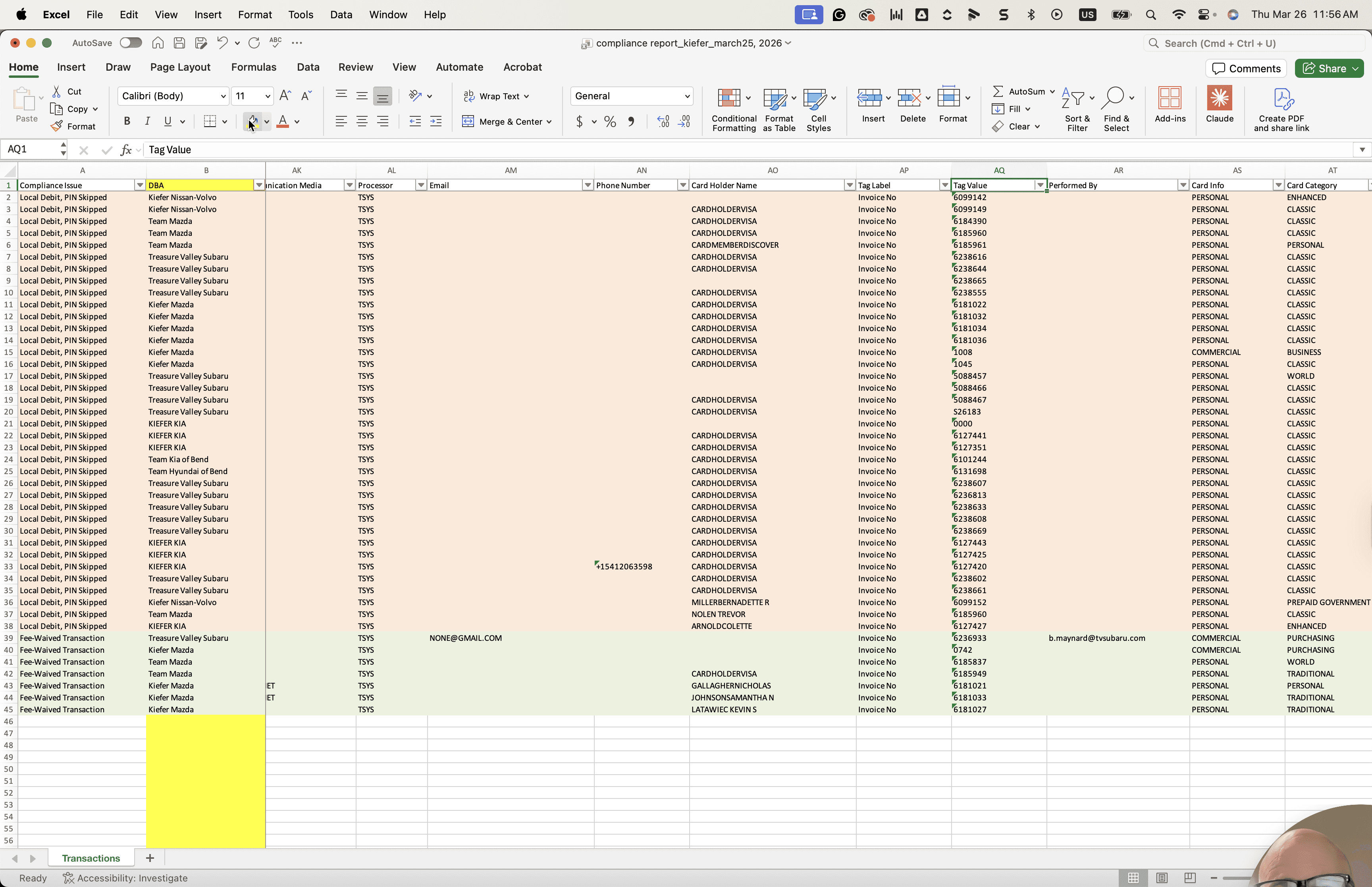
It's also helpful to record the exact time of the POS sale and what occurred. The important part is the tag number and tag value, which are located here. Then mention the tag value number listed on the transaction. The tag value is commonly found in the transaction. You will send that off, and you'll be off and running.
Each DBA will receive different contacts. You will be ready to send these as part of the report process.