
How to Create a Credit Memo: Step-by-Step Guide
Learn the step-by-step process to create a credit memo, including entering customer details, PO number, product information, and printing the document.
By Samantha Roche
In this guide, we'll learn how to create a credit memo for a customer. This process helps you adjust or refund amounts from previous invoices. You will enter customer details, reference the original invoice, and fill in product or service information before saving and printing the credit memo.
Let's get started
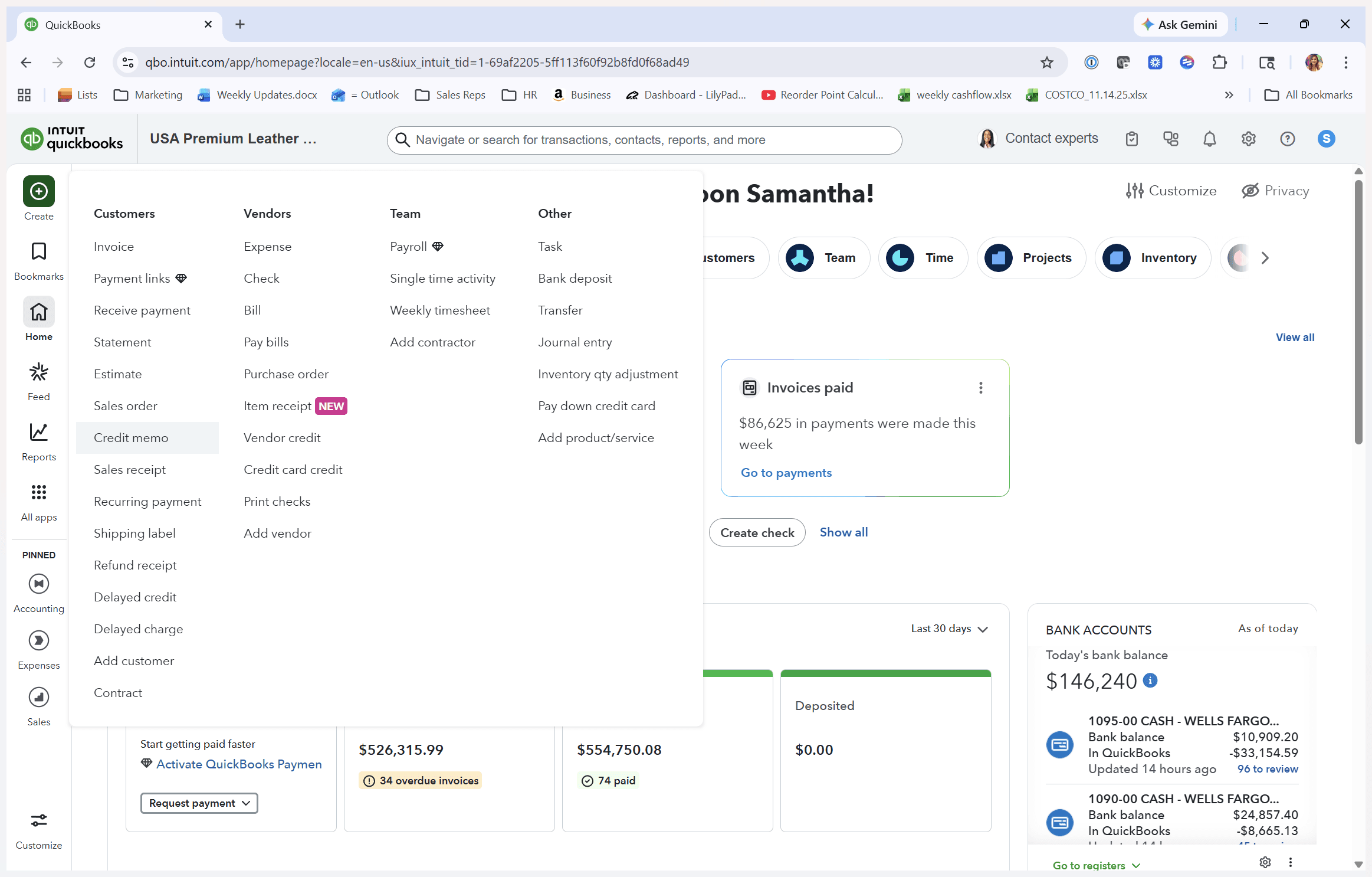
Steps to create a credit memo. Click on Create, then go to Credit Memo under Customers.
1
Click on "Credit memo"
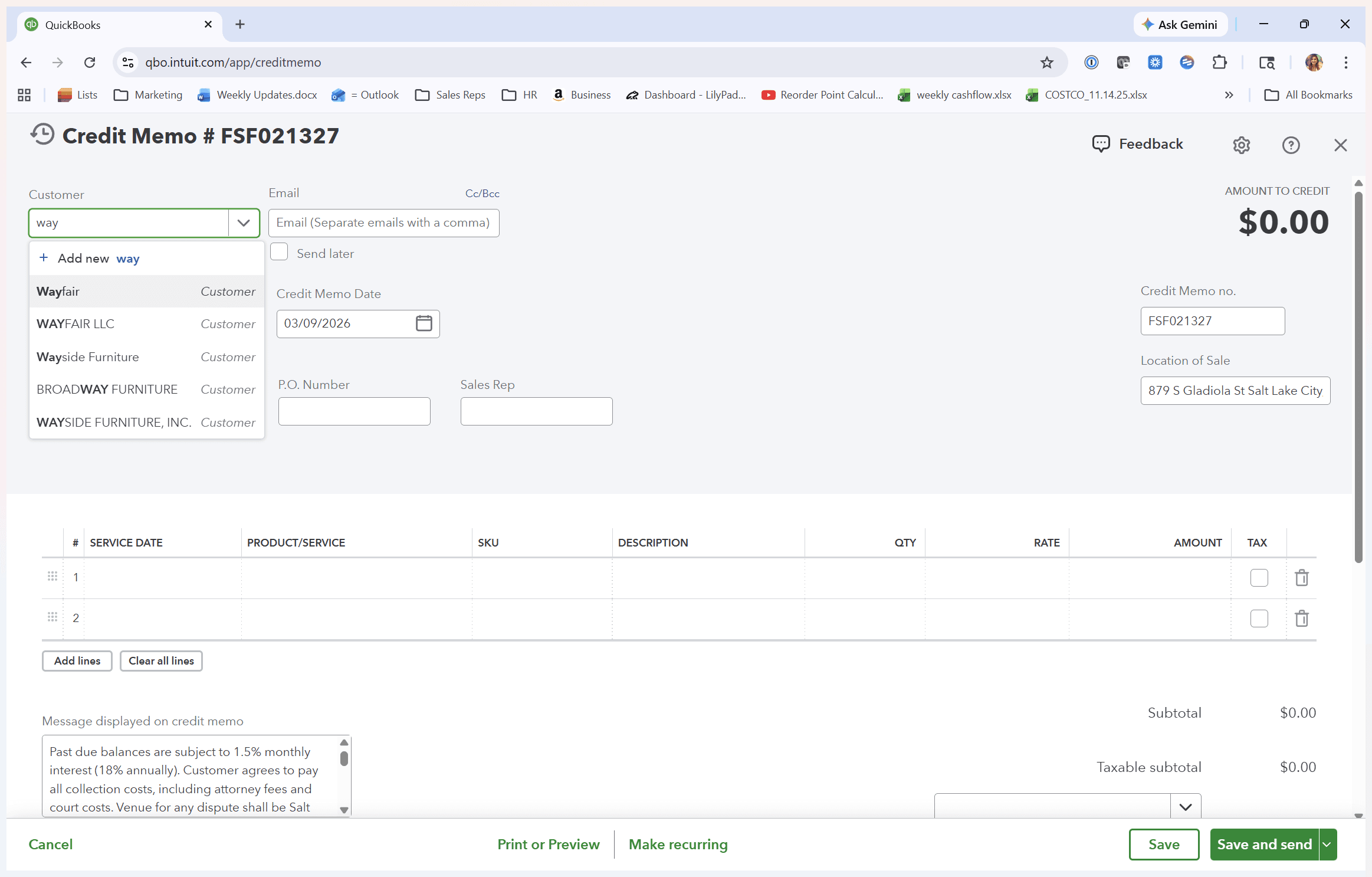
Start typing the customer name. The billing address should be filled out.
2
Click here
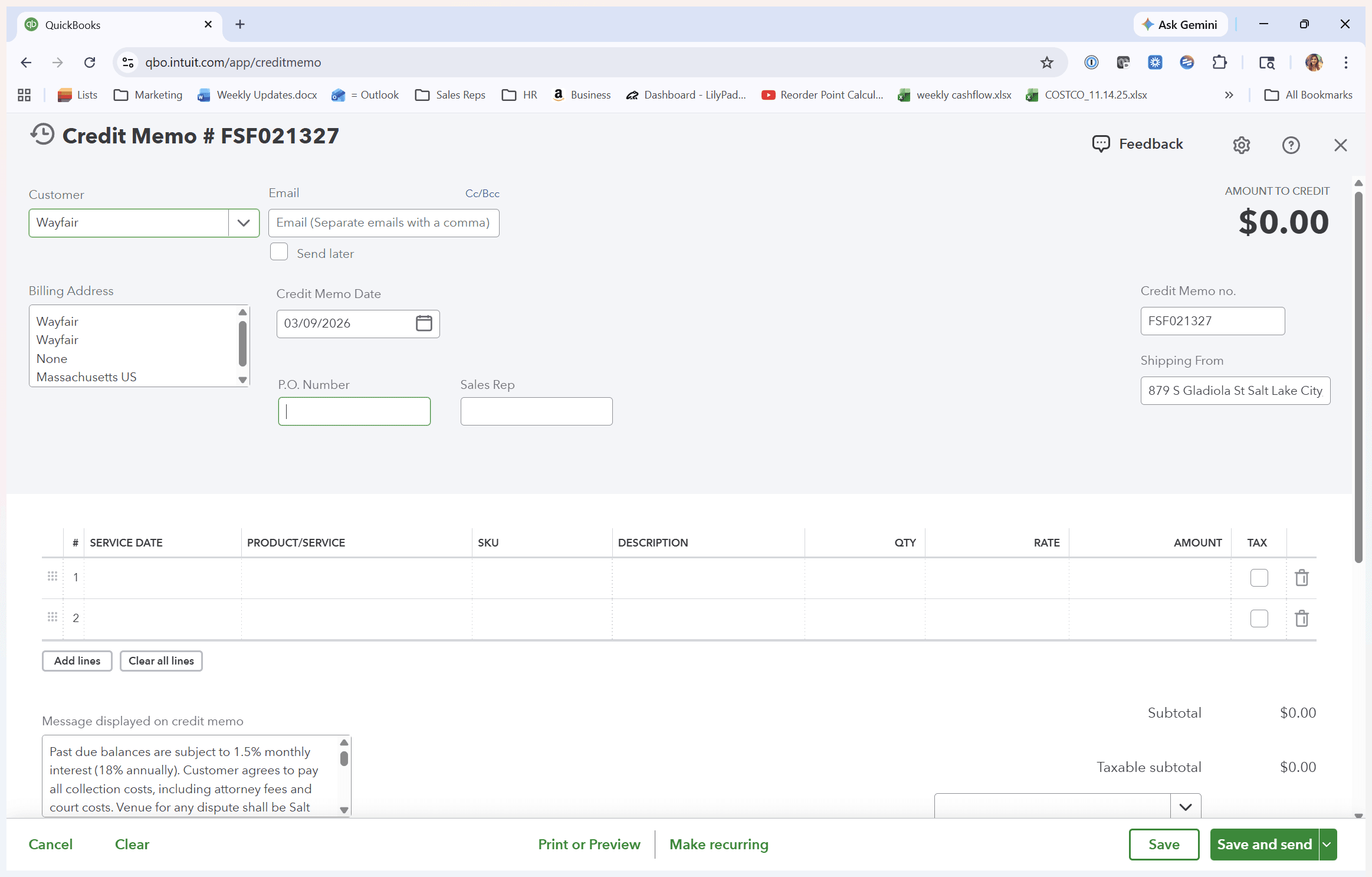
Enter the PO number from the original invoice.
3
Click here
4
Click here
5
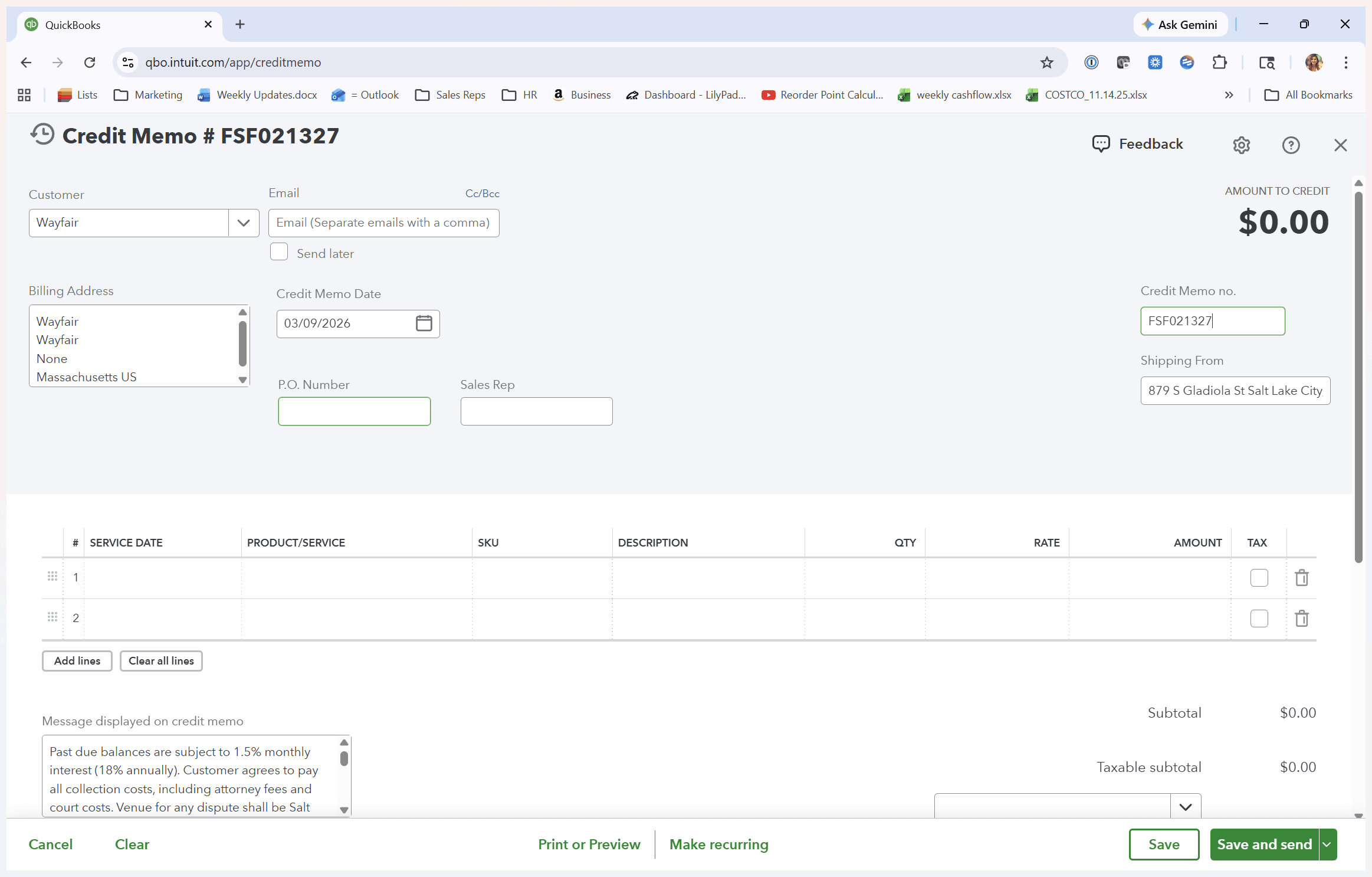
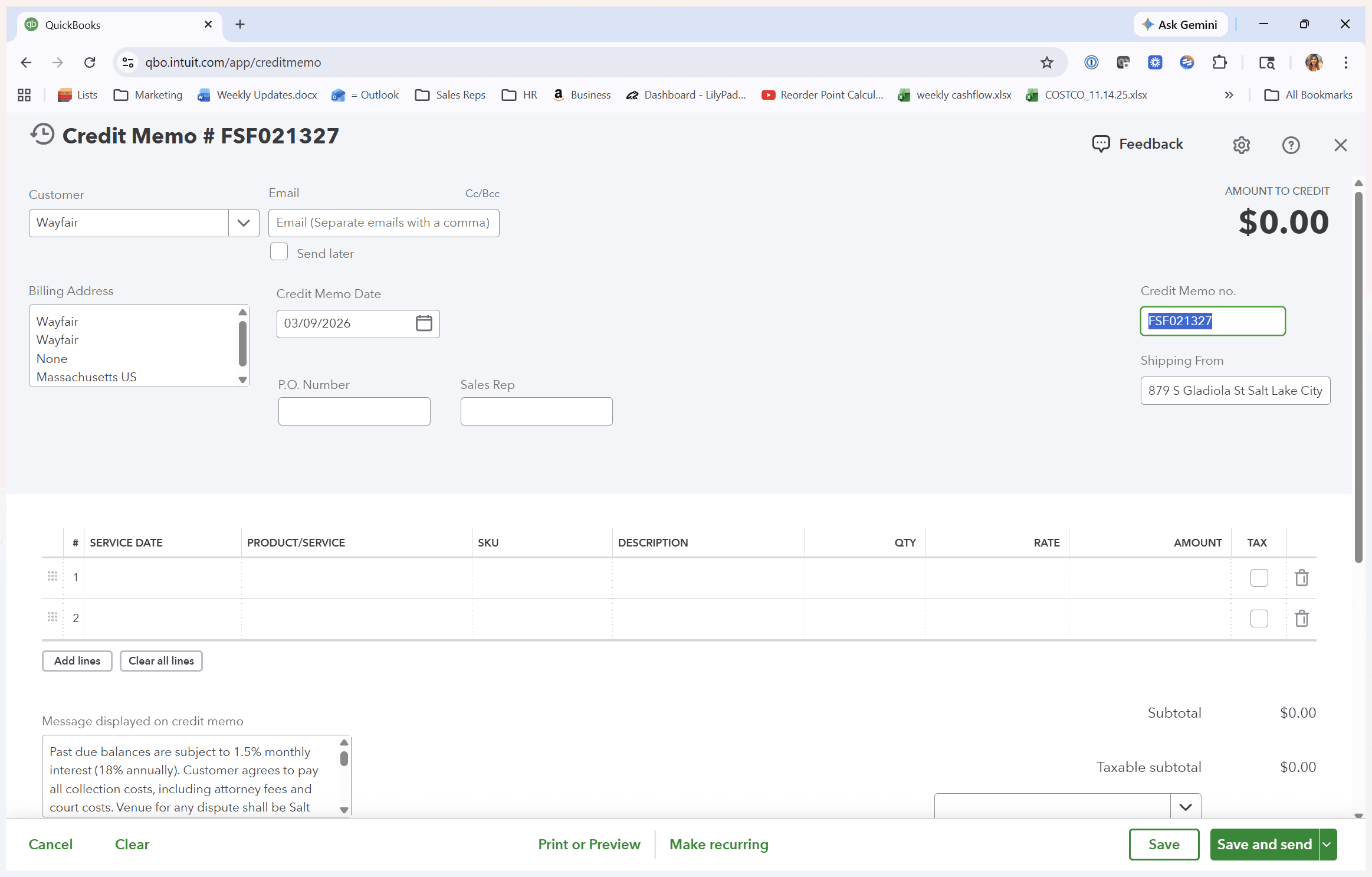
Change the credit memo number to the original invoice number, followed by -CM.
6
Click here
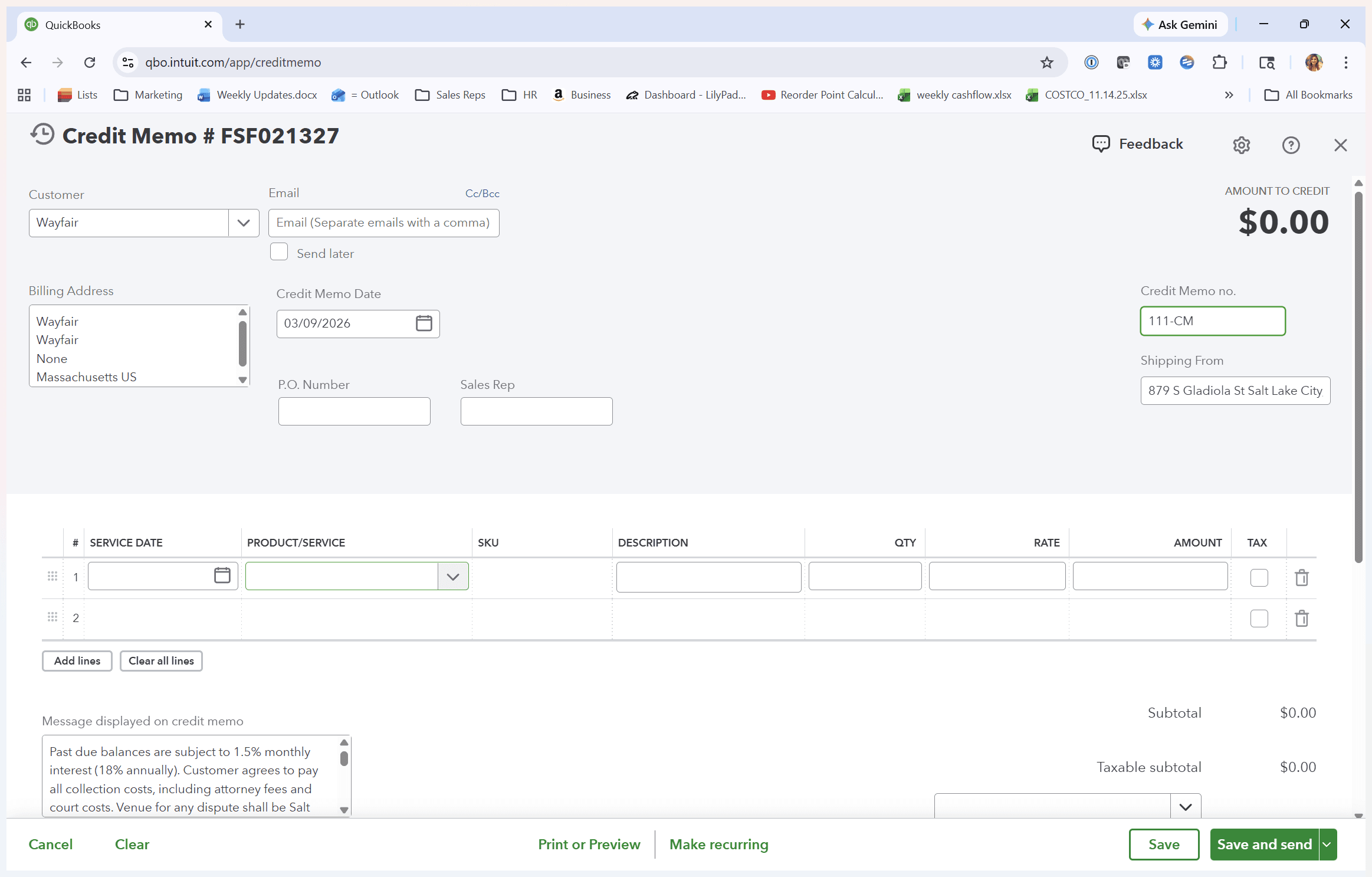
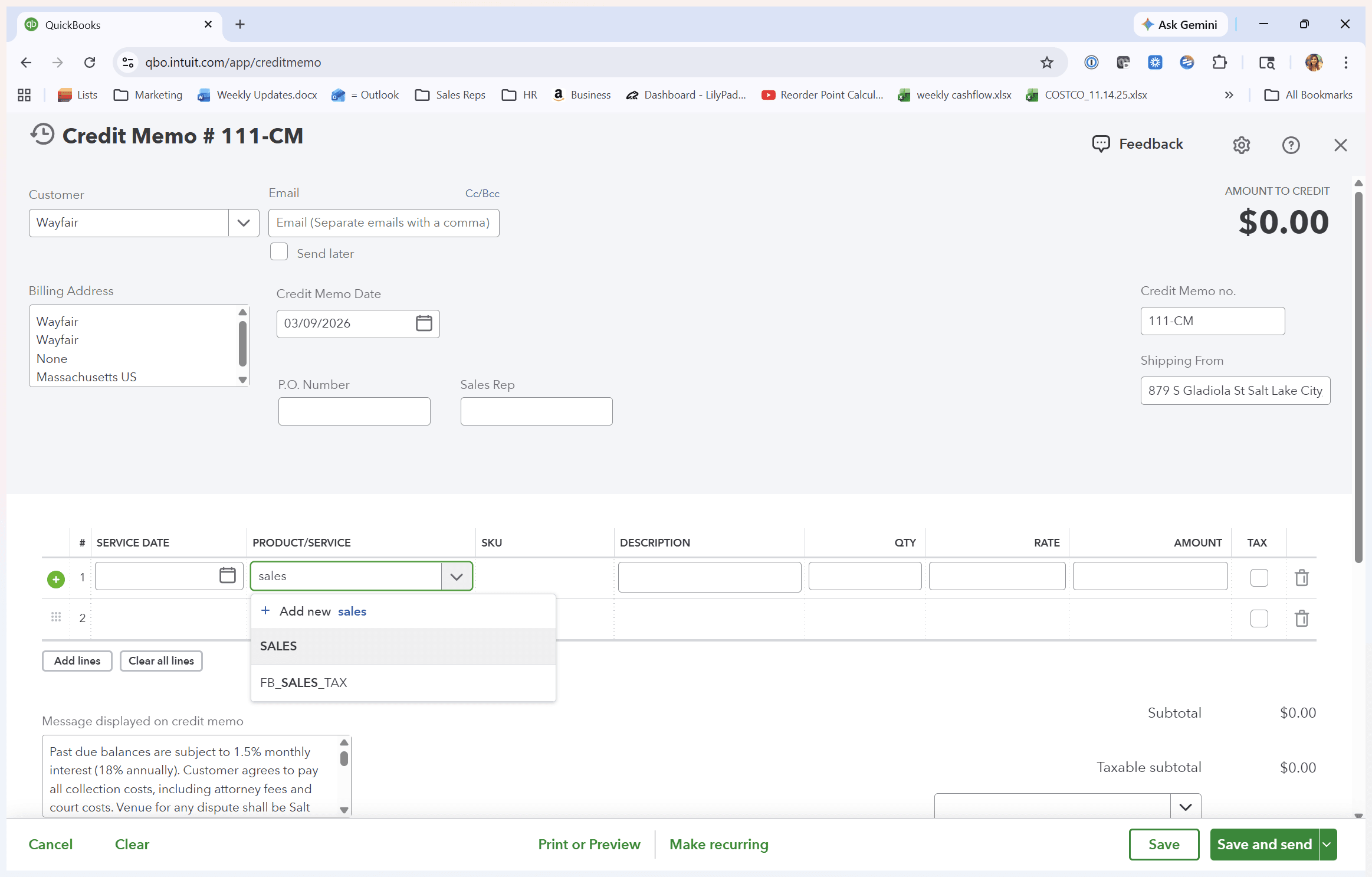
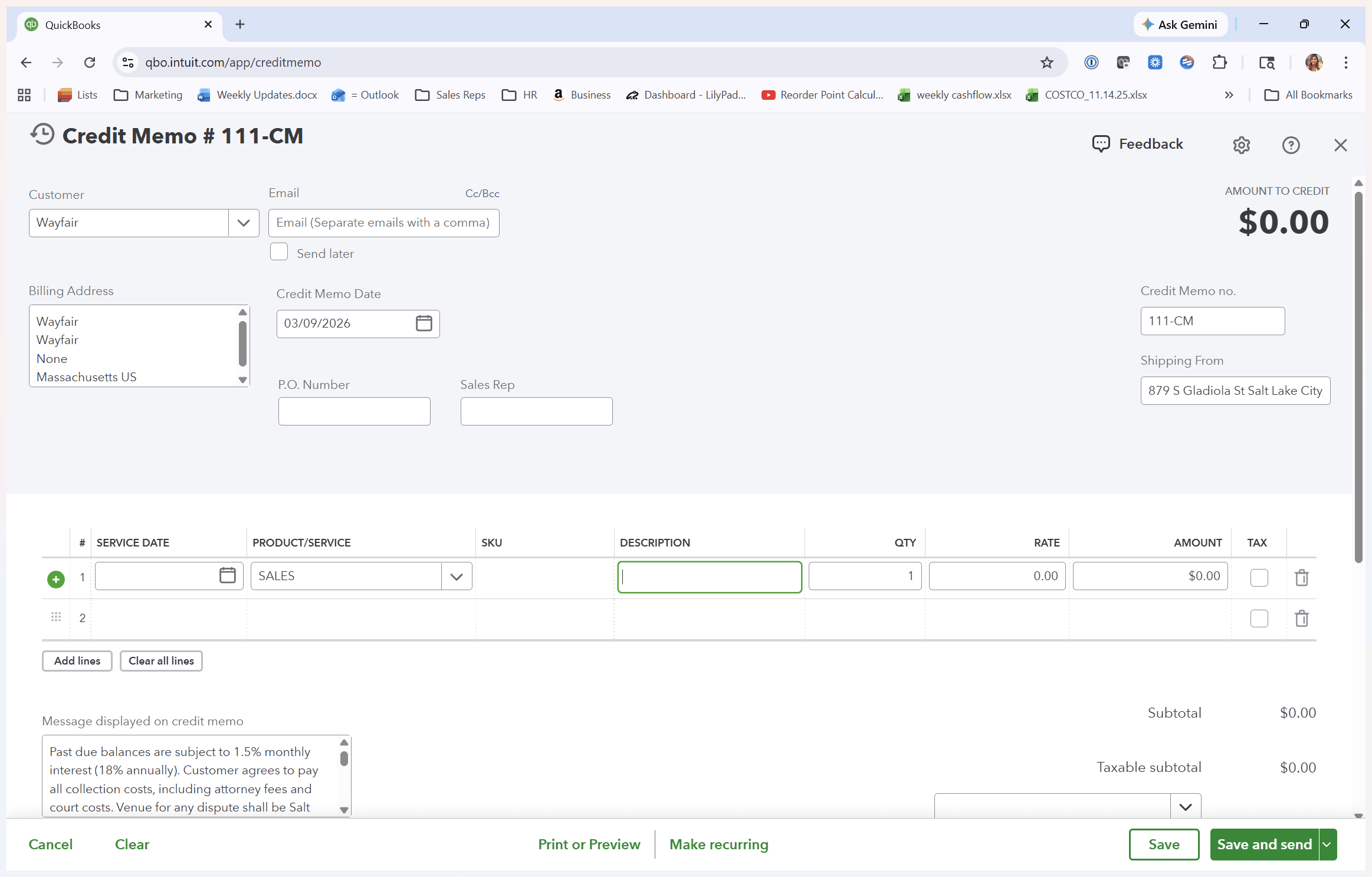
Click Product Service, type in "sales," add your description, enter the quantity, and the rate per quantity. This will calculate the amount.
7
Click here
8
Click here
9
Click here
10
Click here
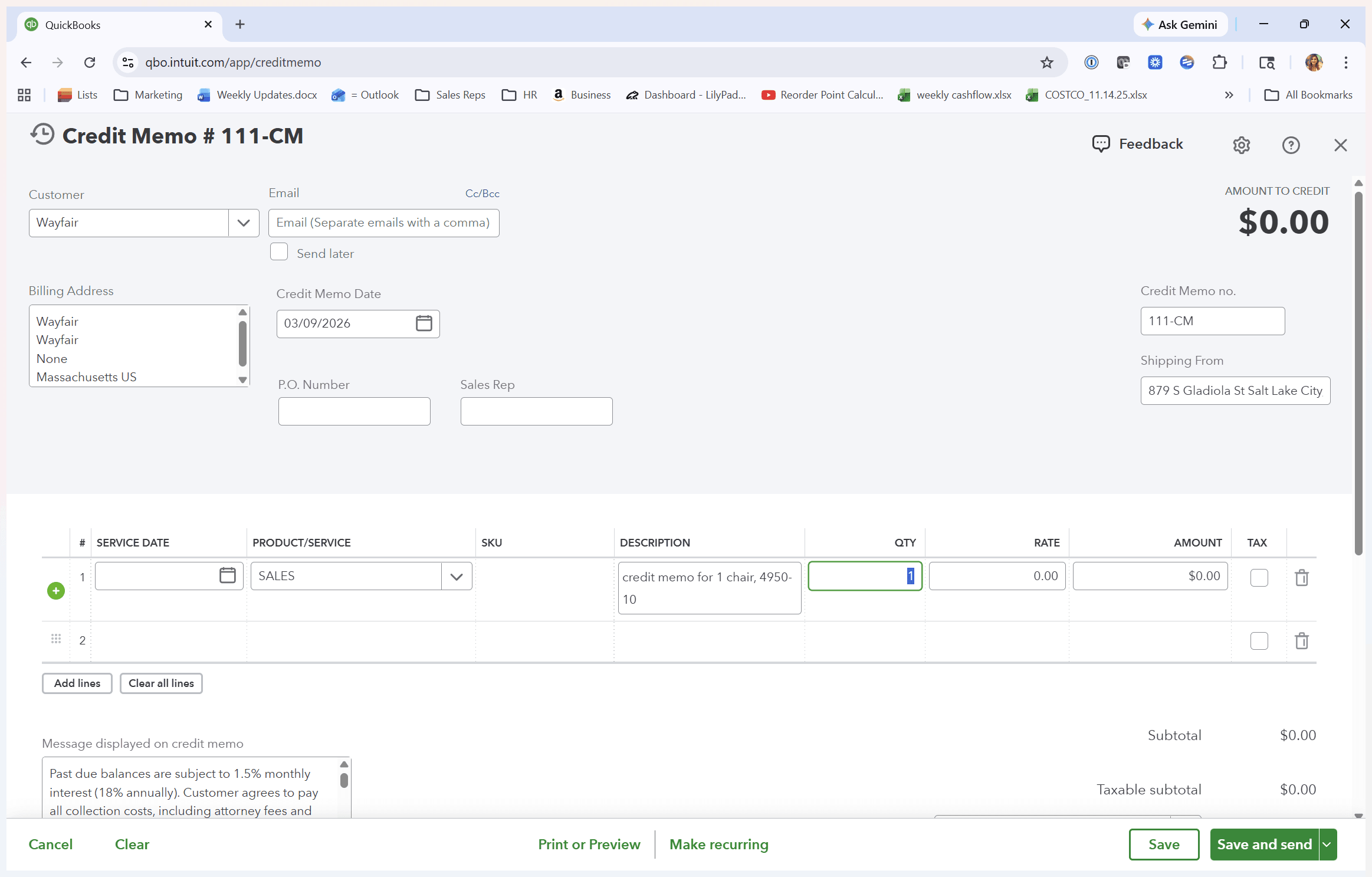
11
Click here
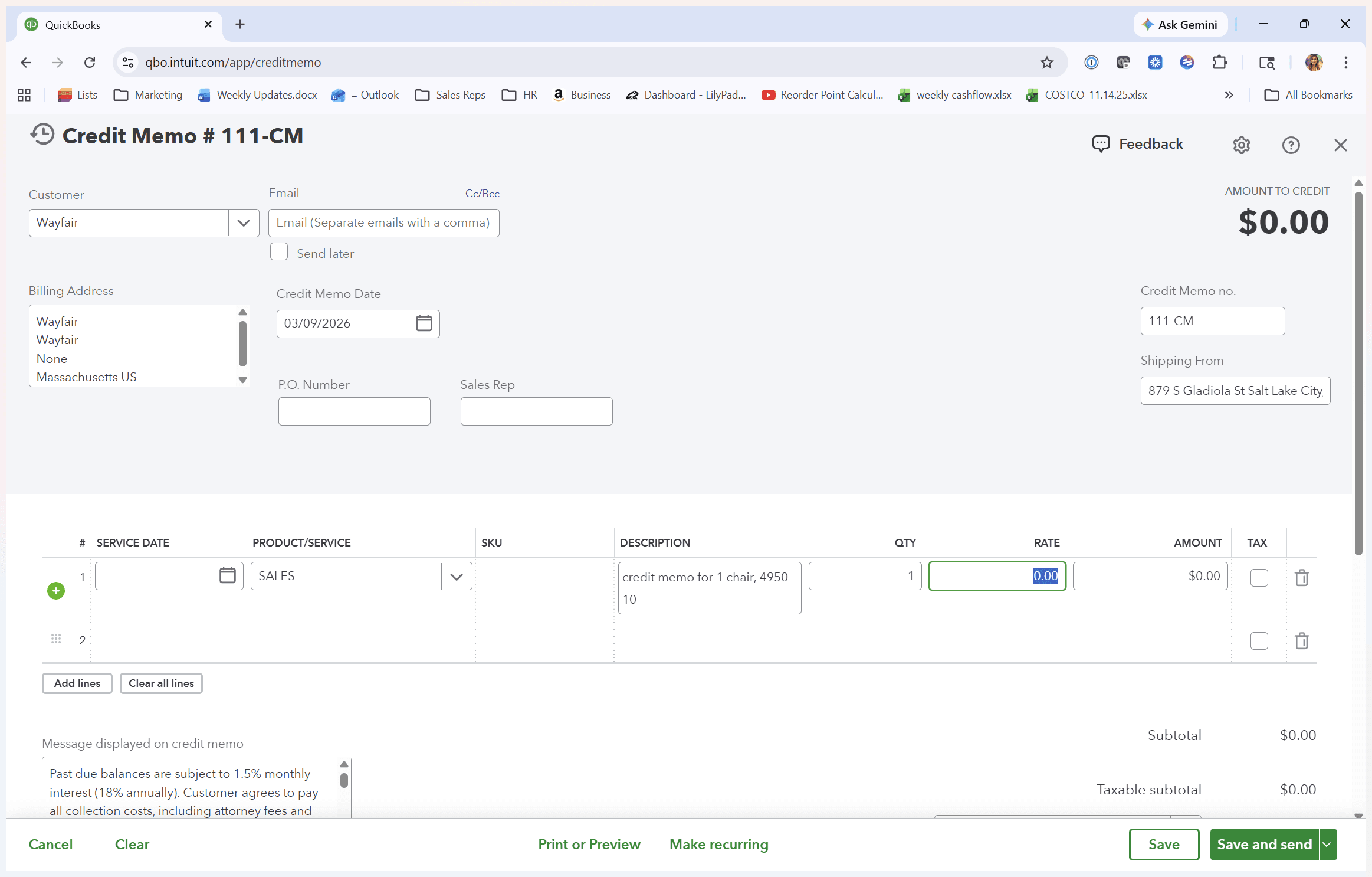
Press Save, then press Print to print it.