
How to Create a Customer, Vendor and Employee: Step-by-Step User Guide
Learn how to create a customer and a vendor with this easy step-by-step user guide. Follow the instructions to add vendors and customers efficiently.
By Aasma Technology Solutions
In this guide, we’ll learn how to create a customer, vendor and employee. The process includes selecting the appropriate option, entering required details such as the display name, and saving the information. Following these steps makes it easier to manage your records.
Once created, the new customer or vendor or employee will also appear in the dropdown list for selection.
How to create a Vendor
1
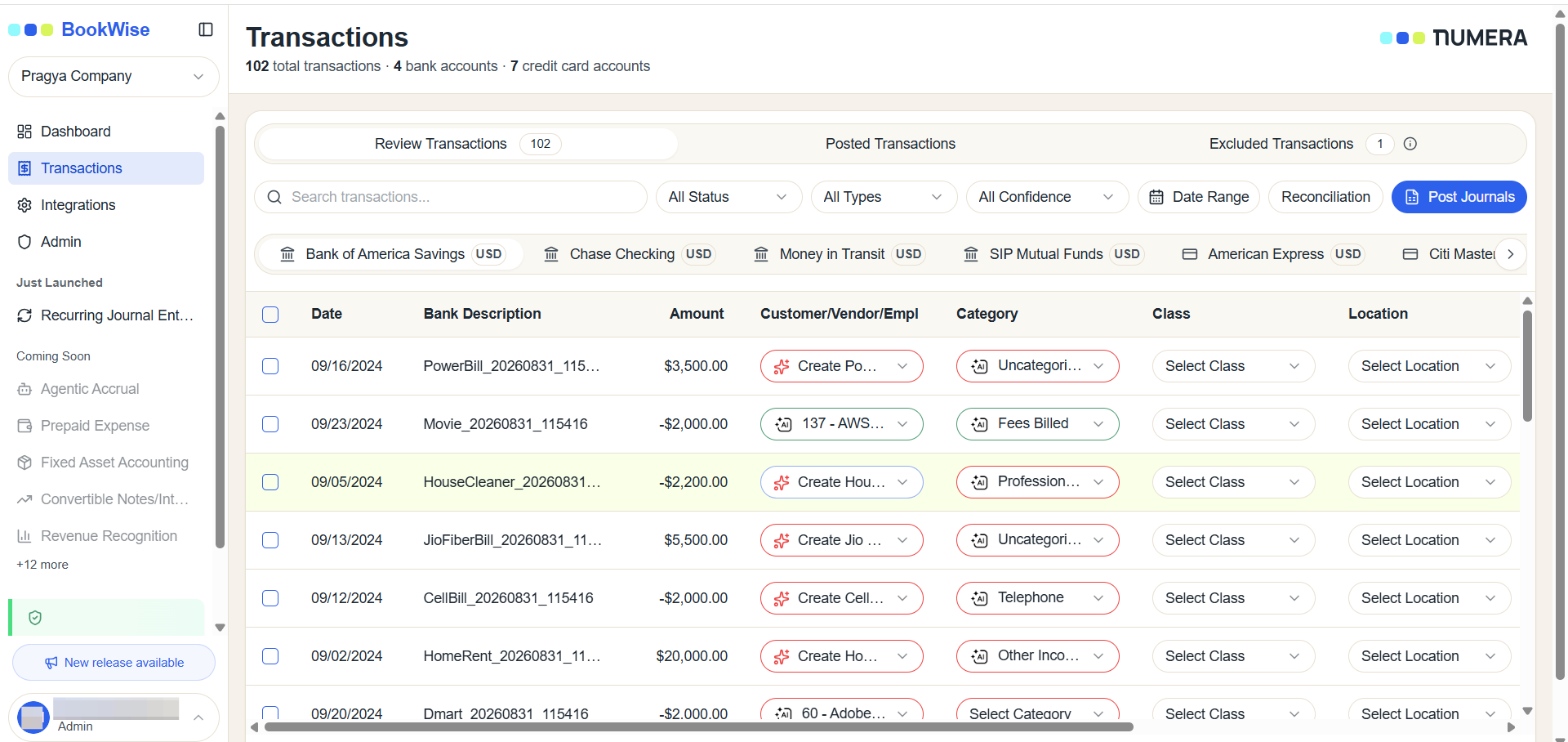
Go to Transactions page and Click on Customer/vendor/employee columns transaction you want to update
2
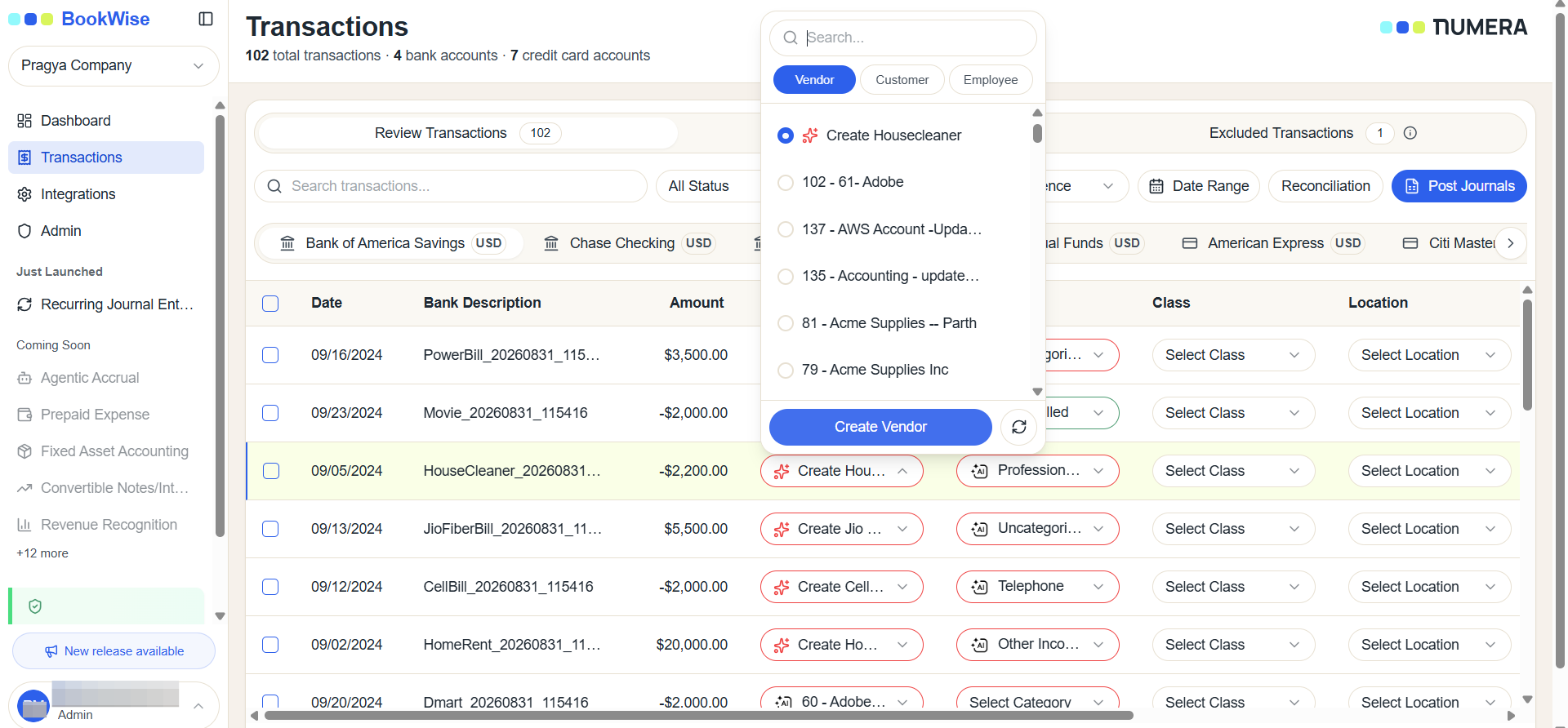
Click on Create Vendor
3
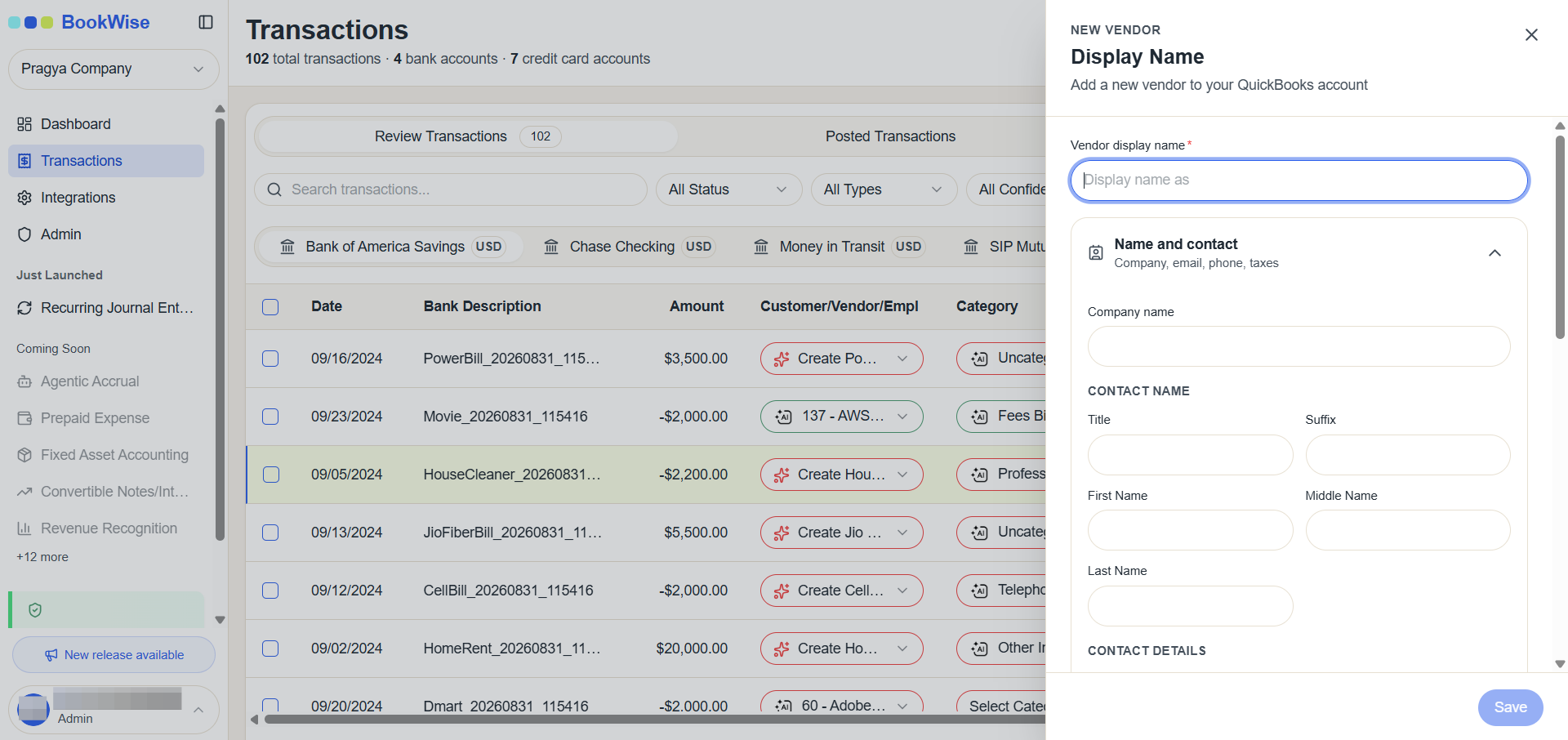
Fill out the required fields in the form and click on Save Button
4
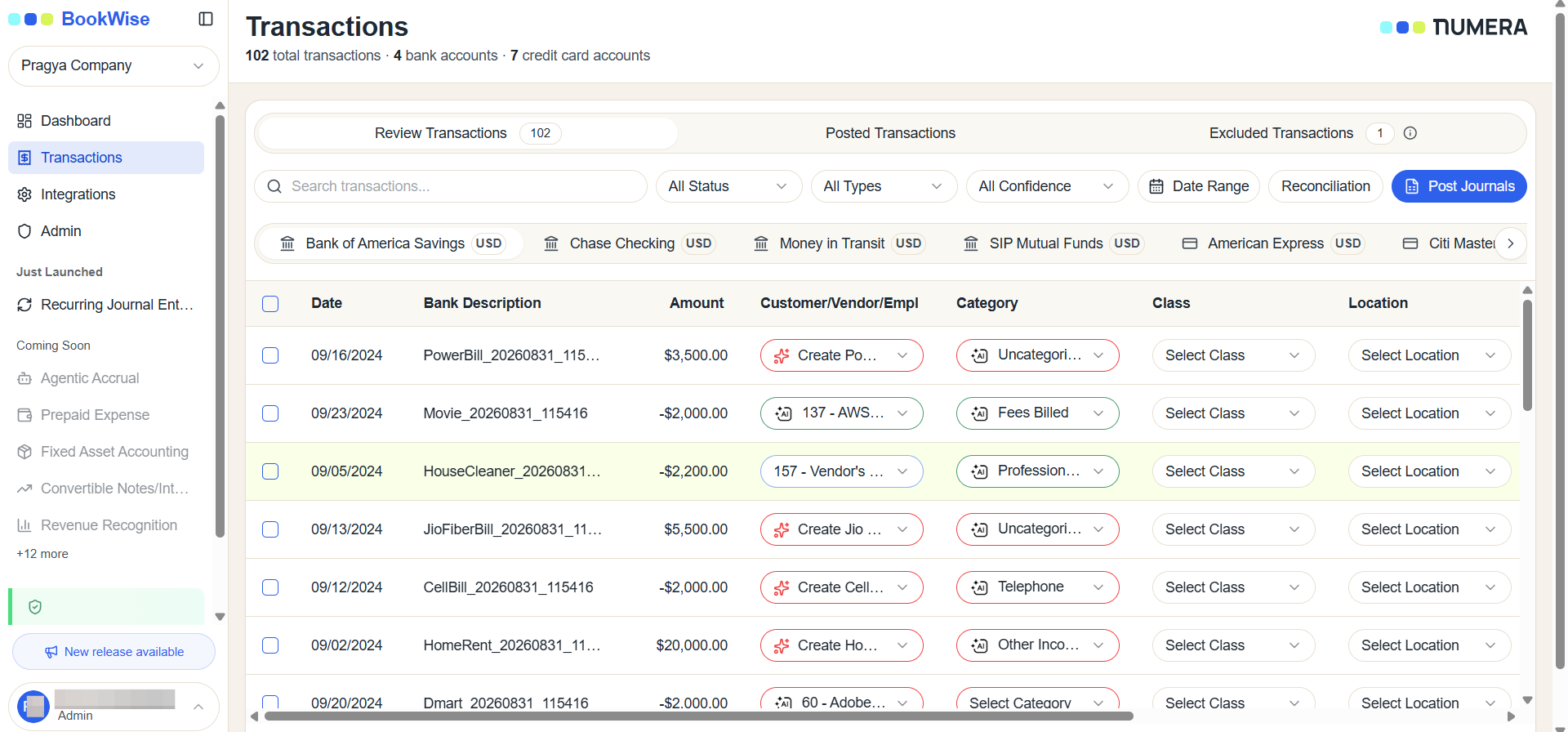
The newly created vendor will be displayed in the selected field.
How to create a Customer
5
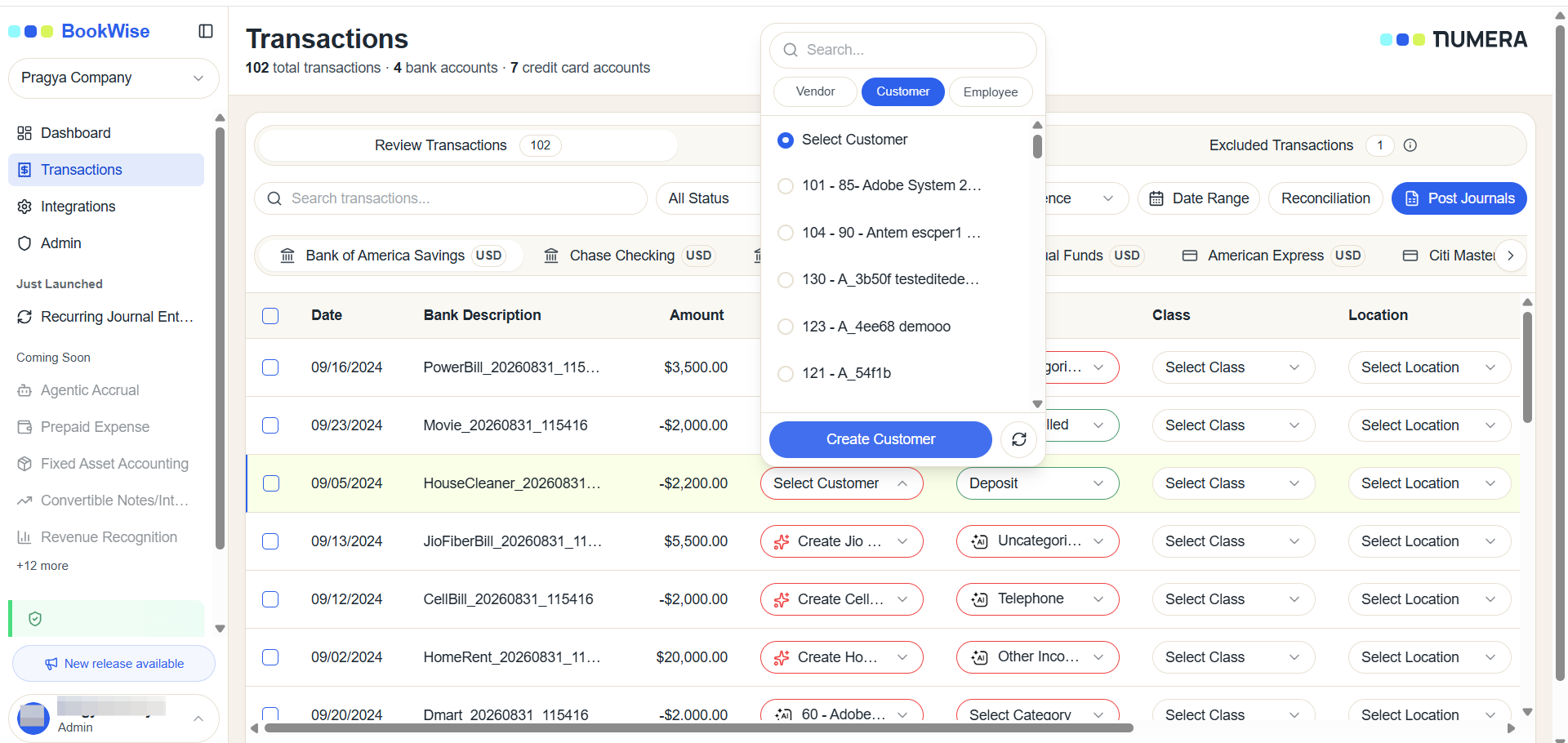
Click on Create Customer
6
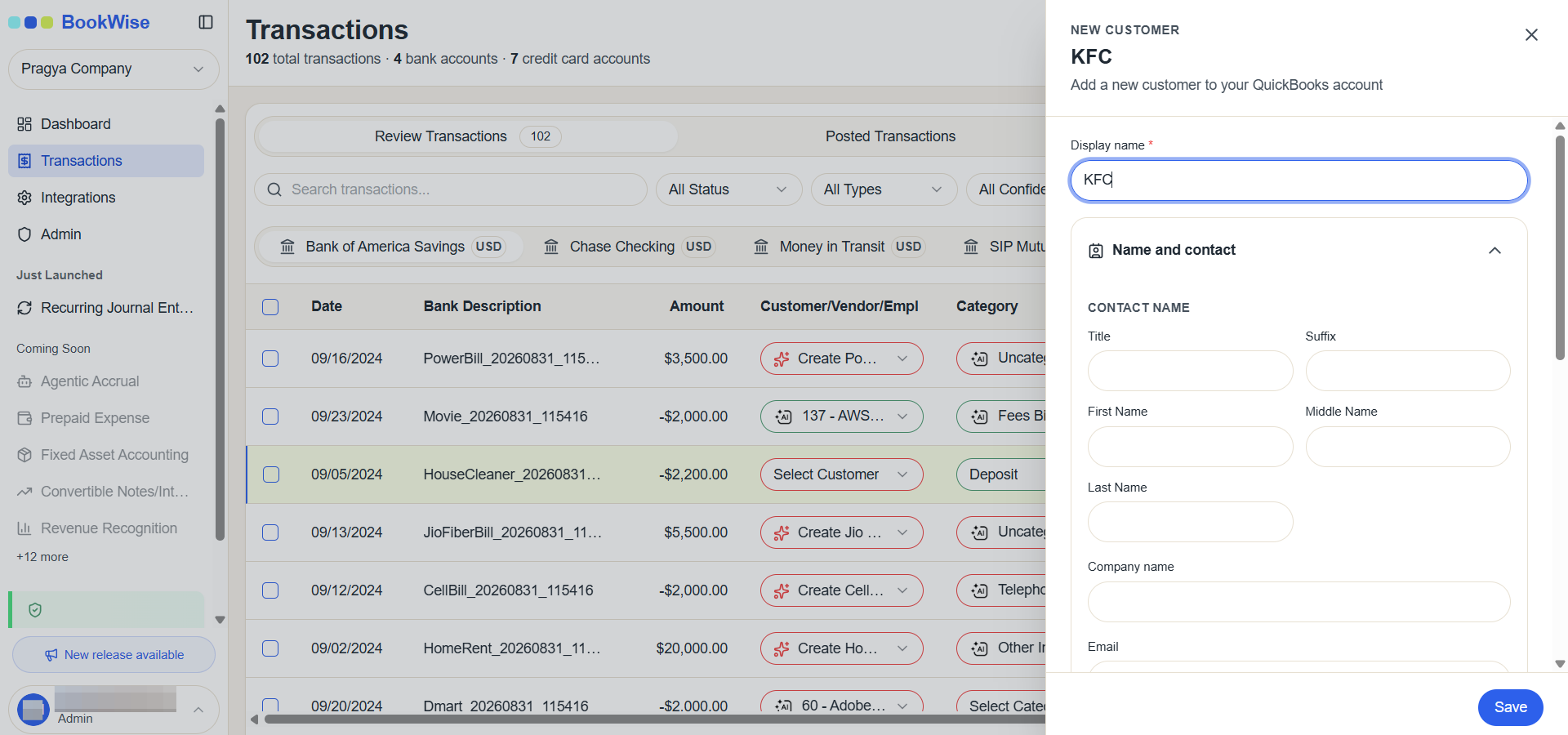
Fill out the required fields in the form and click on Save
7
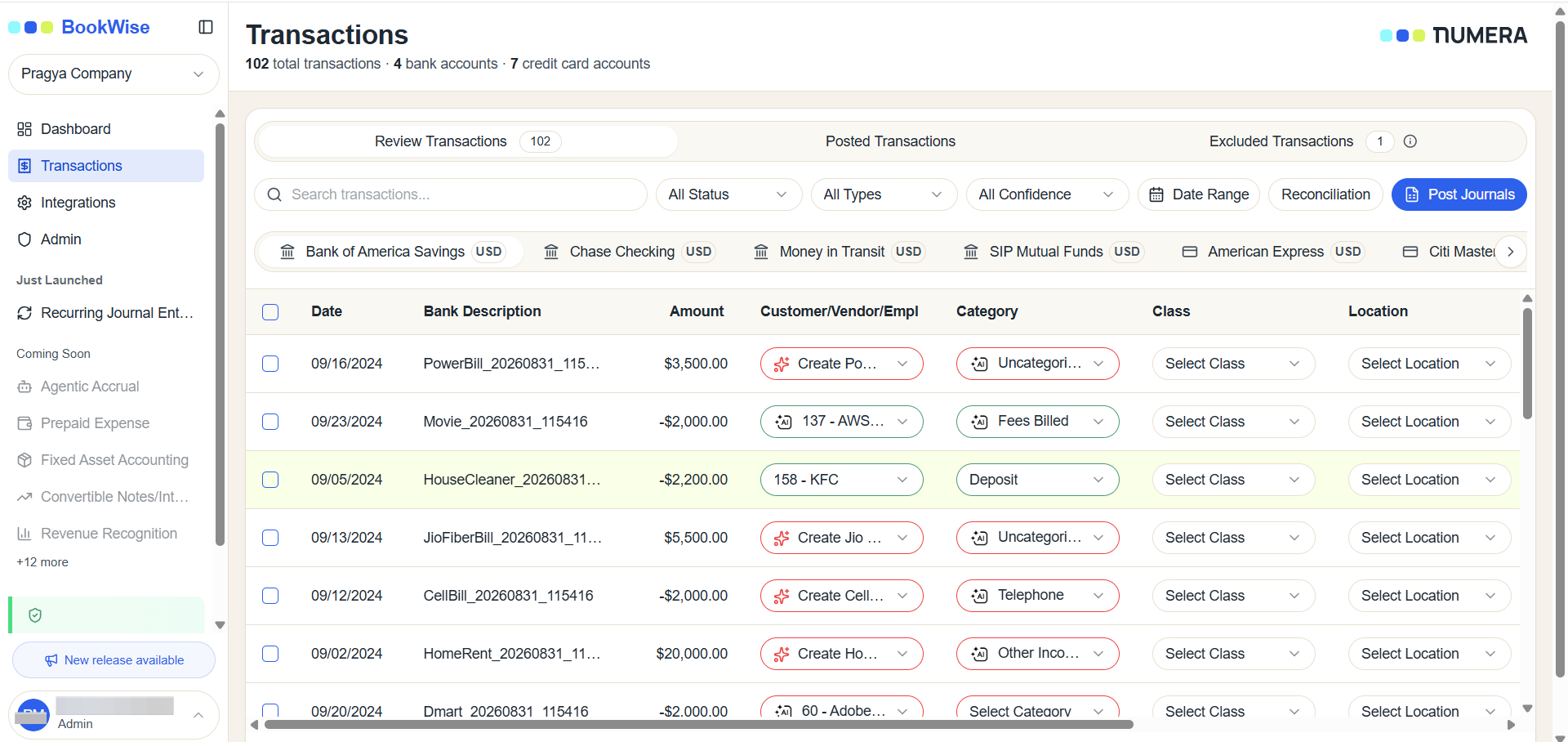
The newly created customer will be displayed in the selected field.
How to create an Employee
8
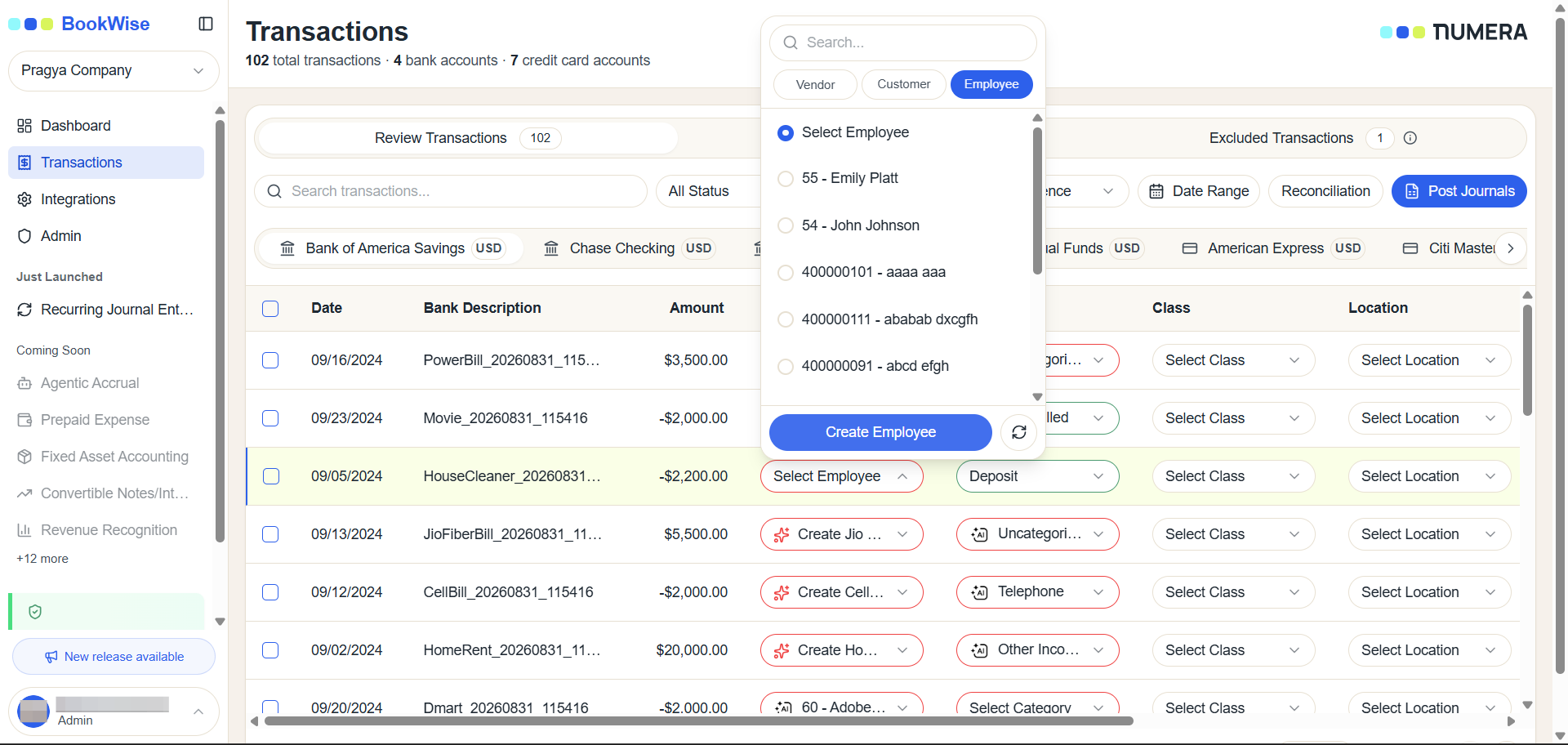
Click on Create Employee
9
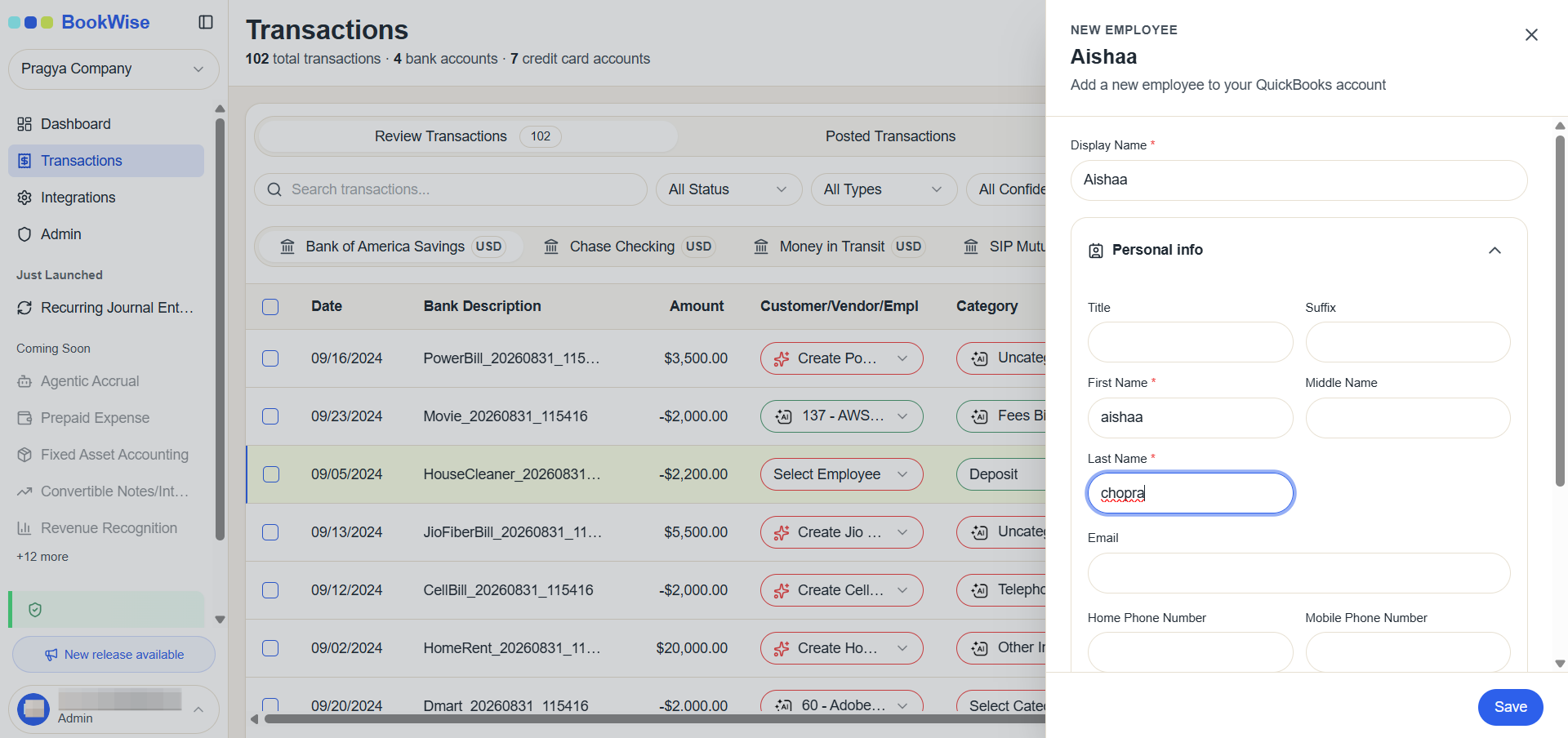
Fill out the required fields in the form and click on Save
10
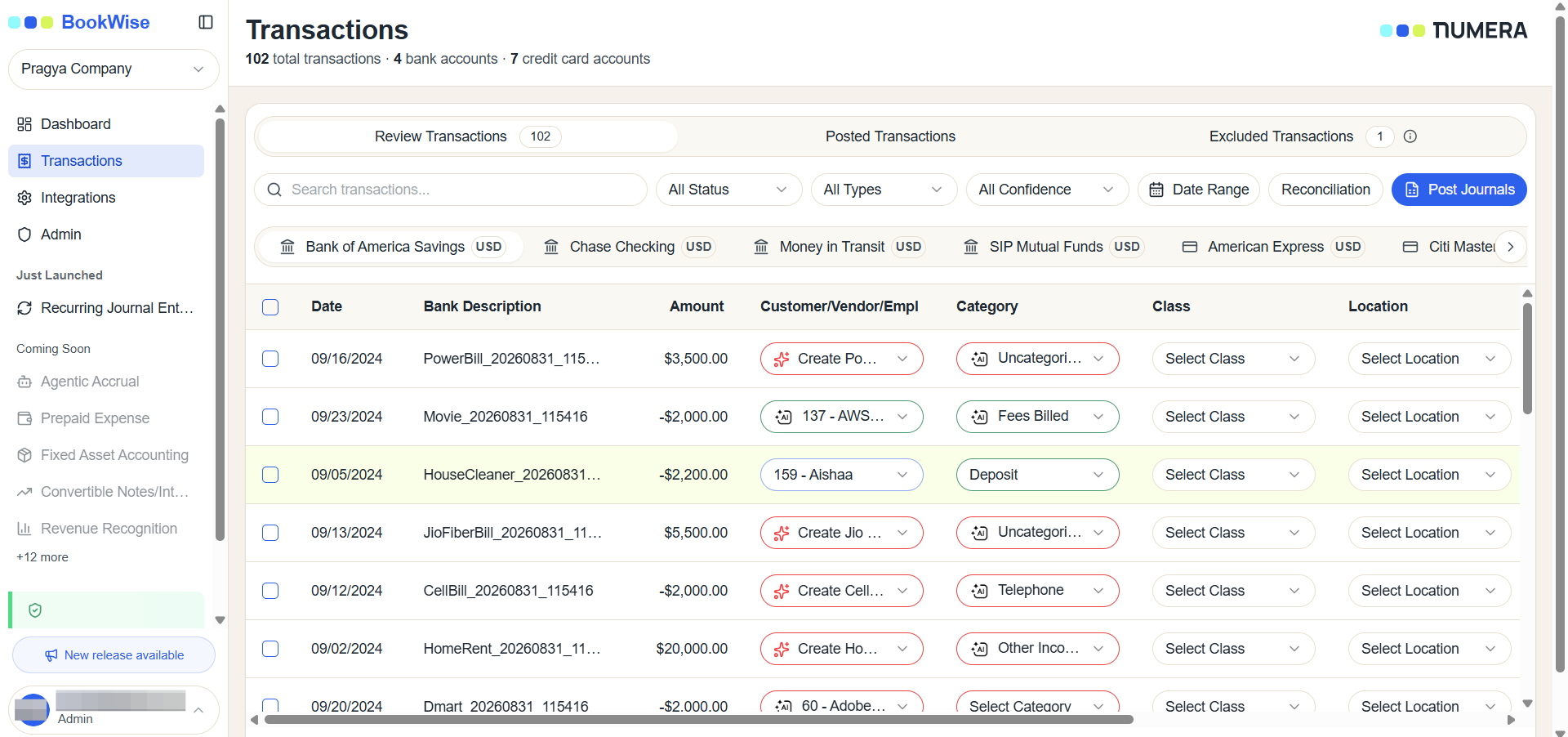
The newly created Employee will be displayed in the selected field.
The following steps outline how to create a customer or vendor and post the transaction to QuickBooks.