
How to Create a Lead in Salesforce: Step-by-Step Guide
Learn how to create a lead in Salesforce with this simple step-by-step guide. Follow these instructions to add a new lead, including entering the name and company, and saving your changes.
By Yuval Karmi
In this guide, we'll learn how to create a lead in Salesforce. This process helps you add new potential customers to your database so you can track and manage sales opportunities.
You'll see how to enter key details and save the information for future follow-up.
Let's get started
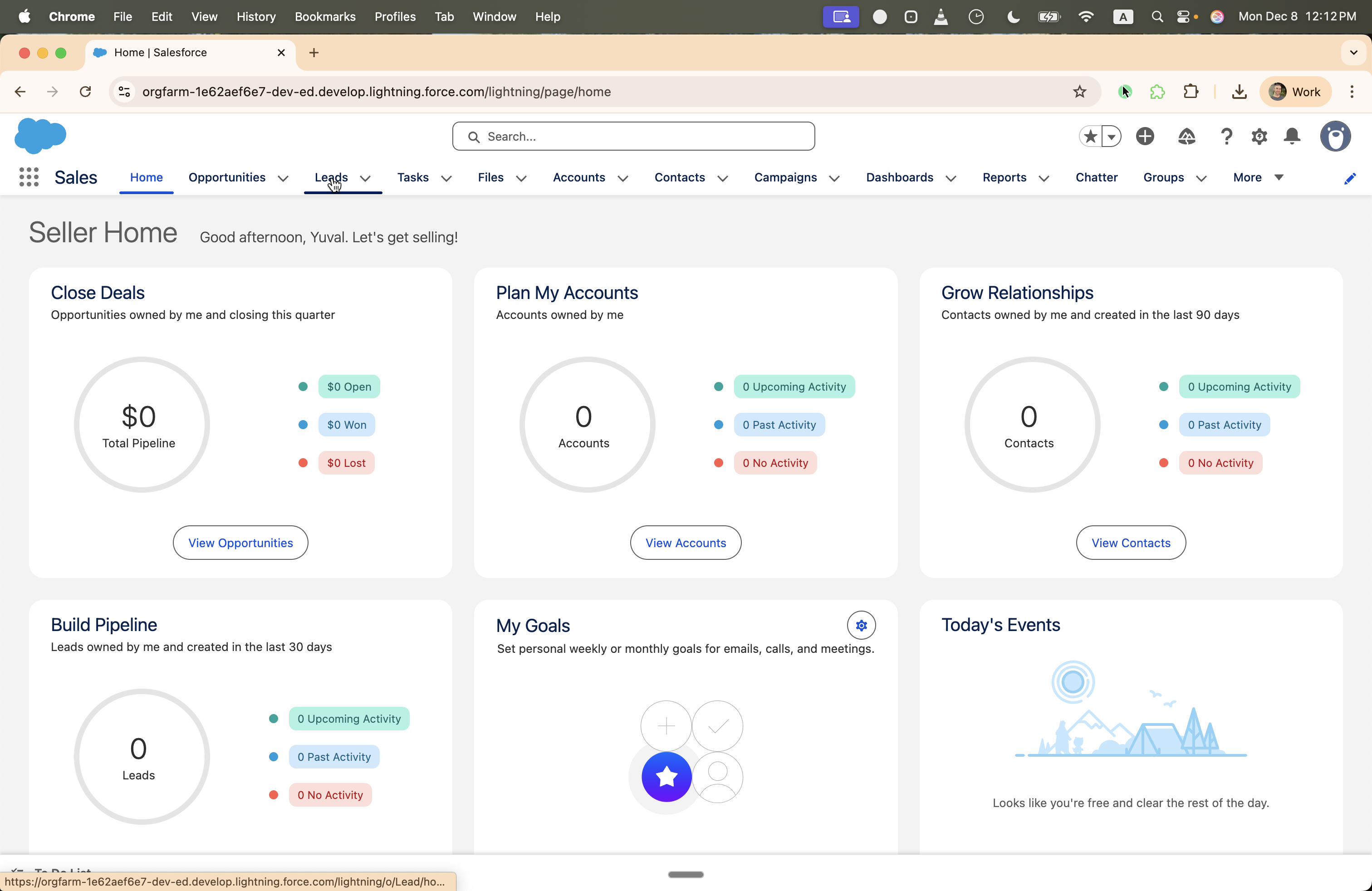
To create a lead in Salesforce, click on Leads, then click New.
1
create a lead in Salesforce, we're going to go ahead
2
Click on "Leads"
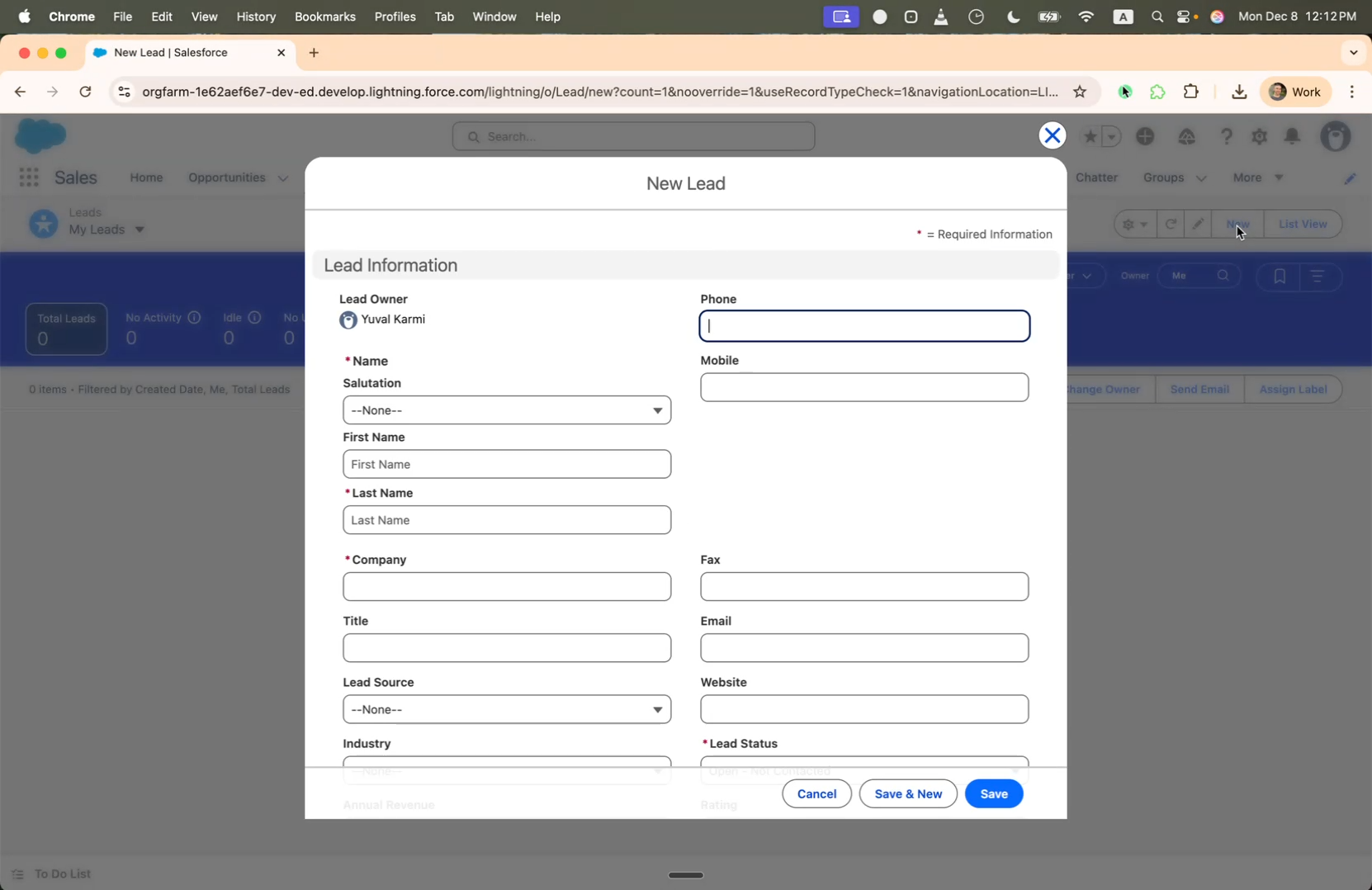
Once the dialog opens, begin by entering the first name.
3
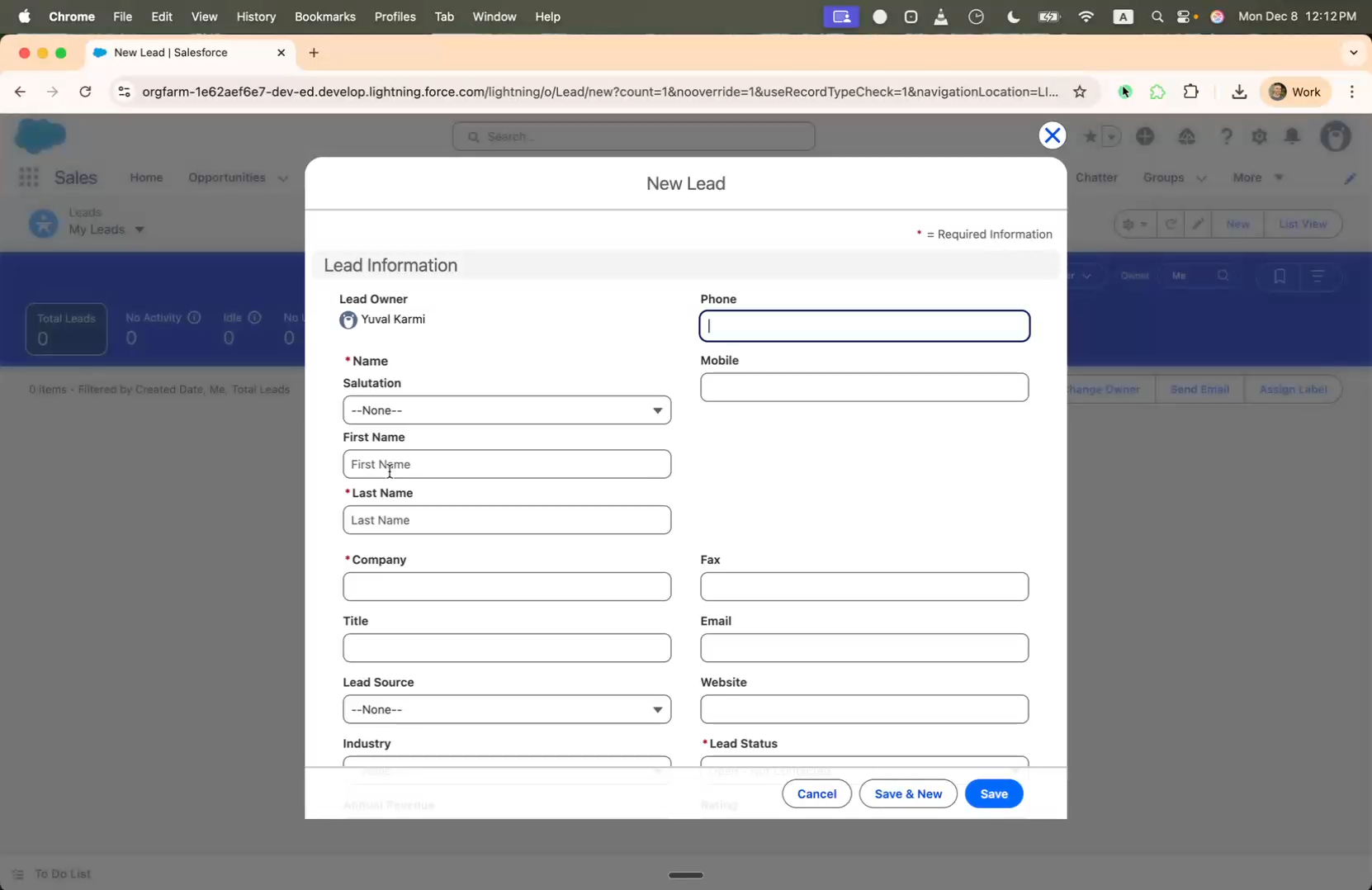
Select the text box in the dialog
4
You can open it
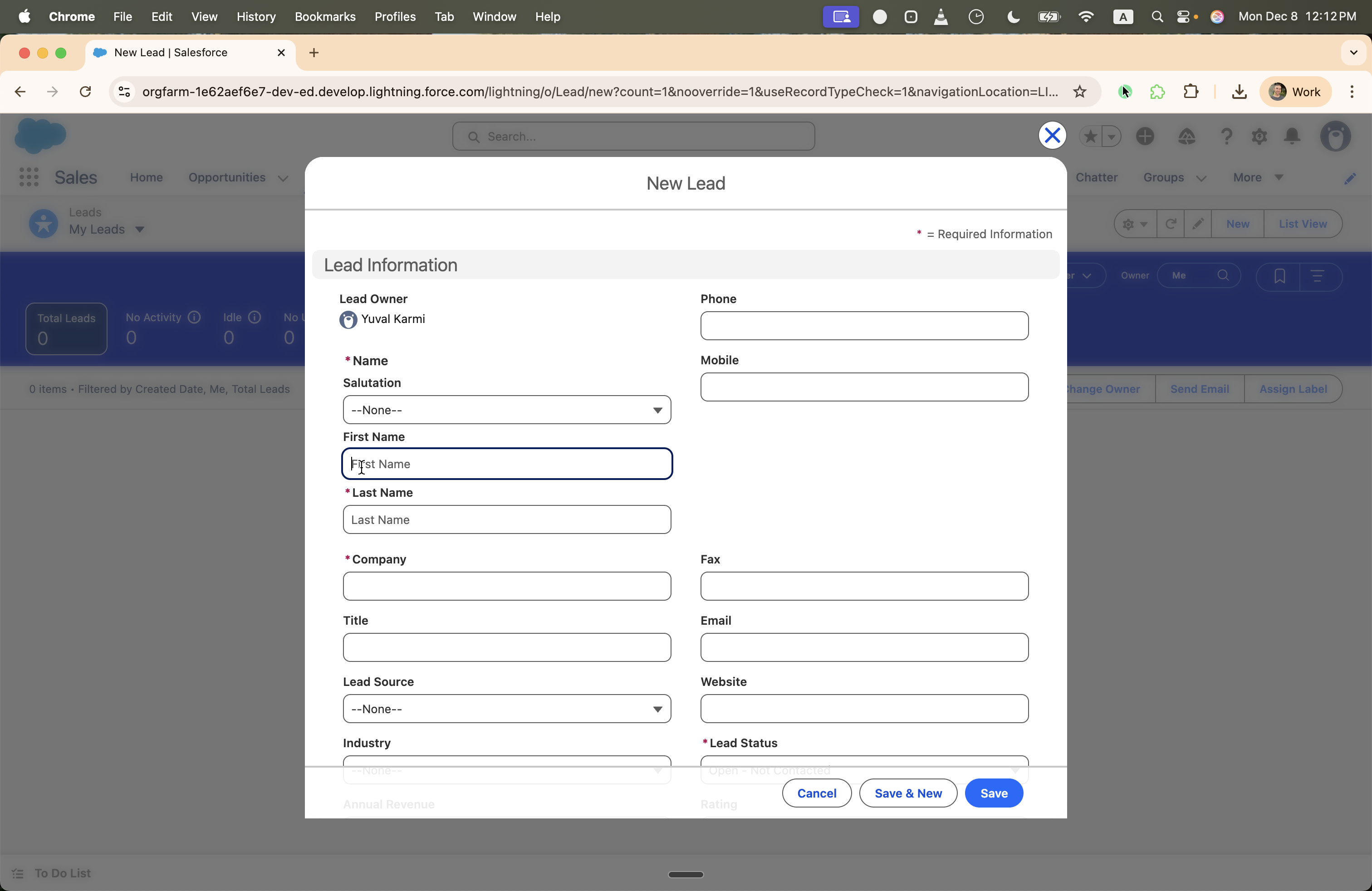
Type "John Smith" for the name, and use "Acme Inc." for the company.
5
Click on "First"
6
we'll type in John Smith, and the company can be Acme Inc.
When you're finished, click Save.
7
Once you're done, you go ahead and click on Save.
8
Type "ACME Inc."
9
Click on "Save"

This is how you create a lead in Salesforce.