
How to Create a Lead in VWED: Step-by-Step Guide
Learn how to create a lead in VWED with this comprehensive guide. Discover the essential steps, from entering lead information to quoting packages, and best practices for accurate data entry.
In this guide, we'll learn how to create a lead in VWED. This process helps you track how potential clients found your service and ensures you collect important details about each lead. Gathering accurate information at this stage supports better follow-up and organization.
You'll also see how to add a quote and select the right package for the lead.
Let's get started
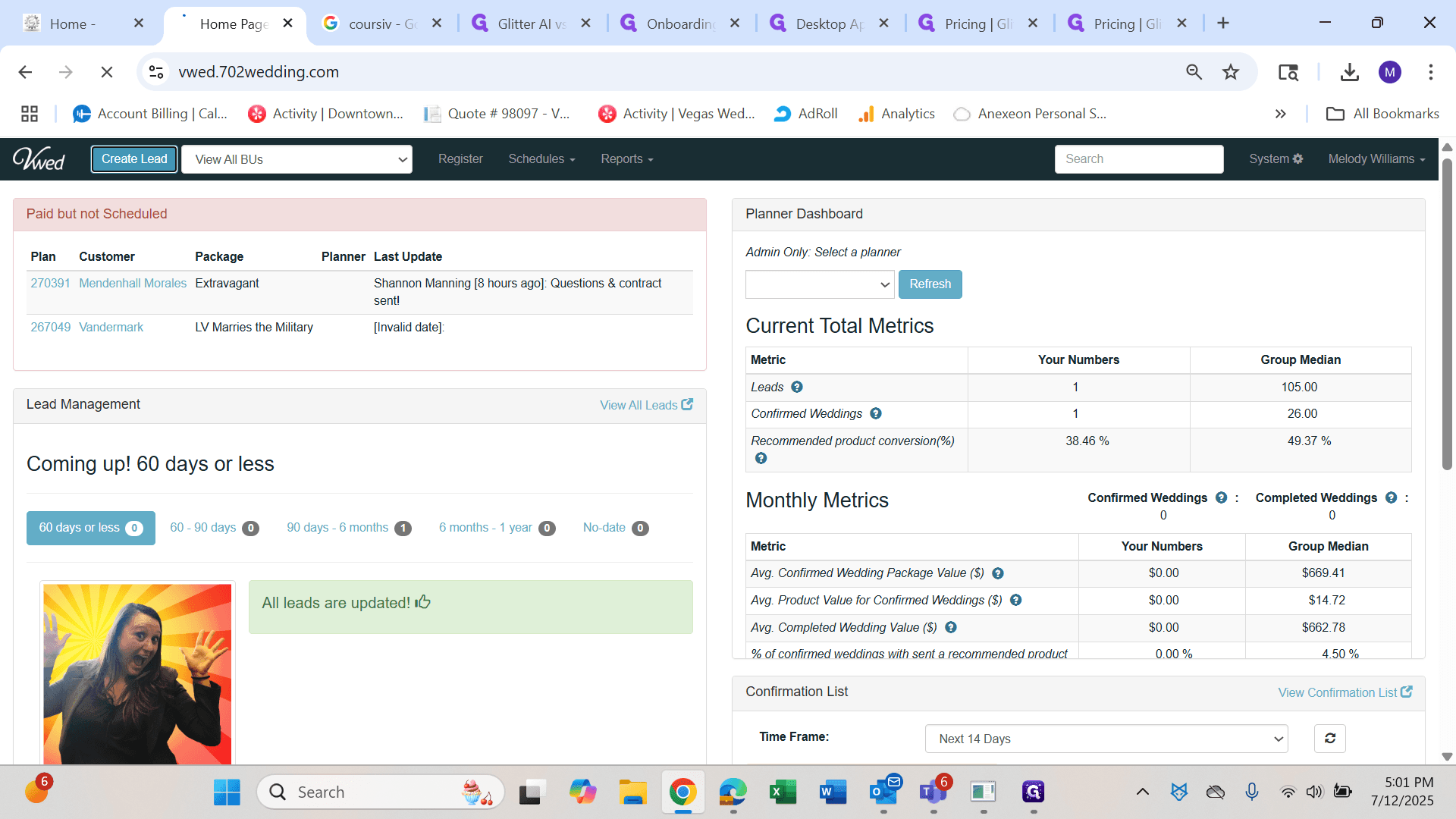
How to create a lead in VWED. First, click "Create Lead."
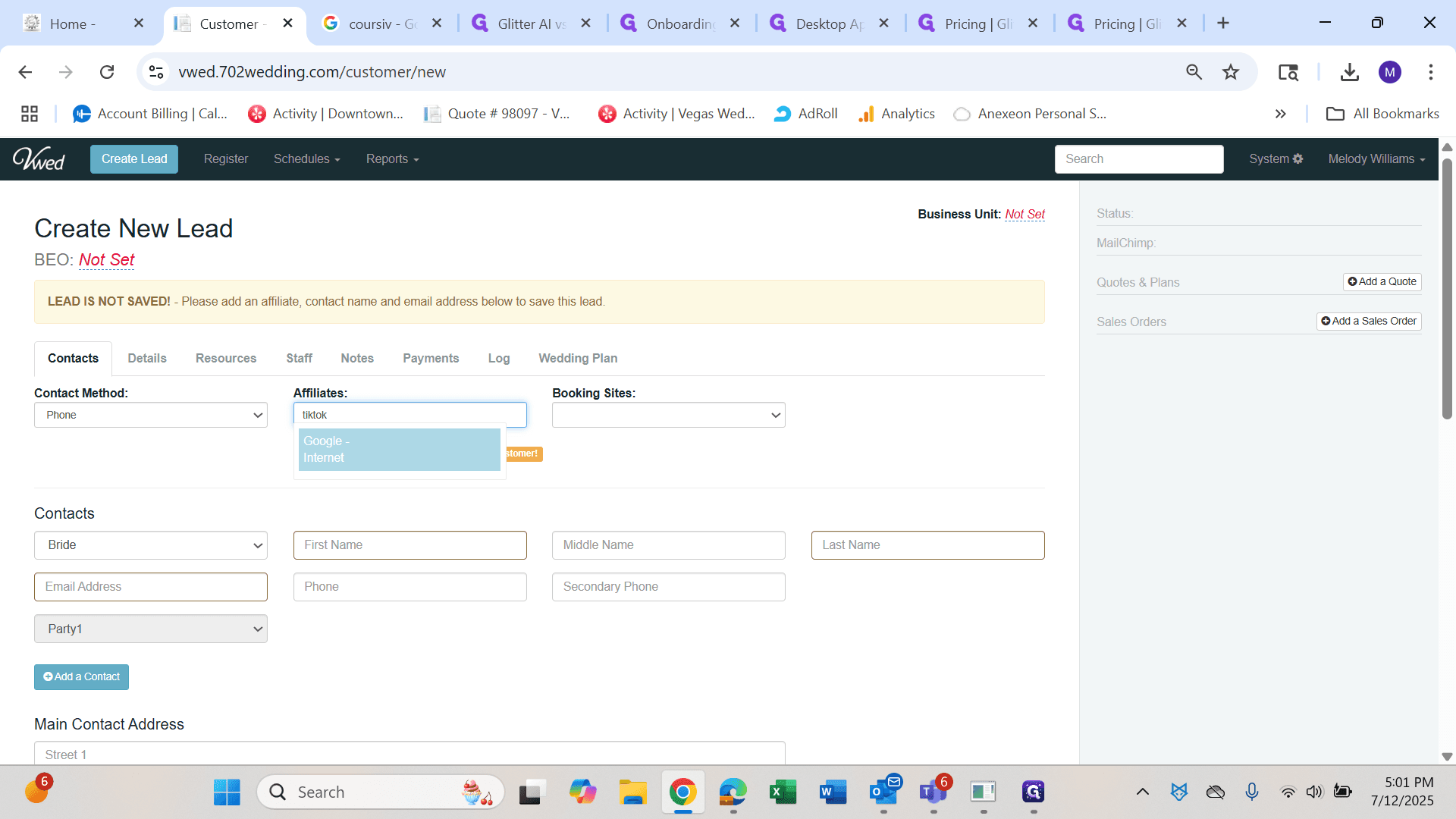
Enter the relevant information: how they found us and the affiliate or source, such as Google, Facebook, or TikTok.
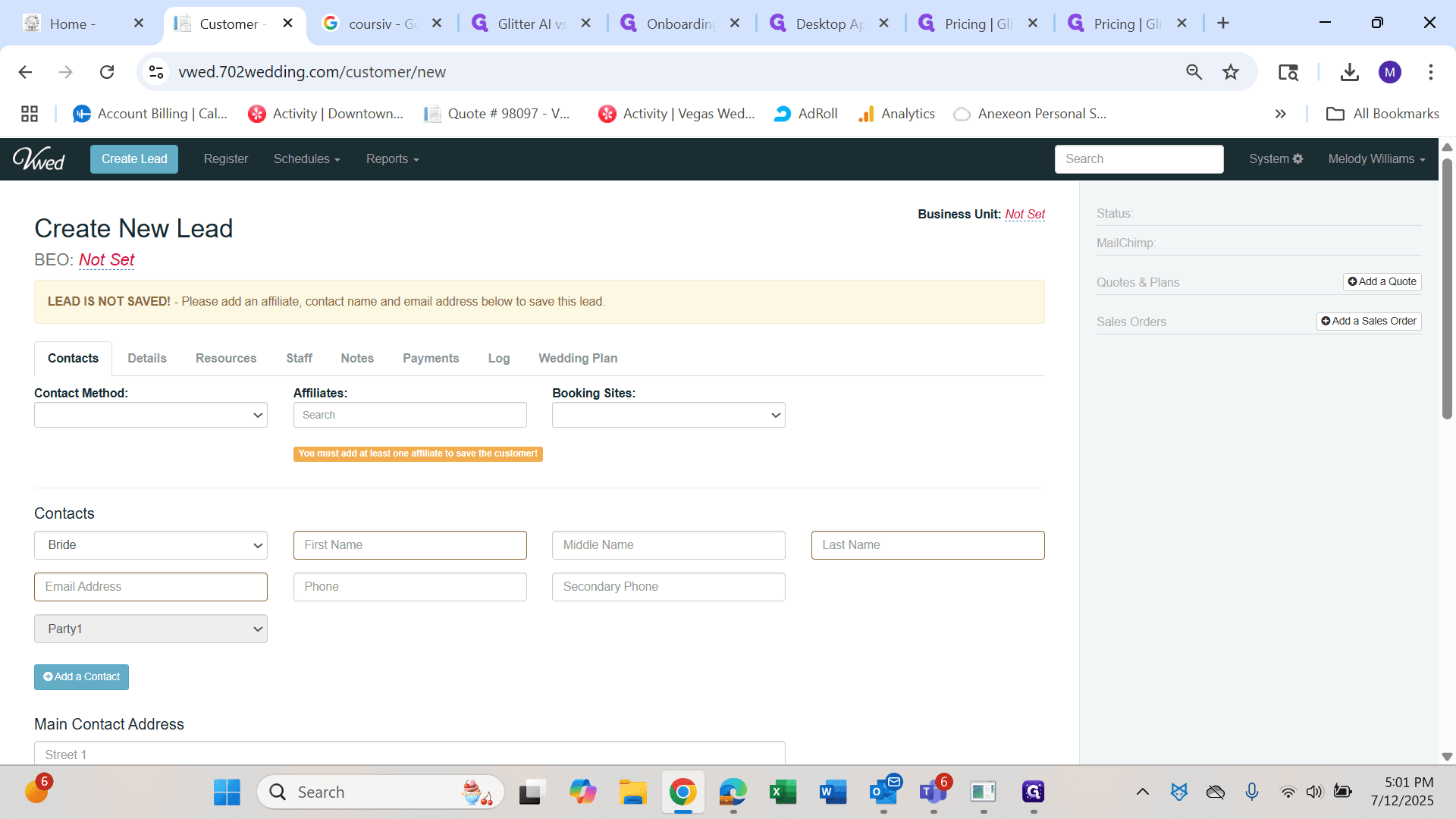
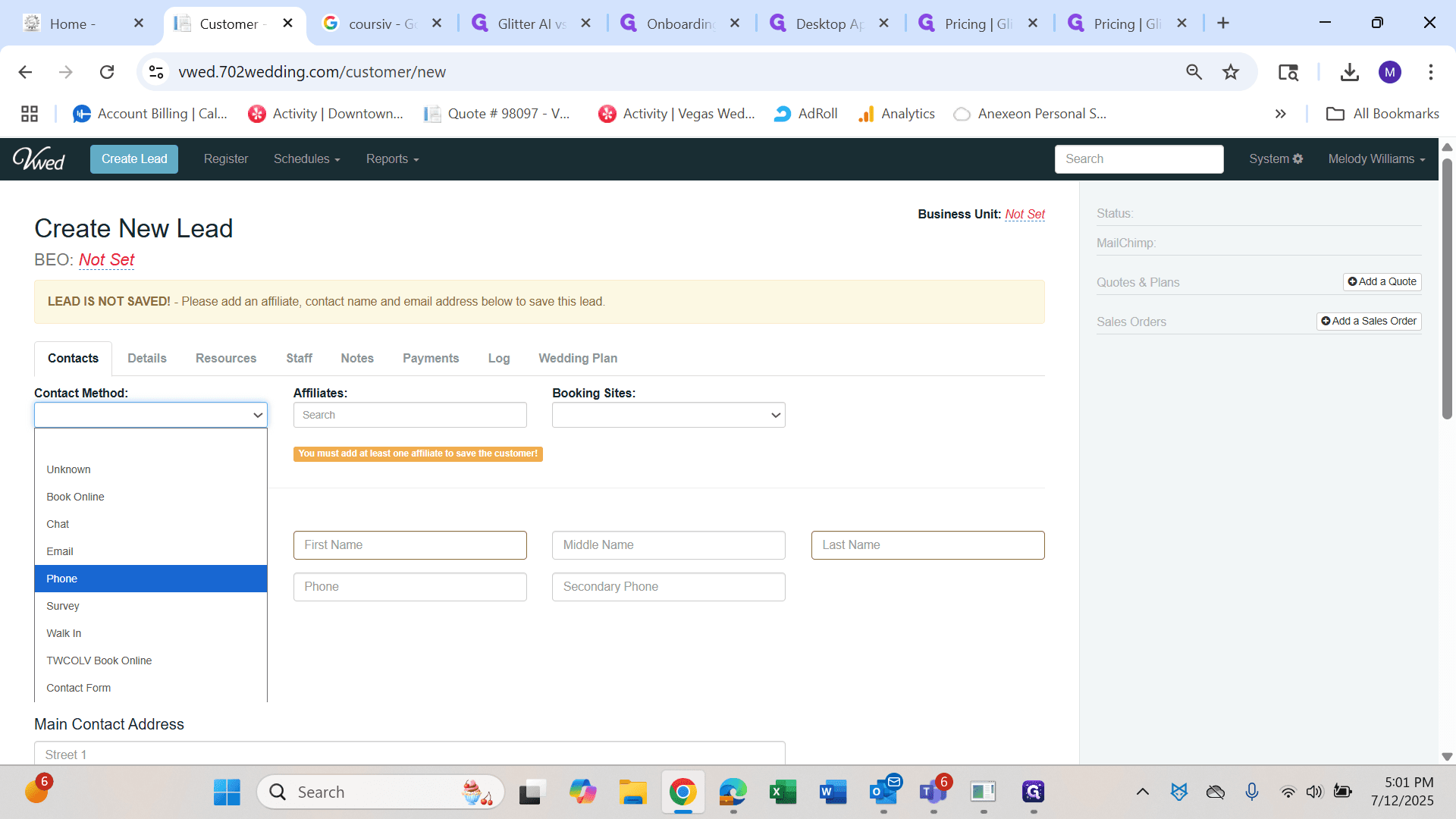
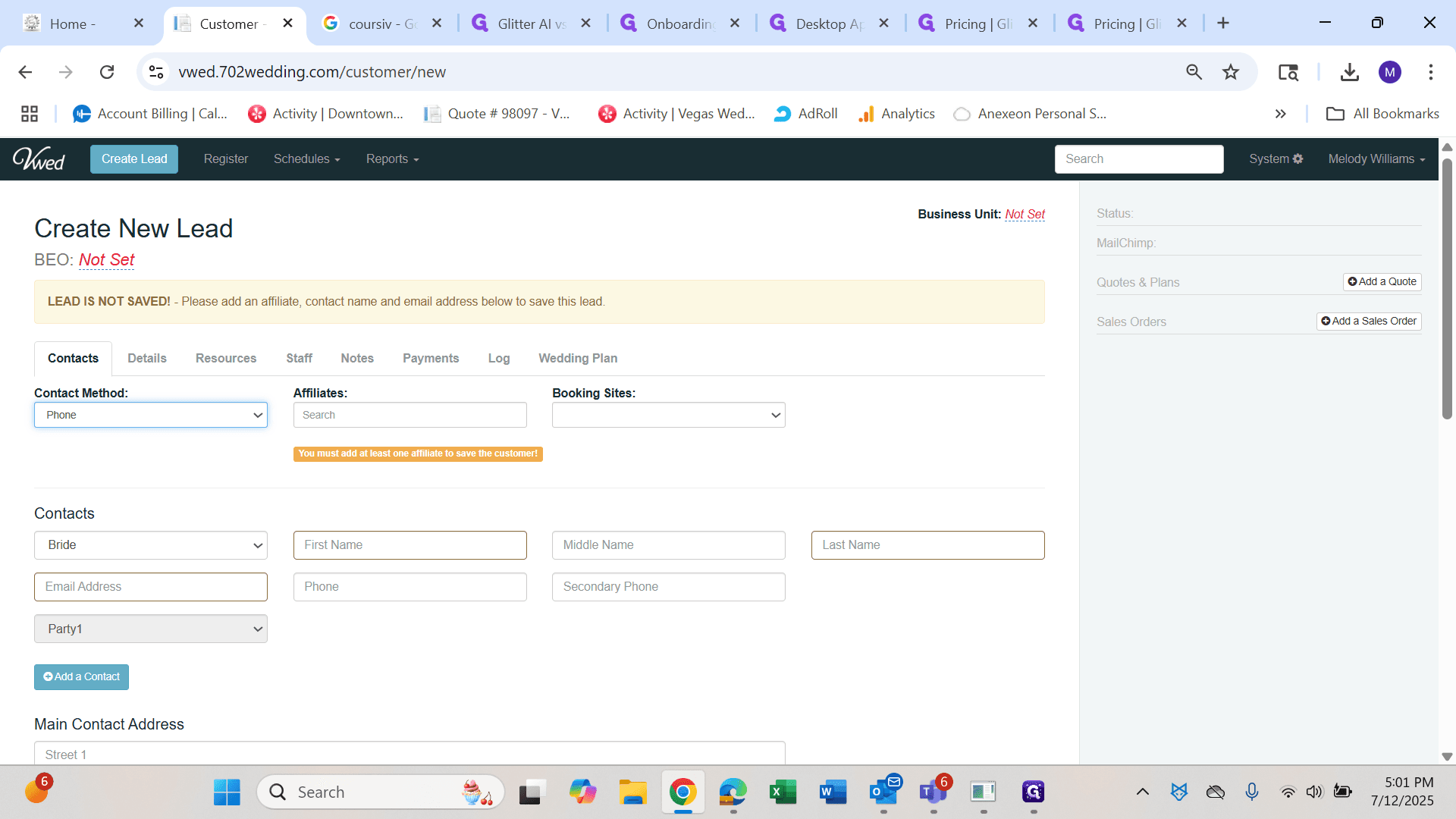
It's important to find out how your new lead discovered us.
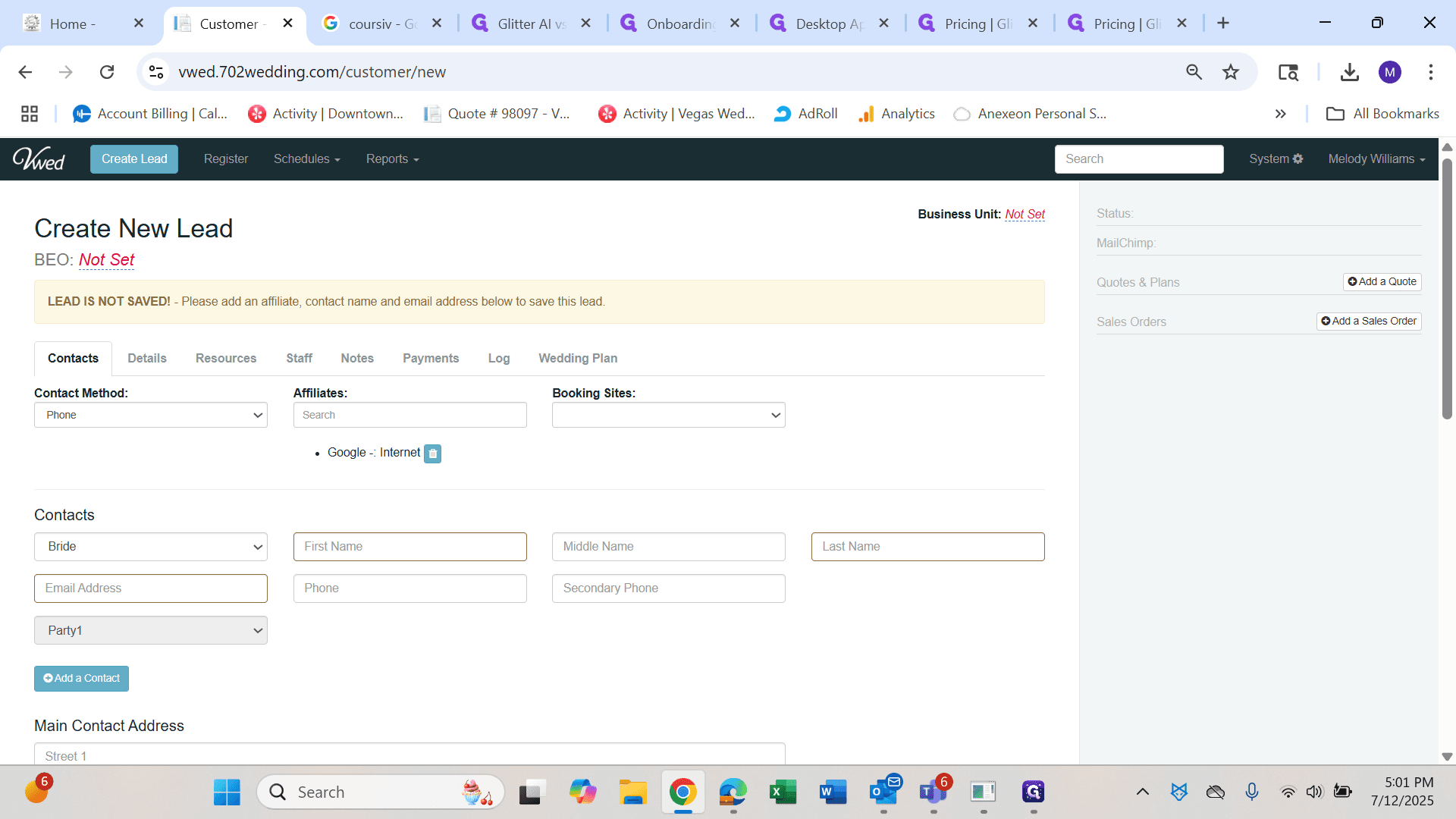
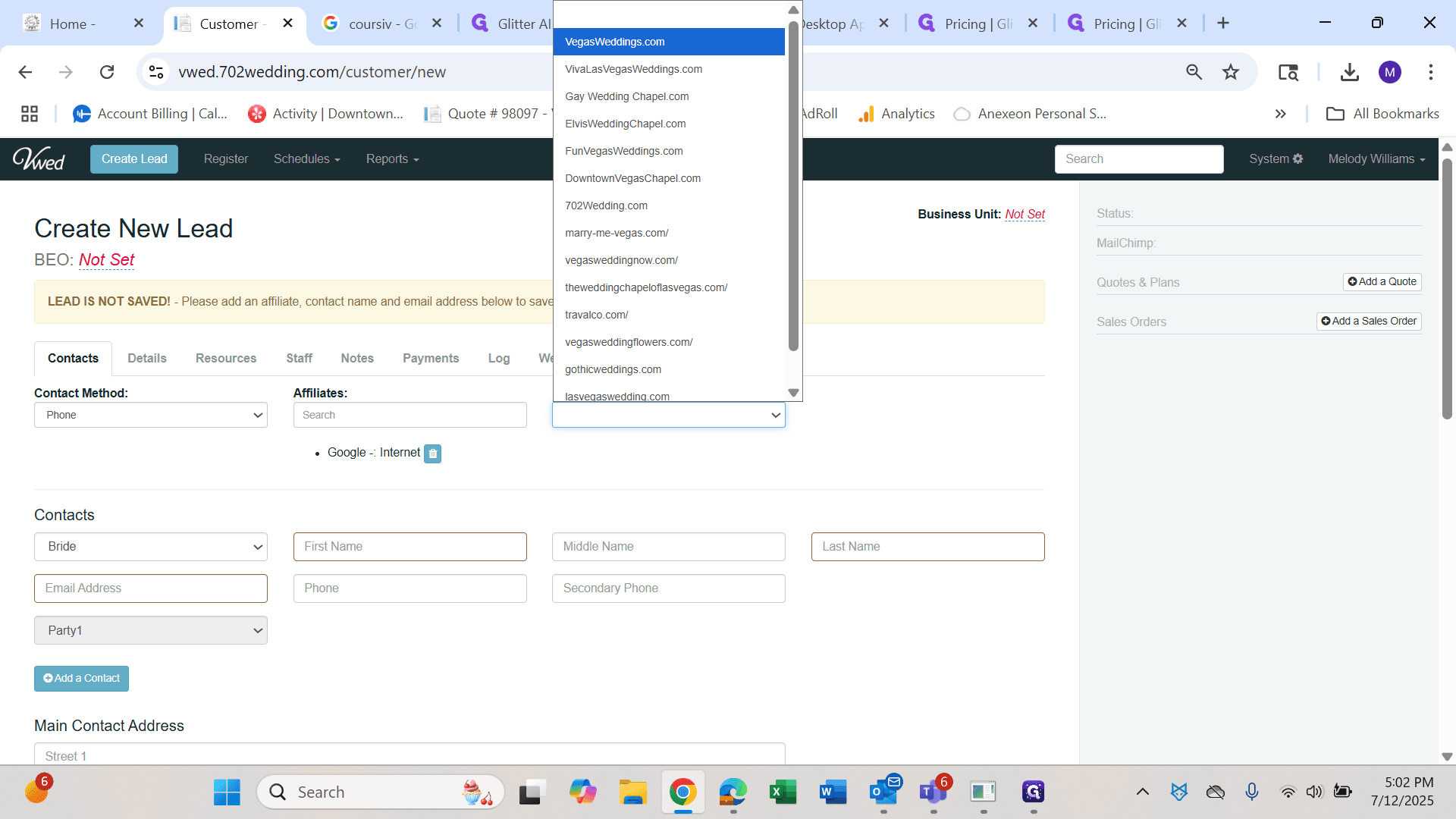
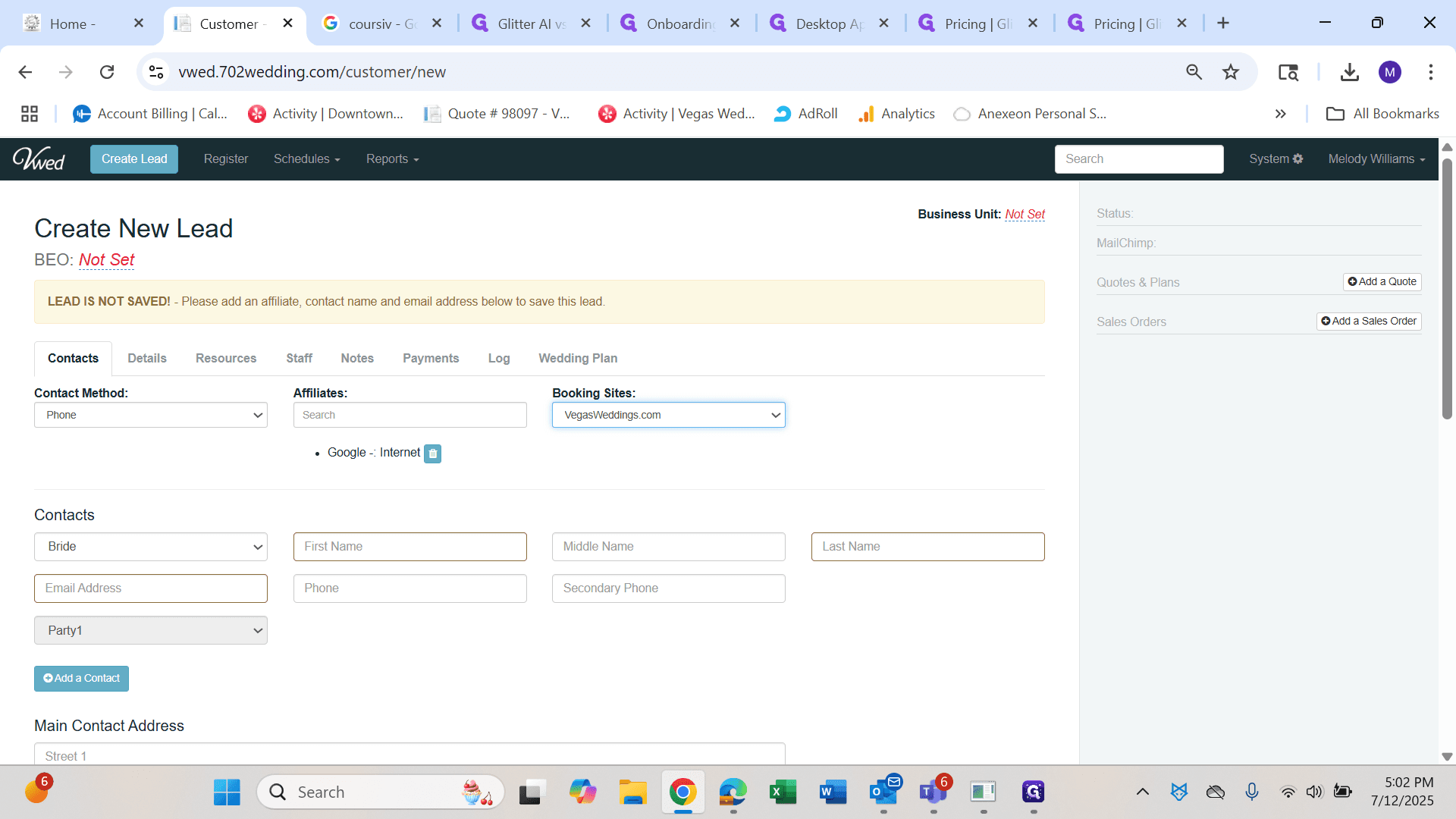
If applicable and they are online, select the website they are using.
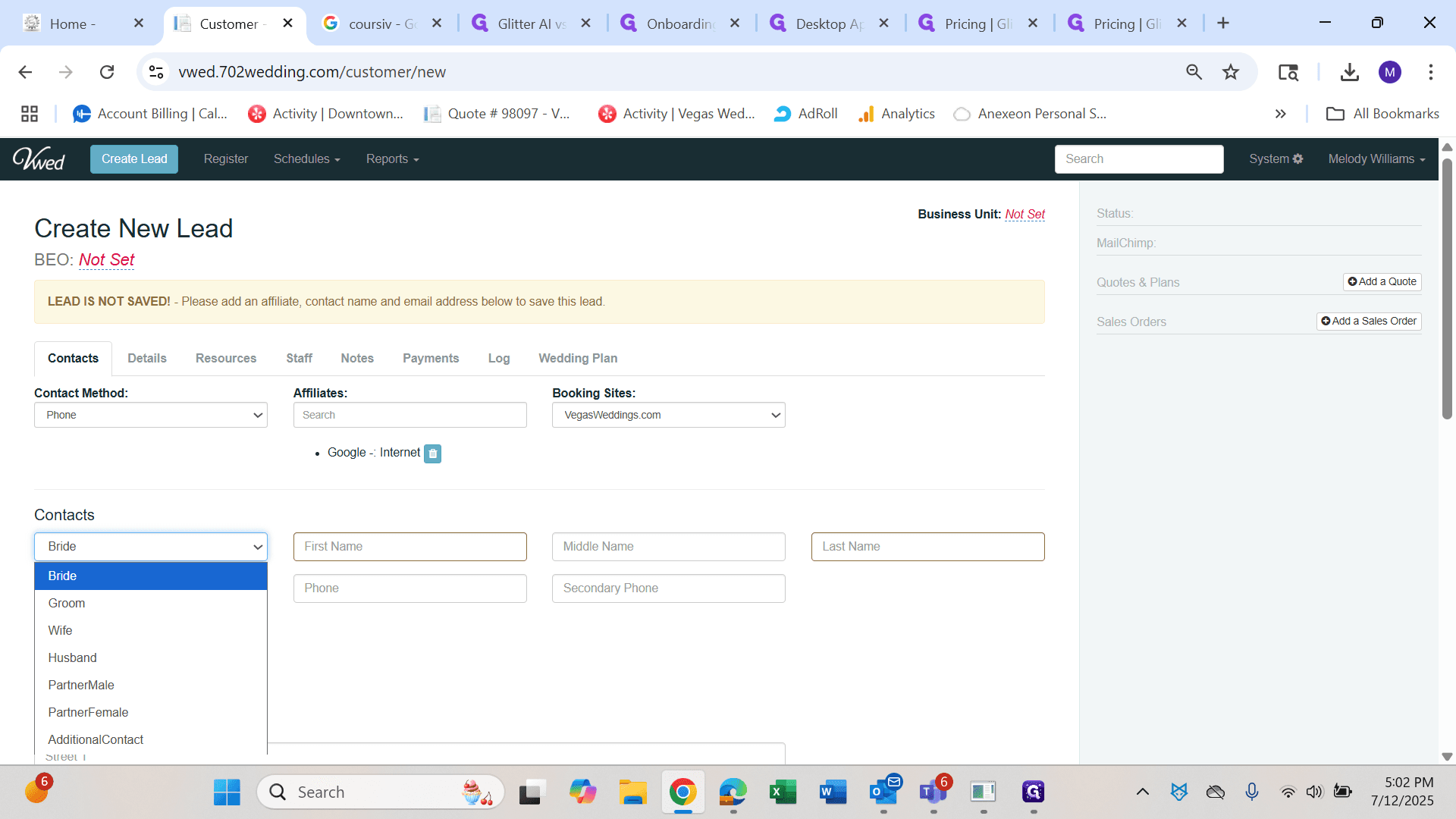
Enter who the partner is: bride, groom, wife, or husband.
"Bride" is used when someone is getting married in a legal marriage. Groom is also used when a groom and bride are marrying with a legal license. "Wife" and "husband" are used when the couple is already married. Partner male and partner female are typically used in same-sex situations, but you can also use two brides or two grooms. If you use an additional contact as the first entry point, it will be difficult to find this lead.
Even if someone is reaching out on behalf of the customer who is getting married or celebrating a vow renewal, do not use this yet. Use another option. The system requires you to enter an email address.
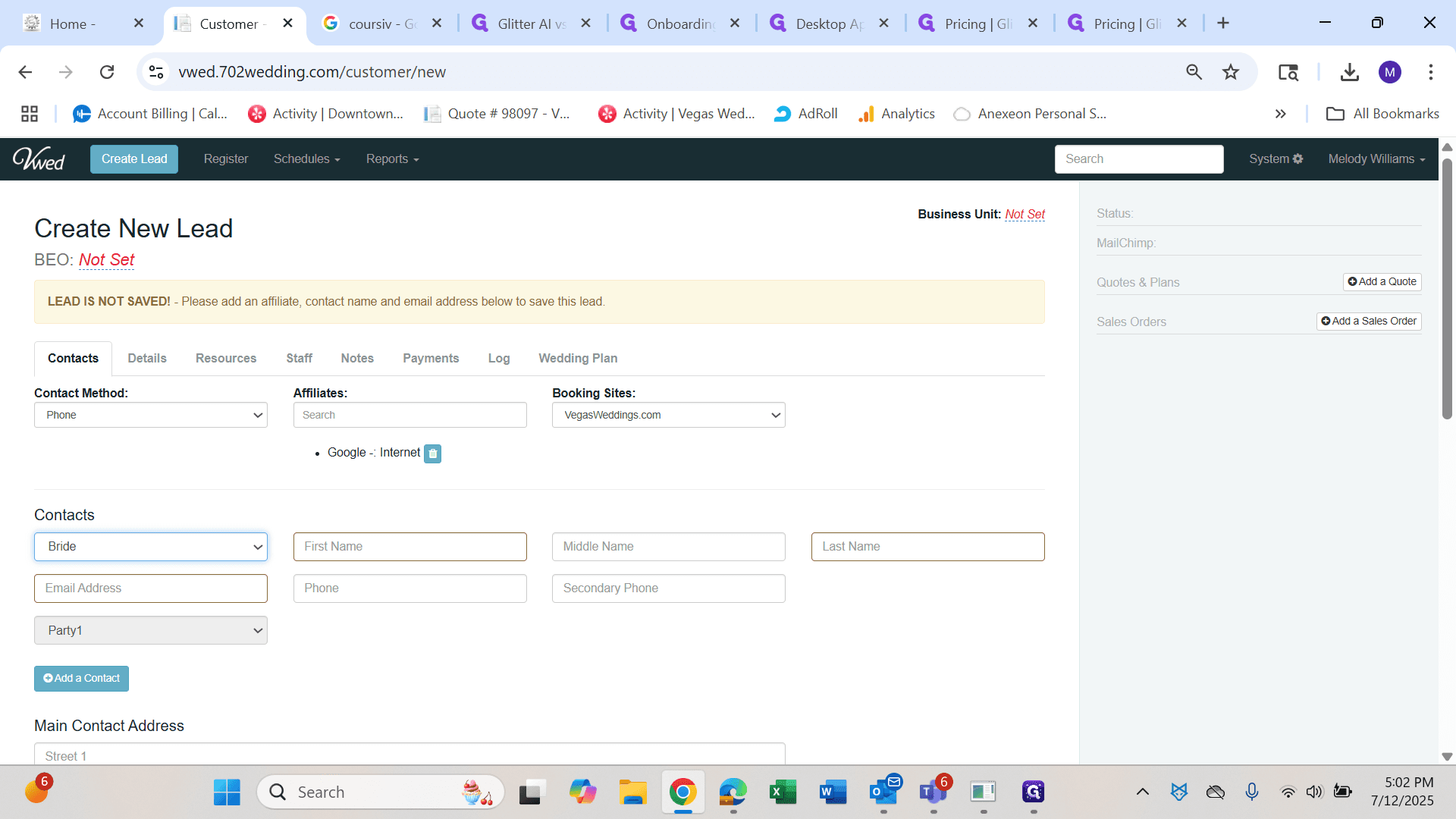
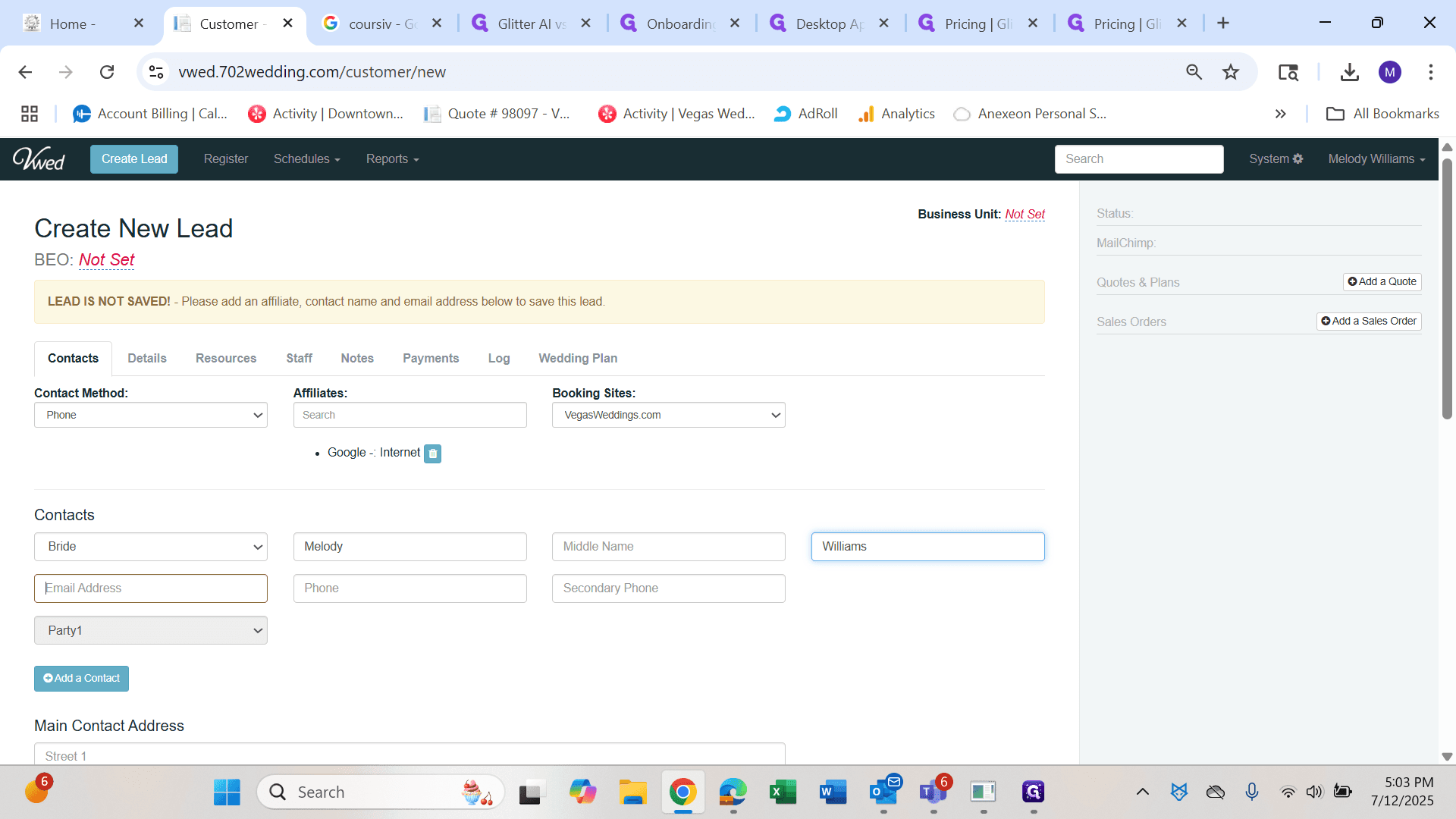
In this case, I'll use a fake email address. However, you should use real email addresses. Gather as much information as possible when creating a lead.
If you do not have the other party, leave this section blank.
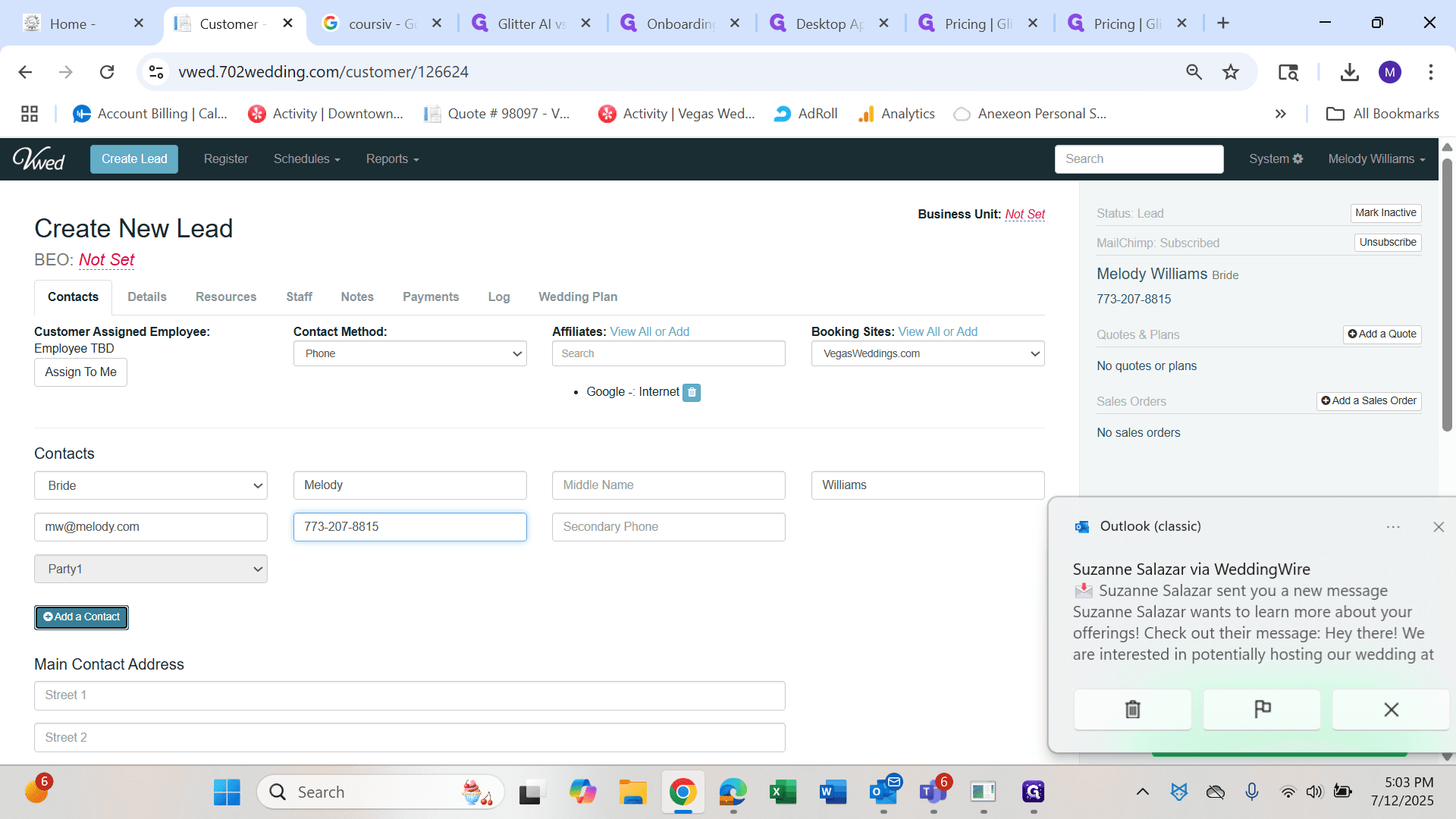
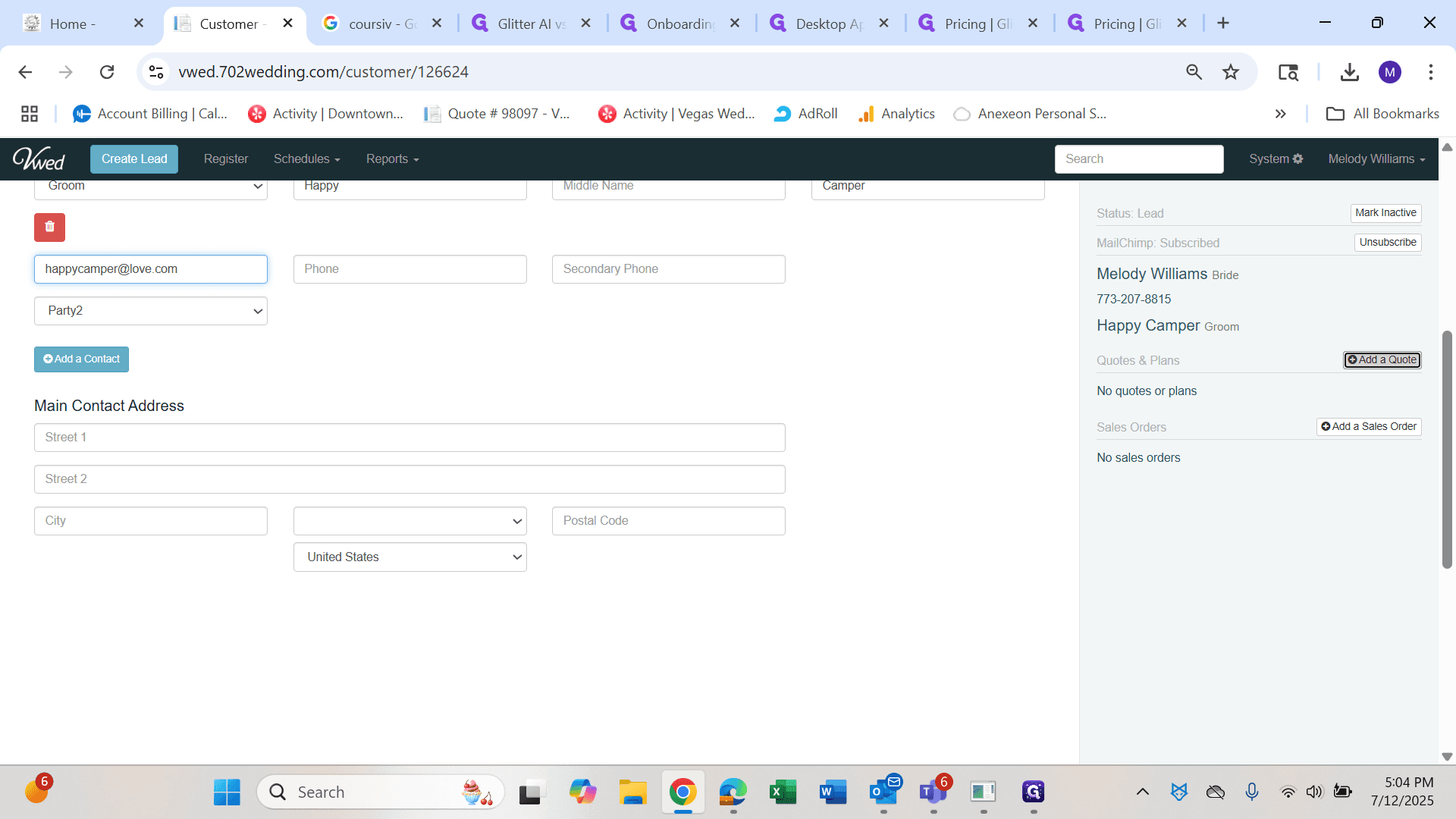
Try to gather as much information as possible, including who the person is marrying and their contact details.
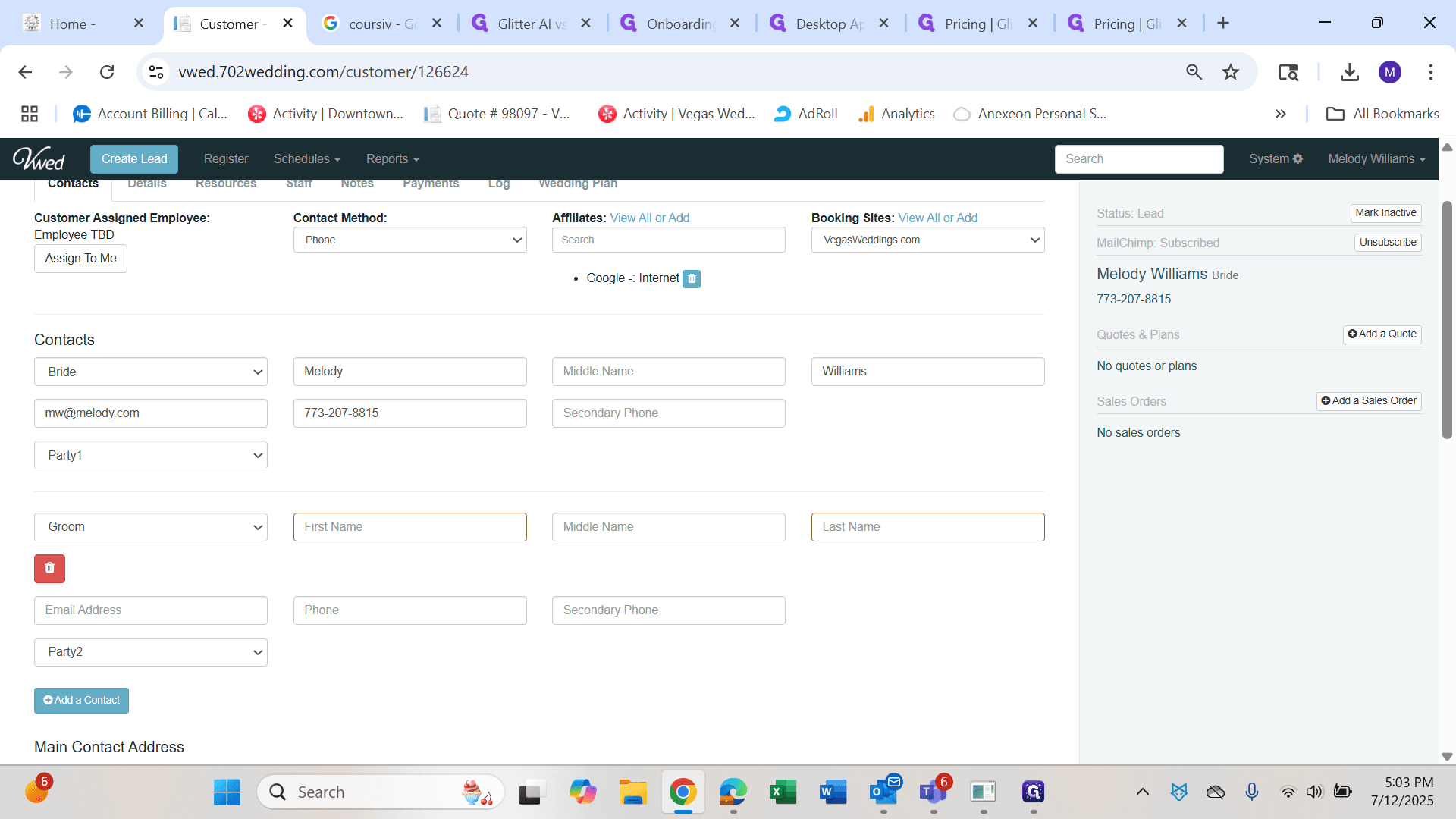
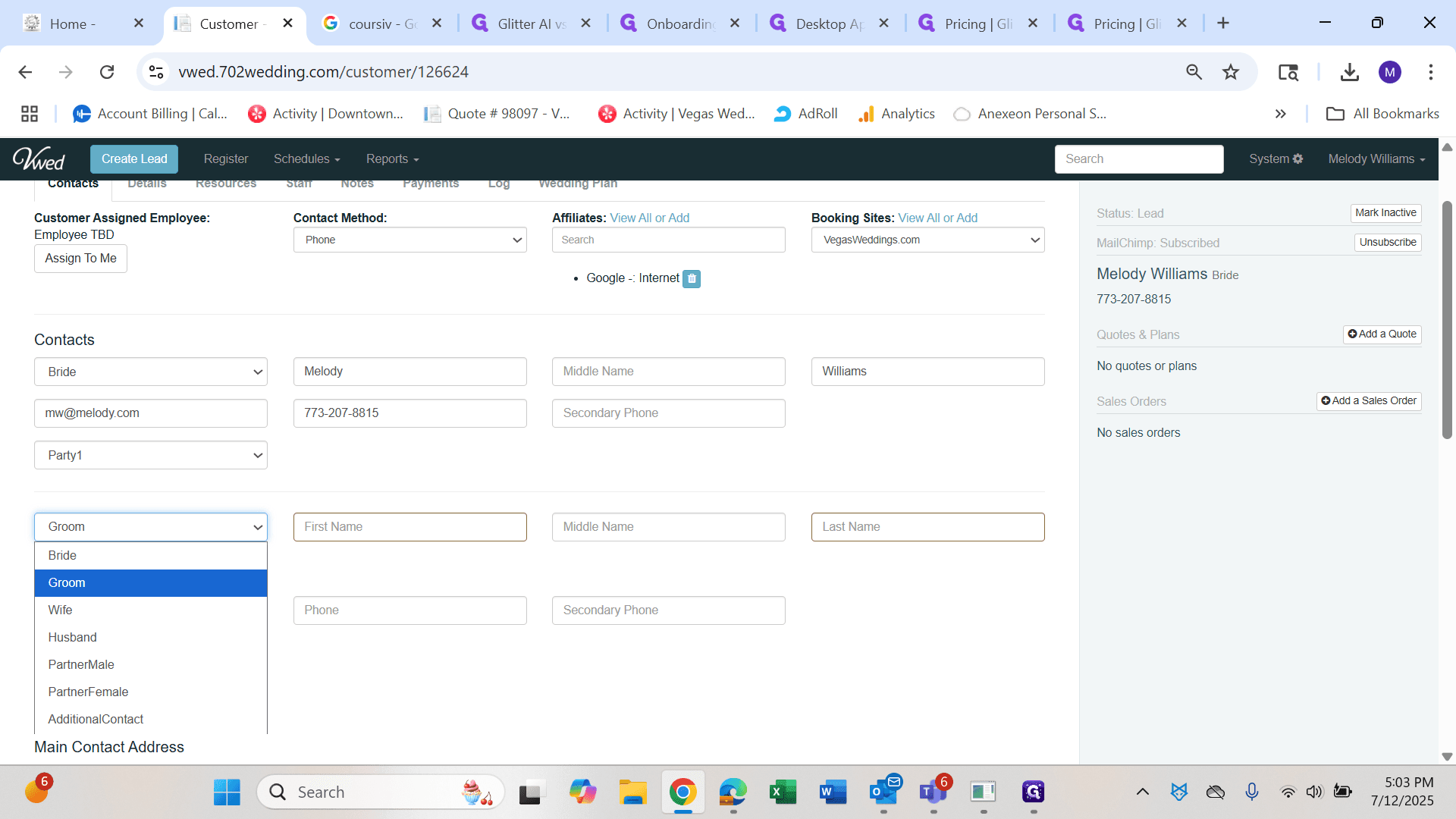
Enter their address as much as you know it.
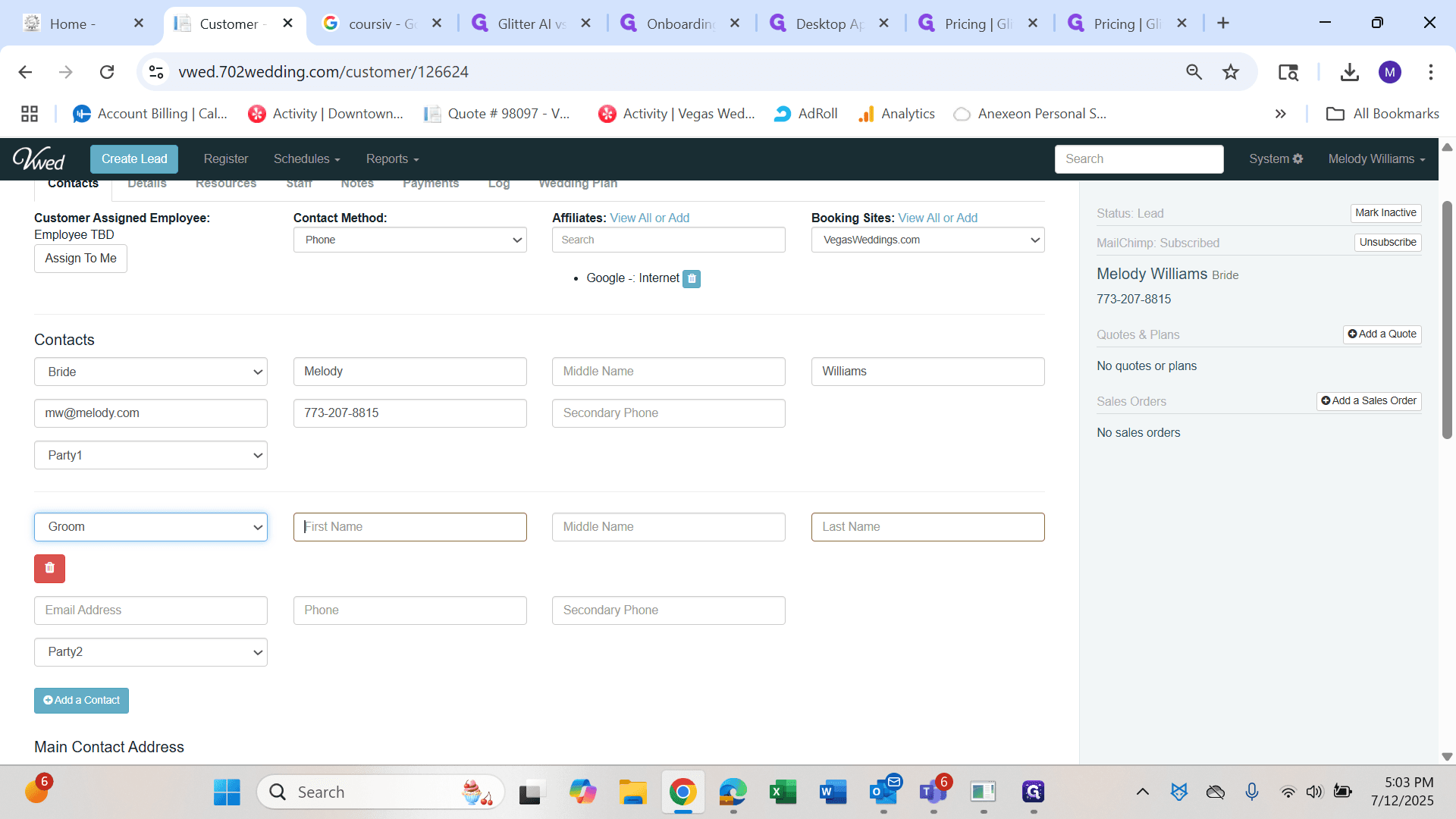
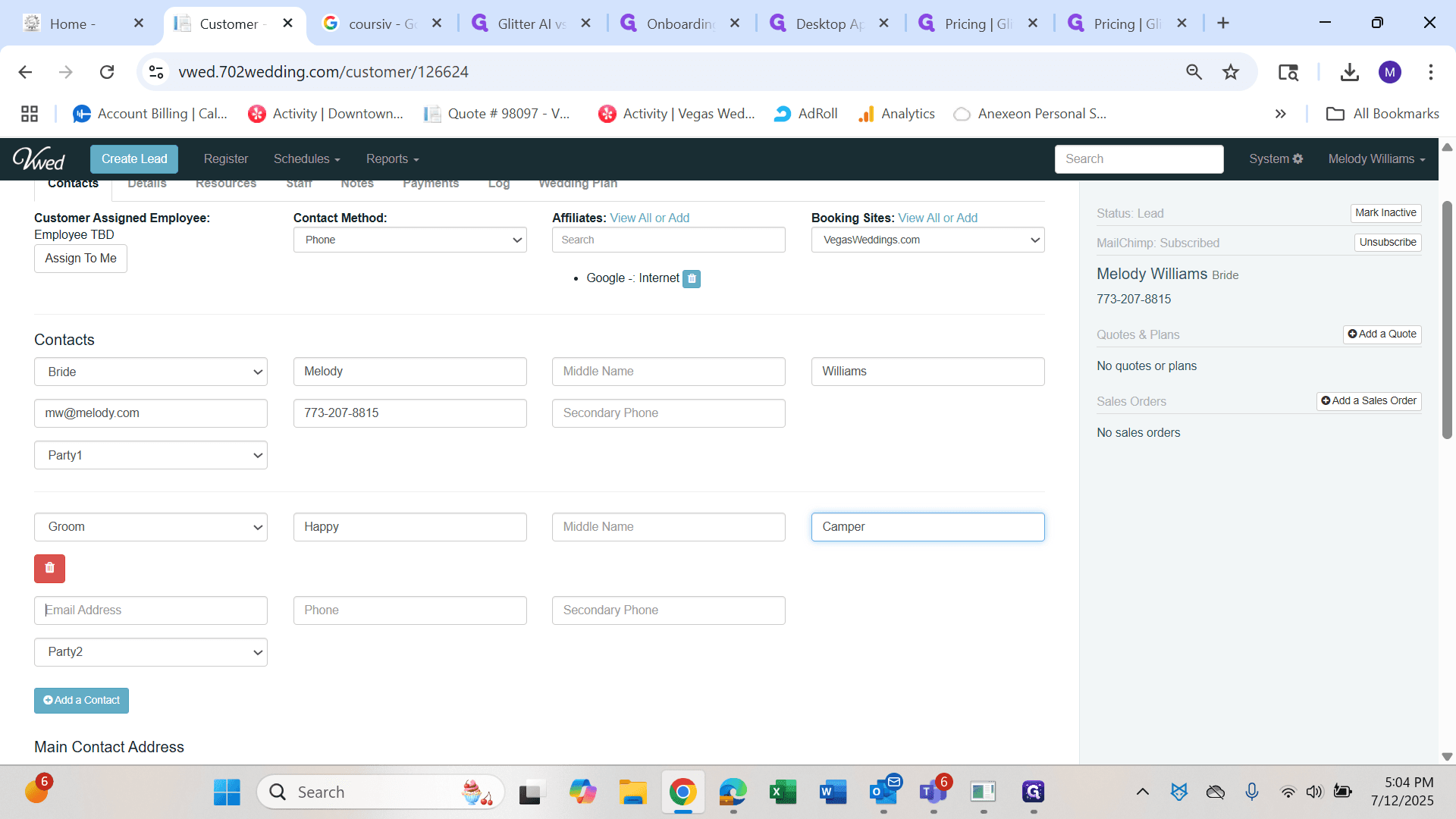
Once a wedding is confirmed, you will want to gather all the details. In the quote phase, it is acceptable to leave that blank. Next, click Add a Quote.
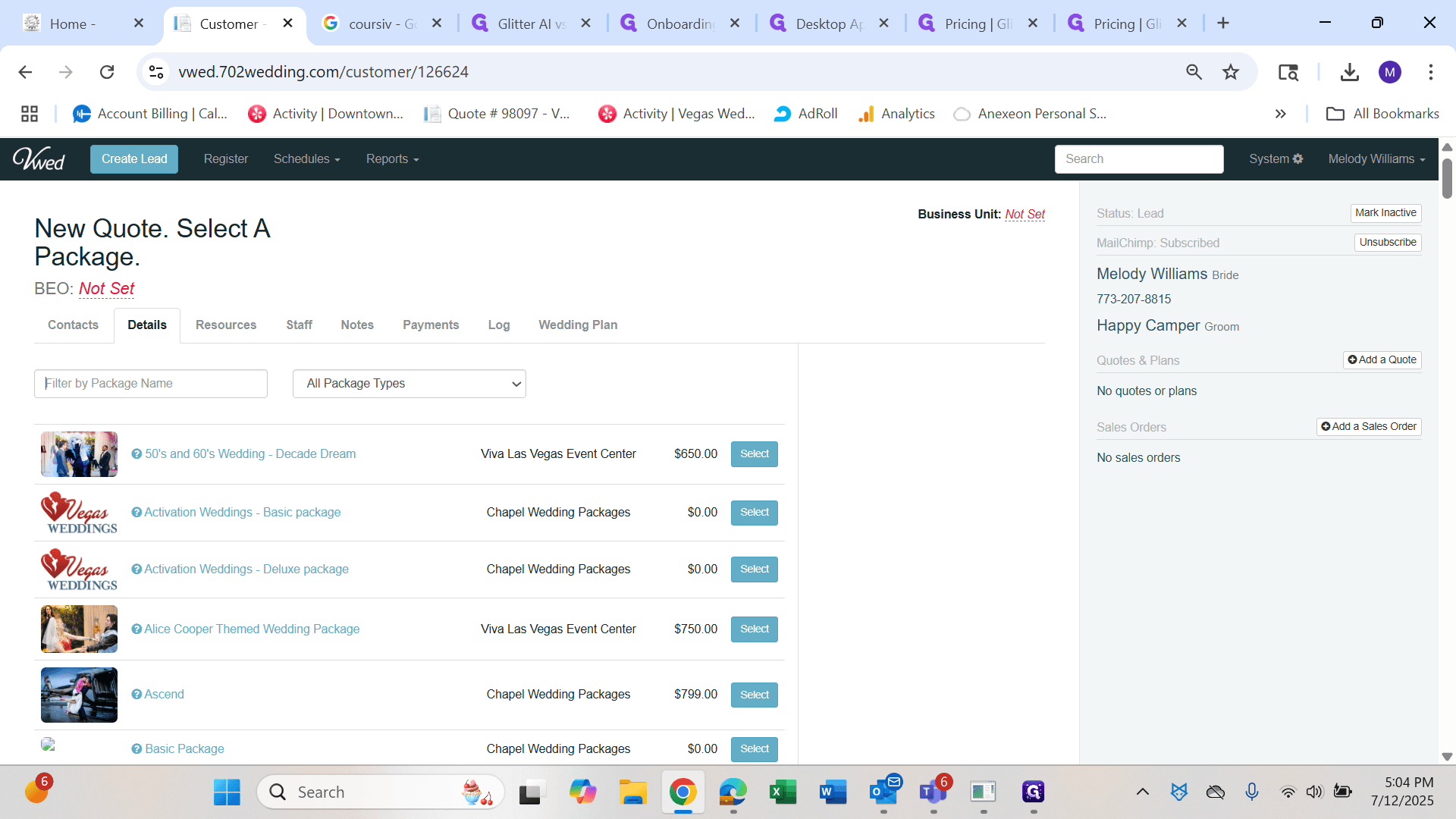
Go to the selection process and enter the package you want to quote.
Once you have found the package, click Select.
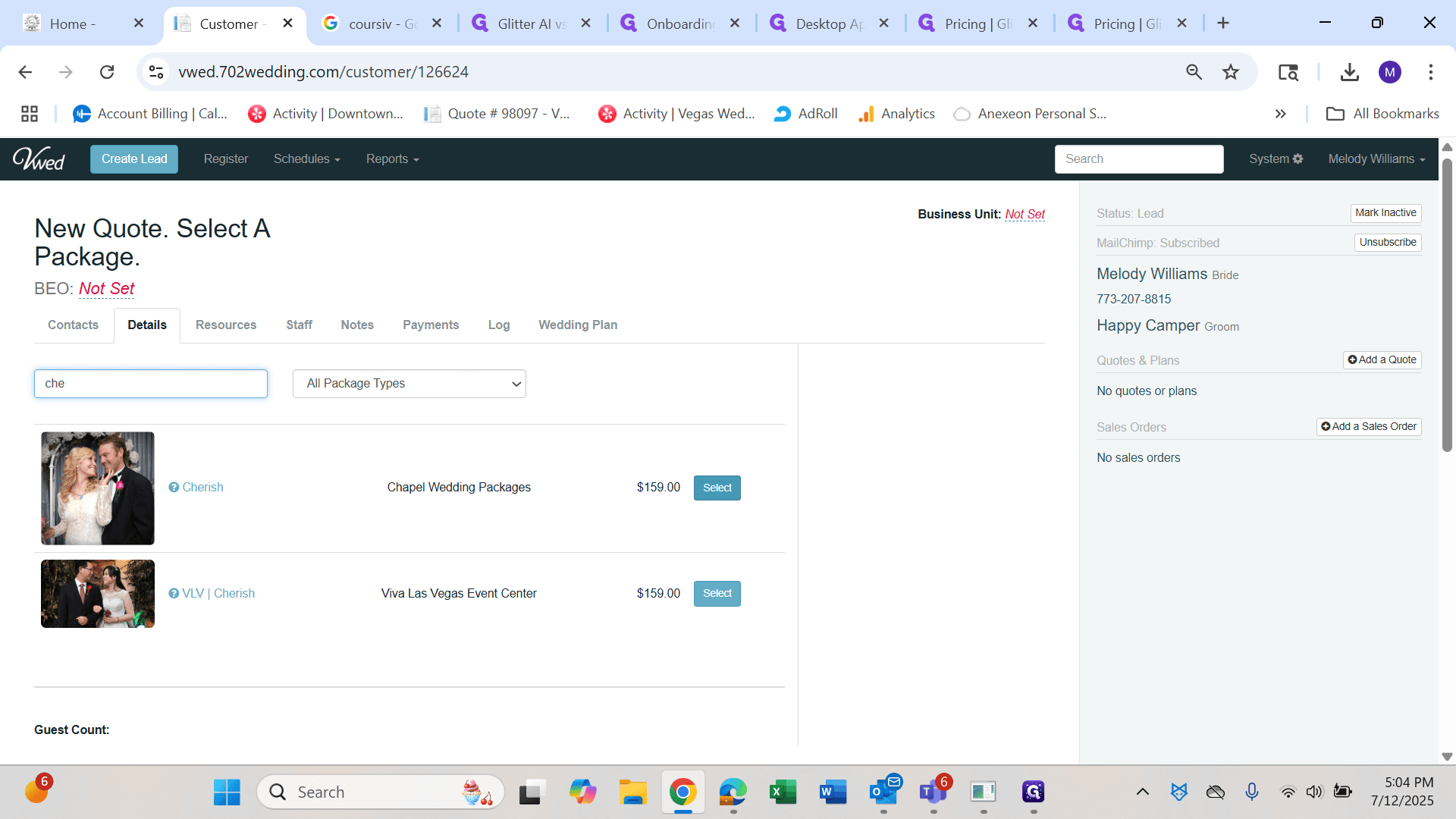
The package will generate, and you will have created a new lead in the system with a package.