How to Create a New Campaign: Step-by-Step Instructions
Learn how to create a new campaign with this easy step-by-step guide. From naming your campaign to launching it, follow these instructions to set up campaigns, add leads, and manage sequences efficiently.
In this guide, we'll learn how to create a new campaign from start to finish. We will cover naming your campaign, setting it up, and using features like Analytics, Leads, Sequence, Schedule, and Options. By the end, you will know how to launch your campaign.
Let's get started
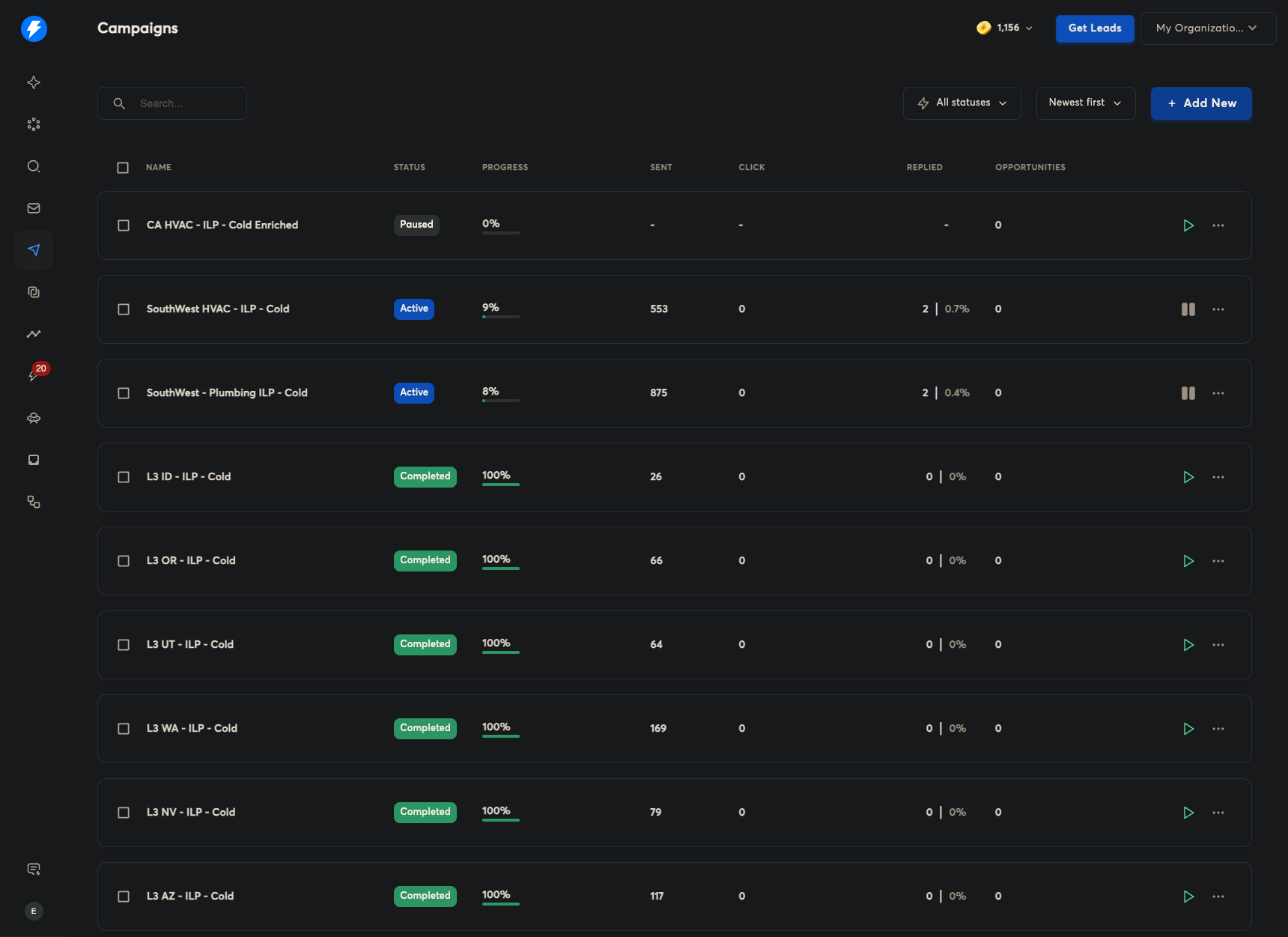
Alright. These are the instructions on how to create a new campaign. On the Campaigns page, click Add New.
Name your campaign.
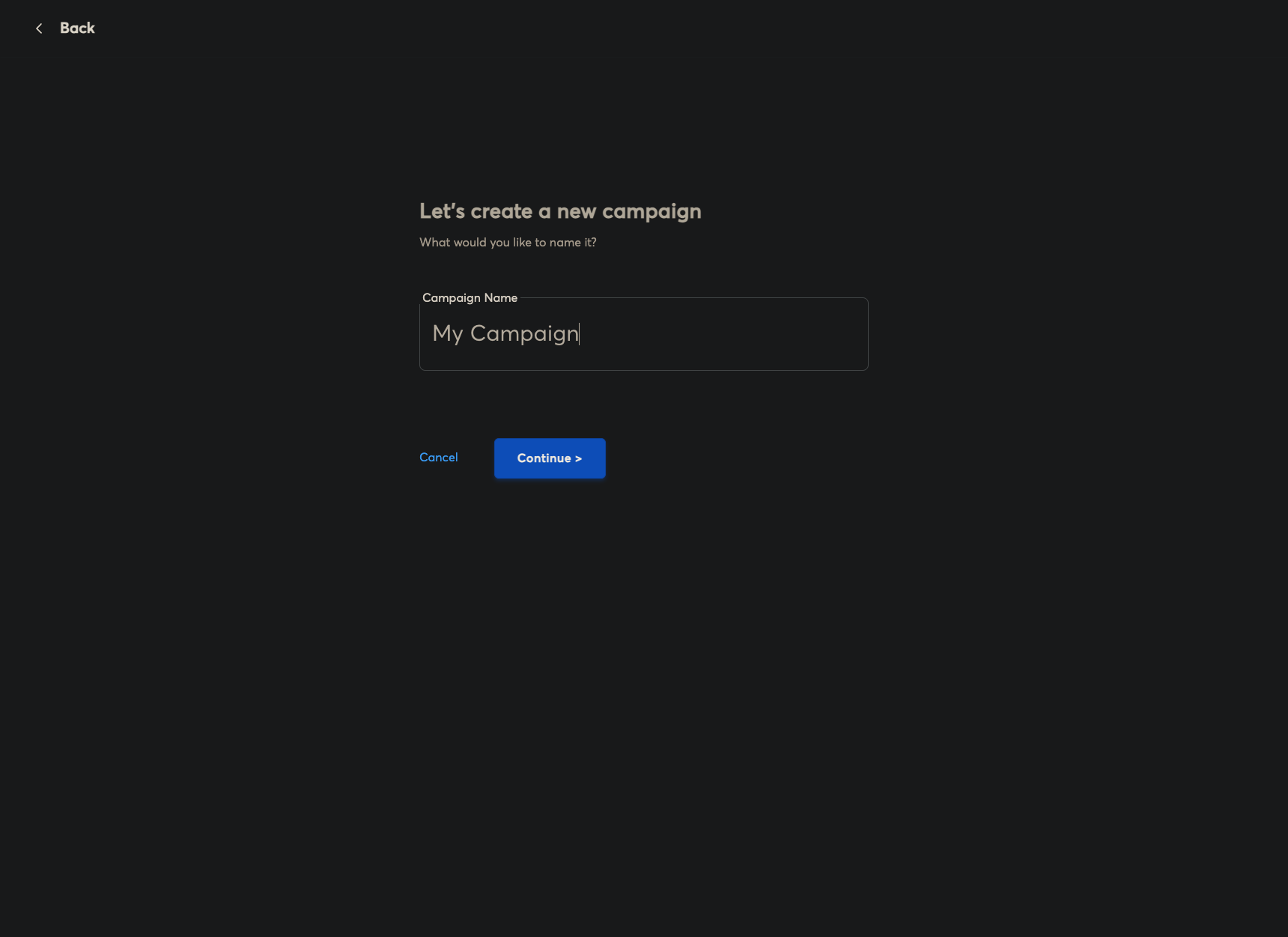
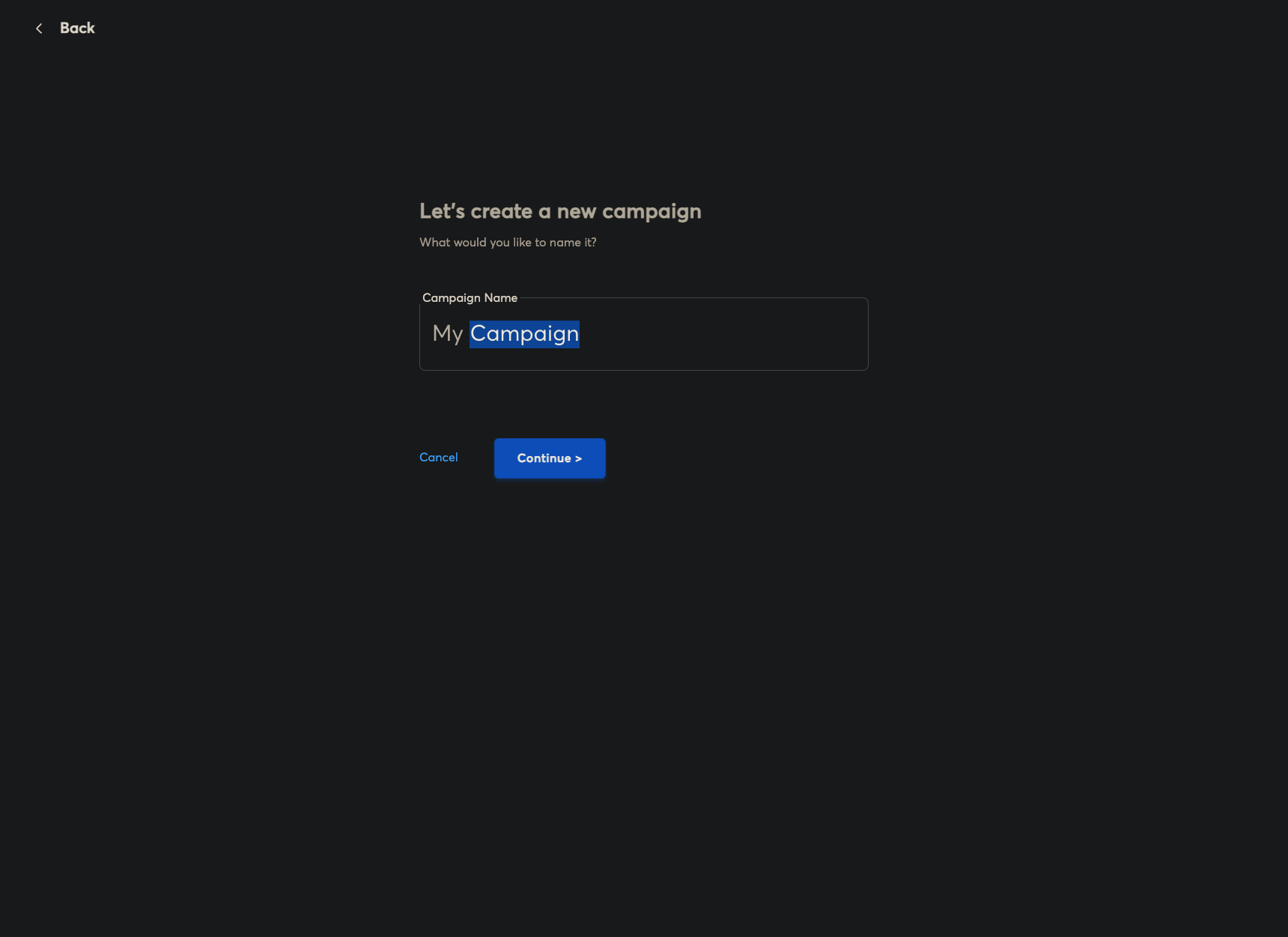
After renaming, create your new campaign and select Continue.
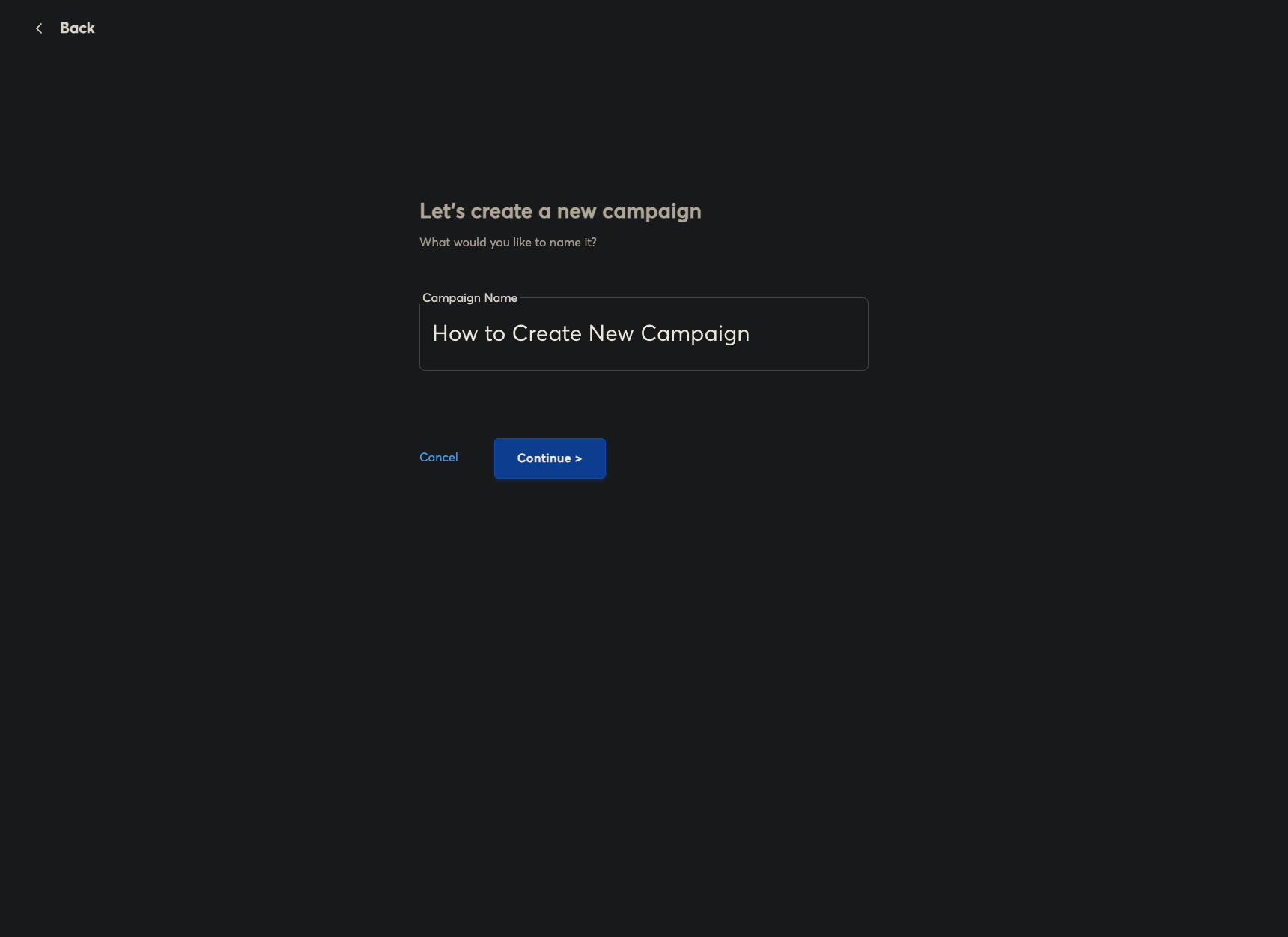
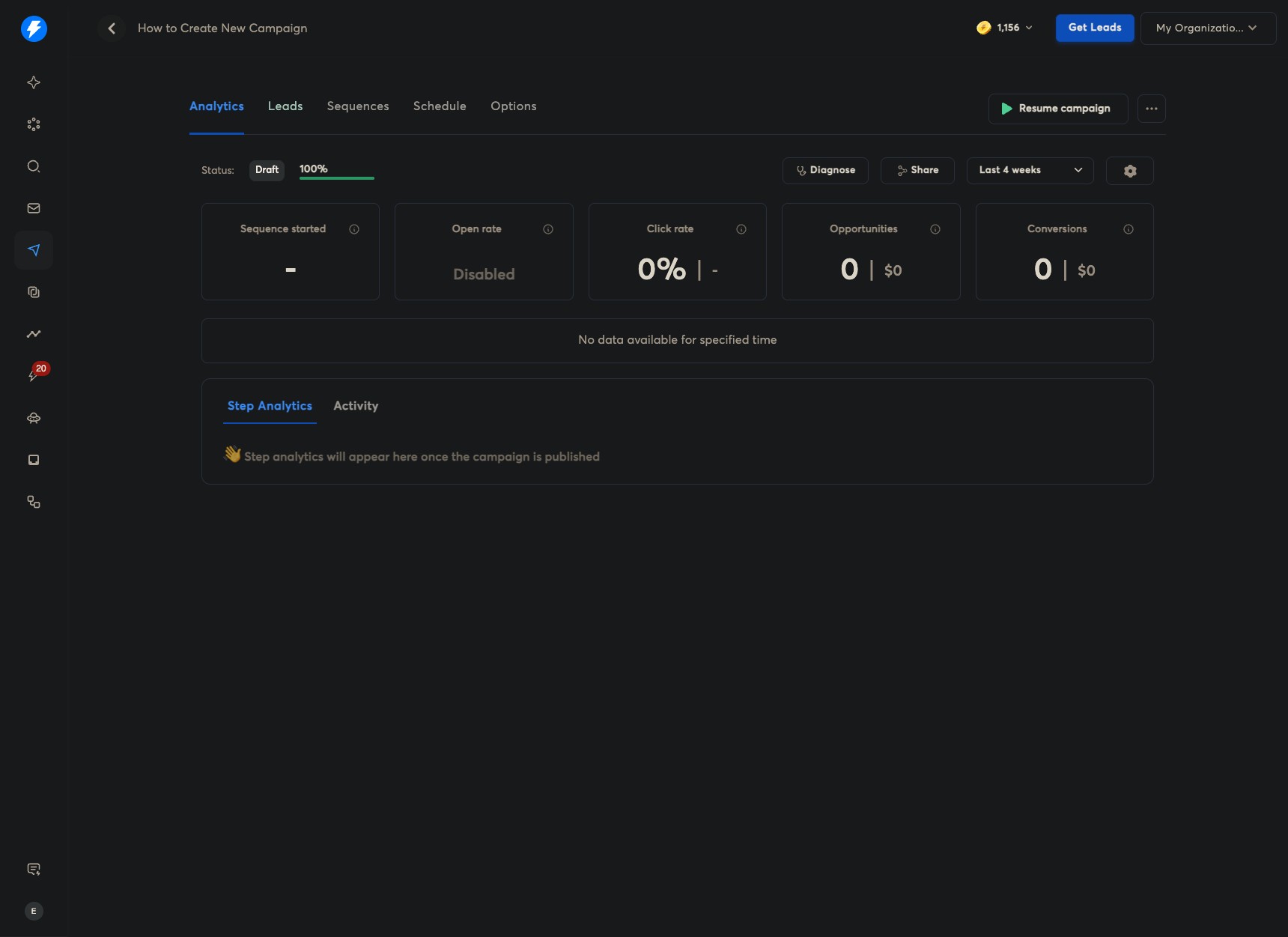
From here, you are taken to the campaign settings. You have Analytics, which we'll use when analyzing the campaign.
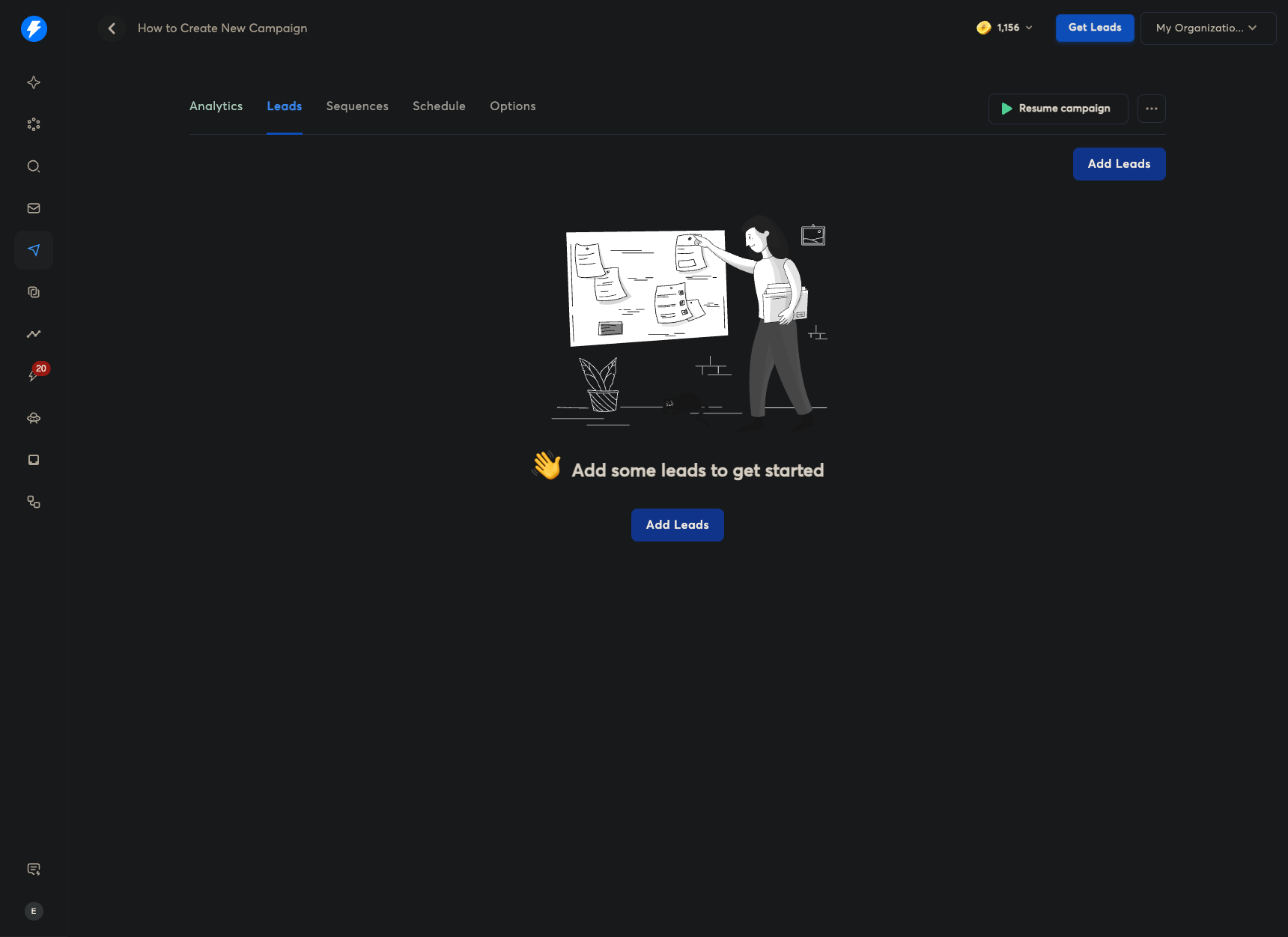
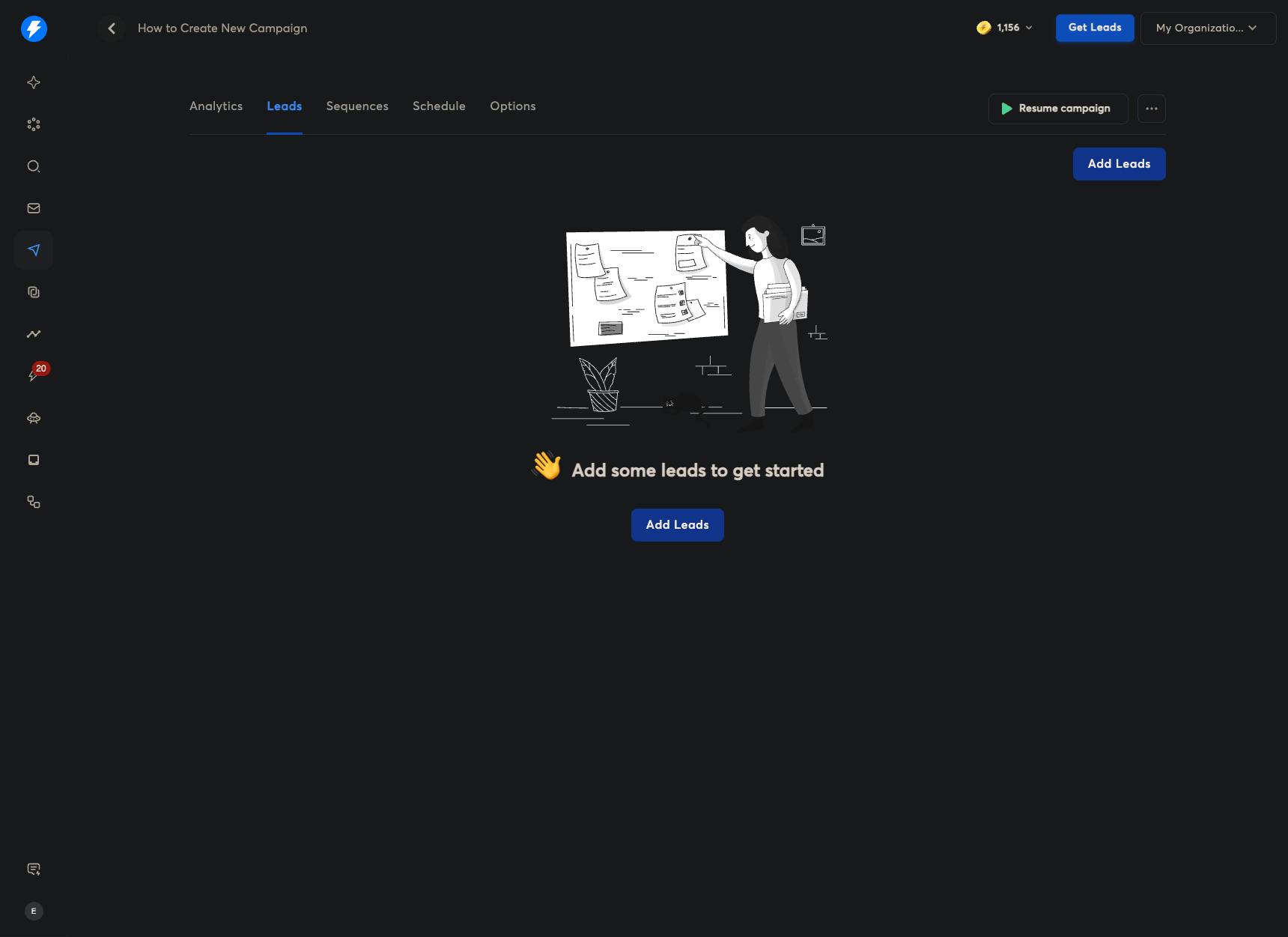
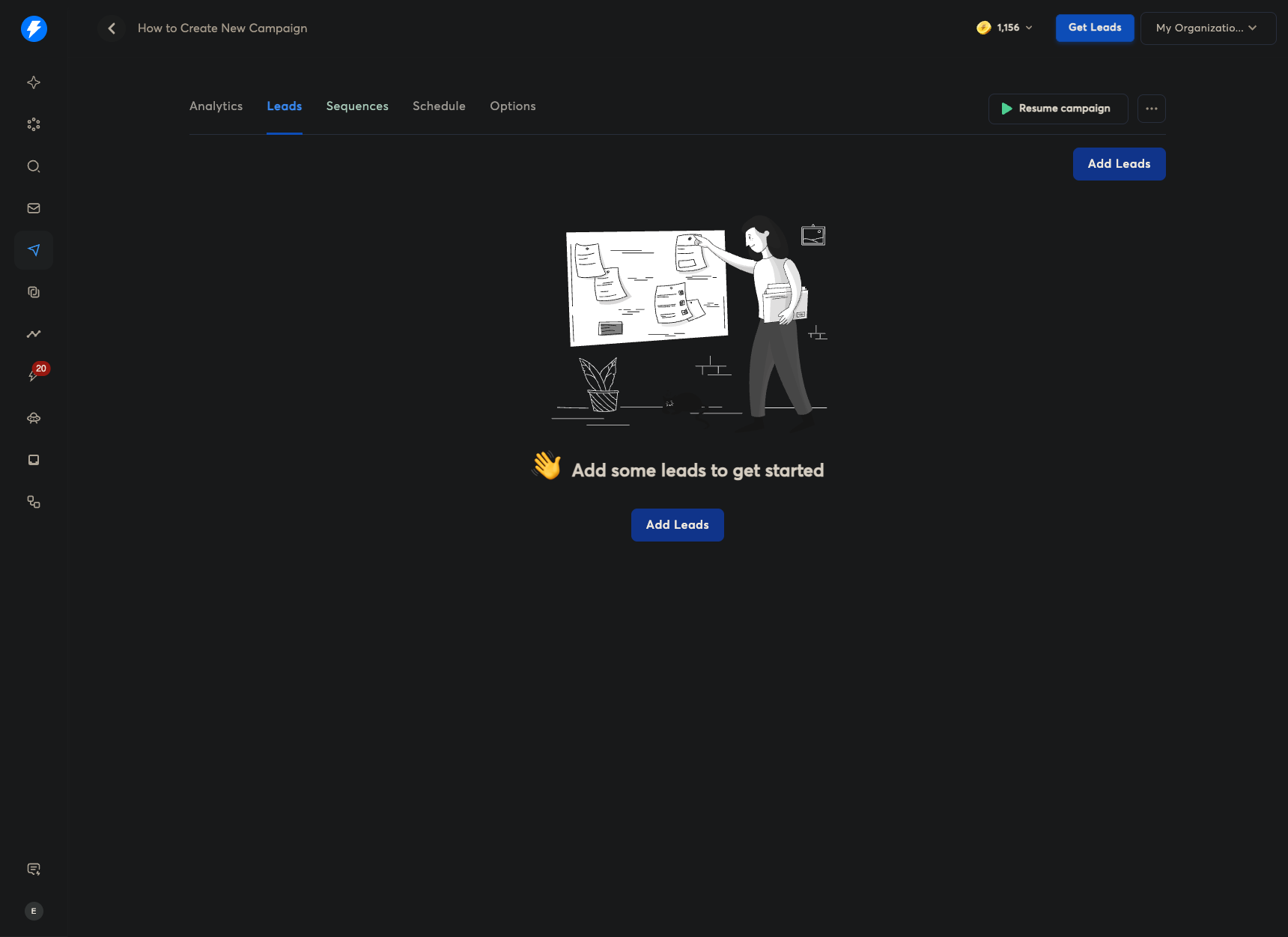
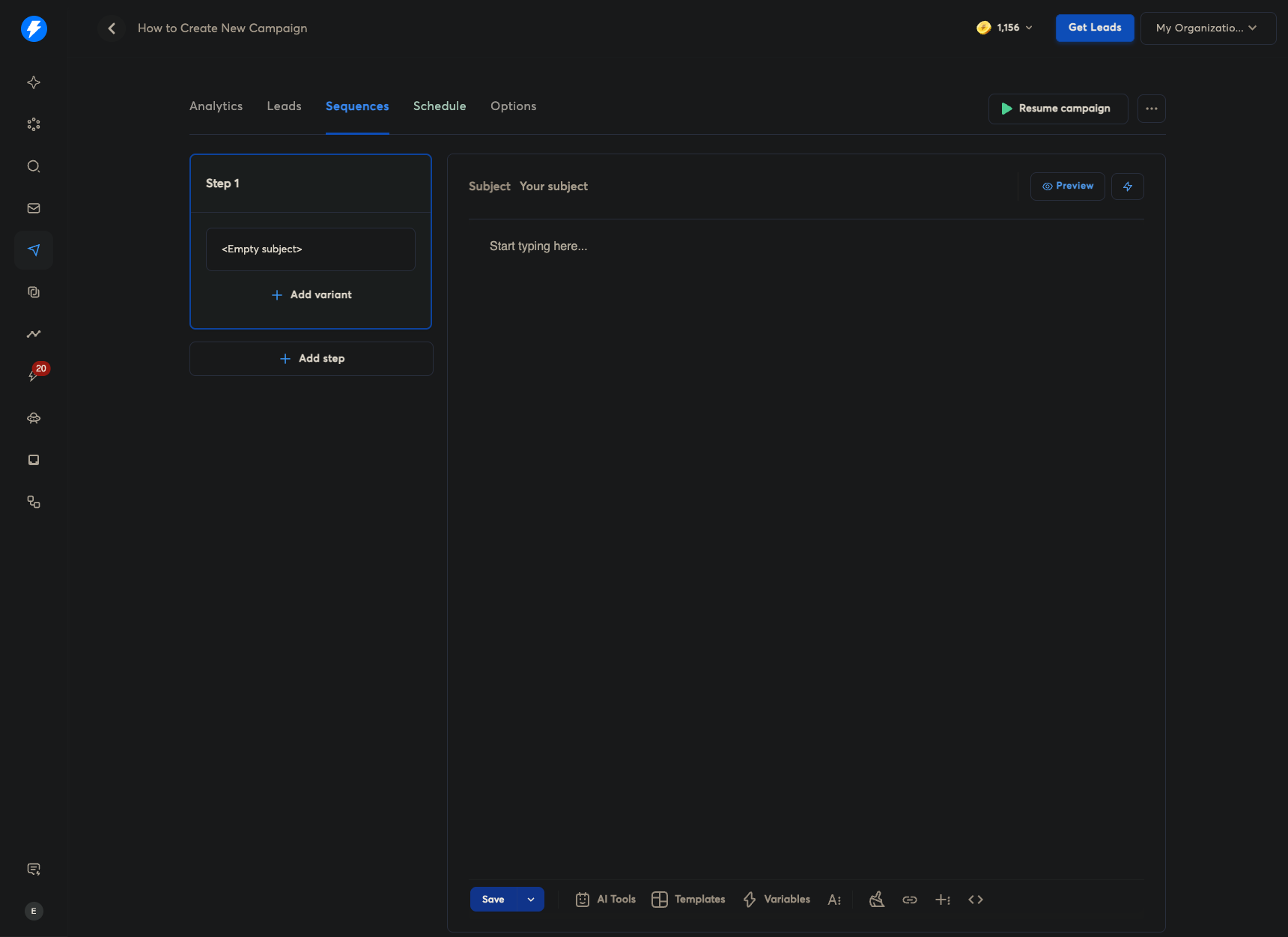
The Leads section is where you can add leads. Sequence: You can add your sequences and your email.
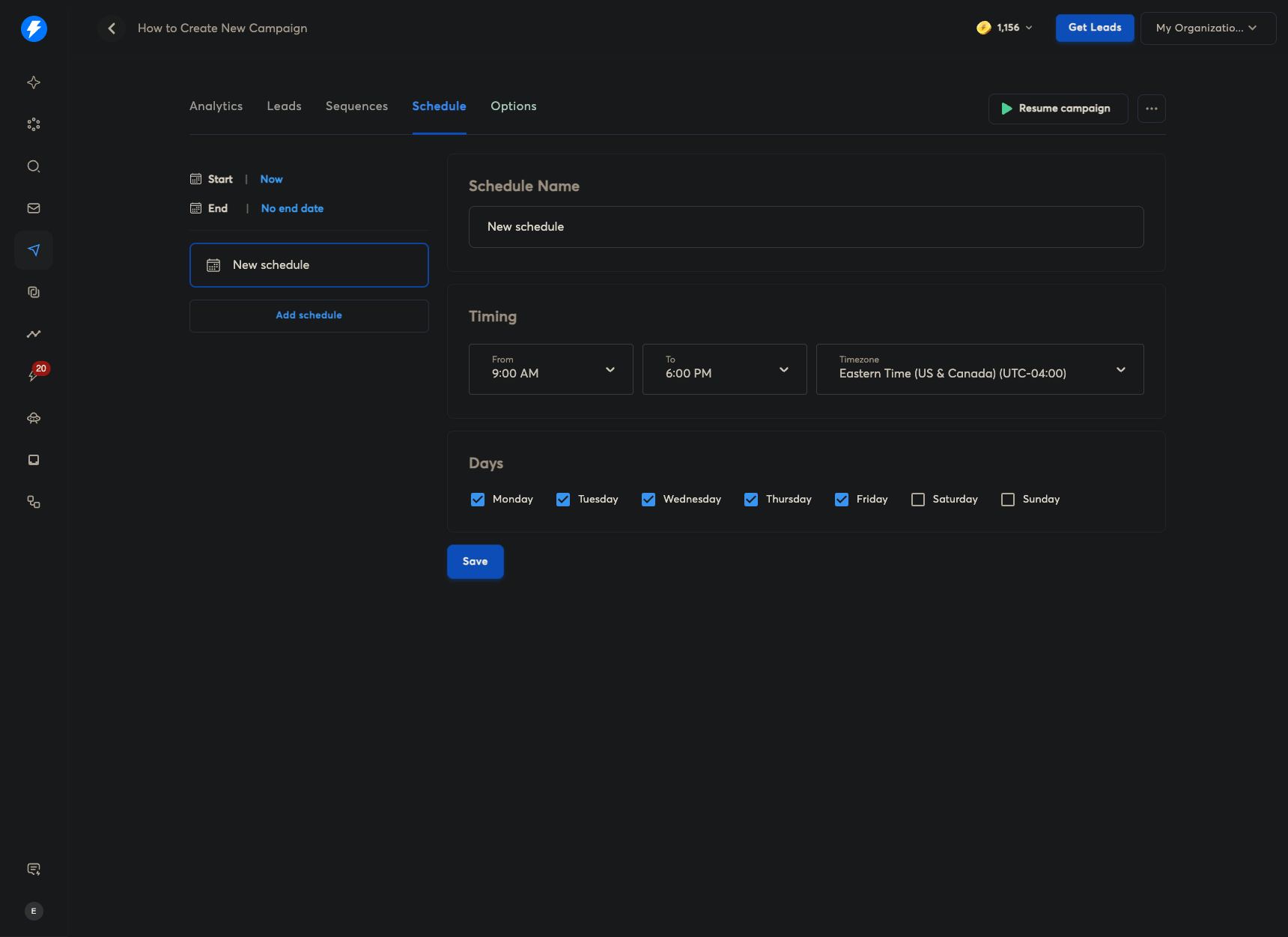
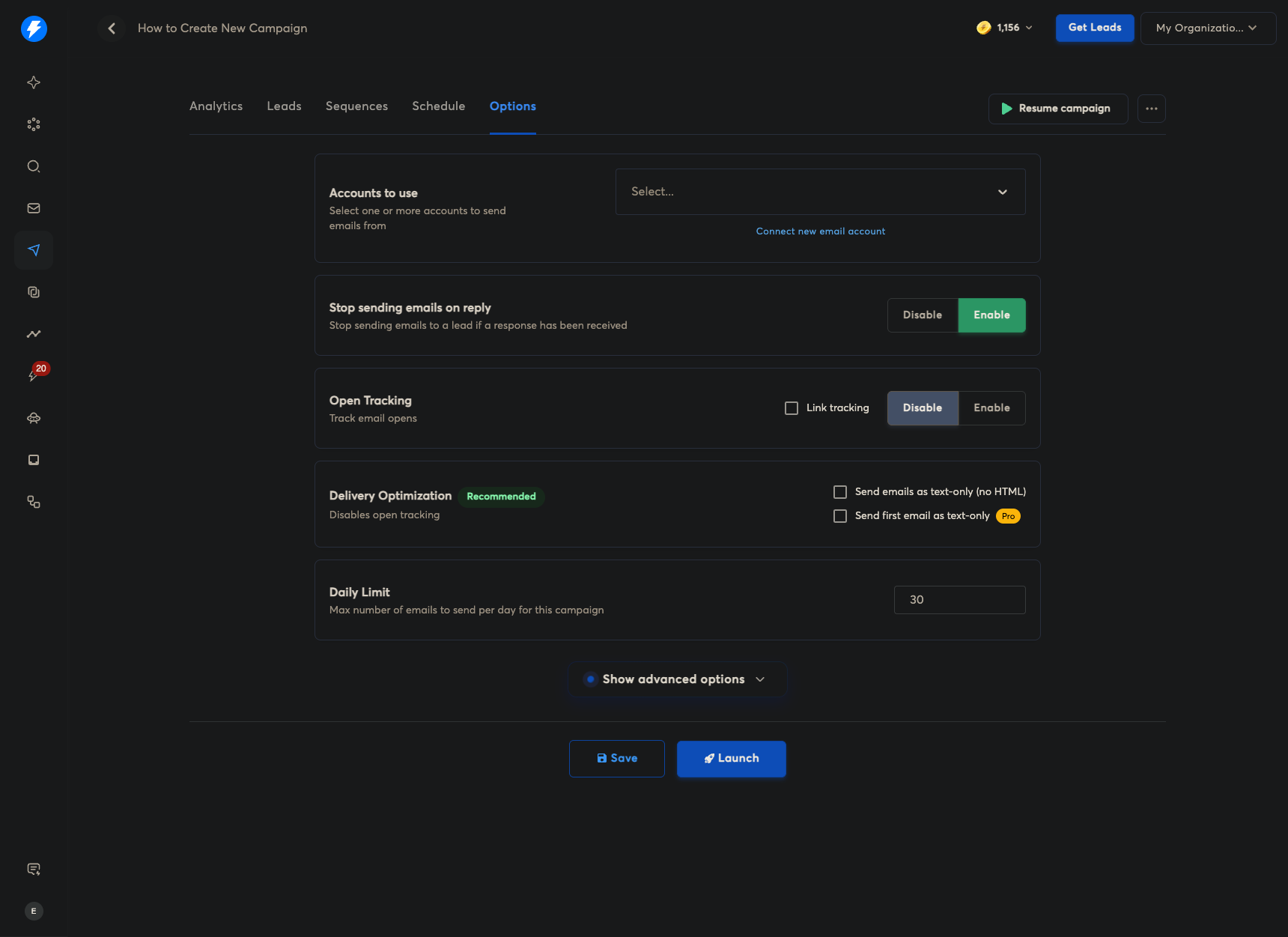
Schedule, then select Options.
Okay, that's how you can click Launch here to start your campaign.
That's it.