How to Create a New Message Template: Step-by-Step Guide
Learn how to create a new message template, add variables, and customize it for testing and marketing purposes. Follow our easy step-by-step instructions.
By Balaji KP
In this guide, we'll learn how to create a new message template. You will see how to name your template, choose the language, and add variables if needed. This process helps you prepare templates for testing and marketing purposes.
Let's get started
Go to message templates.
1
Click here
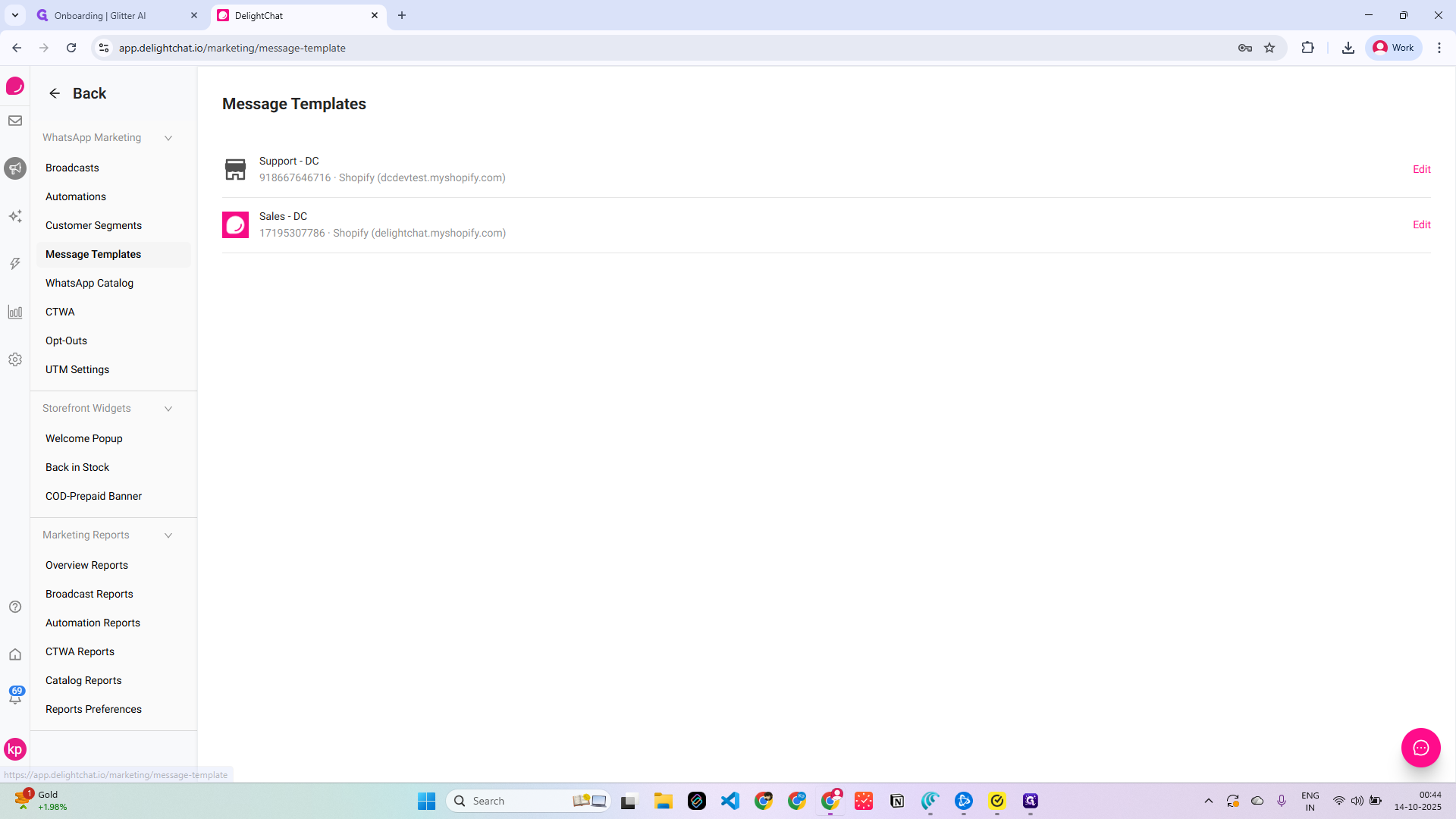
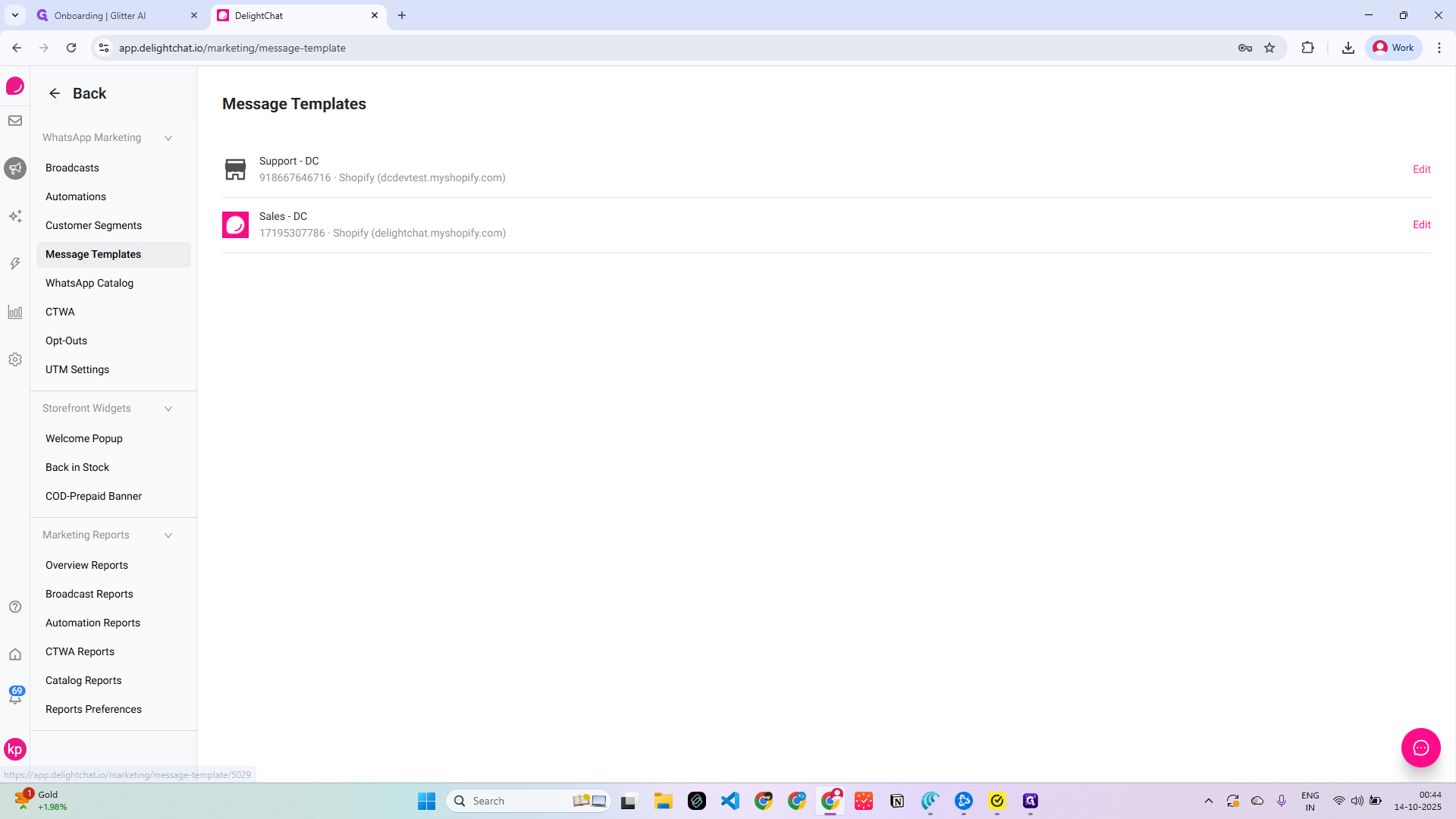
Click Edit.
2
Click on "Edit"
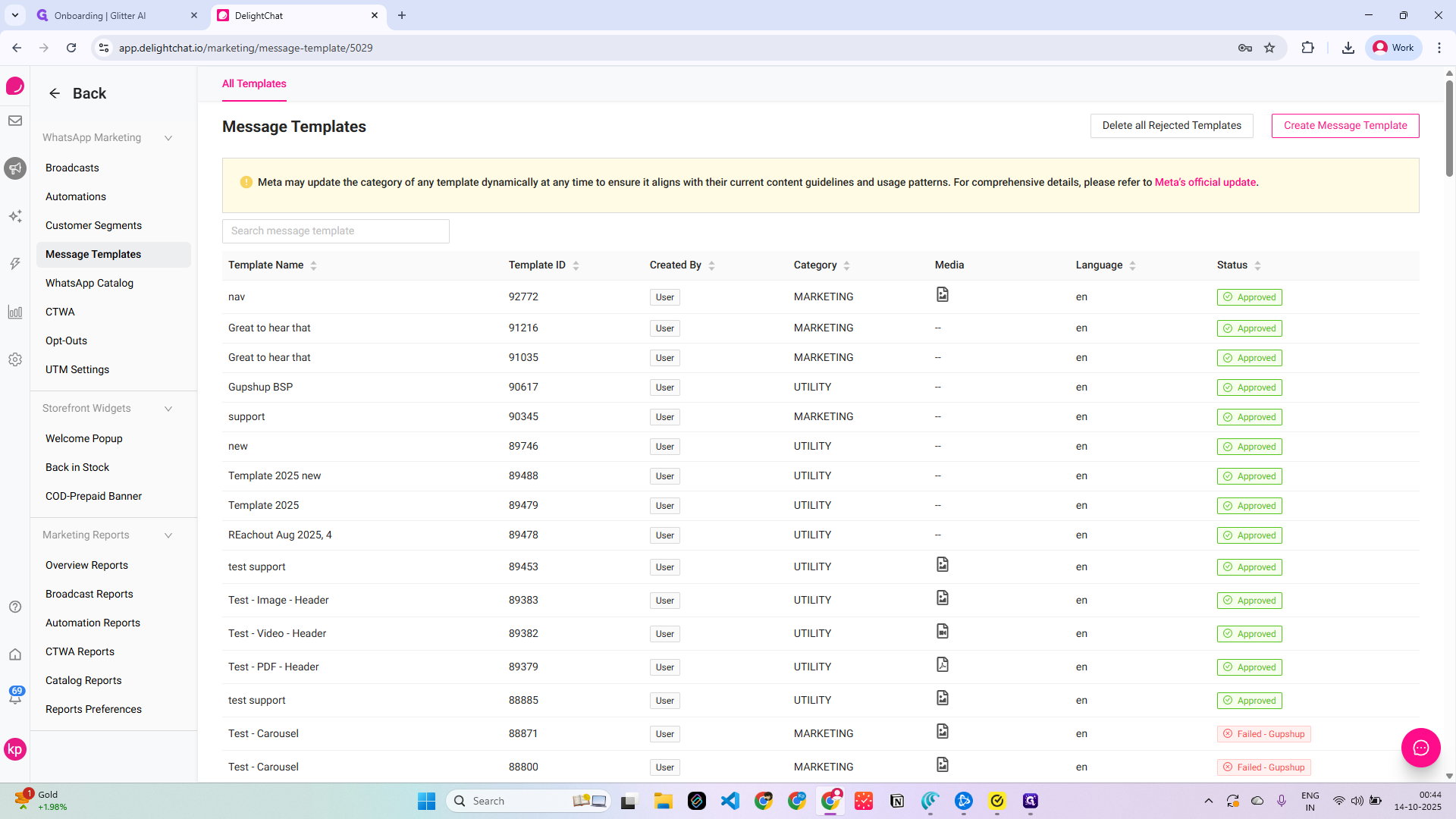
Click on "Create new message template" and enter a name for the template.
3
Click on "Create Message Template"
4
Click here
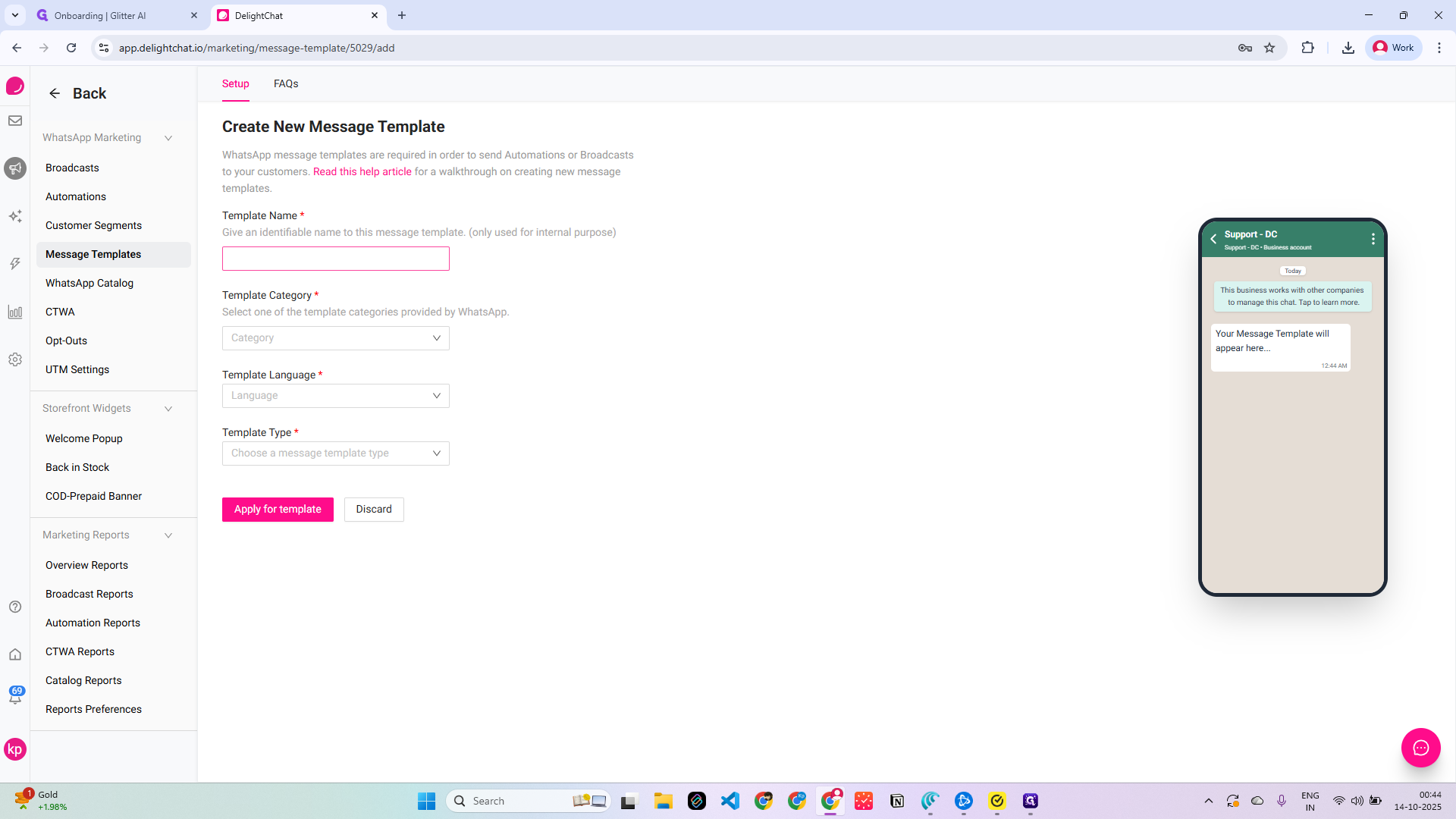
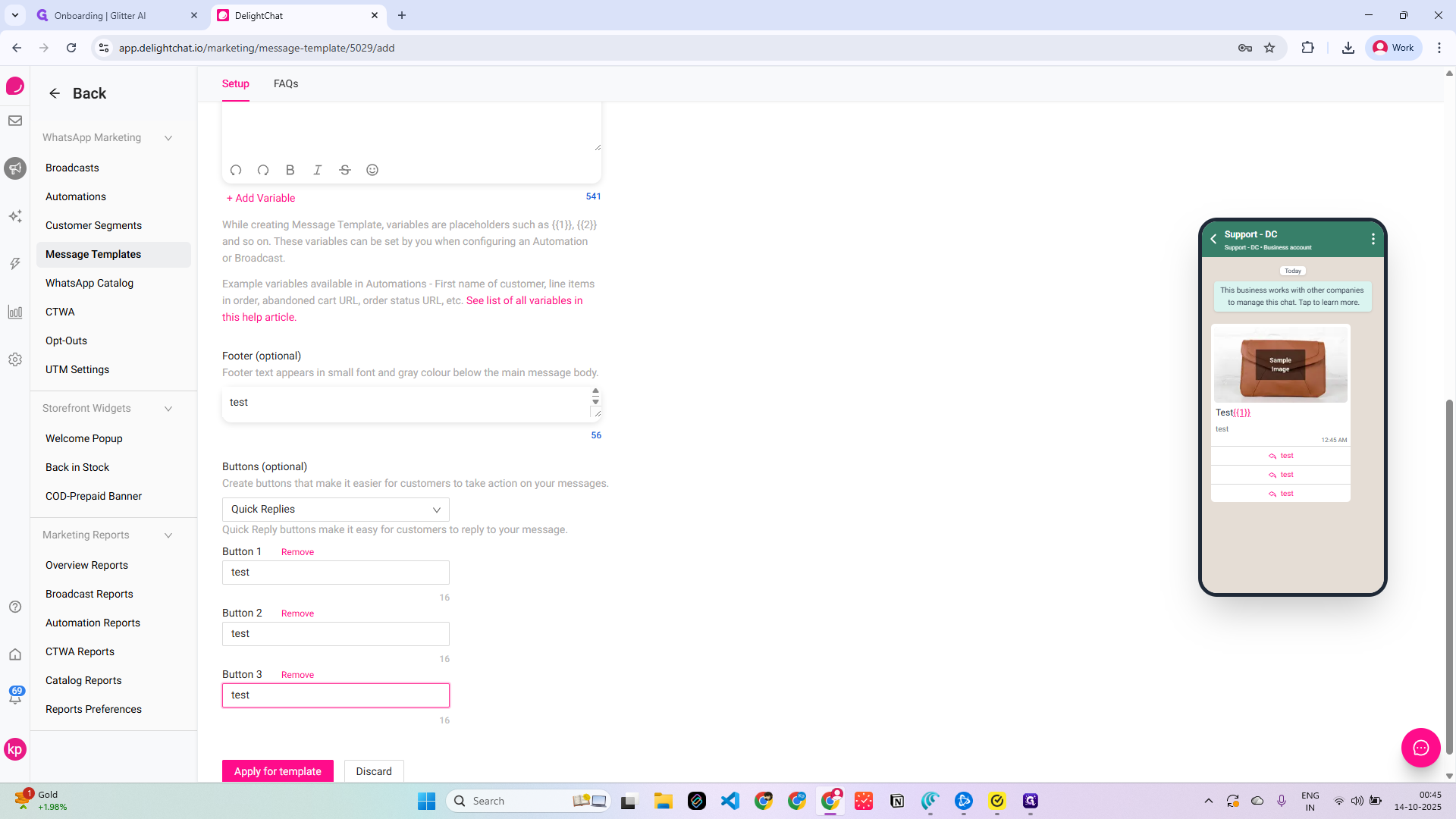
Test and marketing: this will be an English message template.
5
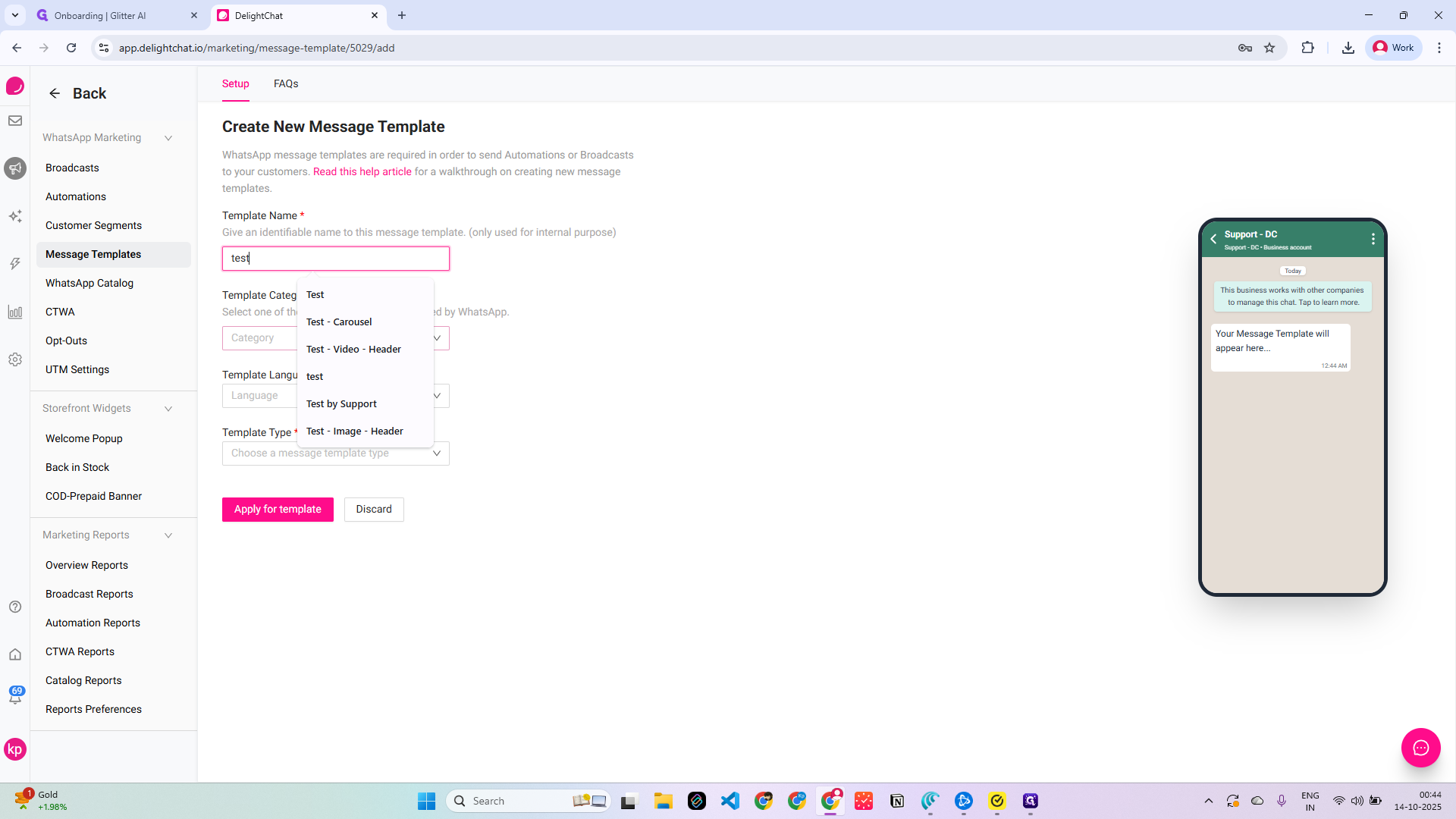
Type "test"
6
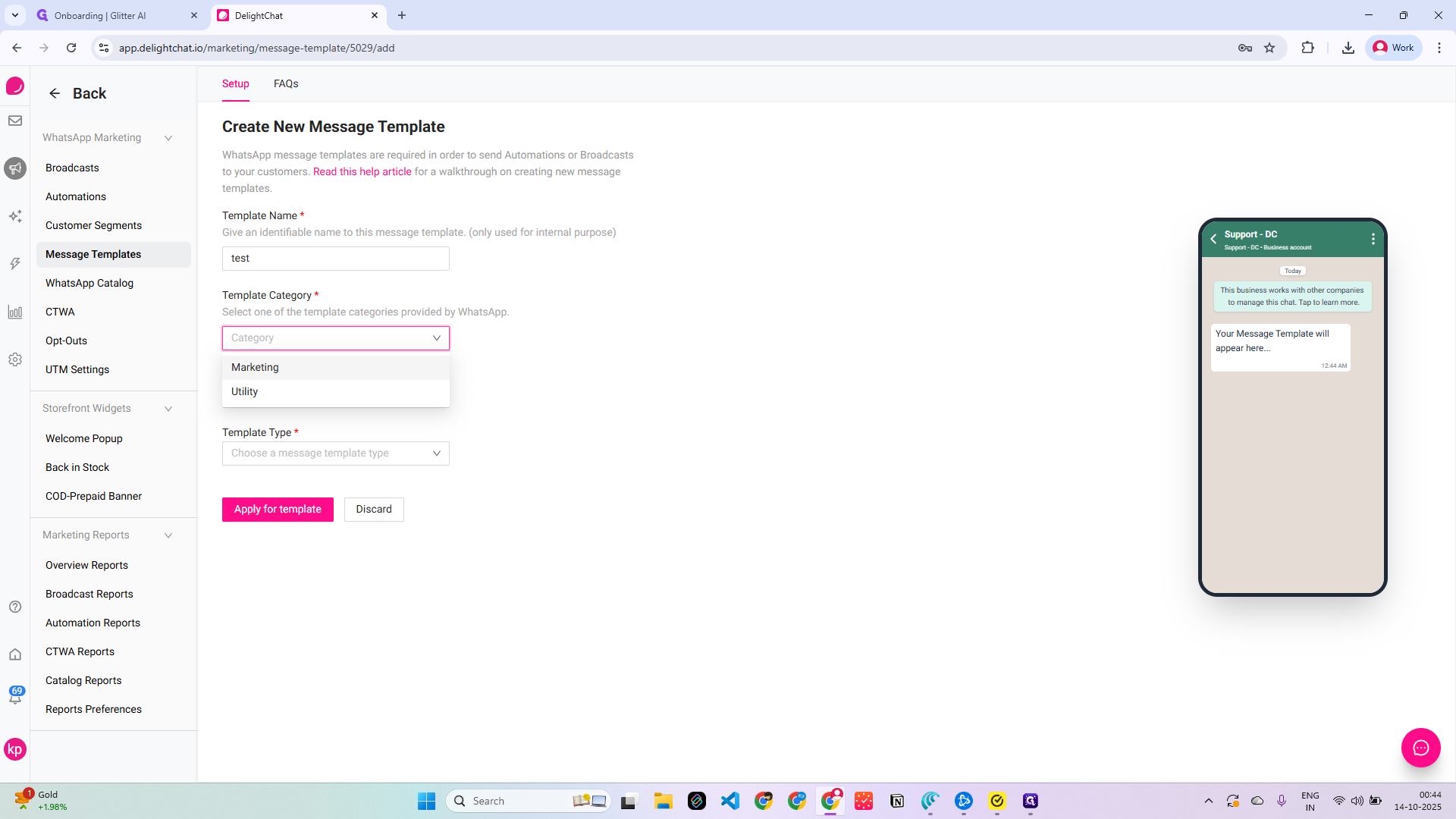
Click on "Category"
7
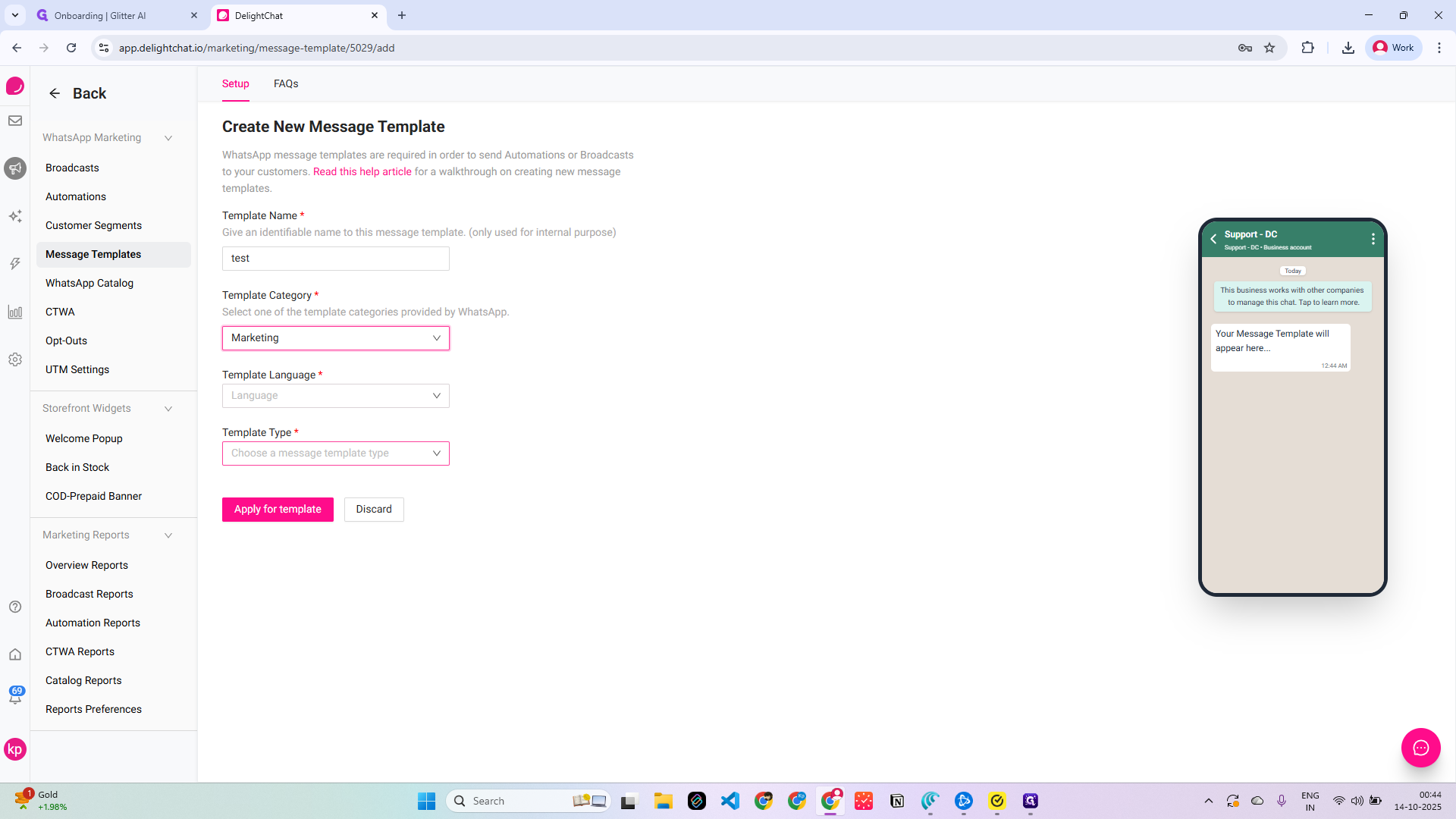
Click on "Marketing"
8
Click here
9
Type "eng"
10
Click here
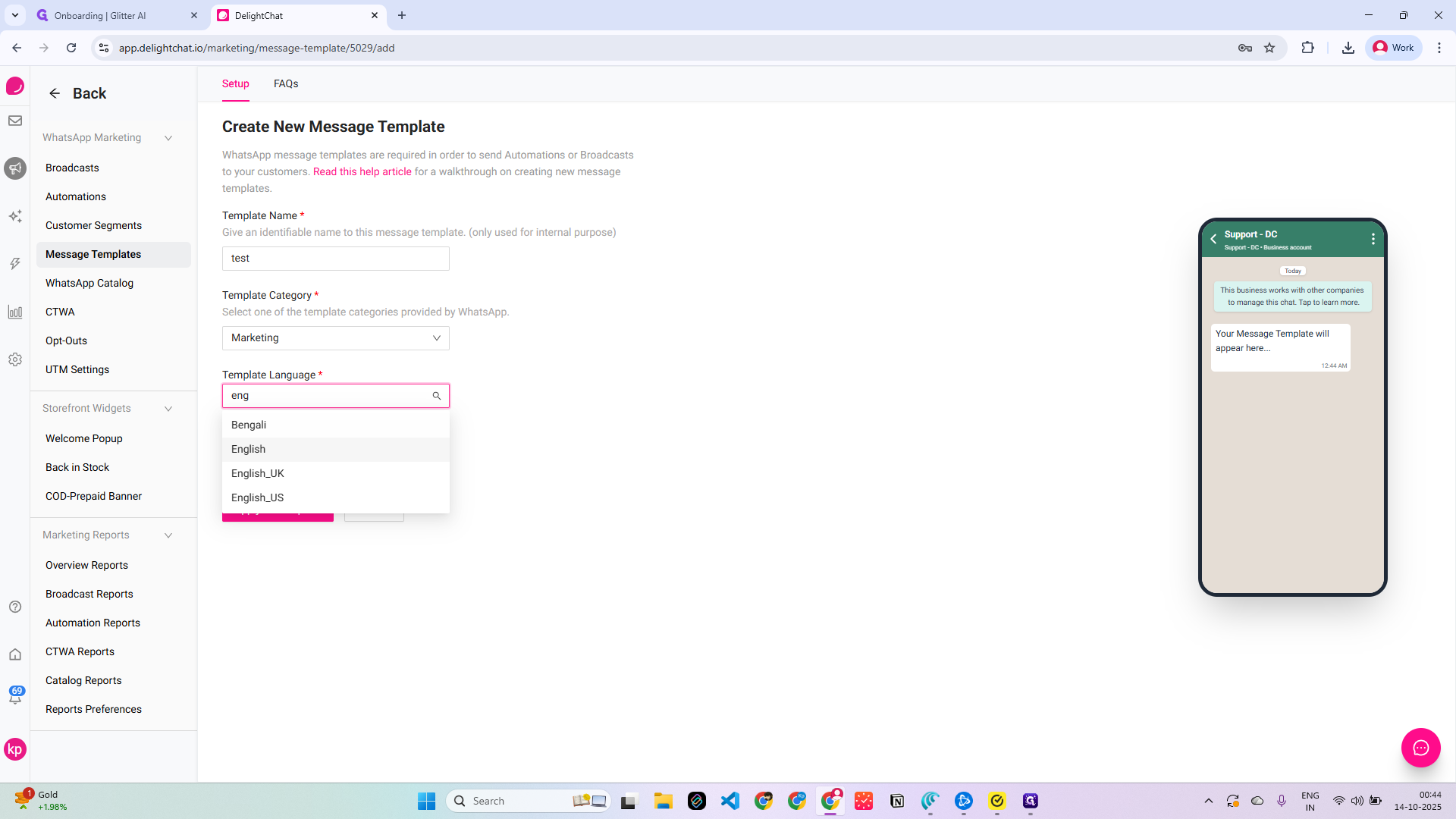
11
Click on "Choose a message template type"
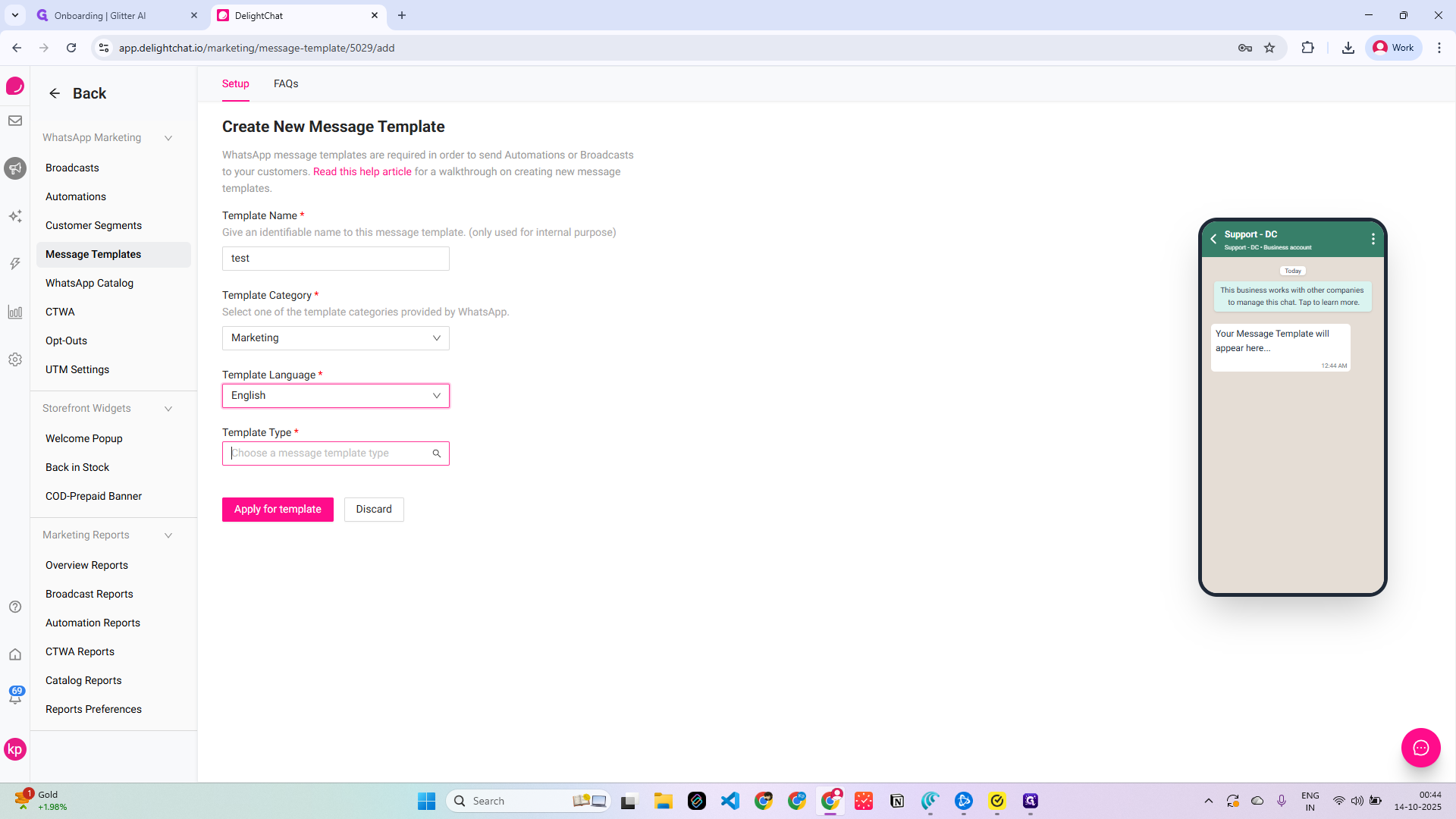
12
Click on "Standard message template"
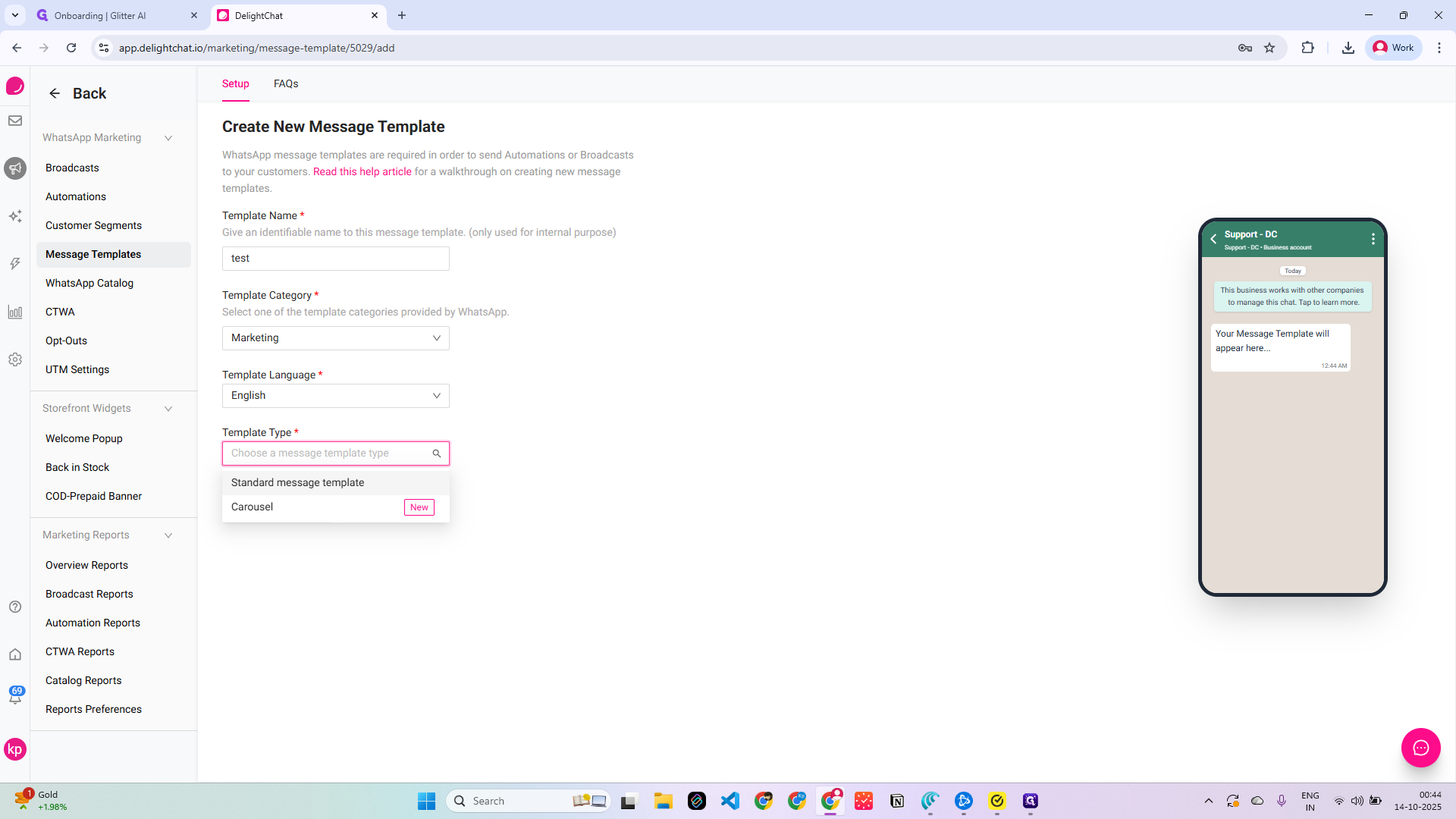
13
Click here
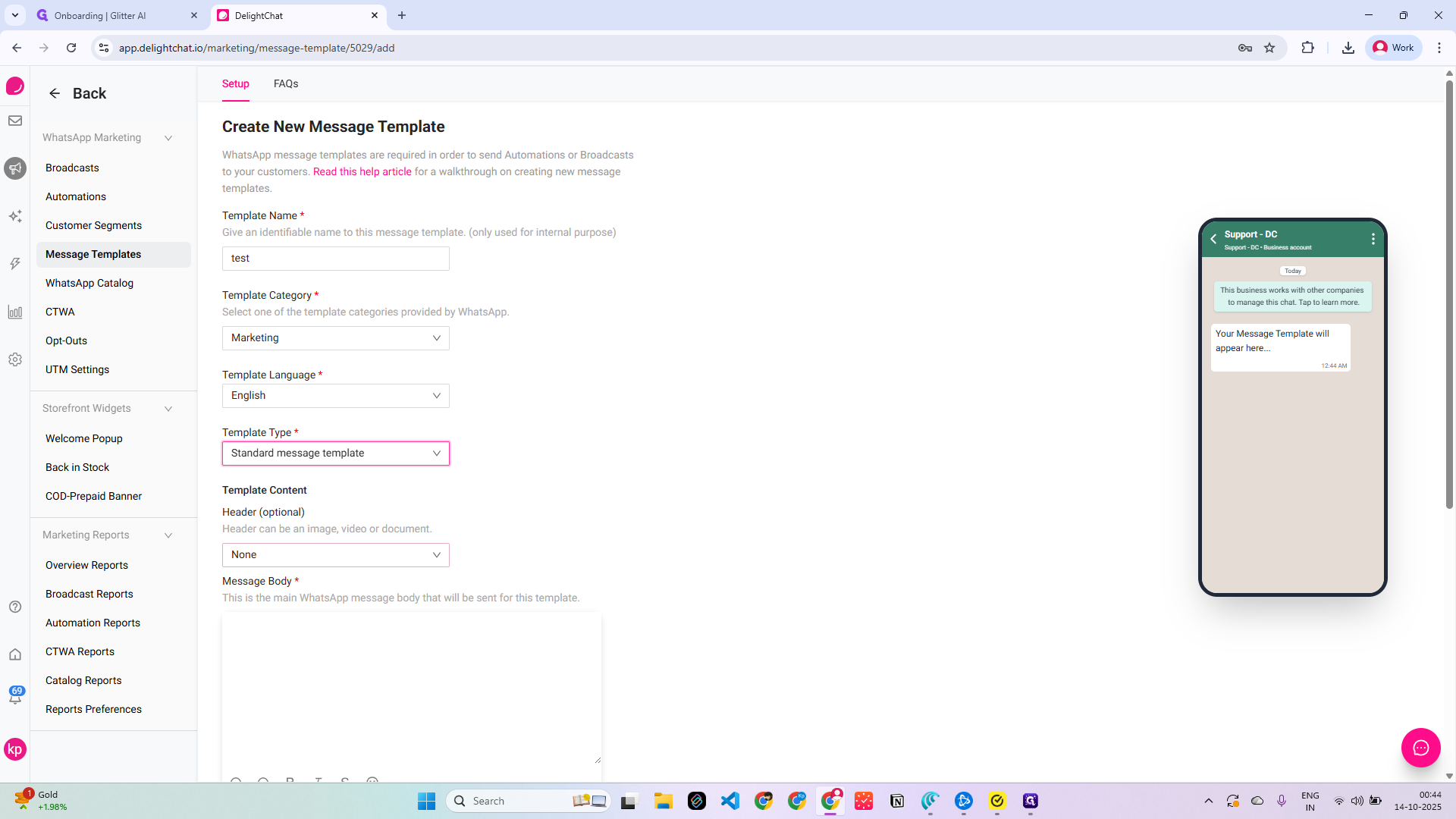
14
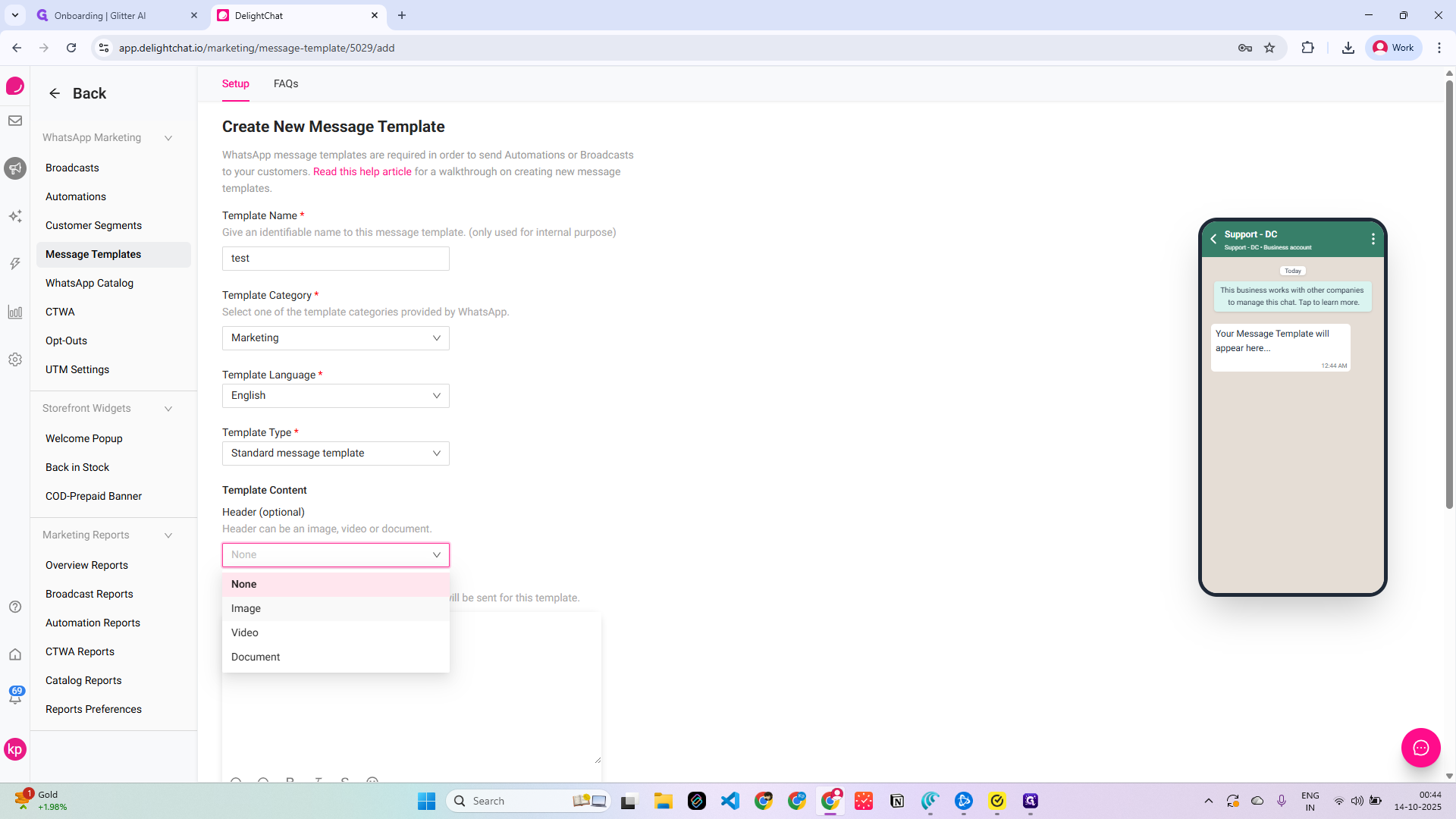
Click here
15
Click here
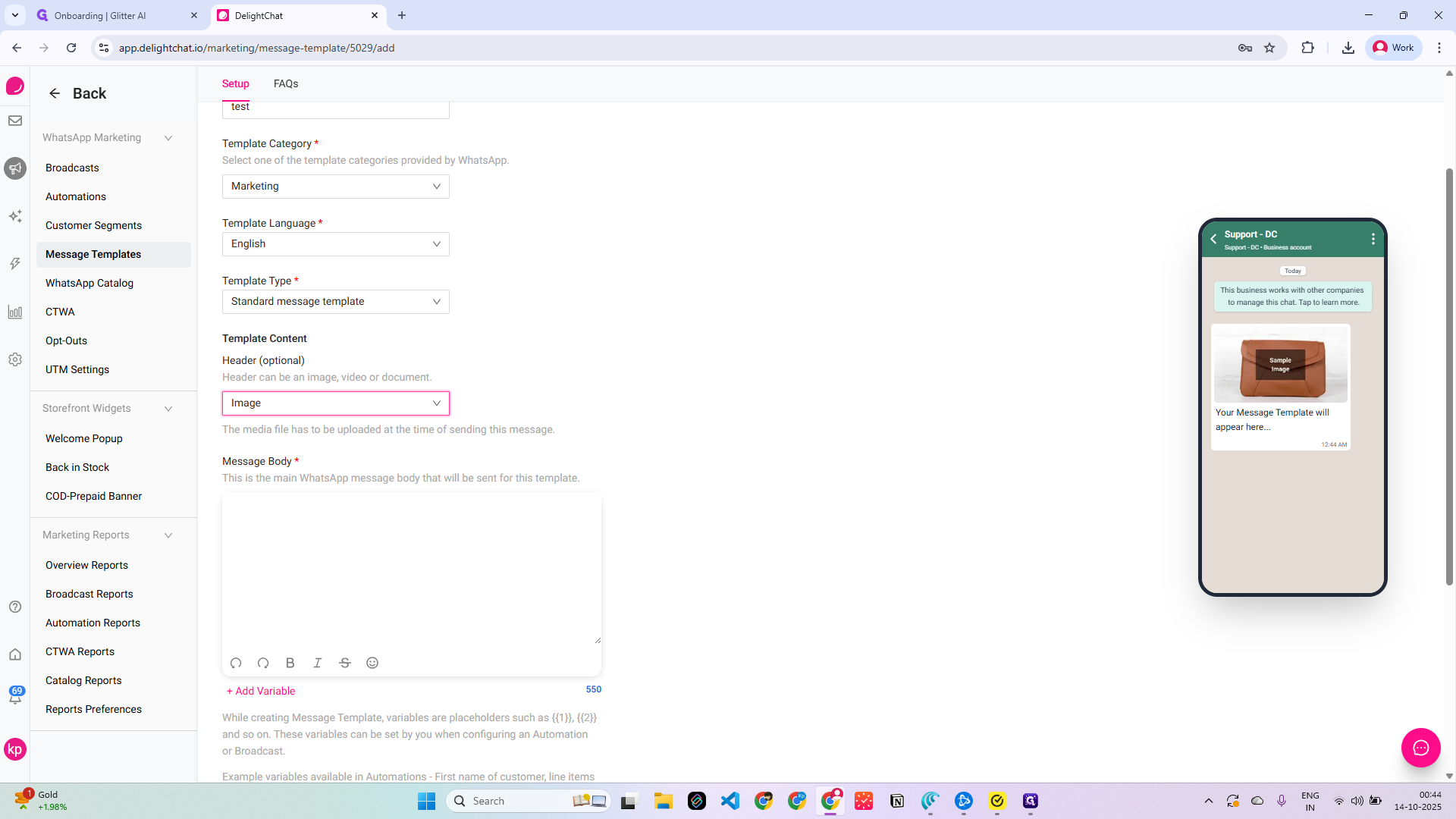
Add a variable if you want.
16
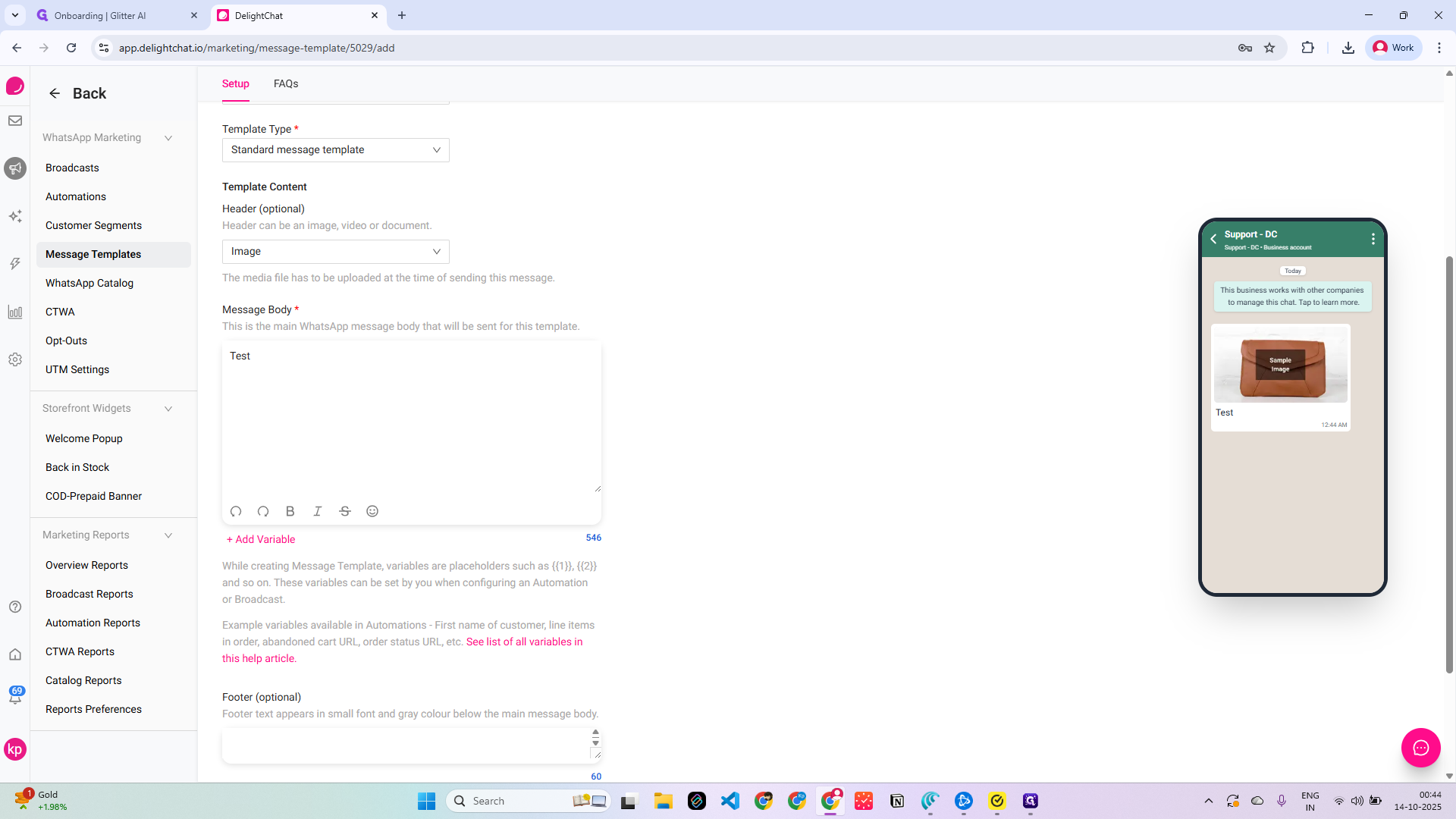
Type "Test"
17
Type "Test"
18
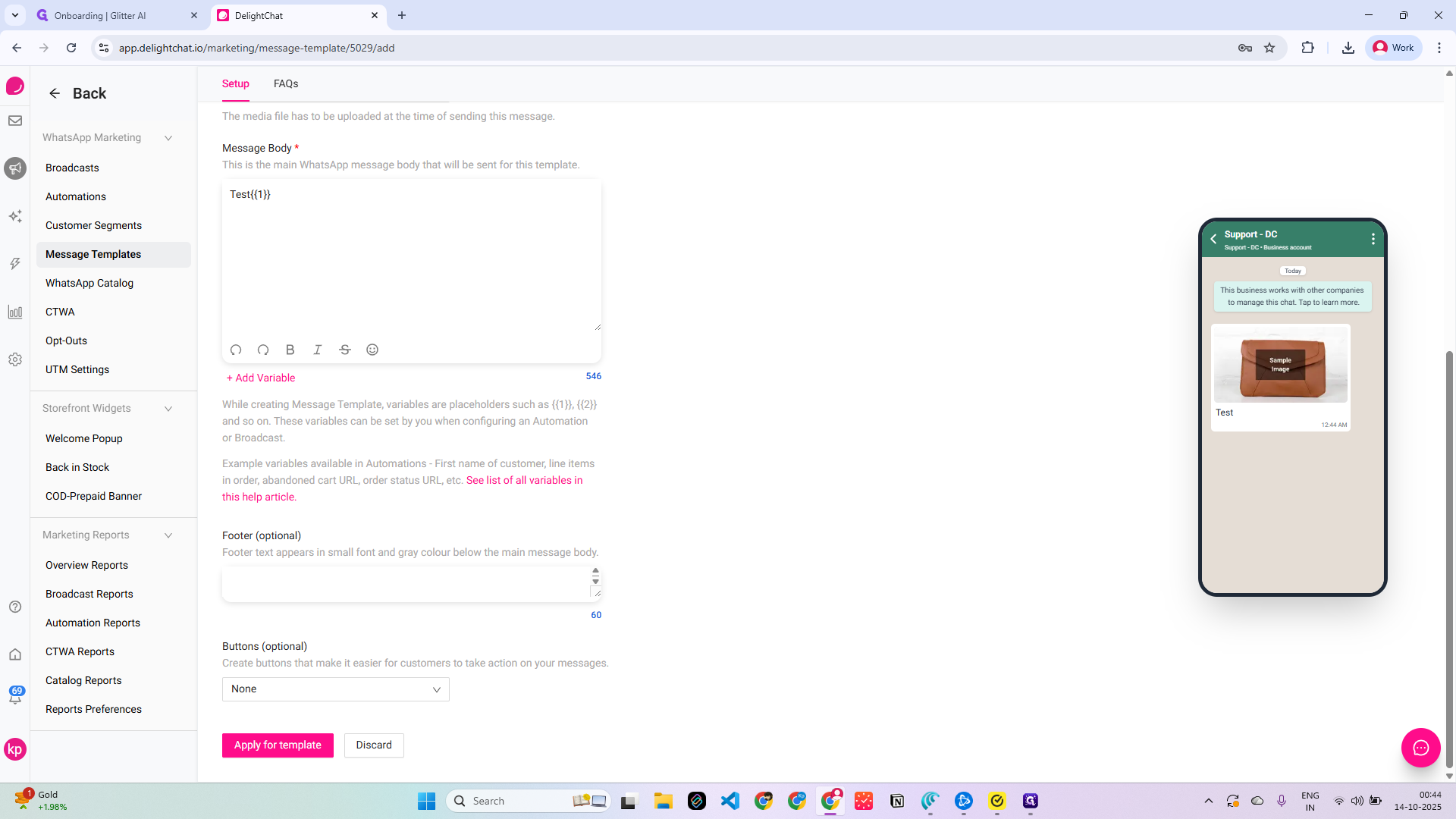
Double-click on "+ Add Variable"
19
Click here
20
Type "test"
21
Click here
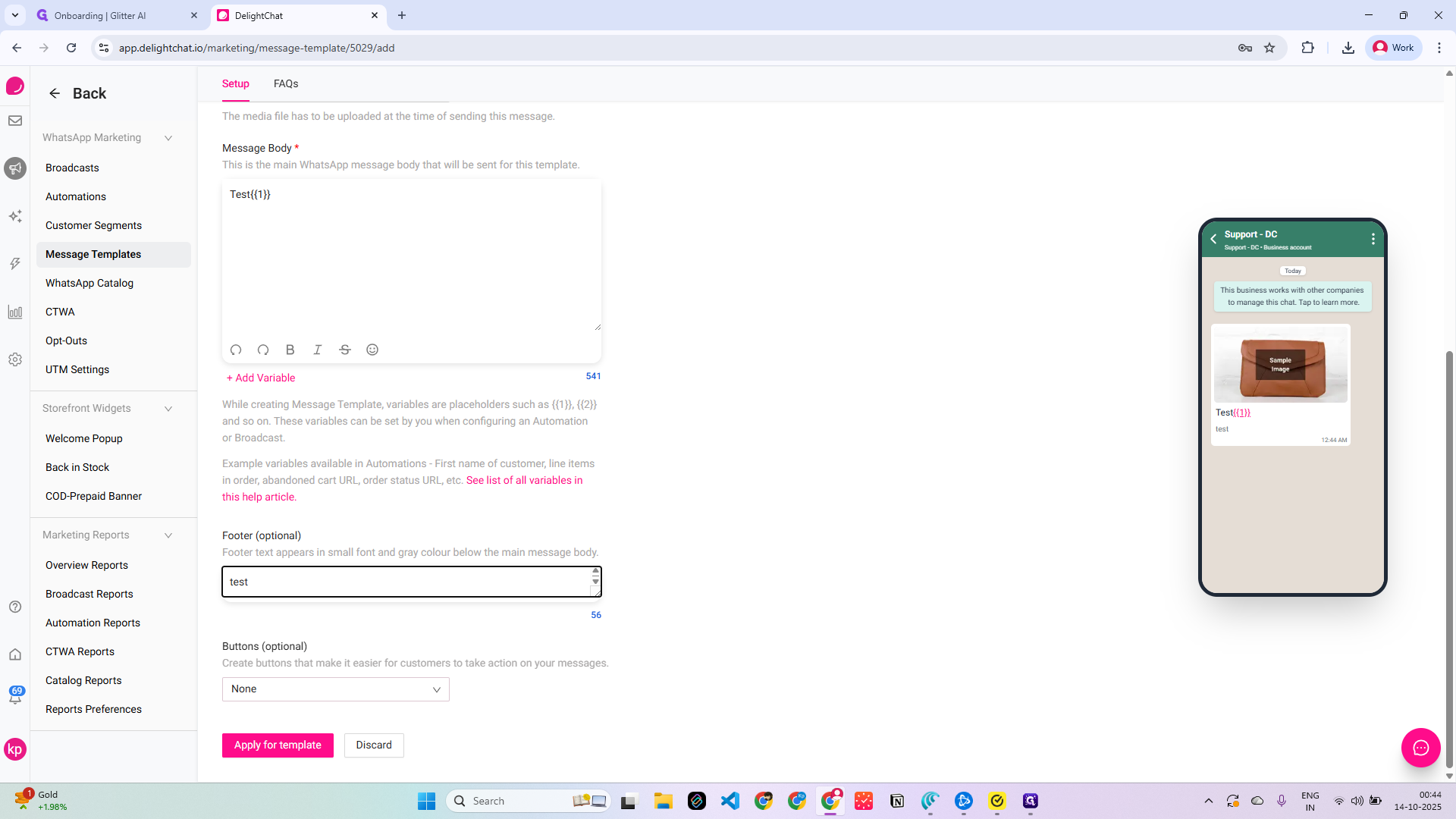
22
Click on "Quick Replies"
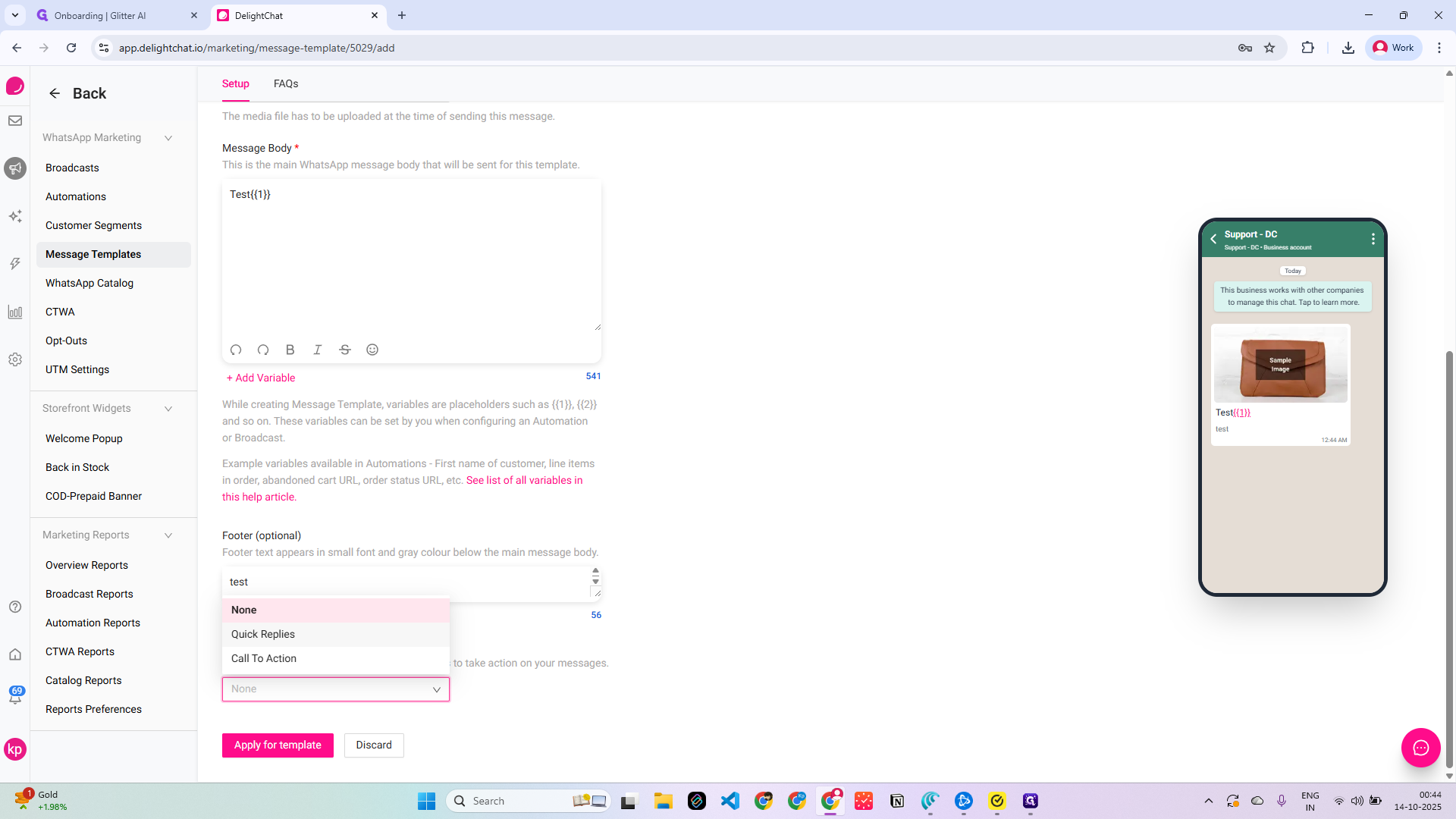
23
Click on "Quick Reply buttons make it easy for customers to reply to your message . Button 1"
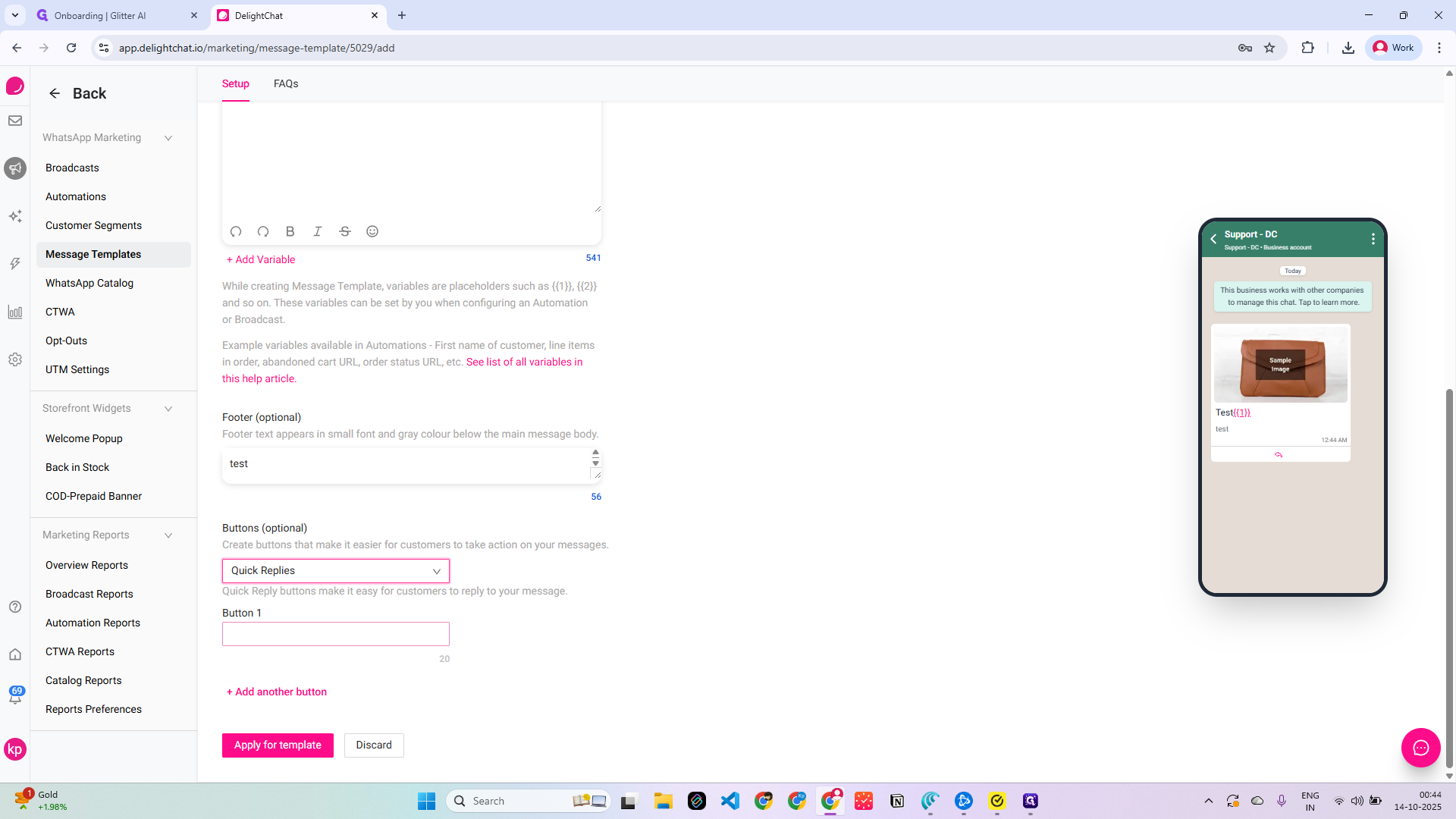
24
Type "test"
25
Click on "+ Add another"
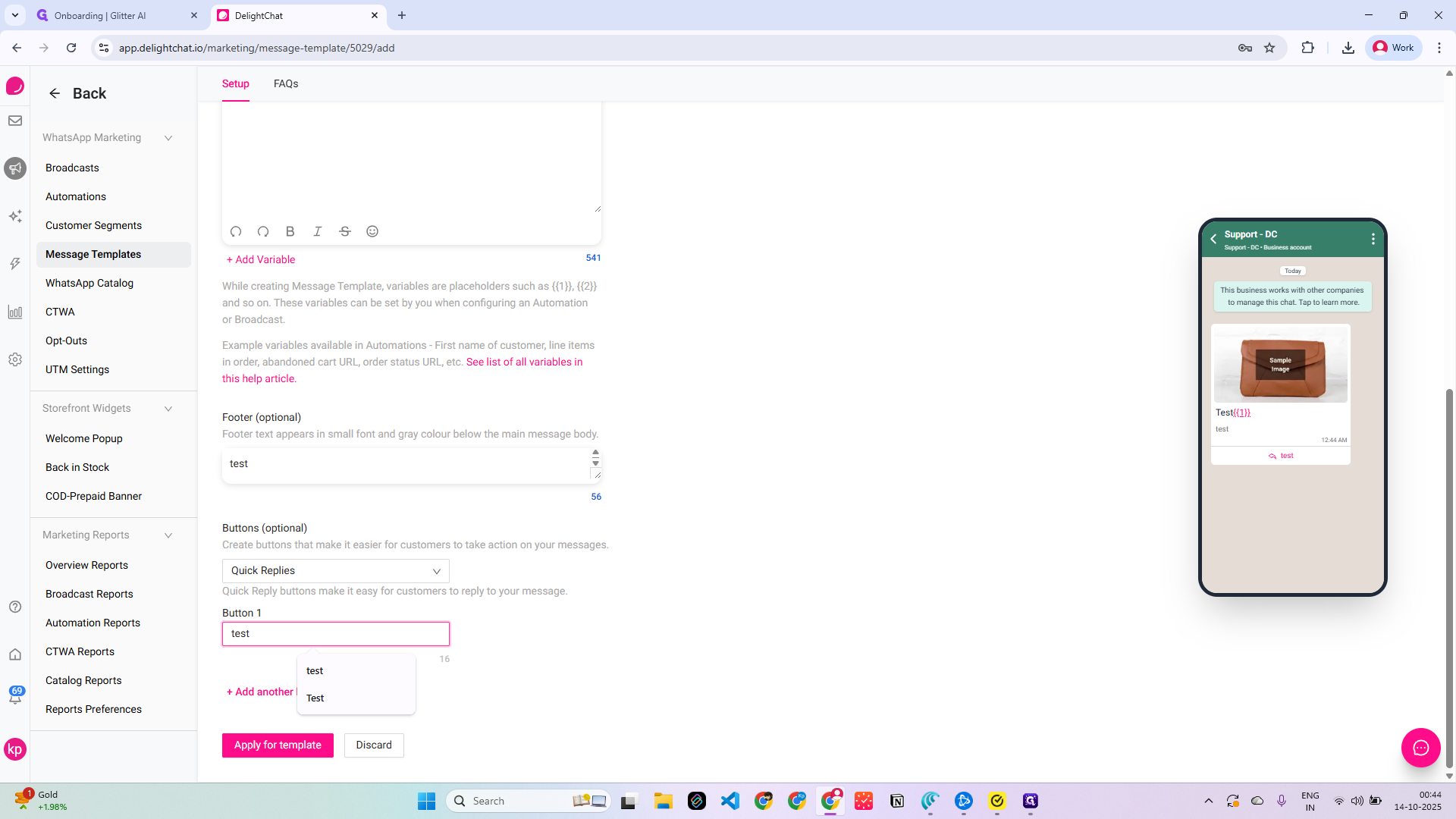
Apply for the-
26
Click here
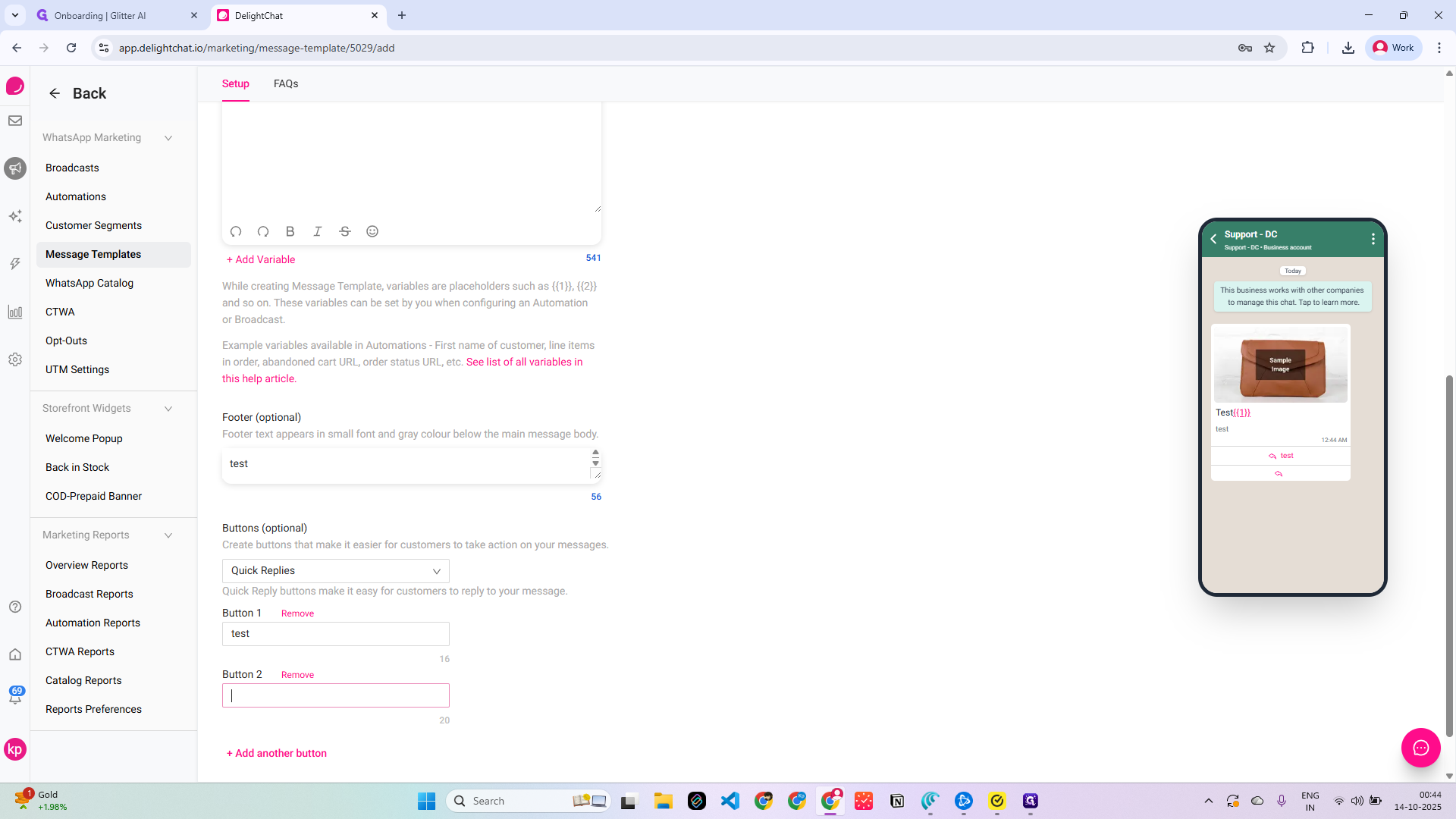
27
Type "test"
28
Click here
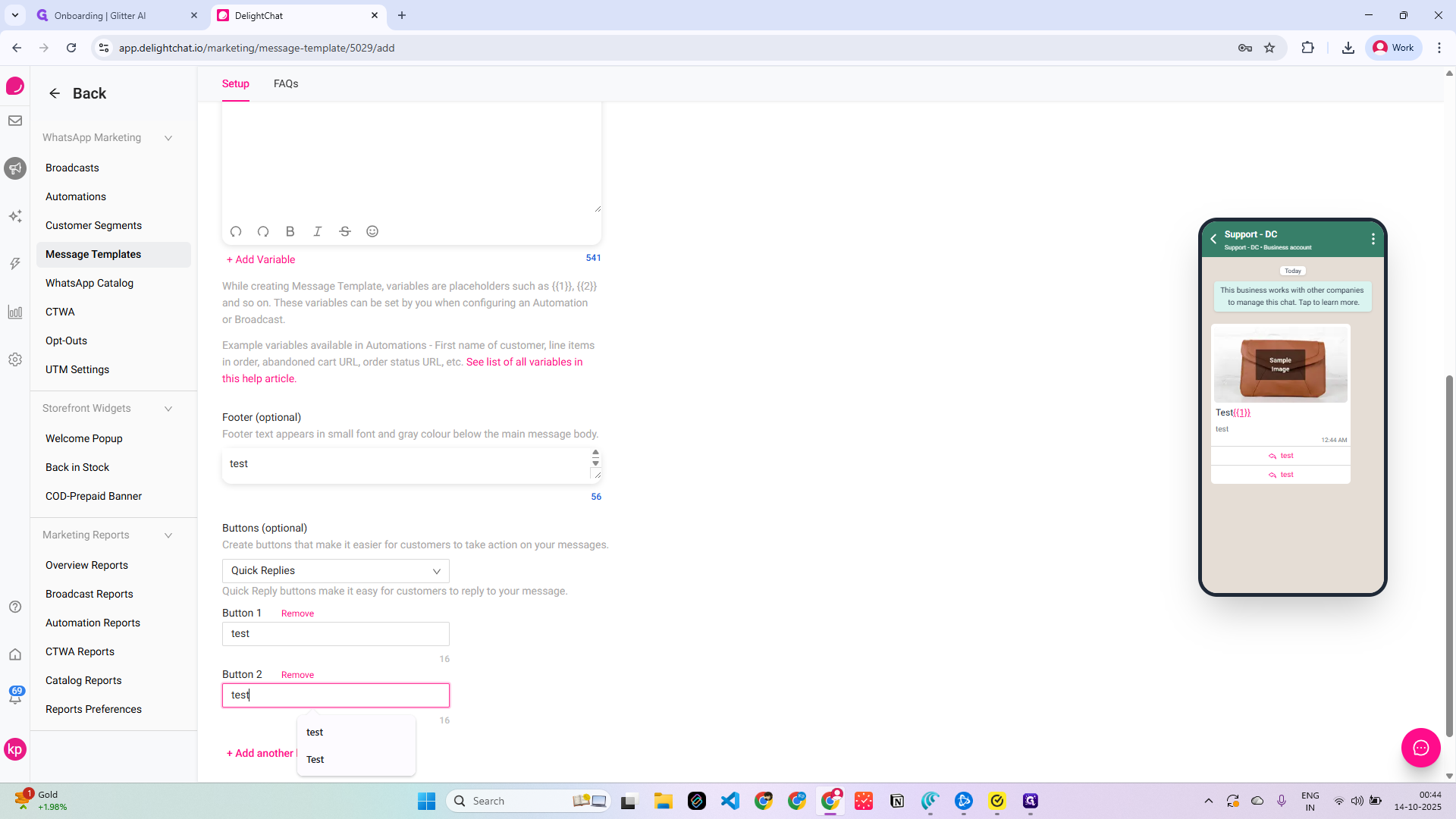
29
Double-click here
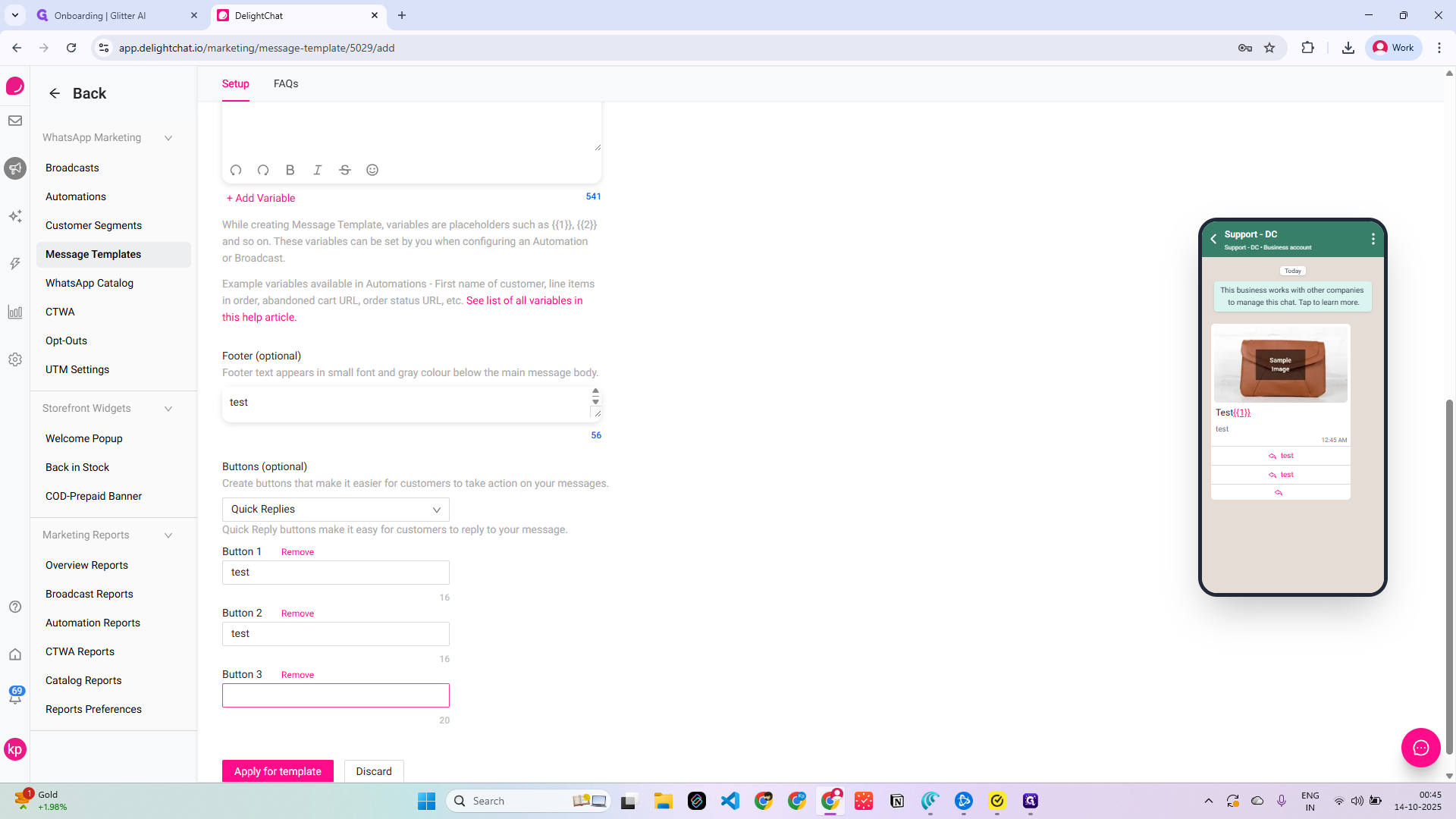
30
Type "test"
31
Click here