
How to Create a Sales Order in Salesforce: A Step-by-Step Guide
Learn how to efficiently create a sales order in Salesforce with this comprehensive guide. Follow our step-by-step instructions to streamline your sales process.
In this guide, we'll learn how to create a sales order in Salesforce using the SpecEquip platform. We'll start by accessing Salesforce through Google Chrome and navigating to the SpecEquip Ops dashboard. From there, we'll go through the steps to input essential sales order details, select products, and finalize the order. This process will help streamline order management and ensure accurate record-keeping.
Let's get started
This is a quick guide on creating a sales order in Salesforce. First, open Google Chrome. Then, go to the SpecEquip Salesforce website and log in if needed.
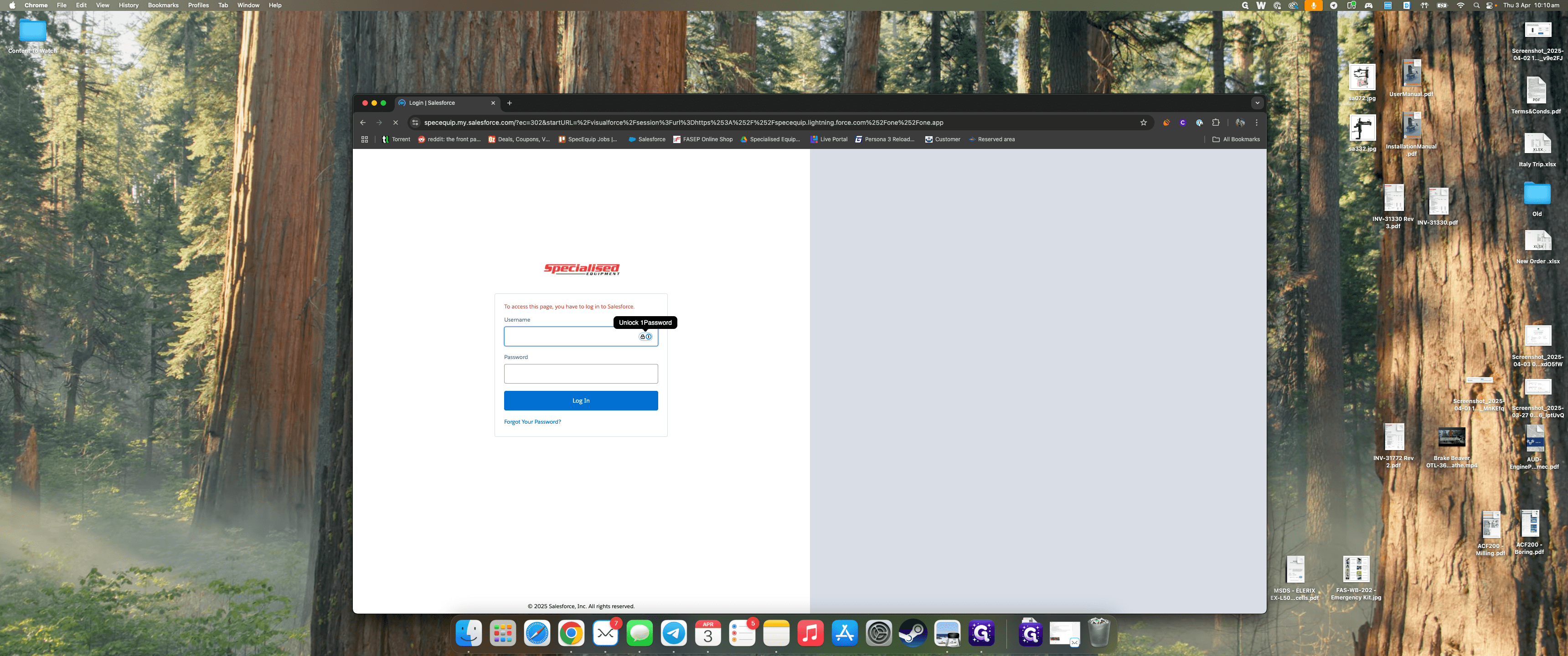
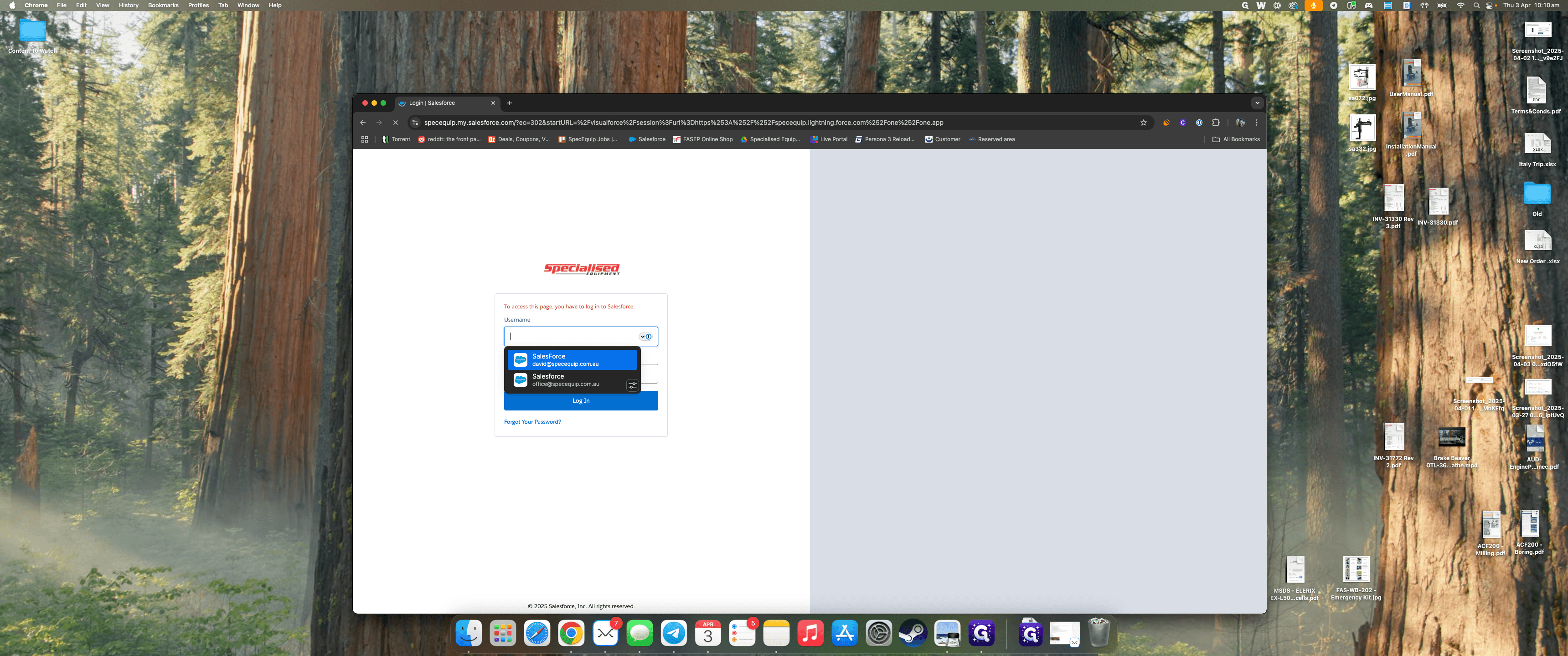
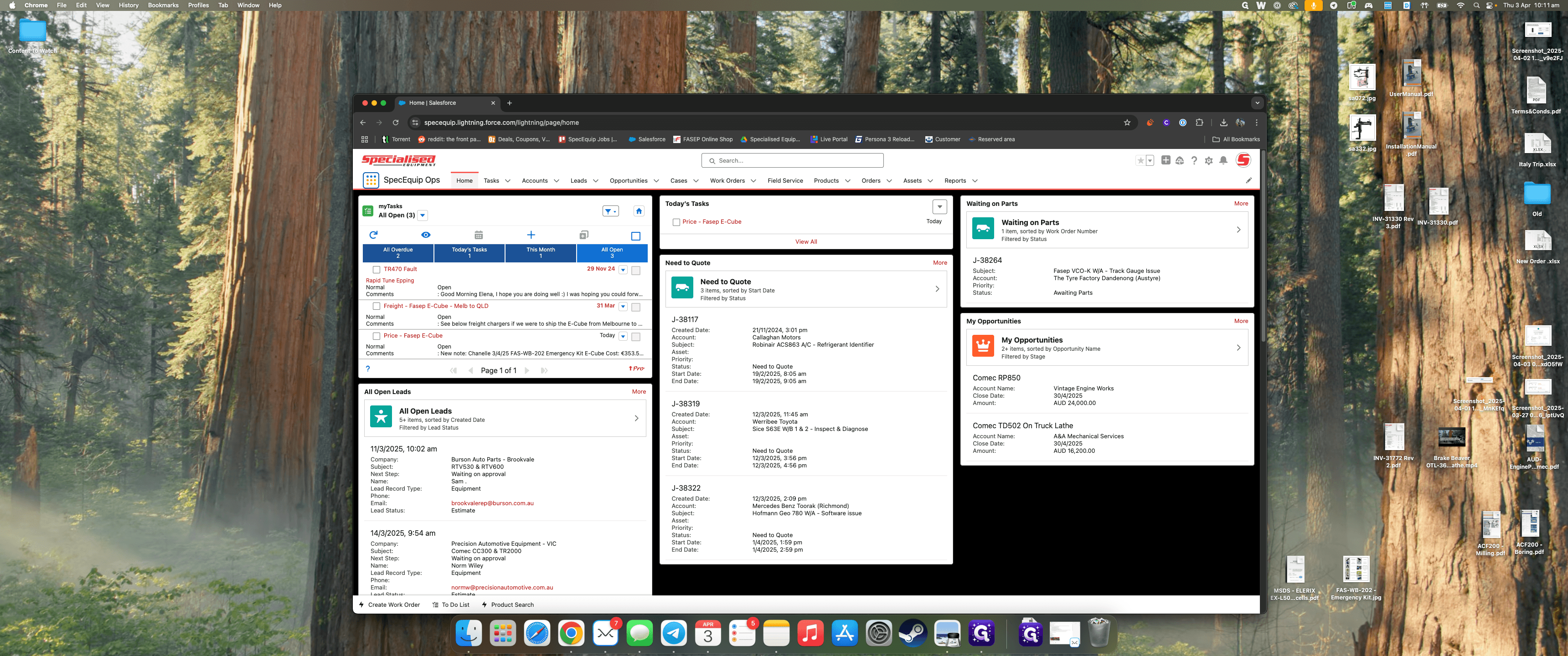
After logging in, make sure you're on the SpecEquip's operations dashboard.
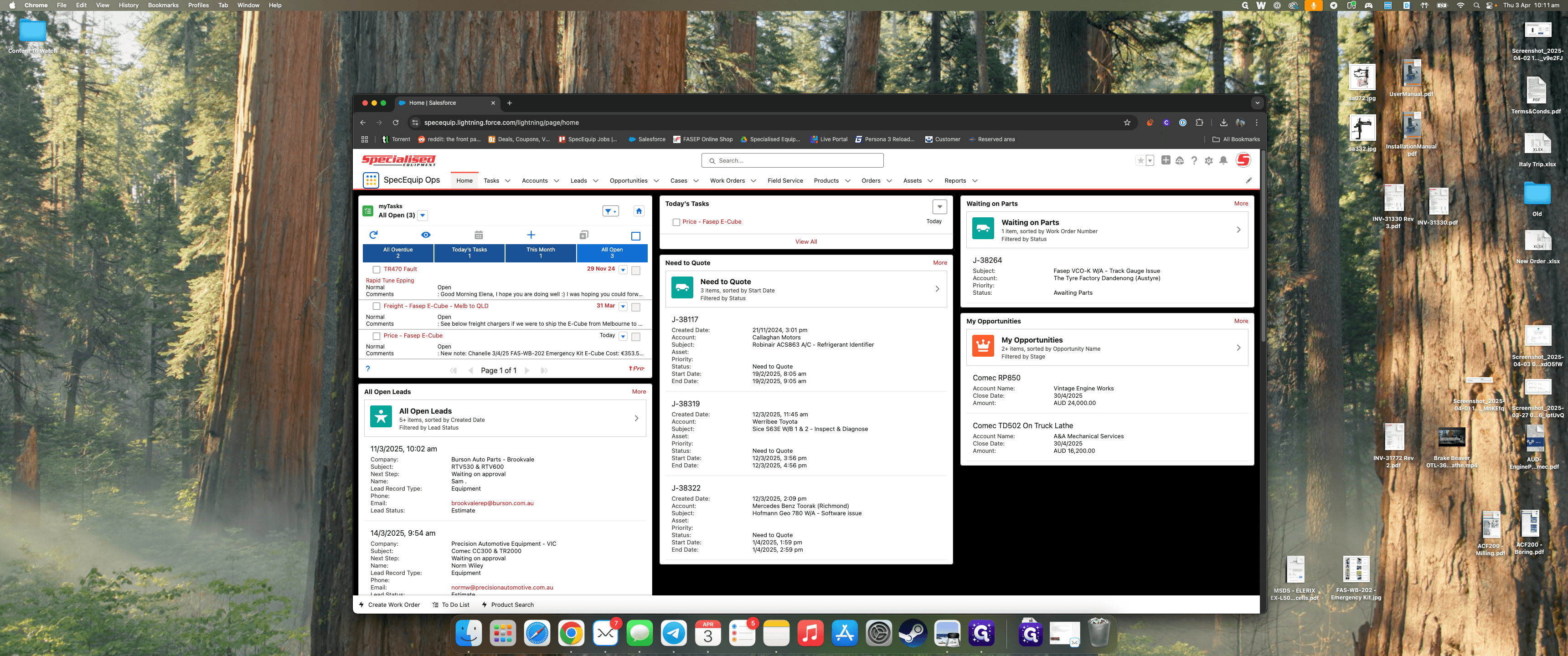
To confirm this, click on the application selector or app launcher.
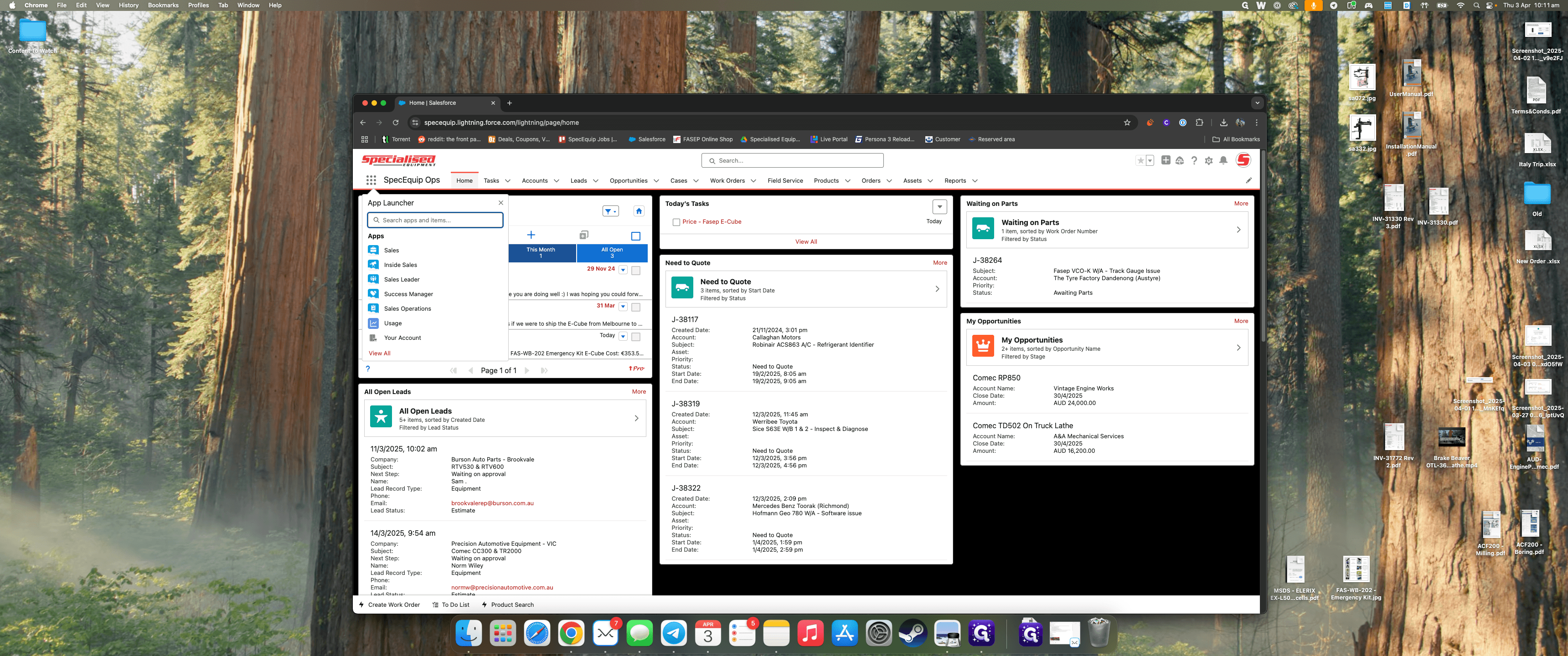
Type "SpecEquip Ops" and select it.
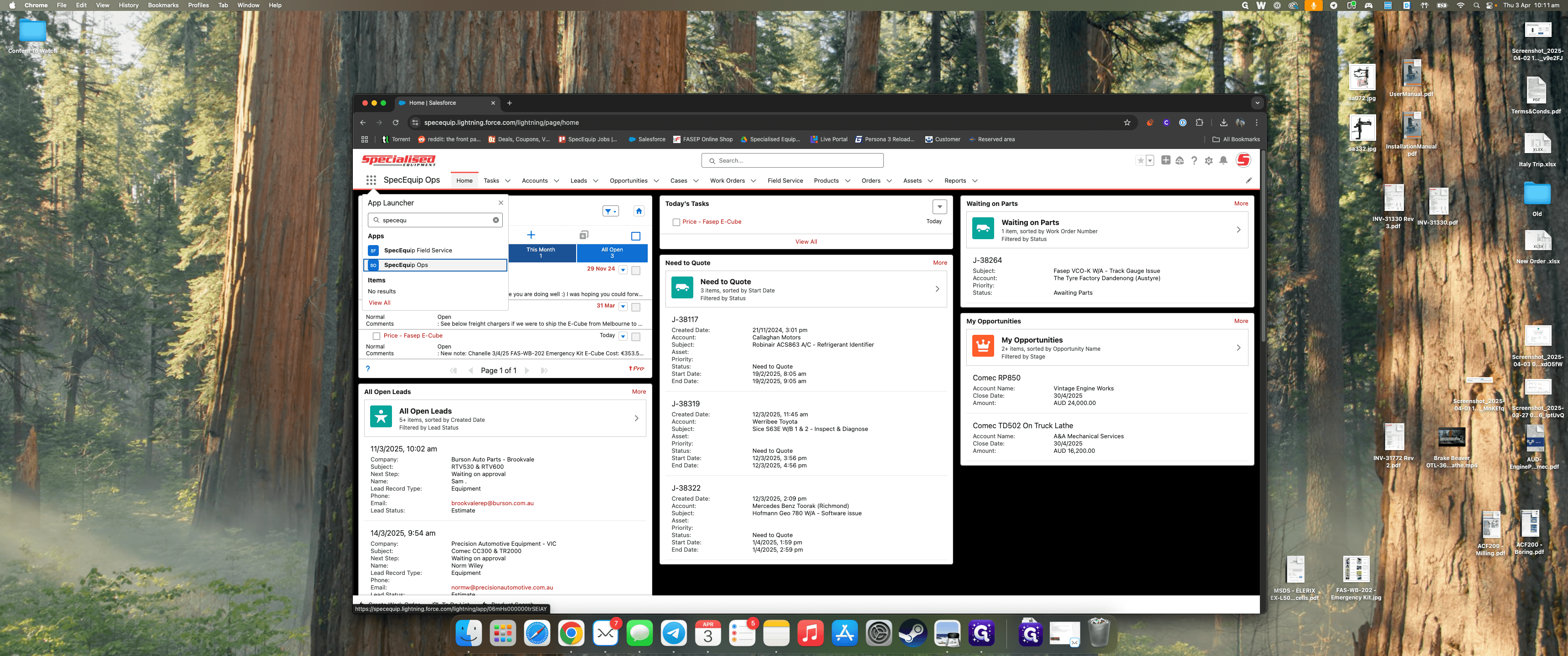
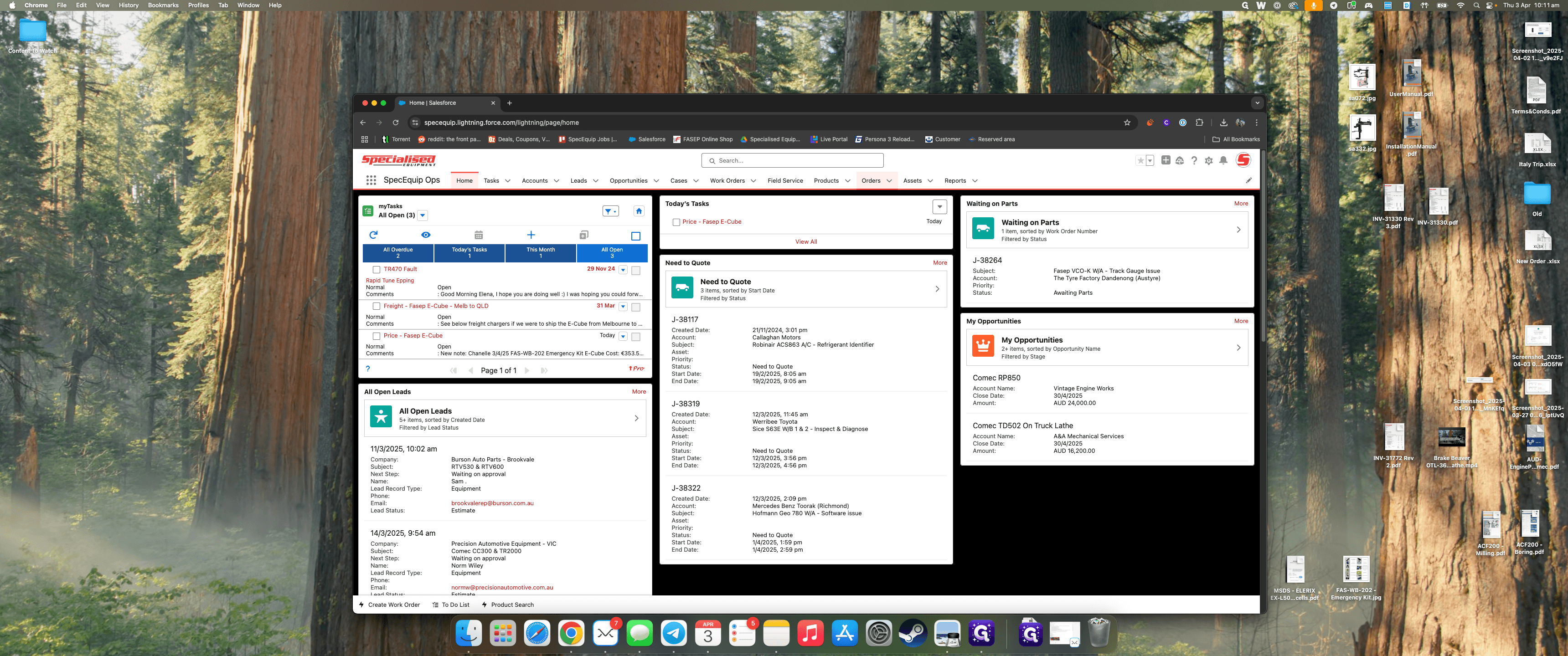
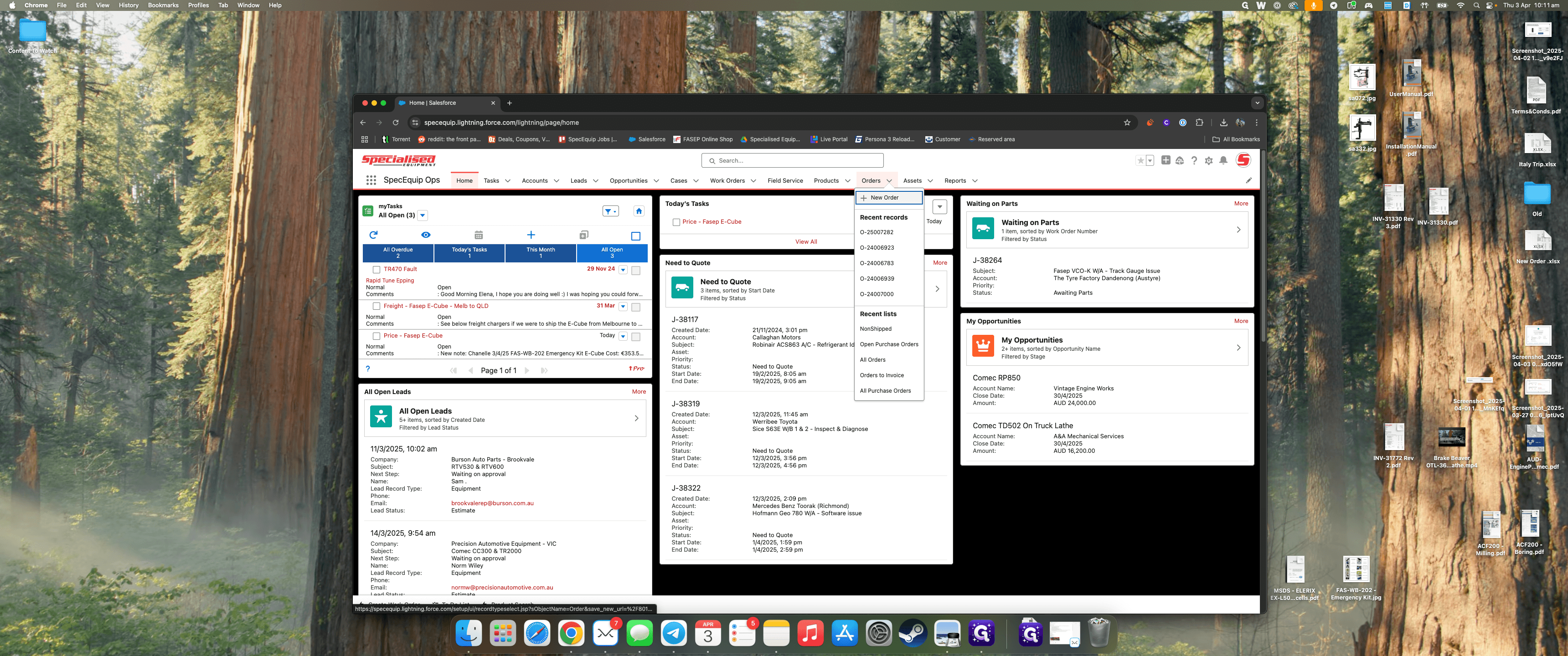
Once you're on the dashboard, click on Orders, then New Order.
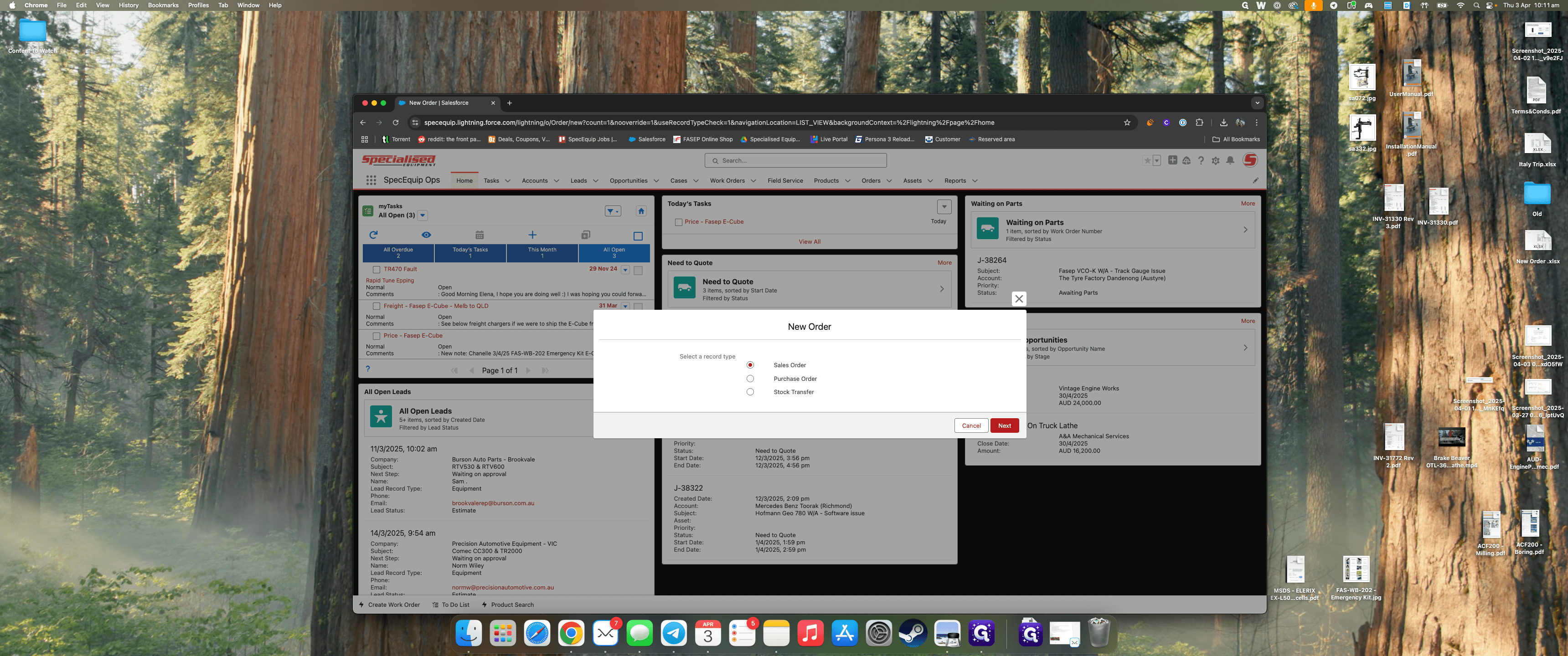
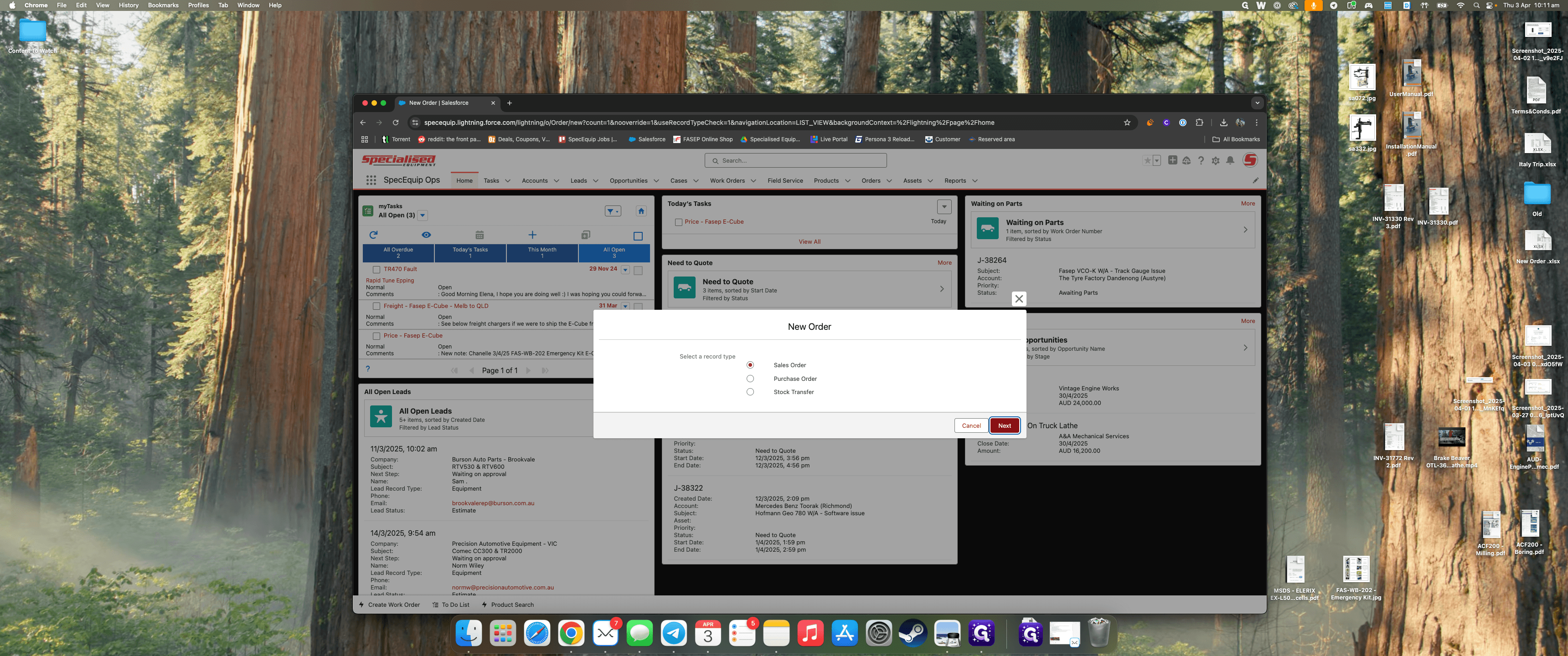
If it's a sales order, select "Sales Order" and click "Next."
Fill out the basic sales order information.
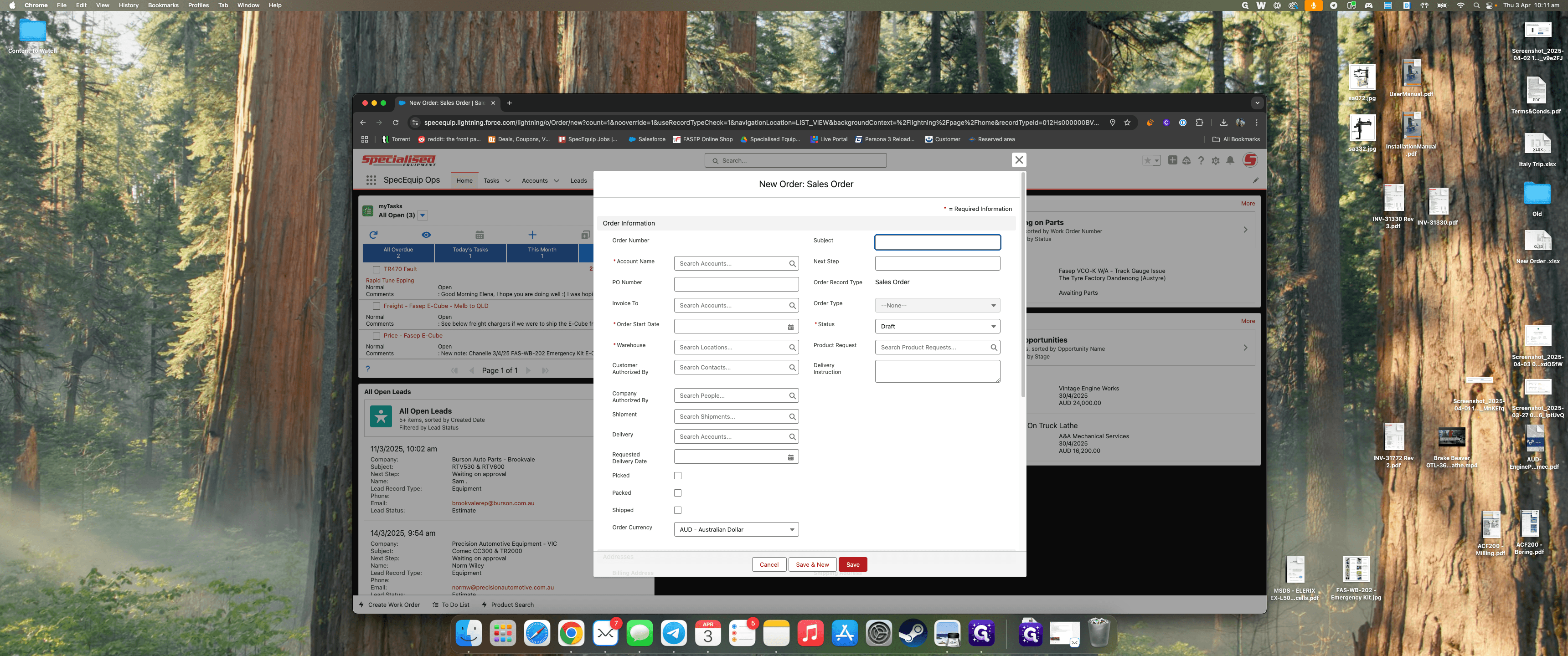
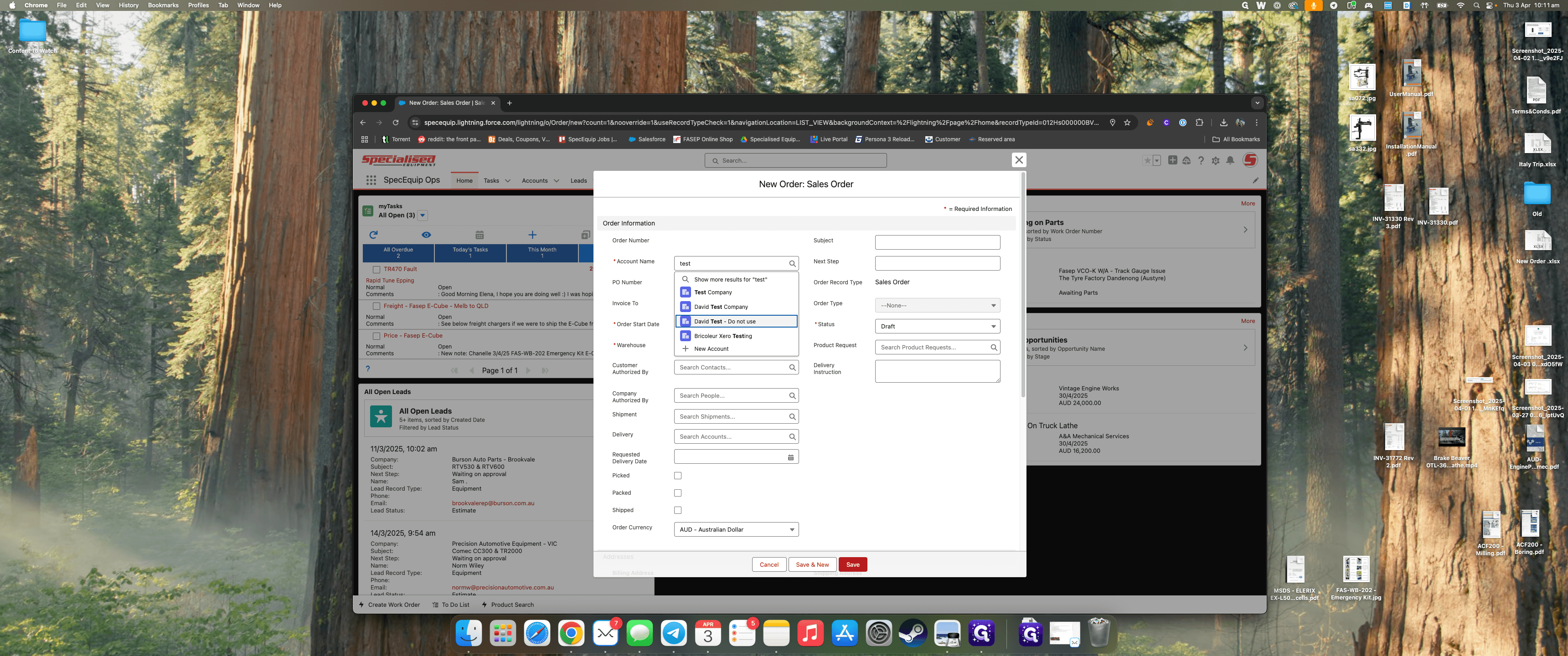
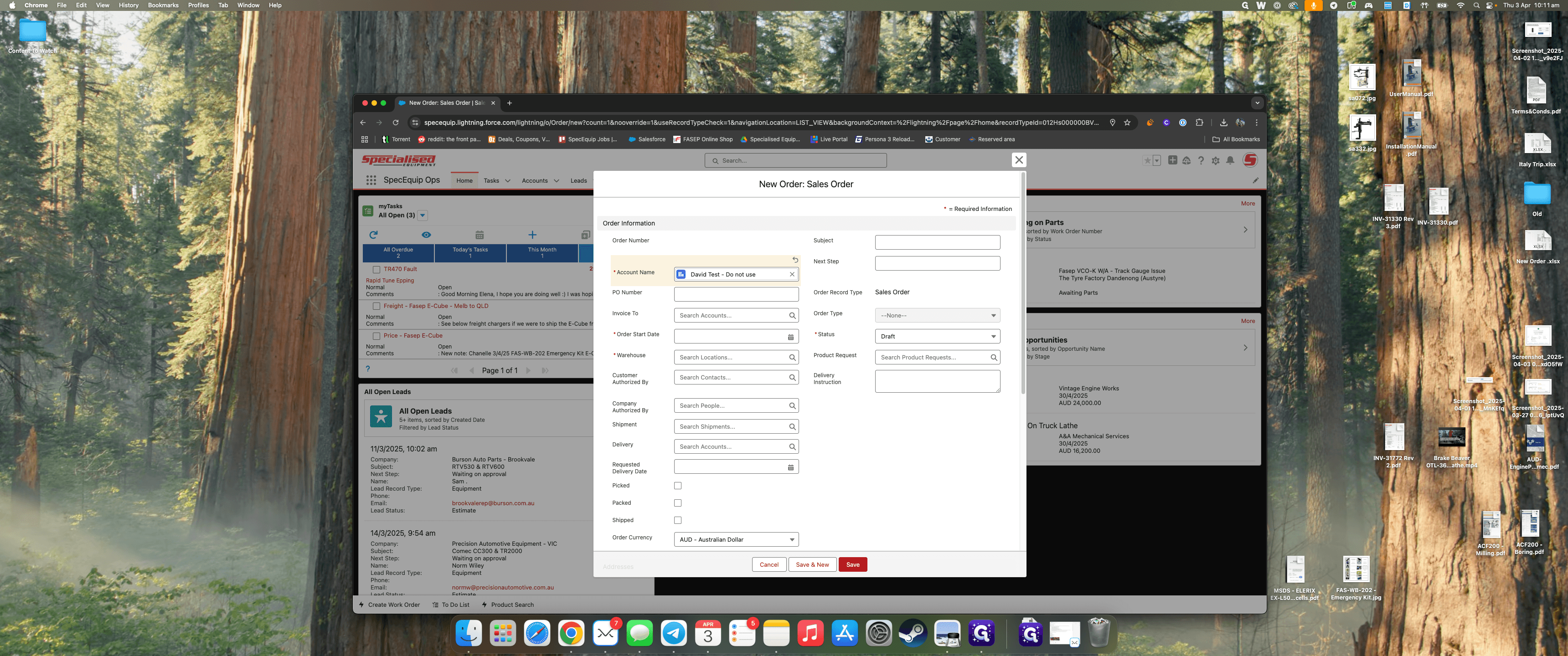
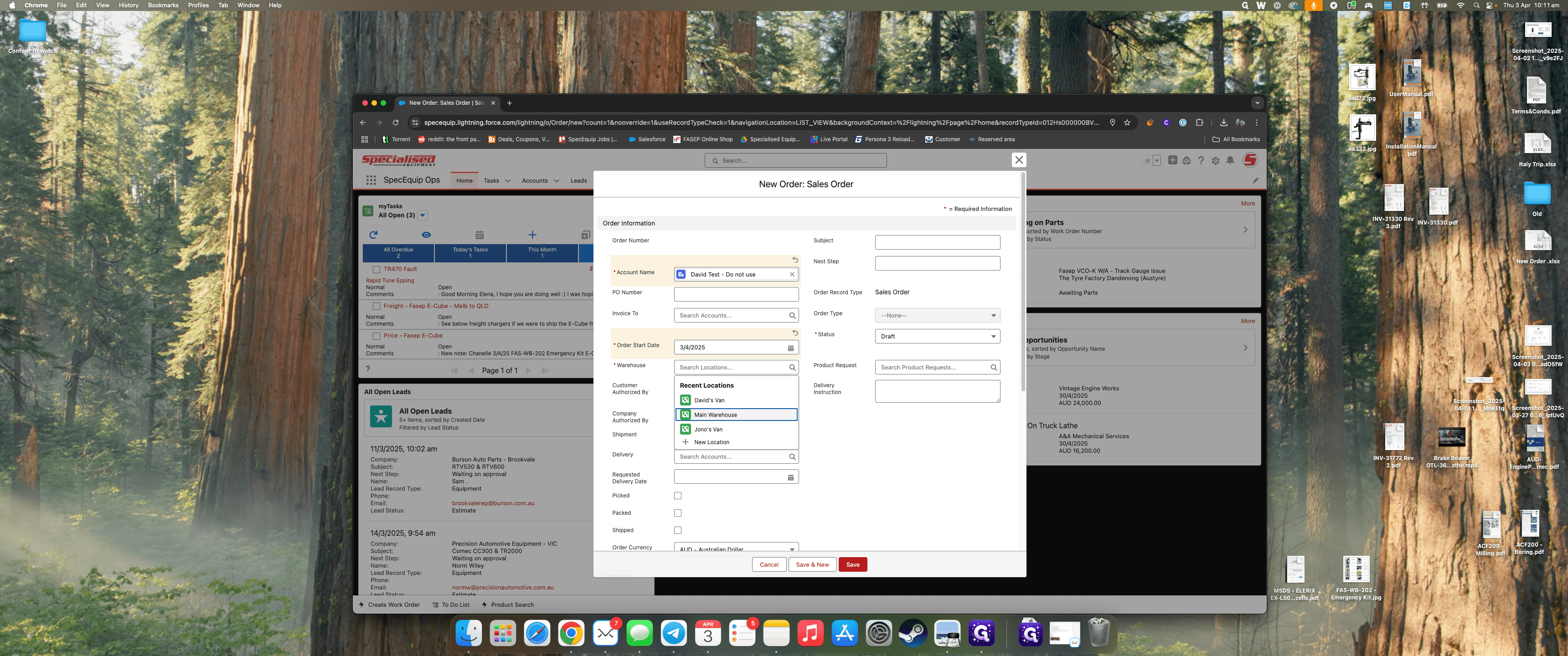
You need the customer's account name. For our example, we'll use The Test Company.
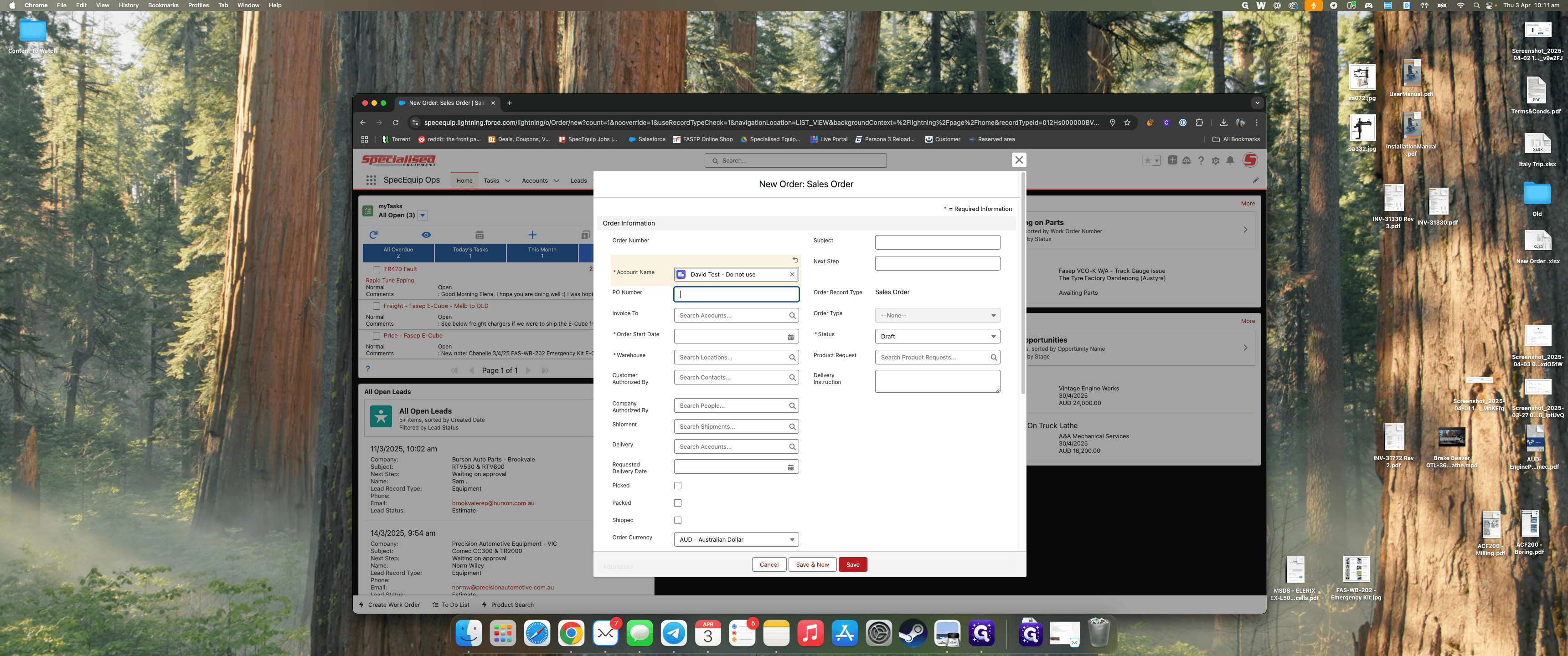
If the customer provided a purchase order number, you can enter it here.
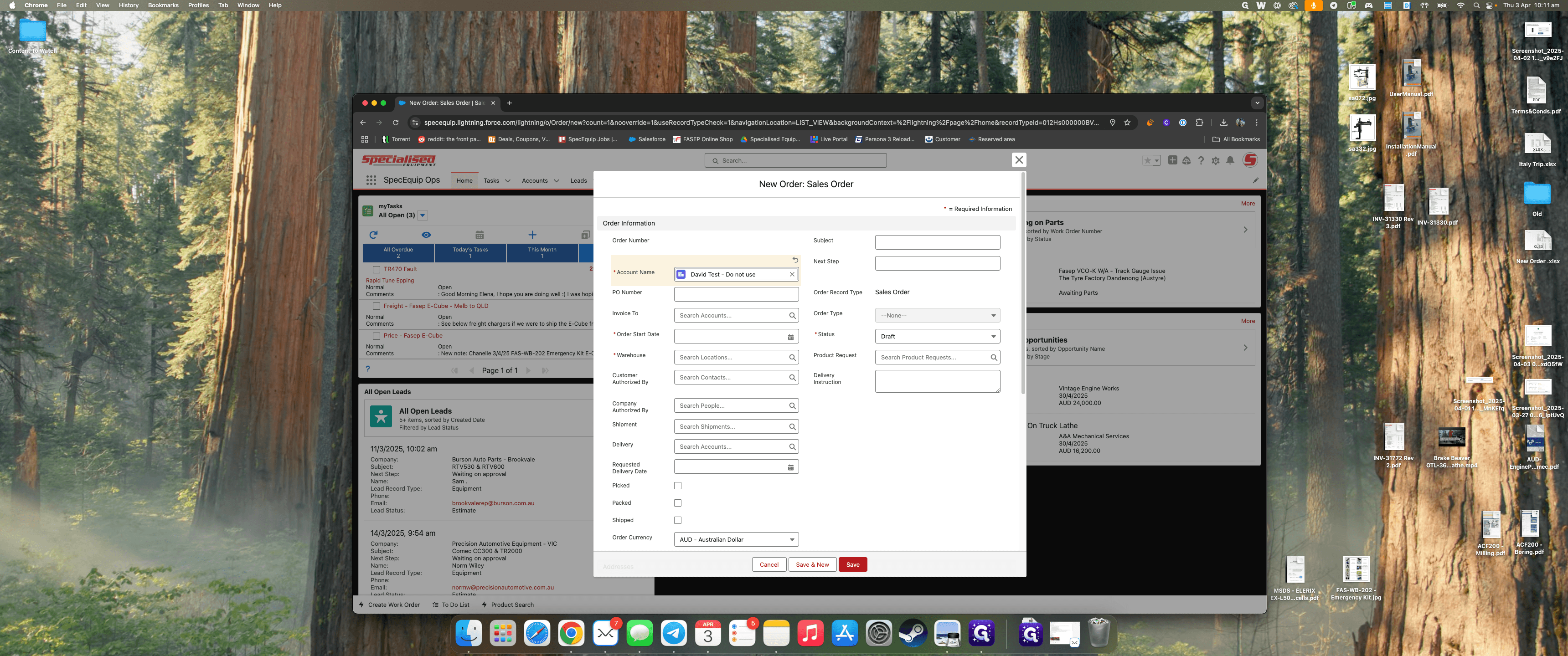
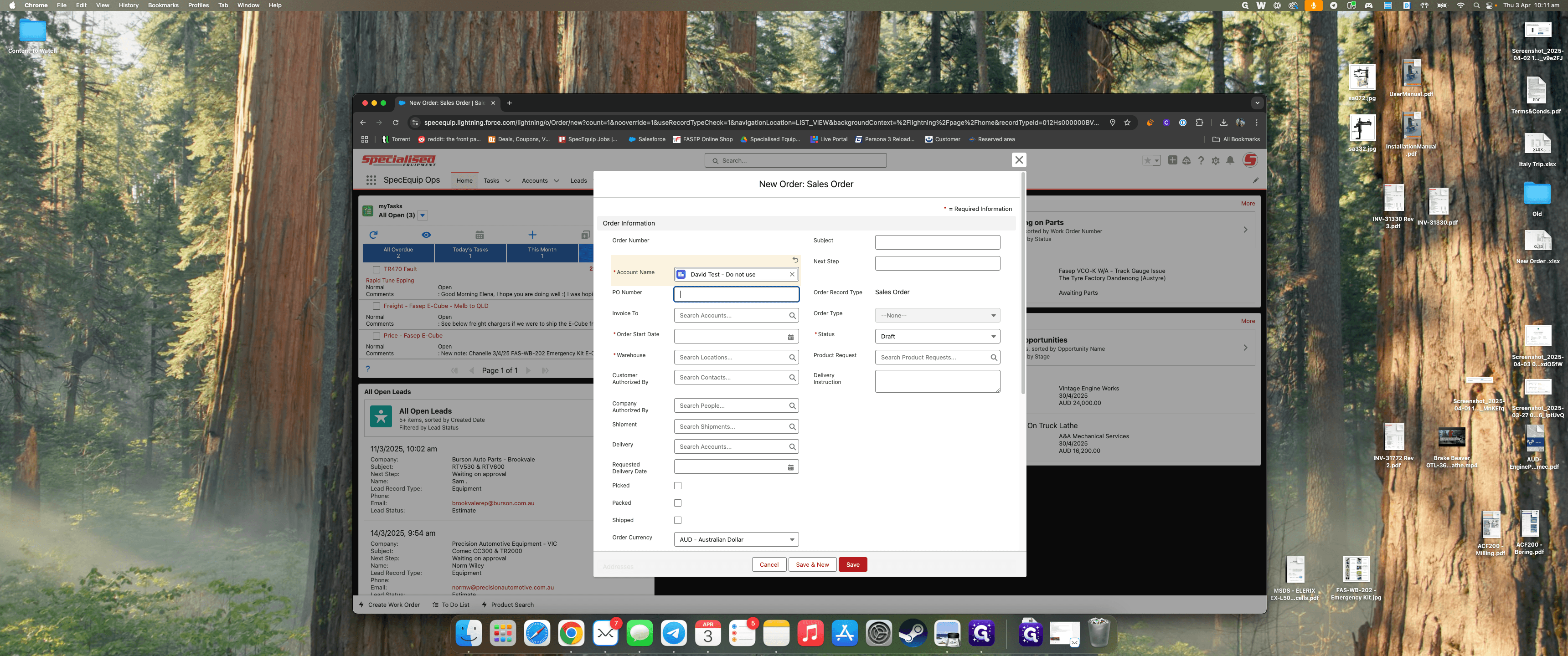
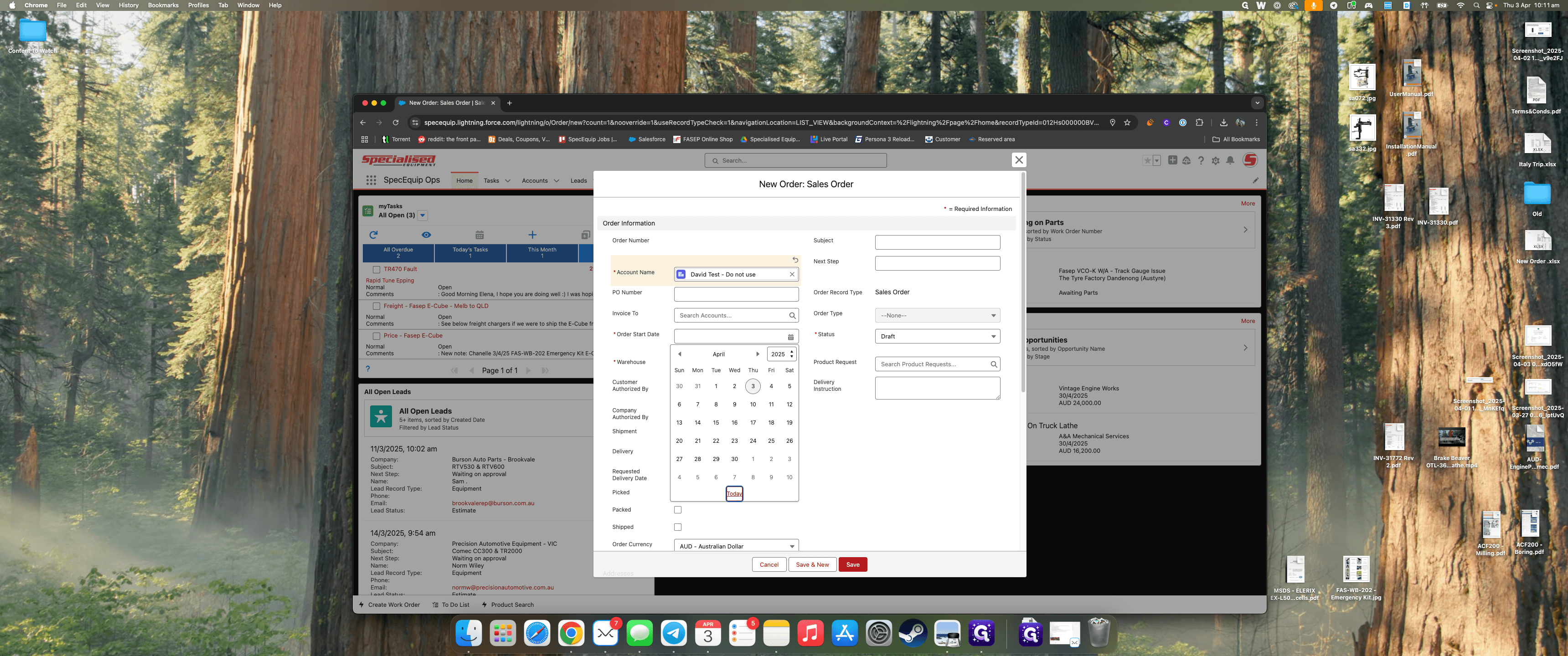
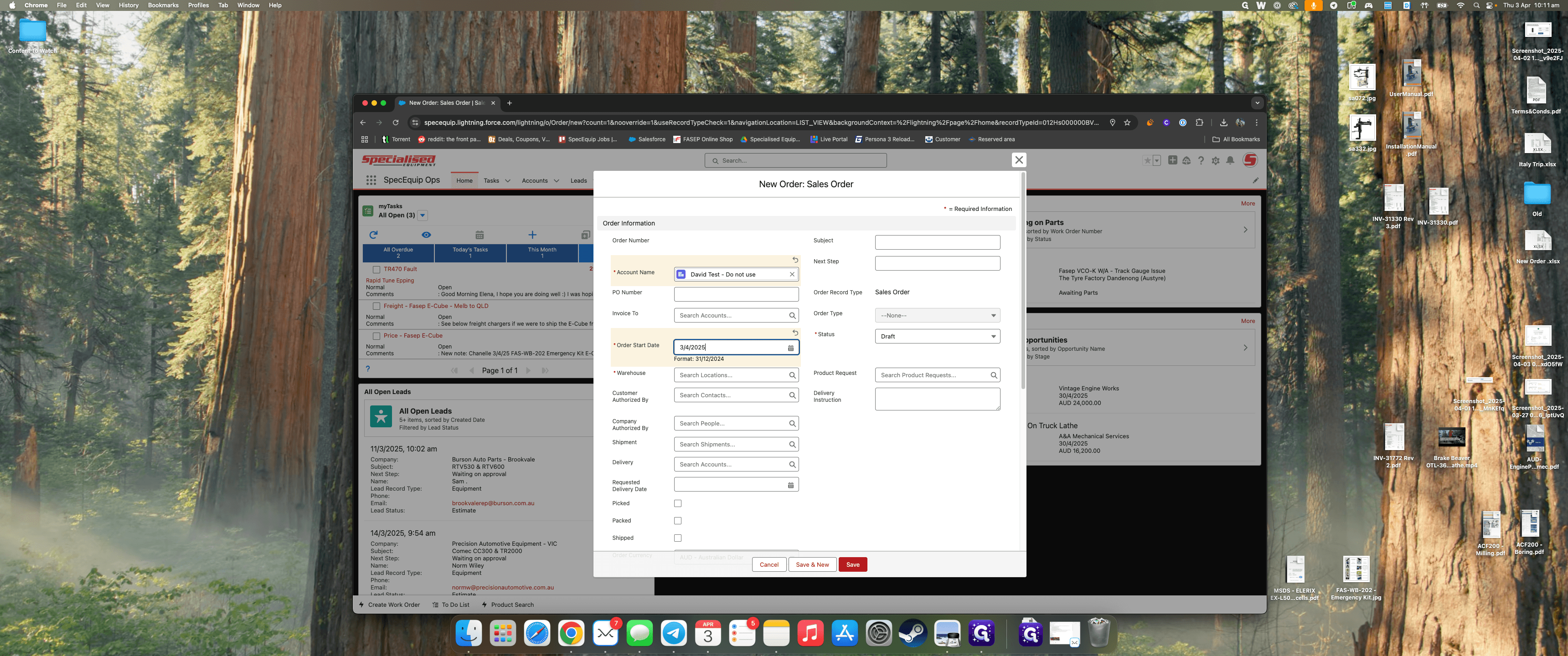
The order start date is usually today. However, for future orders, you can choose a different date.
For the warehouse, you should generally use the main warehouse. This applies unless the items are coming from one of our virtual warehouses or similar sources.
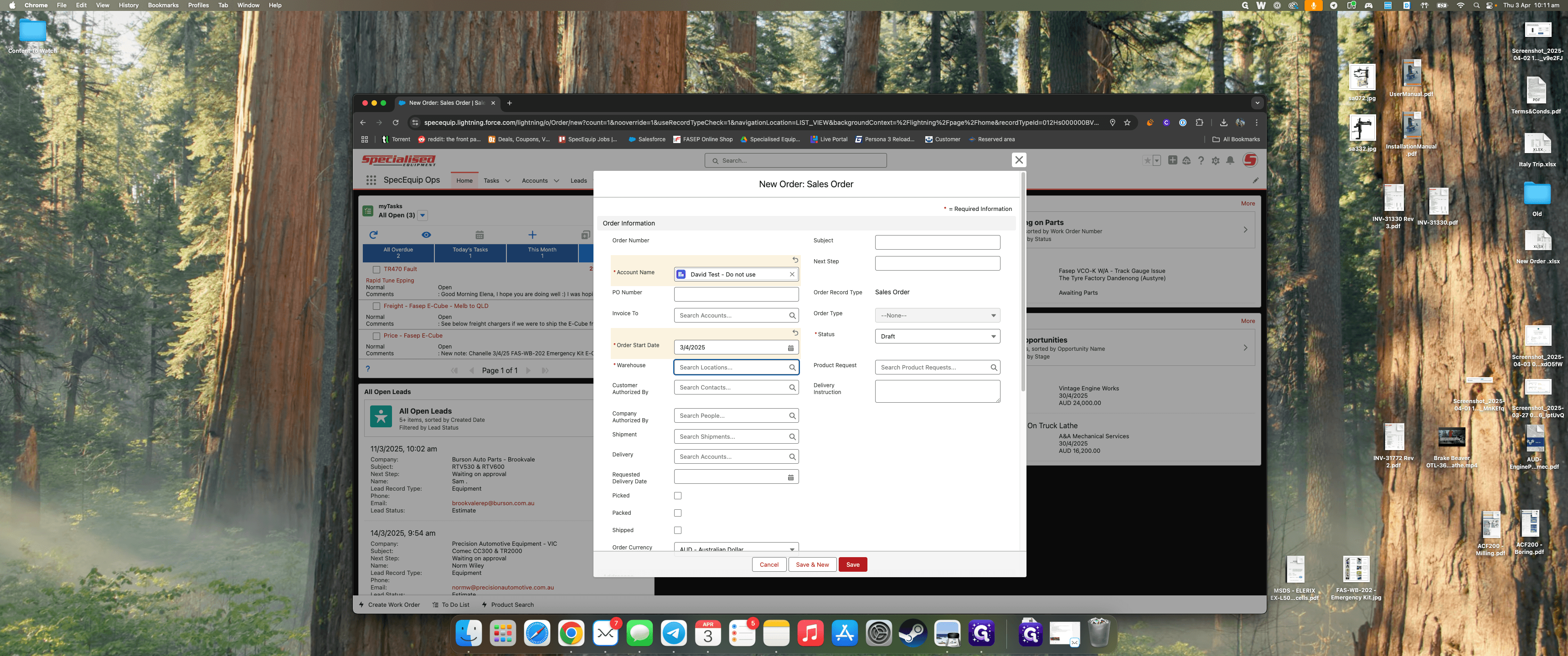
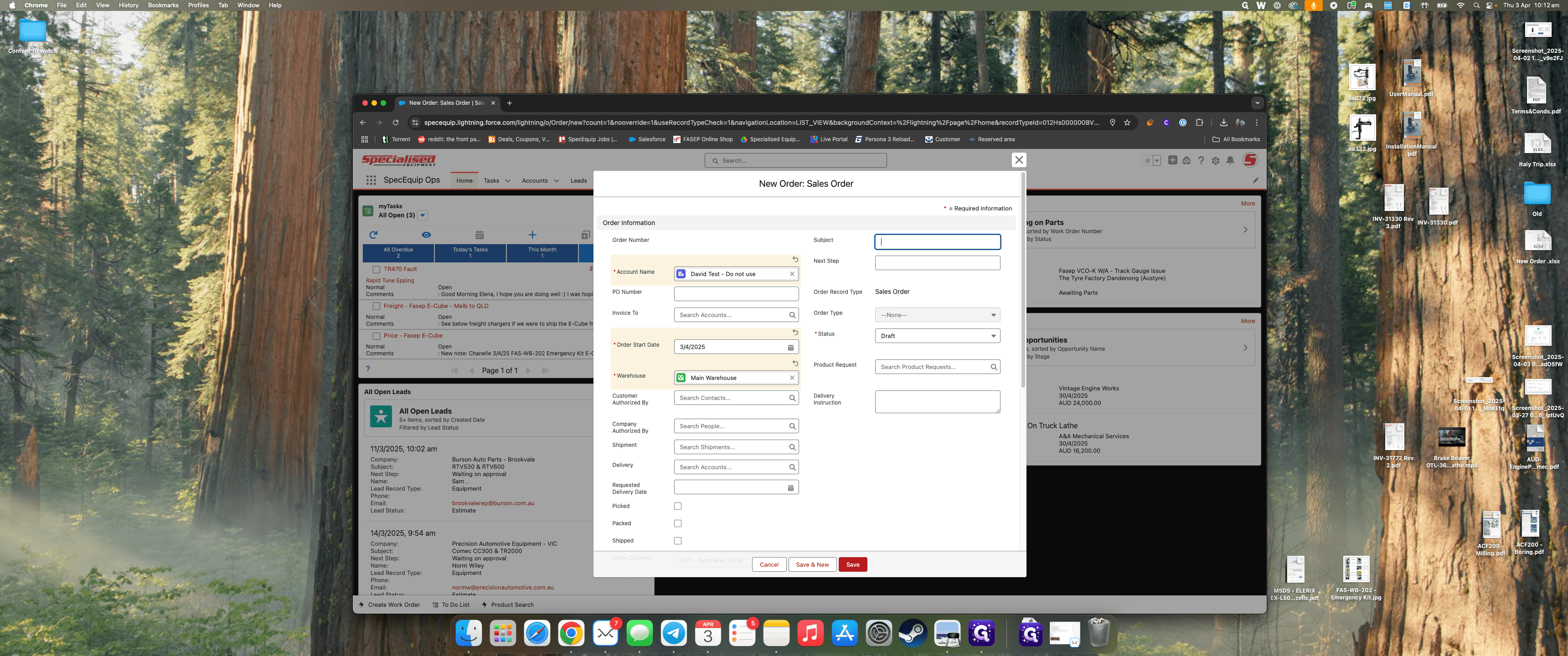
In the subject, provide a brief description of the order. For example, "CBN 6-inch wheel."
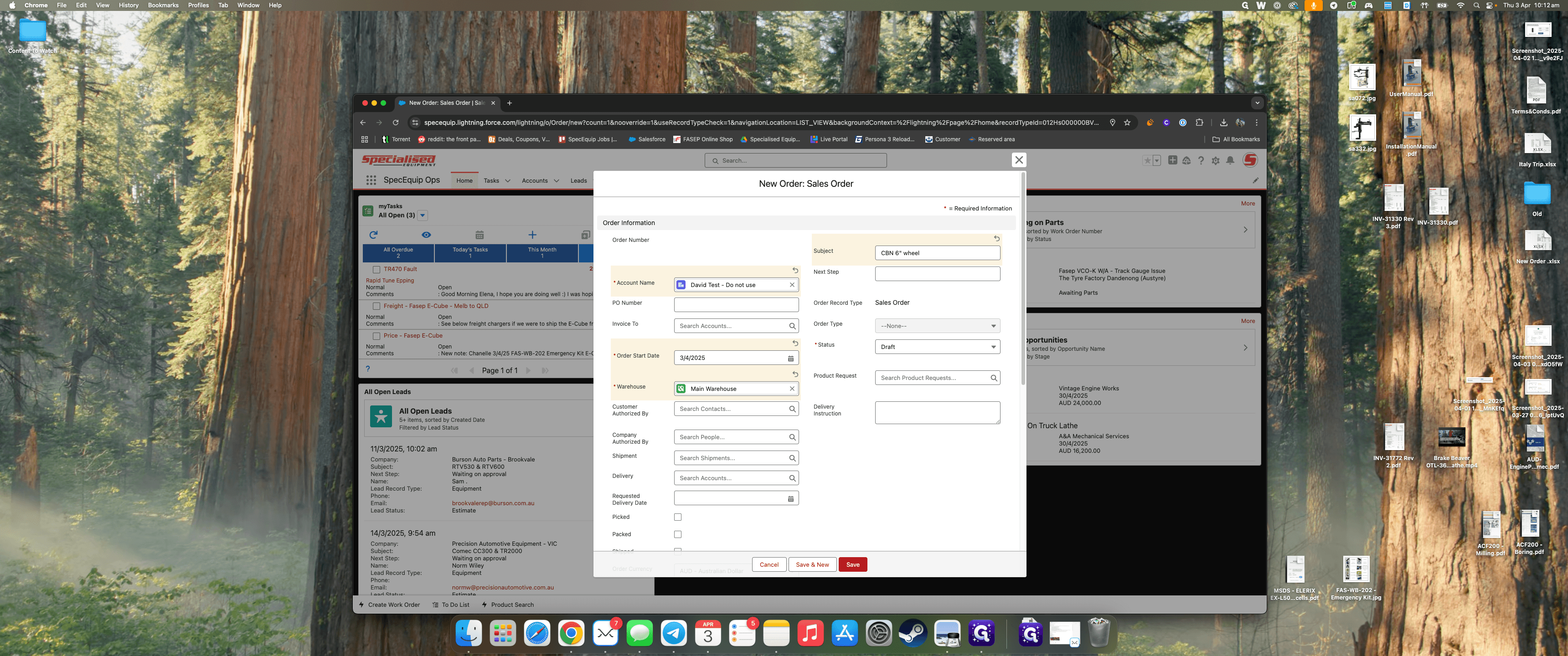
The next step is used only if the order is ongoing and you need to know why it hasn't been dispatched yet. You can leave the rest blank. These are the only items you need to fill in. Then, hit Save.
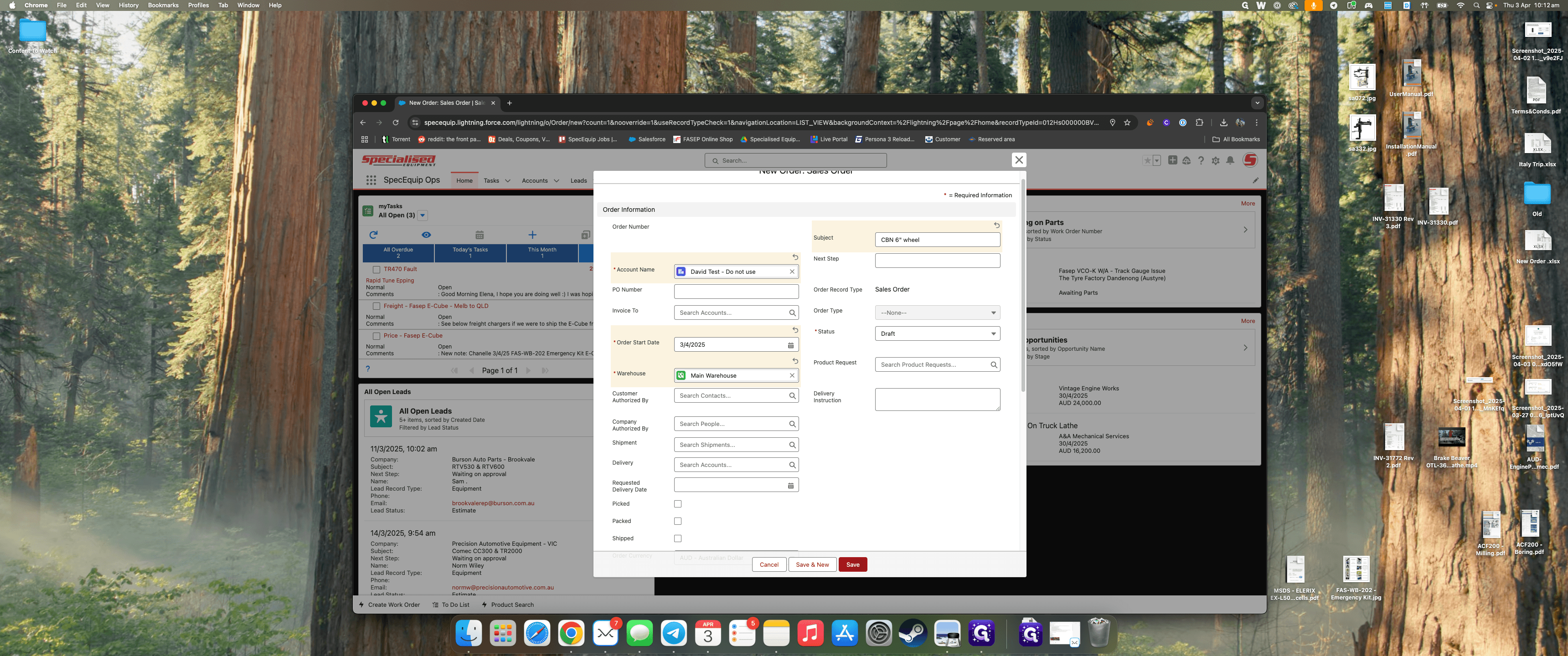
After you click Save, you'll be taken directly to the order.
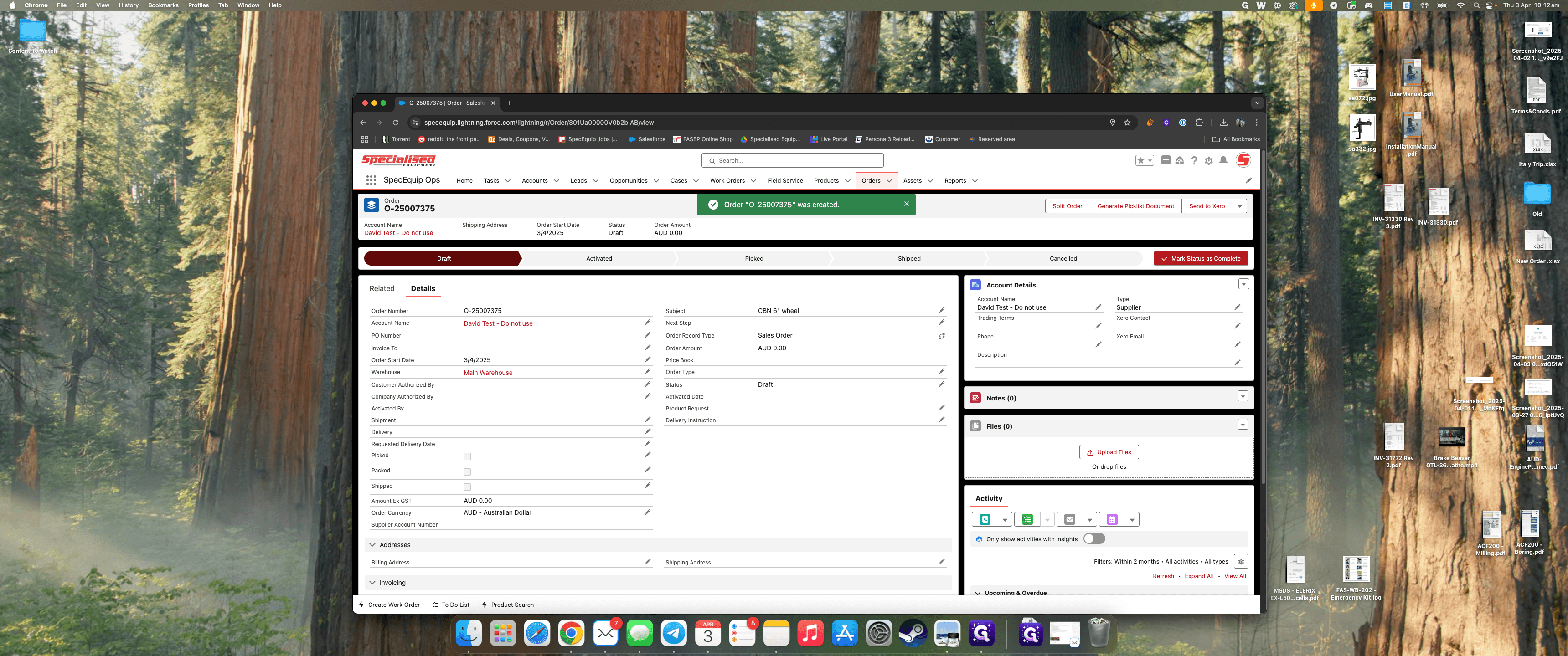
First, add products to the order by clicking on "Related."
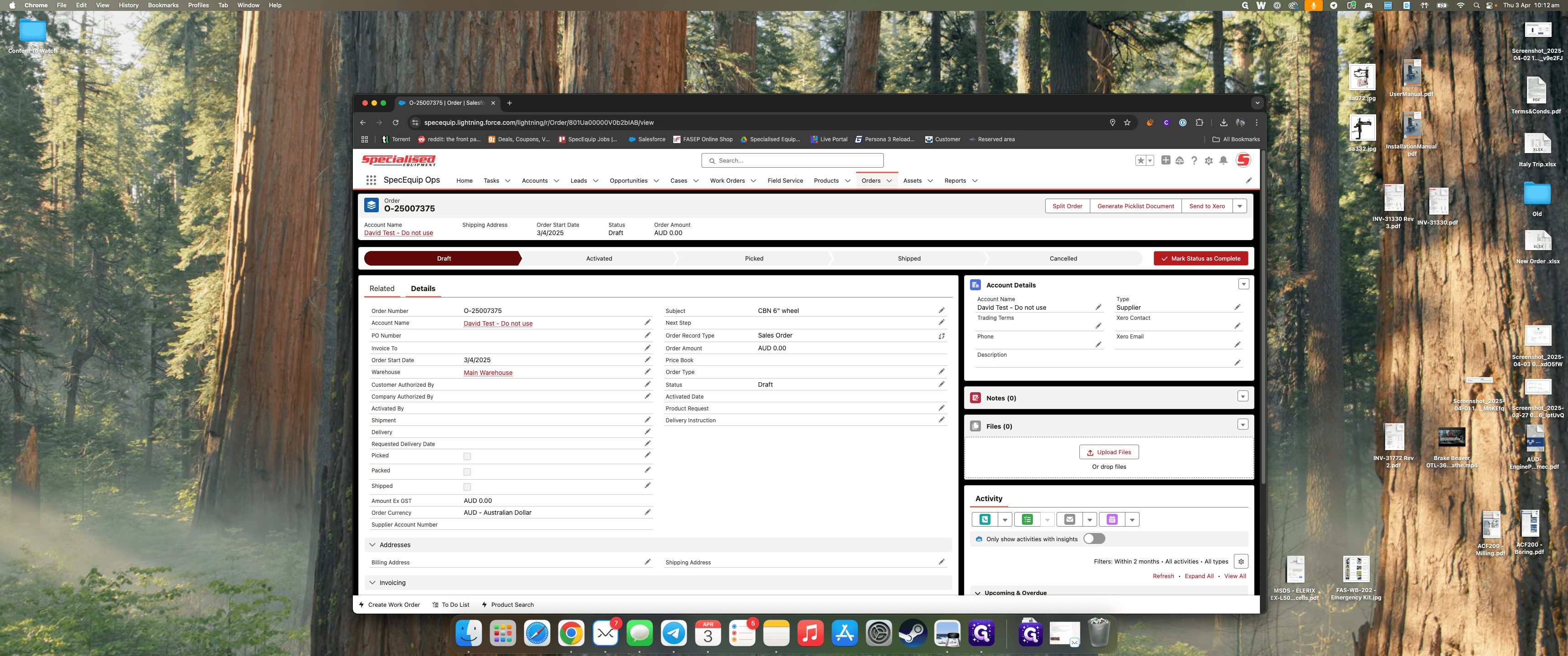
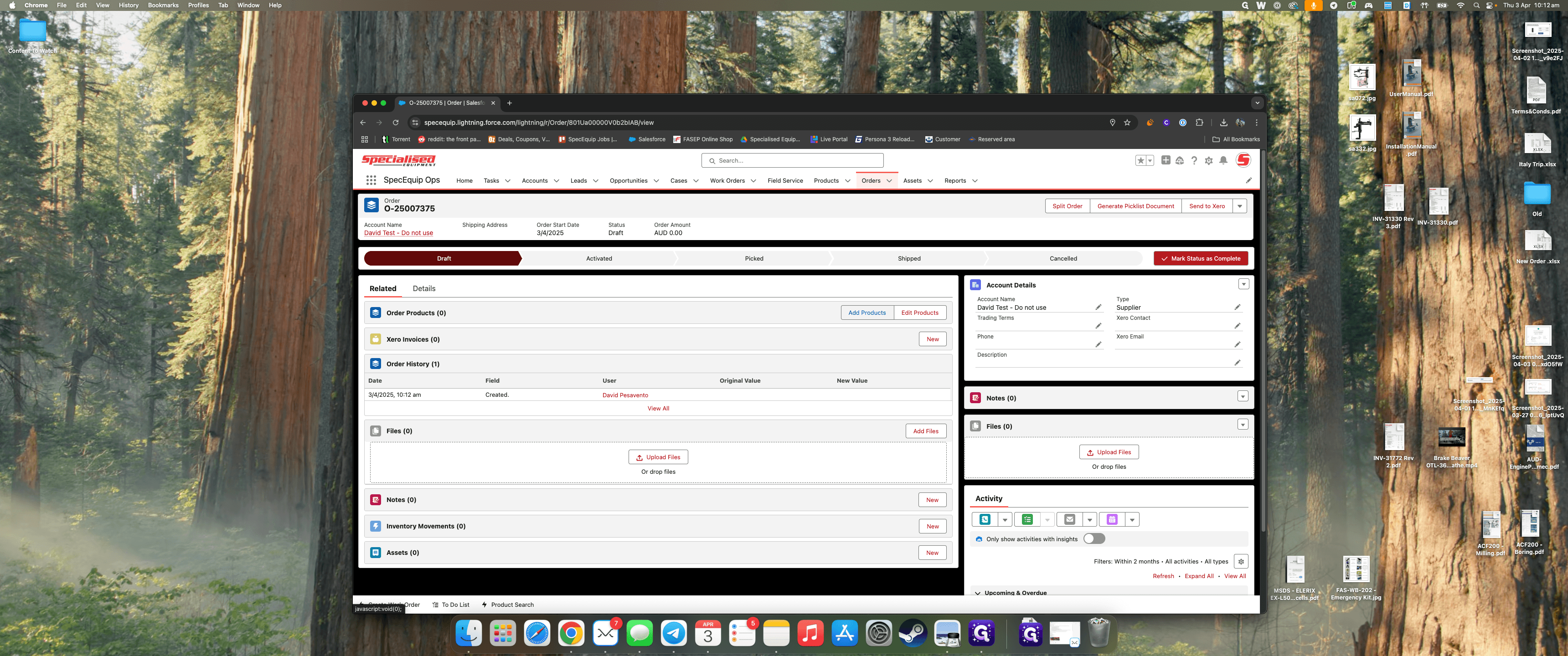
Under Order Products, click on Add Product.
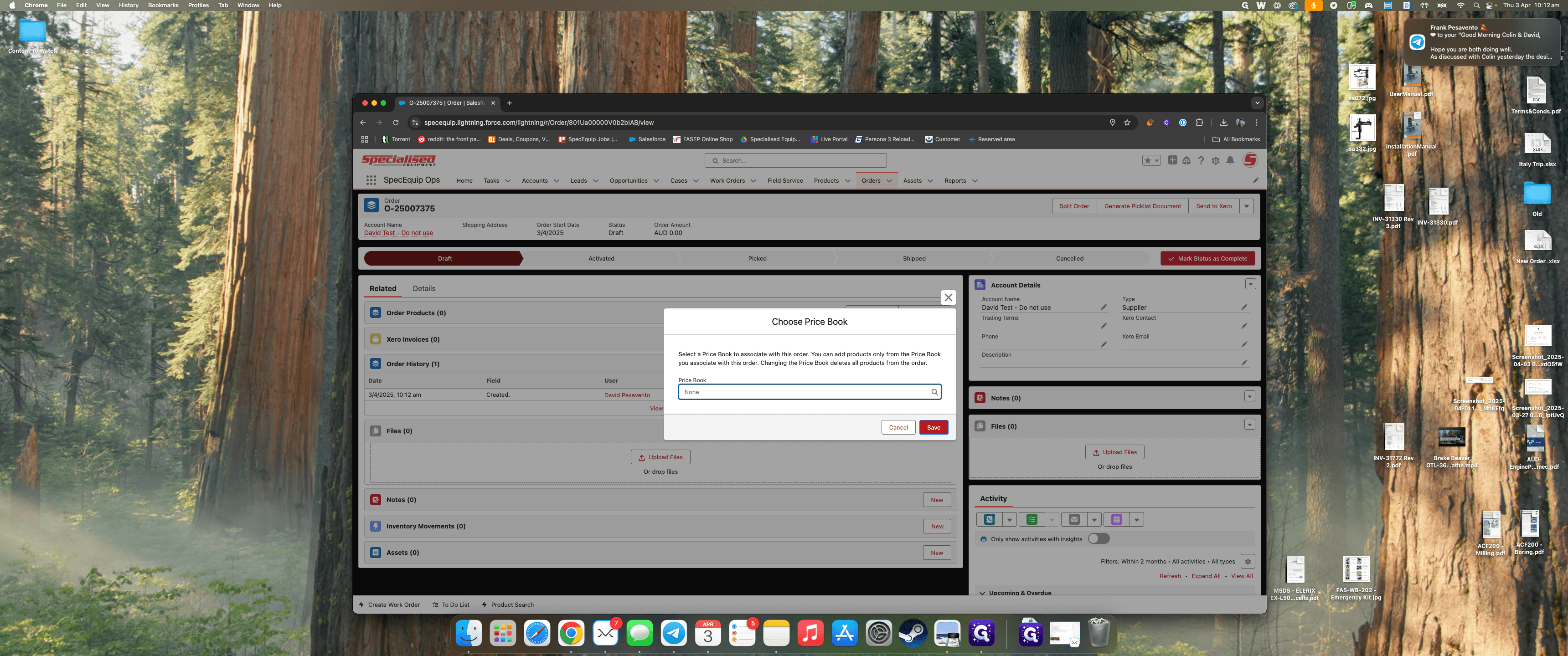
If a customer doesn't have a default price book selected, you will be prompted to choose one. To change it, click the small X and type in the desired price book.
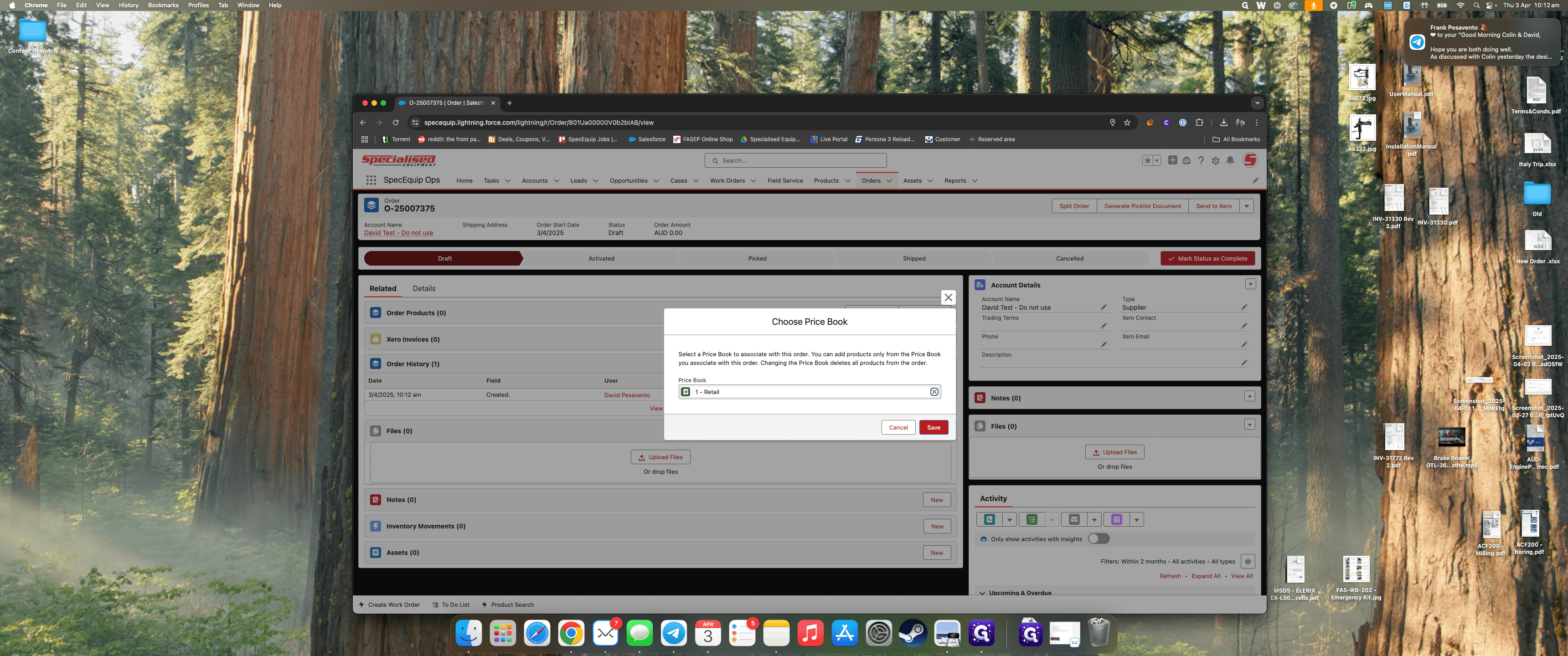
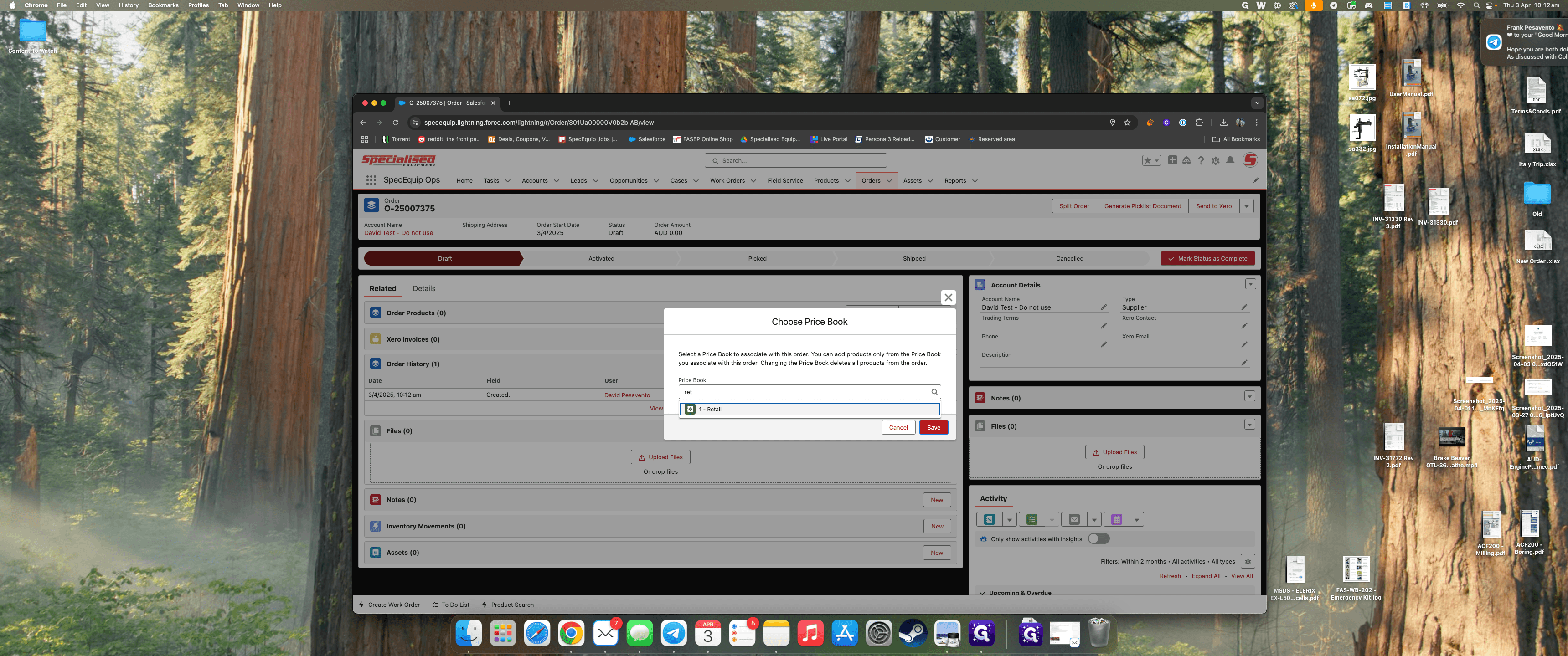
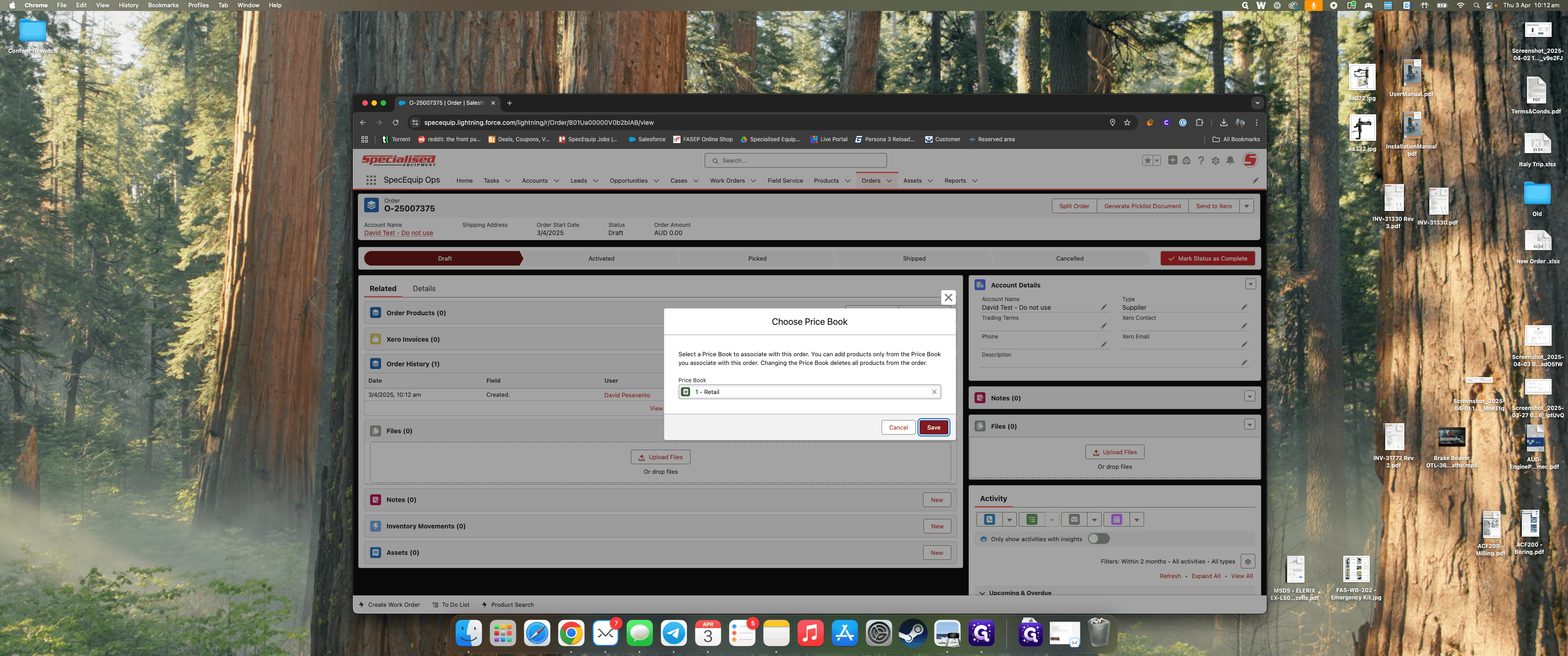
Click on "Retail" and then hit "Save."
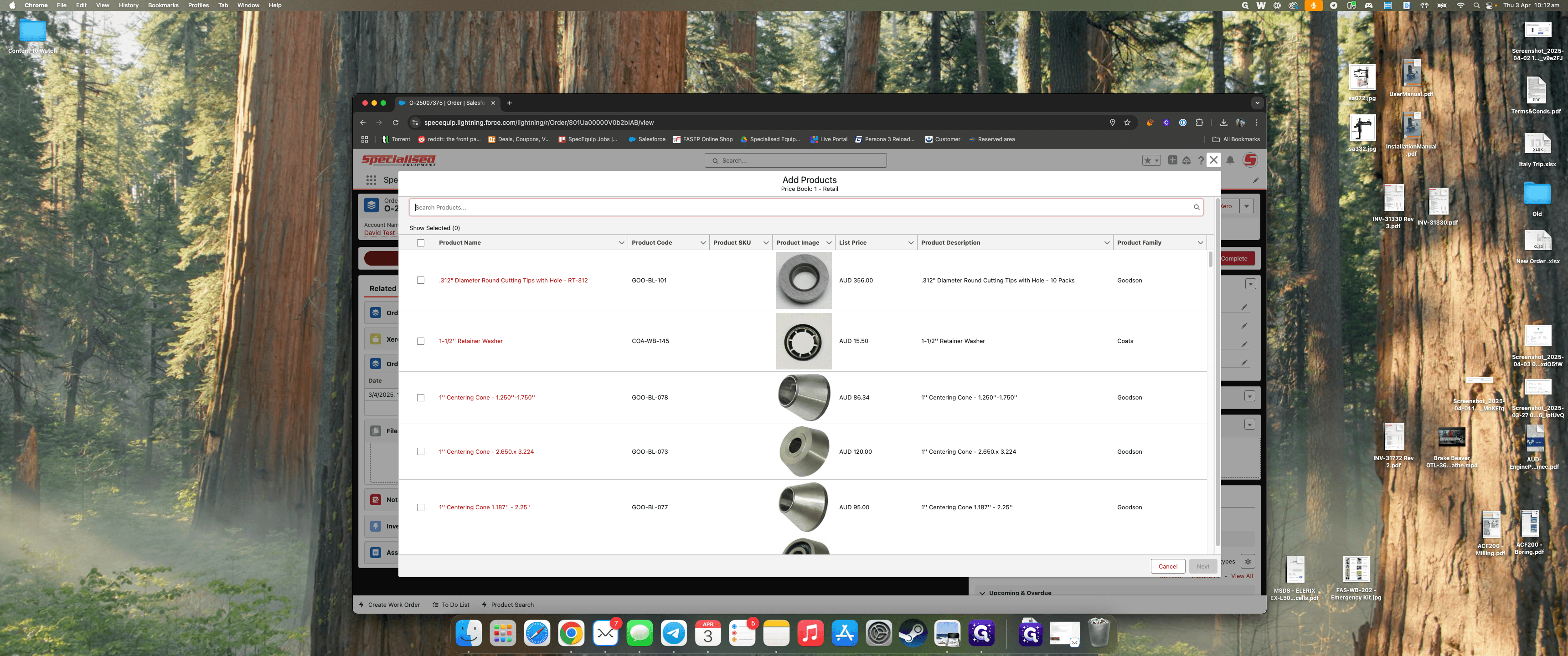
It will provide all the products we can search for.
We wanted to search for a CBN wheel, so I can just type in "CBN."
Here, we have all the names, codes, and pictures.
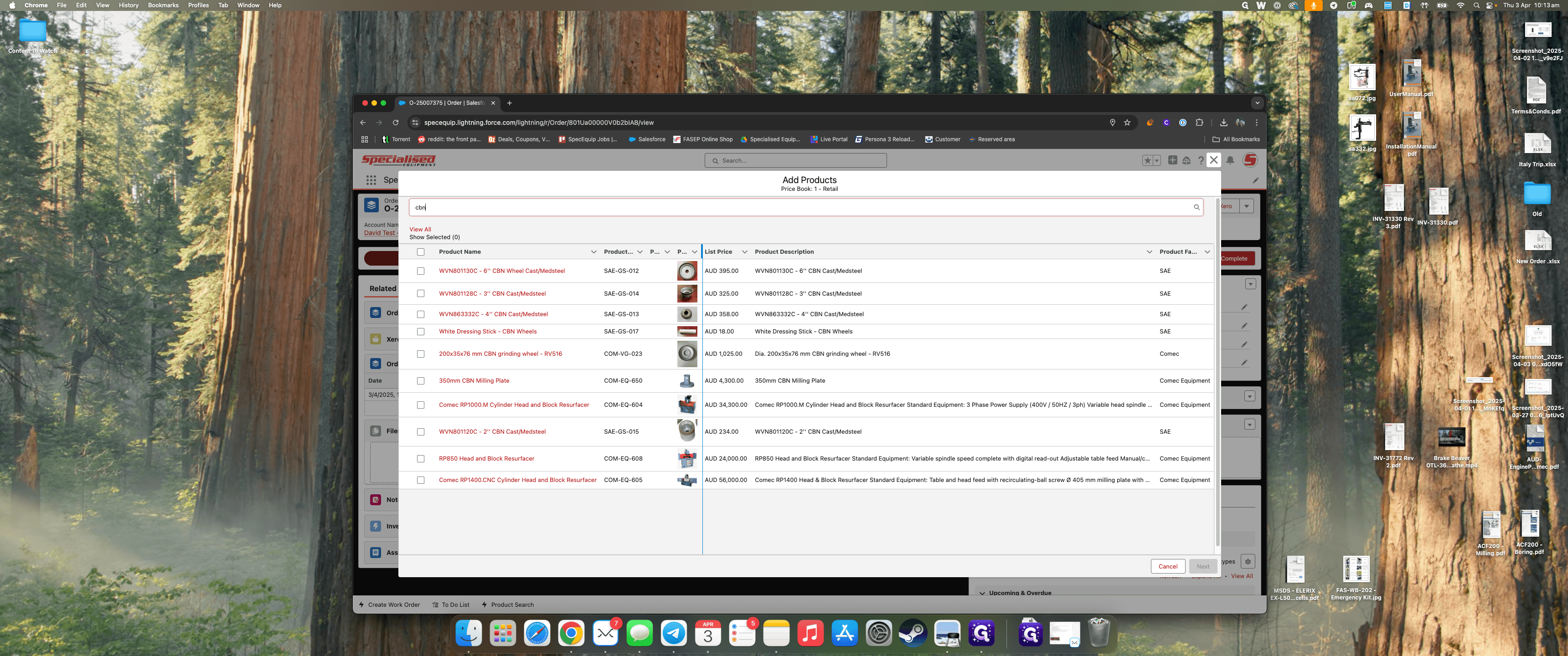
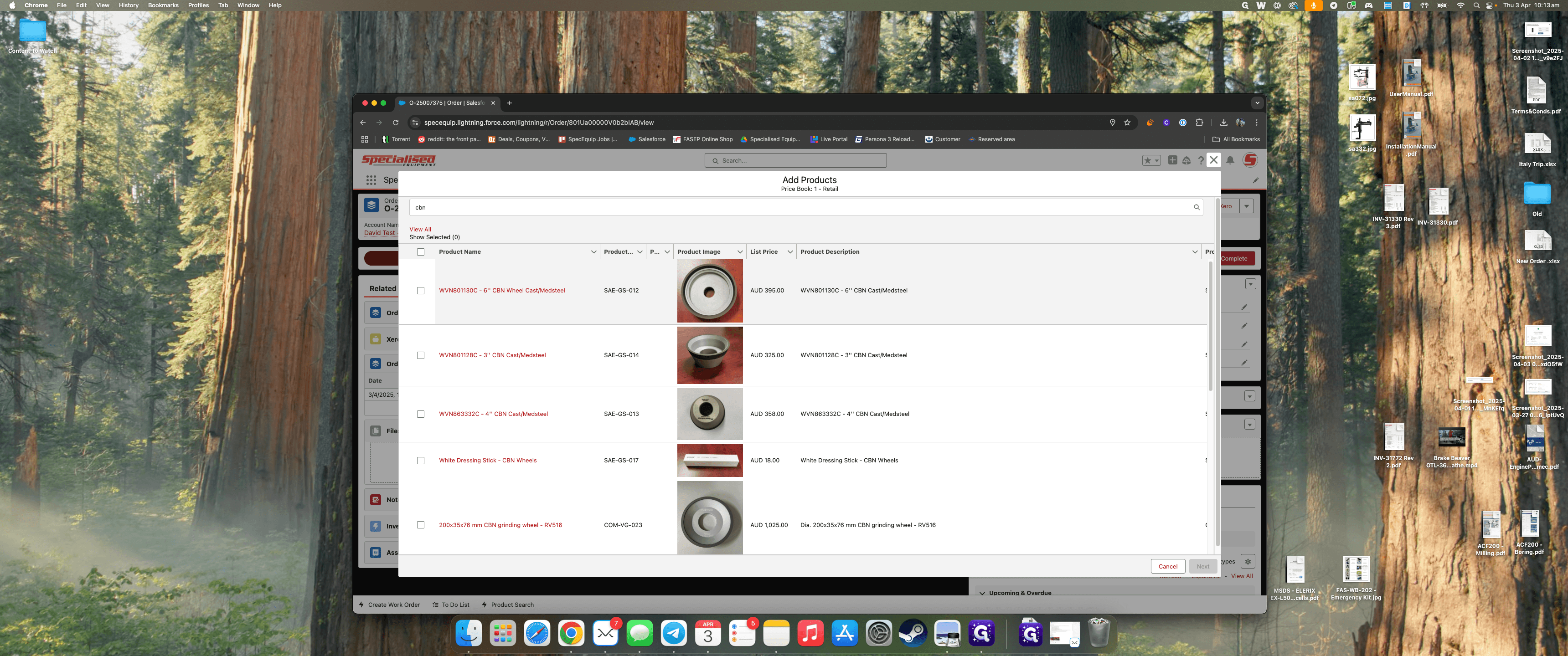
To enlarge the picture, simply drag the bar down.
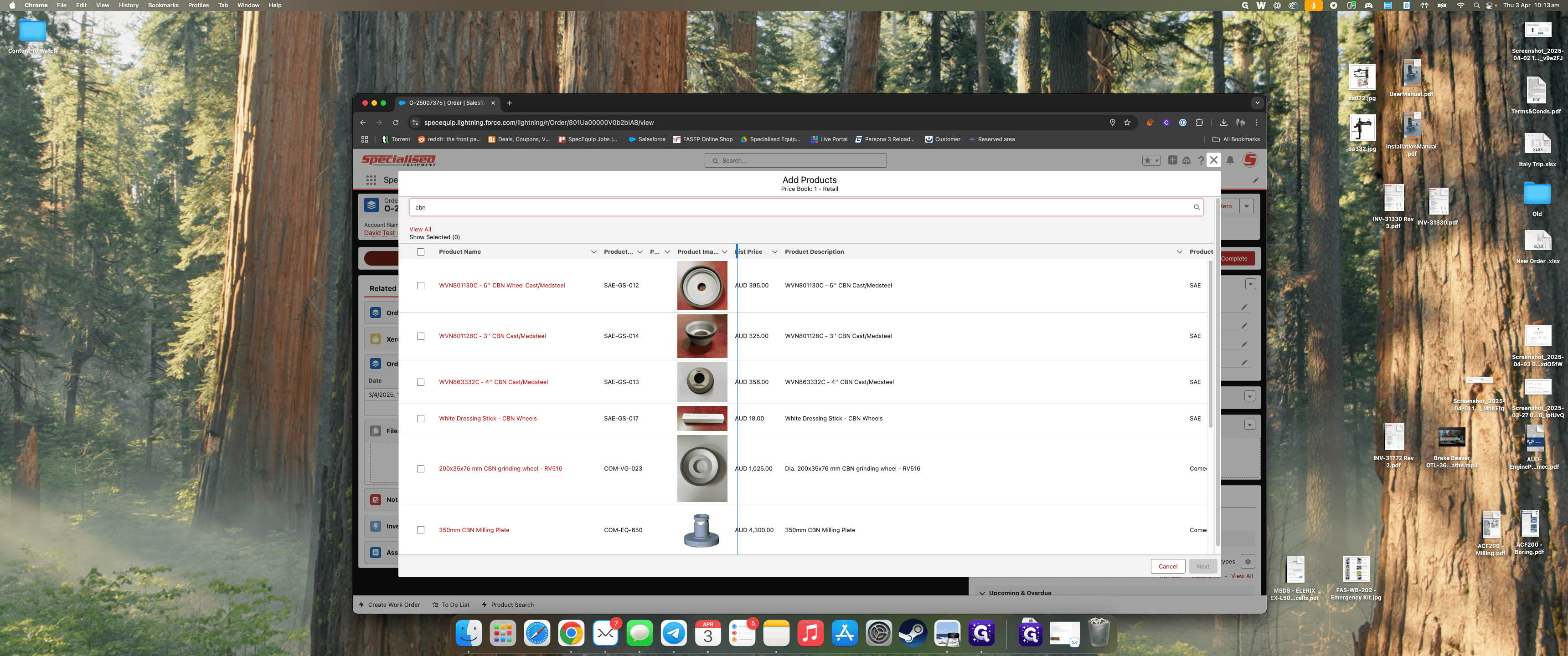
You can see the pictures and everything here. I want to sell a six-inch CBN wheel, so I select that.
If you want to add more products, such as Freight, here's how to do it.
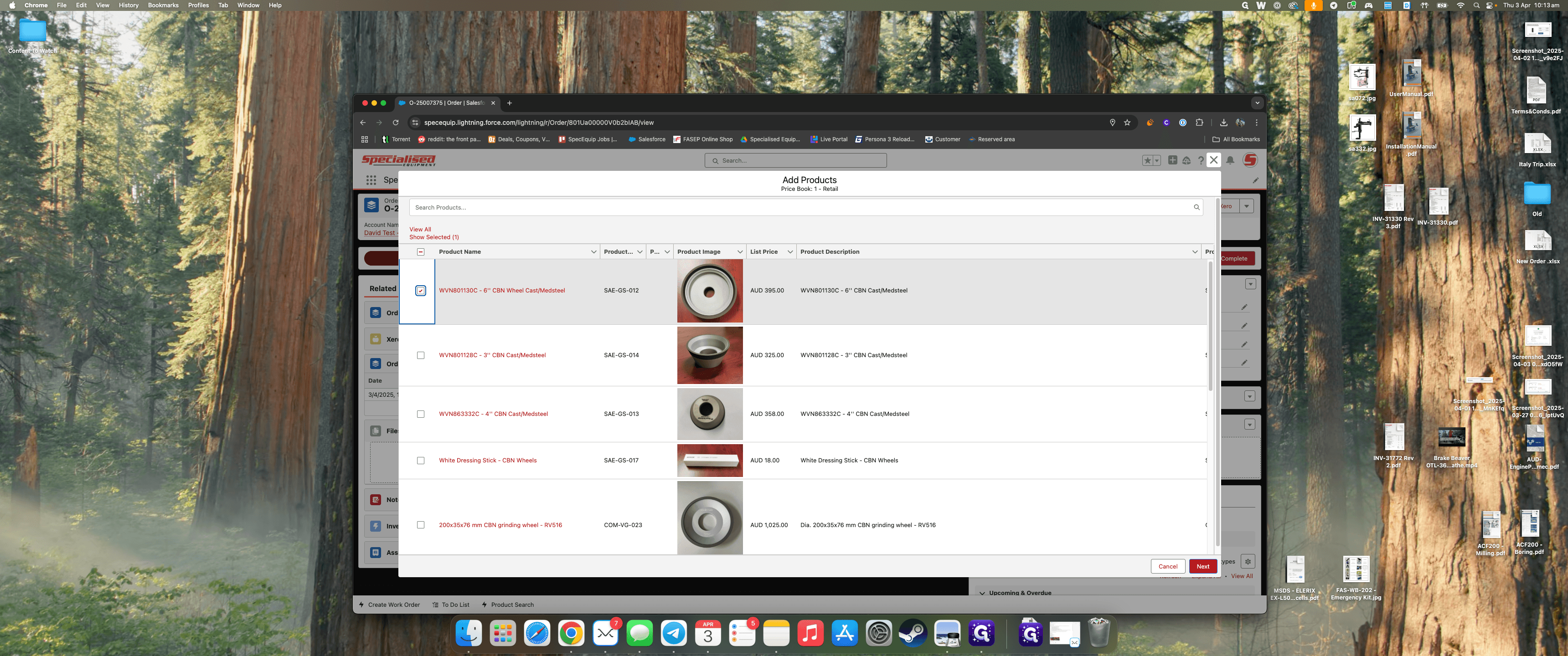
You can search again. Freight.
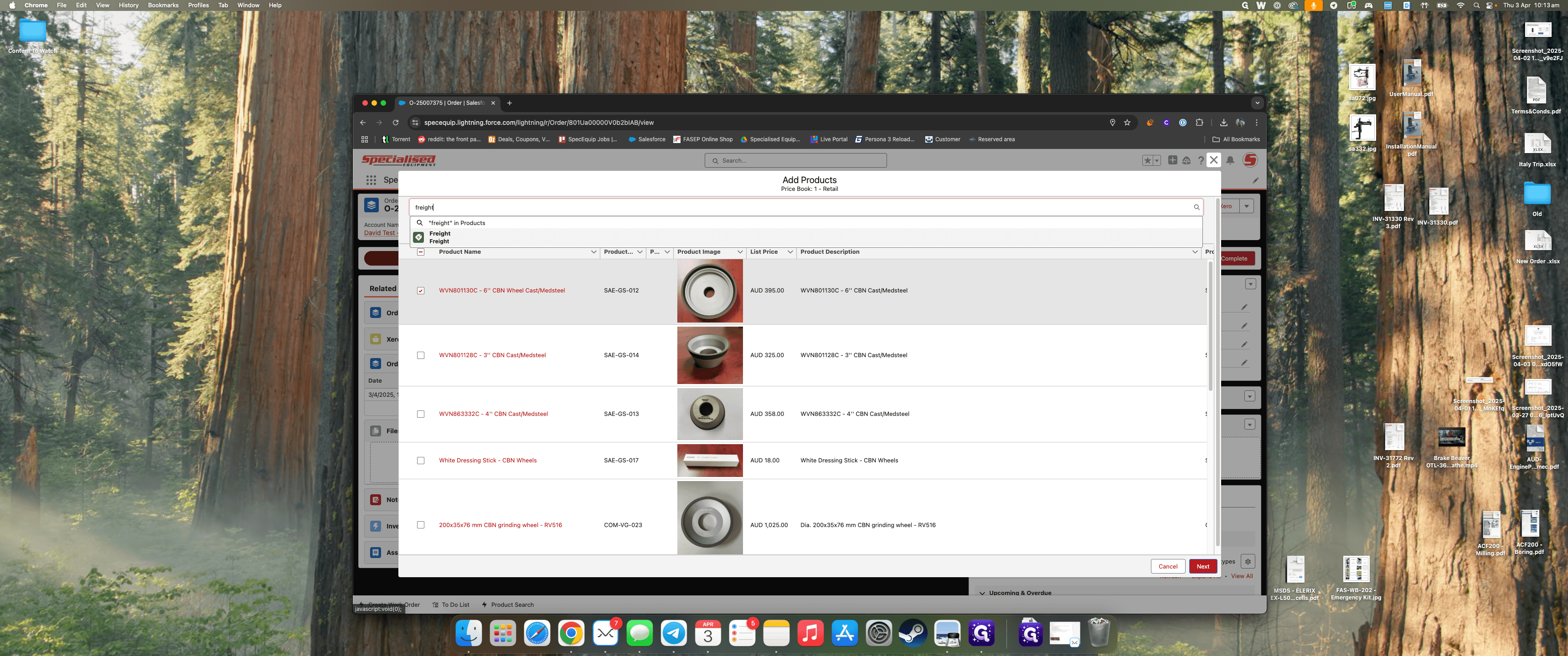
If it's a standard product we offer, it will automatically be added to your selection. You can see here, "Show Selected To."
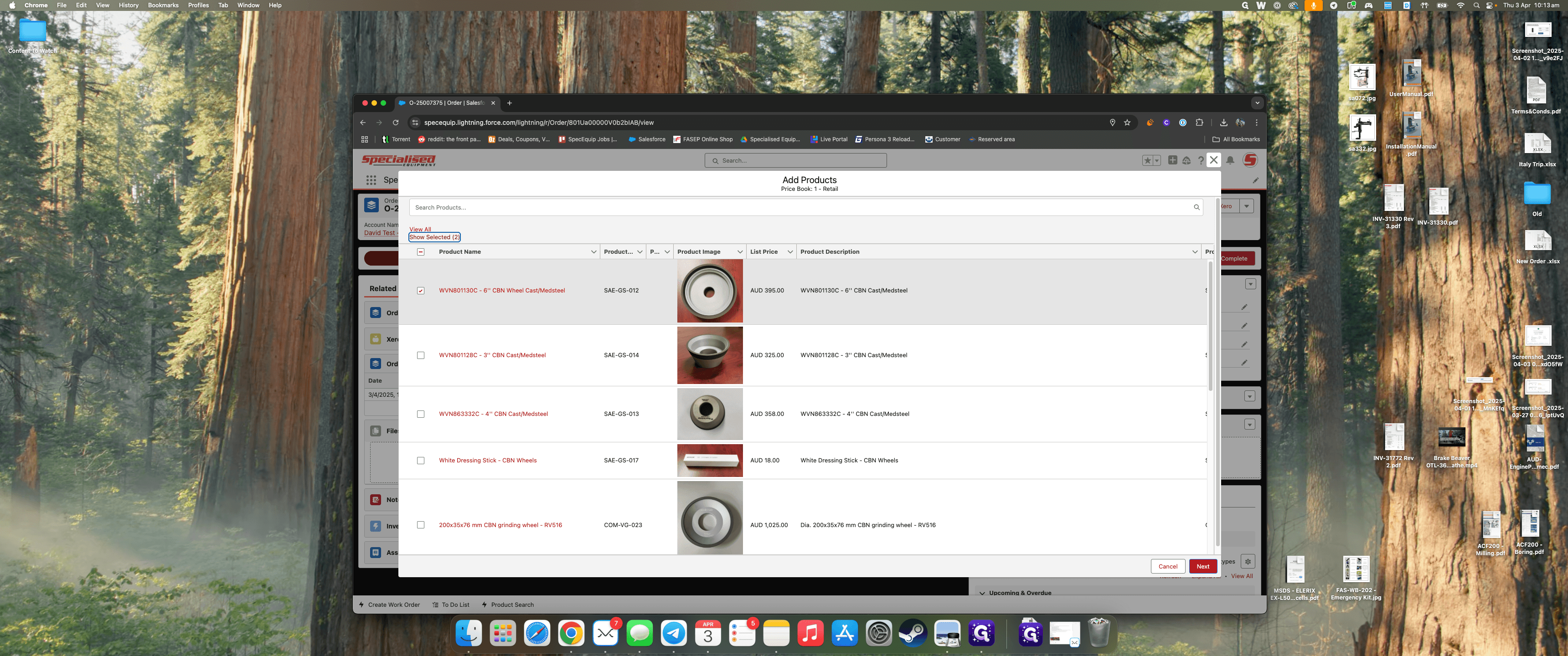
Clicking on that will refresh the page and display a CBN wheel and Freight.
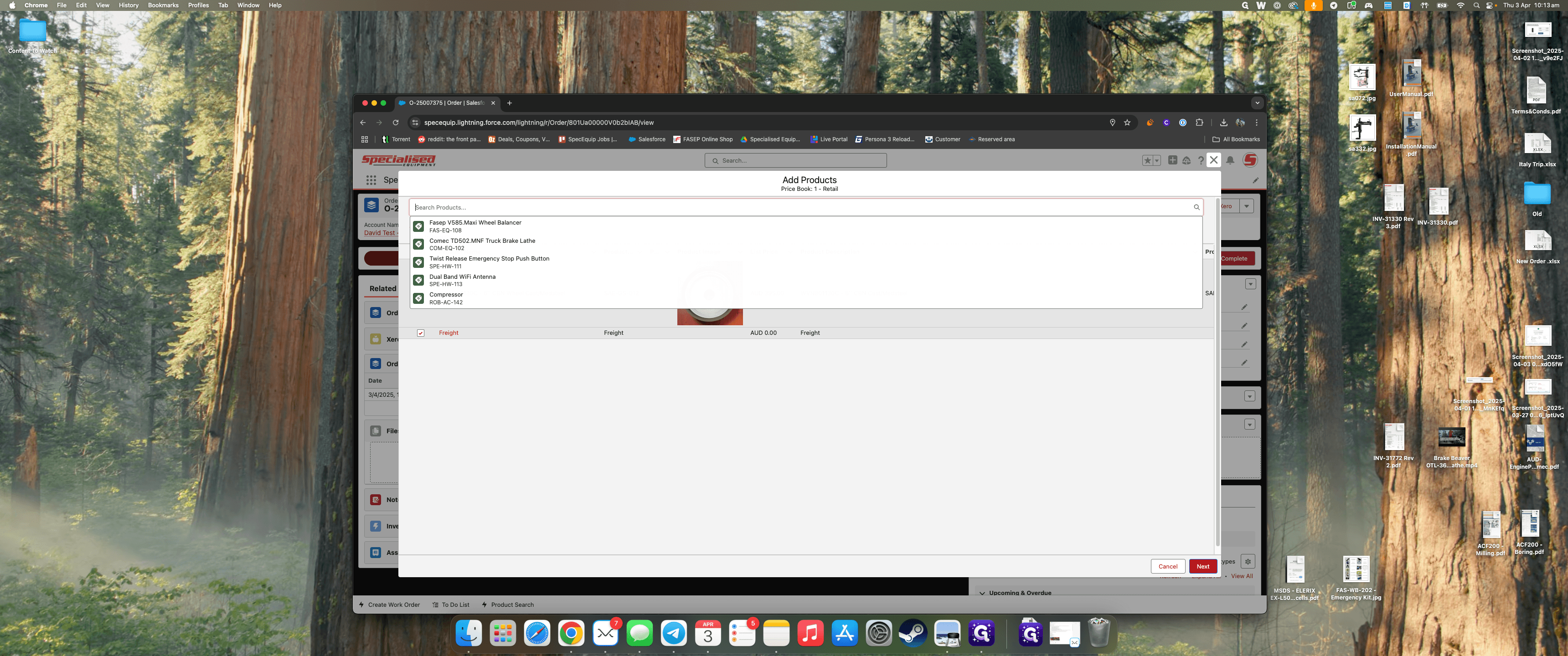
You can add more products as needed, and we can change this later if necessary.
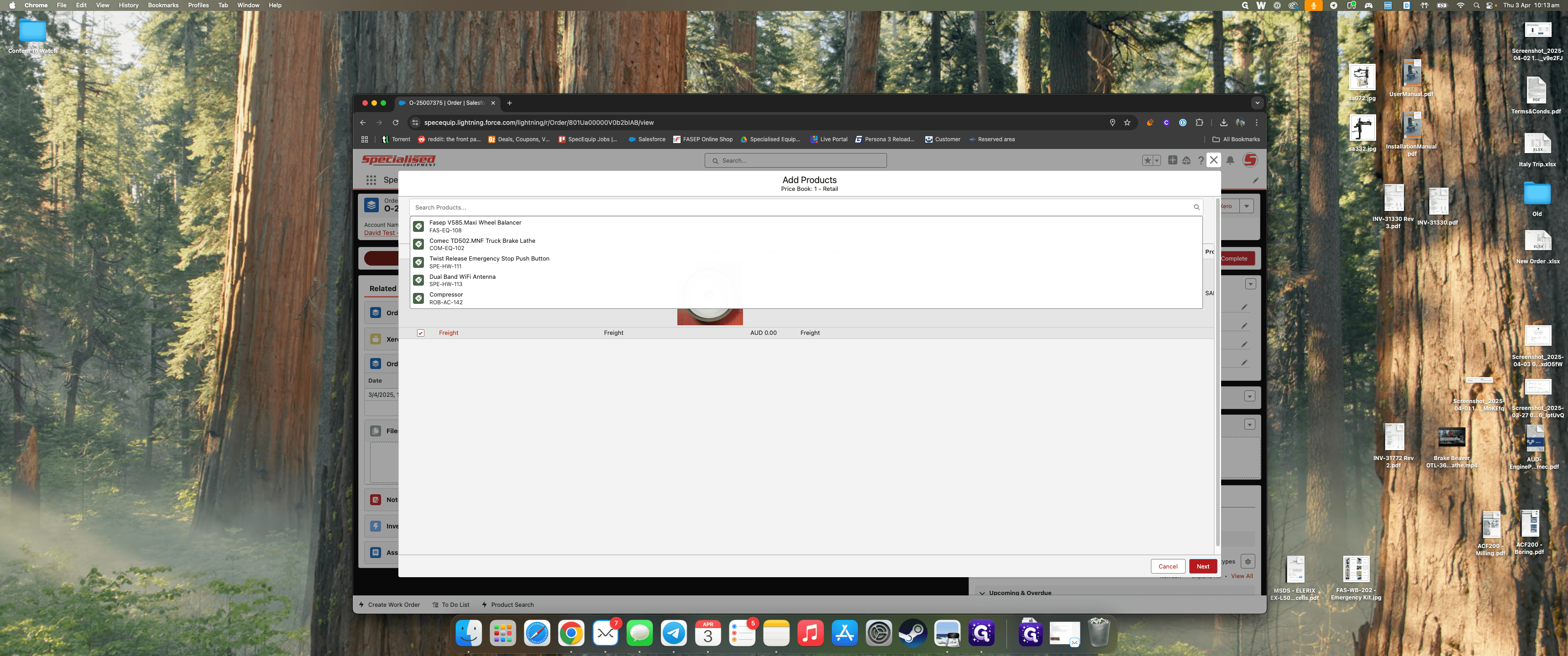
When you're satisfied, click Next.
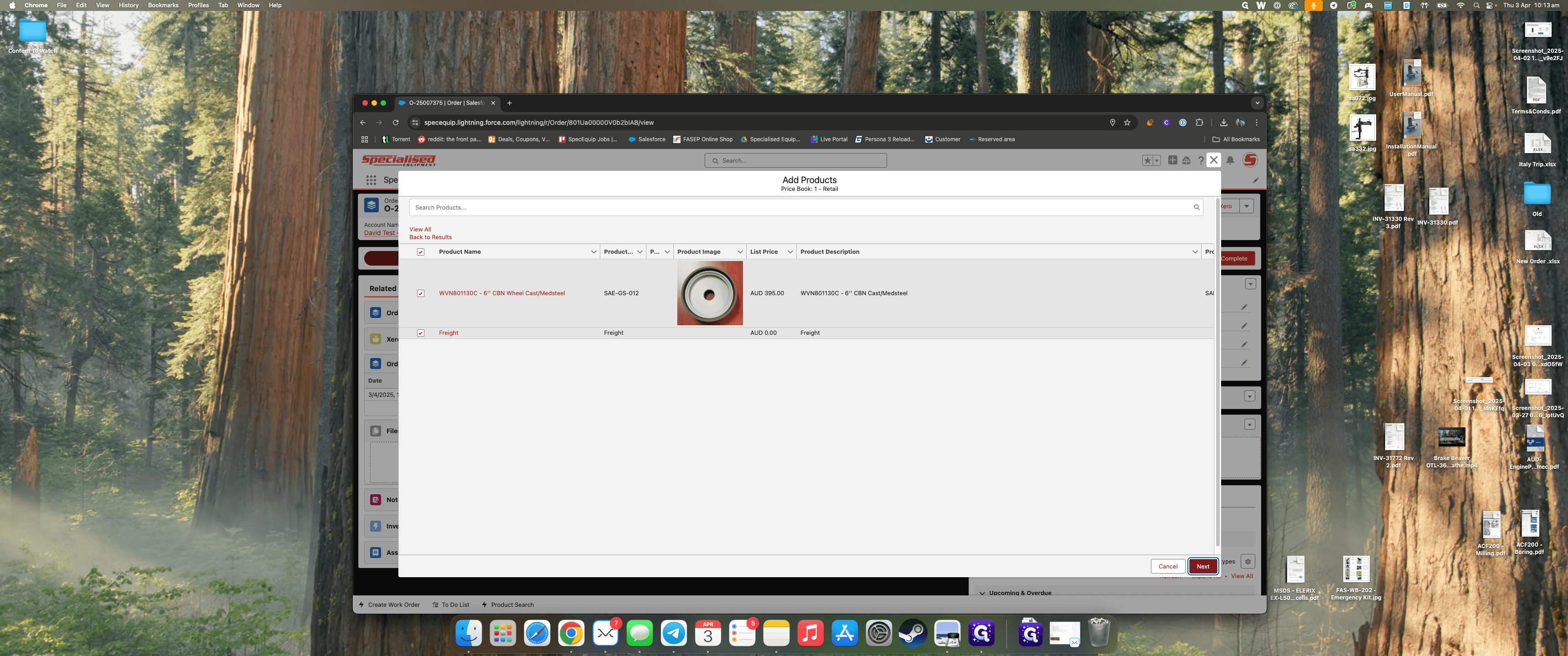
You can specify the quantity for one item and one set of freight.
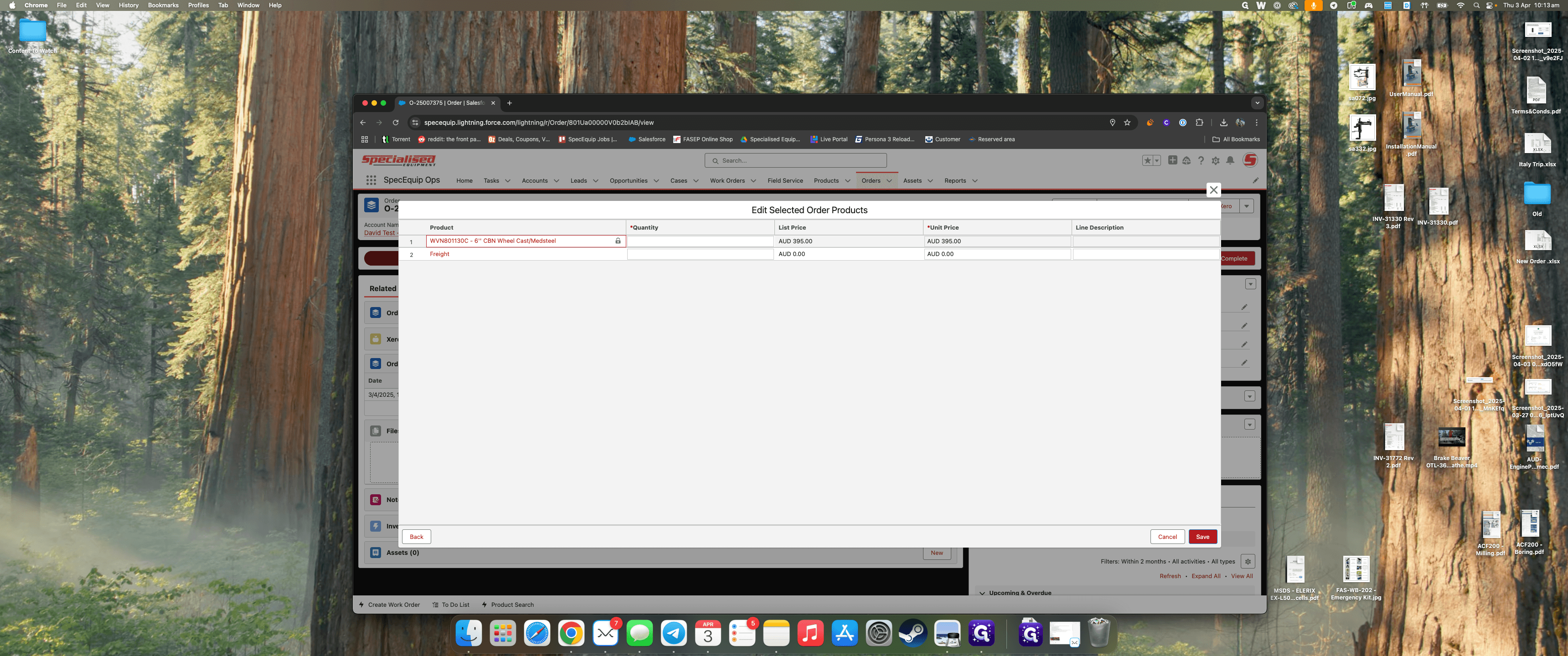
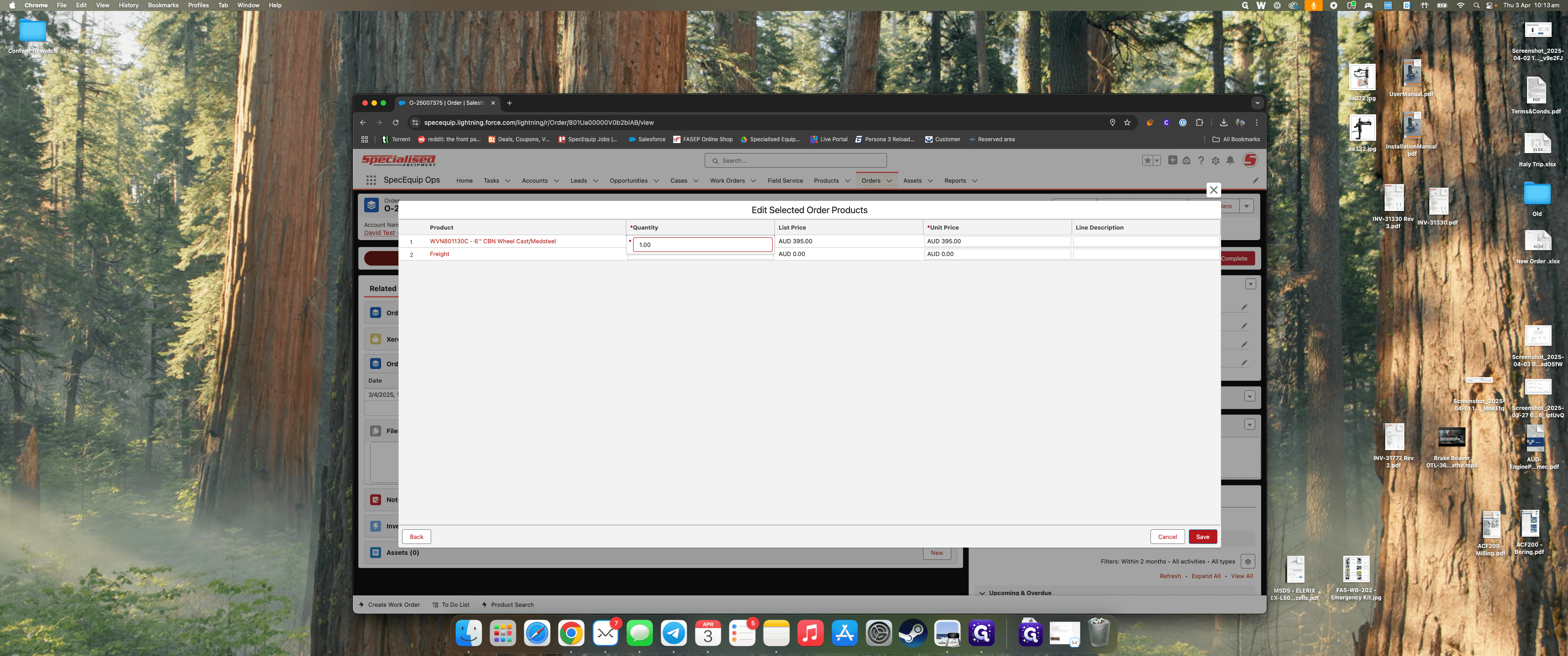
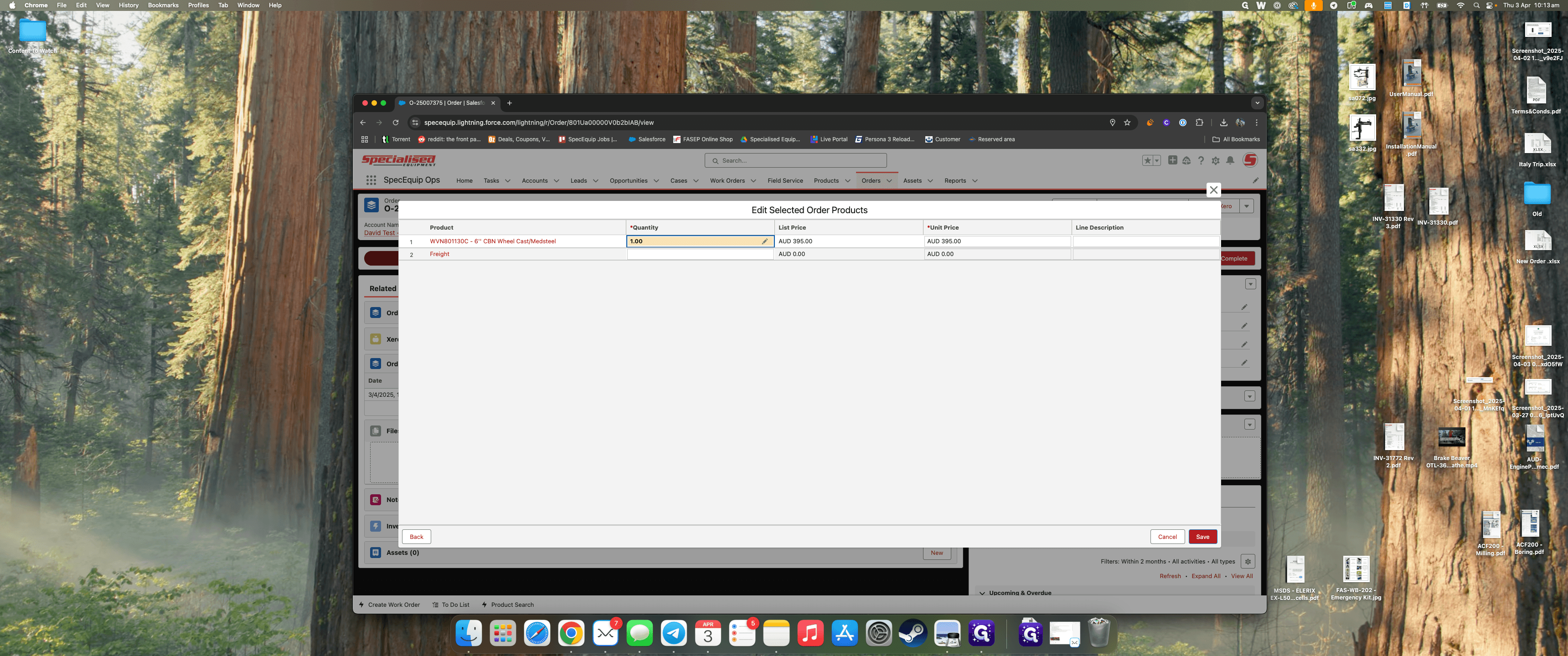
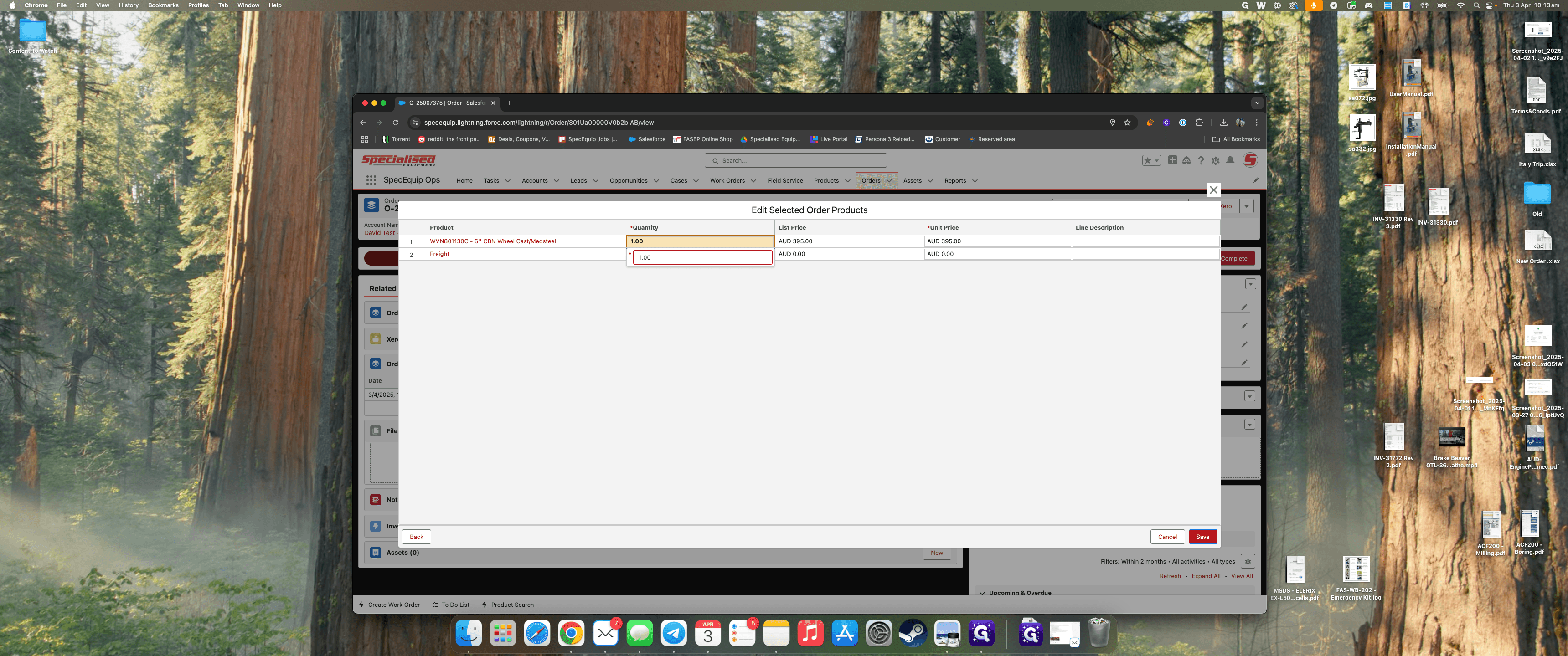
If you know the freight price, you can enter it here.
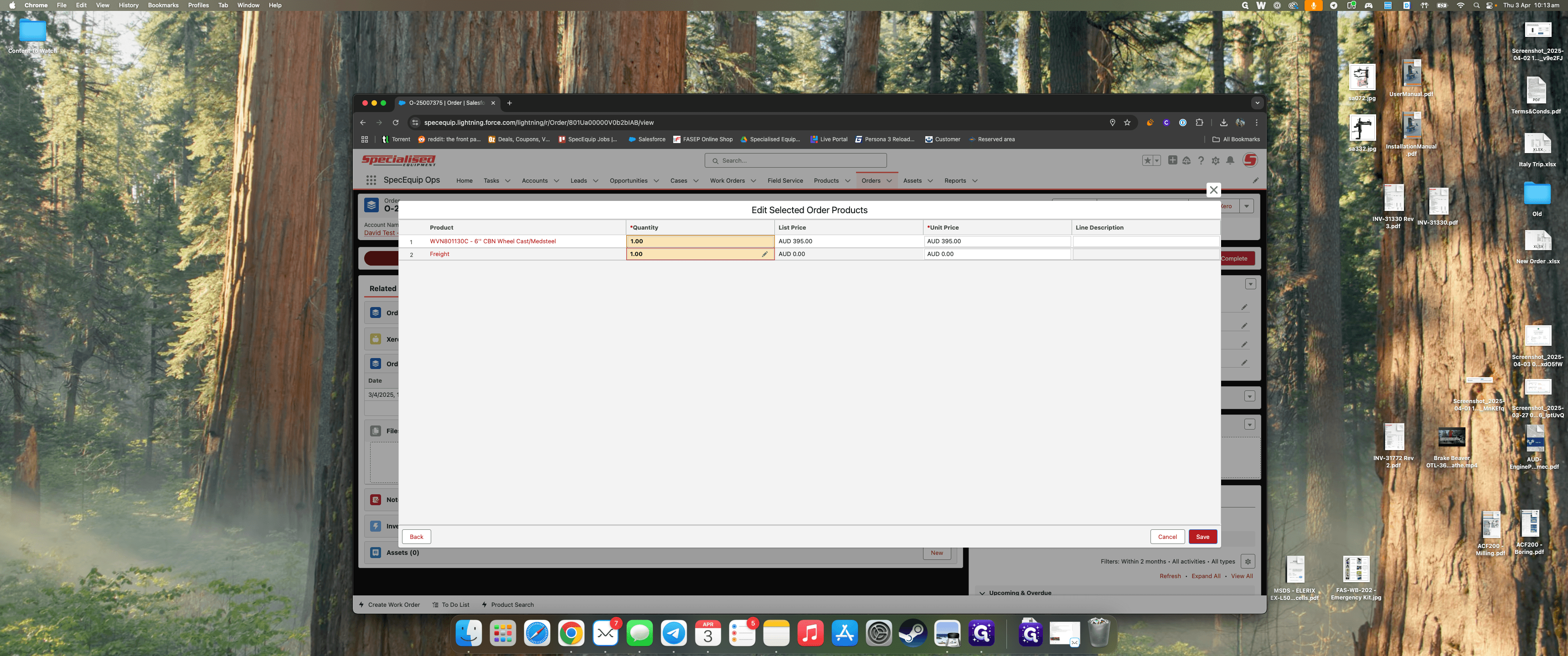
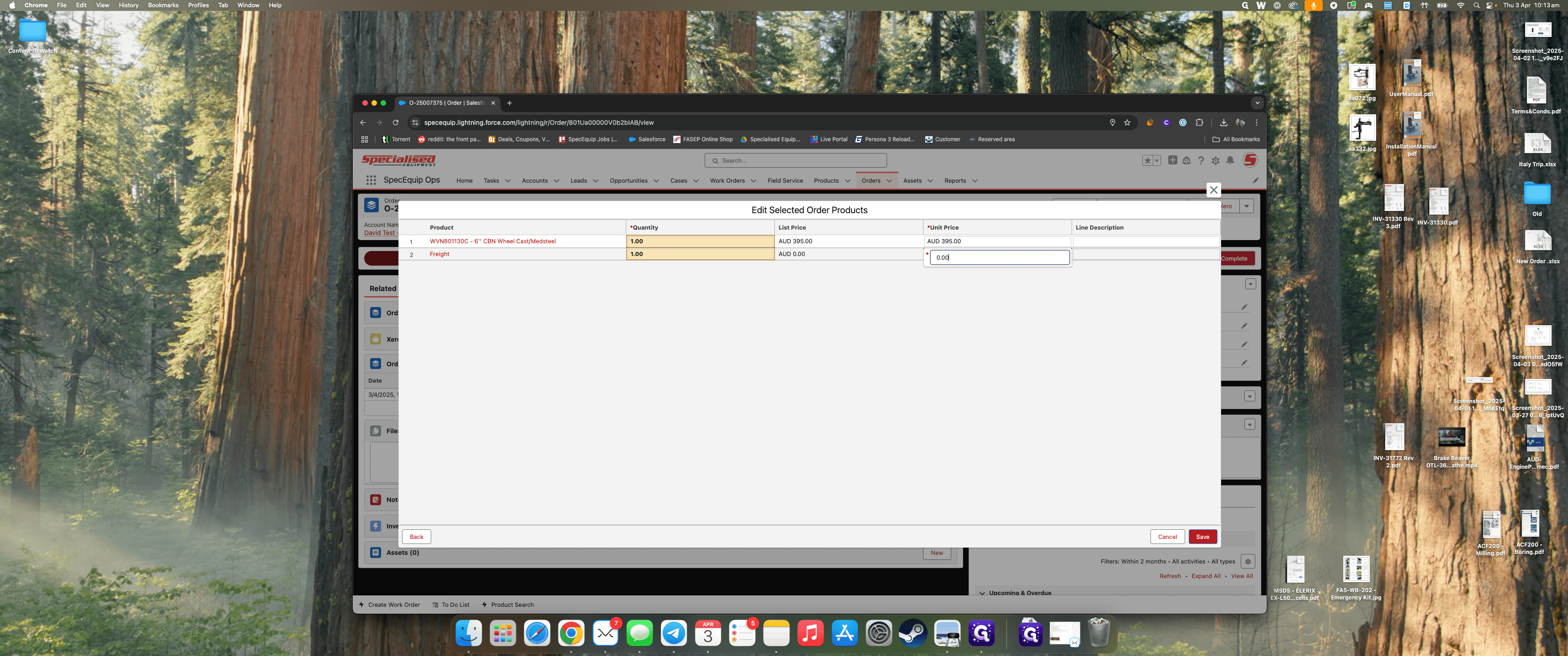
We can say $25.
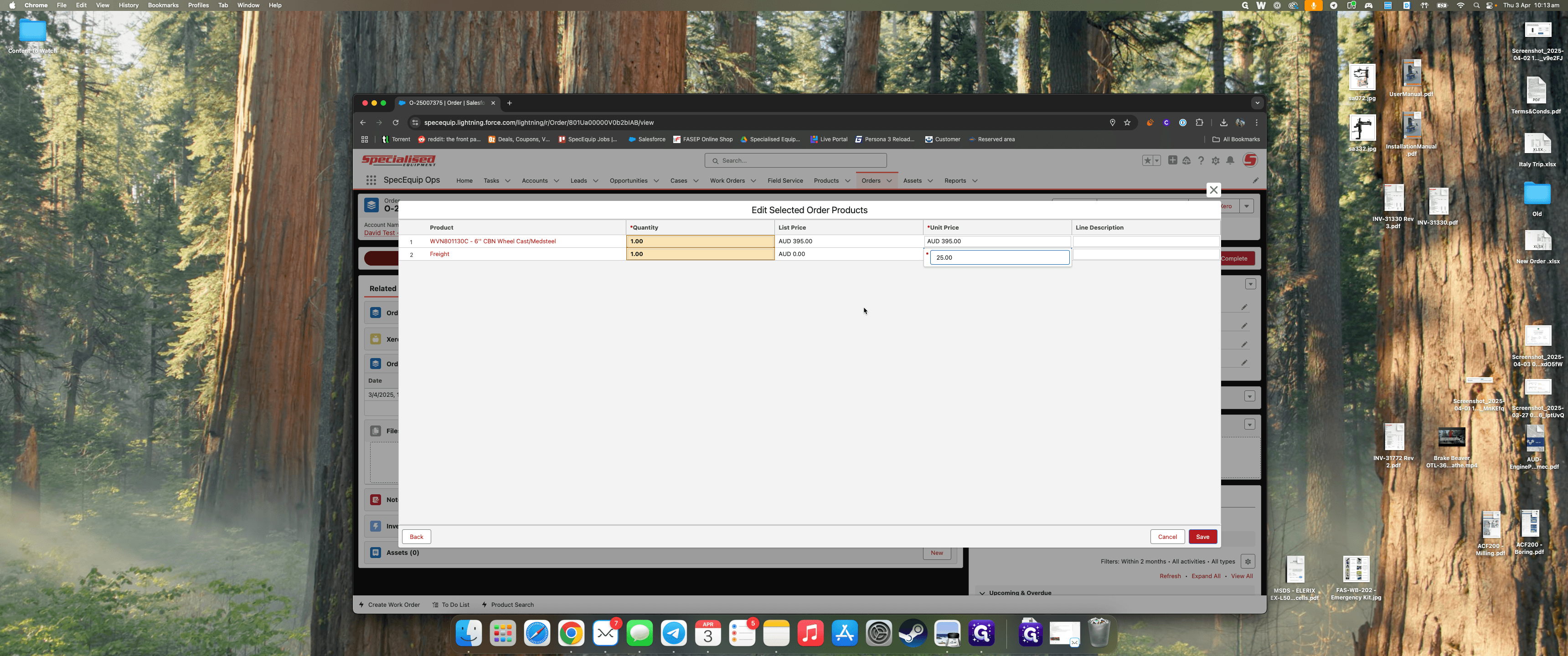
You can also change the unit price here.
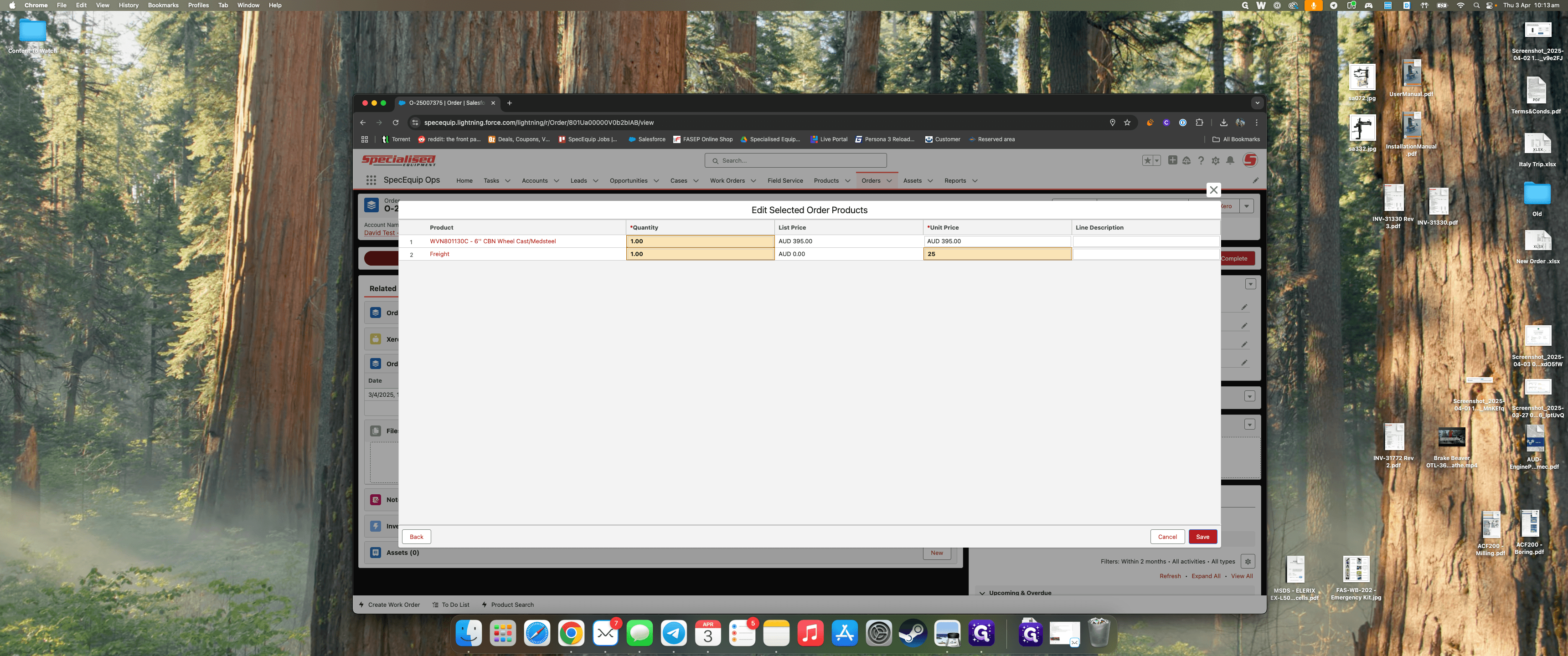
Click Save.
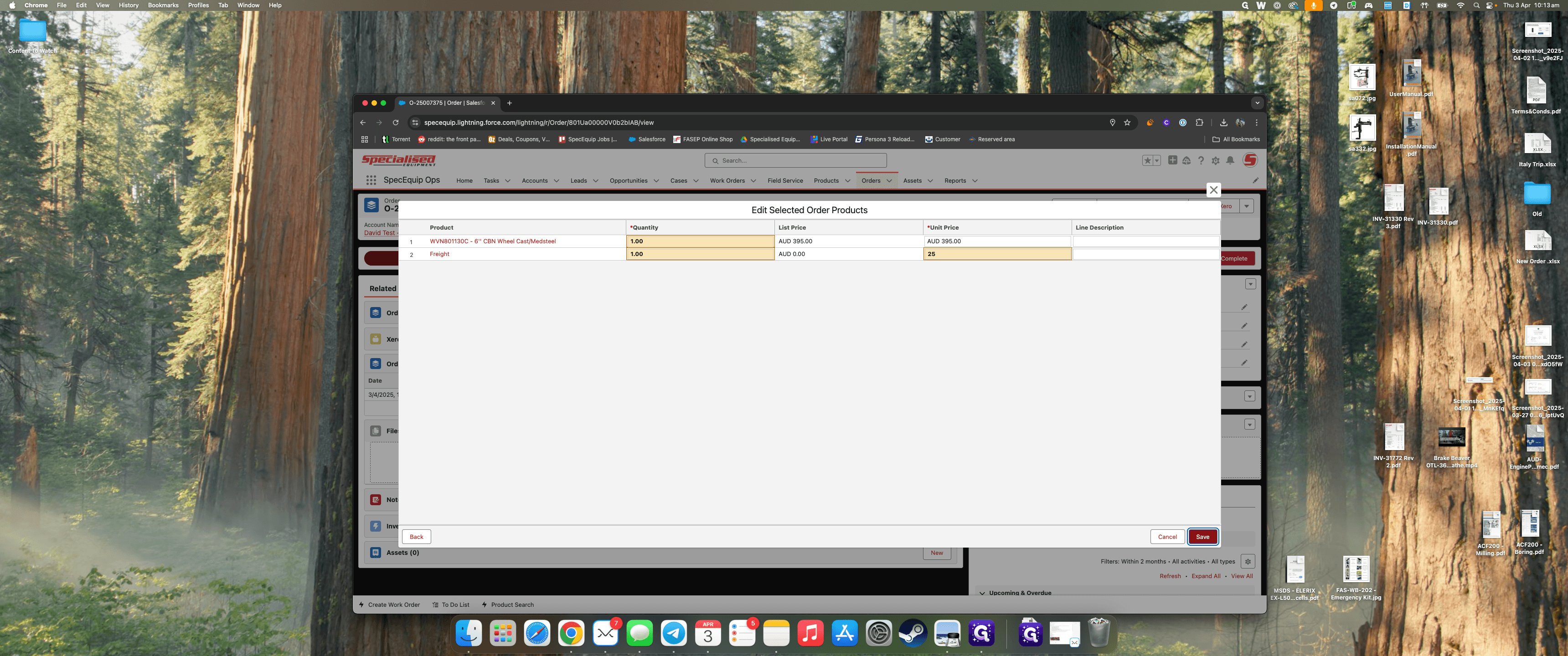
Once you're satisfied with the order, you can activate it. I'll stop this guide here to avoid creating an actual order.