
How to Create a Sales Quotation in LMS System
Learn step-by-step how to create a sales quotation in your Customer Relationship Management system, including adding customers, items, taxes, and terms and conditions.
By Heah Huiwen
In this guide, we'll learn how to create a sales quotation in LMS system.
Guide to create a sales quotation in LMS system.
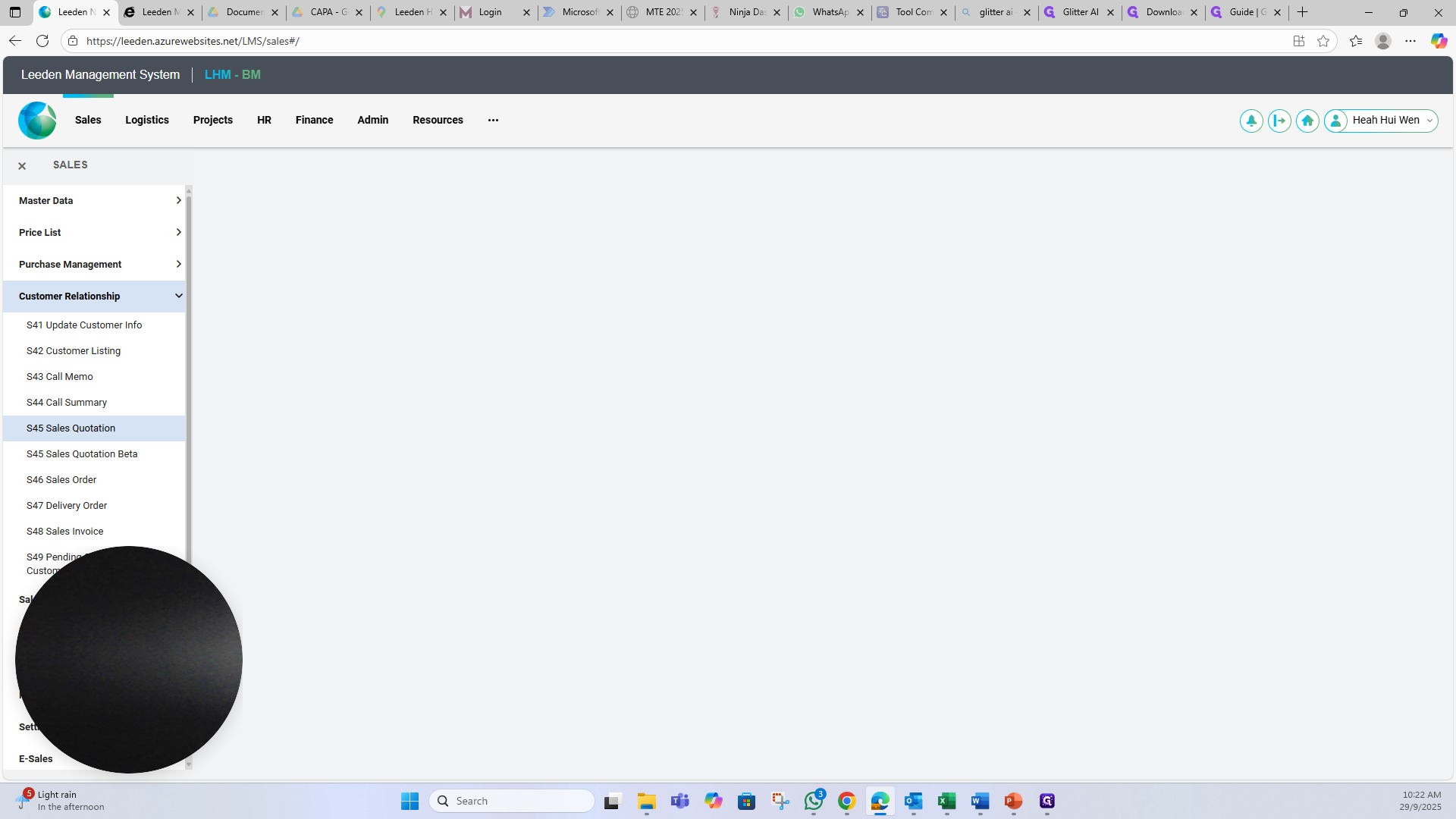
To create a quotation, go to Customer Relationship and select Sales Quotation.
1
Click here
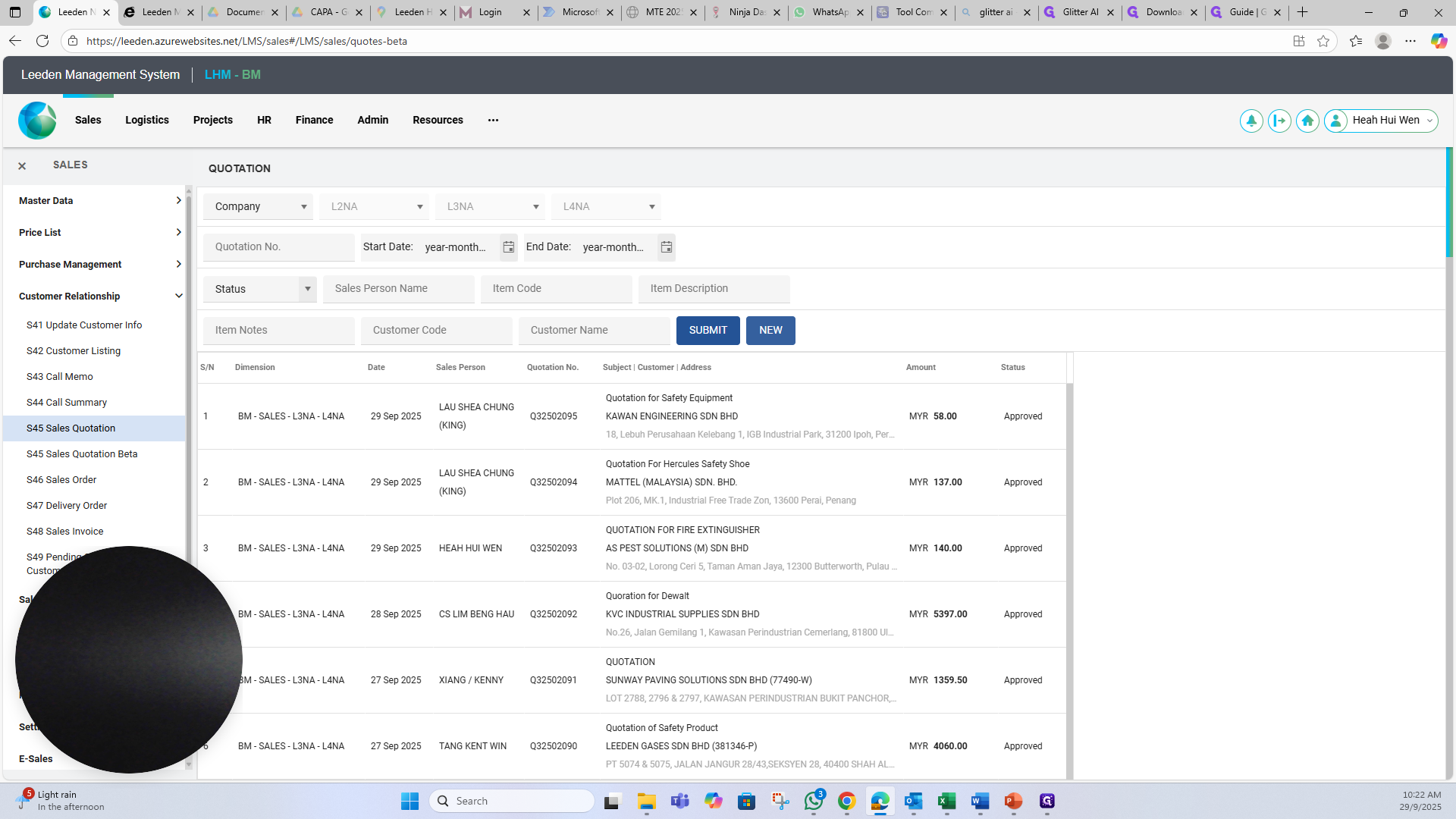
Select NEW to create a new quotation.
2
Click on "NEW"
3
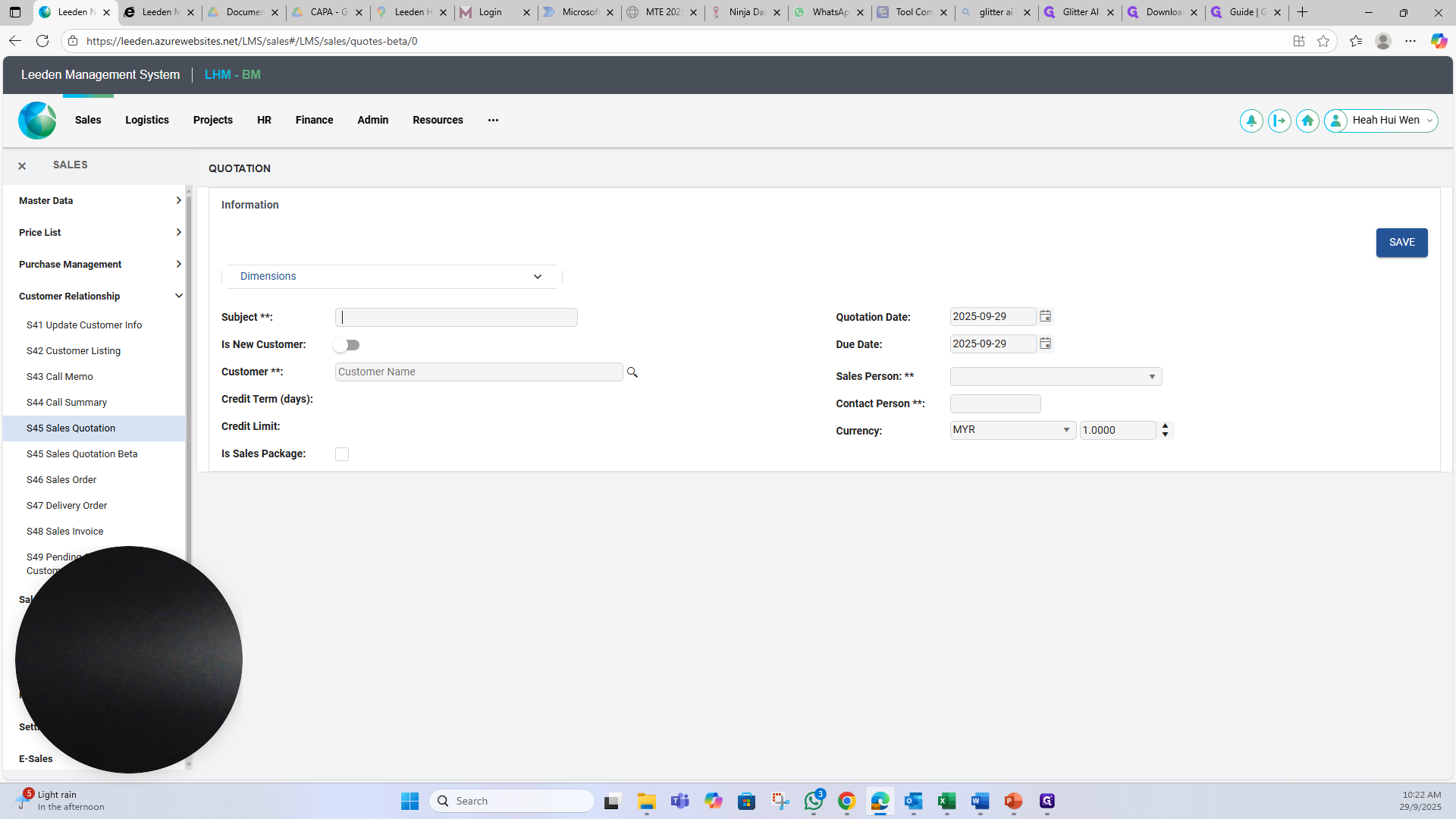
For the subject, enter the quotation category.
4
If it's a new customer, select "new customer" and enter the customer's name.
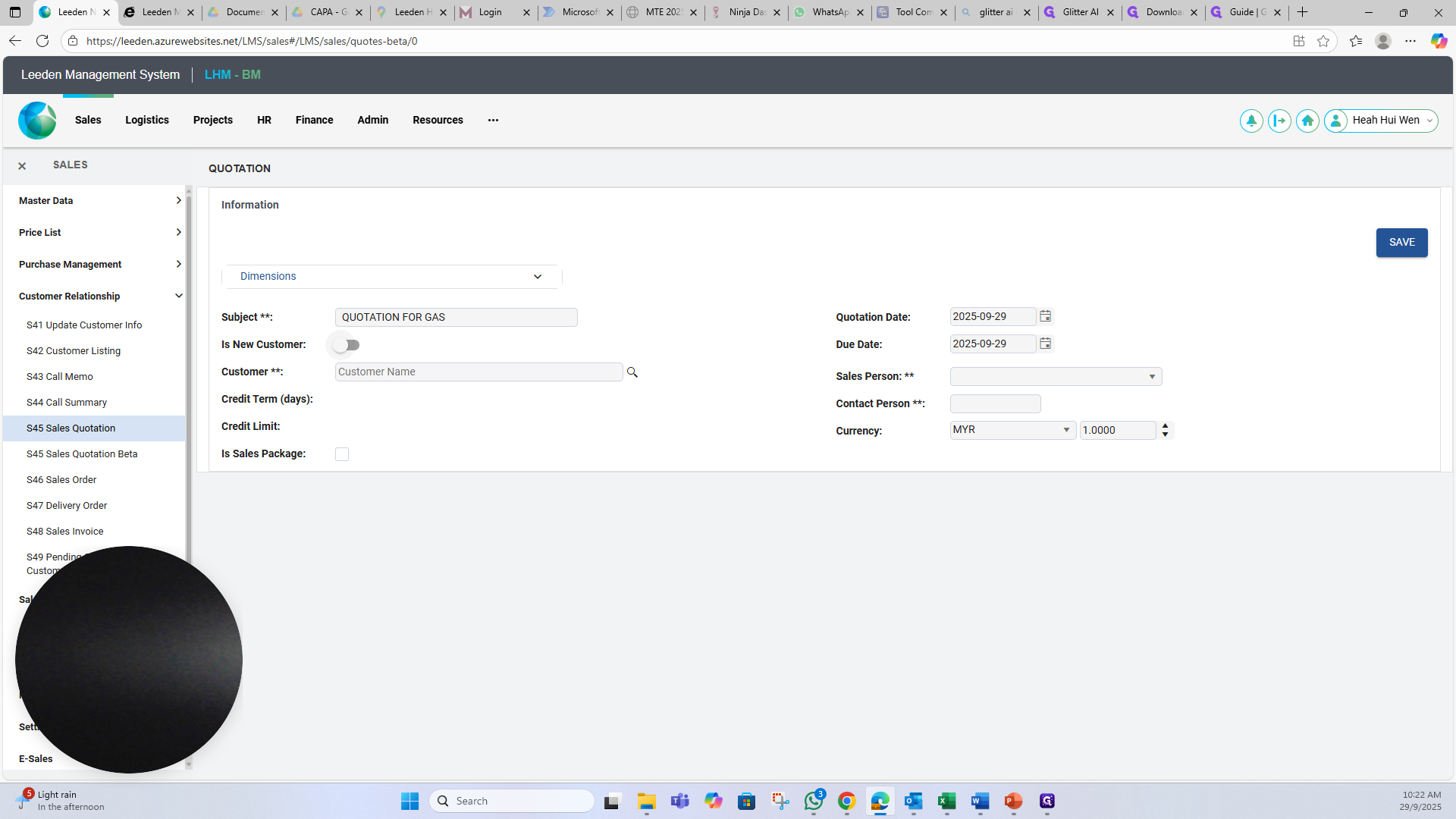
If the customer already exists, you can enter their name here and select it.
5
Type the customer's name and select it.
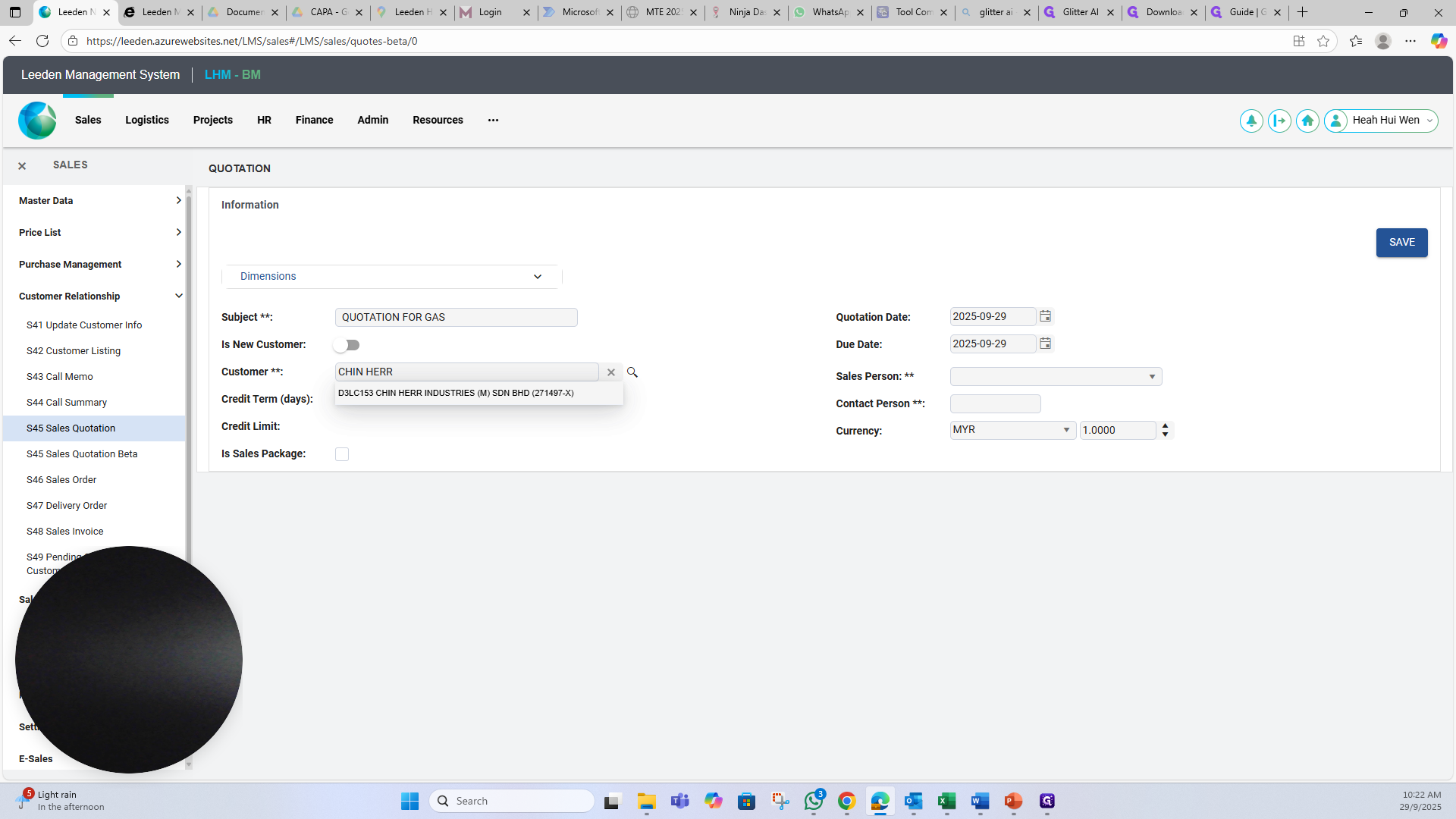
Select the salesperson's name, then enter the customer's name.
6
Click here
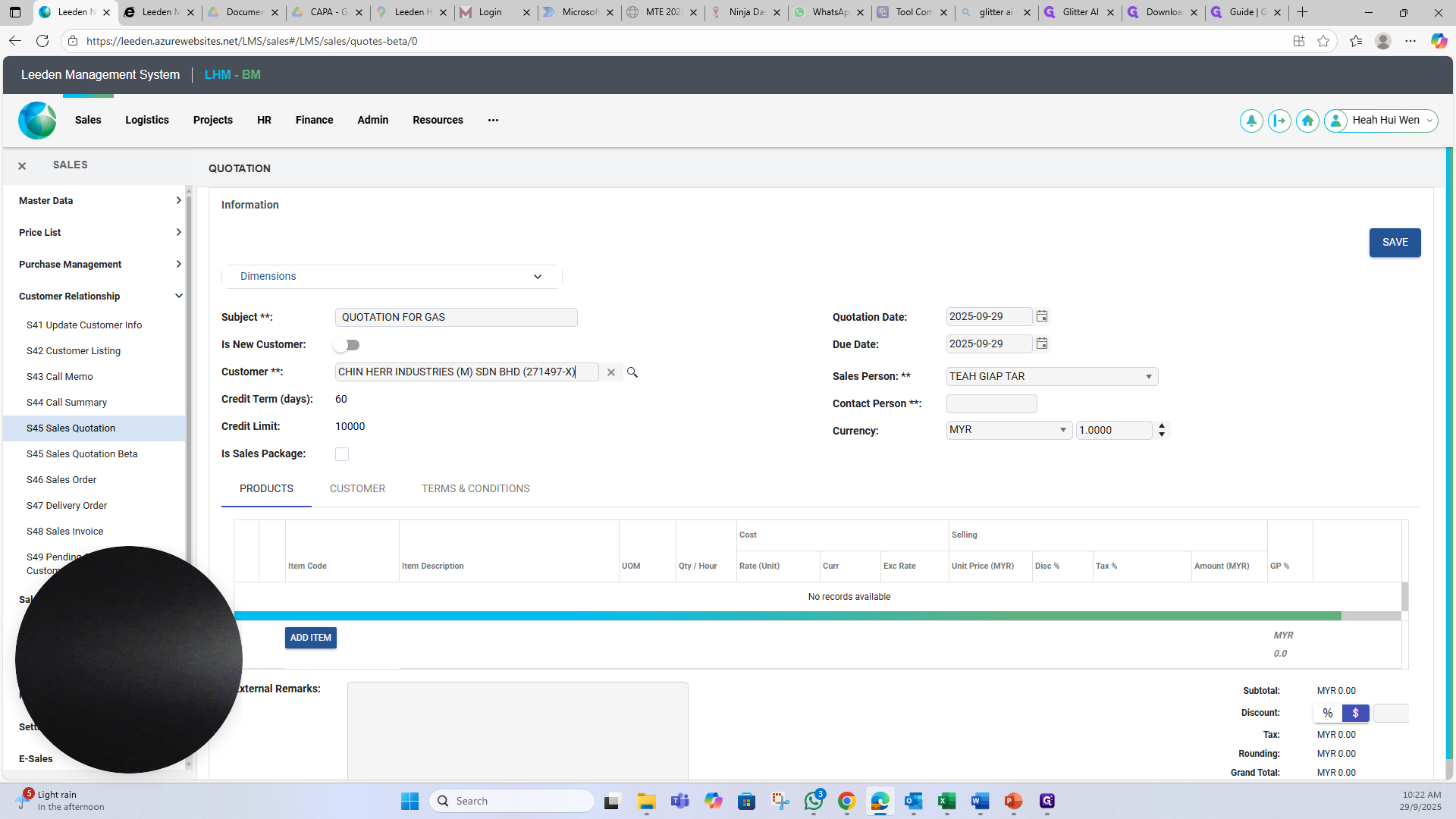
Next, you can add an item to the quotation.
7
Click on "ADD ITEM"
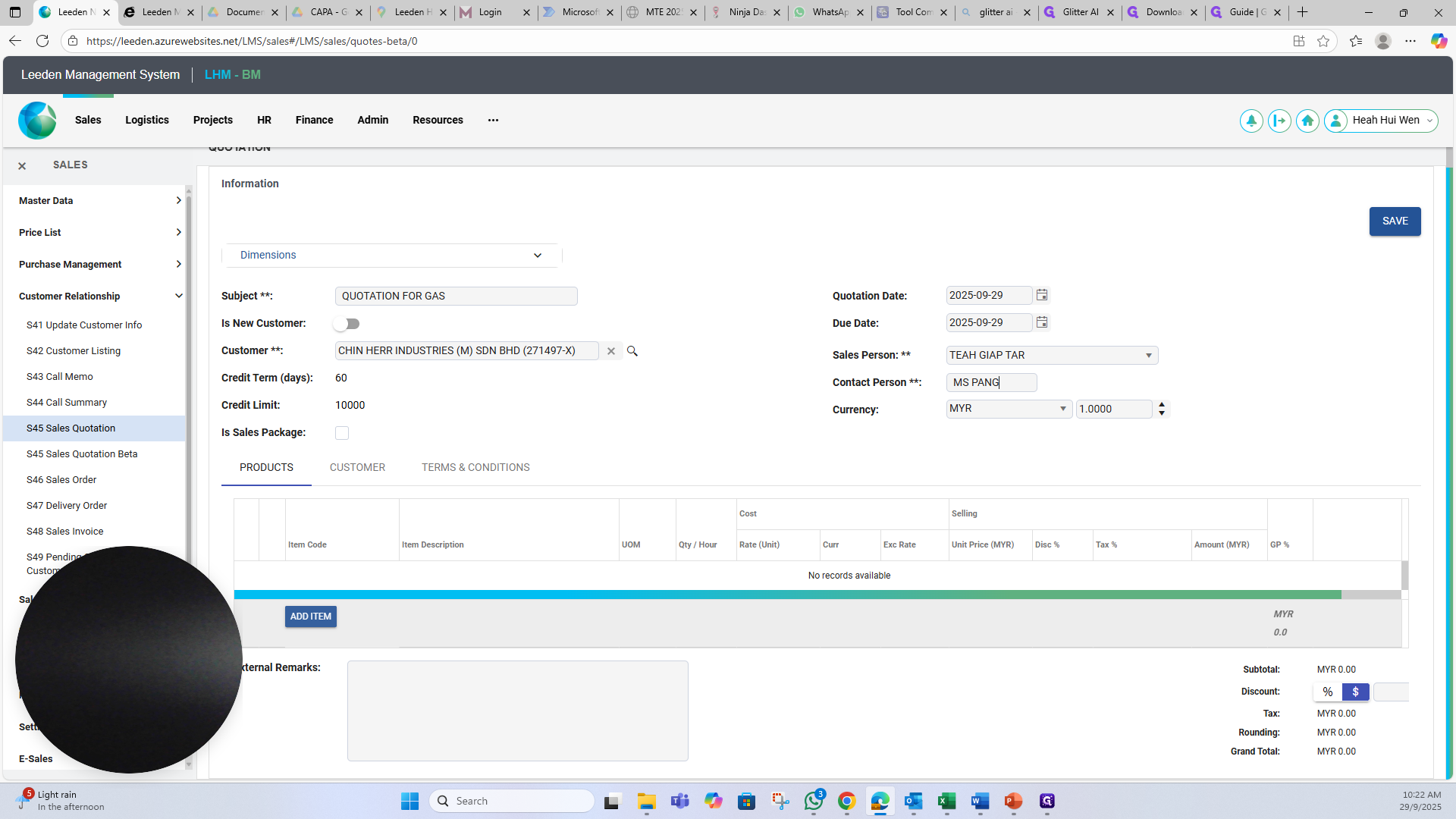
8
Click on "Search" icon.
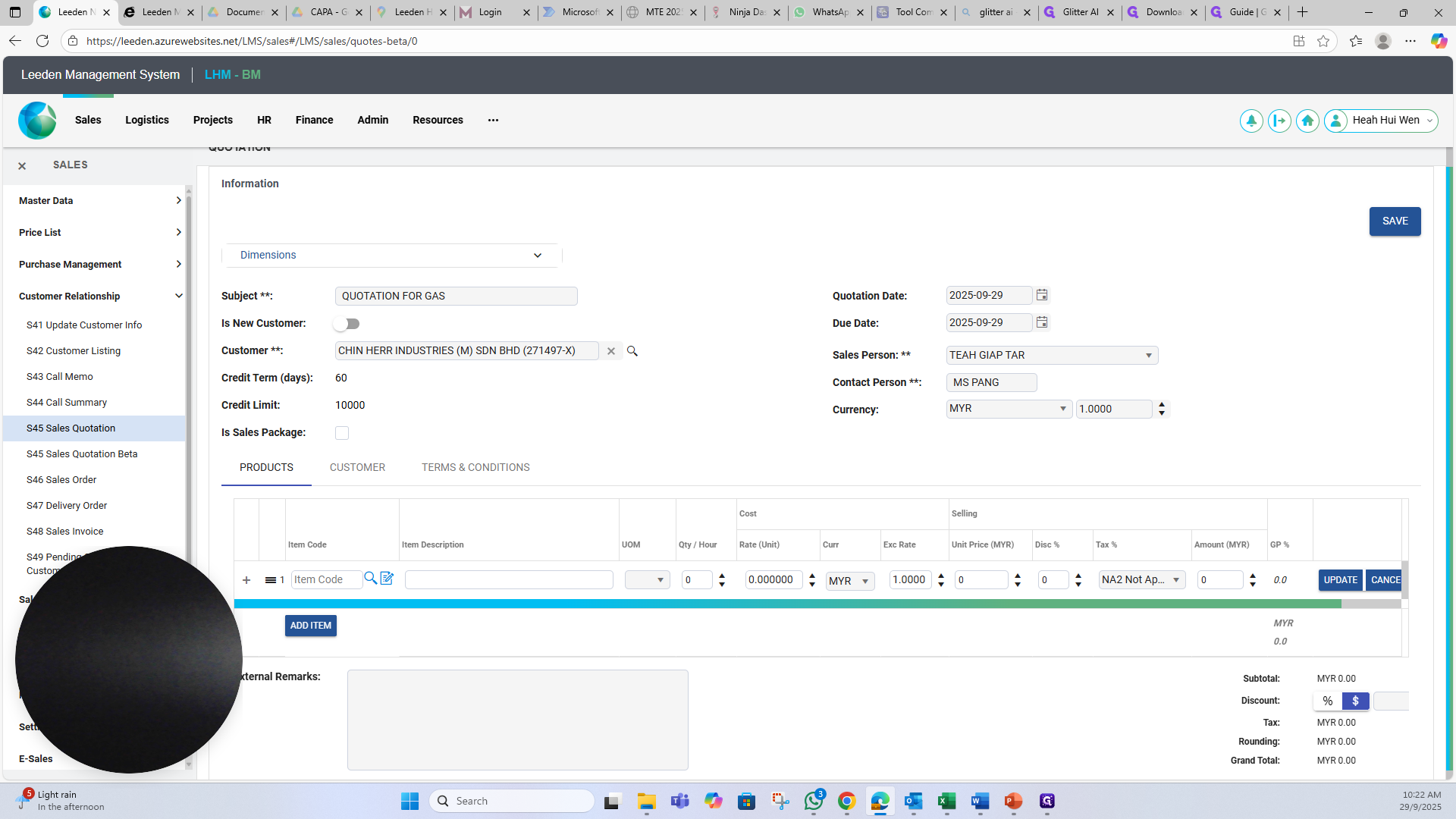
9
Type "Item Code / Name".
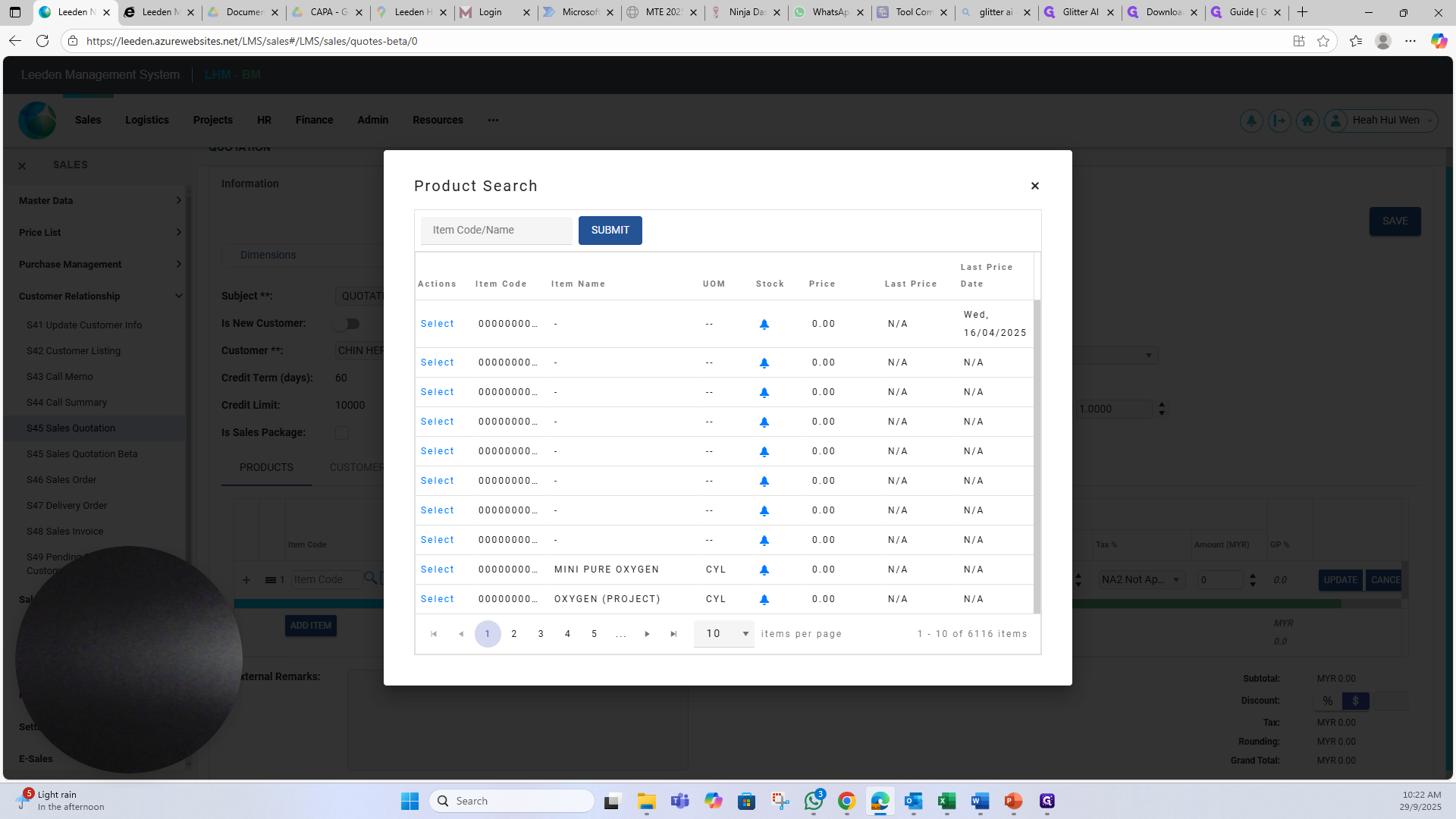
10
Click on "SUBMIT"
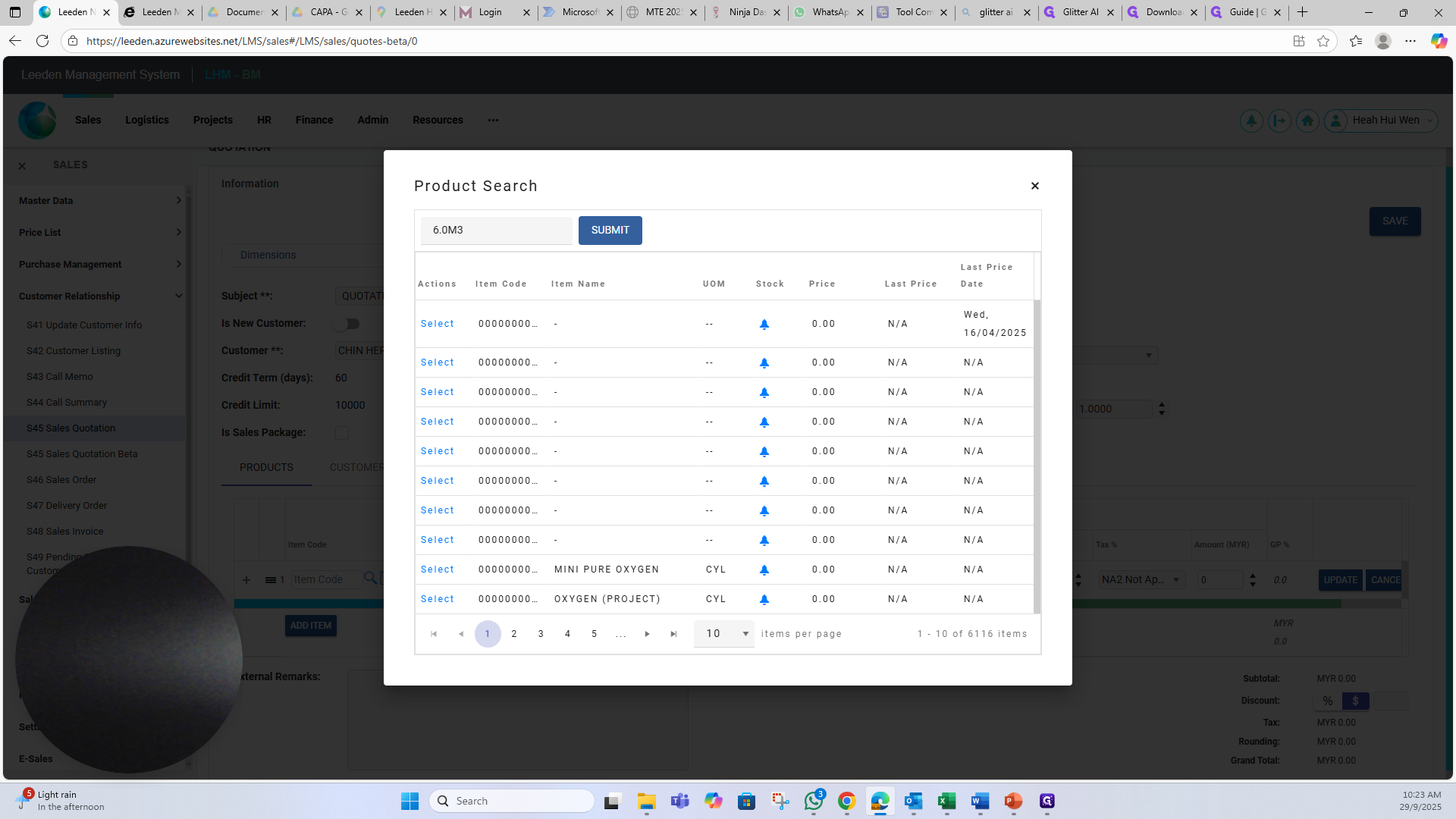
11
on the item.Click on "Select"
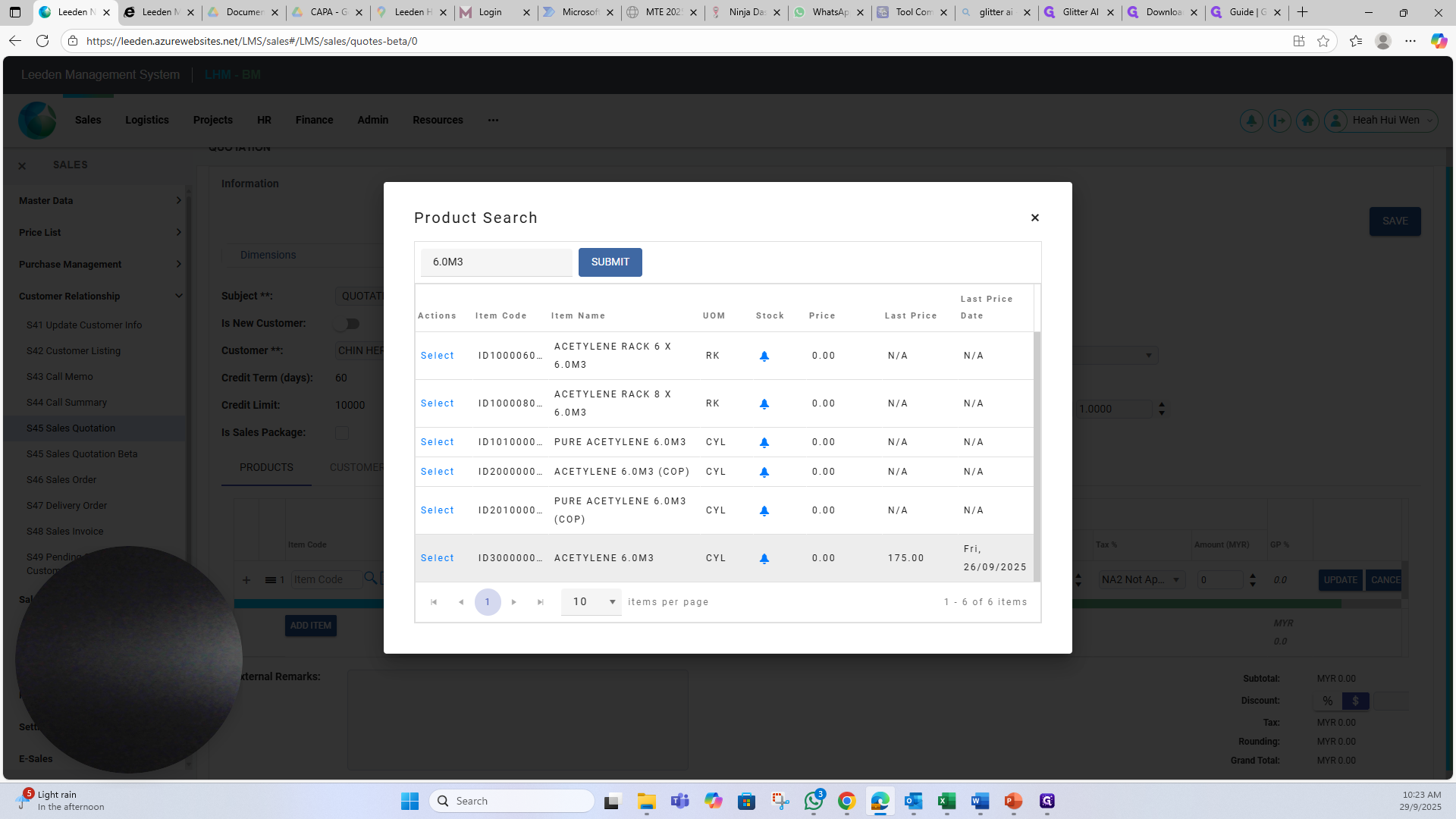
12
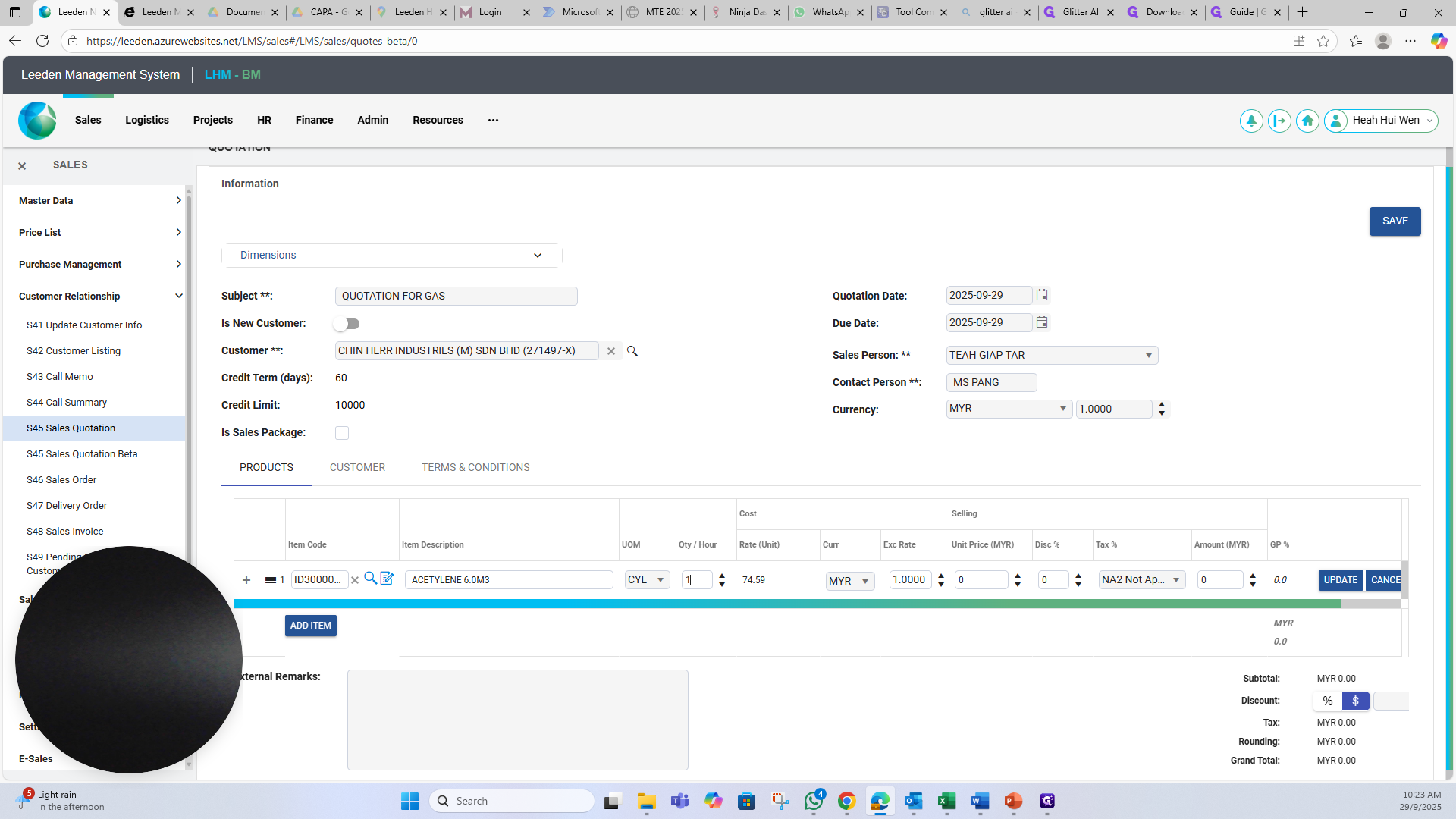
Type the quantity.
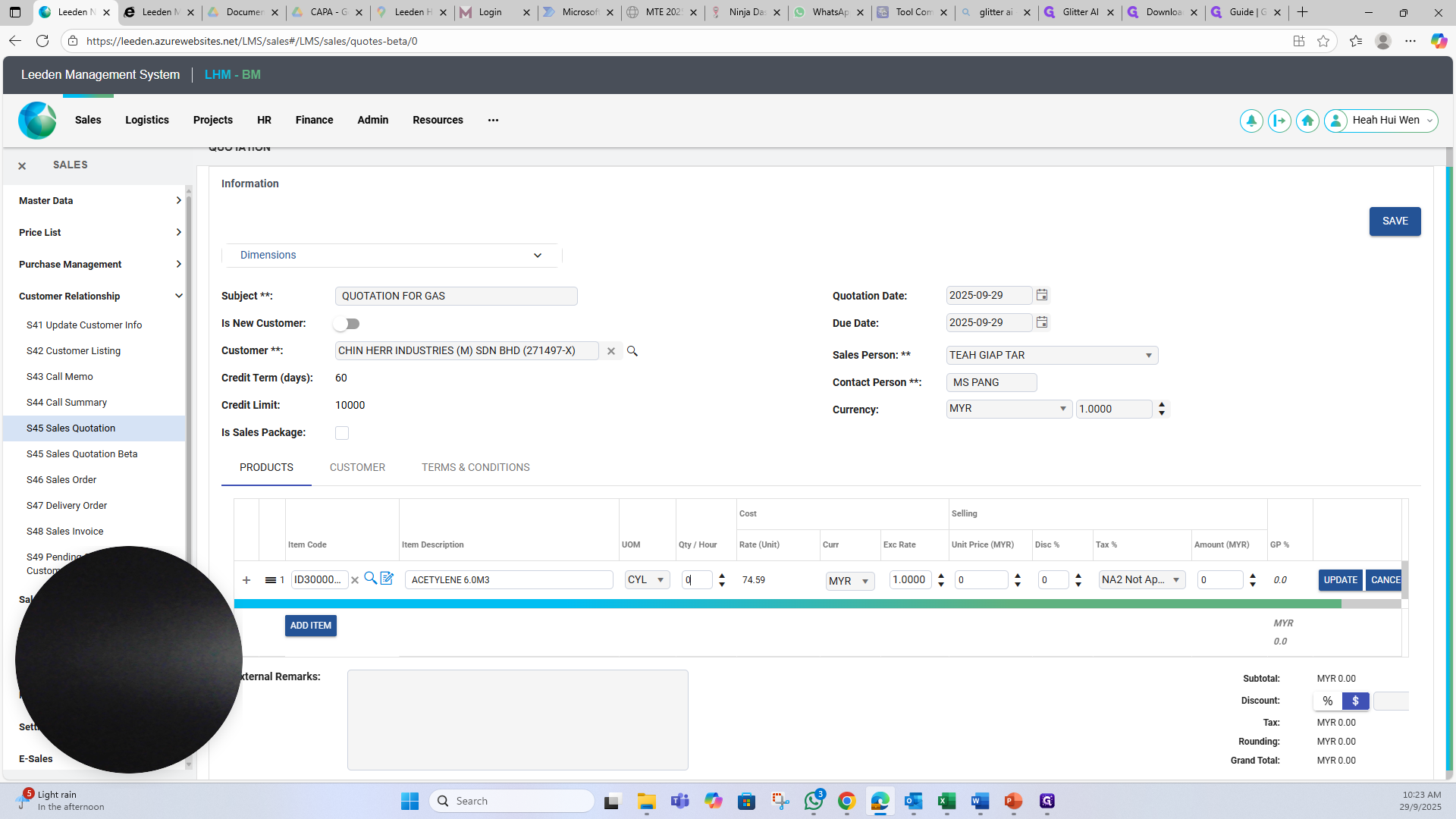
13
Select "NA2 Not Applicable Sup" for non-tax items.
14
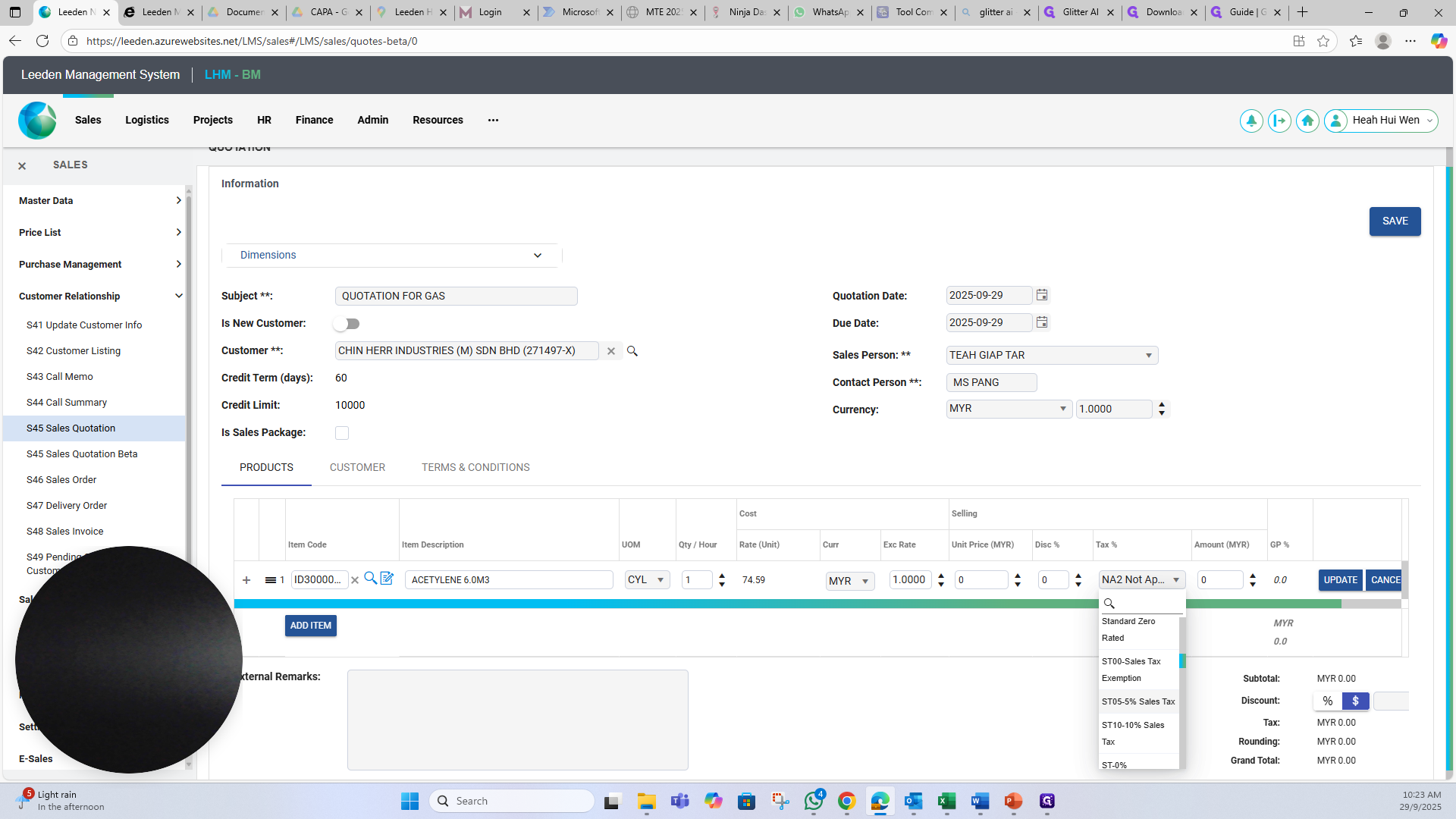
Select "ST05-5 % Sales Tax" for tax items (Acetylene Gas).
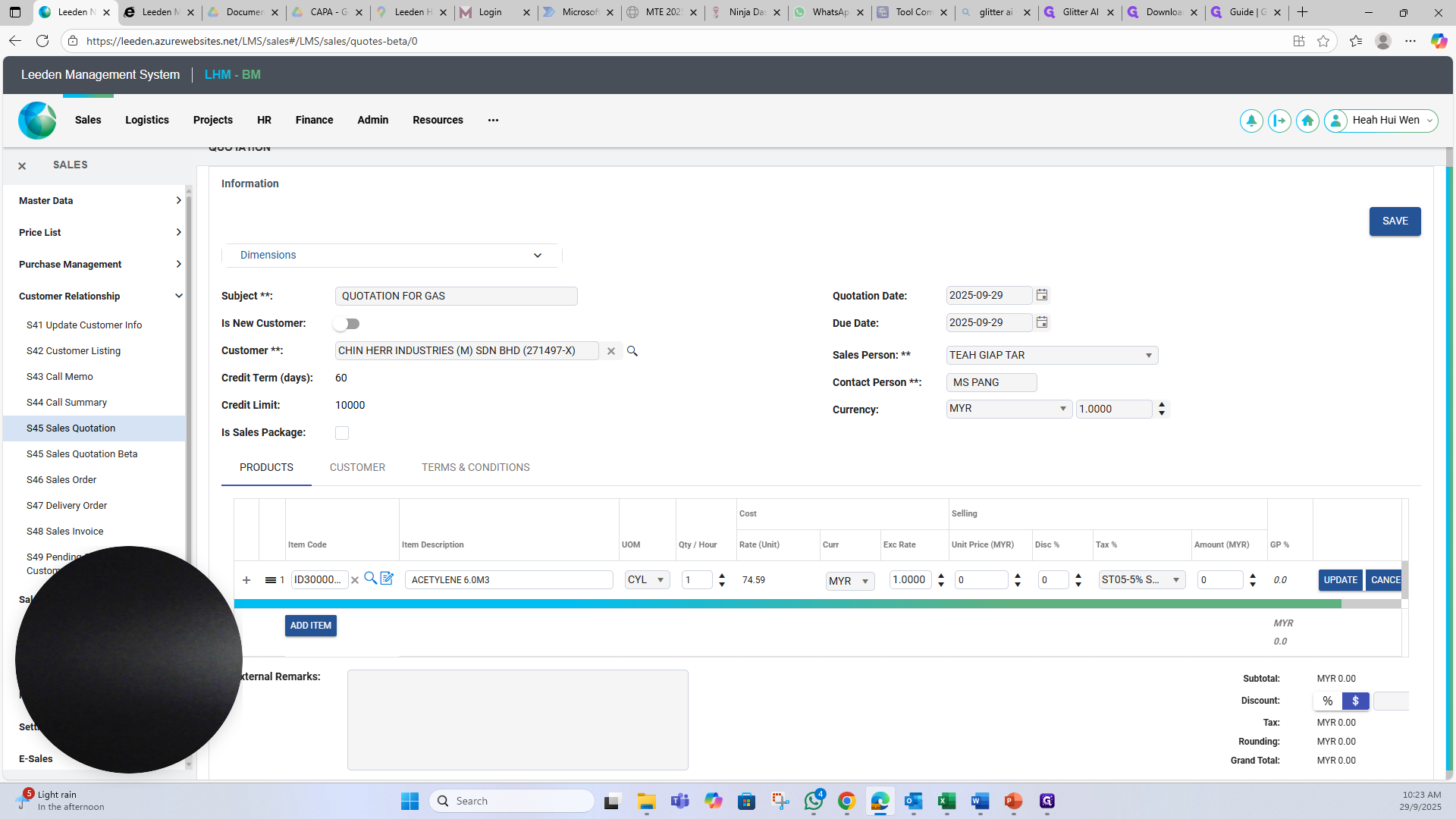
Enter the price.
15
Enter the price per unit.
16
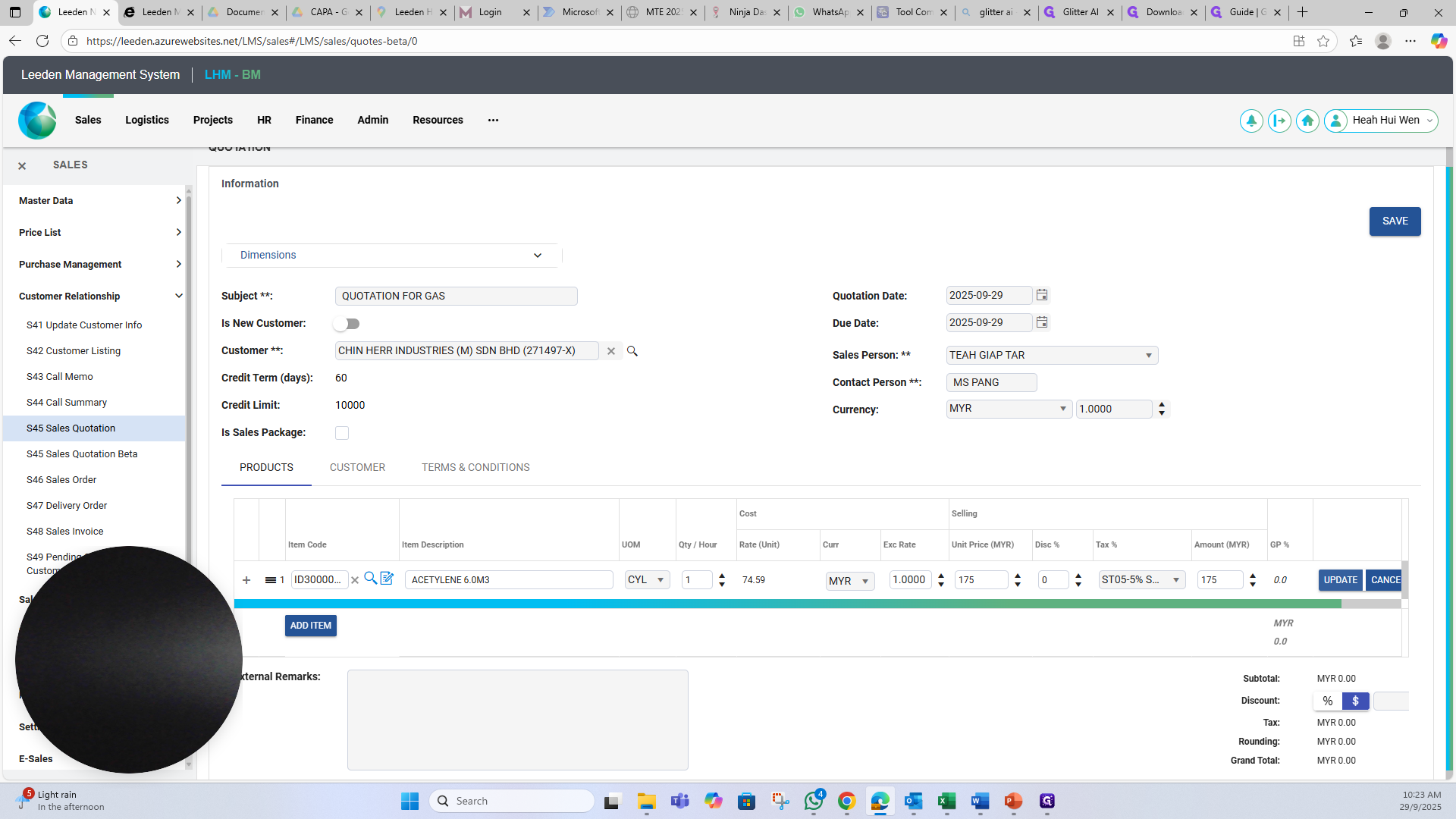
Click on "UPDATE"
17
Click on "CUSTOMER" and update the customer's address and contact details.
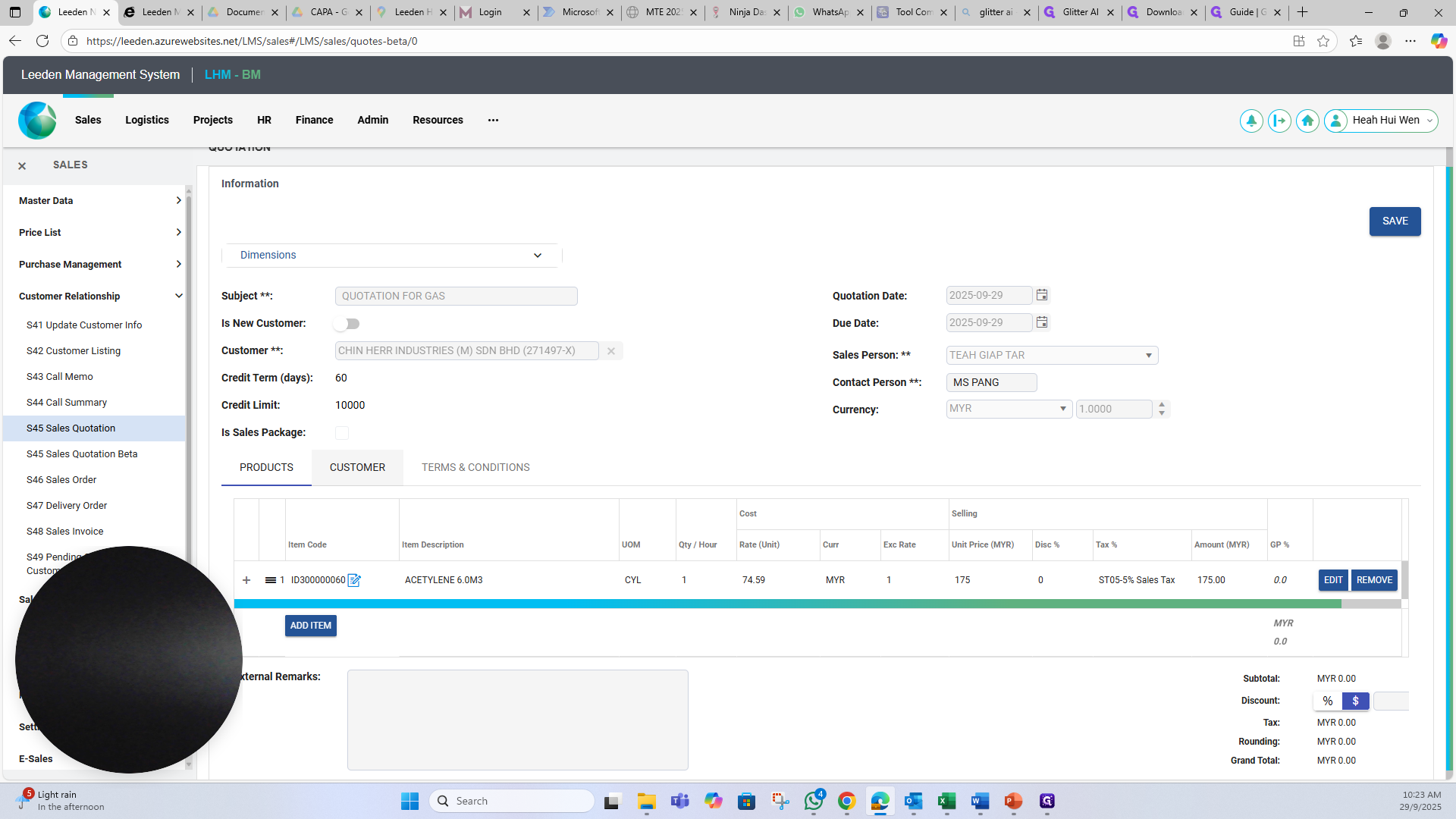
For guest items, you can select the terms and conditions for the guest.
18
Click on "TERMS & CONDITIONS" to update terms and conditions - payment term and delivery term.
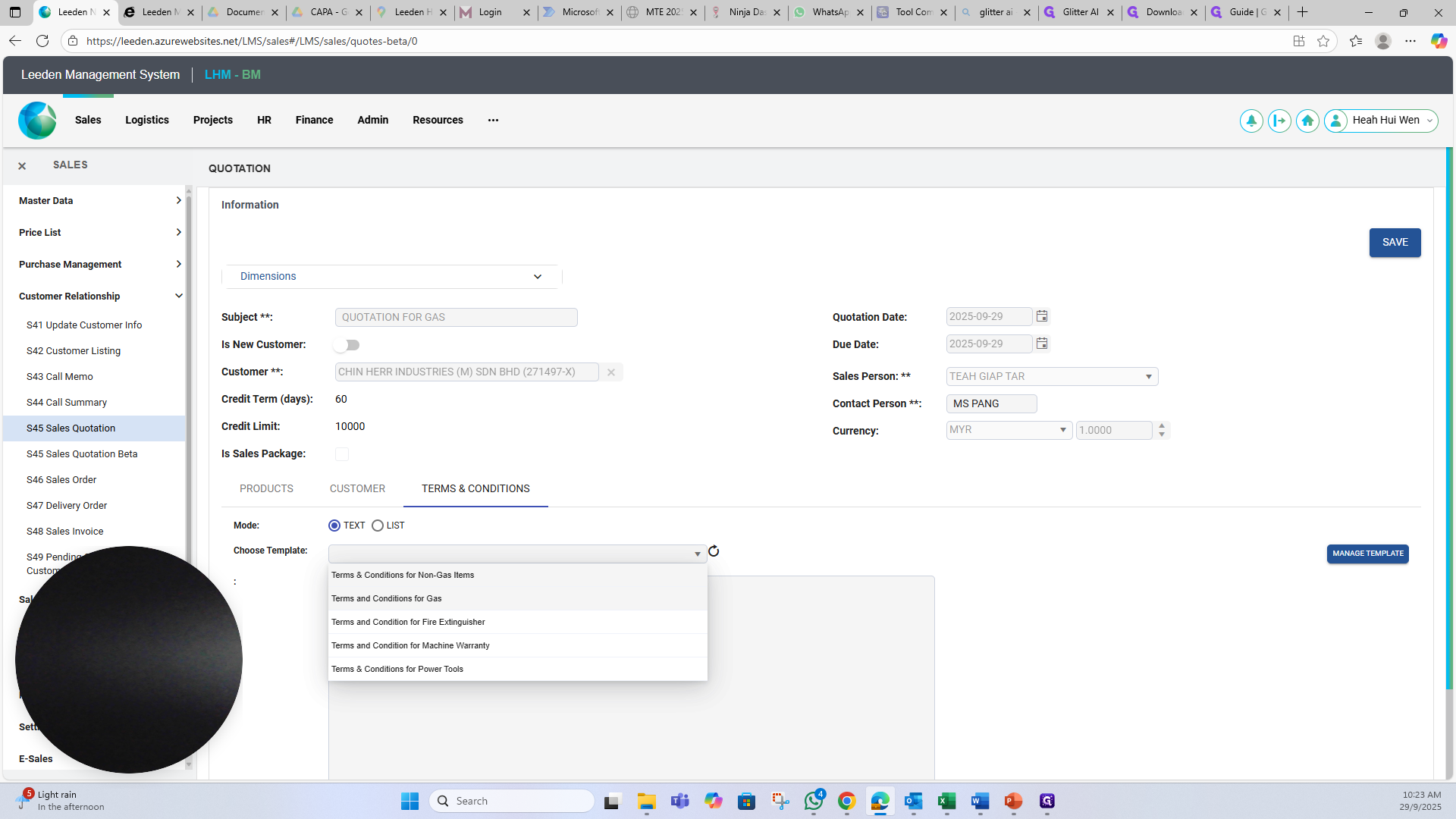
Lastly, save and submit for approval through (ACTIONS) button. Then, go to "TEMPLATE" and then select "Detailed - Quotation Specification" and click "Download" icon to download quotation.