
How to Create a Simple Visual Message for Padlet
Learn how to design a clear and meaningful visual message for Padlet using simple colors and symbols. No special design skills required—just follow these easy steps to express your idea effectively.
In this guide, we'll learn how to turn a message or quote into a simple visual that clearly expresses your idea. You will choose a color and a symbol that match the feeling behind your message, and you can use tools like Canva if you prefer. The goal is to create a visual that is easy to understand and personal to you.
You do not need design experience, and your visual does not have to be perfect. The focus is on clear and honest expression.
Let's get started
Now, take the quote or message you selected in step one and create a simple visual from it. This part is simple and does not require any special design skills. The goal is to express your message clearly and meaningfully. Start by selecting a color that reflects the emotion of your message.
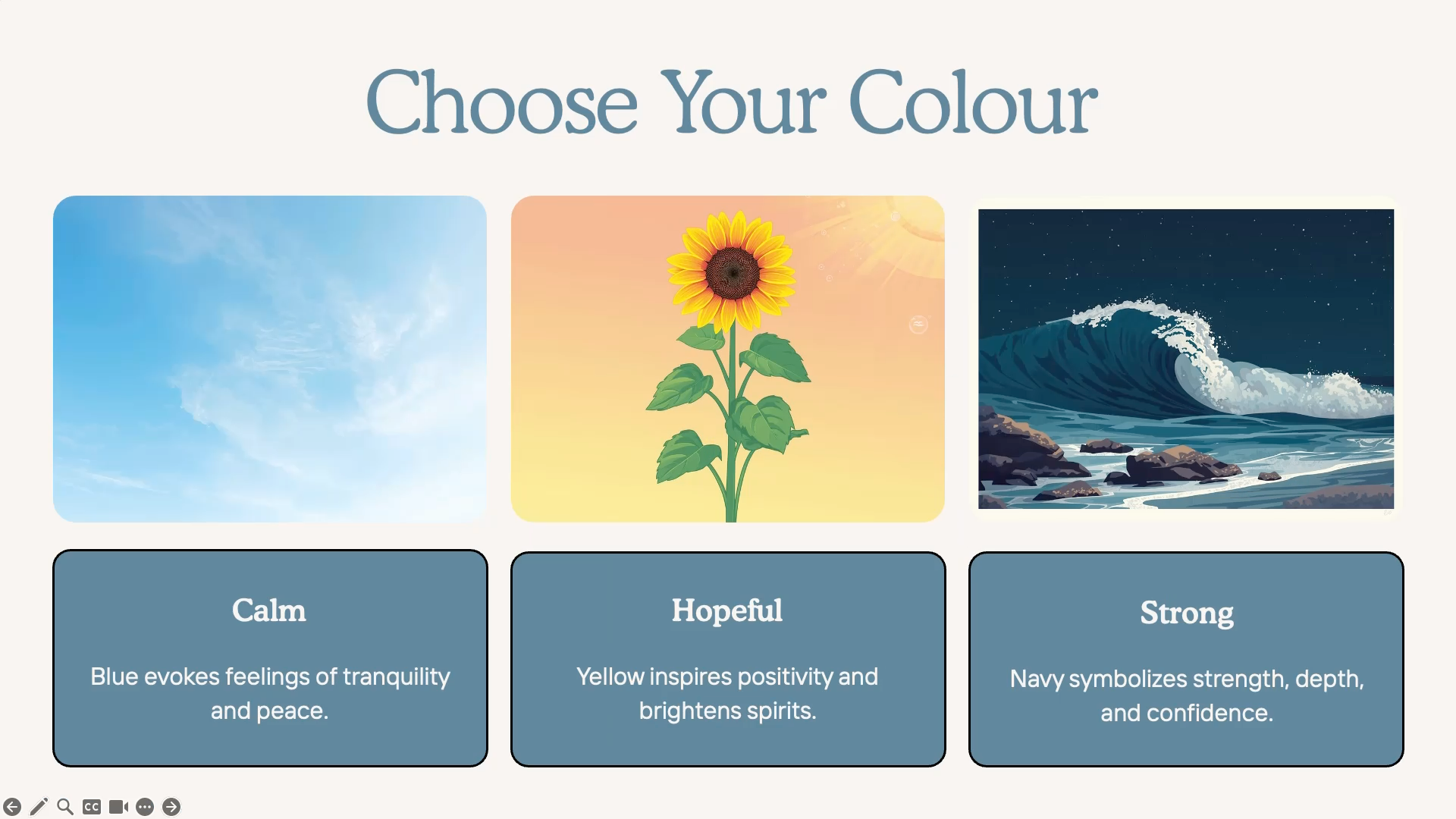
Soft blues and greens create a calming atmosphere.
Yellows can feel hopeful. Darker colors, such as navy or charcoal, can feel strong and steady. You only need one color. Simple is best. It also looks clean when you upload it to Padlet. If you choose to use multiple colors, that's perfectly fine as well.
Next, choose a small symbol or picture to support your message.
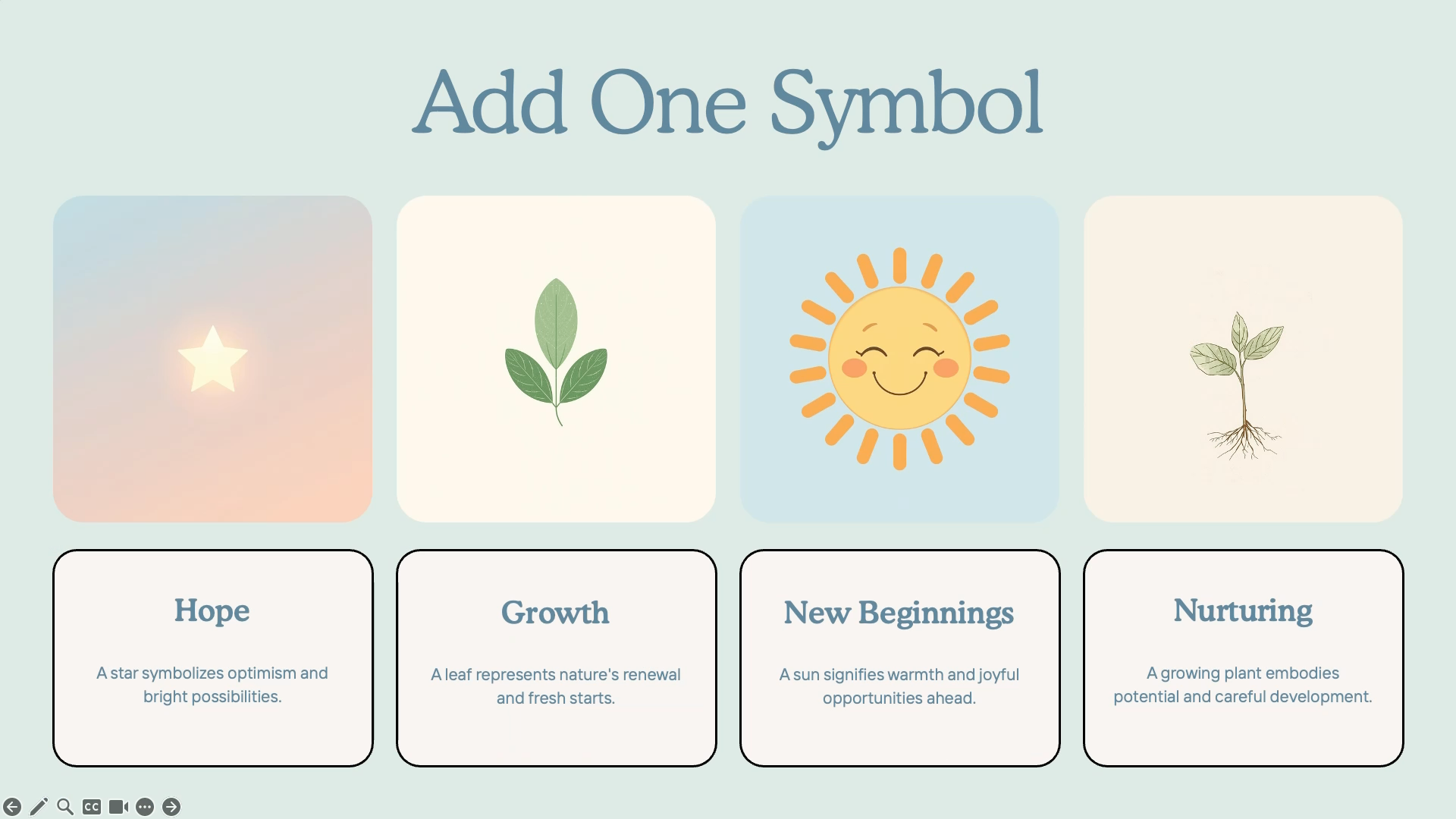
A star can symbolize hope. A leaf may show growth. A sun can represent a new beginning. A speech bubble can represent communication.
These don't need to be complicated pictures. However, you are welcome to draw something or choose a more detailed image if you prefer. Be sure to cite your sources. You can use Canva if you're familiar with it. They offer free images you can use for this project. Here are some examples to help you visualize your own design.
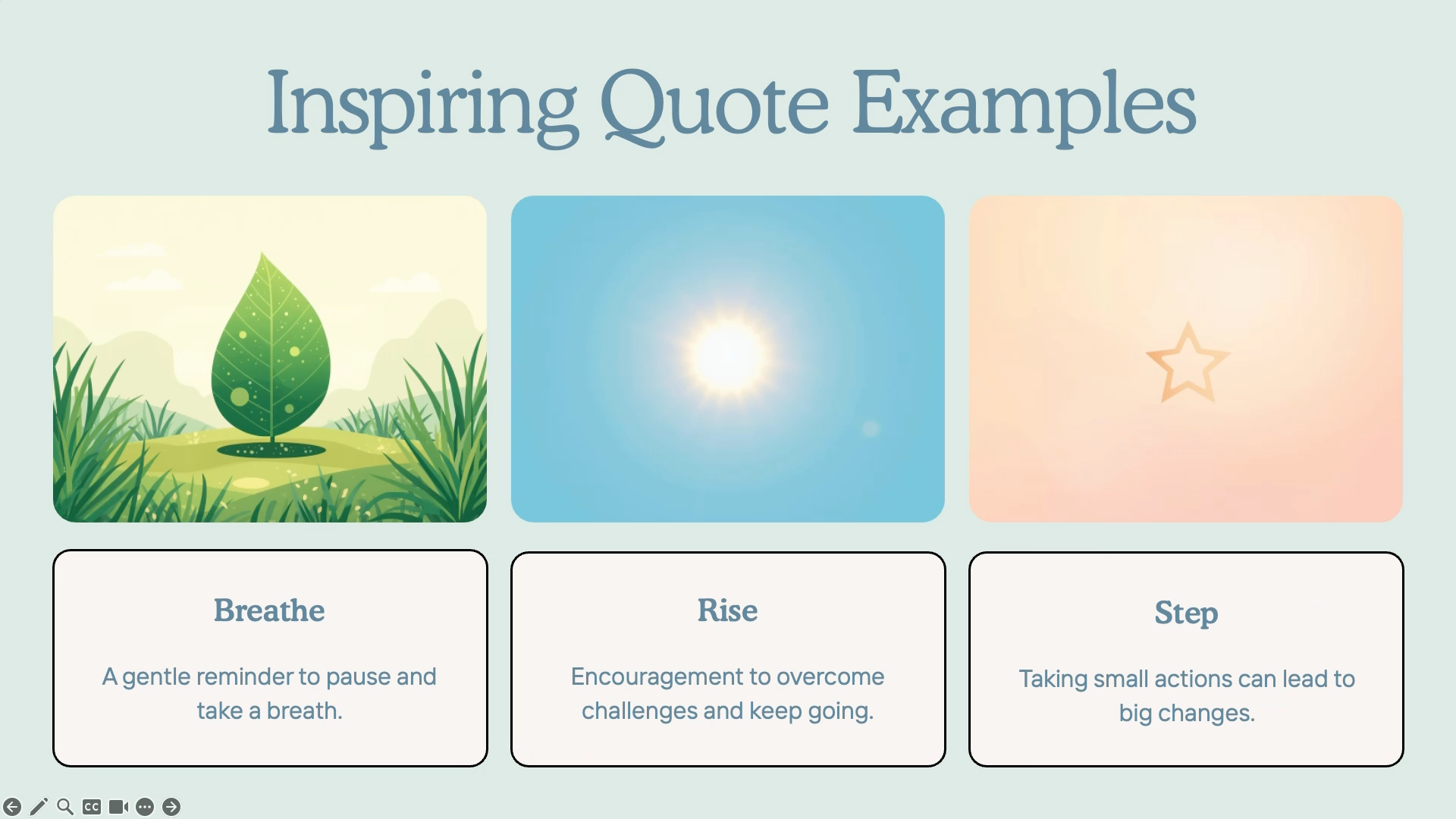
They're quite simple.
A short message, one or two colors, and a single symbol. That's all you need. Your visual does not need to be perfect. It just needs to express your idea clearly and honestly. Make it your own and do what you want with it.
After creating your visual, save it to your device.
When you're ready, go to video three. There, I'll show you how to upload it to Padlet and add your reflection. Happy creating.