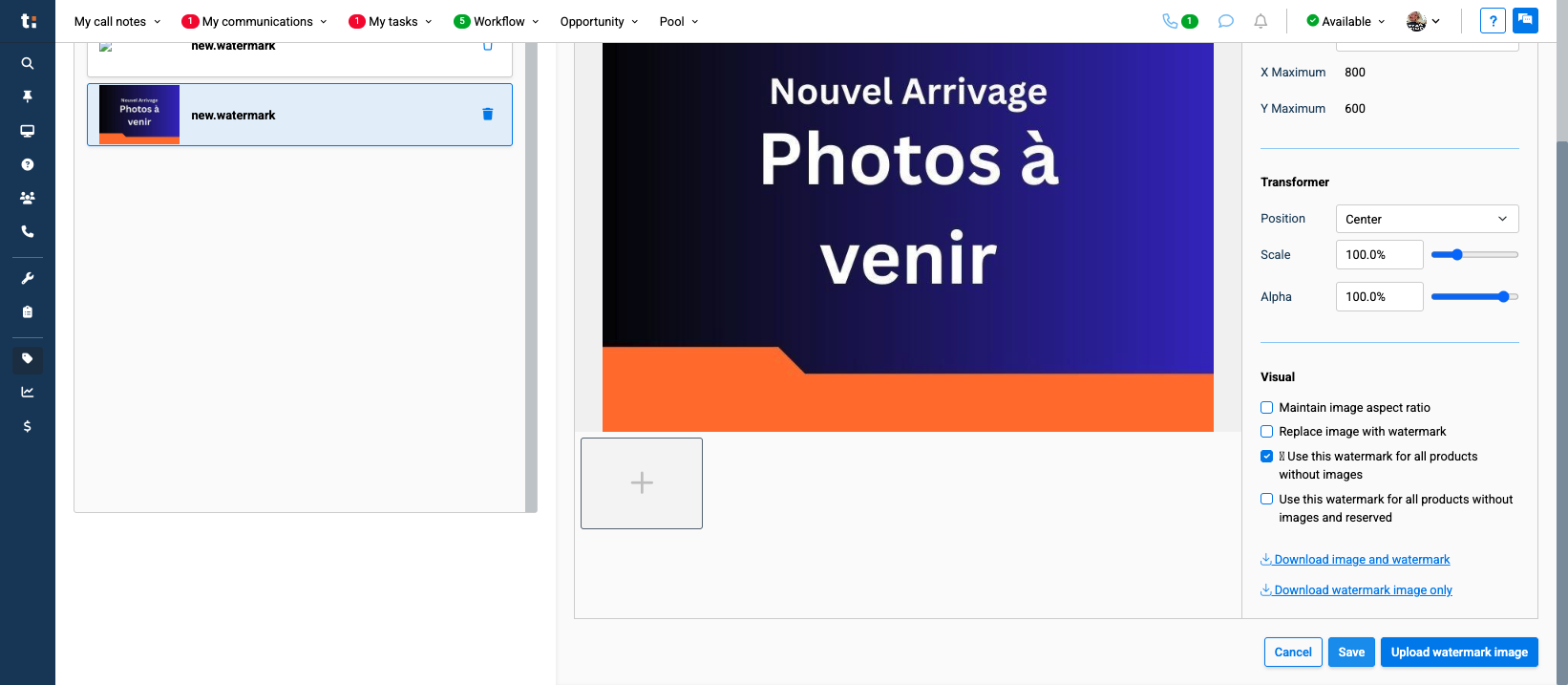
How to Create a Watermark for Products Without images
Learn step-by-step how to create and apply a watermark for products that don't have images. Follow our easy guide to enhance your product listings and protect your brand.
By Emilie Peloquin
In this guide, we'll learn how to create a watermark for products that do not have a photo. This process helps you maintain a consistent look for your product listings. You will use the Marketing section to add and edit your watermark, then apply it to products without images.
Let's get started
1
Click "Marketing" in the left menu

2
Then click on "Watermark".

3
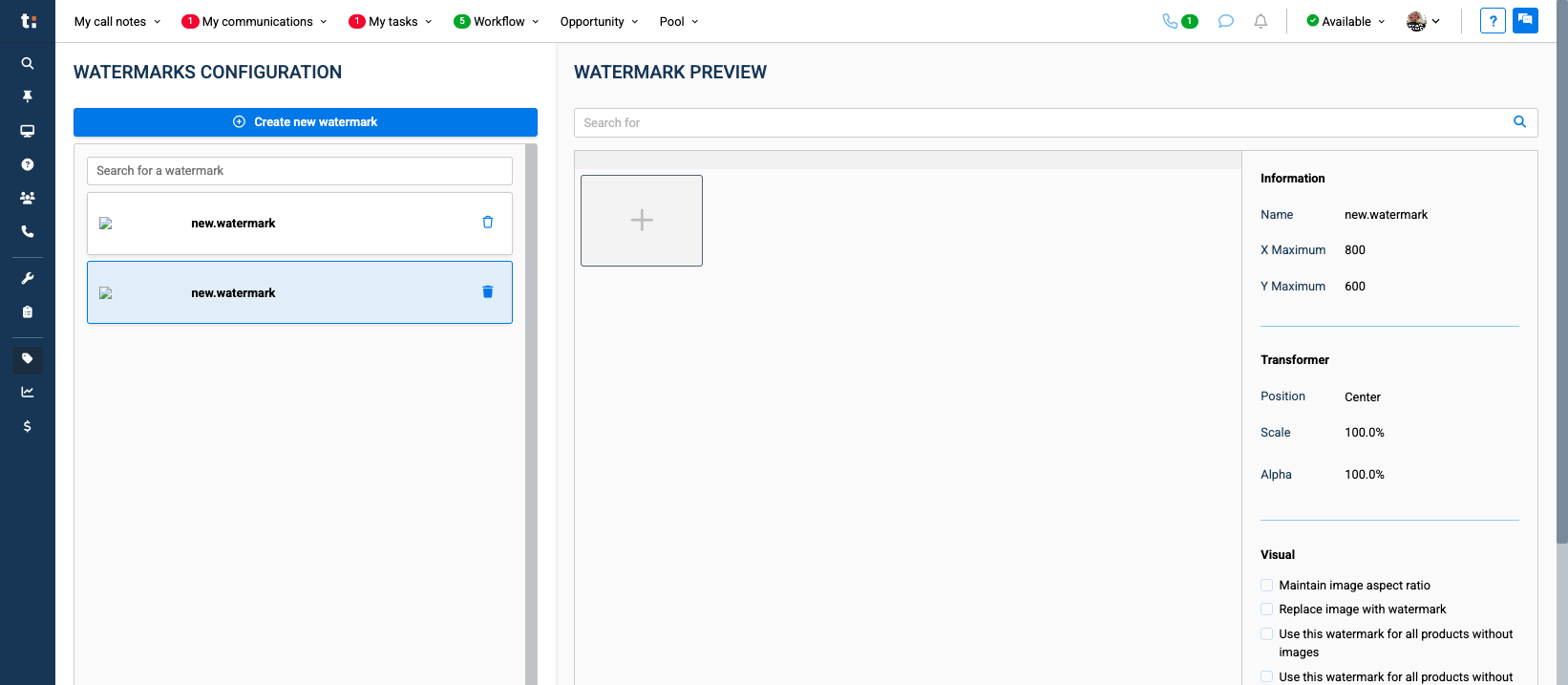
Click "Create a new watermark".

4
Click on the field to rename the new.watermark
5
Click on "Upload watermark image".
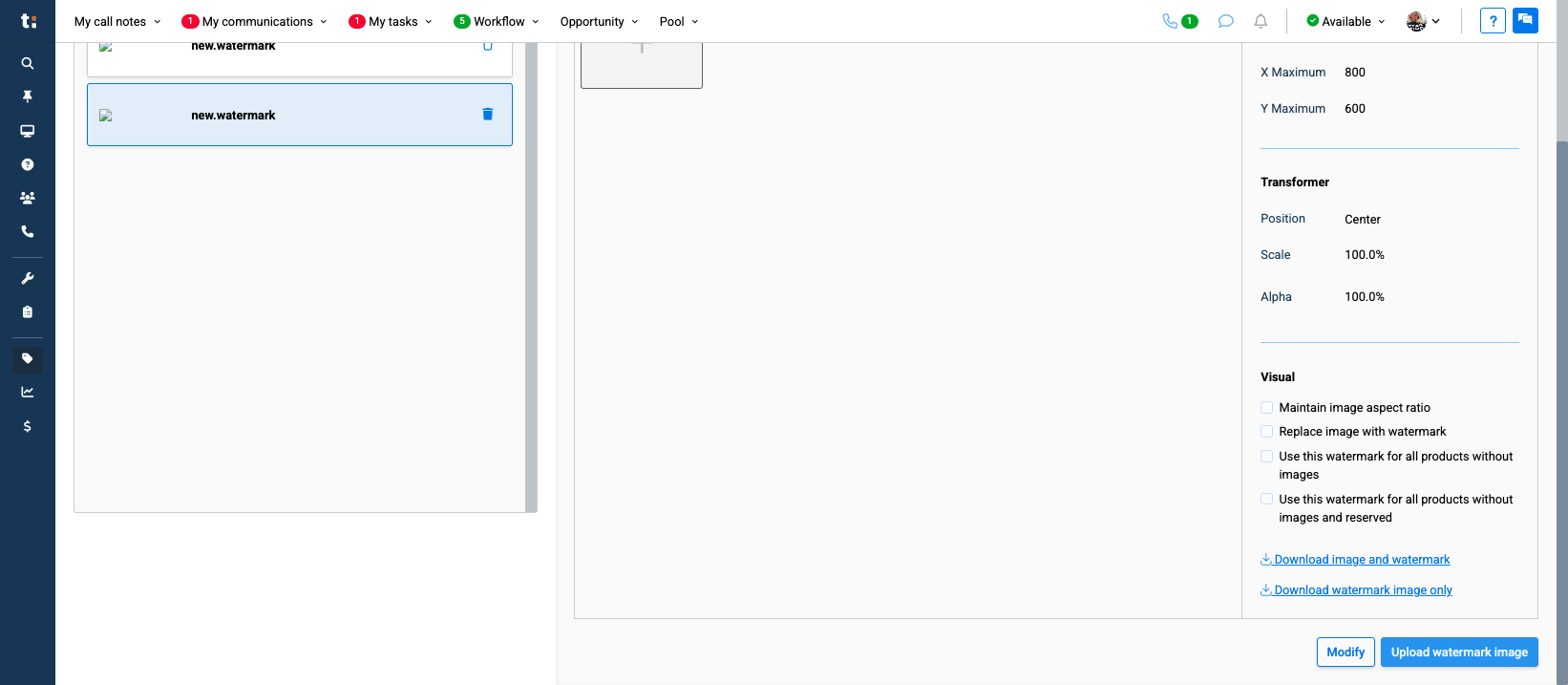
Select the photo in your computer files
6
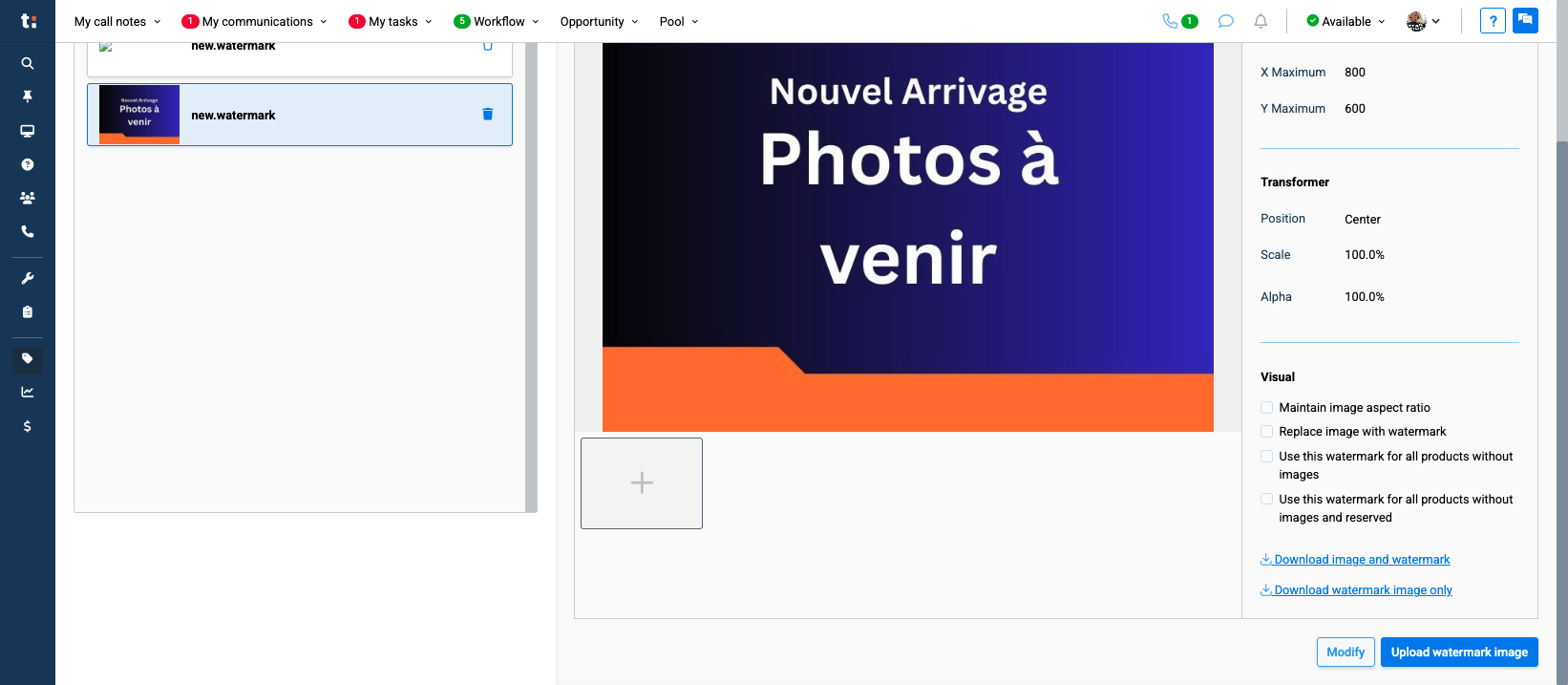
Click "modify"
7
Then check the box "Use this watermark for products without images".
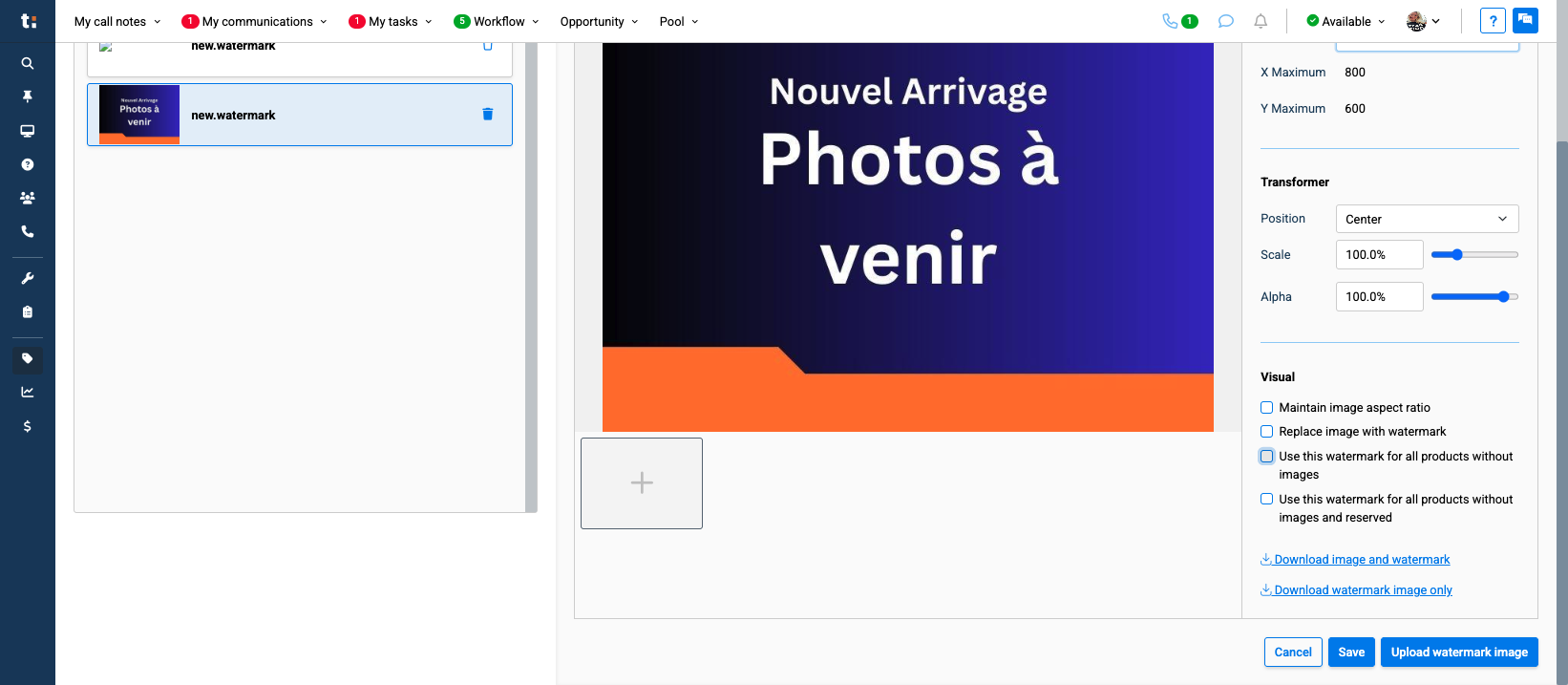
8
Click "save"