How to Create and Activate Coupons on Your Rental Website

Learn step-by-step how to create, configure, and activate coupons on your rental website using the Reservey platform. This tutorial covers coupon types, usage restrictions, limits, and testing your discount codes.

By Reservety

In this guide, we'll learn how to create and manage coupons on your rental website using the Reservey platform. You will see how to set up different types of discounts, apply restrictions, and test your coupon to make sure it works as expected.

This process helps you offer promotions to your customers and control how and when discounts are used.

Let's get started

Welcome back to Reservey tutorials.

In this episode, we will show you how to create coupons and how to activate them on your rental website.

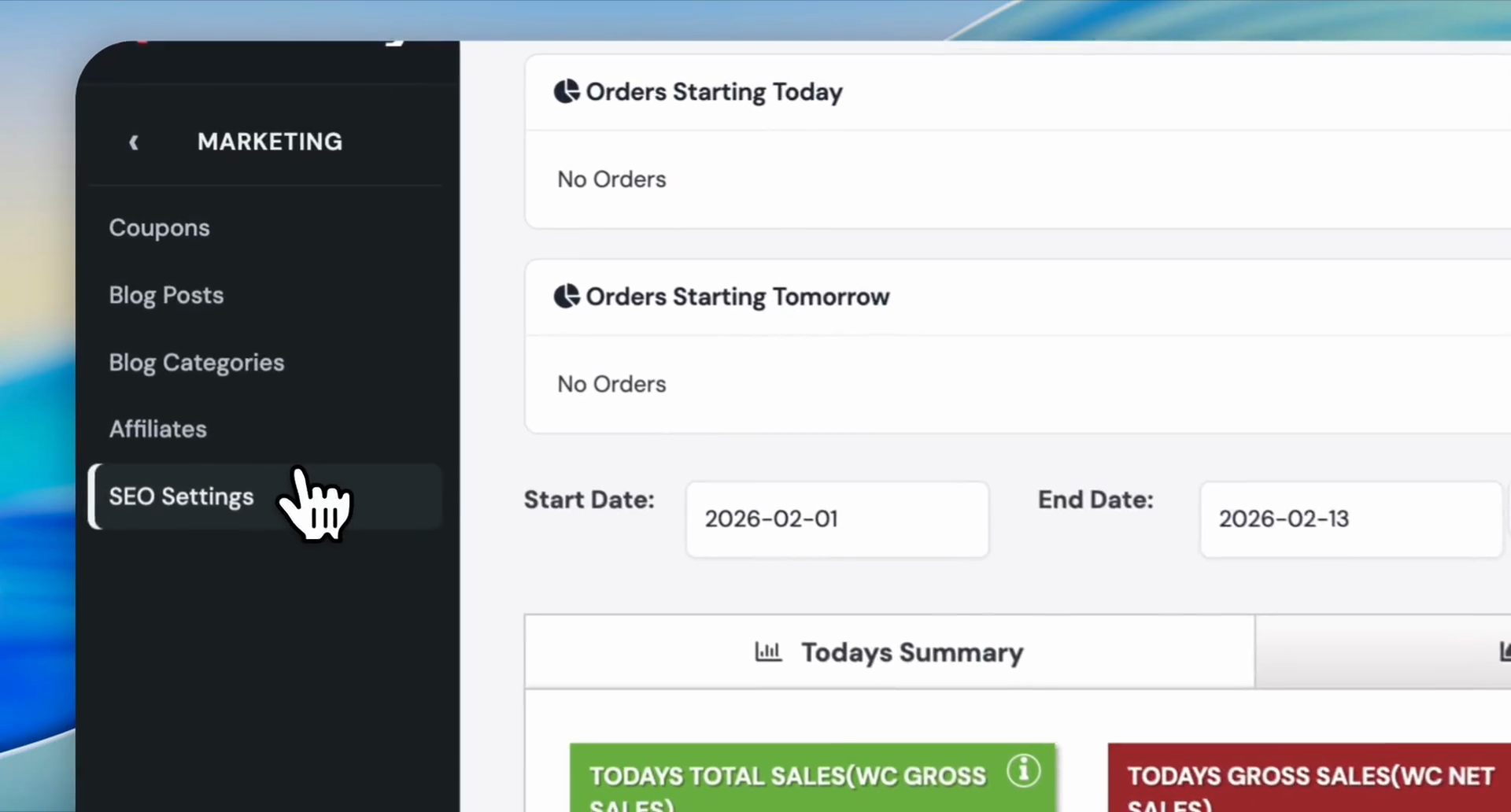
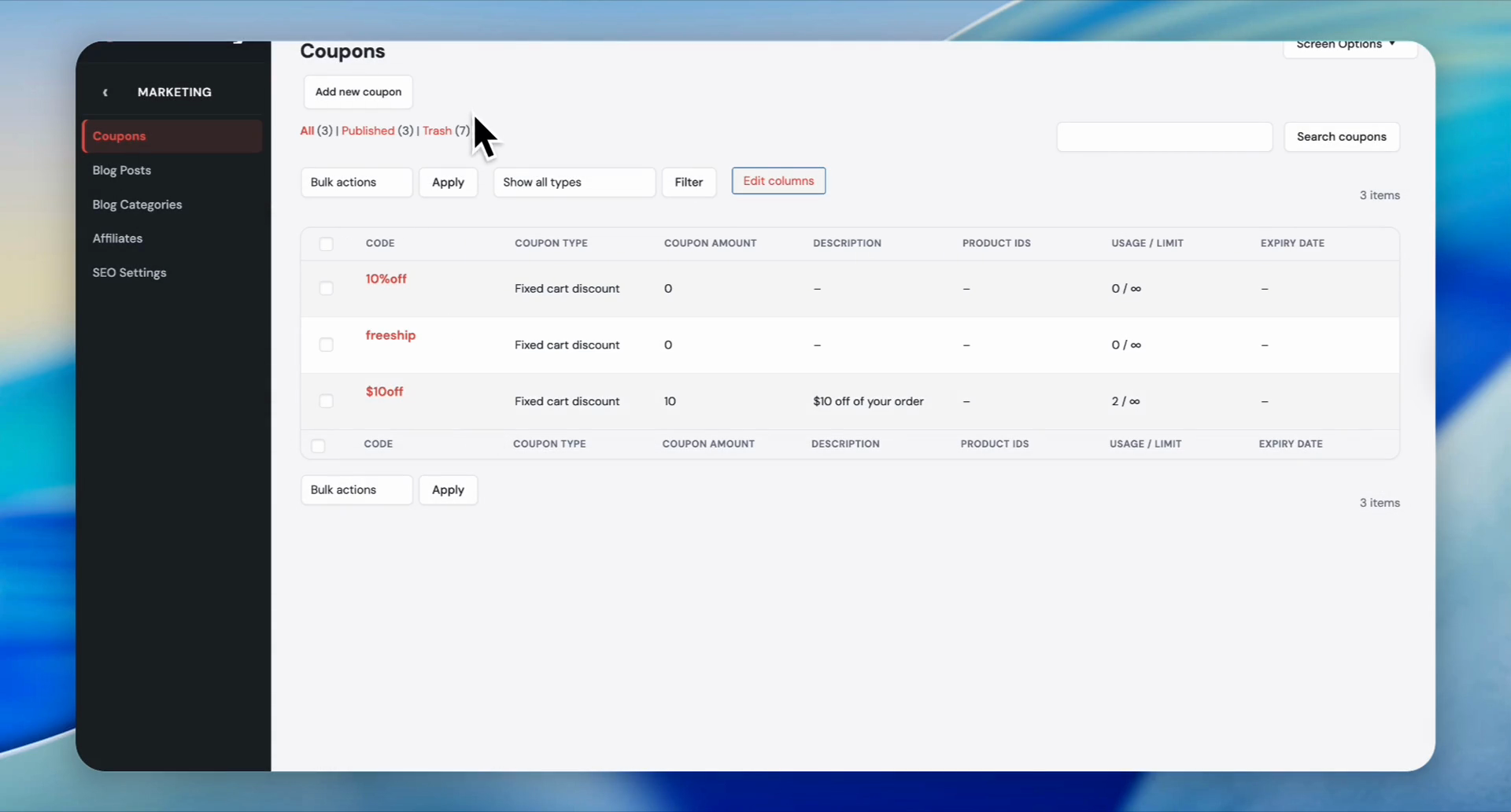
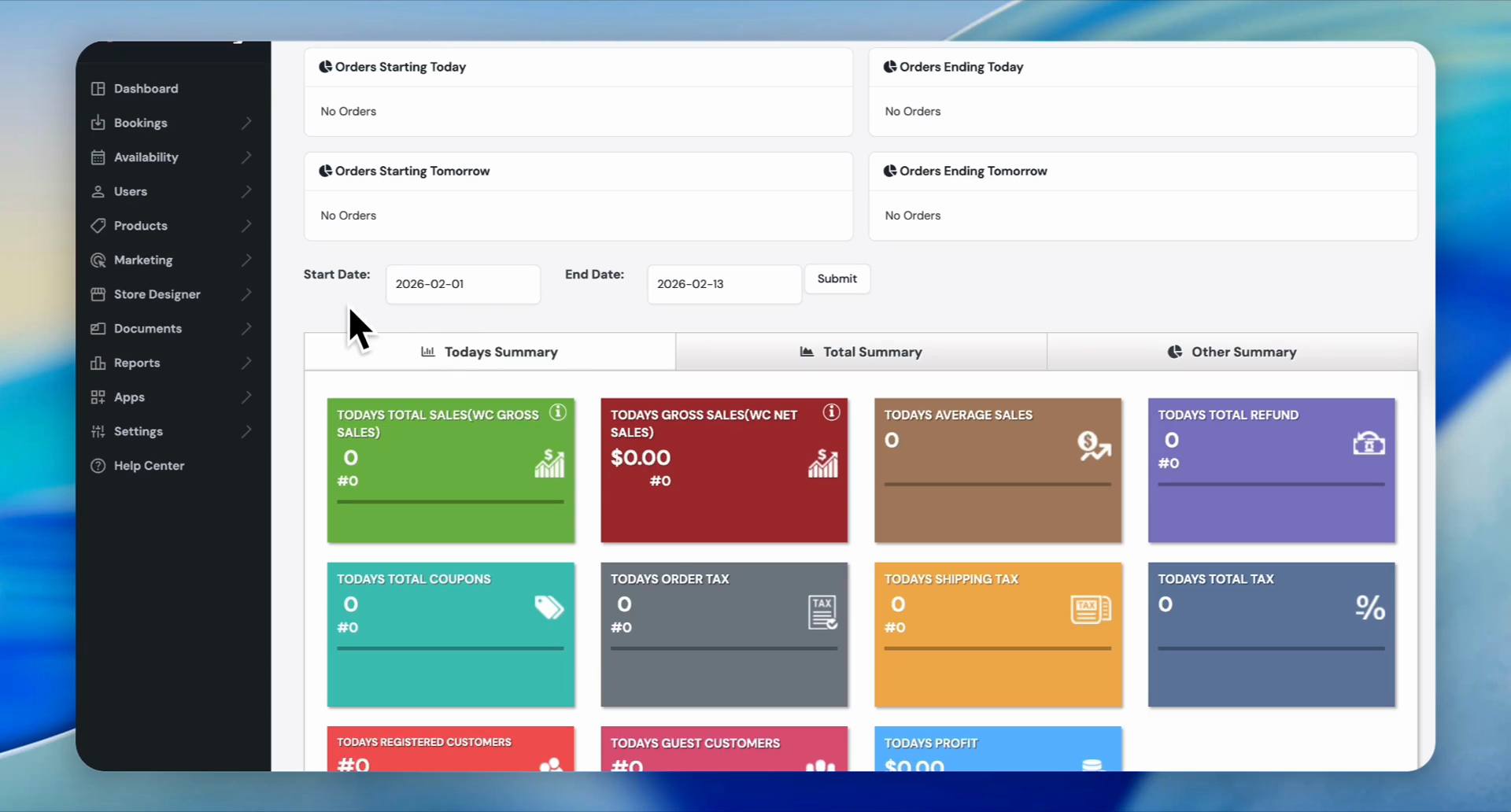
First, log in to your admin dashboard. On the dashboard, click "Marketing," then "Coupons."
1
Click on Marketing in the left sidebar.
Step #1: Click on Marketing in the left sidebar.
2
Click on Coupons.
Step #2: Click on Coupons.
3
Click the Add new coupon button.
Step #3: Click the Add new coupon button.
4
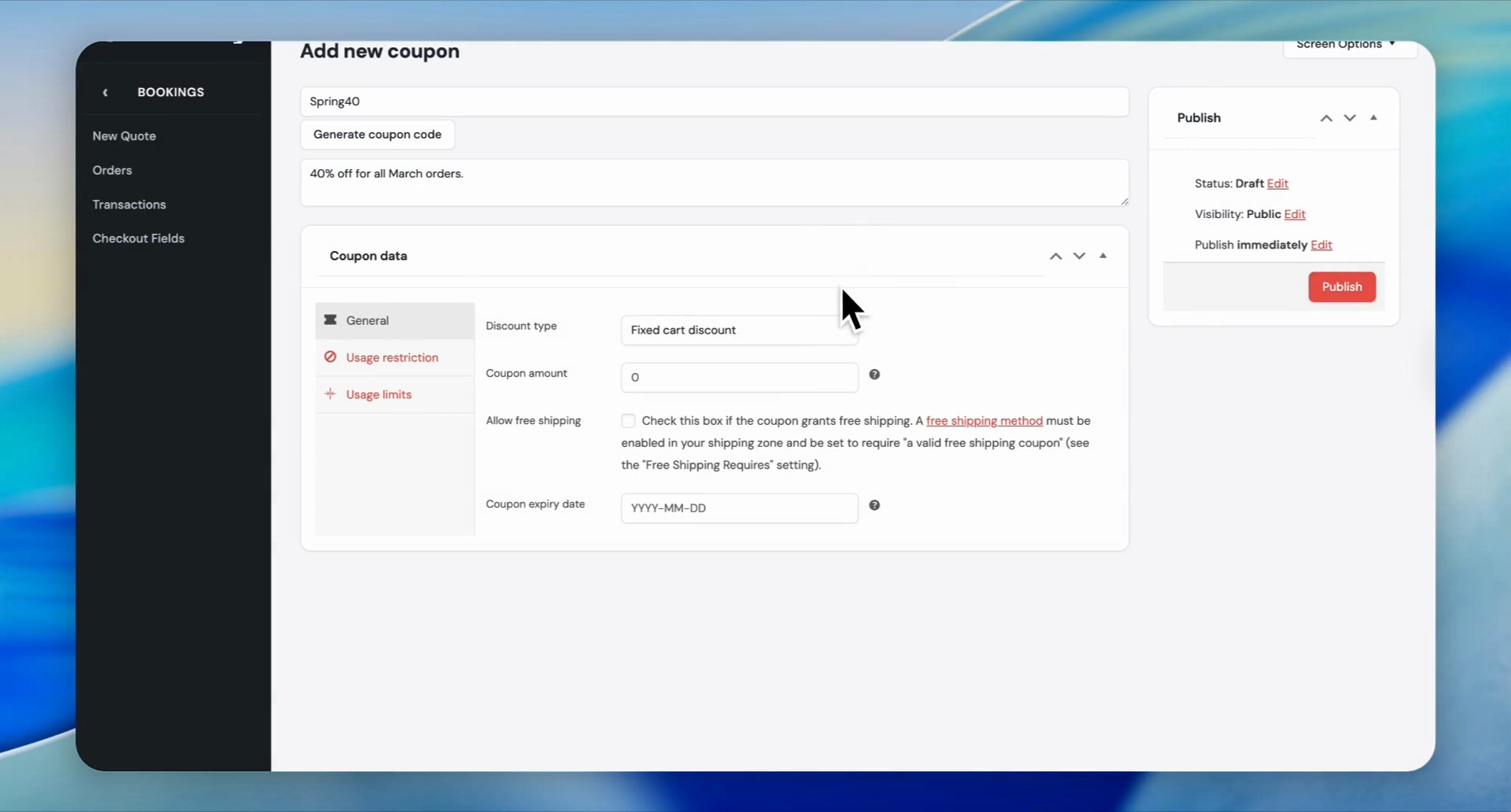
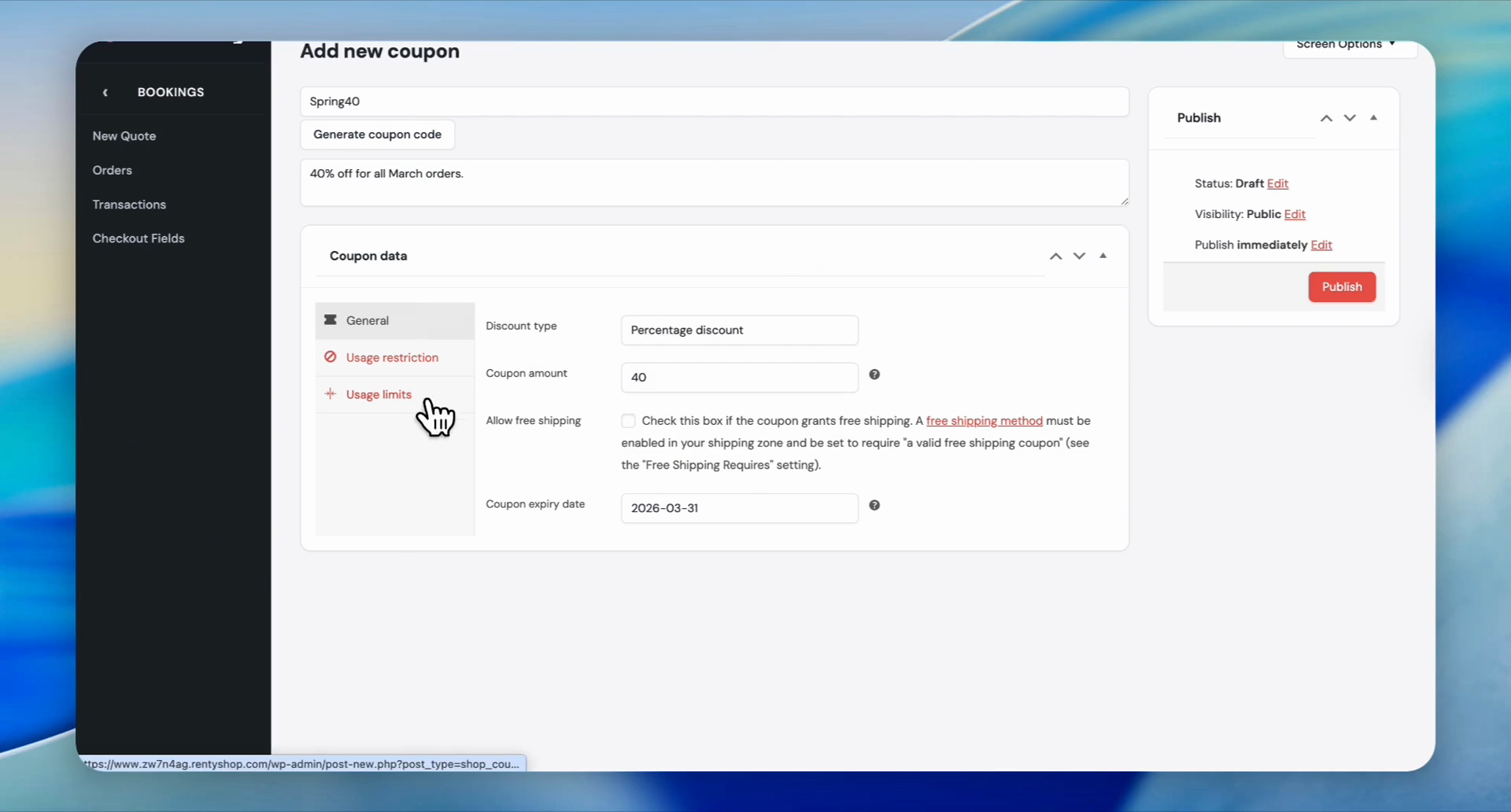
Name your coupon or generate a coupon code. For example, we named ours Spring40
5
Describe your coupon. For example, we typed '40% off for all March orders' into the Description field.
6
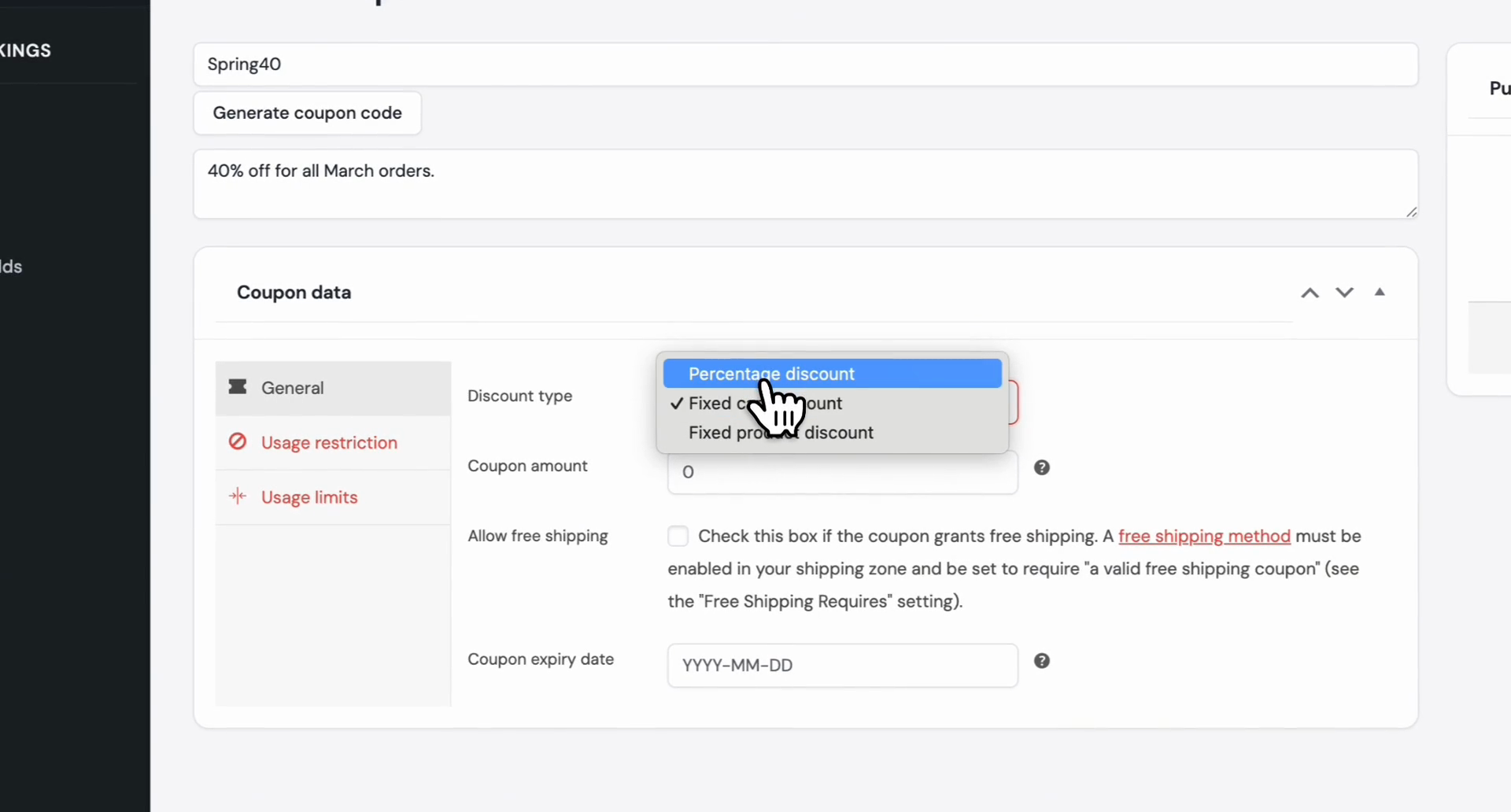
Click the Discount type dropdown menu.
Step #6: Click the Discount type dropdown menu.

We have three options: "percentage discount," "fixed cart discount," and "fixed product discount." In this tutorial, we will select a percentage discount.
7
Click 'Percentage discount'.
Step #7: Click 'Percentage discount'.

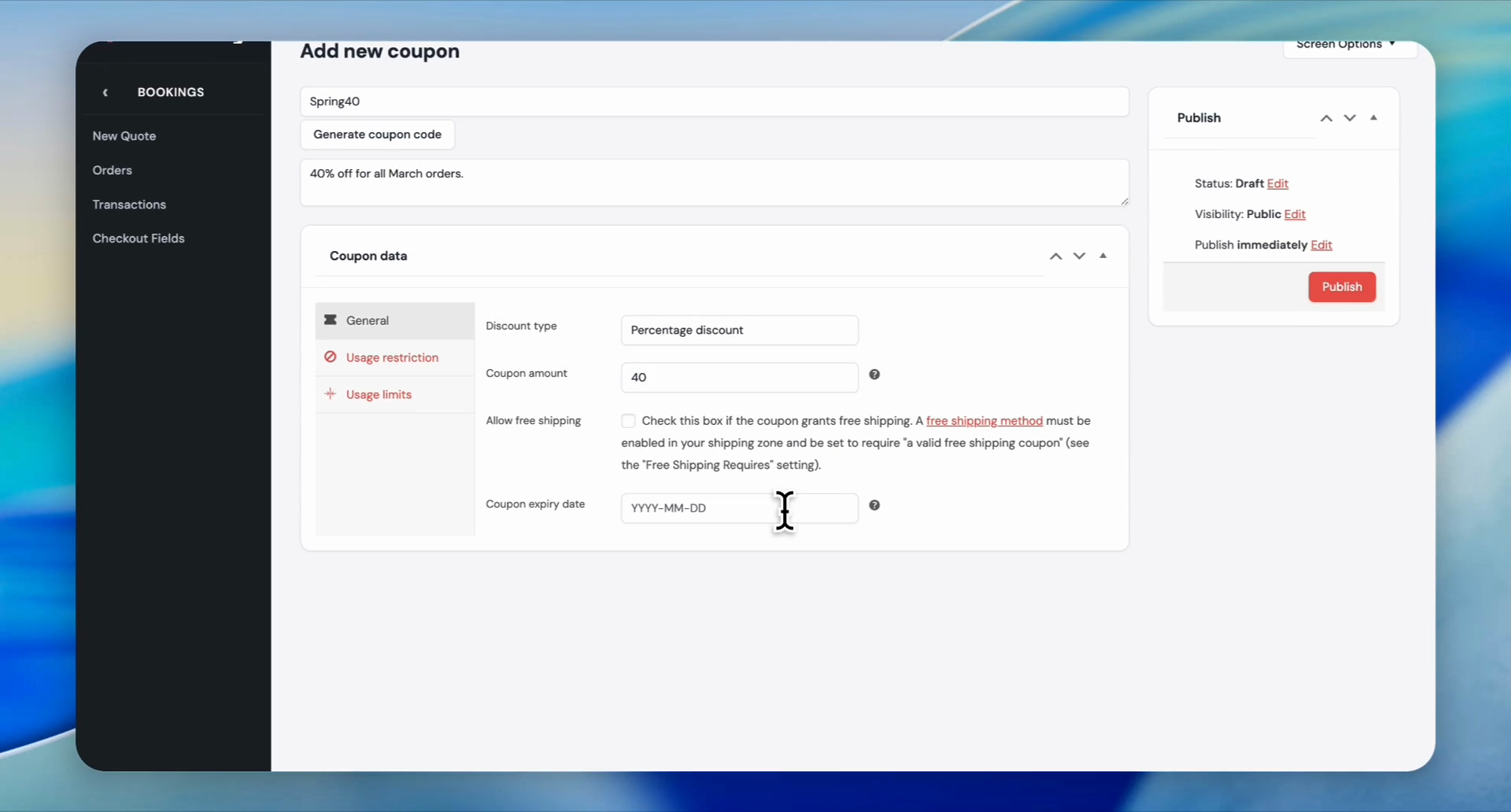
Let's say we want to offer a 40% discount on all orders in March.
8
Type '40' into the Coupon amount field. Percentage sign not needed.
9
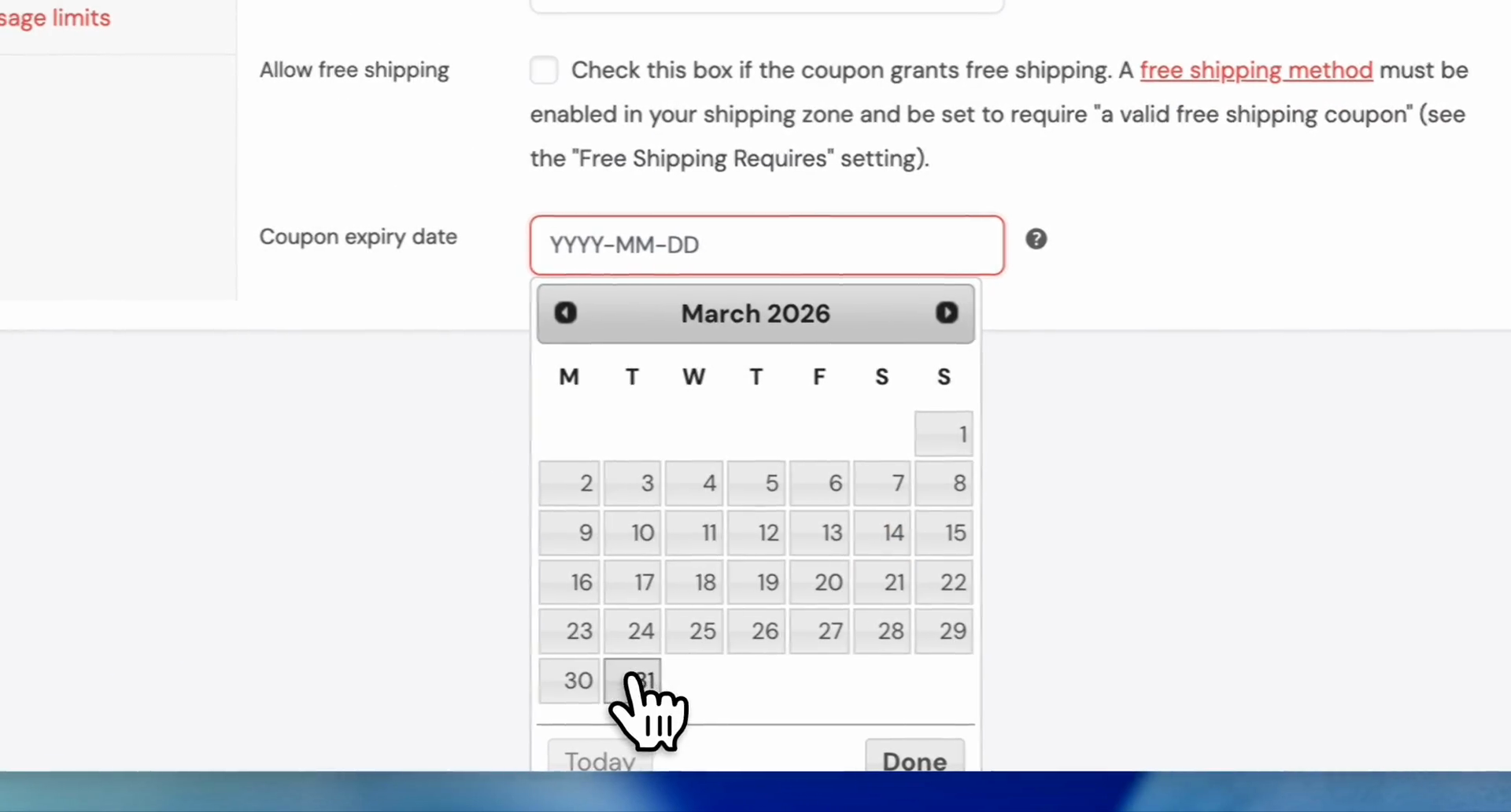
Click the Coupon expiry date field.
Step #9: Click the Coupon expiry date field.

In this case, it will be March 31.

10
Click on '31' to select the date.
Step #10: Click on '31' to select the date.
11
Click 'Usage restriction' on the left sidebar.
Step #11: Click 'Usage restriction' on the left sidebar.
12
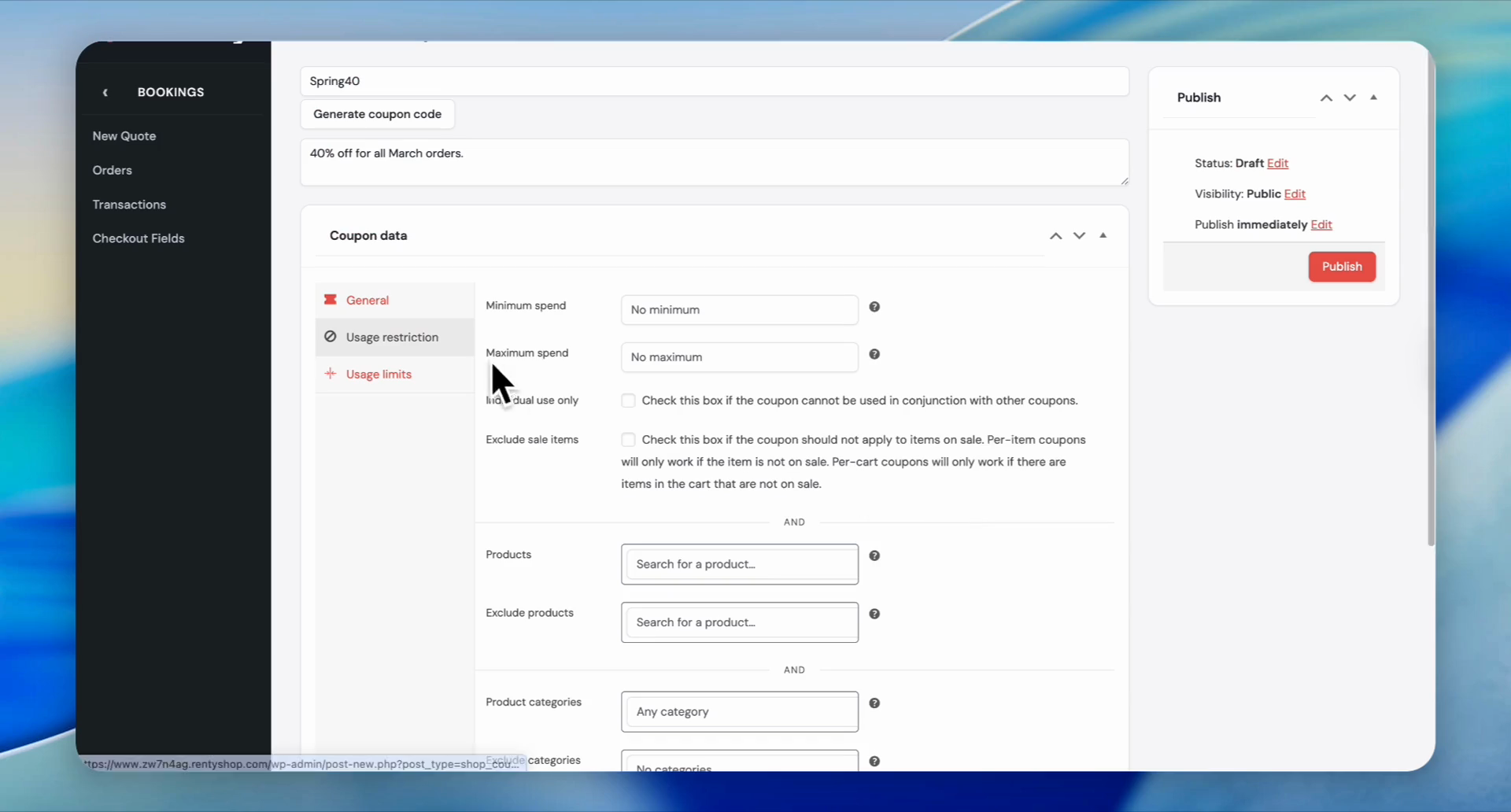
Set the minimum spend required to use the coupon in the 'Minimum spend' field.

For example, if the minimum spend is set to 100, the coupon will work for orders over $100.

13
Set the maximum spend allowed for the coupon in the 'Maximum spend' field.

For example, if you set the maximum spend to 10000, orders over $10000 will not be eligible for this coupon.

You can leave these fields blank to have the coupon apply to all amounts.
14
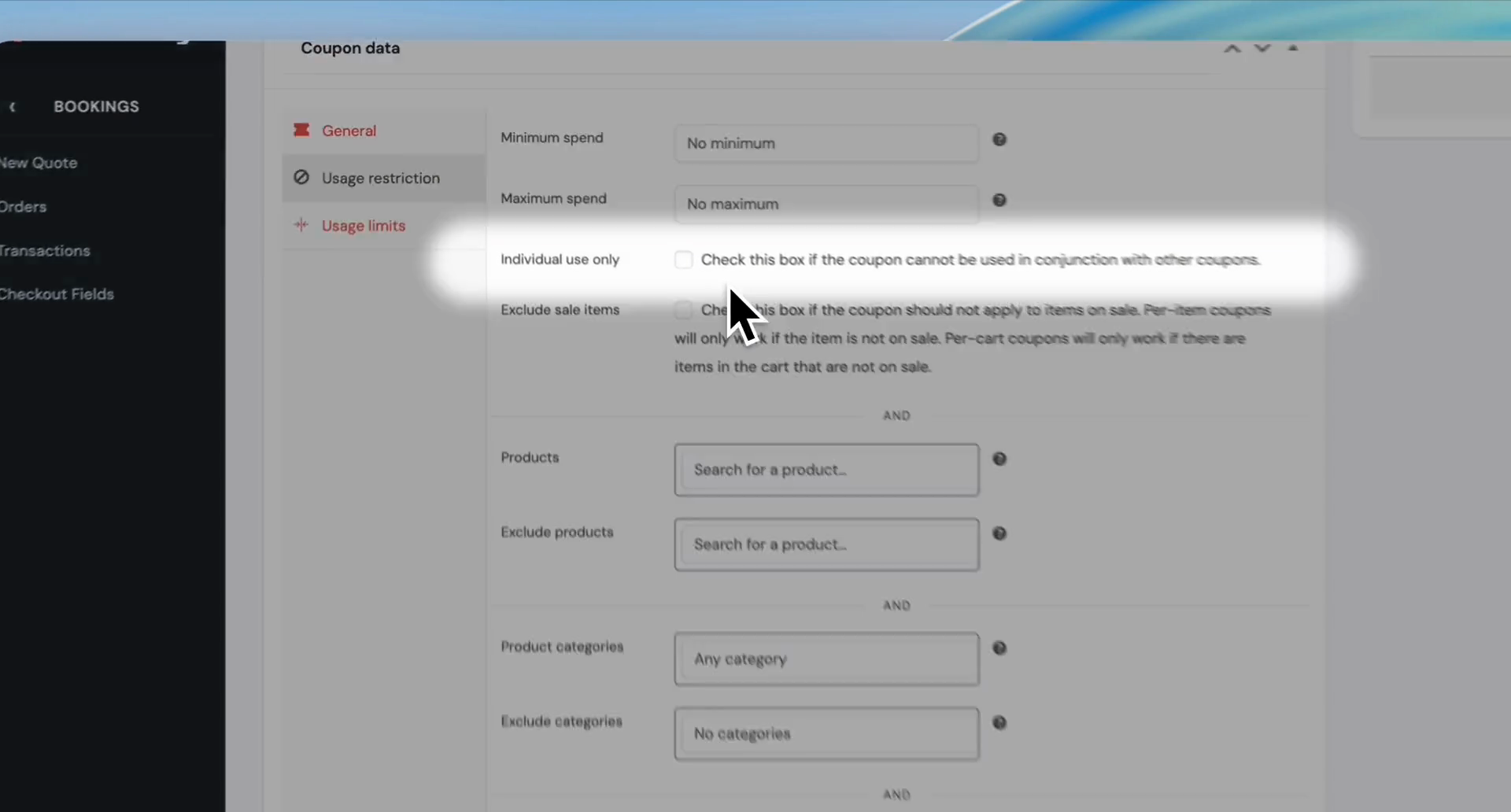
Check the 'Individual use only' box to prevent this coupon from being used with other coupons.
Step #14: Check the 'Individual use only' box to prevent this coupon from being used with other coupons.

You can apply this coupon to specific products and exclude others. You can also apply it to certain categories and exclude others, or to specific brands and exclude some brands.

This section is clear. Now, let's move on to "usage limits."
15
Click the Usage limits tab
Step #15: Click the Usage limits tab

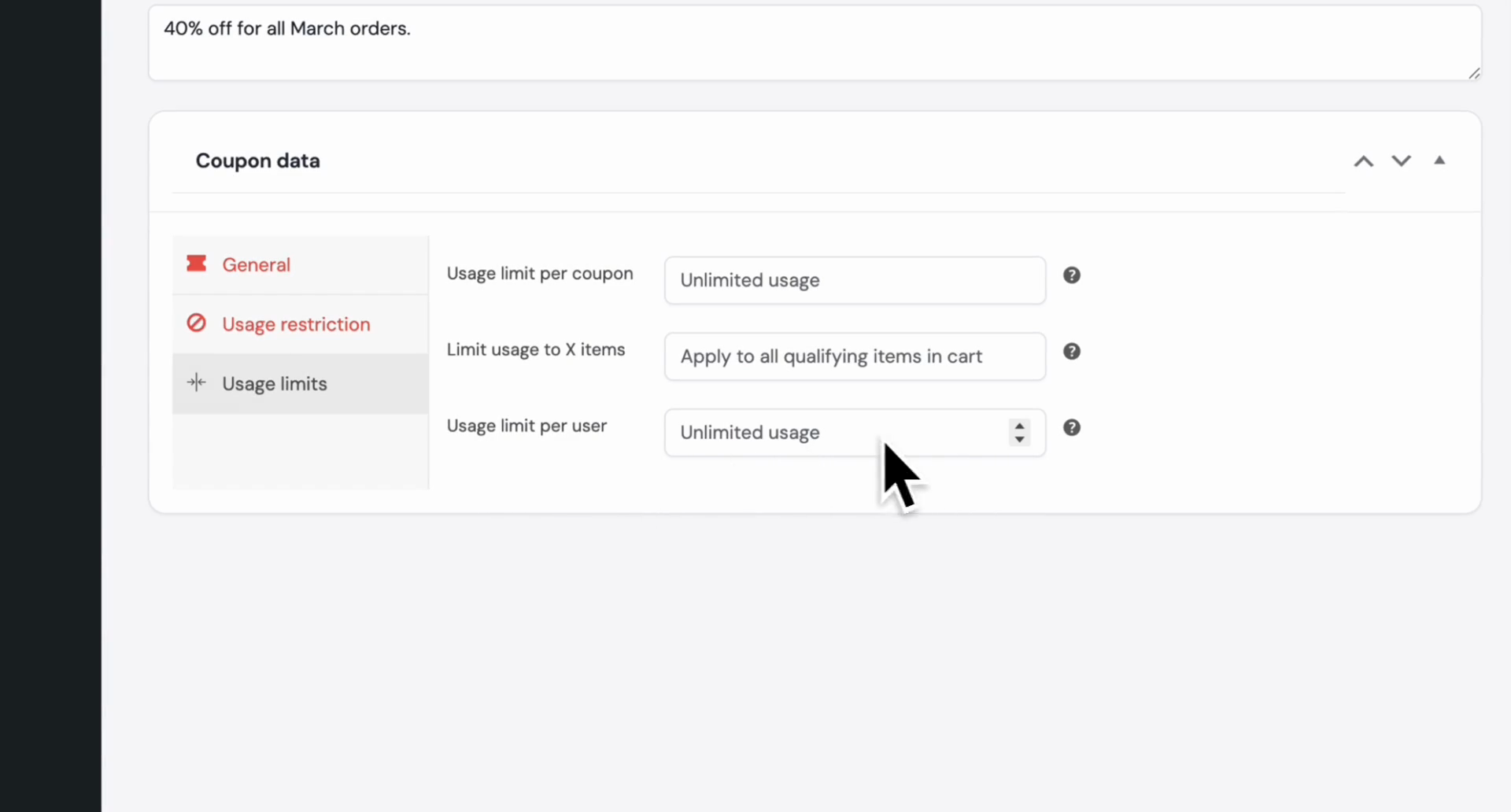
Here, you can set how many times the specific coupon can be used. If you set the usage limit per coupon to 500, the coupon will be used at most 500 times.

You can also set a per-user limit. If your limit per user is 2, a customer can't use it more than twice.
16
Click the Unlimited usage dropdown for 'Usage limit per user.'
Step #16: Click the Unlimited usage dropdown for 'Usage limit per user.'

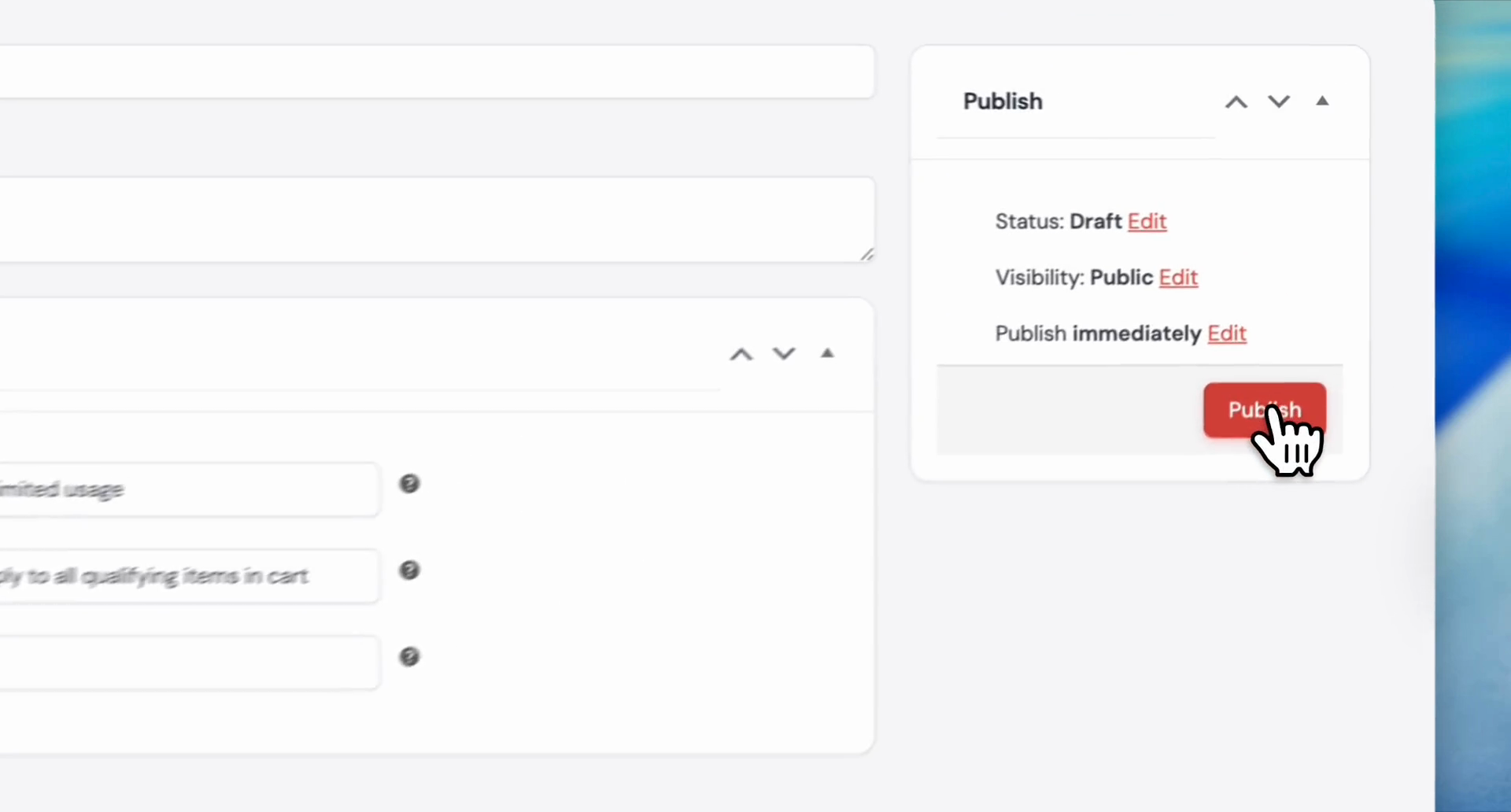
If everything looks good, let's go ahead and publish.
17
Click the Publish button
Step #17: Click the Publish button

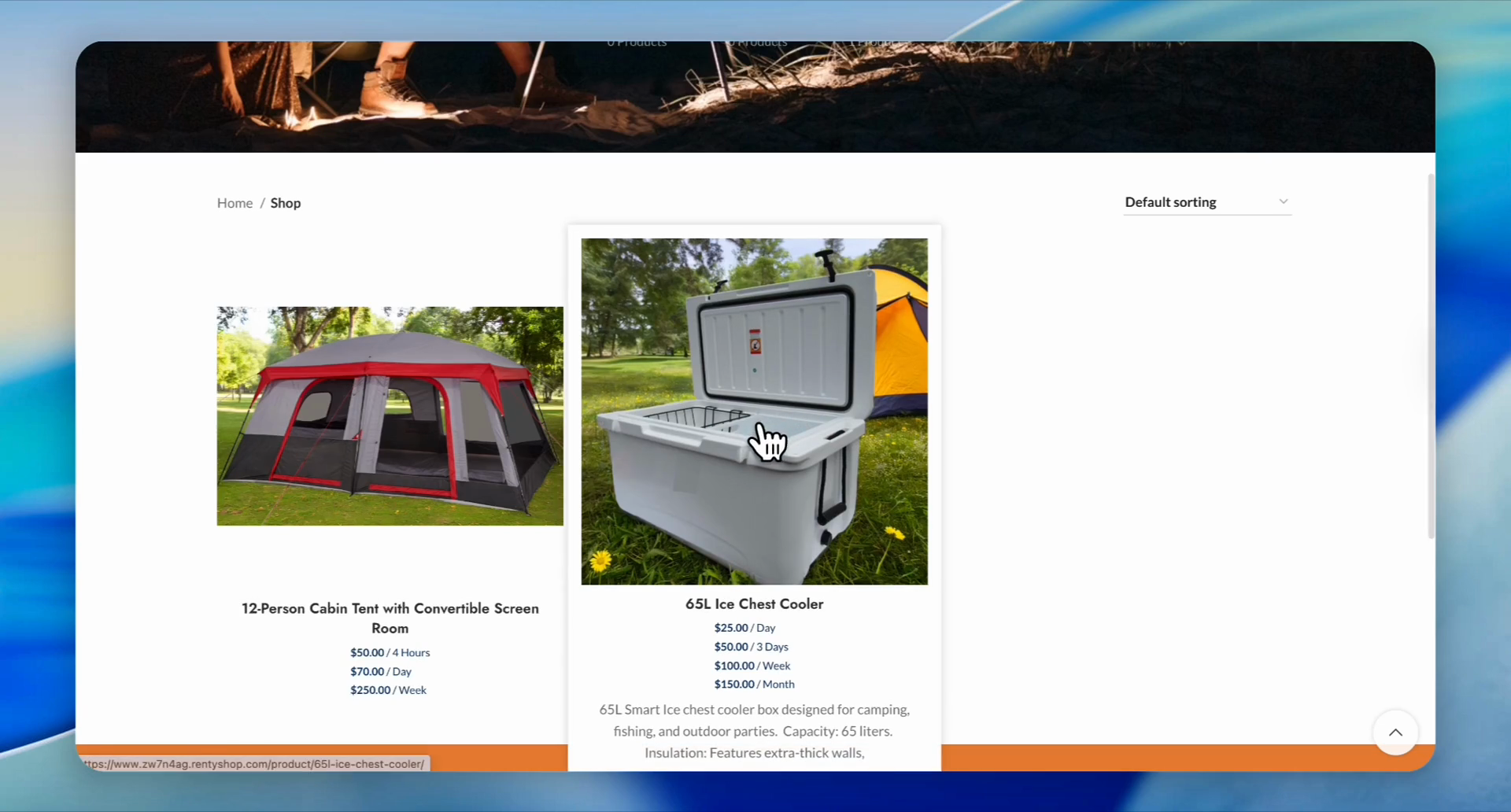
Now, let's test this coupon. Let's return to our website and make a test order.
18
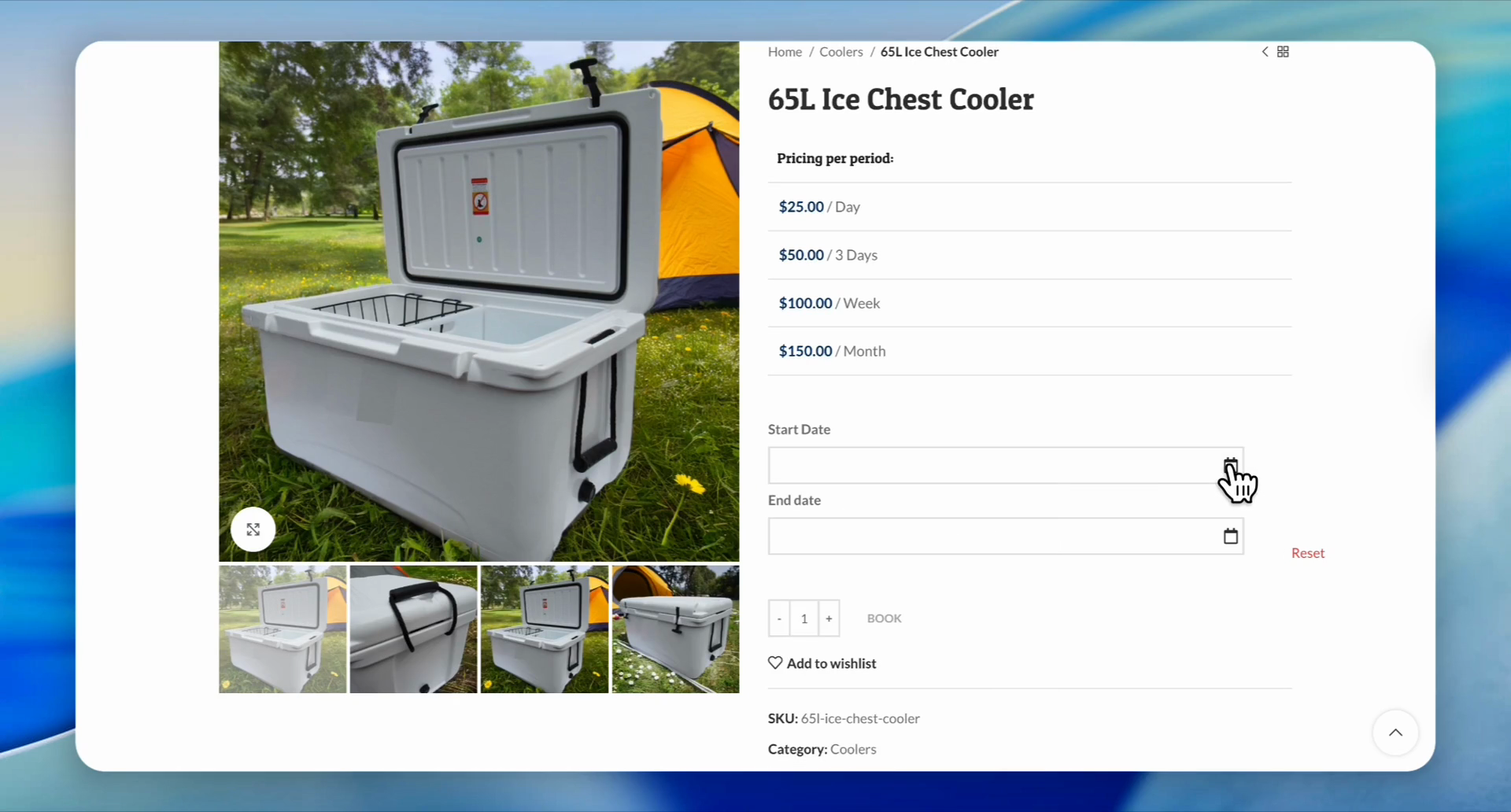
Click on the product
Step #18: Click on the product
19
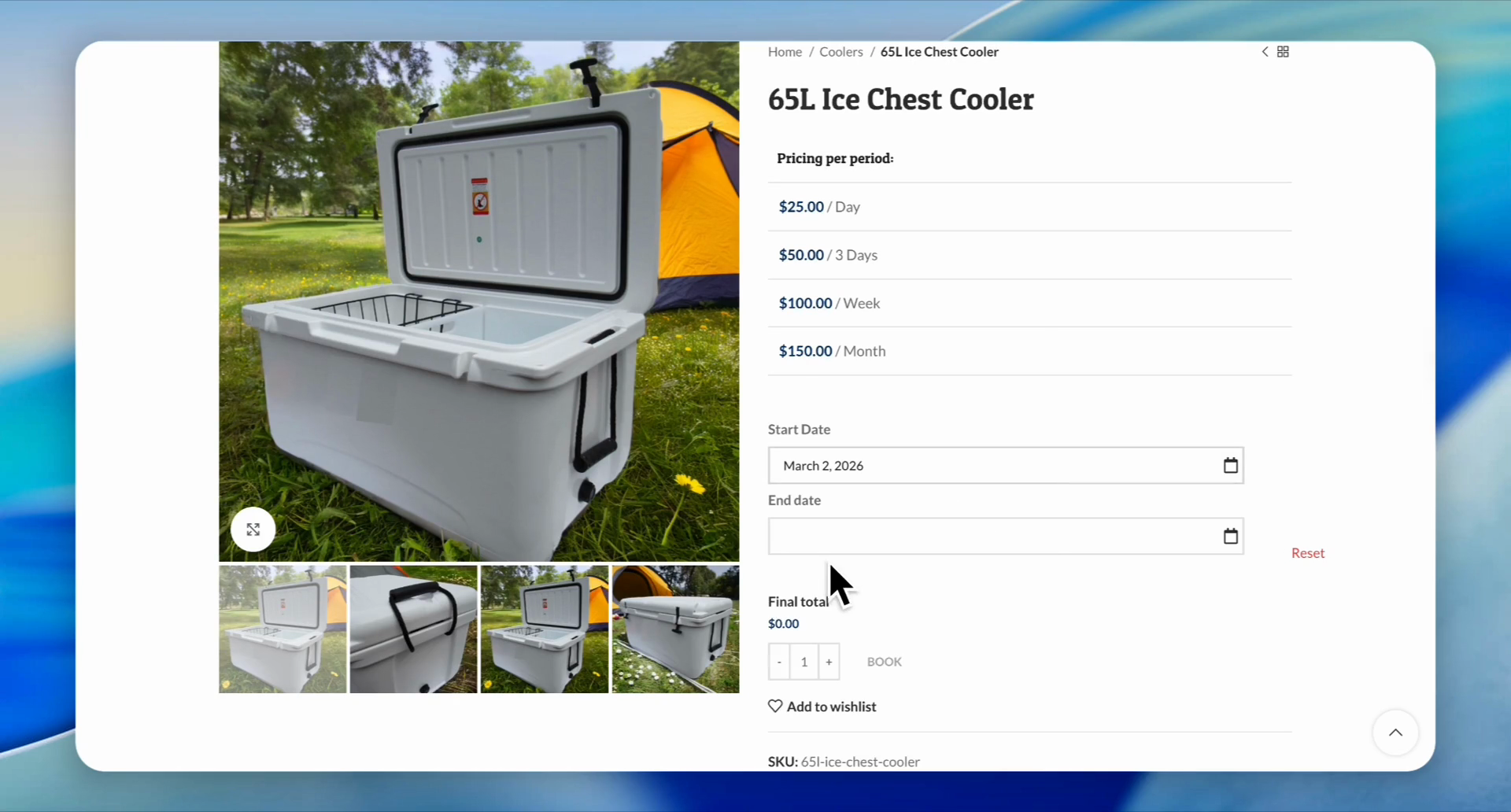
Select Start Date
Step #19: Select Start Date
20
Selec the End date
Step #20: Selec the End date
21
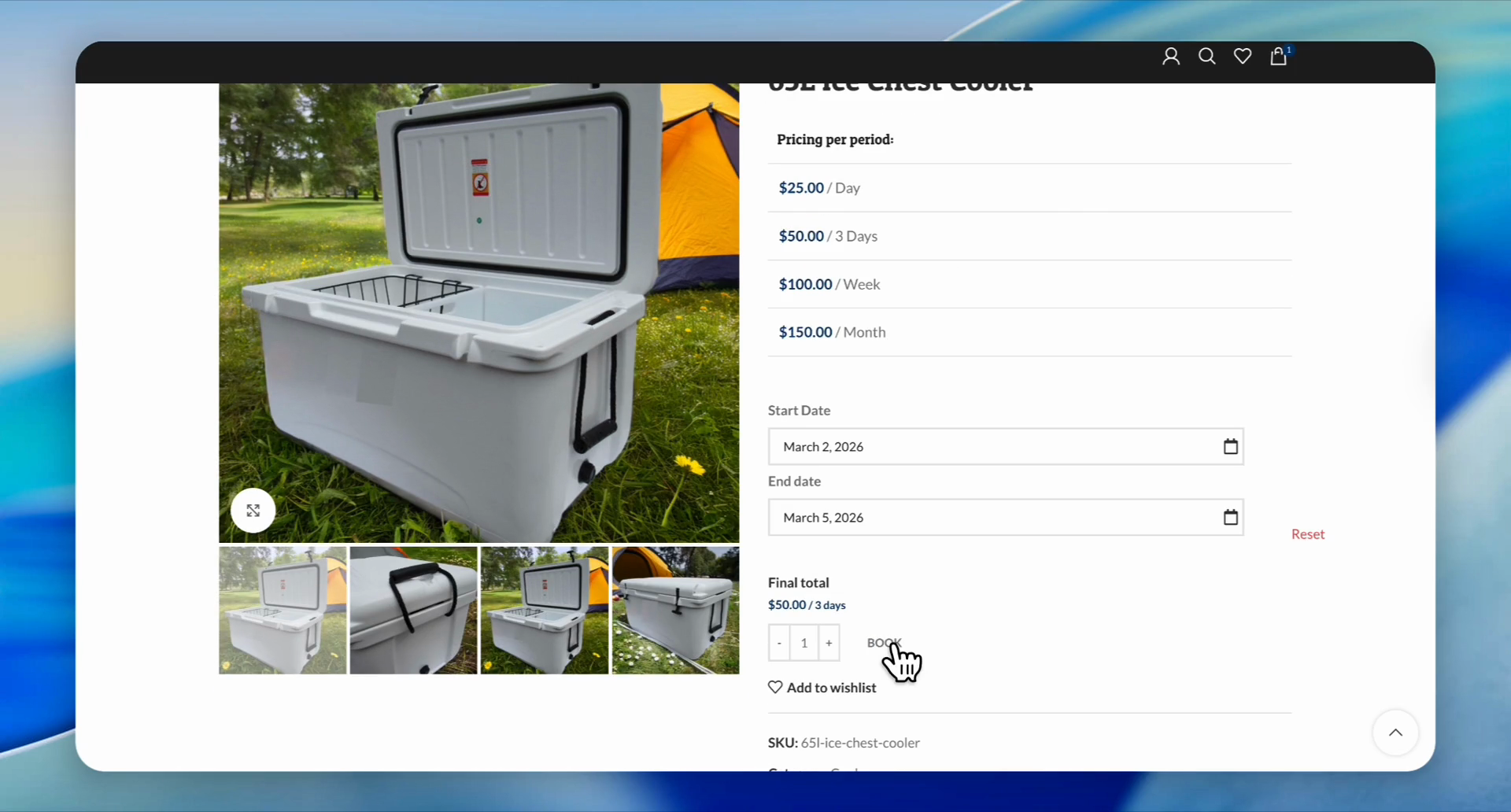
Click the BOOK button
Step #21: Click the BOOK button
22
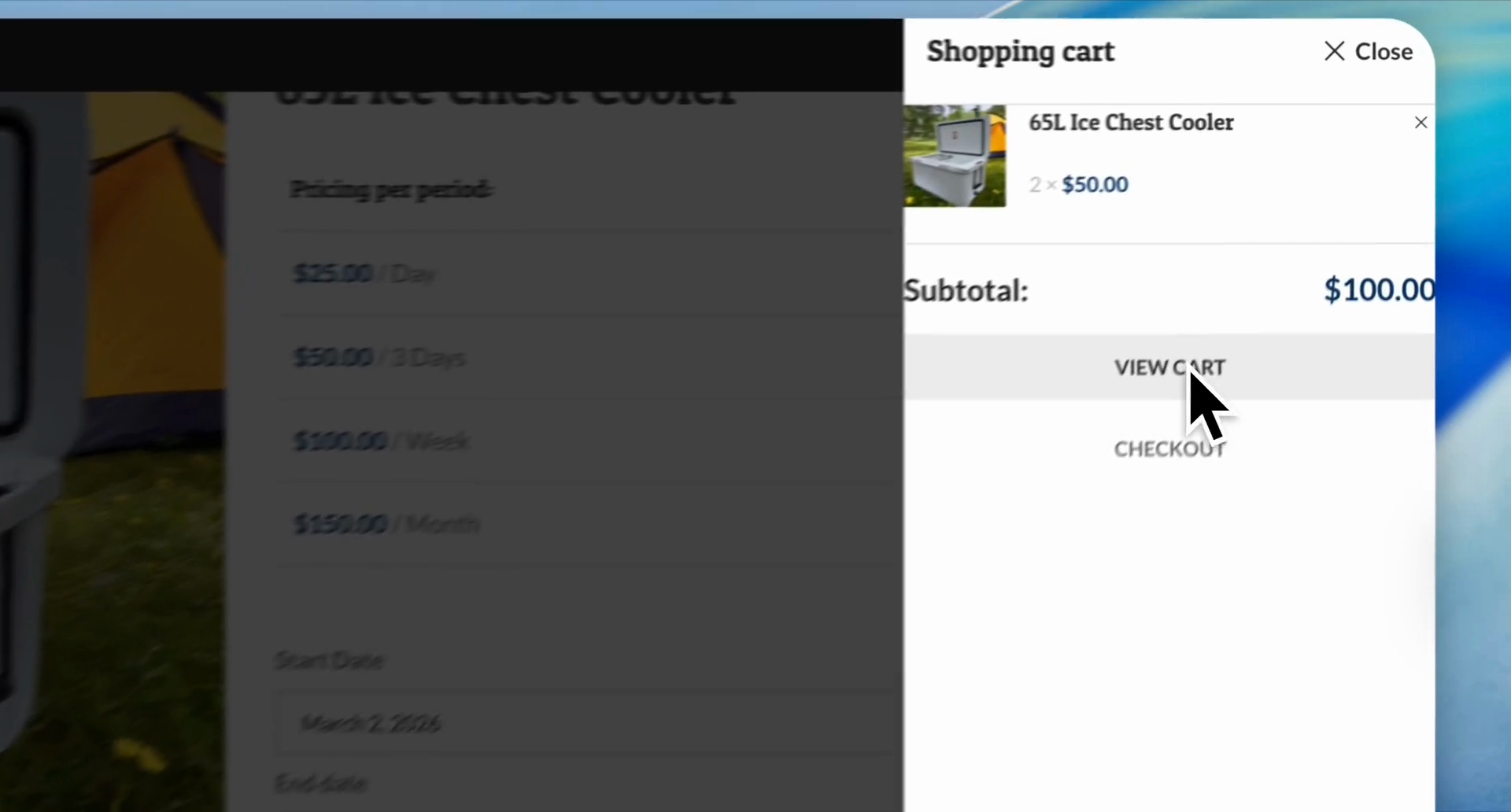
Click the VIEW CART button
Step #22: Click the VIEW CART button
23
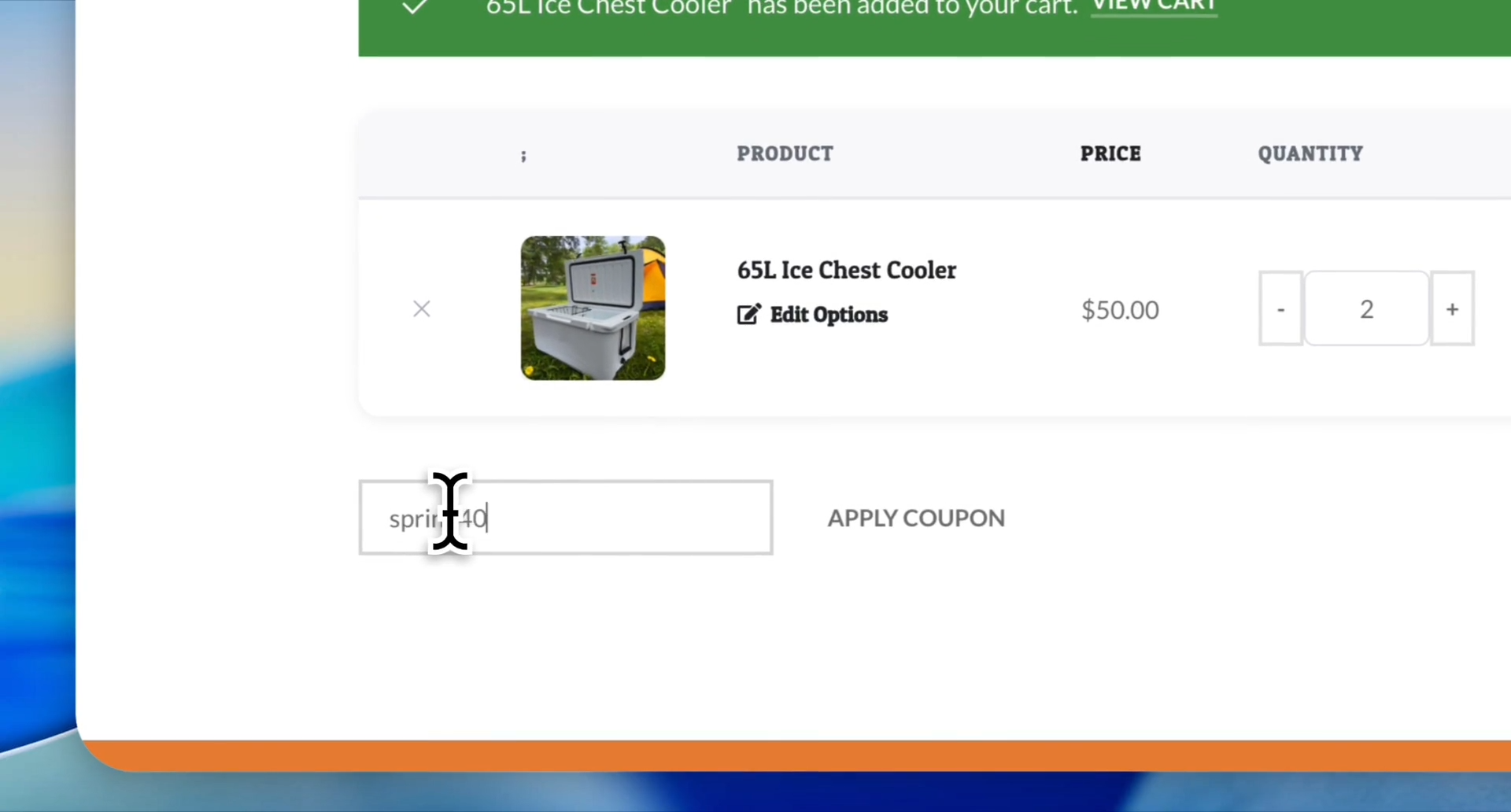
Type your coupon code and click the APPLY COUPON button
Step #23: Type your coupon code and click the APPLY COUPON button
24
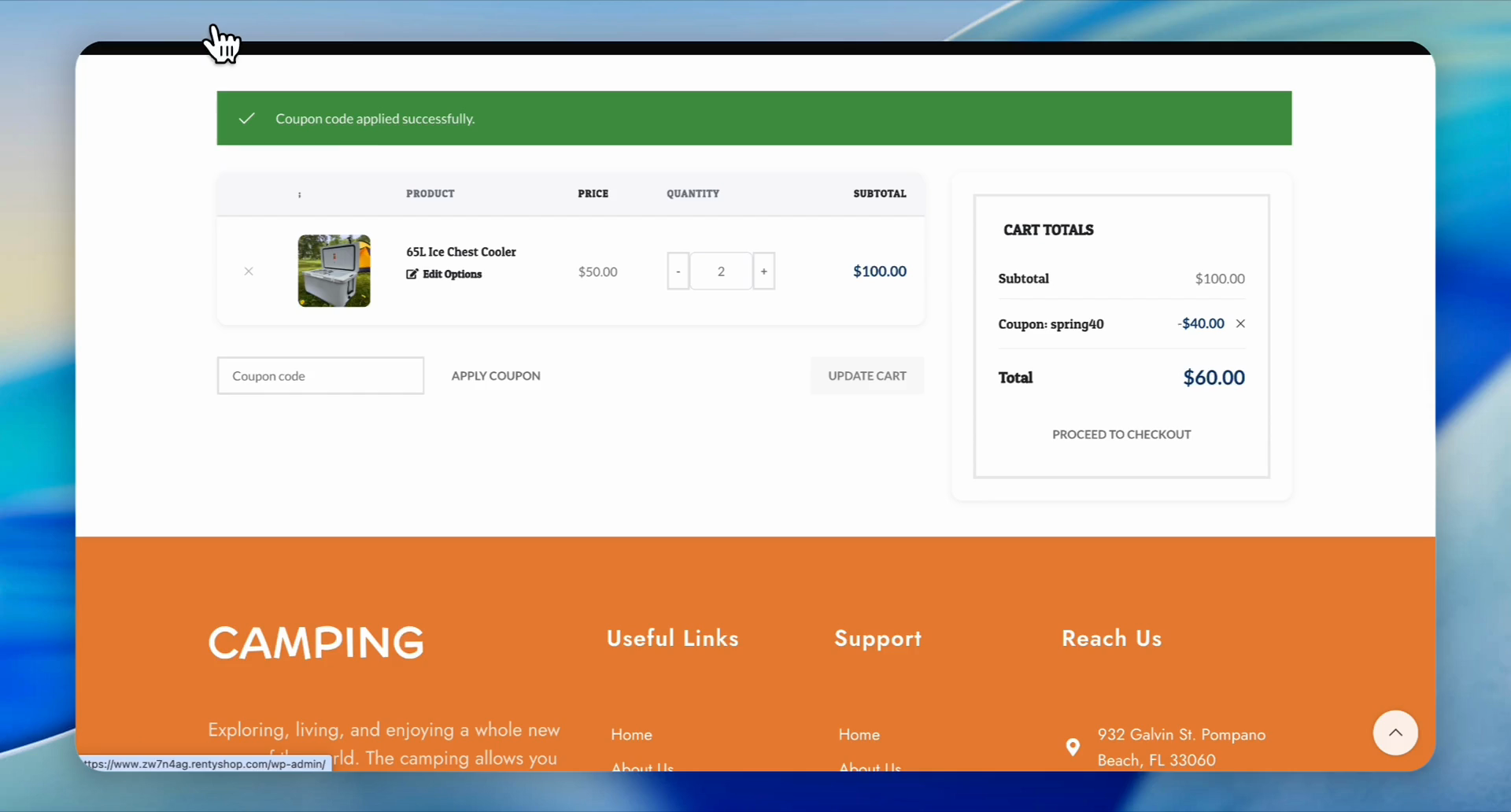
Confirm that the 'Spring40' and a discount of '$40.00' are listed in the Cart Totals.
Step #24: Confirm that the 'Spring40' and a discount of '$40.00' are listed in the Cart Totals.