How to Duplicate Scenes to Build Out a Service
Learn step-by-step how to create, duplicate, and adjust color settings for different service activities like worship, family time, and preaching. This guide covers making clear distinctions, editing levels, and organizing sequences for efficient service preparation.
In this guide, we'll learn how to create and adjust color settings for different parts of a service, such as family time, worship, and preaching. We'll cover how to duplicate existing settings, make precise adjustments, and organize sequences for smooth transitions during the service.
You'll also see how to rename and arrange these settings for easy access and use.
Let's get started
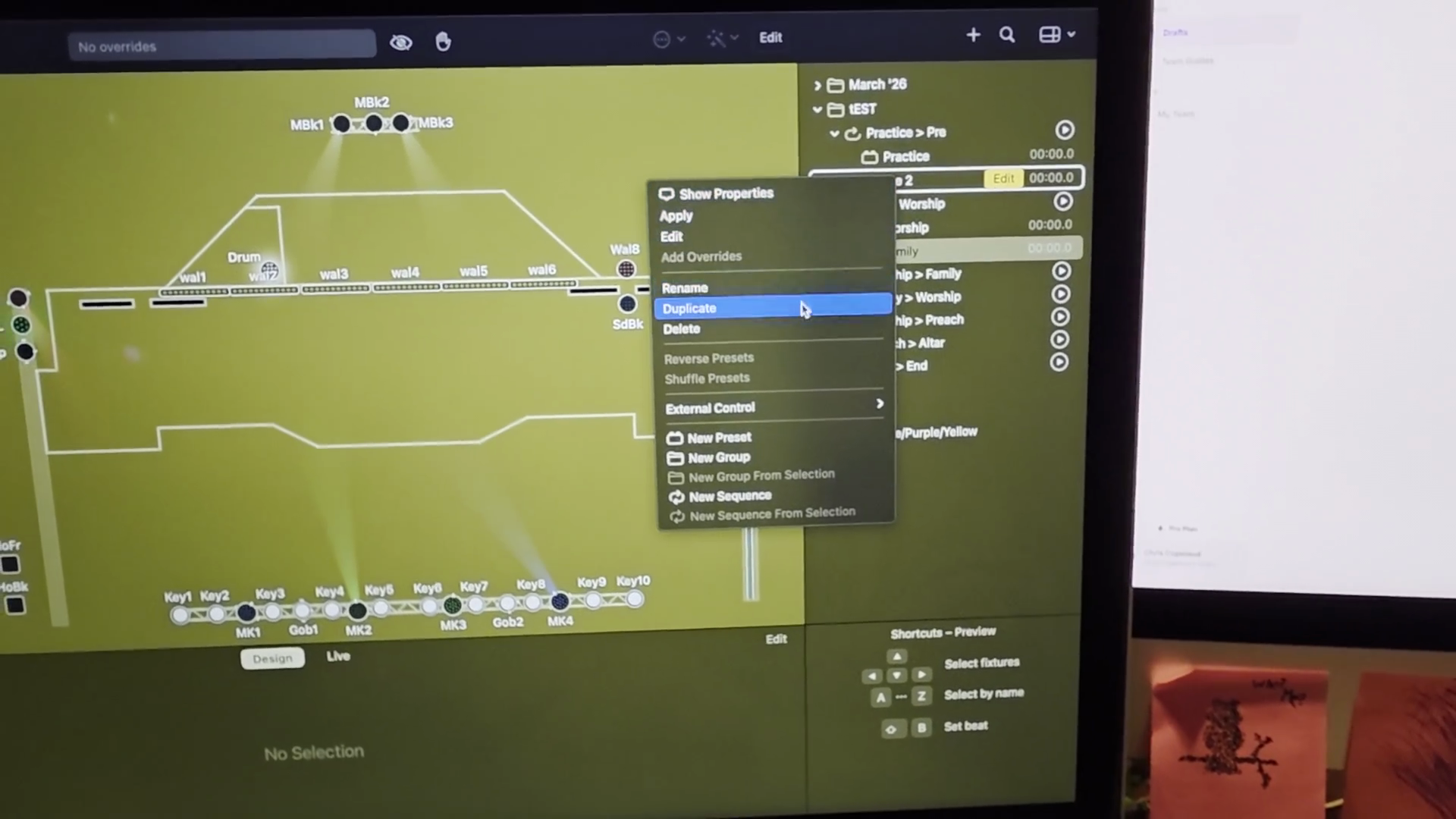
All right, so let's say I need to create another set of colors for a special service or one we don't already have. We have already duplicated it and removed all of the unnecessary items.
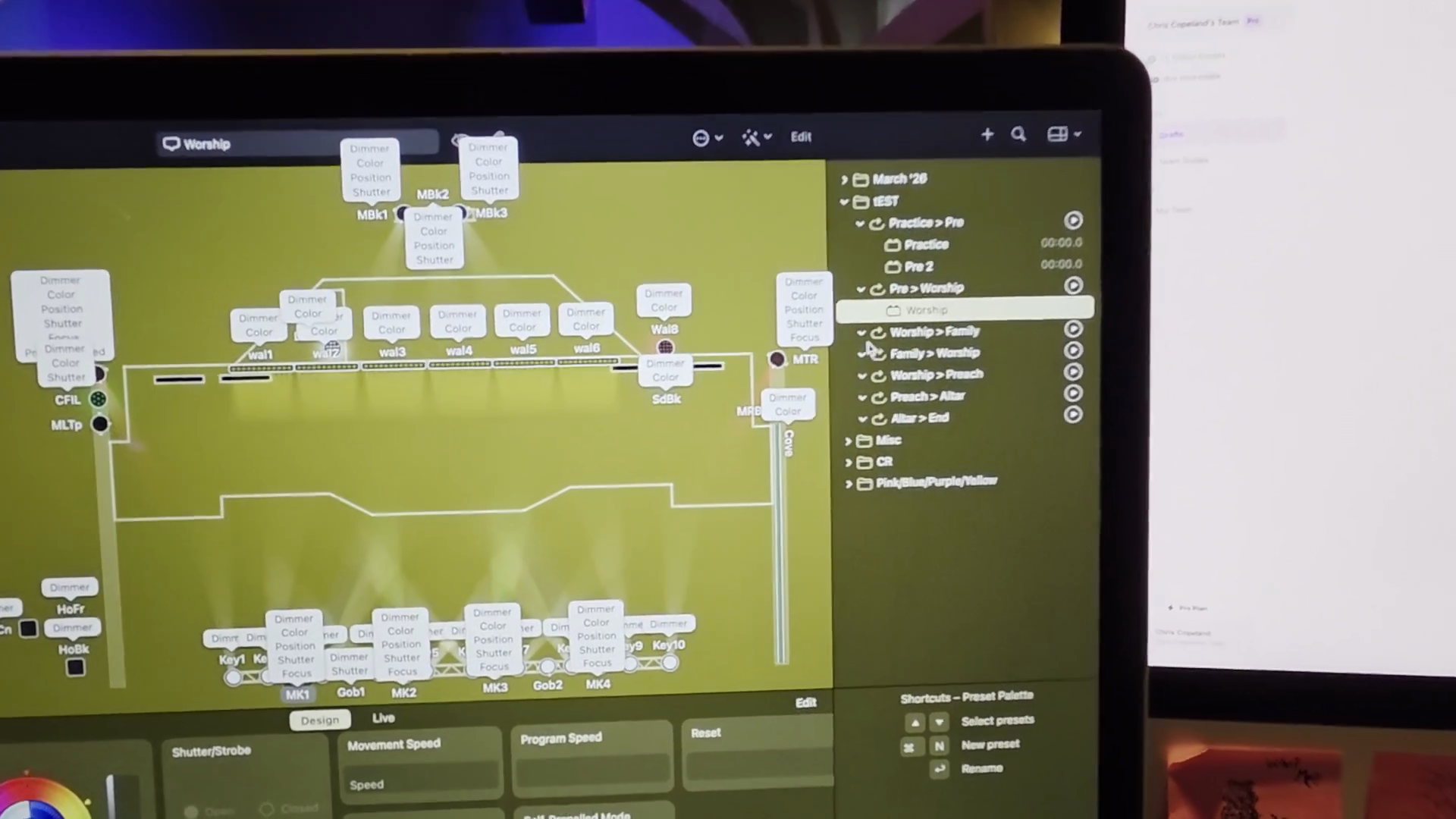
We've narrowed it down to a few settings that we can easily adjust. Now we need to make clear distinctions between worship, family time, preaching, and pre and post service scenes. If you are satisfied with the colors in the scene you were adjusting, it's time to duplicate it.
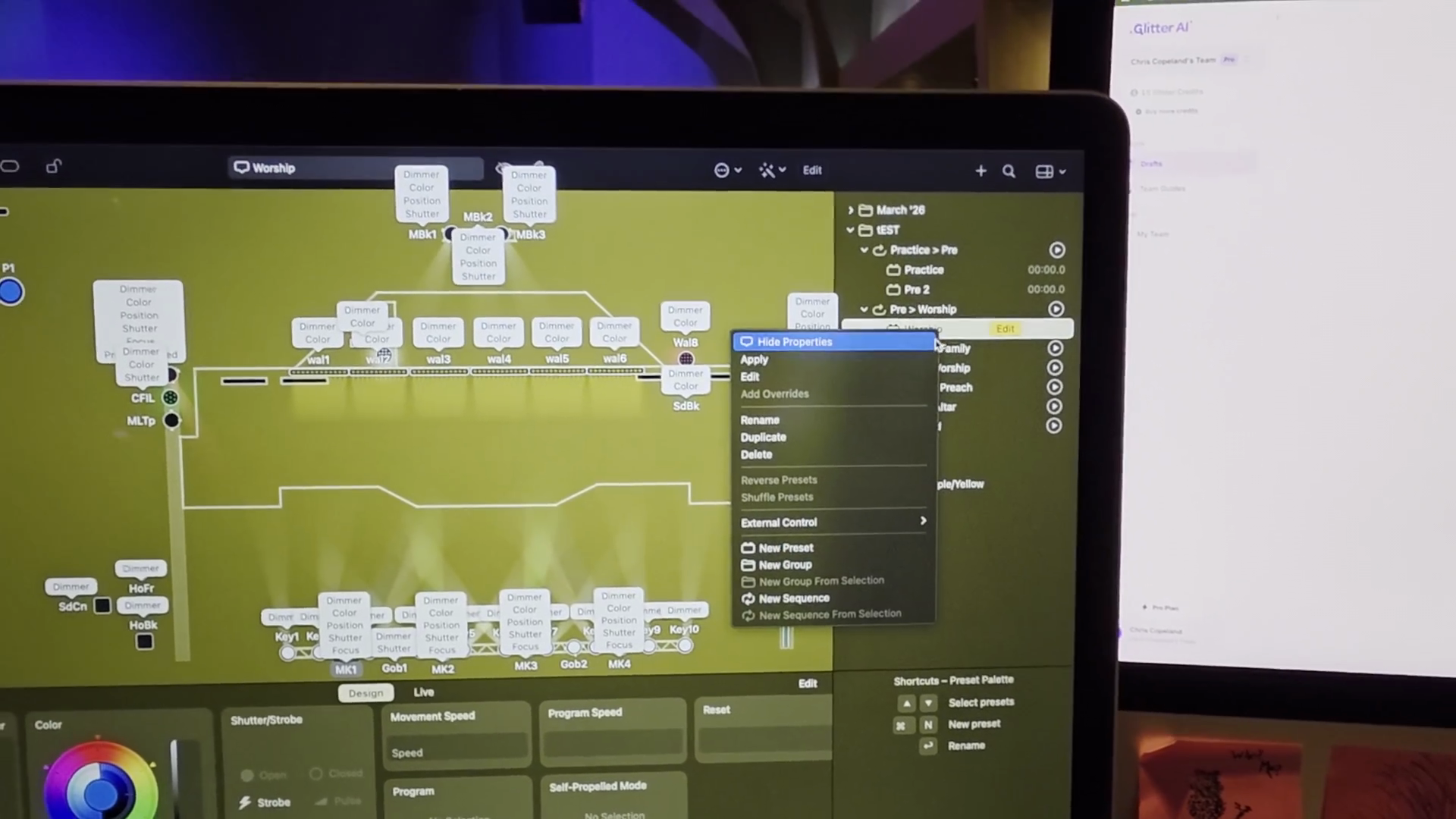
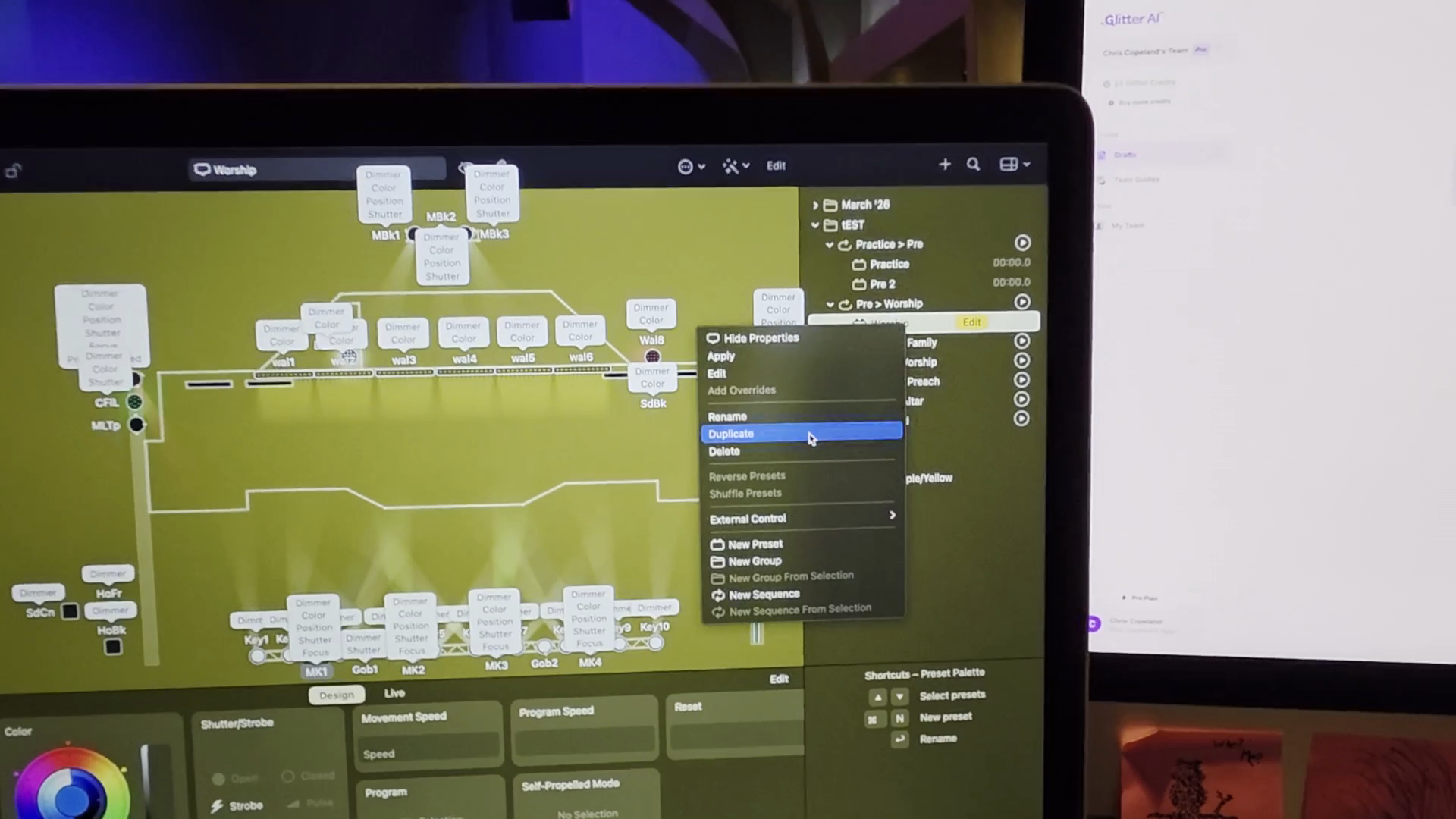
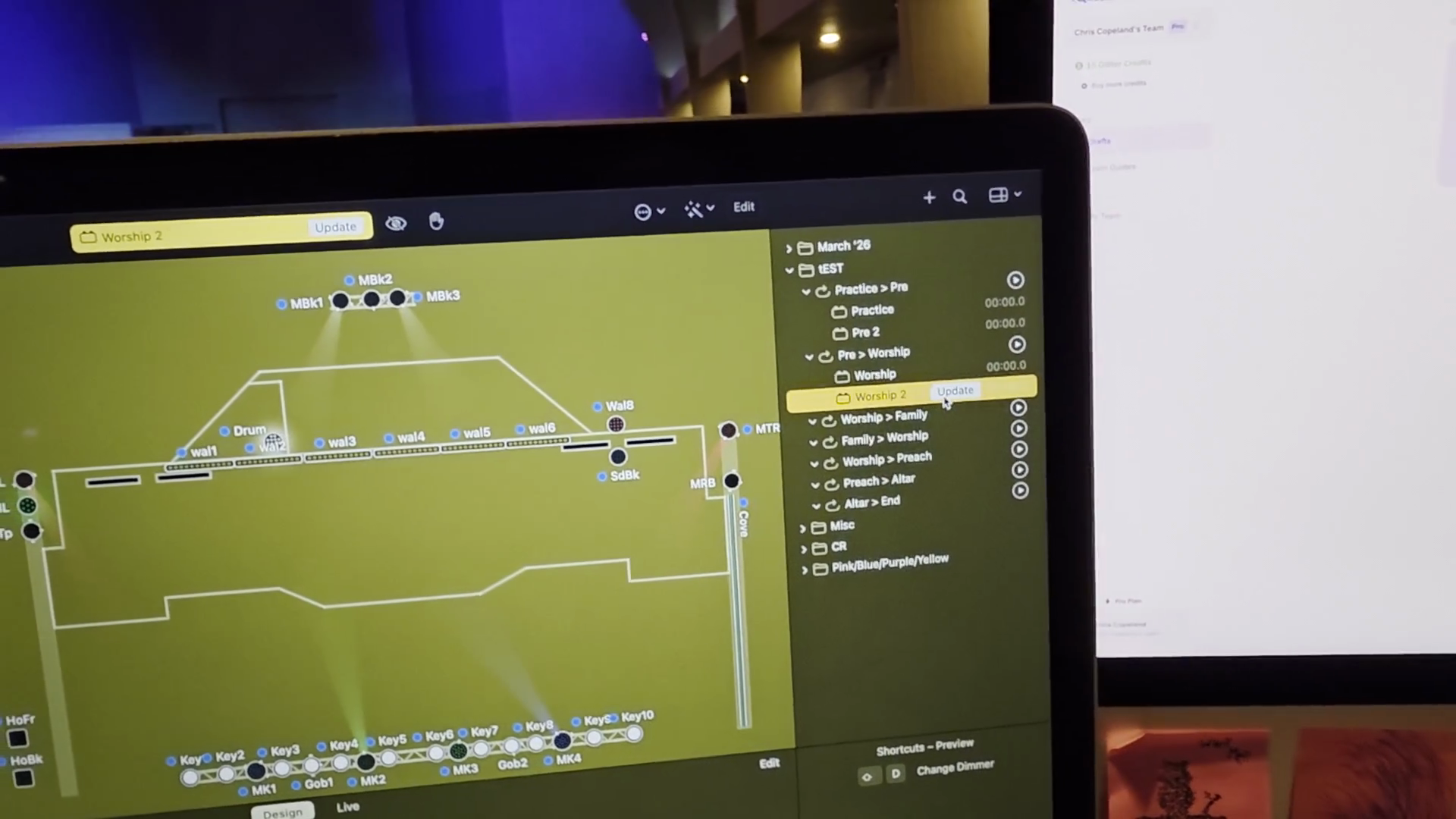
I'll duplicate it again. If it is yellow like this, it is in edit mode. I can click here and adjust anything I want.
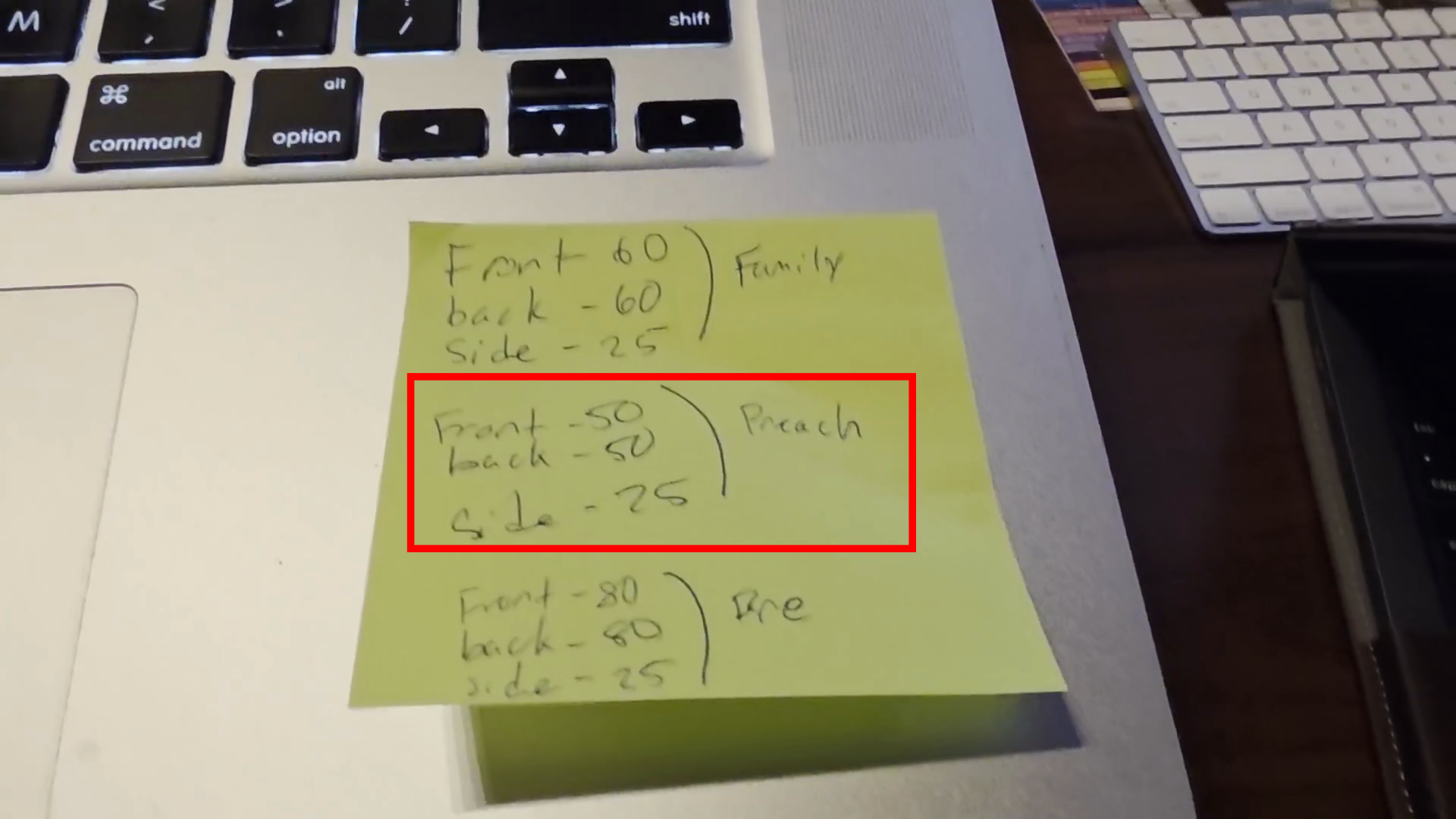
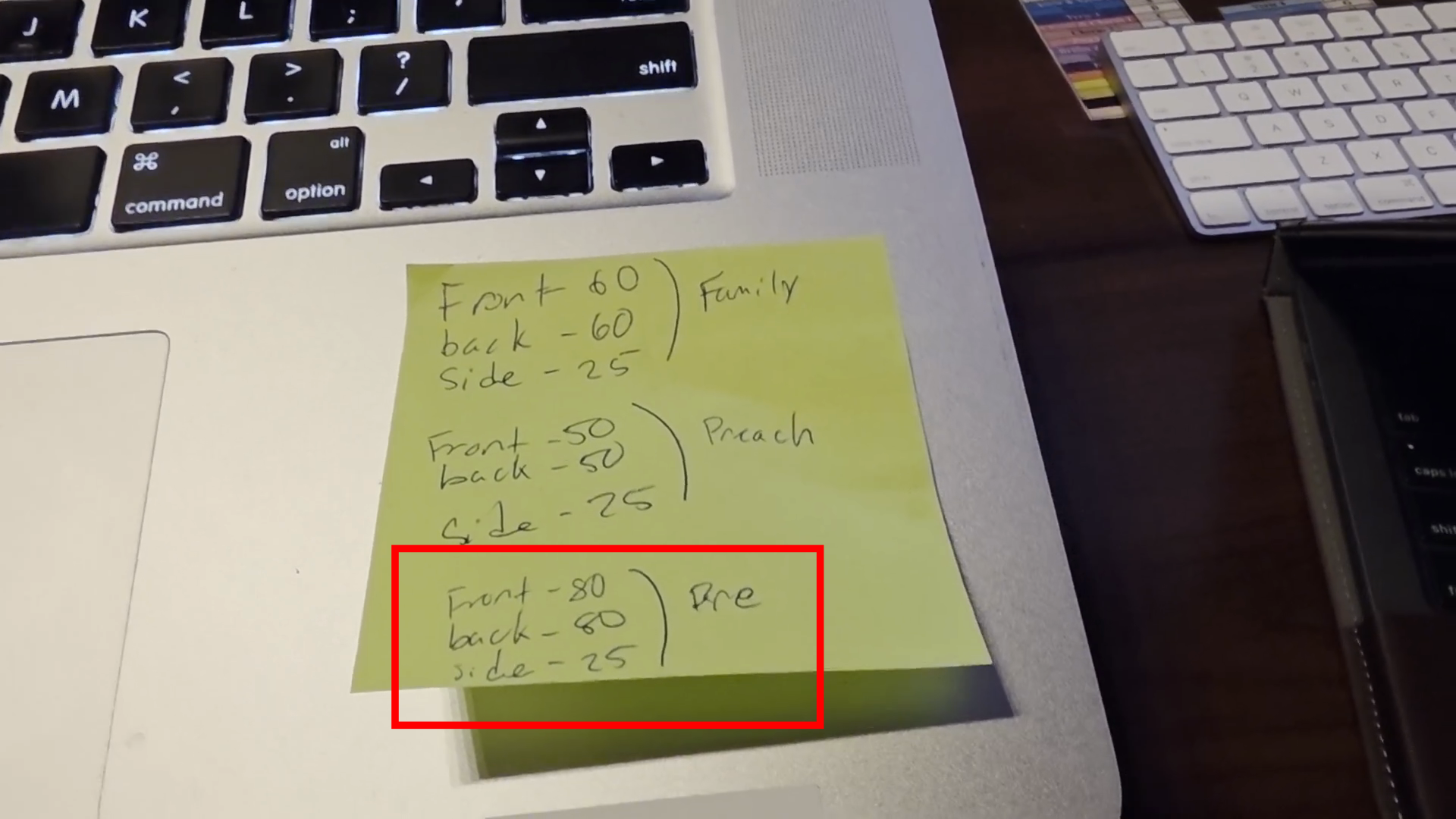
Refer to the physical note on the computer for lighting values. You'll see the levels for family time. Our front house needs to be 60, the back house needs to be 60, and the sides need to be 25.
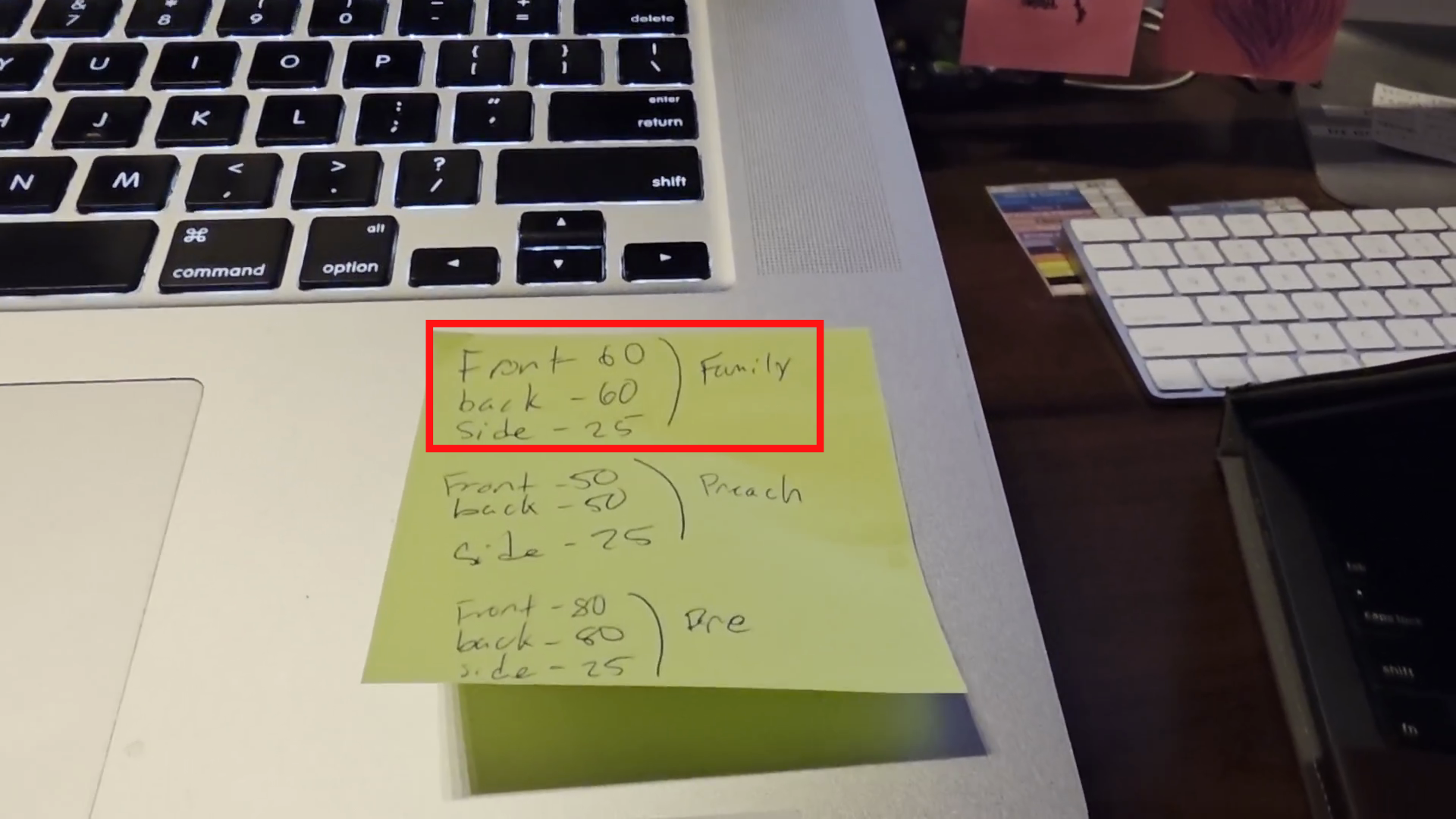
These are all the subtle differences for the various settings.
When I am finished, I will update it.
I will right-click it again to rename it.
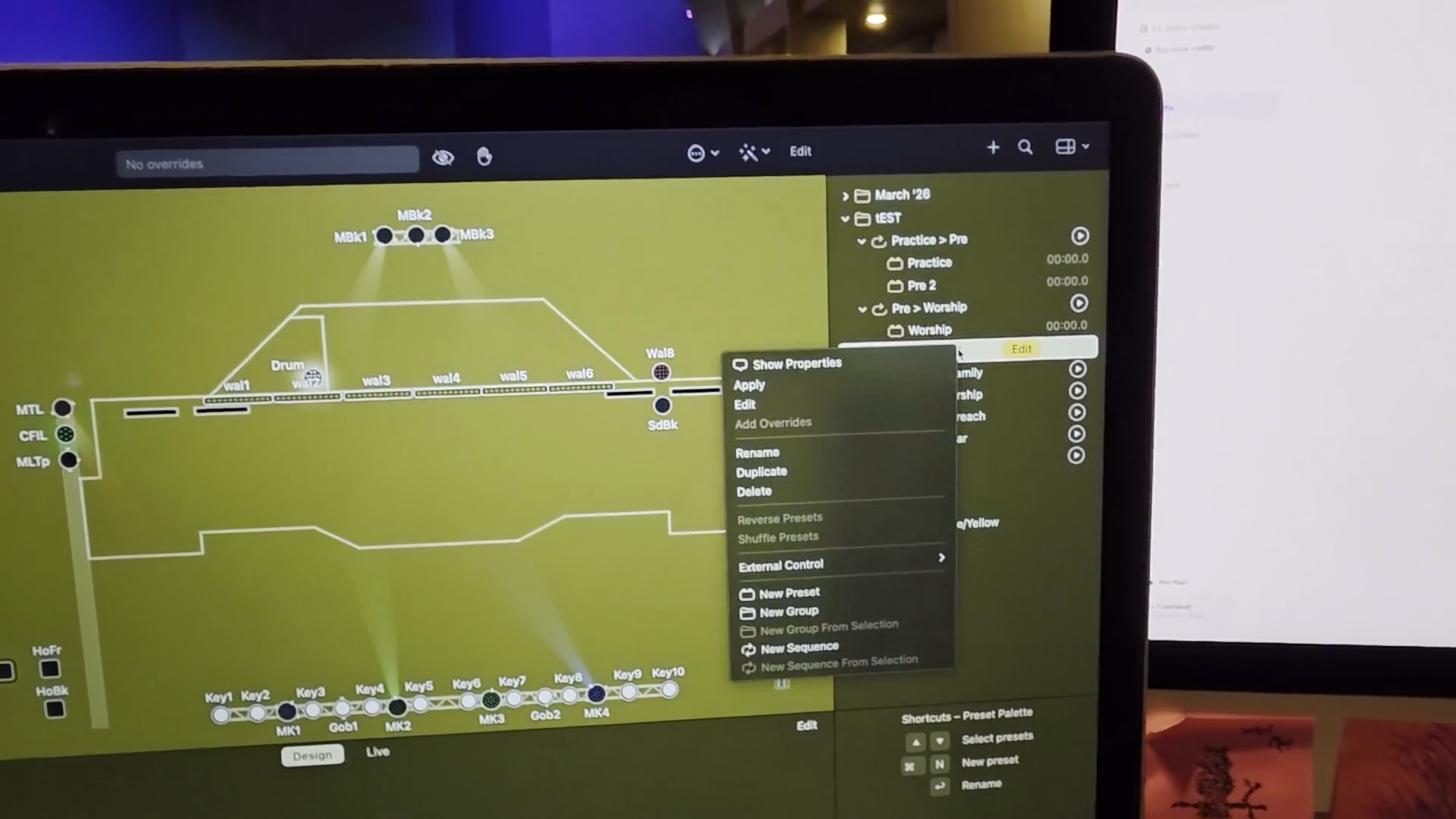
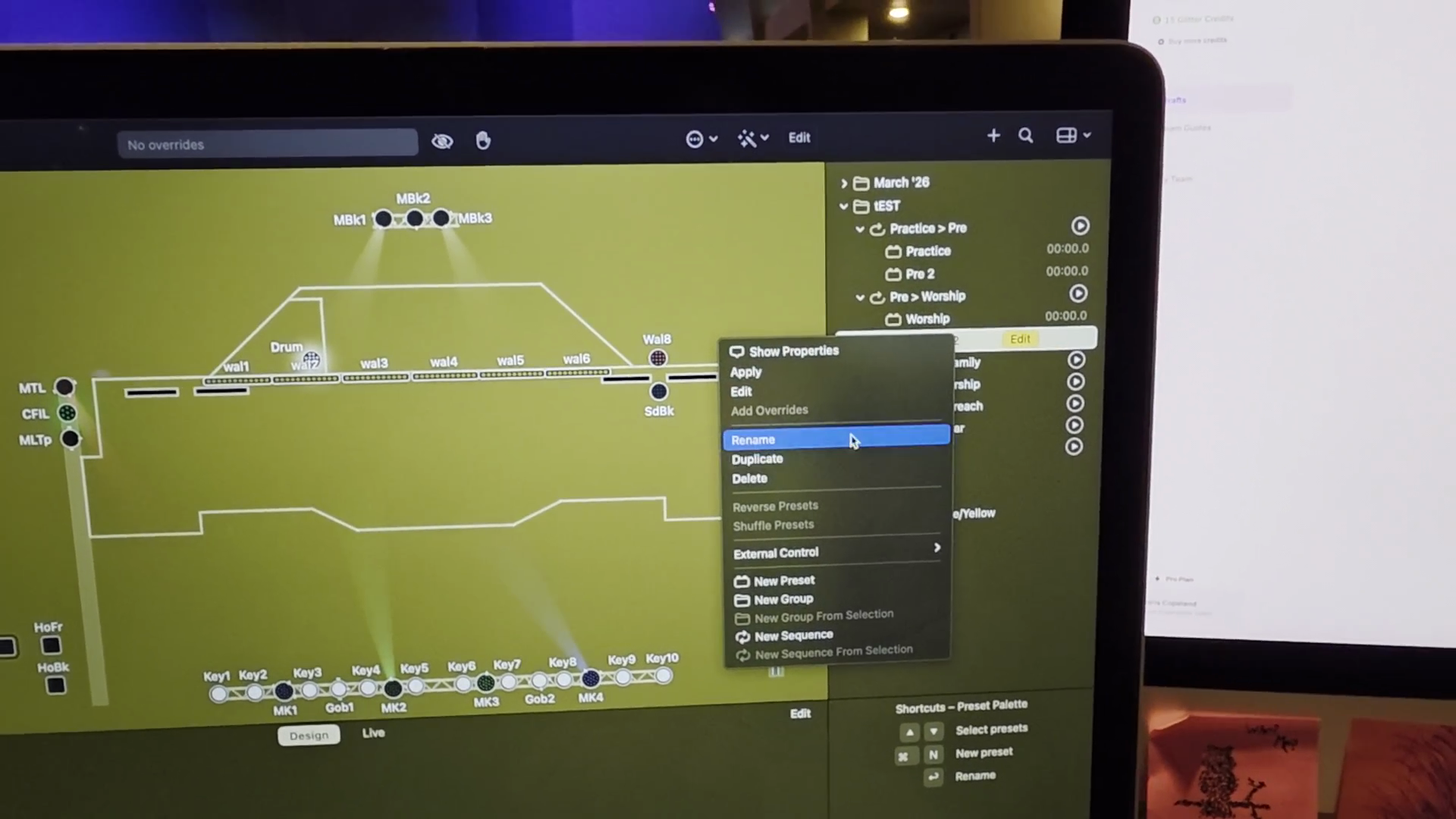
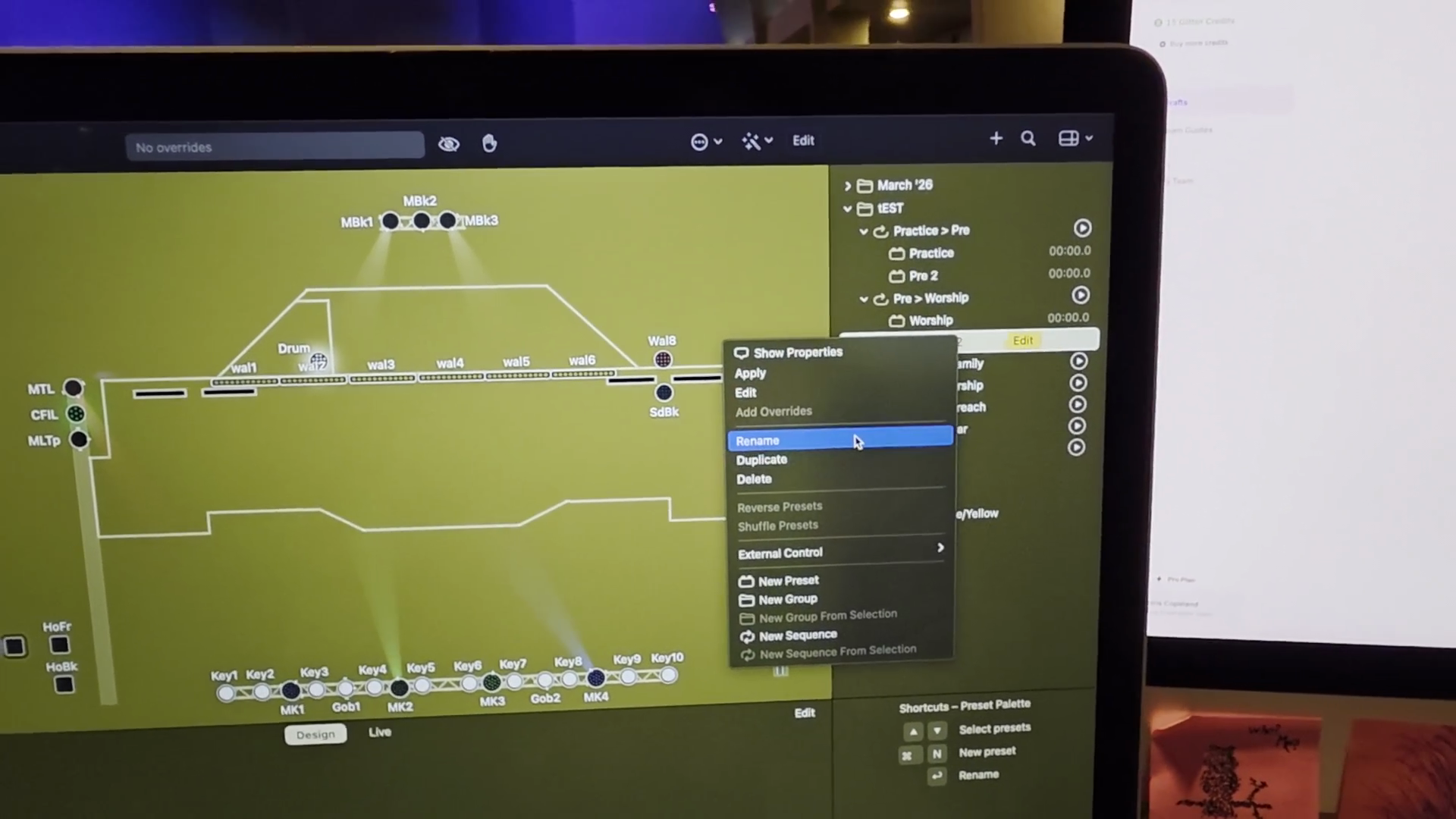
From there, I would rename it "family," okay?
Now, we duplicate these and plug them into whichever sequences need that scene.
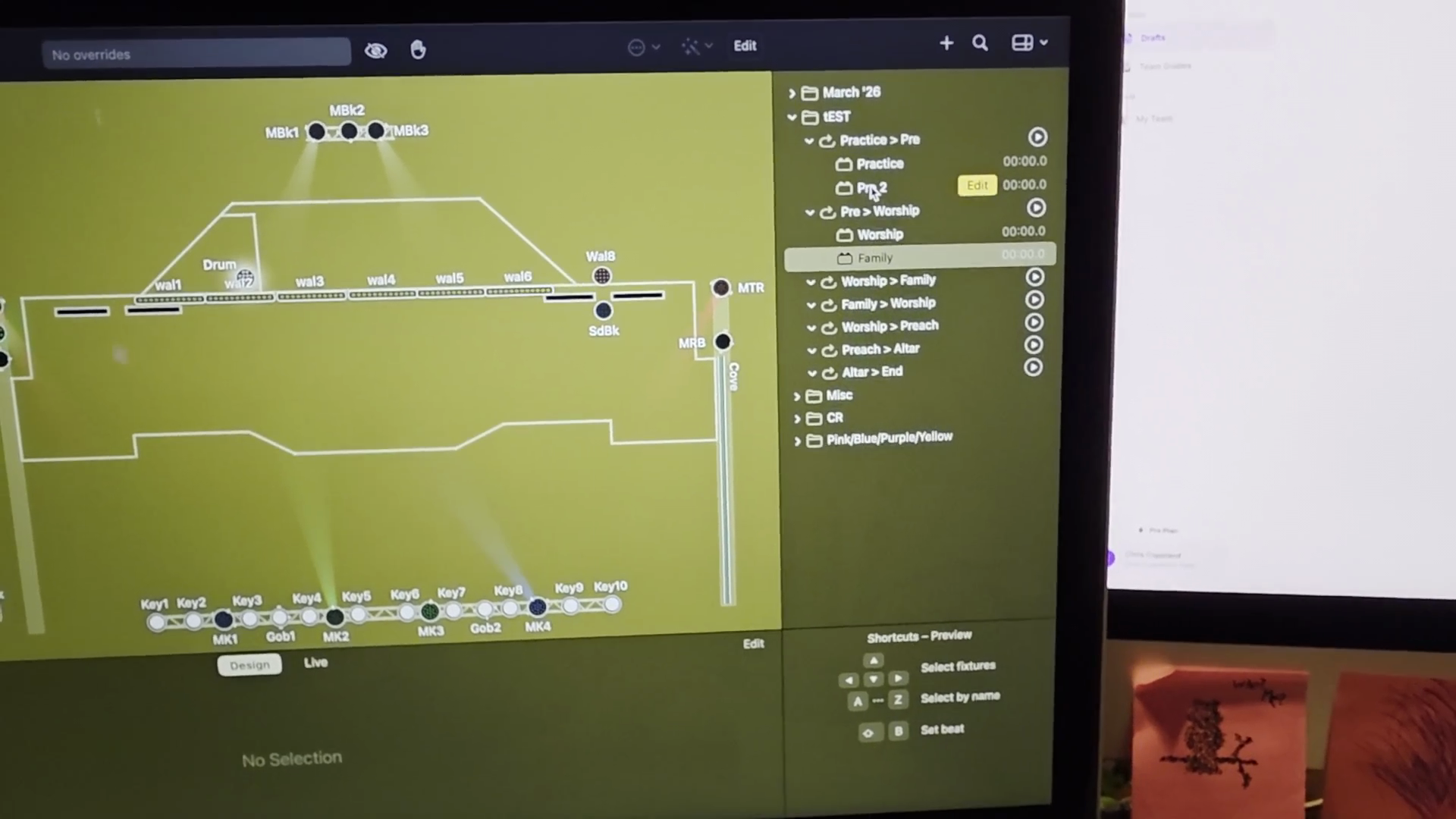
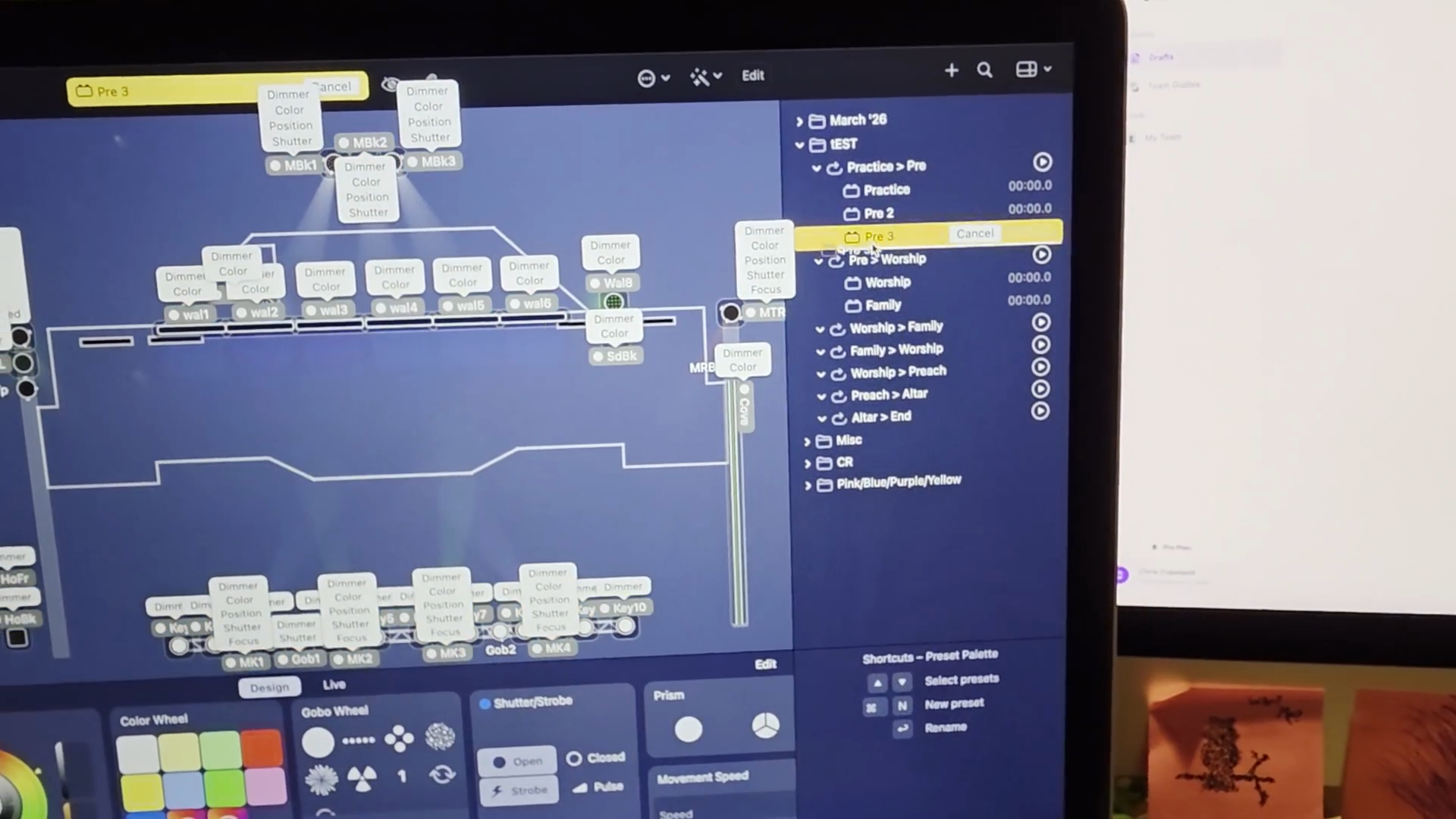
Each sequence should contain only two items: the current one and the one it is transitioning to.
We continue that process until every sequence has the two scenes it requires to flow smoothly. You can look at any other service lighting setup already made to get a live example of what this looks like for further help.
Something else to note is these sequences are already built for you. There are steps to show you how to build a new sequence in the "How to Build Light Sequences From Scratch" guide.