
How to Create and Apply Account Credits or Coupons for Customers Who Want to Change to a Different Level
Learn step-by-step how to create and apply account credits when customers change their plans. This guide covers both monthly and annual plans, ensuring accurate credit calculation and proper coupon setup.
In this guide, we'll learn how to create an account credit for a customer who is changing to a different level within MedPath. This process involves calculating the correct credit amount based on what the customer has already paid and entering it as a one-time coupon or credit in the system.
We'll also cover how to ensure the credit is applied to the correct product and how to set the coupon to expire after one use.
Let's get started
First you need to figure out how much the family has "used up" and how much of their payment they "have left." You're literally the math tutor so I trust you can figure that out, lol.
The process is the same whether they are going to a higher or lower level because all you're doing is providing "an account credit" in the form of a coupon code. You do need to know which level they want to switch to so you can make it work right.
In my video, I assume they are moving to a higher-level product. Figure out what they paid. Let's say they paid monthly for $40 and after a week they want to change to a different level, they've essentially used $10. So you'll give them a coupon for $30
If it's the annual plan and it was $100 and they're nine months into the year, ready to upgrade after completing everything, you can give them a $25 coupon since only the last quarter remains.
Always double check your math to make sure you're giving them the amount they have left, not the amount they spent. It's SUPER easy to flip those around.
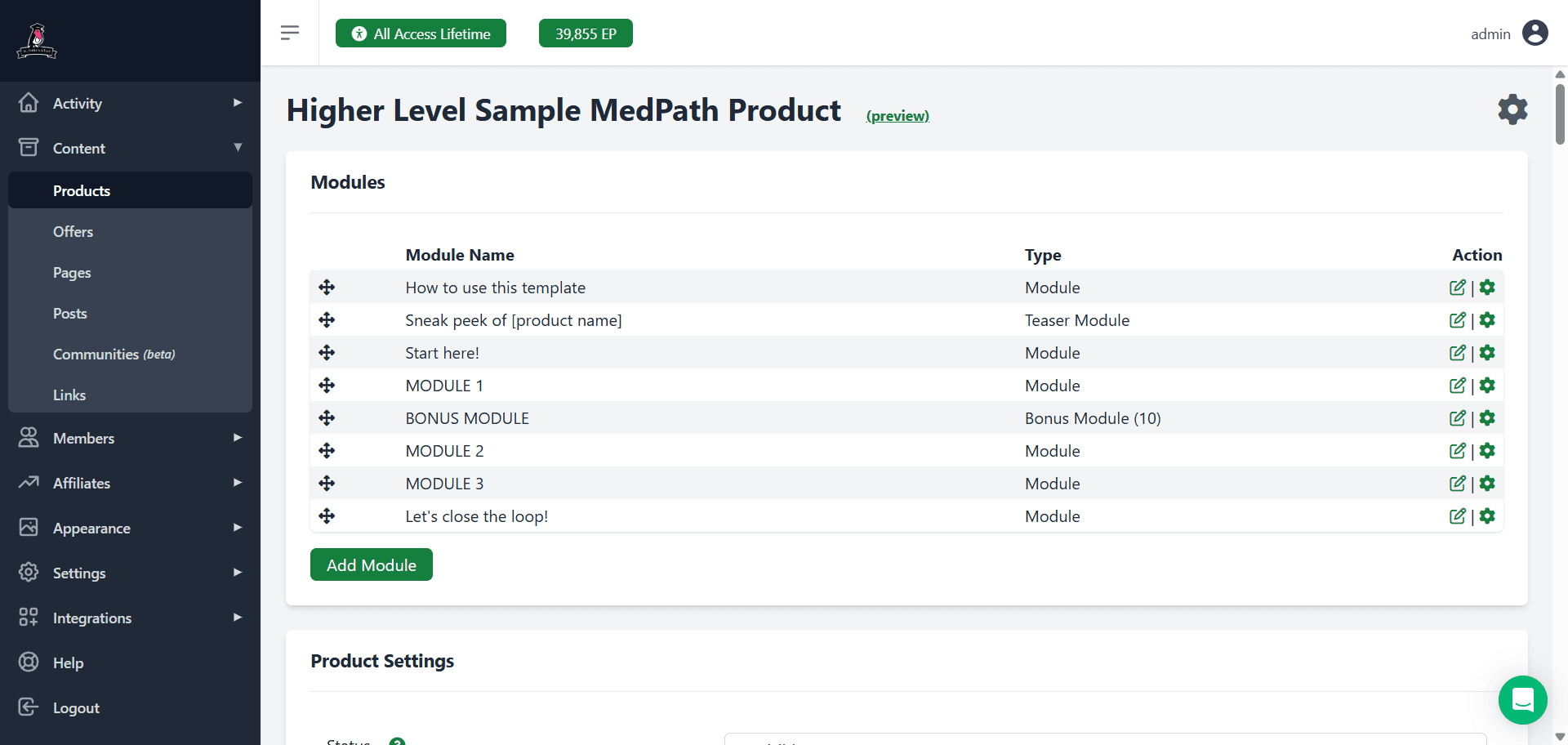

You can choose to apply this for both the monthly or annual plan, or check in advance which one they need. It's up to you.

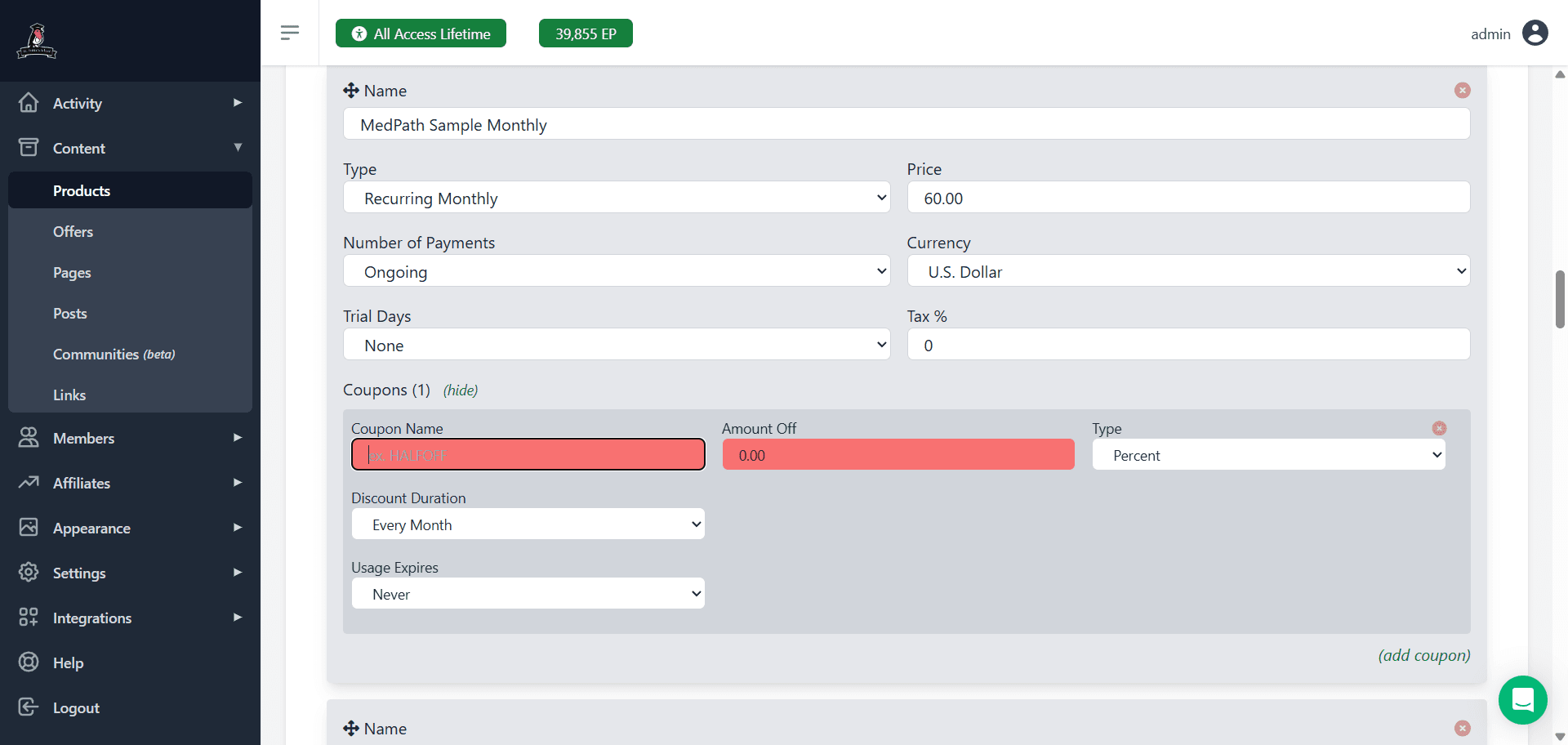

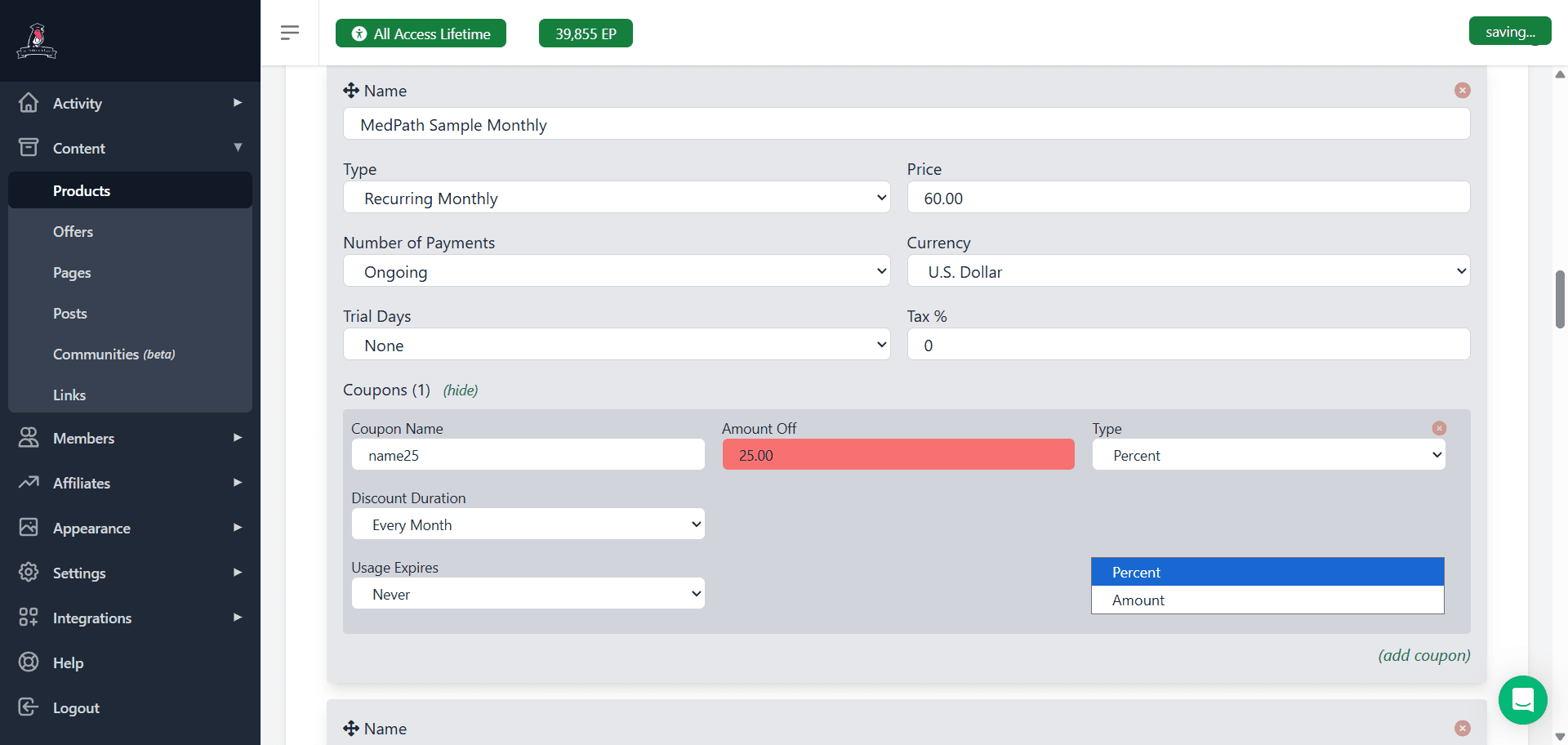
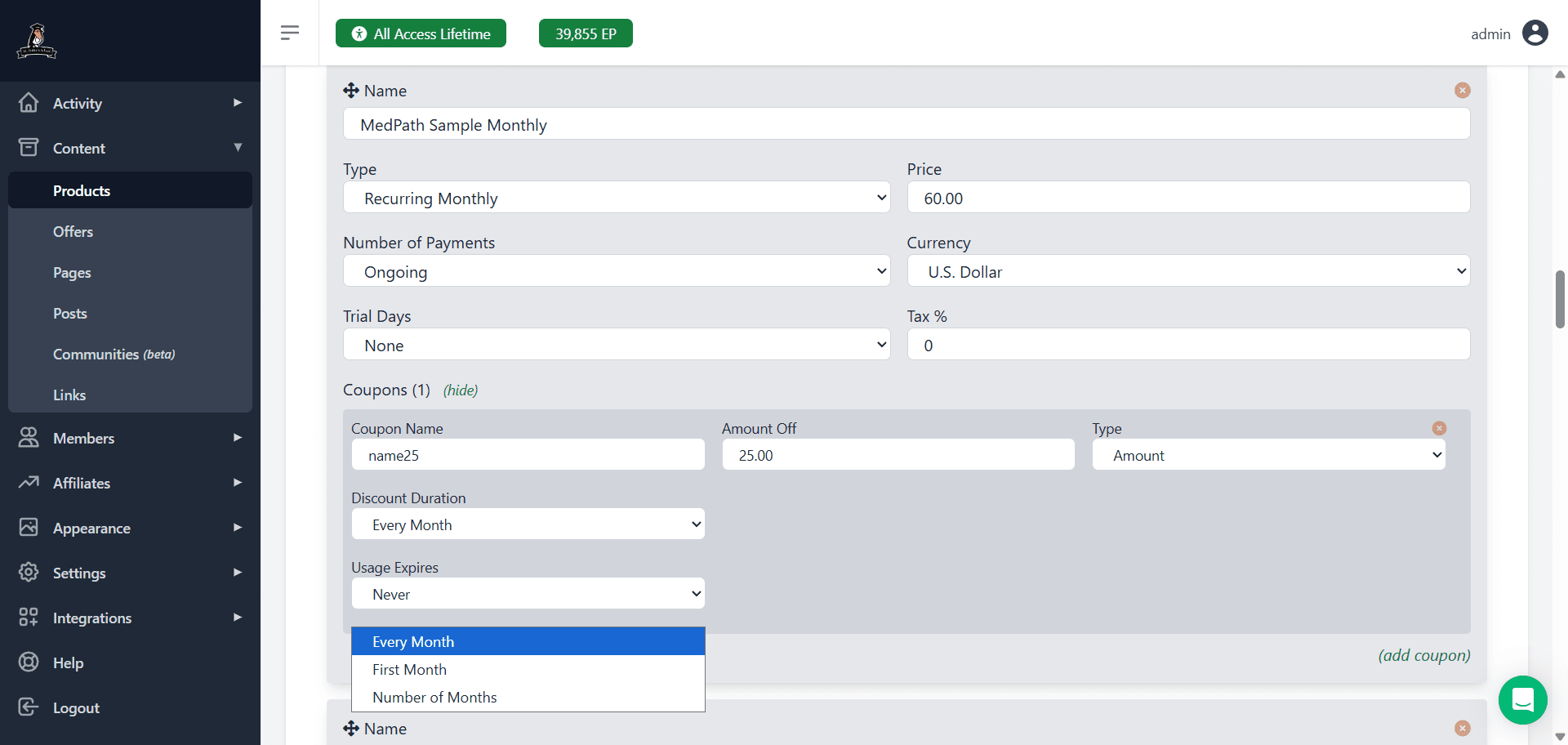
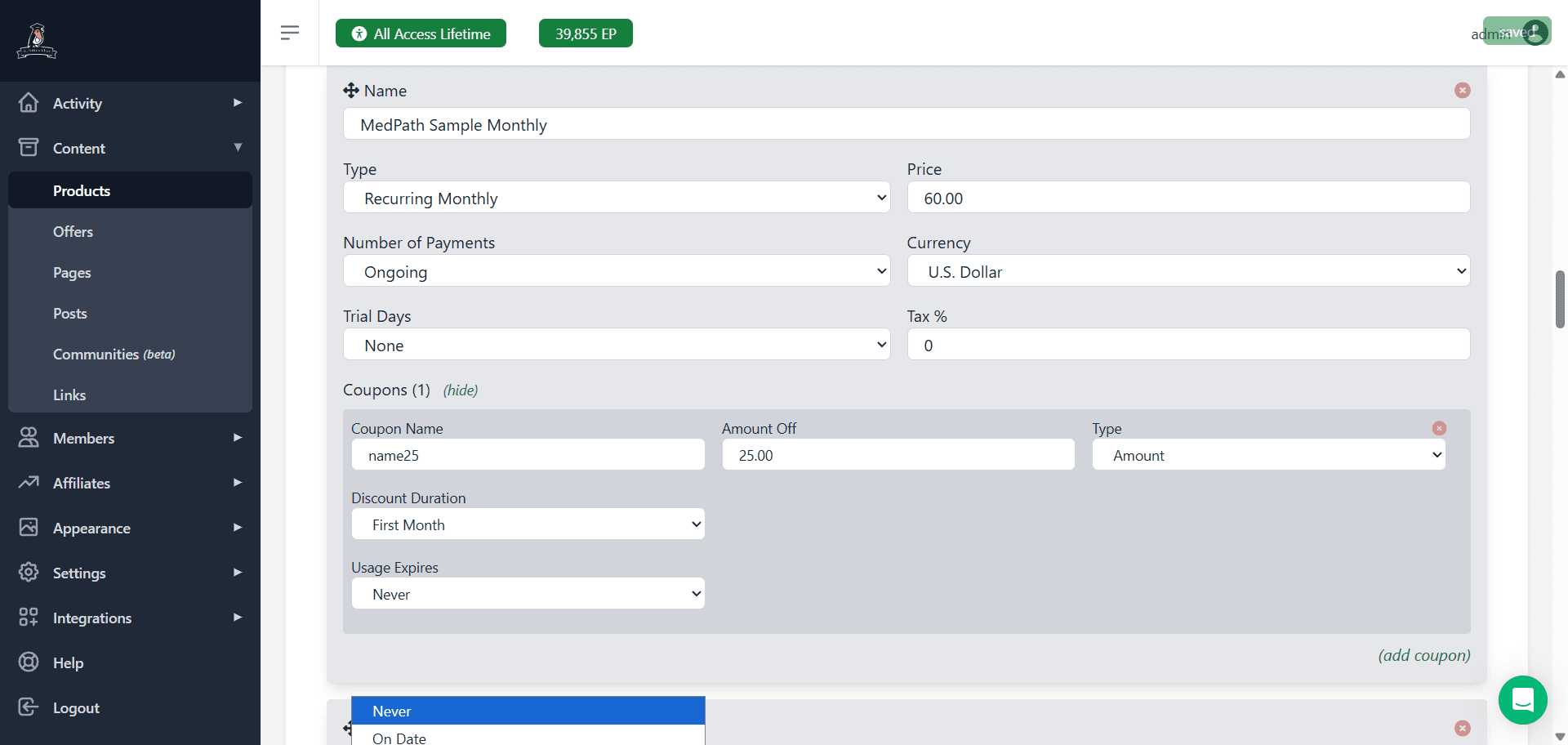
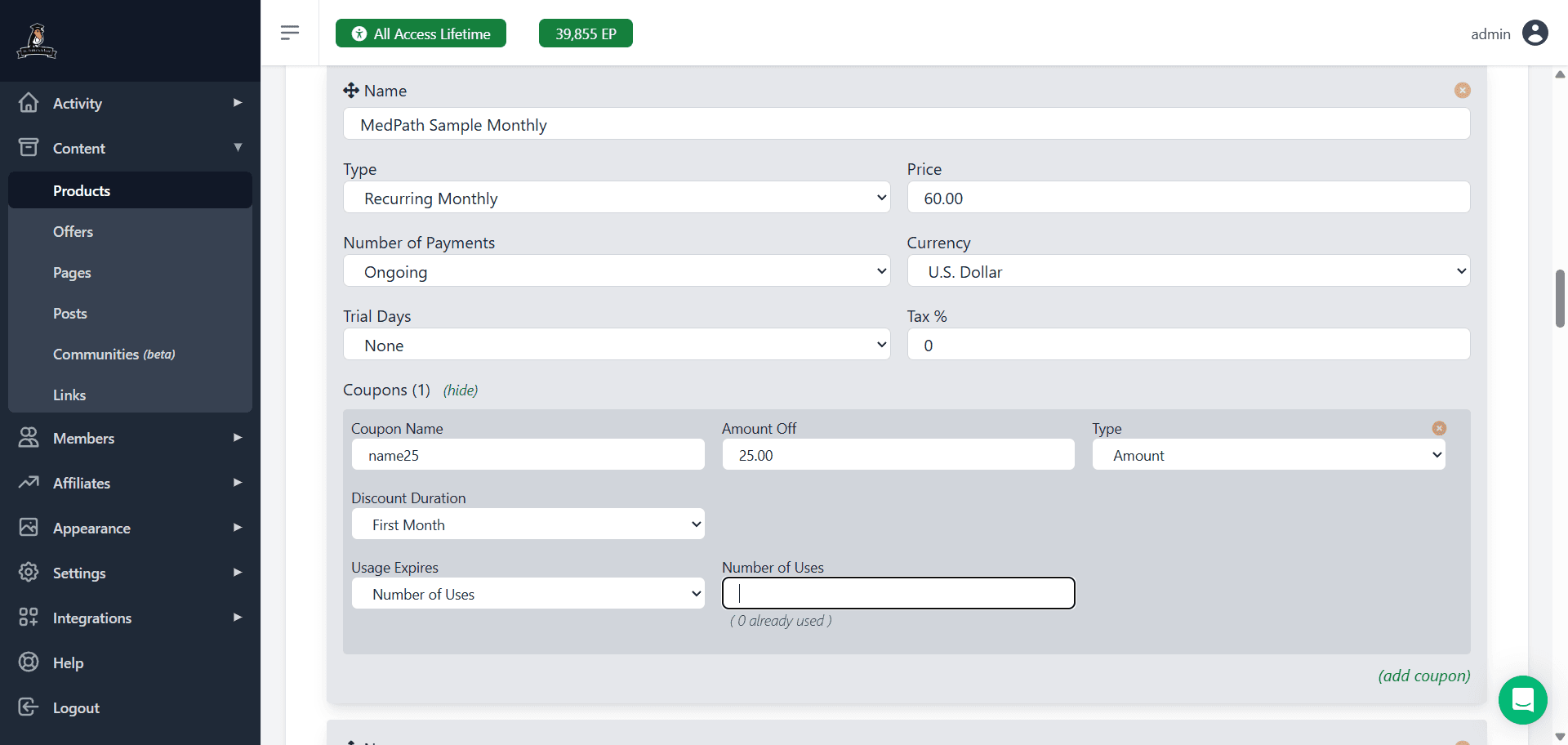
For annual, go through exactly the same steps except this time it would be "First Year" instead of "First Month."
If you don't know whether they want monthly or annually, you need to add it separately to each one. The system allows you to use the same code on multiple products so just use the same code.
You'll just need to remember to cancel the extra code since they'll only use one of them and the other will be available.
Remember, while it's set up as a coupon in MemberVault, we will call it an "account credit" for the customer. Though we still need to explain clearly to them that in order to redeem the account credit, they need to enter the code in the coupon code box.
That should be everything! Let me know if you have any questions!