
How to Create and Manage Deals/Carts in HubSpot
Learn how to create a new deal from a contact record, fill out pipeline details, and manage deal stages using the Kanban board in HubSpot CRM.
This guide demonstrates how to create a new sales deal from a contact record and track its progress through the sales pipeline. Completing this workflow ensures your sales opportunities are accurately logged, tracked, and progressed toward a successful close.
This process is intended for sales representatives and account managers who need to capture new business inquiries and track active deals in their daily CRM workflow.
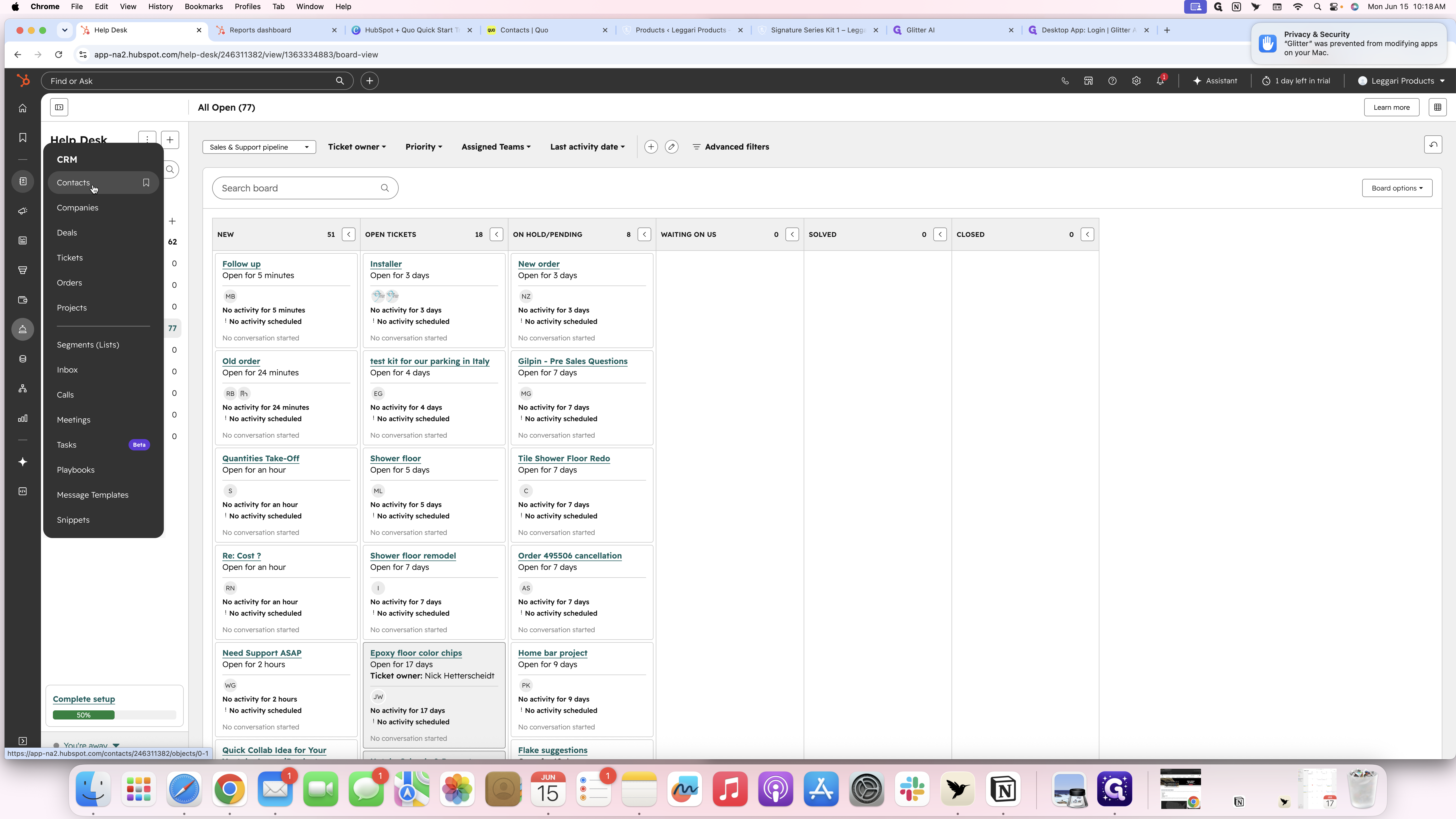
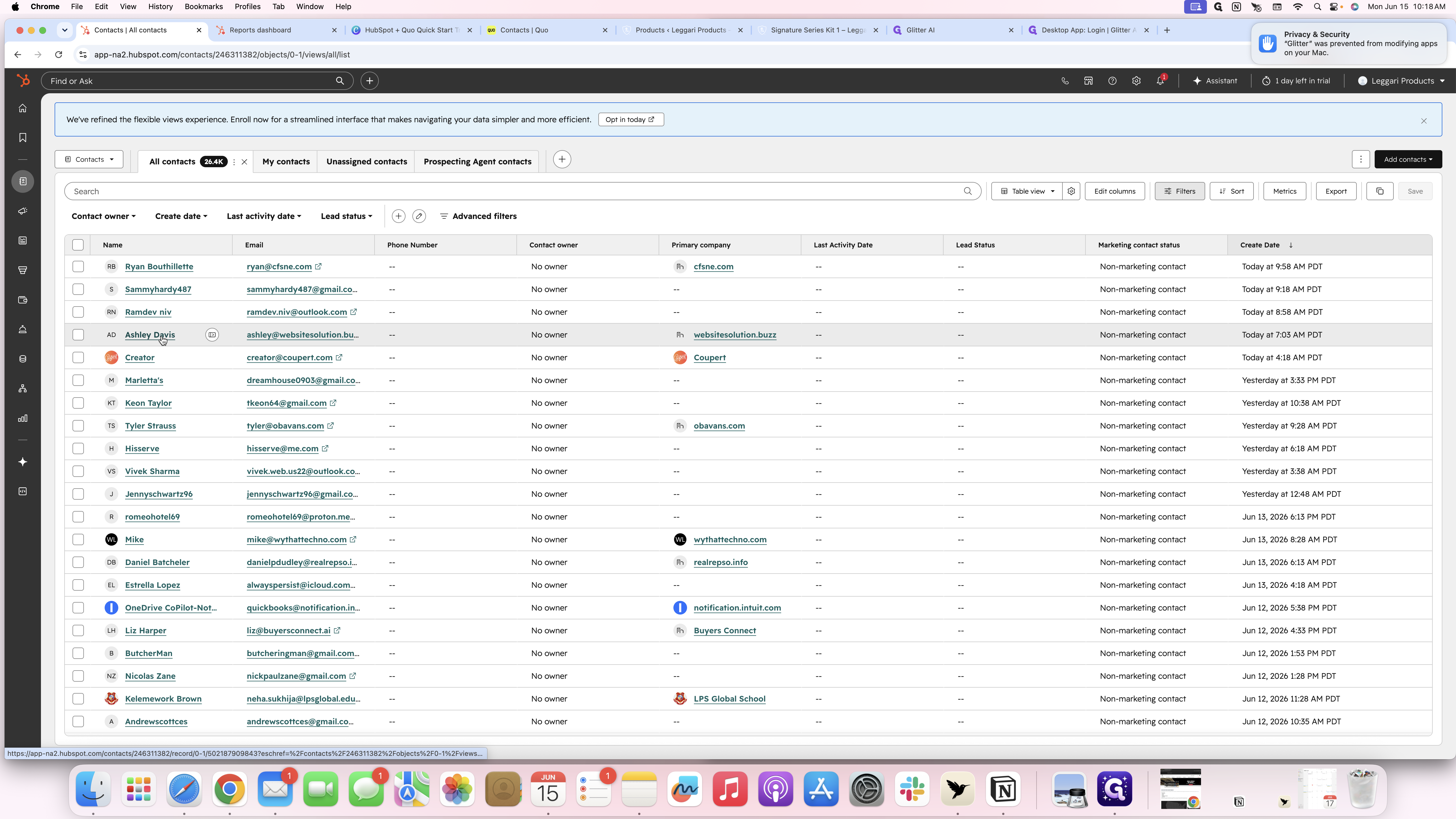
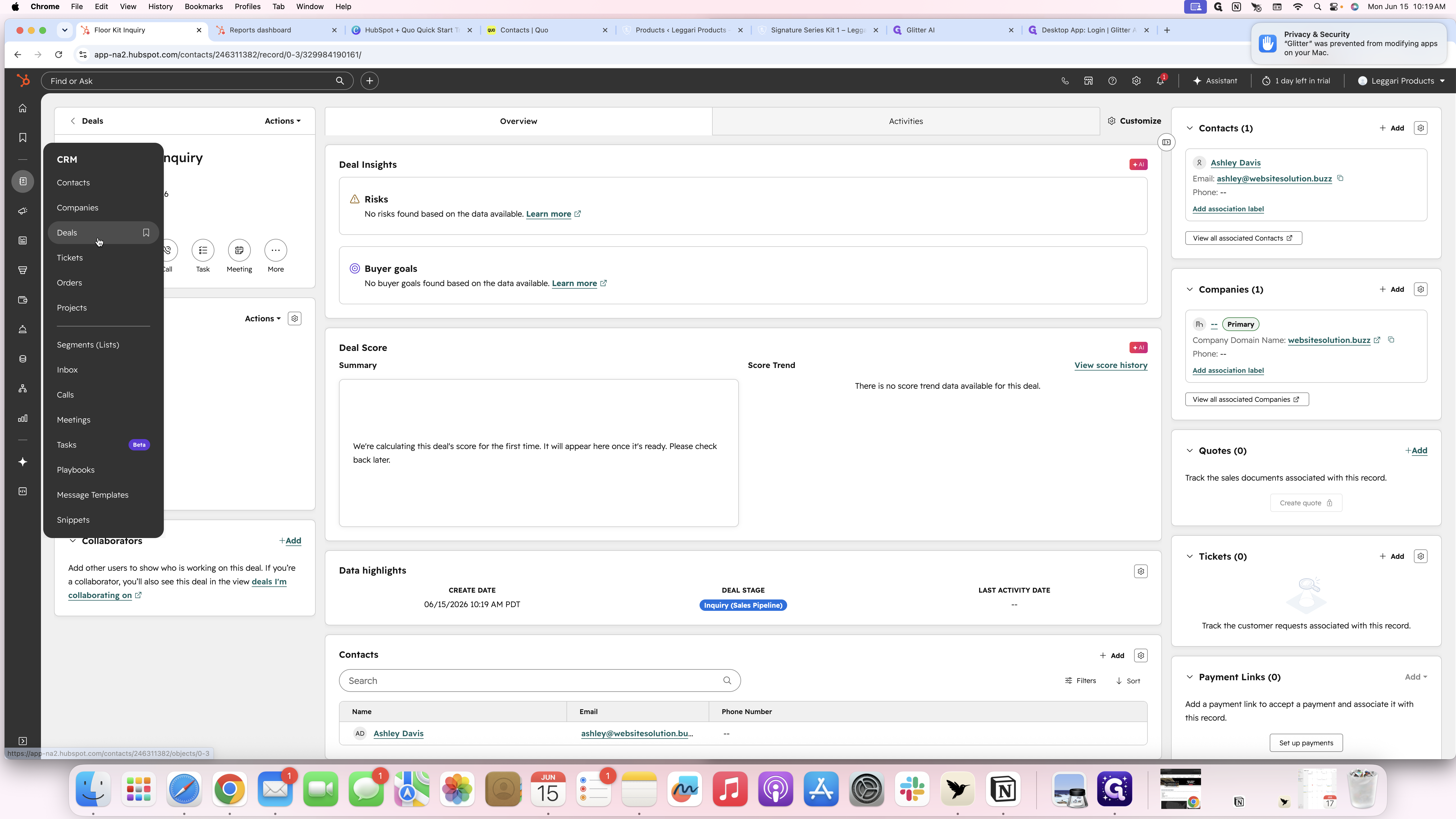
To successfully log and progress a new sales opportunity, you can create a deal directly from an existing contact's record.
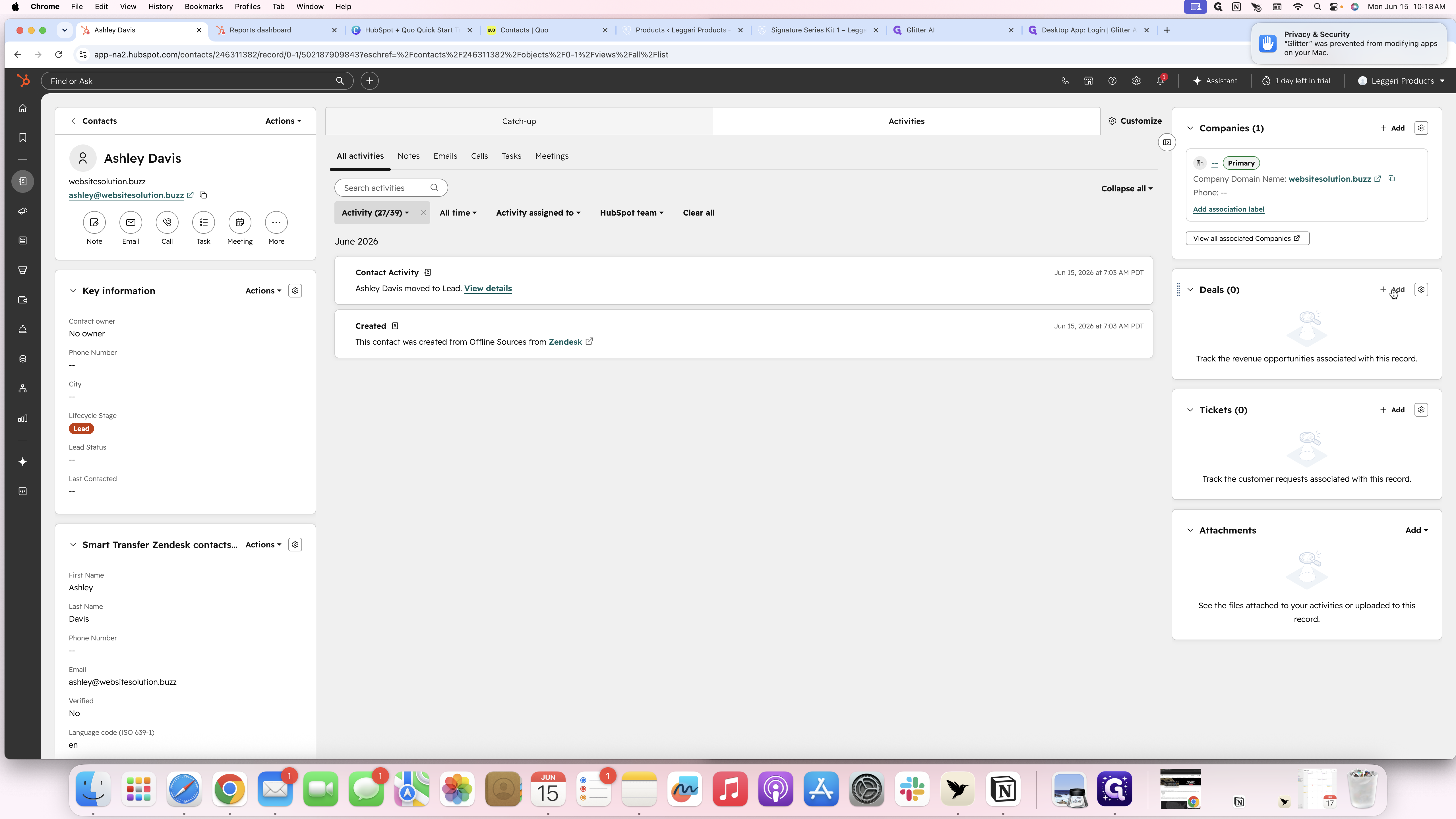
Deal Property | Description | Example |
|---|---|---|
Deal name | A clear, descriptive title for the opportunity. | Floor Kit Inquiry |
Amount | The estimated monetary value of the deal. | 765.00 |
Deal owner | The team member responsible for managing and closing the deal. | Nick Hetterscheidt |
Deal type | The category of the opportunity. | New Business |
Priority | The urgency or importance level of the deal. | Medium |
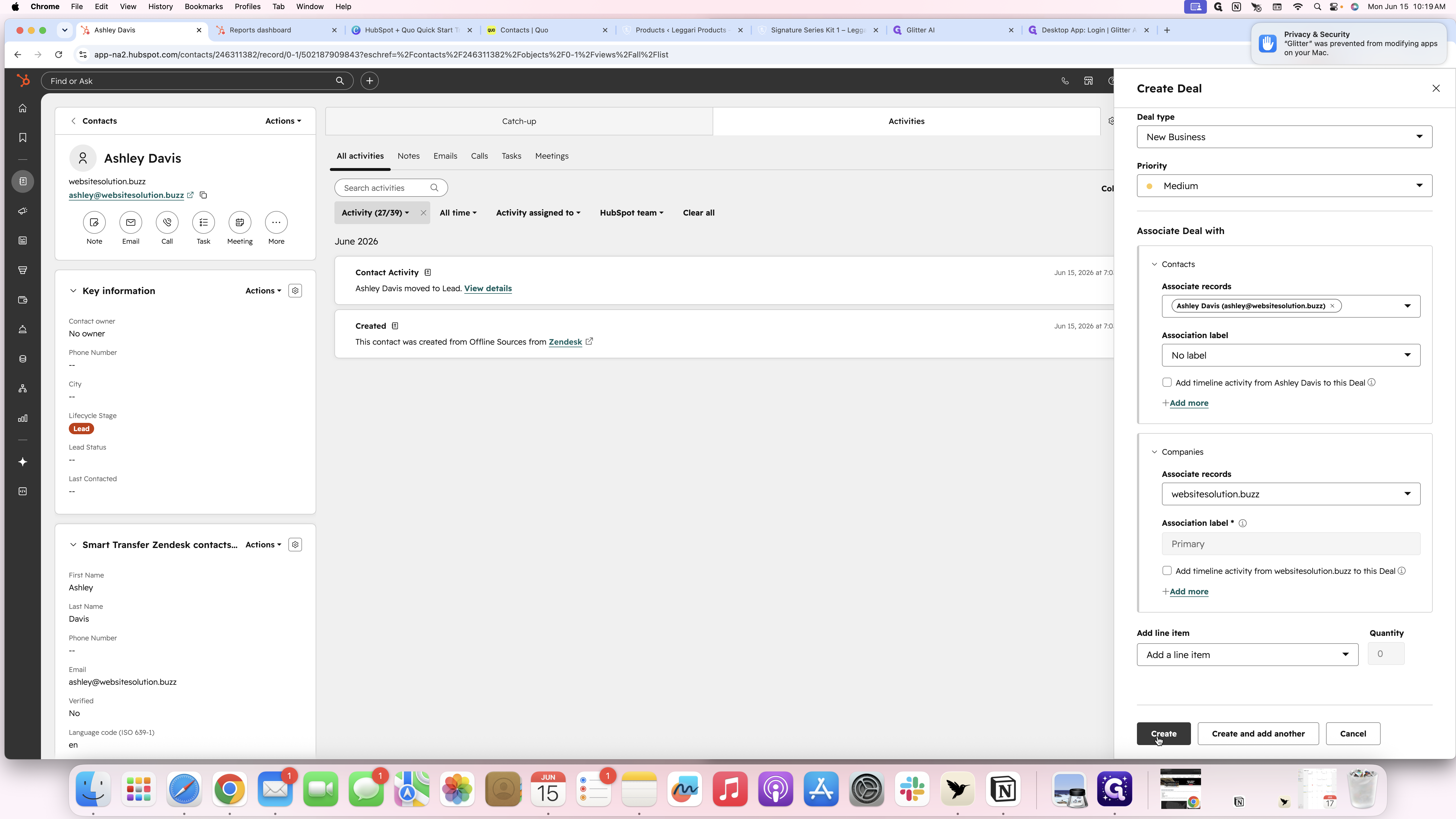
Managing Deal Stages
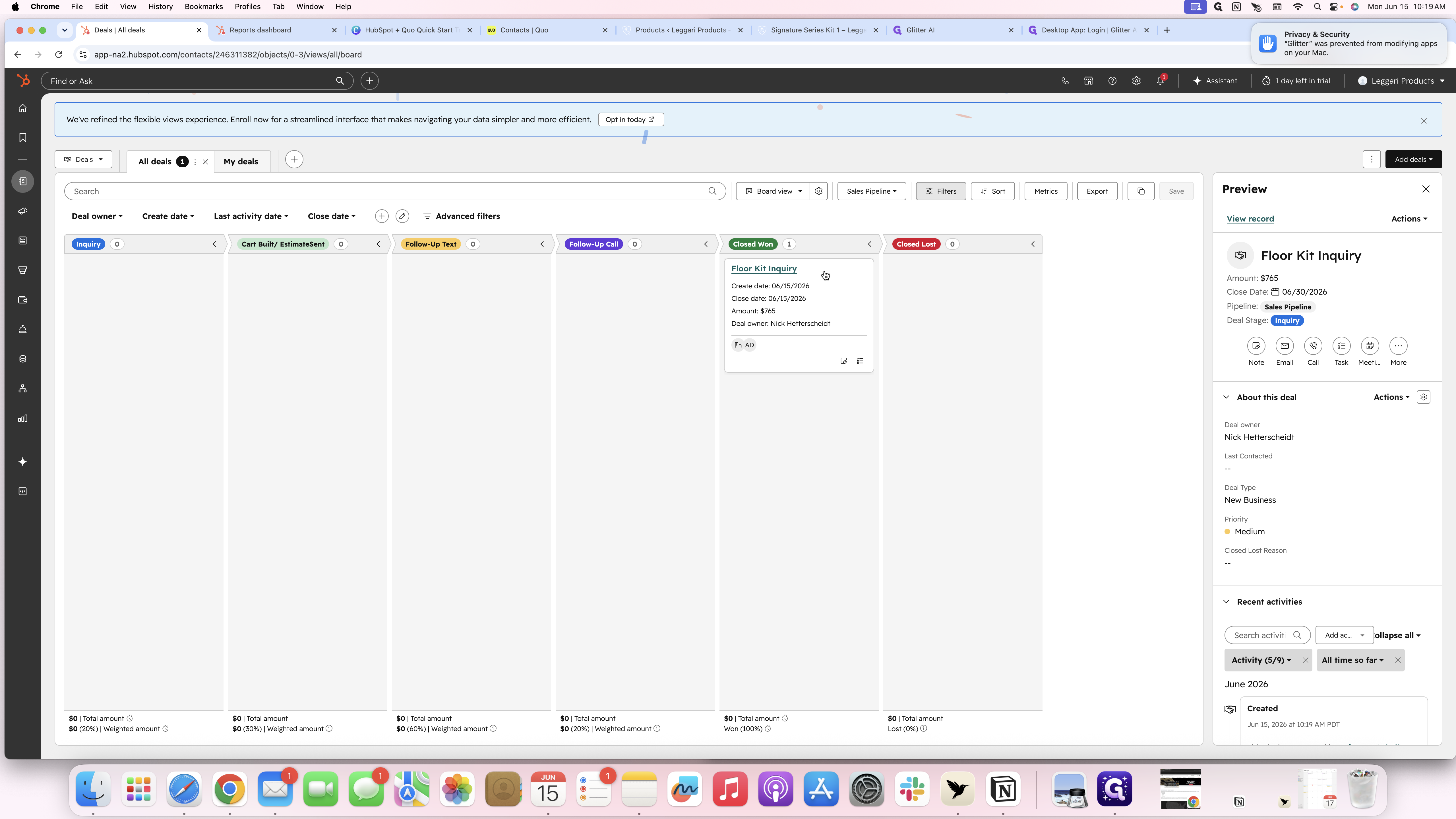
Once created, you can track the deal's lifecycle on your main sales board.
Q: How do I associate a new deal directly with a specific contact?
A: In Hubspot Navigate to the contact's record first, then use the "Add" button in the Deals section of the right-hand sidebar. This automatically links the new deal to that contact without needing to link it manually later.
Q: Can I change a deal's stage without opening its full record?
A: Yes, in the Deals board view, you can simply click and drag the deal card from one column to another to quickly update its pipeline stage.
Term | Definition |
|---|---|
Deal | A trackable sales opportunity or potential transaction actively being worked within the CRM. Visible to the team only |
Pipeline | A visual representation of your sales process, divided into progressive stages that deals move through. |
Kanban Board | A visual dashboard layout where items are represented as cards organized in columns by their current status. |