How to Create Products with Serials and Assign Them to the Orders in Your Rental Dashboard
Learn step-by-step how to create, assign, and manage products with serial numbers in your rental dashboard. This guide covers manual and automatic serial number generation and assigning serial numbers to orders.
By Reservety
In this guide, we'll learn how to create and manage products with serial numbers in a rental dashboard. You will see how to add individual serial numbers, group them under a main product, and assign them to customer orders. We will also cover how to generate serial numbers automatically and apply them to orders.
How to Create Products with Serial Numbers Manually
1
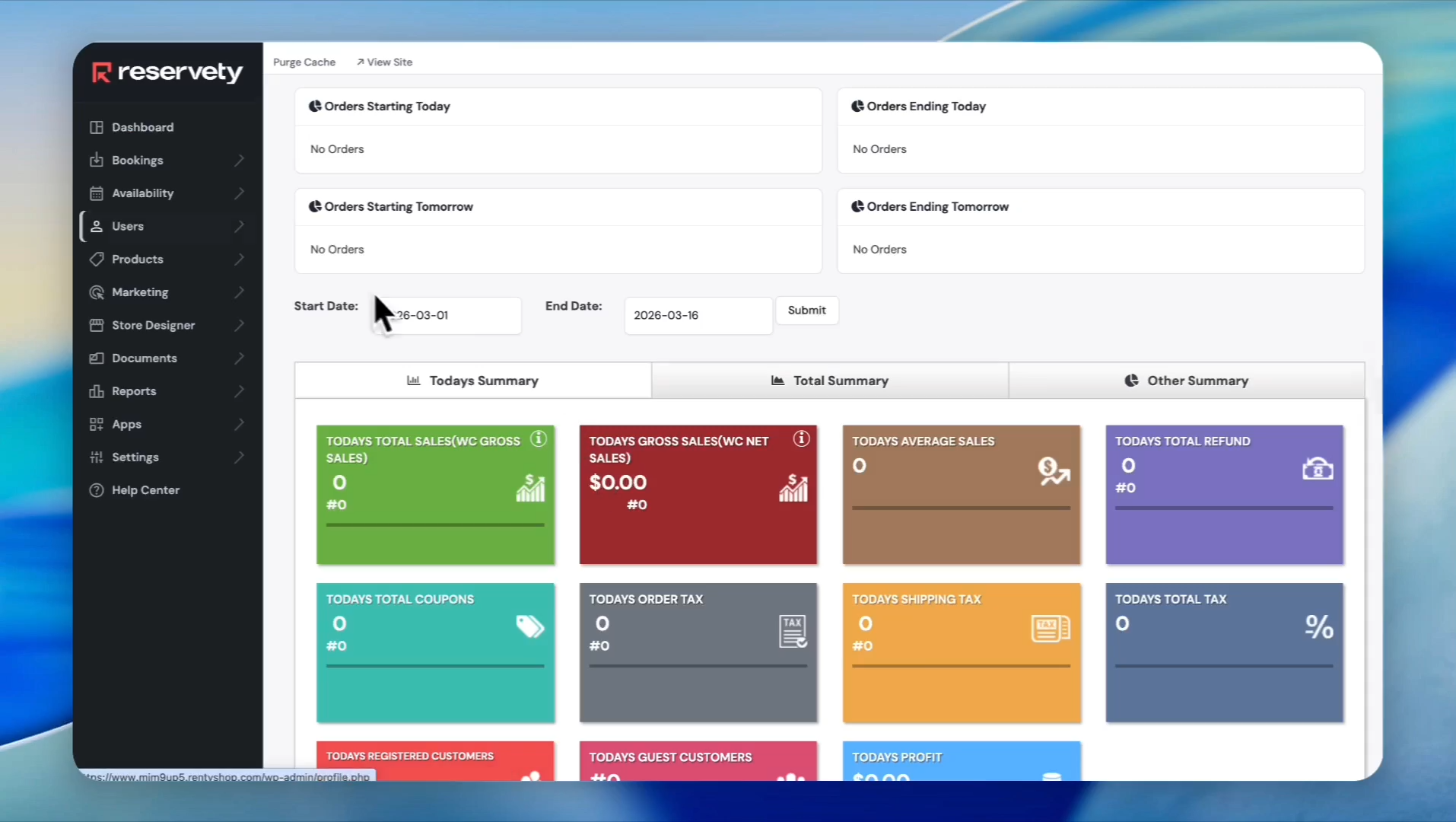
Log in to your Reservety dashboard.
2
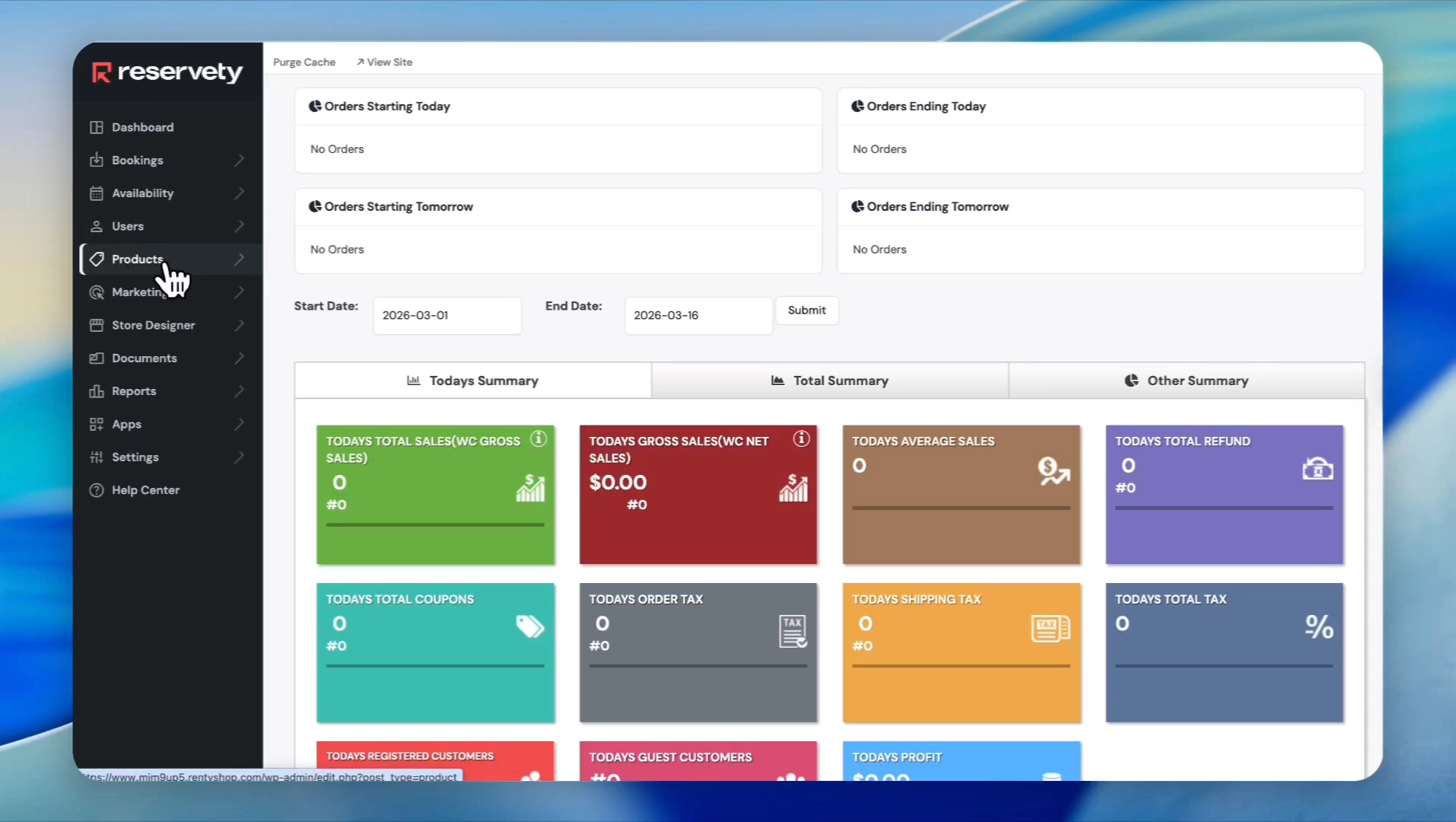
Click on 'Products' in the left sidebar.
3
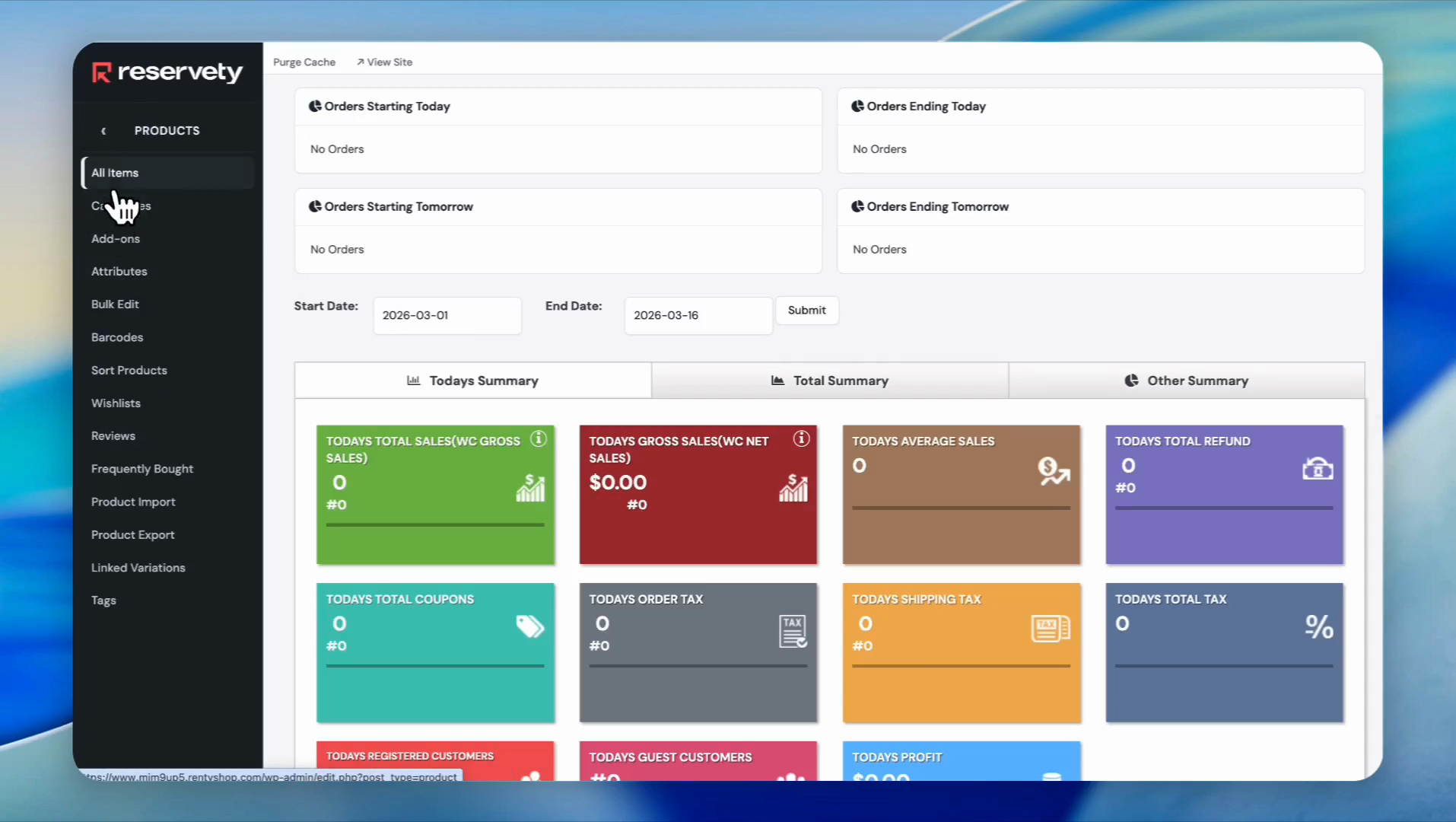
Click on 'All Items'
4
Click the 'Add new product' button.
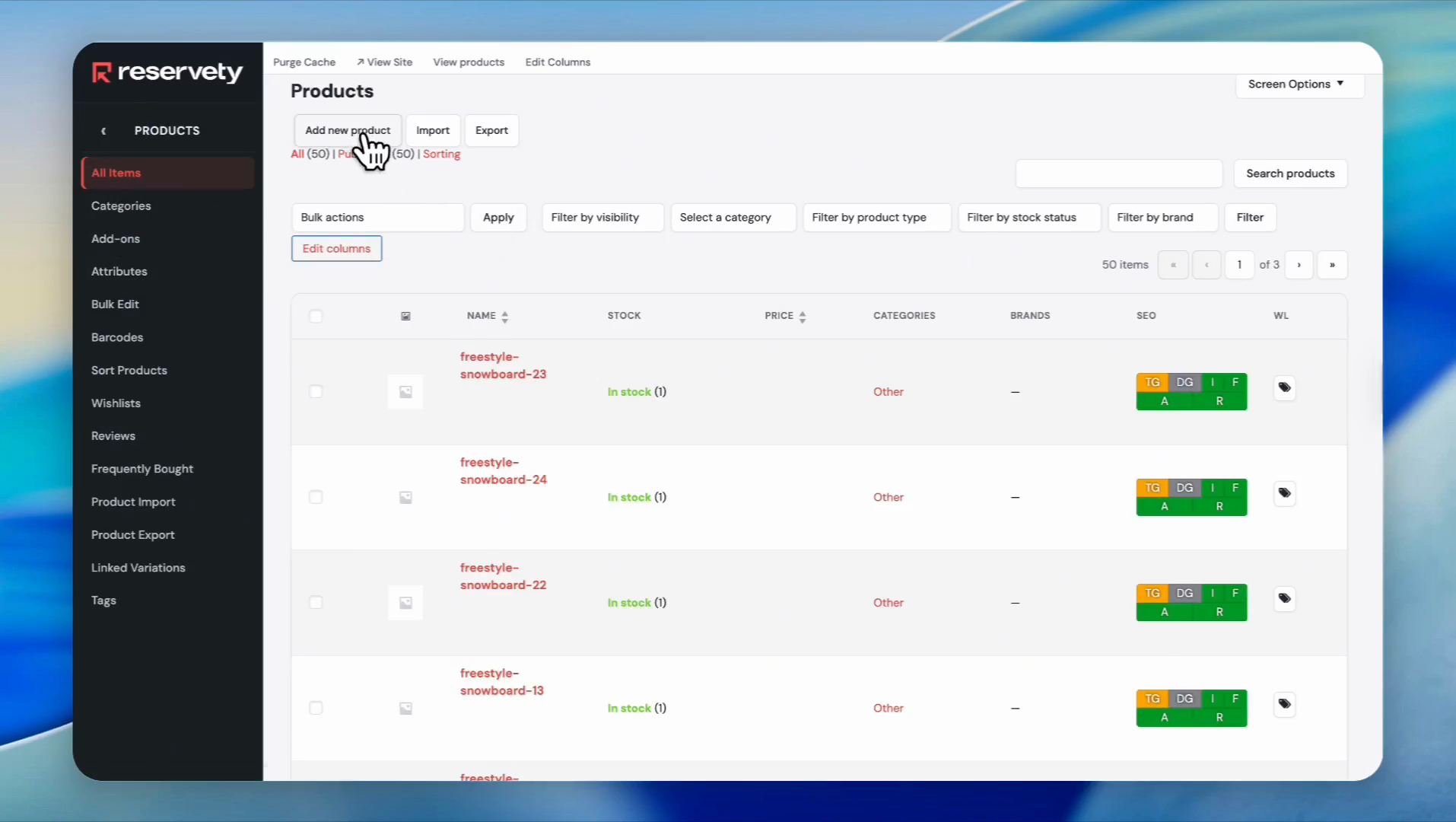
5
In the 'Product name' field, type your serial number. For example, we wrote 'ski-helmet-001' since we are adding ski helmets with serial numbers.
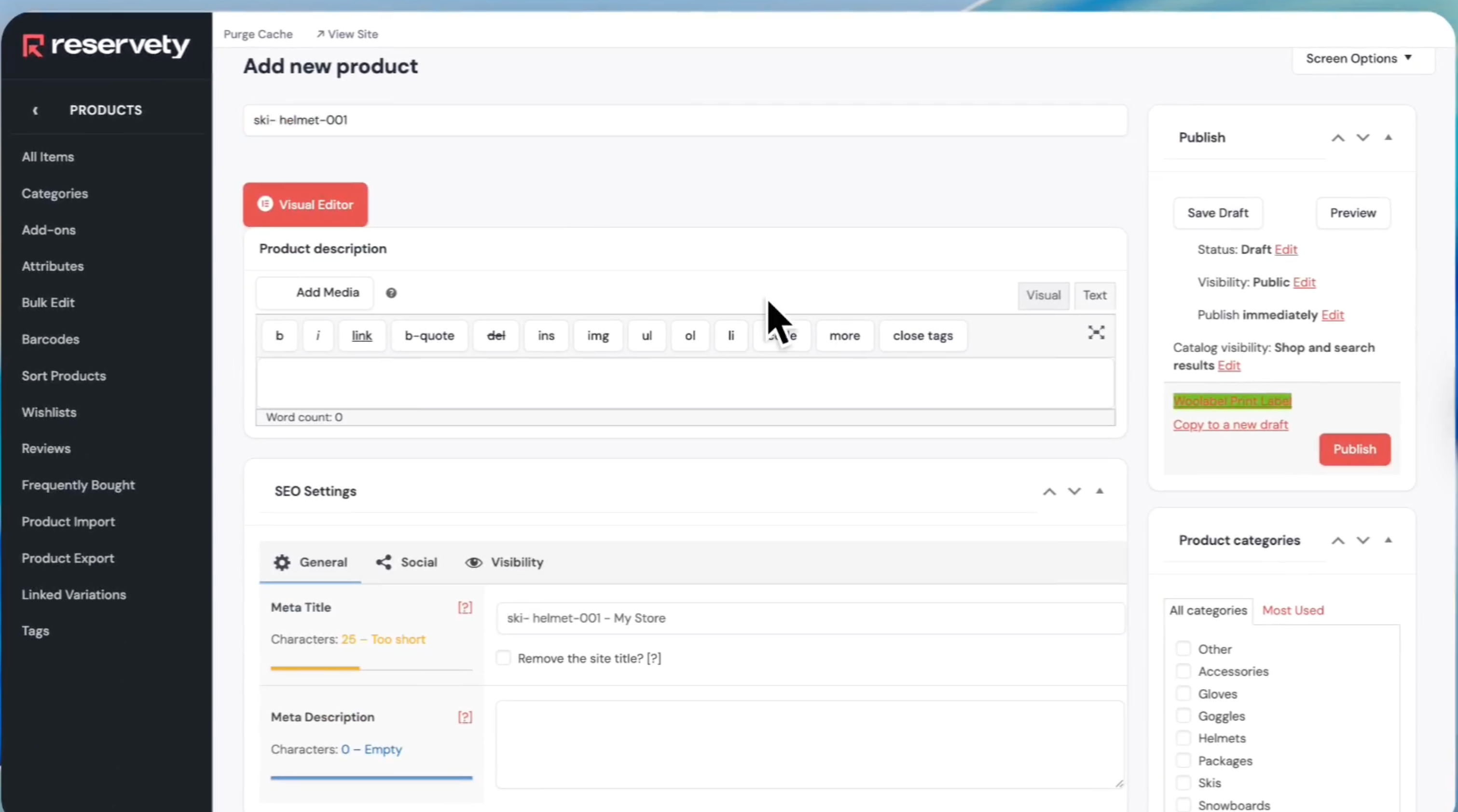
6
Skip the product description section. Scroll down and find the section labeled "Use Serial."
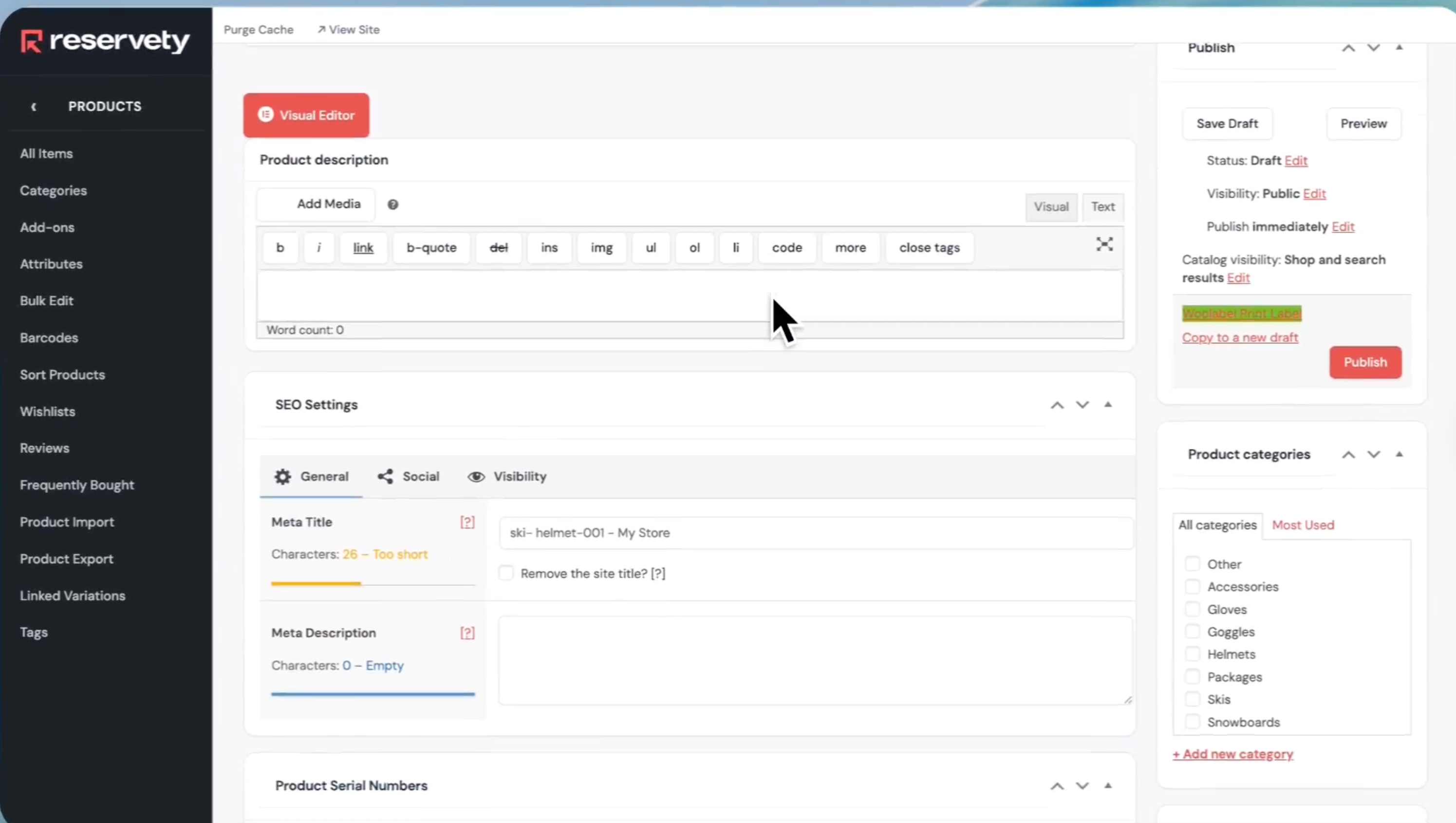
7
In the 'Product Serial Numbers' section, click 'Is Serial' and activate it.
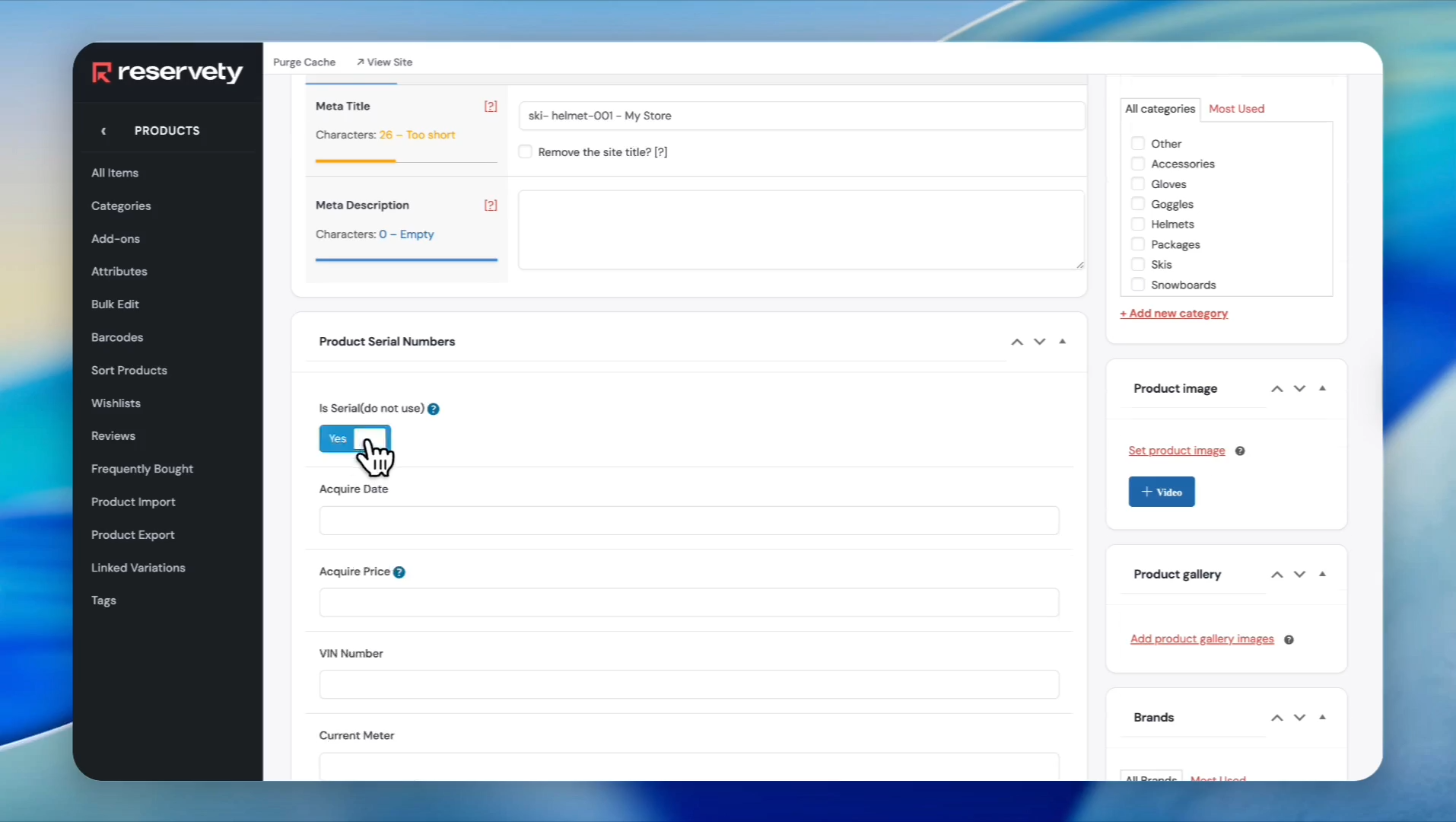
8
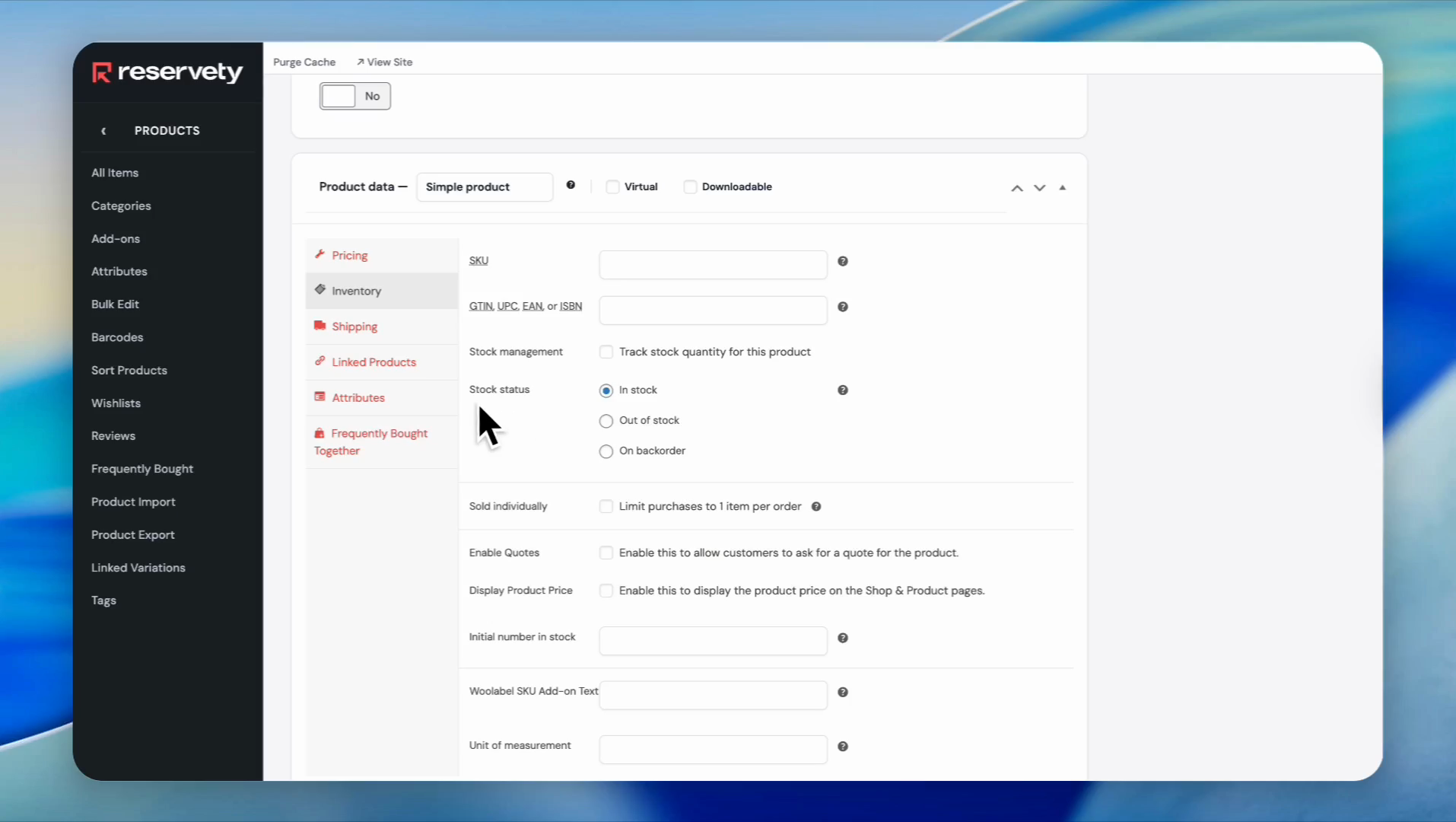
Under the 'Inventory' tab, select the 'In stock' radio button for 'Stock status'. Do not check the box for tracking stock quantity for this product.
9
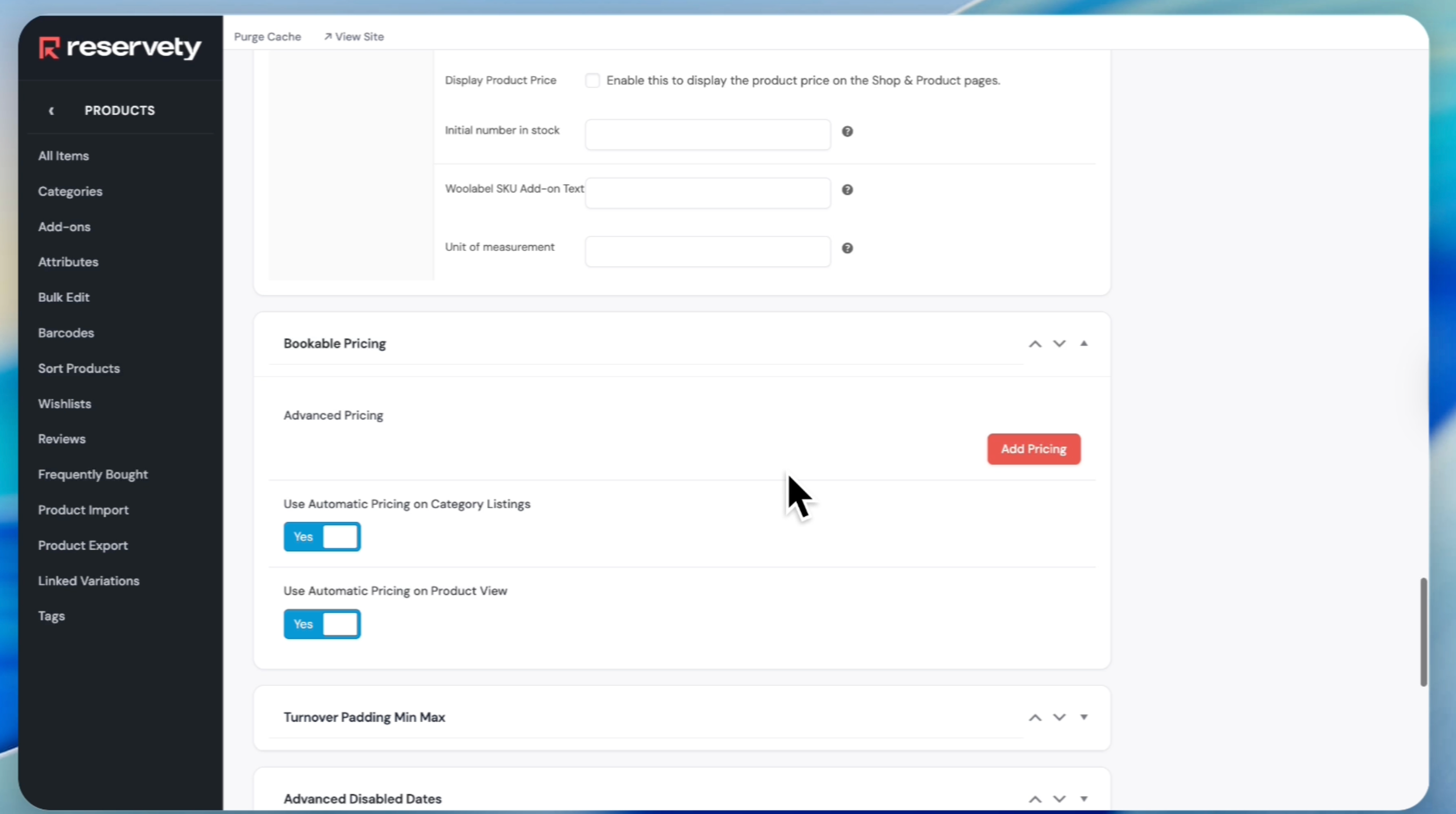
Do not add any pricing to this product since it's a serial-numbered item.
10
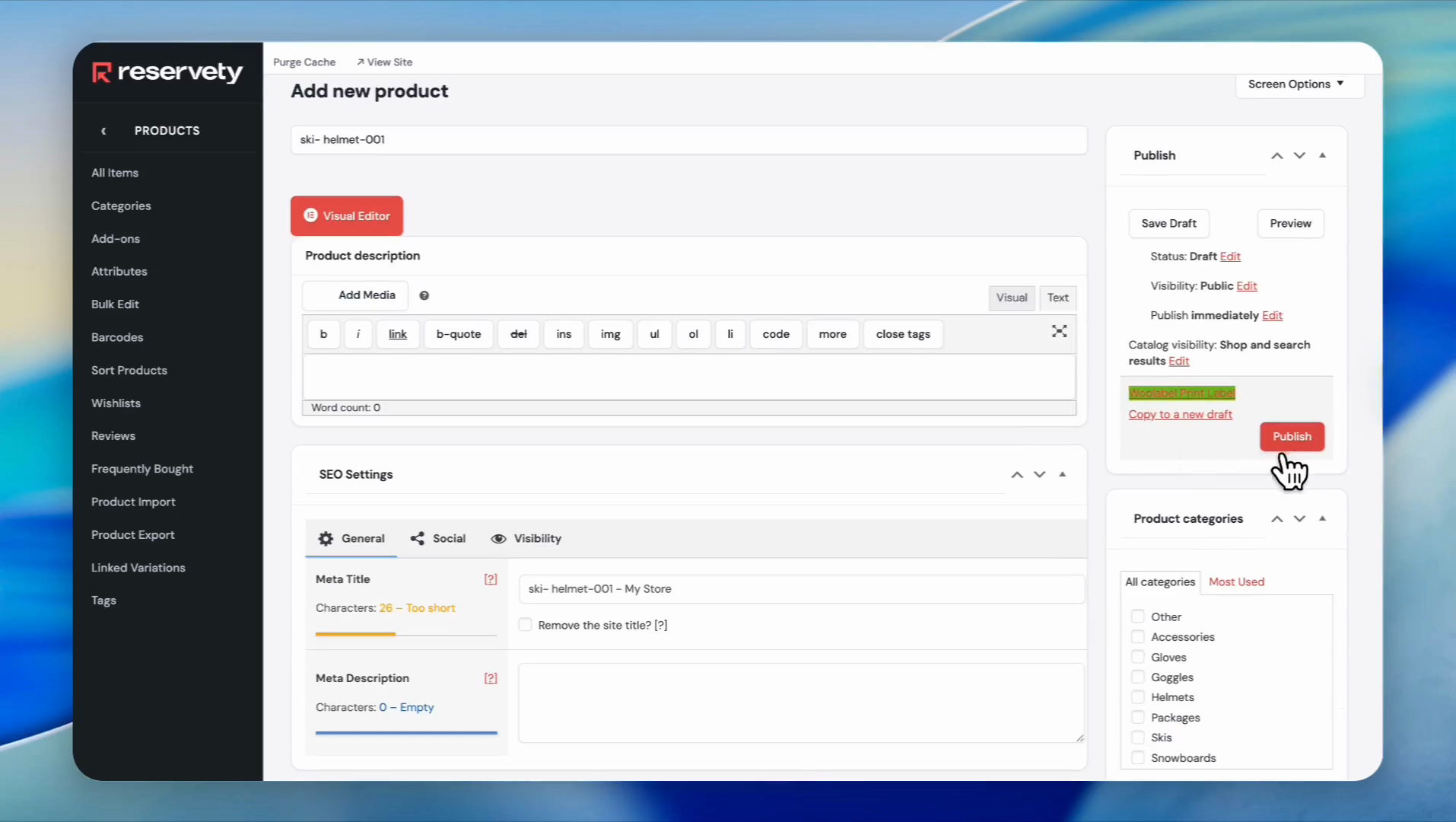
Click the 'Publish' button on the right side of the page.
11
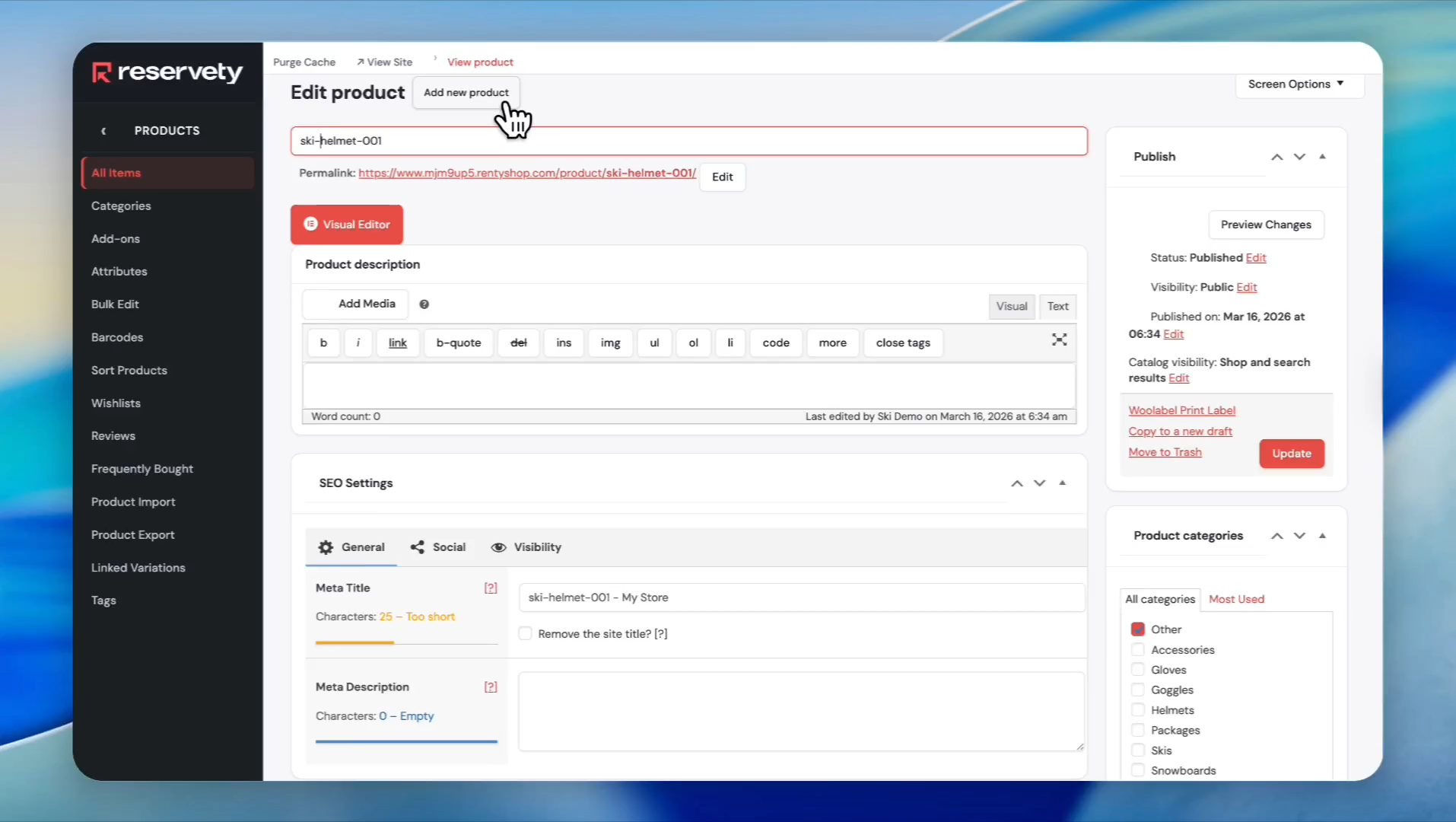
After publishing your first serial number, click "Add New Product" and repeat the same steps. Suppose we want to enter five serial numbers. Just change the serial number for each product.
12
After adding all five serials, create a main product and assign the serials to it. To do that, click on "Add New Product."
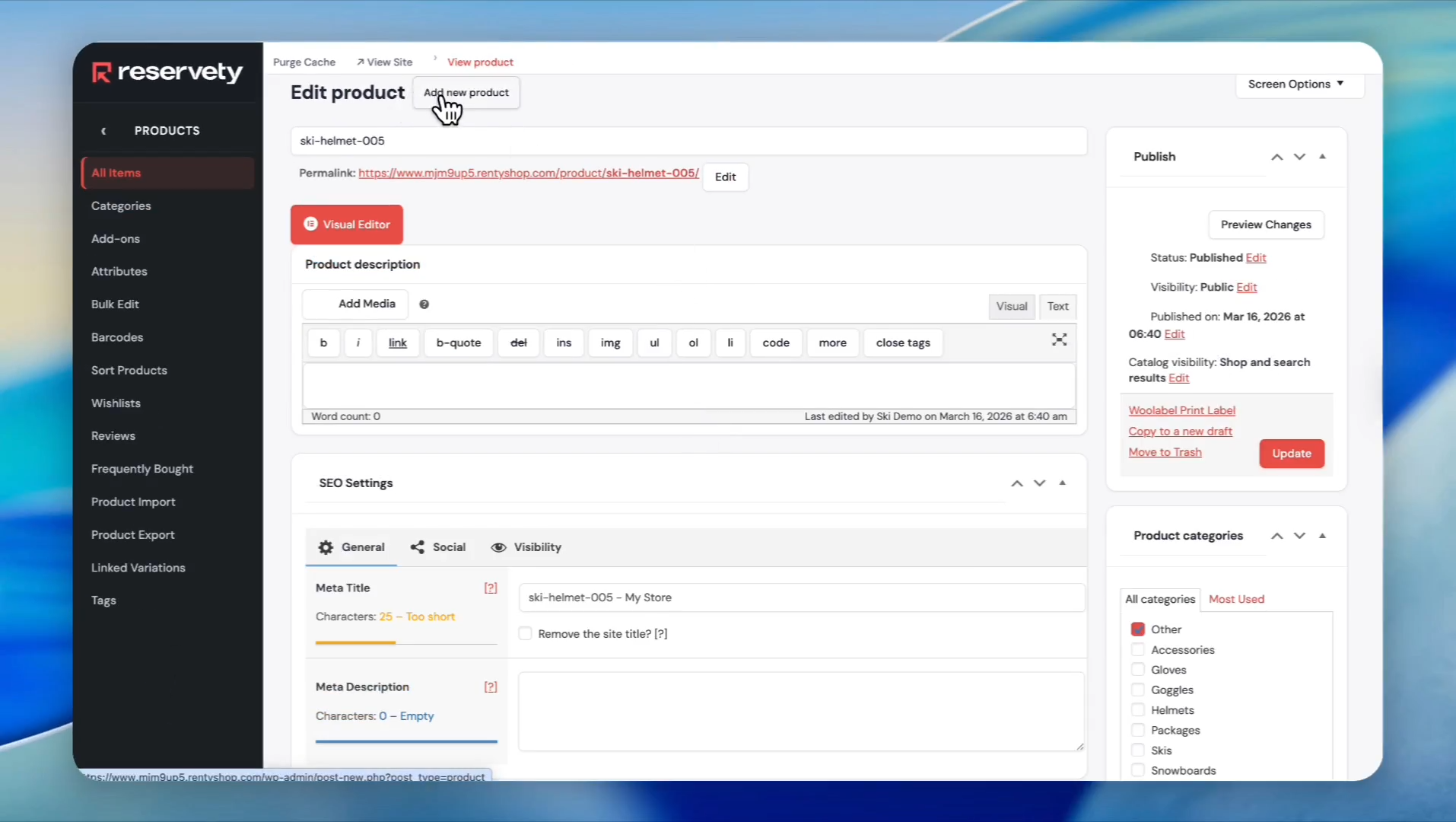
13
Click on the Product name field.
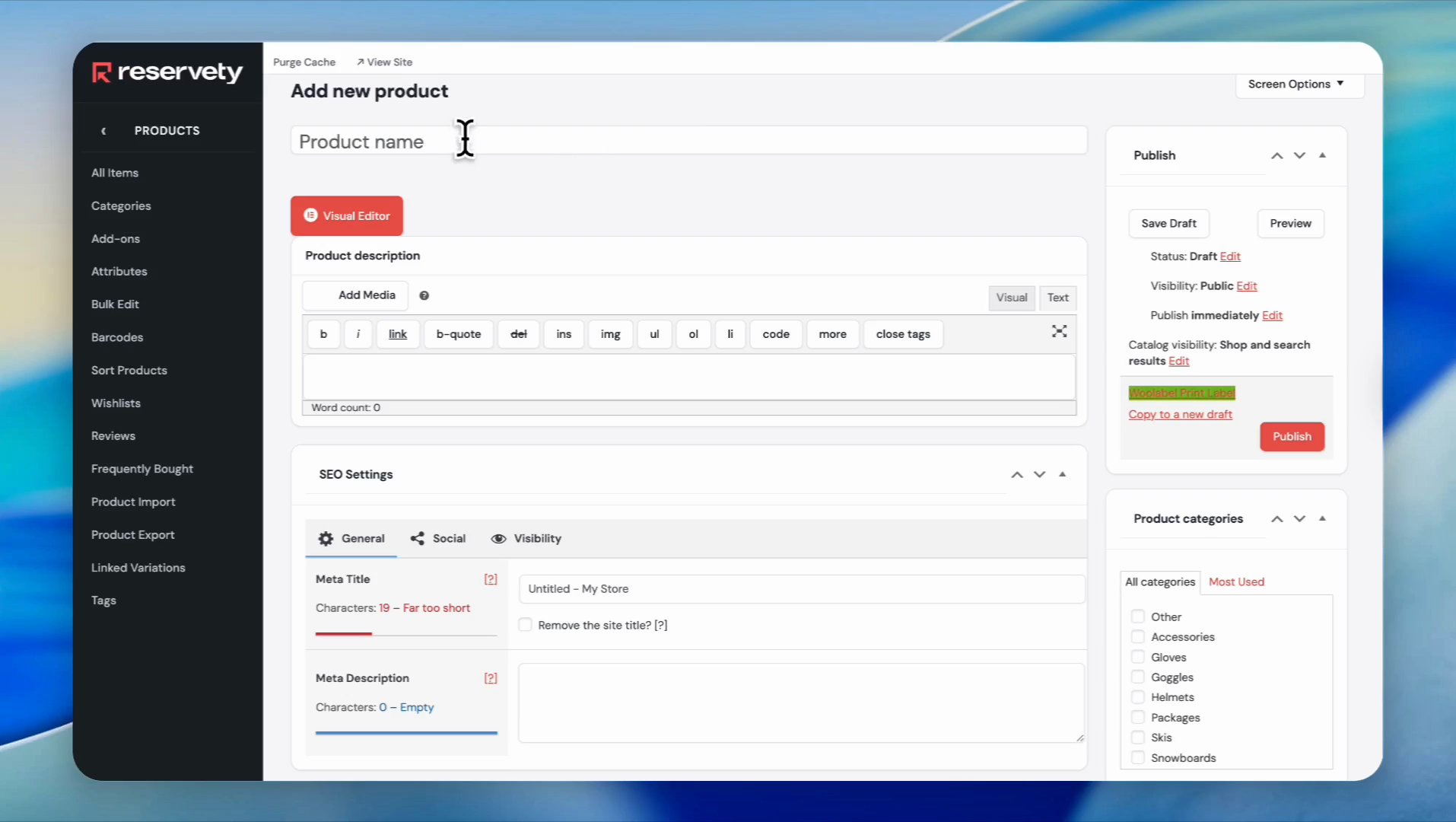
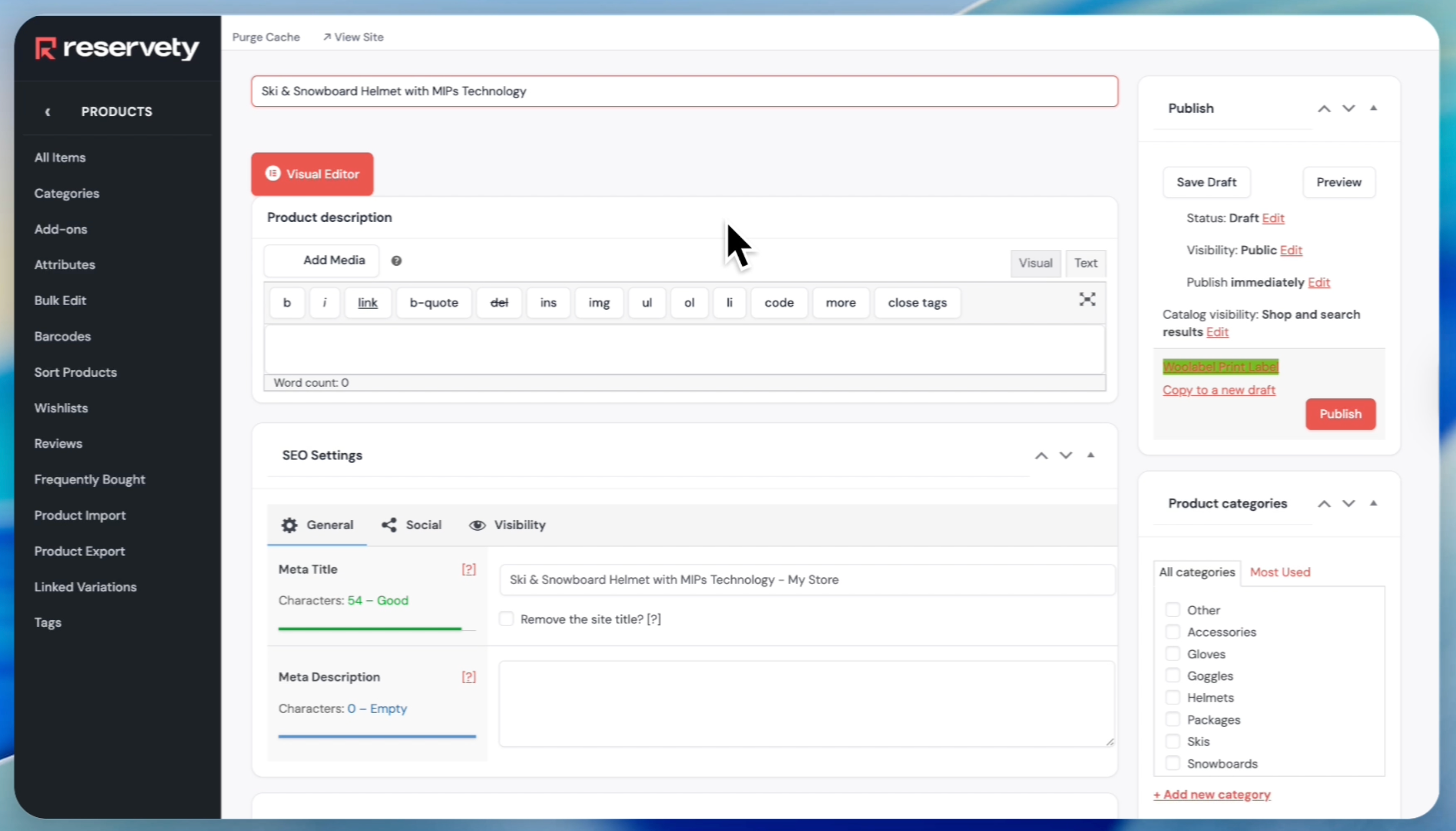
14
This time, write the full name of the product, as this is what customers will see when they view your product. For example, we wrote 'Ski & Snowboard Helmet with MIPS Technology'.
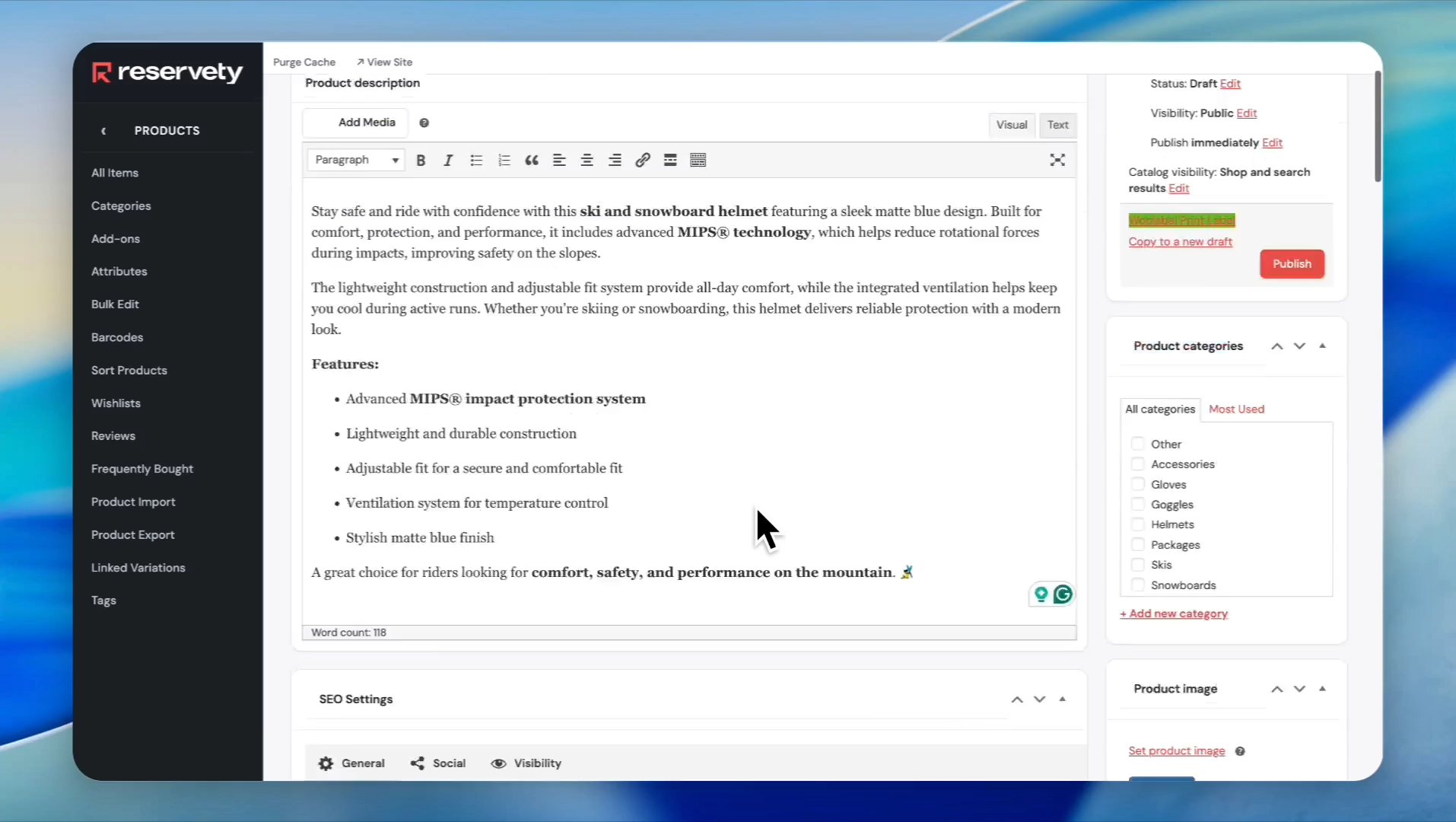
15
Go to the product description section, click on "Visual," and write a description for your product.
16
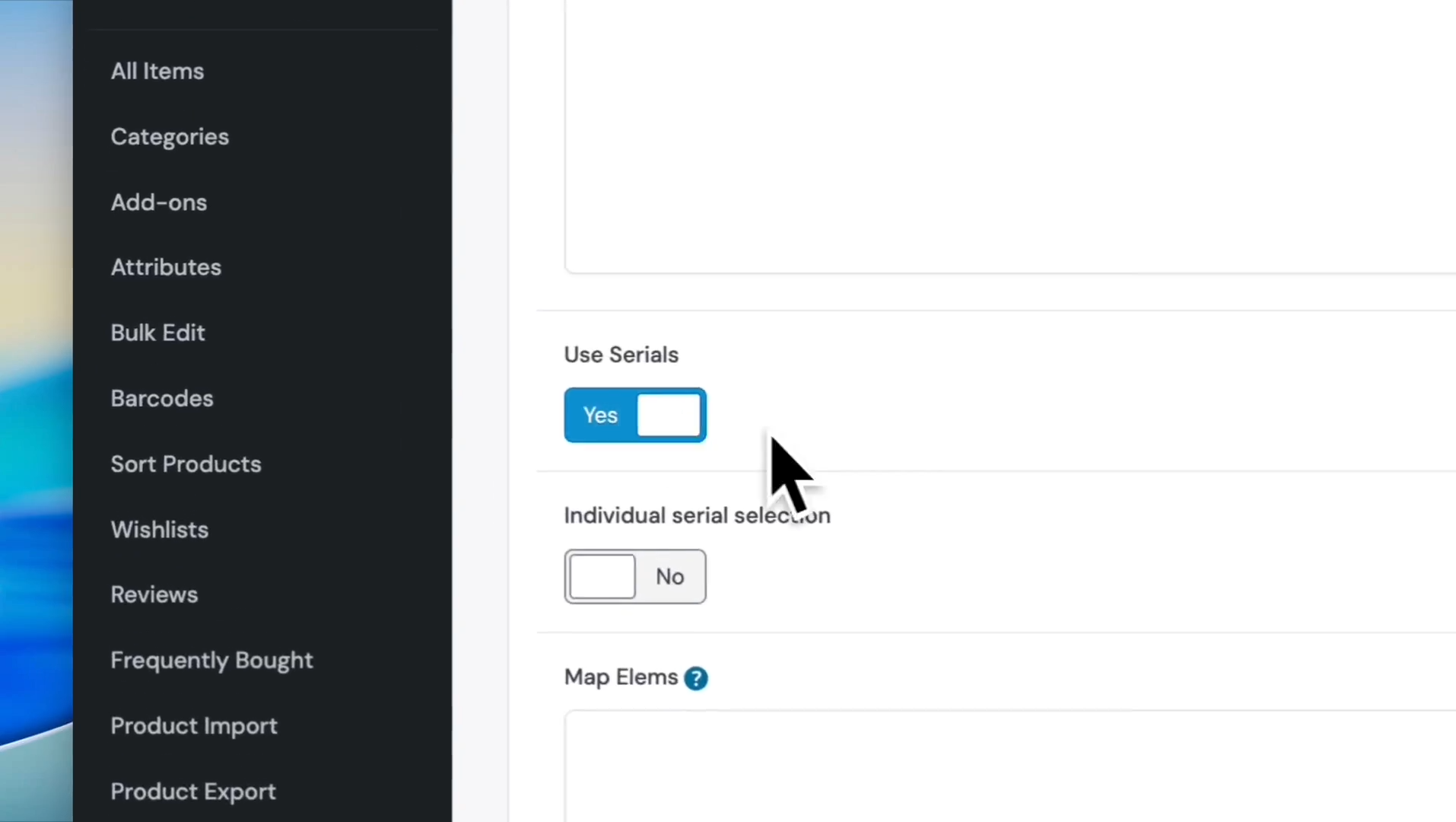
Scroll down and find the section labeled "use serials" and change it to "yes."
17
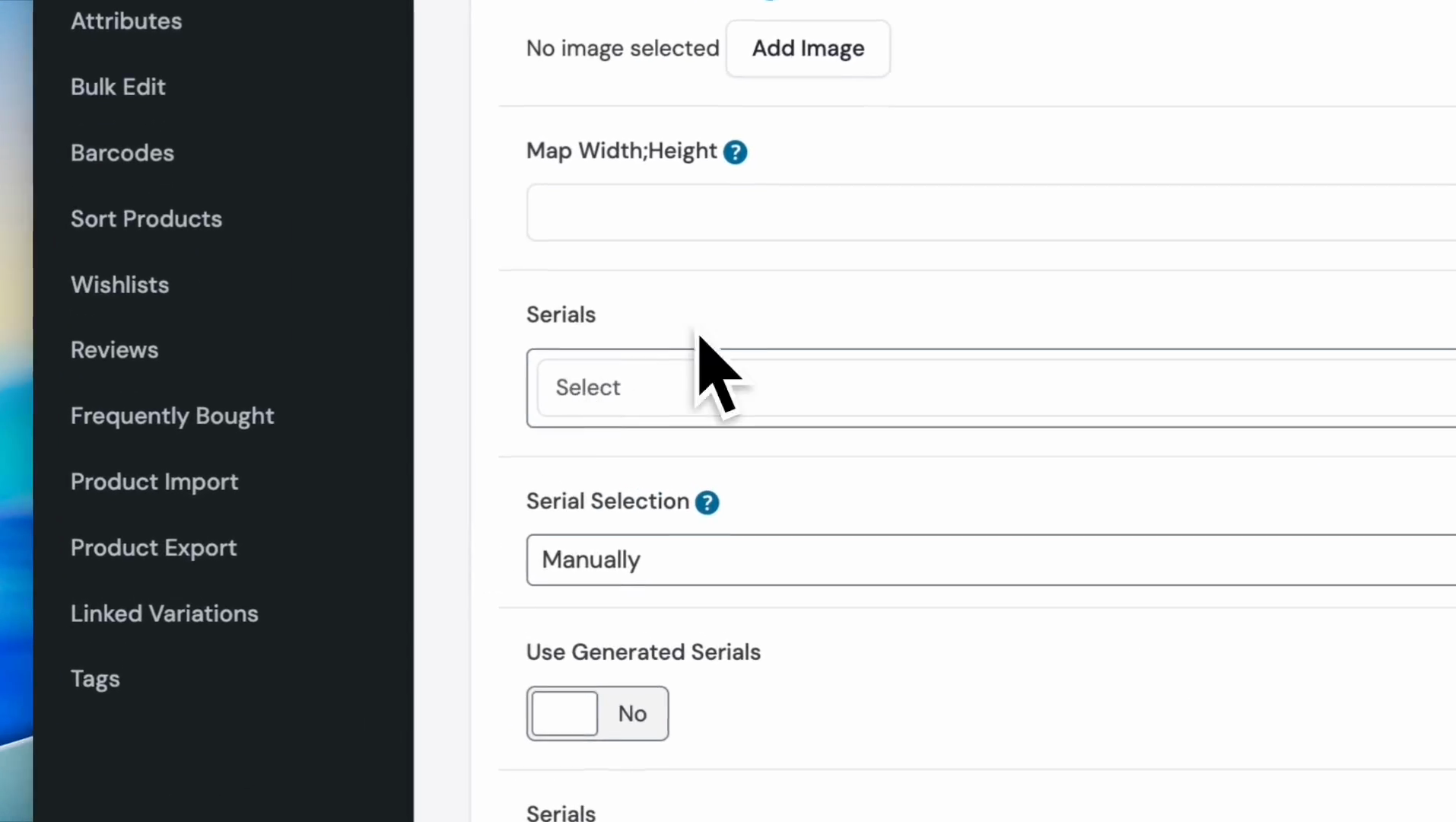
Find the section labeled "serials," and click on the field to search the serials.
18
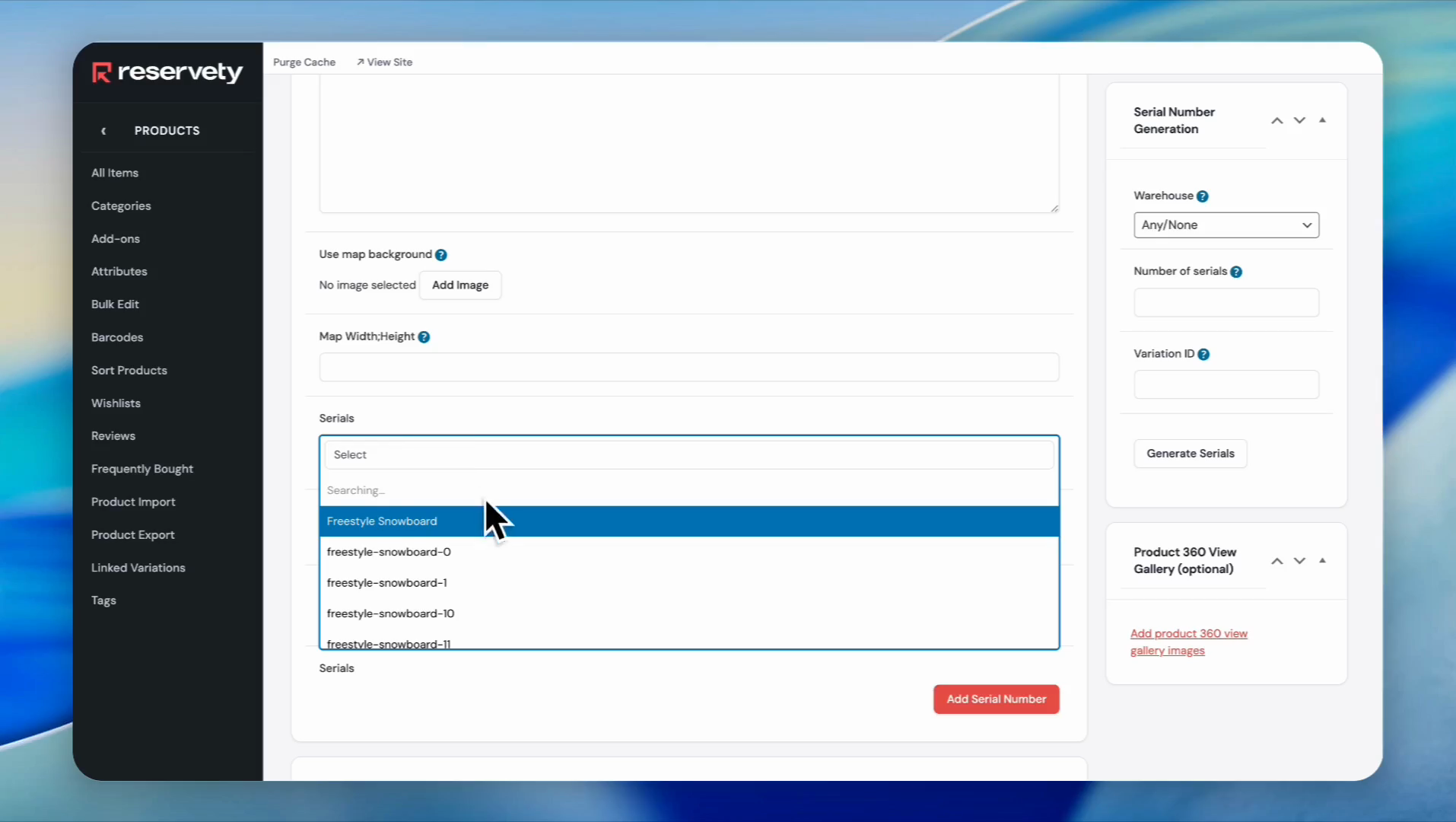
Locate the serials created earlier, and select all the required serials from the list.
19
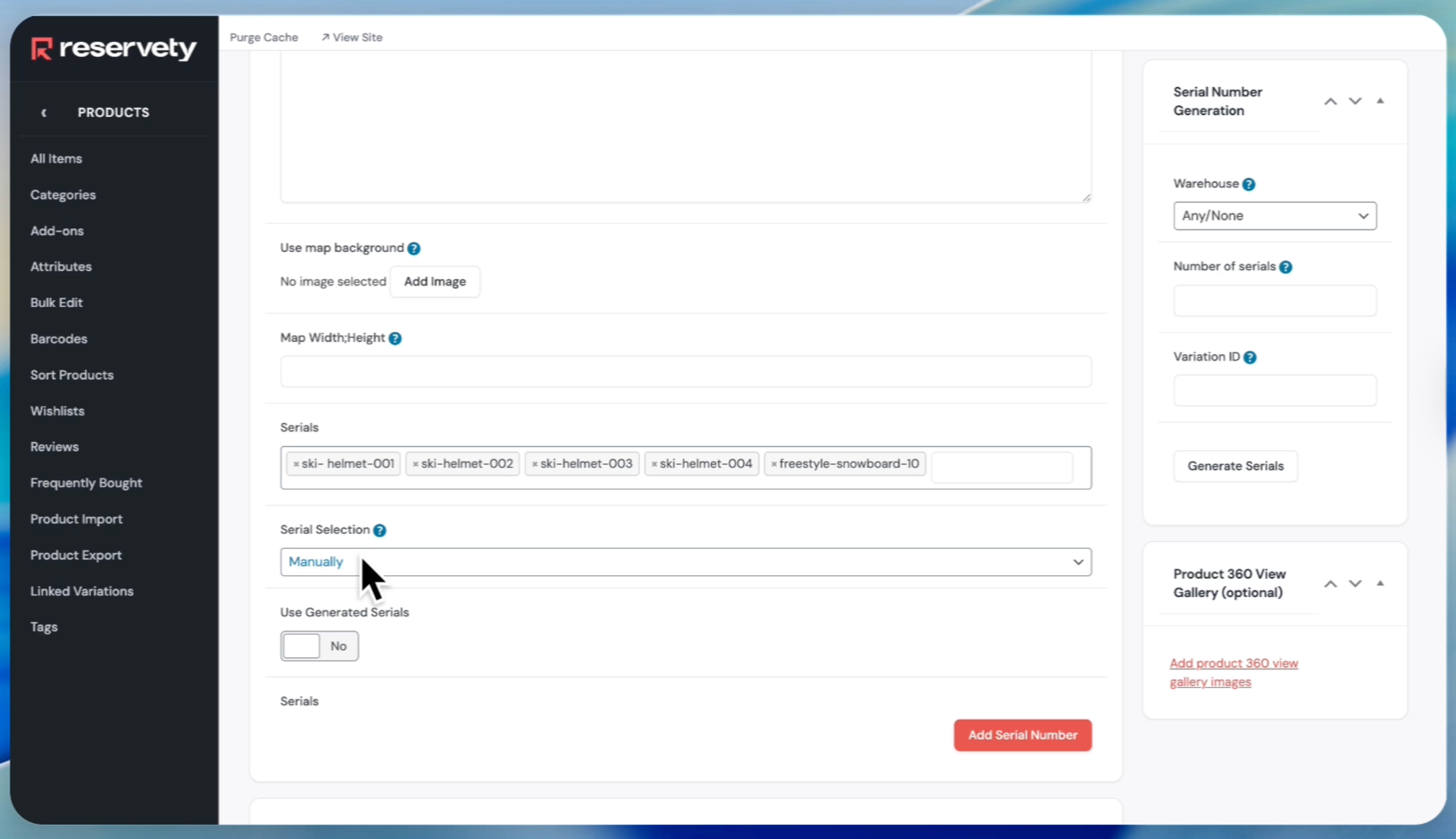
As you can see, we have added all five serials and left the serial selection for manual completion.
20
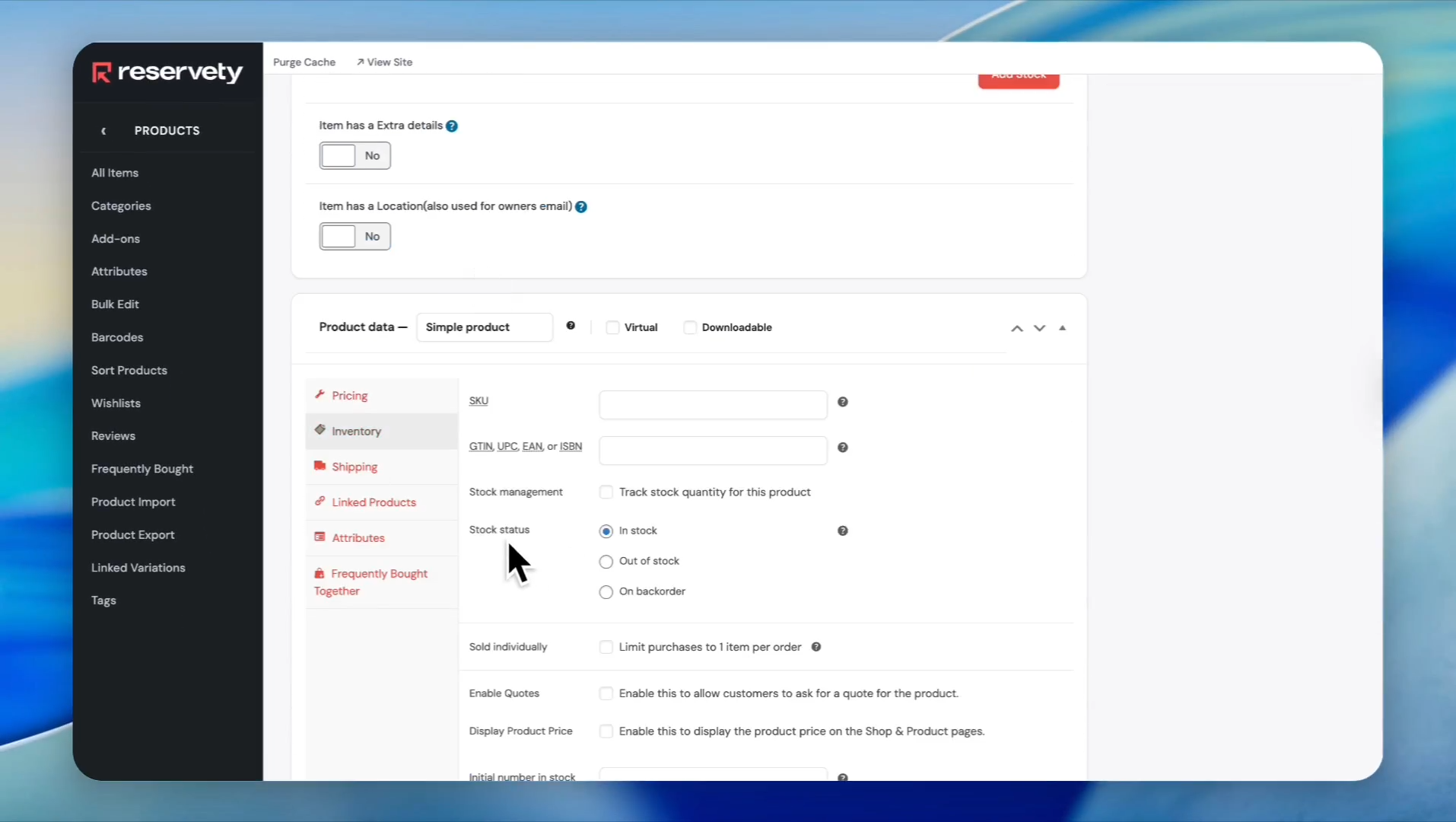
Click on Inventory and ensure the stock status is set to "In Stock." Do not check the option to track stock quantity for this product.
21
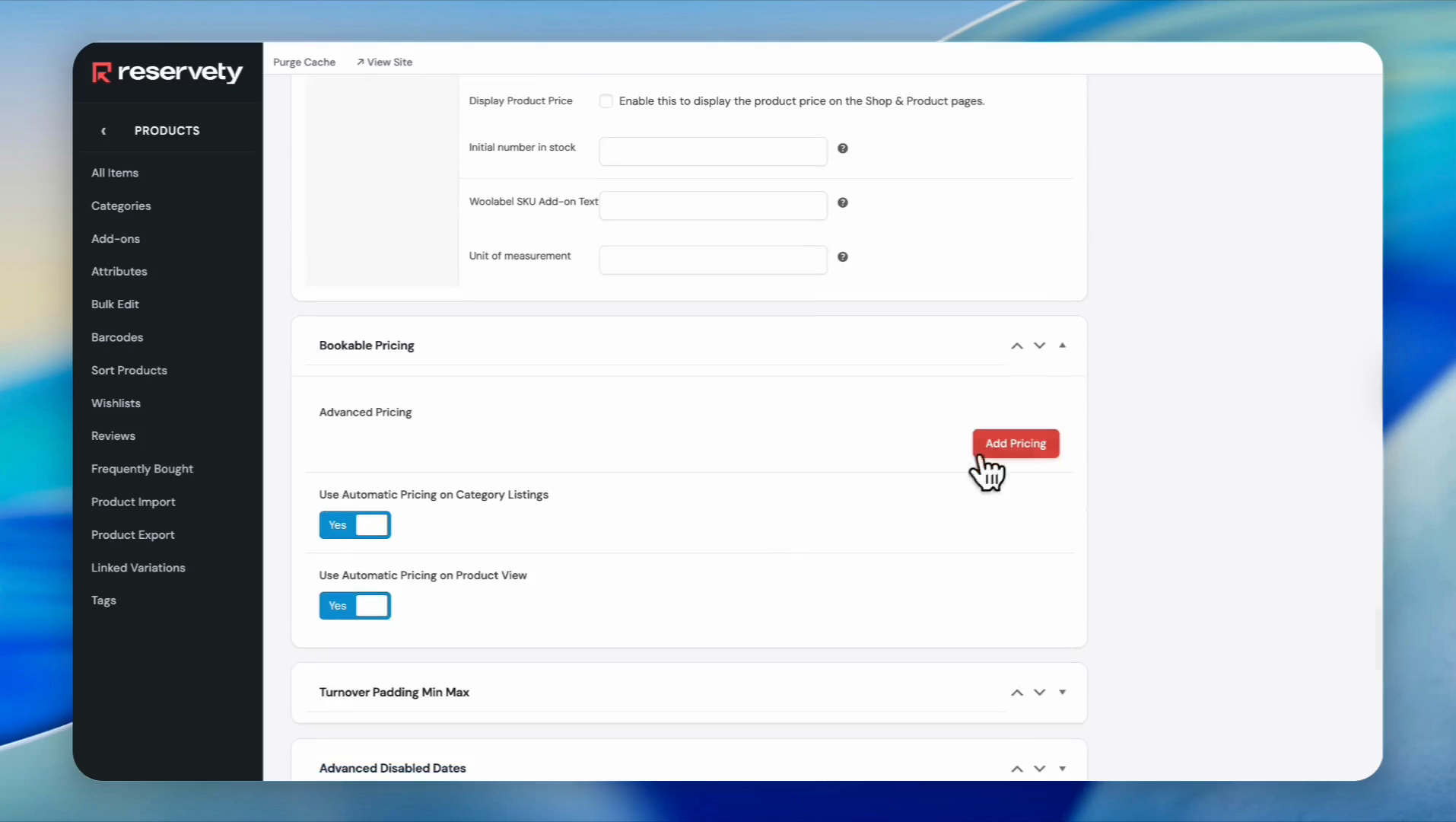
Click the Add Pricing button.
22
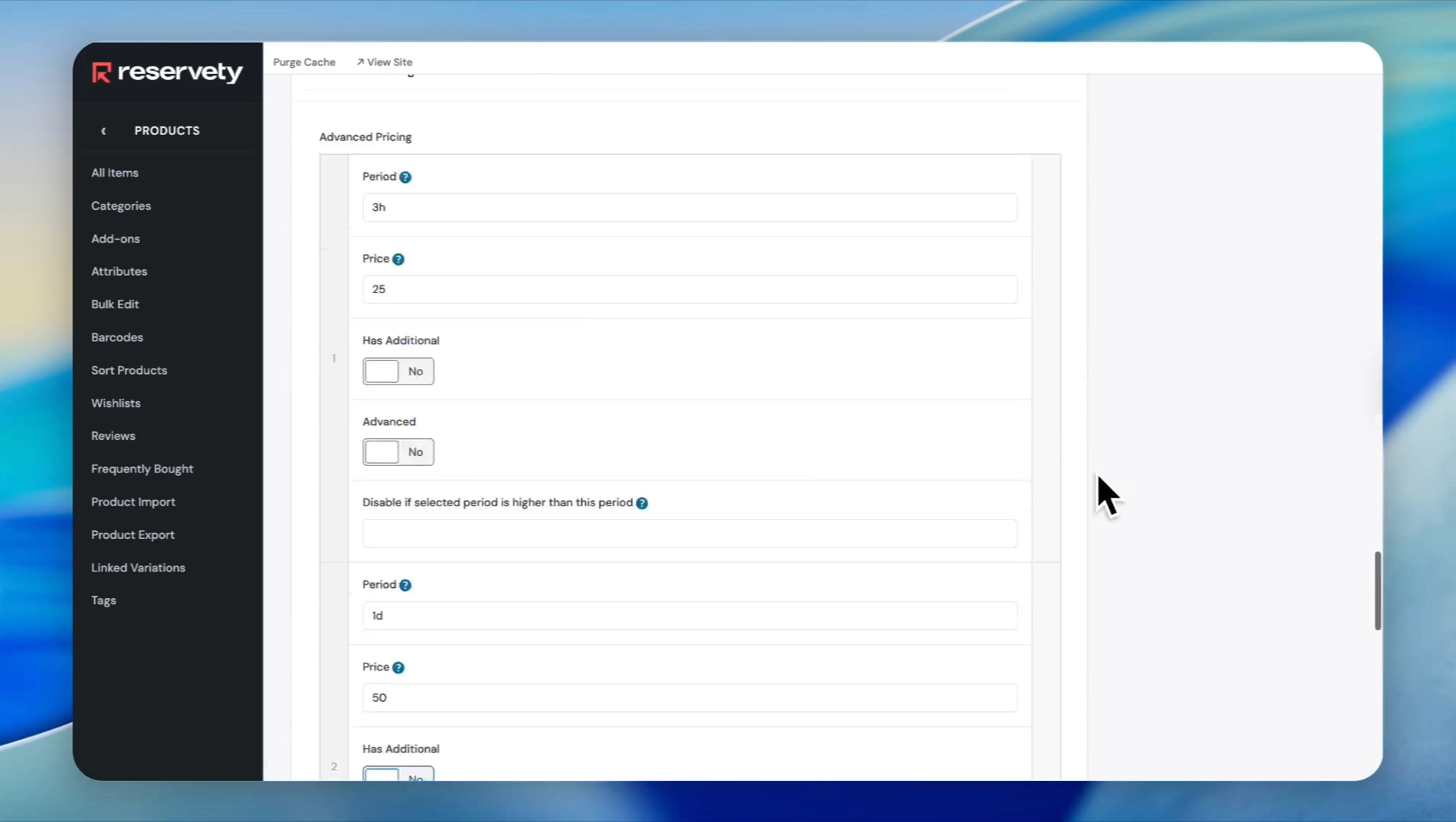
Add your pricing
23
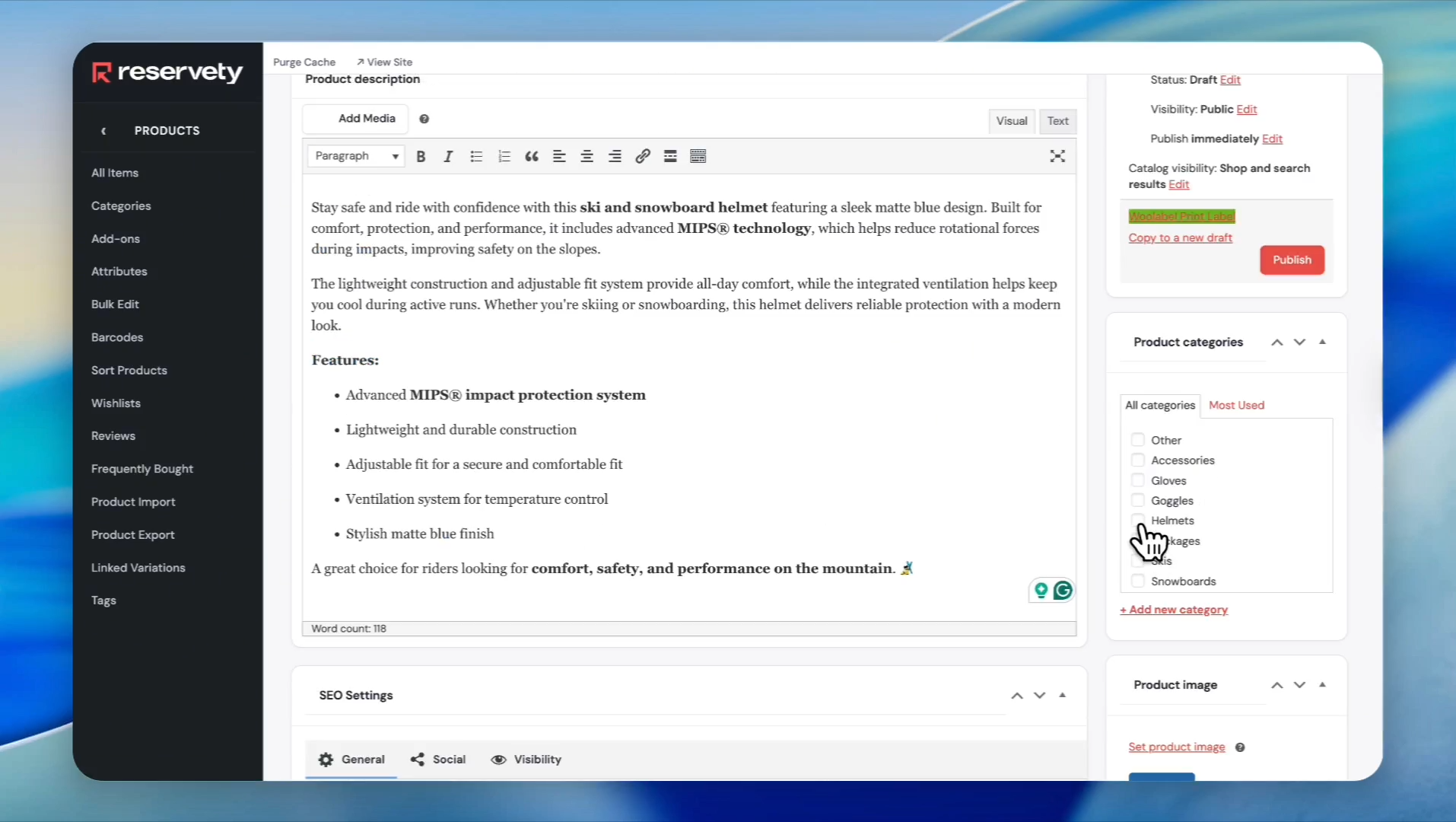
Go up and select the relevant category for your product.
24
Add images by clicking on "Set Product Image" and "Add Product Gallery Images."
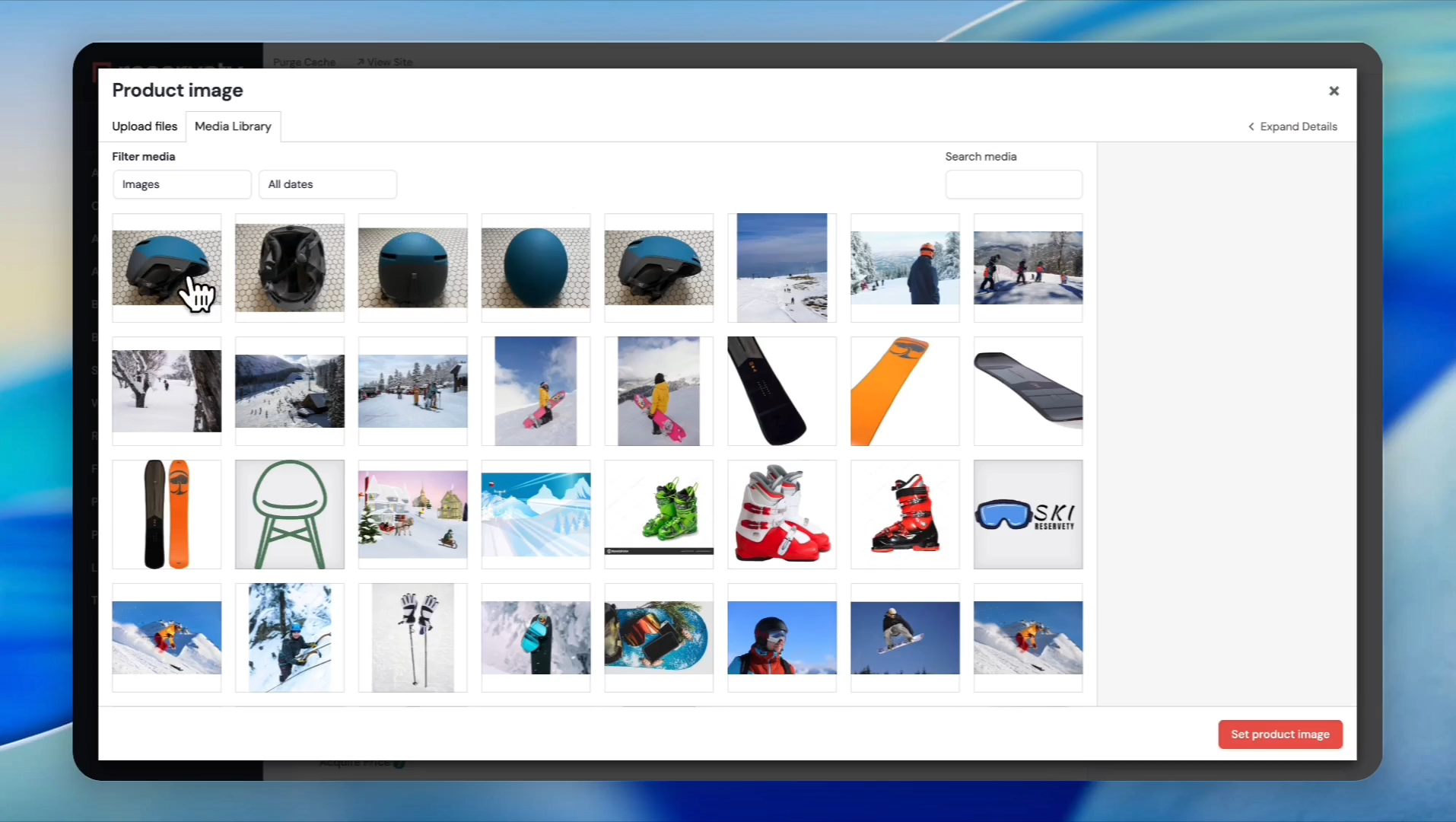
25
Click the Publish button.
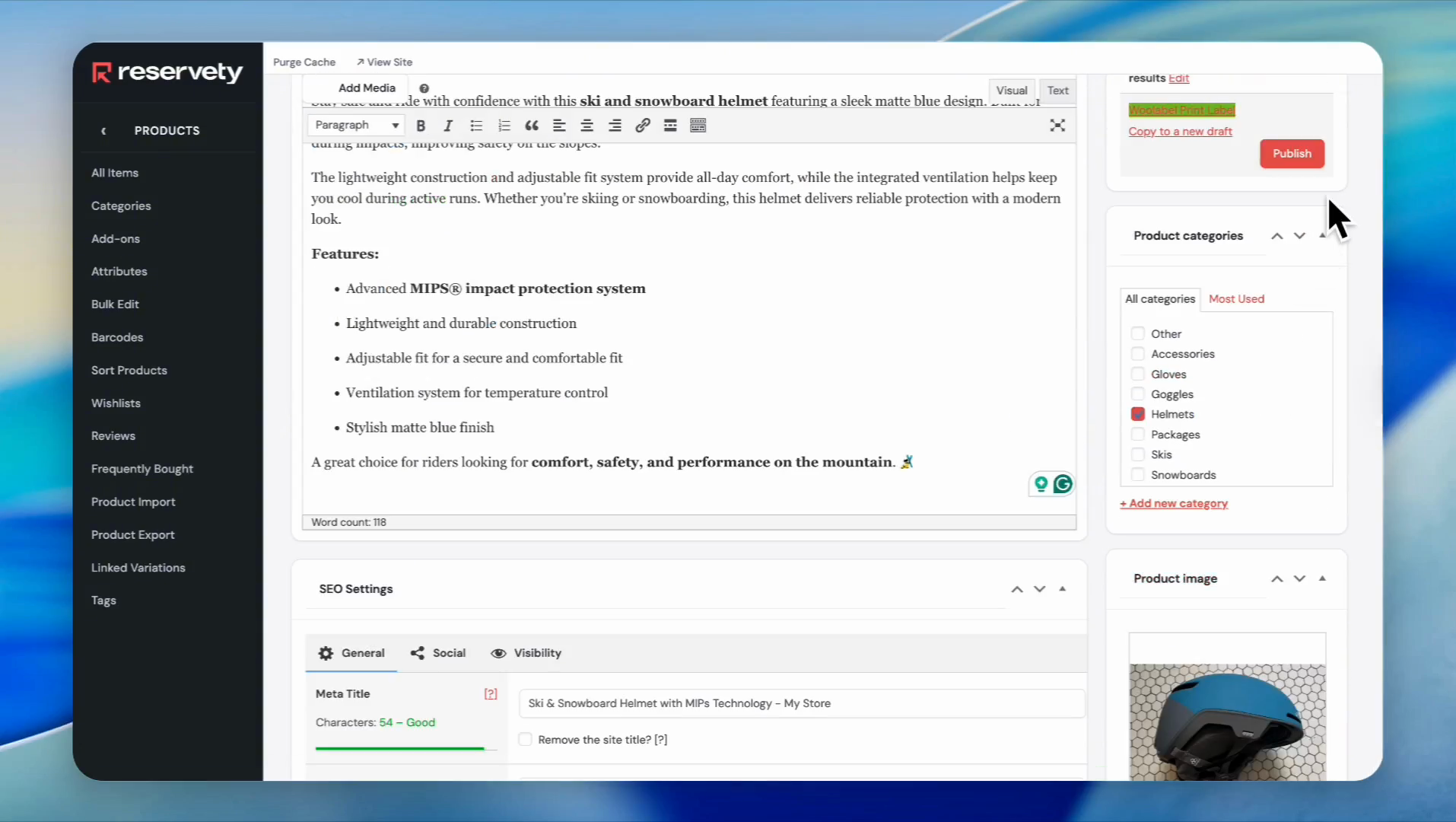
26
Now let's check our item using the serial numbers. Click the View product link at the top of the page.
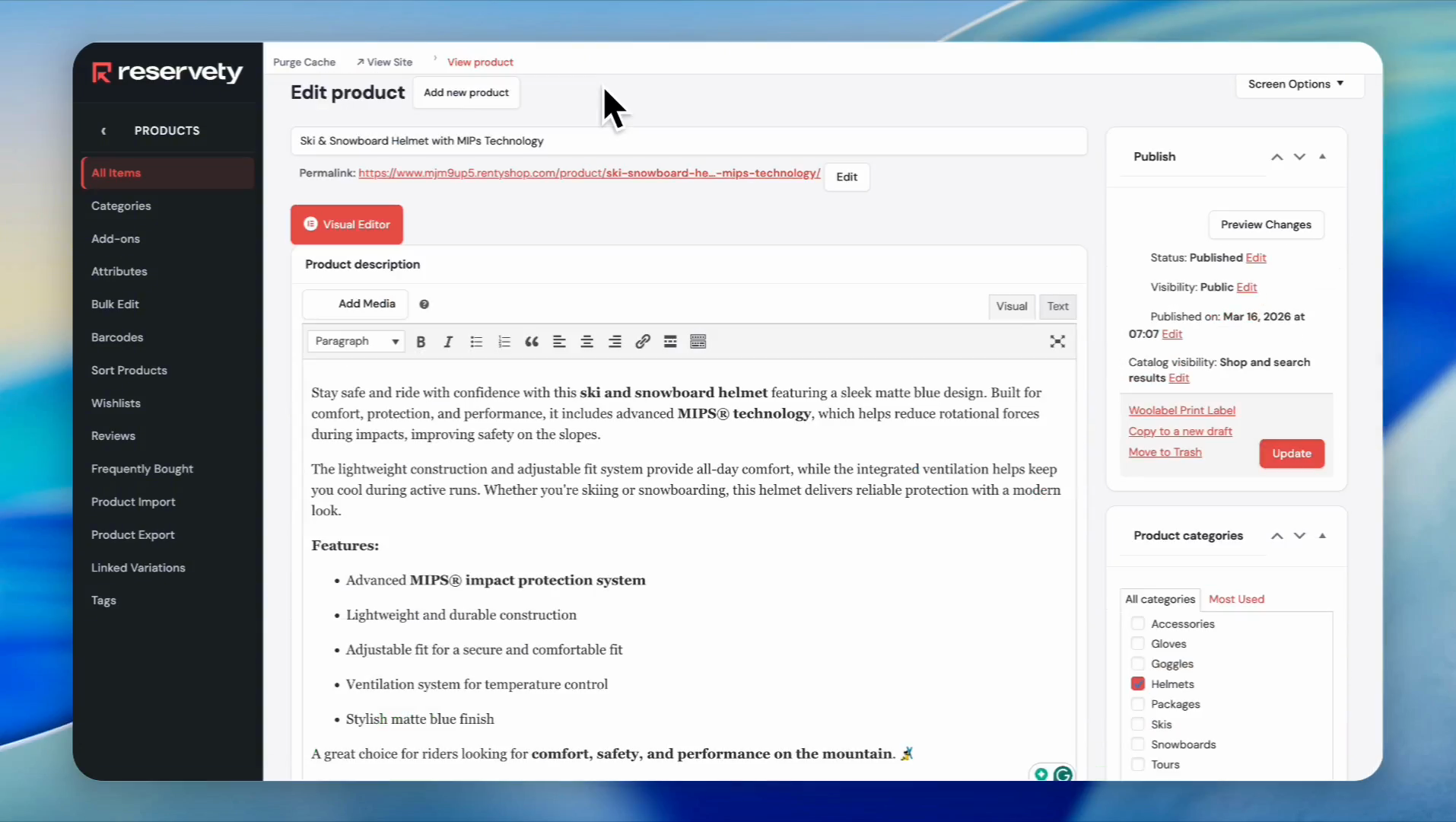
27
Let's create a test order to demonstrate how to add serial products to it. First, click on the Calendar icon and select a period.
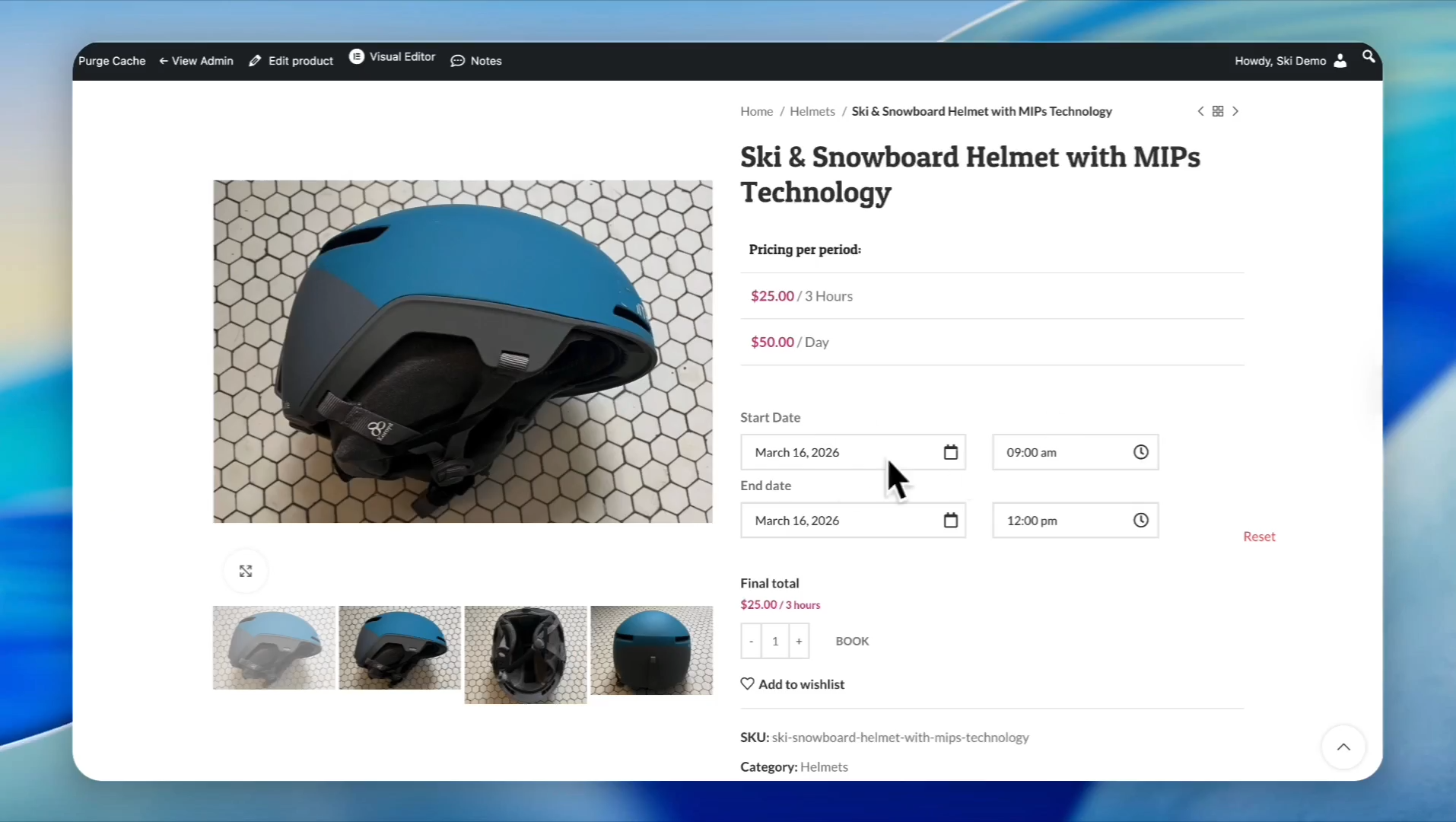
28
Let's say we want to book three of these helmets. Click the plus button to increase the quantity to 3.
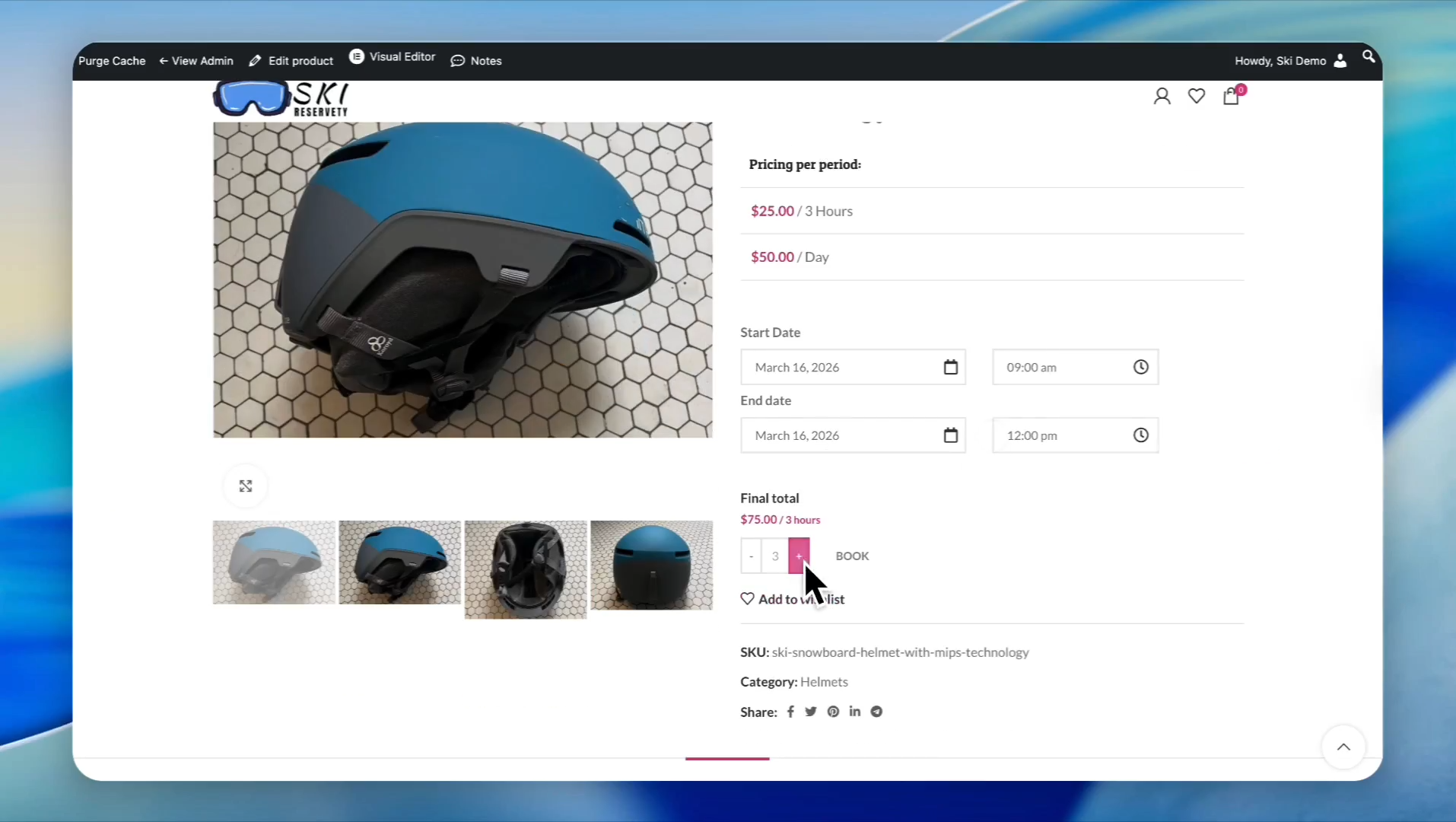
29
Click the BOOK button.
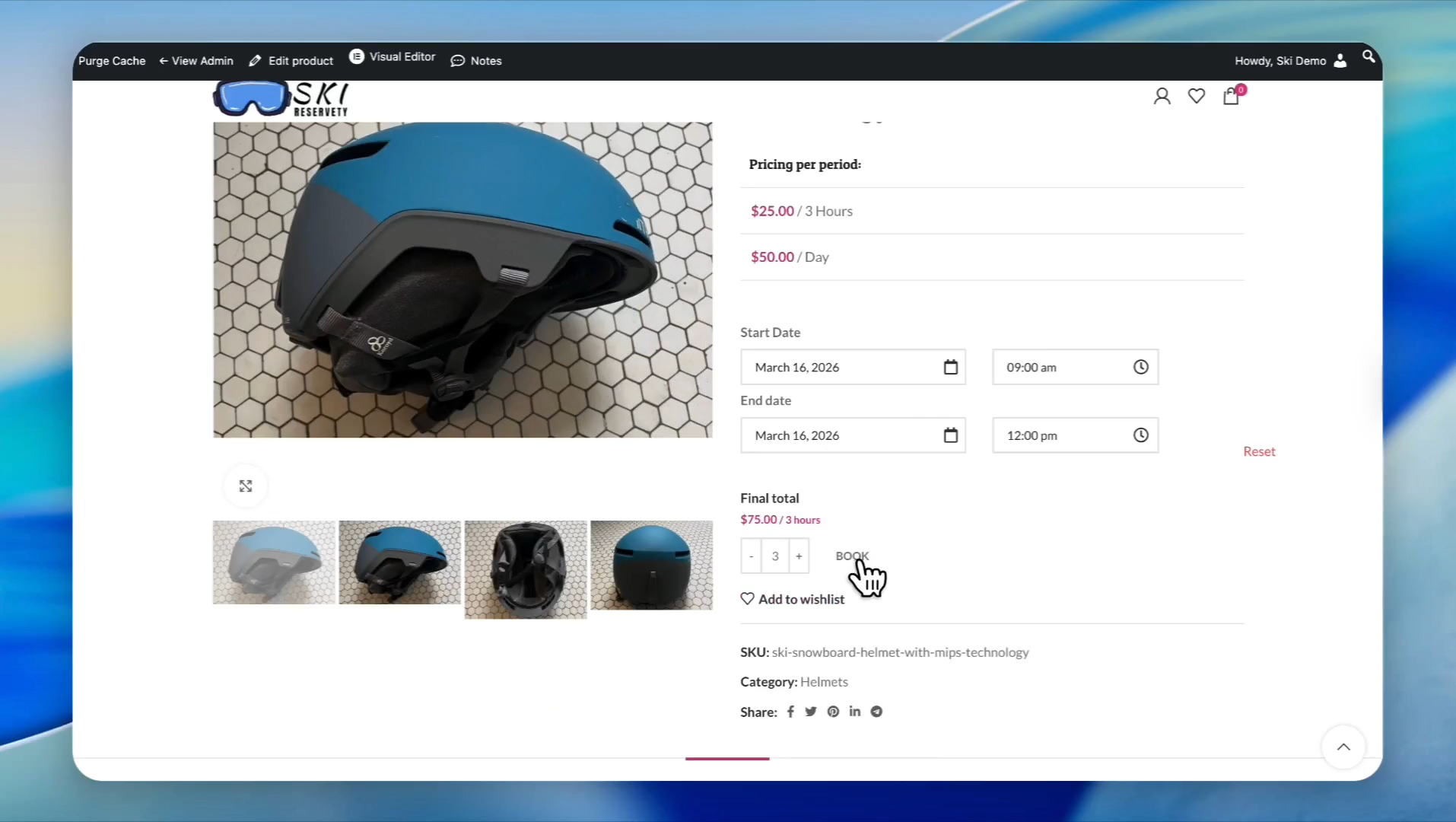
30
Go to the checkout. On the checkout page, enter the customer information, ensure the amount is correct, and select the payment method.
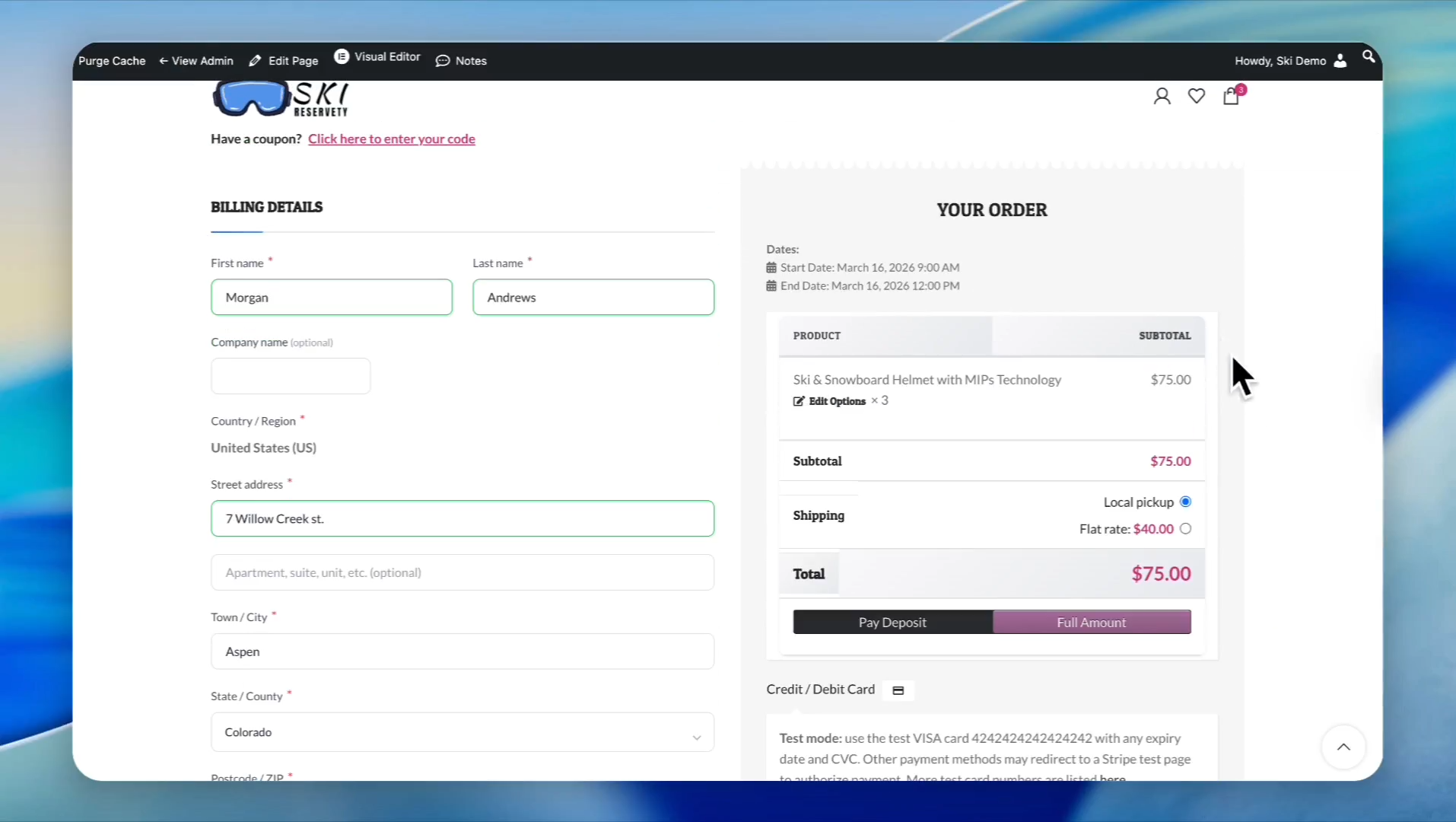
31
Put a check mark next to Terms & Conditions and click the PLACE ORDER button.
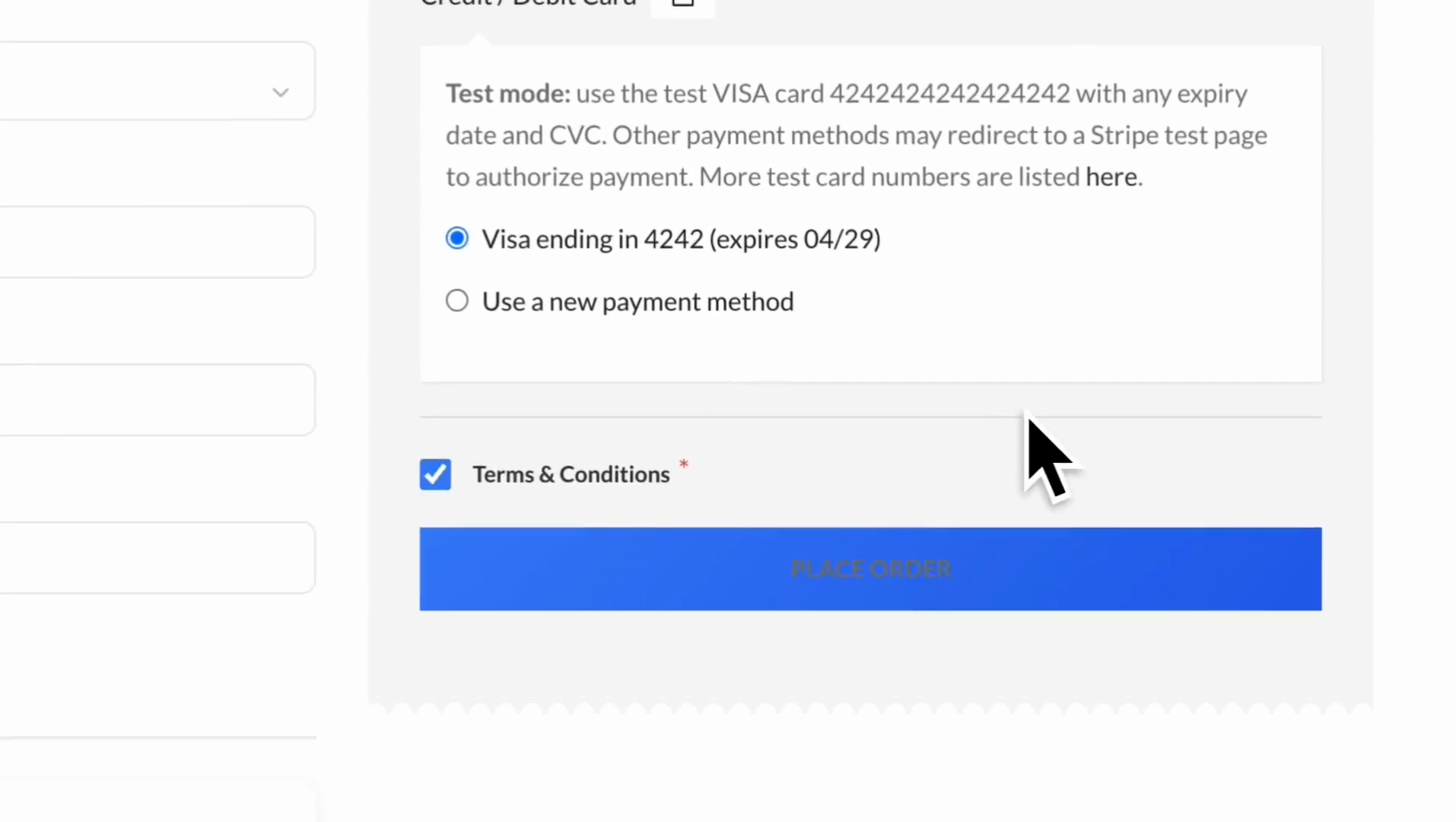
32
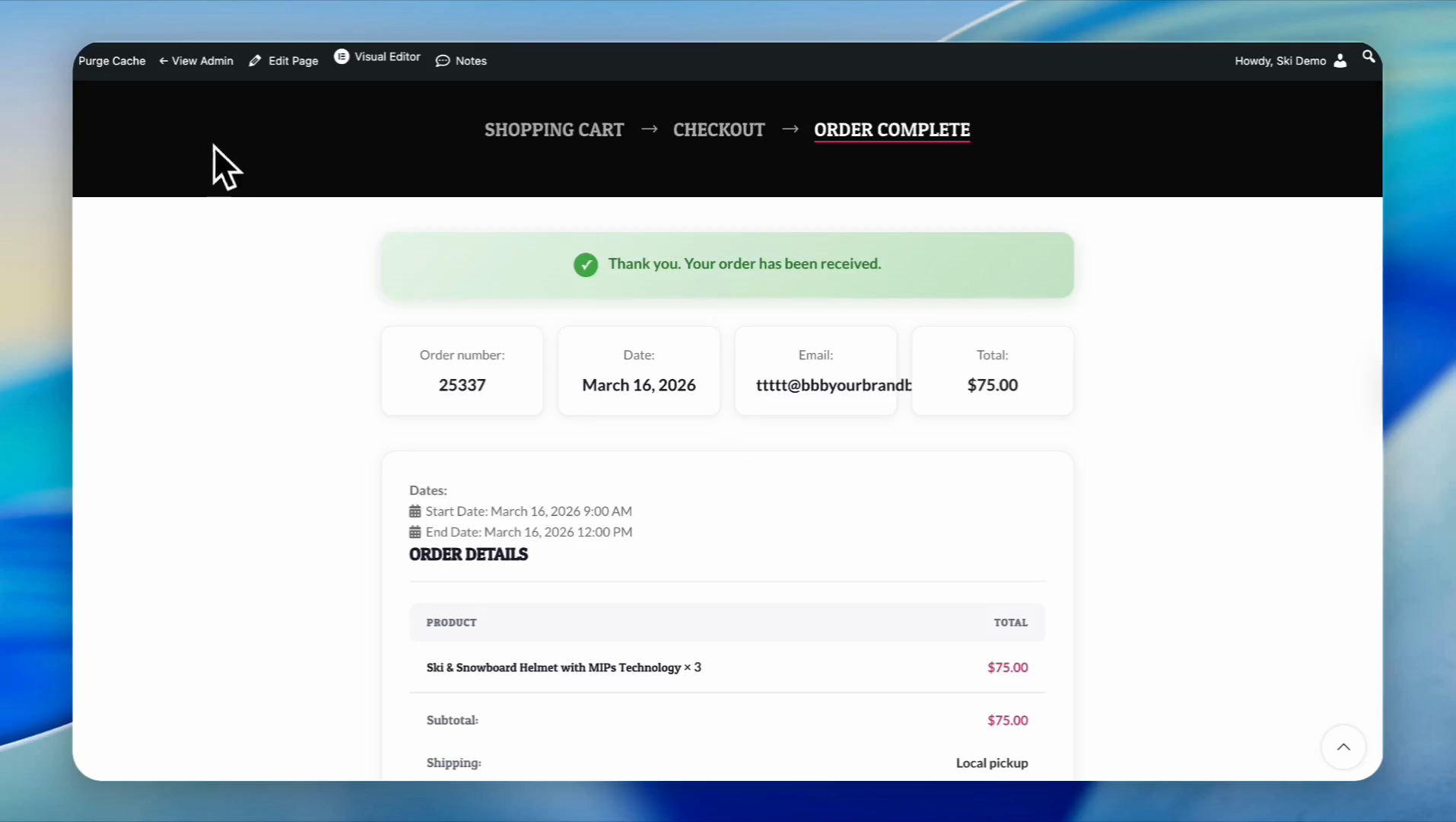
Our order has been received. Let's assign serial numbers to this order. To do that, go to the admin dashboard.
33
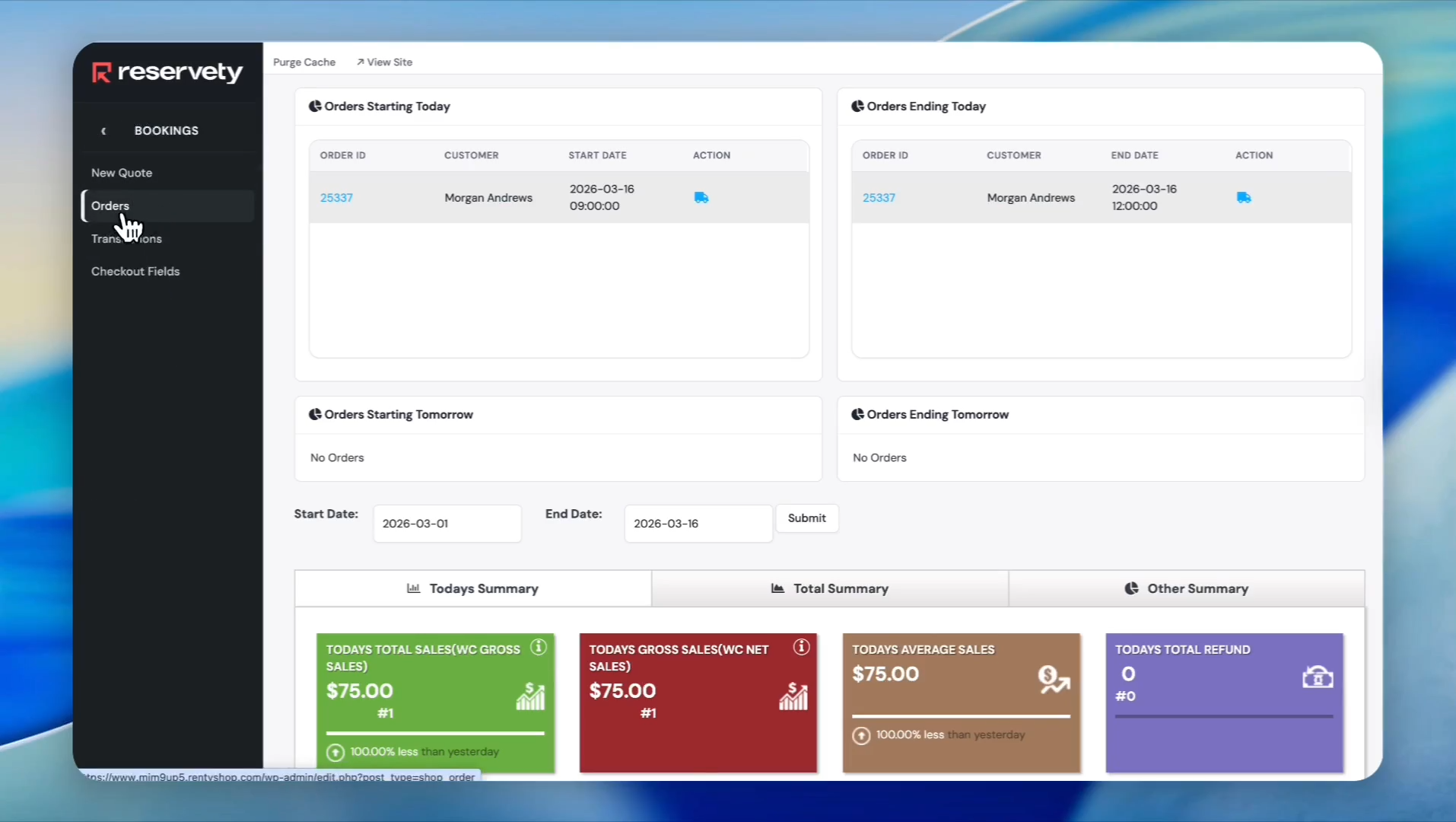
Click on Bookings, then click on Orders
34
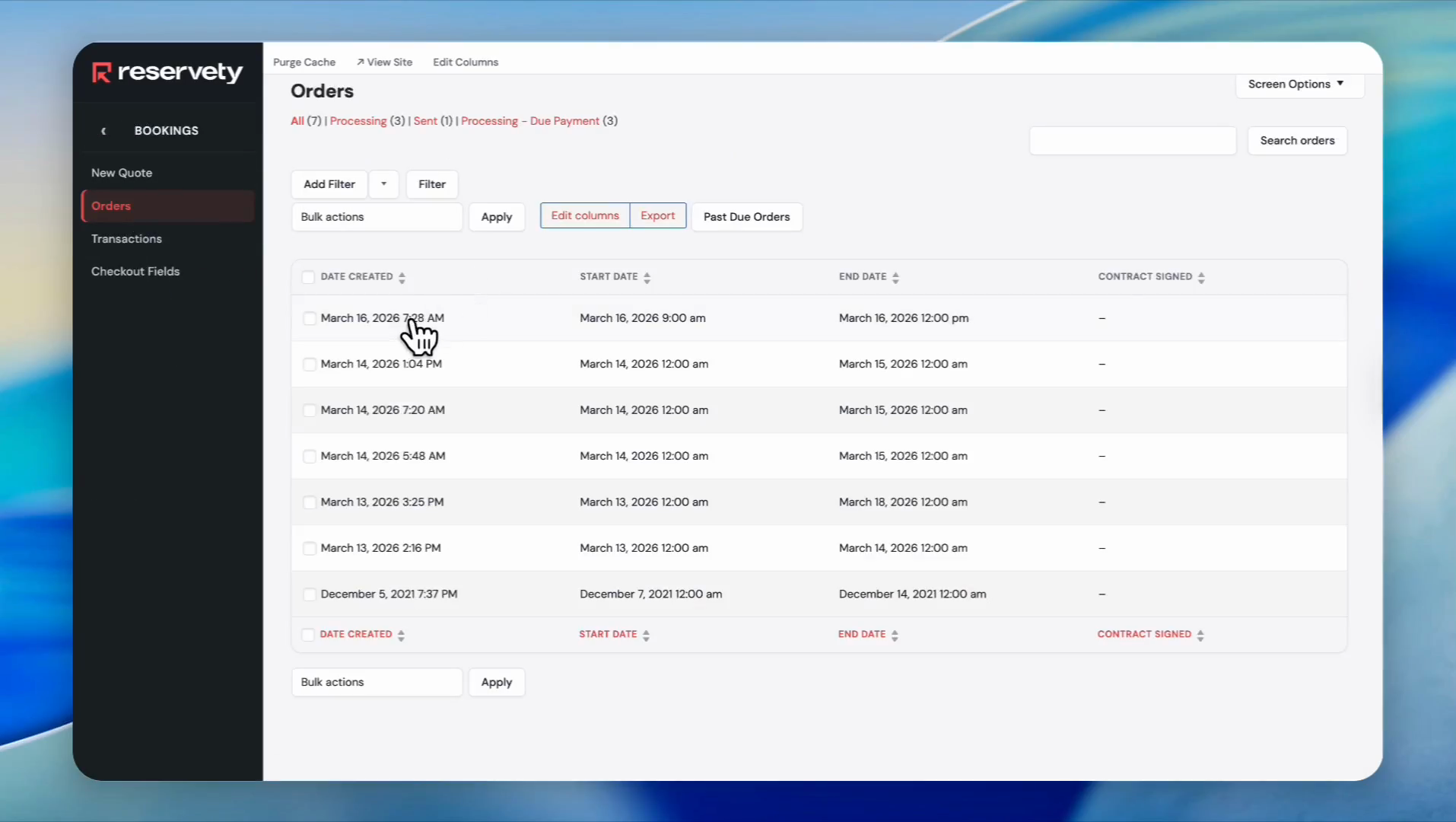
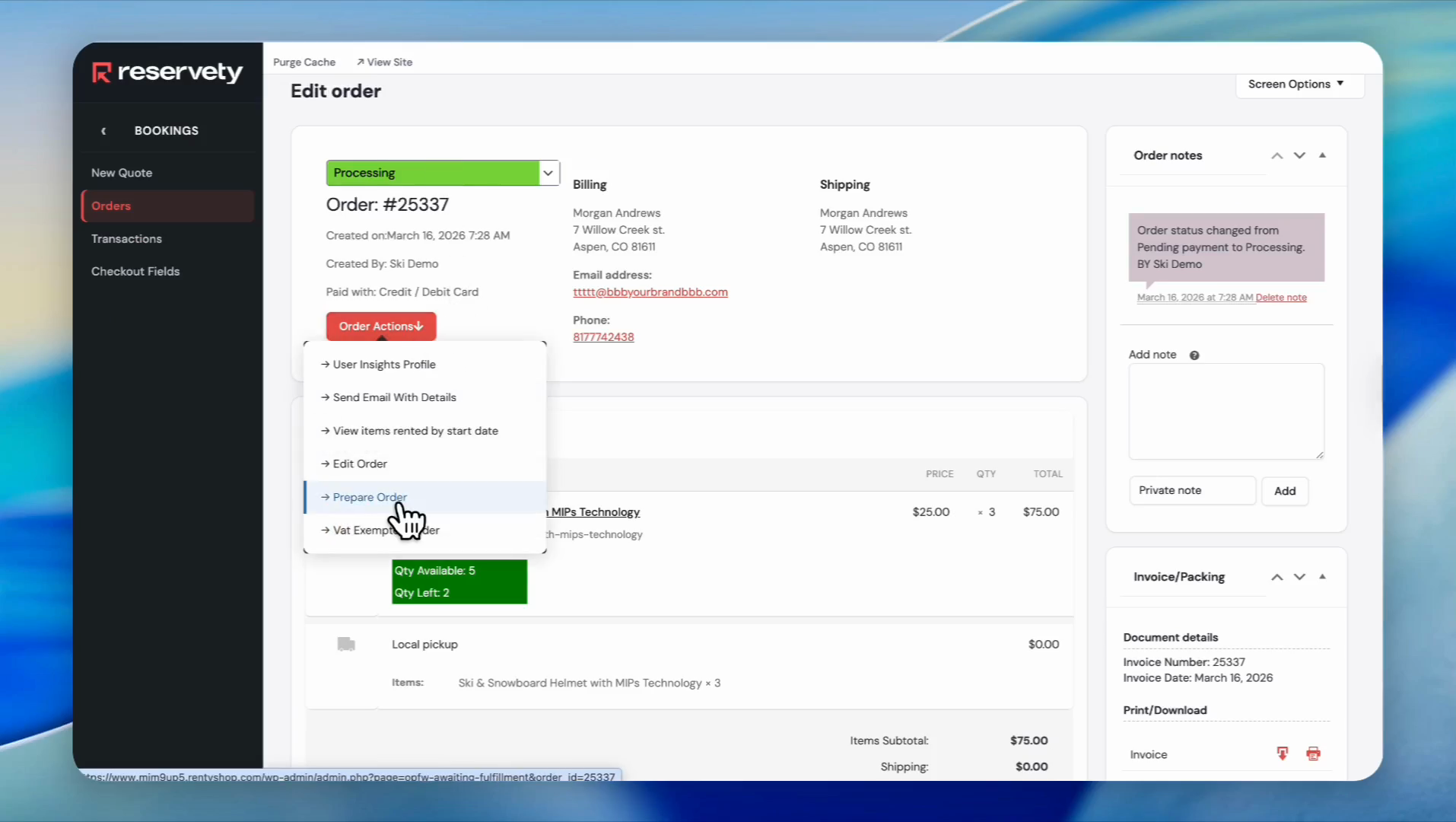
Click on the order you need to fulfill
35
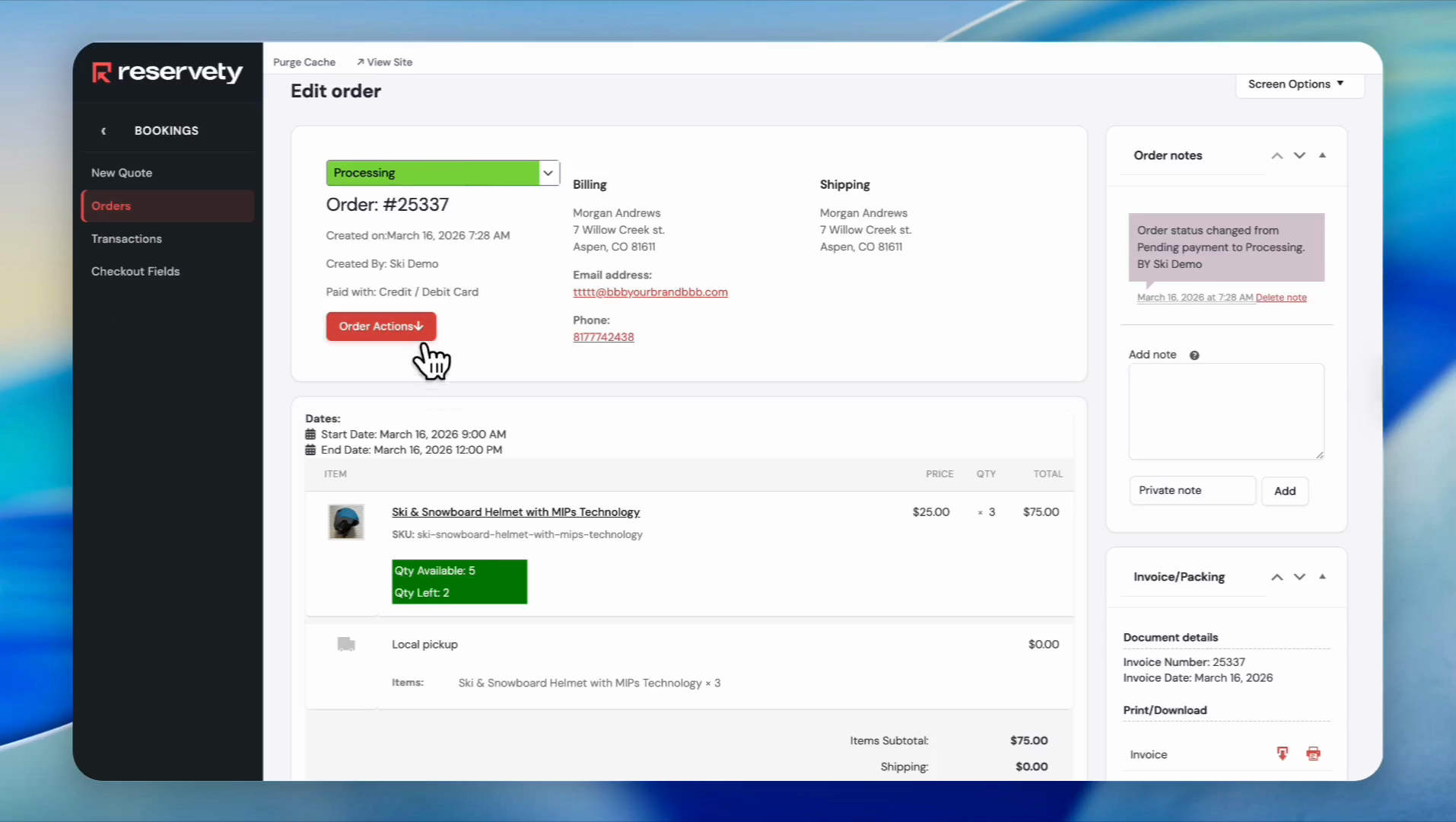
Click the Order Actions button.
36
Click Prepare Order from the dropdown menu.
37
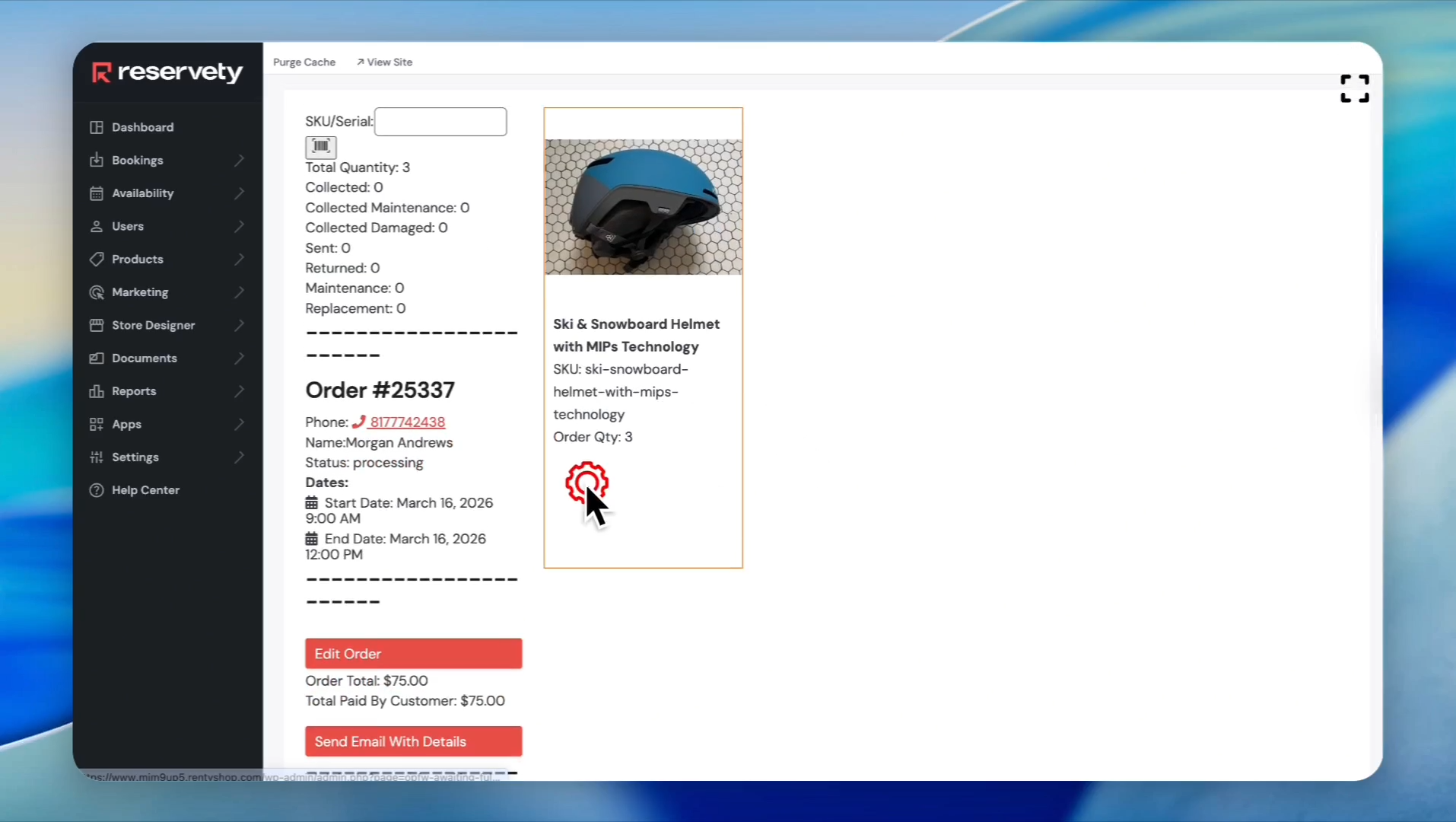
Now, let's select serial numbers to fulfill the order. Click the settings icon to assign serial numbers.
38
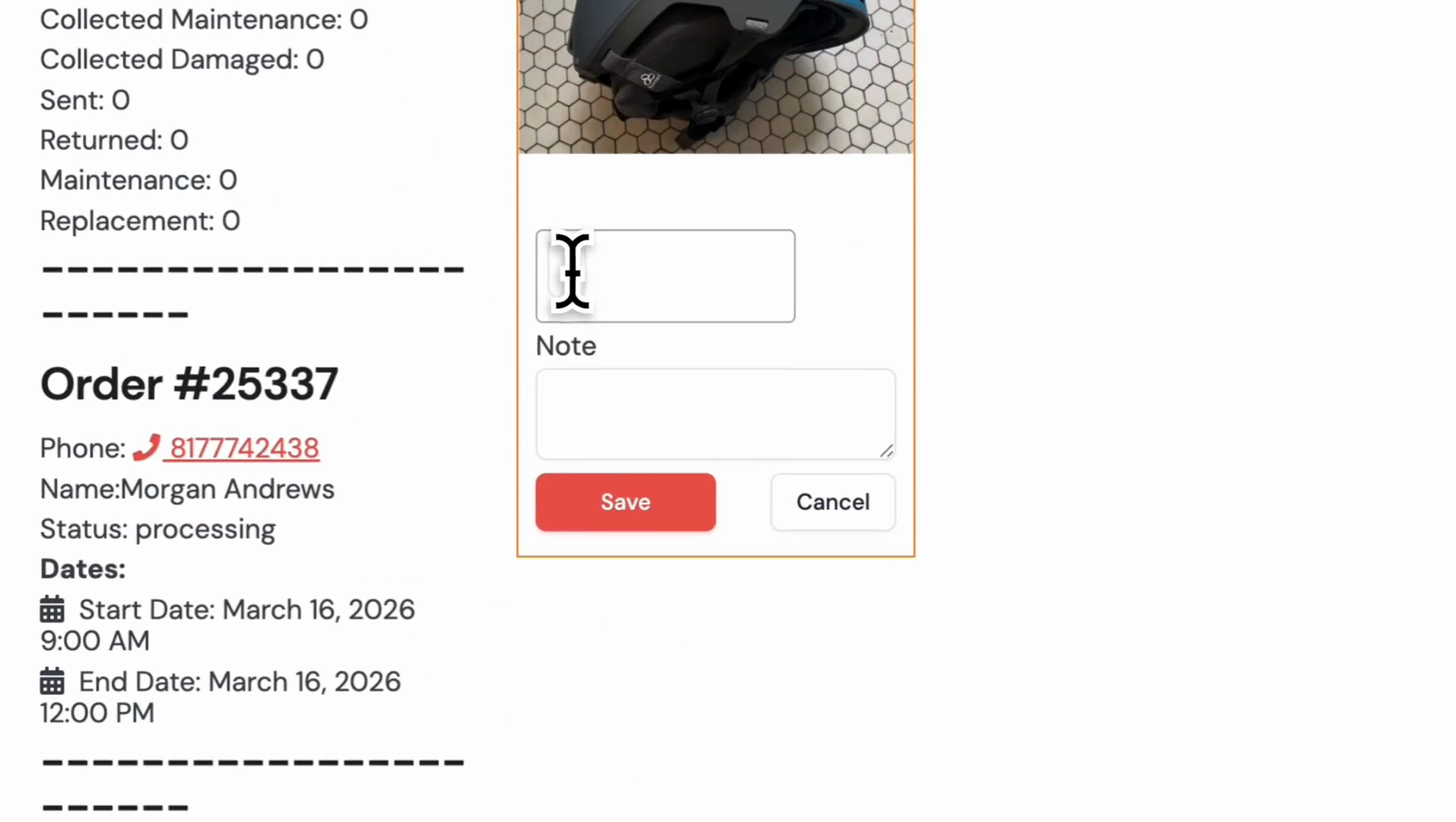
Click the input field to select a serial number.
39
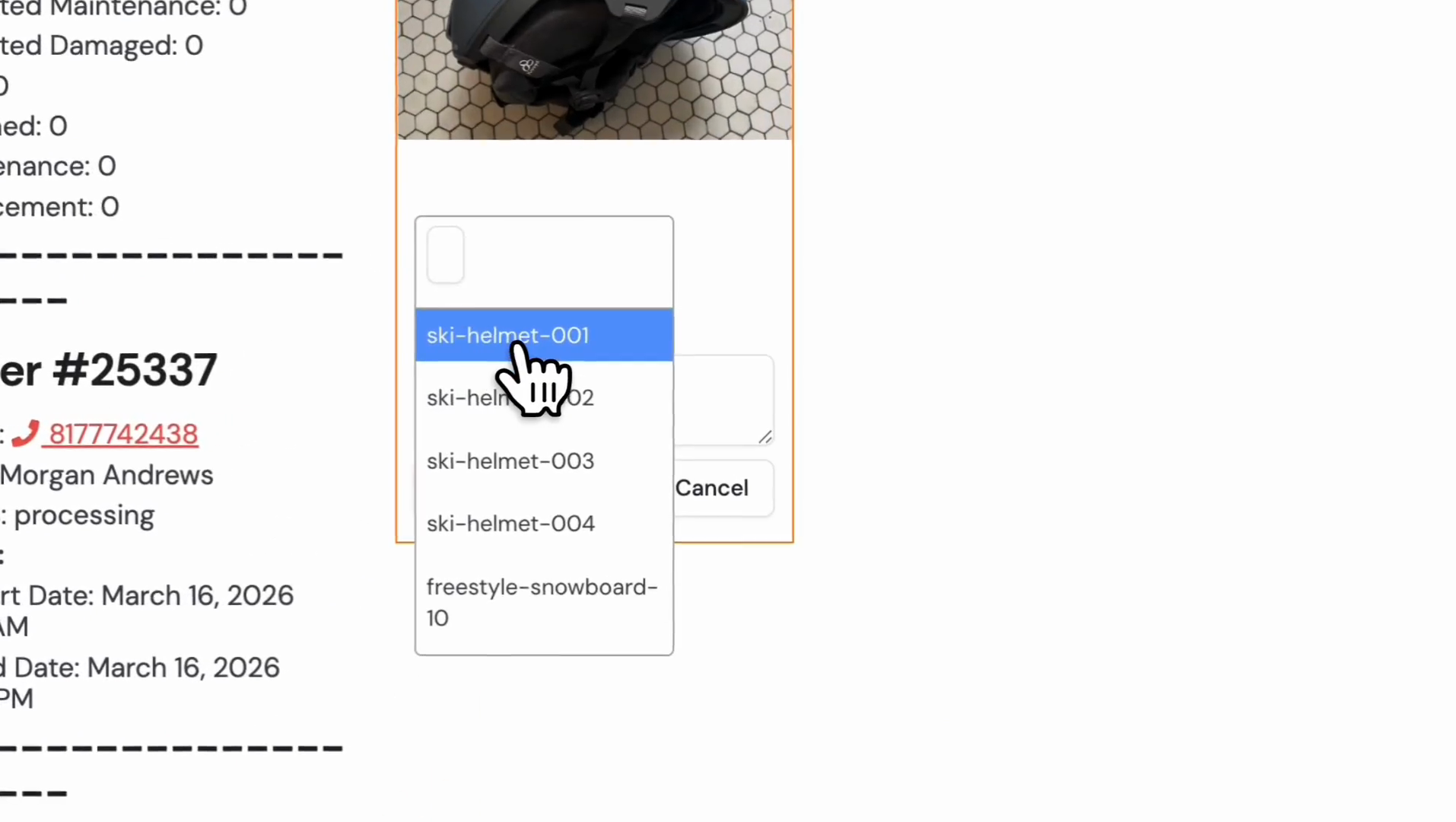
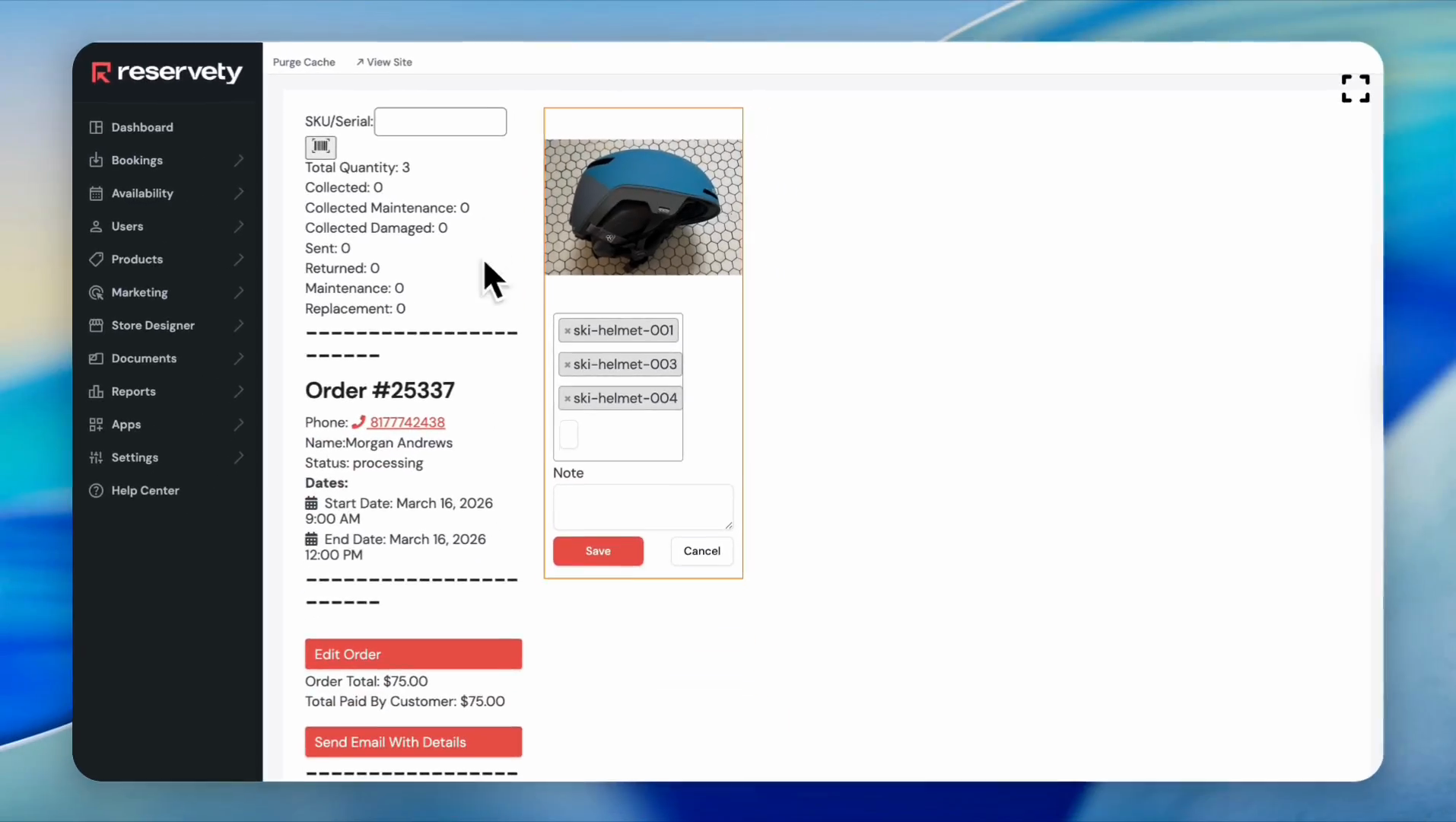
We want to select ski helmets with numbers 1, 3, and 4.
40
After selecting three serials for this order, click the 'Save' button.
41
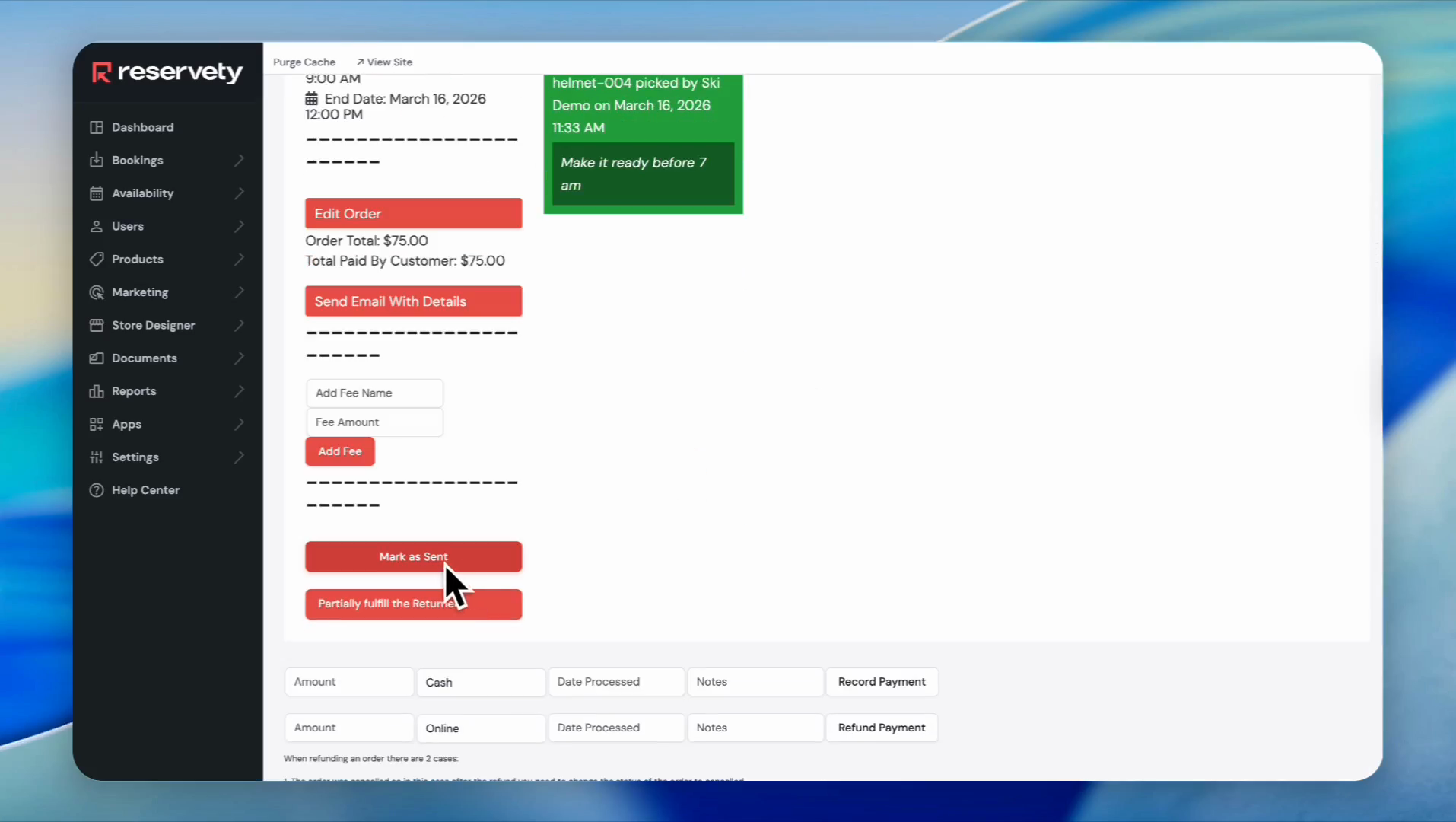
Three helmets are assigned to our order. After giving the helmets to the customer, click "Mark as Sent."
42
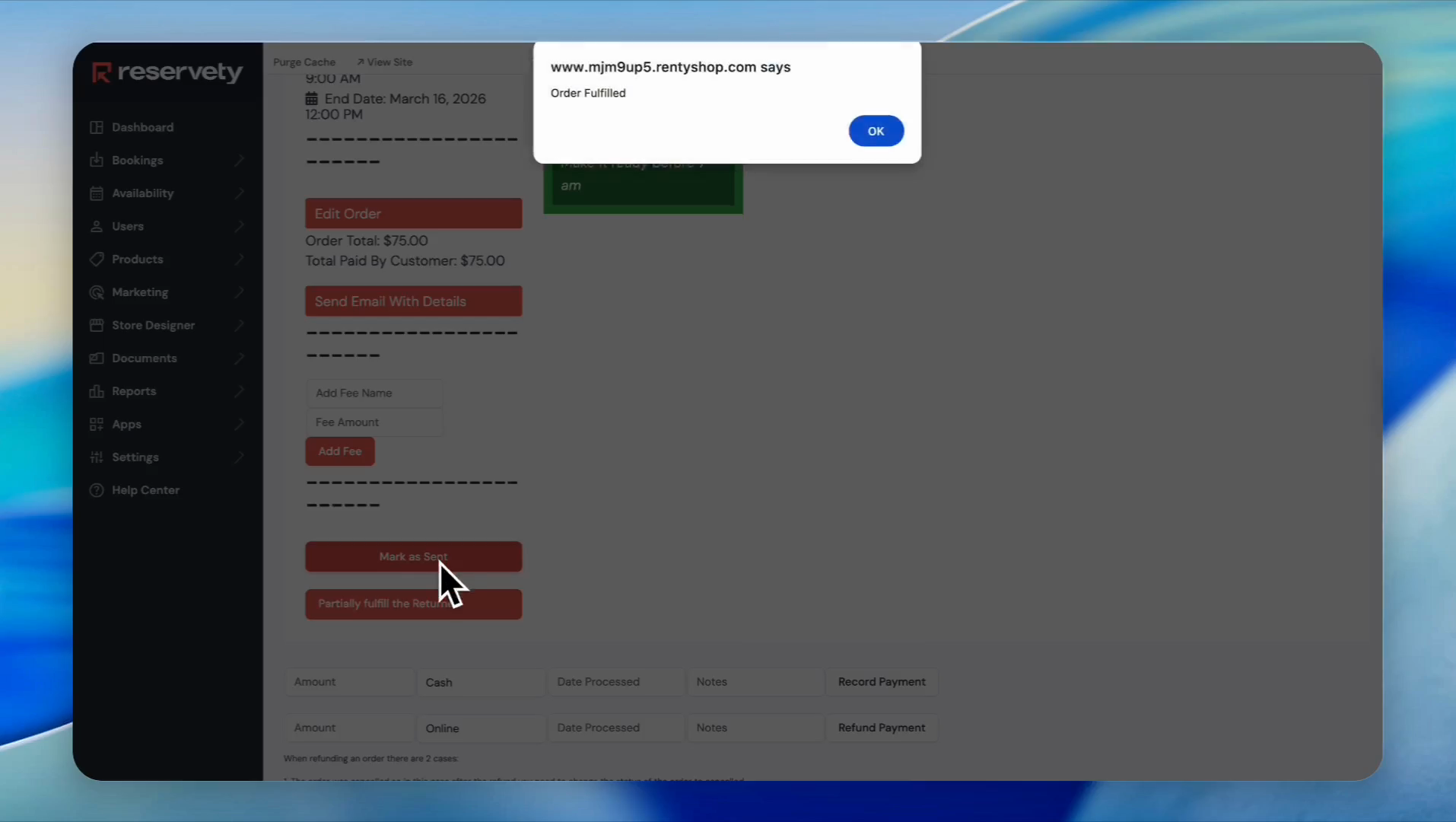
Click the 'OK' button in the confirmation pop-up.
43
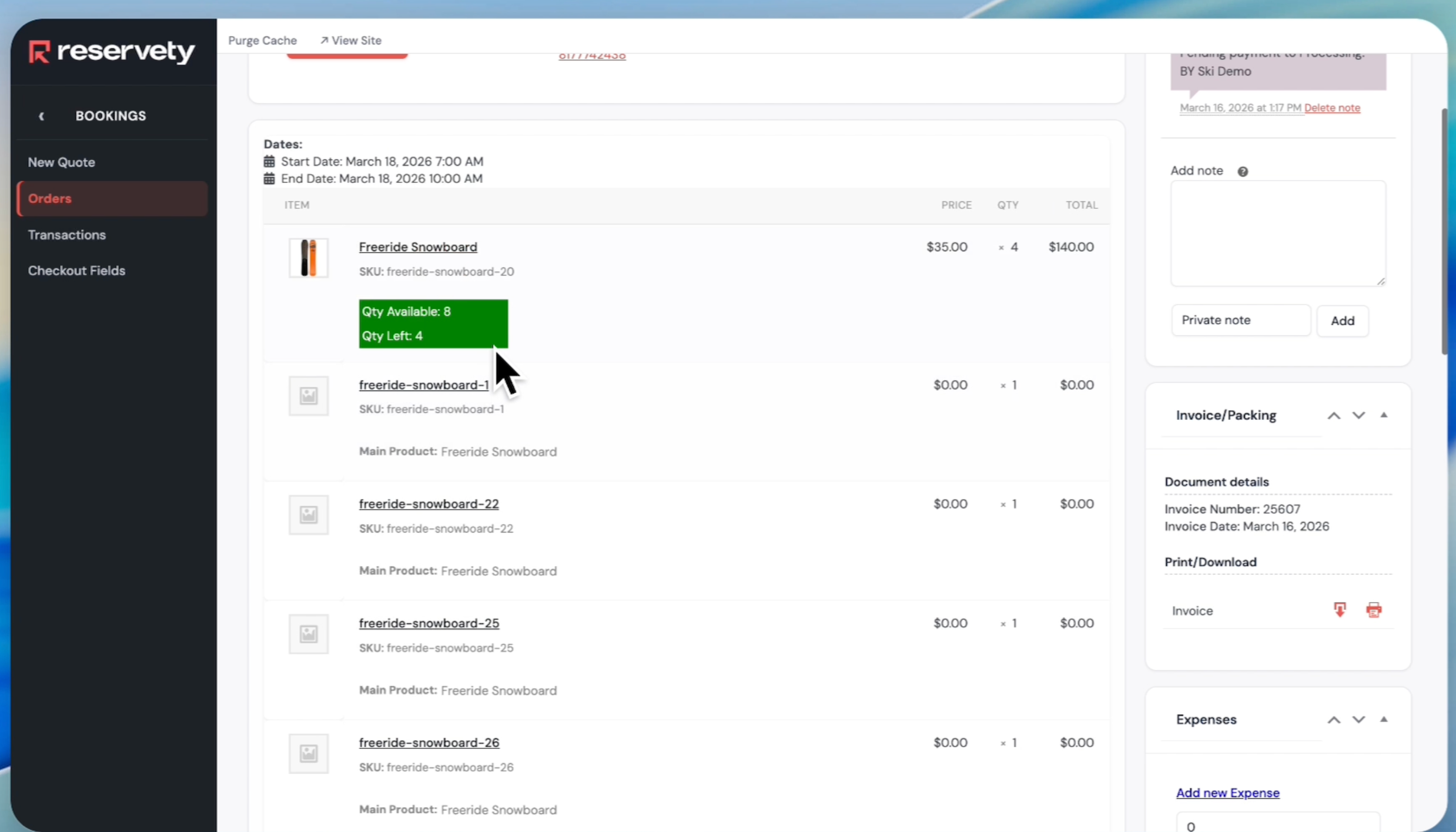
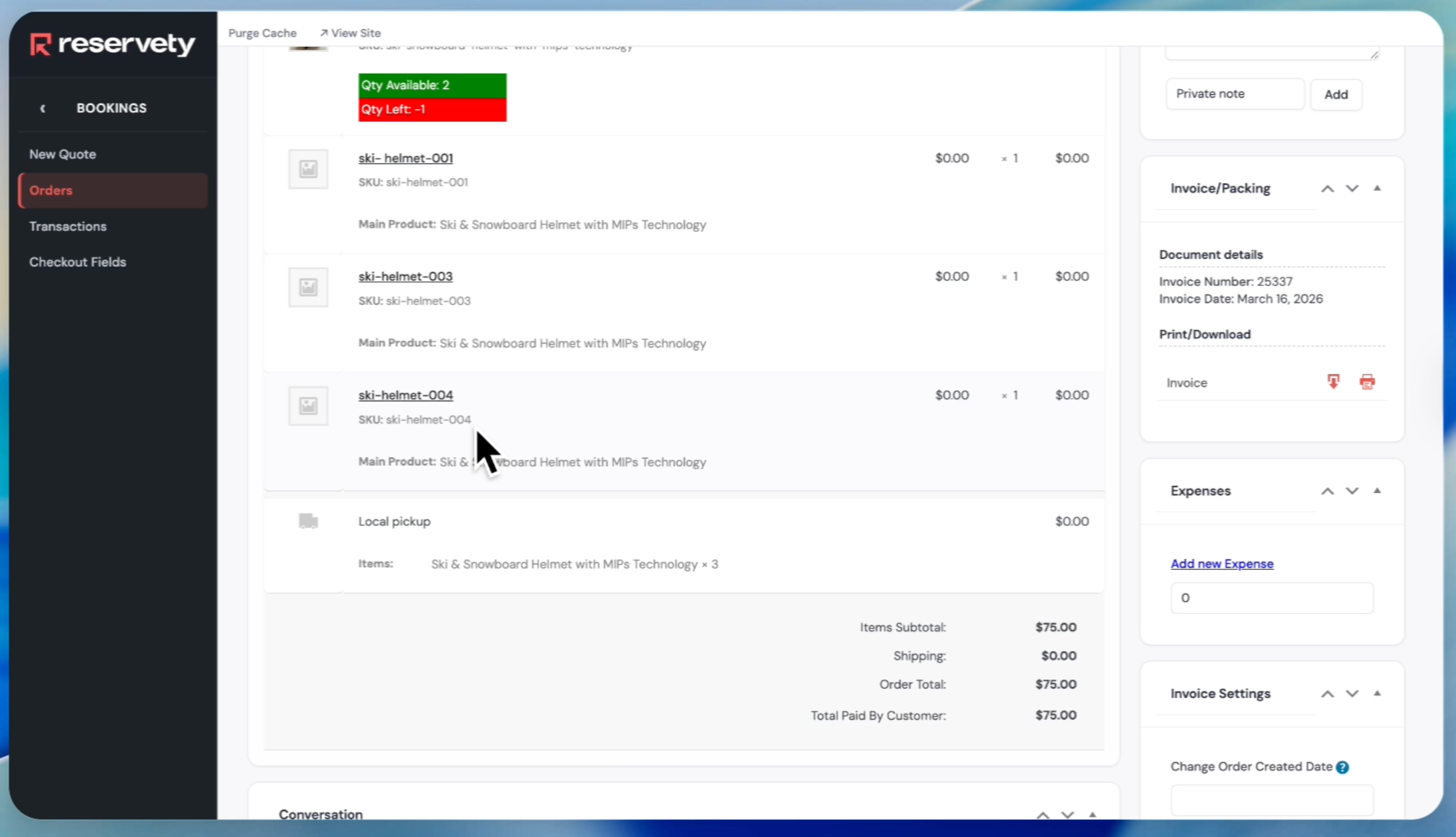
Click on the orders again to go to the order we fulfilled. Here, you will see the three serial numbers assigned to this order.
Let's learn how to automatically create products with serial numbers.
44
Navigate to the Products page.
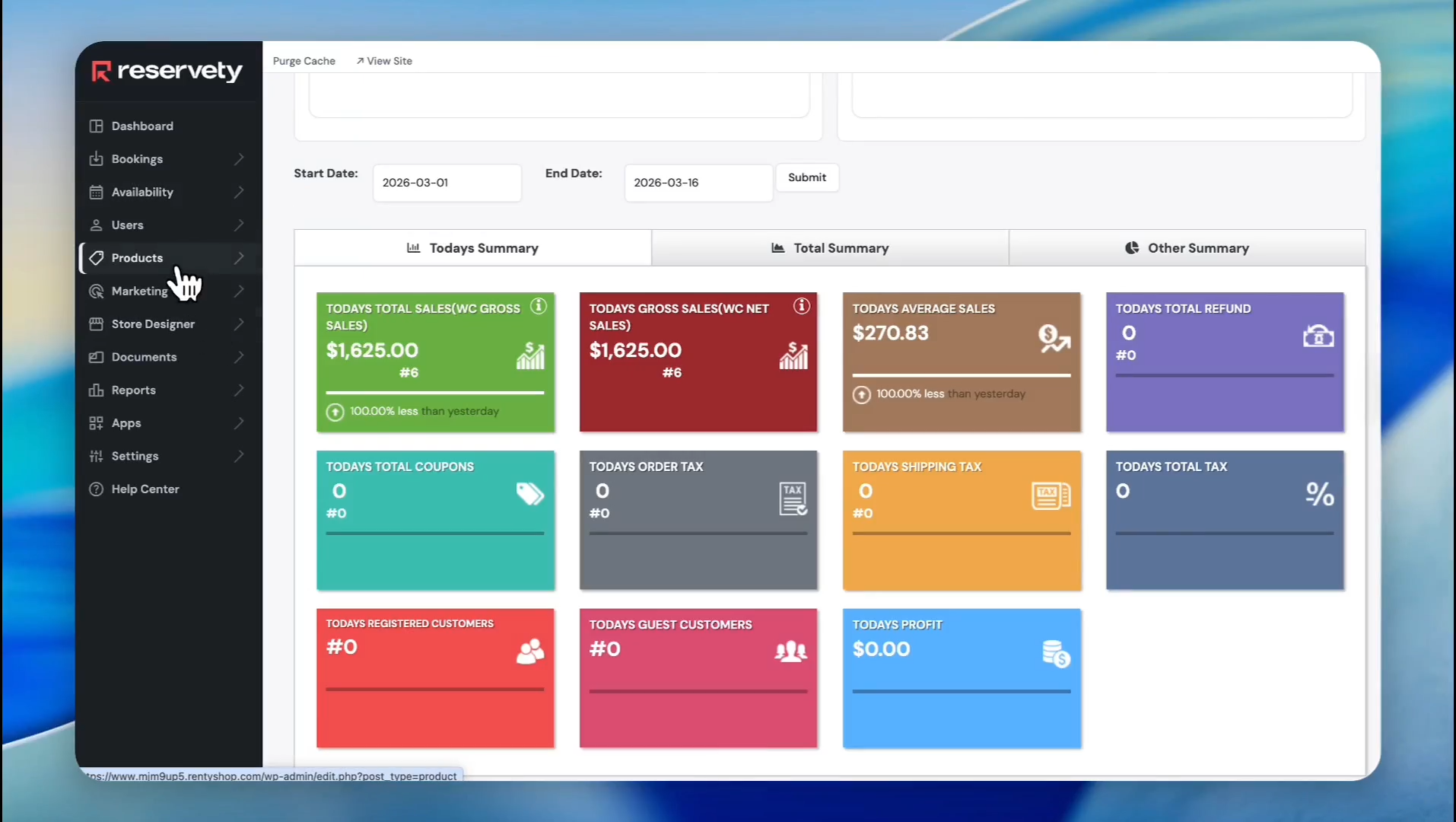
45
Click on 'All Items'.
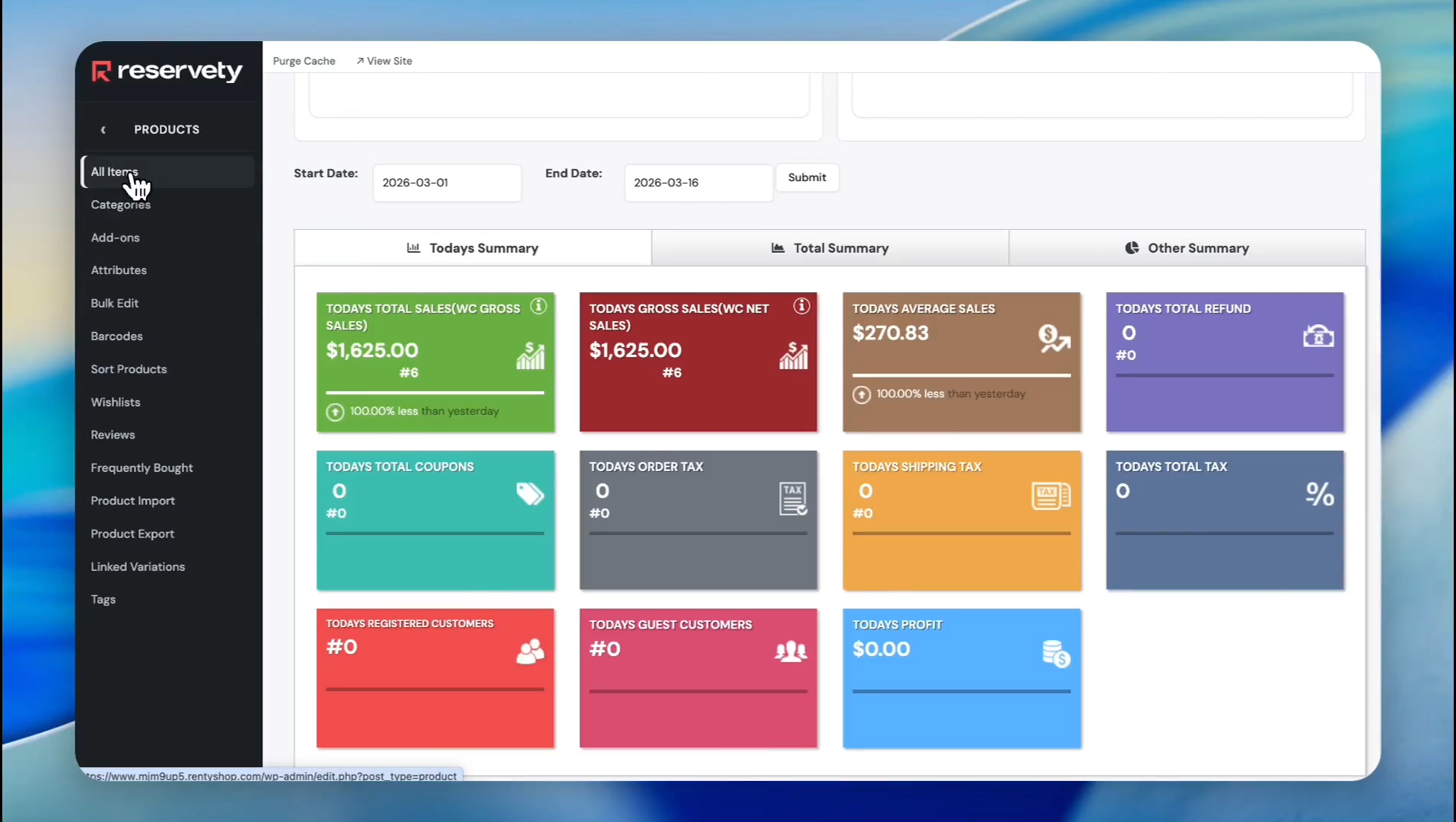
46
Click the 'Add new product' button.
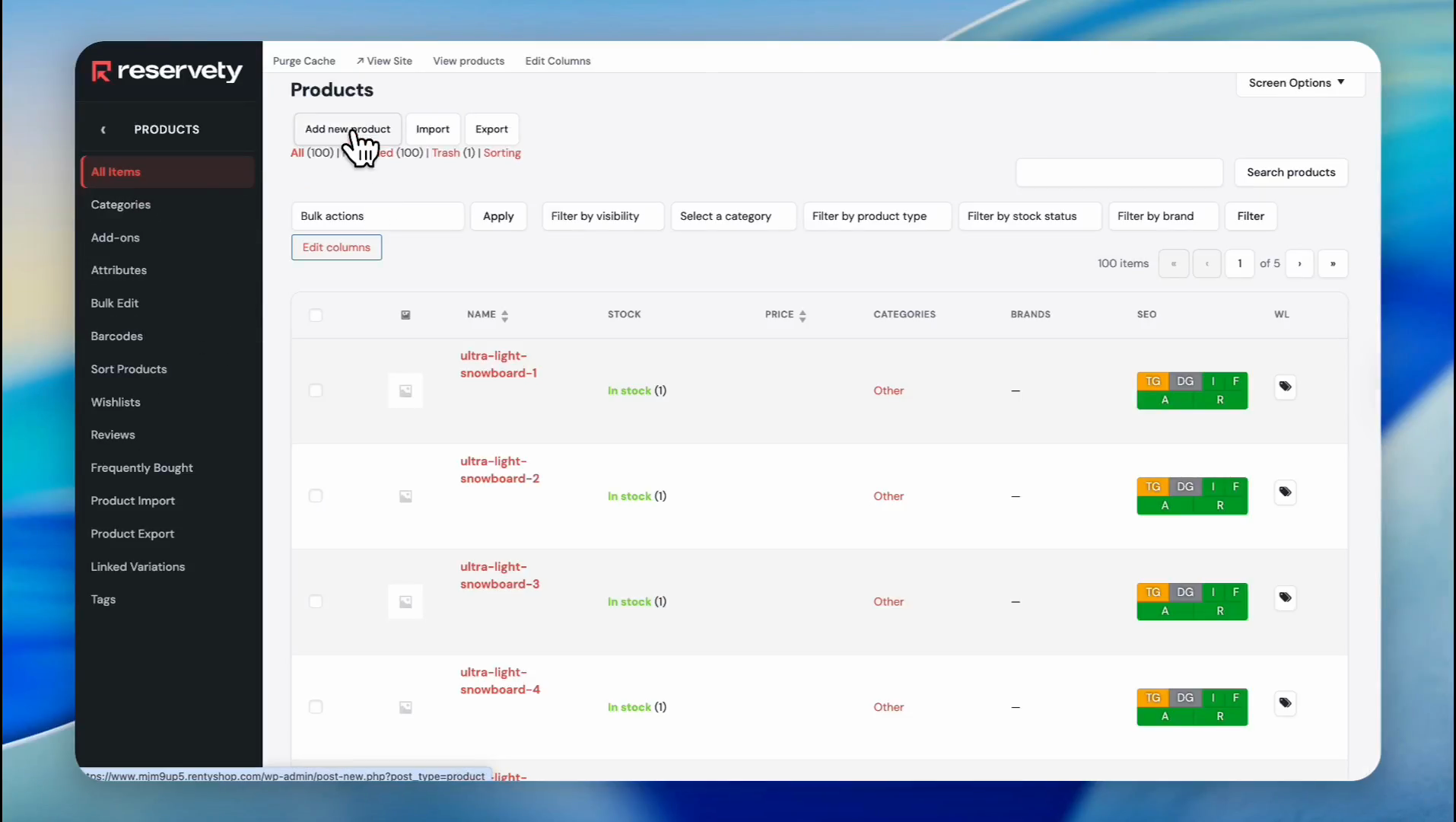
47
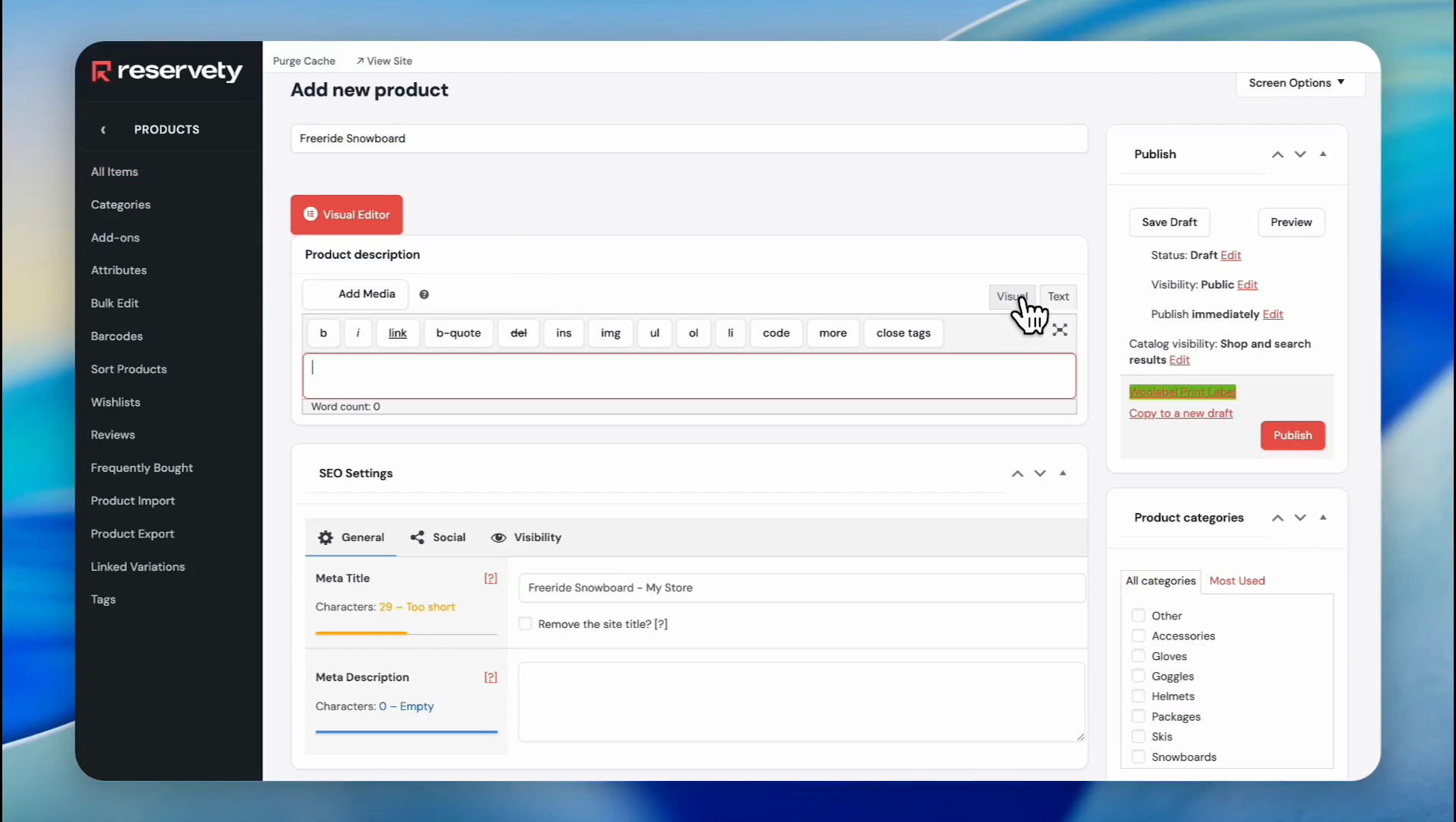
Enter the product name.
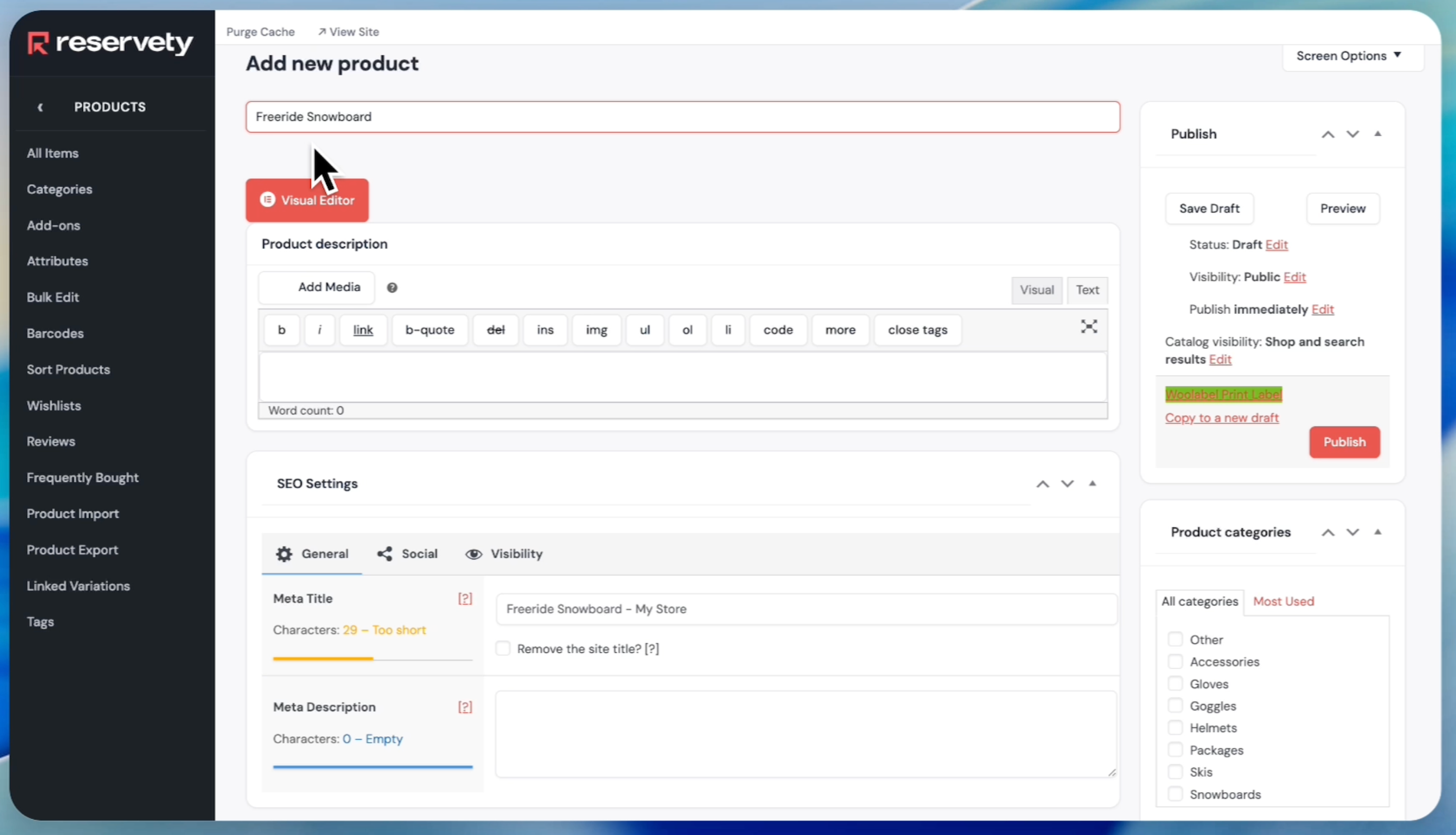
48
Click on the 'Visual' tab and write your description.
49
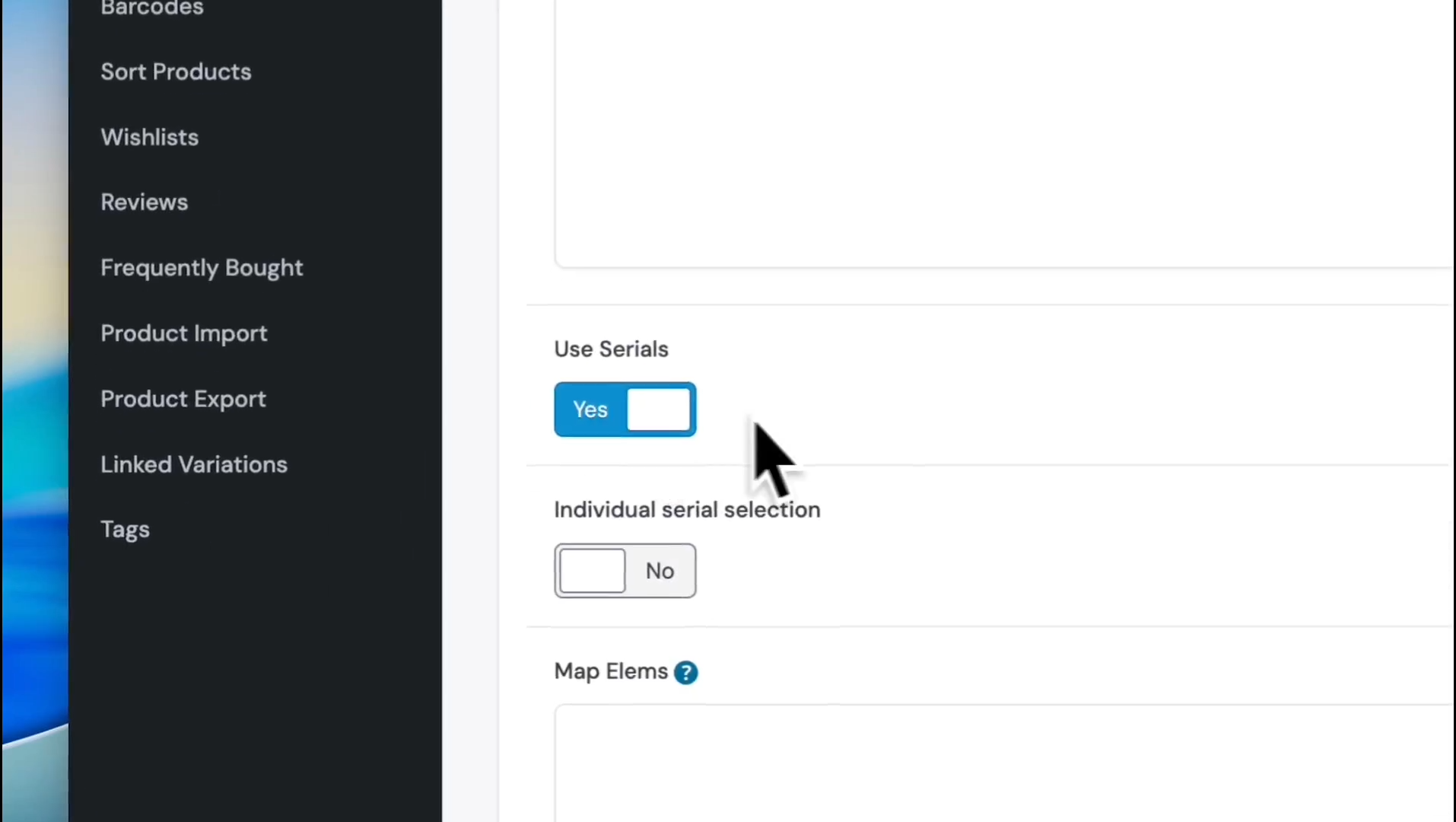
Scroll down and find the section labeled "Use Serials." Switch it to "Yes."
50
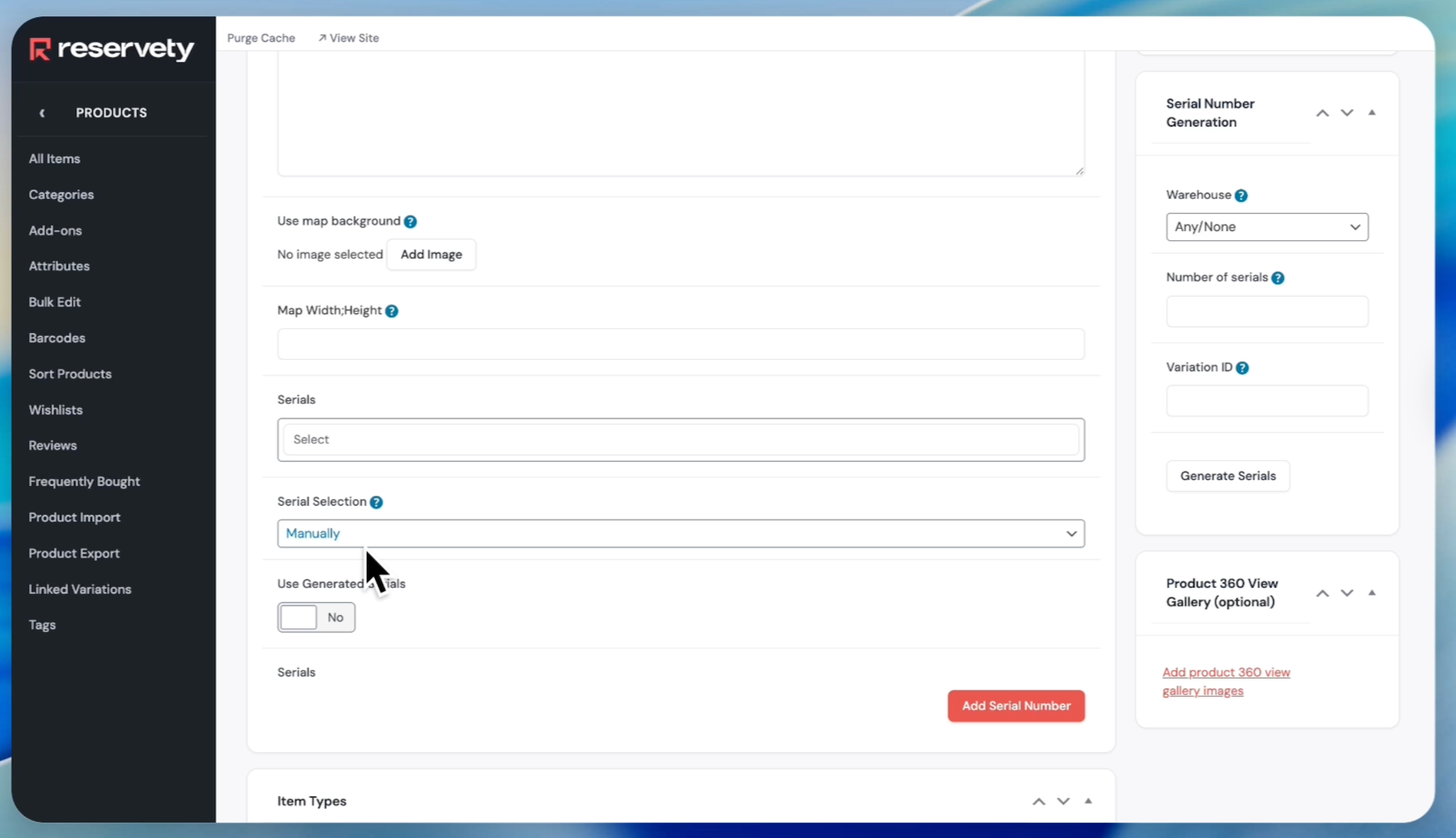
Set Serial Selection to "Manually"
51
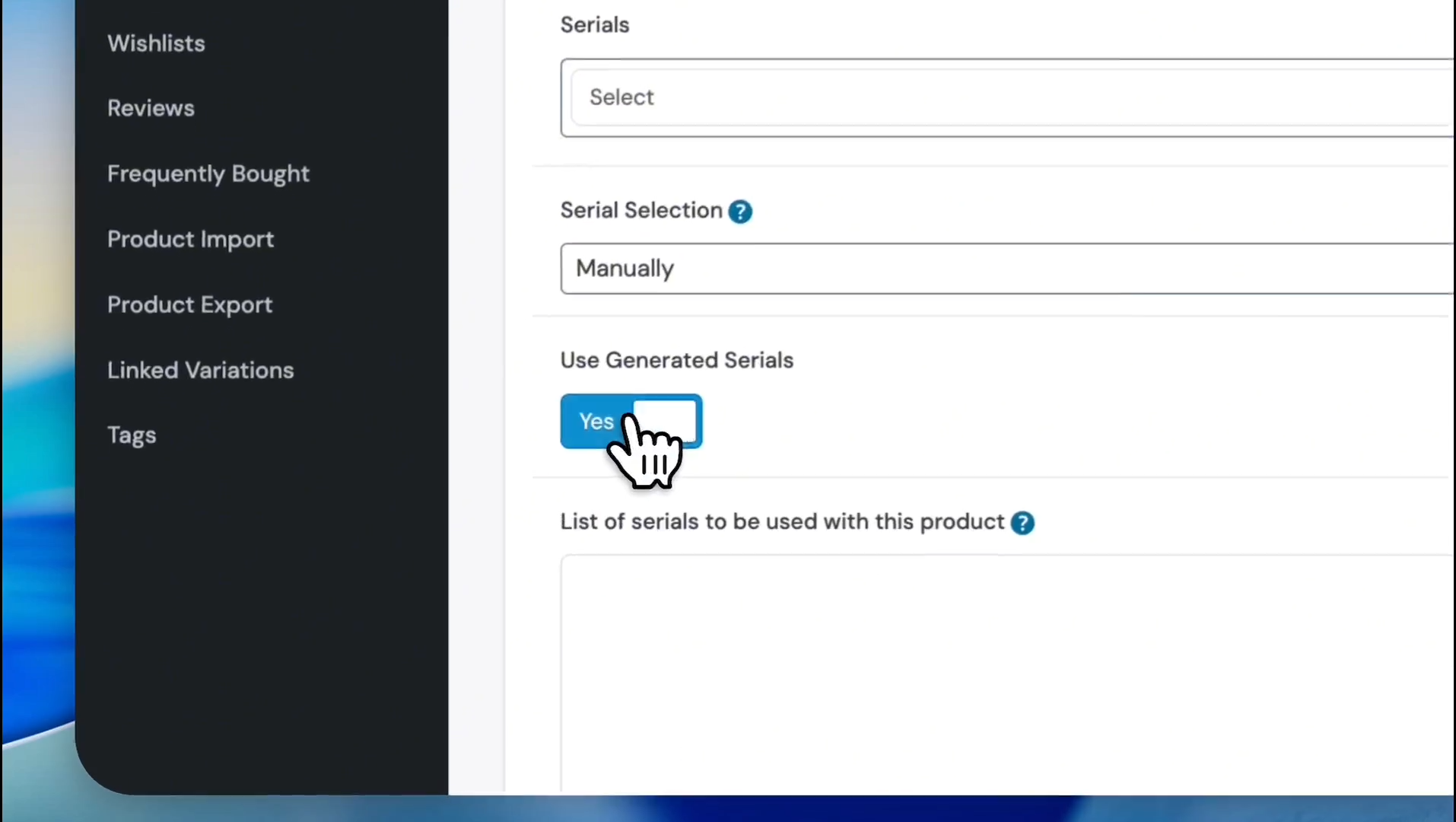
Click the 'Use Generated Serials' toggle to switch it to 'Yes'.
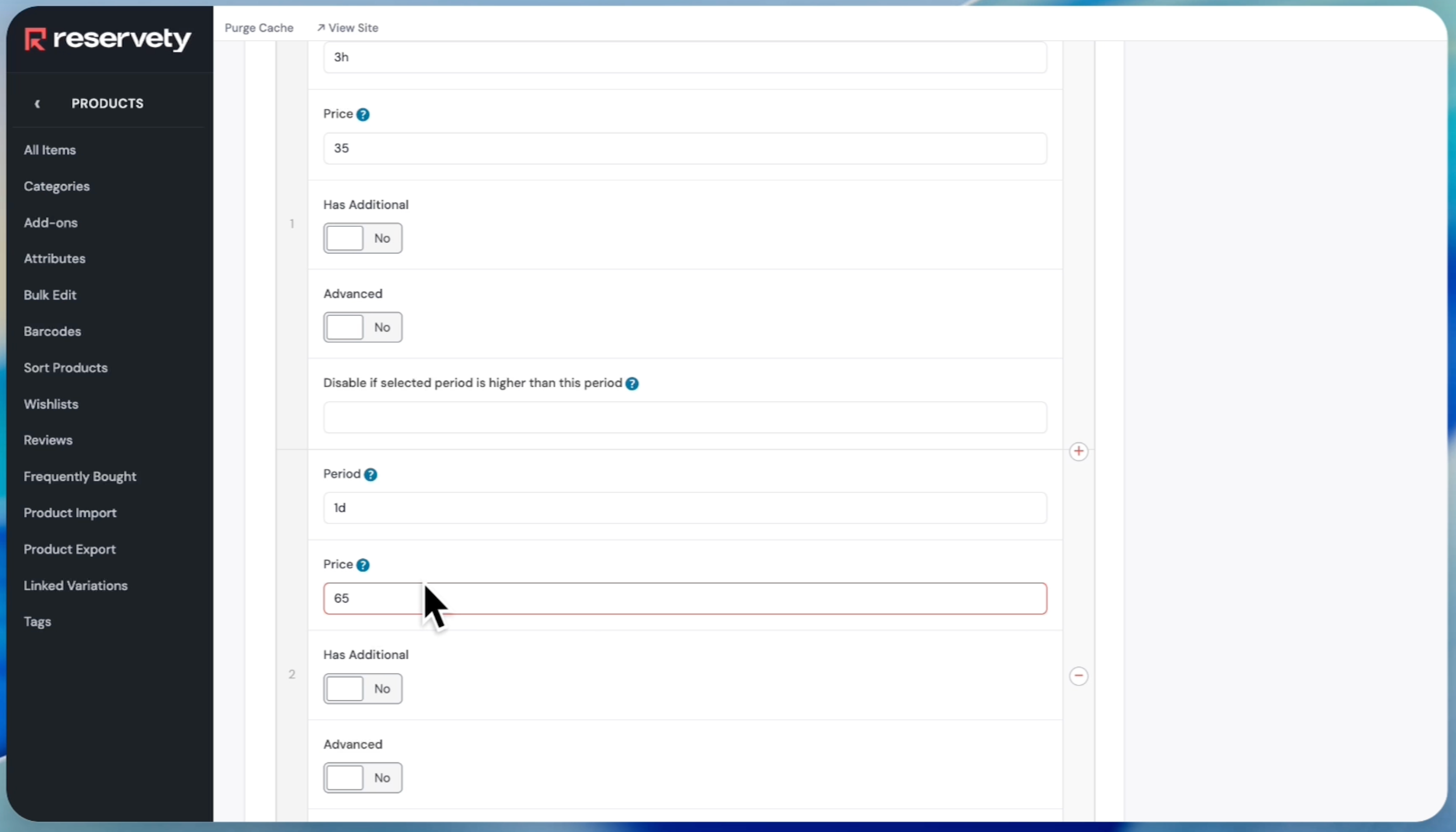
52
Add pricing.
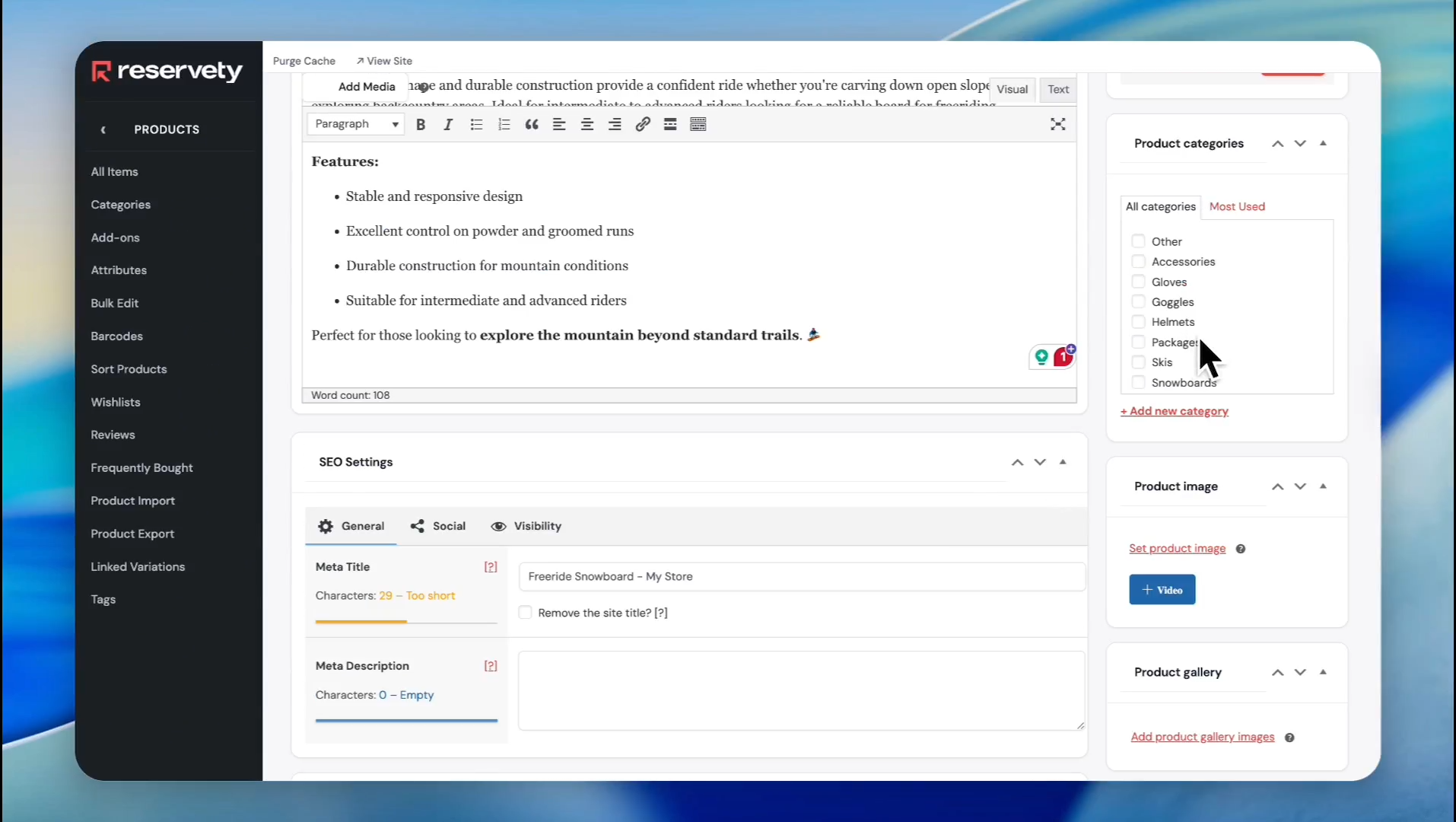
53
Go up and select a category for the product.
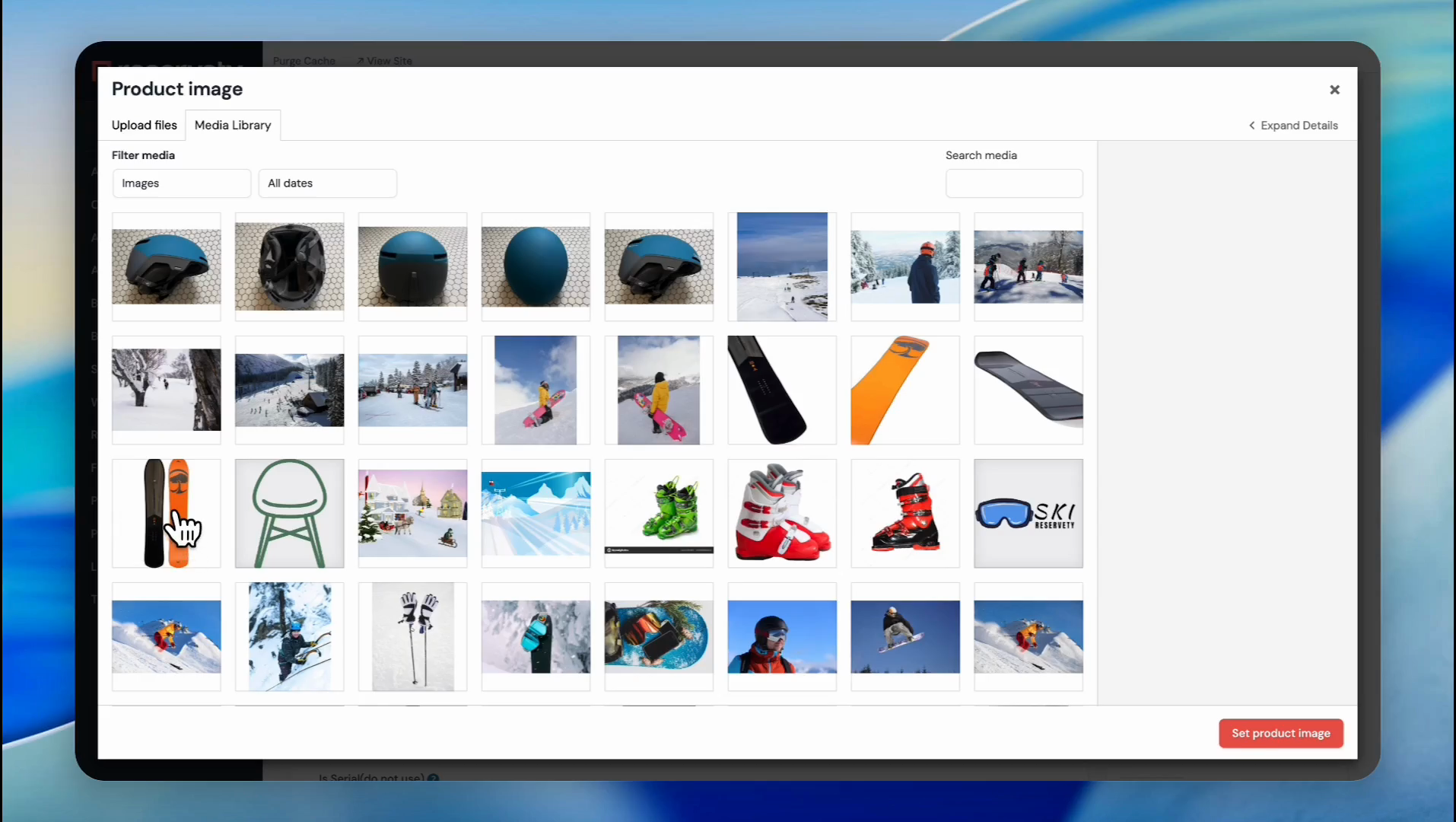
54
Add images by clicking on the 'Set product image' and "Add product gallery images" buttons.
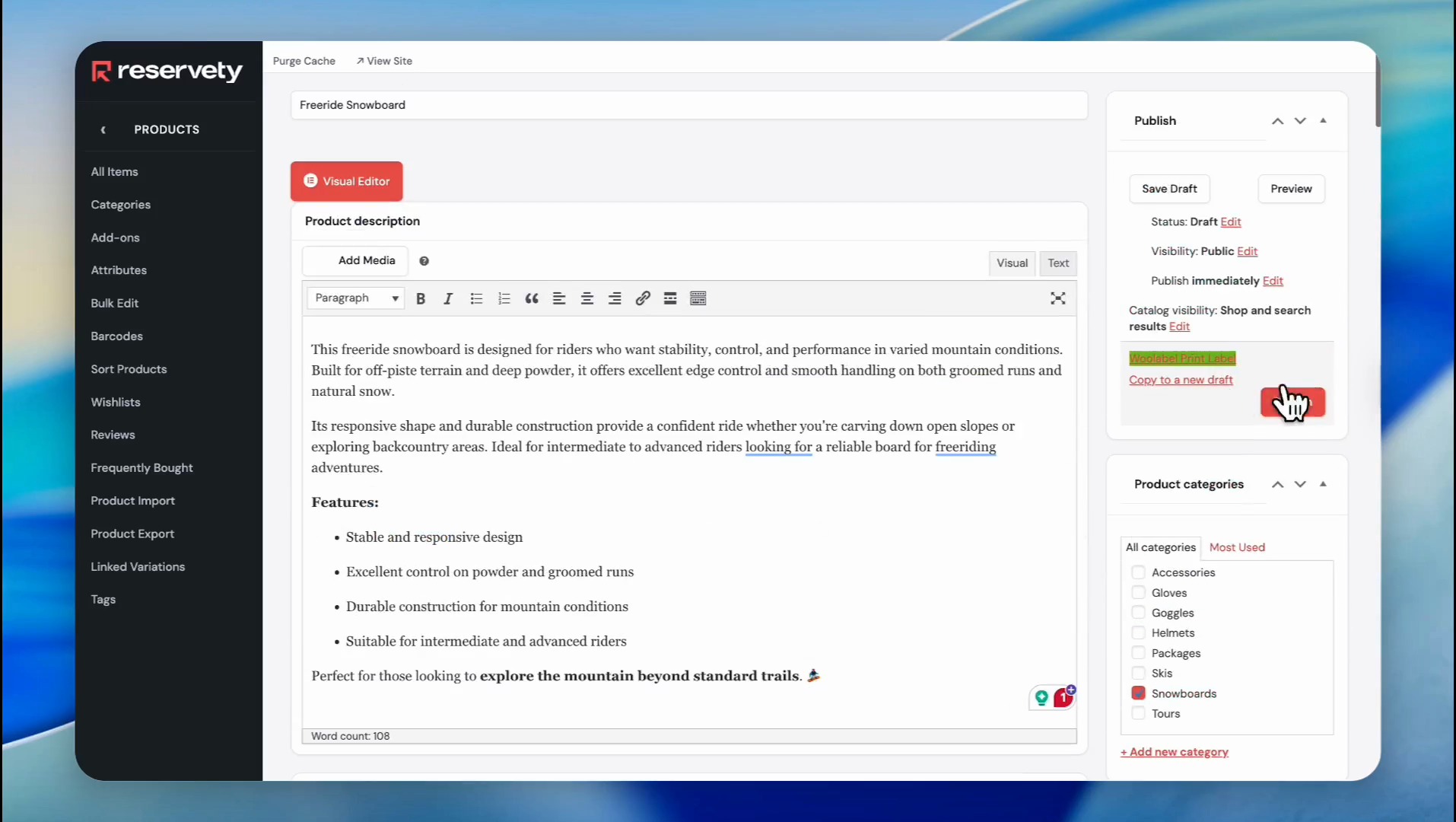
55
Click the 'Publish' button.
56
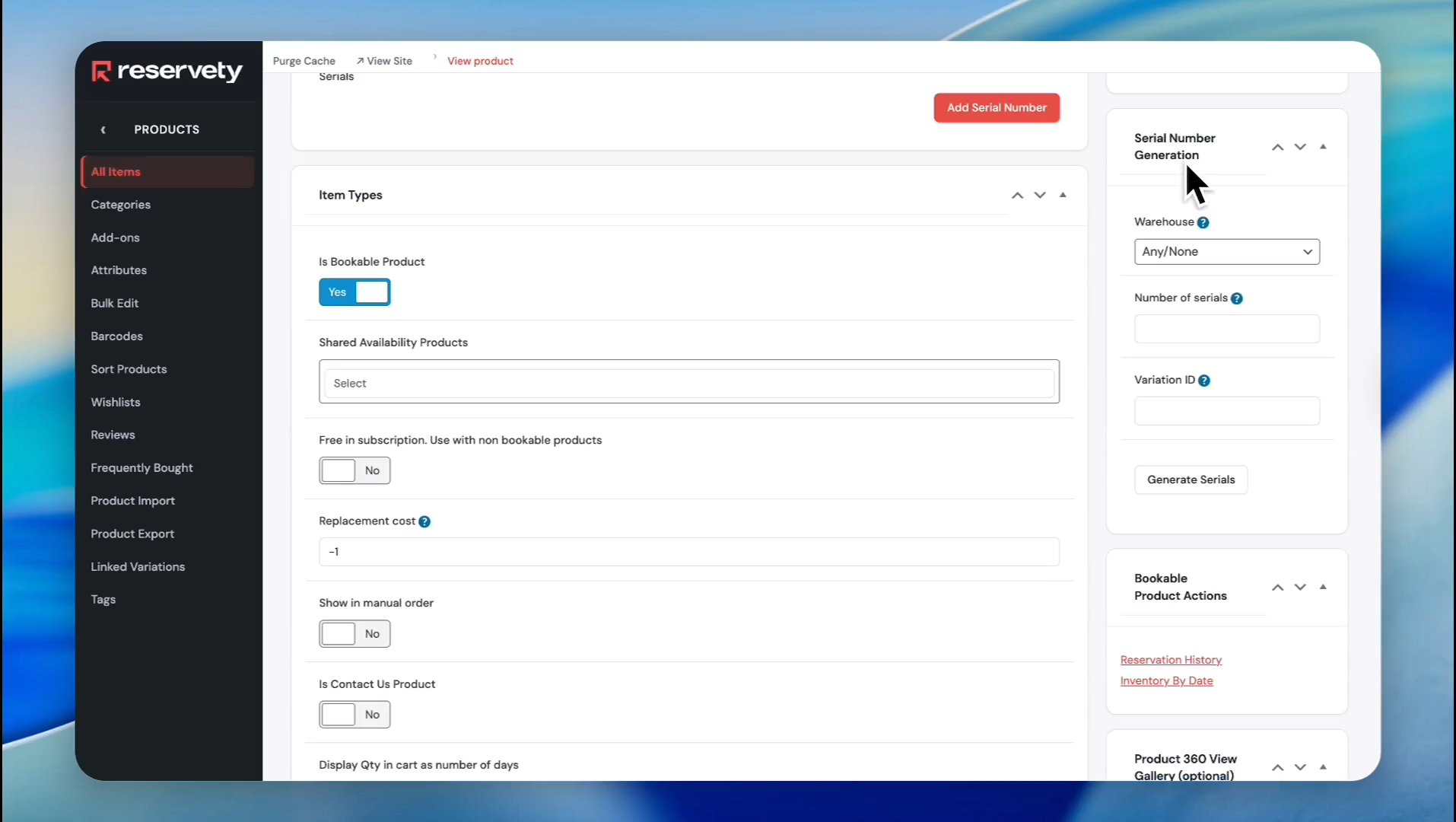
After publishing the item, stay on this page. Scroll down, look at the sidebar, and find the section labeled "Serial Number Generation."
57
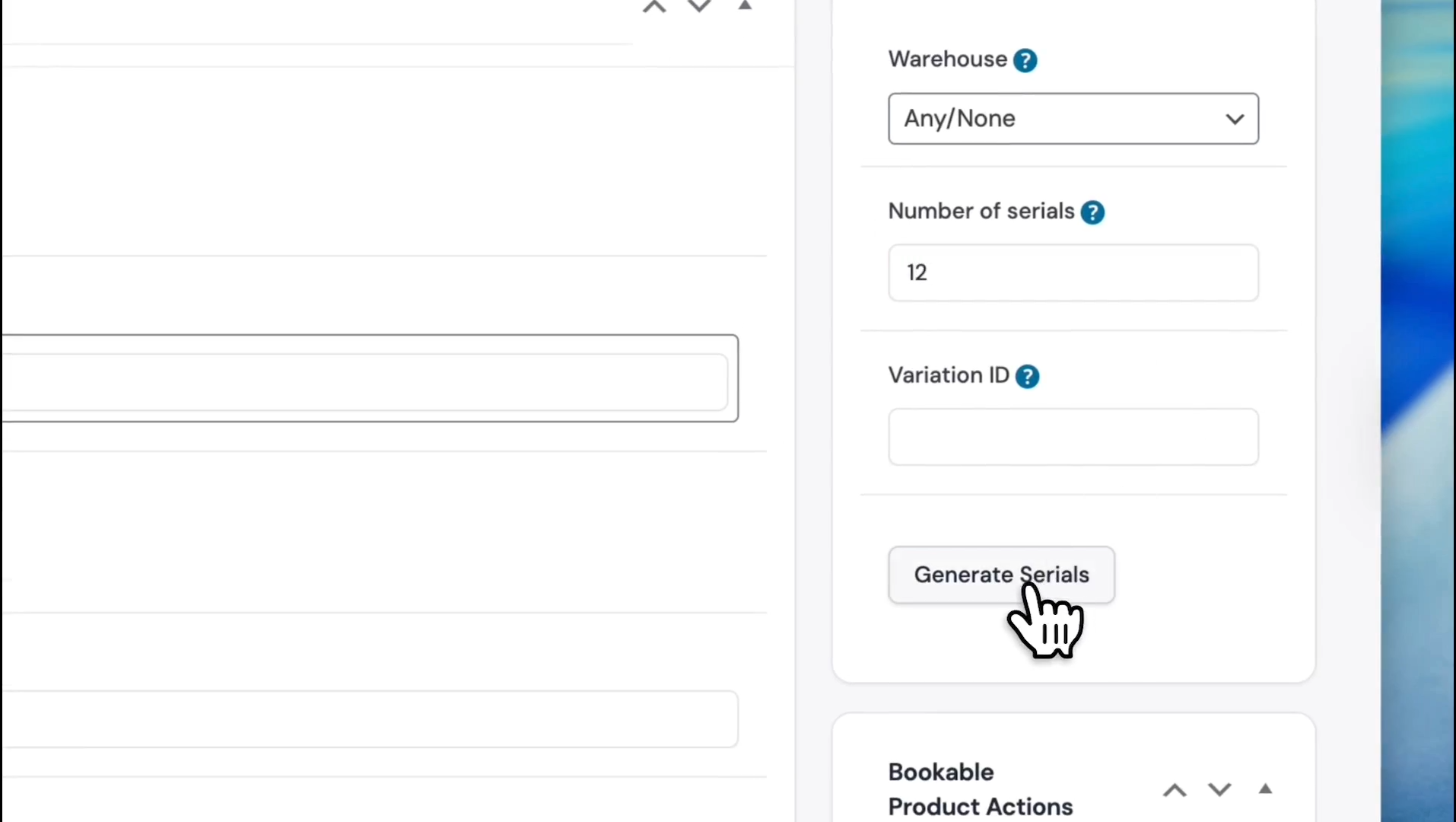
In the 'Number of serials' field, write the number of items or serials you need. For example, we need 12. Click the 'Generate Serials' button.
58
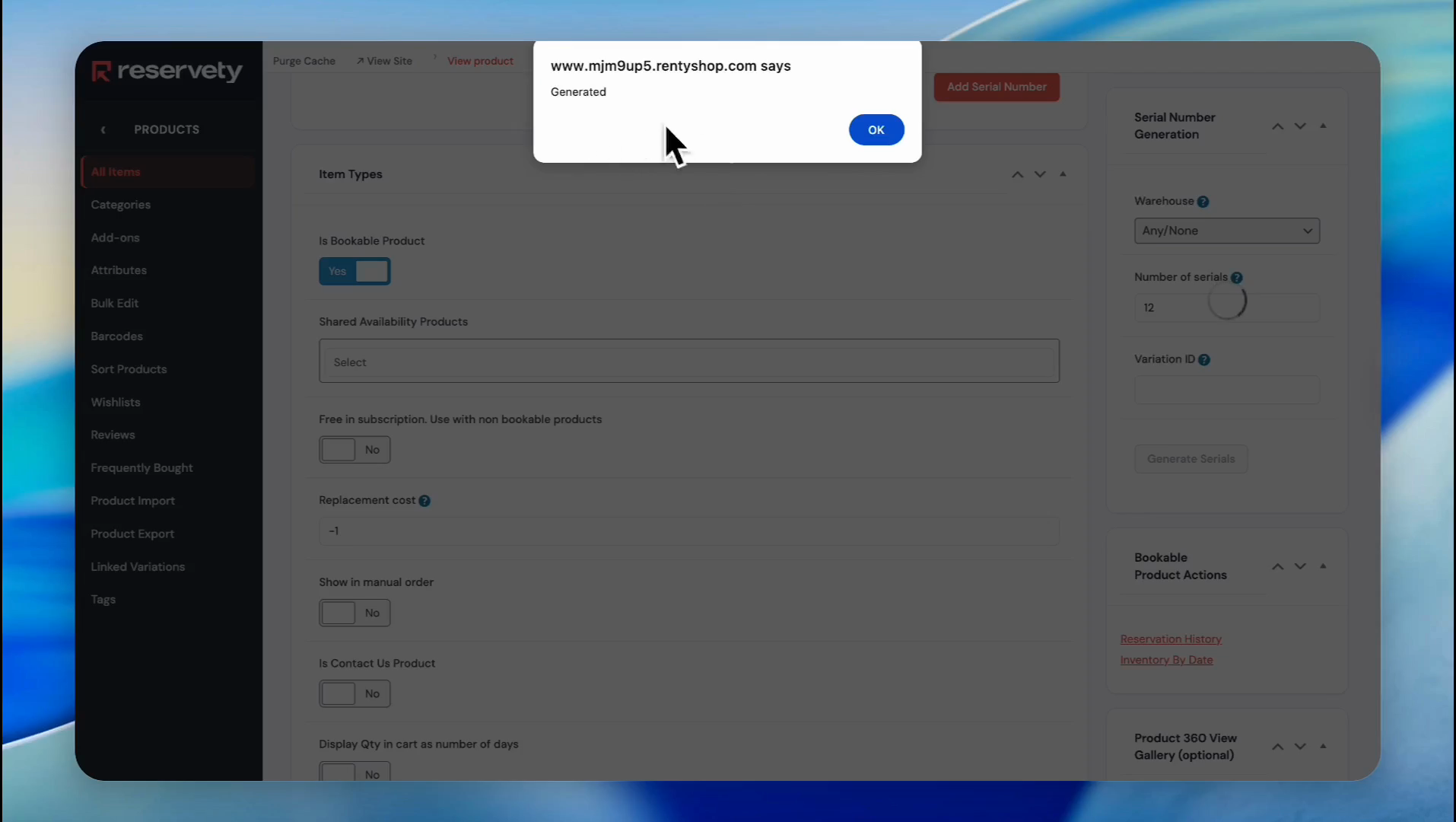
Click 'OK' on the 'Generated' confirmation pop-up.
59
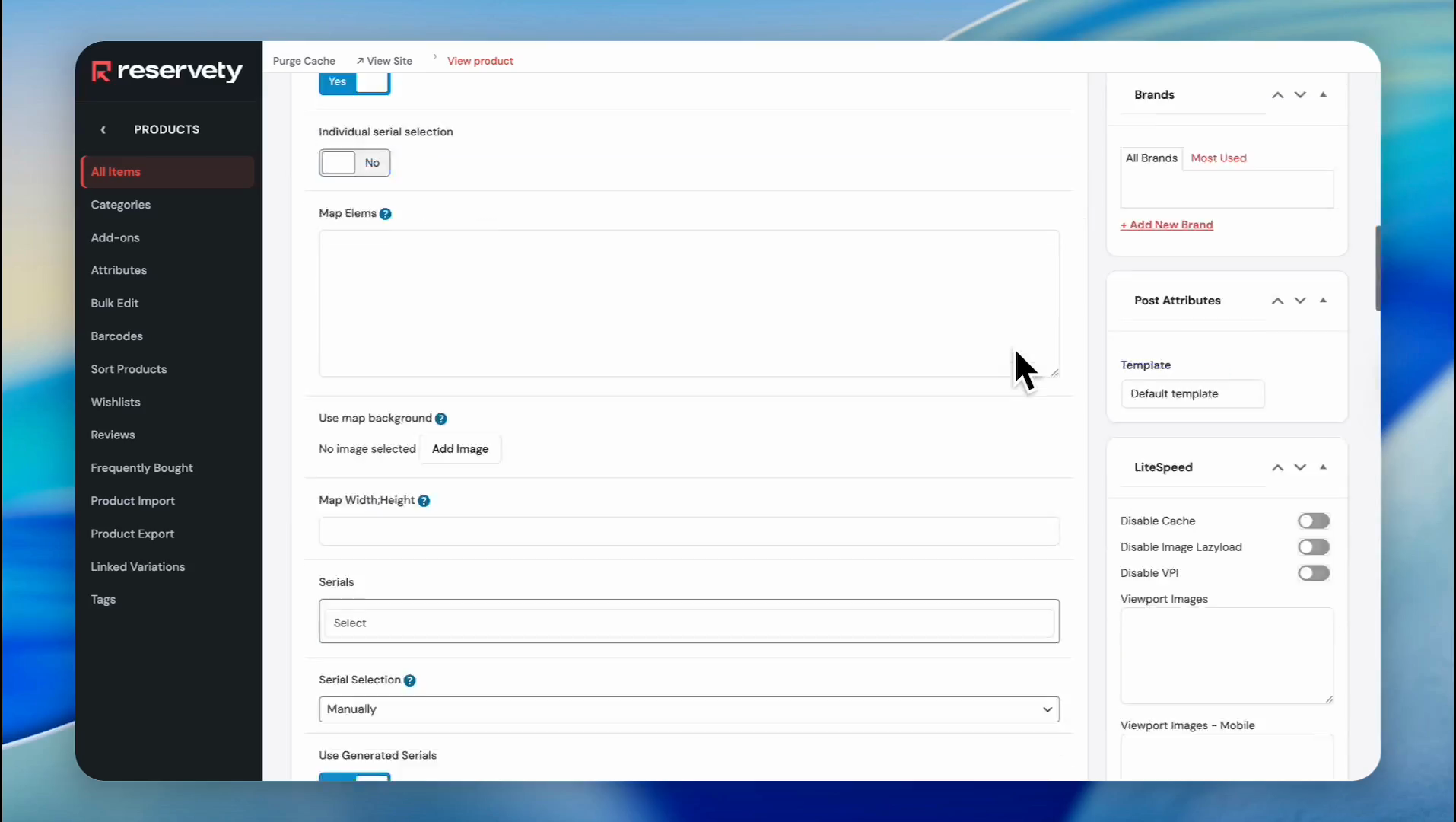
Scroll up and click the 'Update' button.
60
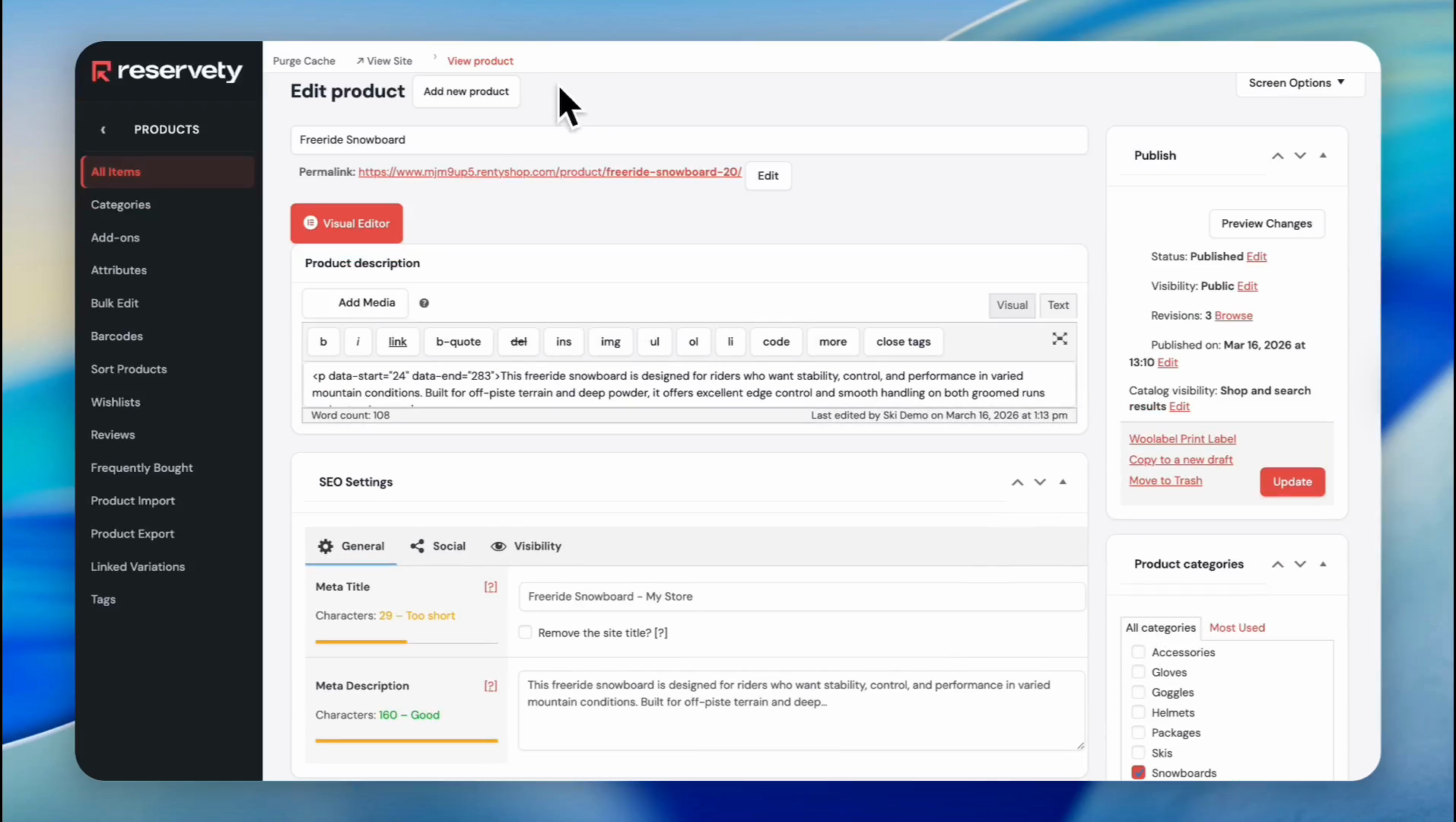
Now let's test the automatically generated serials with a test order. Click on "View Product."
61
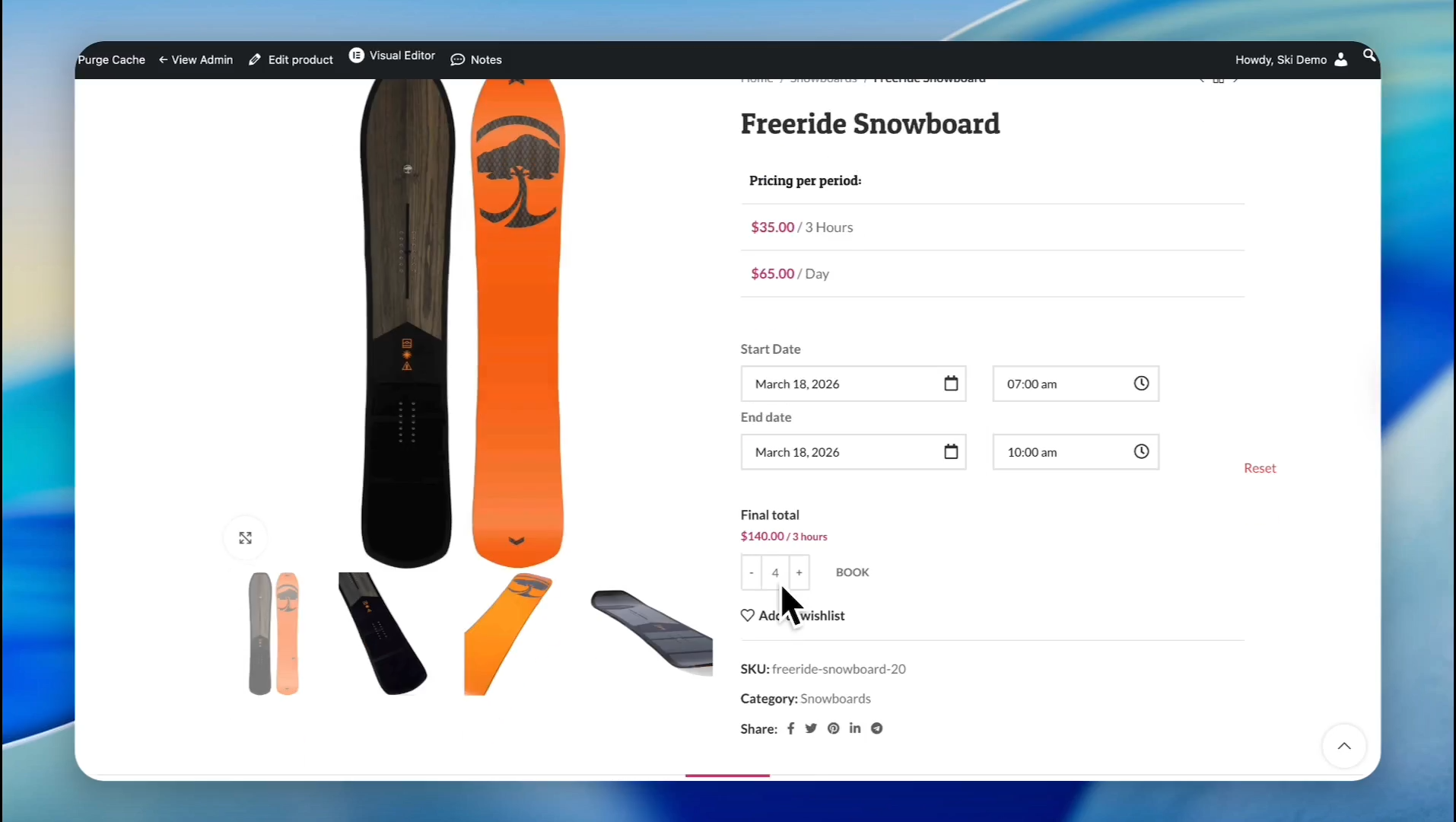
Select the start and end dates for the test order by clicking the calendar icon.
62
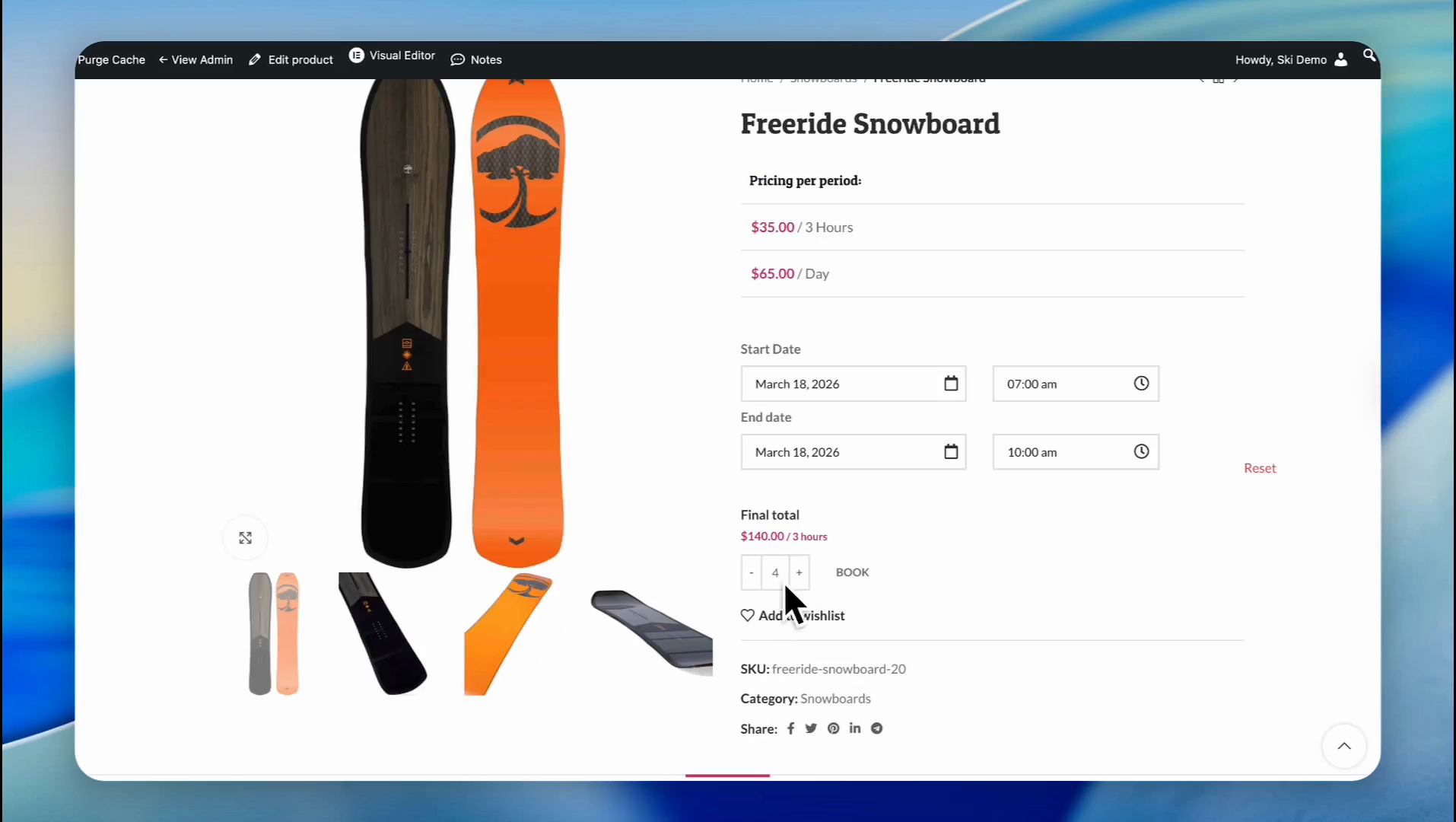
Select the quantity for the test order. For example, we need four snowboards.
63
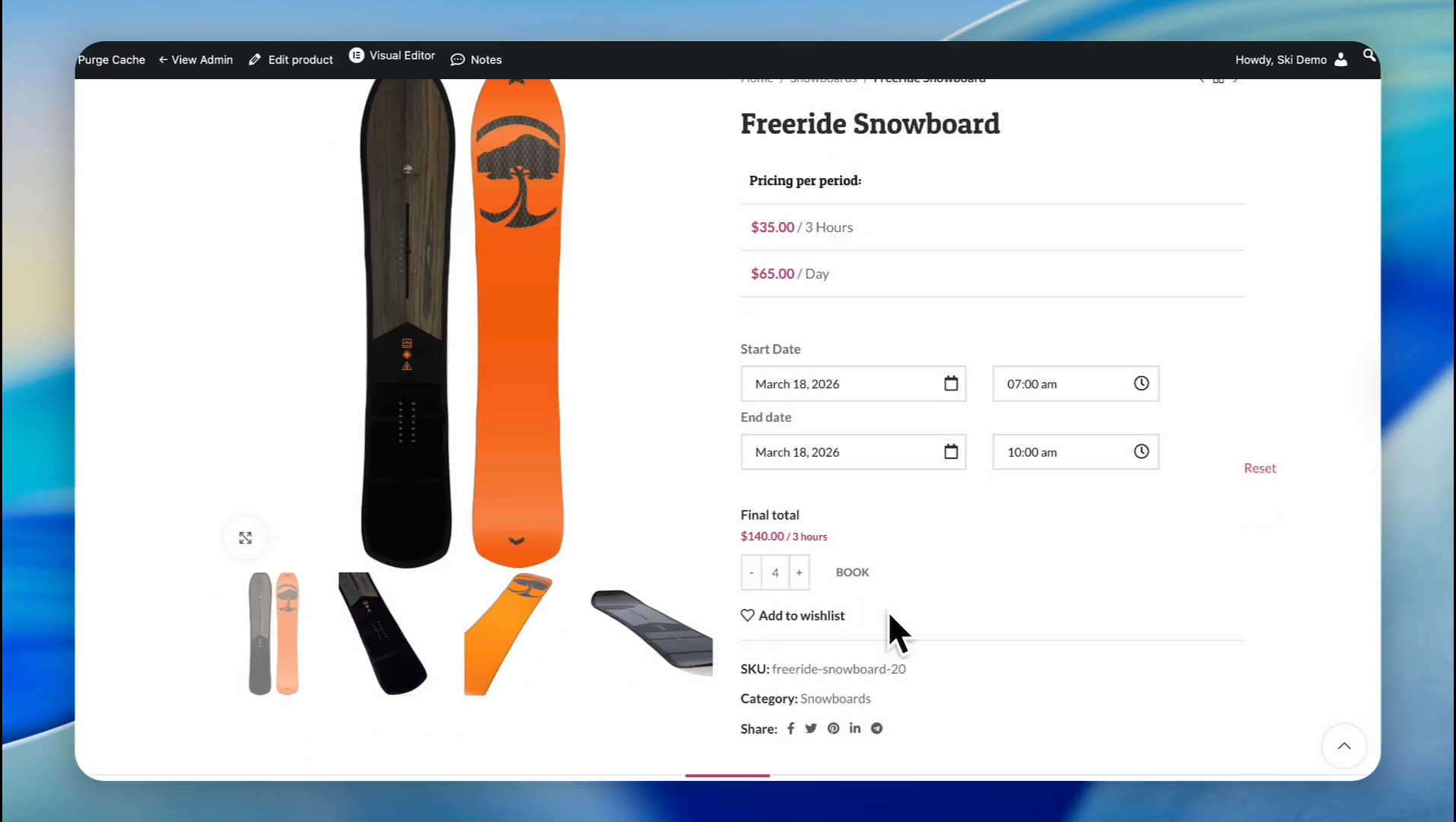
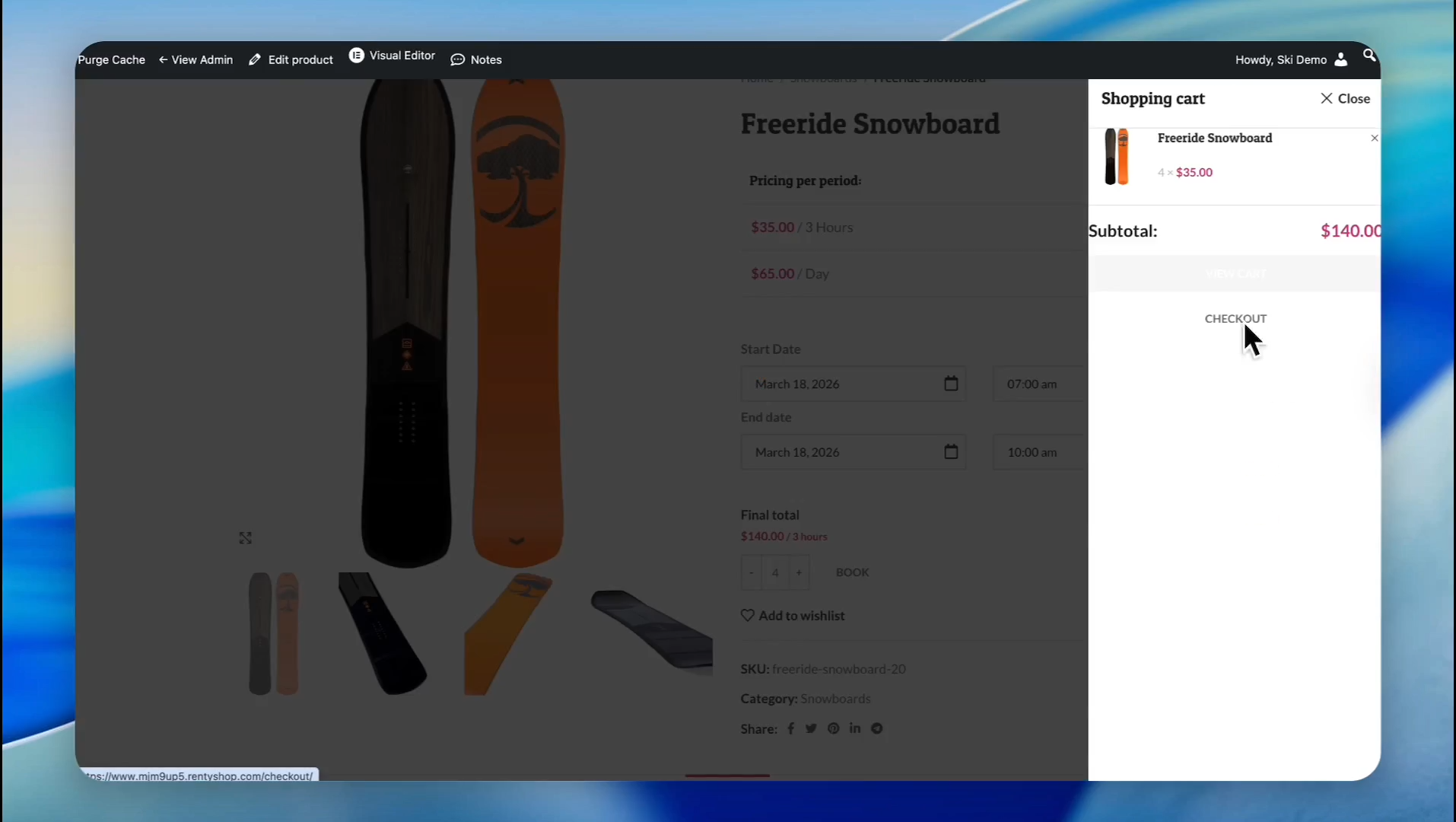
Click the 'BOOK' button.
64
Click 'CHECKOUT' in the shopping cart sidebar.
65
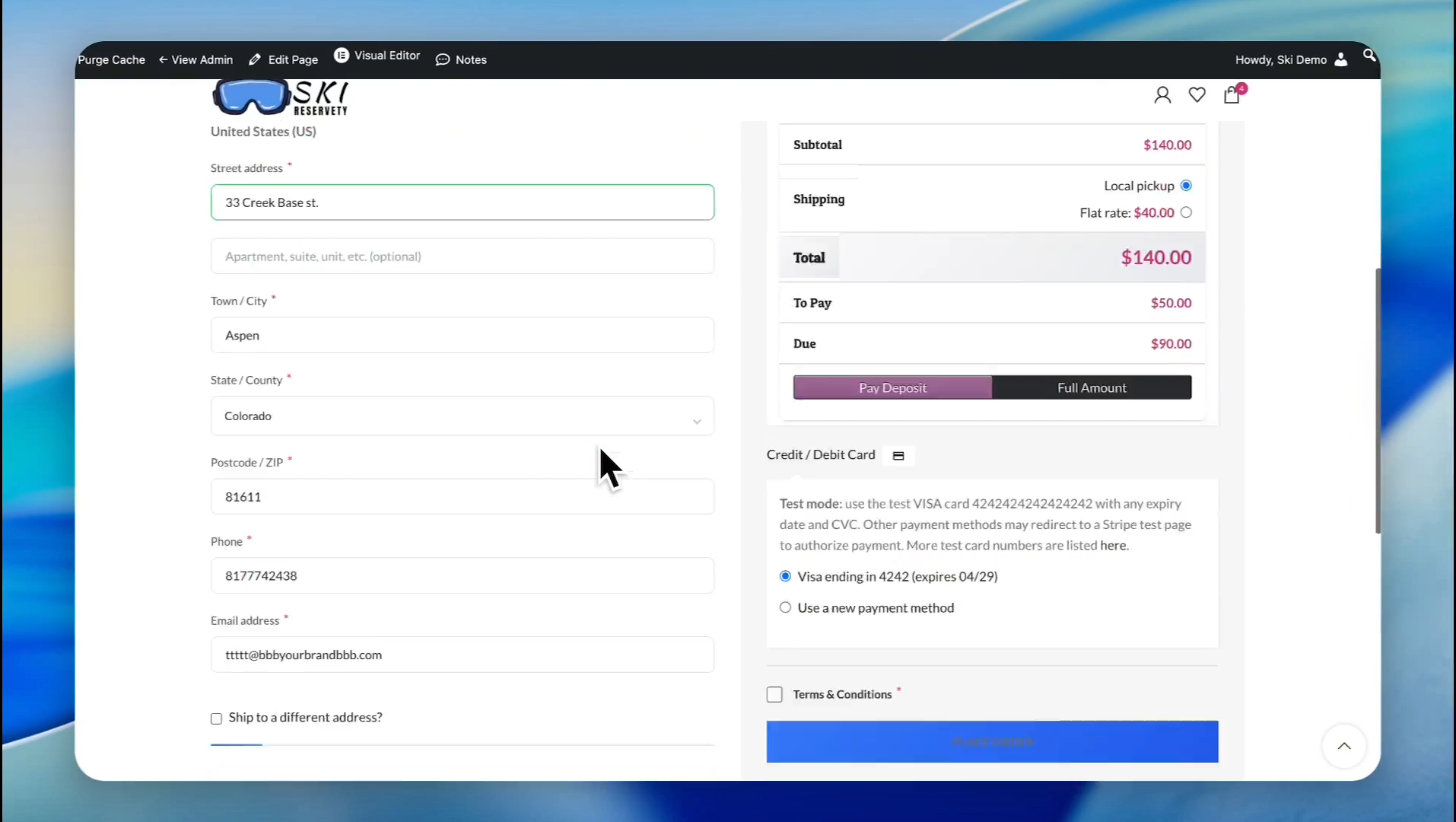
Enter the customer information, select the payment method, and click 'Place order'.
66
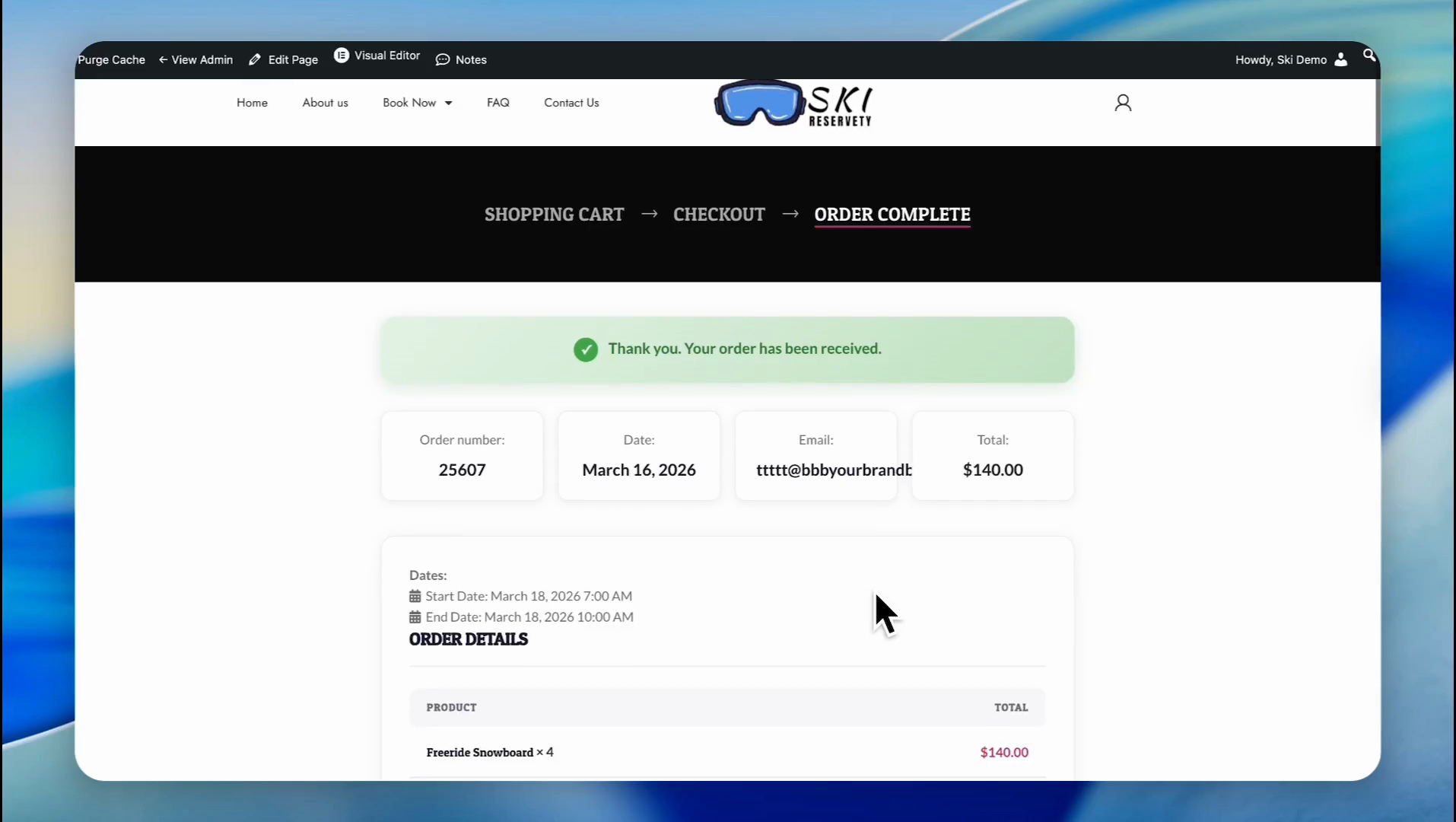
Our order has been received.
67
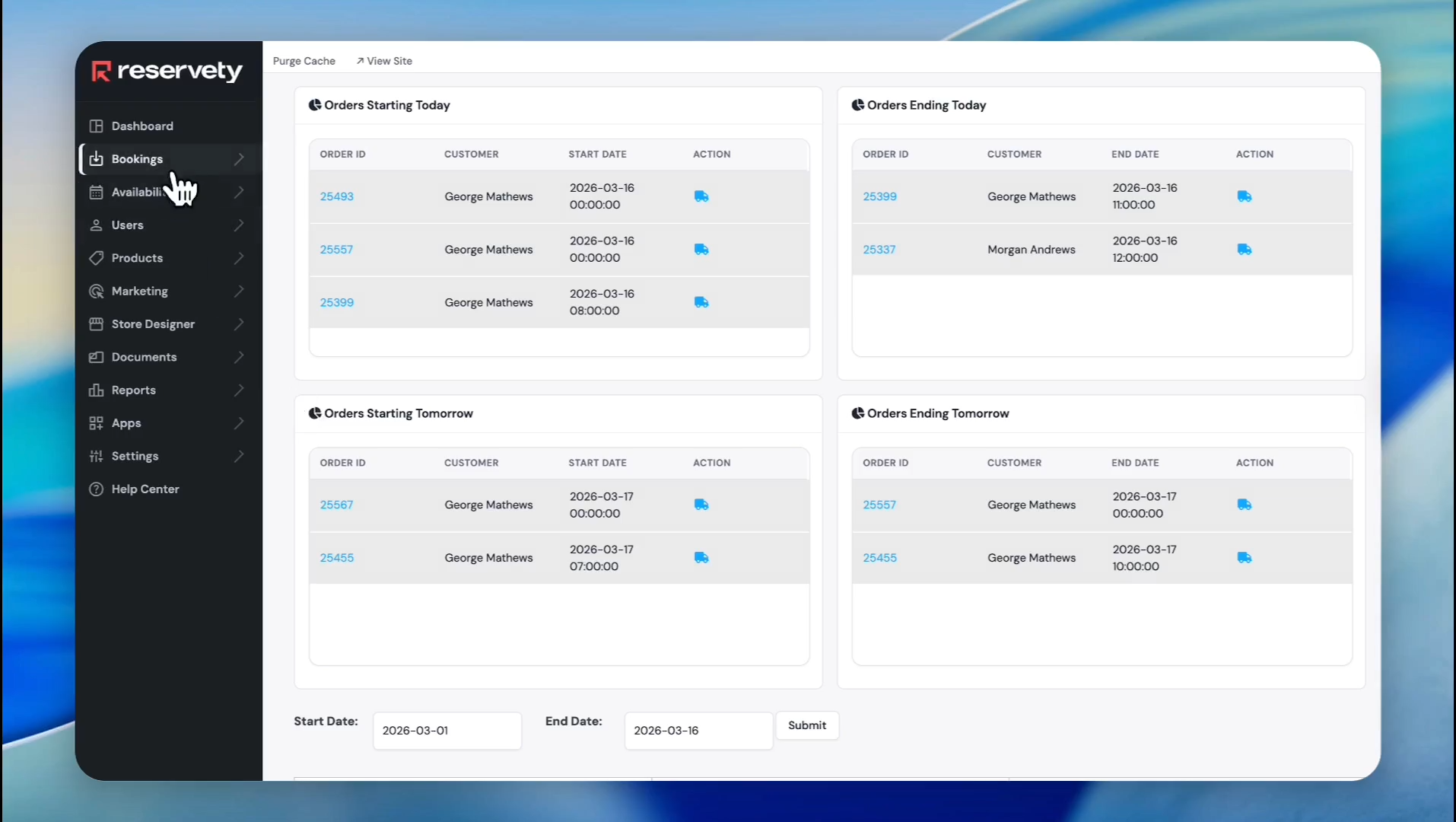
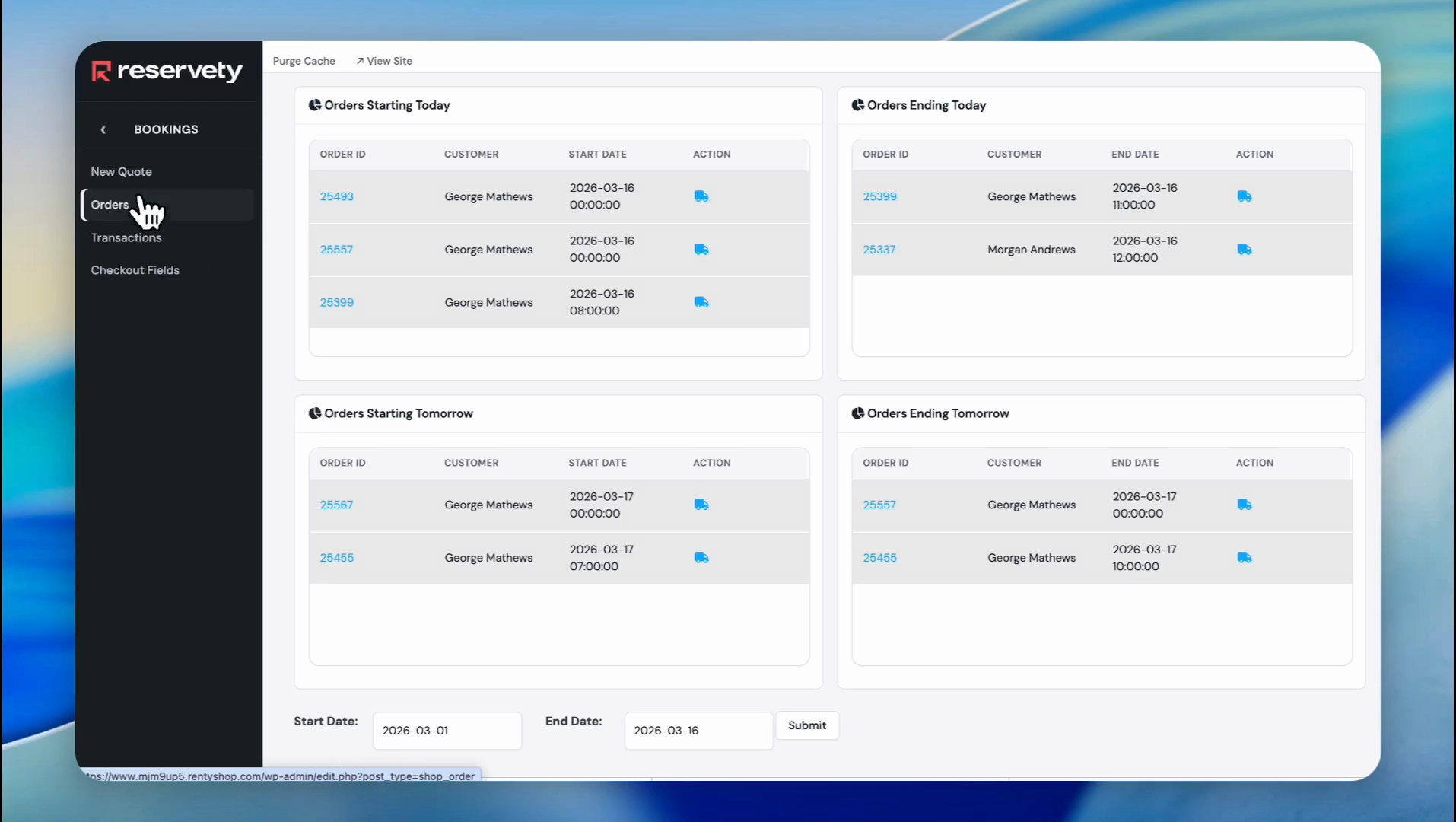
Now, let's go to the admin dashboard and click on Bookings
68
Click on 'Orders'.
69
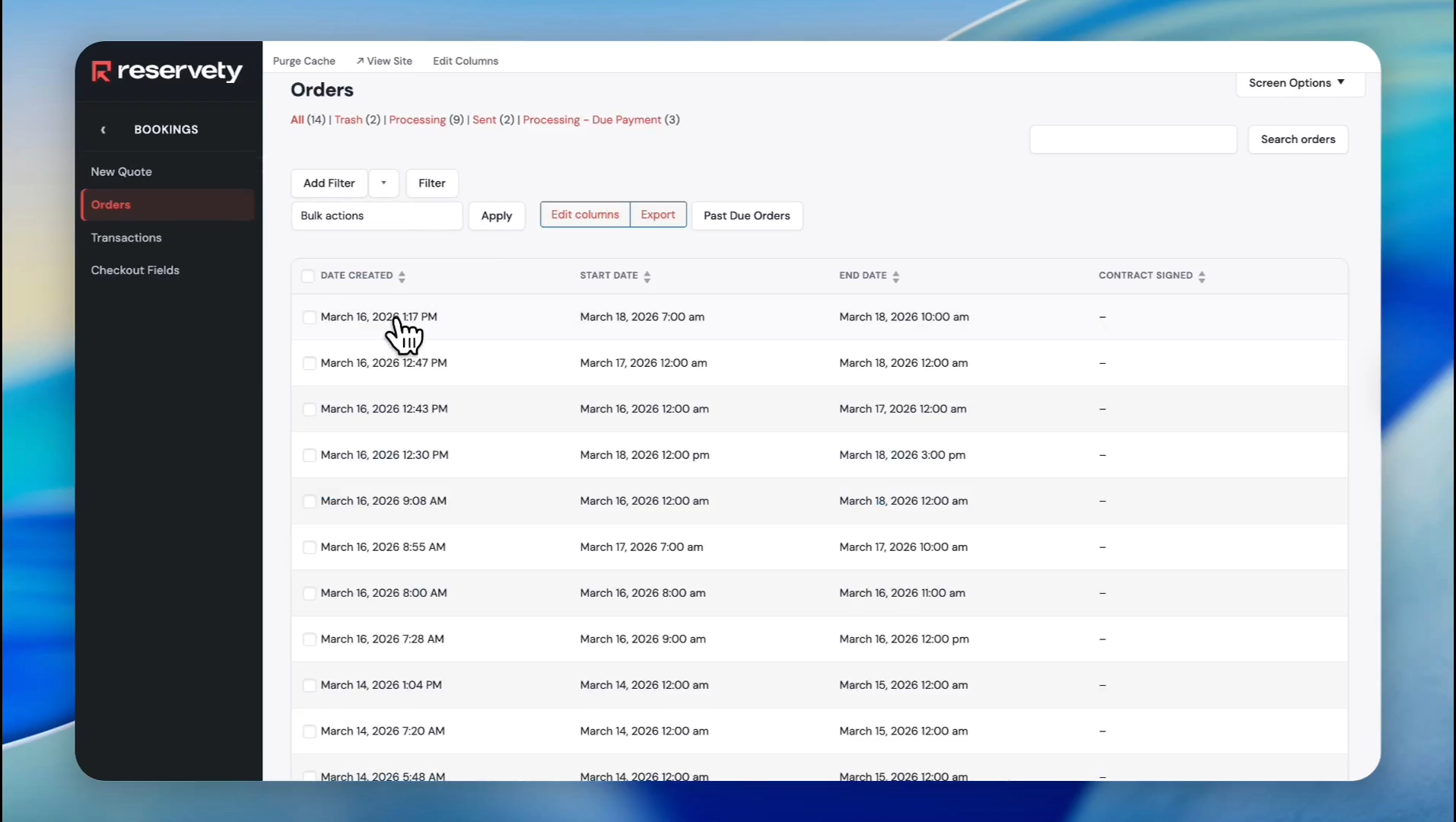
Click on the order we have just created
70
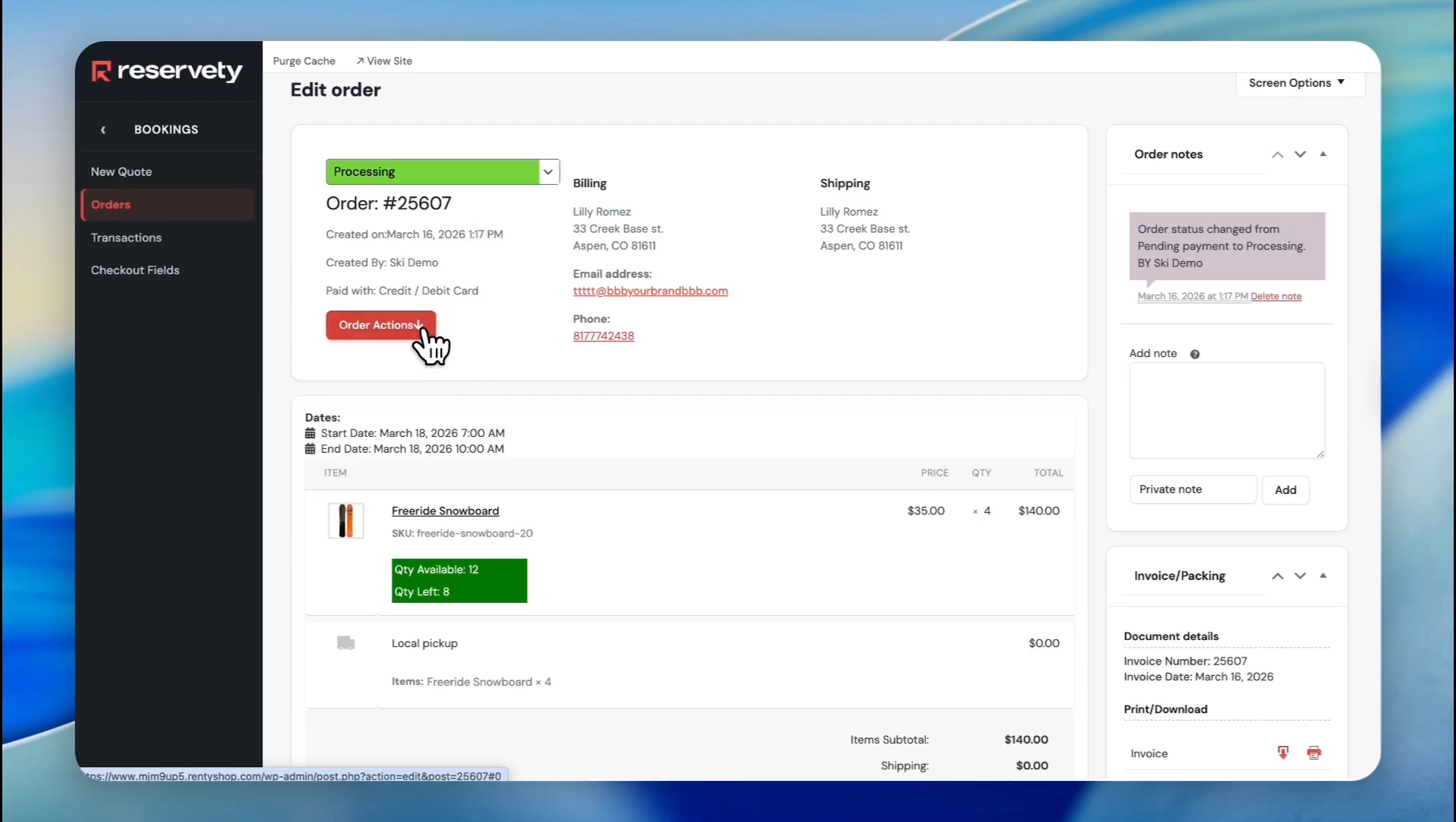
Click the 'Order Actions'
71
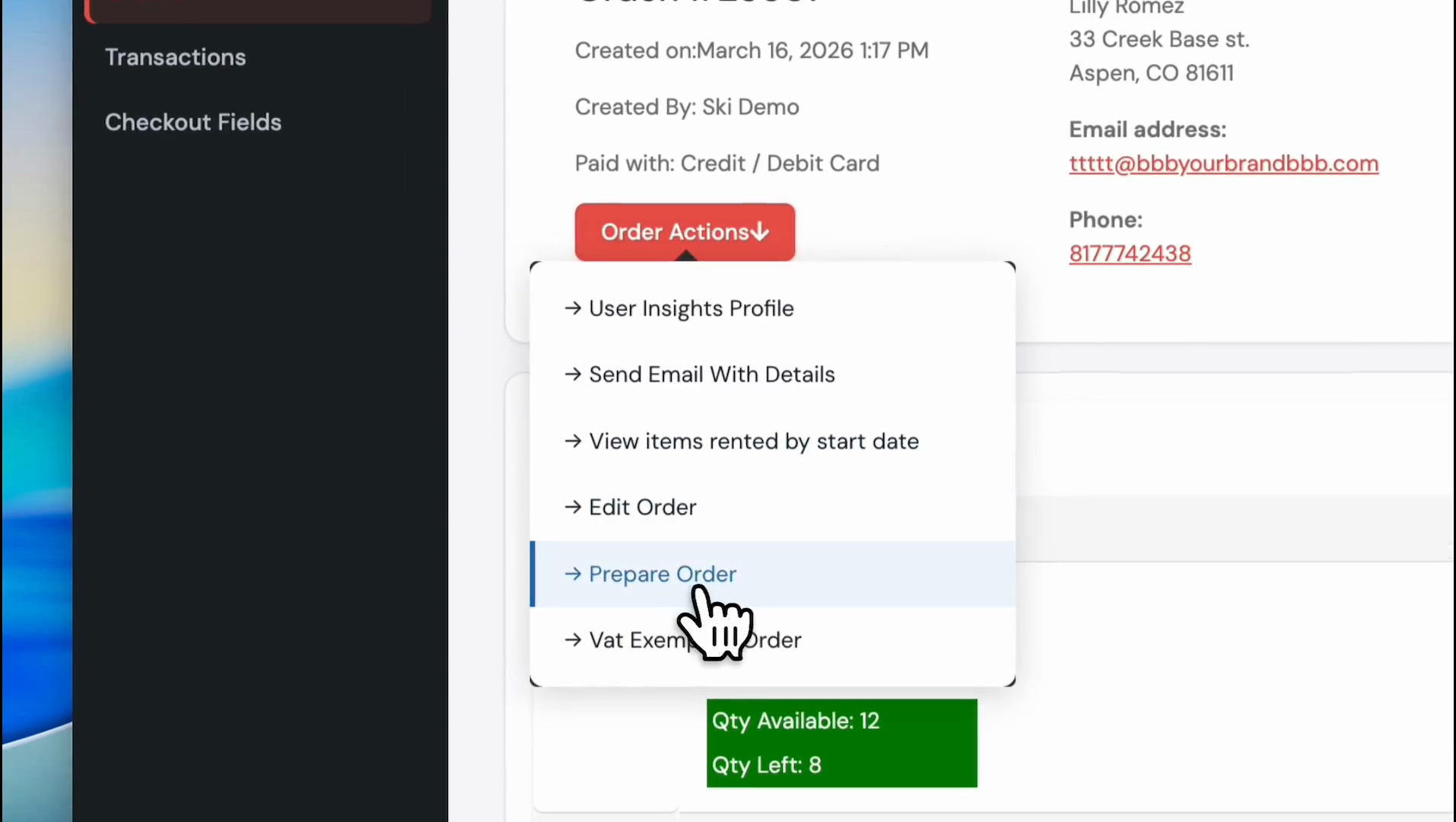
Select 'Prepare Order' from the dropdown menu.
72
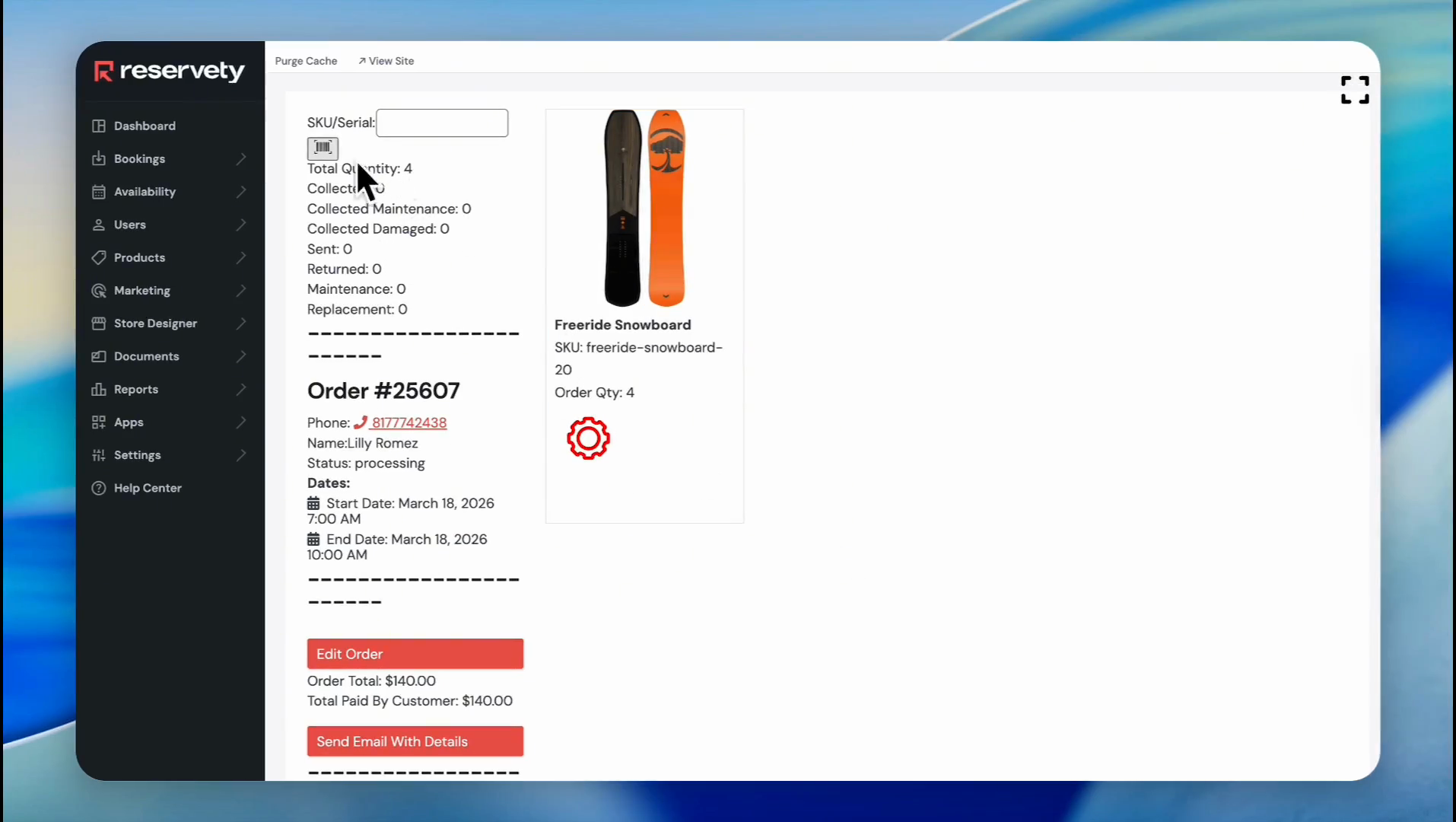
Before assigning serial numbers to this order, we should explain the barcode feature here. You can select rental items in seconds by scanning product barcodes with a barcode scanner or your phone. If your rental items do not have barcodes, you can generate and print them on Reservity.
73
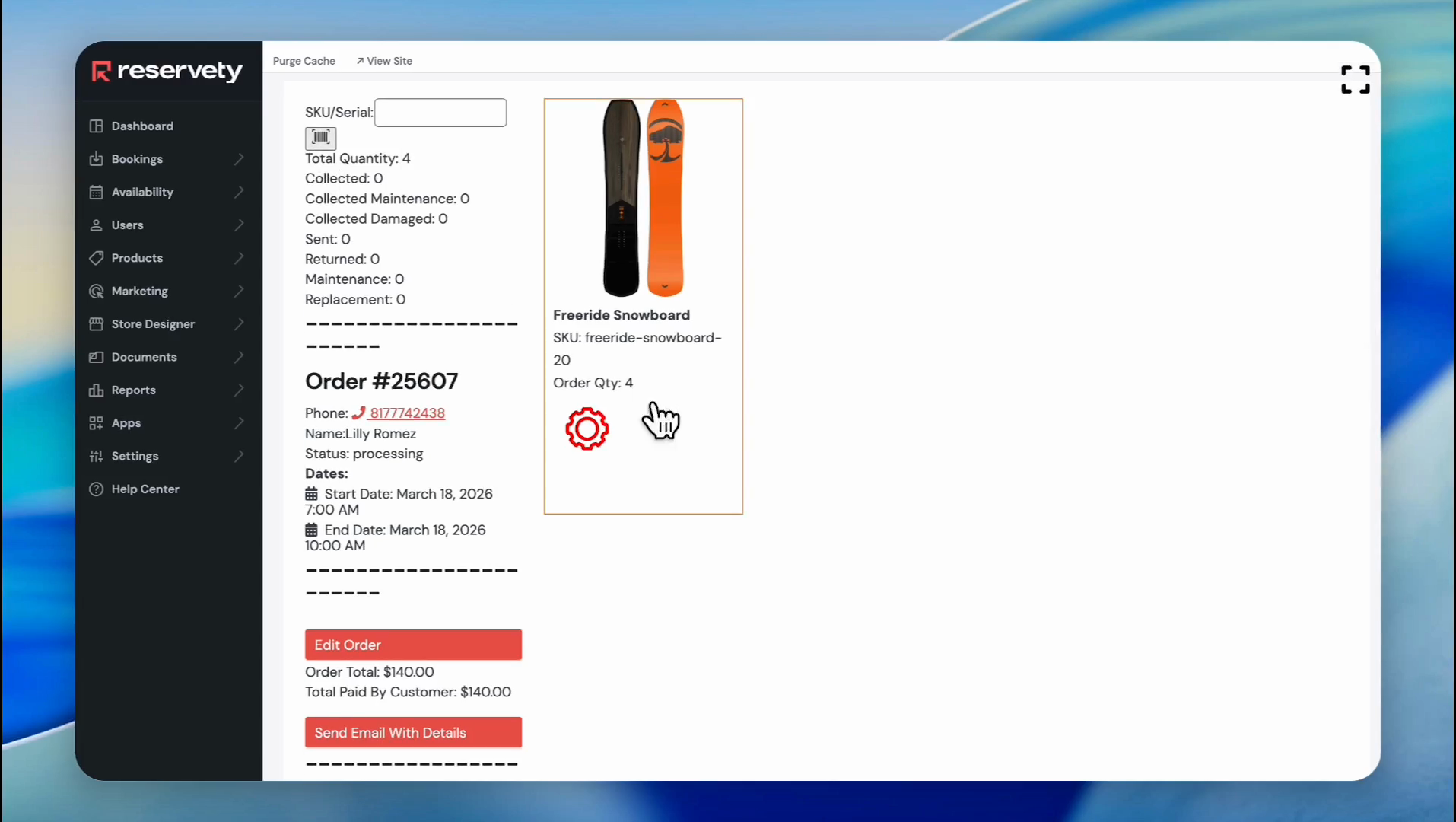
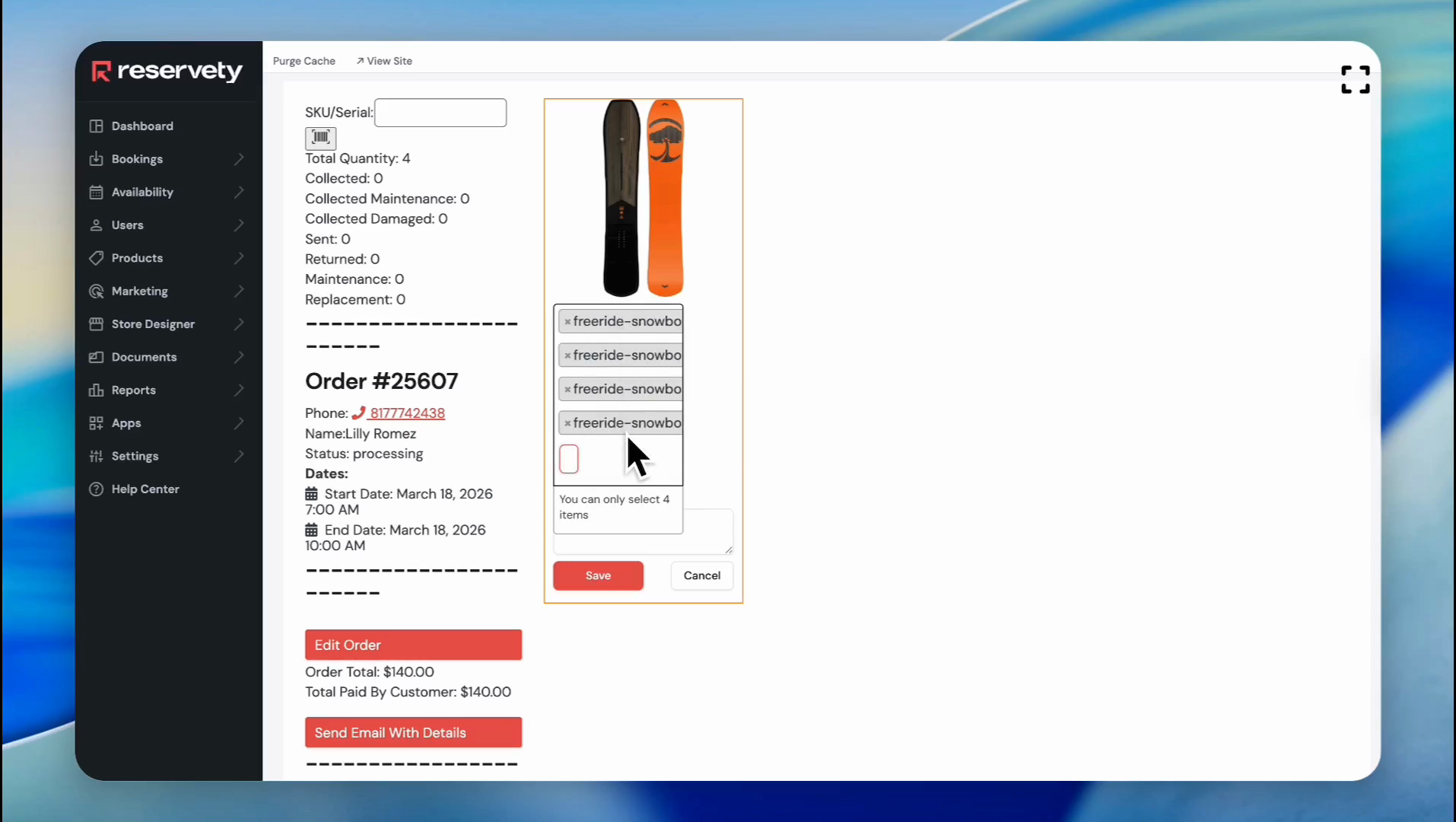
Now, let's add our automatically generated serials to this order. Click the settings icon to assign serial numbers to the order.
74
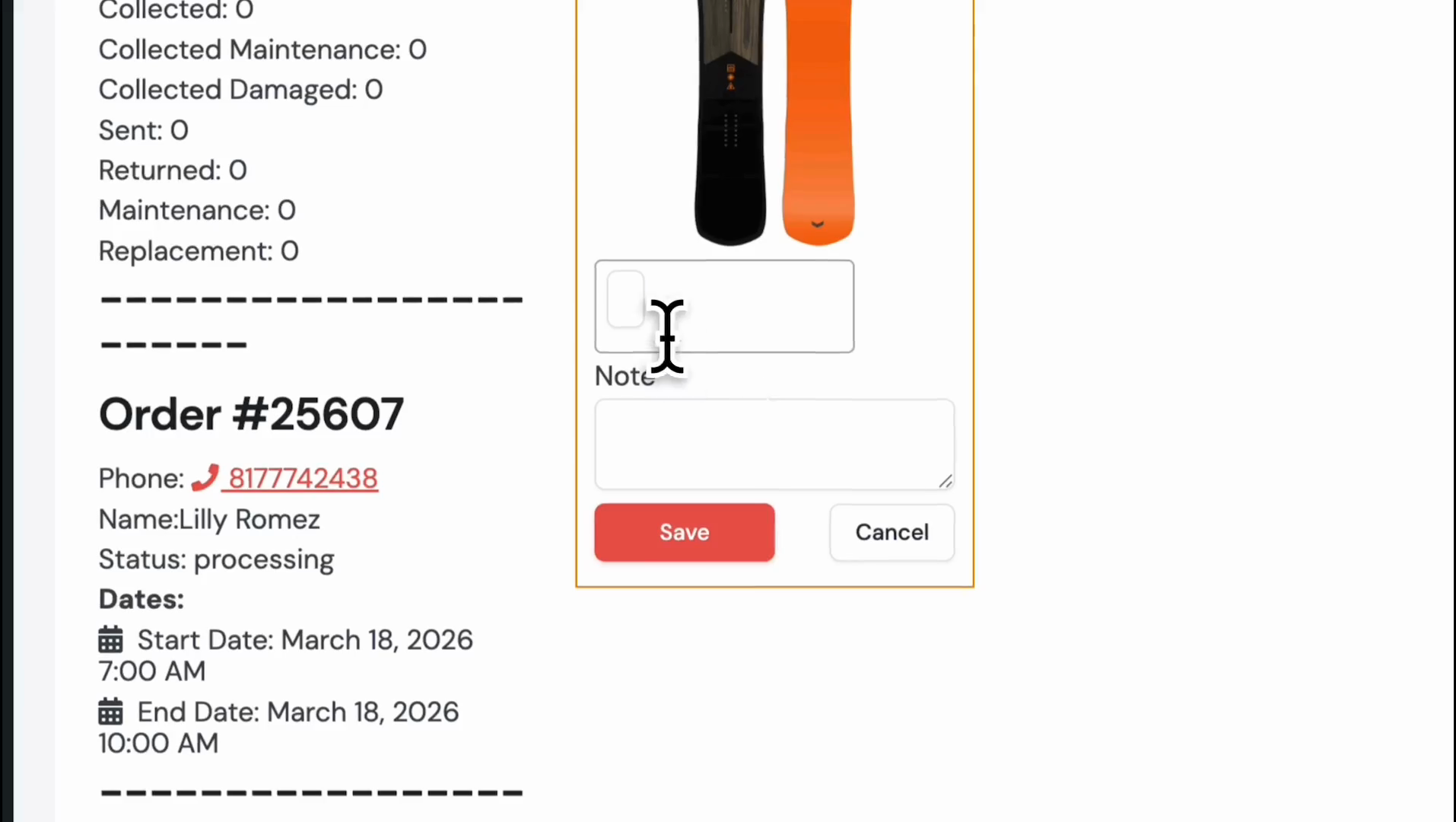
Click on the field to view available serial numbers.
75
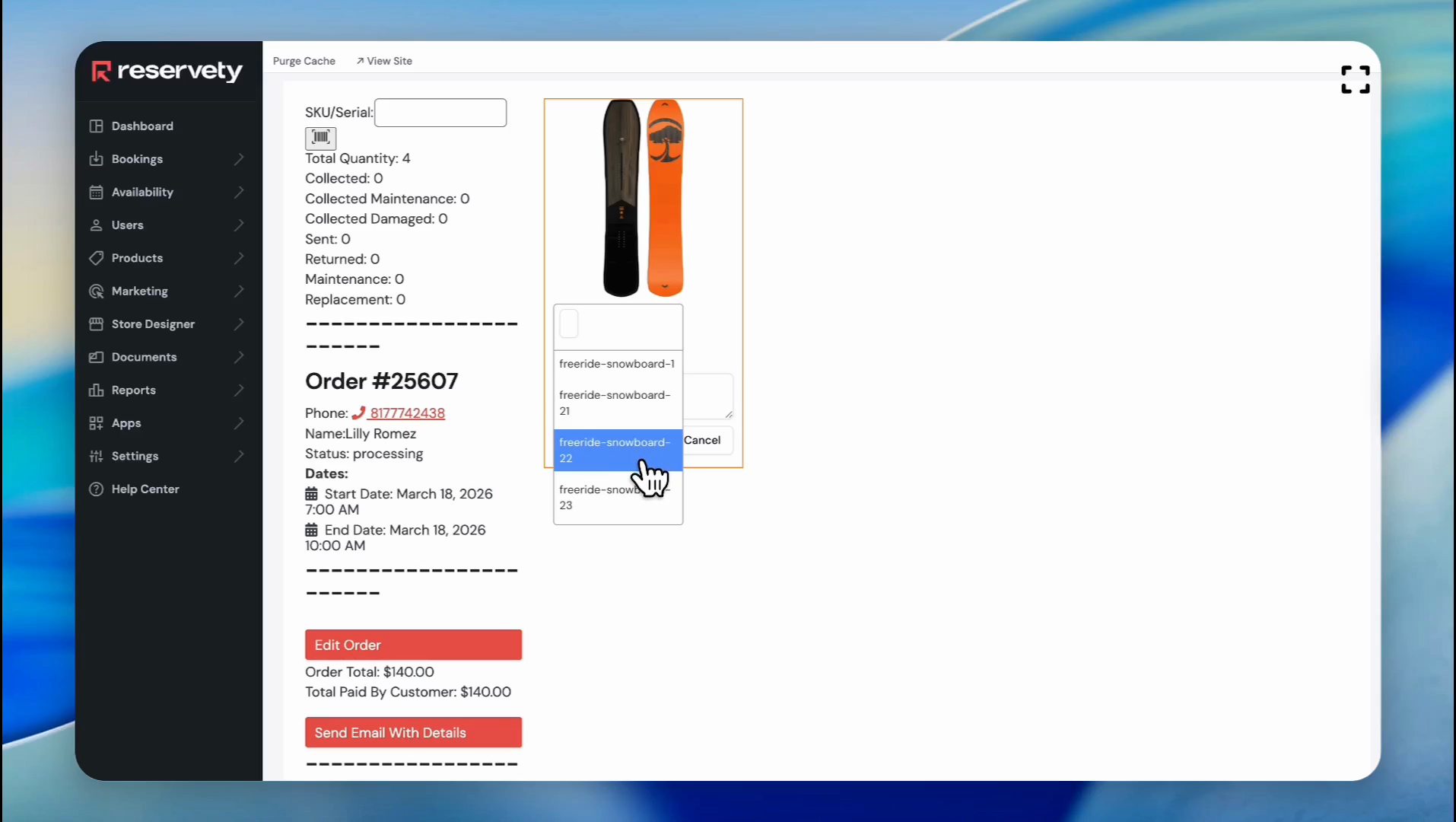
Select the serial numbers to assign to the order.
76
We selected four serials to assign to this order. Click the Save button.
77
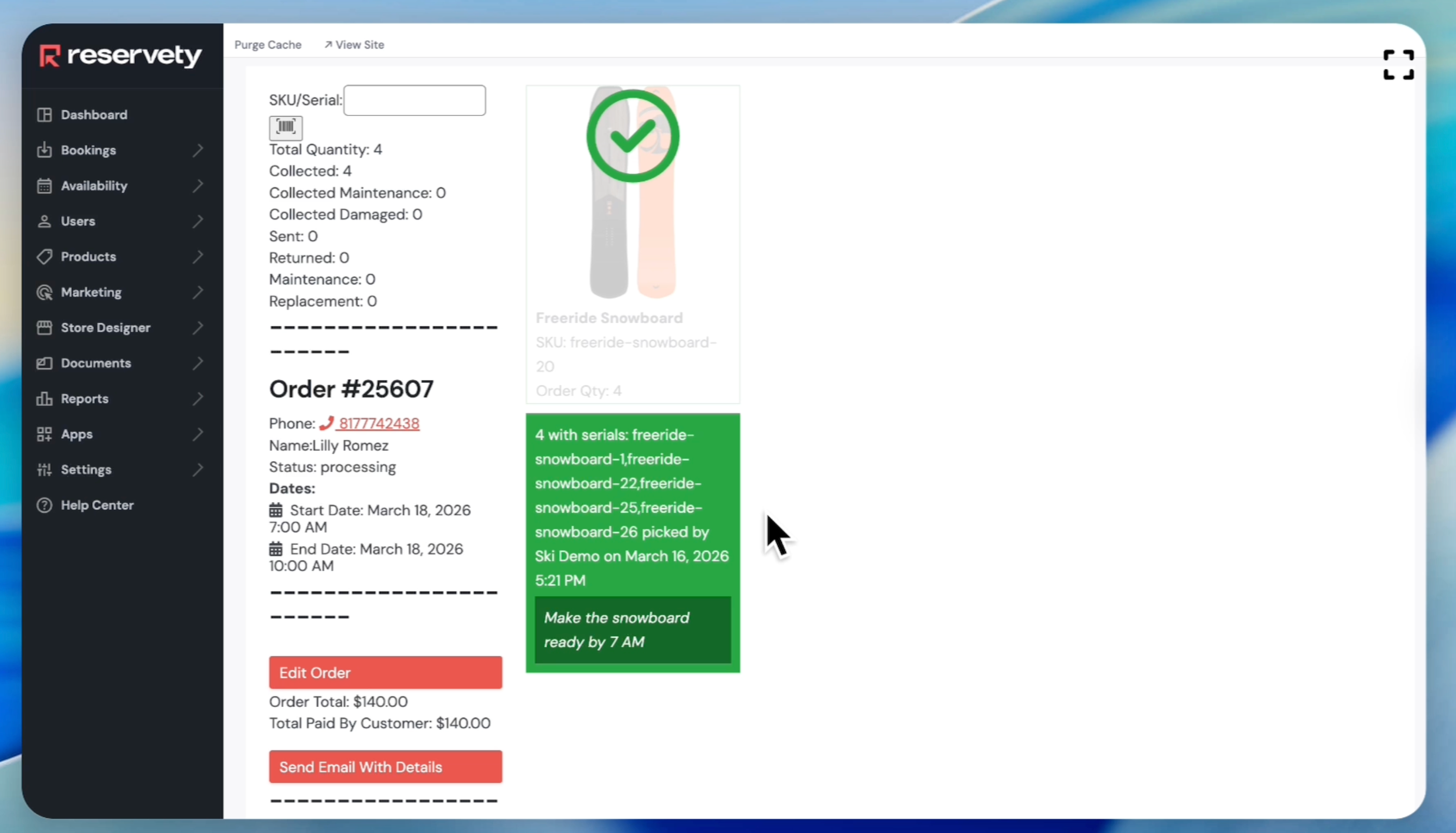
As you can see, four serials were assigned to this order. Once the customer picks up the snowboards, click on "Mark as Sent."
78
Also, you can view which serials were assigned to the specific order by going to the order page.