SOP- How to Create Client Request Form
Step-by-step process how to set up a client request form
By Pat Vasquez
Let's get started
1
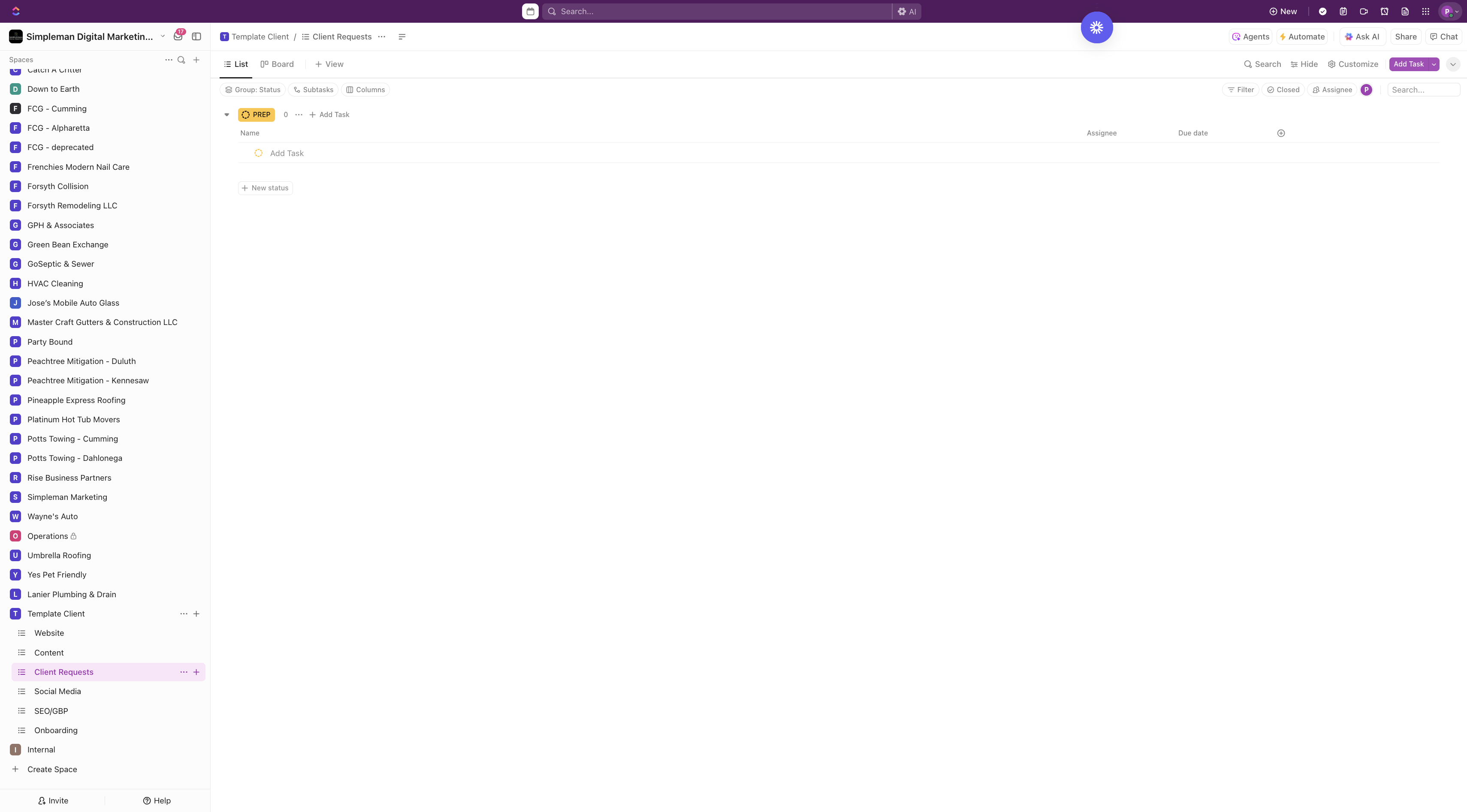
Once we have the client workspace ready, click on Client Request.GoGo tf
2
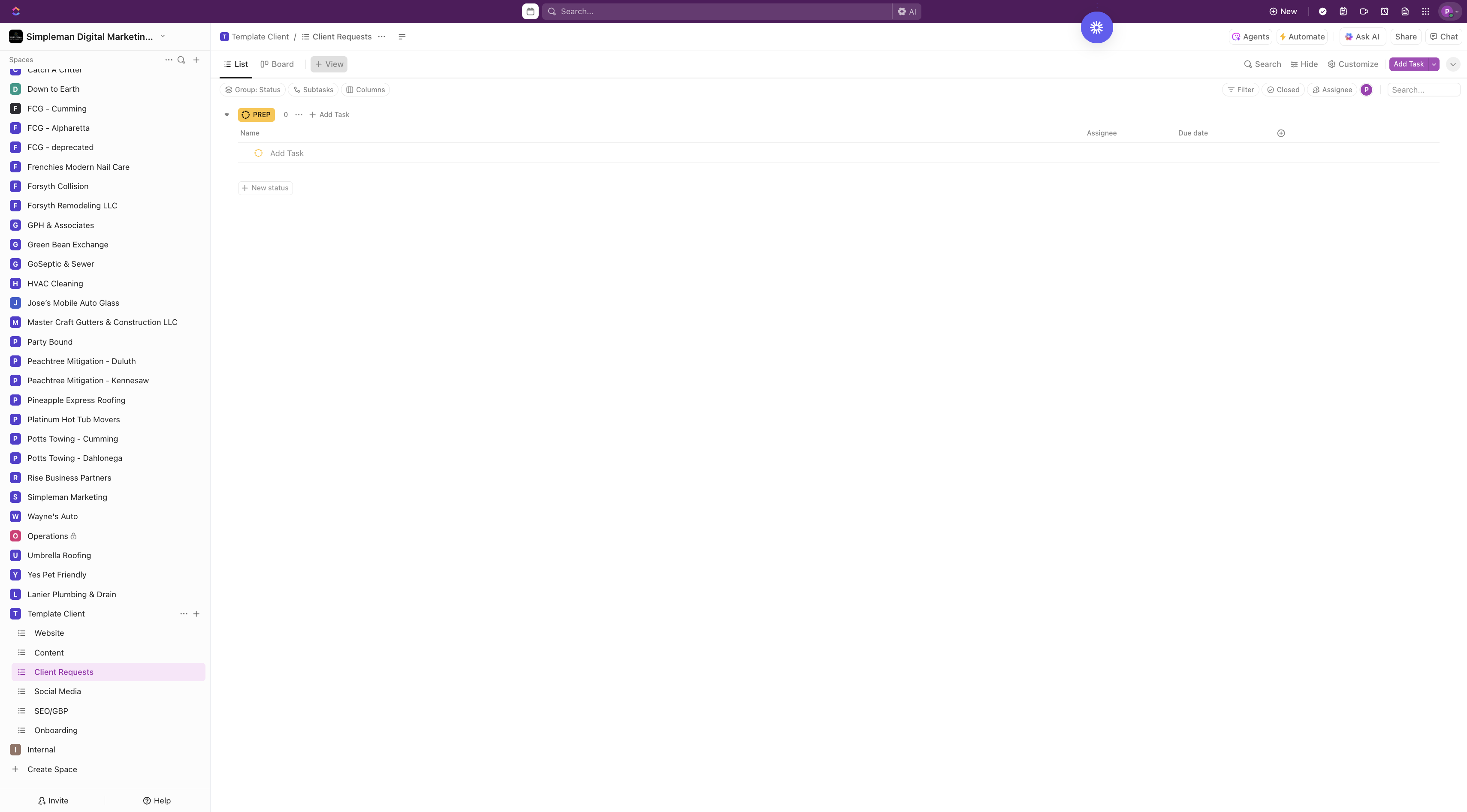
Go to +View
3
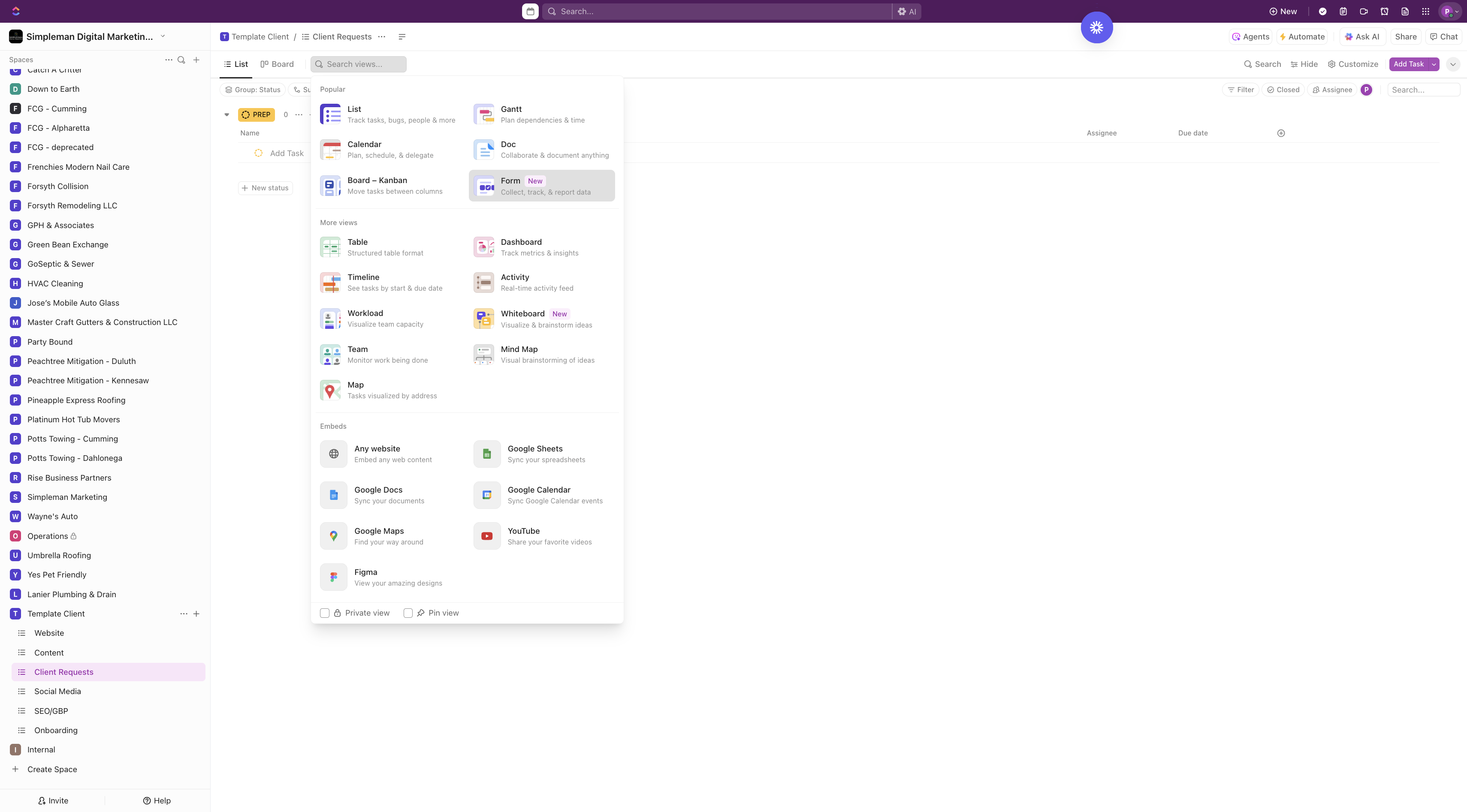
Click on Form
4
Choose Project Intake
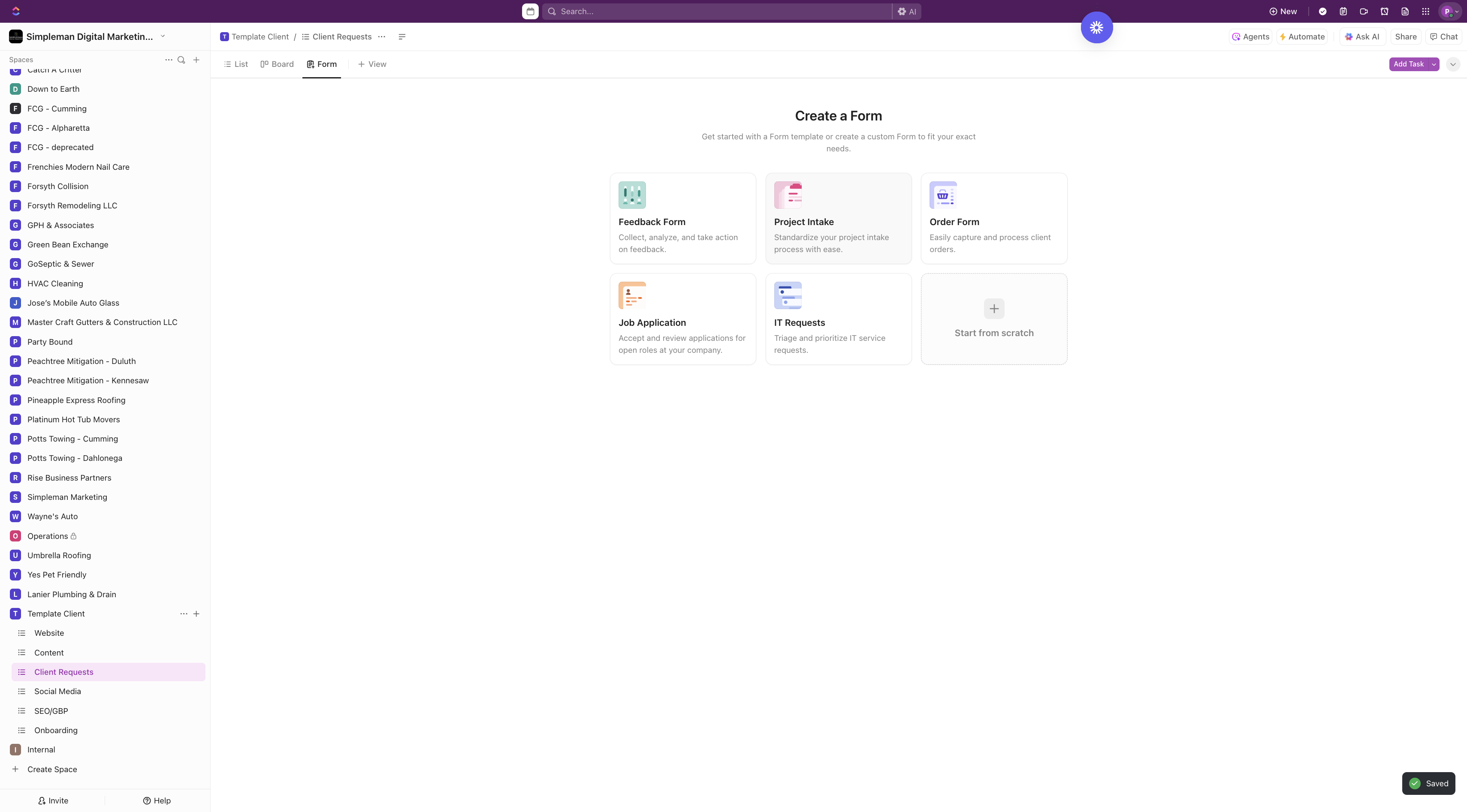
5
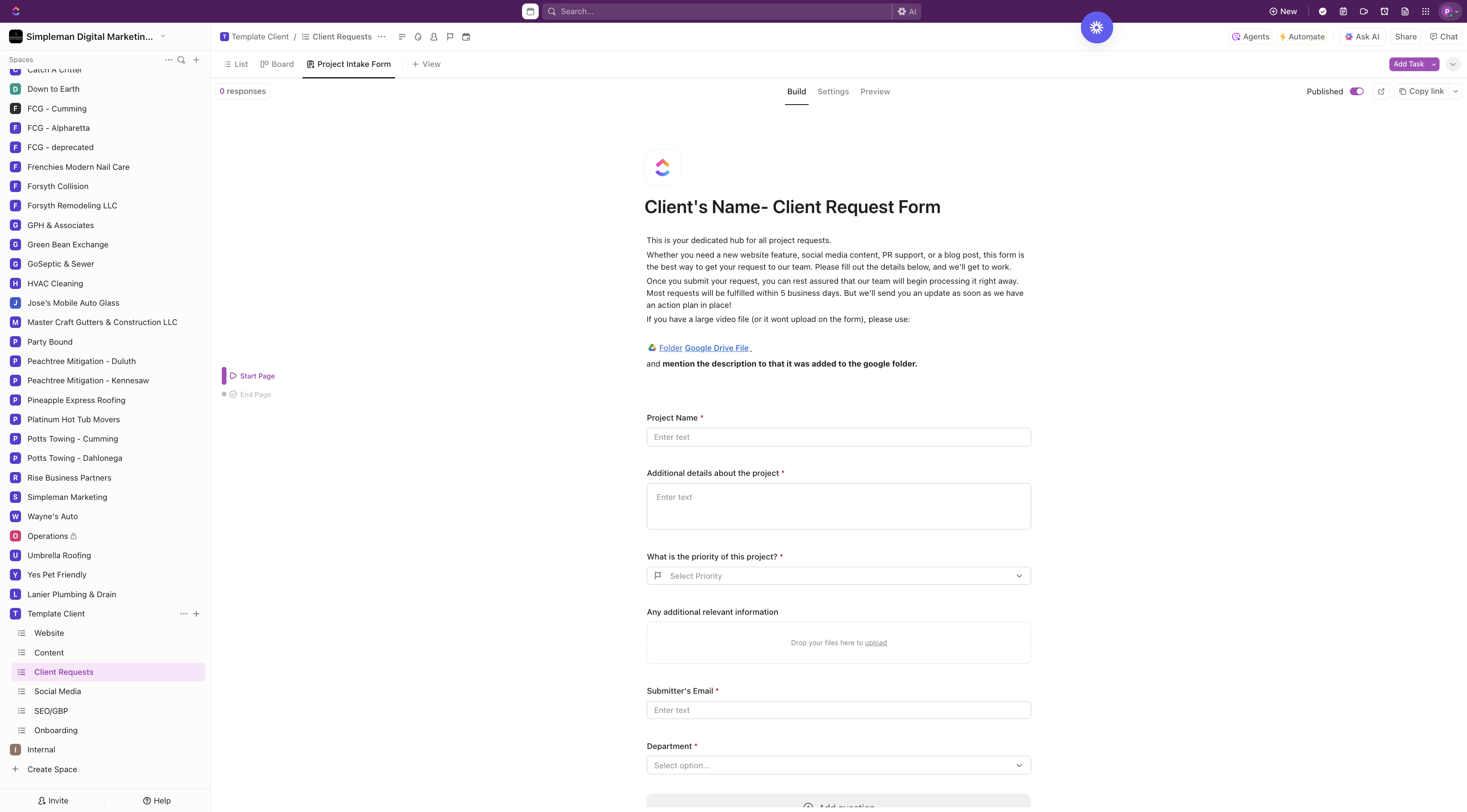
Rename the title of the form [ Name- Client Request Form]
![Step #5: Rename the title of the form [ Name- Client Request Form]](https://di8mn0rali2ic.cloudfront.net/uploads/412d4188-d9c6-4a43-a550-ec36d98d85e3/dcd0a470-a517-48fb-a493-44b30063ab1e.png)
6
Change the body of the form [Get the copy from this file- https://docs.google.com/document/d/1qJtqPPX7b1TftKy48uHDK6t8_OIyATVPUFhBQwuYRTc/edit?usp=sharing]
![Step #6: Change the body of the form [Get the copy from this file- https://docs.google.com/document/d/1qJtqPPX7b1TftKy48uHDK6t8_OIyATVPUFhBQwuYRTc/edit?usp=sharing]](https://di8mn0rali2ic.cloudfront.net/uploads/412d4188-d9c6-4a43-a550-ec36d98d85e3/7abf46f6-1472-4e21-aafb-fc5858fe9fd0.png)
7
Make sure that the Google link file on the form is the client's google drive
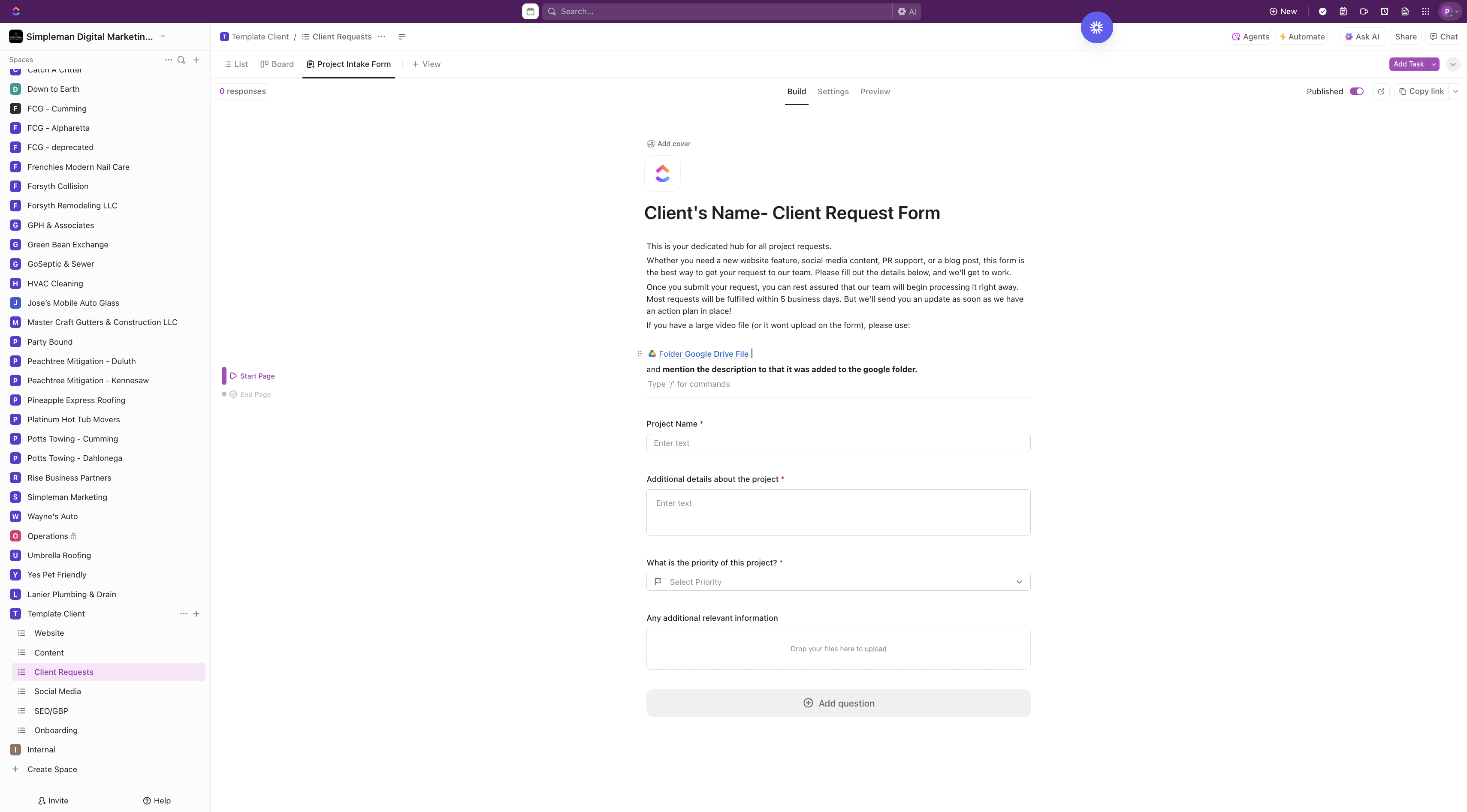
8
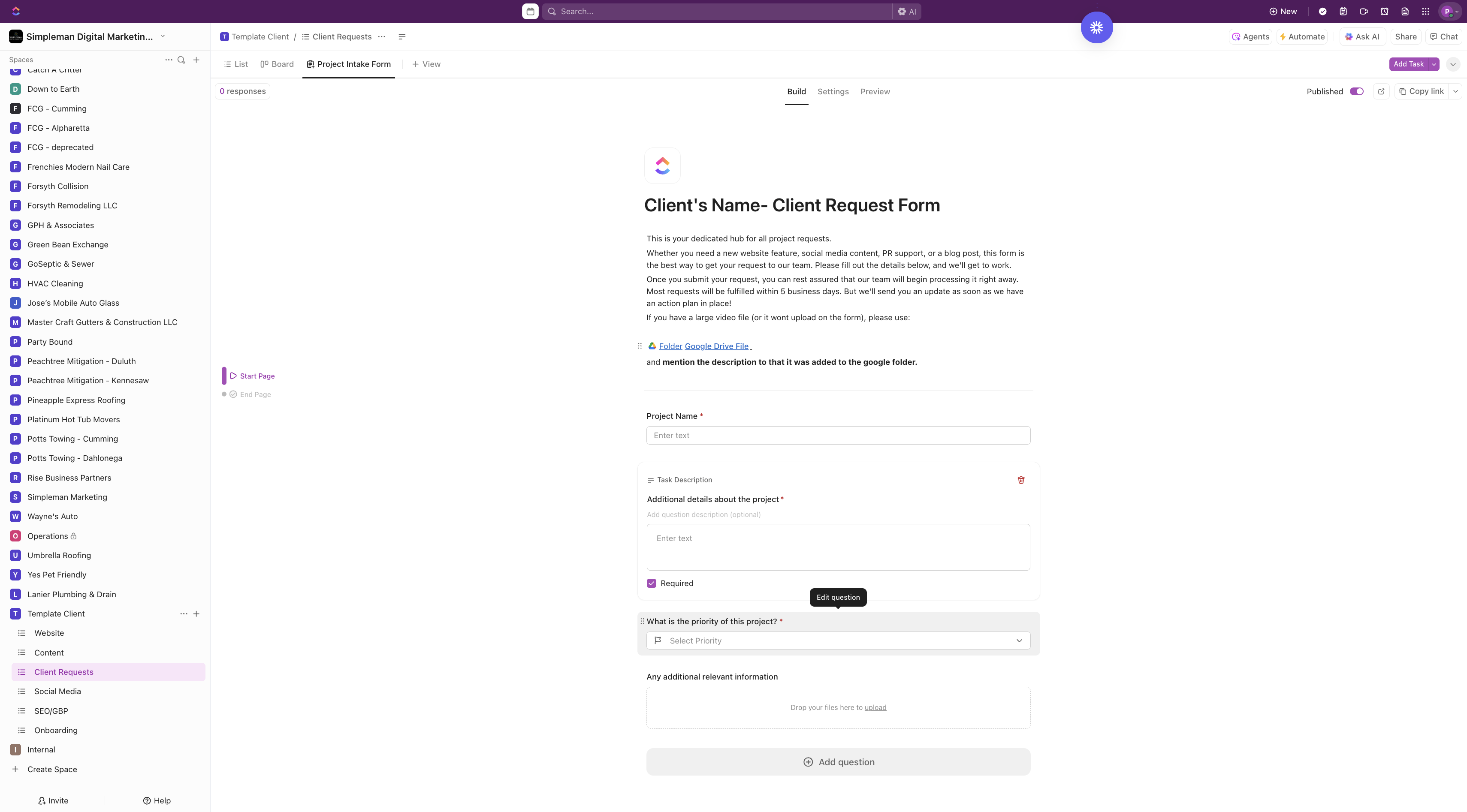
Edit the necessary questions that is needed for the form.- Project Name
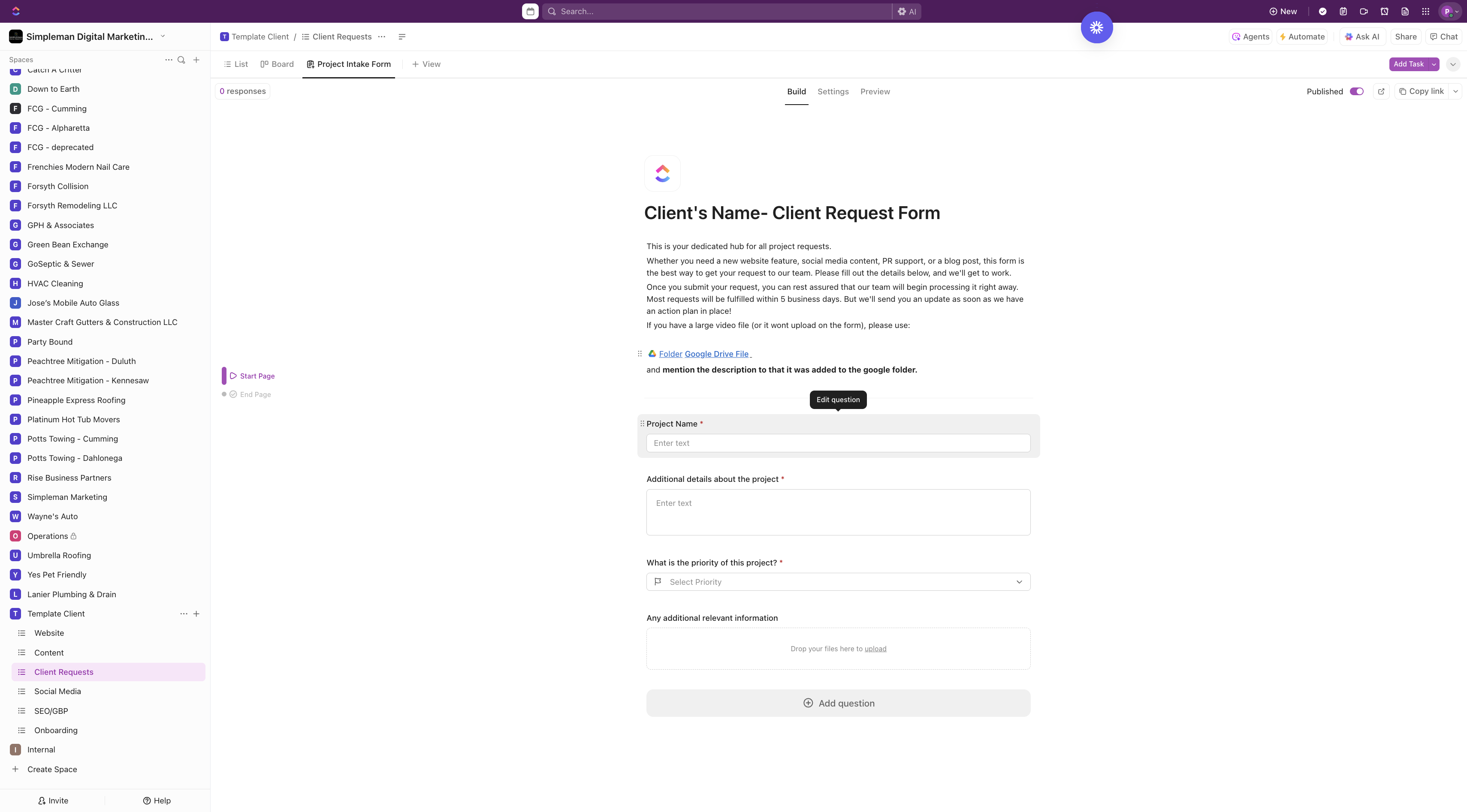
9
Add- Additional details about the projectAdA
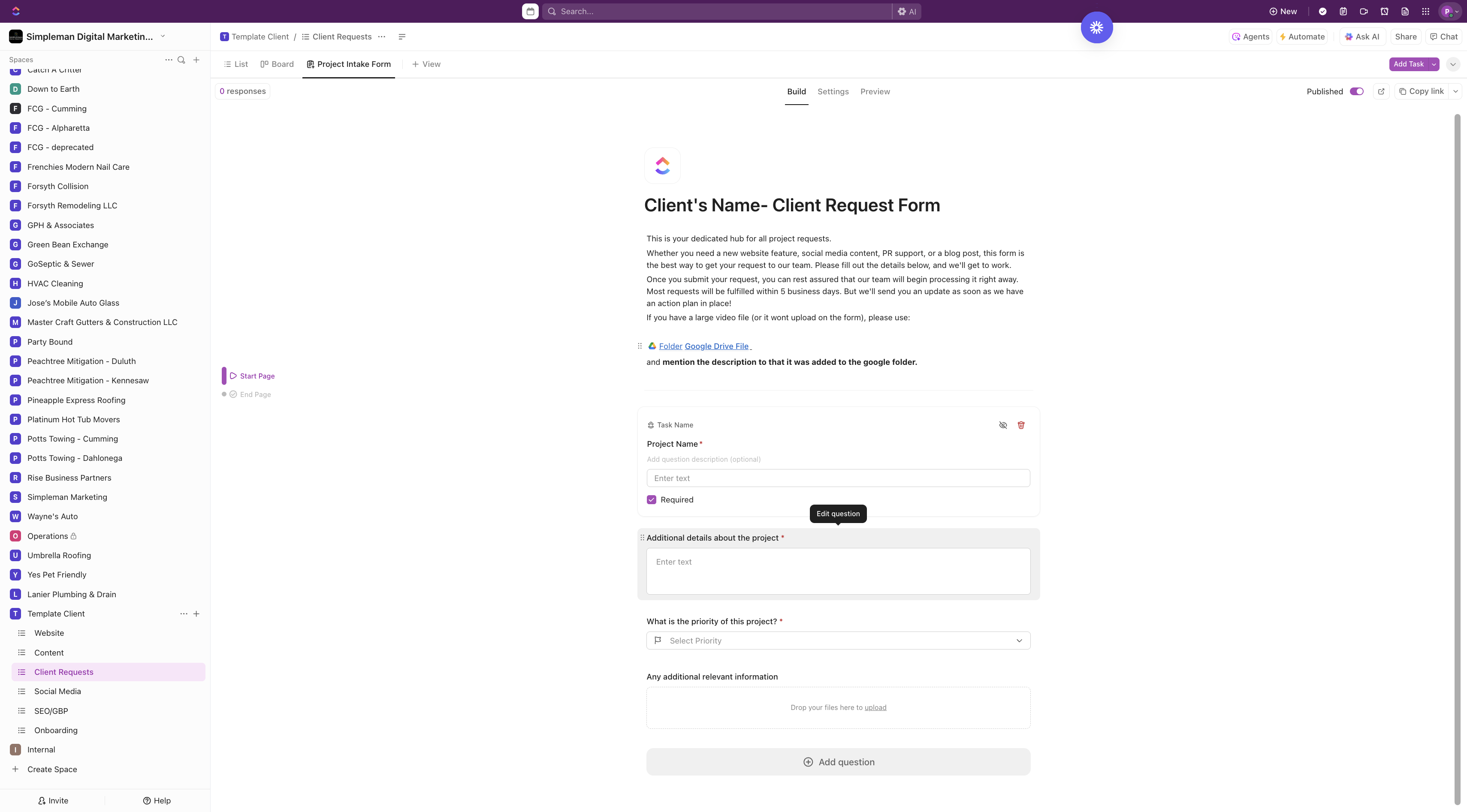
10
Add- What is the priority of the project
11
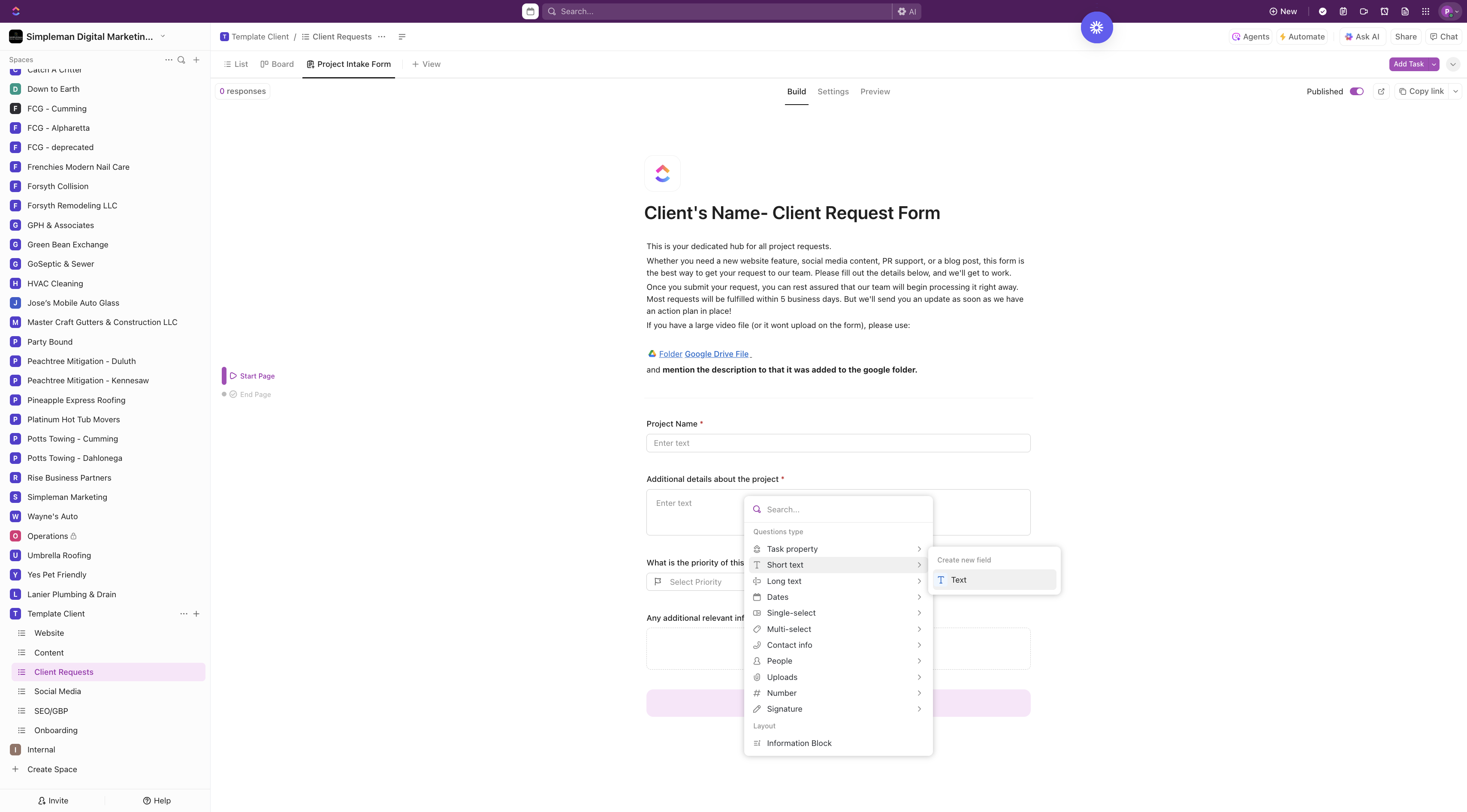
Click here
12
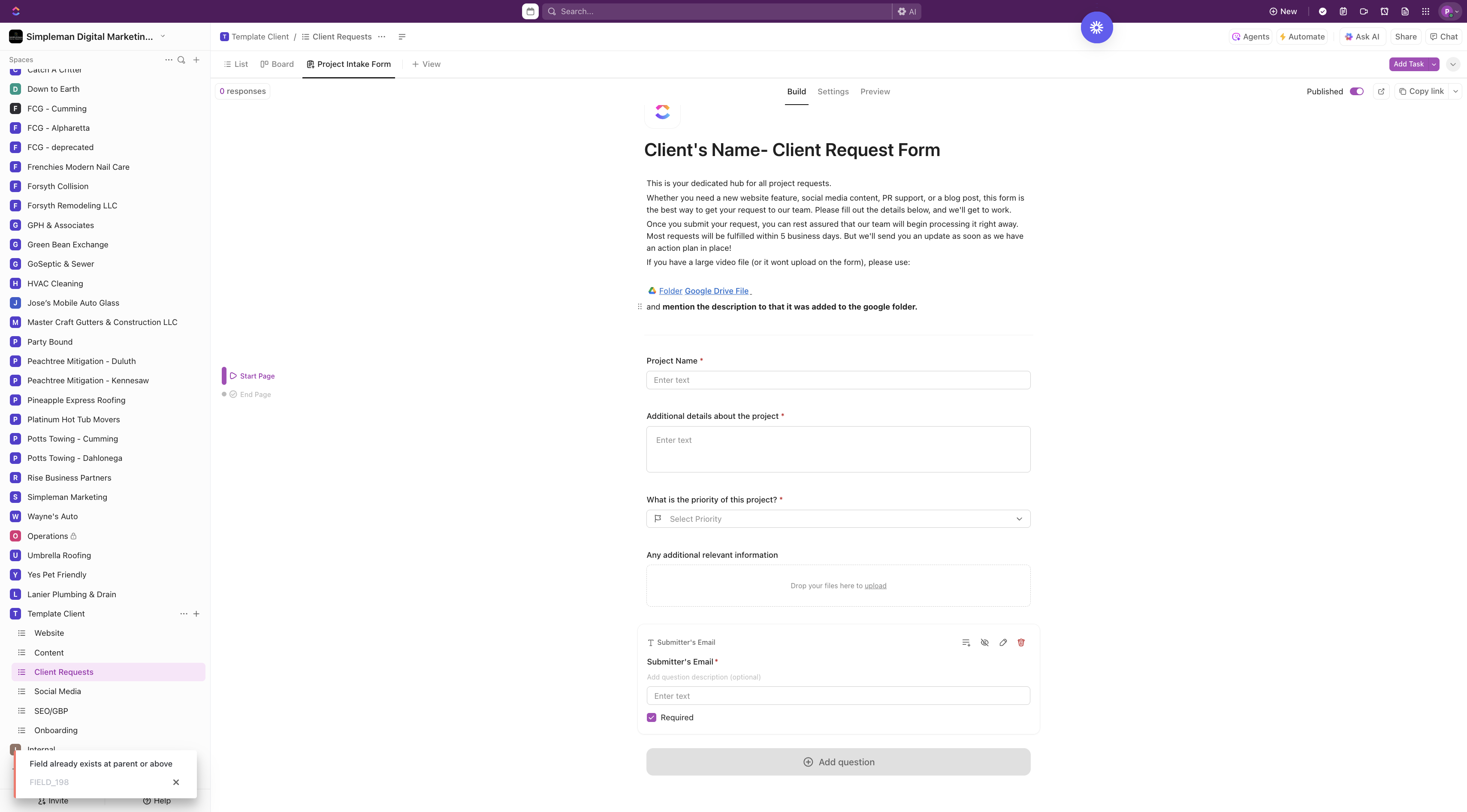
Add- Submiter's Email
13
Add- Department [ + Add Questions> Dropdown]
![Step #13: Add- Department [ + Add Questions> Dropdown]](https://di8mn0rali2ic.cloudfront.net/uploads/412d4188-d9c6-4a43-a550-ec36d98d85e3/e44d1603-af13-455d-a1d3-1049b7d977ce.png)
14
Add- Department [ + Website, Social Media, Content-PR/Blog]
![Step #14: Add- Department [ + Website, Social Media, Content-PR/Blog]](https://di8mn0rali2ic.cloudfront.net/uploads/412d4188-d9c6-4a43-a550-ec36d98d85e3/967ee09f-90b3-4077-9de3-b347dfe435df.png)
15
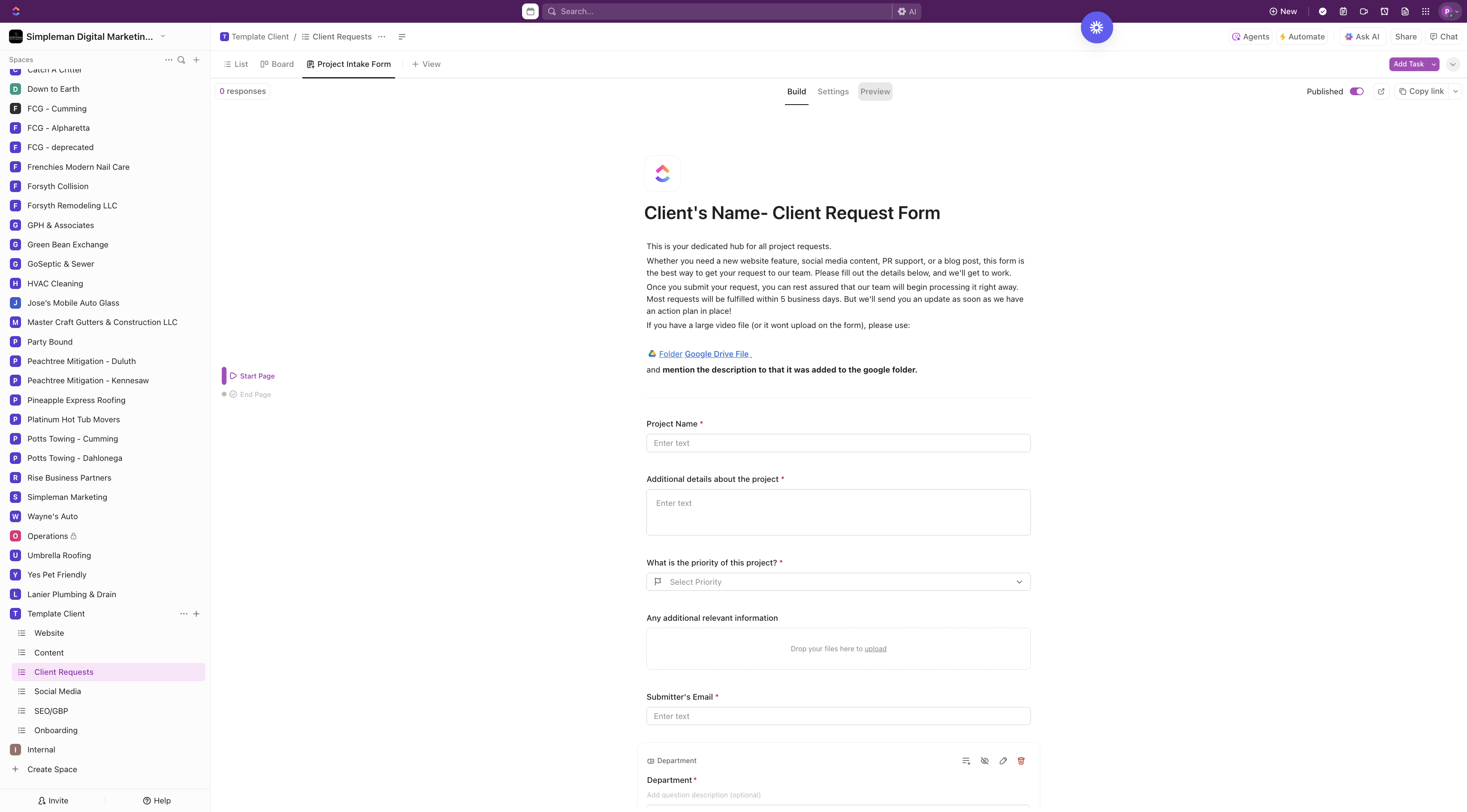
Preview the Form and make sure everything is there
16
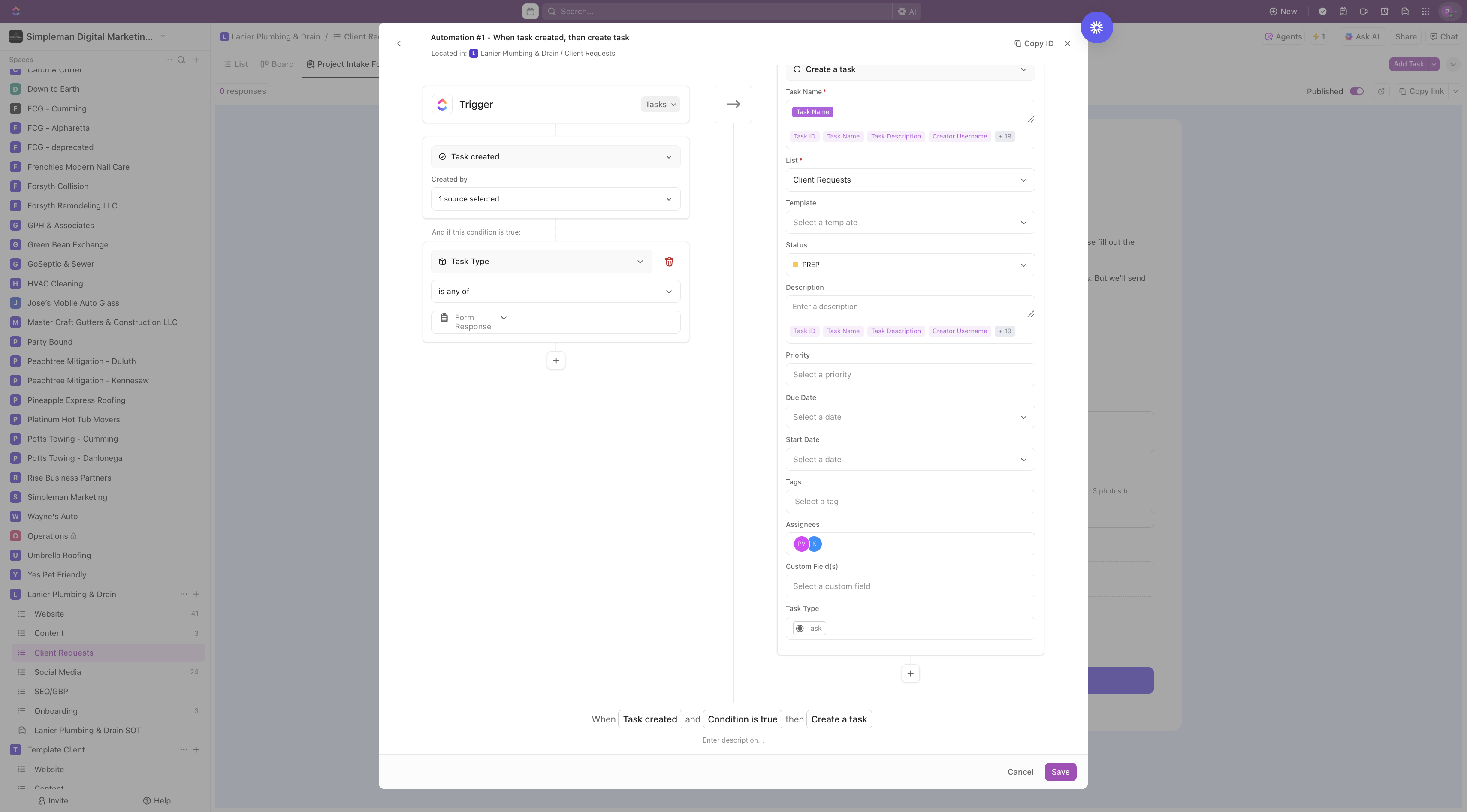
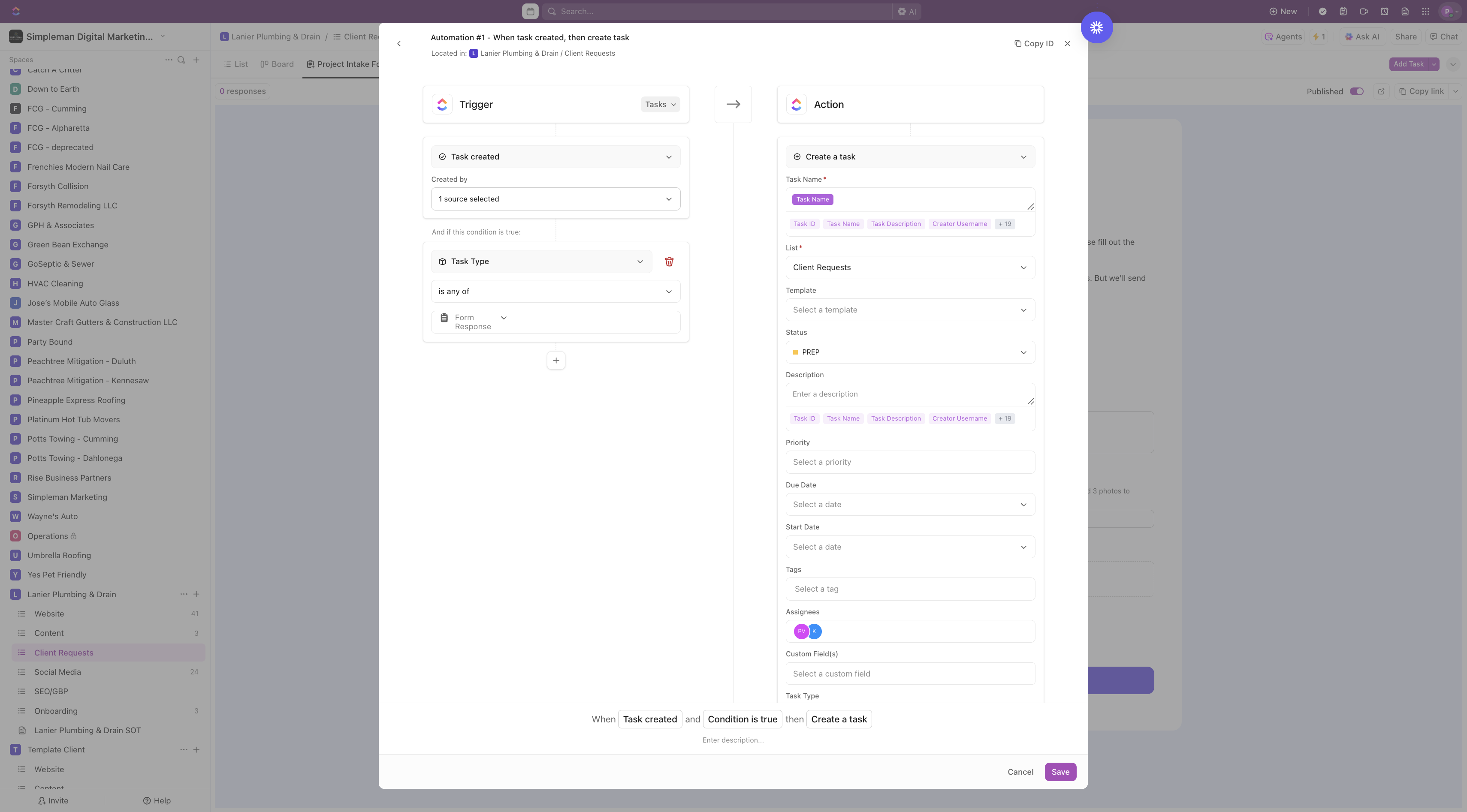
After the form is finalized, Go to Automate. To make sure the request go to the correct task board.
17
Set up- Trigger: When task is created from source:form and the if the condition is true: is any of Form Response.
18
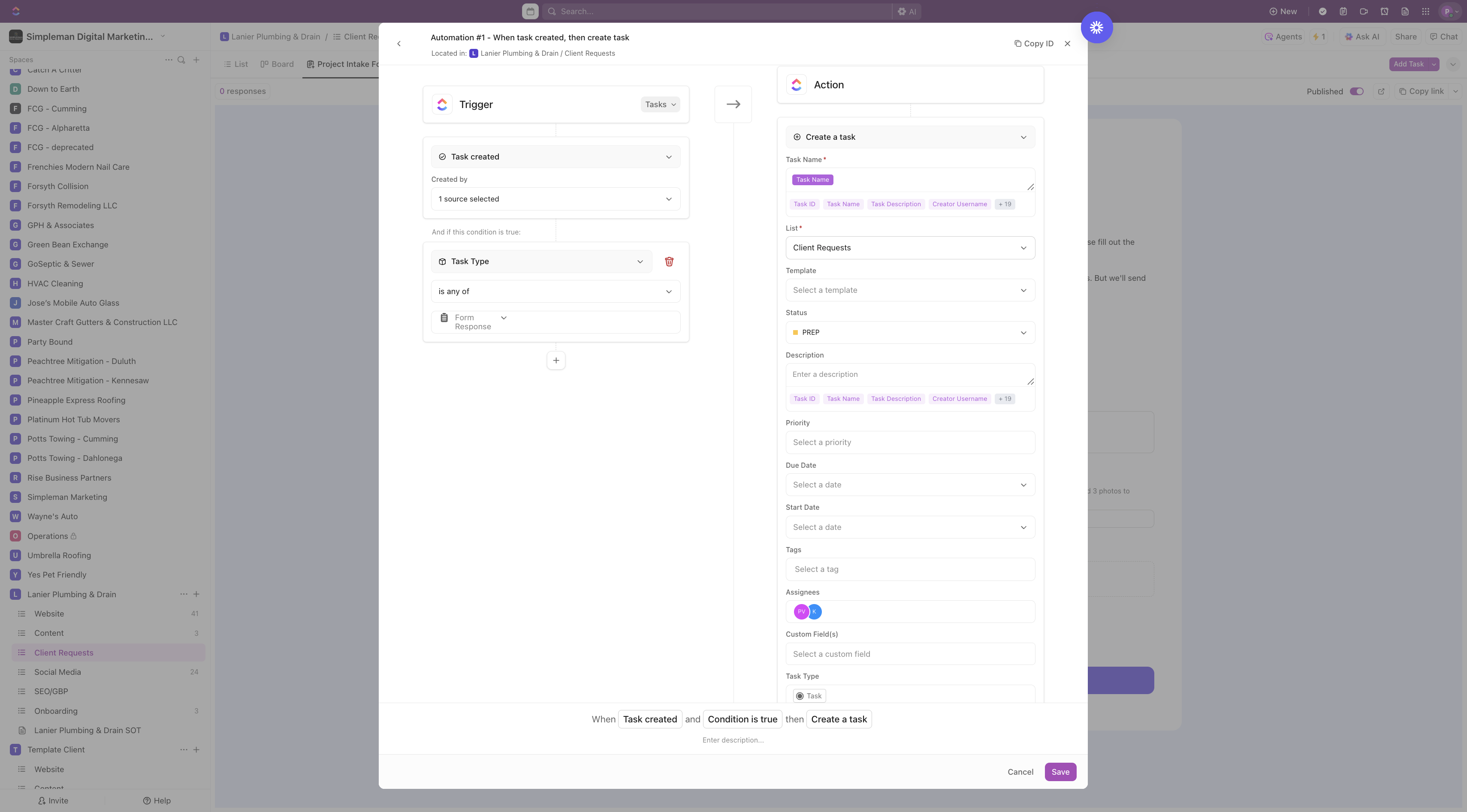
> Action should be: Create a task under Client Request List> under status list PREP
19
Hit Save.