R - How to Create and Organize Collections Effectively
Learn step-by-step how to create collections, set positions, and organize your items efficiently. This guide covers creating sub-collections, adding notes, and managing display options for better organization.
By Brent del rosario
In this guide, we'll learn how to:
Create collections.
Manage display order, status, and positions for each collection.
Keep your collections organized.
Handle situations where a sub-collection does not appear in your dropdown and how to add it manually.
Creating Collections:
1
Click on Create Collection button

2
Click on "Subcollection" and select an option from the drop-down menu.

3
Click on "Position" and select an option from the drop-down menu.

4
Click the Create Button

5
Subcollection and Position are left empty. Create.

6
A generic collection name will be created. Click on it to rename.
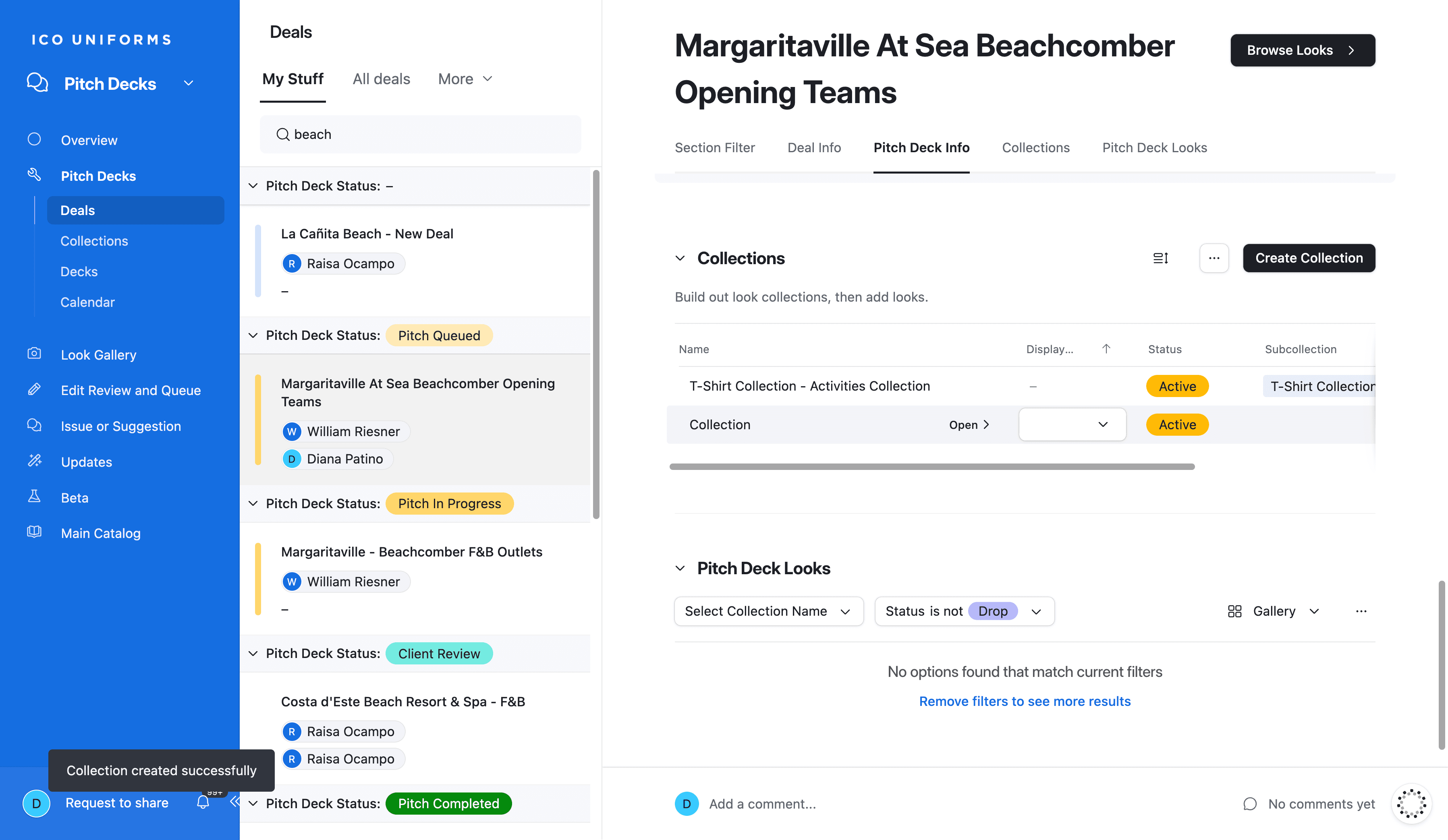
7
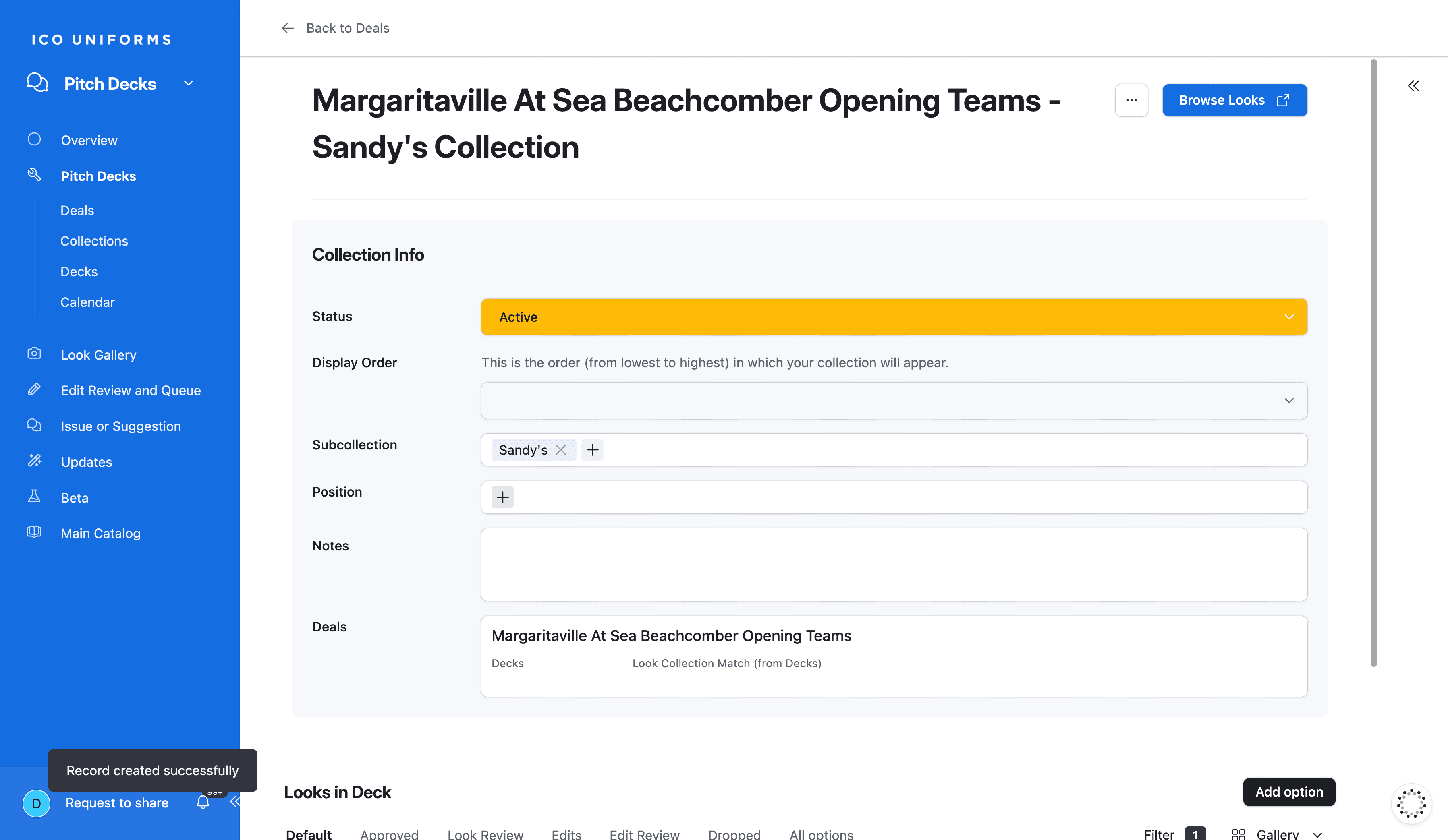
A new page will Pop-up with the information needed to edit. Click on Subcollection.

8
Type the new Subcollection Name and hit Create.

9
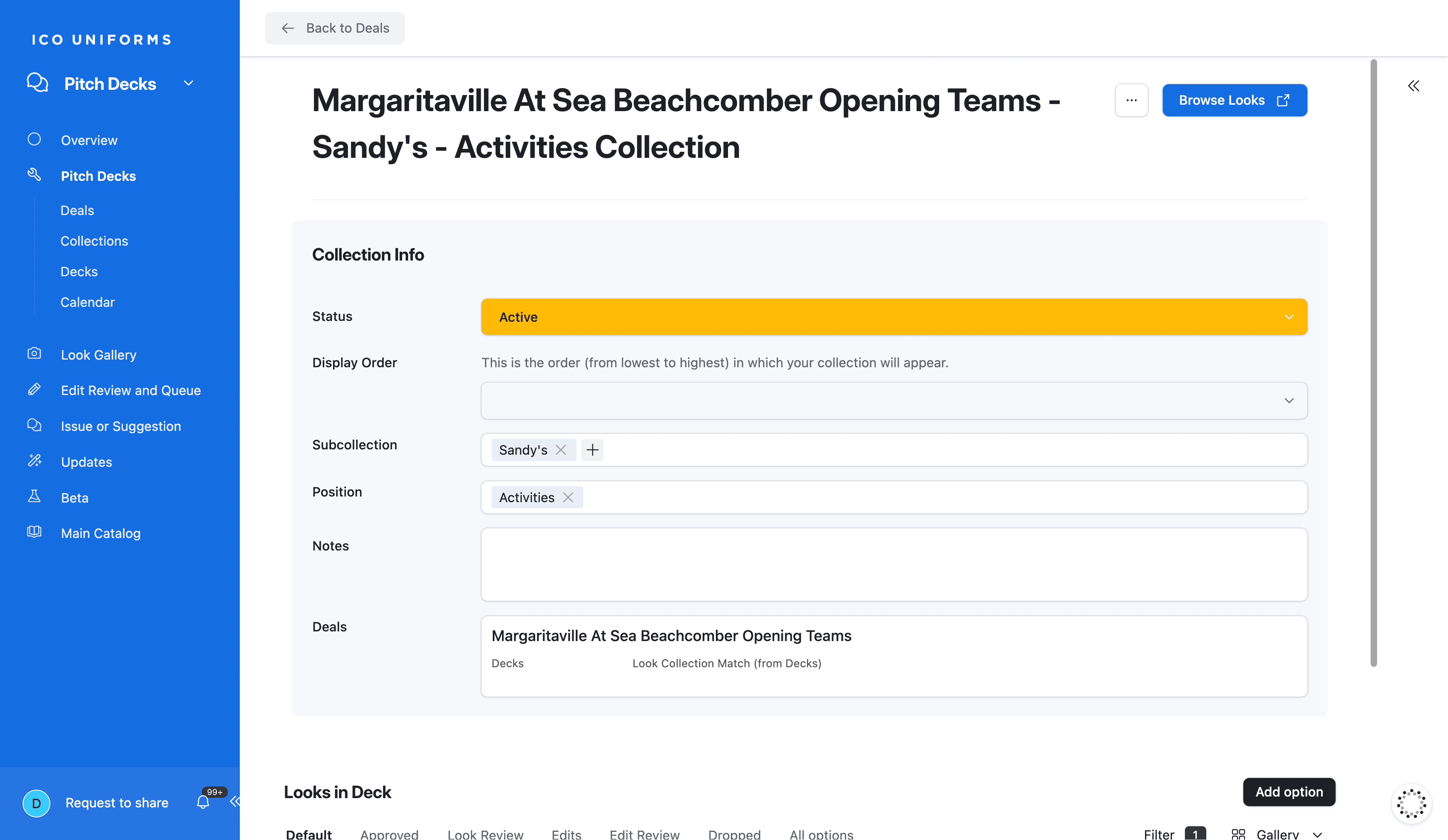
Repeat steps process when adding a new Position
10
Click: Back to Deals
Managing Collections:
11
Fill in a Display Number from the drop-down menu.

Understanding the Collection Status:
12
To change a collection status click on the current status.

13
Pick an option from the Drop-down menu.

14
Select: Dropped
