Icon

How to Create Download Links in Emails: A Step-by-Step Guide

Learn an alternative method for creating download links in emails, including using buttons and images for easier access. Make your file downloads foolproof for your audience.

By Robin Dickinson

In this guide, we'll learn how to create links for downloadable files in emails. The goal is to make it easier for recipients to access files by linking to documents stored on different platforms, such as a main website or a learning portal. This method can help reduce confusion and provide more options for how links appear in your messages.

Let's get started

I want to show you another way to create links. The email you just sent is totally fine! I just want to show you another option. 😊
1
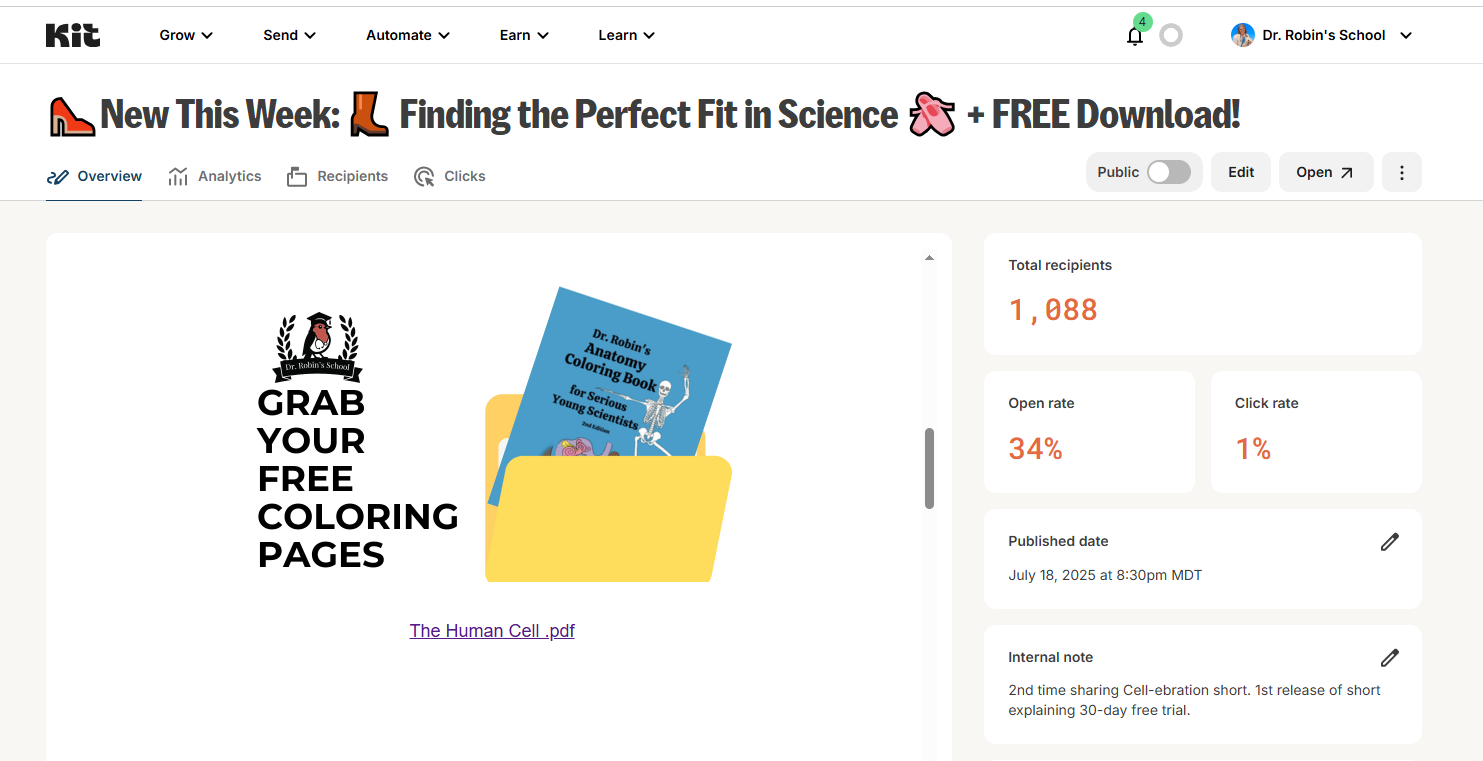
This is what it looks like currently, which is totally fine!
Step #1: This is what it looks like currently, which is totally fine!

That's a perfectly fine way to do it. I just want to show you a different way, in case it is helpful.
2
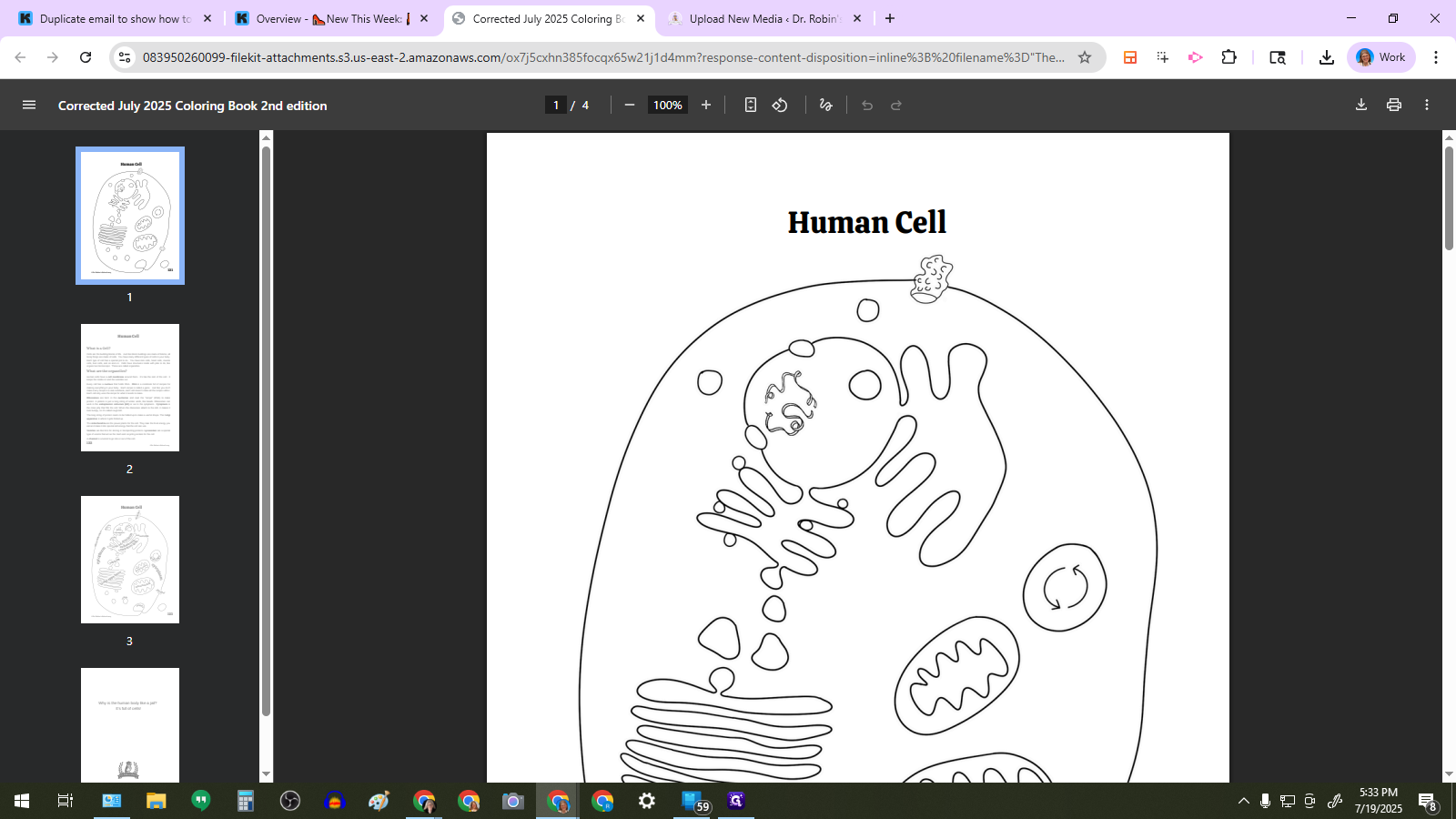
Let me just show you what's here currently so you have a comparison.
Step #2: Let me just show you what's here currently so you have a comparison.

Here's How to Fix the File Name

The way to fix that is to rename the file BEFORE you upload. You can just click on it on your computer and name it something like "Dr. Robin's School--The Cell" so that they can find it on their computer.

Now I'll Show You the Other Way to Share the File
3
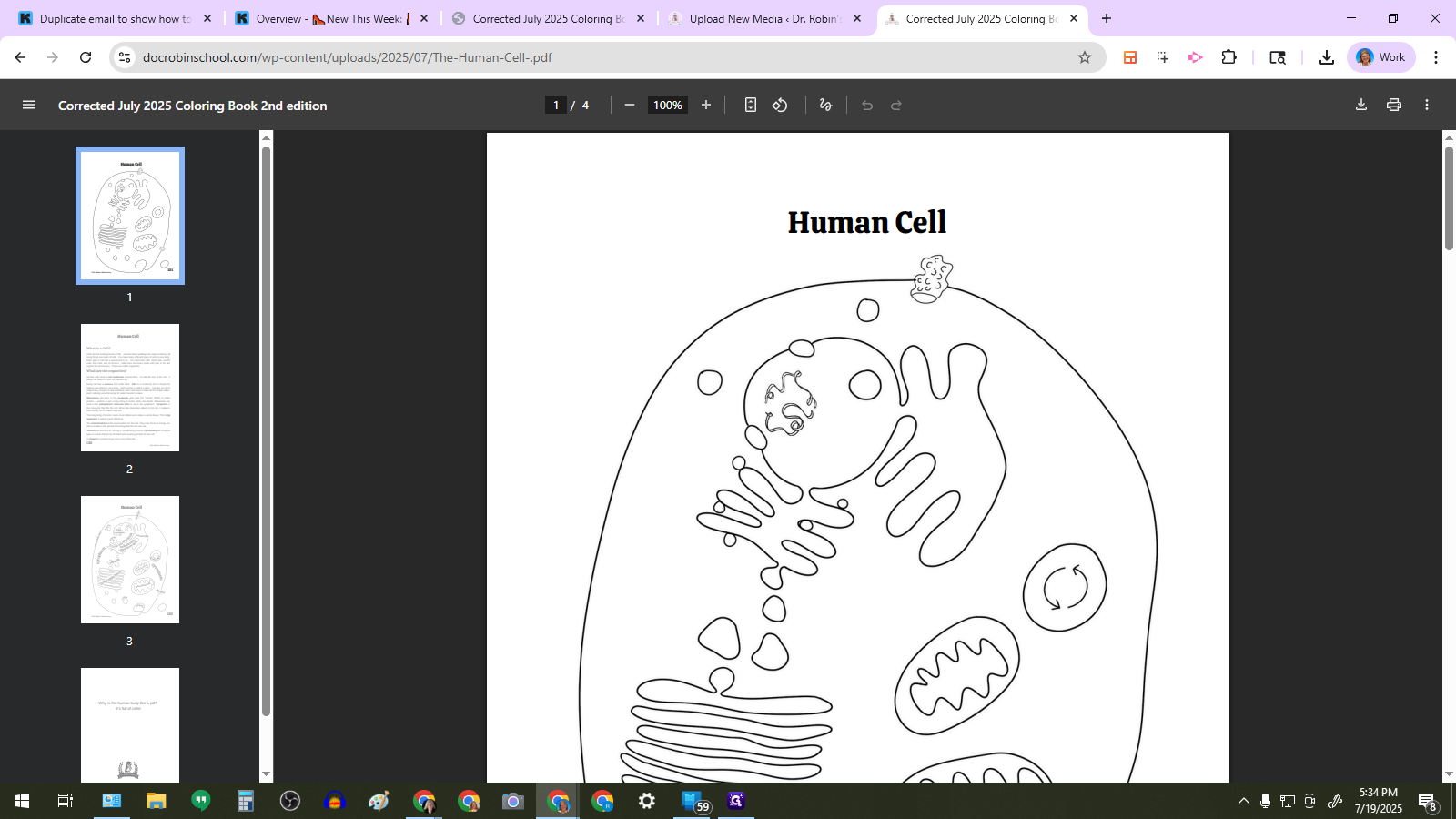
Upload the document to the main docrobinschool.com website or to Member Vault at learn.docrobinschool.com. I can handle the main website, and Jill can manage learn.docrobinschool.com. Just give me a little warning, and I'll upload it and send you a link. Here you can see the link is on the main website. (Note: I forgot to rename the file so it still has the "Corrected July 2025 Coloring Book 2nd Edition" name since that's what it had when I downloaded it.)
Step #3: Upload the document to the main docrobinschool.com website or to Member Vault at learn.docrobinschool.com. I can handle the main website, and Jill can manage learn.docrobinschool.com. Just give me a little warning, and I'll upload it and send you a link. Here you can see the link is on the main website.  (Note: I forgot to rename the file so it still has the "Corrected July 2025 Coloring Book 2nd Edition" name since that's what it had when I downloaded it.)

After the file is uploaded, you can take that link and use it in the email. The file will be stored on either the website or MV so people can download it from there.
4
Now I'm going to go to a duplicated email to show you where you can use this link.
Step #4: Now I'm going to go to a duplicated email to show you where you can use this link.
5
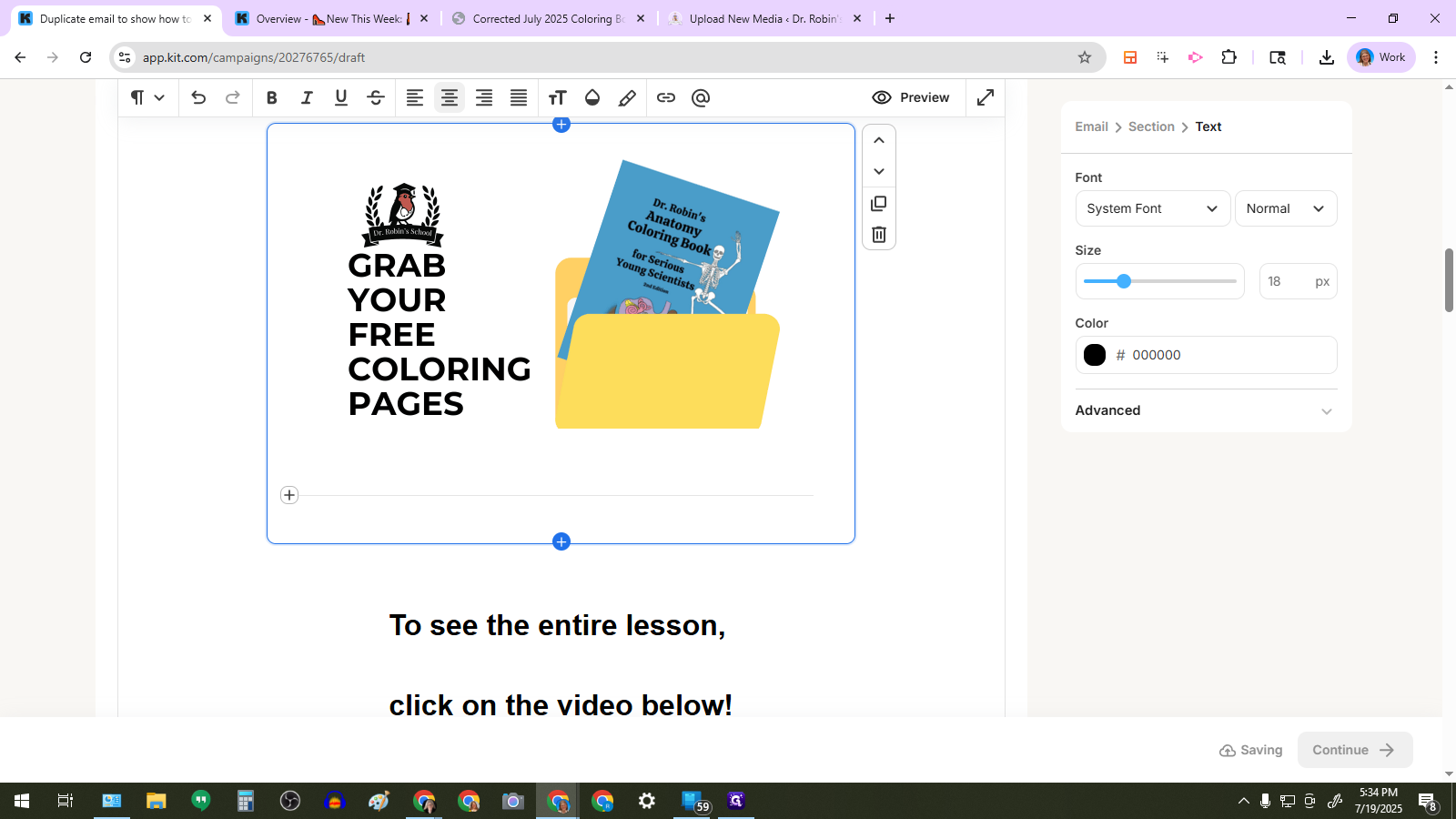
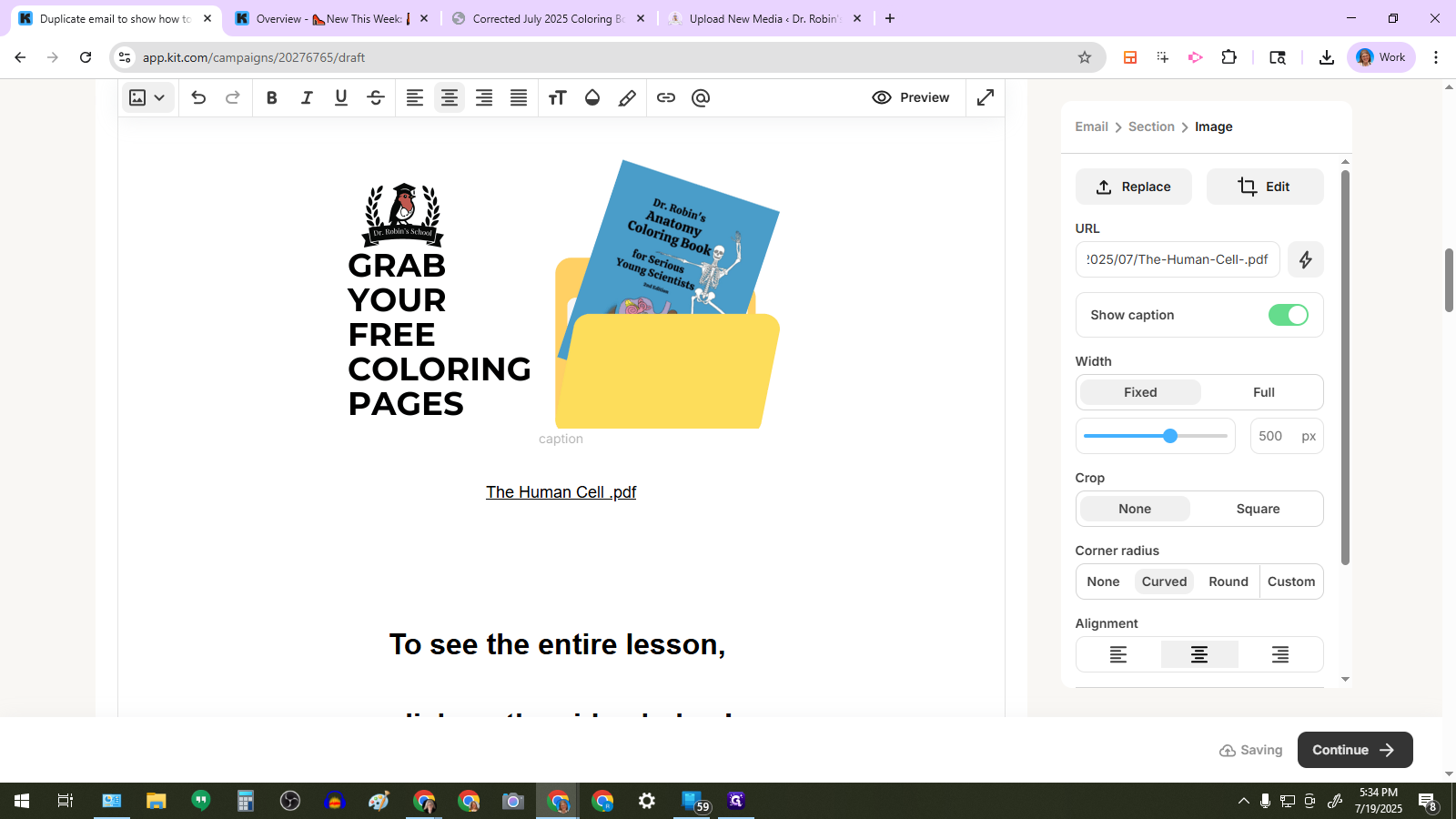
Here we are at the same location where we'd want someone to download but this time I've clicked on the image. You can see here that I've put the link in the box over on the right so that when someone clicks anywhere on the image, they will get the download.
Step #5: Here we are at the same location where we'd want someone to download but this time I've clicked on the image. You can see here that I've put the link in the box over on the right so that when someone clicks anywhere on the image, they will get the download.

Or you can do a button instead.

6
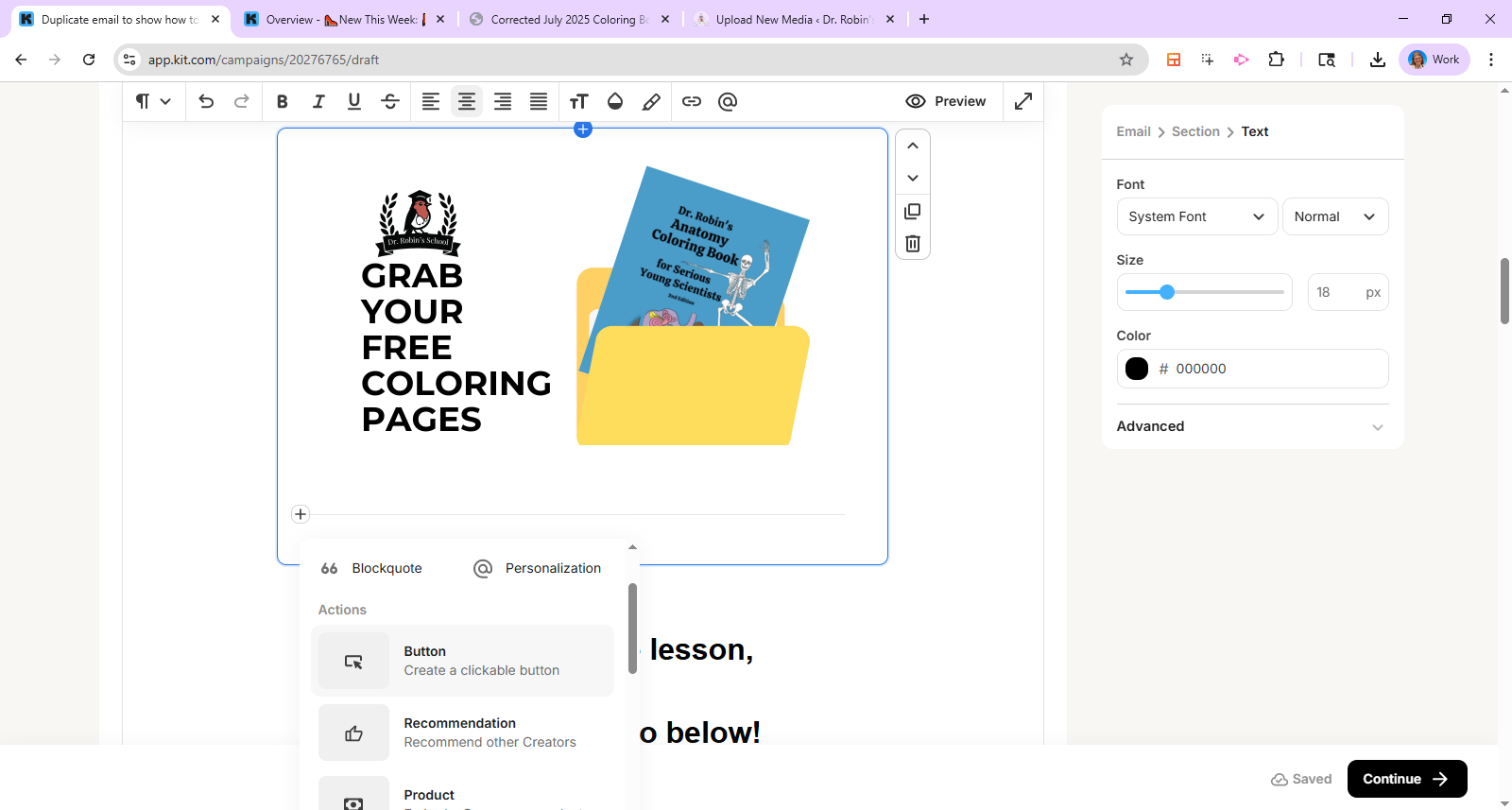
Here's how you do a button... Click on "+"
Step #6: Here's how you do a button... Click on "+"

7
Click on "Button"
Step #7: Click on "Button"
8
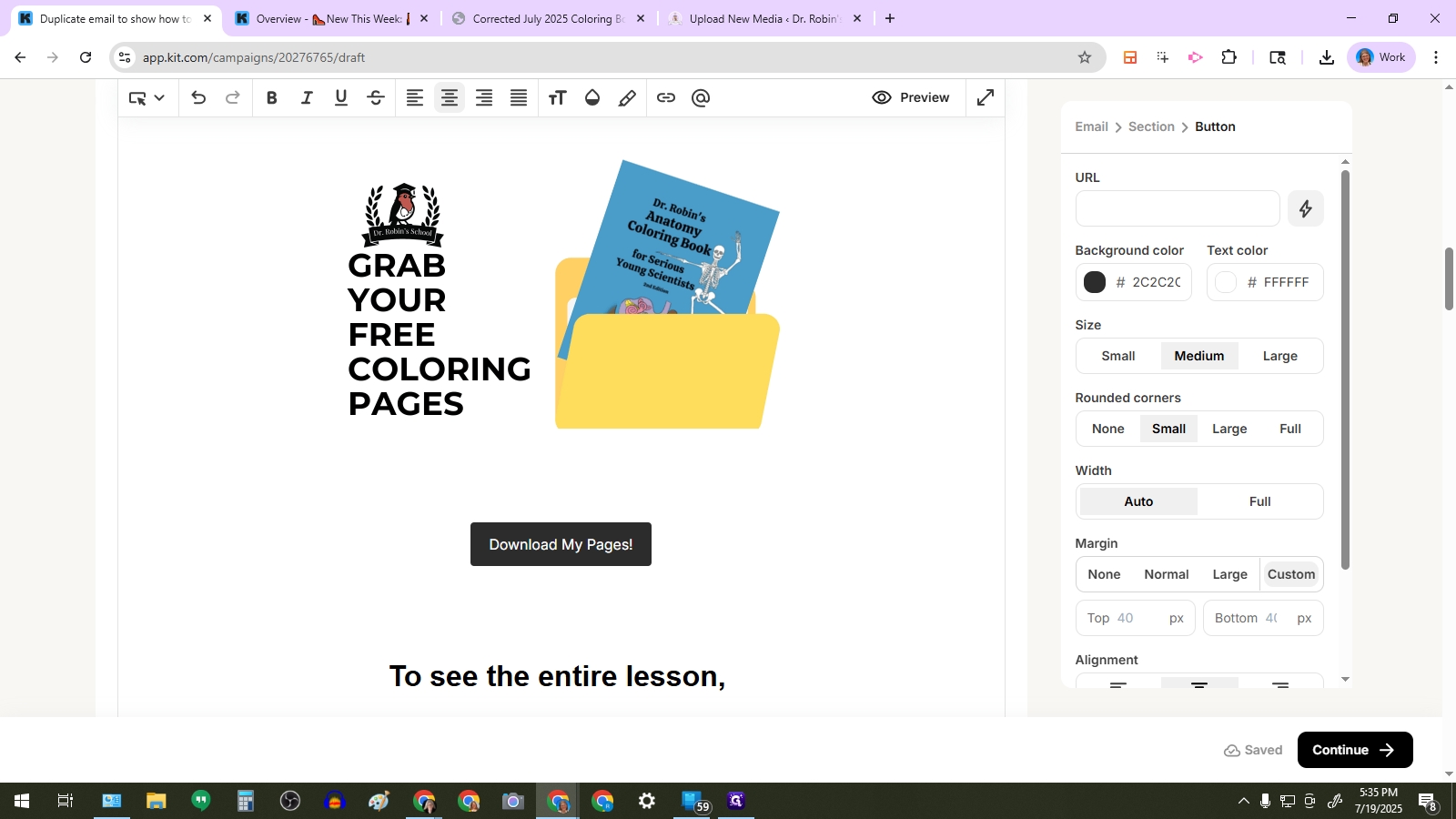
Type the label on the button, for example: "Download My Pages!"
9
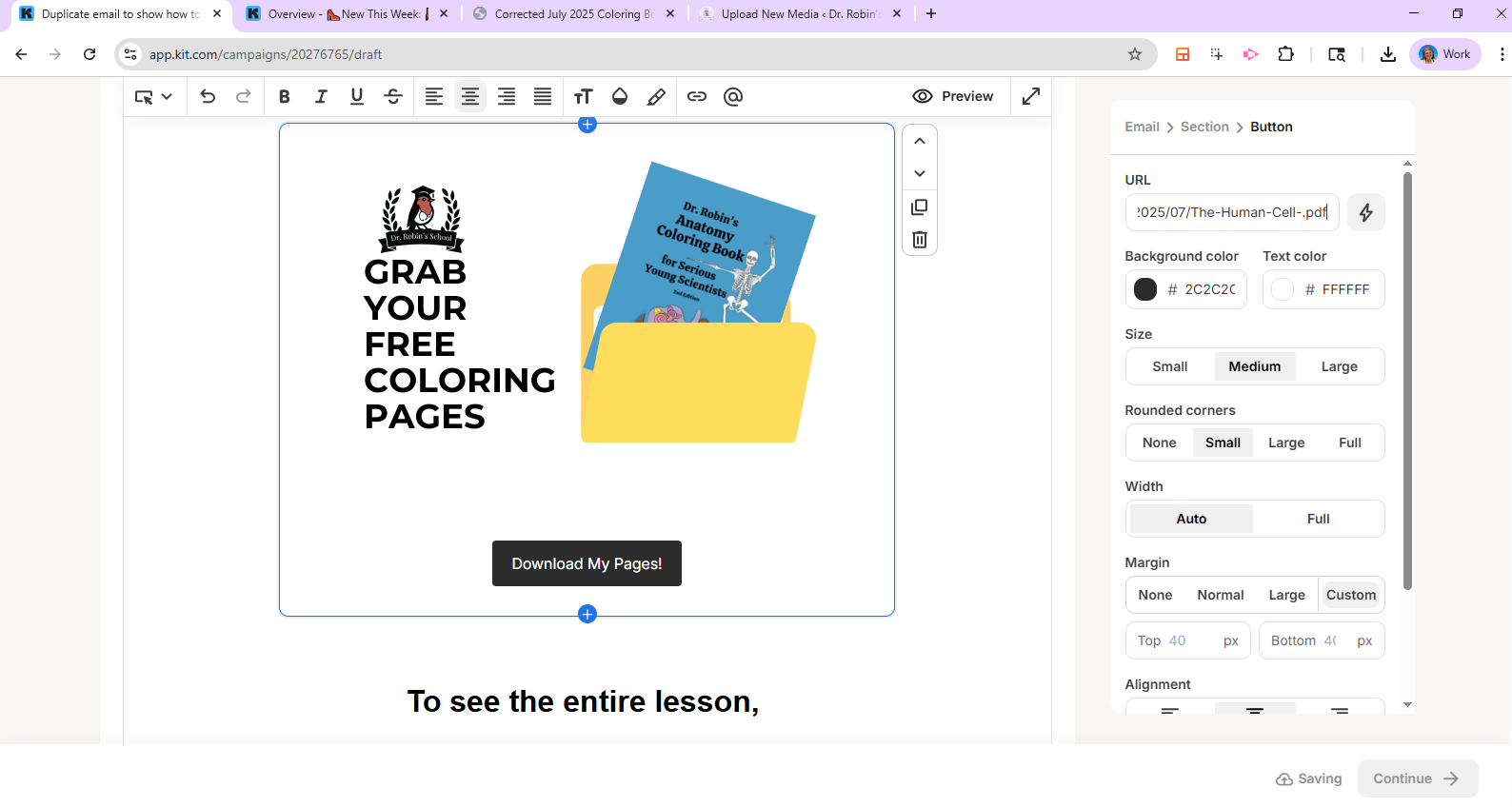
Now add the link for the button.
Step #9: Now add the link for the button.

10
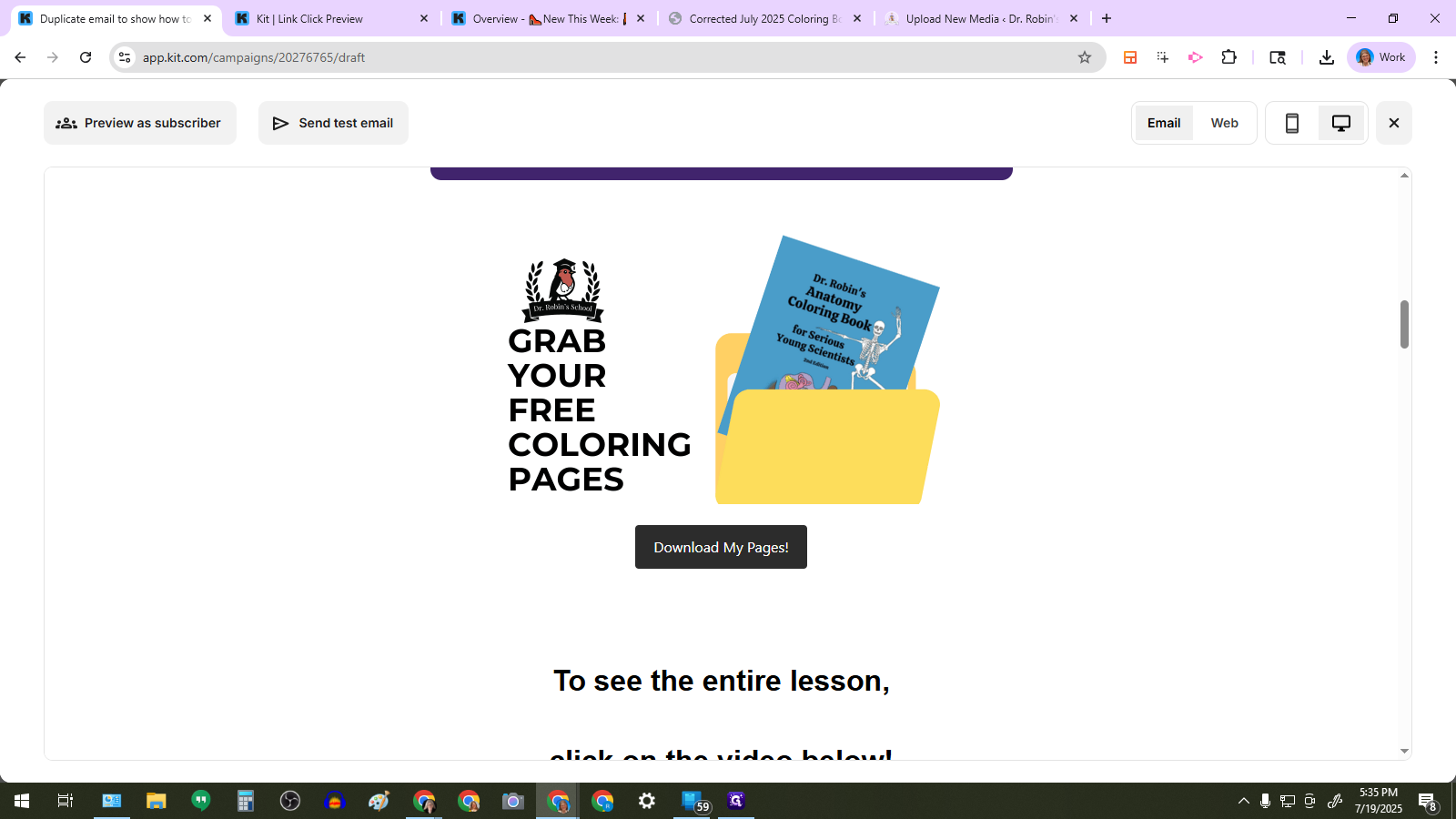
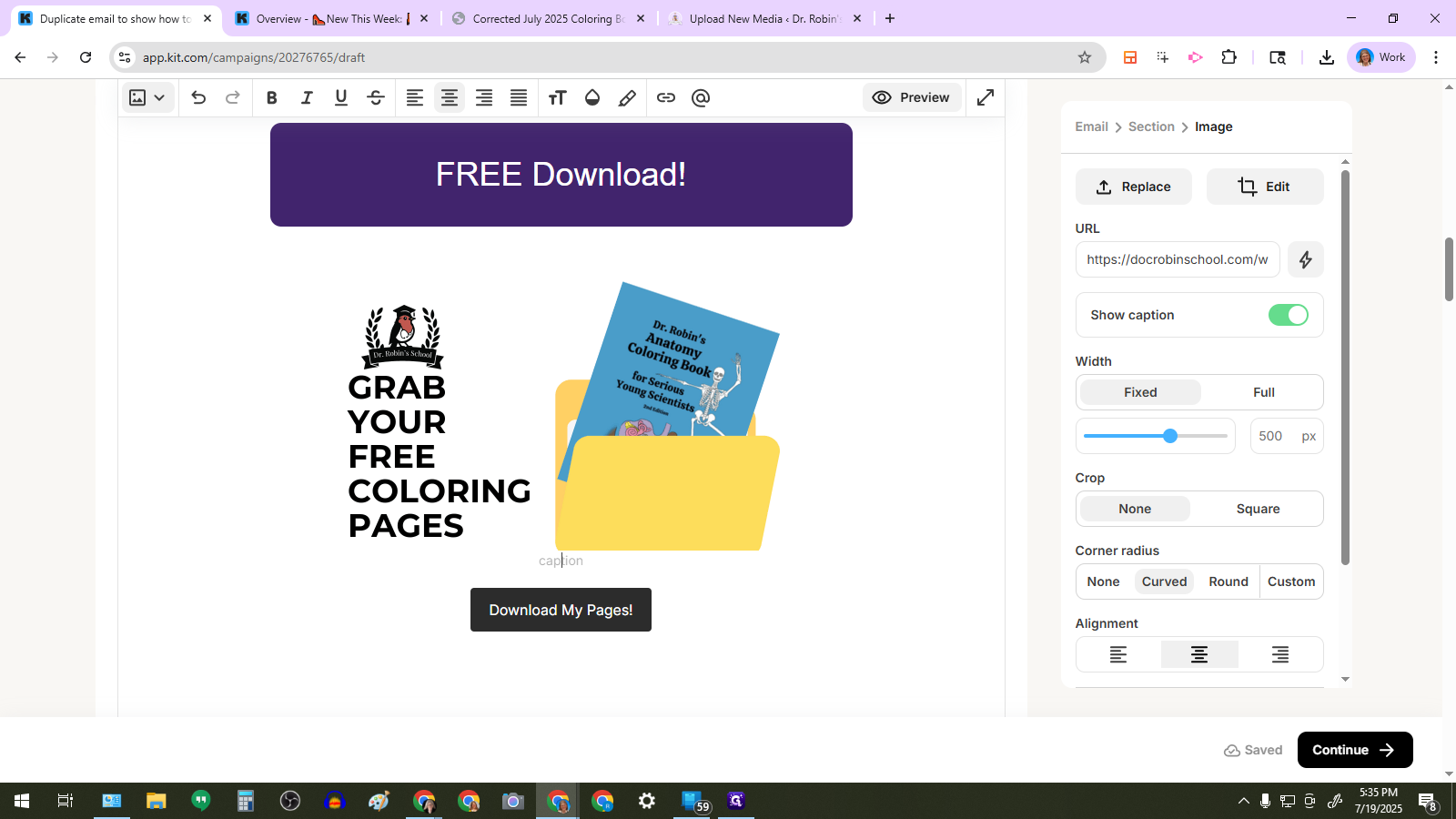
So here we've got the finished button.
Step #10: So here we've got the finished button.

If someone clicks anywhere—on the button, the image, or anything else—they will receive their download.

That makes it foolproof for everyone.
11
Now let's preview it and see that! Click on preview to check that it works.
Step #11: Now let's preview it and see that! Click on preview to check that it works.
12
The hand icon shows that this entire area is a link now. No matter where you click, it's a link.
Step #12: The hand icon shows that this entire area is a link now.  No matter where you click, it's a link.

So that's the end goal here. It looks snazzy and more importantly, they can't mess it up. There is no room confusion. There’s no need to search for the right spot to click.

And remember, how you did it is totally fine. This is in case you want another option.

Thank you so much for everything you do!