How to Create Social Media Drafts in Meta Business Suite
Learn an efficient workflow for creating, saving, and scheduling social media drafts in Meta Business Suite. Streamline your process, avoid duplicate work, and manage posts for Perspective Media with step-by-step instructions.
In this guide, we'll learn how to create and manage social media post drafts directly in Meta Business Suite. This process helps you save time by preparing posts in Meta, allowing for easy review and scheduling once approved. You will also see how to access and edit drafts before publishing.
Let's get started
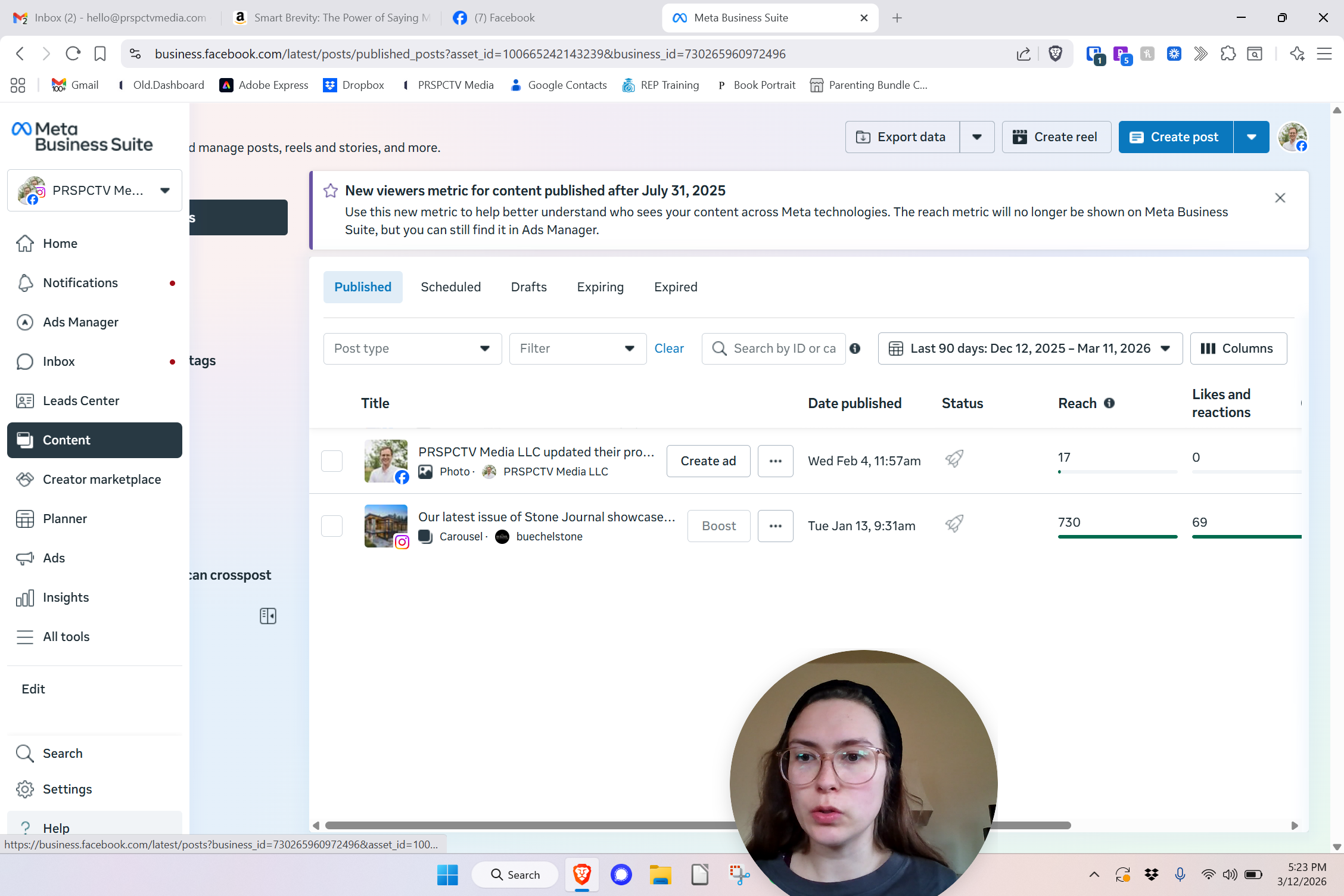
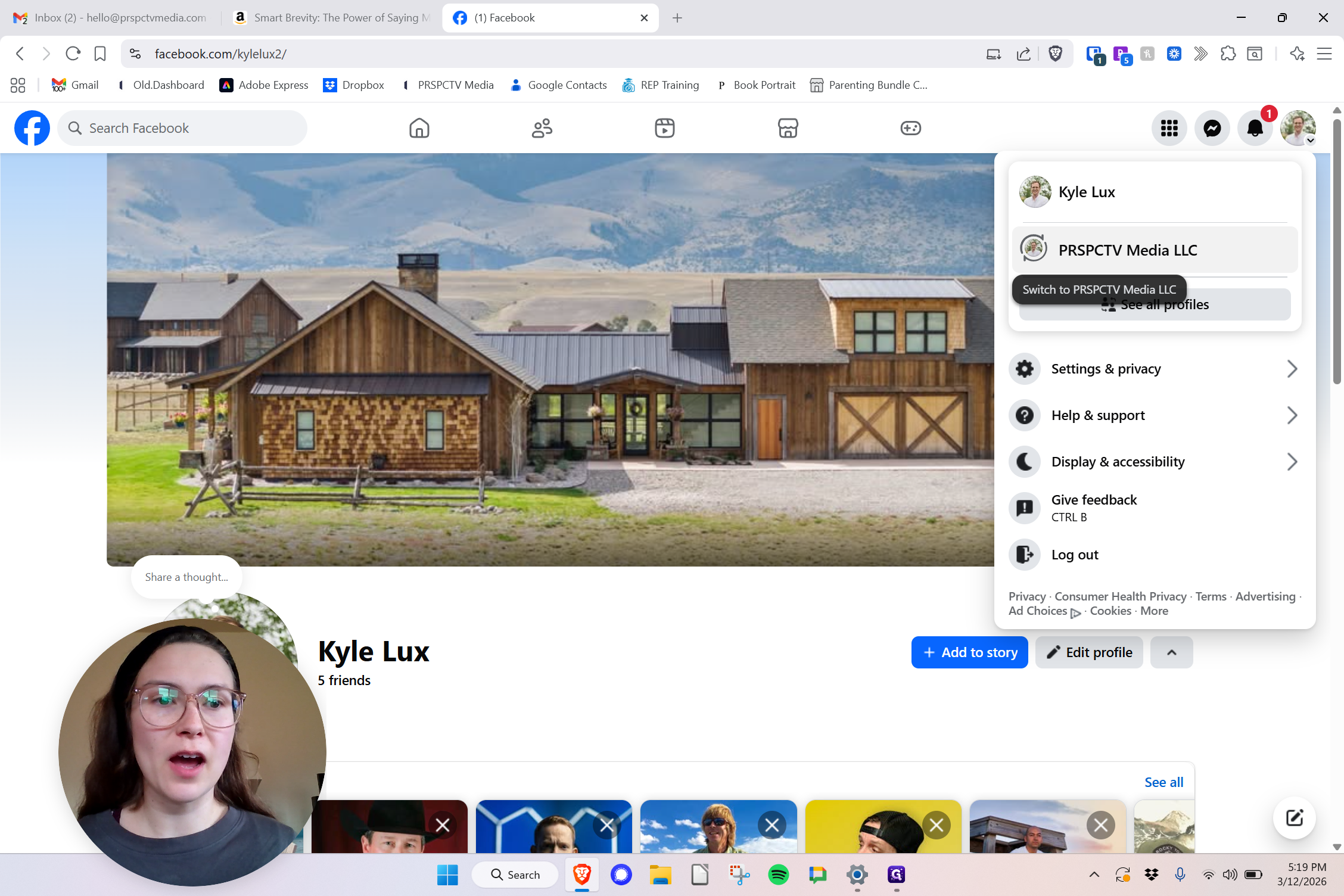
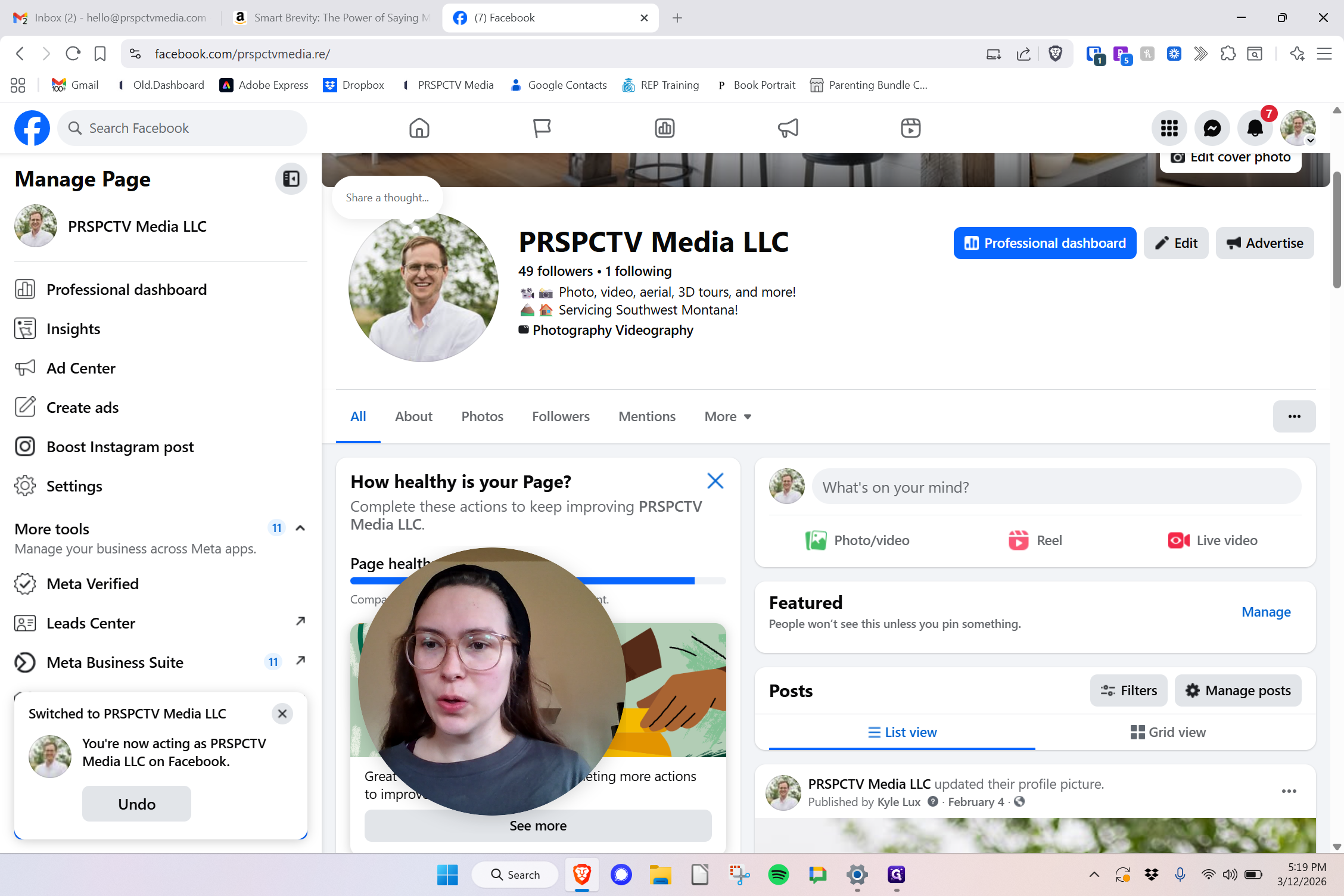
Hello, Adriana. "" This is a training on how to create social media drafts in Meta. It will be more efficient and save time to do them here. Once Kyle and I approve them, you can schedule them right away. This avoids doing the work twice—first in a Word draft and then again on Meta. From Kyle's account, navigate to the Perspective Media account.
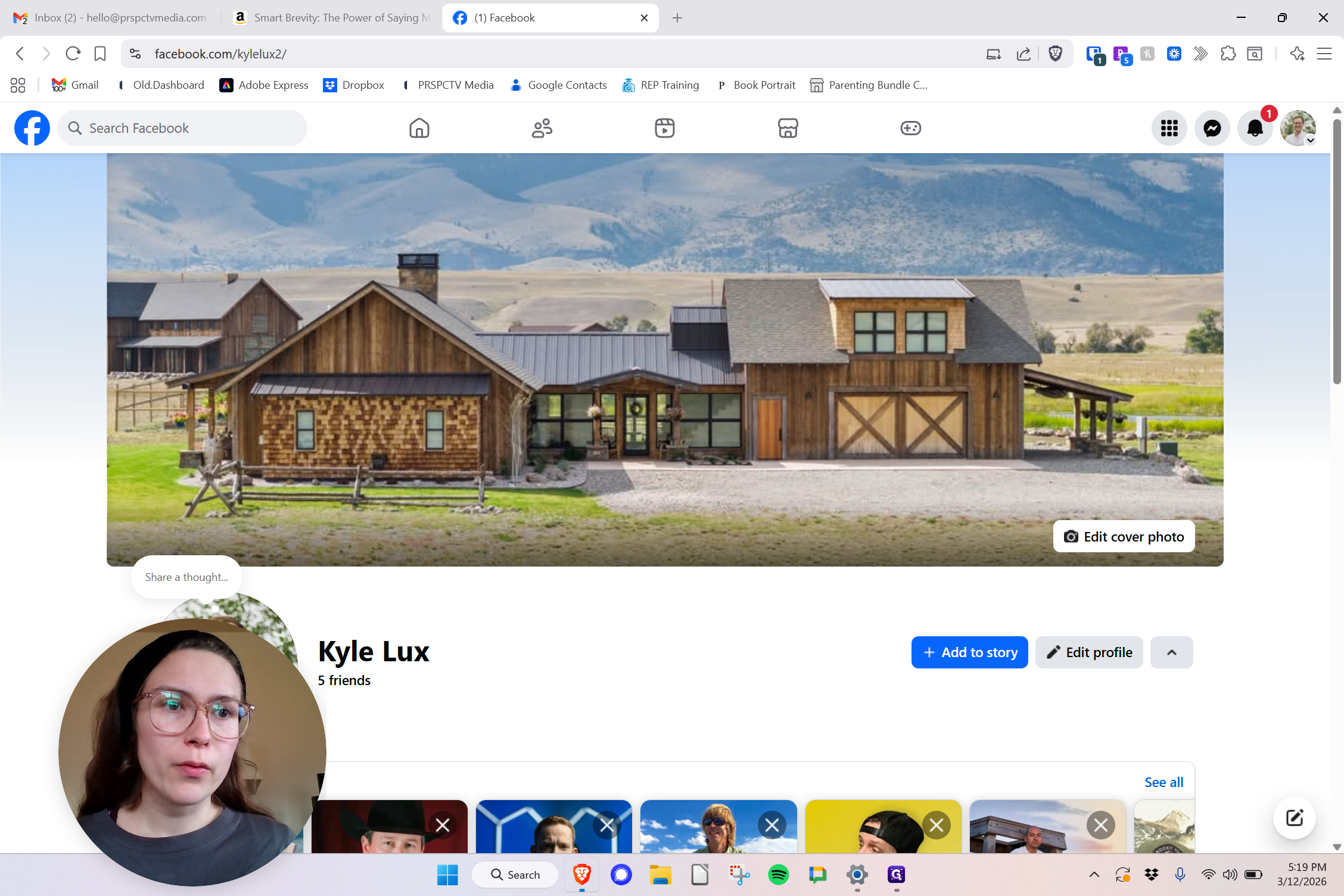
From there, I need to move my head.
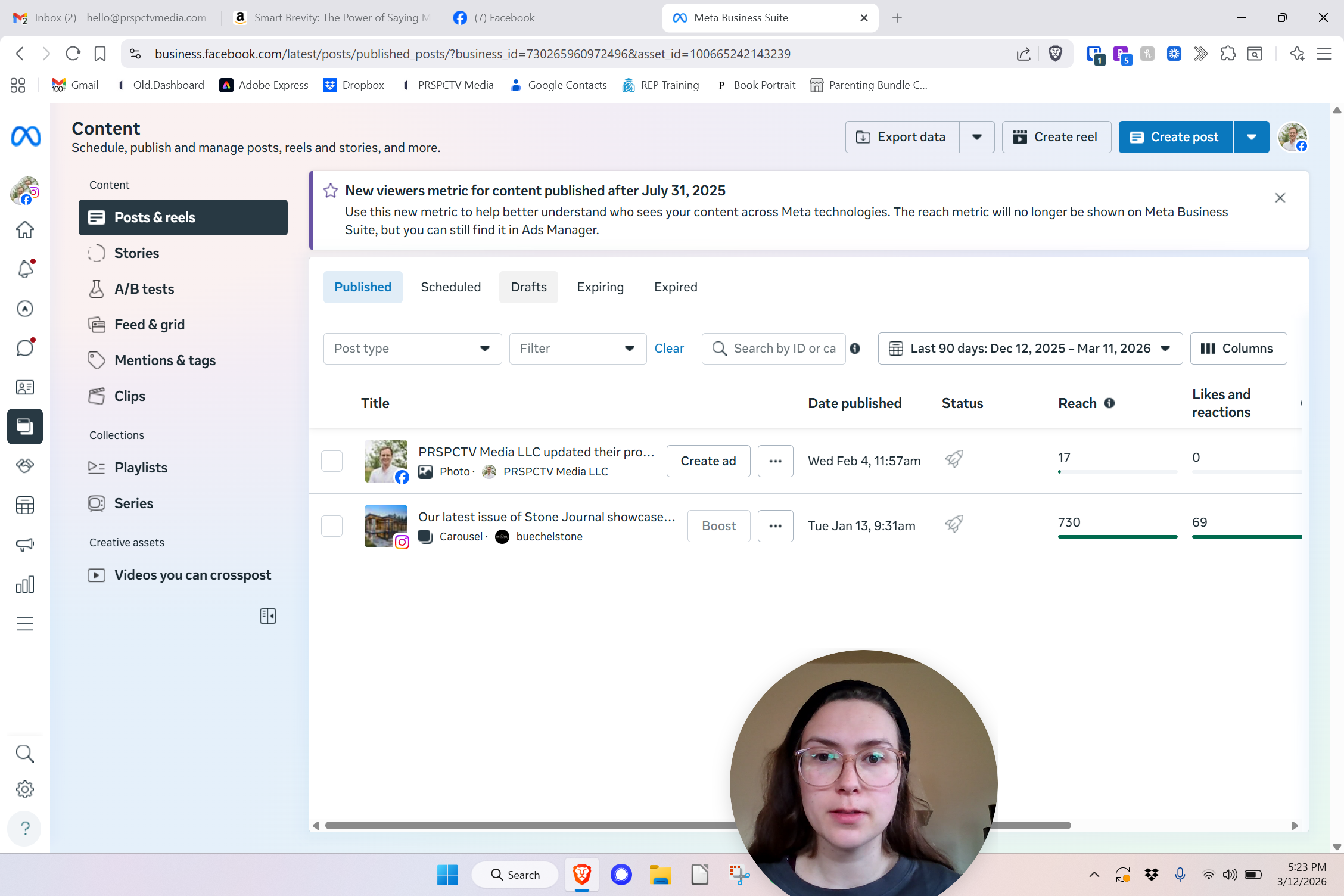
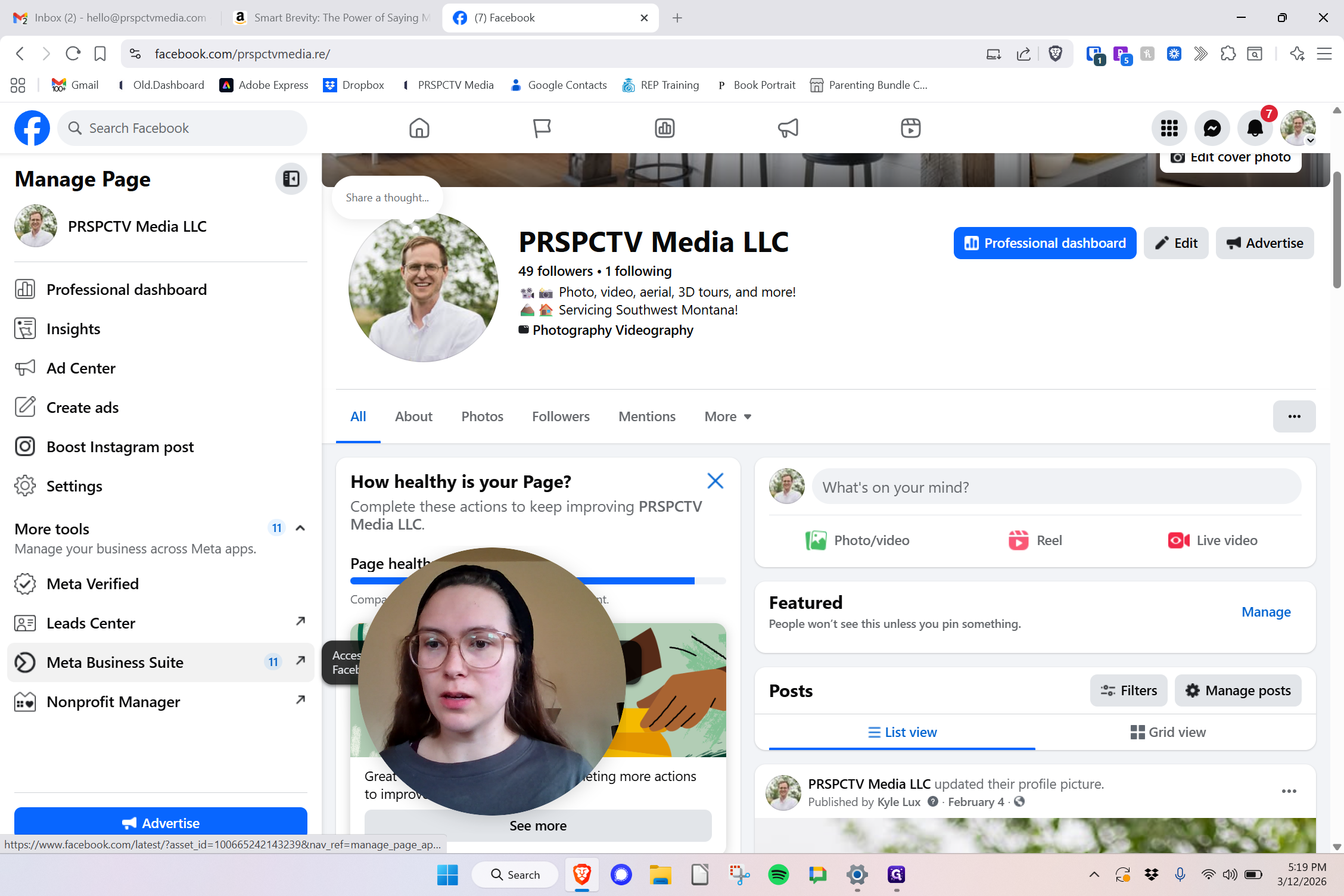
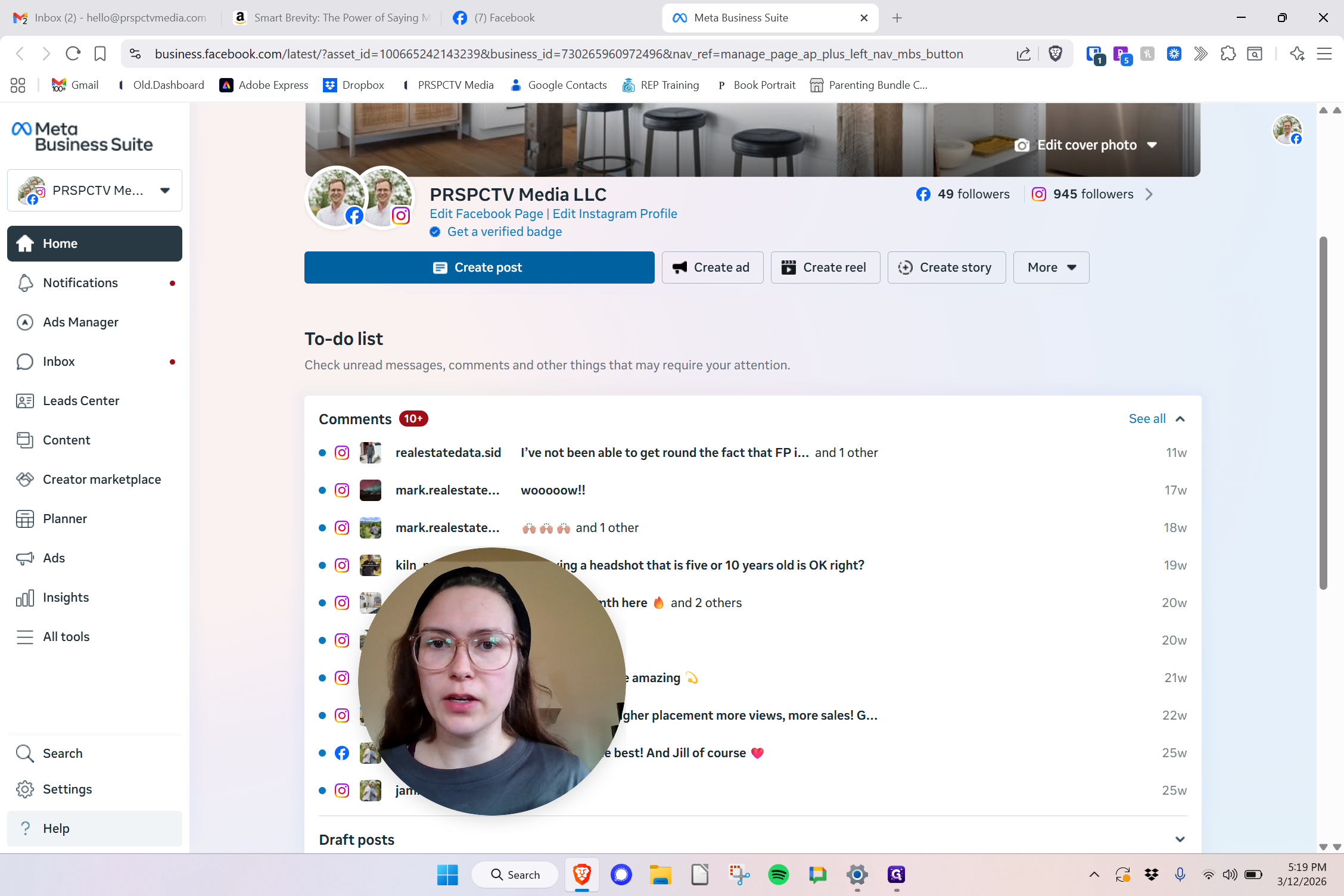
We are going to Meta Business Suite. Since you have worked in Meta, this should be familiar.
Next, we can create a post and add our photo, but not from the desktop.
Hmm.
Hmm. I'm unable to connect to Dropbox, which would be the easiest way for you to access the media.
Since you've worked at Meta, I'll use a random file from my computer to show you how to save it as a draft.
I've plugged in my media, whether it's a photo, carousel, or Reel.
I'm going to enter my full caption and all the details. Here, we have my location. Music on Main is in Bozeman, so we'll set the location as Bozeman, Montana.
Once Kyle and I approve the post, you can schedule the date and time. For now, we will finish this later.
This way, everything is ready and already in Meta for your convenience.
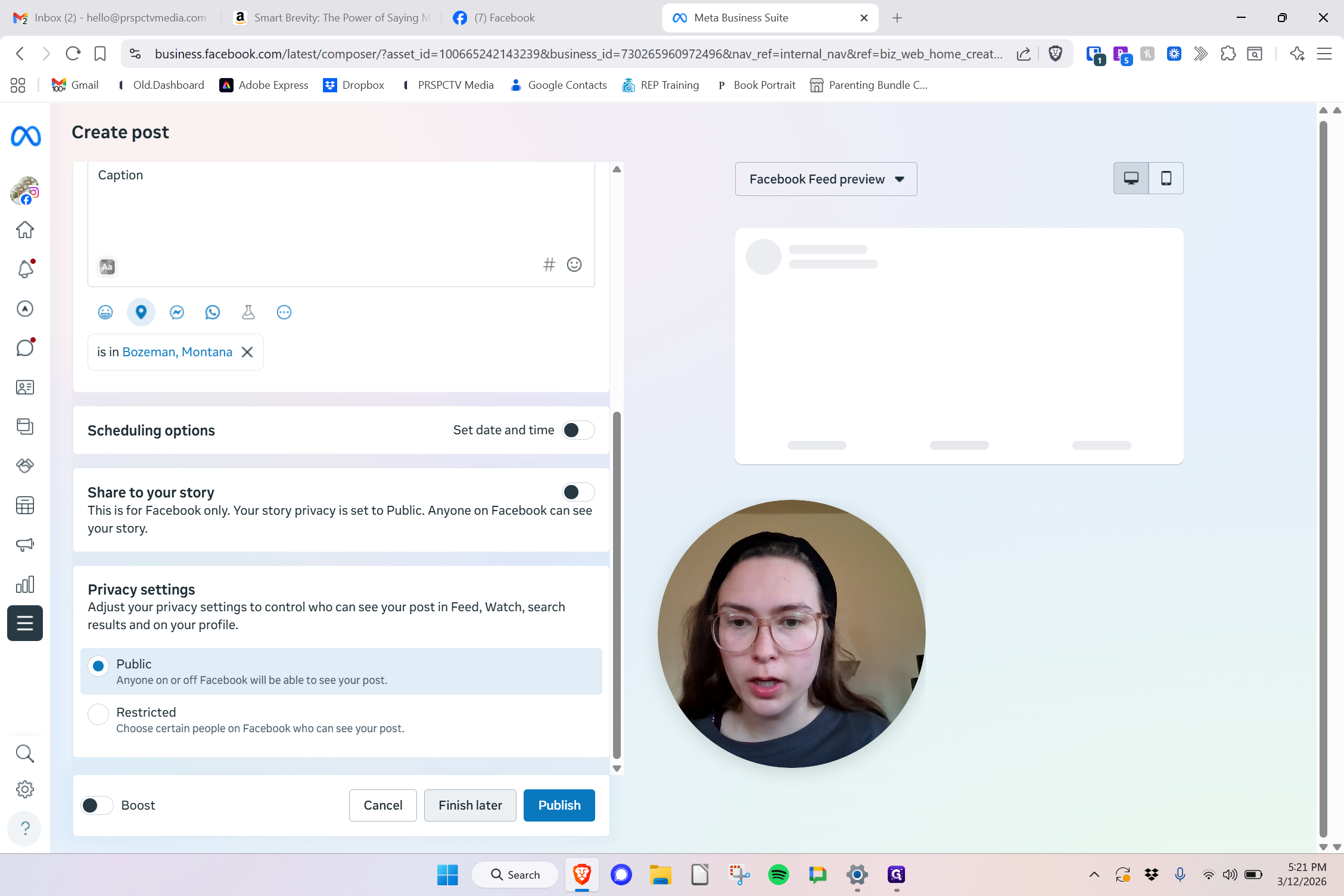
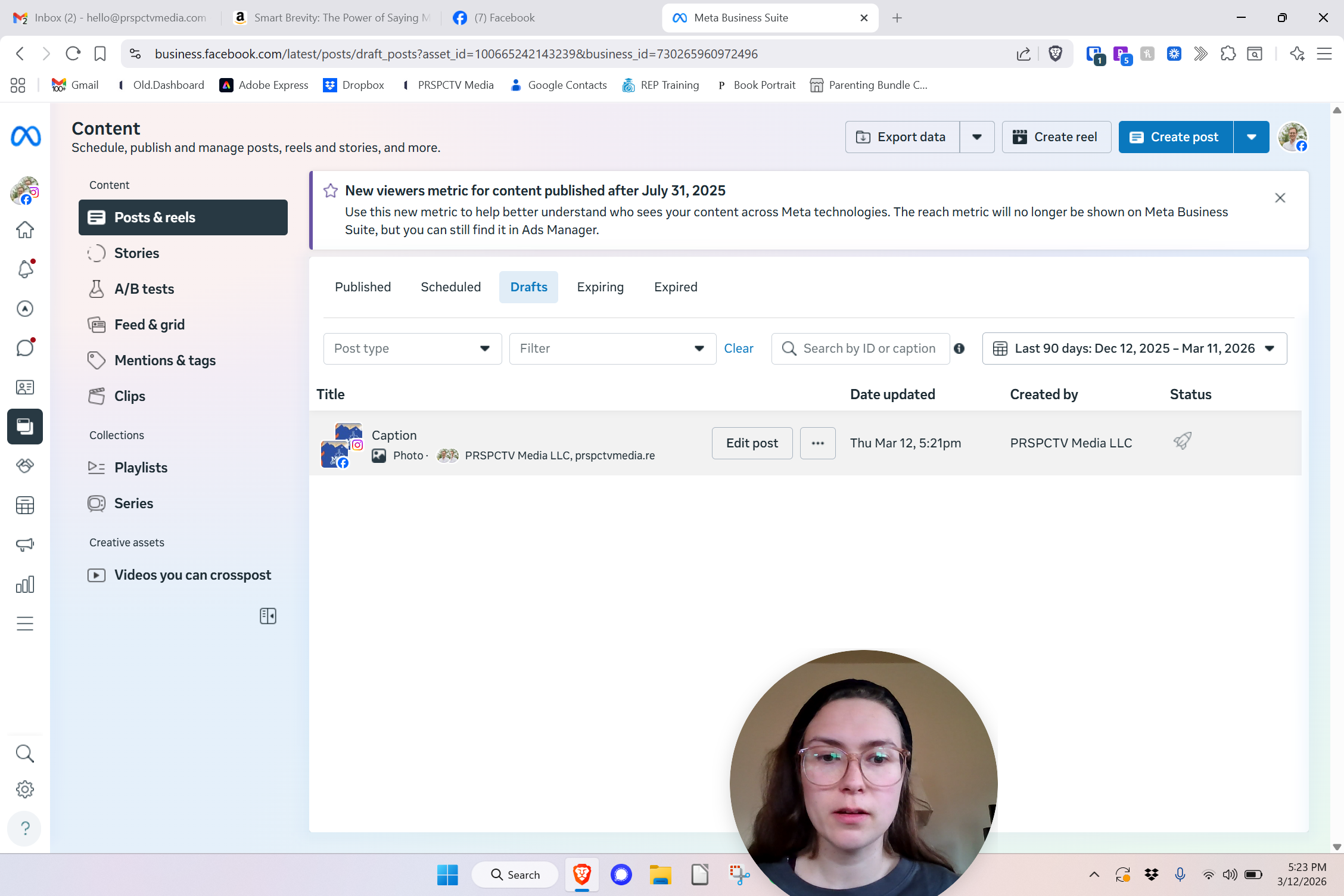
Saving your post. Now, navigate to Content, then go to Drafts. Here is the post I was working on.
I can easily come in and make any necessary changes. Then we can schedule it and send it out.