
How to Create and Send a Sales Quote / Order in Resincoat
Learn step-by-step how to create, customize, and email a sales quote using the Resincoat sales order screen. This guide covers choosing layouts, and sending quotes to customers efficiently.
In this guide, we'll learn how to create and send a sales quote from the sales order screen. We will cover how to set up your quote, choose the correct layout, and send it to the customer by email. This process is also the same for completing an order, and sending the acknowledgement.
Let's get started
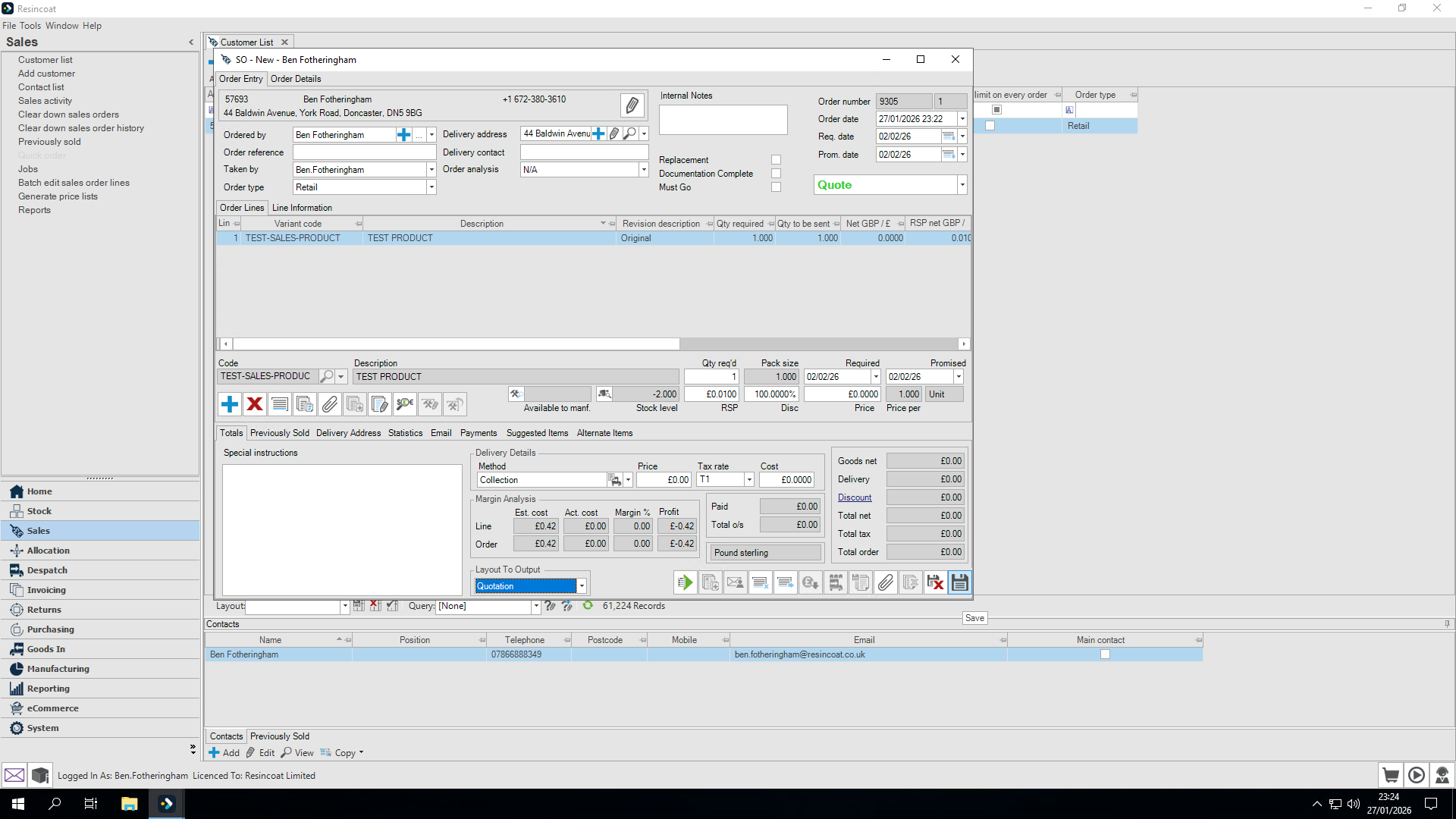
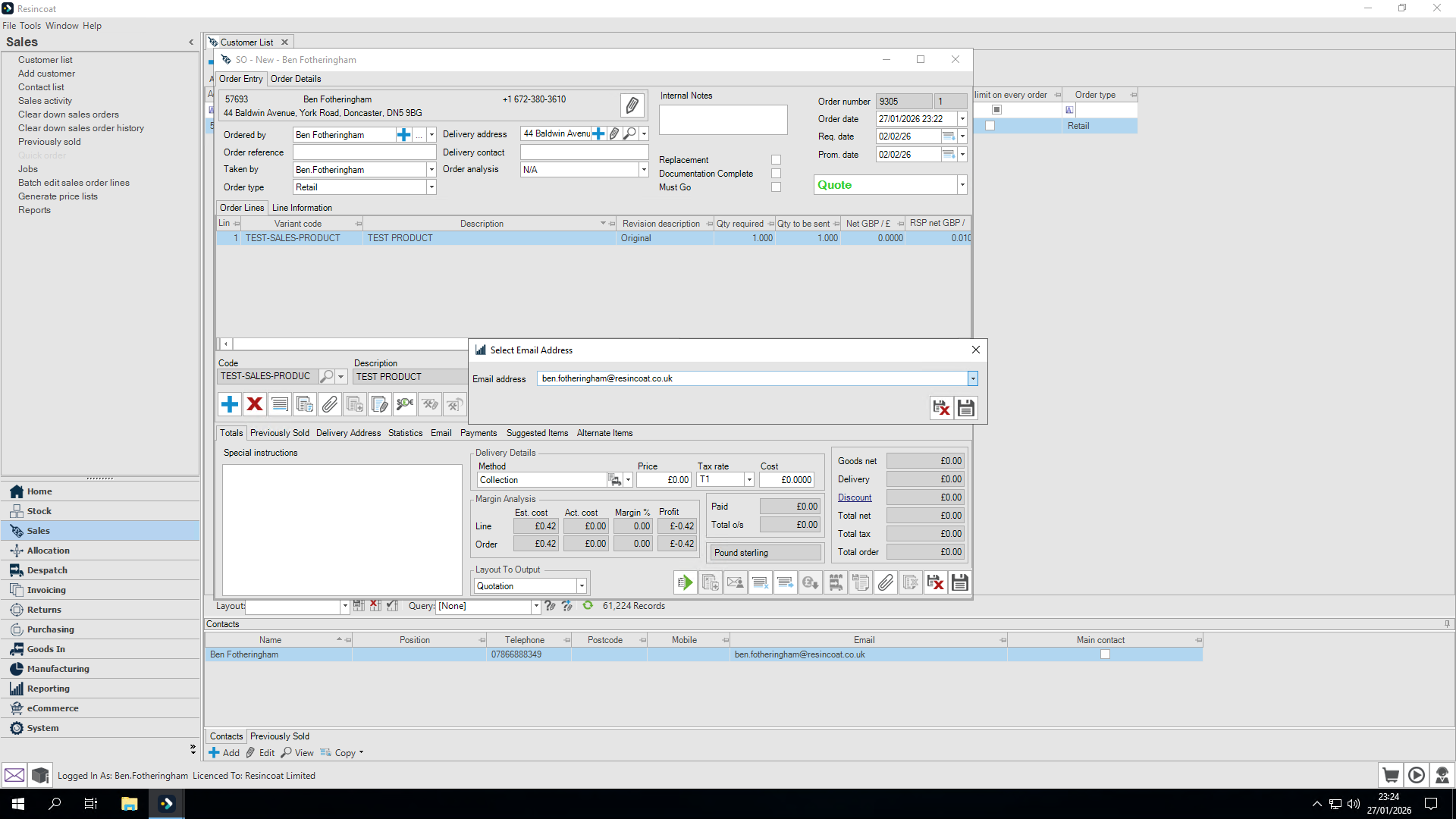
Starting on the sales order screen, you can see that I am set to "quote."
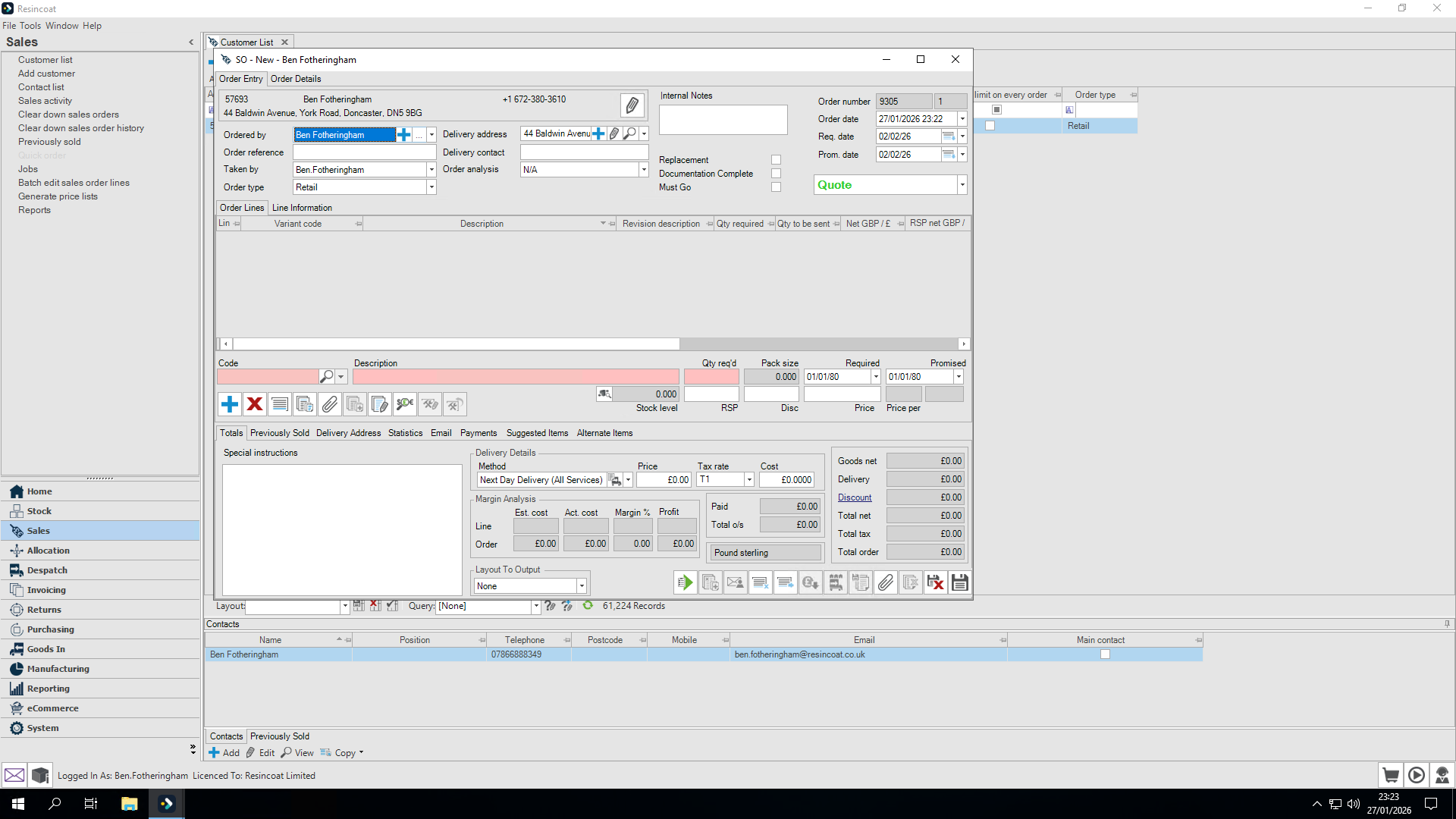
I'm going to add a test quote. Let's keep it simple by setting our prices to zero.
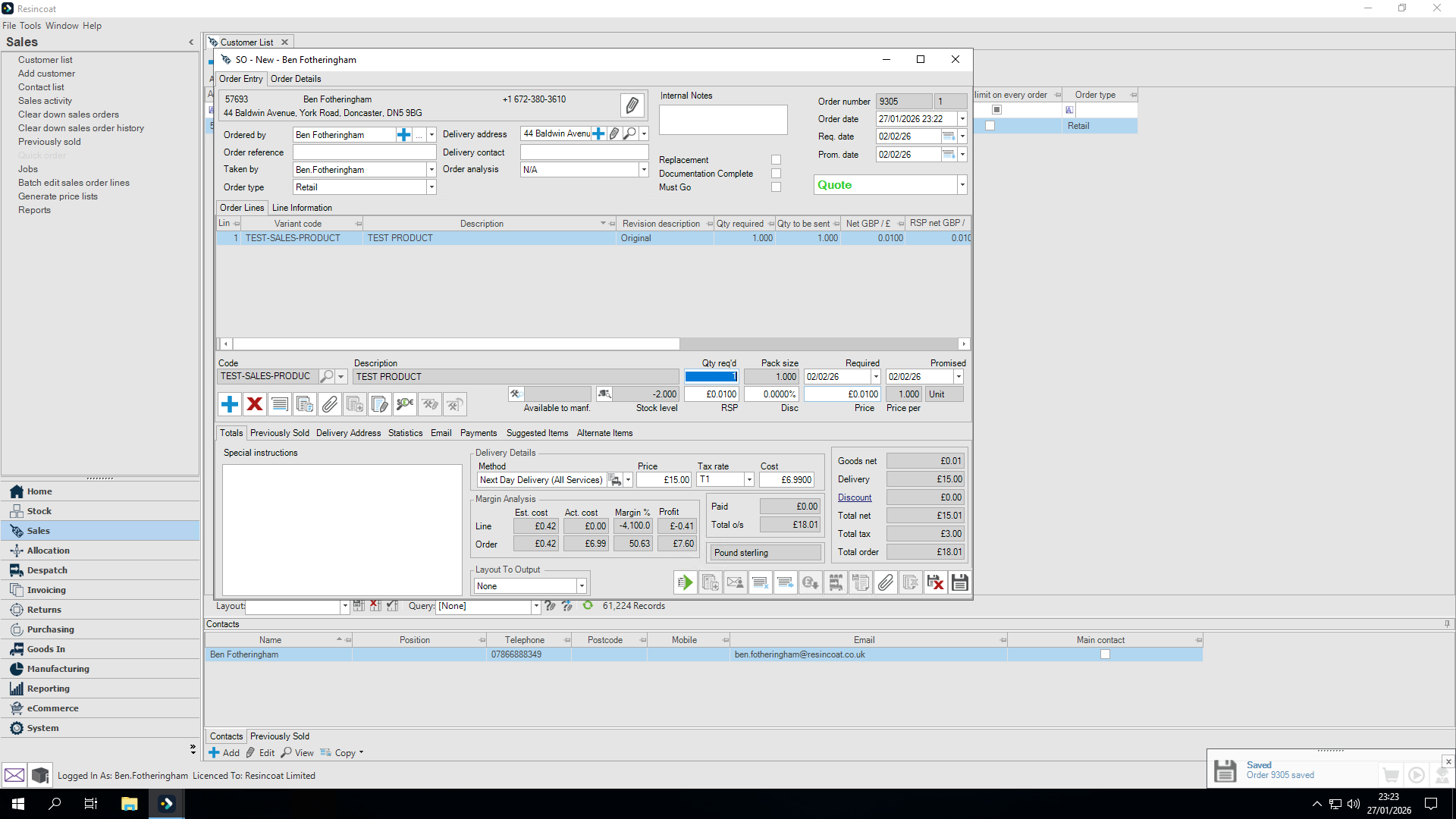
Right. I've created my very simple quote here.
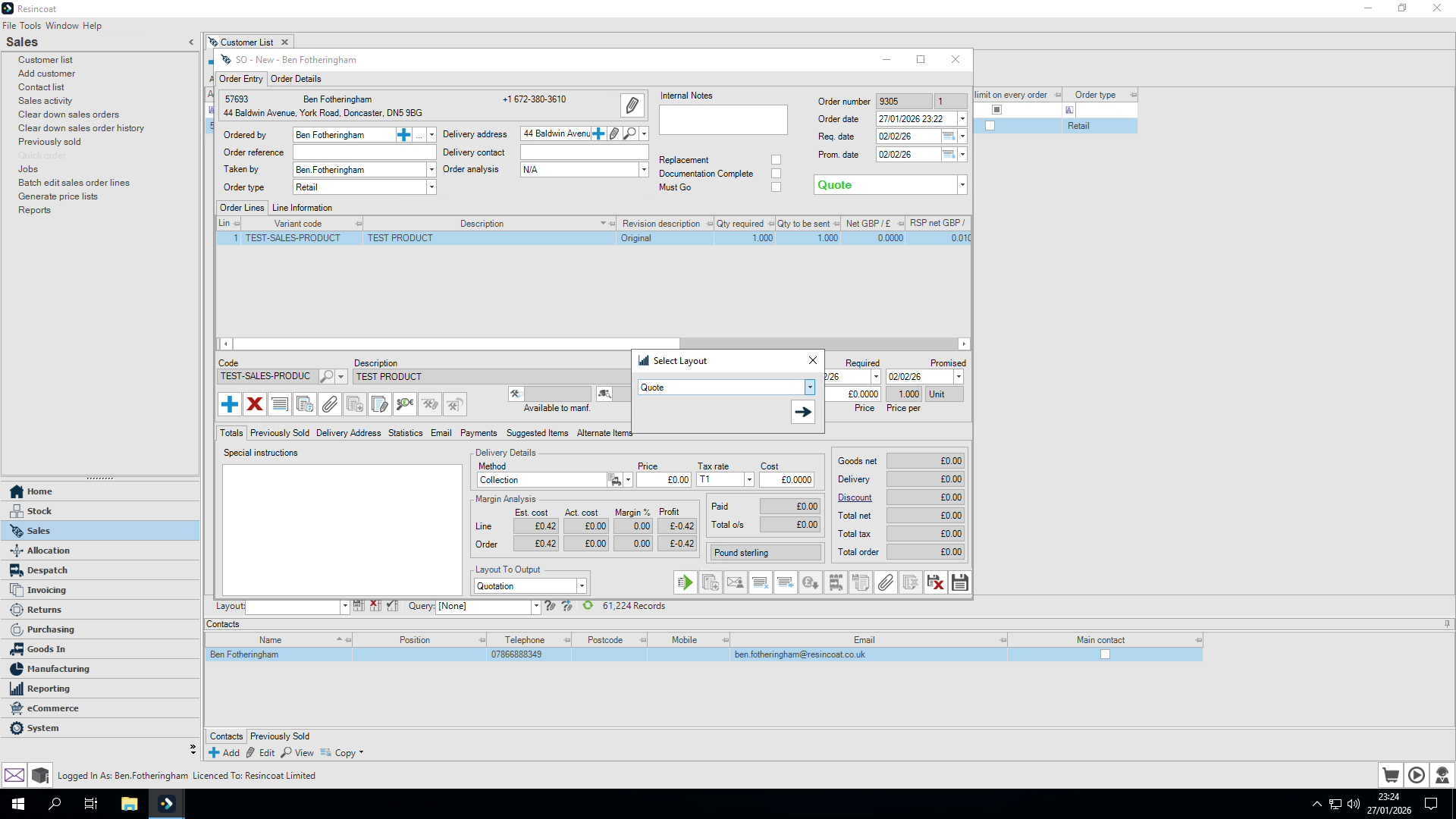
Your default output at this stage should be Quote (Acknowledgement if completing an Order)
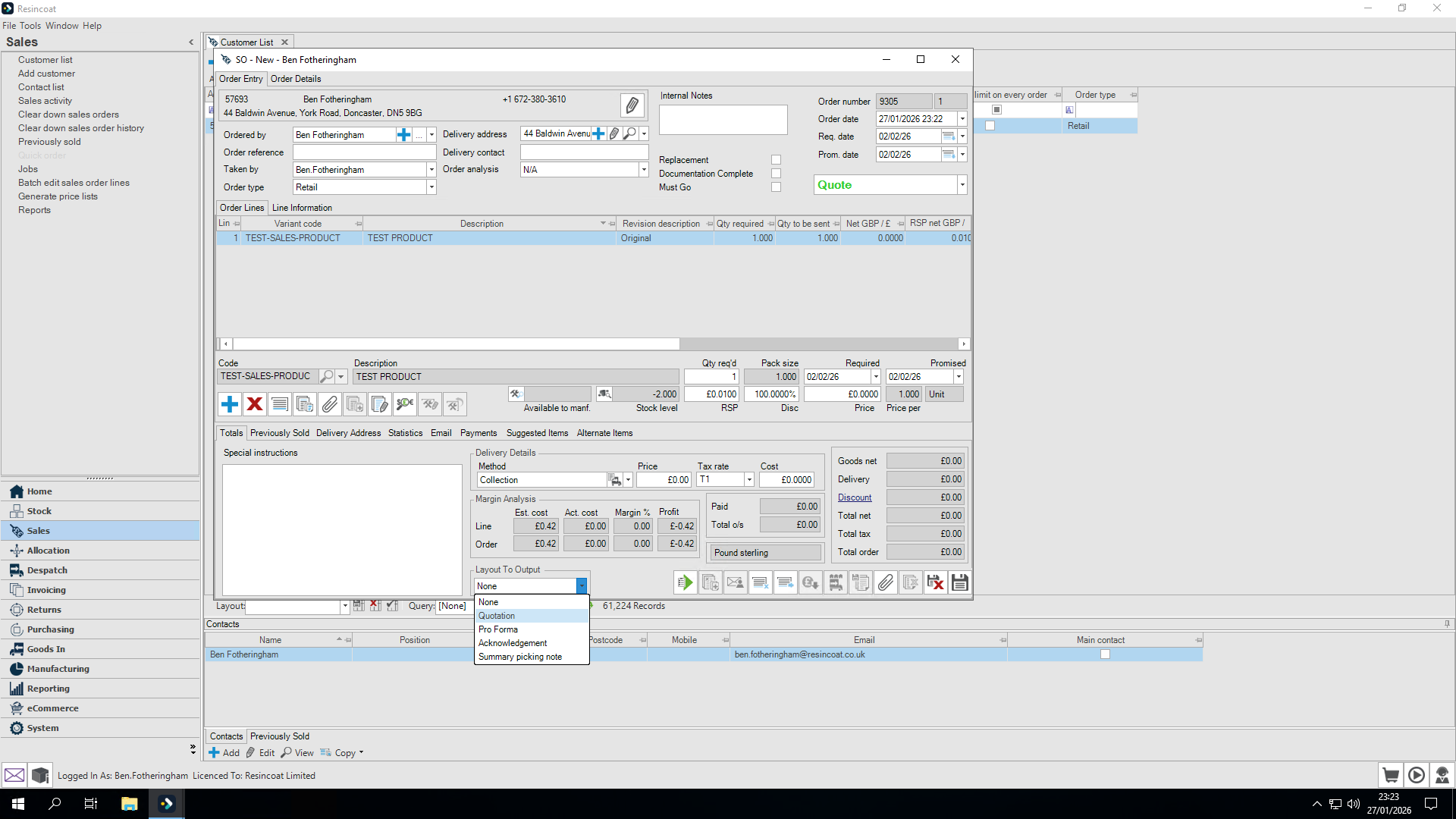
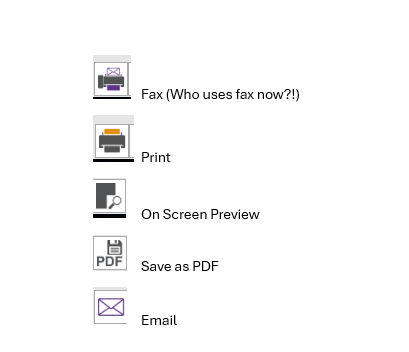
Check your 'Output Method'
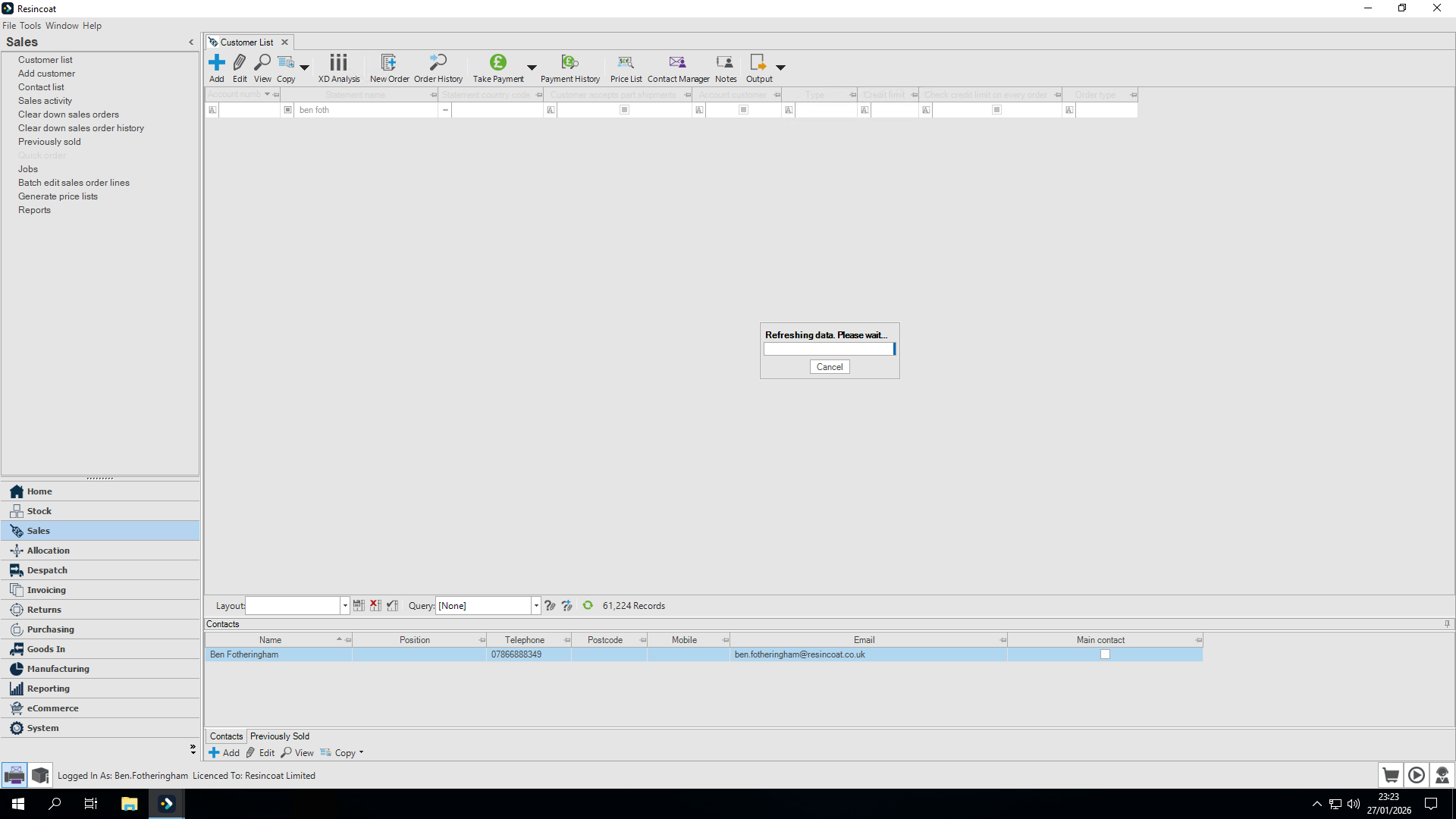
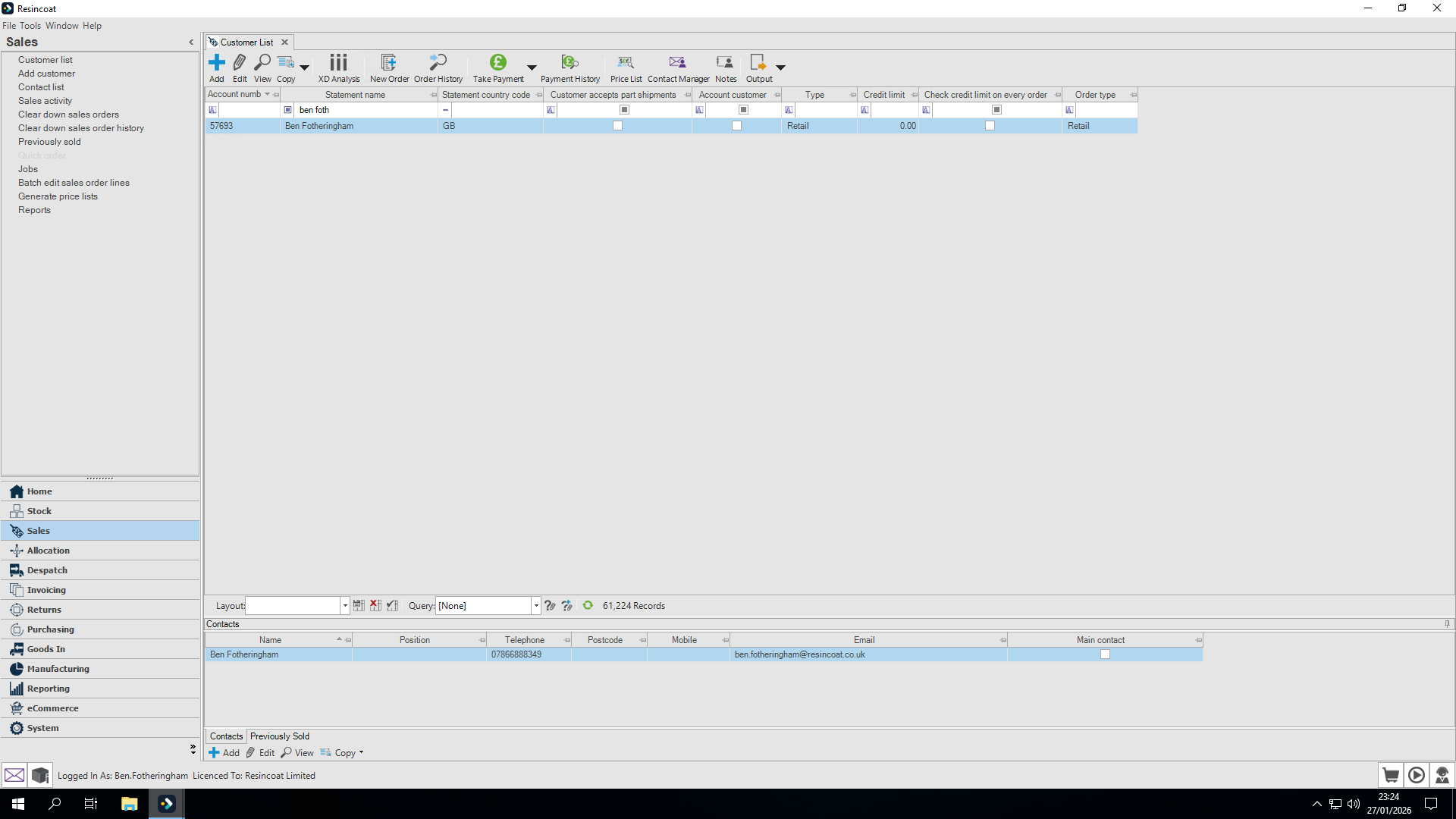
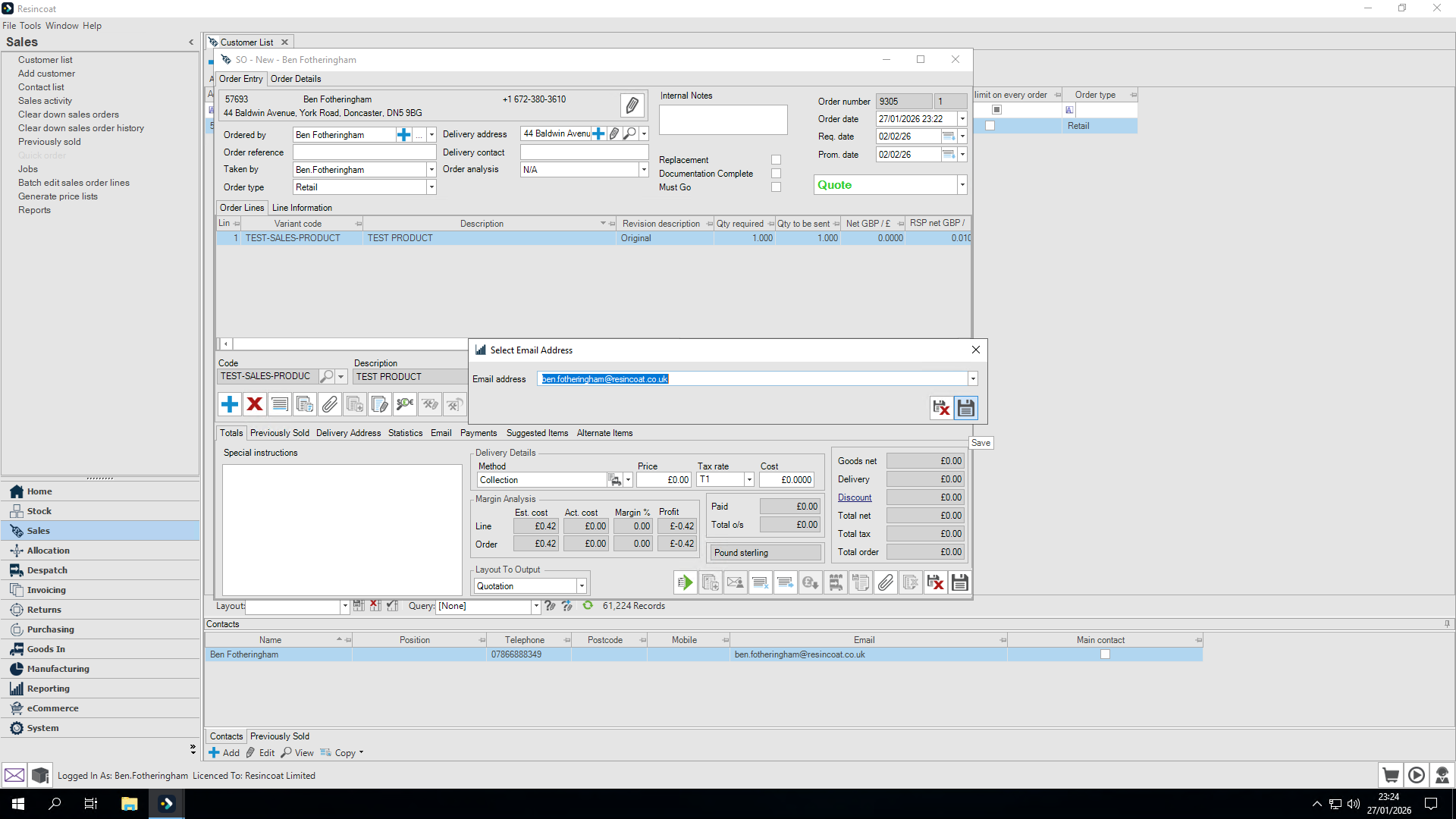
At this point, I can check for any email addresses linked to the account.
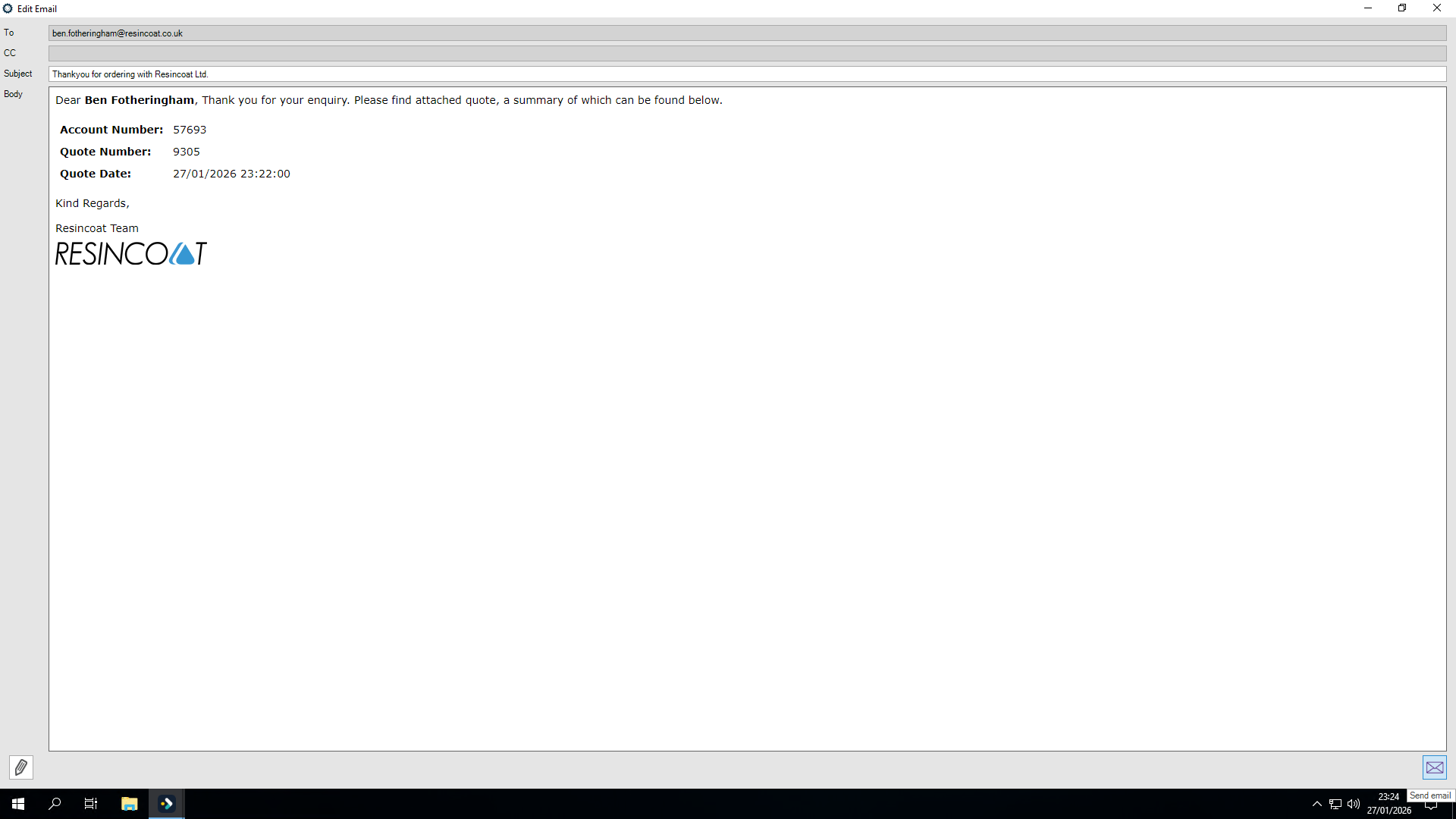
Here is a sample of the email that will be sent to your customer. I'm satisfied with everything. Now, click the button below. You should see "quote saved" and "email sent."
Thank you.