
How to Create and Use Threads in Slack: Step-by-Step Guide
Learn how to create and manage threads in Slack to keep your conversations organized. This guide covers using emoji anchors, replying in threads, sharing emails, attaching files, and keeping your Slack channels tidy.
In this guide, we'll learn how to create and use threads in Slack to organize conversations and keep related information in one place. Threads help keep the main channel clear by grouping messages, files, and notes about a specific topic together. This makes it easier to track discussions and find important details when you need them.
Let's get started
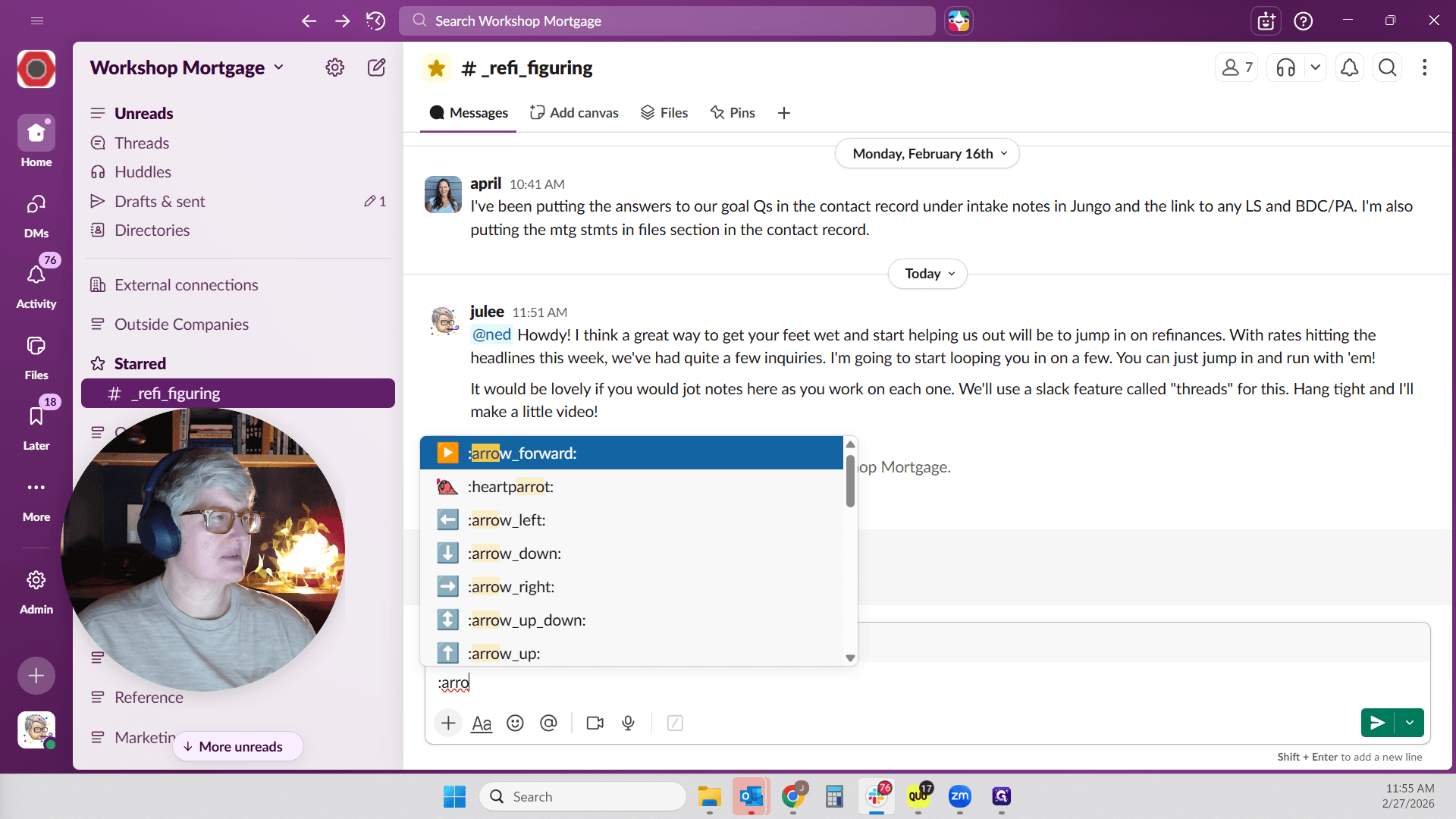
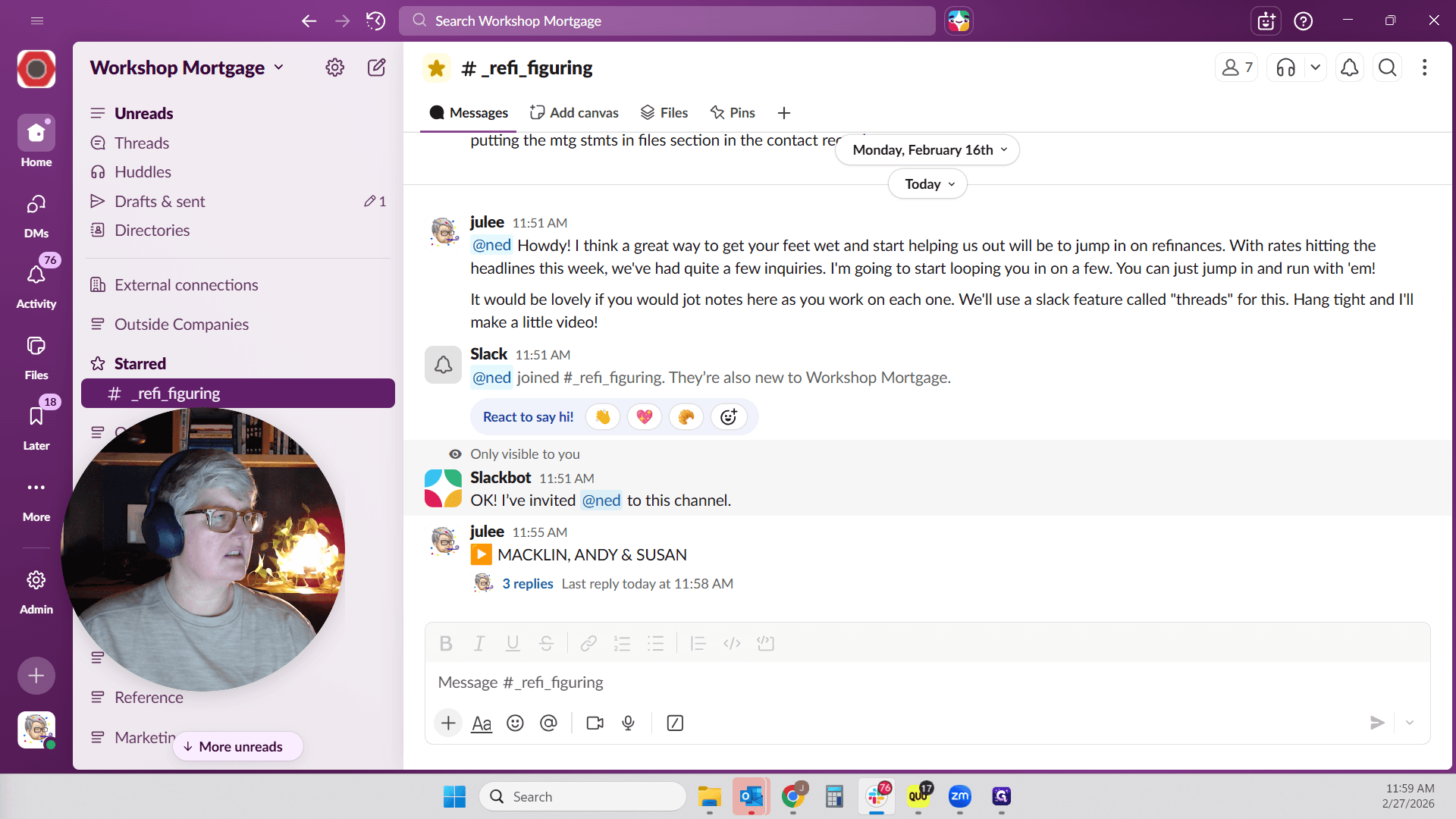
"" Here is how to create and use a thread in Slack. First, create a small anchor. We often use orange arrows for this, and you will see several of them if you scroll up.
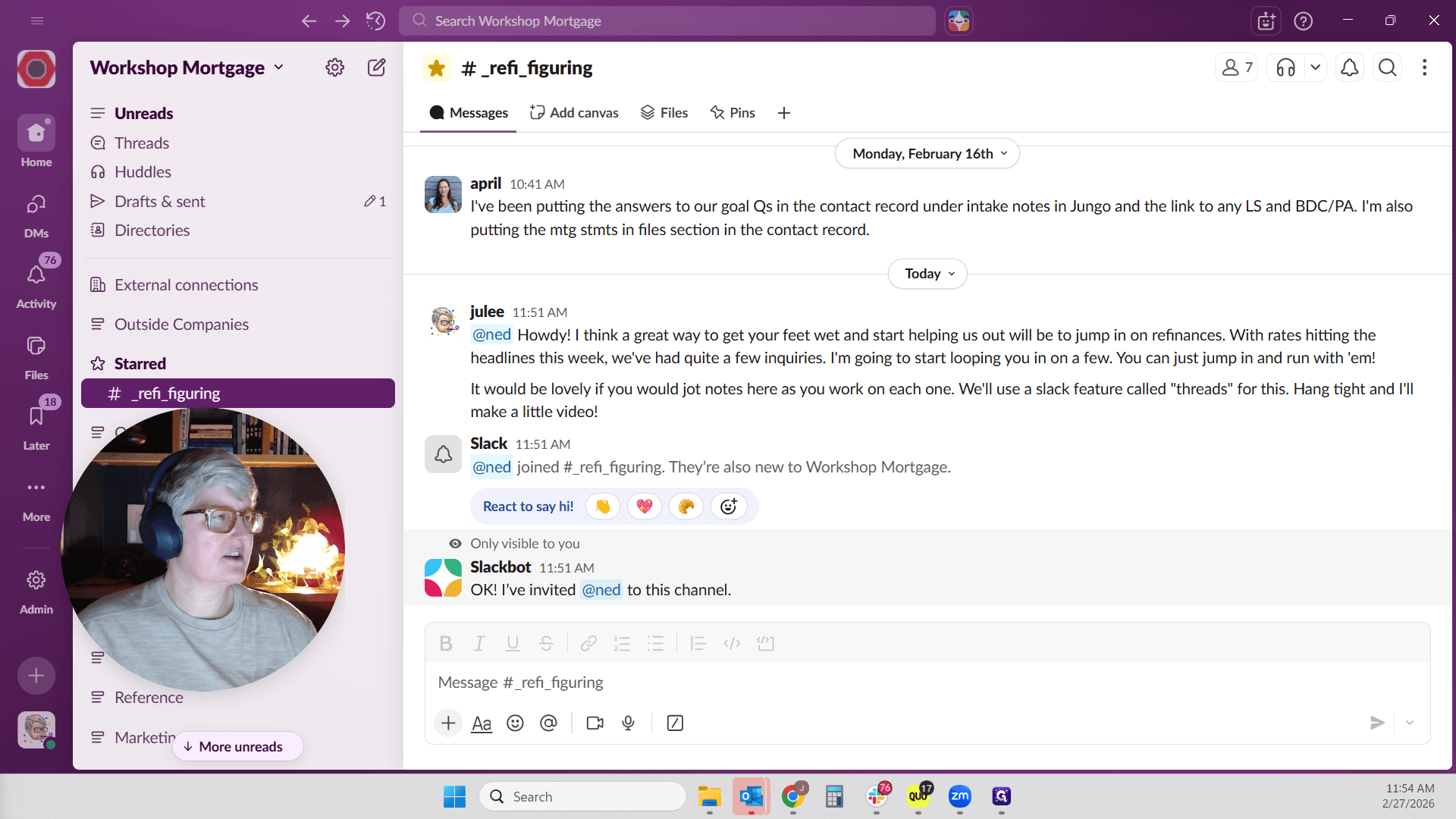
You can click the emoji icon and type "arrow" to find the arrow emoji. I also like using keyboard shortcuts.
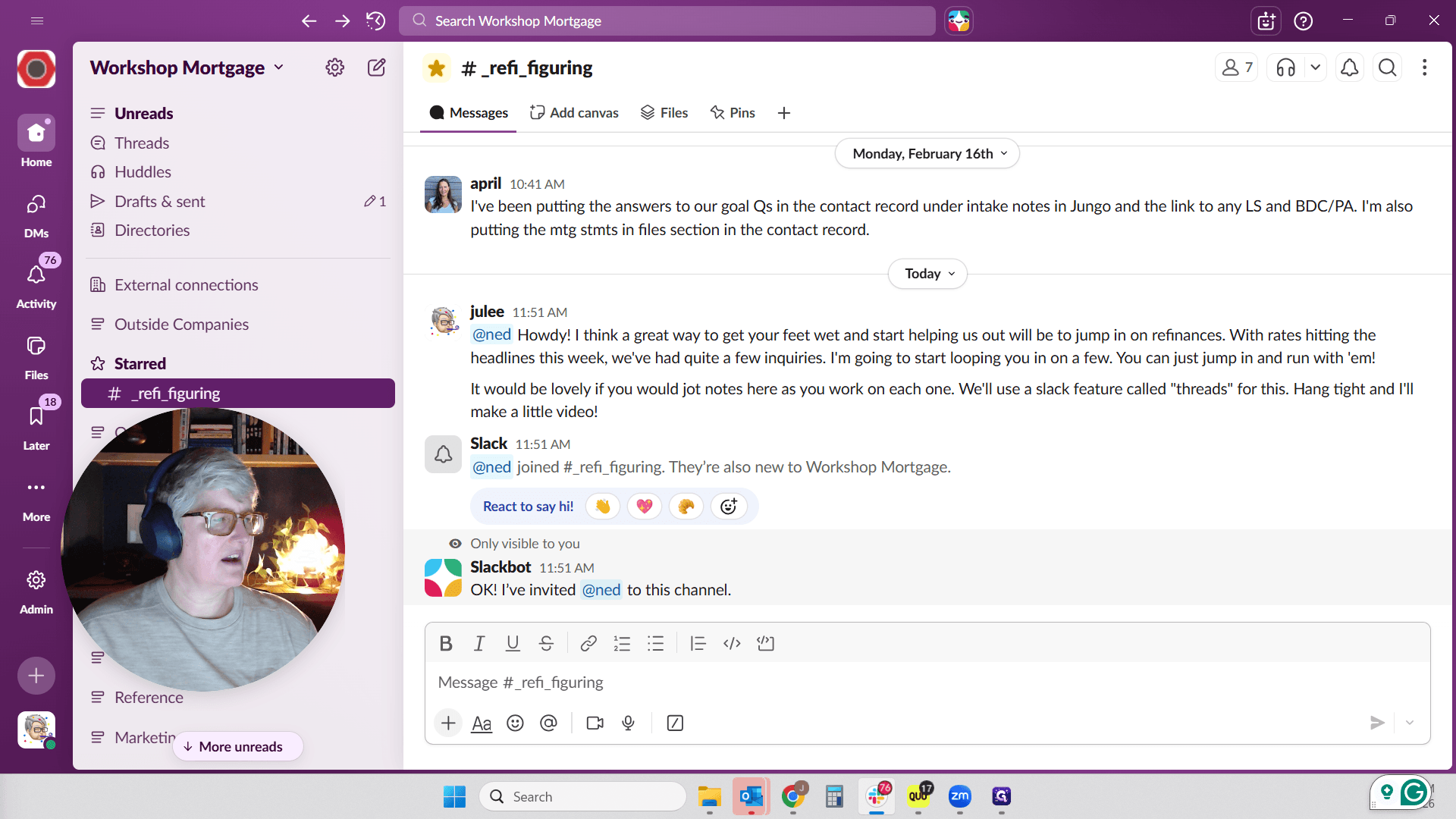
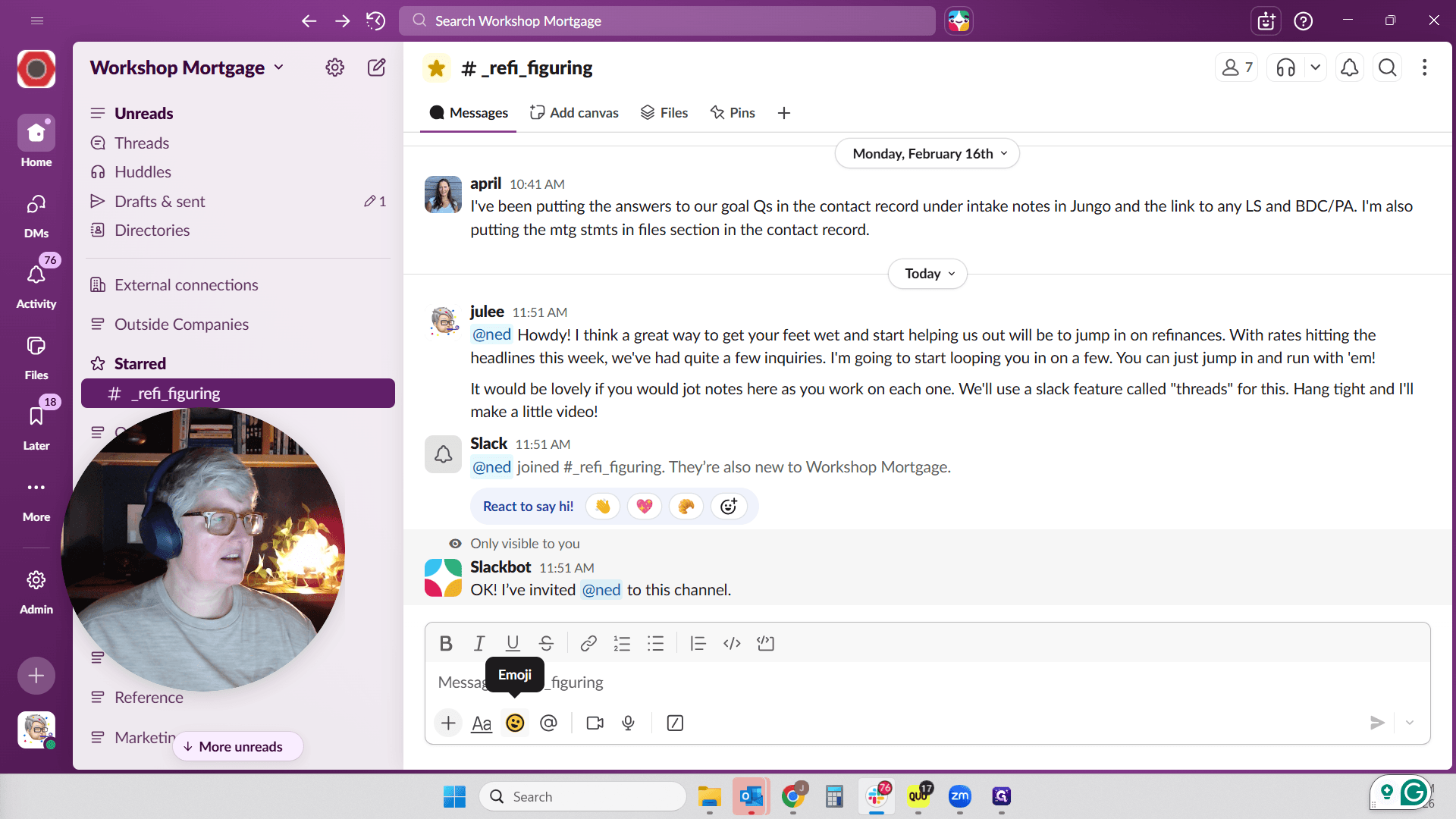
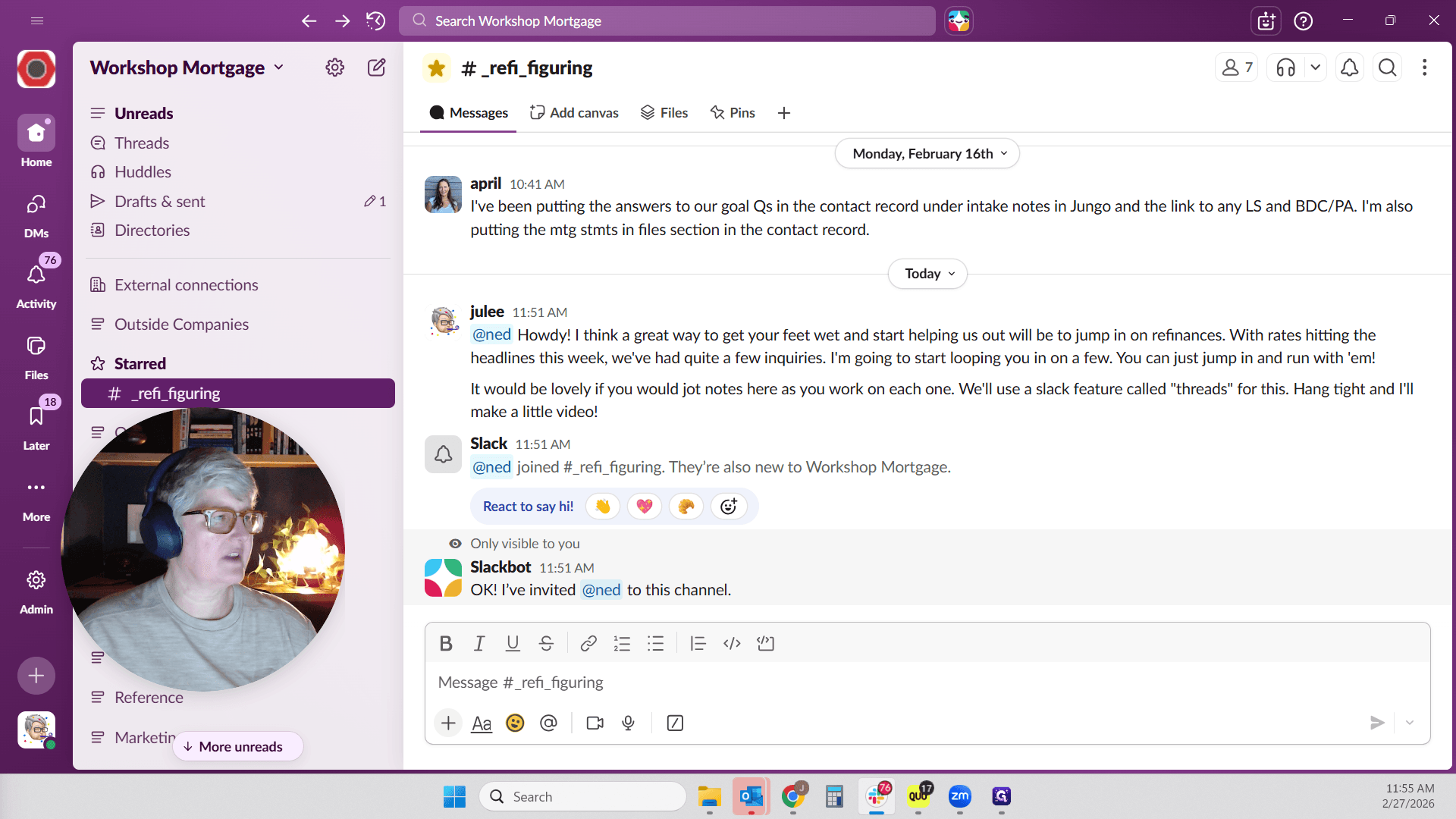
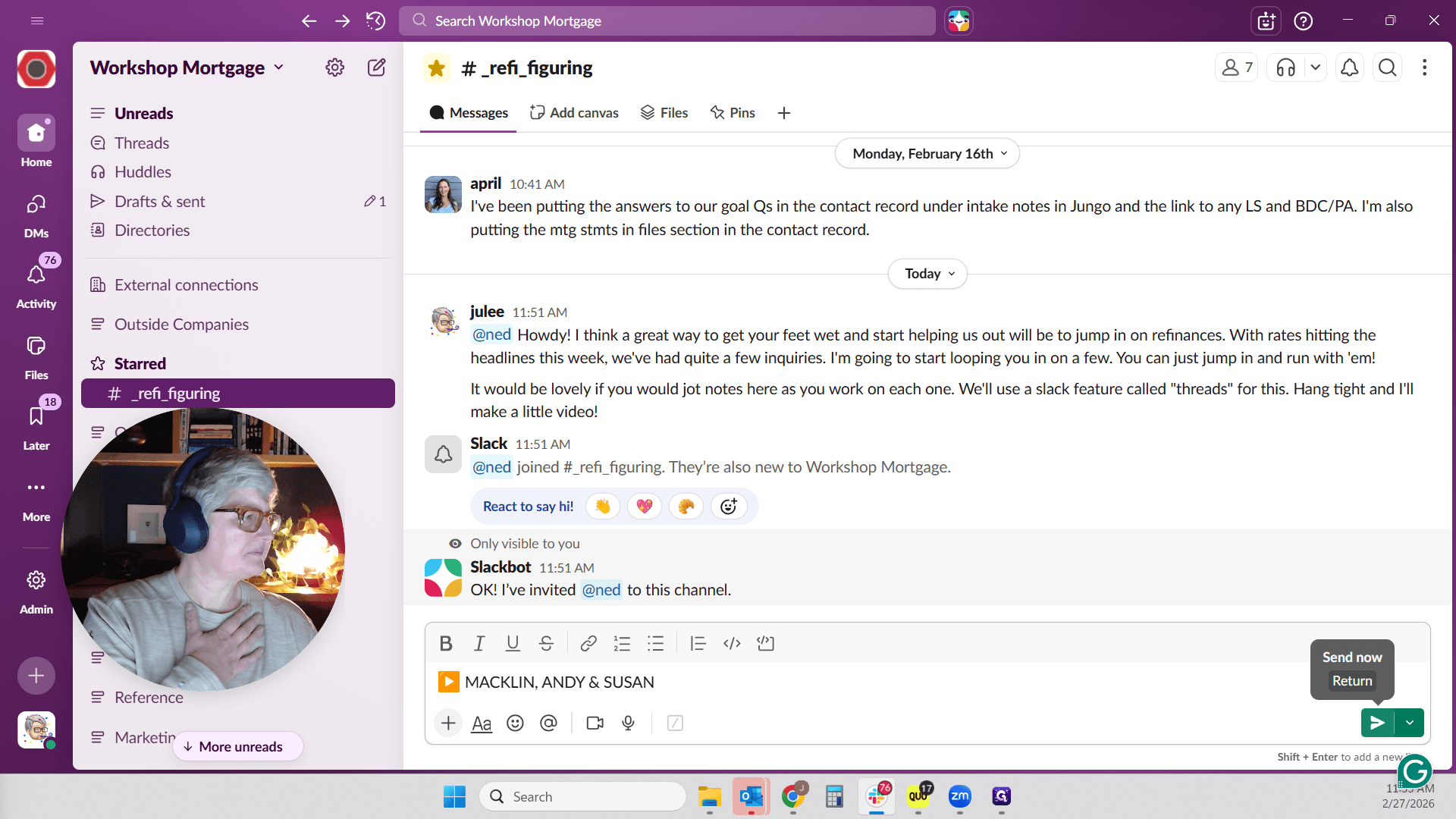
If you type a colon followed by an arrow, the arrow appears. You can then move the arrow forward and enter the name.
In this case, it will be Macklin, Andy, and Susan. Hit enter, sorry.
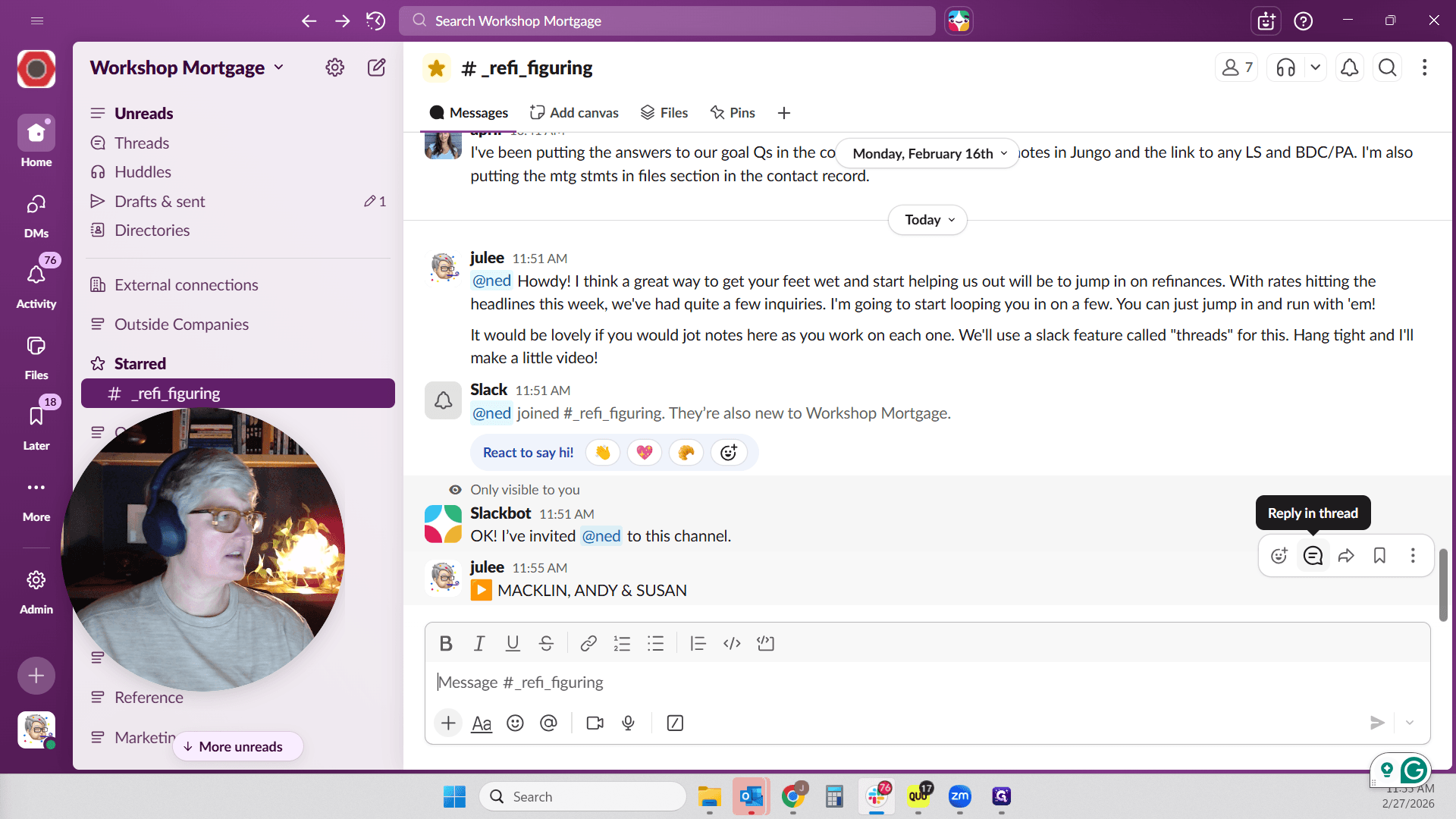
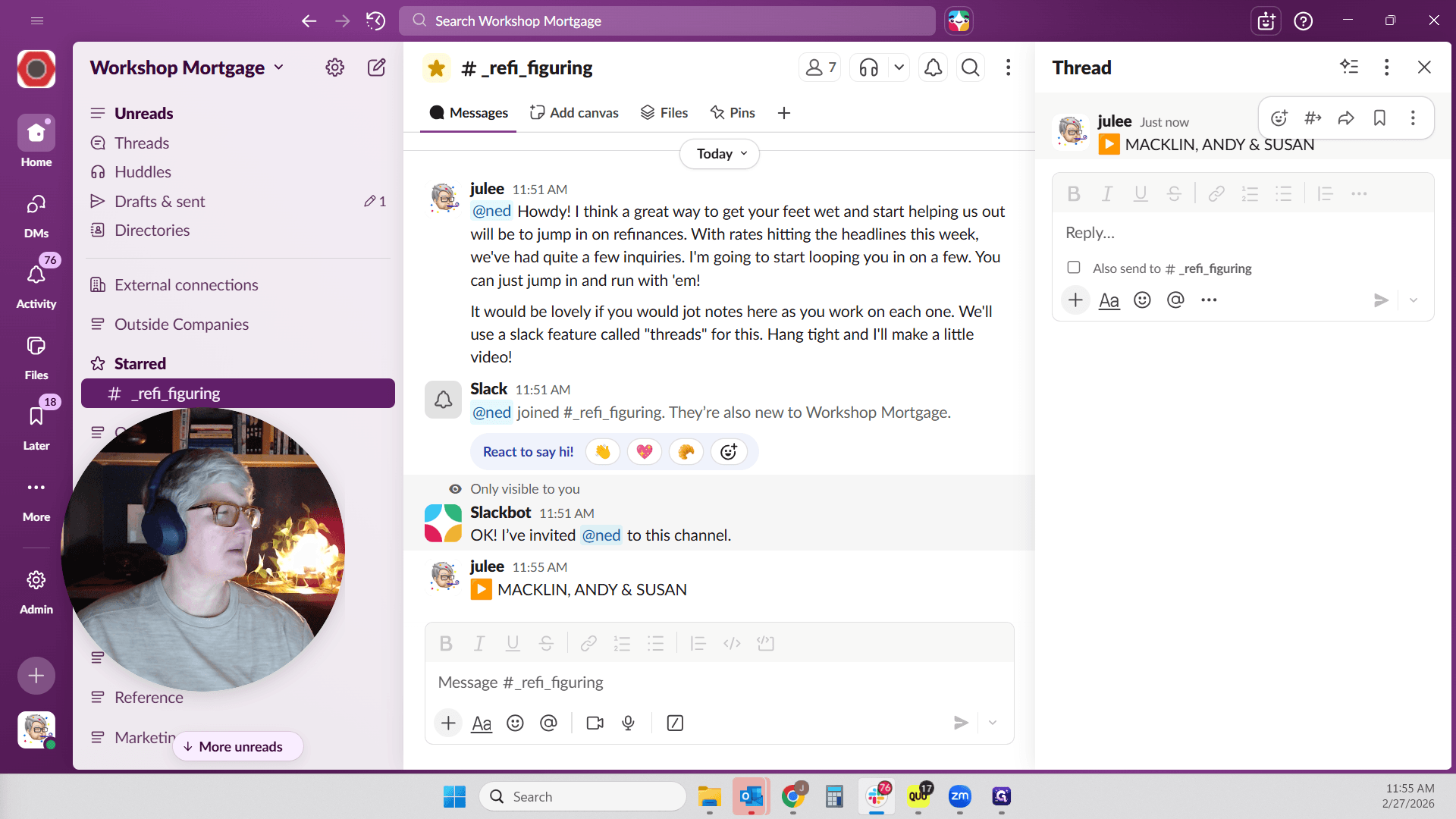
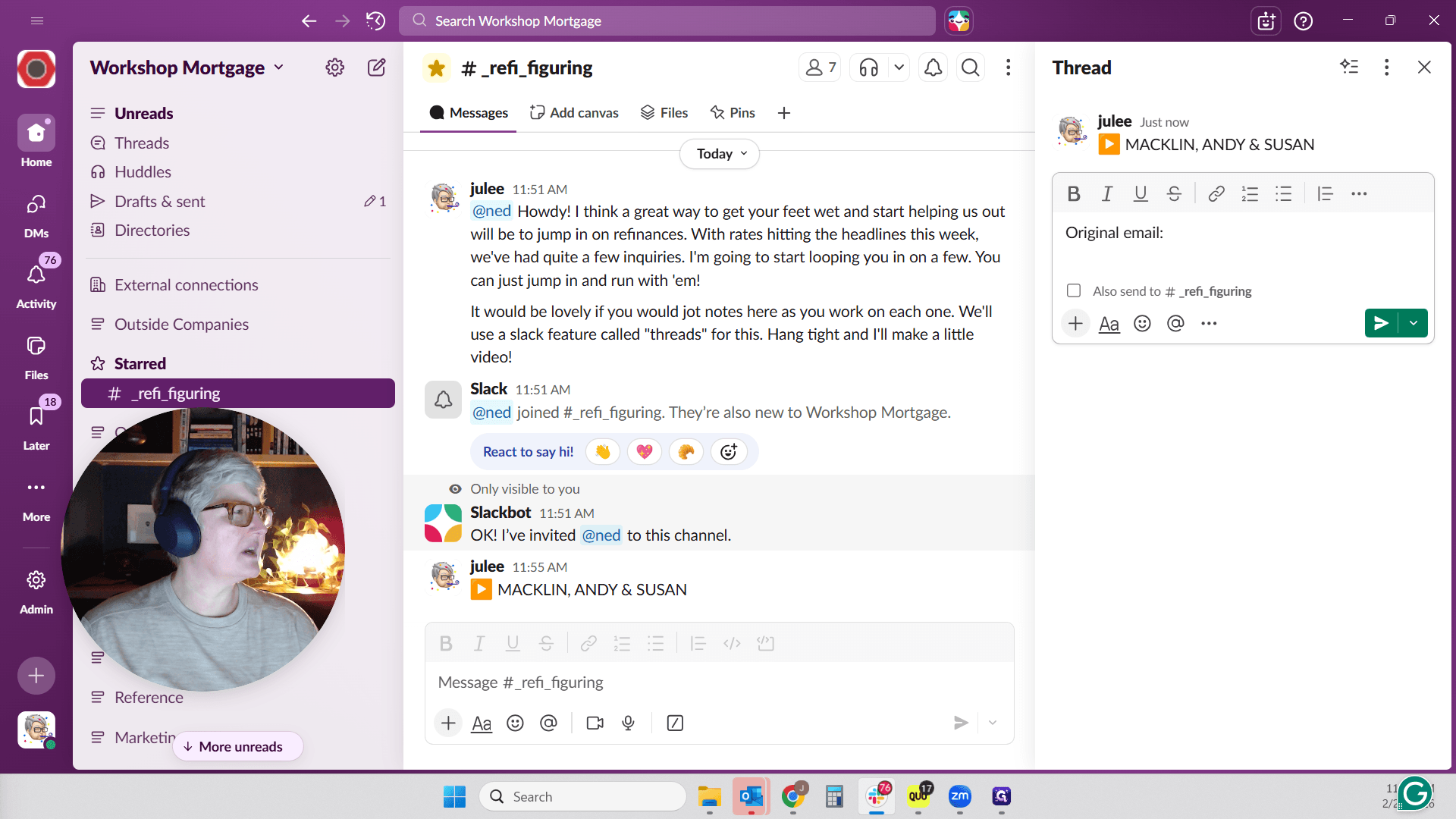
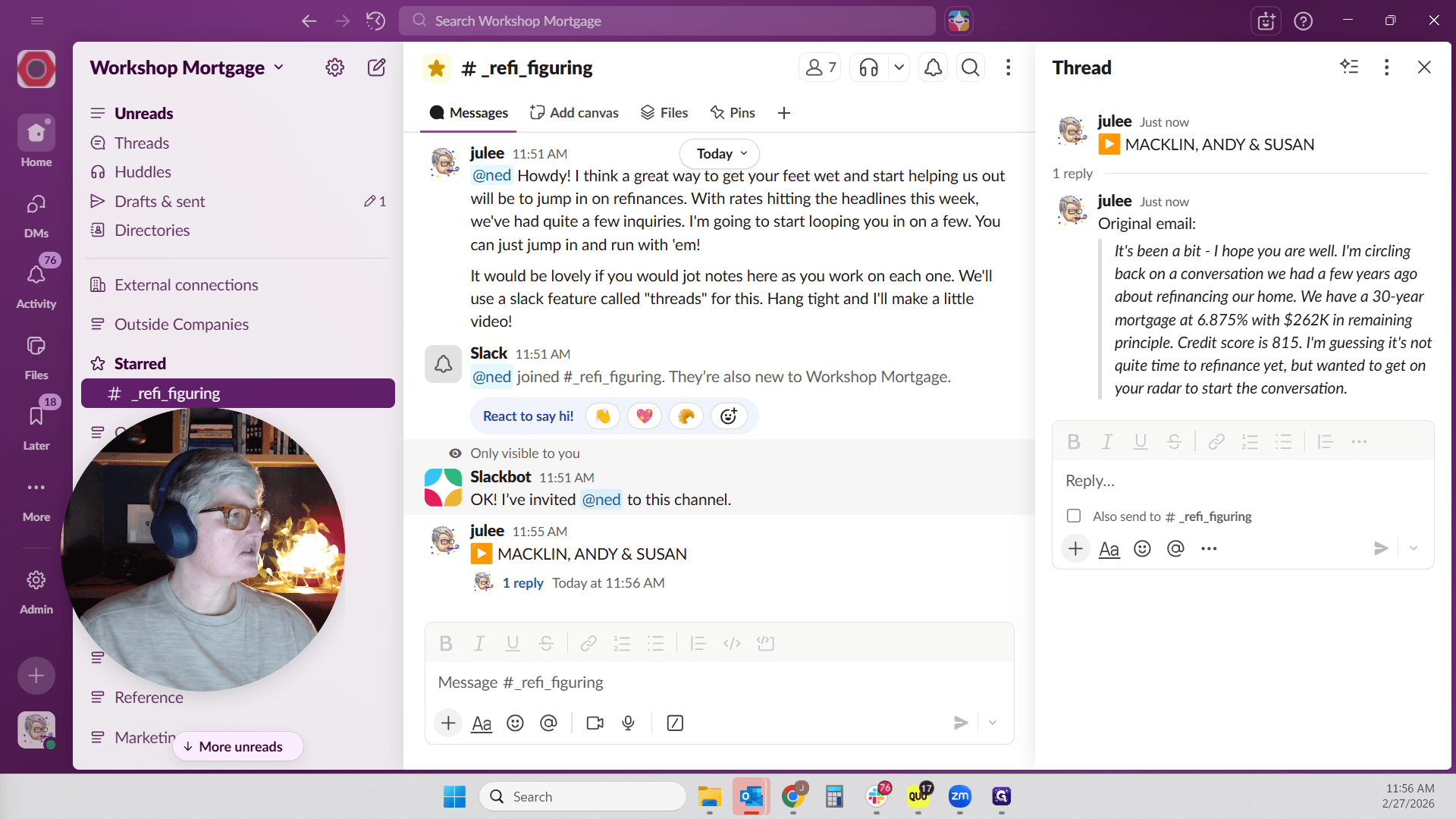
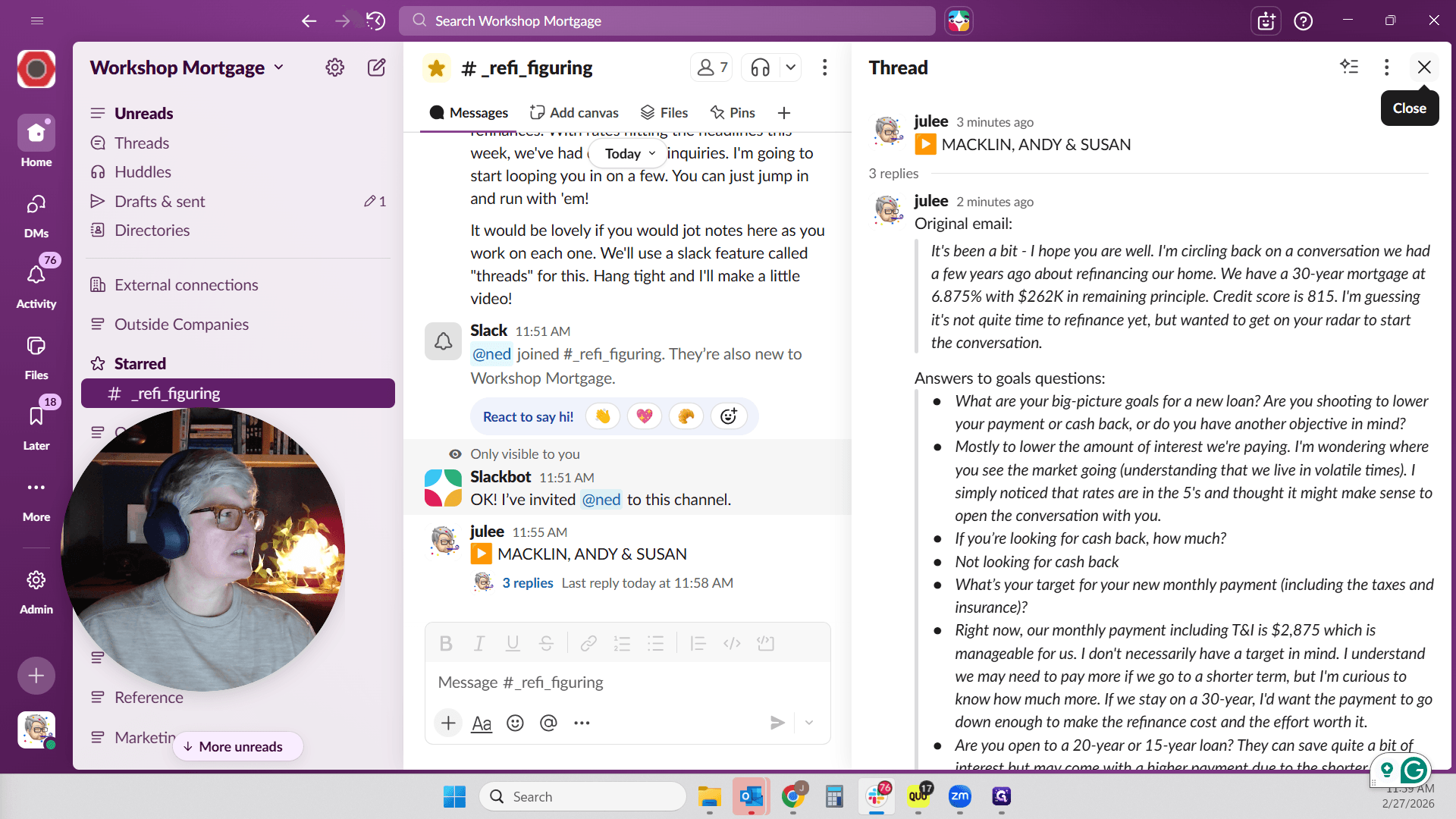
Now we have a post. If you keep posting, long threads will form and things can get messy. We want everything related to the Macklin potential refinance in one place. If you hover over it, you'll see "Add a reaction" or a small quote icon. If you click the quote icon, it says "Reply in thread." A window will appear where you can enter information that will be part of the thread.
I will copy some items from an email and forward them to you. They emailed asking about a possible refinance, and we sent a reply.
Let me share what they said. Here is what they originally said.
You will see this in an email.
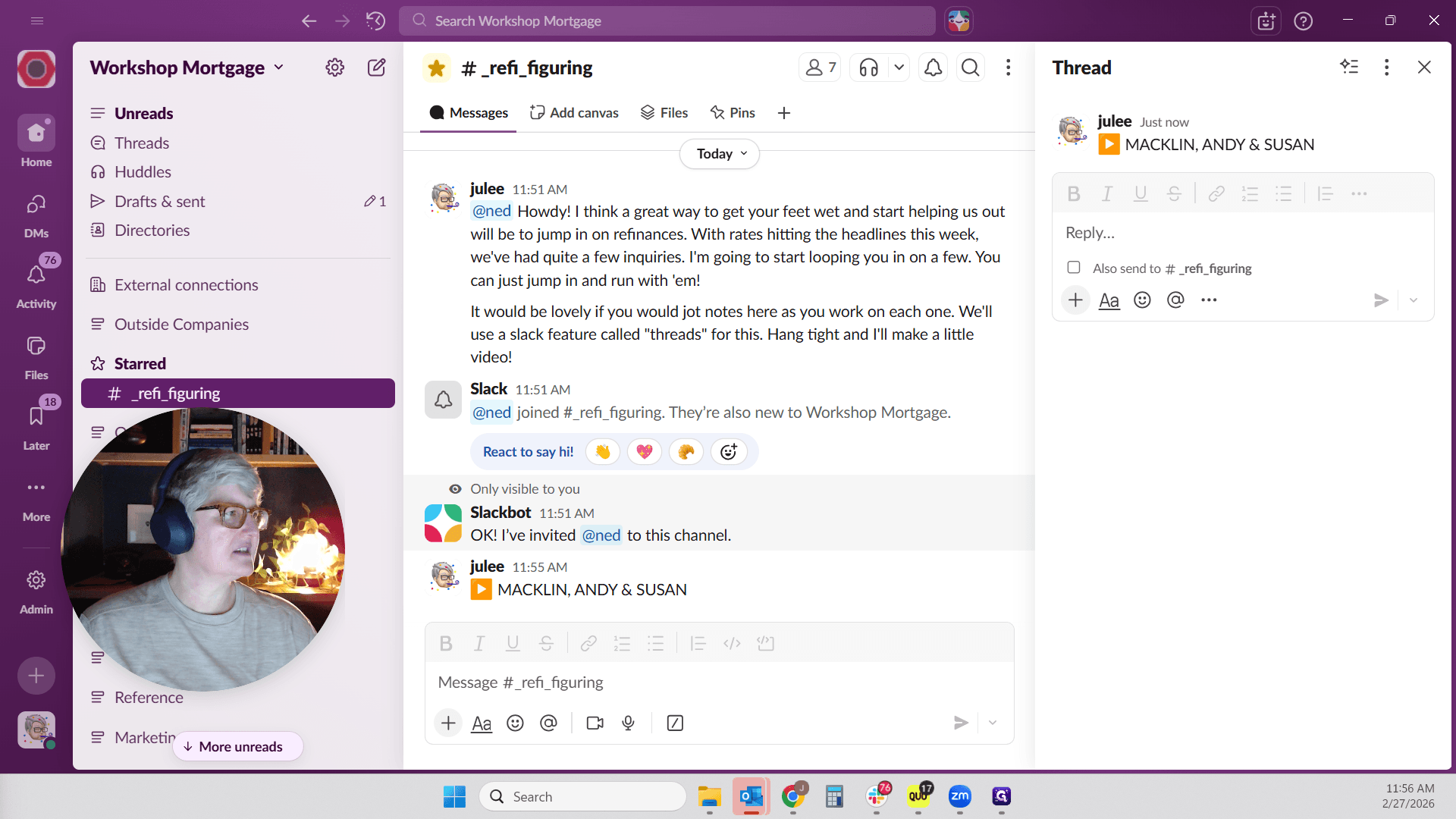
I'll just say original email. I can't type.
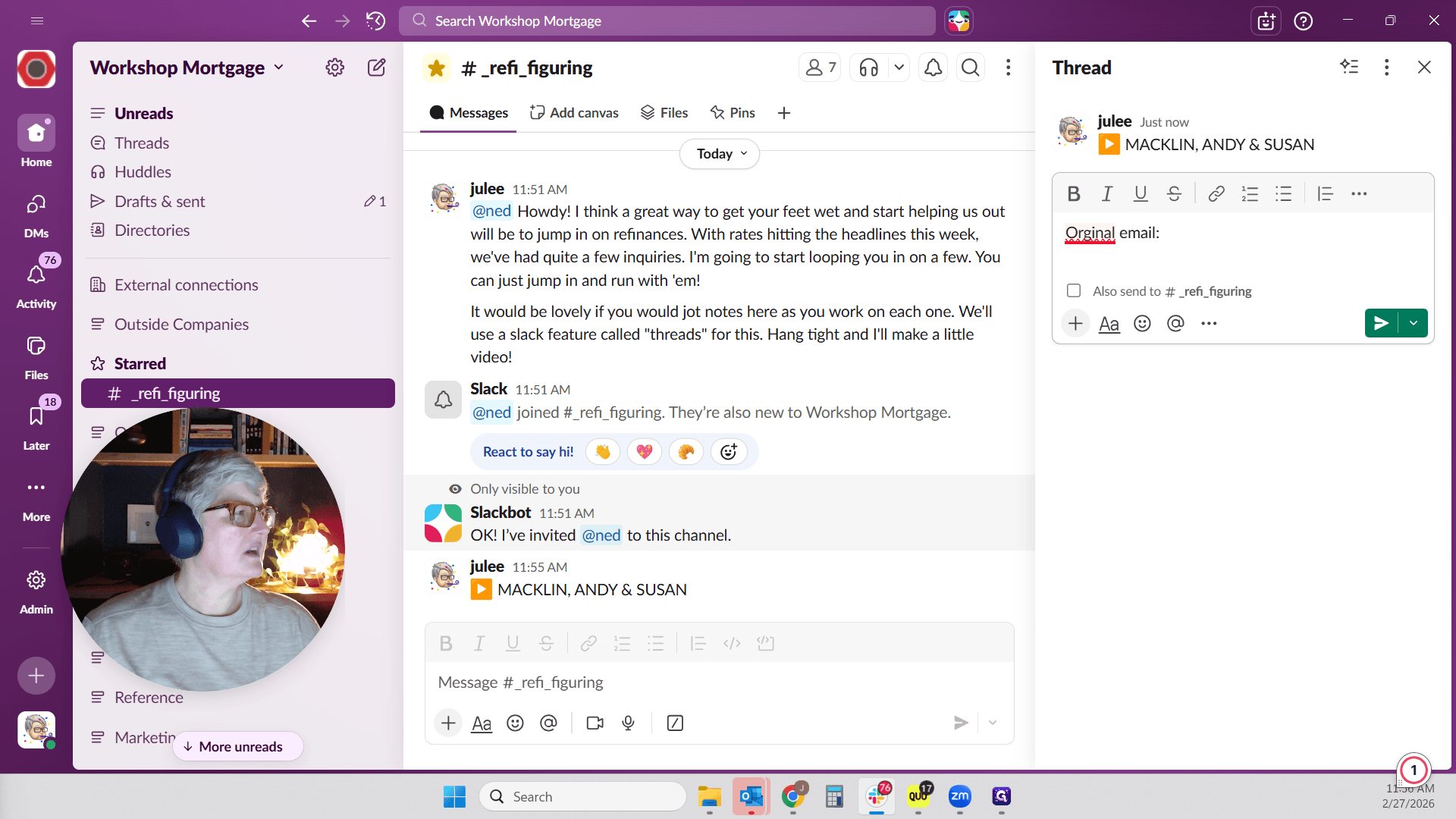
I'm going to do something a bit fancy here. It's not essential, but I like to use a quote block and italicize what a client said. This makes it easy to see what's going on.
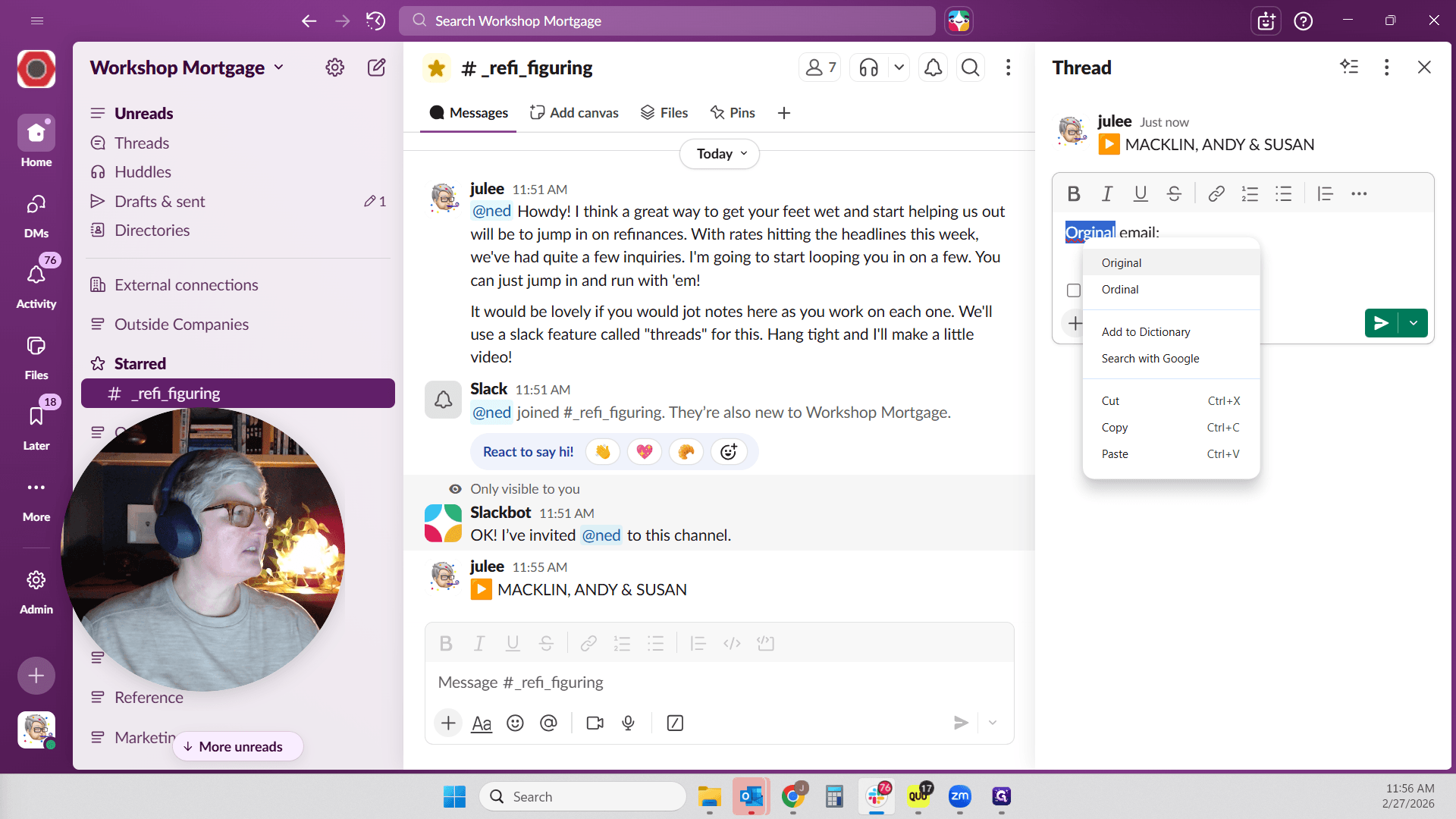
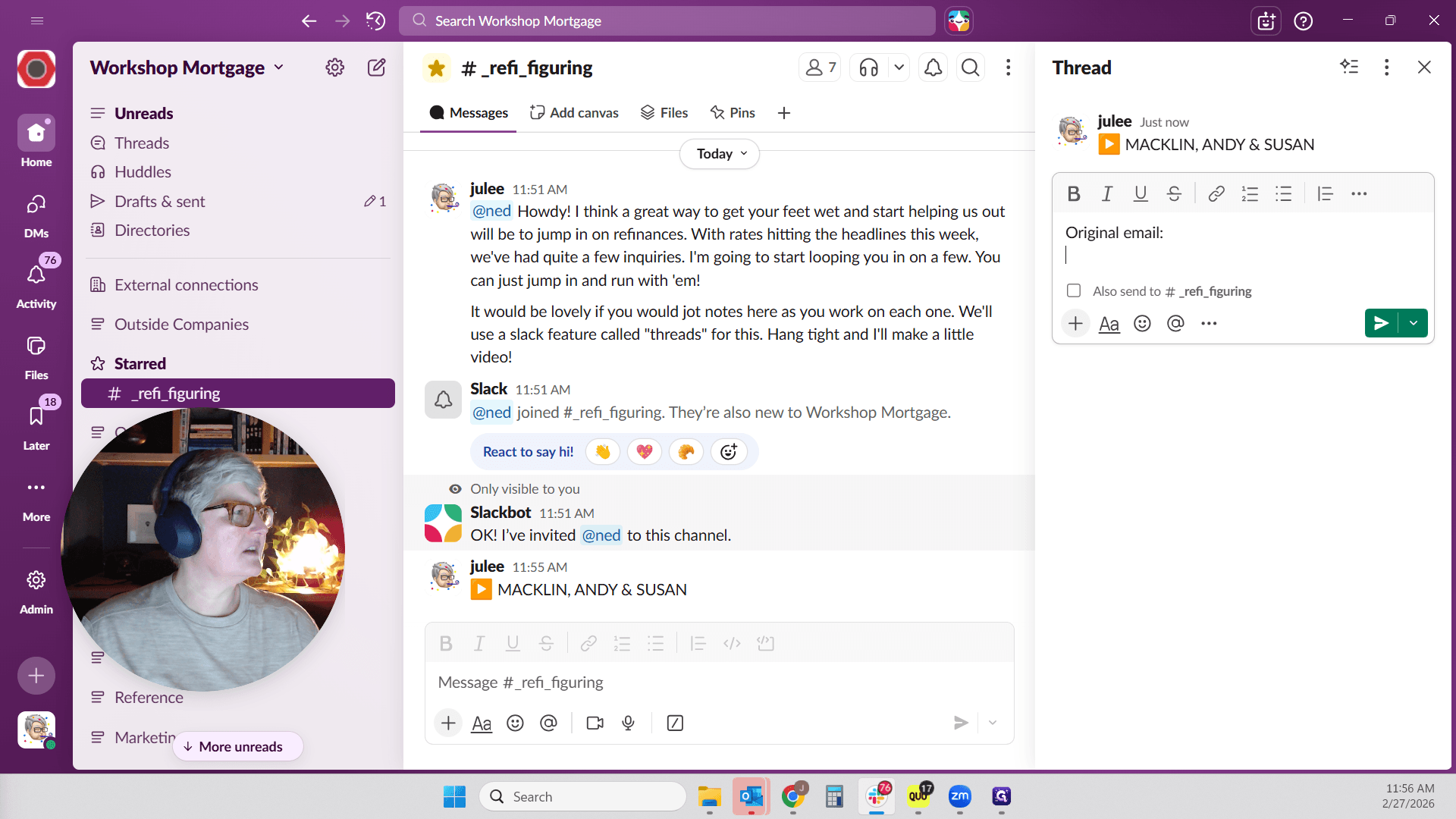
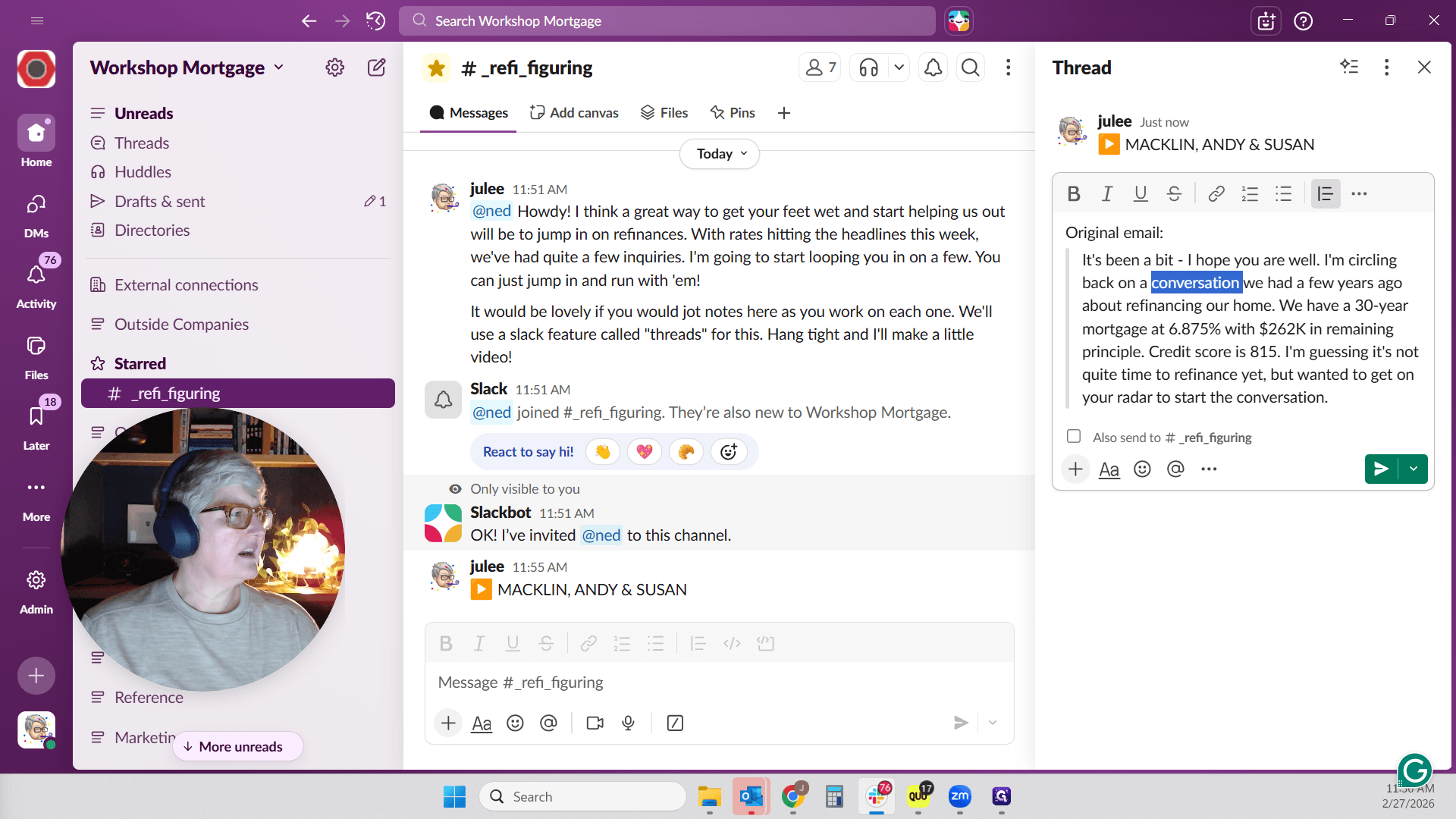
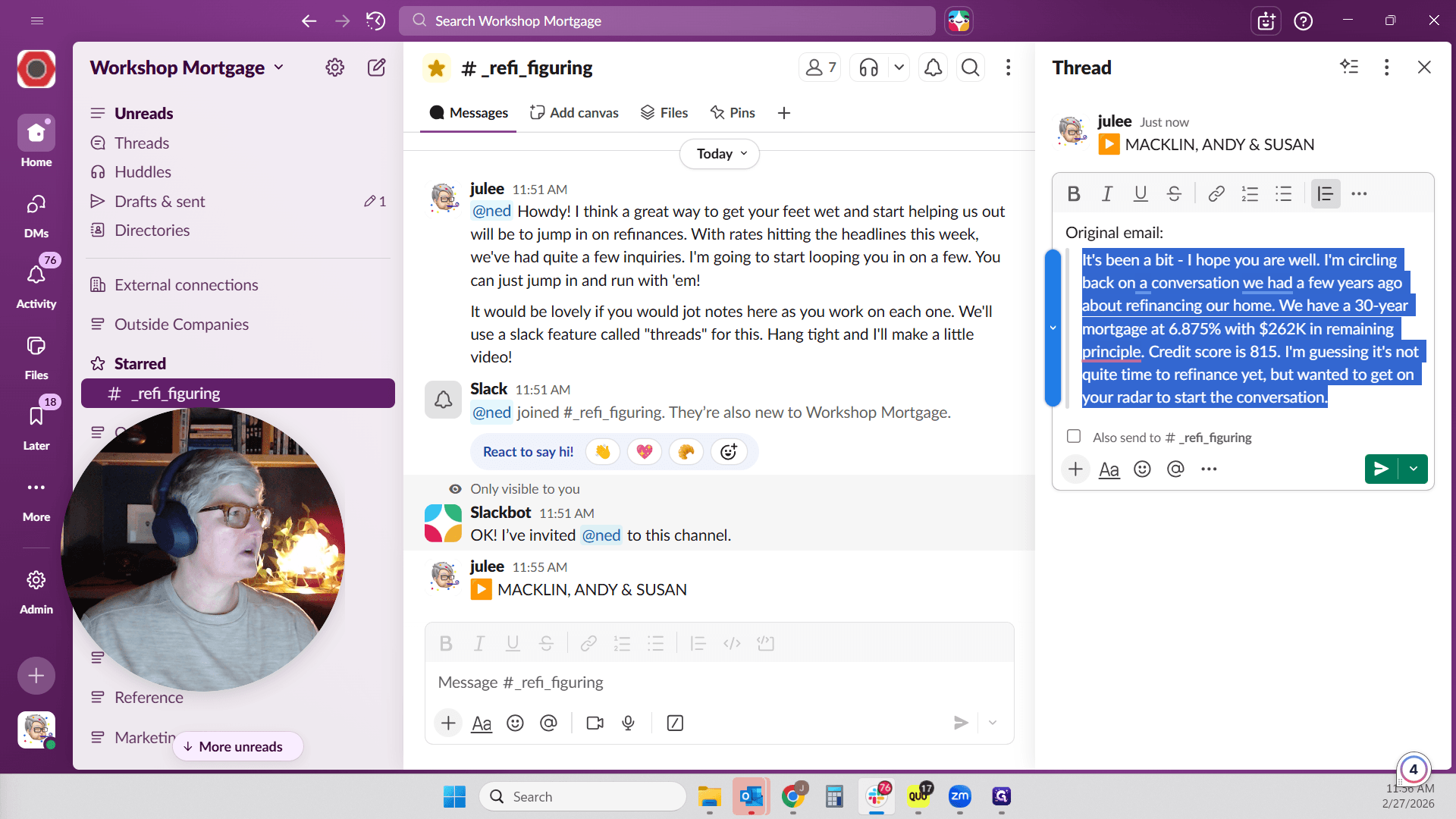
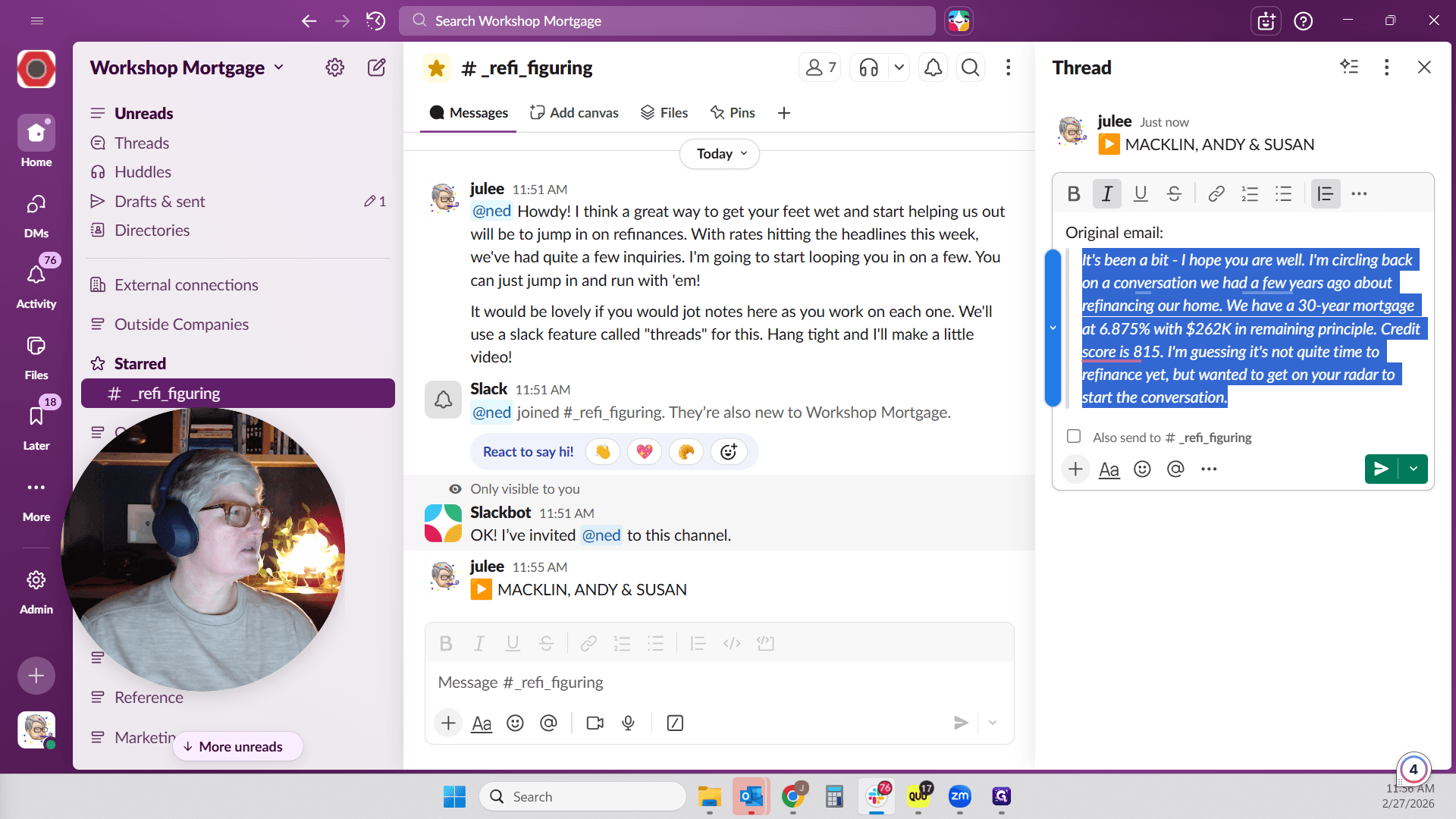
Here is their original email.
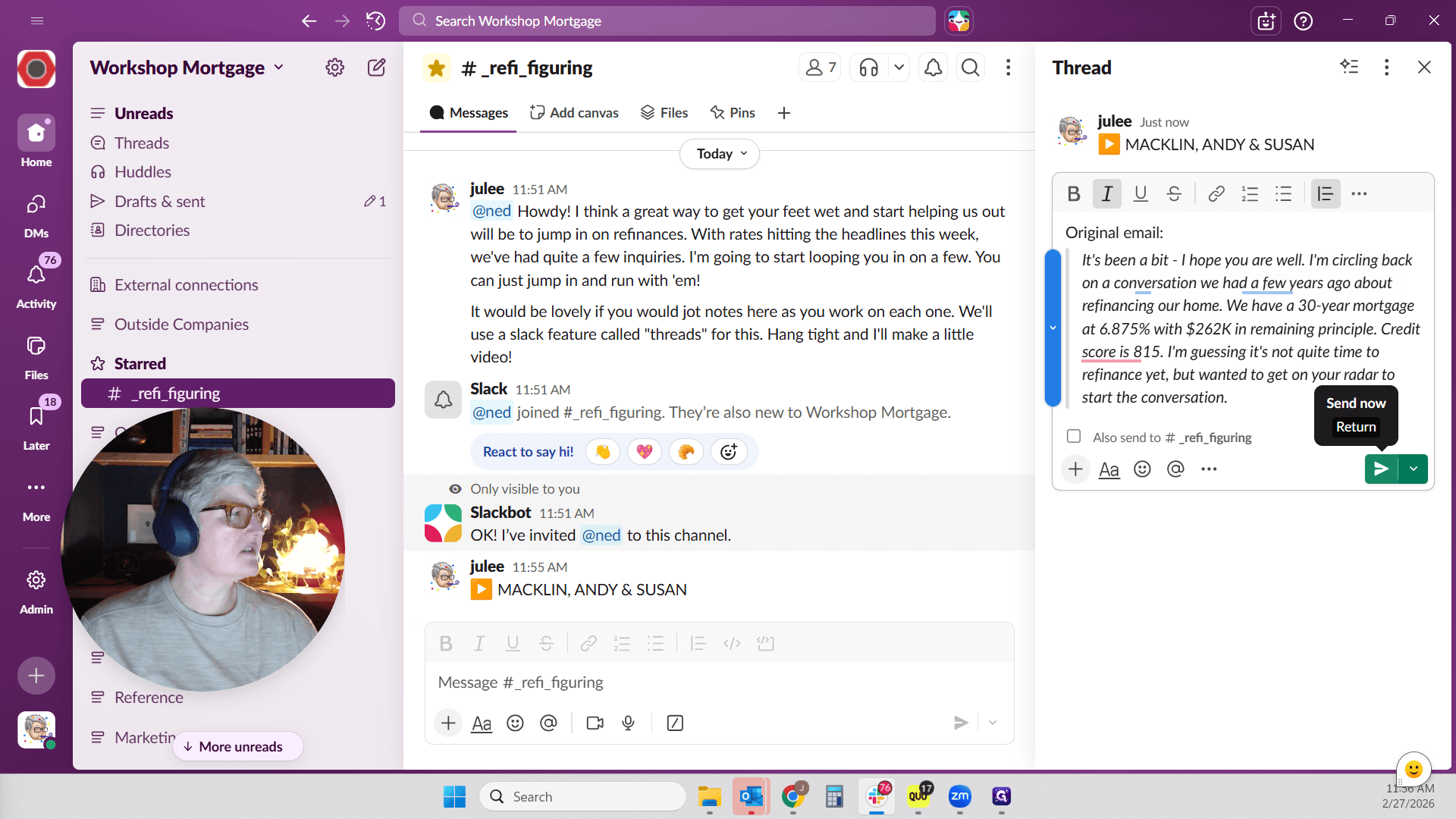
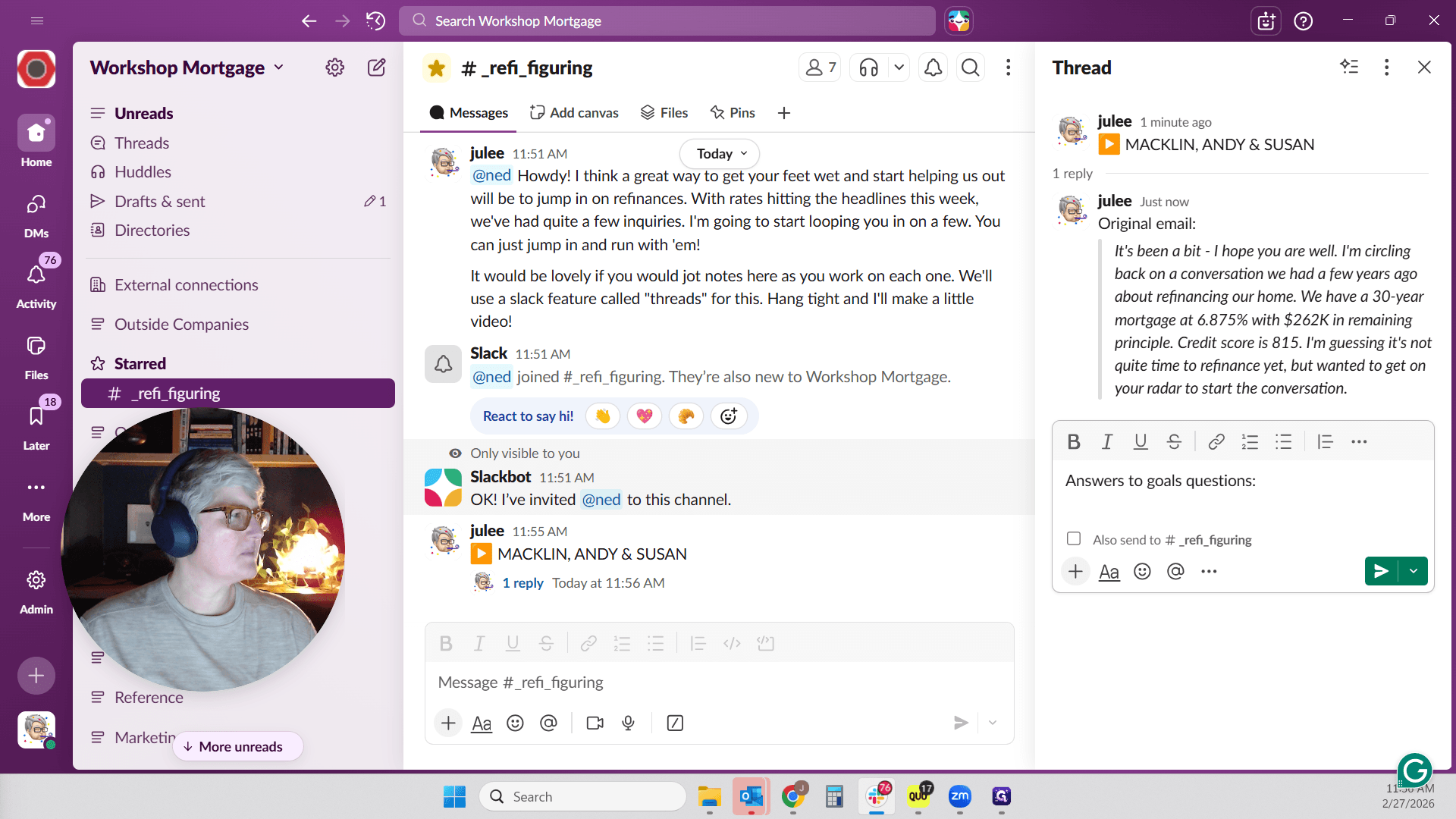
I will say, "Answer to question." I am copying answers to goals questions here. I will use my quote block again and paste.
That's interesting.
Why did it do that? Uh, paste.
Sorry, recording myself sneezing.
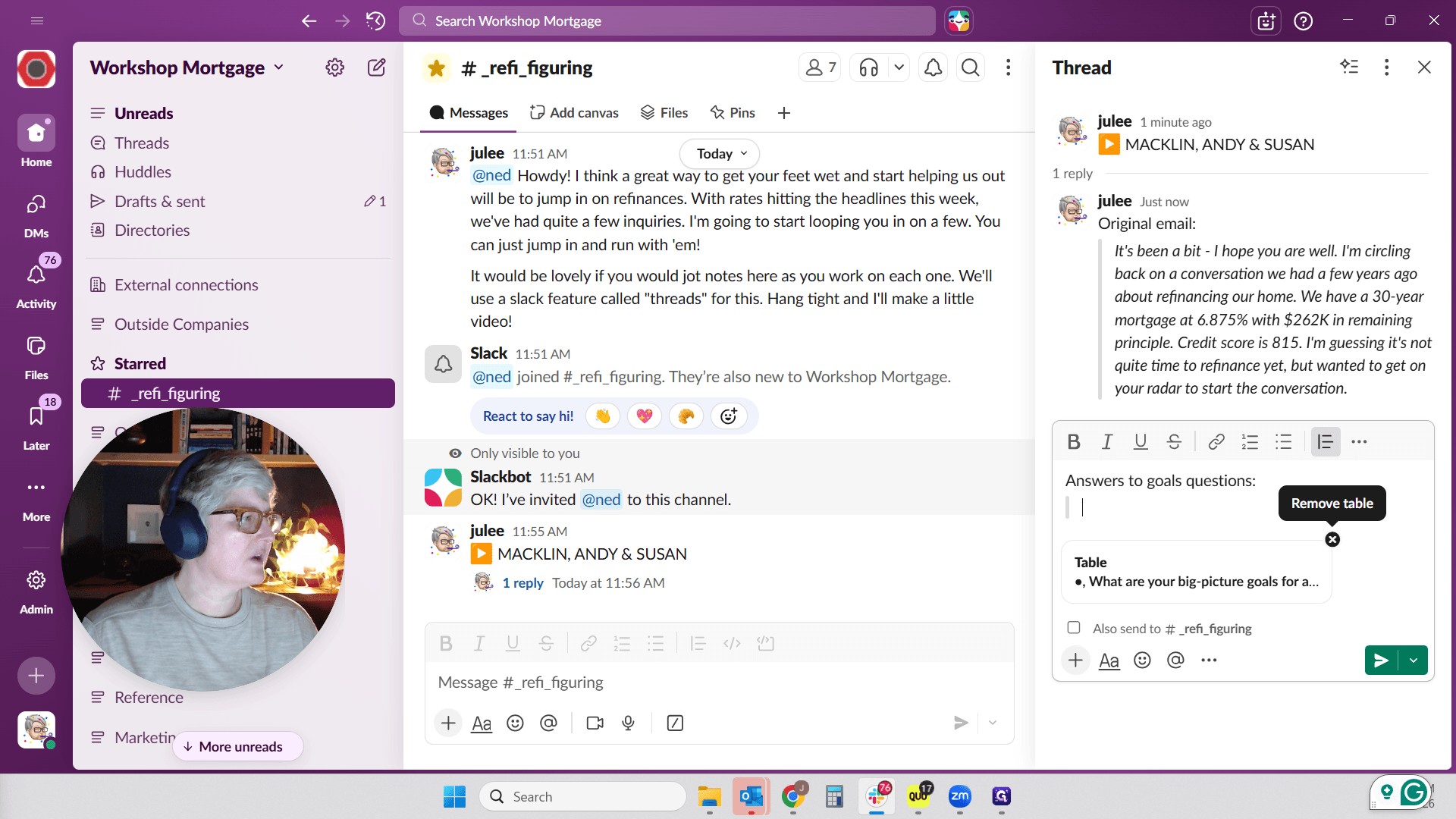
It's coming in as—hang on just one second. I'll pause and see if I can figure out what's going on with pasting.
It's not letting me pause.
That's exciting.
This is not copying as plain text.
Maybe I'll copy it like this.
There we go.
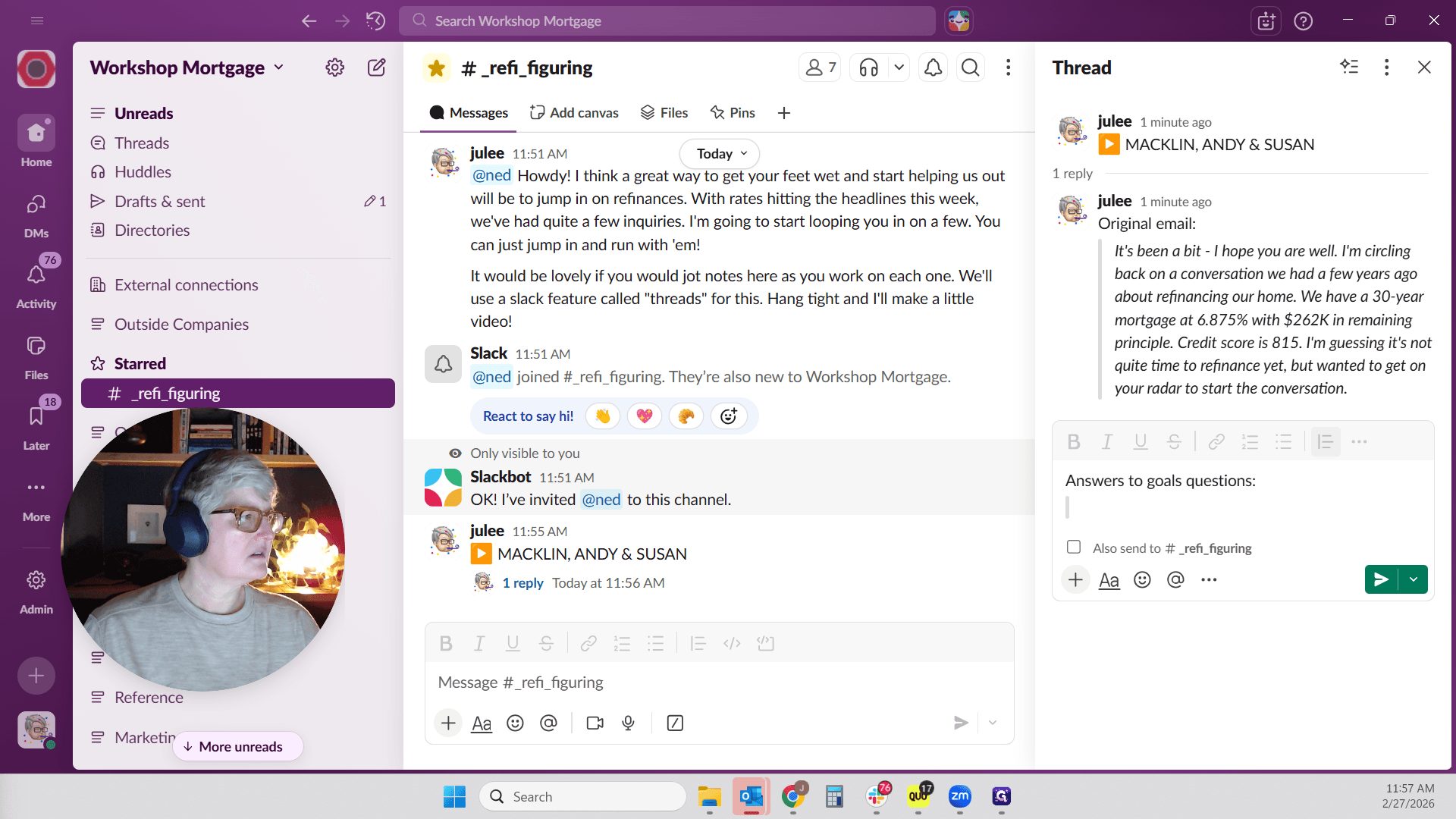
Okay. I don't know. I tried to post it as a table.
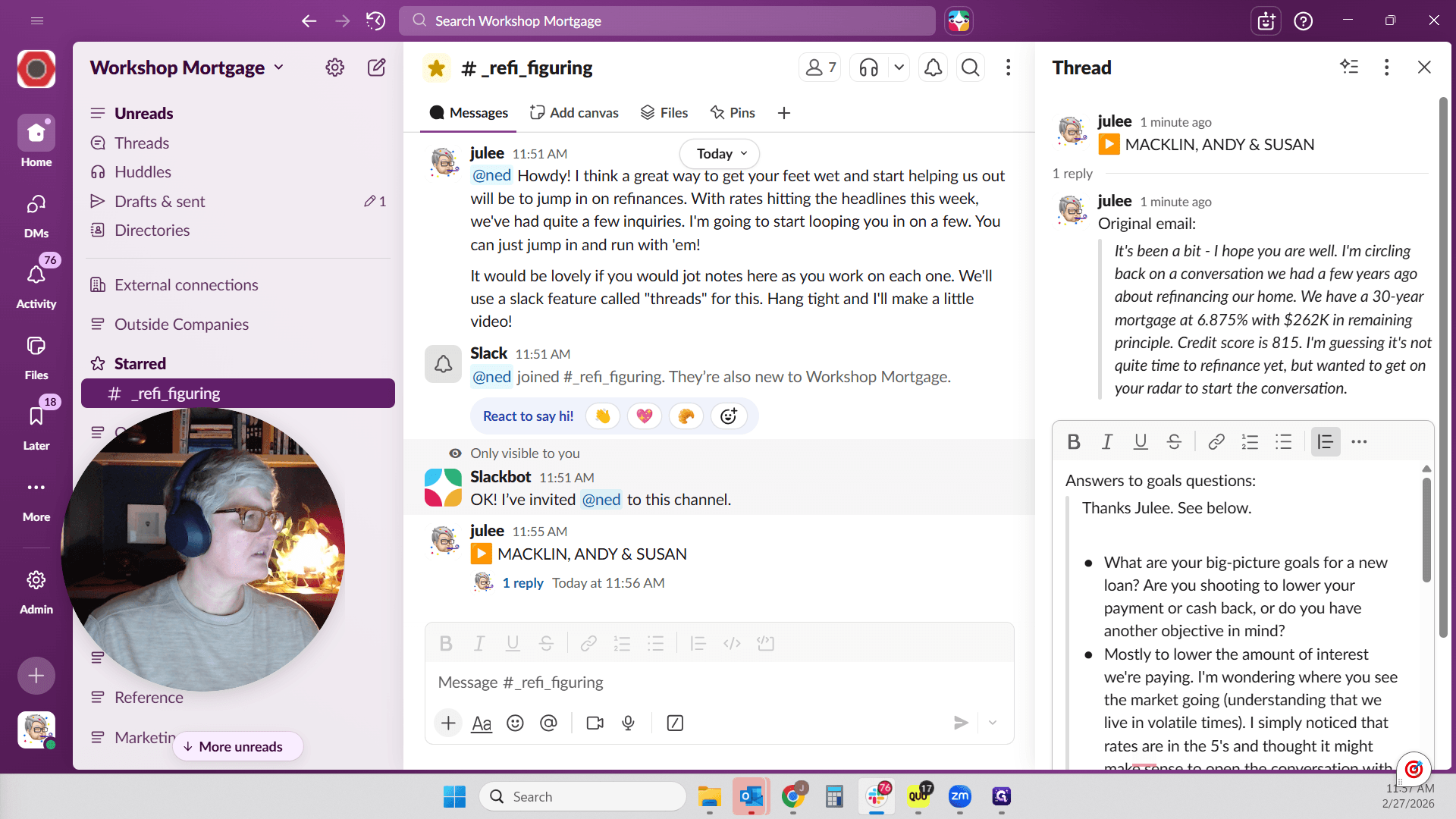
Bullets should focus on what they wanted. Ignore anything that just happened if it is not relevant.
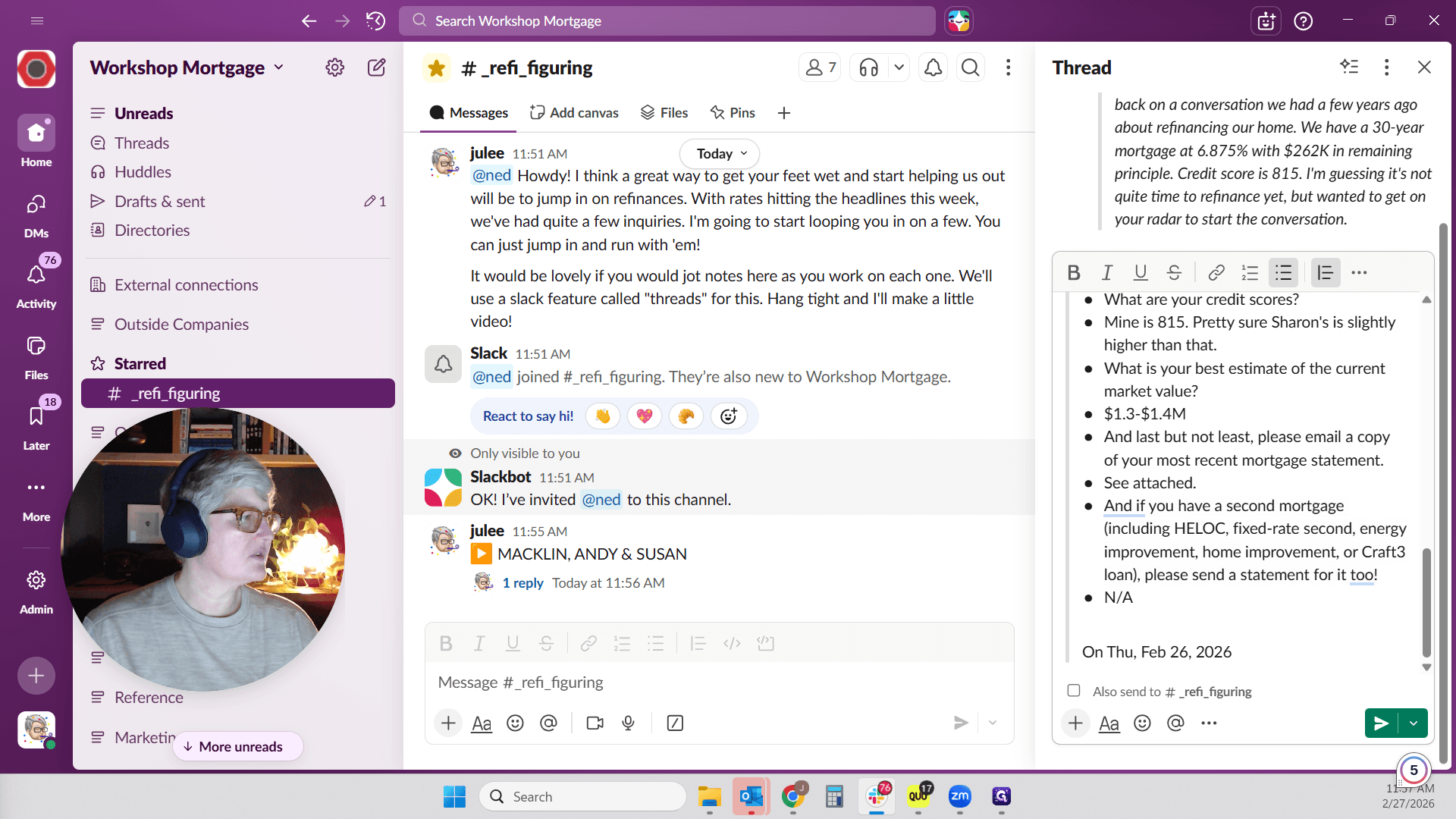
Let me italicize that so it's easy to see the client's goals and their responses to our questions.
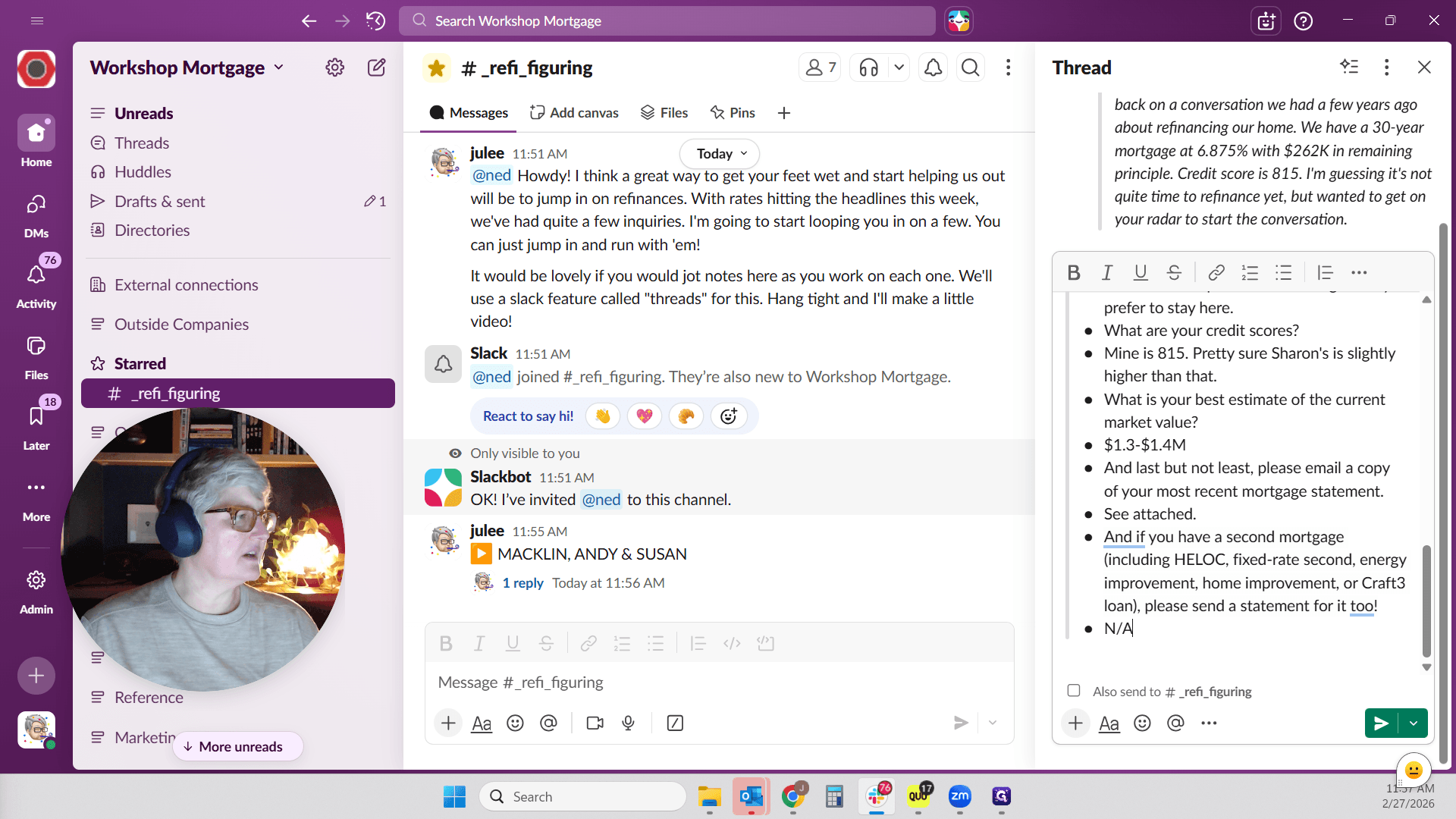
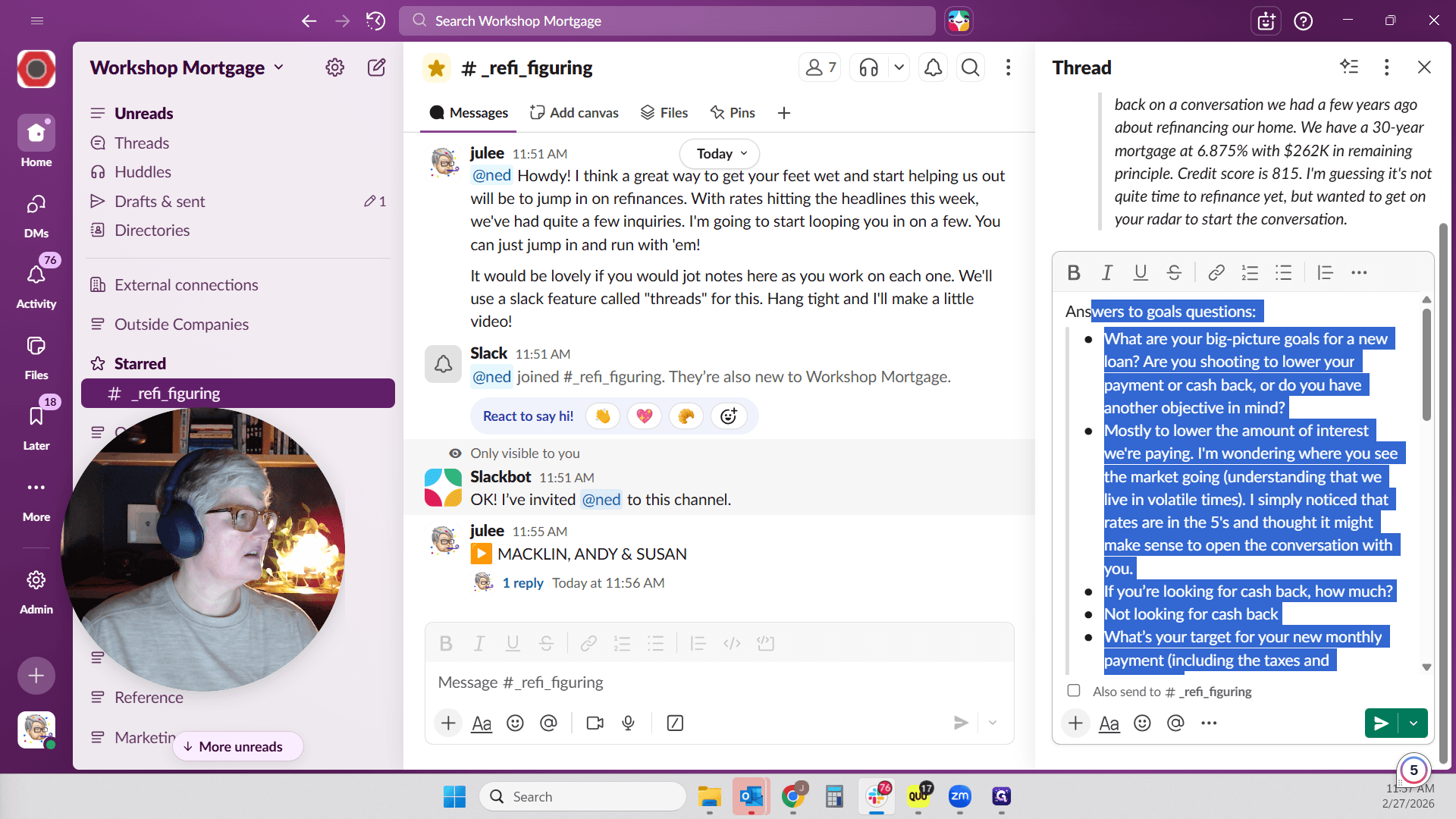
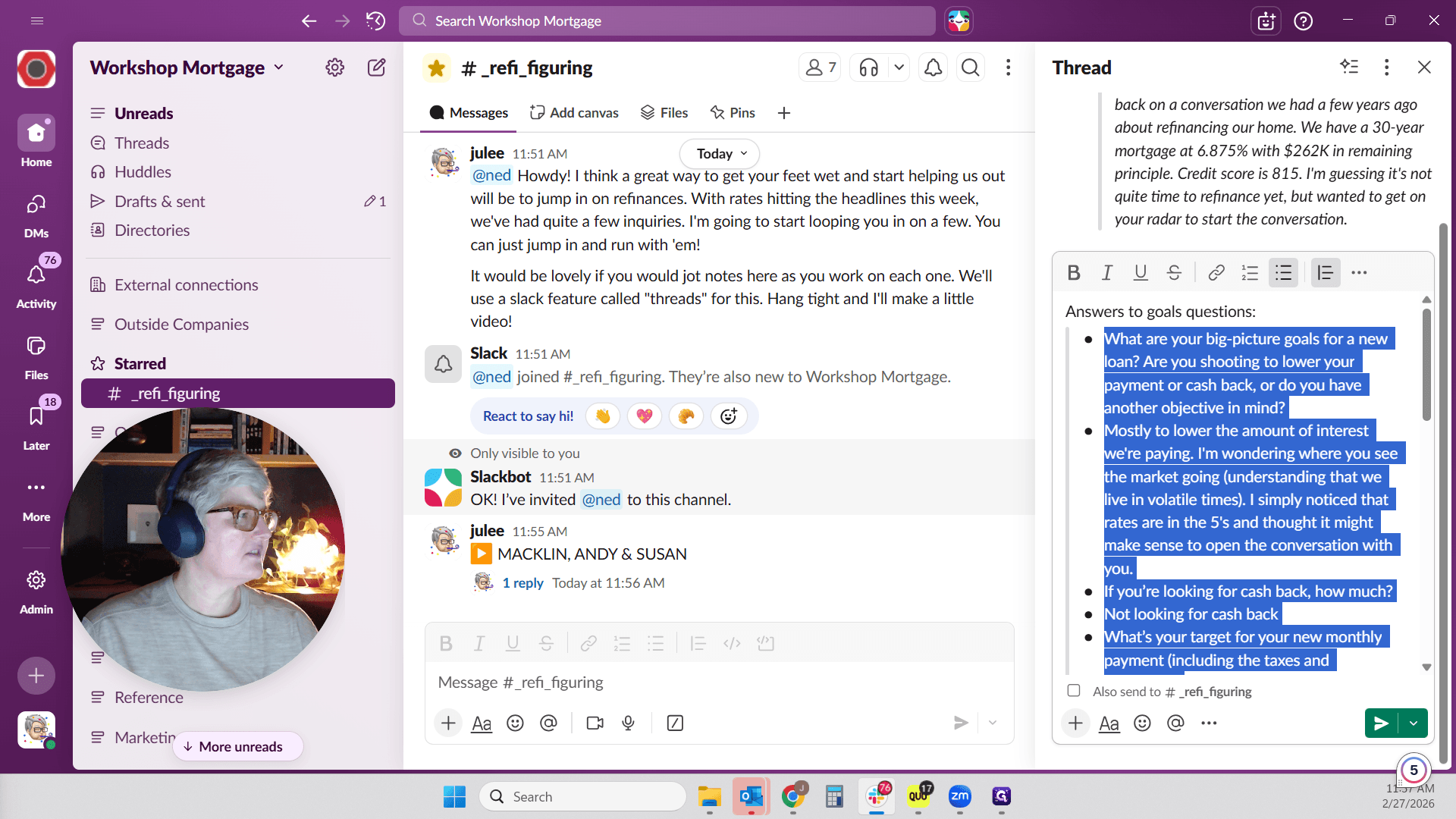
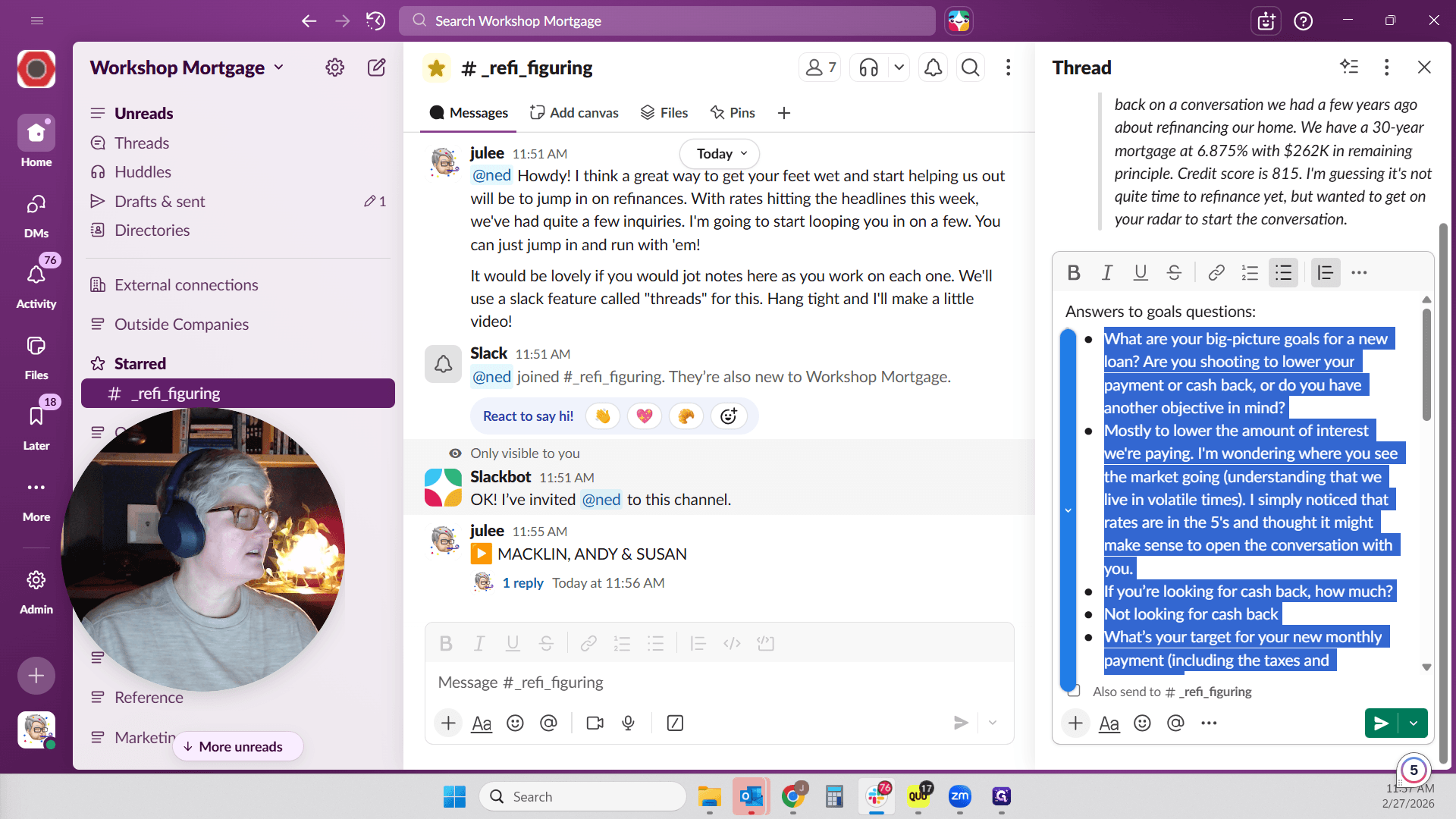
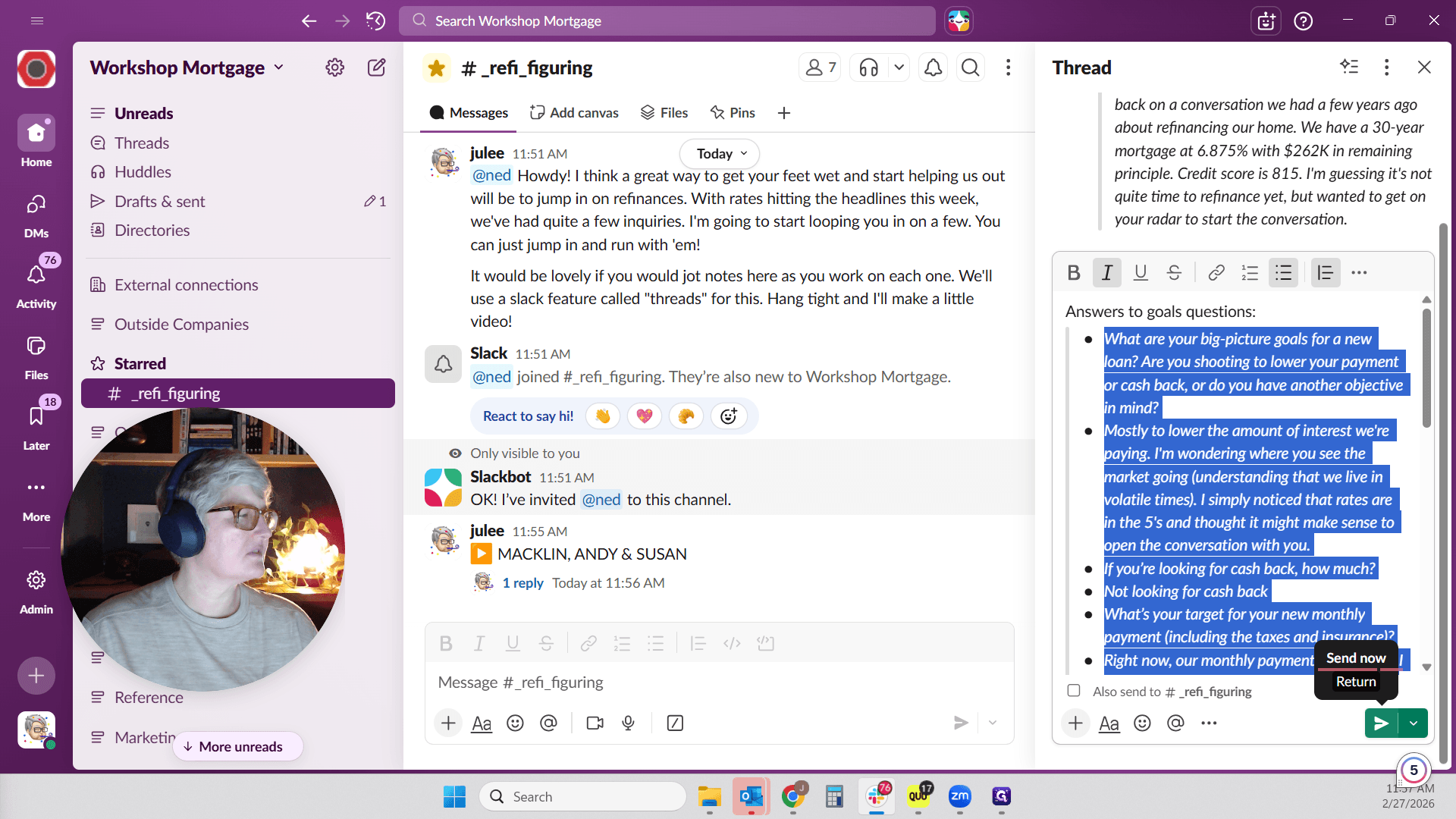
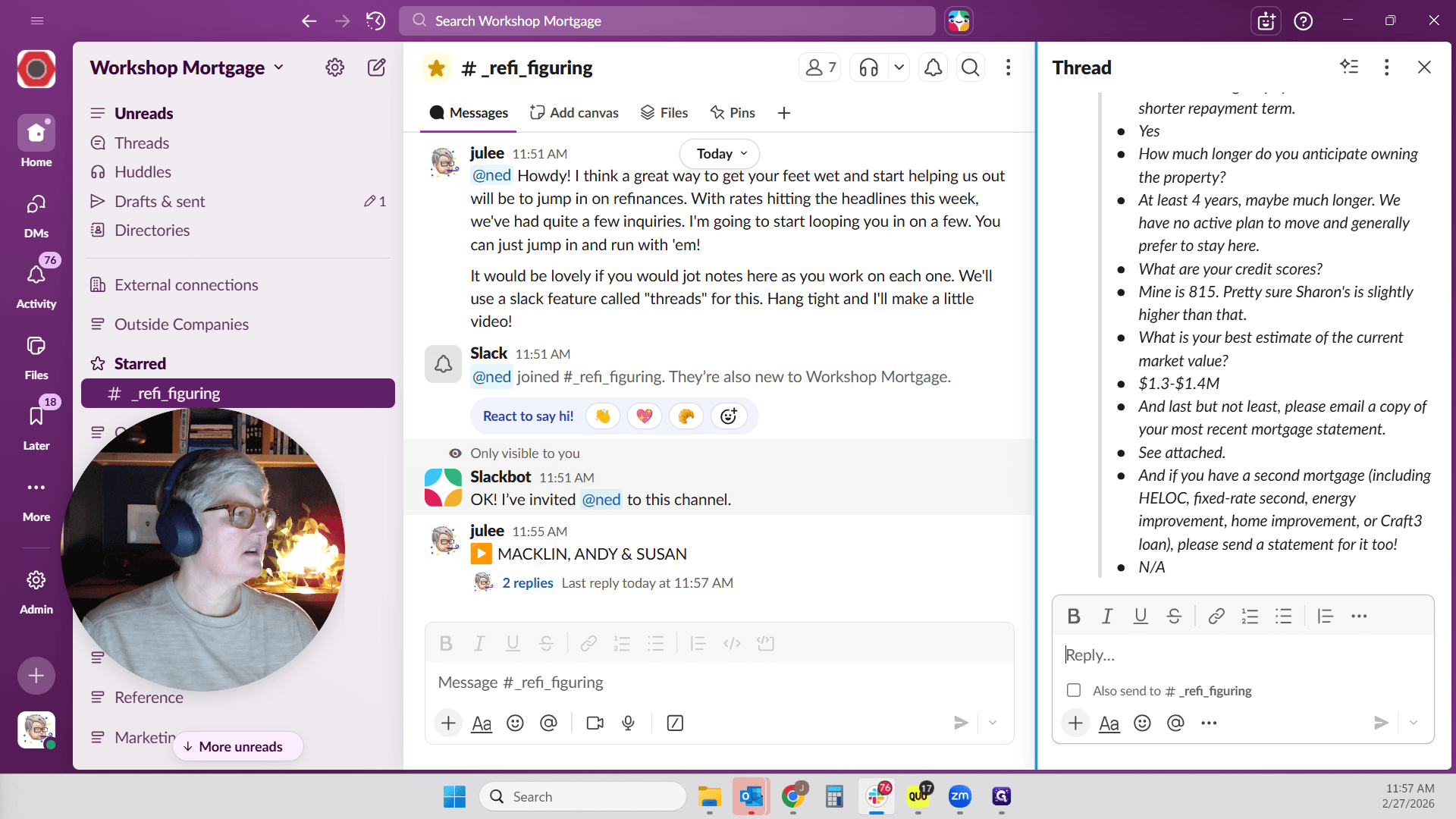
We also asked them for a copy of their statement.
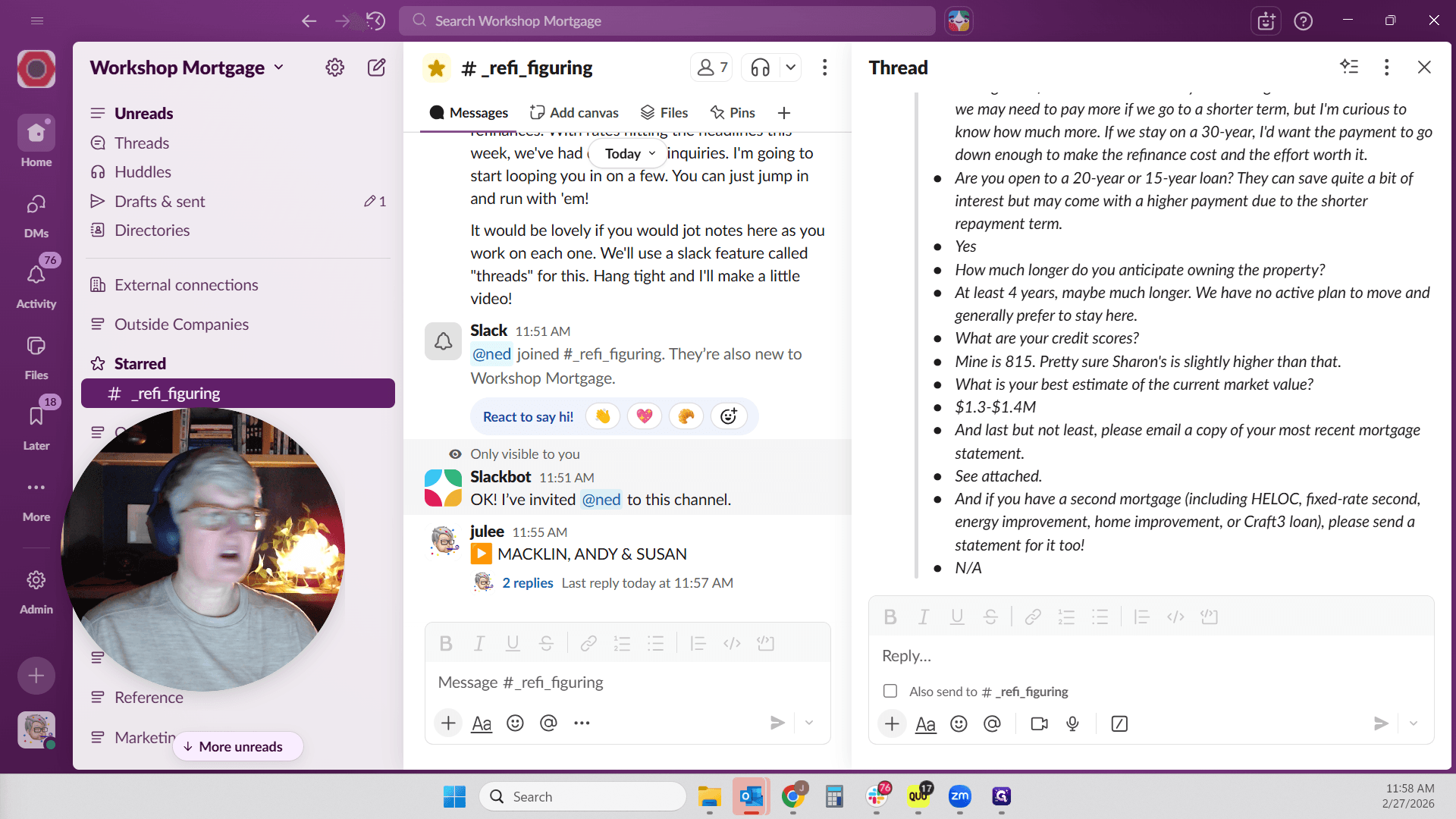
I clicked on the statement attached to my email in Outlook and dragged and dropped it into this thread.
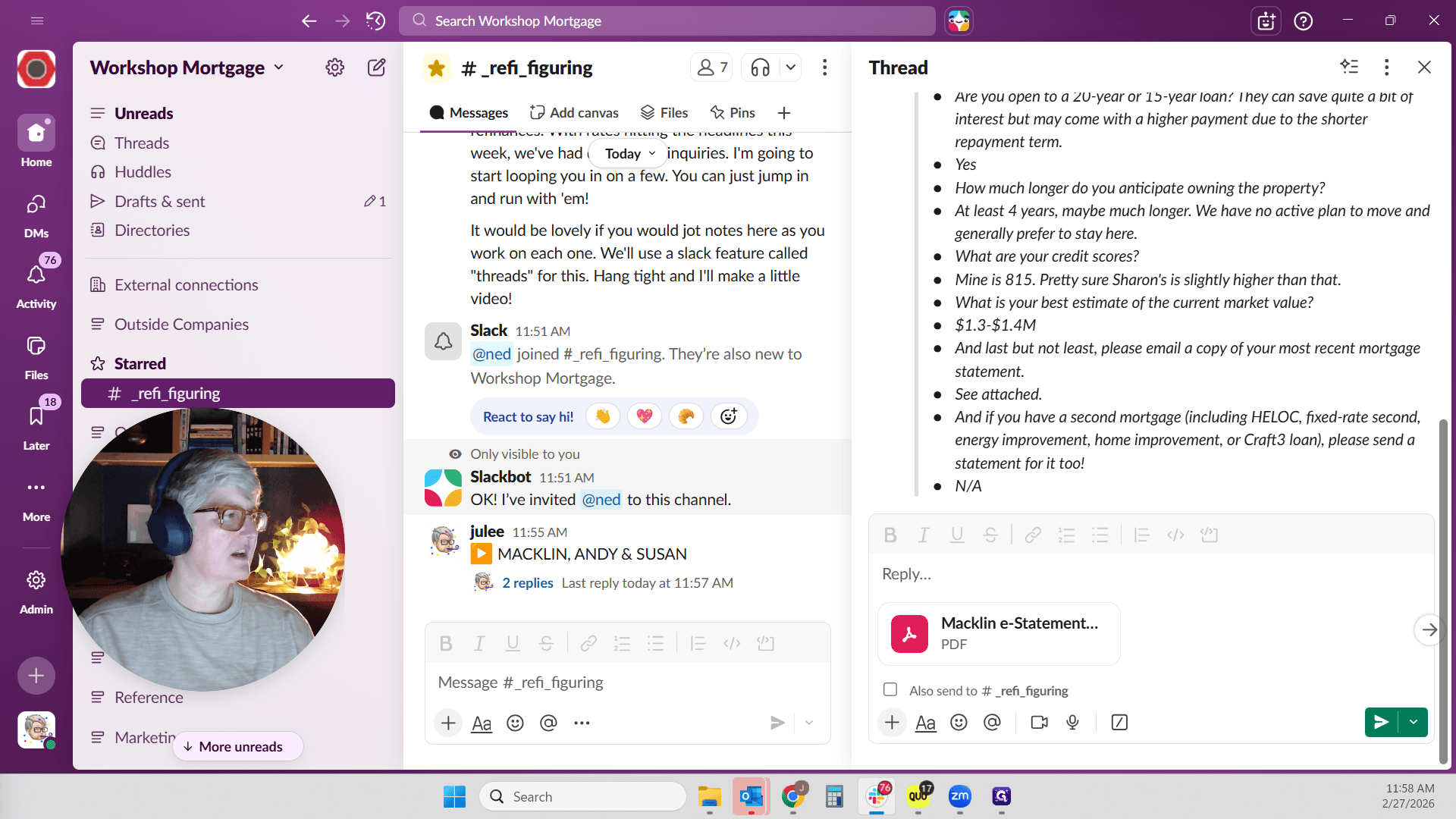
This is in the thread to the right, not the main channel. Here is the current loan statement. You can type notes and screenshot items here. If you want, you can paste screenshots as well.
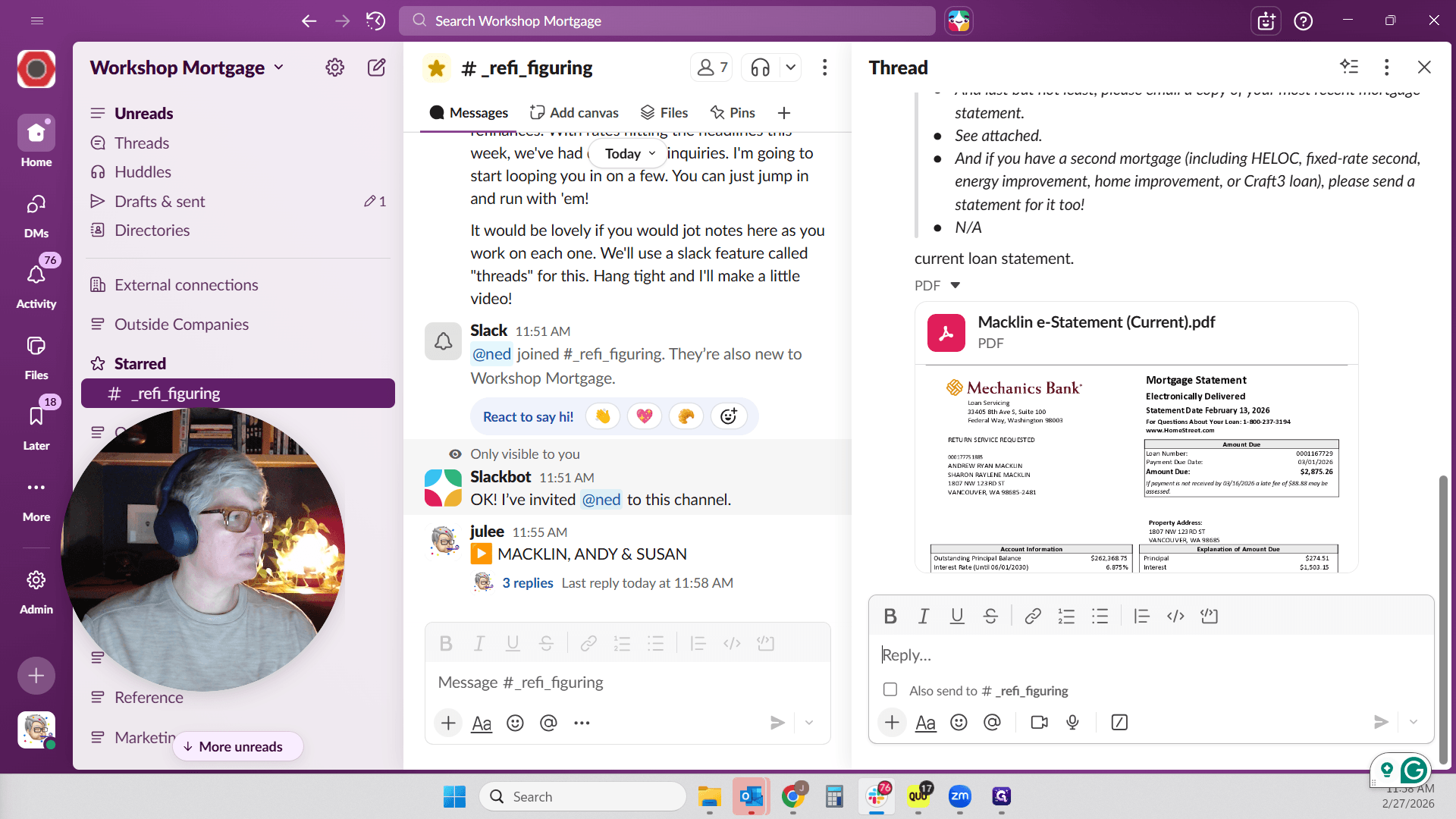
We often take screenshots of pricing and paste them in. It's helpful to keep everything you're working on organized in one place. Once it makes sense— which it probably does since they're at 678— refinancing is likely a good option. They are willing to offer a 15- or 20-year loan, so refinancing to a 15-year loan should be an easy decision. Once they apply, they will have an actual channel.
I know this sounds crazy, but it will all make sense eventually. I don't know what your emoji is, but once I find out, I will tag you here. If I close this box, you'll see Macklin, Andy, and Susan here. This is where the thread is located.
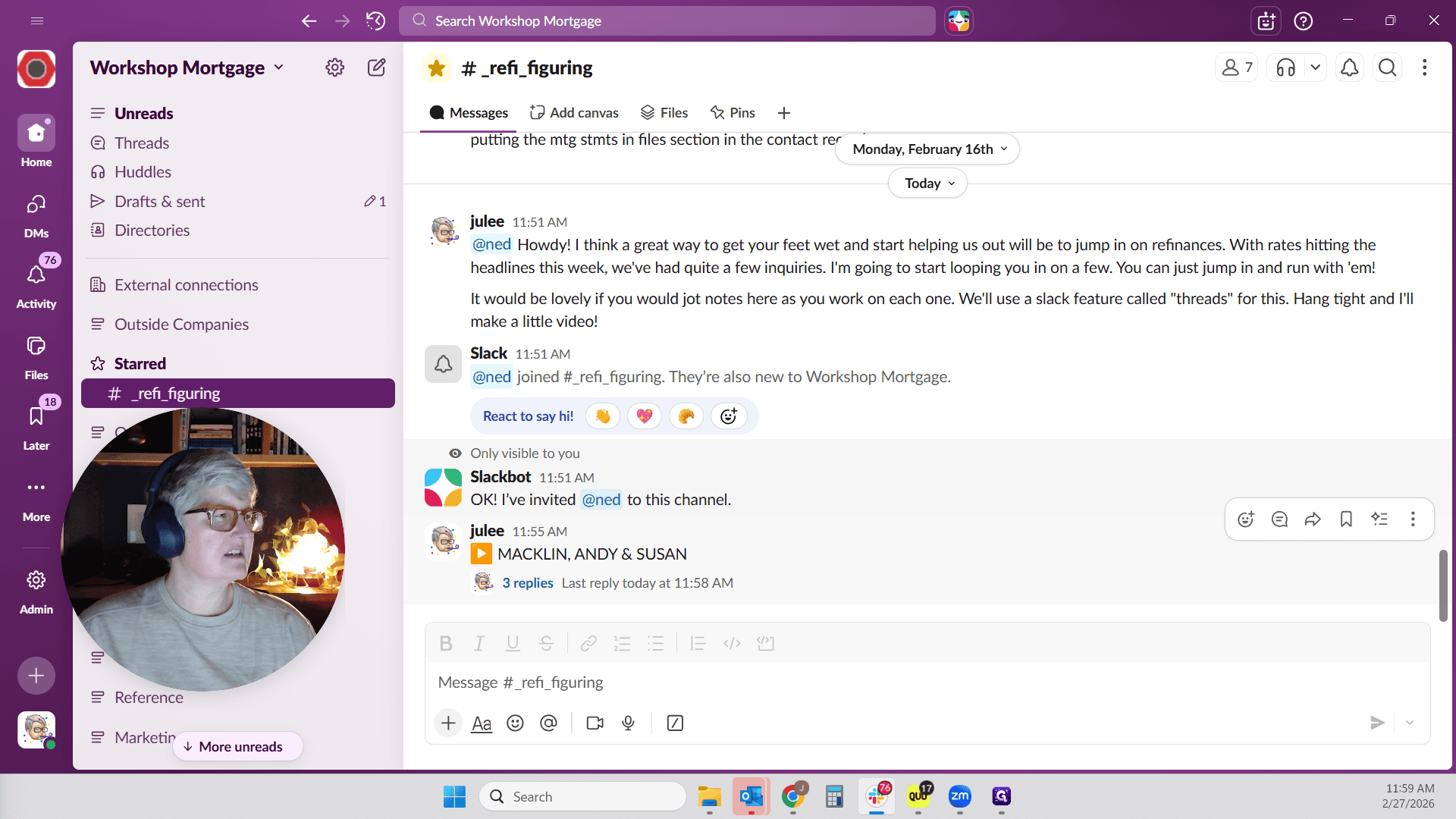
See how it says "View Thread"?
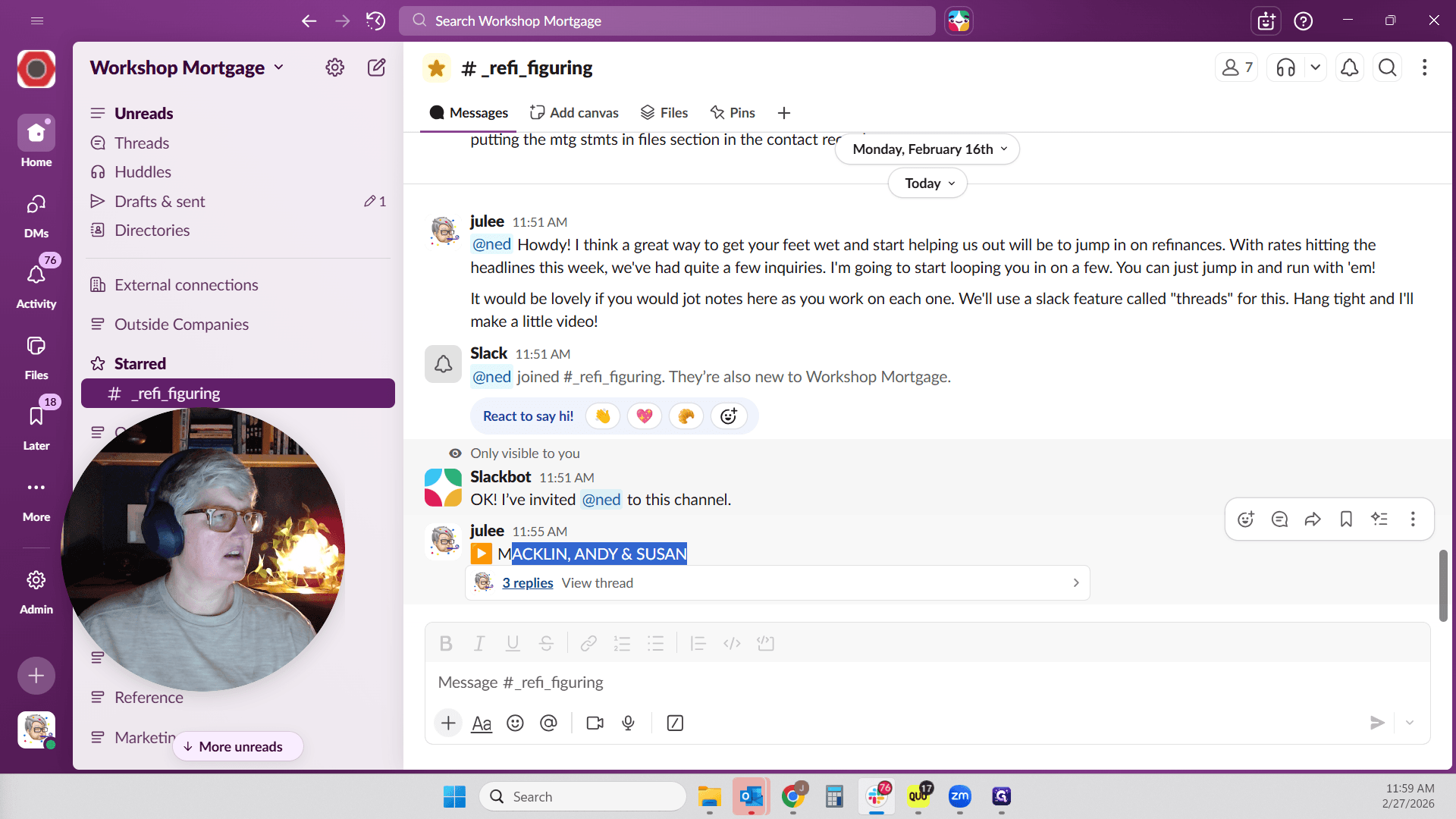
Clicking on that will open the information I just placed under this thread. It keeps the main channel neat and tidy, showing only names and threads.
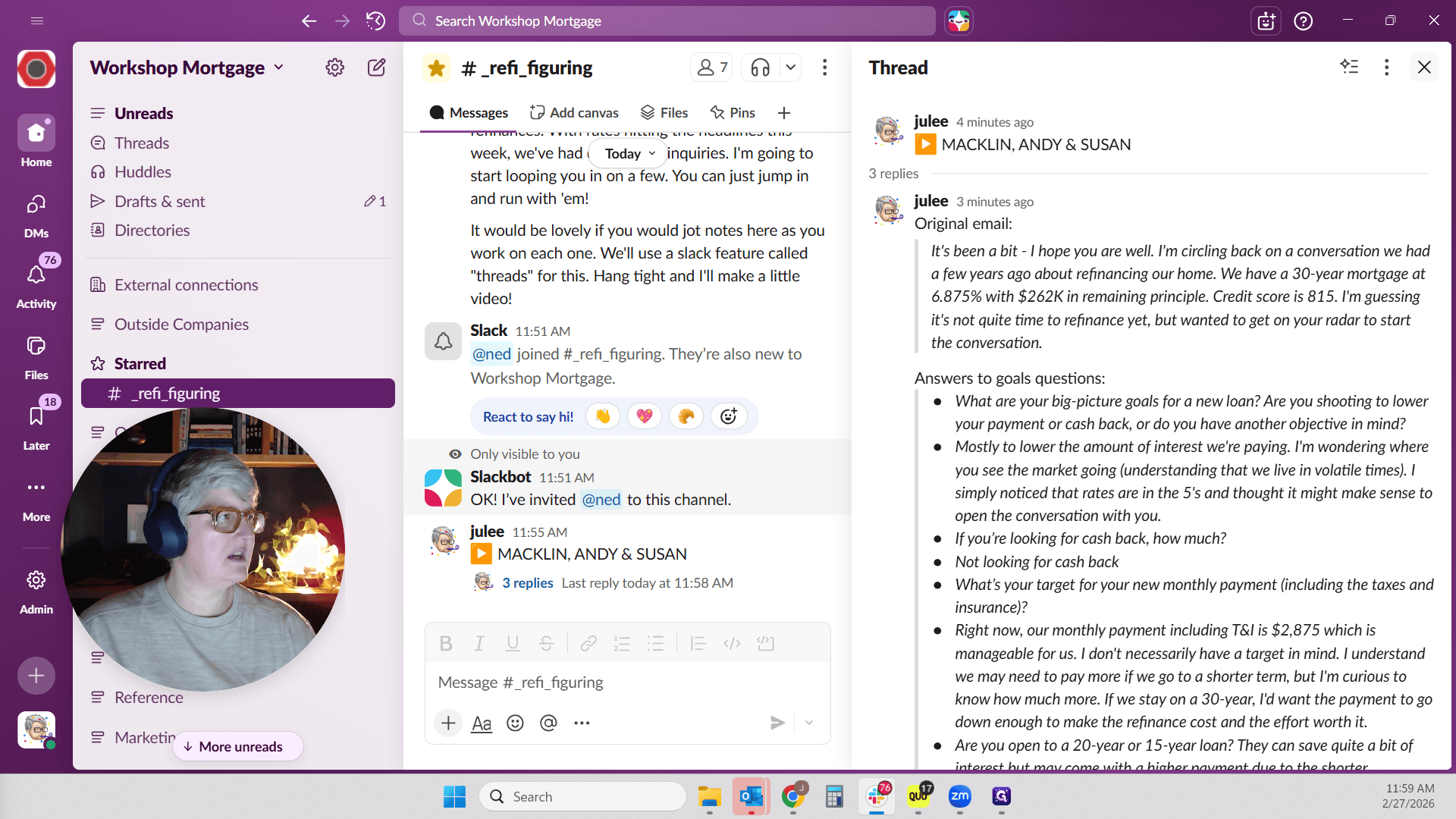
These are some old ones from COVID. We just revived this channel.
It's a good way to keep track of things. Hopefully, that makes sense. I will post this here so you have it. Let me see if I can figure out where to hit stop. There we go. I will stop recording now.
All right, thanks Ned. Bye-bye.