Icon

How to Create Signature Layouts (CPS Strata Seller) on Authentisigns @ CREA Web Forms -

Learn step-by-step how to create signature layouts in Authentisigns, including adding seller initials, signatures, and managing document layouts efficiently.

By Admin Siya Herman & Associates

In this guide, we'll learn how to create and organize signature layouts for CPS strata seller document using Authentisign. You will see how to add initials and signatures for multiple sellers across different pages, and how to use copy and paste to speed up the process. The goal is to ensure all required fields are completed.

Let's get started
2
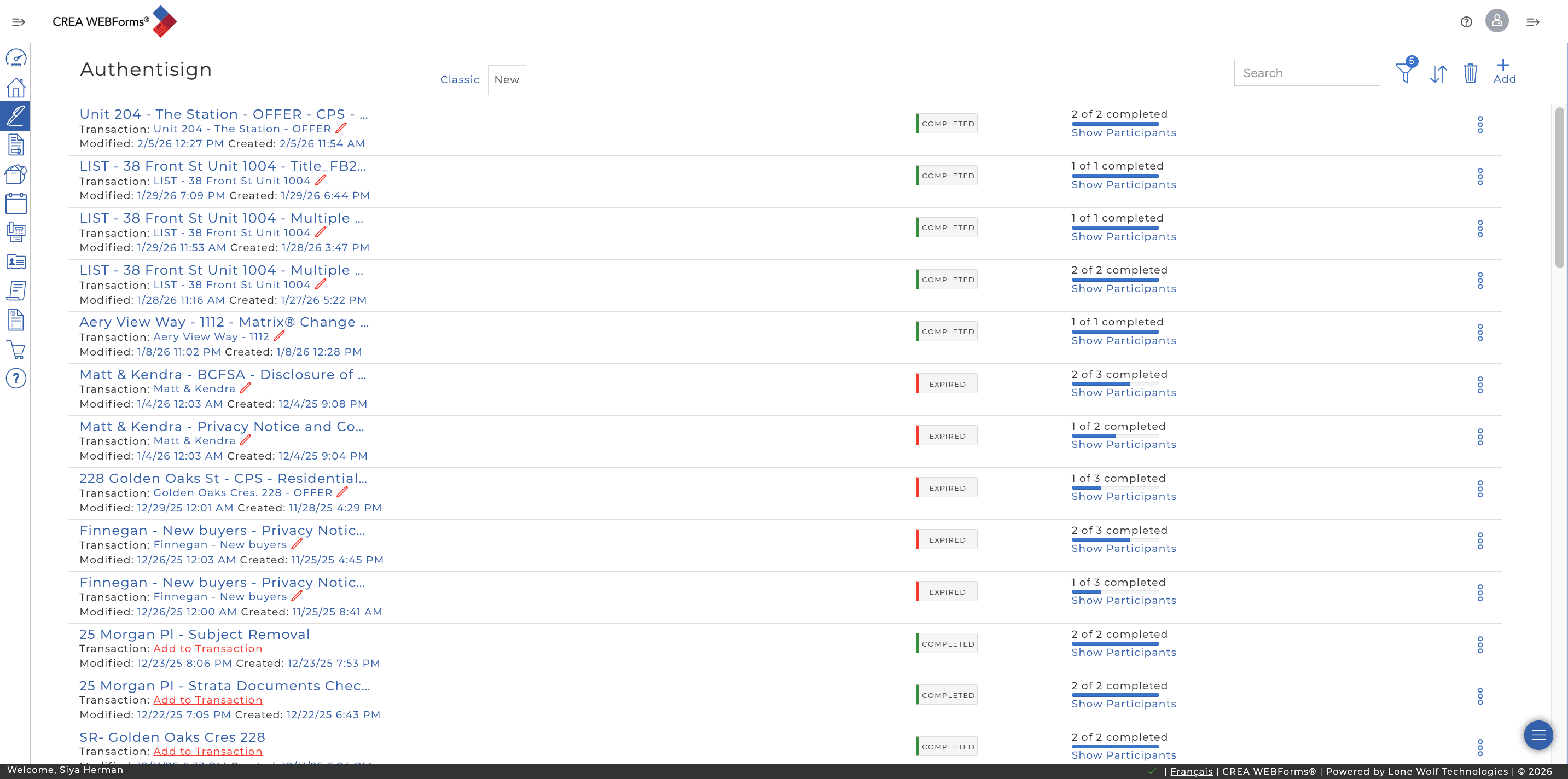
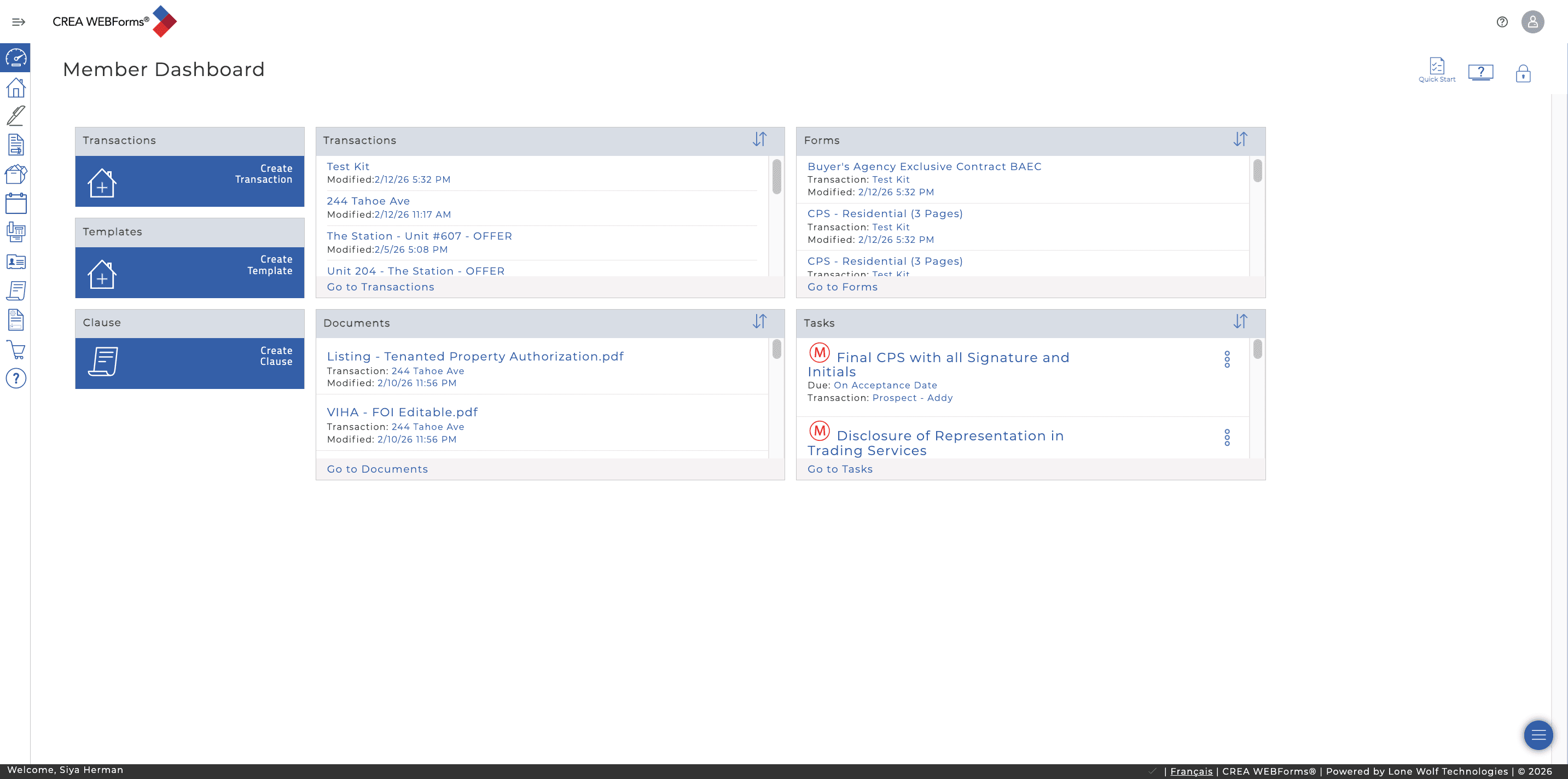
Click here the Authentisign Icon
Step #2: Click here the Authentisign Icon

Click this icon.

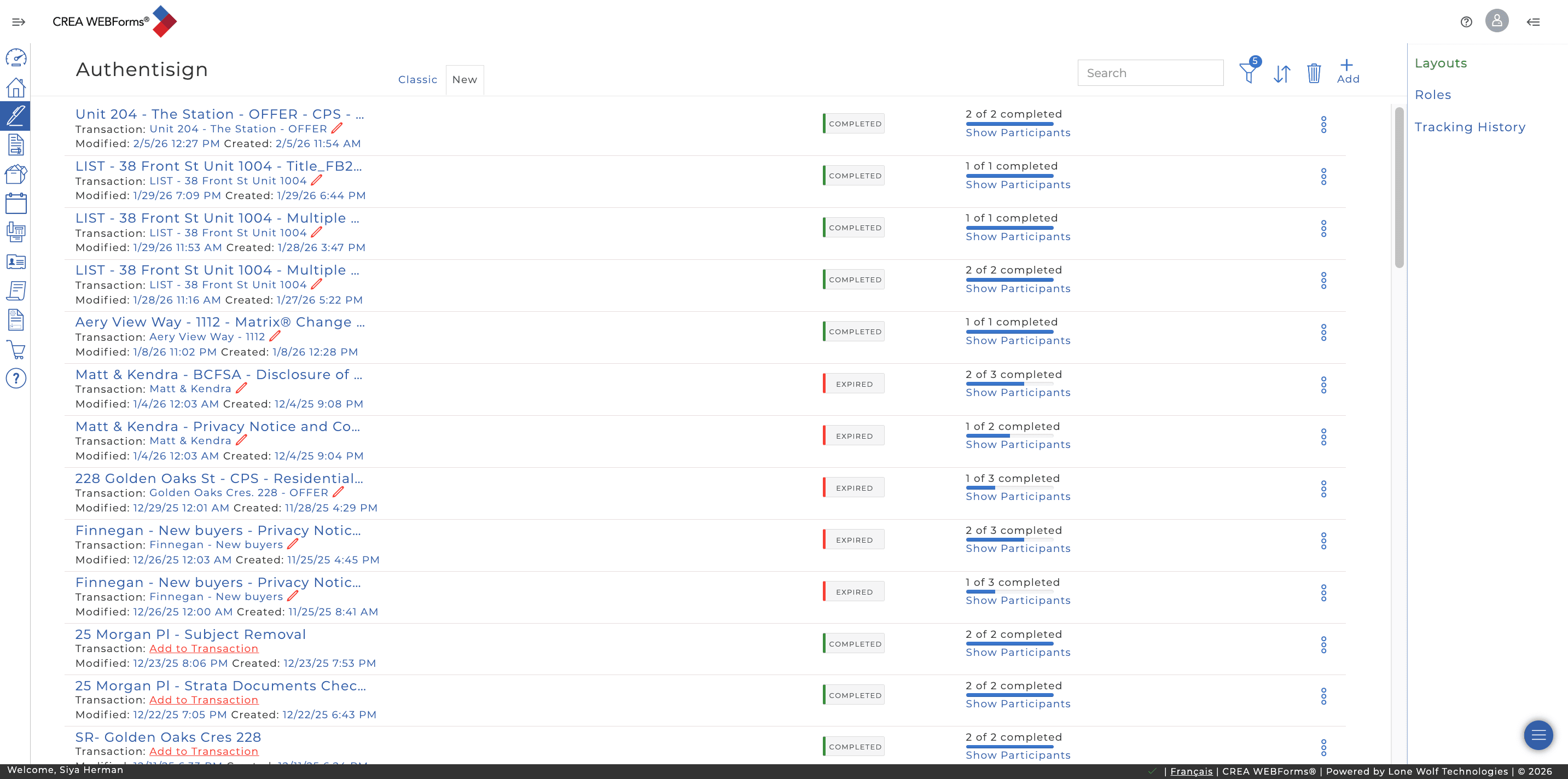
3
Click here
Step #3: Click here
4
Then, choose Layouts.
Step #4: Then, choose Layouts.
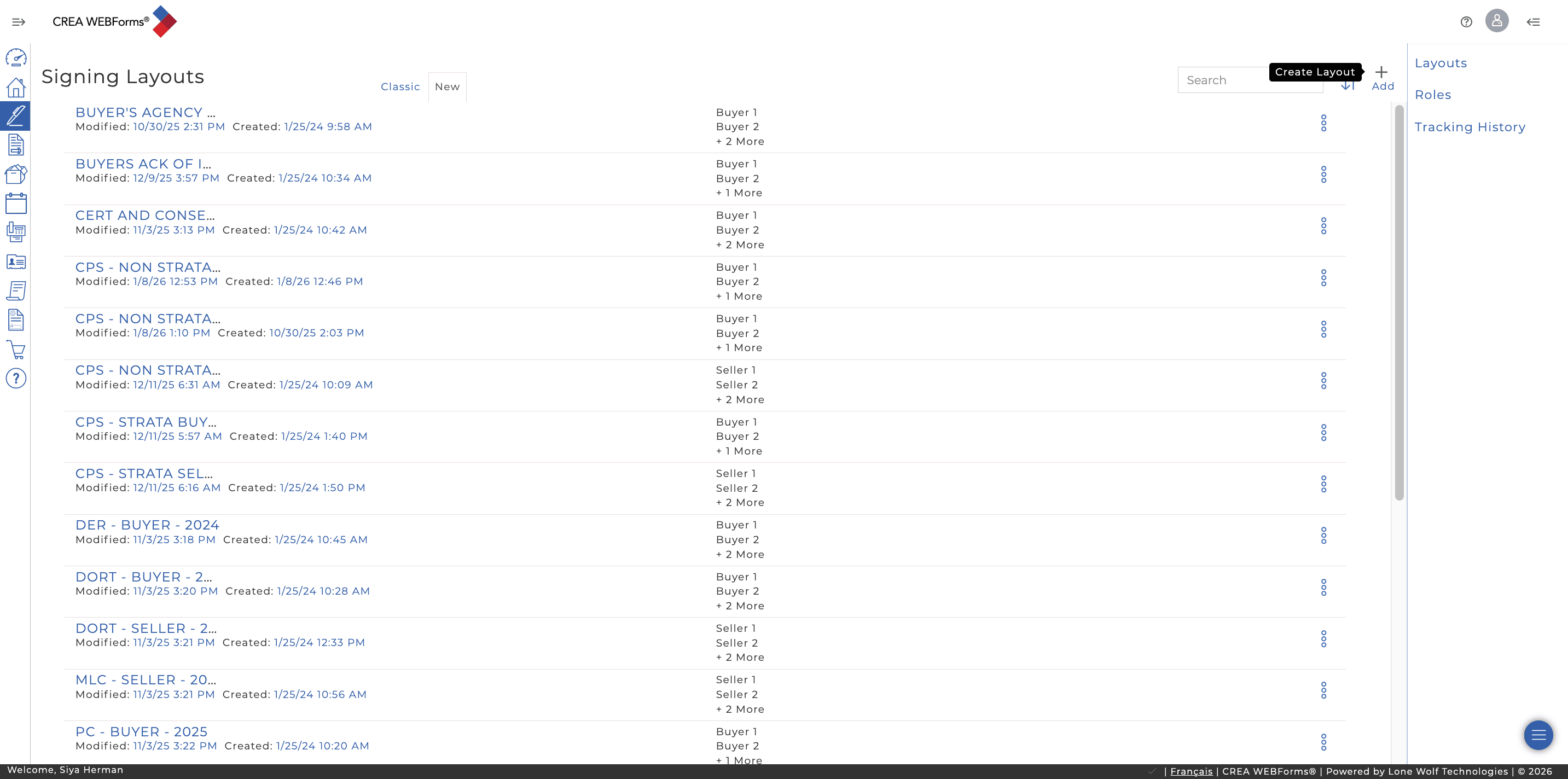
5
Click this icon to create layout
Step #5: Click this icon to create layout

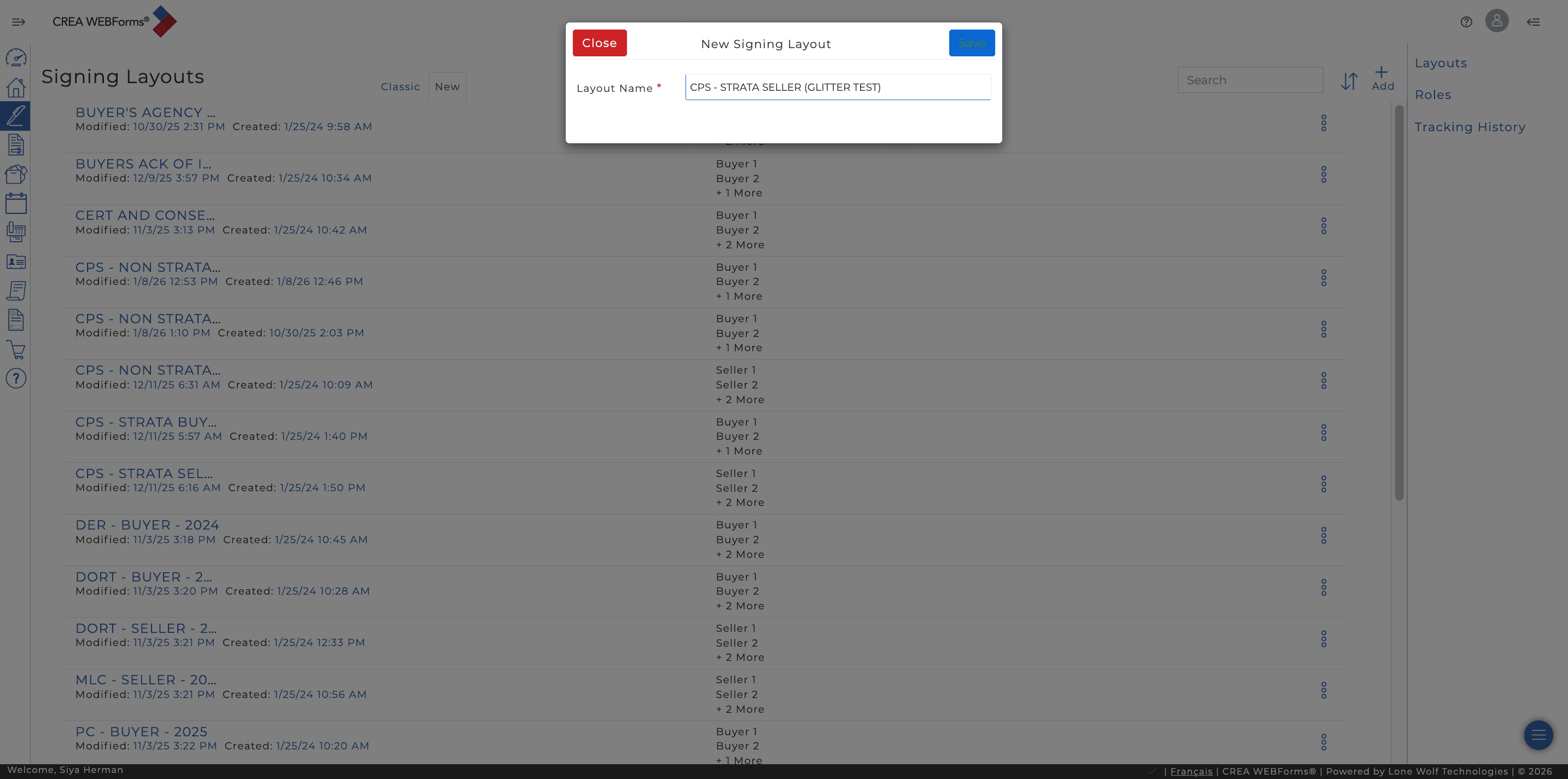
Enter the layout name, "CPS Strata Seller"
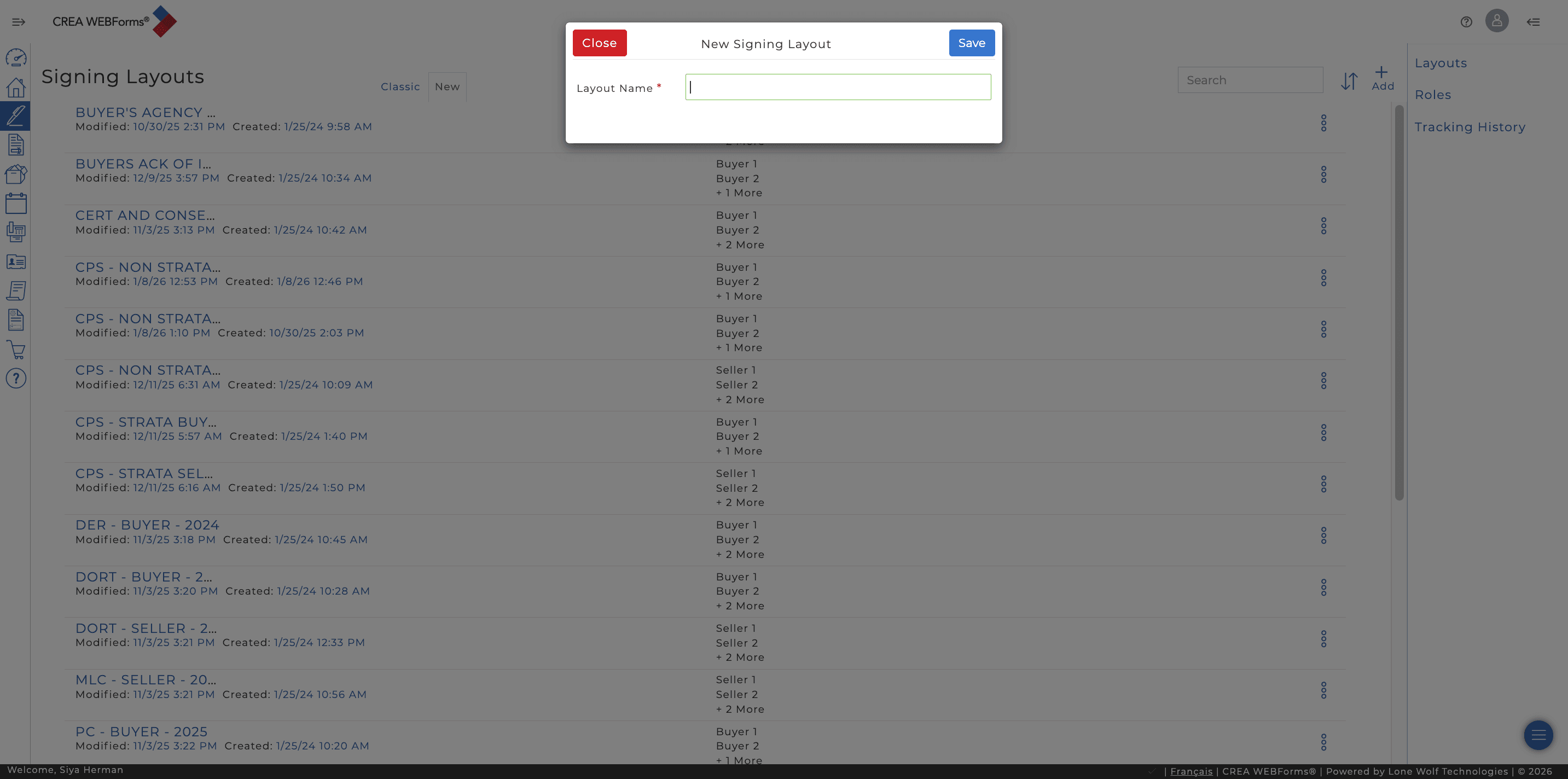
6
Click here
Step #6: Click here
7
Then click Save.
Step #7: Then click Save.

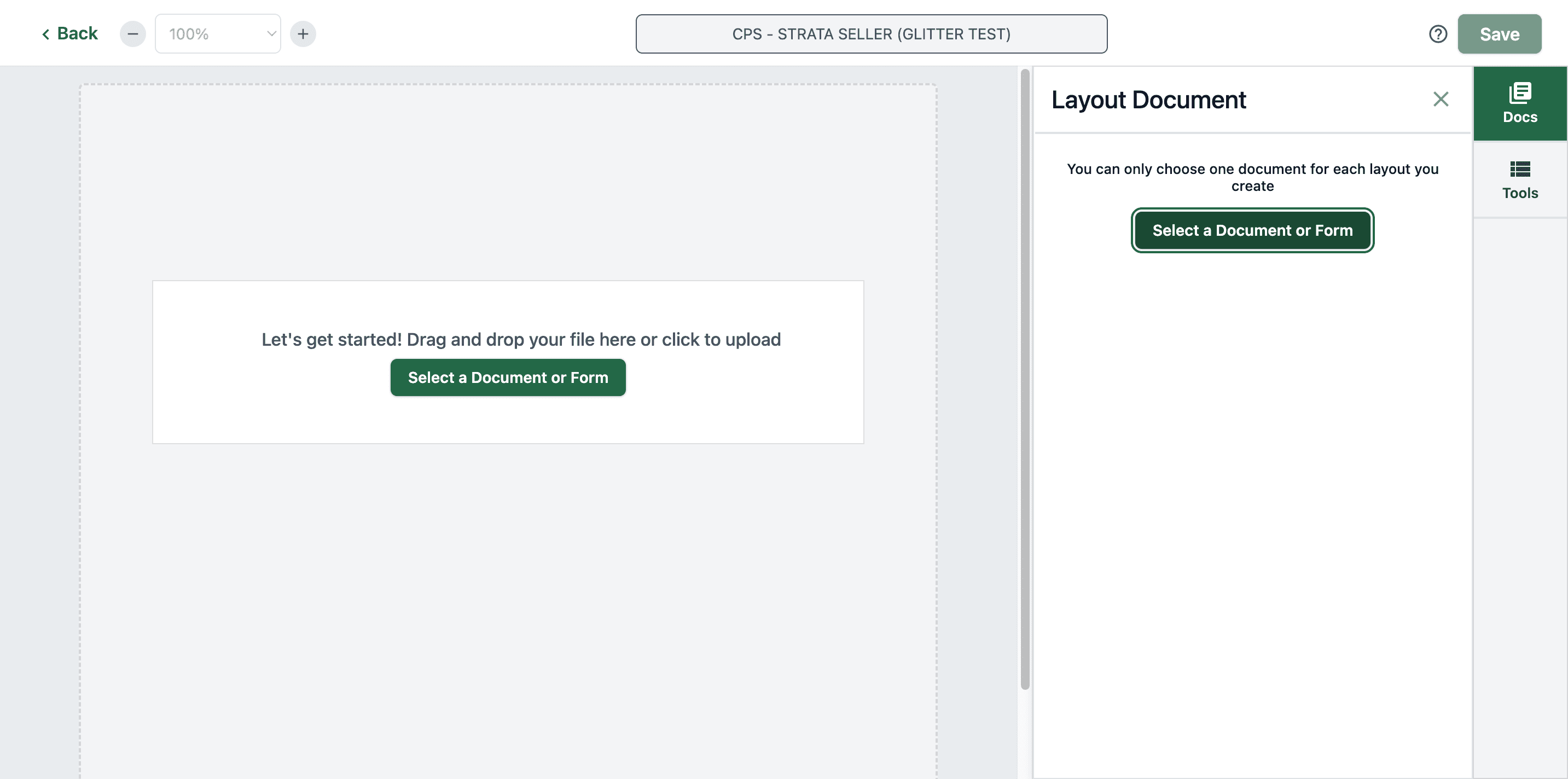
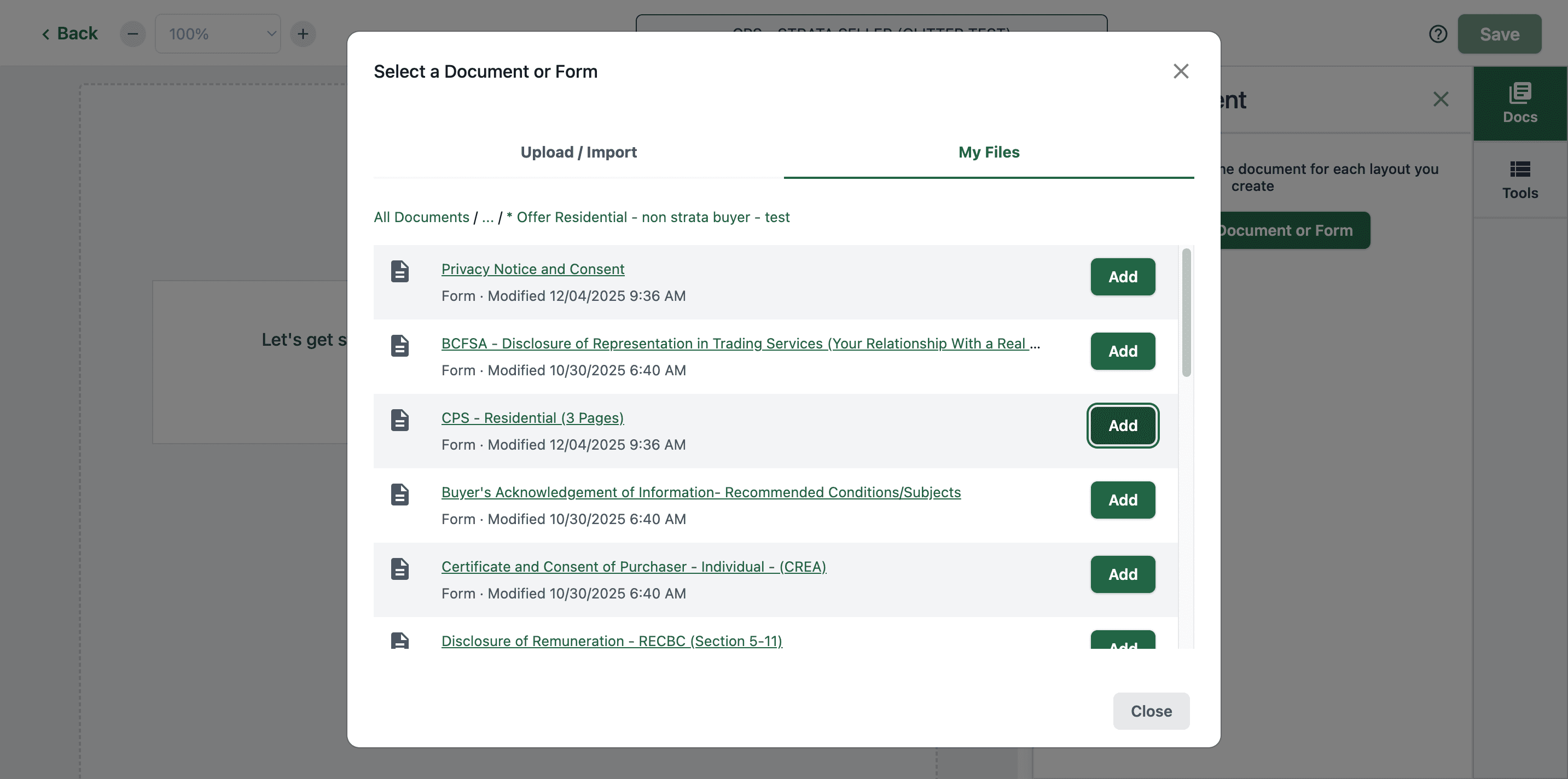
Next, select a document or form.

8
Click on "Select a Document or Form"
Step #8: Click on "Select a Document or Form"

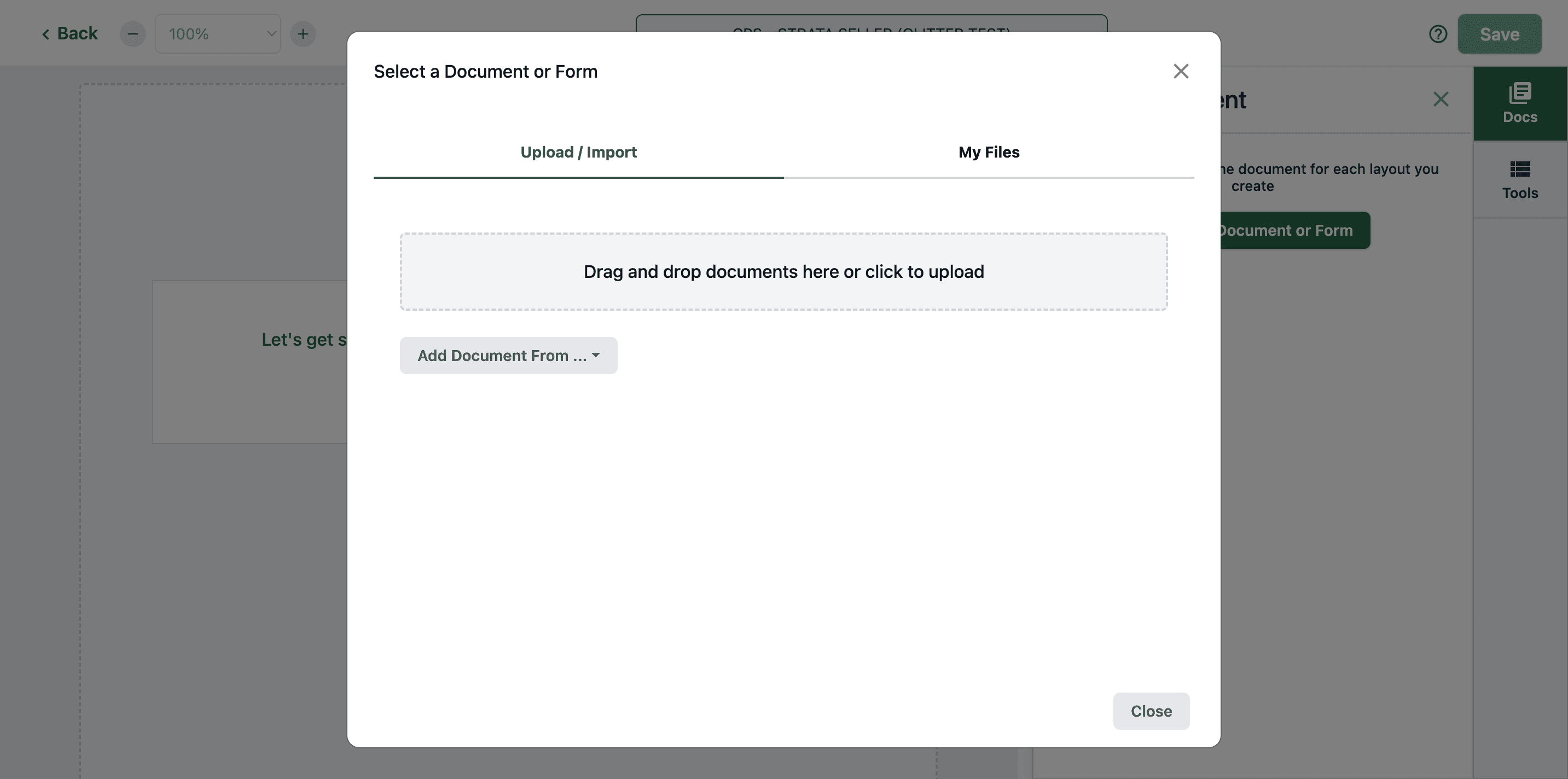
Go to My Files.

9
Click on "My Files"
Step #9: Click on "My Files"

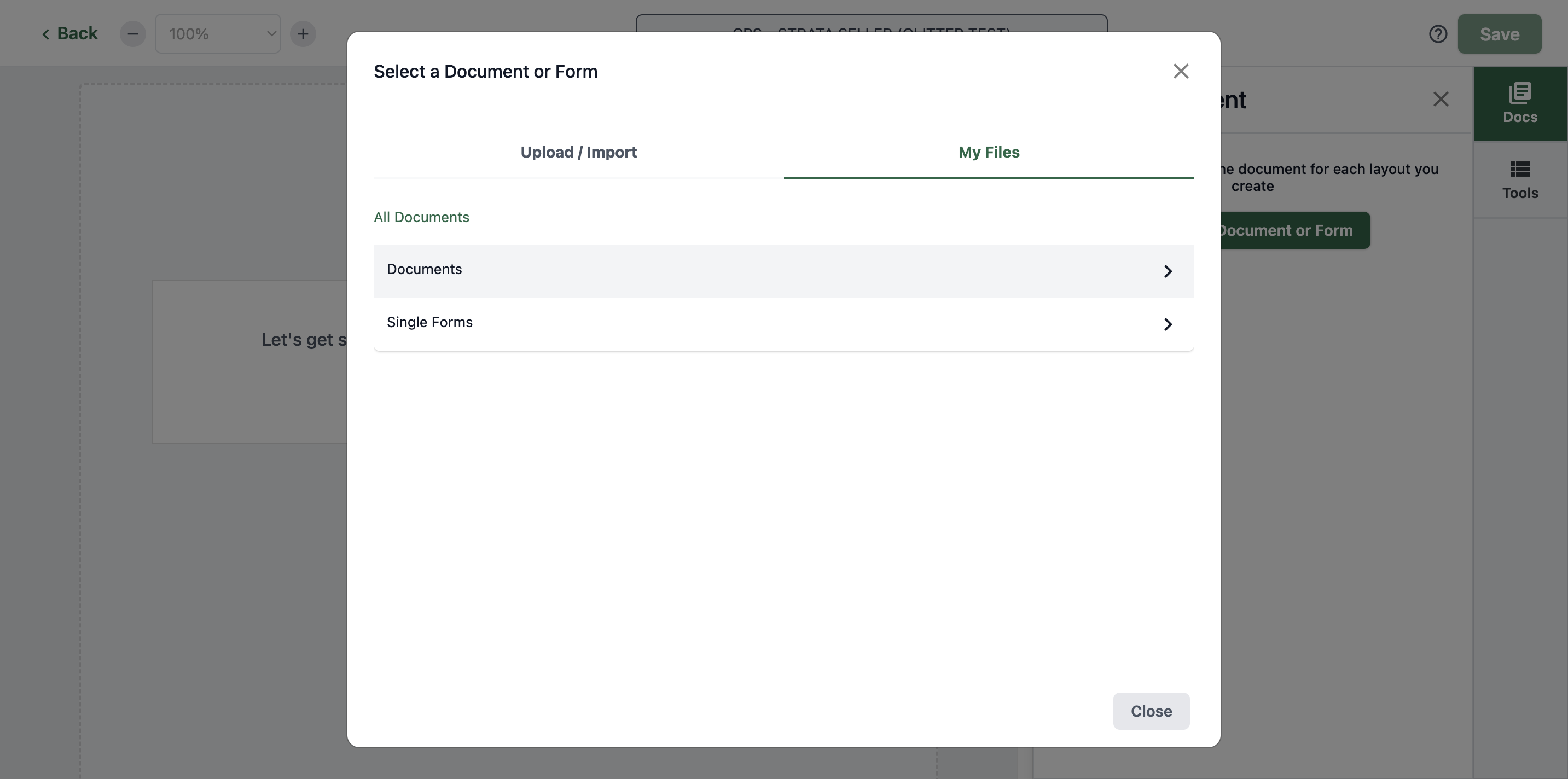
Click Single Forms.

10
Click here
Step #10: Click here

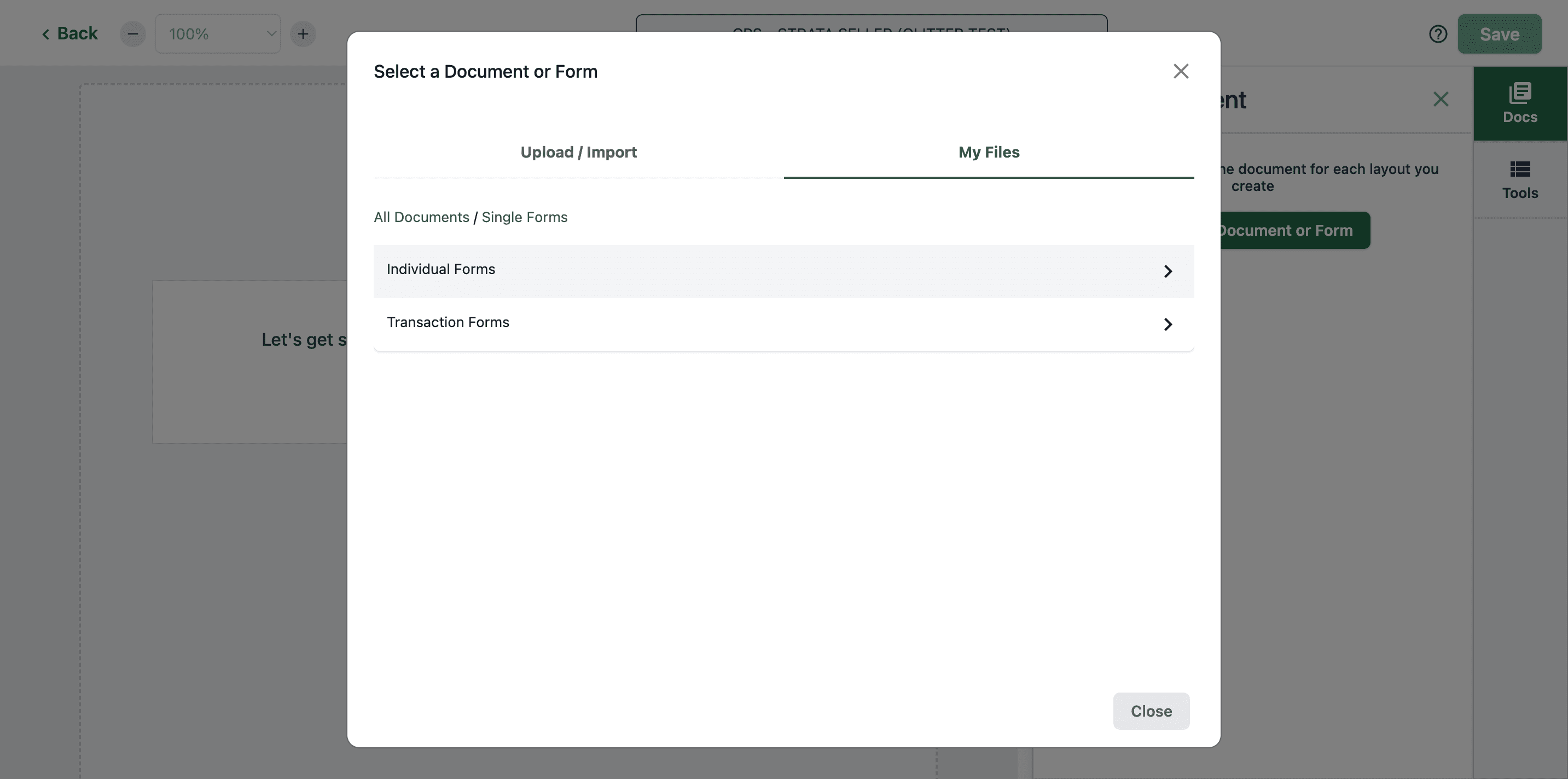
Click Transaction Forms.

11
Click here
Step #11: Click here

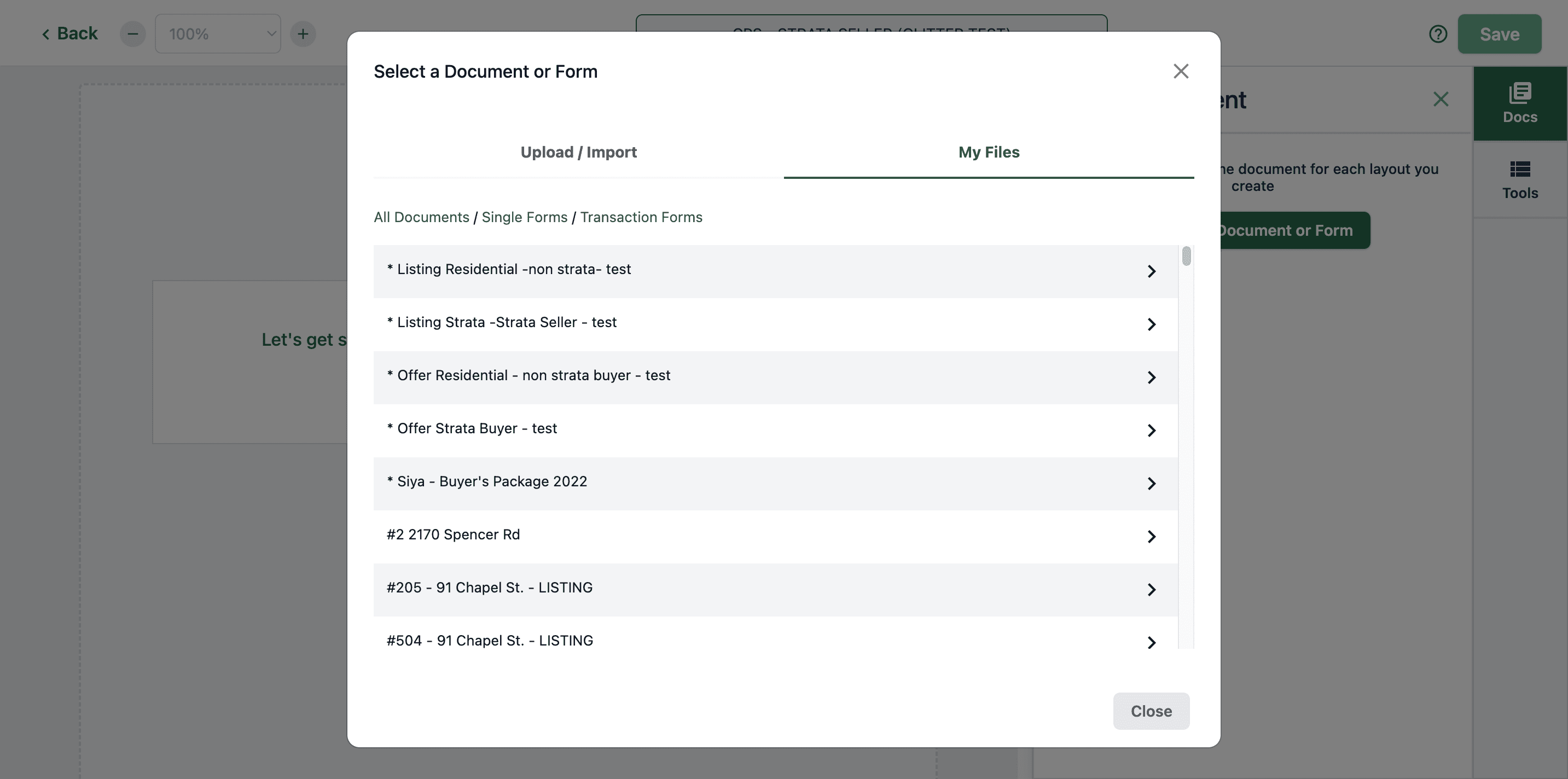
Click "Offer Residential Non-Strata Buyer." Click the cps-residential-3-pages.
12
Click on "Offer Residential - non strata buyer - test"
Step #12: Click on "Offer Residential - non strata buyer - test"

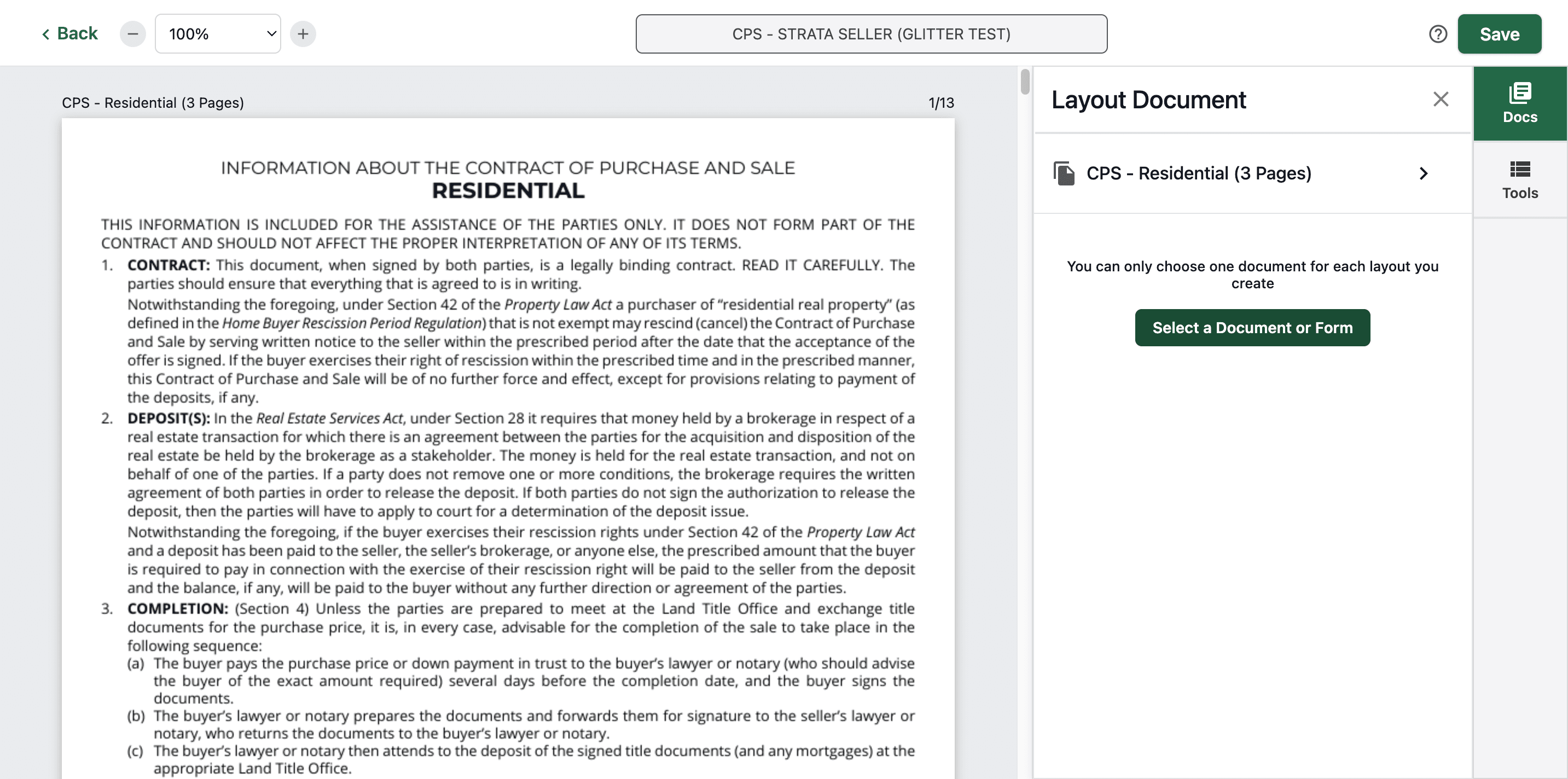
Add that.

13
Click on "Add"
Step #13: Click on "Add"

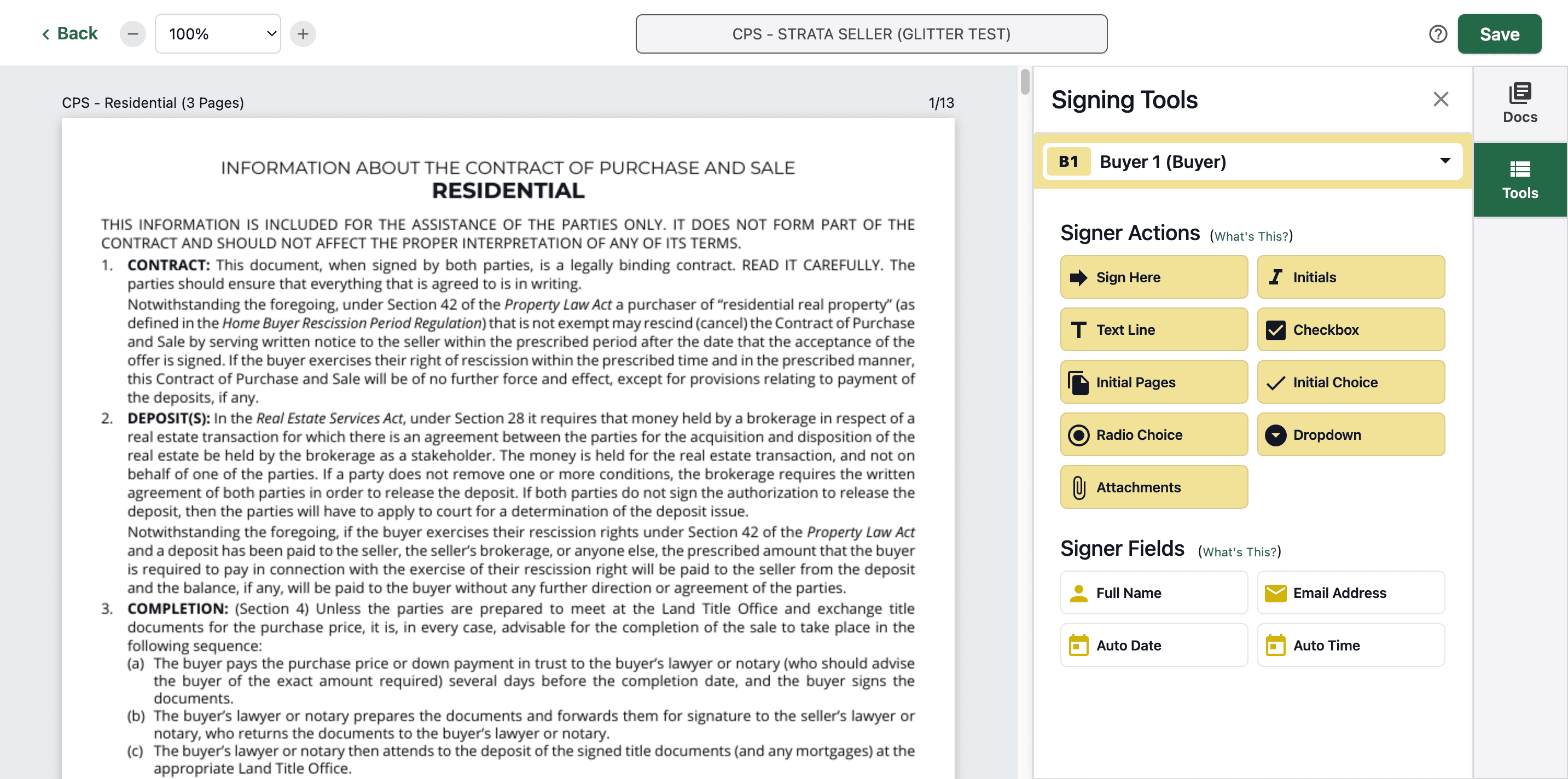
Then, go to Tools.

14
Click on "Tools"
Step #14: Click on "Tools"

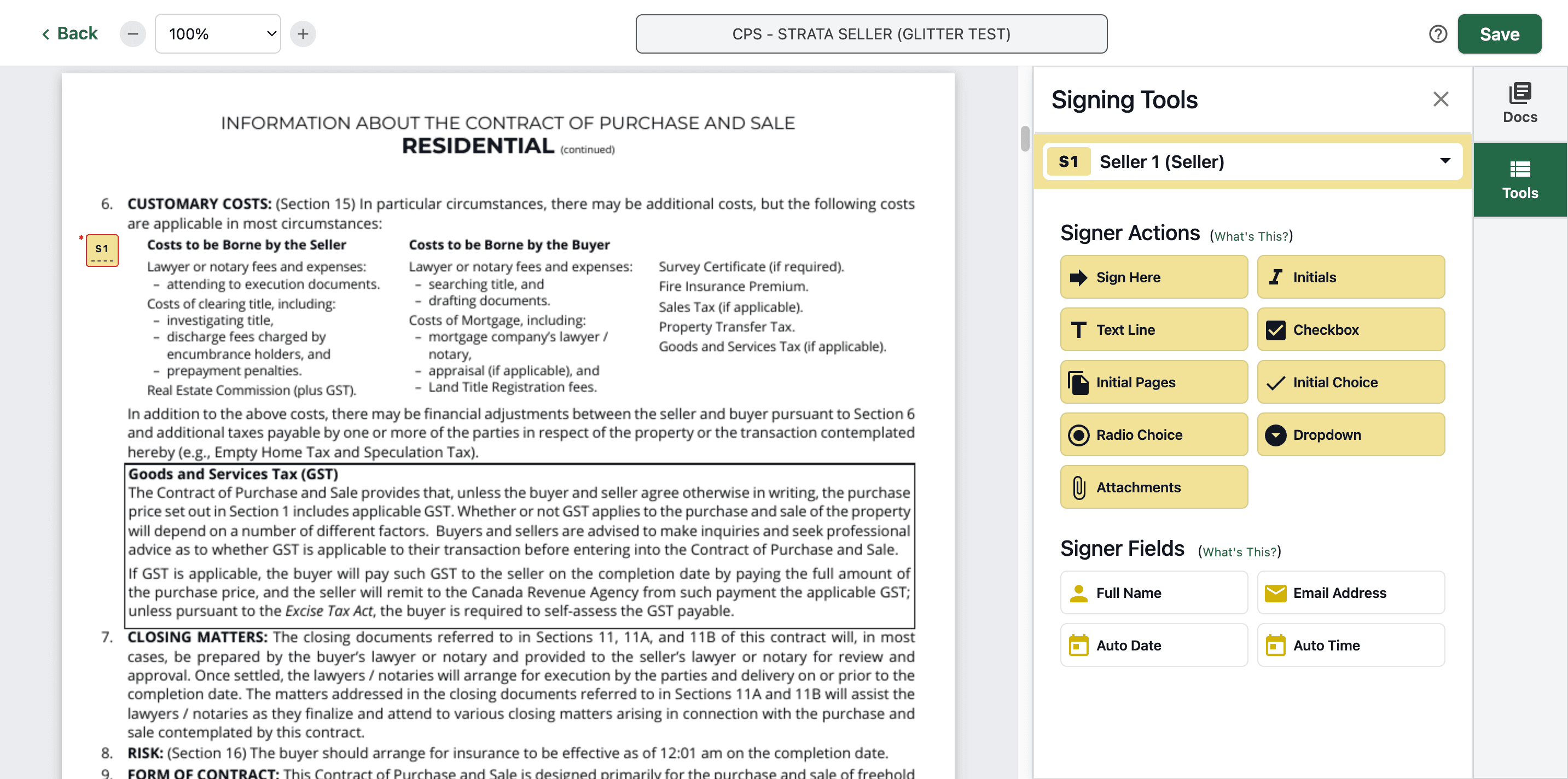
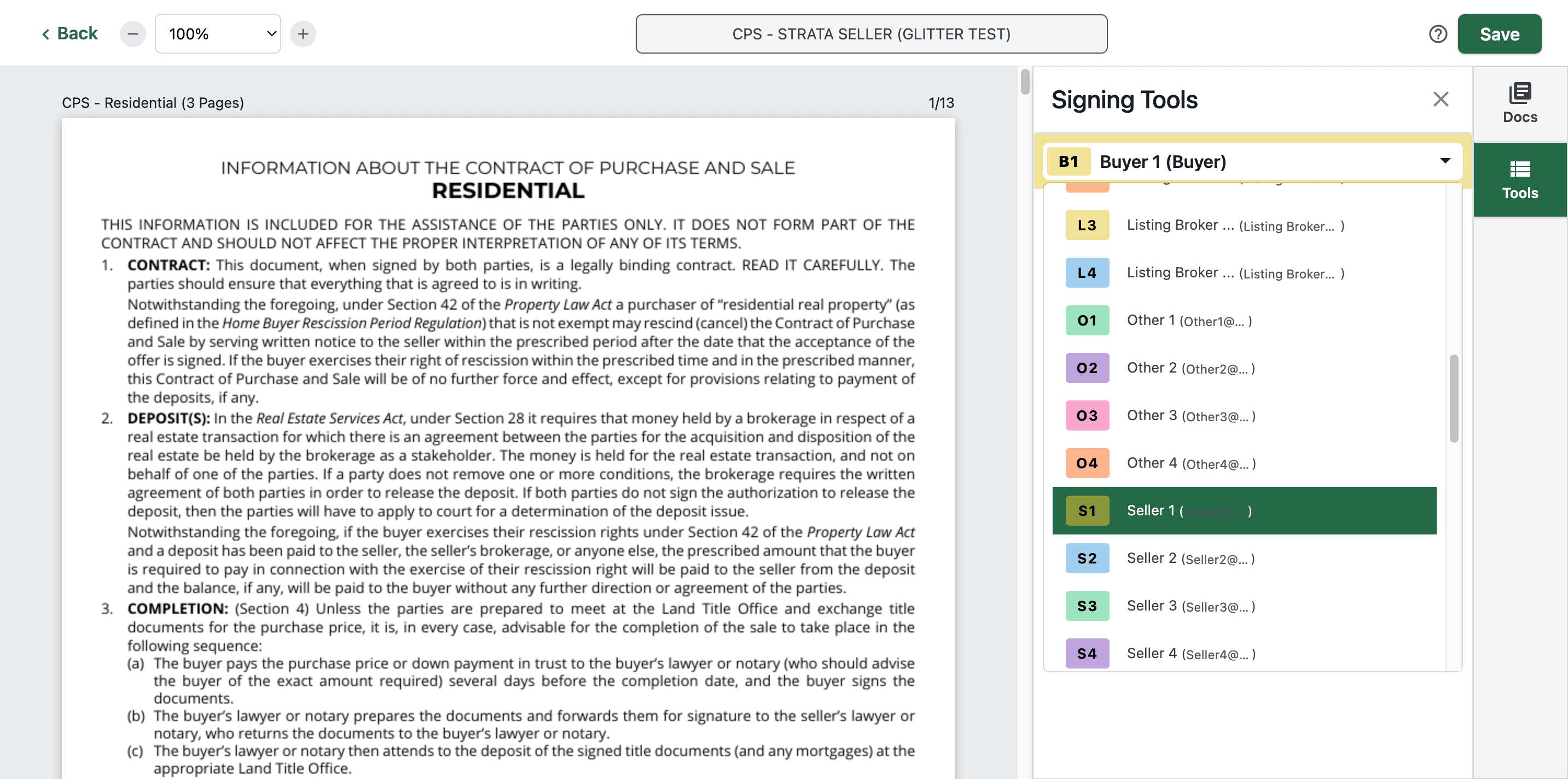
Find the seller.

15
Click here
Step #15: Click here

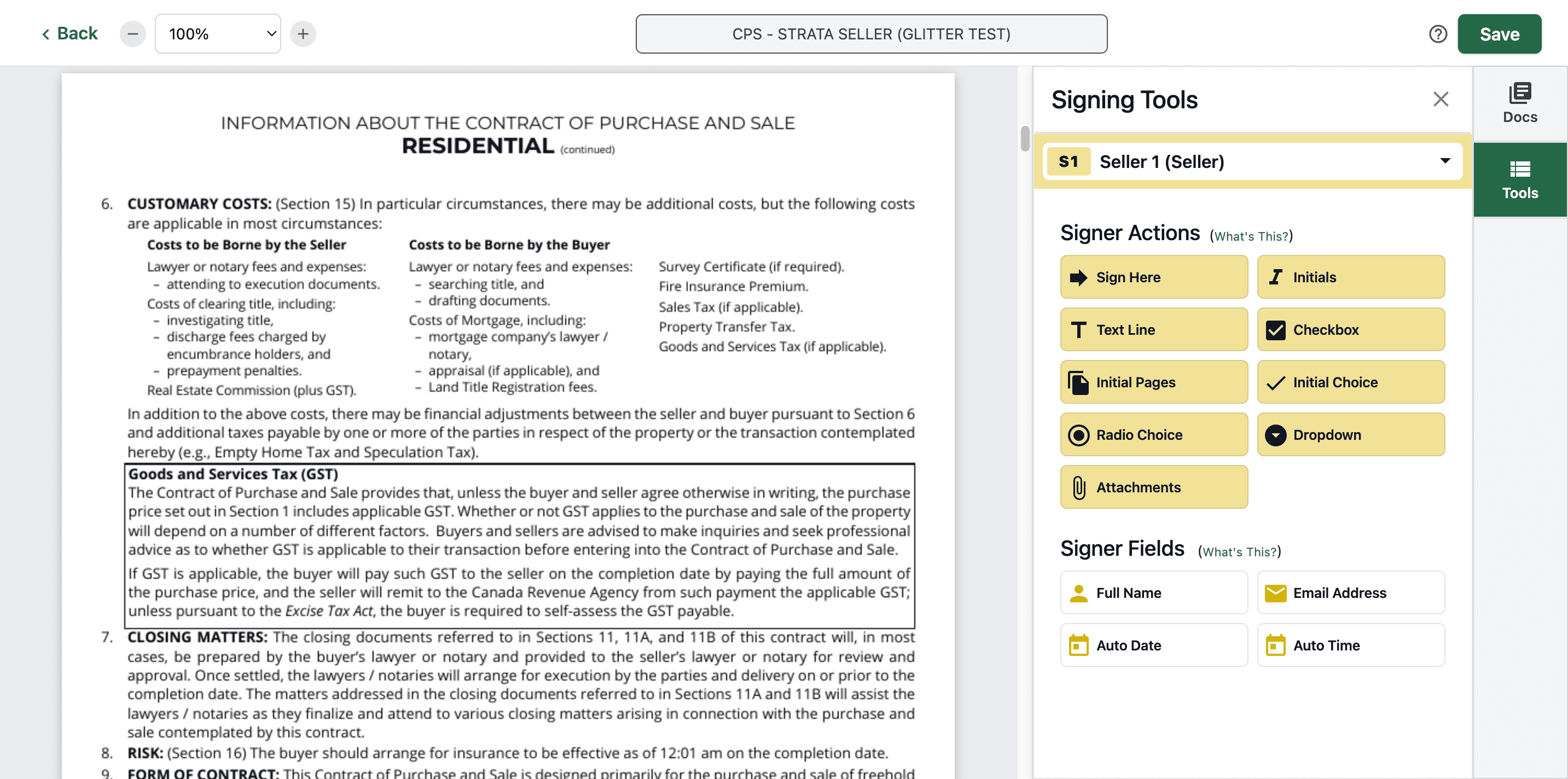
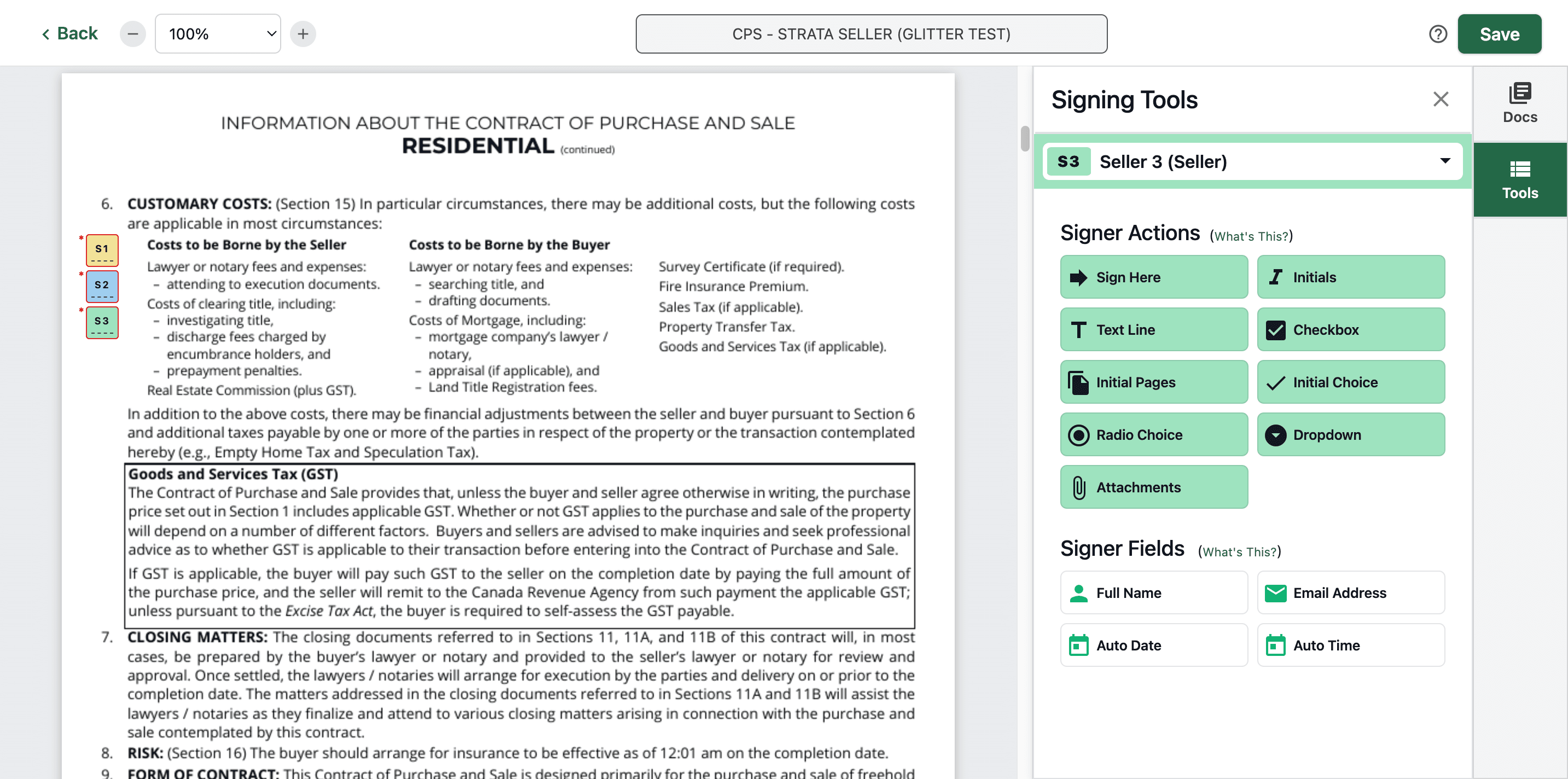
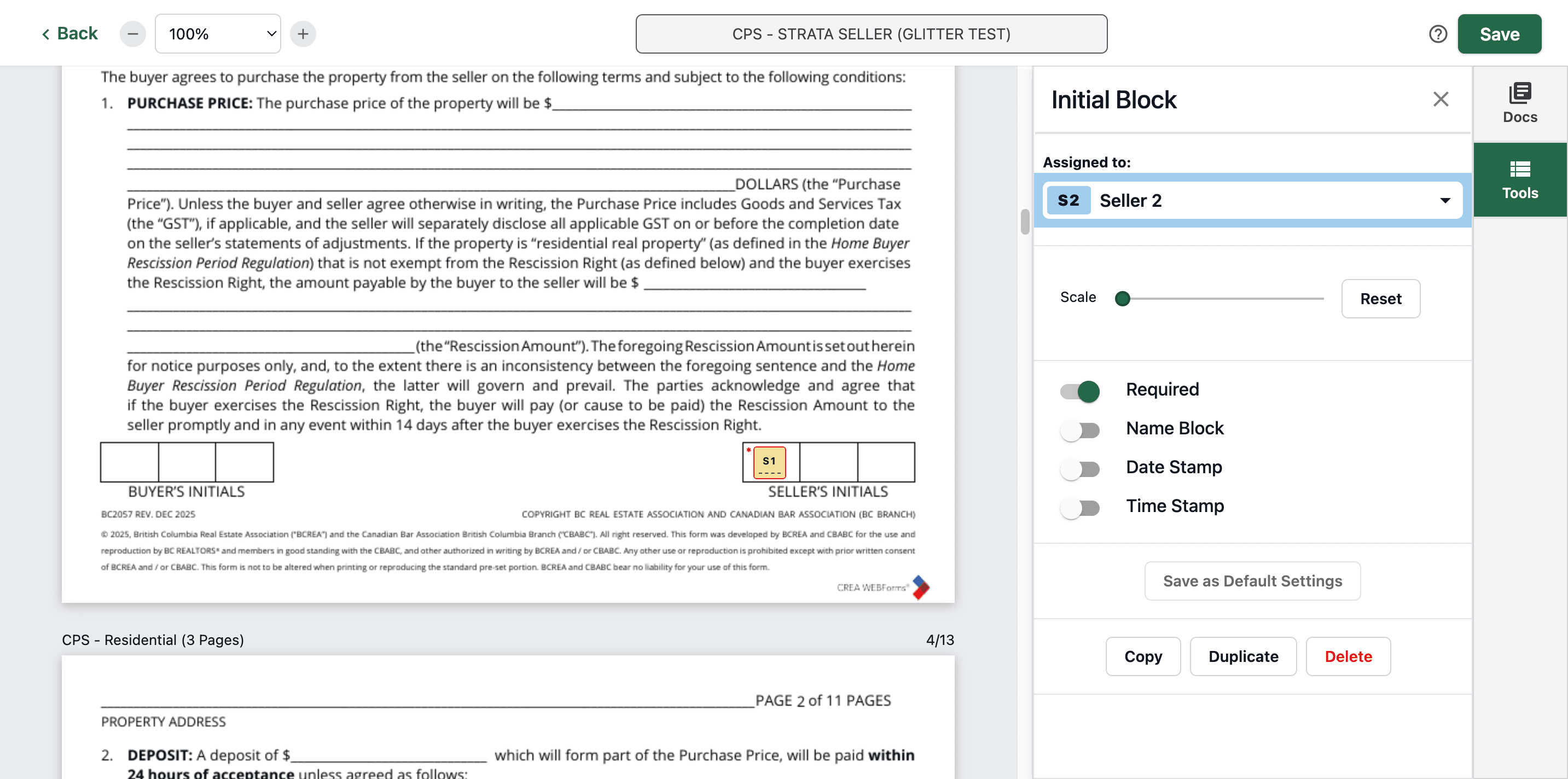
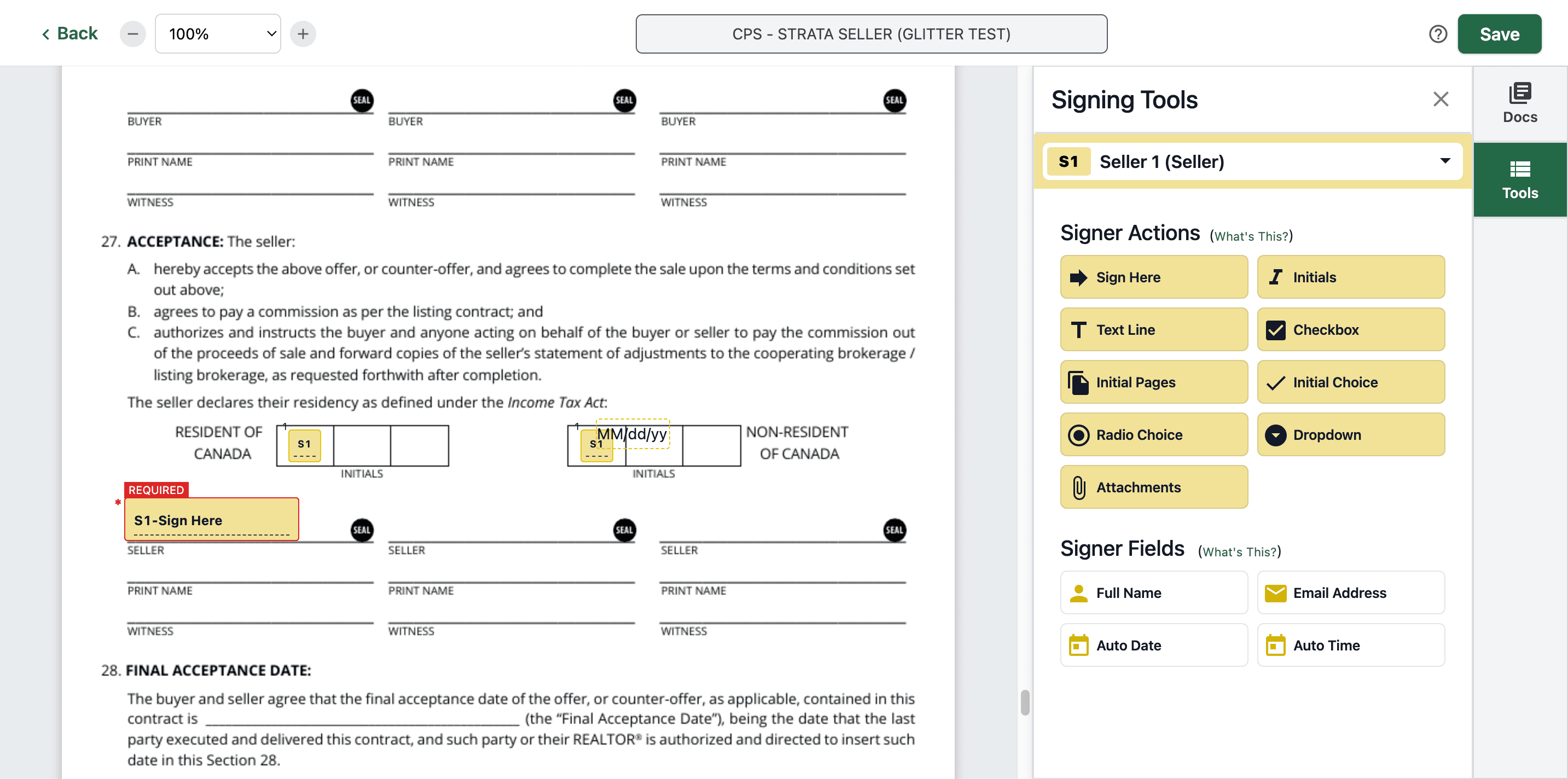
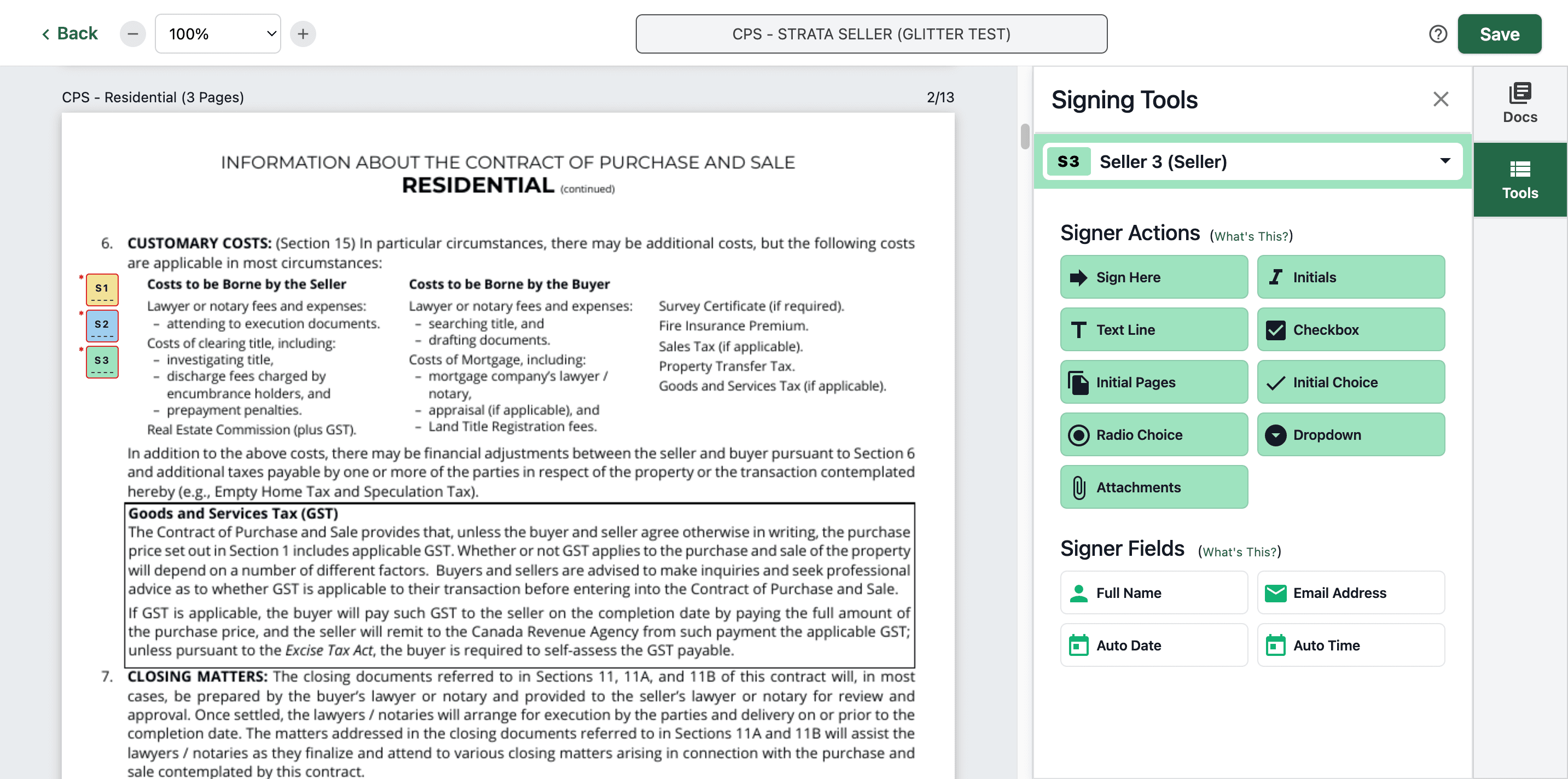
Start adding the initials on the second page in this section.
16
Click on "( Seller1 @"
Step #16: Click on "( Seller1 @"

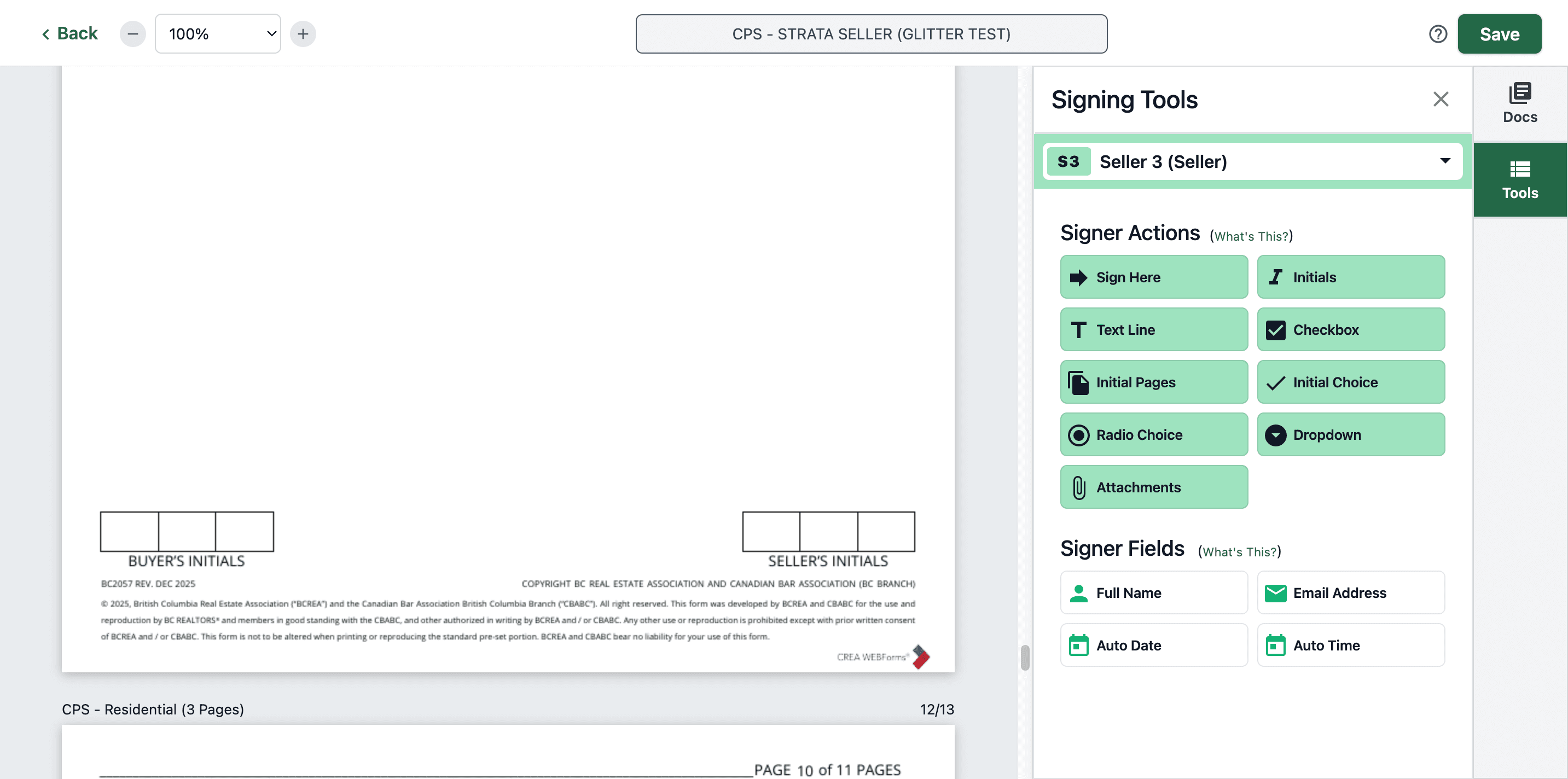
Click Initials.

17
Click on "Initials"
Step #17: Click on "Initials"

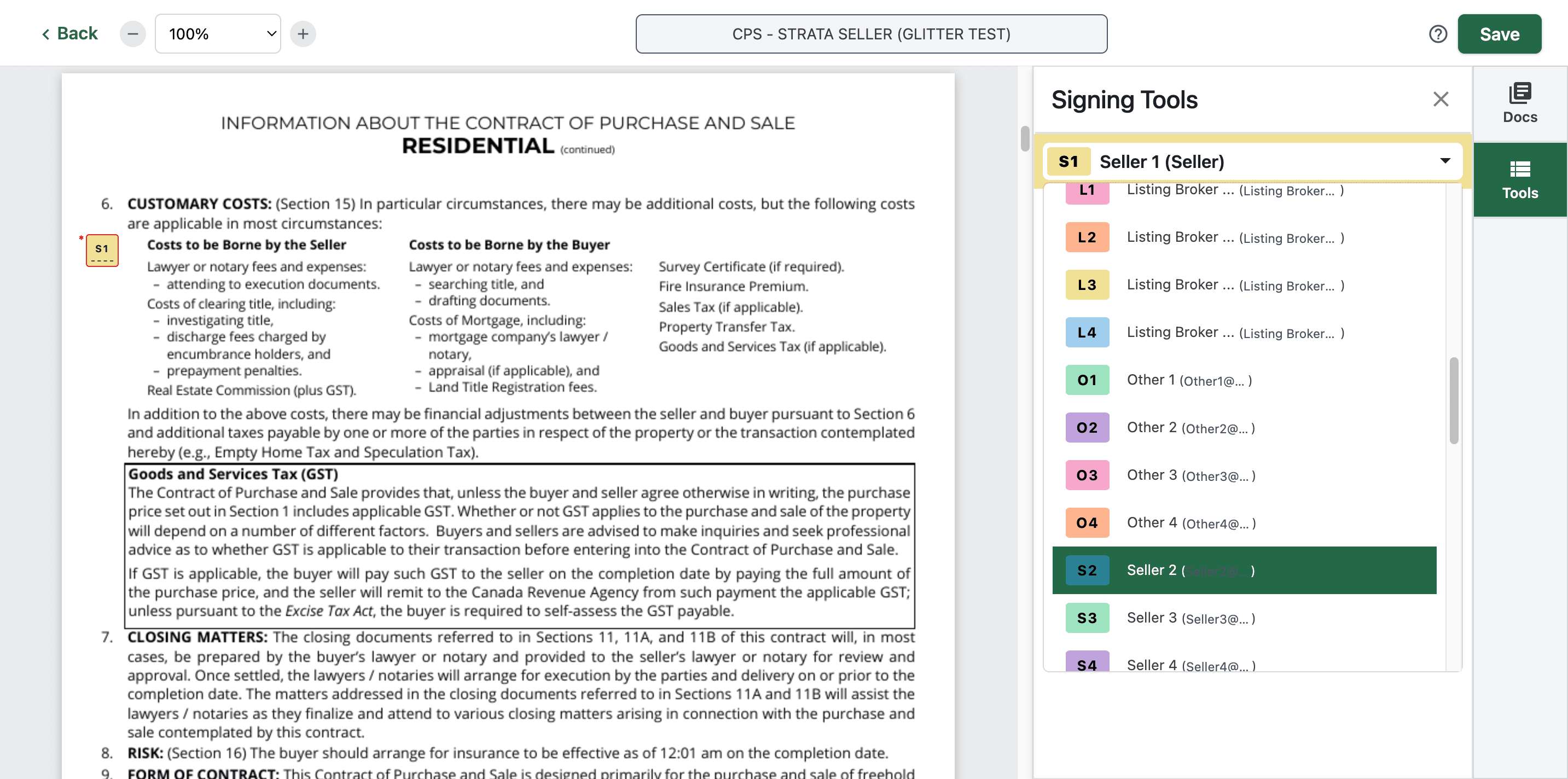
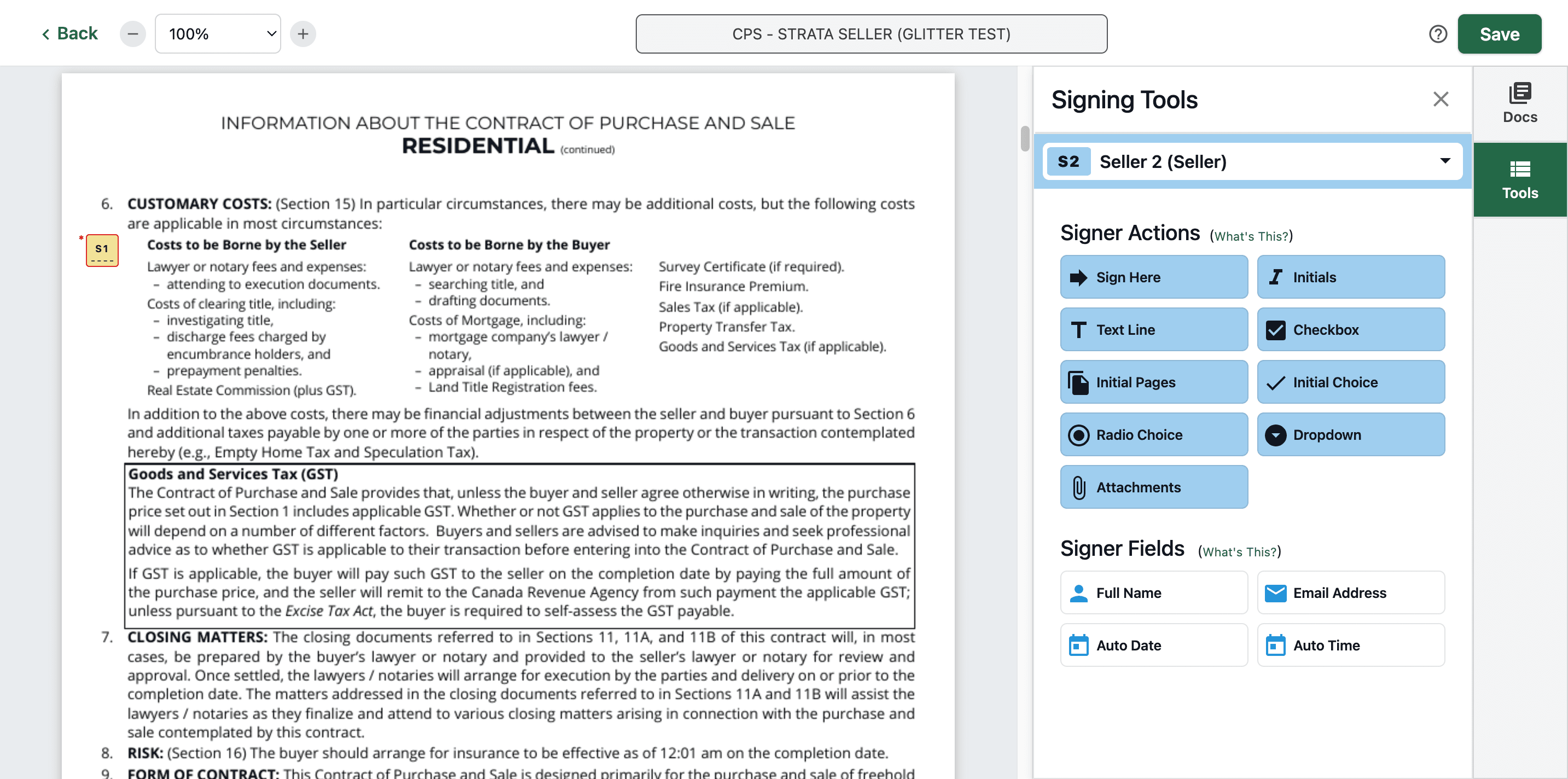
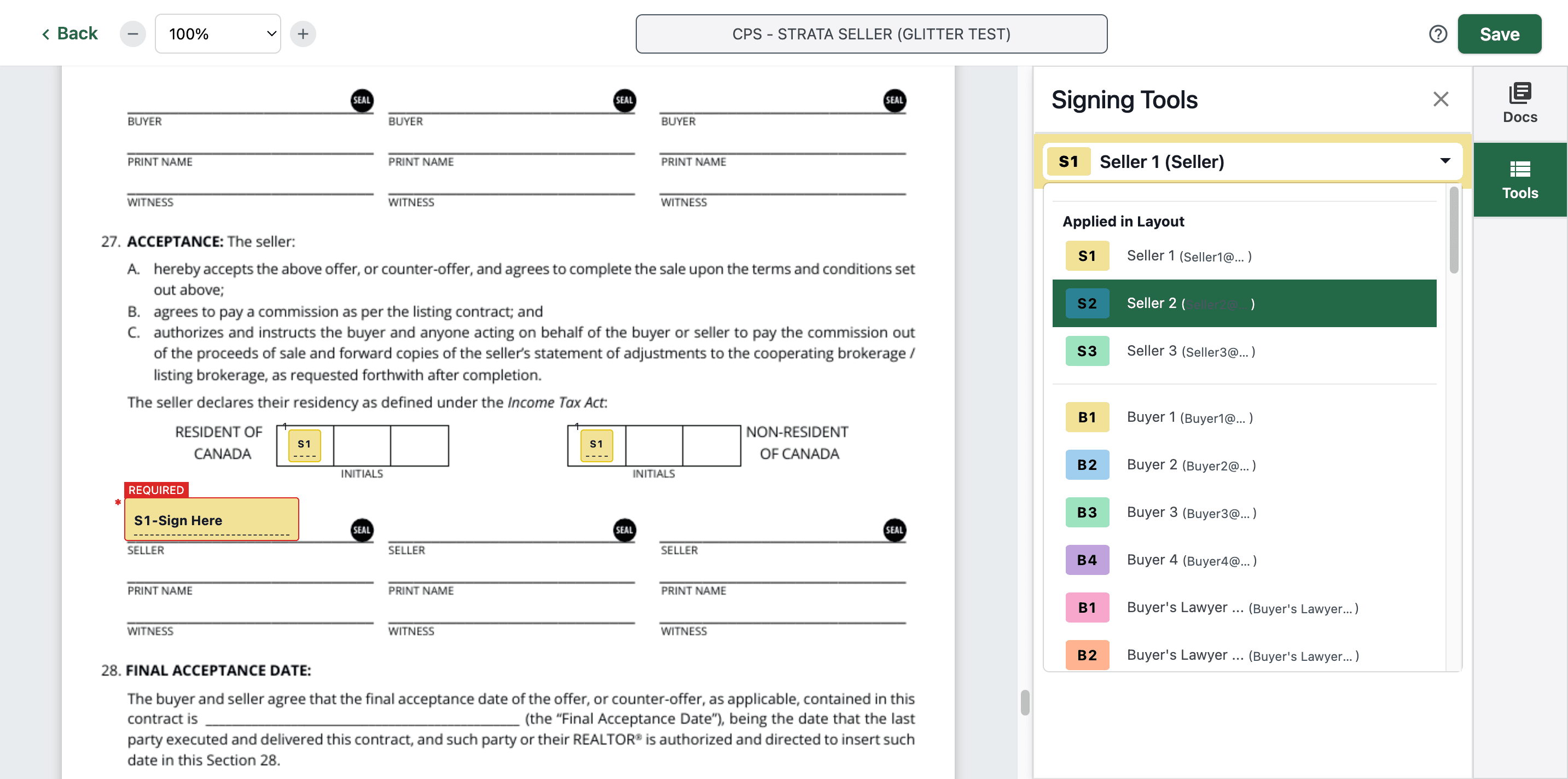
Then find Seller 2.

18
Click on "Seller"
Step #18: Click on "Seller"
19
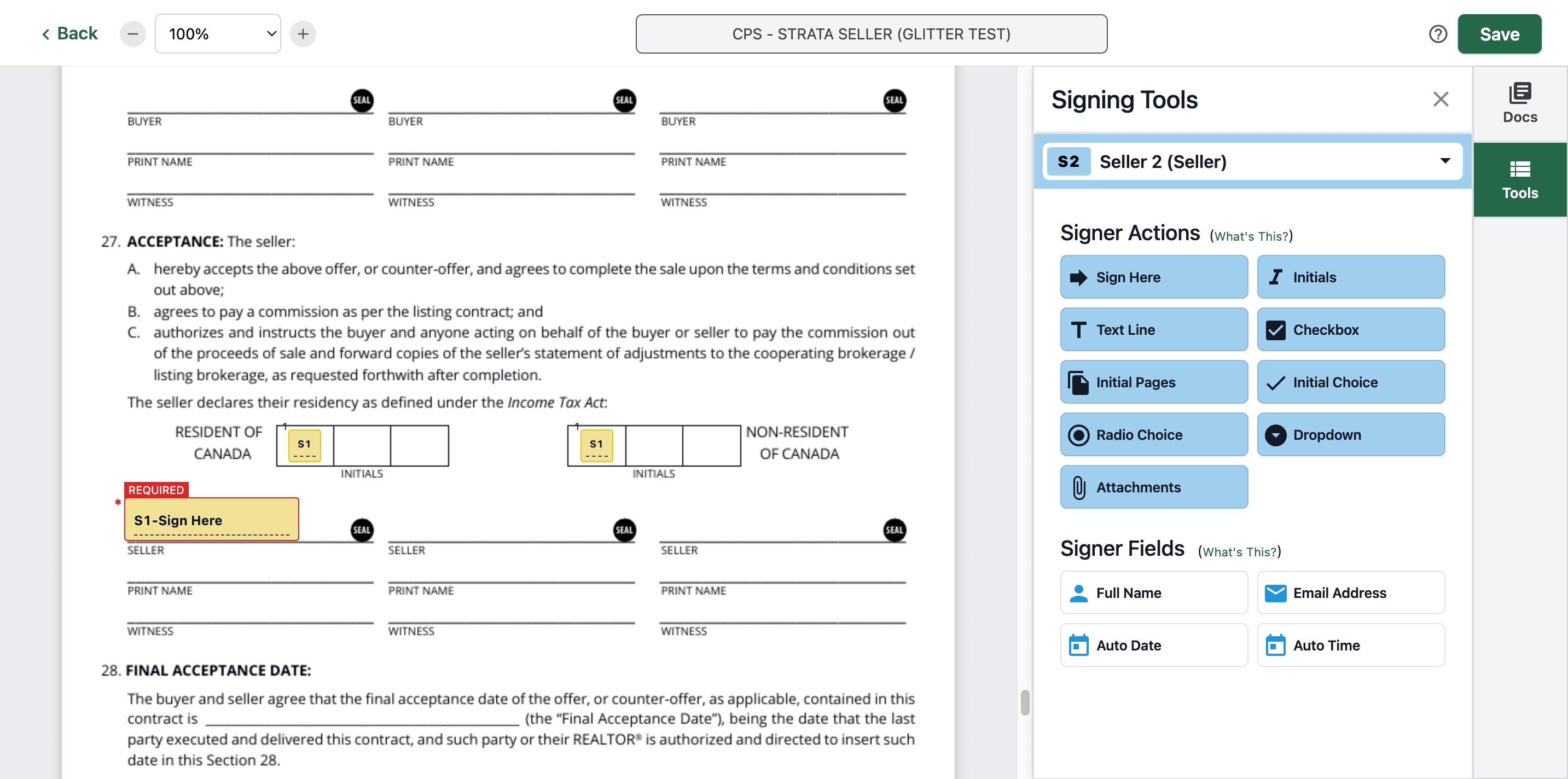
Click on "Seller 2"
Step #19: Click on "Seller 2"
20
Click
Step #20: Click

Find Seller 3.

21
Click on
Step #21: Click on

Initials again.

22
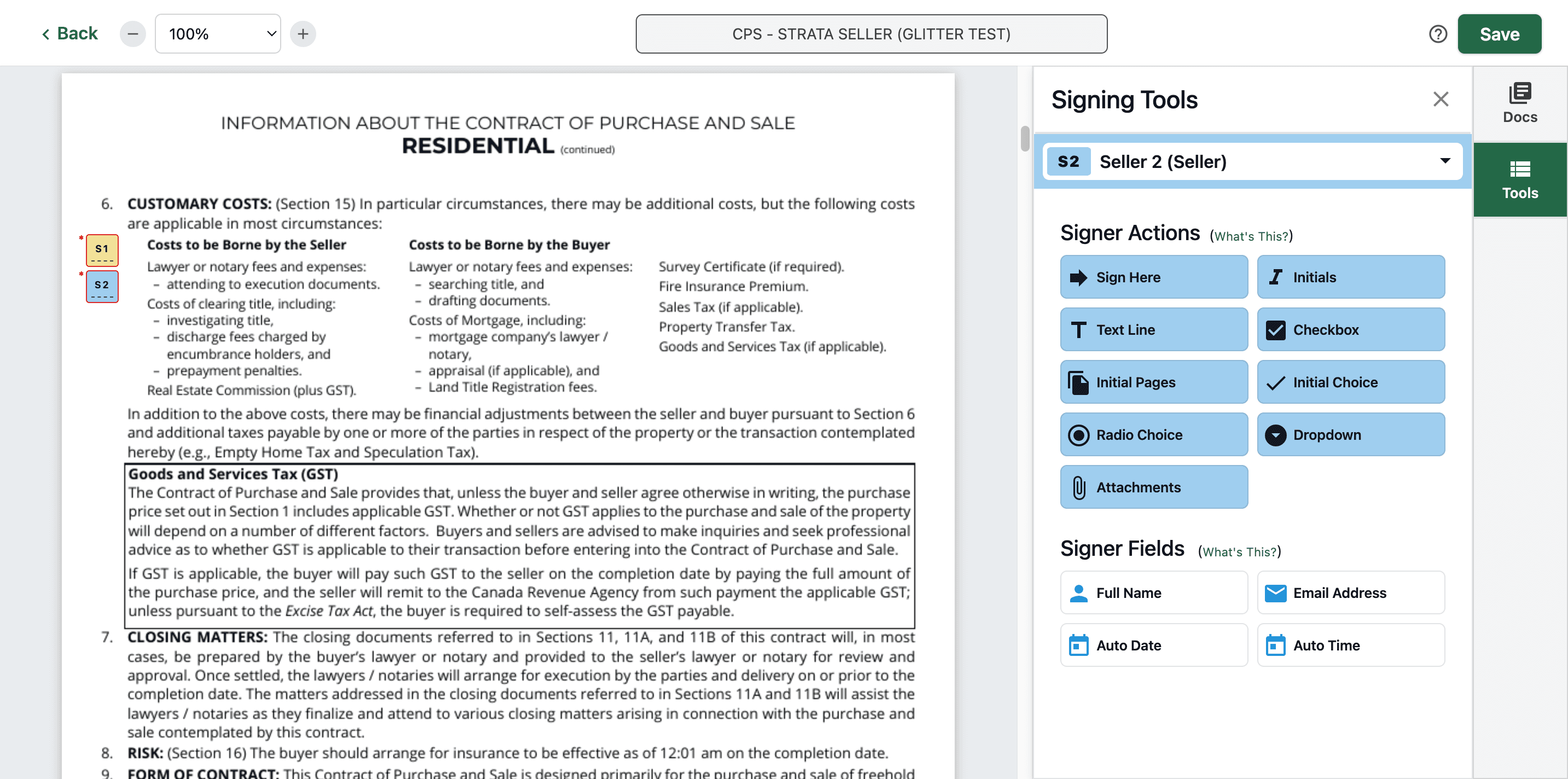
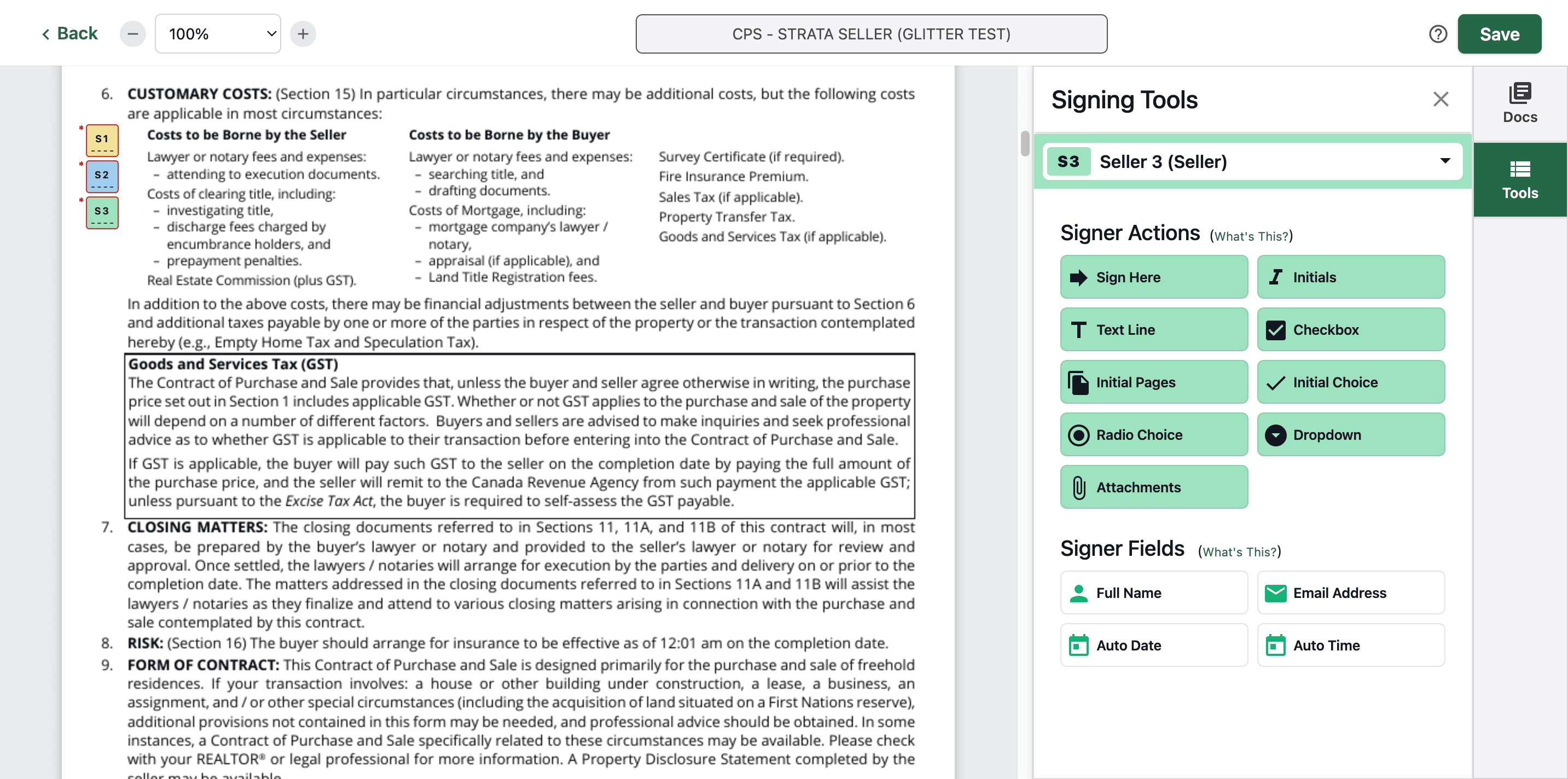
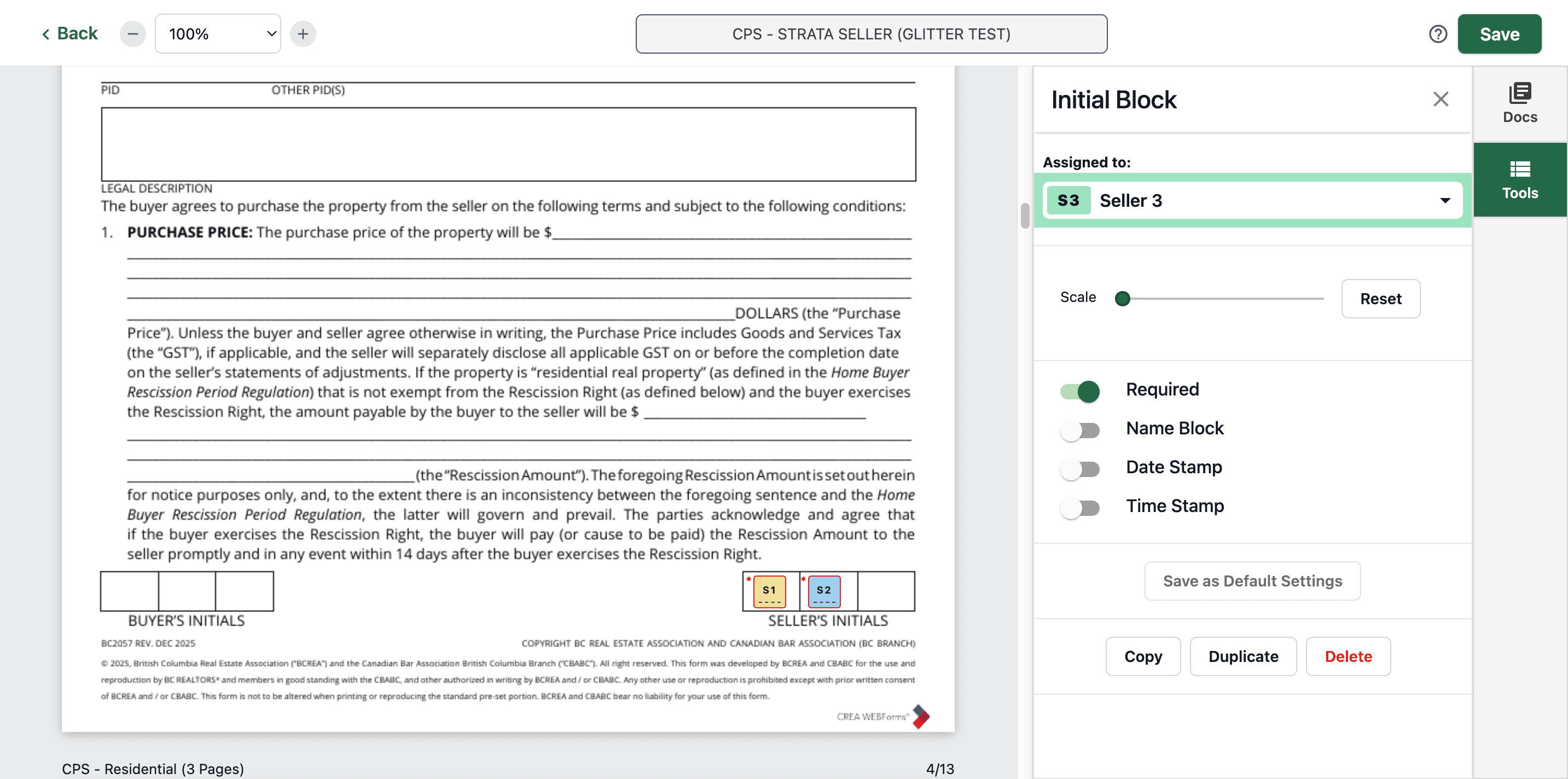
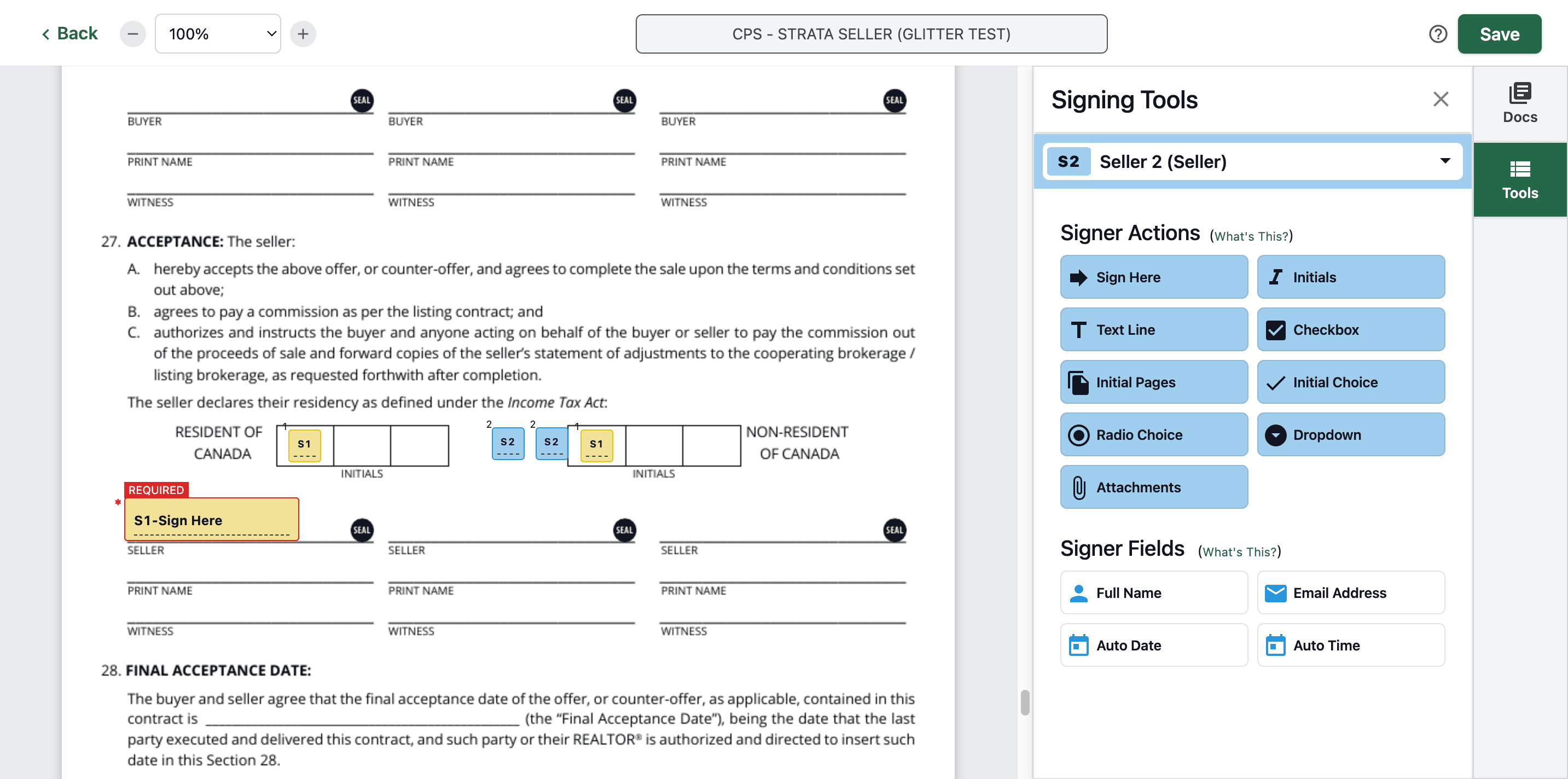
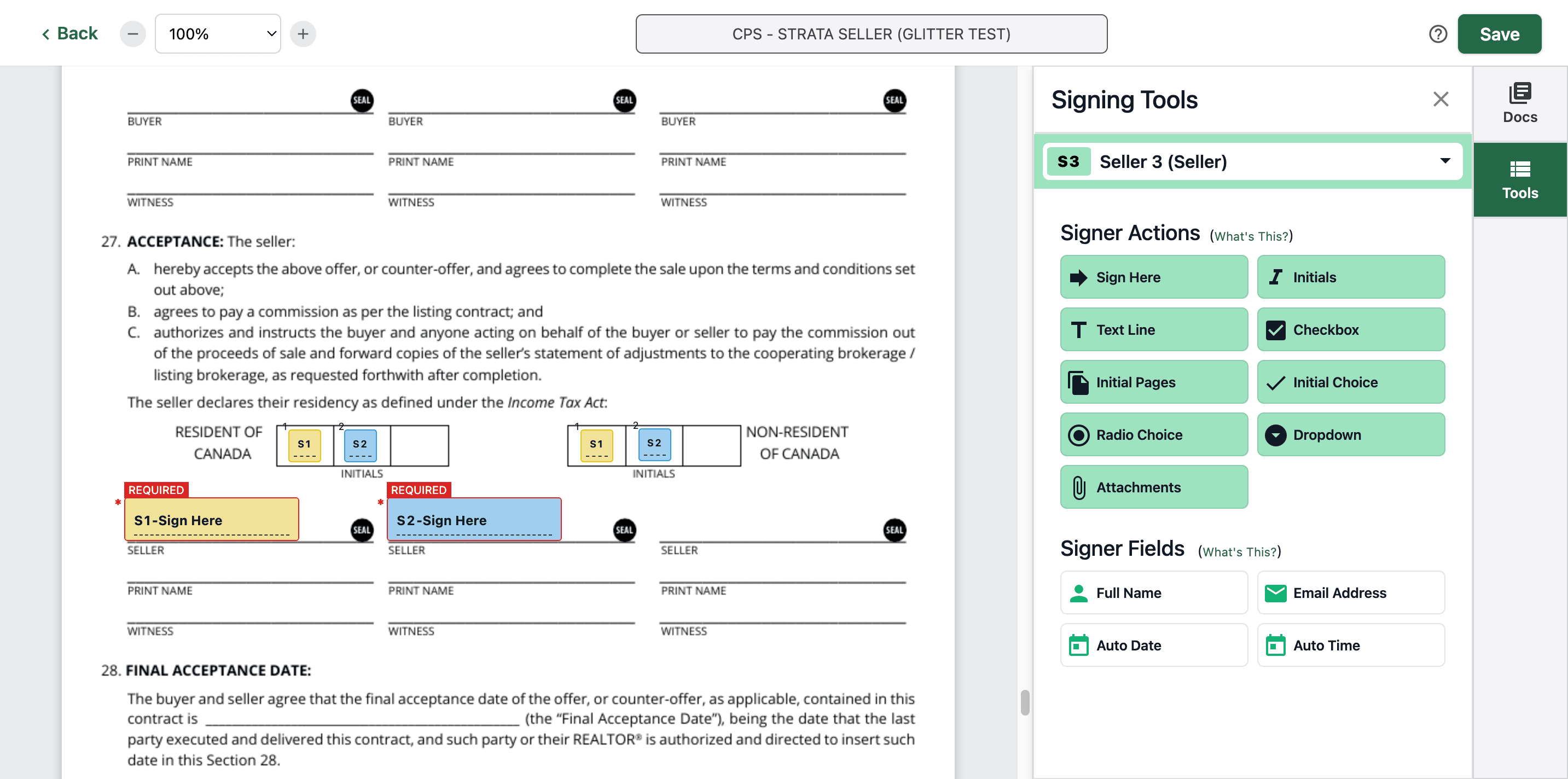
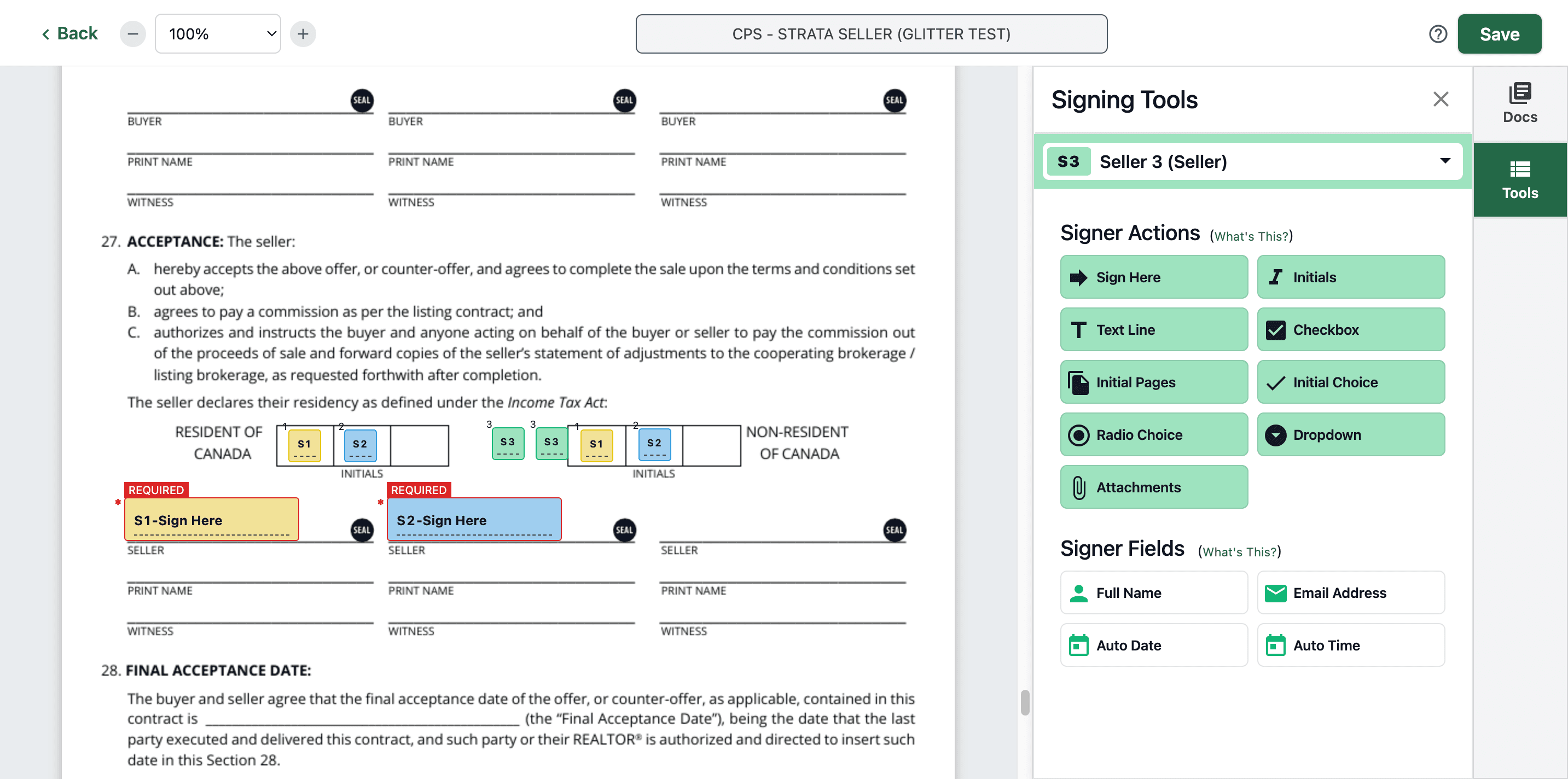
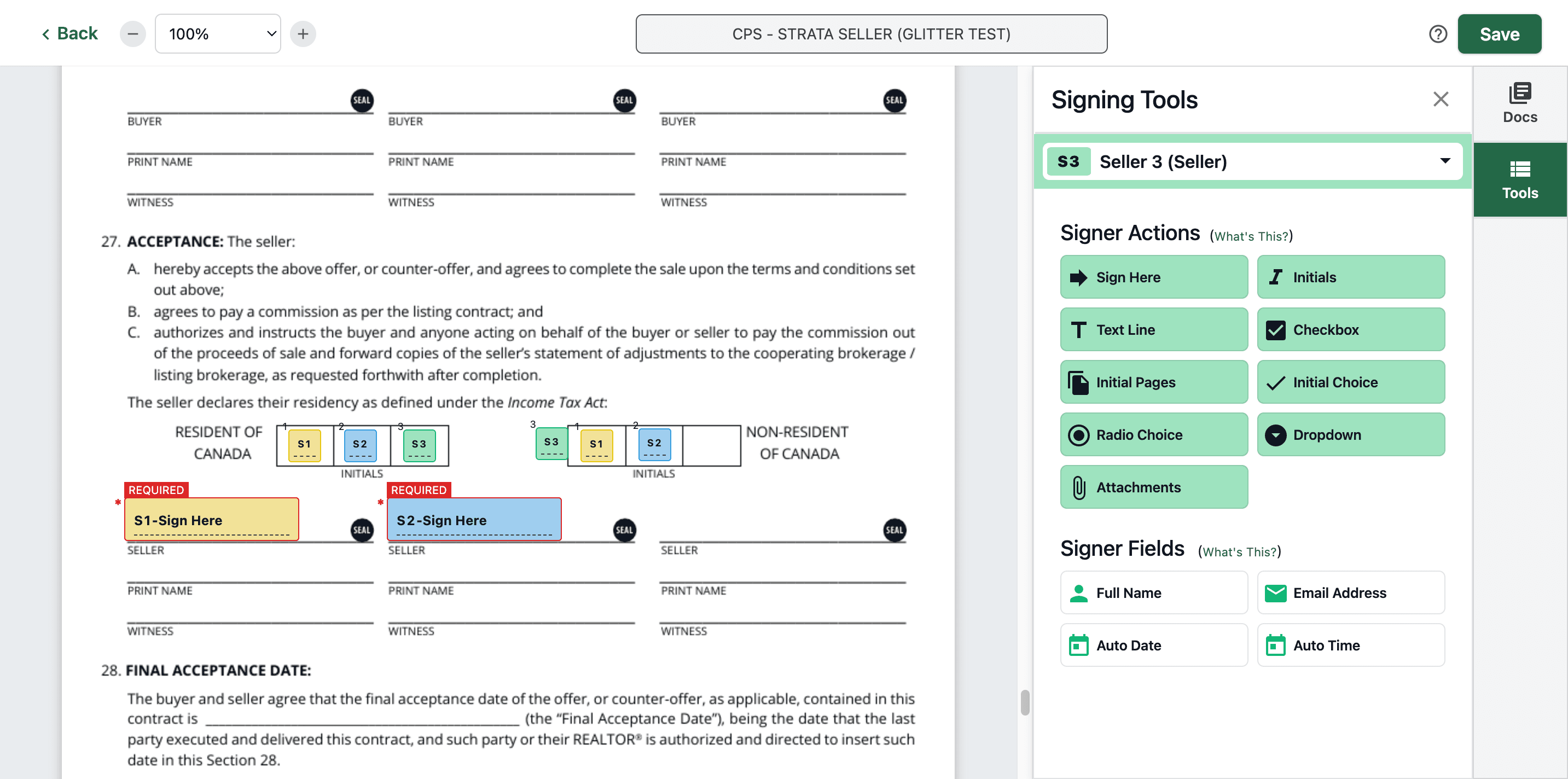
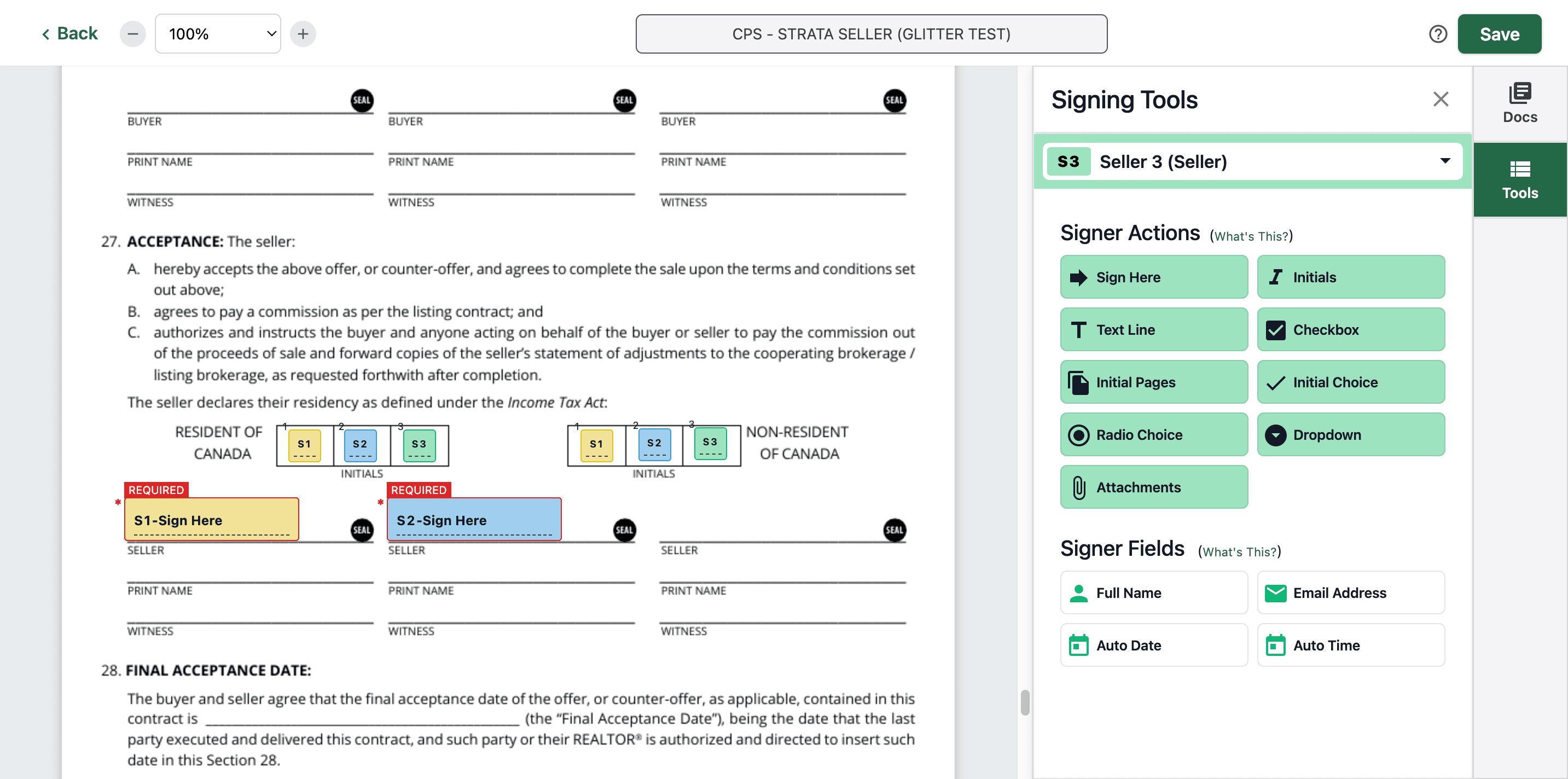
Put all the three initials here.
Step #22: Put all the three initials here.

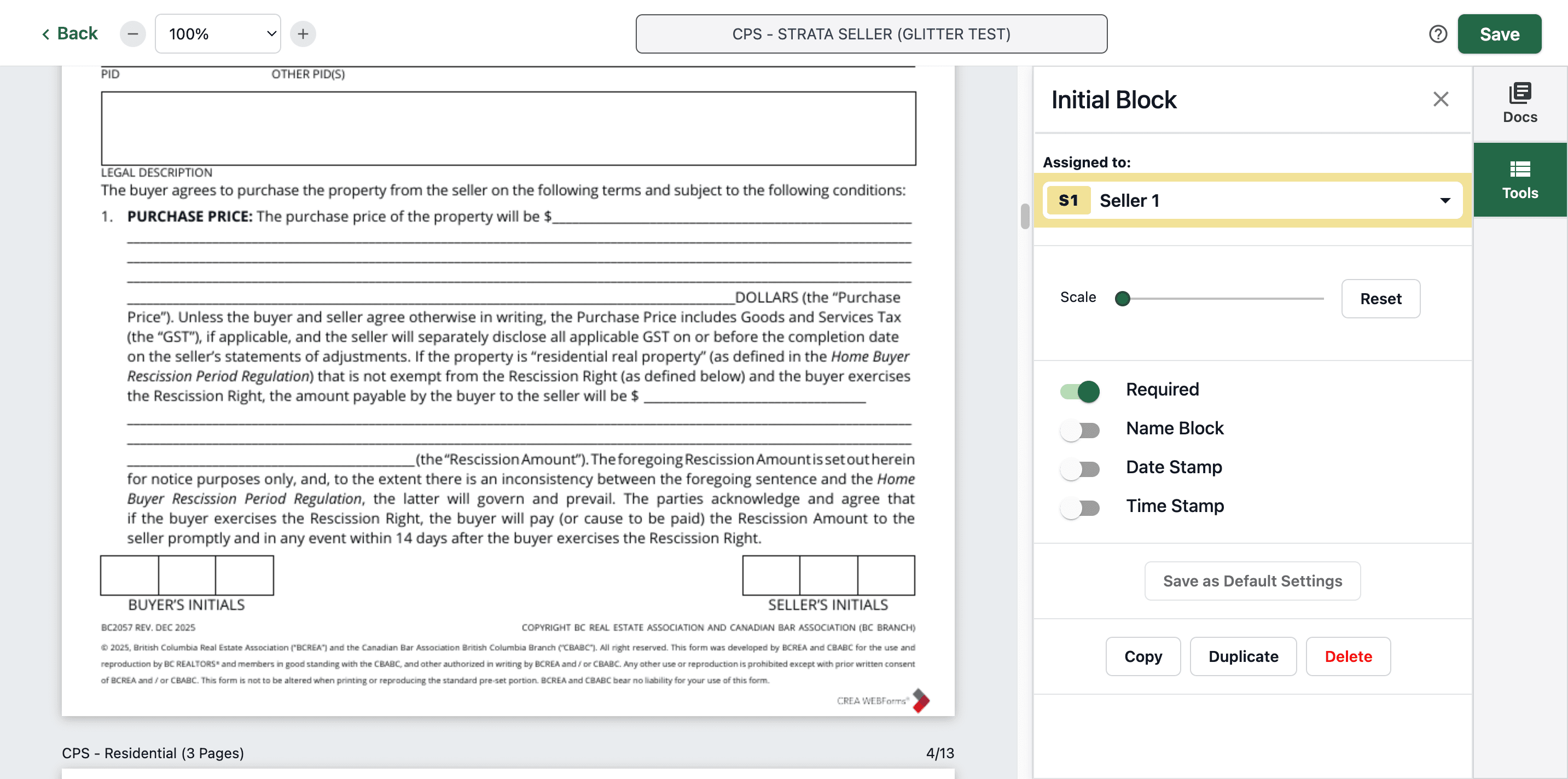
For the next page, you also need to add the initials. For convenience, simply click, copy, and paste.
23
Click on "S1"
Step #23: Click on "S1"
24
Type "Cmd + C"
25
Click here
Step #25: Click here
26
Type "Cmd + V"

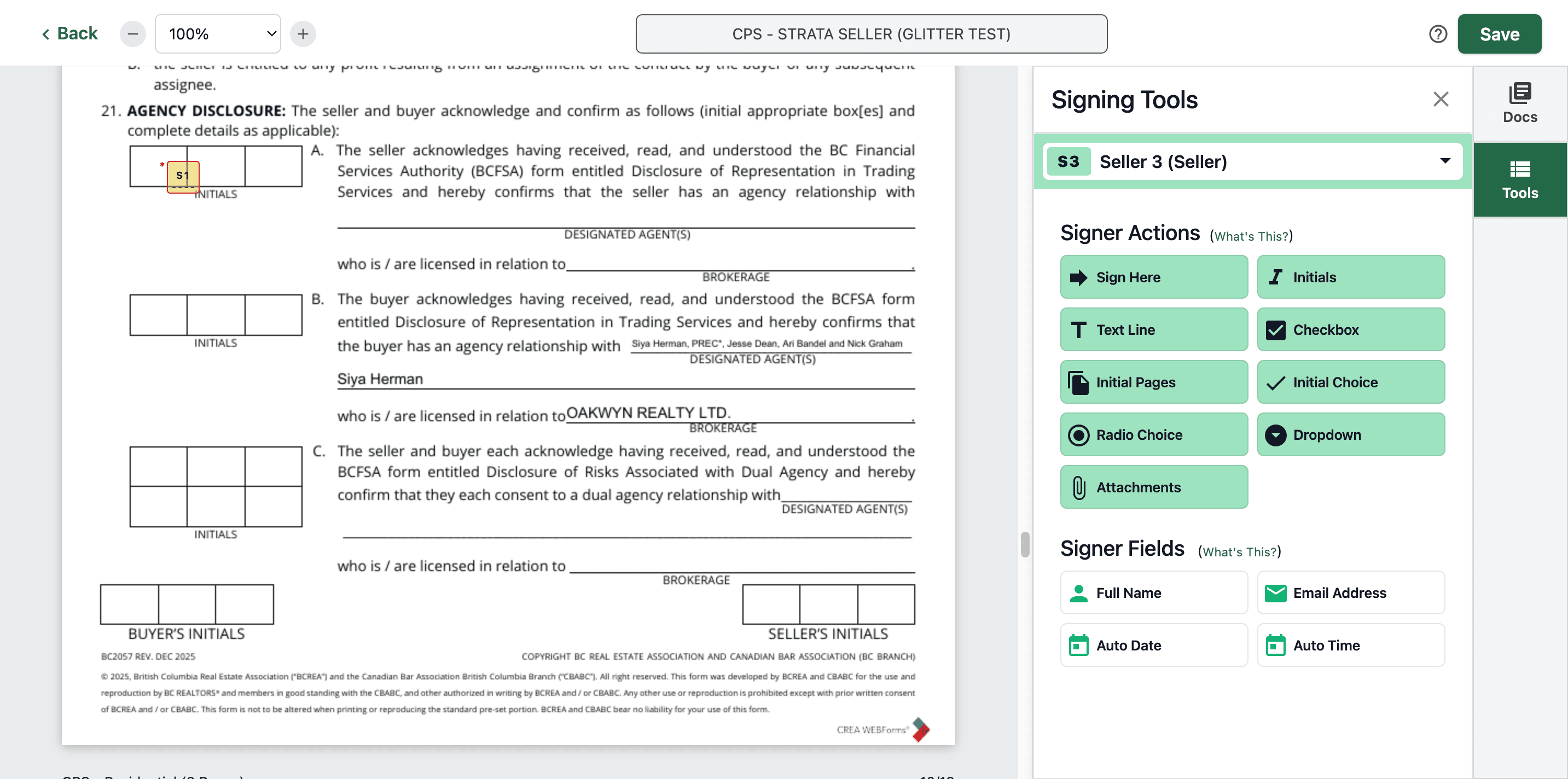
Then paste it on other pages.

In this page you only need to put initials here
27
Paste it here
Step #27: Paste it here
28
Click here
Step #28: Click here
29
Type "Cmd + V"

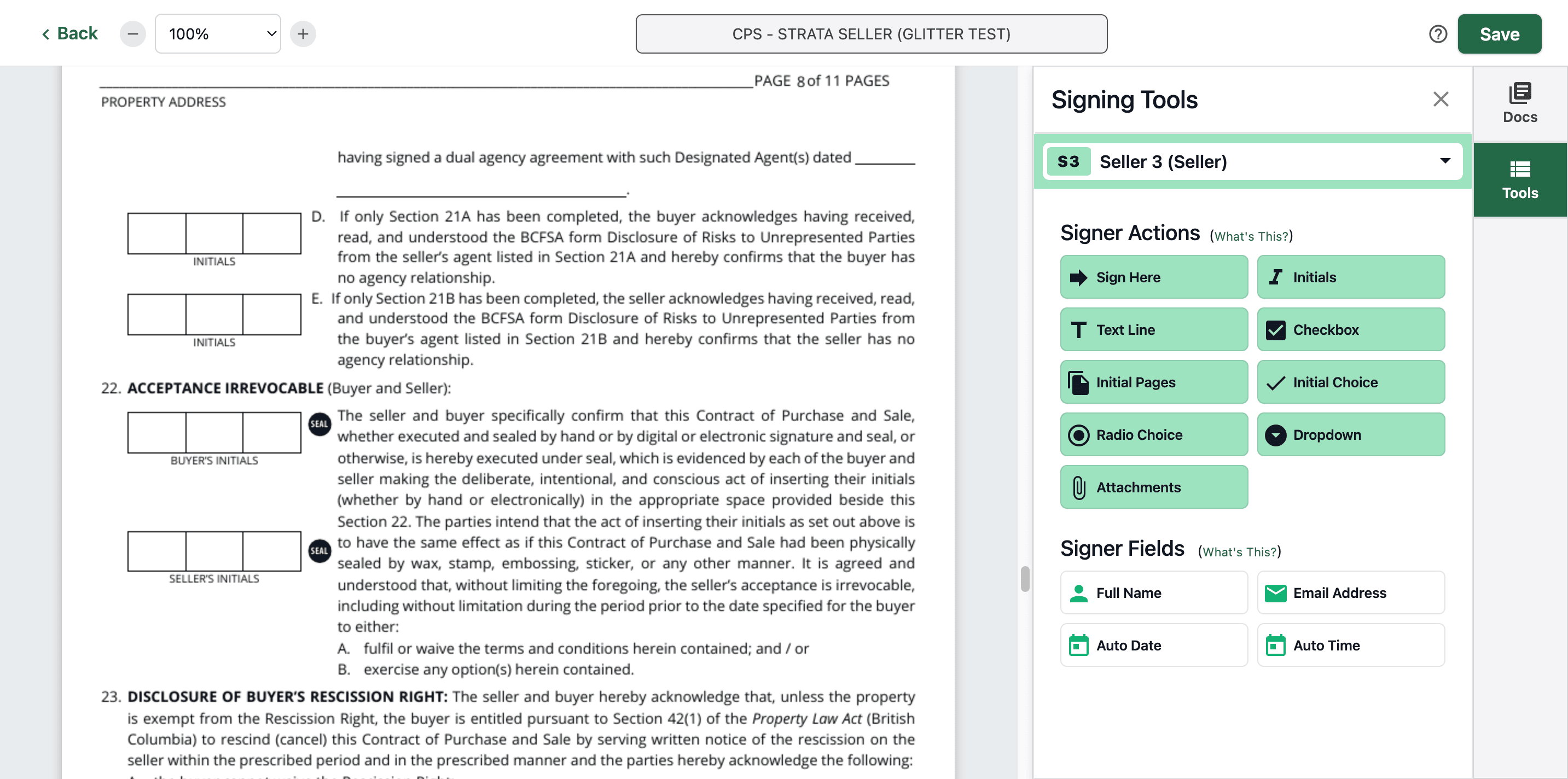
For this page, simply add your initials in these two places.
30
Click here
Step #30: Click here
31
Type "Cmd + V"
32
Click here
Step #32: Click here
33
Type "Cmd + V"
34
And also here
Step #34: And also here
35
Type "Cmd + V"
36
Click here
Step #36: Click here
37
Type "Cmd + V"

For this page, and for the last two pages, we will add initials later. Let's add the initials for Seller 2 and Seller 3 first.
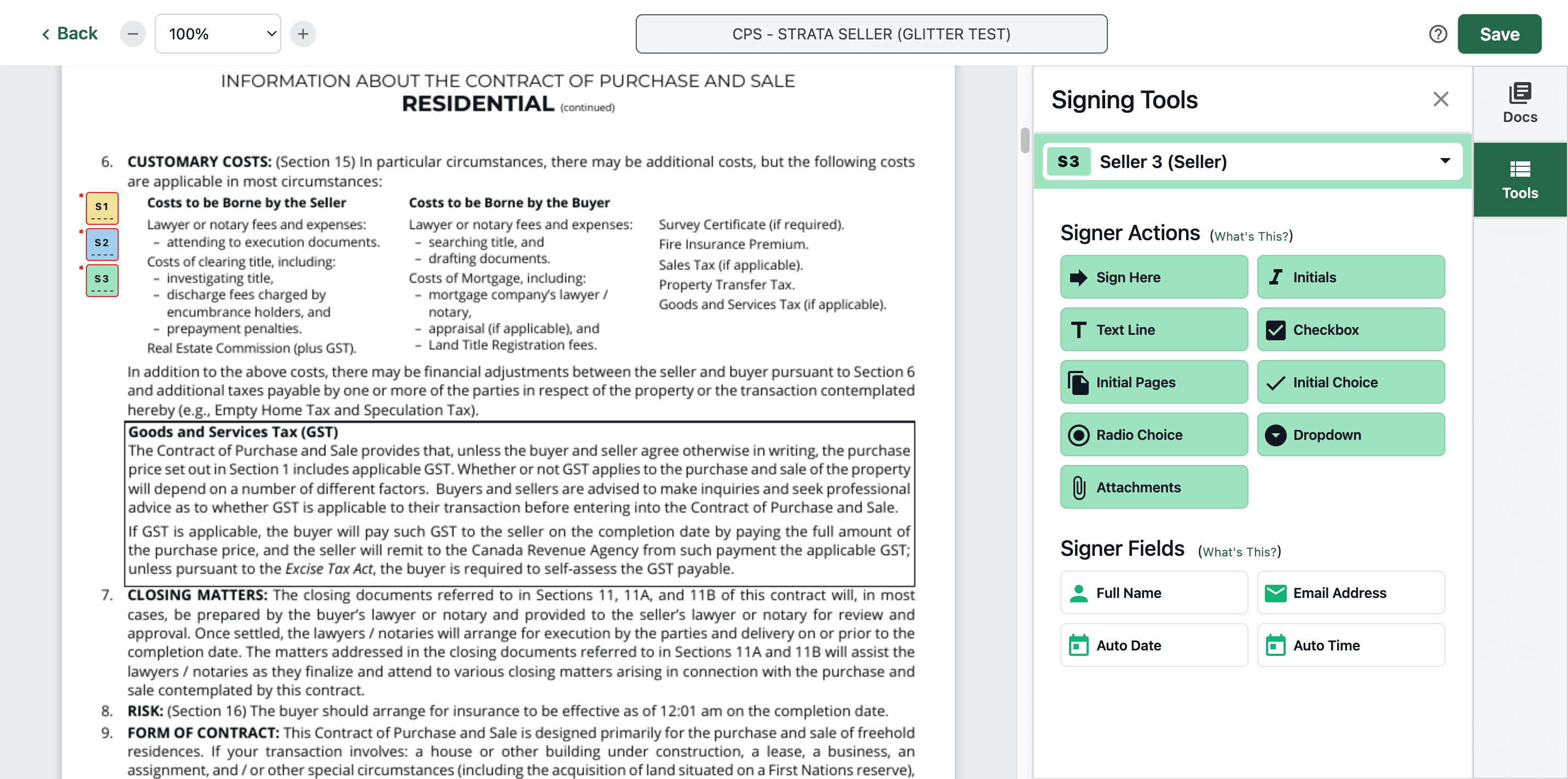
38
Click on "S2"
Step #38: Click on "S2"

Click, copy, then paste repeatedly.

39
Type "Cmd + C"
40
Click here and paste. Then put the initials on other pages
Step #40: Click here and paste. Then put the initials on other pages
41
Type "Cmd + V"

Copy the Seller 3 initial

42
Click on "S3"
Step #42: Click on "S3"
43
Type "Cmd + C"
44
Click here and paste. Then put the initials in other pages as well.
Step #44: Click here and paste. Then put the initials in other pages as well.
45
Type "Cmd + V"

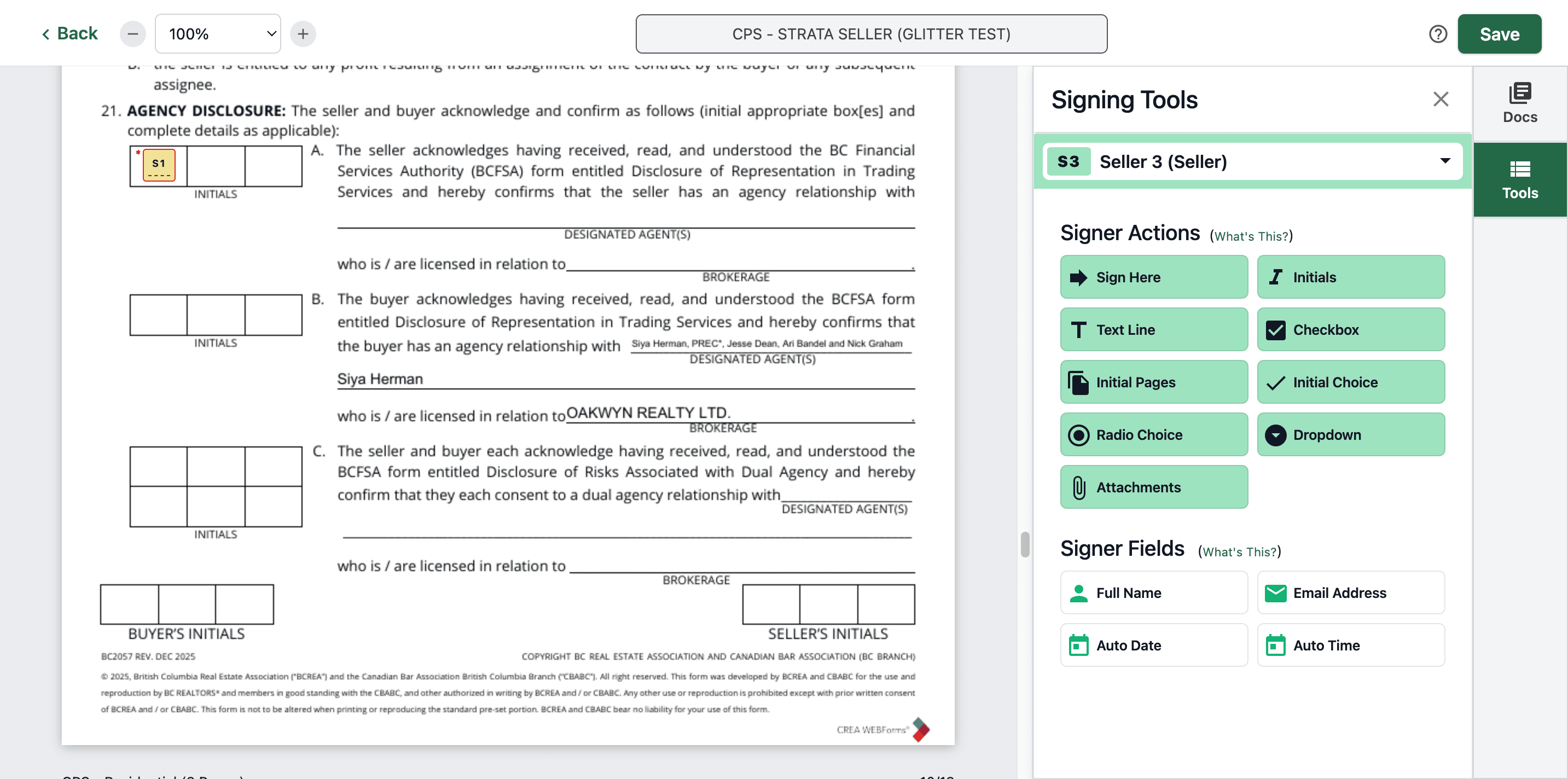
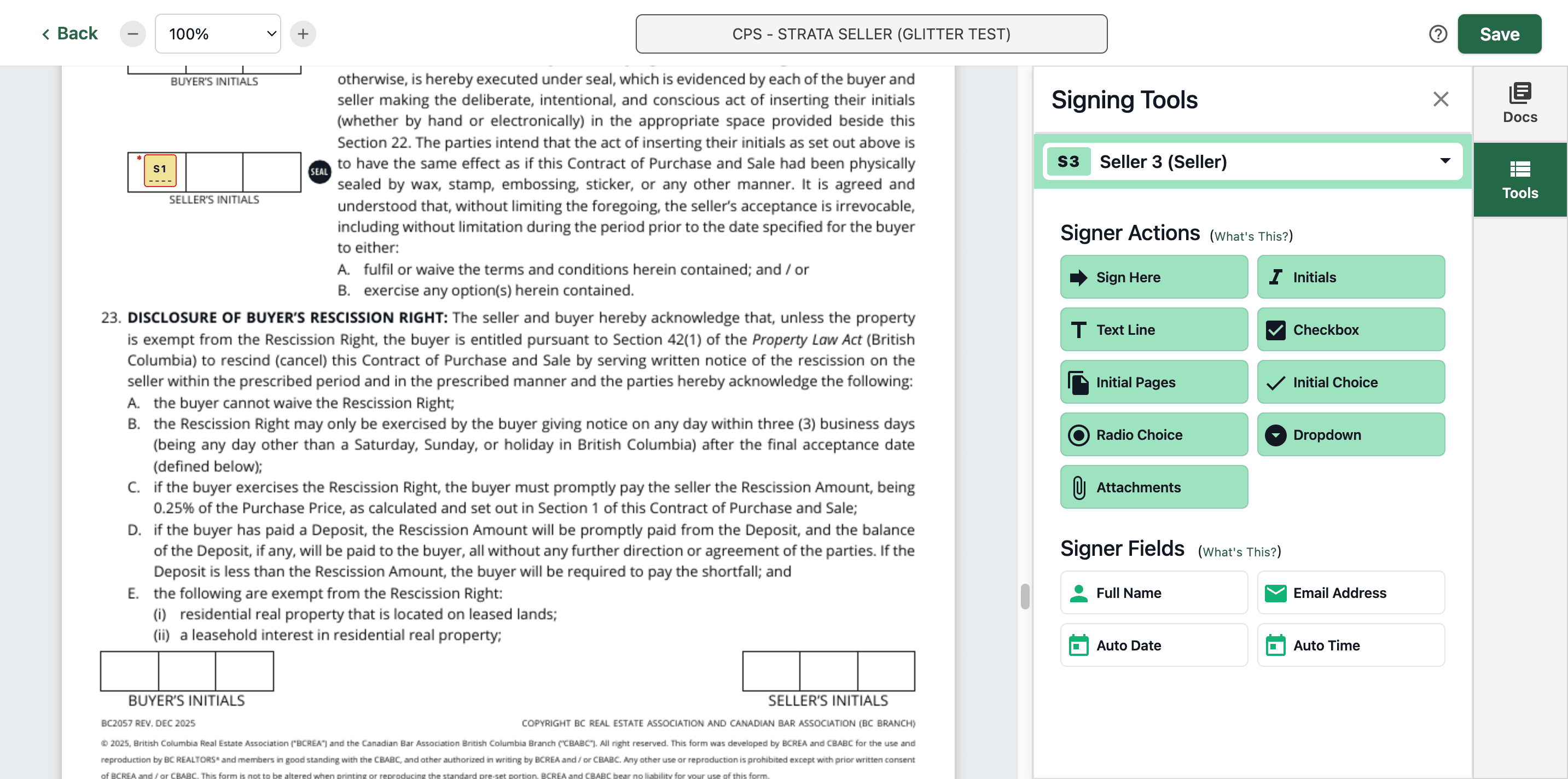
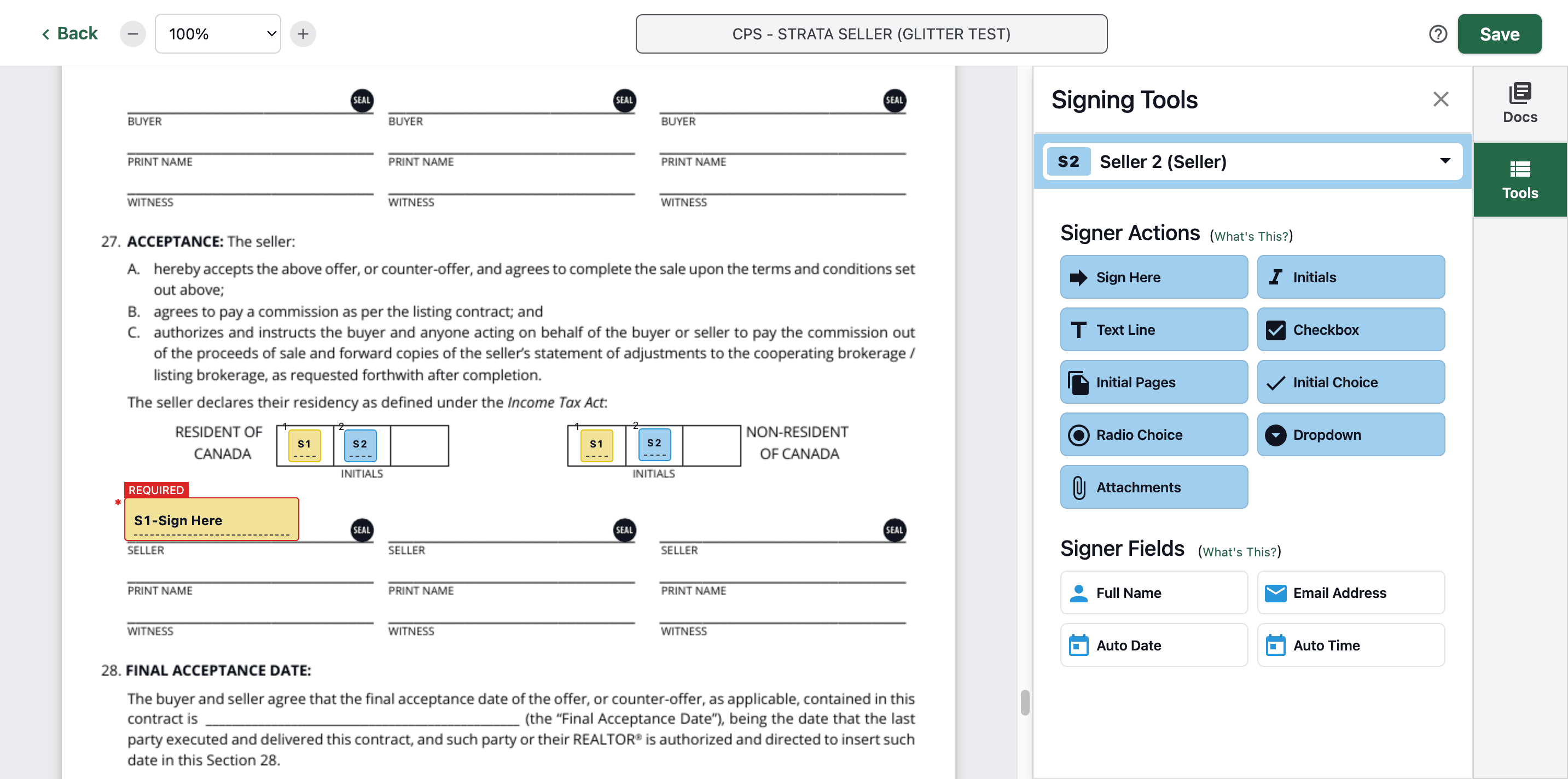
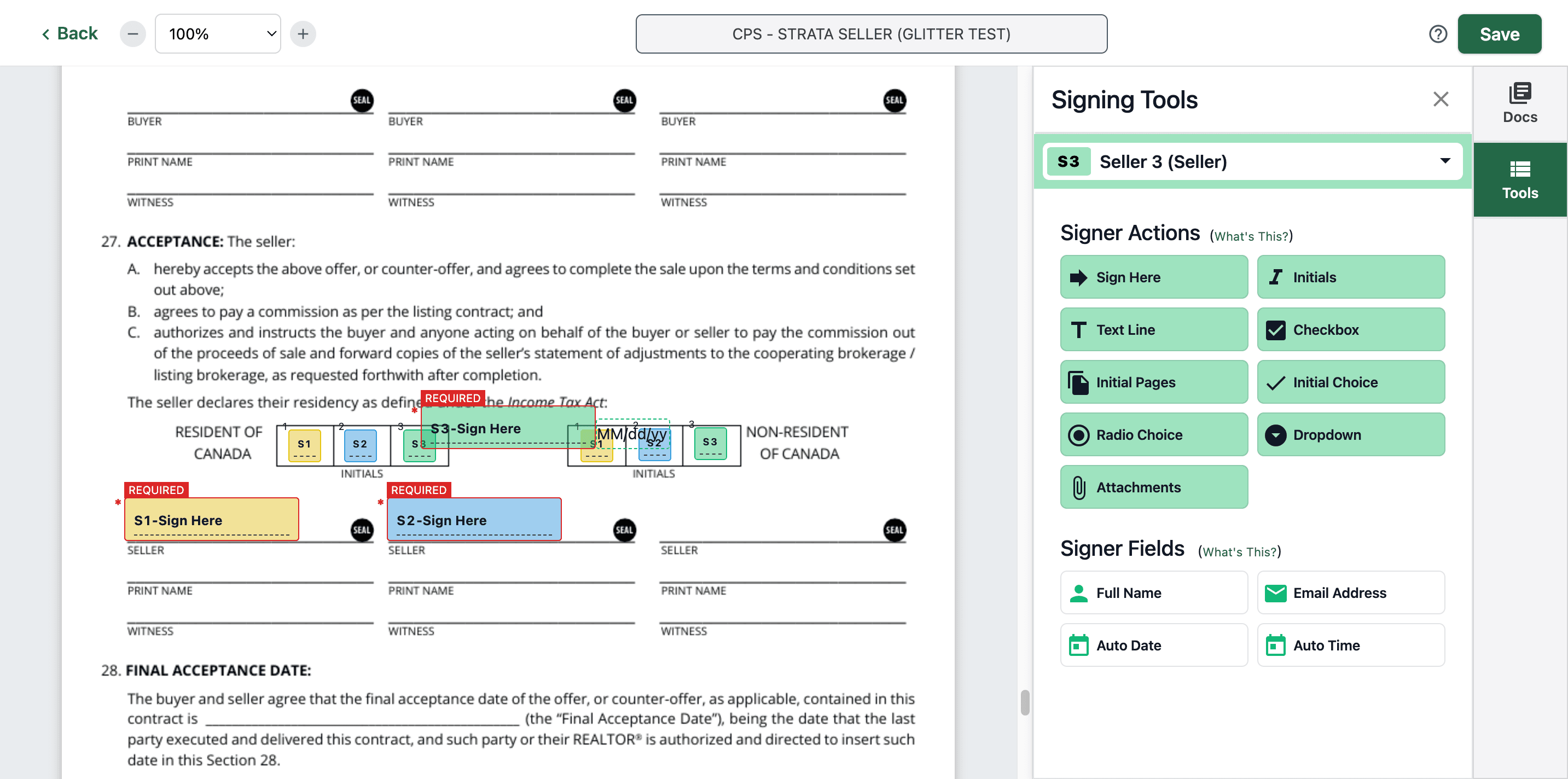
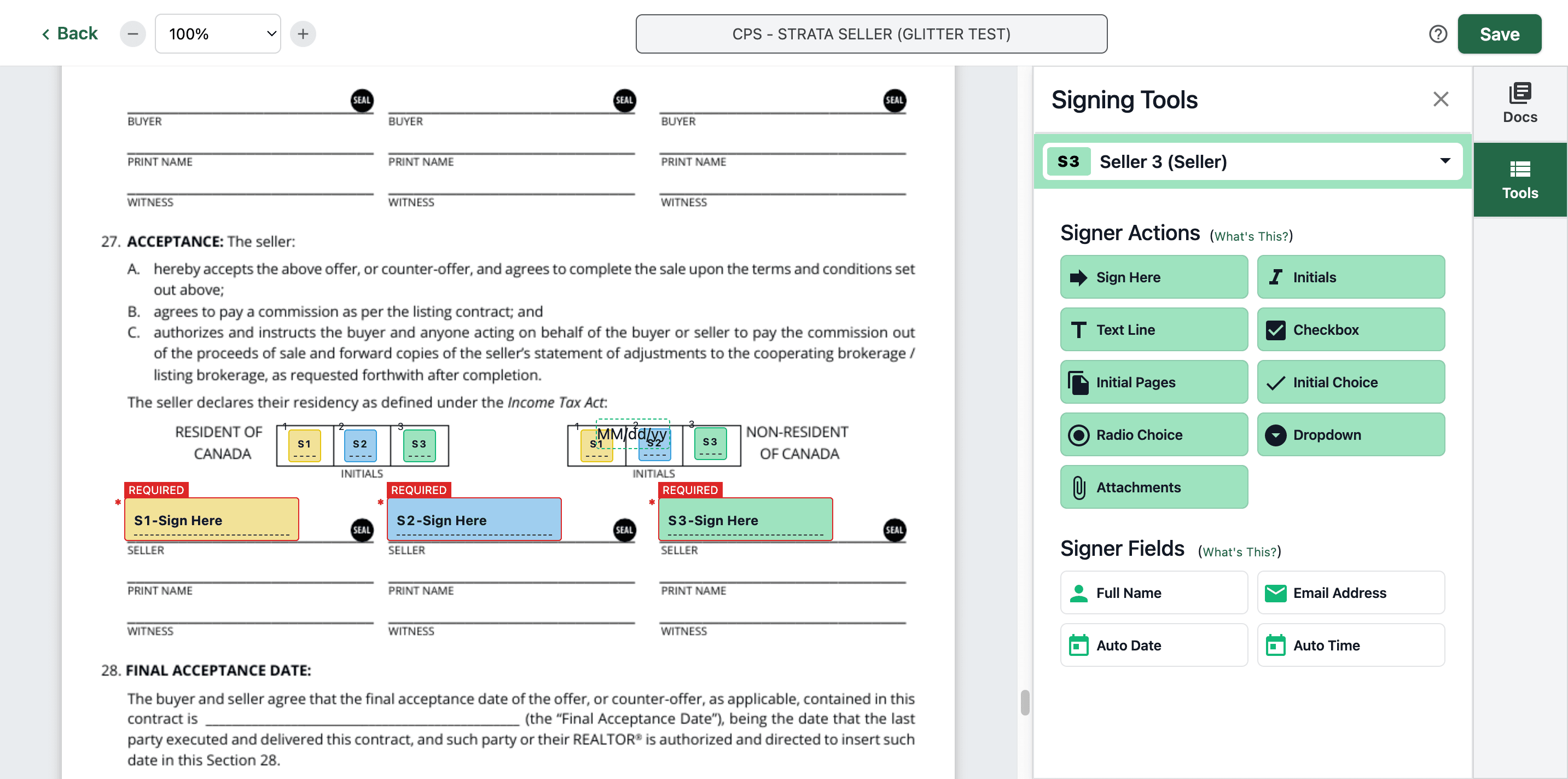
For the second-to-last page, add the initials and the signature here. Let's put Seller 1 first. We also need to select the initial choice.
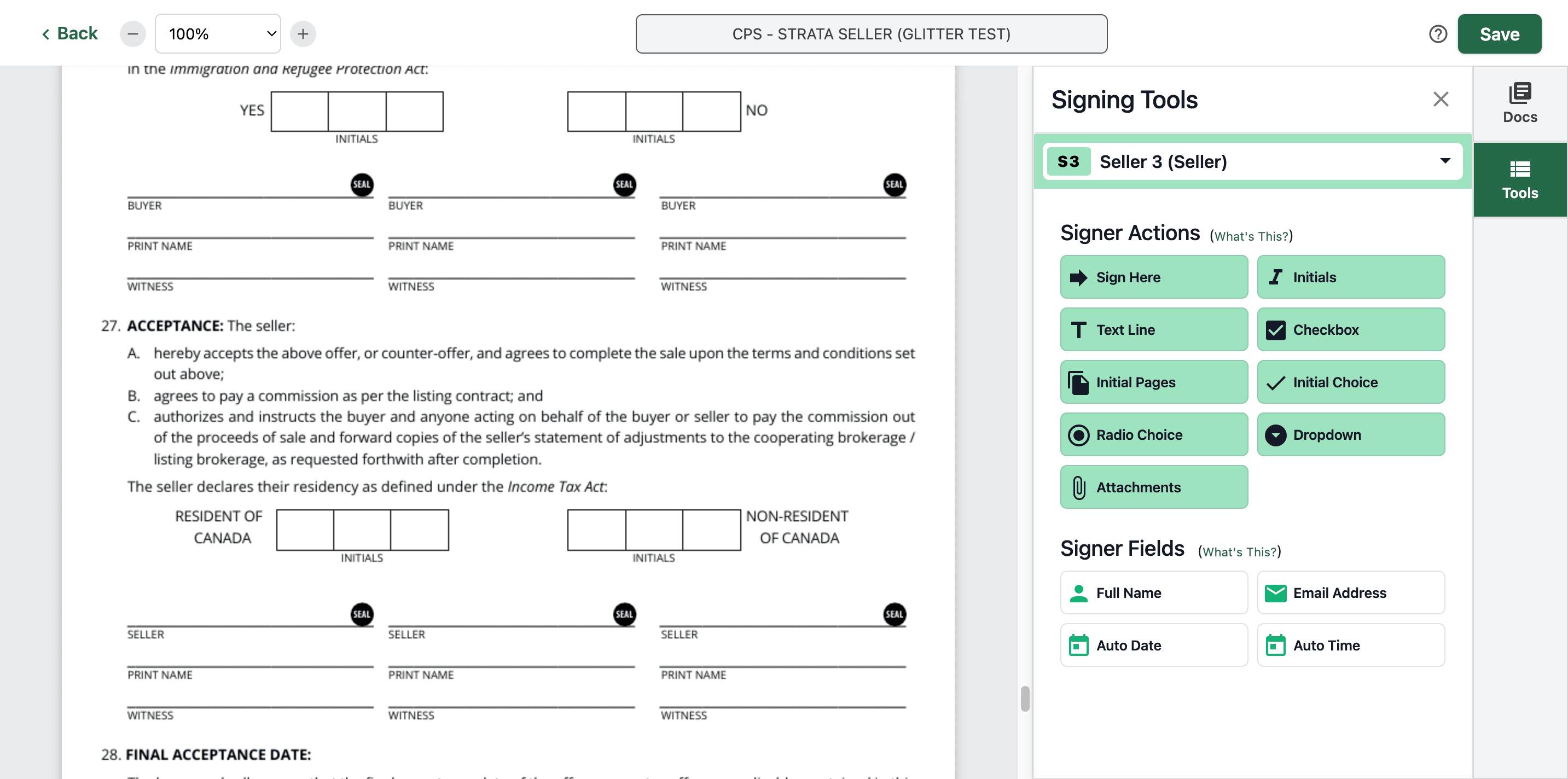
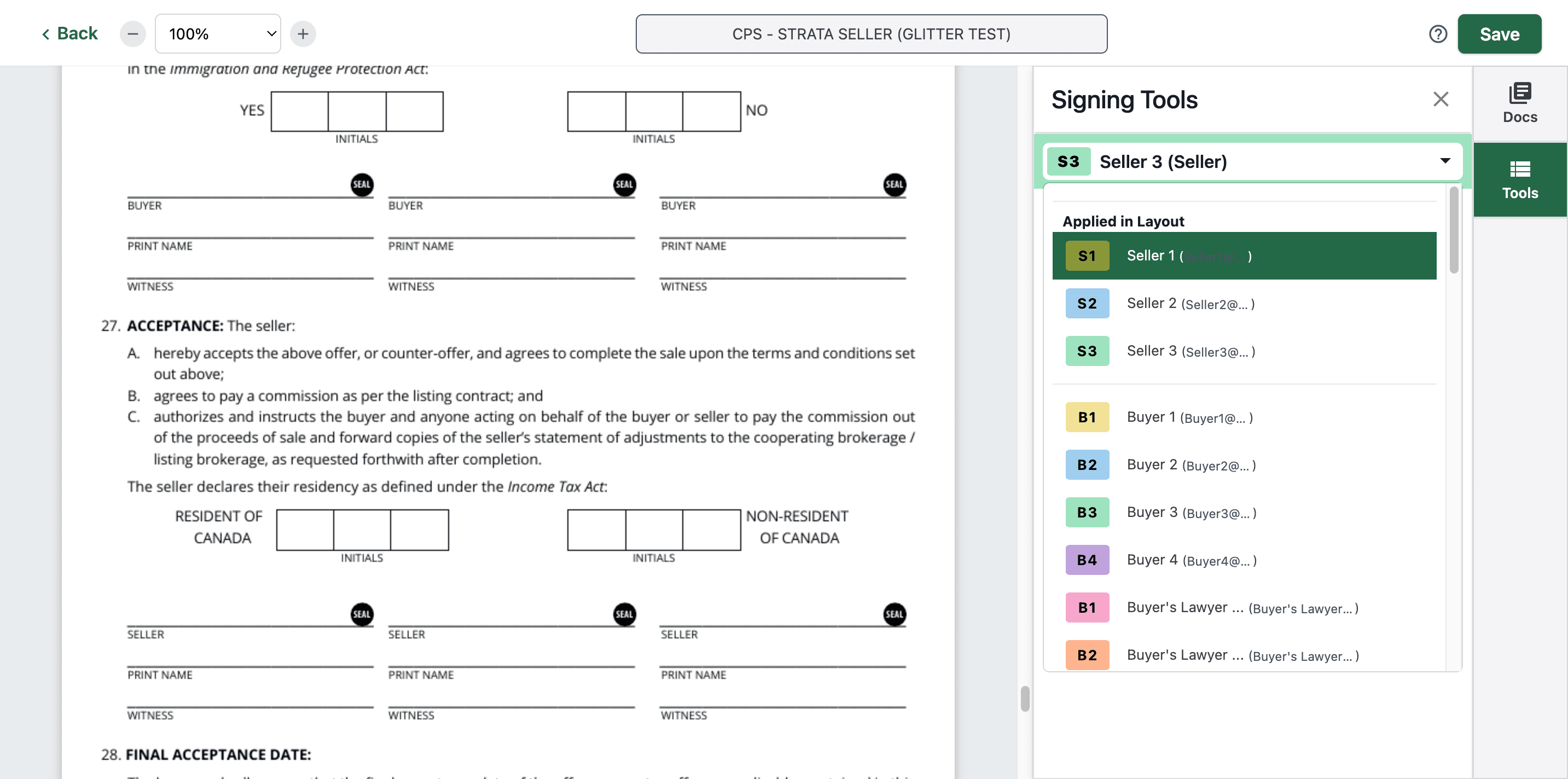
46
Click here
Step #46: Click here
47
Click on "Seller 1"
Step #47: Click on "Seller 1"
48
Click on "Initial Choice"
Step #48: Click on "Initial Choice"
49
Let's put it here.
Step #49: Let's put it here.
50
Step #50:

Then select "Sign Here" for the signature
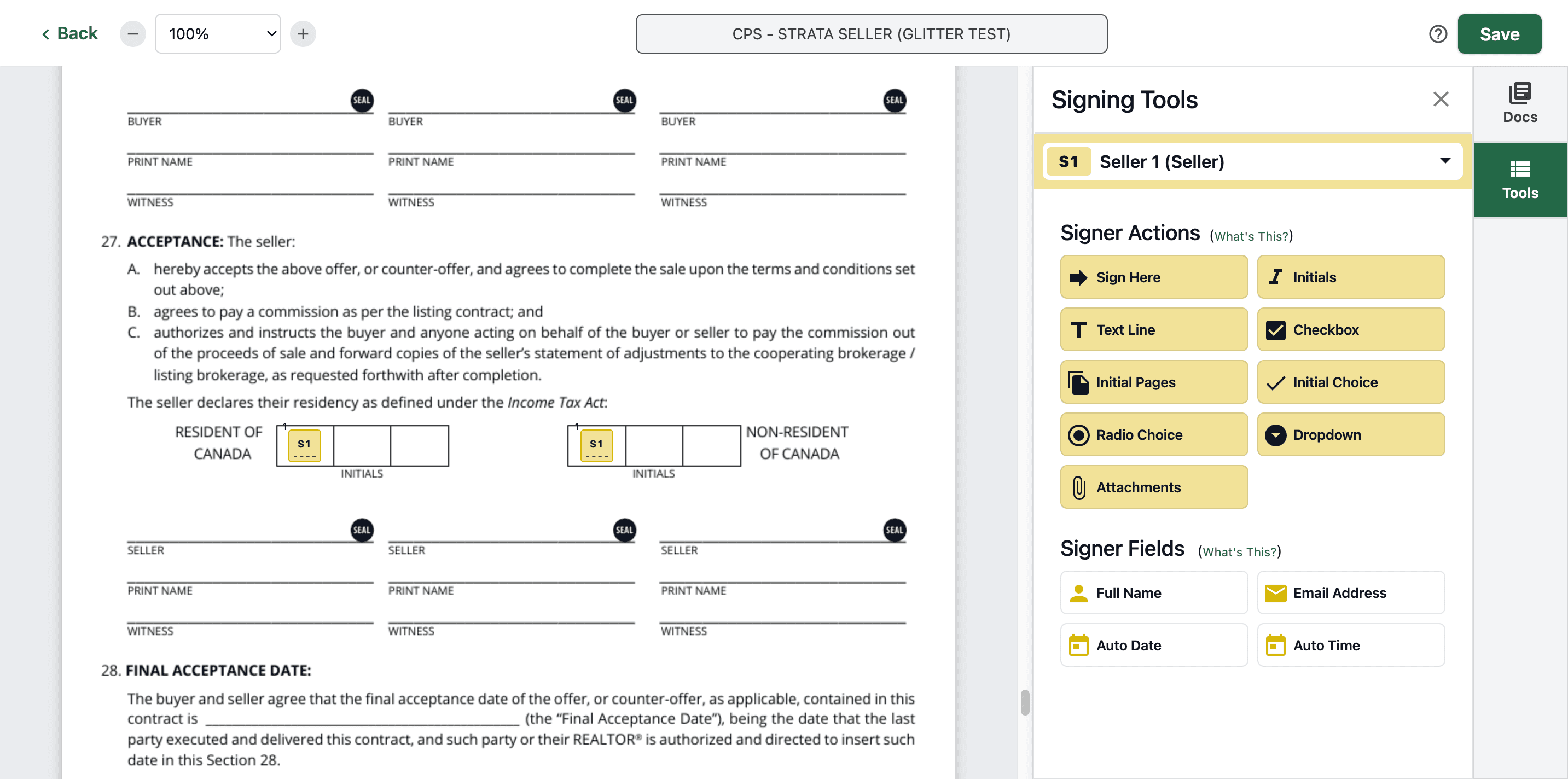
51
Click on "Sign Here"
Step #51: Click on "Sign Here"
52
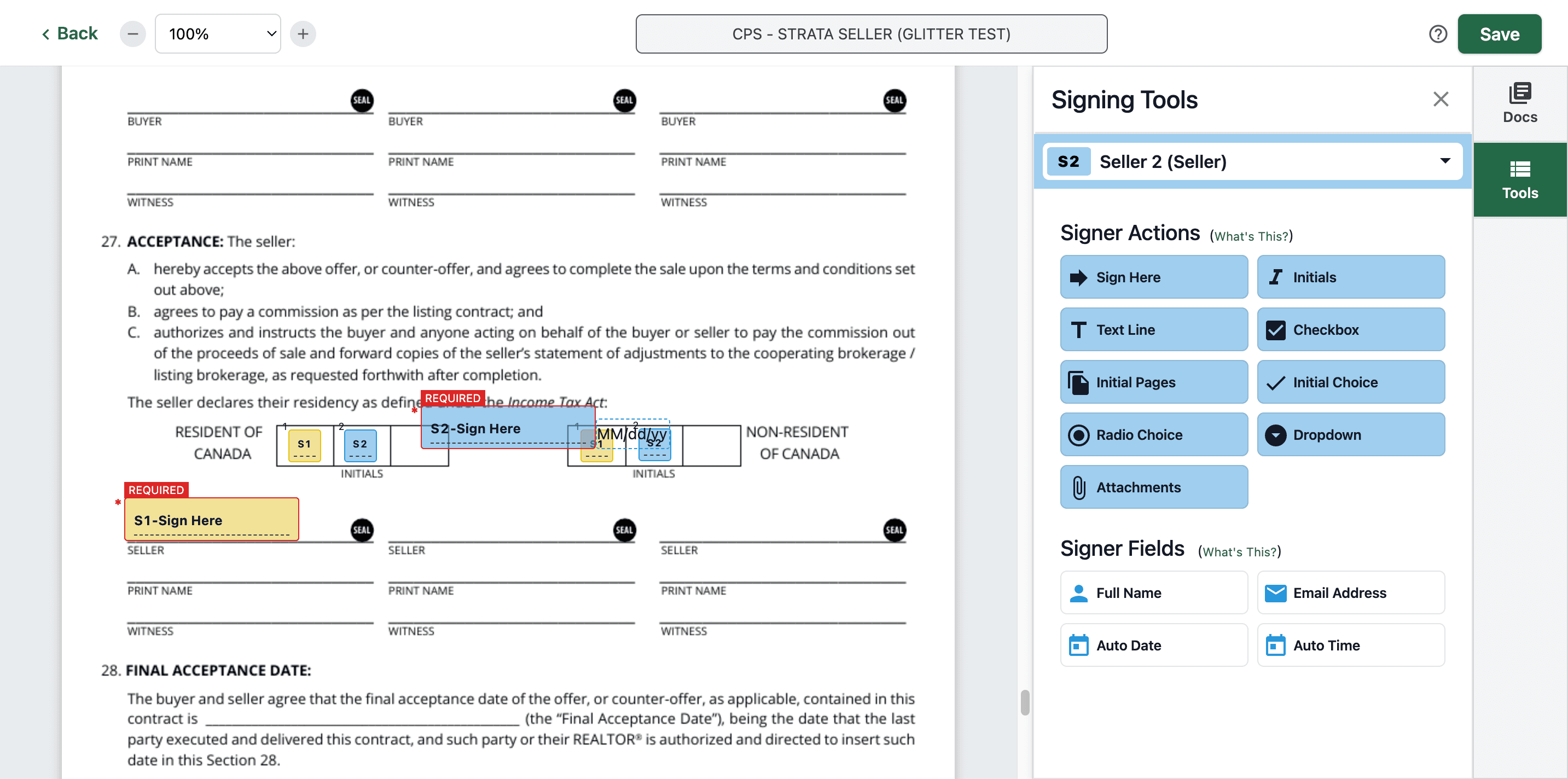
Click on "S1 - Sign Here" and put here
Step #52: Click on "S1 - Sign Here" and put here
53
Just delete the date.
Step #53: Just delete the date.

Add the two more initials

54
Click on "Seller 2"
Step #54: Click on "Seller 2"
55
Click on "Initial Choice"
Step #55: Click on "Initial Choice"
56
Click on "S2"
Step #56: Click on "S2"
57
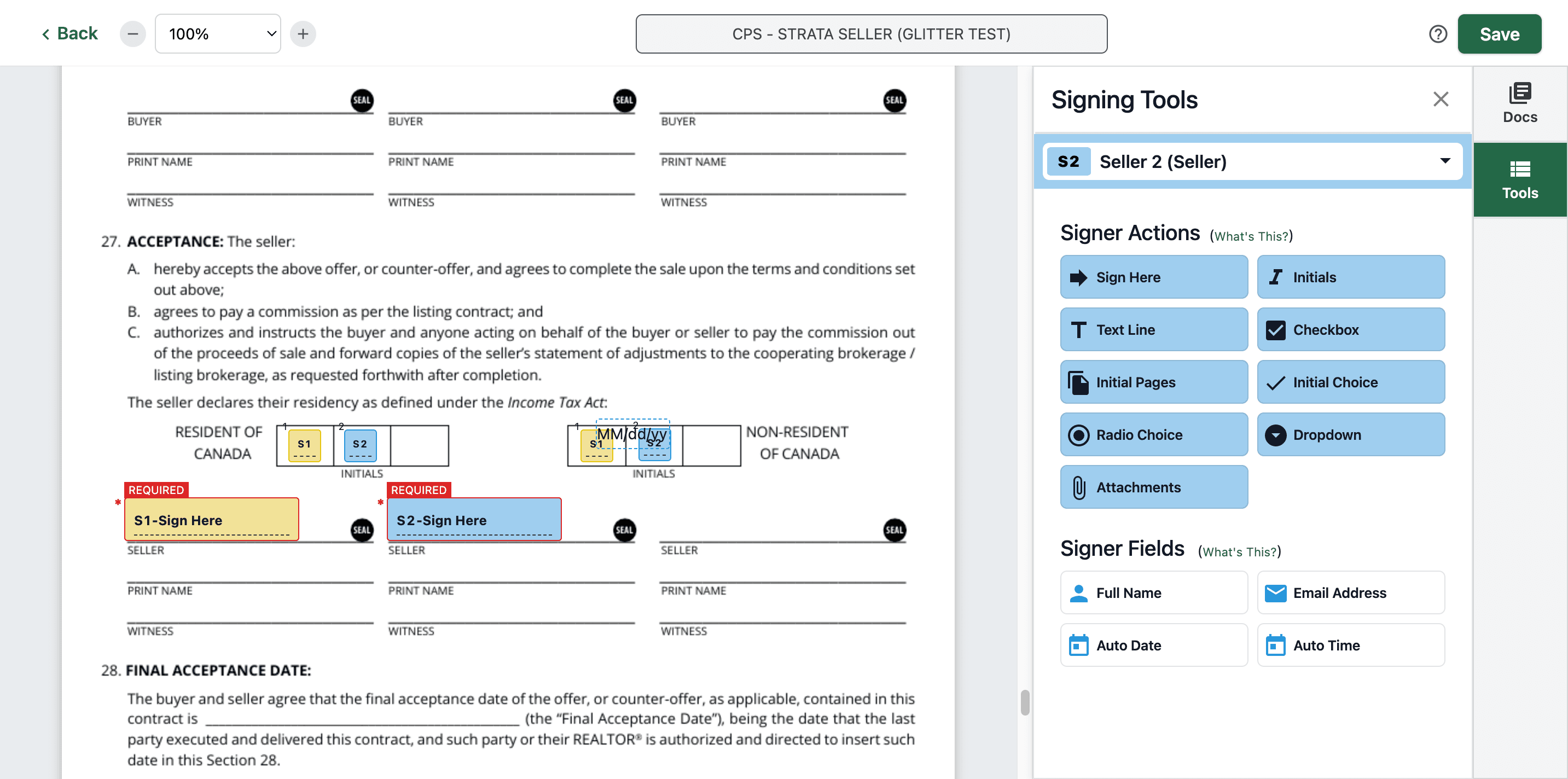
Then, add the signature.
Step #57: Then, add the signature.
58
Click on "S2 - Sign Here"
Step #58: Click on "S2 - Sign Here"
59
Delete that date again.
Step #59: Delete that date again.

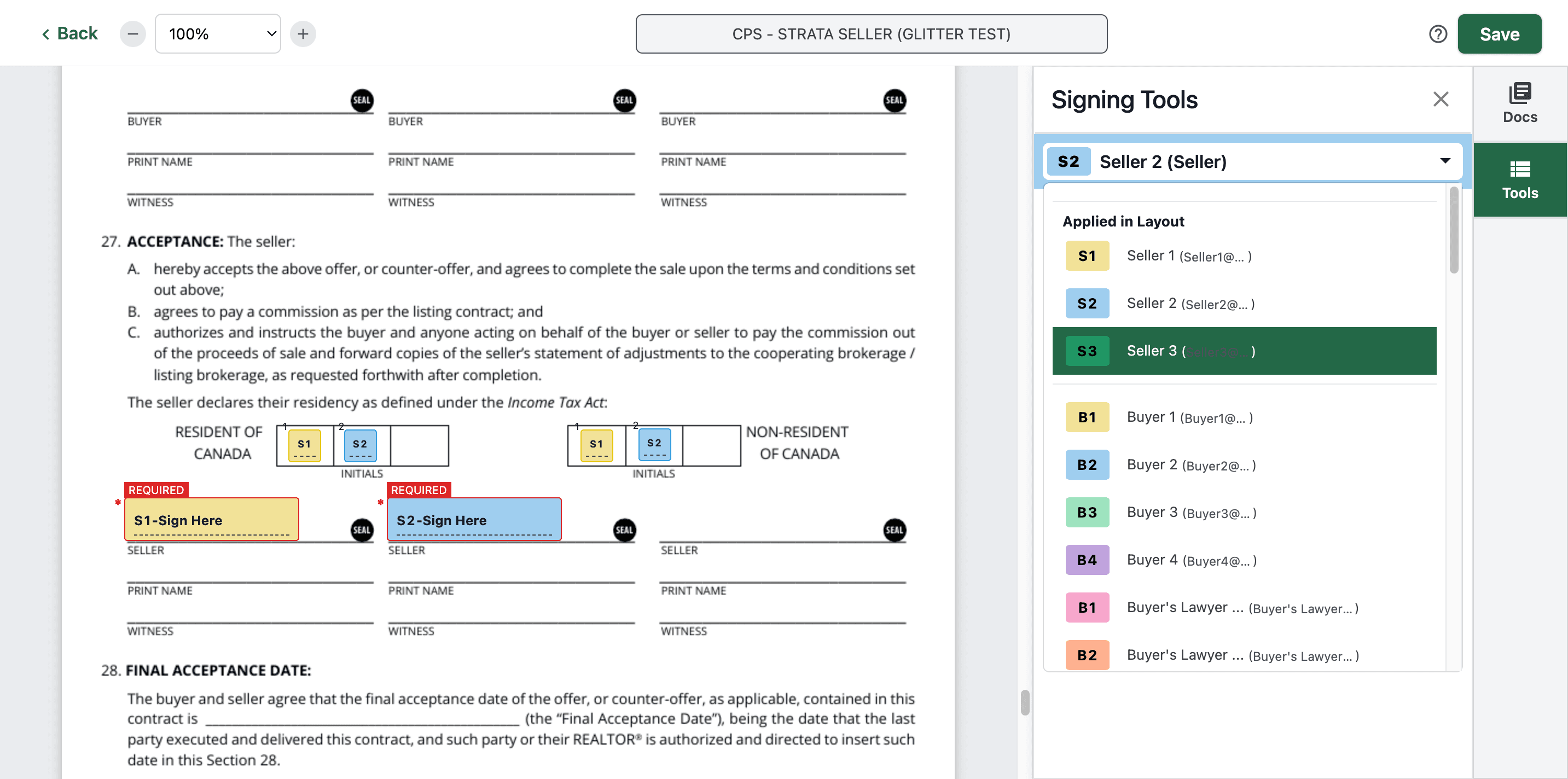
Add the last initial

60
Click on "Seller 3"
Step #60: Click on "Seller 3"
61
Click on "Initial Choice"
Step #61: Click on "Initial Choice"
62
Click on "S3"
Step #62: Click on "S3"
63
Click on "S3"
Step #63: Click on "S3"
64
Then the signature. Click on "Sign Here"
Step #64: Then the signature. Click on "Sign Here"
65
Put here
Step #65: Put here
66
Delete the date again.
Step #66: Delete the date again.

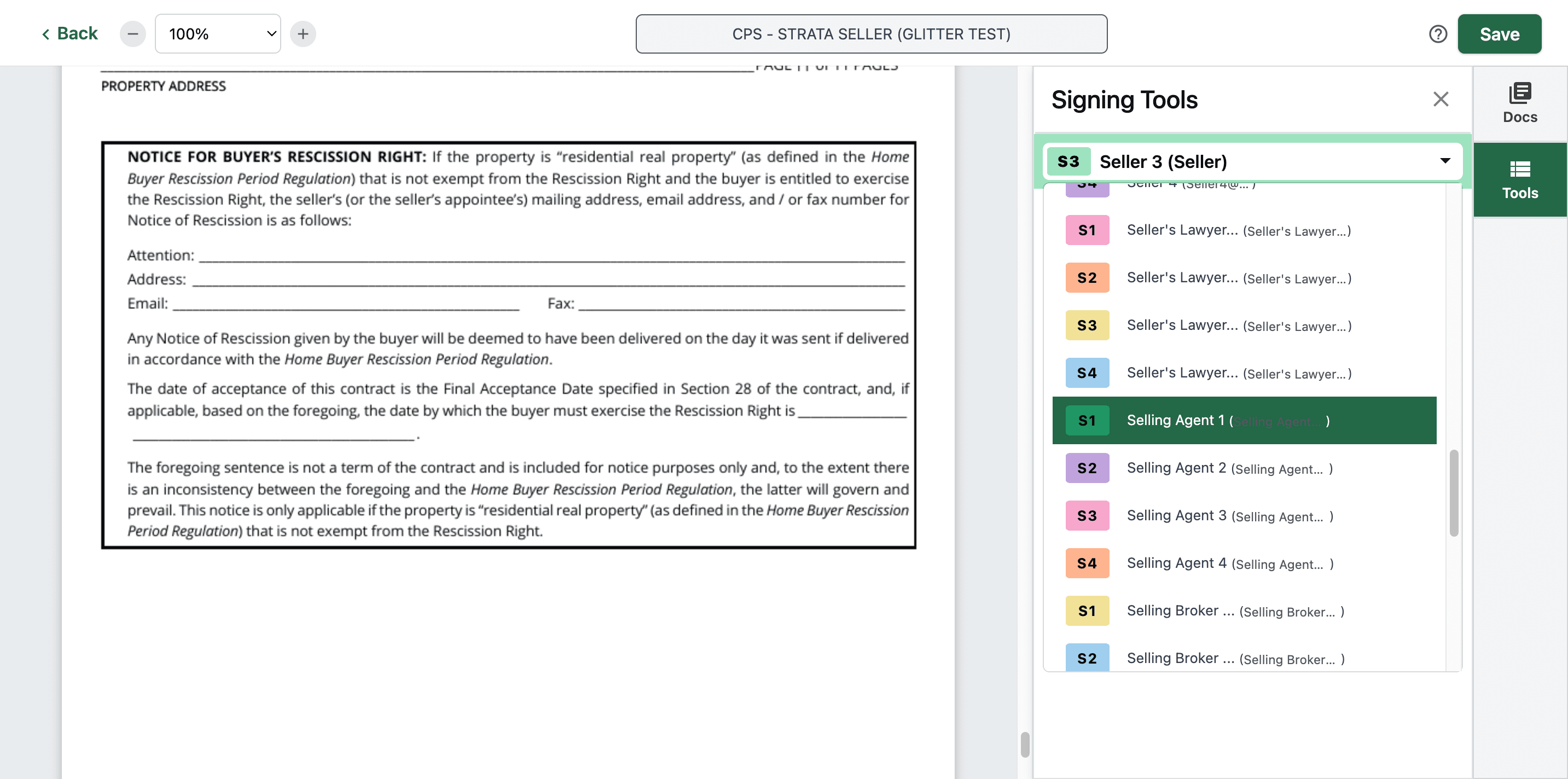
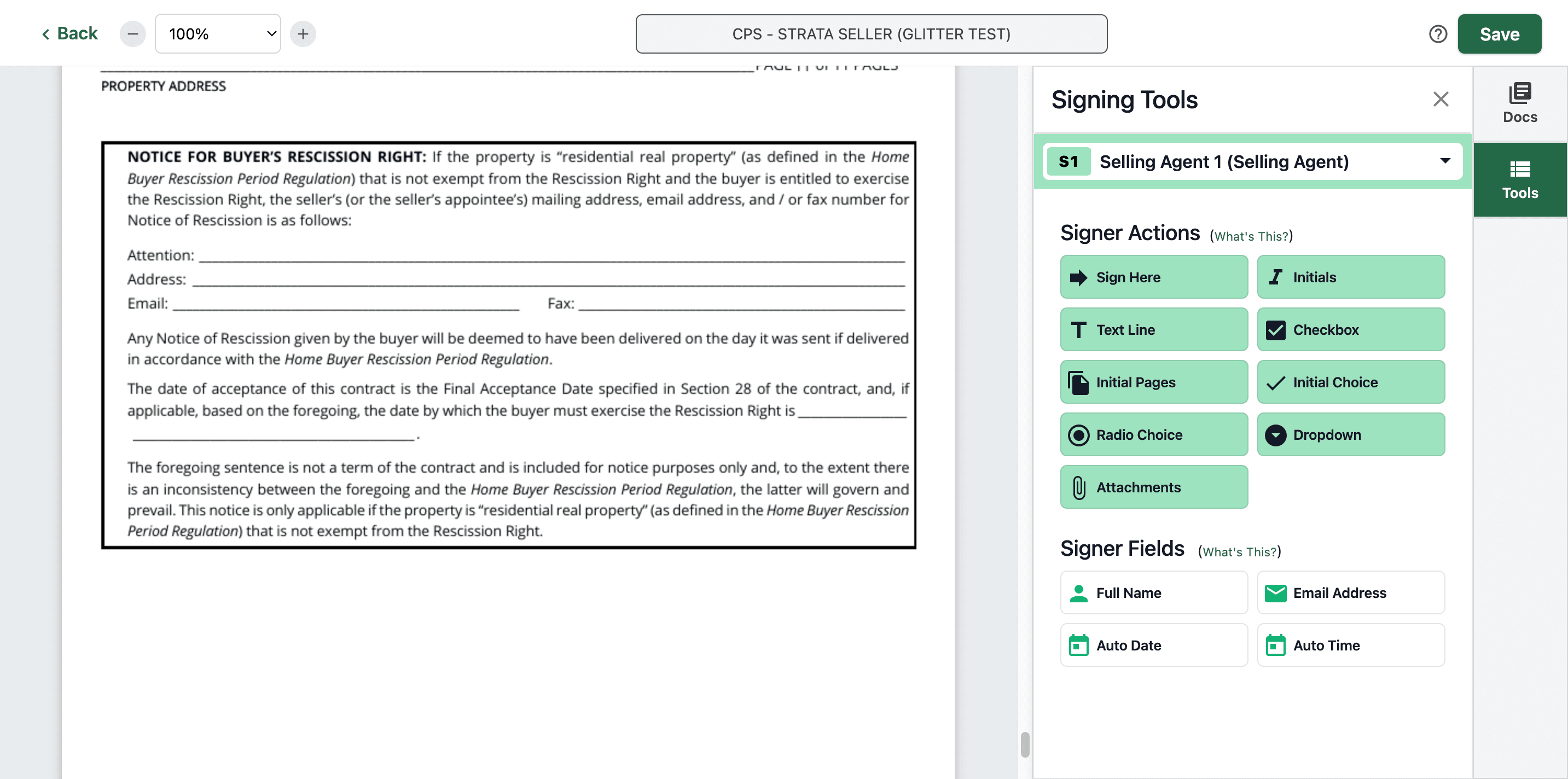
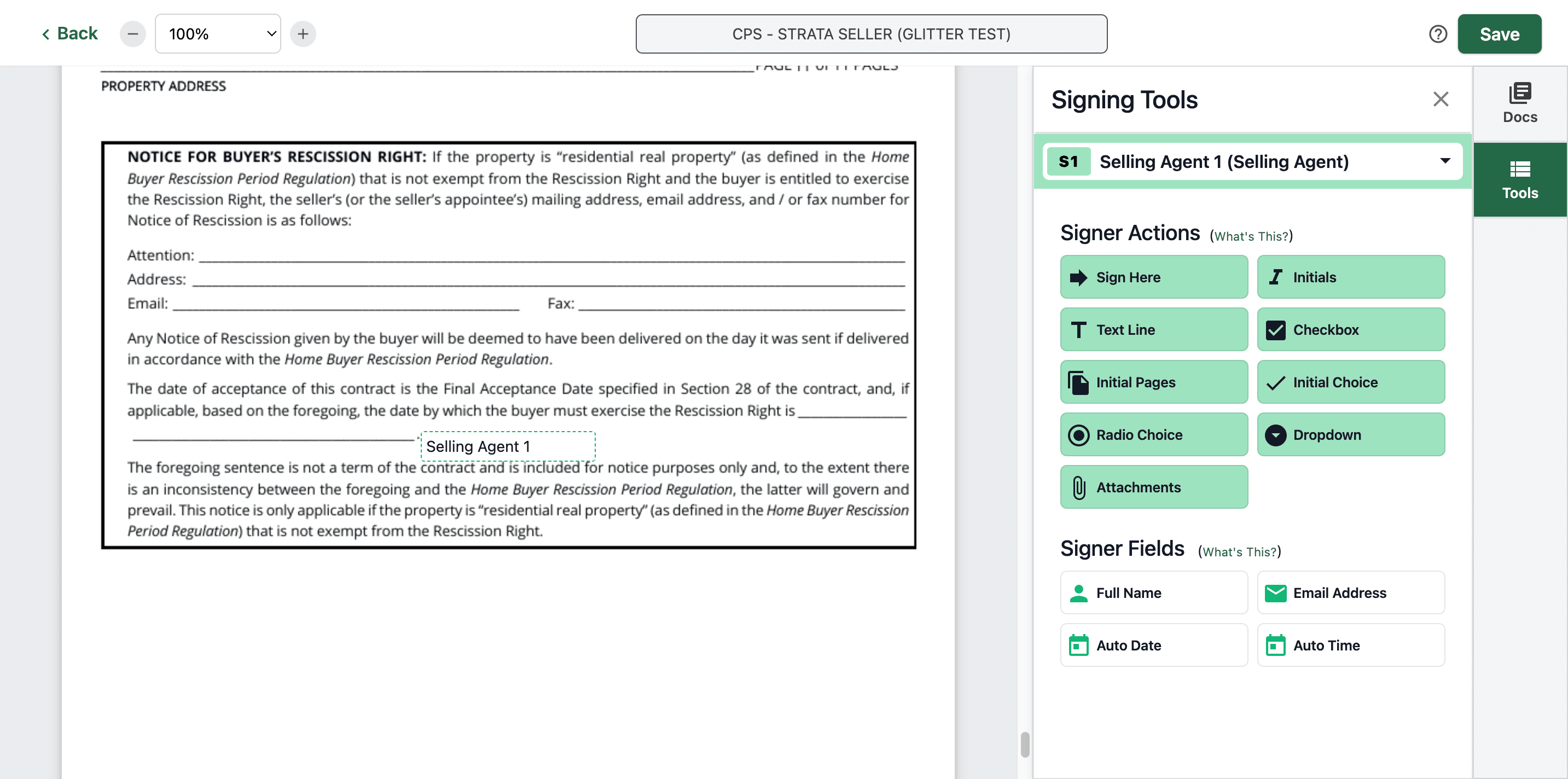
For the last page, enter the selling agent's name and email.
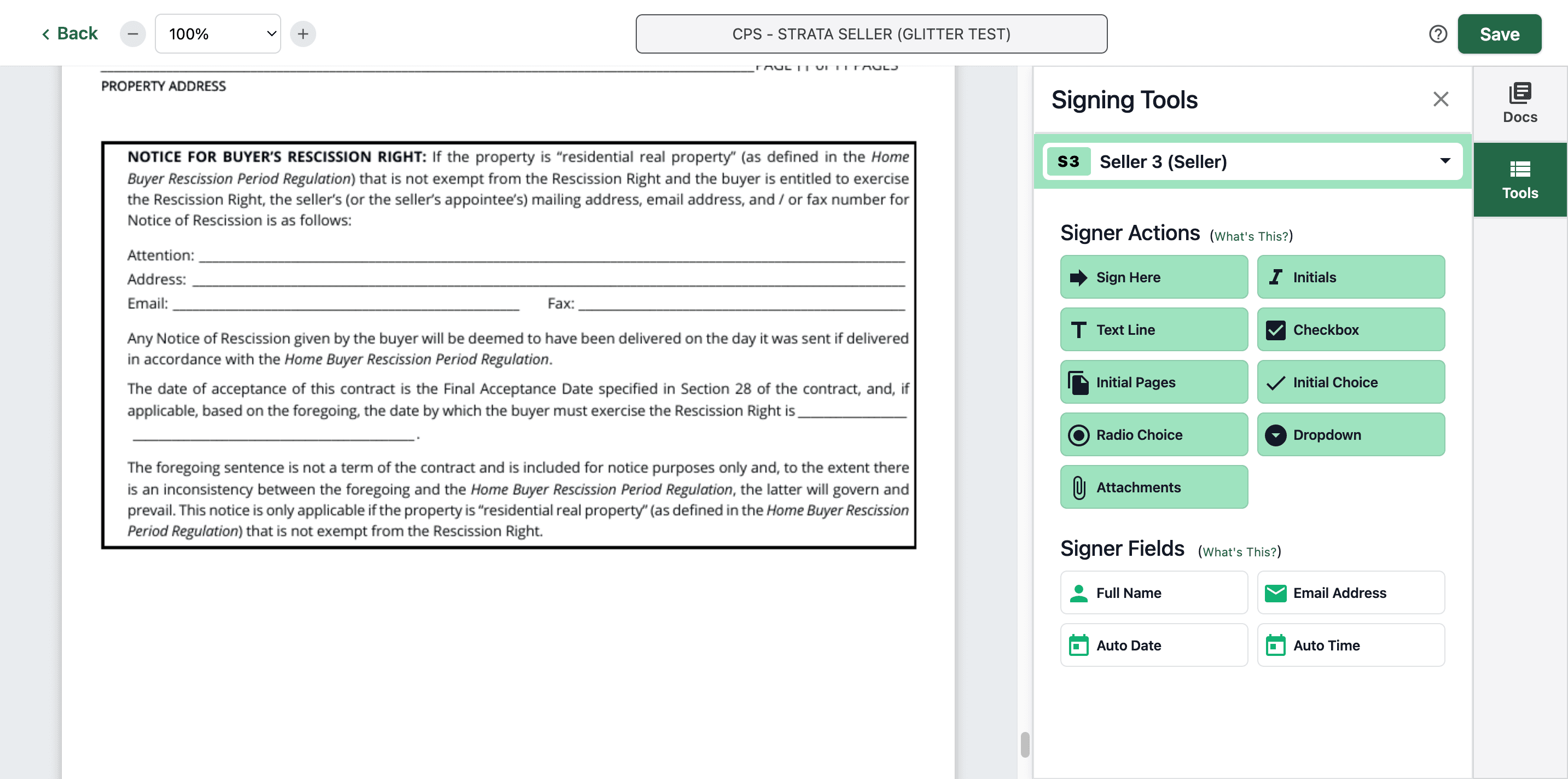
67
Click here
Step #67: Click here

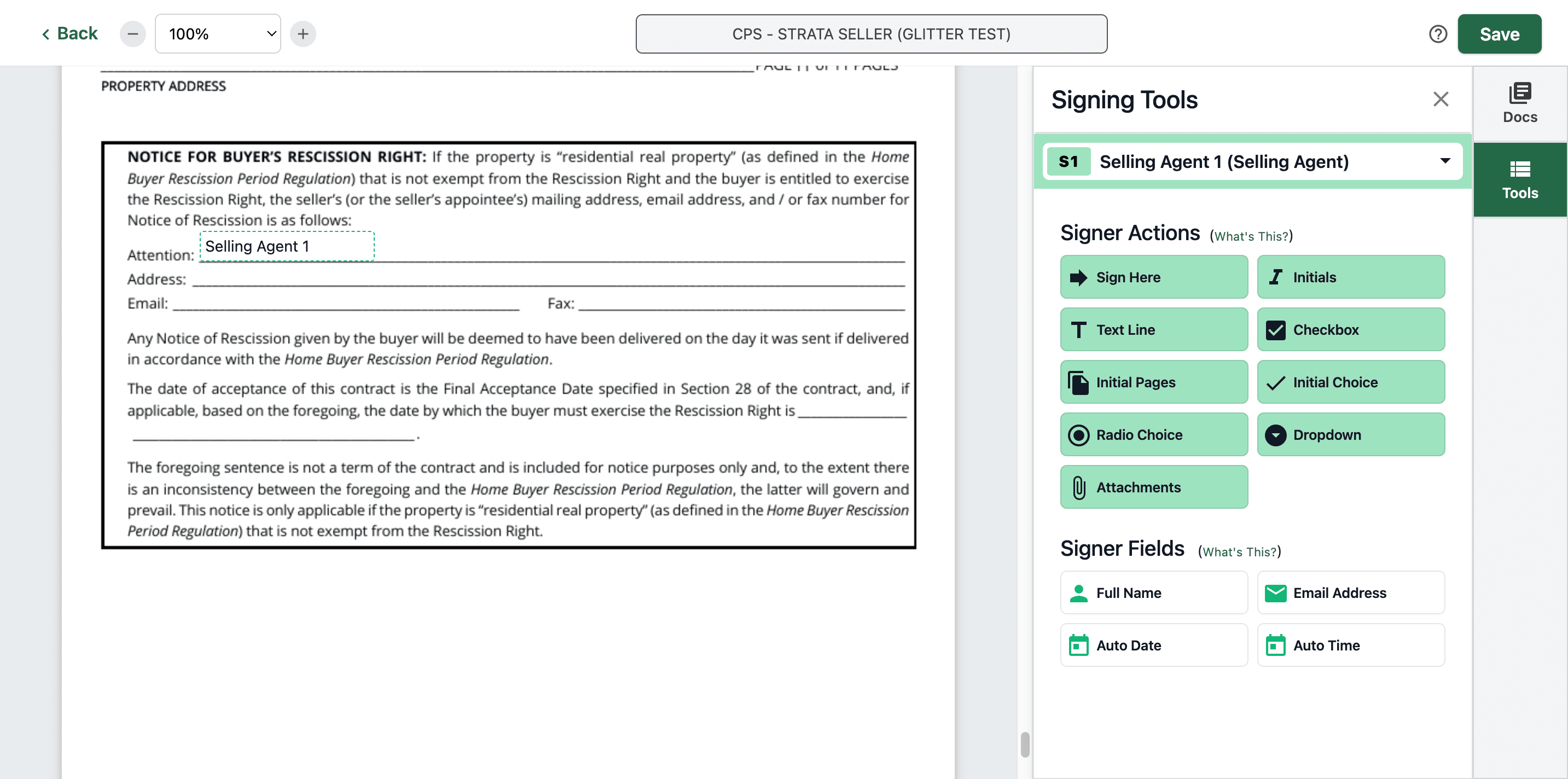
Let's select selling agent one.

68
Click here
Step #68: Click here
69
Select the "Full Name"
Step #69: Select the "Full Name"
70
Put here
Step #70: Put here
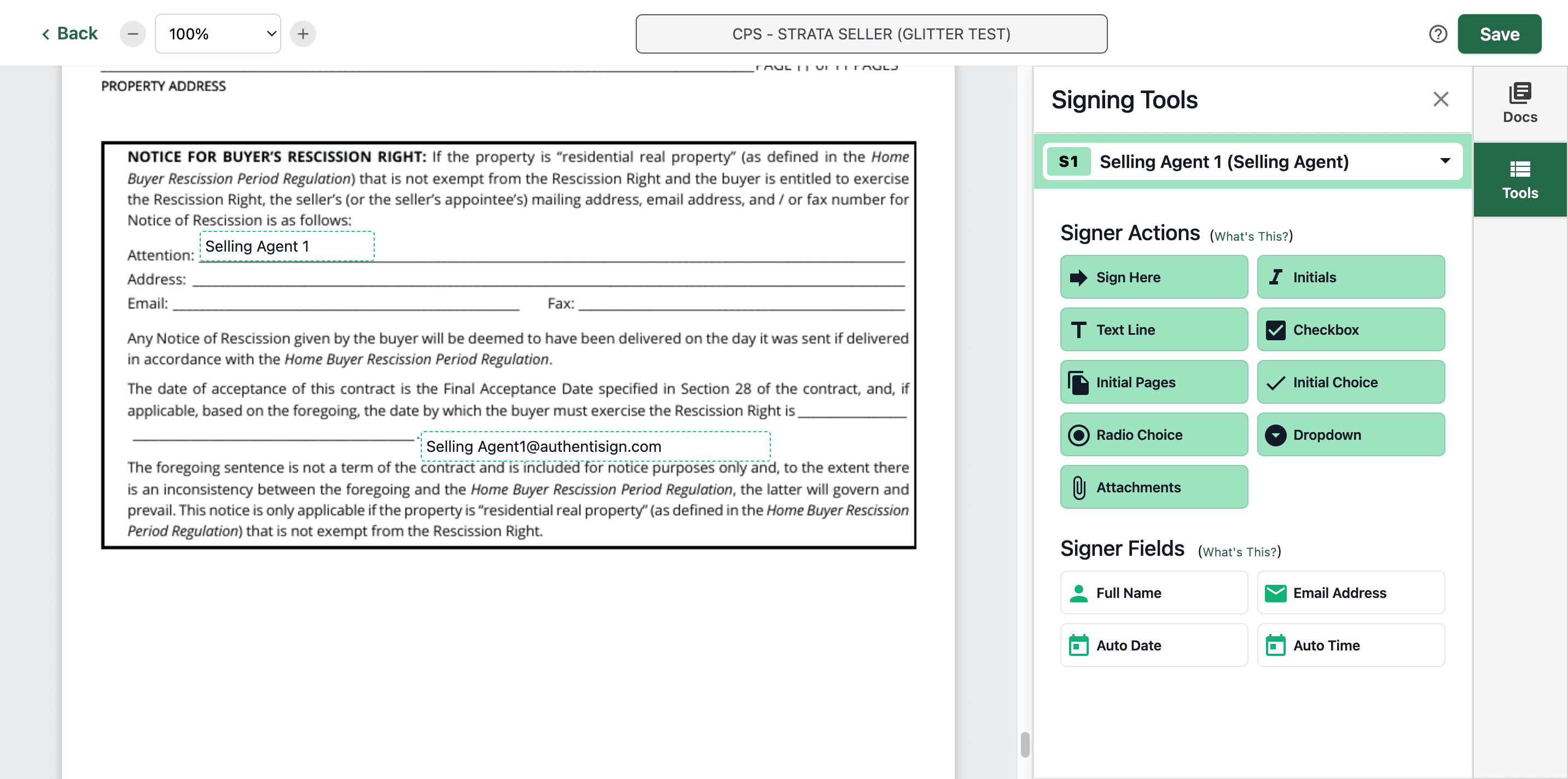
71
Click on "Email Address"
Step #71: Click on "Email Address"
72
Put here
Step #72: Put here

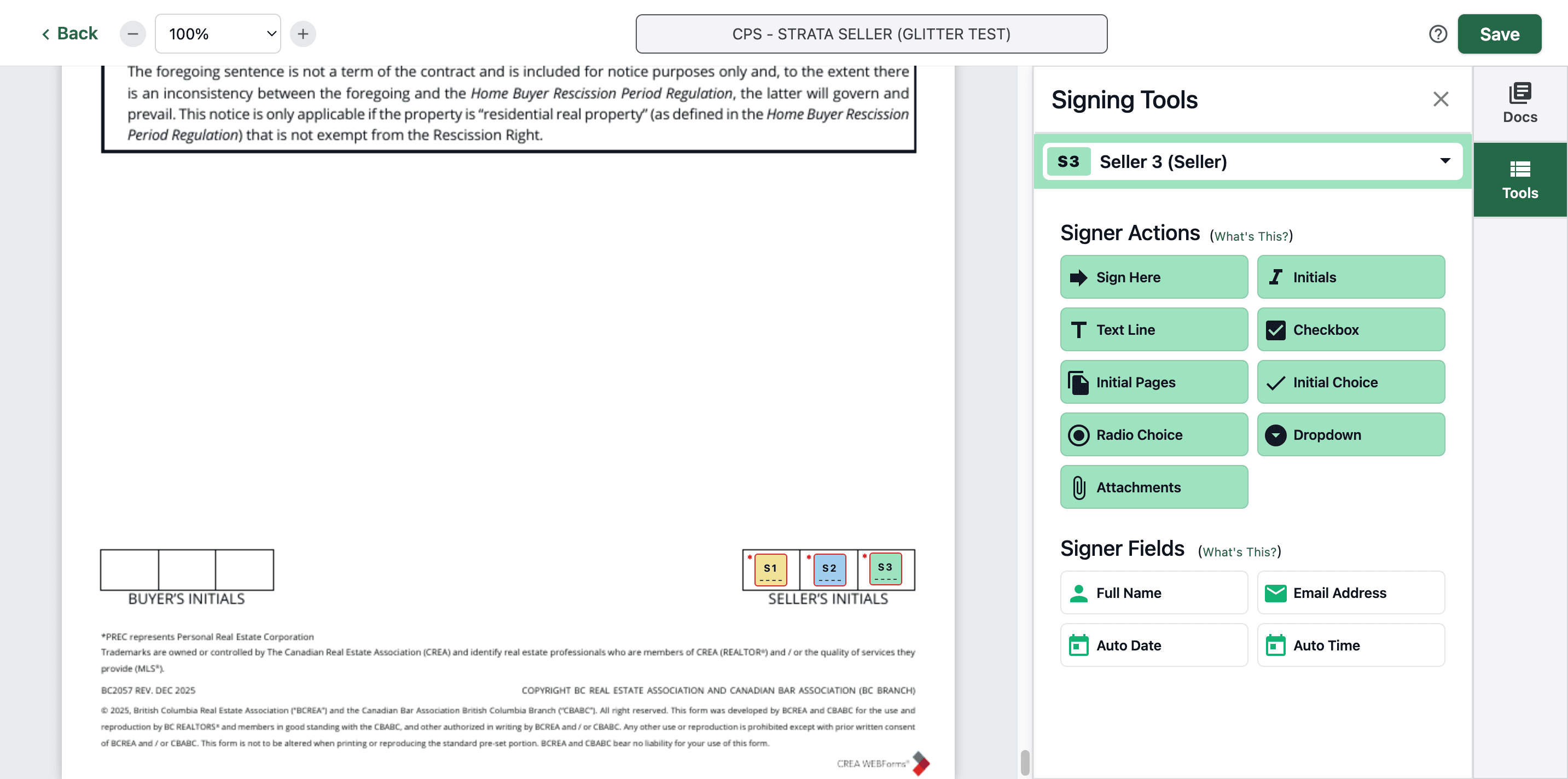
Lastly, put the initials for seller one, seller two, and seller three.
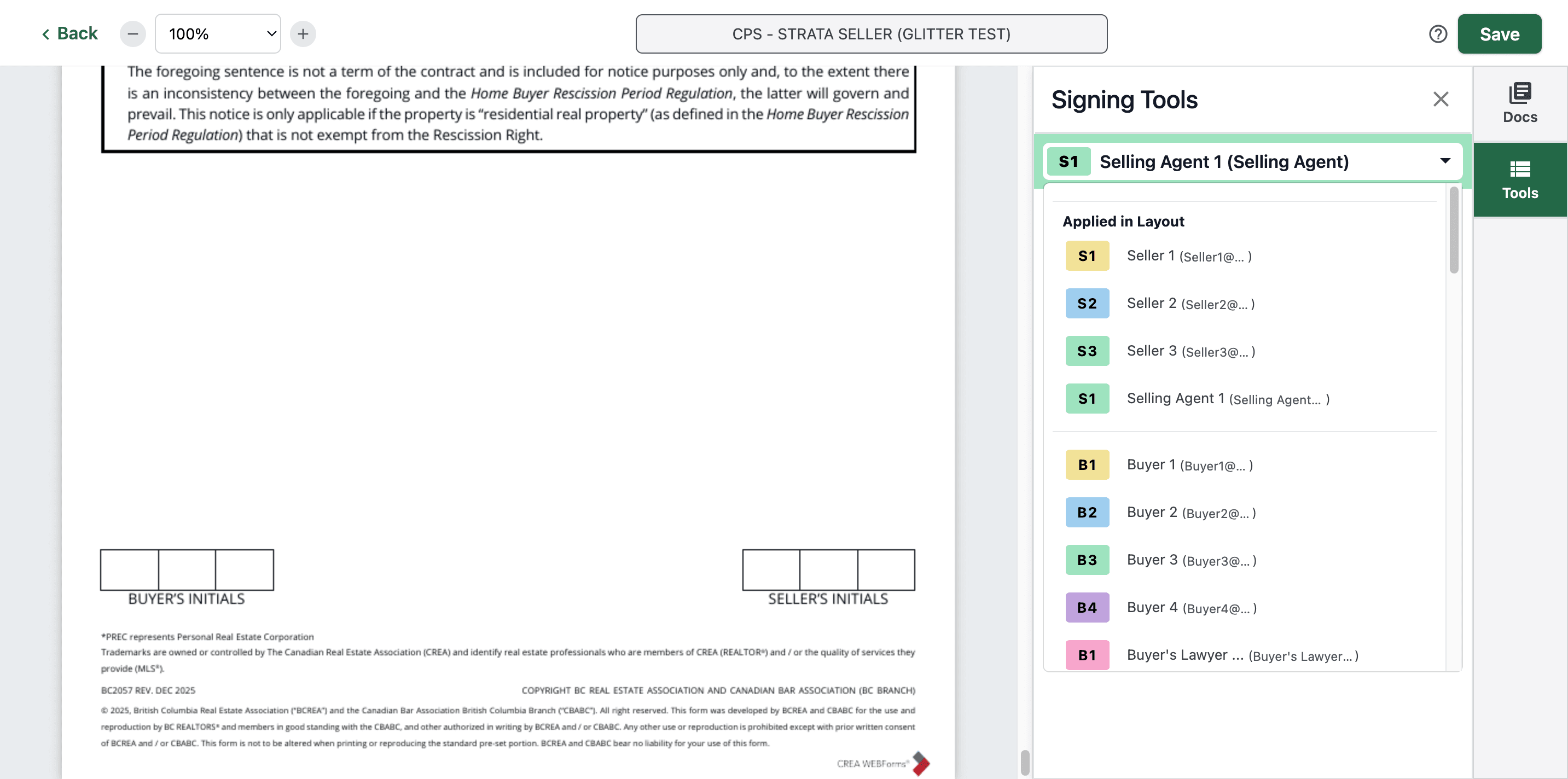
73
Click here
Step #73: Click here

And that's it.

74
Click here
Step #74: Click here

You just need to double-check each page to see if it has the initials correctly. Then click Save.
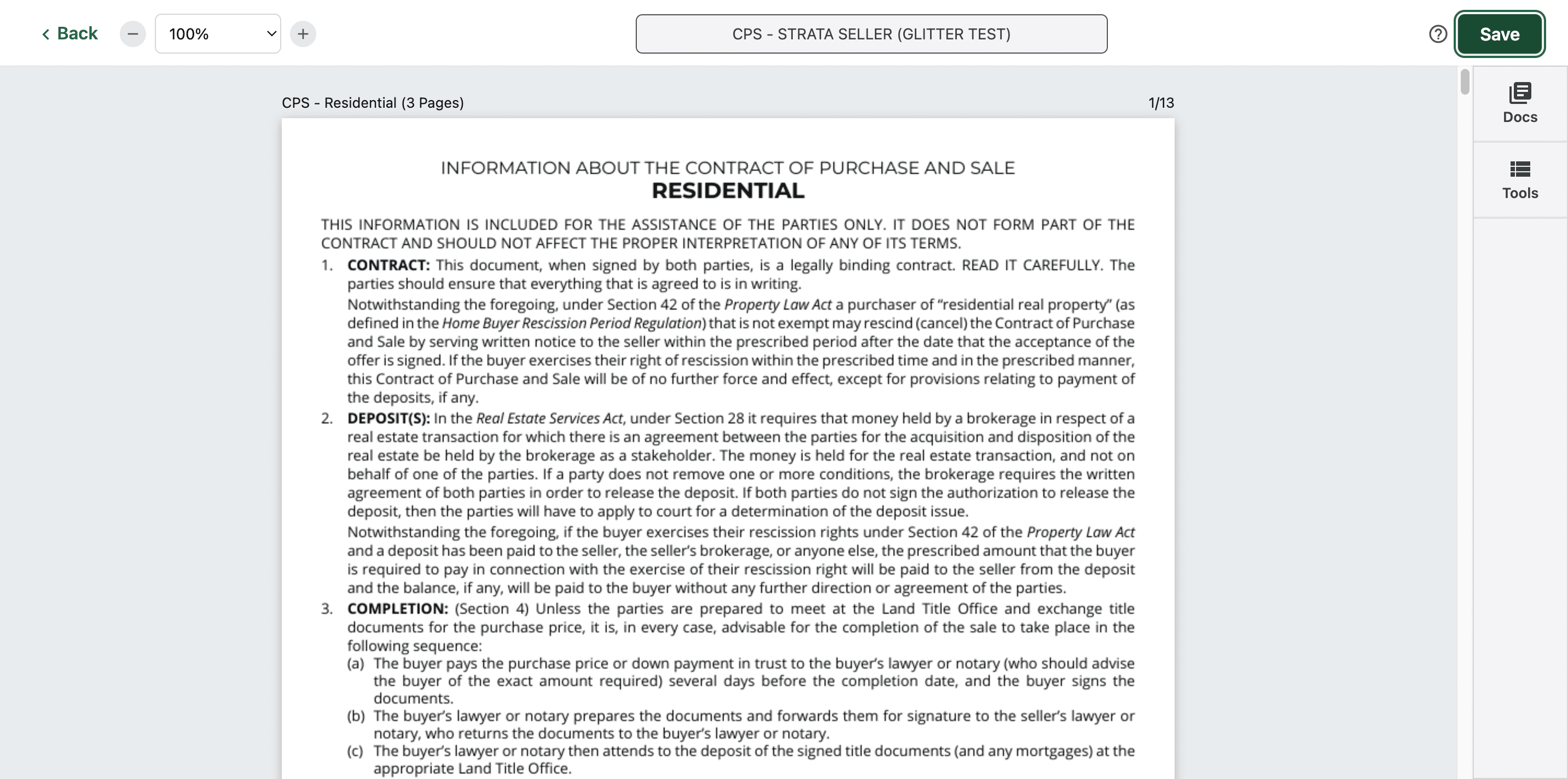
75
Click on "Save"
Step #75: Click on "Save"

How to Create Signature Layouts (CPS Strata Seller) on Authentisigns @ CREA Web Forms -