How to Create Manual Orders in Reservety: Step-by-Step Tutorial
Learn how to create manual orders in Reservety for walk-in and phone customers. This tutorial covers entering customer information, selecting rental items, processing payments, and confirming orders.
In this guide, we'll learn how to create manual orders in Reservety.
Manual orders are useful when you need to help walk-in customers, take orders over the phone, or take unique orders.
This process allows you to enter customer details, select products, set rental dates, and process payments directly in the system.
You'll also see how to confirm the order and review the details to make sure everything is correct.
Let's get started
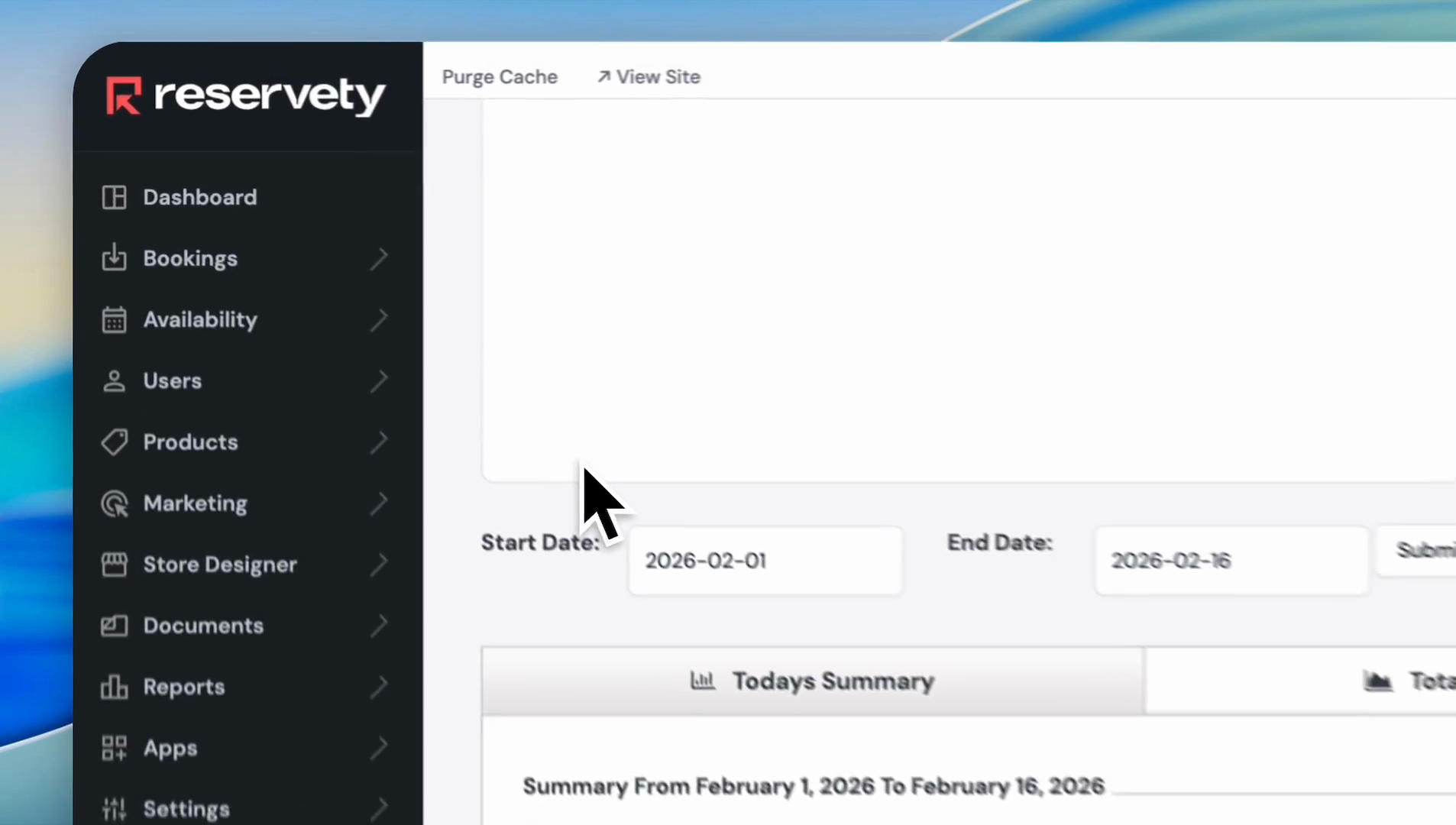
Go to your rental dashboard.
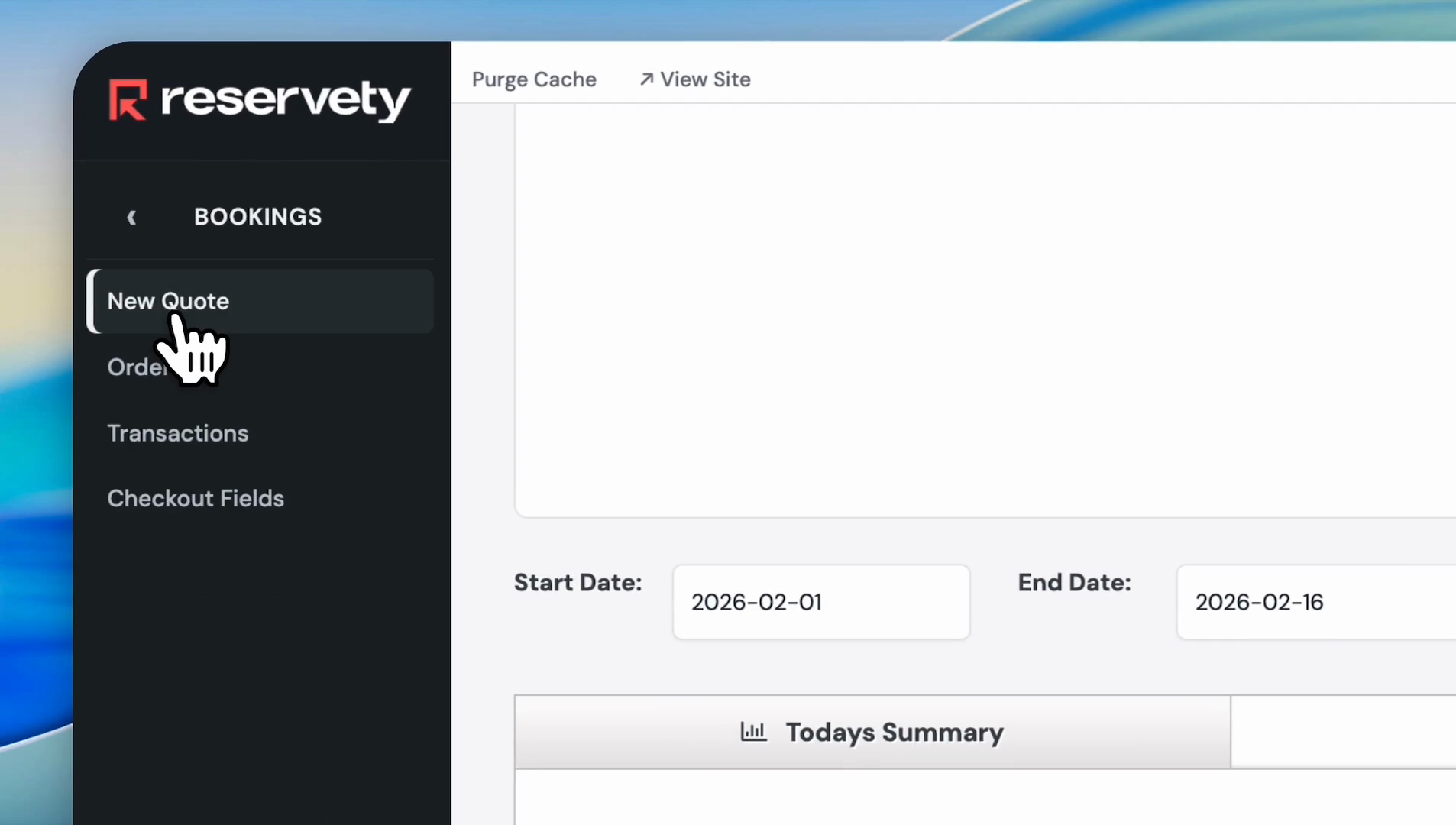
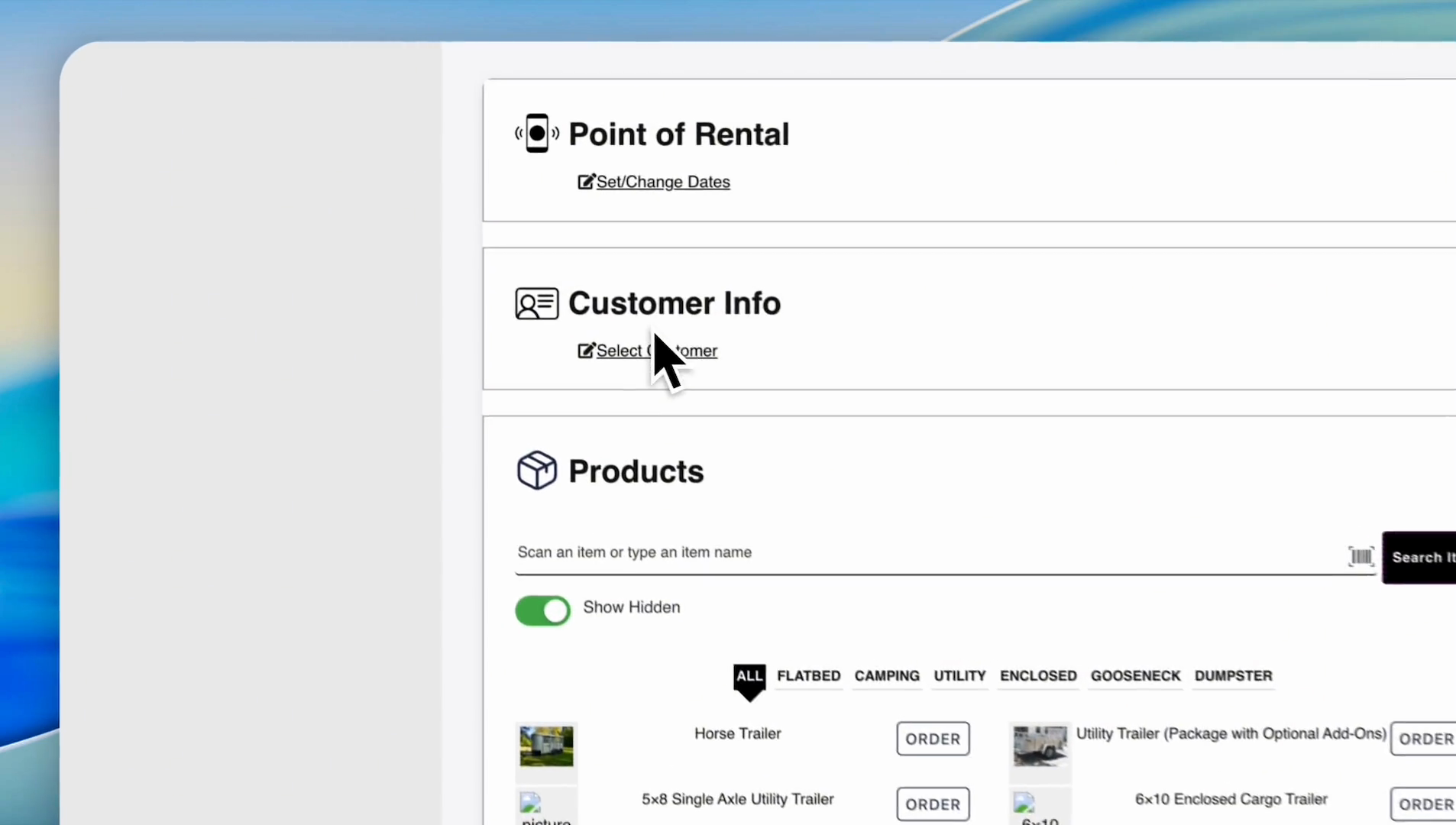
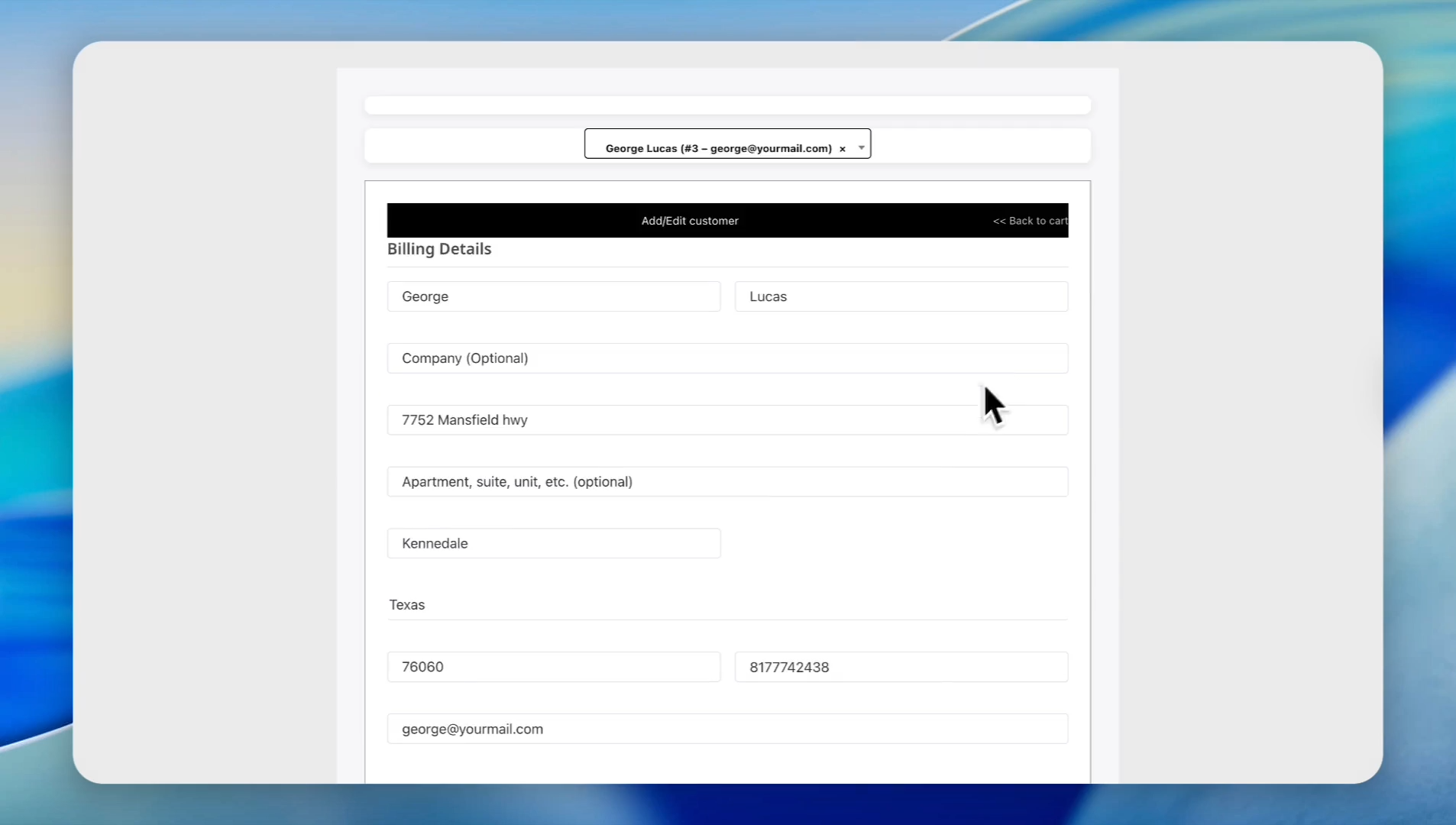
If the customer already exists in your system, their information will be filled in automatically.
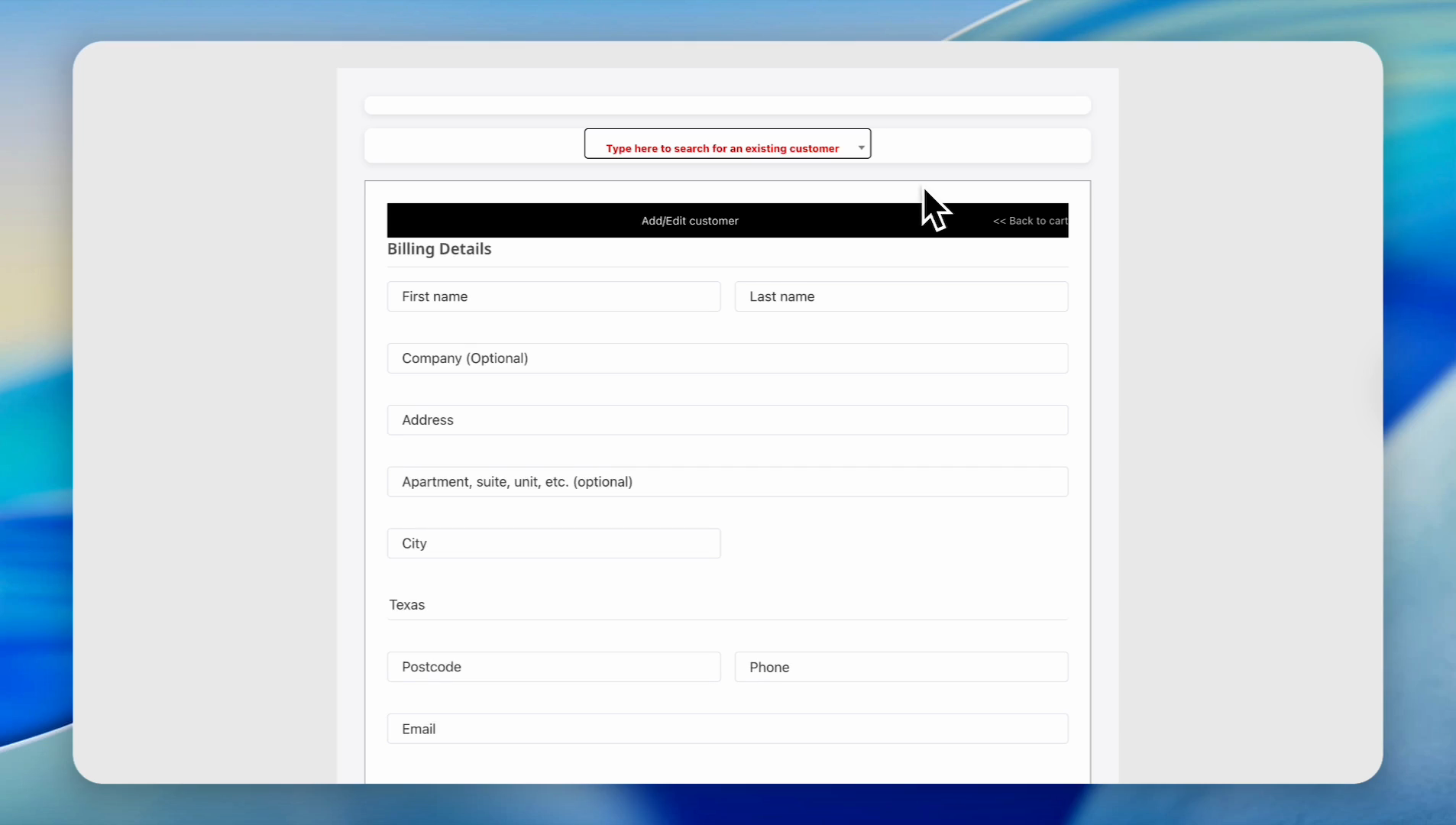
In this case, our customer is George Lucas. Let's search for George.
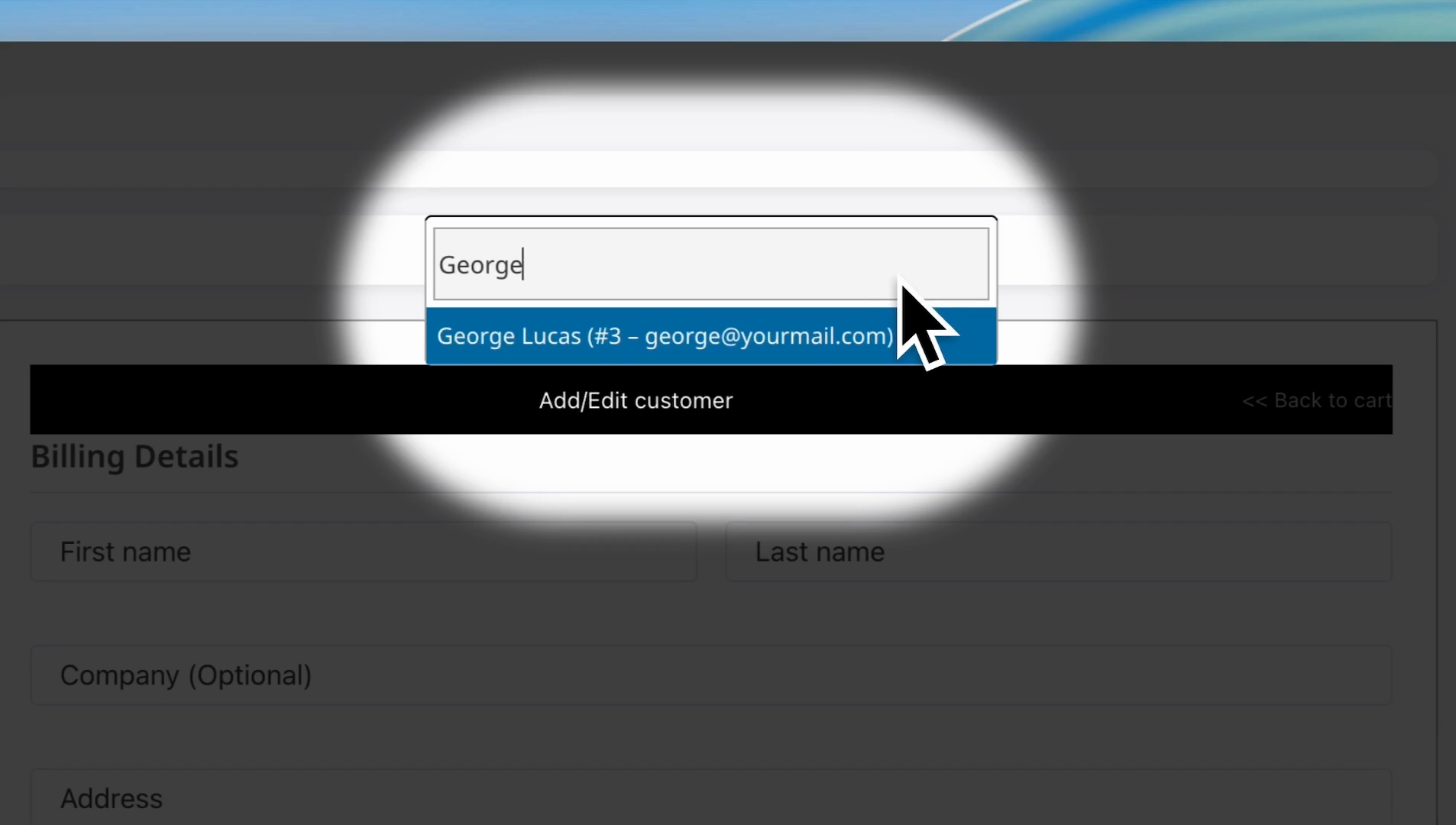
As you can see, the system found George Lucas. When you click on it, the system fills in all the information.
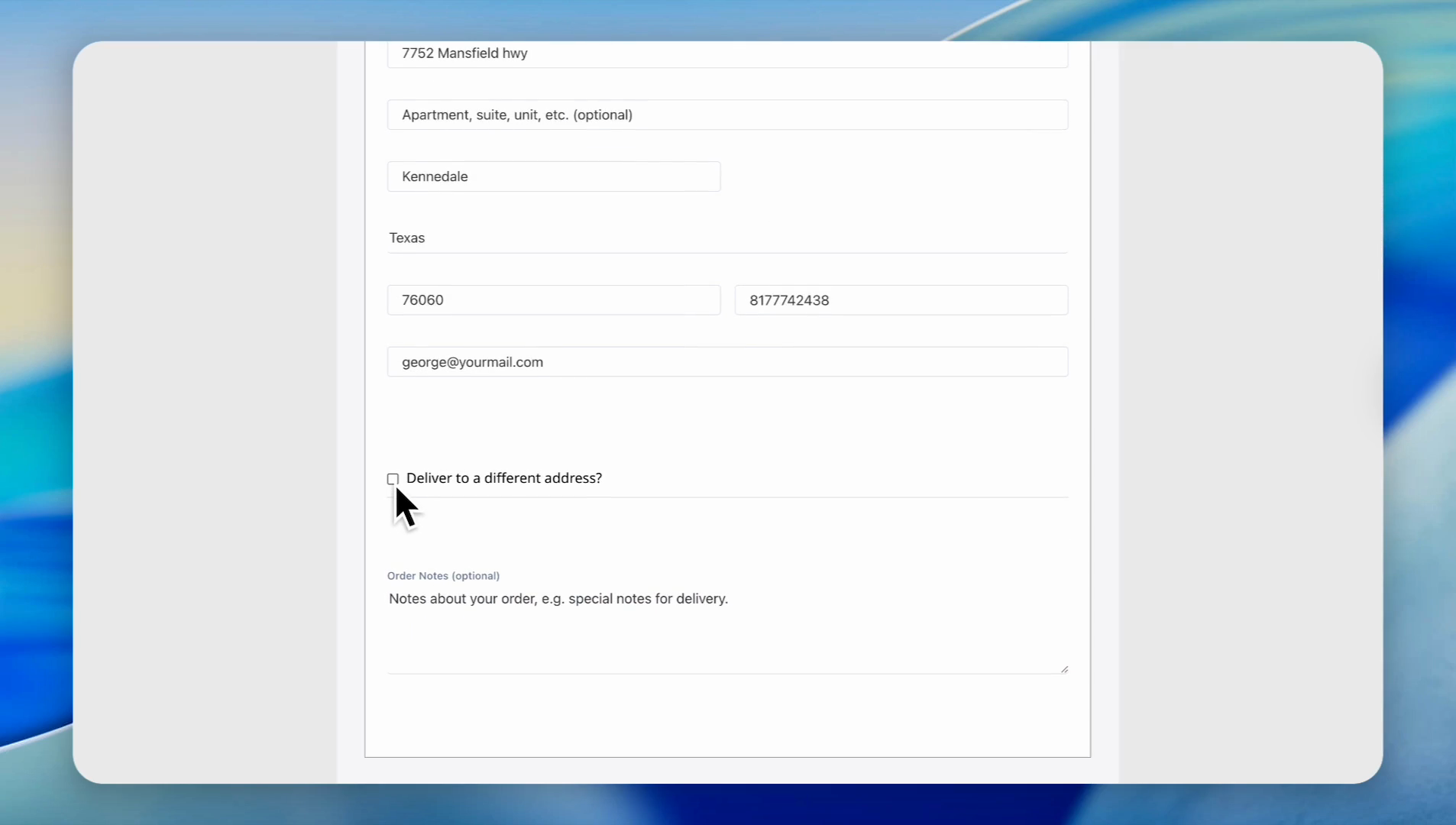
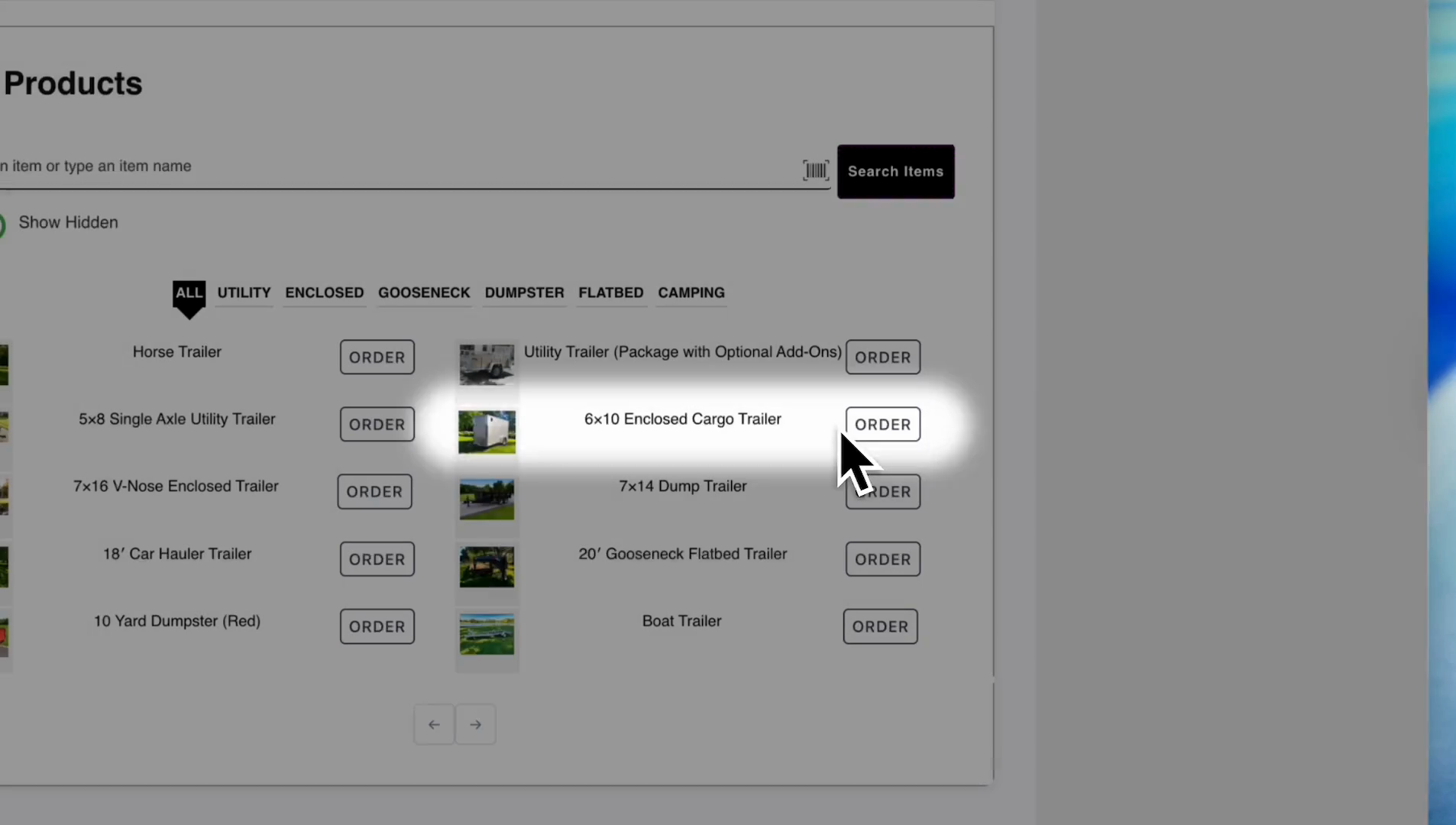
Customer is selected. Let's say George wants to order a 6-by-10 enclosed cargo trailer.
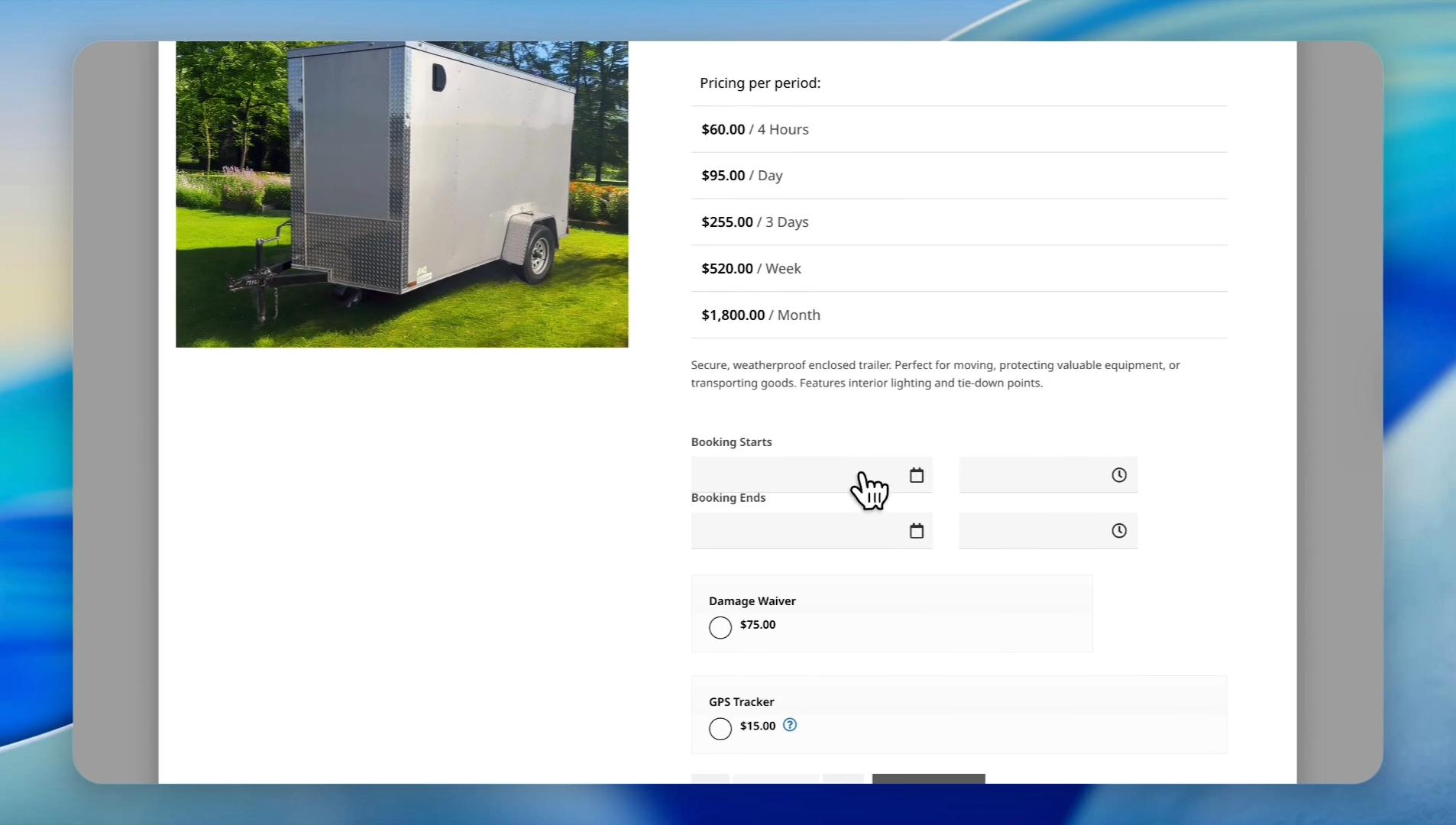
Enter his preferred rental duration.
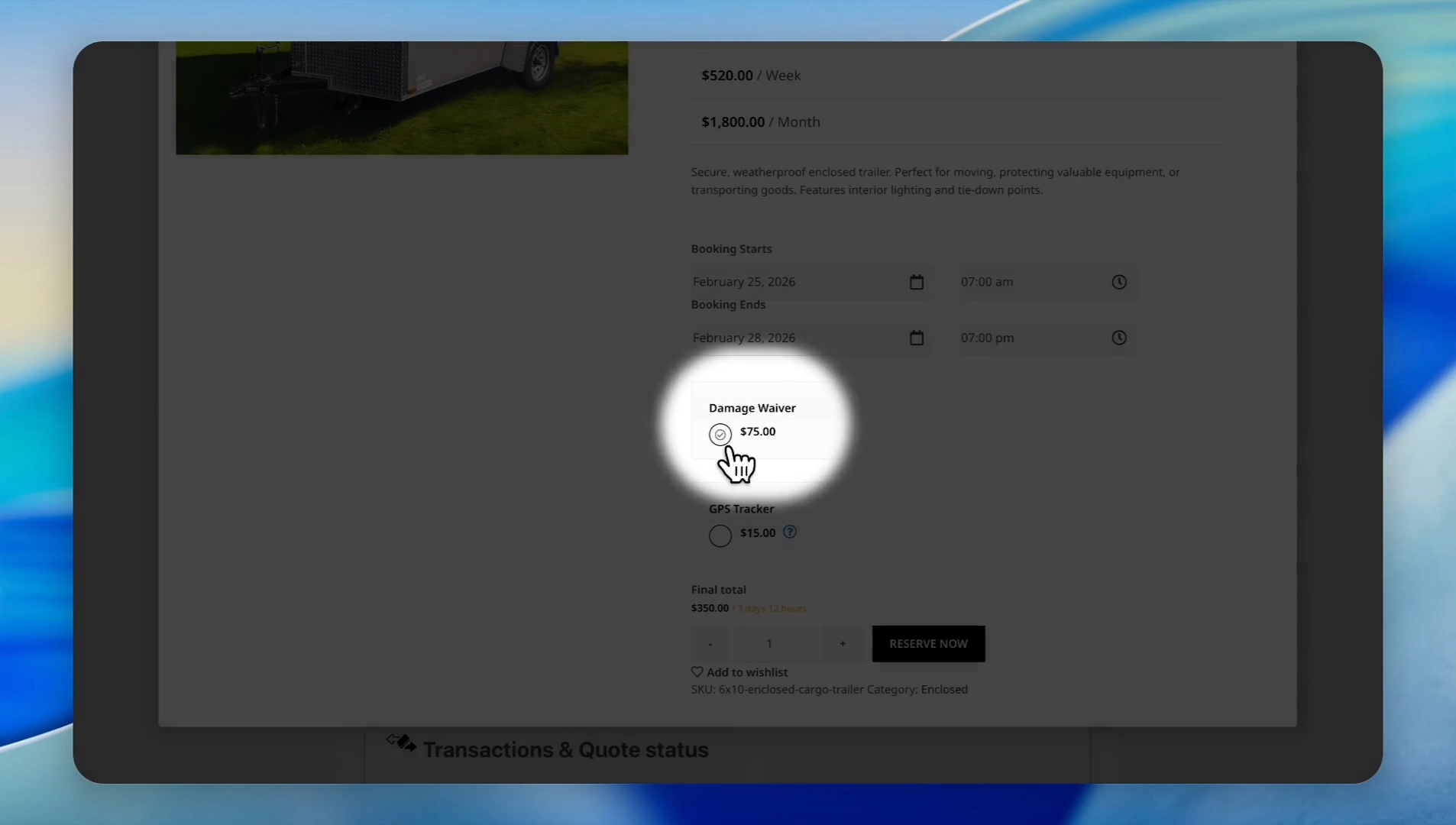
He wants to rent it starting on February 25th at 7:00 a.m. Until February 28th, ending at 7:00 p.m.
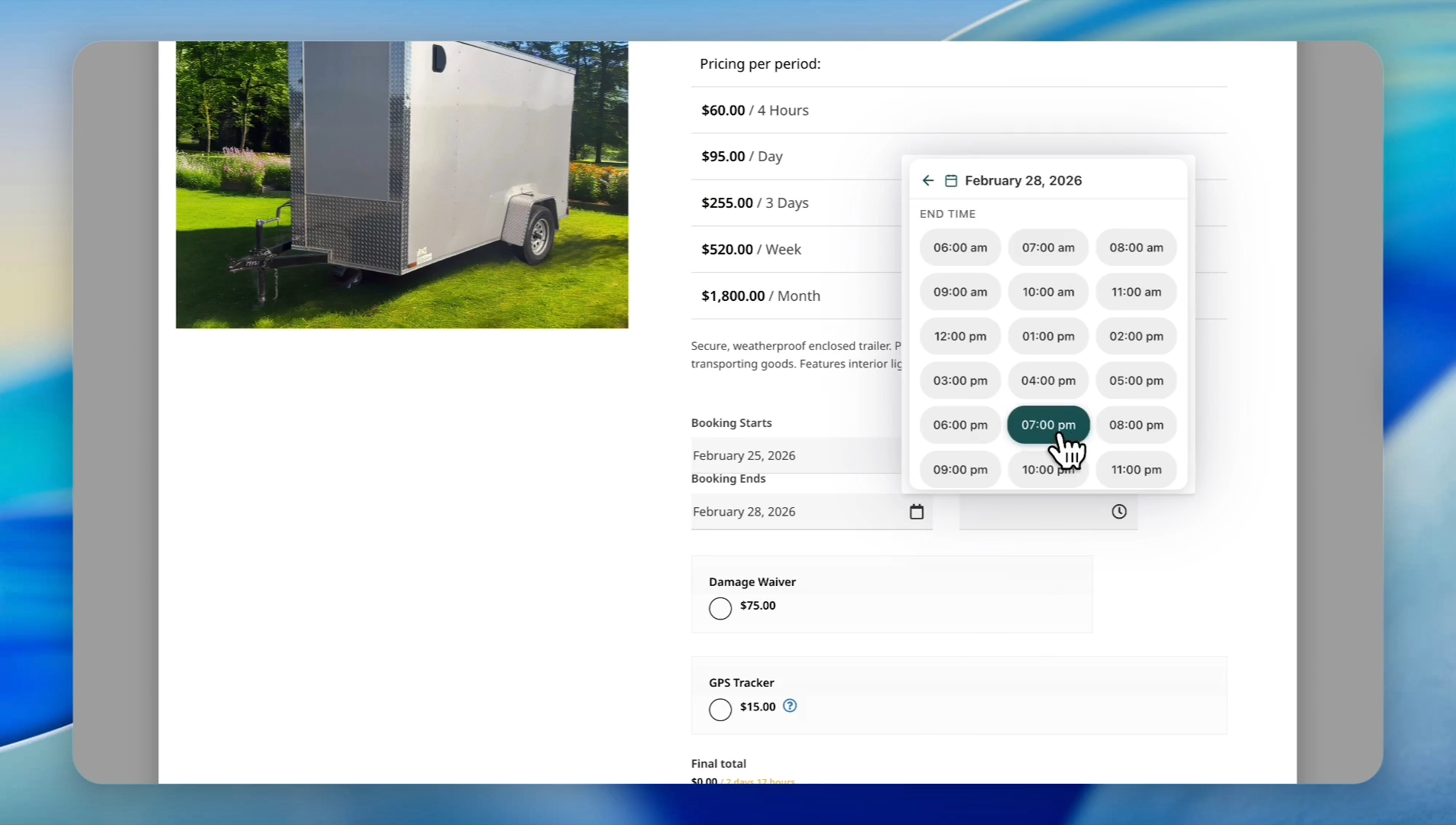
He wants to get a damage waiver with the trailer. Those are optional add-ons; you can simply skip this step unless the add-on is set as required.
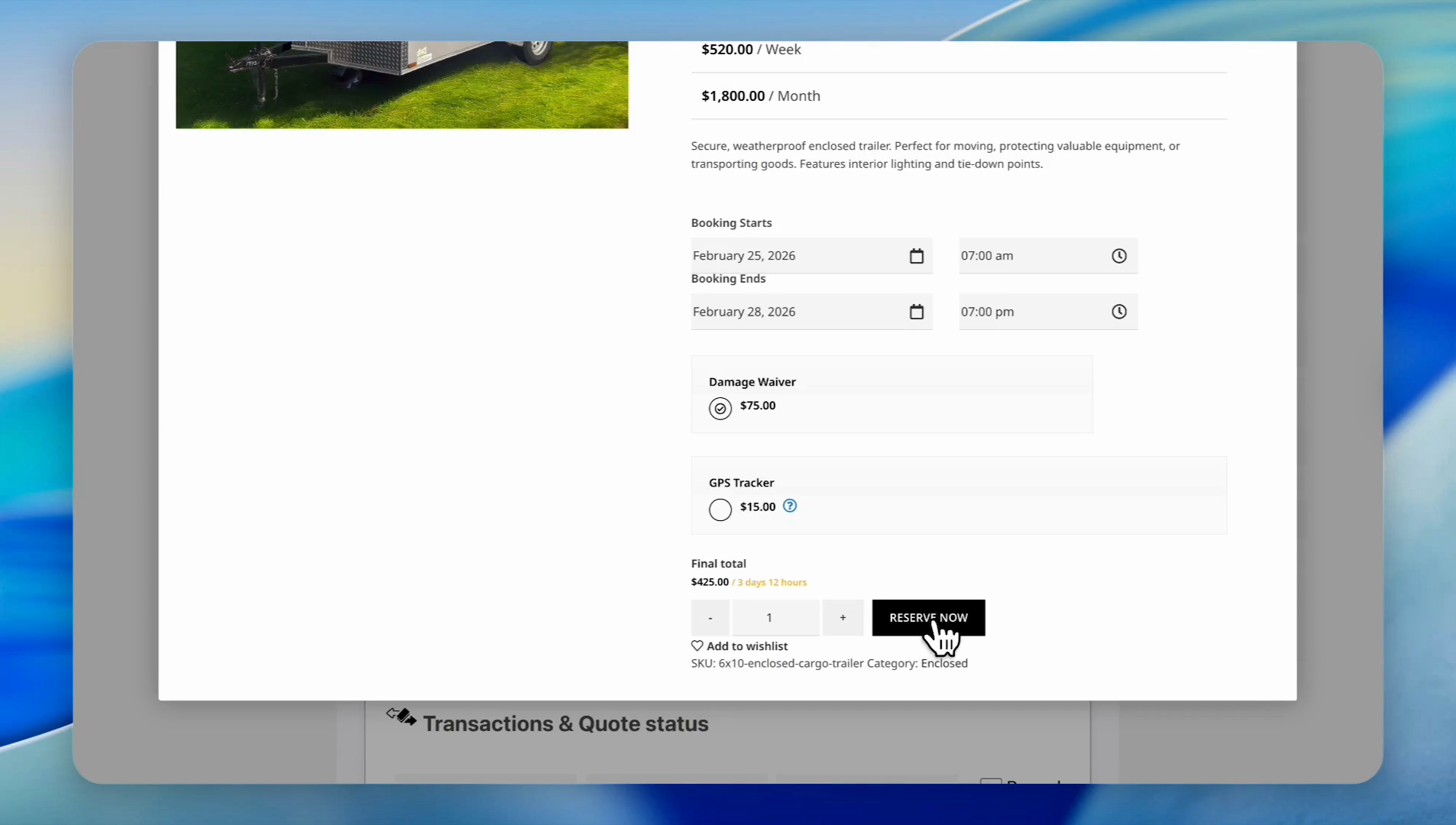
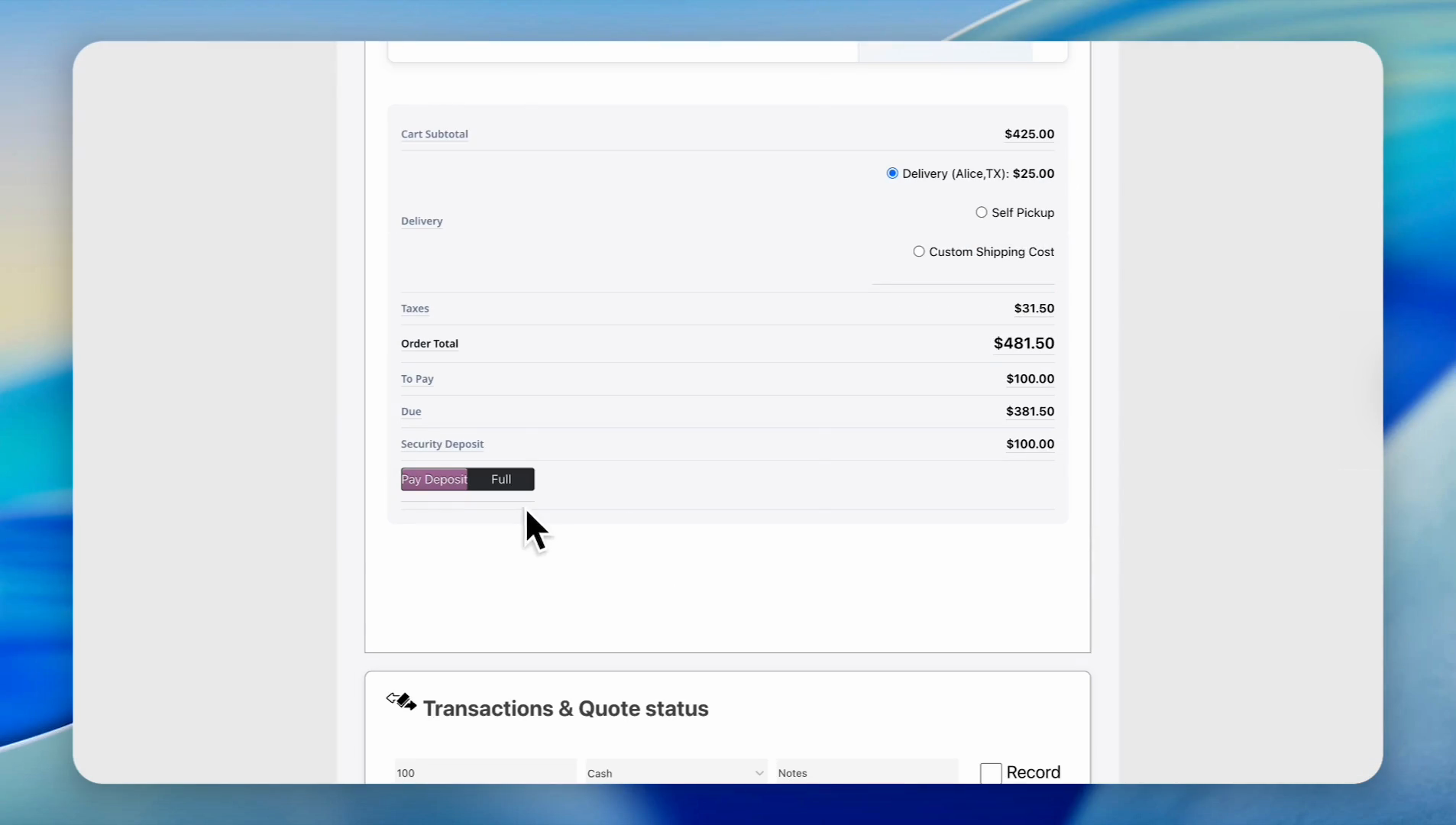
Scroll down. Here you can see the breakdown of pricing, taxes, delivery, and the security deposit. If he wants to pay in full, select "Full" and scroll down; otherwise, process only the security deposit.
You can select any payment method. George wants to pay with cash, so we will select the "Cash" payment option.
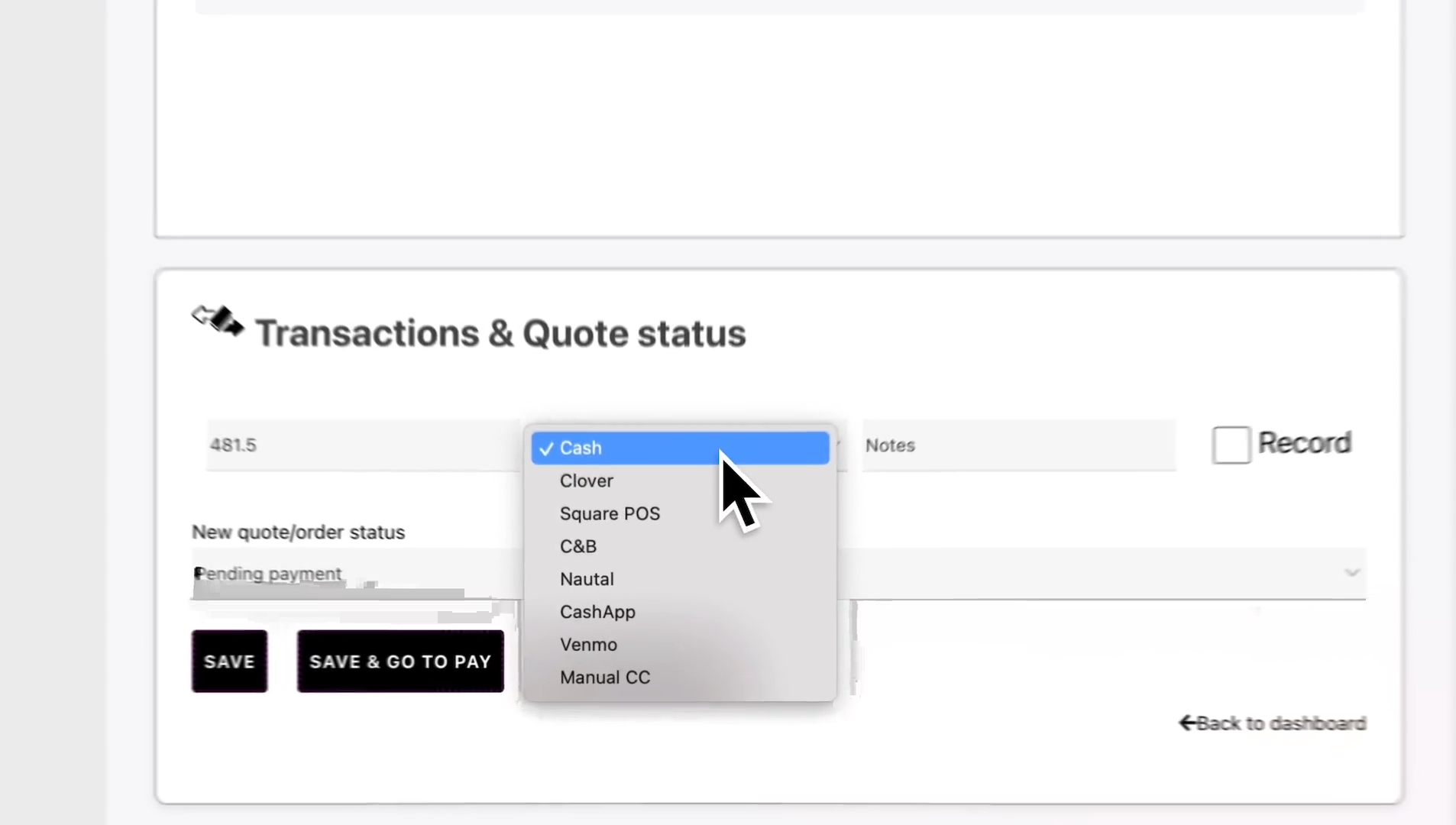
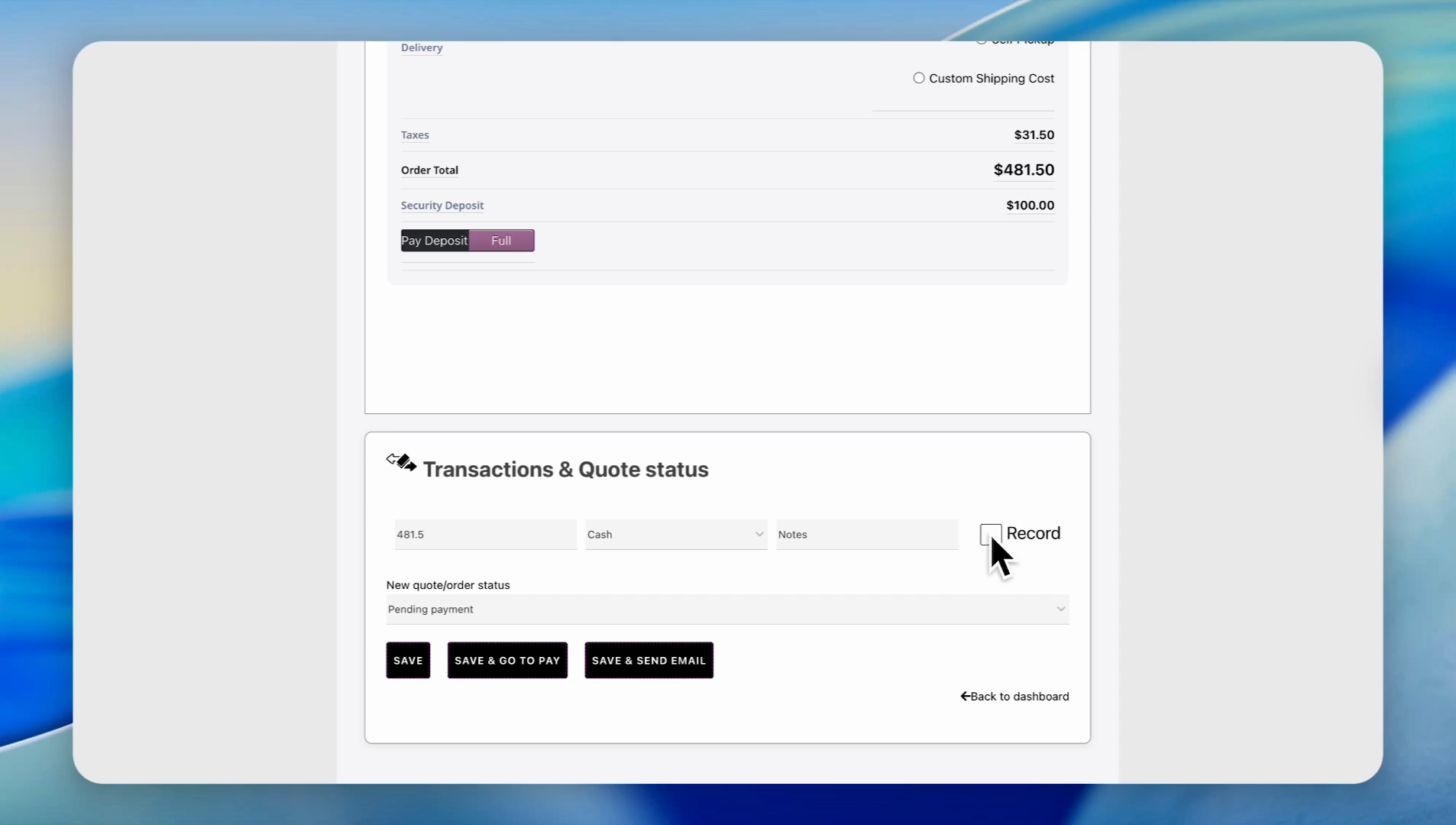
Since this is a test order, we will click "Save".
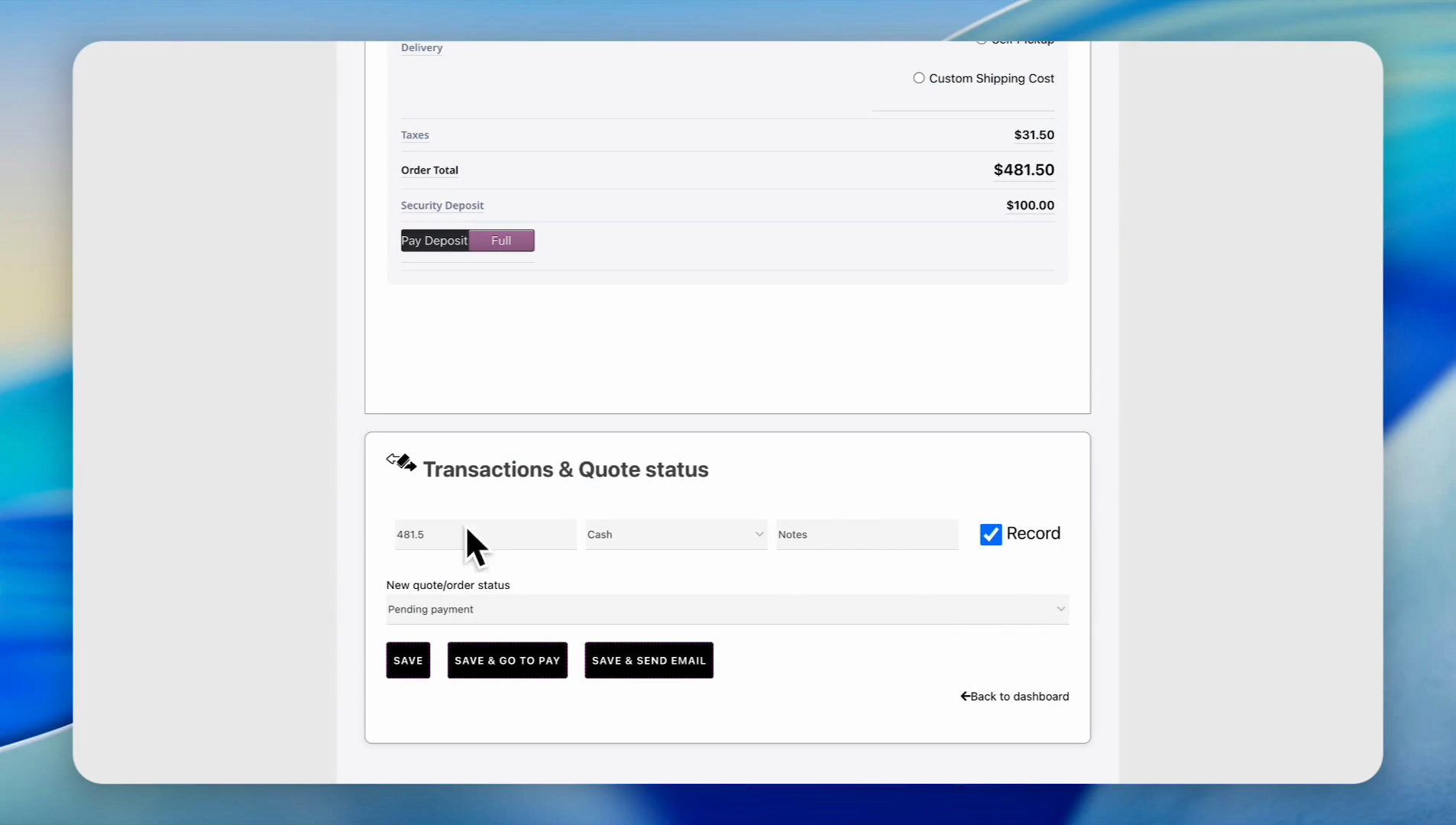
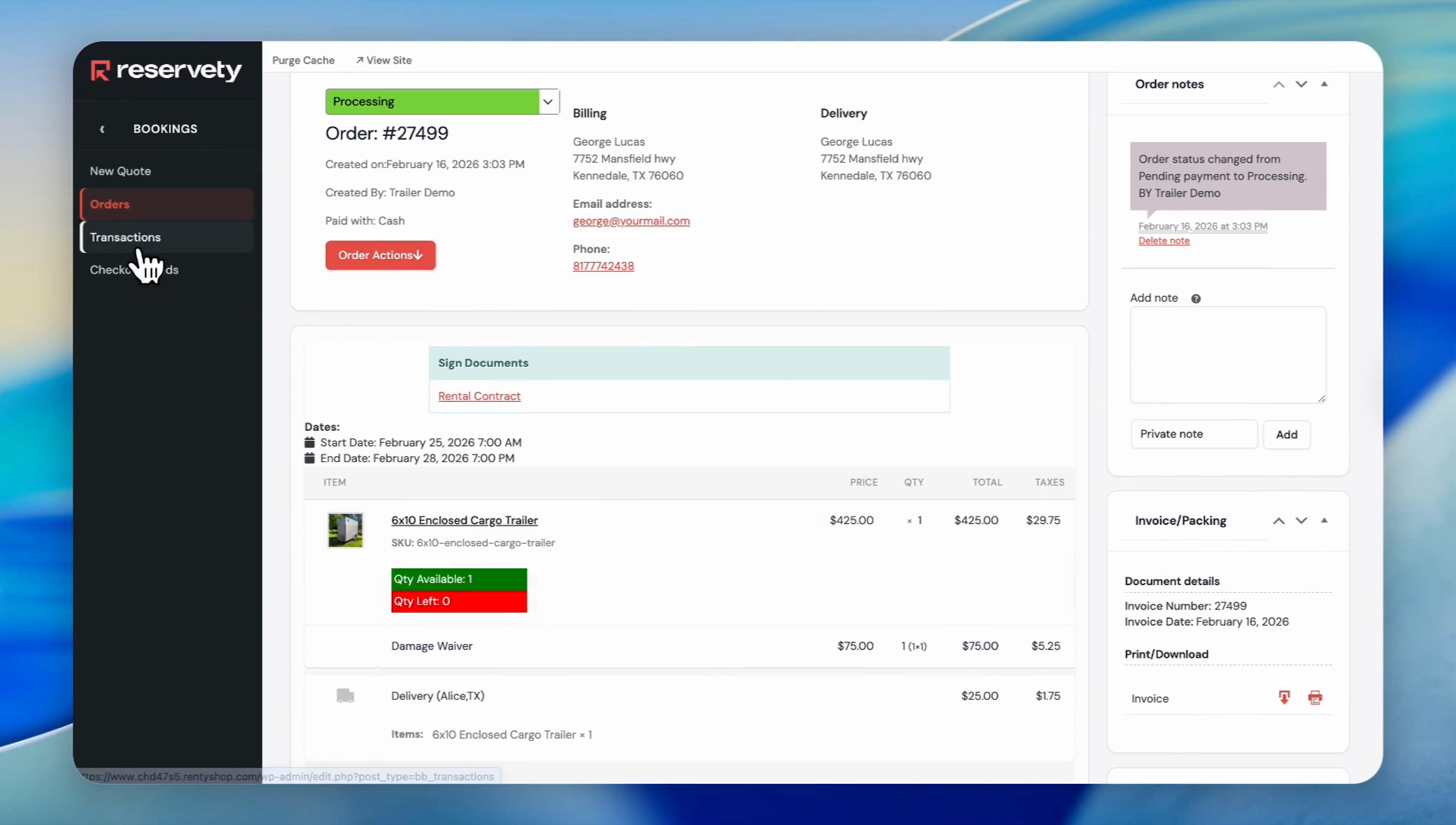
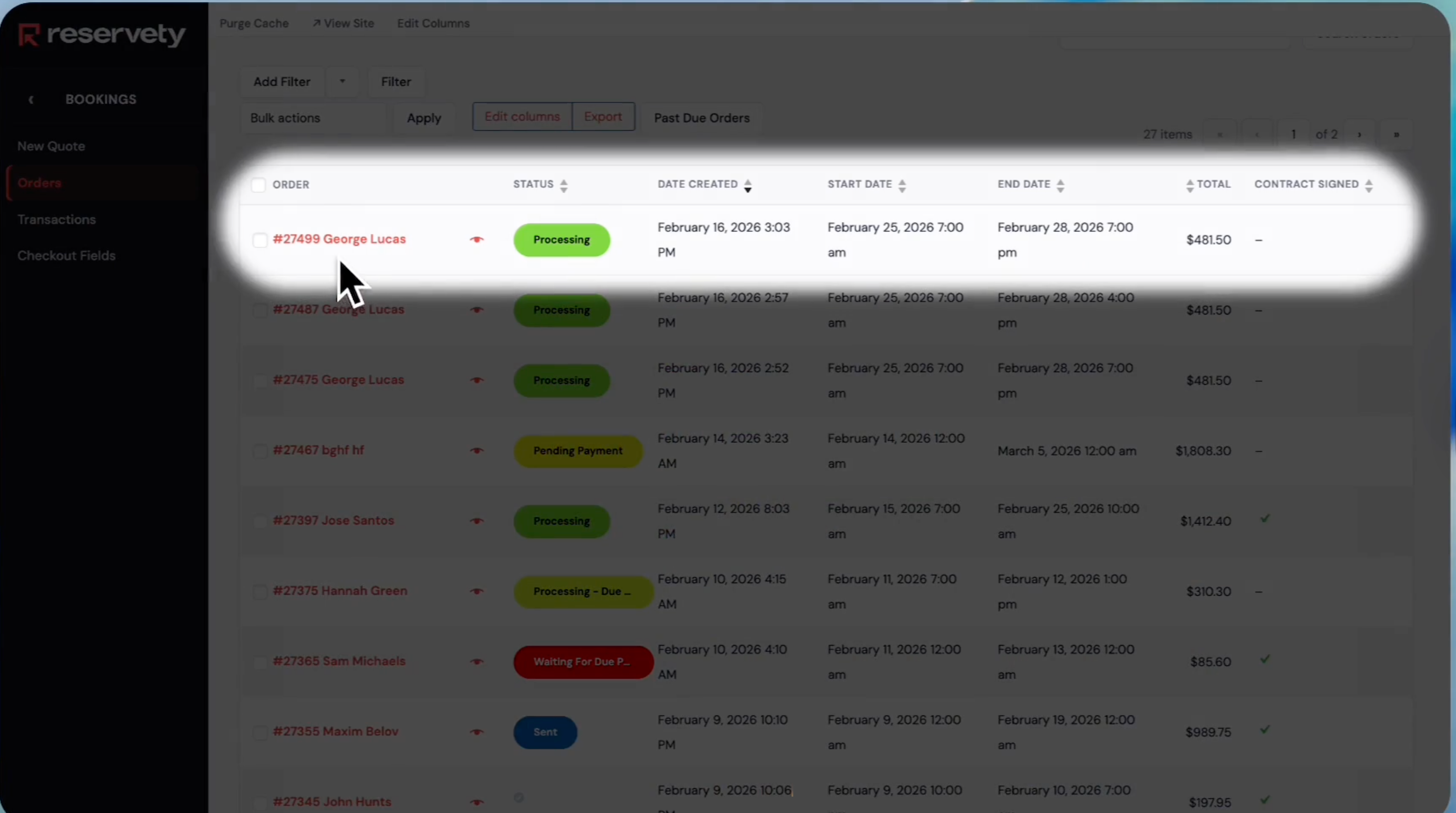
Our manual order is now created.