How to Create Multiple Locations or Warehouses for Rental Products
How to Create Multiple Locations or Warehouses for Rental Products
Learn step-by-step how to set up multiple locations or warehouses for your rental products, assign inventory to each location, and manage pricing and availability for different regions. Perfect for businesses managing inventory across various storage facilities or pickup points.
By Reservety
In this guide, we'll learn how to set up multiple locations or warehouses for your rental products and assign inventory to each one.
This process helps you manage stock across different sites, such as storage facilities or pickup points, and allows customers to choose their preferred location when booking.
Let's get started
1
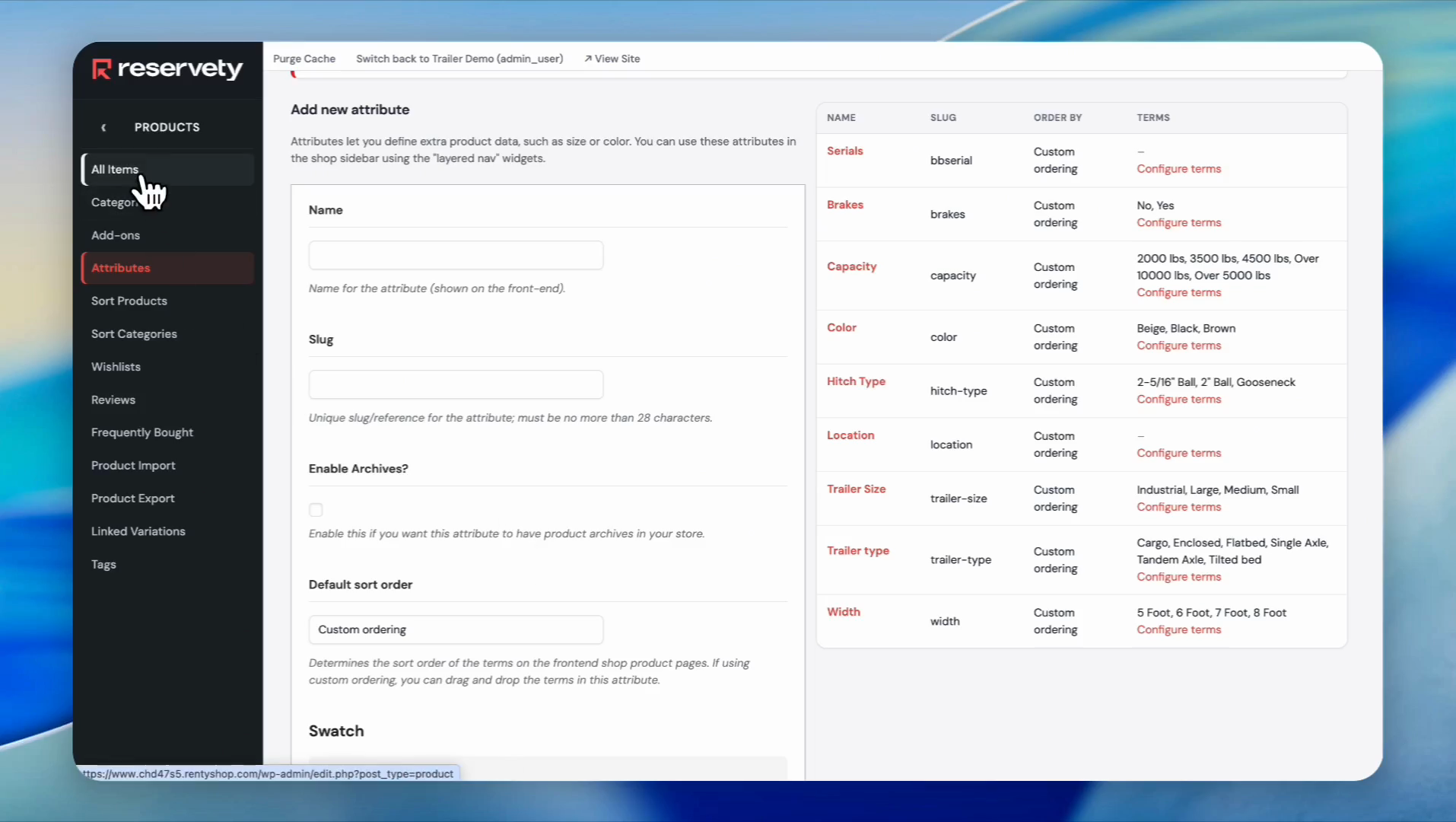
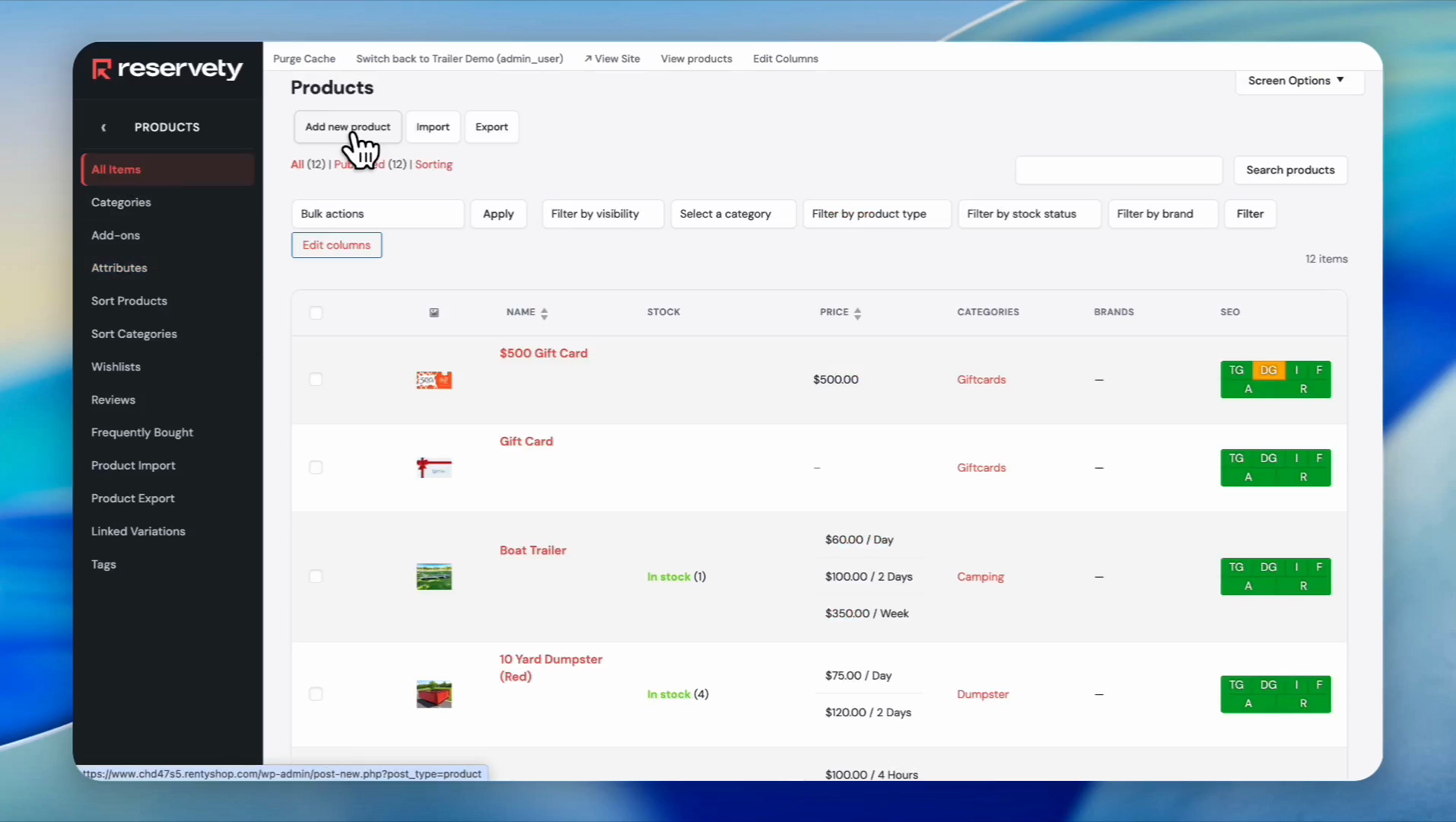
Click on All Items.
2
Click on Add new product.
3
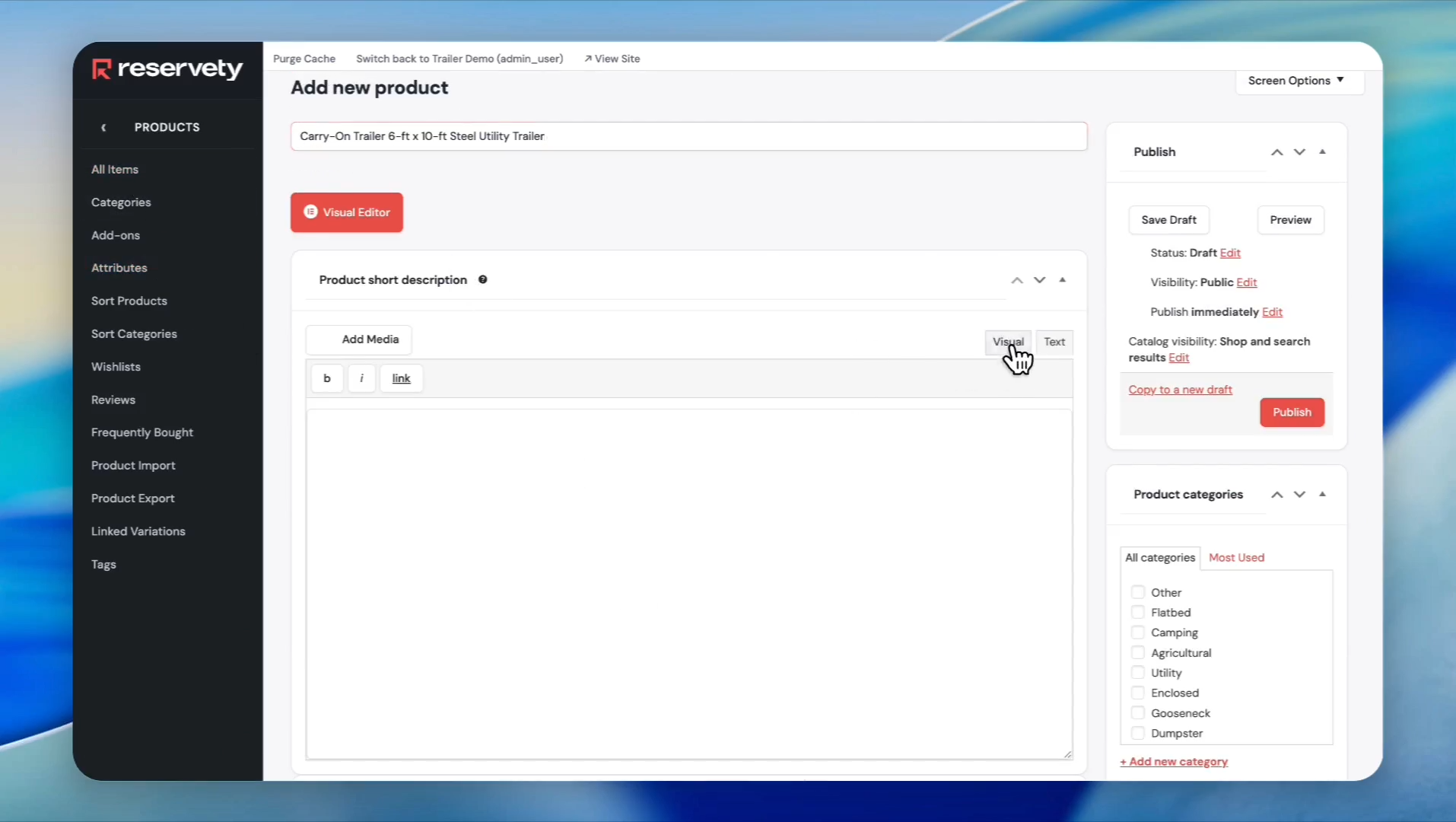
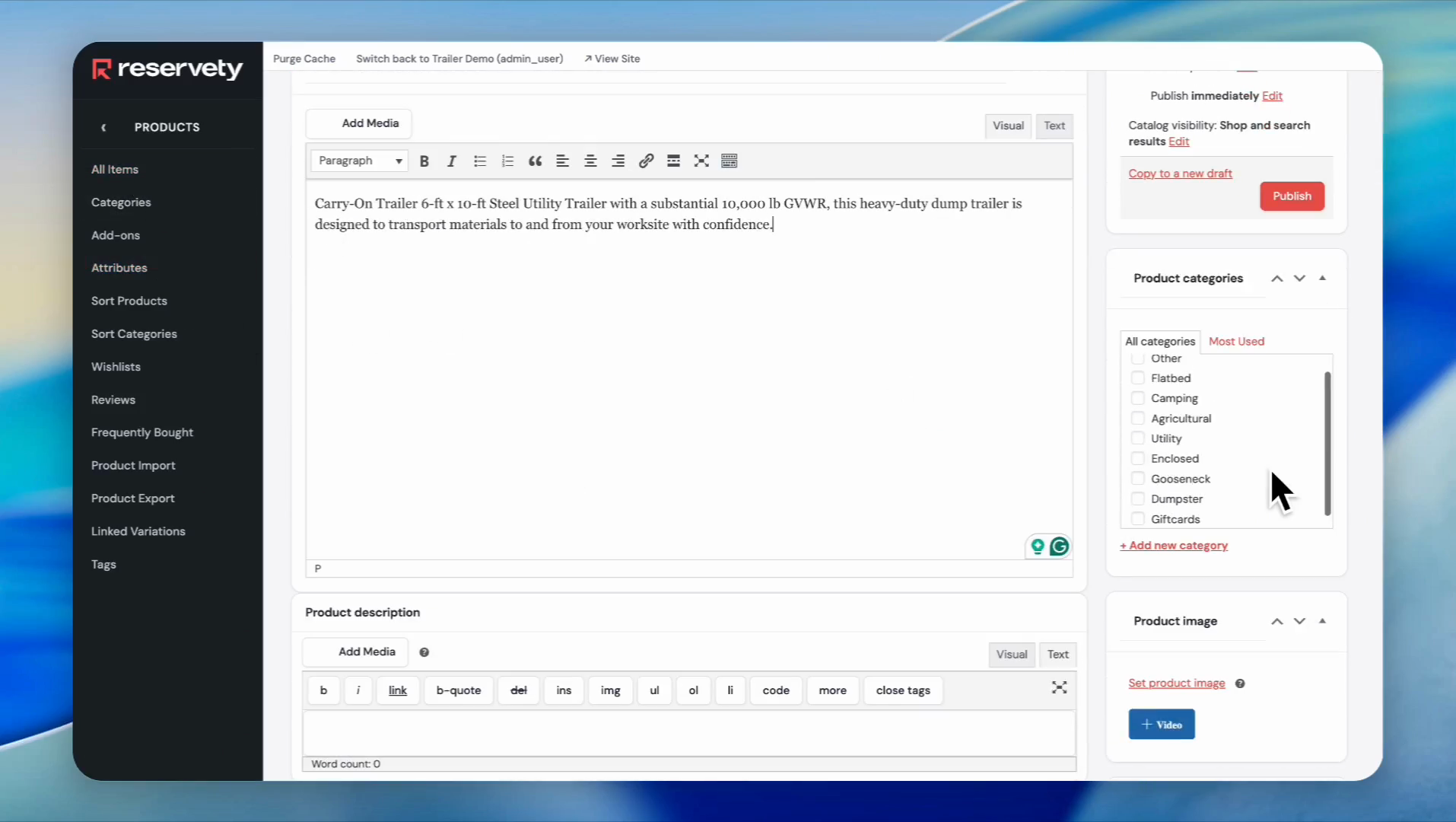
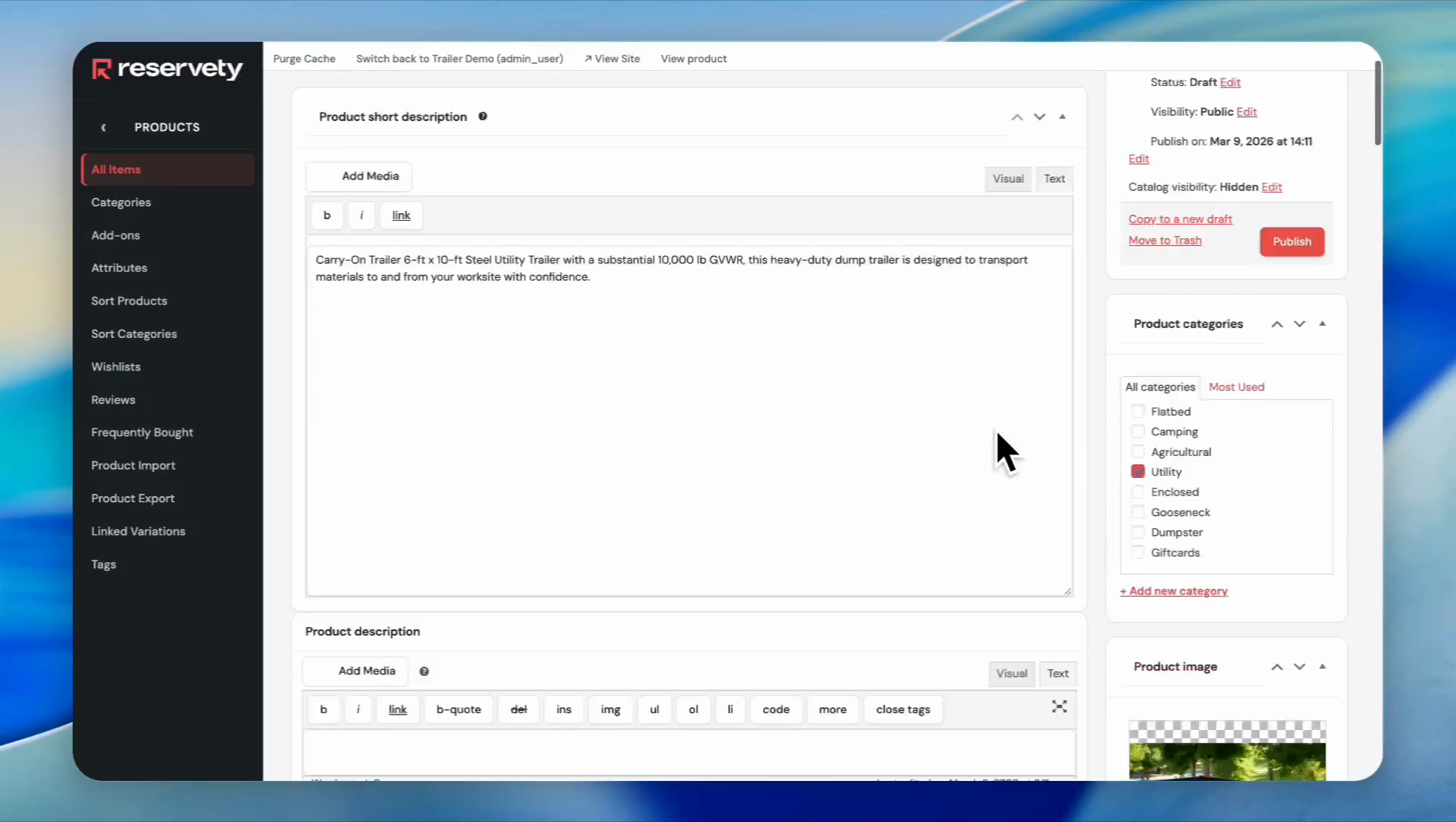
Type your product name, click on the Visual tab, and enter the product description.
4
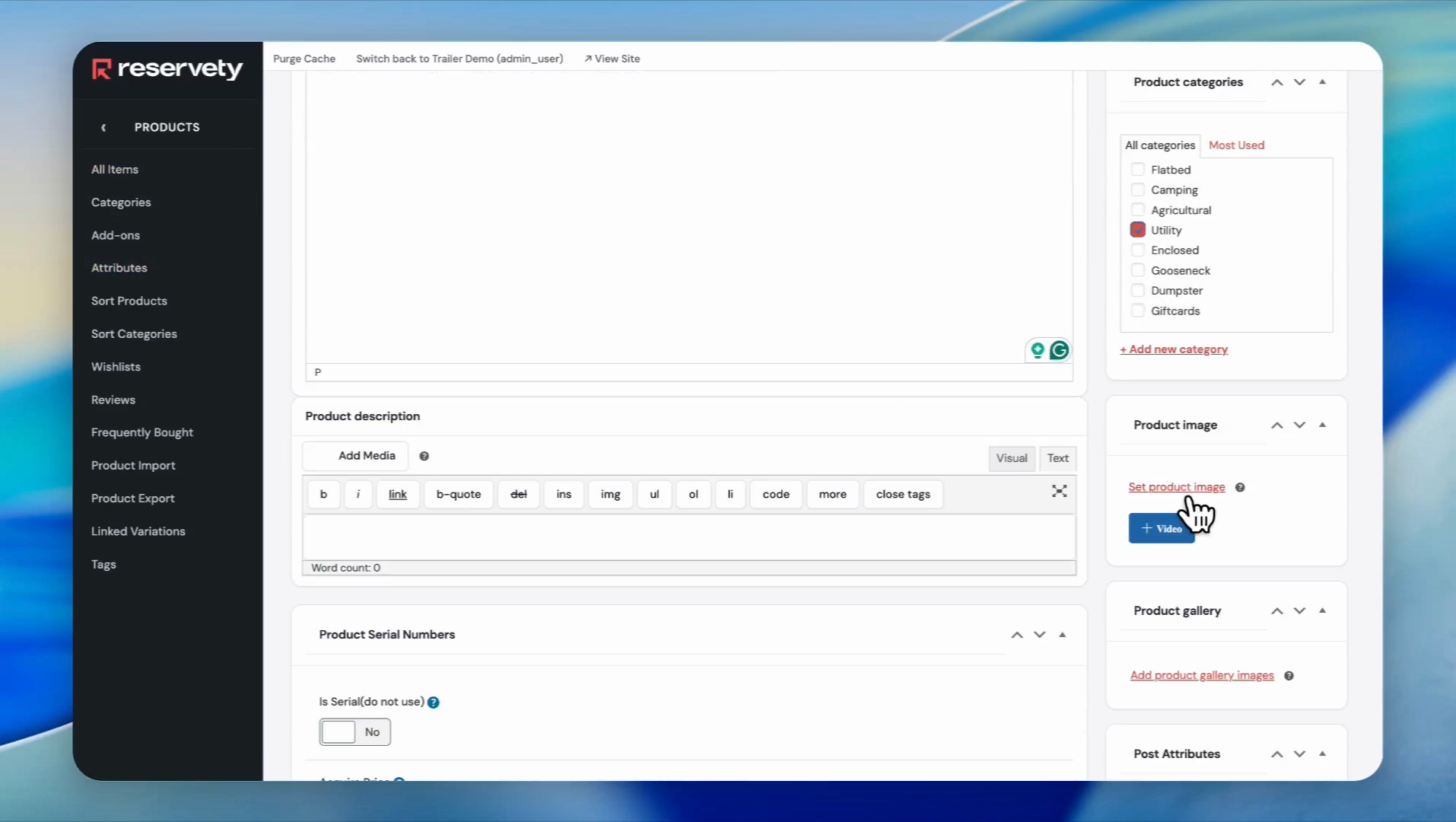
Select a category for your product. In this case, we selected "Utility"
5
Click on Set product image.
6
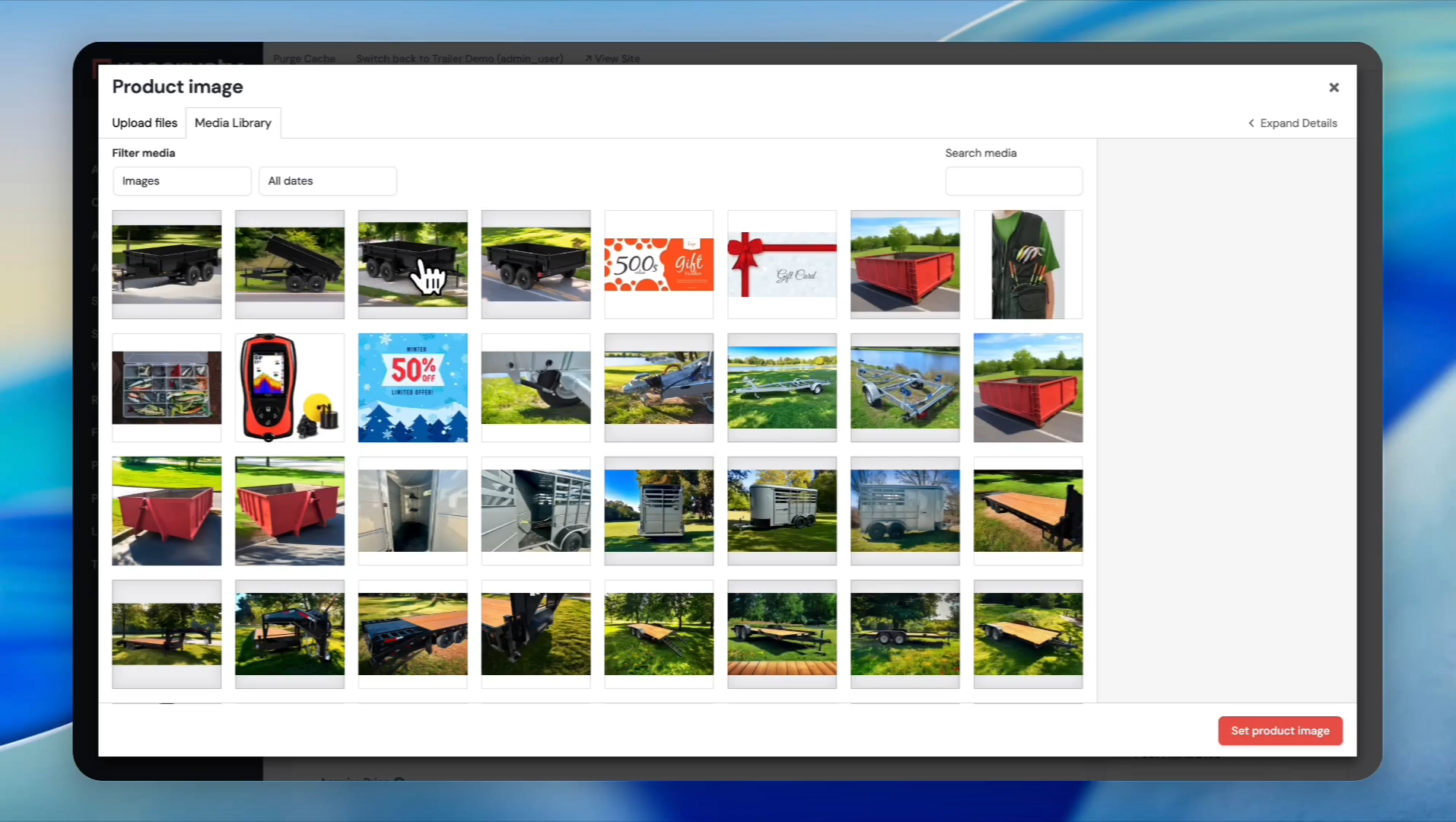
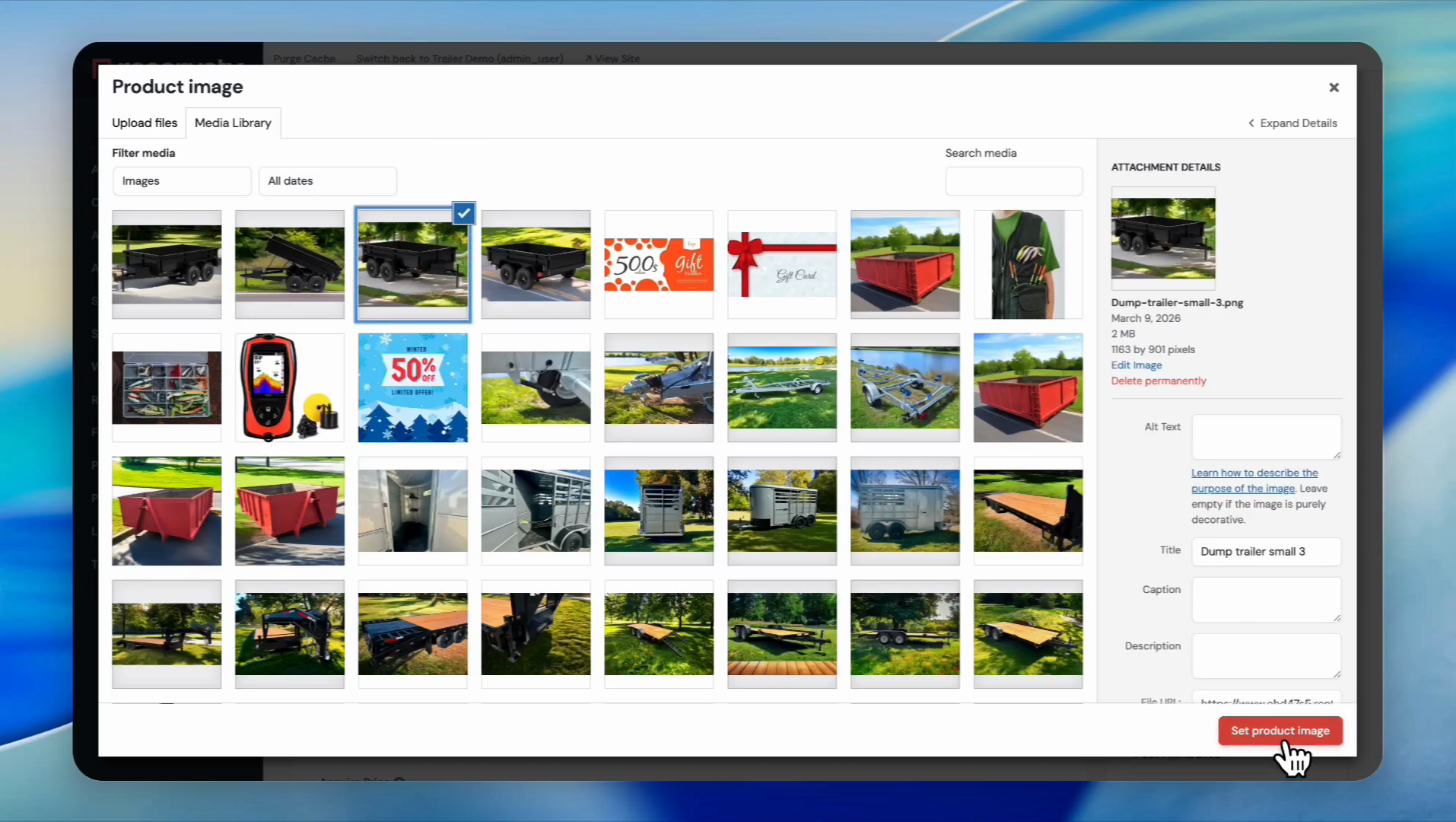
Select your primary image.
7
Click Set product image.
8
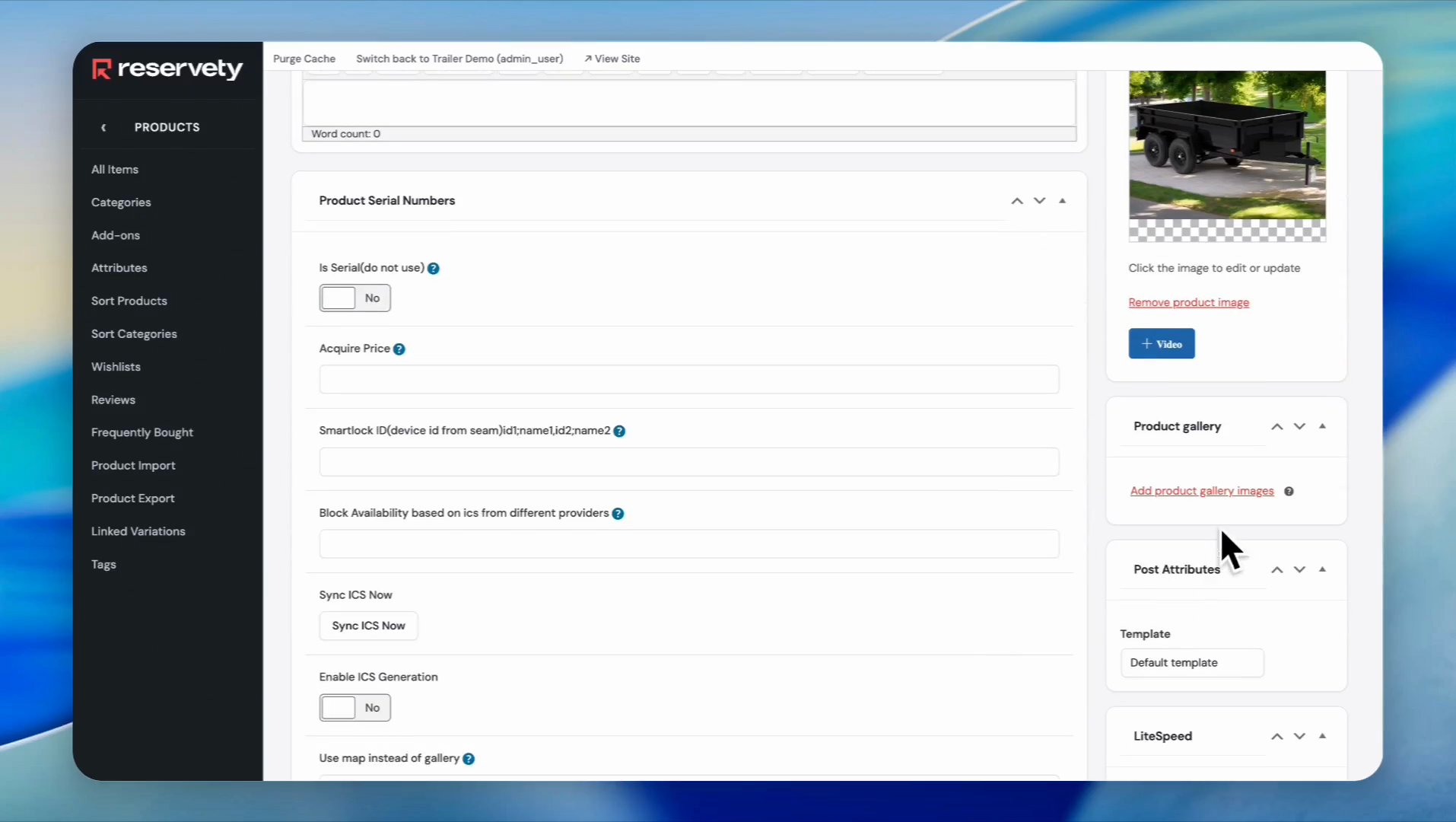
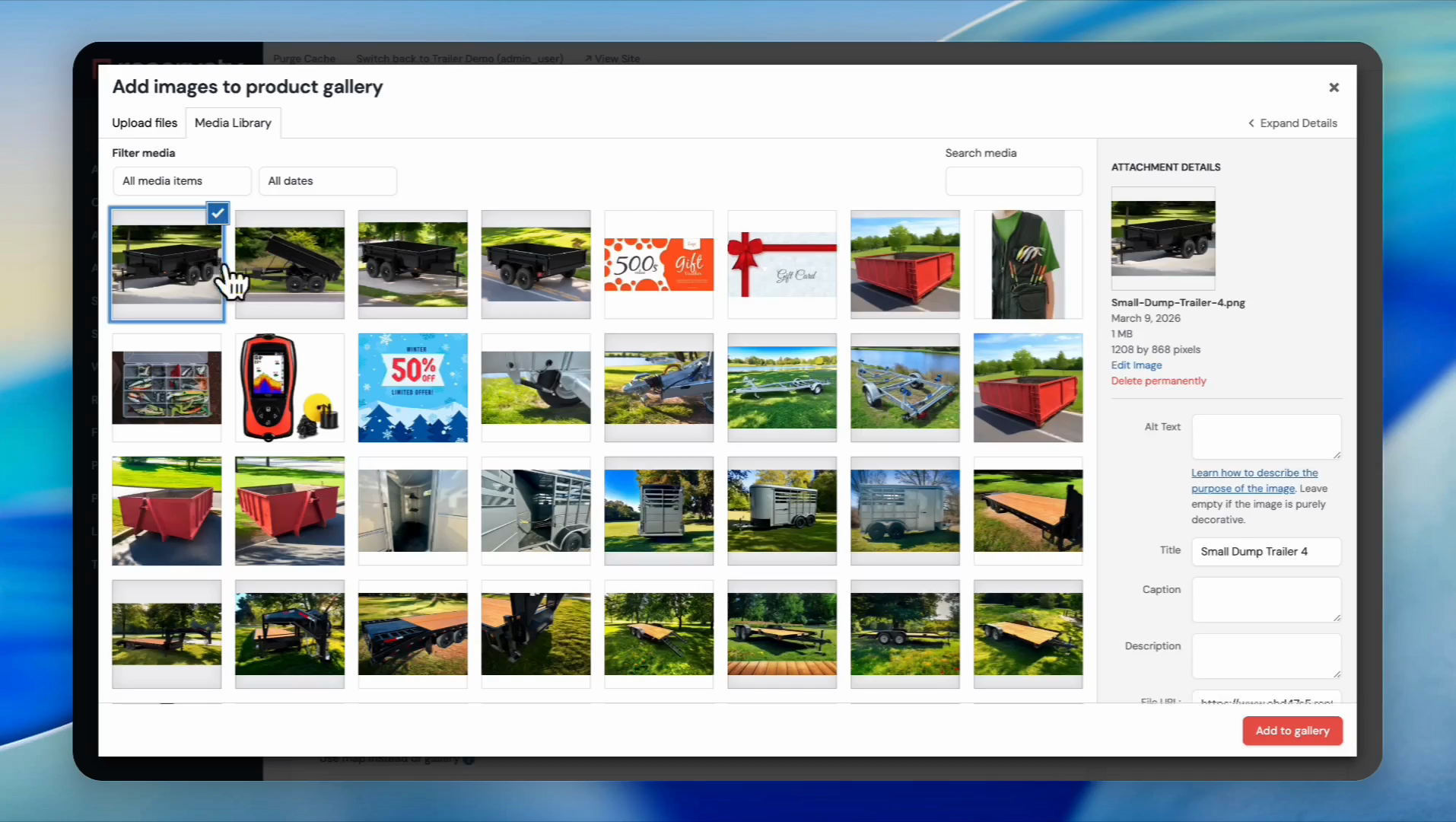
Click on Add product gallery images.
9
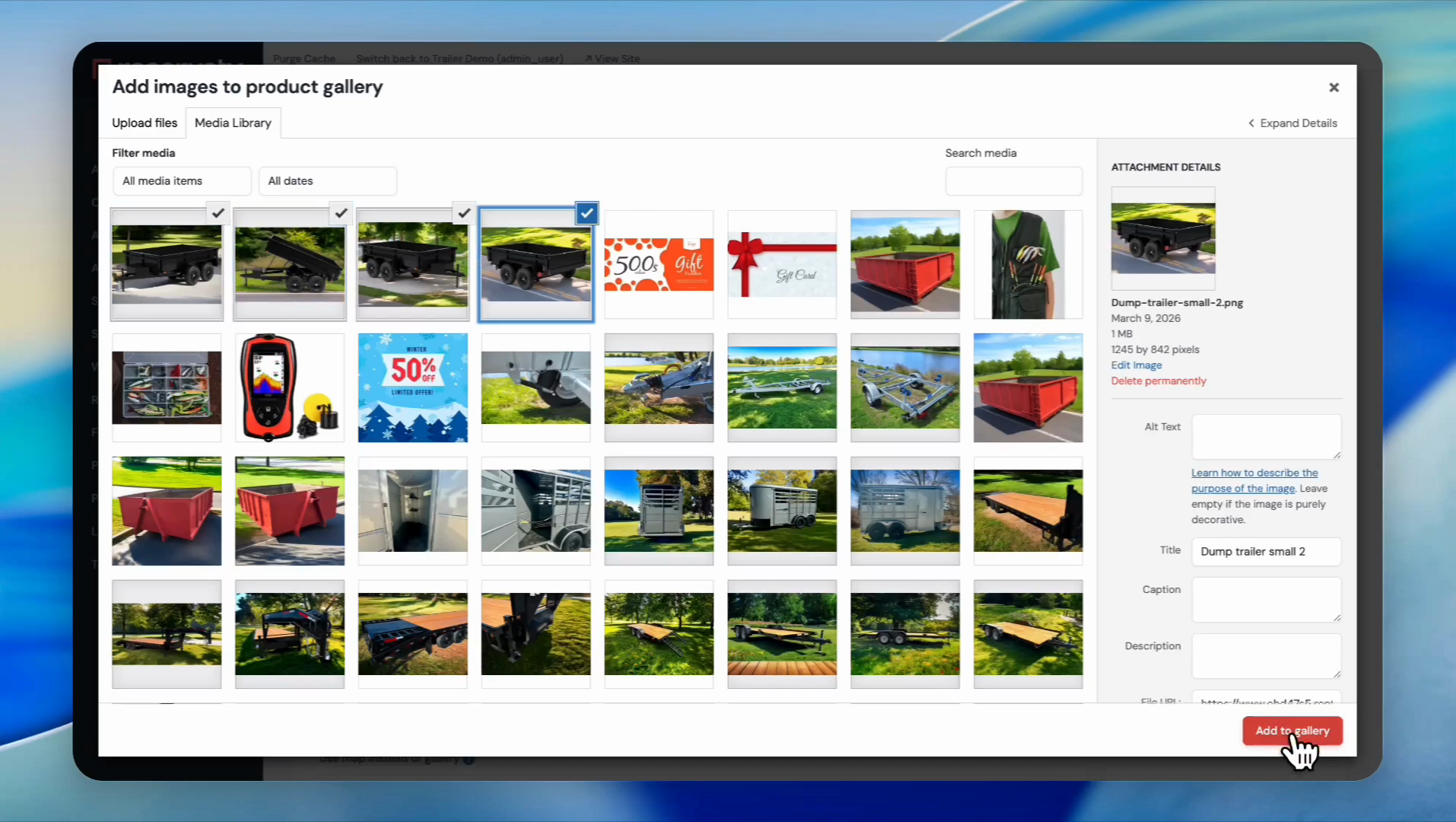
Select multiple images for the gallery.
10
Click Add to gallery.
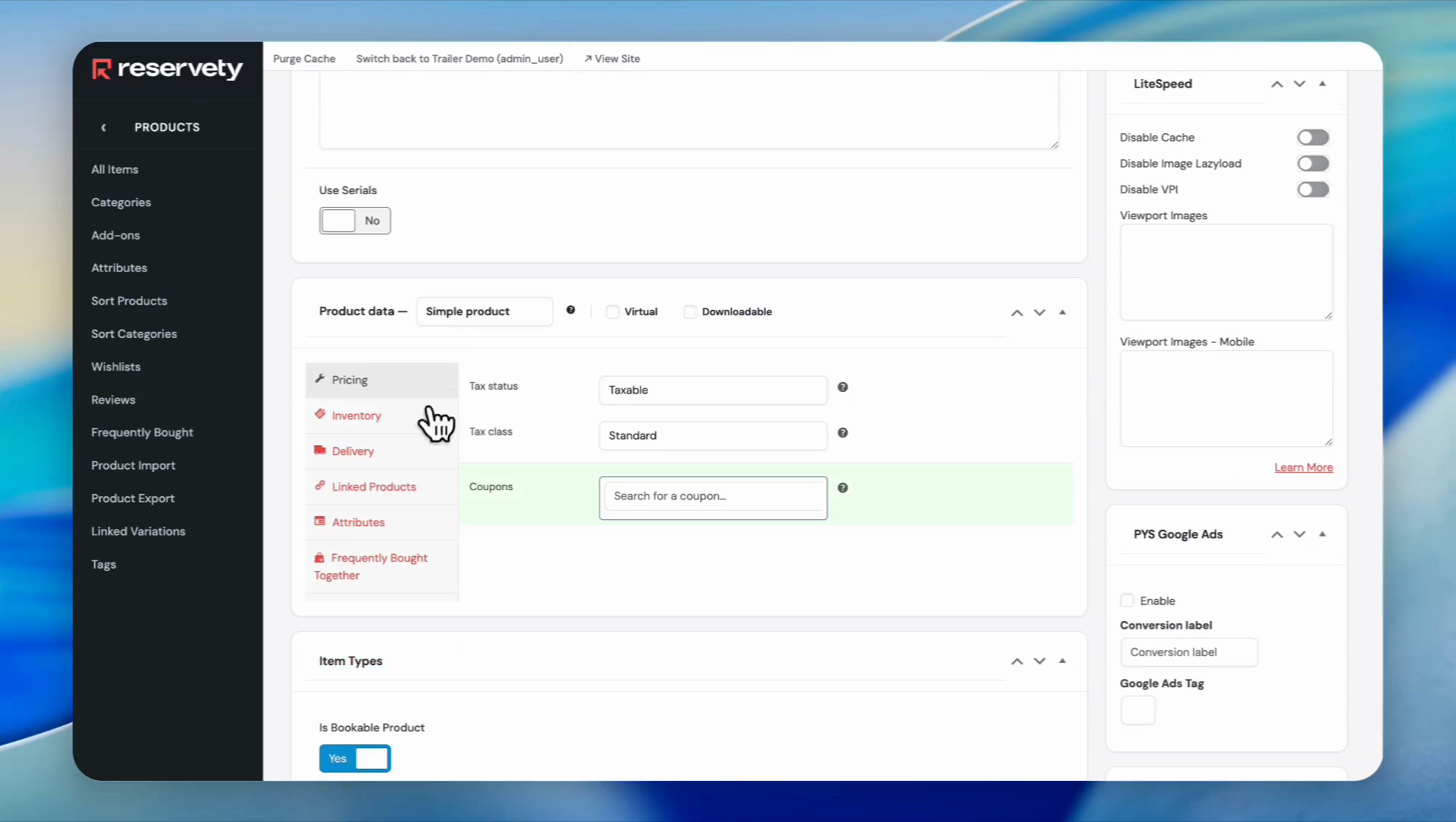
11
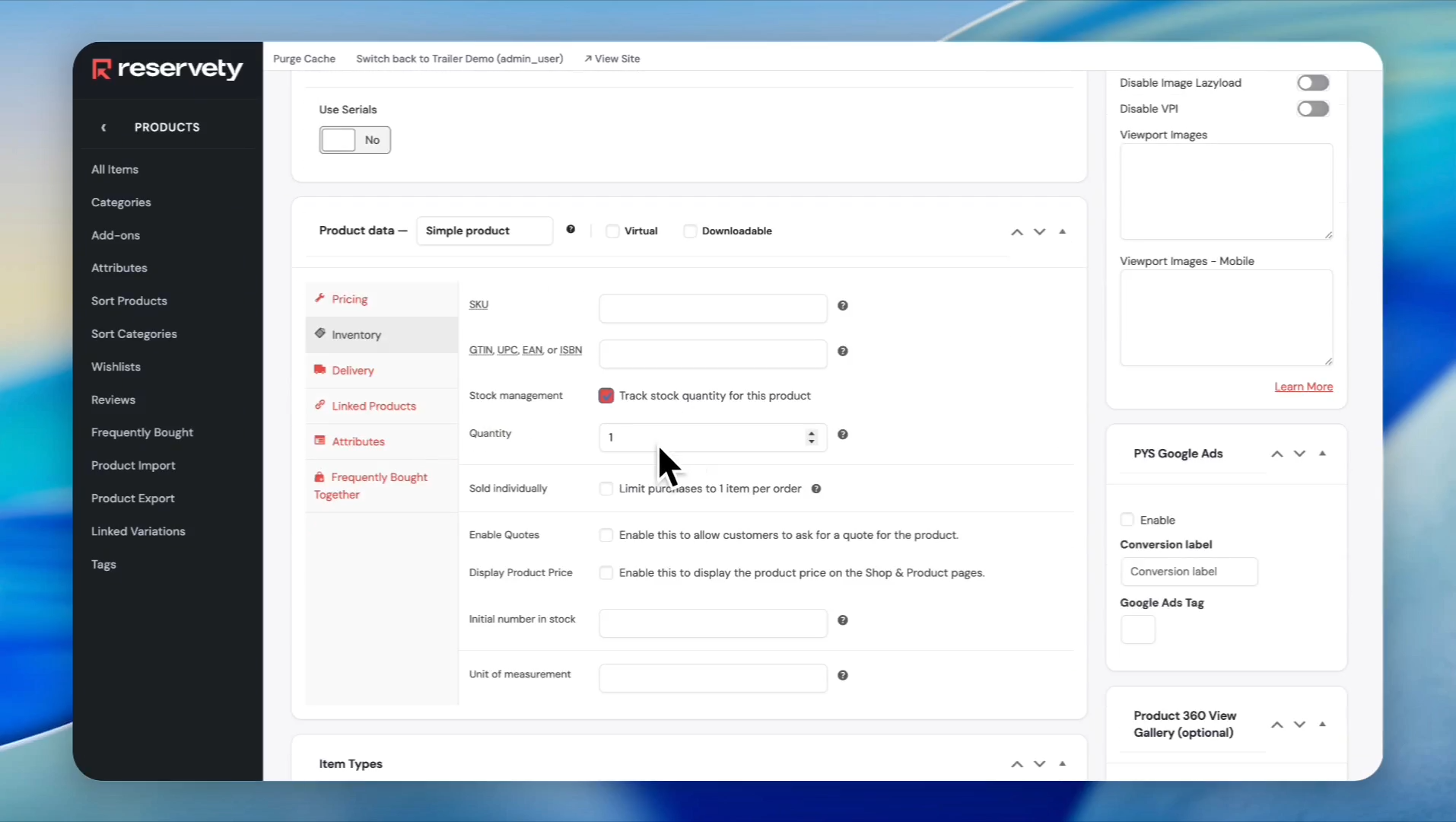
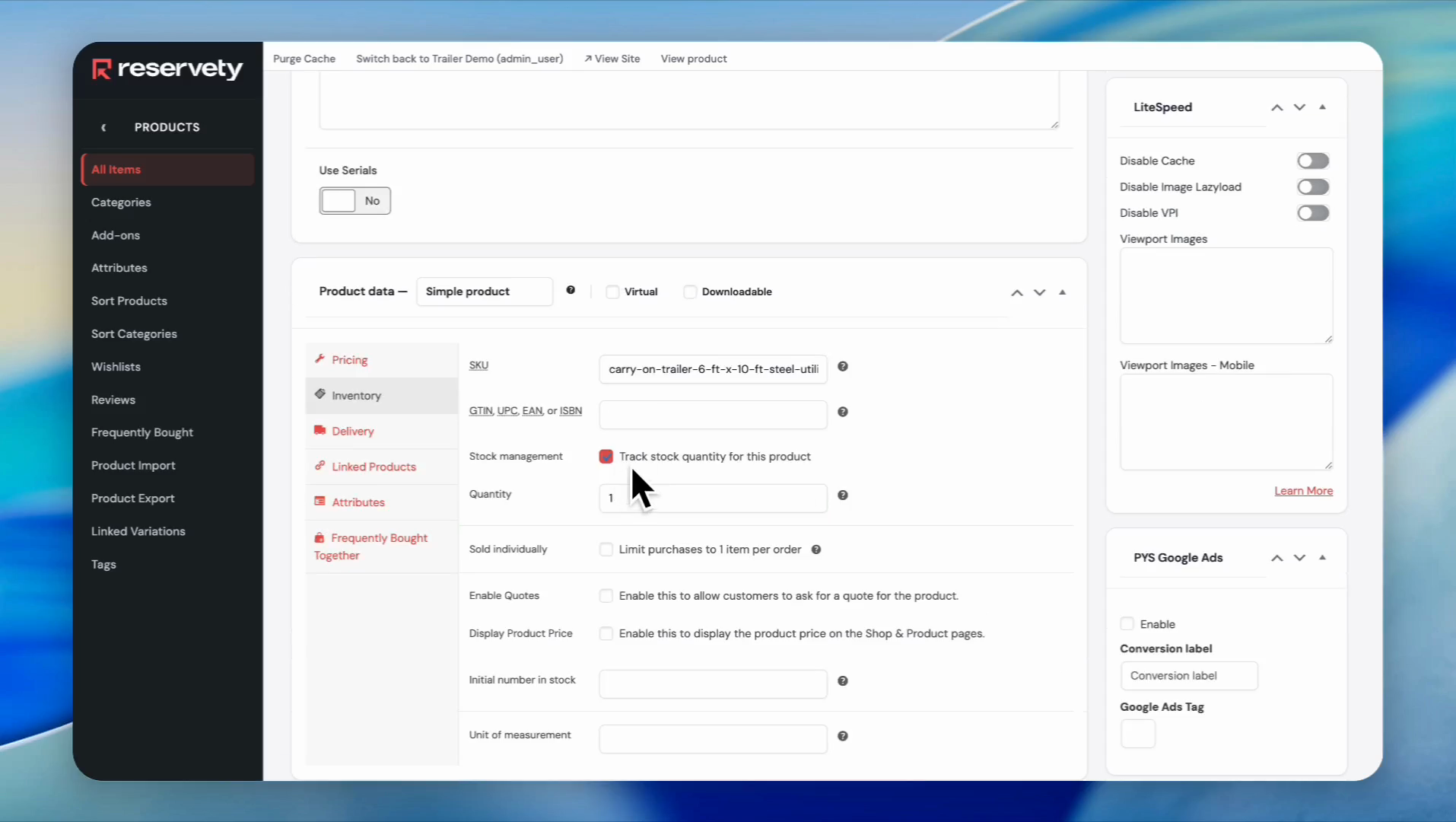
Click on the Inventory tab.
12
Click the checkbox for Track stock quantity for this product and enter stock quantity.
13
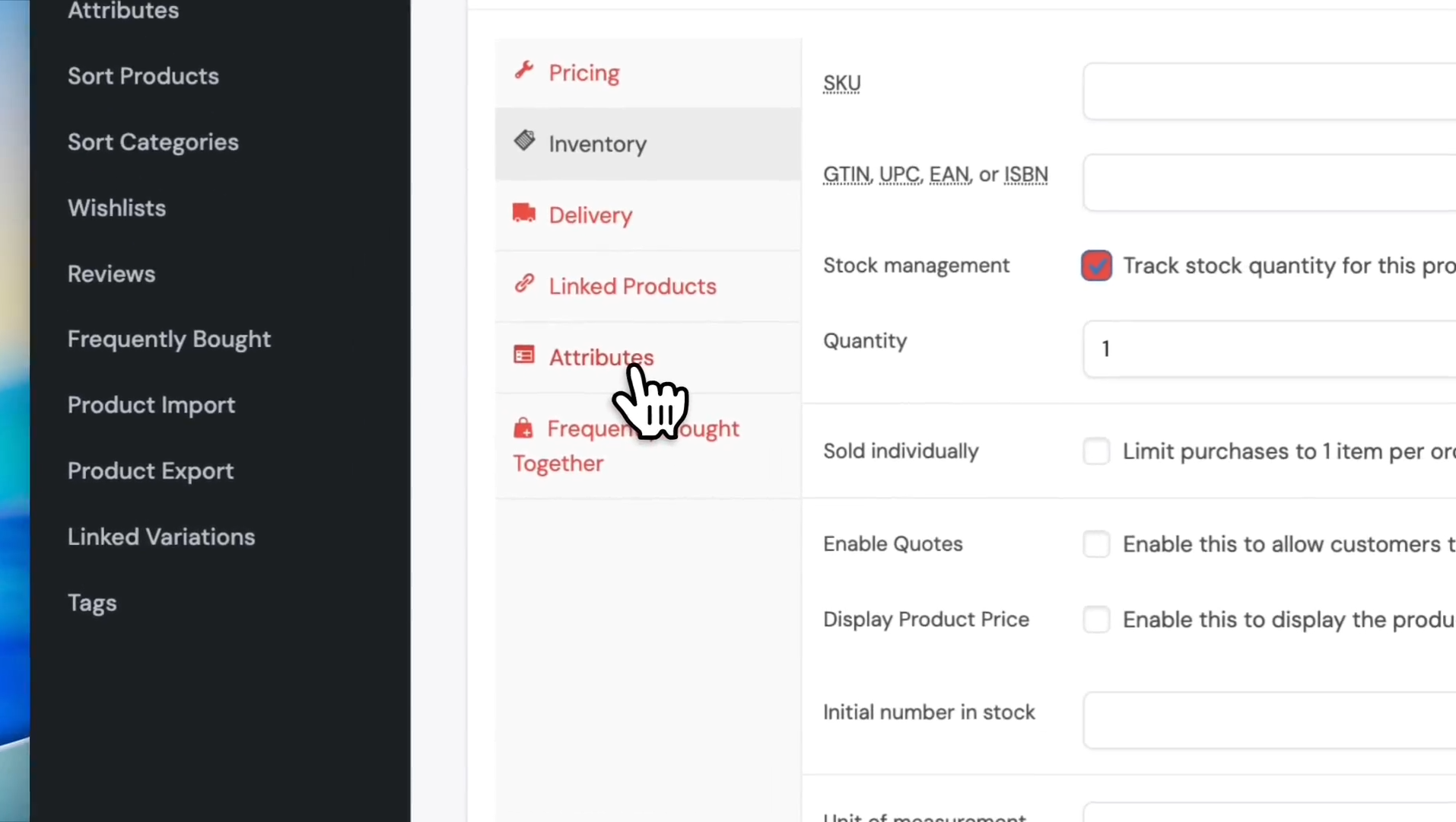
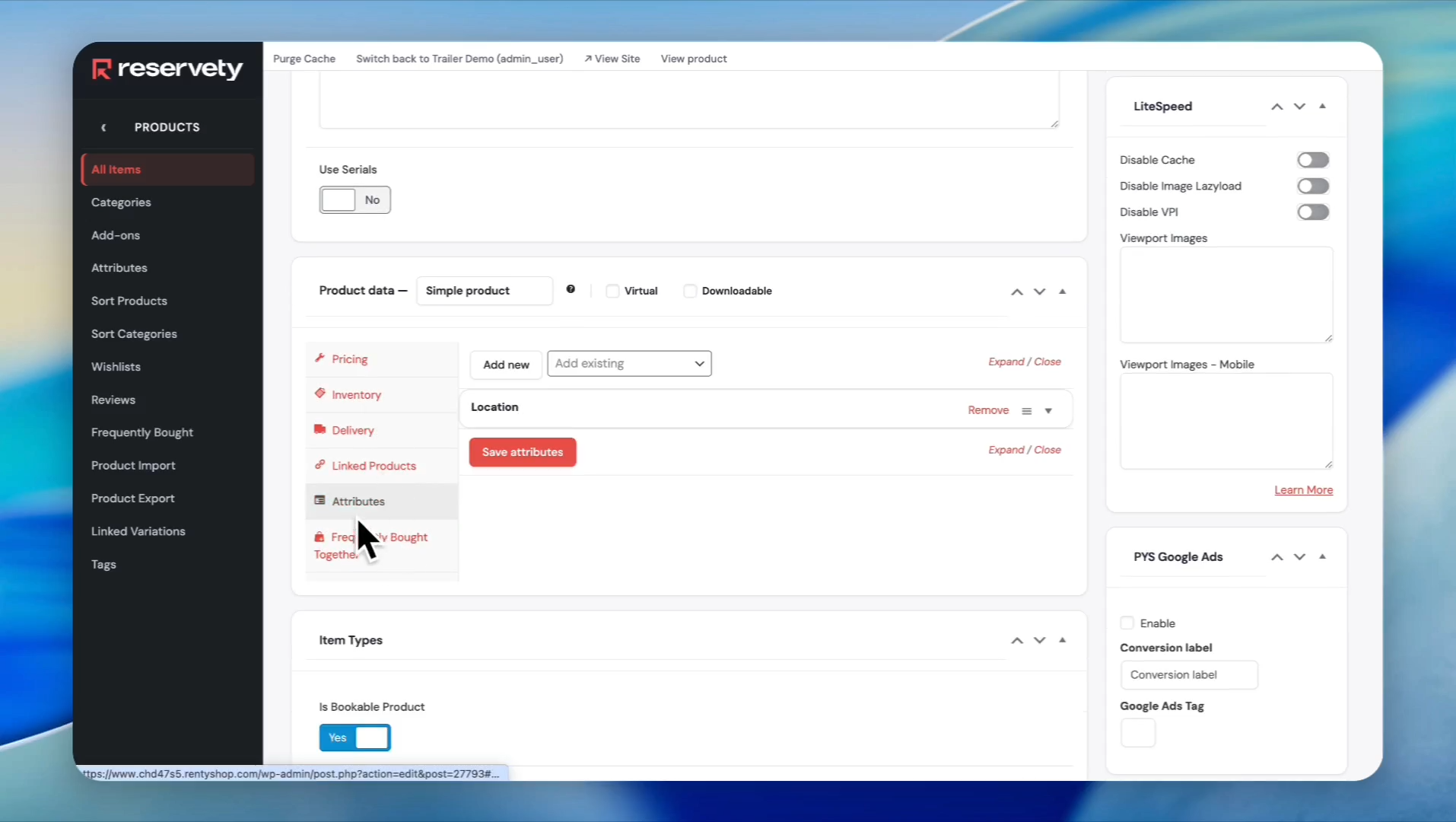
Click on the Attributes button on the left sidebar
14
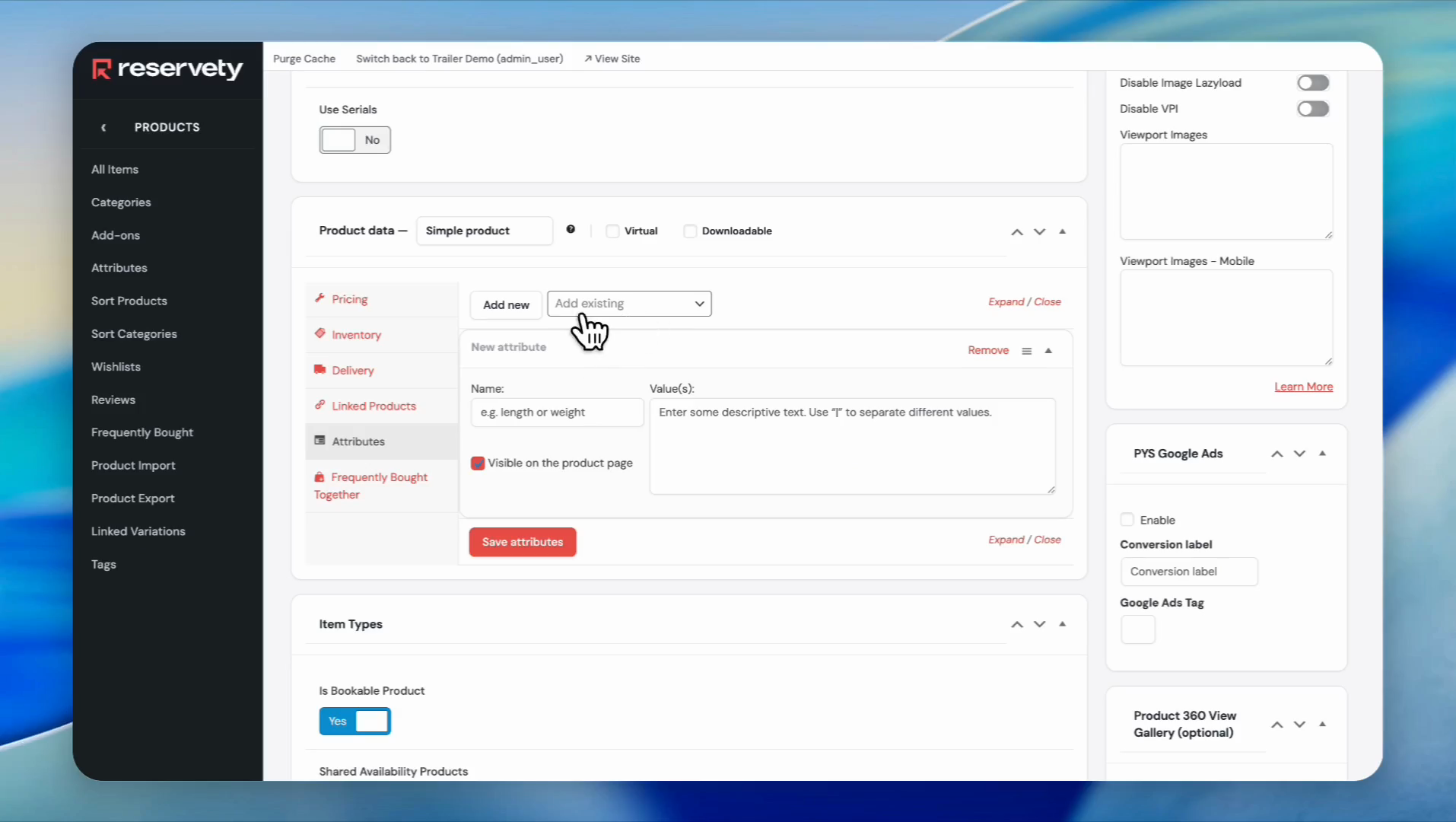
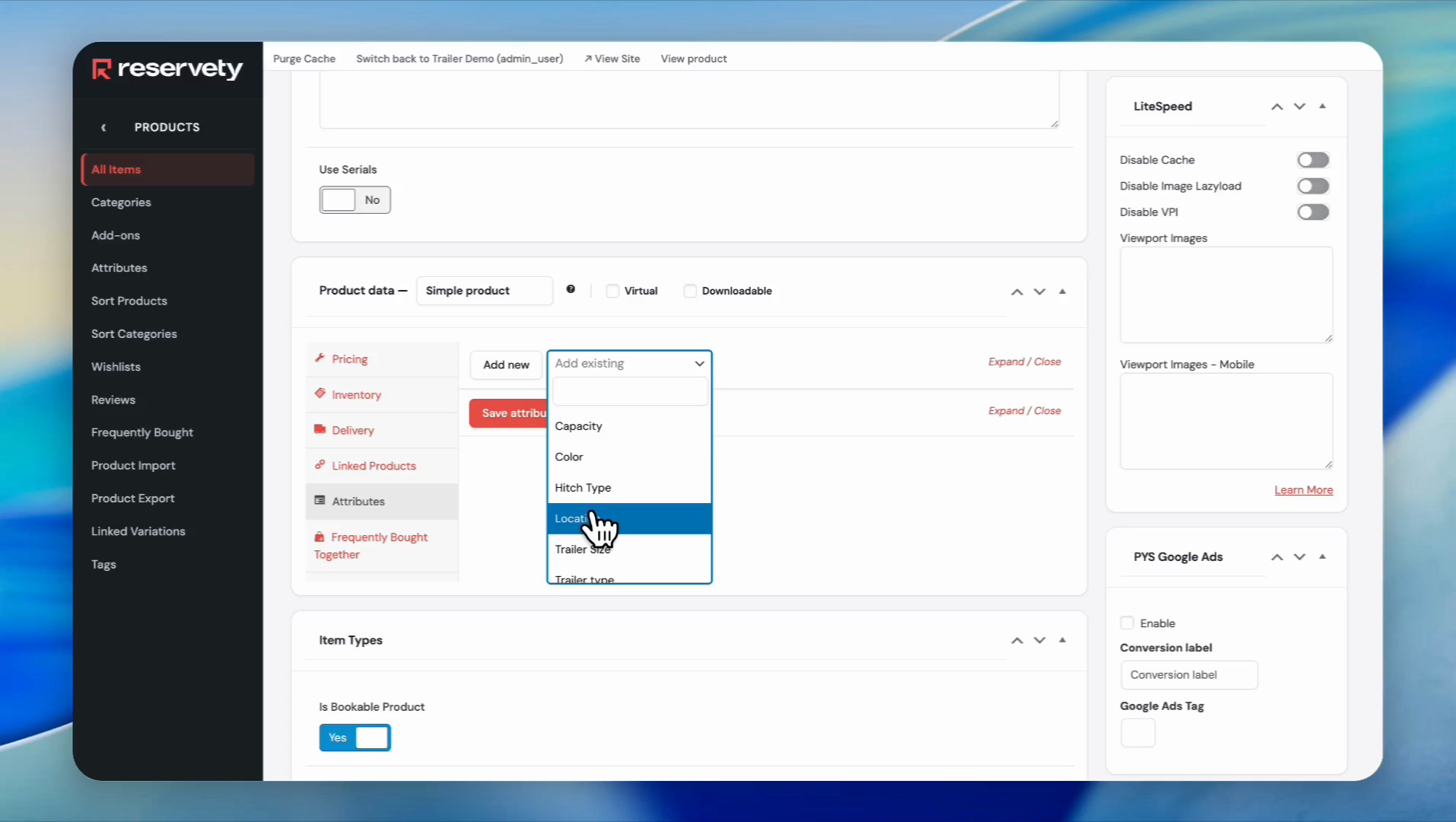
Click on the 'Add existing' dropdown
15
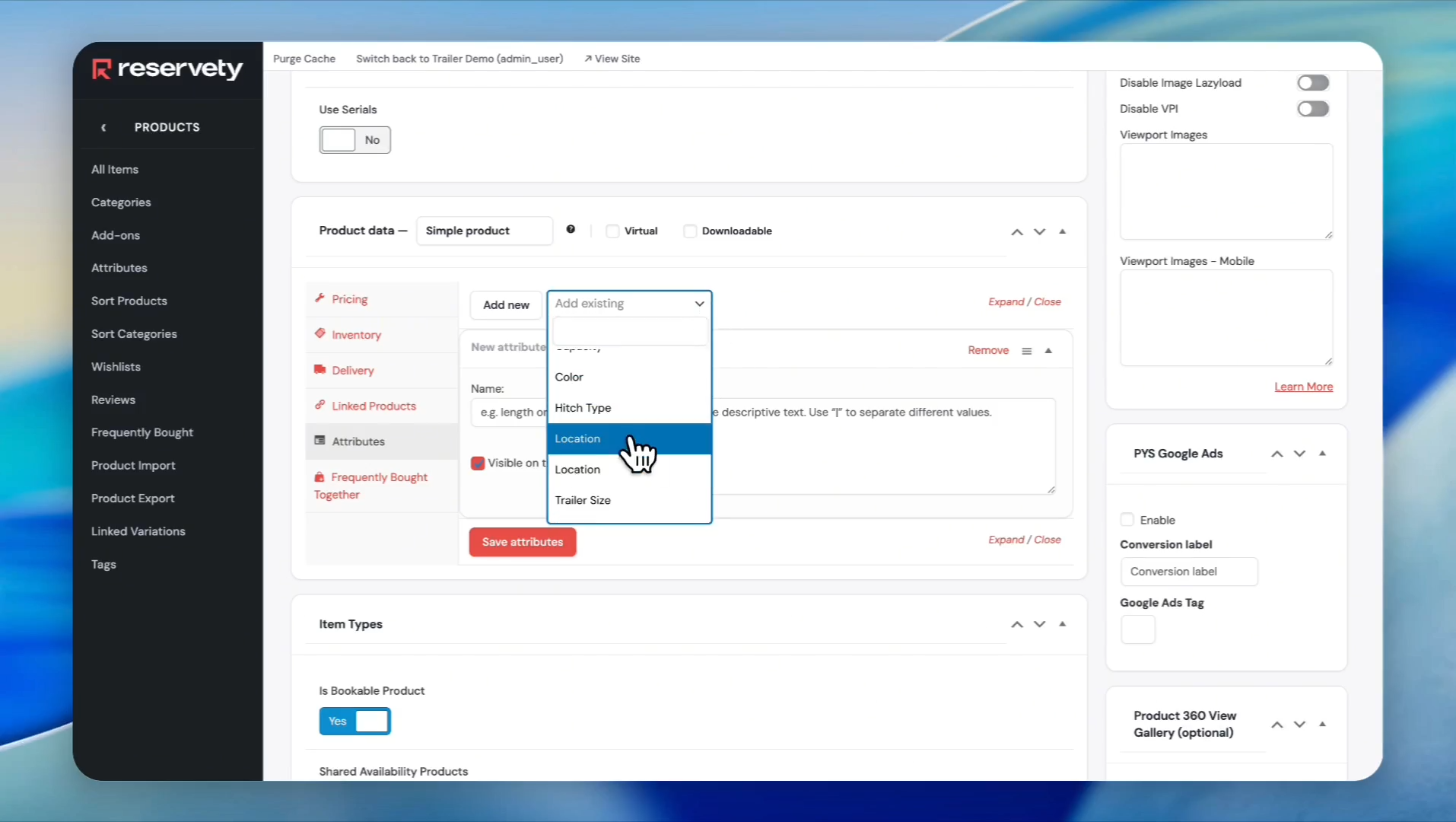
Select 'Location' from the dropdown menu
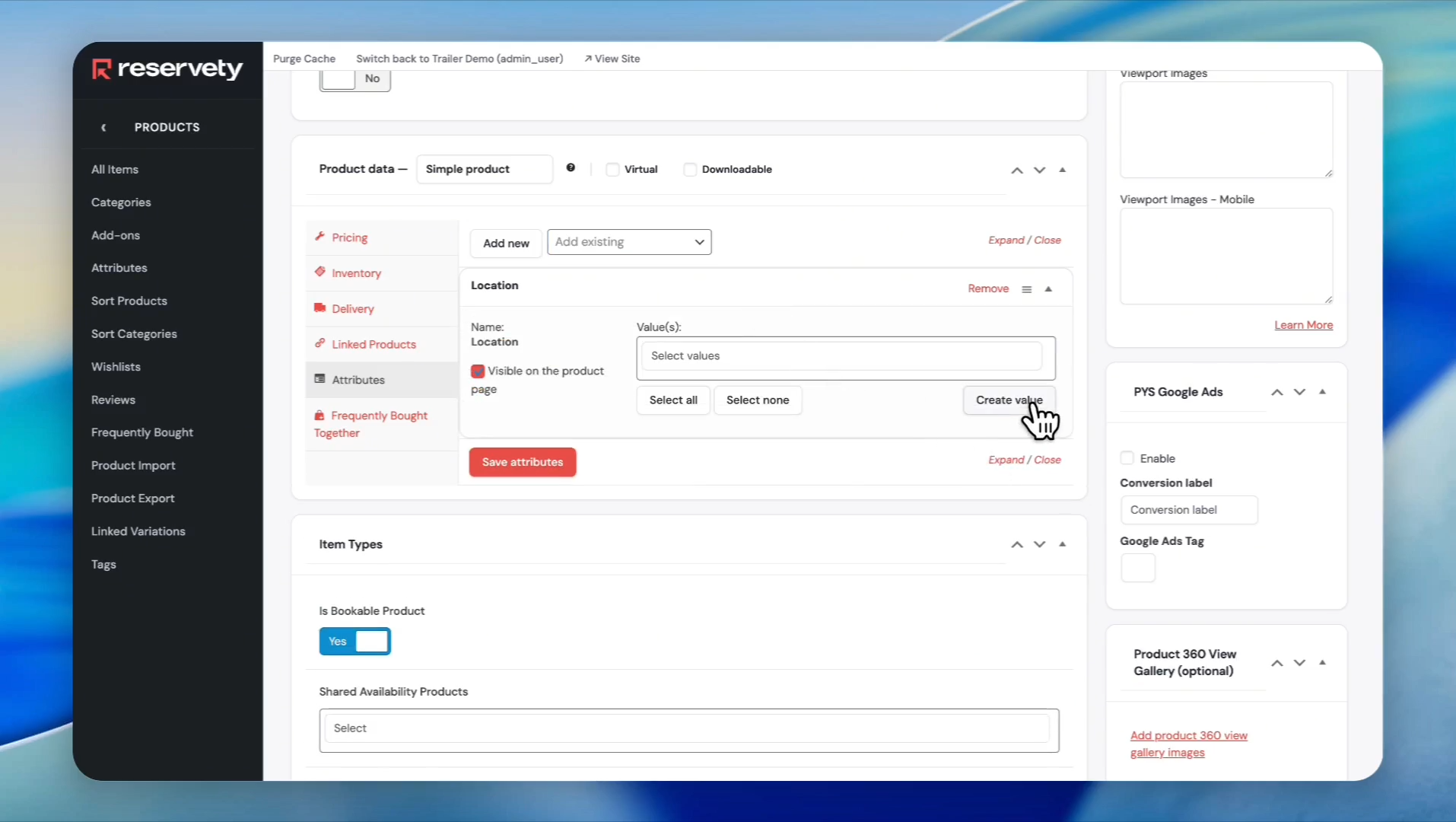
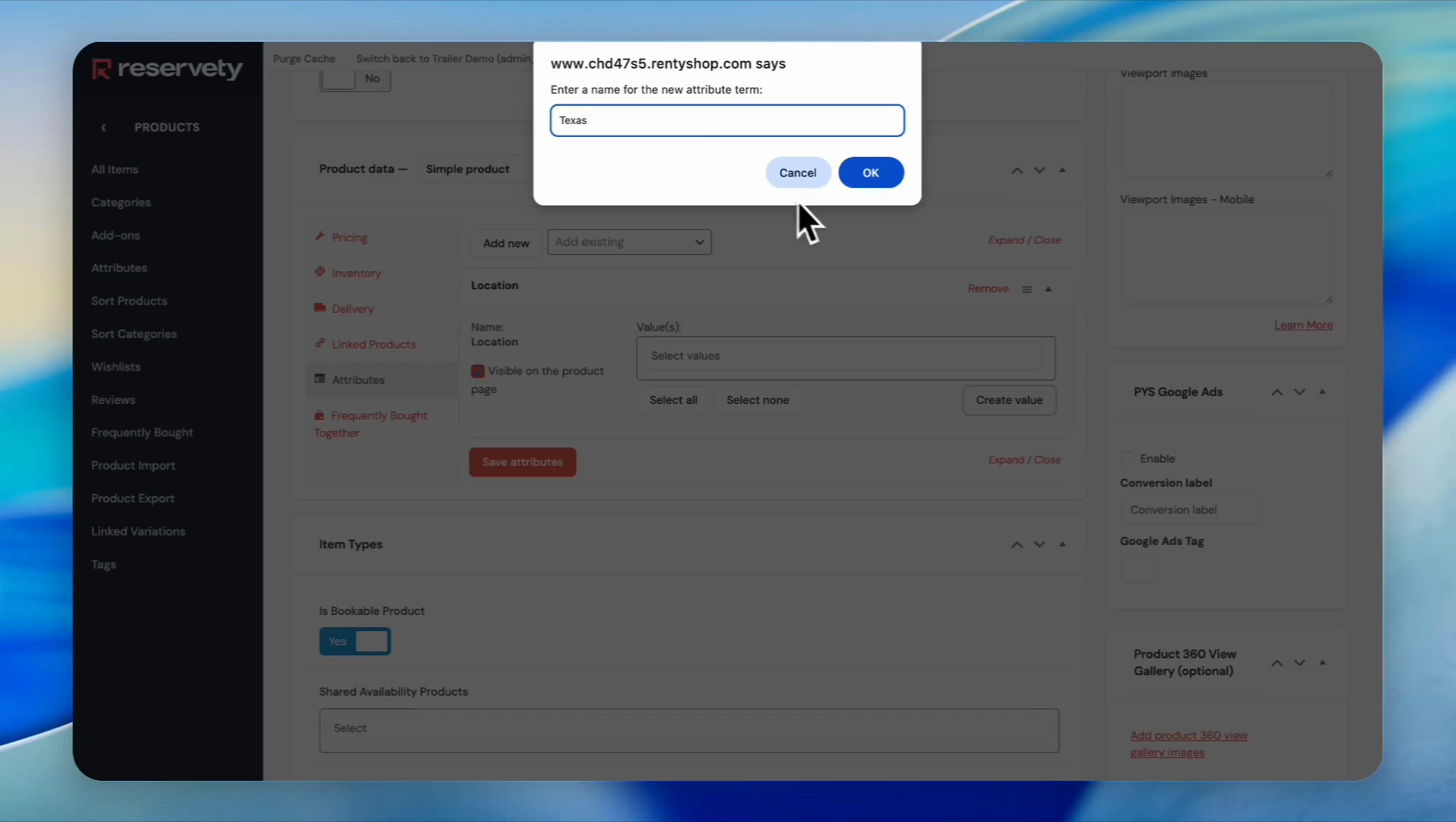
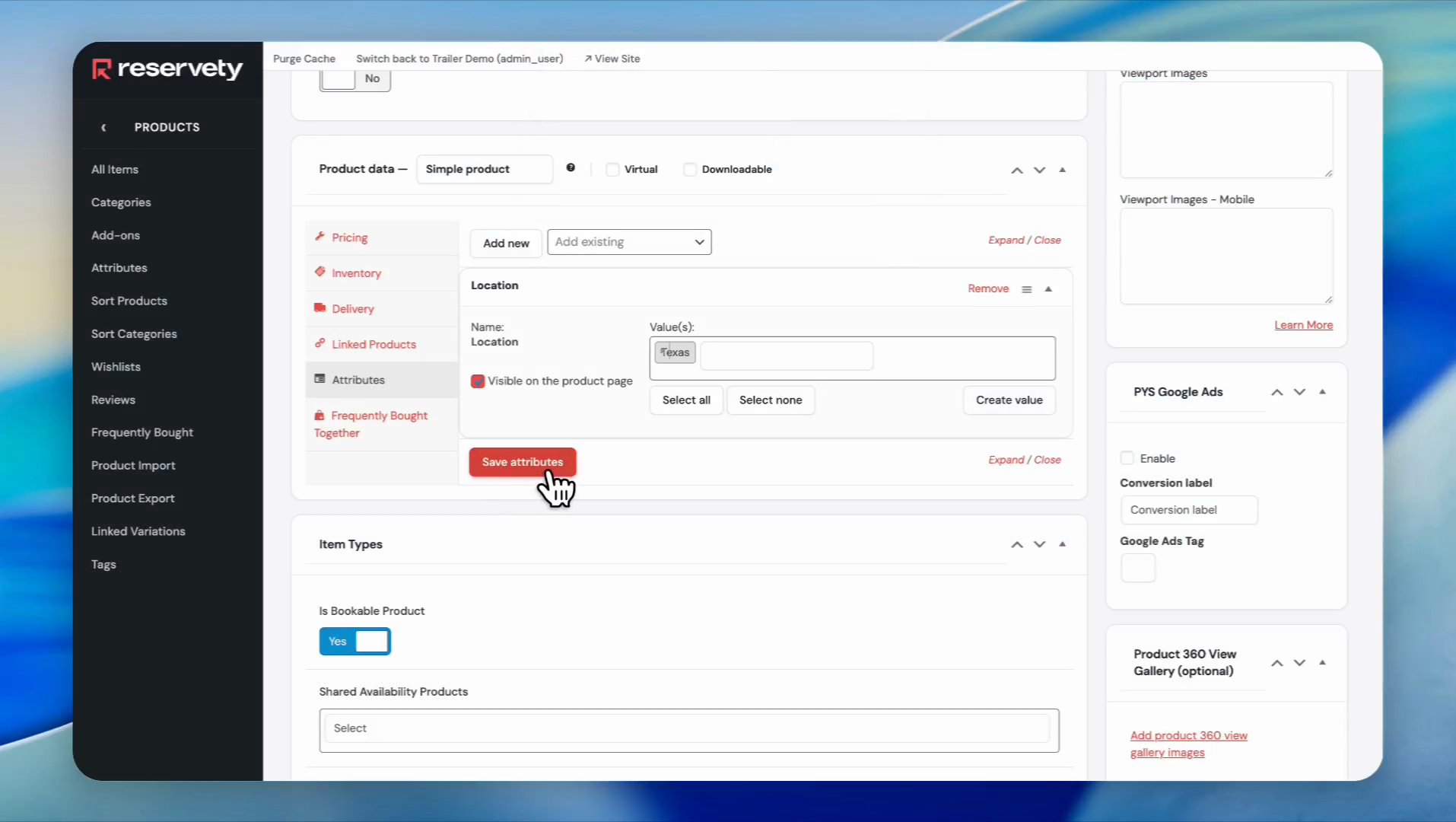
Once the attribute is selected, enter its value.In this case, your value will be the name of your location.Let's say you have three locations: one in Texas, one in Arizona, and one in California.
16
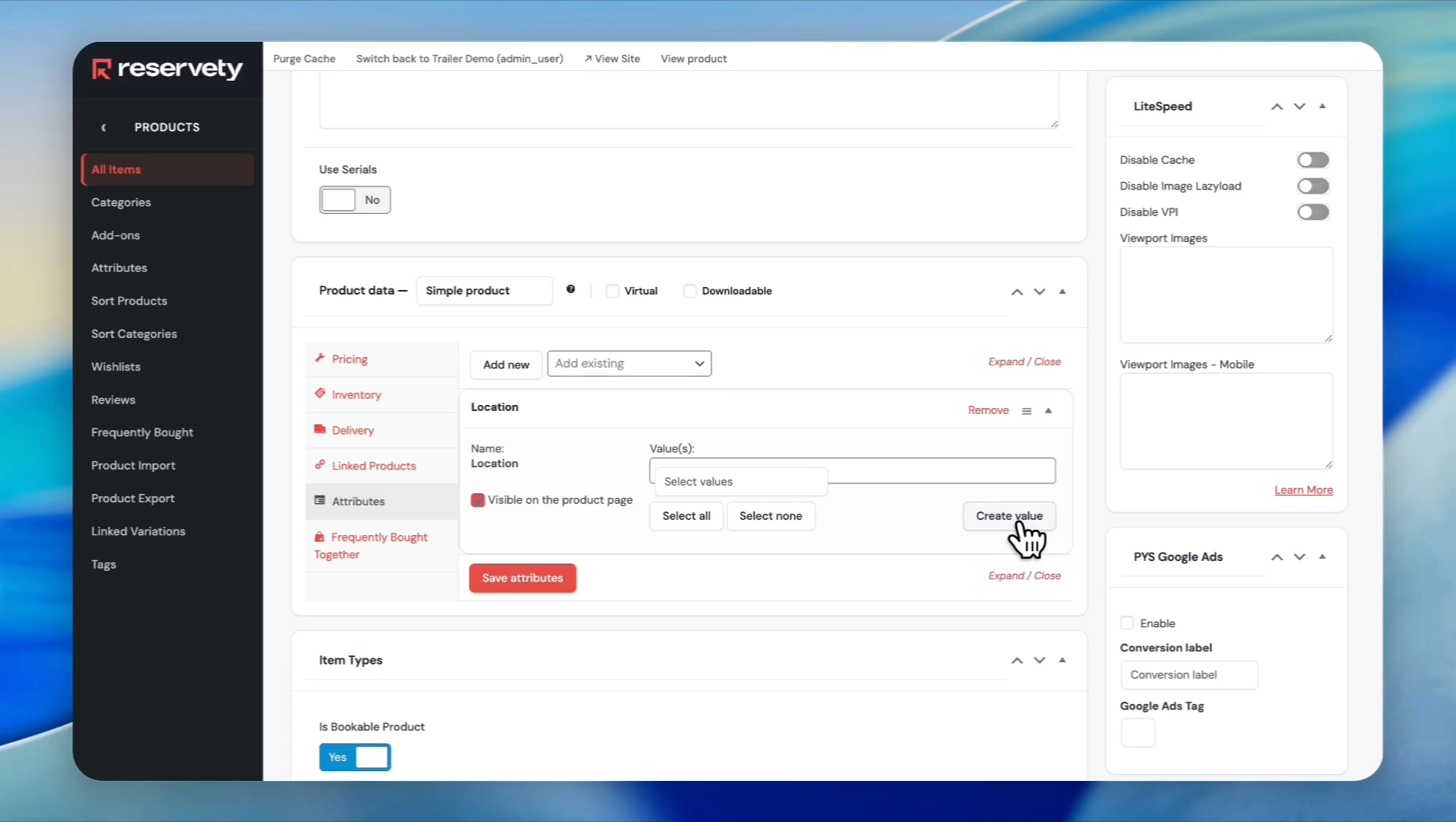
Click the 'Create value' button
17
Type 'Texas' in the prompt and click the OK button
18
Click the 'Save attributes' button
19
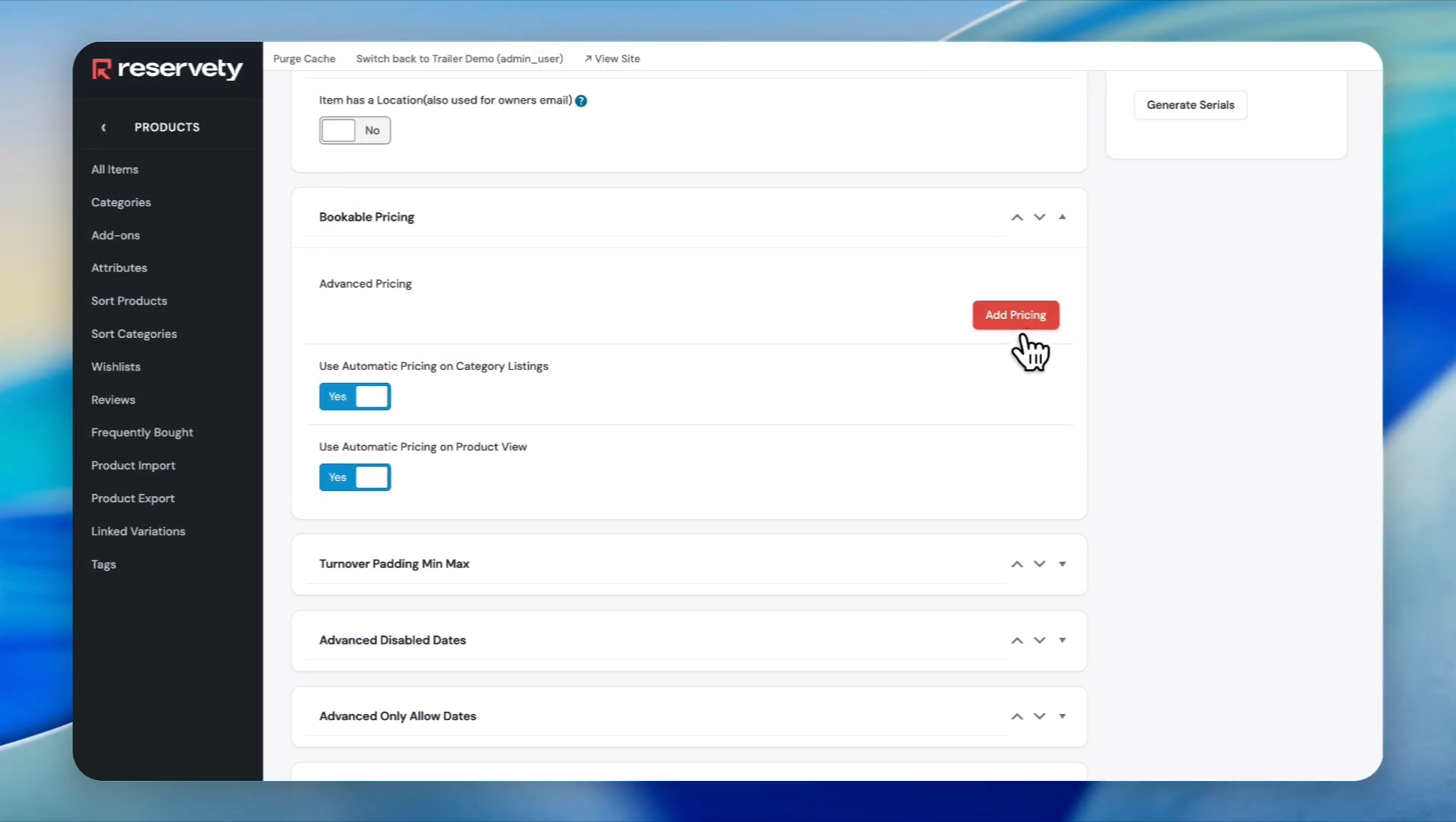
Scroll down and click the 'Add Pricing' button in the 'Bookable Pricing' section
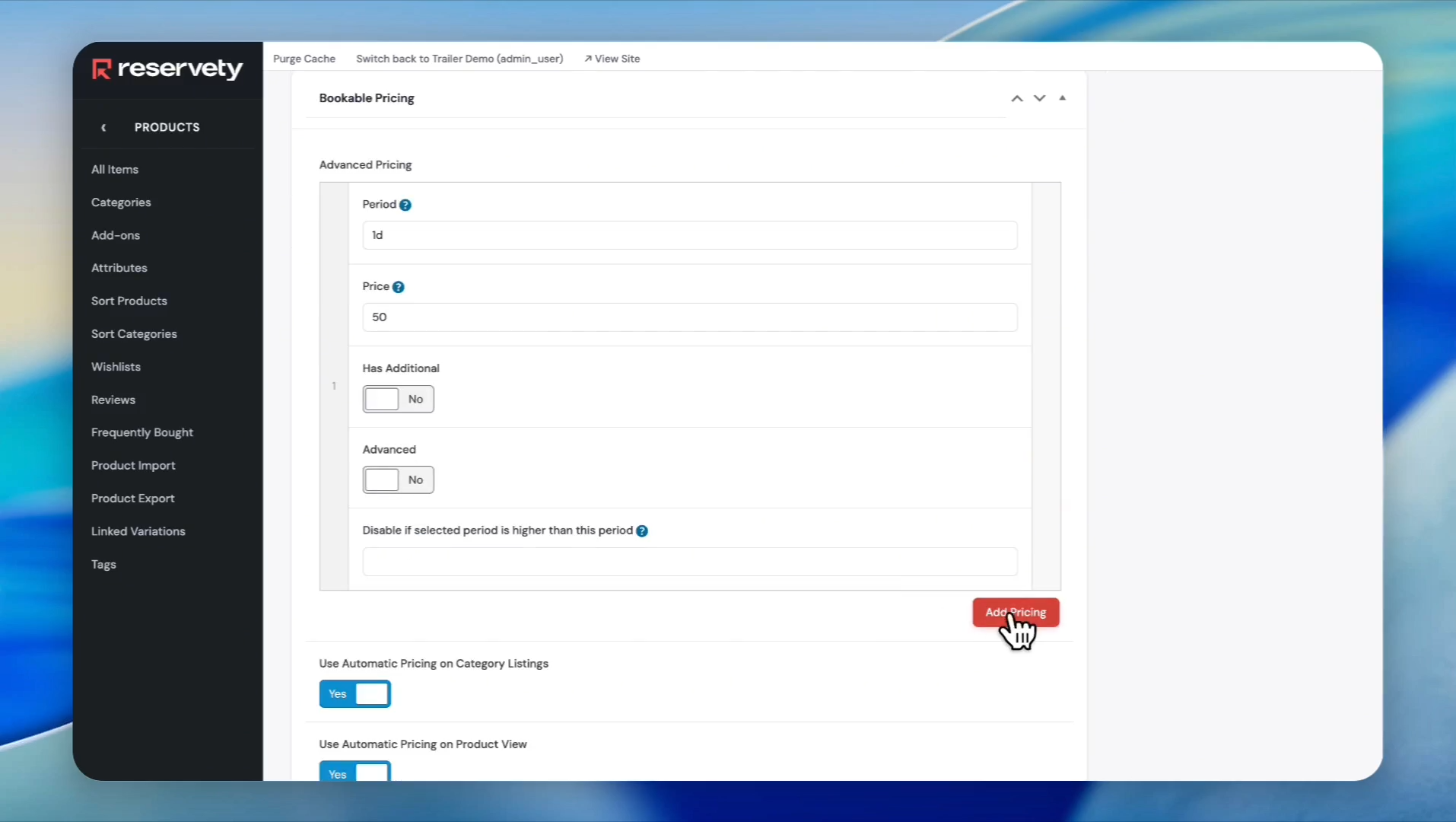
Suppose you want to add daily, weekly, and monthly periods, and assign different prices to each.
20
Suppose you want to charge $50 per day.In this case, write 1d in the period section.In the price section, write 50 without the dollar sign. Then, click the "Add Pricing" button.
Now, let's add weekly pricing.
21
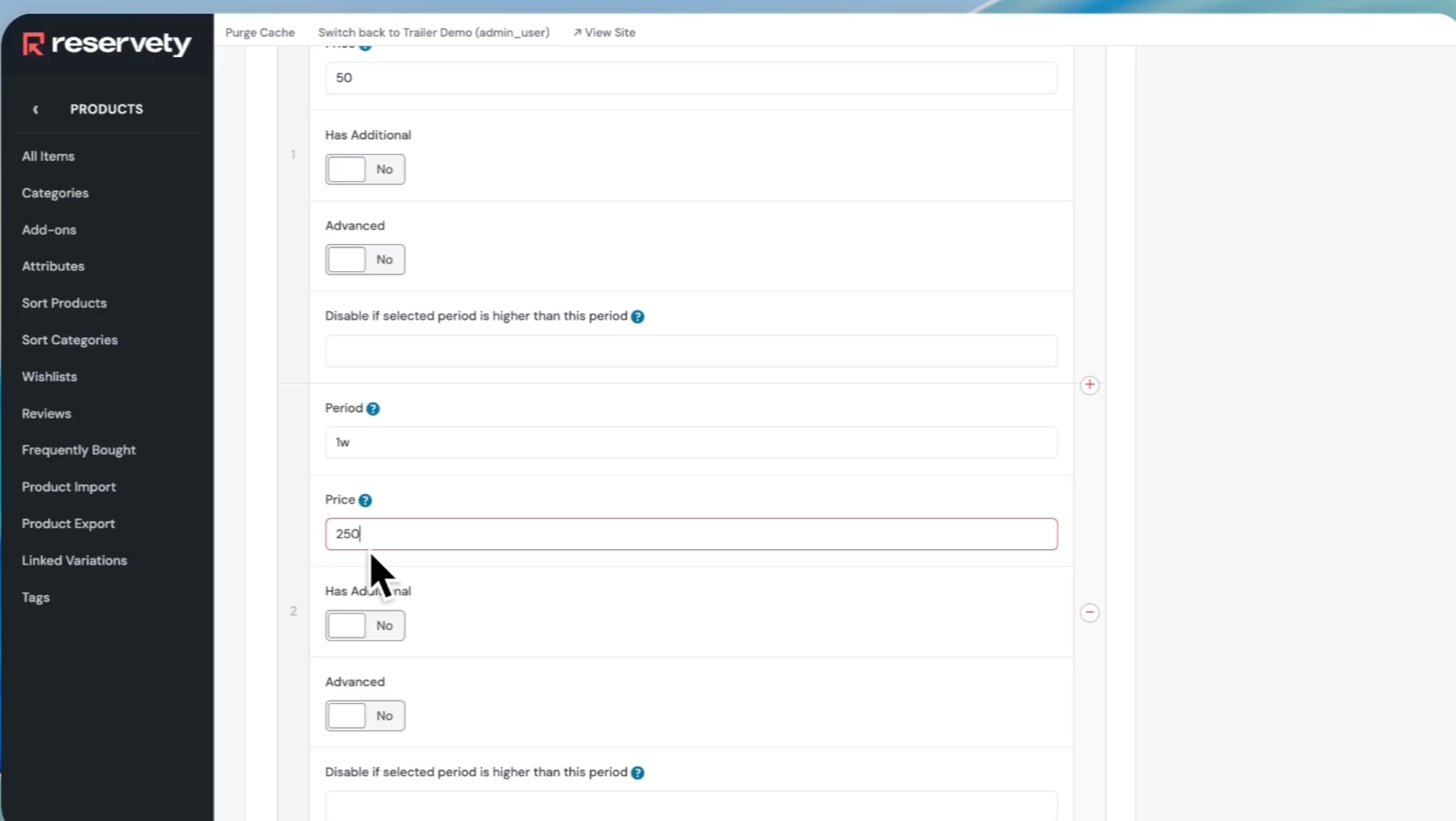
We wrote "1w," which means one week, and entered 250 in the price section. It means our weekly rate is $250
Let's add a monthly price.
22
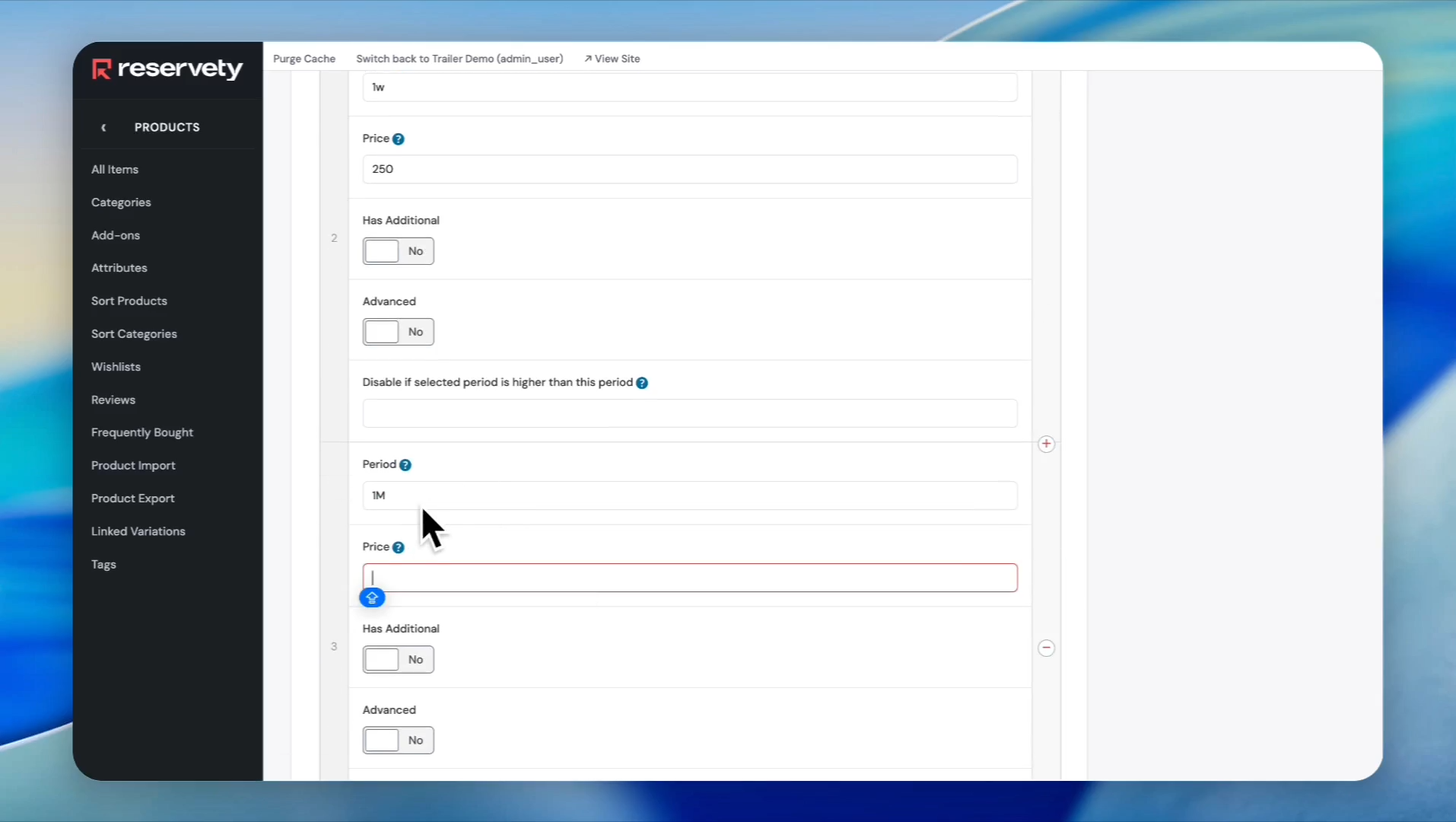
Click Add Pricing again. Enter "1M" and set the monthly price to 900.
23
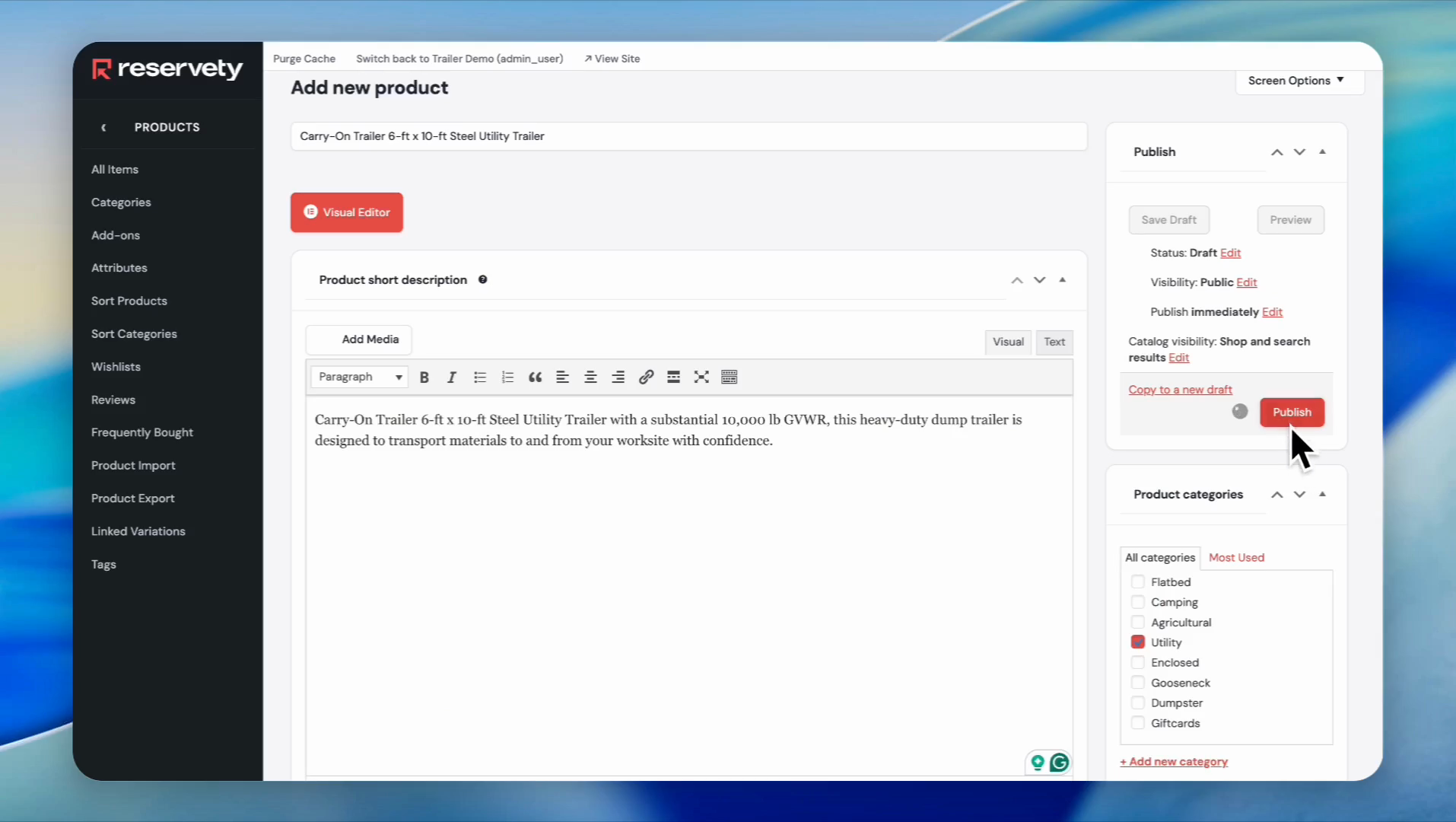
When you finish setting the pricing, go up and click Publish.
24
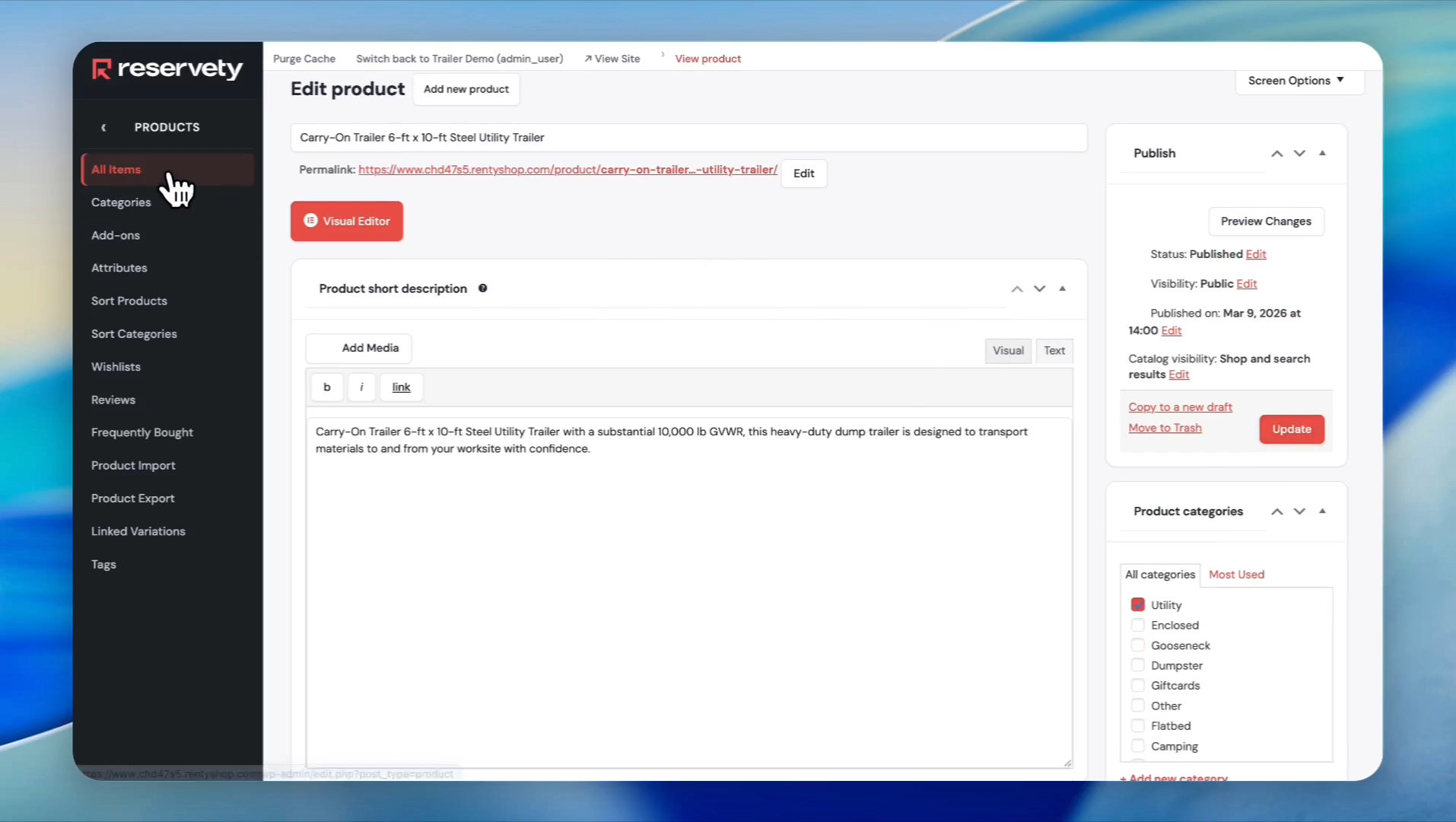
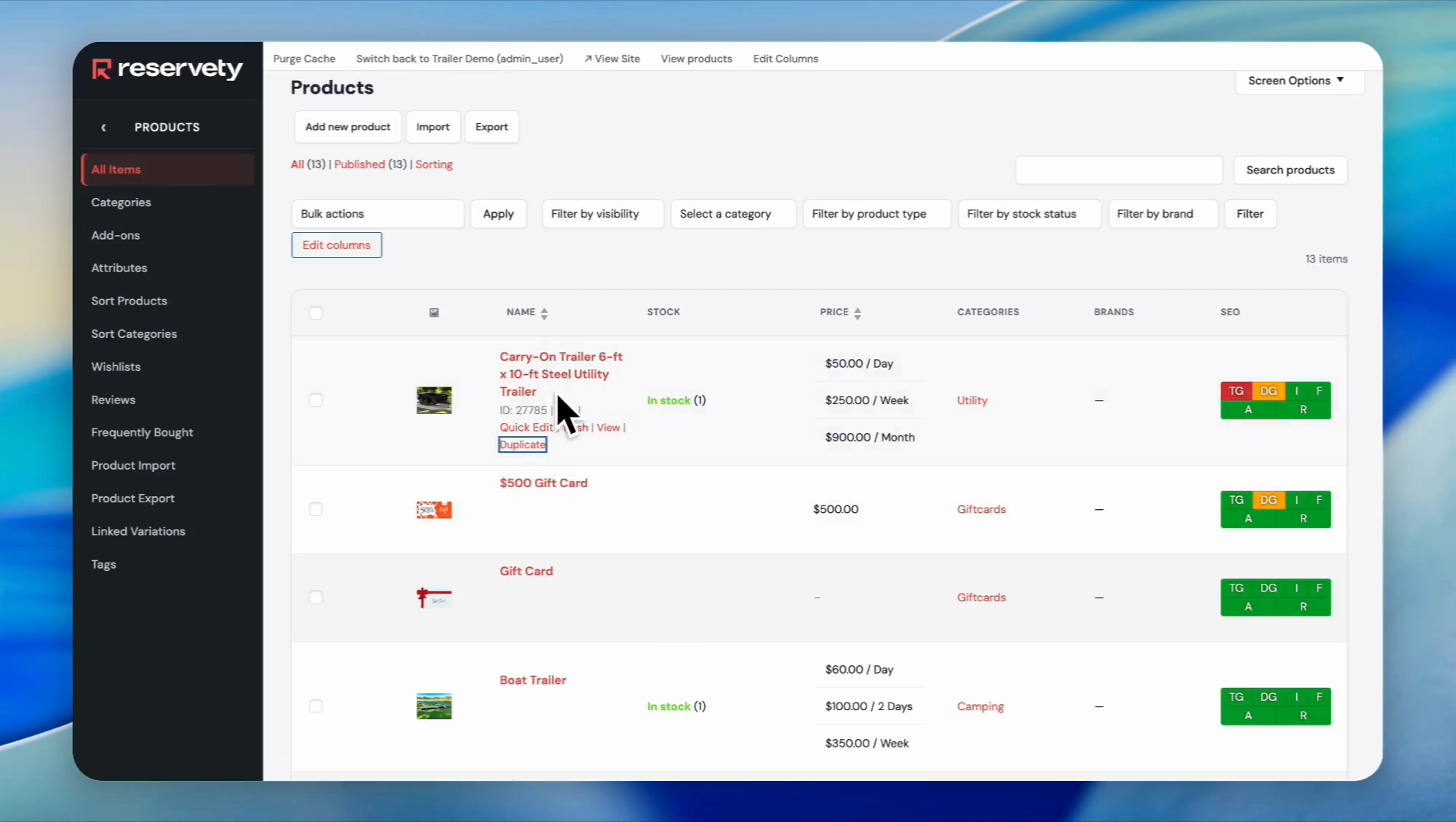
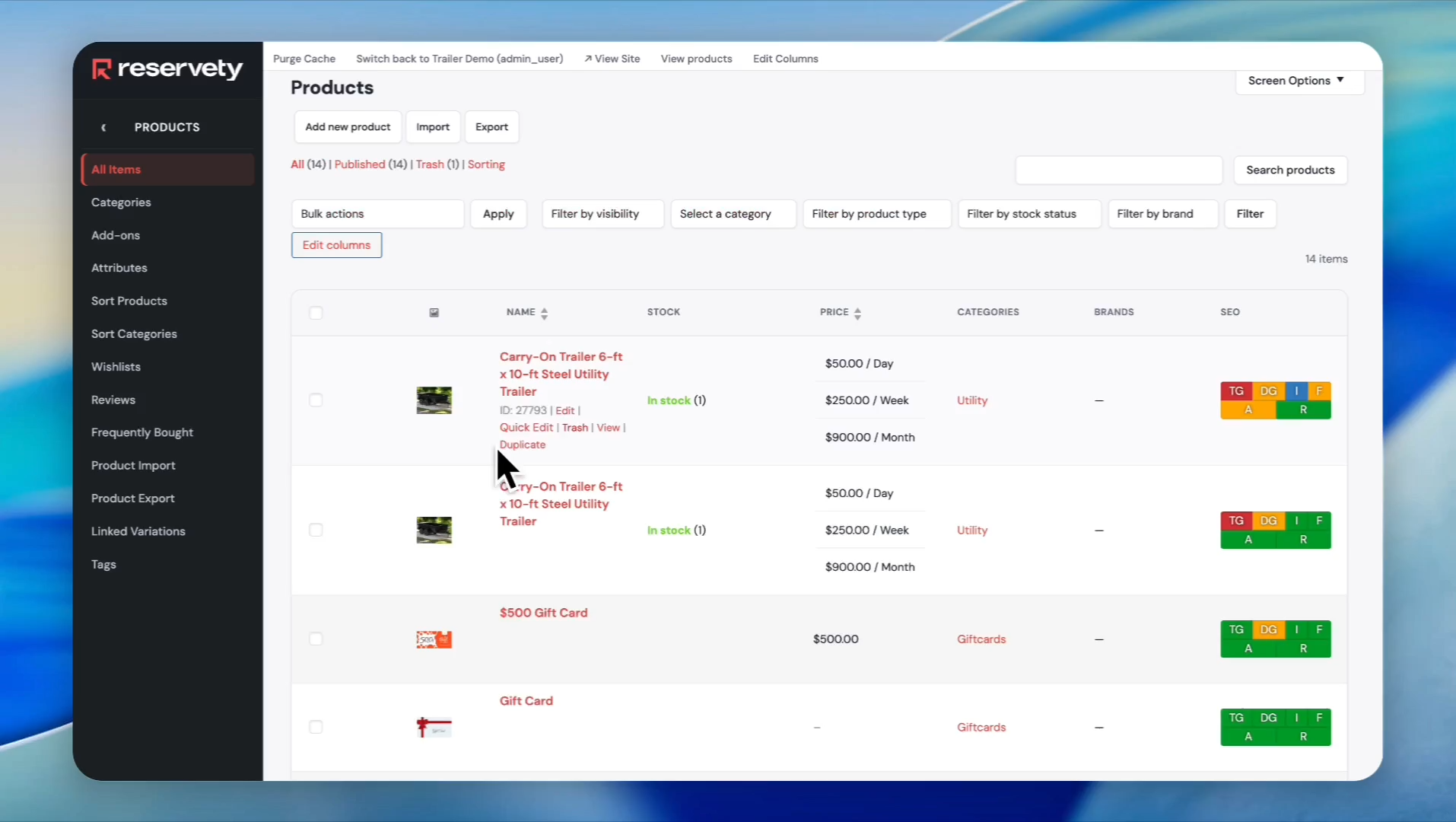
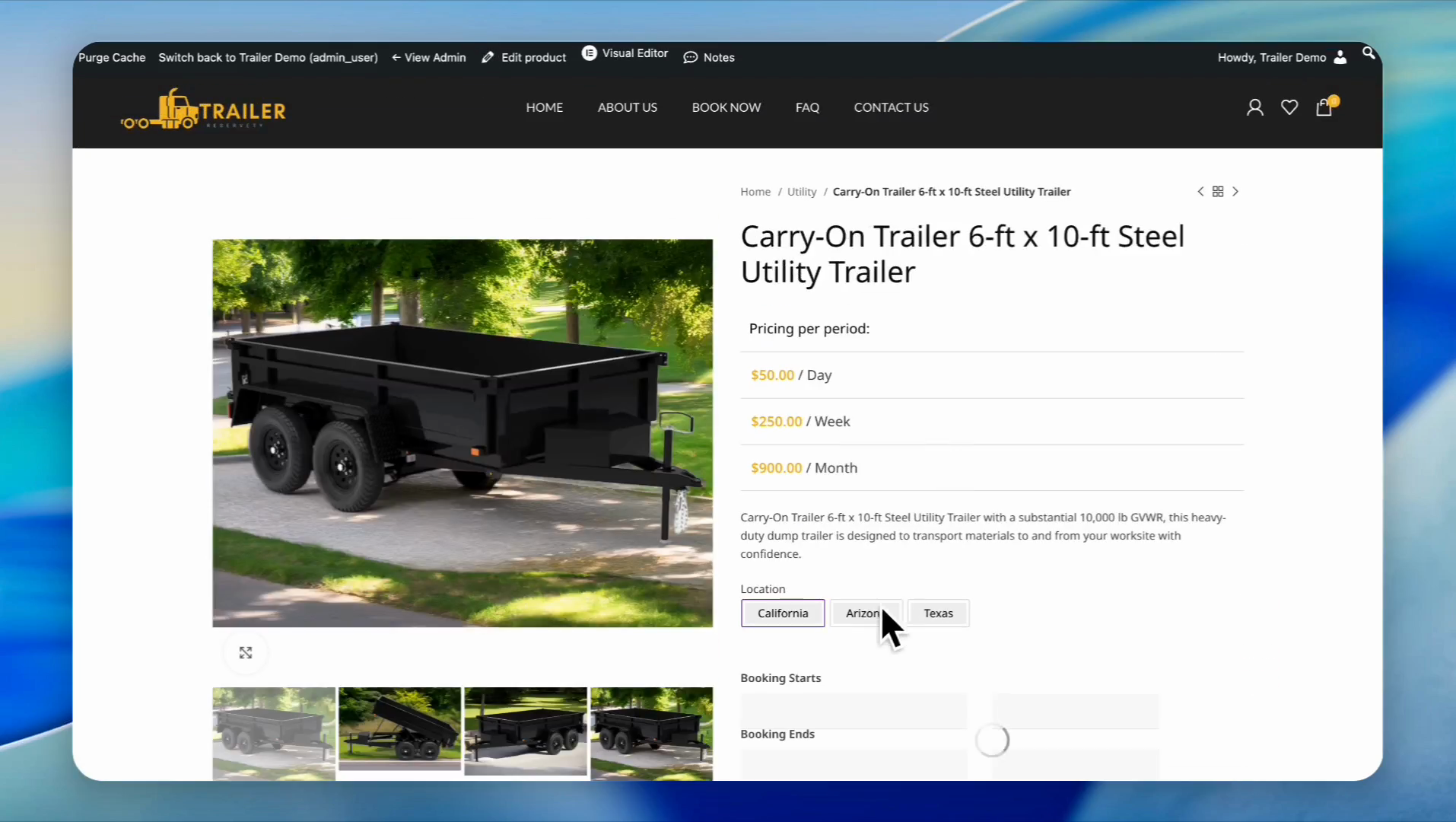
After publishing the item, click on "All Items" in the left sidebar.
25
Find the item you just published and click on "Duplicate".
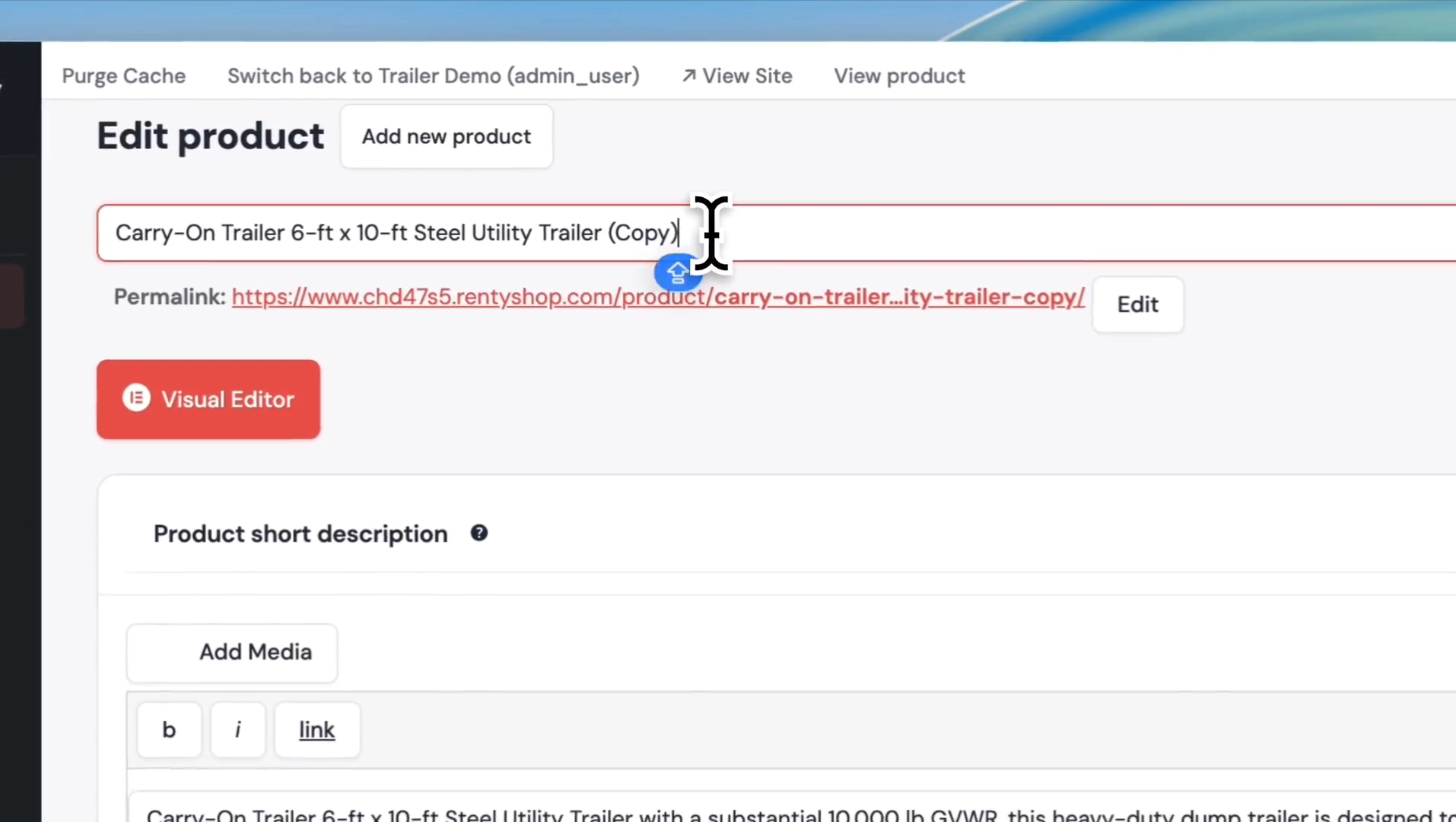
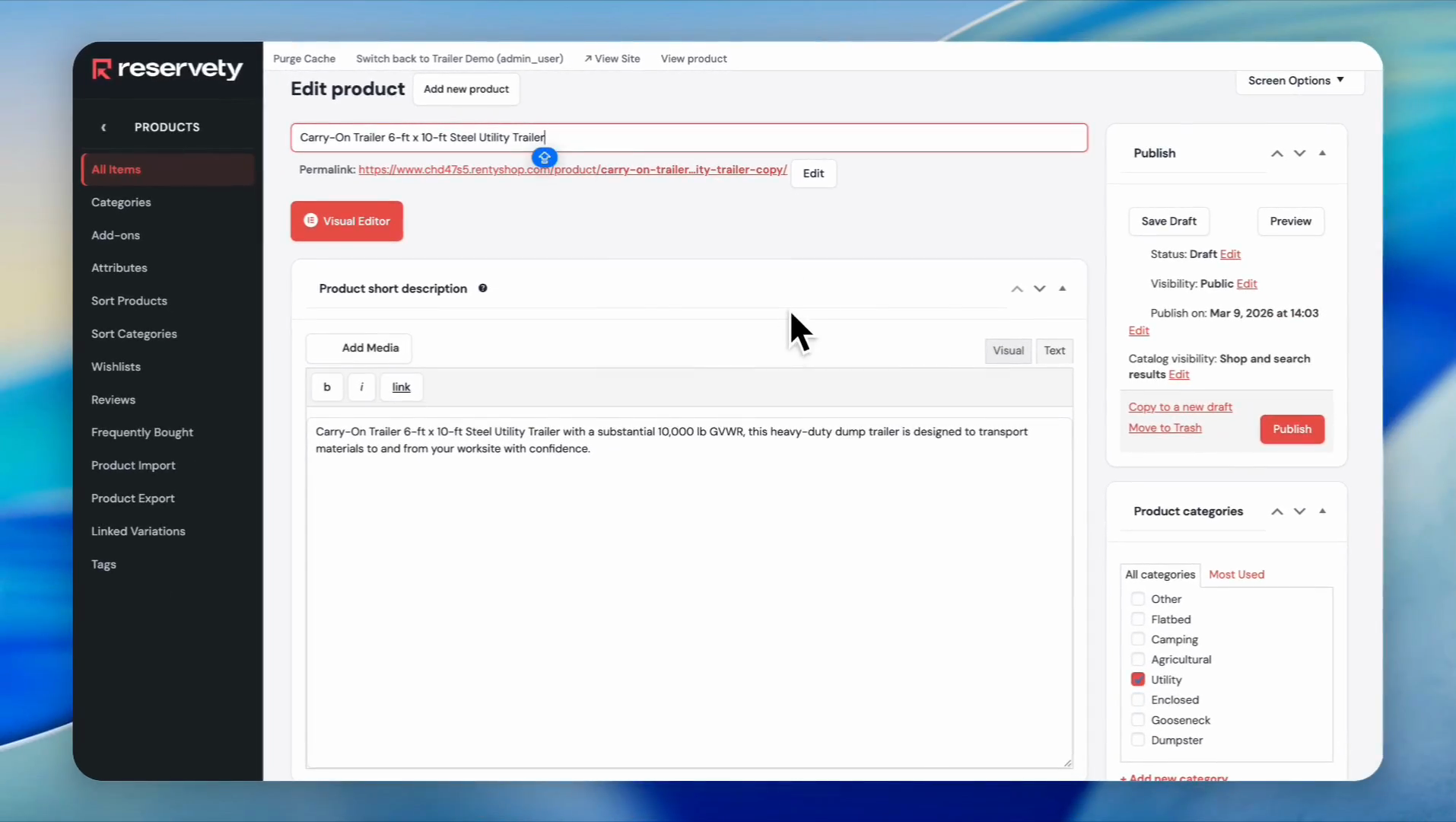
26
Click on the title field to edit it and delete the word (copy)
27
Click the "Edit" button next to the permalink.
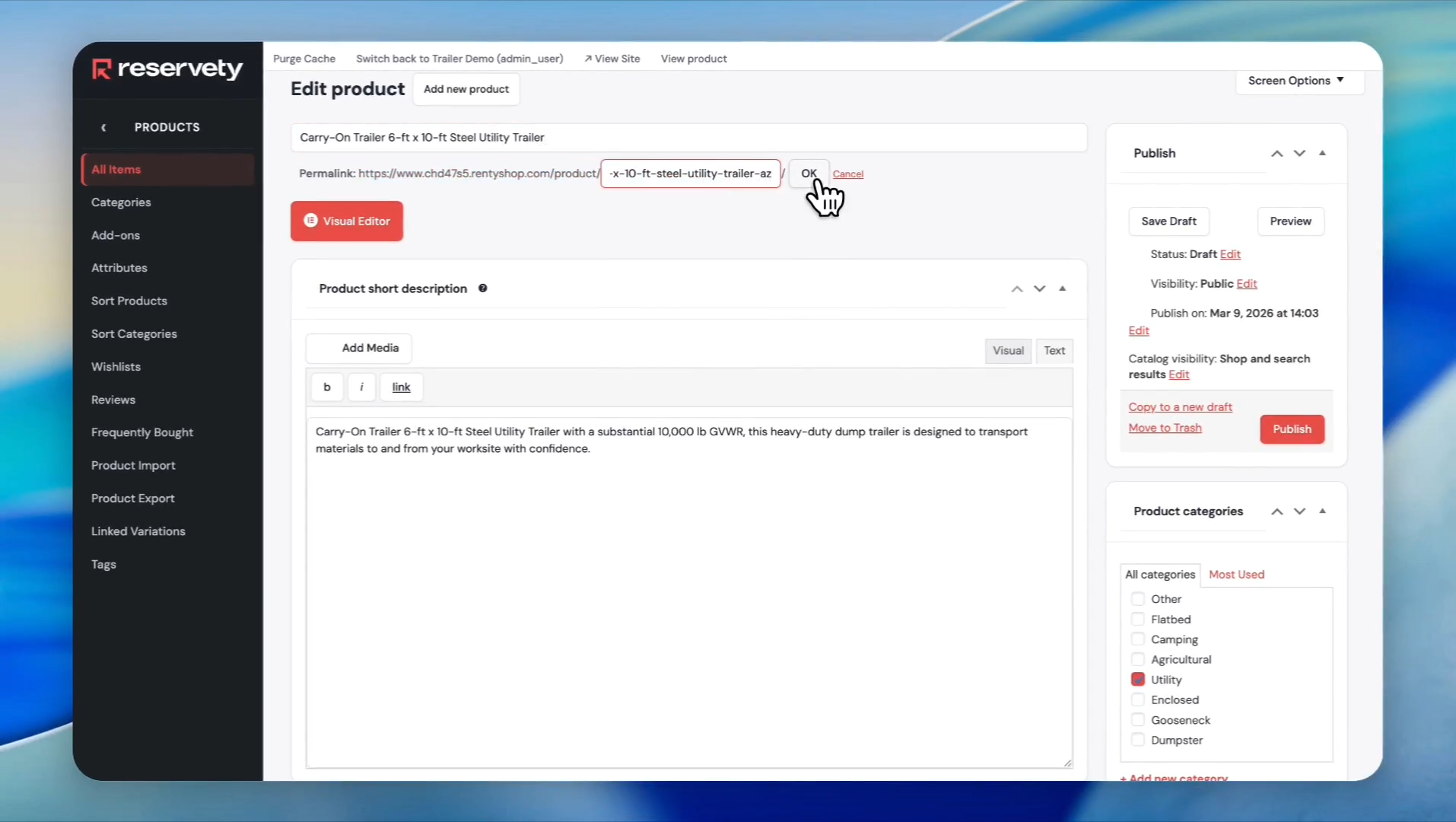
28
In the permalink field, type "-az" at the end of the link to indicate Arizona, then click the OK button next to the permalink field.
Let's hide this product so it doesn't appear in the catalog.
29
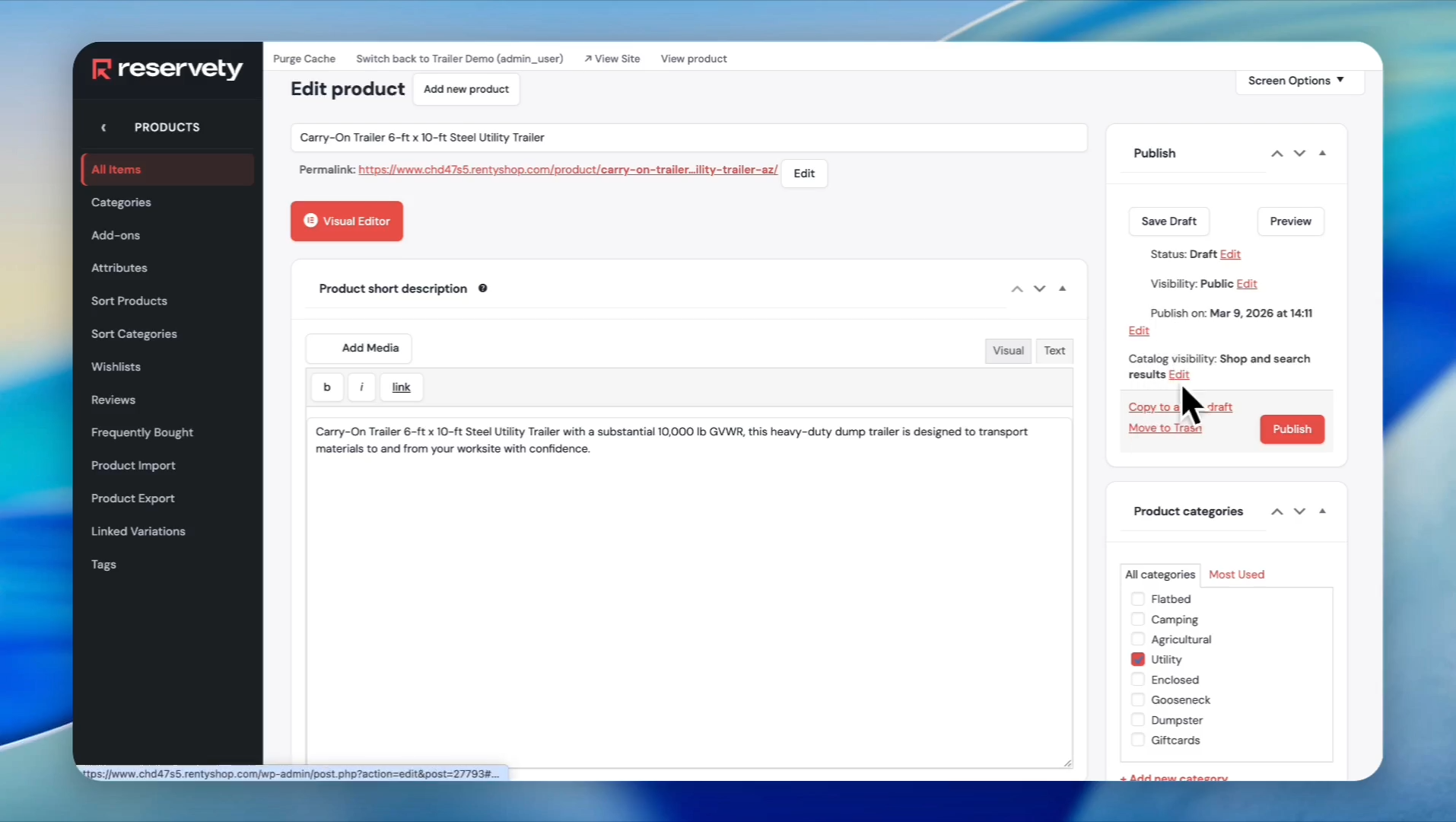
Under the Publish section, click the Edit button next to Catalog visibility.
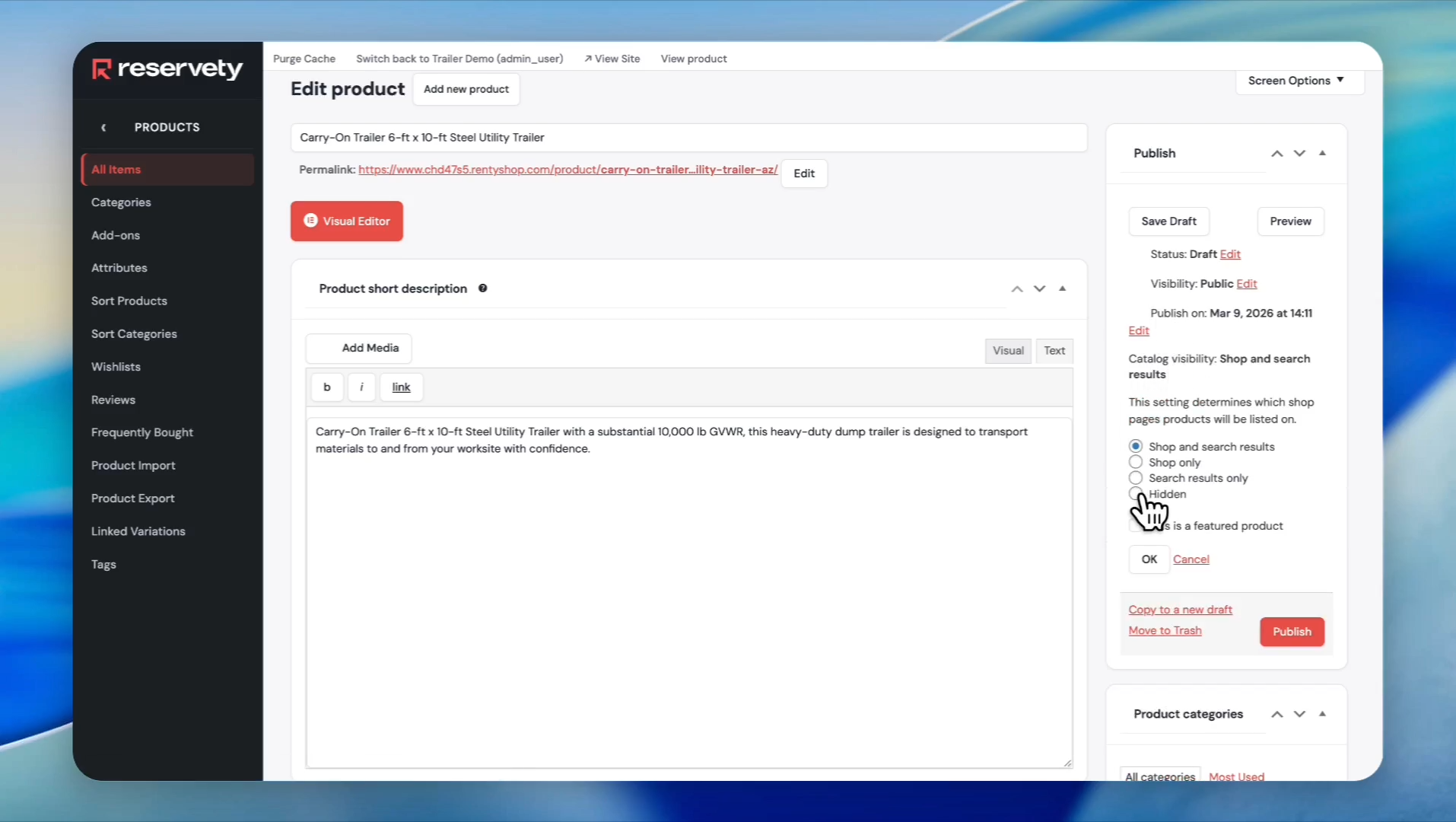
30
Select the Hidden radio button. This way, it will not appear on our website as a duplicate product.
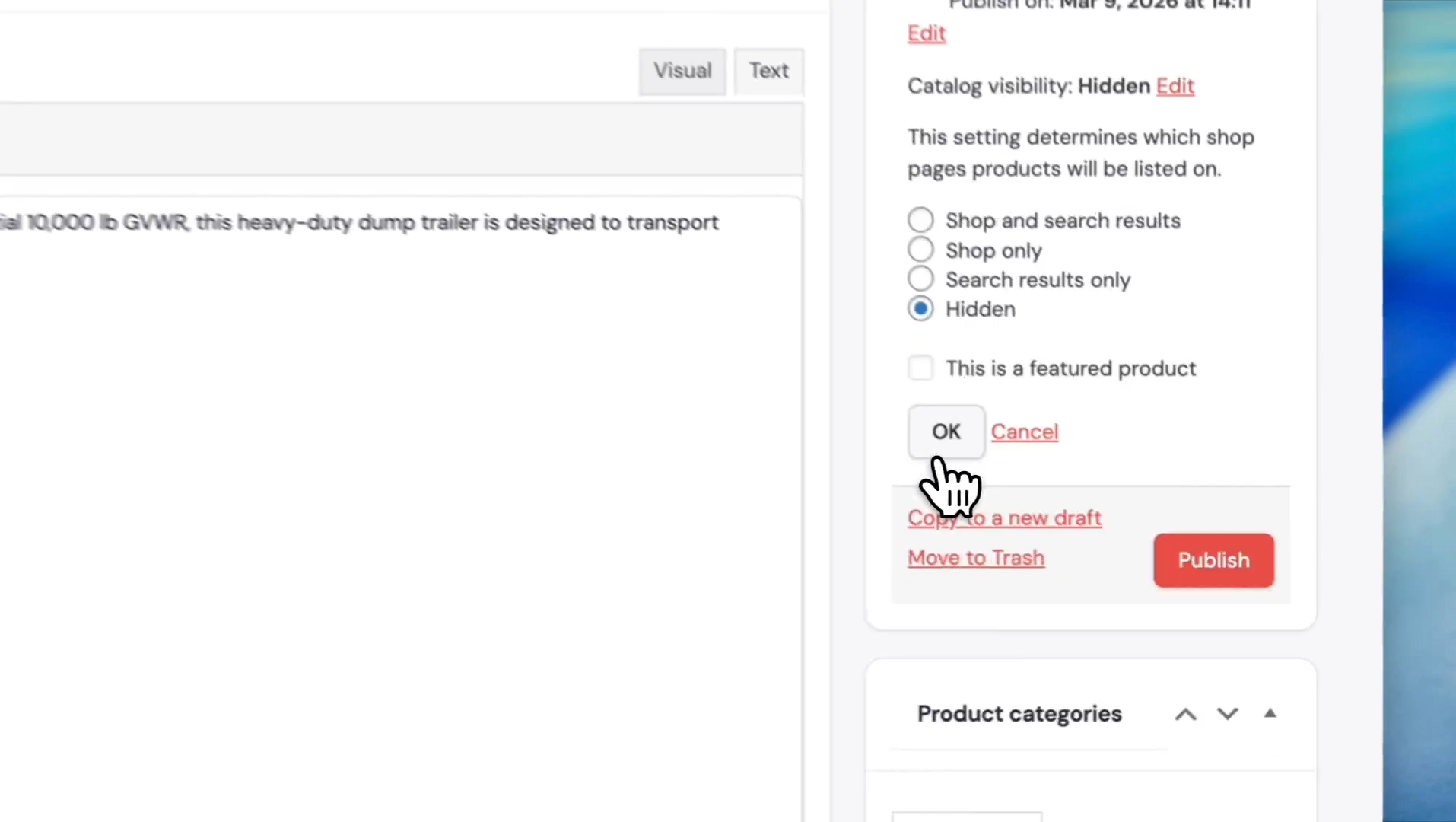
31
Click the OK button.
Scroll down to the Inventory section. Check Track stock quantity for this product if it is not already selected. Enter the quantity for the new location.
32
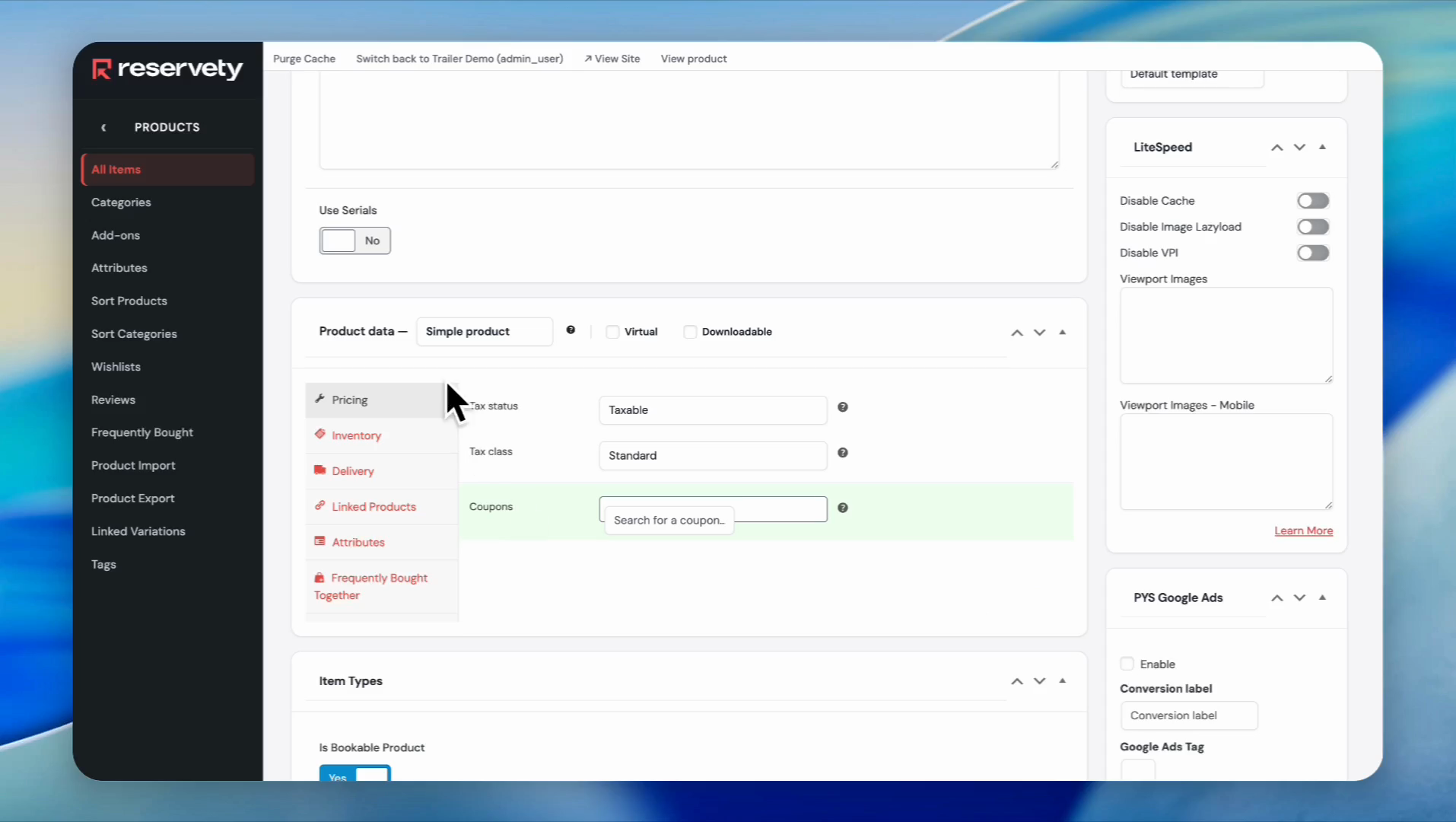
Scroll down to to the Product data section, click on Inventory.
33
Click the checkbox to enable 'Track stock quantity for this product'.
34
Click on Attributes.
35
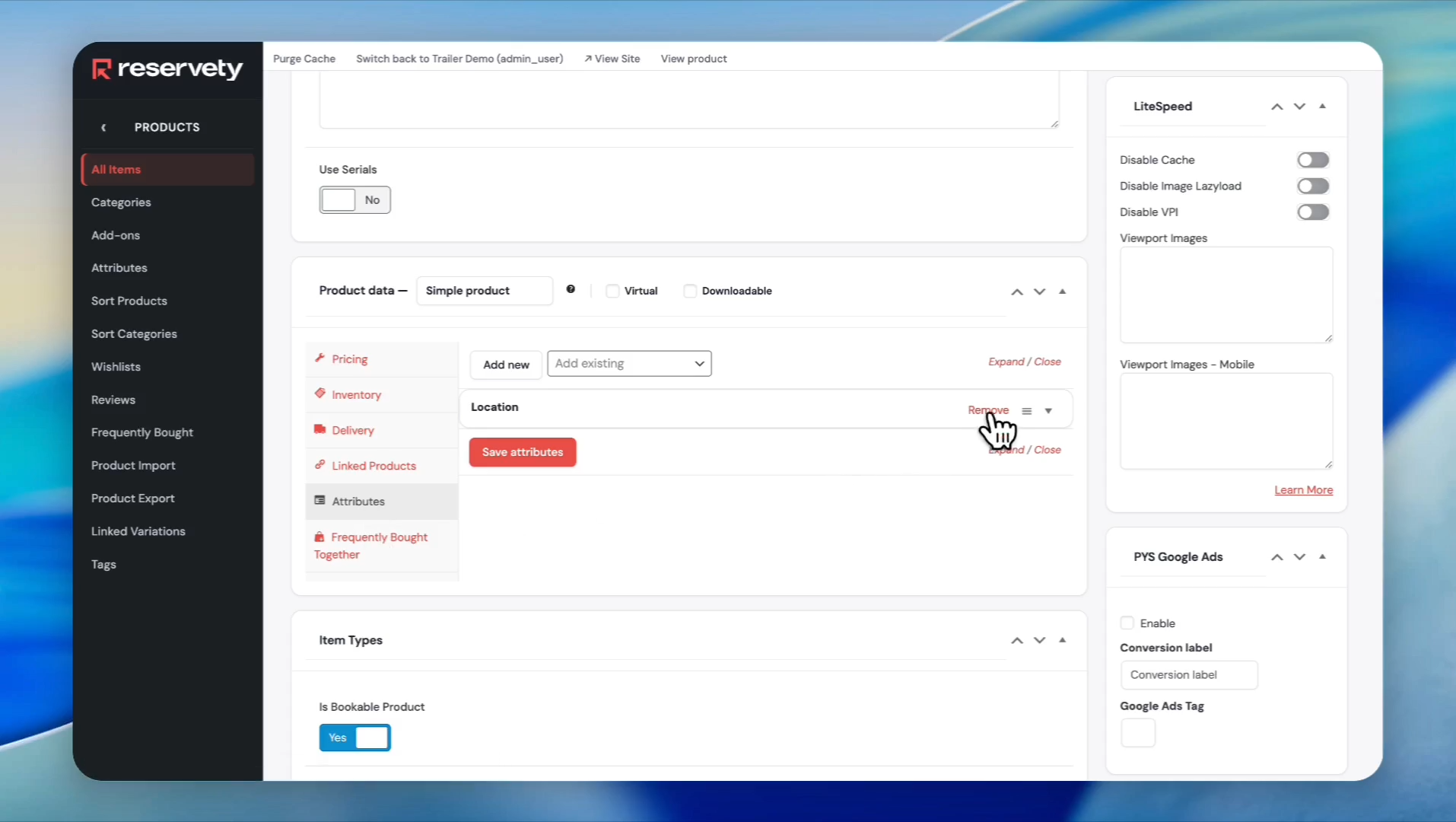
Remove existing attribute
36
Select Location from the dropdown menu.
37
Click the Create value button.
38
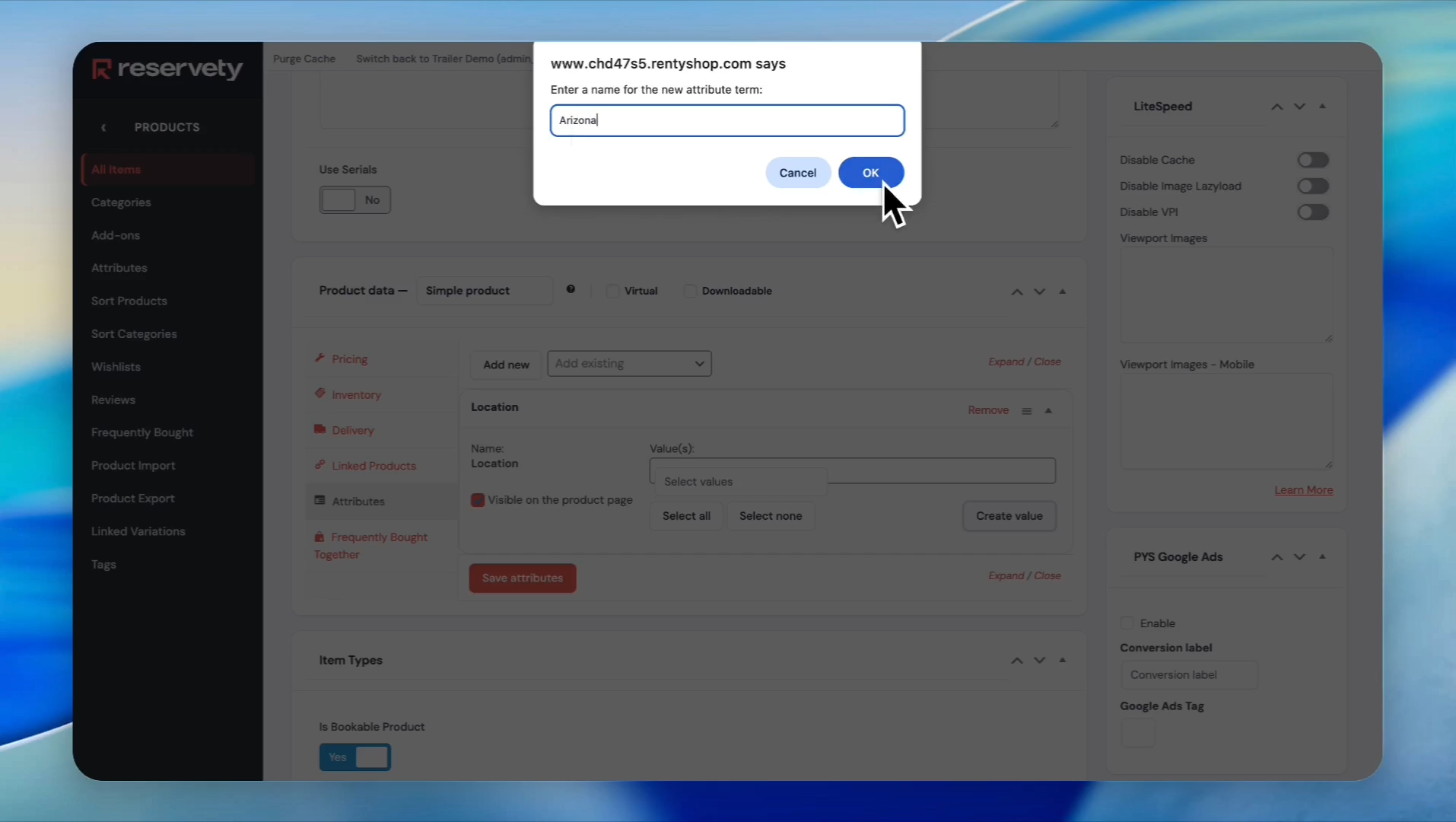
We will name it Arizona.
39
Type 'Arizona' into the 'Enter a name for the new attribute term' field. Then, click the OK button.
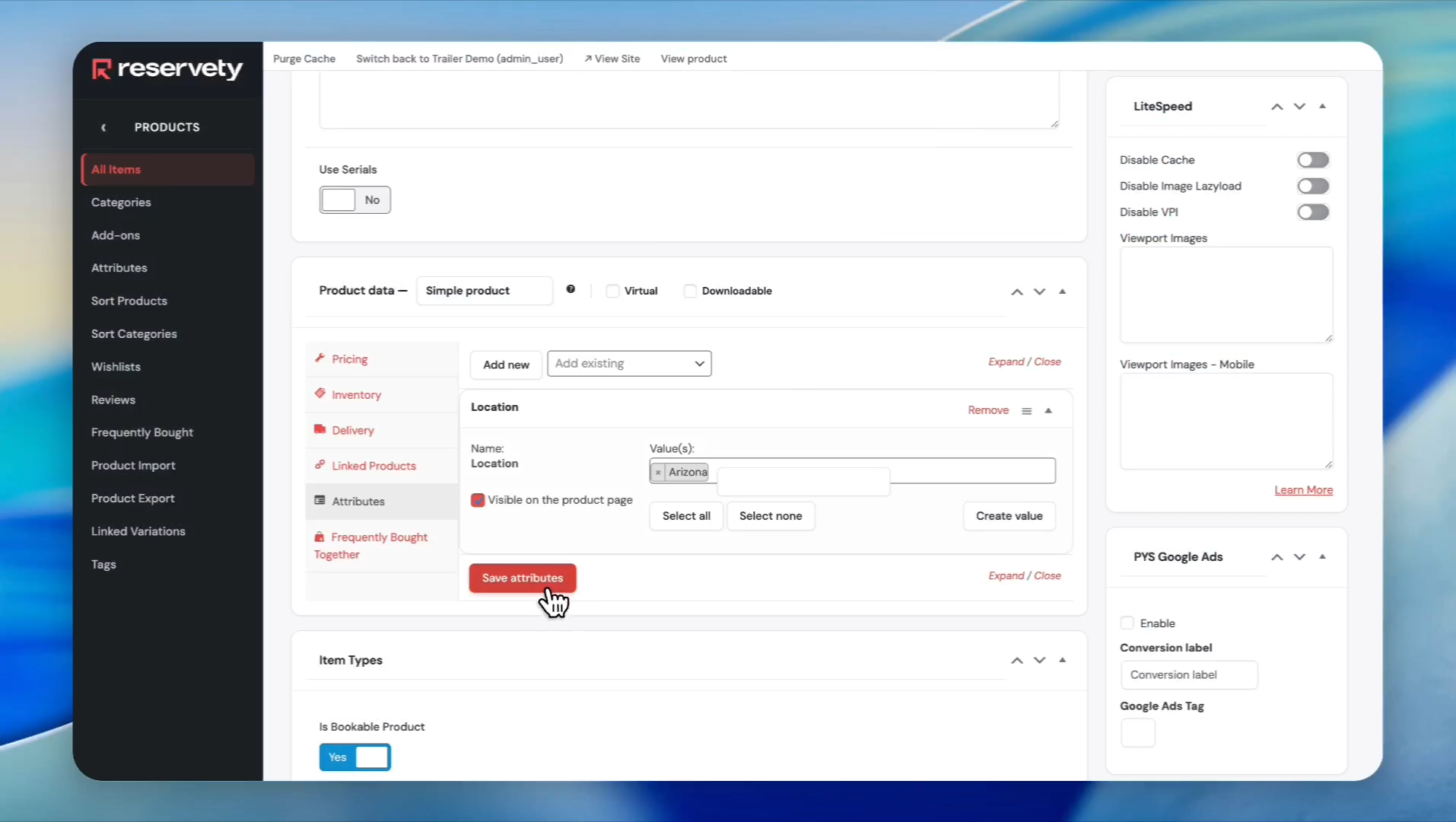
40
Click the Save attributes button.
41
Click the Publish button.
Now, let's add this item to California.
42
On the left sidebar, click All Items under Products.
Find your trailer and click onduplicate, and edit the item as you did with the Arizona example.
After creating items for each location, we need to link items by variations.
43
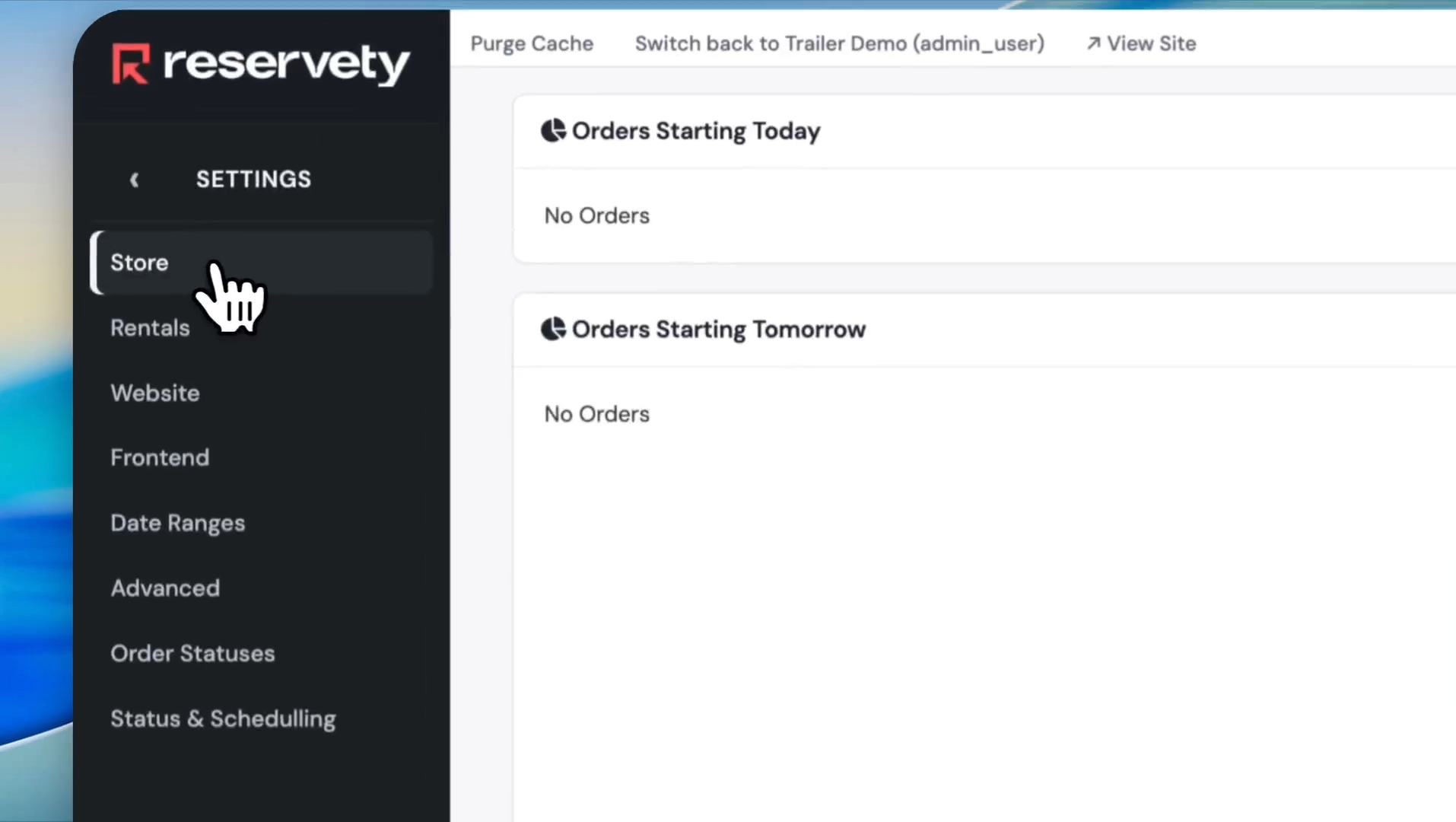
Click on Settings.
44
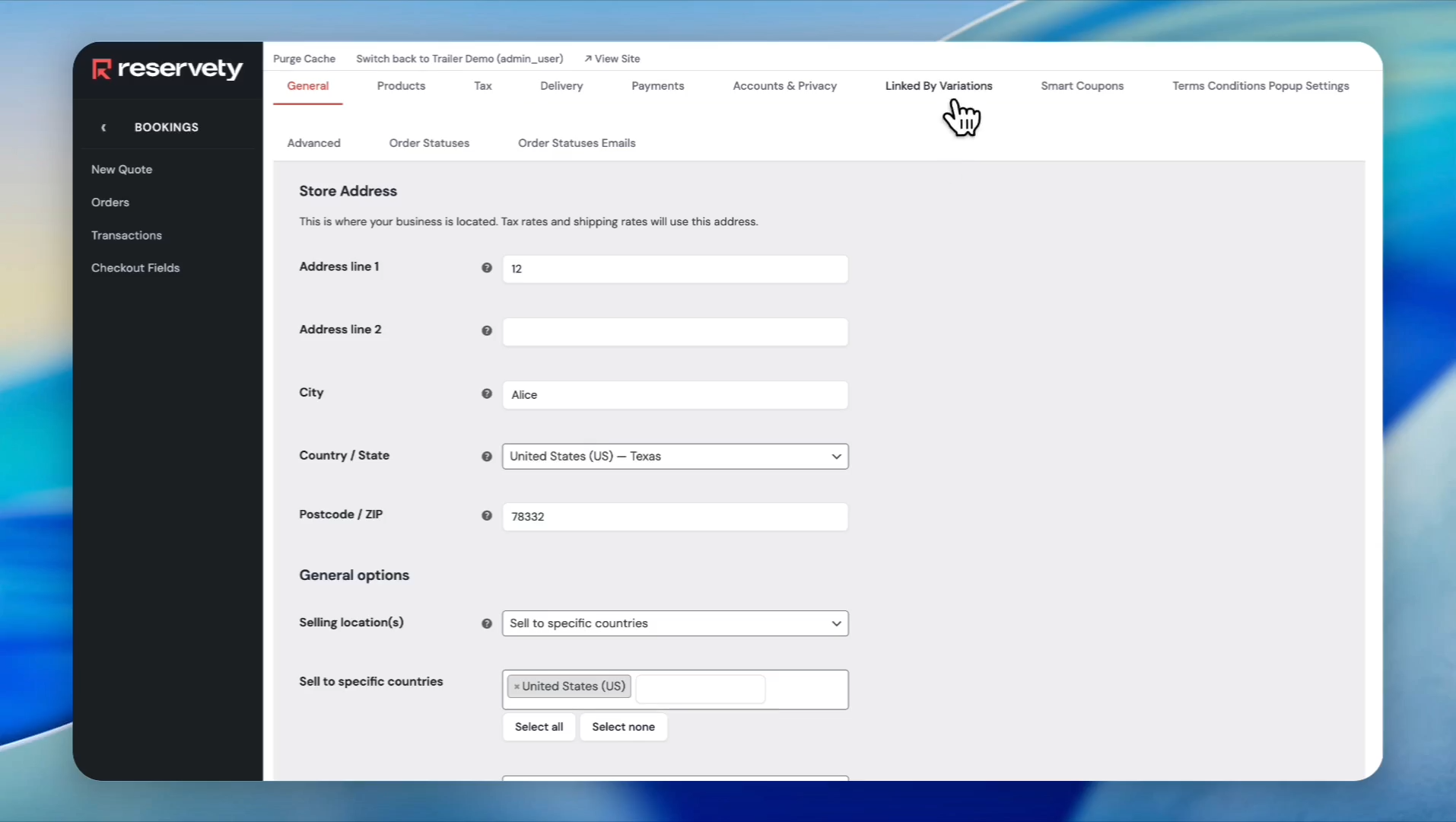
Click on Store.
45
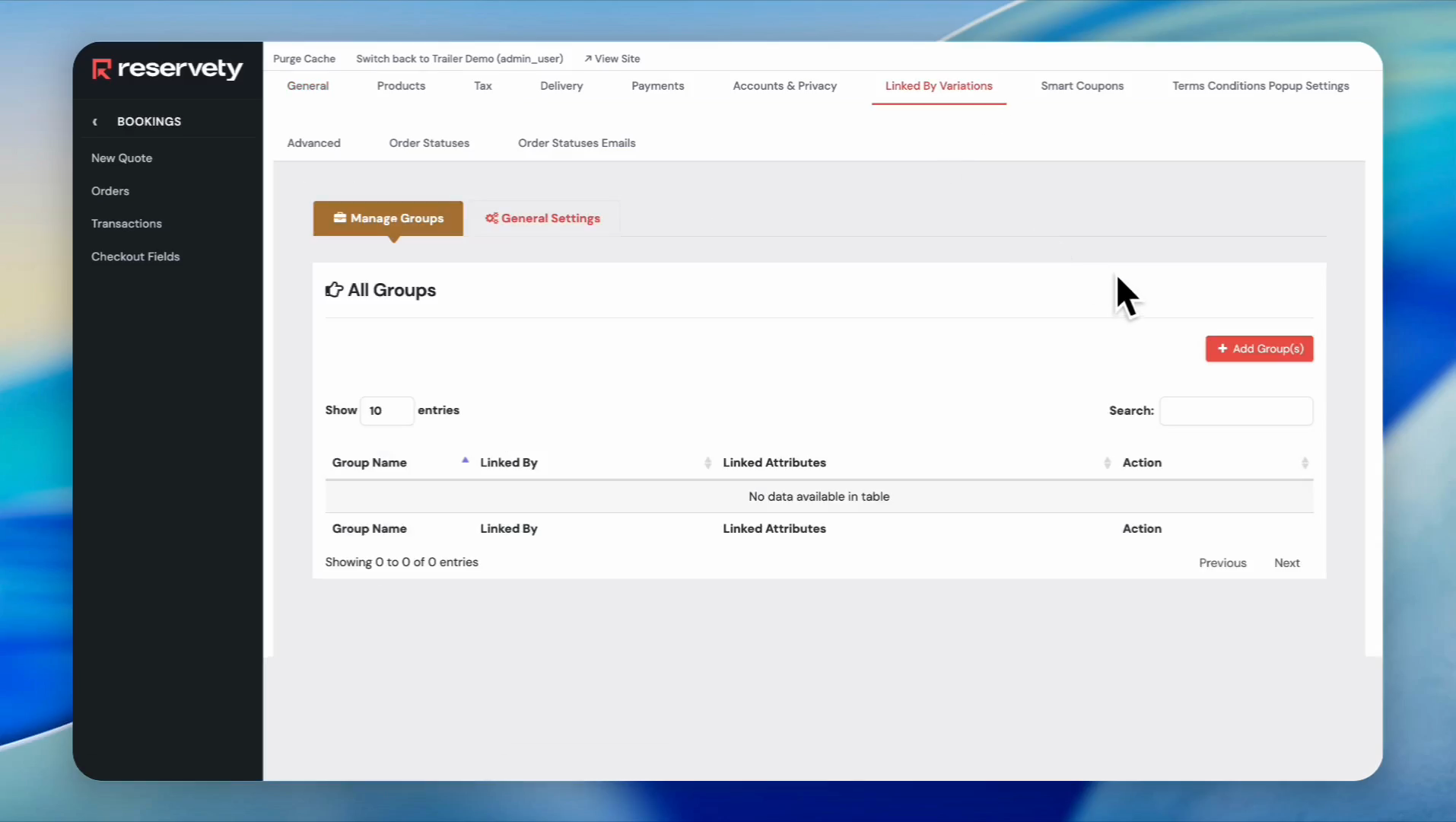
Click the 'Linked by Variations' tab.
46
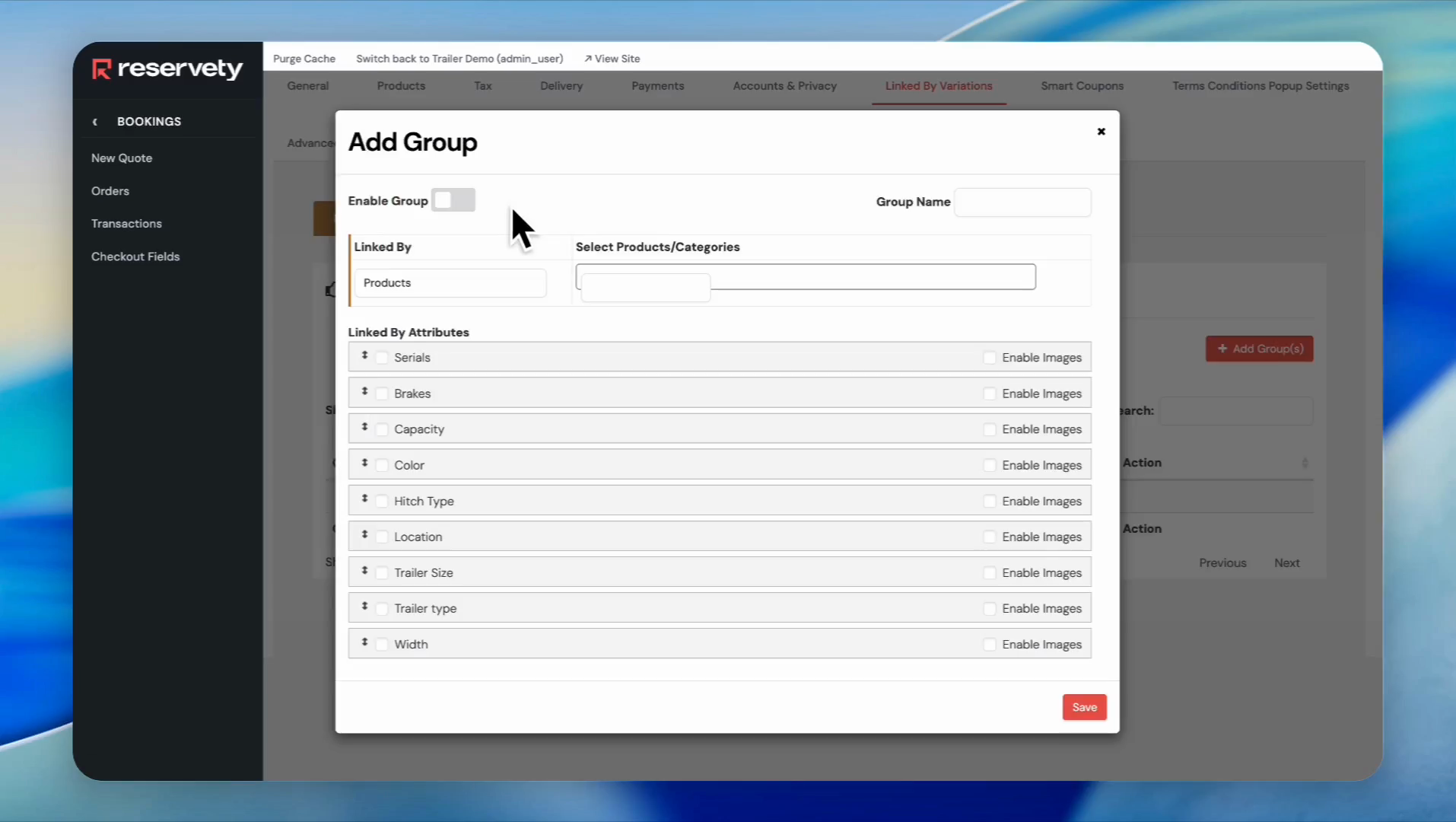
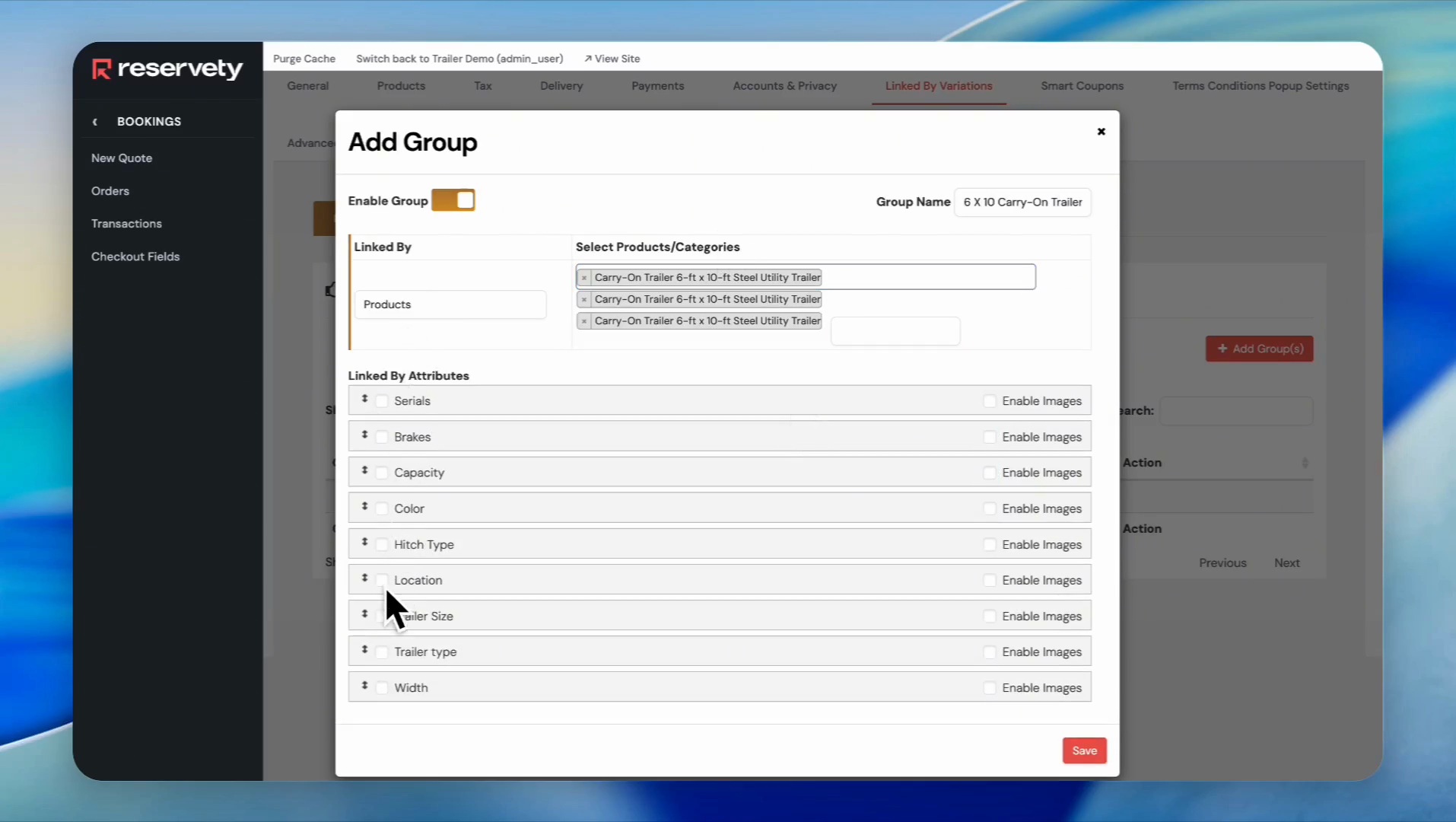
Click the 'Add Group' button.
47
Click the 'Enable Group' toggle.
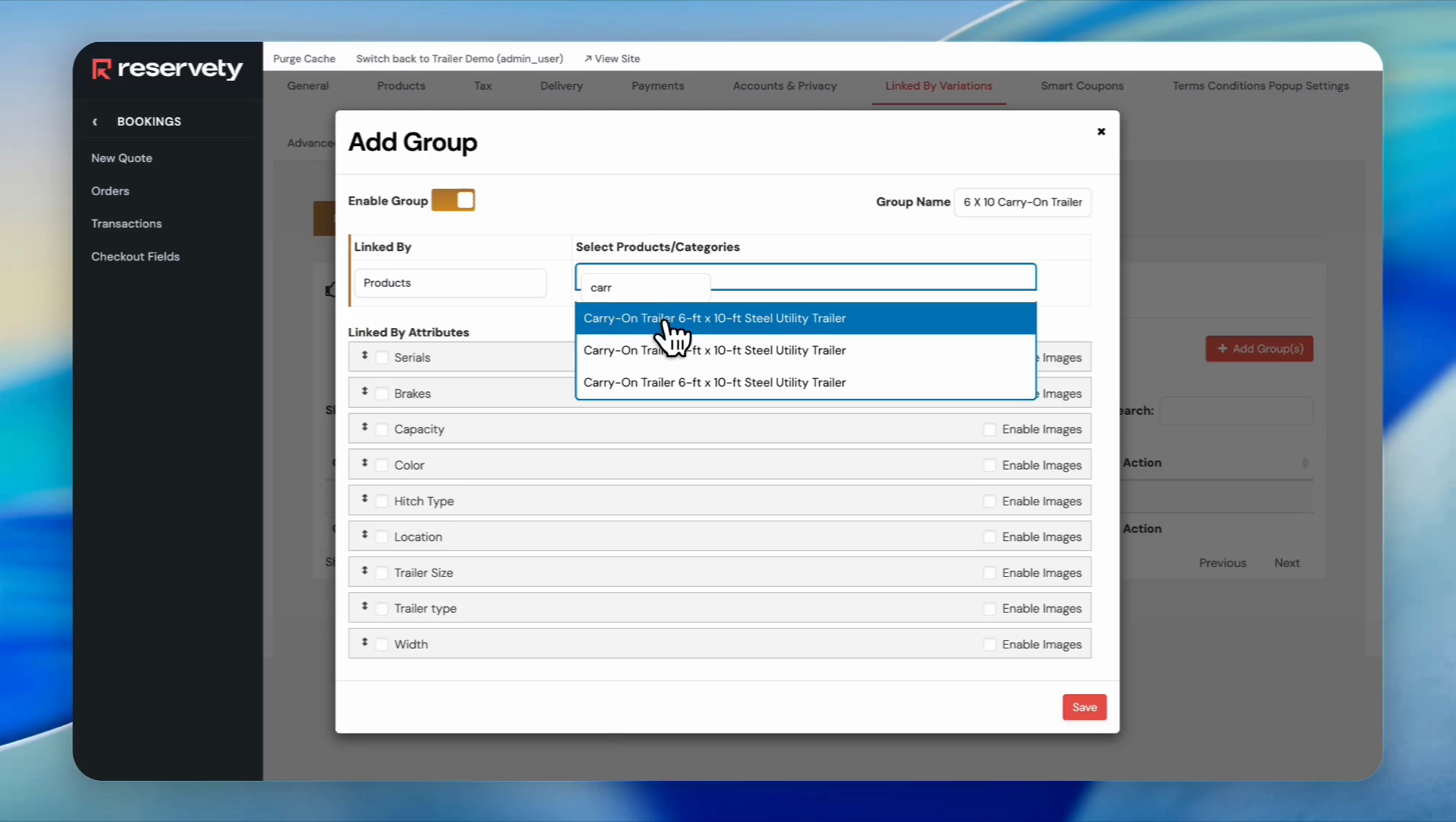
Next, go to the section labeled "Select Products & Categories."In this section, type the name of the trailer: carry-on trailer.
48
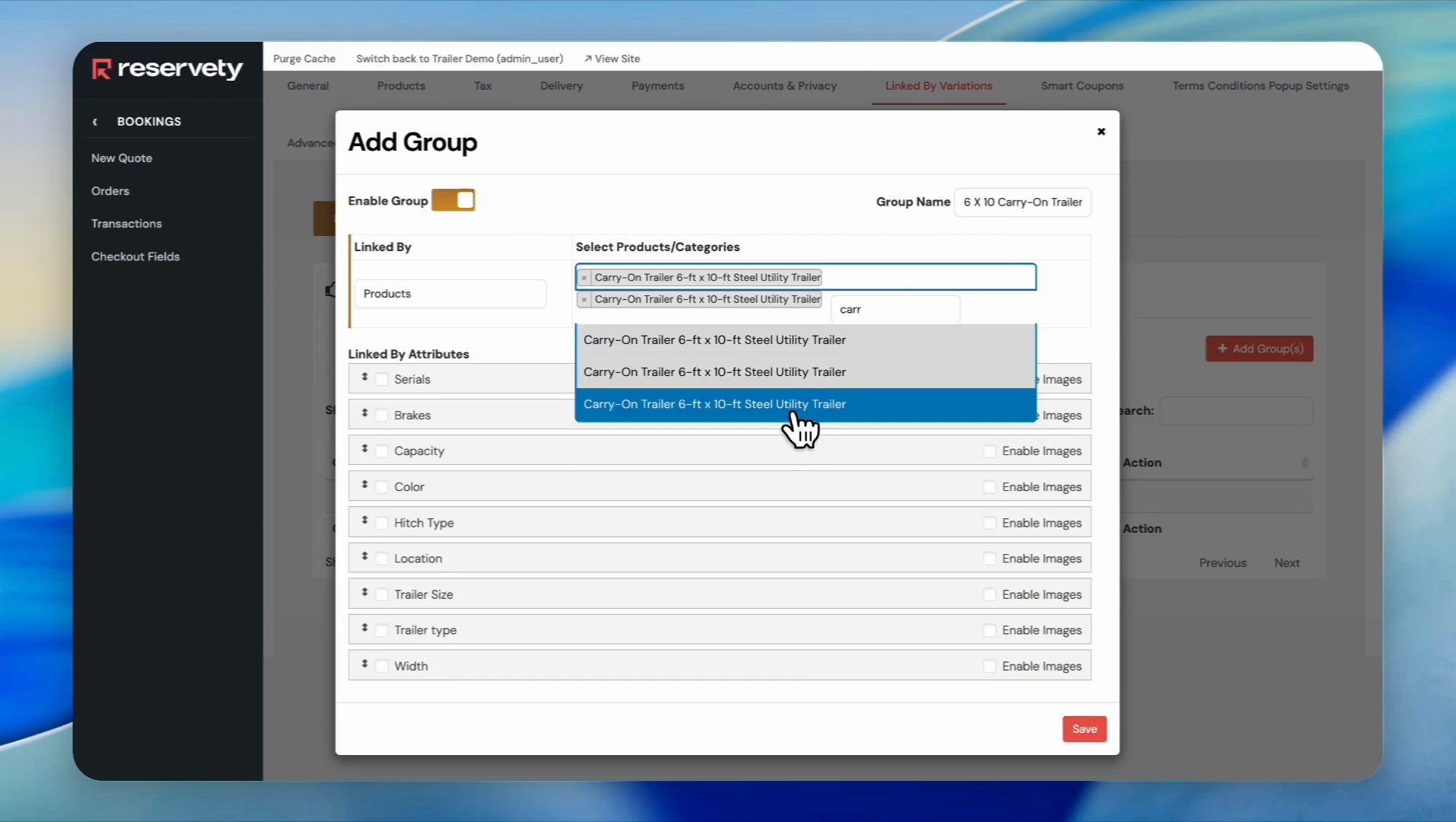
Select all three versions of your carry-on trailer to add to the list.
49
Select the second 'Carry-On Trailer 6-ft x 10-ft Steel Utility Trailer' from the dropdown.
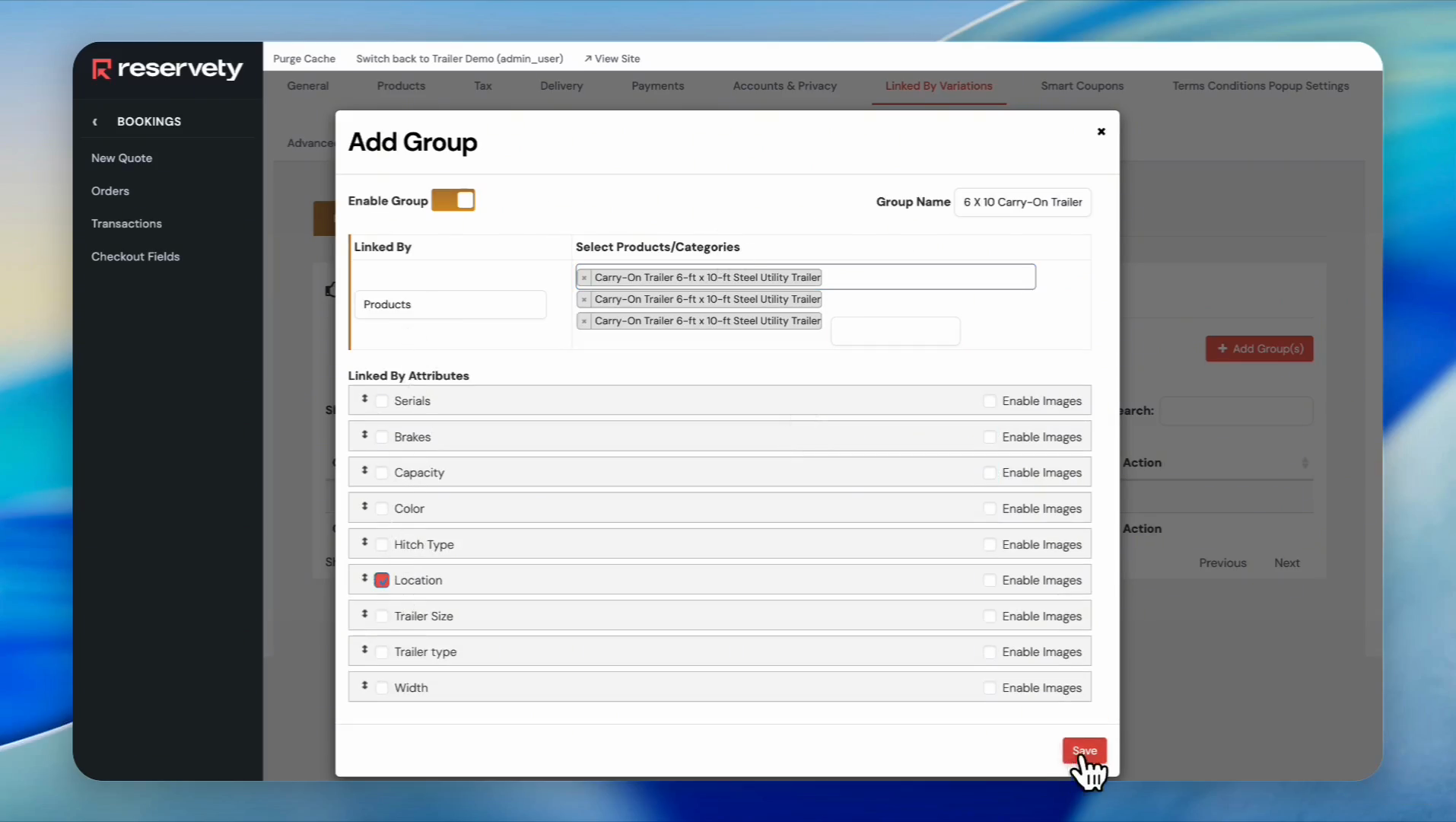
After adding the trailers in all three locations, check the Location box.
50
Click the checkbox next to Location.
51
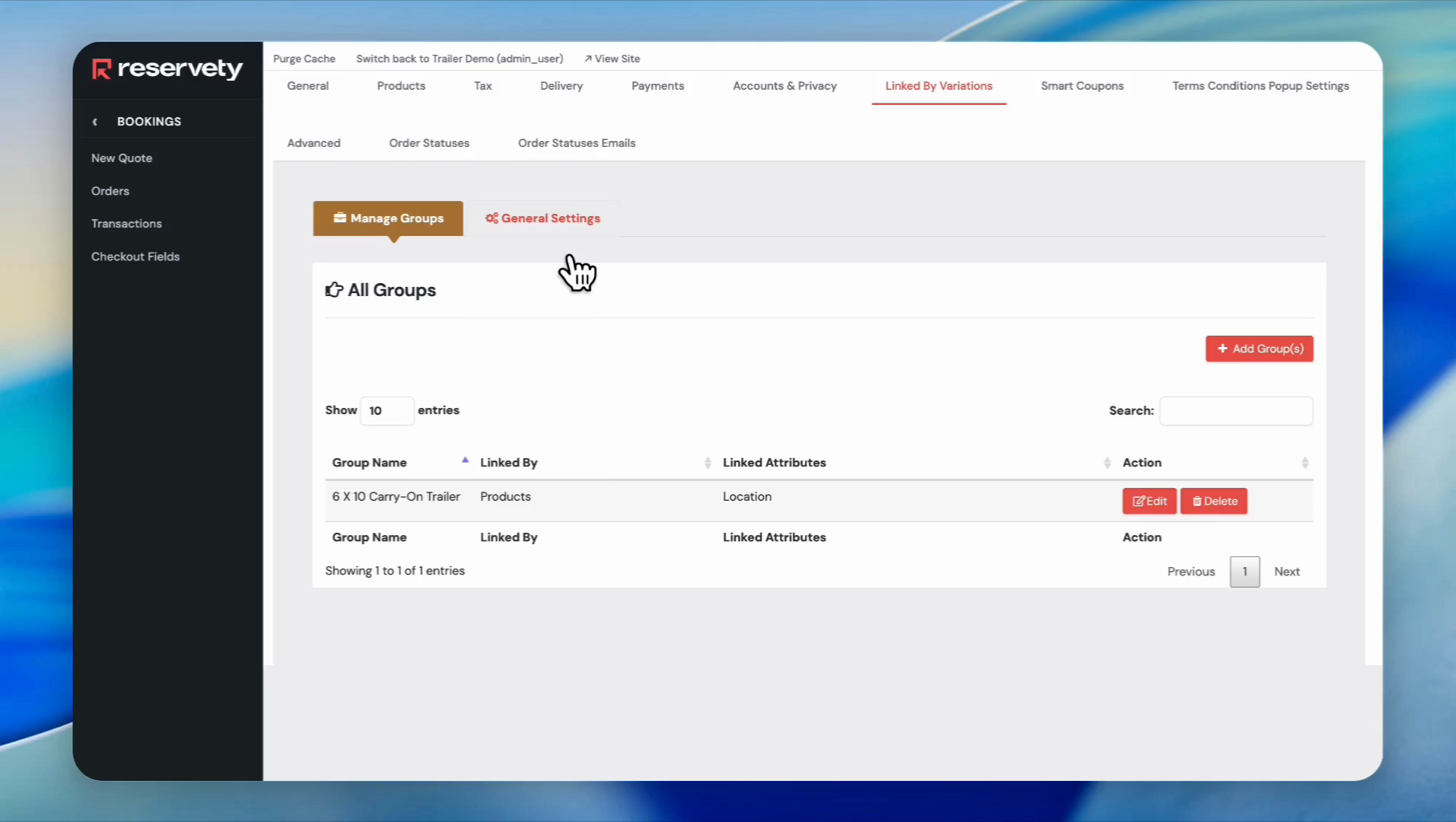
Click the Save button.
52
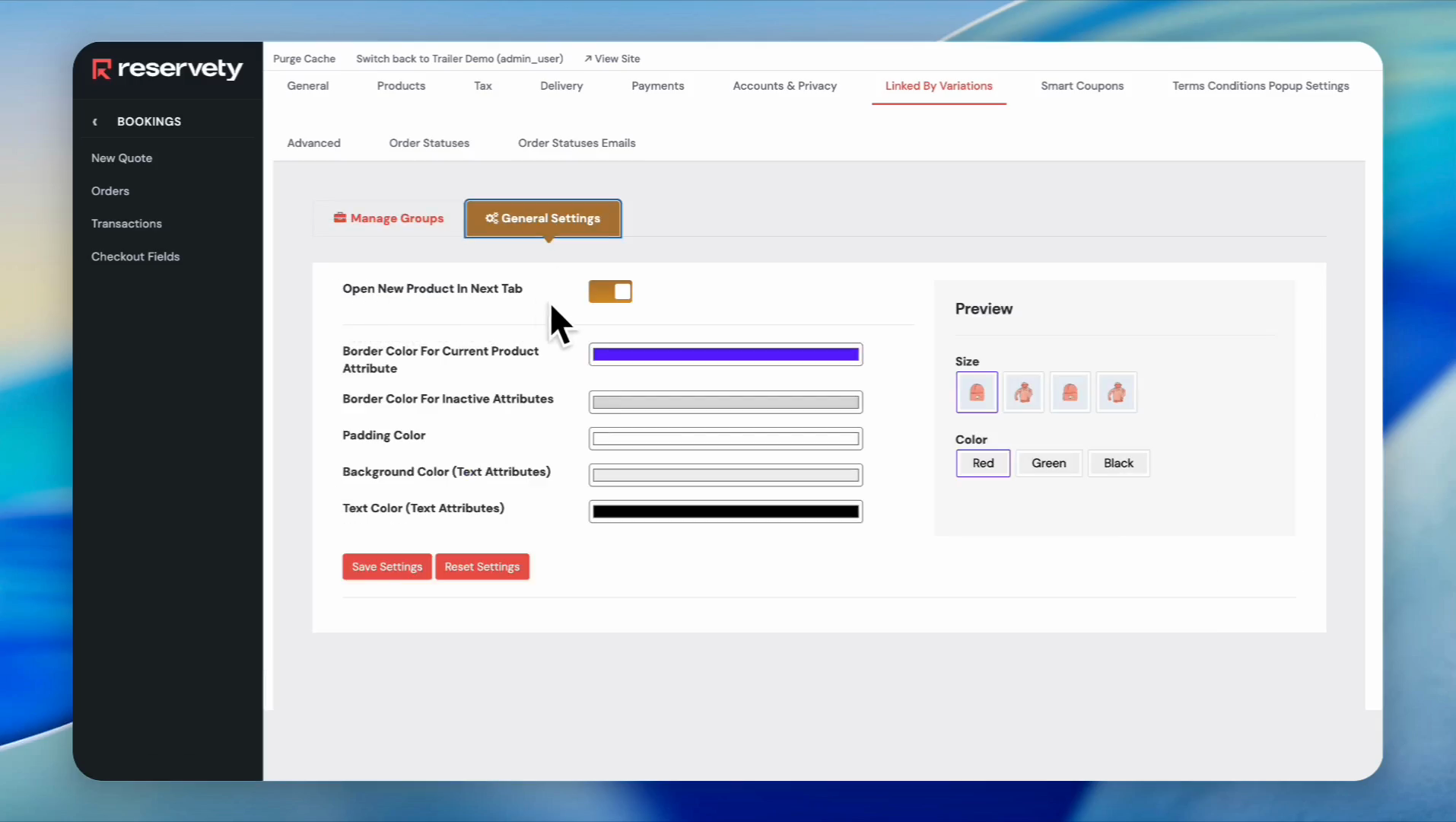
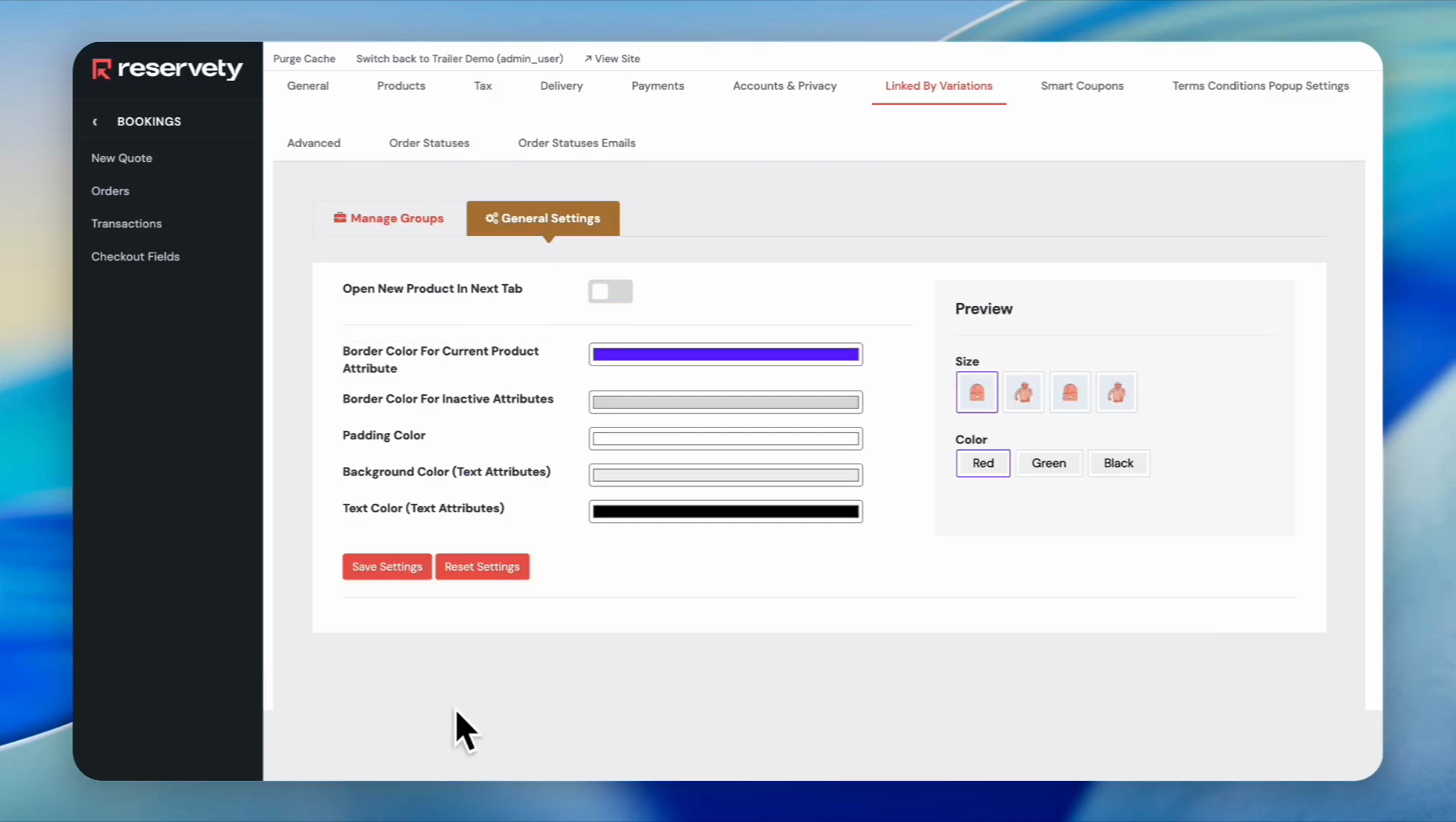
Click the 'General Settings' button.
53
Click the 'Open New Product in Next Tab' toggle to switch it off.
54
Click the 'Save Settings' button.
55
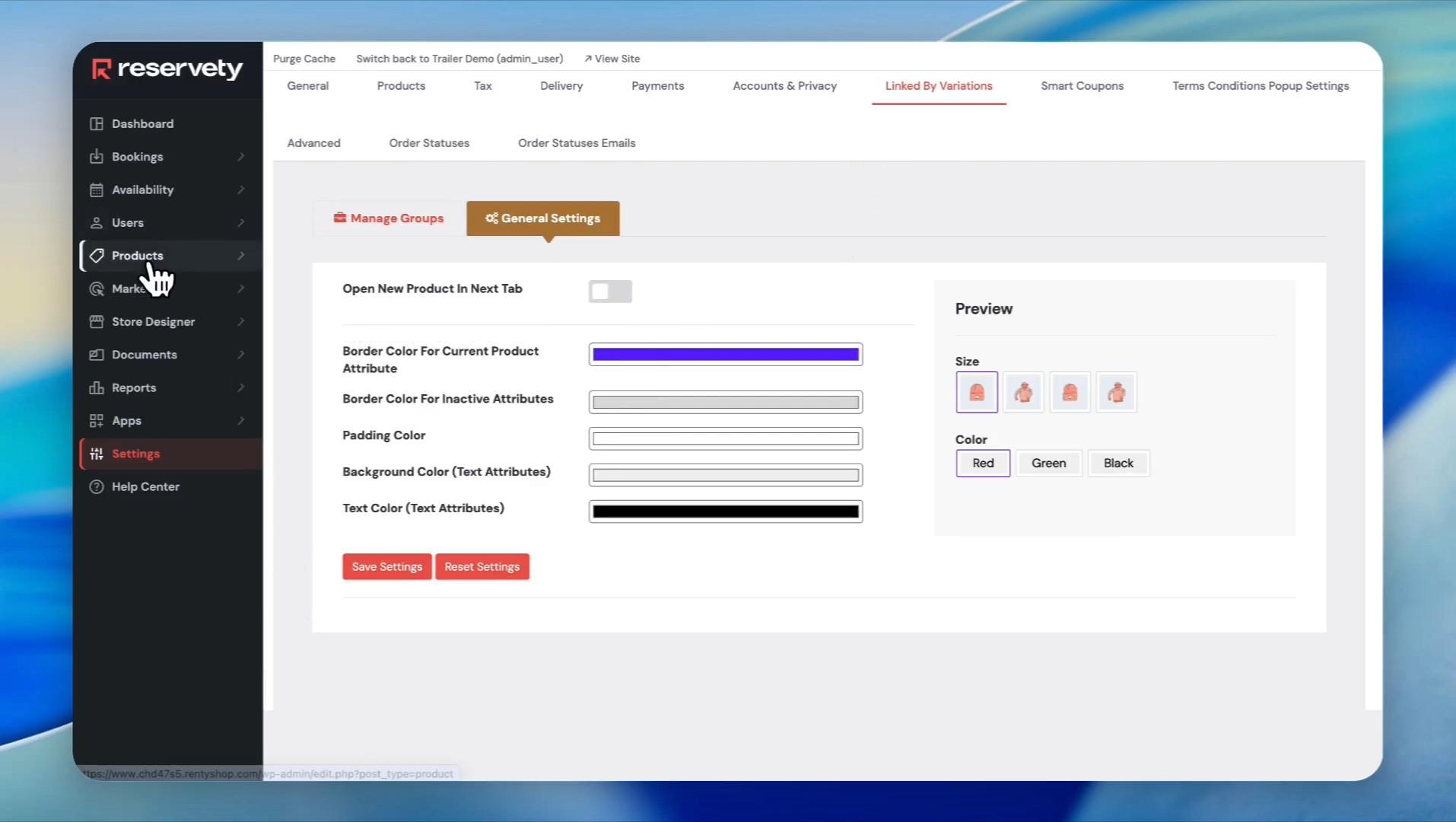
Click on Products in the left sidebar.
56
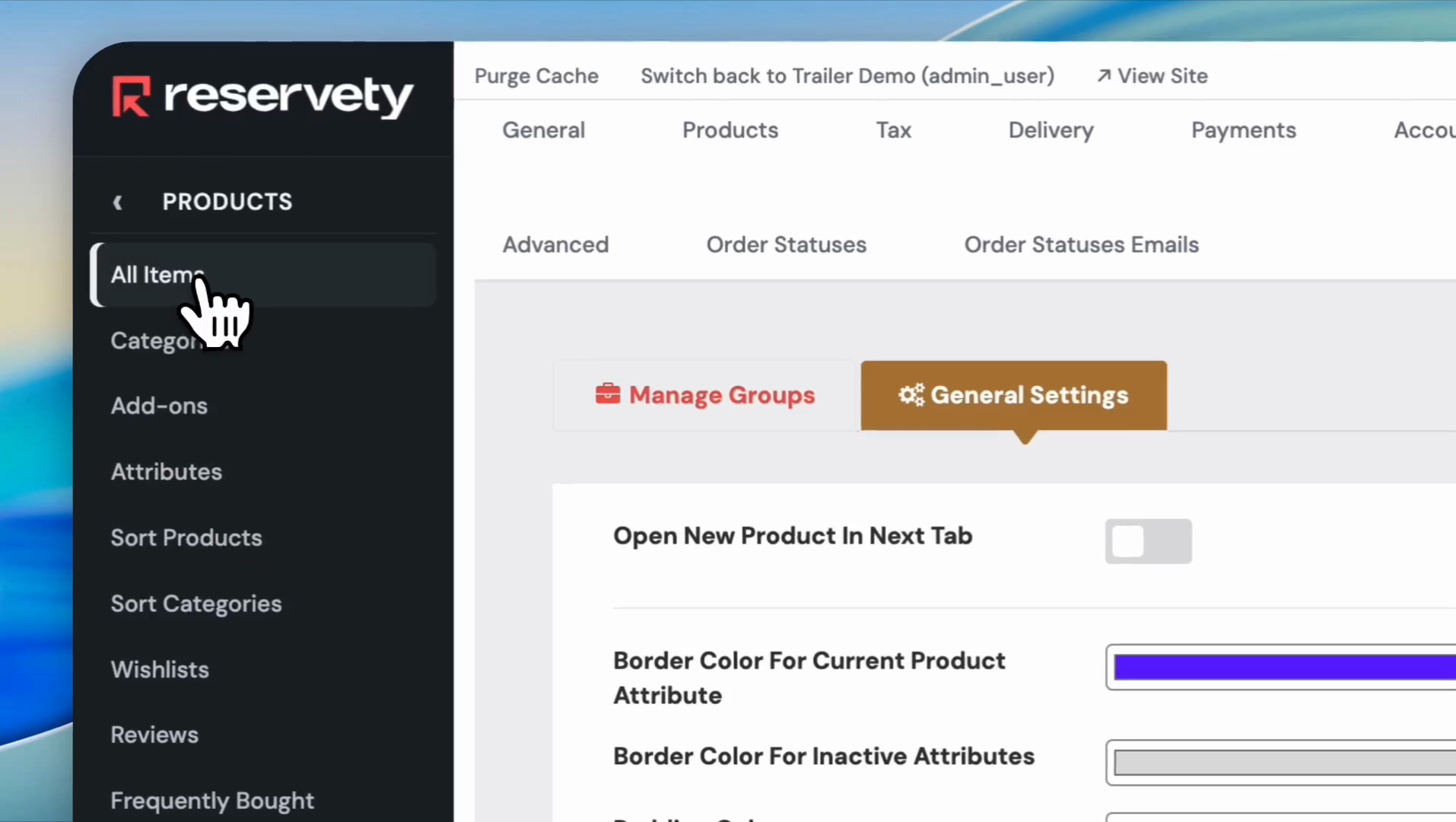
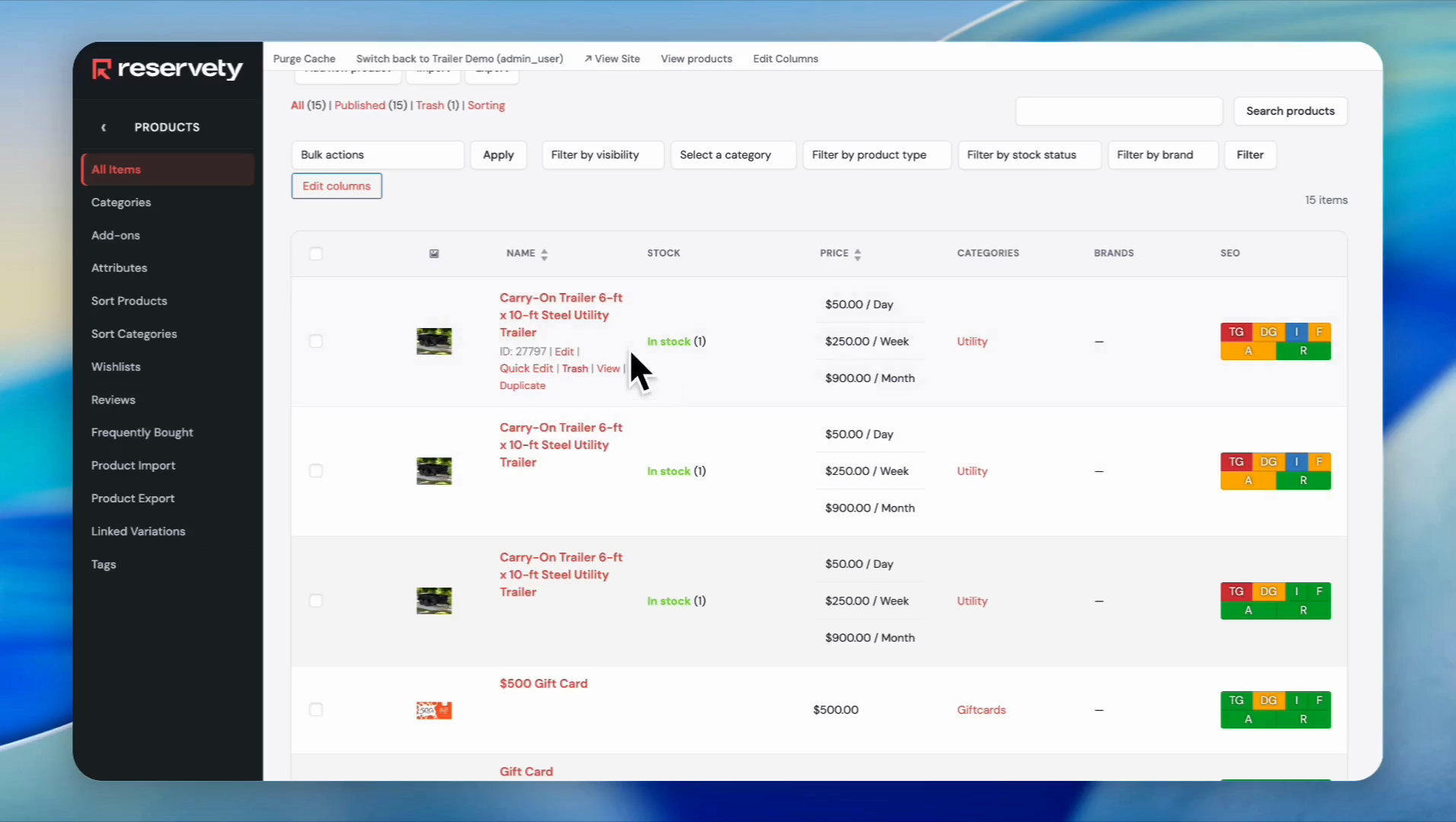
Click on All Items.
57
Click the View button for a product.
58
Our product is clearly displayed on our website with prices, descriptions, and featured locations.You can select the locations from this menu and book your product.You can switch between locations.For example, you can click on California or Arizona and book accordingly.