OLD How to Create Branded Client Quotes on the VELUX Dealer Extranet: Step-by-Step Guide
Learn two easy methods to create and send client quotes on the VELUX dealer extranet. Adjust quantities, add sales tax, and email quotes including your company logo directly to clients with this simple guide.
By Michelle
In this guide, we'll learn how to create and manage quotes on the VELUX dealer extranet. We will look at two methods for adding products, adjusting quantities, and including sales tax. You will also see how to send the final quote to your client by email.
Let's get started
1
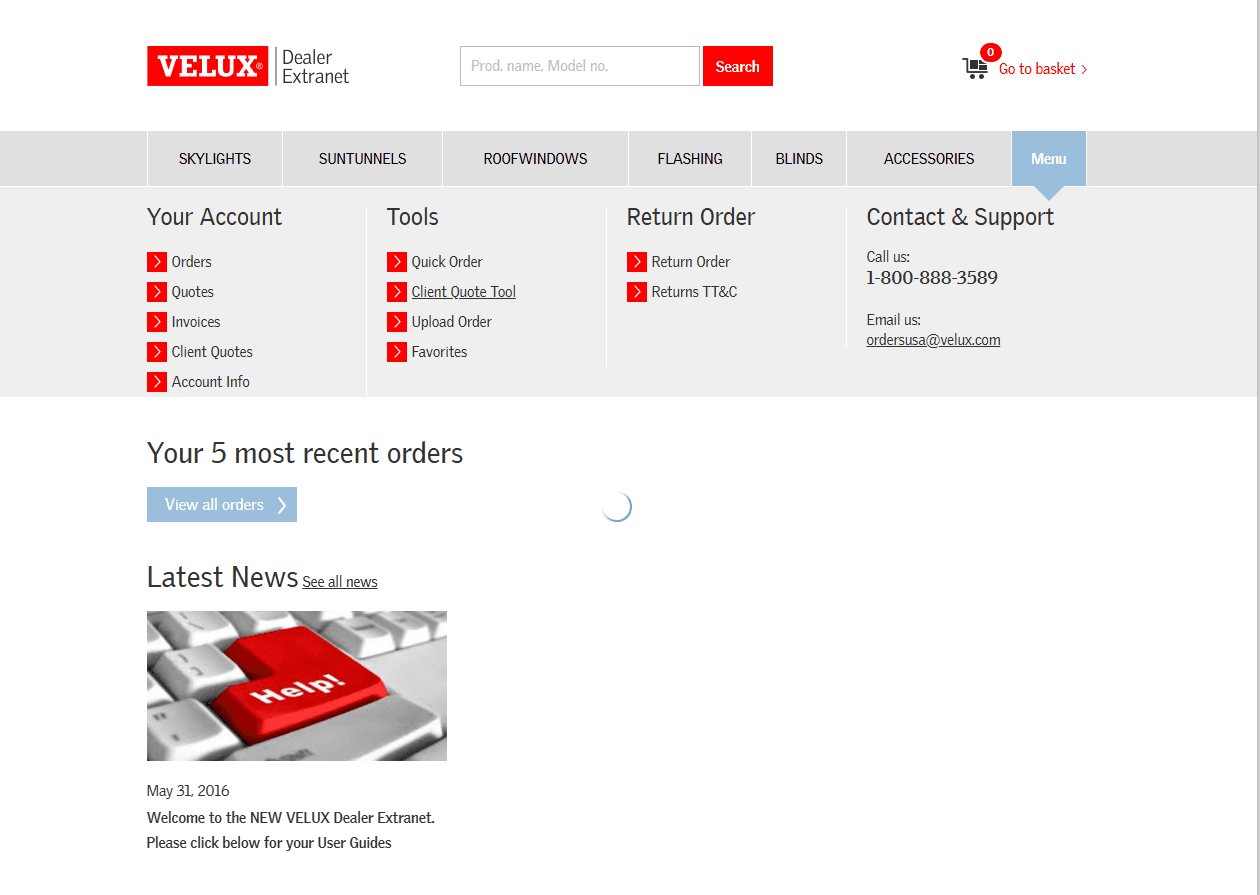
You can create a fully customized, branded customer quote by clicking Client Quote Tool under Tools.
2
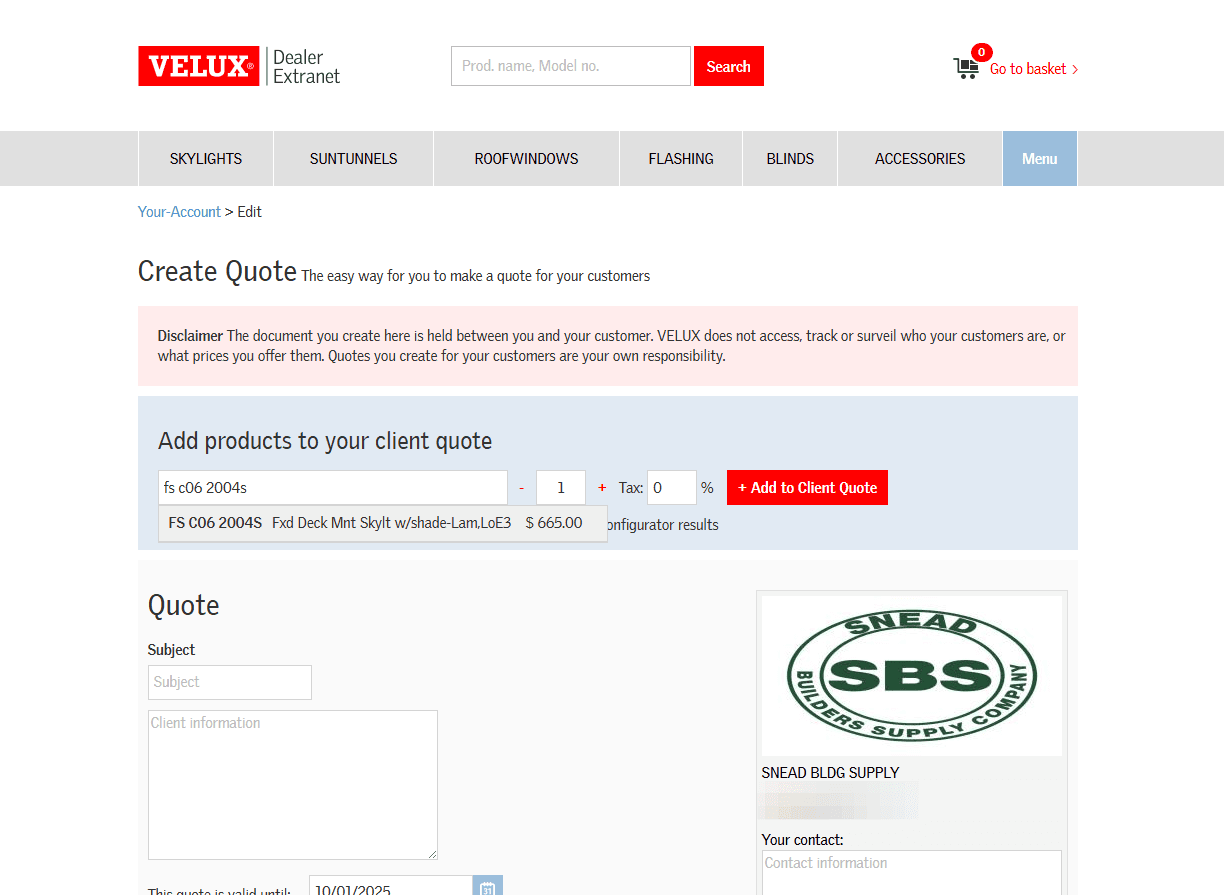
Type the product into the search field under Add products to your client quote. Note you can also choose from the products tab on the homepage.
3
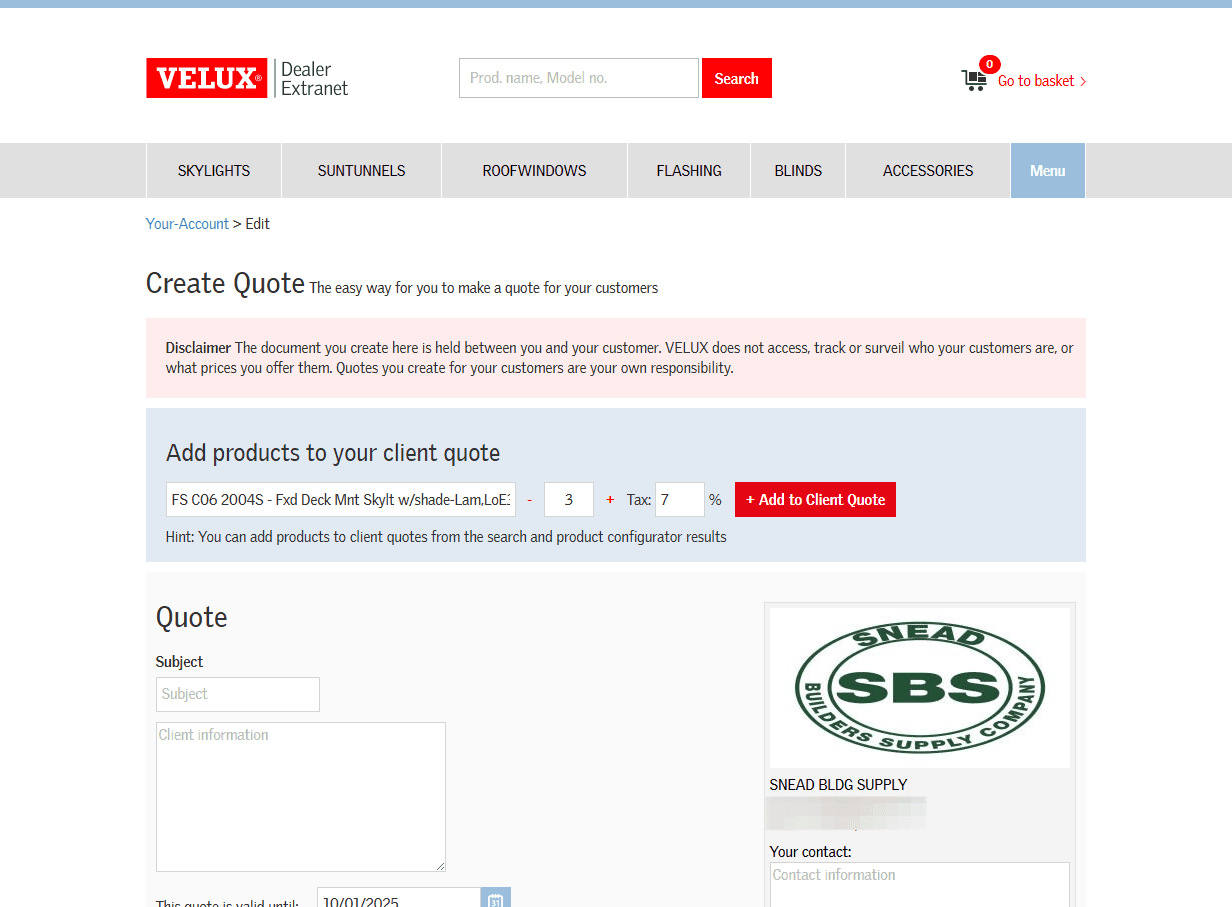
Adjust the quantity if needed and add the VAT sales tax, then click Add to Client Quote." You may add additional items or continue to finalize the quote.
4
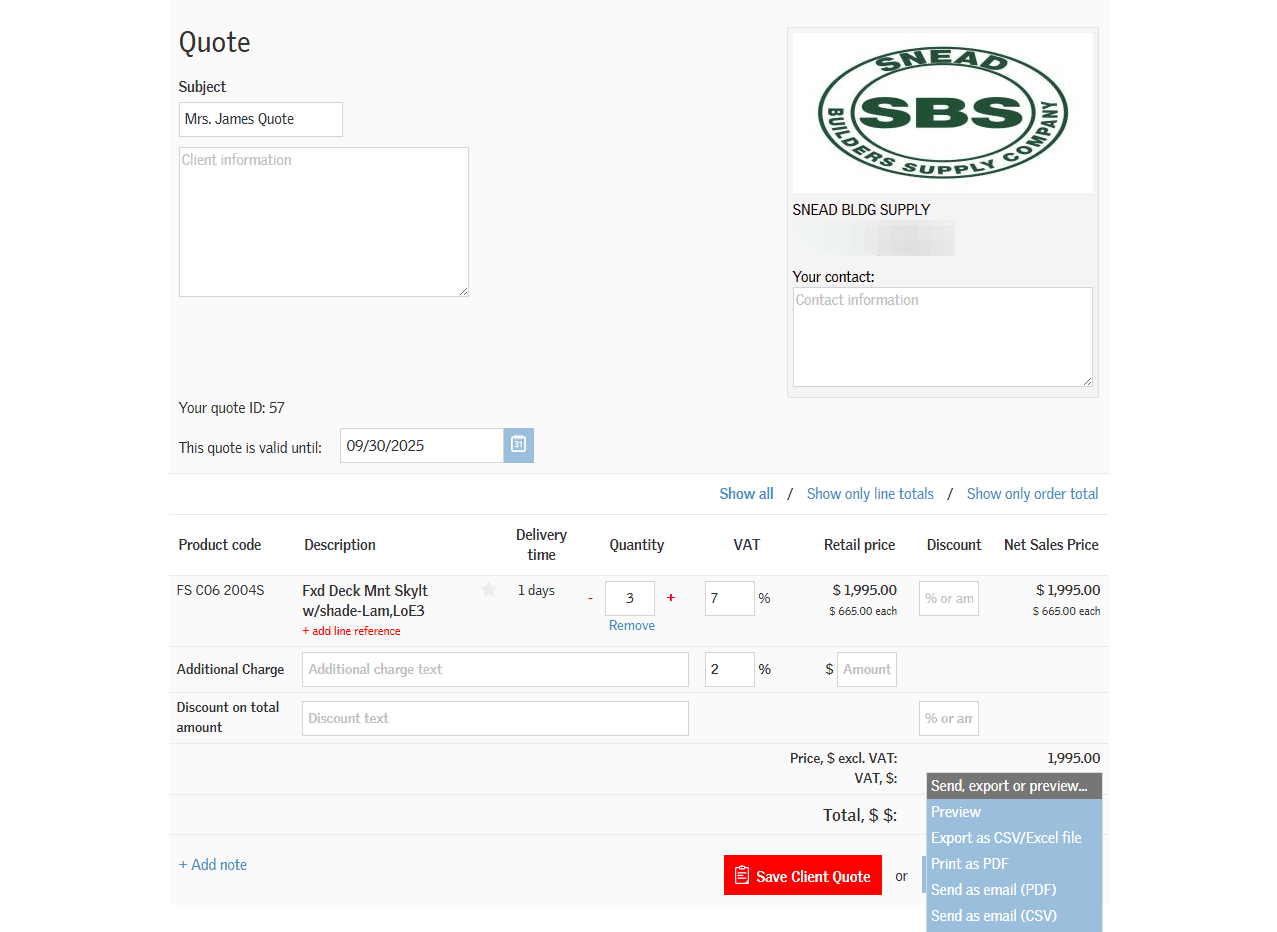
Edit the quote subject, include quote client information, include any additional charges or discounts, and then choose to Save Client Quote, or Click to preview, print, or directly send the quote to your customer via email.
5
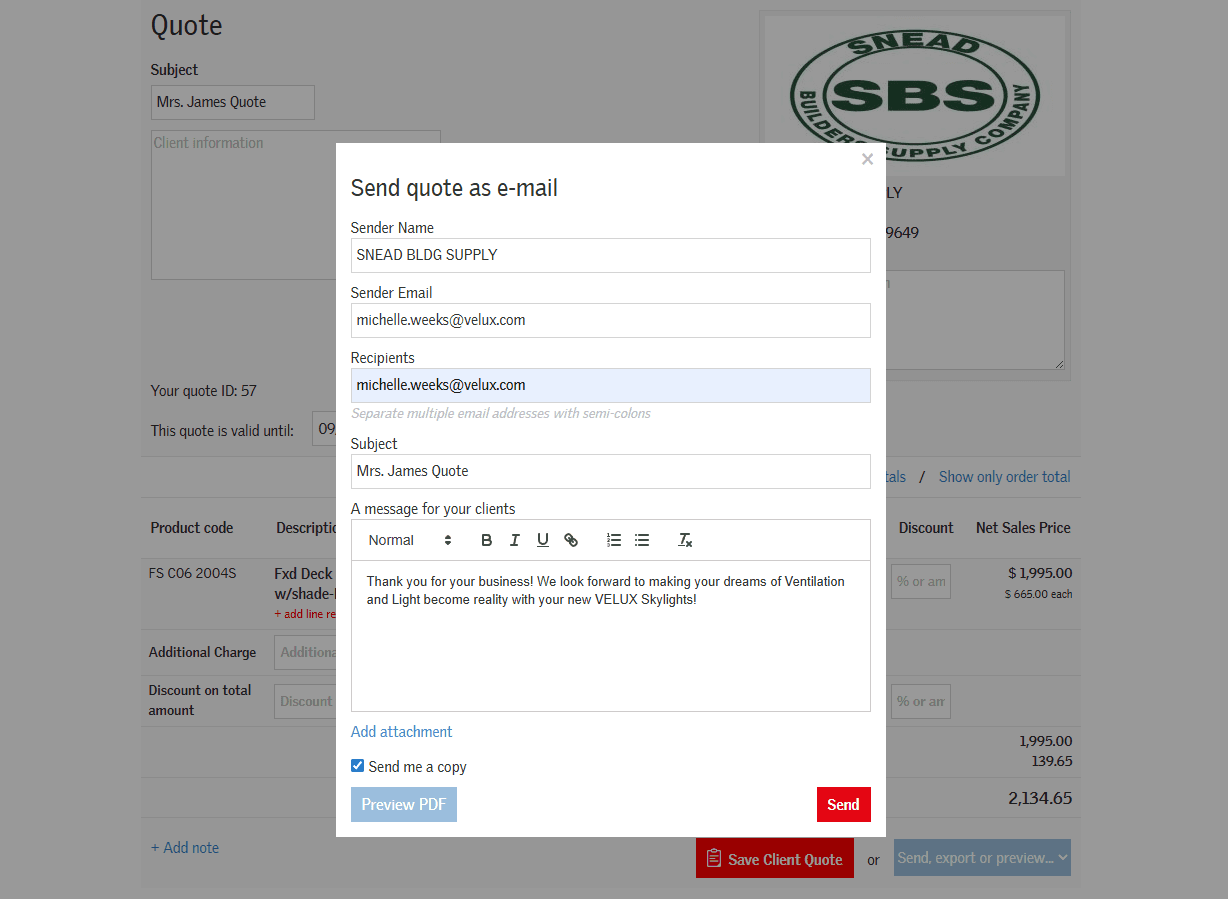
To send by email, complete the required fields, including a personalized message for your clients, and then click "Send." Send me a copy is checked by default, but you can unclick if you don't want to receive a copy of the email.
6
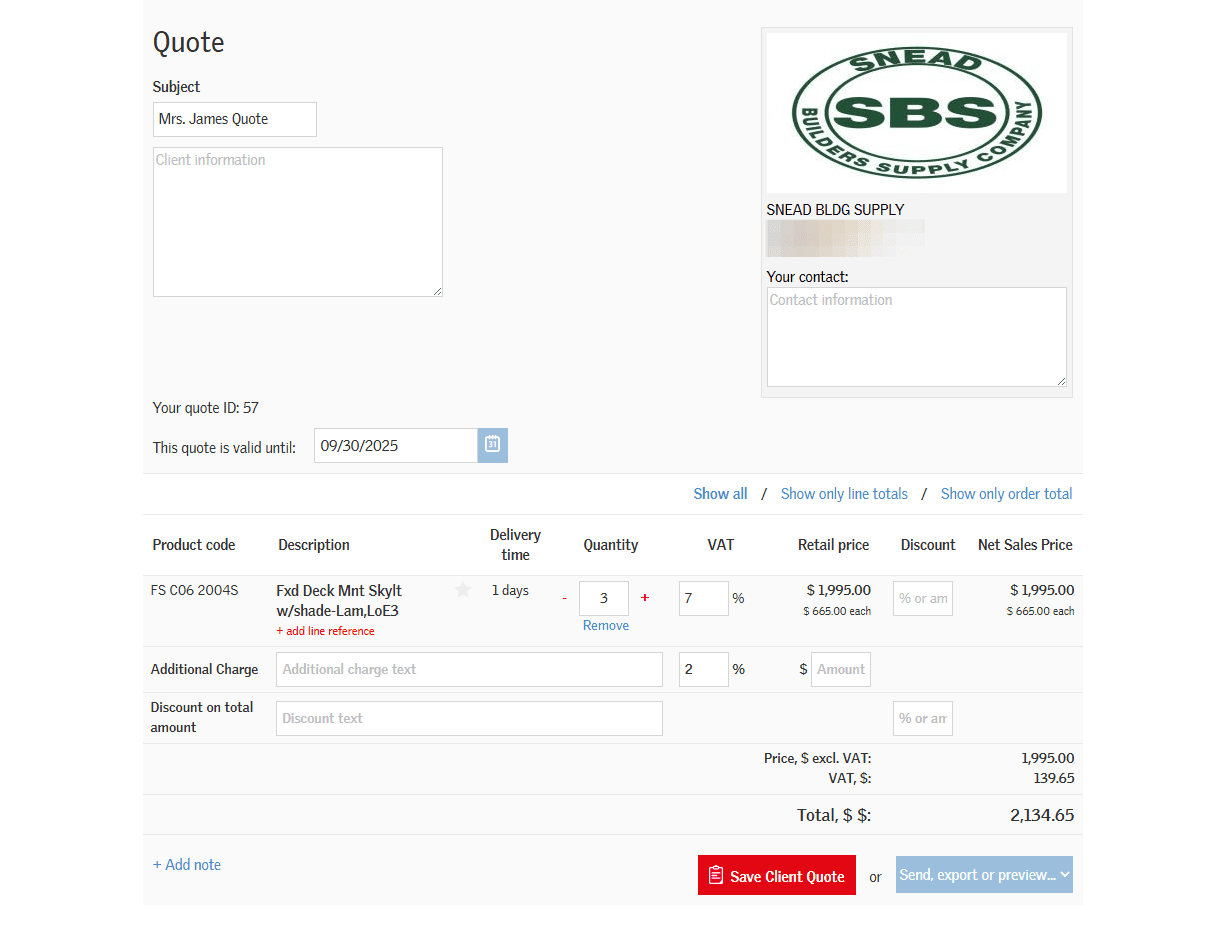
Finally, click on "Save Client Quote" to save a copy of your quote.
7
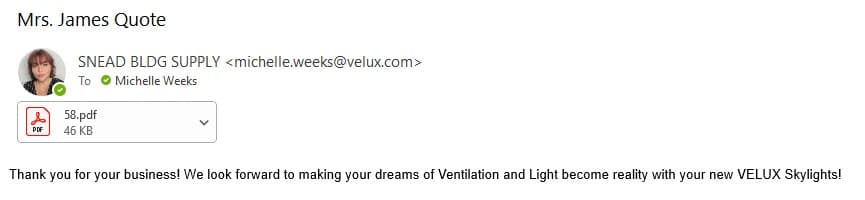
This is an example of the email your customer will receive.
8
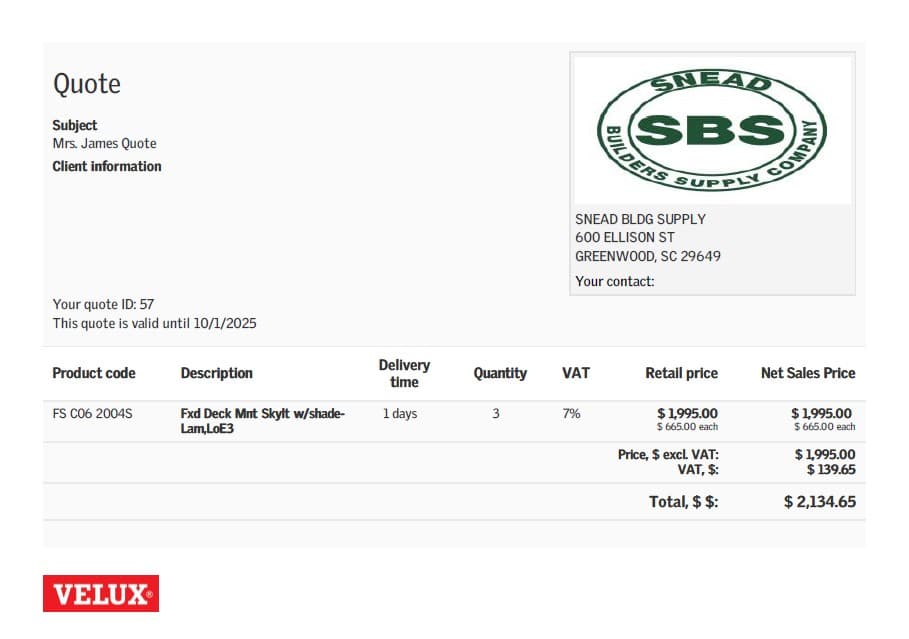
This is an example of your client quote.