How to Create Signature Layouts (CPS Non-Strata Buyer) on Authentisigns @ CREA Web Forms -
Learn step-by-step how to create signature layouts in Authentisigns, including adding buyer initials, signatures, and managing document layouts efficiently.
By Admin Siya Herman & Associates
In this guide, we'll learn how to create and organize signature layouts for CPS non-strata buyer document using Authentisign. You will see how to add initials and signatures for multiple buyers across different pages, and how to use copy and paste to speed up the process. The goal is to ensure all required fields are completed.
Let's get started
1
2
Click here the Authentisign Icon
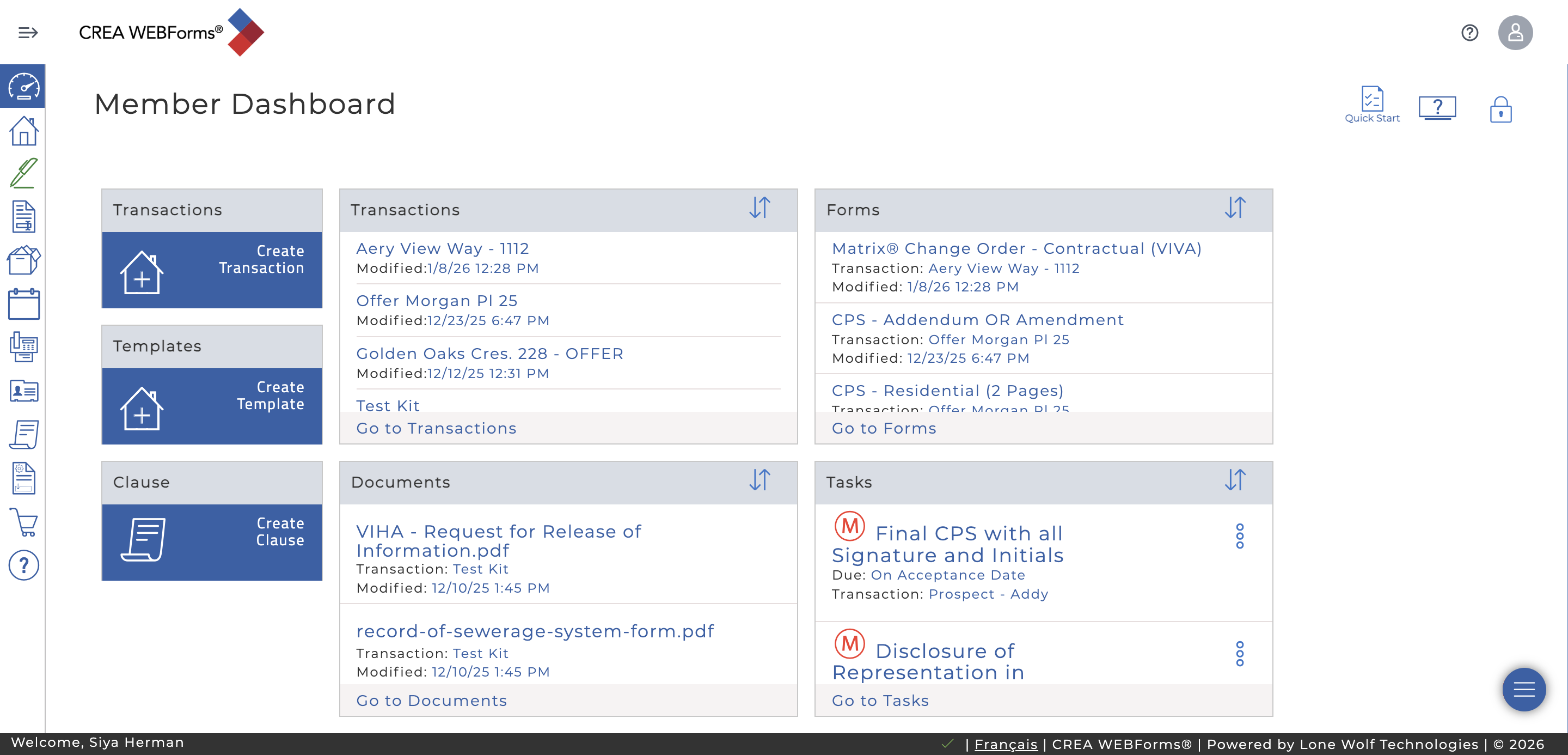
3
Click here
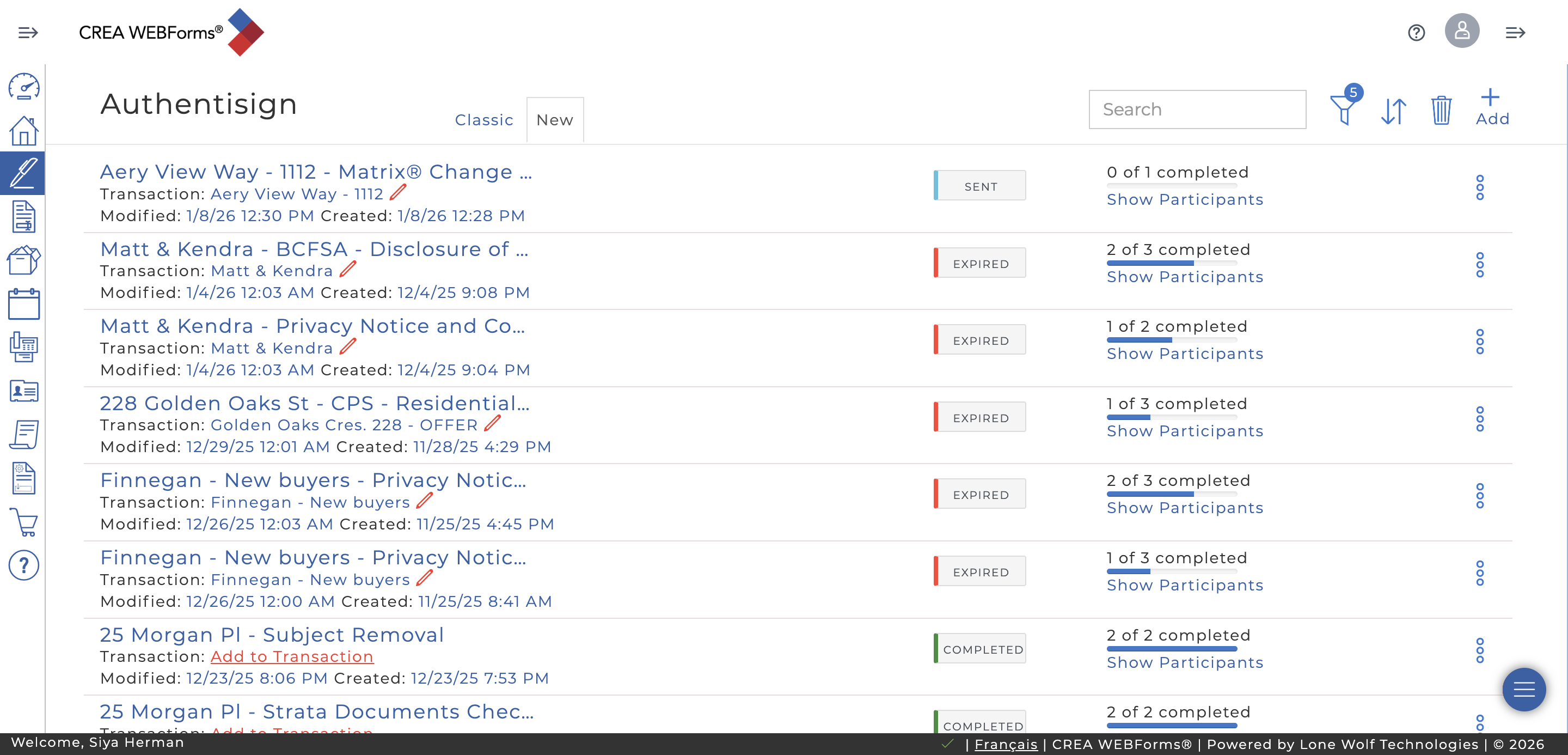
4
Click on "Layouts"
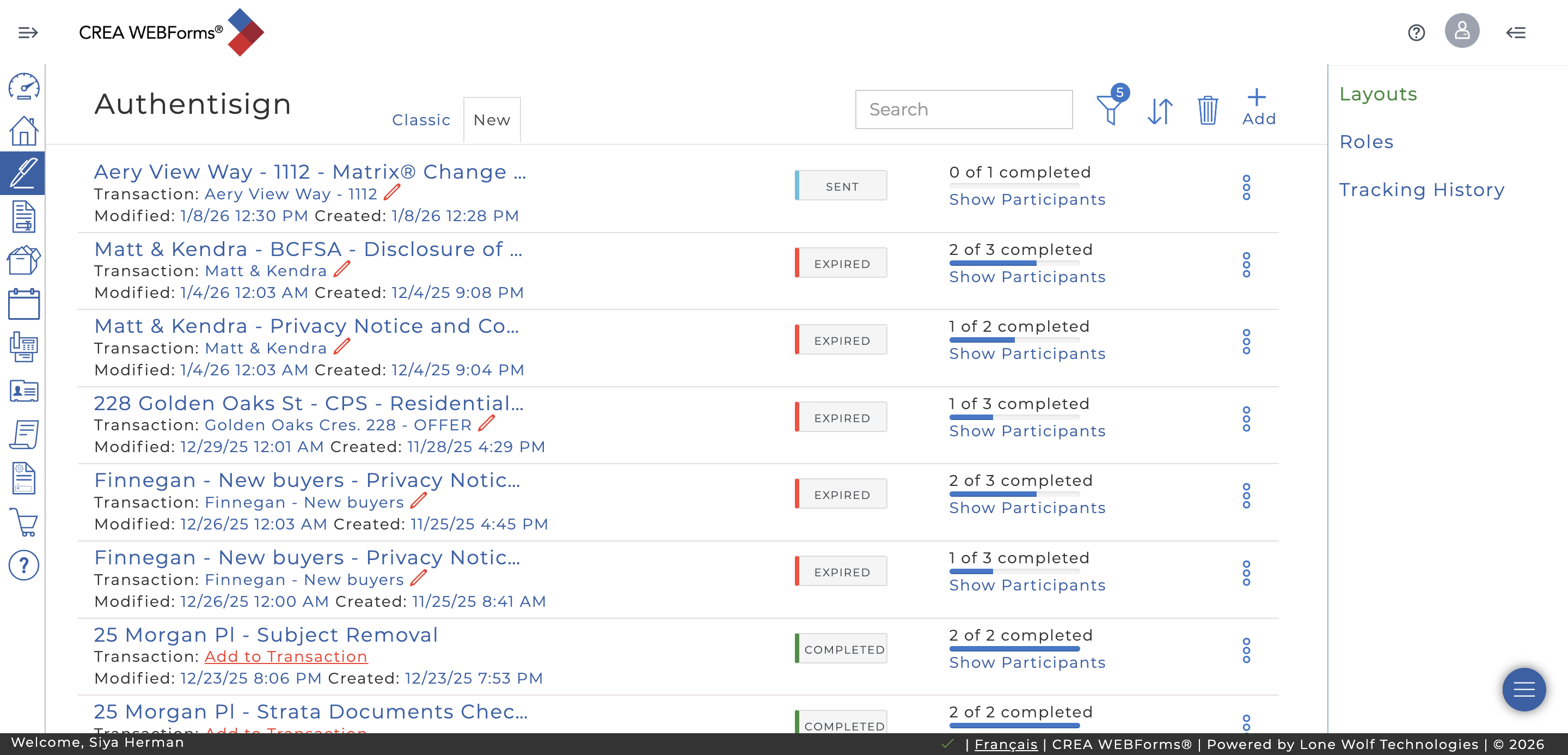
5
Click on "+" to create a new layout
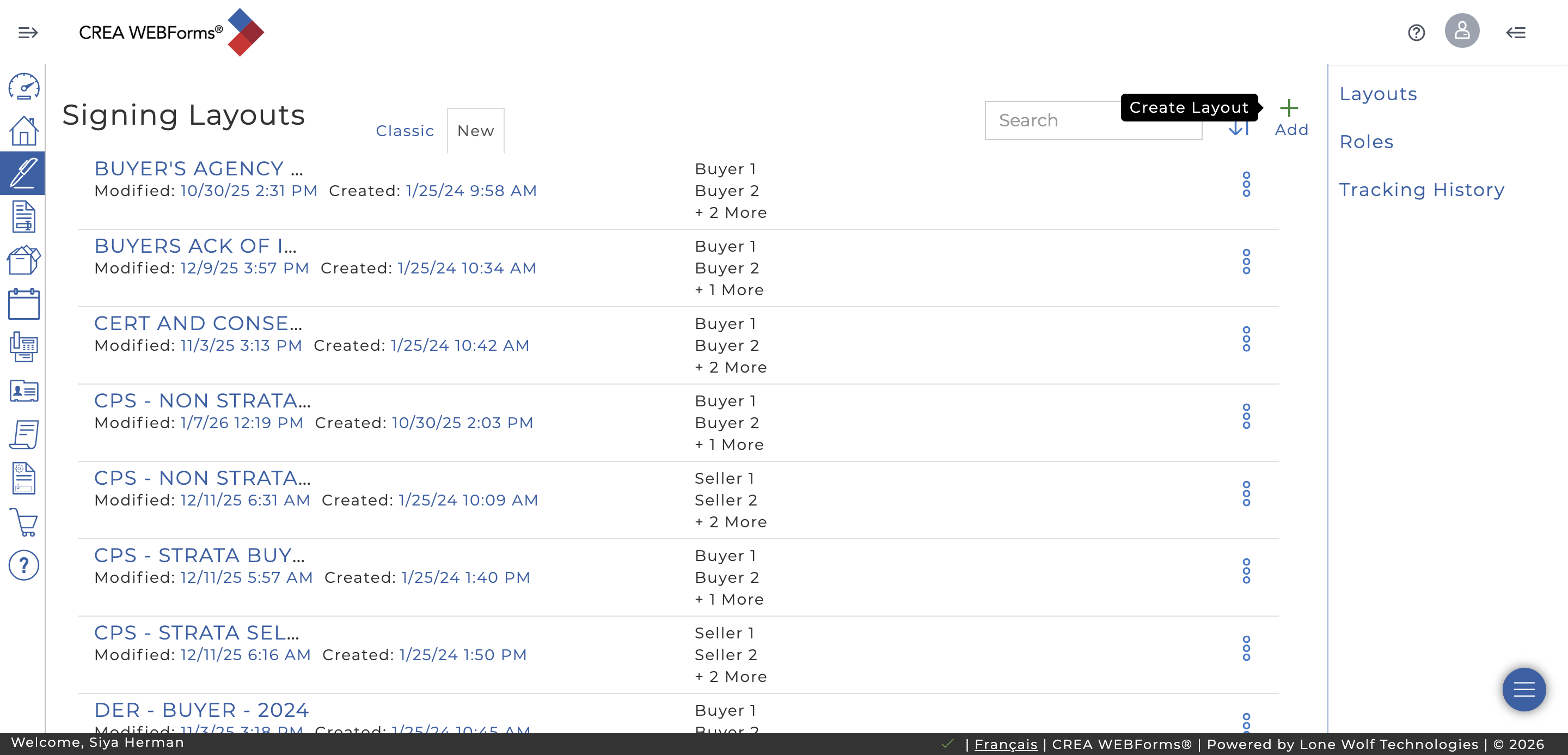
6
Click here and type the name of your layout
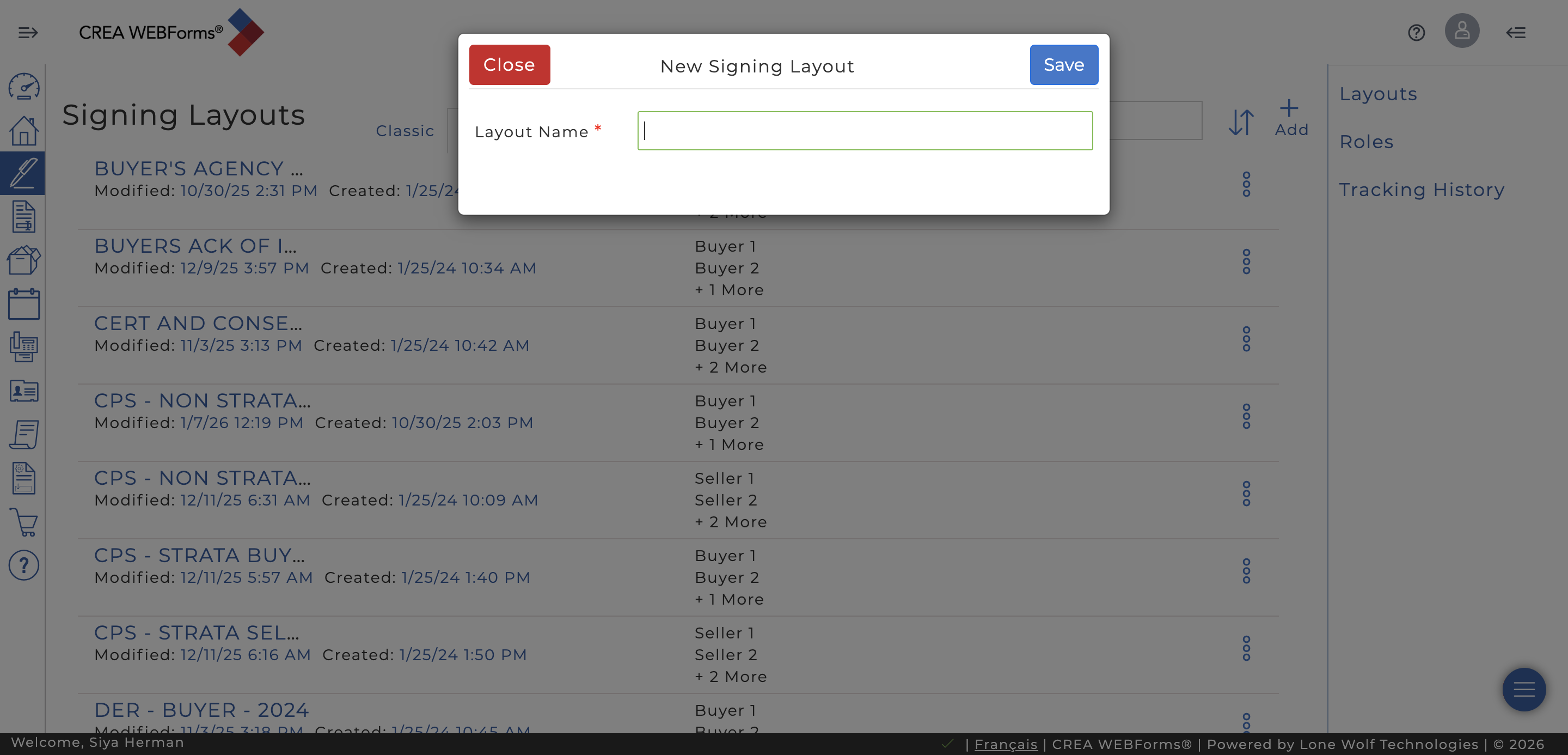
7
Click on "Save"
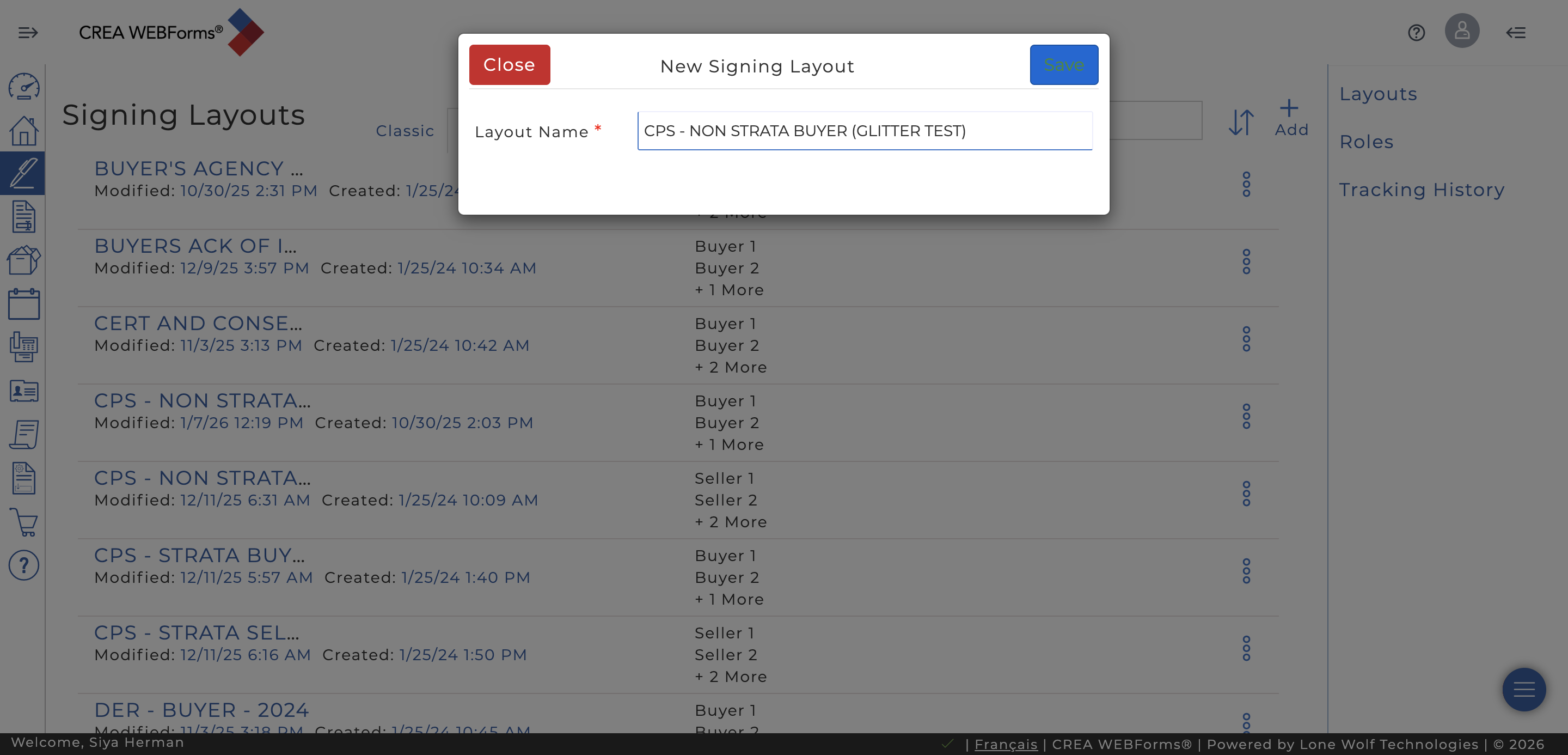
8
Type "CPS - NON STRATA BUYER (GLITTER TEST)"
9
Click on "Select a Document or Form"
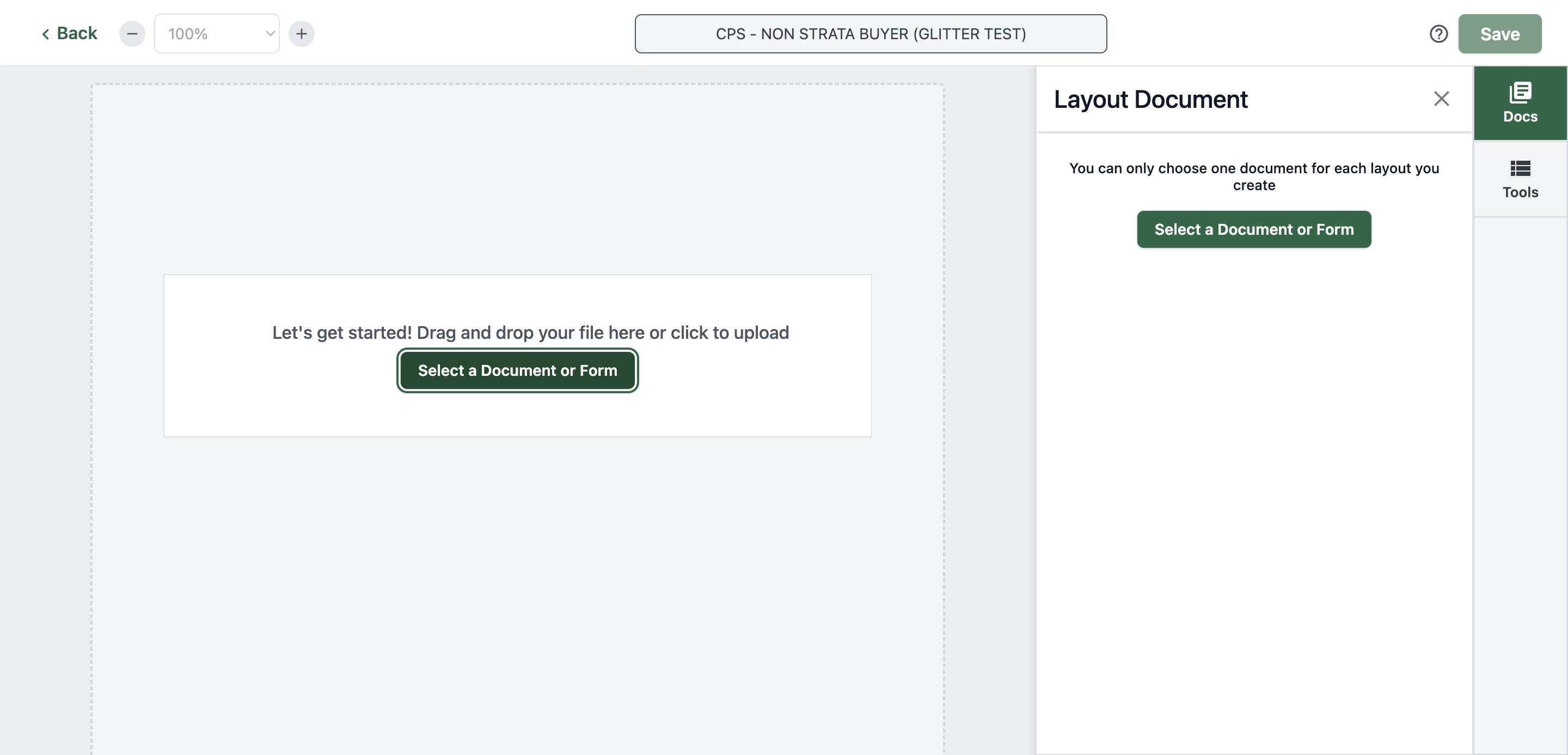
10
Click "My Files"
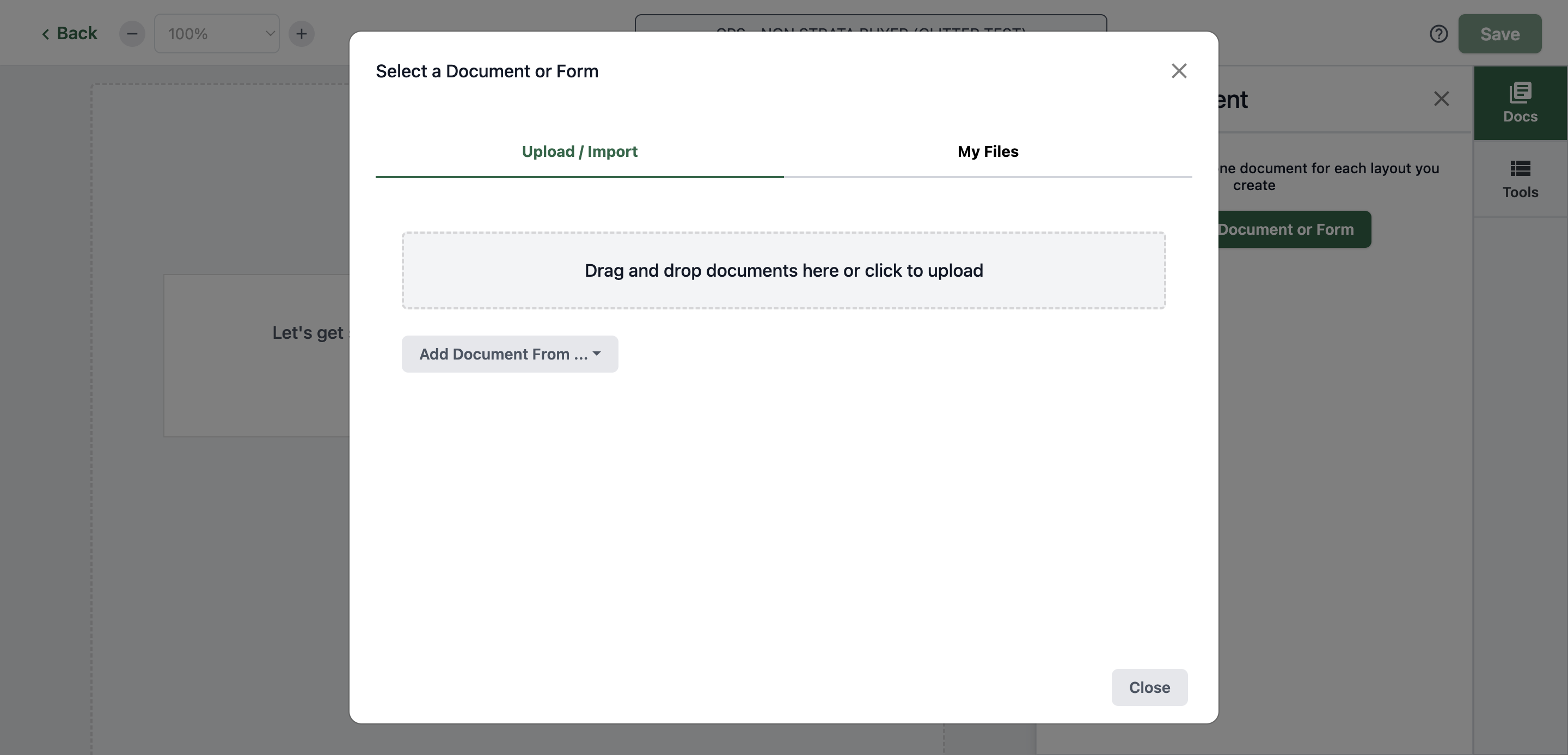
11
Click "Single Forms"
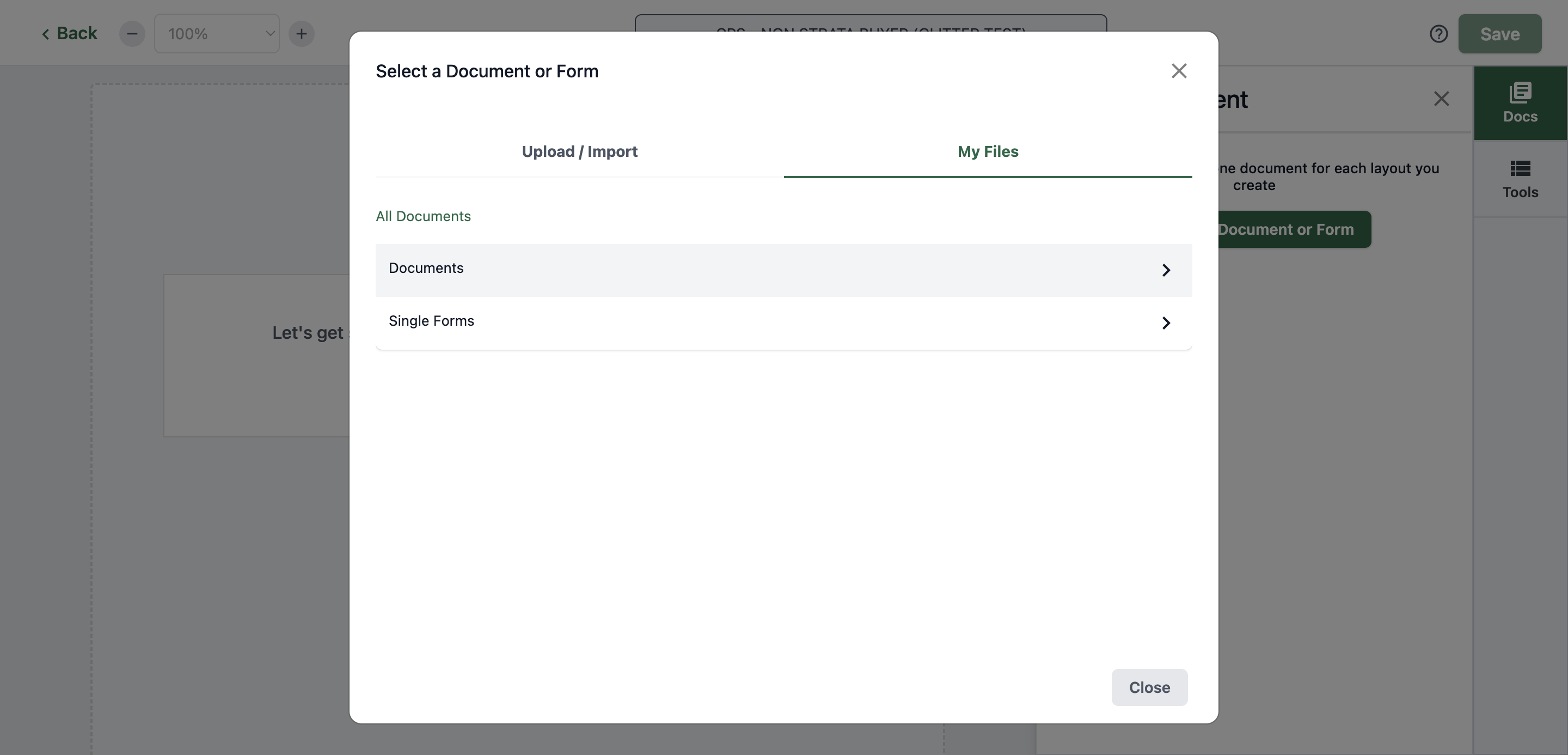
12
Click "Transaction Forms"
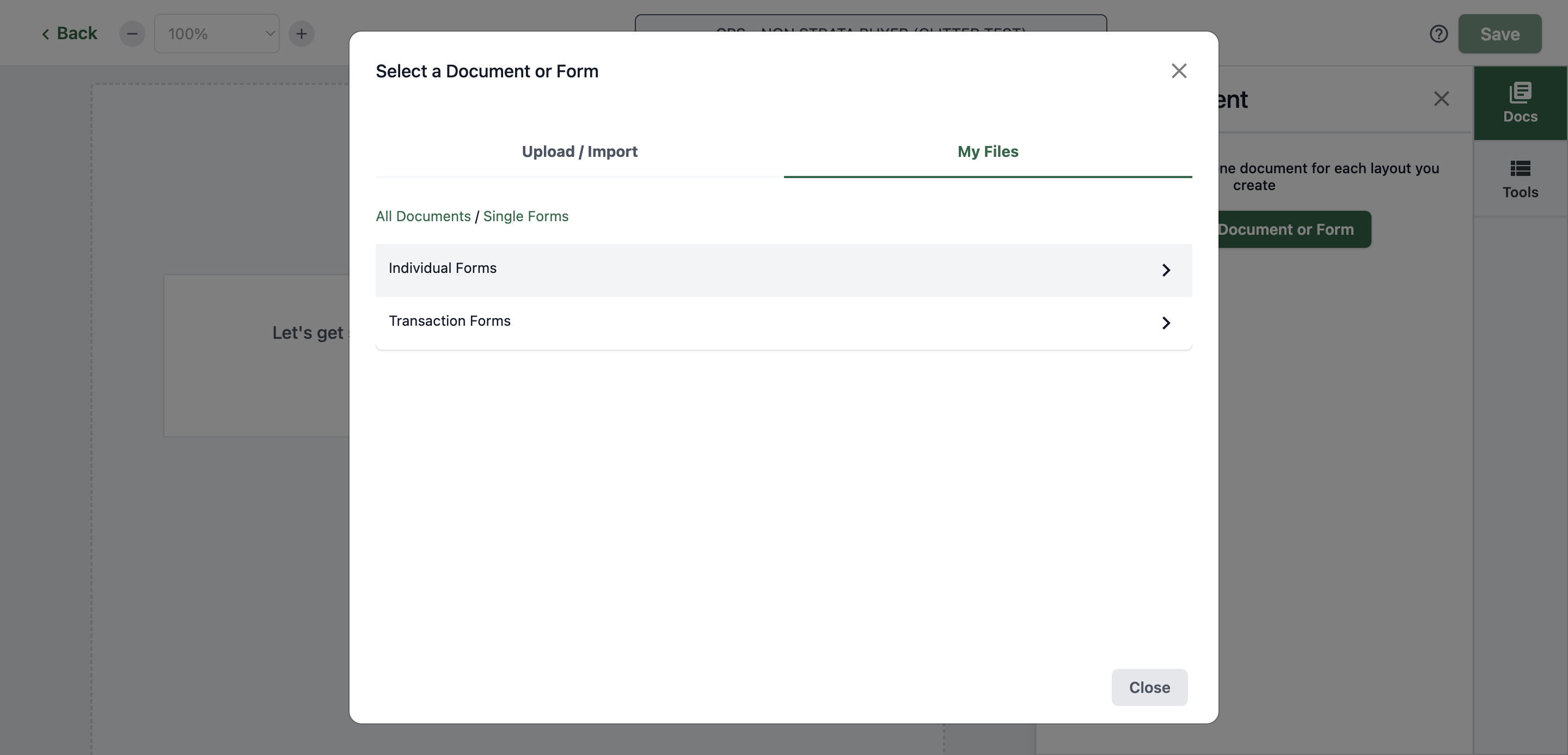
13
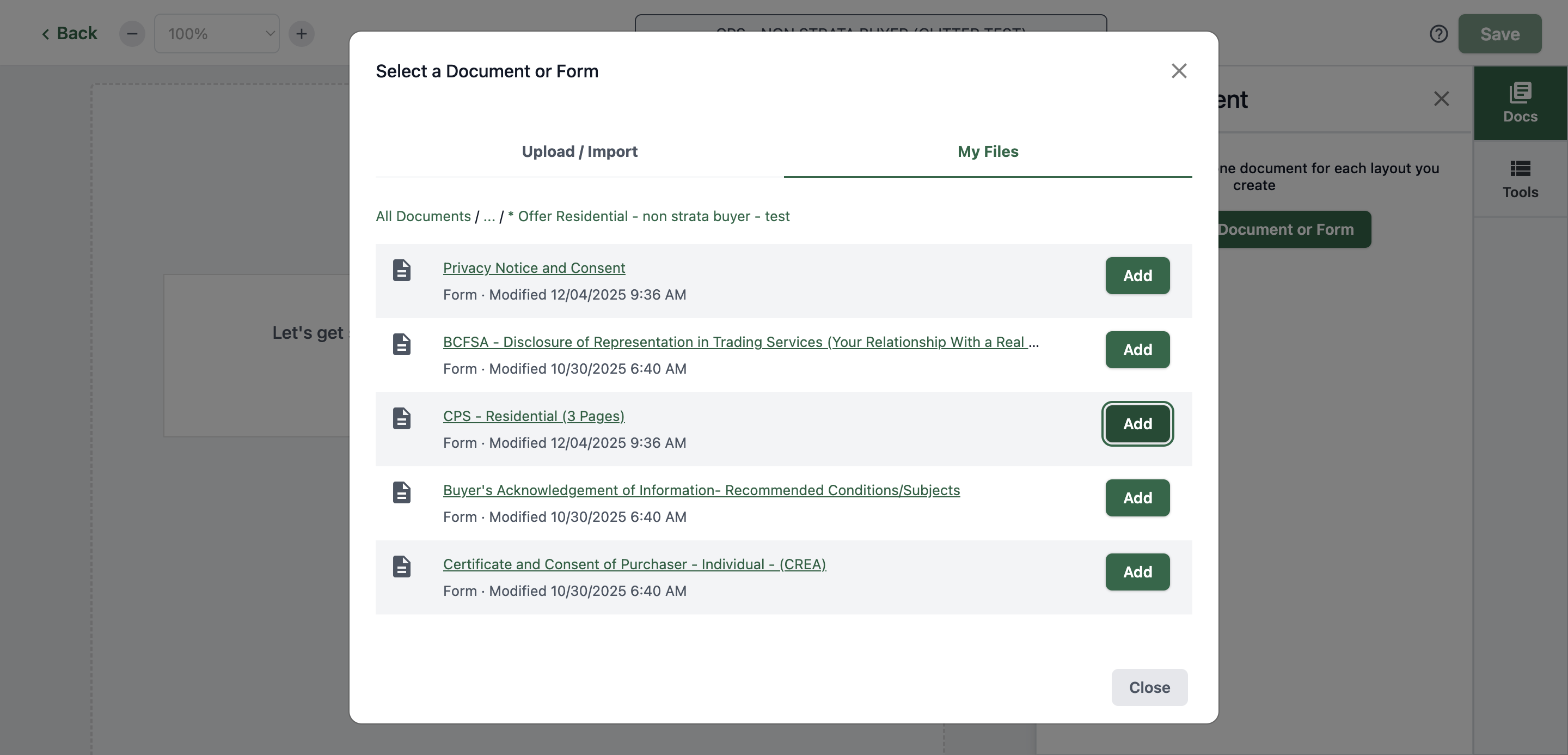
Click on "* Offer Residential - non strata buyer - test" if the layout you will be making is for CPS NON STRATA BUYER
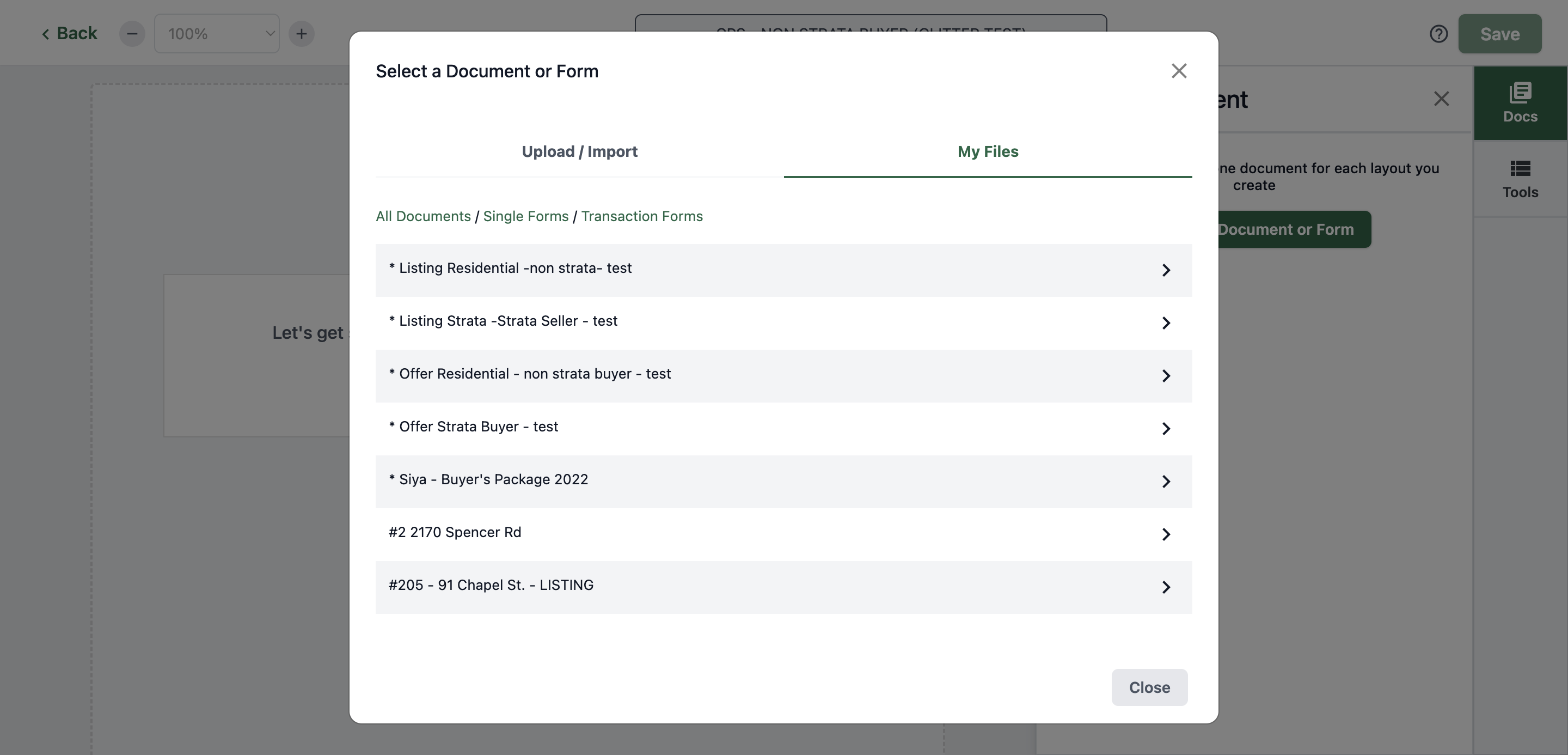
14
Click on "Add"
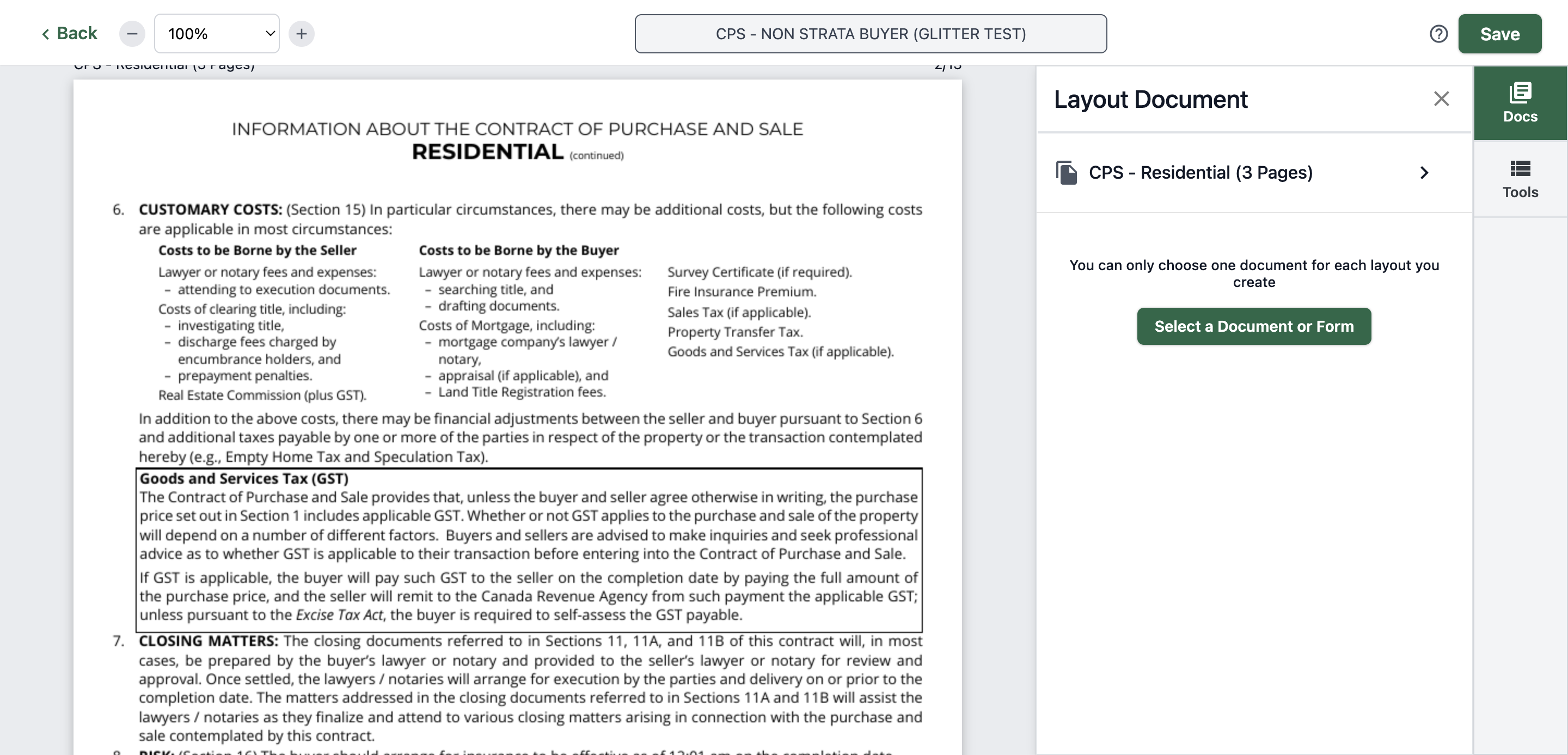
15
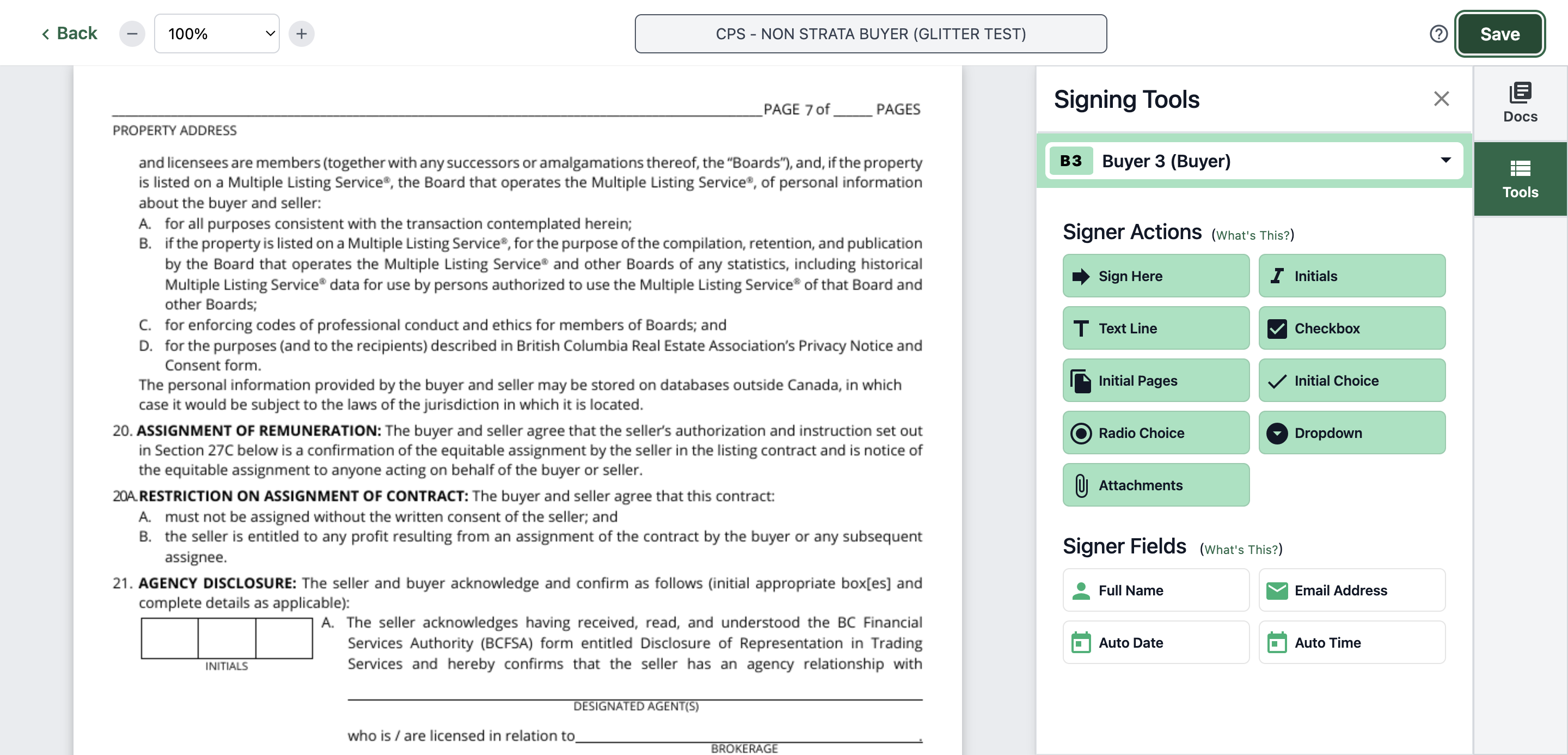
Click "Tools"
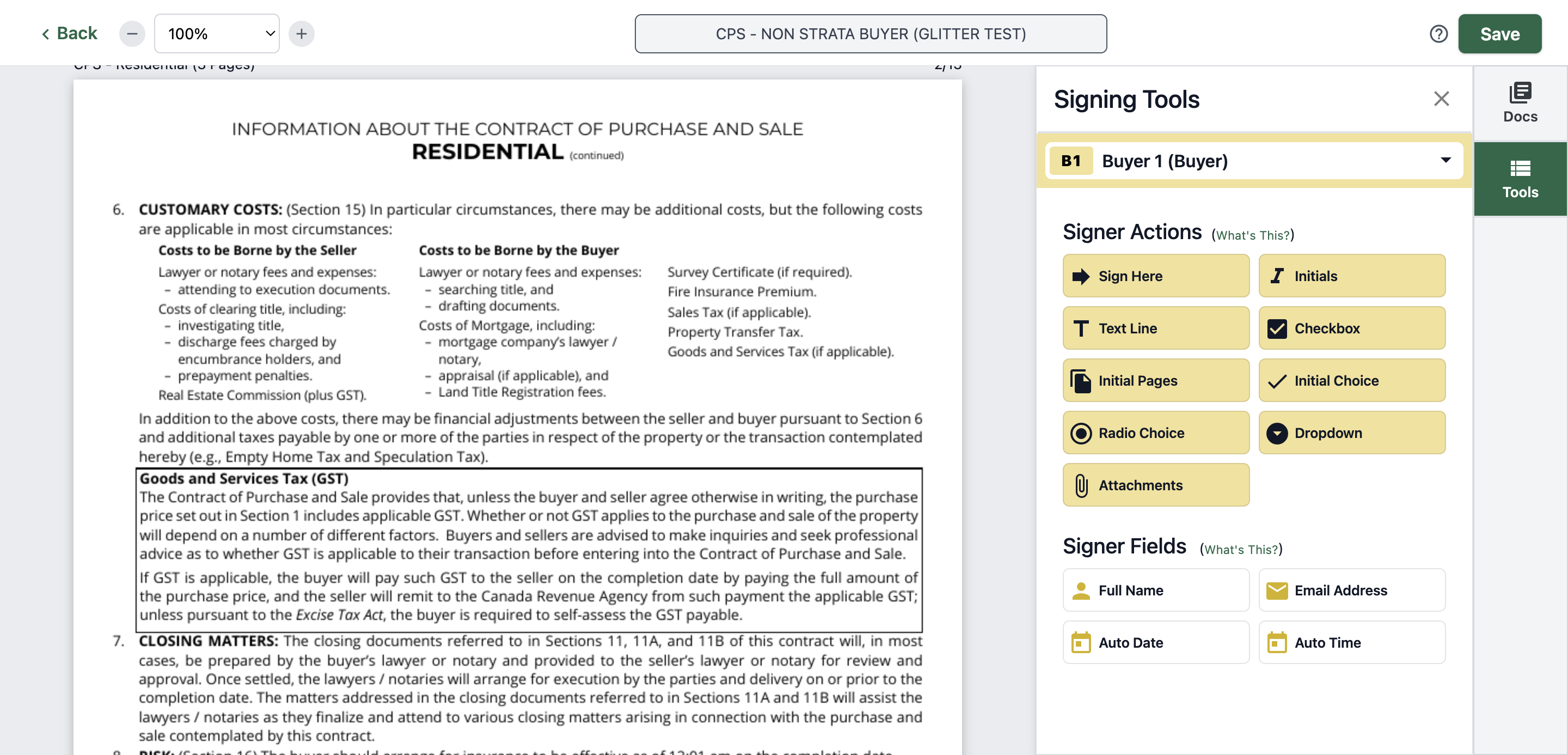
16
Click on "Initials"
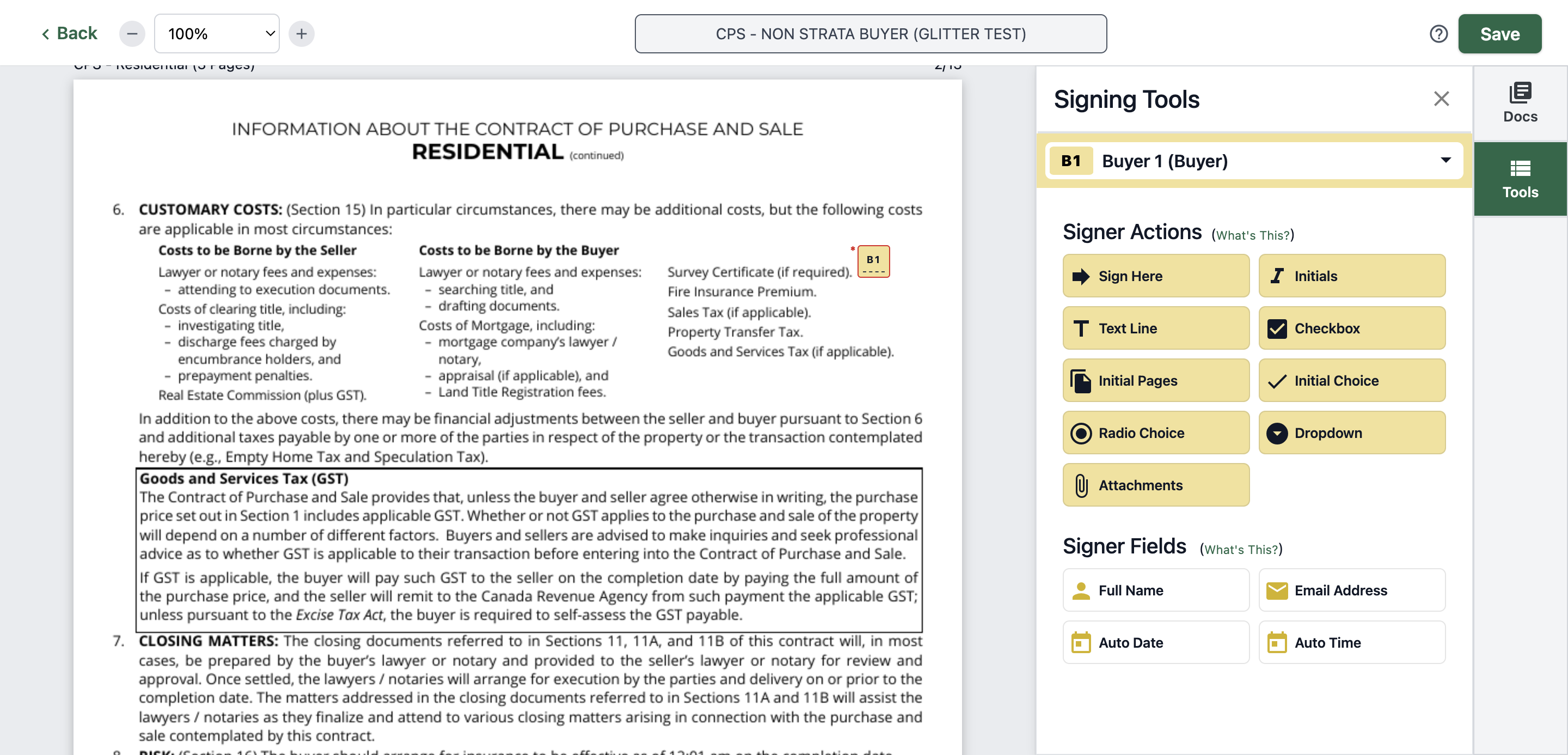
17
Put it on the designated area
18
Click on "Buyer 2 ( Buyer2 @"
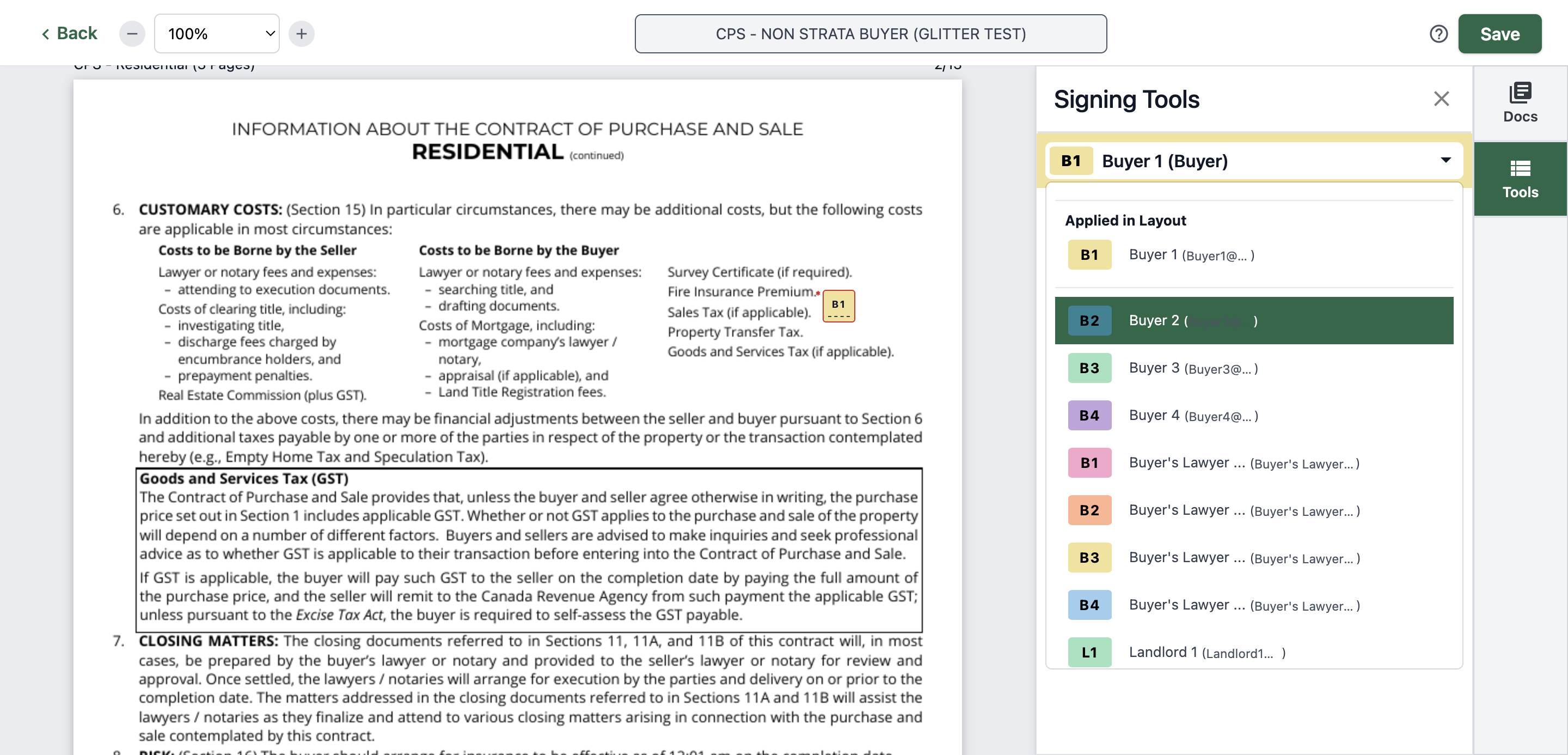
19
Click on "Initials"
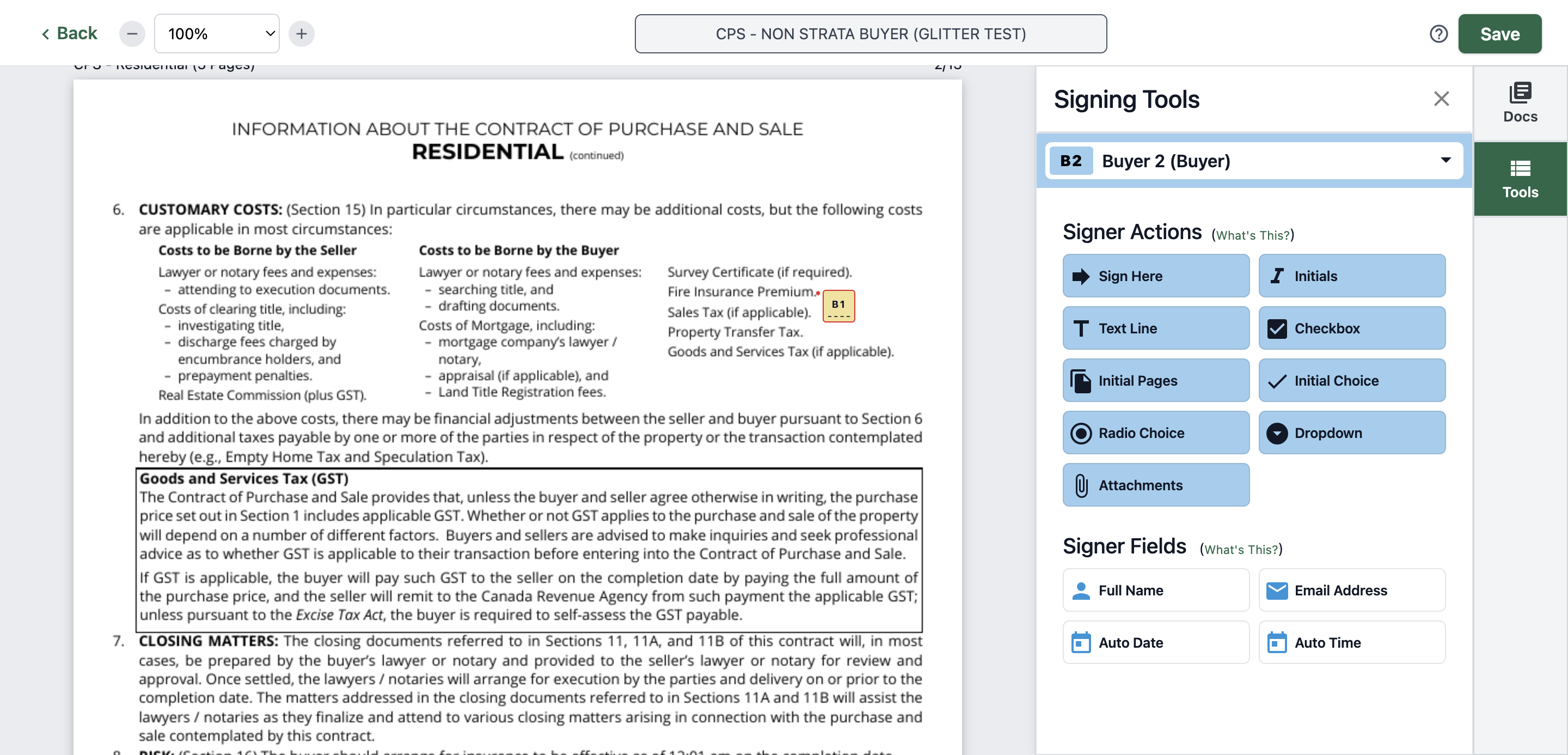
20
Click on "Initials"
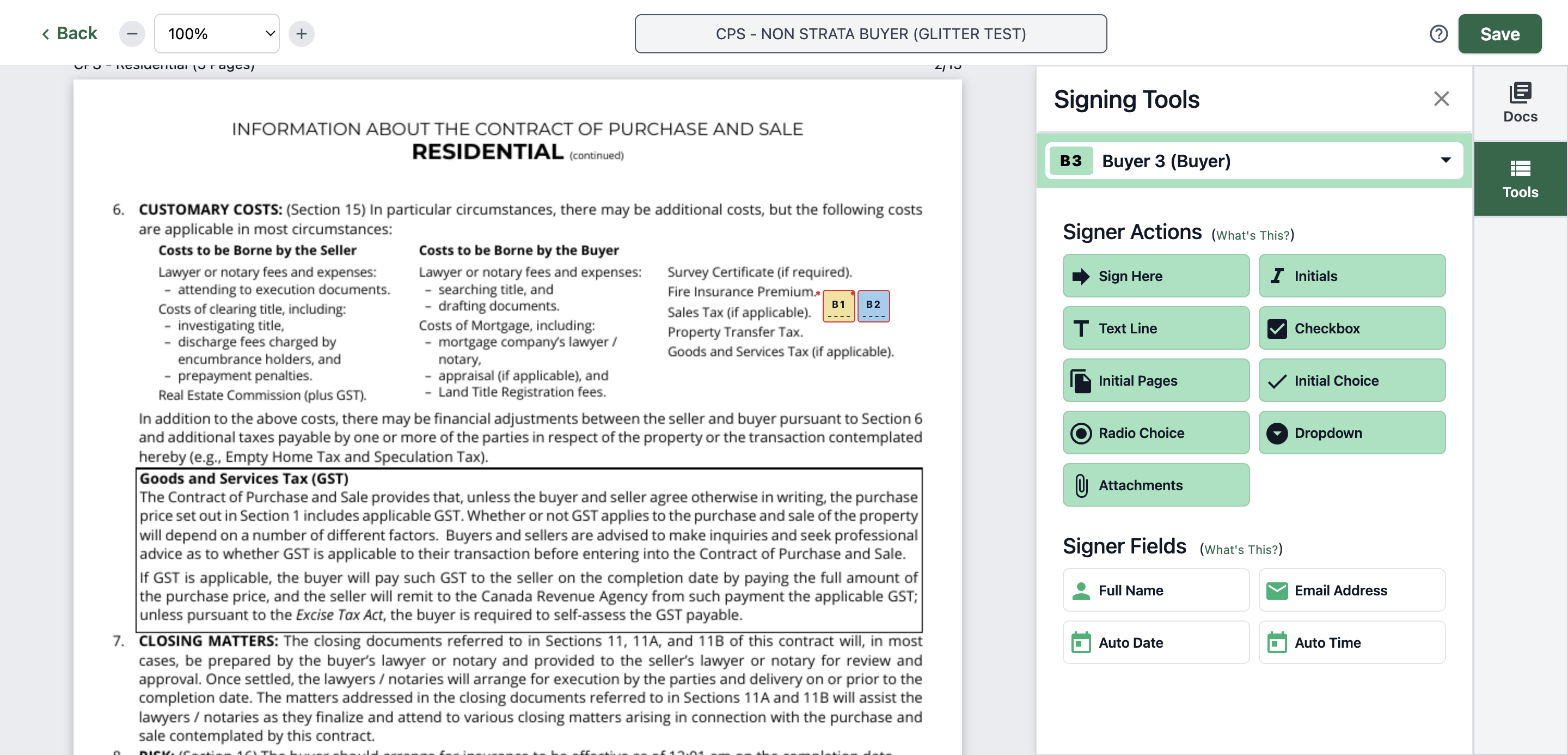
21
Click on "Initials"
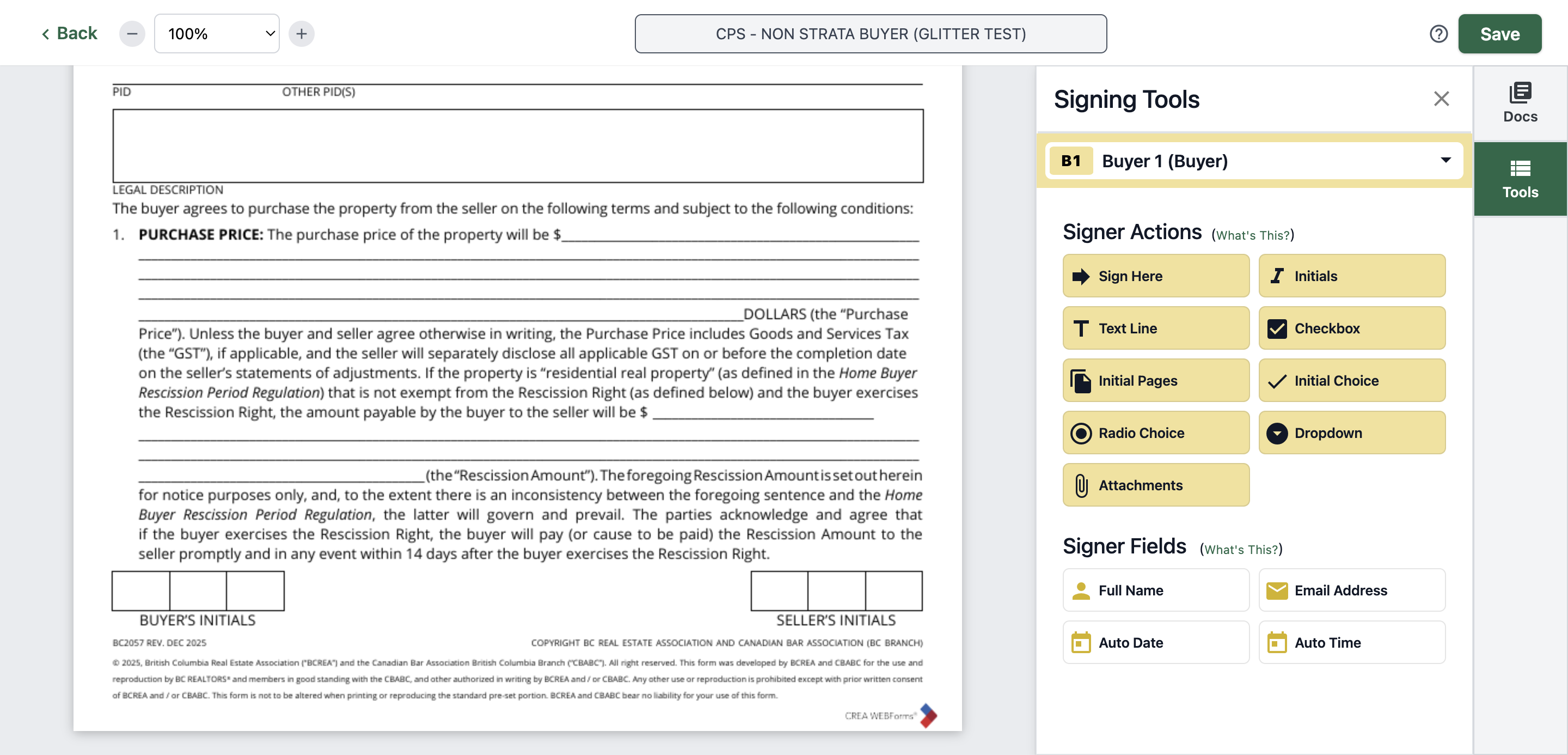
22
Click on "B1"
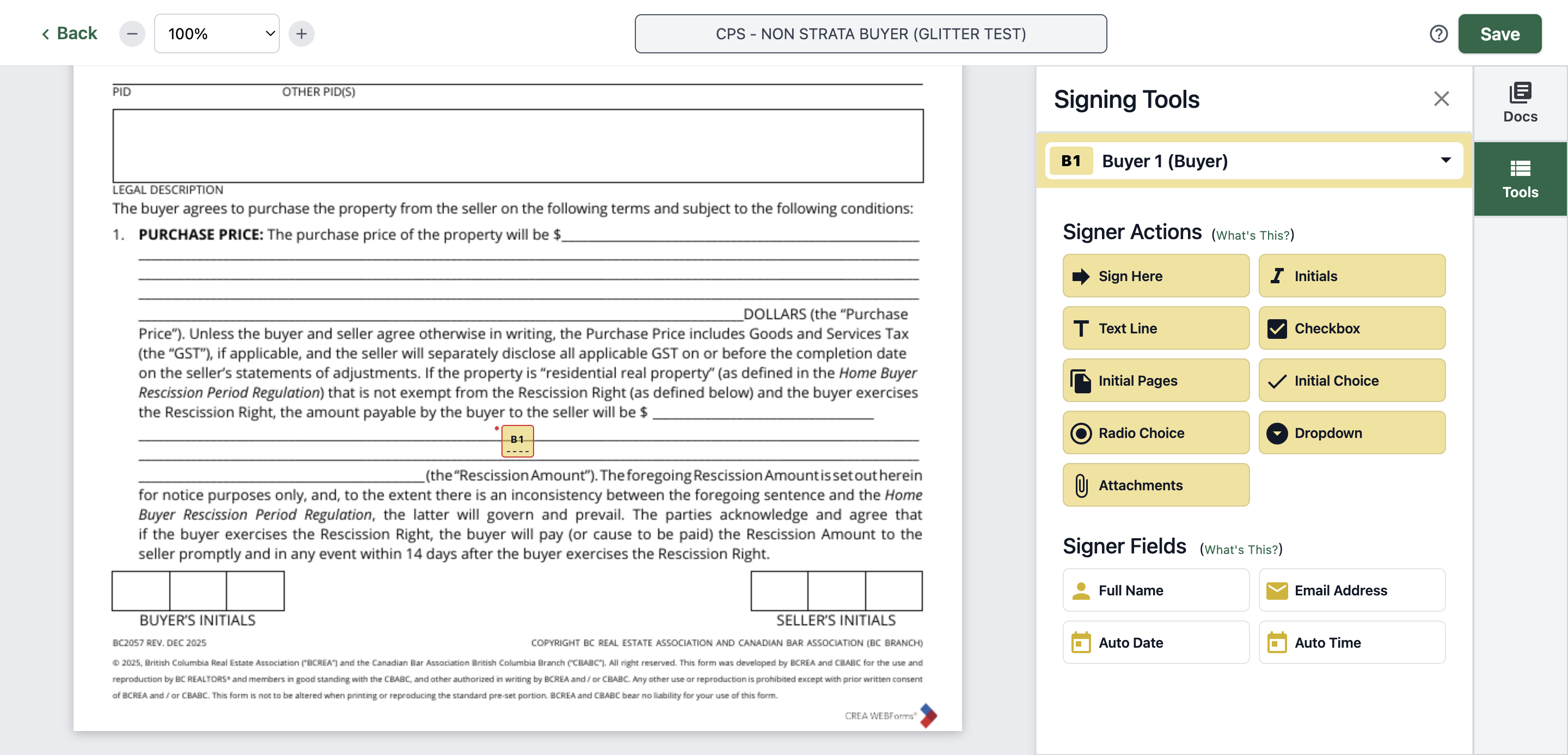
23
Click on "B2"
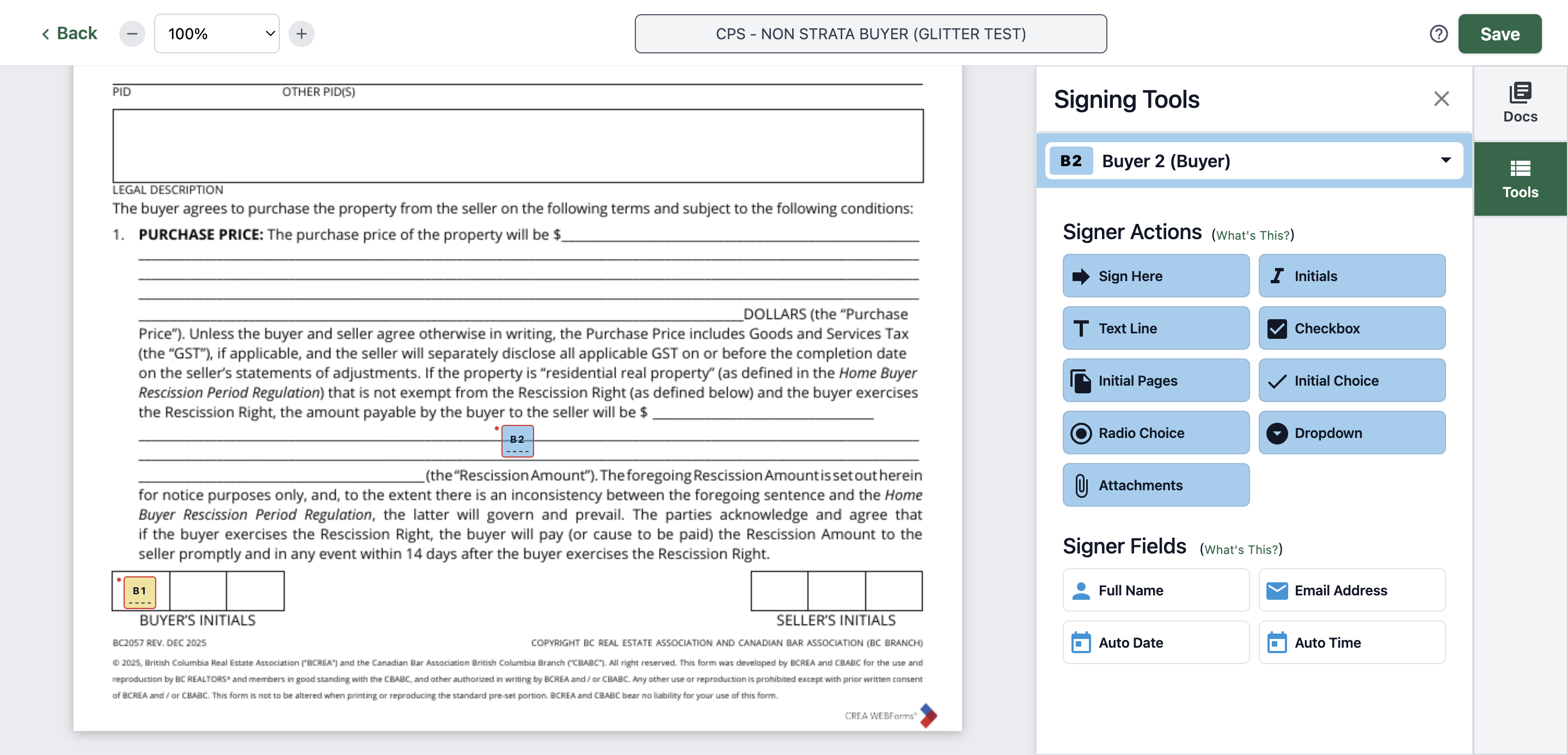
24
Click here
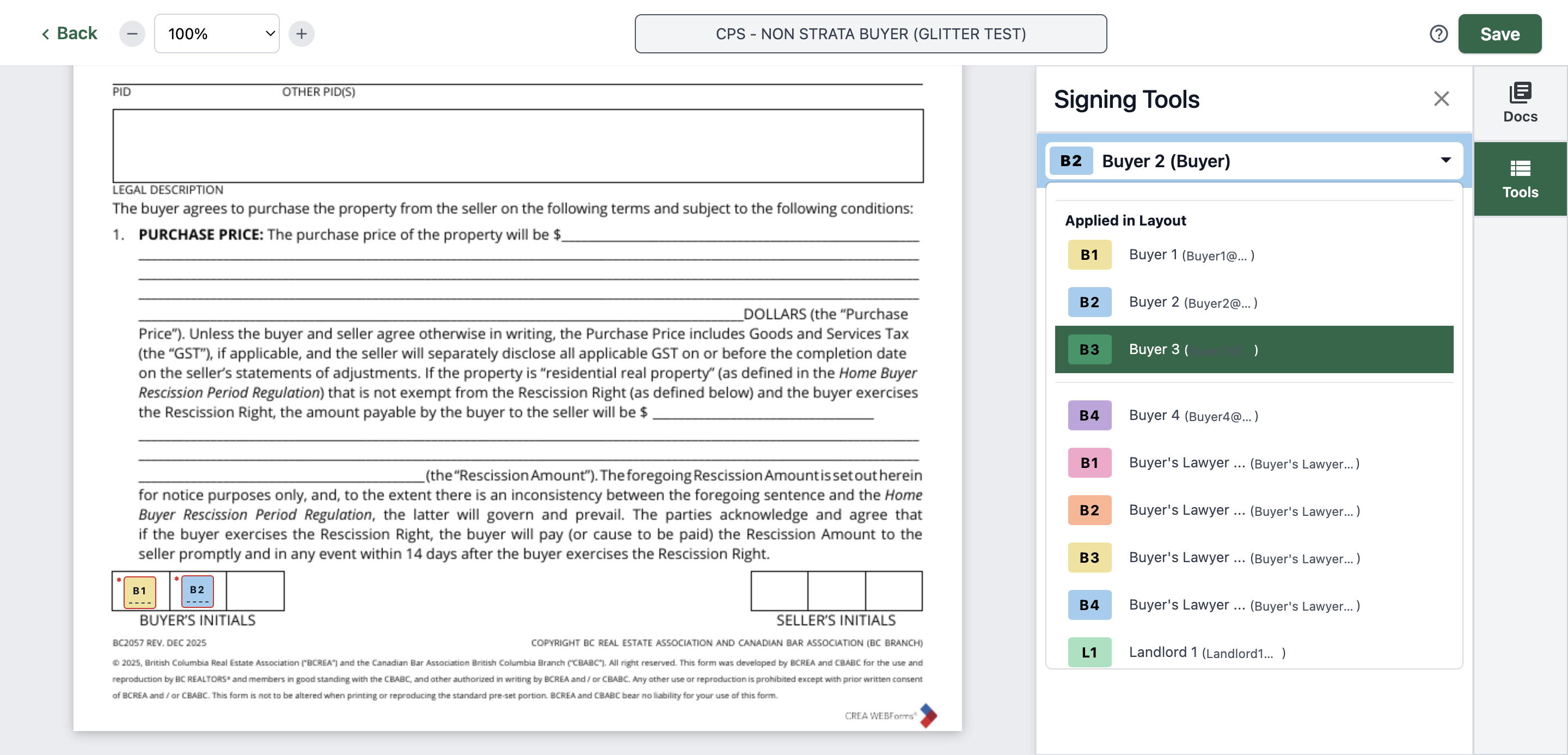
25
Click on "Initials"
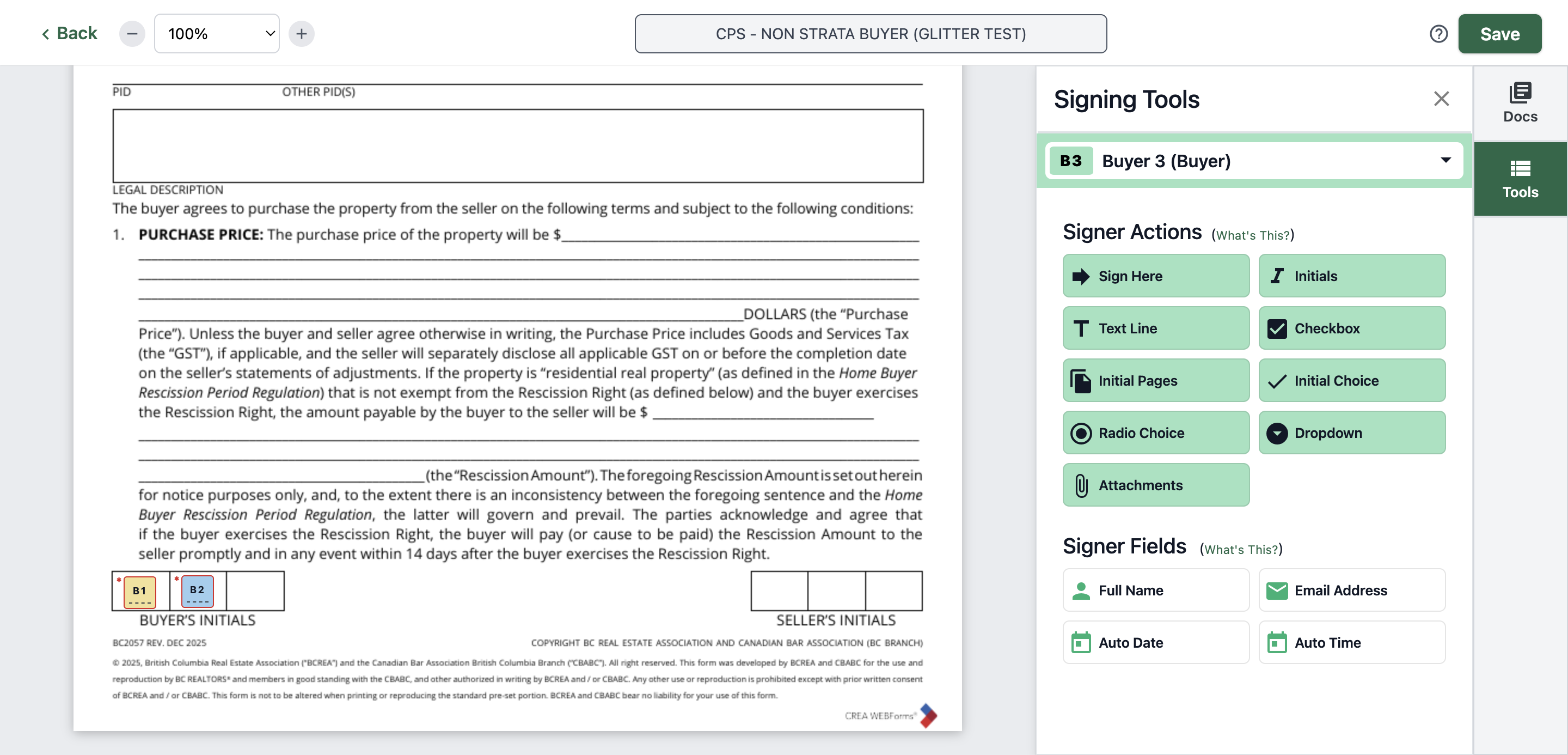
26
Click on "B3"
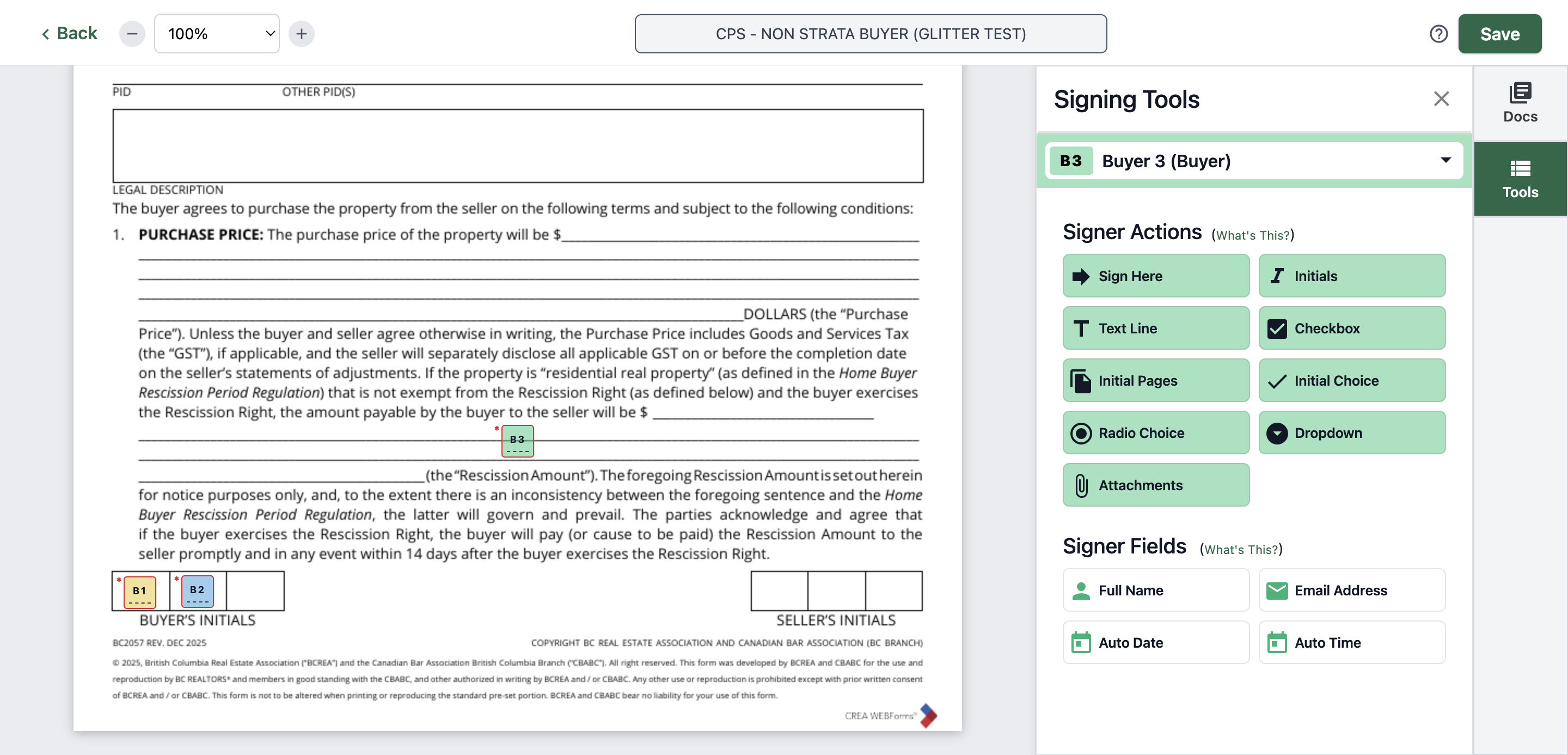
27
For easier way, you can just copy the initial you put and paste it on each page. Click on "B1"
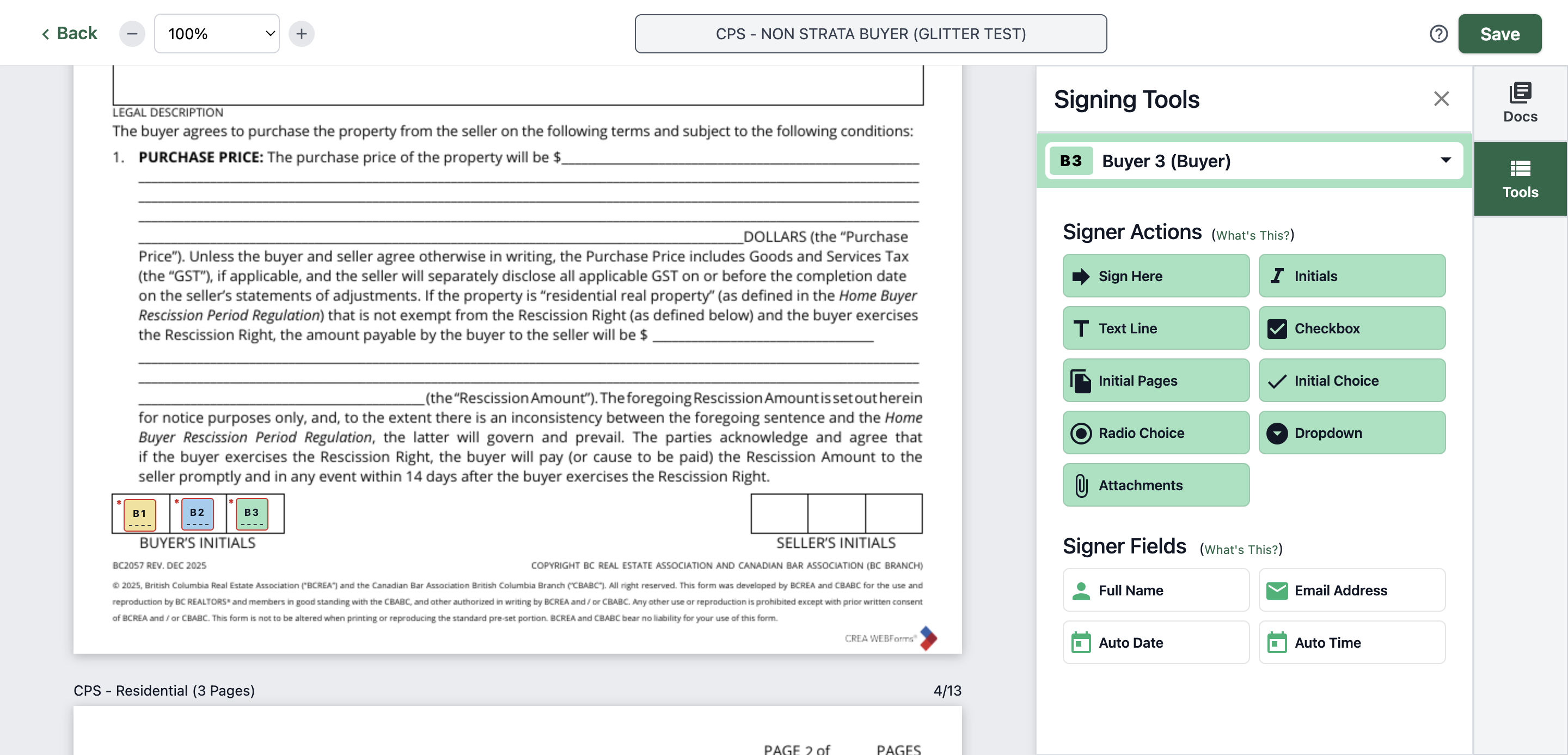
28
Type "Ctrl + C"
29
Type "Ctrl + V"
30
Click here
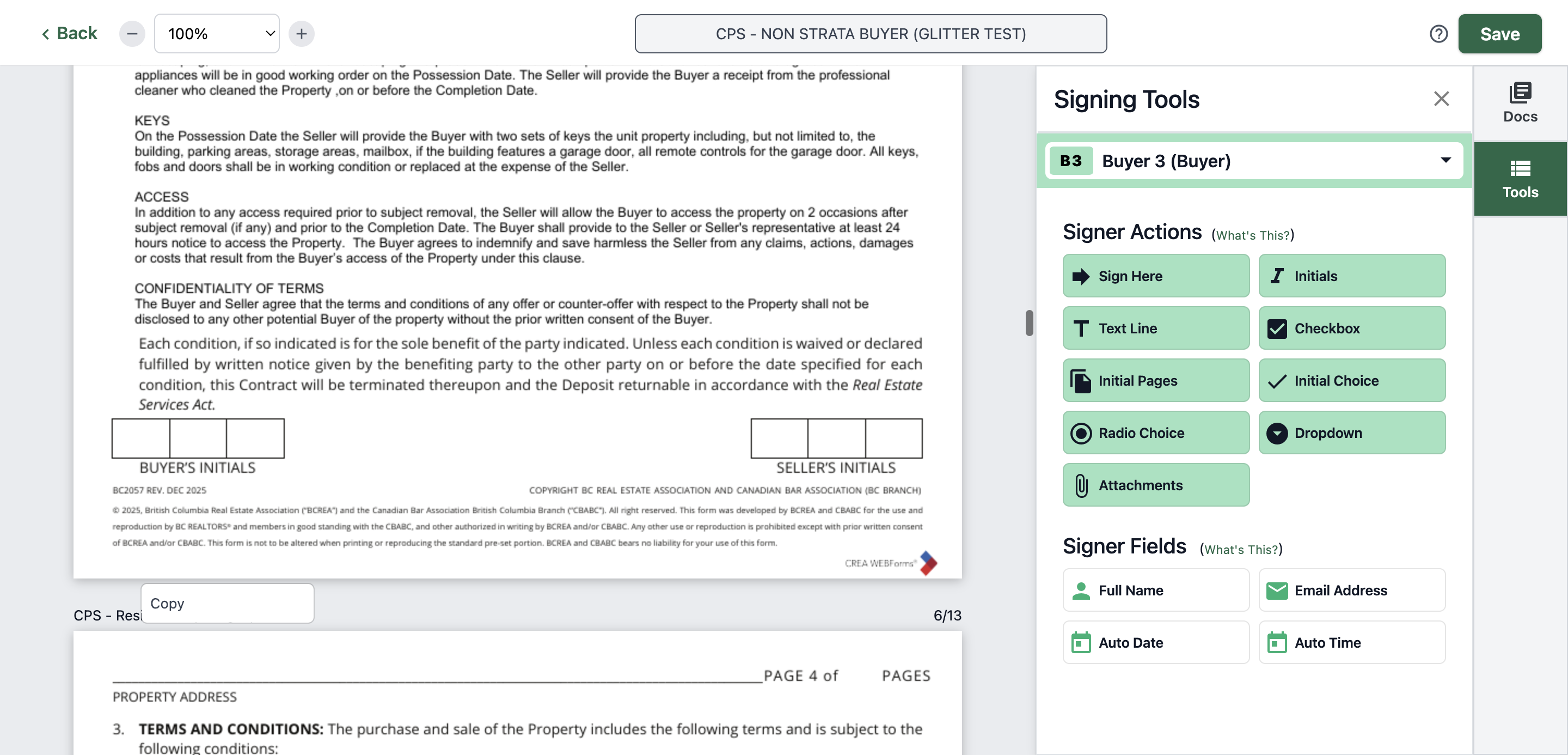
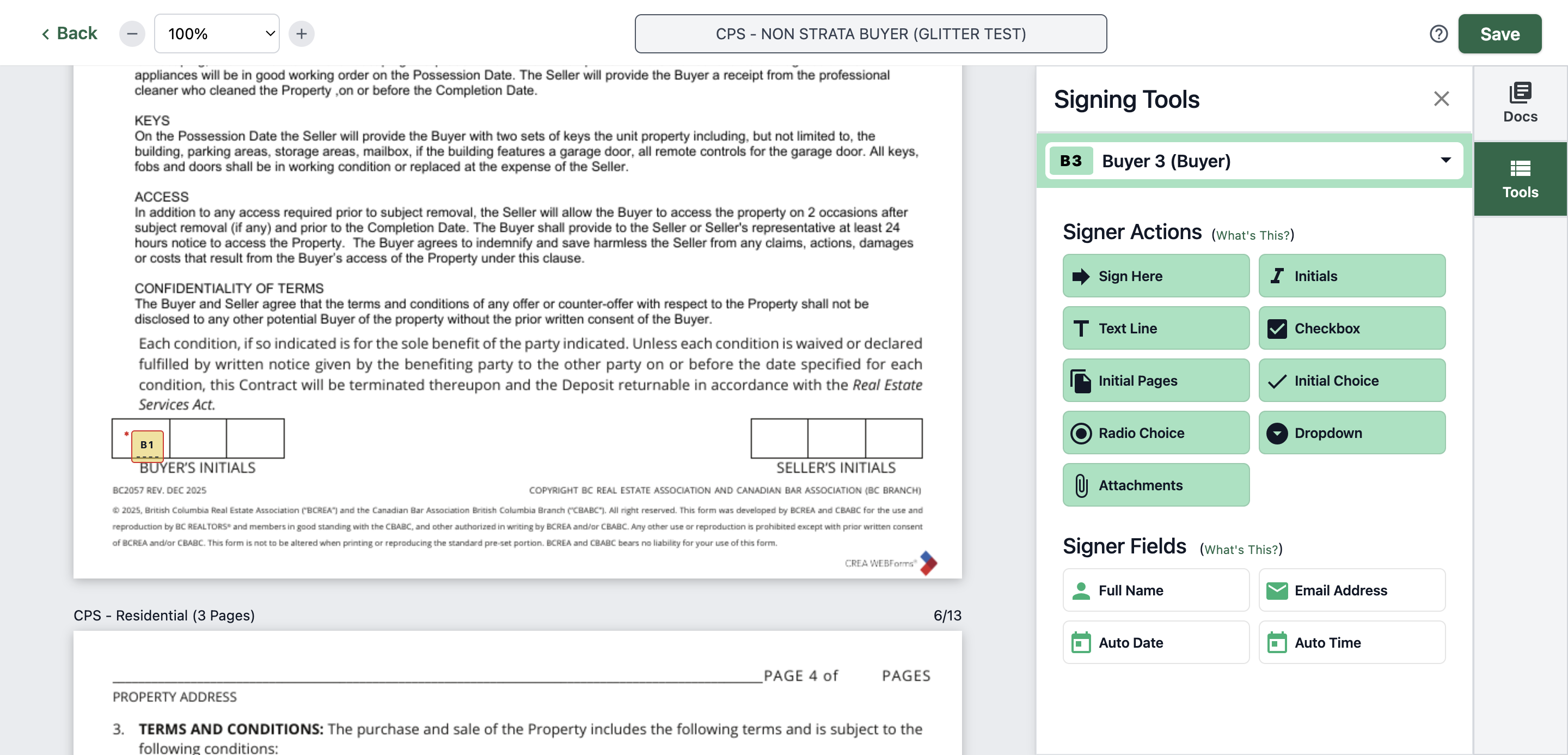
31
Type "Ctrl + V"
32
33
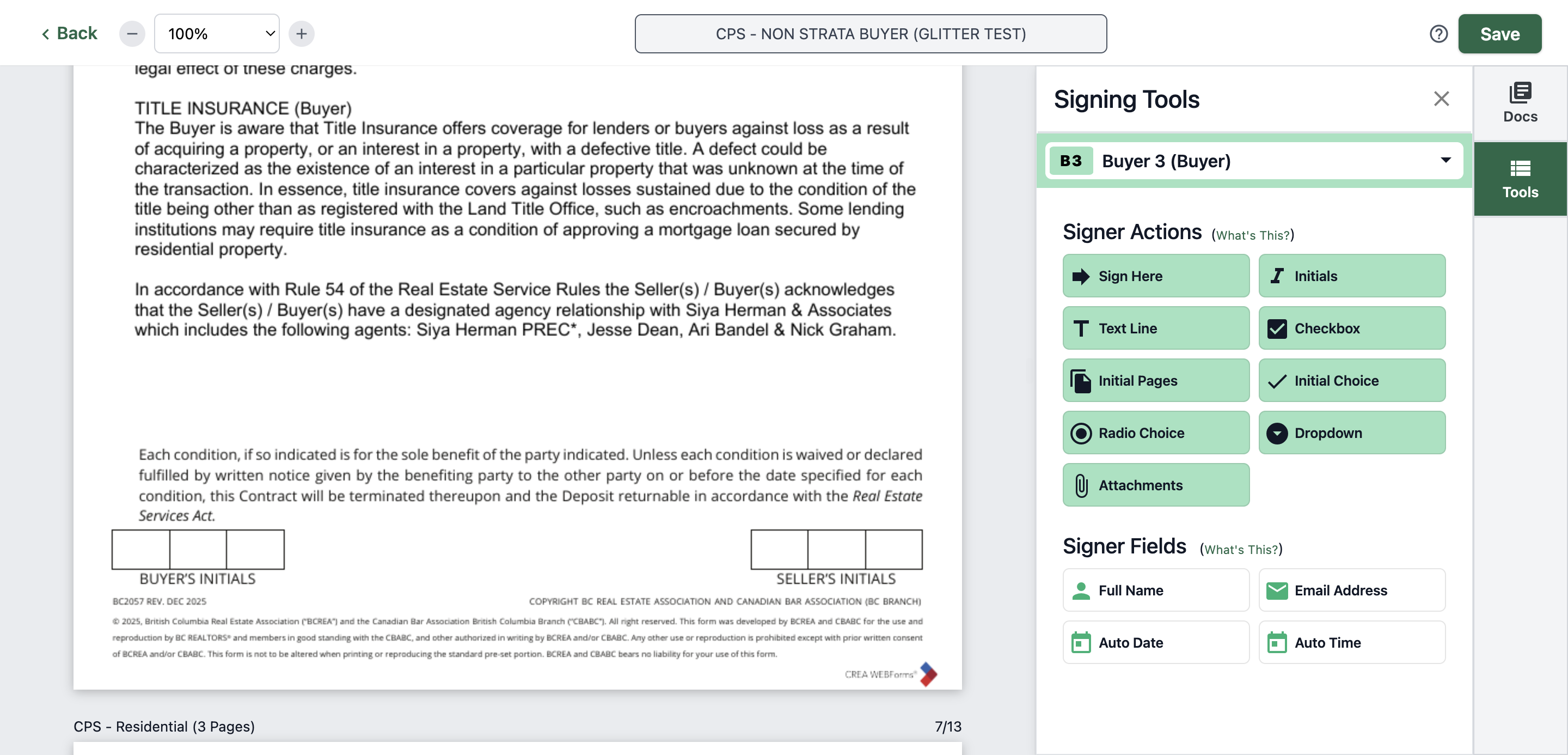
Click here
34
Type "Ctrl + V"
35
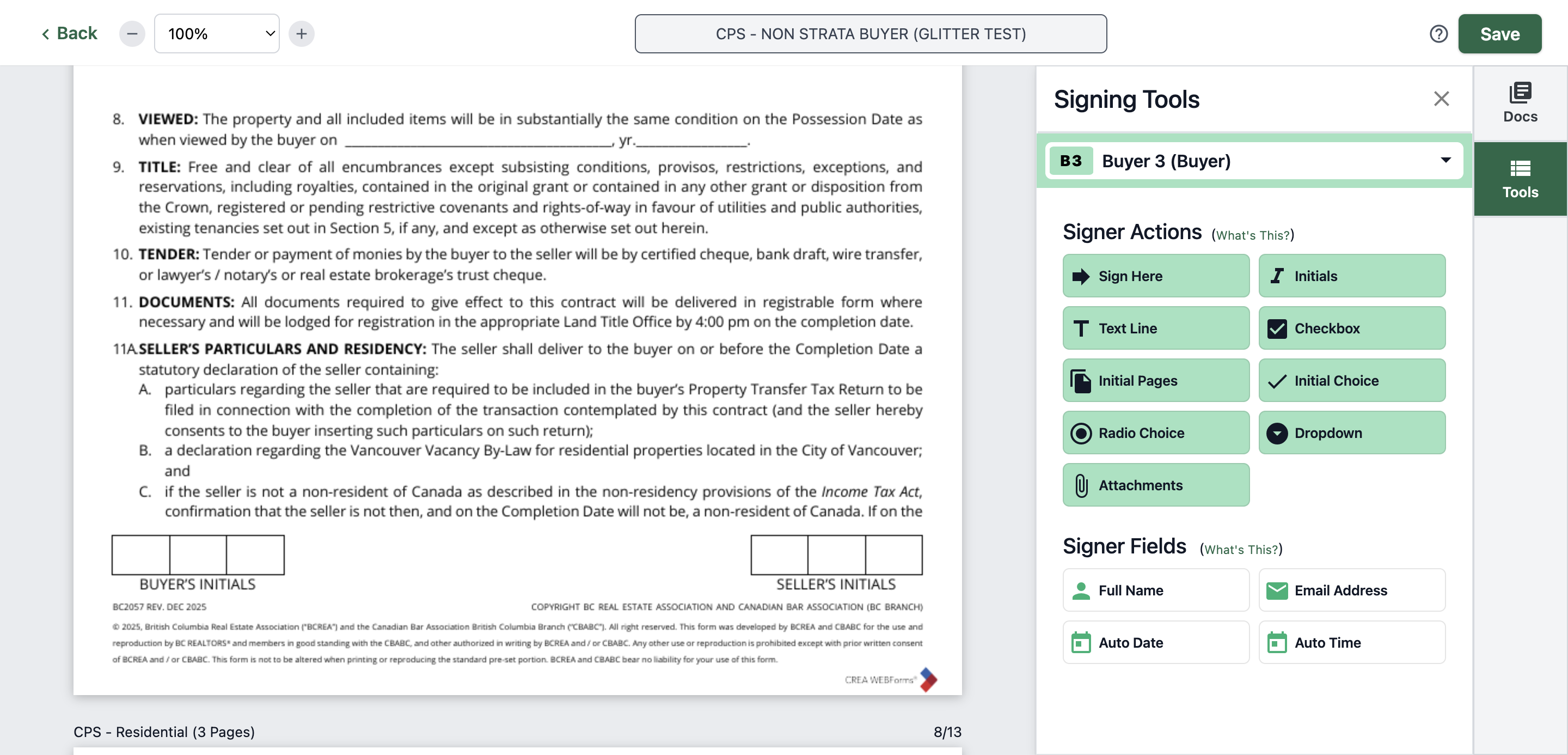
Click here
36
Type "Ctr + V"
37
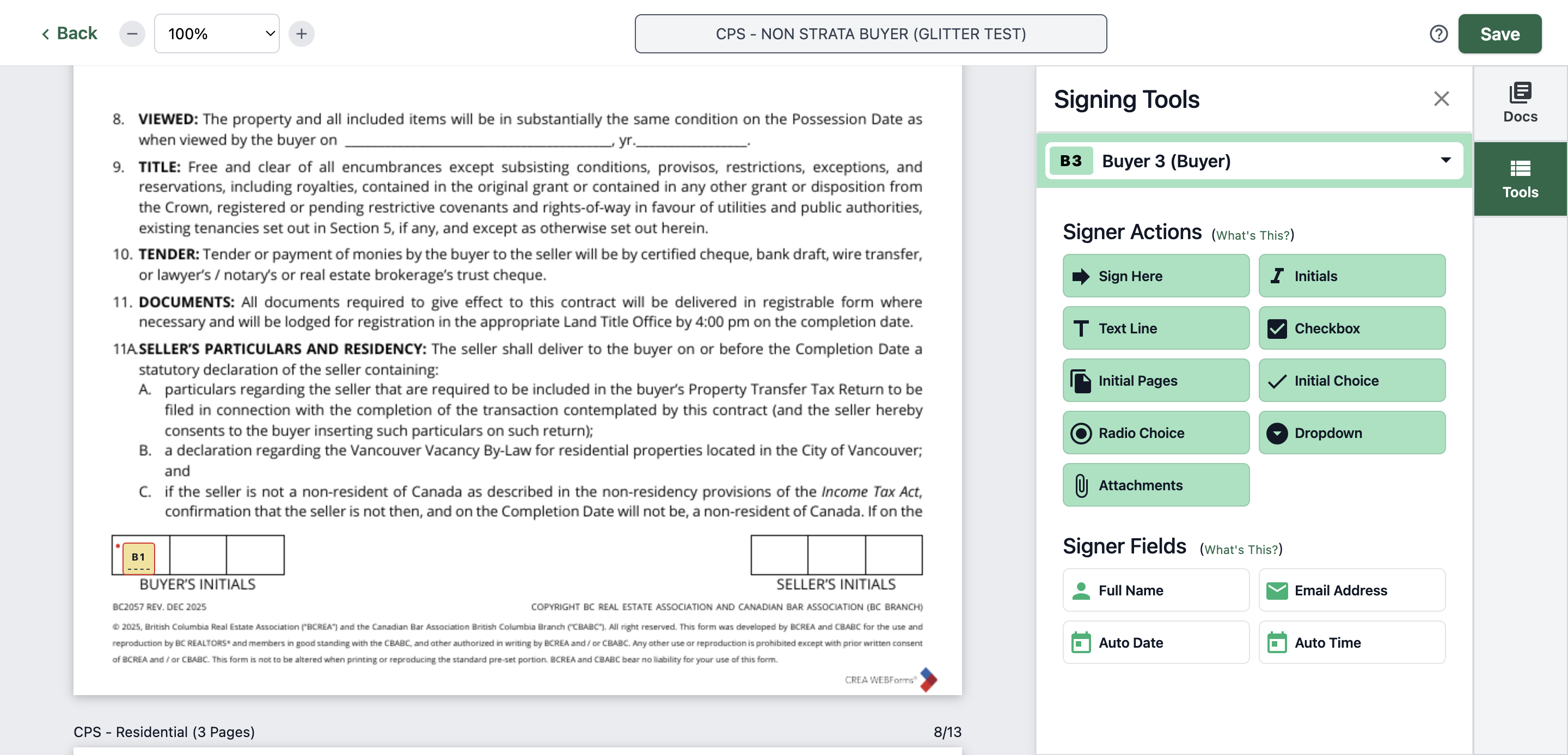
38
Type "Cmd + V"
39
For this page, you just need to put initials here
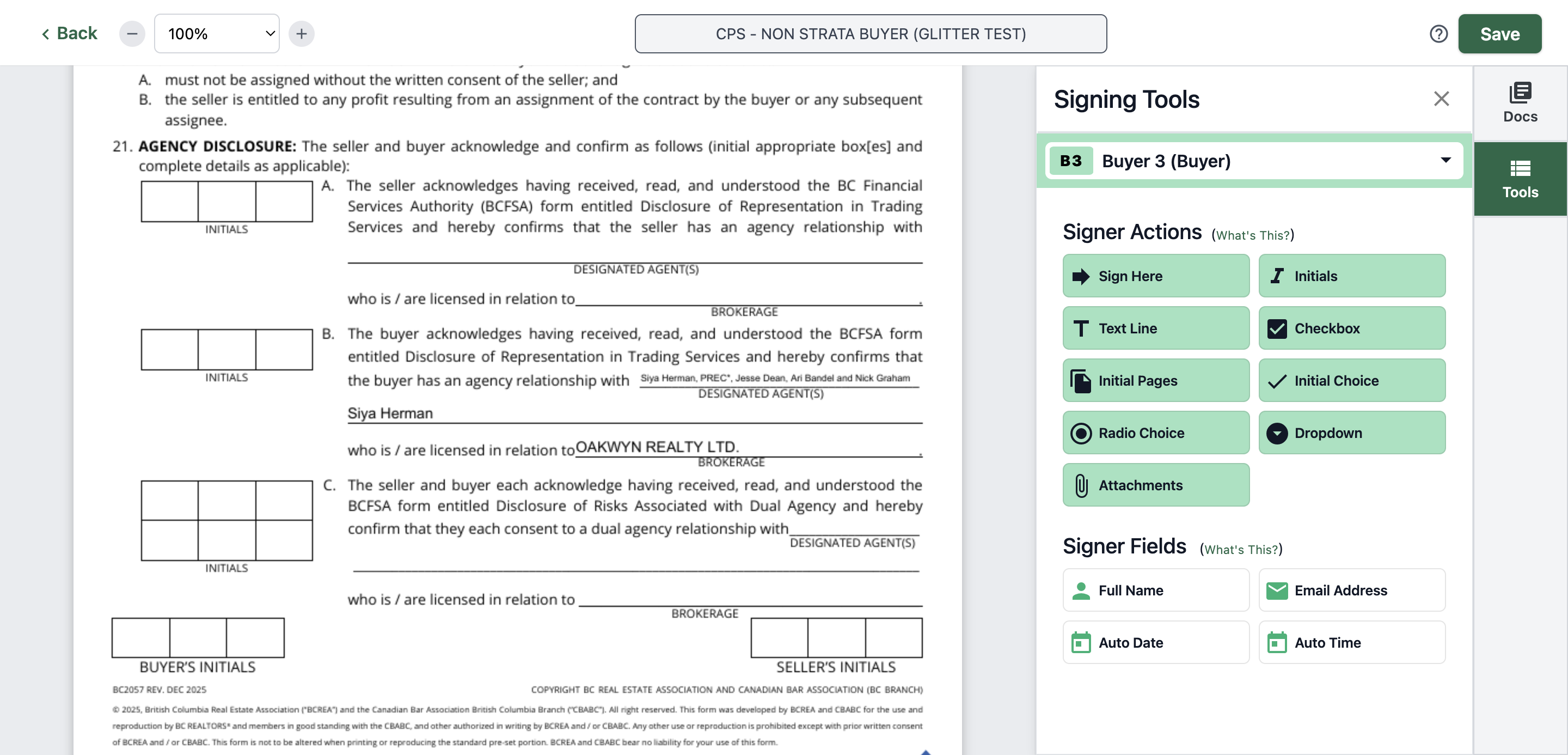
40
Type "Ctrl + V"
41
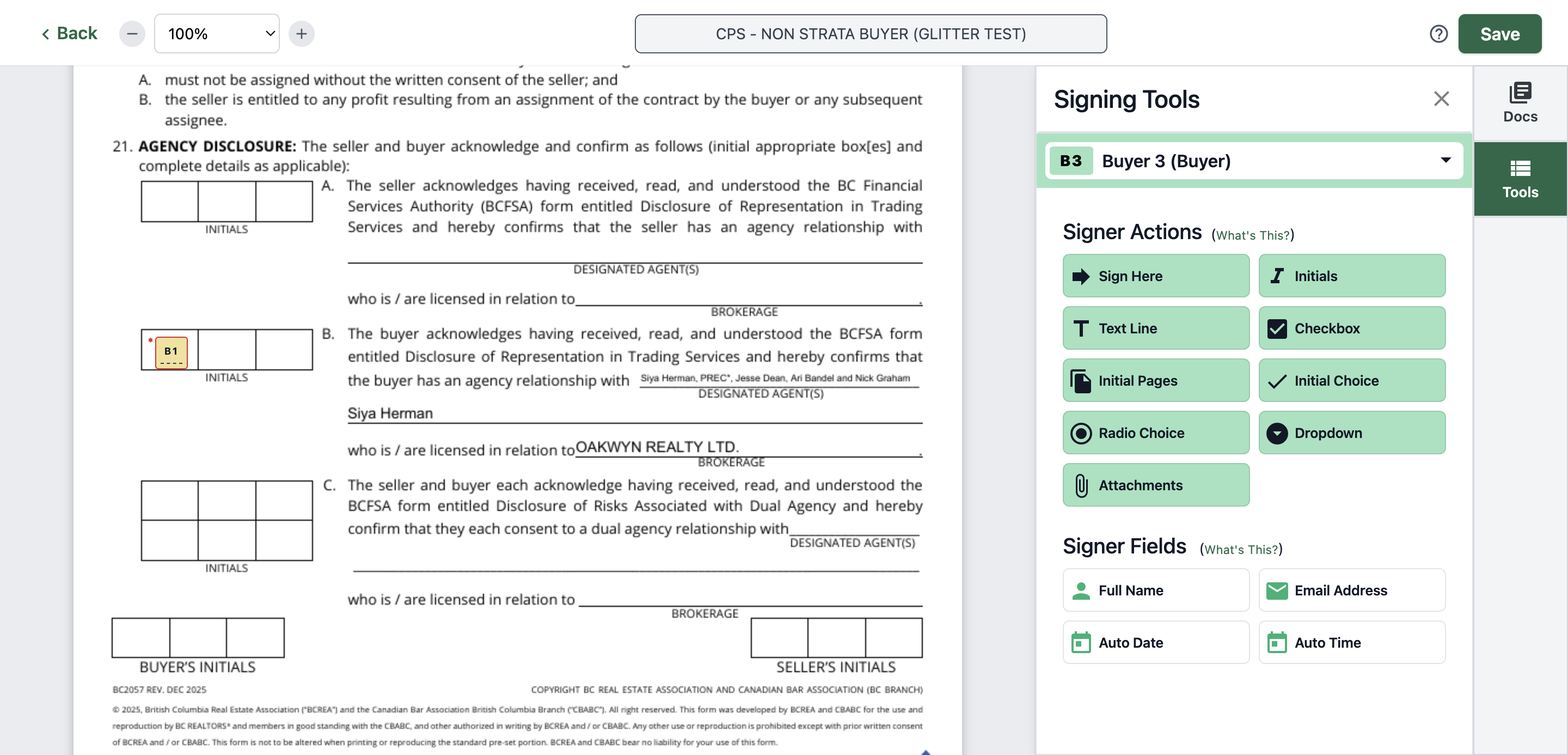
42
And also here
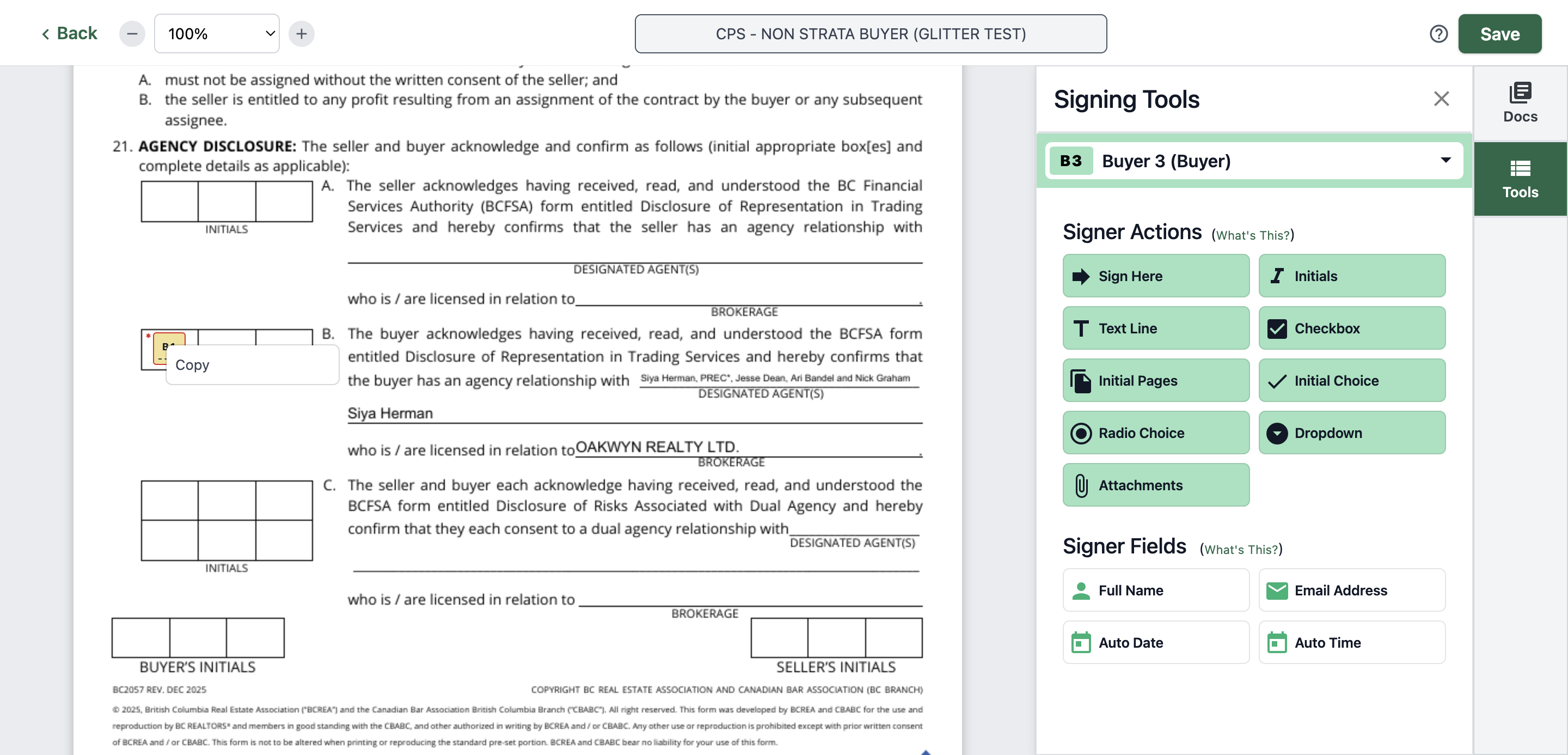
43
Type "Cmd + V"
44
For this page, you just need to put initials here
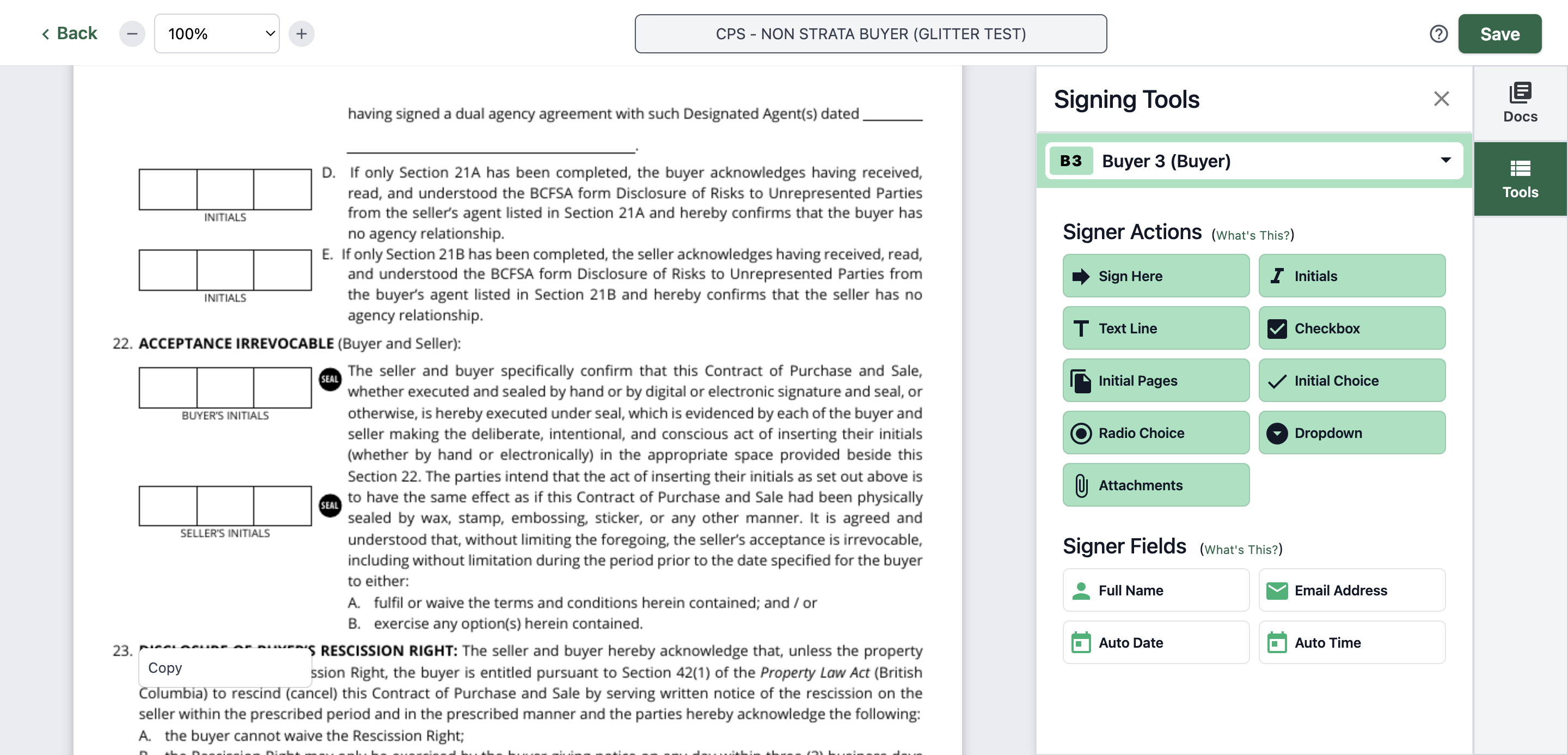
Let's get started
45
Type "Ctrl + V"
46
Click on "B1"
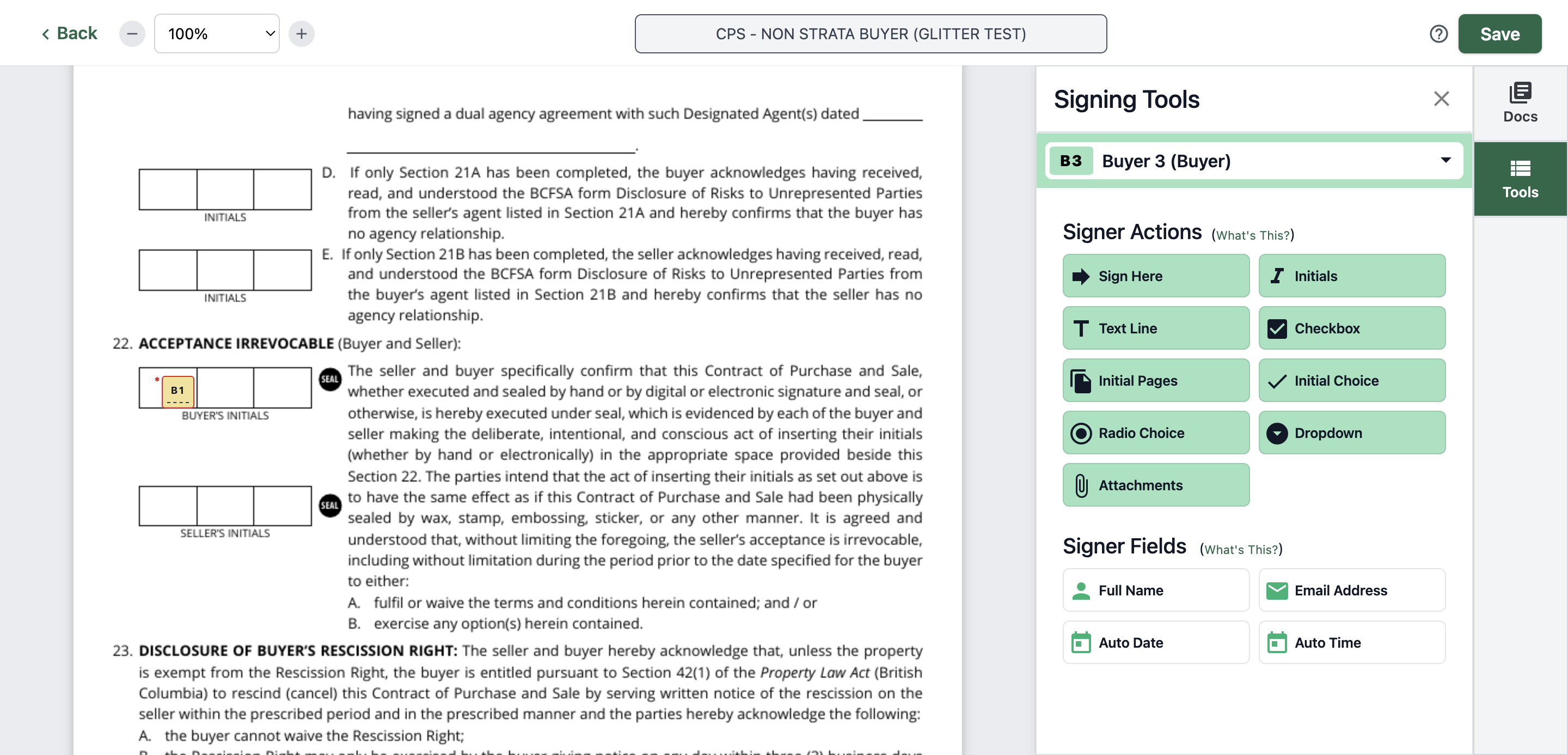
47
Click here
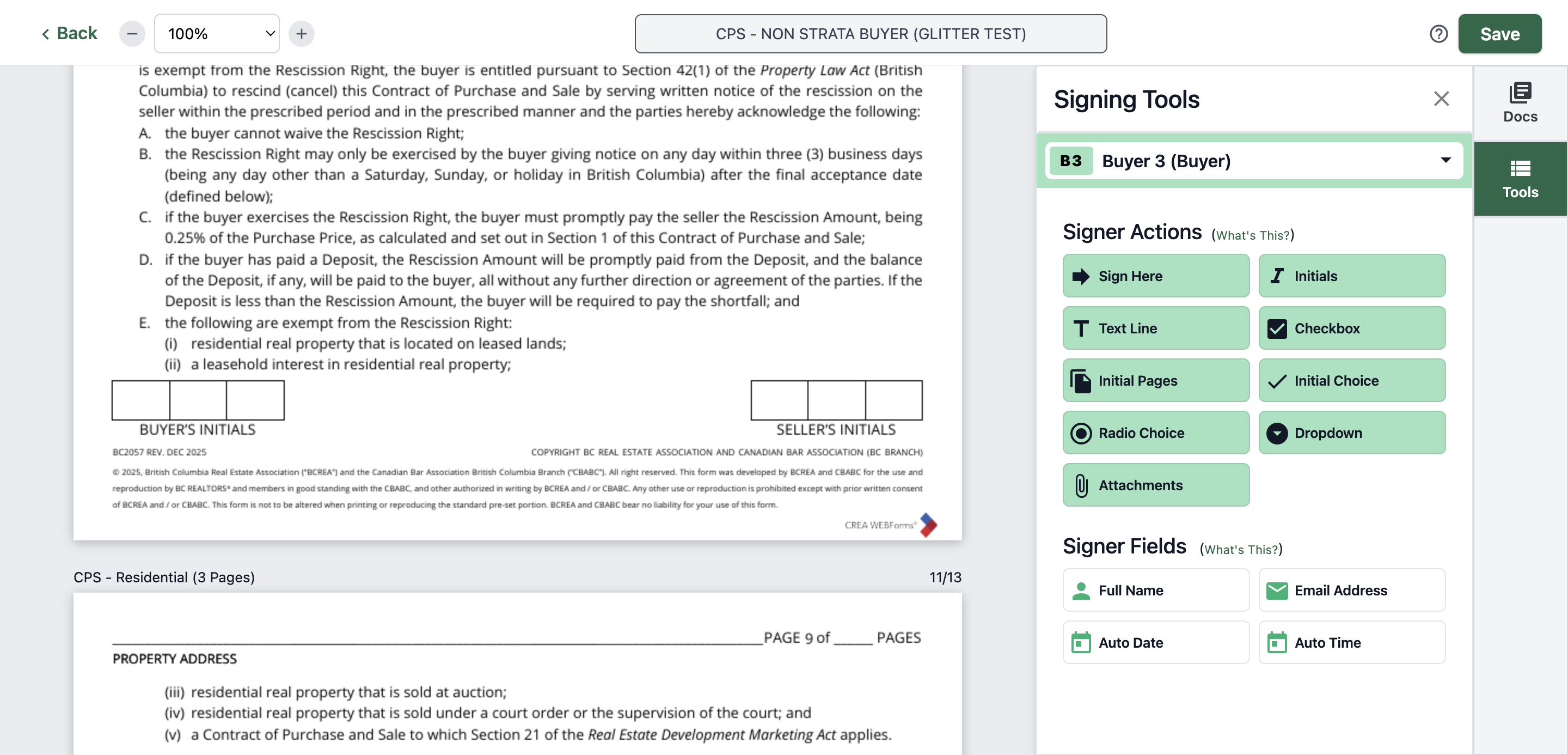
48
Type "Ctrl + V"
49
Click on "B1"
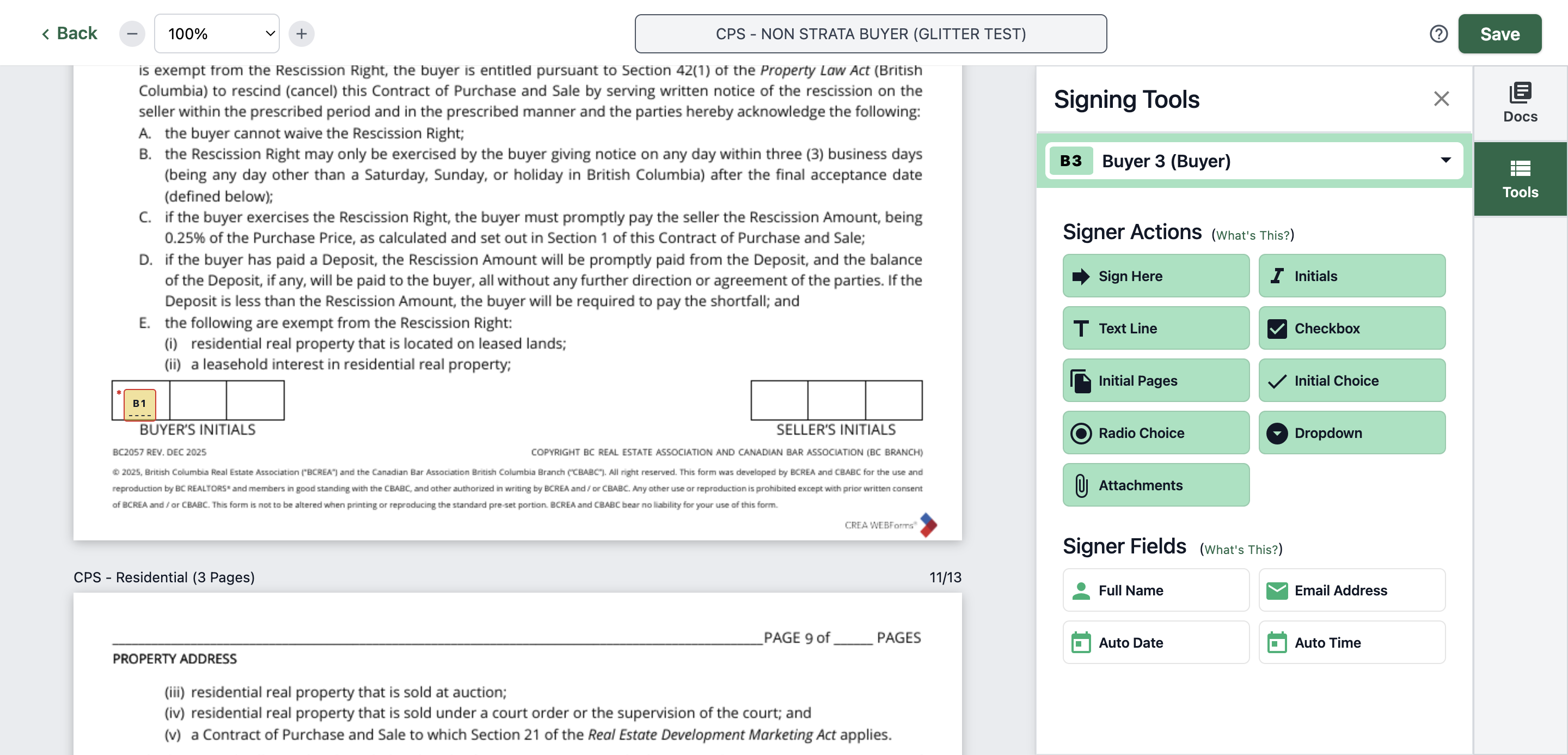
50
Click here
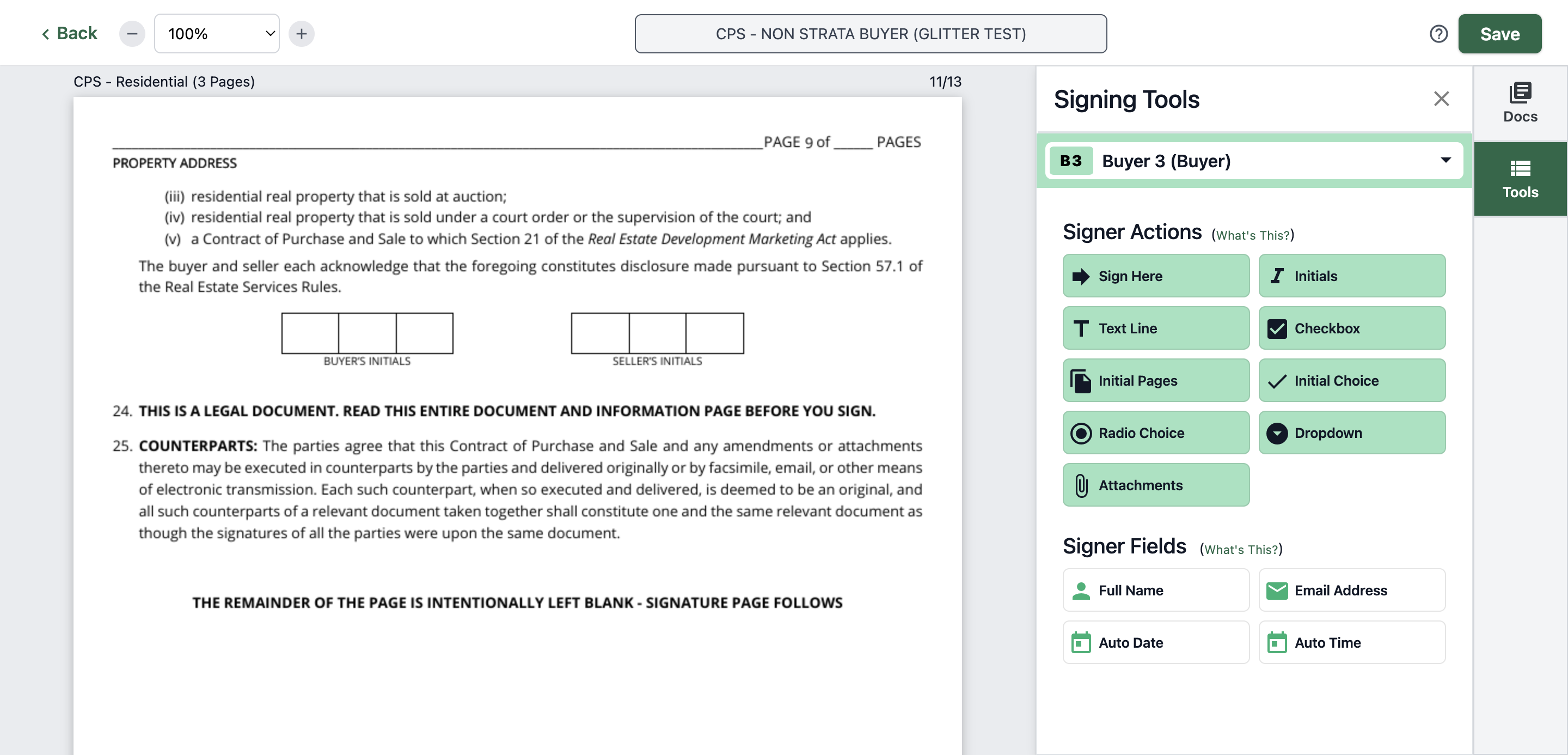
51
Type "Ctrl + V"
52
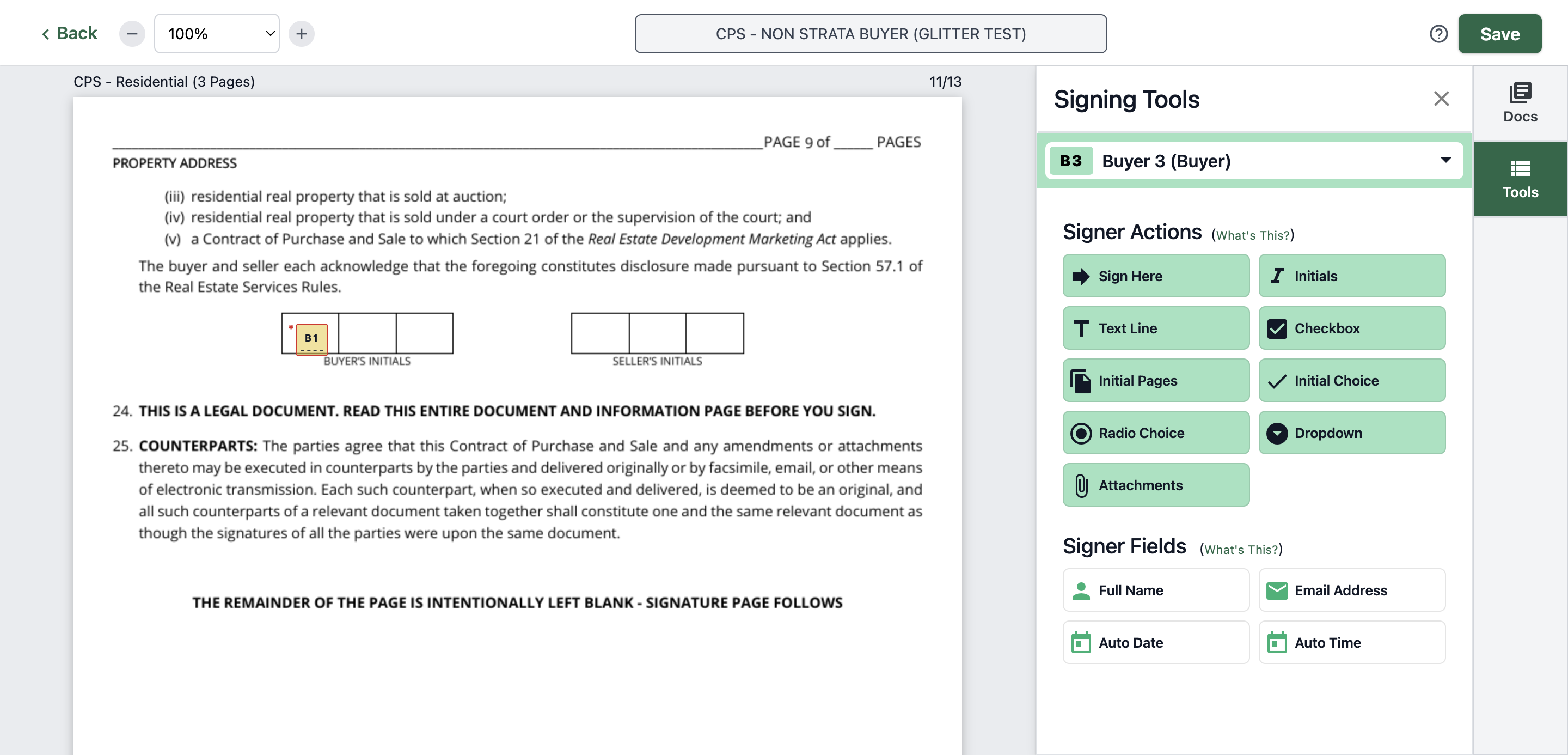
53
Click here
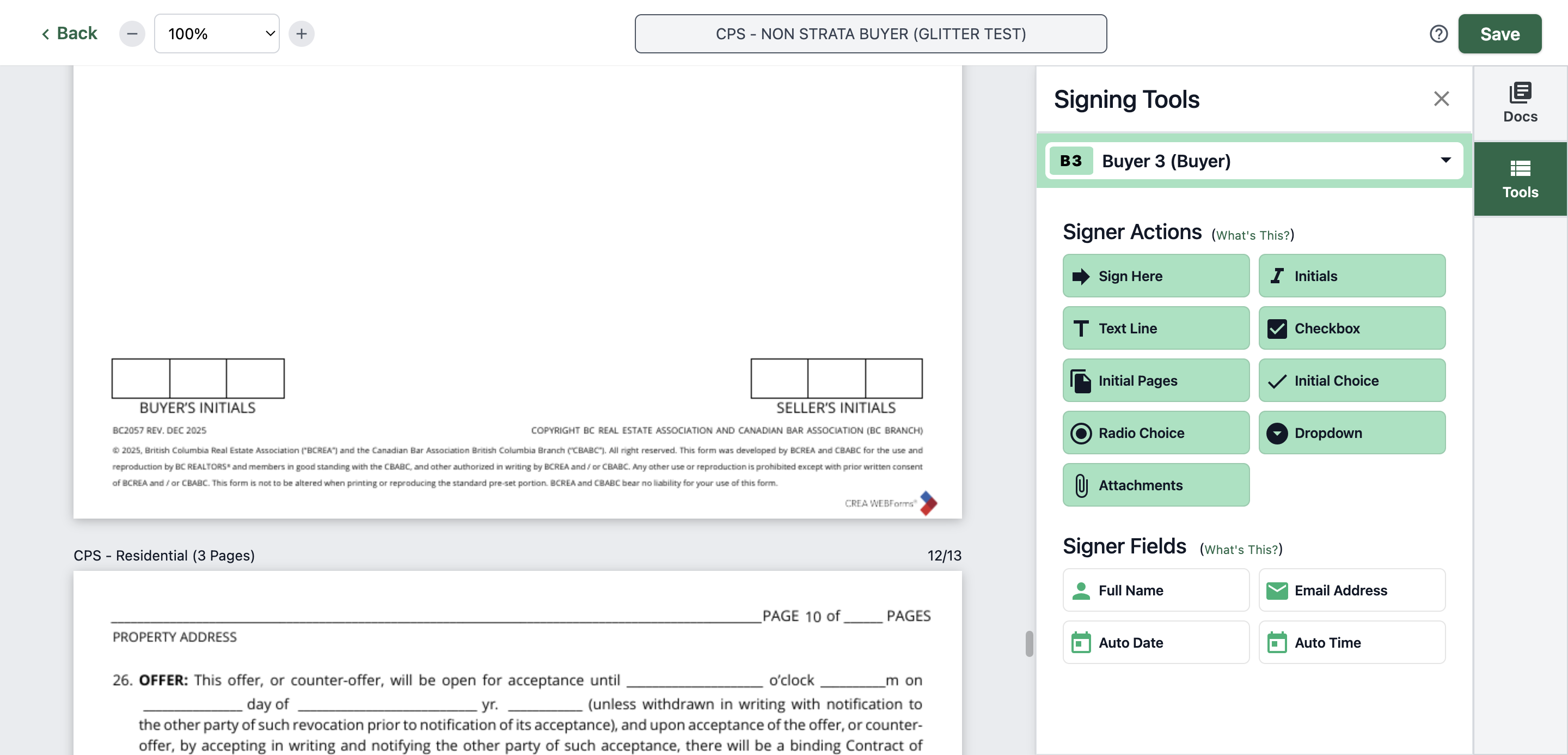
54
Type "Ctrl + V"
55
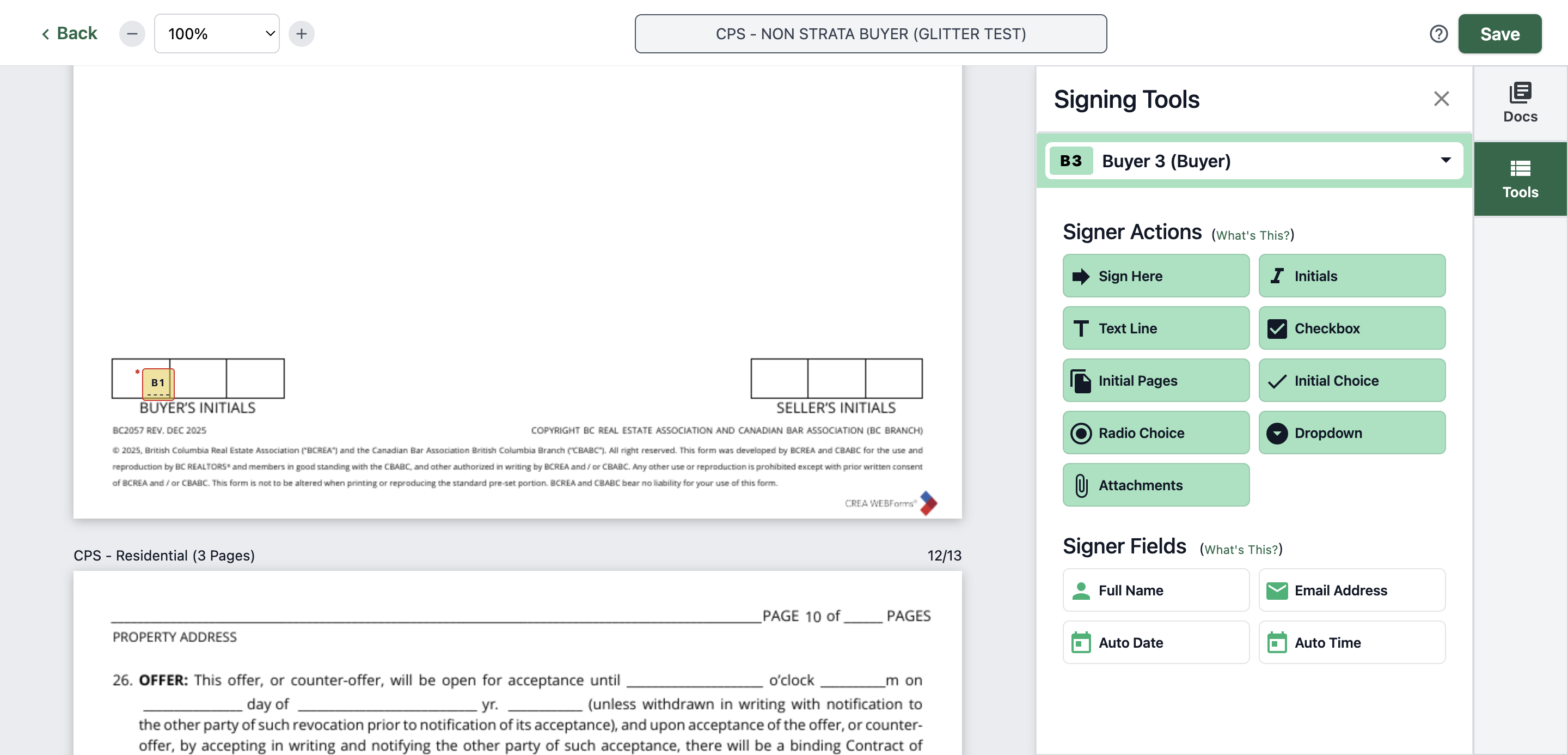
56
Click here
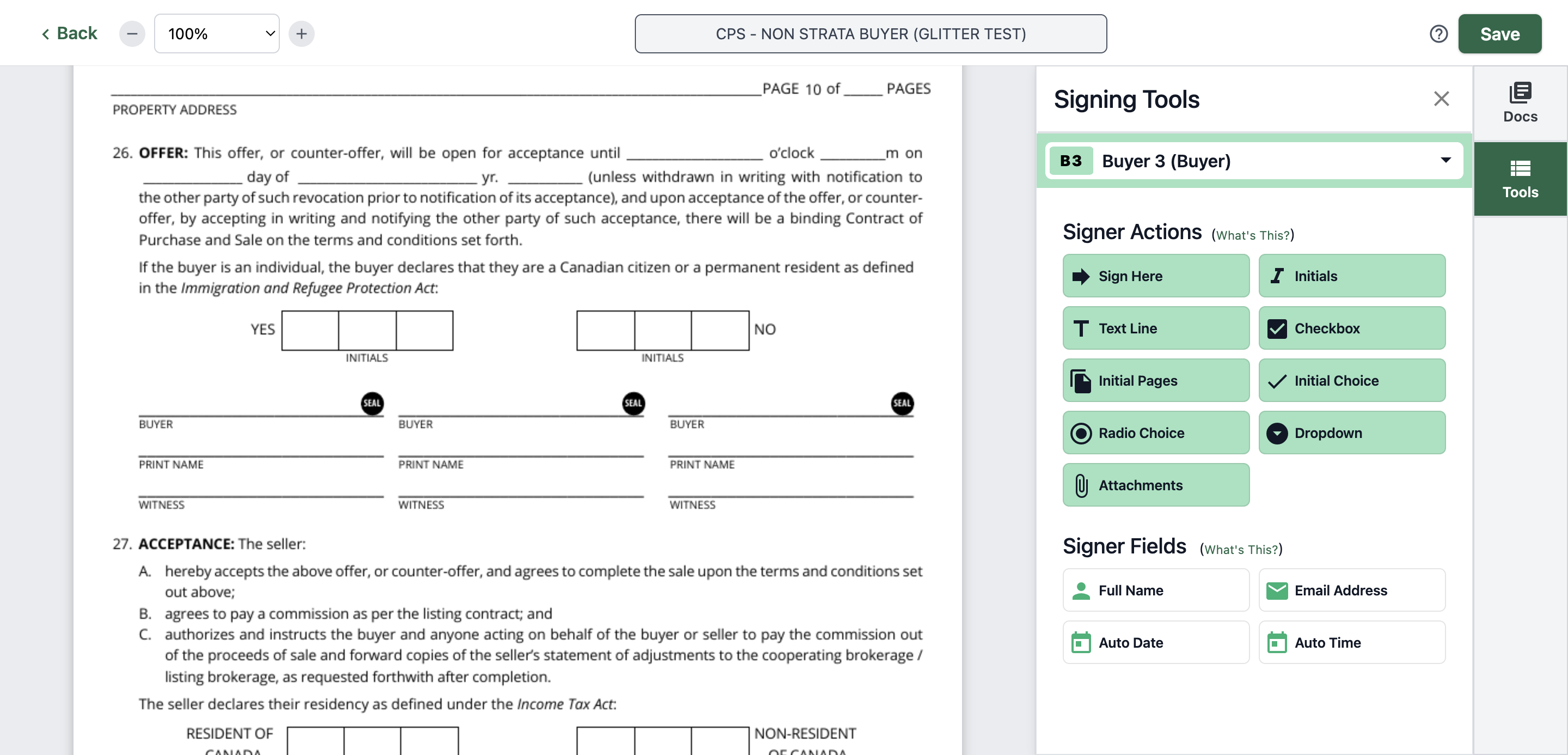
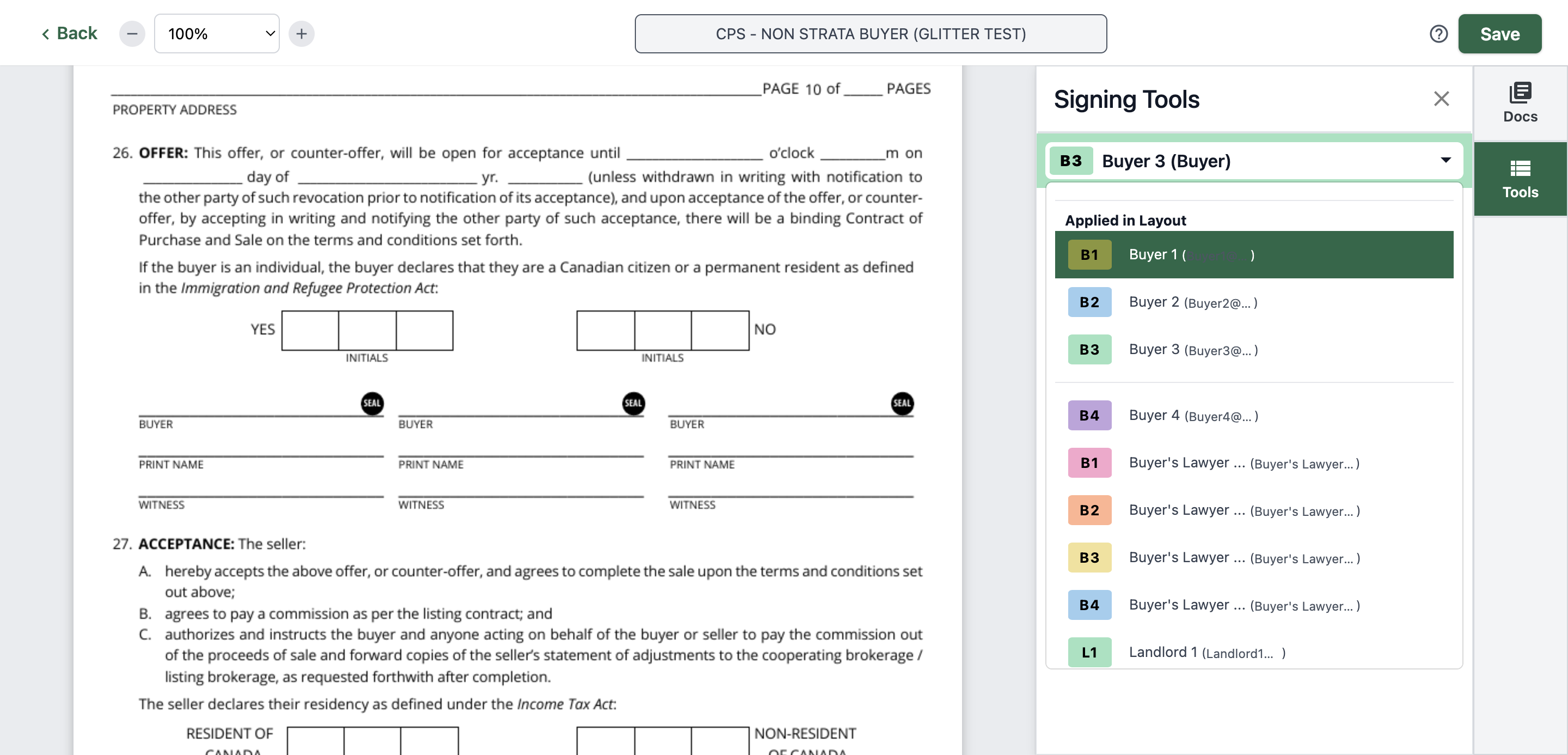
57
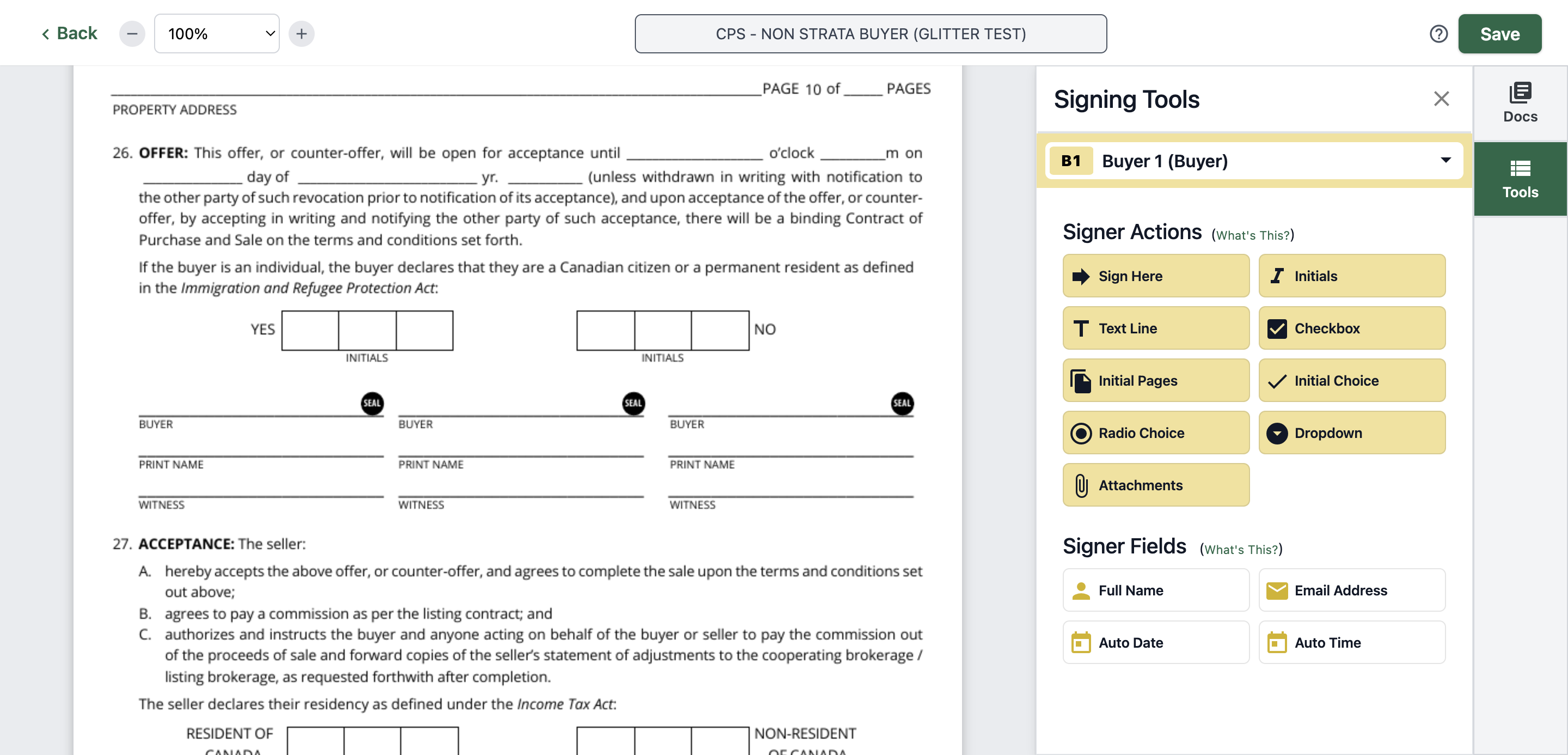
Click on "Buyer 1"
58
Click on "Initial Choice"
59
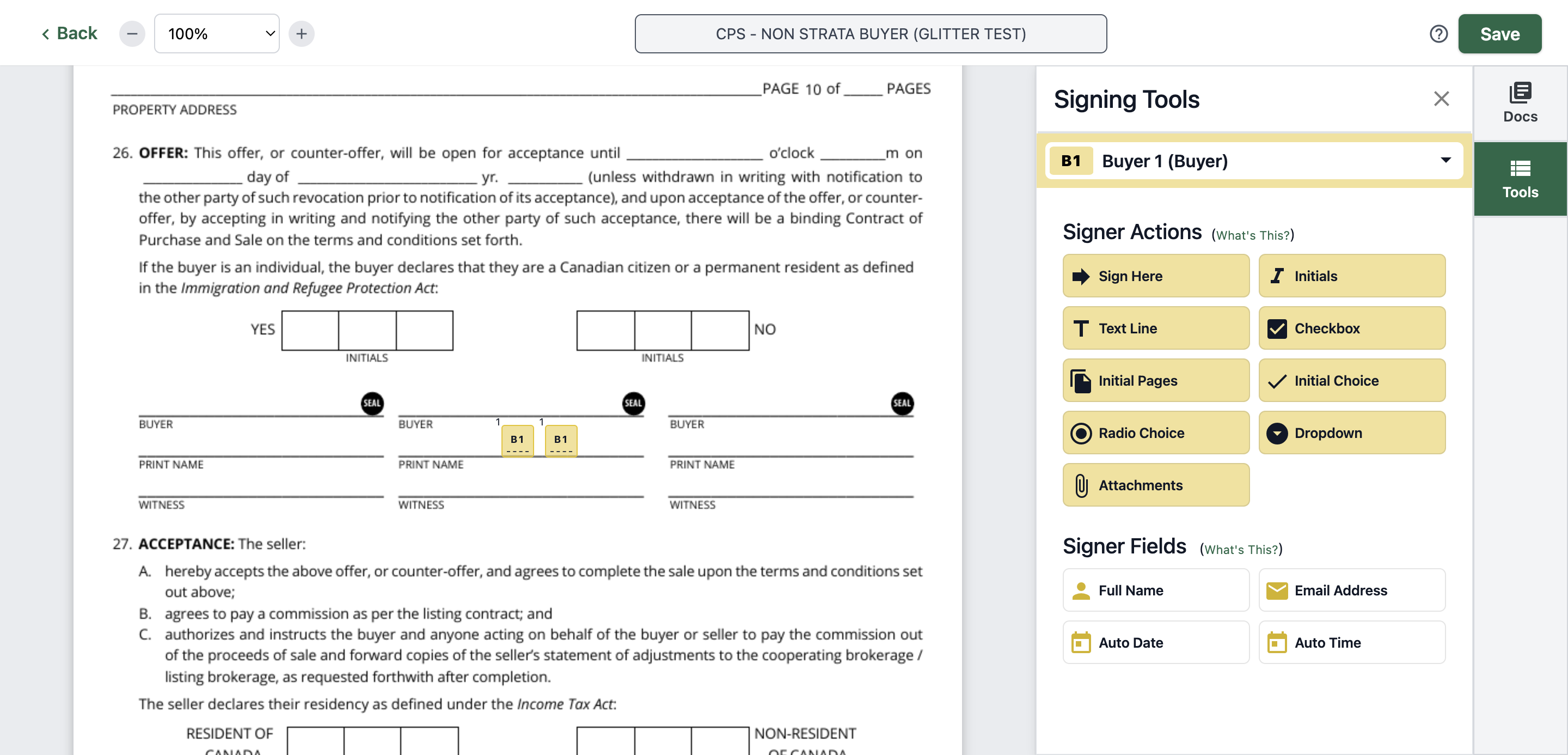
Click on "B1"
60
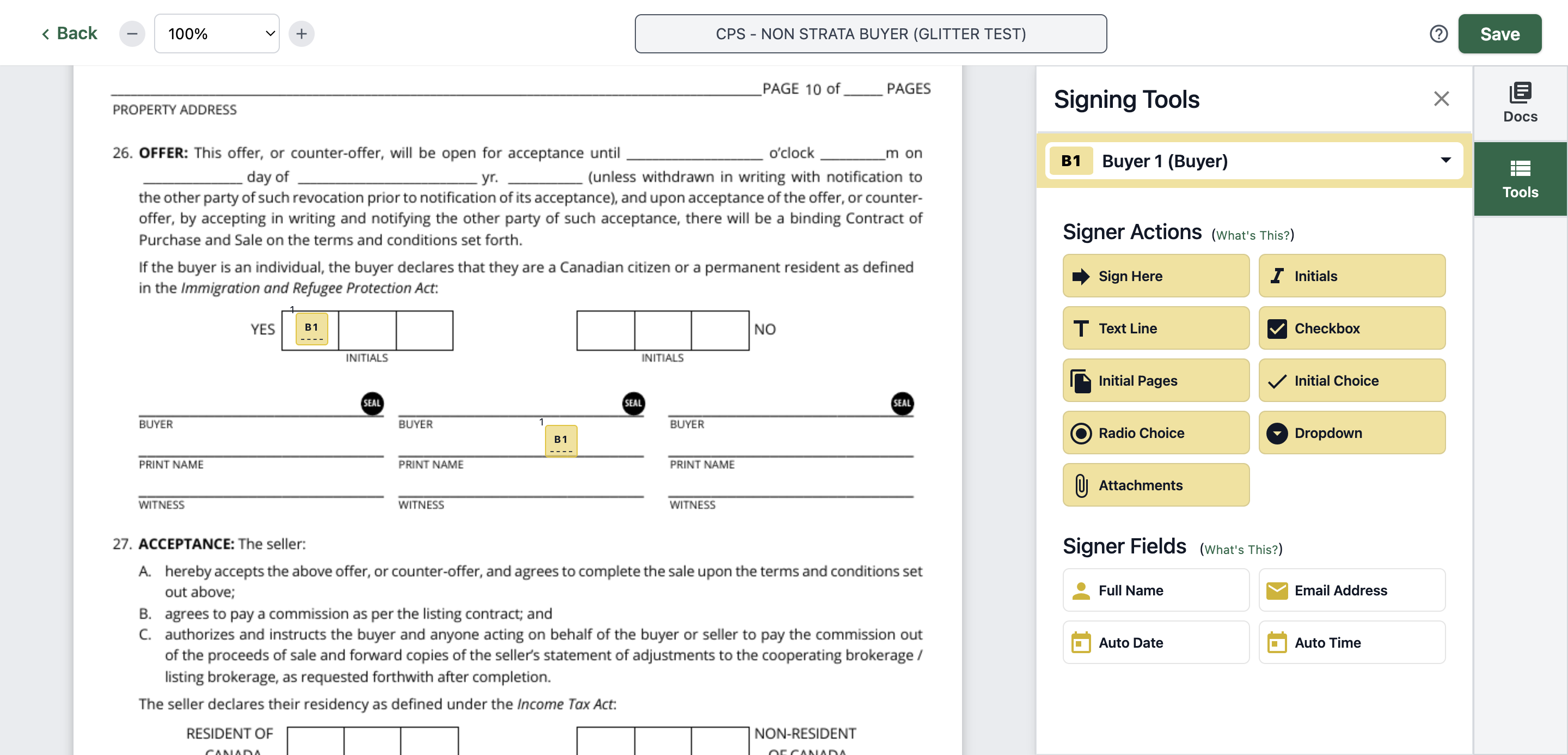
Click on "B1"
61
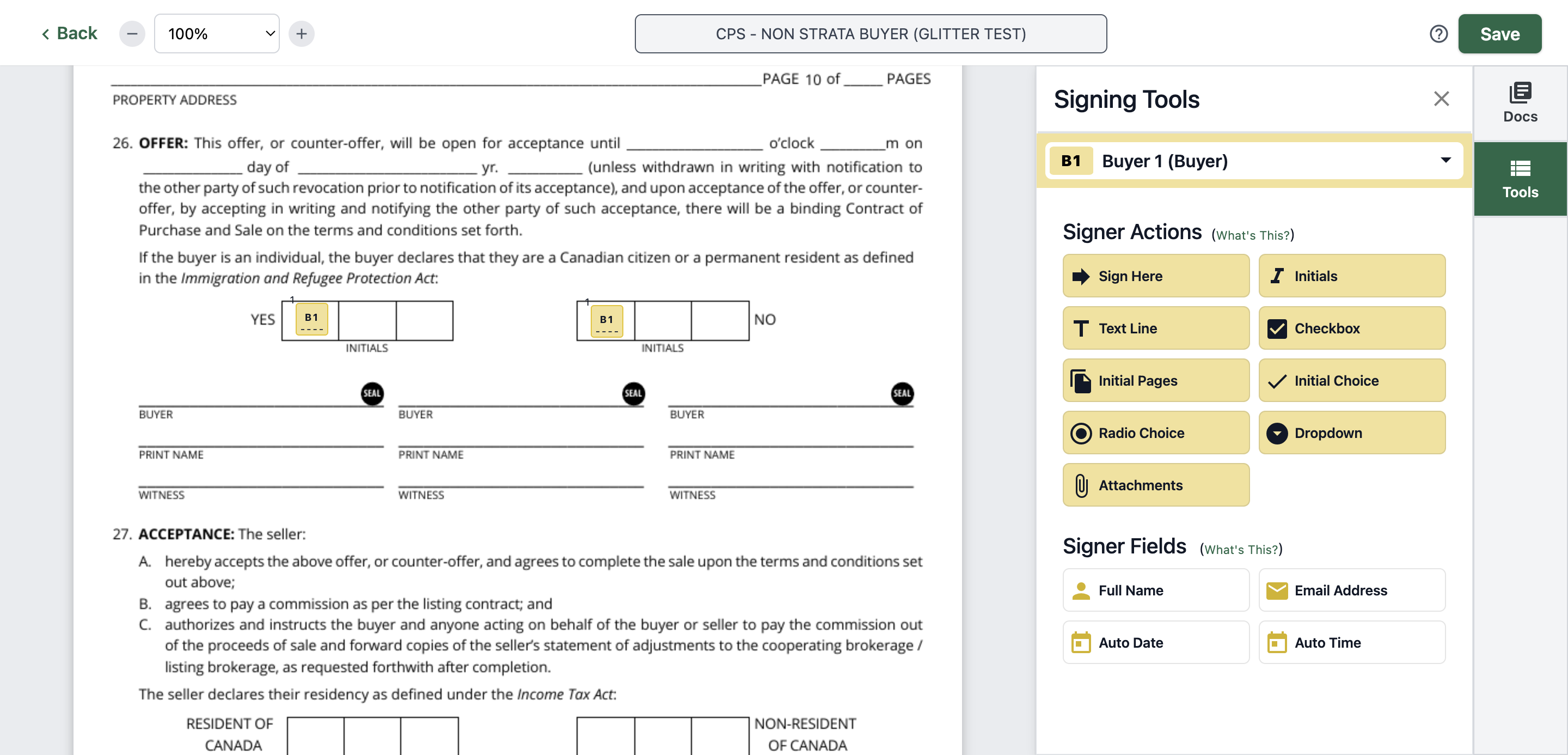
Click here
62
Click on "B1 - Sign Here"
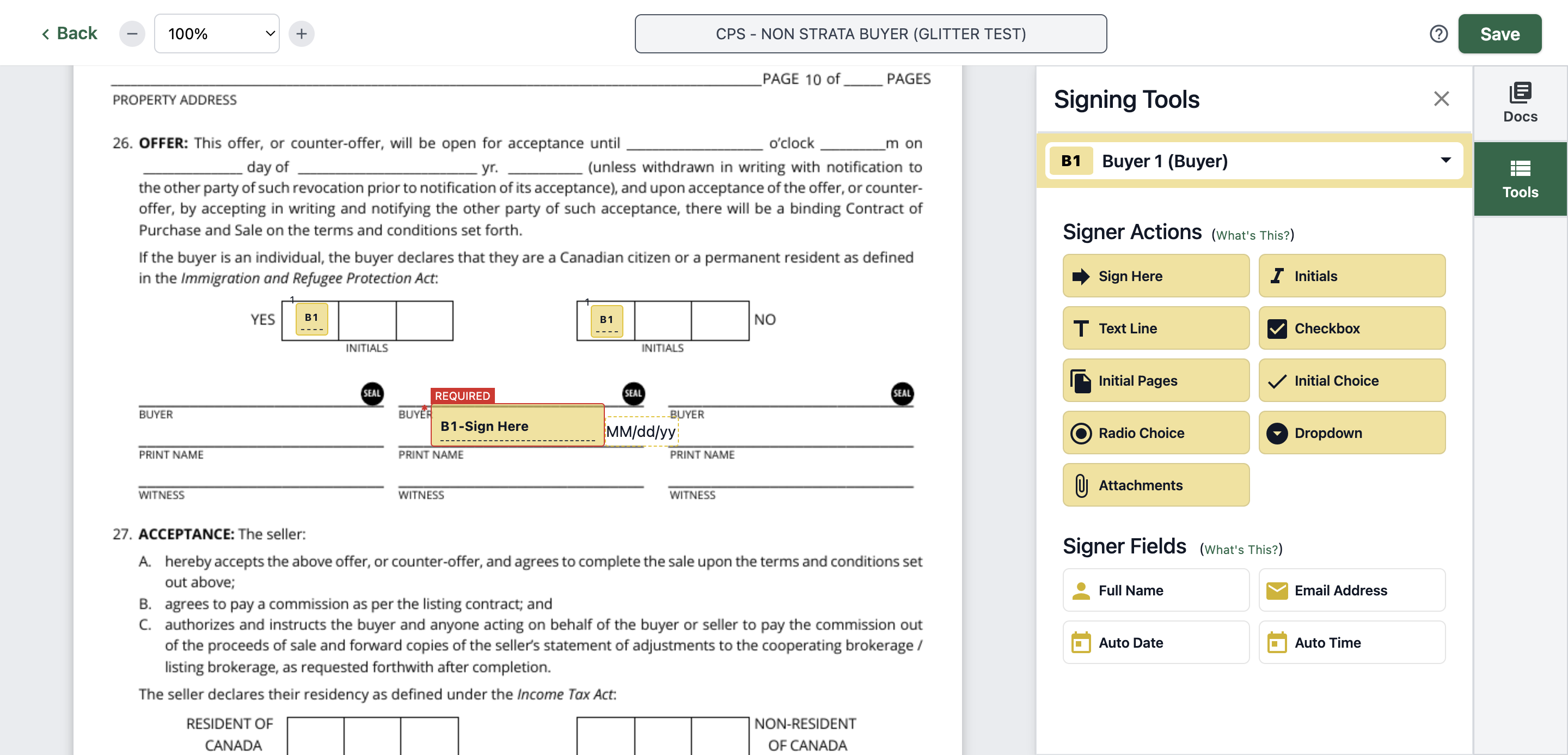
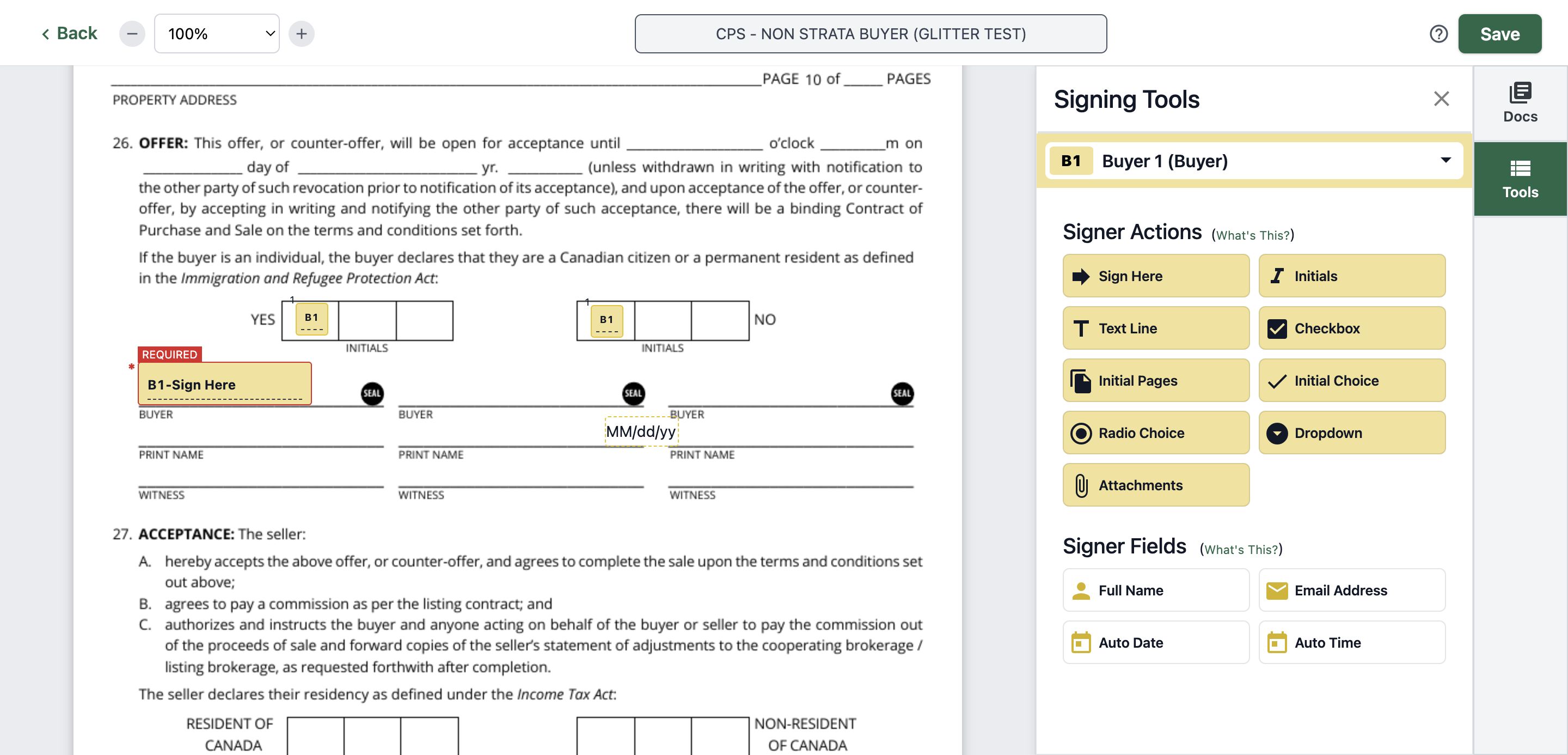
63
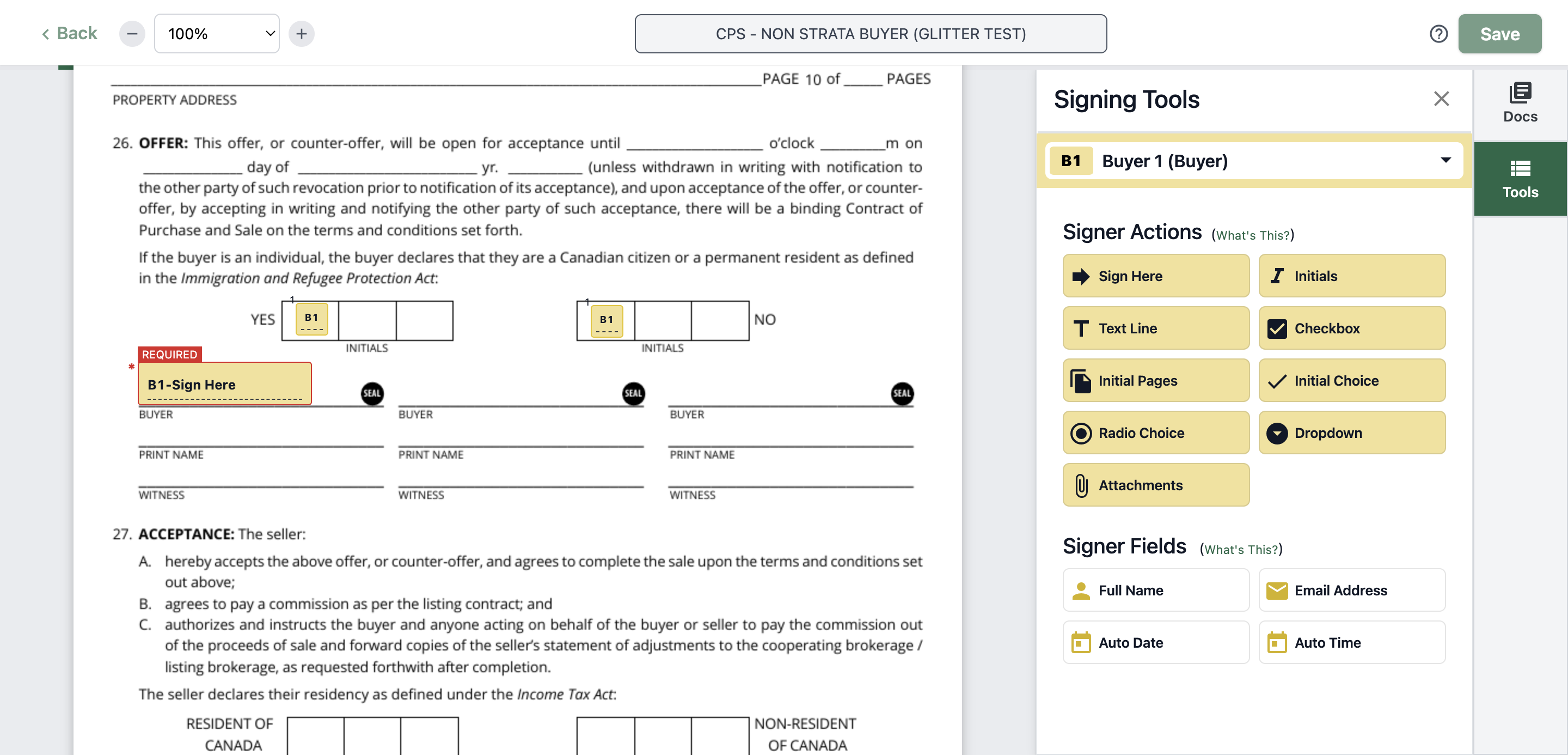
Click on date and remove it
64
65
Click on "Initials"
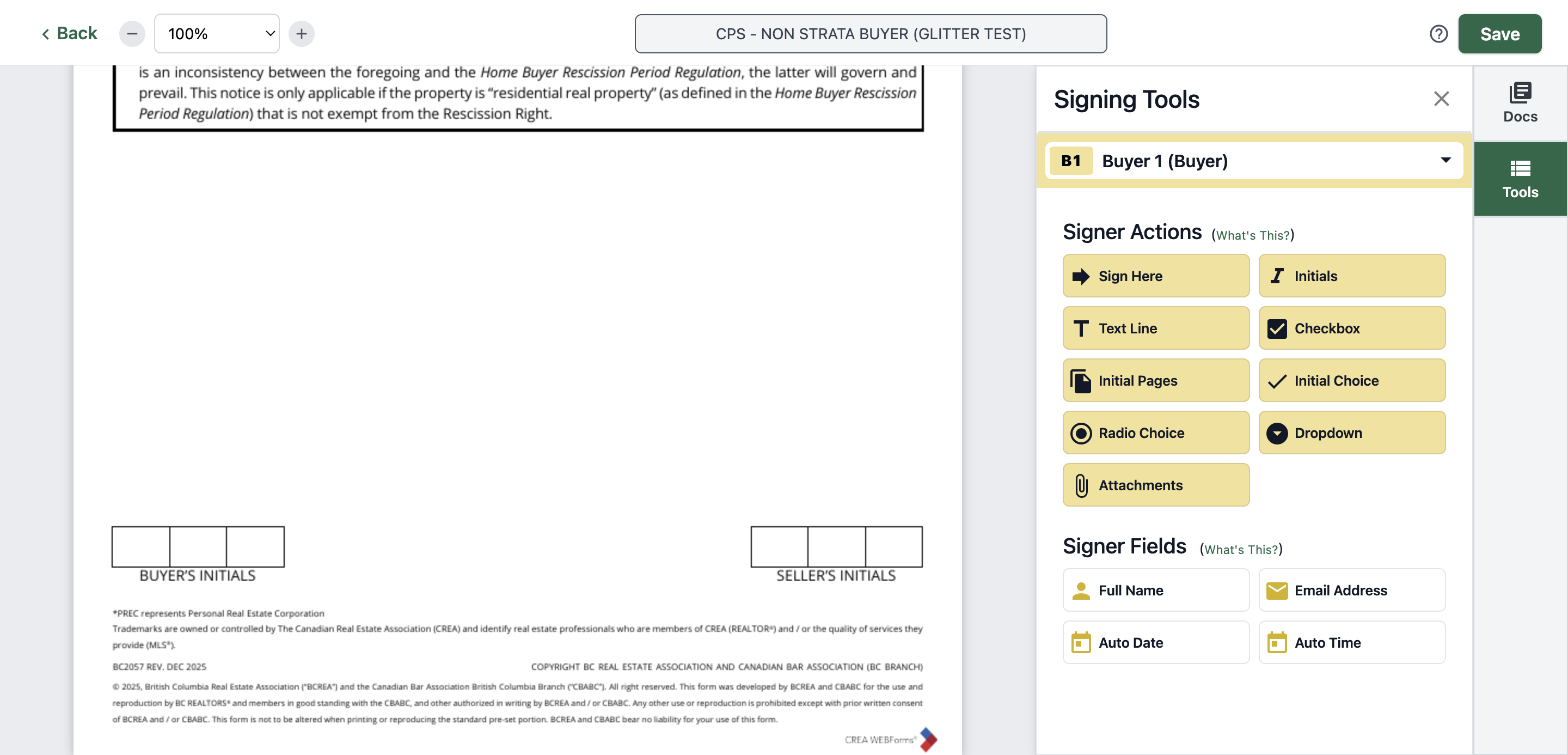
66
Click on "B1"
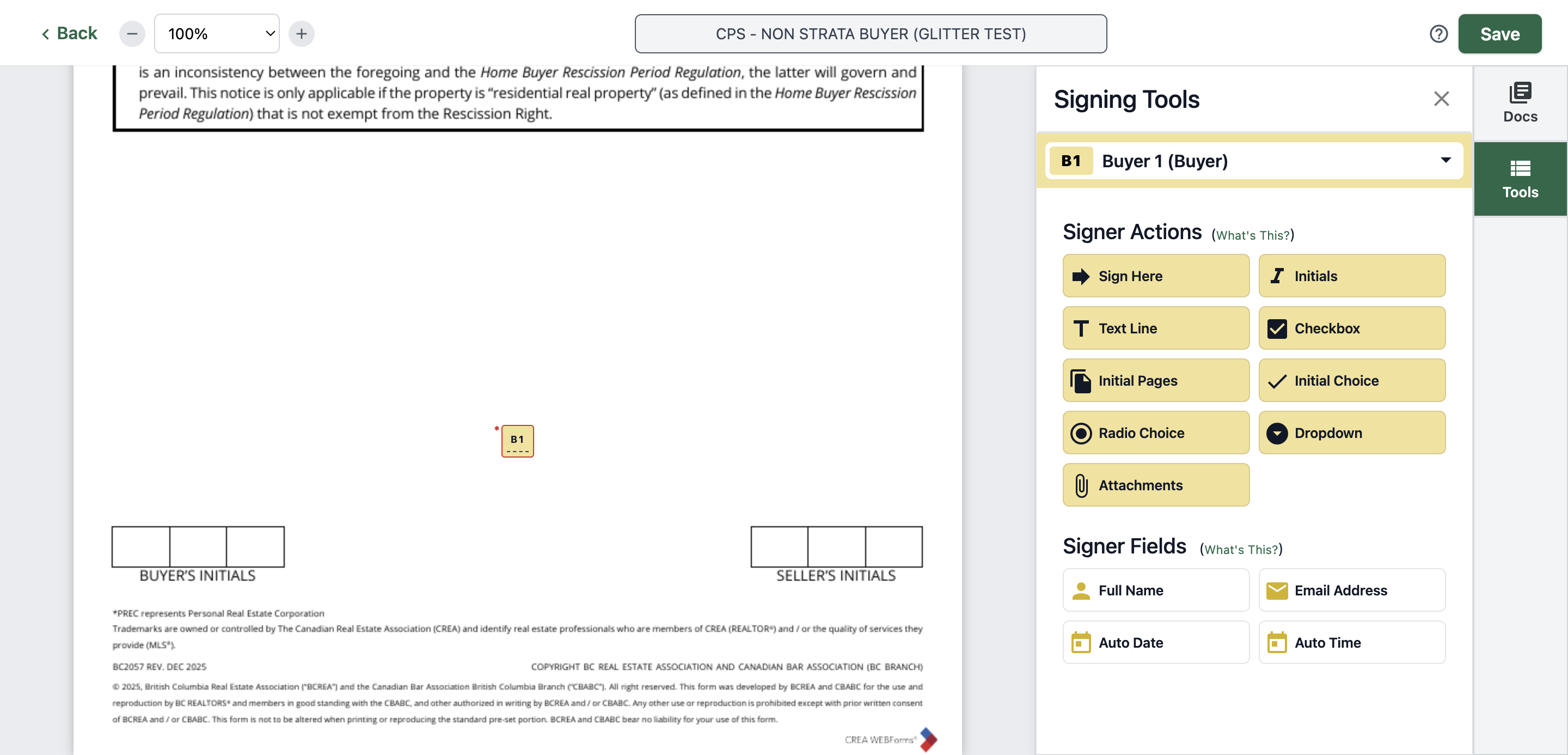
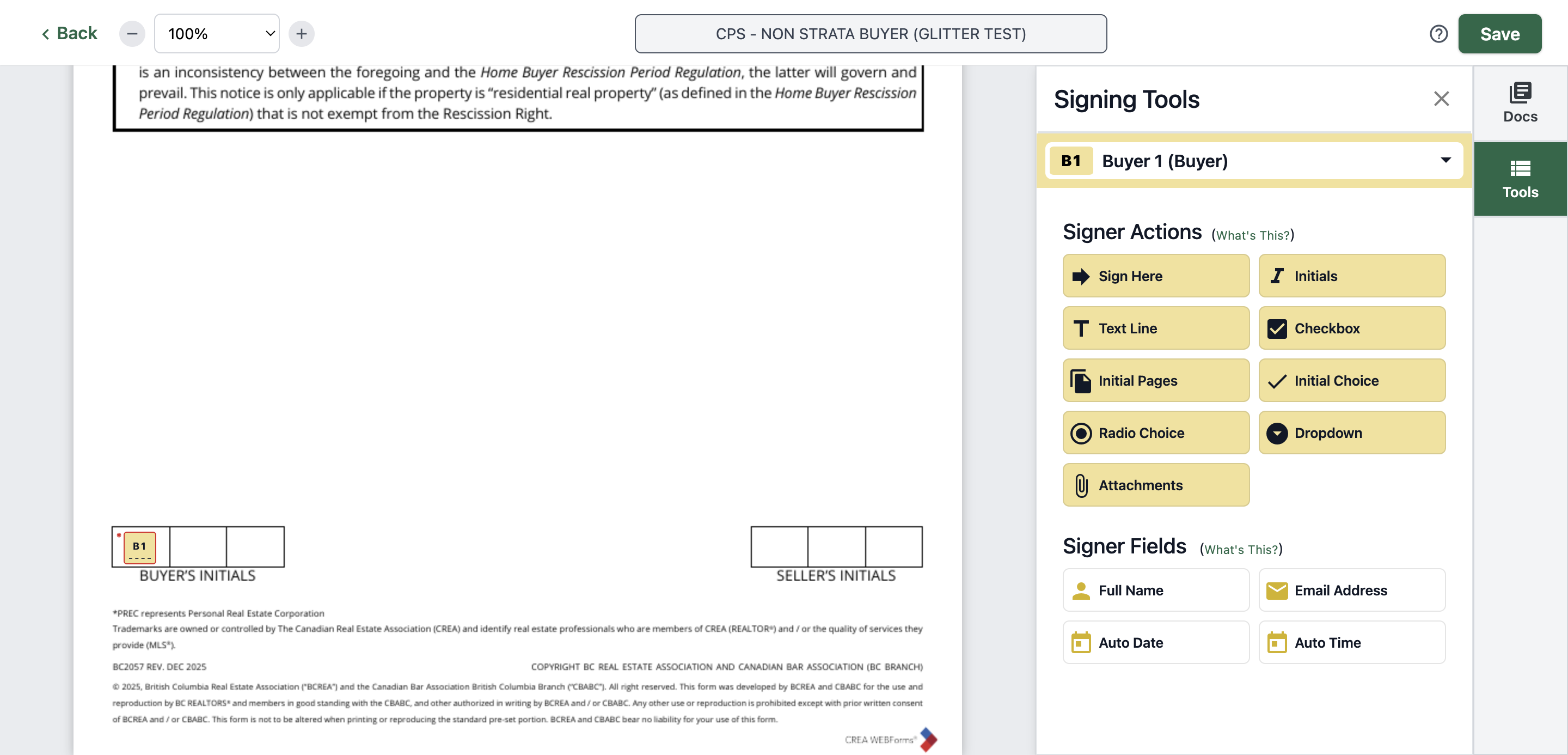
67
Put it on the designated area
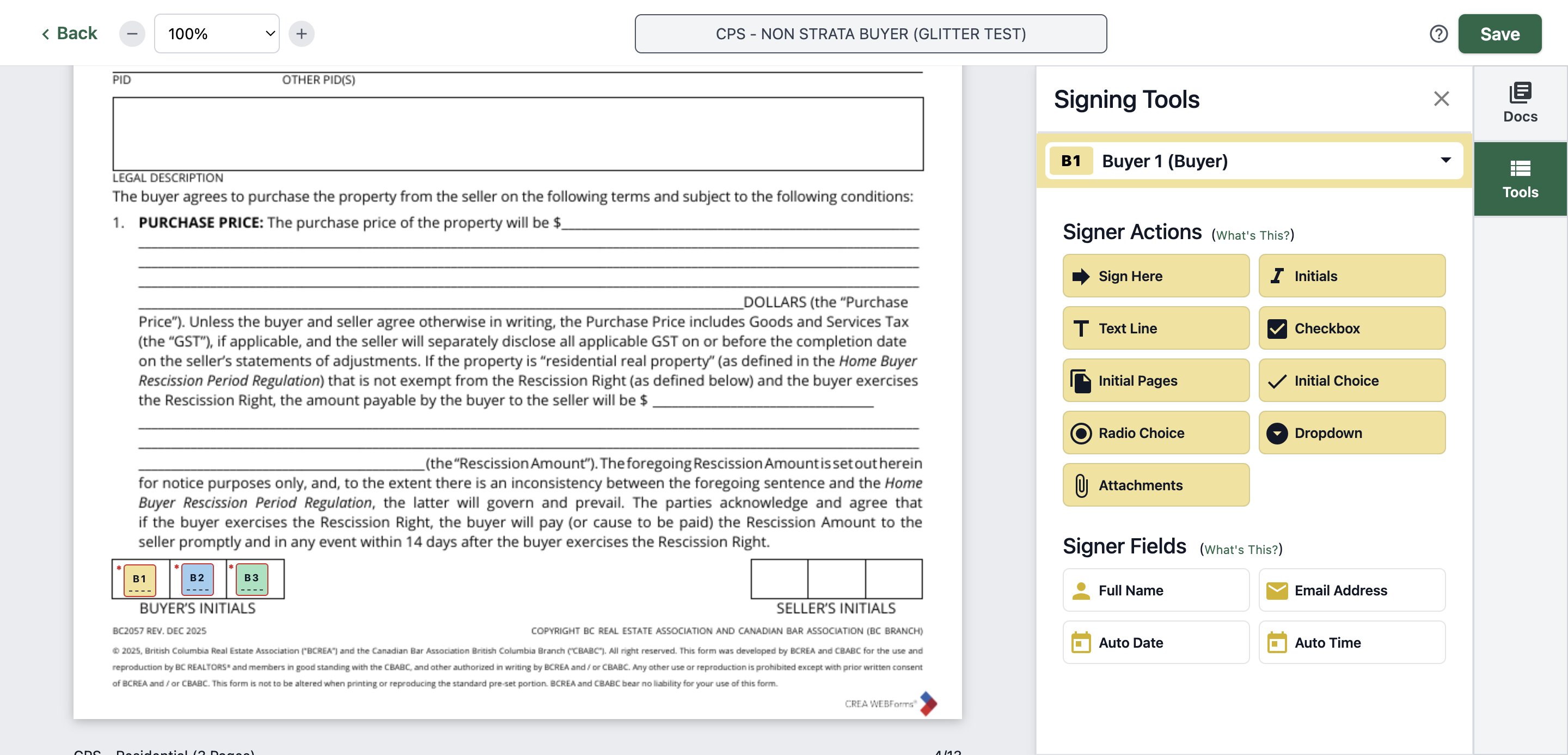
68
Go back to the page where you already put the three initials. Click on "B2"
69
Type "Ctrl + C"
70
Click here
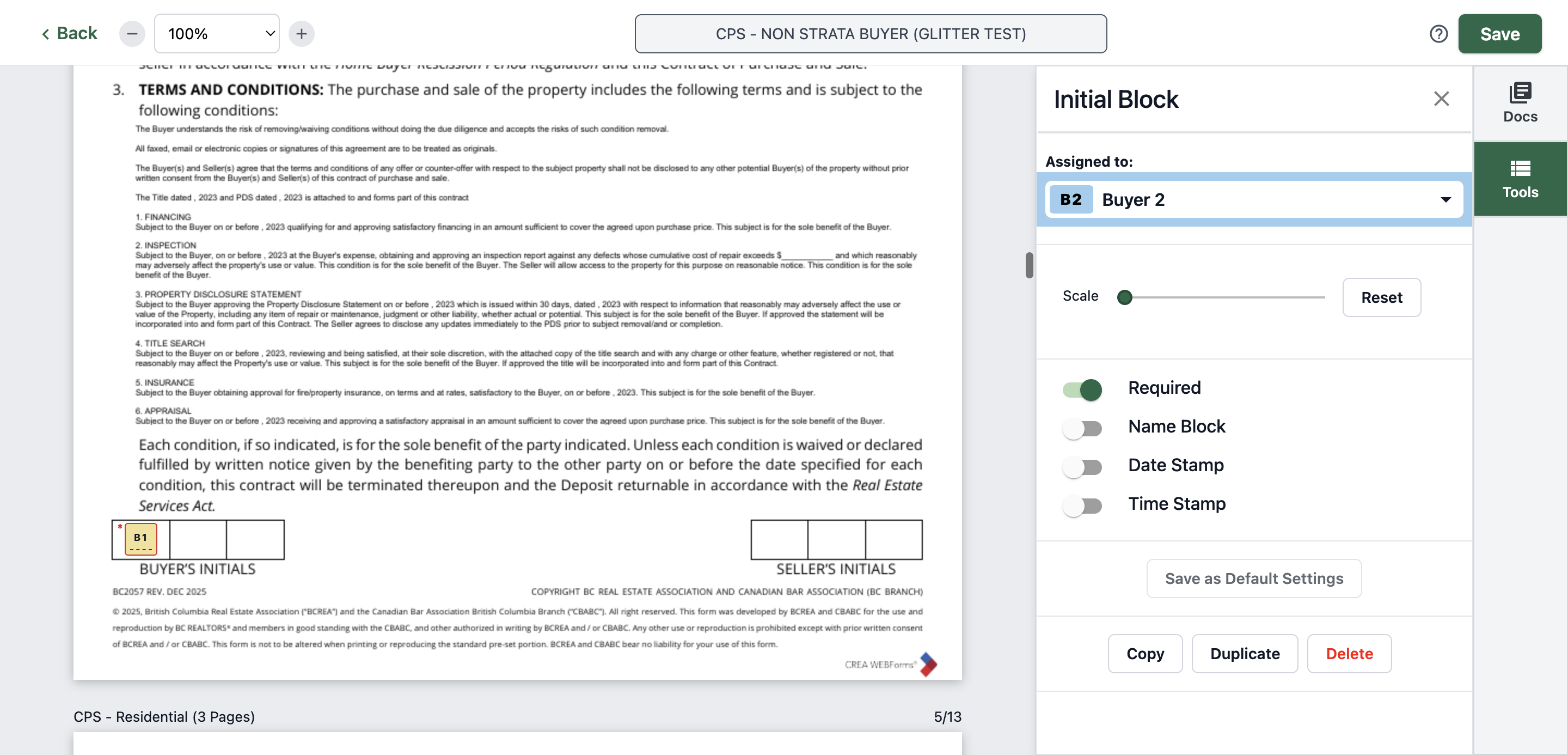
71
Type "Ctrl + V"
72
Click on "B2" and adjust
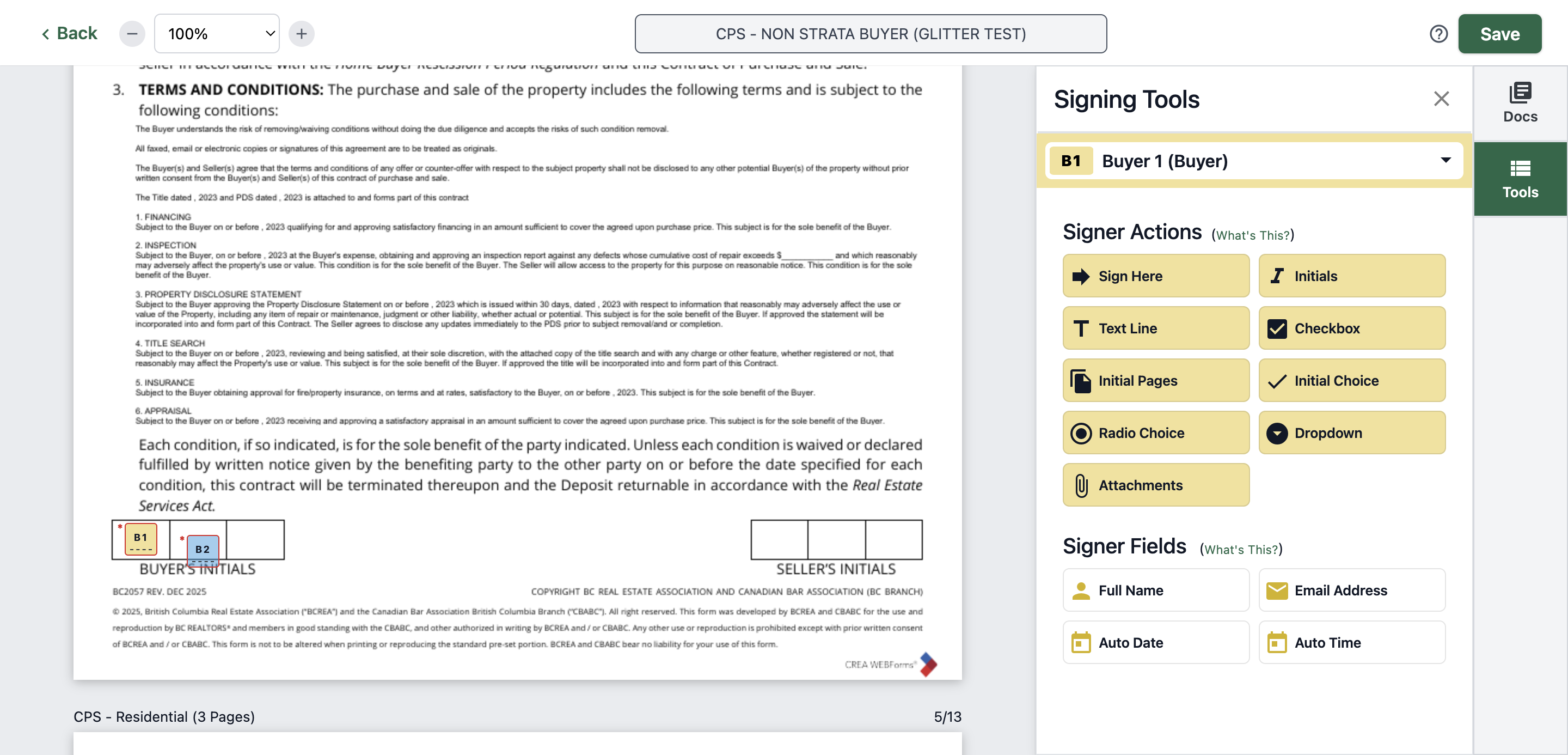
73
Click here
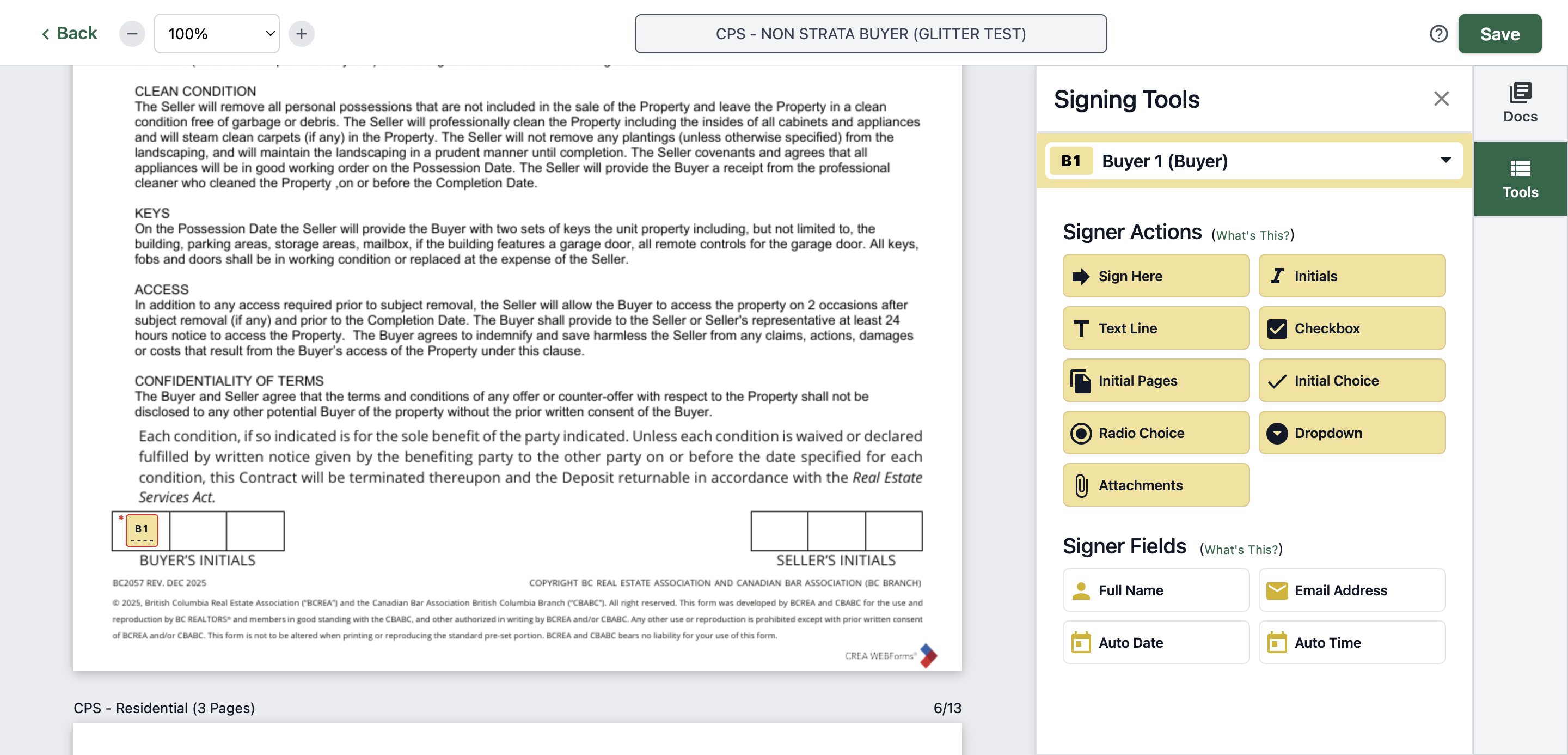
74
Type "Ctrl + V"
75
Click here
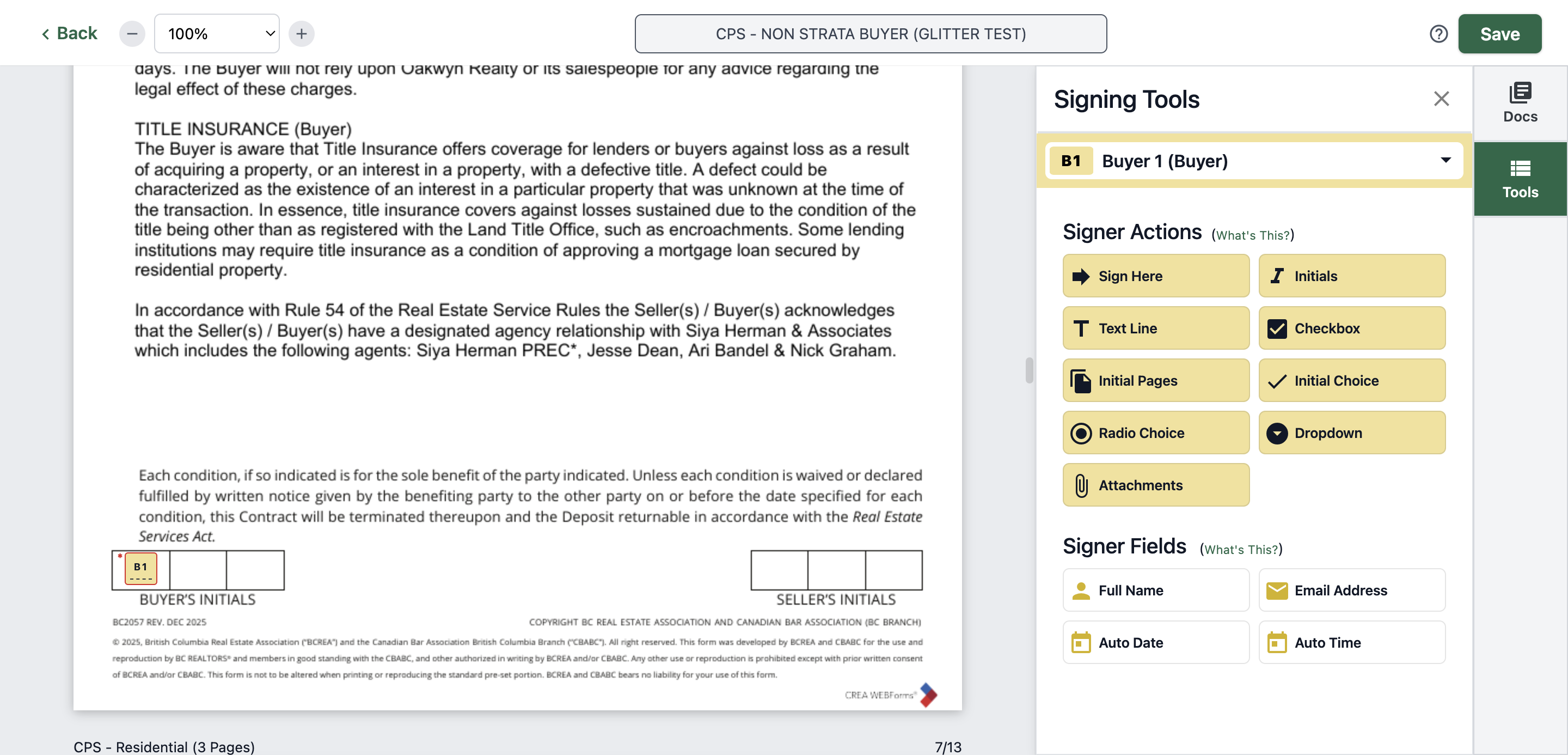
76
Type "Ctrl + V"
77
Click here
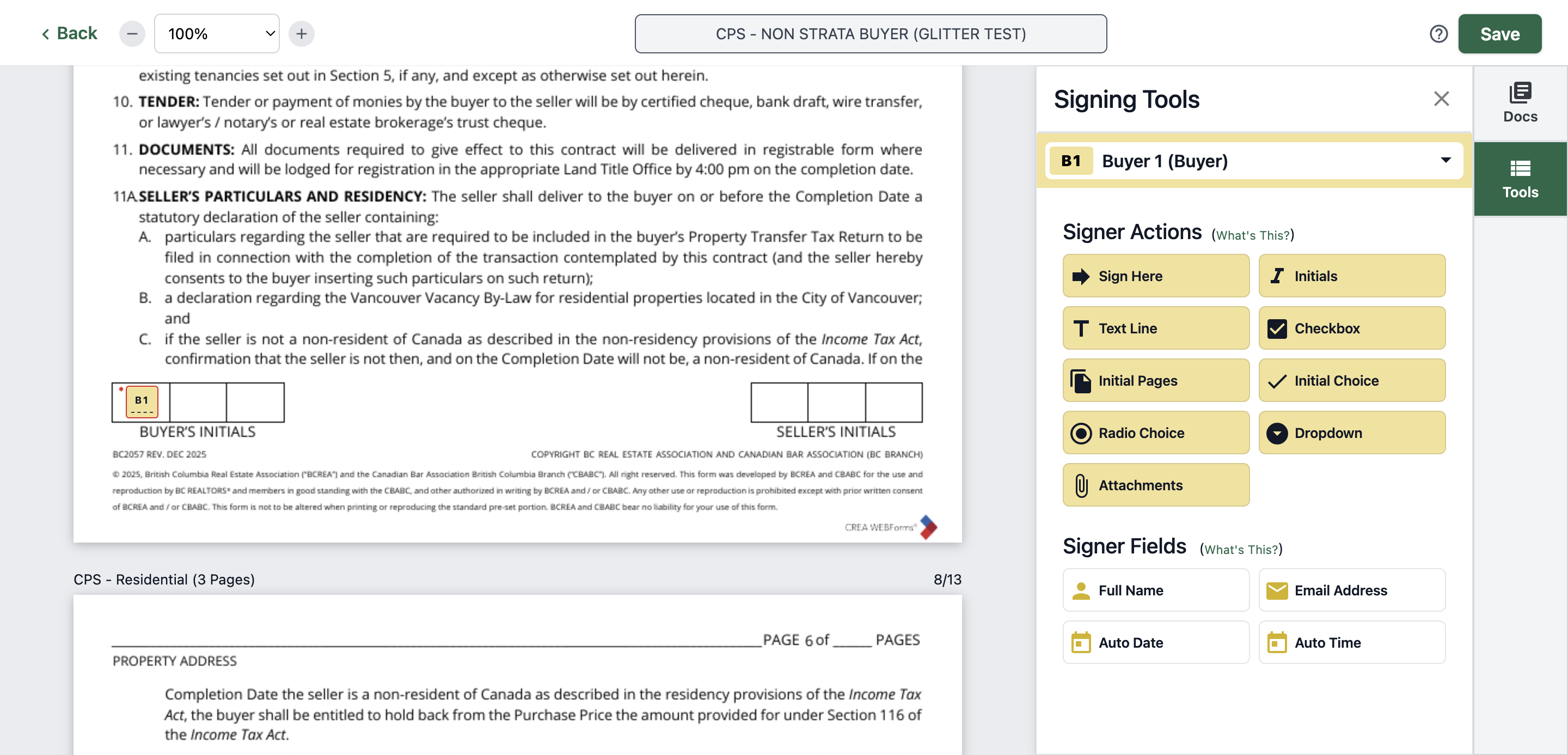
78
Type "Ctrl + V"
79
Click here
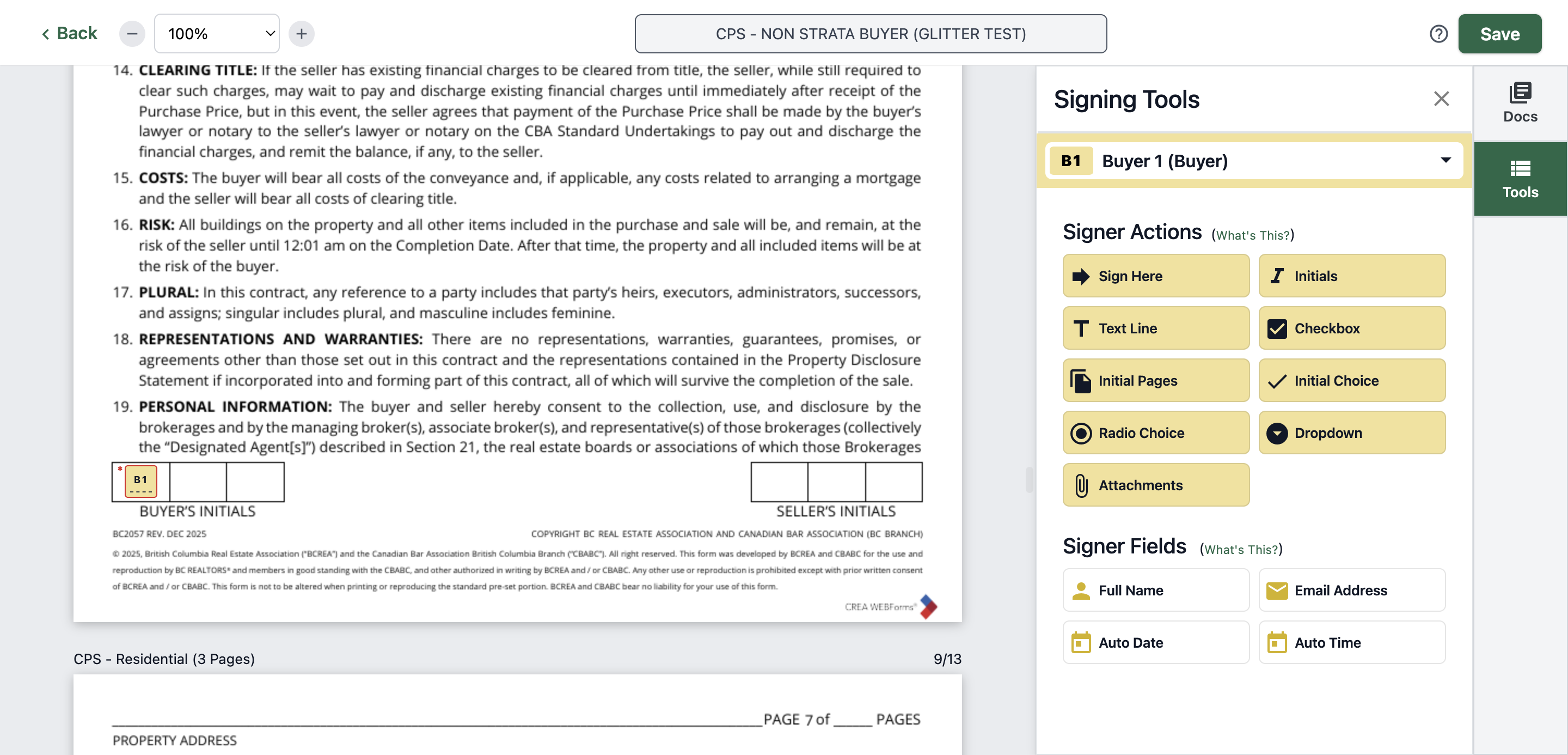
80
Type "Ctrl + V"
81
Click here
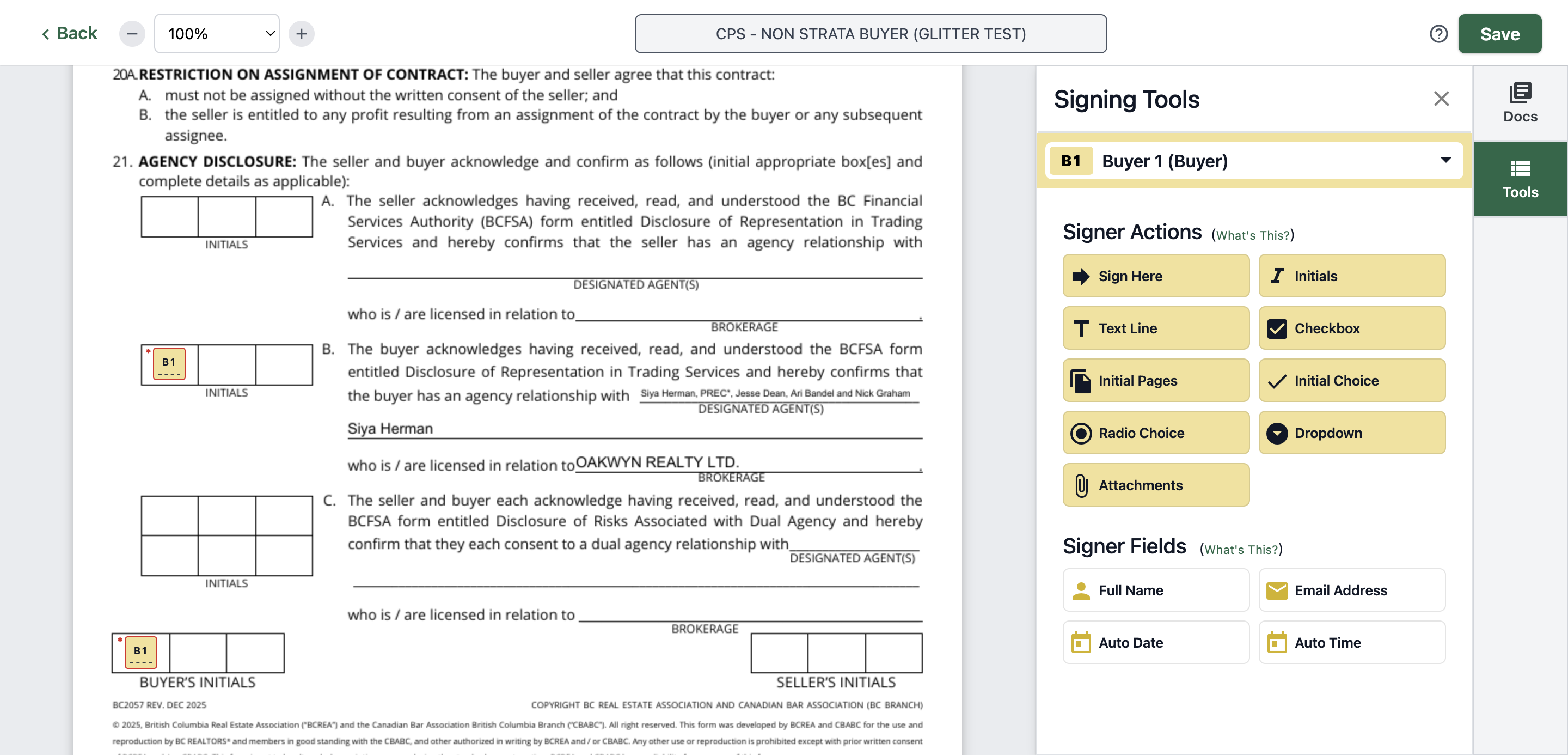
82
Type "Ctrl + V"
83
Click here
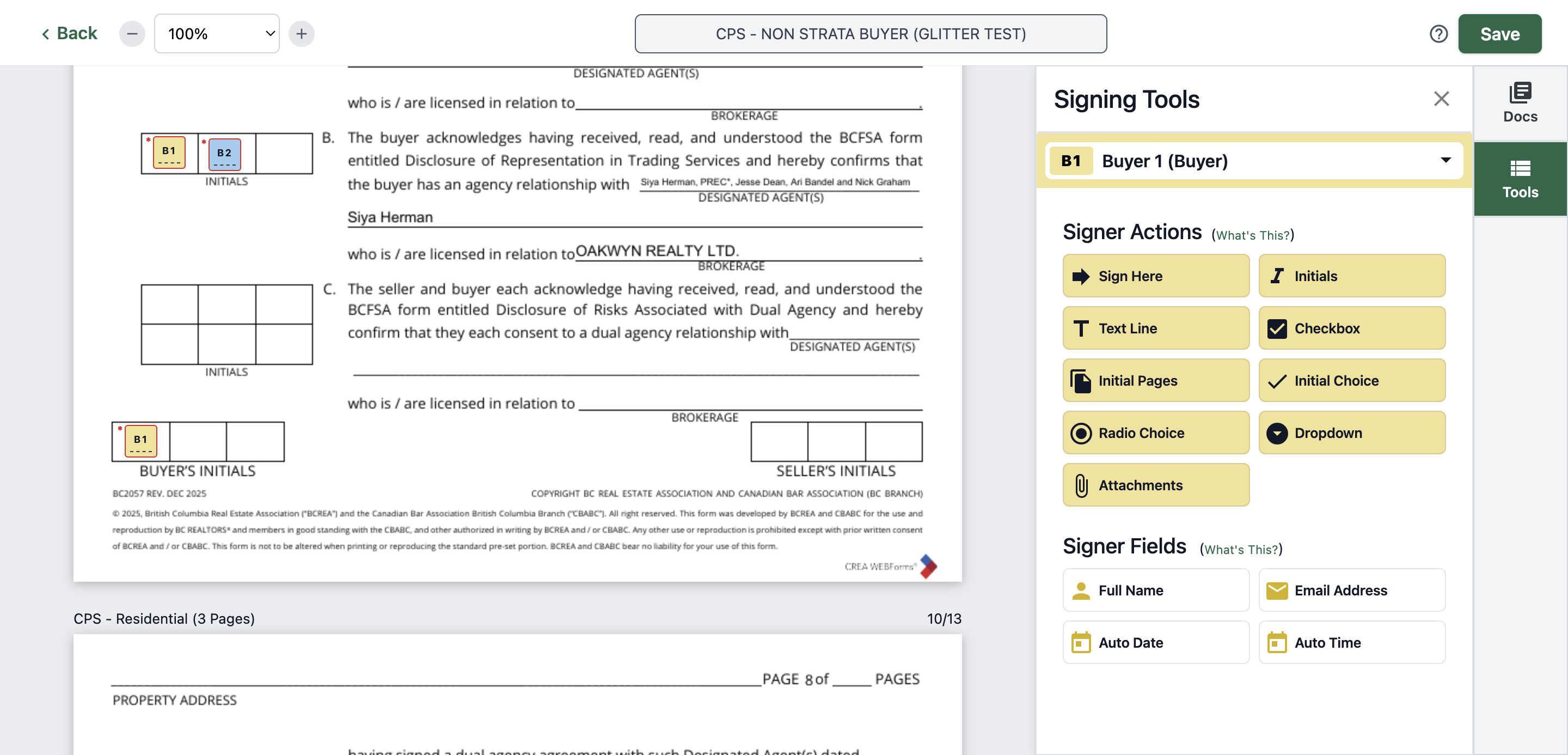
84
Type "Ctrl + V"
85
Click here
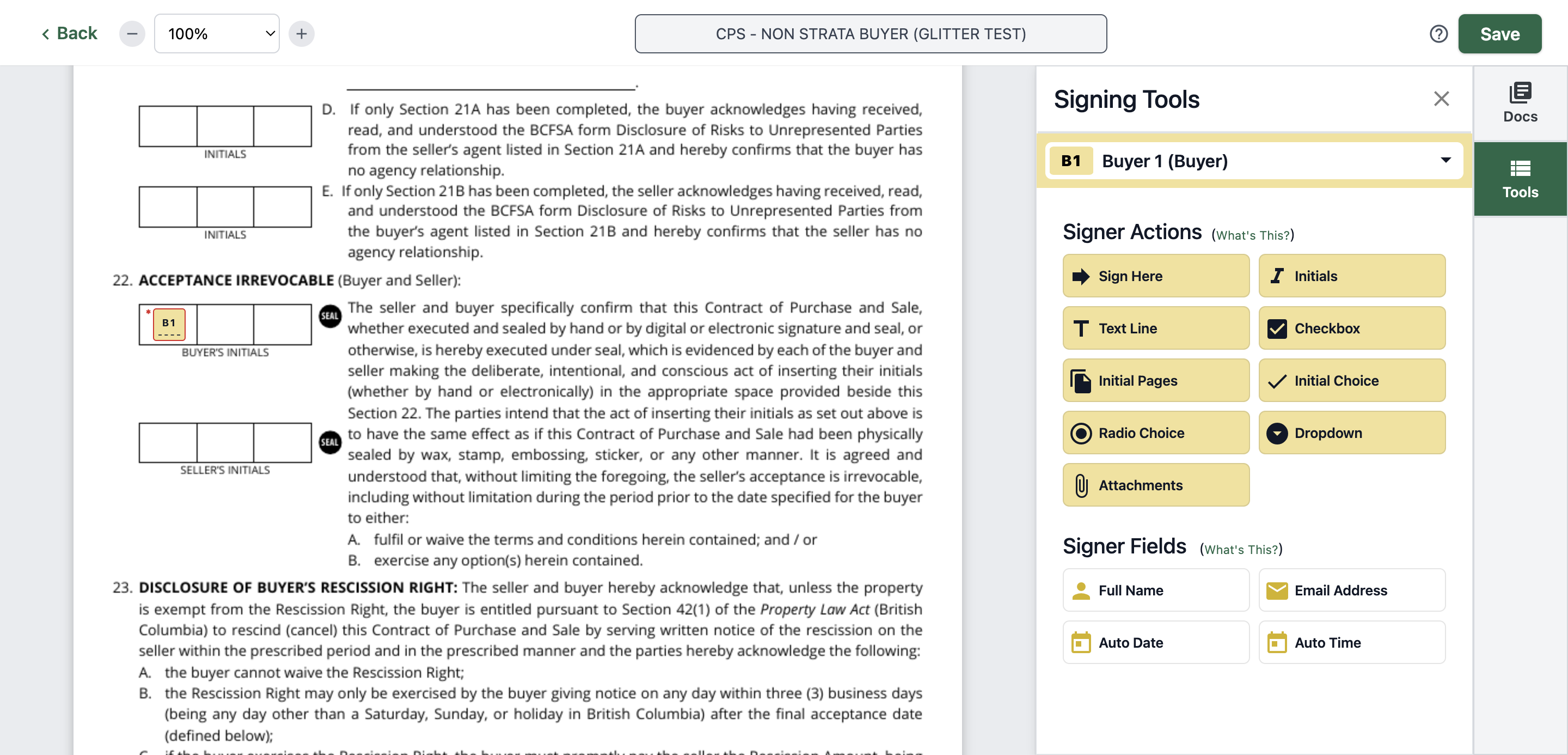
86
Type "CtrlC + V"
87
Click here
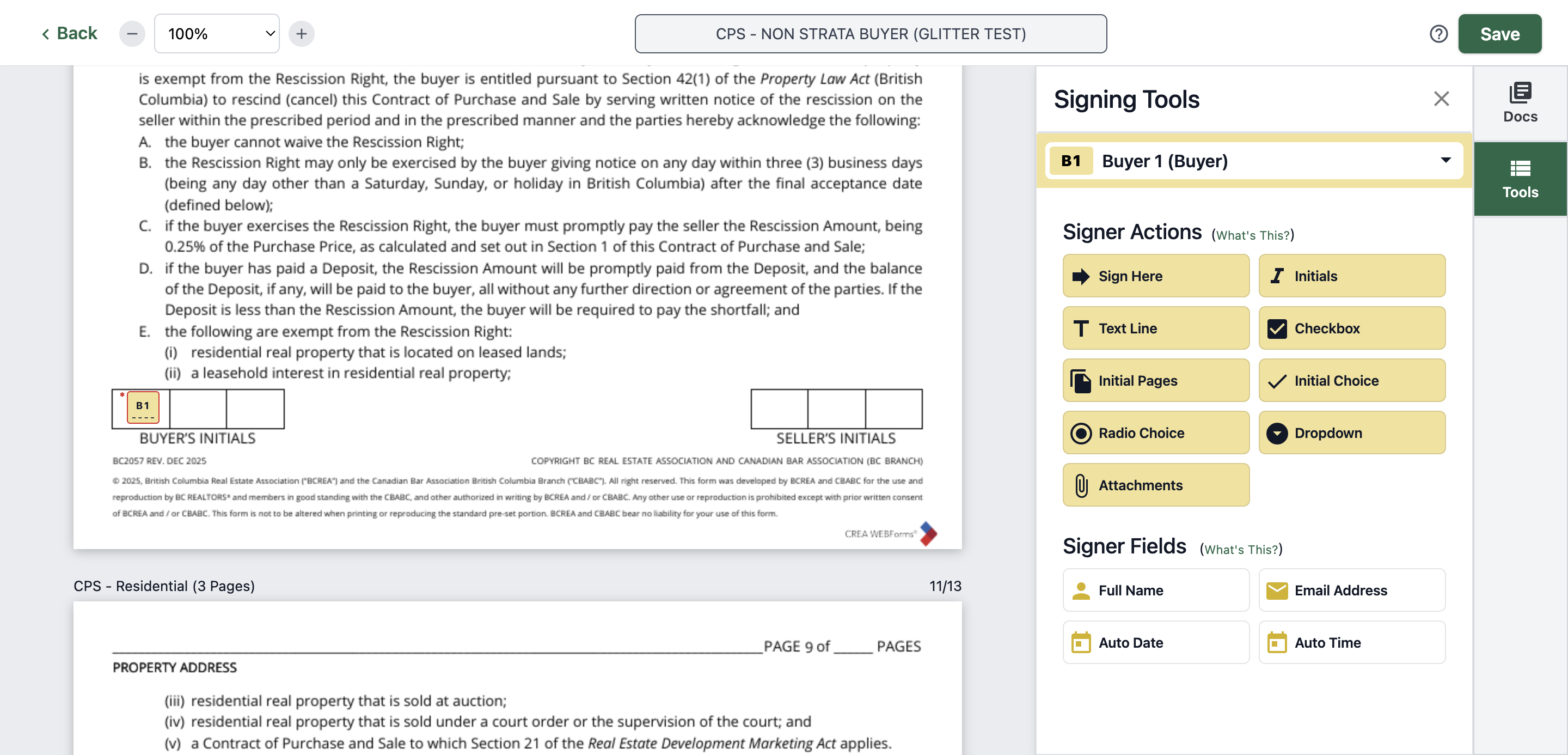
88
Type "Ctrl + V"
89
Click here
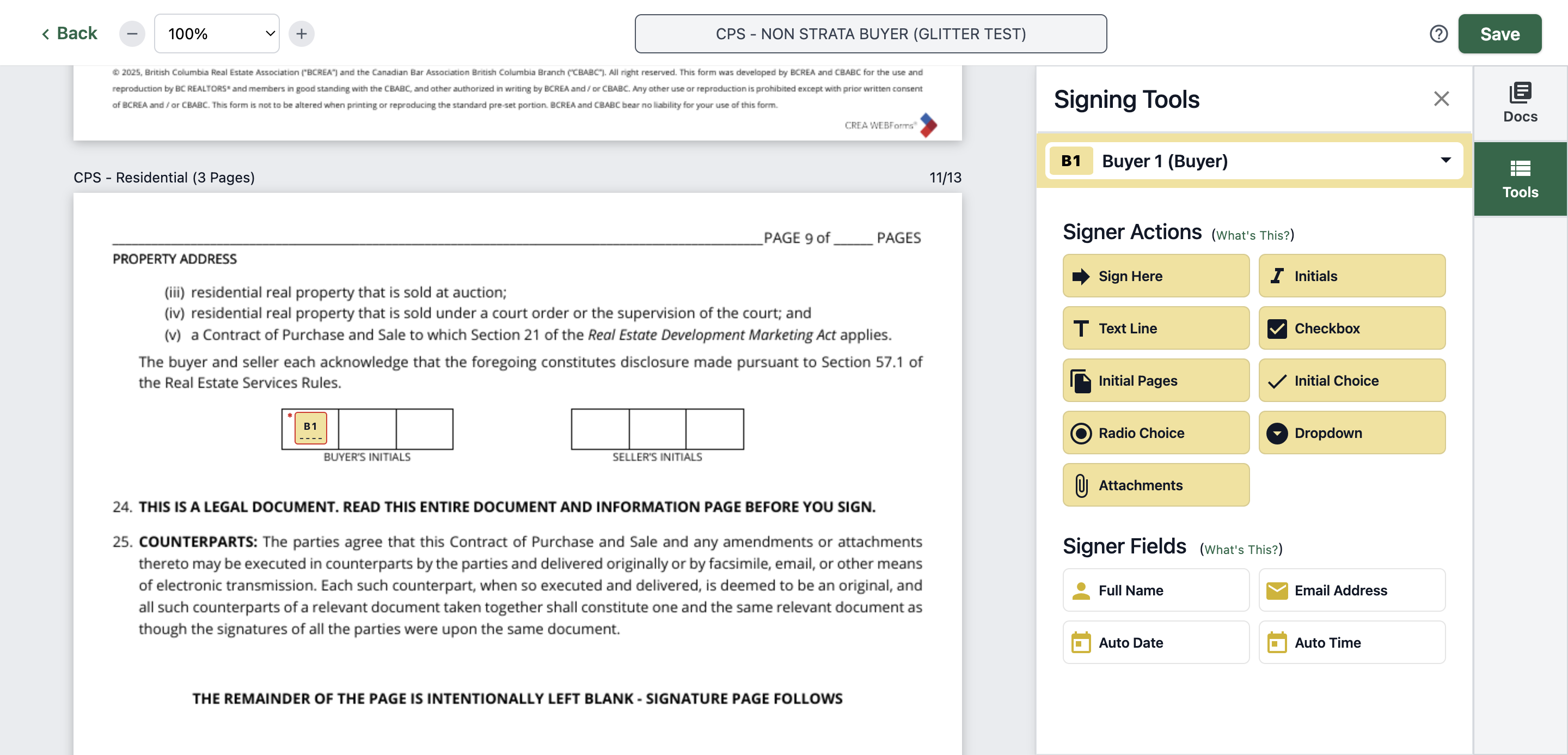
90
Type "Ctrl + V"
91
Click here
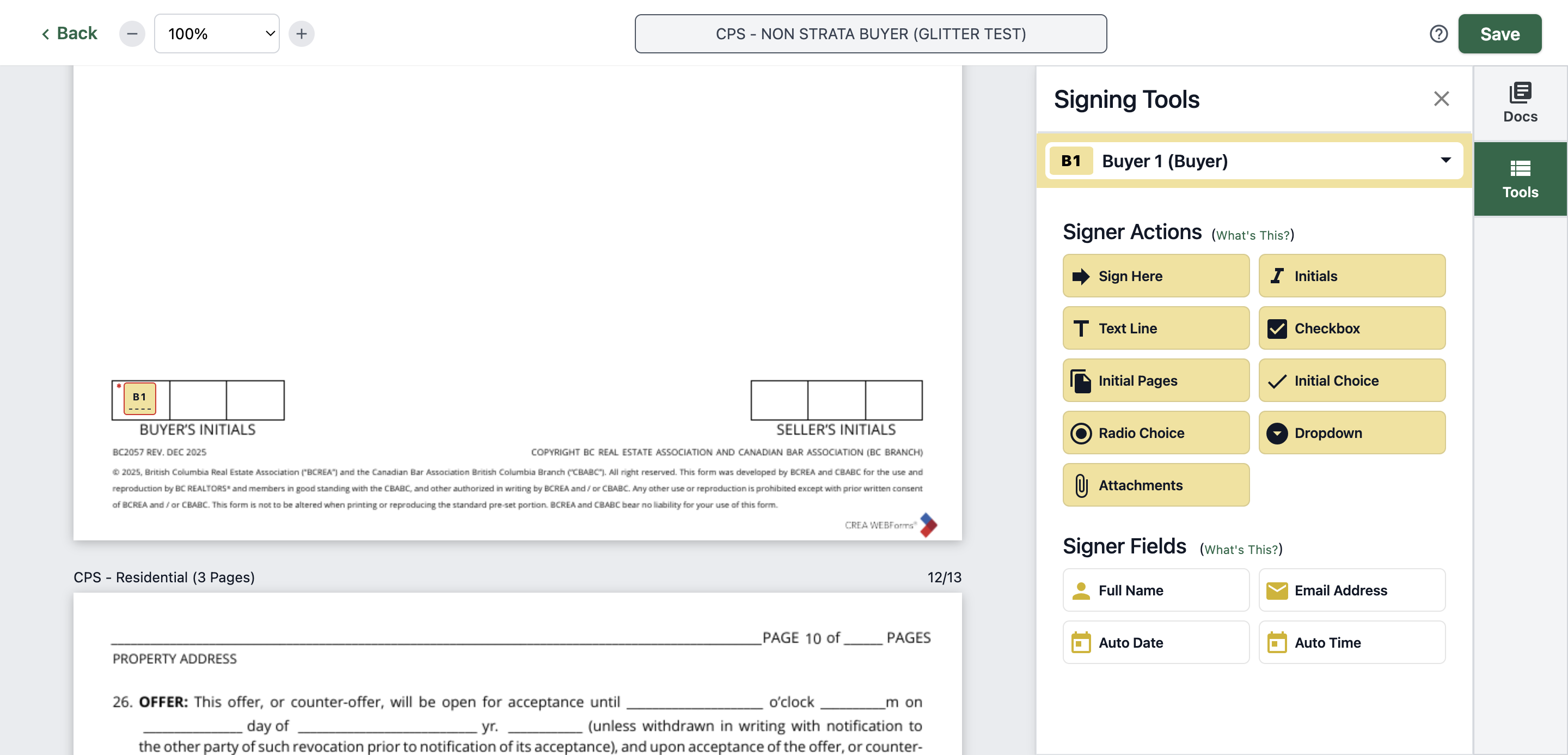
92
Type "Ctrl + V"
93
Click on
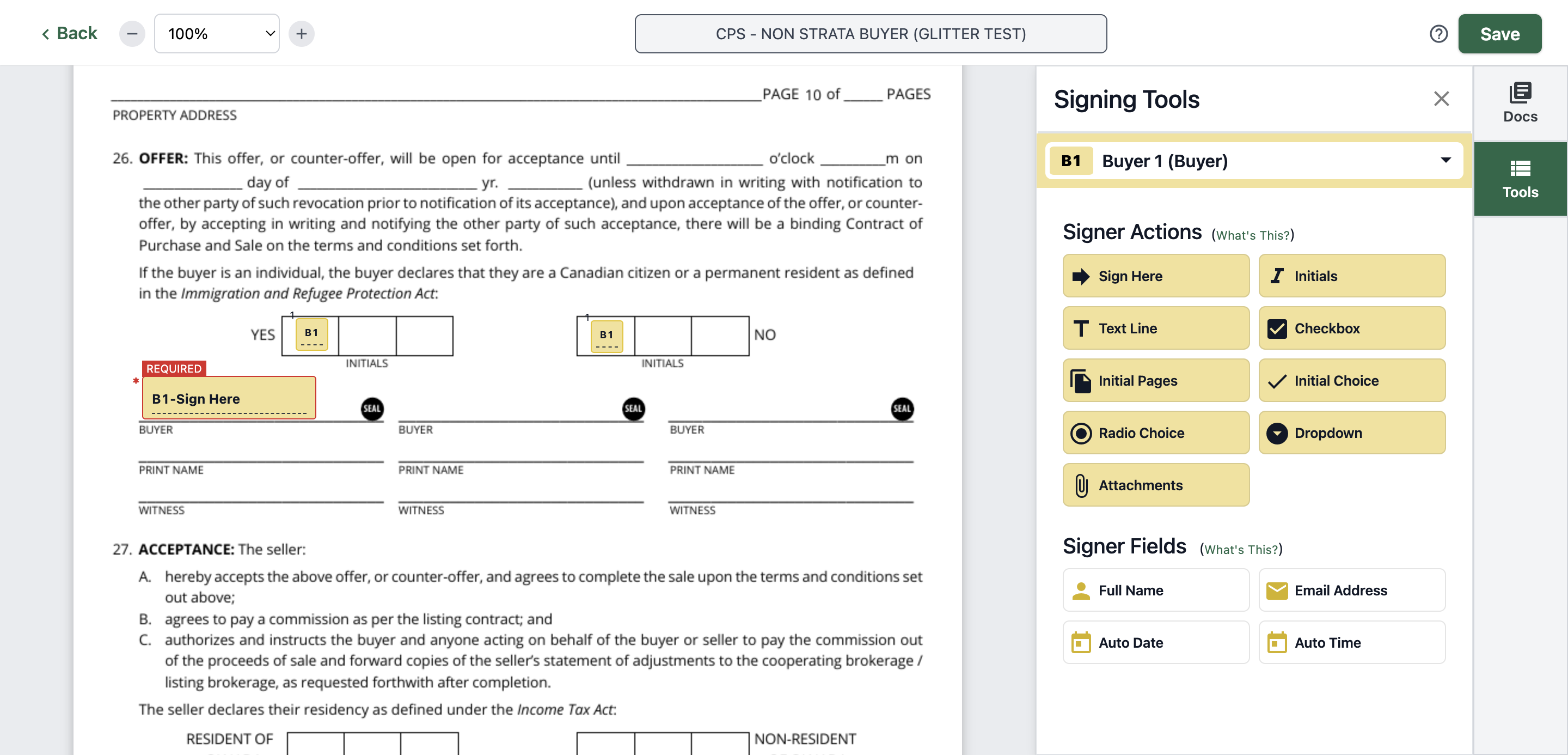
94
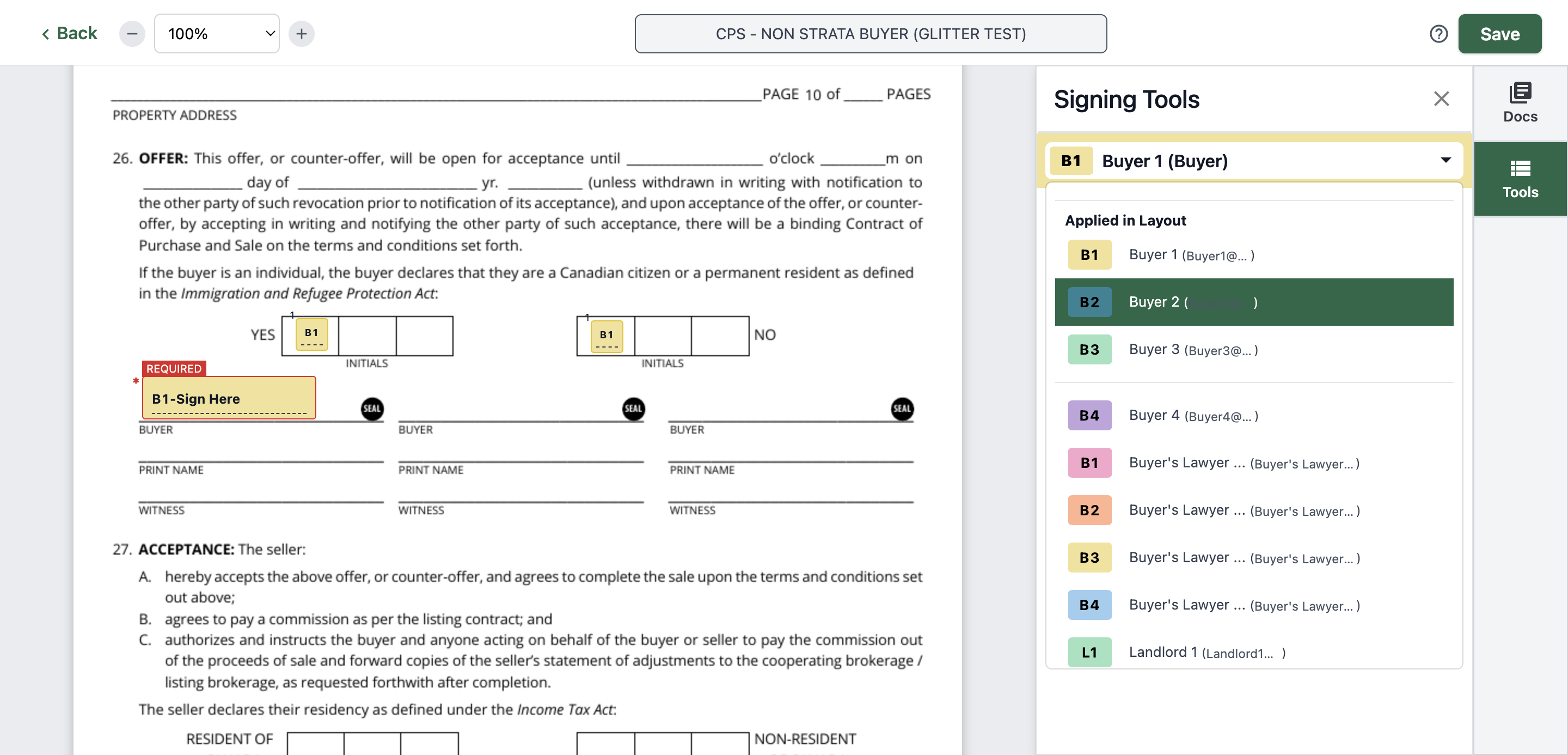
Click on "Buyer 2"
95
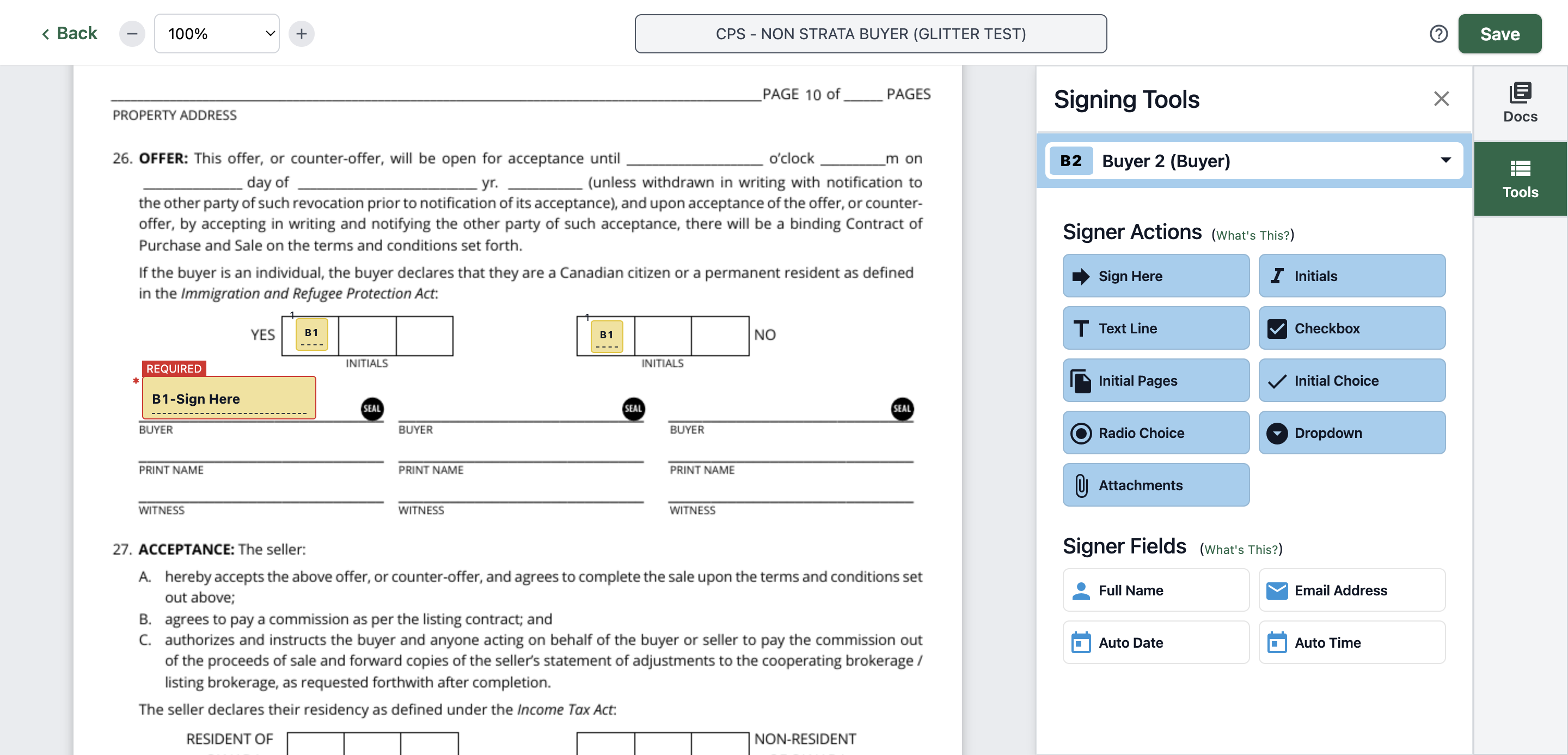
For this page, you need to click on "Initial Choice"
96
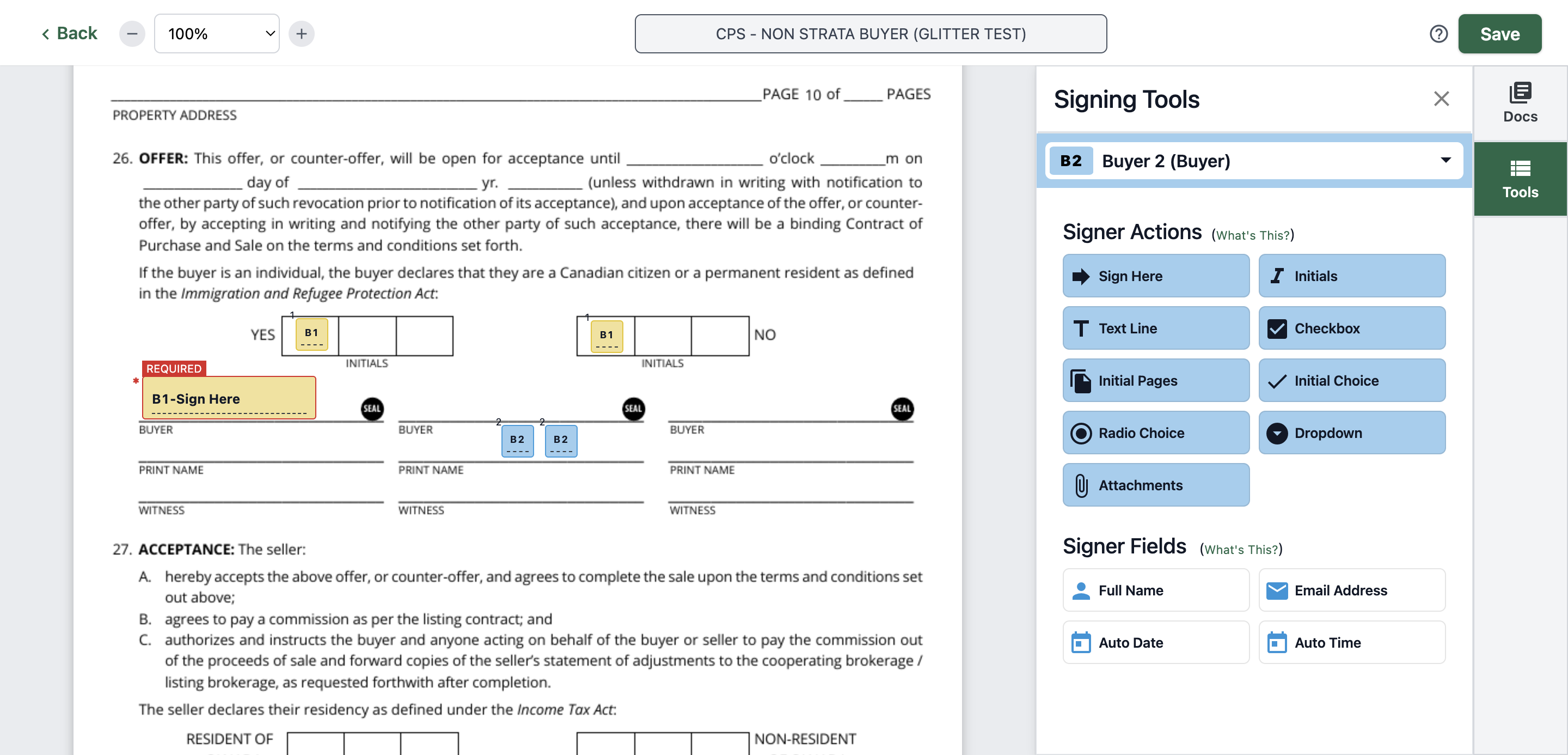
Click on "B2"
97
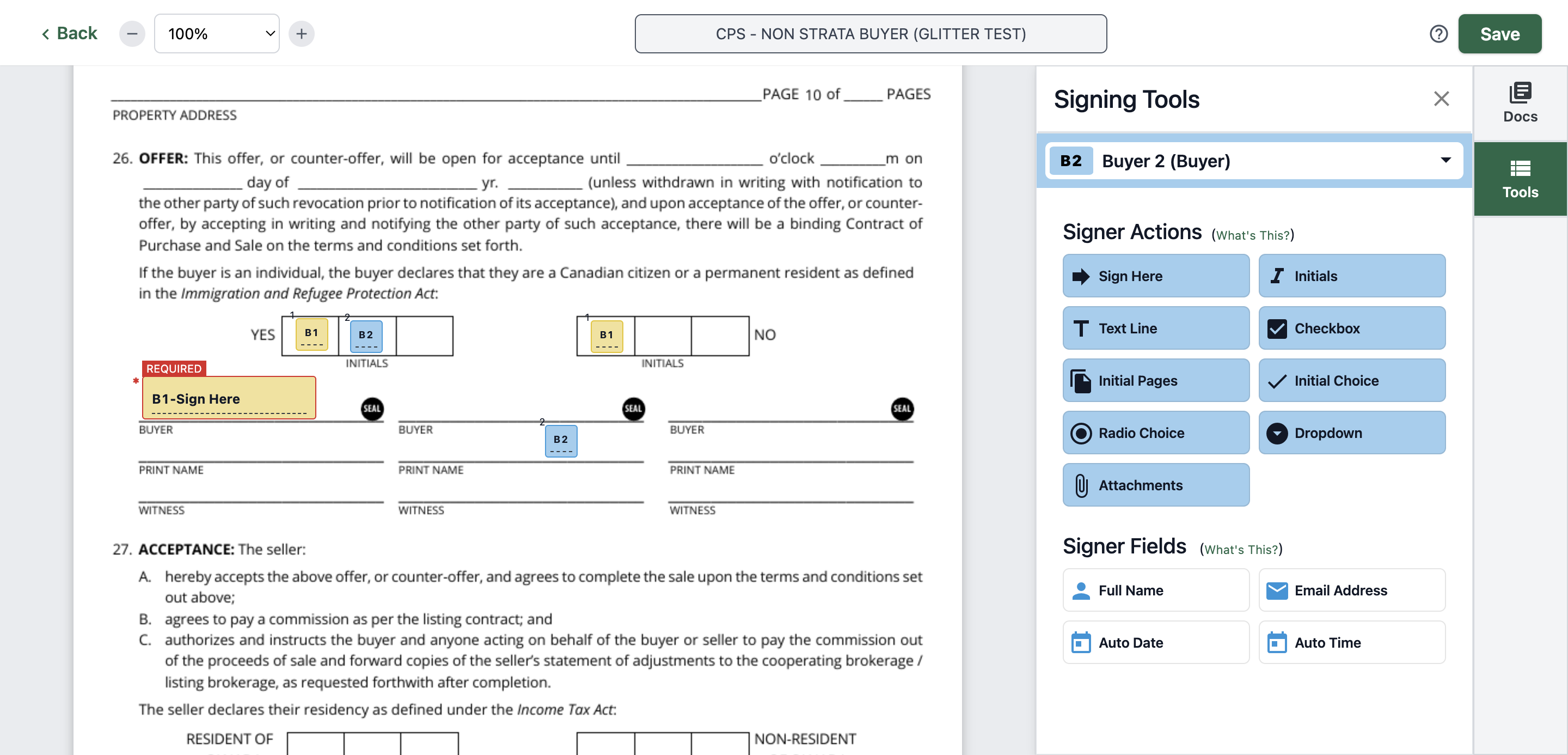
Click on "B2"
98
Click on "Sign Here"
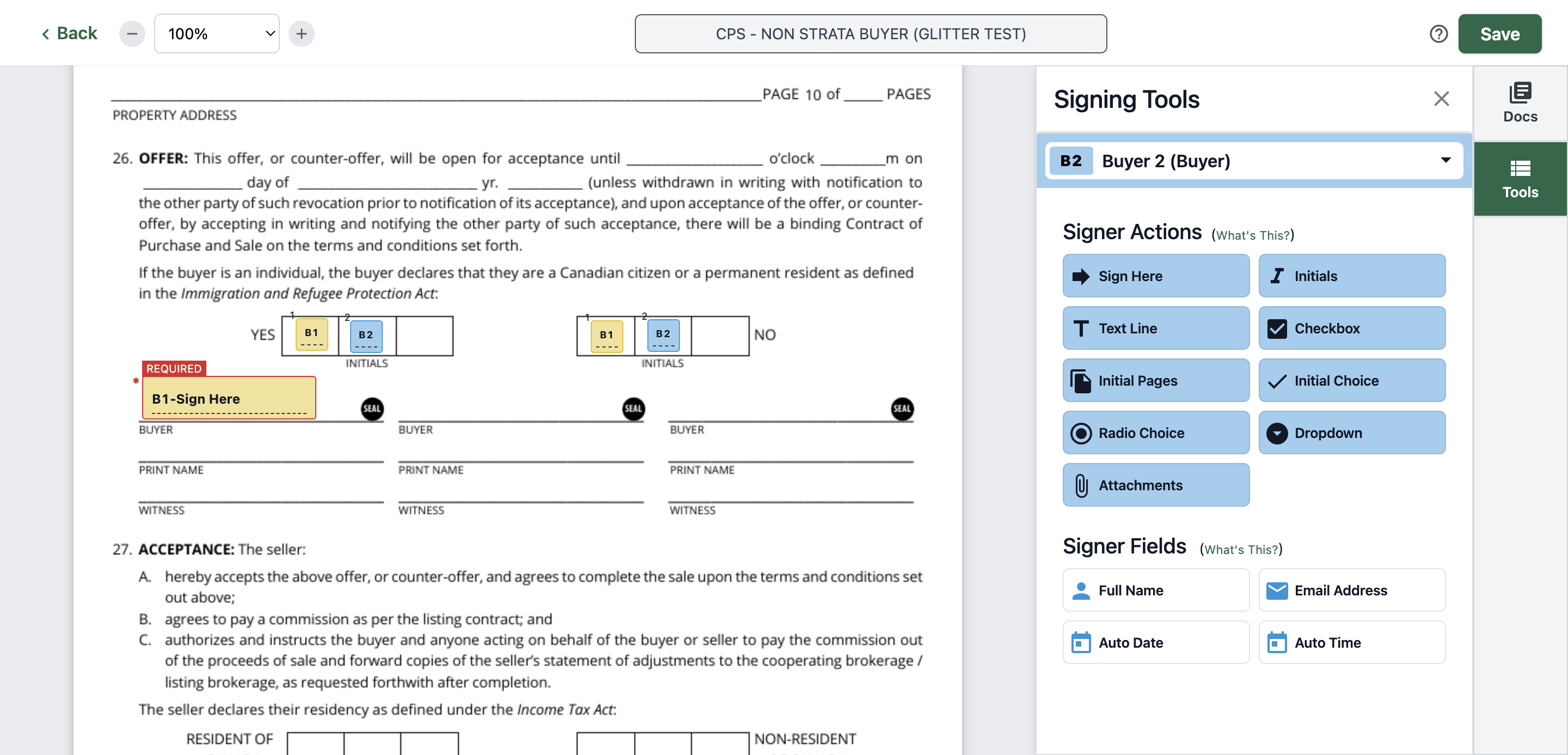
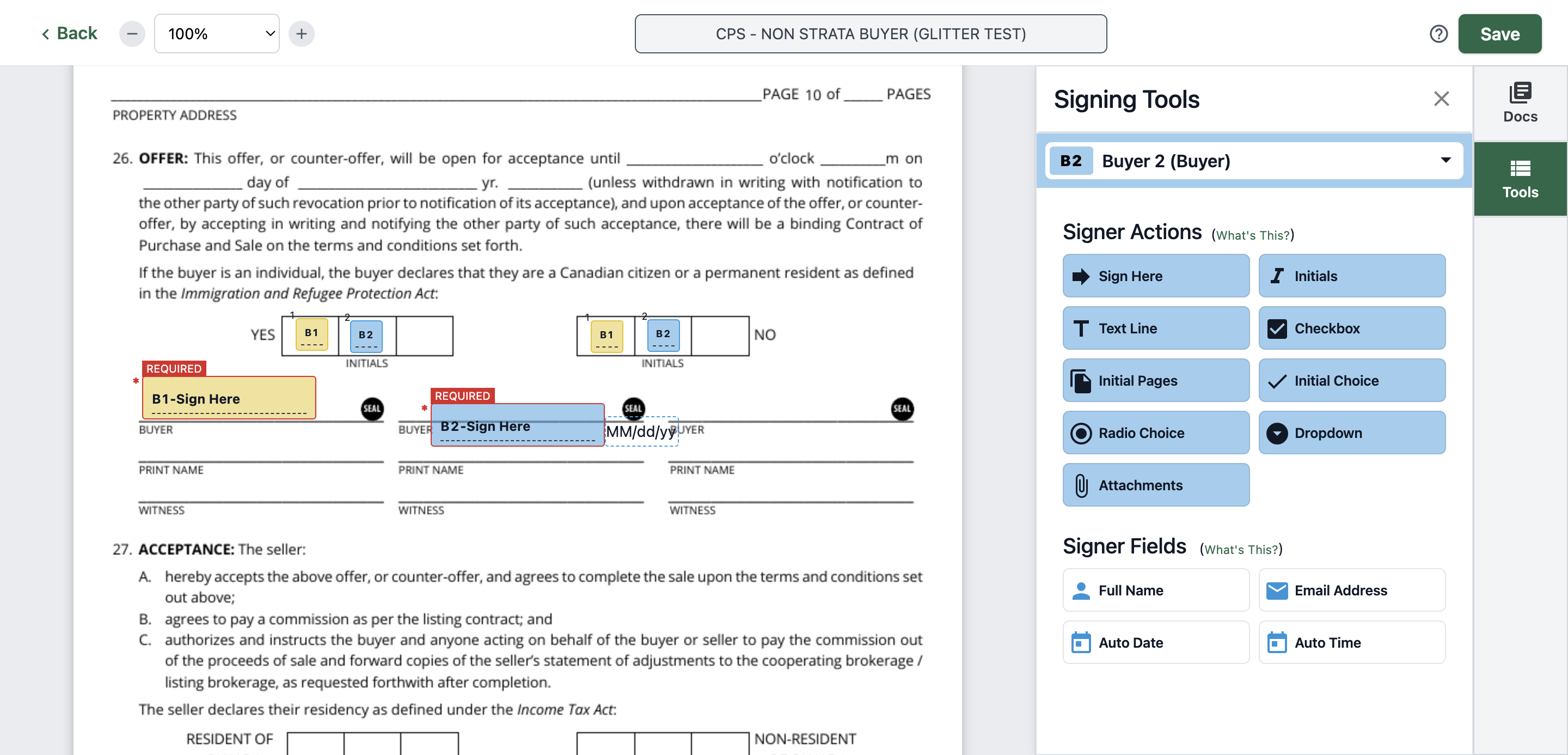
99
Put the signature on the designated area
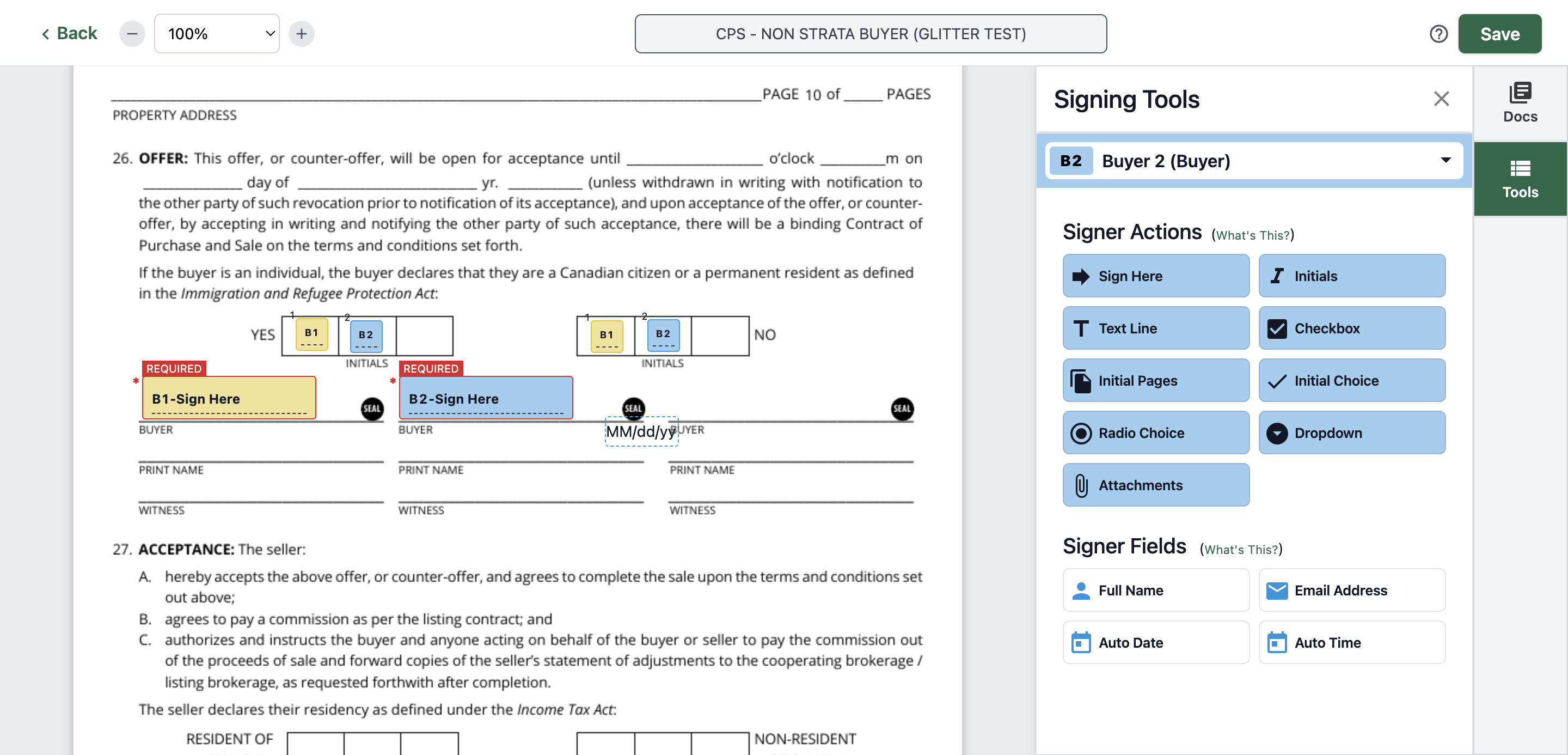
100
Click on date then remove it
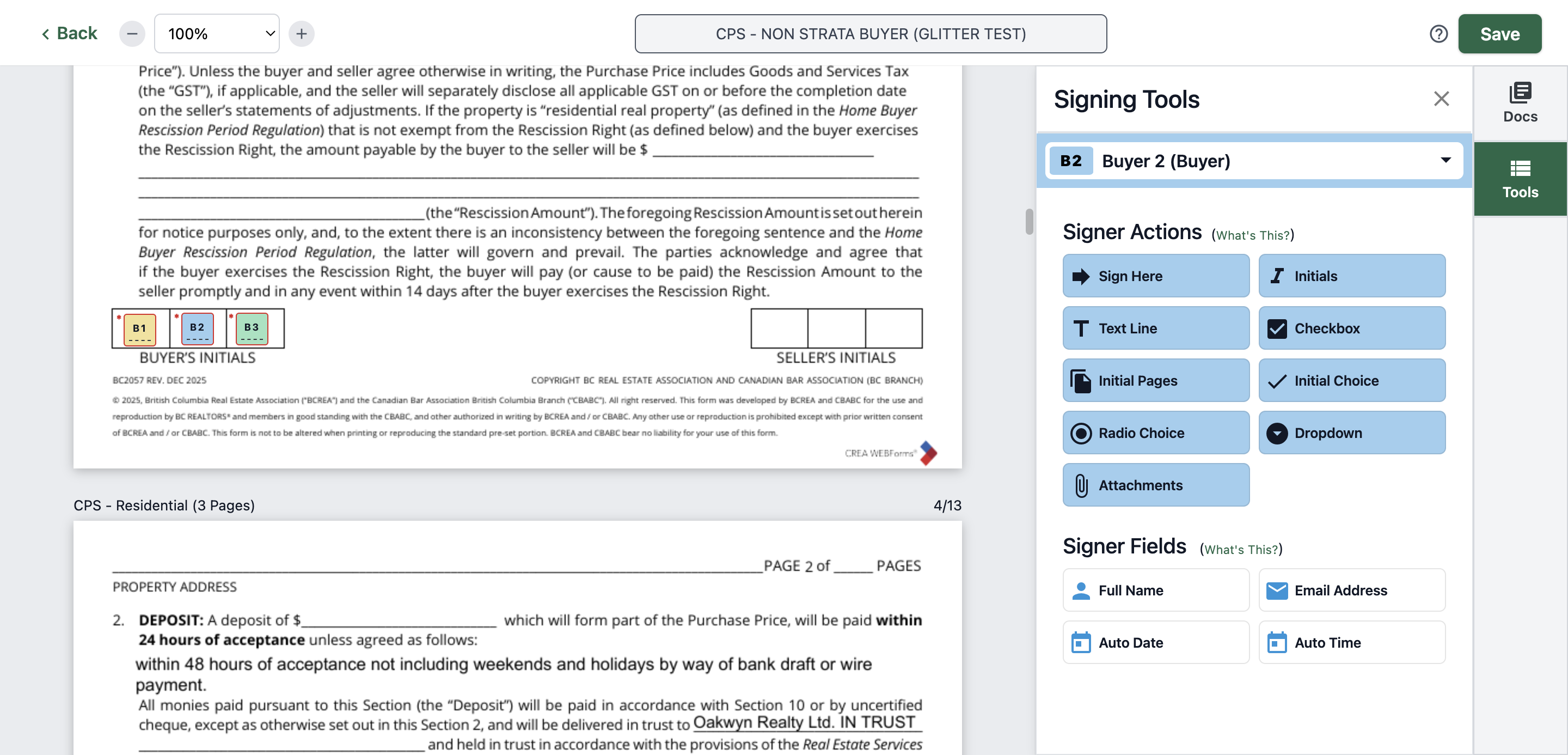
101
Go back to the page where you put the three initials then click on "B3"
102
Type "Ctrl + C"
103
Click here
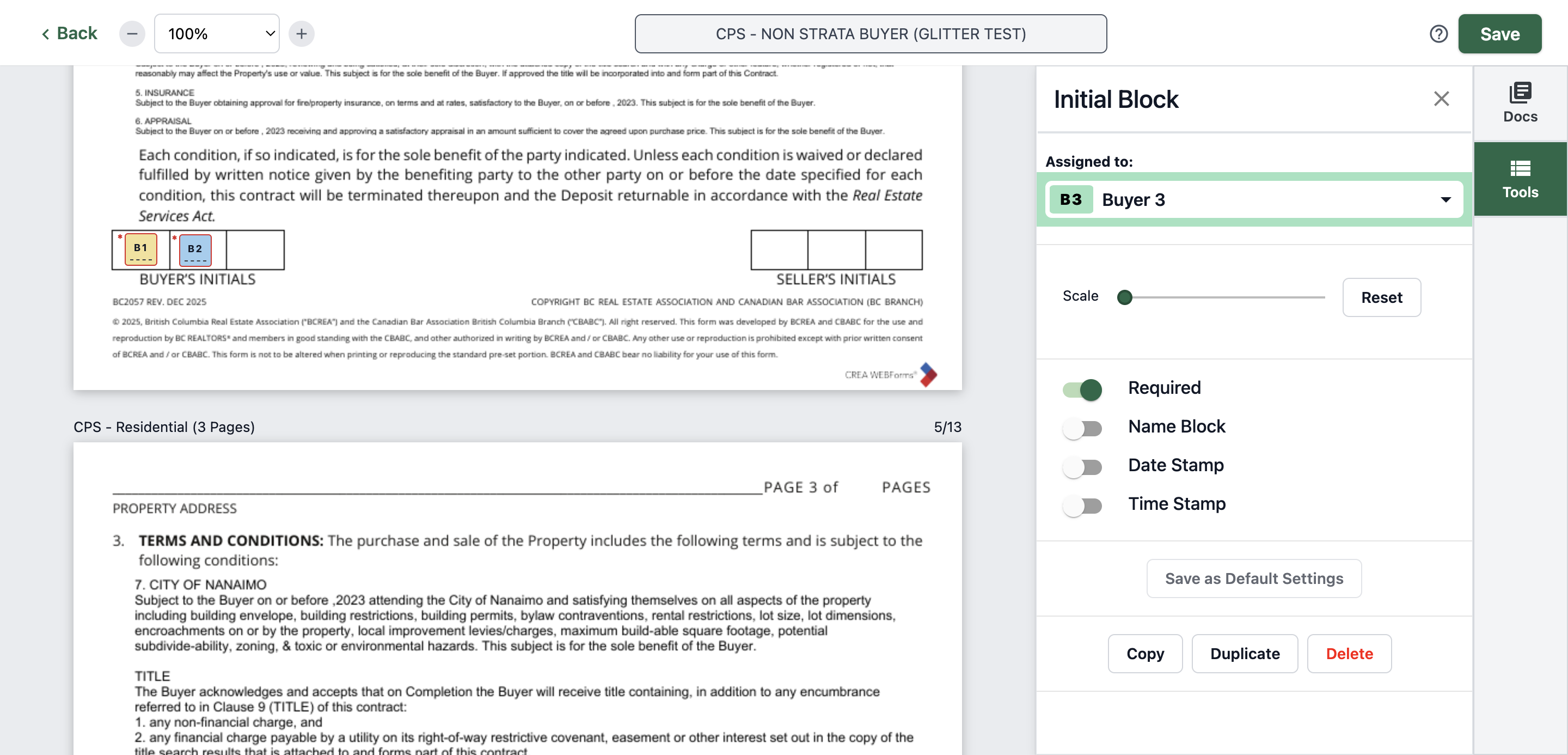
104
Type "Ctrl + V"
105
Click here
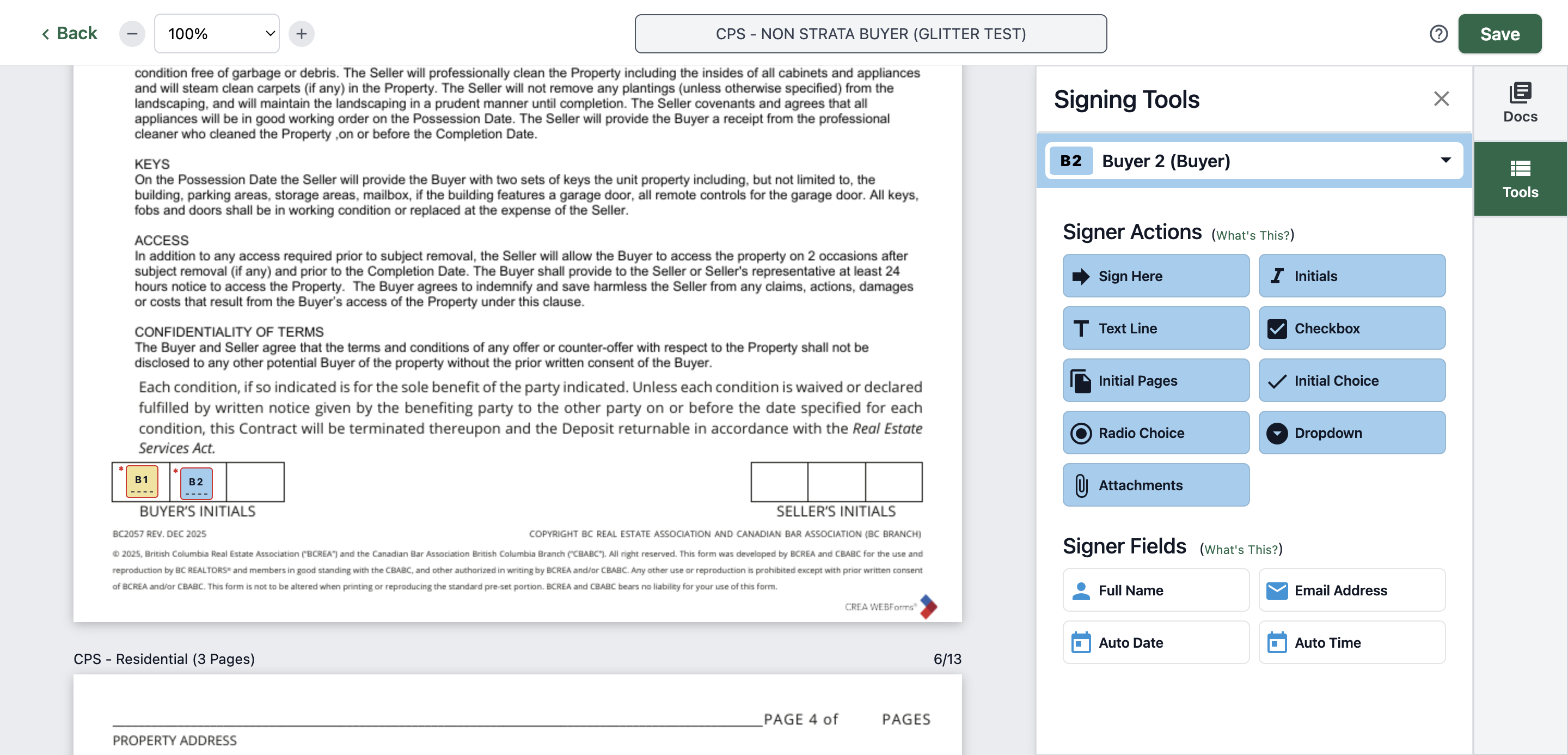
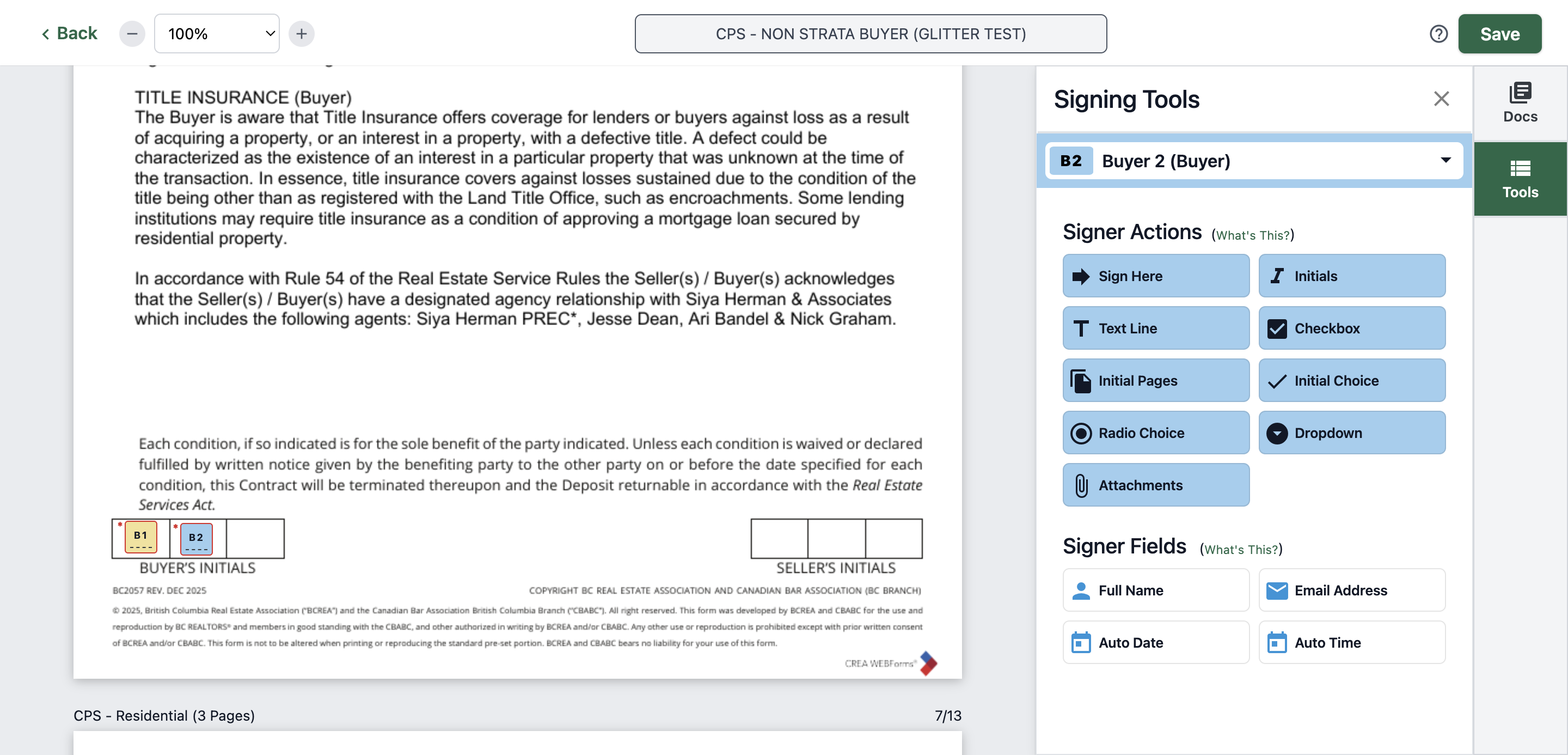
106
Type "Ctrl + V"
107
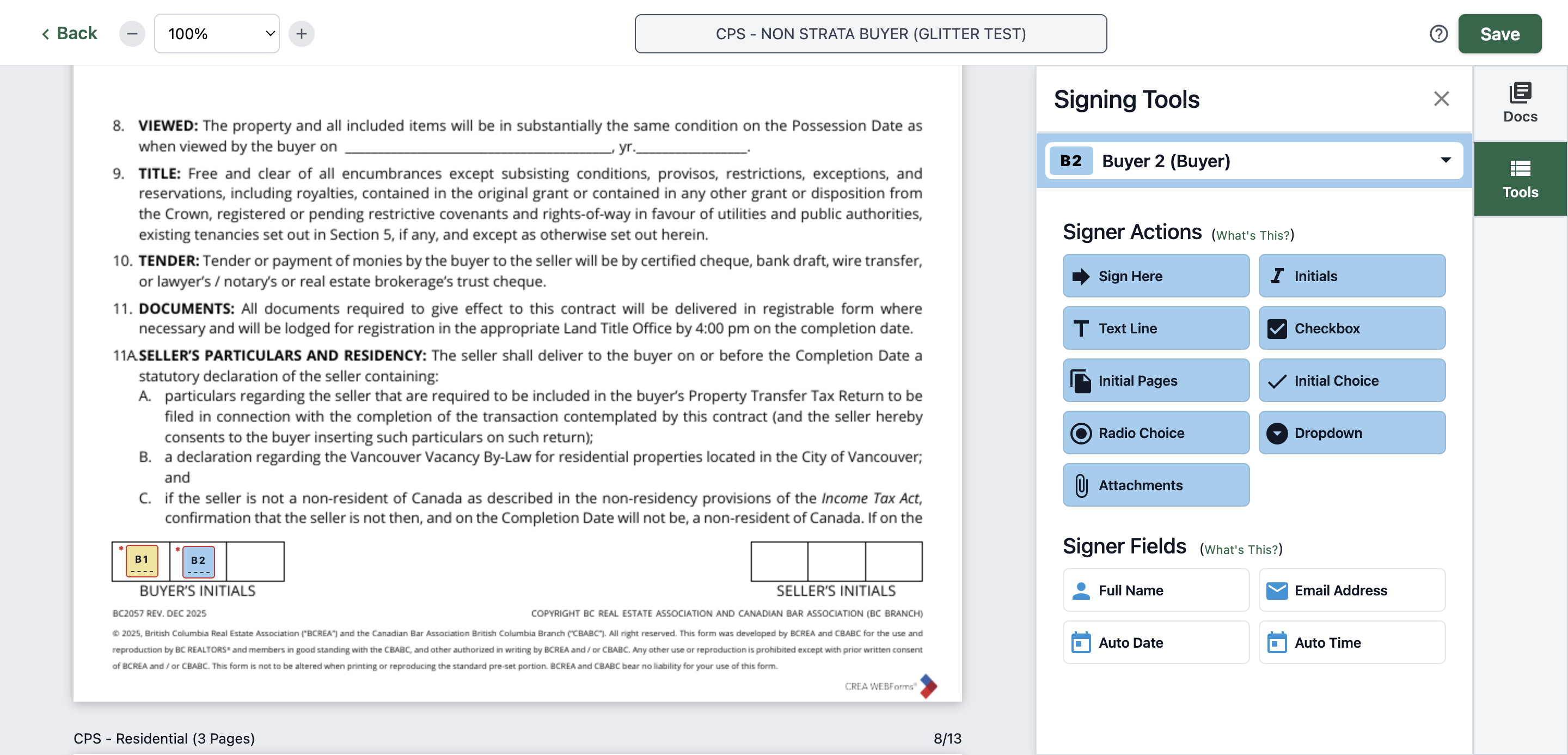
Click here
108
Type "Ctrl + V"
109
Click here
110
Type "Ctrl + V"
111
Click on "brokerages and by the managing broker ( s ) , associate br the " Designated Agent [ s ] " ) described in Section 21 , the"
![Step #111: Click on "brokerages and by the managing broker ( s ) , associate br the " Designated Agent [ s ] " ) described in Section 21 , the"](https://di8mn0rali2ic.cloudfront.net/uploads/fa315743-3b87-44ab-938b-b4869331bbae/ce6c9763-d796-4016-a4f3-adcda7bd84db.png)
112
Type "Ctrl + V"
113
Click here
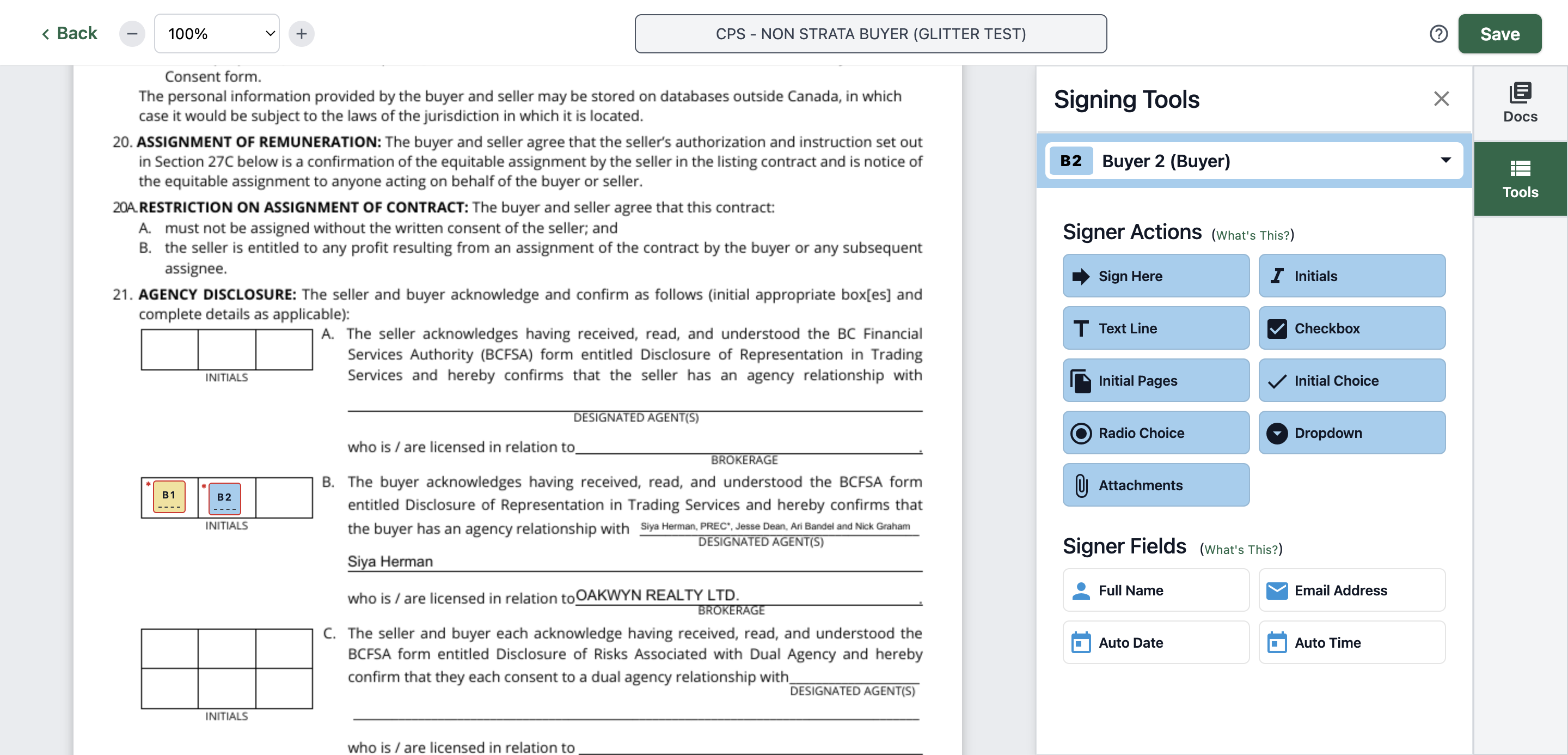
114
Type "Ctrl + V"
115
Click here
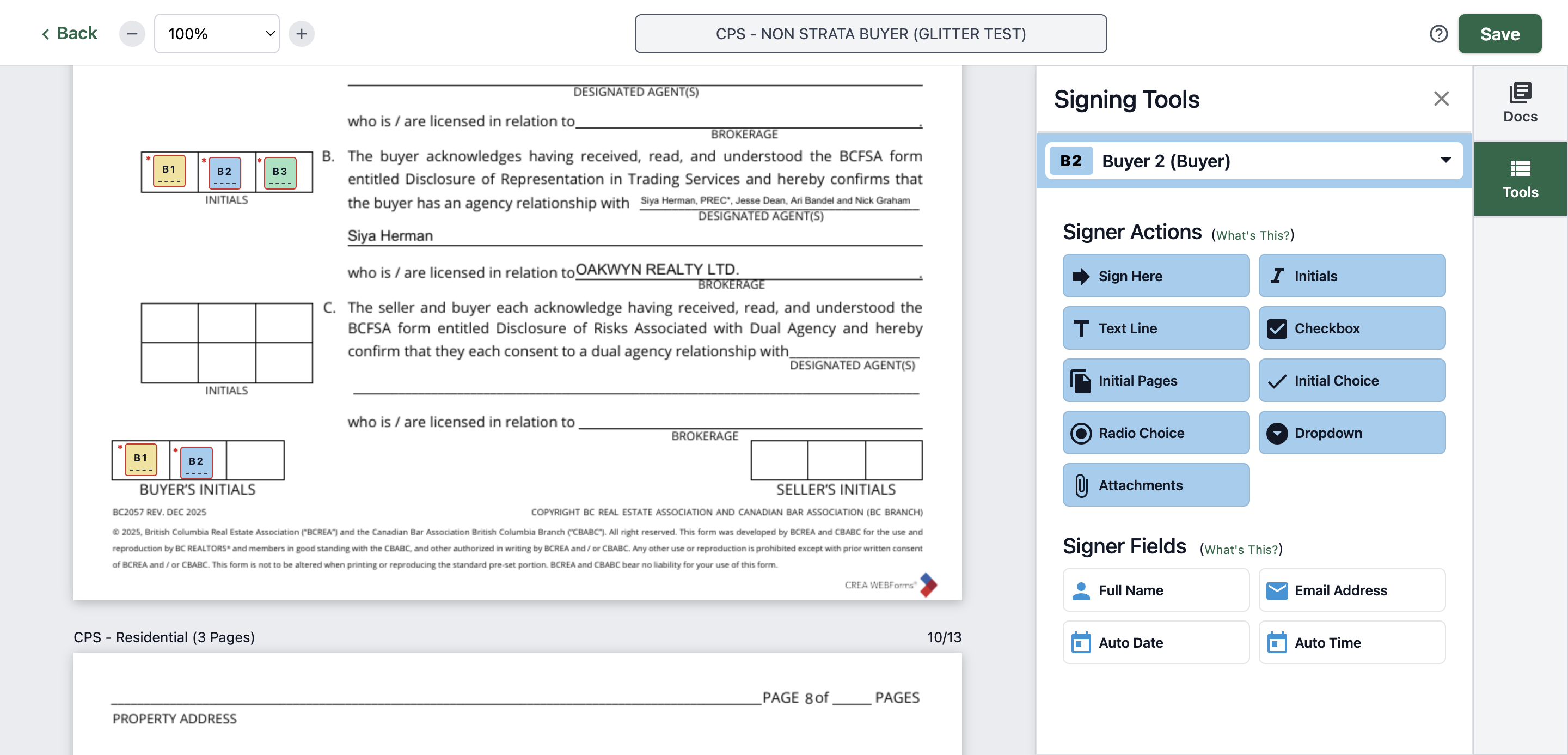
116
Type "Ctrl + V"
117
Click here
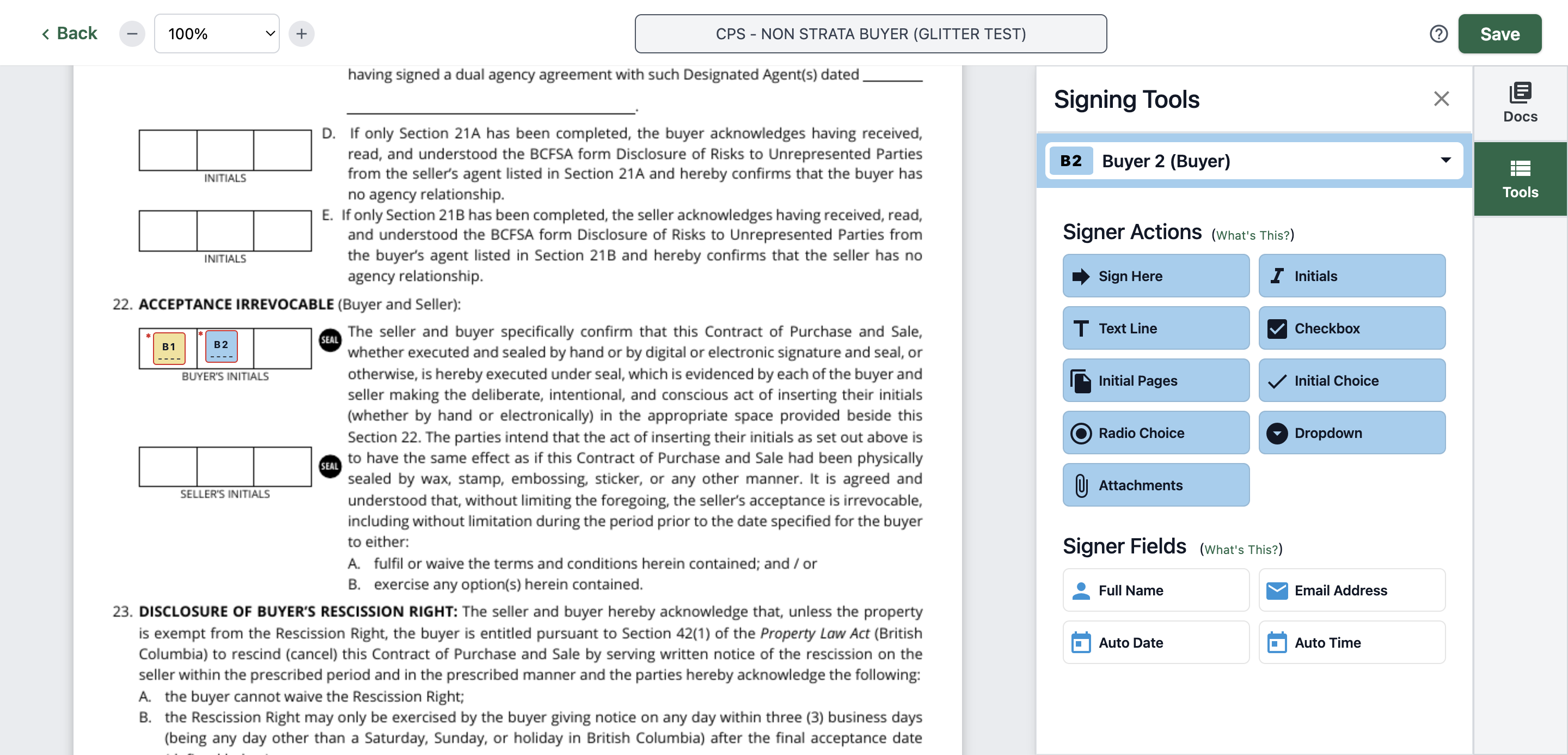
118
Type "Ctrl + V"
119
Click here
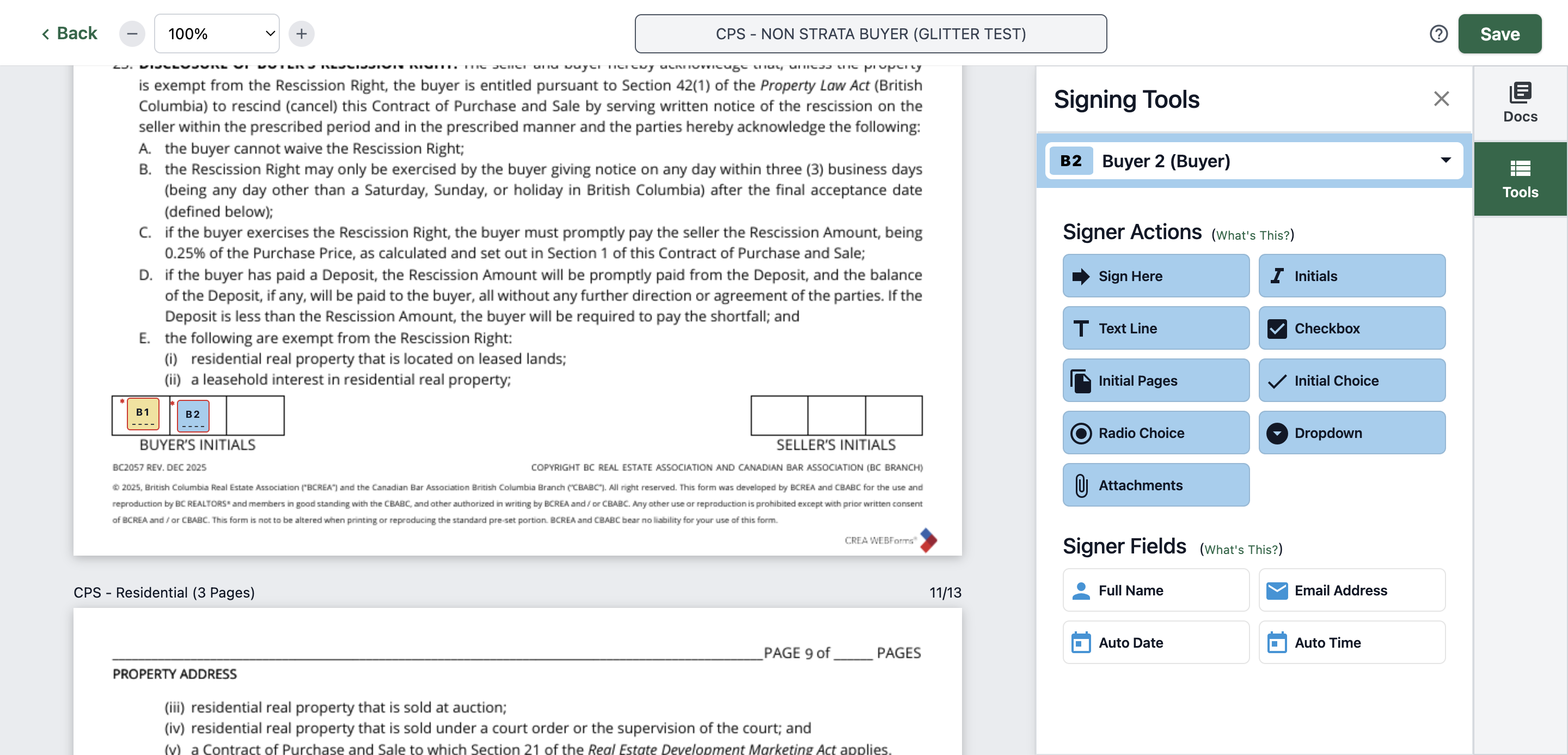
120
Type "Ctrl + V"
121
Click here
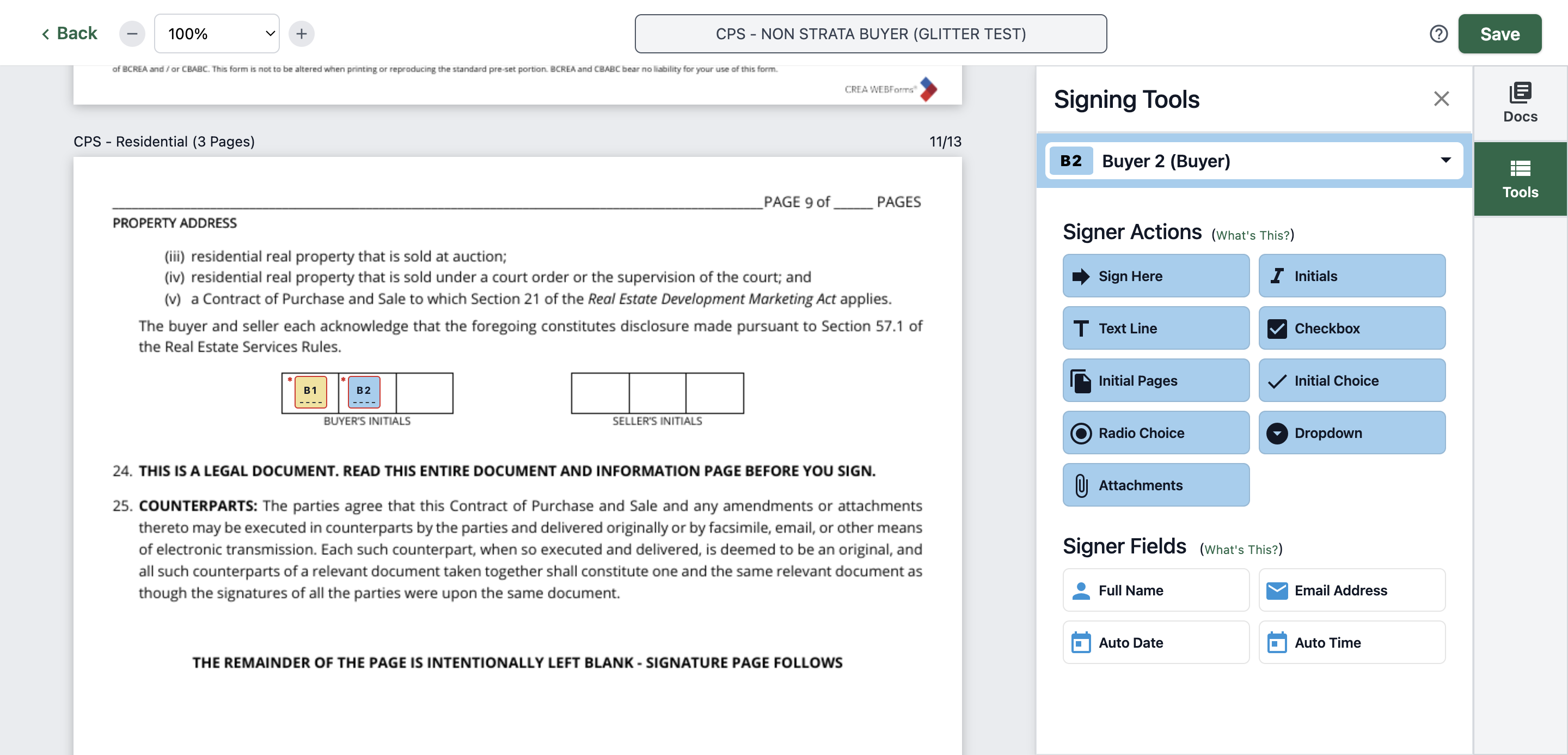
122
Type "Ctrl + V"
123
Click here
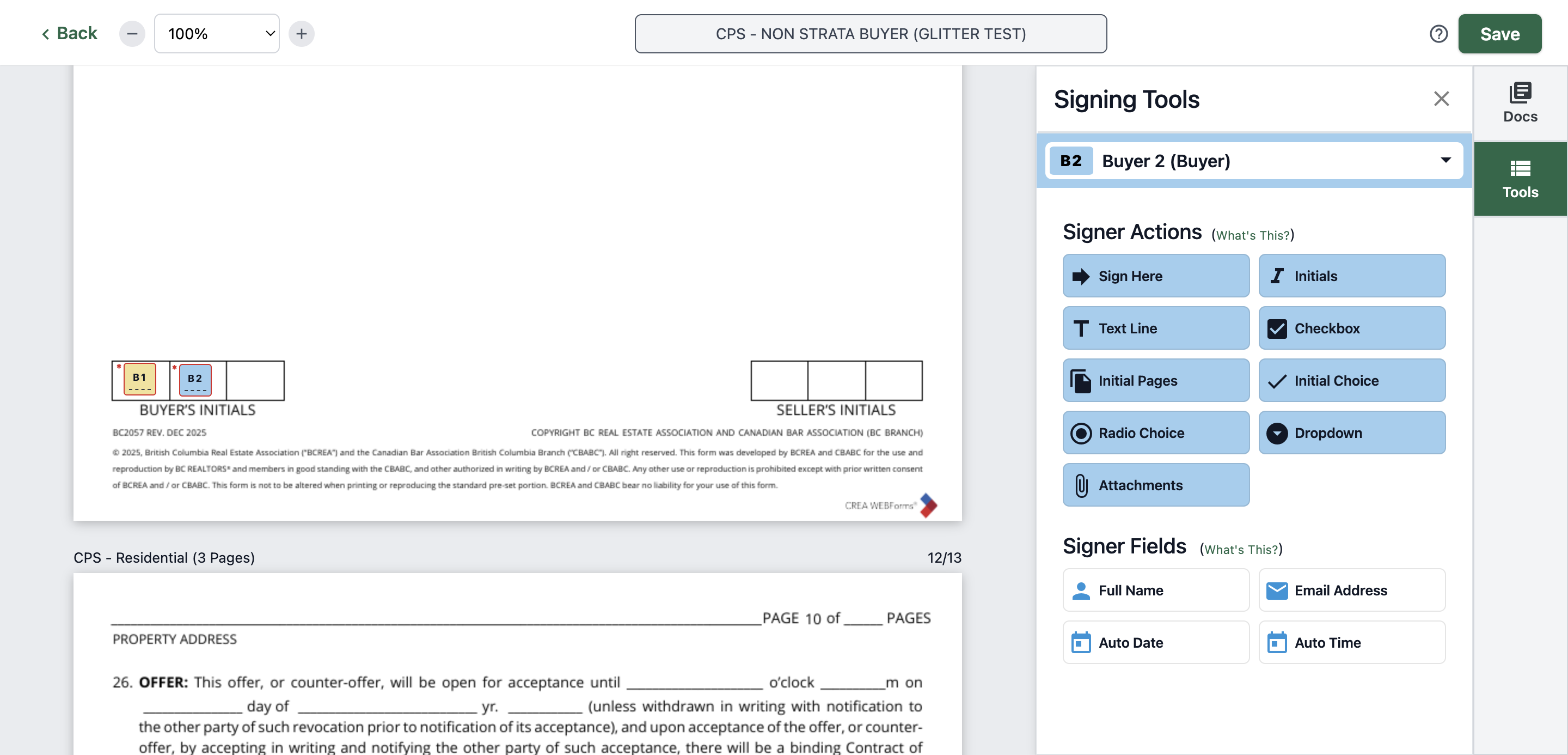
124
Type "Ctrl + V"
125
Click here
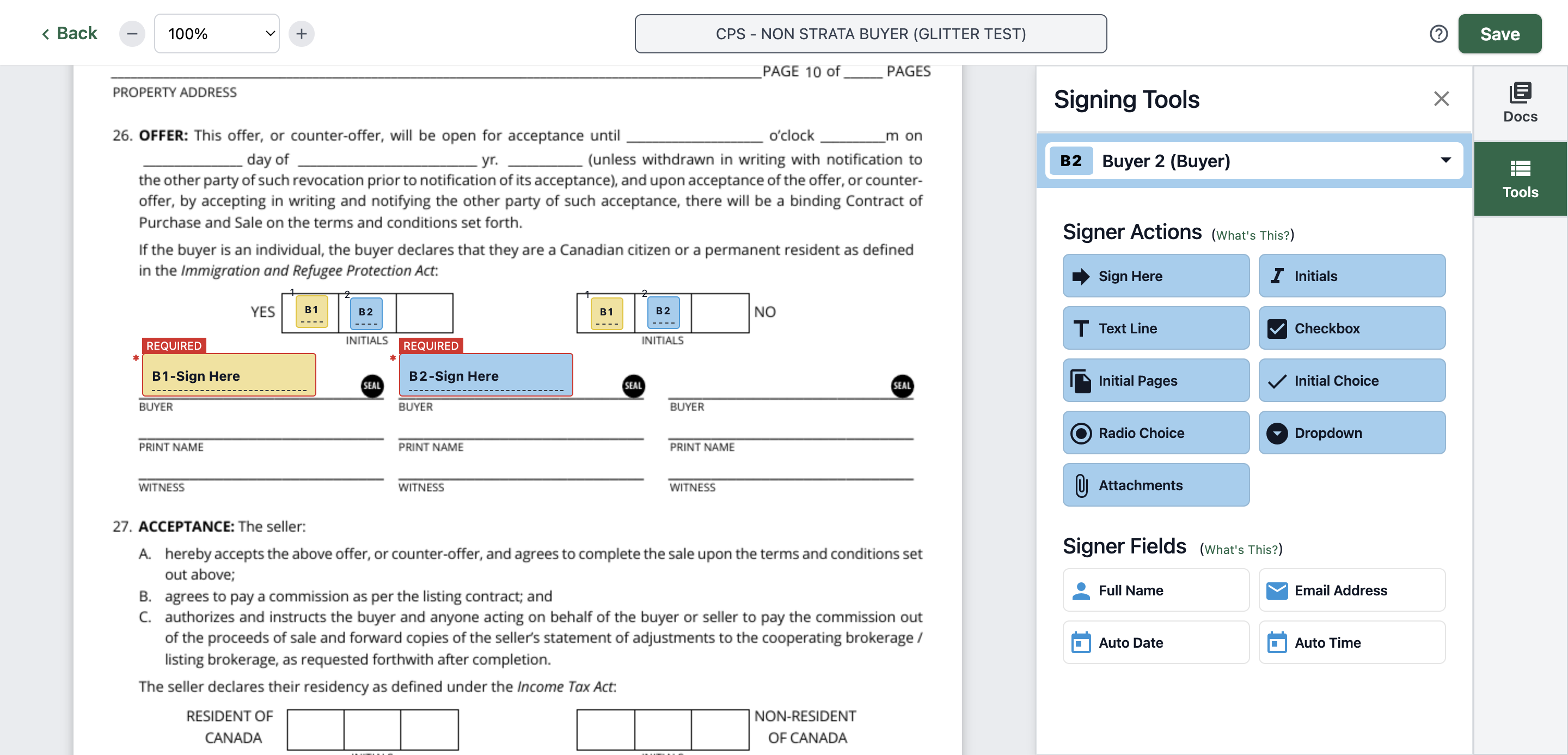
126
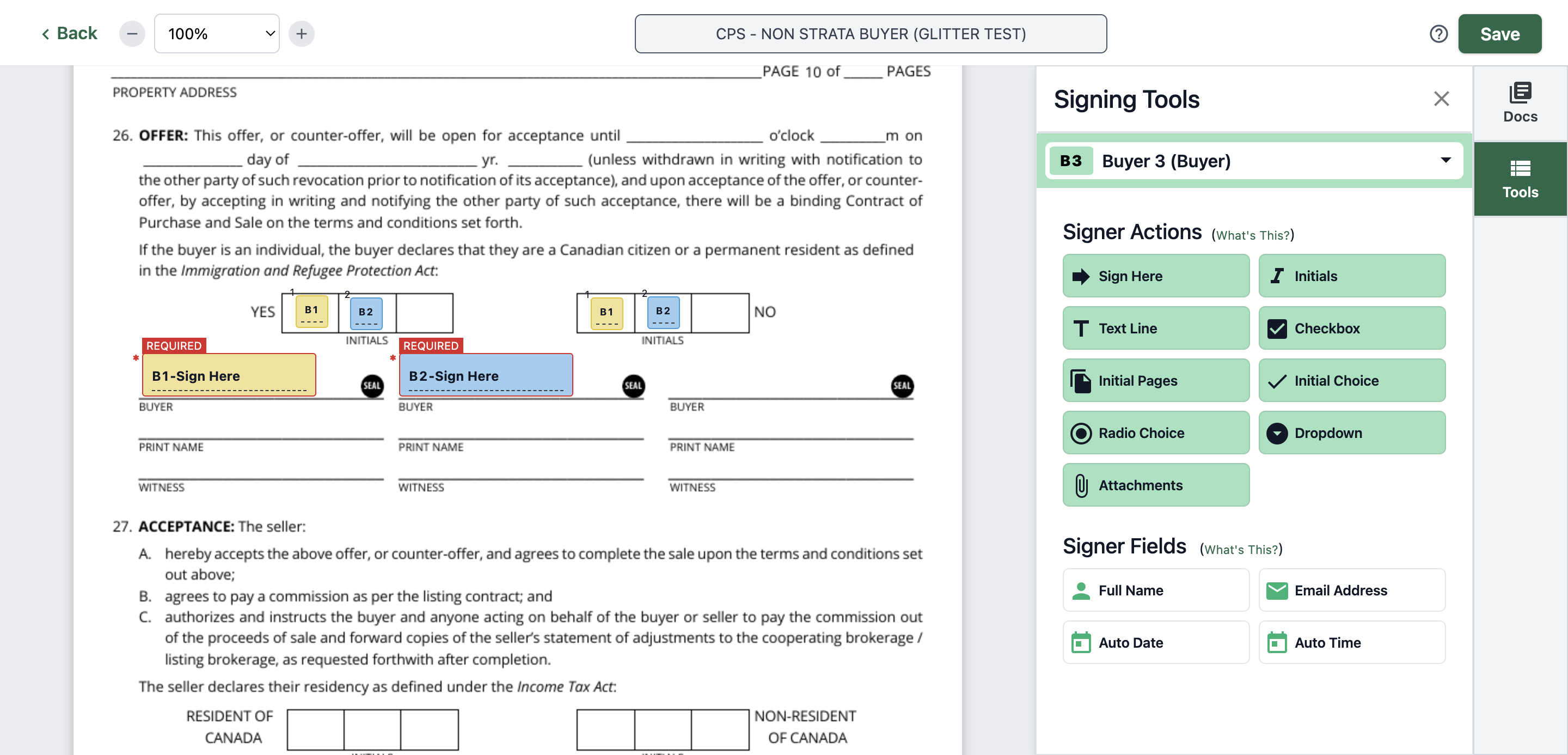
Click on "Buyer 3"
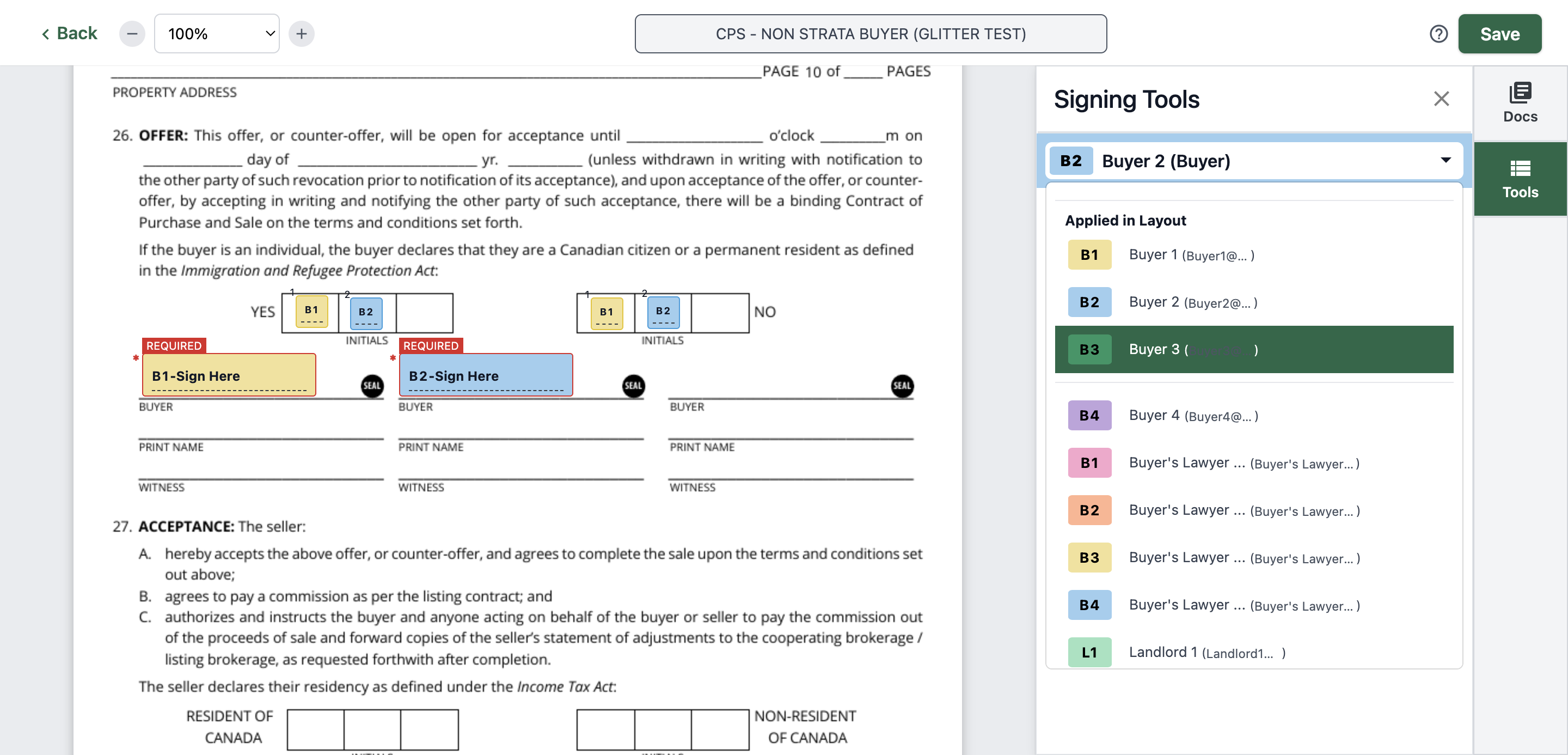
127
Click on "Initial Choice"
128
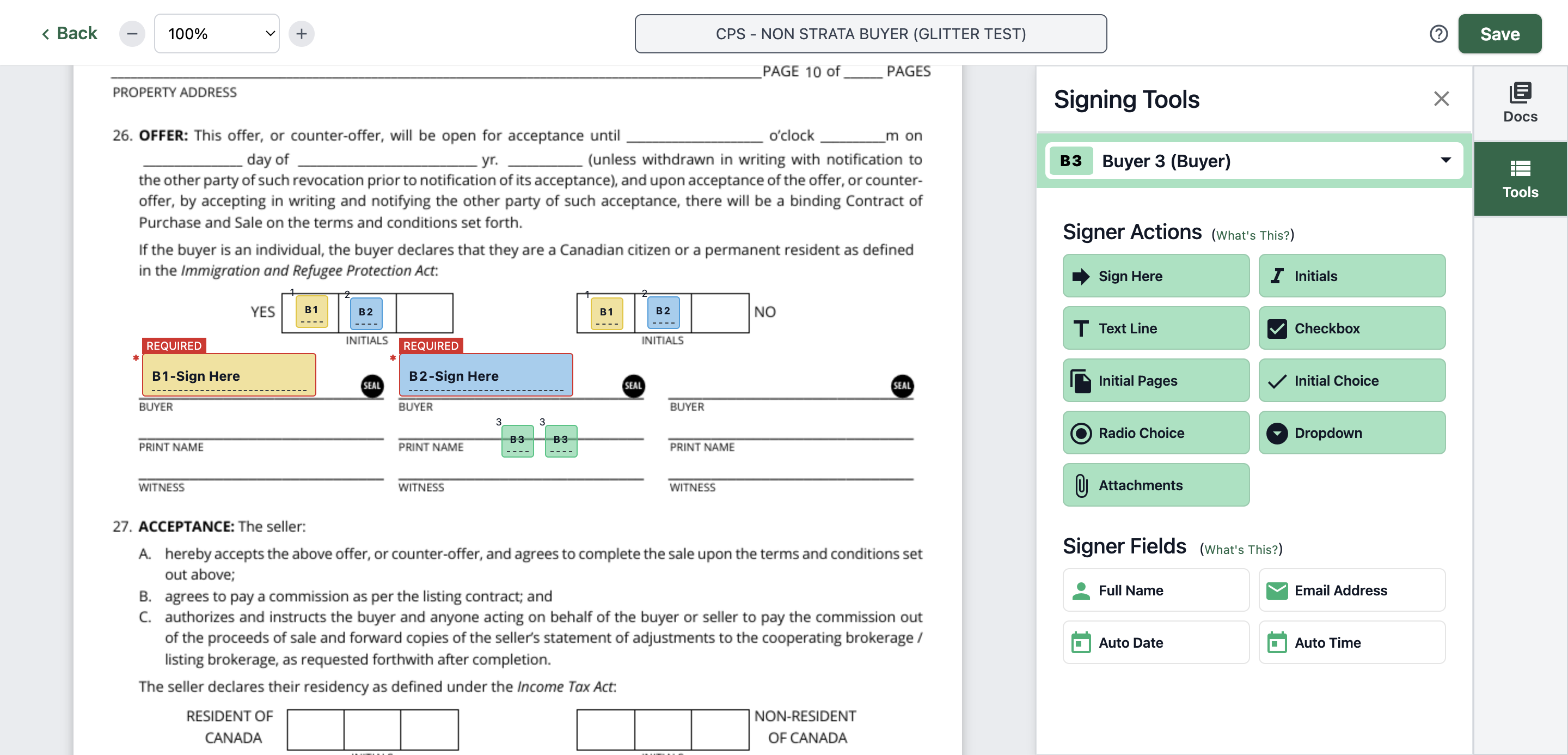
Click on "B3"
129
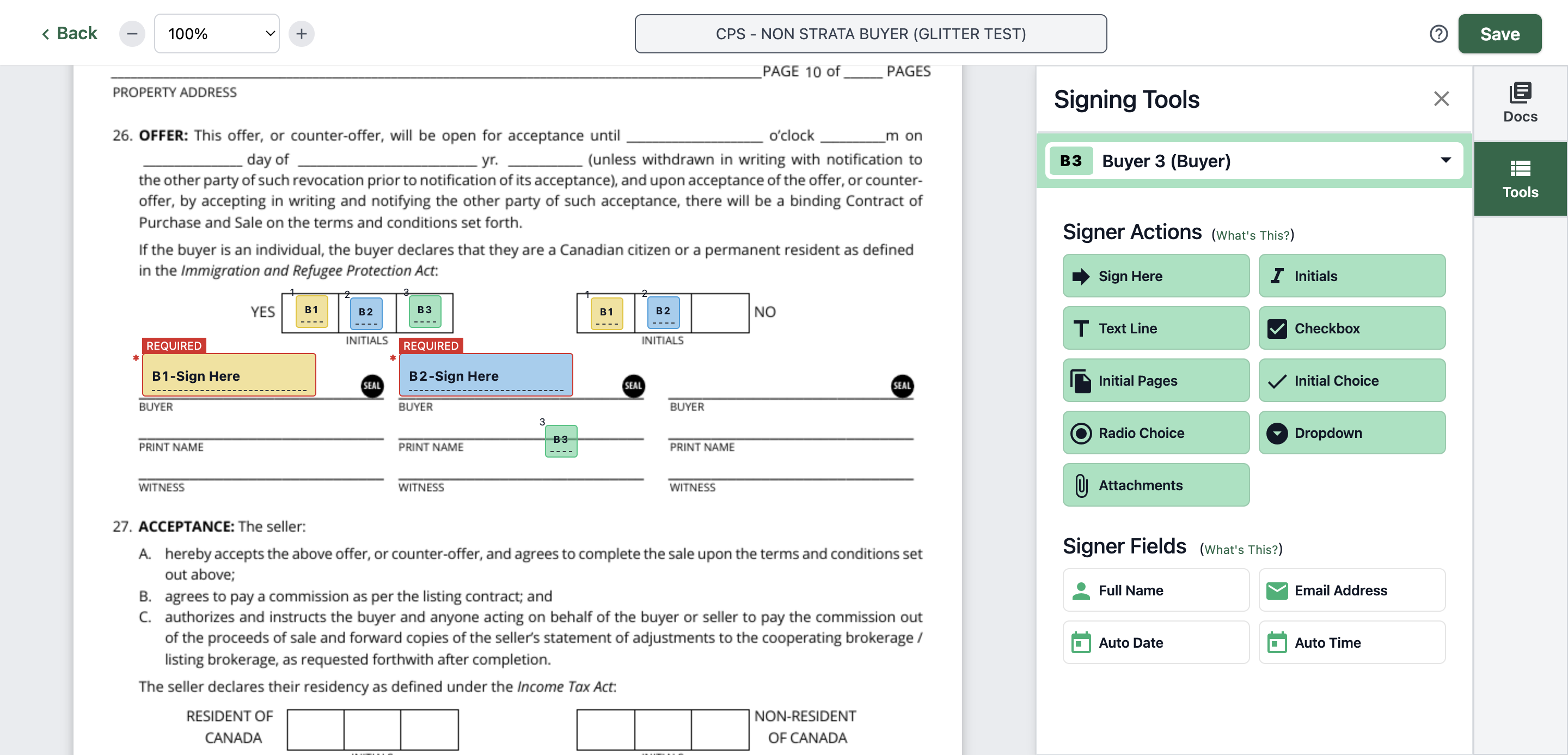
Click on "B3"
130
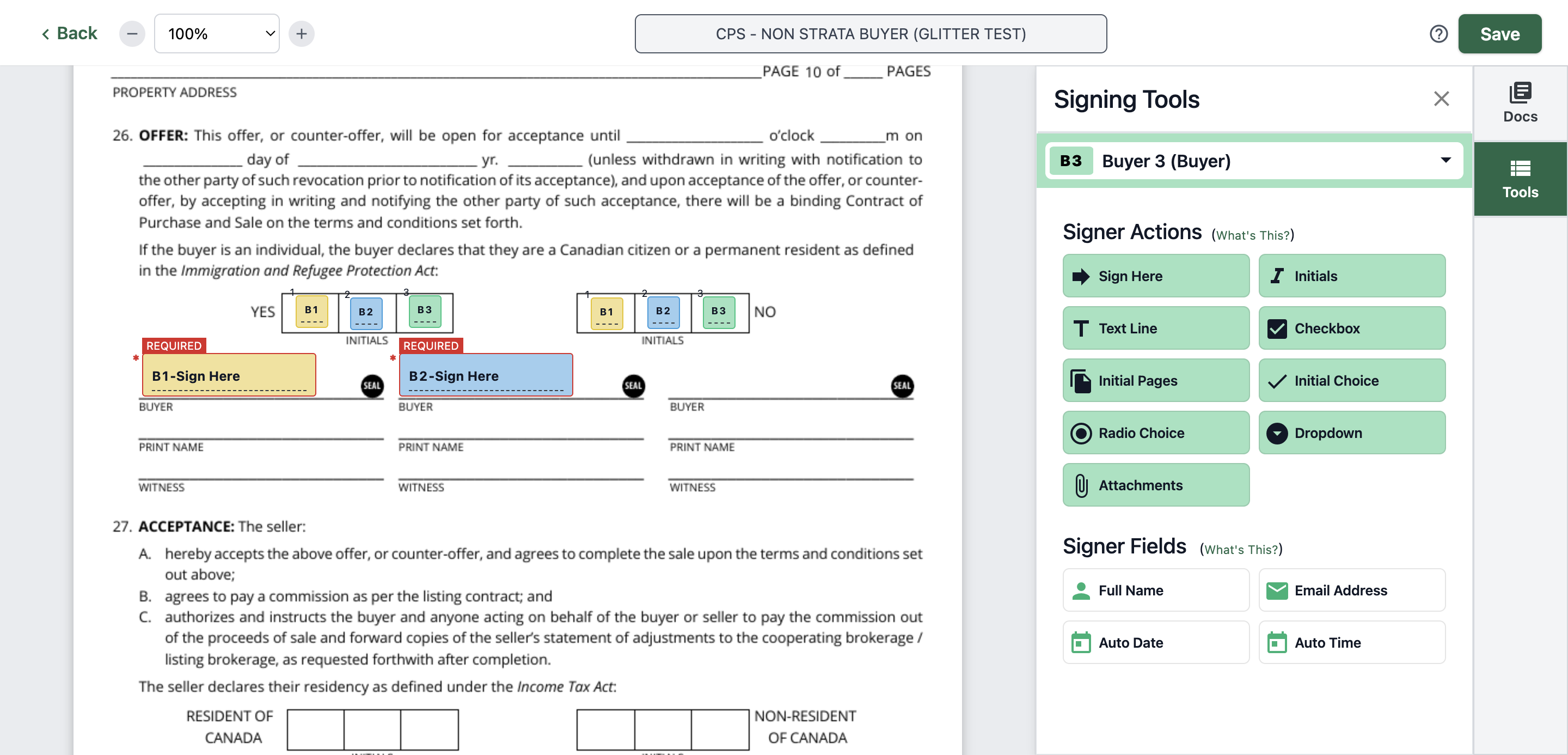
Click here
131
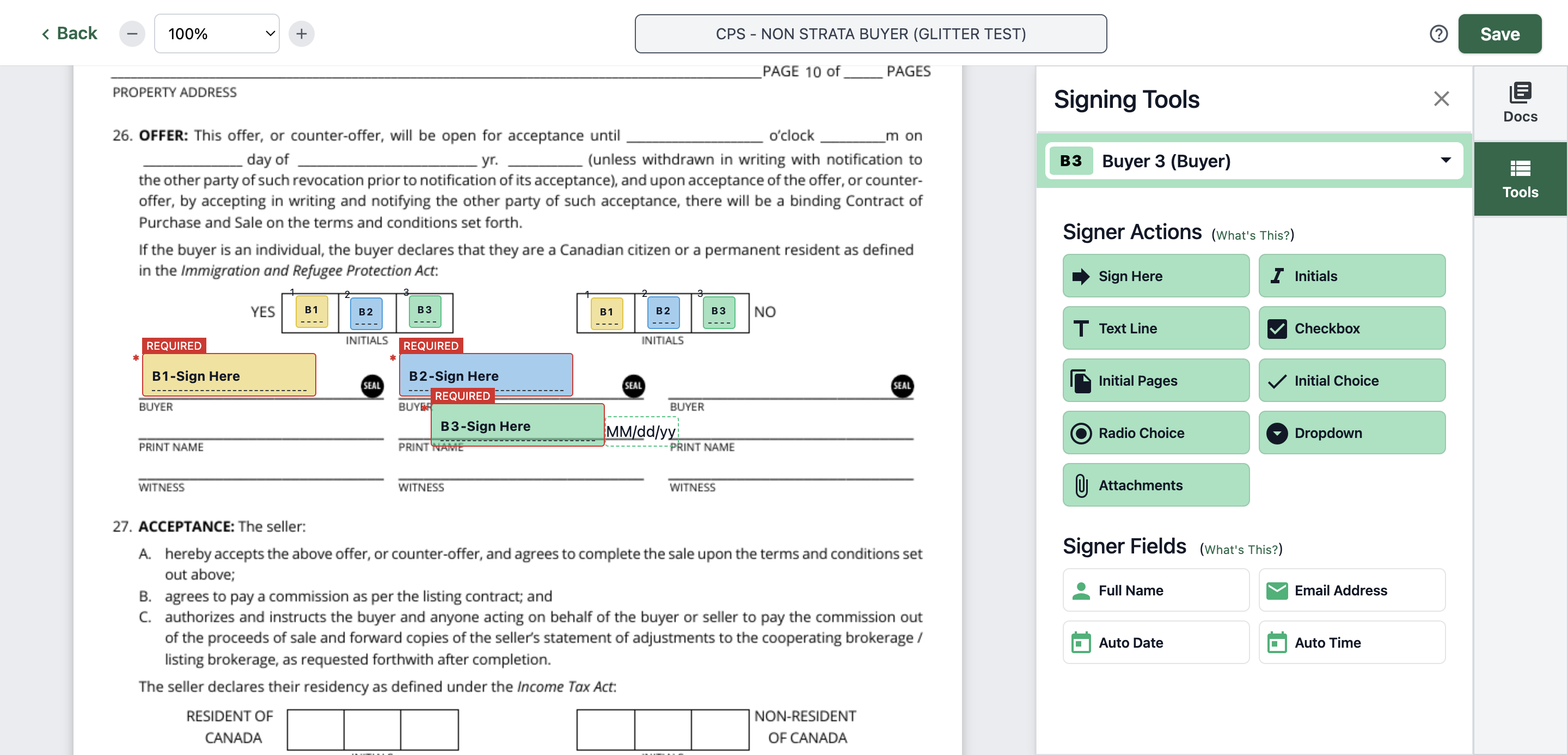
Click on date then remove it
132
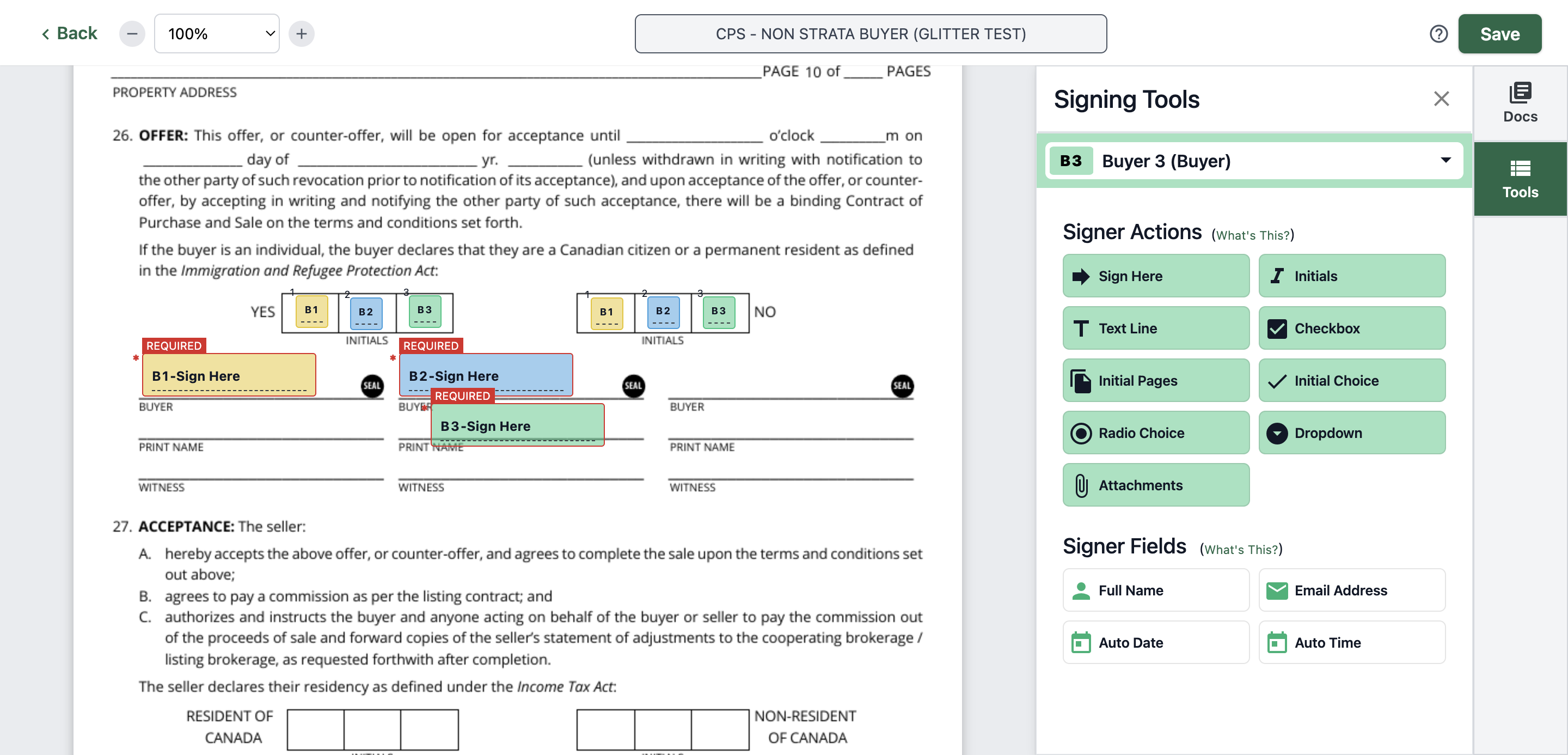
Put the signature to its designated area
133
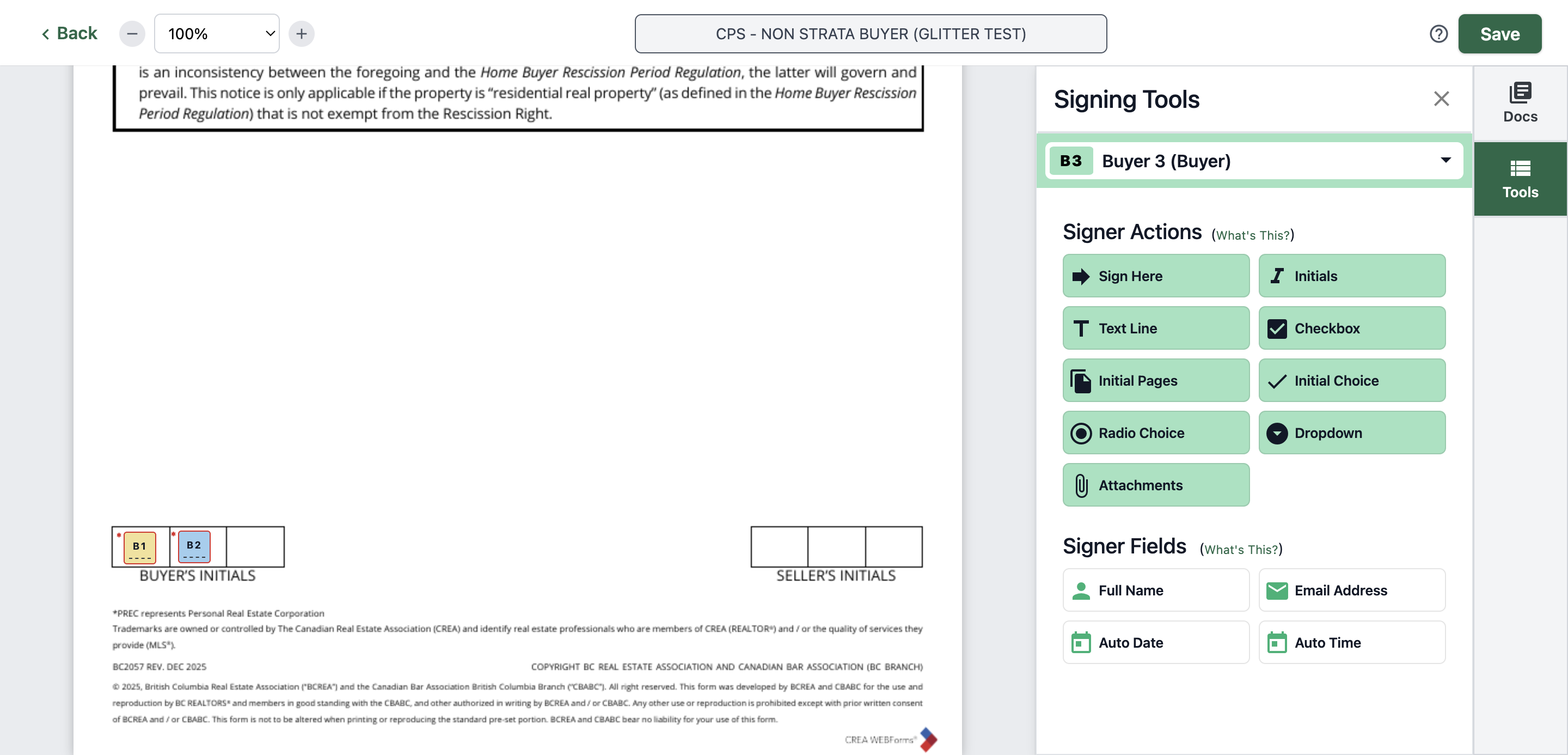
Click on "Initials"
134
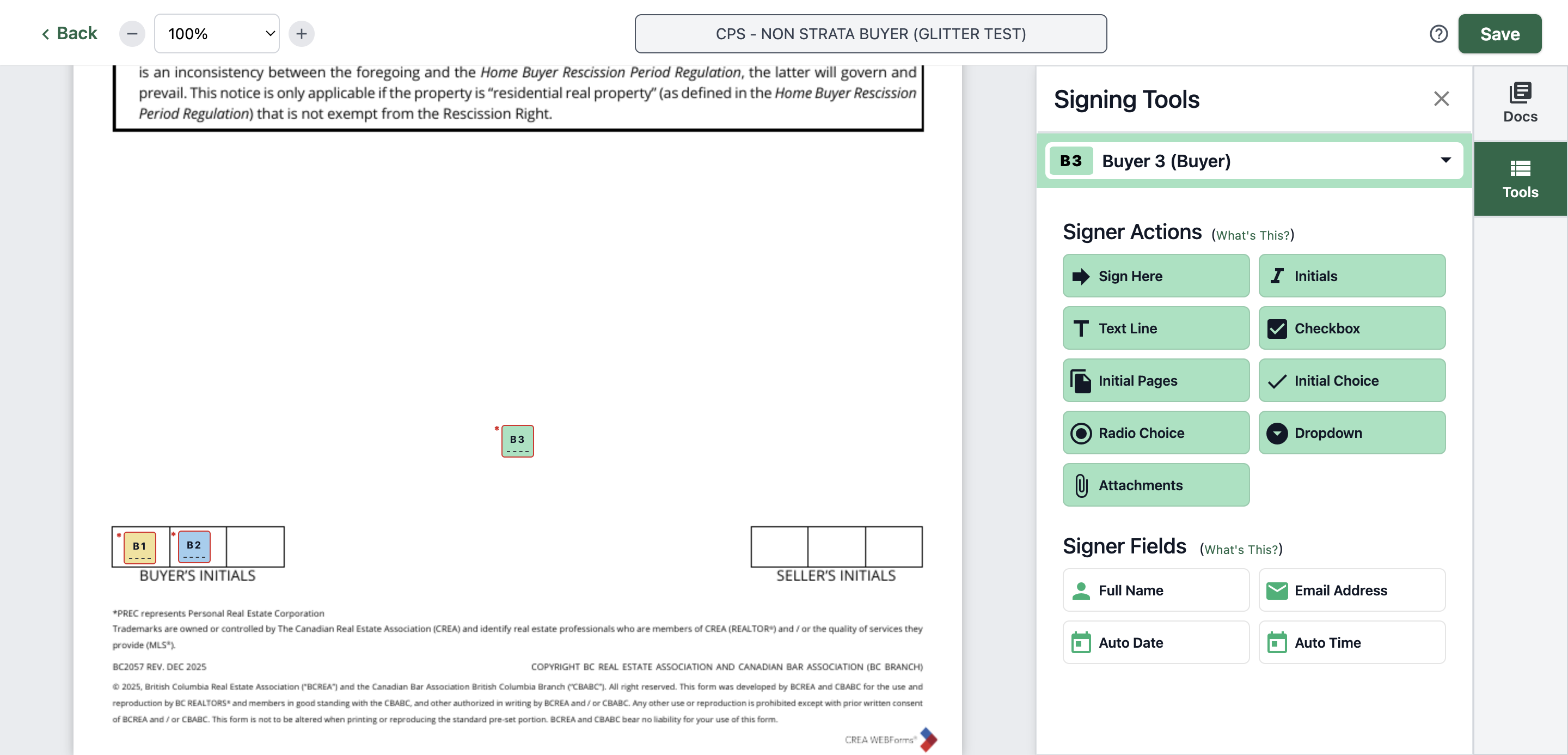
Click on "B3"
135
Put it on the designated area
136
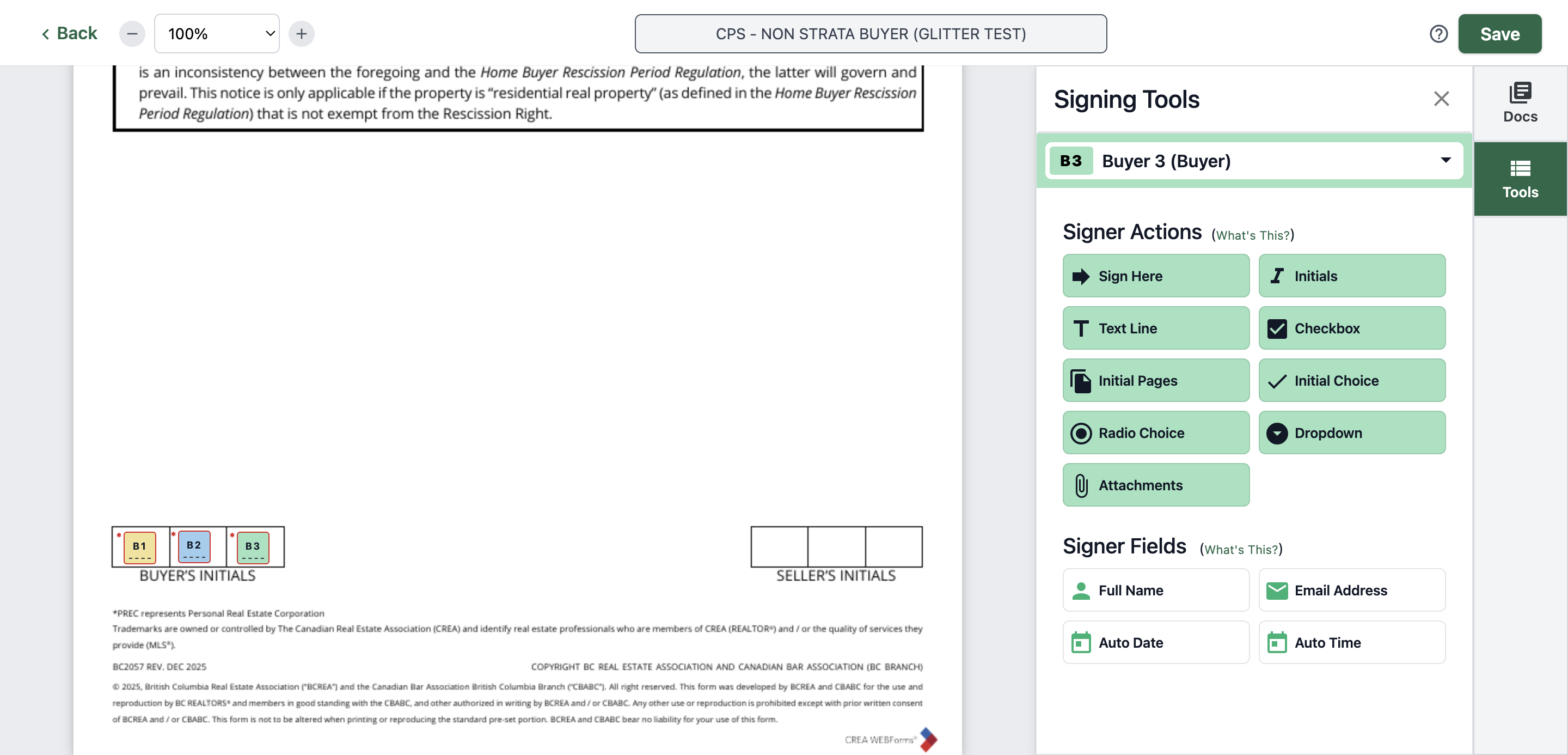
Double check each page then hit "Save"