
How to Customize a Google Form Theme
Learn how to customize your Google Form by changing fonts, adding a custom header image, and updating theme and background colors to match your branding.
By Maggie Duncan
Made with Glitter AI
Adding custom branding to your Google Form ensures it aligns with your organization's style. You can easily adjust typography, insert a custom header logo, and set custom colors using the built-in theme settings.
Access Theme Settings
1
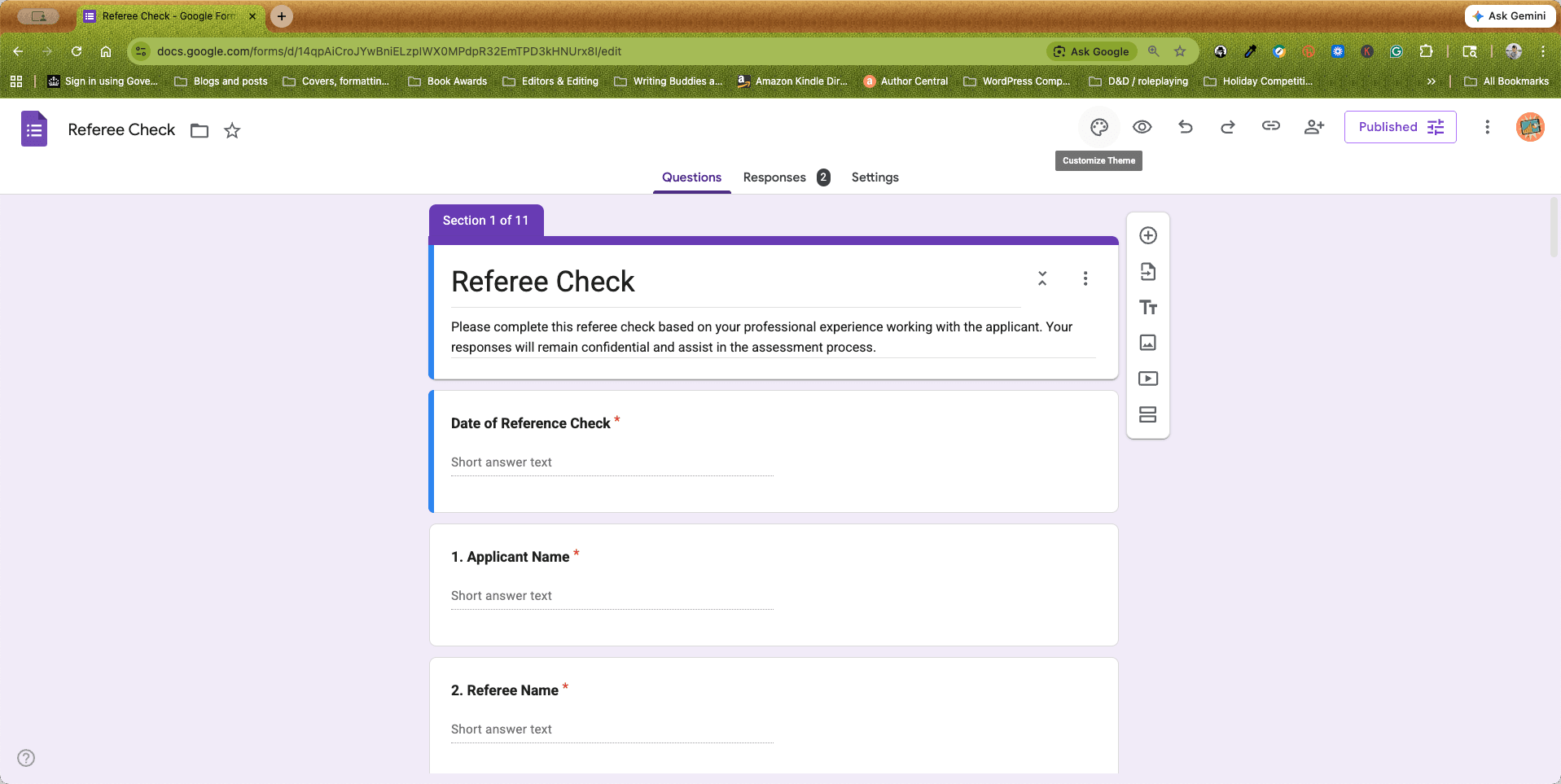
Click the Customize Theme palette icon in the top right header area.
Change Fonts
2
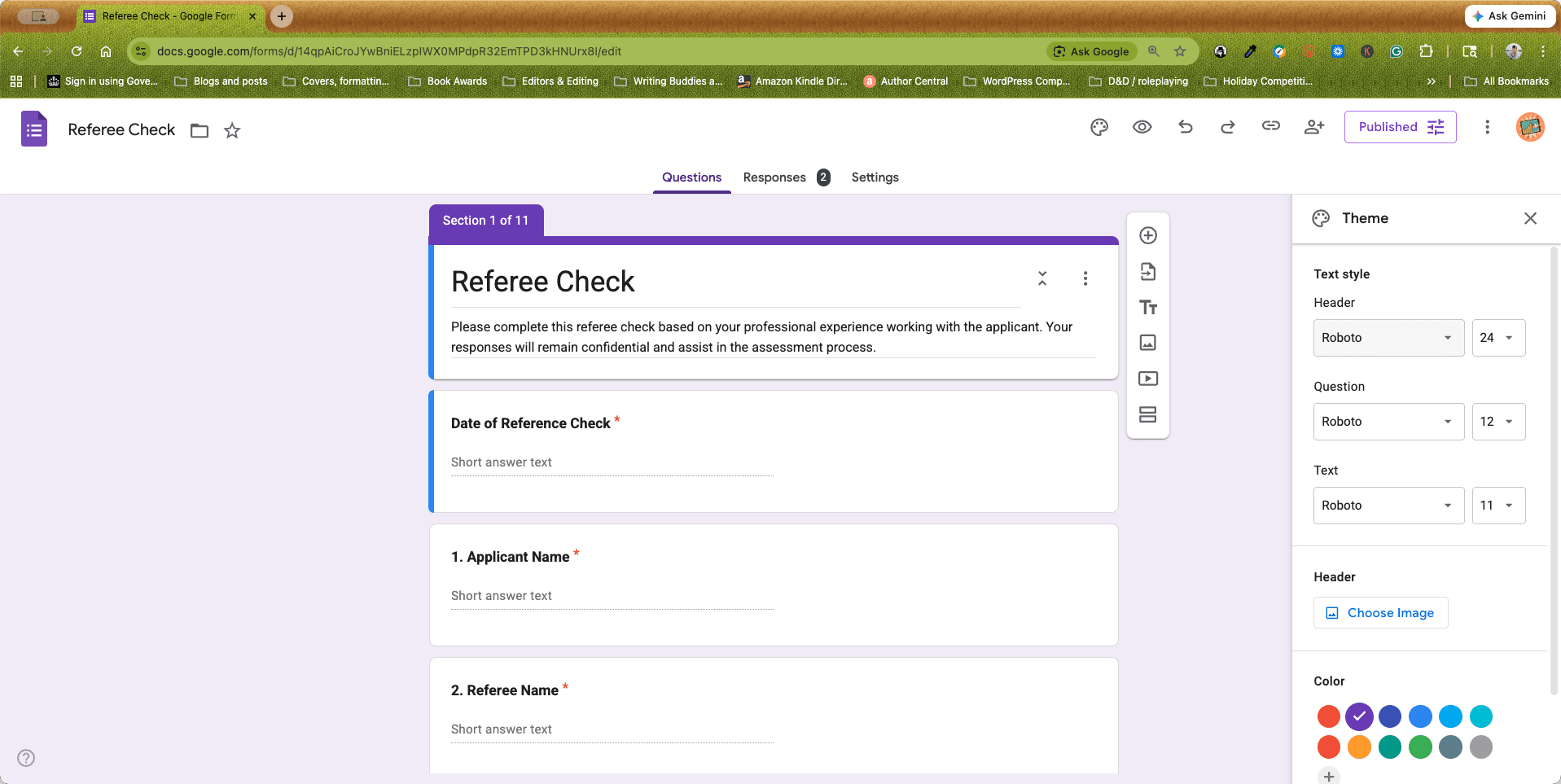
Under the Text style section, click the font dropdown for the Header, Question, or Text elements.
3
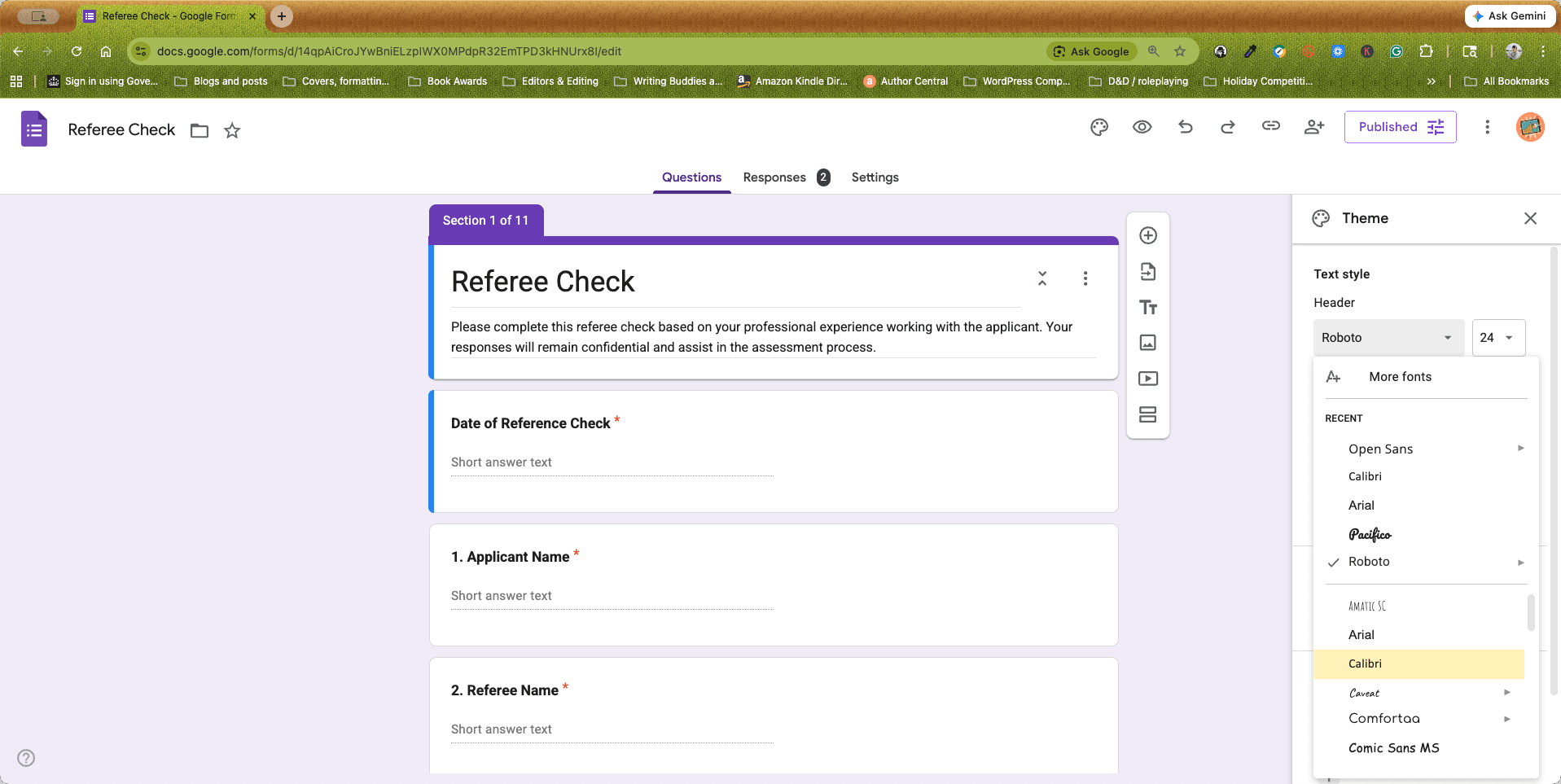
Select your preferred font from the list.
Add a Custom Header Image
4
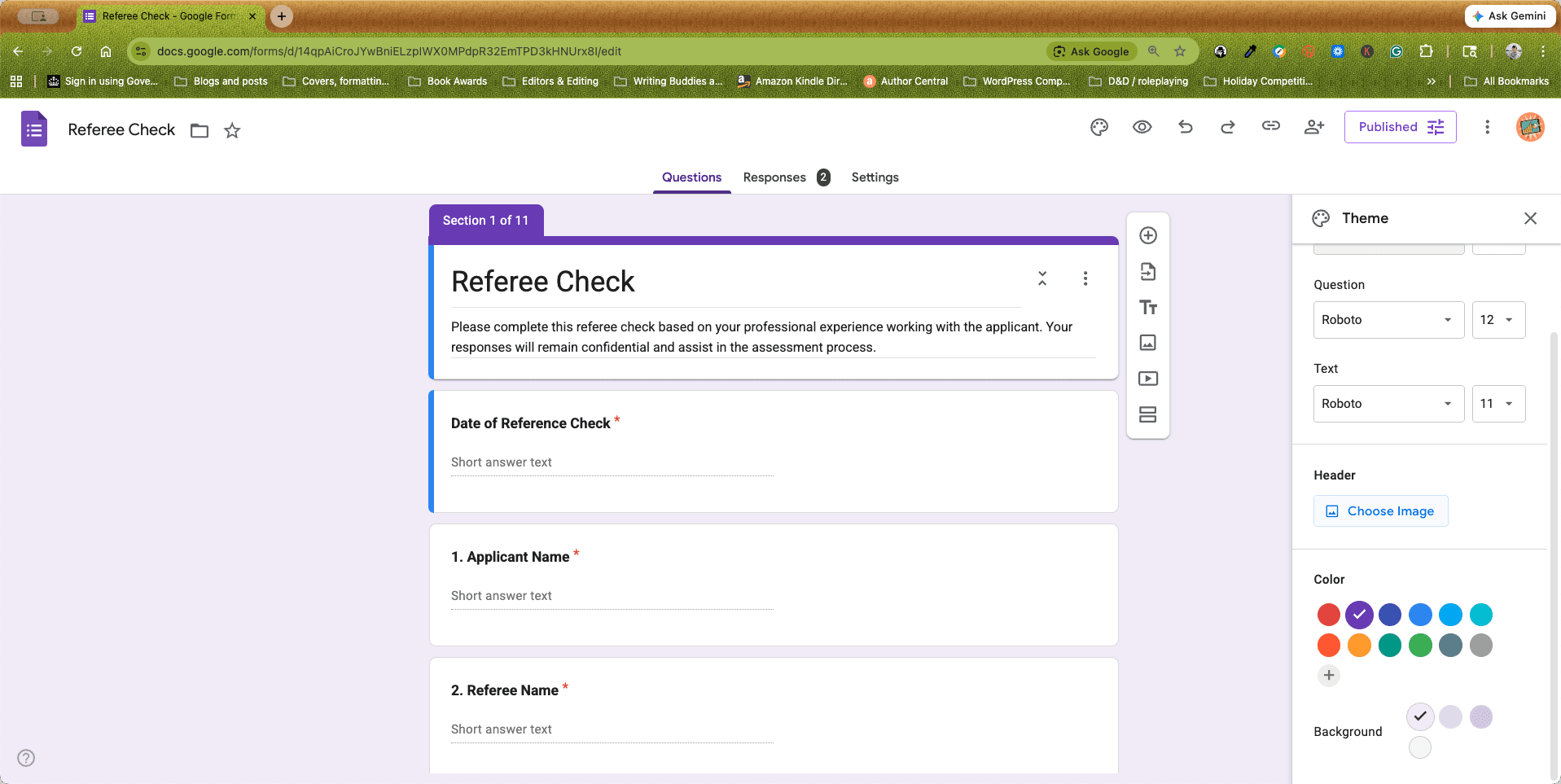
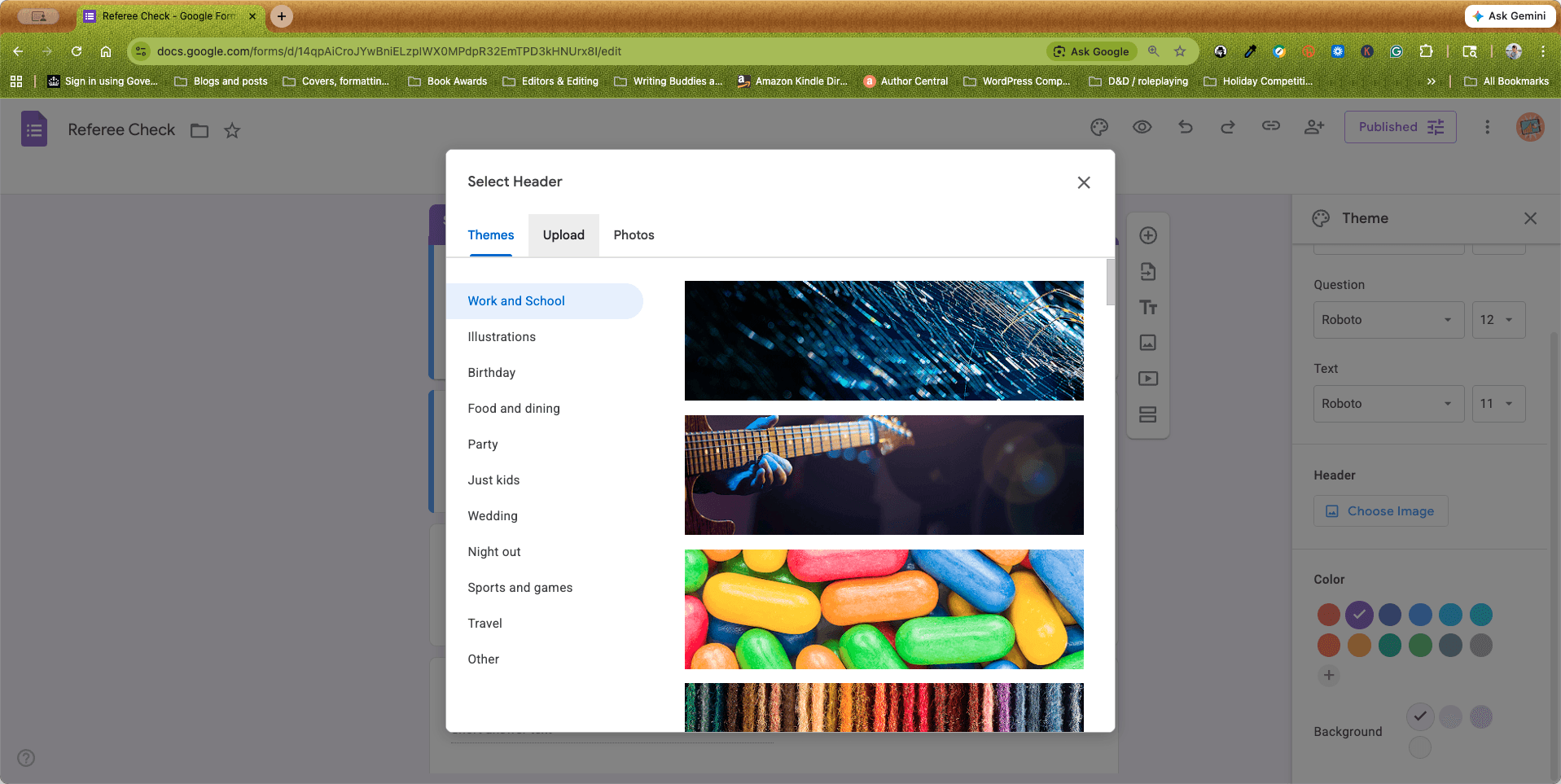
Scroll down to the Header section and click Choose Image.
5
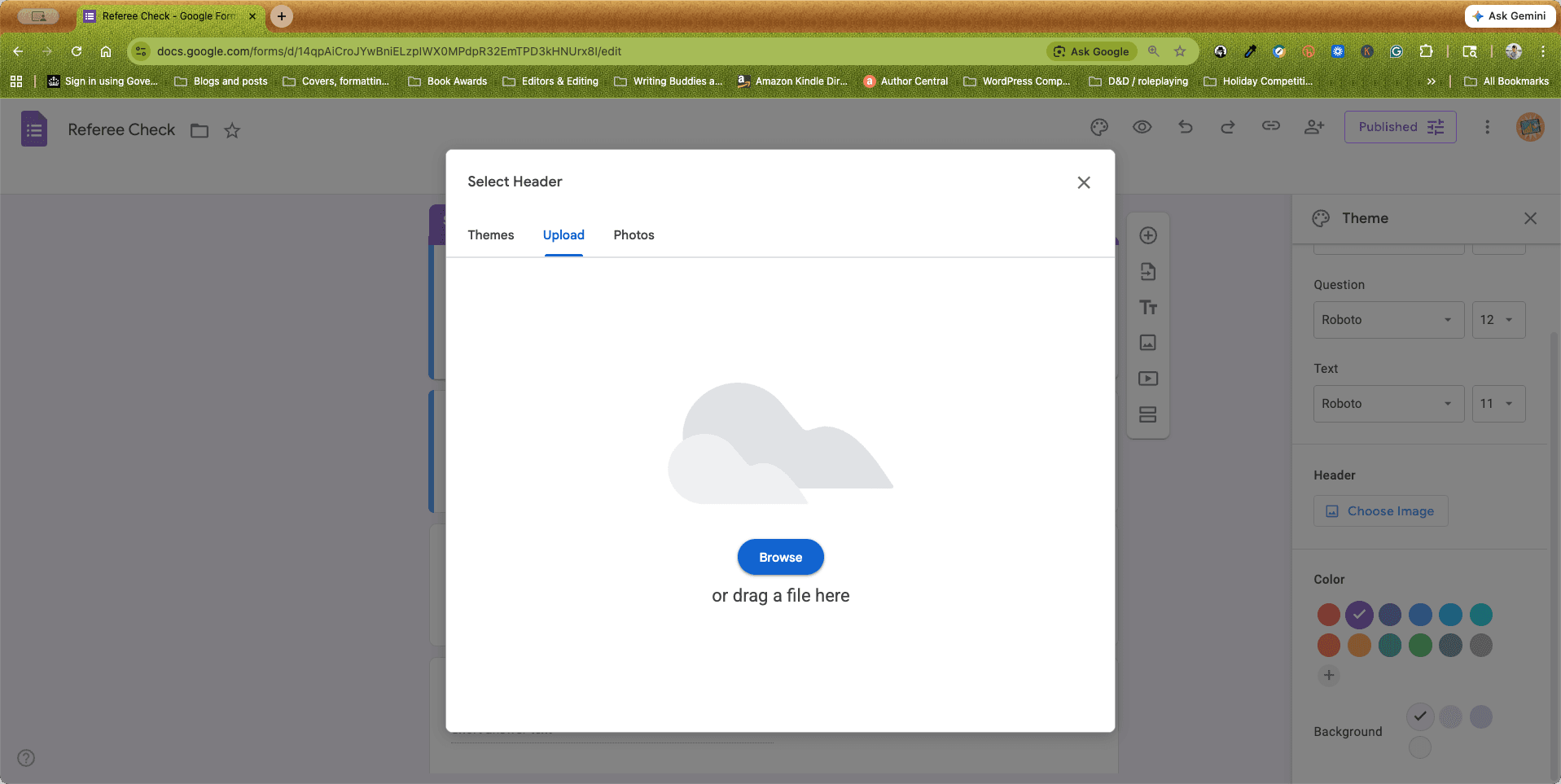
Click the Upload tab.
6
Click Browse to choose an image file from your computer, or drag and drop your file into the window.
7
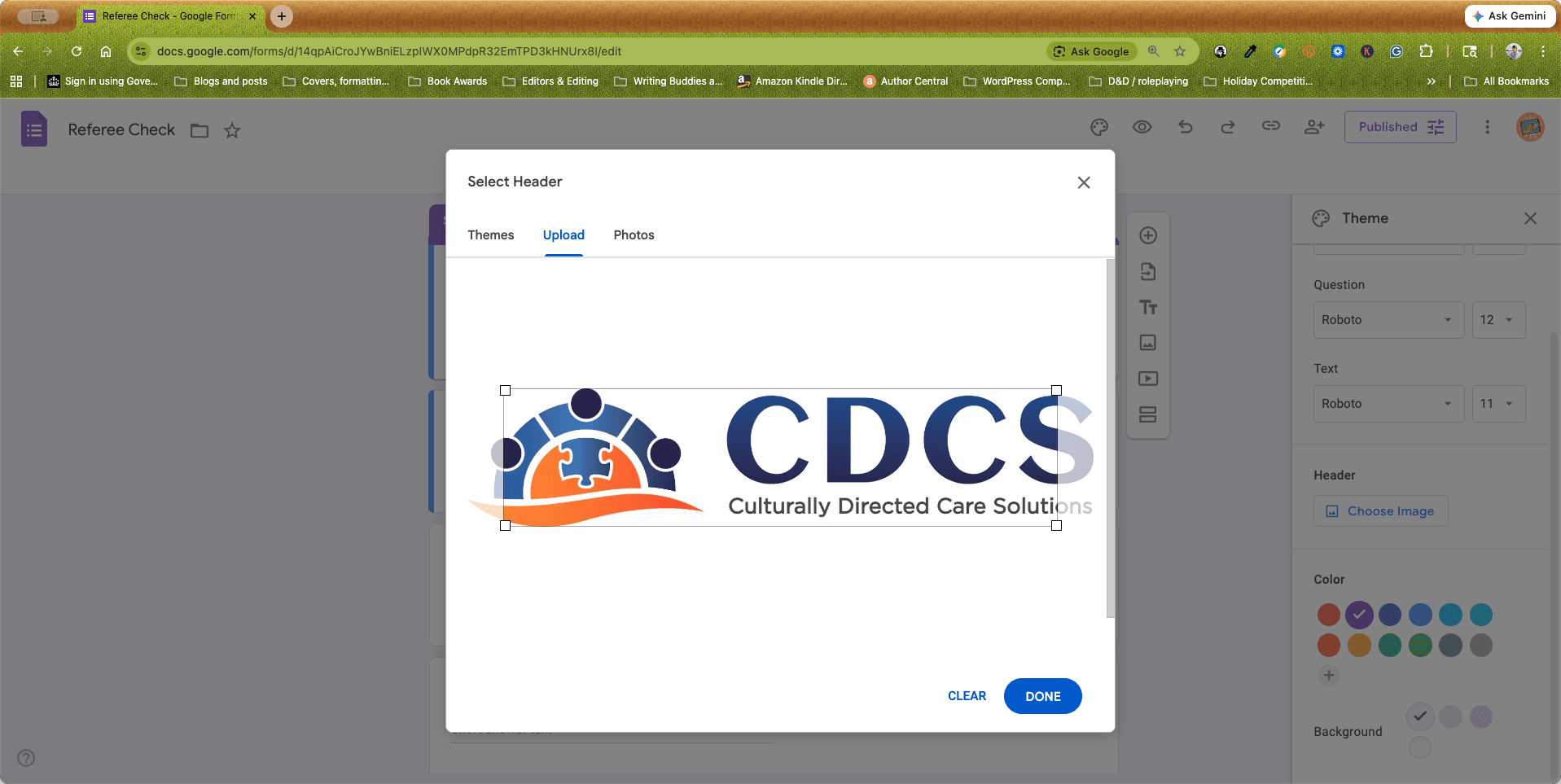
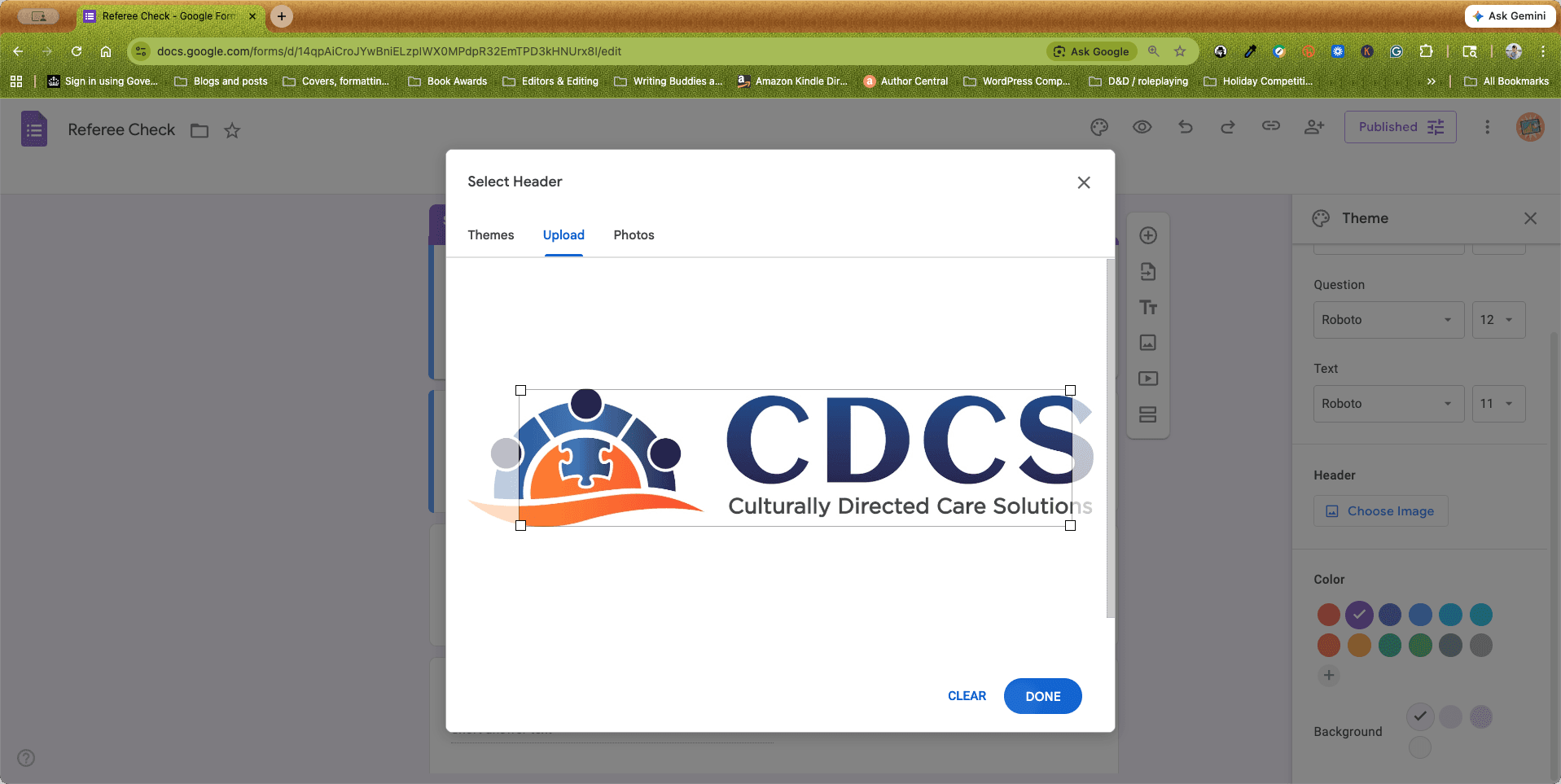
Drag and resize the bounding box to crop your image appropriately.
8
Click Done to apply the image to your form's header.
Update Theme and Background Colours
9
Under the Color section, select a new primary theme color if you want to override the automatically generated selection.
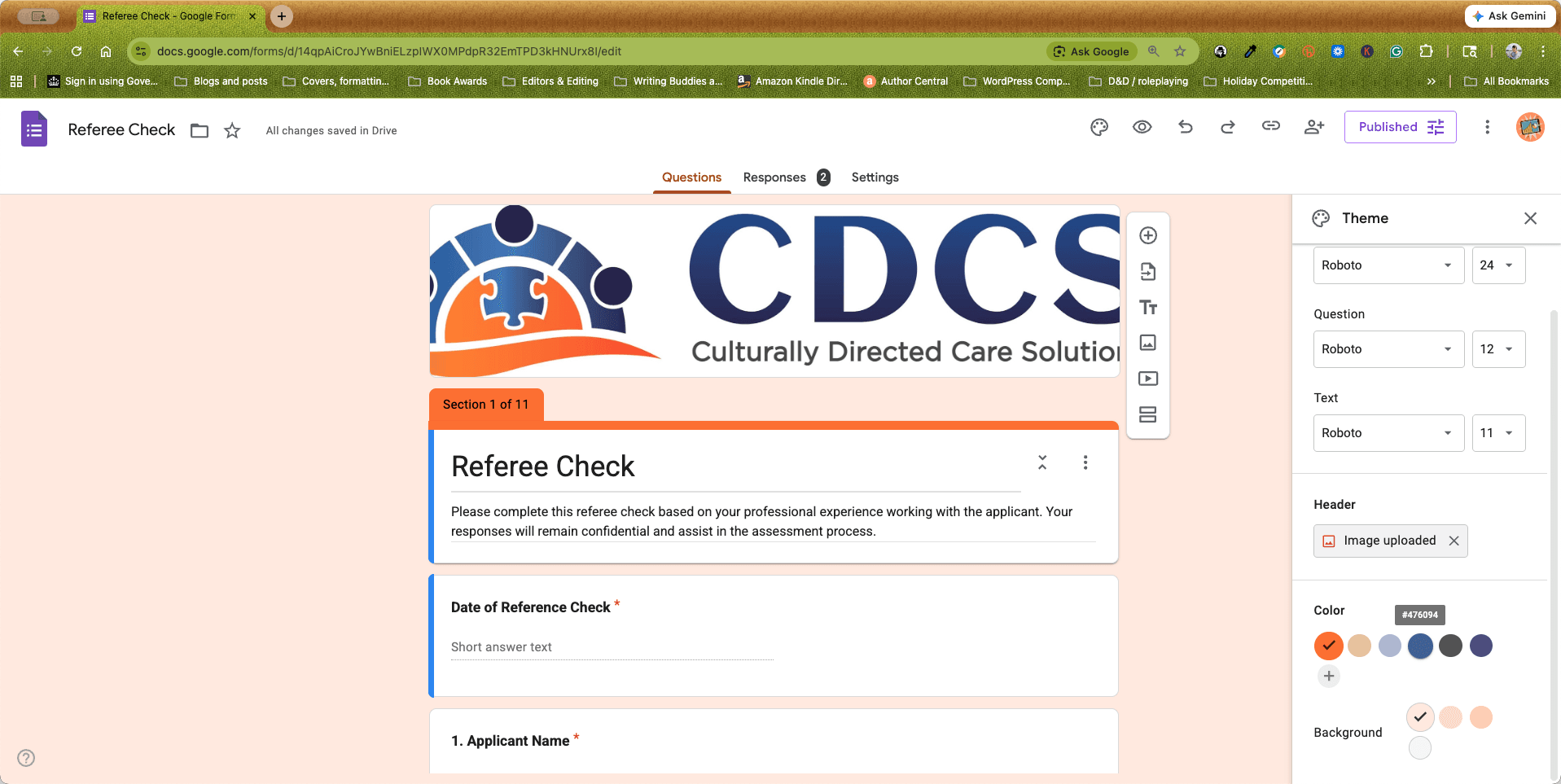
10
Choose a complementary shade under the Background section.
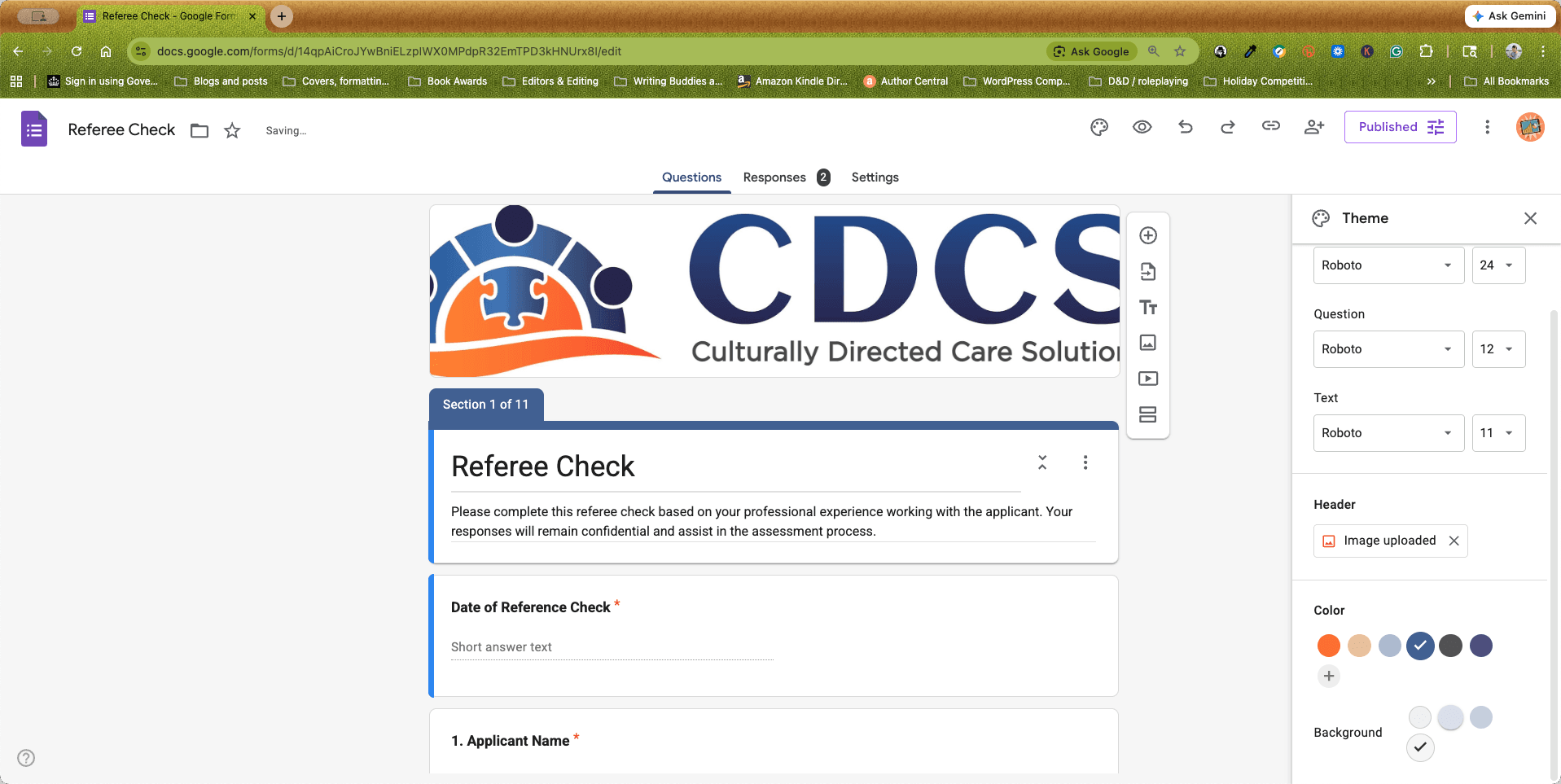
Your Google Form is now customised with your custom branding and is ready to share.