How to Deliver a Zillow Showcase Listing
Learn how to efficiently deliver a Zillow 3D tour, including uploading images and videos, copying 3D tour links, and finalizing your real estate listing. Follow this step-by-step training for seamless Zillow 3D Home delivery.
In this guide, we'll learn how to deliver a Zillow 3D tour for a property listing. We will cover how to upload images and videos from Dropbox, retrieve the 3D tour link from Tonomo, and add all necessary content to the listing. This process helps ensure that all media and links are correctly included before delivering the final listing.
Let's get started
Alright. "" This is a training on delivering the Zillow 3D tour. Okay. Go to add. Where?
Under photos. Okay. "" This will not be very straightforward. Right here? Nope.
Uh-huh. Okay. Yeah. Images. Images, okay.
Sorry, I can't see the full screen. Okay. Under images, click Add.
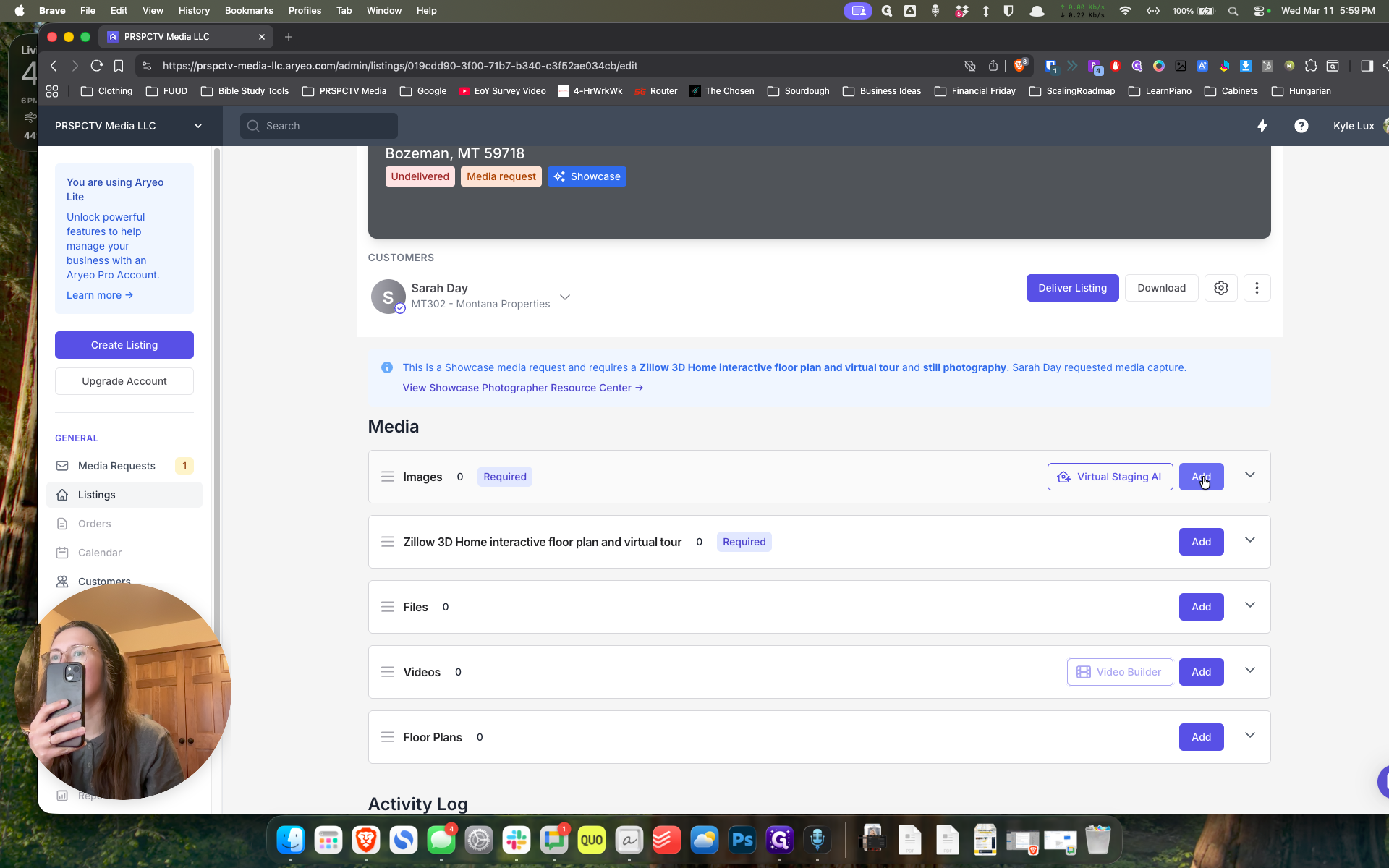
Then go to Dropbox and look for Dropbox.
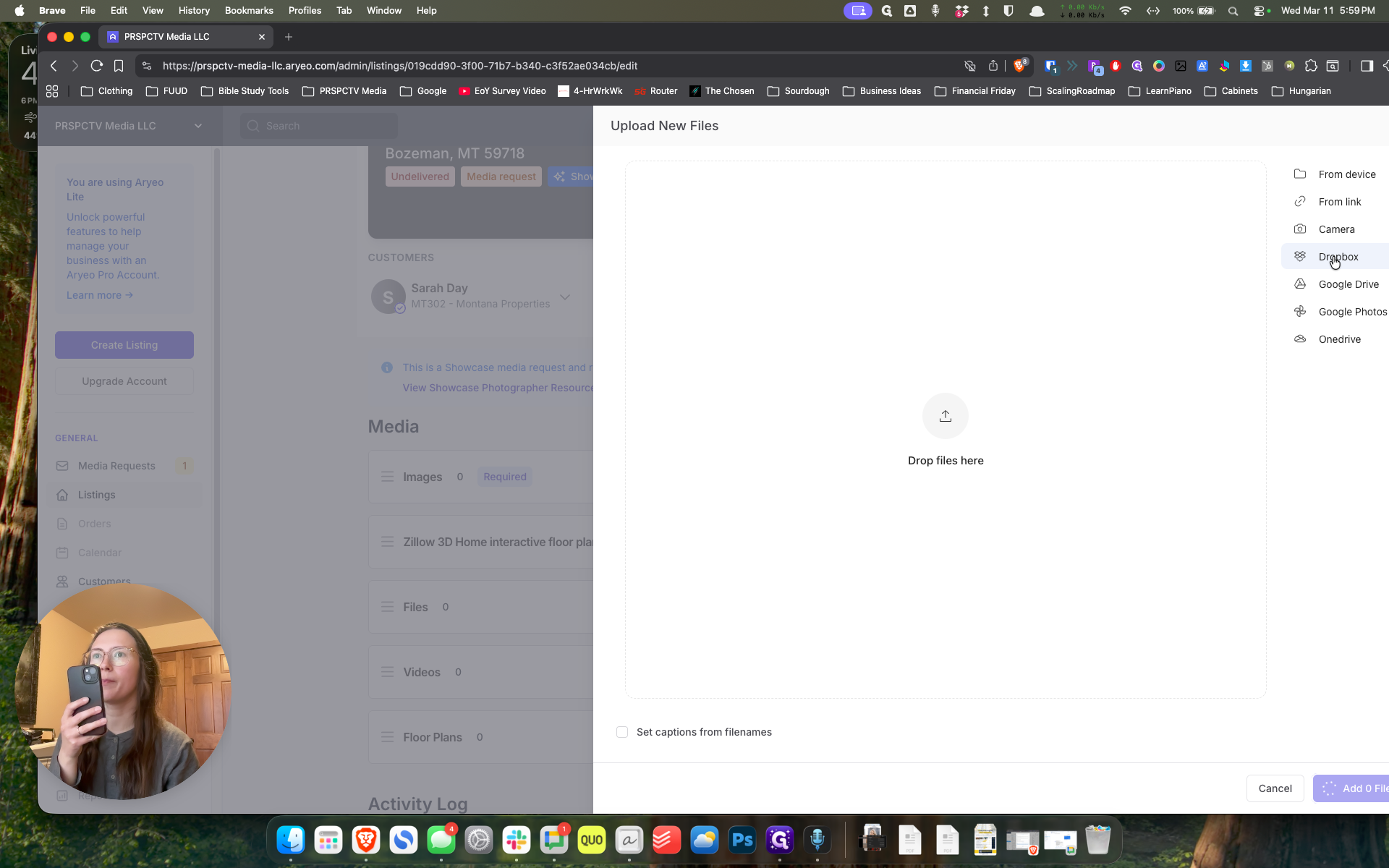
... not agent. Yep. And look for what? Look for one Media Tonomo.
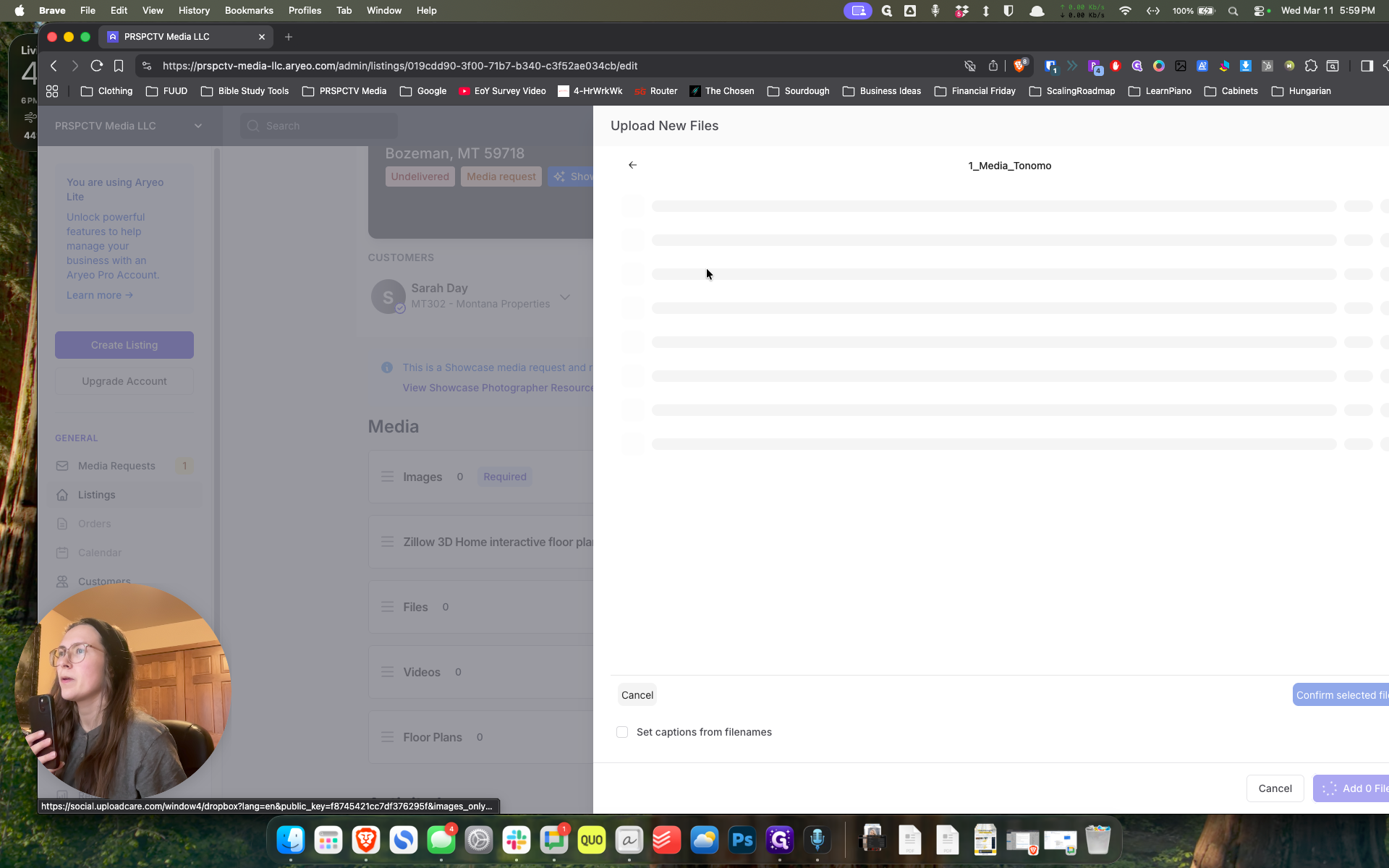
And then Sarah Day. Search for the agent. We are celebrating Sarah Day.
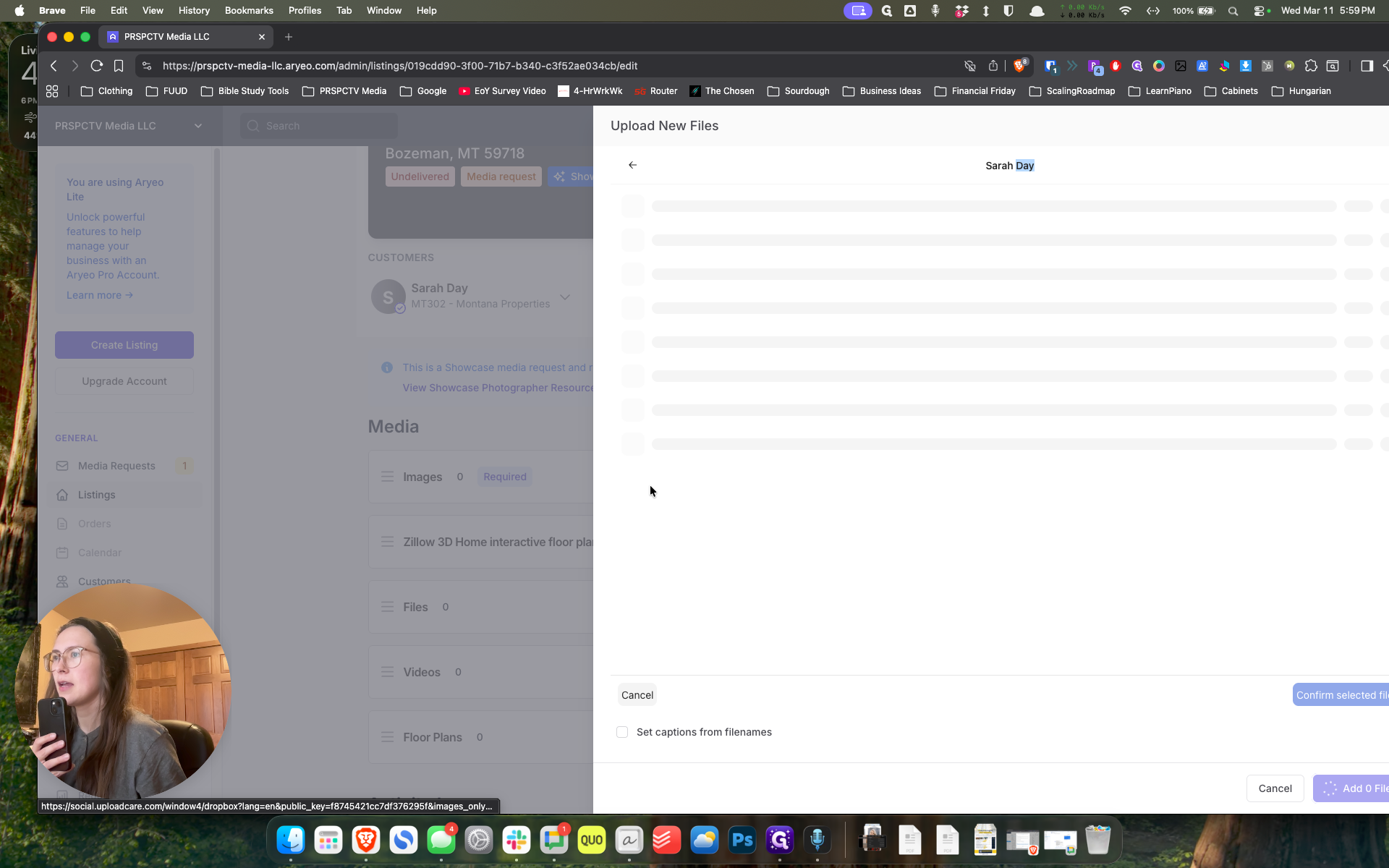
Okay. Property address. This one?
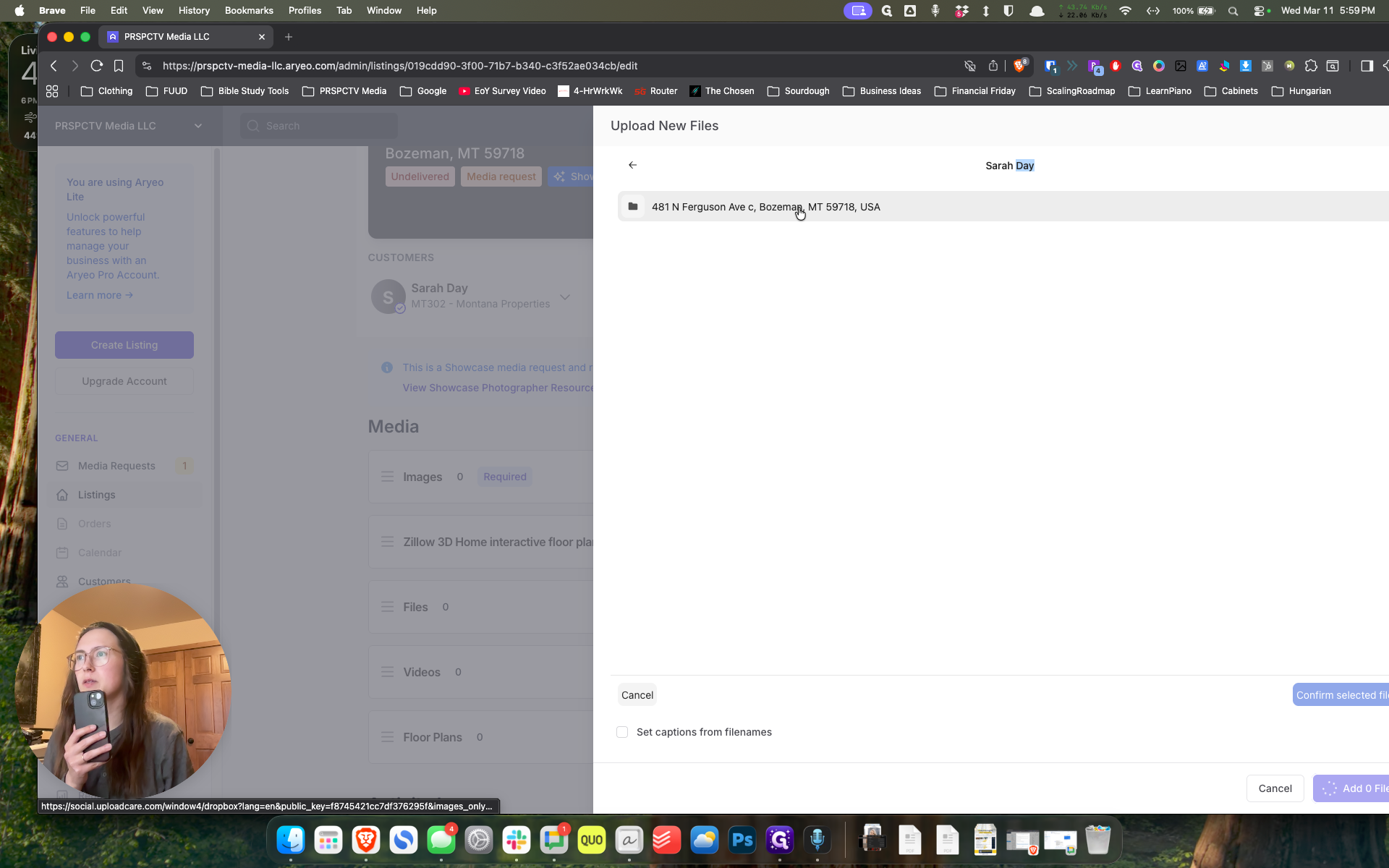
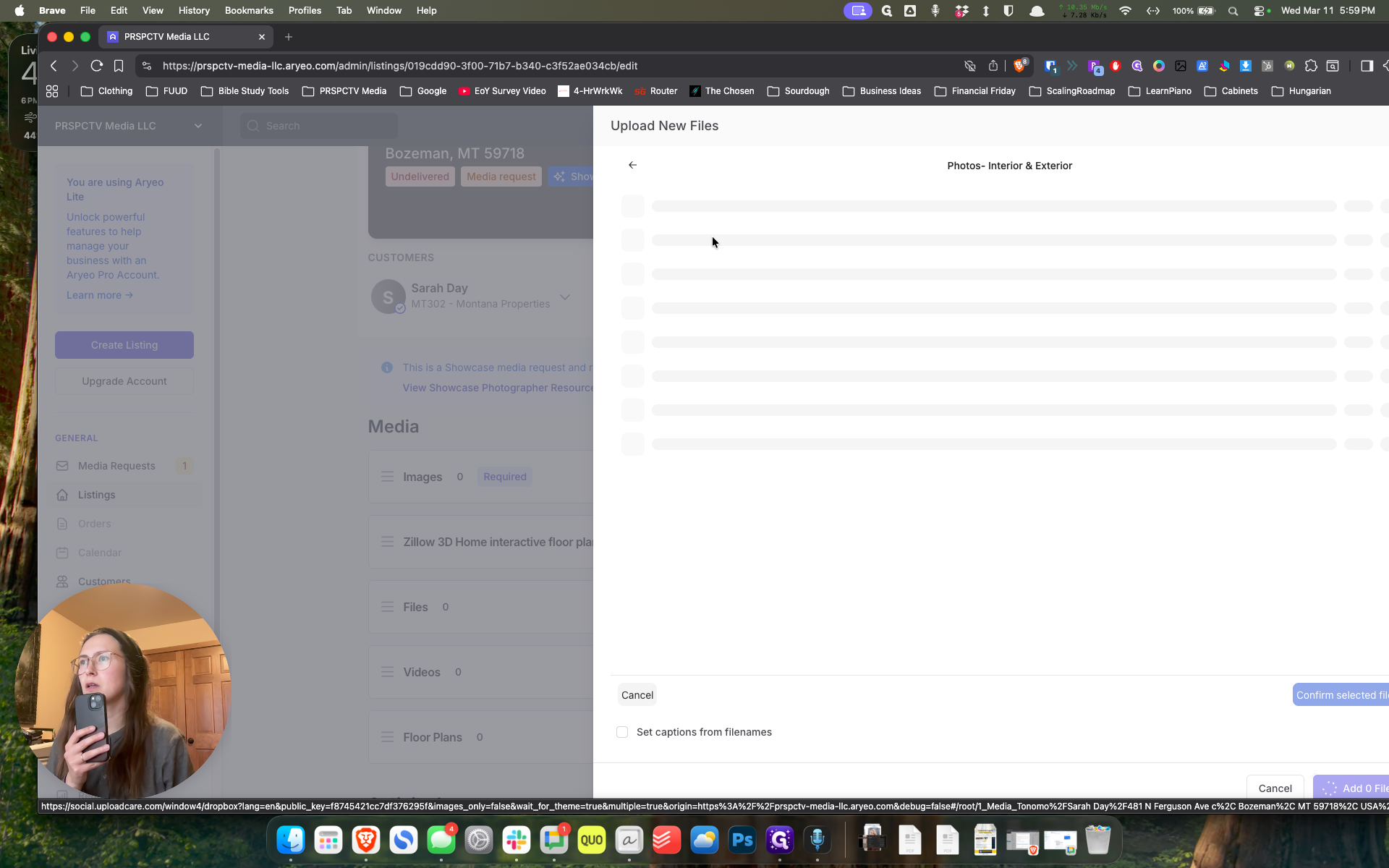
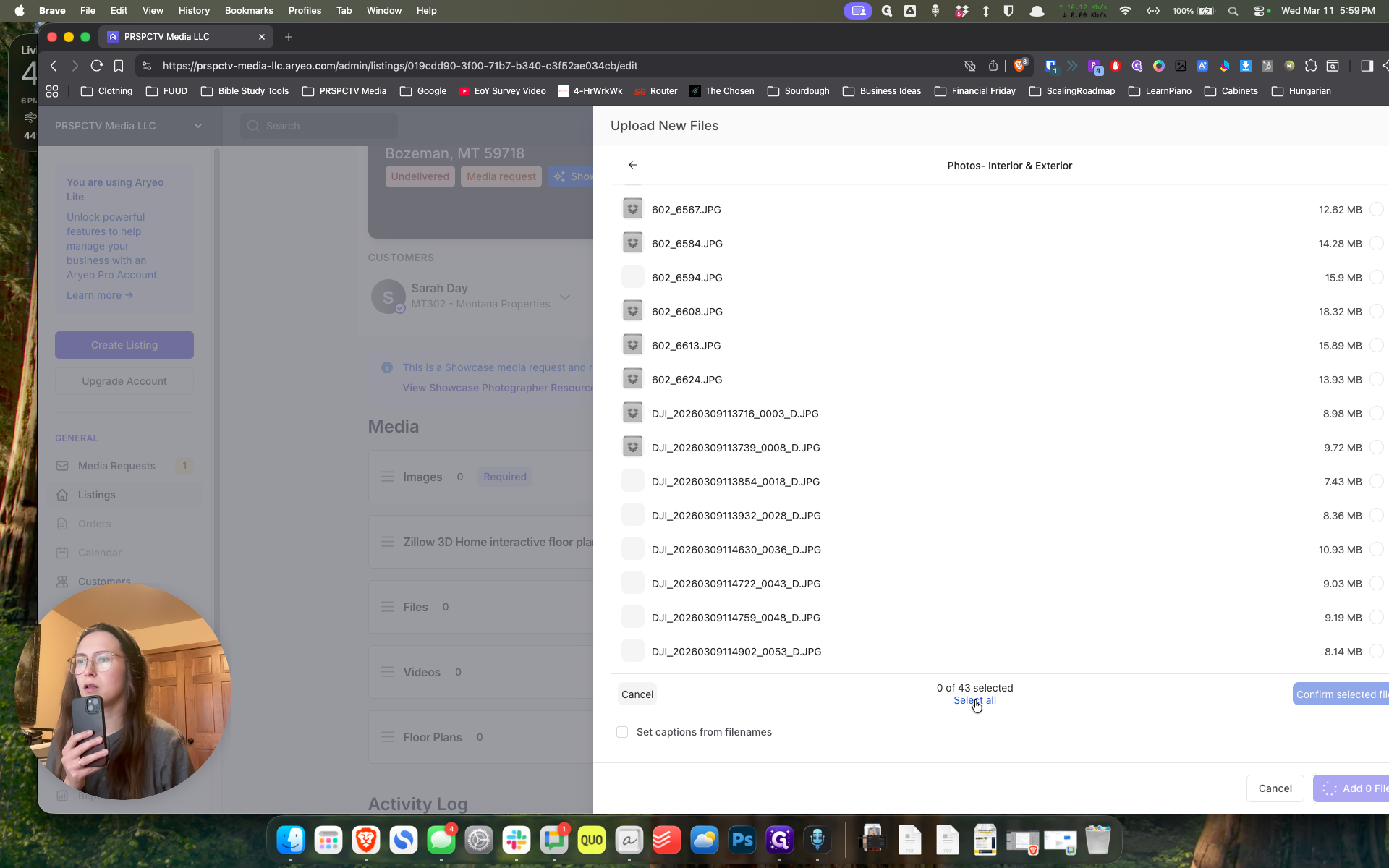
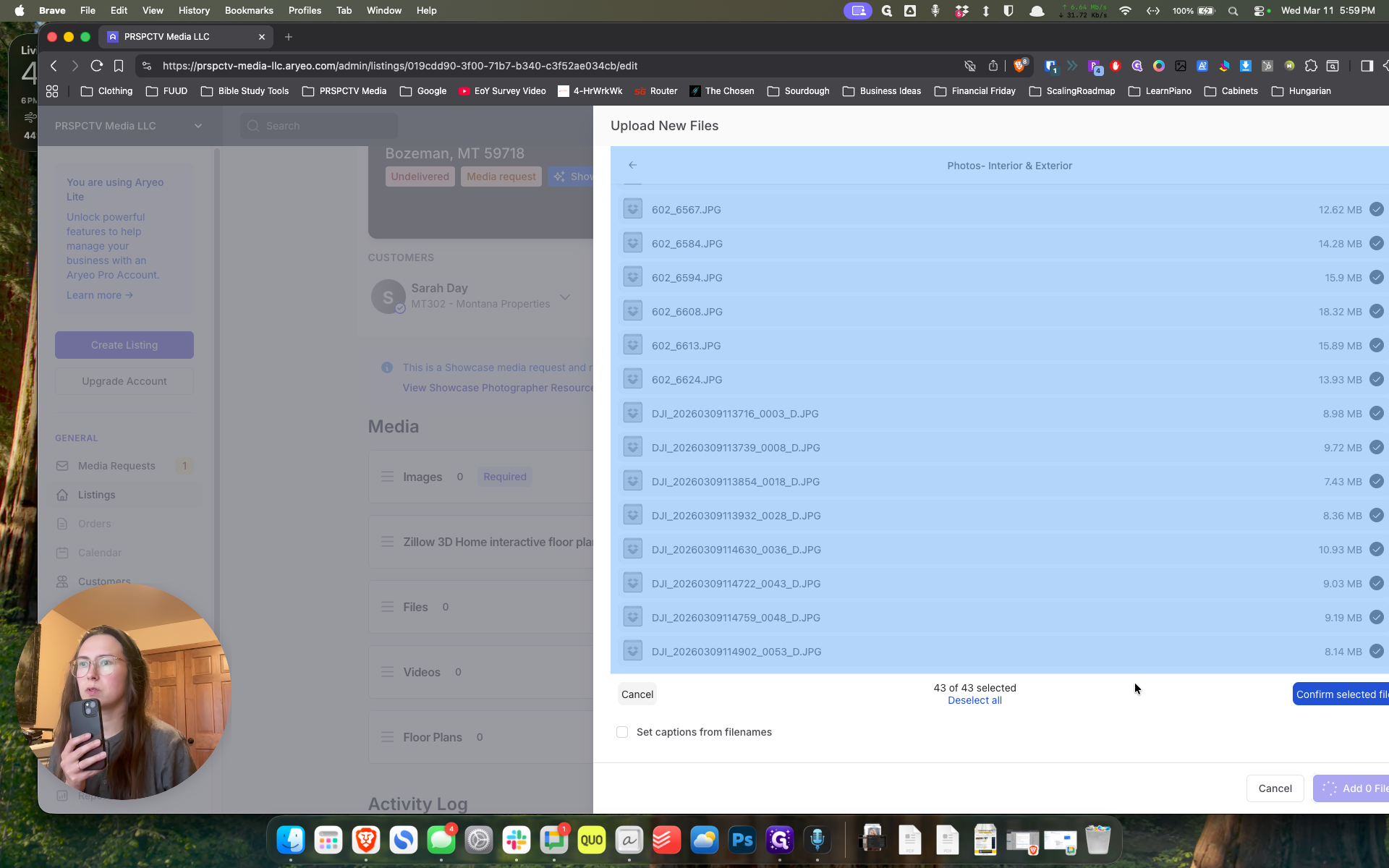
Yep. Photos. At the very bottom, there will be an option to select all, showing 0 out of 41 selected.
Okay. Select all. Yep.
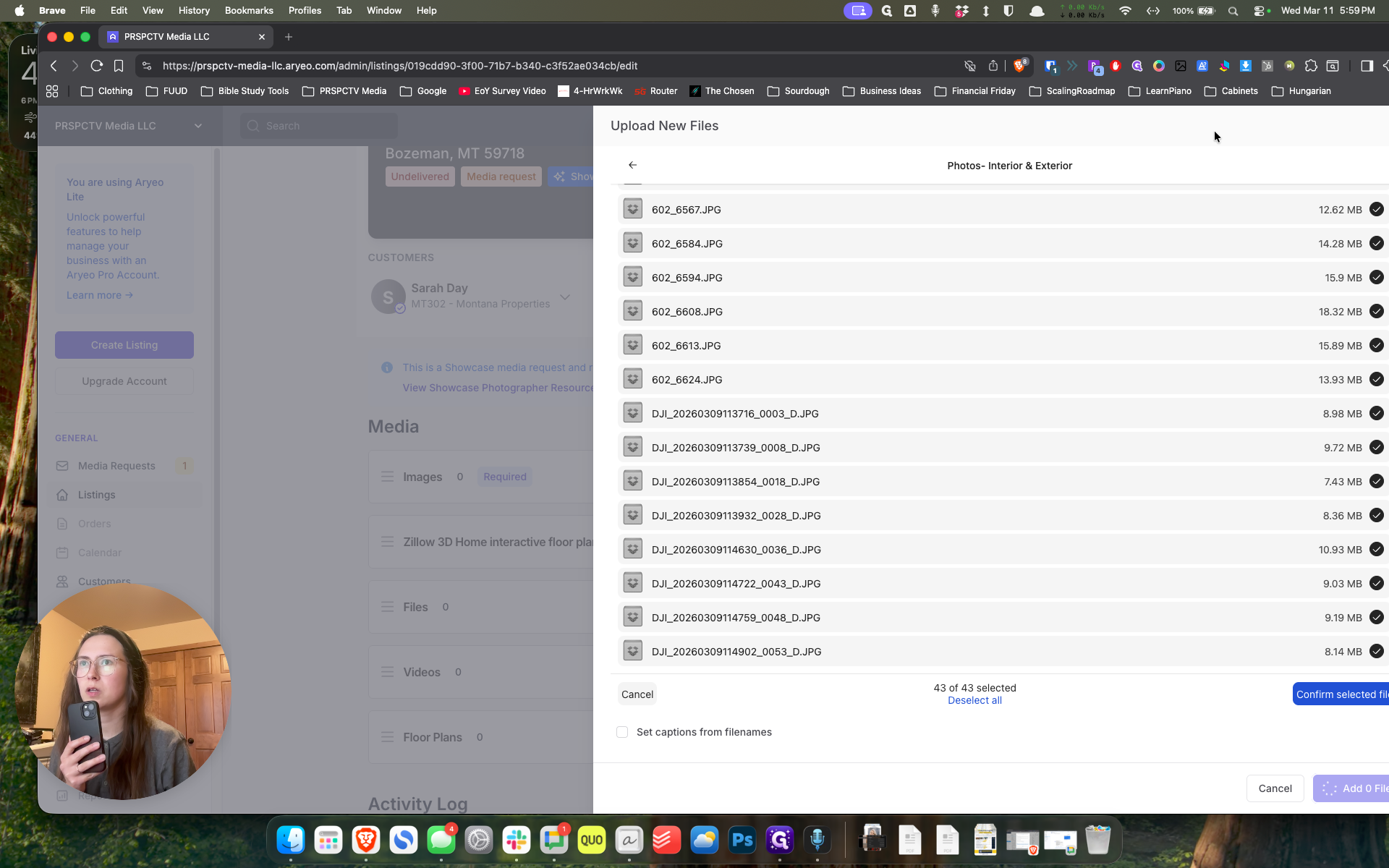
Wait a moment. Once it turns blue, click confirm.
Oops, sorry.
""
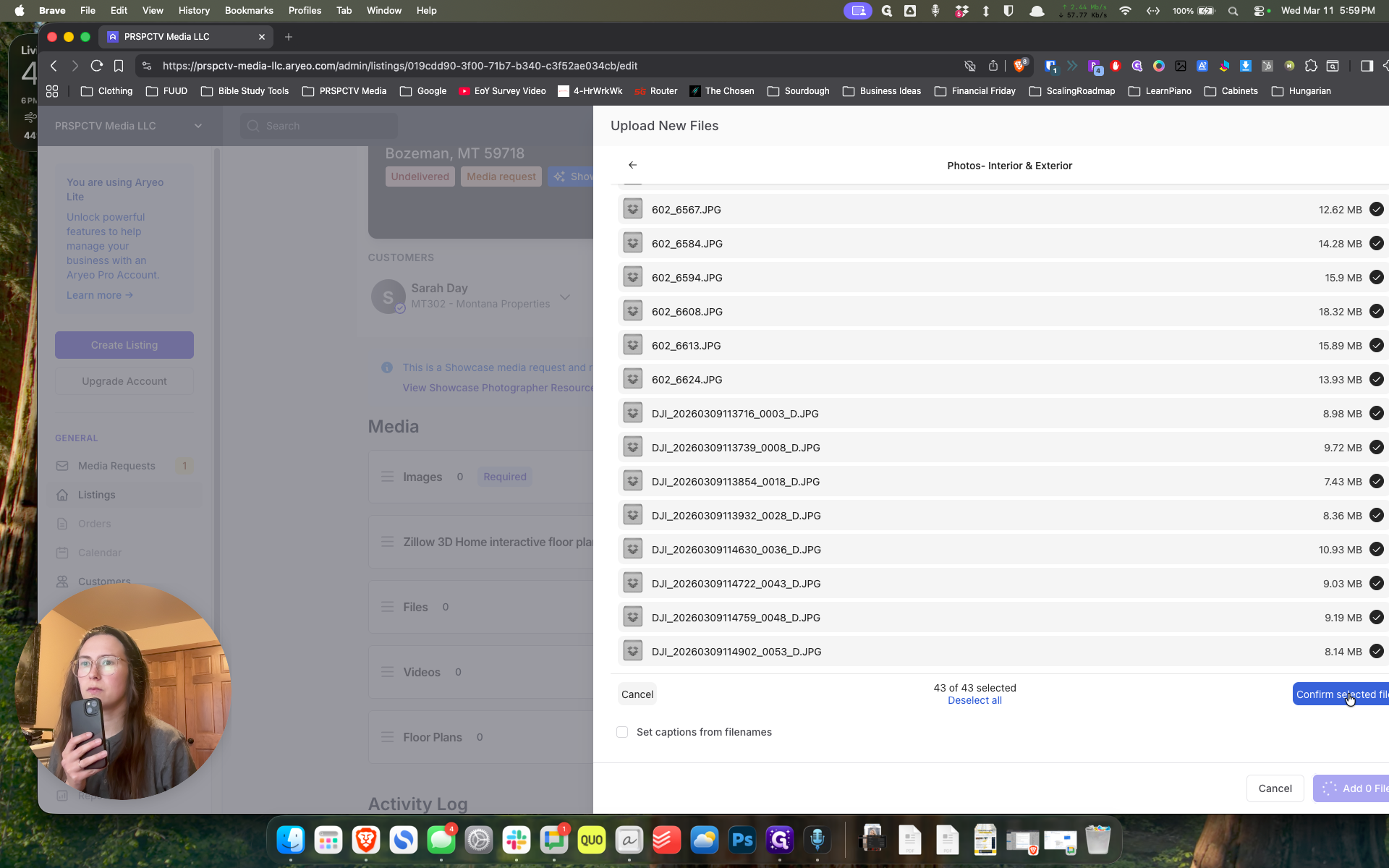
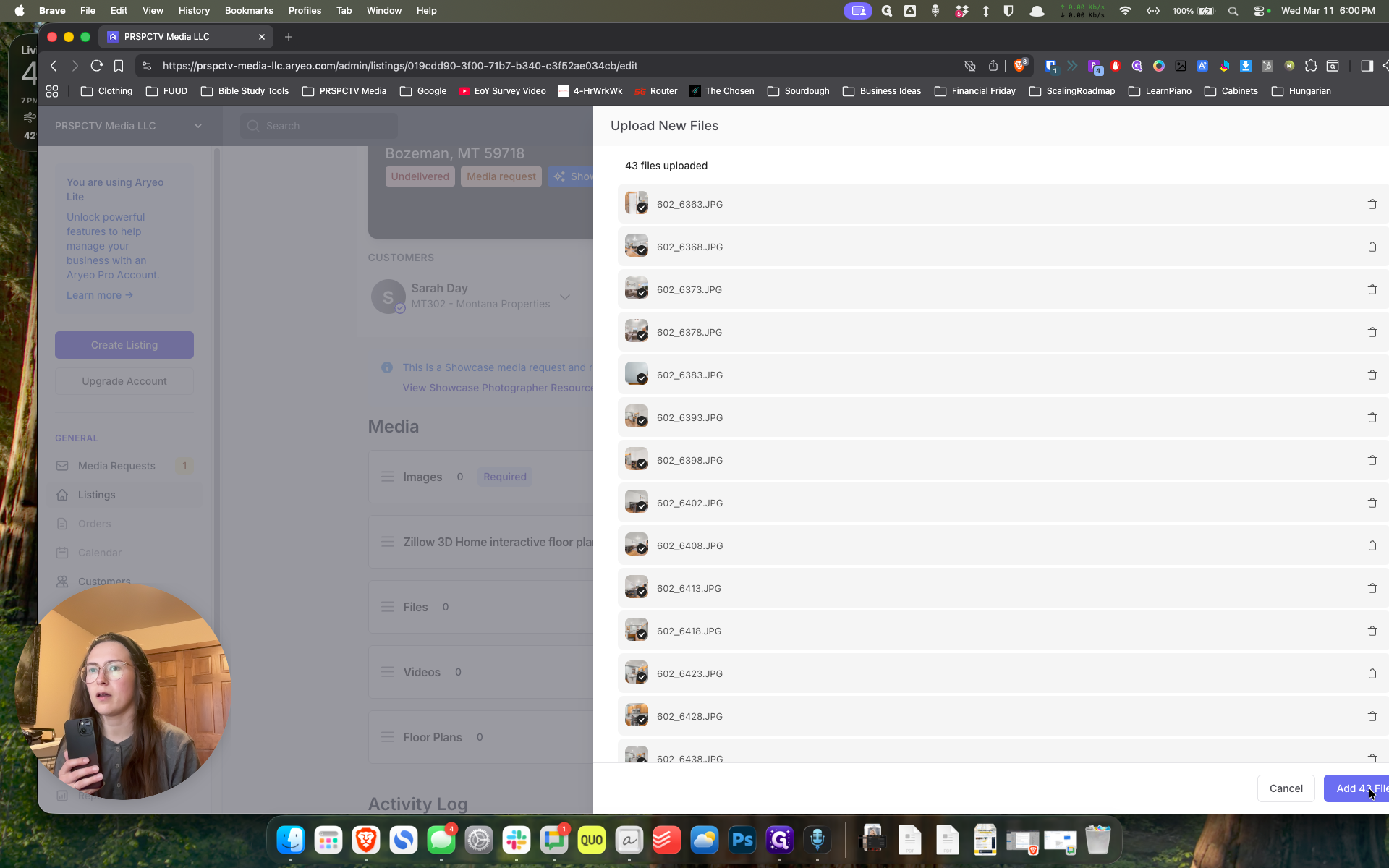
Yep. It will take a moment to upload. Then, click "Add File." Right. It will take a moment to upload. Then, we will click "Add File" here. Yeah.
Okay. Add 43.
The window isn't fitted properly. Oh, sorry about that.
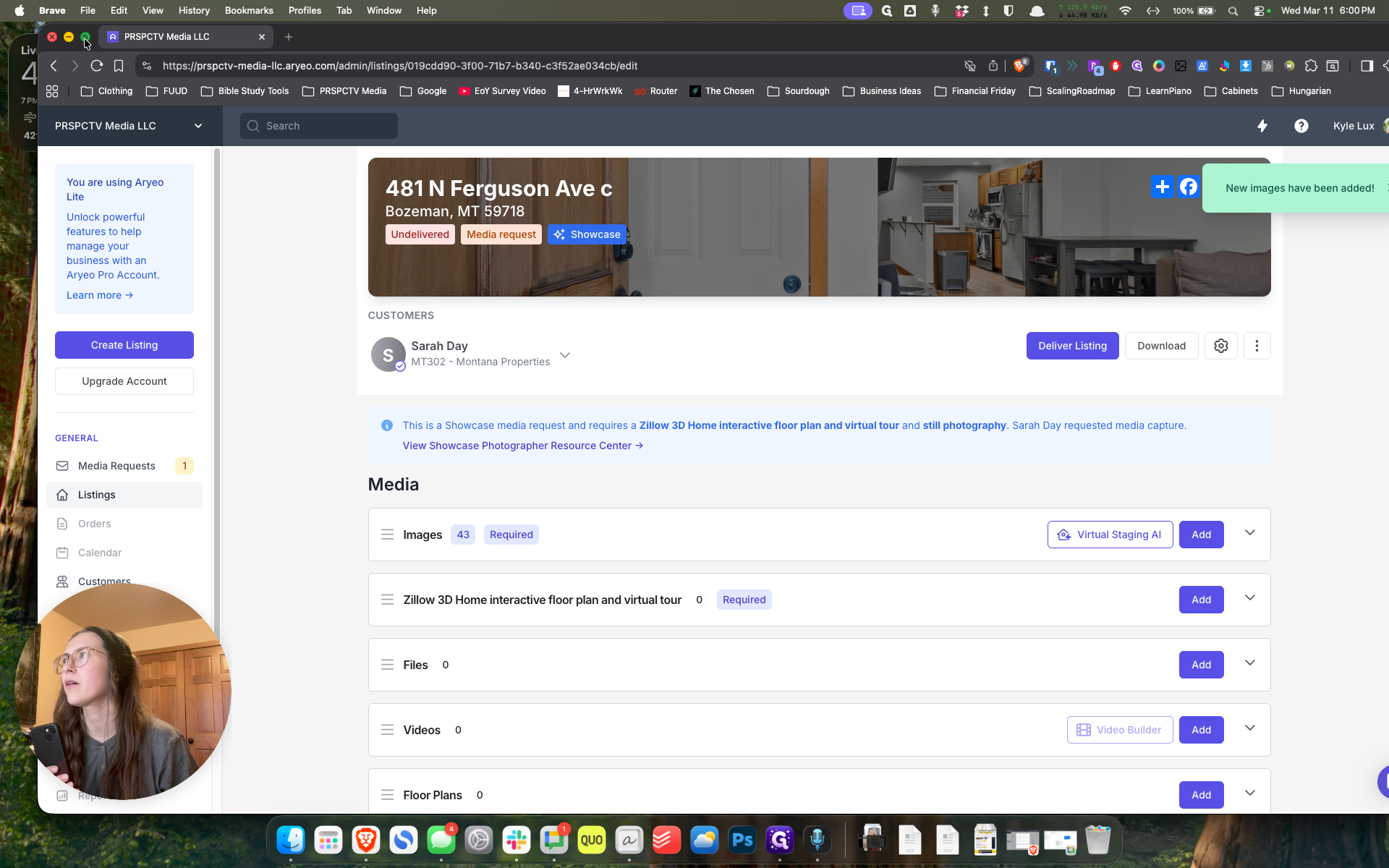
Is that better? That's fine. That will work. Okay. Now what?
Now we're going to do video because she had a video. Okay.
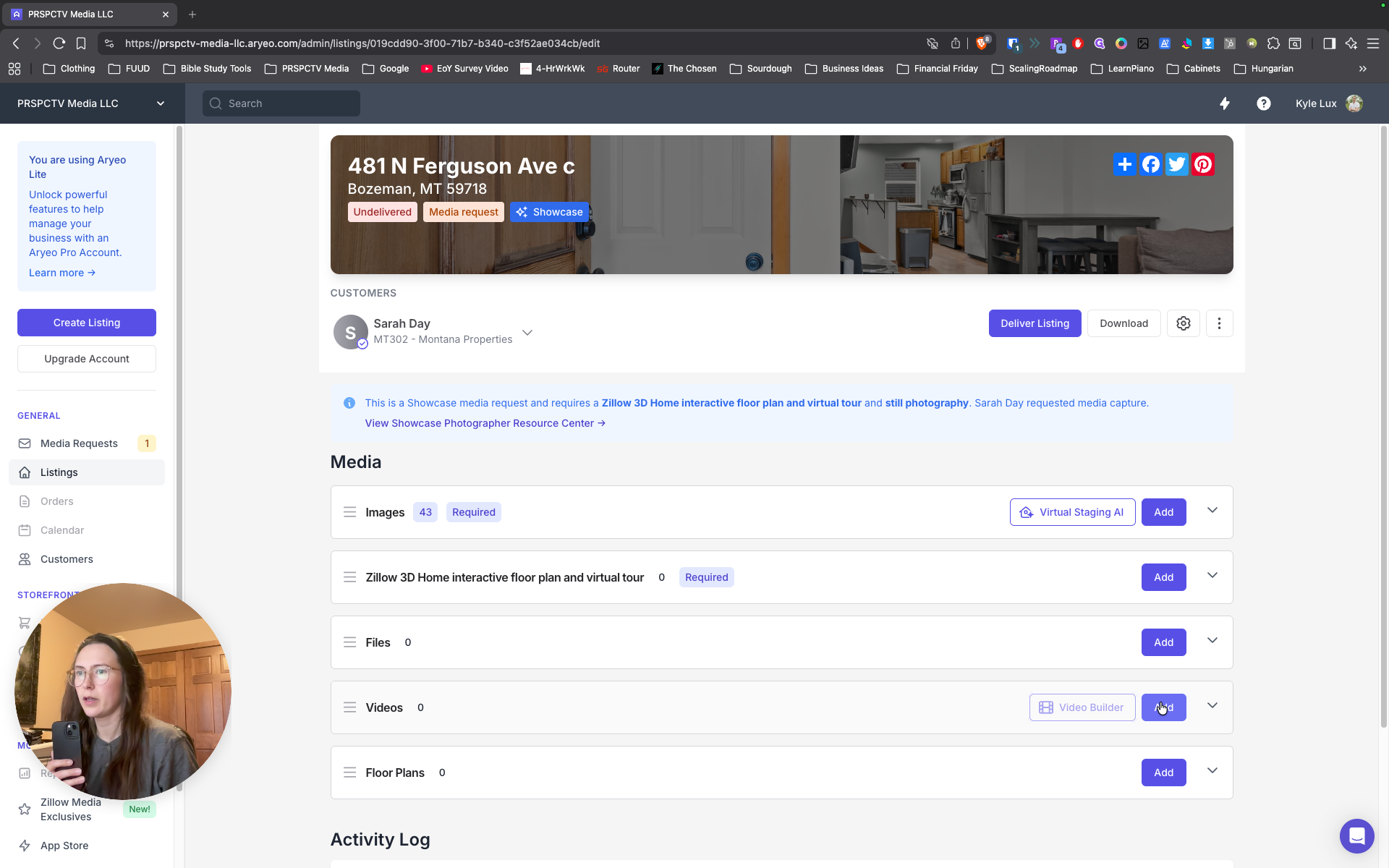
Then upload the file.
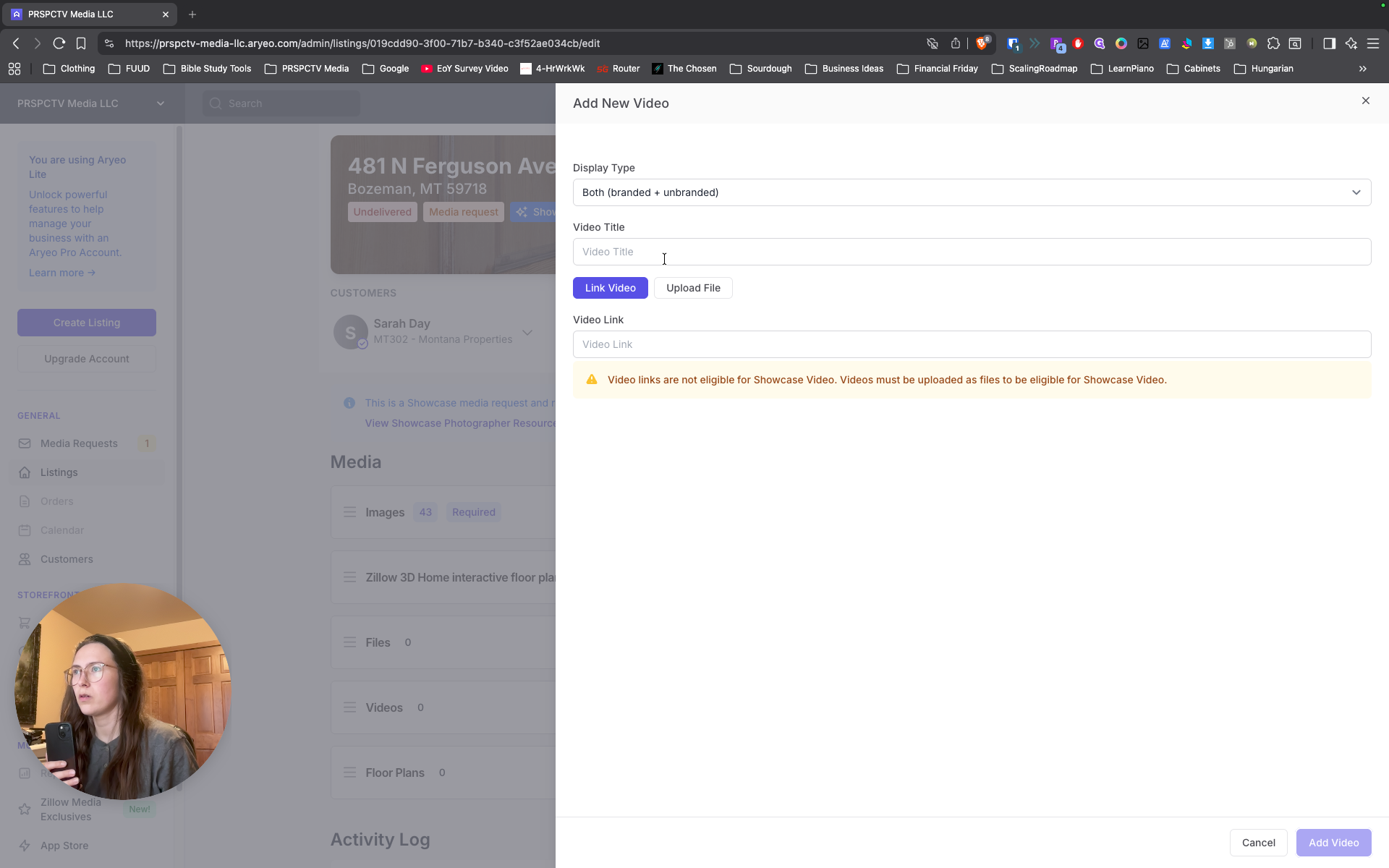
Uh, okay.
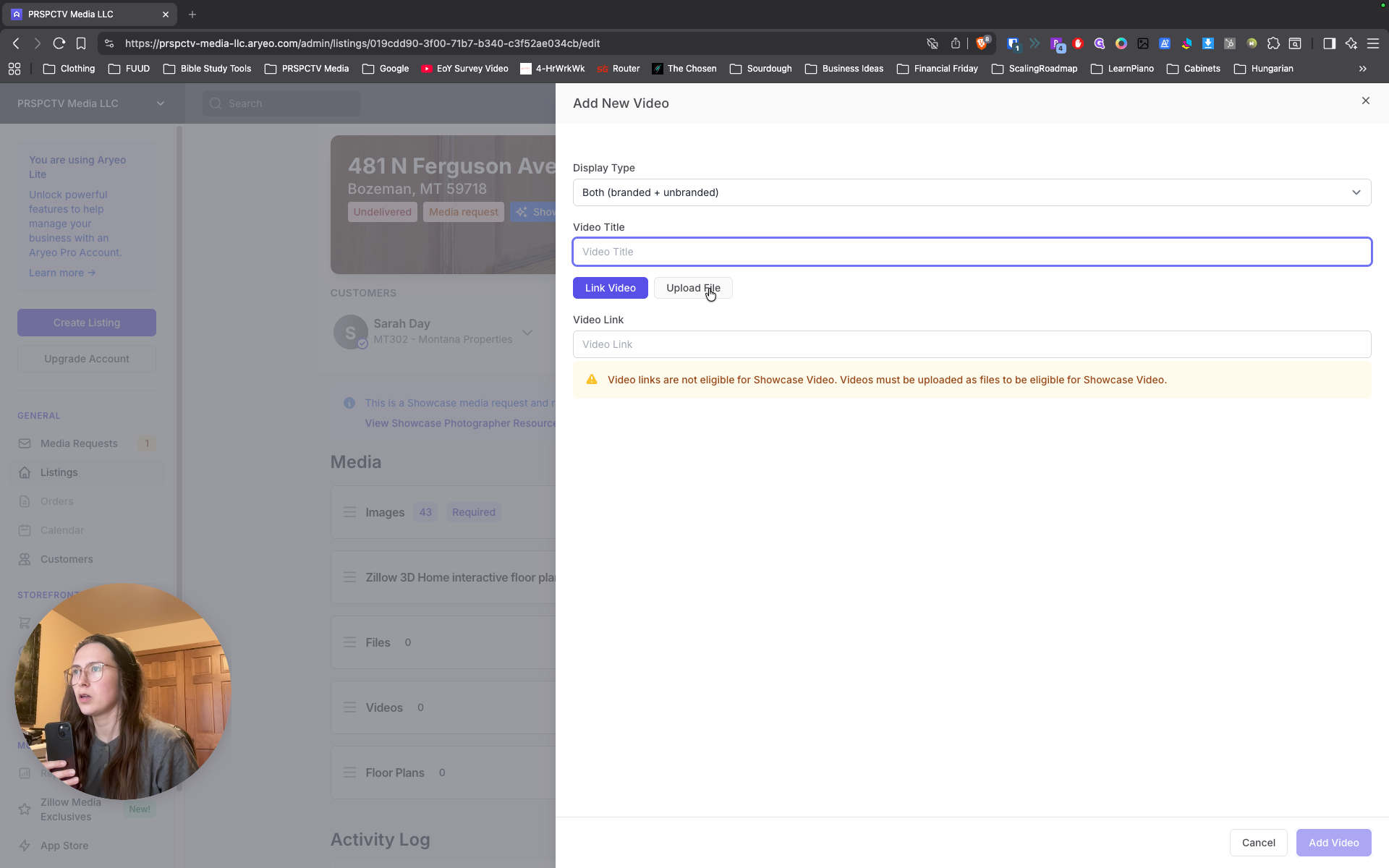
Same, Dropbox. Look for the agent.
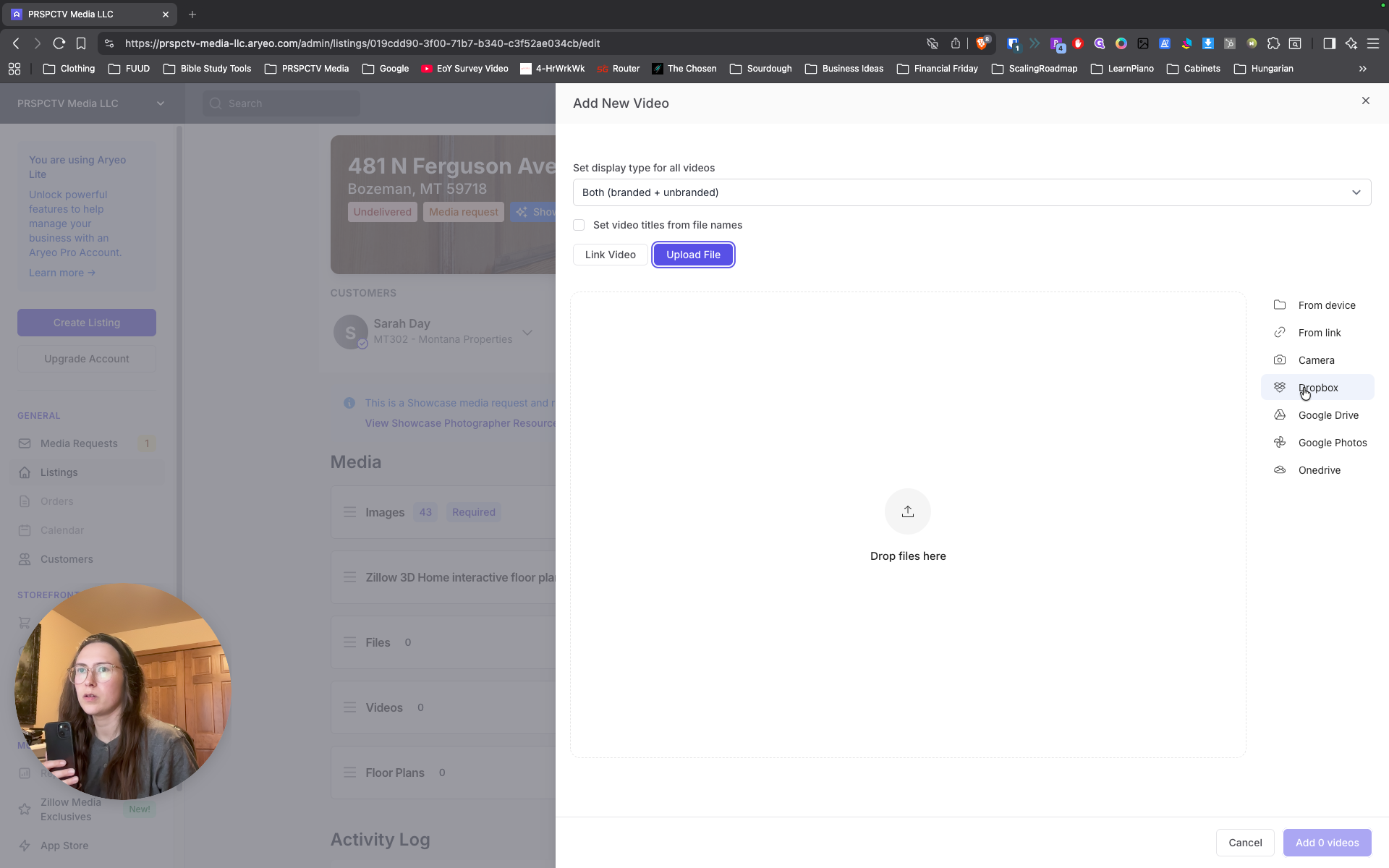
Dropbox, Media Tonomo, find the appropriate agent.
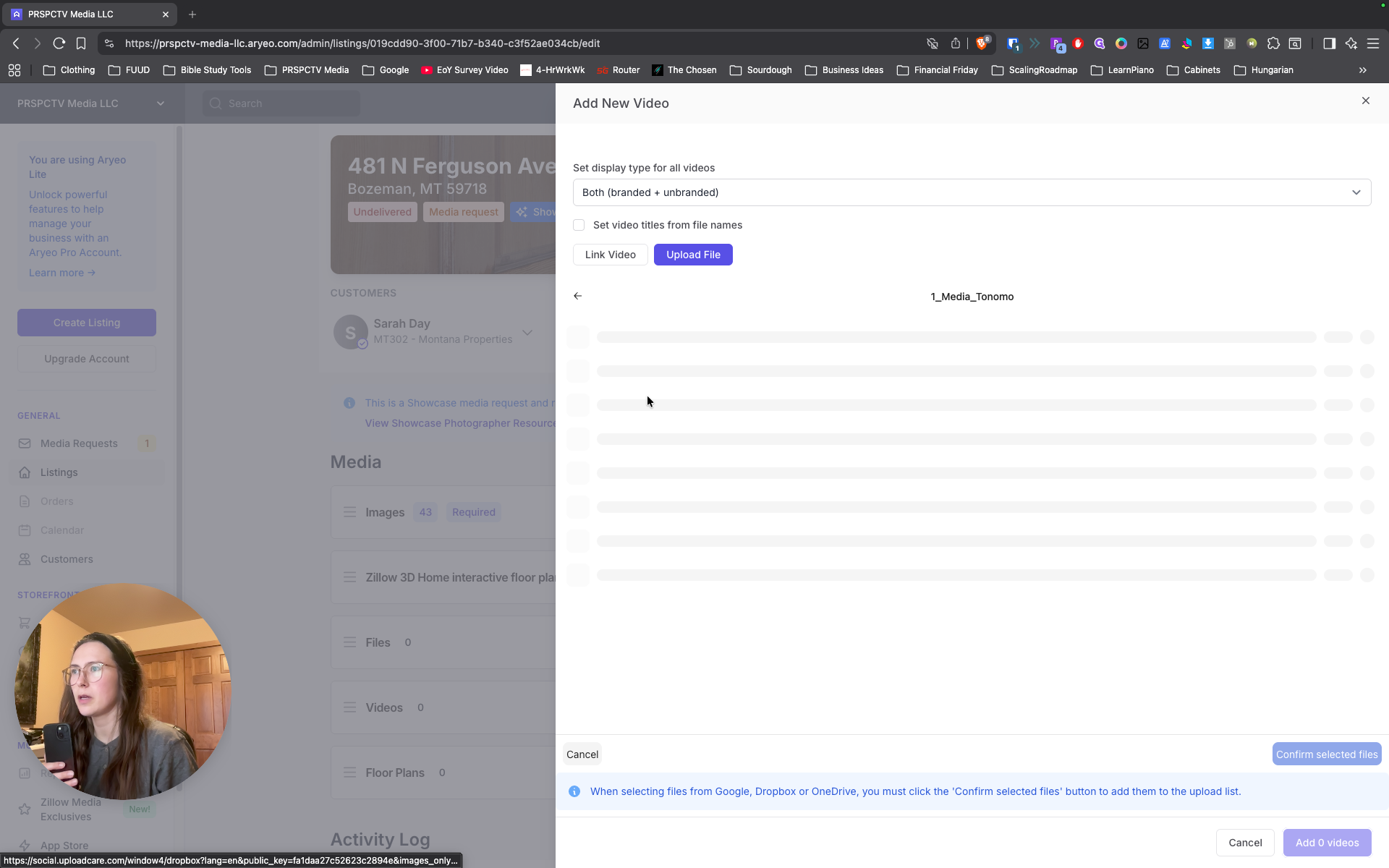
Sarah Day.
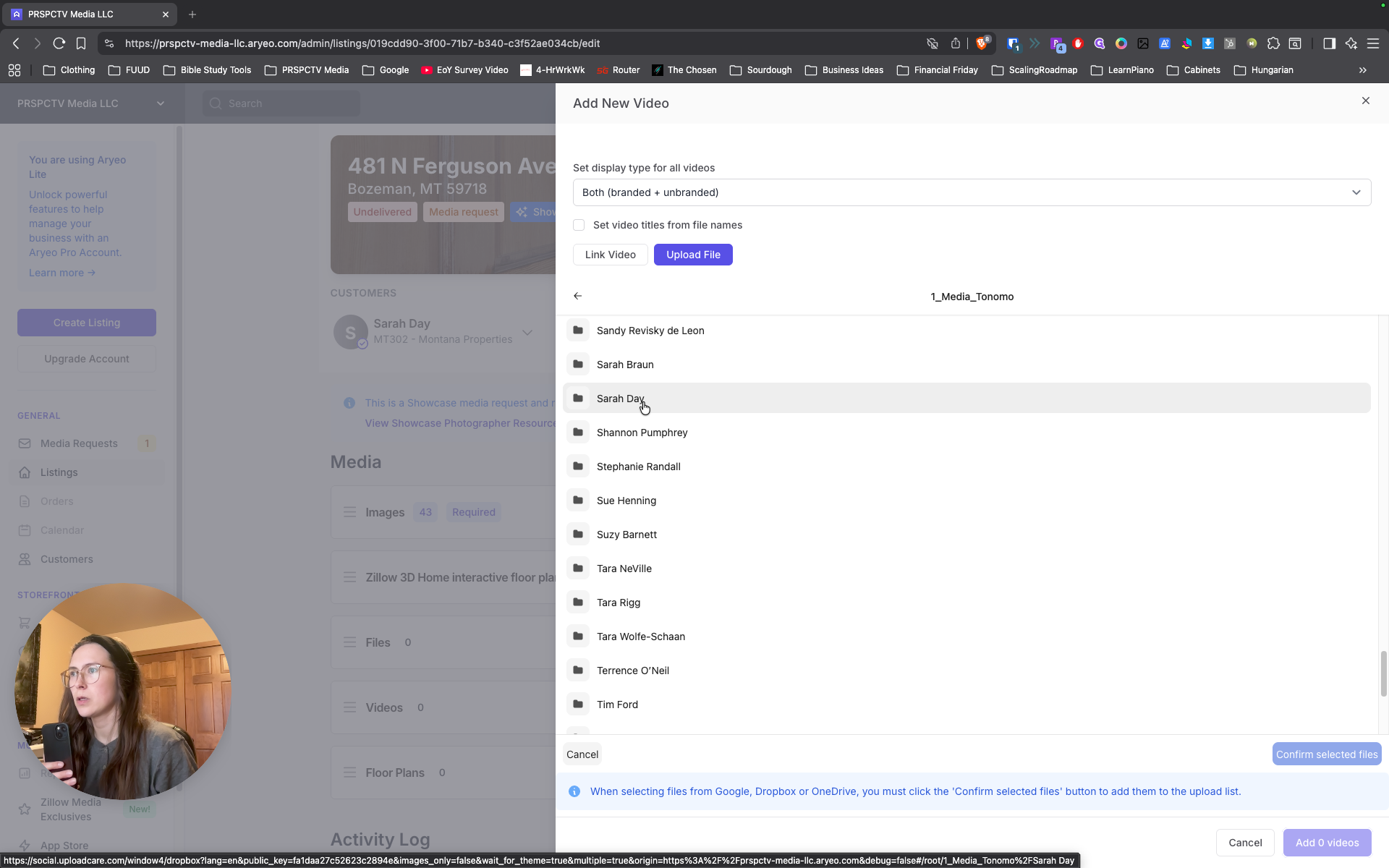
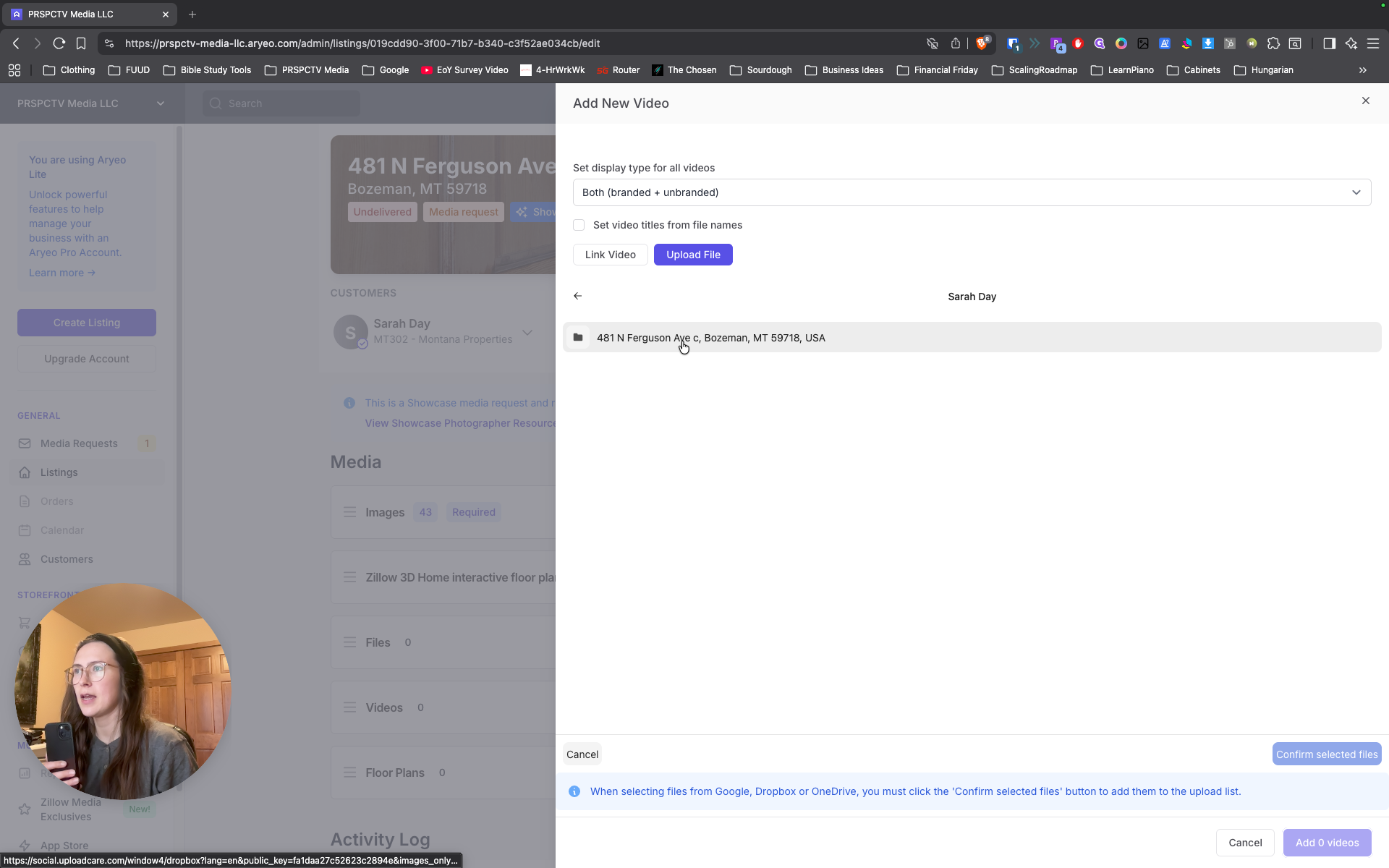
Select the property address, then choose video. Yep.
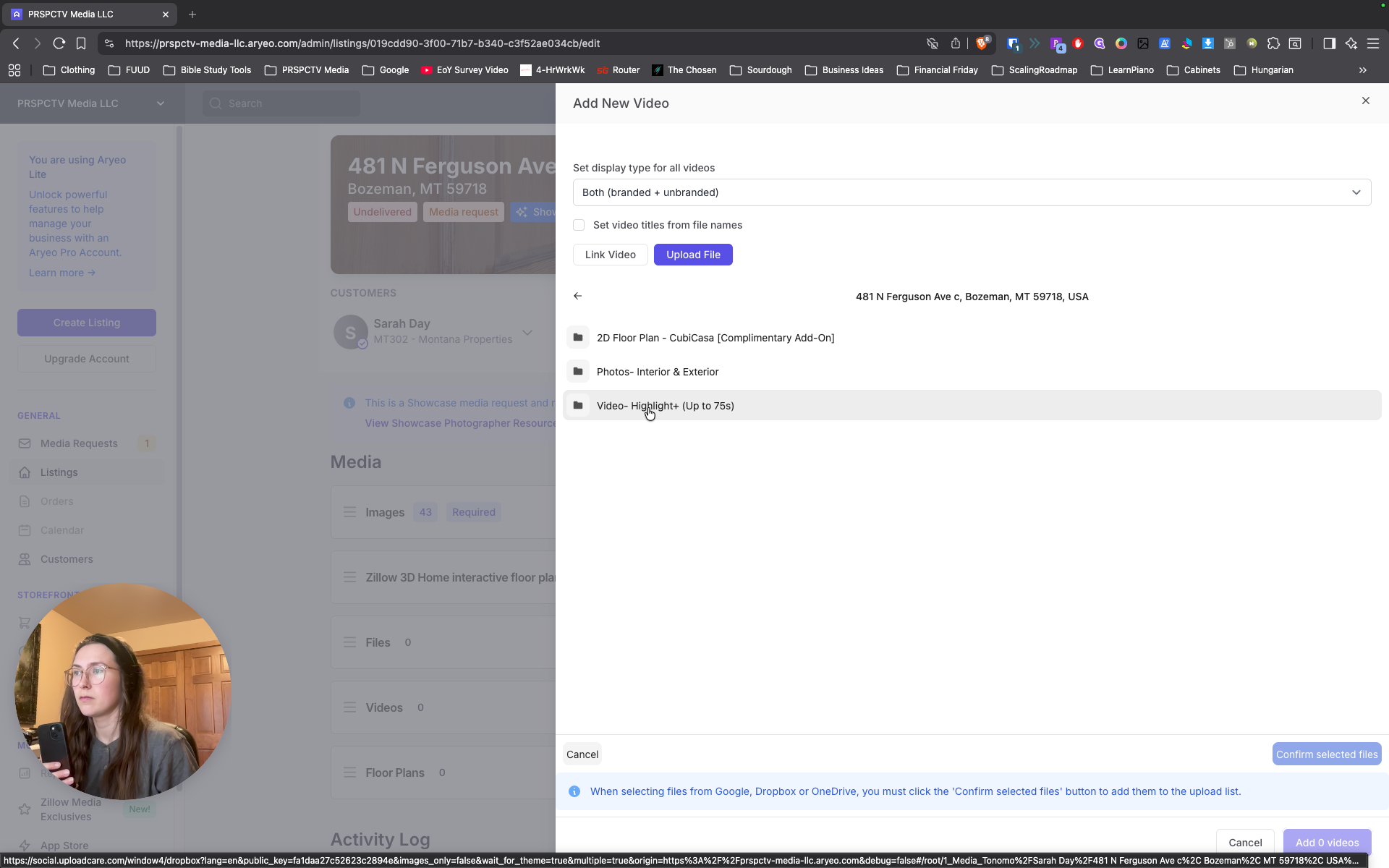
Just those two files. Okay, so select all? Yep.
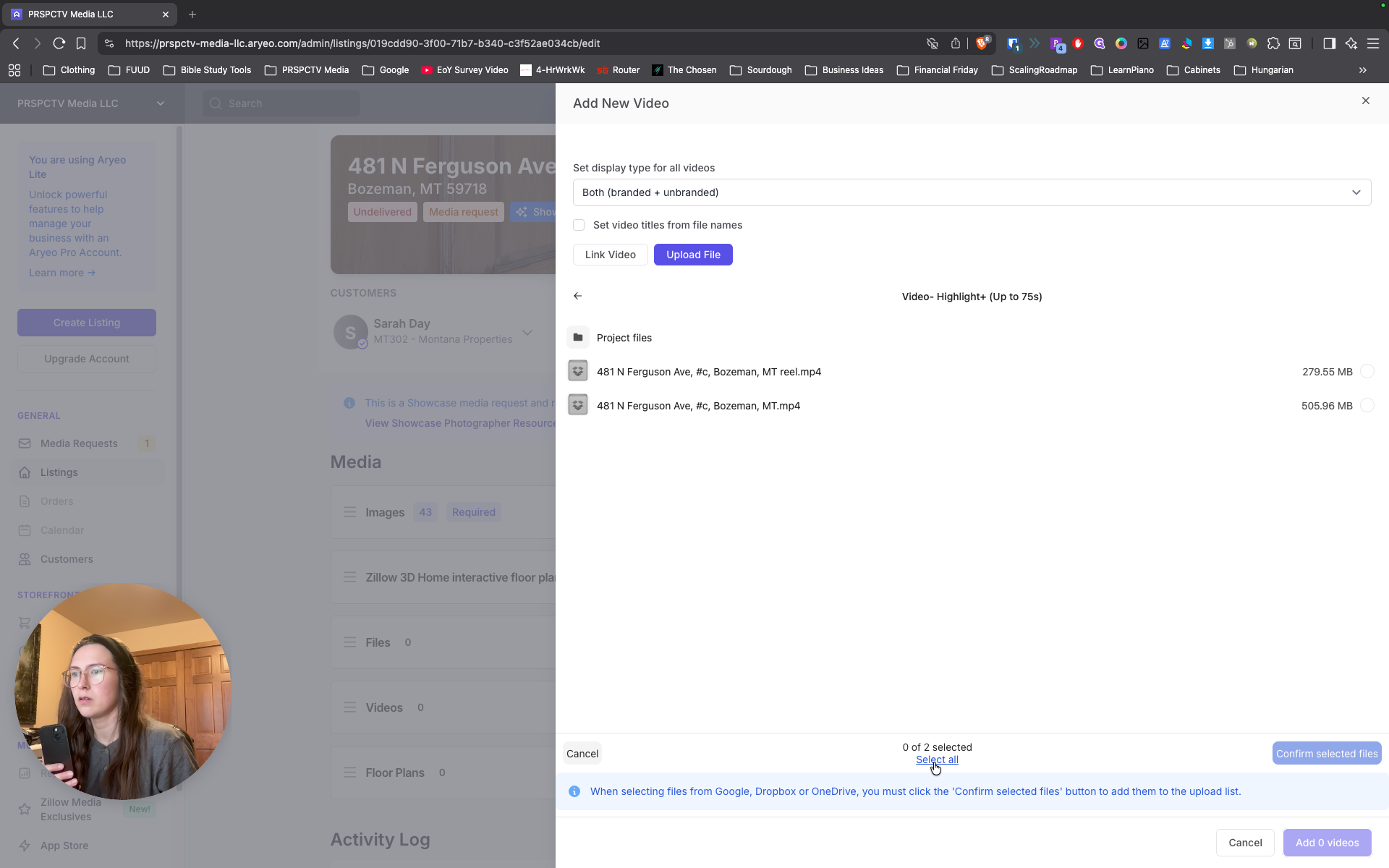
Select all. Confirm.
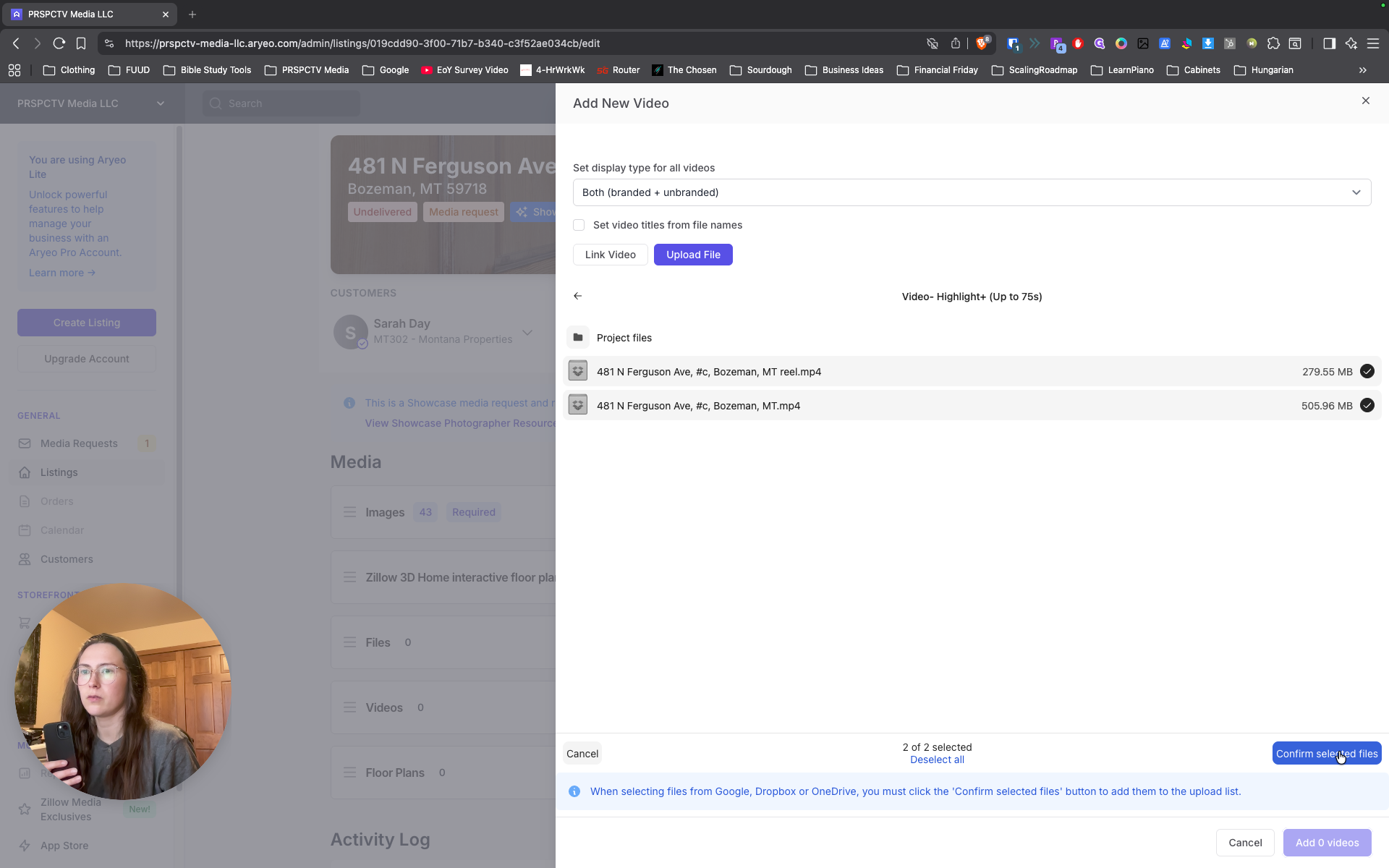
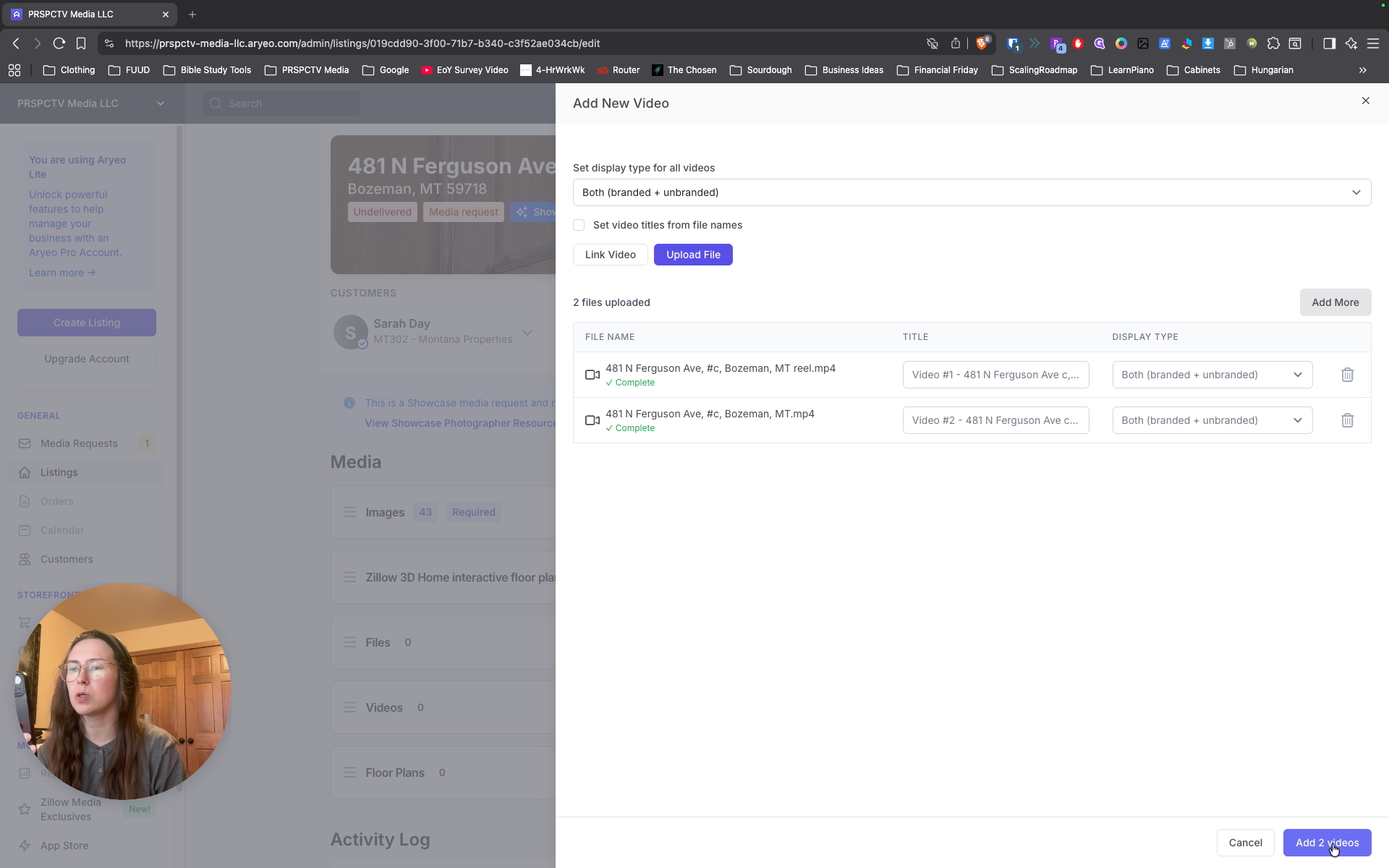
Wait for it to be uploaded. I can't see the screen. Sorry. I put my phone down for a moment while it was uploading. Both are at 0%.
Okay. Oh, all right. Went from... Add two videos.
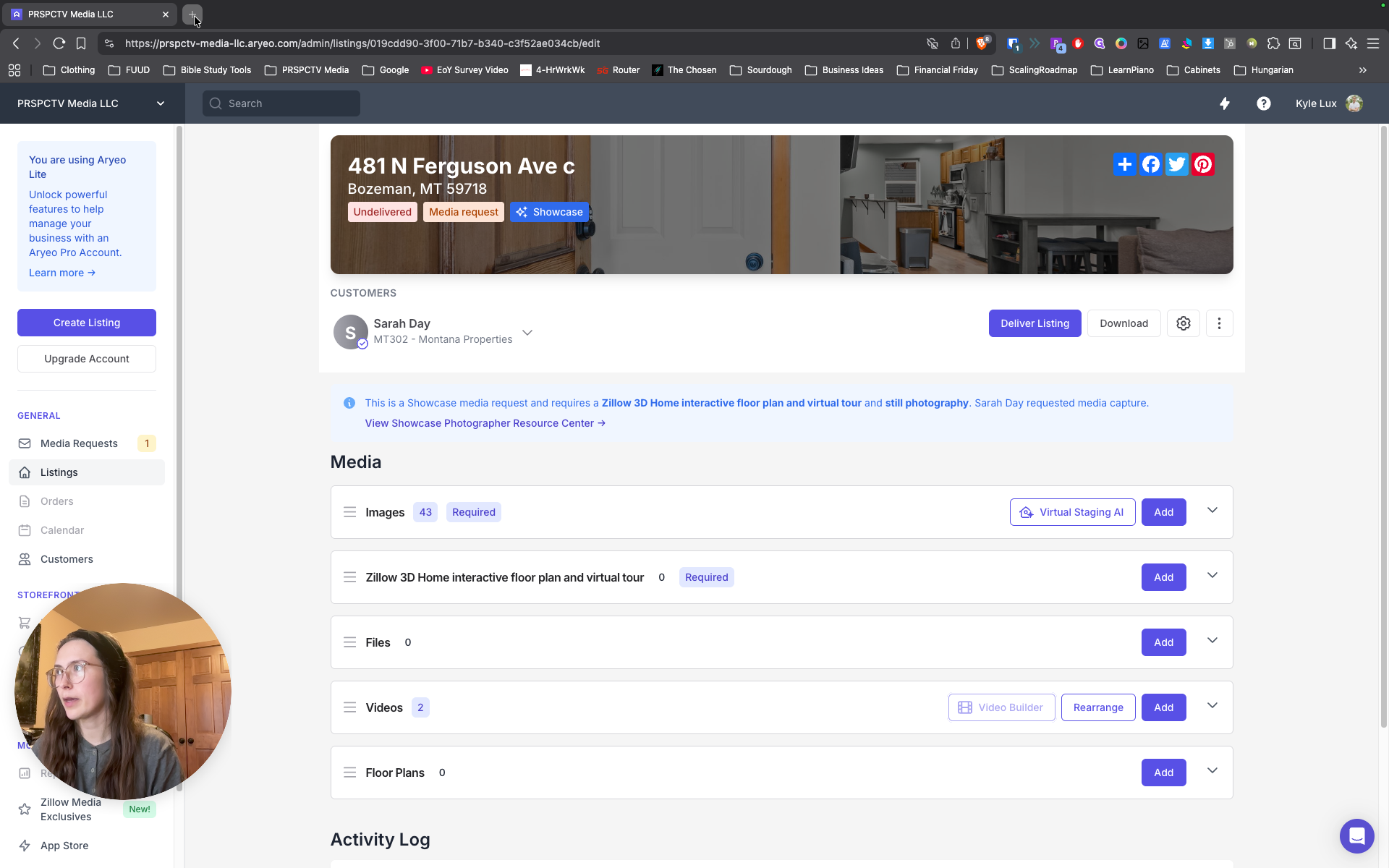
Now we need to get the link for the 3D tour. We can get that from Zillow, or since we've already delivered it, we can get it from Tonomo. Tell me what to do. Just get it from Tonomo. Okie.
That's portal. Portal. Okie. Dot ............................
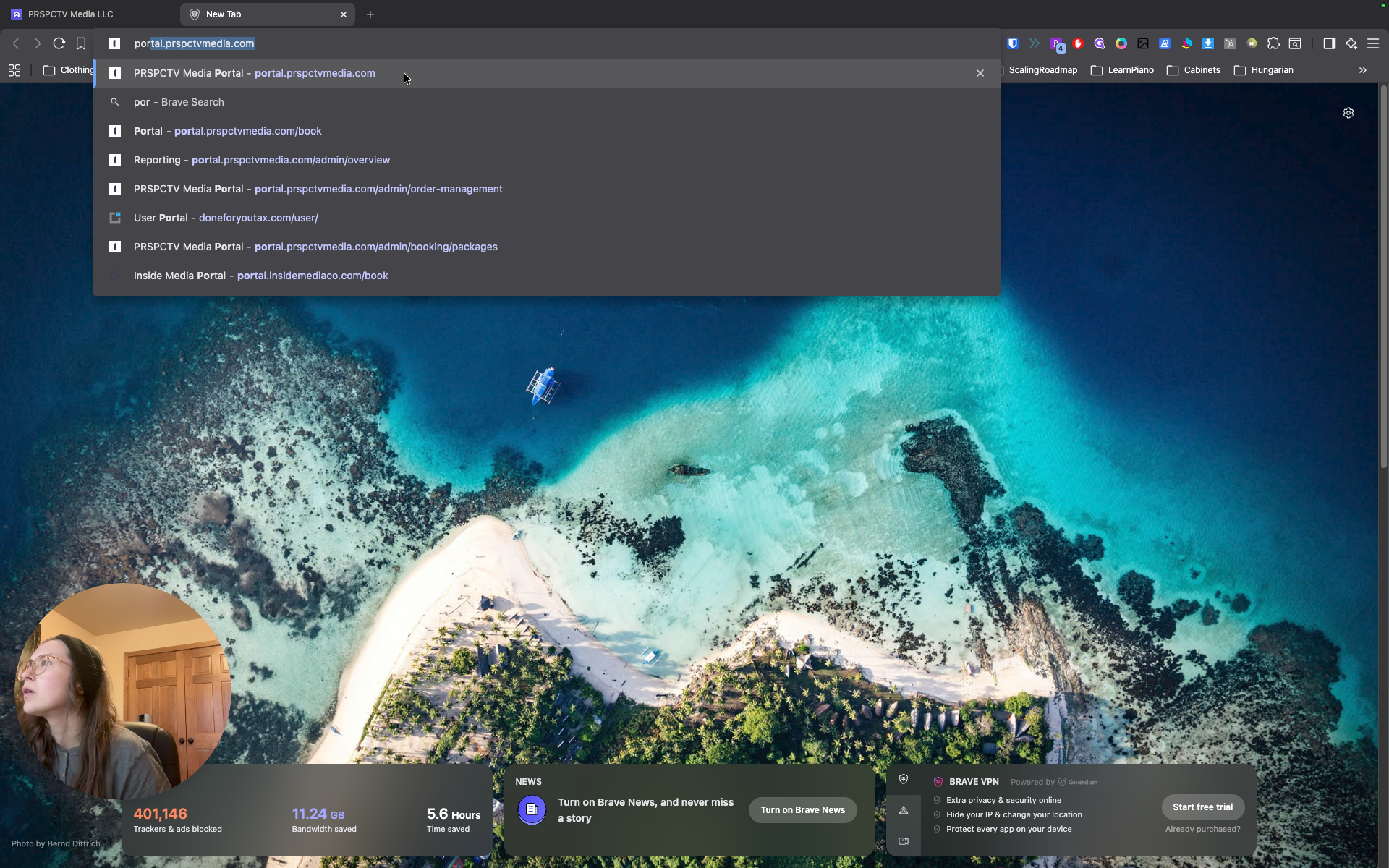
Perspective. Mm-hmm. Then look for this specific shoot from Sarah Day. "" Go to order management. Then search for "Sarah."
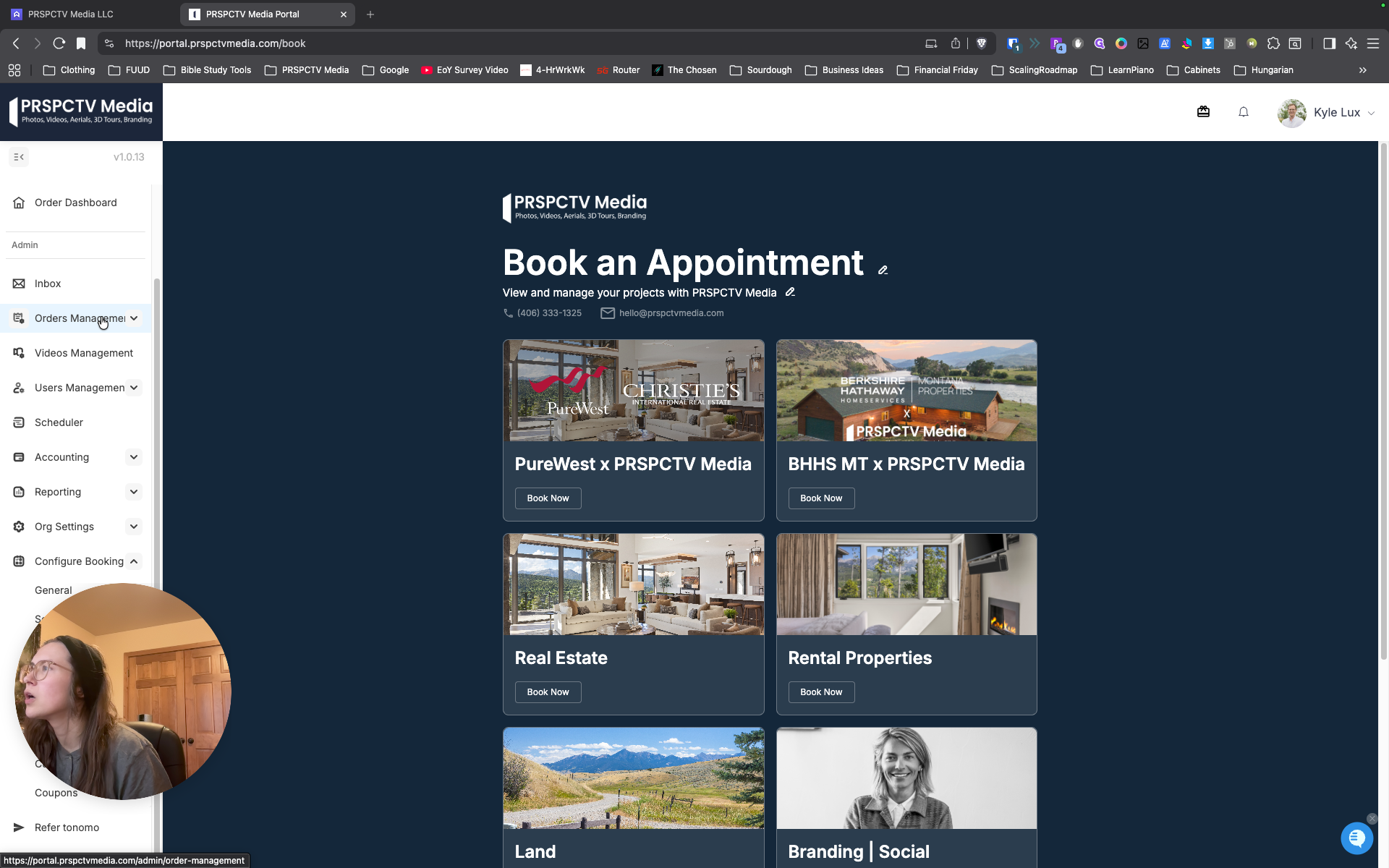
Perfect. There. Right here?
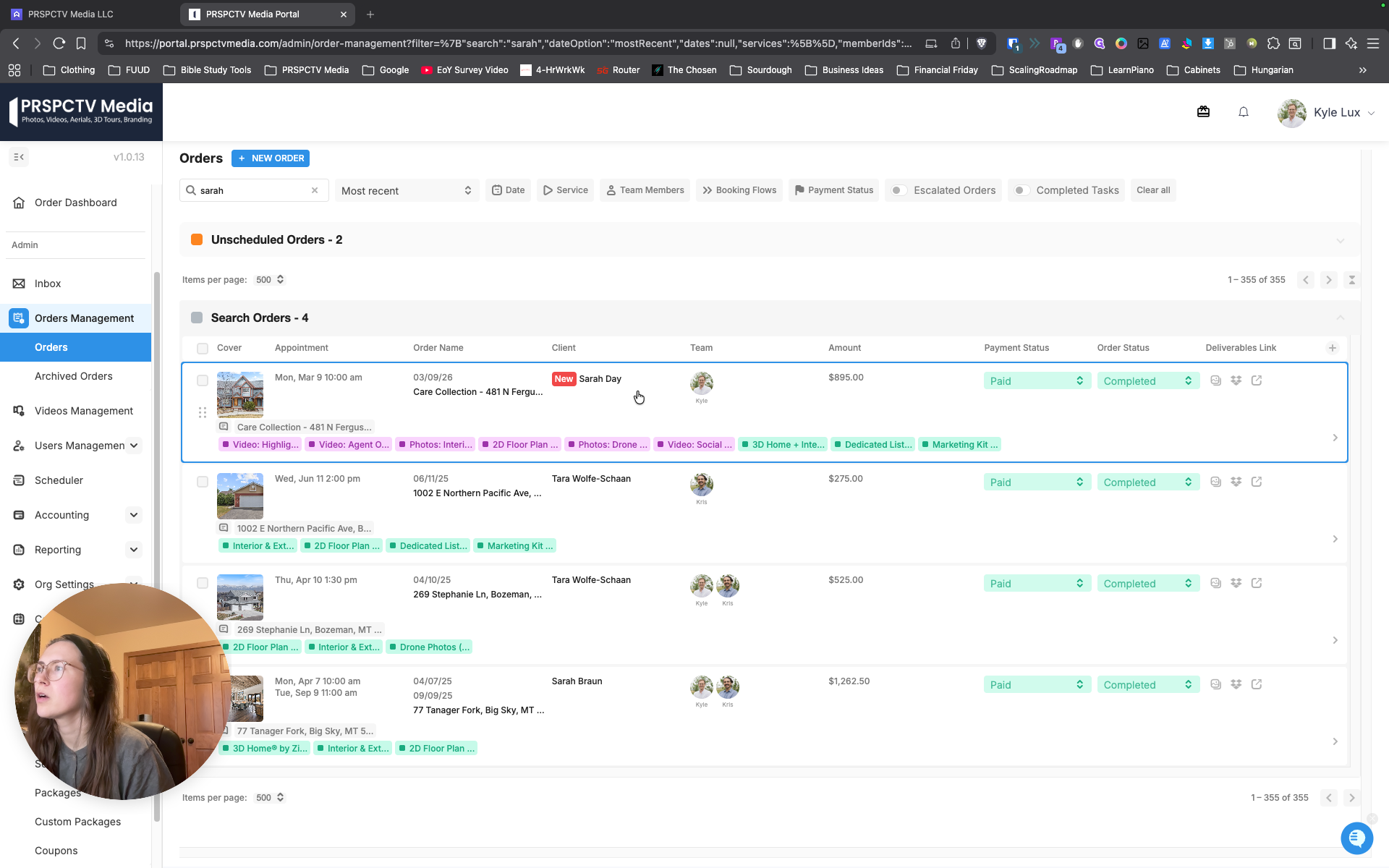
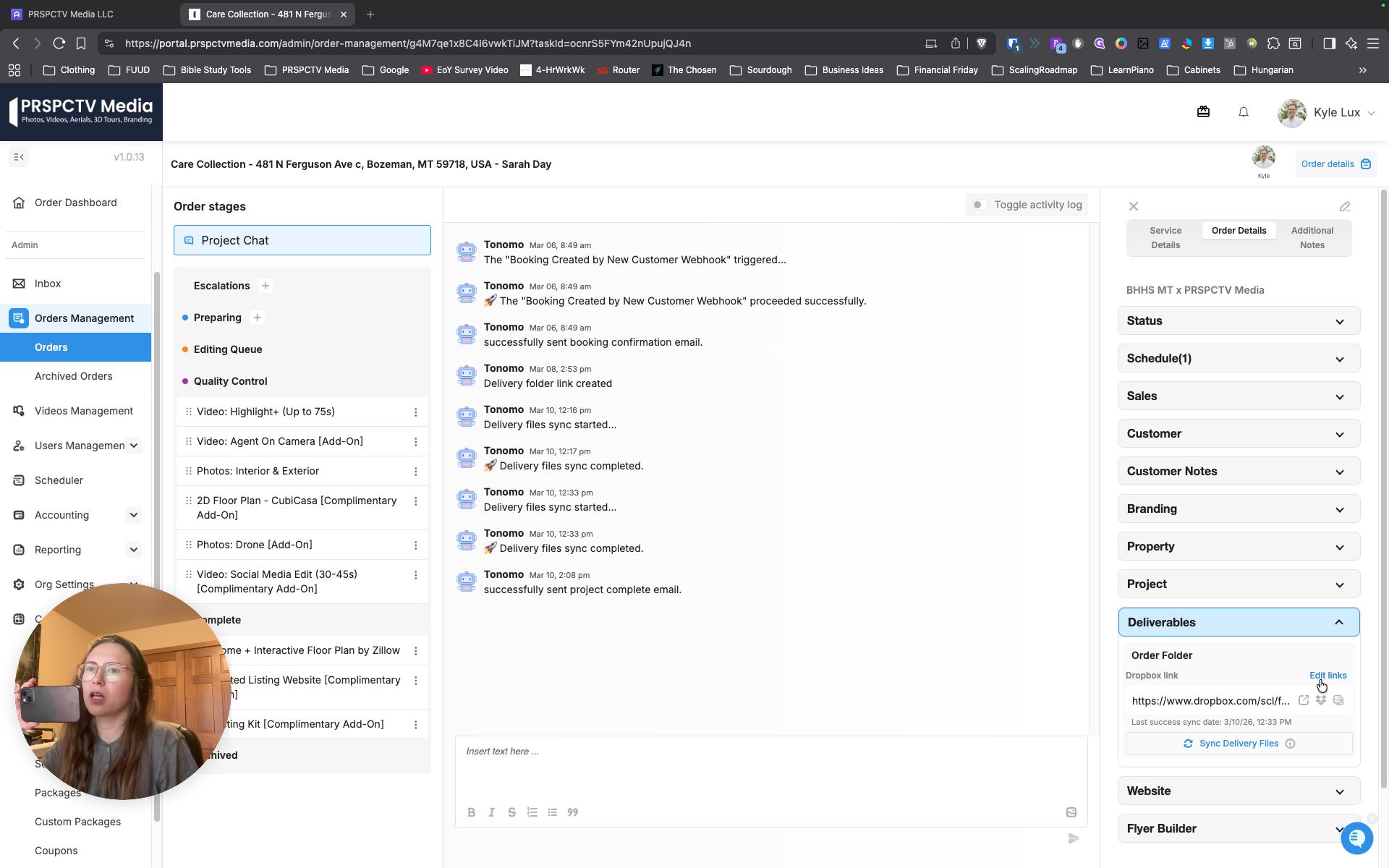
Yeah, then click on where it says care collection. "" That's great. Just click right here. Yes.
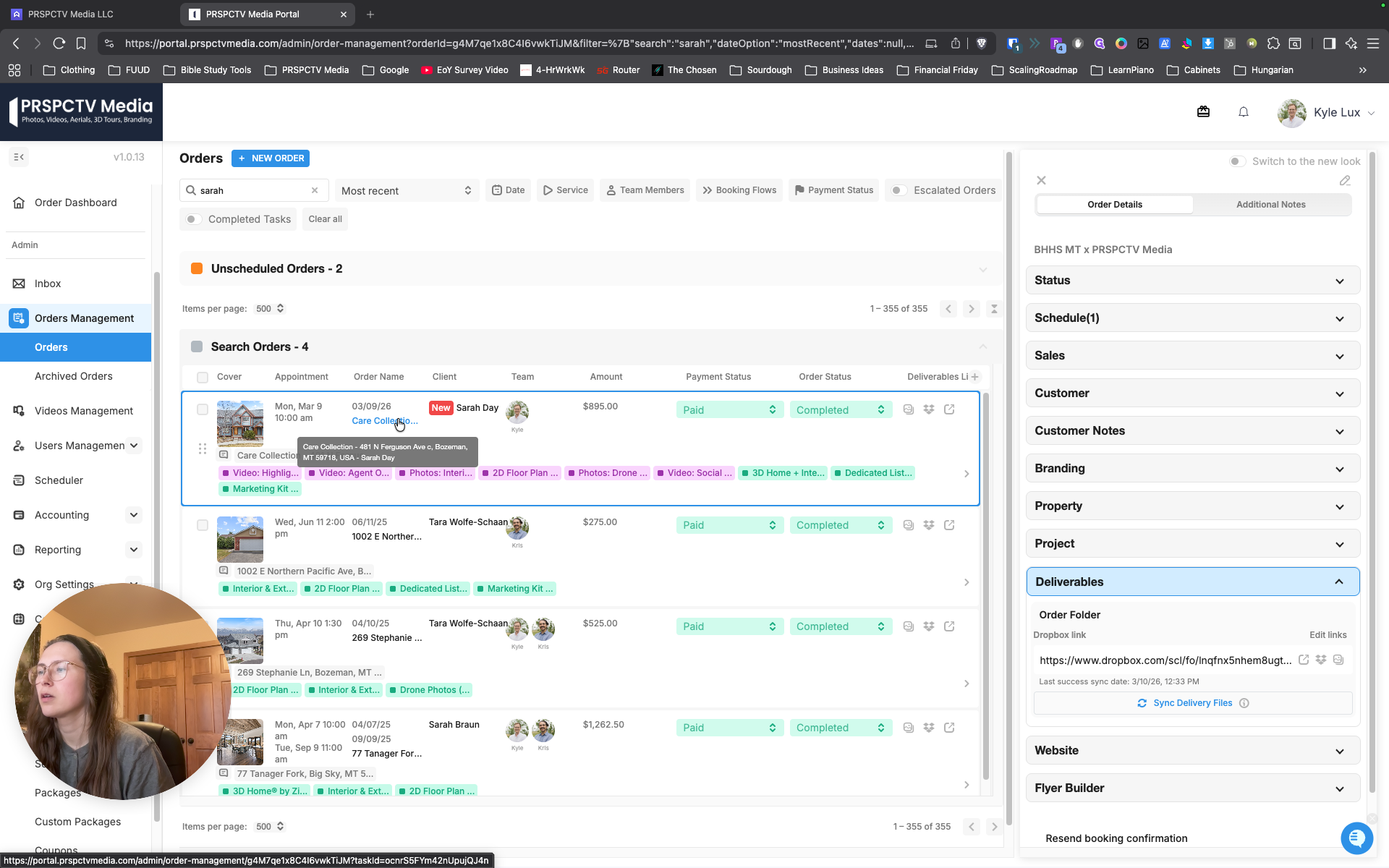
Go to the right side. You're going to say, "No, I can't see what it says." You have to keep it still. Keep the screen... nope, stop.
Stop moving. Stop. Okay. On the right side, scroll down. Yes, in the middle—the middle one, the middle tab.
Right here. Order status. I can't see what it says. Right here. Place an order.
Order details. Order details. Order details. Here, here, here and... Here.
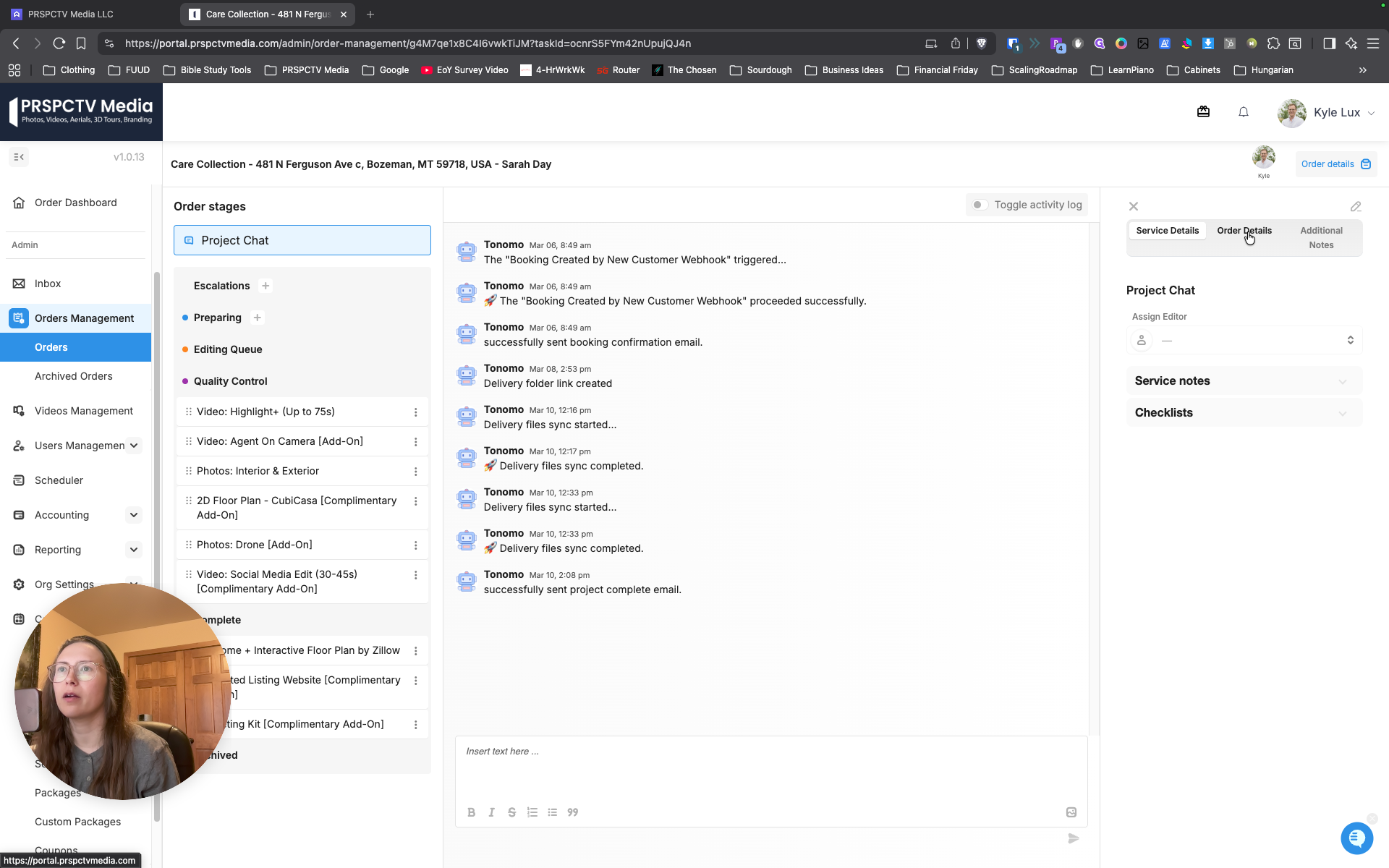
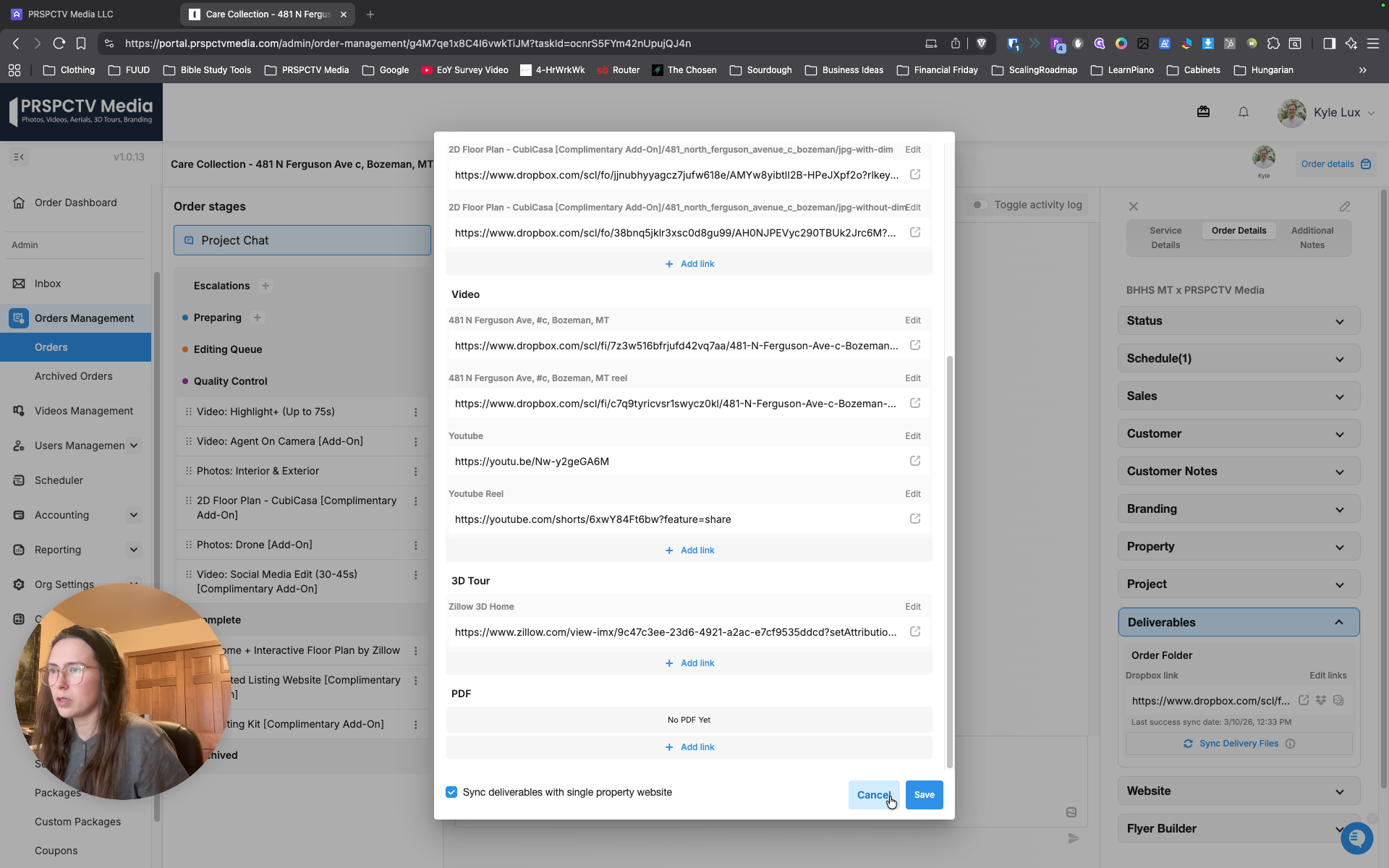
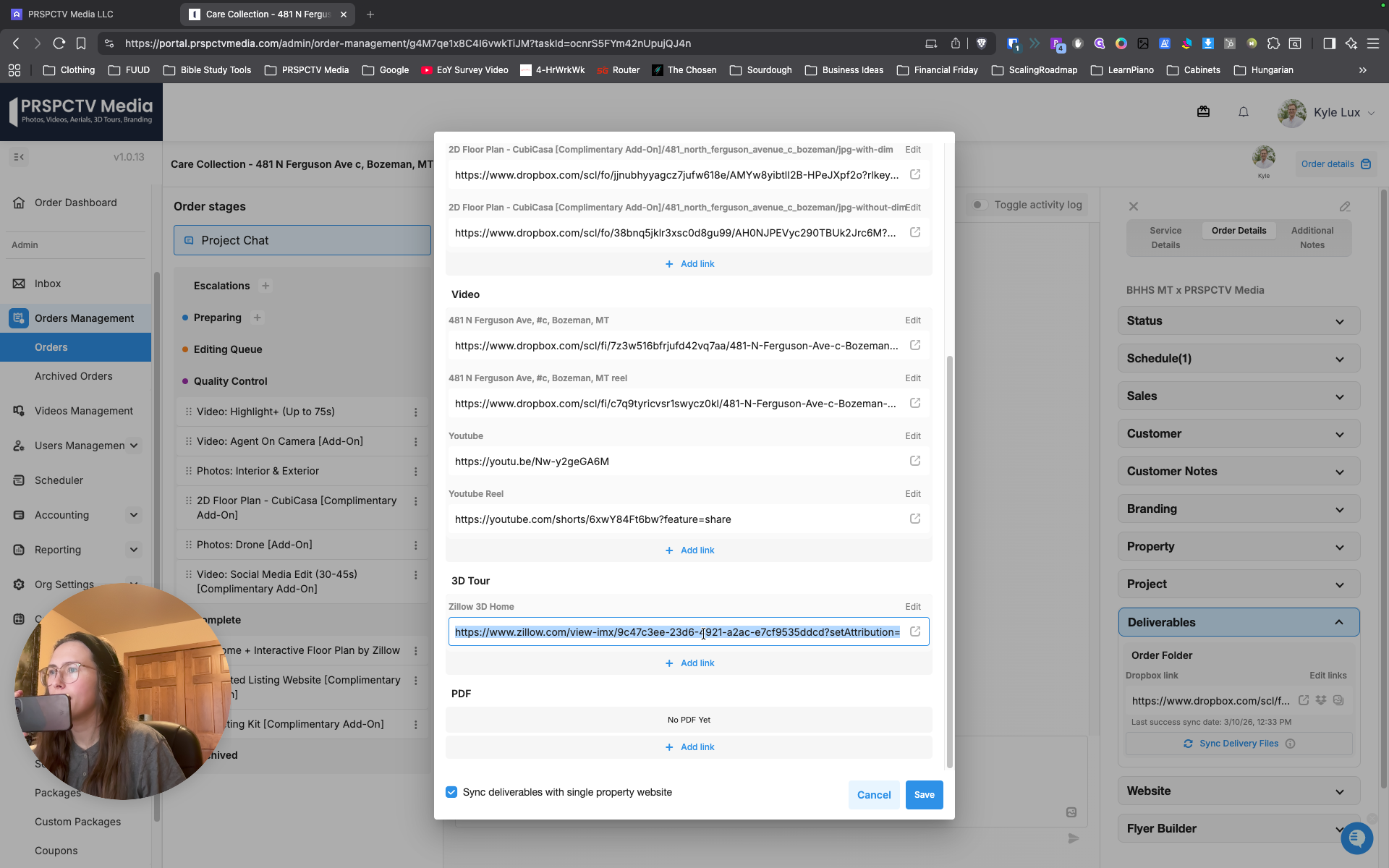
Yes. Click "Edit Links" under Deliverables. Edit links.
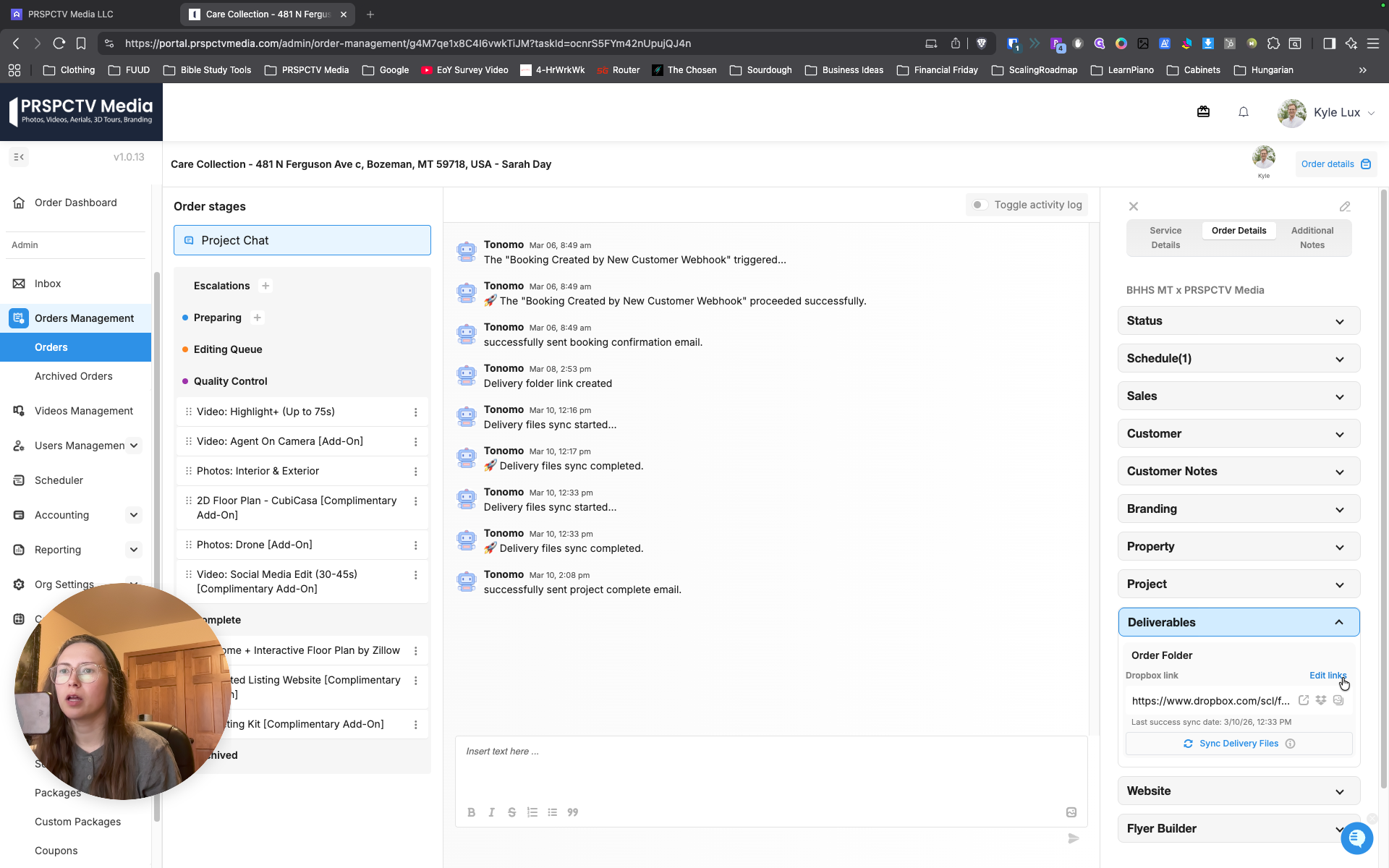
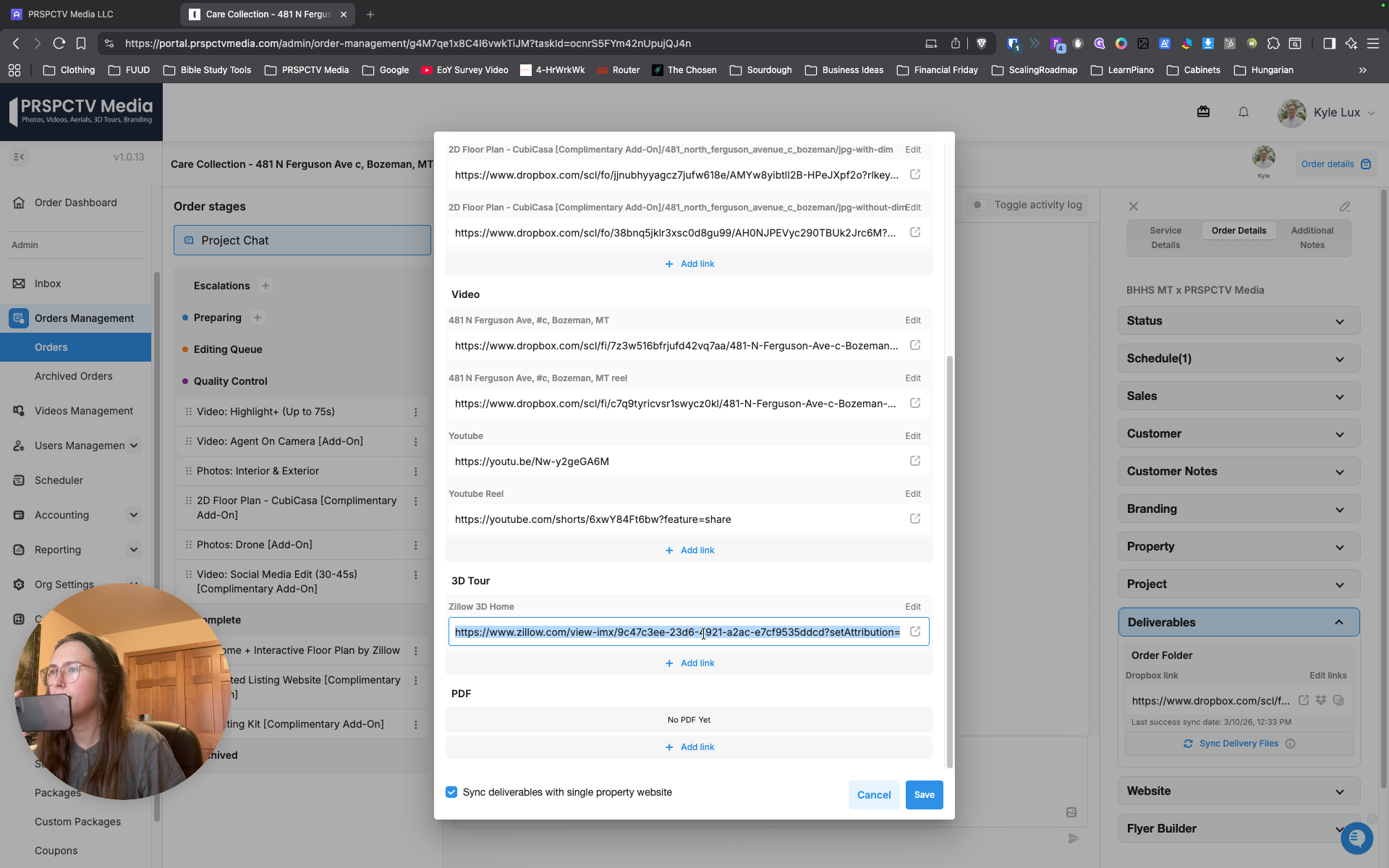
Then copy the one you need. Scroll down and copy it from the 3D tour. 3D tour: copy or not?
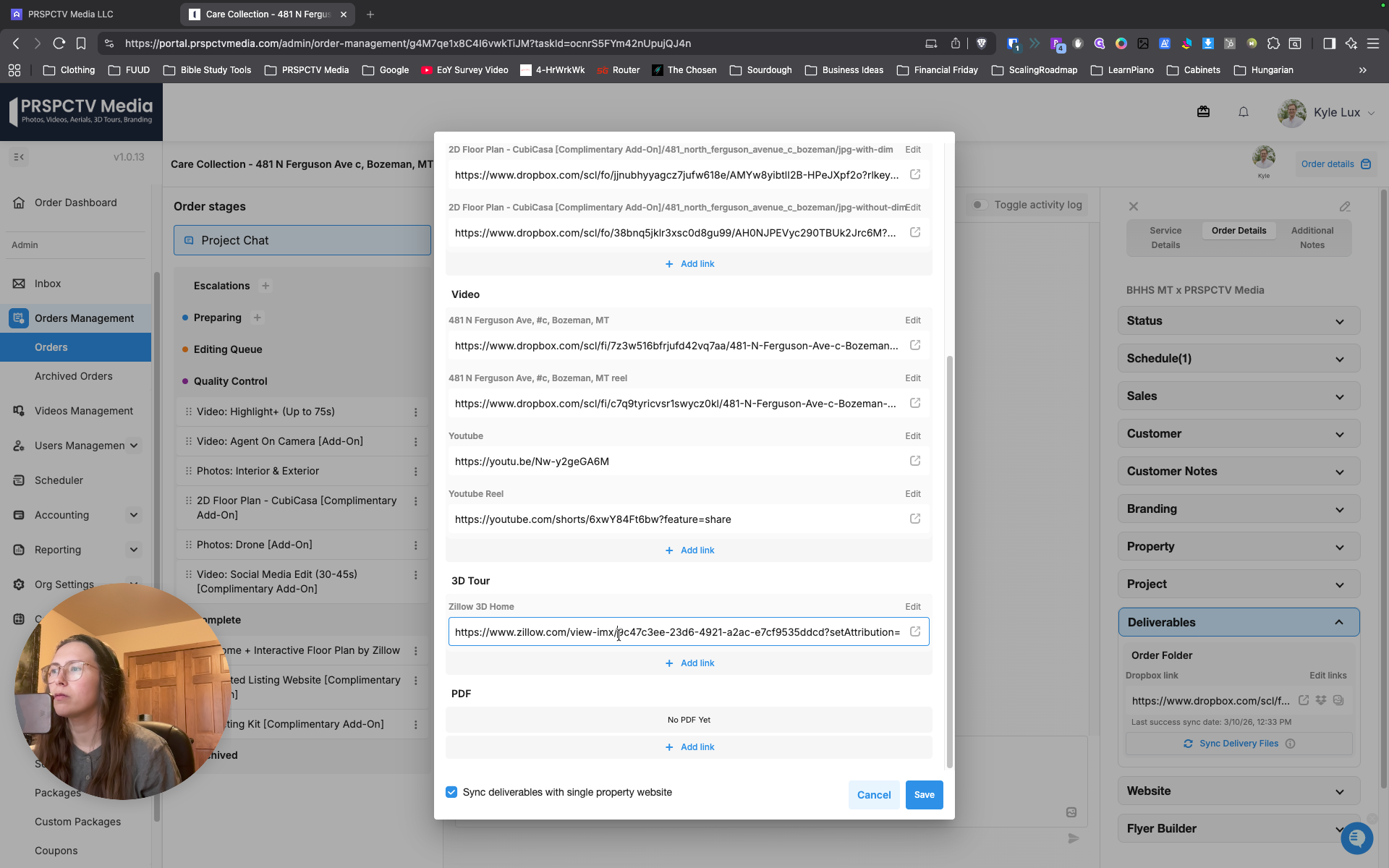
Just double-click and enter...
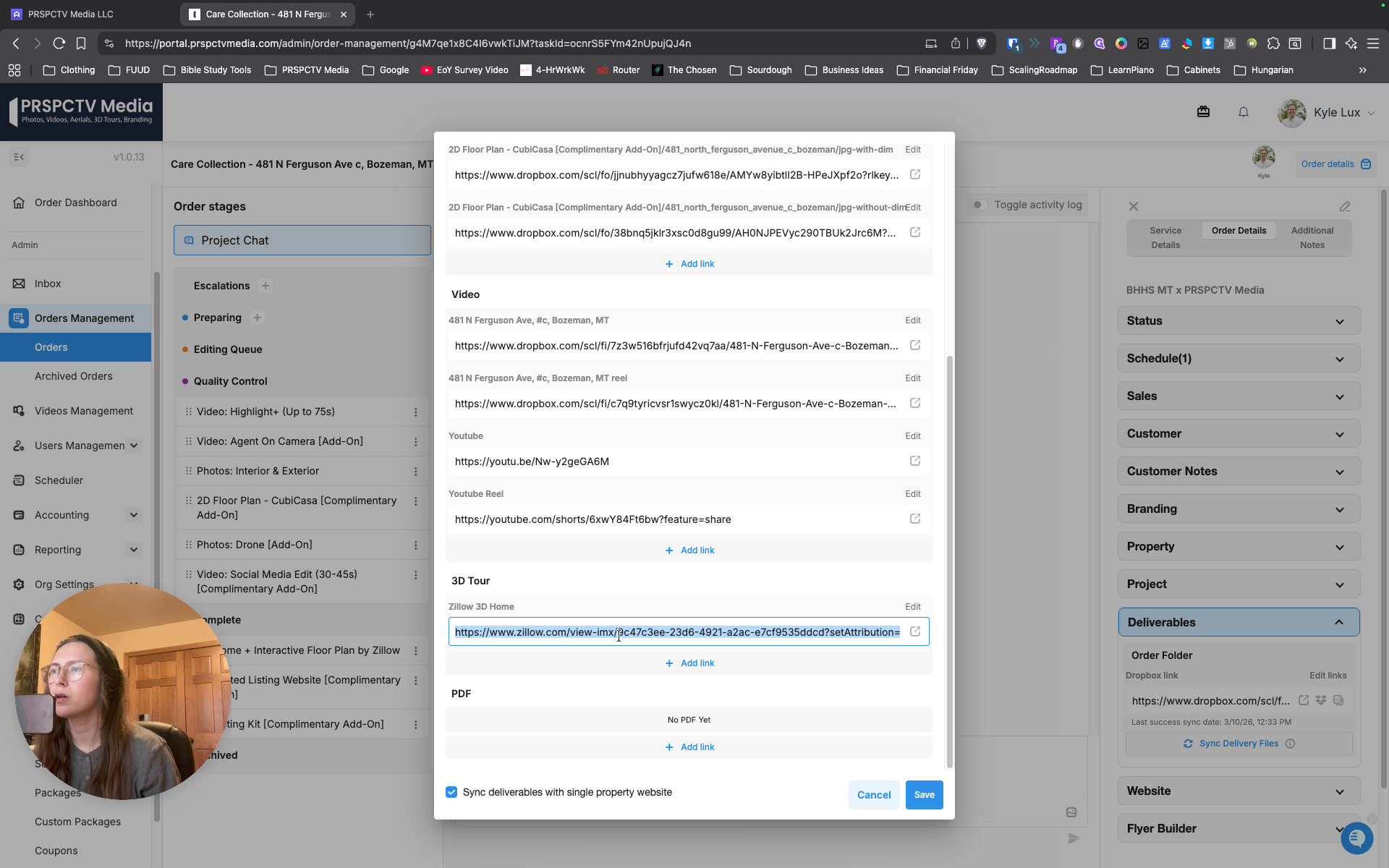
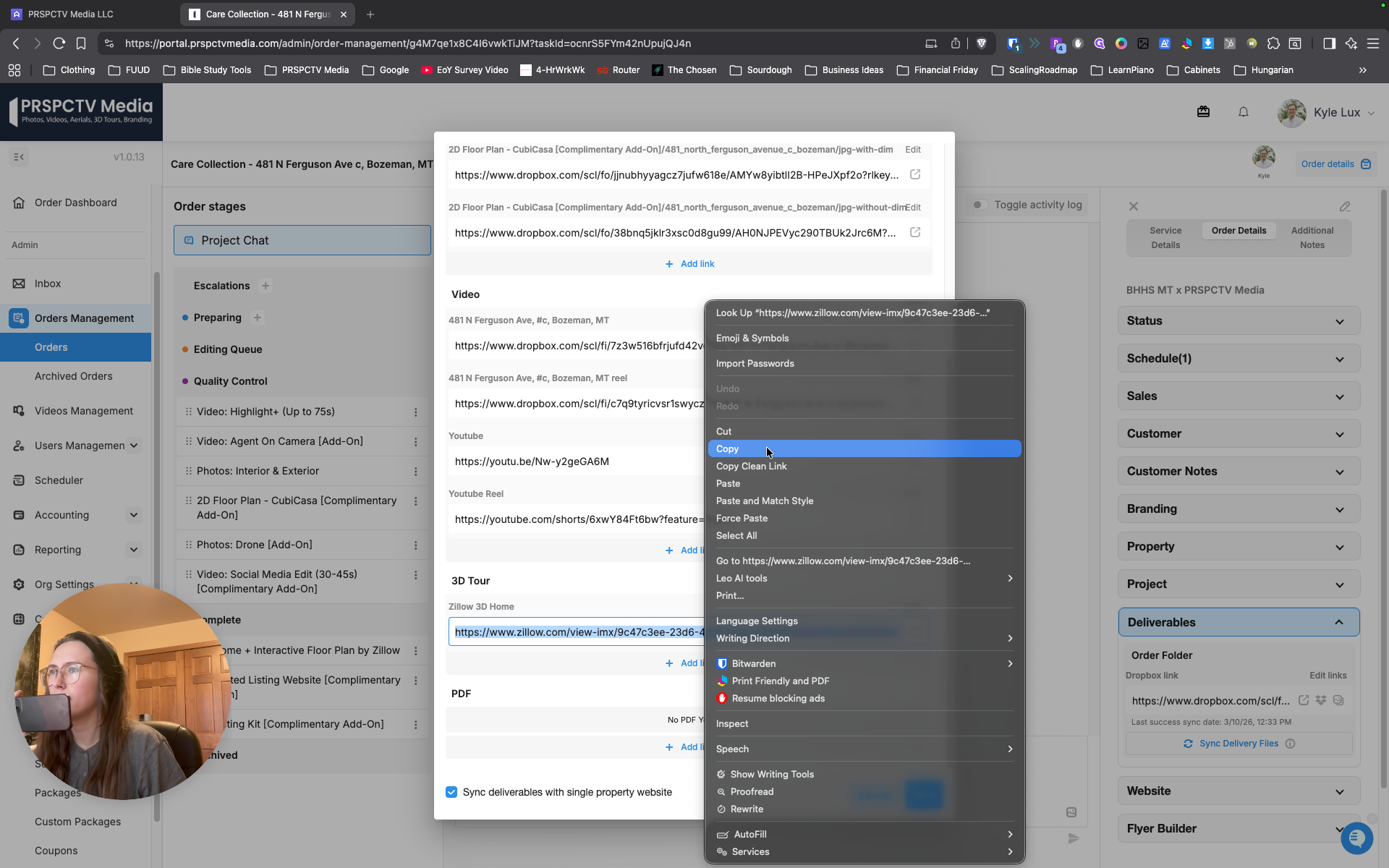
no, no, no. What? Copy. Control C? Yeah.
Control C.
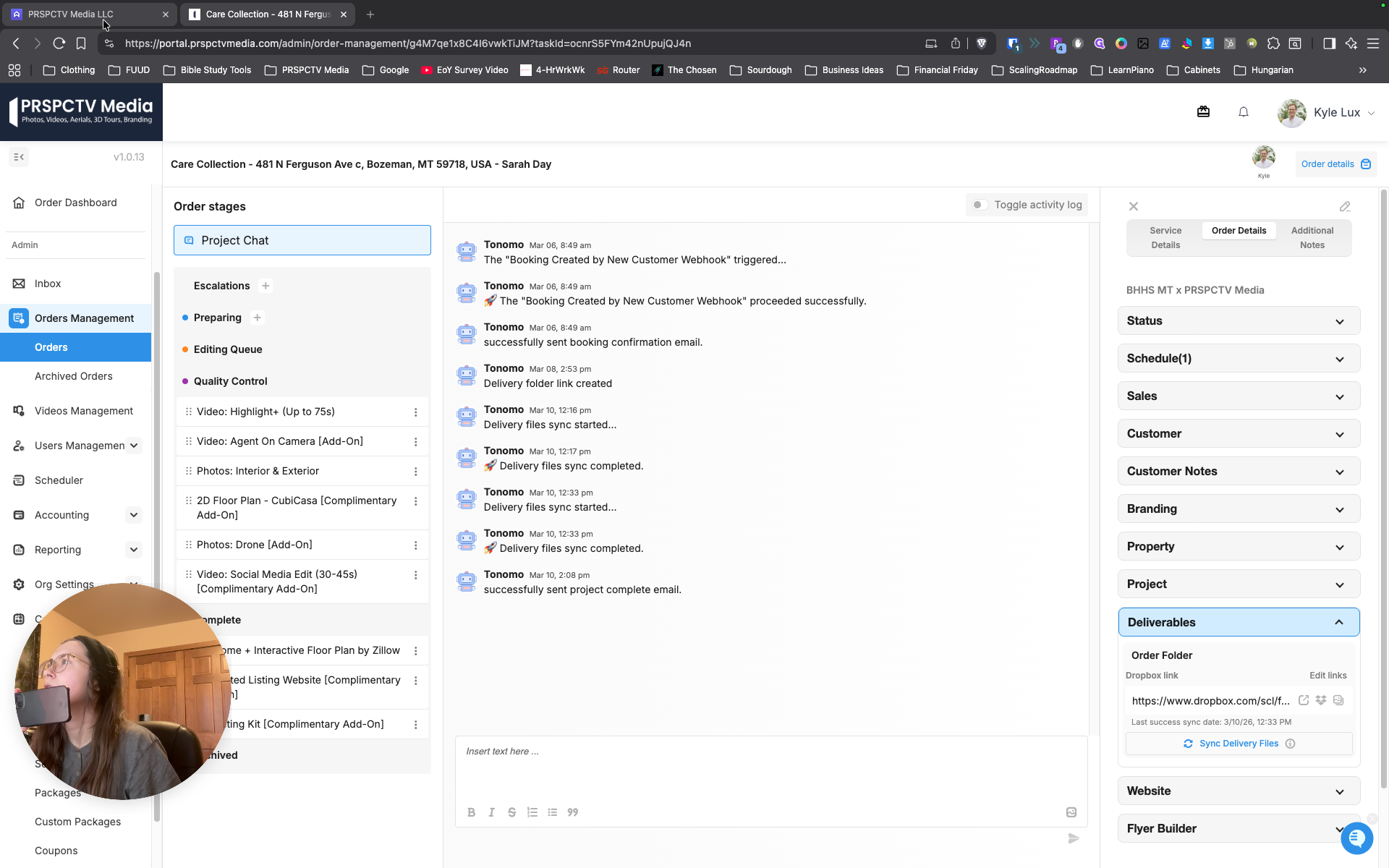
Then hit cancel. Let me make sure.
Press Control + C to cancel.
Then go back to Aryeo.
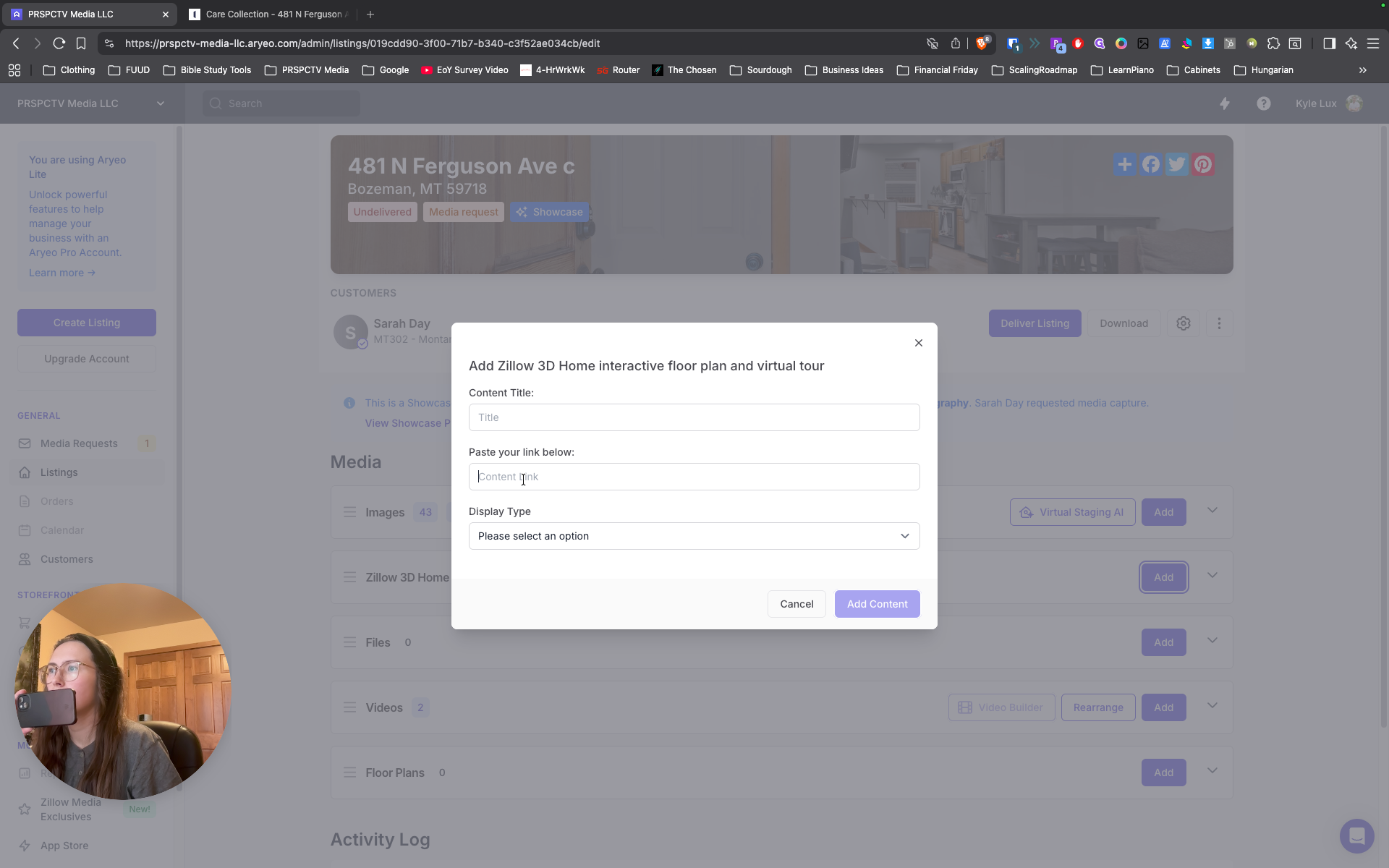
Zillow 3D: Add and paste the link there.
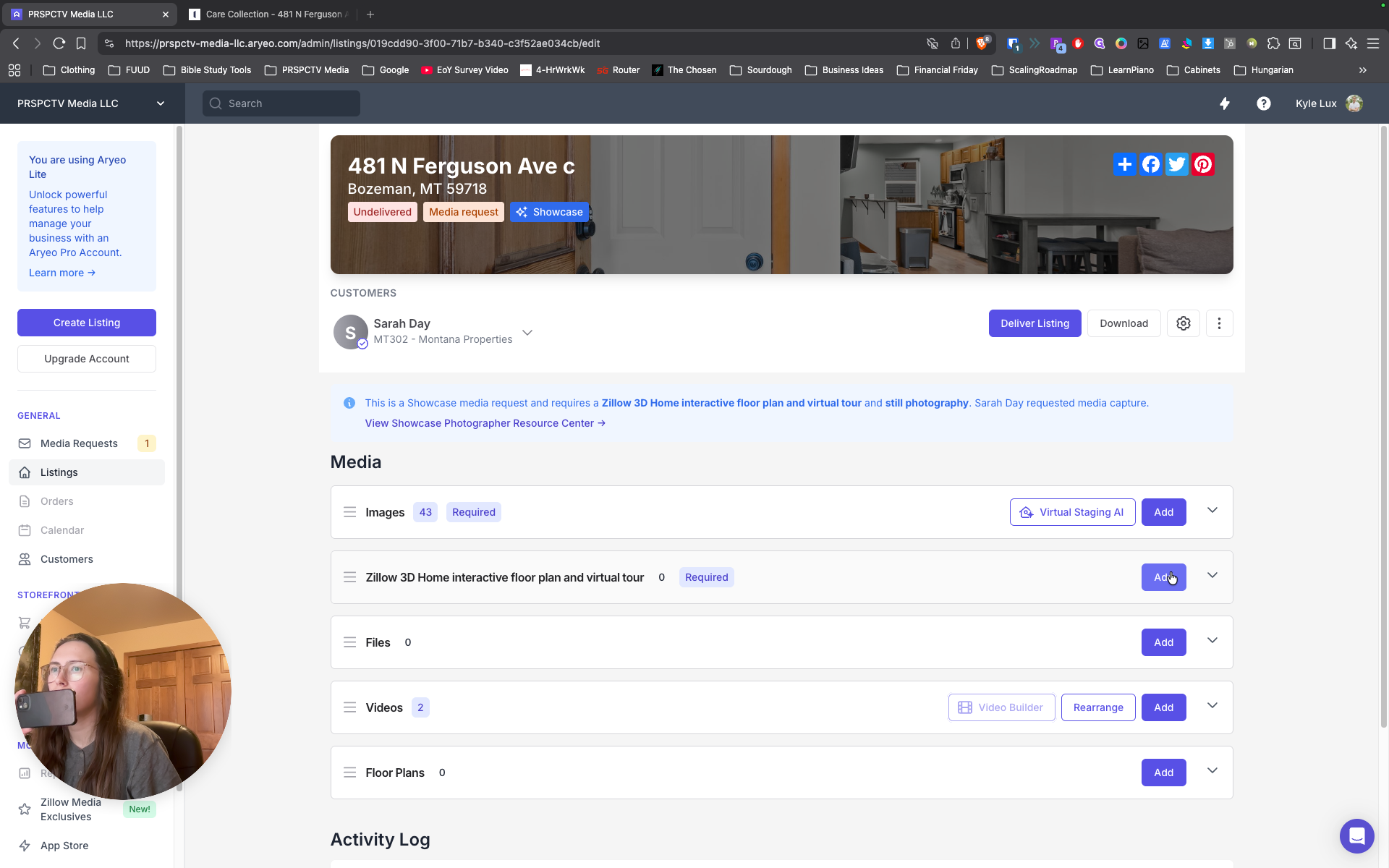
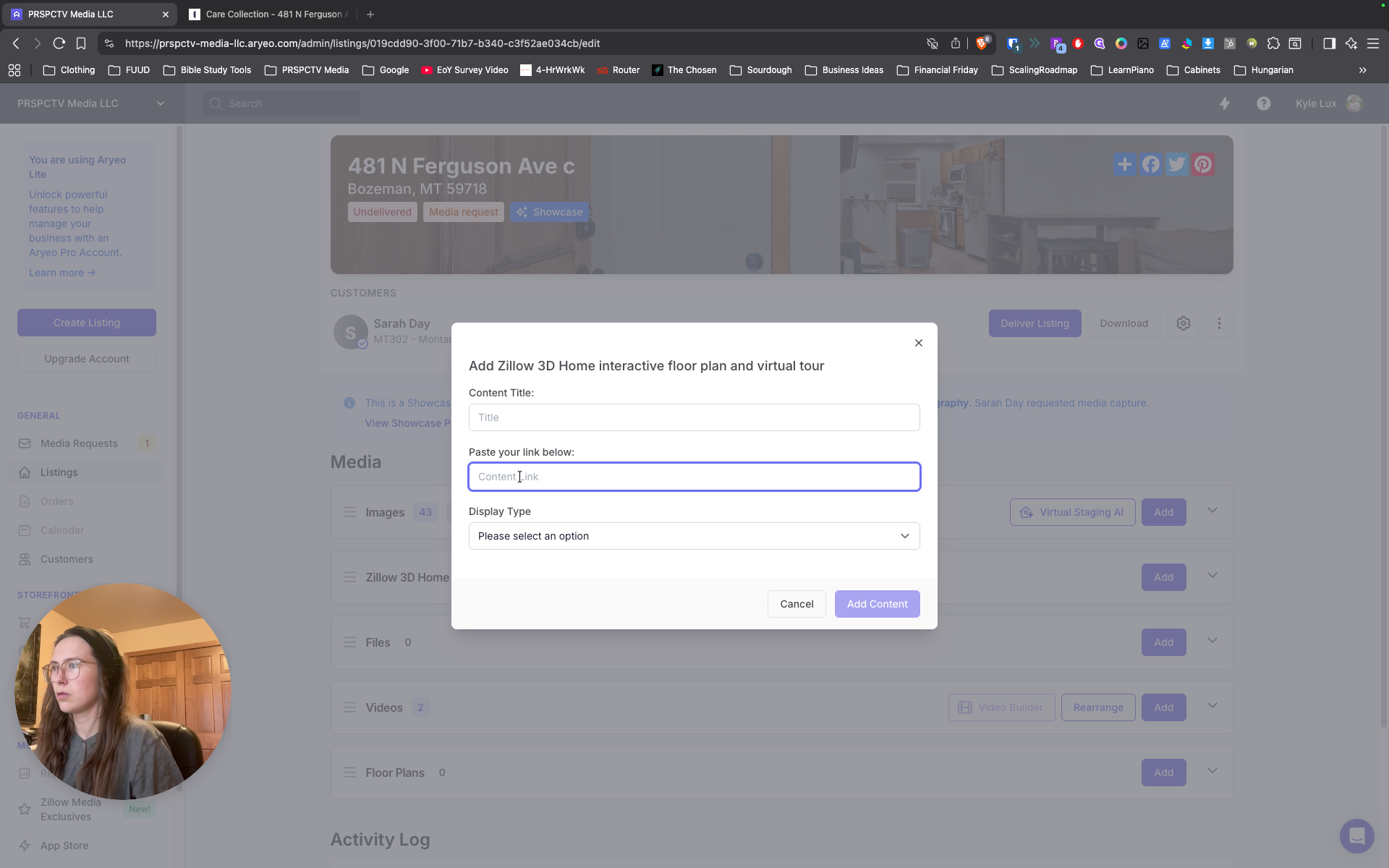
It's not working.
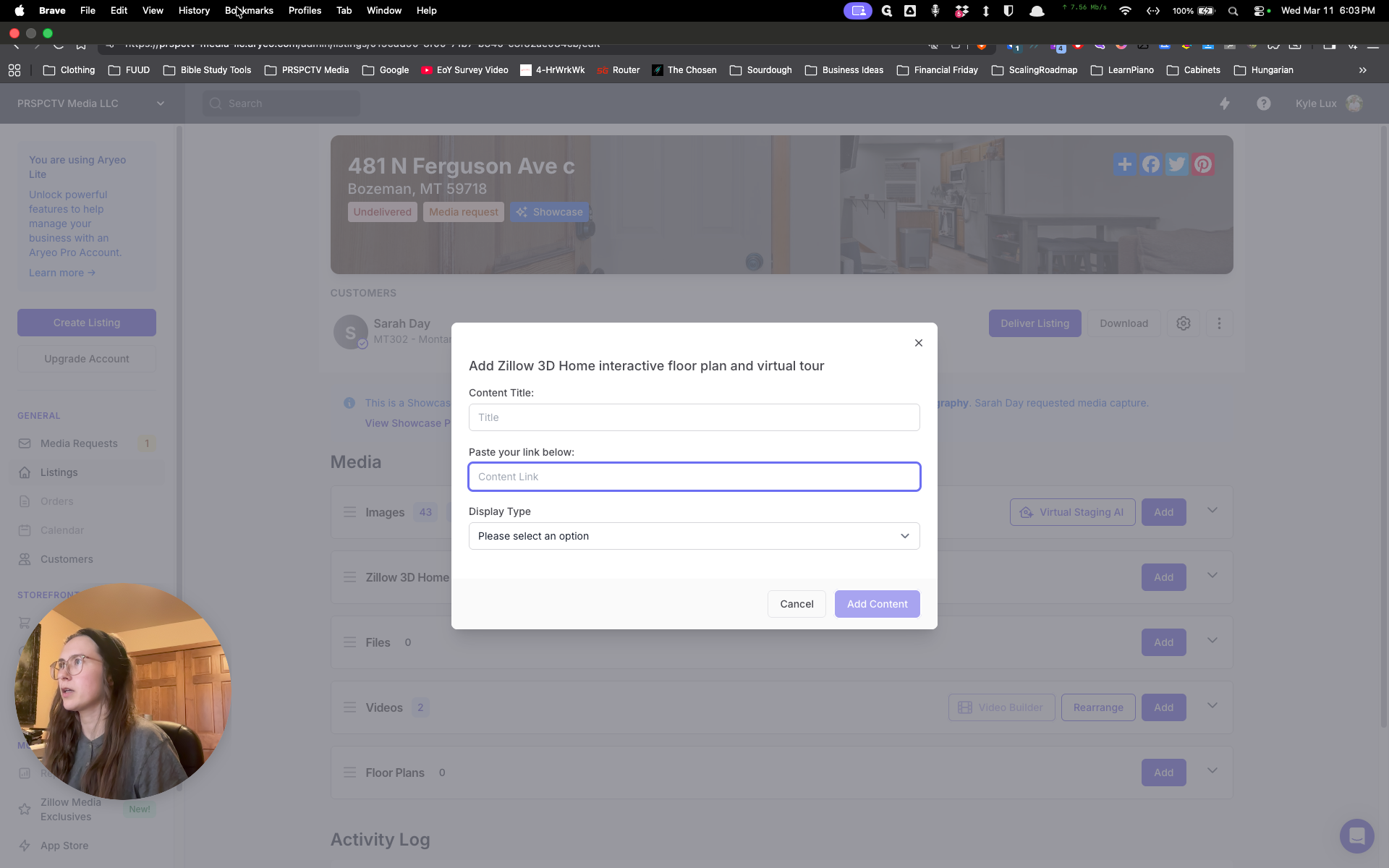
Oops.
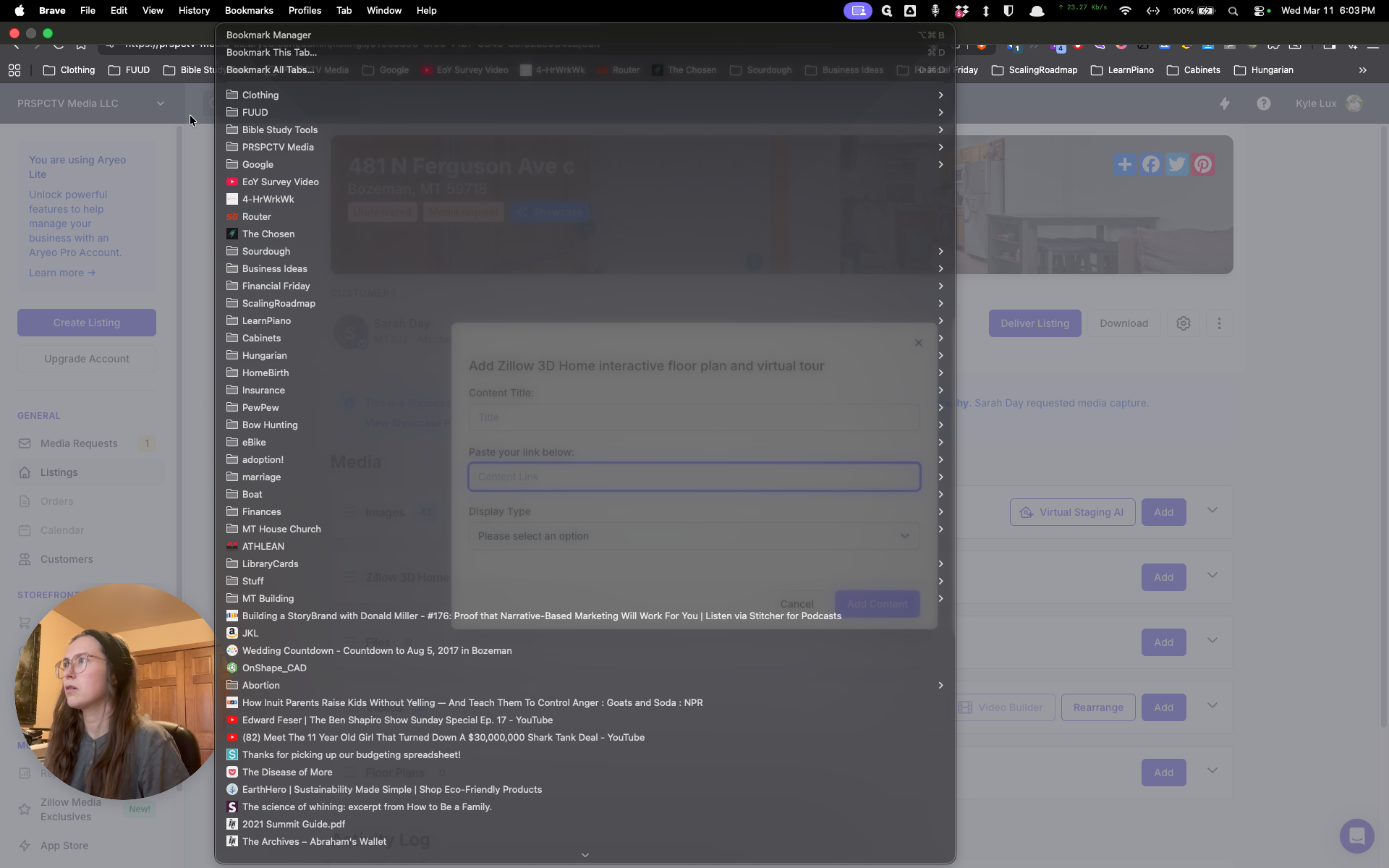
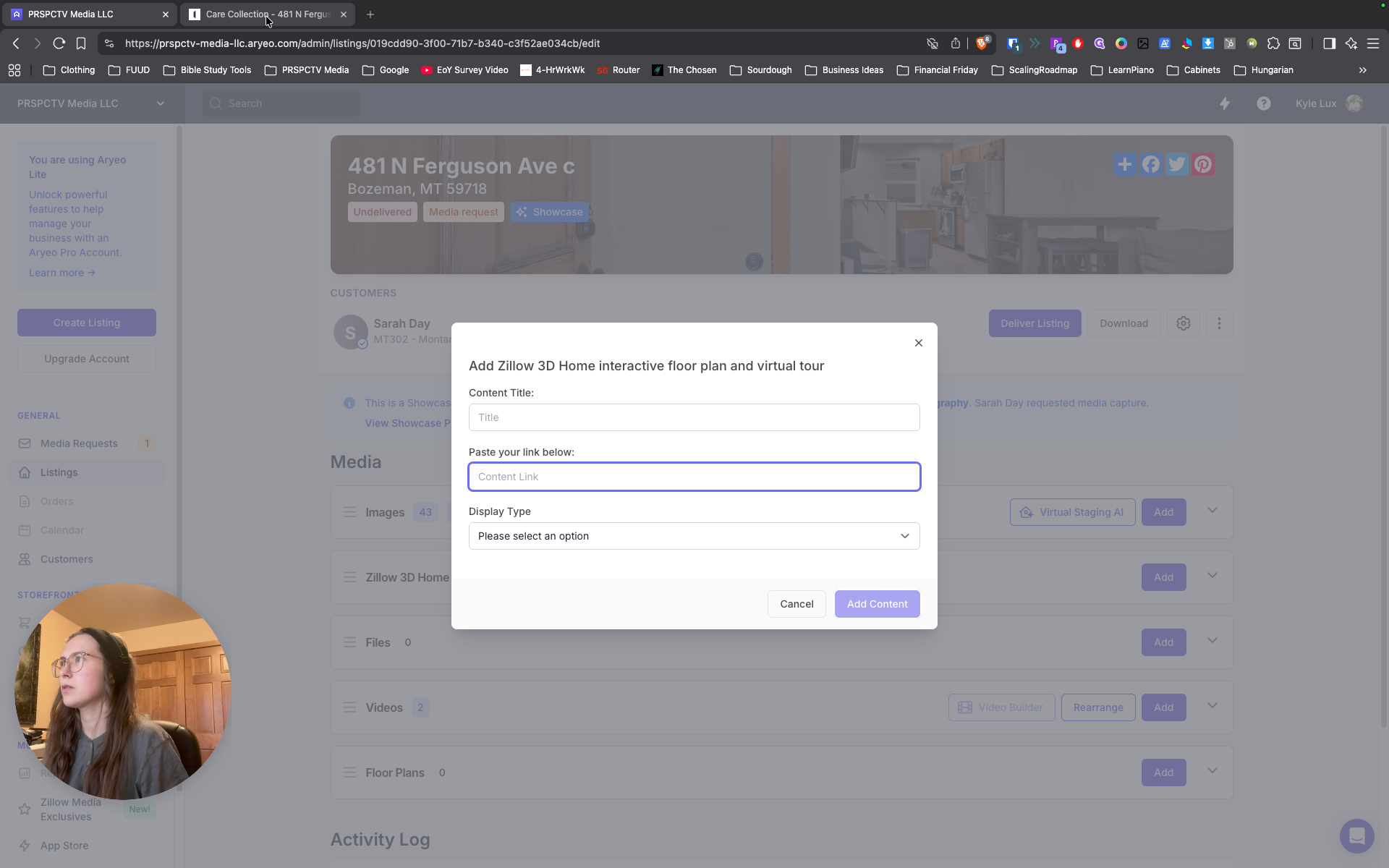
Hold on. Uh, hold on. How did I get there from here? I need to copy the link again. Edit links.
There we go.
I'll do that.
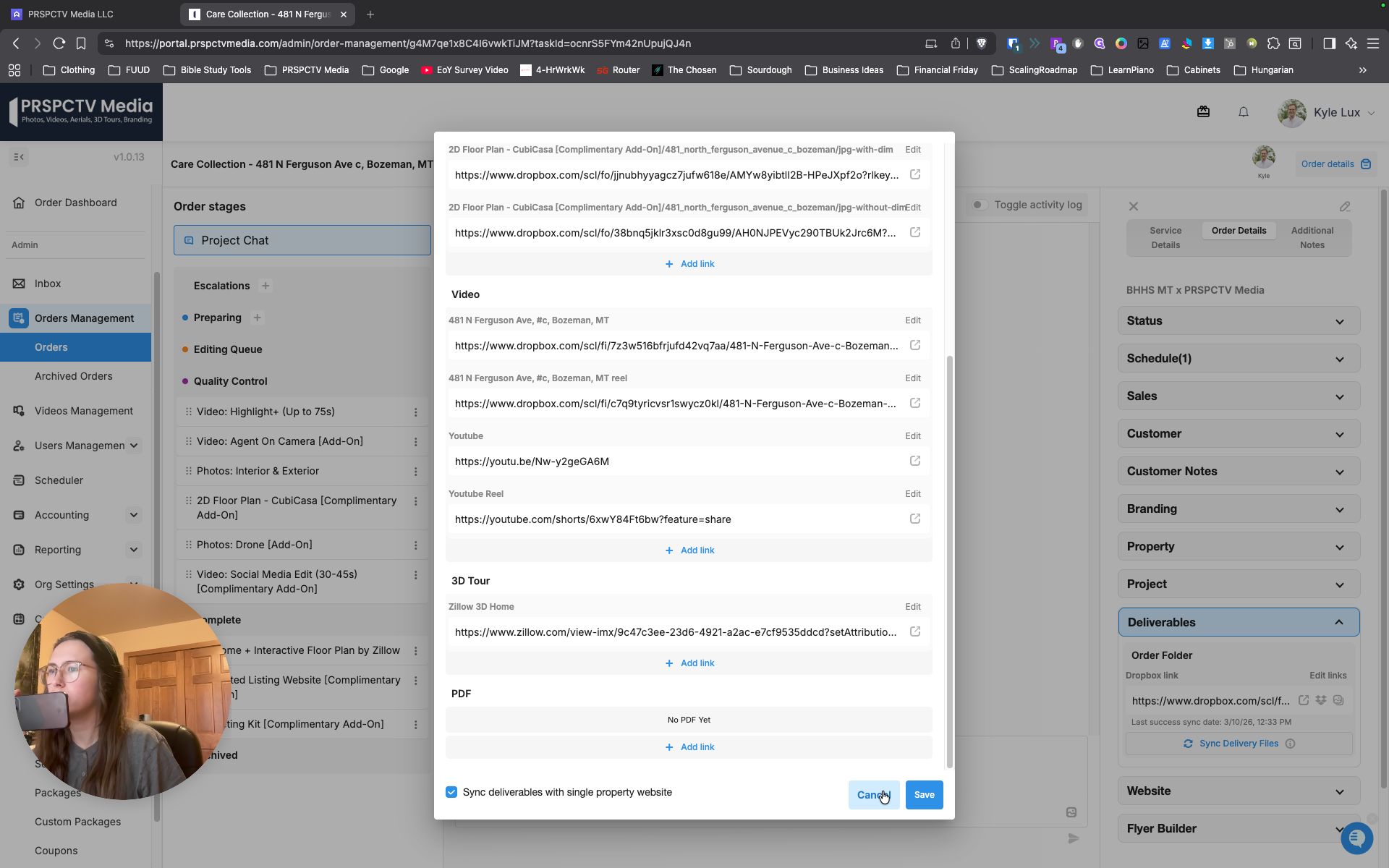
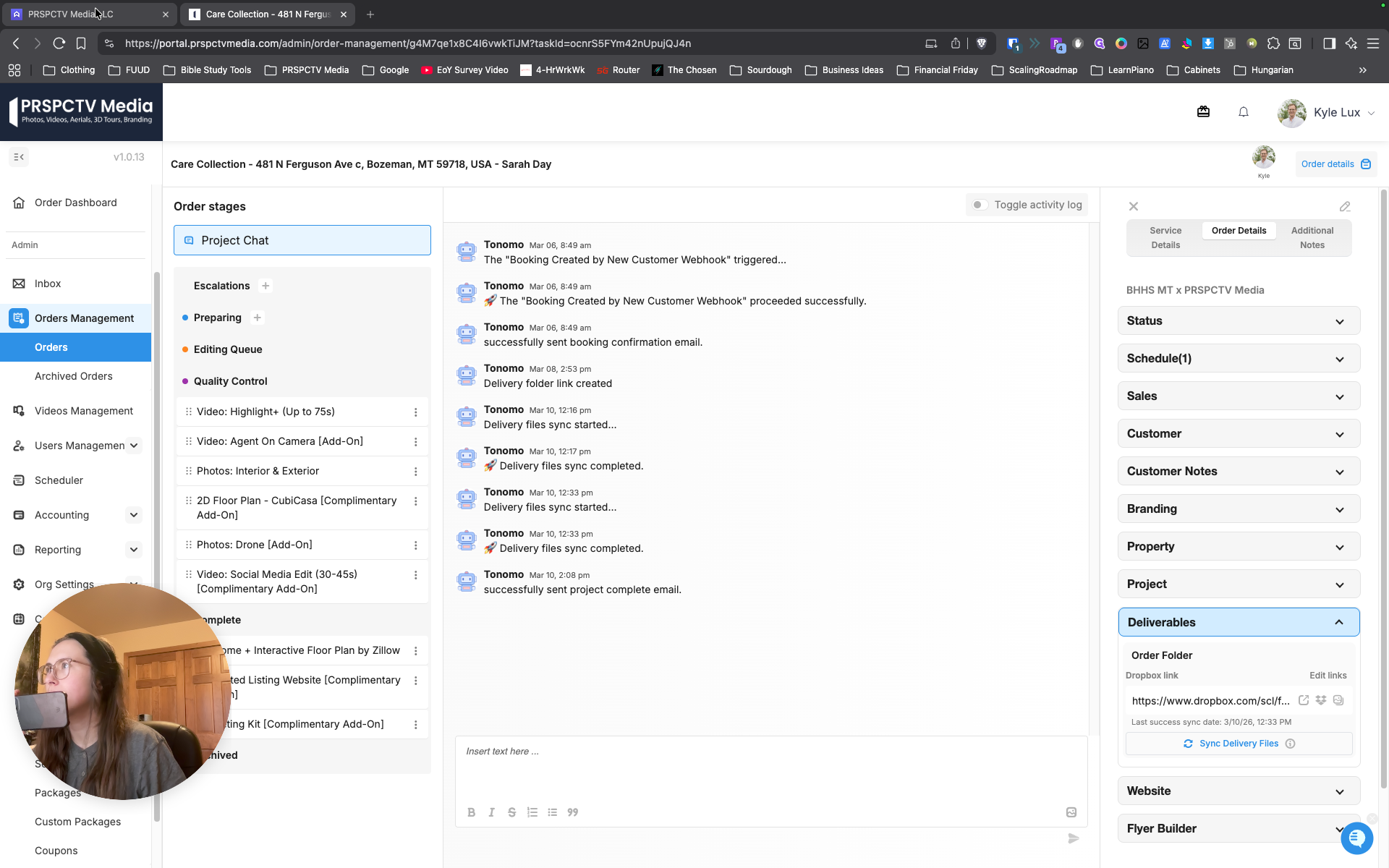
That should be more straightforward.
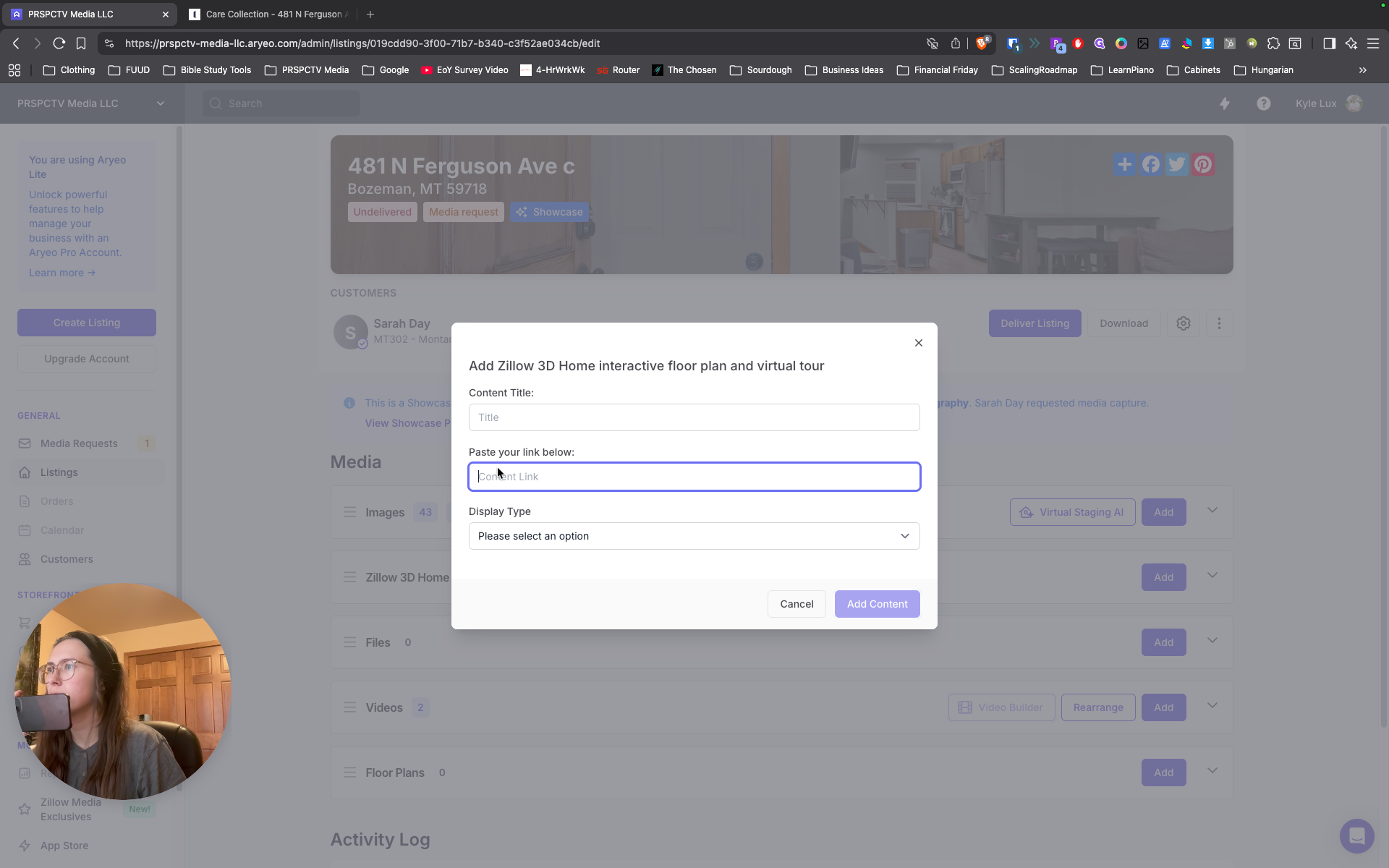
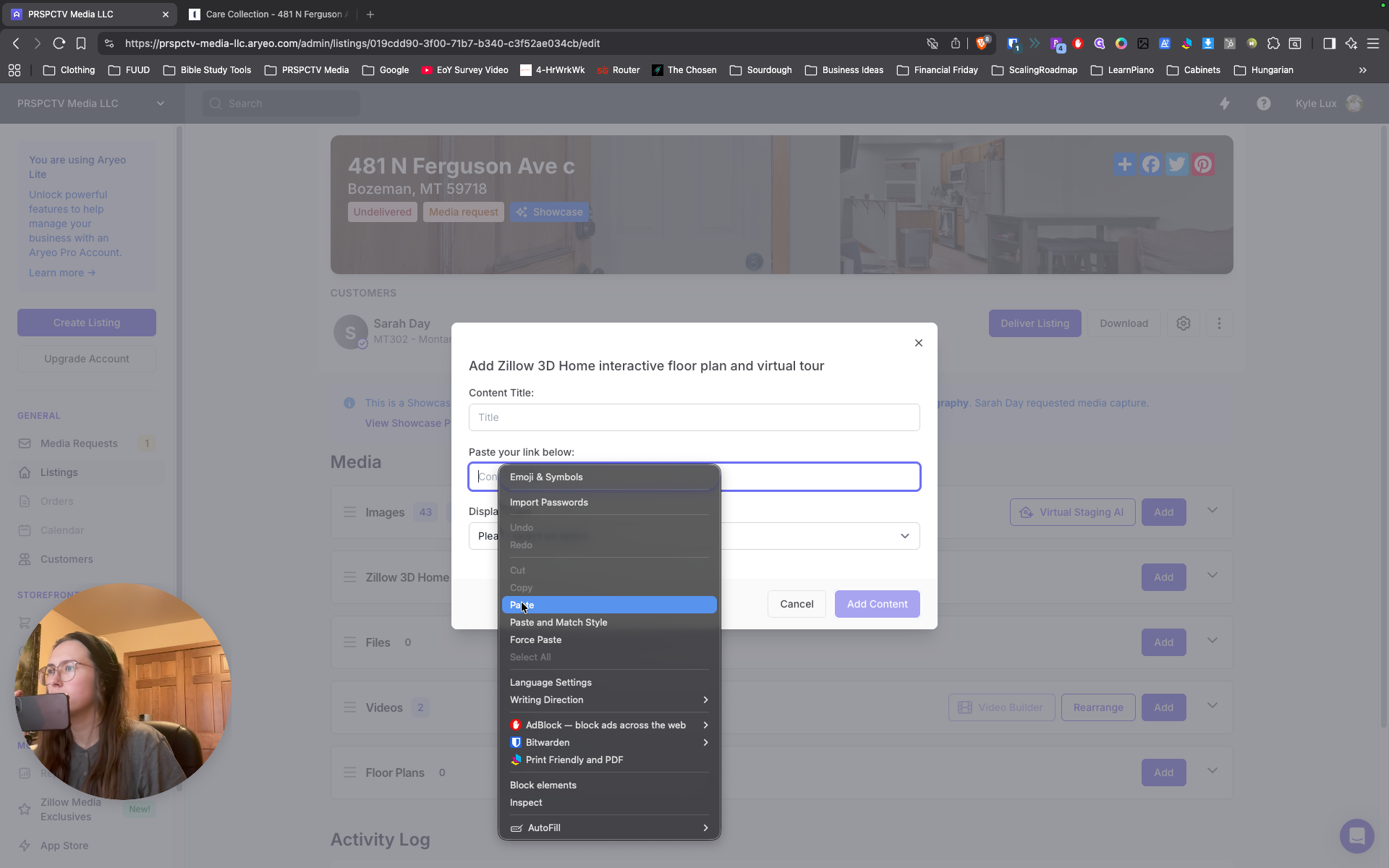
There it is. Then paste the link. Do you have a content title? Do Zillow 3D Home.
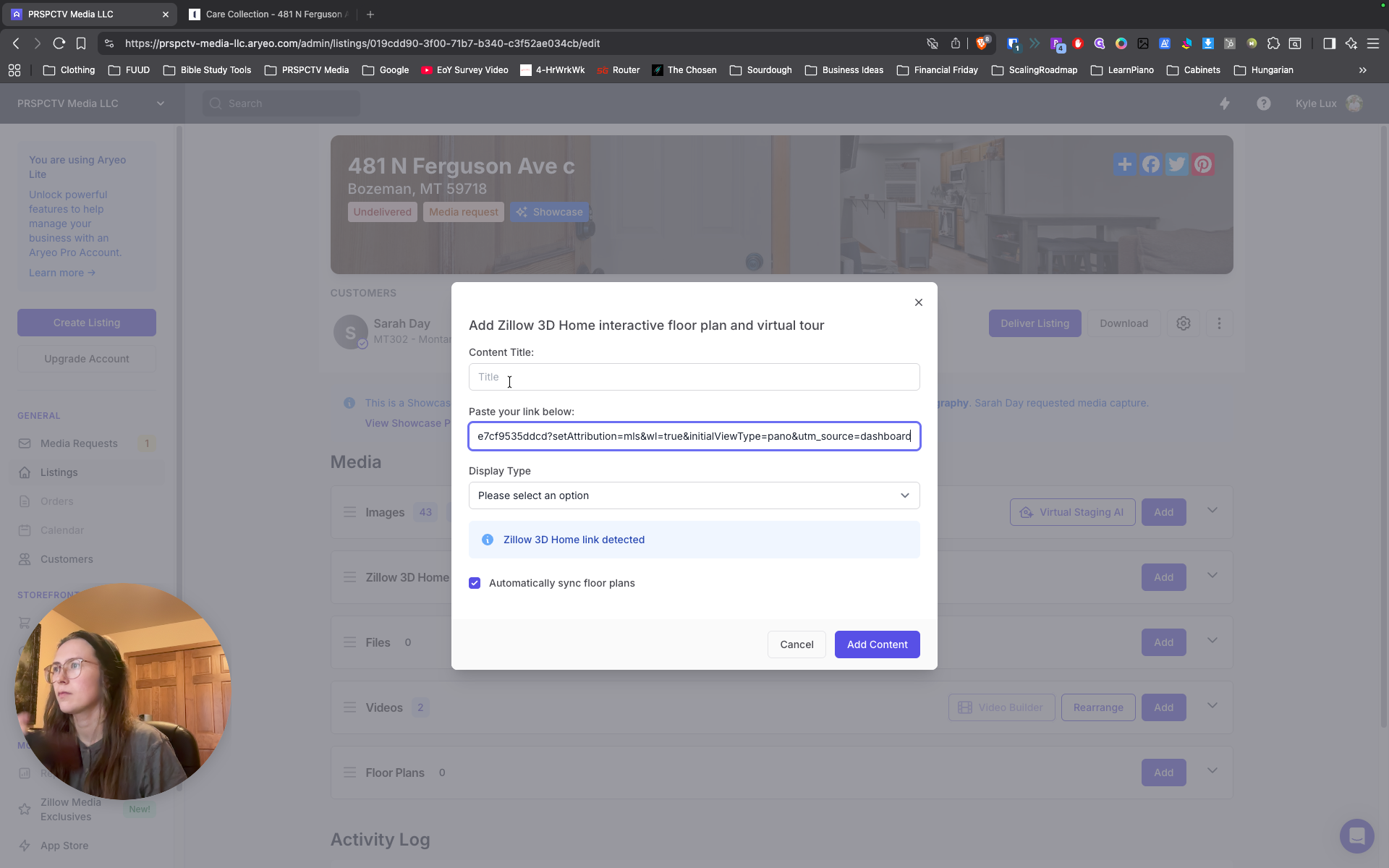
What now, Kyle?
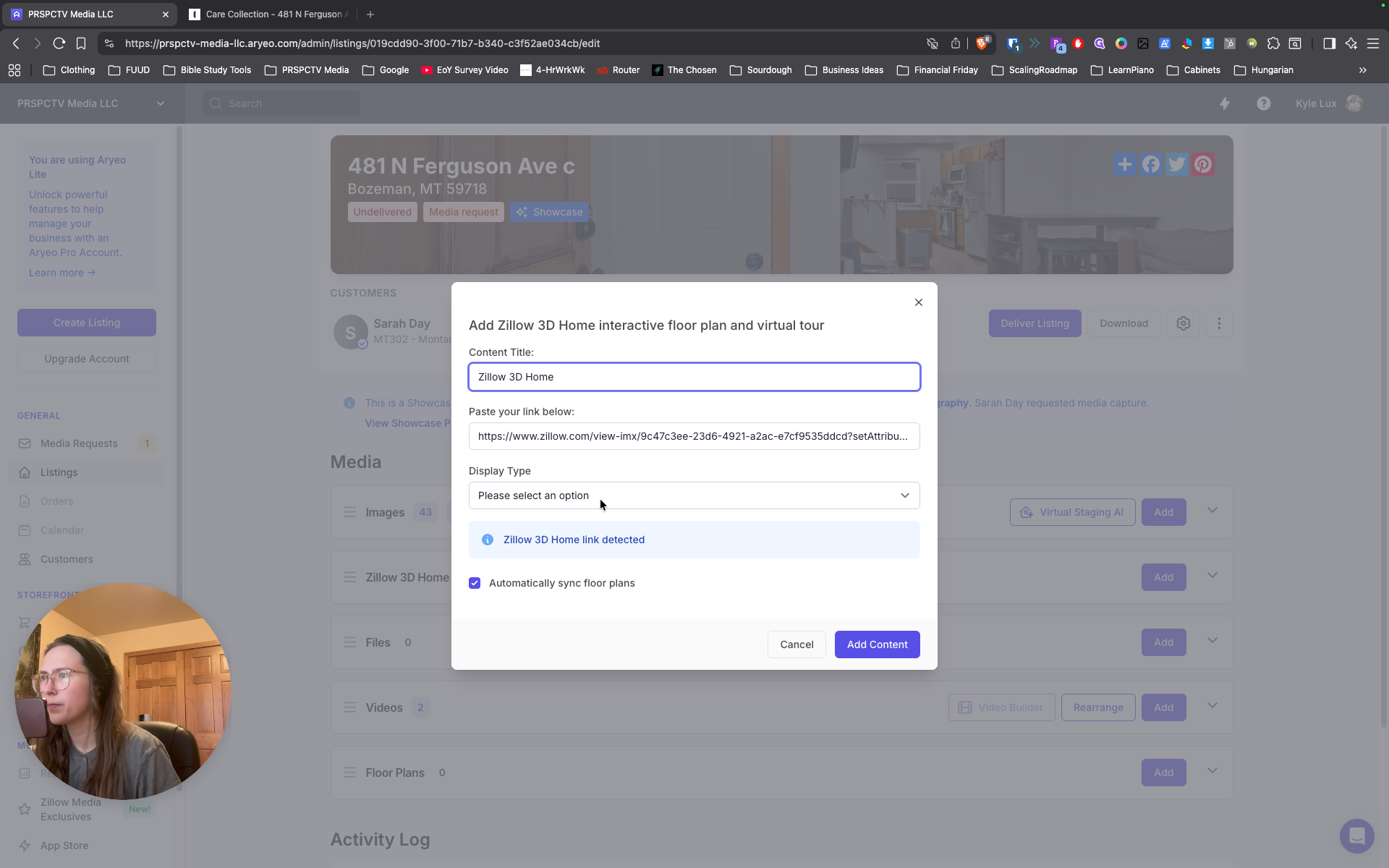
I can't read it. Branded, both.
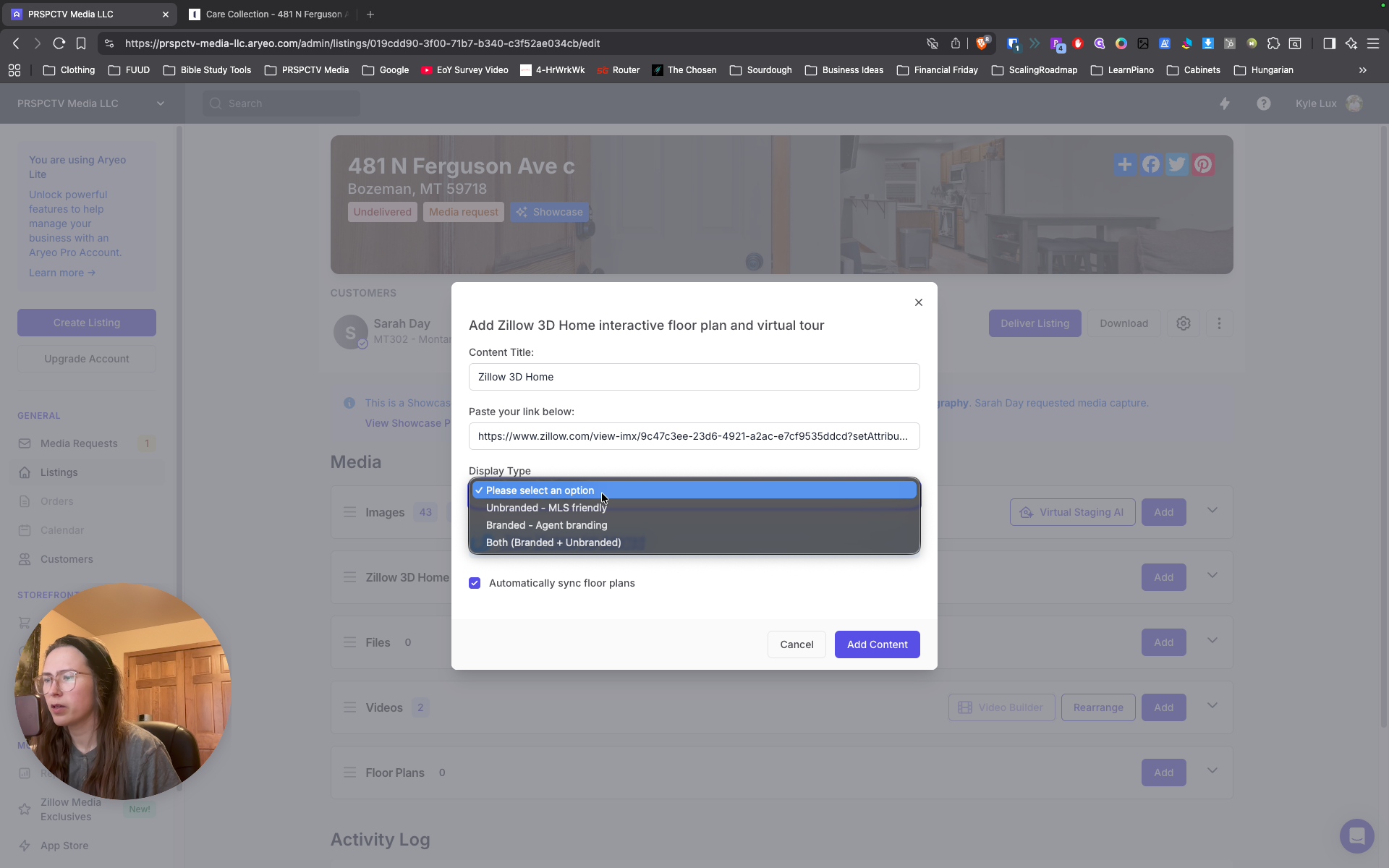
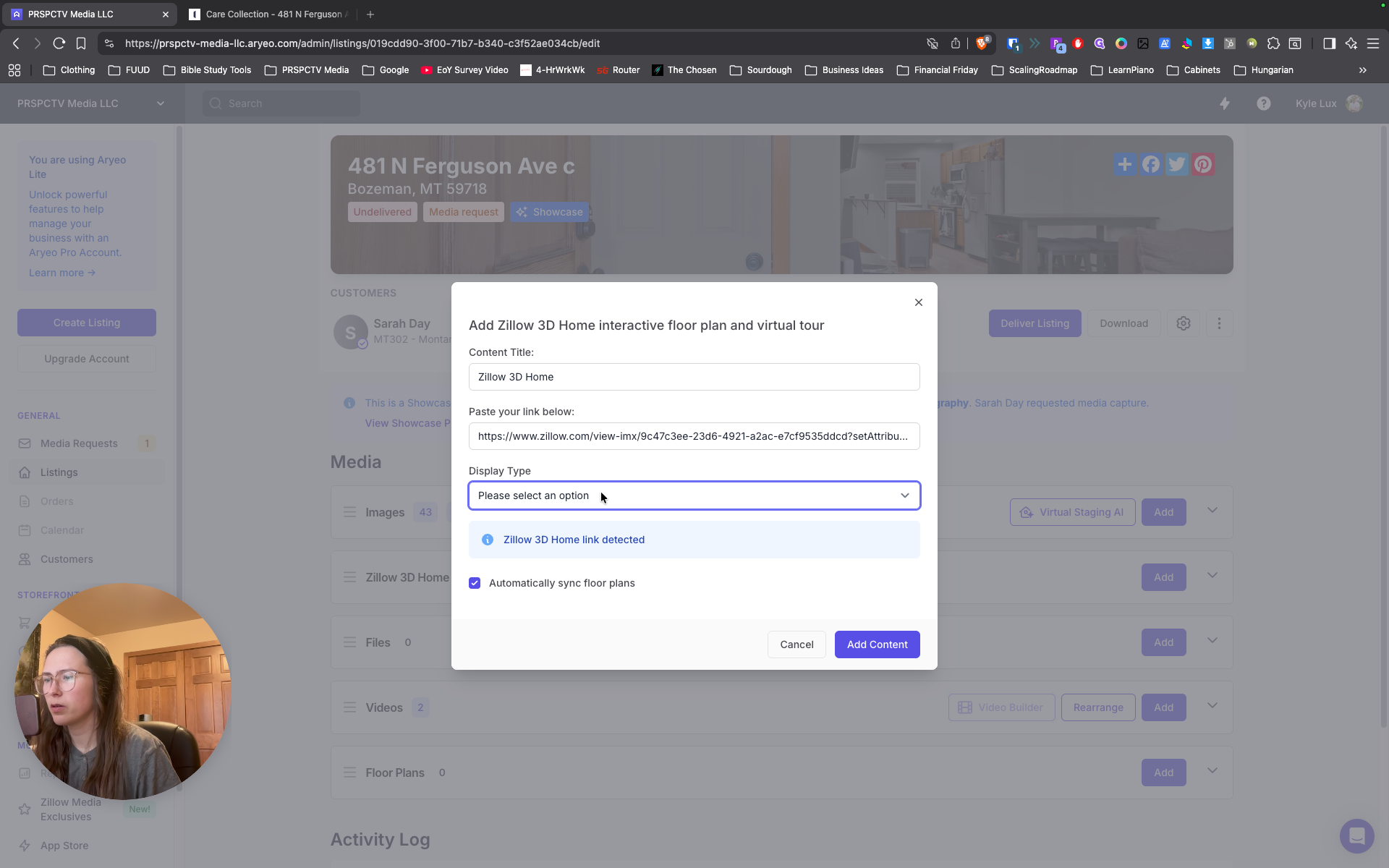
What else?
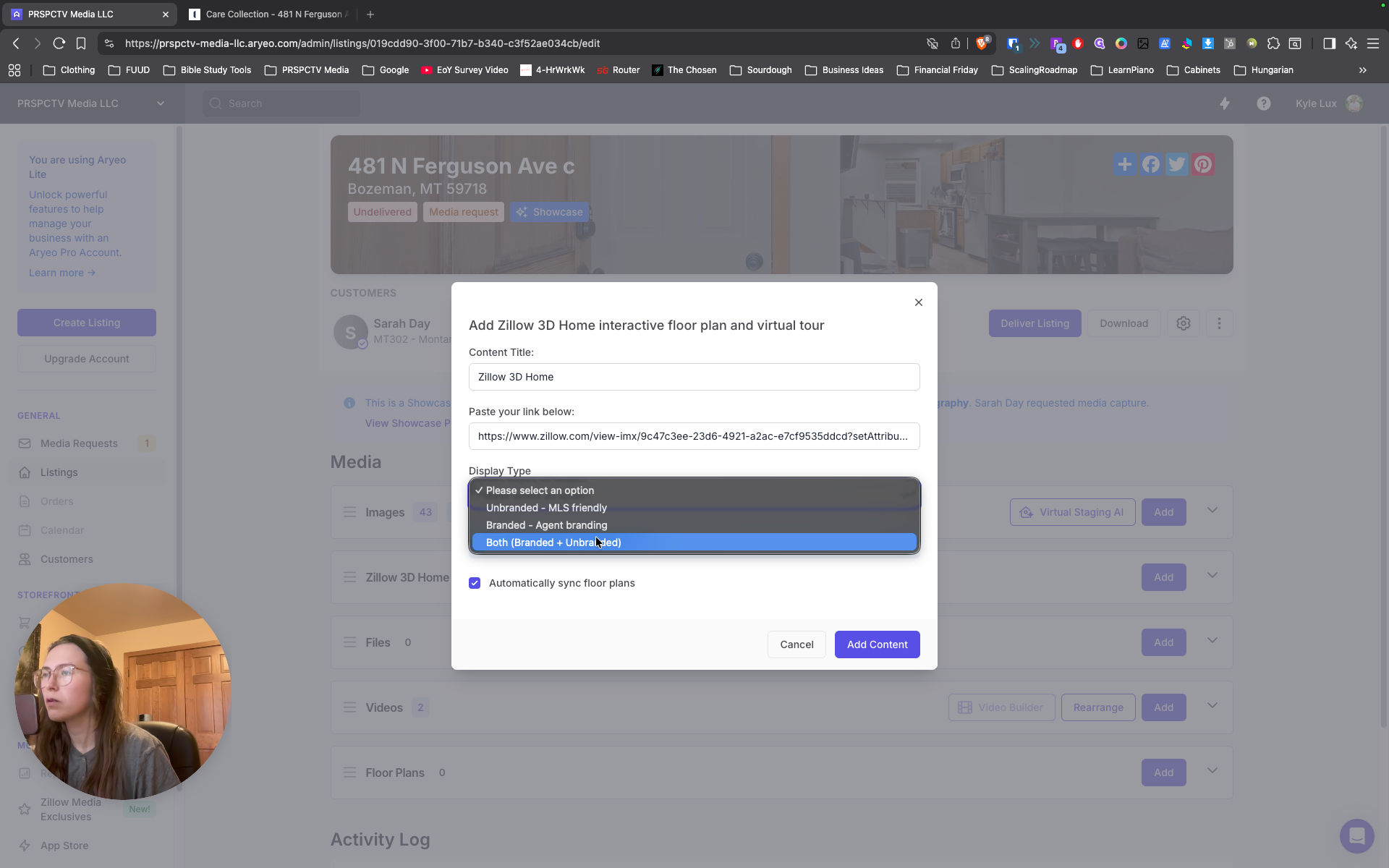
Automatically sync floorplans. Keep that checked, then click Add Content.
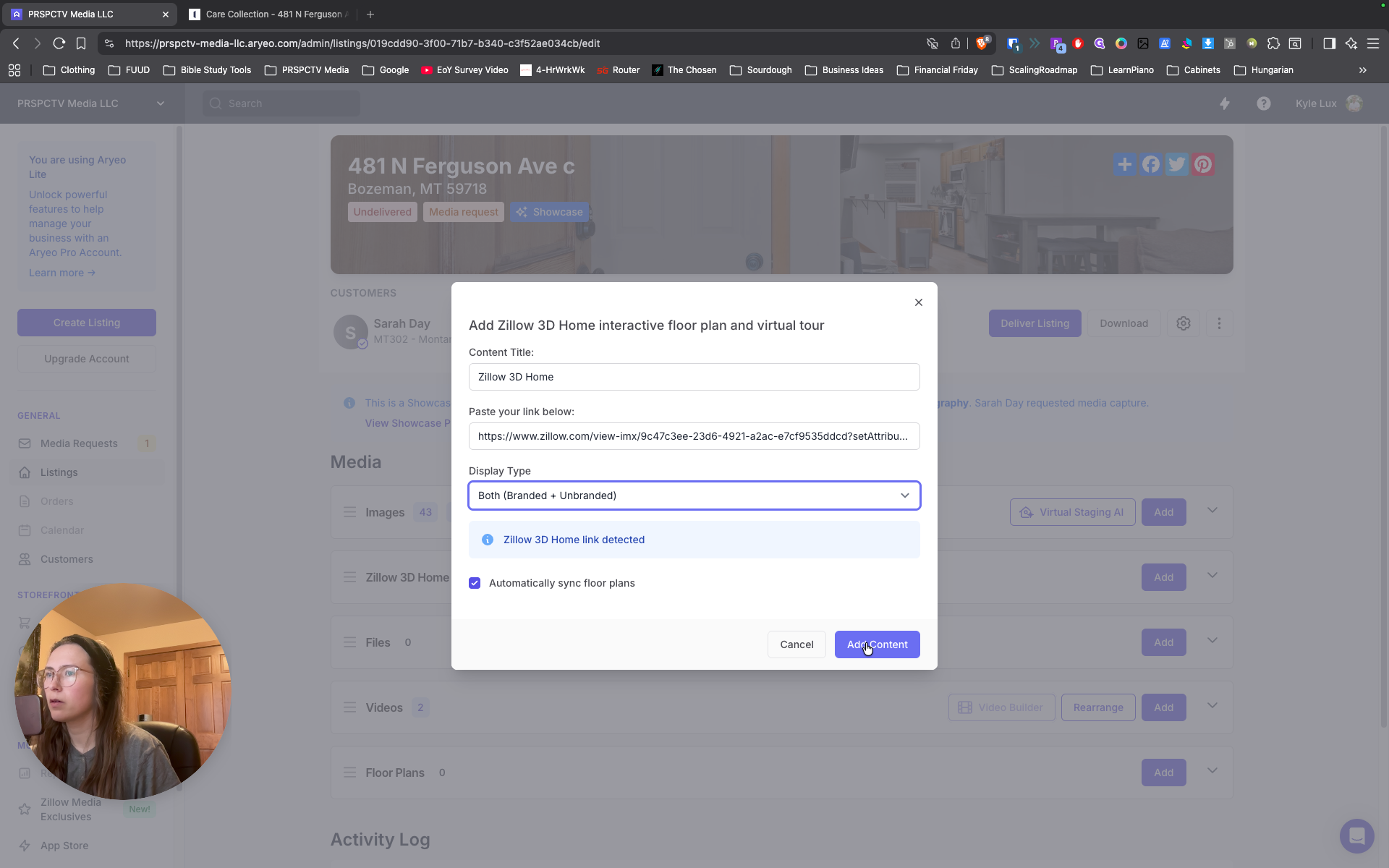
Okay. "" Okay, video is good. Images are good. Floorplan. ... "" If you refresh the page, it will populate. It should populate.
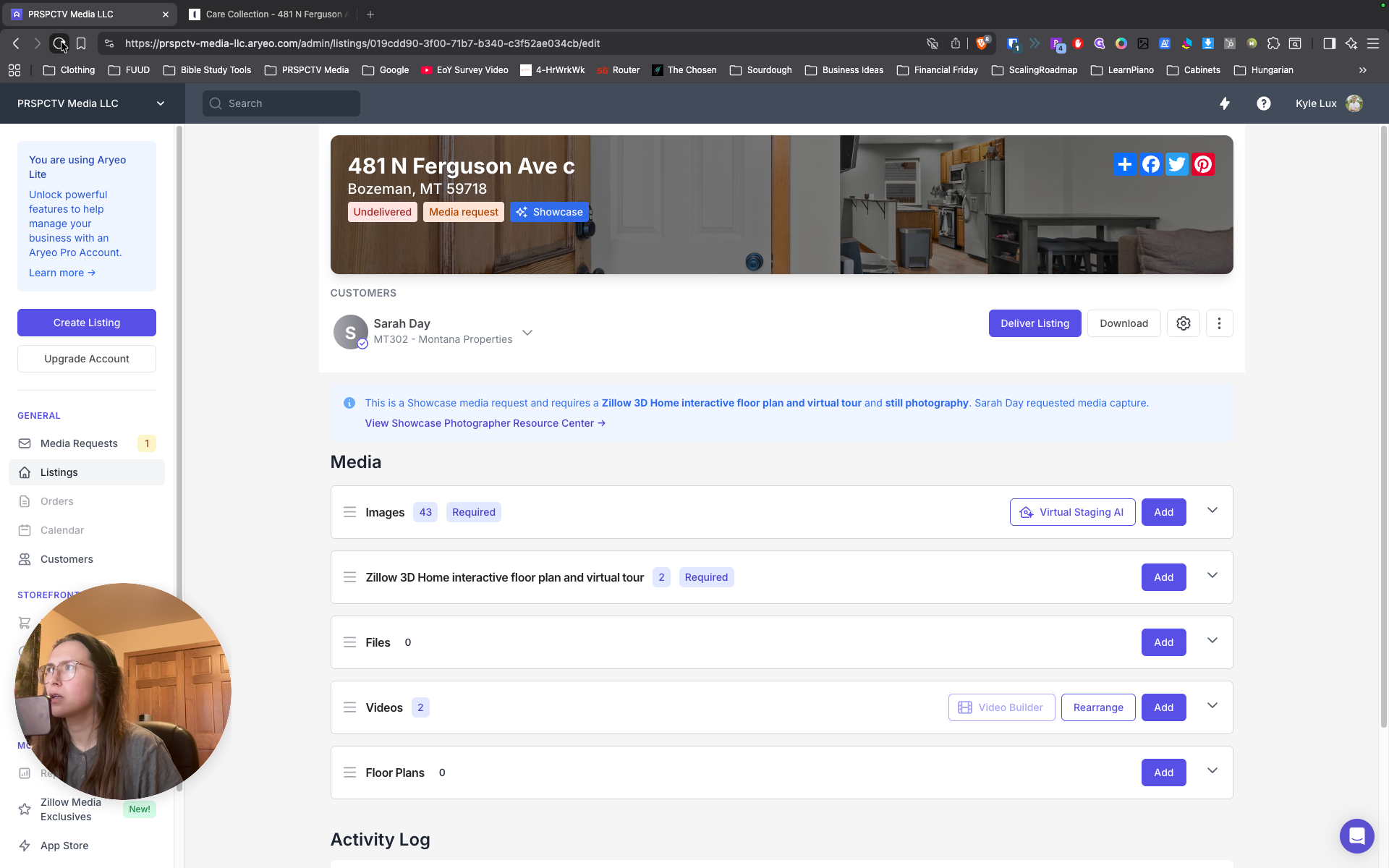
Oh, okay. It says that it has. Yeah, we want... Good. Okay.
Then you deliver the listing, and we're done.
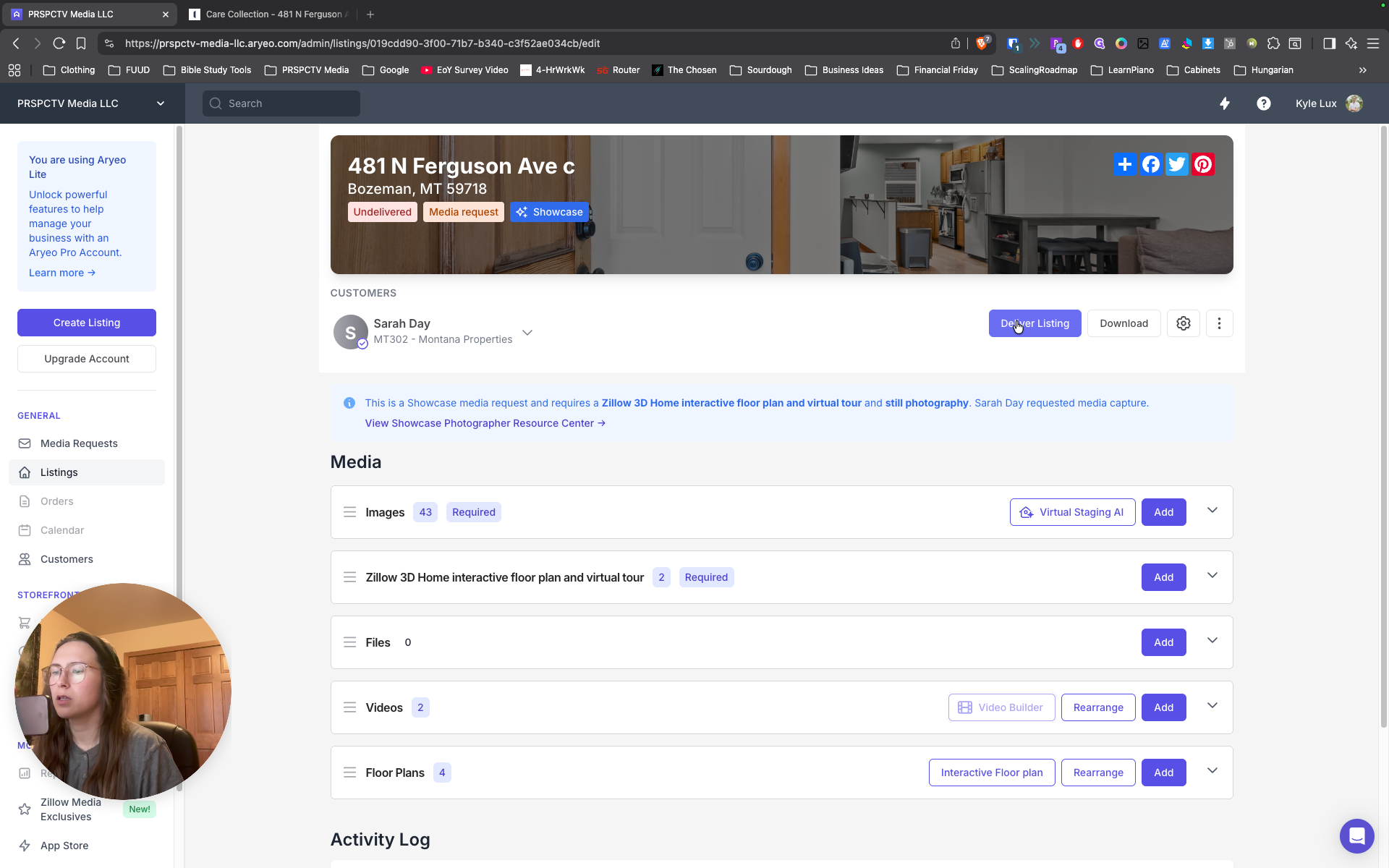
Is all of this good? Good. Deliver.
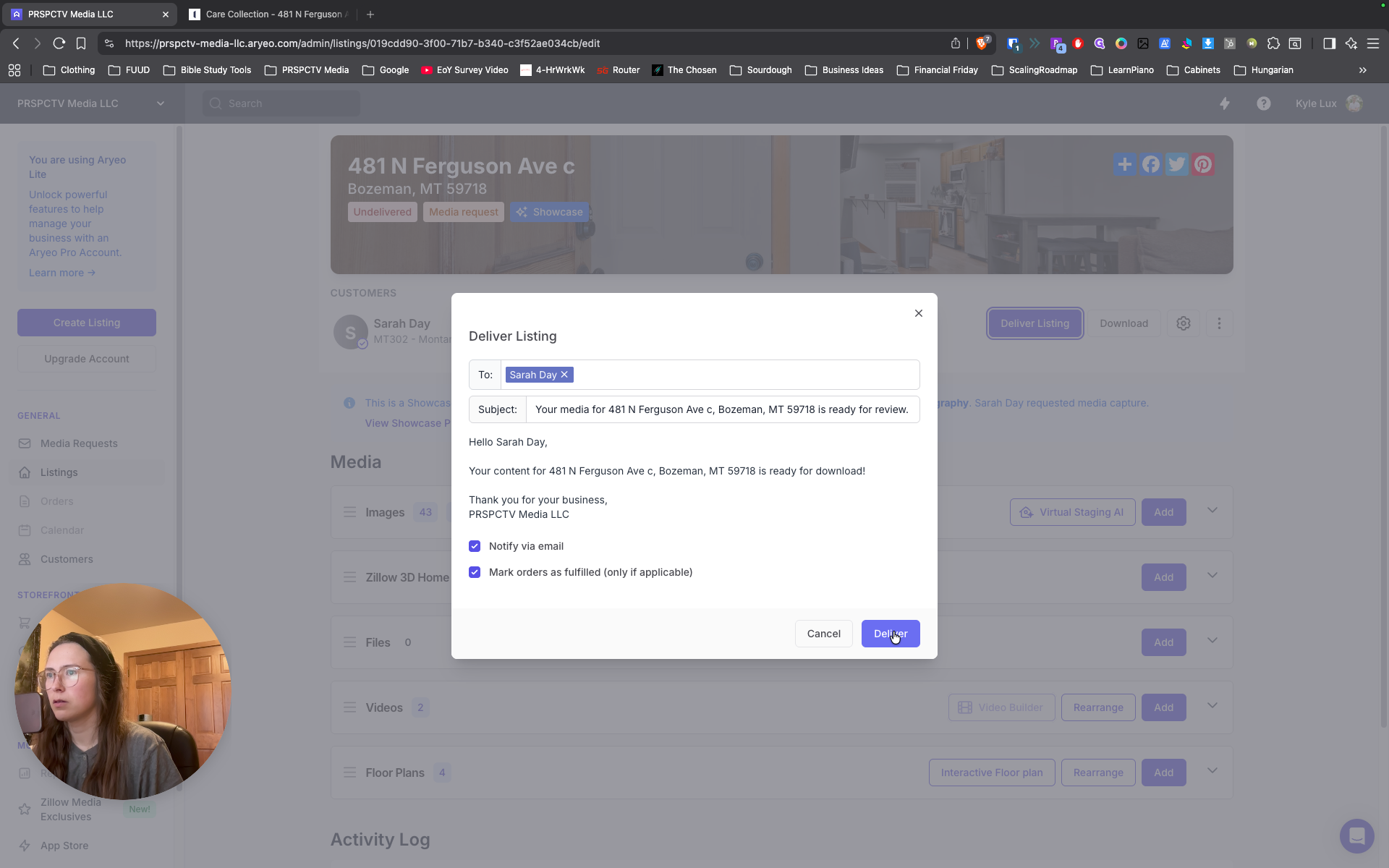
That's it. Thank you. Okay. How do I end the Glitter? Do I press the— Yeah.
... Here, the red button? Red button. Okay. Thank you, Adriana.