
How to Disconnect QuickBooks: Step-by-Step Guide
Learn how to disconnect QuickBooks easily. Follow our step-by-step instructions to safely disconnect your QuickBooks account and manage your connections.
By Aasma Technology Solutions
In this guide, we'll learn how to disconnect your account from QuickBooks. This process is useful if you no longer want to link your data or need to stop sharing information between platforms.
We'll also cover how to cancel the disconnection if you change your mind during the process.
Let's get started
To disconnect QuickBooks, click the Disconnect button and confirm by clicking Disconnect again.
1
Go to Integrations page's Quickbooks Online table Click on "Disconnect" button
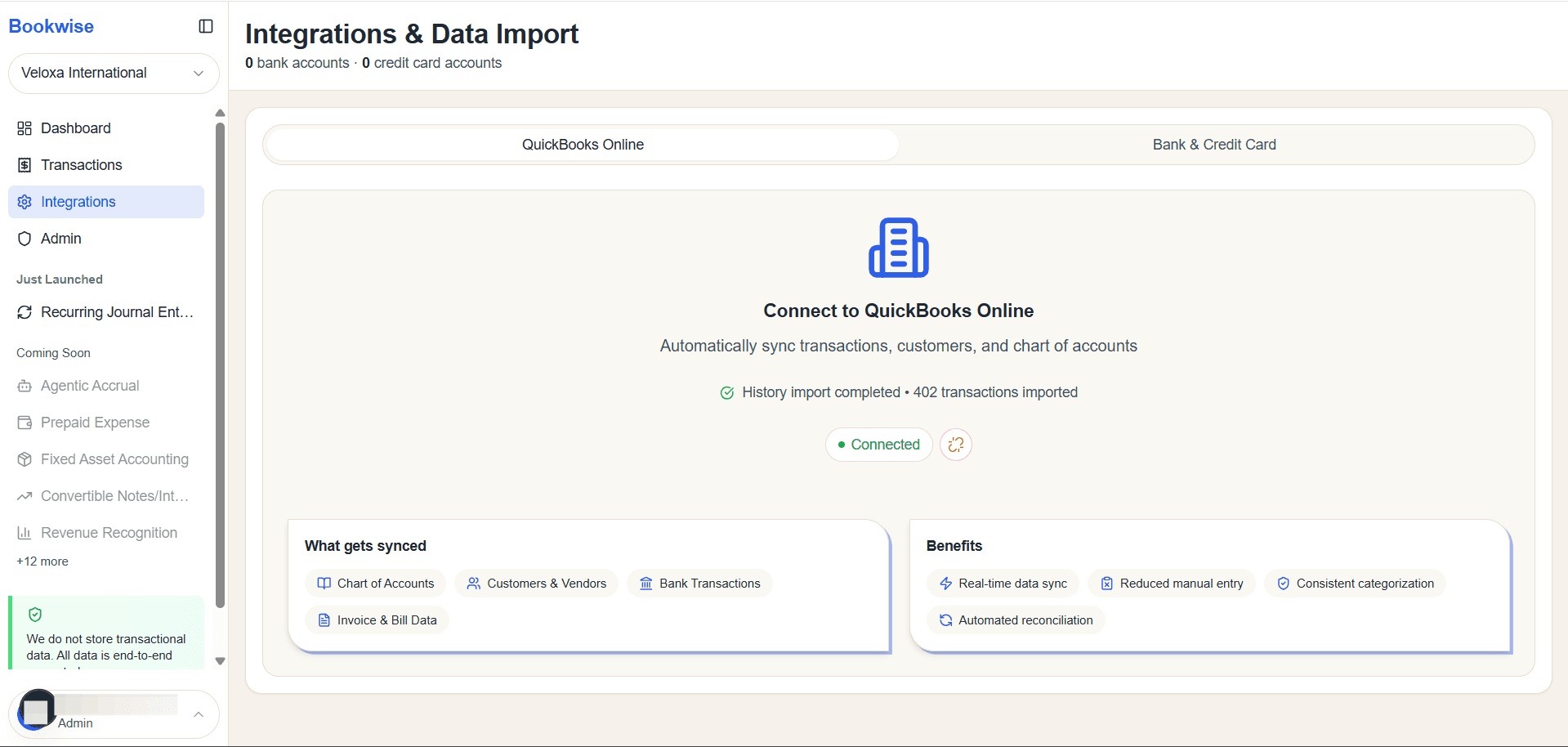
2
Click the Disconnect button to remove your QuickBooks connection.
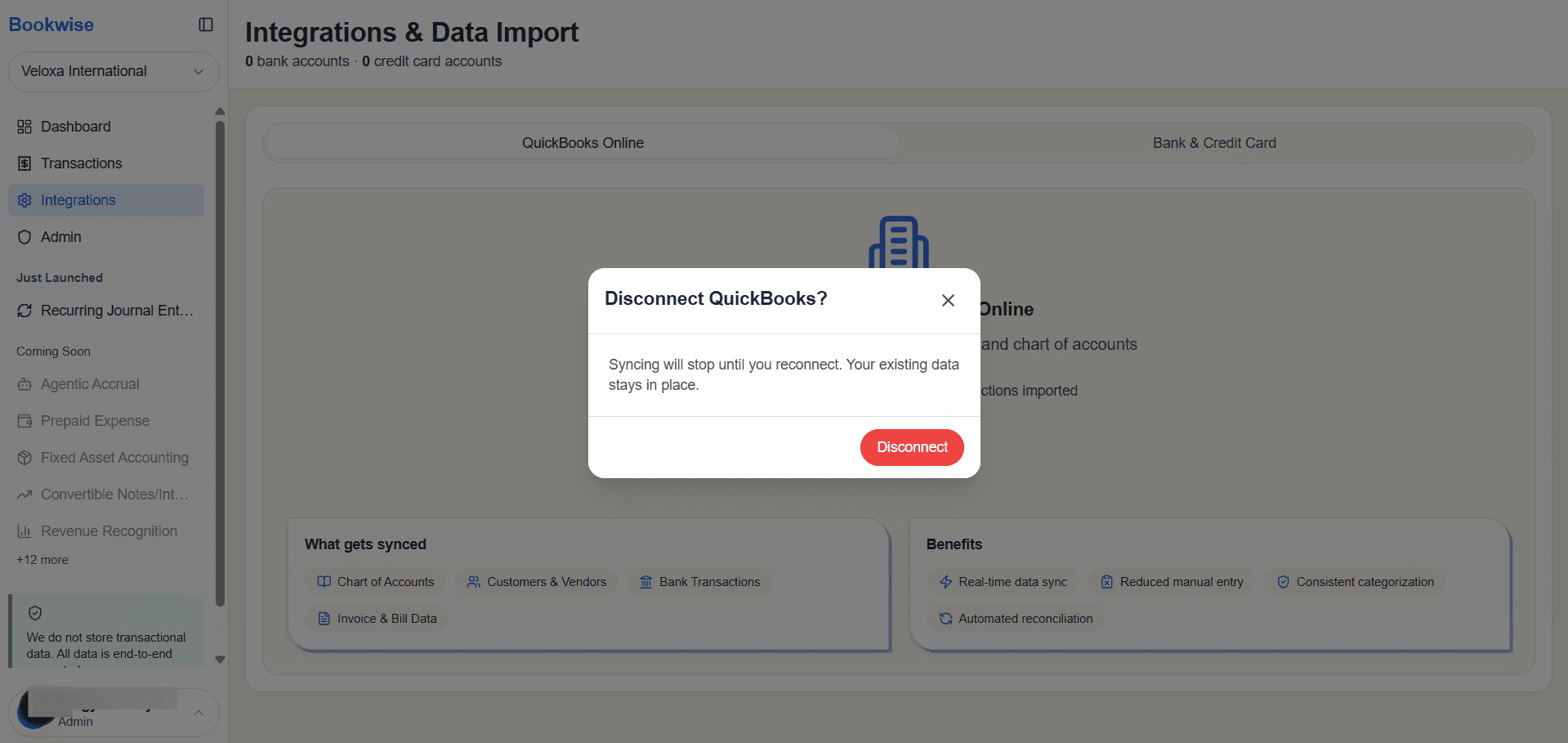
3
It will remove the connection and Disconnect successfully
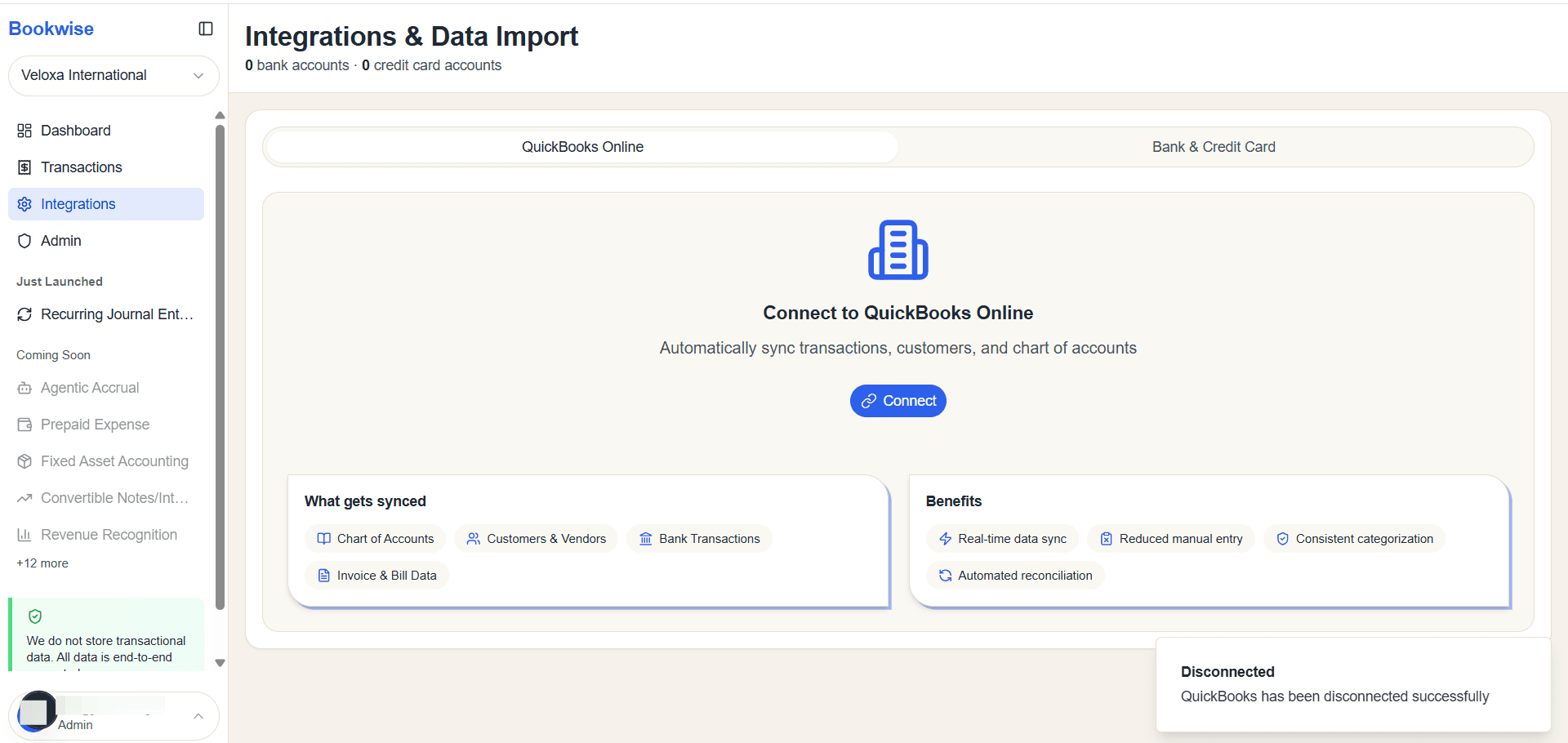
Everything related to that quickbooks account will be removed.