How to Display Streaming Platforms on an LED Wall Using the LED Sign Computer
Learn step-by-step how to display streaming platforms like YouTube TV, Netflix, Hulu, or Peacock on an LED wall using the LED sign computer and iPad controls. Perfect for offices and event spaces.
In this guide, we'll learn how to display streaming content on an LED wall using the LED wall computer and an iPad. This process allows you to show platforms like YouTube TV on a large screen for group viewing or presentations.
You'll use Microsoft Edge to access your streaming source and the iPad to control the input selection for the LED wall.
Let's get started
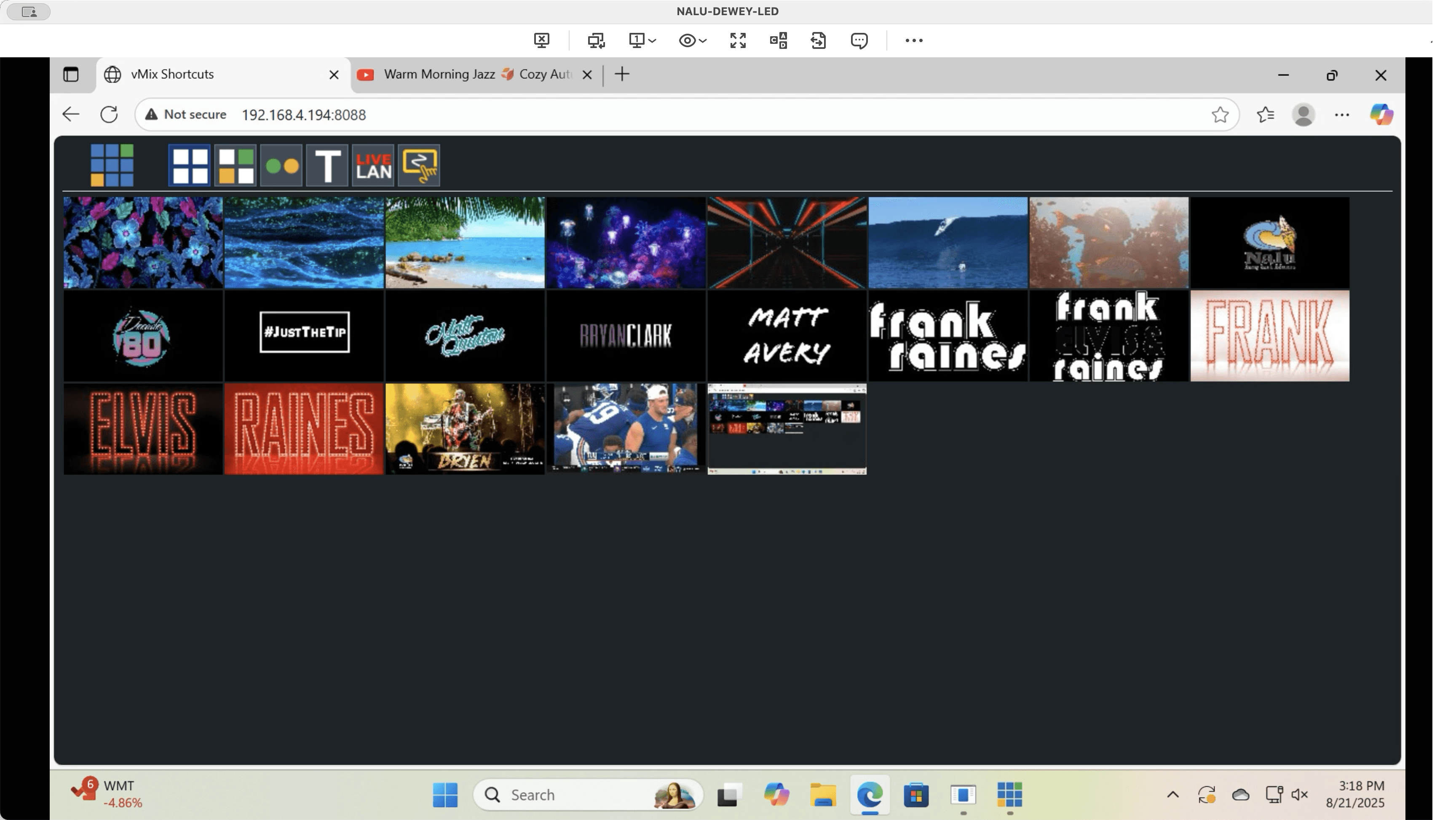
Alright. In this tutorial, we will learn how to display a streaming platform on the LED wall using the LED sign computer. First, go into the office and change the television input to the LED wall. Then, get the keyboard and mouse for the LED wall computer. Open a web browser, such as Microsoft Edge. Go to your streaming source, like Netflix, Hulu, or Peacock.
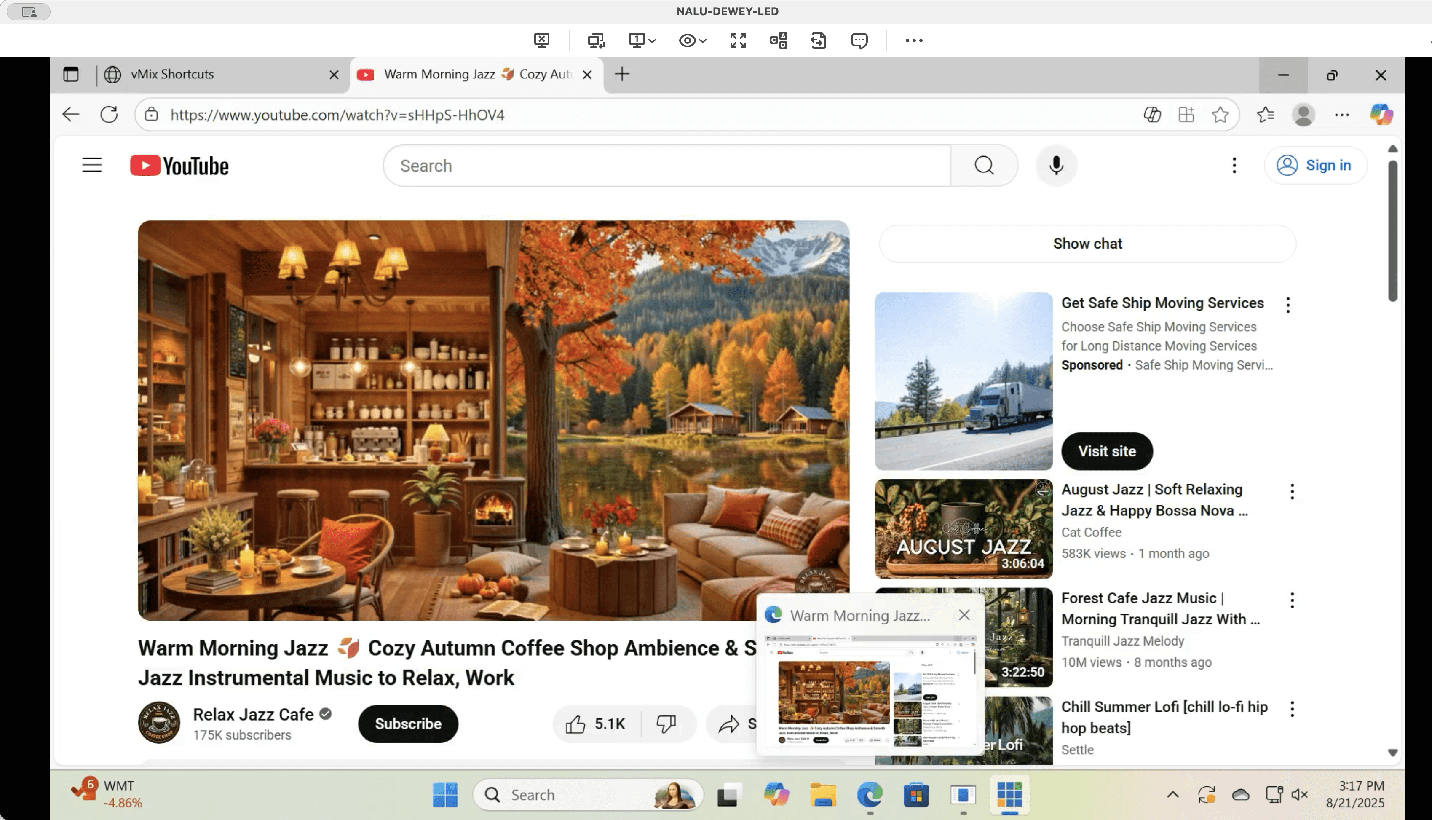
In this example, I'm using YouTube TV with a video already playing. Start playing your content, then switch to full screen.
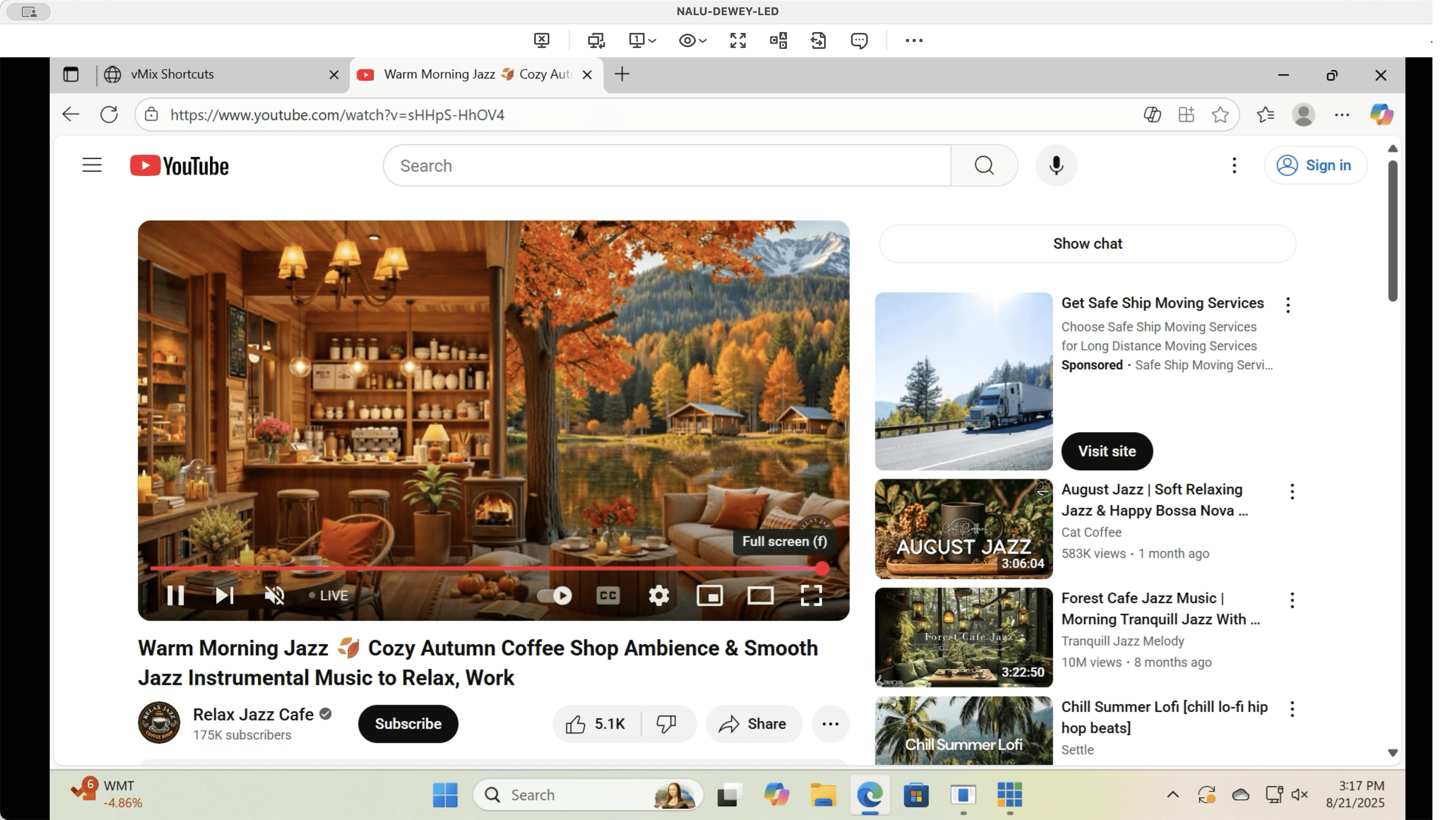
After making it full screen, take the iPad and select that input. In this example, I will minimize this window, but you will remain in full screen. Go to the iPad app and select the LED wall input. It is the last option on the list.
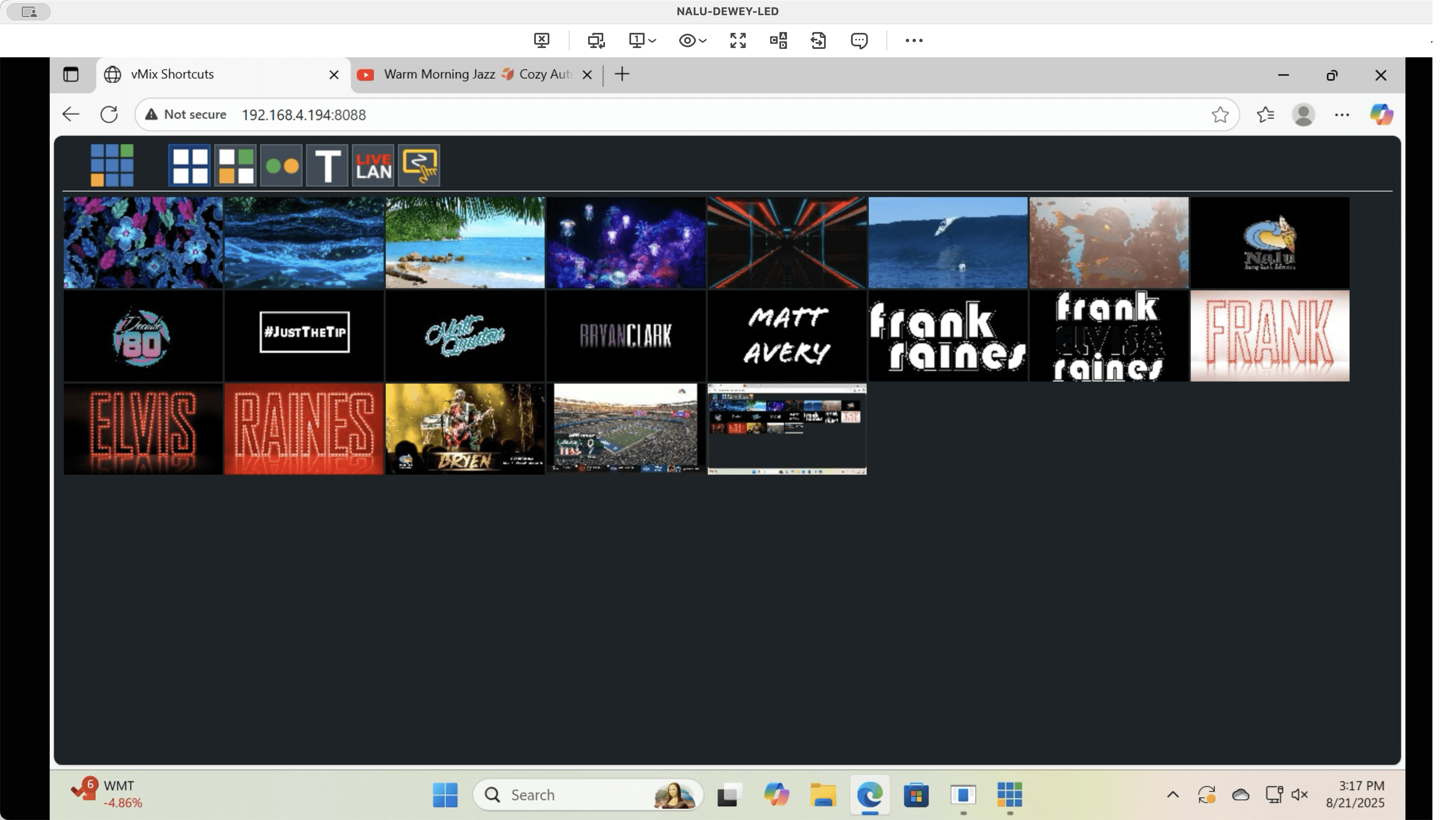
Click to select it on the iPad. You are doing this on the iPad. The content on this computer should already be in full screen. It will display that content on the LED wall. When you're finished, simply click it again. The content will stop and return to the previous input.