
How to Download a Statement from PayPal: Step-by-Step Guide
Learn how to easily download your PayPal statement, including all transactions, in PDF format. Follow these simple steps to get your PayPal statement for underwriting or personal records.
In this guide, we'll learn how to download a statement from PayPal. This process helps you access a record of your transactions, which can be useful for personal tracking or for providing documentation to others, such as for underwriting purposes.
We'll also cover how to print a transaction history page that includes the PayPal URL, in case you need to show the source of your records.
Let's get started
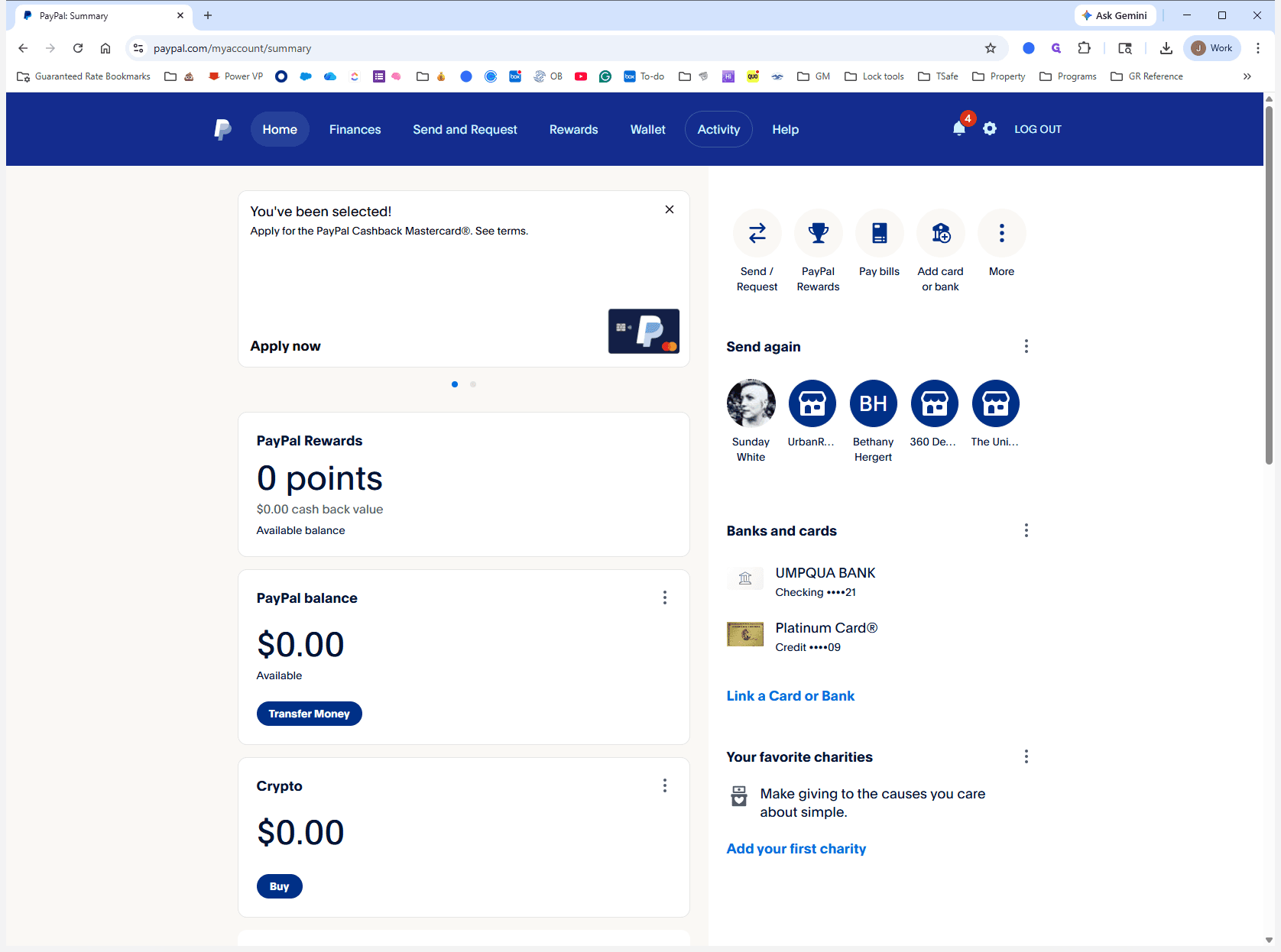
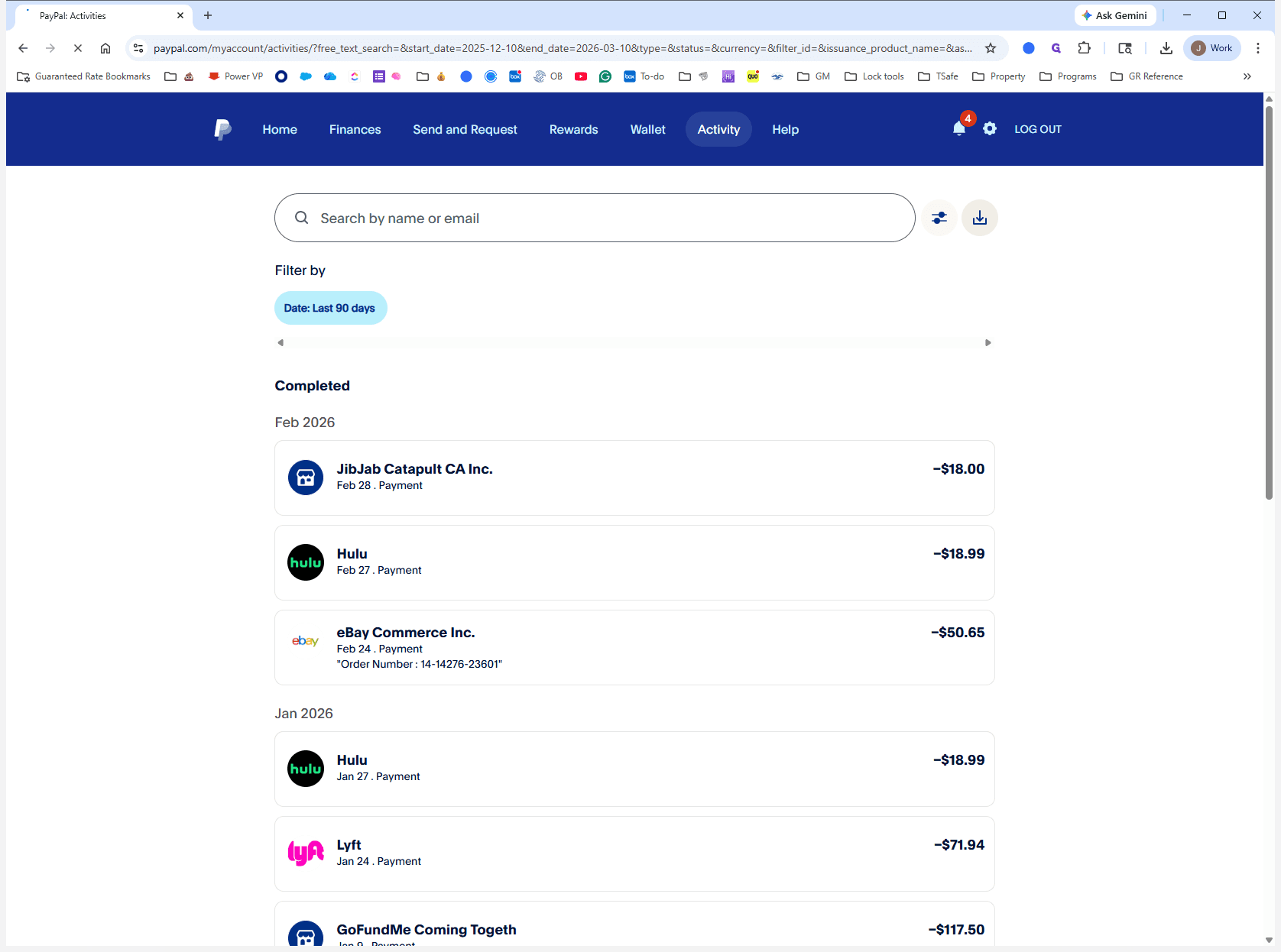
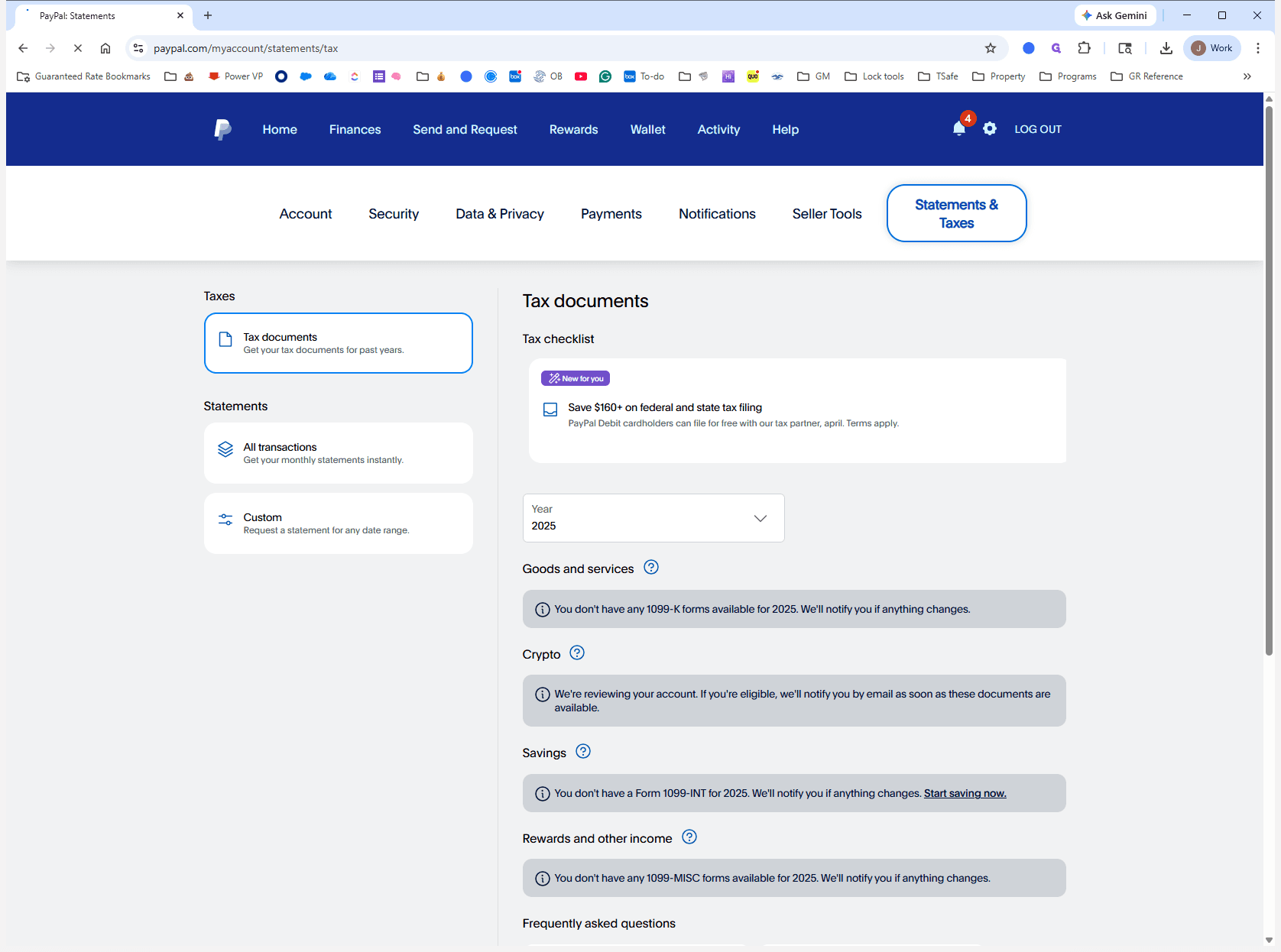
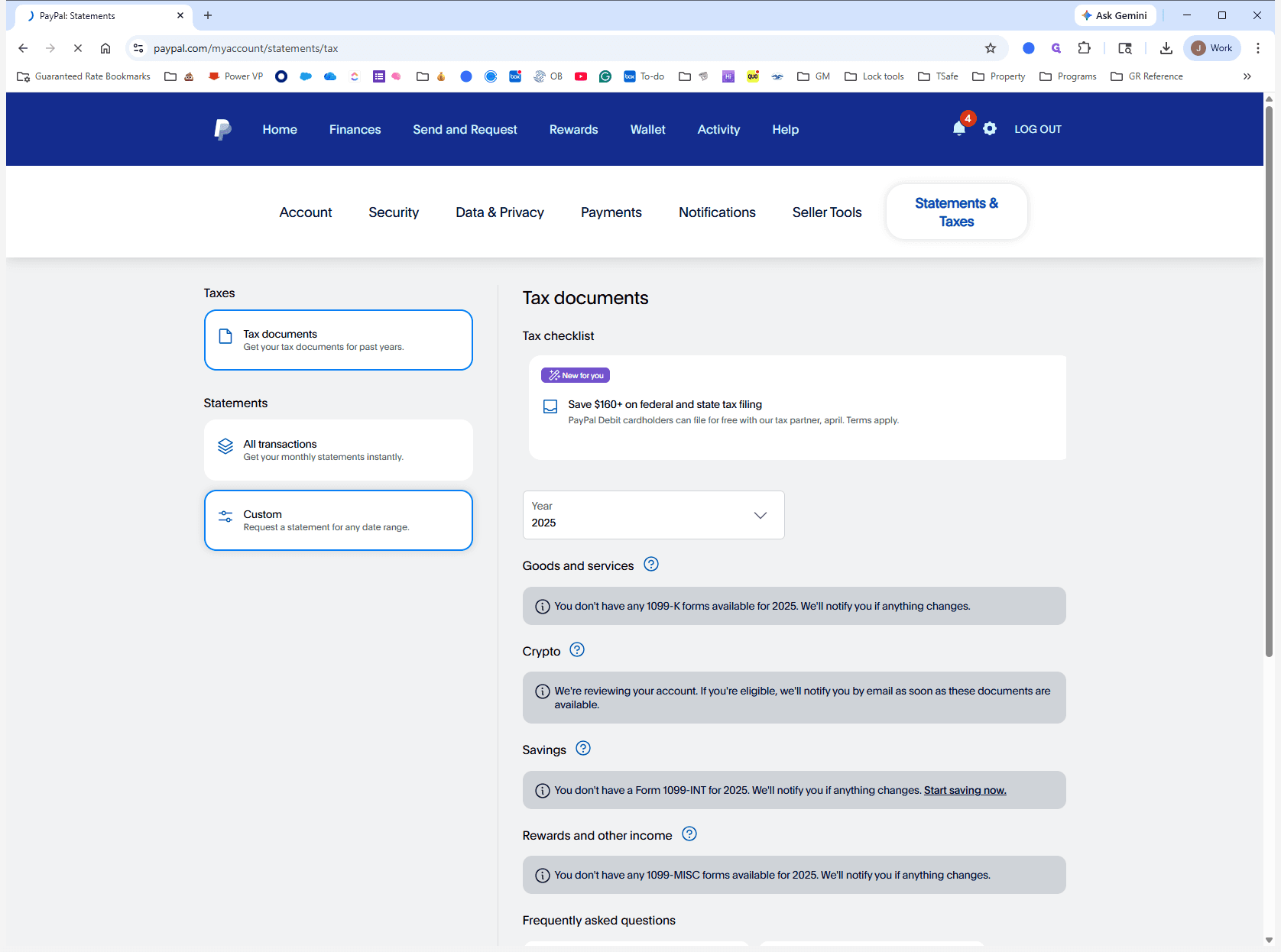
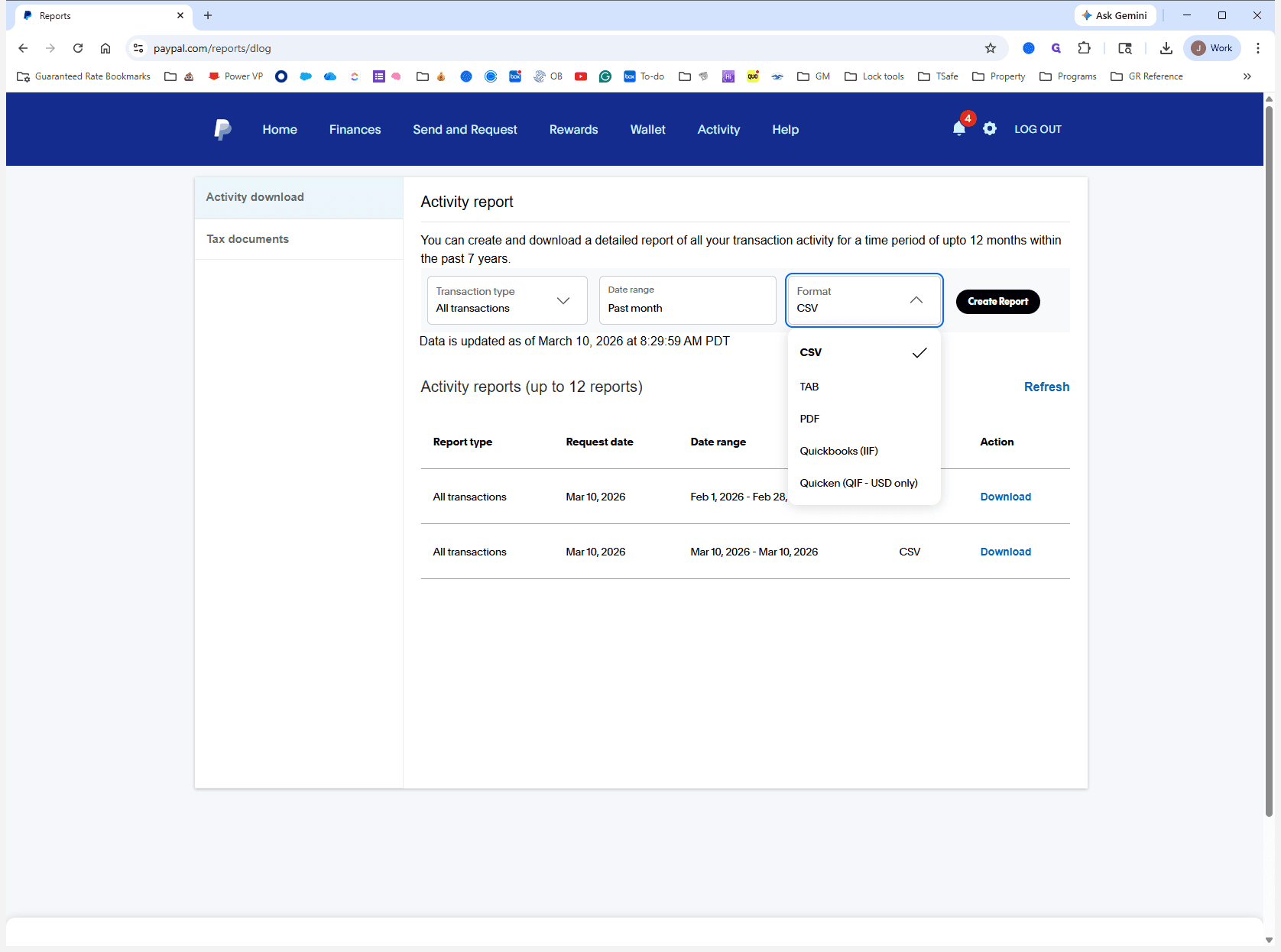
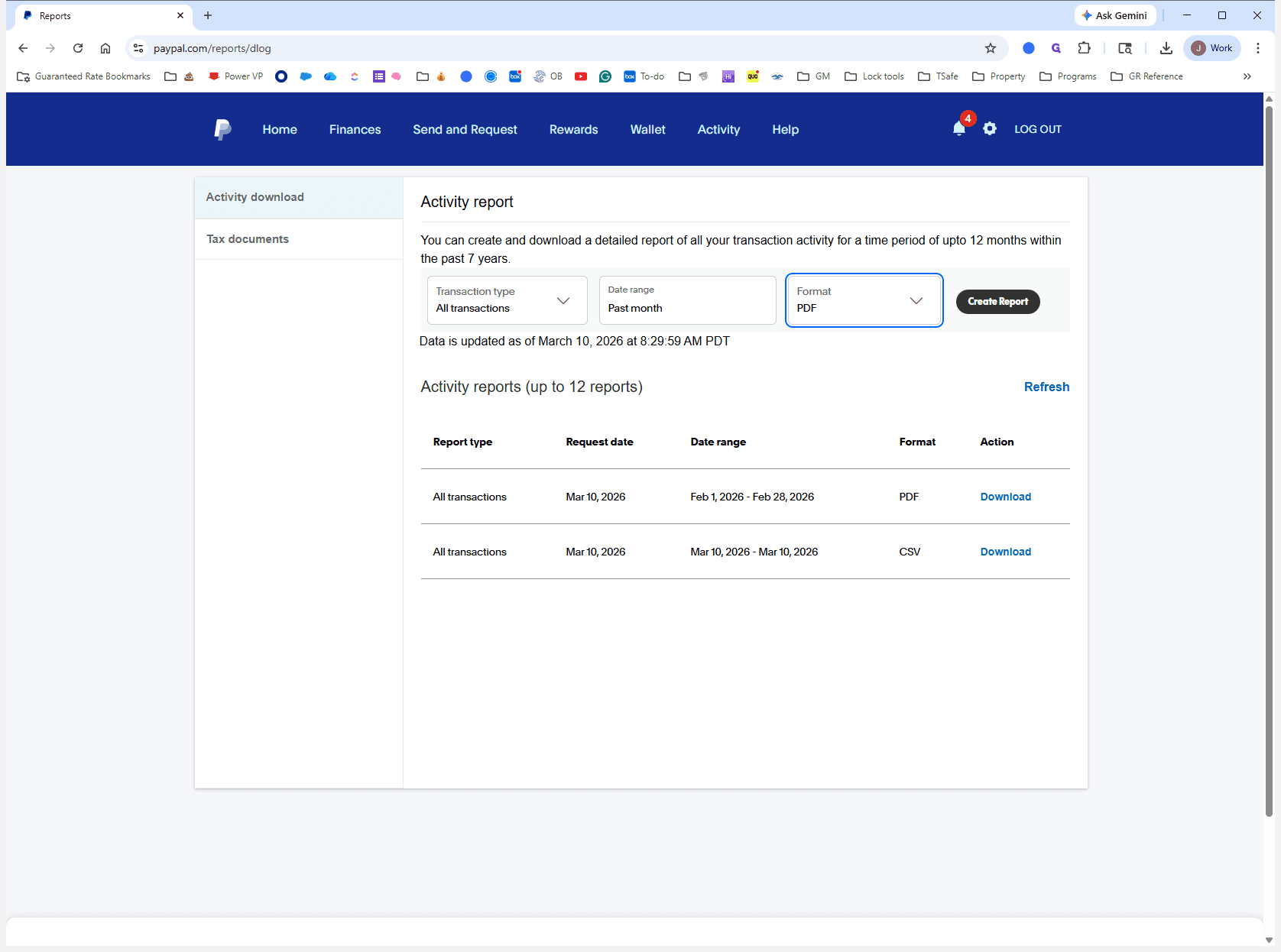
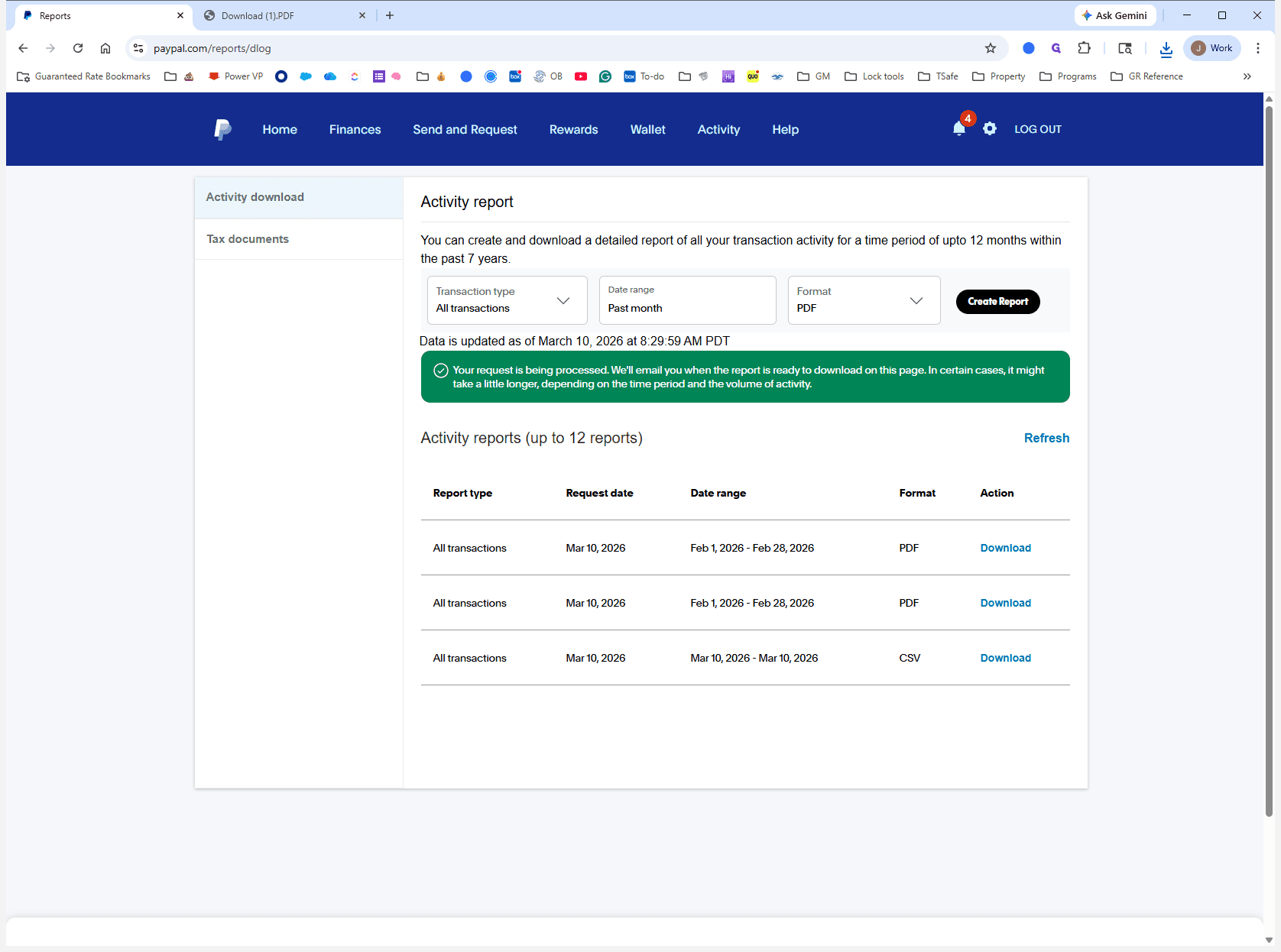
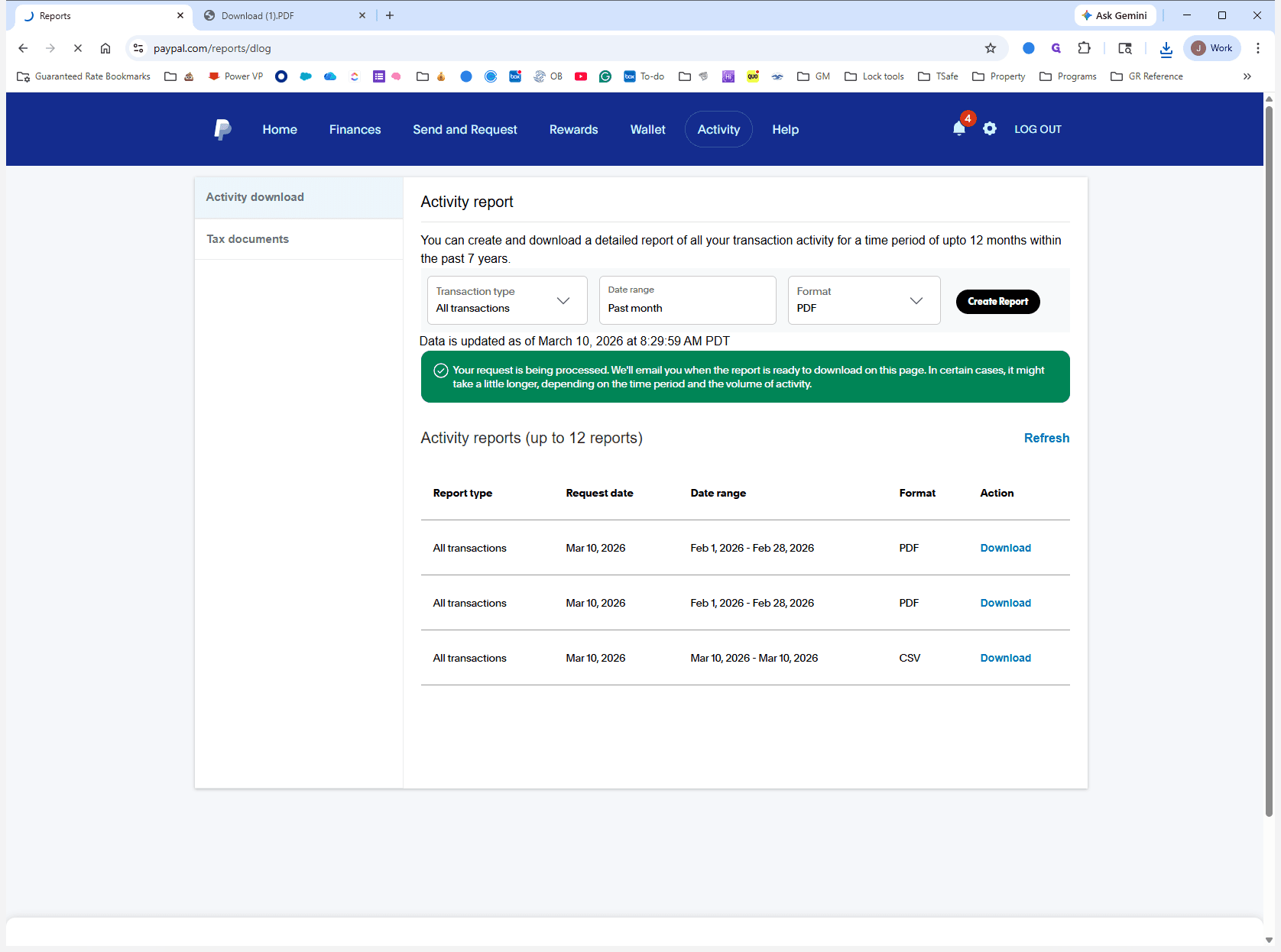
Here is how to download a statement from PayPal. Once you're logged into PayPal, click on Activity. Next, click the Download icon, then select Statement and Taxes. Click on Custom for a custom date range. Choose balance affecting all transactions for the past month. Select PDF format and click Create Report.
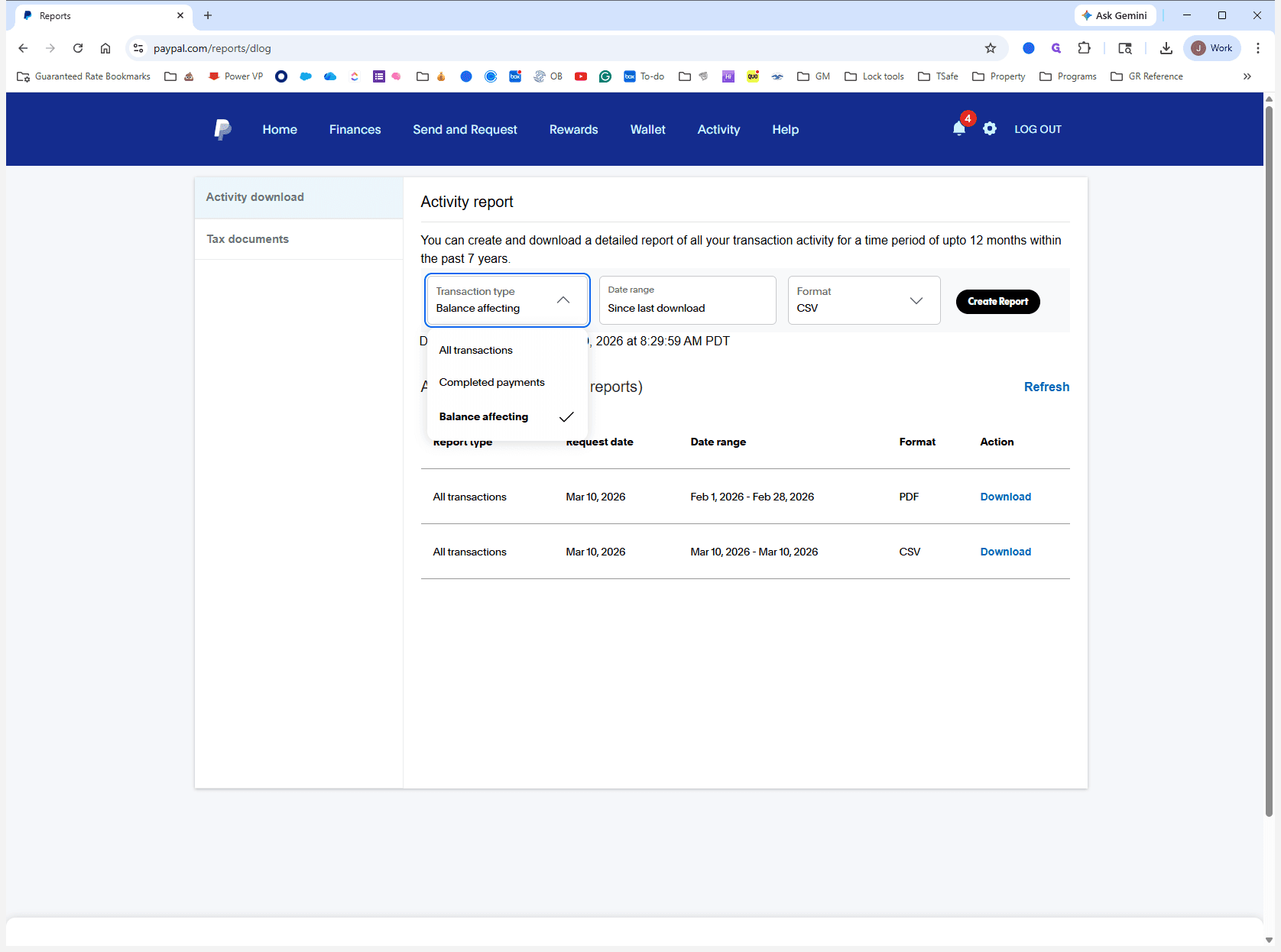
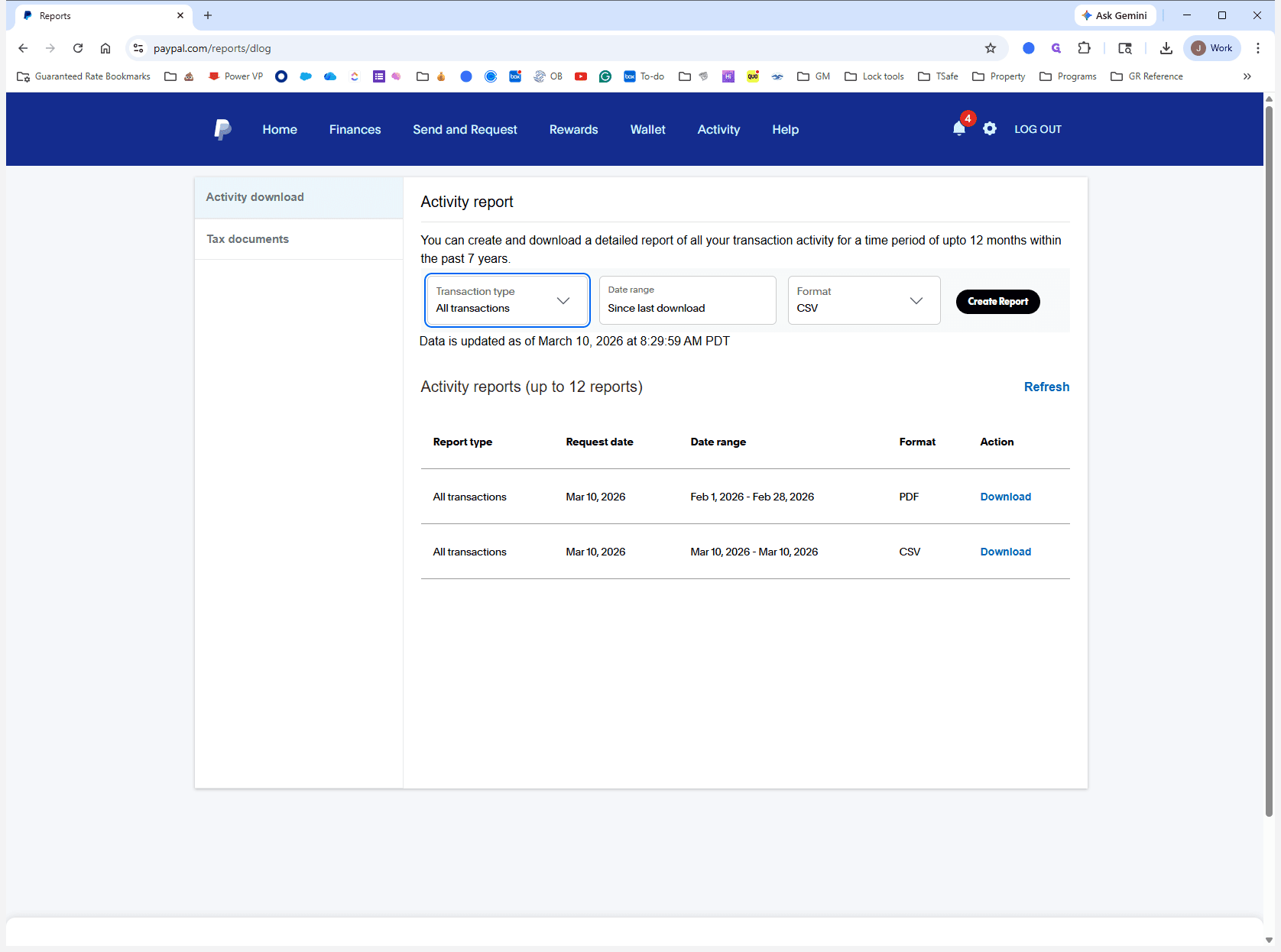
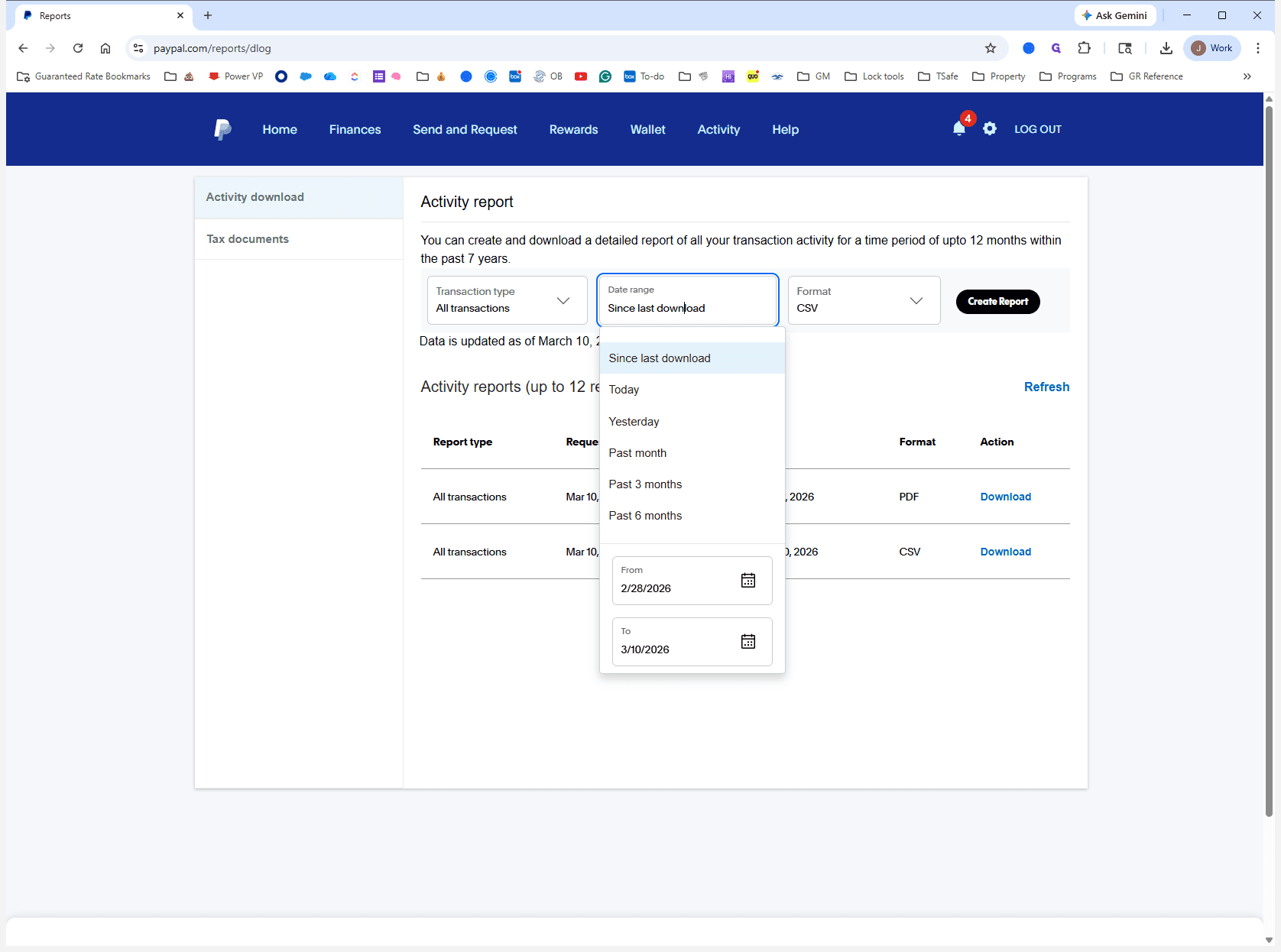
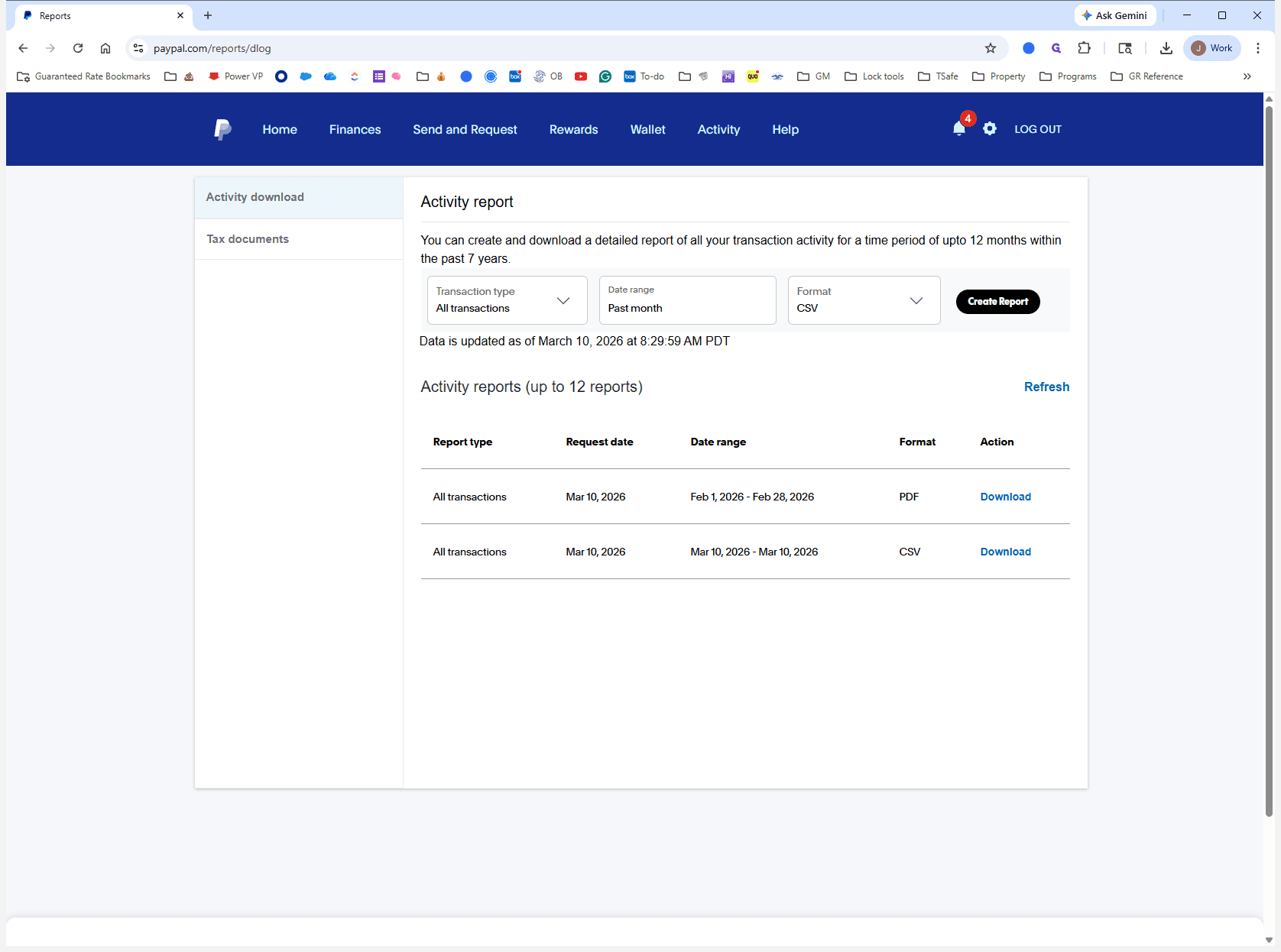
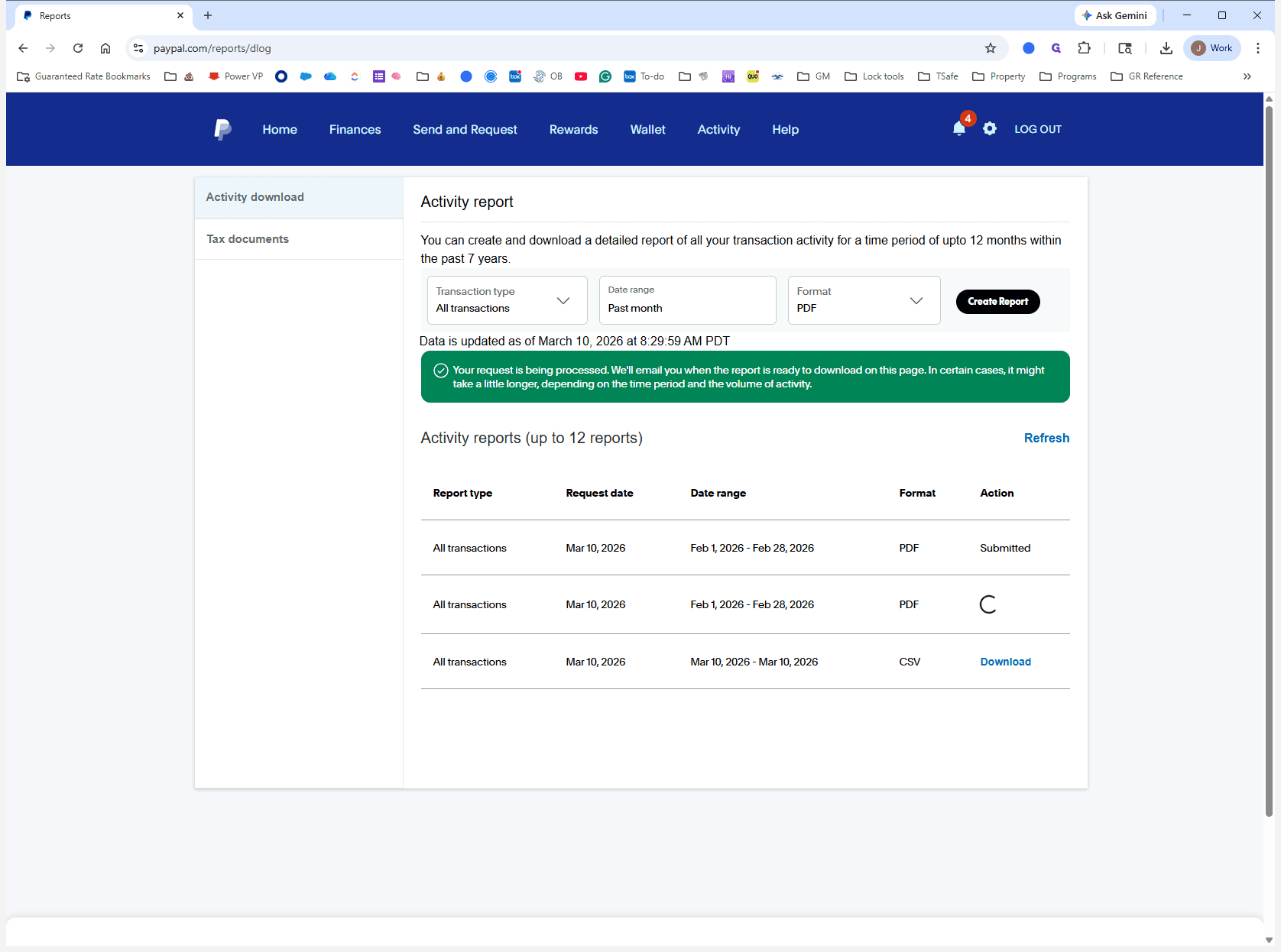
It takes a minute. At first, it will say "Submitted," and then it will become available. I did this recently. When you download it, you should see a statement with your name, email, and all completed transactions.
It has the PayPal logo. If underwriting wants something with the URL, go to Activity and print the overlapping transaction history. This will include the PayPal URL if you press Control P from the transaction page.
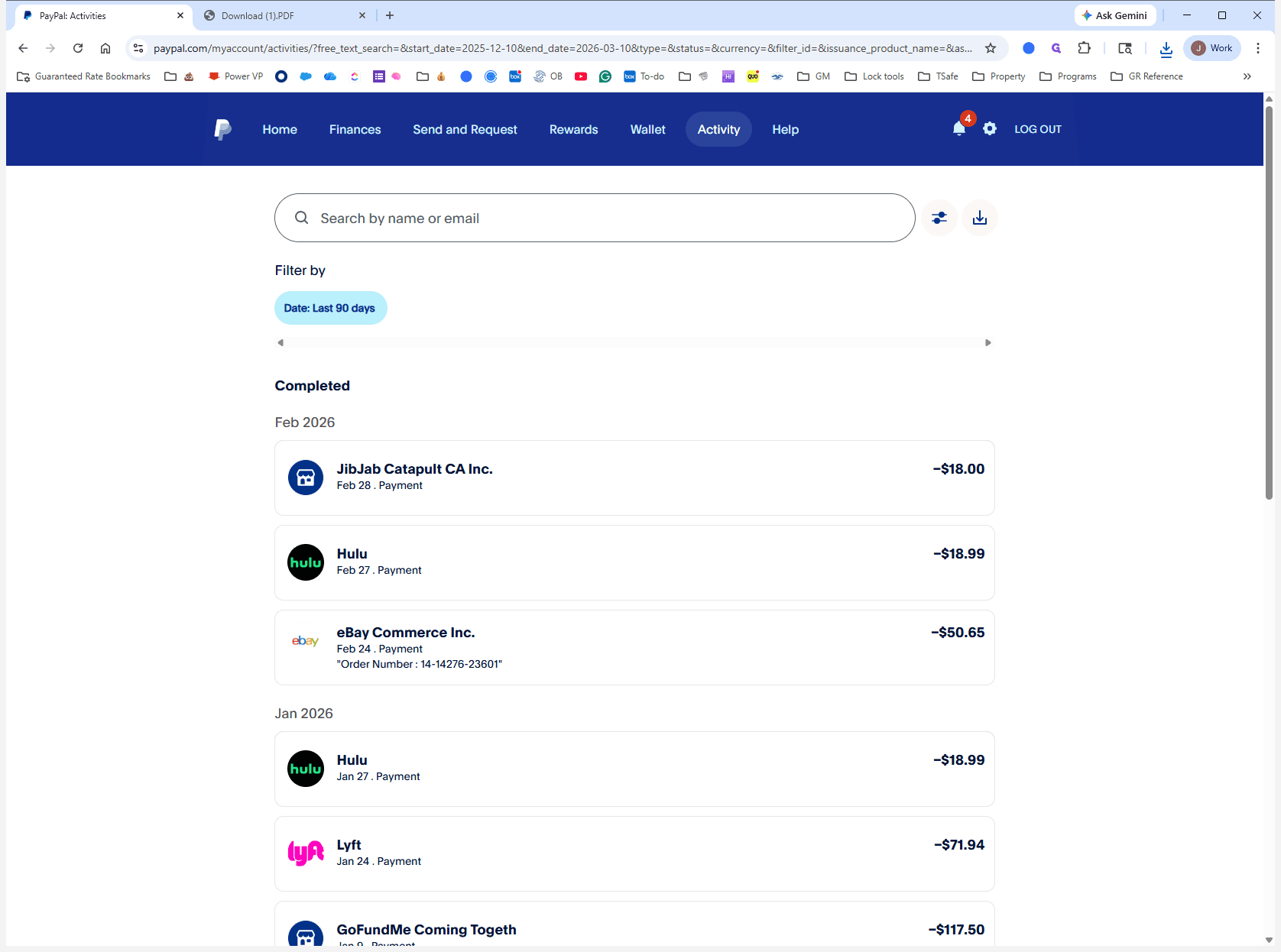
This doesn't have any email, name, or identifying information on it. However, since the statement includes the email and name, I think it should work. Now you know what I've spent money on in the past 30 days. Uh, okay. Hopefully, that's helpful.