How to Download and Review Error CSV Files When Uploading
Learn how to identify and resolve file upload errors by downloading and reviewing error CSV files directly in your browser. Step-by-step instructions included.
By Aasma Technology Solutions
In this guide, we'll learn how to identify and handle errors that occur when uploading files. You will see how to check if you have uploaded the wrong file and how to download an error CSV to your computer for review.
Let's get started
1
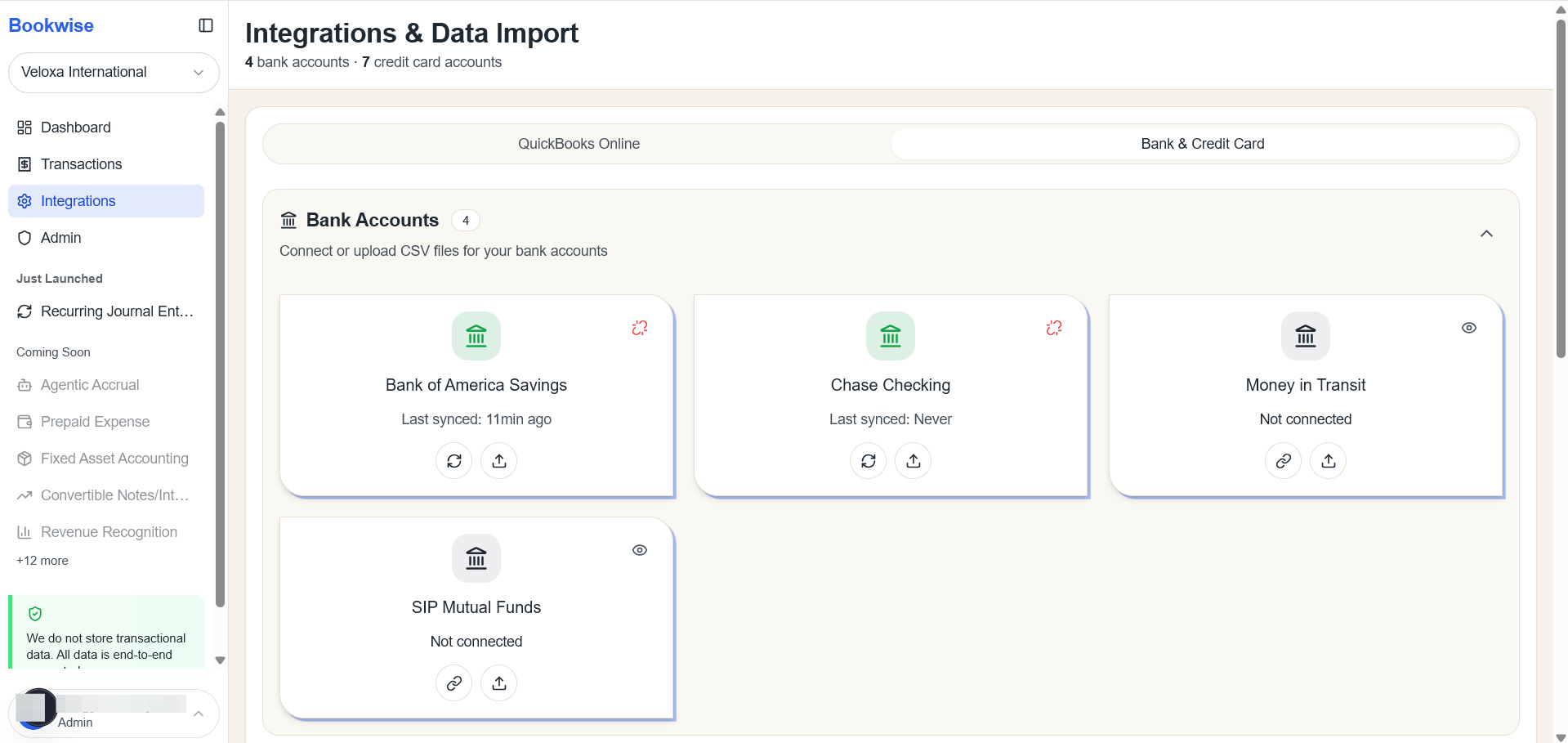
Go to Integrations page's Bank and Credit card tab and Click the Upload CSV button, and the CSV upload modal will appear.
2
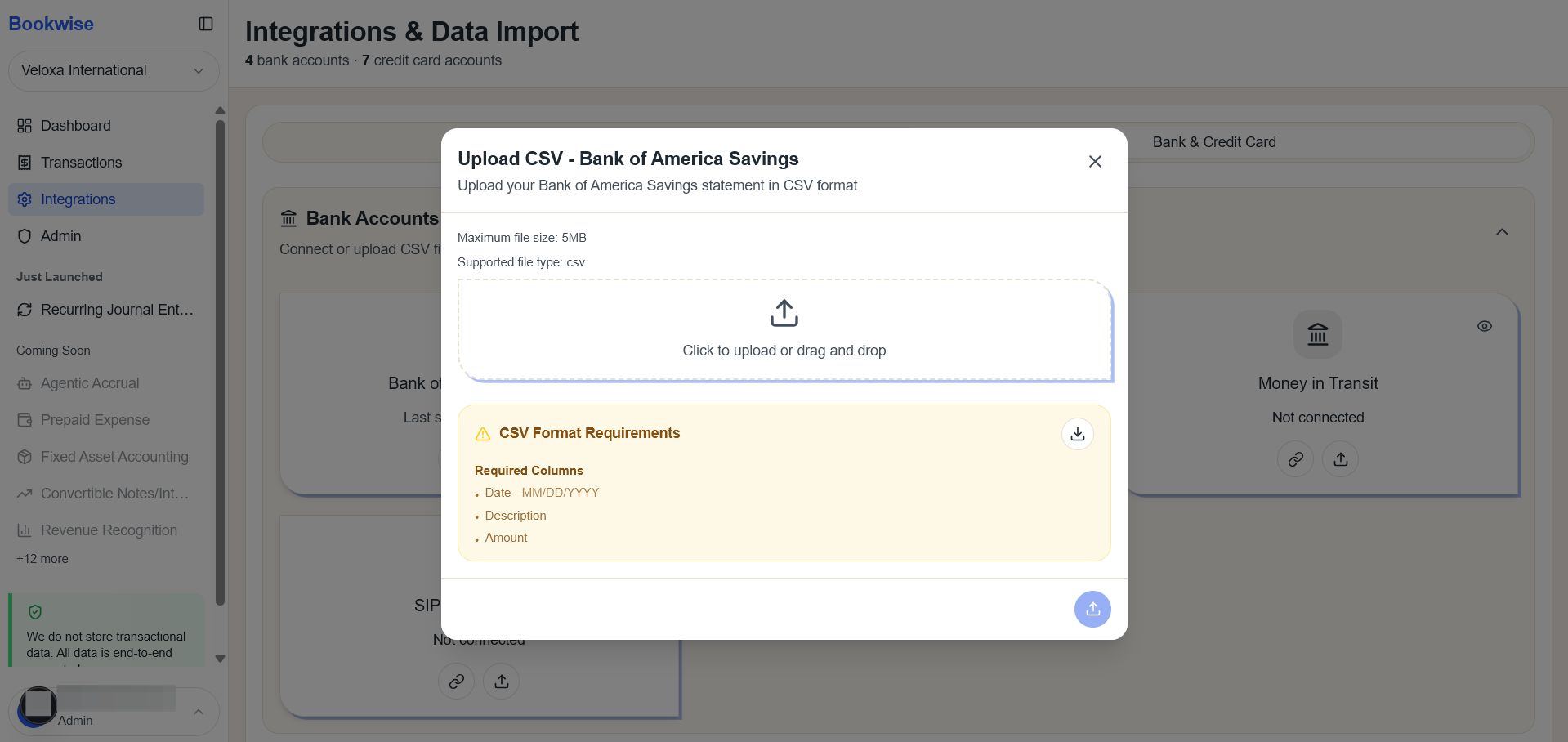
Click Choose File, browse your system, and select the file you want to upload.
3
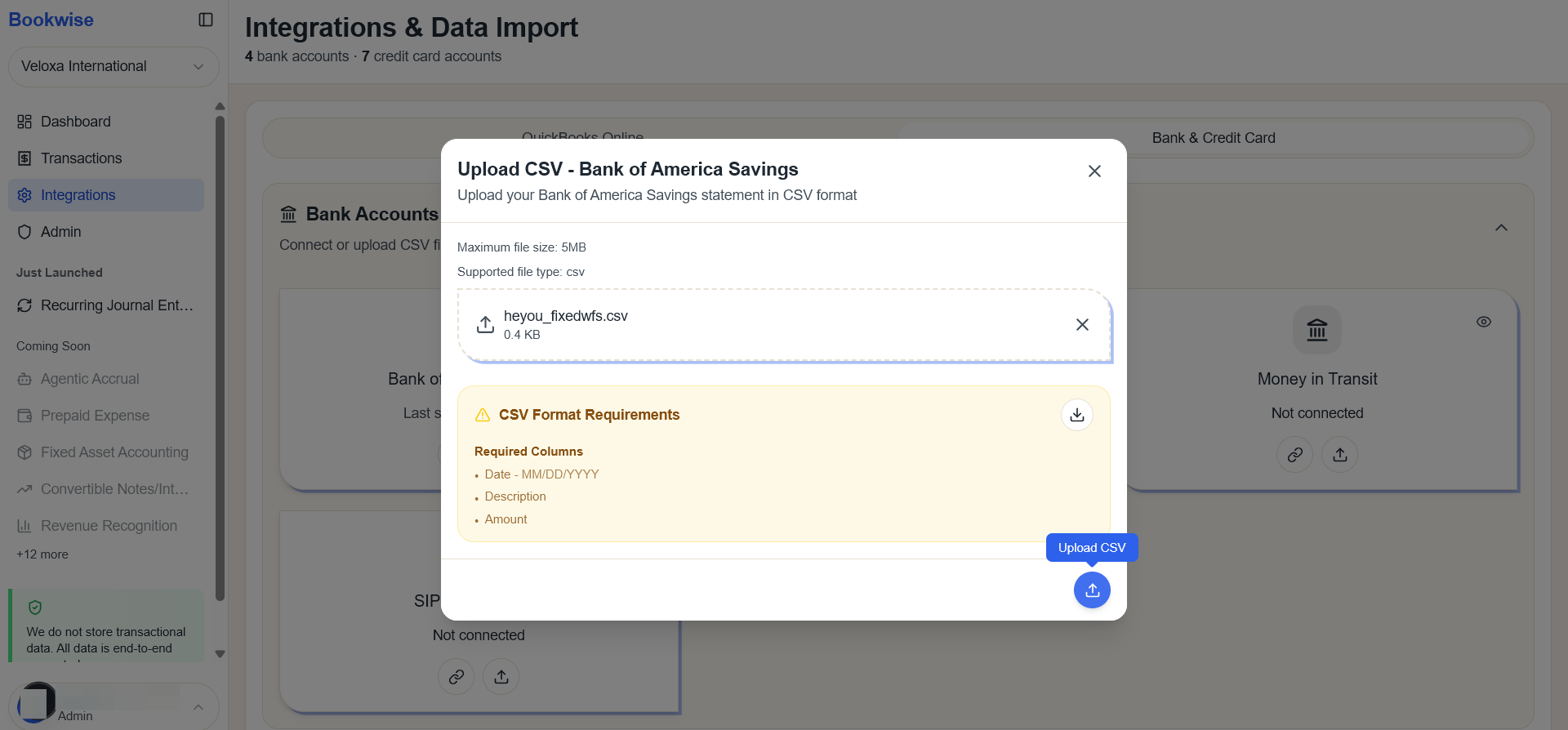
Click Choose File, browse your system, and select the file you want to upload.
You can see the error.
4
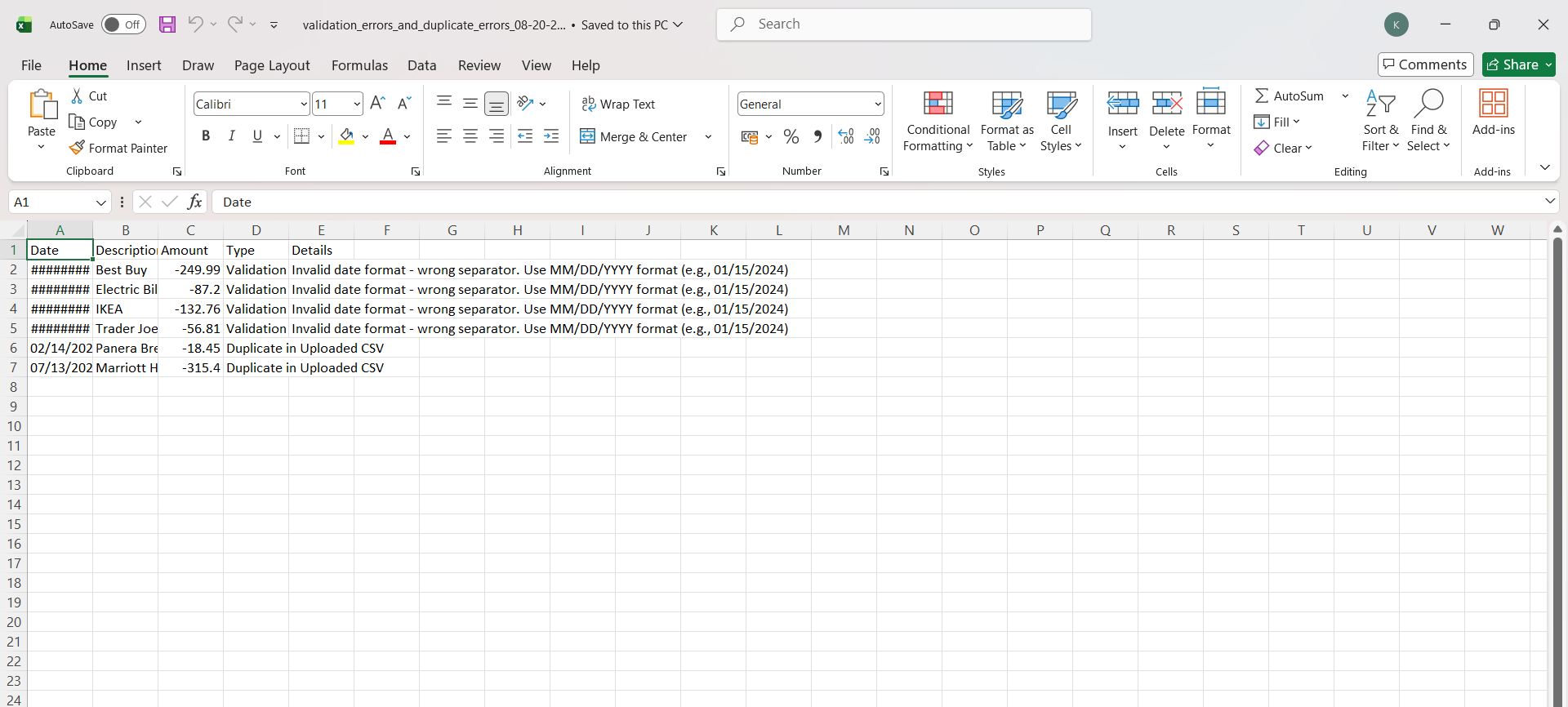
All the Validation and Duplicate errors will be shown in form of a list
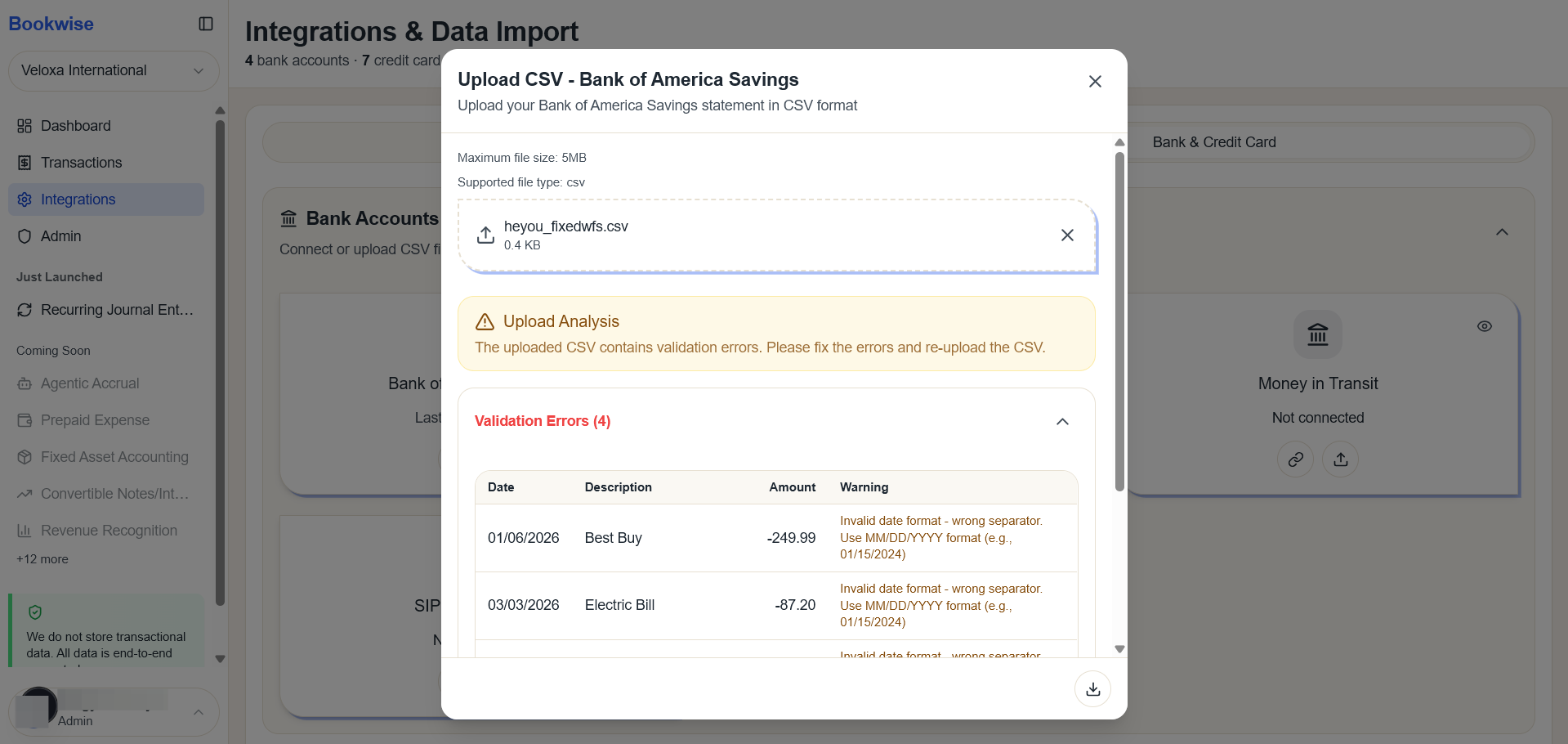
The error CSV file is available for direct download and can be saved to your local system.
5
Click on "Error CSV" button to save the list of these errors
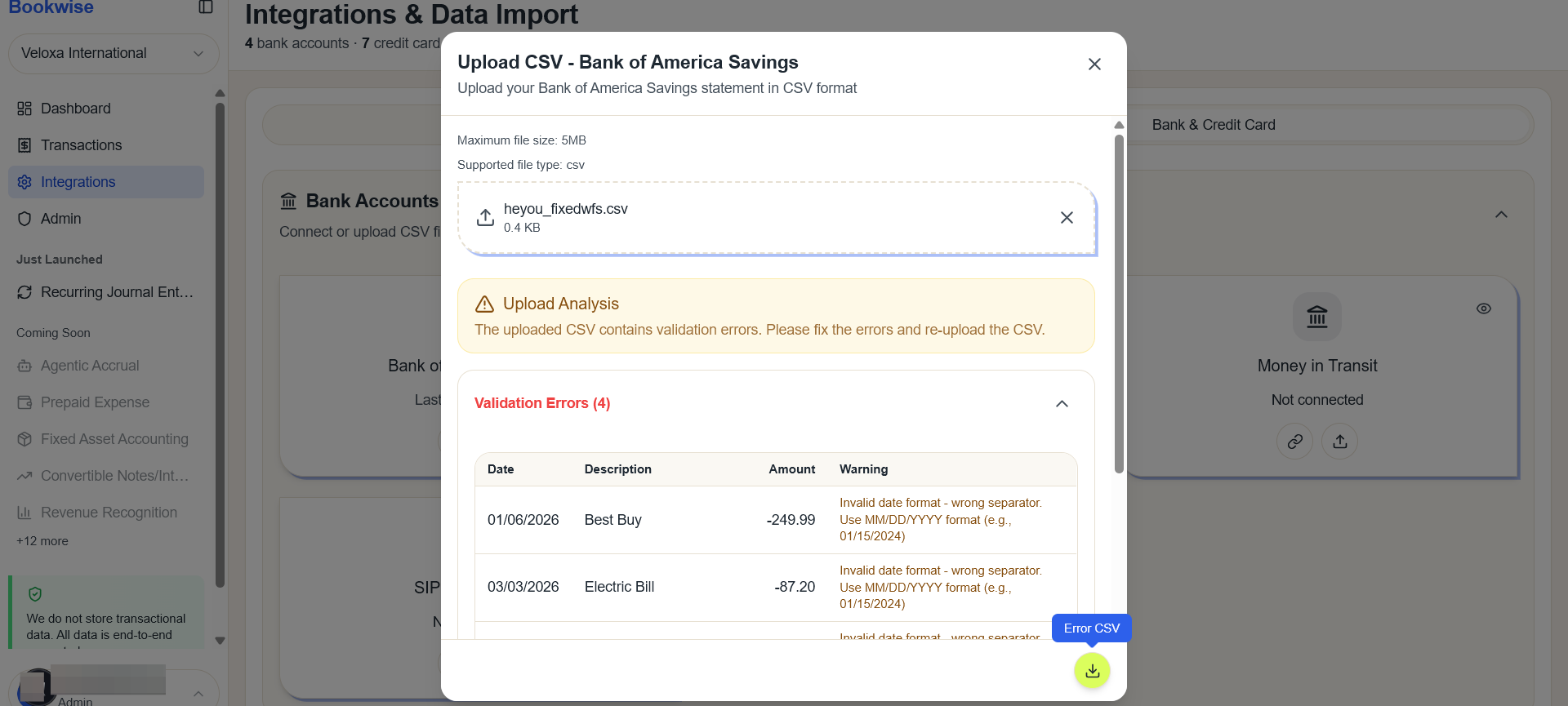
6
Excel file will be downloaded and accessed for knowing those errors