How to Download Previous Member Reports
Learn how to find, download, and organize previous risk control reports for a member to prepare for an upcoming site visit.
By Nadine Bannick
This guide demonstrates how to locate, download, and organize previous reports to prepare for a consultant's upcoming visit. By retrieving original report files, you can review historical visit data and better prepare for your consultant for their upcoming introductory visit.
Search for Completed Reports
1
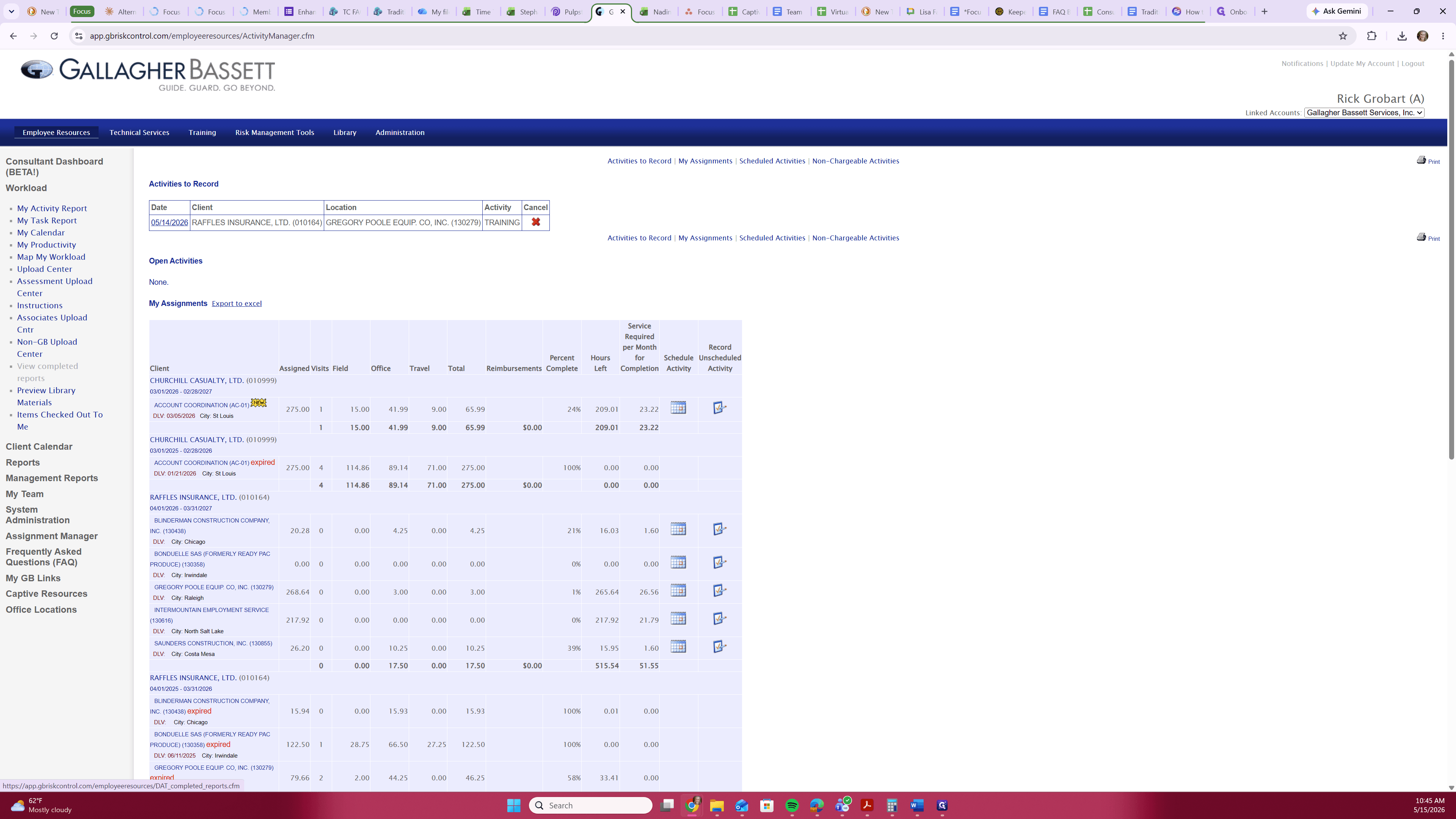
Navigate to the left-hand menu and click View Completed Reports.
2
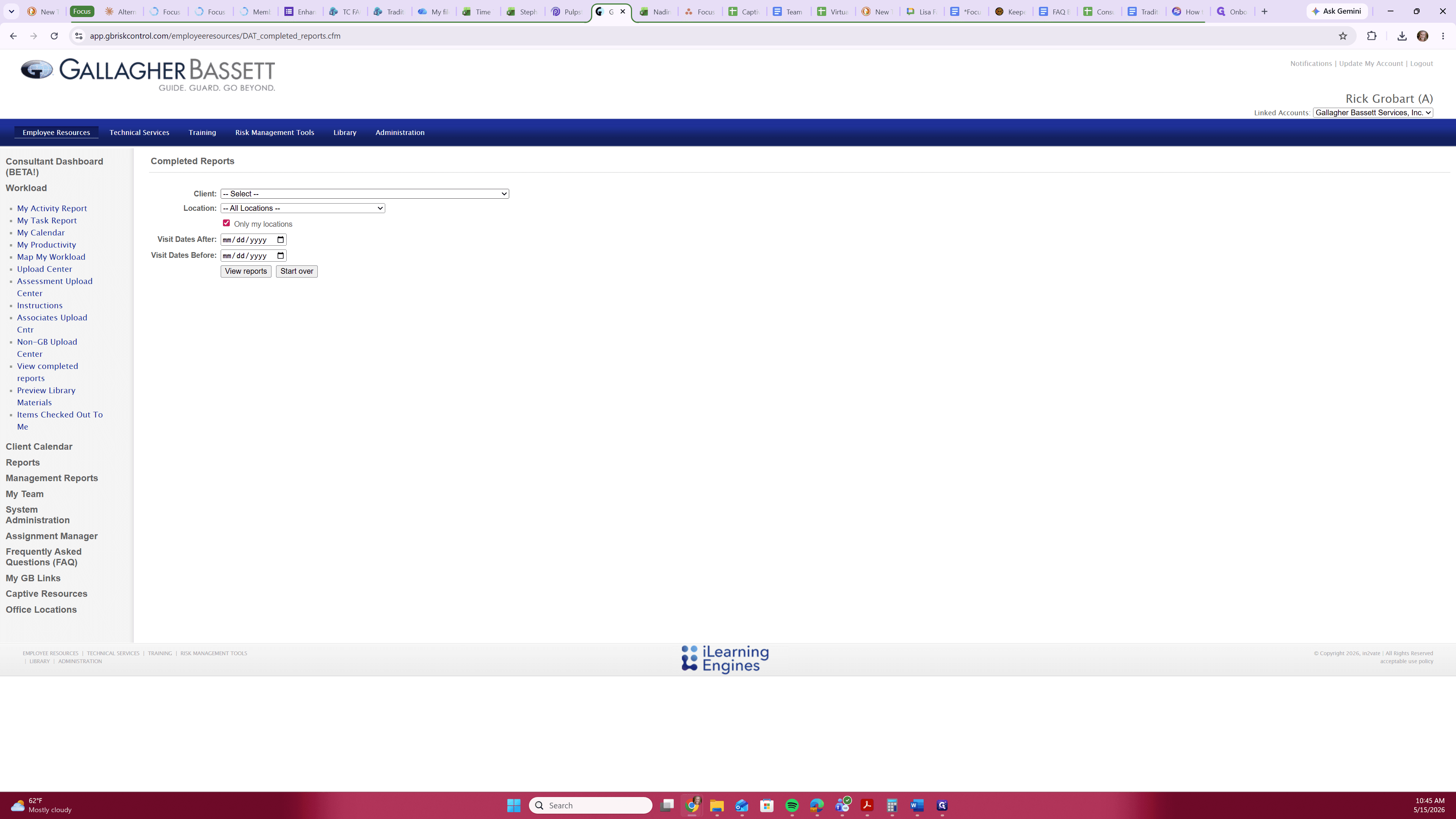
Click the client search field to begin filtering.
3
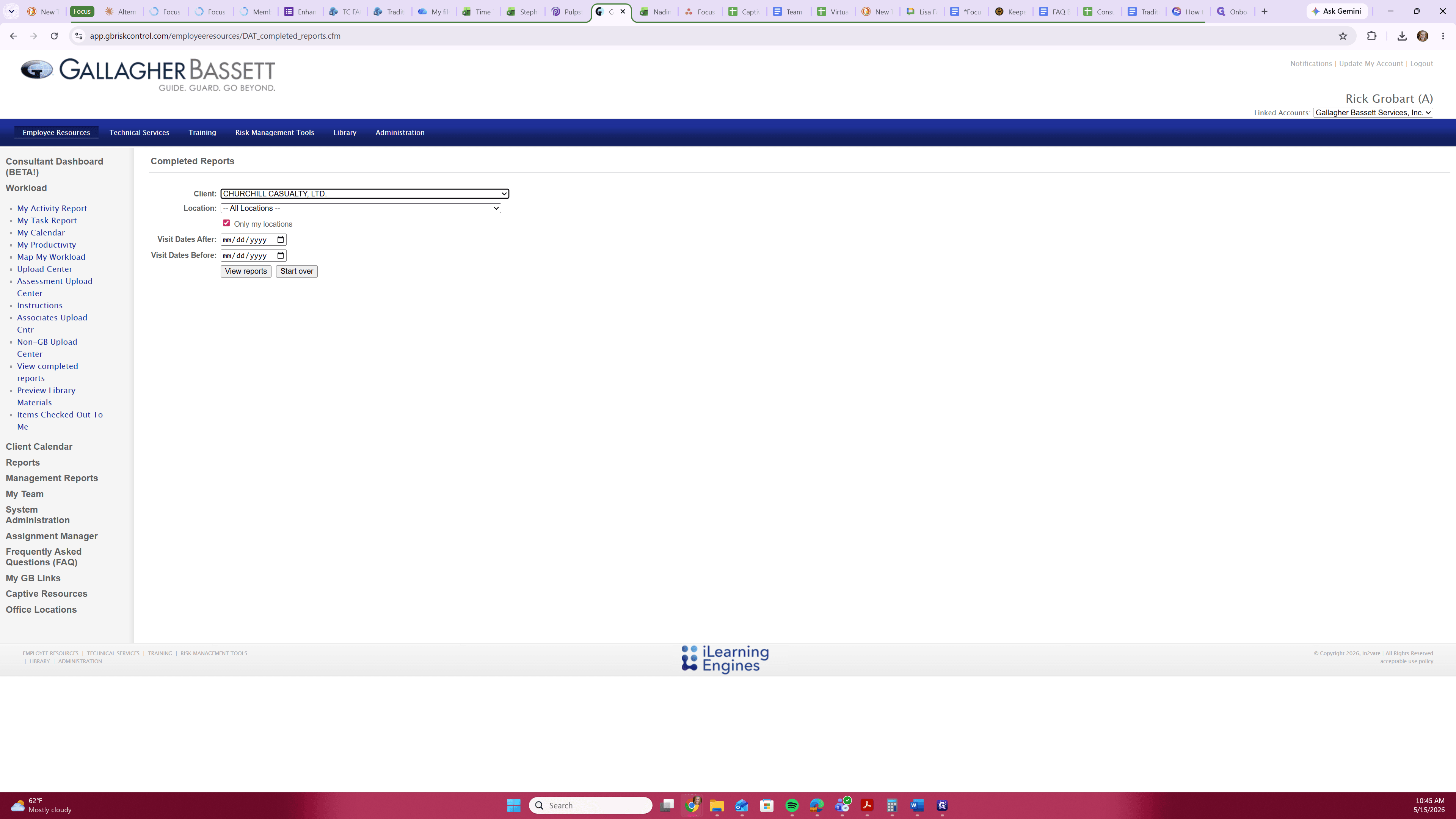
Begin typing the captive name to auto-populate the captive that you are searching for and press Enter.
4
Click the All Locations dropdown and begin typing the name of the member. The list will auto-search based on what you type. Hit enter or click on the member name.
5
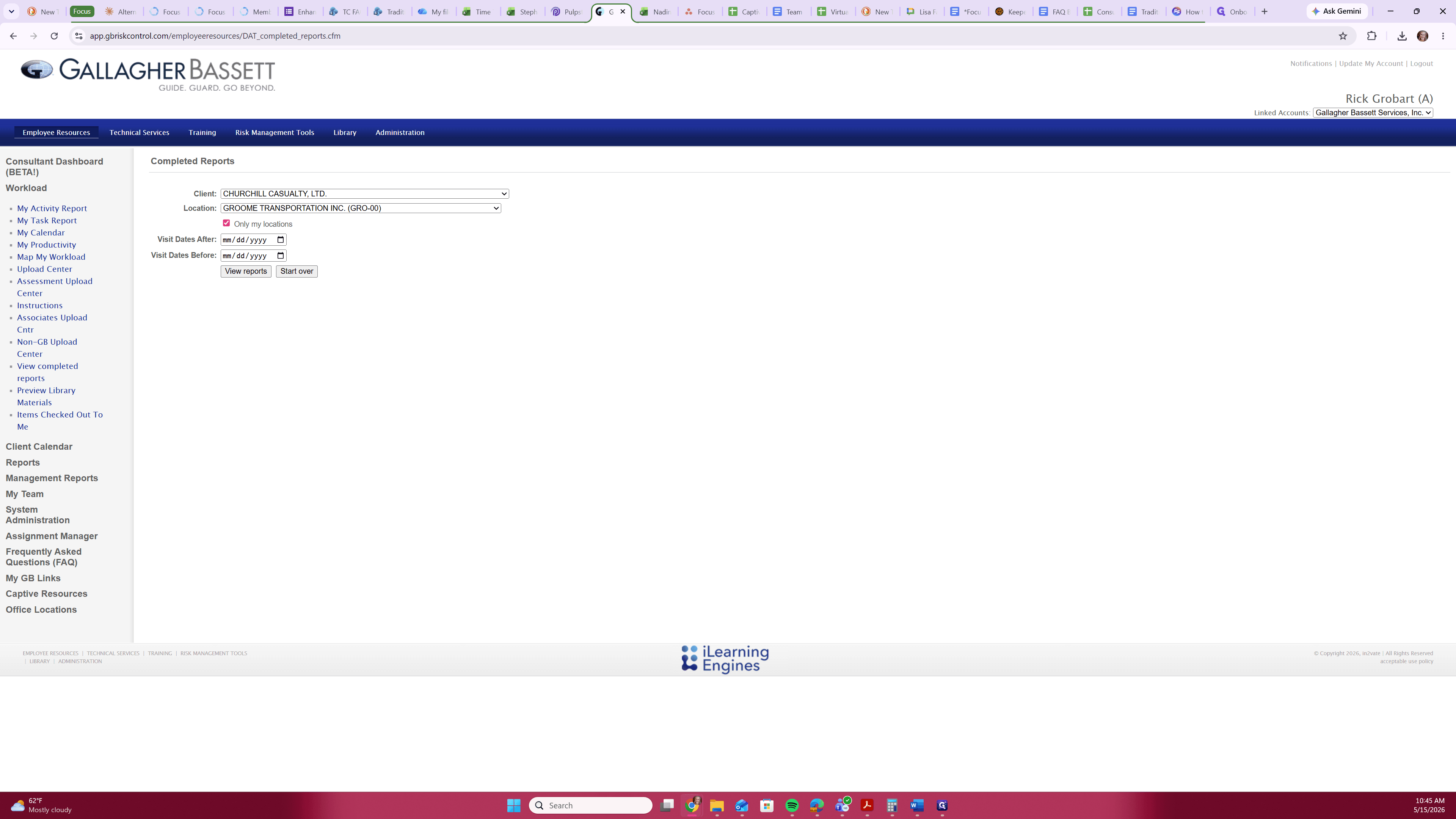
Uncheck the Only my locations box to broaden your search to all previous consultant visits.
6
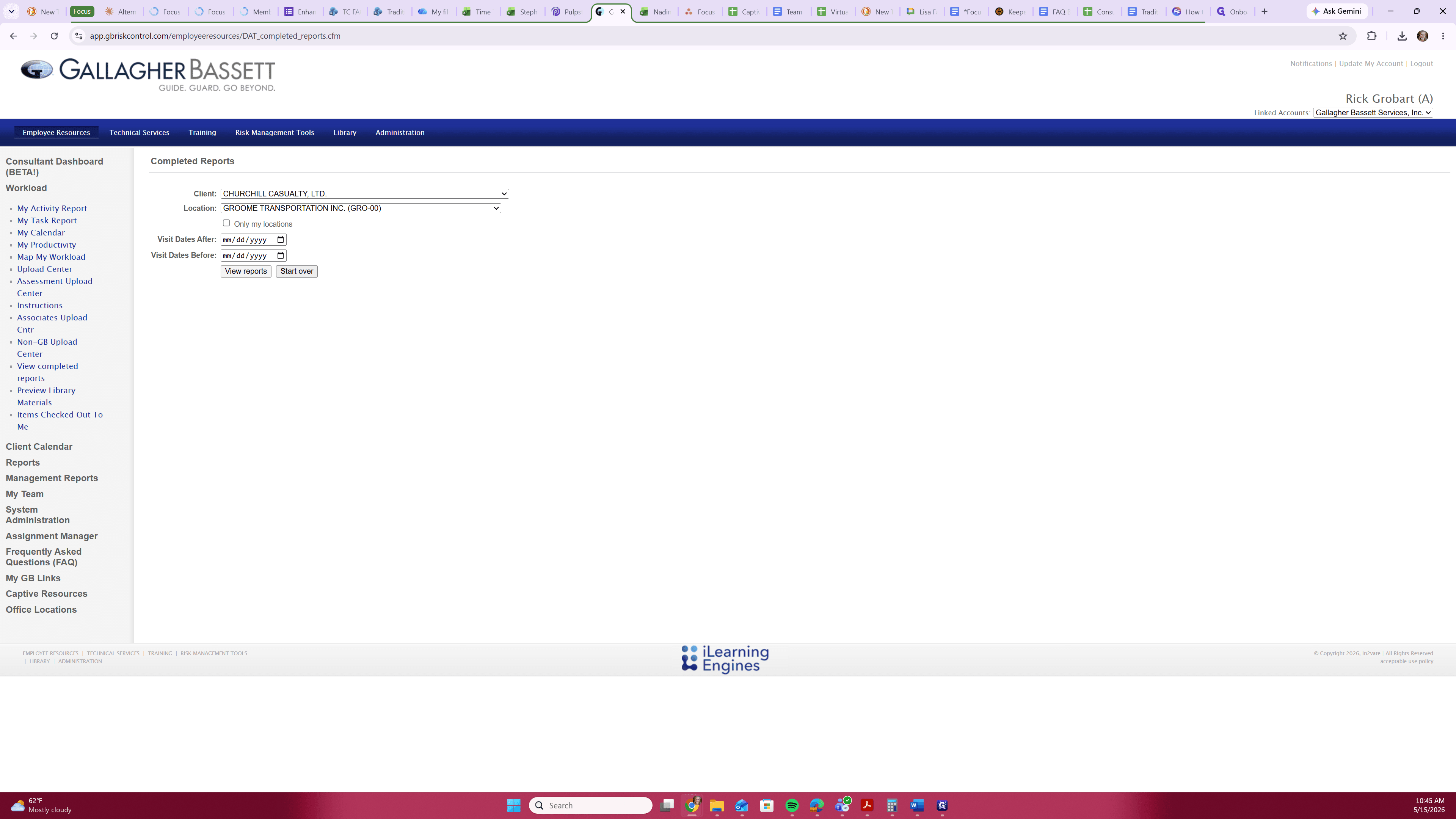
Click View reports to apply the filters.
Download Previous Visit Files
Scroll to the bottom of the results page to find the most recent visit records.
7
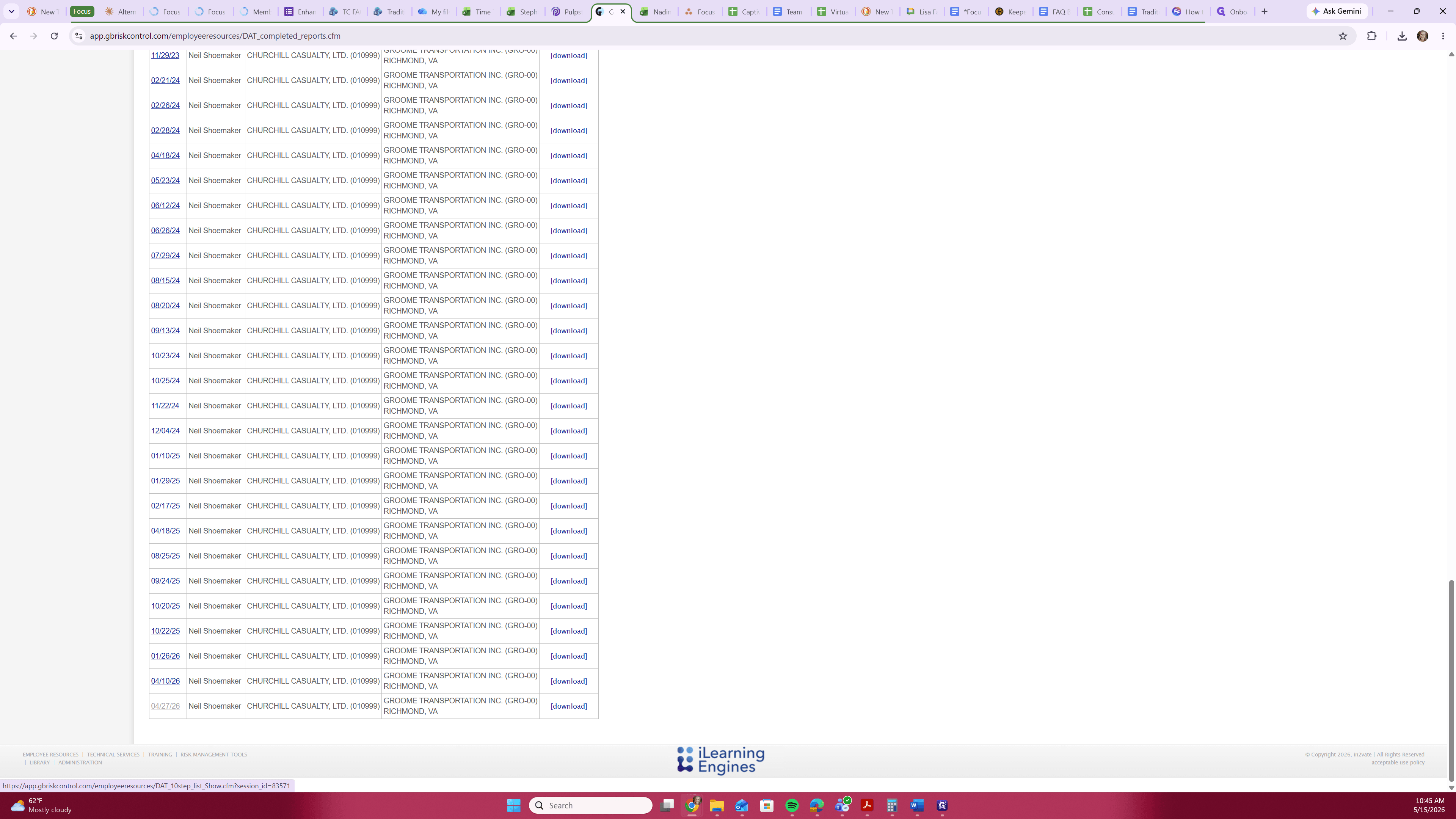
Click on the desired previous visit date on the left-hand side.
8
Locate the Original File Uploaded line and click [ download ] to save a zipped file of the reports.
![Step #8: Locate the Original File Uploaded line and click [ download ] to save a zipped file of the reports.](/_next/image?url=https%3A%2F%2Fmedia.glitter.io%2Fuploads%2F5d0bf10e-31be-4204-8246-6d8053fefd76%2F00374ccc-f0e3-4158-aca8-8e62dd737868.png&w=3840&q=75)
To find additional previous visits, use your browser's Back button and repeat the download process for other dates.
9
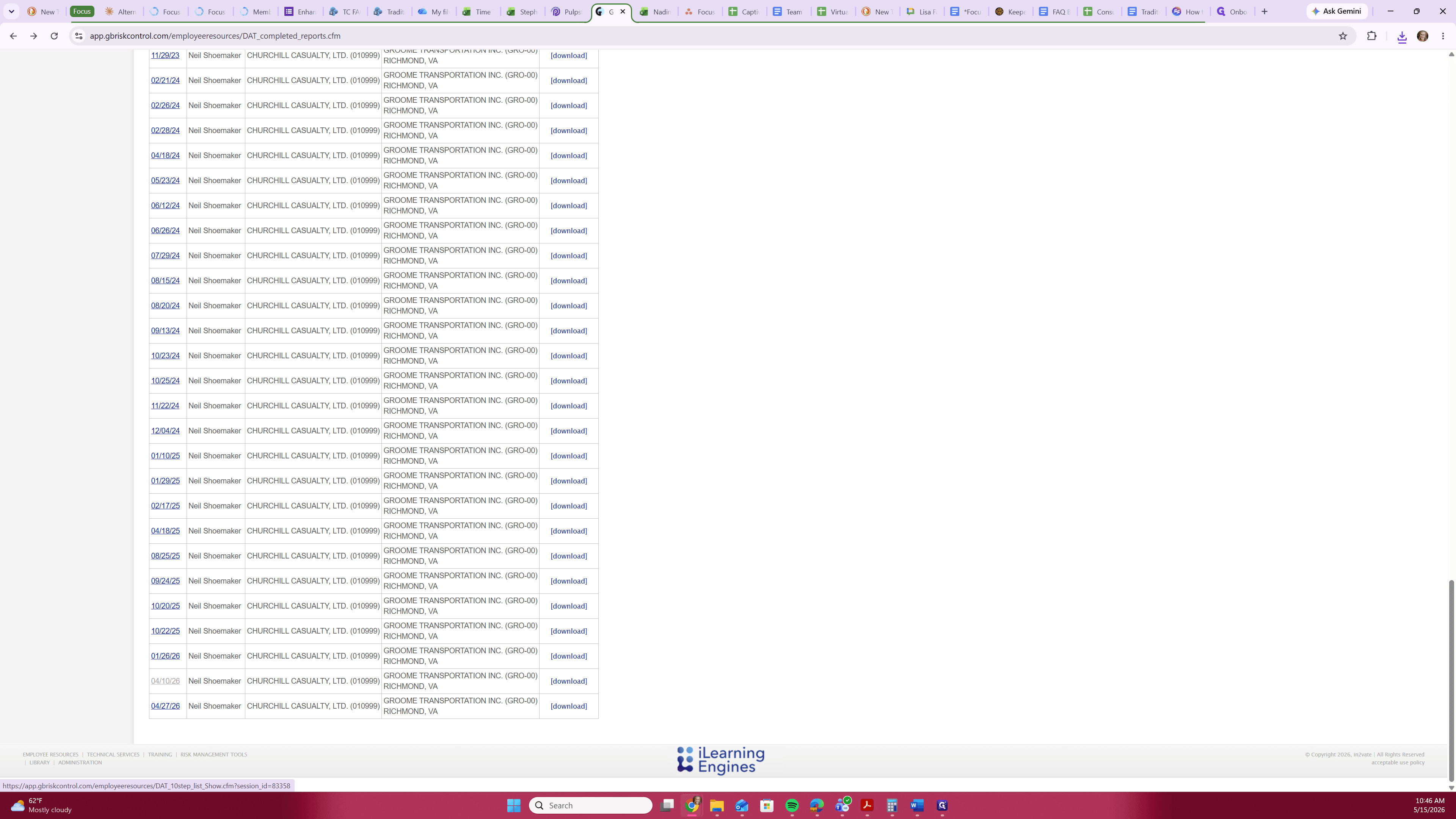
Click the next visit date from your completed reports list.
10
Click [ download ] to save the next set of files.
![Step #10: Click [ download ] to save the next set of files.](/_next/image?url=https%3A%2F%2Fmedia.glitter.io%2Fuploads%2F5d0bf10e-31be-4204-8246-6d8053fefd76%2Fffbd3366-defb-4a2c-b0e3-5aee1ee9d173.png&w=3840&q=75)
11
Click the corresponding [ download ] on the right-hand side of the table to download the pdf combined report of the submitted files.
Organize and Extract Files
12
Open File Explorer and navigate to your Downloads folder.
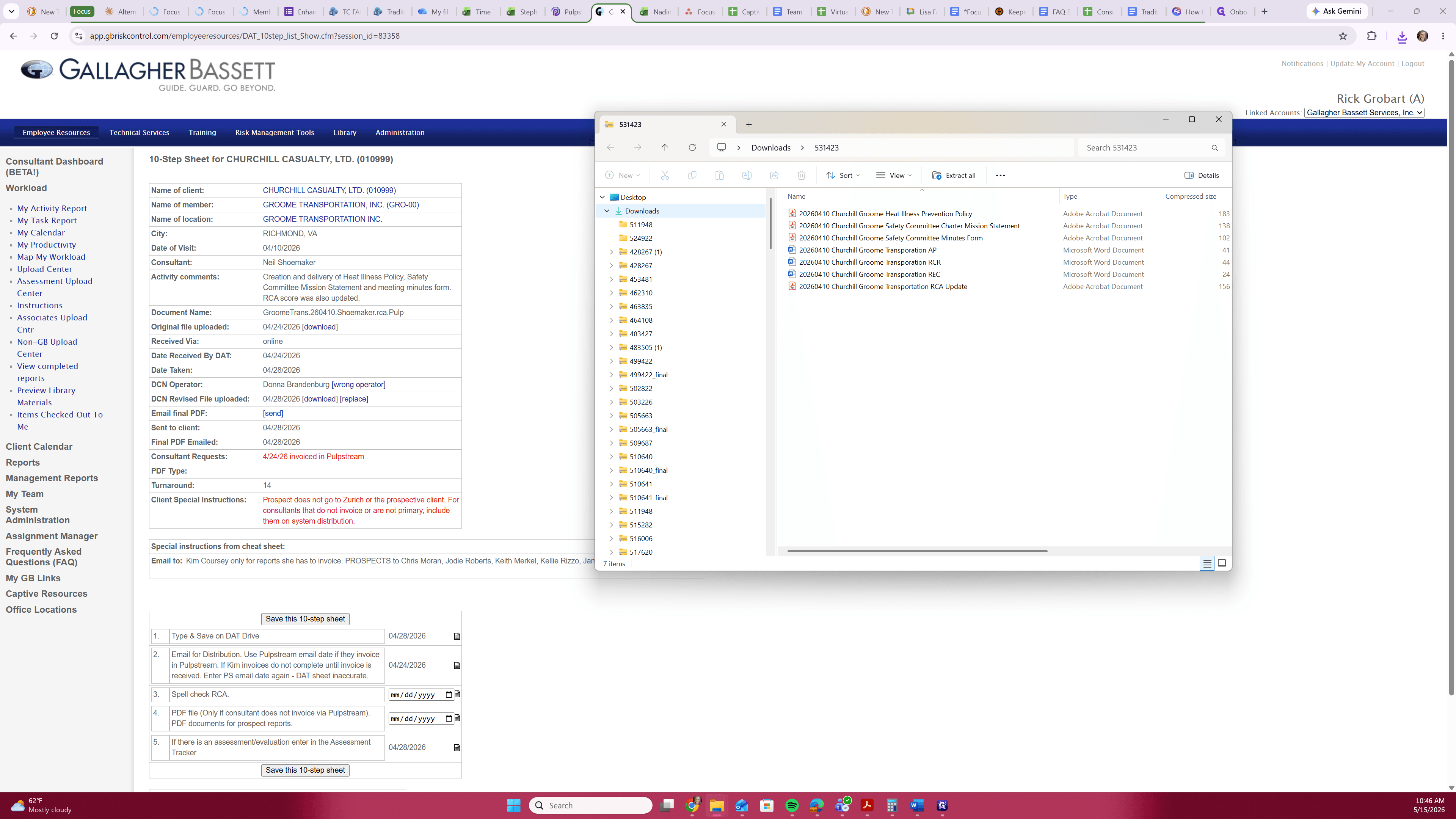
13
Open a second File Explorer window and navigate to your dedicated member folder.
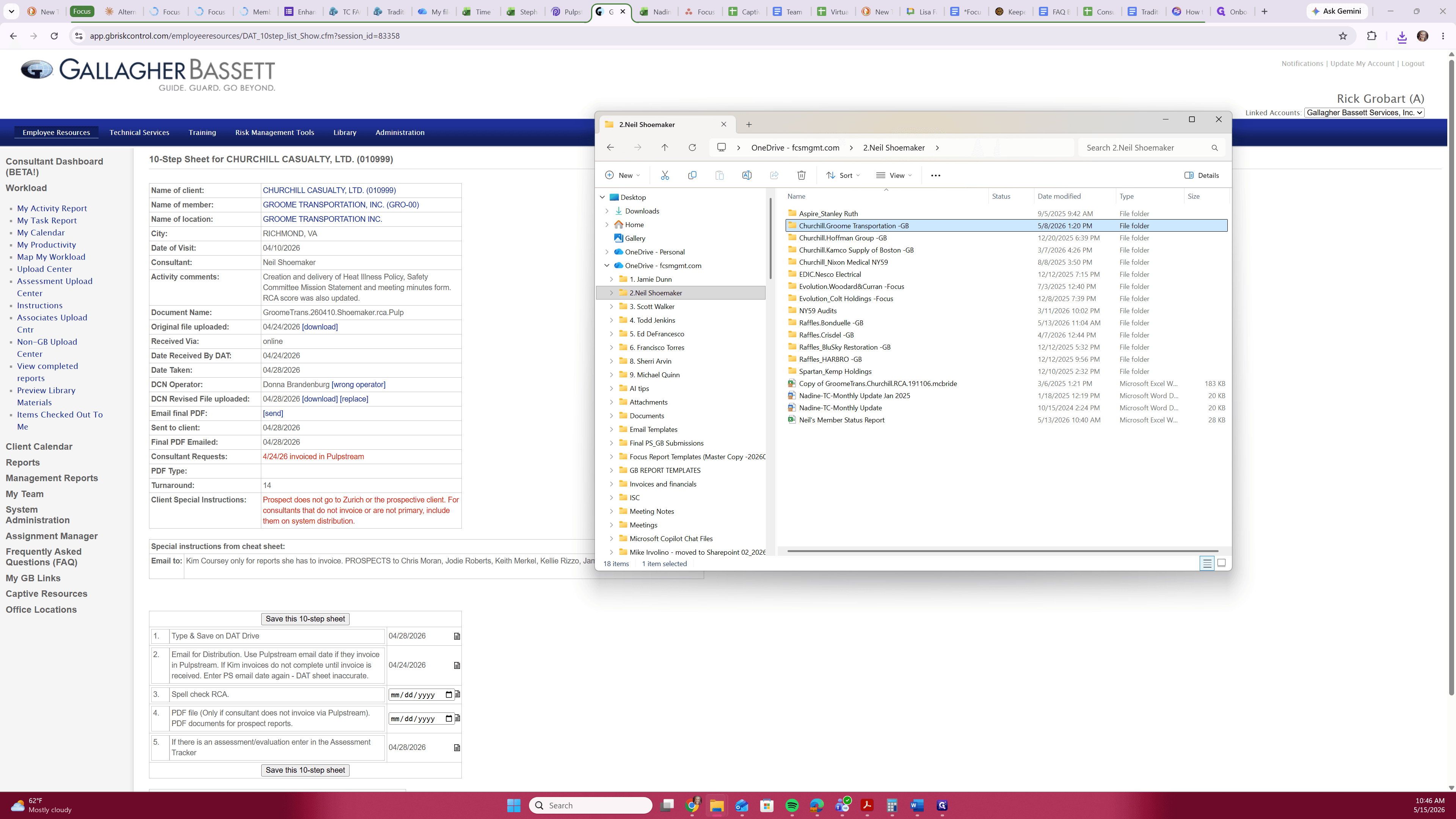
14
Select the downloaded
.zip files and drag them into your designated member folder.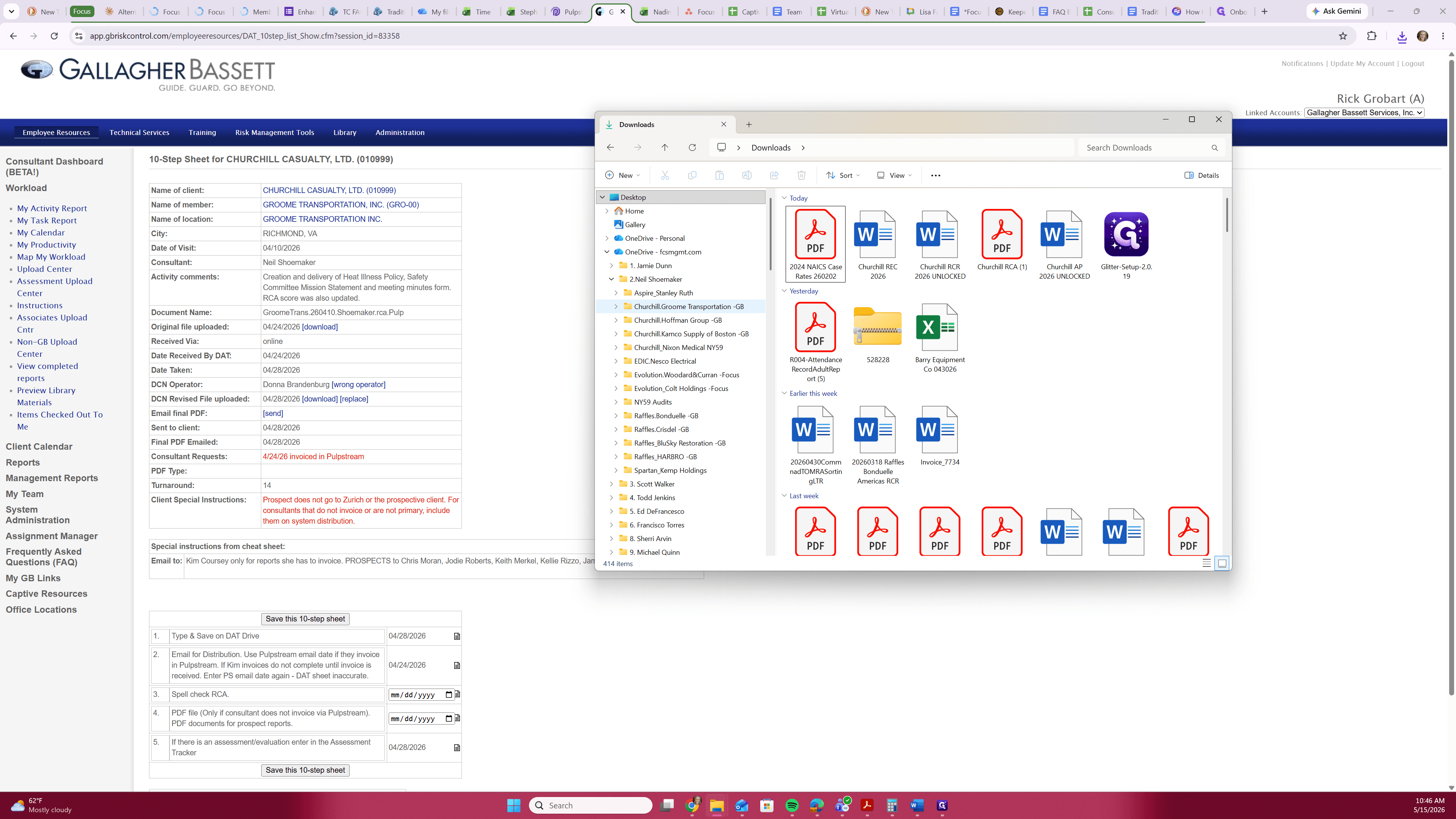
15
Right-click the moved
.zip file in your member folder.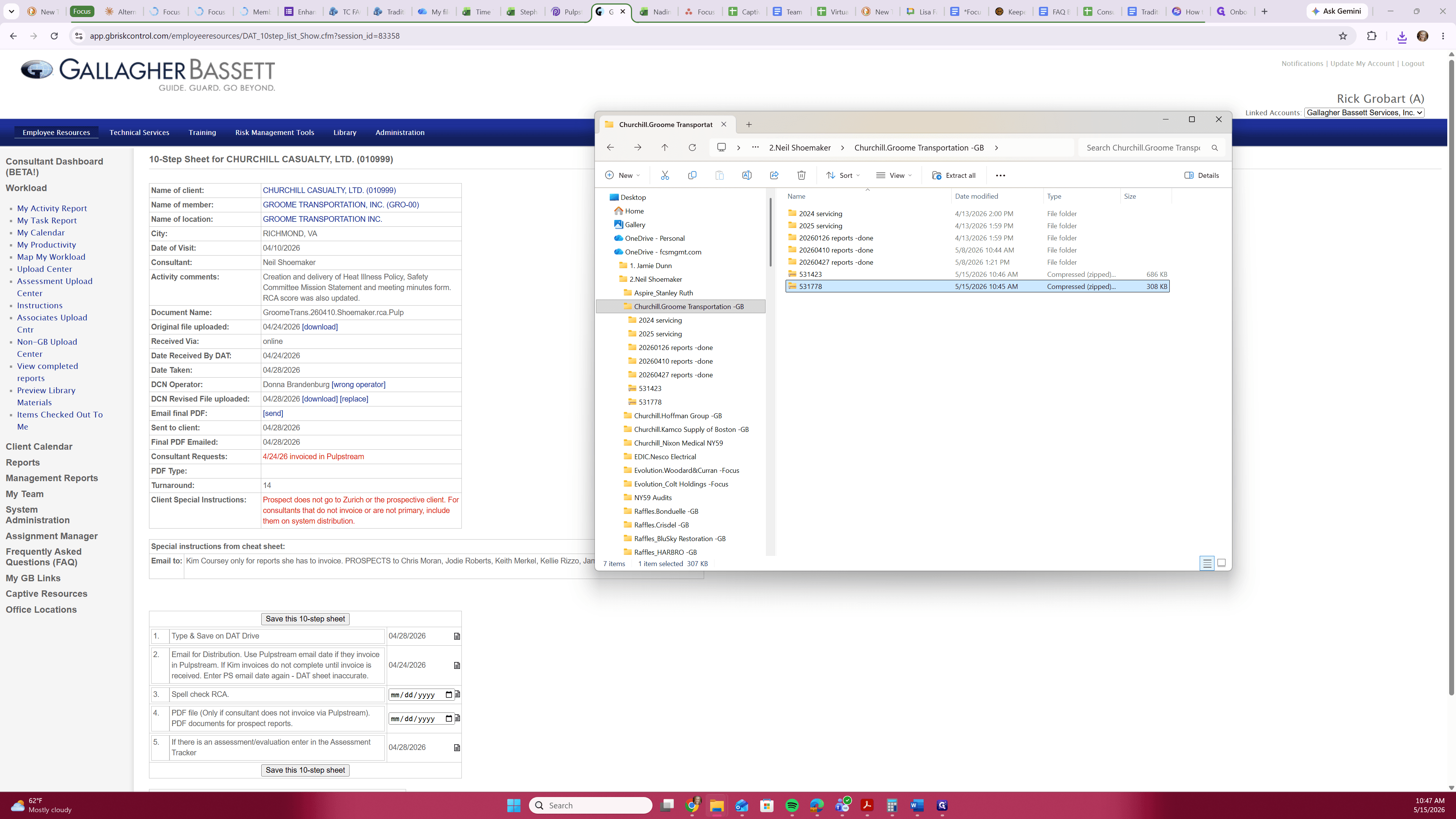
16
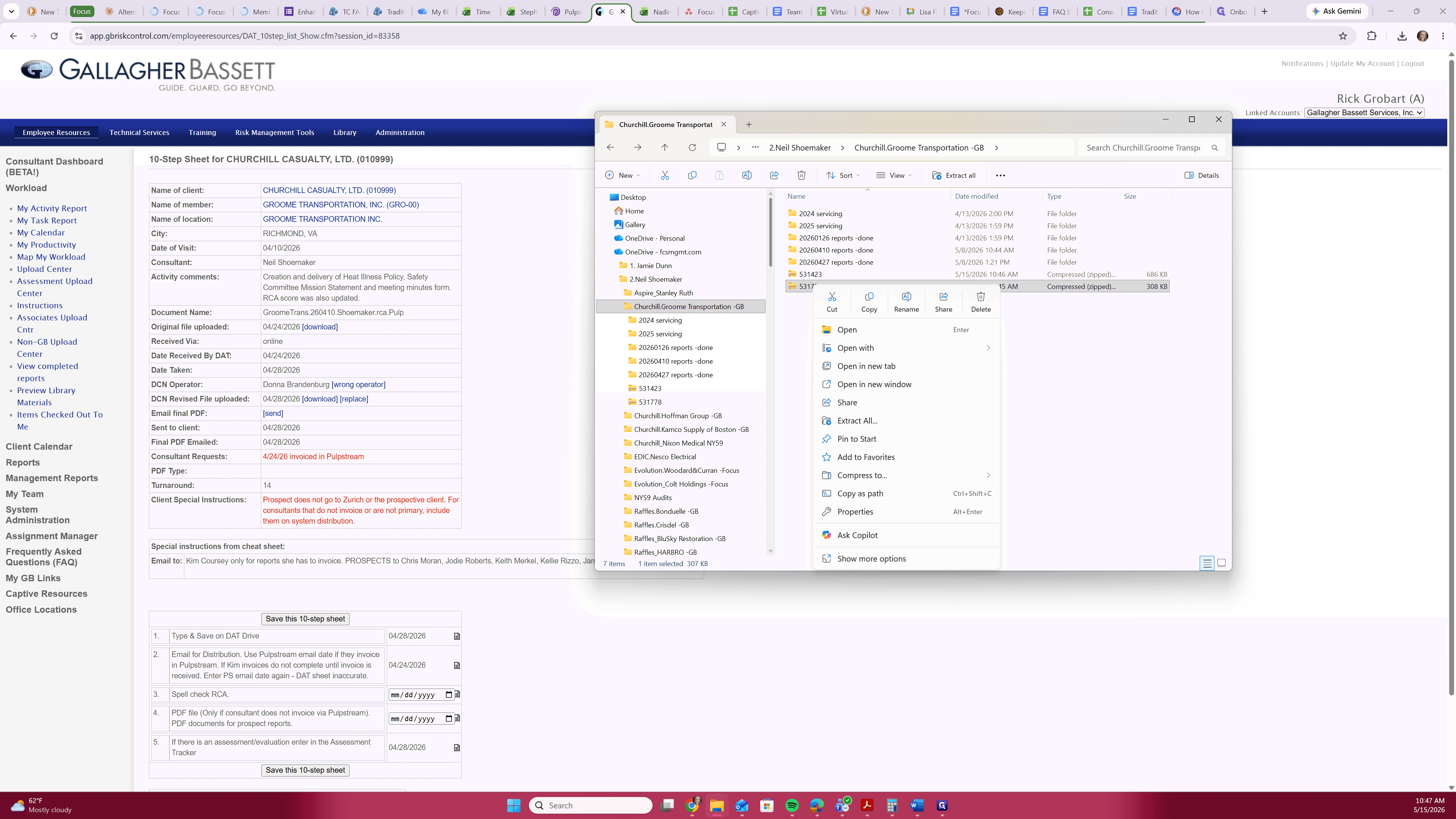
Select Extract All... to unpack the original report files.