How to Download the Template in Recurring Journal Entries
Learn how to download the CSV template required to create Recurring Journal Entries.
By Aasma Technology Solutions
This guide explains how to download the predefined CSV template from the Recurring Journal Entries section. The downloaded template provides the required structure and fields for entering recurring journal entry data before uploading the completed file to the application.
1
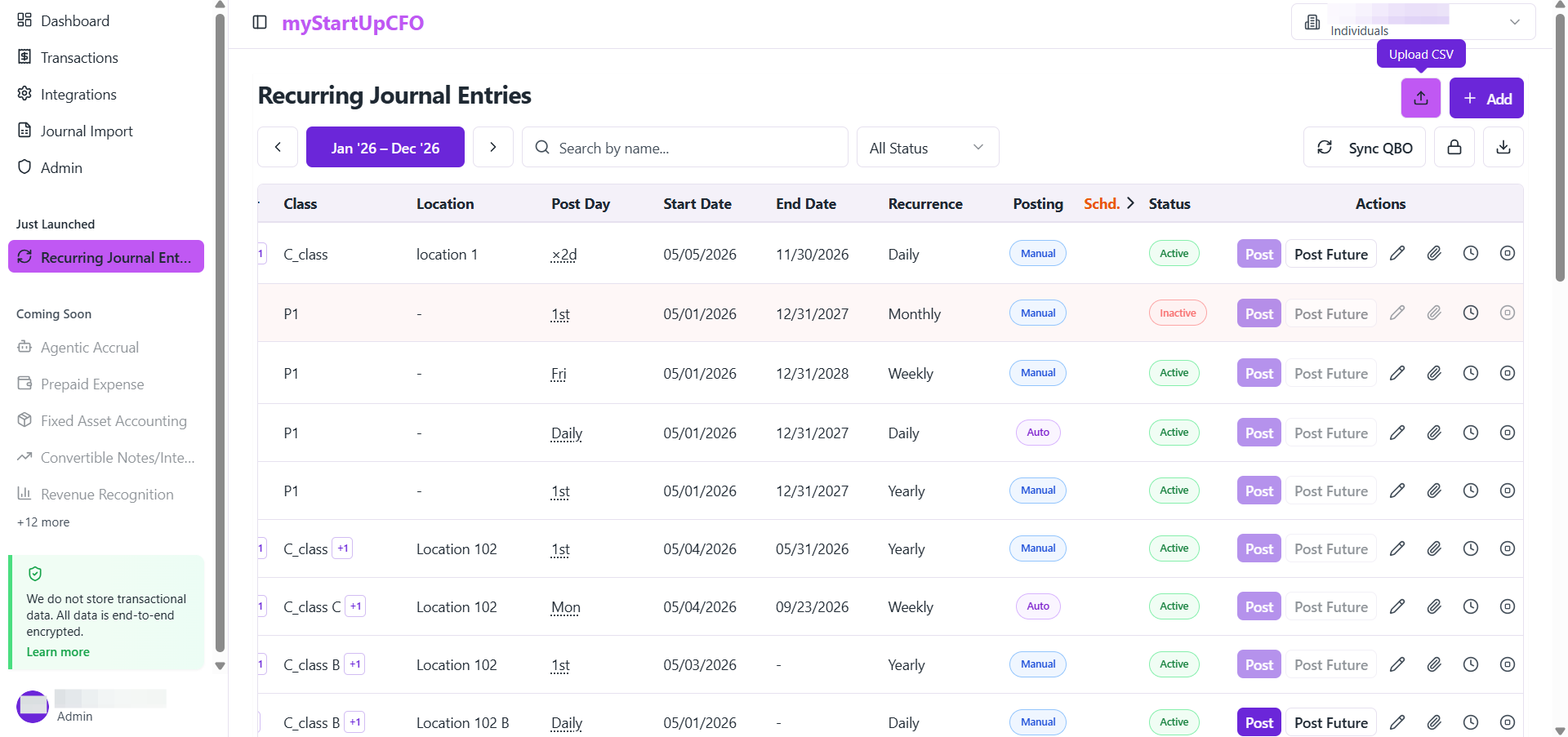
Go to the Recurring Journal Entries section from the sidebar menu, then on top right corner click on Upload CSV button
2
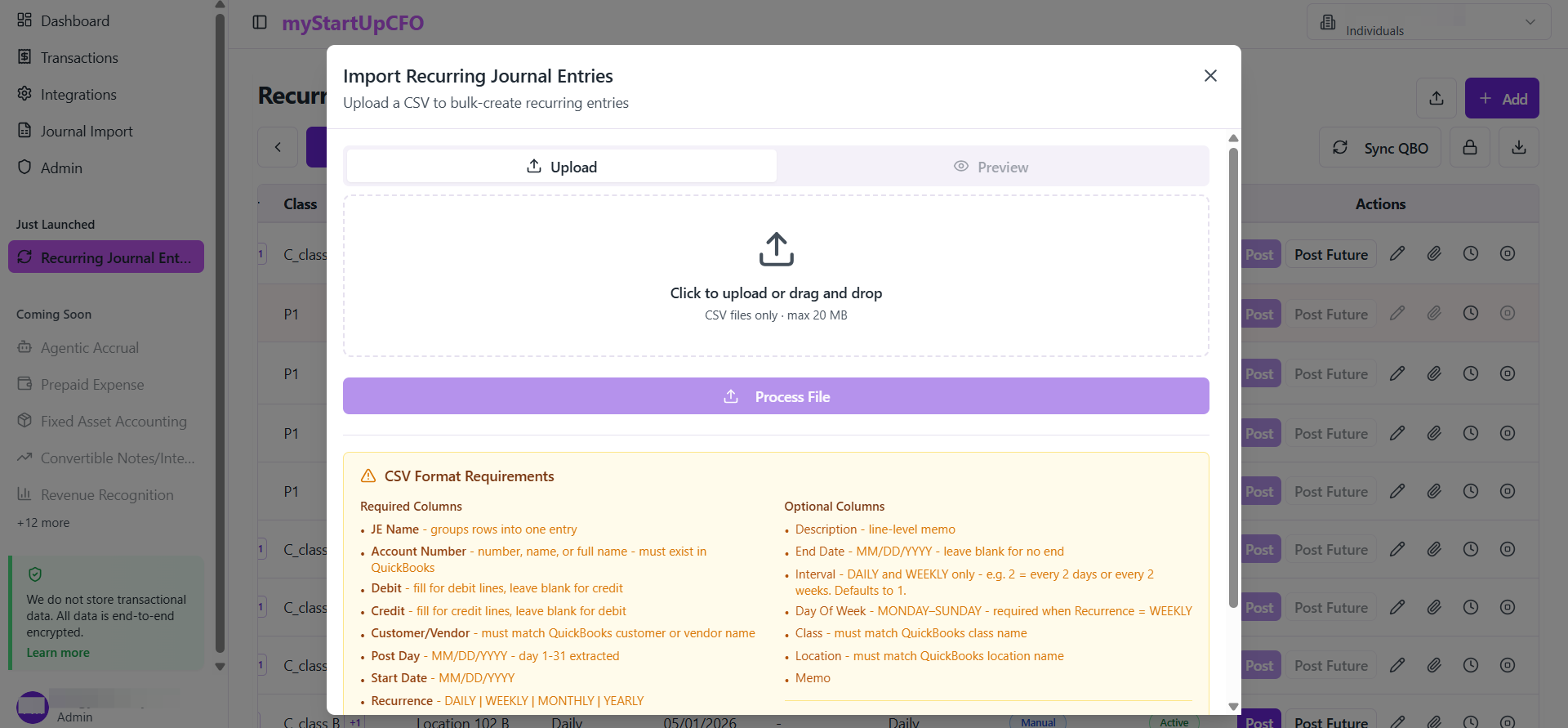
Import CSV option will come, but as we need to have a sample of it, scroll down
3
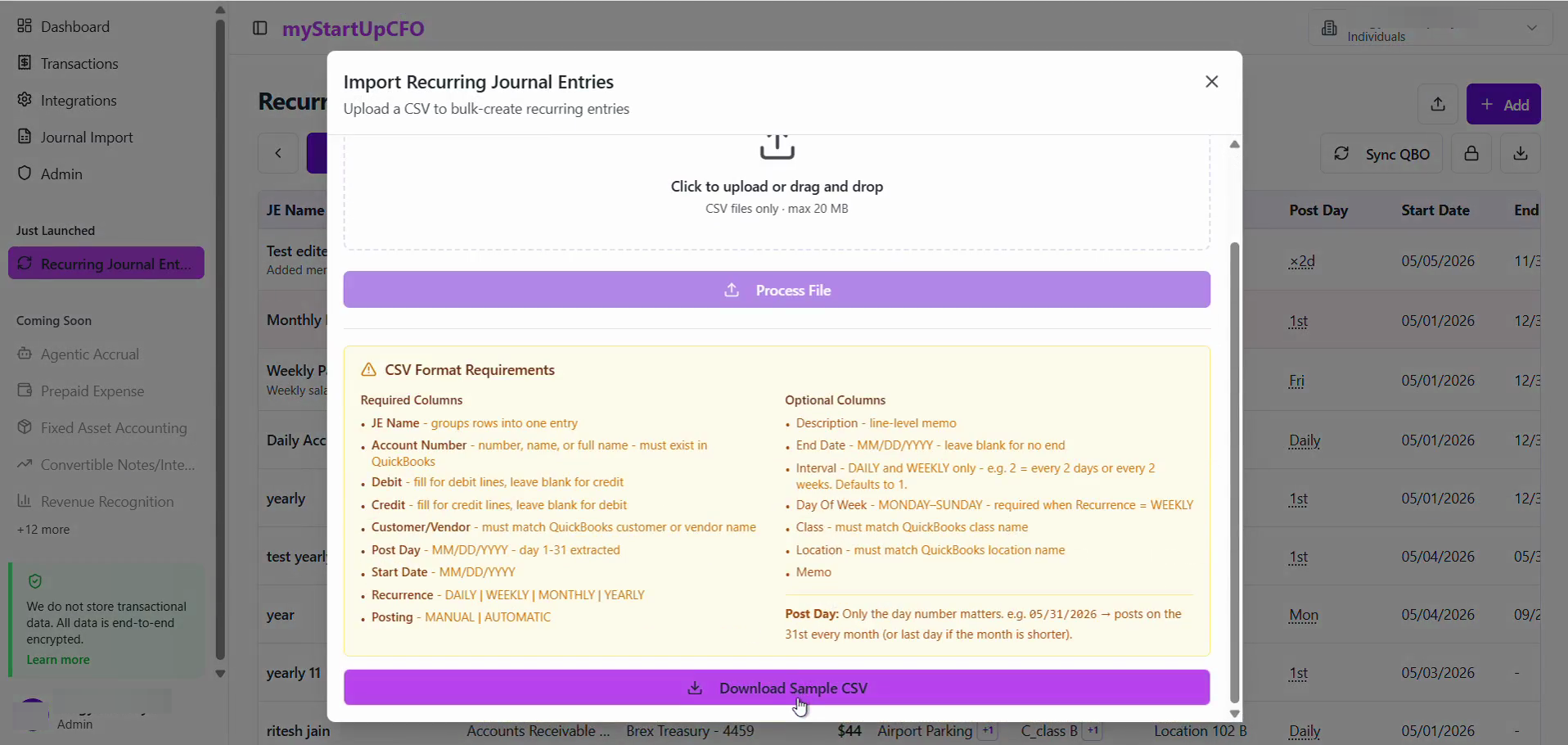
Click Download Sample CSV to download the predefined CSV template.
4
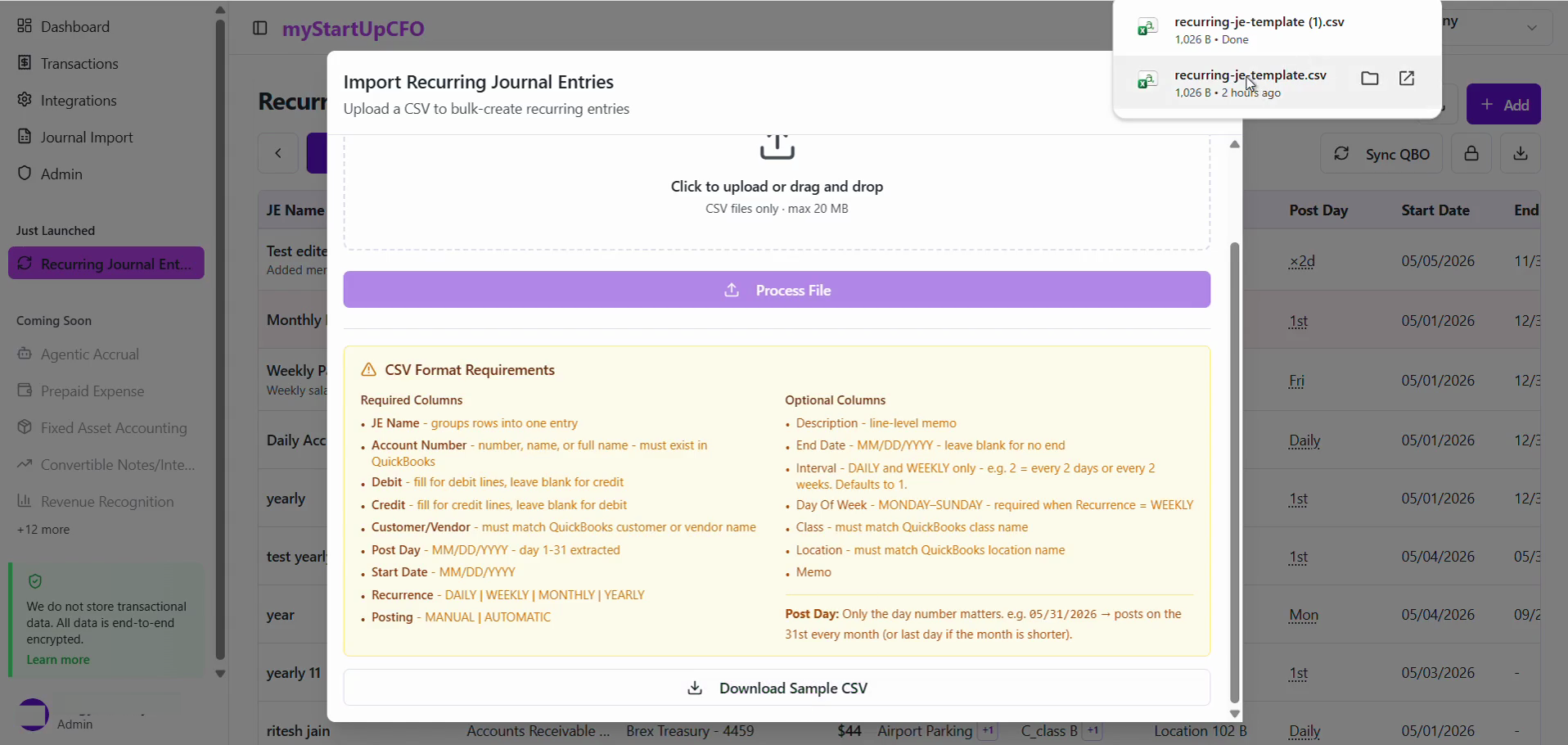
Open the downloaded CSV file to view the required columns and data format.
5
Add the recurring journal entry details to the appropriate fields in the downloaded template without changing the predefined column names or file structure.
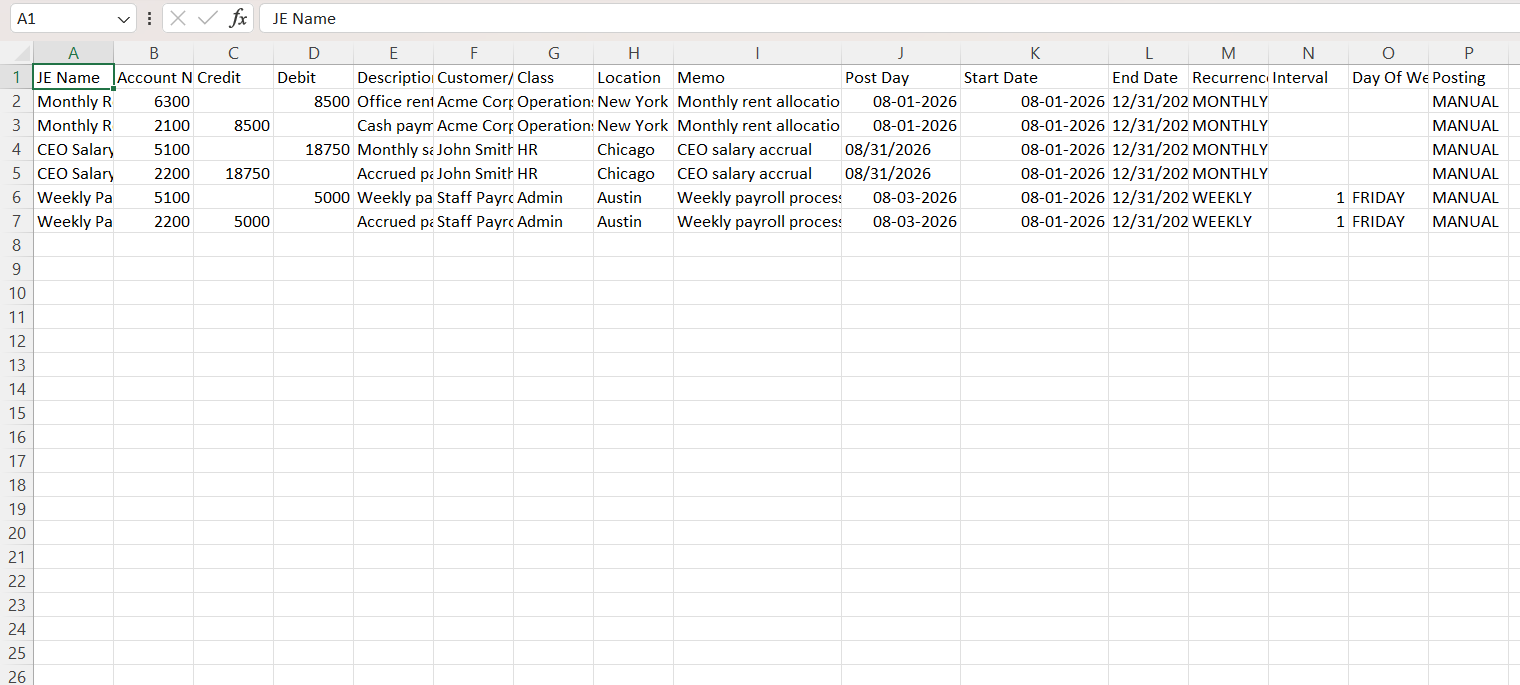
Save the completed CSV file after entering all the required information.
The Download Template feature provides users with the correct CSV structure required to prepare recurring journal entry data for successful upload and processing.