
How to Duplicate and Adapt Administration Building Blocks for Custom Applications
Learn step-by-step how to duplicate, adapt, and rename administration building blocks for different applications, including best practices for managing tags and avoiding errors in your simulation environment.
In this guide, we'll learn how to duplicate and adapt an administration building block for a new use case. The goal is to reuse an existing setup, make changes such as renaming and updating tags, and ensure that each application is correctly identified in the simulation.
We will also look at how to avoid confusion and errors by updating all relevant tags and restoring the original application when needed.
Let's get started
Okay. This instruction is to manually duplicate and adapt those. The issue here is that we have a specific administration building block we want to reuse, but not exactly as it is.
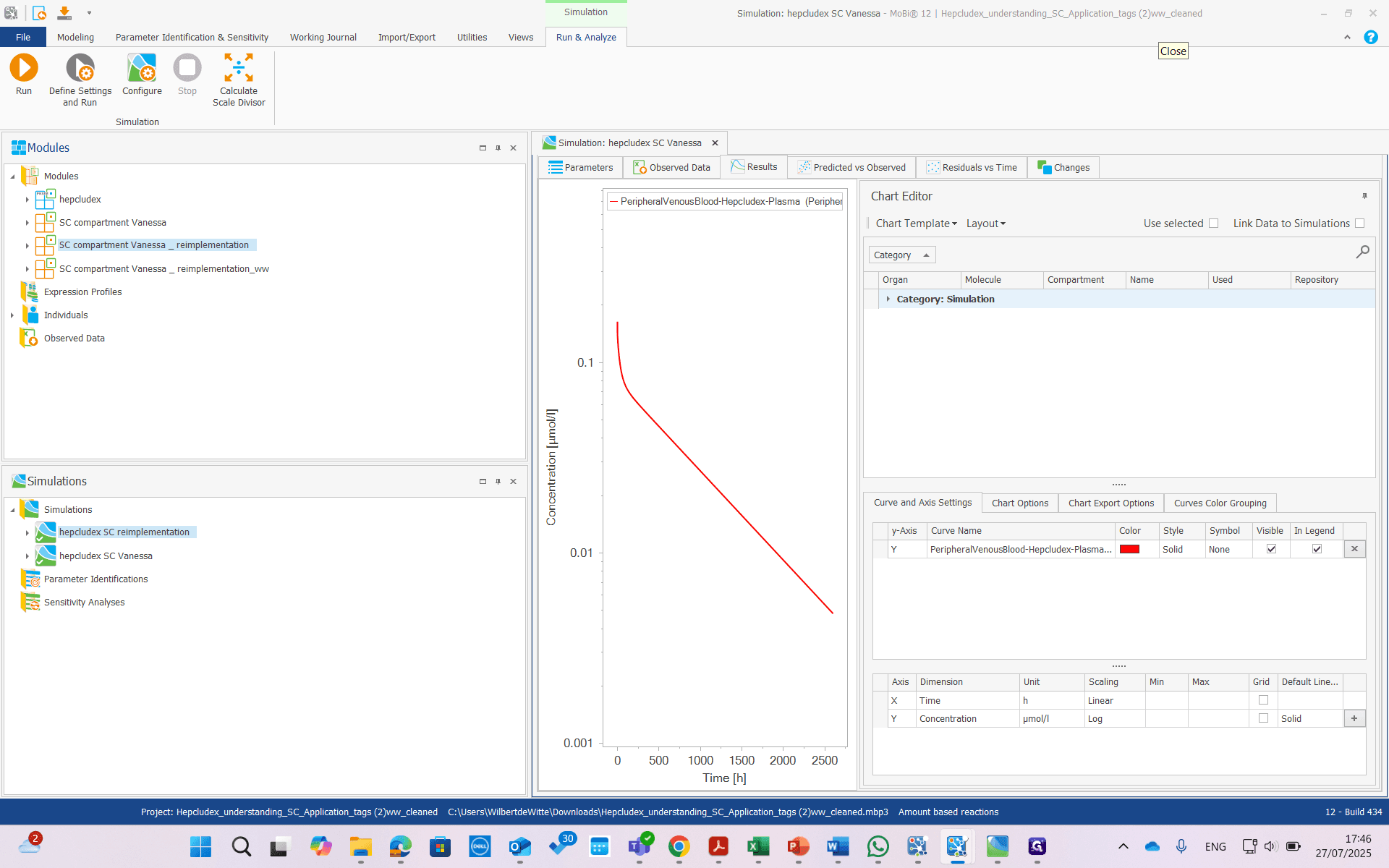
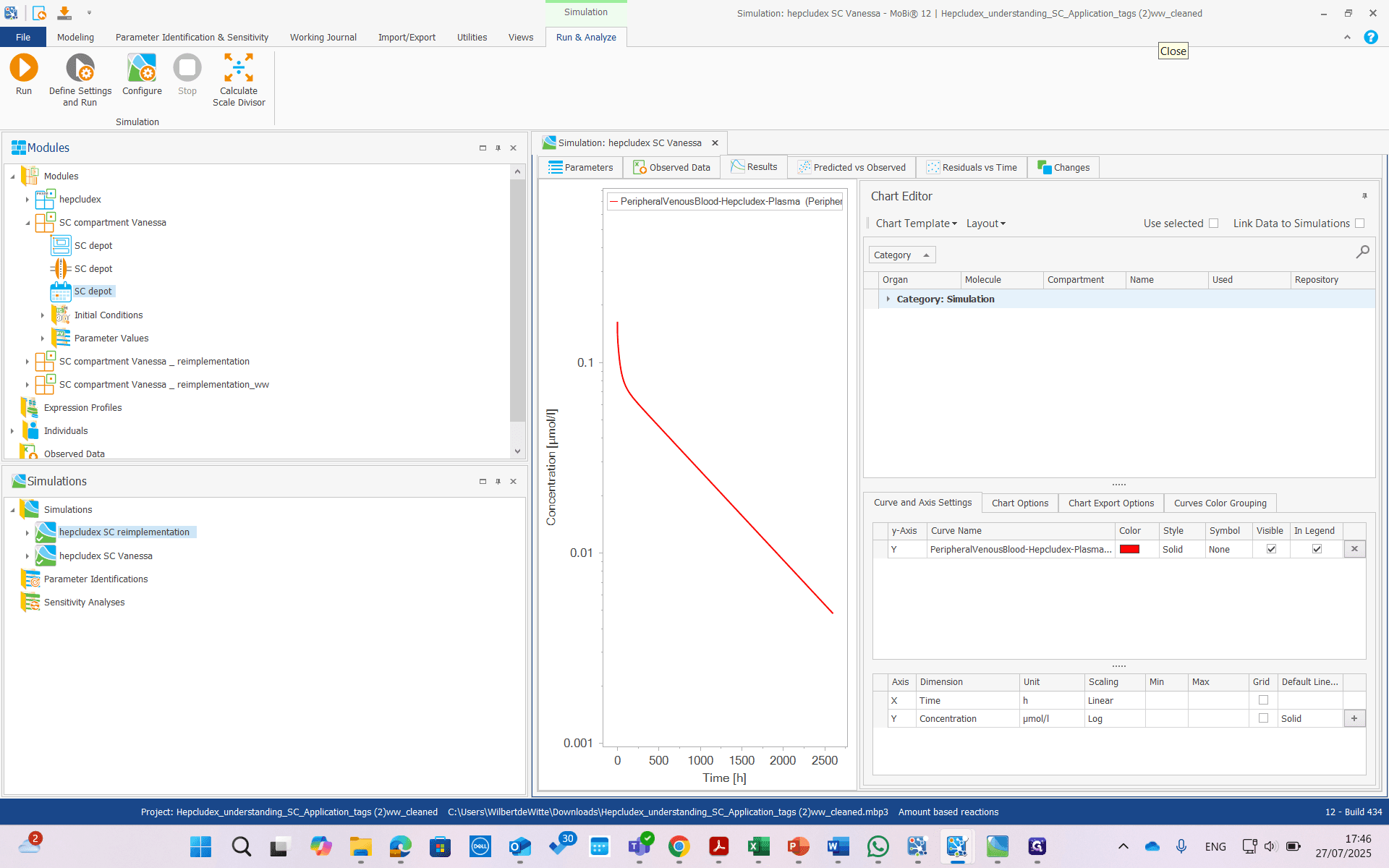
We want to adapt it and rename it. If we open the building block, we see a large list of resolved applications—hundreds of them.
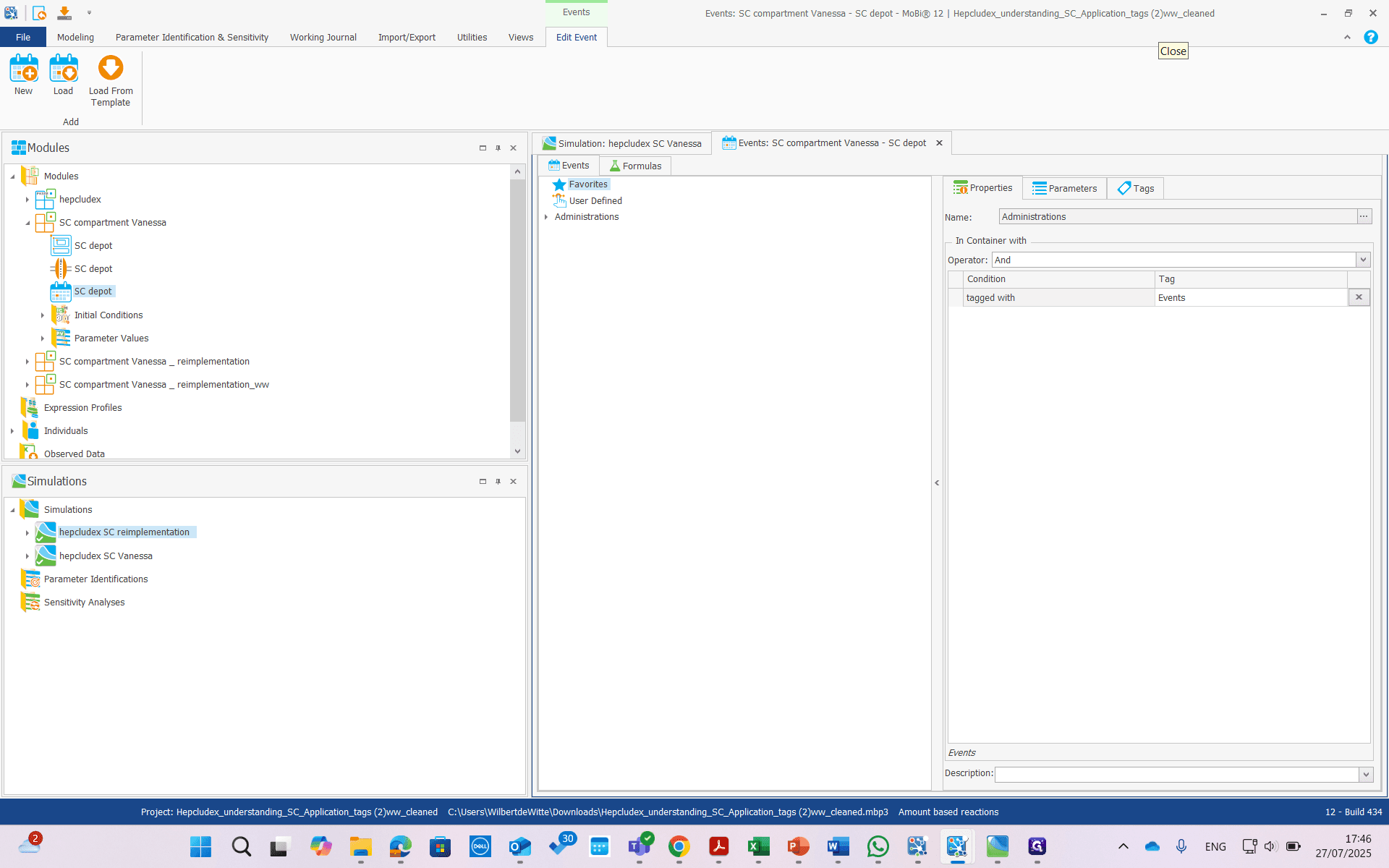
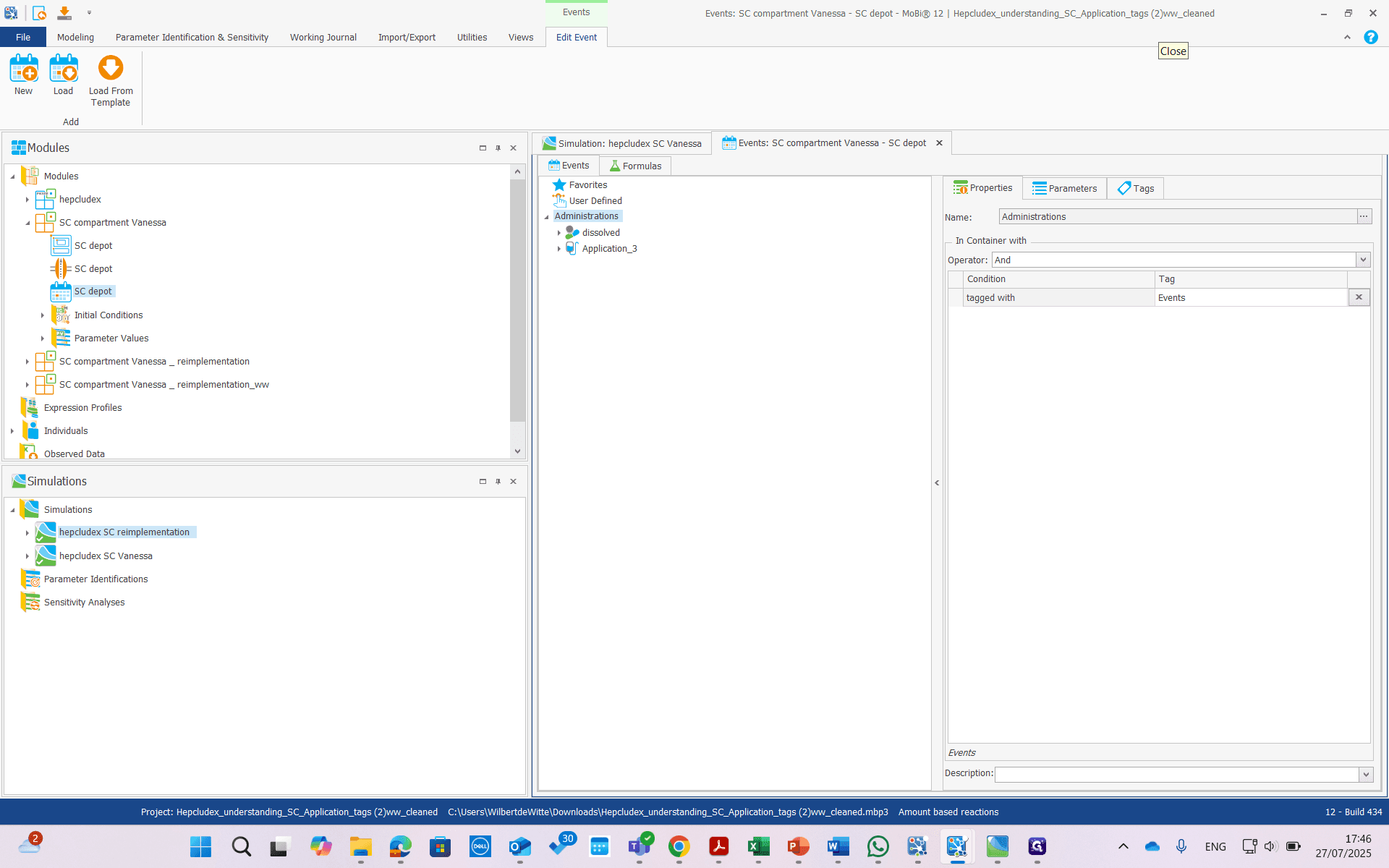
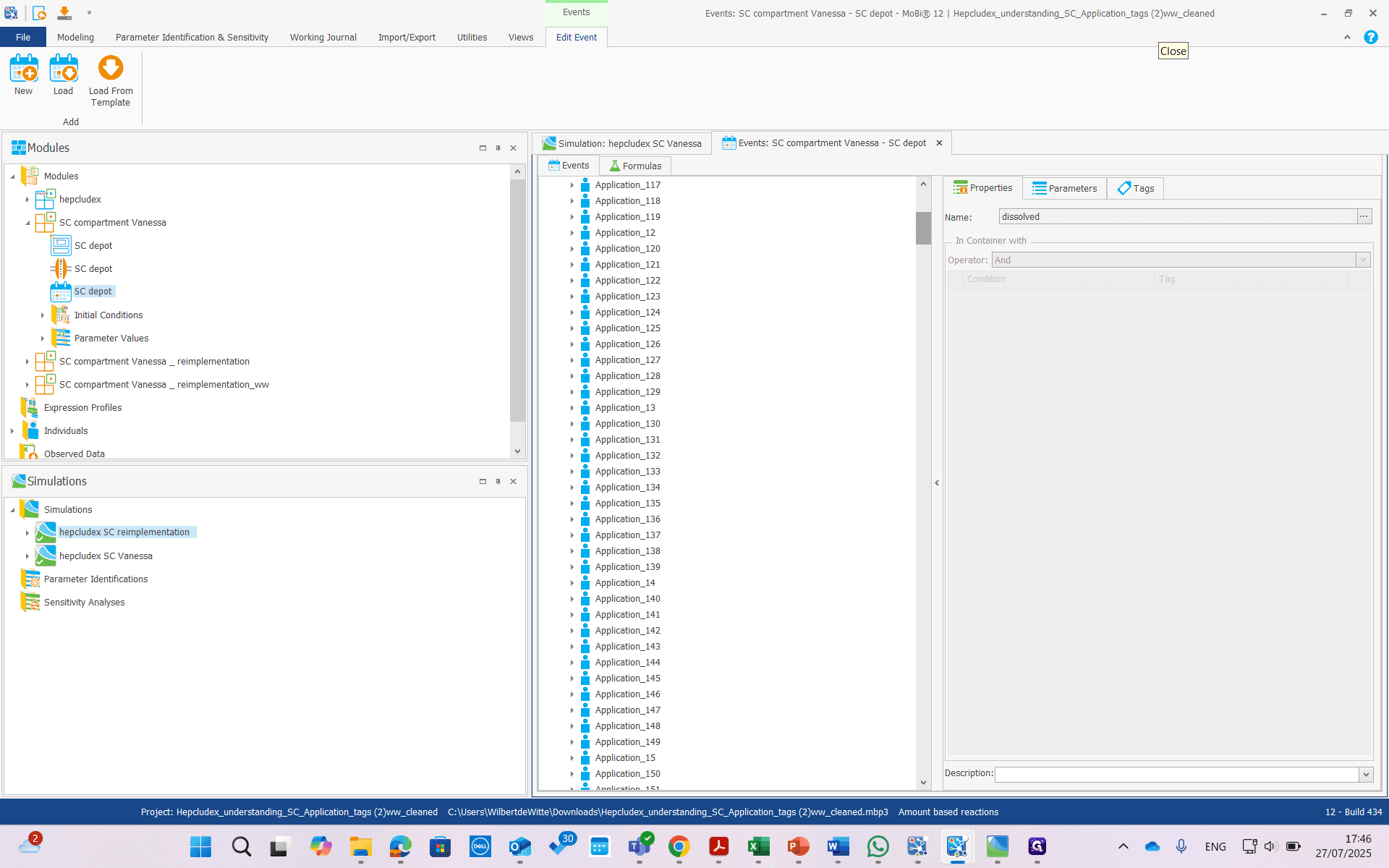
We want to do something similar, but with fewer applications and for a different molecule. We cannot multi-select and remove most of them. Instead, we duplicated this building block and removed the entire group. We have saved, for example, application one.
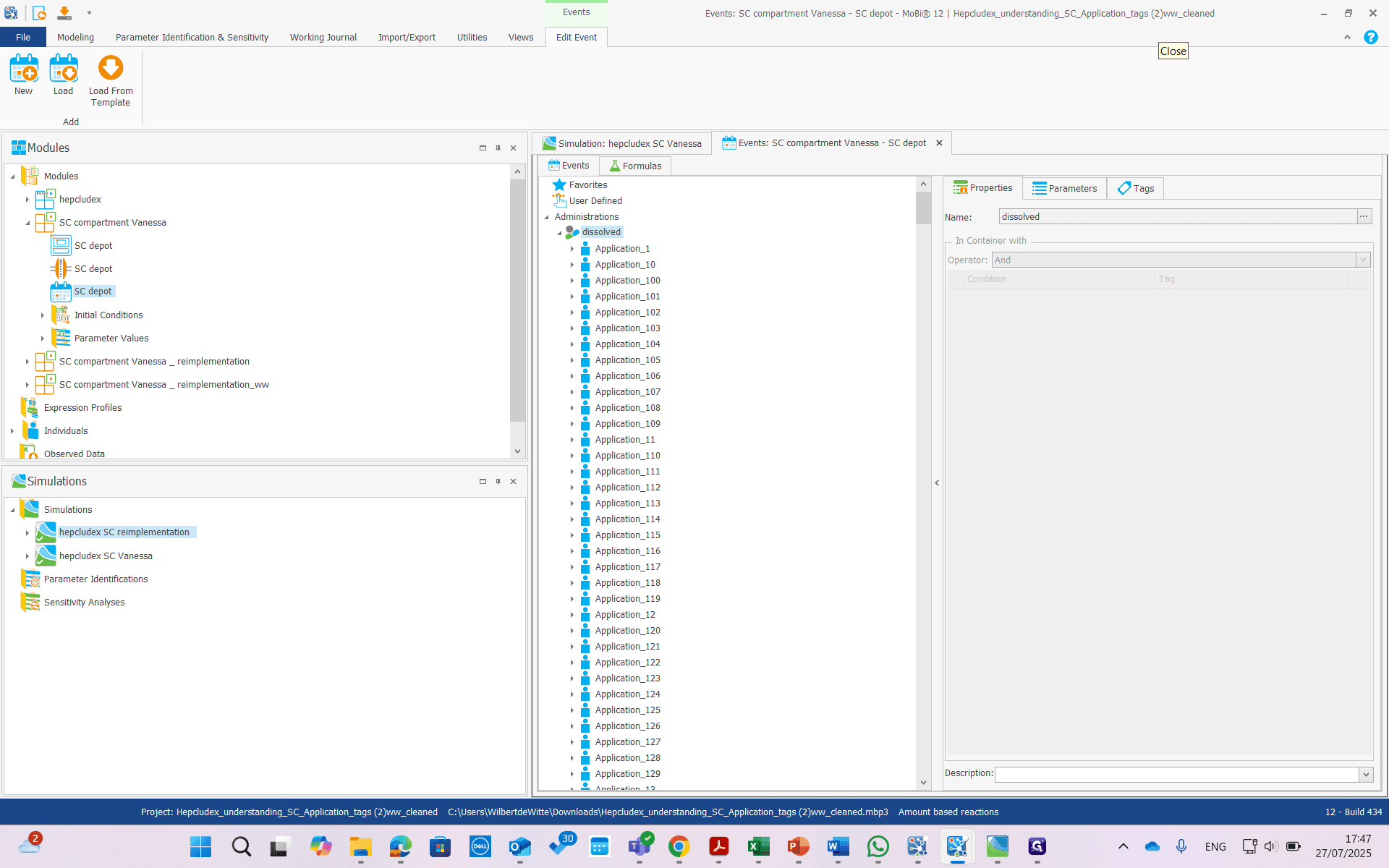
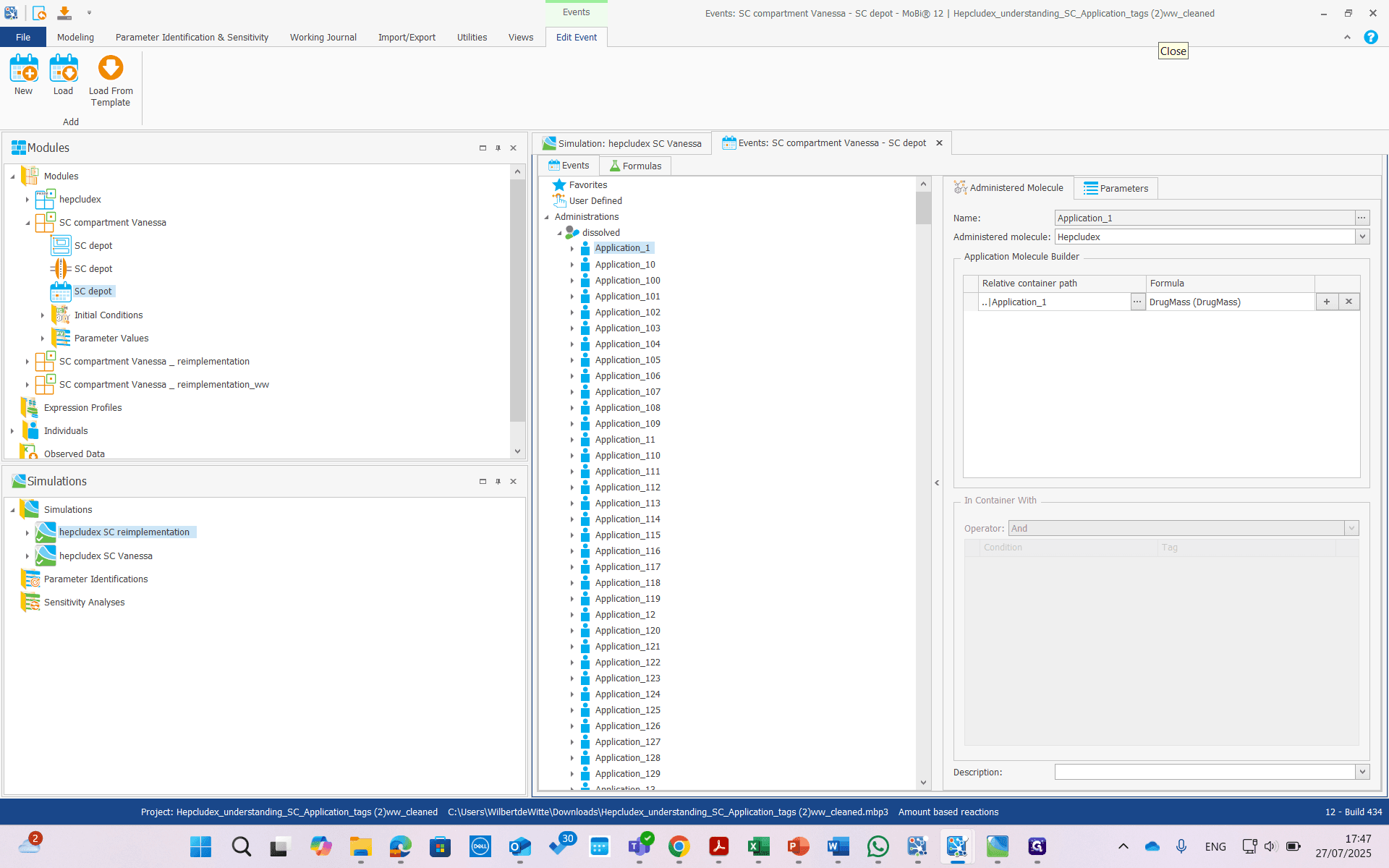
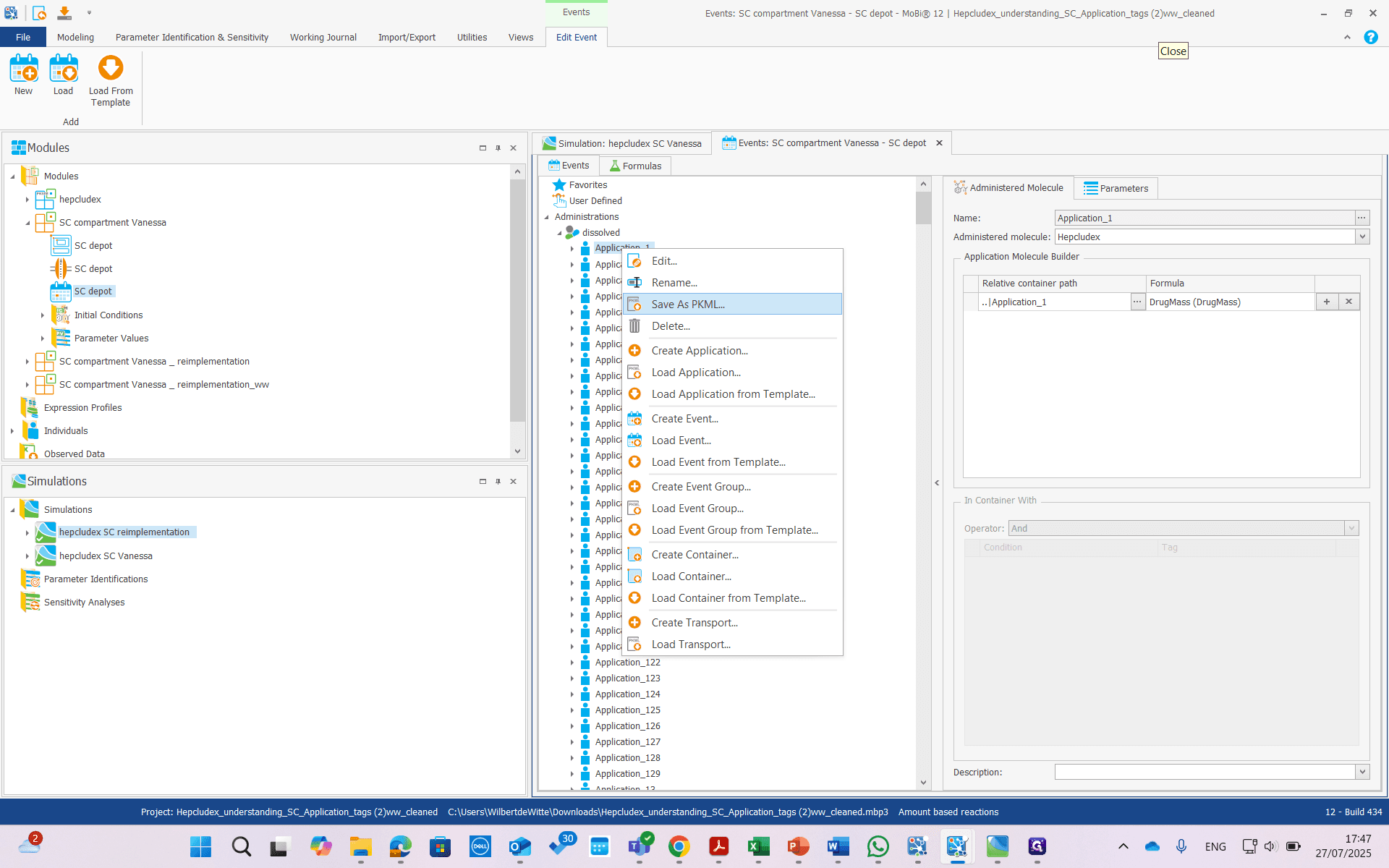
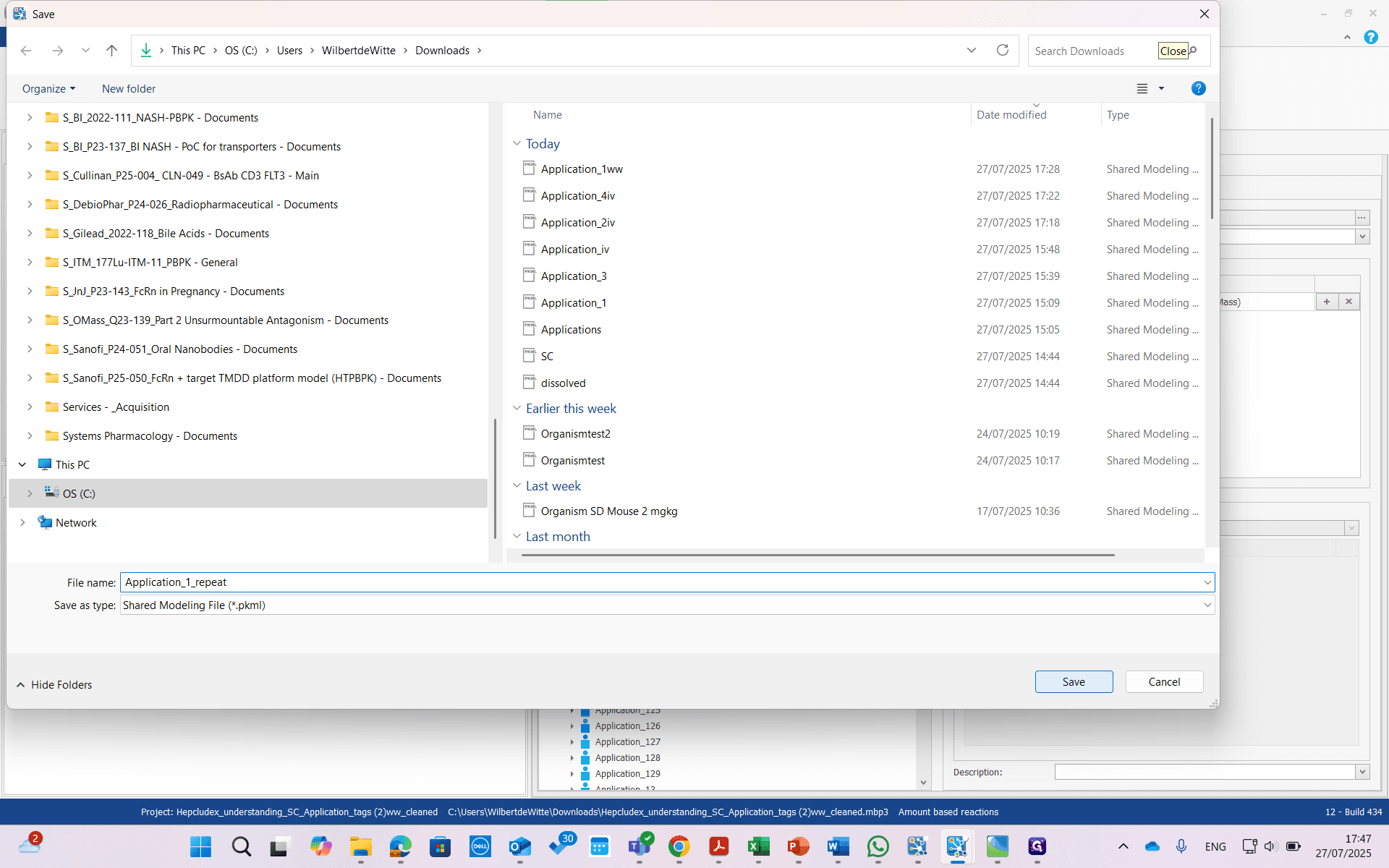
Saved it as application one.
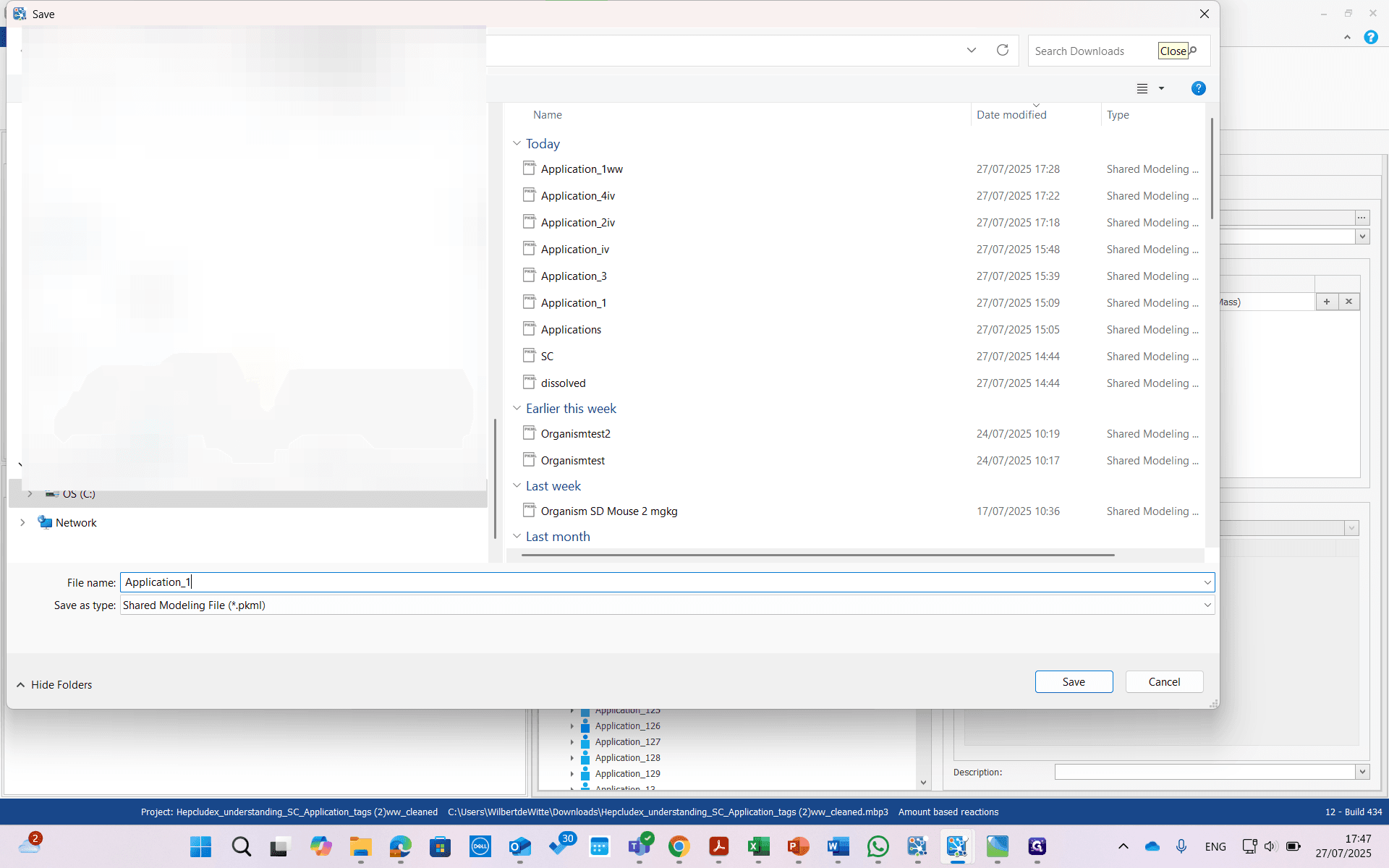
Add extra comments to help differentiate it from others. We have duplicated this building block by creating a new event group and loading this event twice.
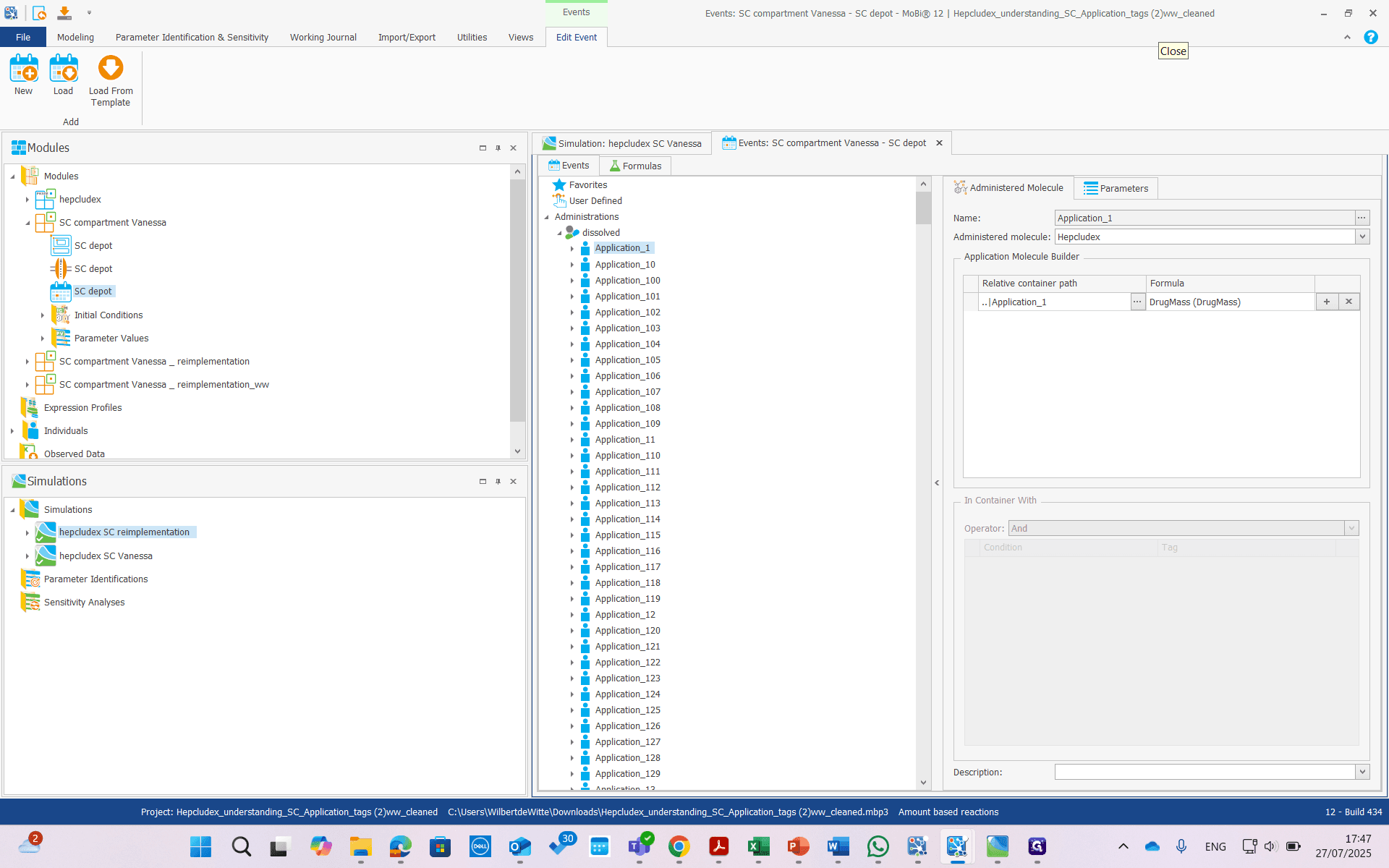
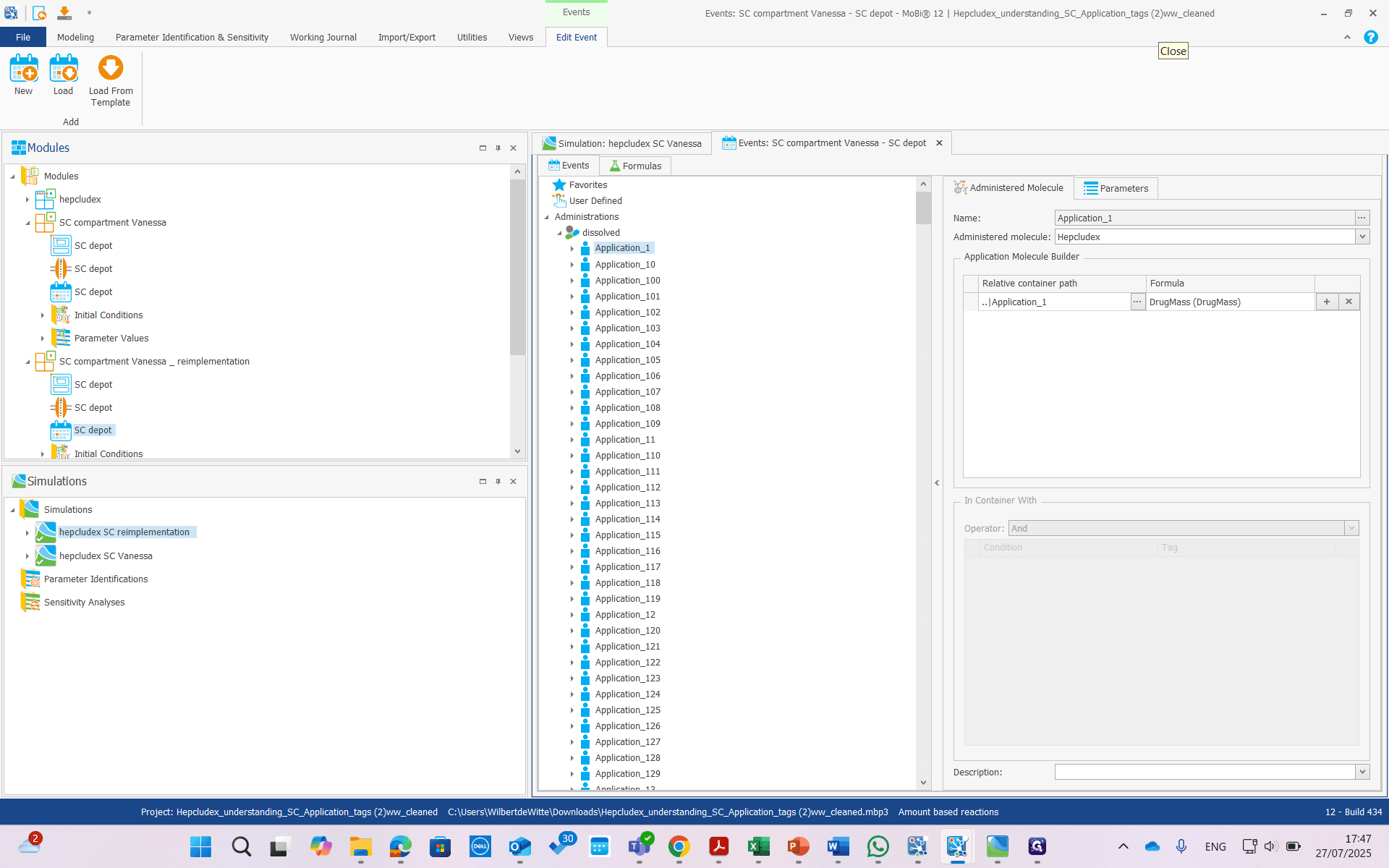
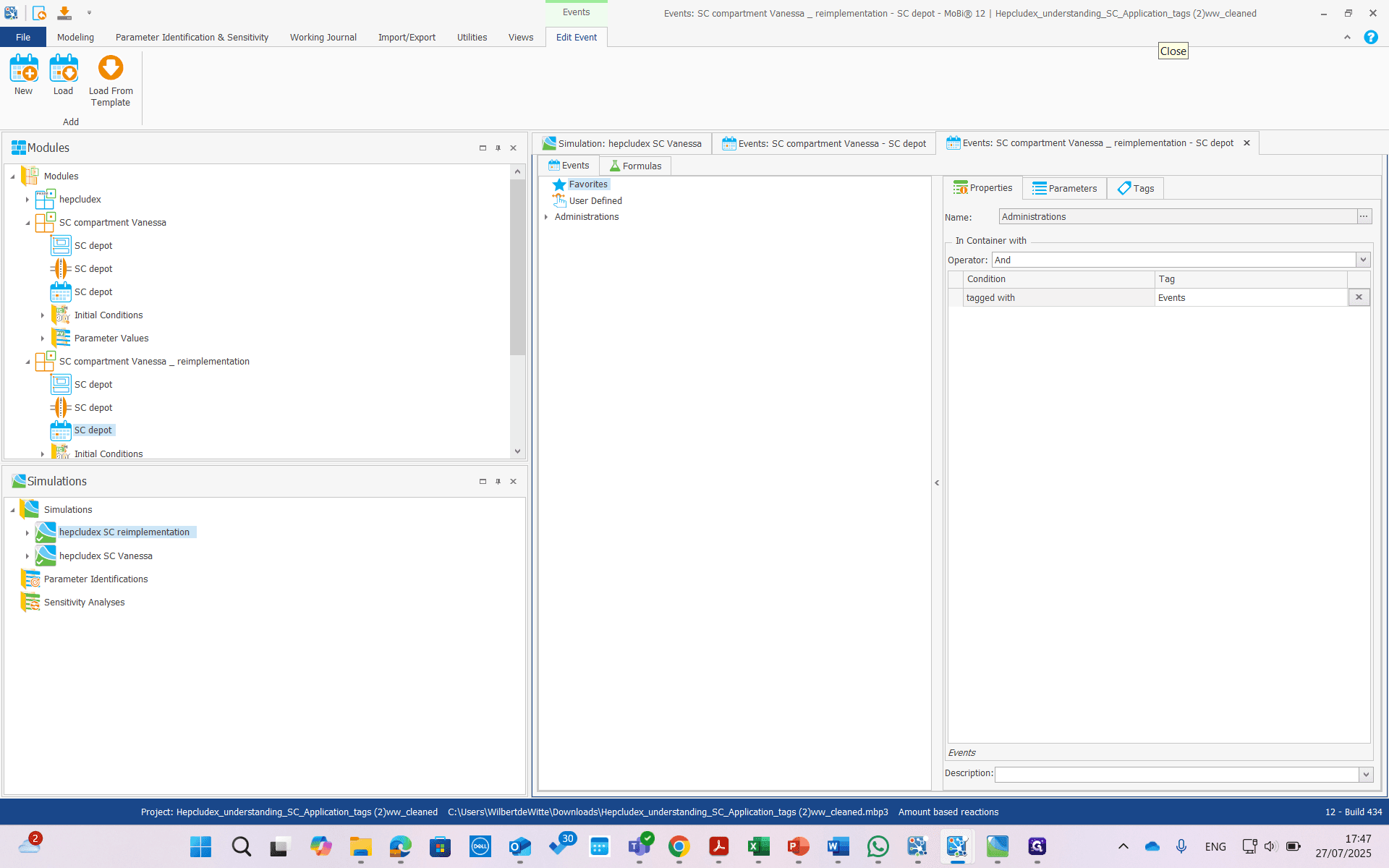
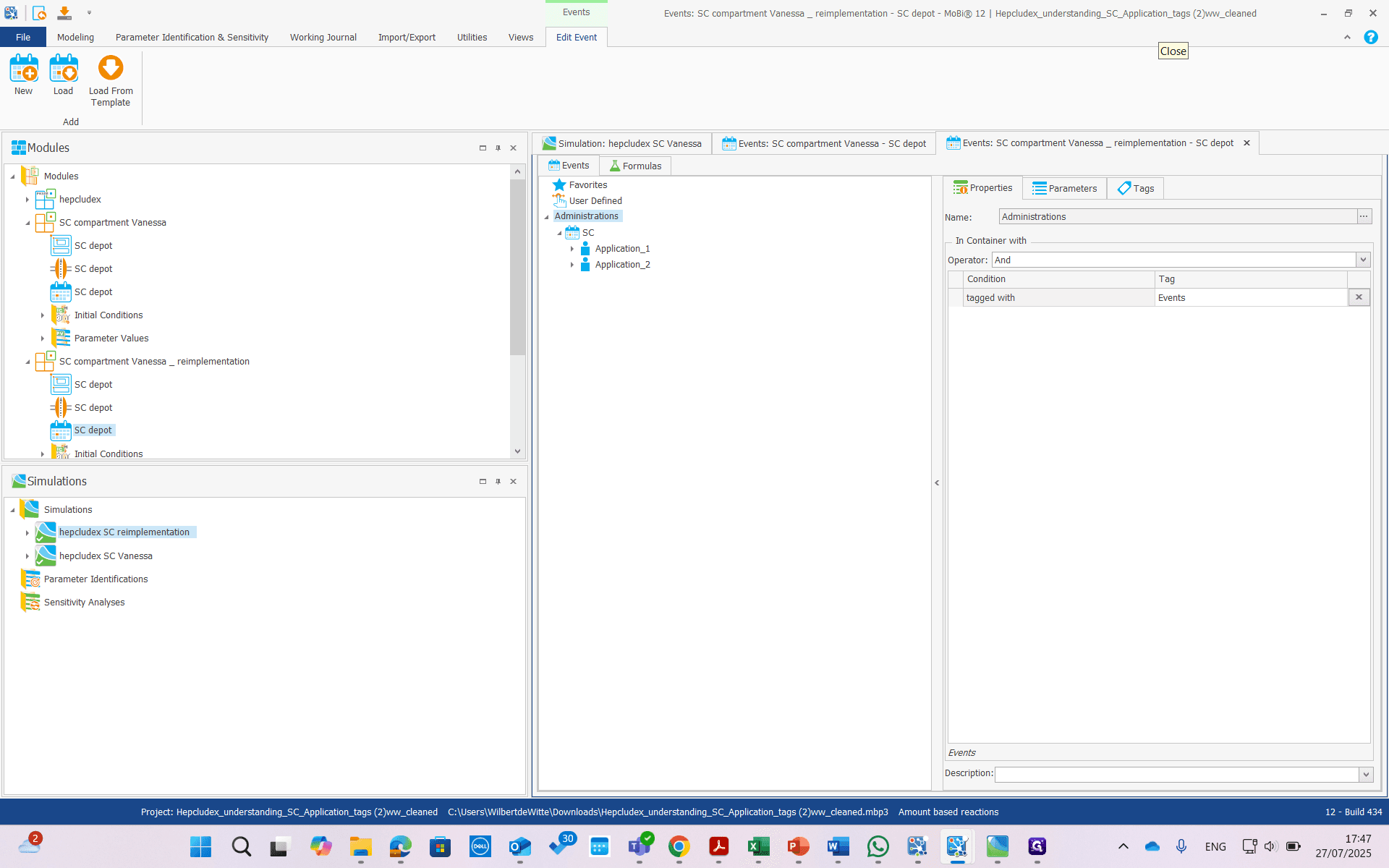
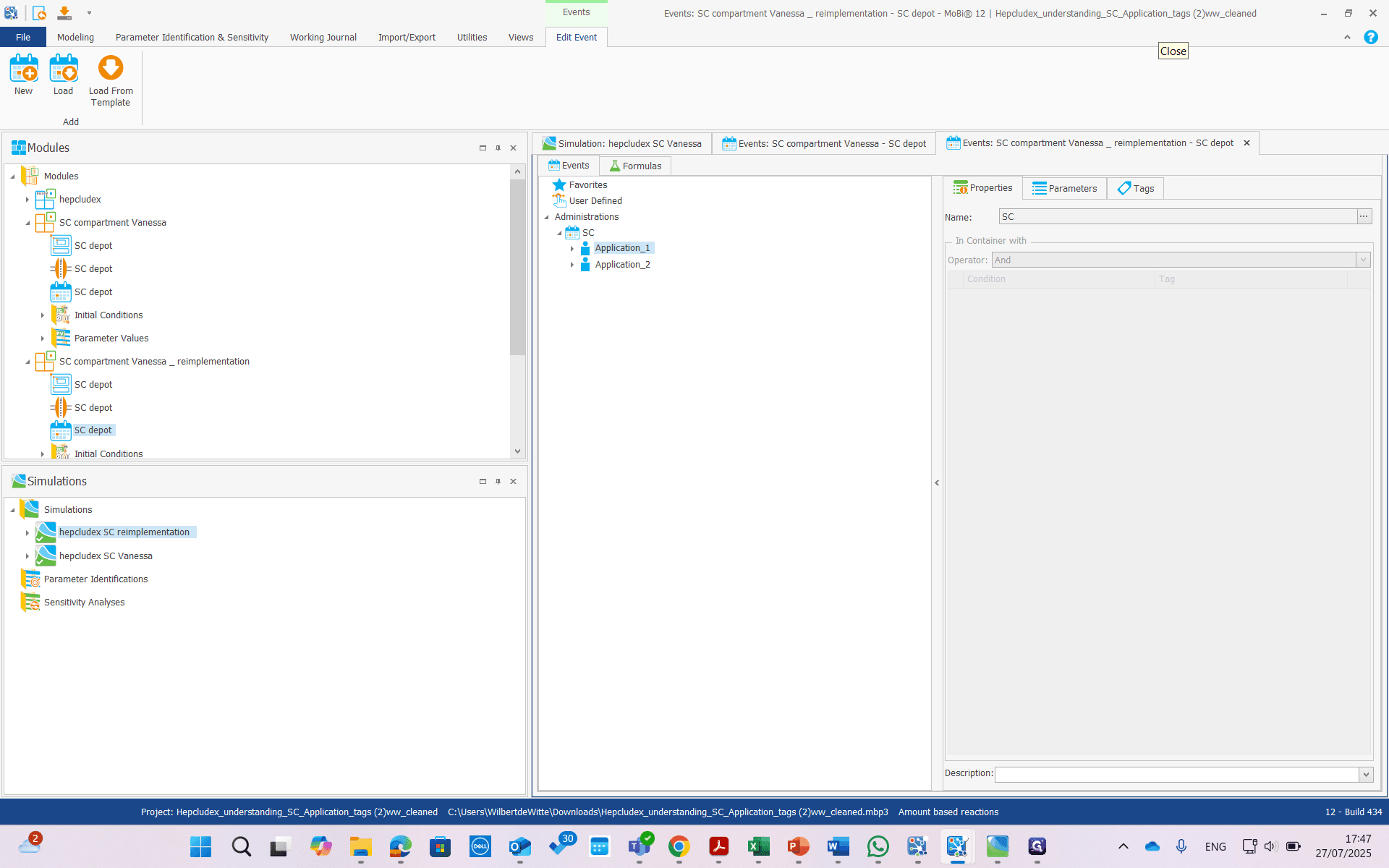
Here, we have renamed it to Application Two.
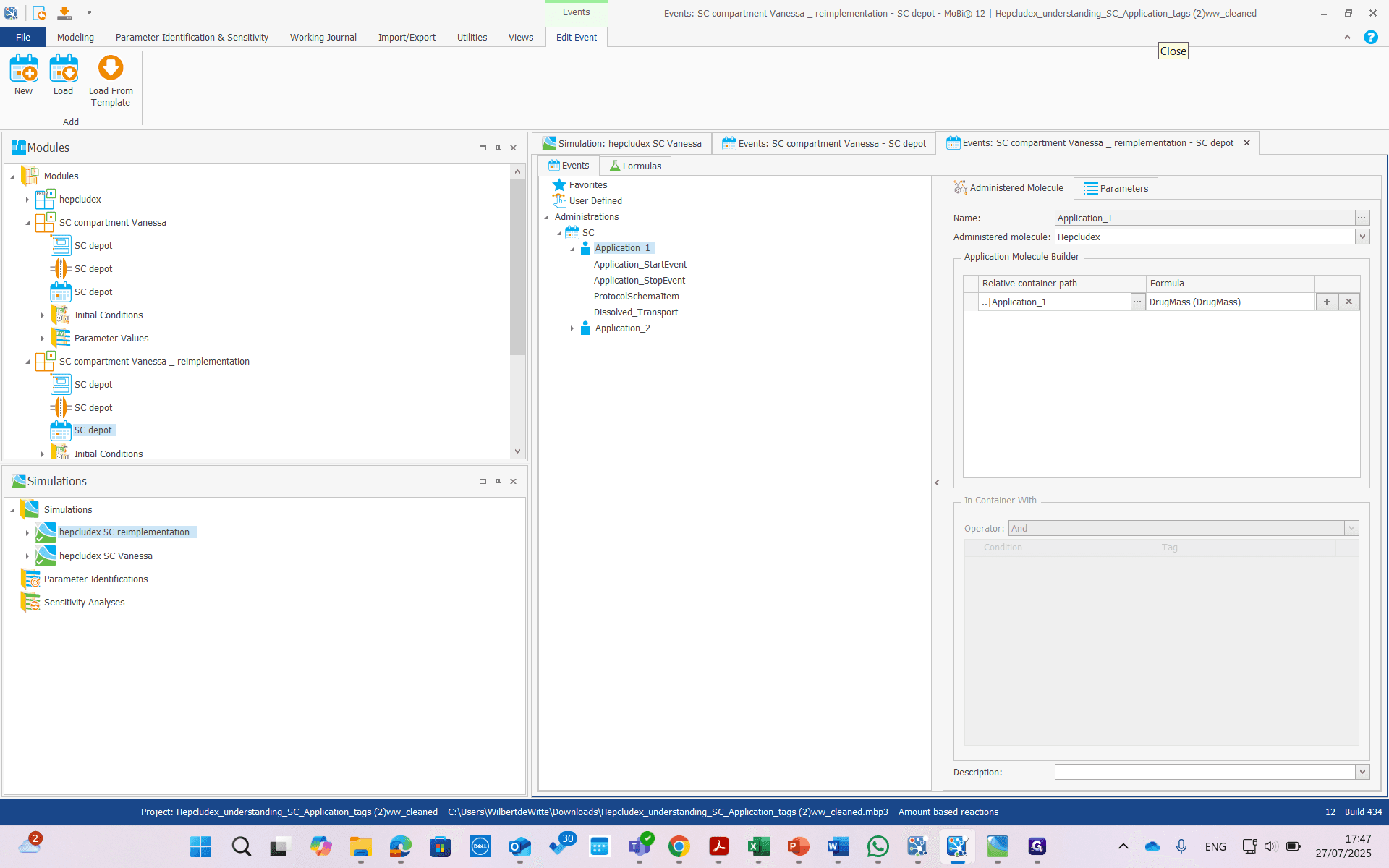
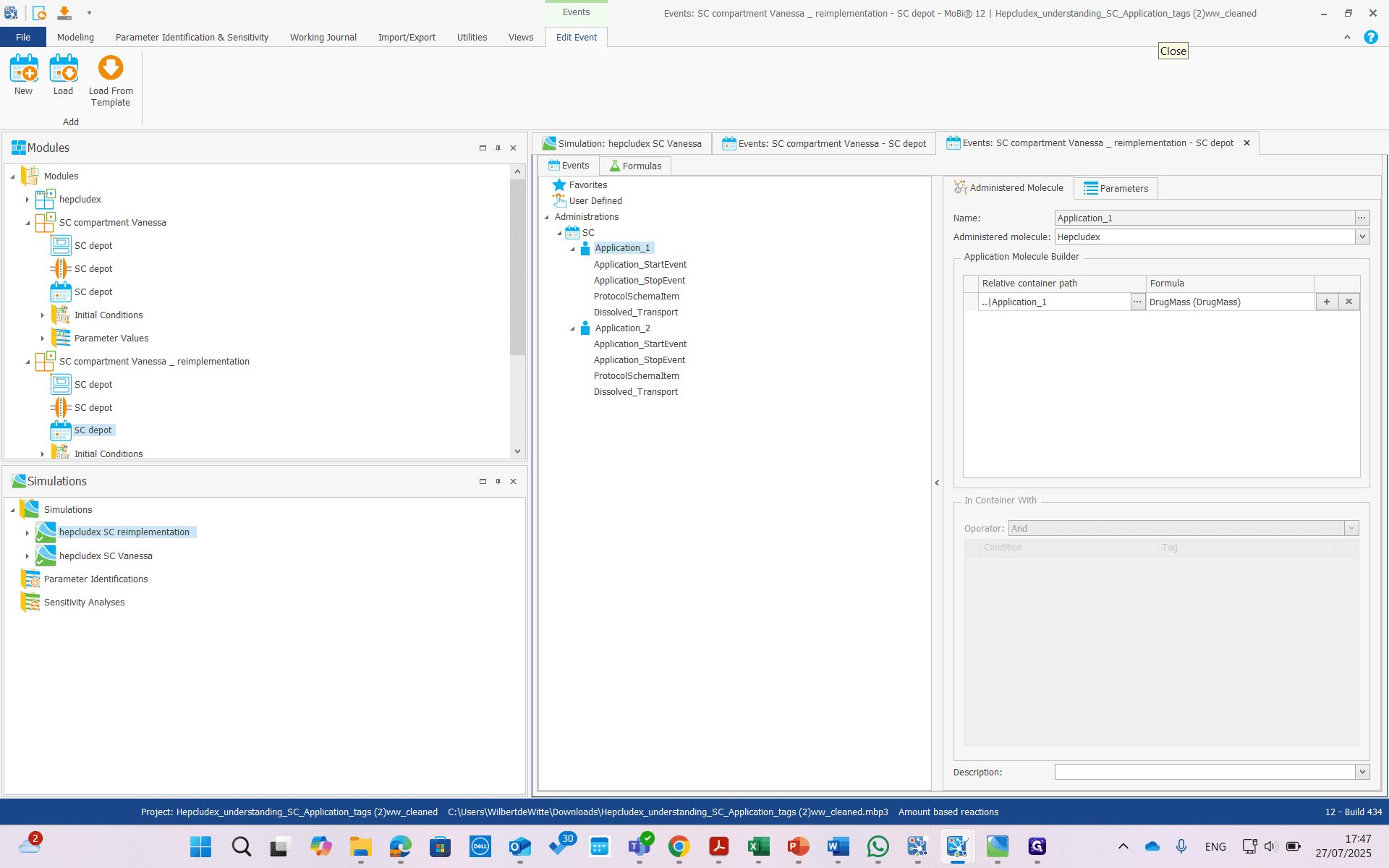
We have updated the relative container paths.
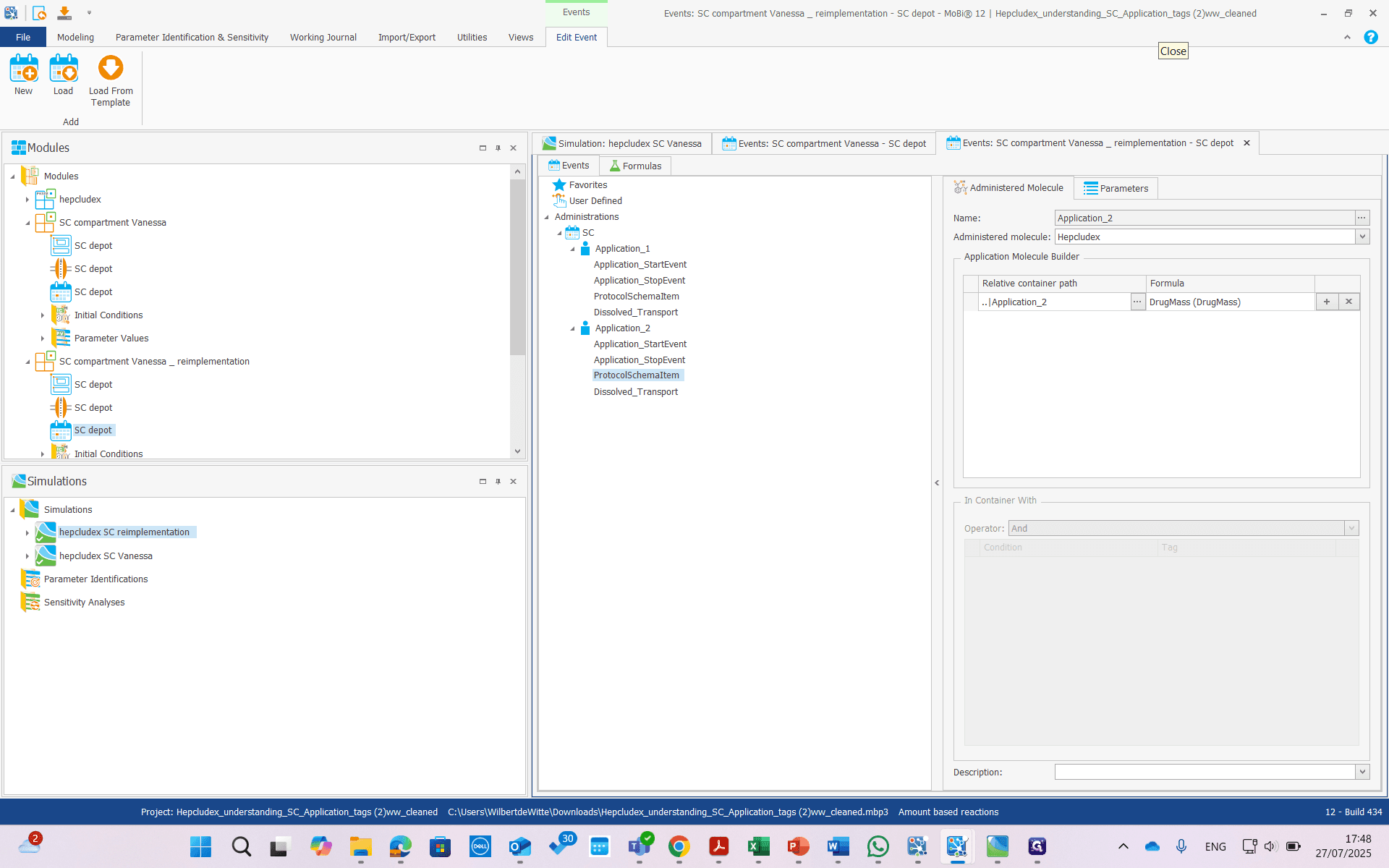
We have adjusted application two here, and also here.
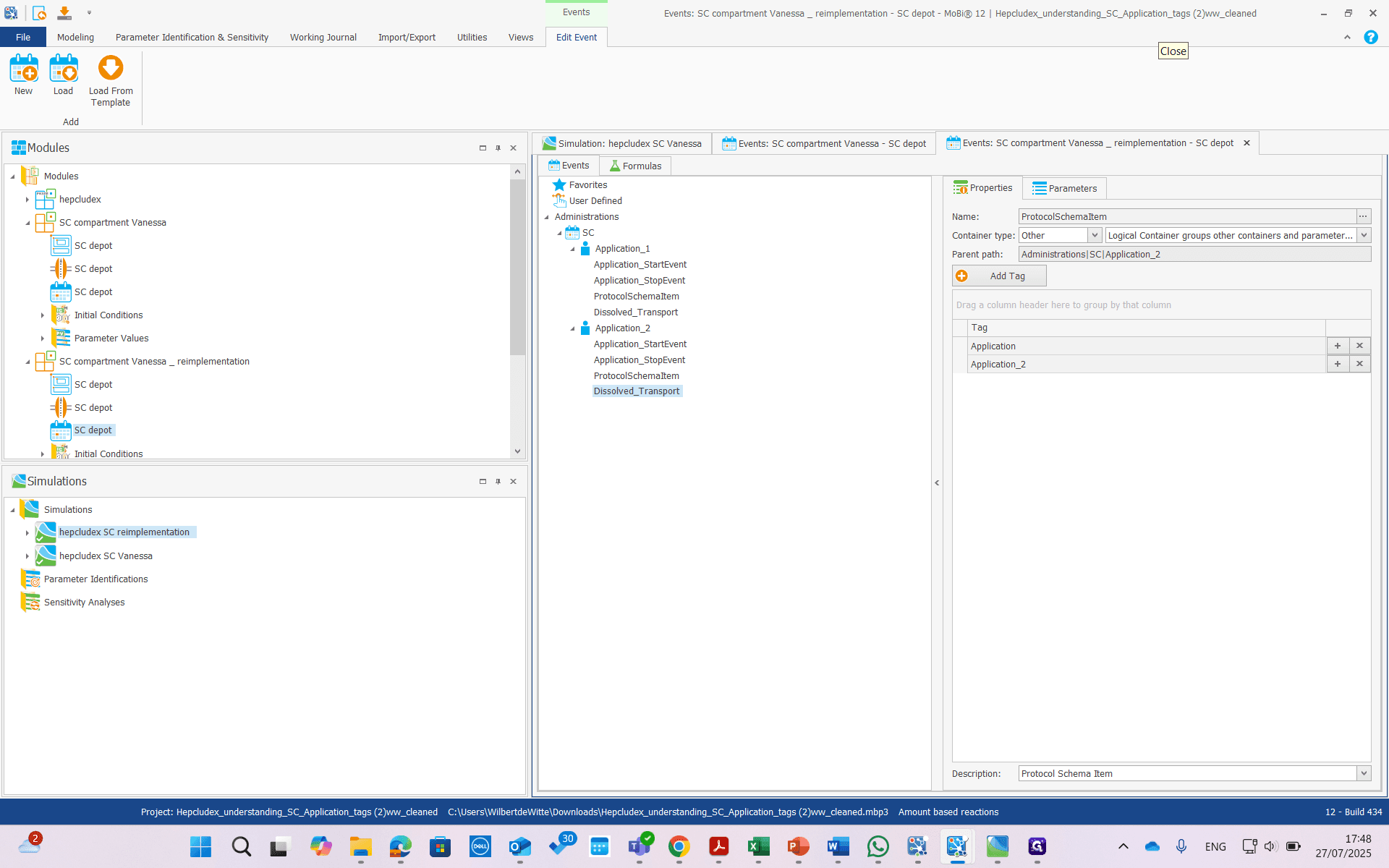
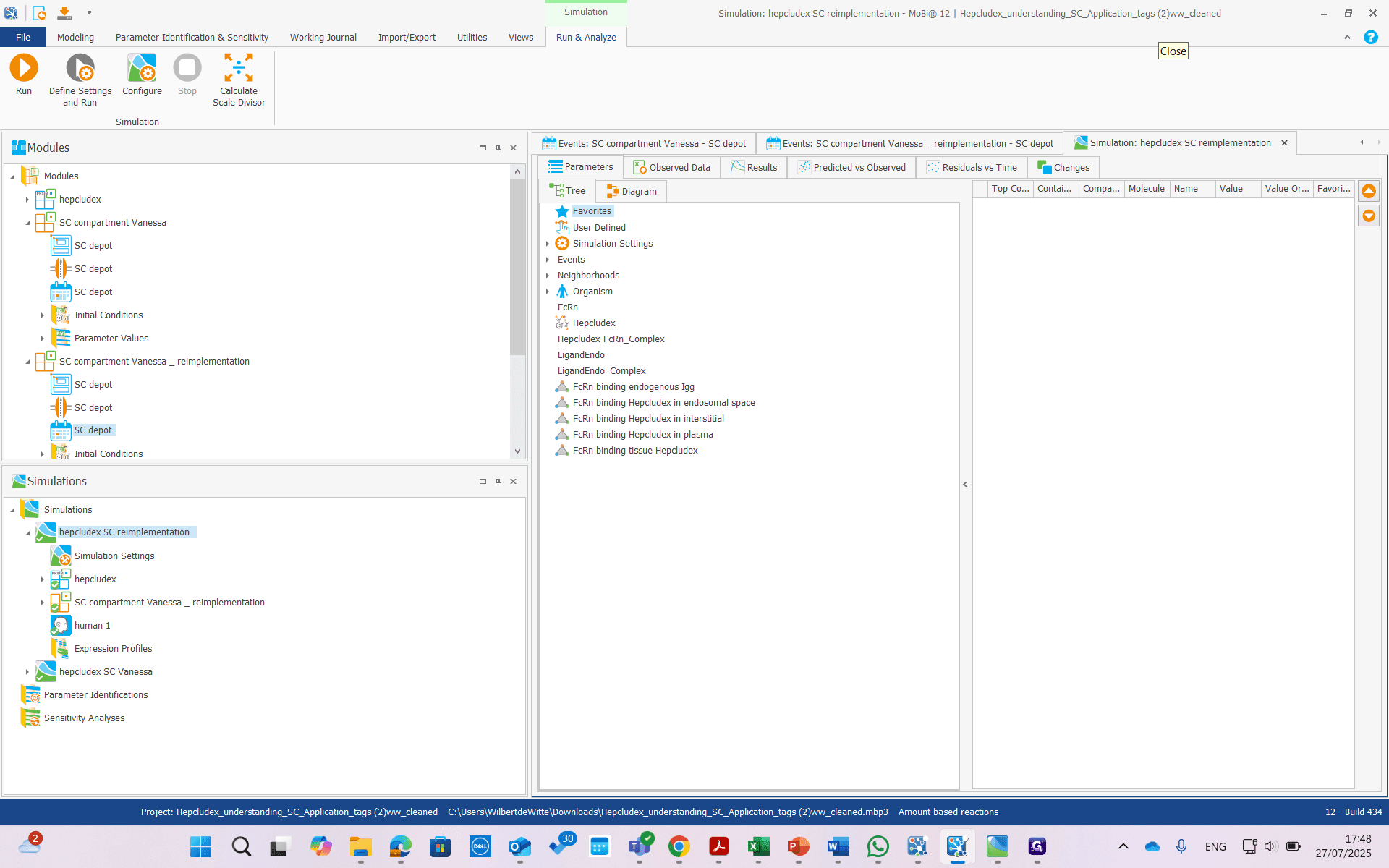
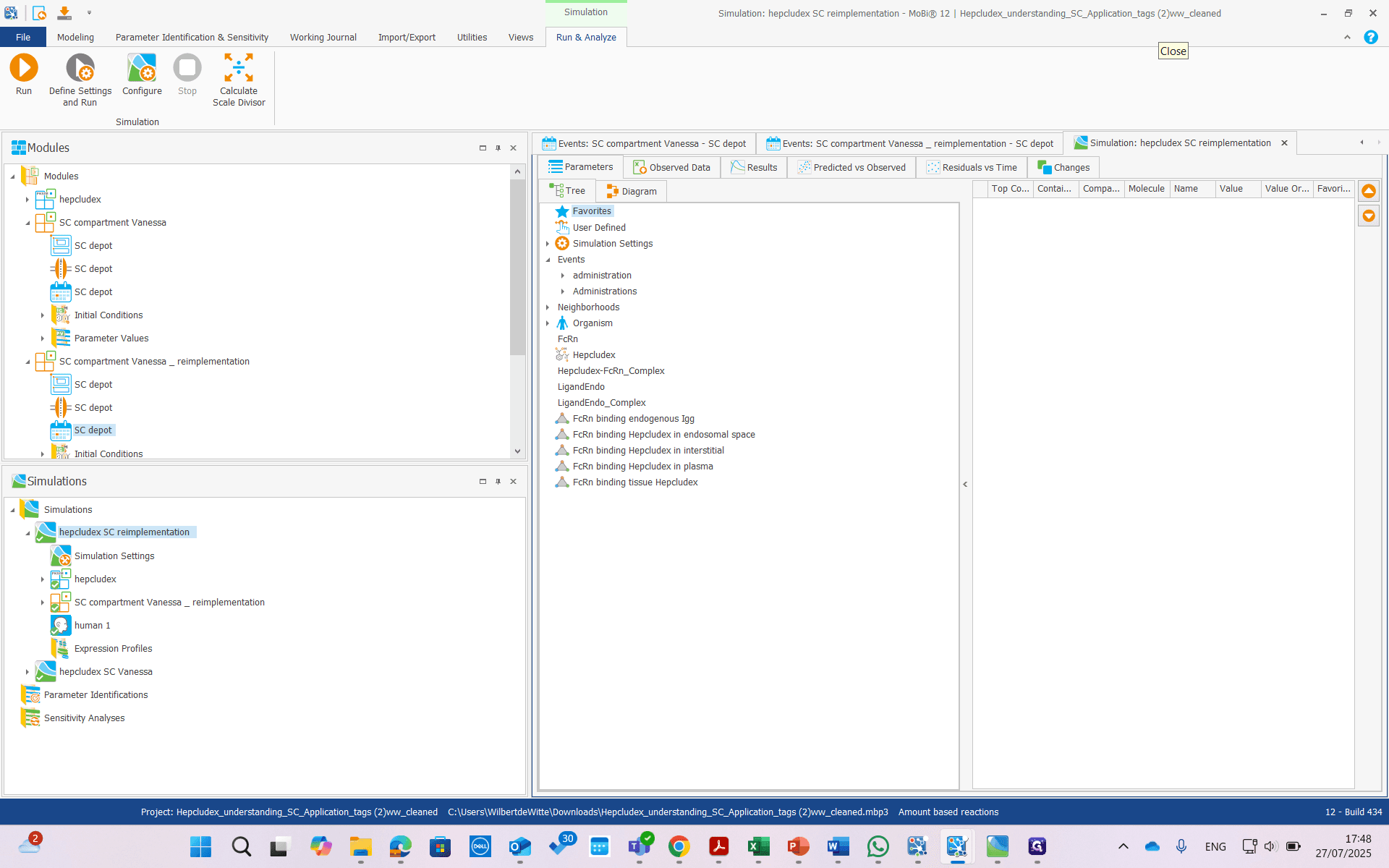
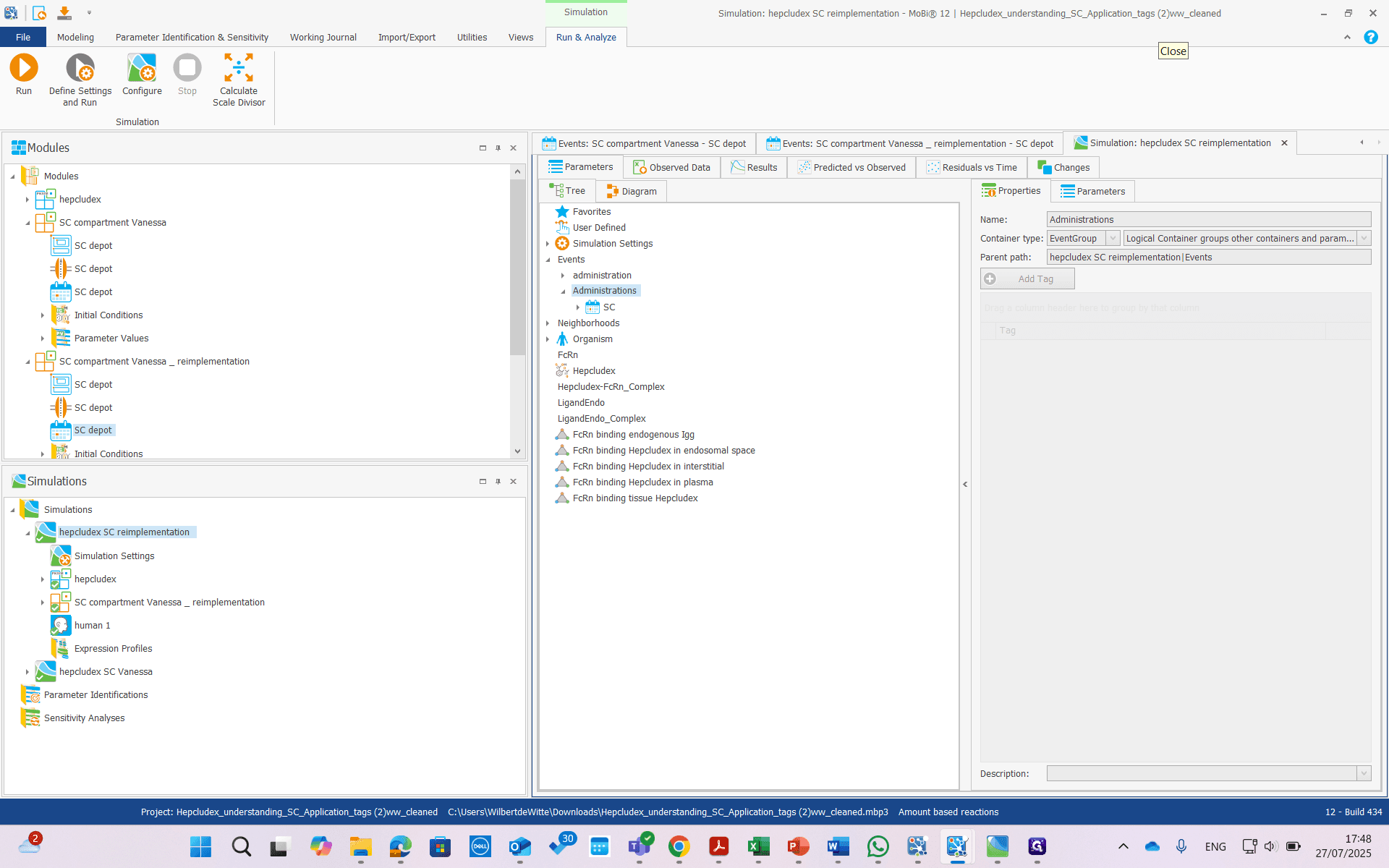
Now, if we look at this in the simulation, there is a problem.
The problem is as follows.
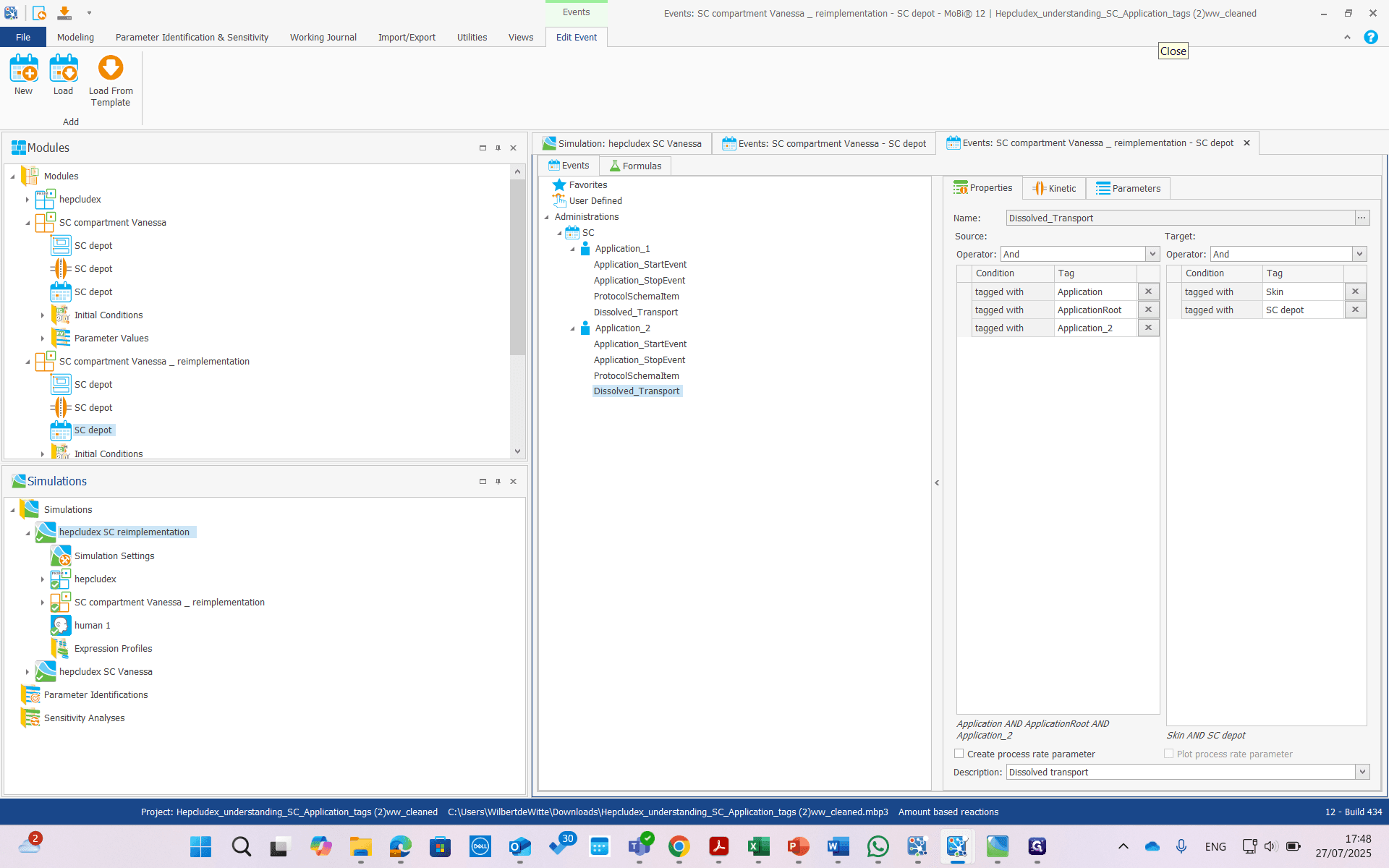
If we open the building block we created with events, application one looks fine.
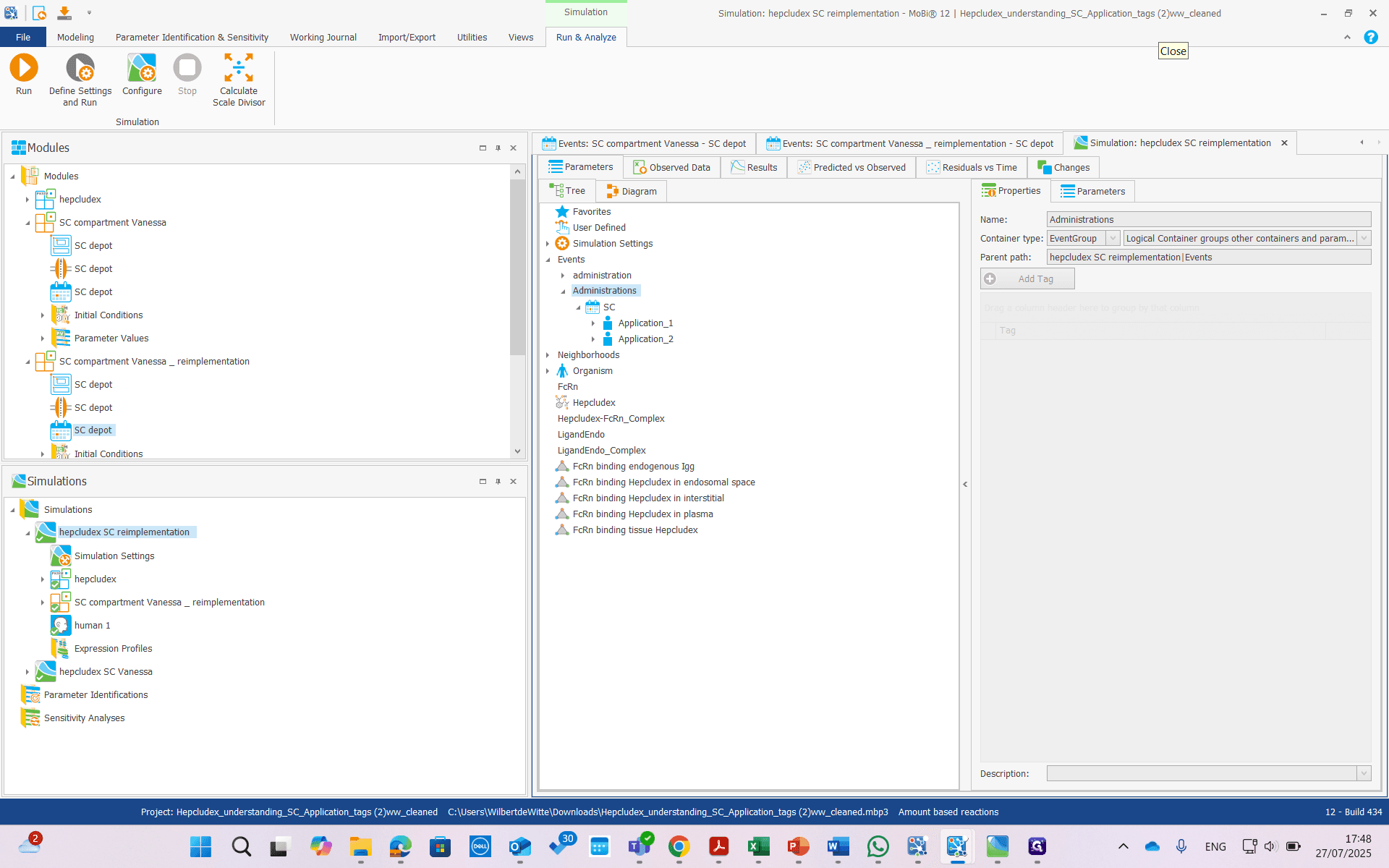
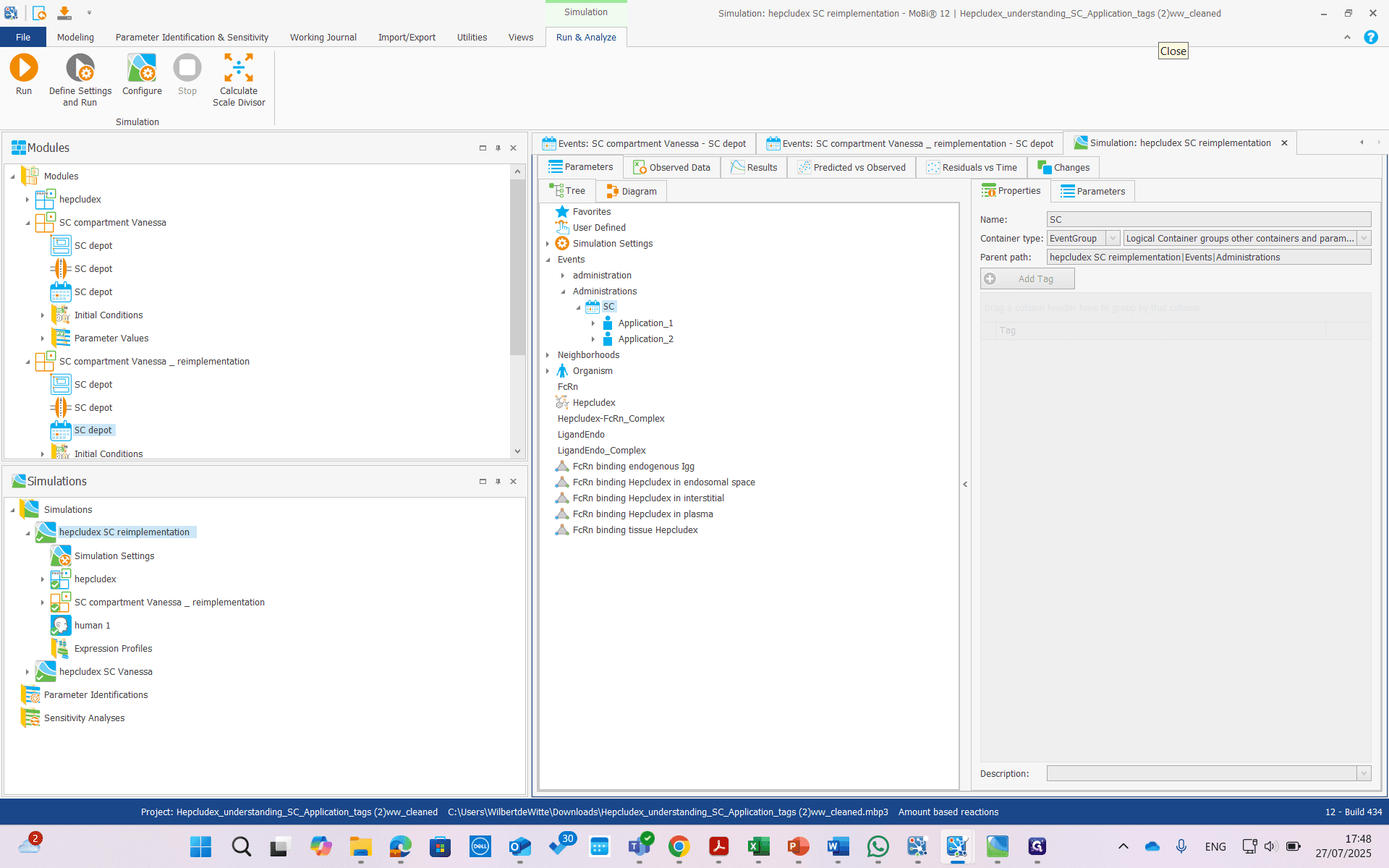
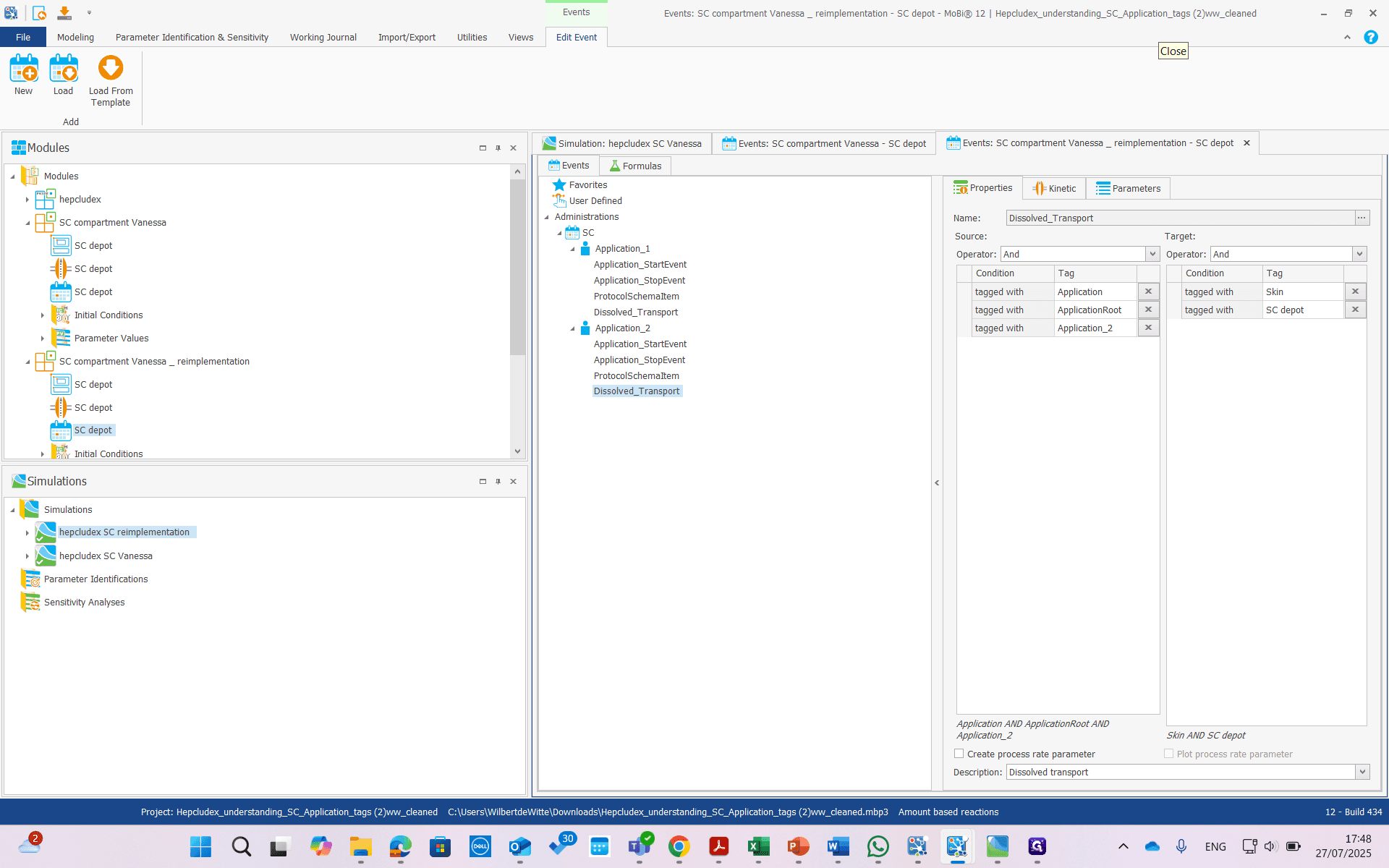
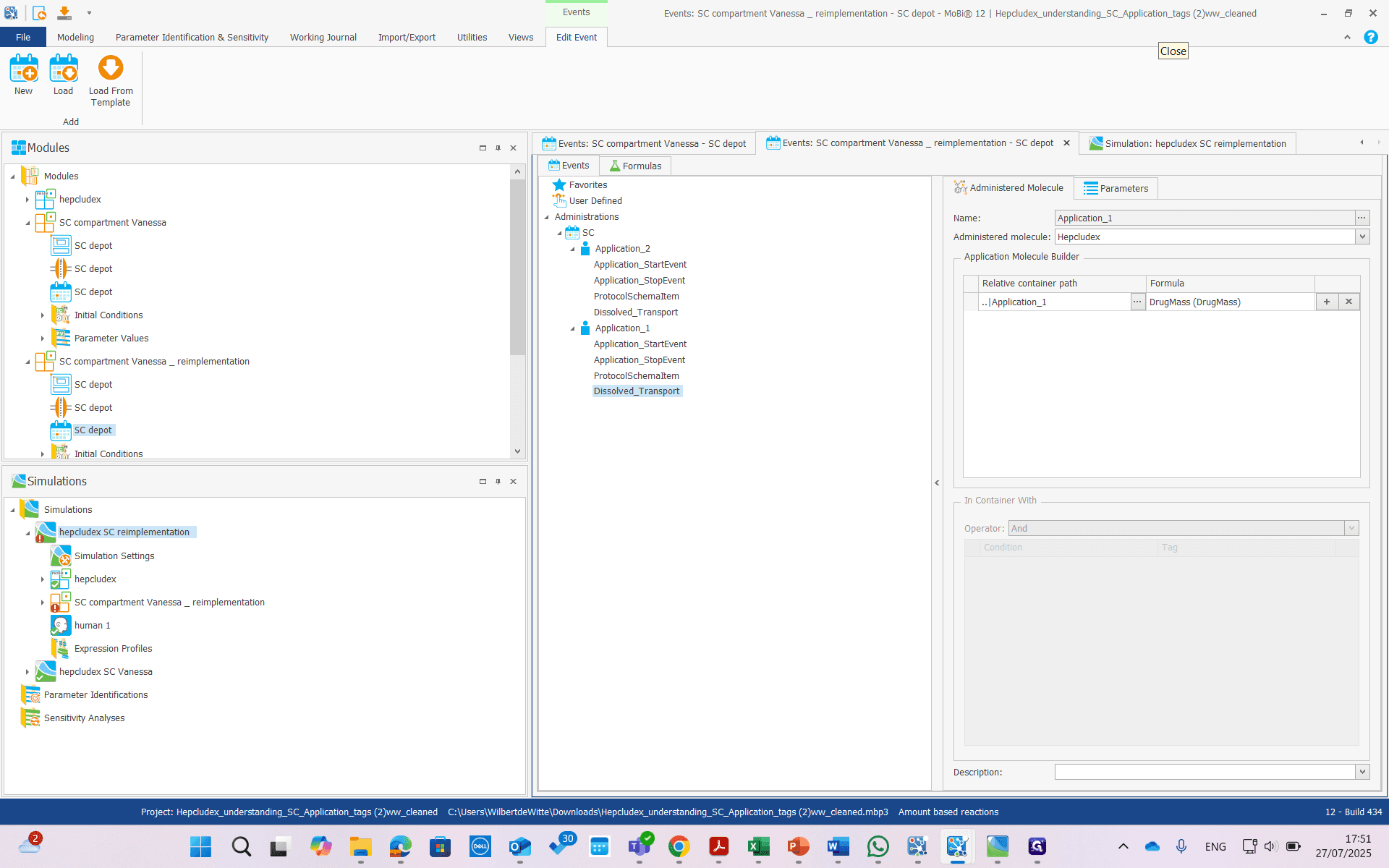
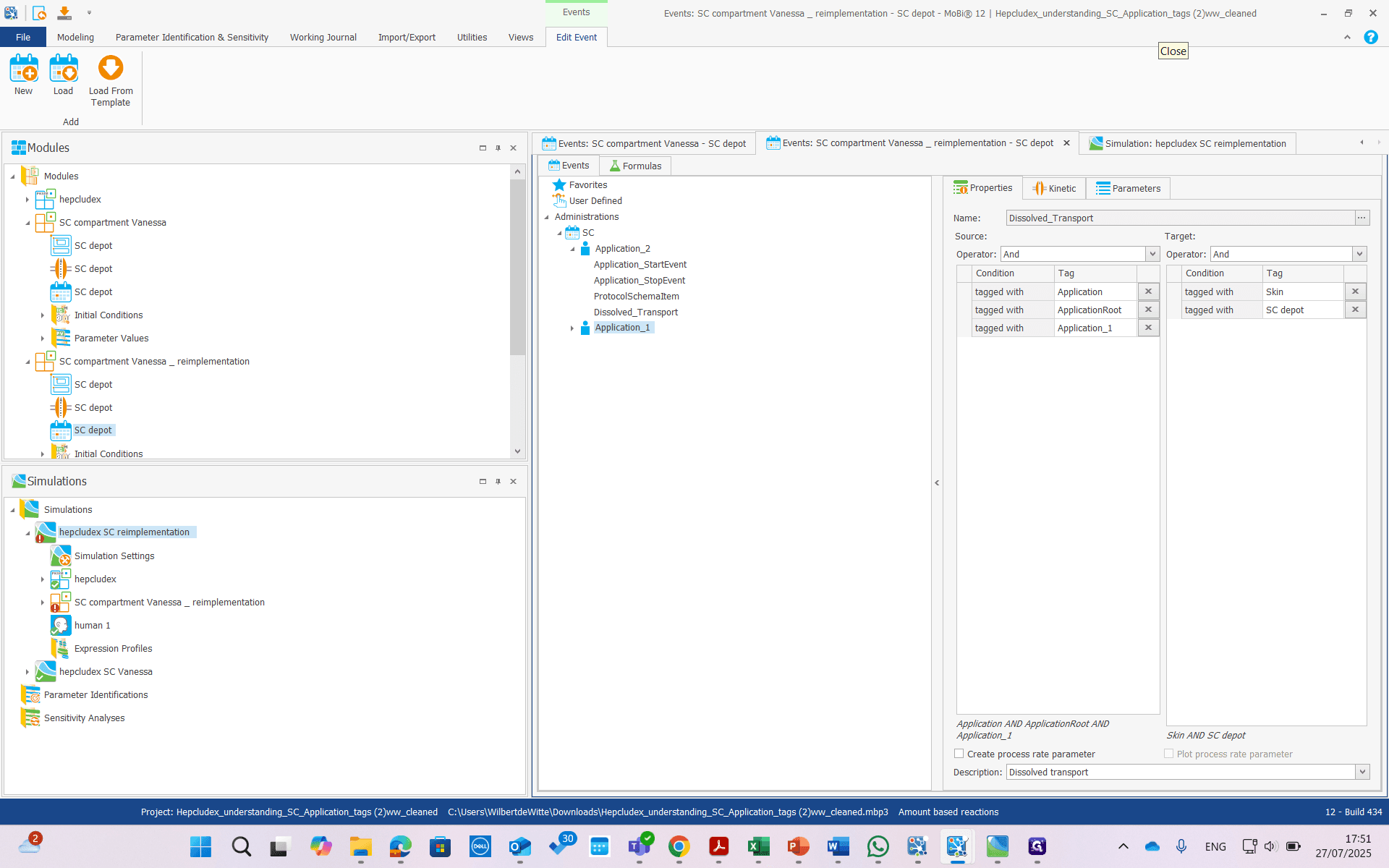
Application two is not correct. In the list of tags, we see "application" and "application root," which is good, but "application one" also appears.
That should be application two. So far, there has been no impact because this application is named "application two." All administration transports use relative parameters and are only active during the application. It all seems to work out fine. I think this could cause errors or at least confusion.
We want to change this. If we look at the building block, it's not something we can change directly.
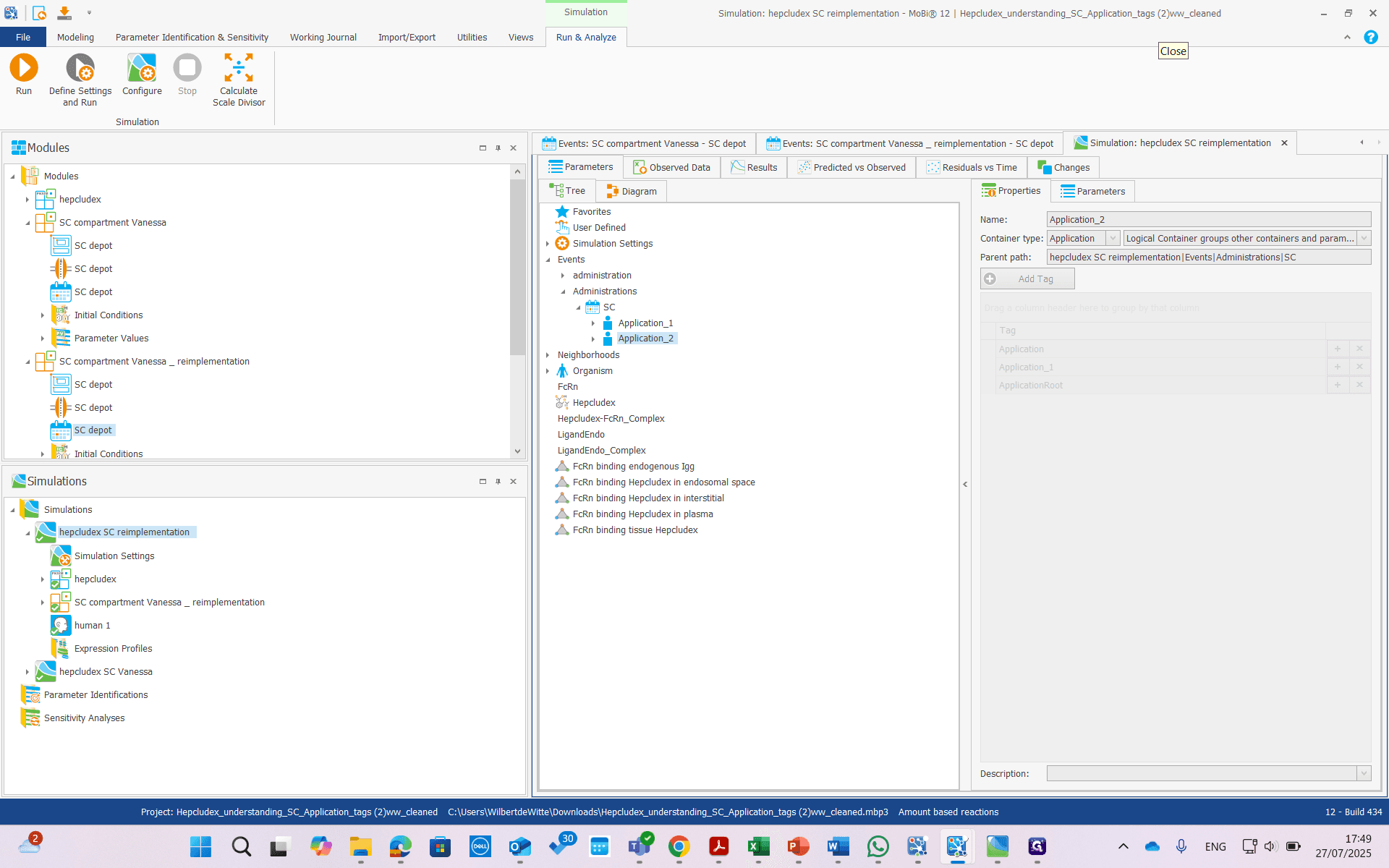
In application two, no tags are visible. This application does have a tag. It's only a problem because we can't change it. There is a way to solve this.
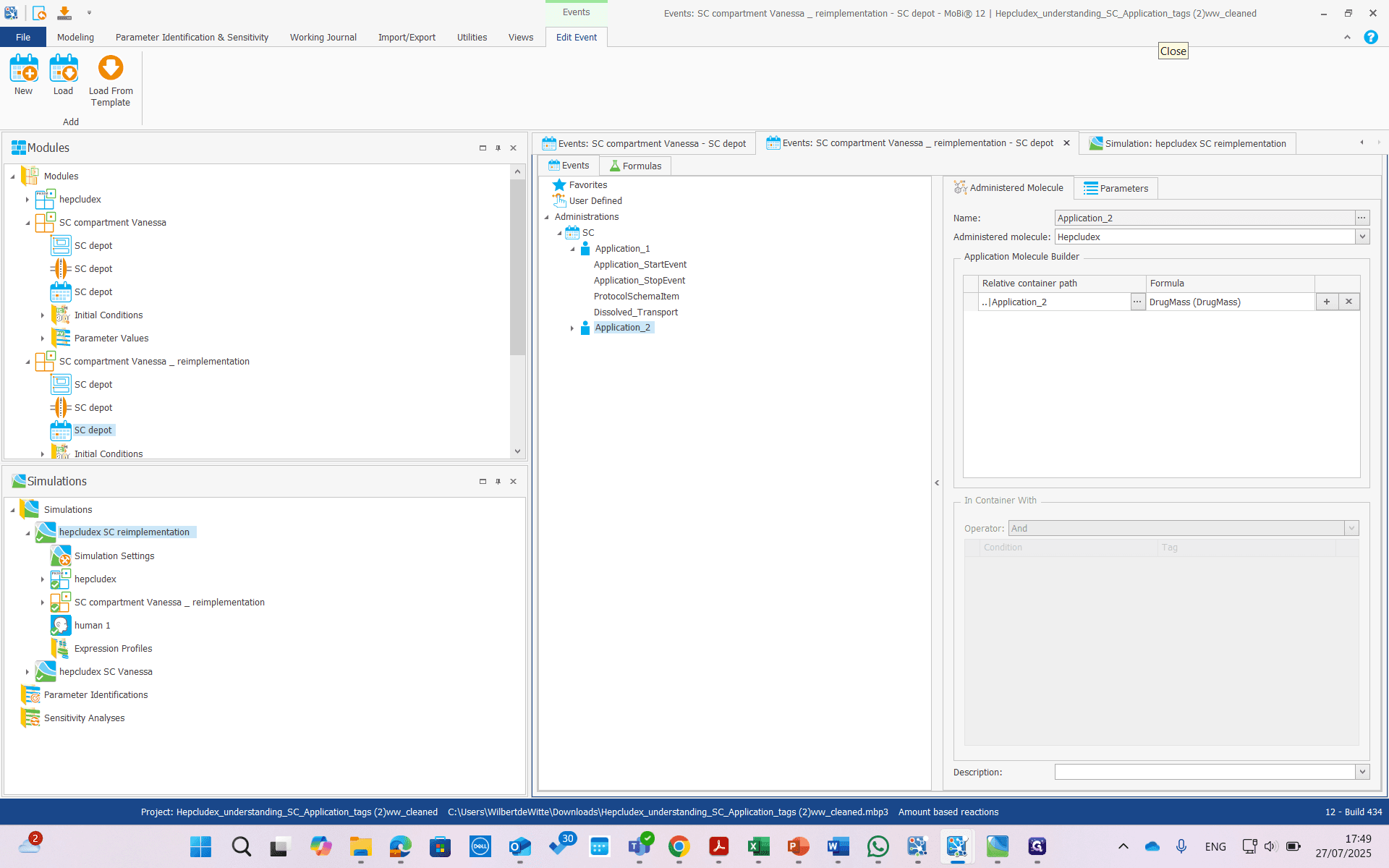
First, we will remove the problematic simulation or application.
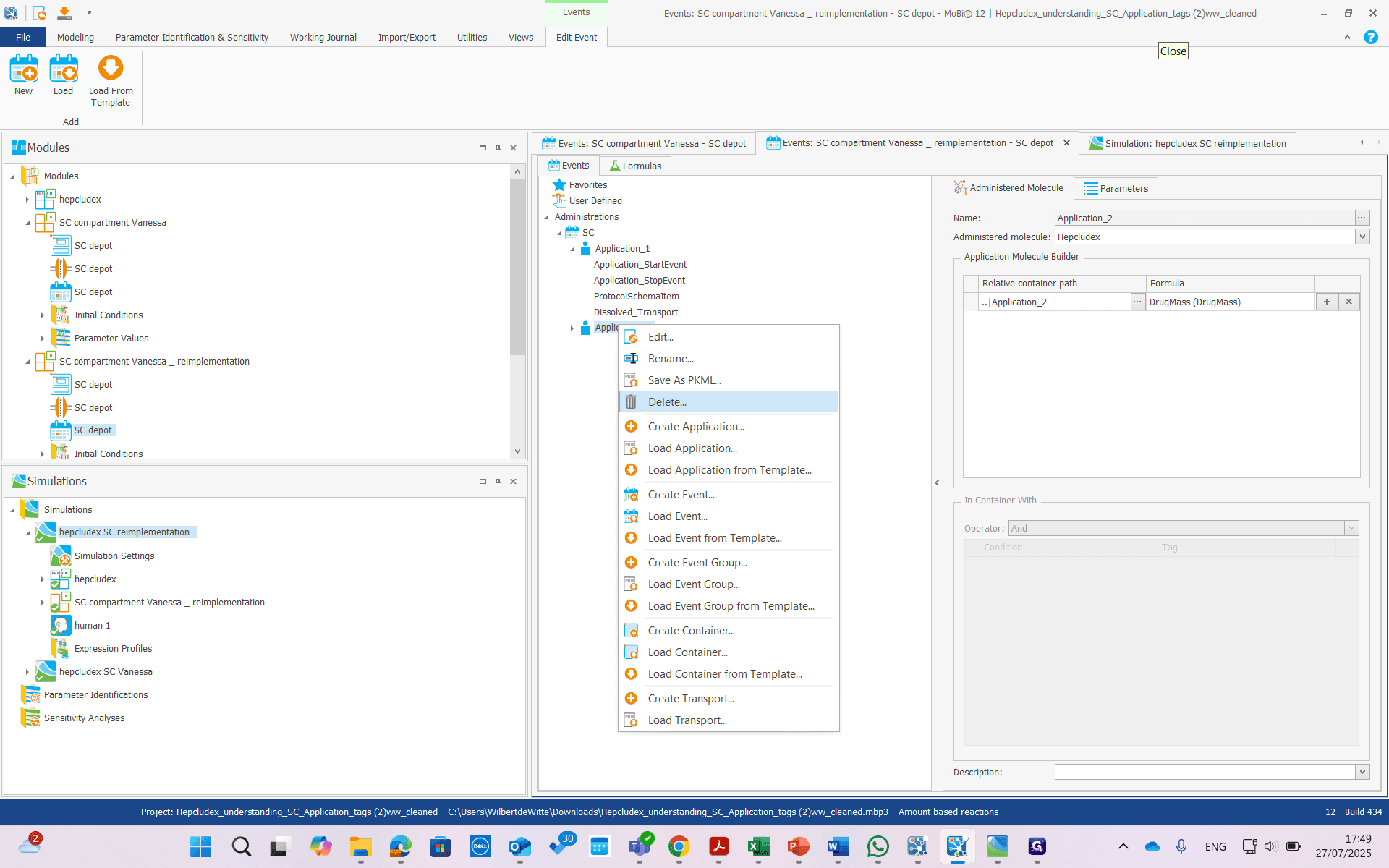
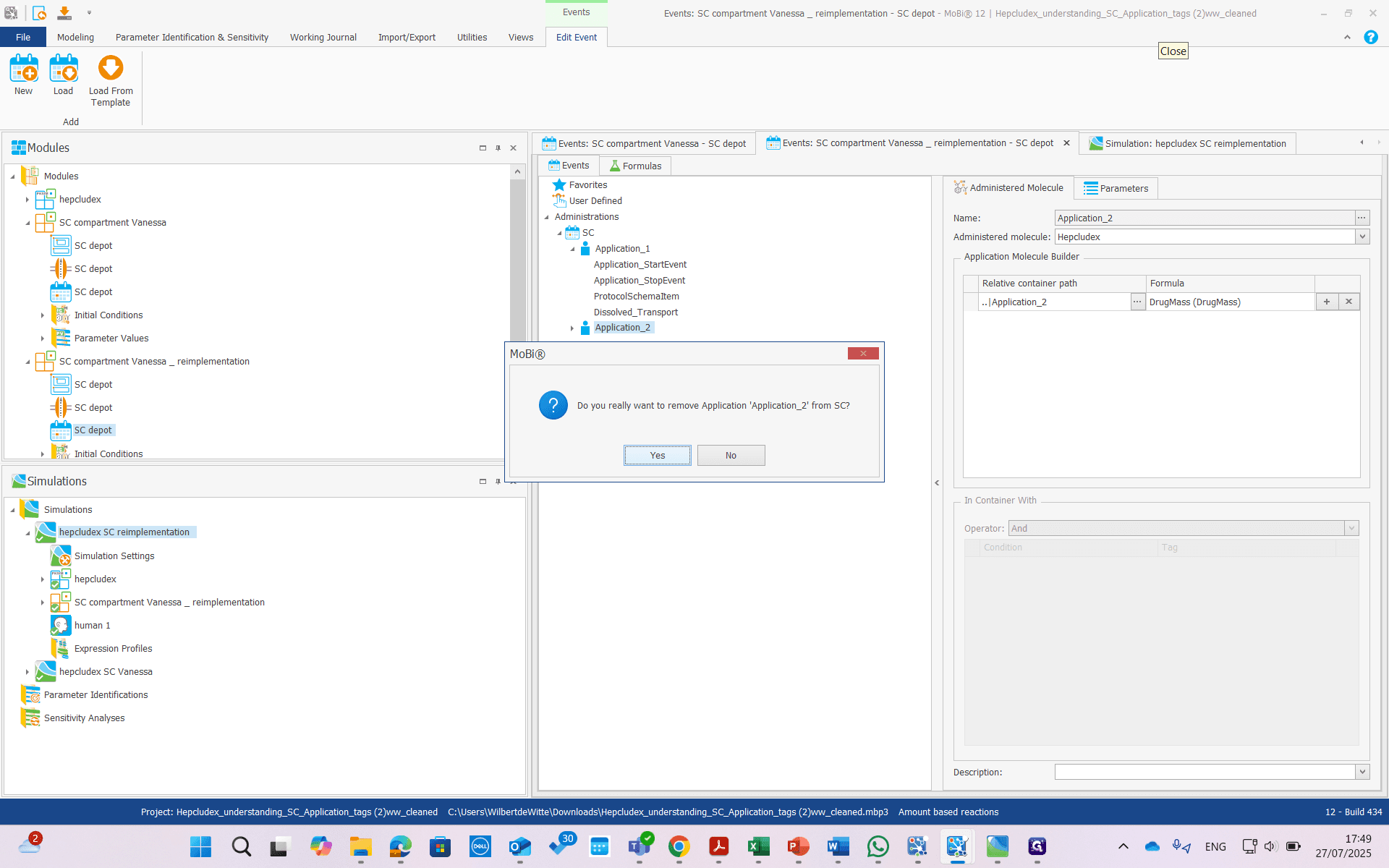
We'll remove it. Yes.
Now, we are going to rename this.
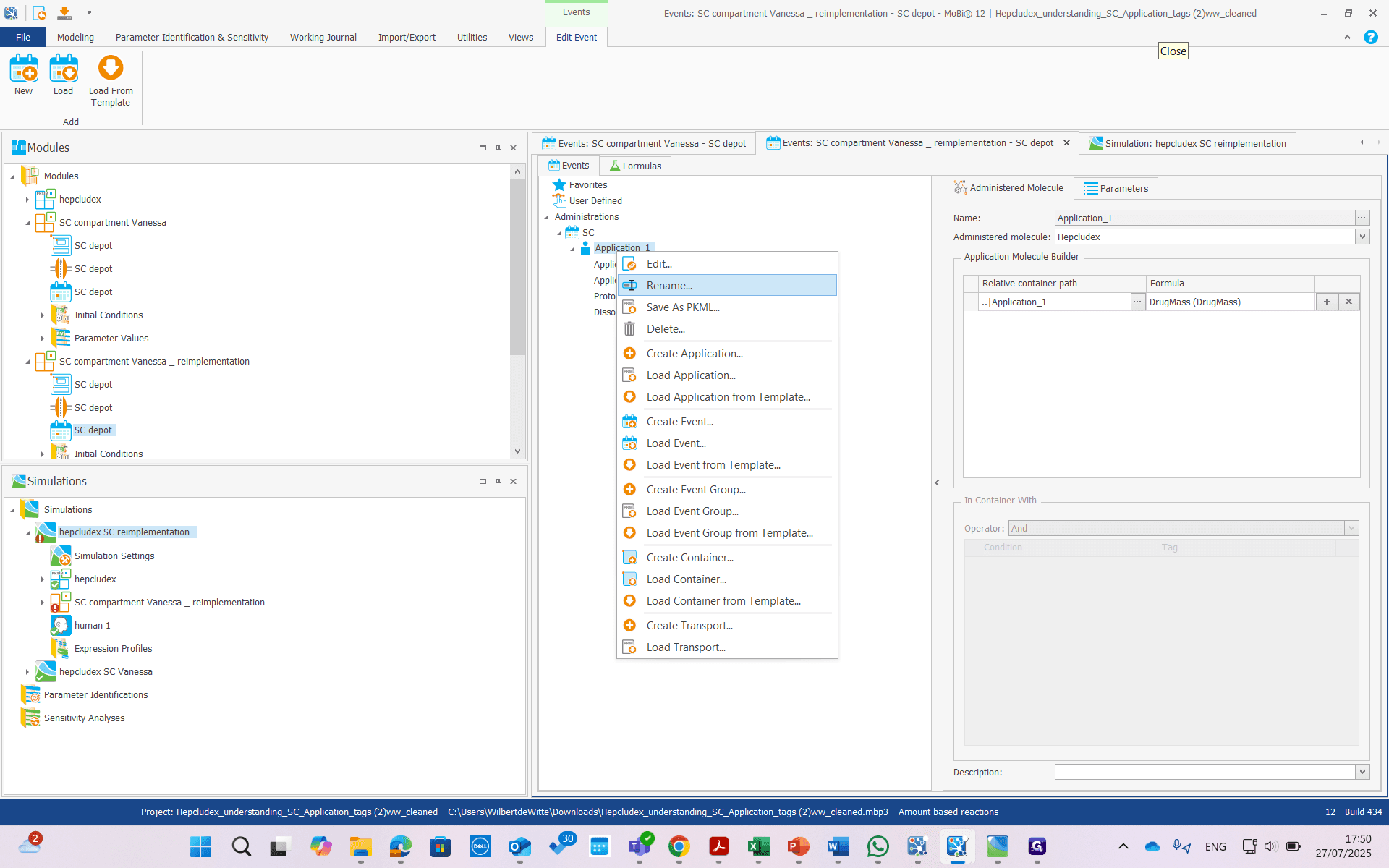
Rename it to Application Two.
Now we see a screen where we can update many tags.
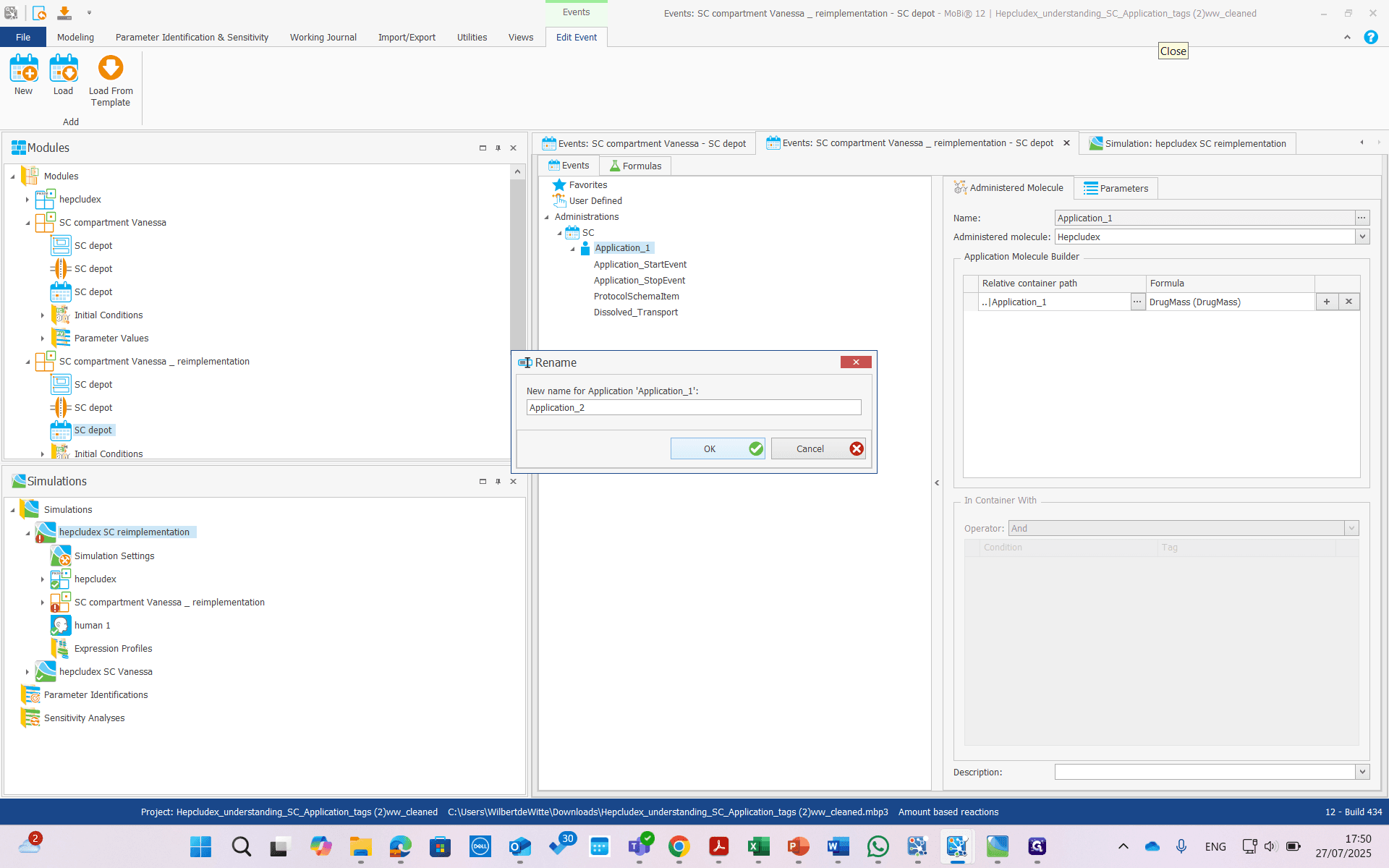
Also, invisible tags. Previously, we could only change three tags and the name, for a total of four items. But here, there is much more. The first step is to tag application one to application two. This is for application one. That is the one we find most important.
Of course, we want to update all of them to prevent confusion and errors. All right, now click OK.
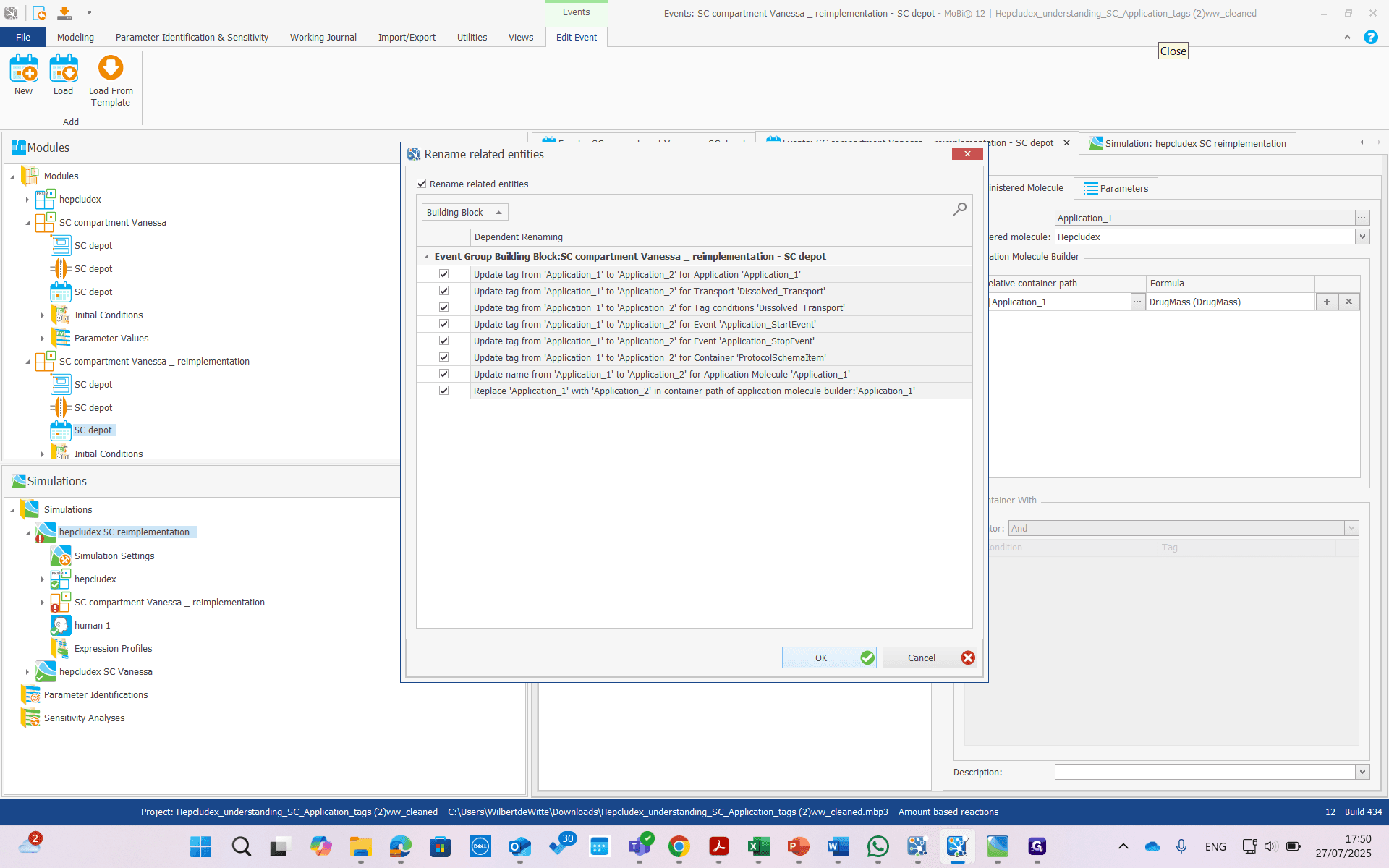
Now it's renamed. We can load our old application.
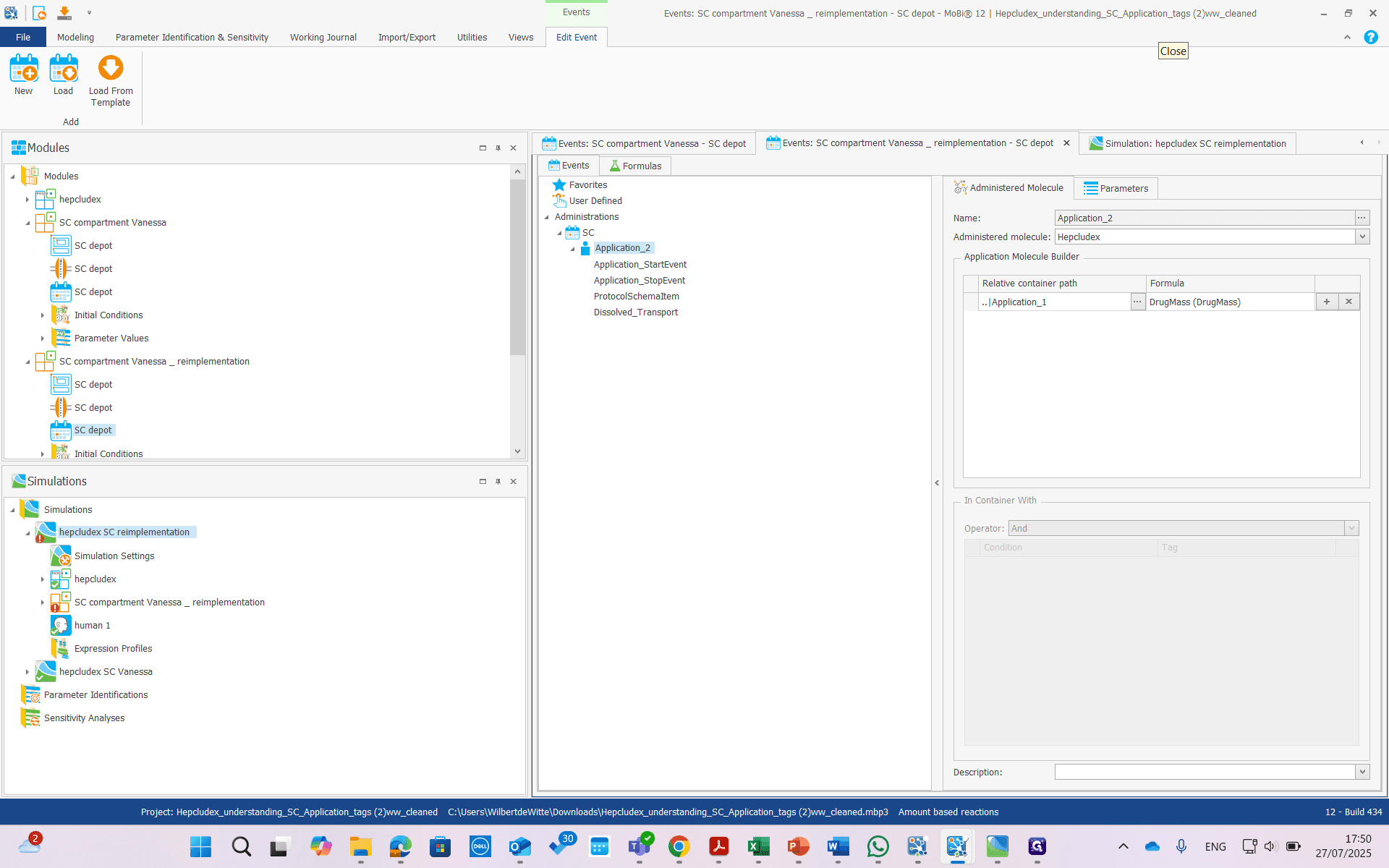
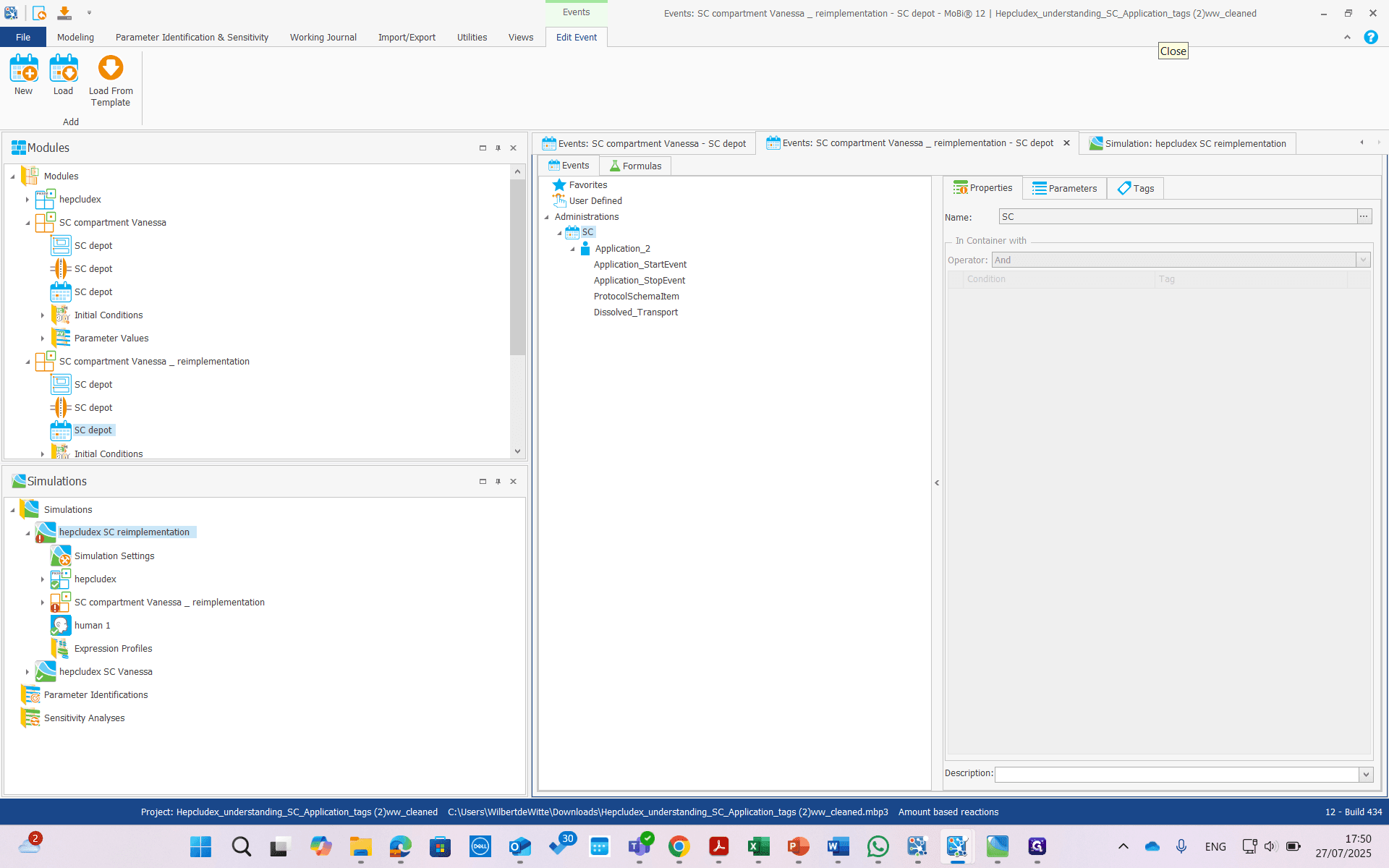
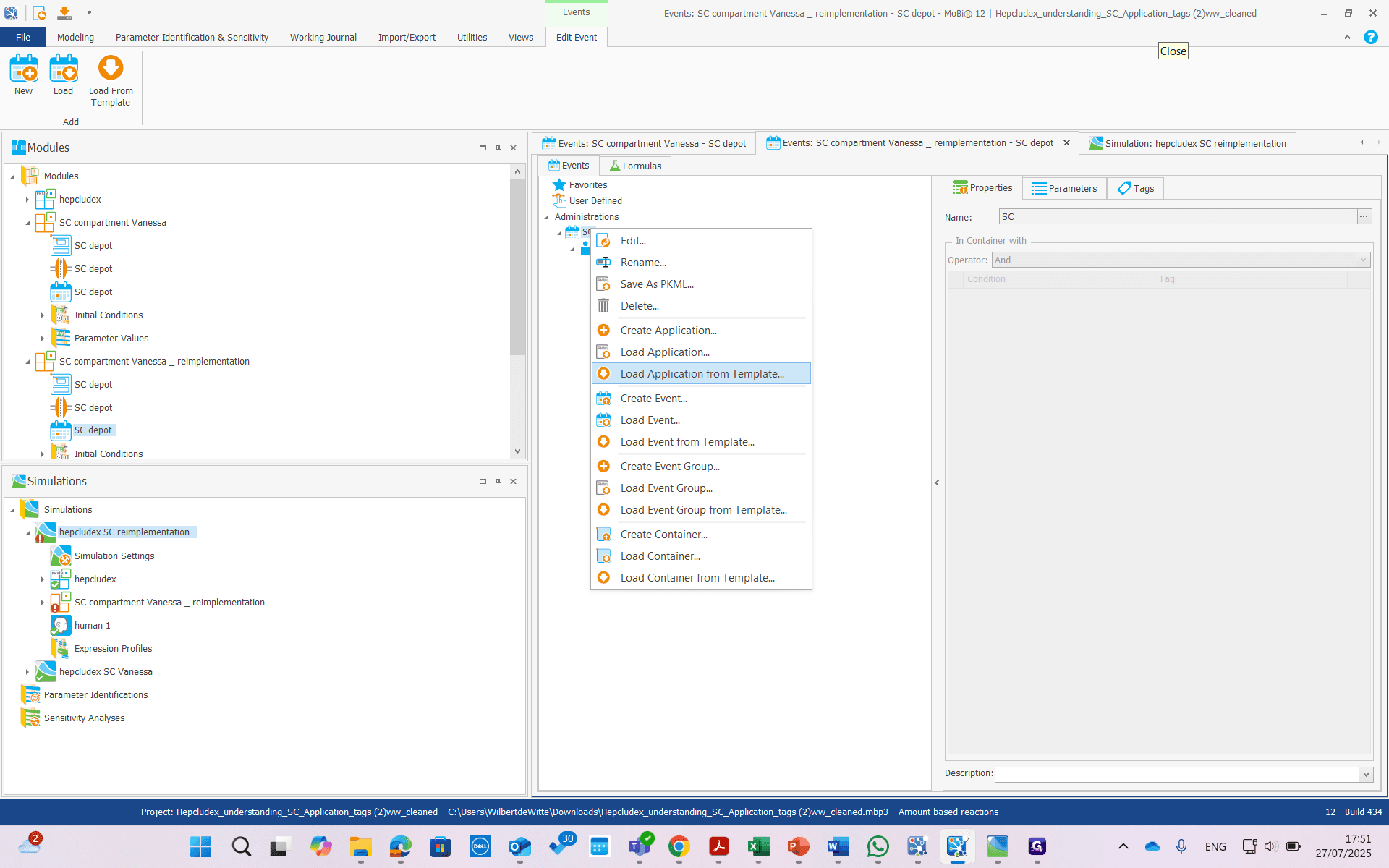
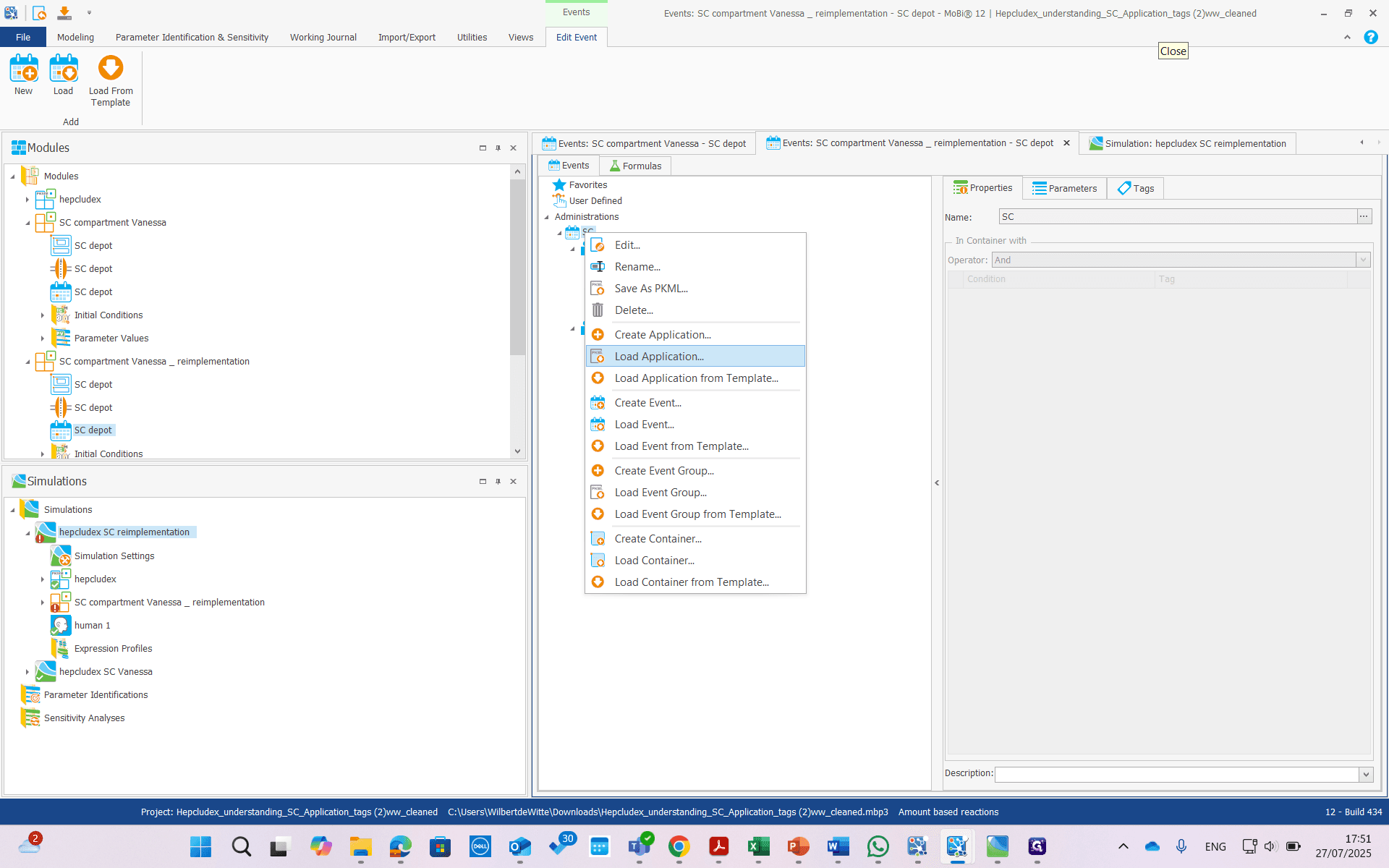
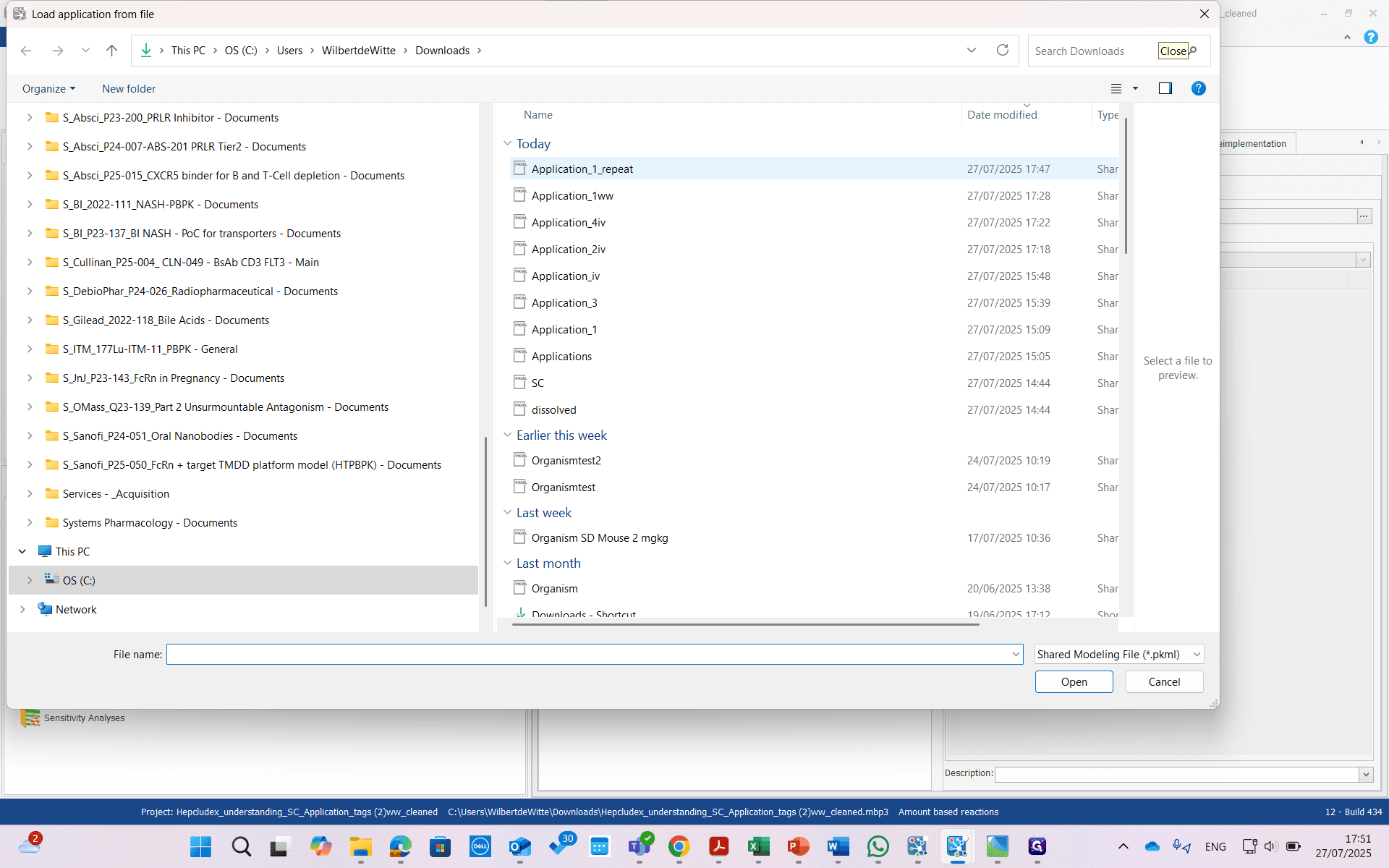
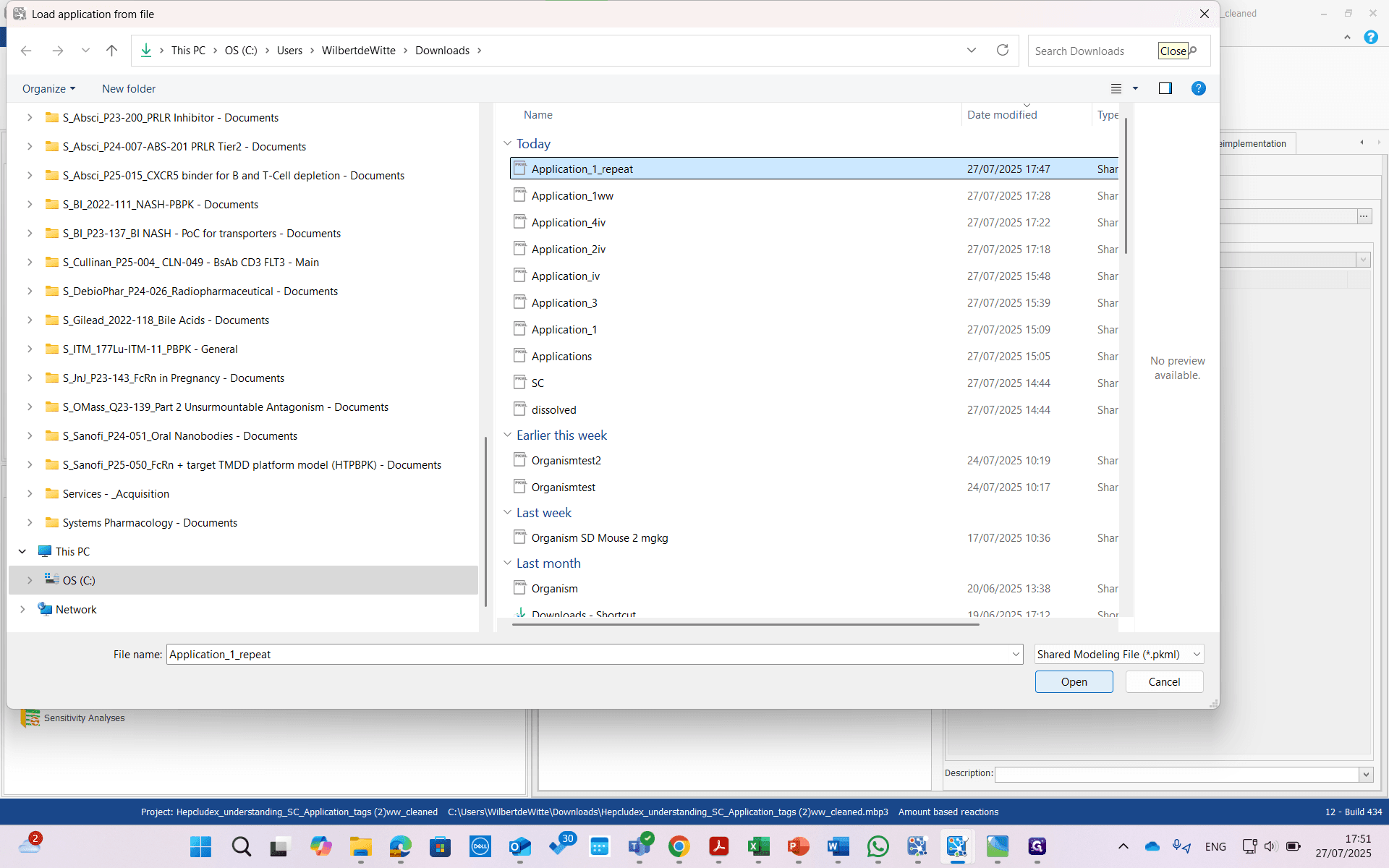
Load the application.
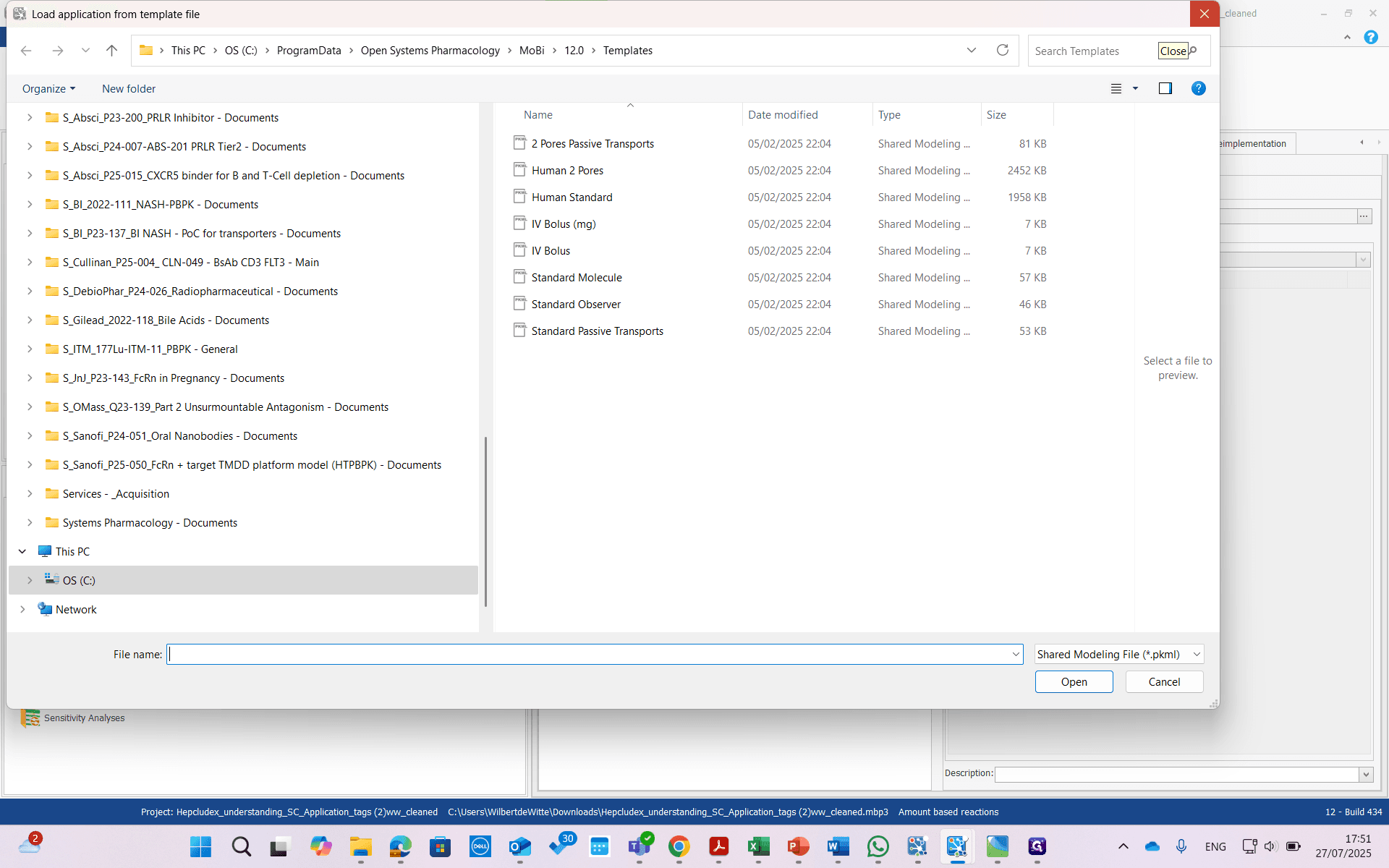
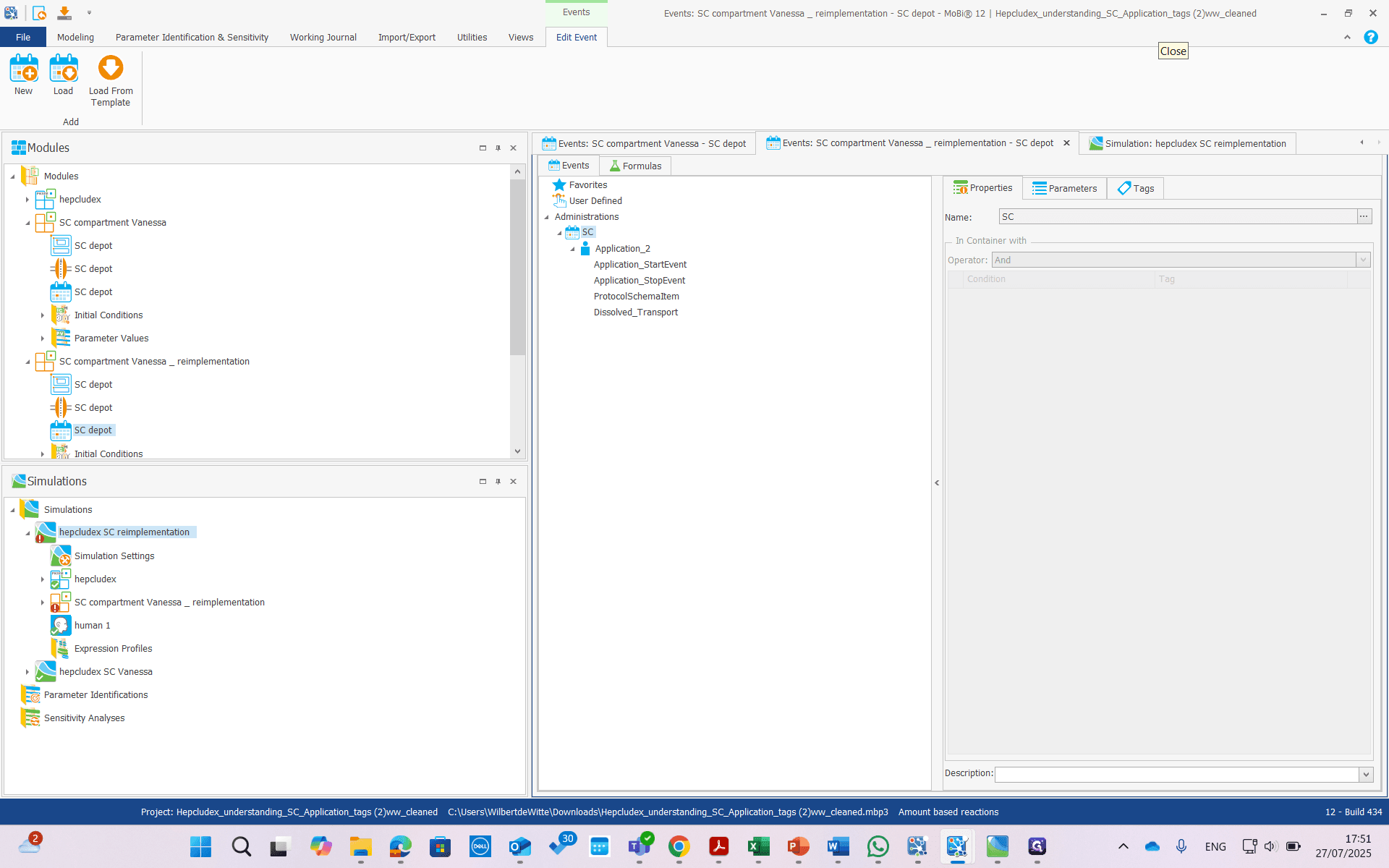
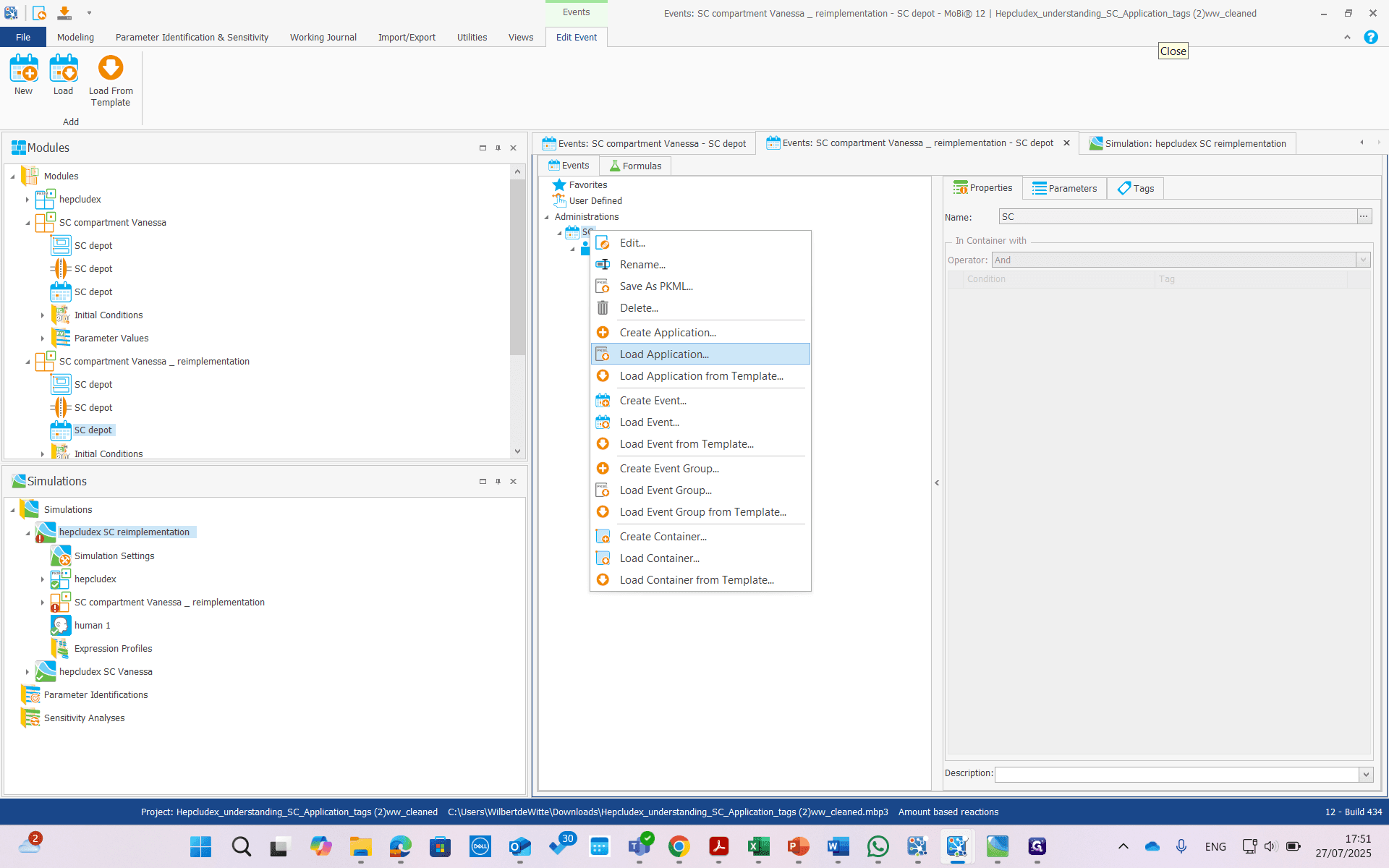
Application one, repeat.
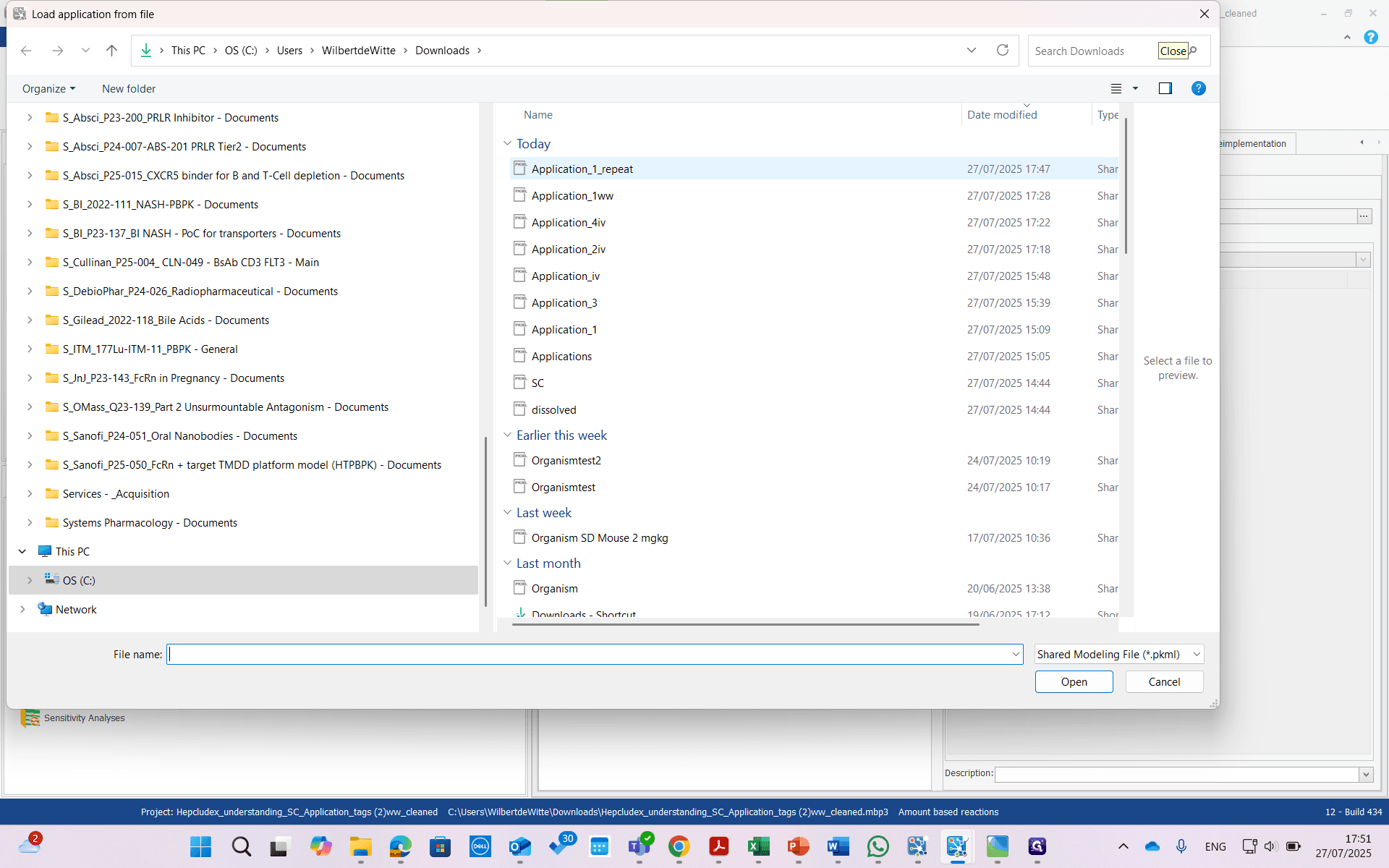
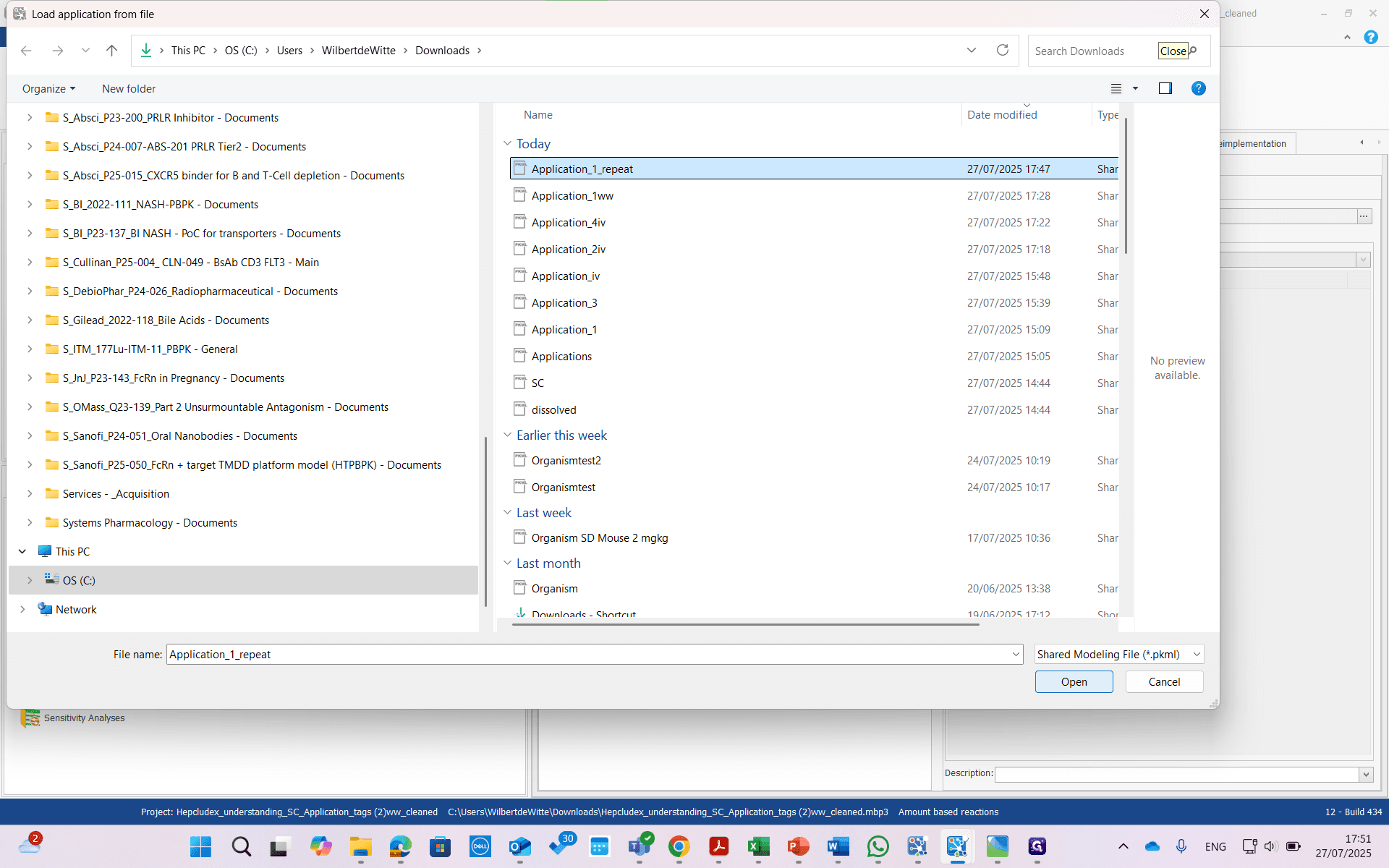
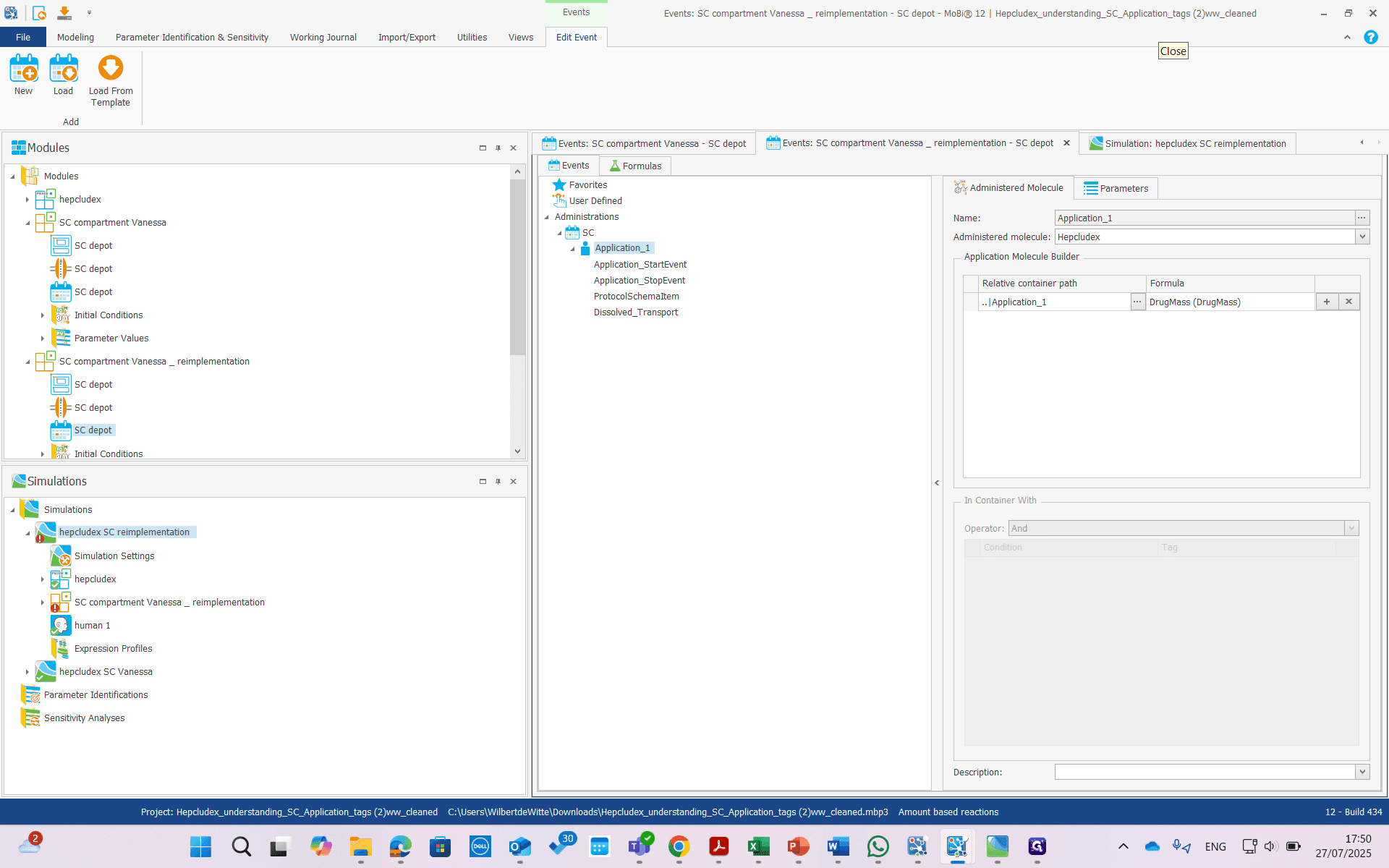
Now we have our old application back.
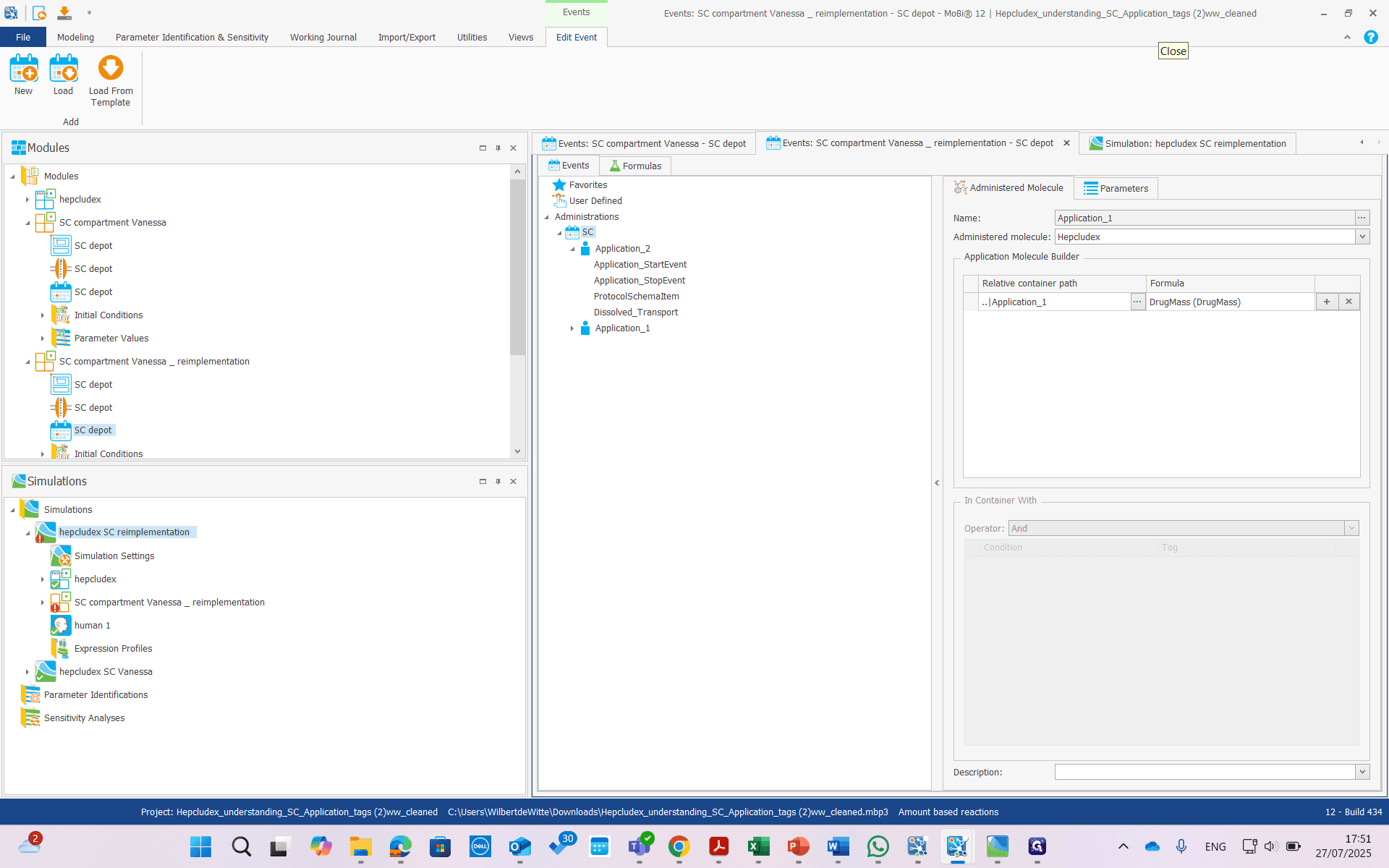
That still has all the old tags.
We cannot do it the other way around.
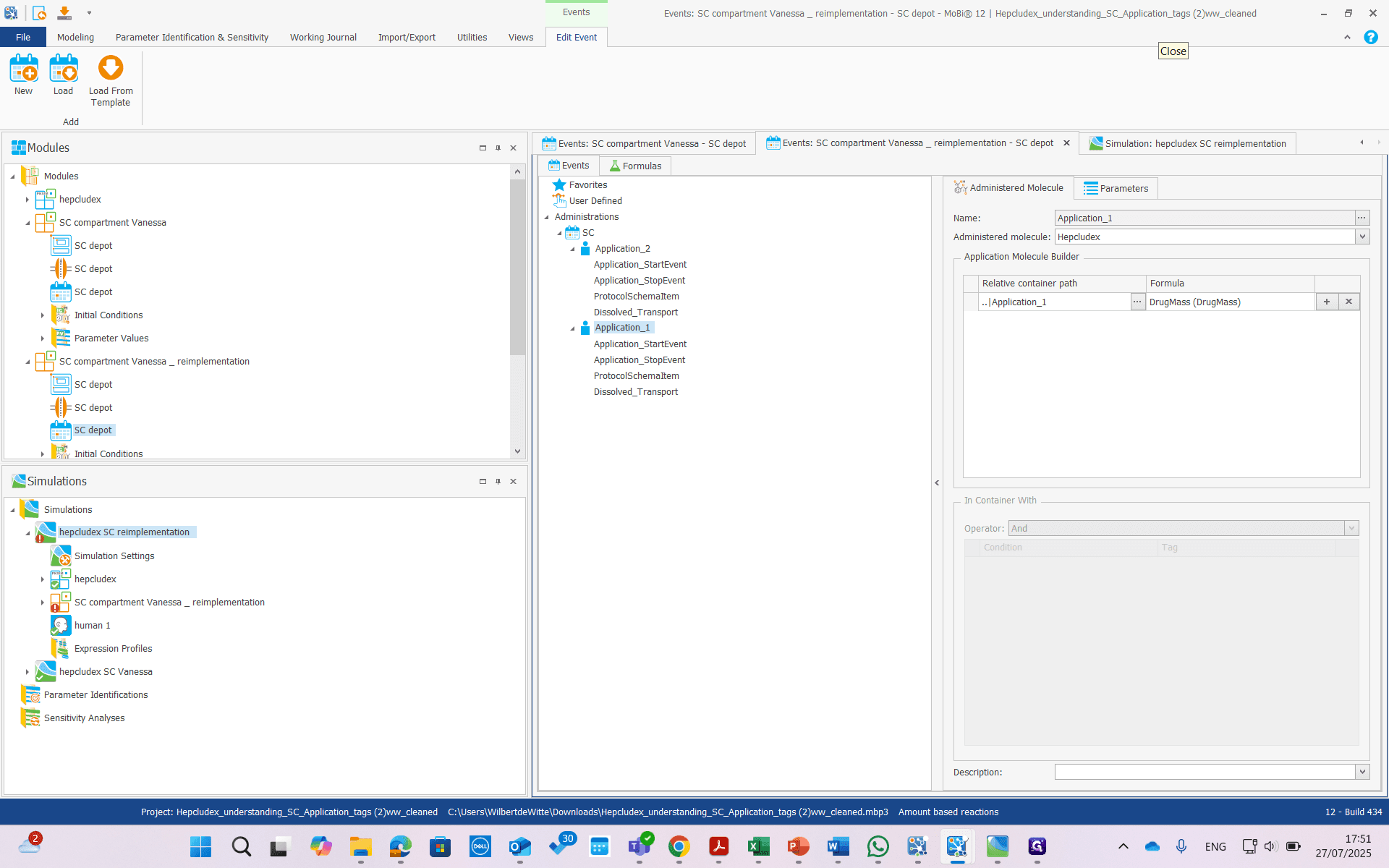
We cannot load application two directly.
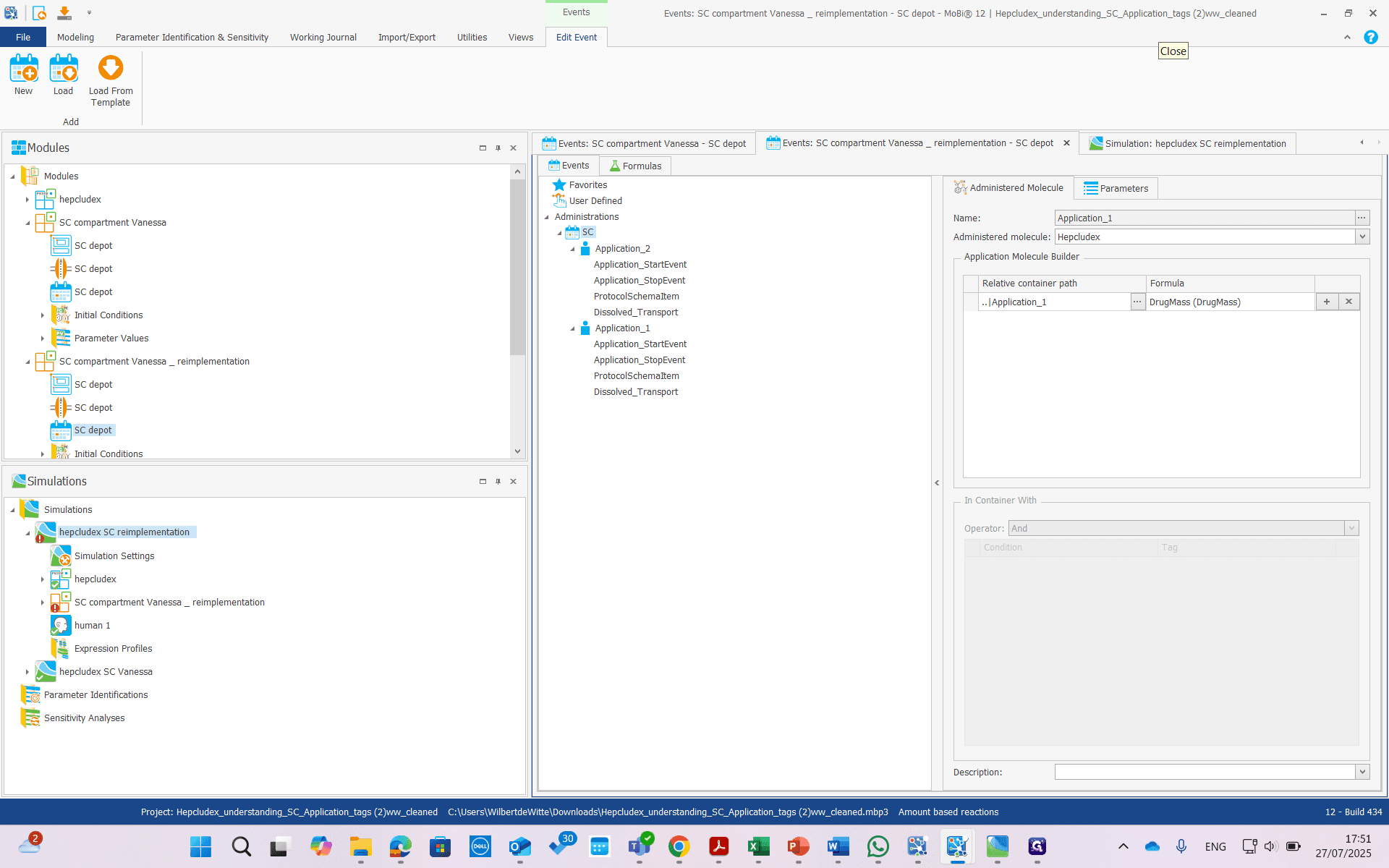
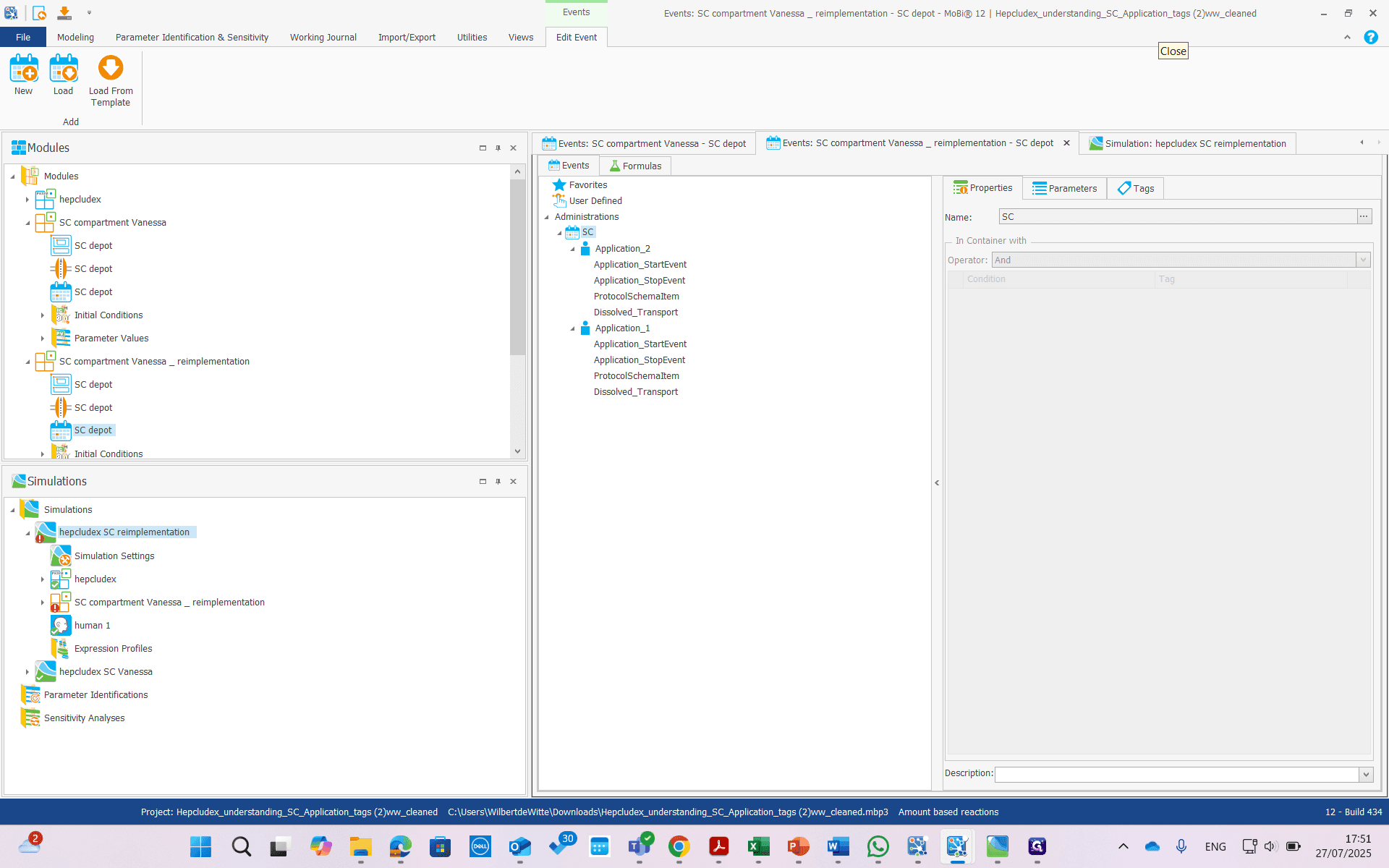
We can do that, of course. If we do it, we can rename it.
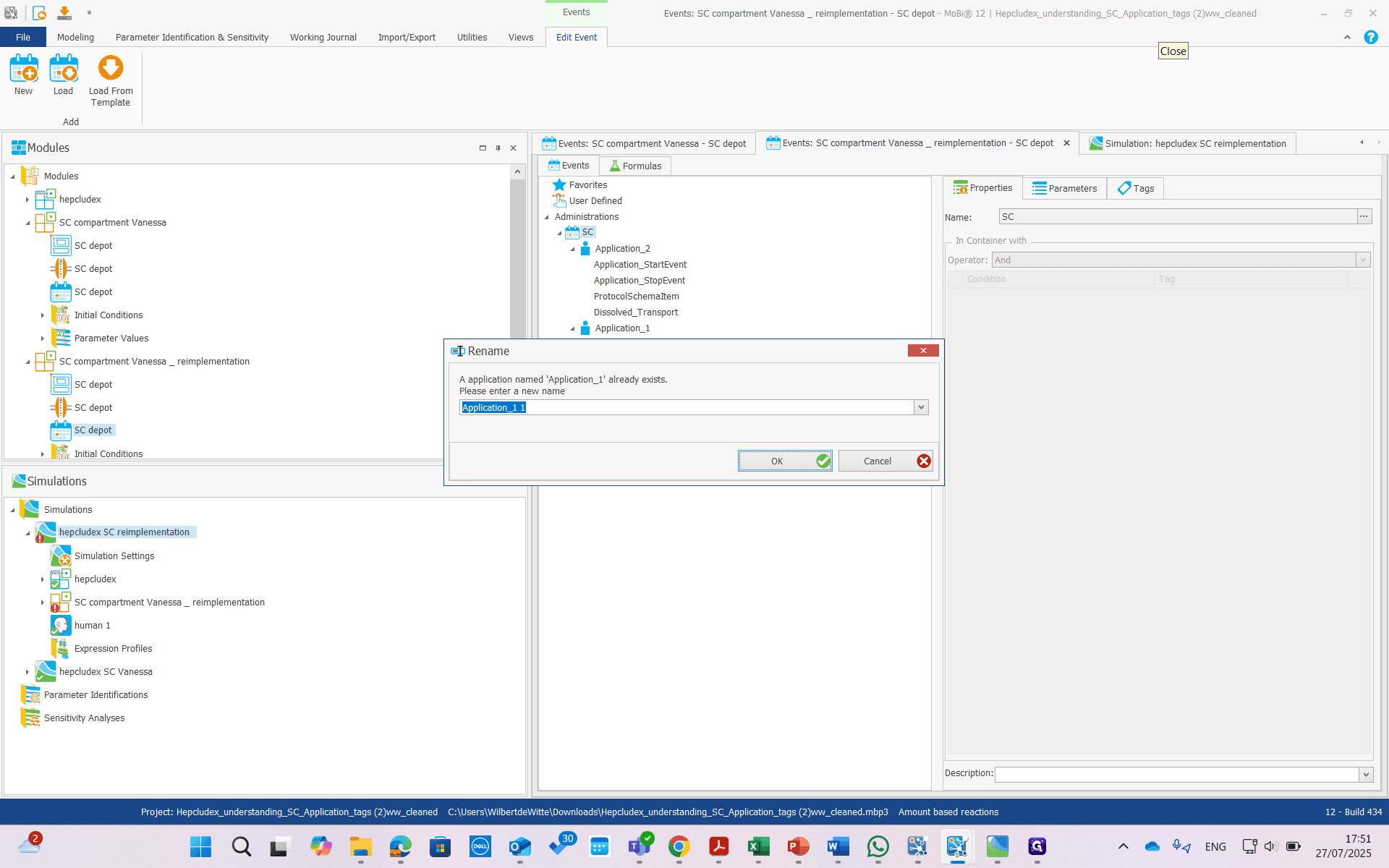
We can say three.
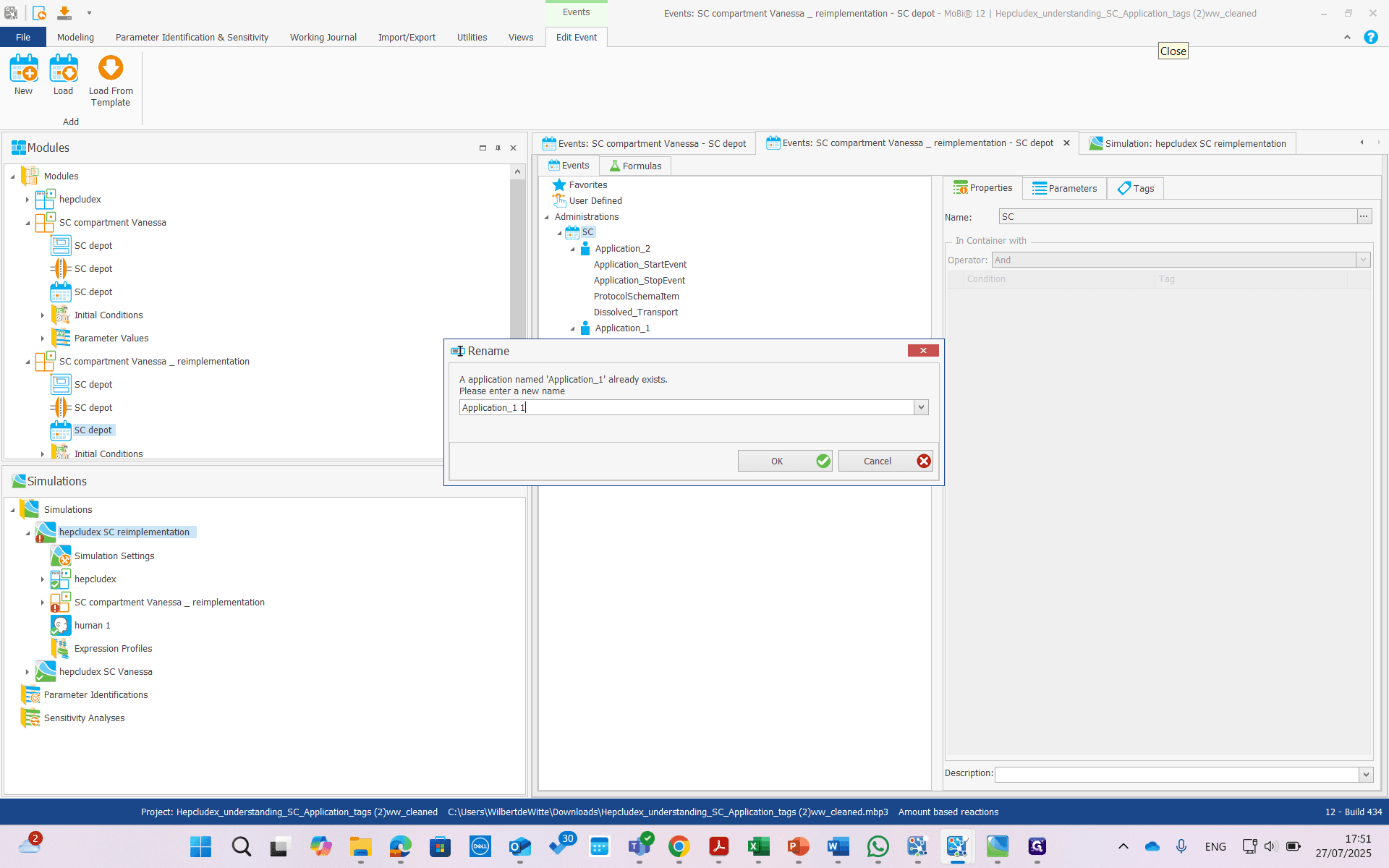
The problem is that we have to manually update these tags. This is manageable, but it still requires some work. more problematic is that we cant update the invisible tags. See video for an illustration of what does not work.
For our application two, everything is done automatically.
We don't have to do any of that manually.
If we update our simulation using the building blocks, you can see that application one has the correct tag, application two has the correct tag.
In summary, what we need to to is: First, save the application, than rename (i.e. renumber) it. Then, upload the old application again. We have our two different applications.