How to Duplicate and Set Up a Campaign: Step-by-Step Guide
Learn how to duplicate an existing campaign, update its settings, add leads, and configure schedules and sequences. Follow this step-by-step guide to efficiently set up your new campaign.
In this guide, we'll learn how to duplicate an existing campaign and set it up for a new purpose, such as targeting a different state or list. Duplicating a campaign can save time by copying settings, emails, and schedules from a previous campaign, but you will need to update details like the campaign name and add new leads.
We will also cover how to manage subsequences, set schedules, and ensure your campaign is ready before launching.
Let's get started
Hello. We are going to show how to duplicate the campaign and set it up. You can either start a new campaign or duplicate an existing one.
Let's say you want to duplicate this campaign for a new one, such as a different state or a different type of list. When you log in. Select Campaigns.
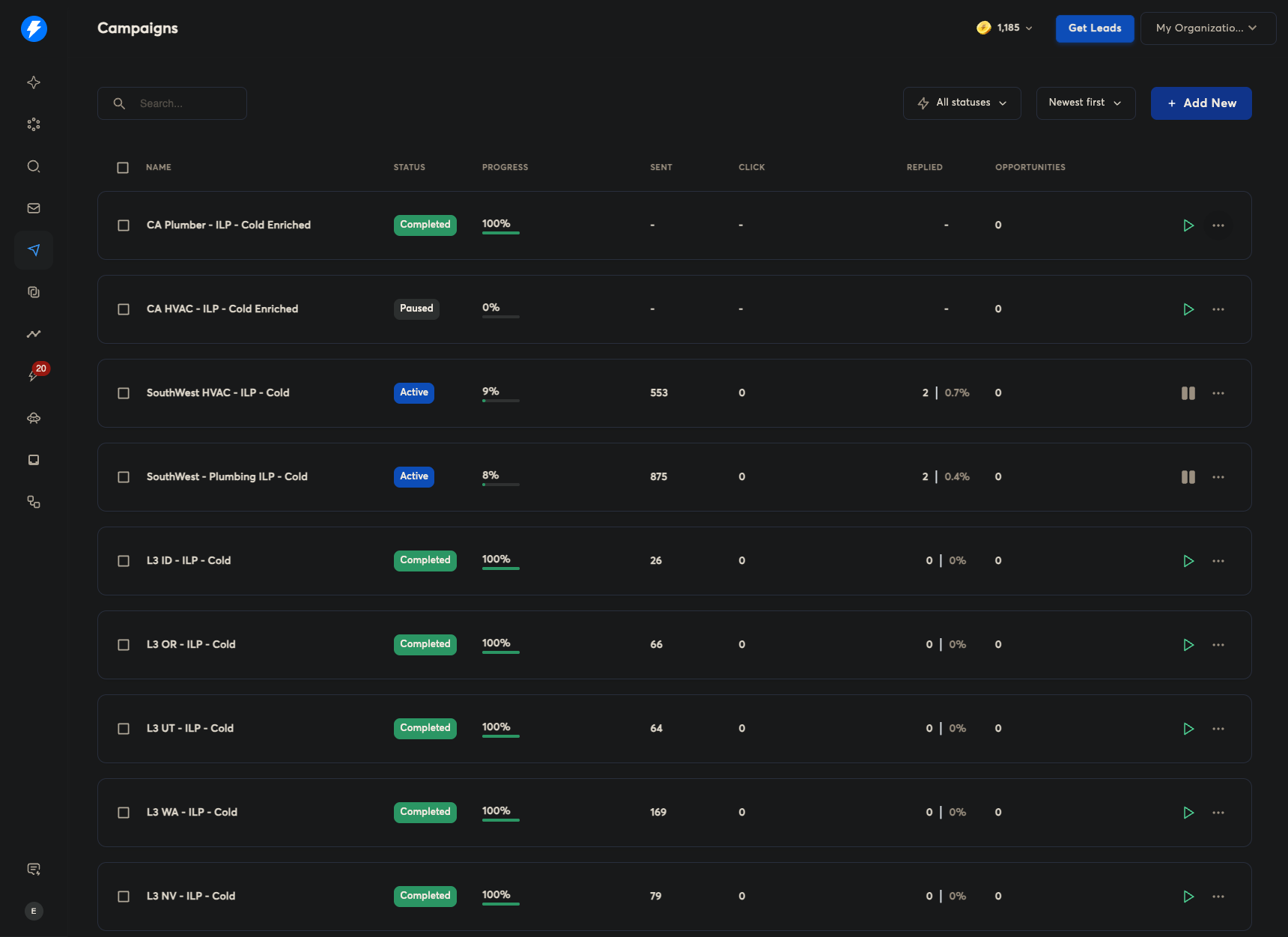
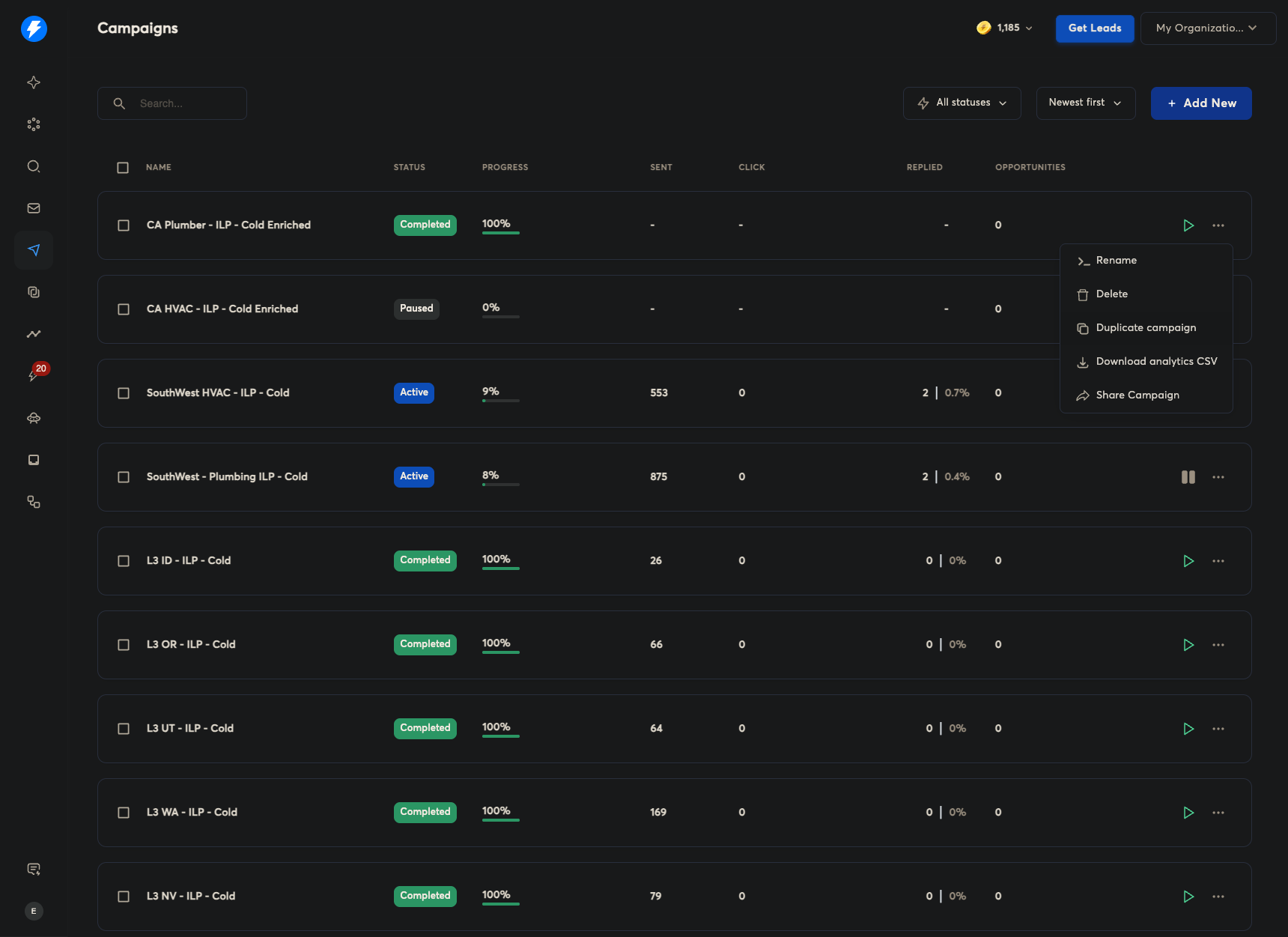
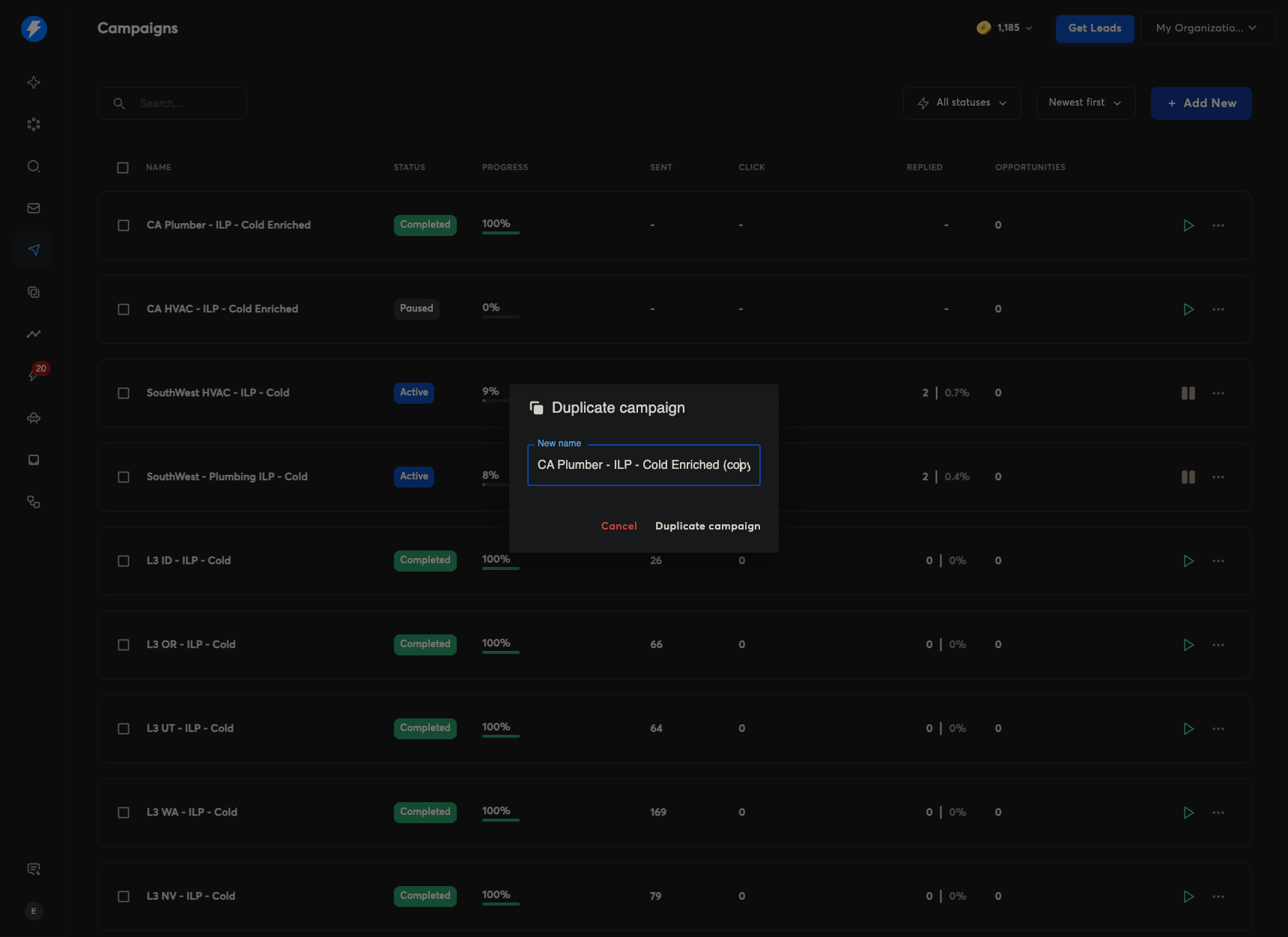
Hit Duplicate campaign after changing the name
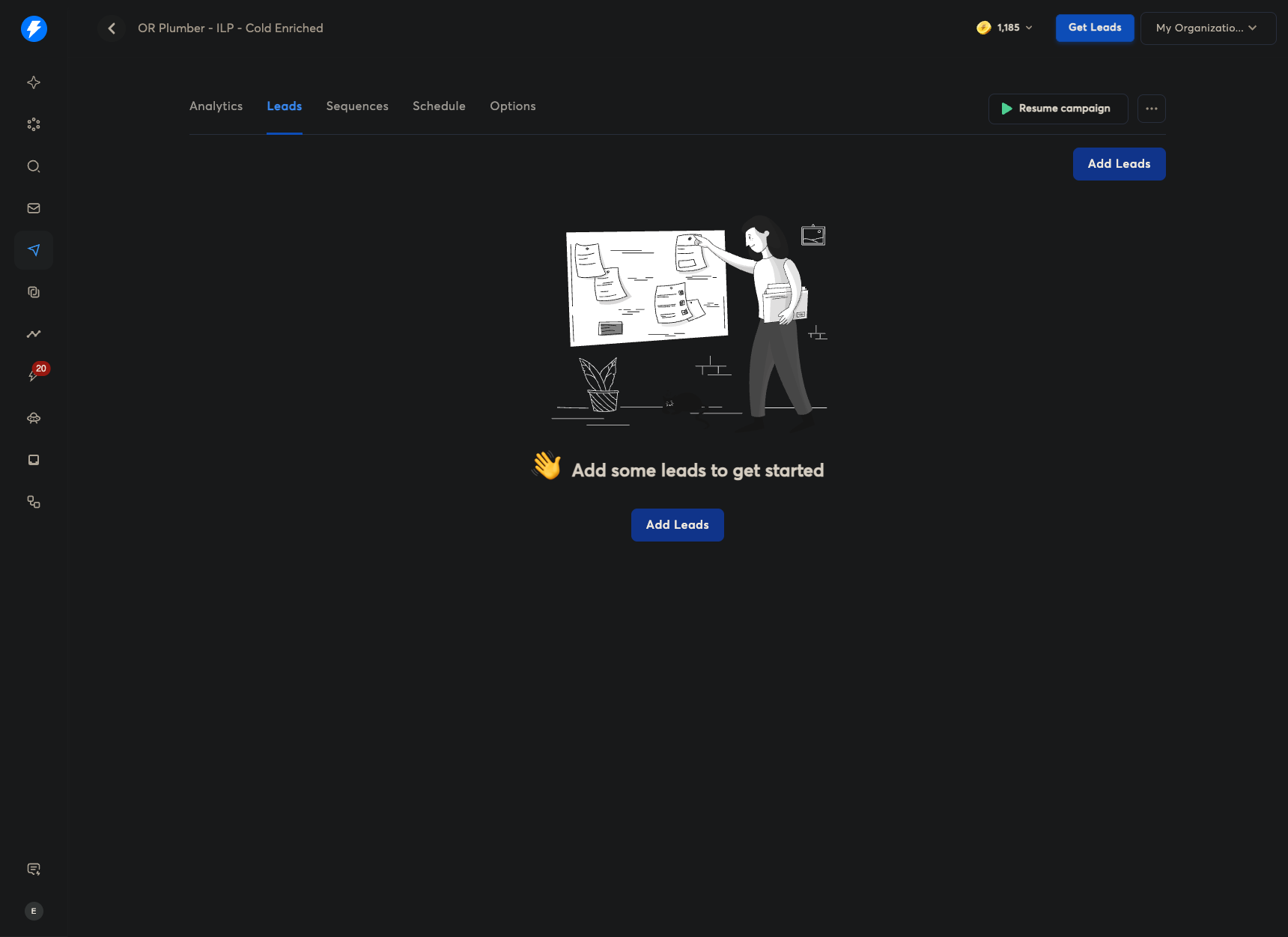
Now you have the subsequences. Hit Pause.
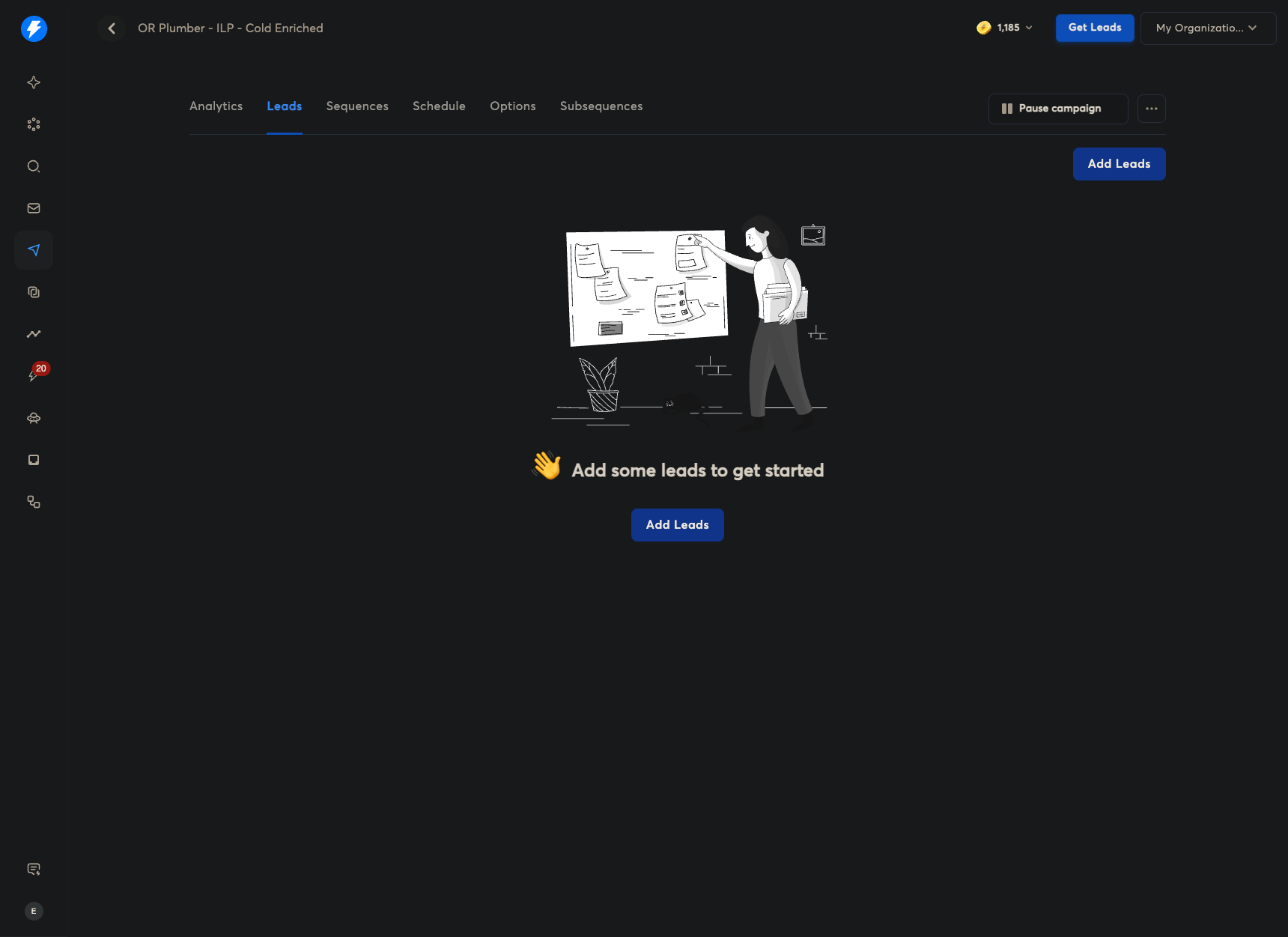
From there, you can go to your analytics and leads. You can also add leads here.
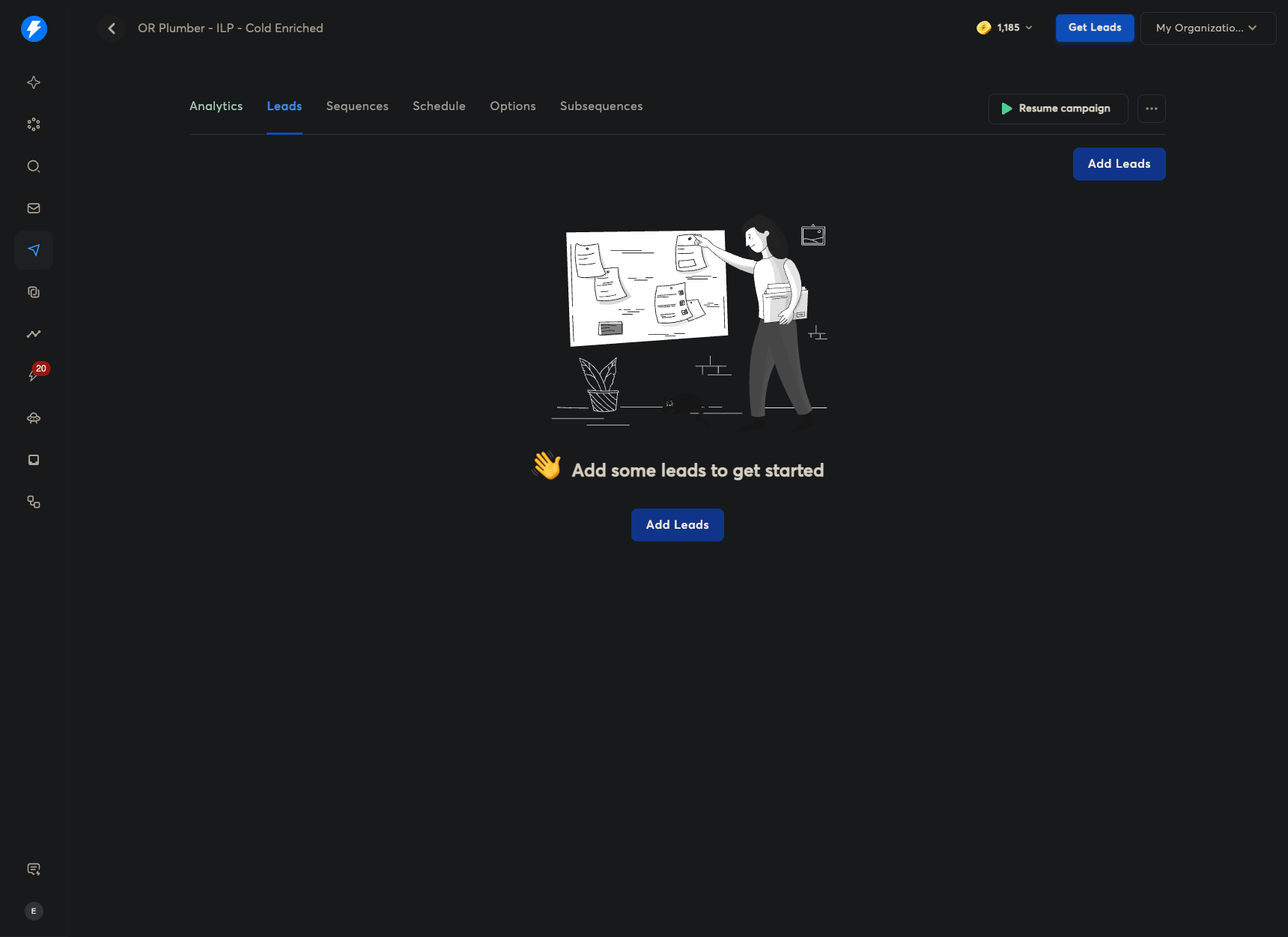
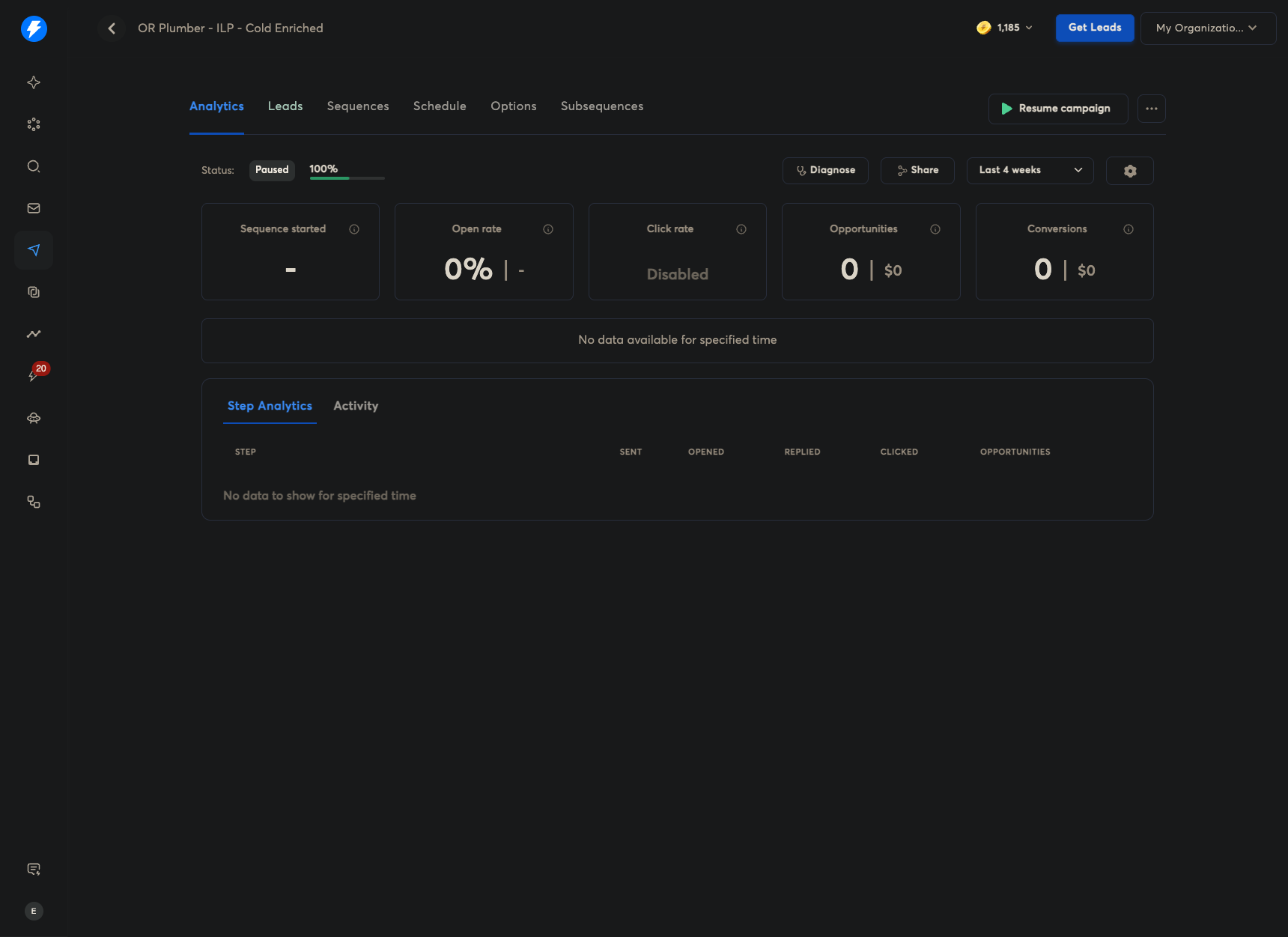
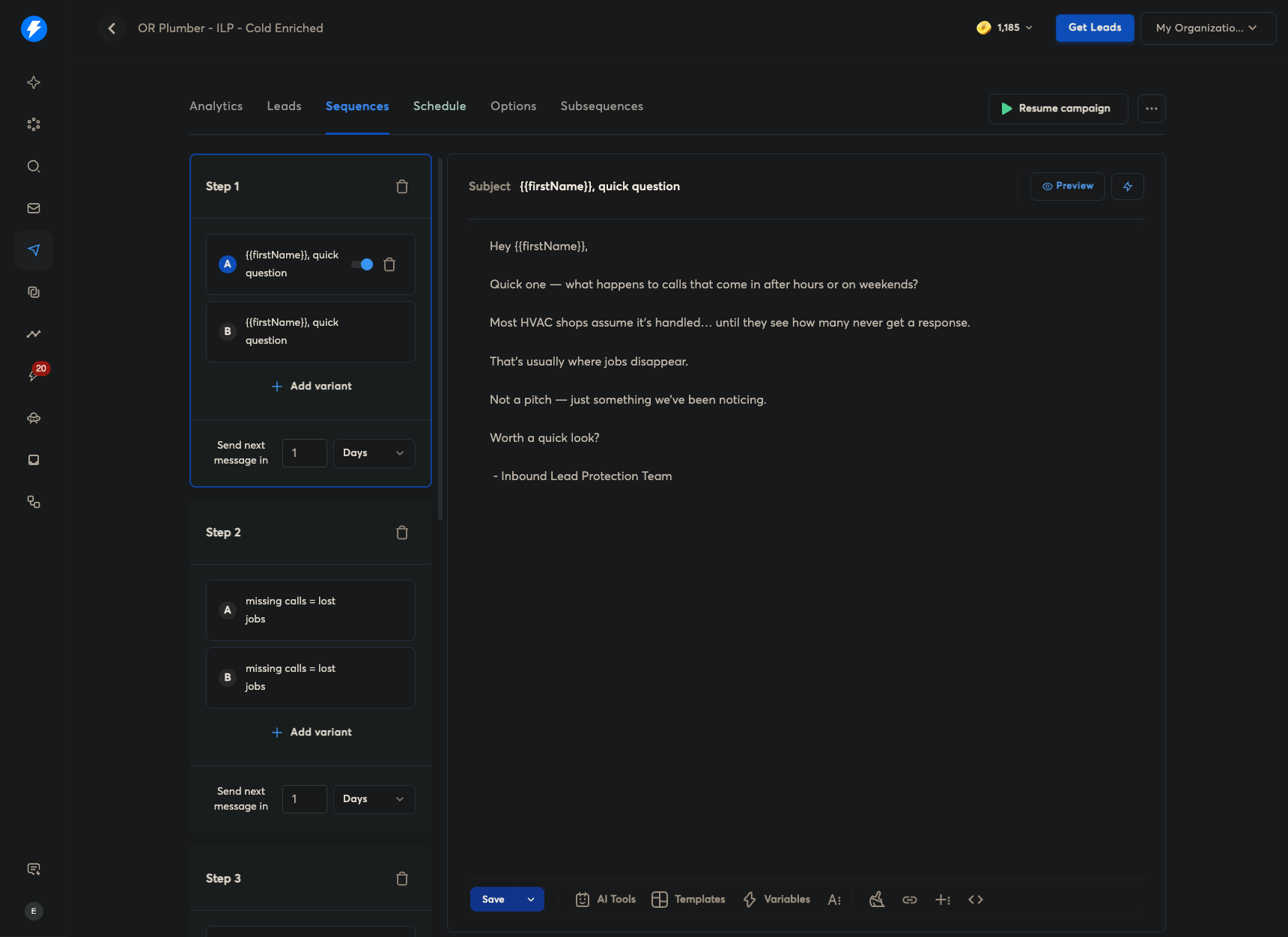
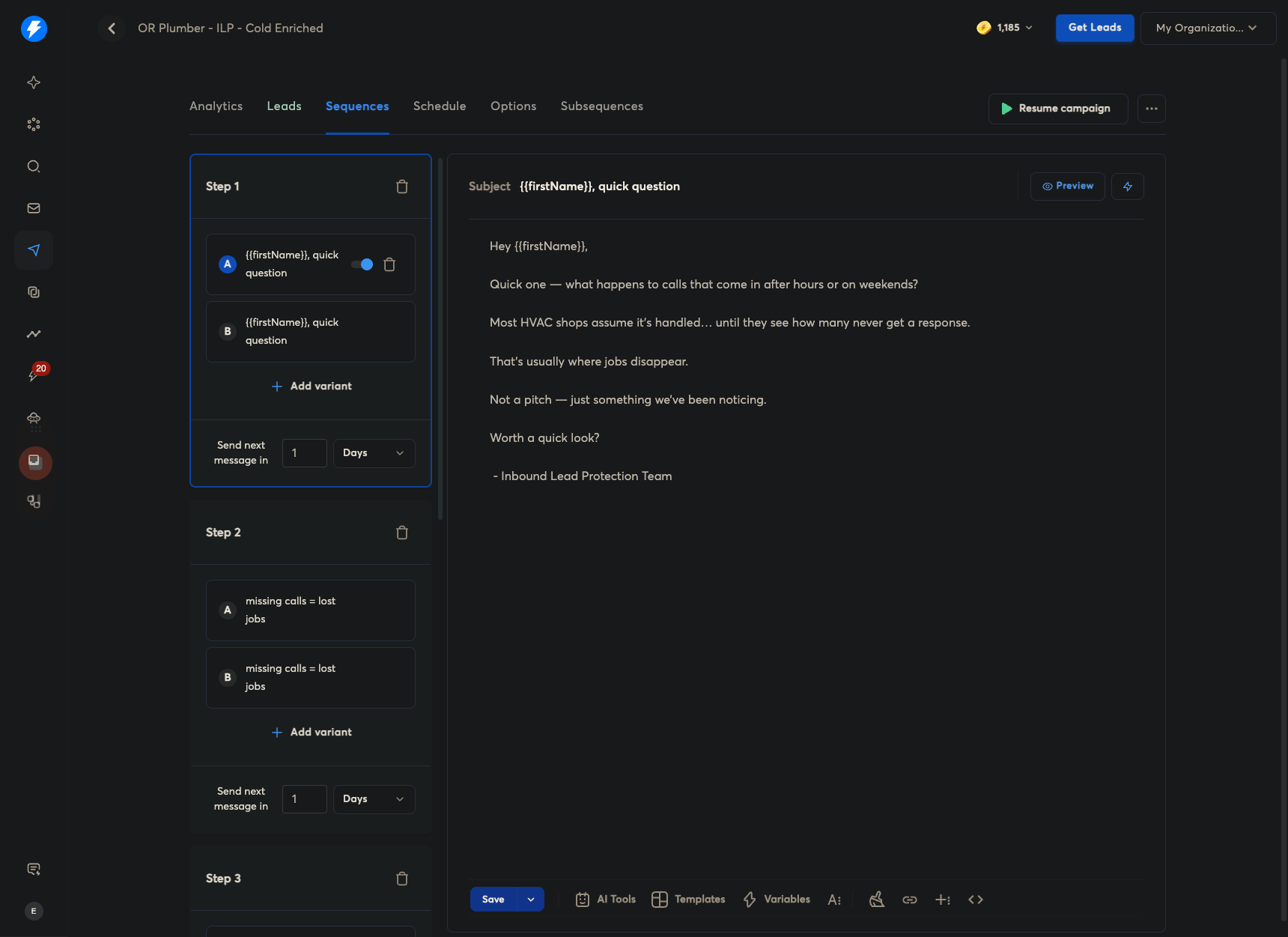
You have sequences, of course.
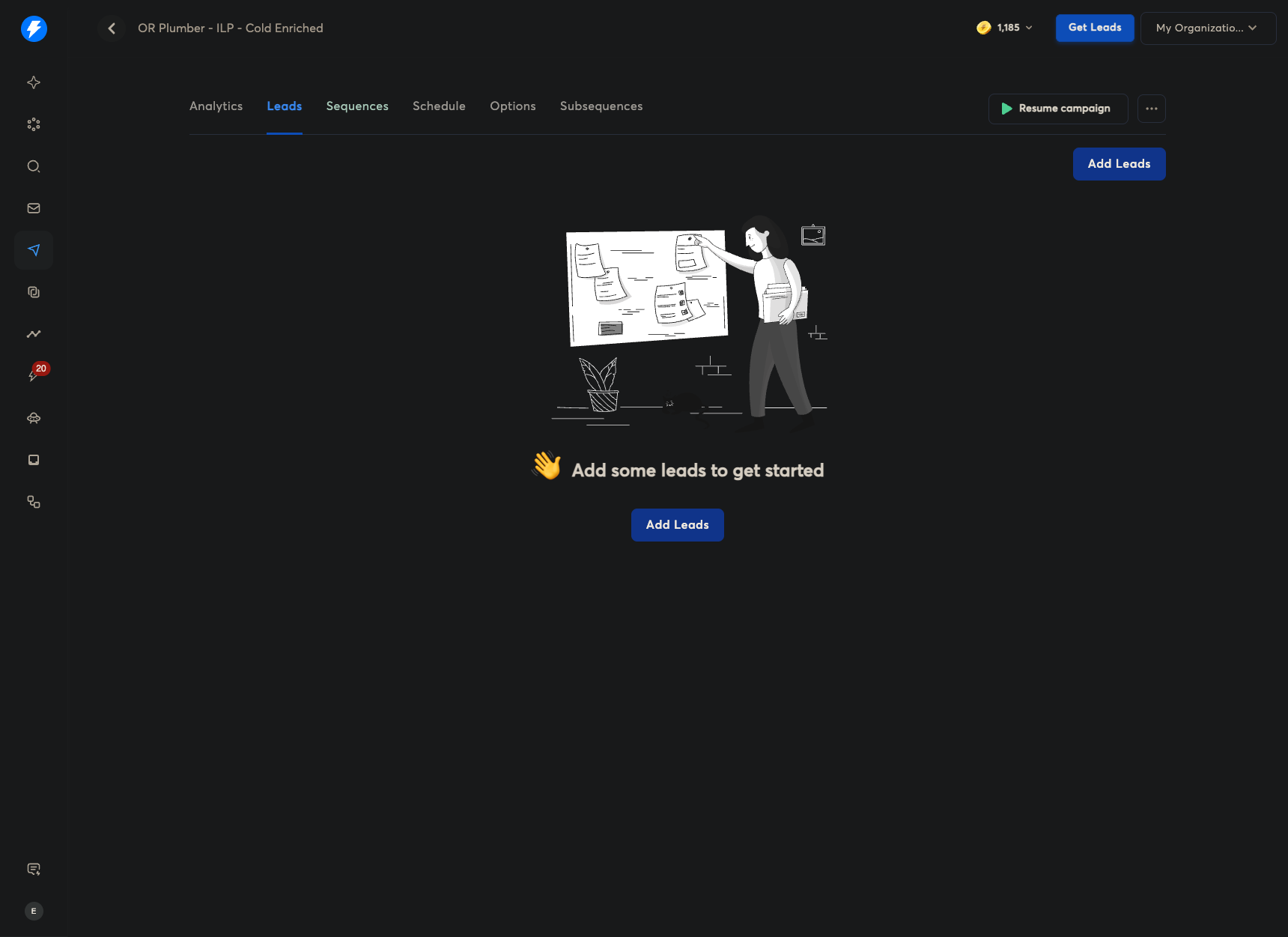
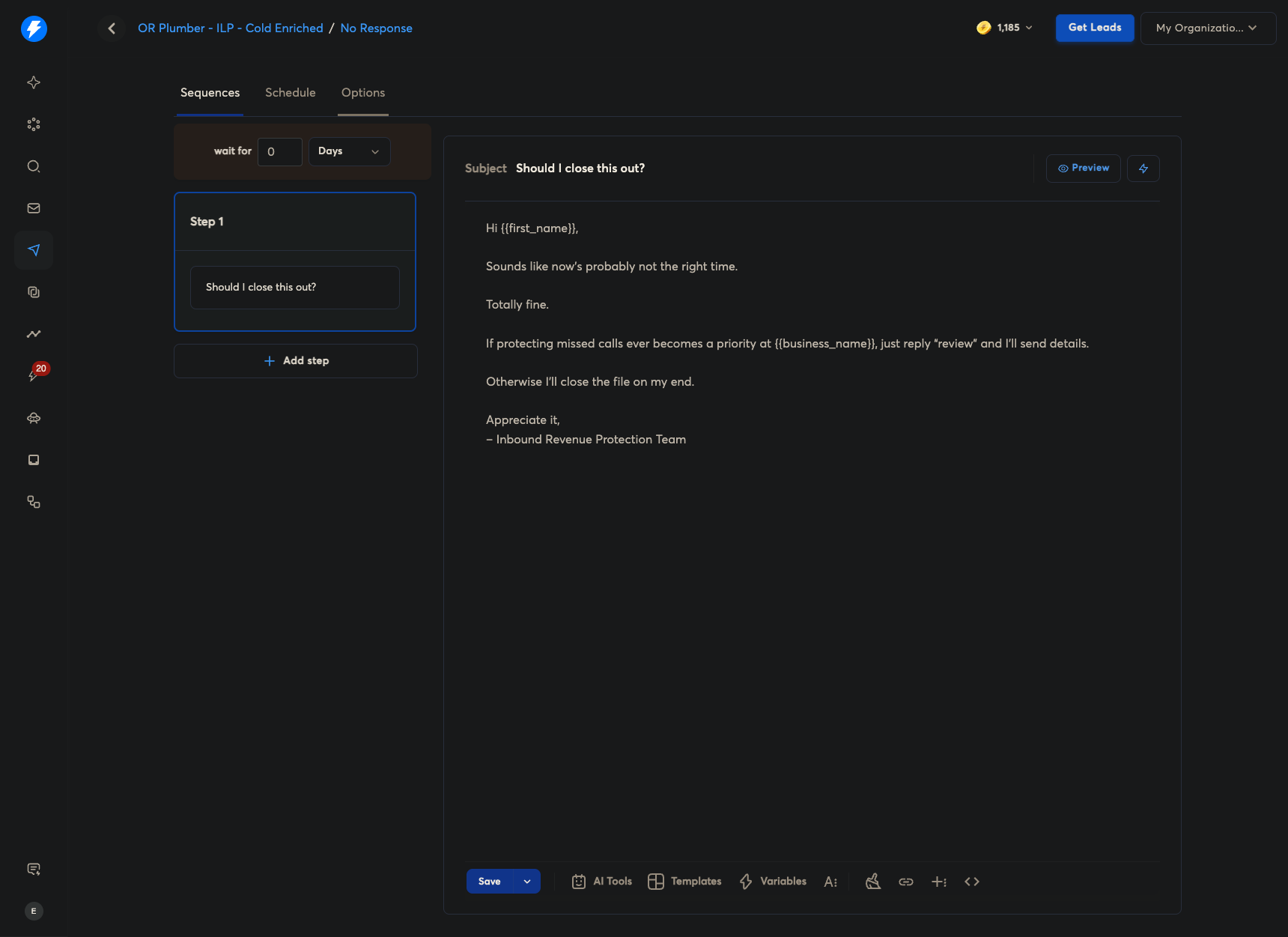
Here you add your emails. It also copies the emails and schedule from the previous campaign you duplicated.
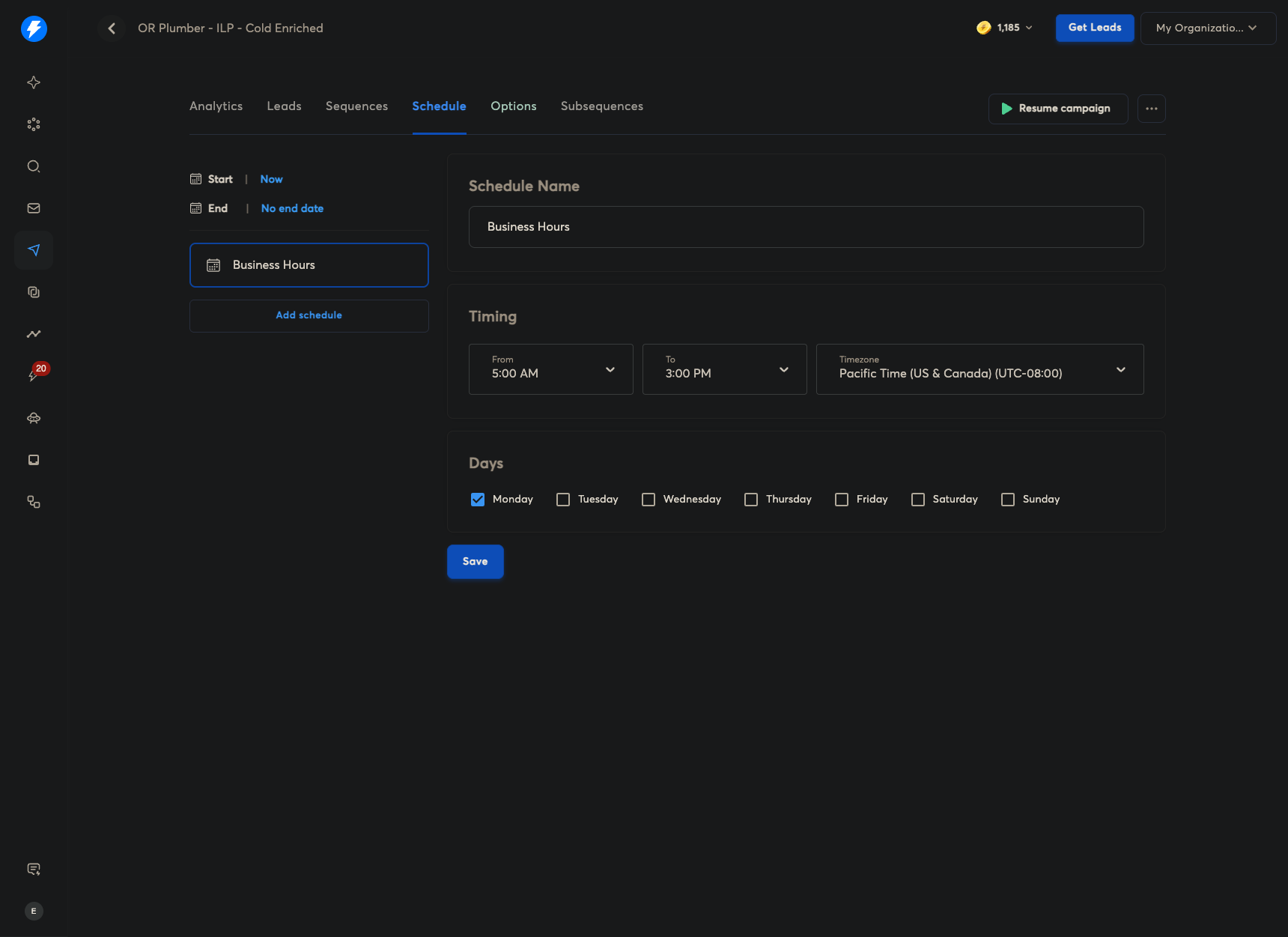
You can set your schedule here. I made it a Monday because the one I duplicated is... "" Under Options, you can see which emails can be used.
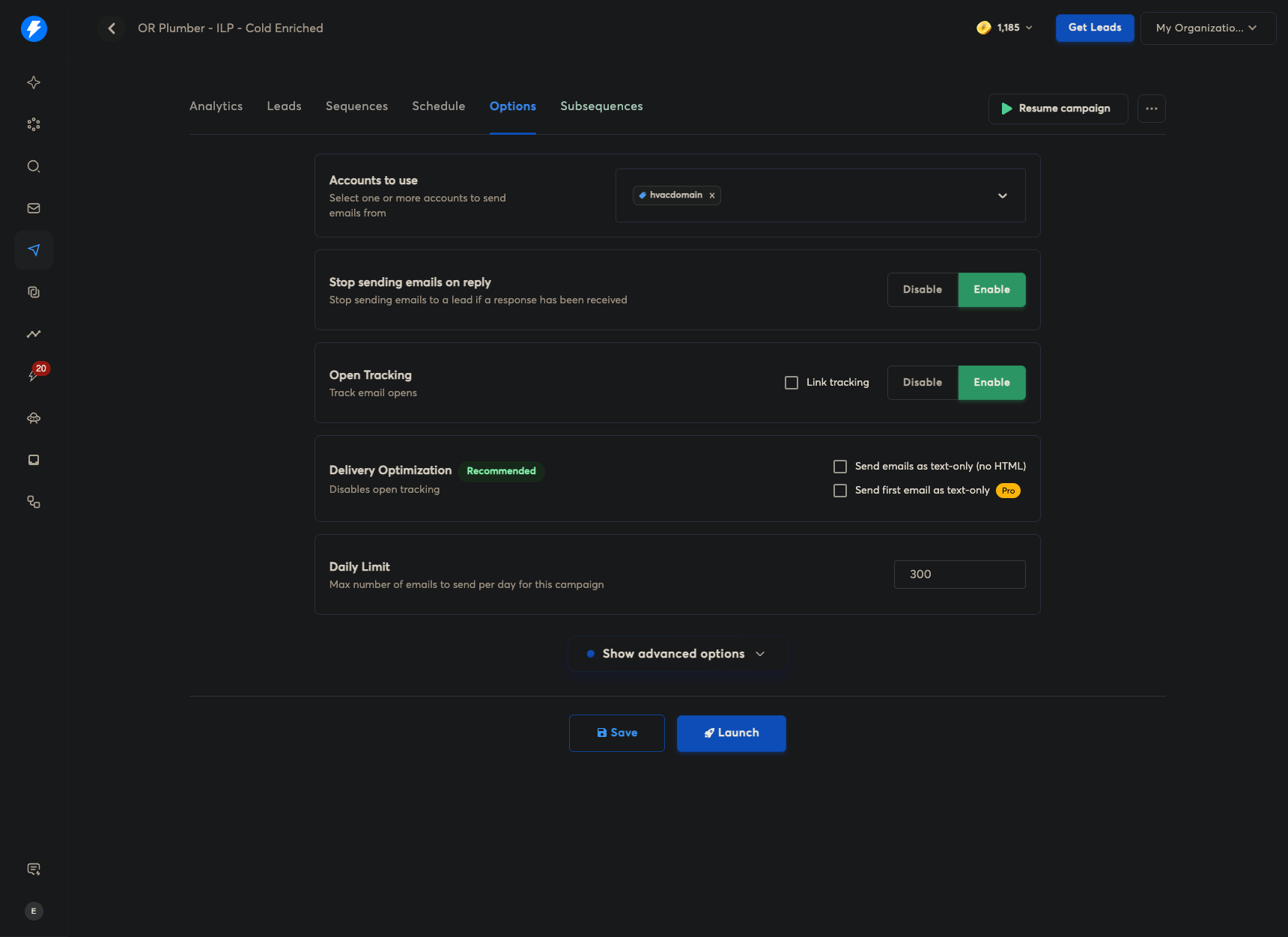
I use a tag so that all email accounts with this tag will be used as the email sender. You also have the advanced options. Of course, the subsequences that appeared after you unpaused and paused the campaign.
For each subsequence, select it, go to Options, then Launch to ensure it works. After checking, return to the previous screen.
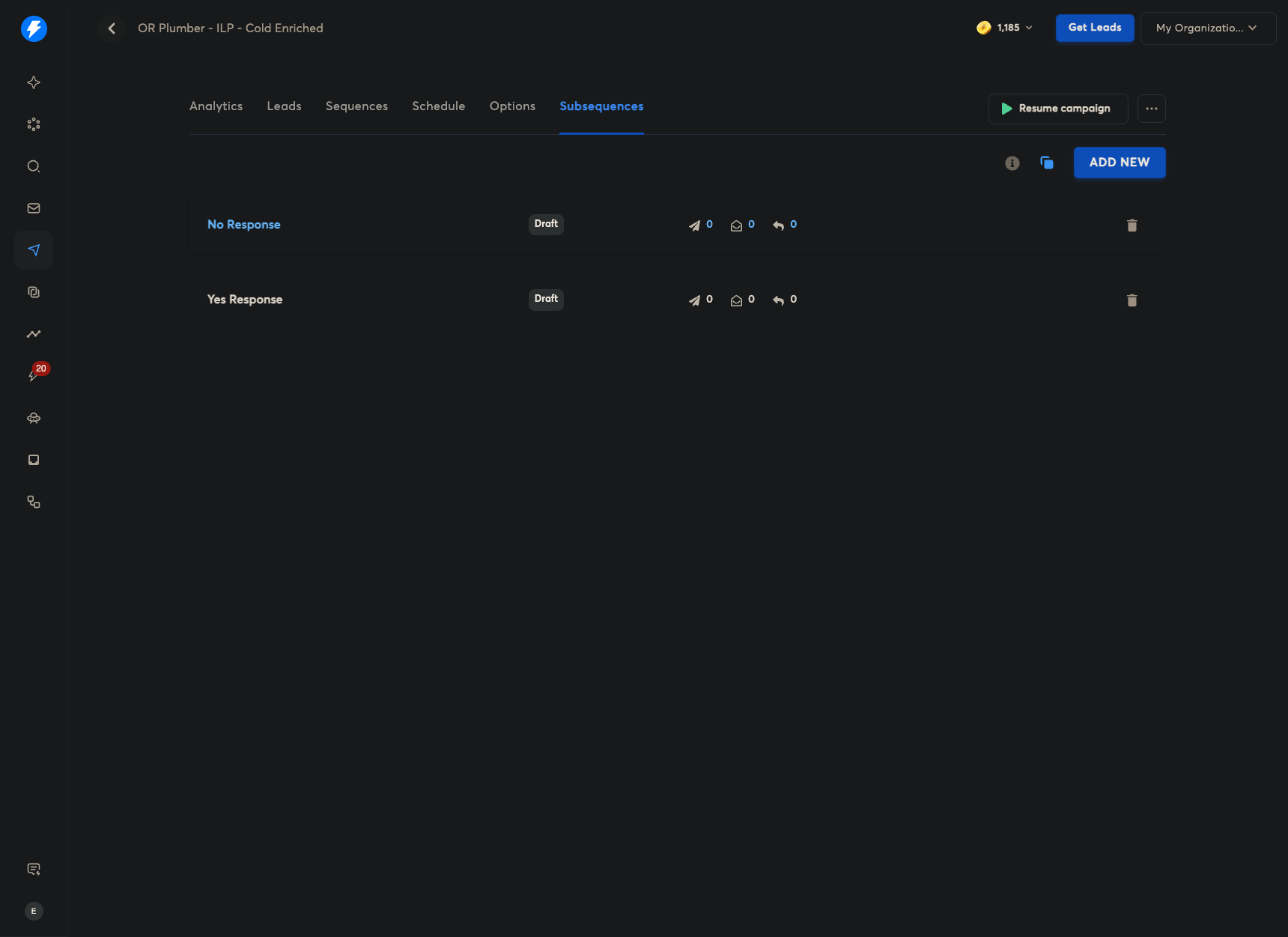
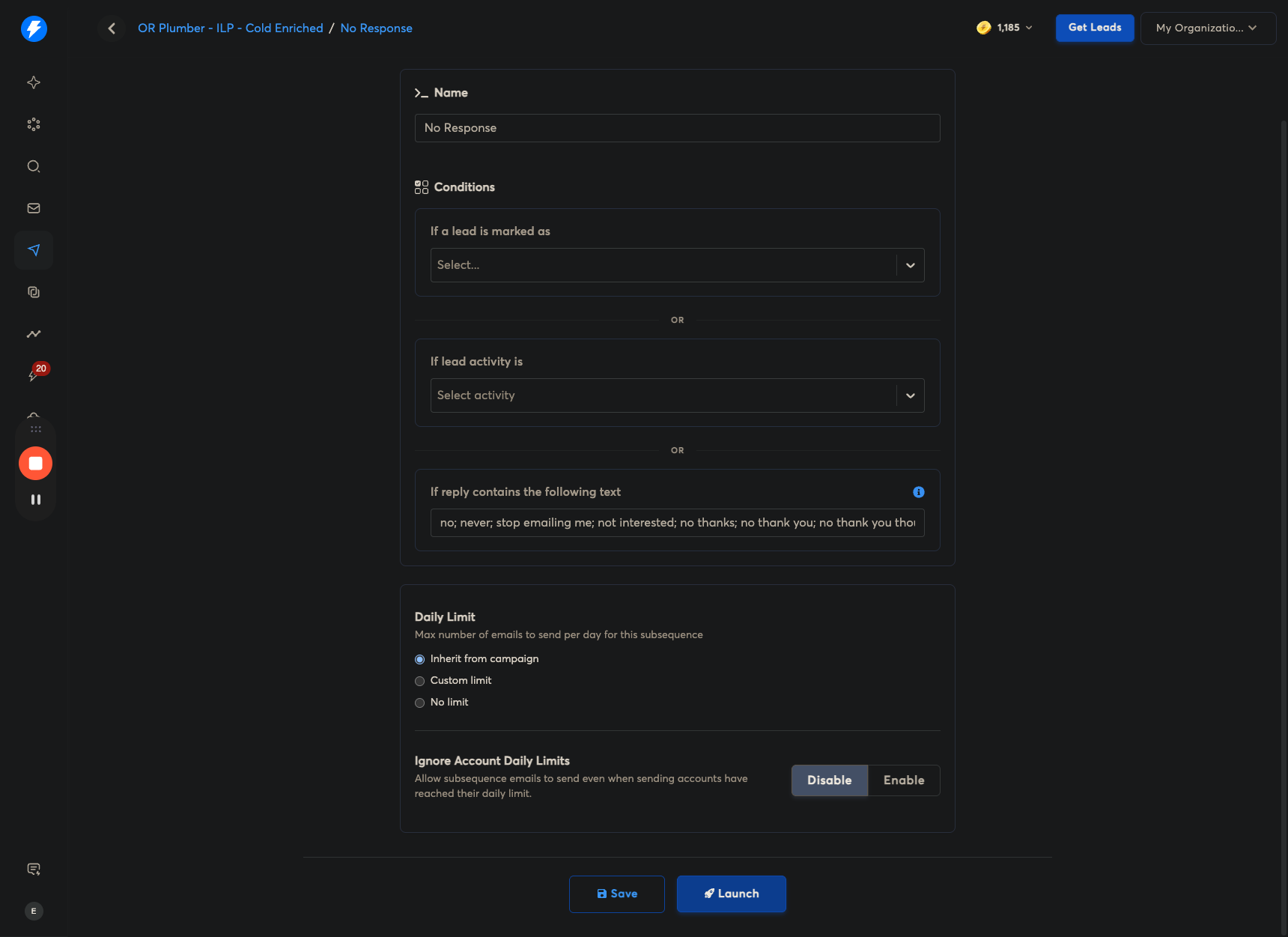
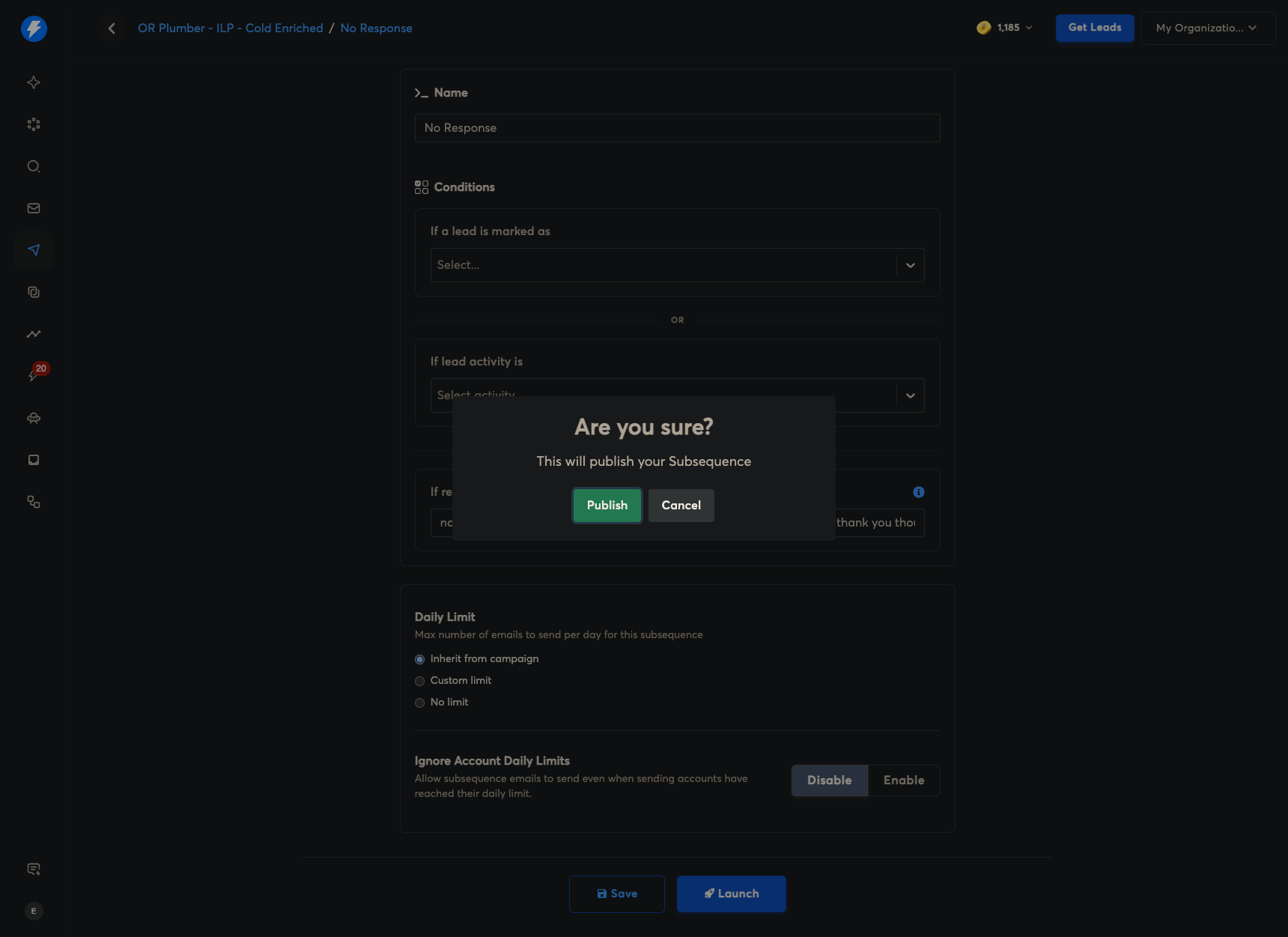
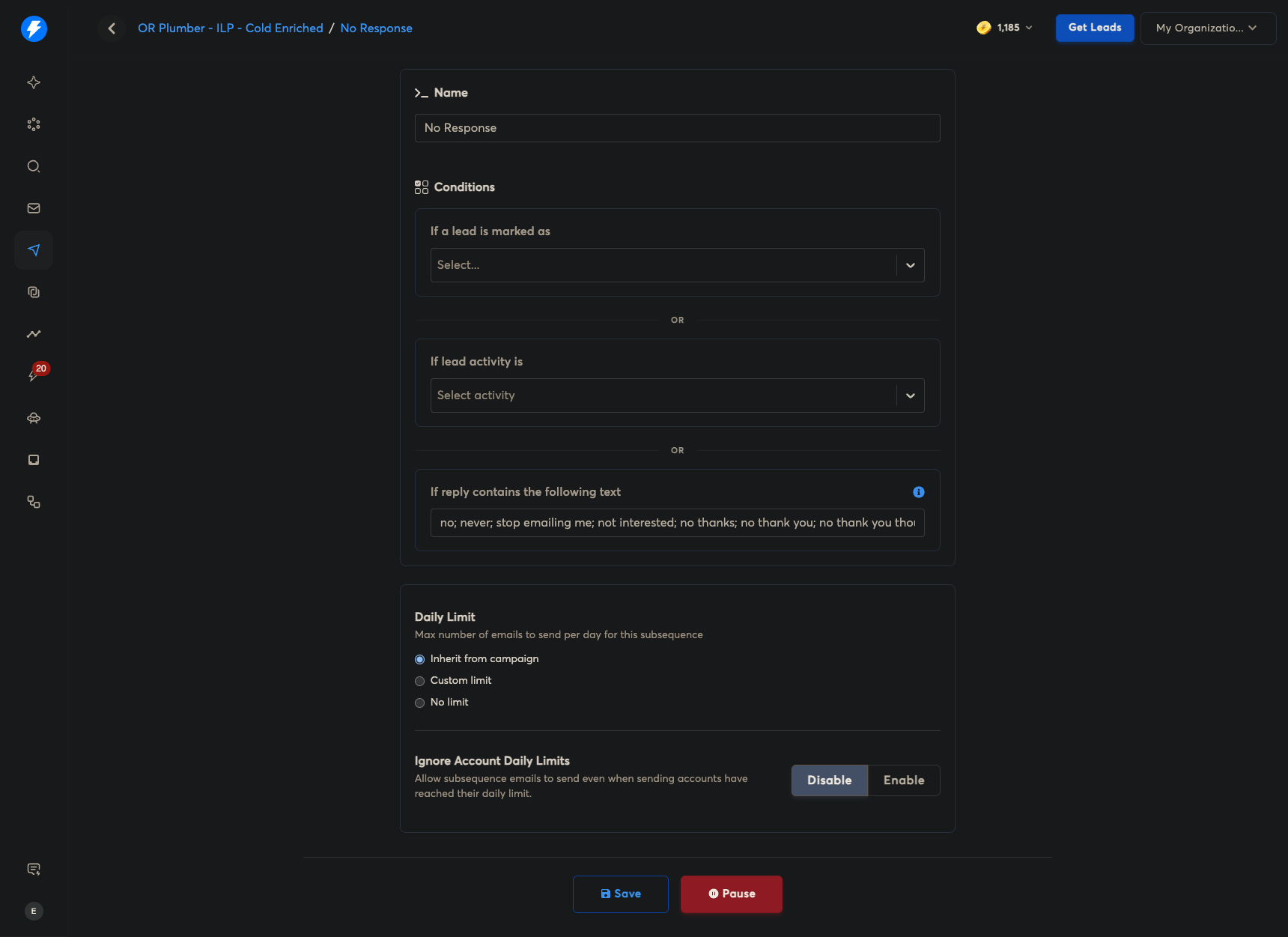
Hit another one, depending on how many you have, and then launch.
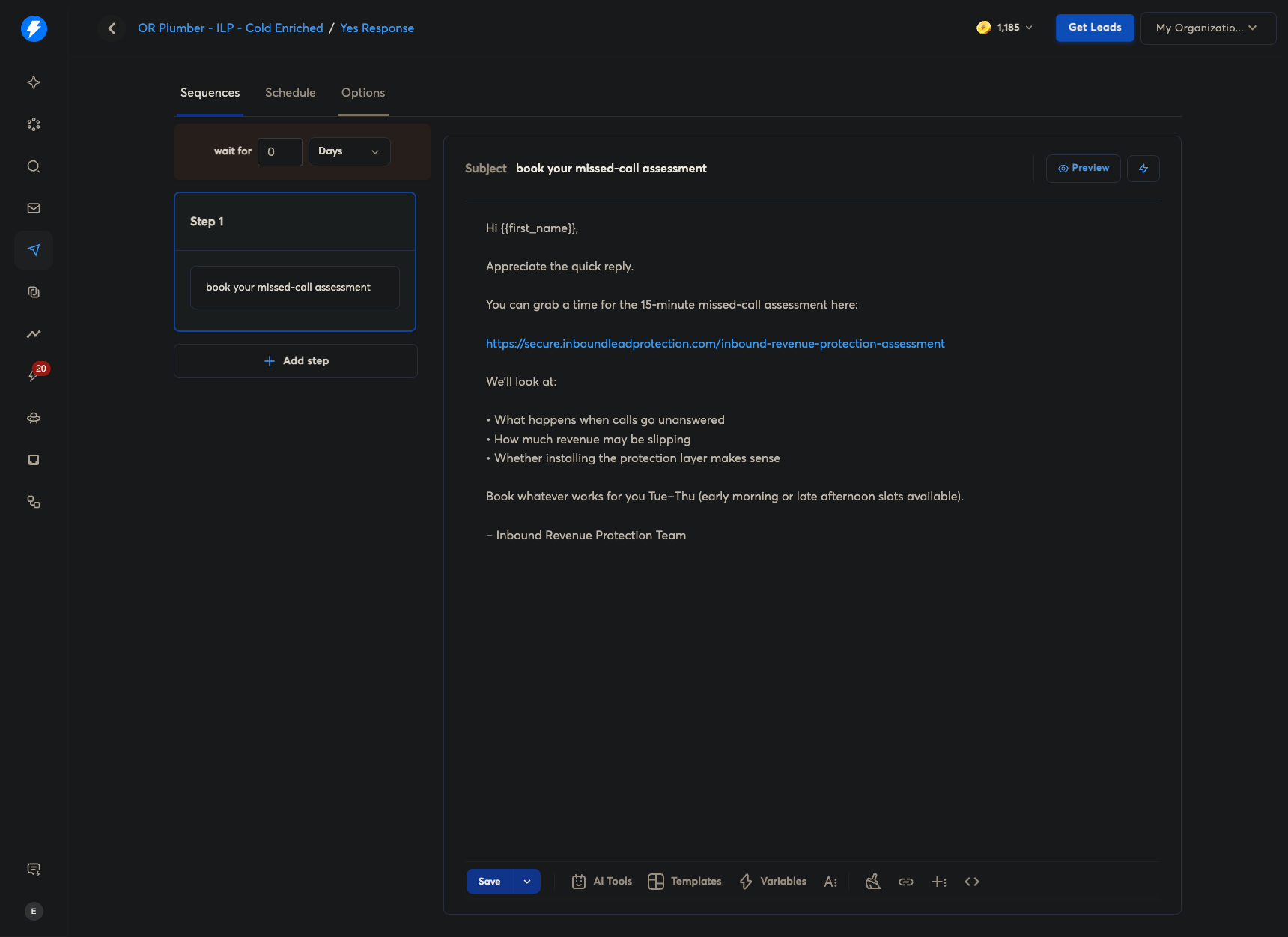
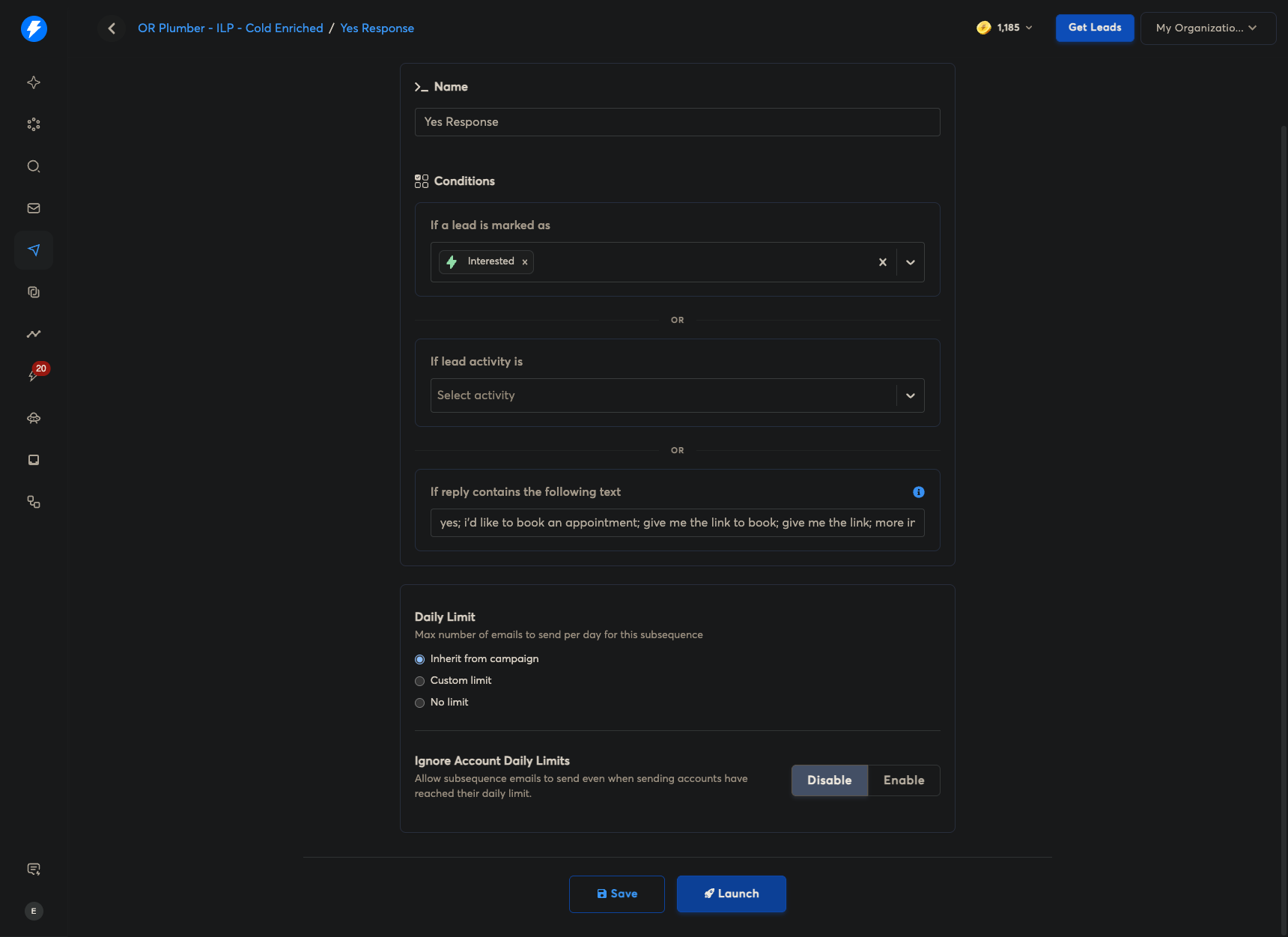
Once that is done, launching the subsequences will not launch the campaign itself.
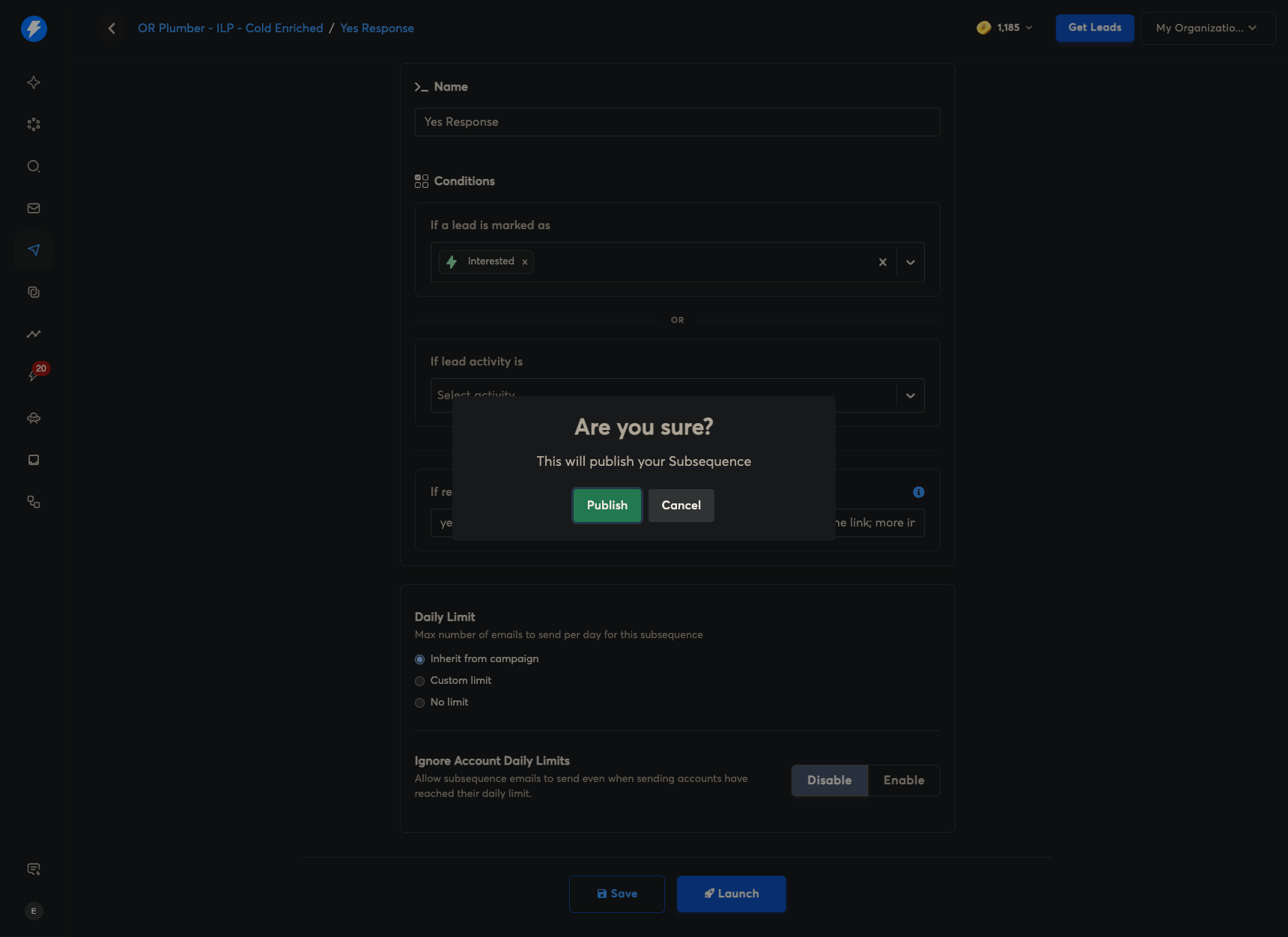
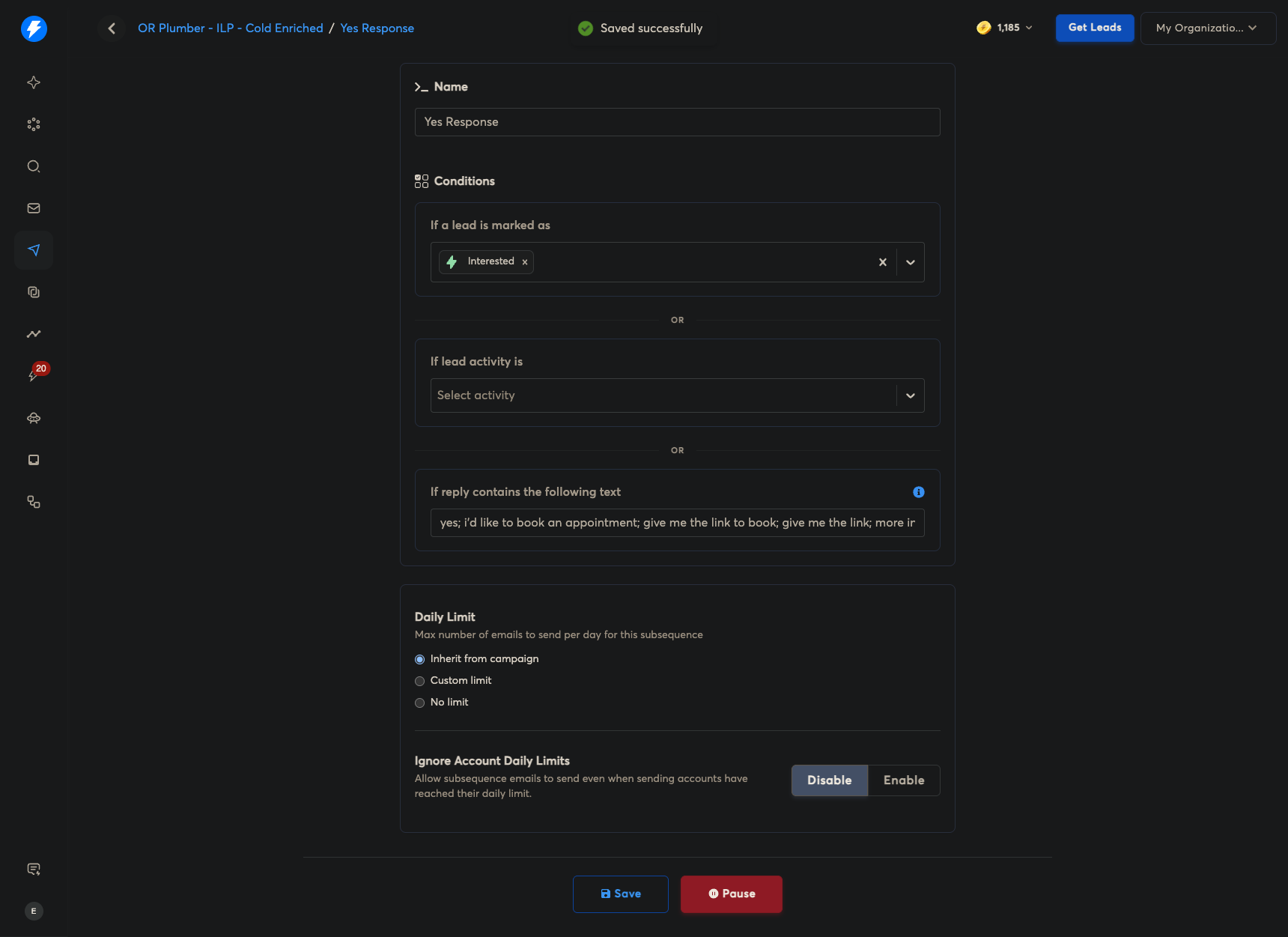
Sometimes it says either active or completed. You don't need to worry about that as long as it's not in draft. Once that is done, set your options, schedules, and sequences.
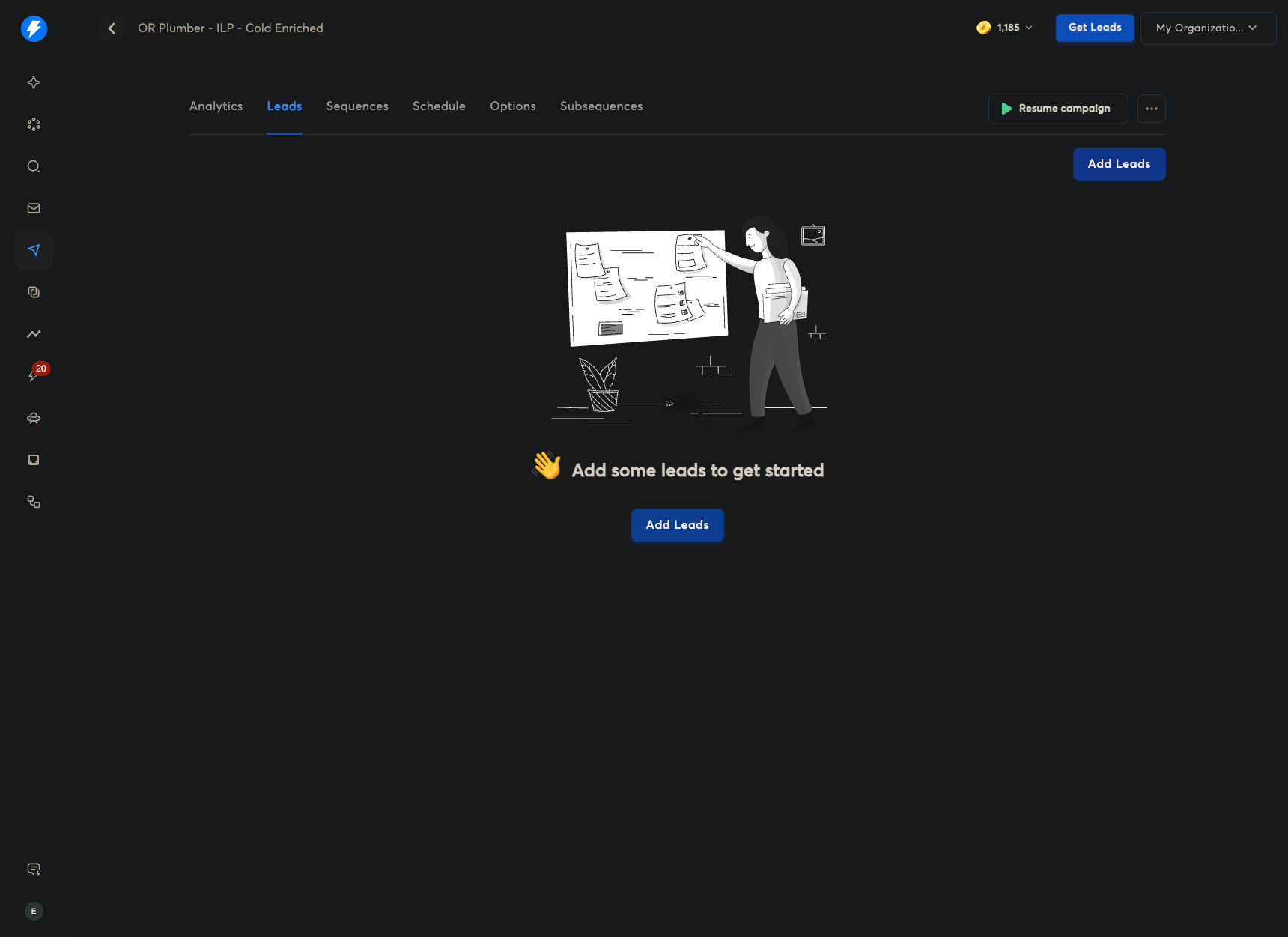
Once you add the leads, your campaign will automatically unpause. Make sure everything is ready or scheduled so it won't run unexpectedly when you upload the leads. Thank you. That is all.