How to Duplicate Cabin Changeover Templates in Todoist for Summer Saturdays
Learn step-by-step how to efficiently duplicate and assign cabin changeover templates in Todoist, ensuring a smooth transition for busy summer Saturdays. Perfect for managing multiple cabins and prioritizing tasks.
In this guide, we'll learn how to quickly duplicate multiple cabin changeover templates in Todoist to prepare for a busy summer Saturday. This process helps you set up tasks for all cabins at once, making it easier to manage full changeovers. You can also adjust priorities for specific cabins as needed after duplicating the templates.
Let's get started
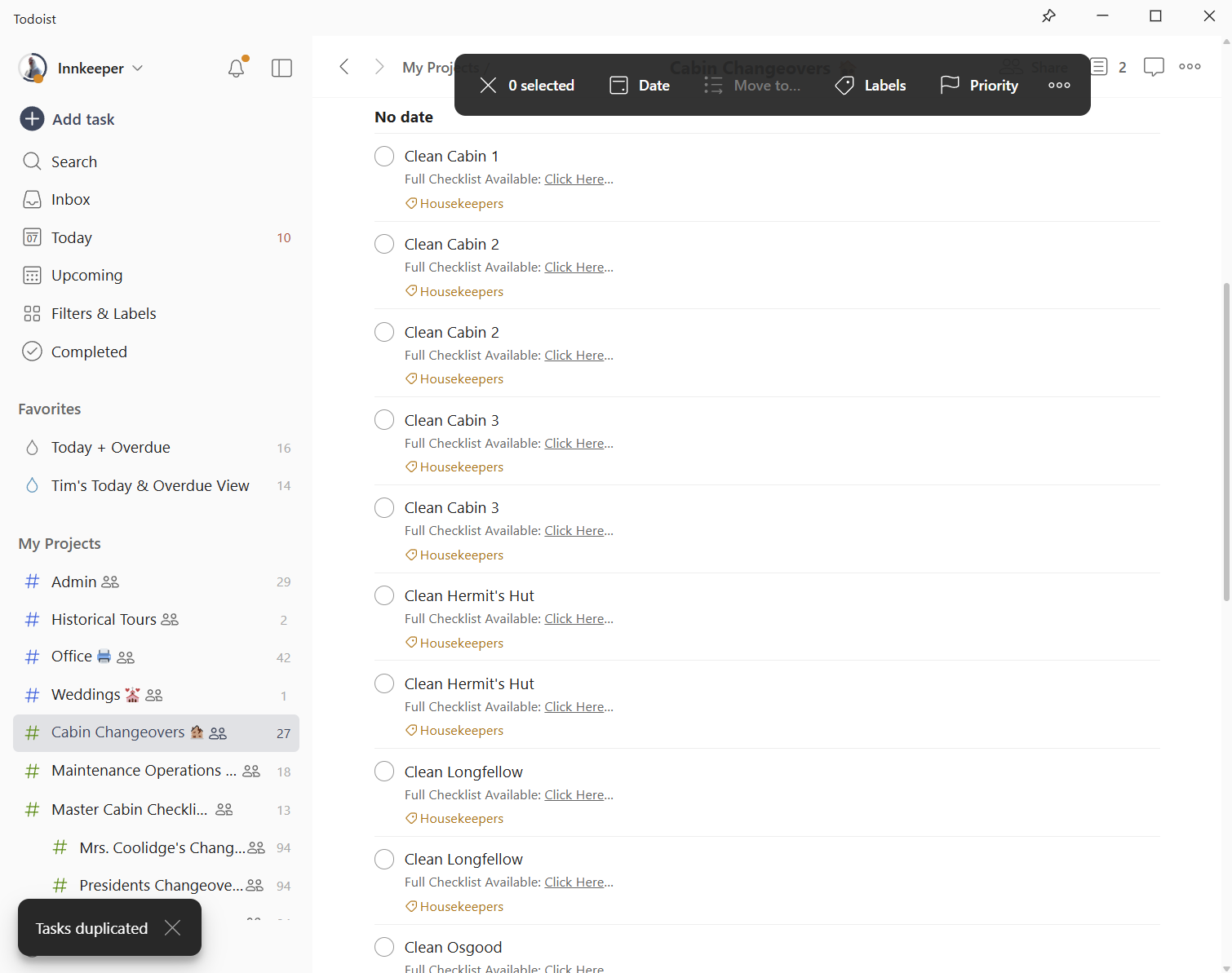
Go to the Cabin Changeovers project in Todoist. We will duplicate all the basic templates at once to prepare for a summer Saturday. I will set up August 9th and start by assigning all 13 cabins as priority one, indicating a full changeover in each cabin. If there are one or two items that I know are a lower priority, I can go in and change them afterward. You can do this any way you prefer. Since most cabins are changing over that day, I will copy all the templates up-front, then adjust the one or two that are a different priority or something.
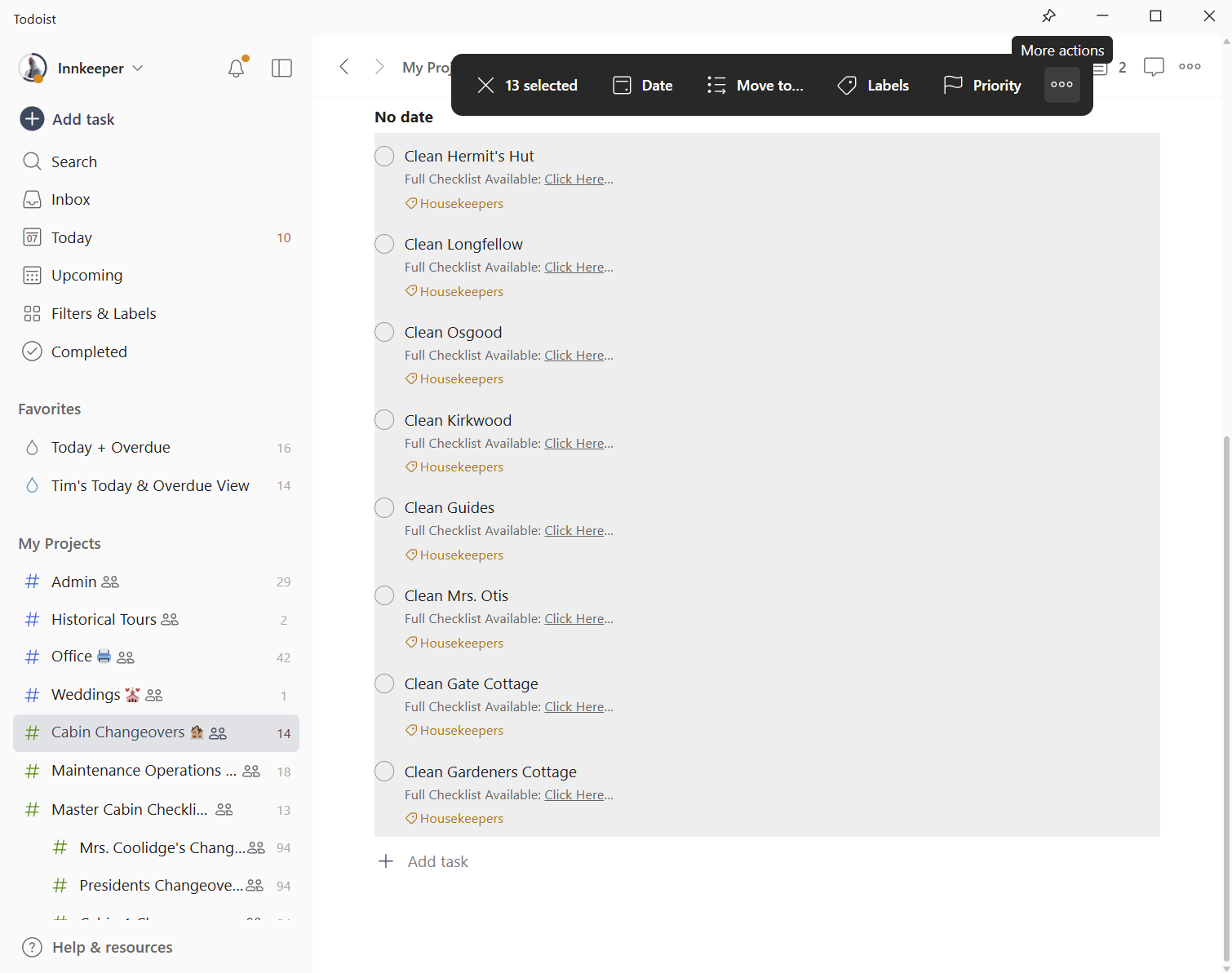
Under "No Date," you'll find all the templates. Hold the Shift key and click on a task title to highlight it.
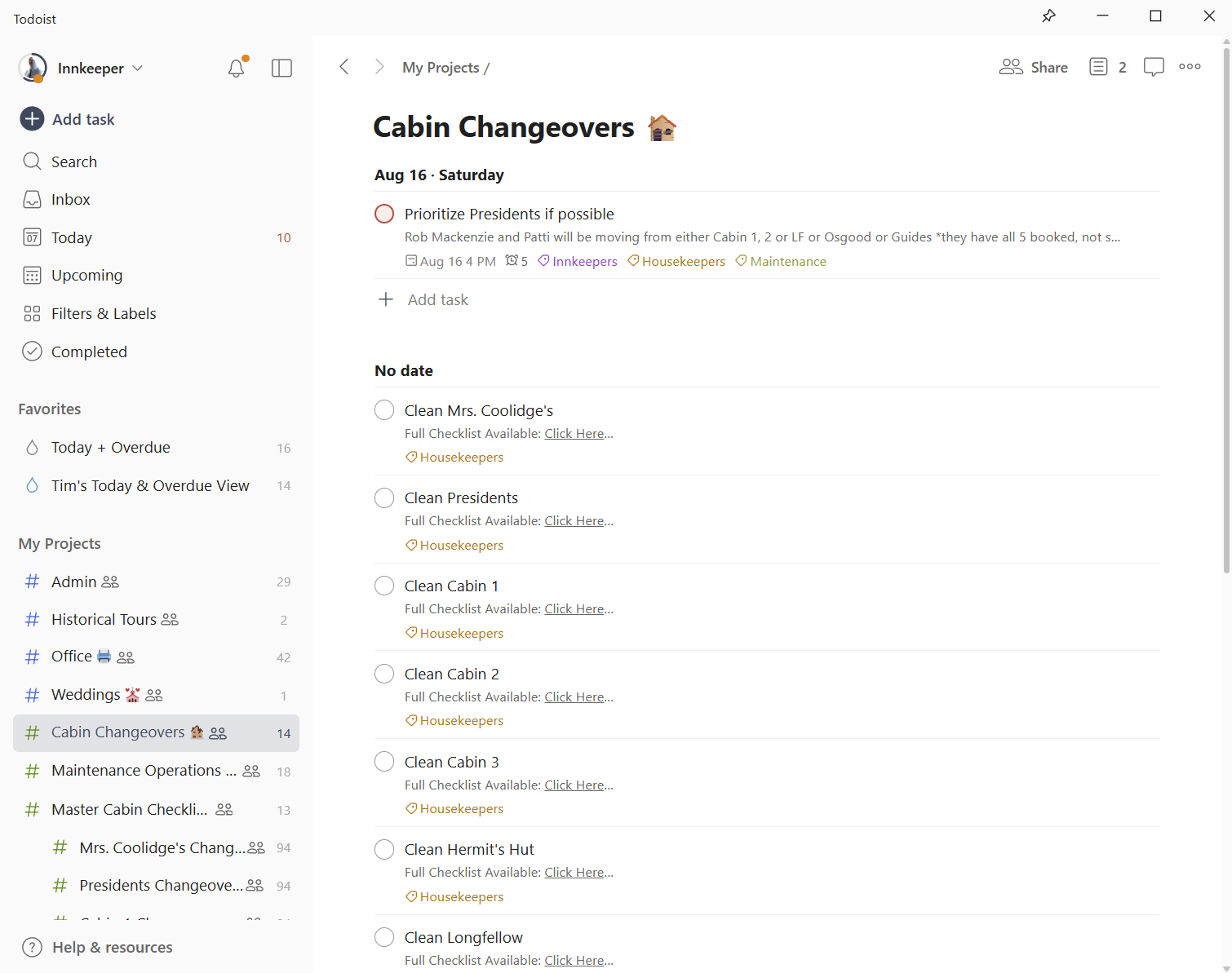
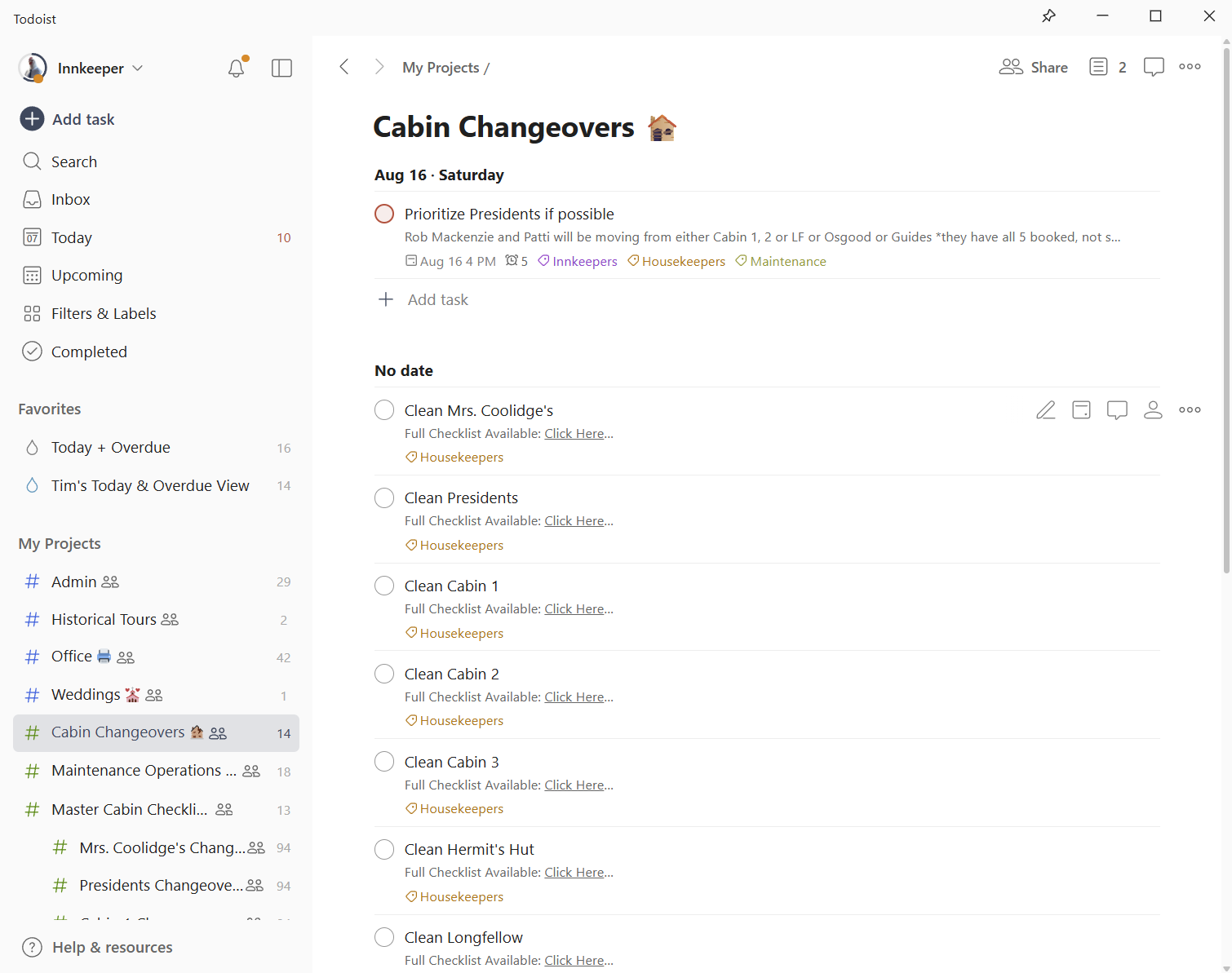
Make sure to click the title, not the checkbox. Scroll down, hold Shift on your keyboard, and click on the title "Gardeners," which is the 13th cabin. This will highlight everything between the two titles you clicked.
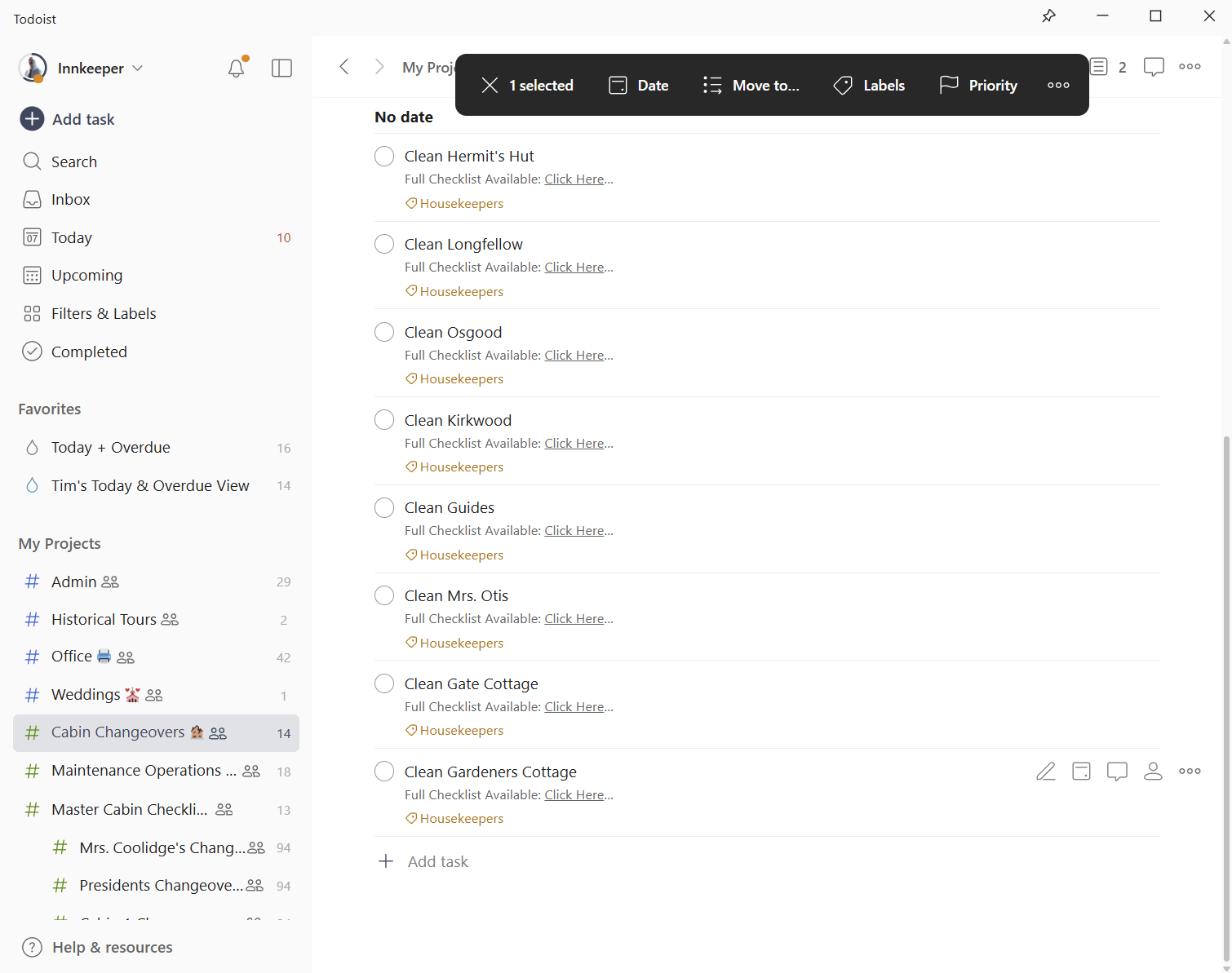
At the top, you'll see a bar that says "13 selected." Click on the three dots on the right labeled "More Actions," then choose "Duplicate."
Once I do that, it displays "Tasks duplicated" below.