How to Duplicate a Month Set to Adjust the Colors for New Graphics
Learn best practices for editing, duplicating, and managing scenes when updating graphics or colors for different months. Discover tips to streamline your workflow and avoid unnecessary edits.
In this guide, we'll learn how to duplicate and customize scenes for different months or events without affecting the original setup. This process helps keep your scene library organized and prevents accidental changes to templates you may need again. By following these steps, you can efficiently update colors and layouts while keeping only the necessary scenes for your service.
Let's get started
Okay. If you need to change a graphic, use different colors, or set up something different for the month, it's important not to immediately start editing the existing scene.
We recycle these scenes based on their colors and rename them if another month requires those colors.
If you need to revamp everything, close that scene.
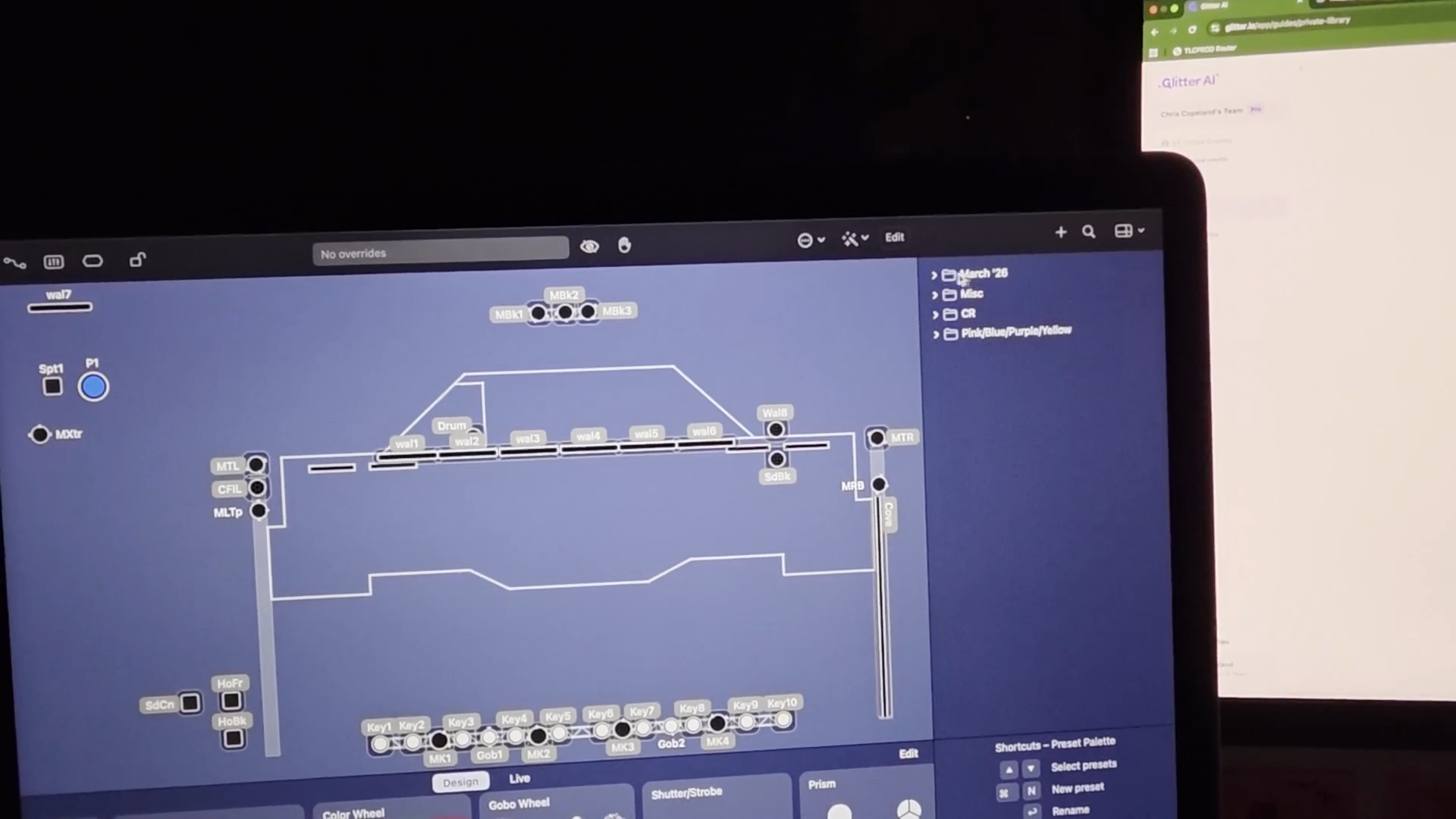
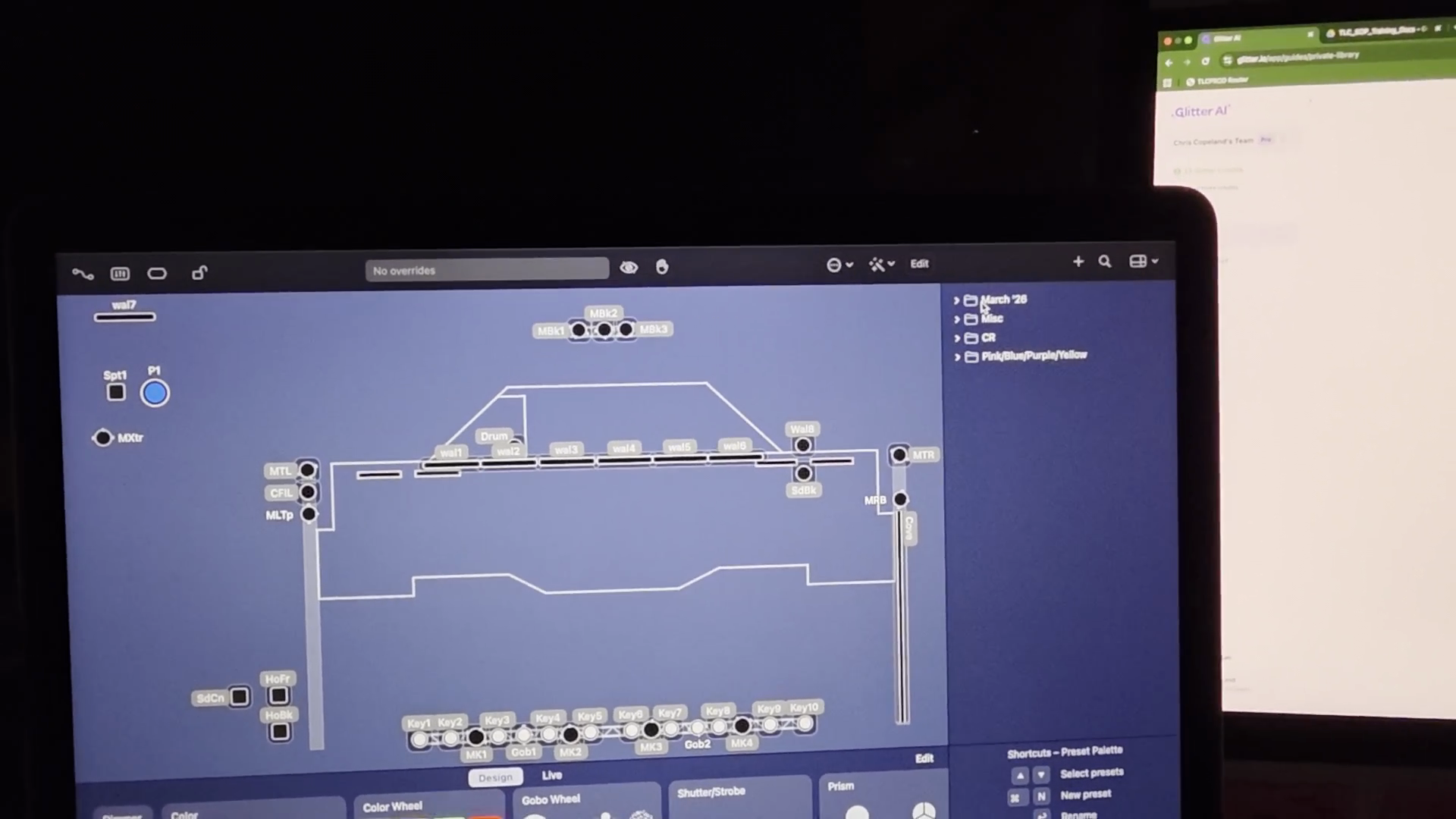
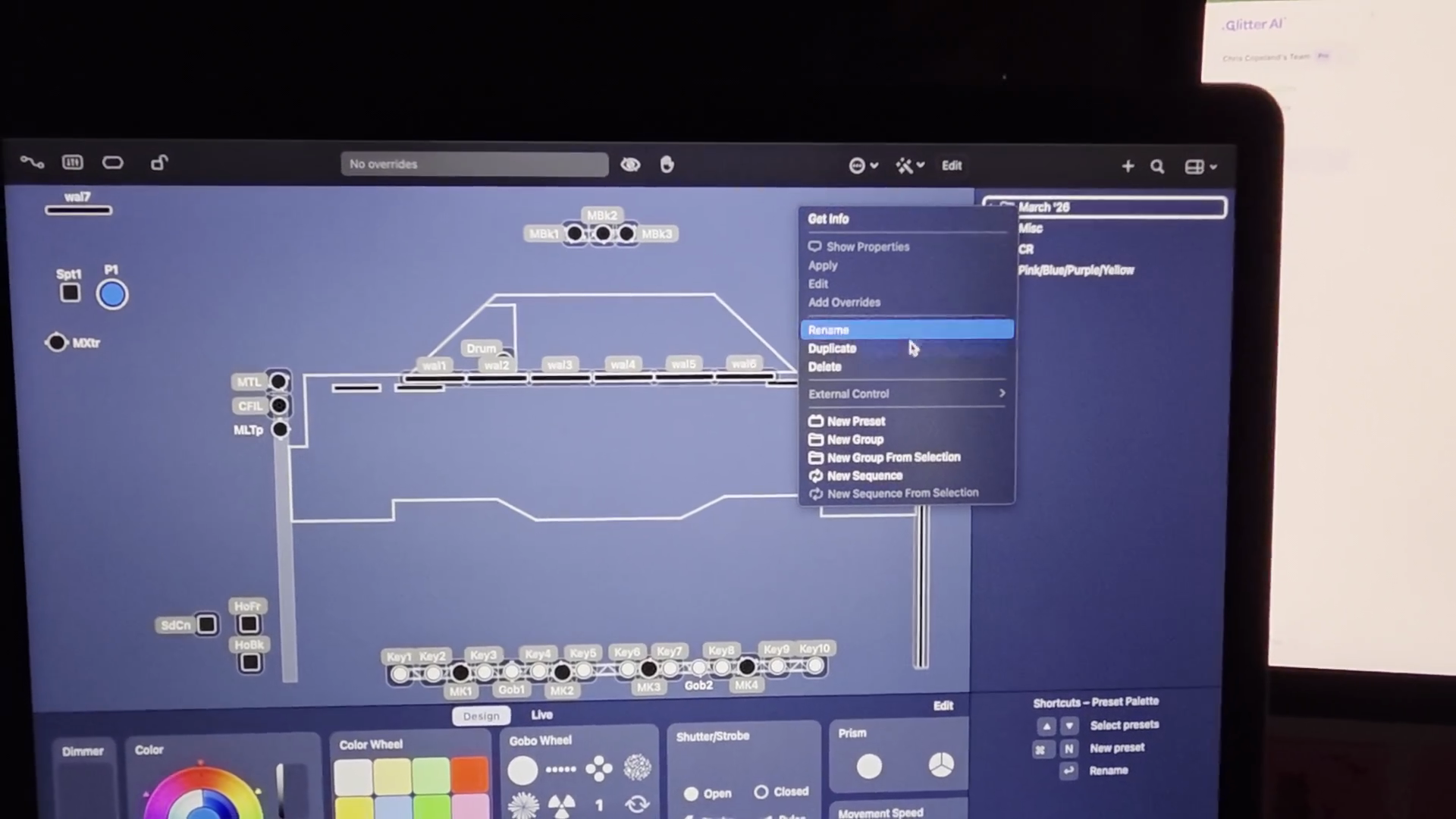
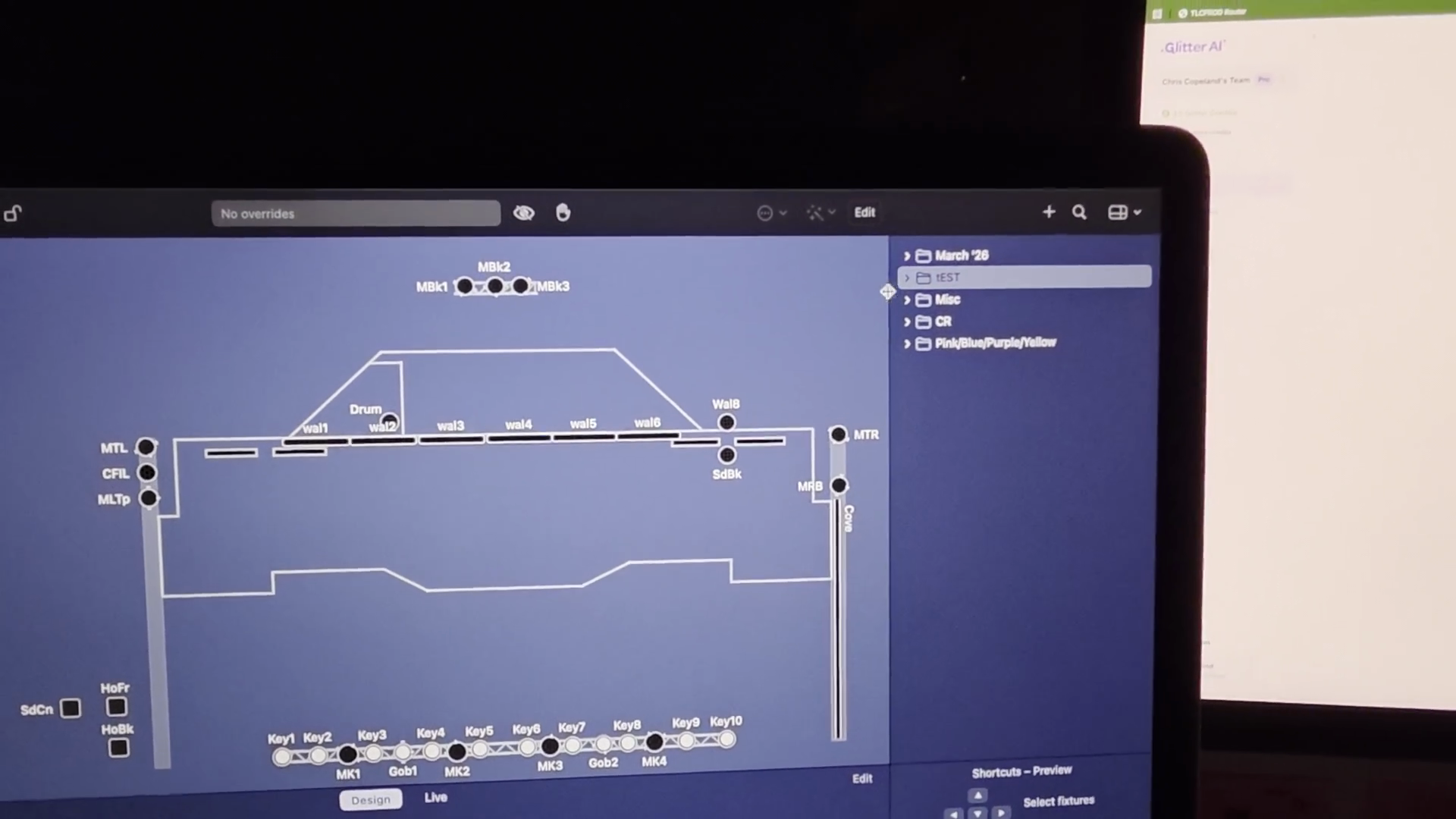
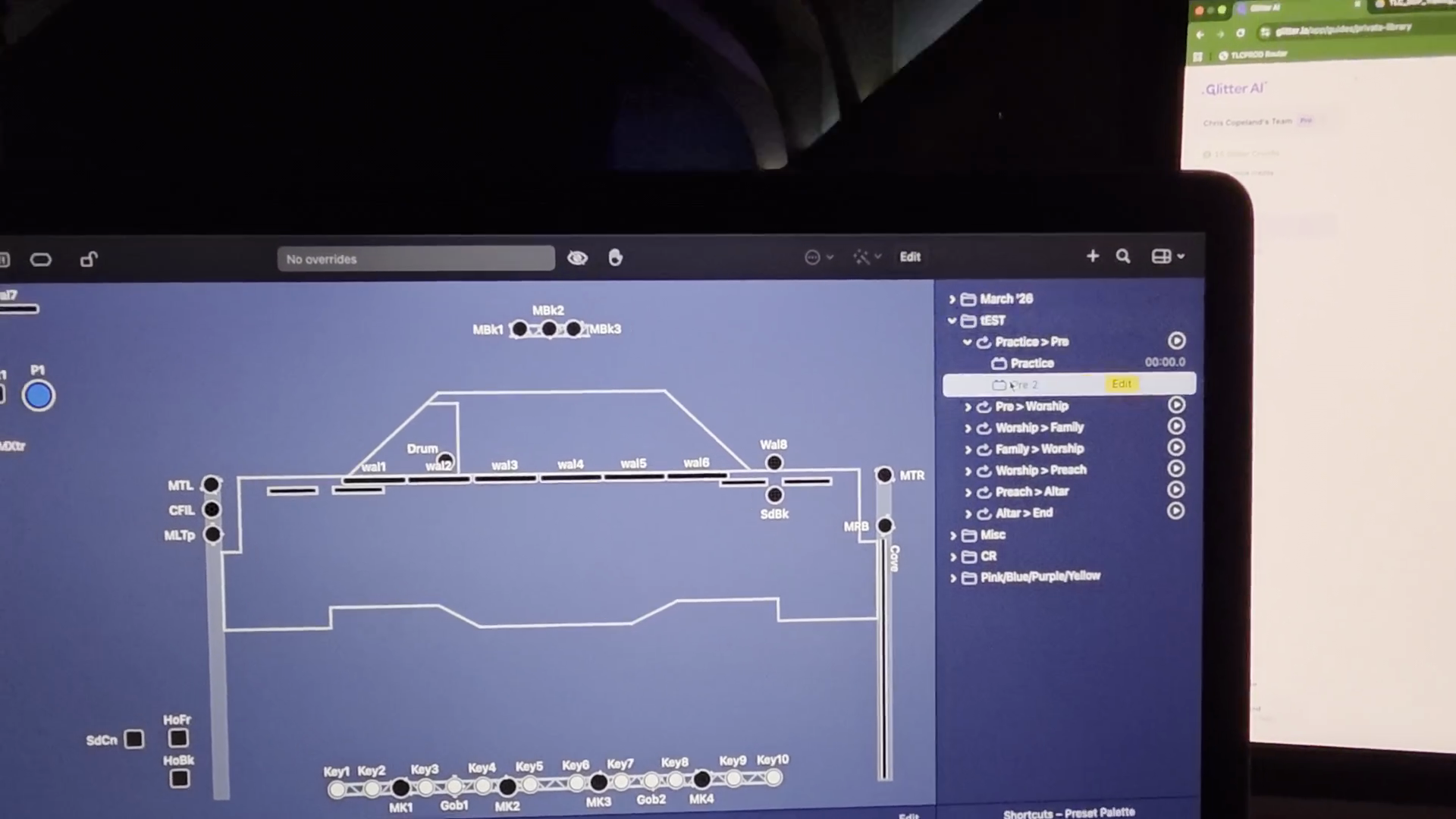
It looks exactly the same as before. You now have the freedom to edit as you wish. If you use this setup, these scenes will repeat multiple times during a service. If I were you, I would remove the duplicates.
We don't need multiple of the same scene while we are editing, so you can delete all of the extras.
Now you can click and edit the colors to match the graphics for the month.