How to Add or Remove Rental Items from the Existing Orders
Learn step-by-step how to add or remove rental items to existing orders, record payments, and issue refunds in your order management system.
By Reservety
In this guide, we'll learn how to add or remove items from an order, record payments, and process refunds.
This process helps keep order records accurate and ensures customers are charged or refunded the correct amounts.
Let's get started
1
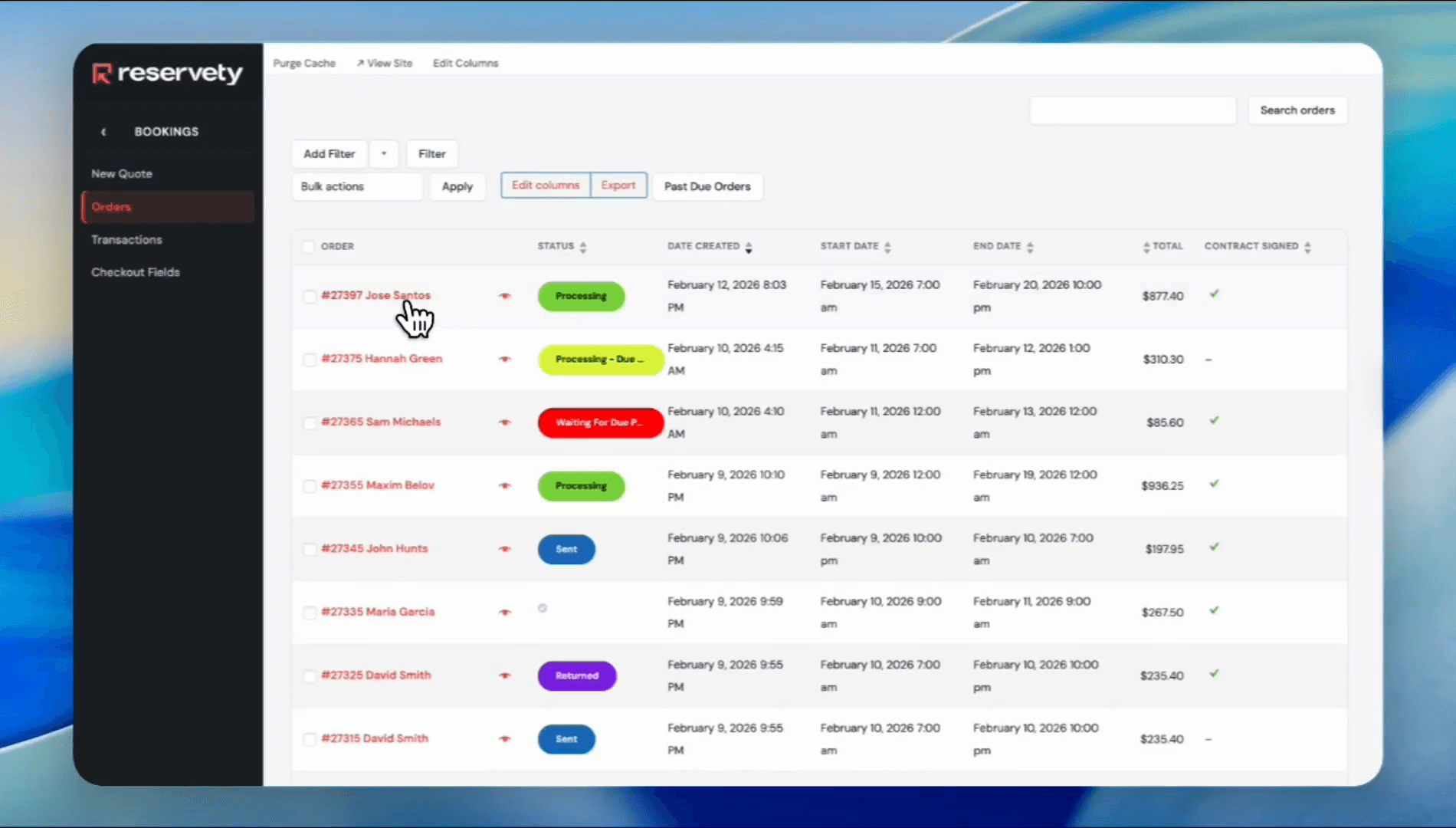
Go to your Dashboard, and click on Bookings.
2
Click on the order you want to add or remove items from.
3
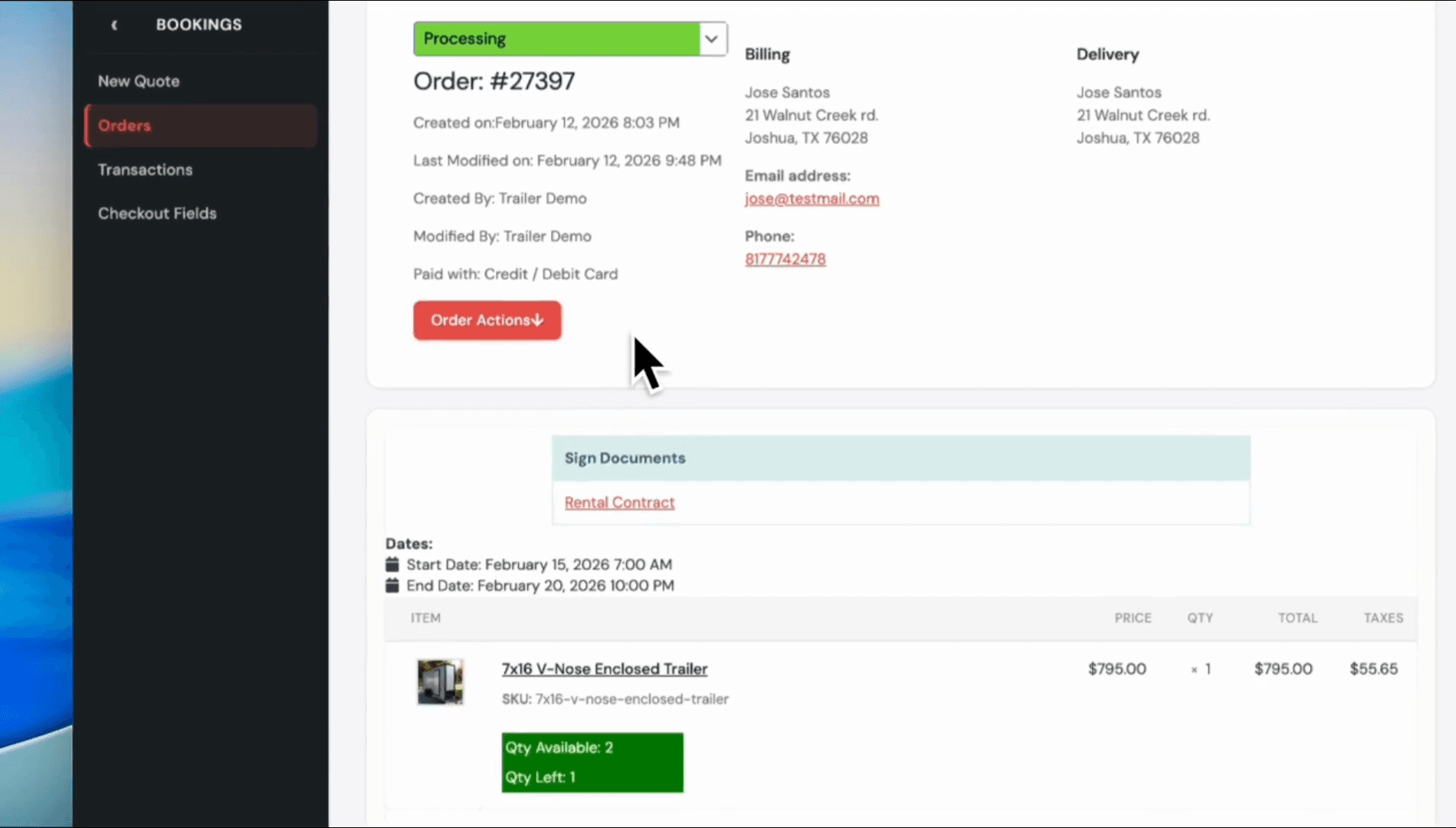
Click the Order Actions button.
4
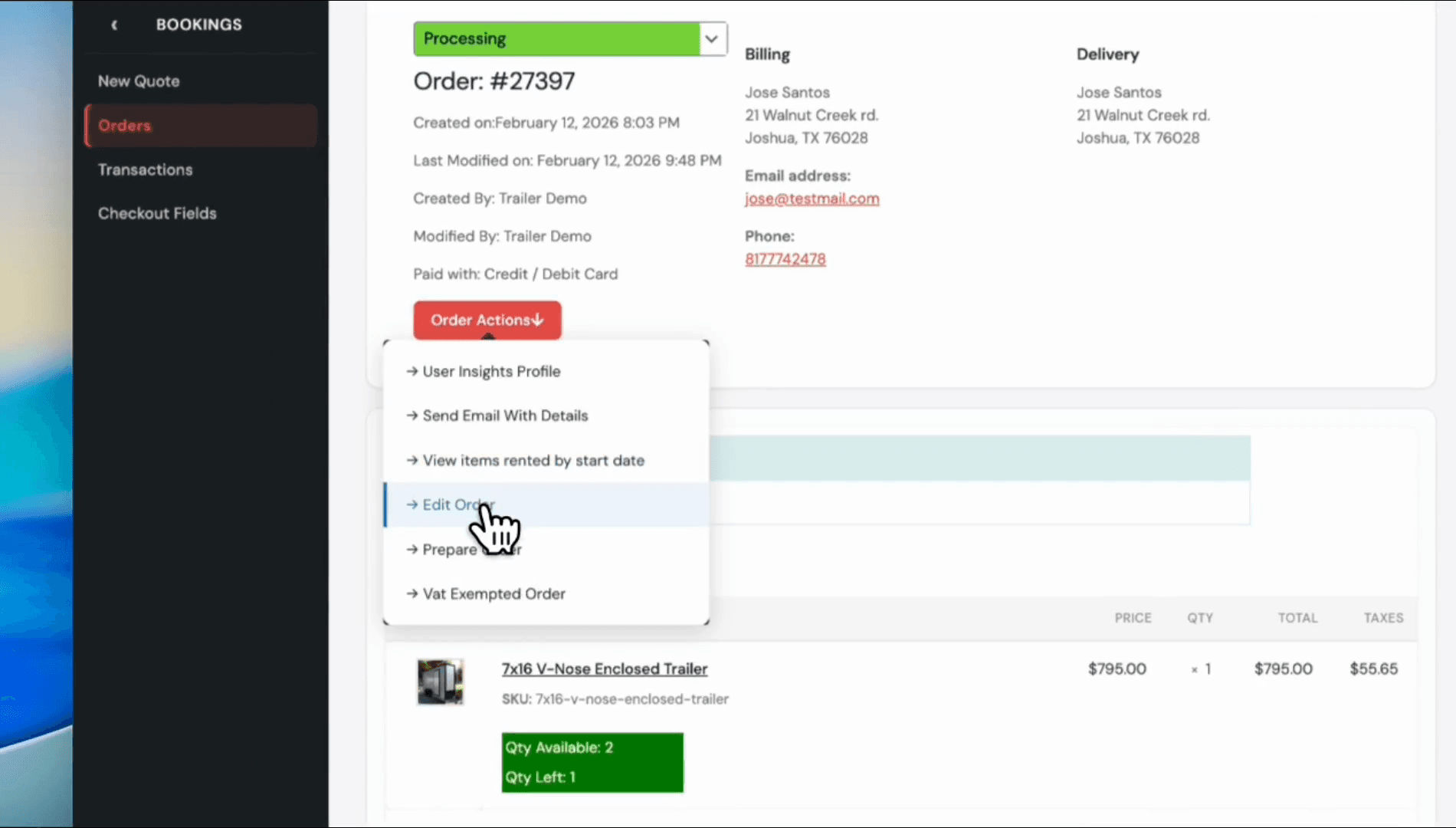
Click on Edit Order from the dropdown menu.
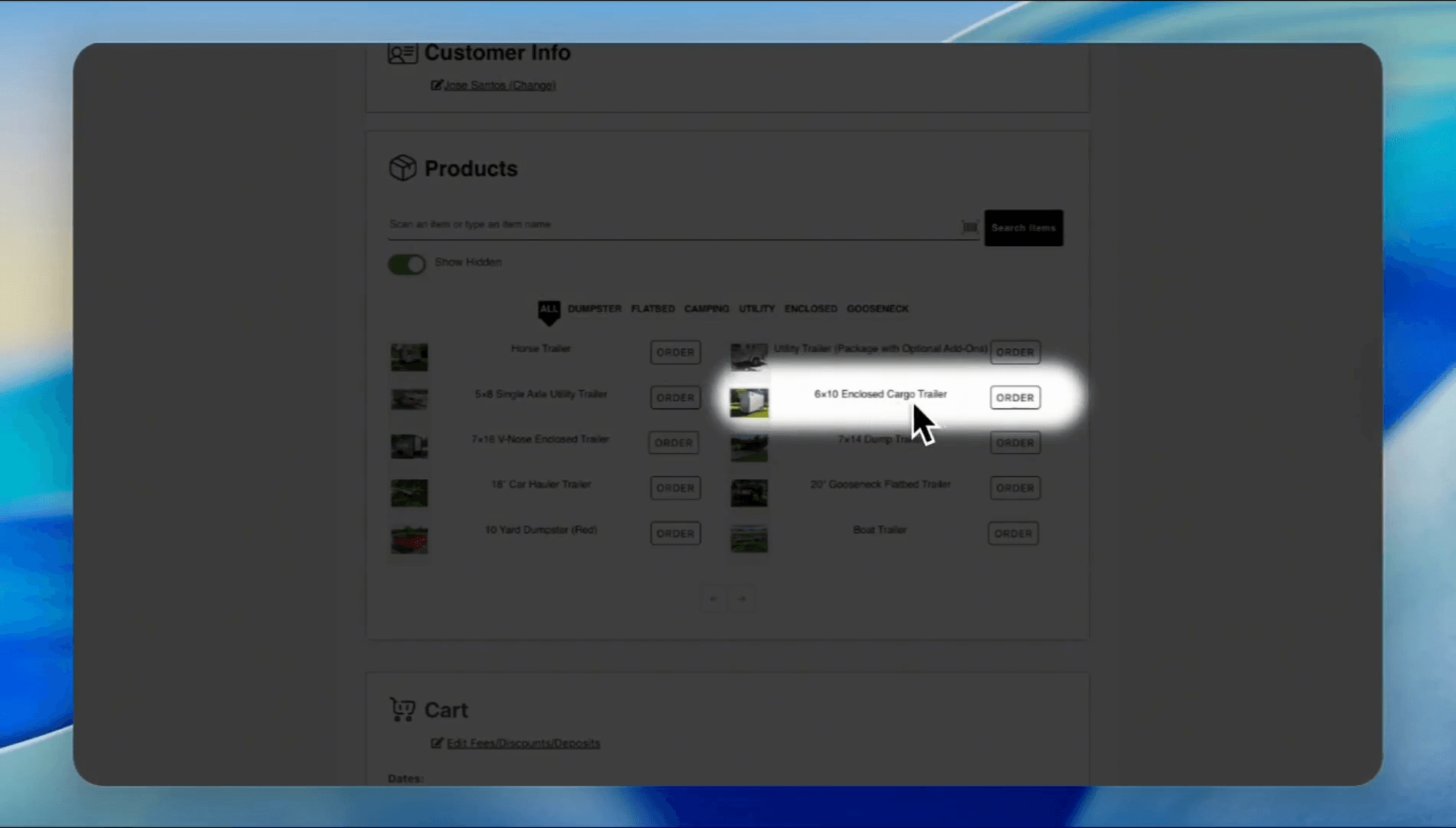
In this field, you will see the complete list of products, cart details, and a section to record additional payments. Suppose a customer requests an additional 6-by-10 enclosed cargo trailer.
5
Click the Order button for the 6x10 Enclosed Cargo Trailer.
6
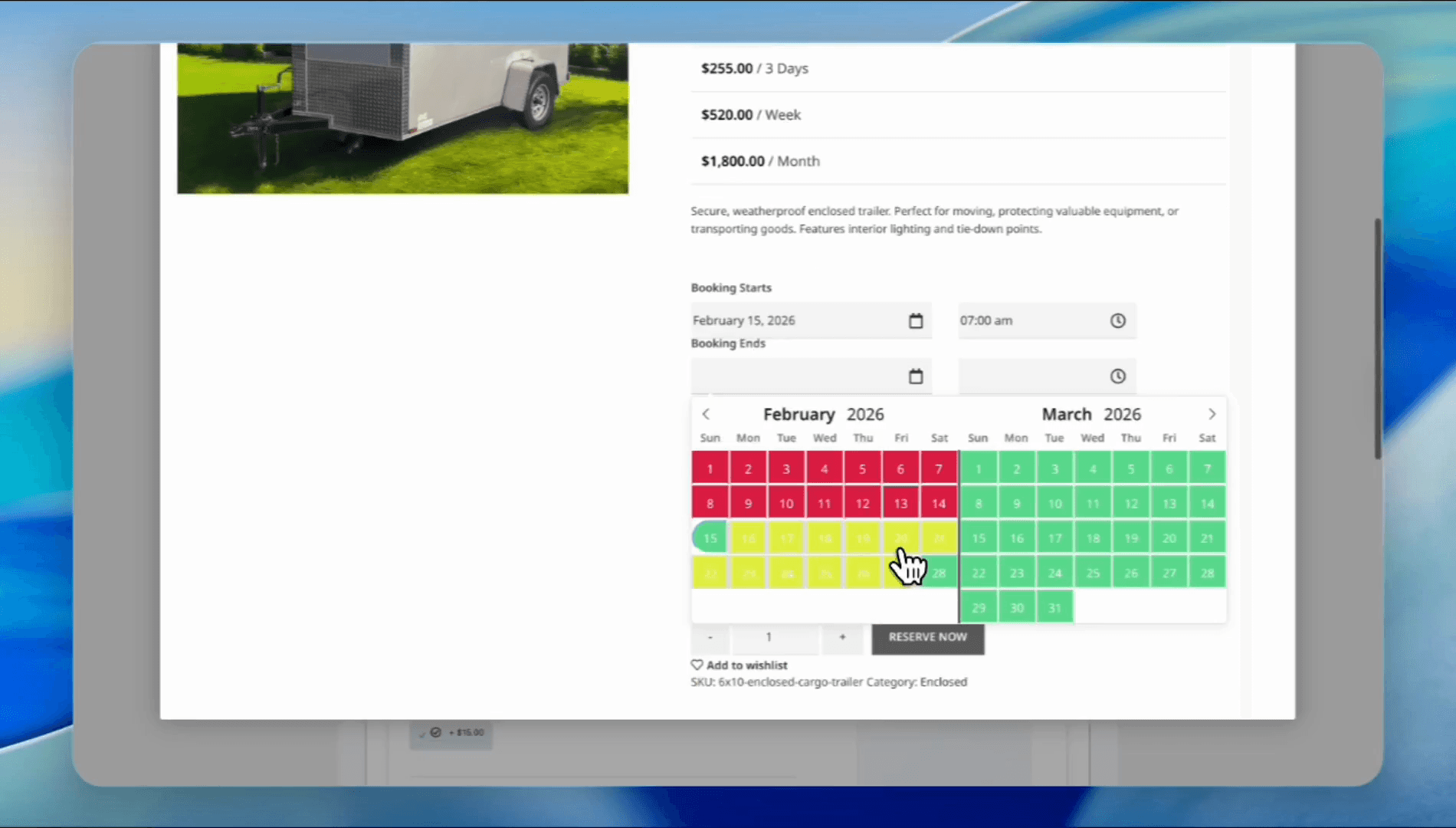
Select the start date and end date from the calendar.
7
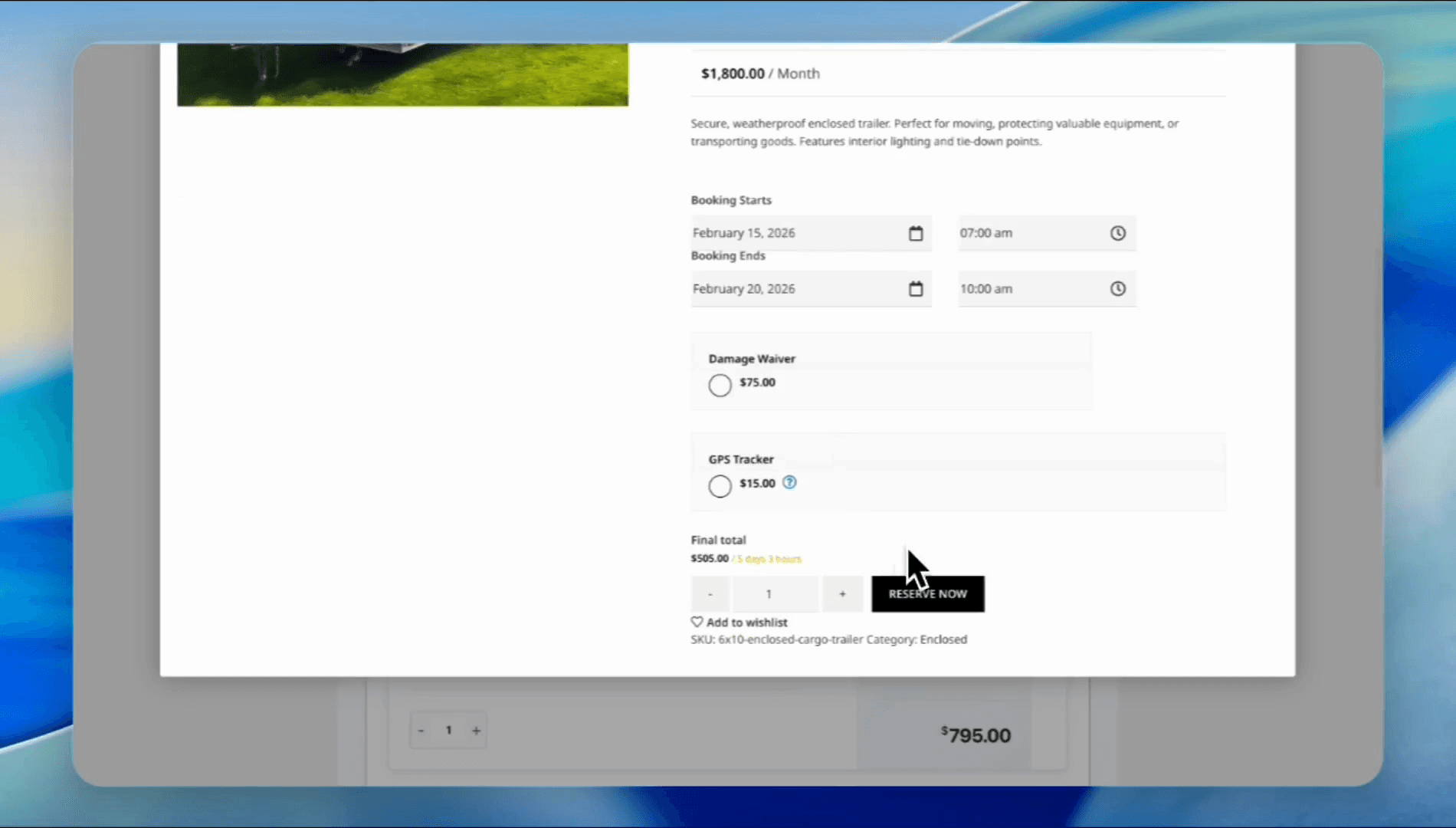
Click the Reserve Now button.
8
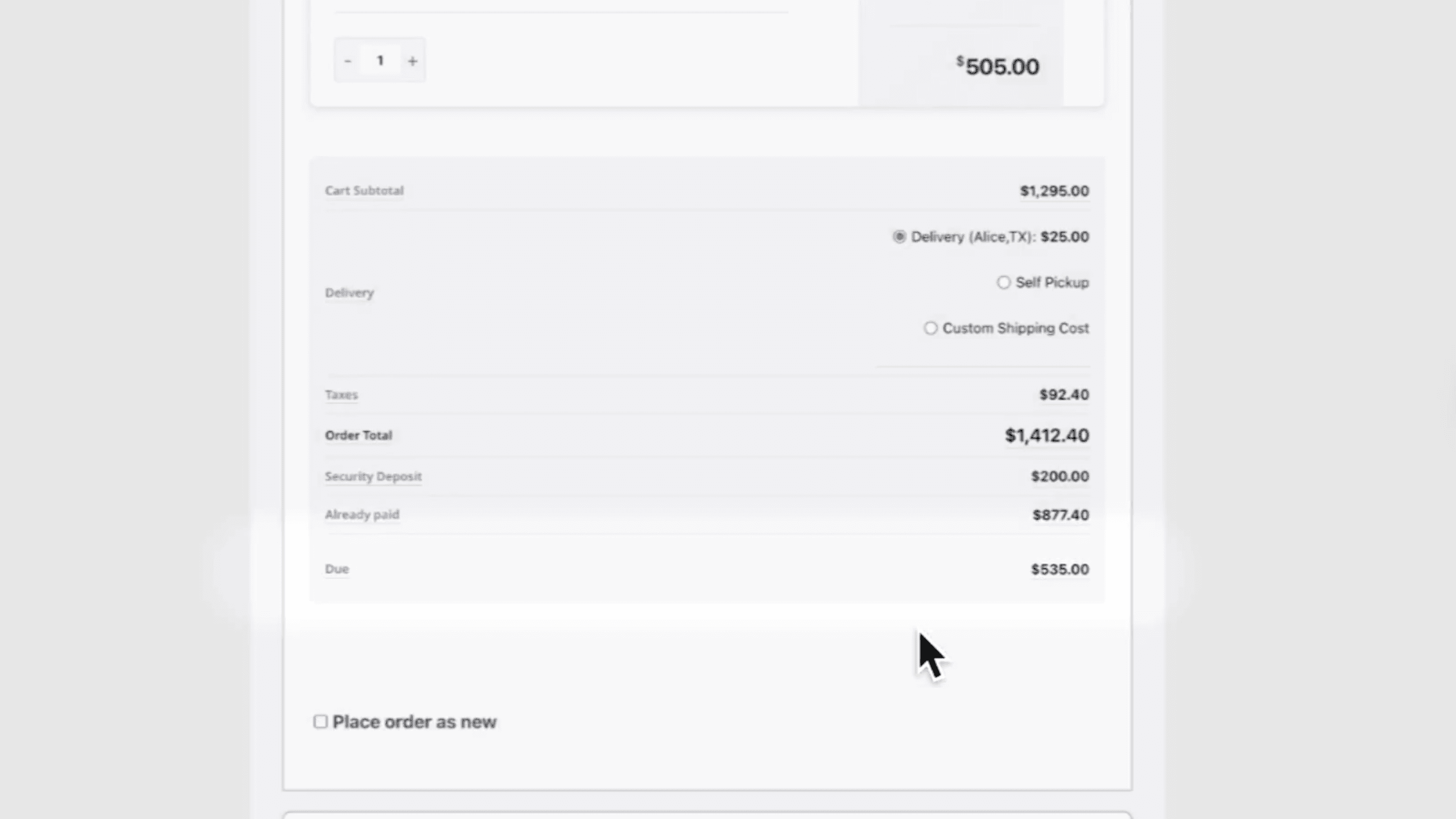
A new trailer has been added to the existing order, and the due payment is now 535.
9
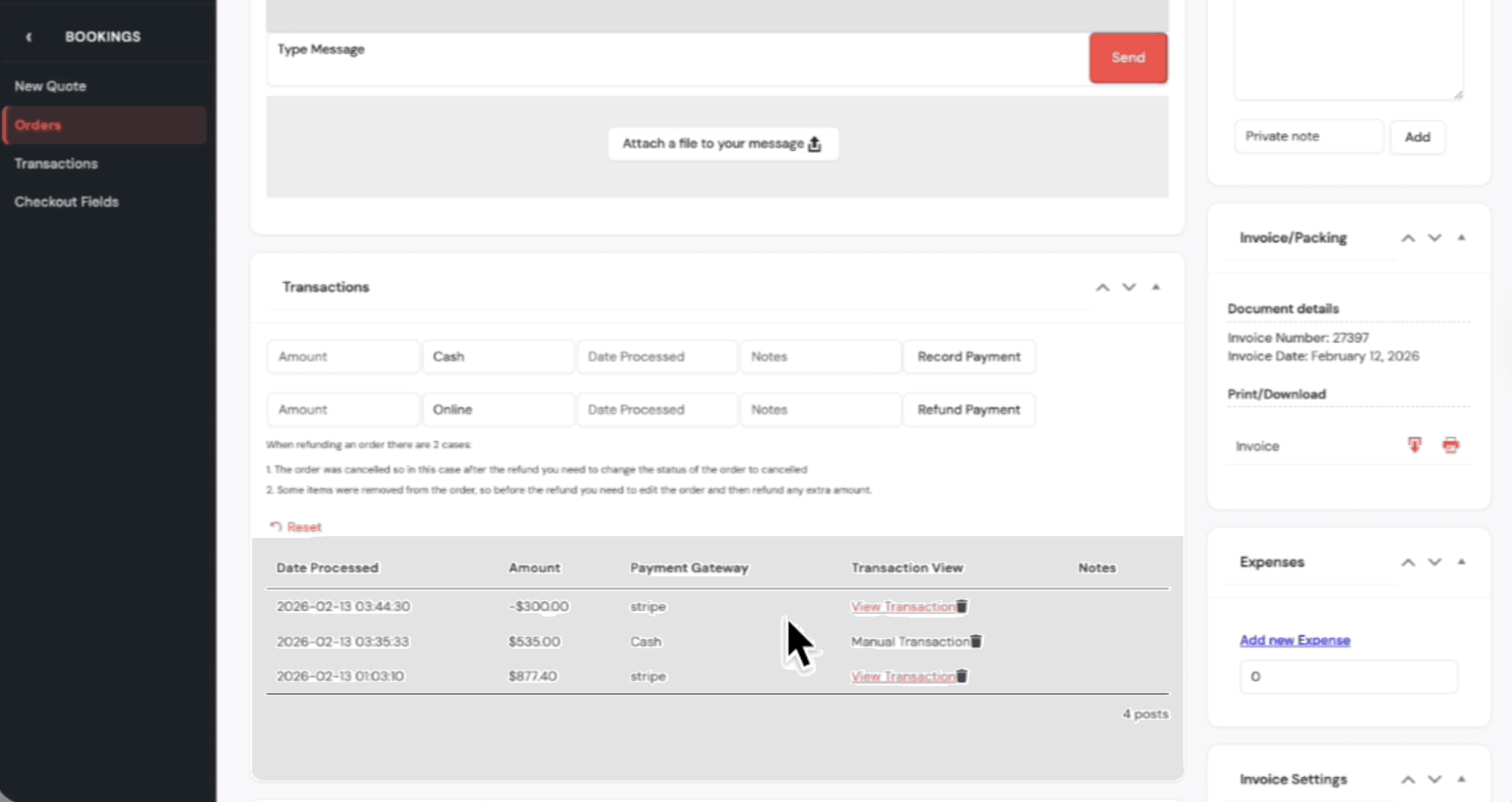
You can pay this amount, 535, directly from the system and select the payment method.
10
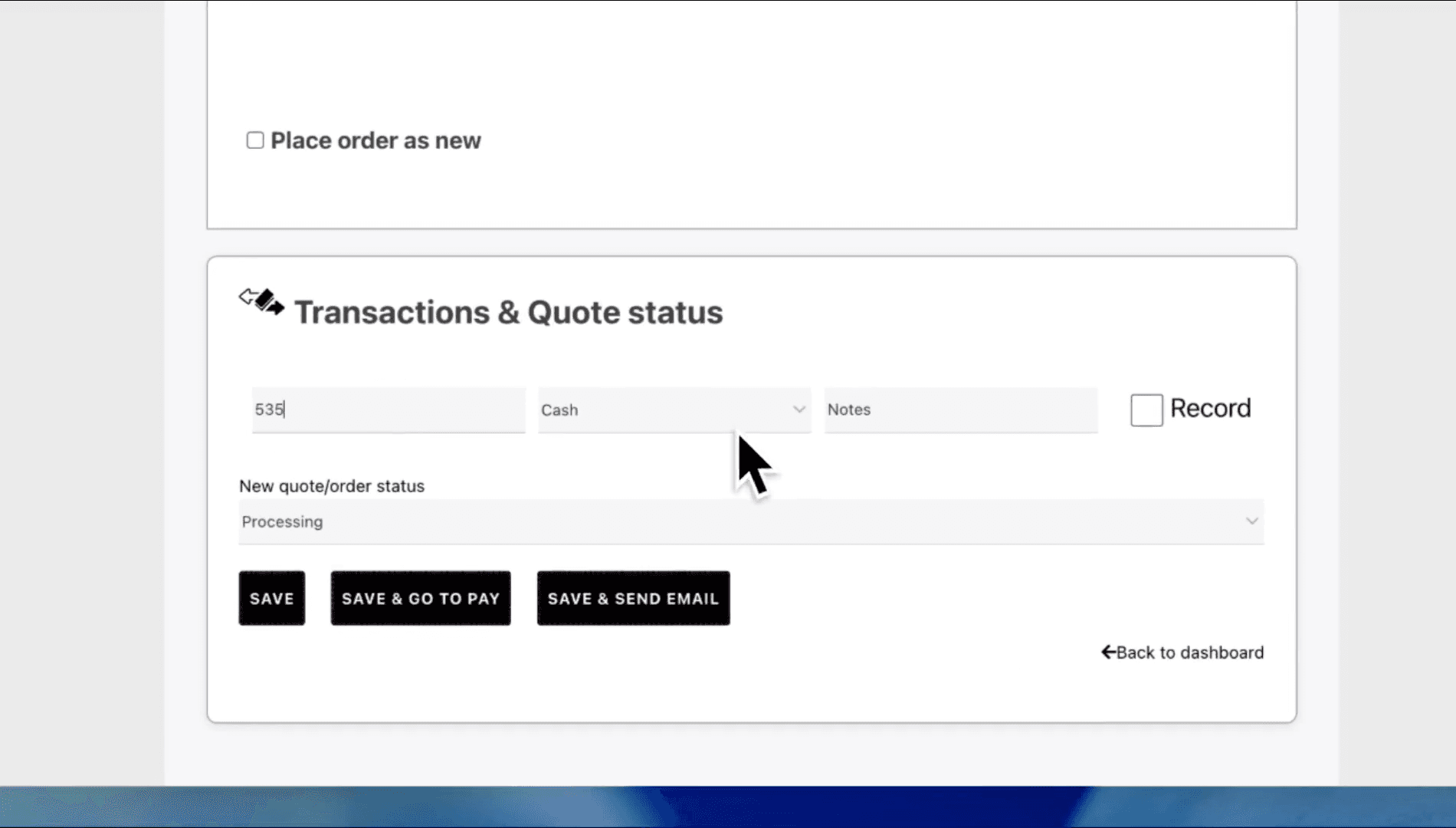
Type '535' into the amount field and click the payment method dropdown.
11
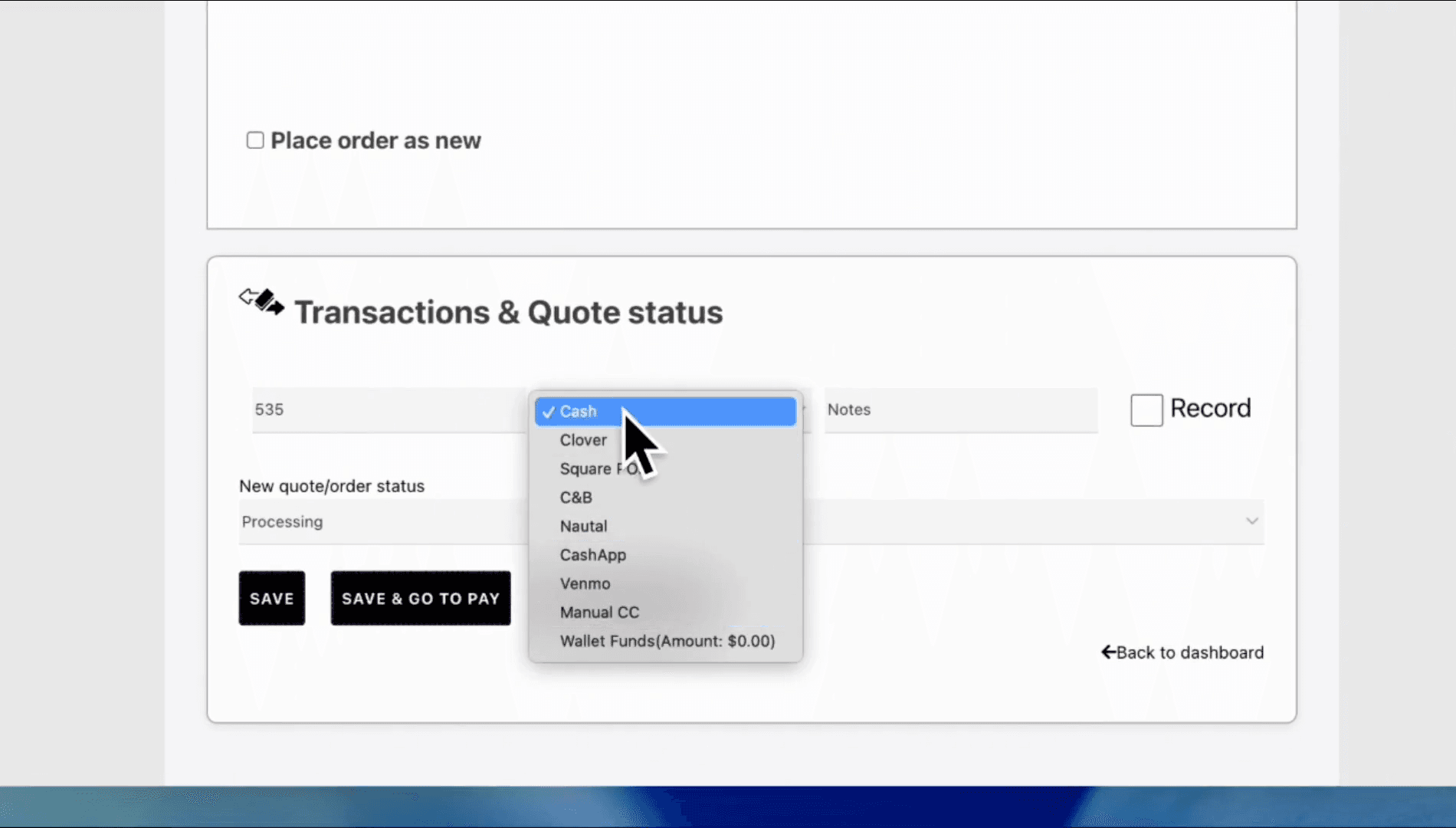
Select 'Cash' from the dropdown.
12
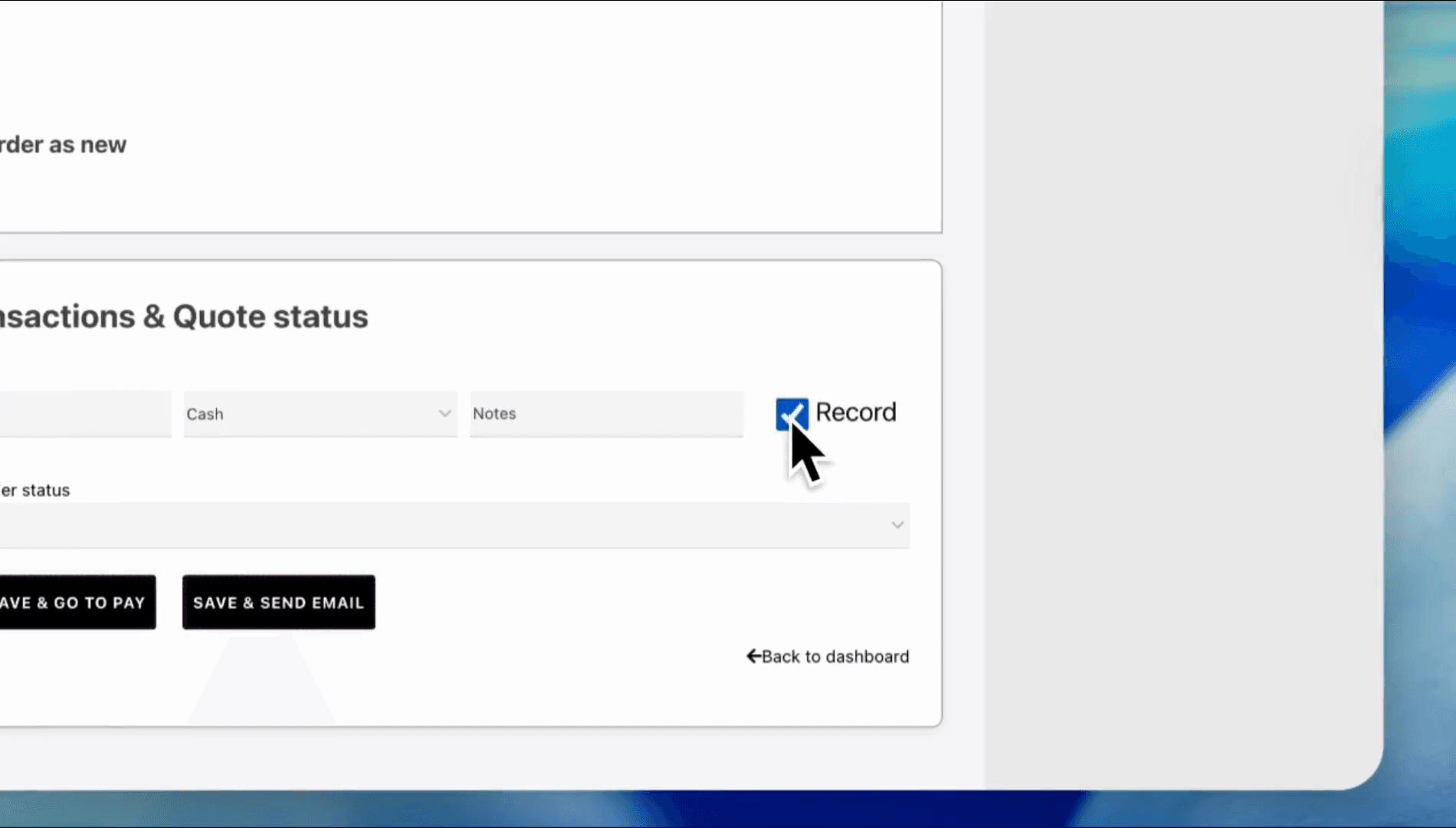
Click the 'Record' checkbox.
13
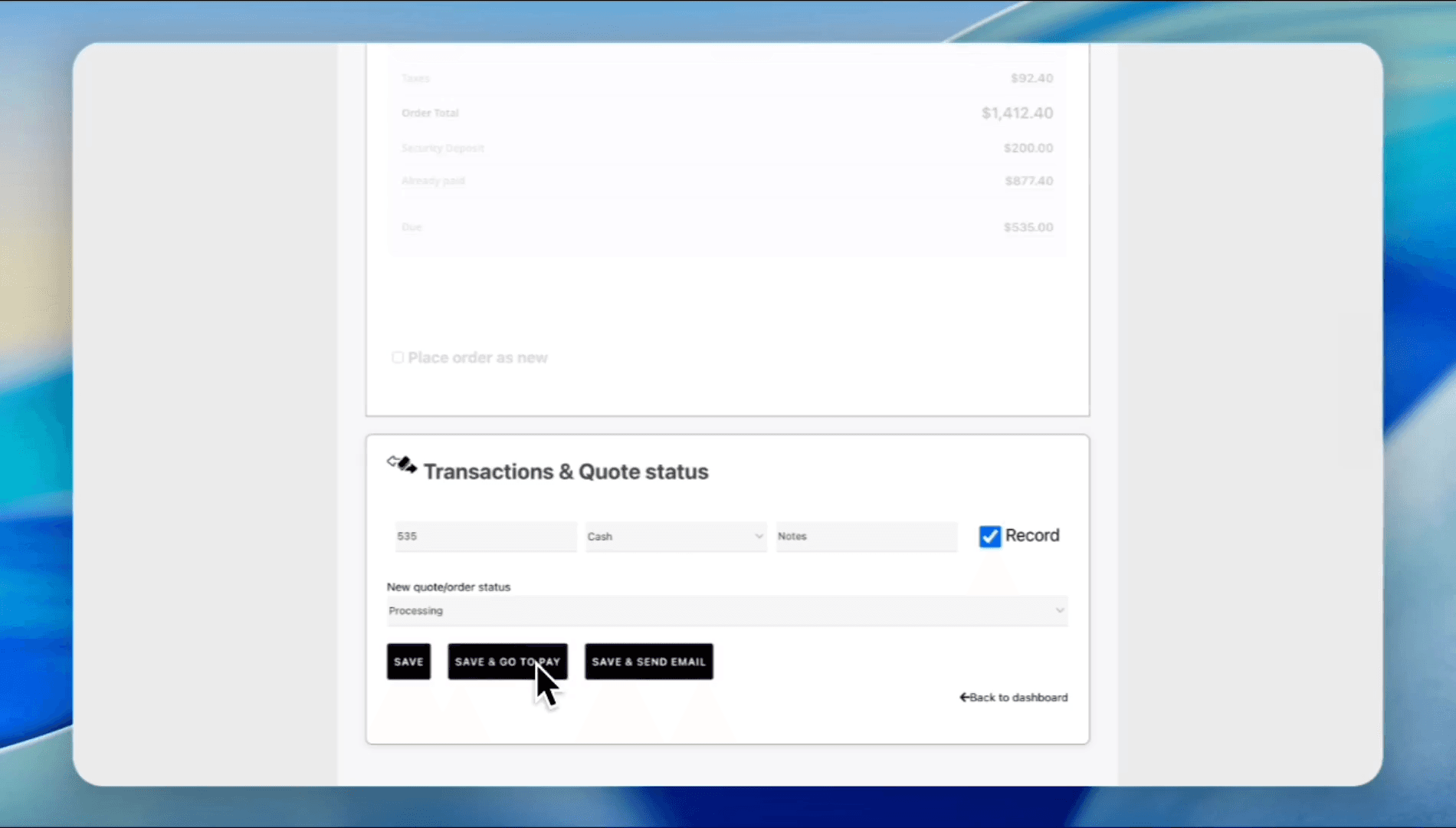
Click the 'SAVE' button.
14
The trailer has been added, and the order has been received with a cash payment.
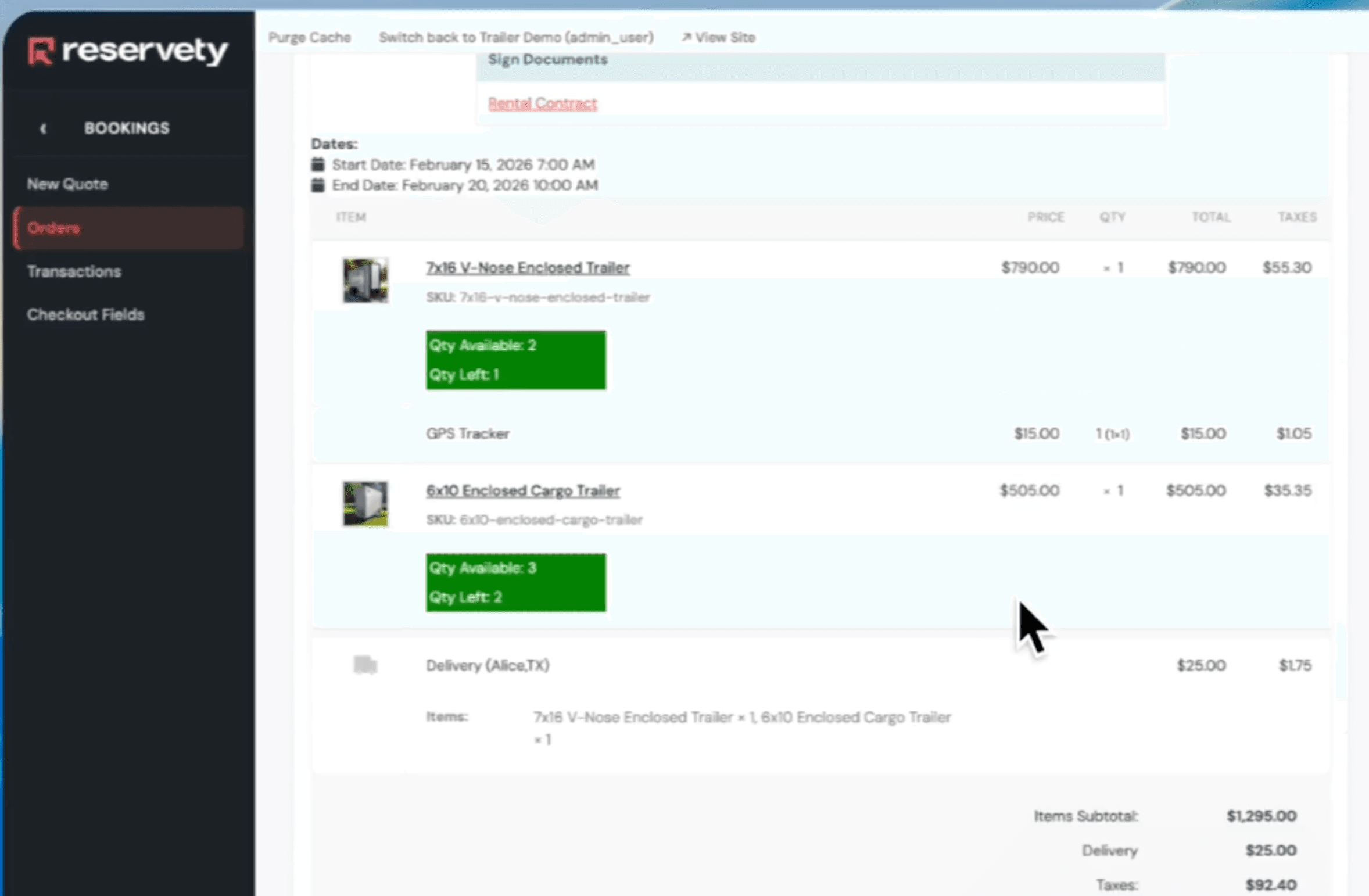
Now, let's remove an item from our order.
15
Click the 'Order Actions' button.
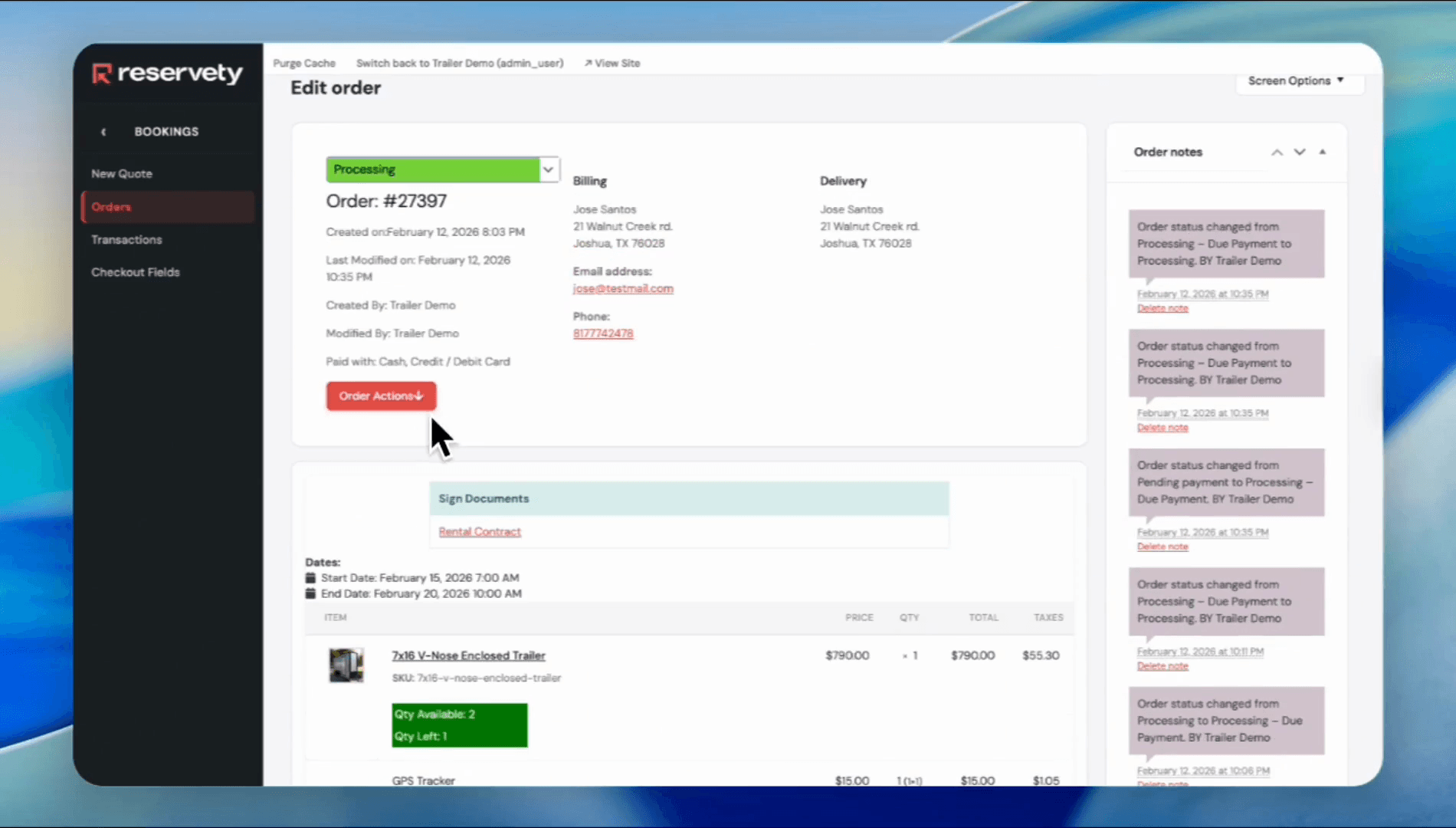
16
Click 'Edit Order'.
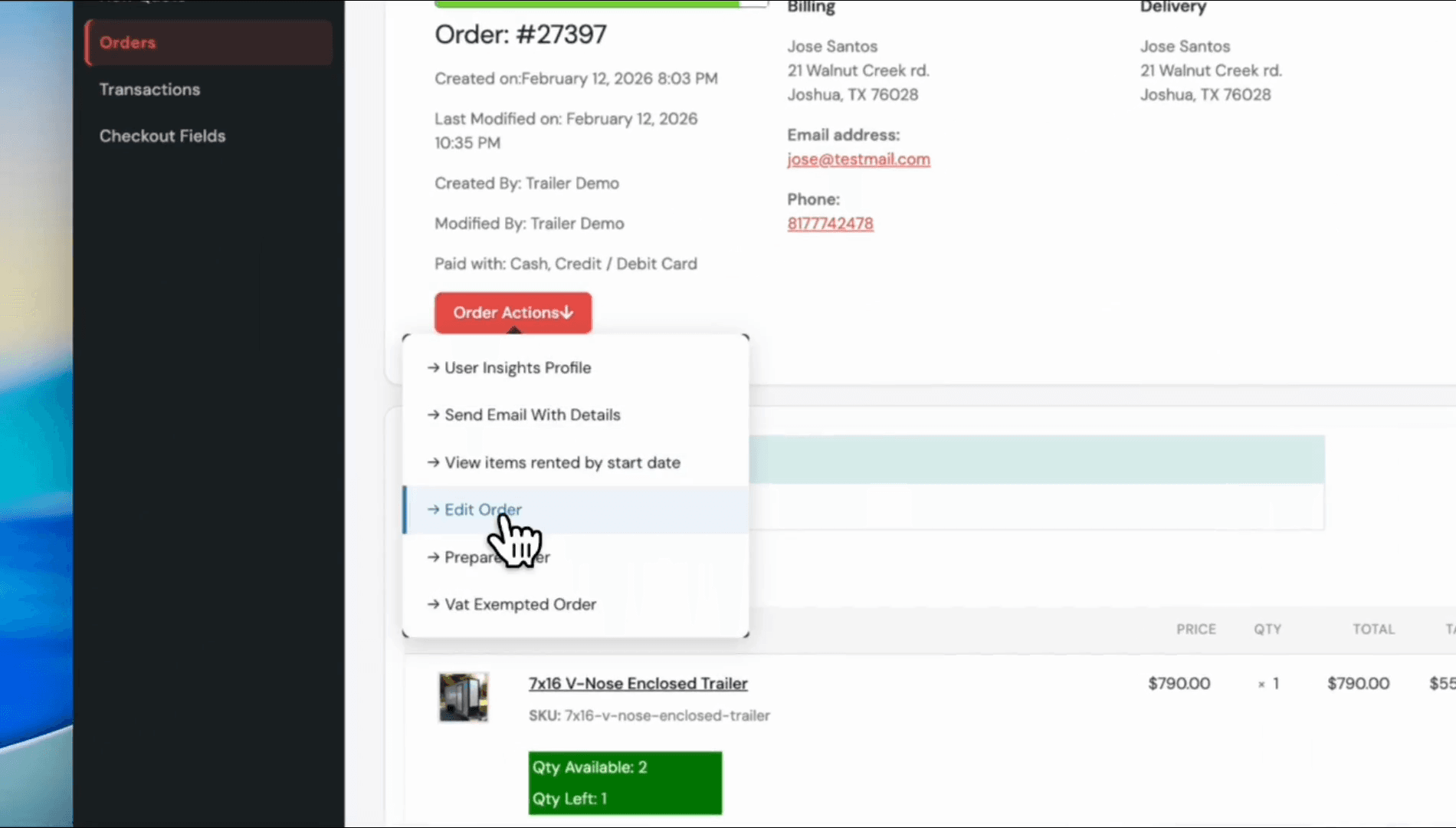
Go to the Carts section and remove the trailer we just added: the 6-by-10 enclosed cargo trailer.
17
Click the remove icon for the '6x10 Enclosed Cargo Trailer'.
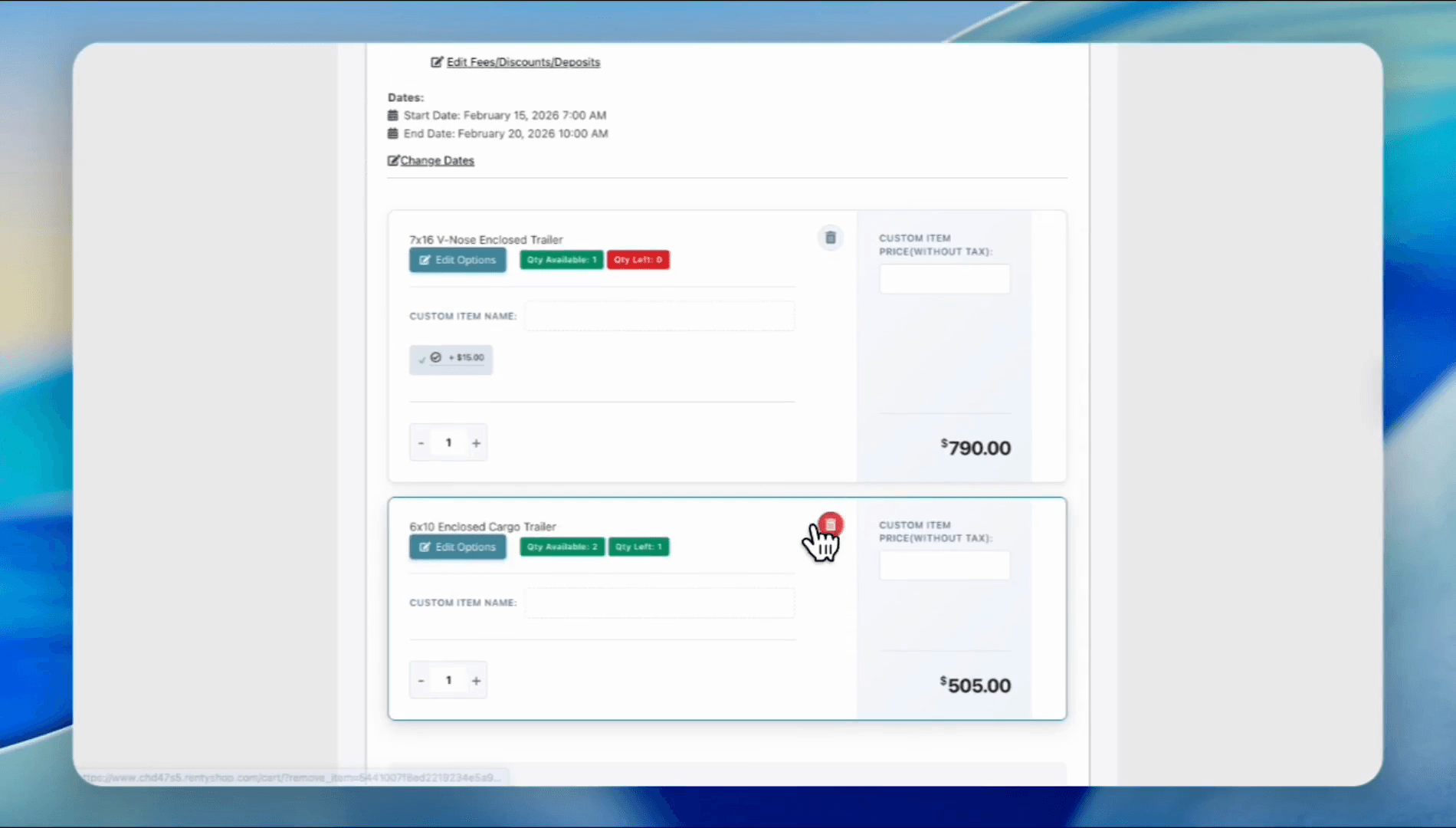
18
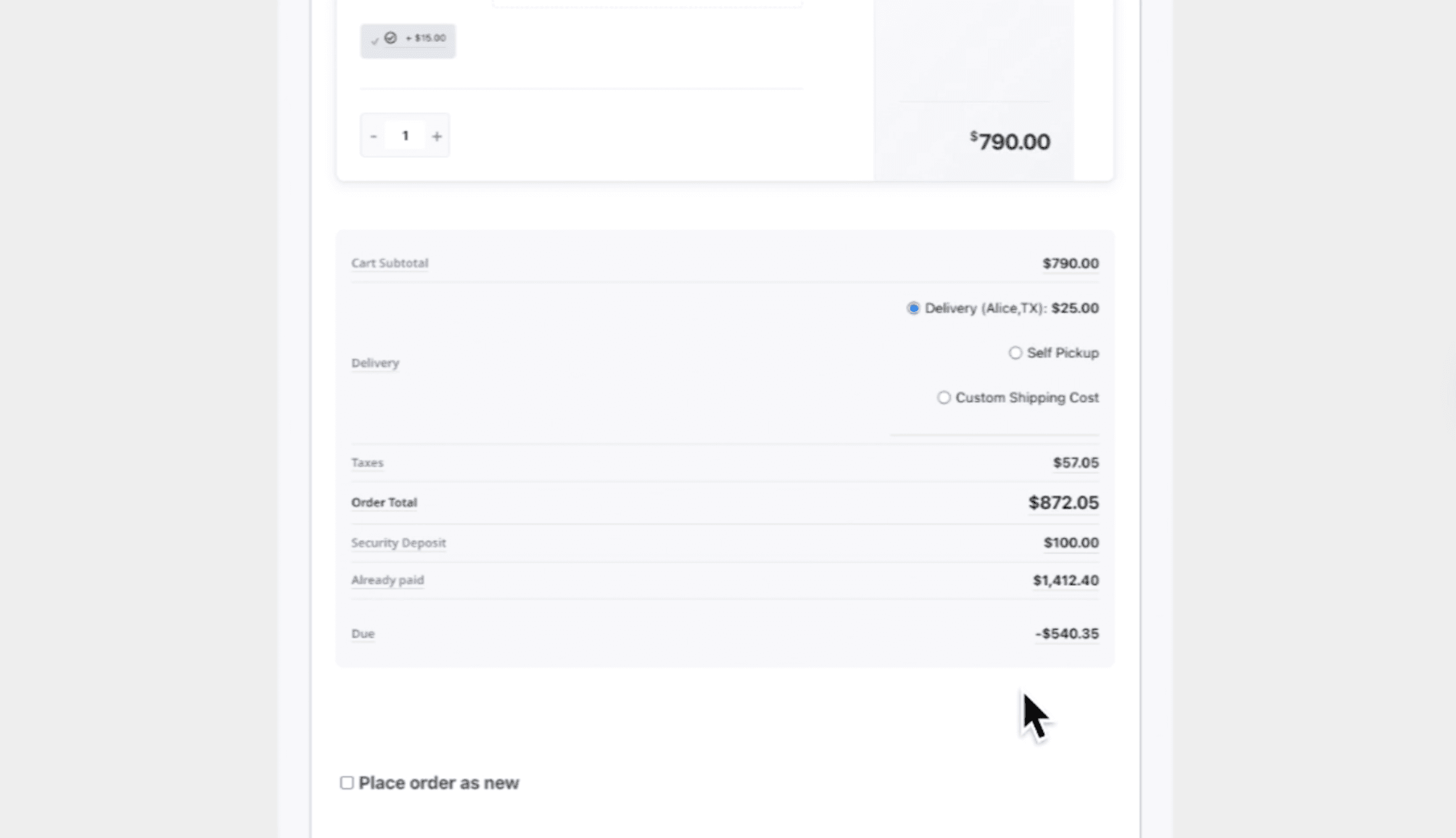
The due payment is negative $540.35. We need to refund this amount, or a portion of it, to the customer in accordance with the cancellation policy. Let's say we want to refund $300.
19
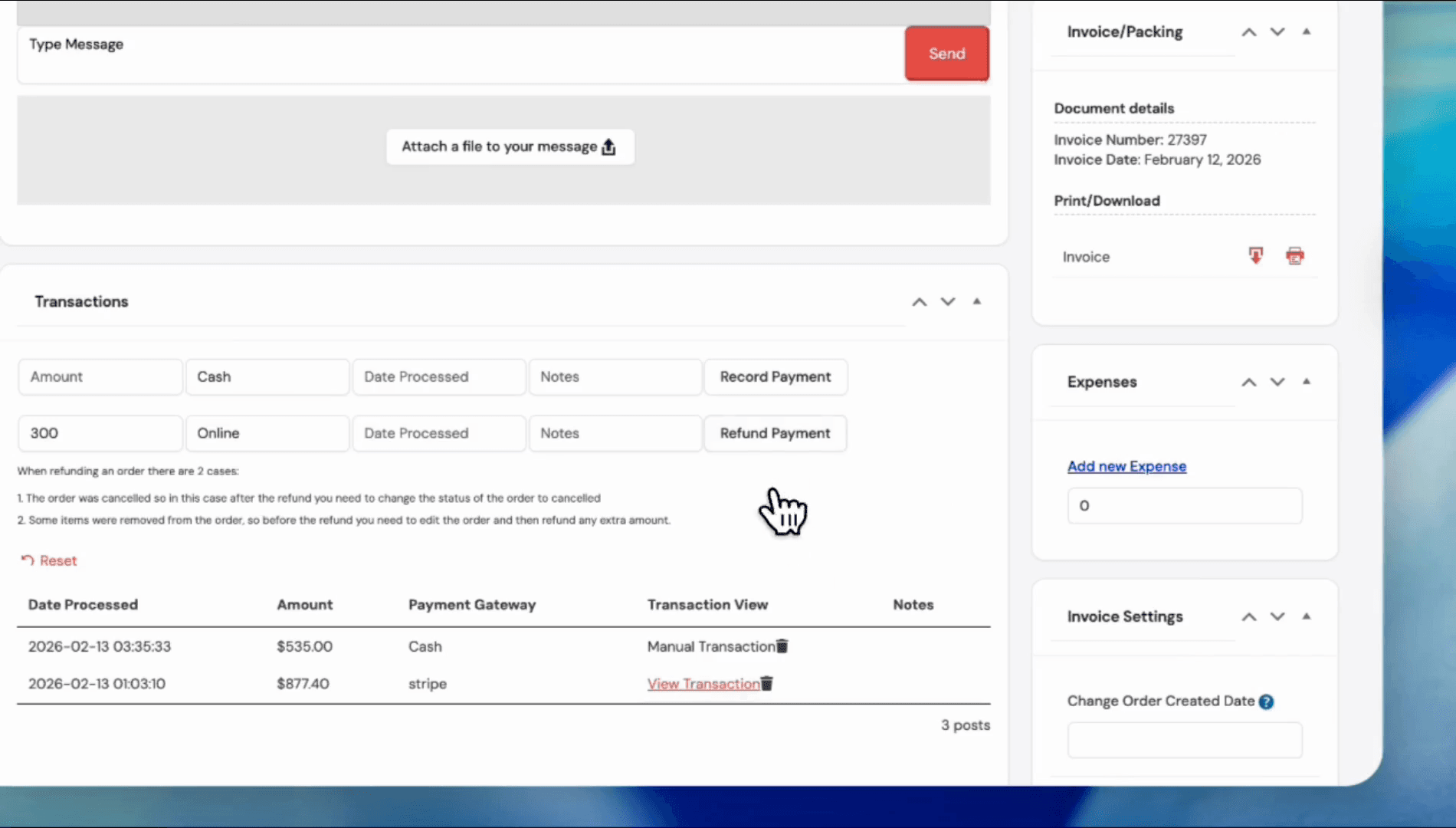
Type '300' in the amount field and click the 'Refund Payment' button.
20
$300 is refunded to the customer.