
How to Add Items to the Provenance List in Organisational Archives
Learn step-by-step add items to the provenance list in organisational archives. This guide covers managing lists, adding new organisational provenances
In this guide, we'll learn how to add items to a provenance list in your system. This process helps you organize and manage different types of provenance, such as organizational archives, by adding new entries and ensuring they are sorted and labeled correctly.
Let's get started
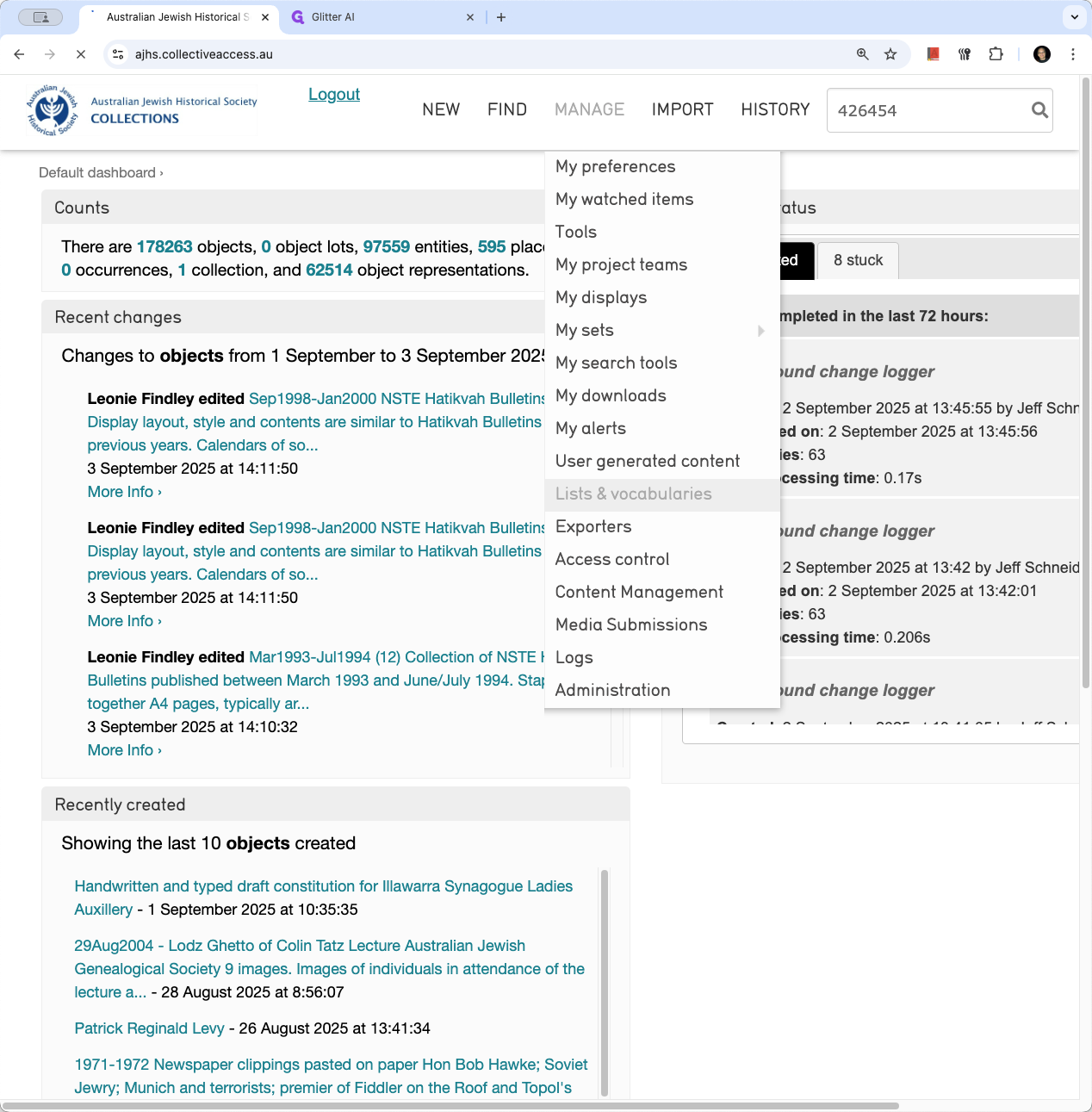
We will show how to edit, update, and add items to the provenance list. From the home page, go to Manage, then select Lists and Vocabularies.
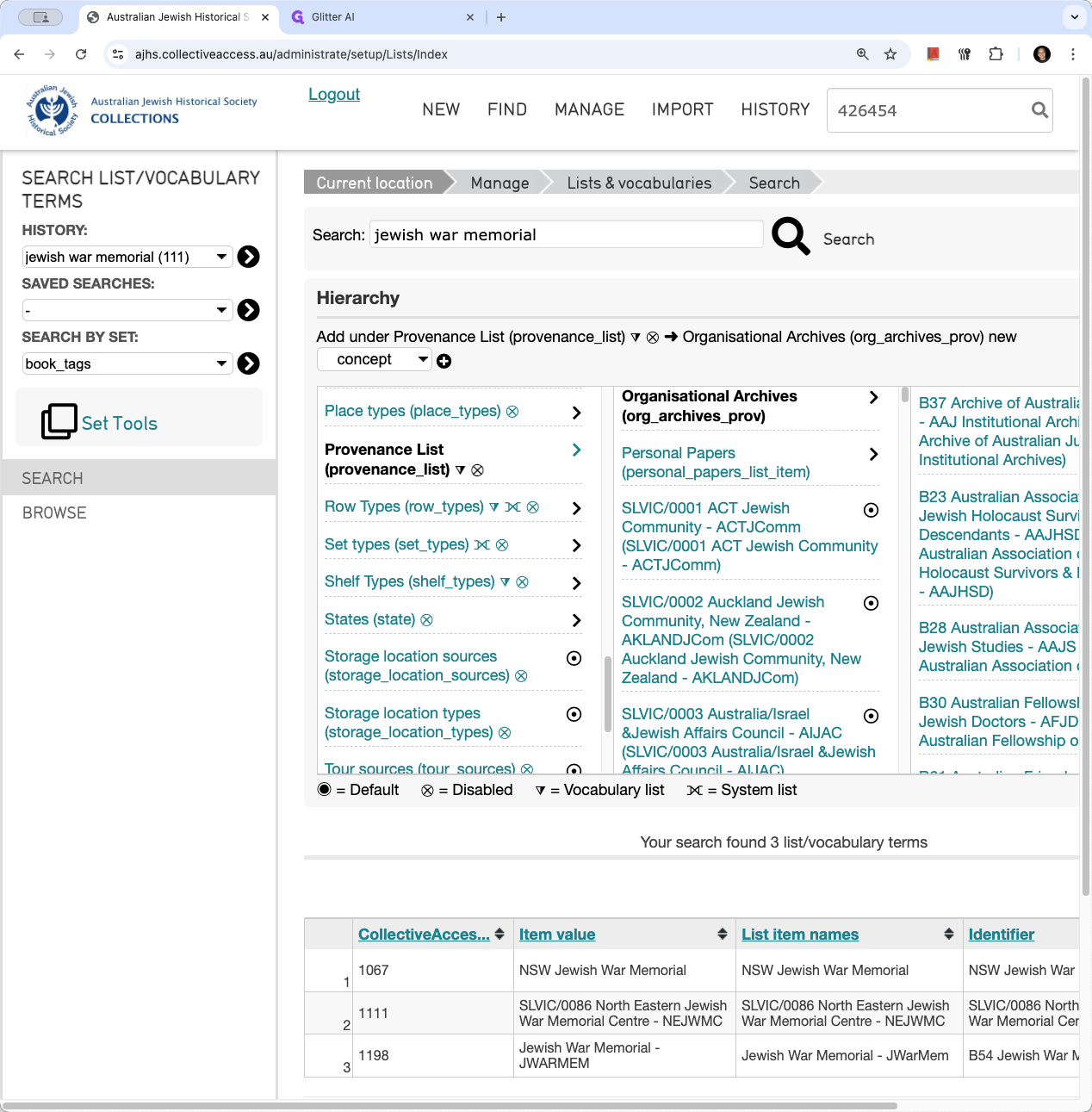
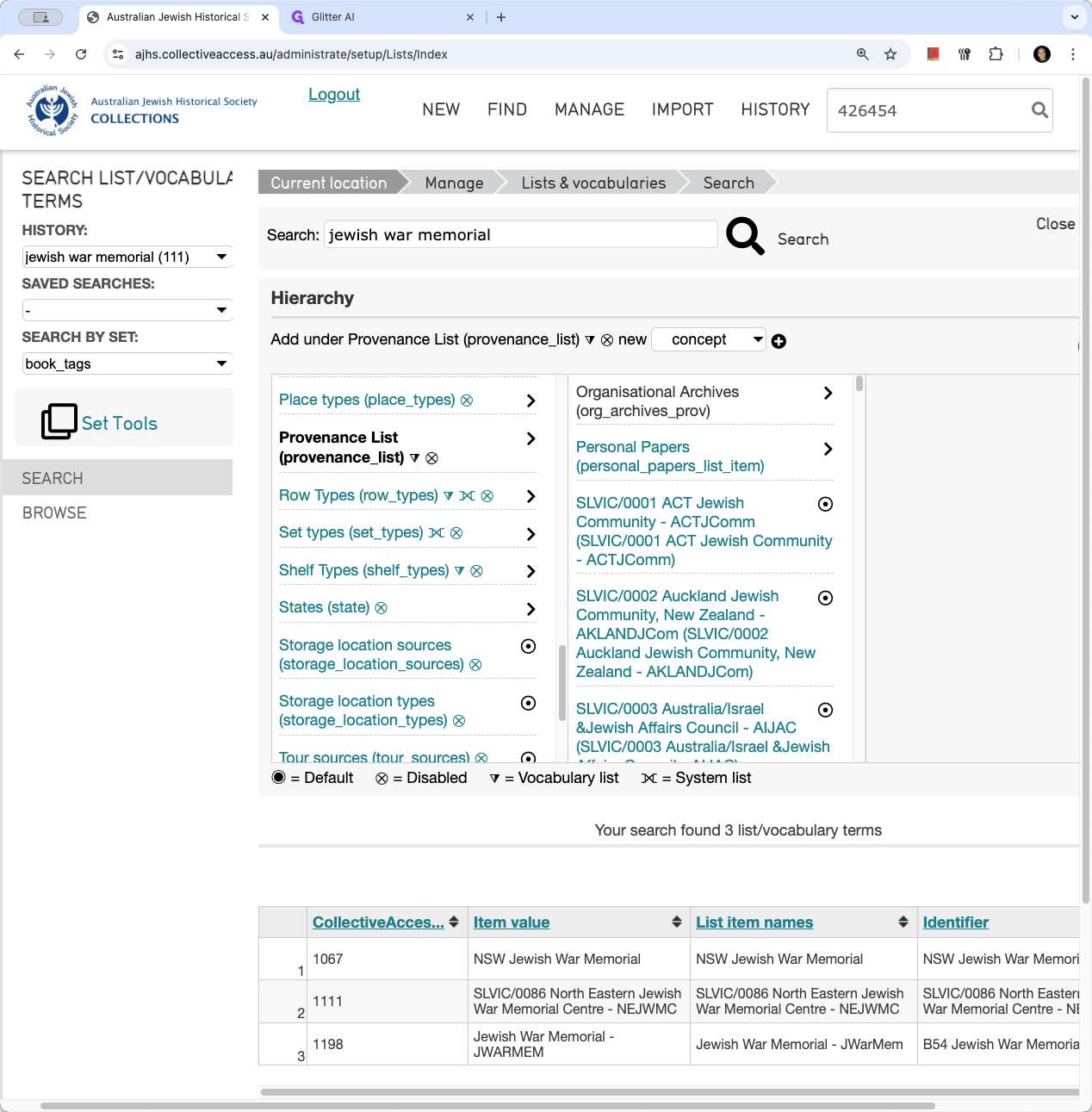
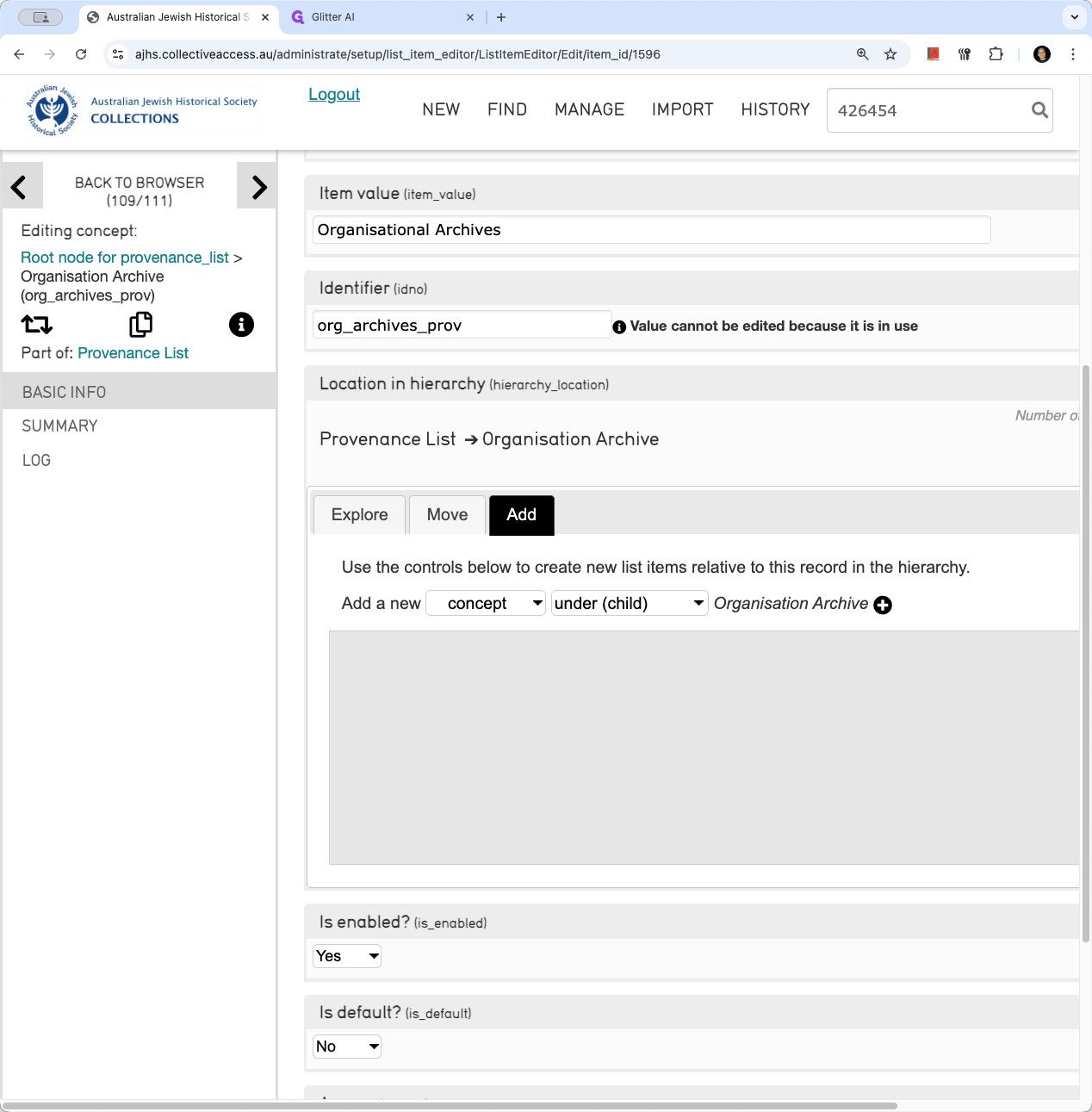
Wait for the page to load. This will display the hierarchy. First, on the far left side, make sure you are in the Provenance List. Click the arrow. Depending on which provenance list item you want to edit or add, select the appropriate option. In this case, to add new organizational provenances, click on Organizational Archives. This will load another page. To add a provenance list under Organizational Archives, click Add. As indicated, select "Add a concept under child organizational archive." Click the plus icon to load the form.
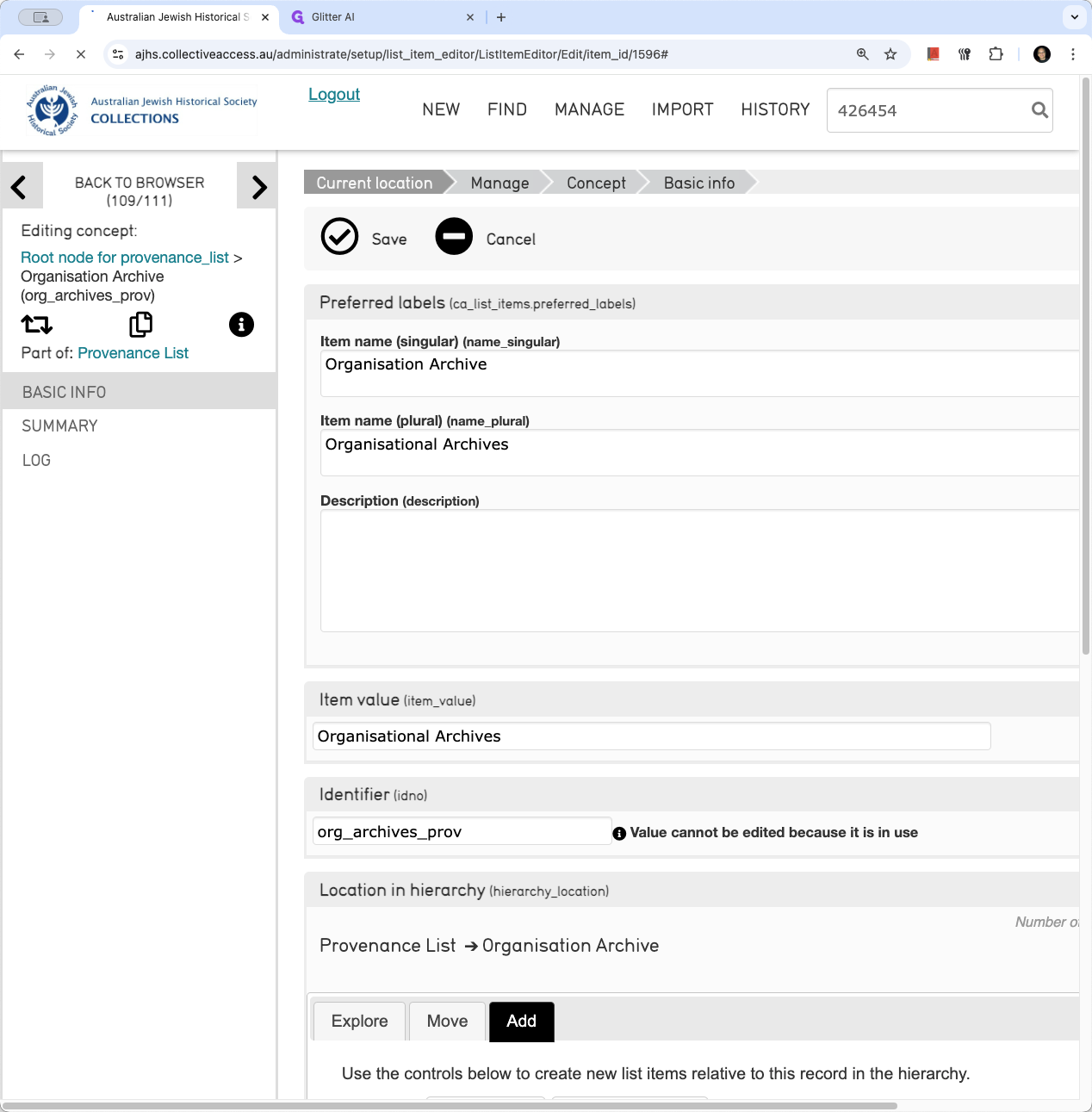
Unfortunately, these form item labels are not clear explanations. I'm working on updating them. I couldn't do it myself for technical reasons, so I contacted our web host. I will paste what you requested for the first one: this Jewish Adult Study Group.
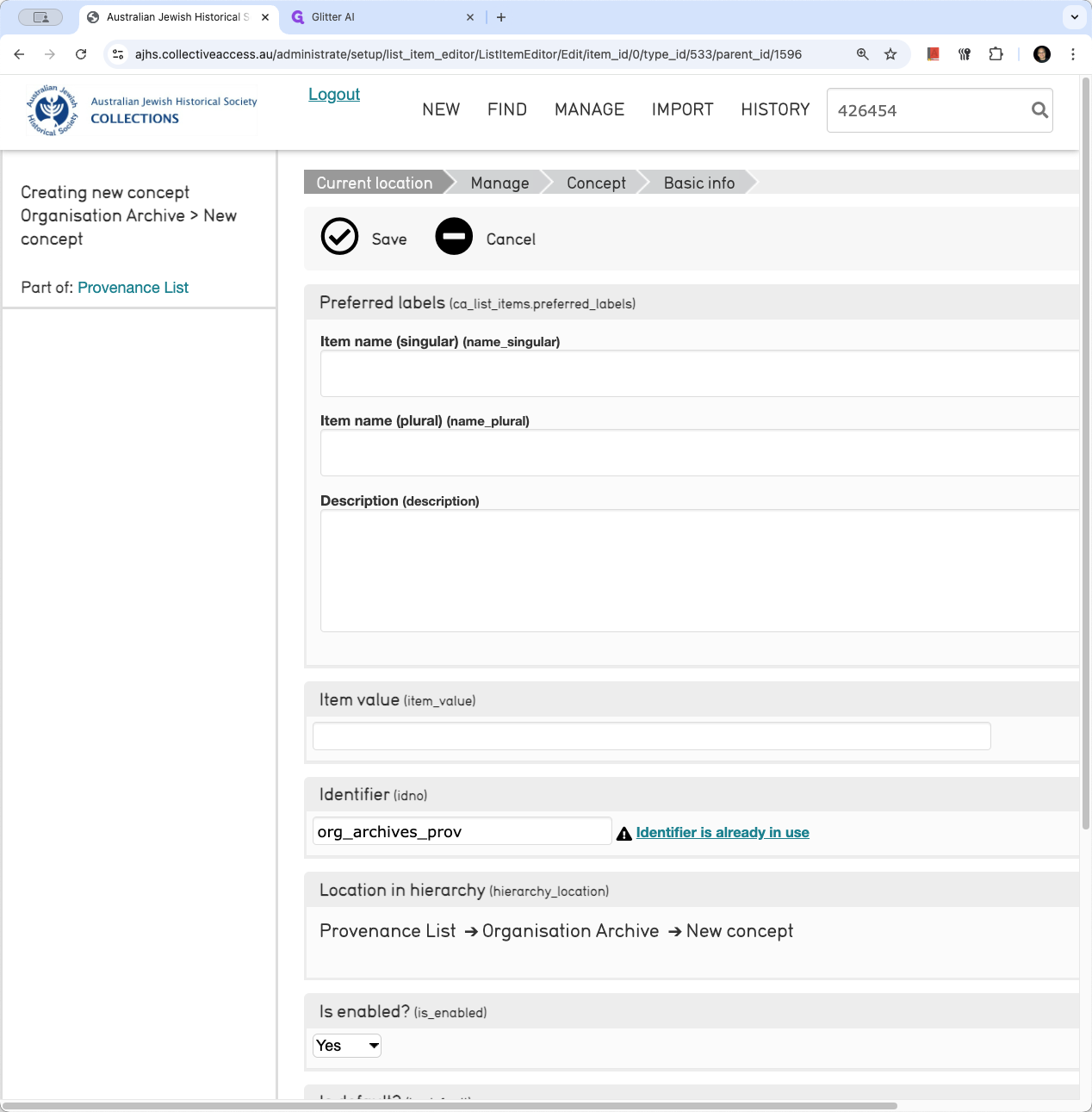
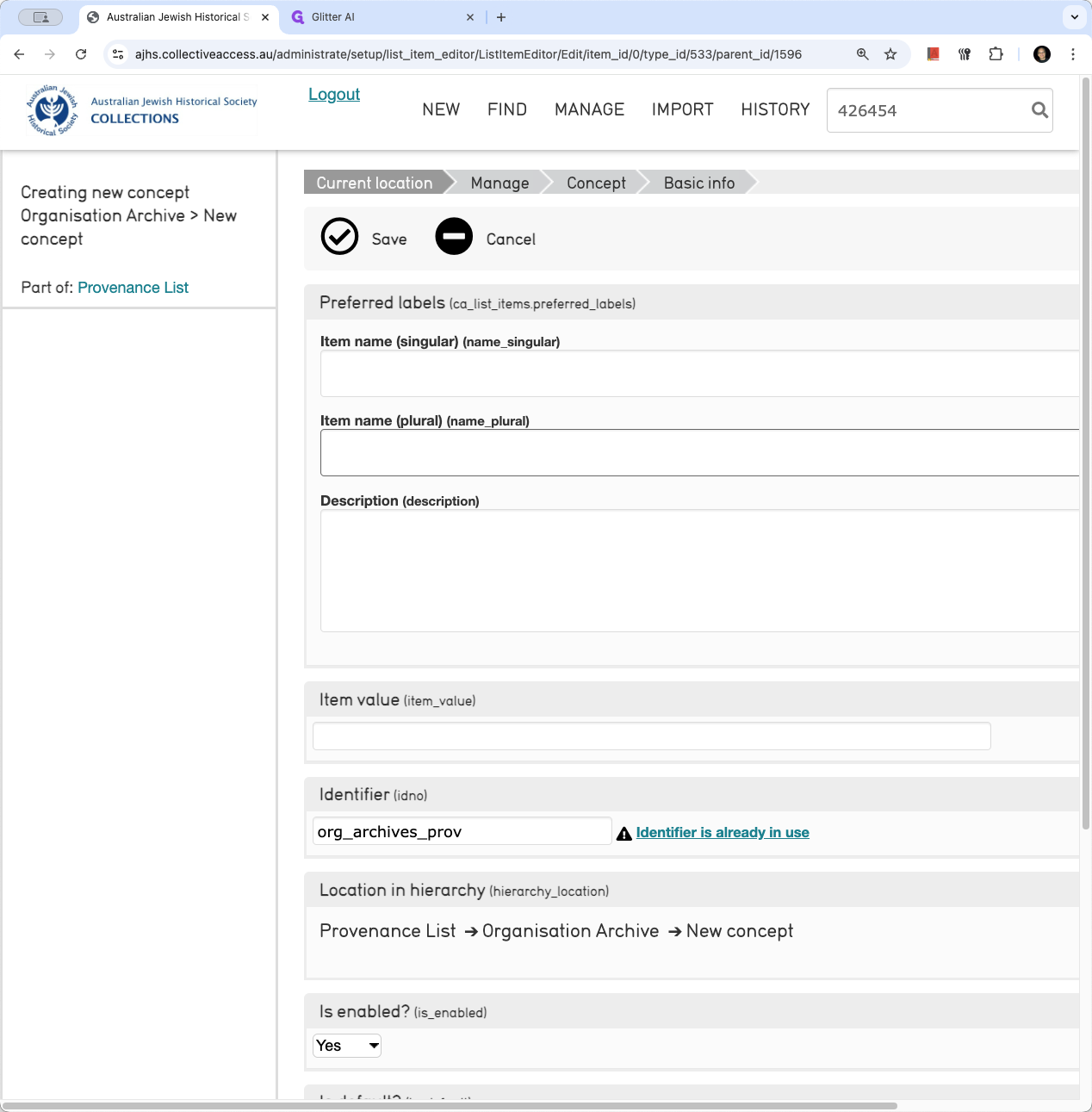
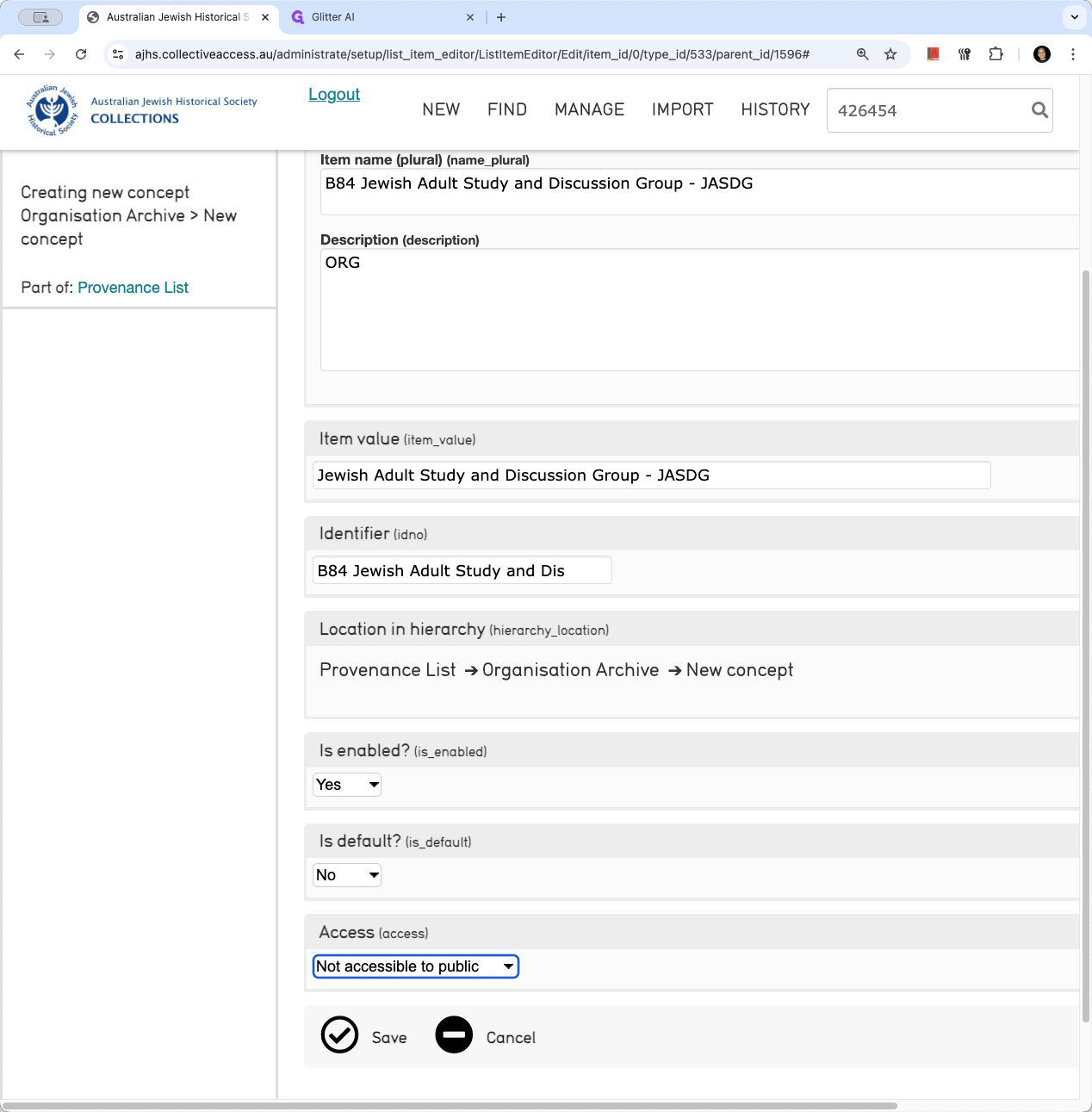
Now, the plural field determines how it will appear in the hierarchy. Last year, we agreed that items should be numbered in the hierarchy. However, on the search form, we do not want numbers to appear.
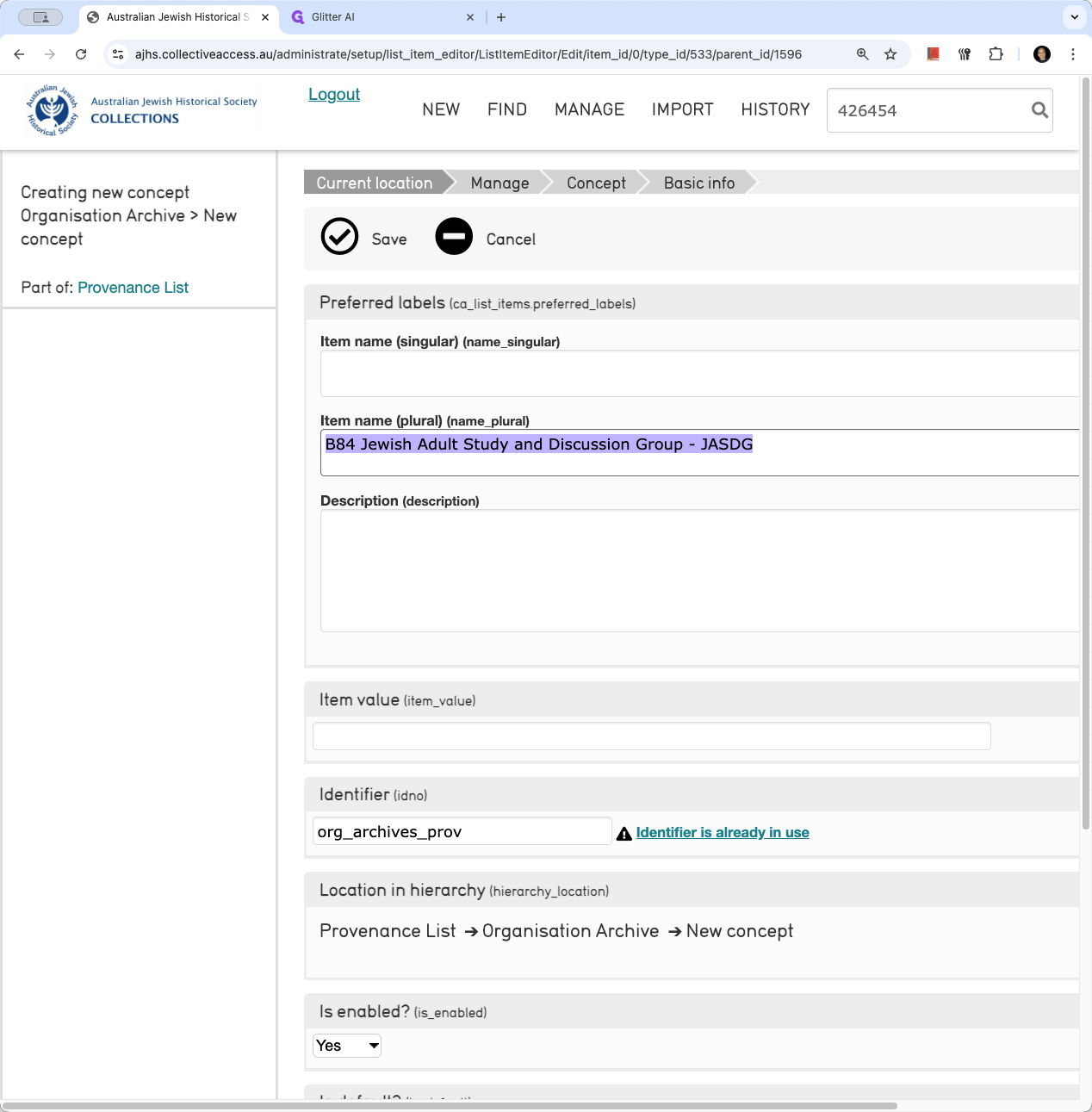
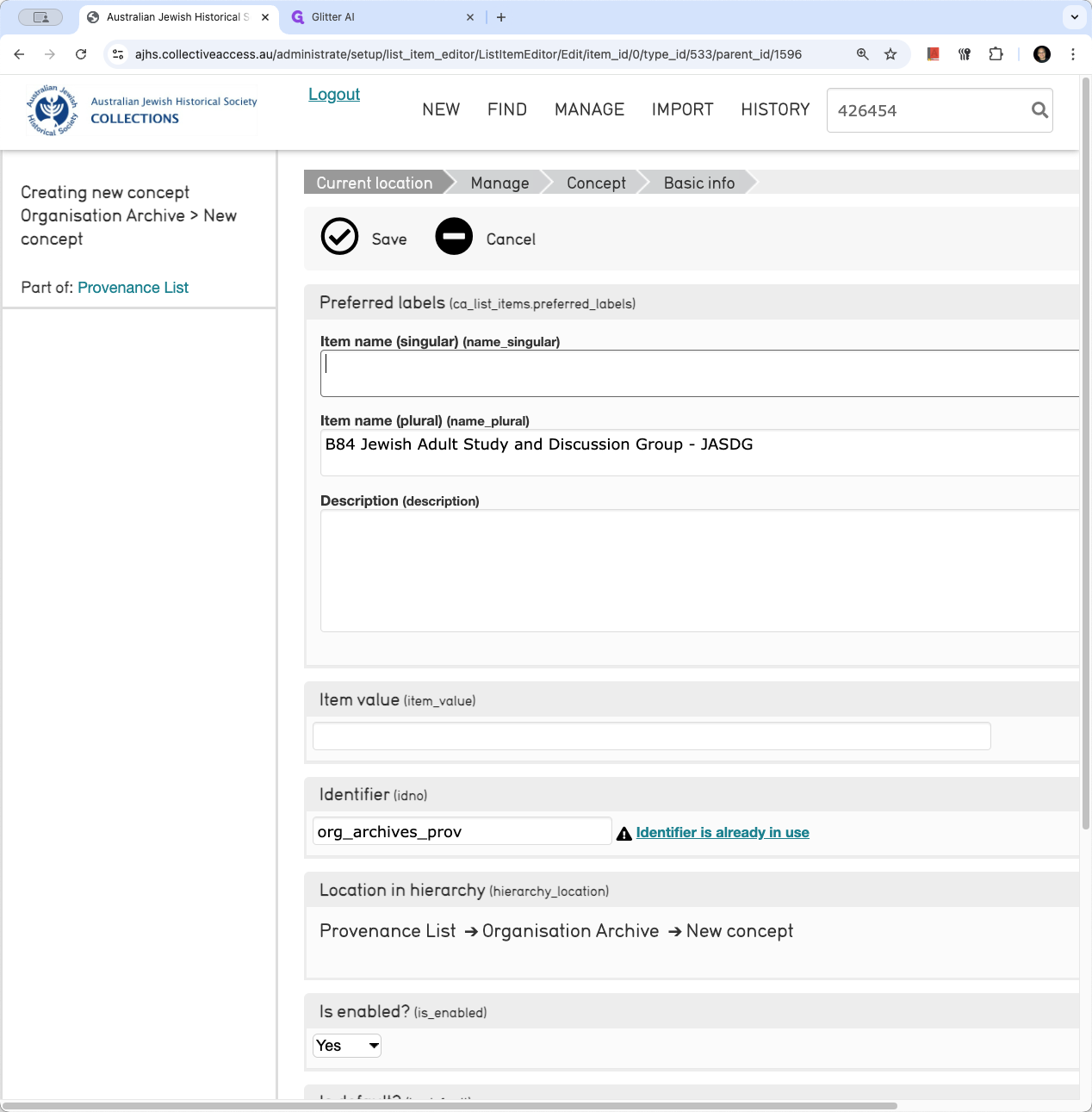
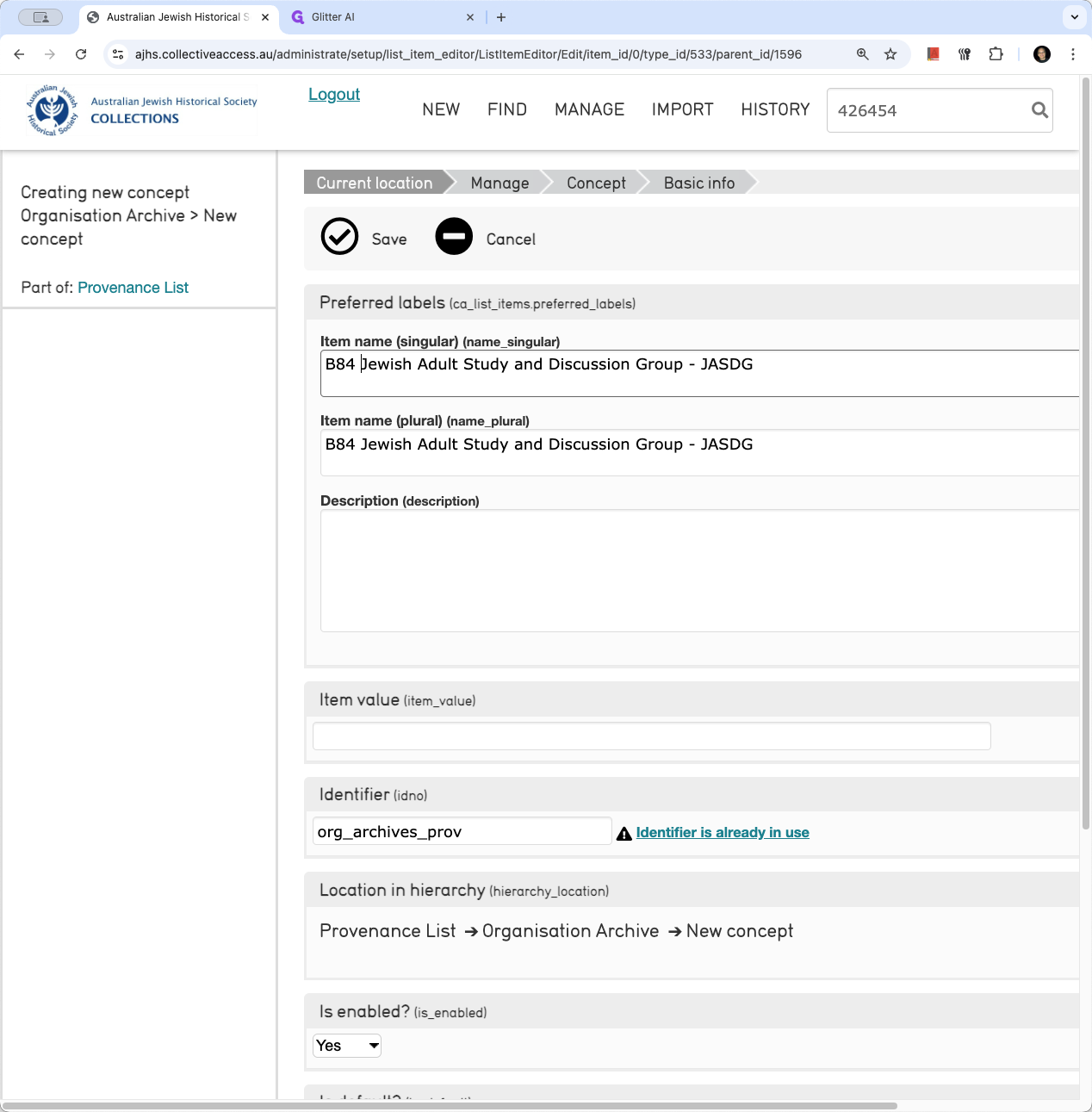
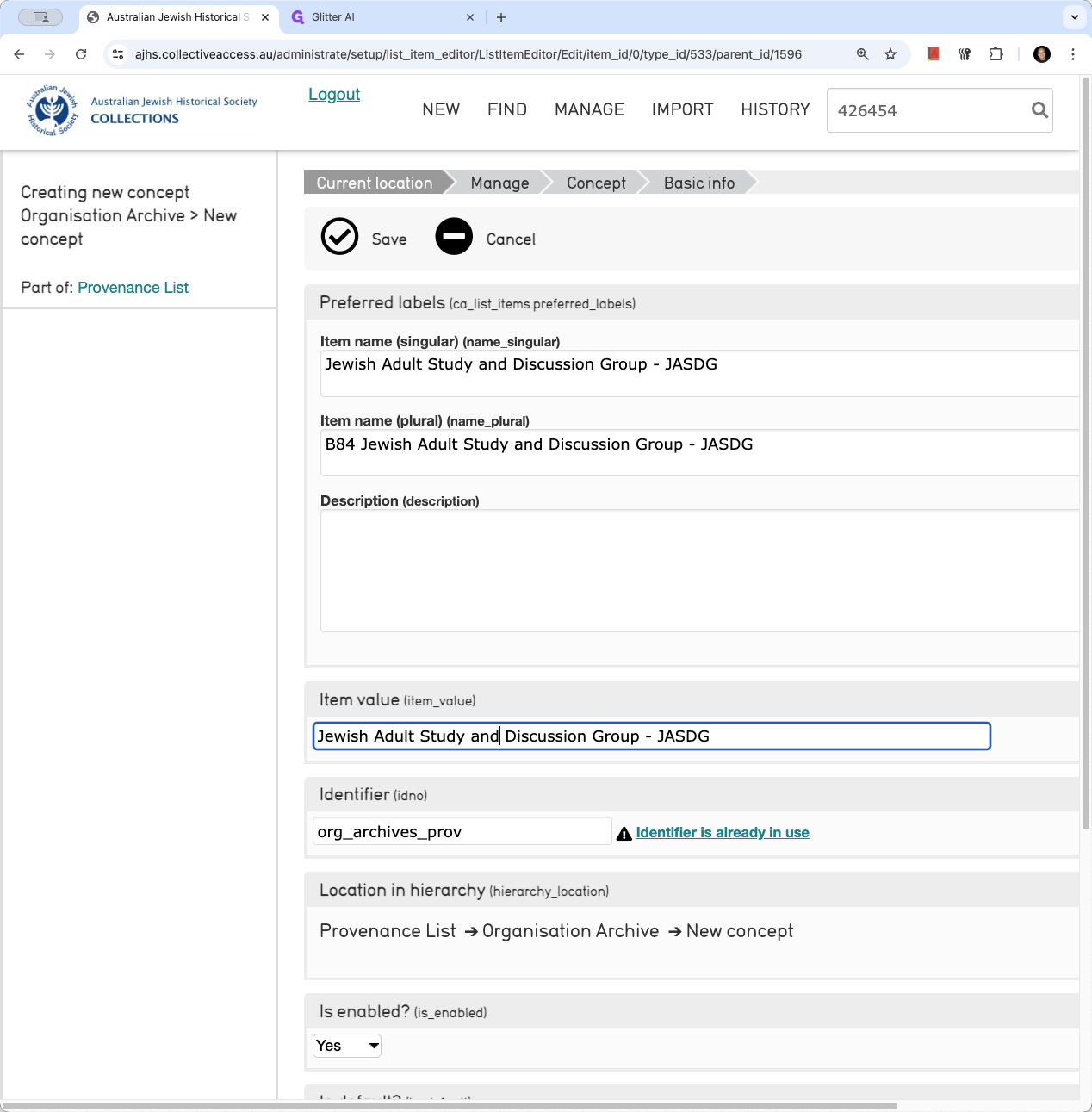
We want it to sort in a sensible manner and appear correctly. For example, we have "Jewish Adults Studying - A Discussion Group." The item value determines how it sorts, so you should paste the singular form into the item value.
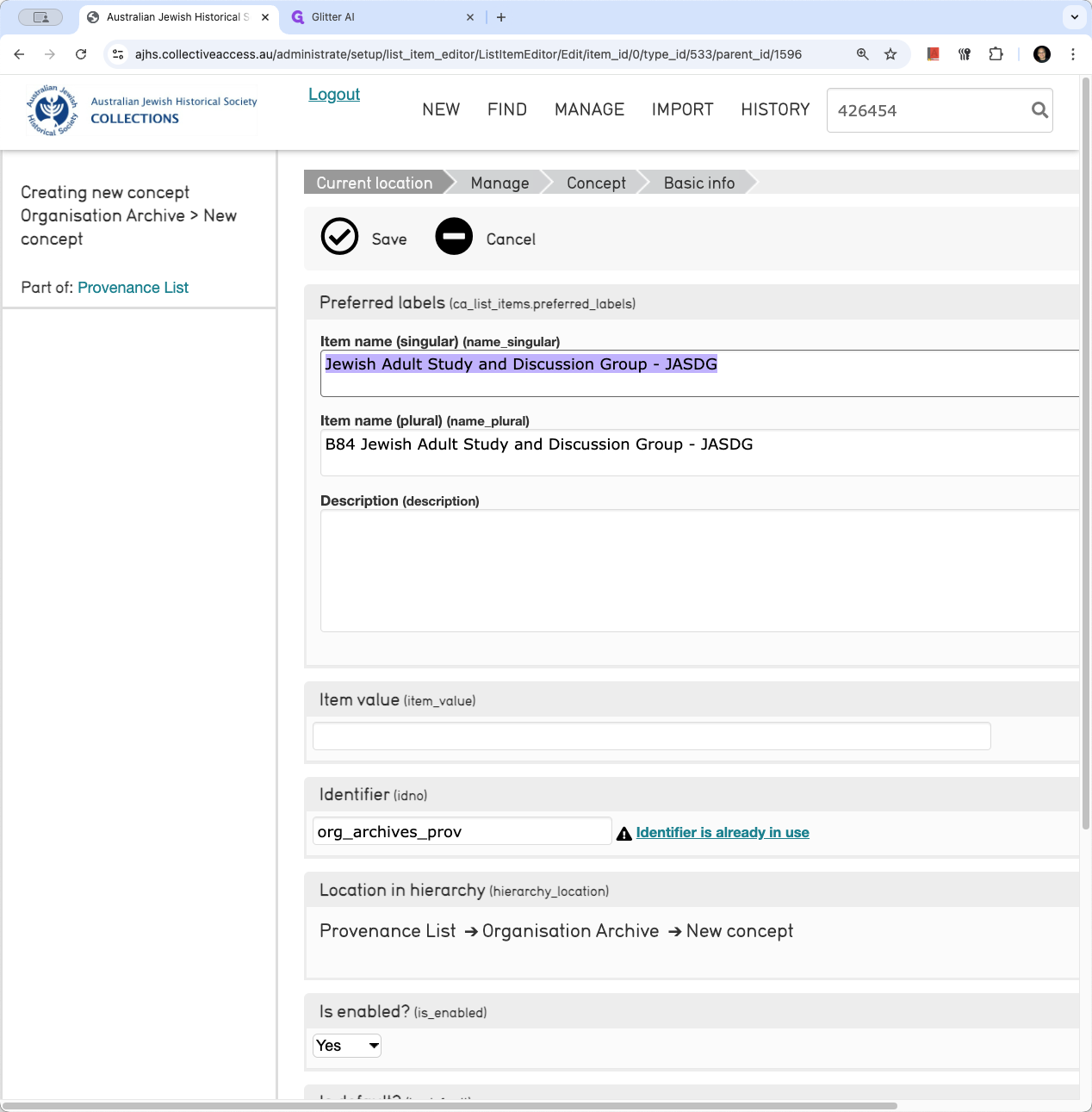
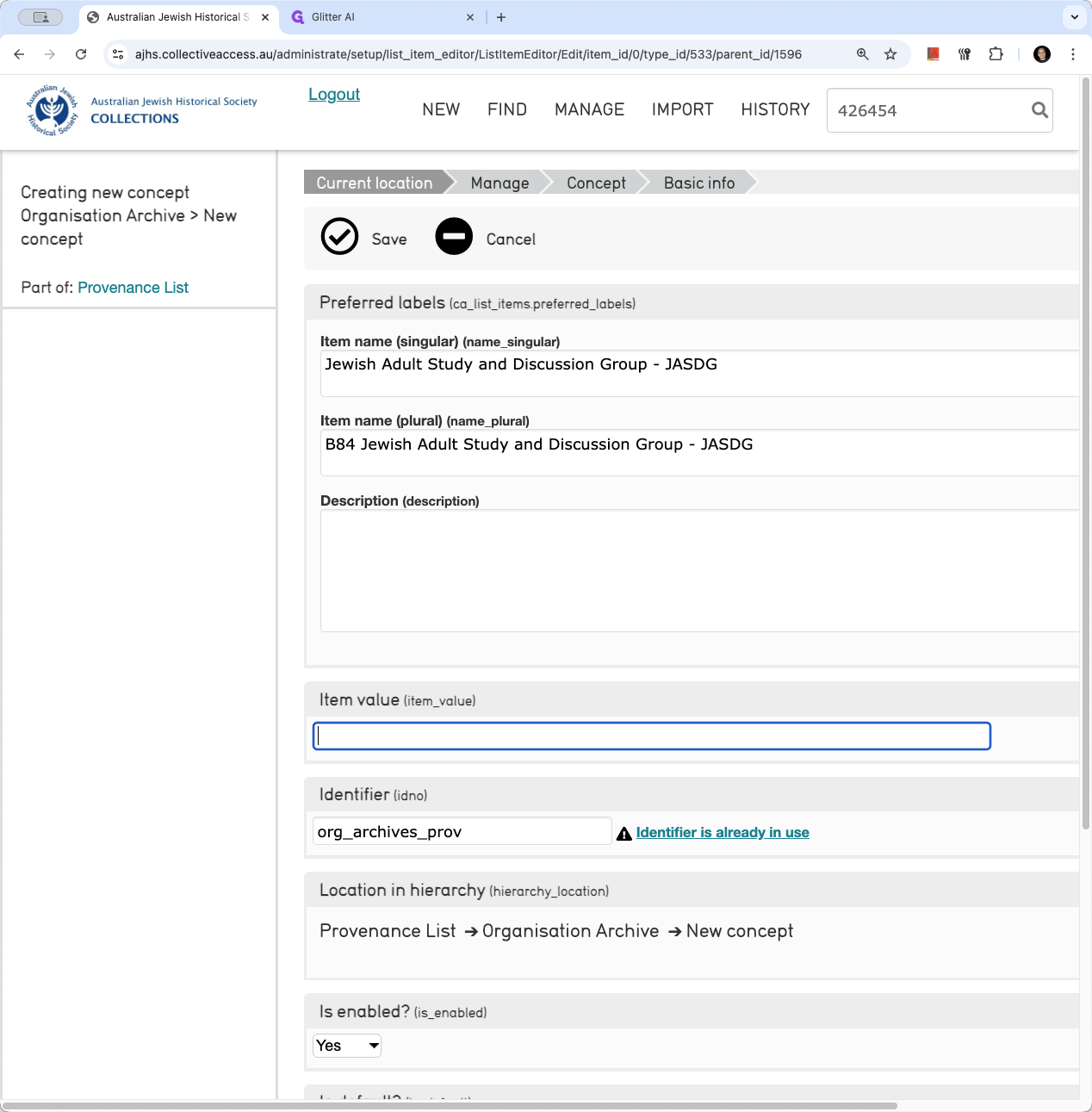
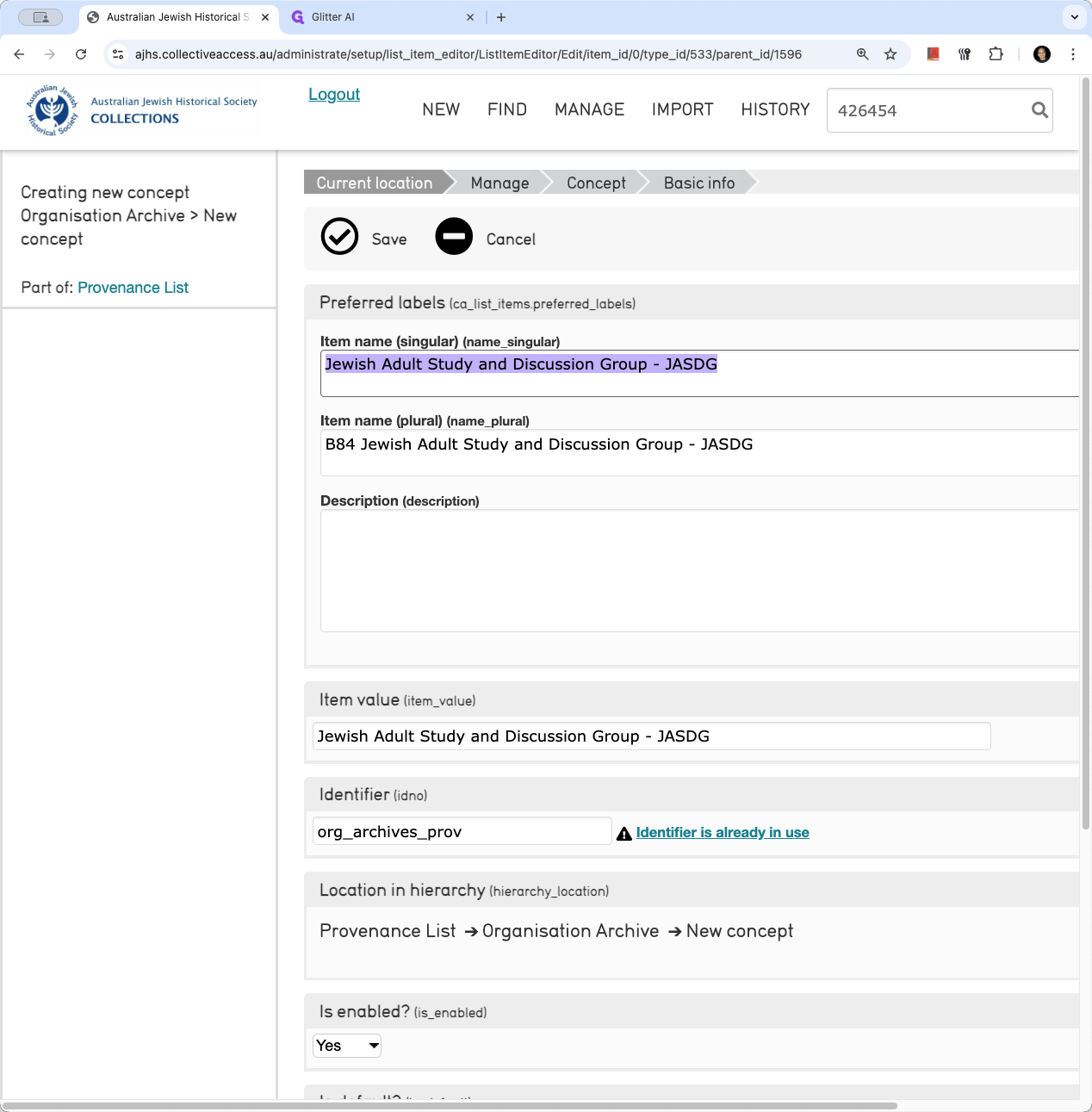
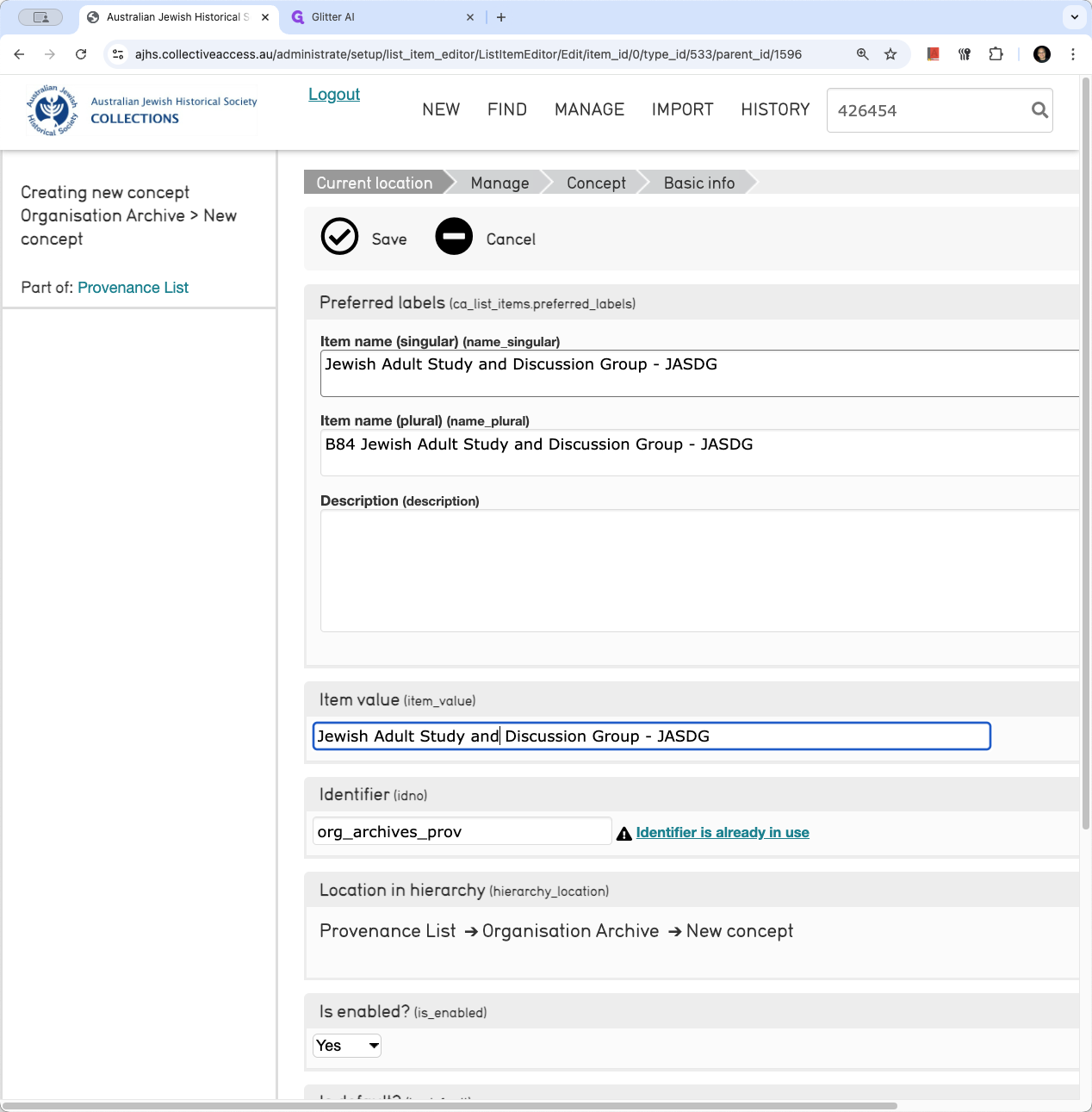
Plurals will appear in the hierarchy with the B number. The singular form in item value is how you want it to appear and sort in the search form.
To make it easier, use all caps "ORG" in the description for organizations so they are grouped correctly. For personal papers, use "PP." For small individual donations, use "SID." For the identifier, it's just for internal use and can be anything. You can simply copy and paste the name there.
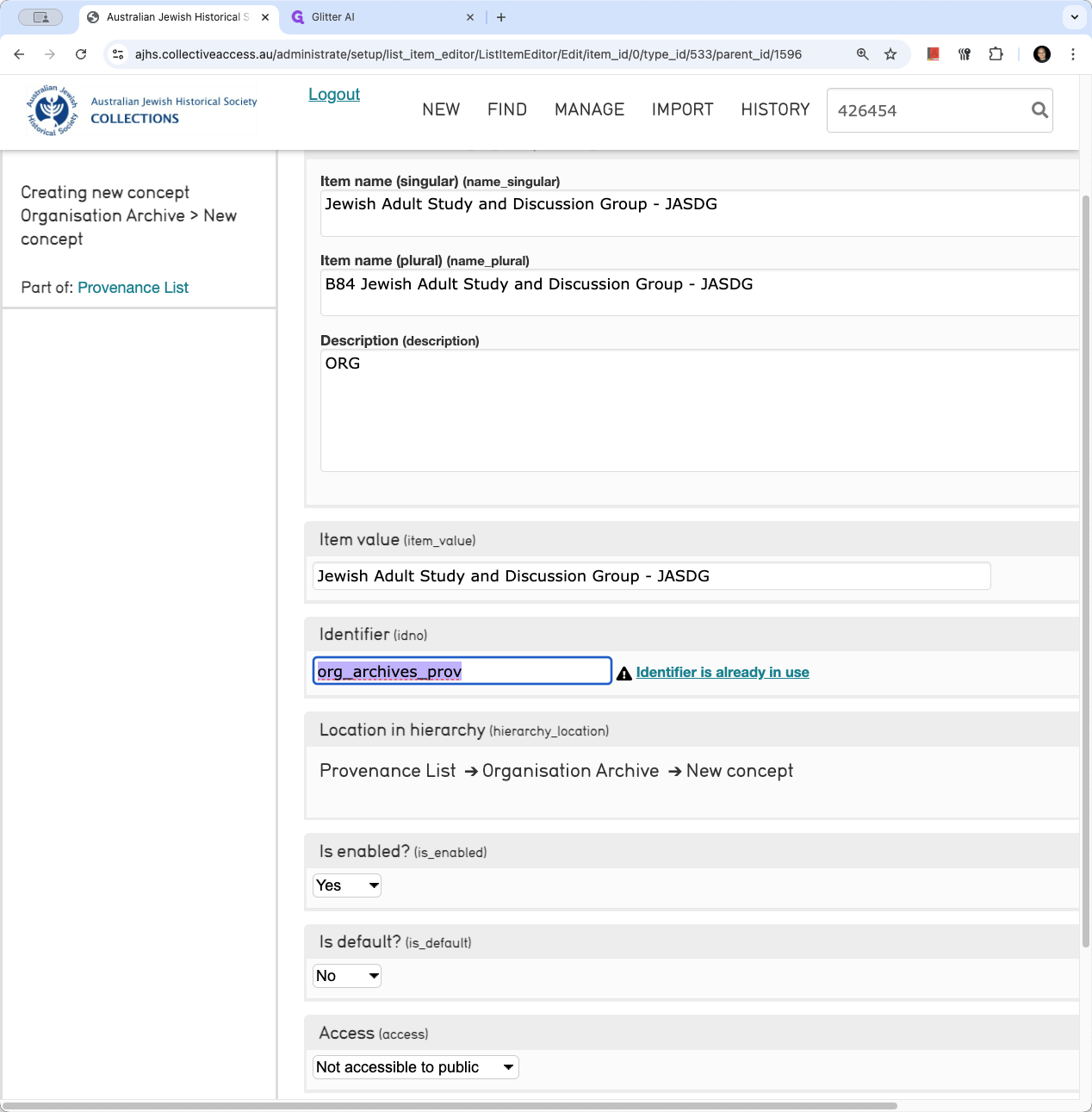
You just don't want the identifer to be the default.
We will change the access to Public. This is just a provenance list item, not a series item, so it should be public. Then, we will save it.
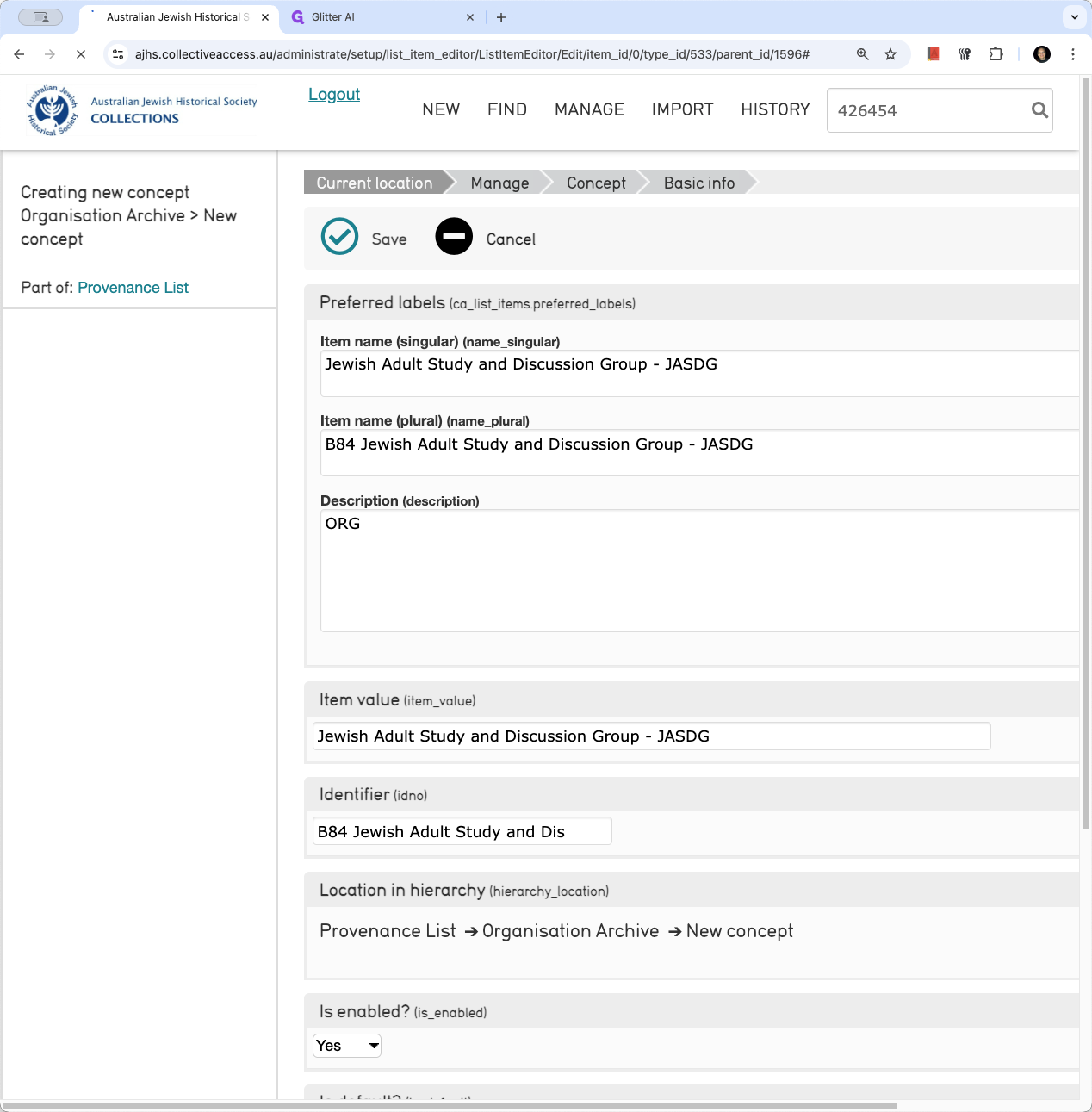
Wait for it to save. Then, we can verify that it is there.
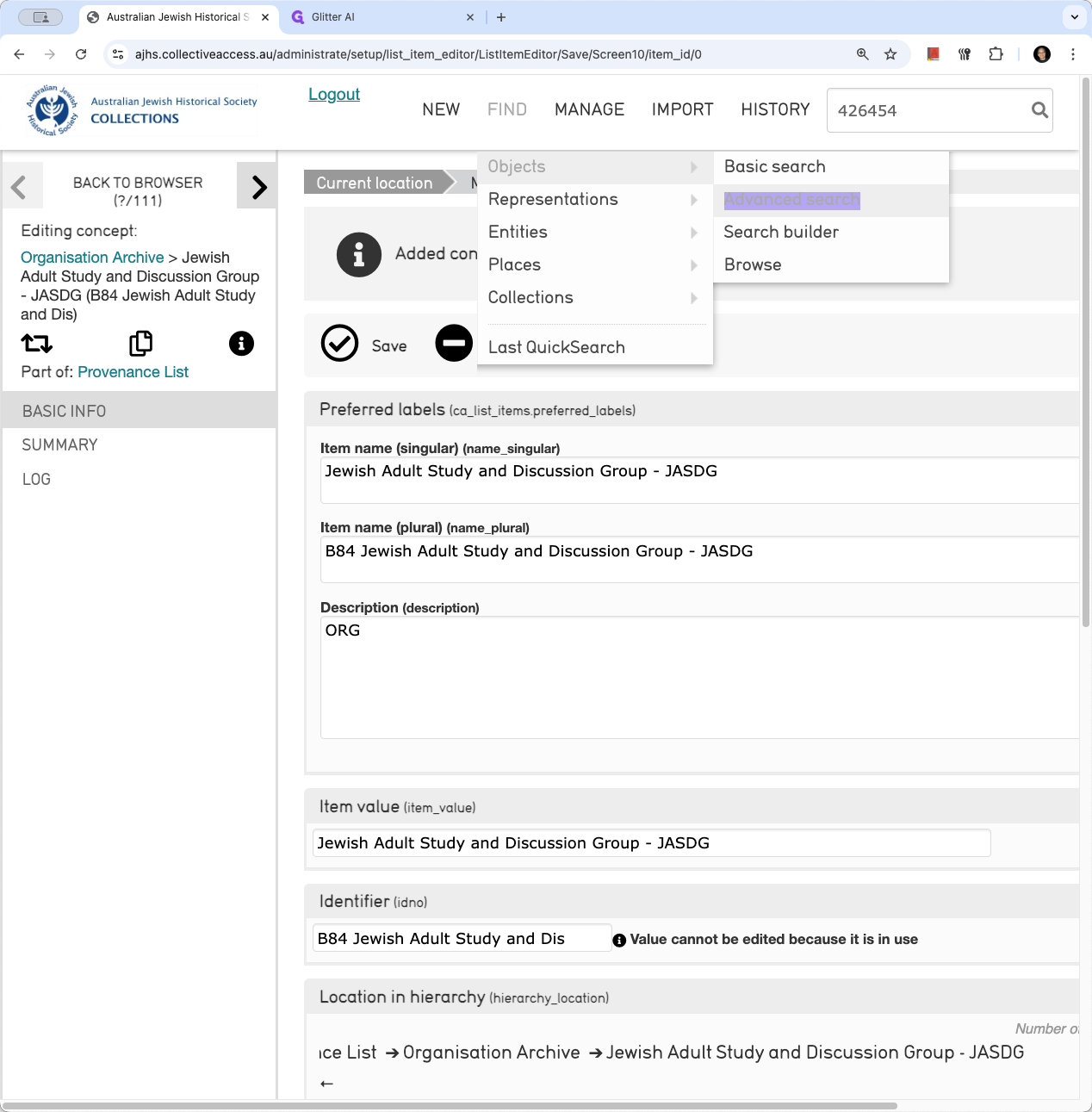
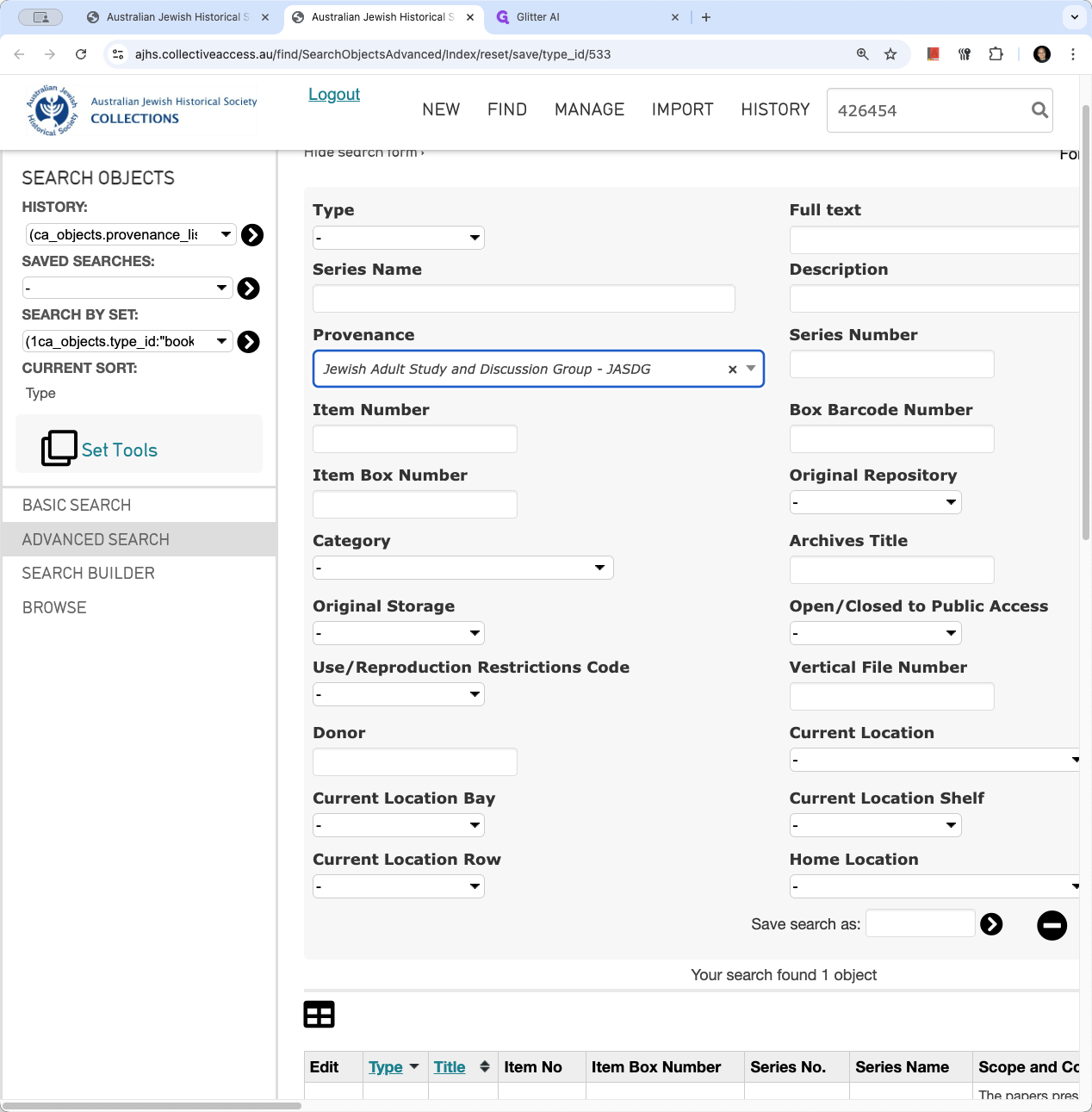
I'll go to Advanced Search, then select provenance. Choose "Jewish Adult Studying - Discussion Group." It's there.
Follow the same process to add the next one, which is Young Men's Hebrew Association.