How to Effectively Use the Lead Machine for Lead Generation
Learn how to efficiently input and manage leads using the Lead Machine. This guide covers sorting, updating prompts, and handling various campaigns for optimal lead generation.
In this guide, we'll learn how to input leads into the lead machine system. This process involves selecting the appropriate prompts, choosing the right campaigns, and ensuring the data is correctly entered. We'll focus on adding leads for specific campaigns like New City and Bridgepoint. This guide will help you navigate the system efficiently and ensure your leads are properly logged and updated.
Let's get started
Hello, and welcome to the Lead Machine. We are going to input some leads into the system. When you log in, anyone with access to the Lead Machine should see something like this.
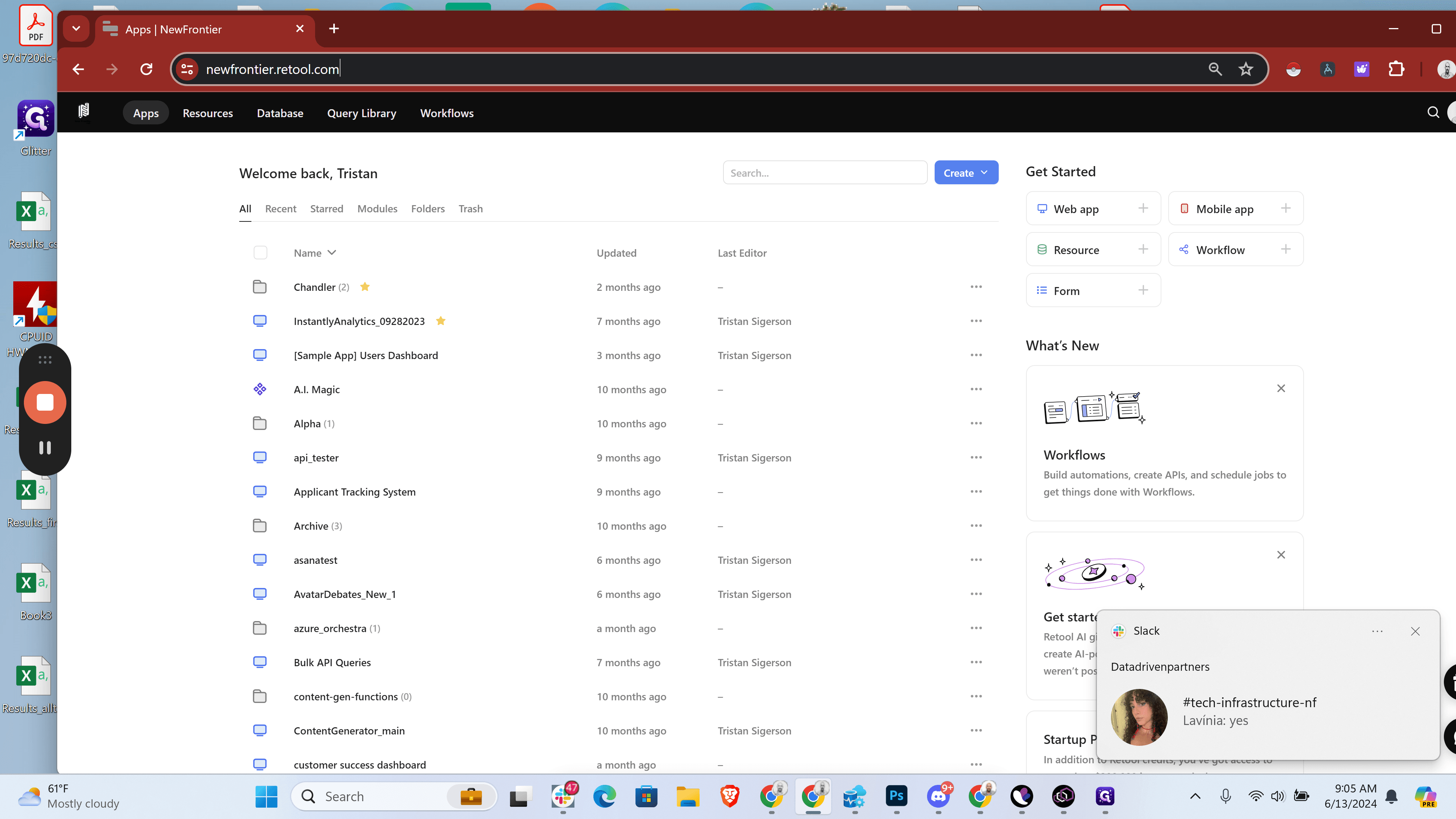
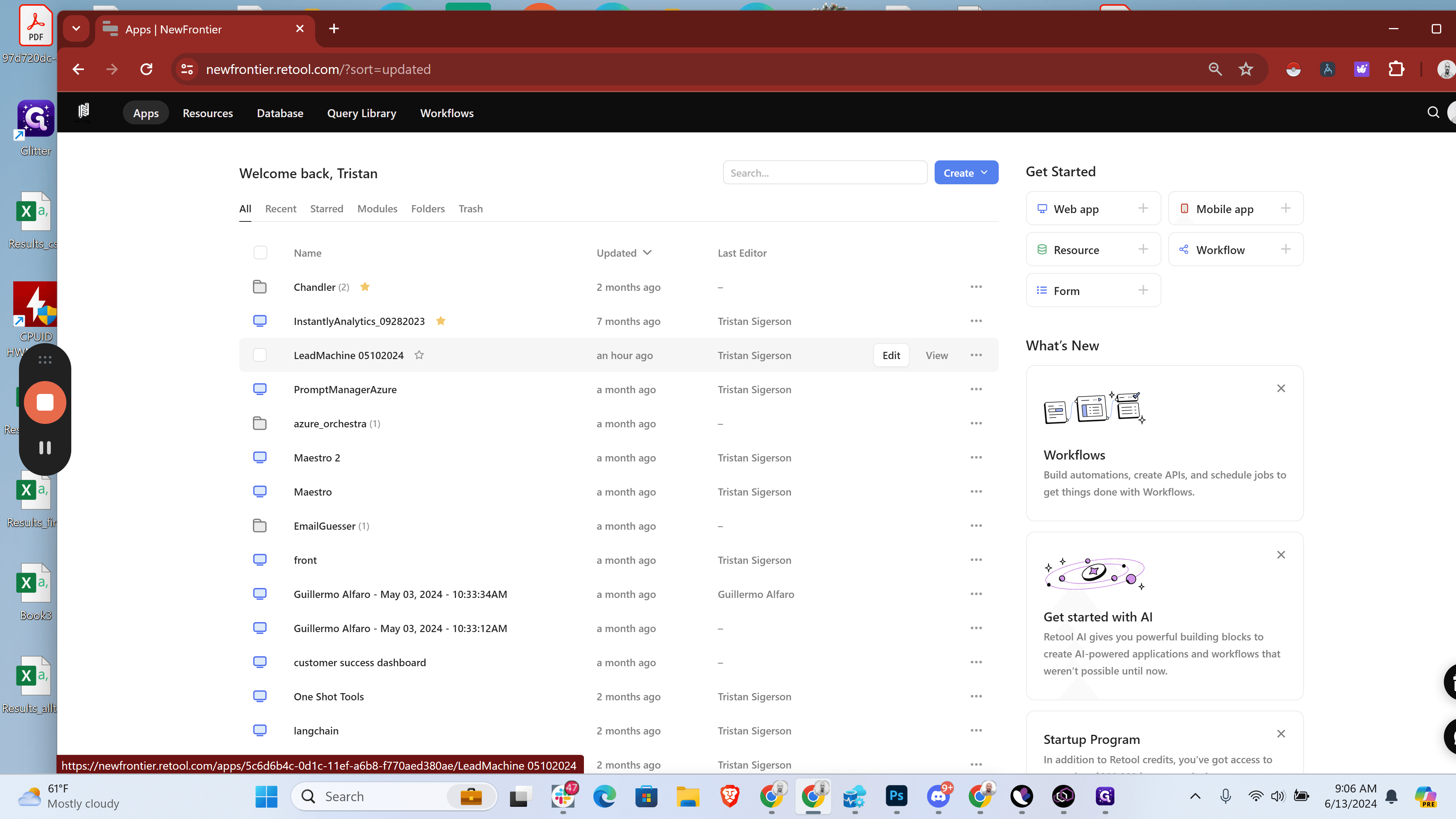
We have a variety of applications here, some of which are fun and exciting. For today's event, we'll focus on the lead machine.
I typically sort by the updated date. We'll see "Lead Machine 05-10-2024," and we click on it.
We will then be taken to a page that looks like this. Depending on the situation, we will put some leads in the queue.
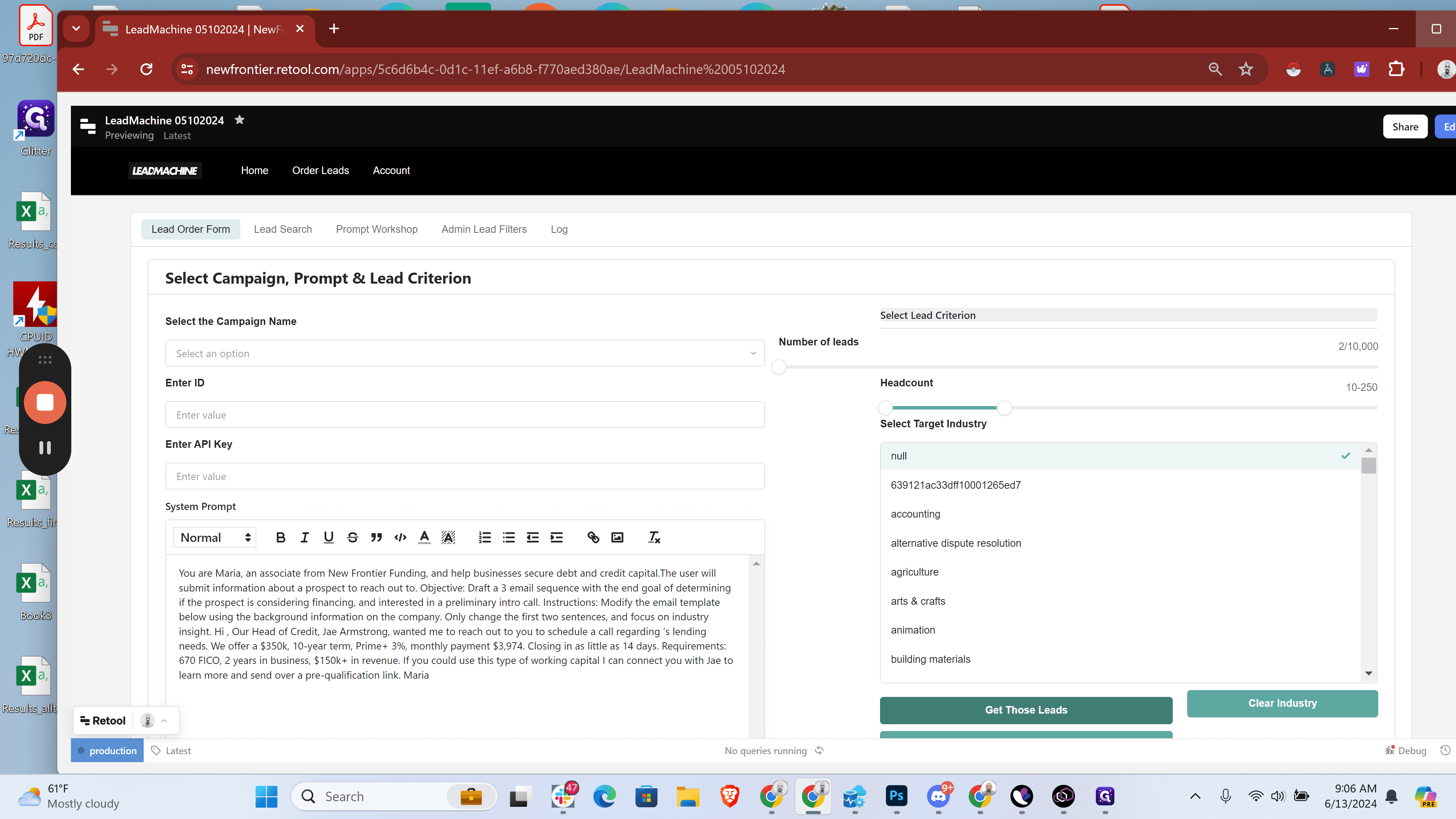
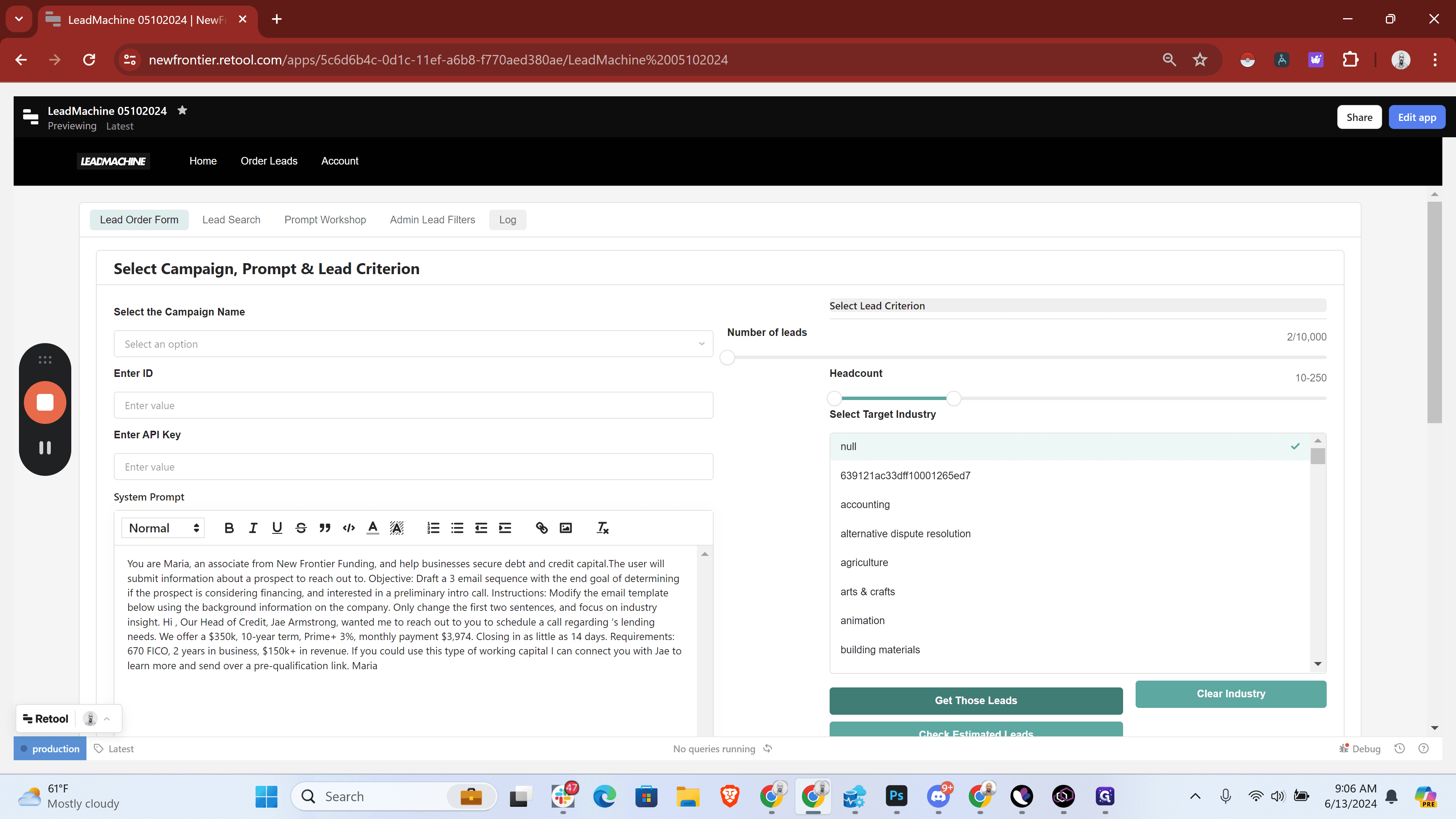
The way I like to do that is by having a prompt and an idea of the types of leads we want to include.
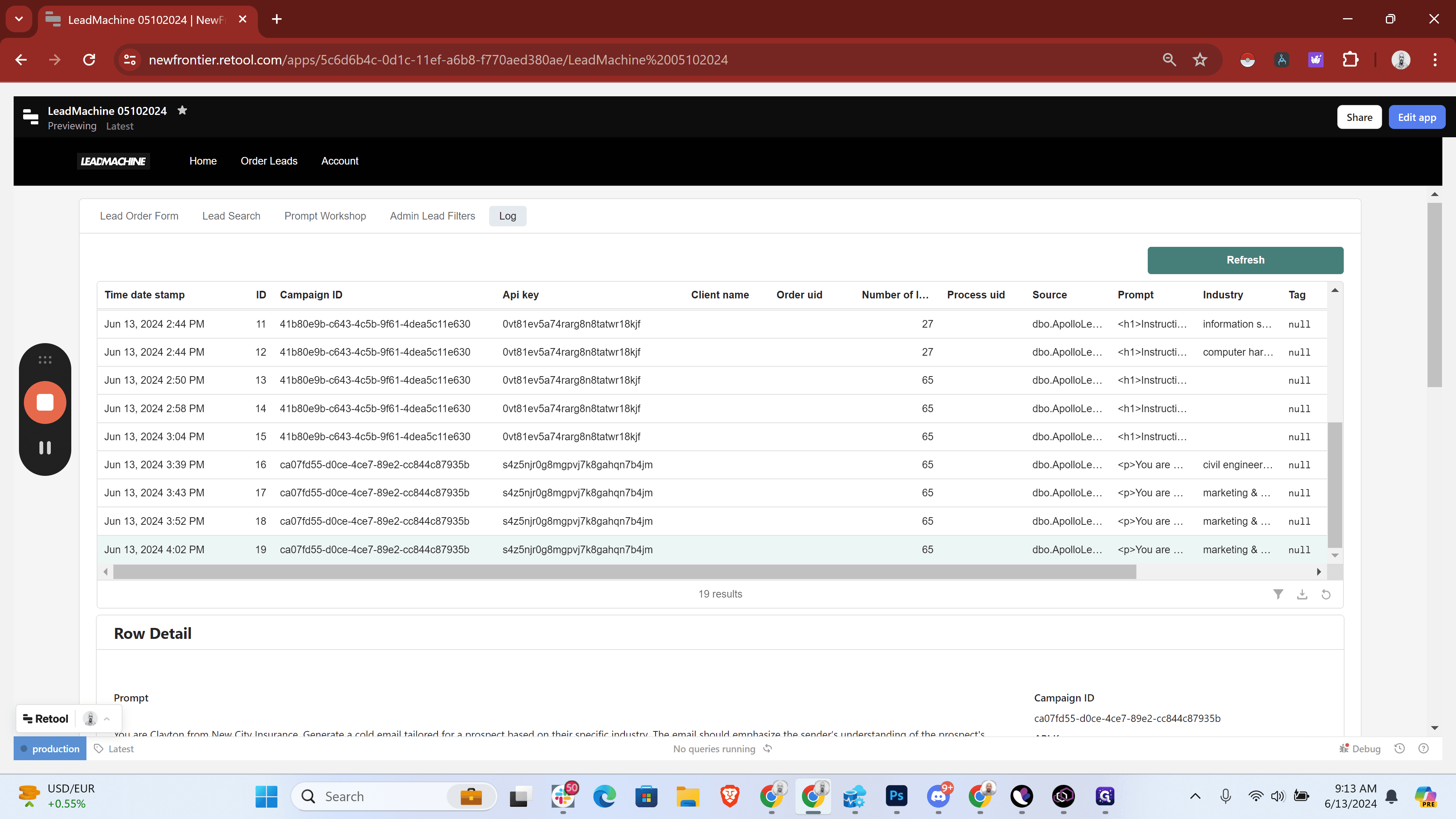
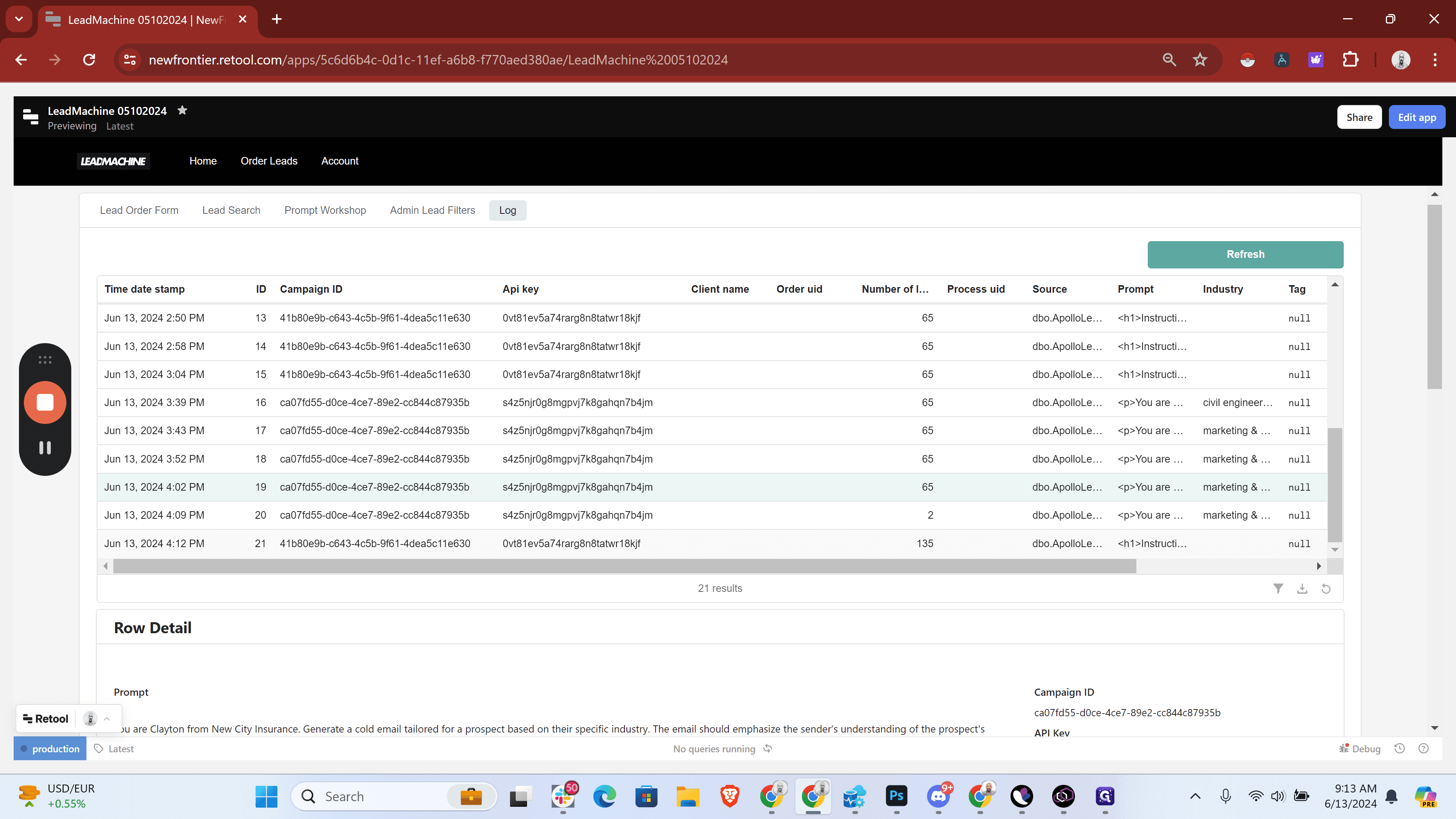
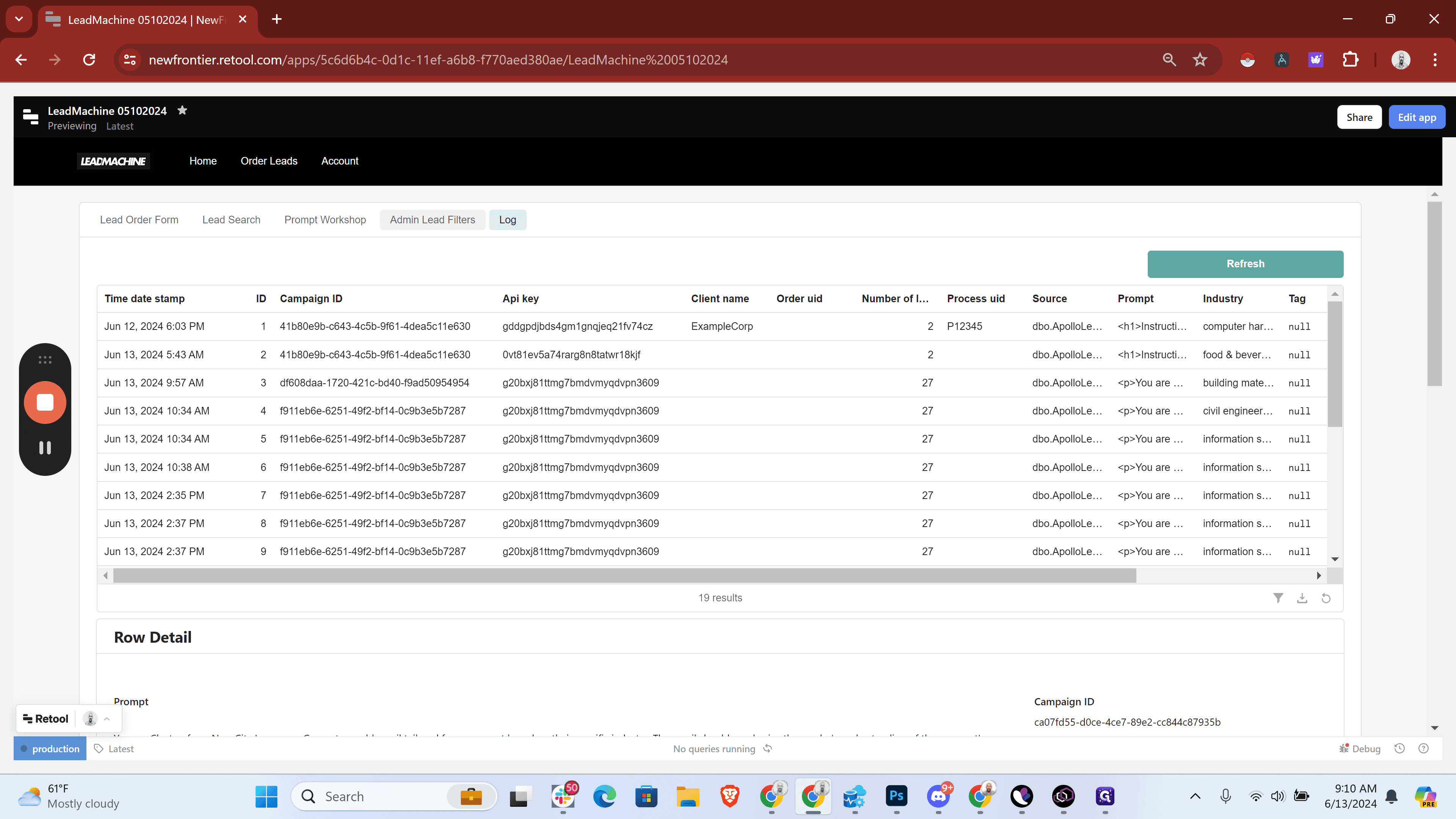
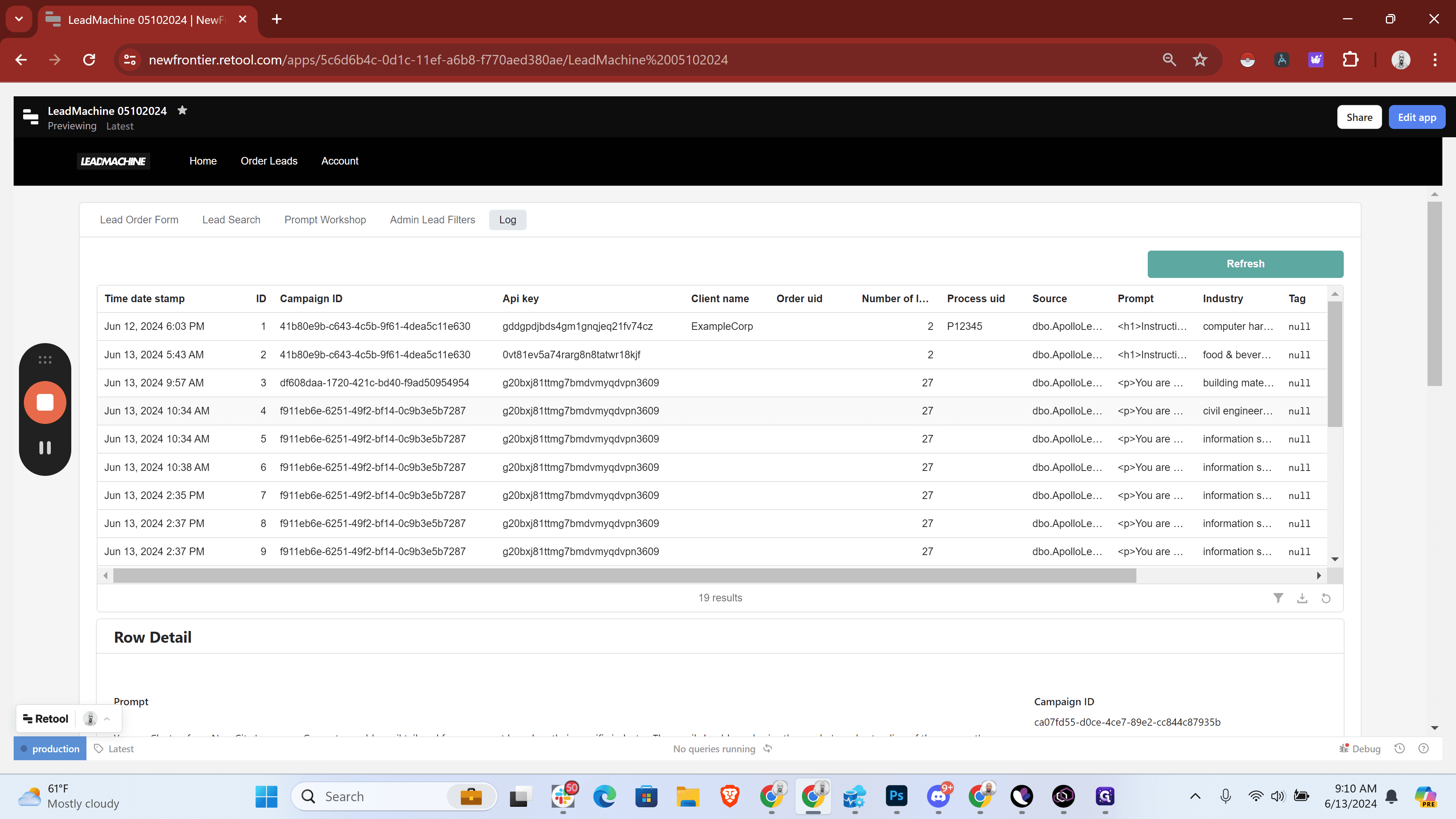
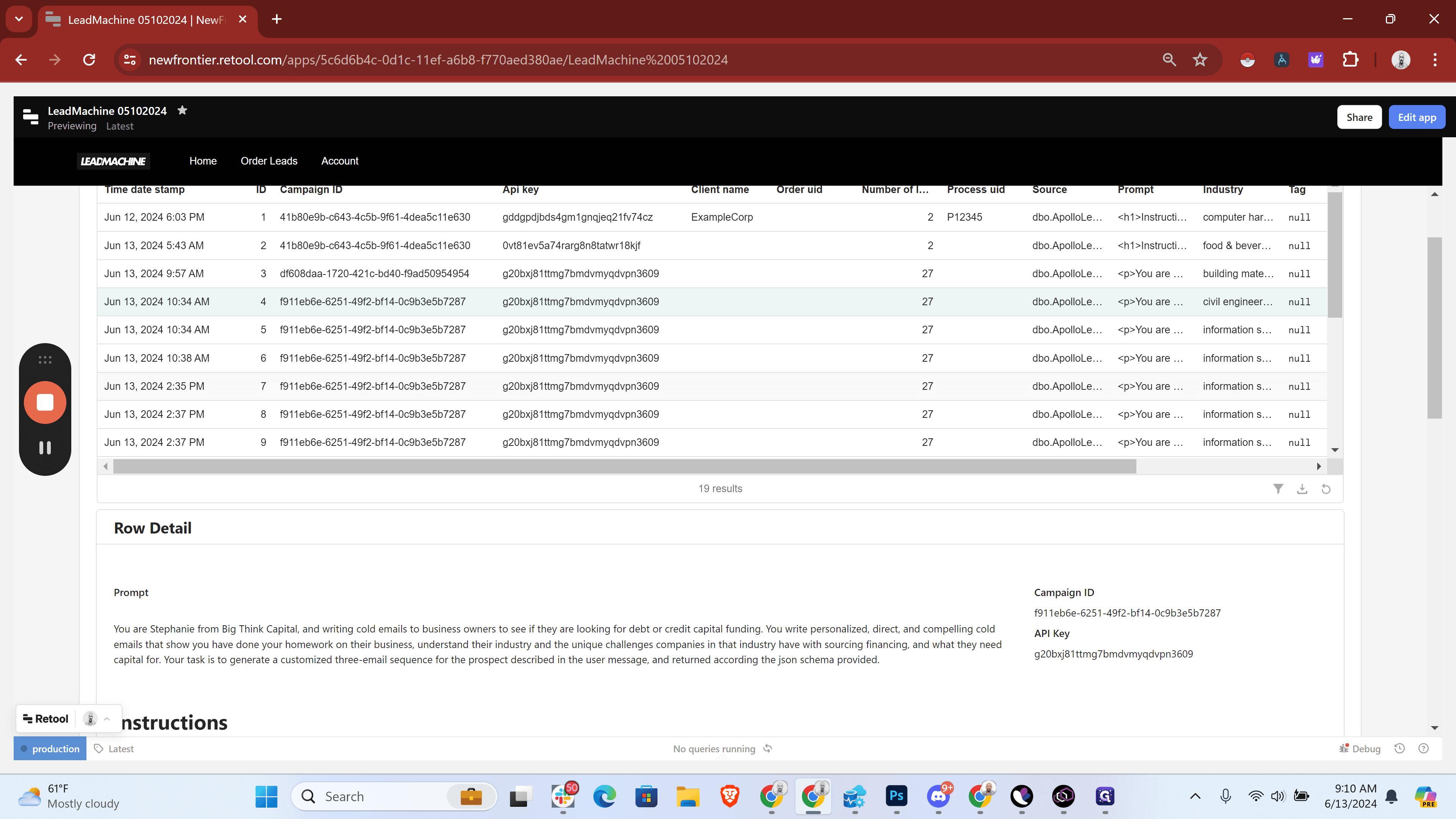
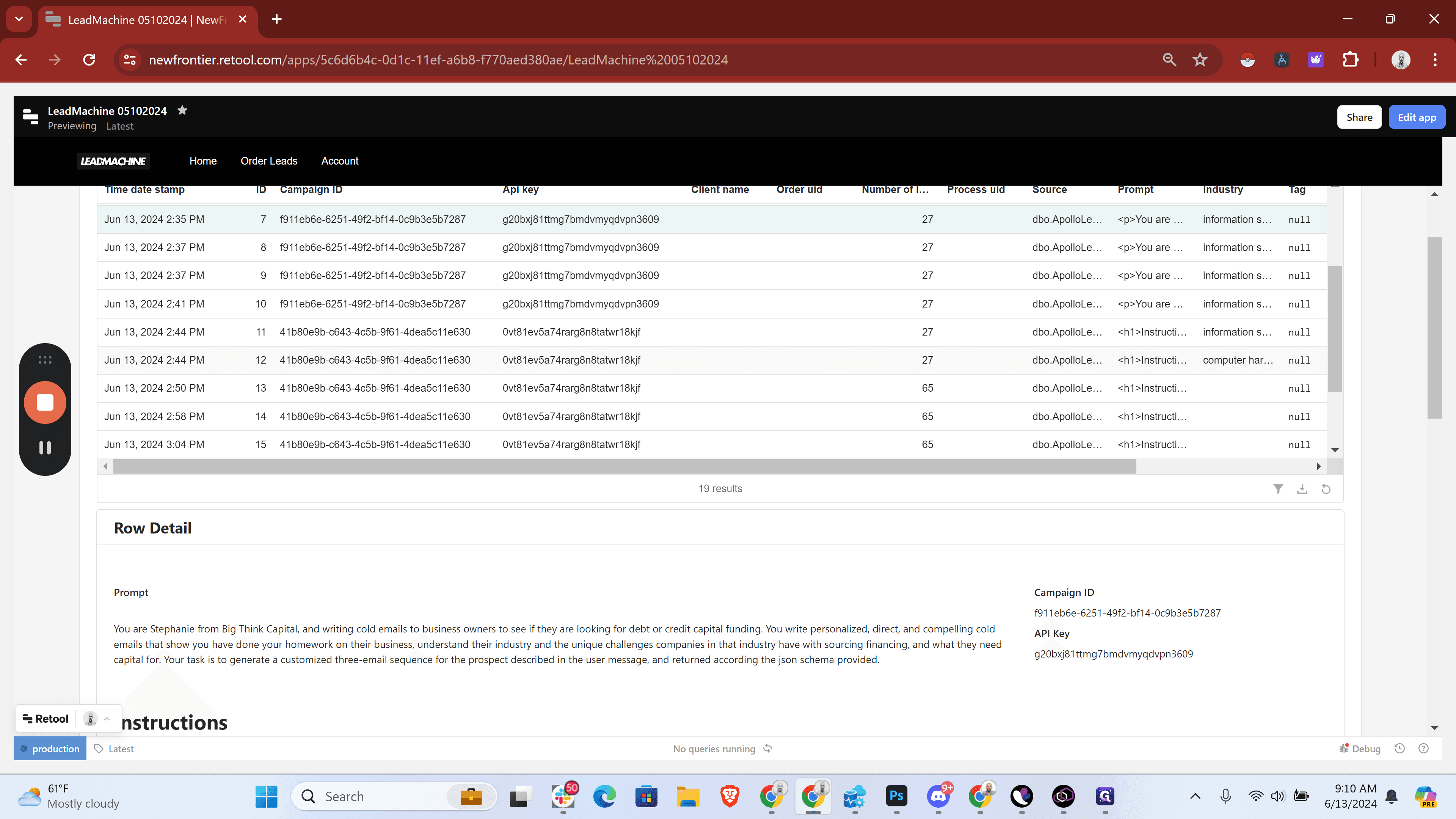
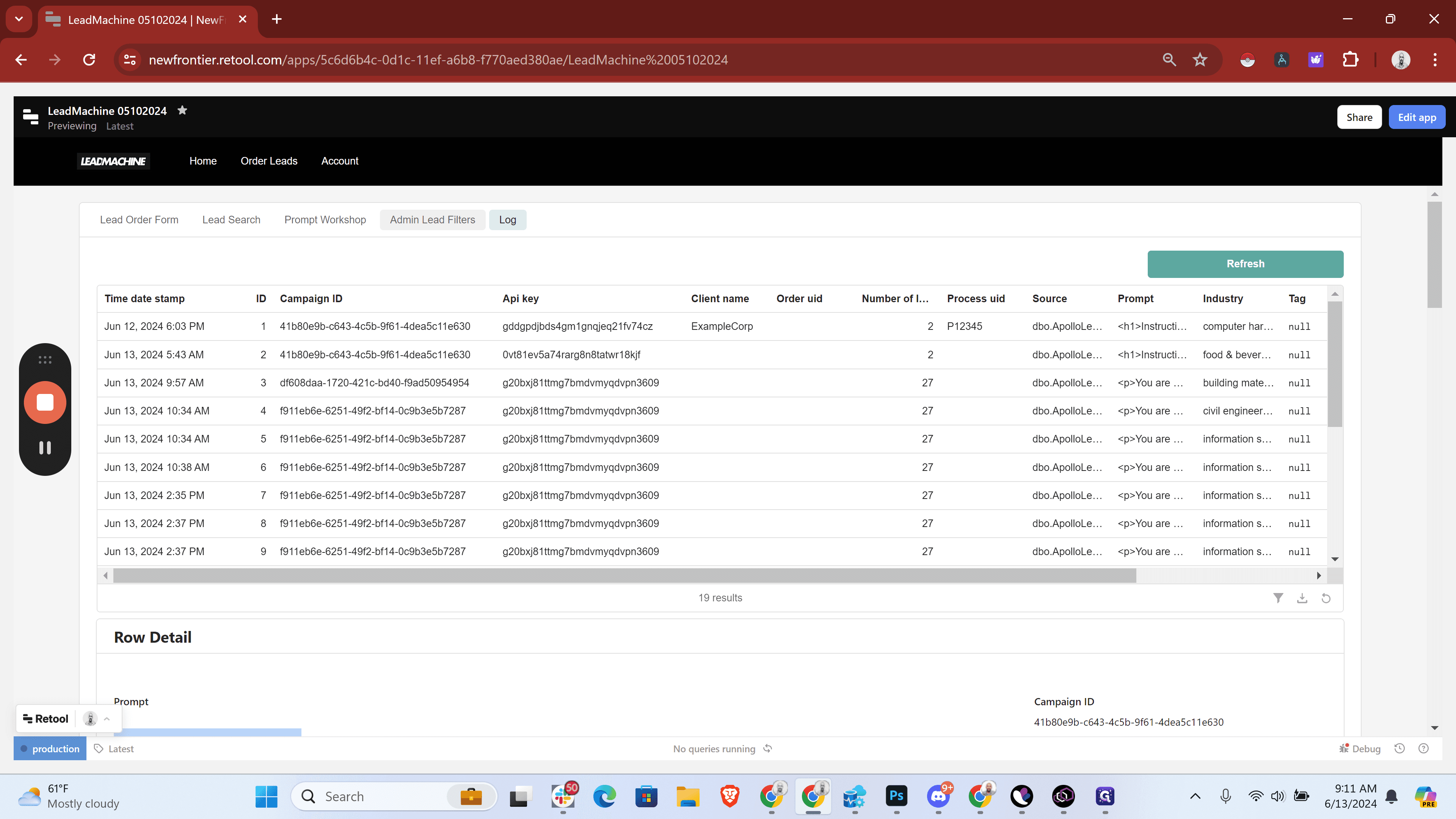
The log is usually a good place to get the prompt. If we highlight any of these values, it expands. This looks like Big Think.
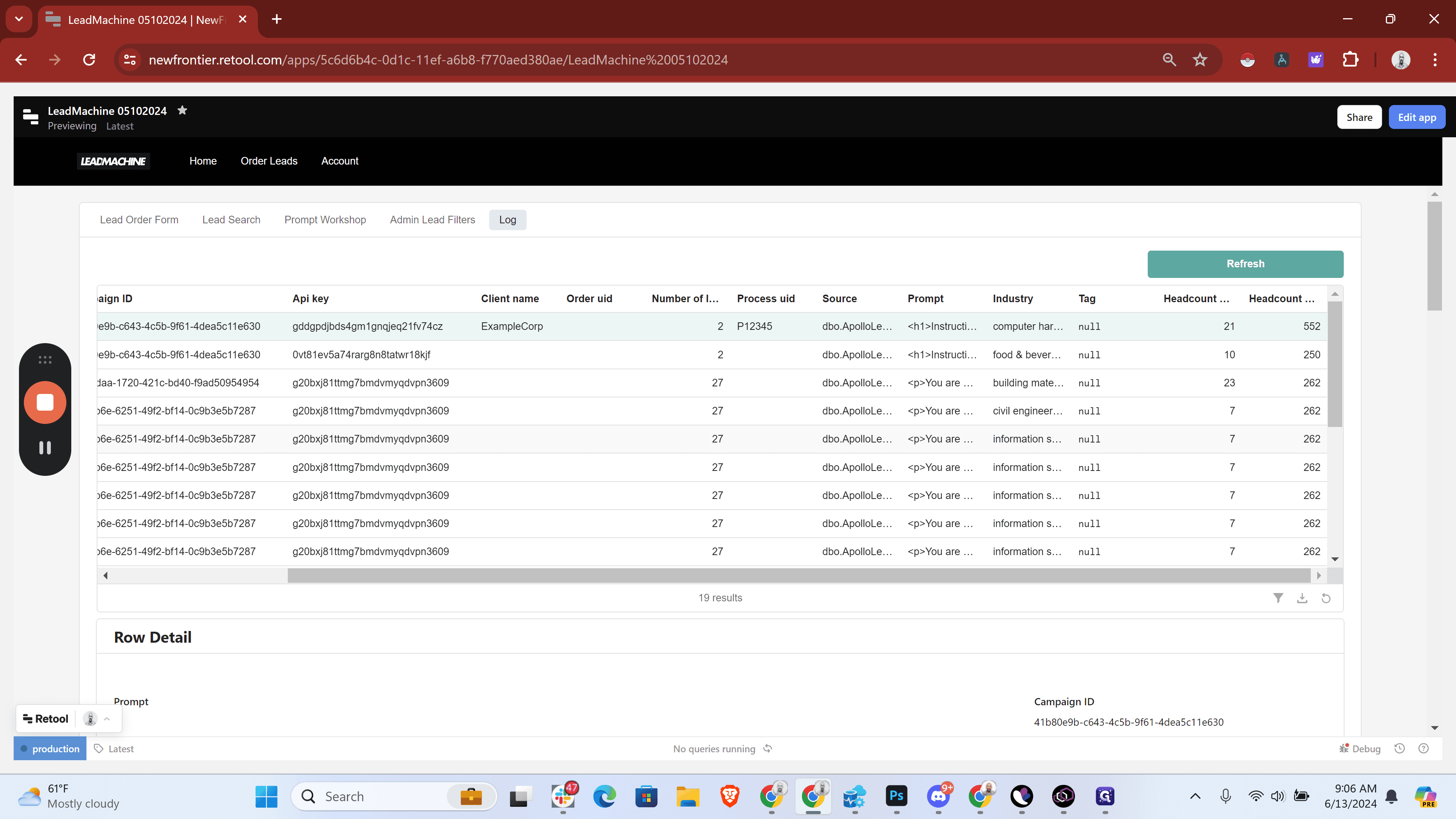
We might add some leads for Big Think. Any of these will expand, so this one is for Bridgepoint, and this one is for New City.
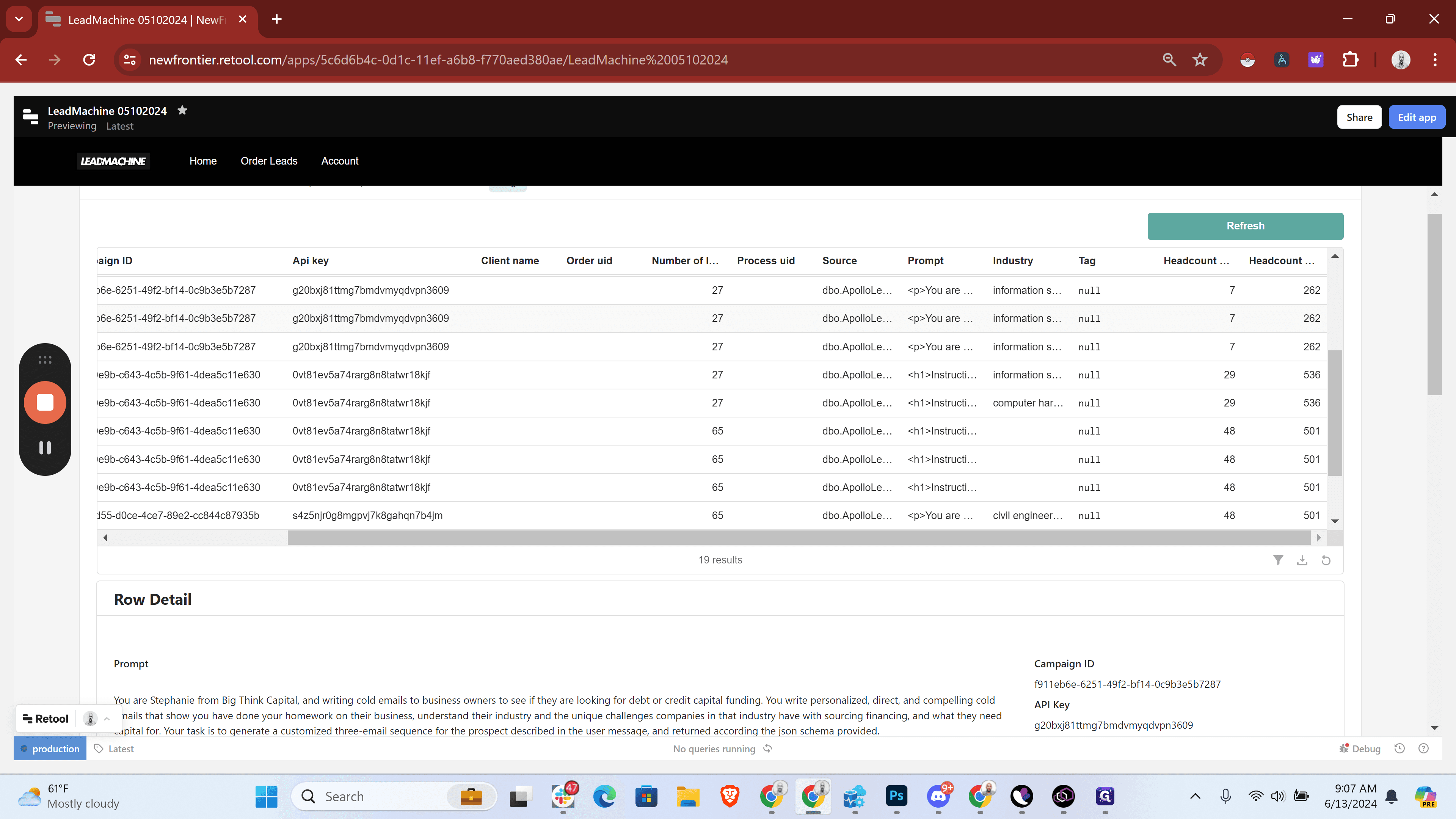
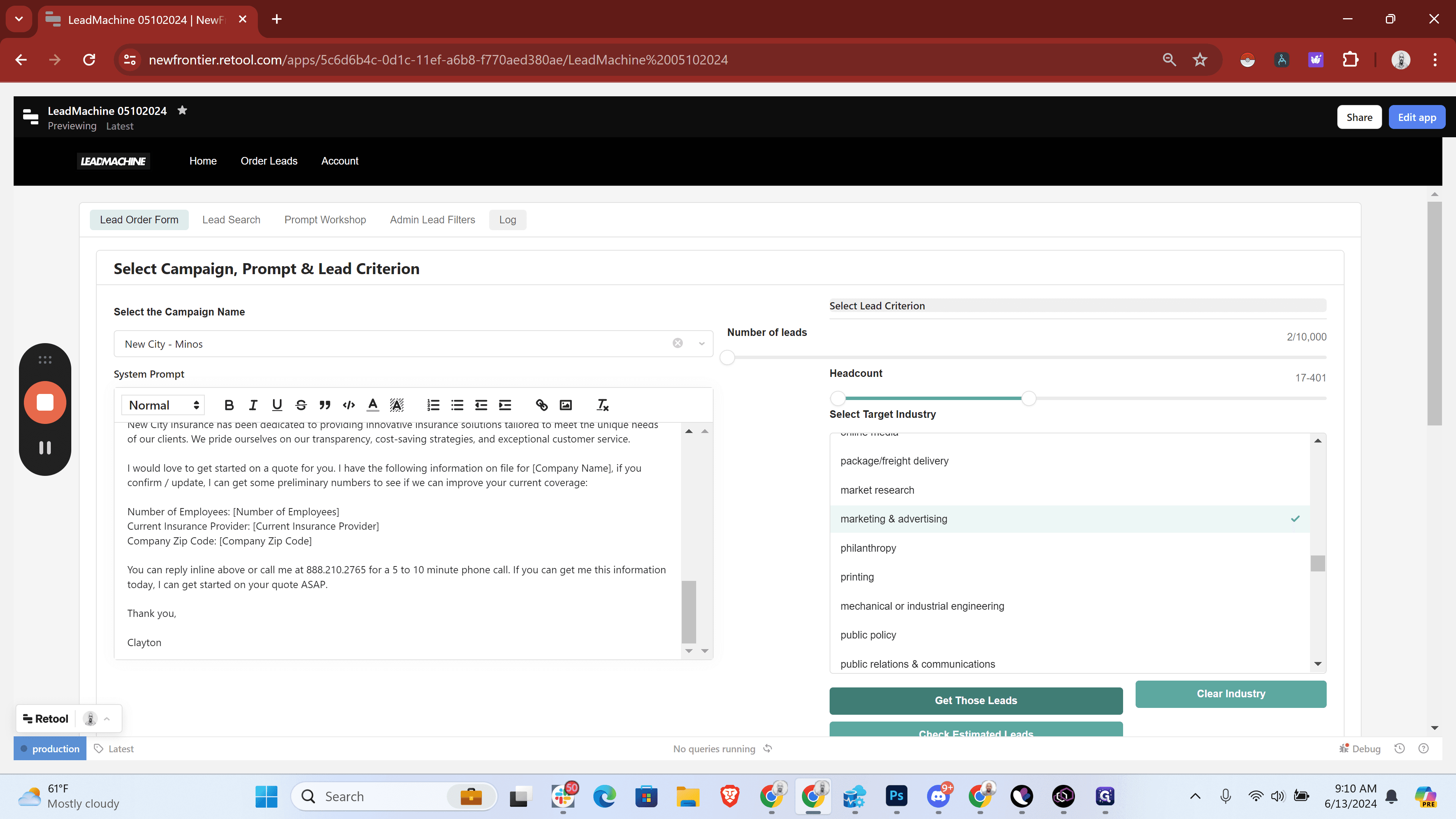
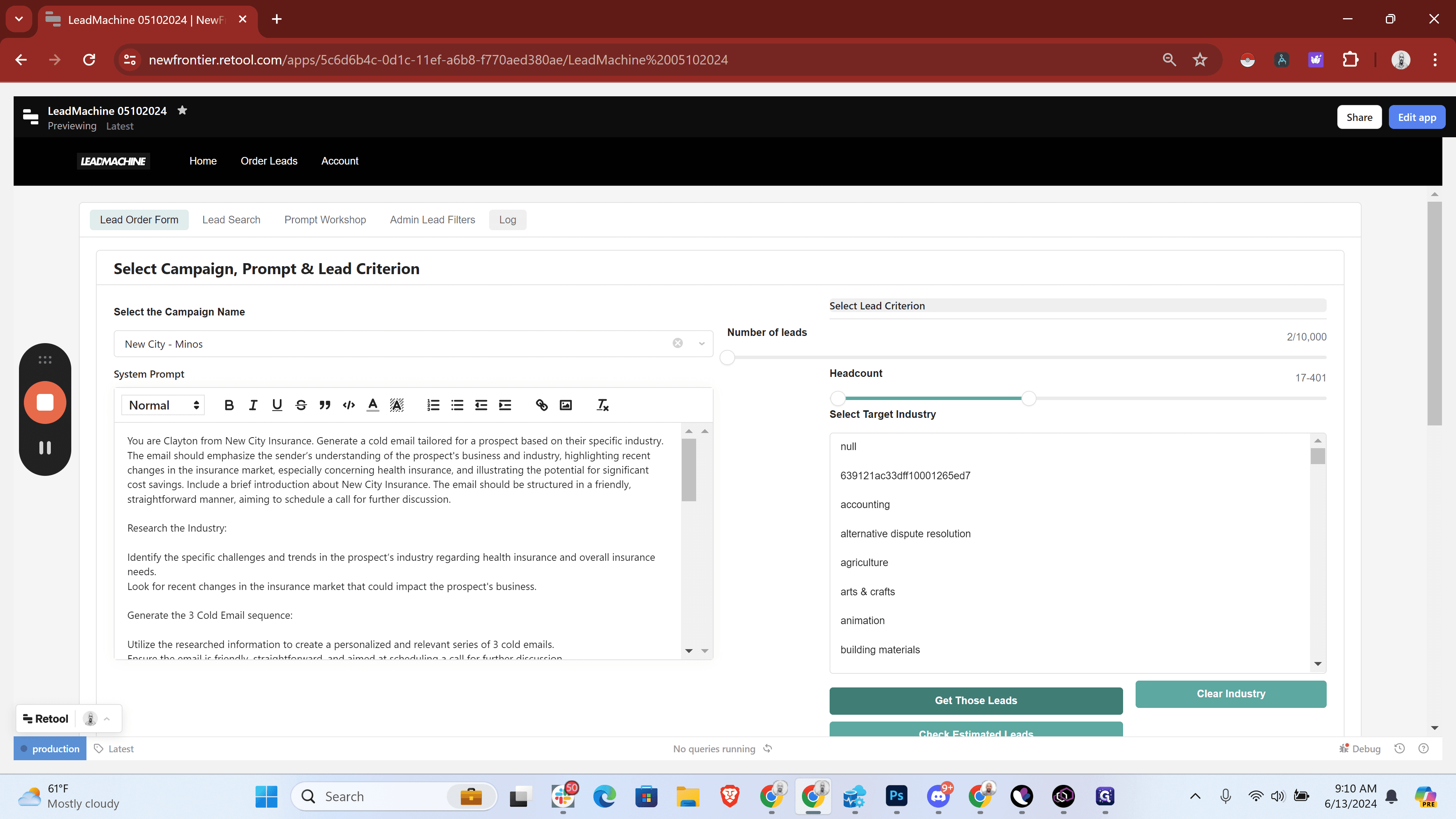
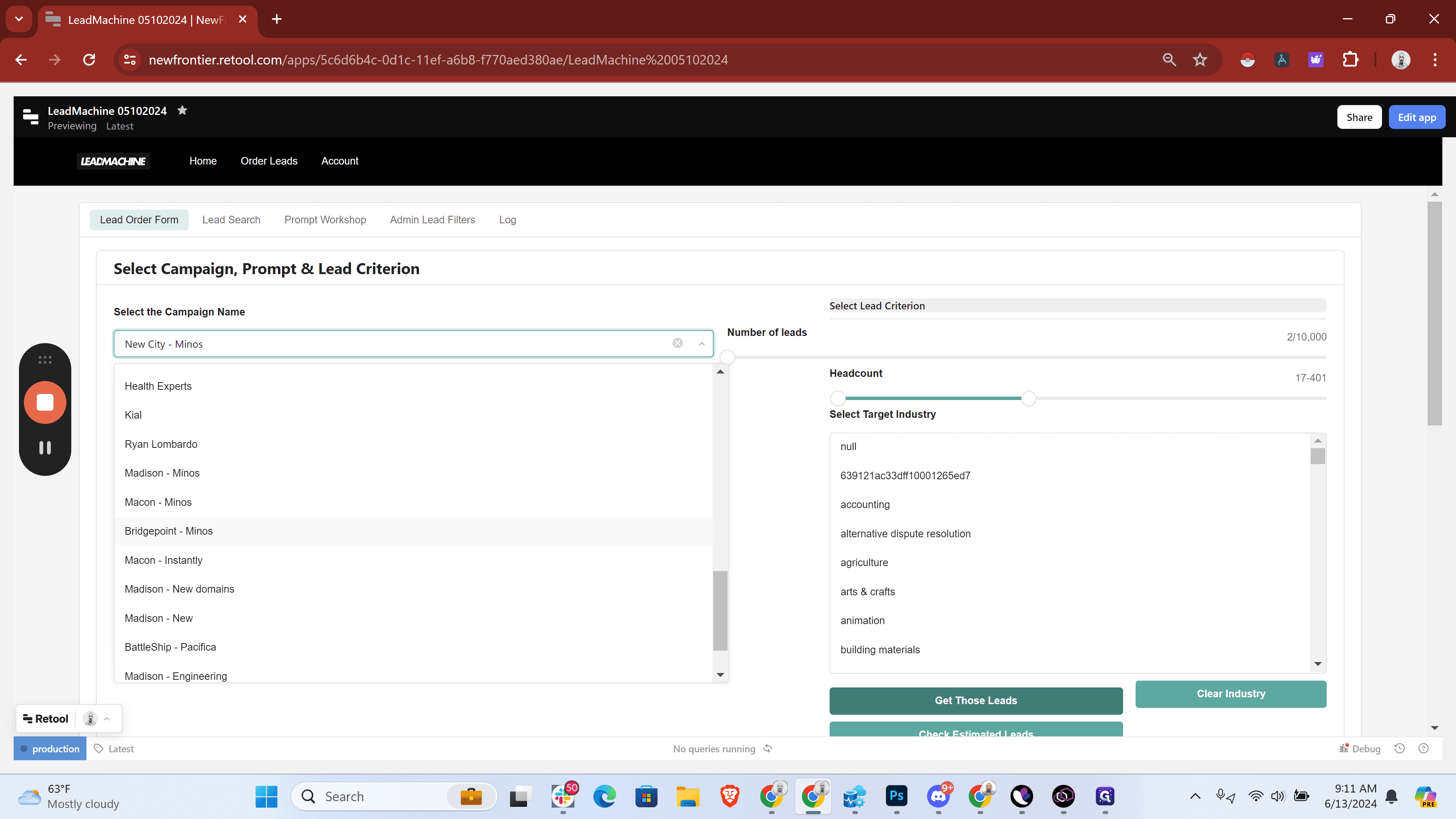
We should add more leads for New City. I'll highlight the prompt and use the same one as before since it's been effective. Next, I'll go to the lead order form, click the dropdown, and find New City Minos.
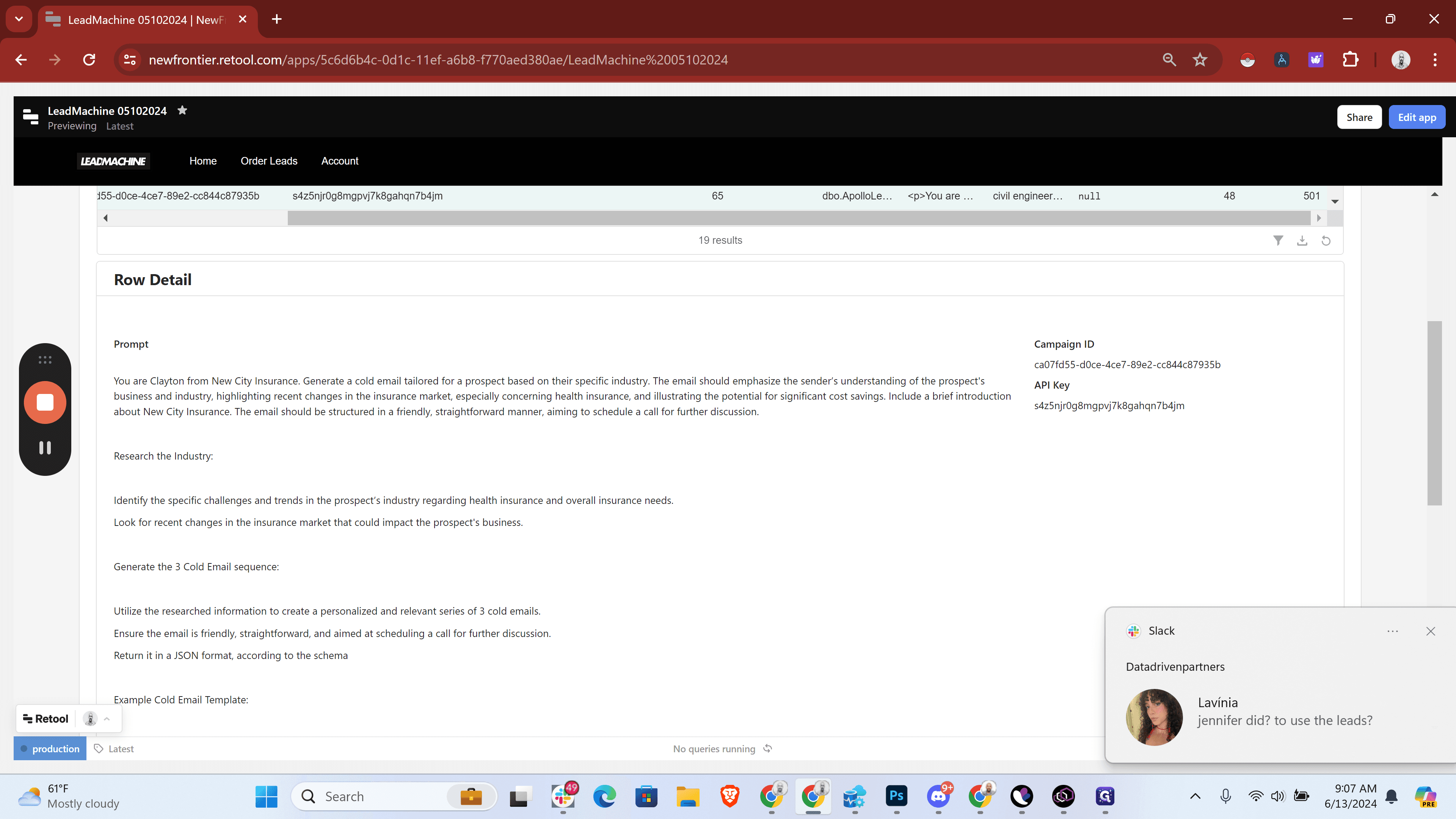
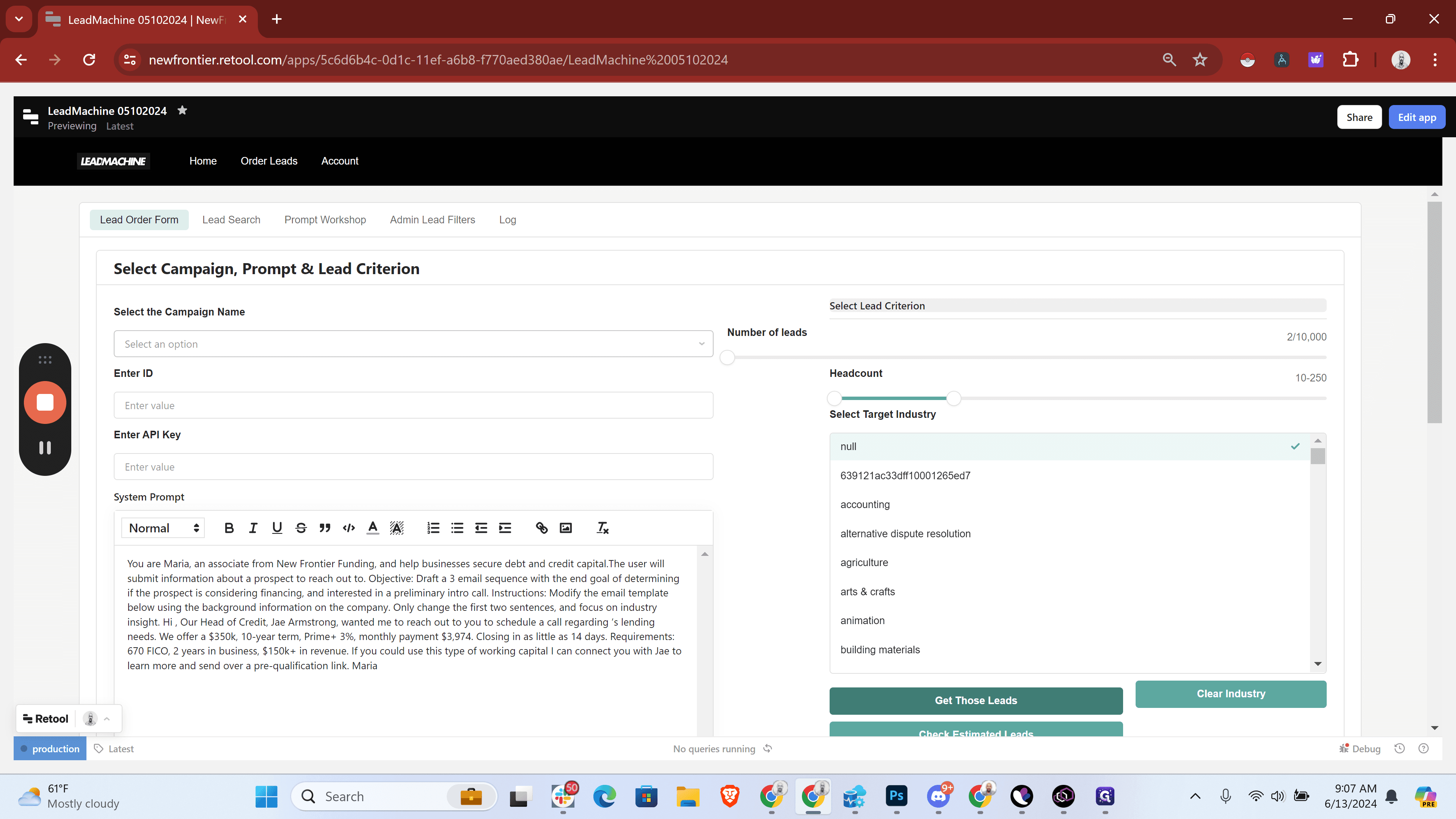
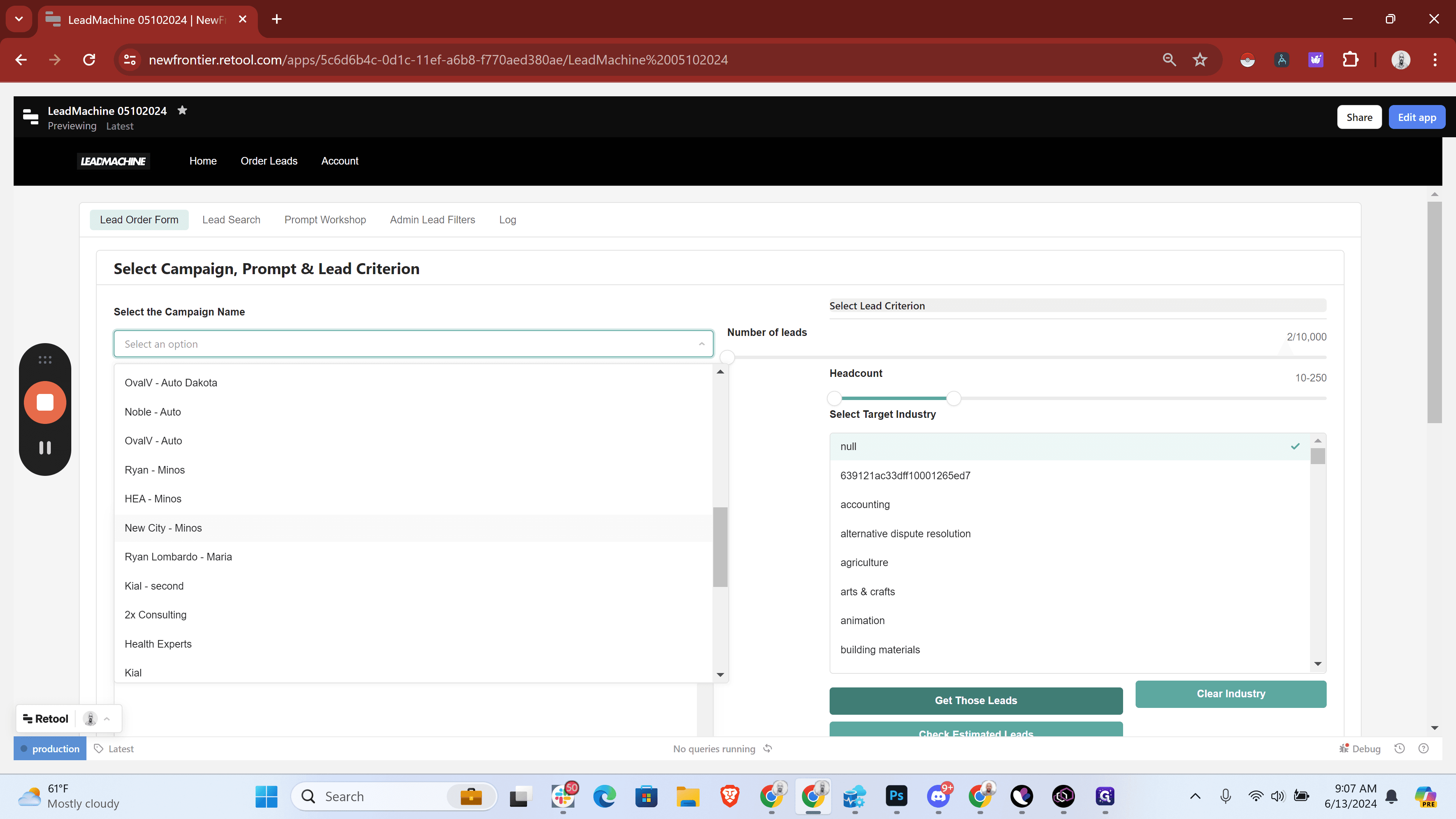
Here it is. I'm going to replace the current prompt in the prompt field, and paste the prompt from the previous campaign. I'll put this in, read-through, and ensure everything is correct. New City, great, okay.
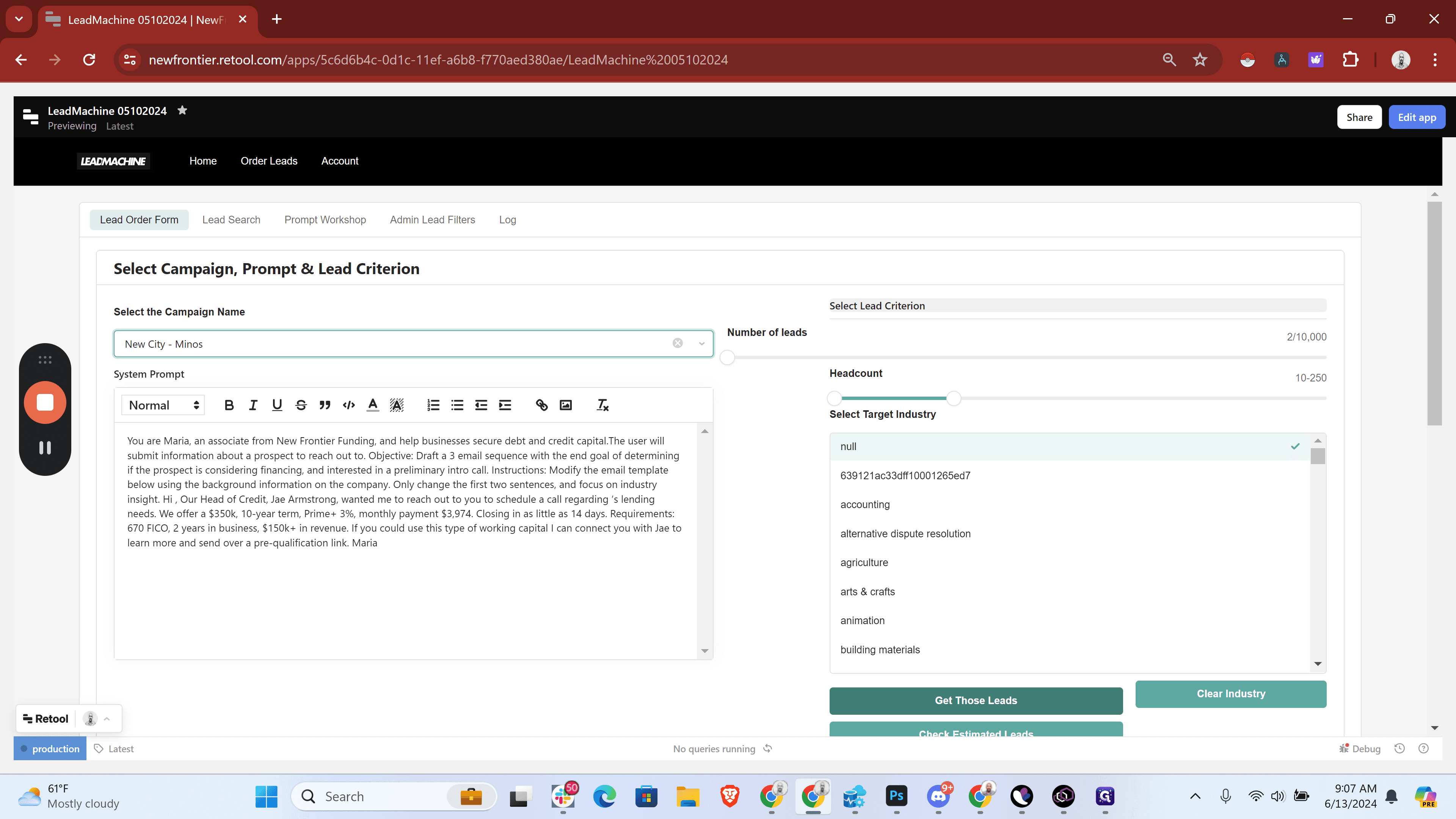
For New City, let's increase that to 400 and maybe to 17. Choose a people-intensive industry. We could do this with no specific industry, but in this case, let's select one.
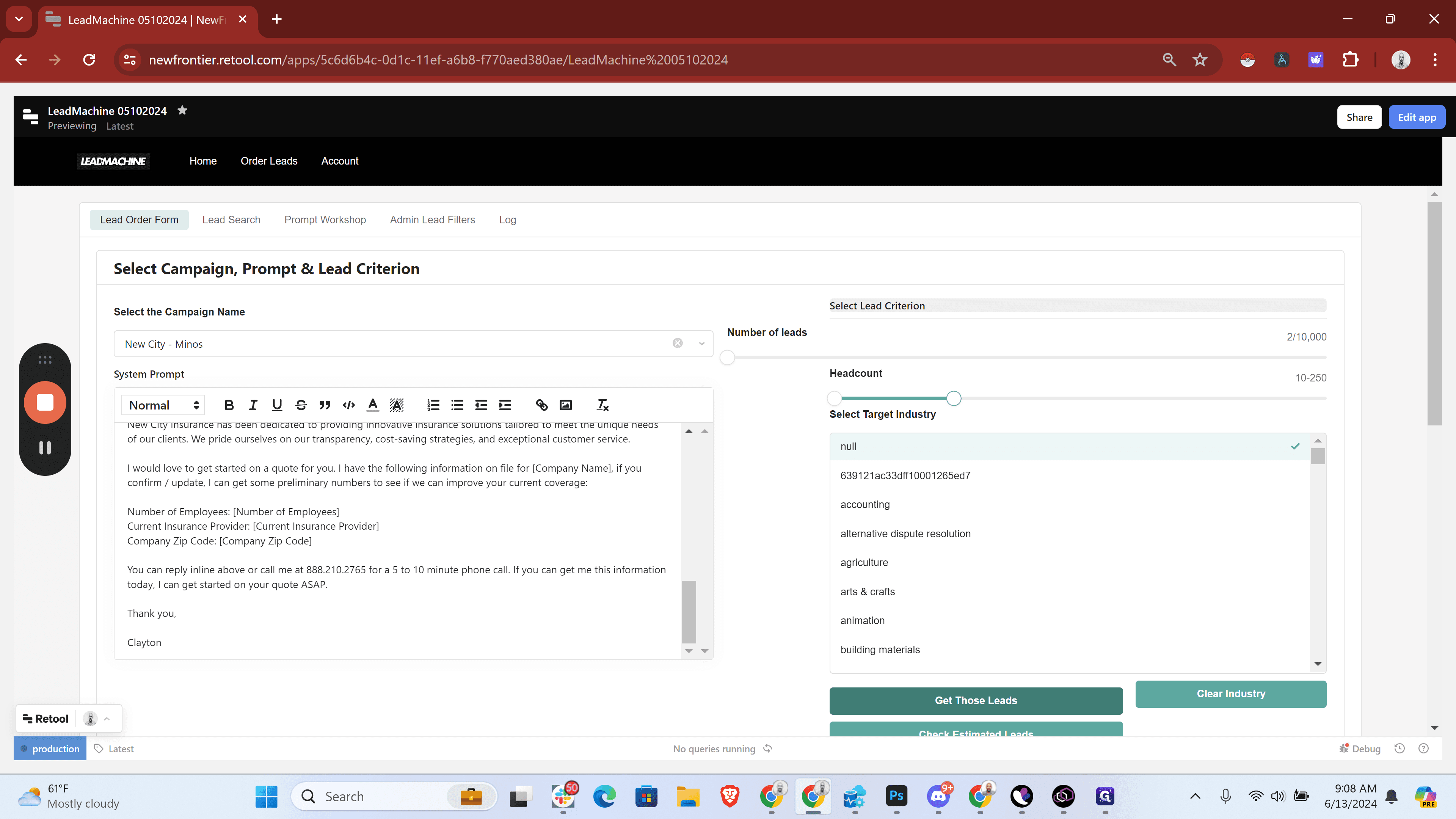
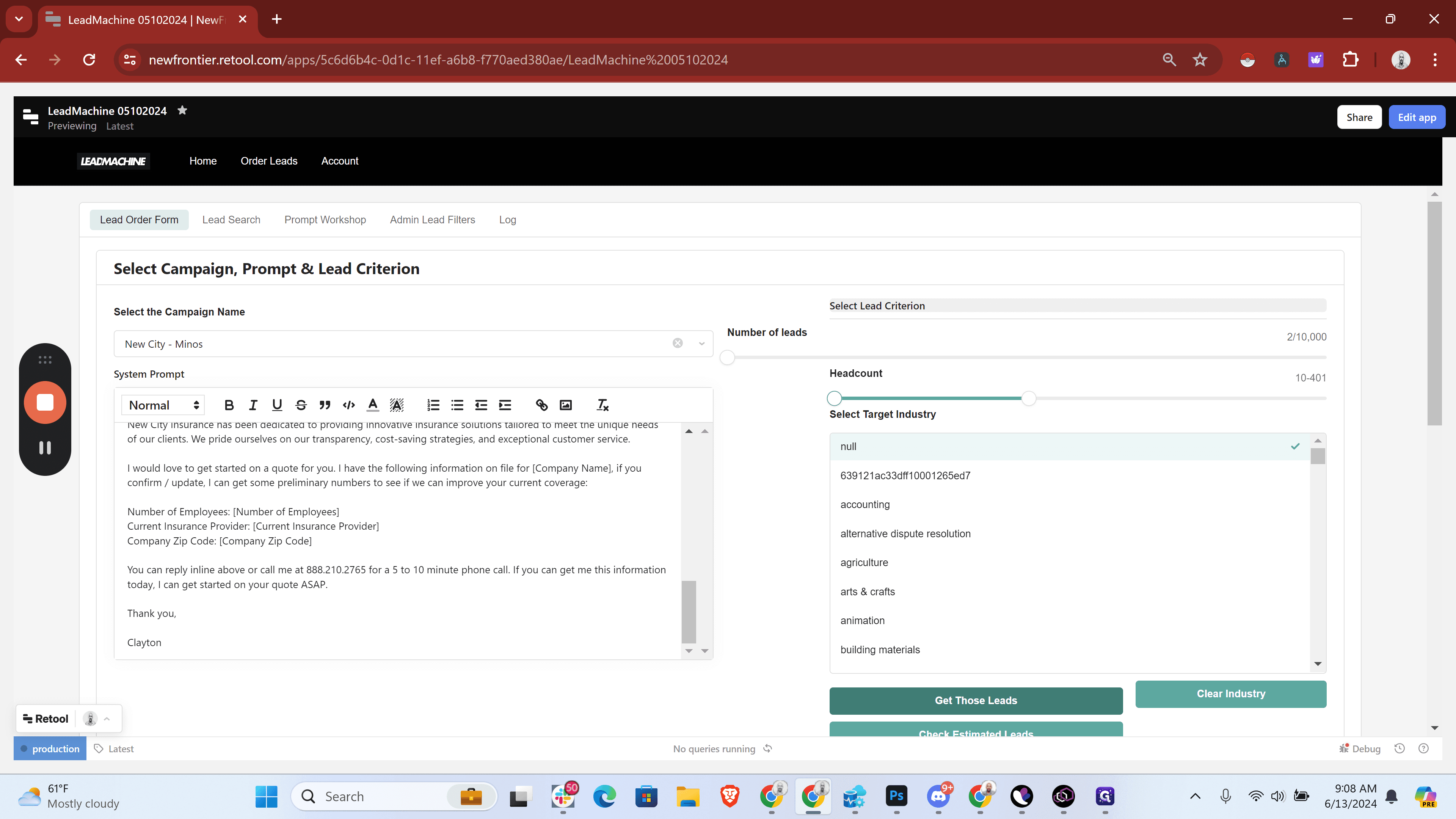
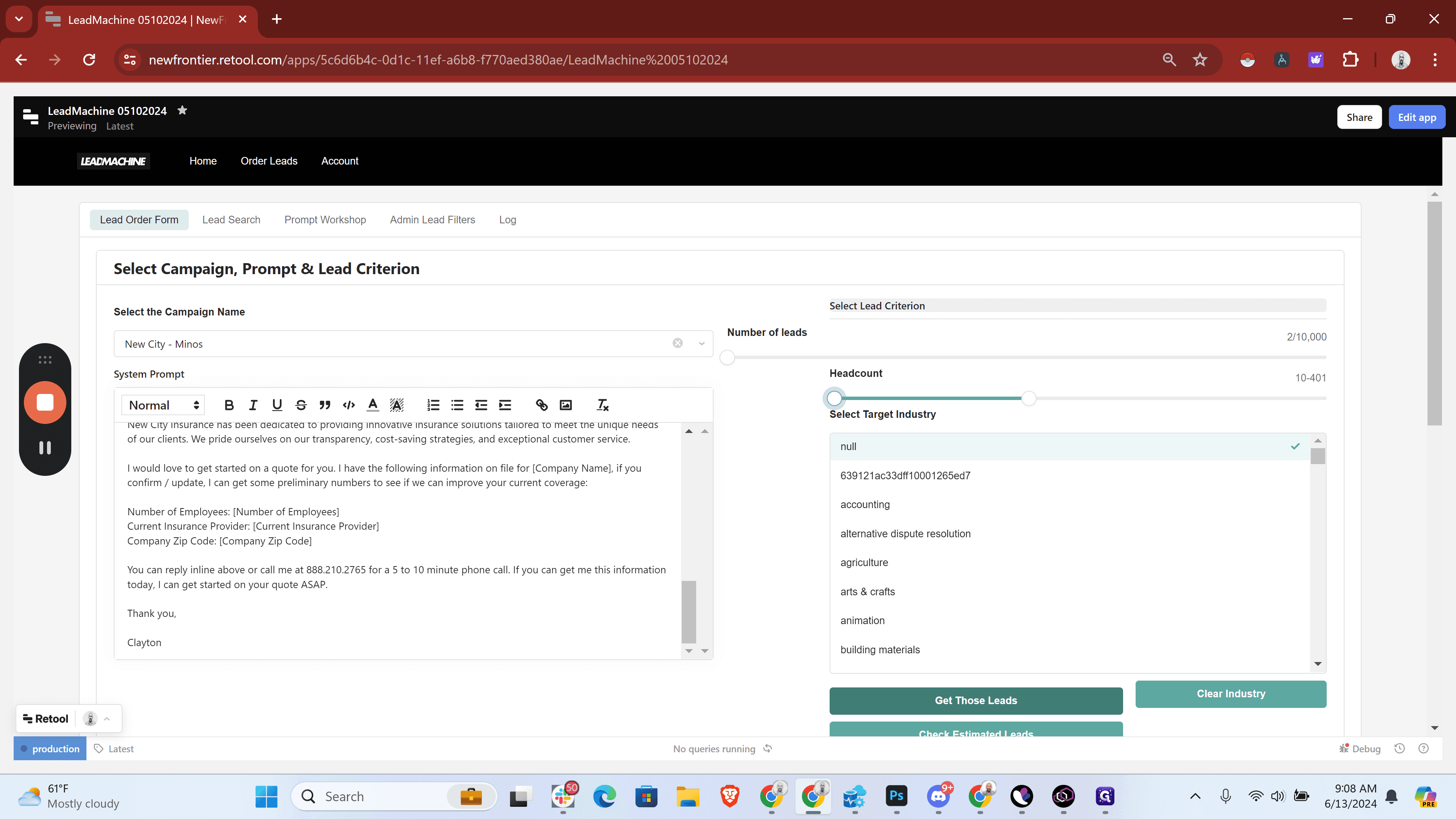
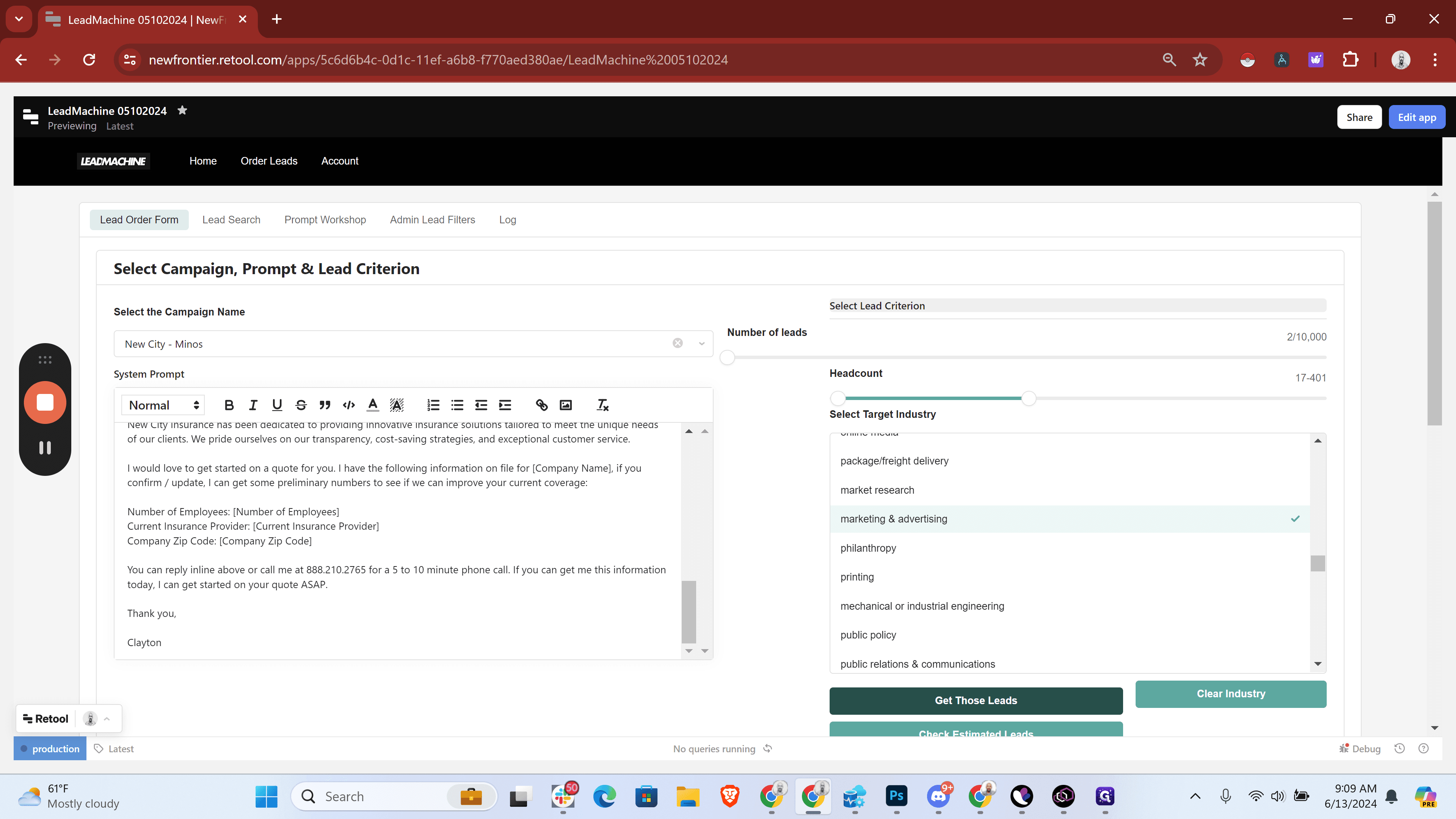
We have many full-time employees. Maybe police officers, no, not police officers. How do we handle marketing and advertising? I usually set the number of leads very low, just a couple, to ensure it's working correctly. I'll keep it at two, click "Get Those Leads," confirm it's correct, and then get a cup of coffee. That should work, and then you're done.
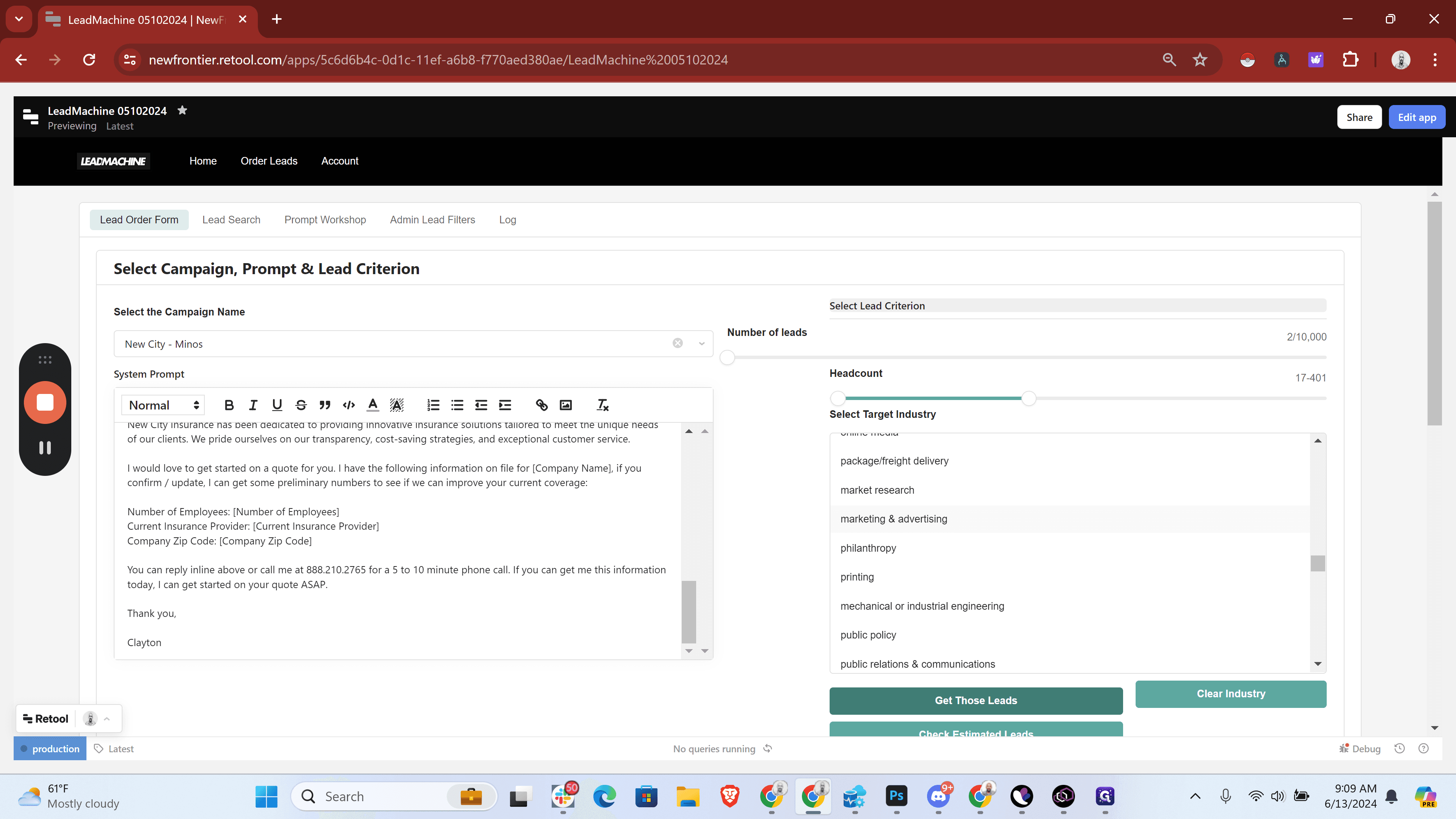
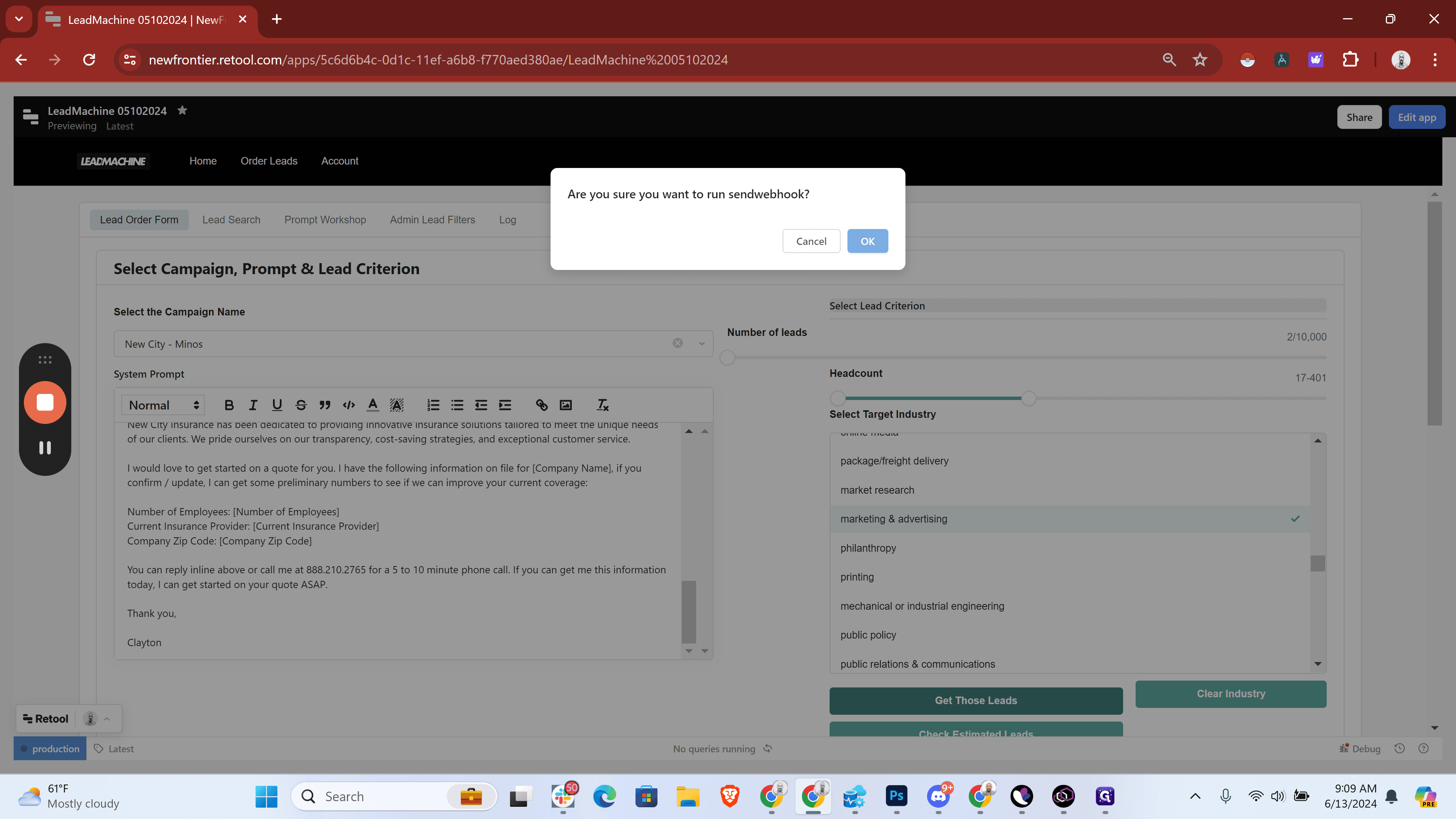
This logs all requests, making it easy to see improvements over time.
The admin lead filter is now available.
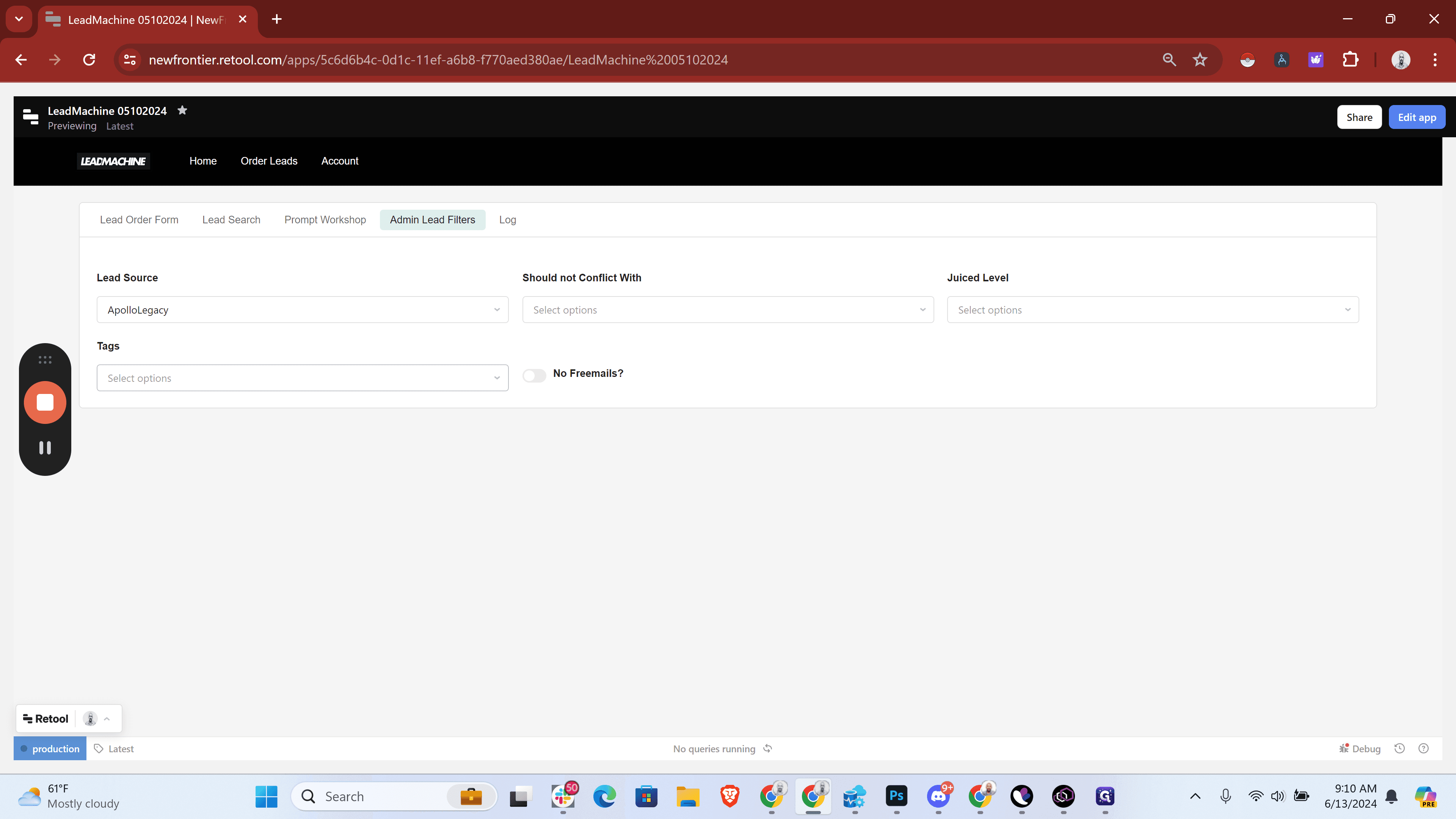
For now, we want to put leads in for Bridgepoint.
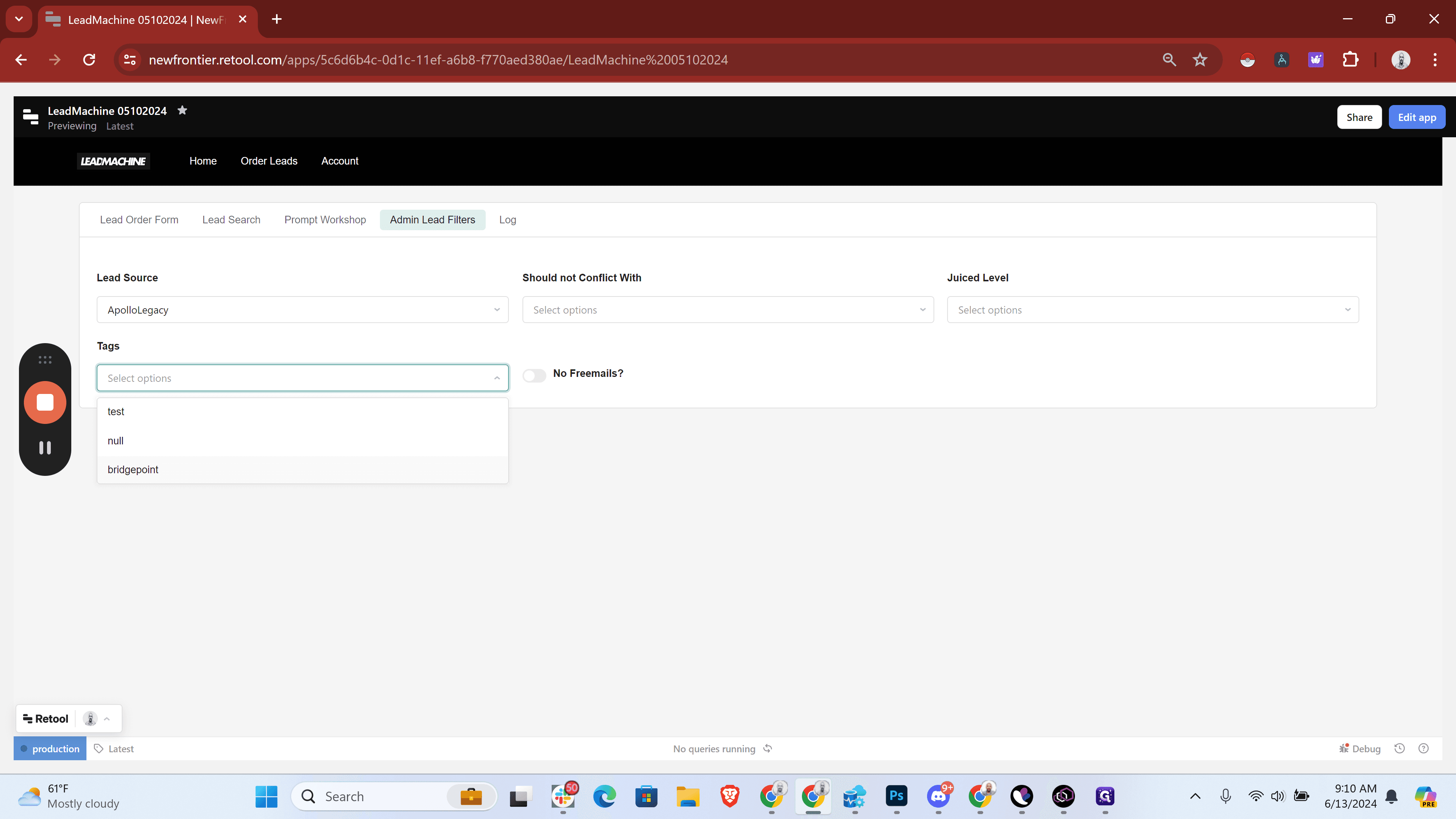
This pulls a curated set of leads for Bridgepoint. We could add a few leads for posterity's sake. For example, there's Big Think. Here's a prompt for Big Think, and I'll copy it like this.
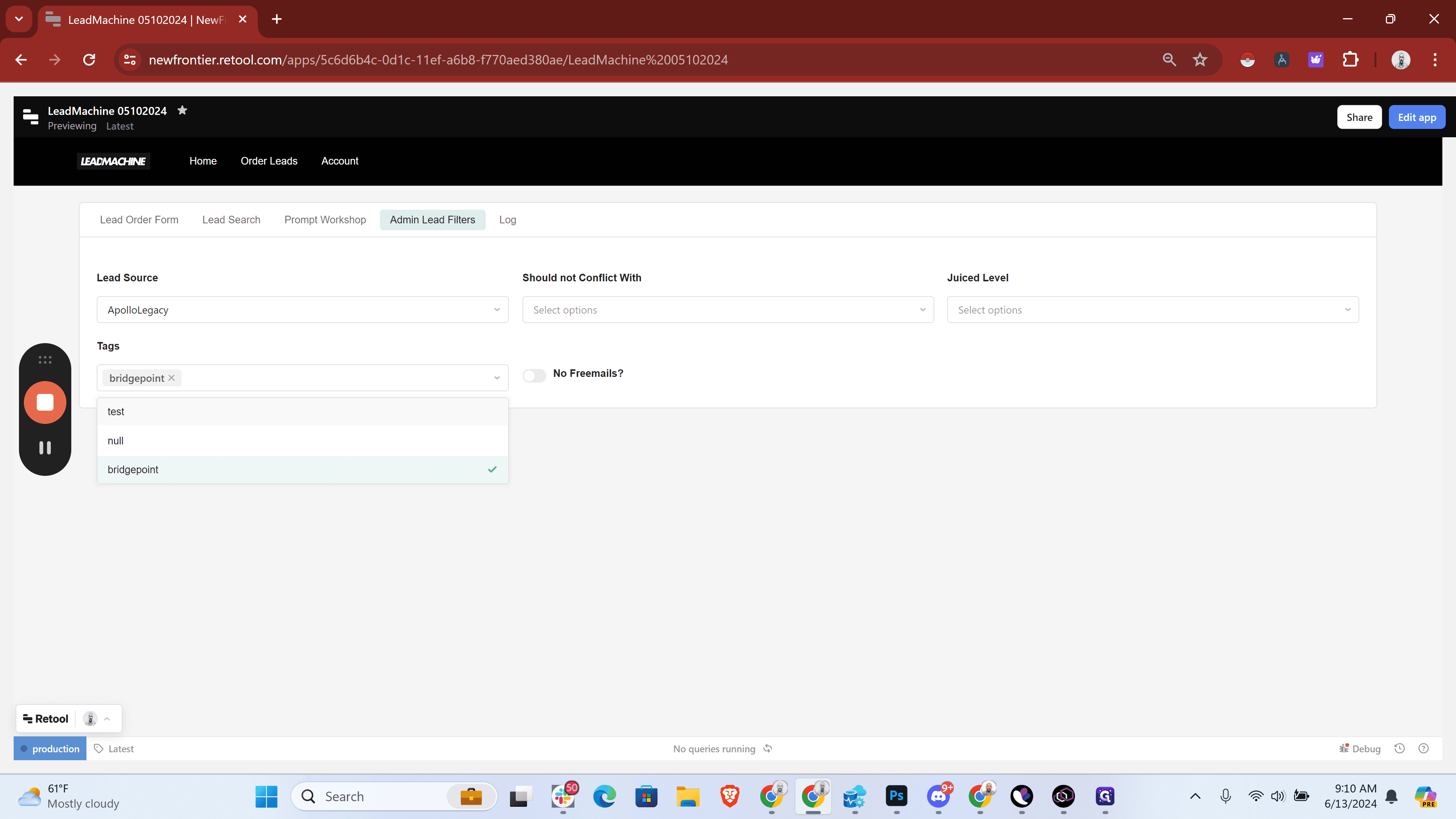
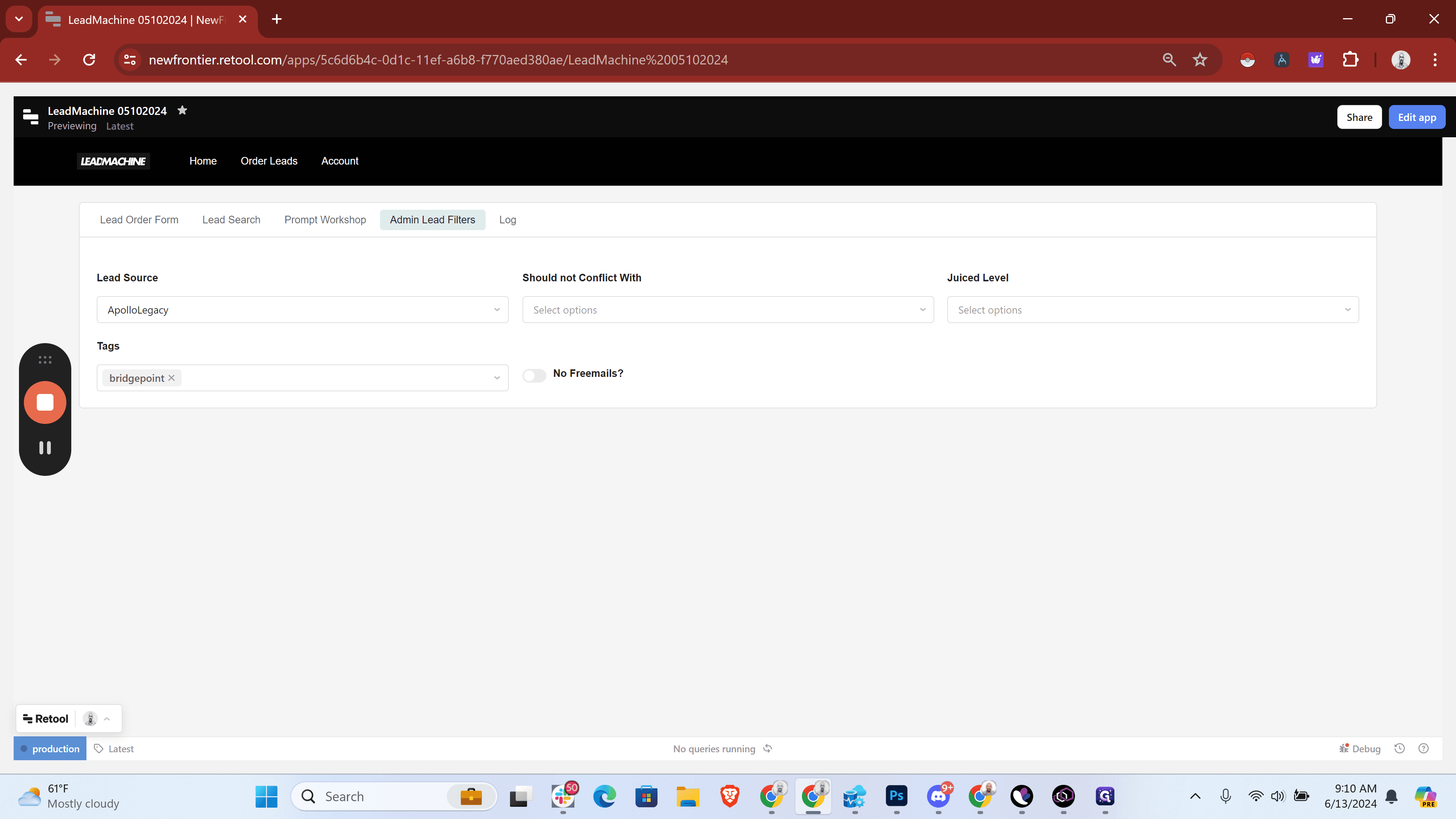
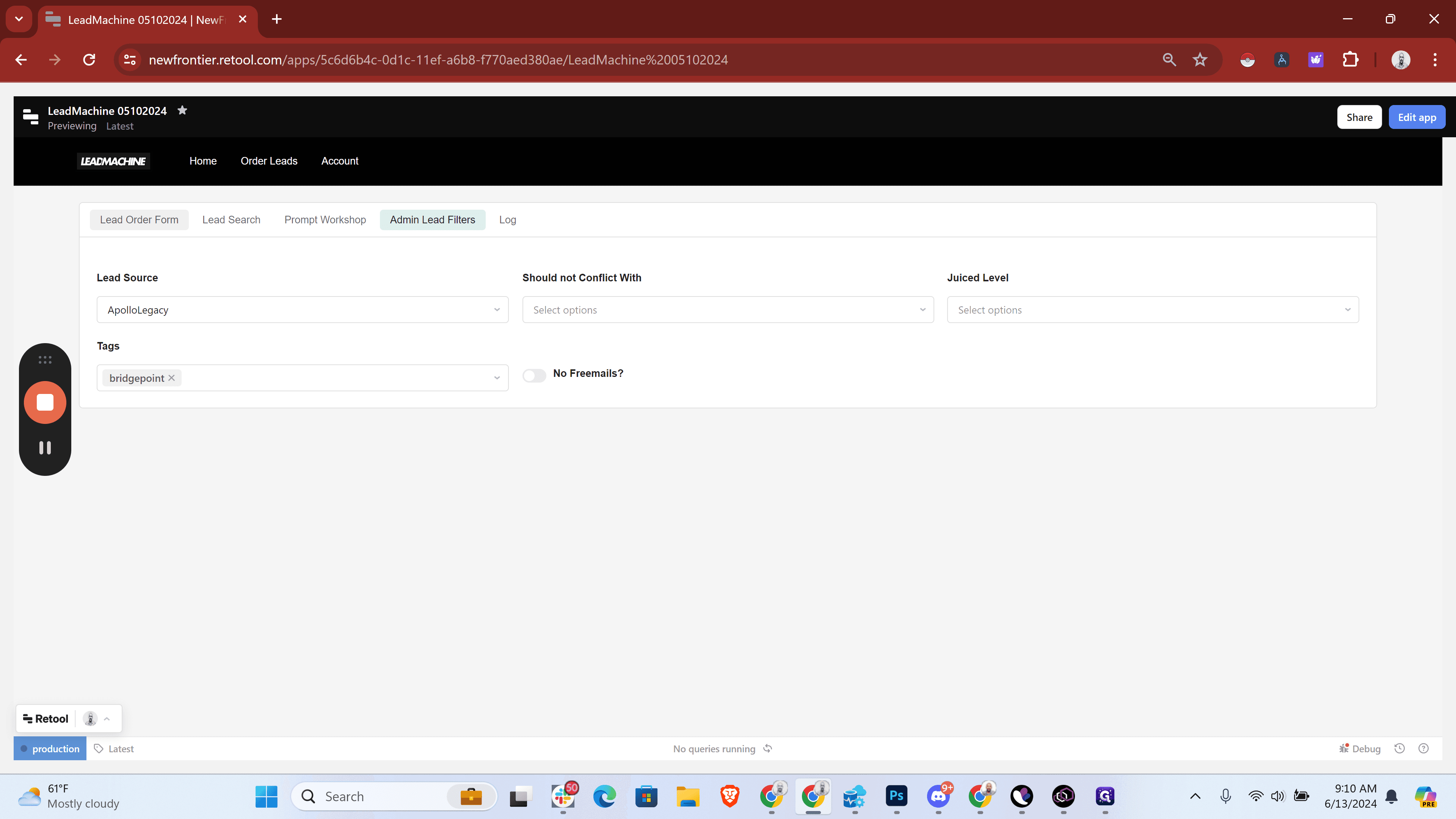
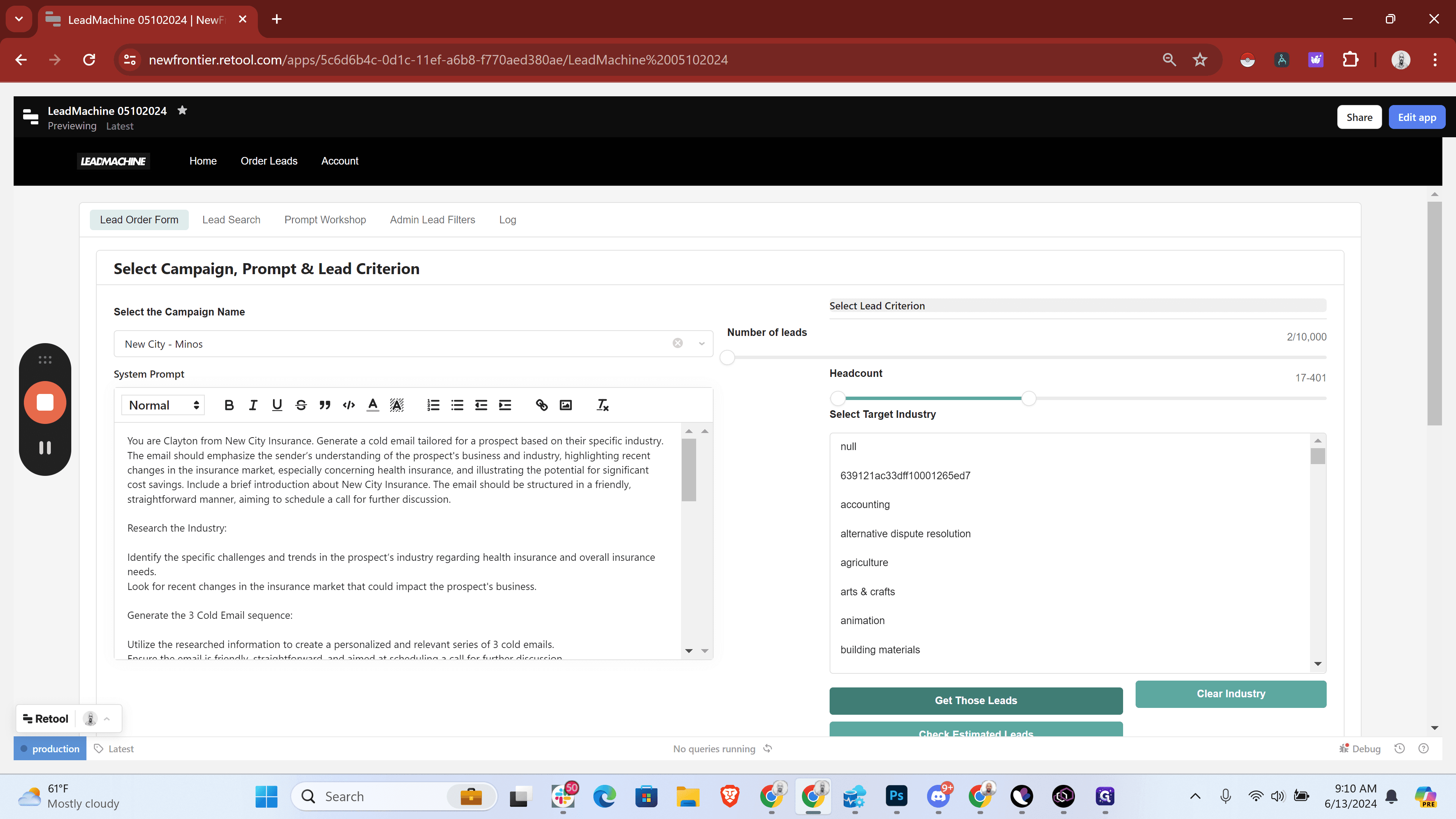
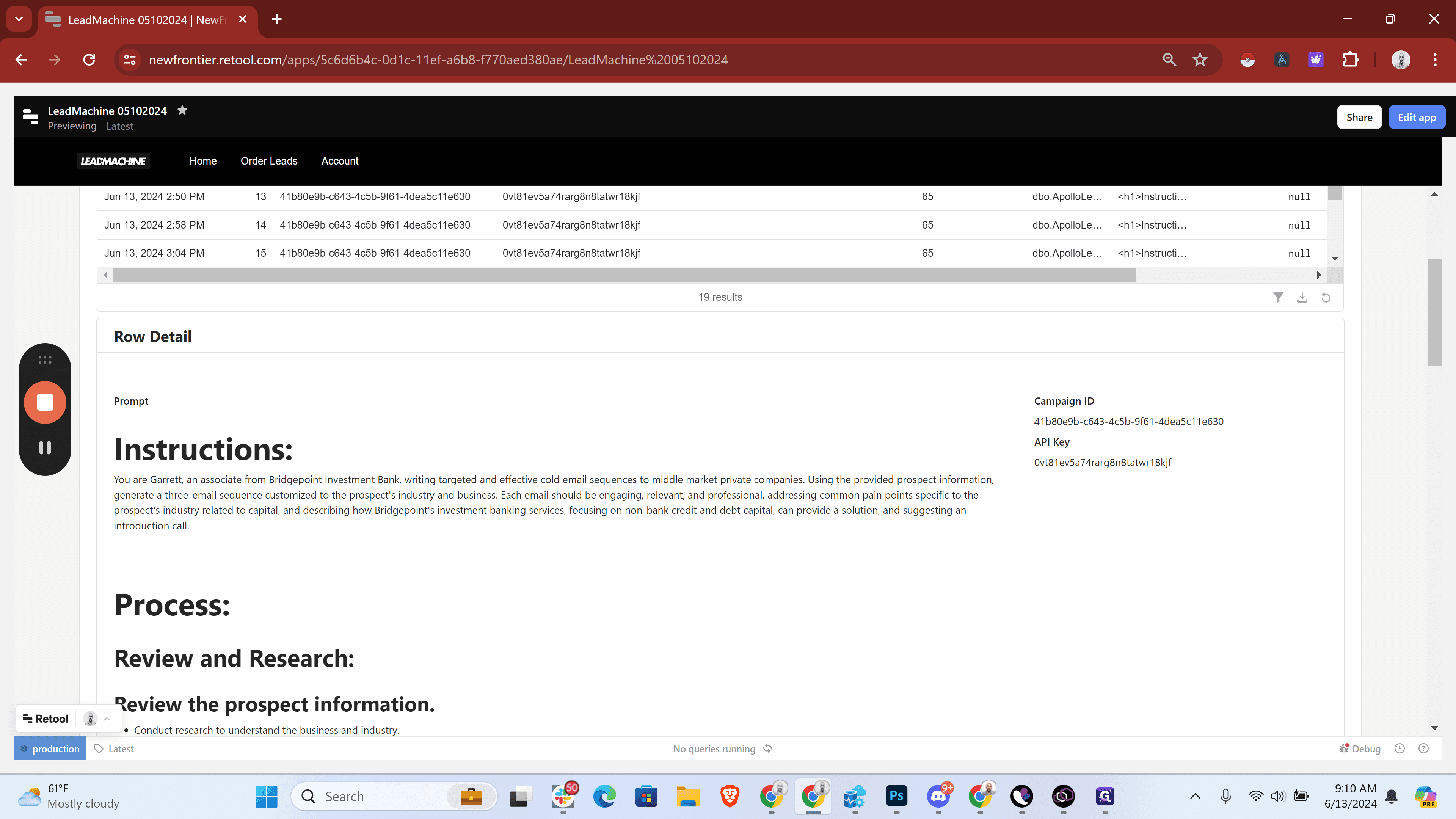
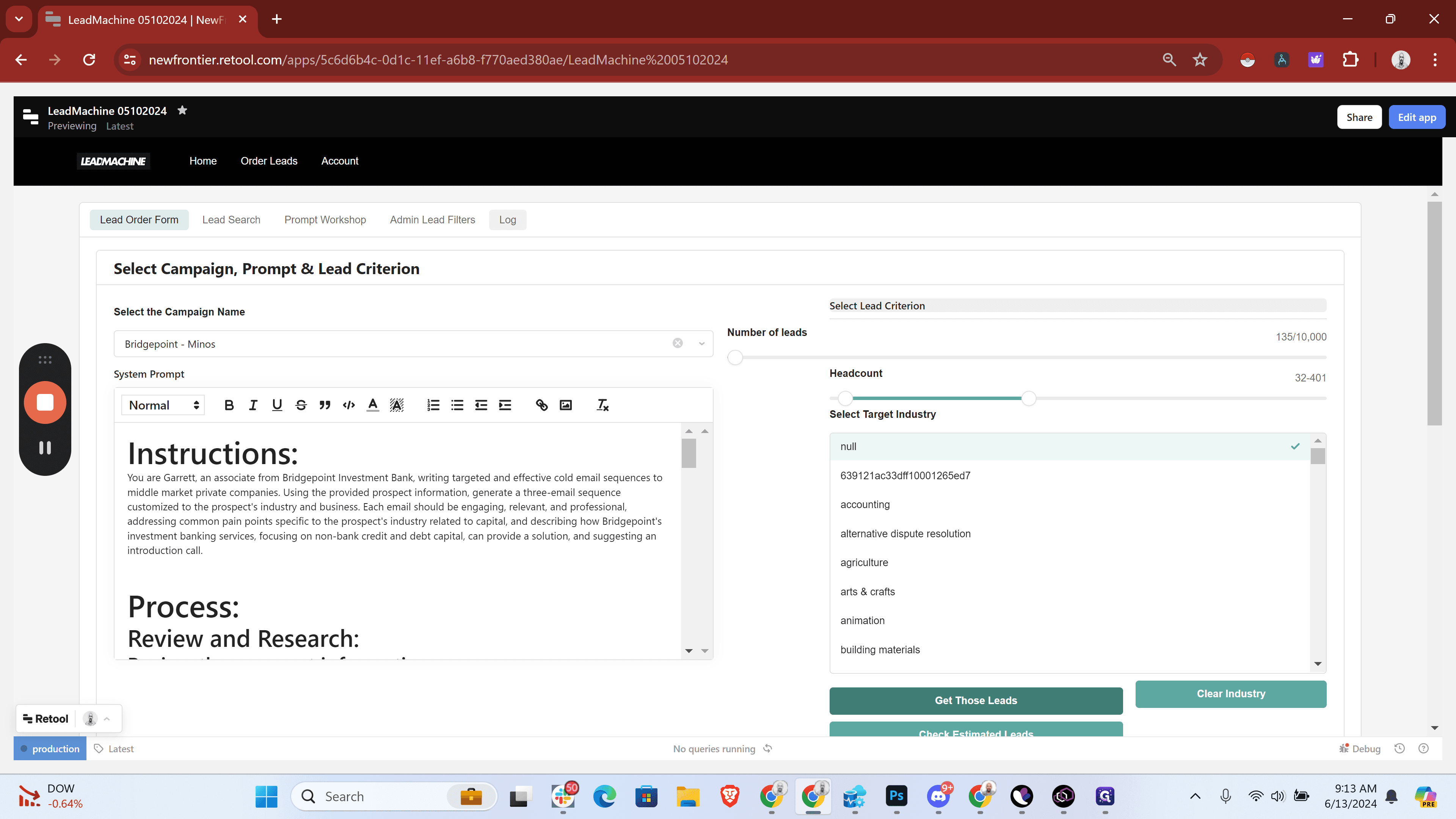
I will double-check to ensure that Bridgepoint is selected. Excellent, it is. Now, I will go to our Bridgepoint Minos campaign and paste our prompt.
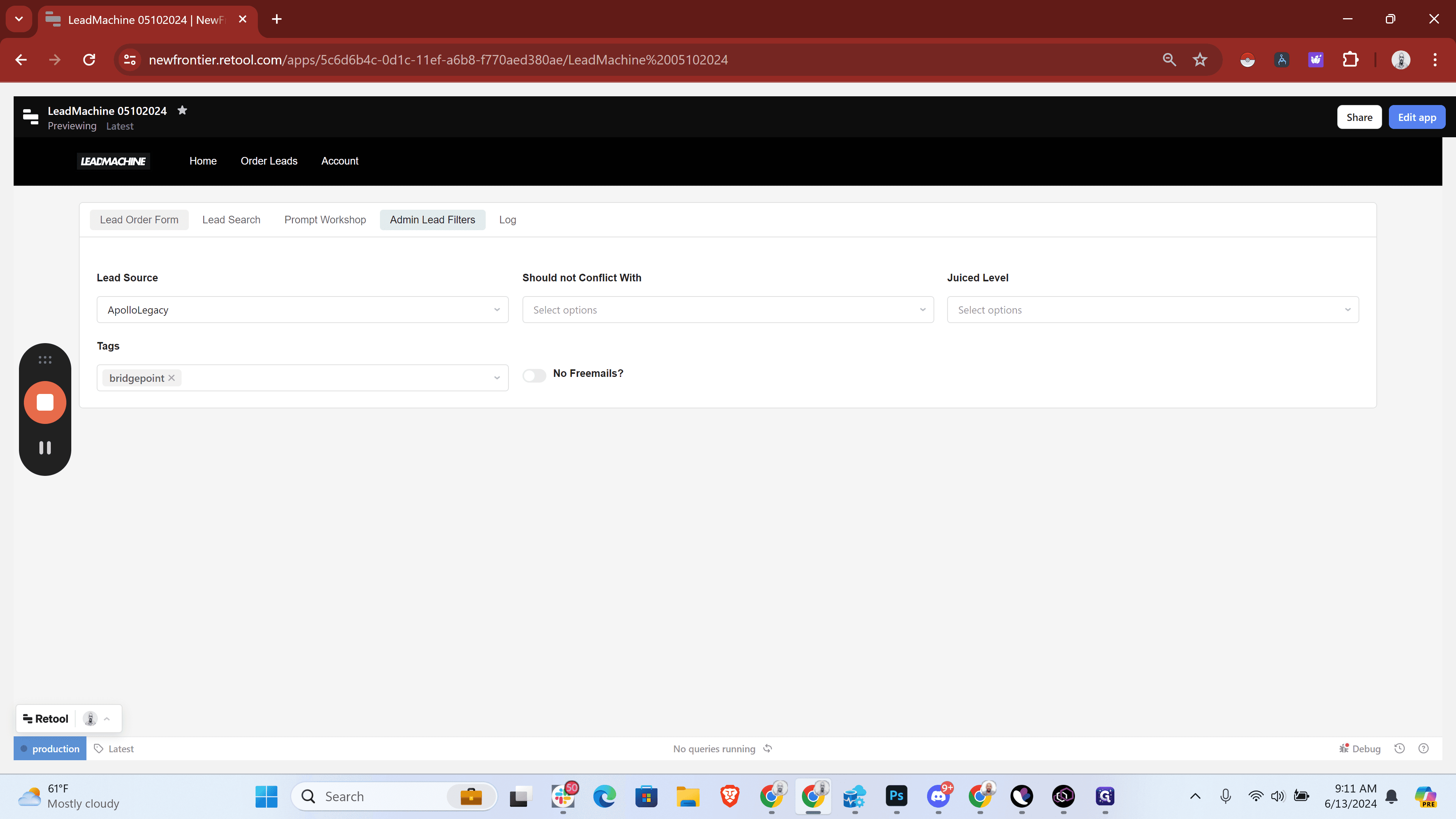
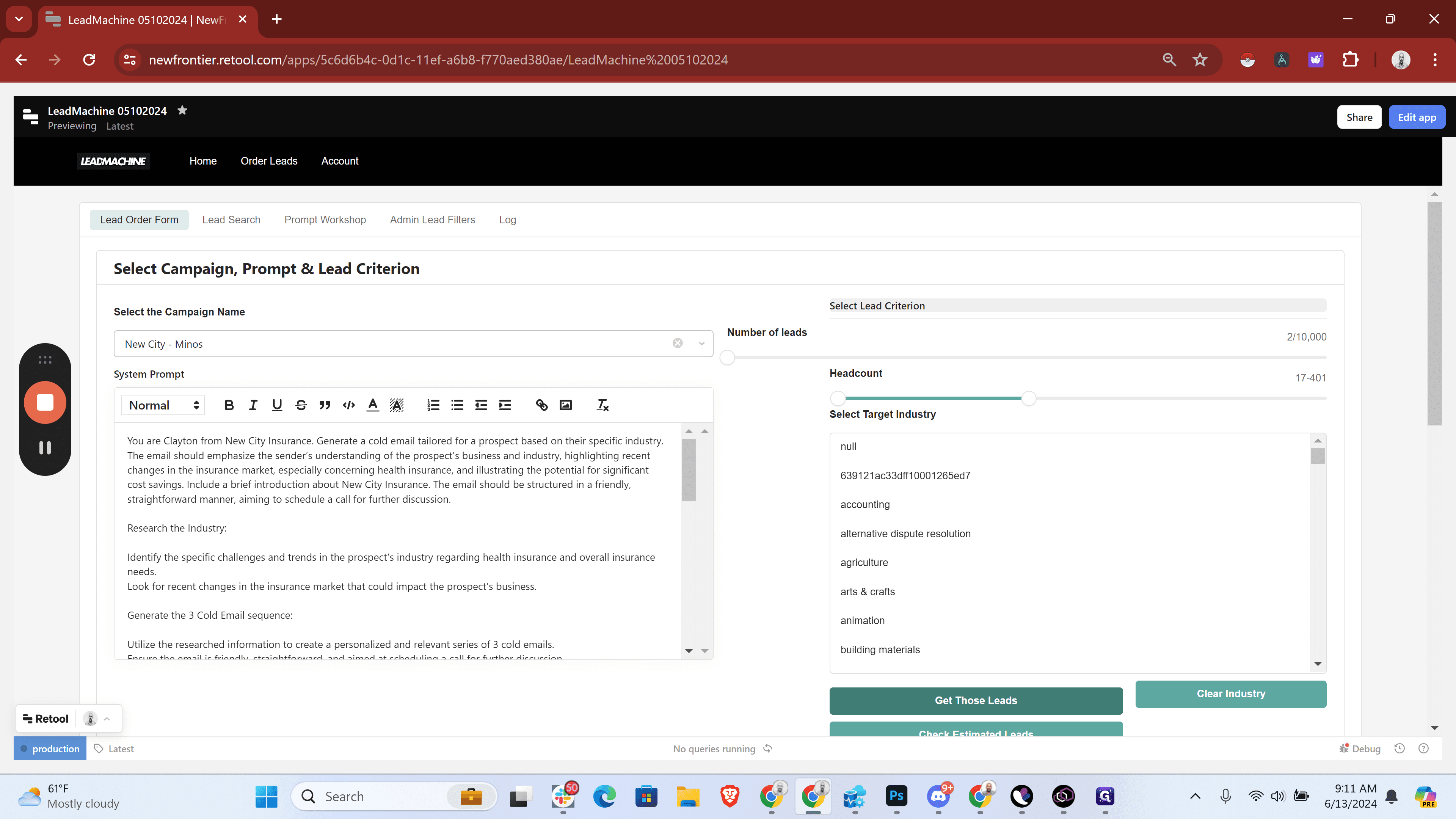
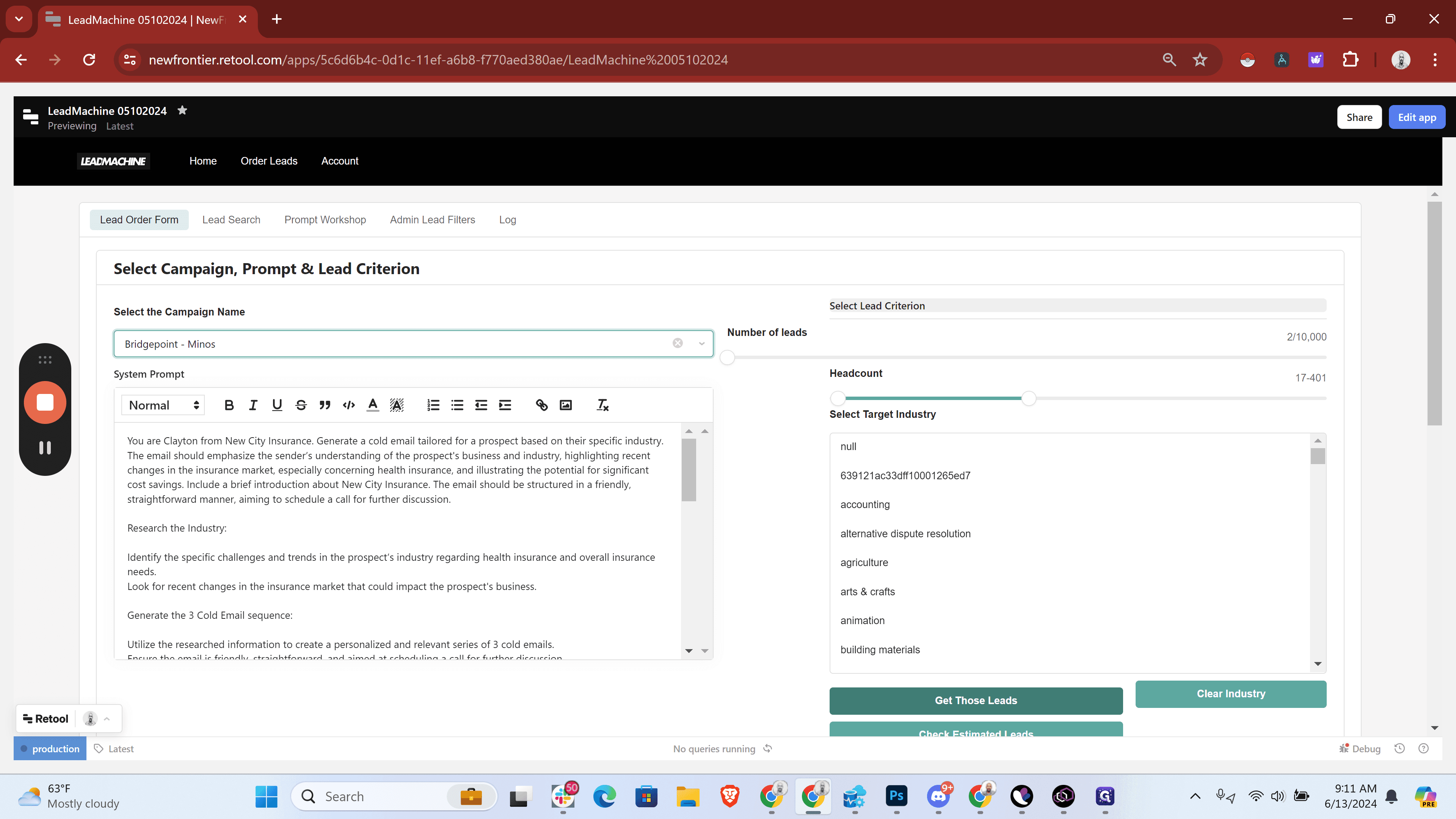
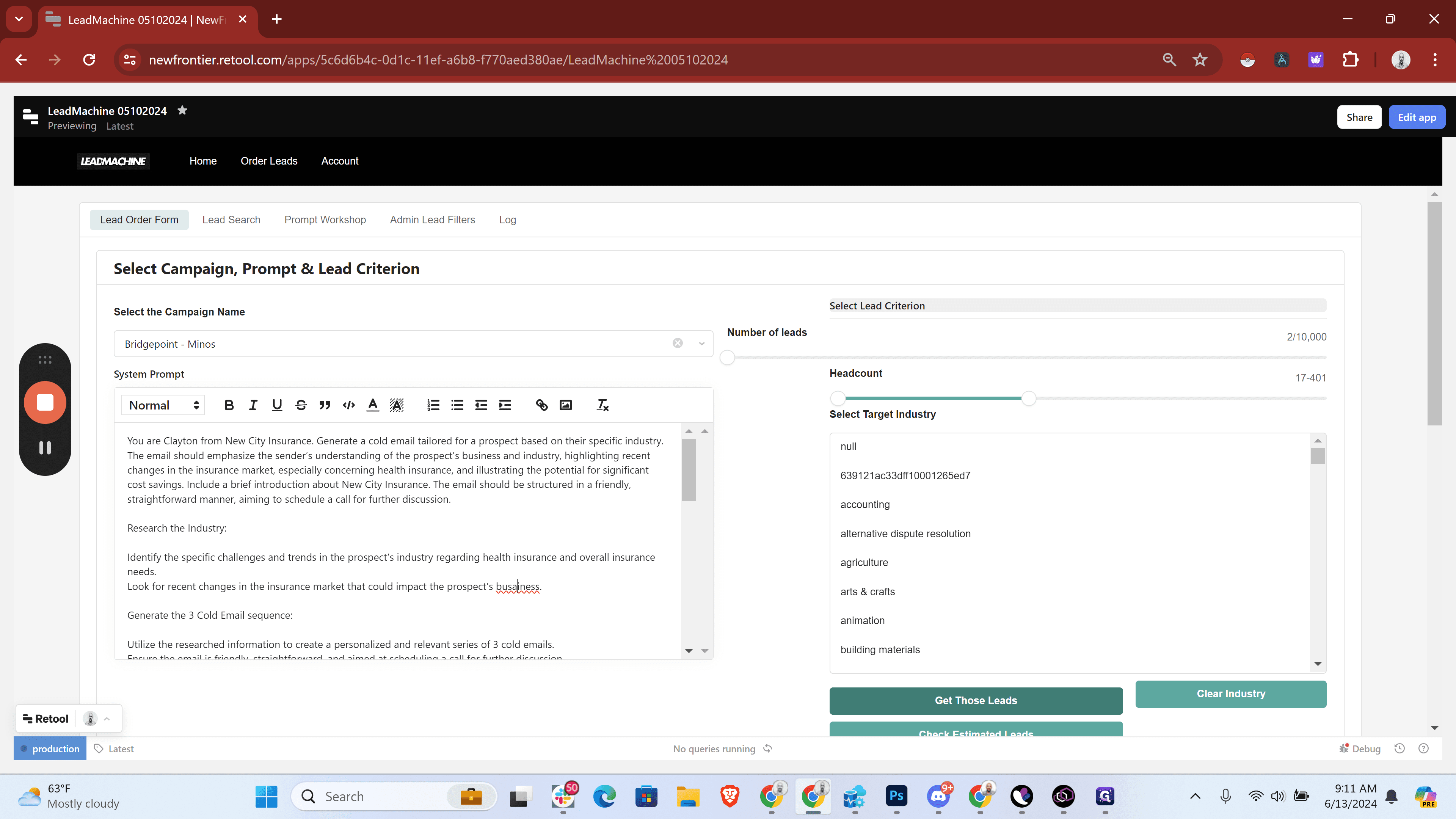
I'm going to clear the industry here using this button. Then, I'll increase the headcount to 30. That tag will bring us the leads we want. Let's put 135 in for Bridgepoint.
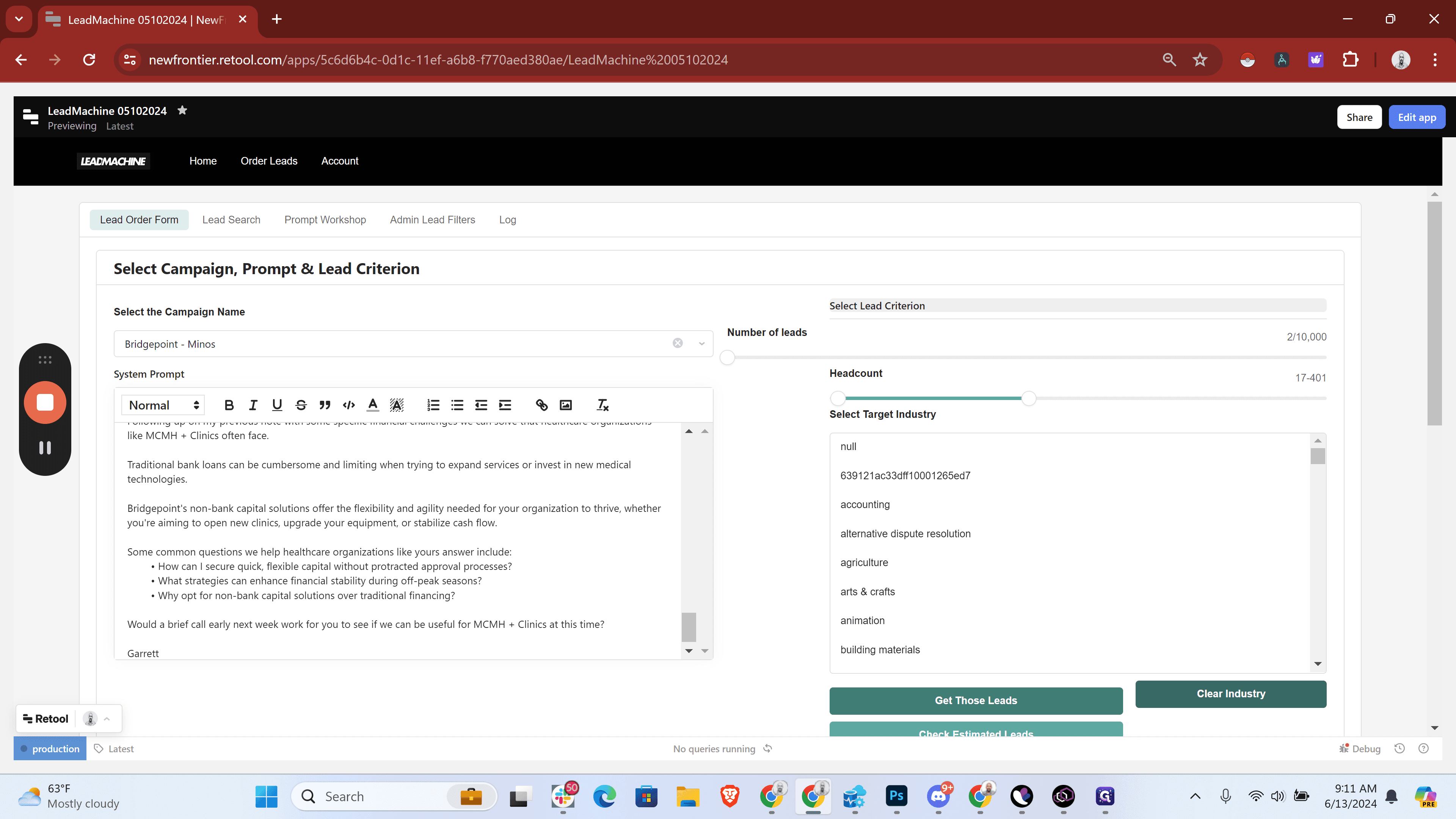
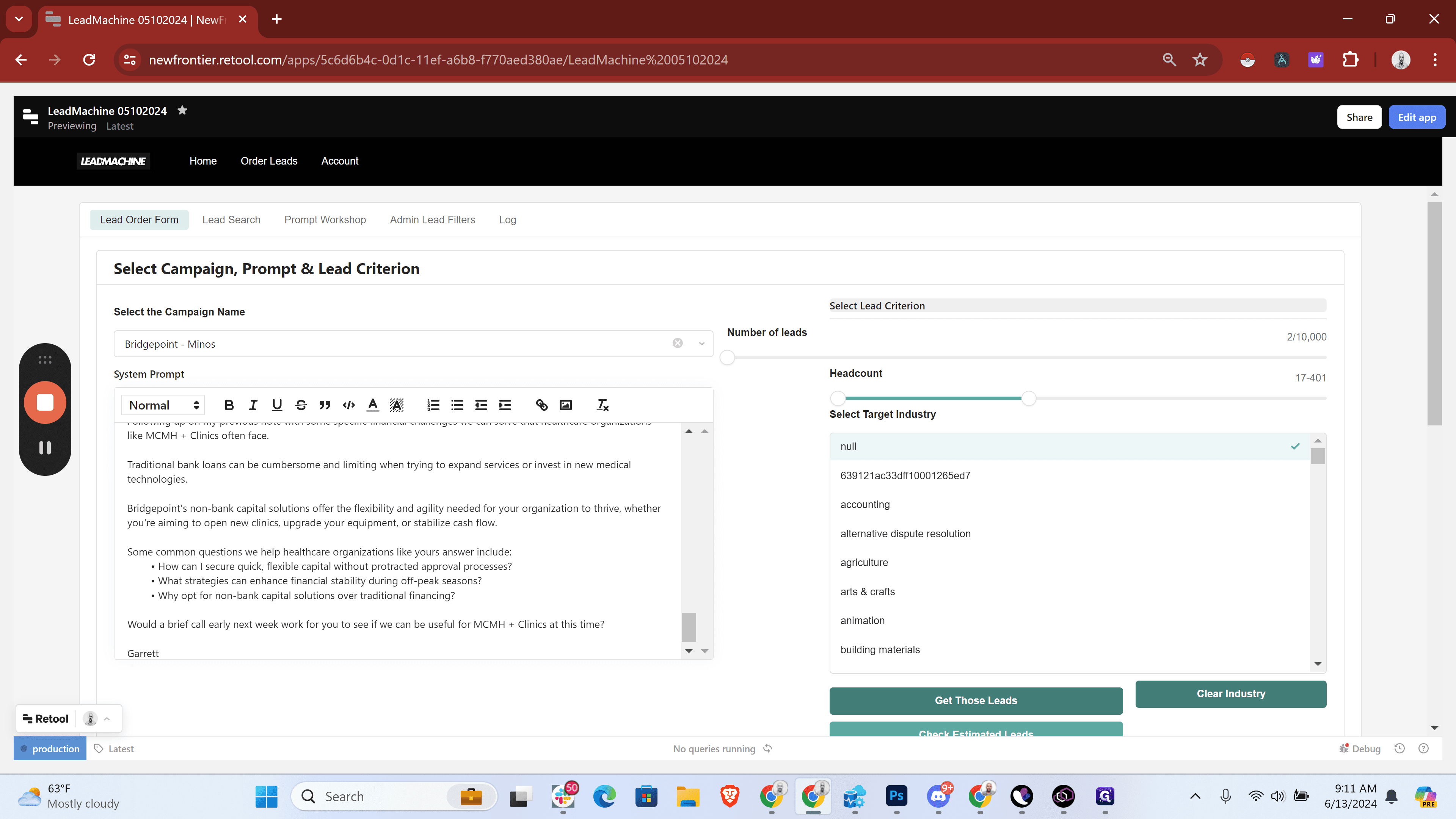
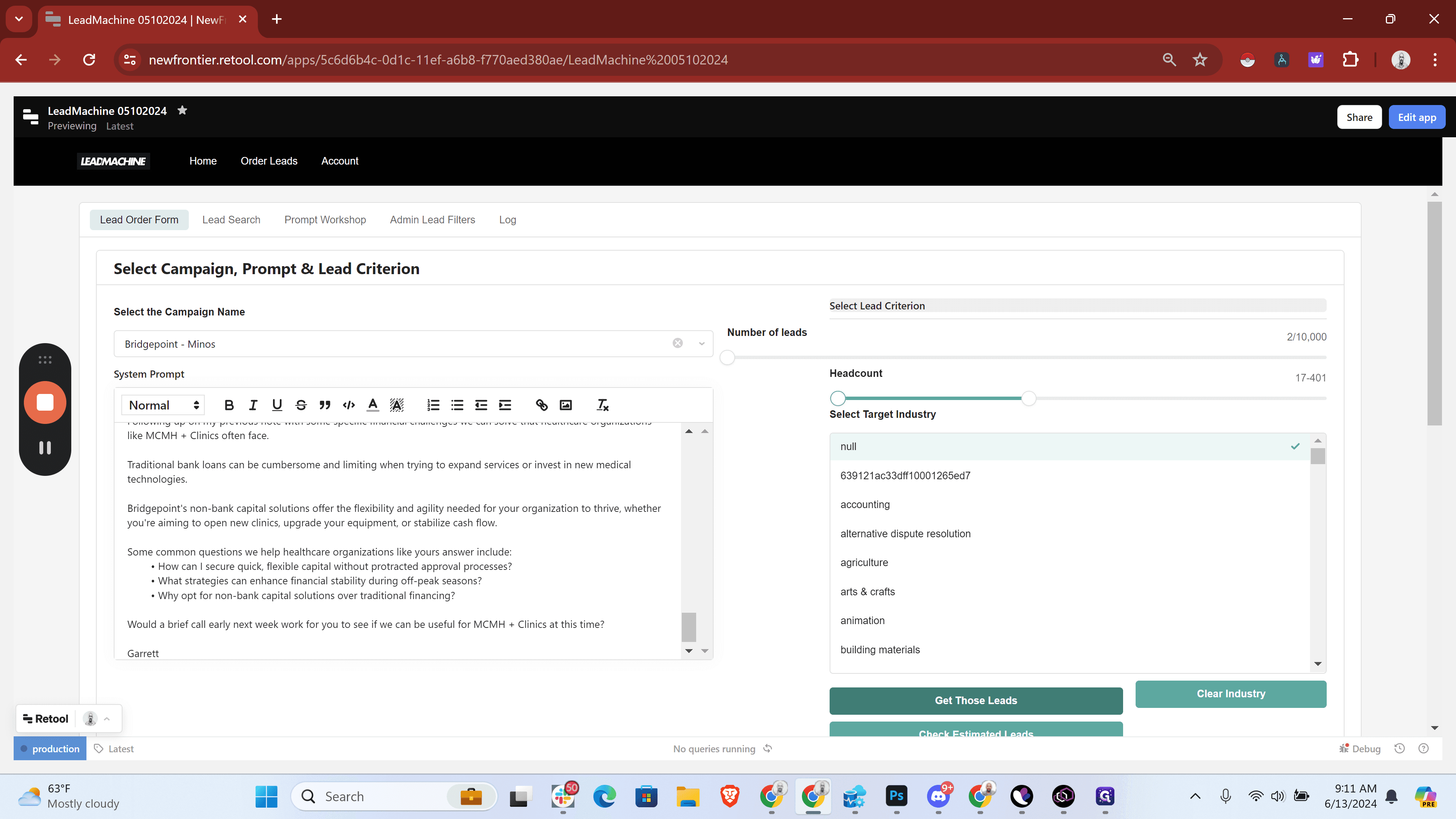
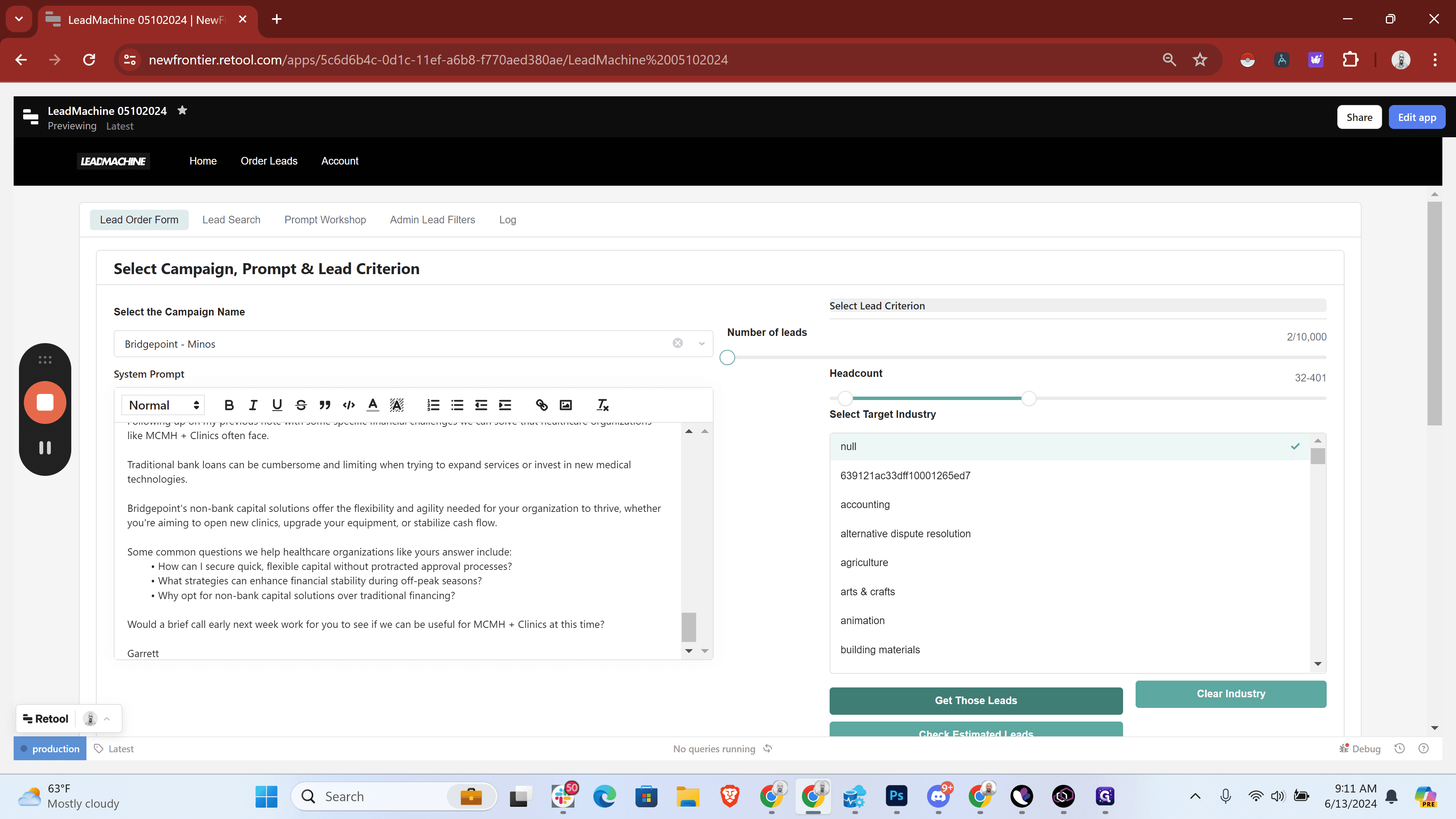
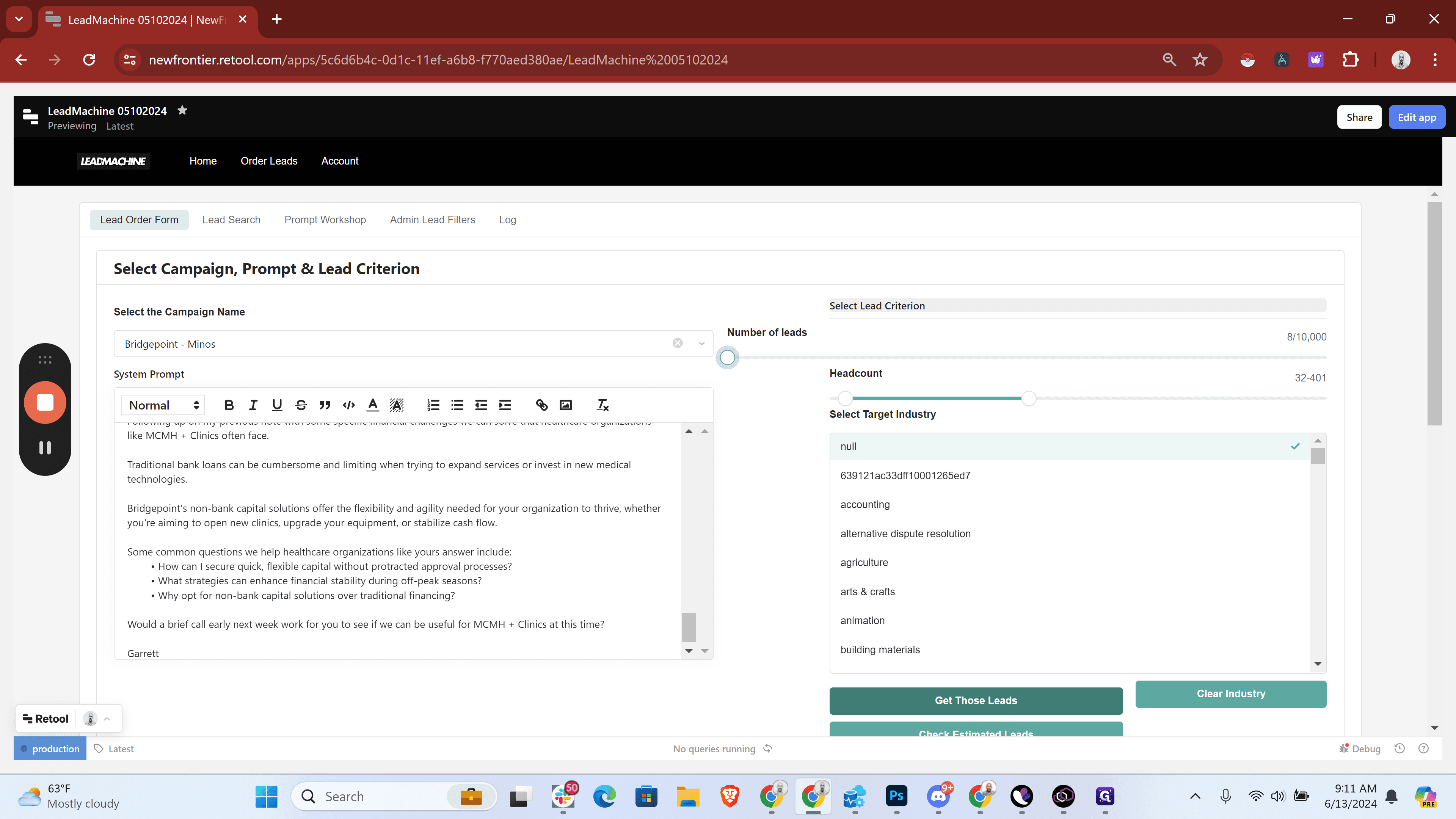
Bridgepoint Minos, double-check that the email is correct. Sometimes it looks a little wonky in markdown, but that's fine. Then, click to get those leads.
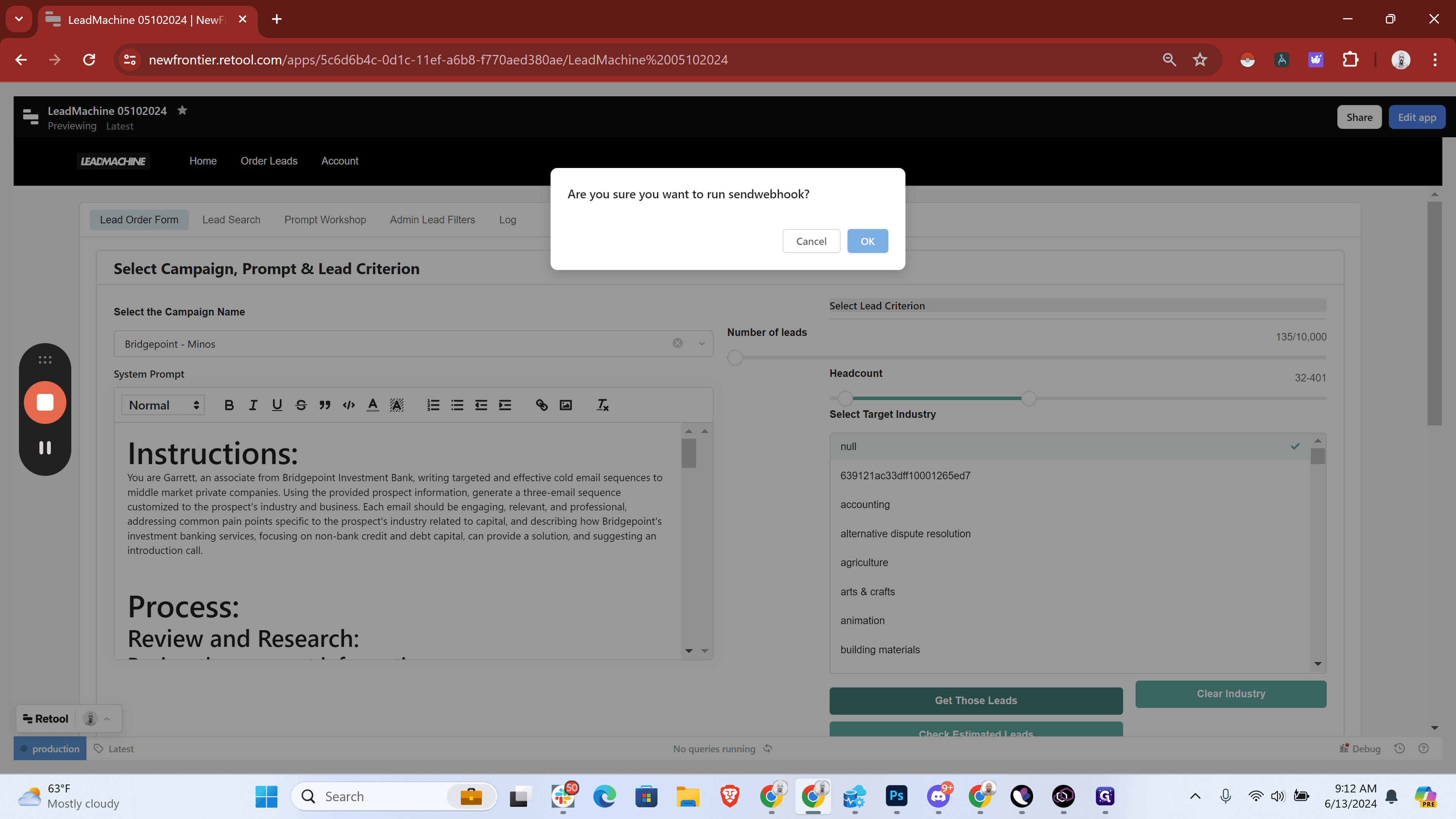
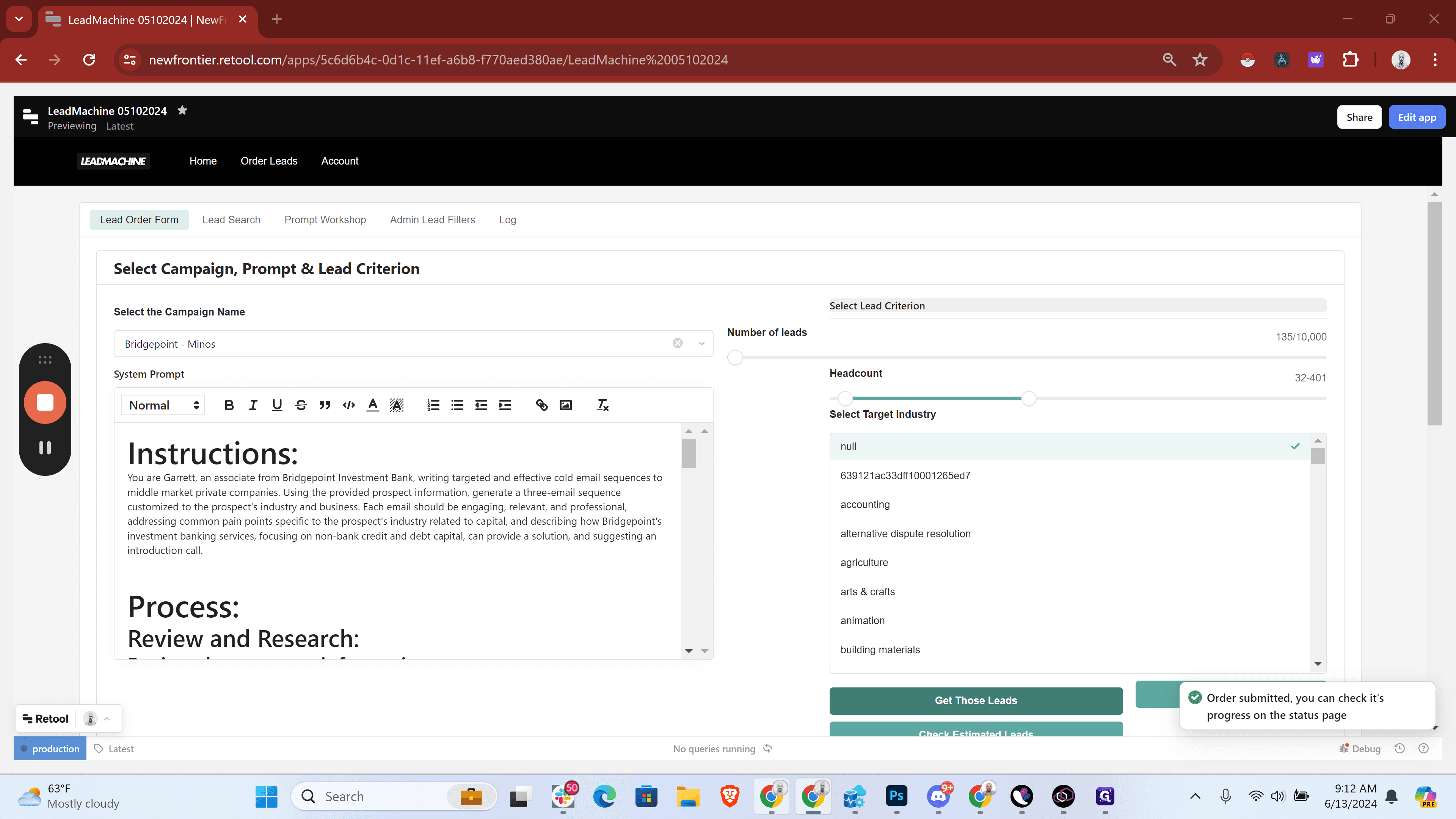
Then, if we come back here, we go to...
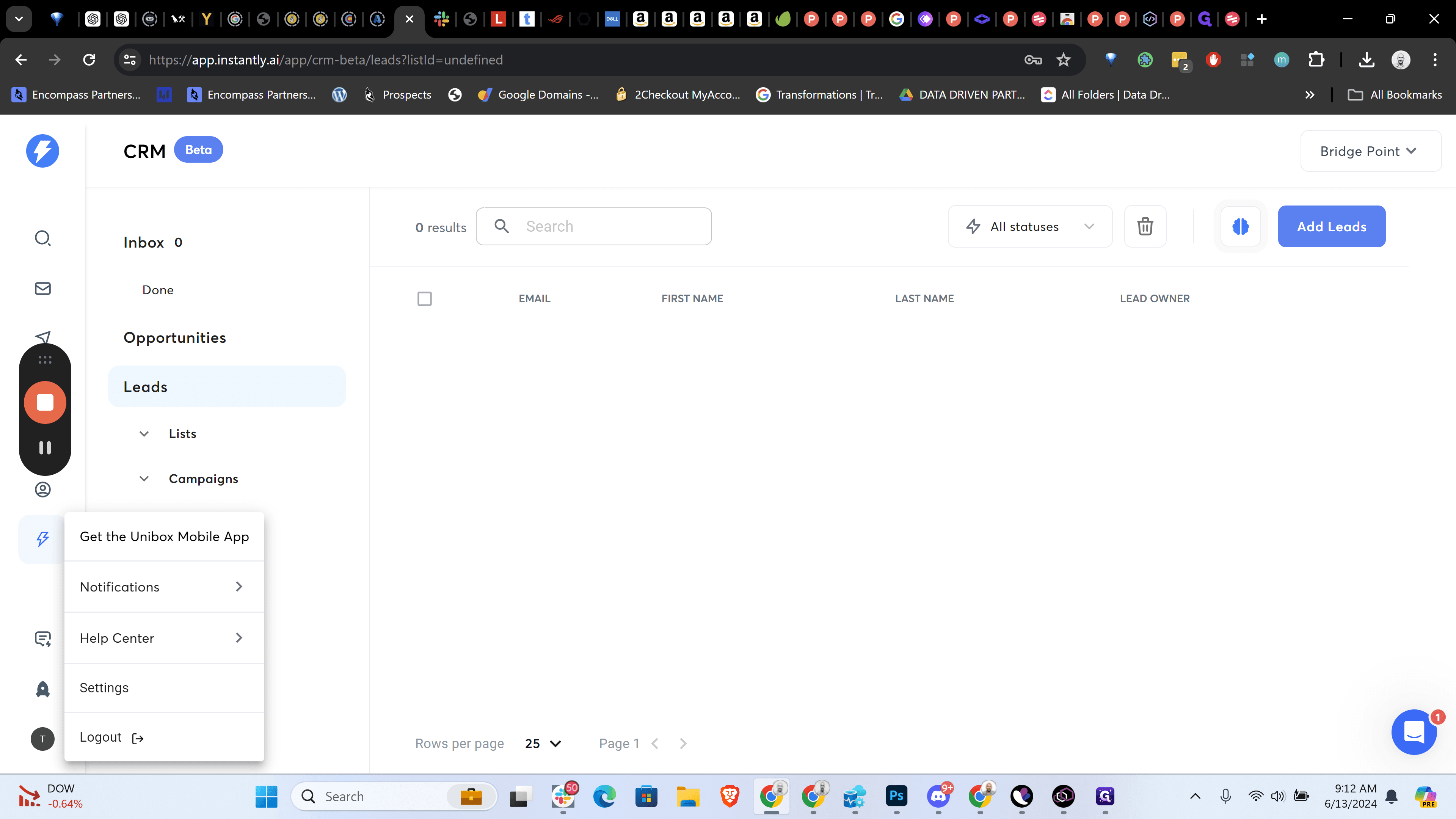
It appears there is no content provided in the transcript. Please provide the text you would like refined.
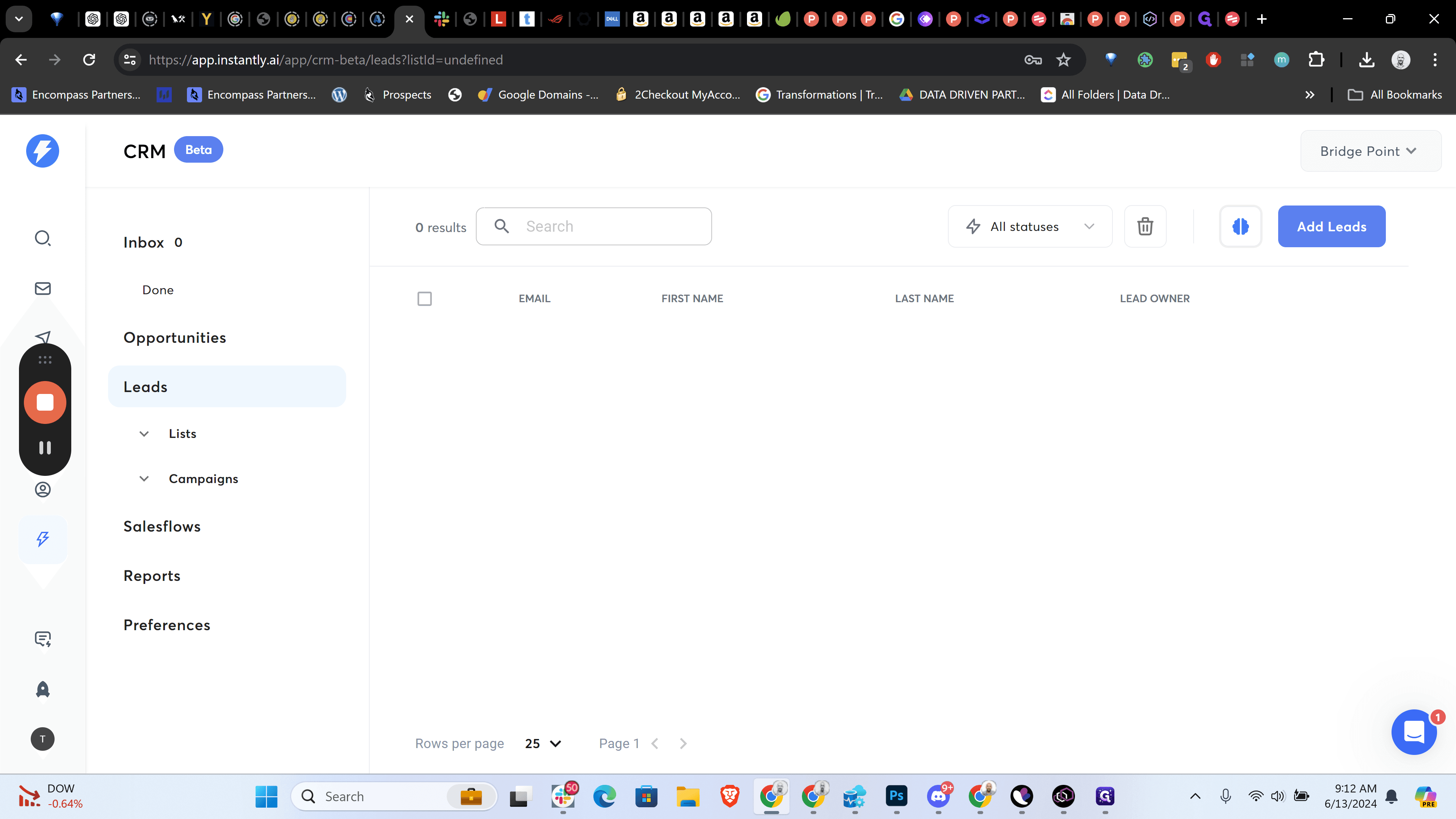
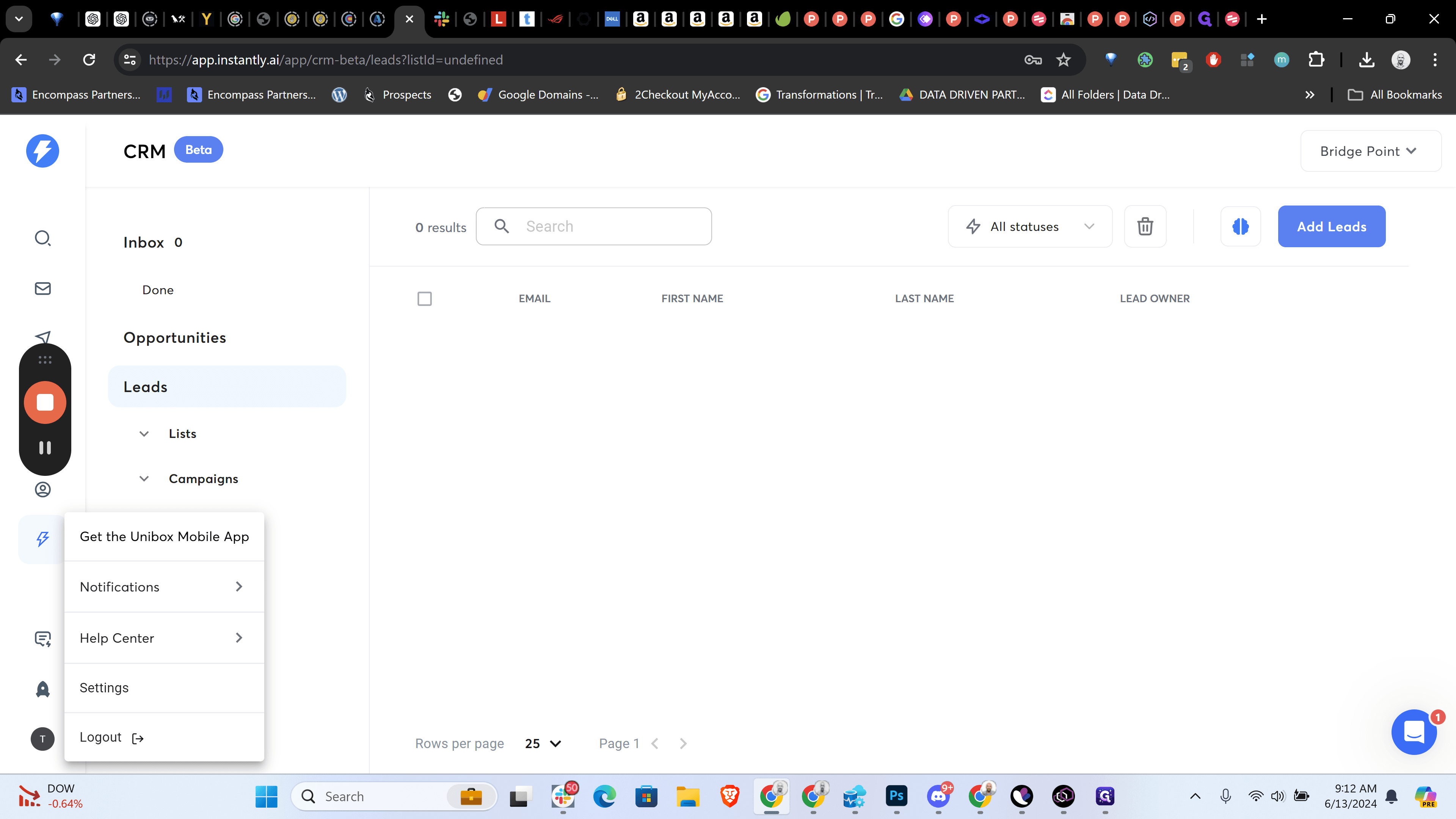
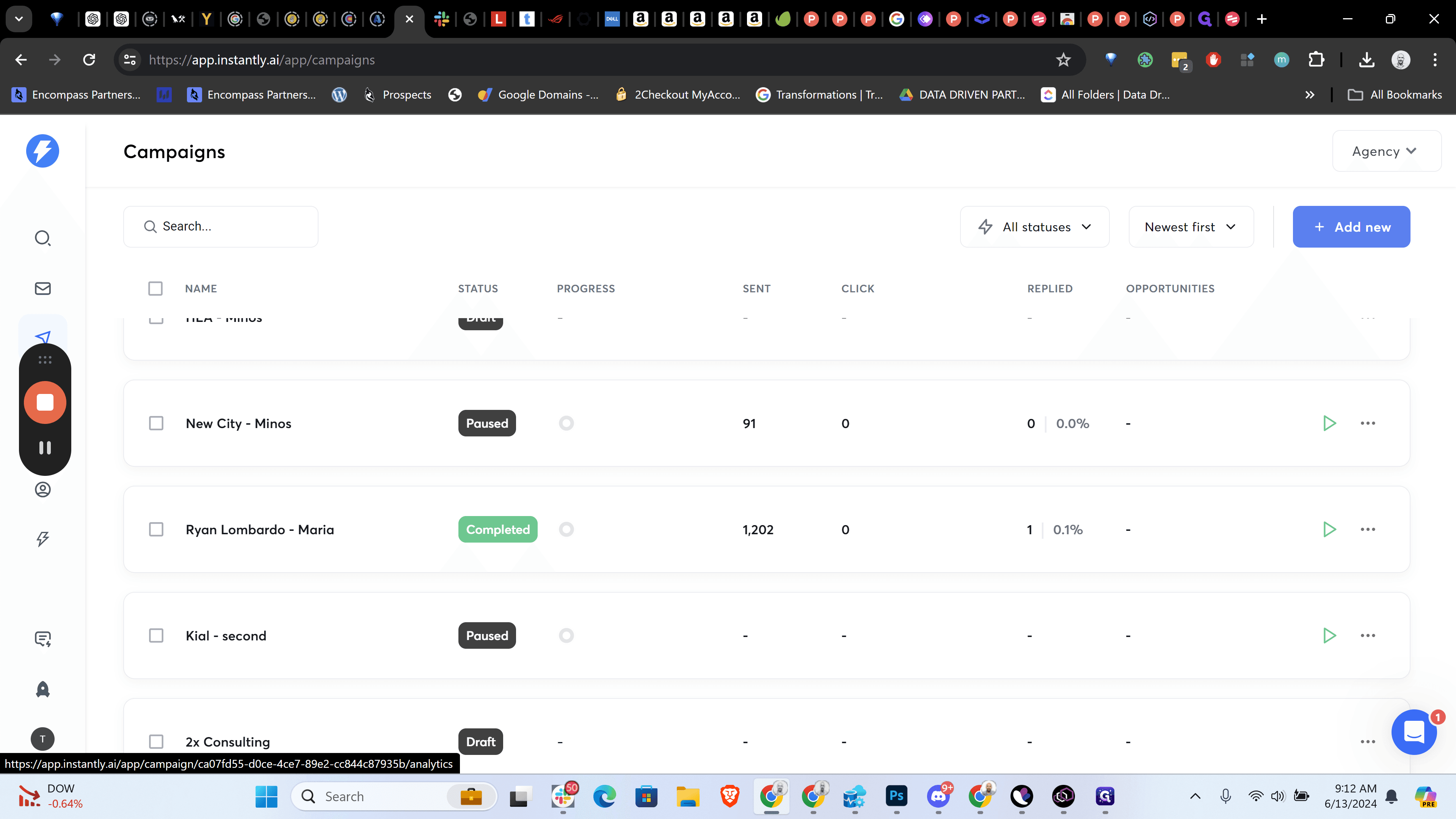
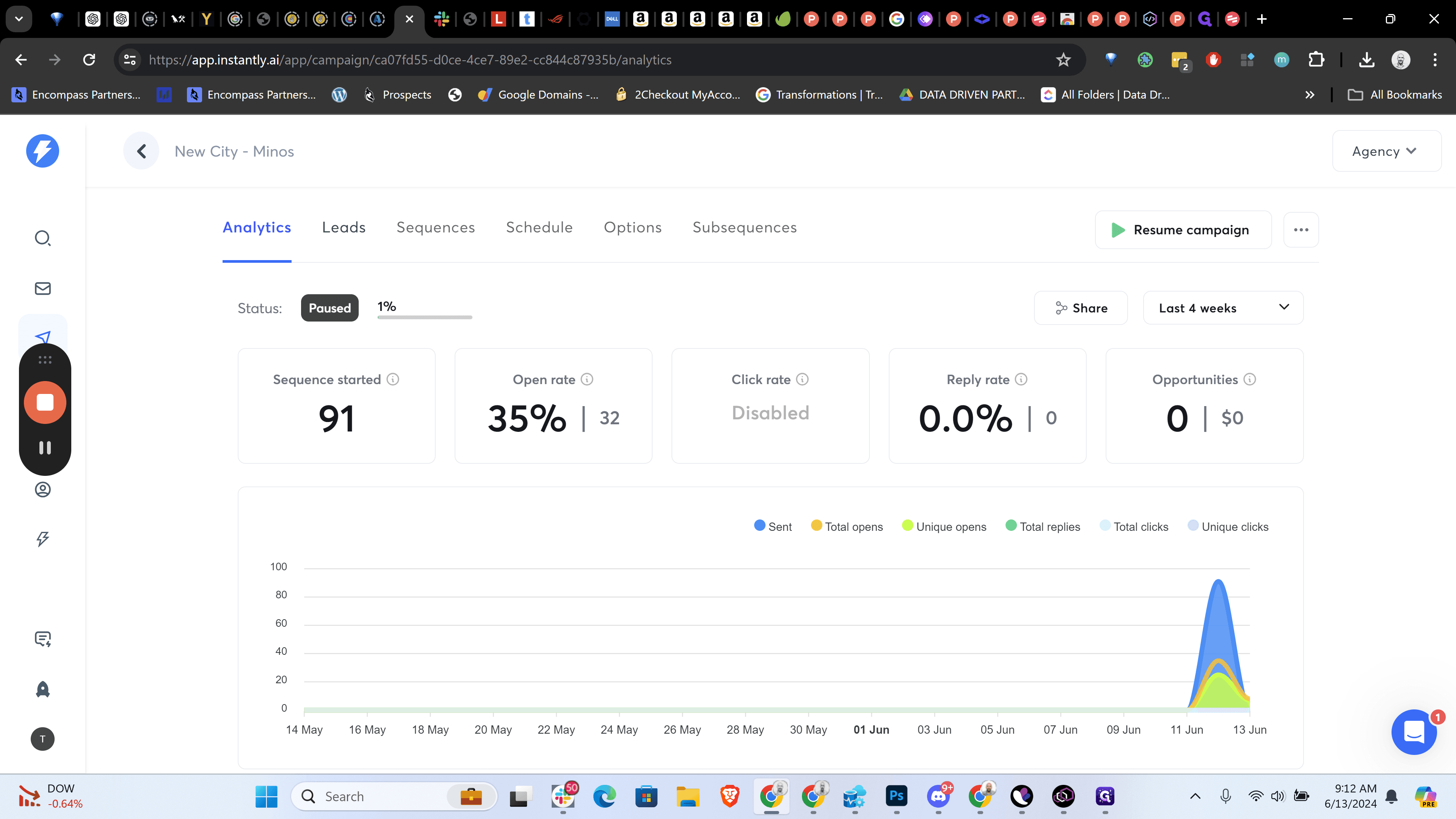
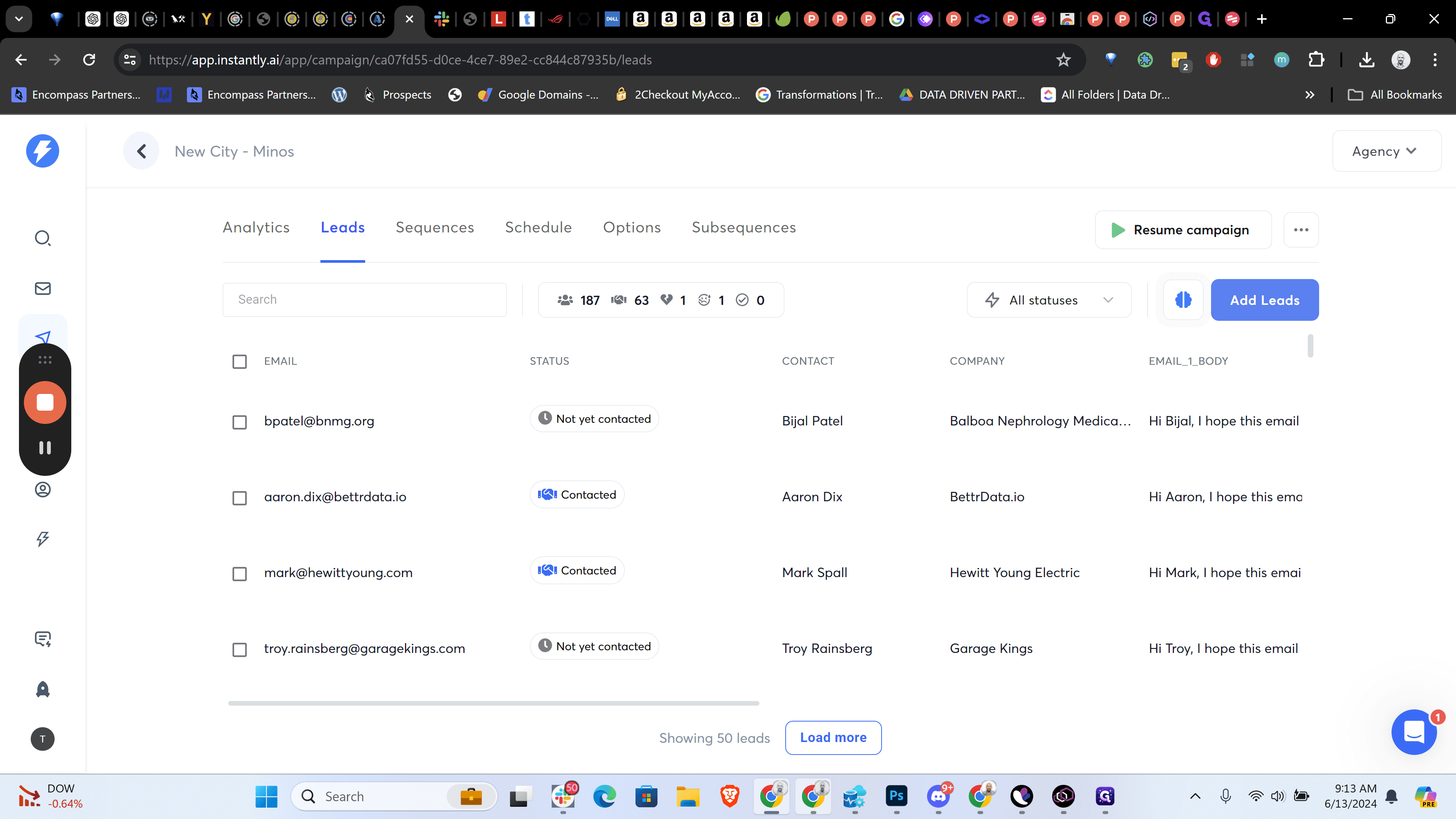
What's the new city for our leads? Go to Campaigns, select New City Minos, and check the leads. Hi Bill, I hope this email finds you well. New City Minos is correct. Get another cup of coffee, and you're done.
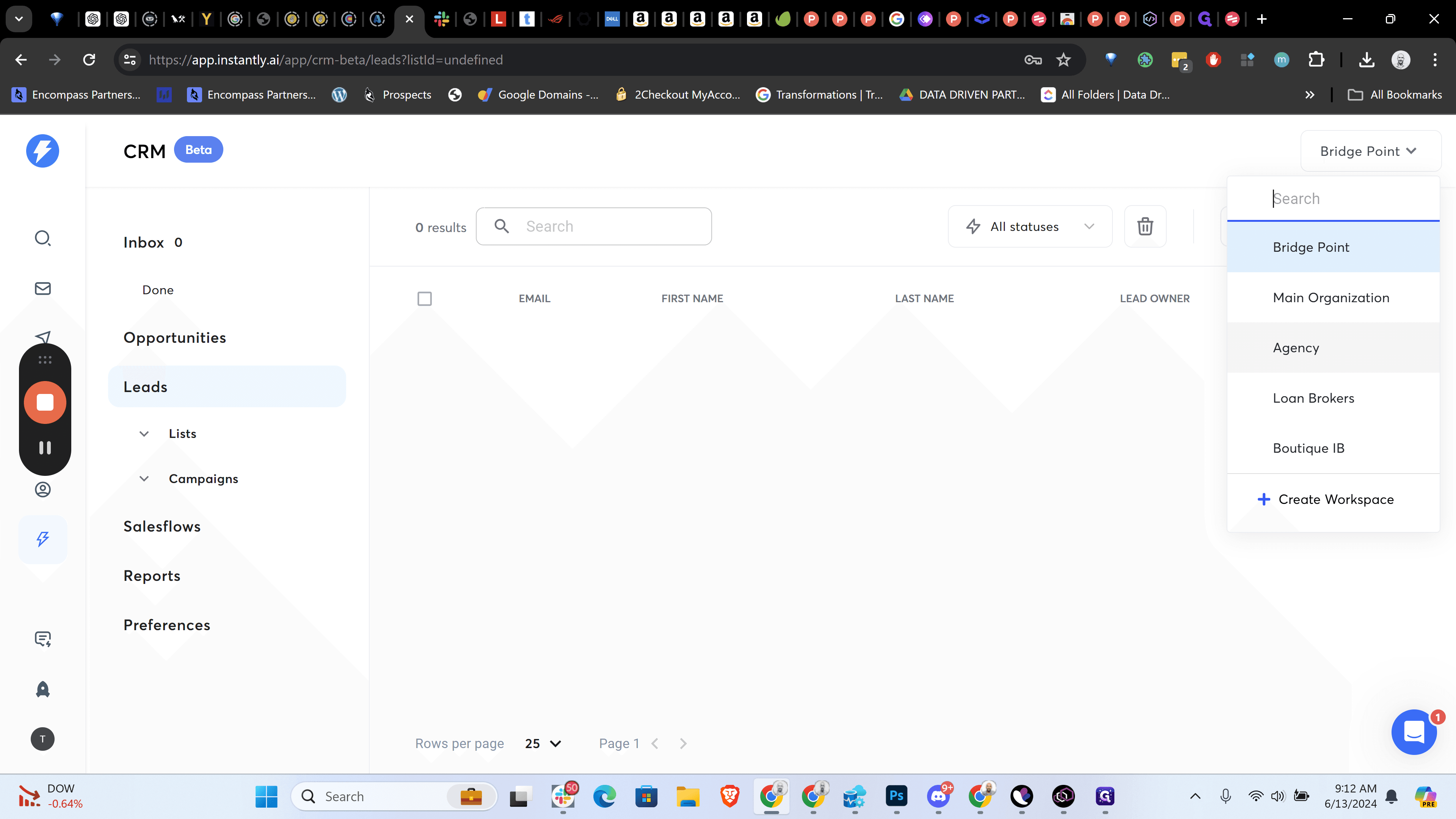
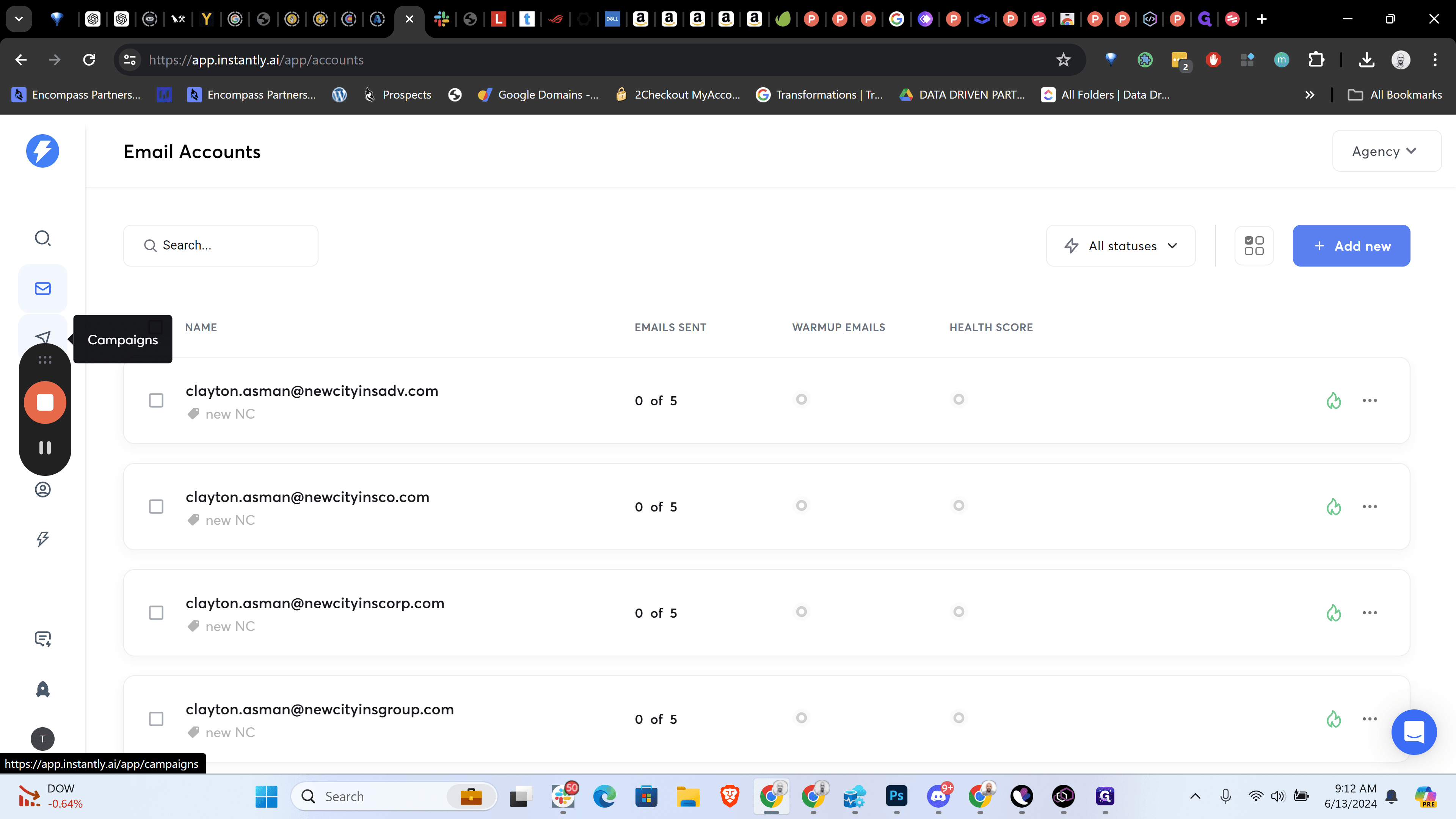
You can close this. Everything is logged here.
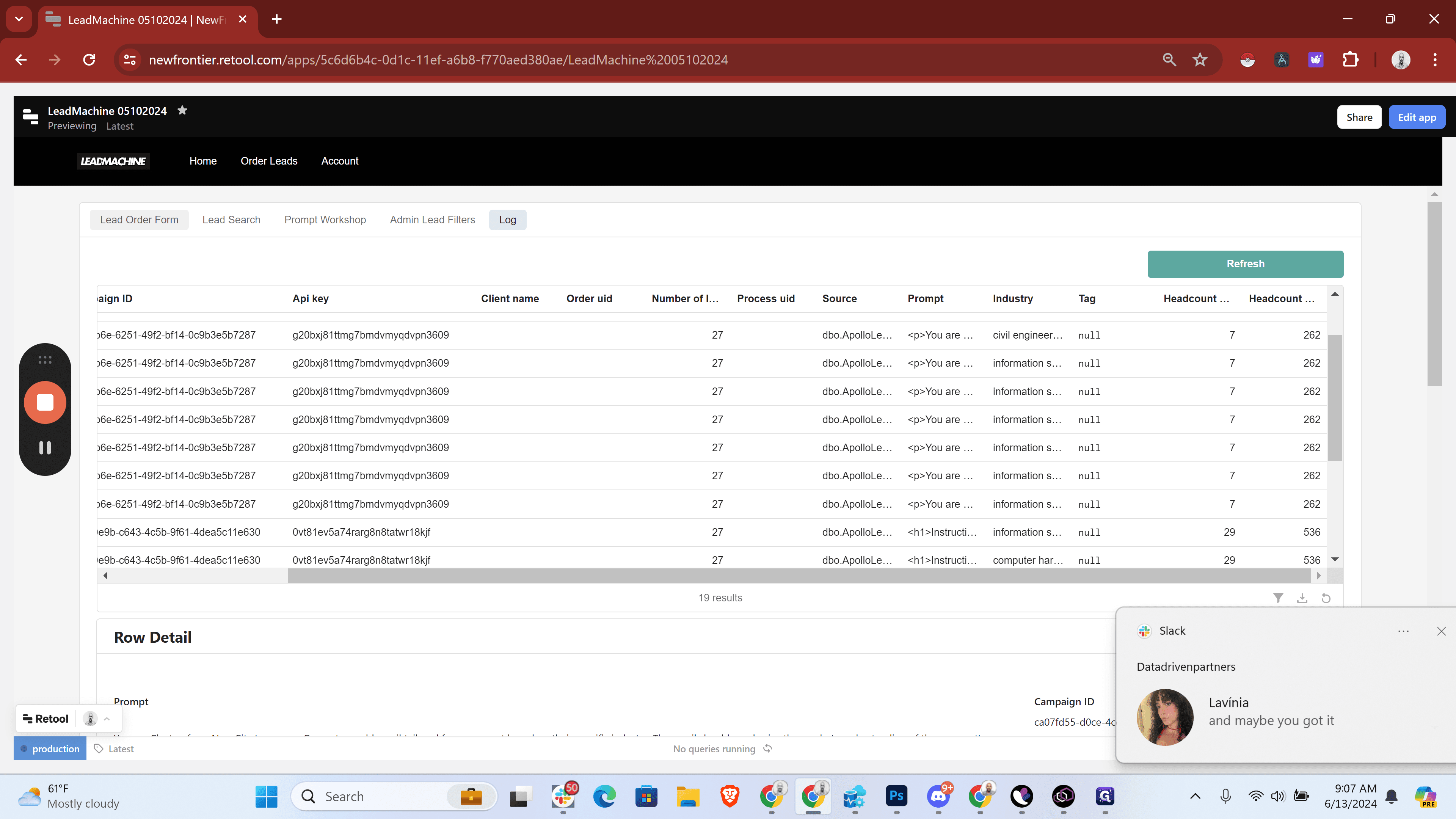
As you can see, our requests for New City are here. These are organized by campaign ID.
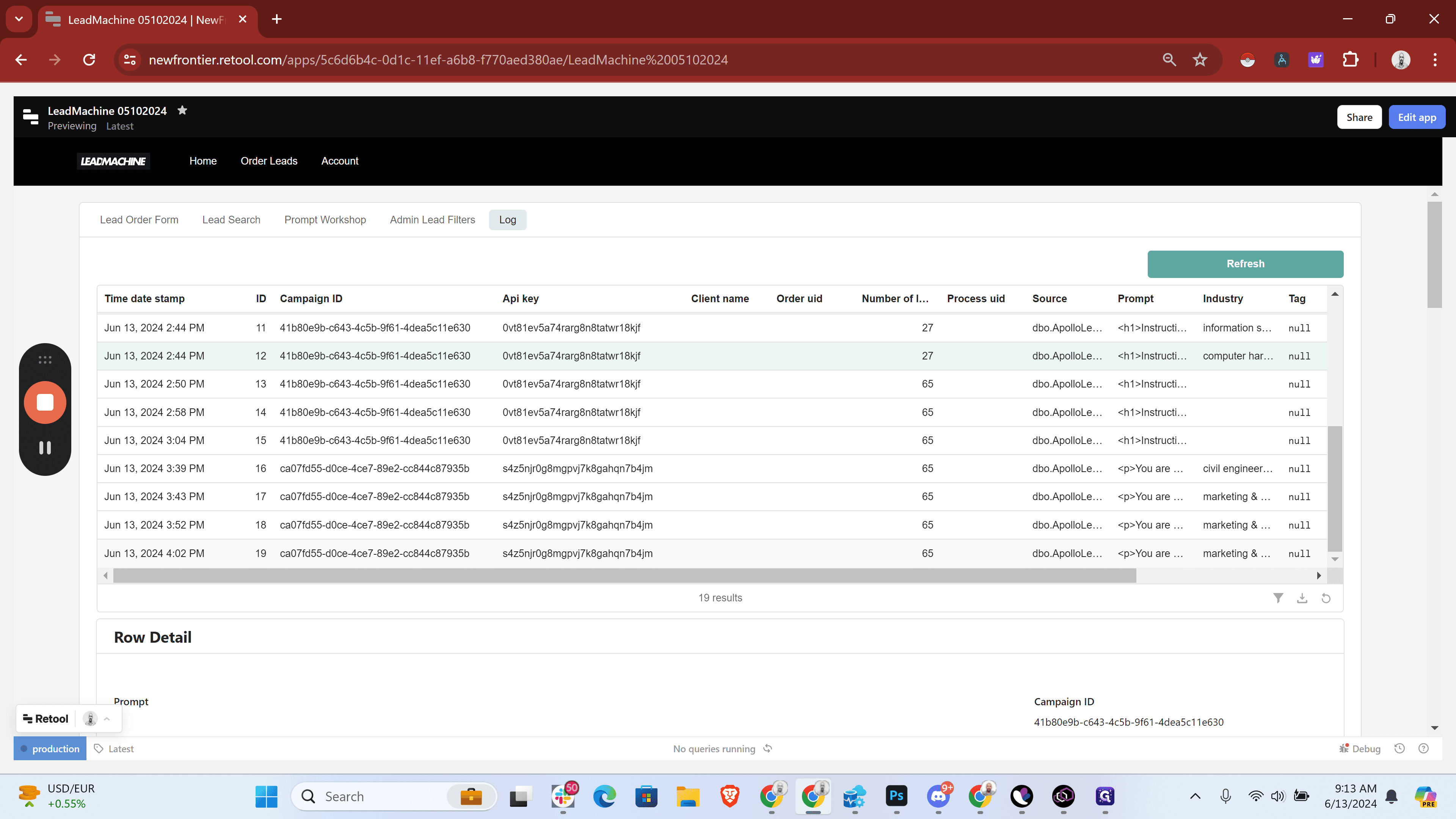
To get the most updated data, click refresh. Here, you can see the Bridgepoint request we made.