
How to Efficiently Review and Track New Products on Product Hunt
Discover a step-by-step guide to quickly reviewing, understanding, and tracking newly launched products on Product Hunt. Learn tips for expanding product details, gathering information, and organizing your findings.
In this guide, we'll learn how to quickly review and organize information about new products launched on Product Hunt. The goal is to efficiently gather key details for each product, understand their main features, and record this information in a spreadsheet for easy reference.
This process helps you stay updated on the latest tools and decide which ones might be useful for your needs.
Let's get started
I'm on producthunt.com, viewing today's list of newly launched products.
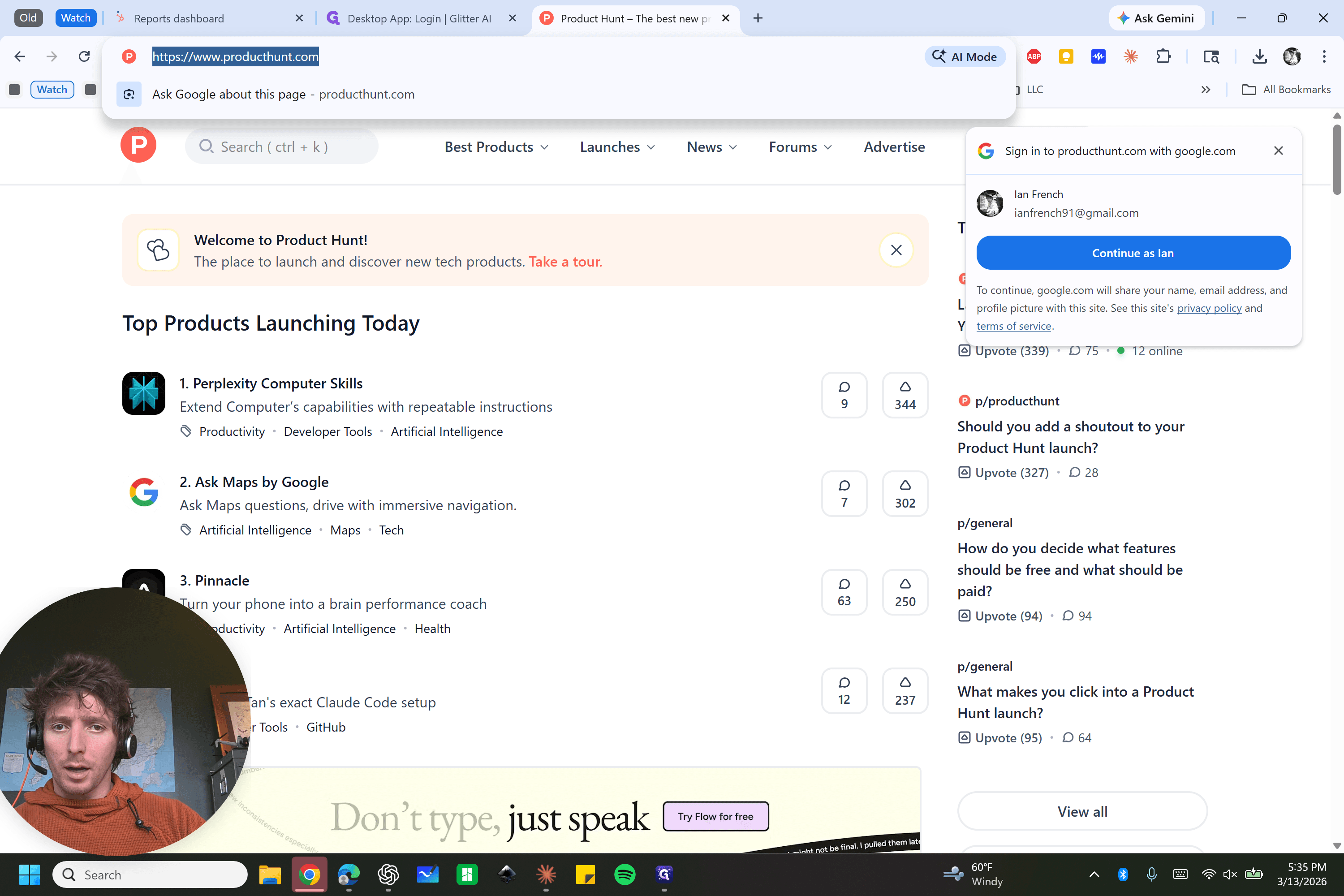
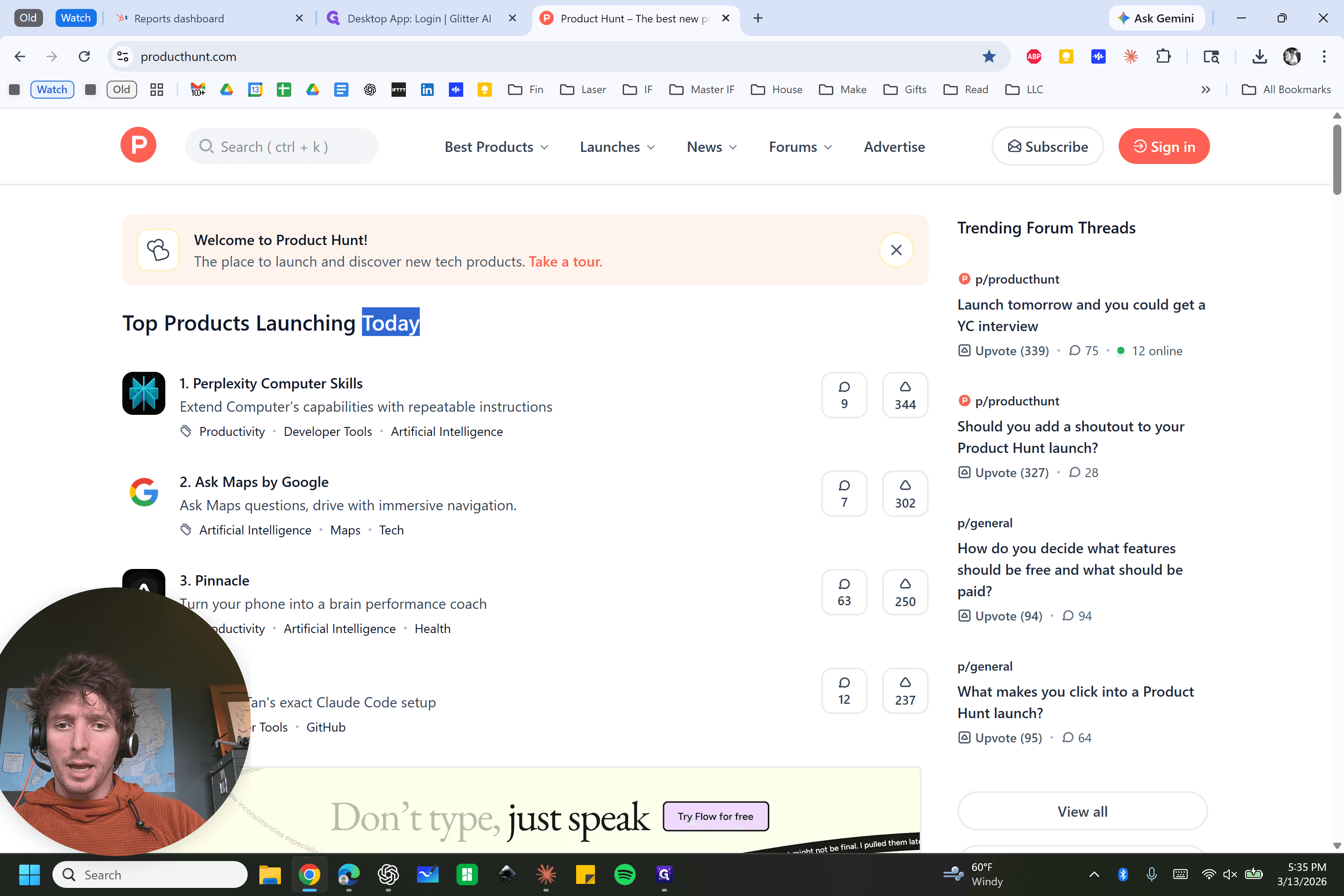
As we scroll through, we can see everything is ranked by votes. Occasionally, there are some promoted items. You can see that 19 and 20 are sandwiching a different product. The main goal is to review all of today's products. I'm clicking here to expand, but it is not expanding for some reason.
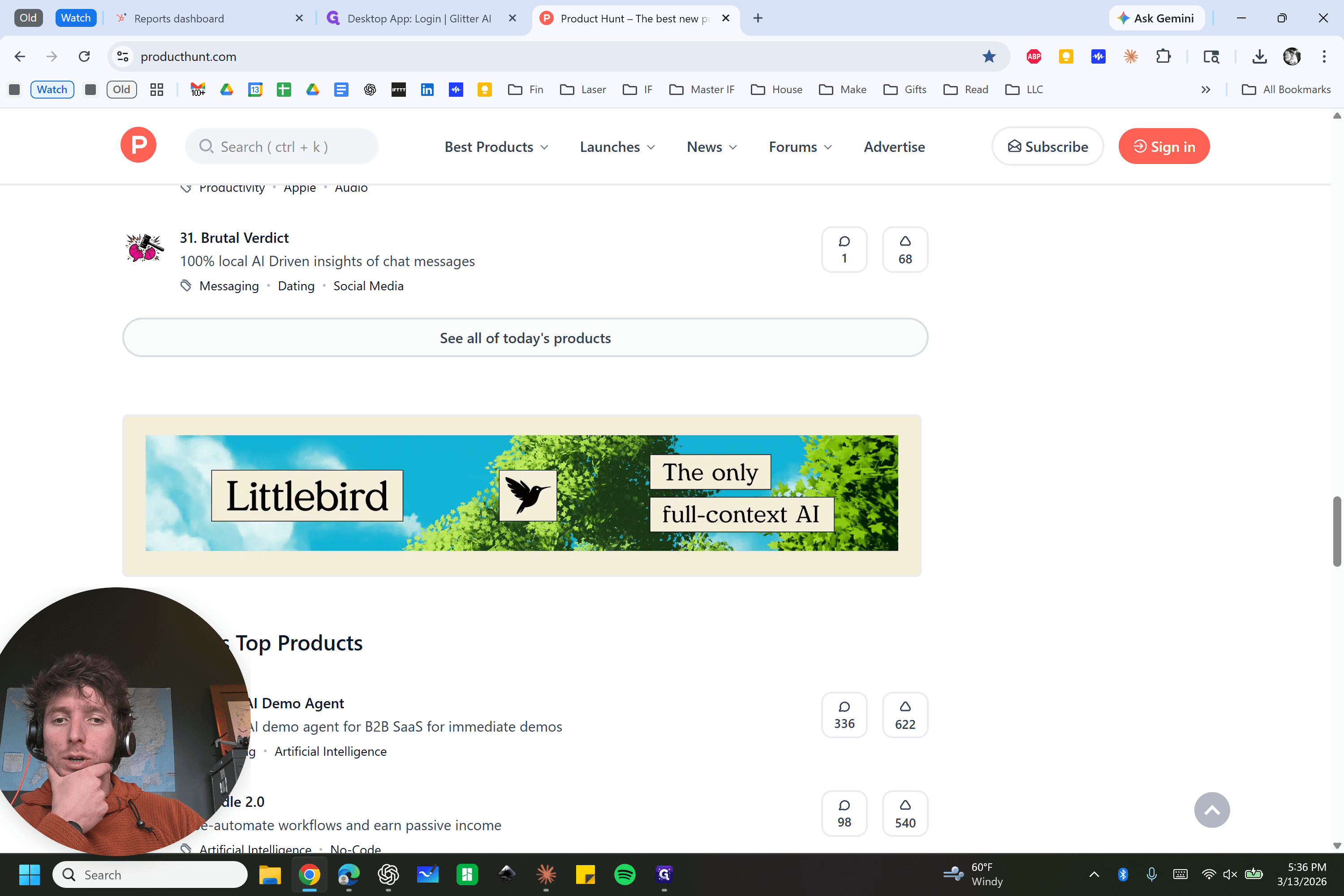
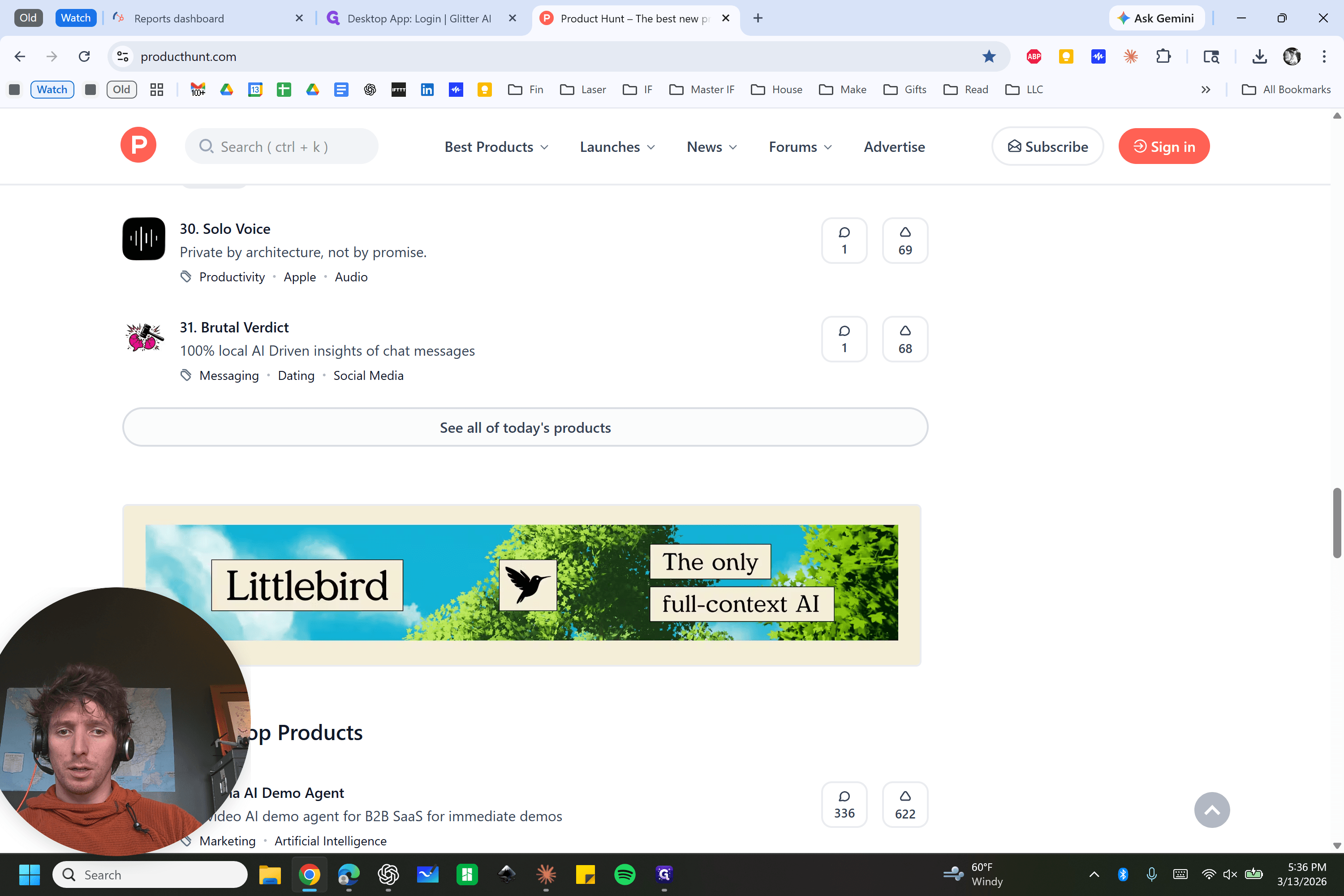
There we go. It expanded. The goal is to review each product with minimal effort while being comprehensive. I want to quickly understand what each product is and how I can use it to achieve my goals.

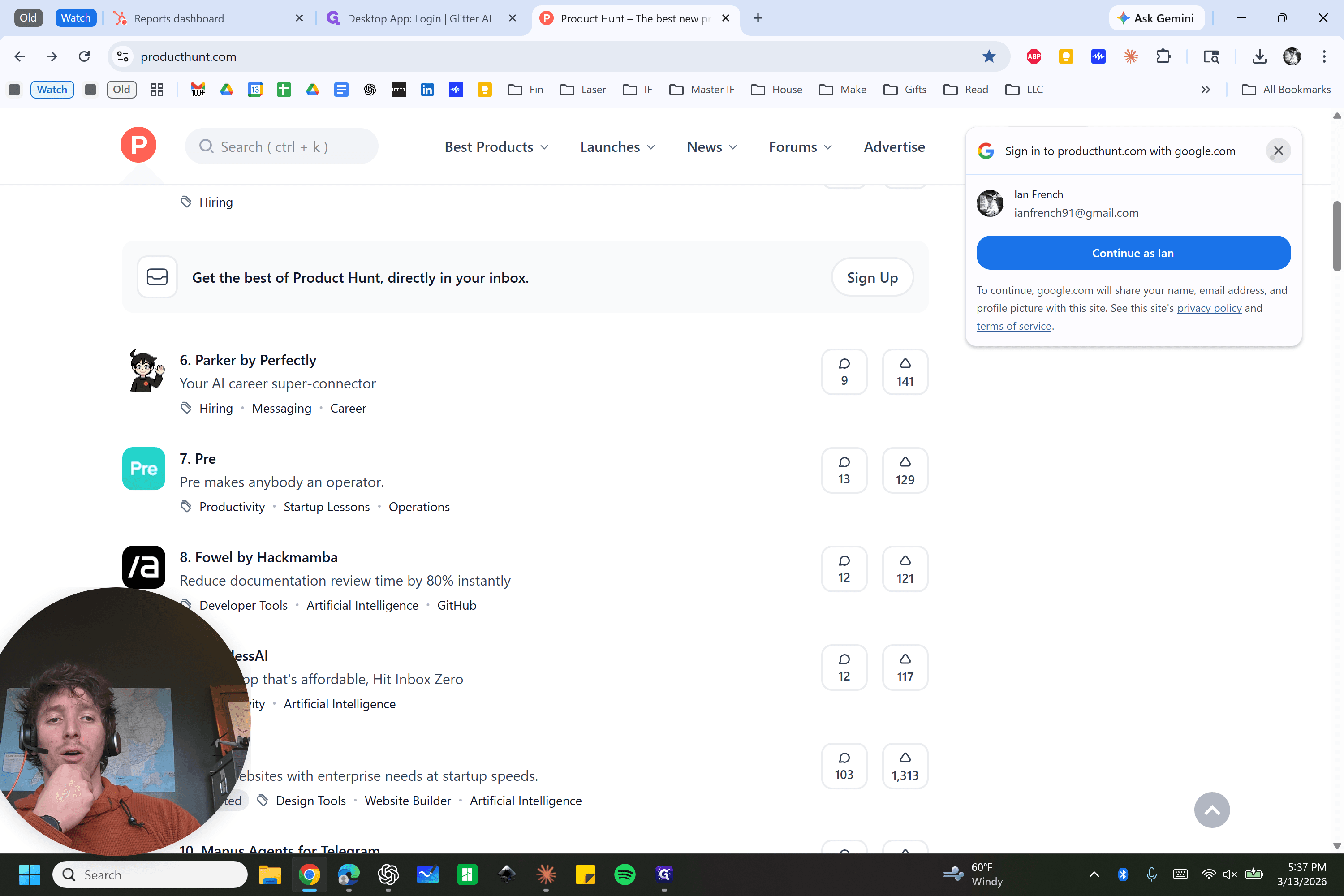
Each time one of these comes out, I often click on them.
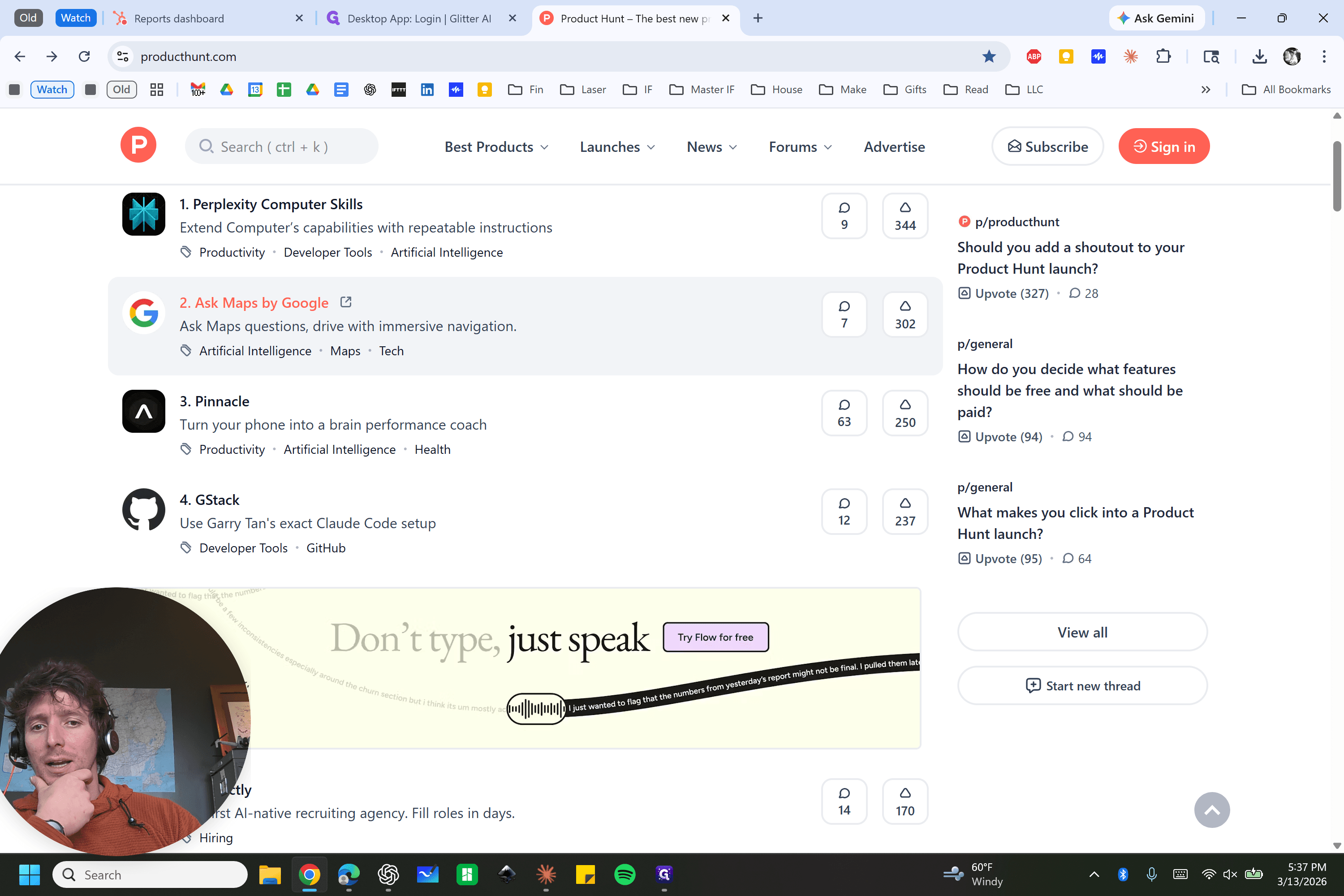
The internet is a bit slow here, but I am clicking on these. It opens the product page. You can see it is launching today. You can see it is ranked number two. You can see who created it.

You can see several aspects of this. When it launched, we can go to company info, which typically lists the links. I opened that link in a new tab using a mouse trick.



You can see we are getting a description of the product.

We are taking screenshots of the product.

We gather all the other information, and I often use this to quickly see what is being released today. I would like to take these and attach them to a spreadsheet, which we will discuss further.