How to Empty MIX Bins
Learn how to configure a stock take, filter variants, and manually adjust inventory quantities in Orderwise
By Ben Fotheringham
Create a New Stock Take
You can set up a new stock take to log inventory adjustments manually.
1
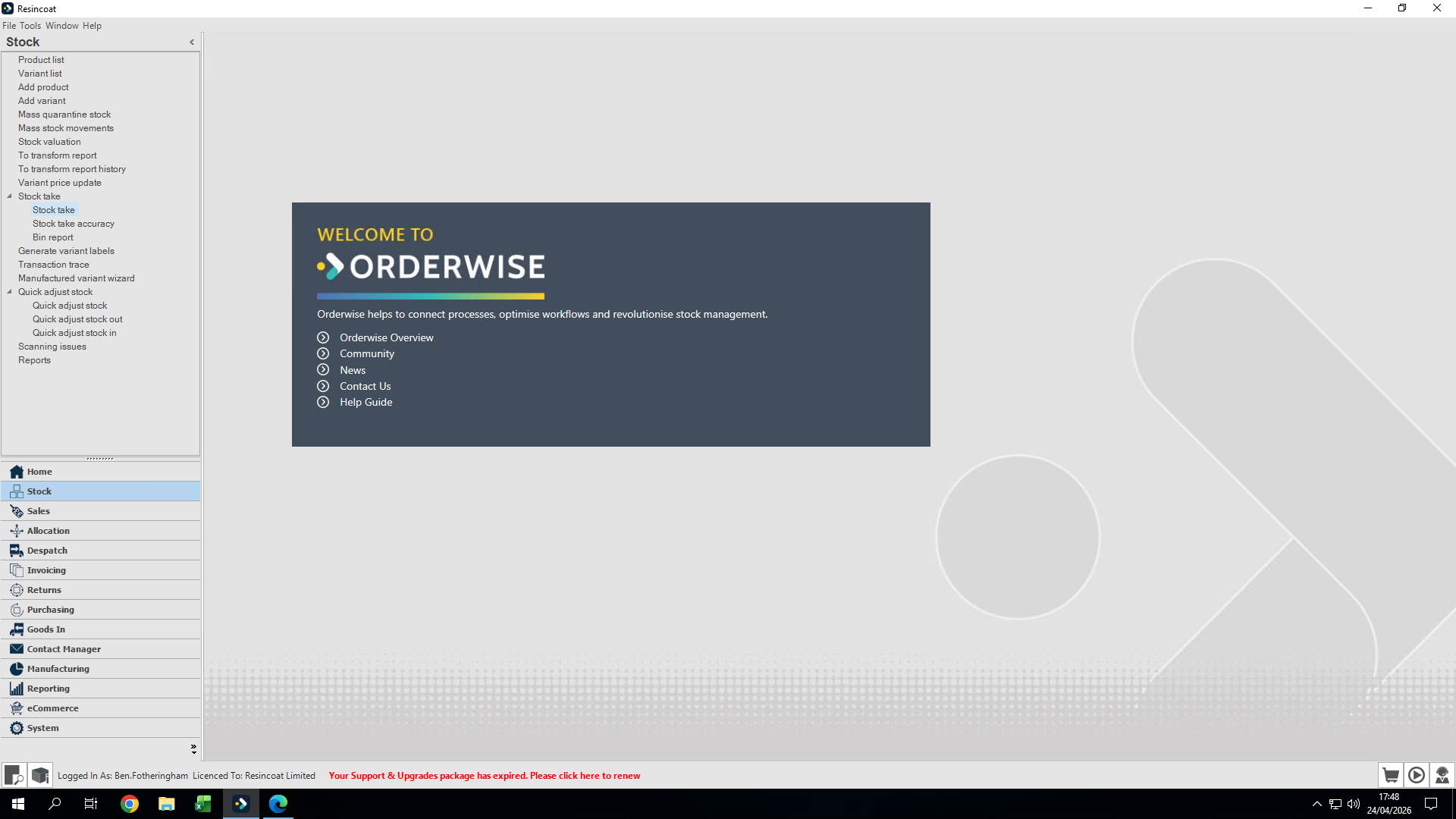
Click Stock take in the sidebar menu.
2
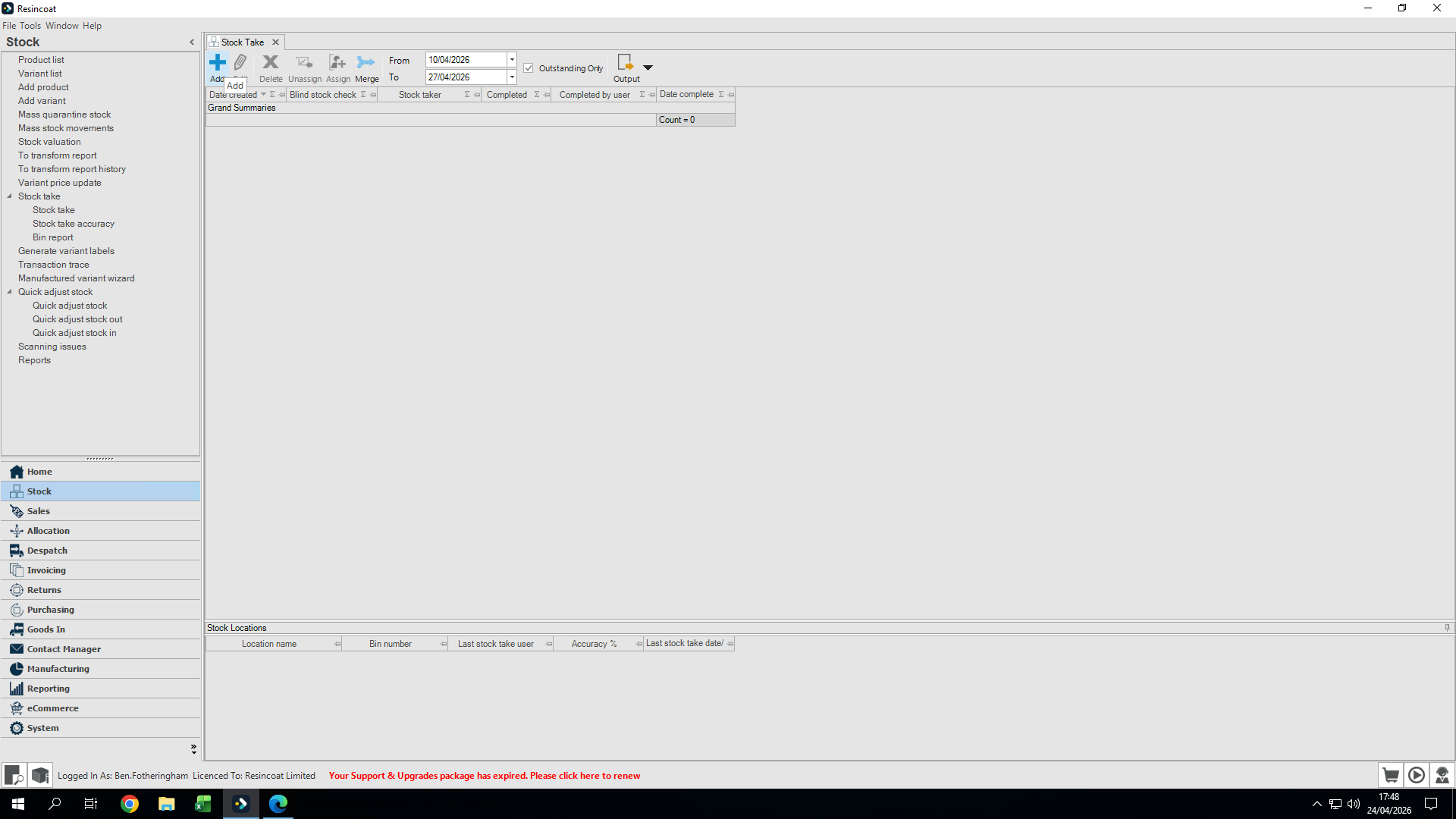
Click Add in the toolbar to create a new stock take.
3
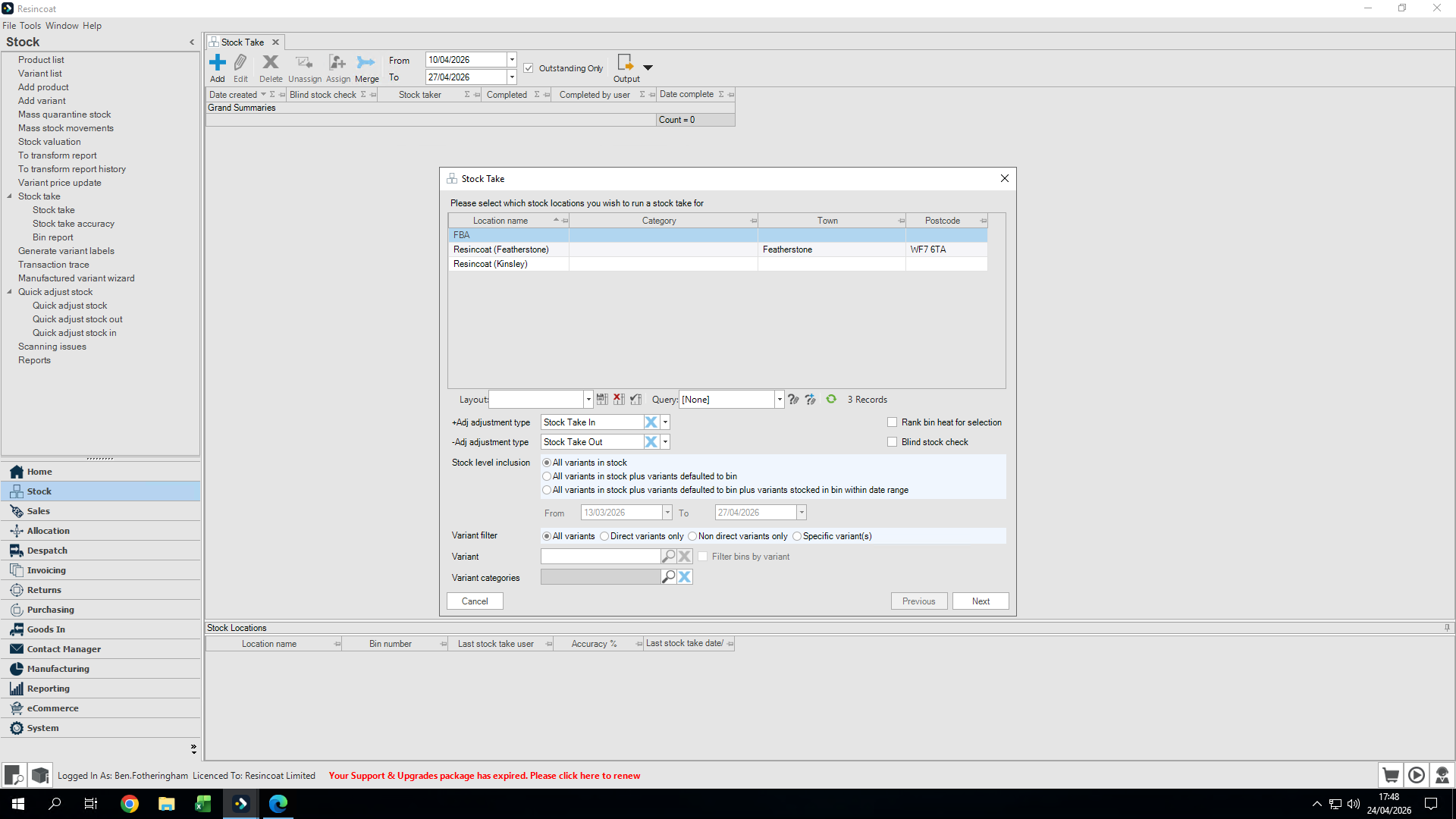
Select the correct site location (for example, Featherstone).
4
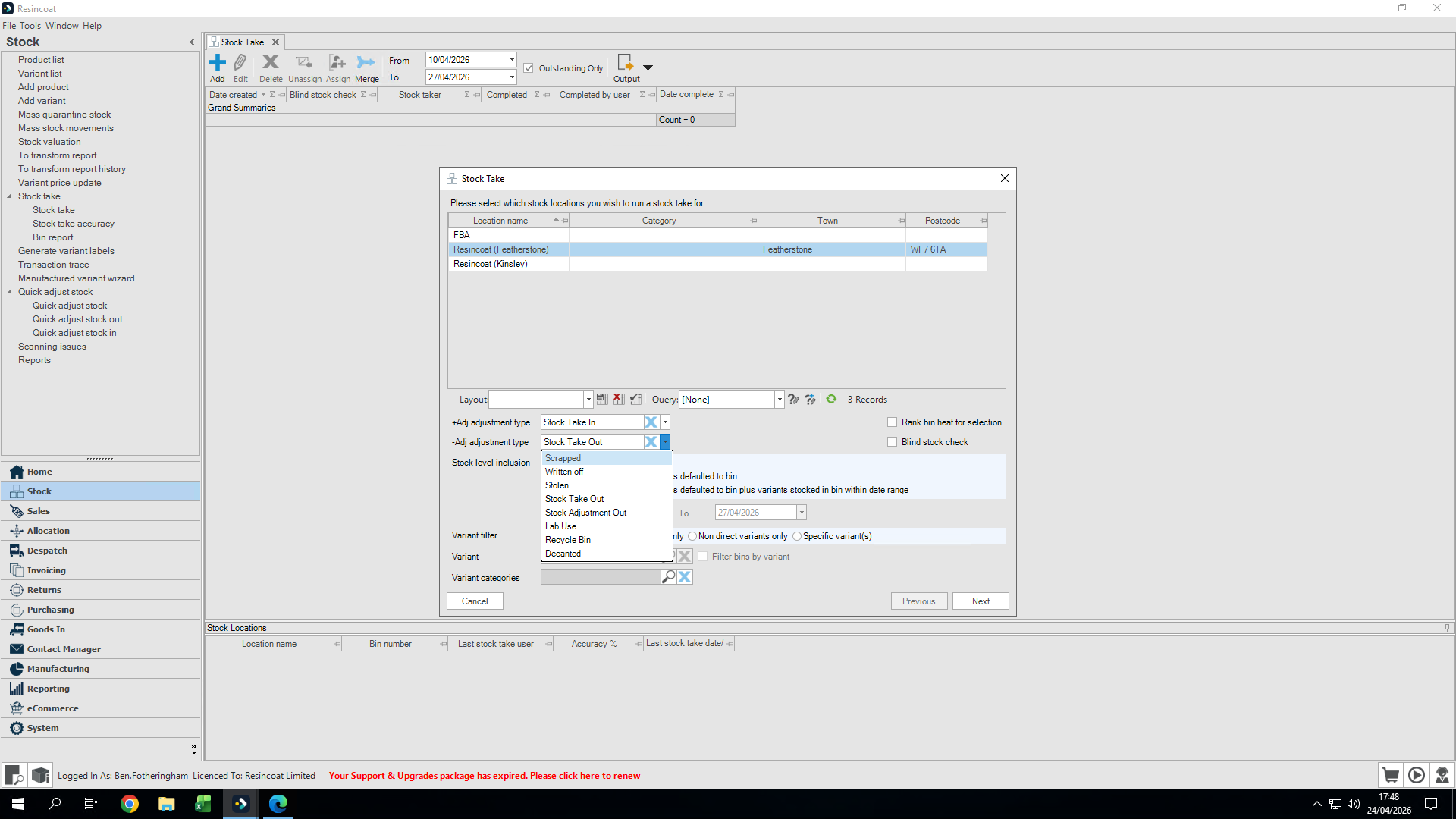
Change the adjustment type dropdown from Stock Take Out to Scrapped.
5
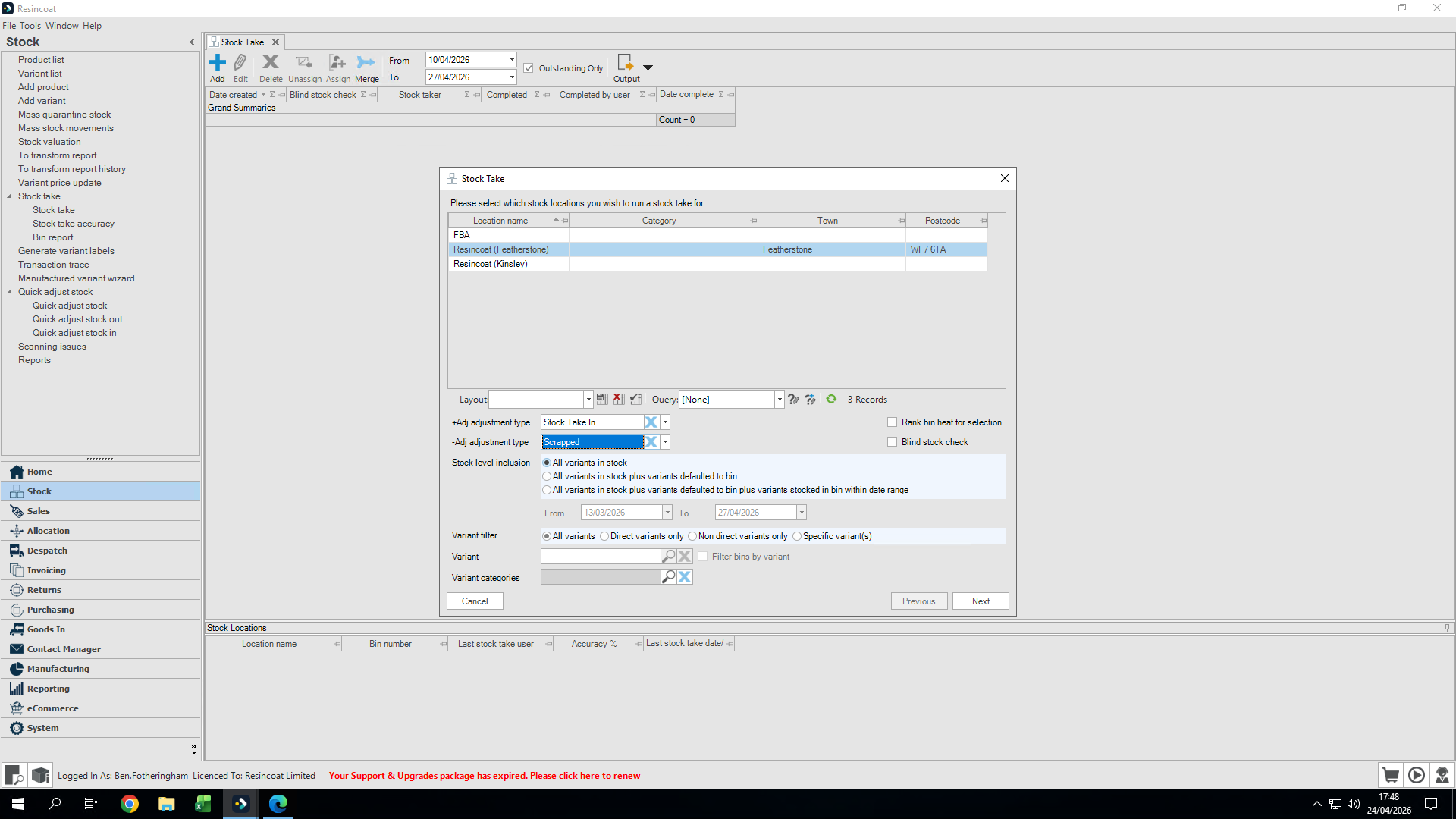
Select All variants in stock.
6
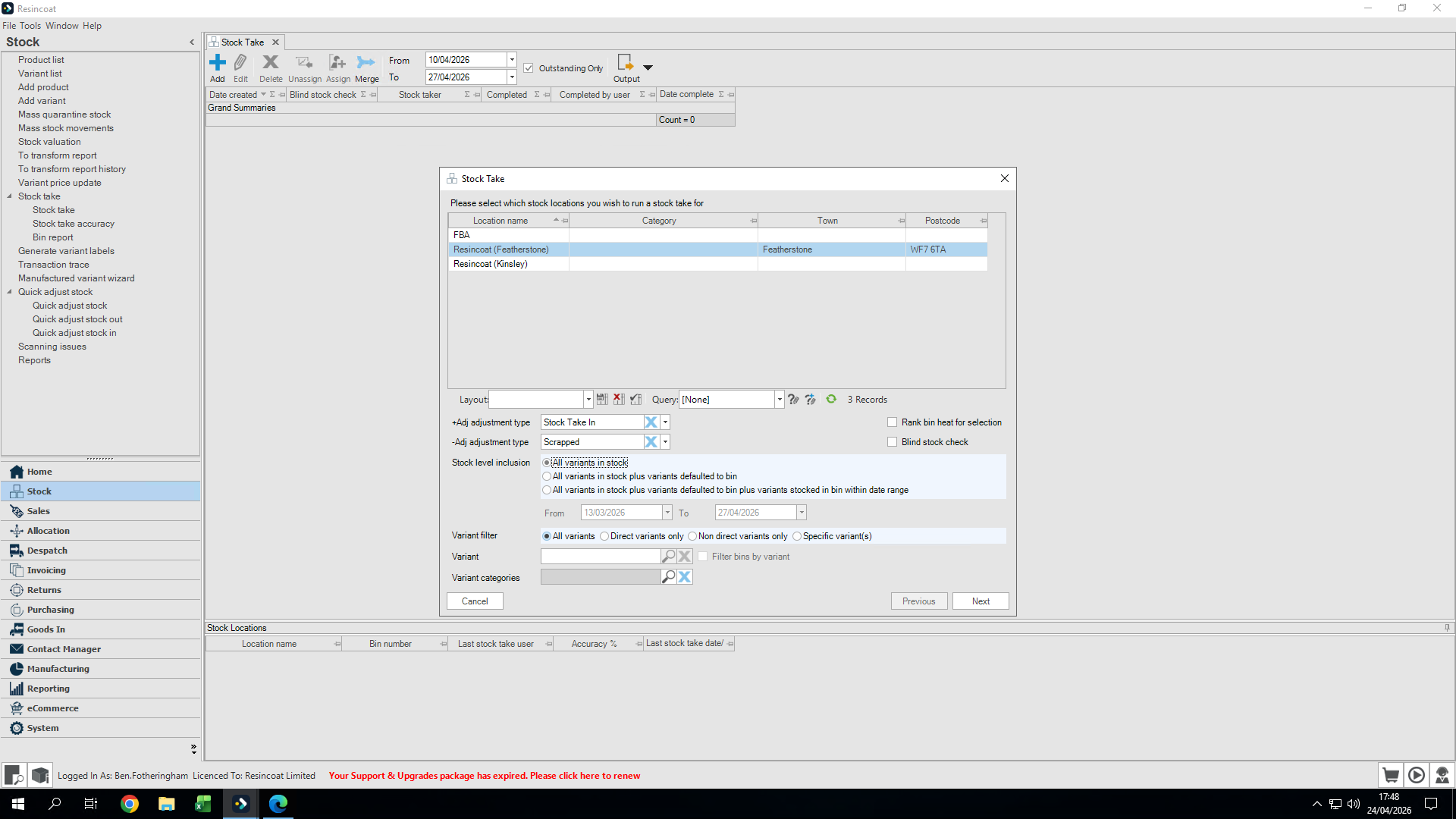
Under the variant filter, ensure All is selected.
7
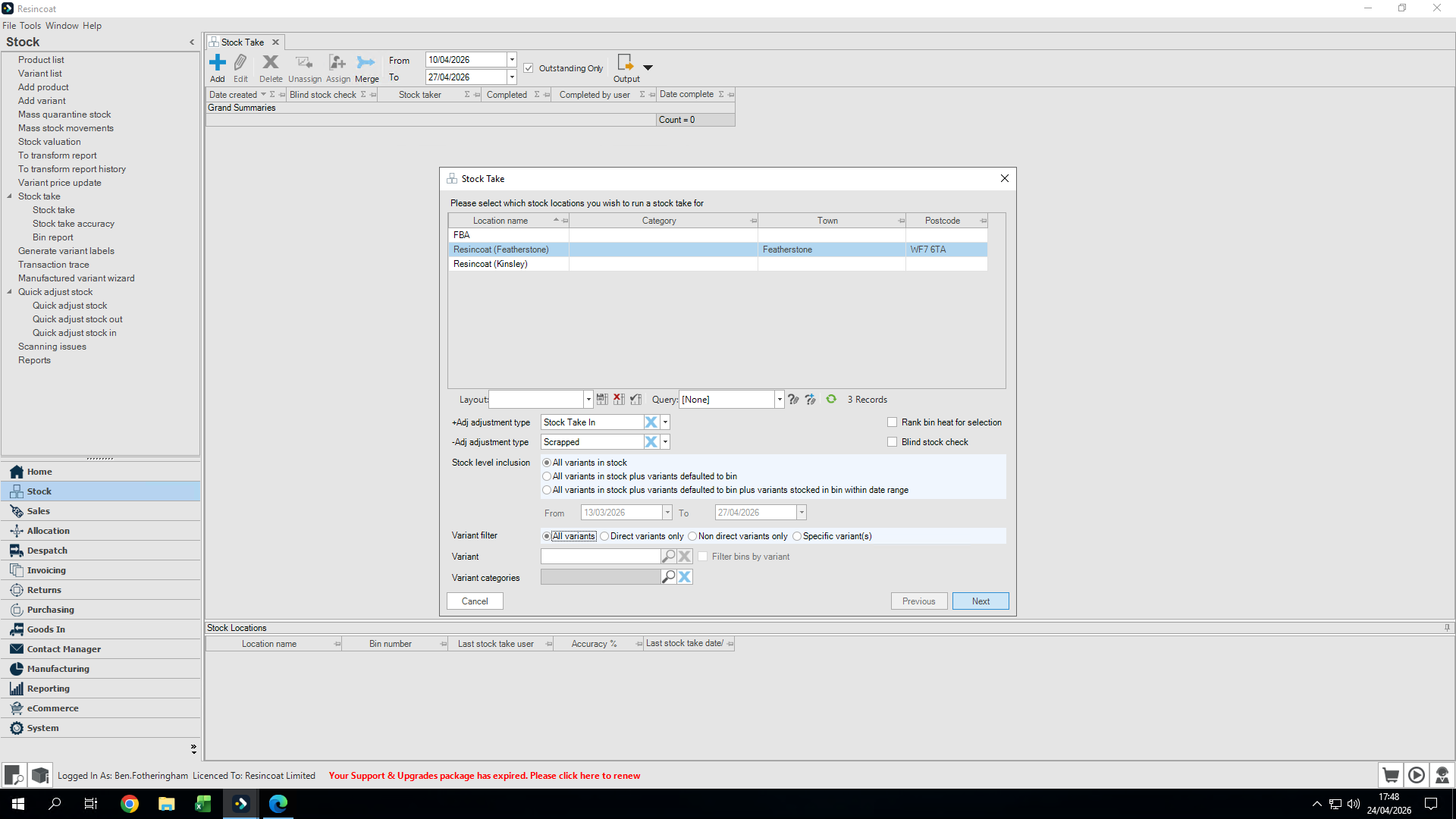
Click Next to proceed.
Select Bins and Assign Staff
8
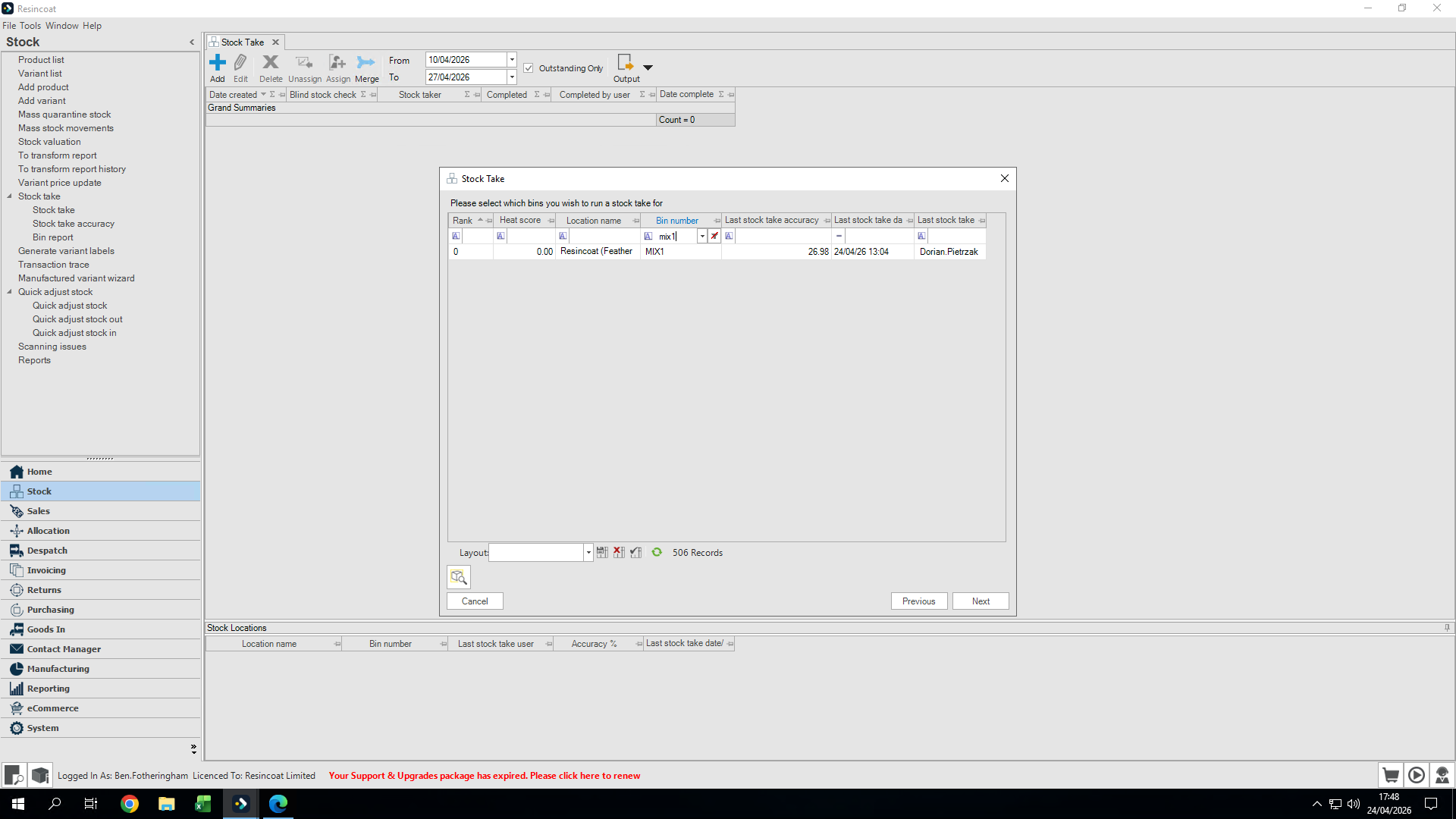
Use the search field to filter for the bin you want to count, such as
MIX1.9
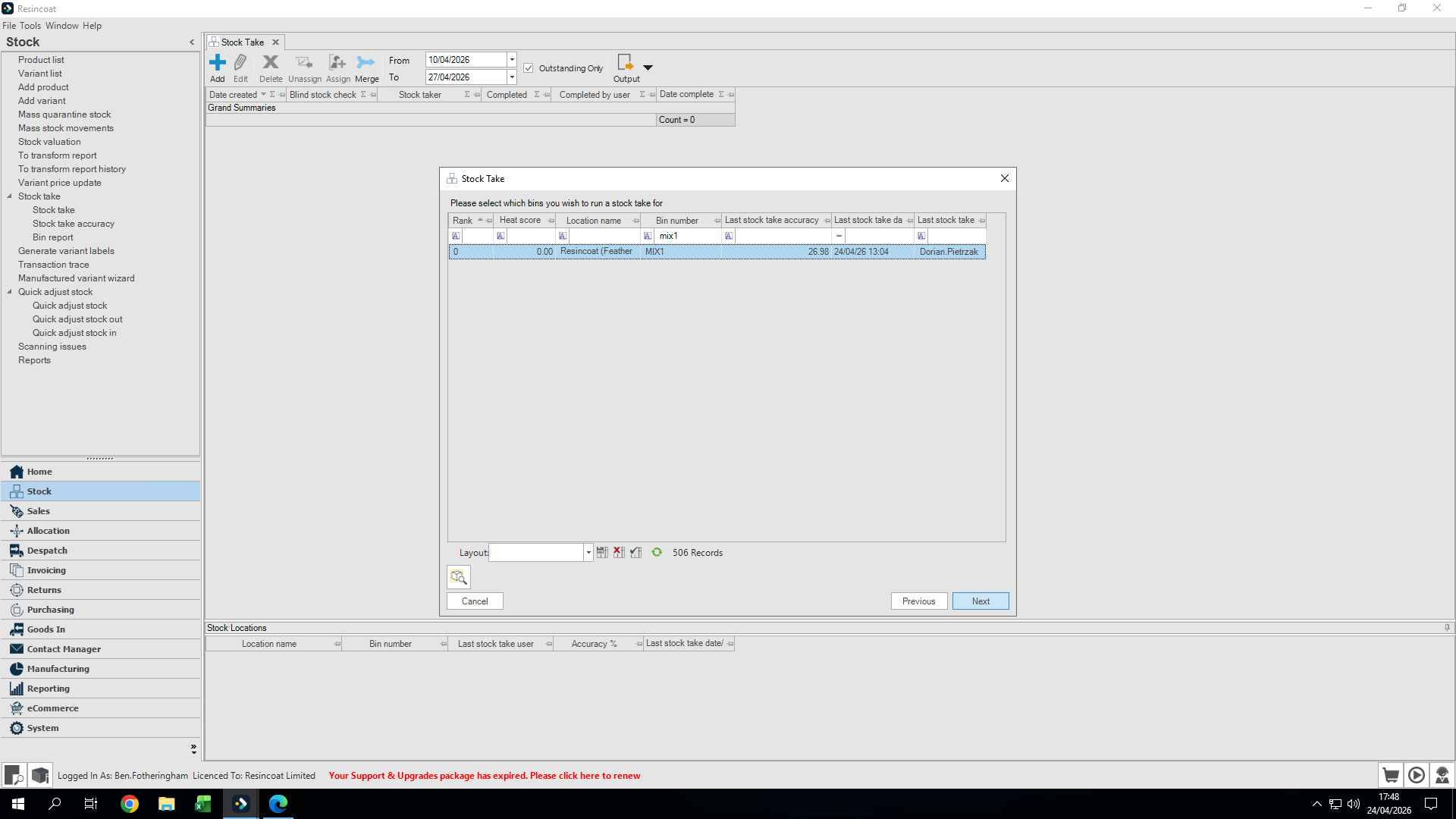
Select the appropriate bin from the list.
10
Click Next.
11
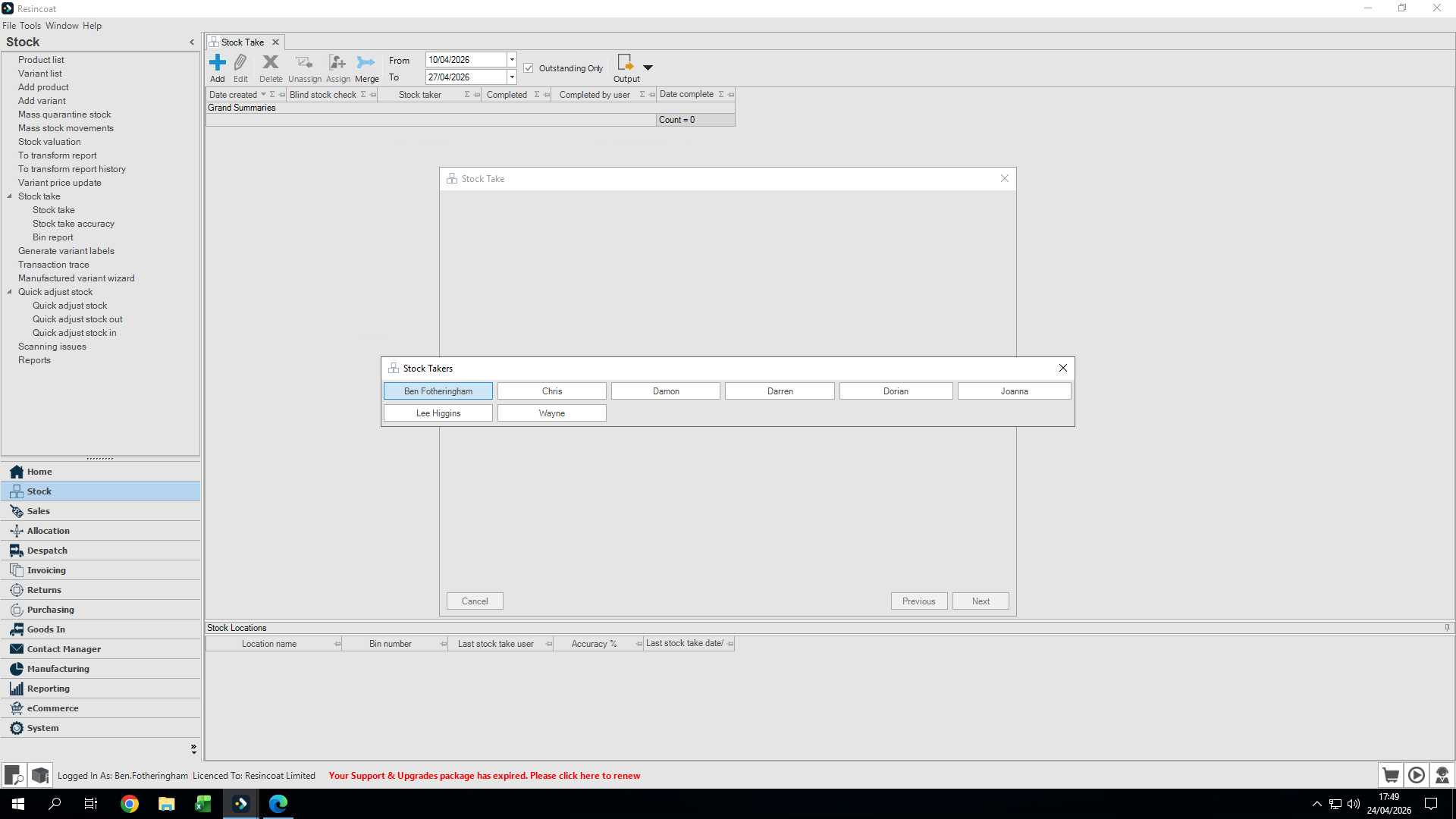
Select your name from the staff list to assign the stock take to yourself.
Enter Counted Quantities
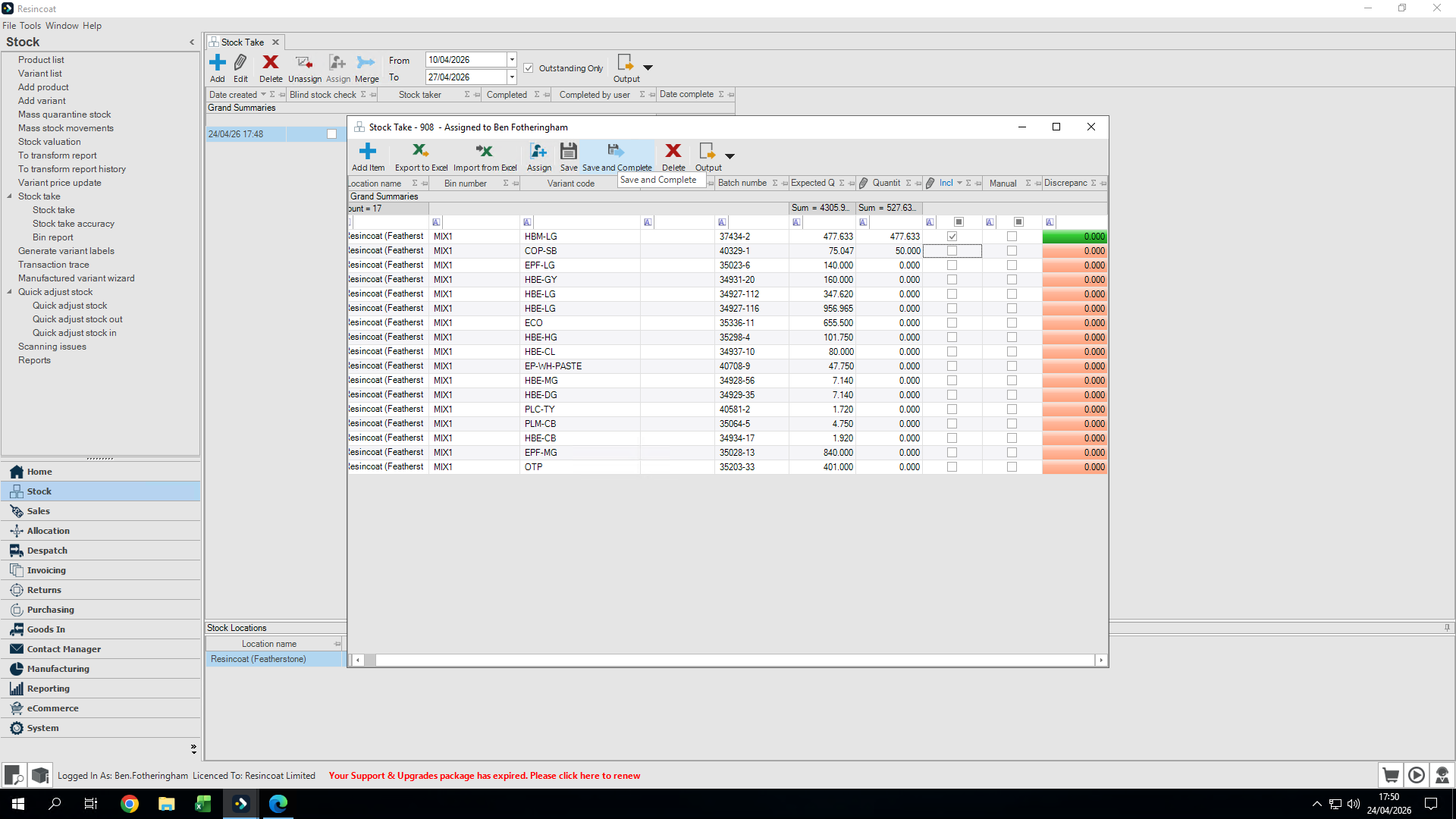
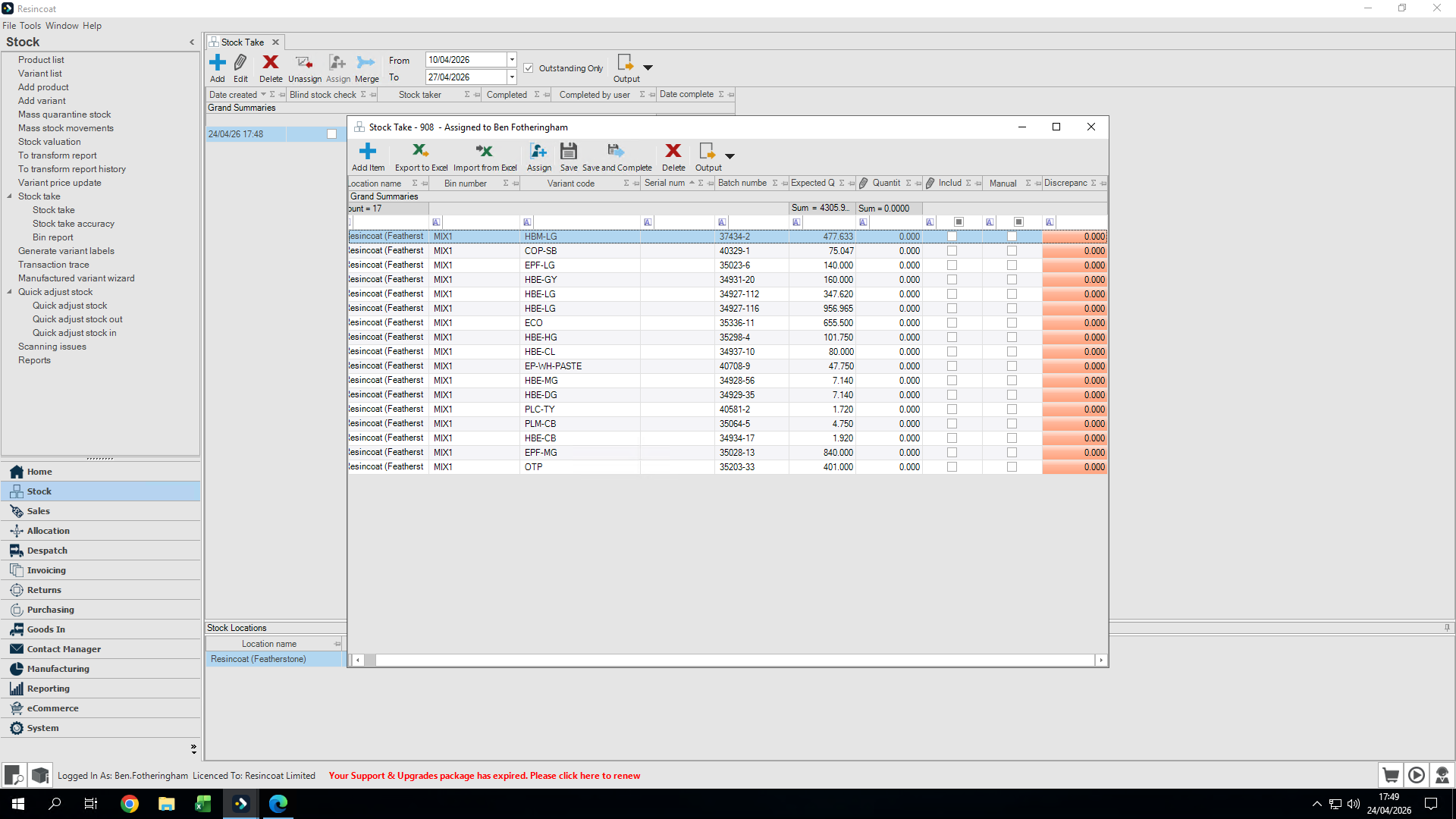
The stock take interface displays everything the system currently expects to find in that location.
12
Click the Quantity field for an item you want to update.
13
Type the actual stock quantity you counted.
14
Once you are finished logging counts, click Save and Complete in the toolbar to finalize and adjust the stock.