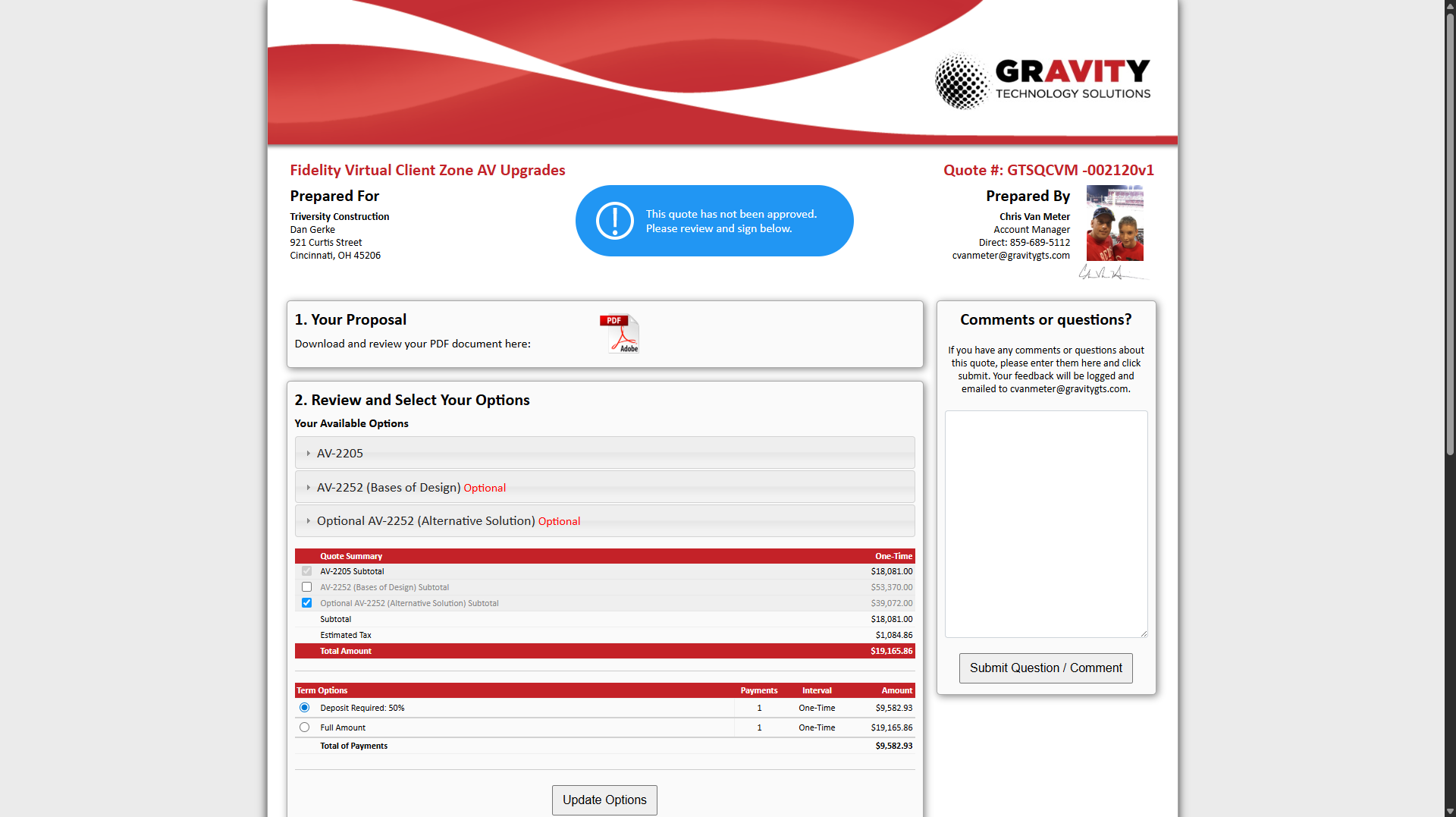
How to Enable and Show Optional Items in Quote Setup
Learn step-by-step how to enable the Show Tab and Item options in Quote Setup, edit publish settings, and select optional items for your quotes.
By Tanner Nack
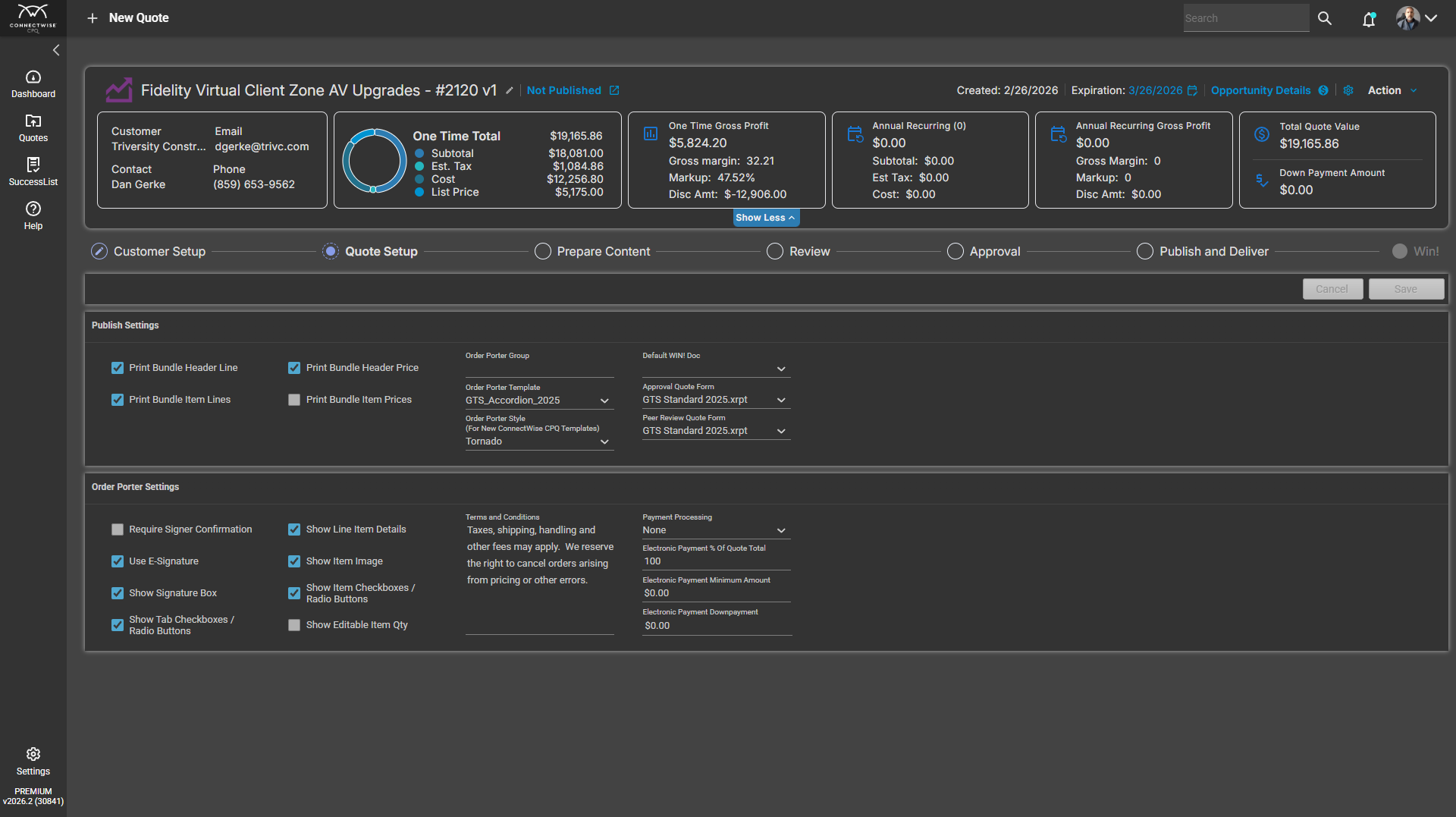
In this guide, we'll learn how to enable and display optional items in your publish settings. This process involves adjusting settings in the Quote Setup tab and making sure the correct options are visible for selection.
These steps help you control which items users can choose when publishing.
Let's get started
2
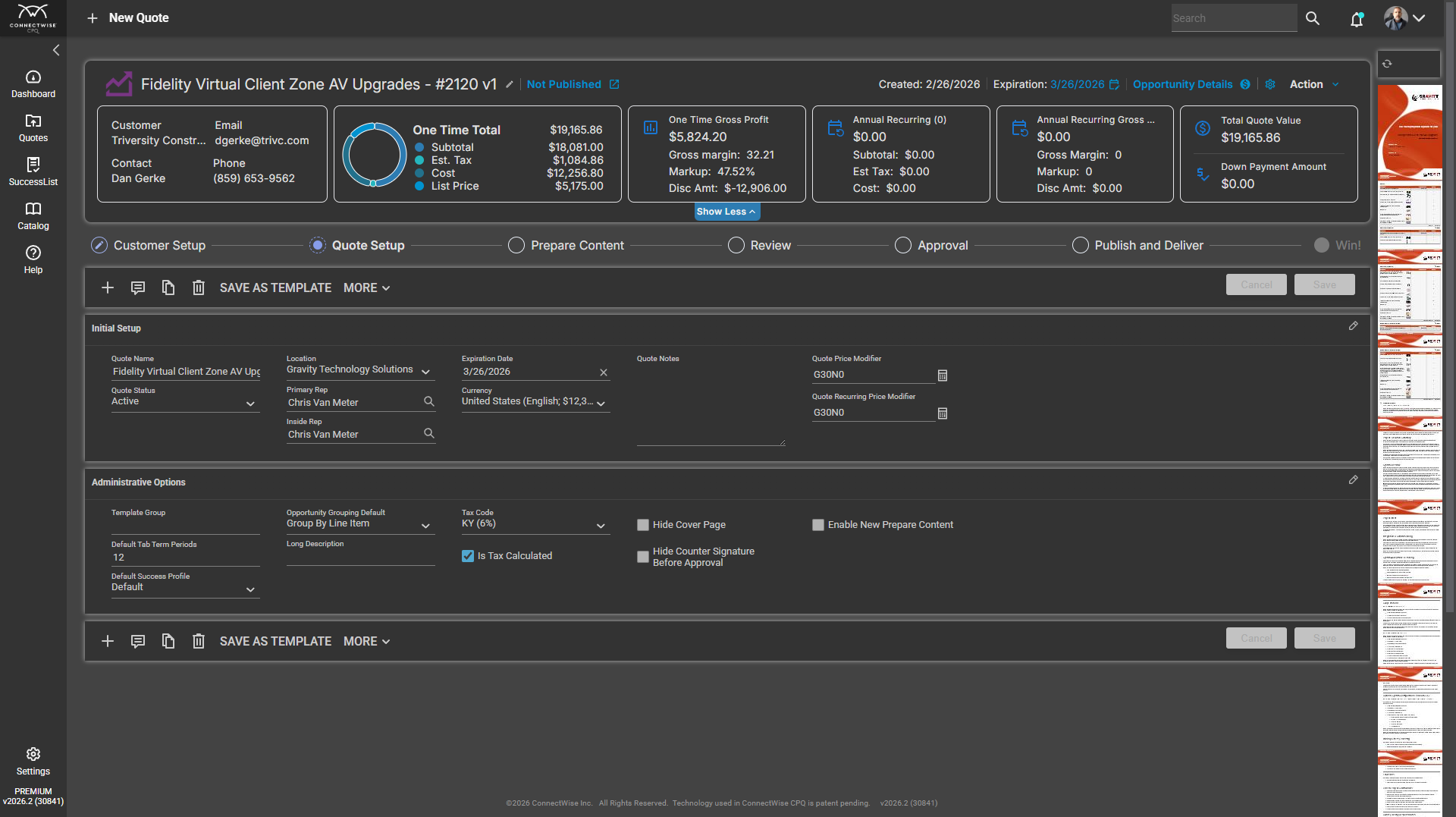
Click on "Quote Setup"
3
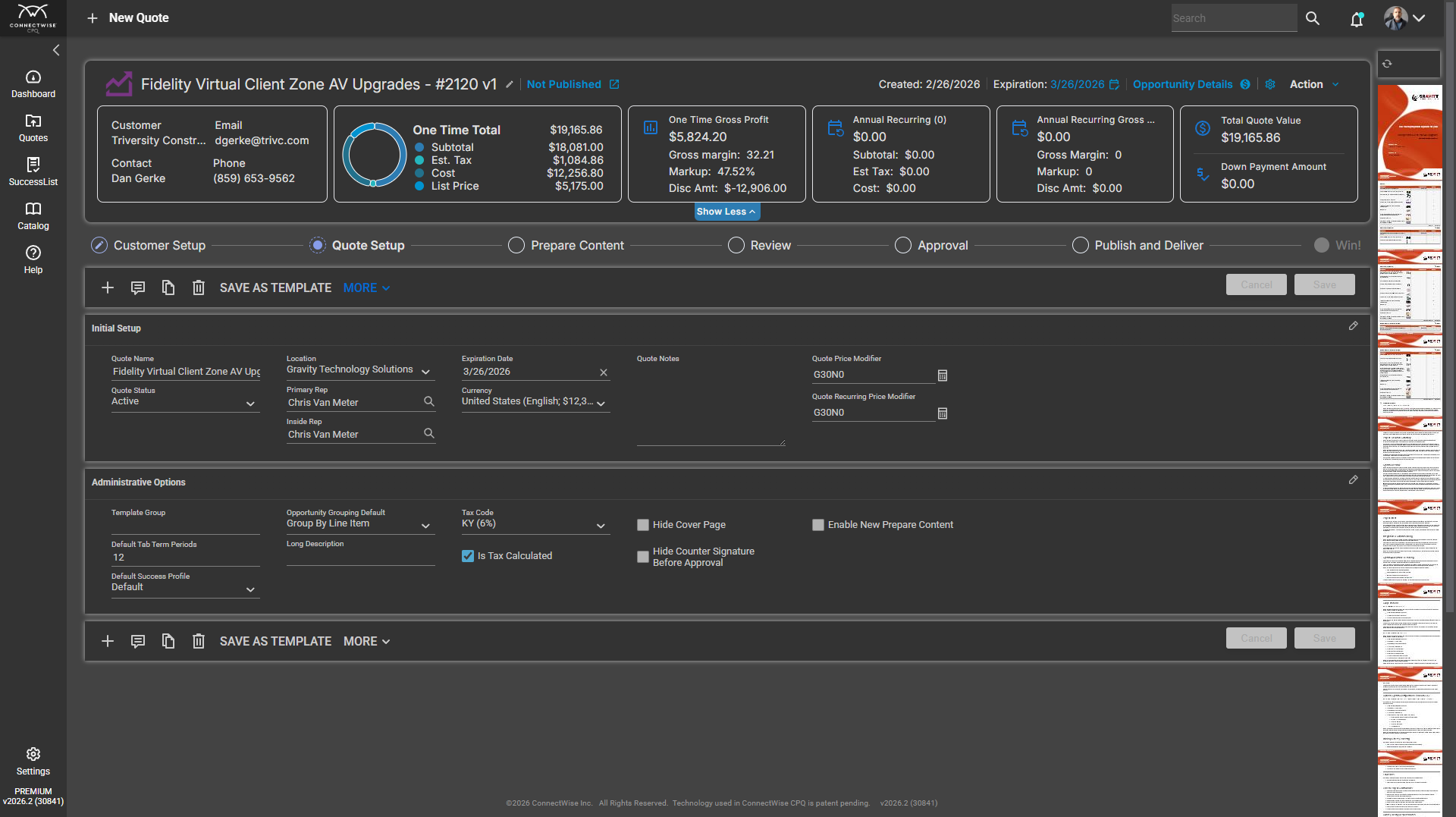
Click on "SAVE AS TEMPLATE MORE ✓"
4
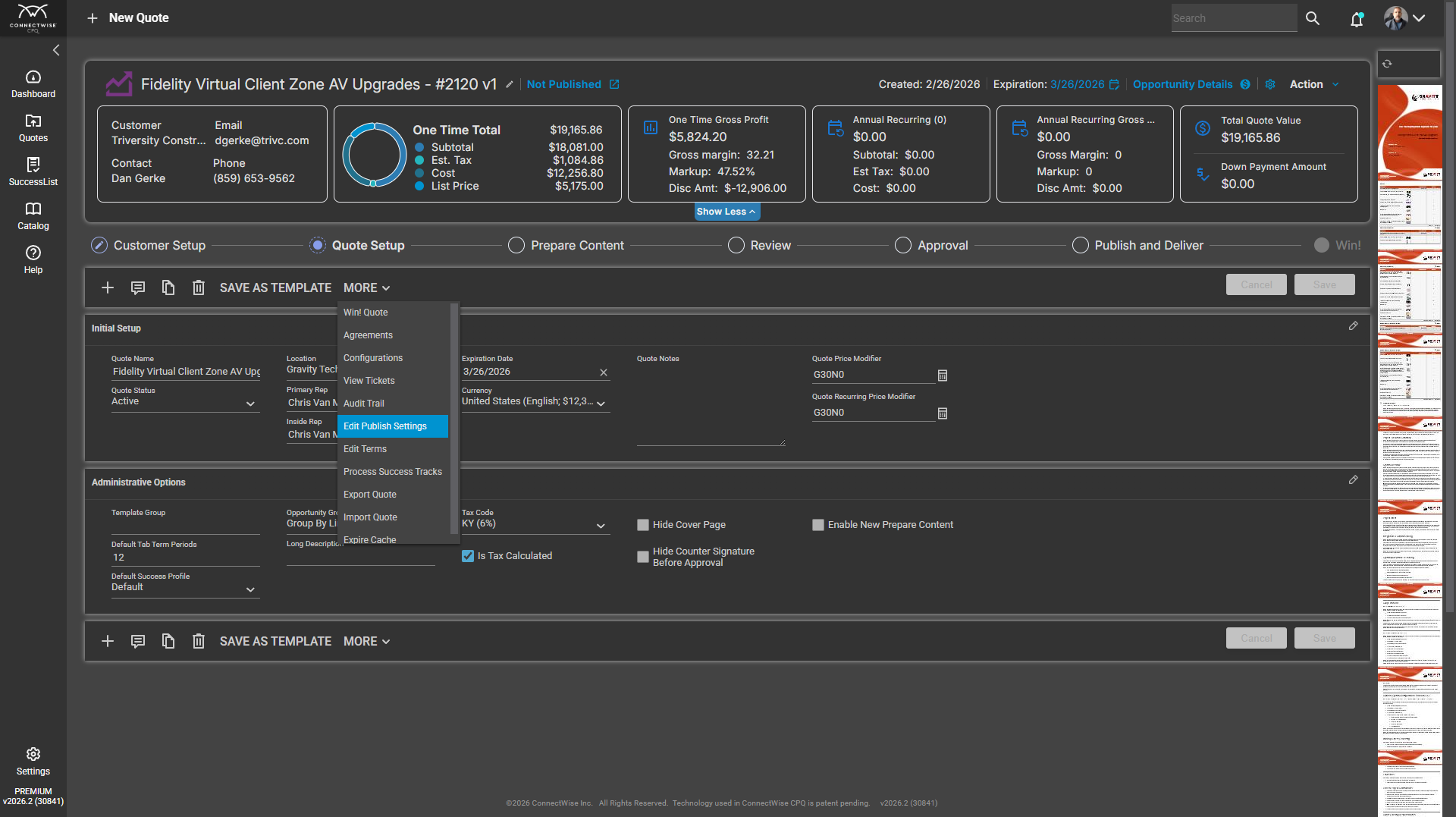
Click on "Edit Publish Settings"
5
Click here
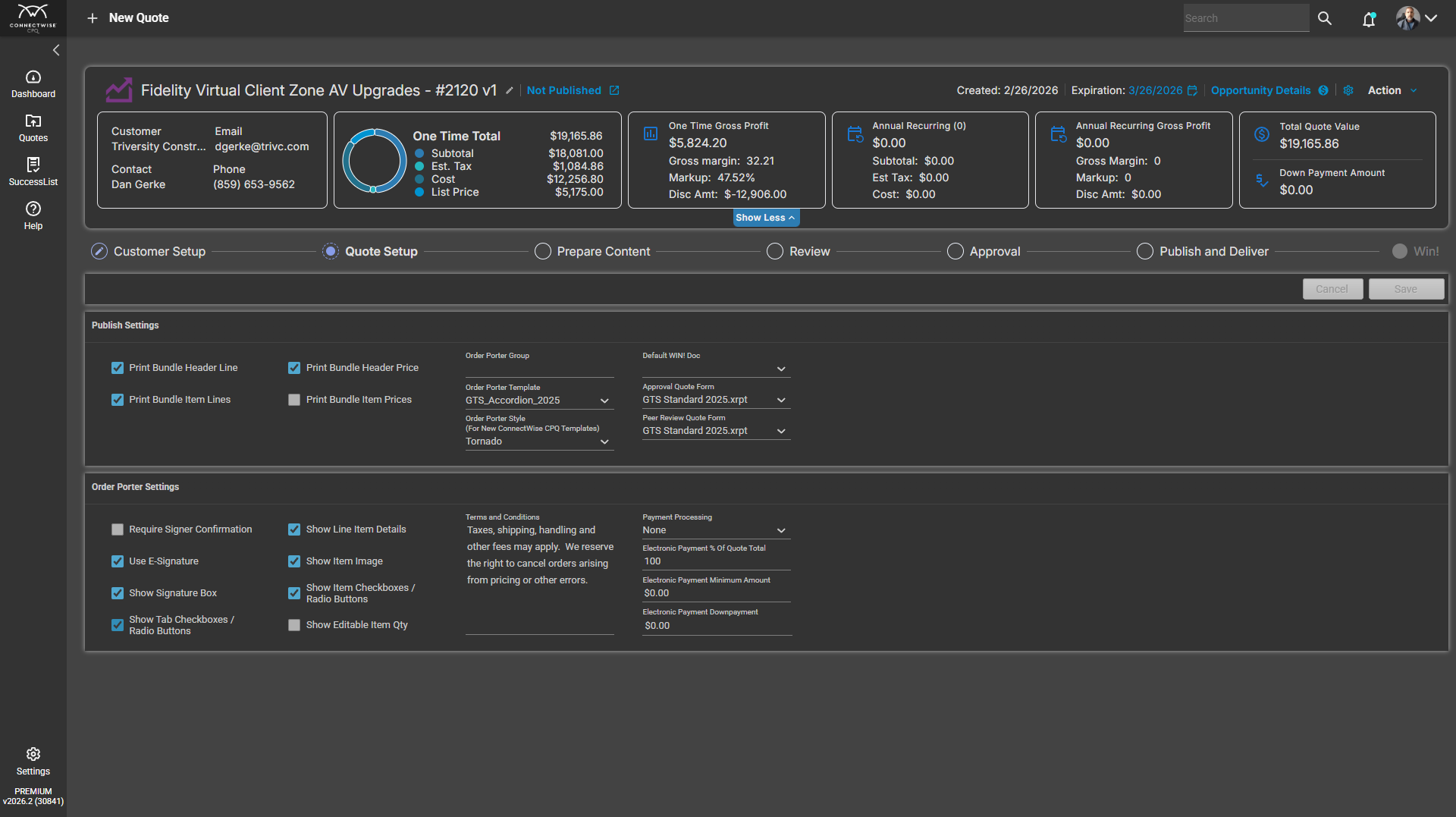
6
Click here
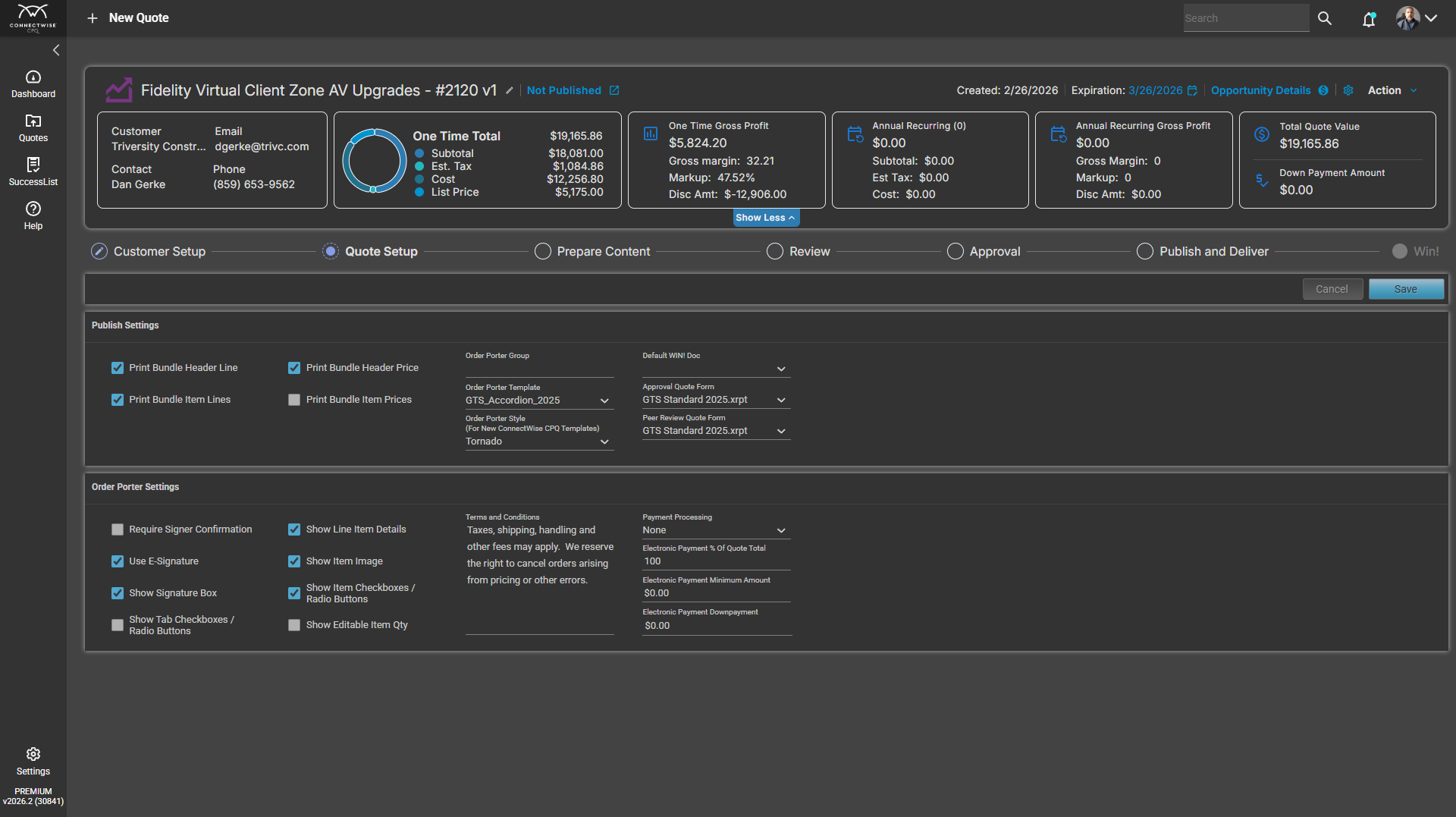
7
Click on "Radio Buttons"
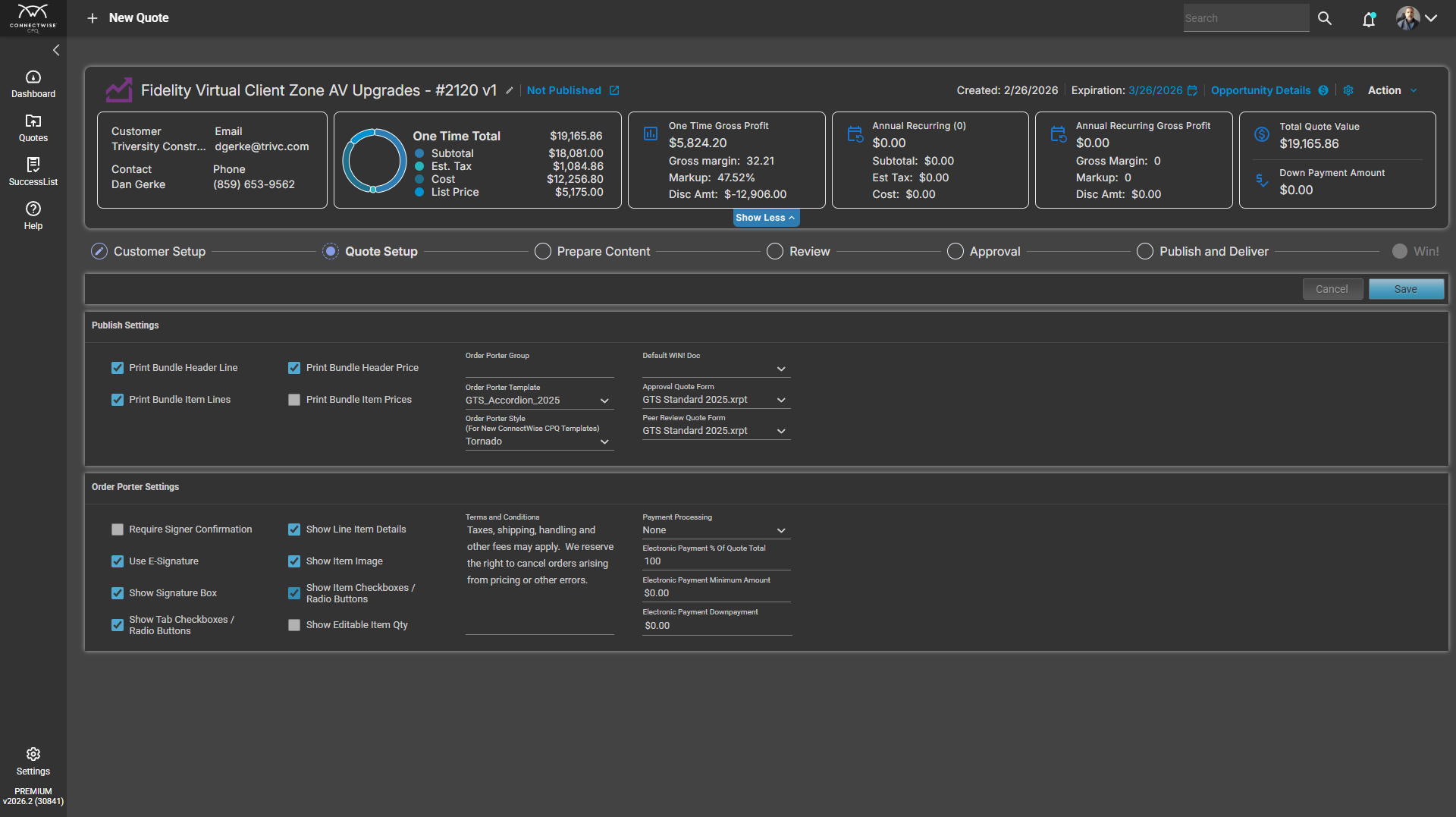
8
Click on "Radio Buttons"
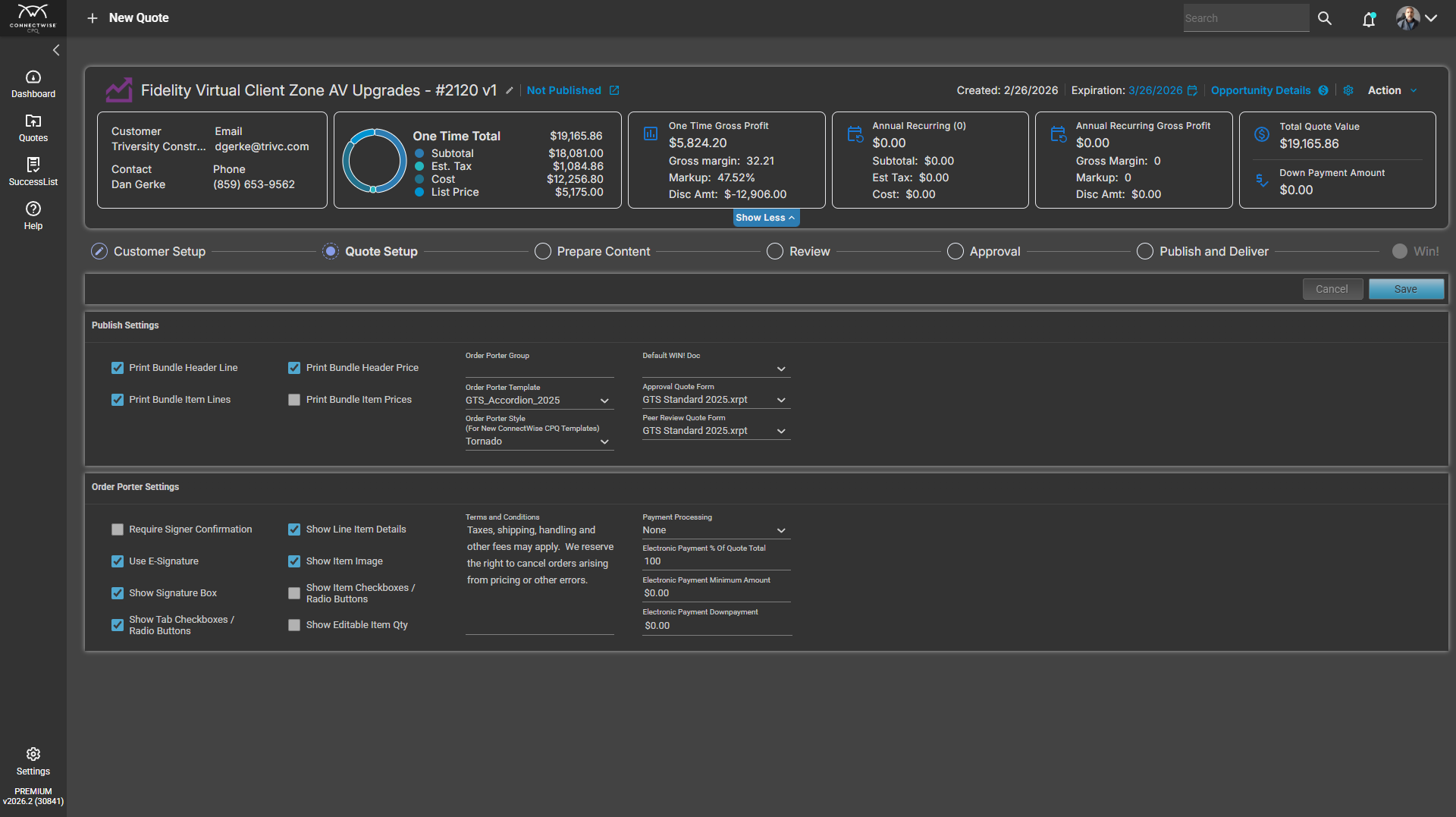
9
Click on "Save"

10
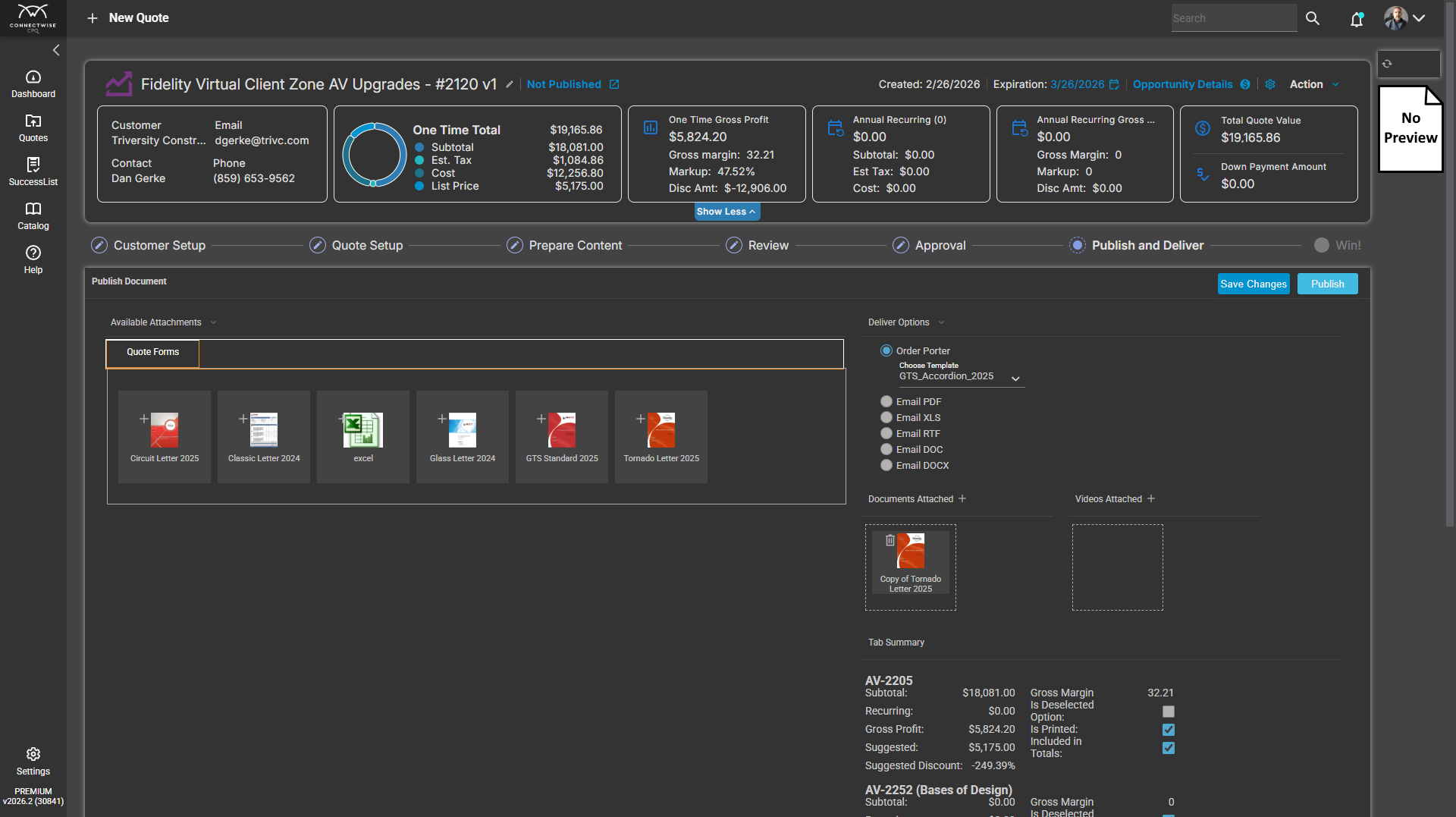
Click on "Publish and Deliver"
11
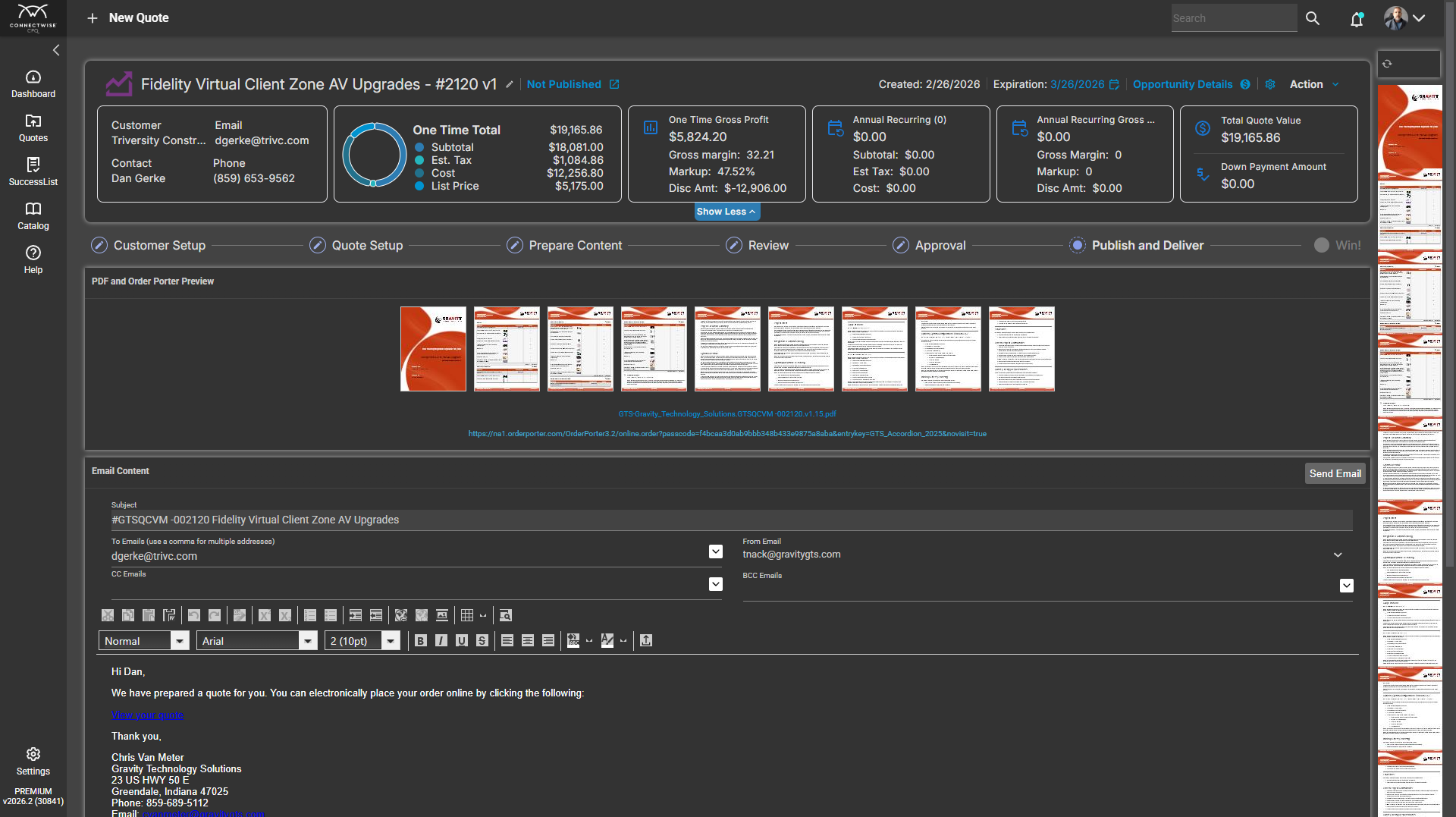
Click on "Publish"
12
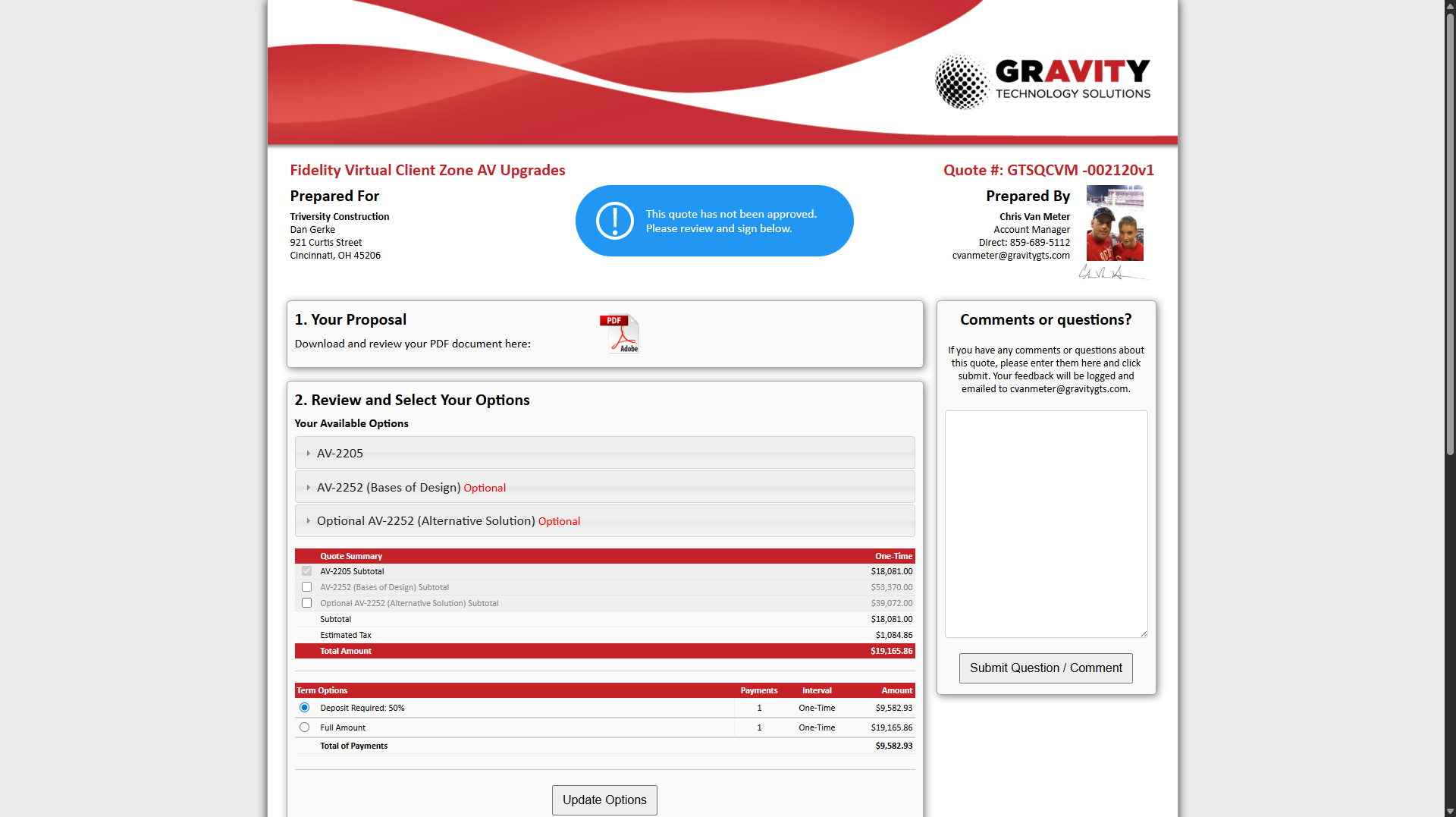
Click on "https://na1.orderporter.com/OrderPorter3.2/online.order?passcode=f4bcaa3d0ab9bbb348b433e9875a8aba&entrykey=GTS_Accordion_2025&novisit-true"
13
14
Click here
15
Click here
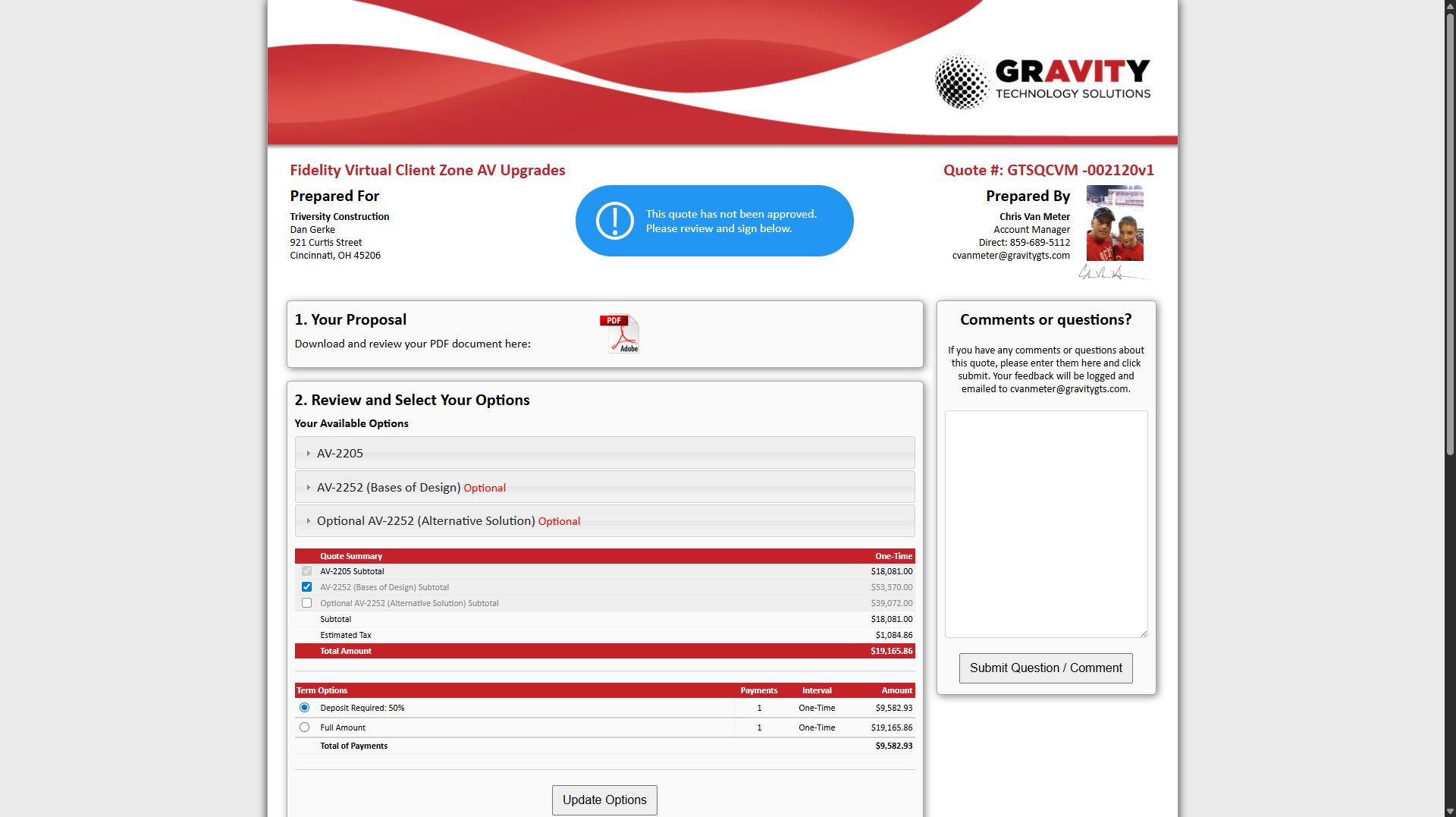
16
Click here
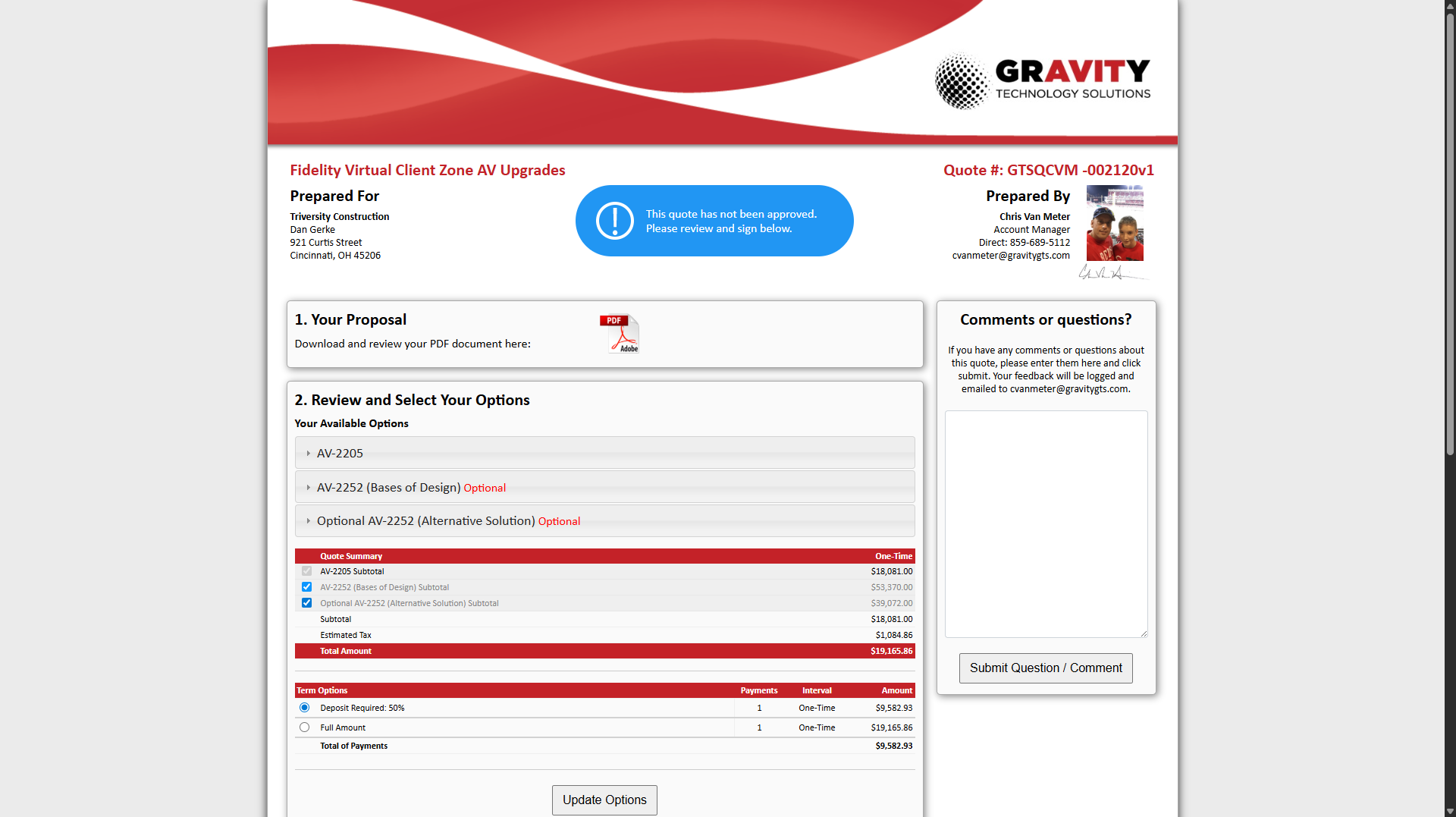
17
Click on "✔ Optional AV - 2252 ("