
How to Enter a New Sales Order: Step-by-Step Guide
Learn how to enter a new sales order, including customer details, product entry, scheduling, and special order handling. Follow these best practices to ensure accurate order processing.
In this guide, we'll learn how to enter a new sales order, including adding customer details, selecting products, and setting the correct schedule dates for in-stock and special order items. We will also cover how to avoid common mistakes, such as not using the "Pick From Existing" option, and how to add custom notes when needed.
This process helps ensure that orders are accurate and production schedules are set correctly.
Let's get started
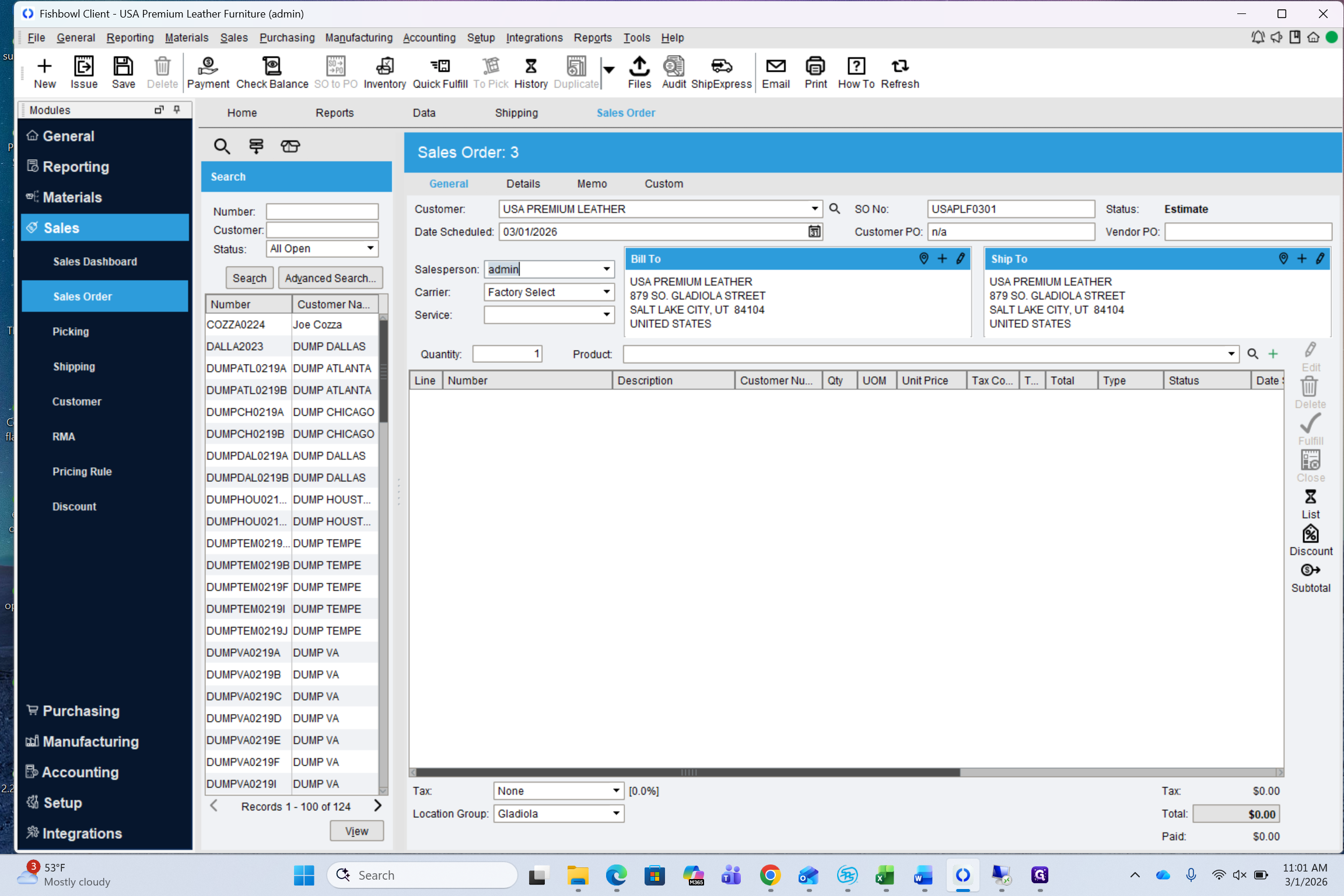
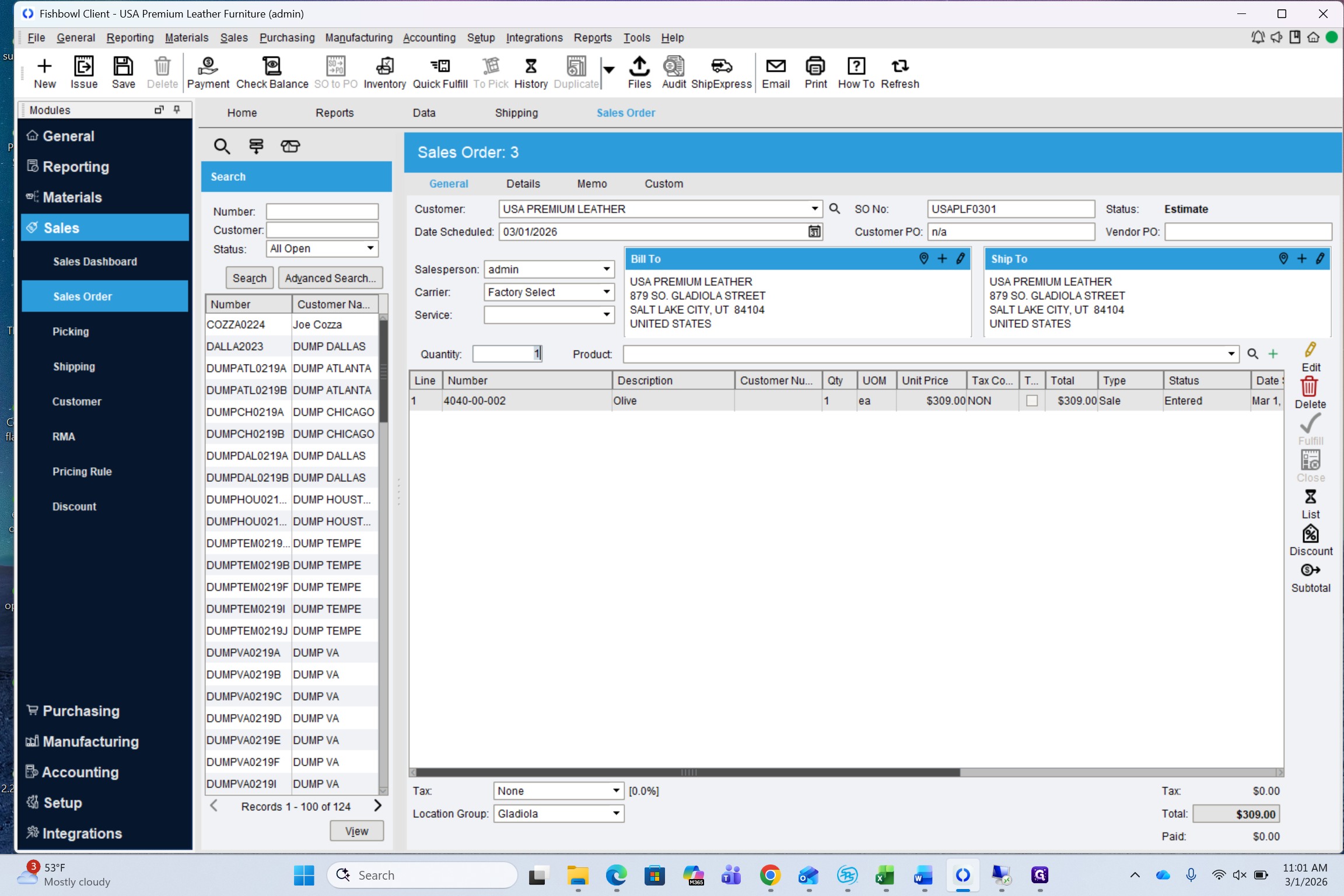
To enter a new order, press New.
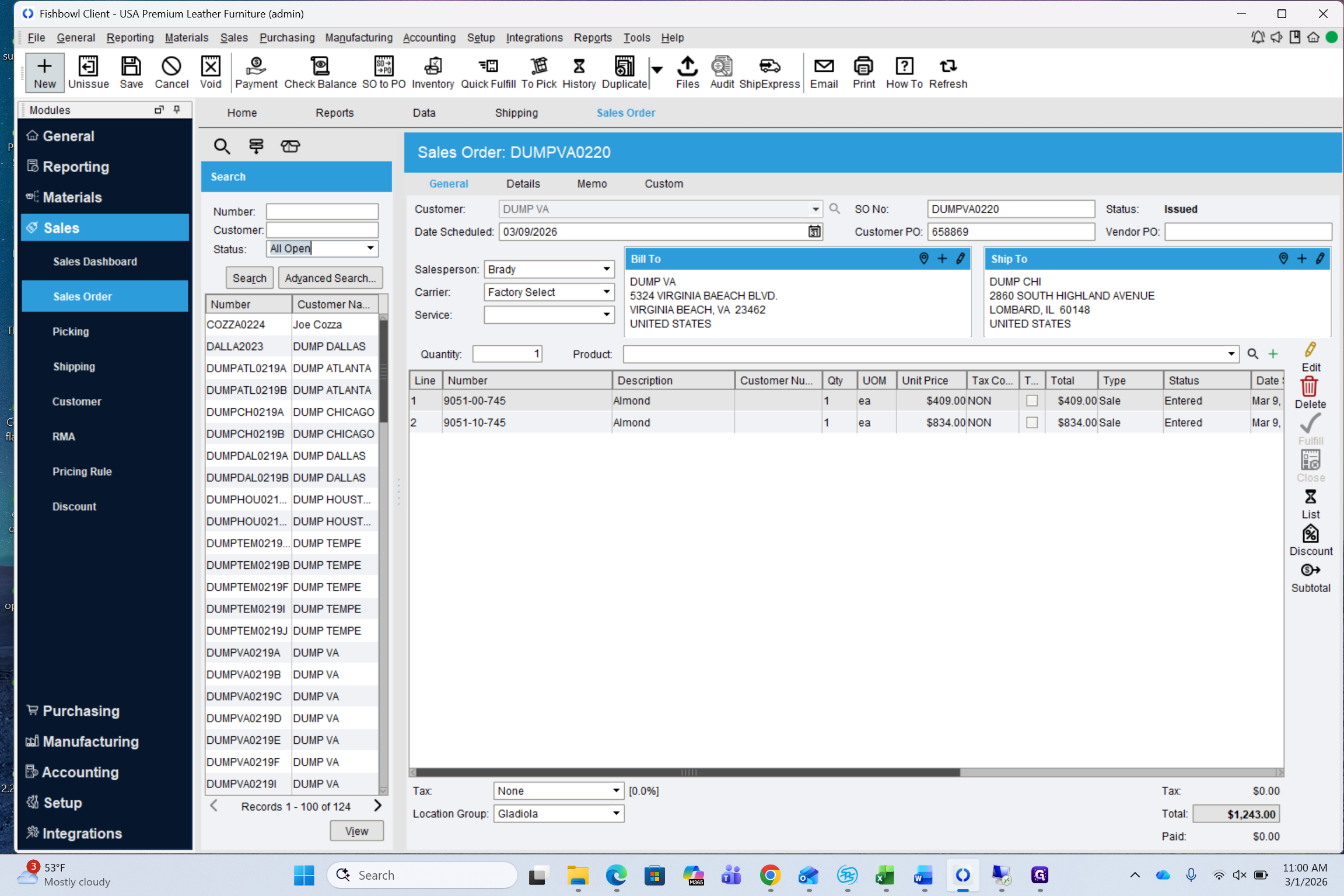
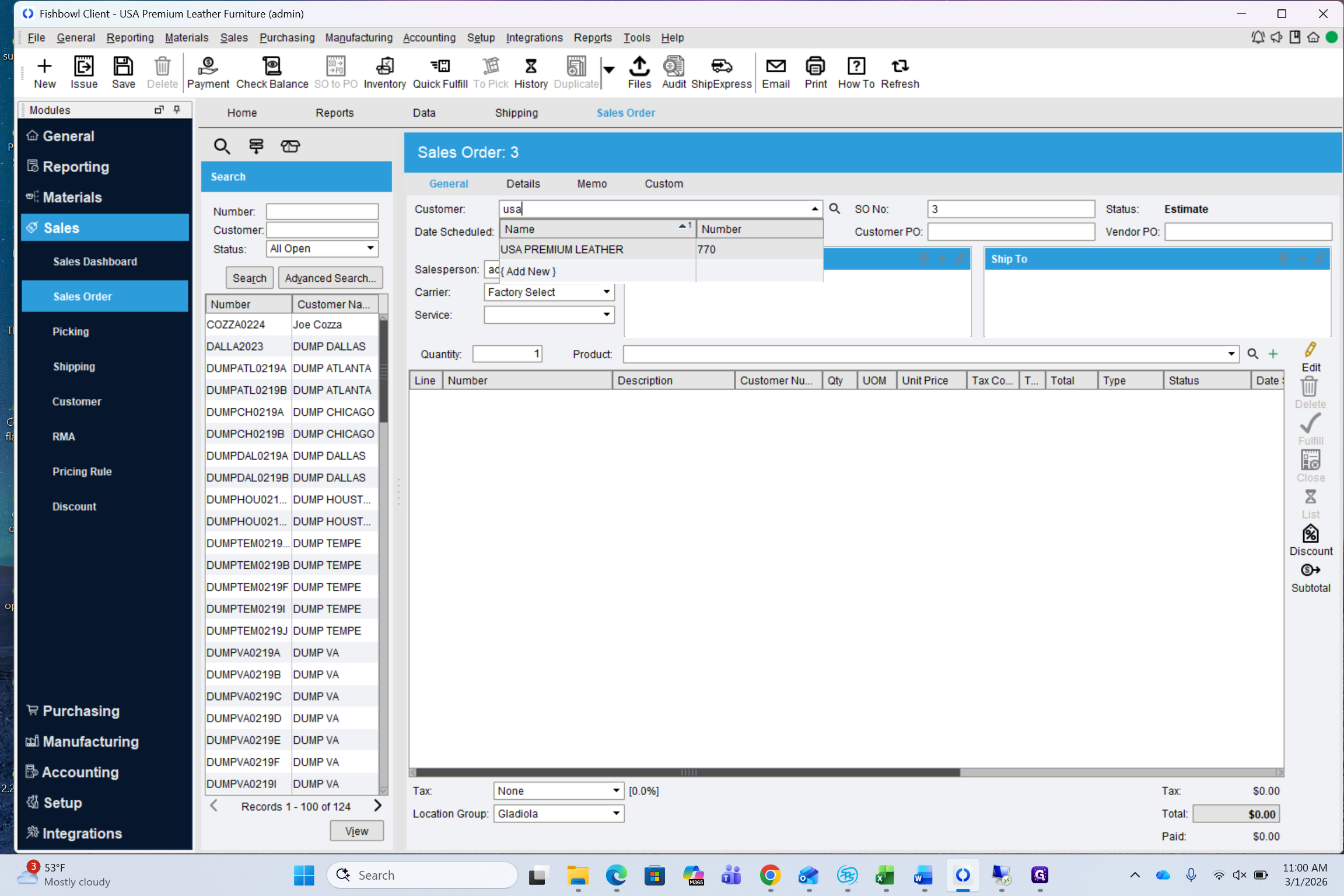
Enter the customer name.
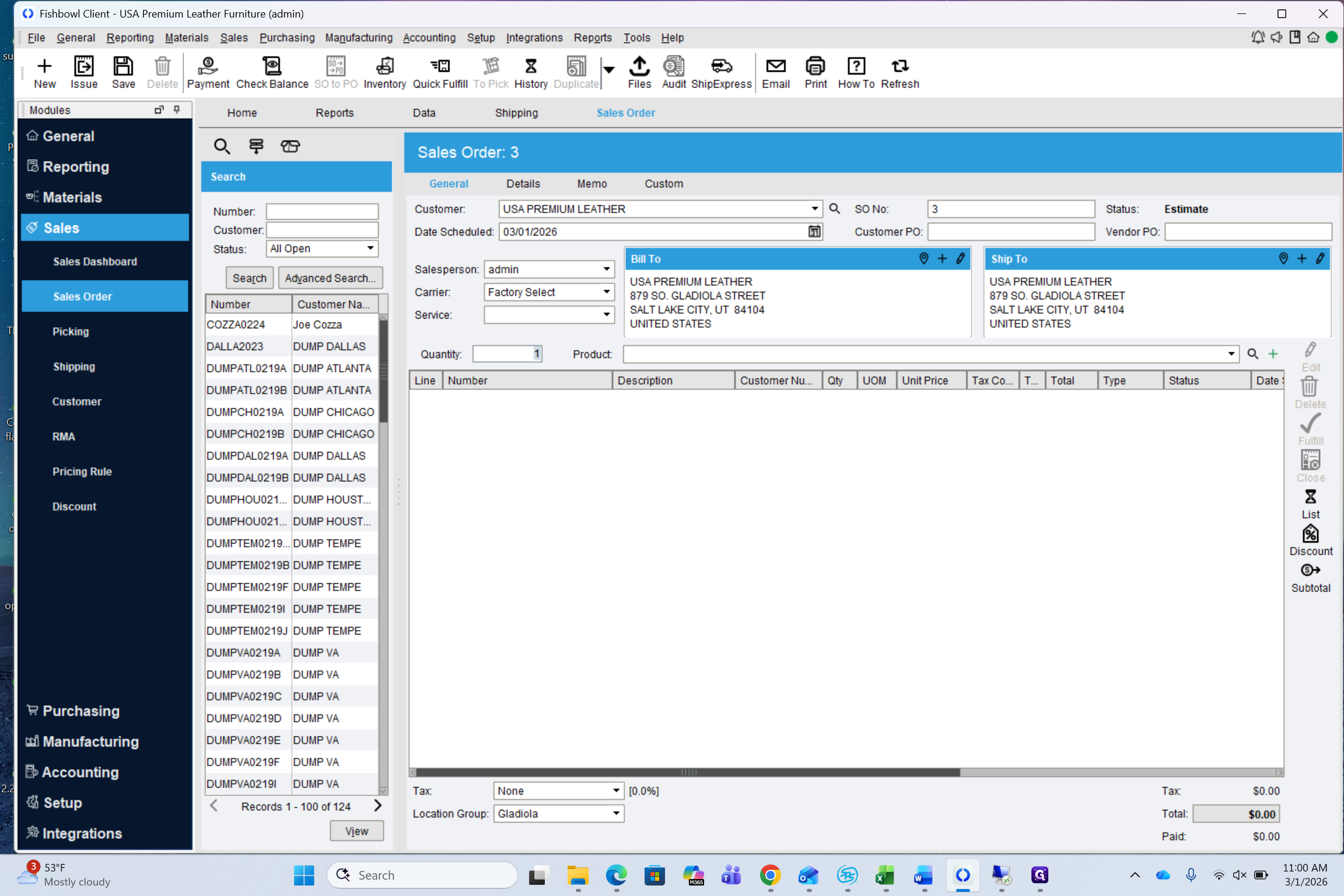
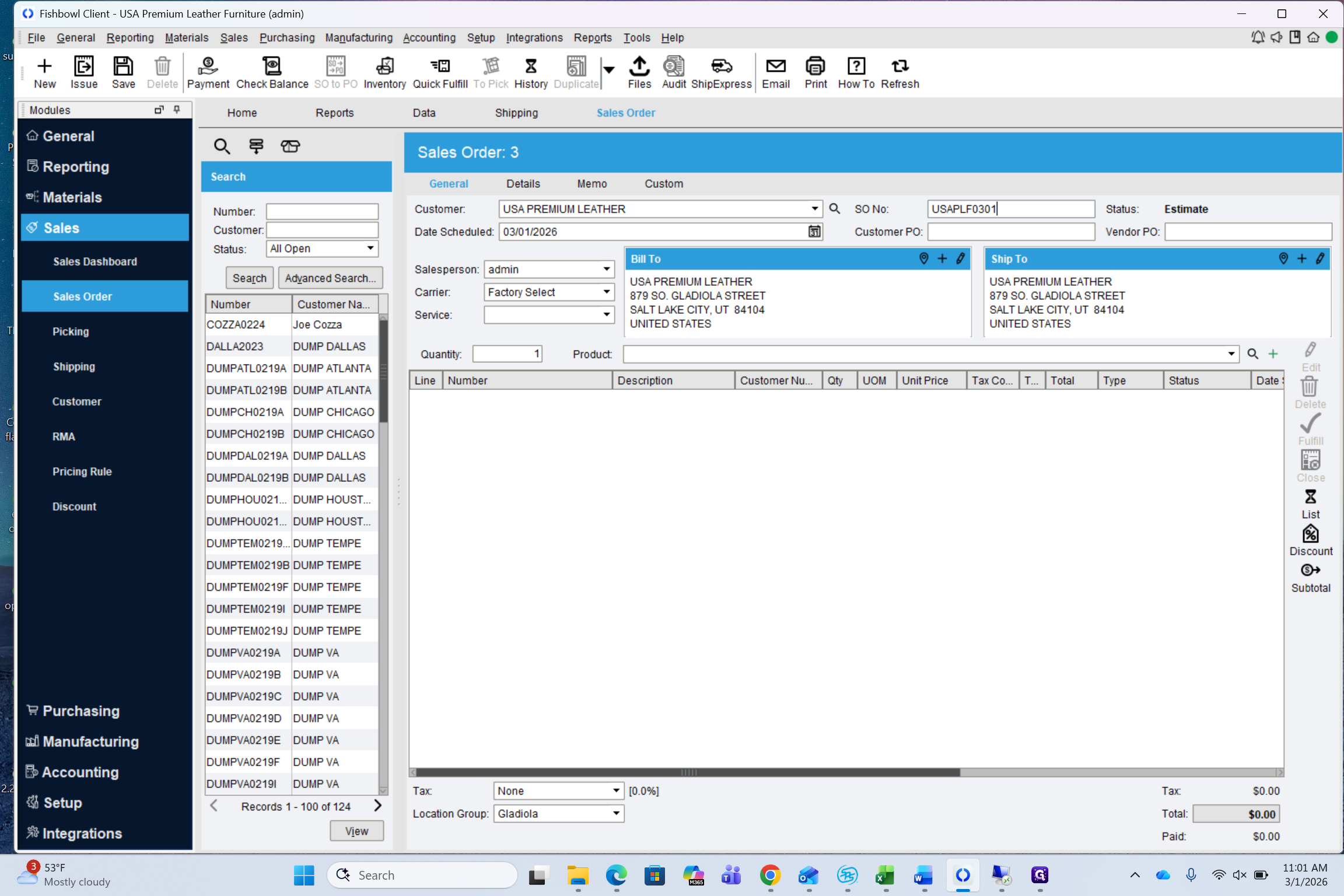
The salesperson should default to the company's assigned salesperson. The carrier should also default to Factory Select.
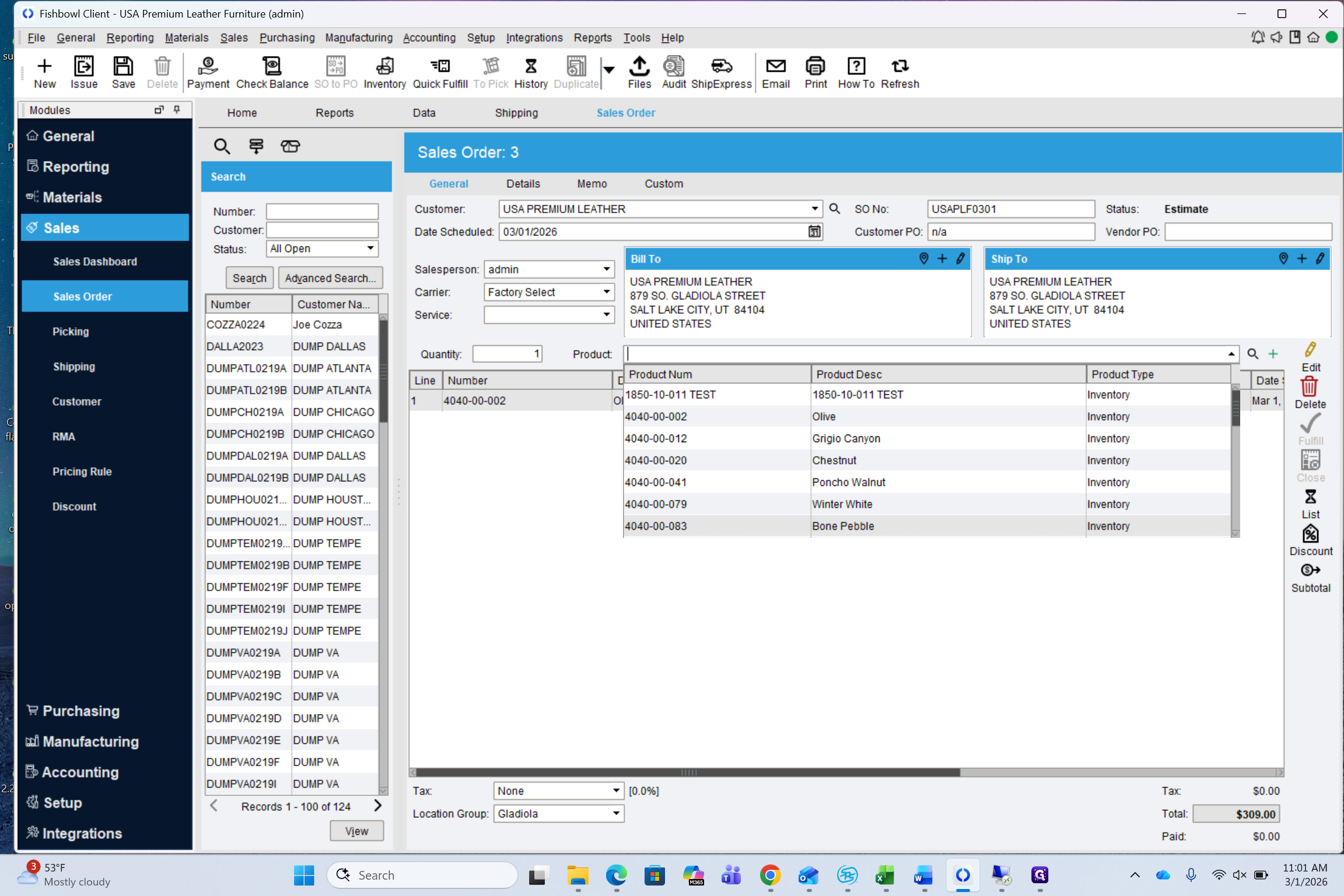
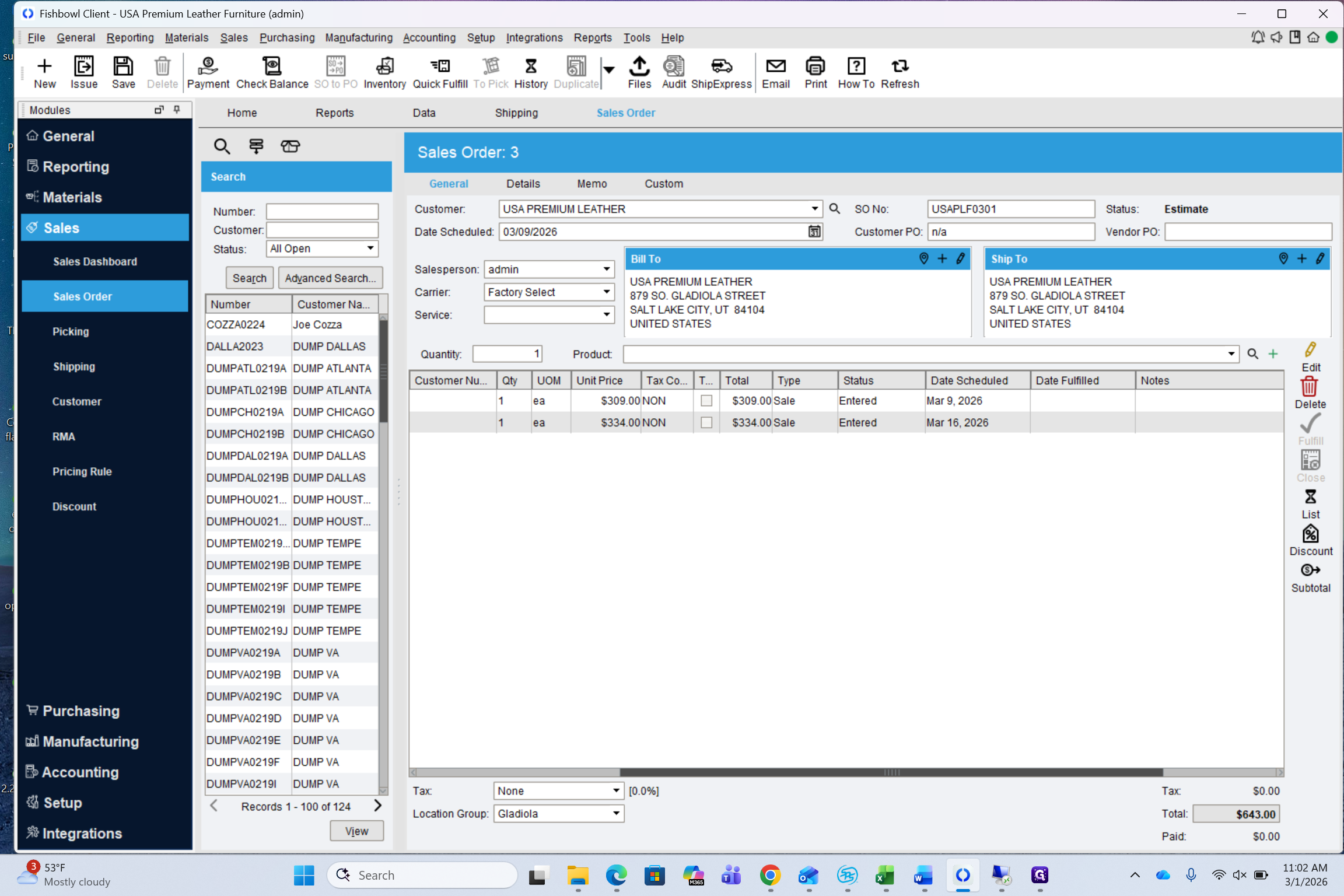
Check that the Bill To and Ship To information is accurate. Then, enter your product.
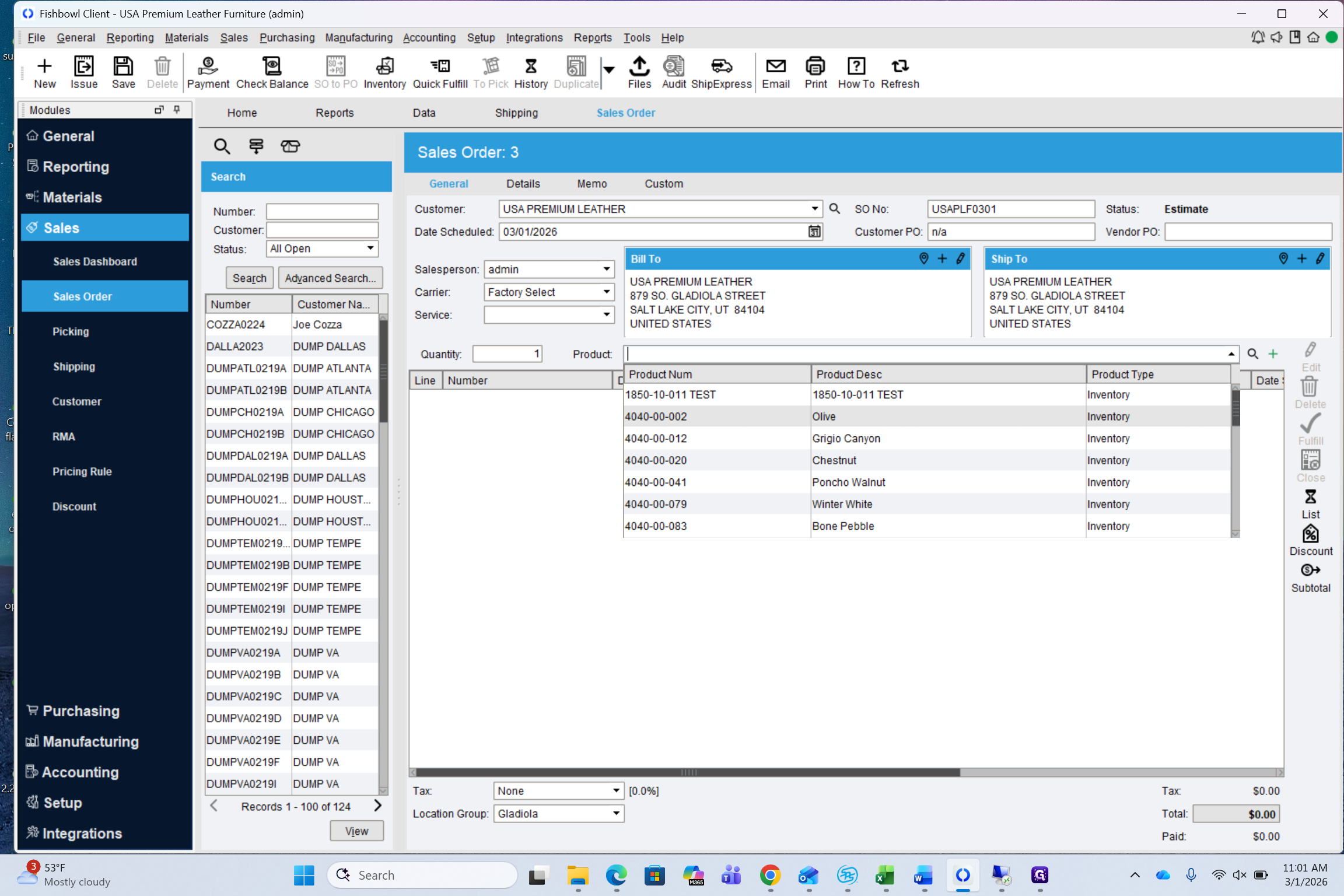
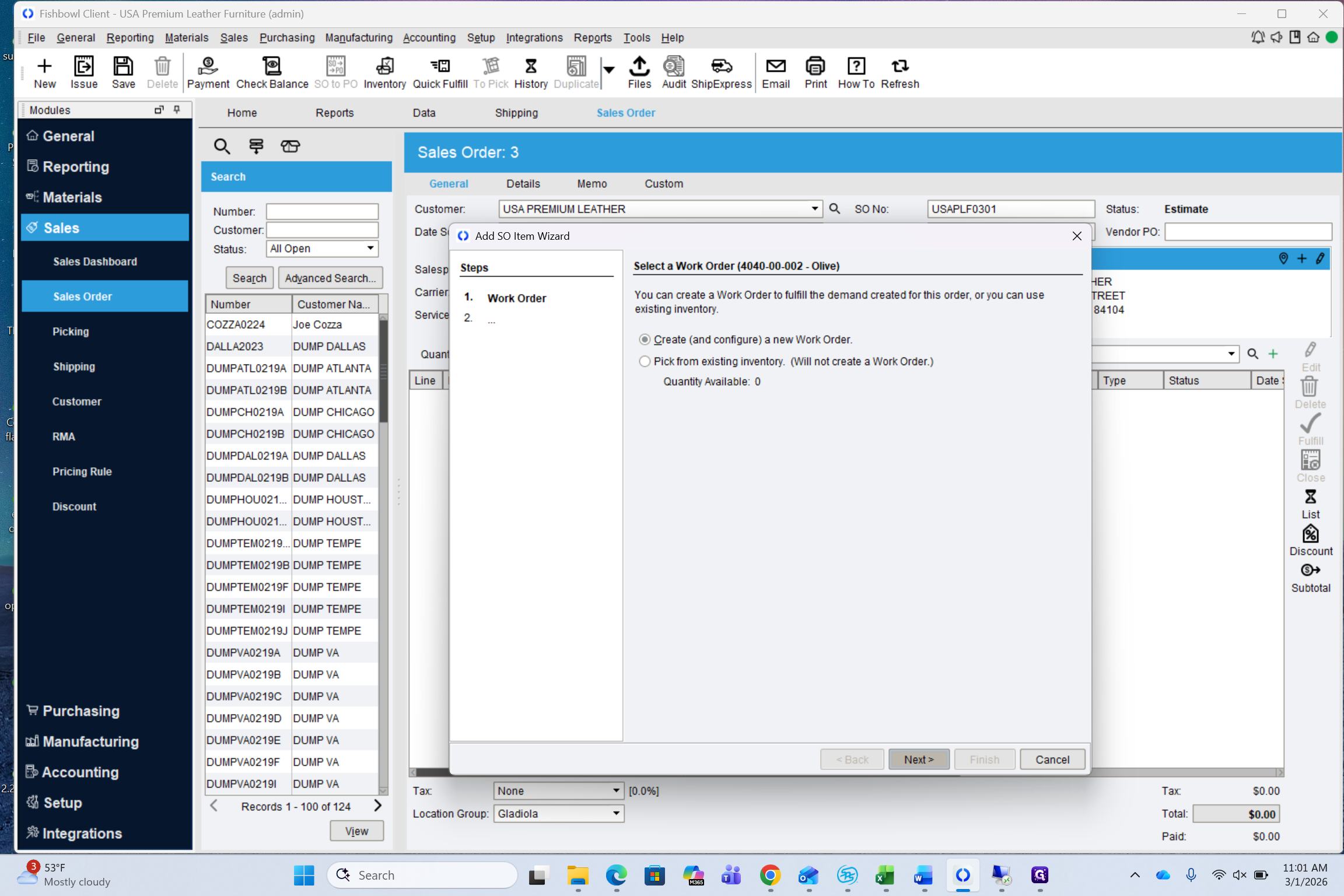
Click Next. Never click "Pick From Existing." This is very important, as a manufacturing order will not be created if you do.
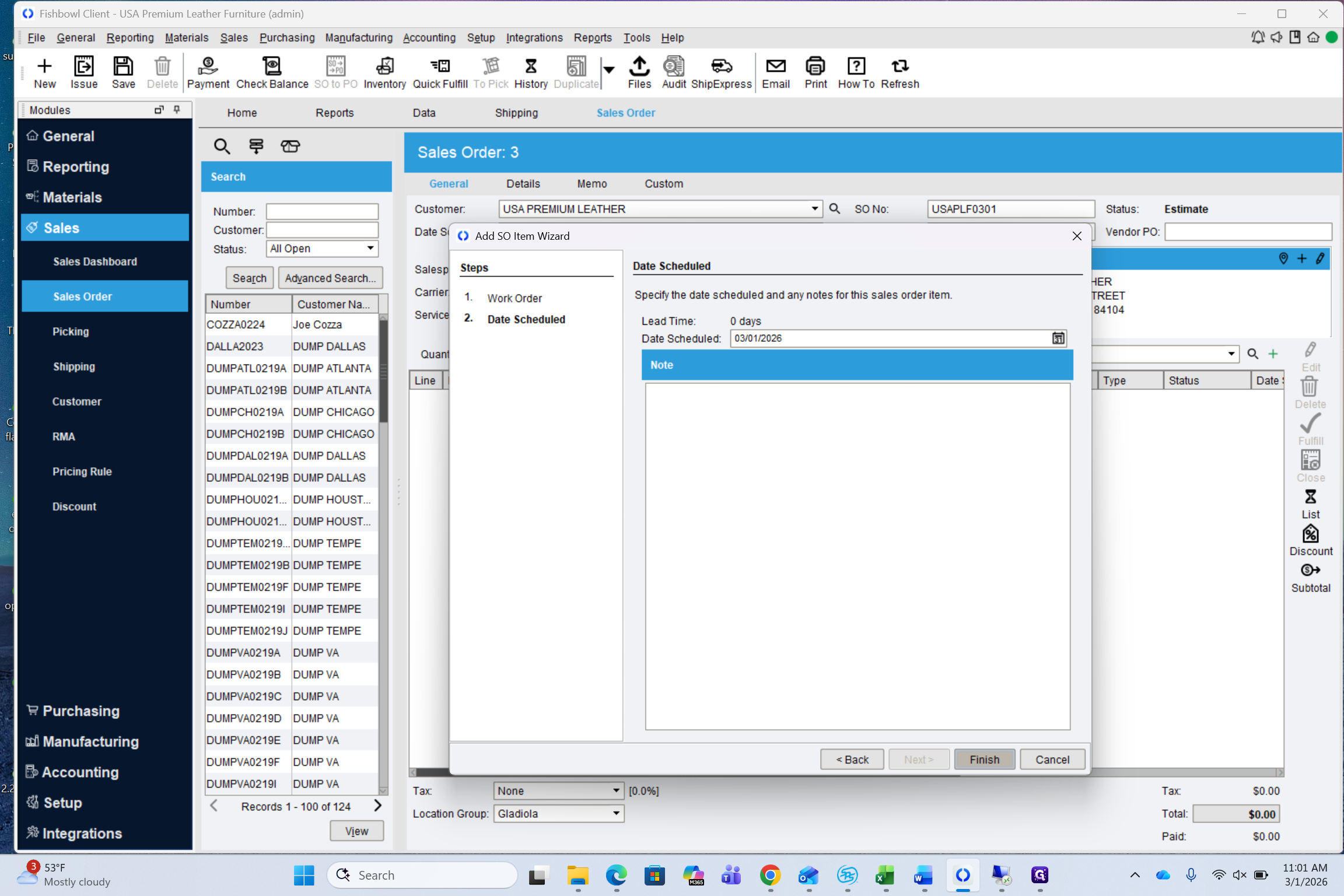
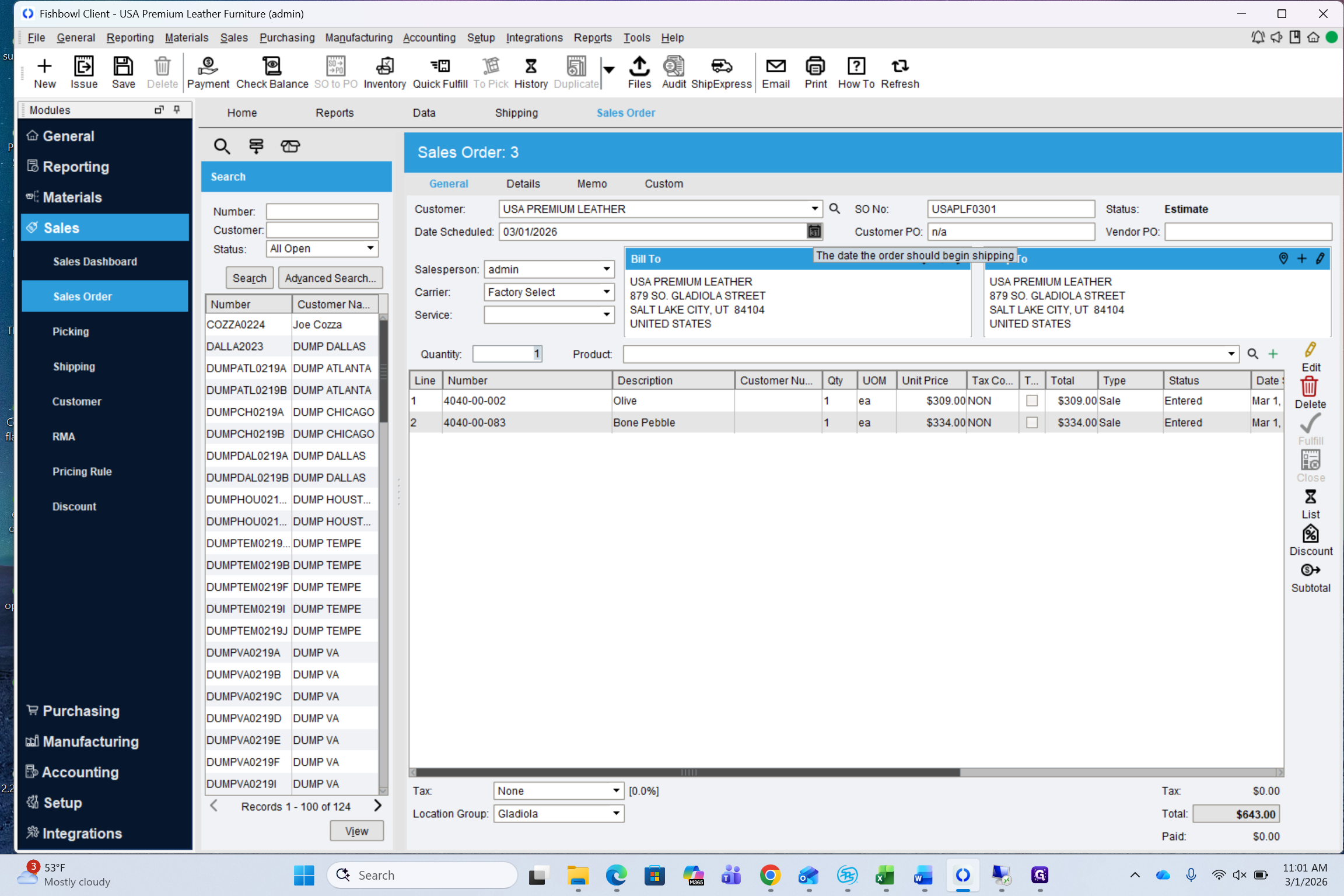
And we'll choose another one.
Let's proceed with a special order.
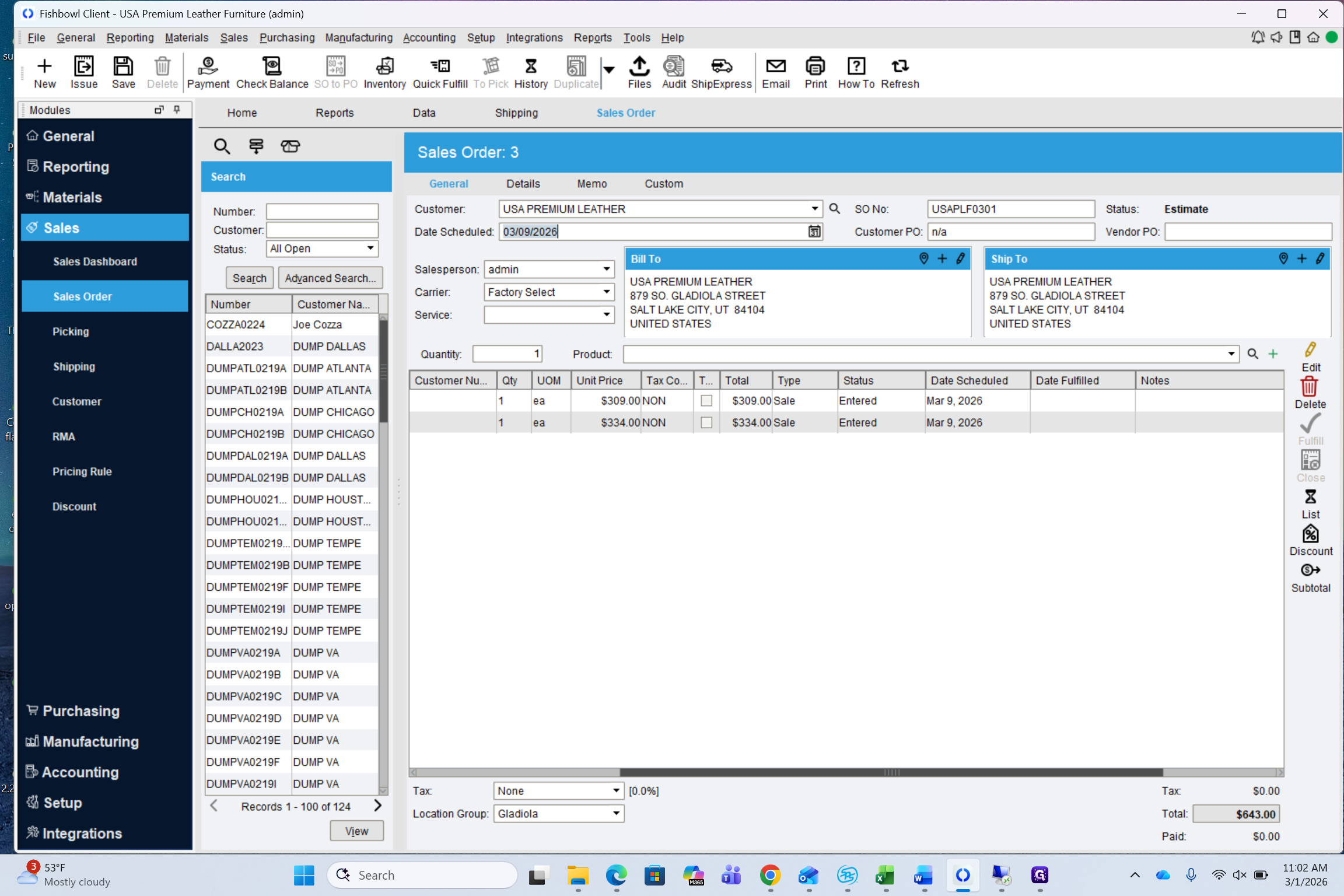
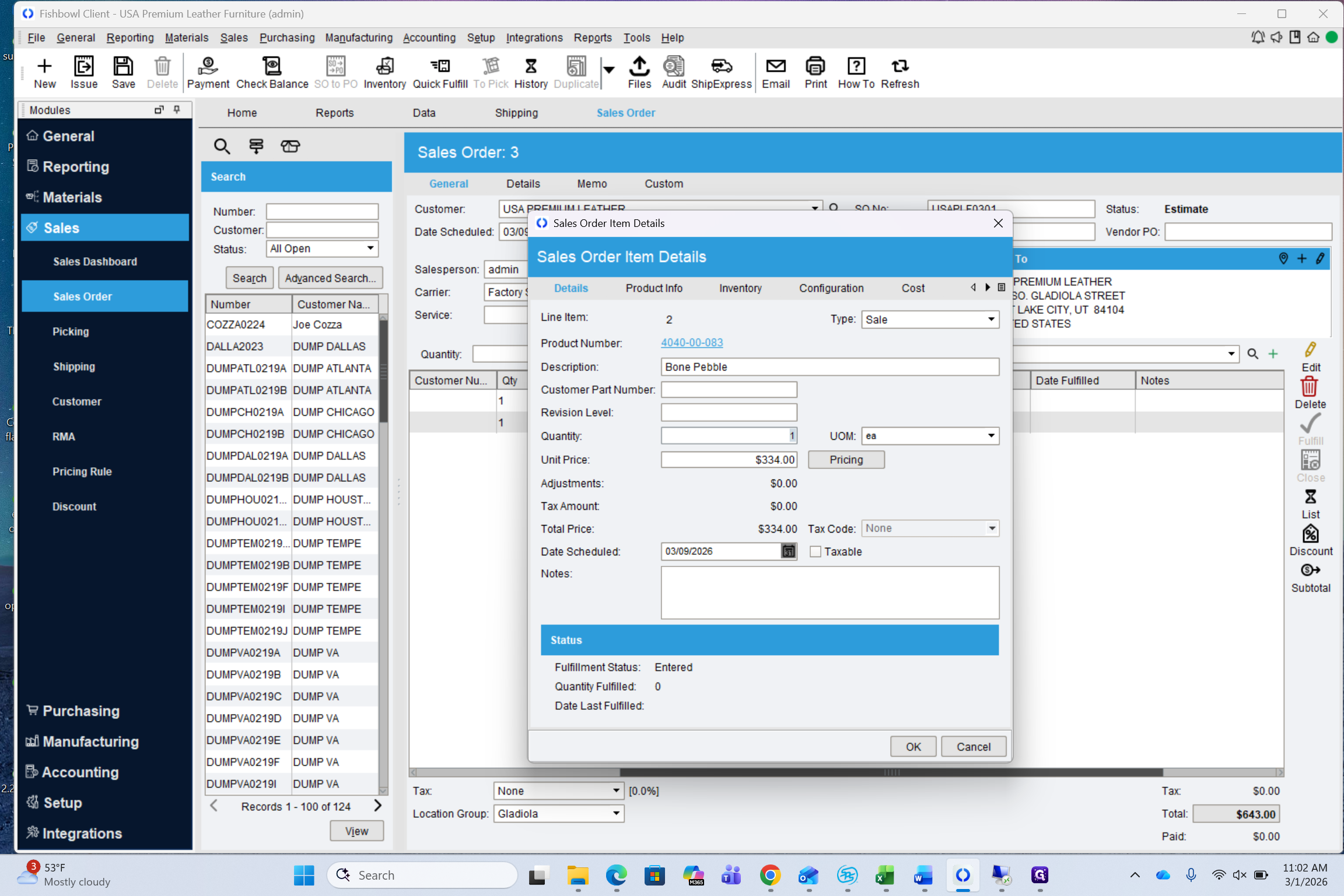
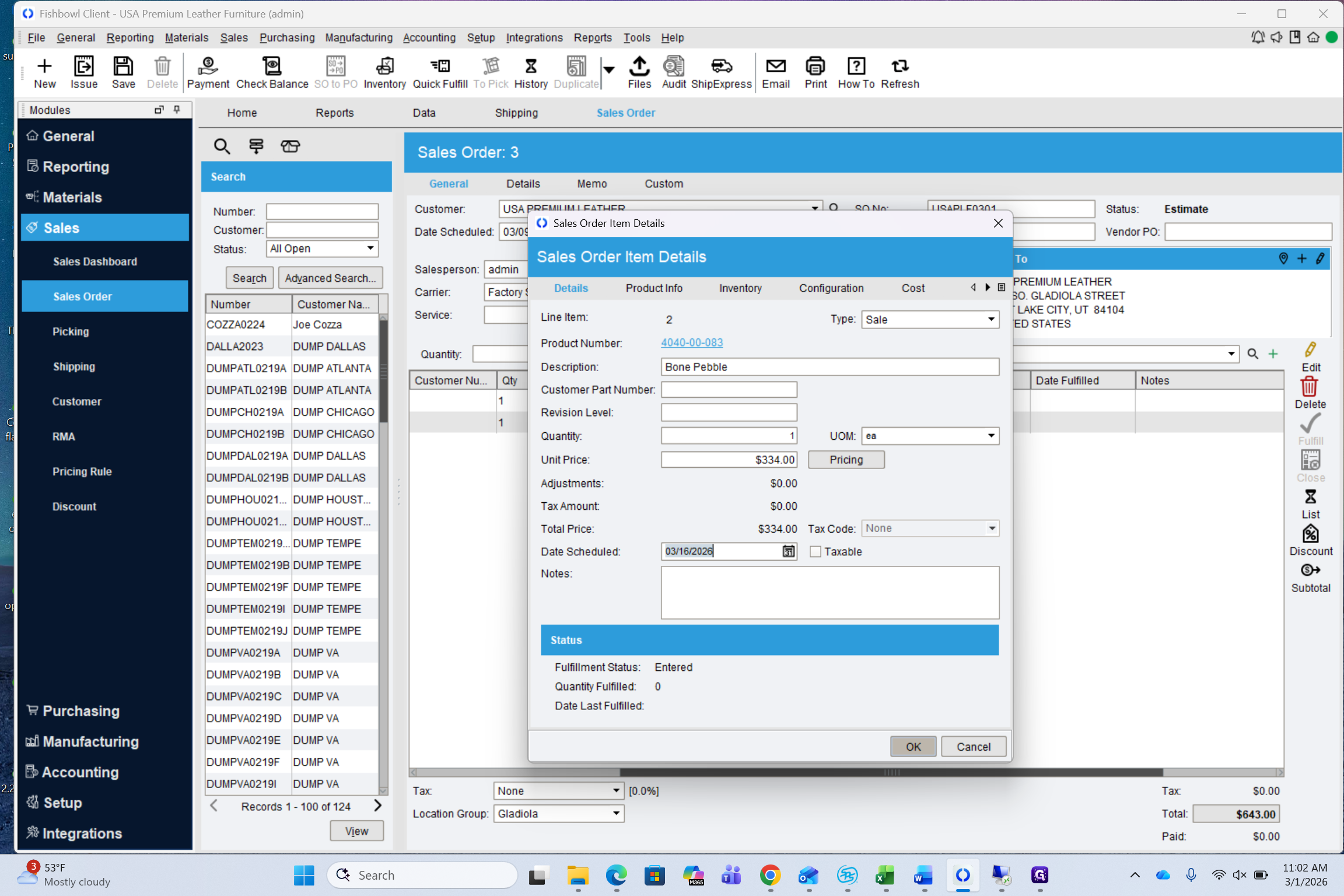
If there are any custom notes to add, such as designating the JoSales Customer Name, specifying that this is part of truck one, or noting that it will ship via Brooks, include that information here.
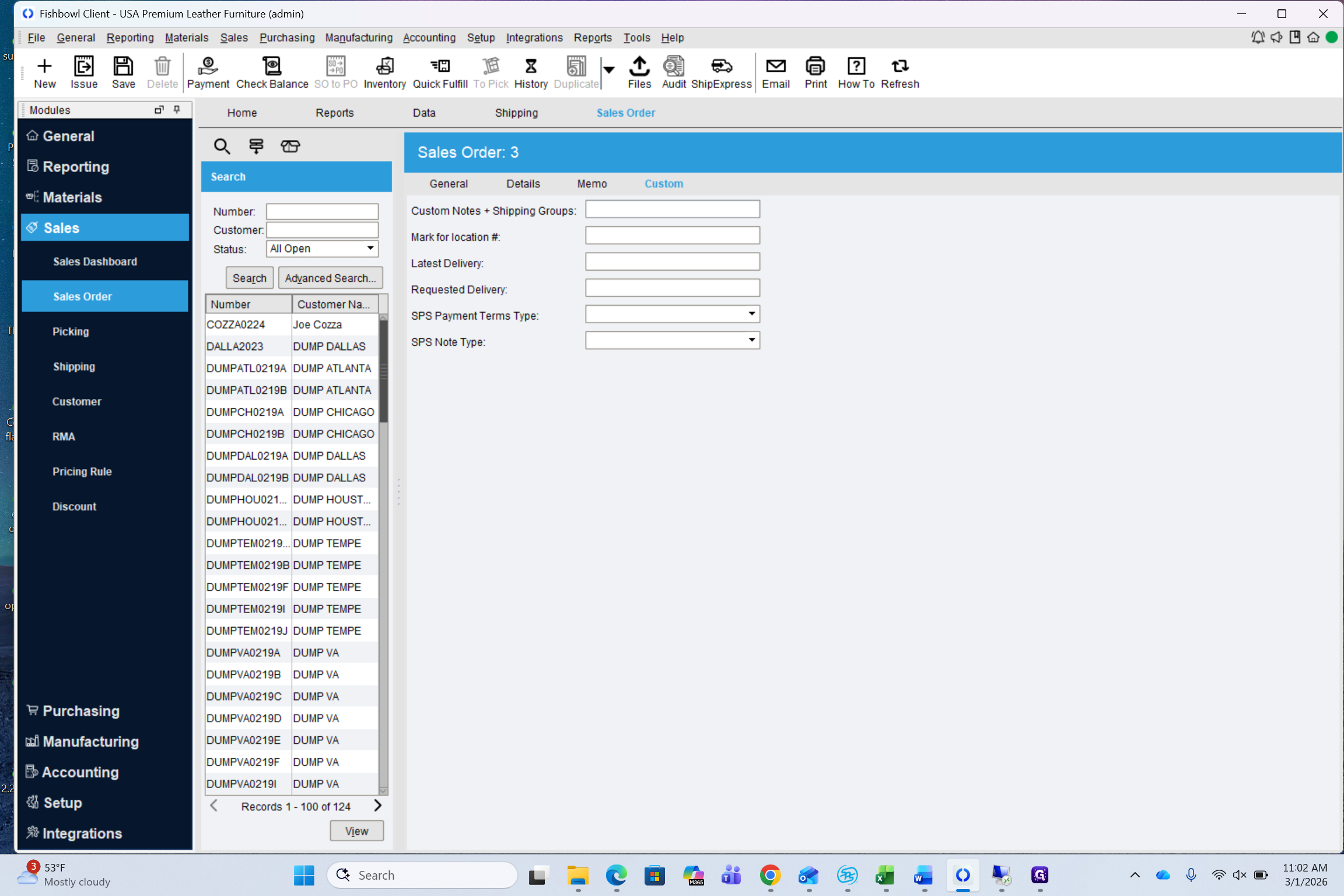
This can be added at any point during the process, even after the sales order is issued.