
How to Process 401K Employee Contributions Using Justworks and American Funds Part 2
Learn how to accurately enter and process 401(k) contributions, including calculating totals, entering payroll dates, and confirming transactions on the American Funds website.
In this guide, we'll learn how to enter and confirm 401(k) contribution amounts using payroll data and online banking tools. We will review how to add totals from your payroll source, input the funding amount, and submit the contribution for processing. This process helps ensure your 401(k) contributions are recorded and tracked correctly.
Let's get started
In this guide, we'll learn how to enter and confirm 401(k) contribution amounts using payroll data and online banking tools. We will review how to add totals from different sources, verify the amounts, and submit the contribution for processing. This process helps ensure that your 401(k) contributions are recorded and tracked correctly.
Let's get started
Here, I will continue entering the 401 information. You can see my screen, where I am on the 401 contribution bank page. We will continue entering the amounts from the previous pay period.
Here, I will continue entering the 401 information. You can see my screen, where I'm on the 401 contribution bank page. We will continue entering the amounts from the previous pay period.
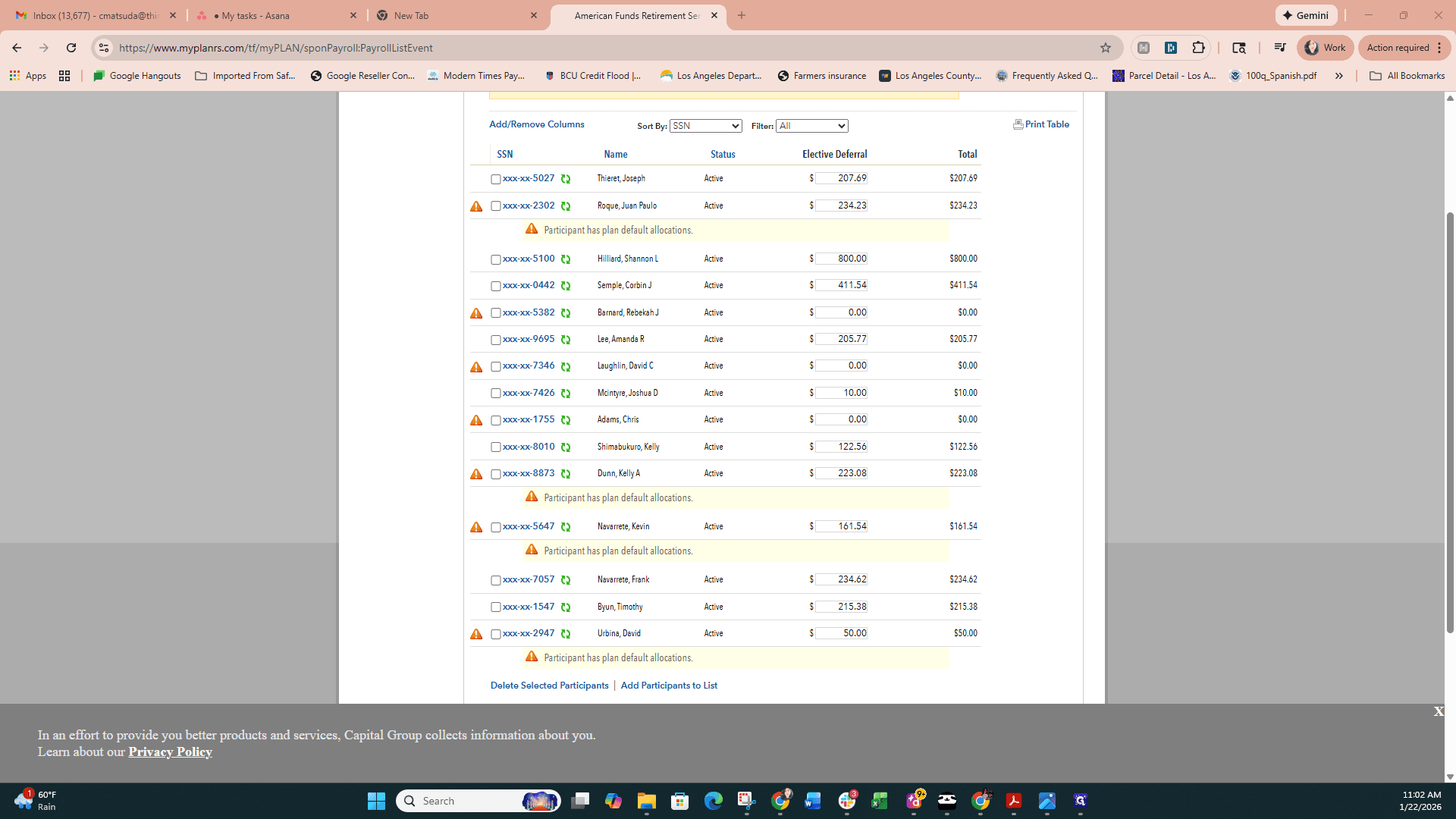
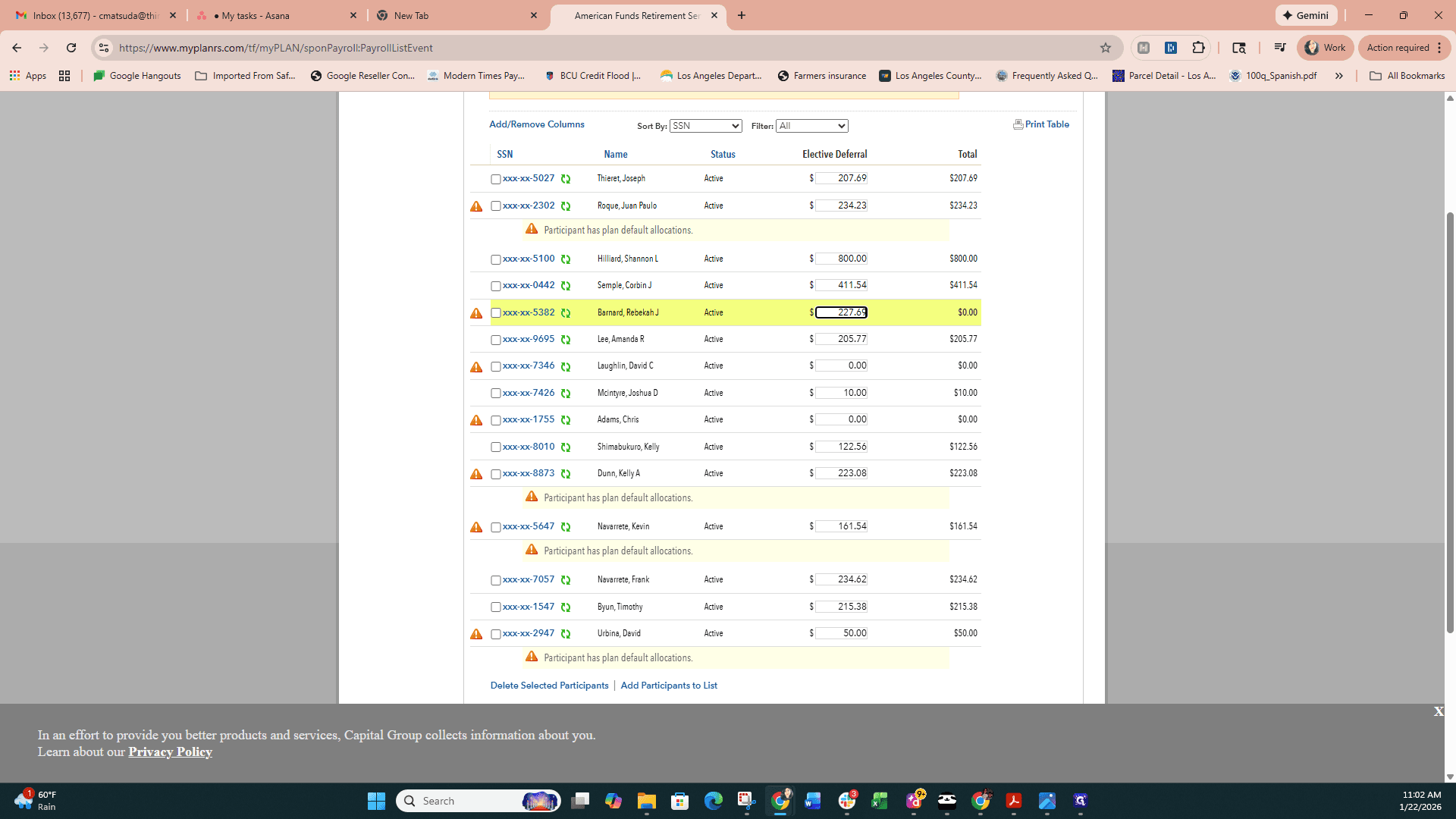
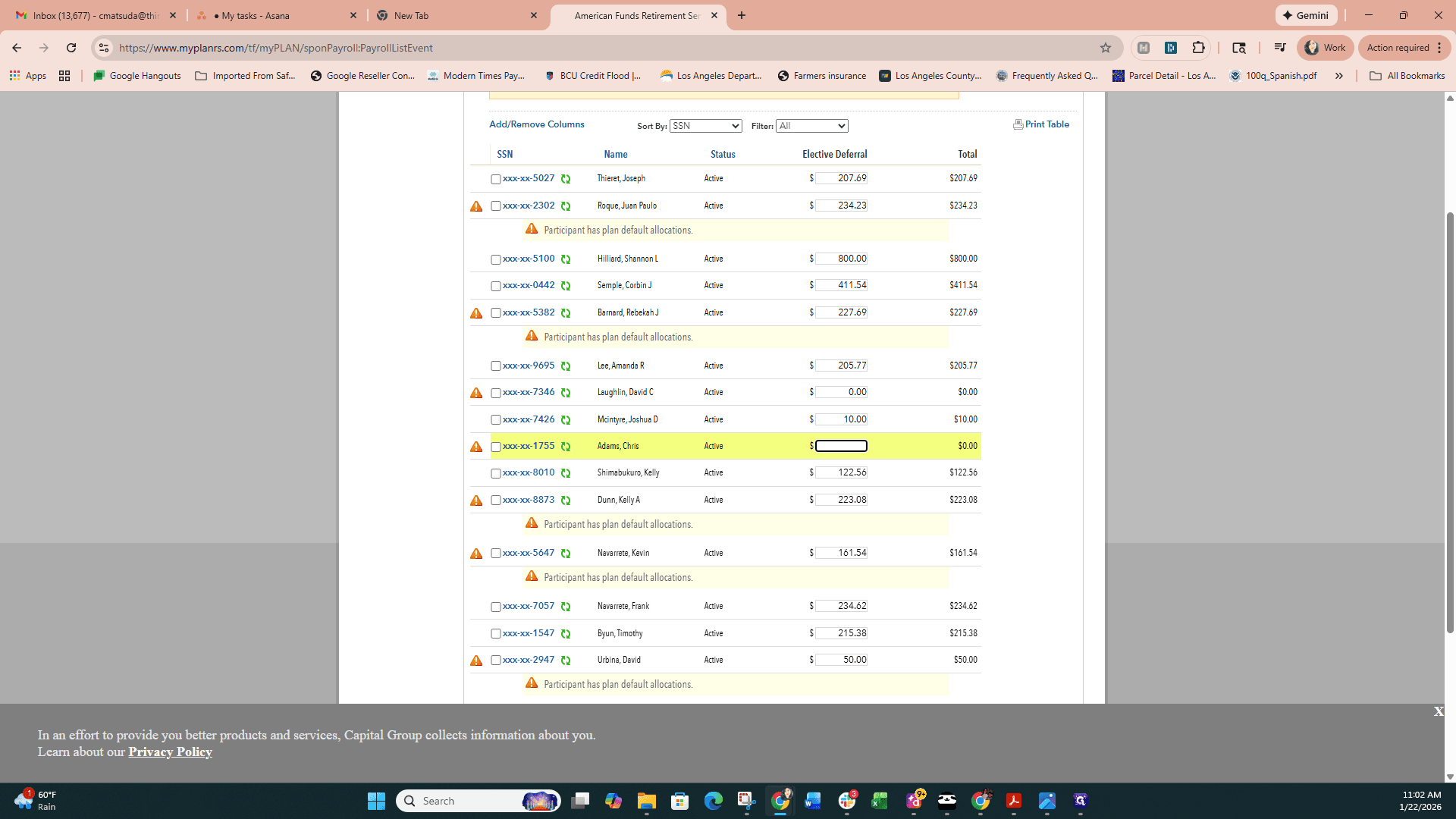
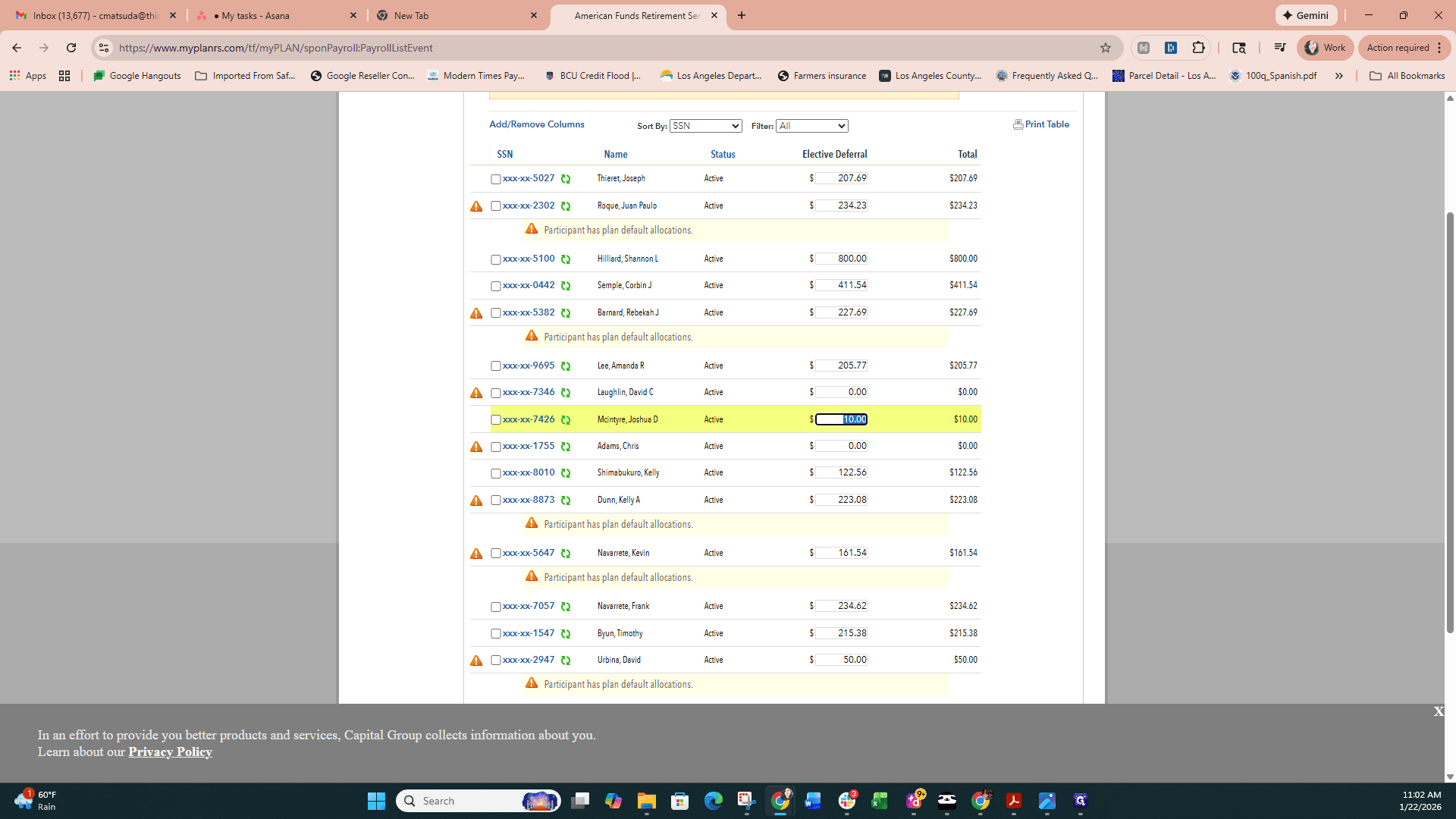
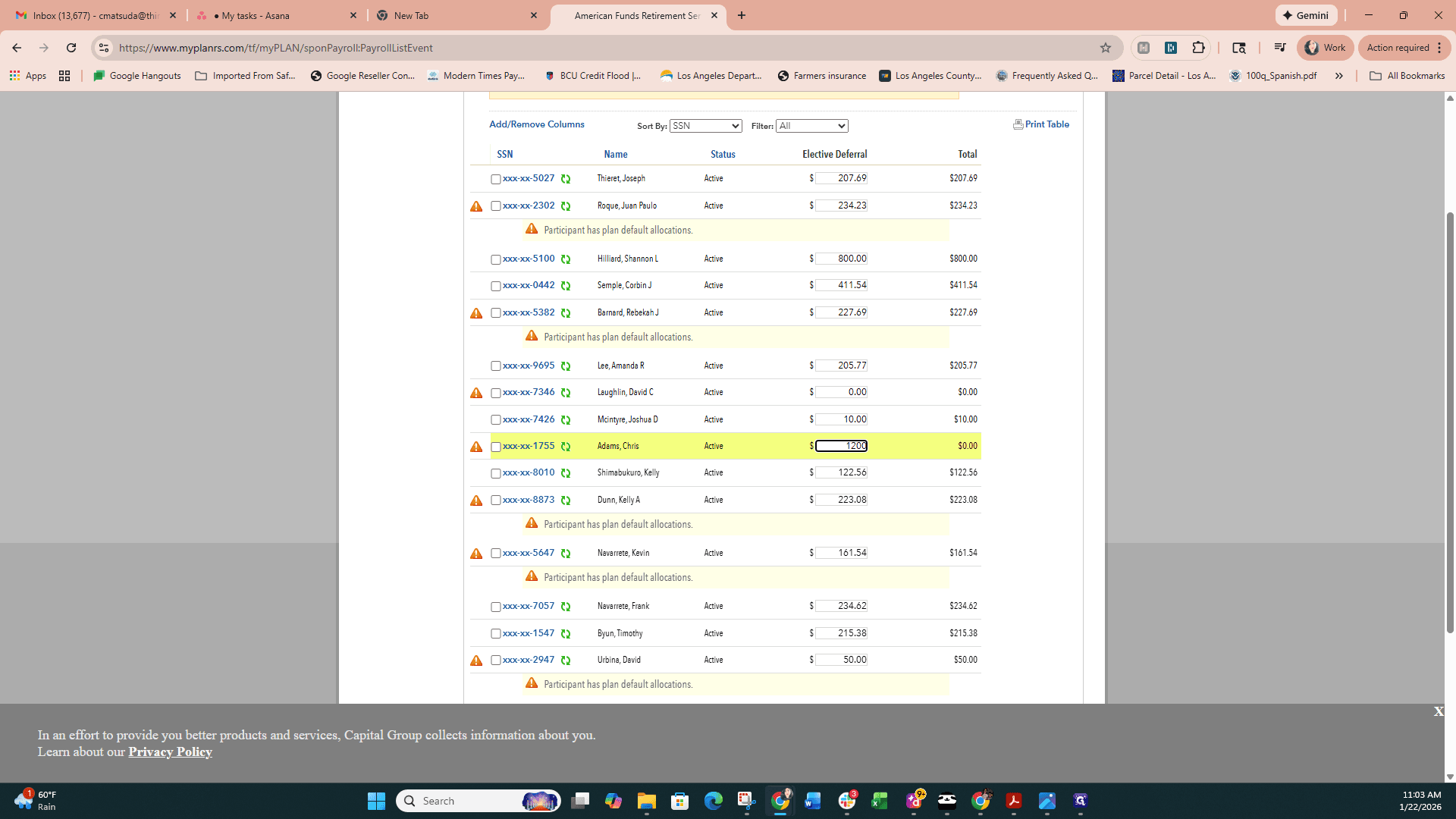
I will add the totals from the JustWork website for that pay period: 161.52, 227.69, 1,200, and 2,714.87. On my calculator, that adds up to $4,304.10.
I will add the totals from the JustWork website for that pay period: 161.52, 227.69, 1,200, and 2,714.87. On my calculator, that adds up to $4,304.10.
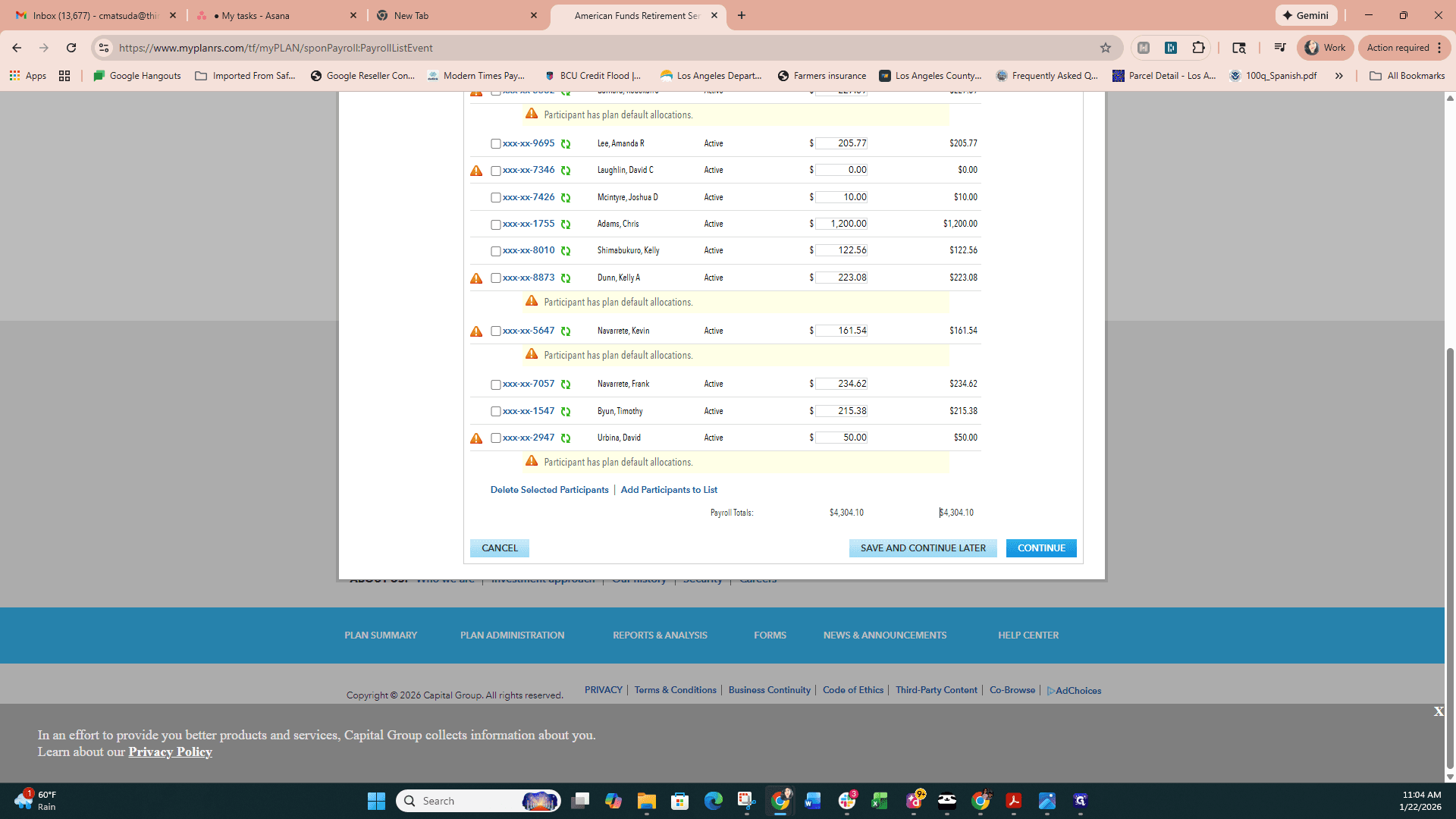
We see that the amount matches the mutual fund bank page. I have entered the correct payroll date and will click Continue.
We see that the amount matches on the mutual fund bank page. I have already entered the correct payroll date, and I will click Continue.
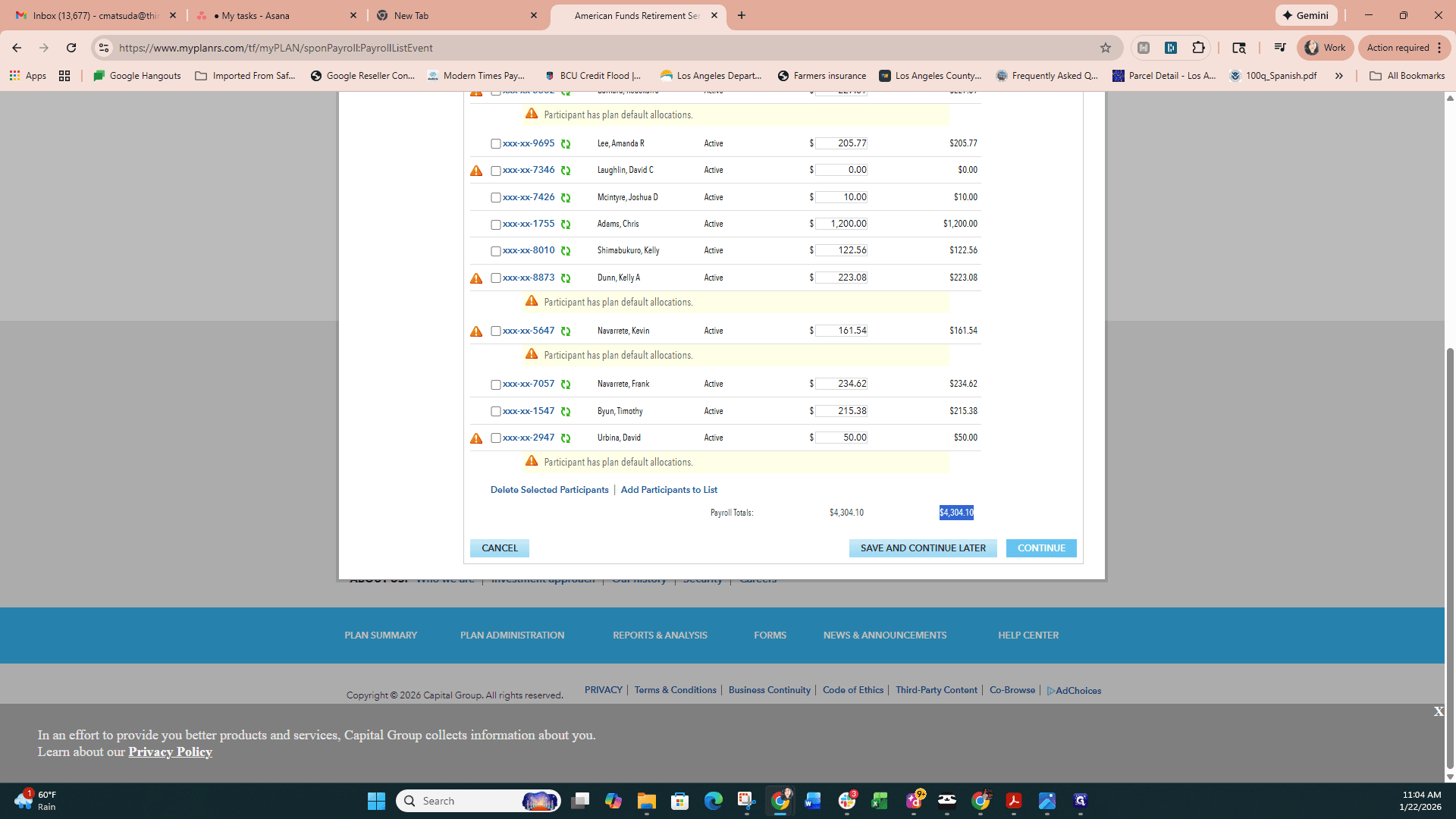
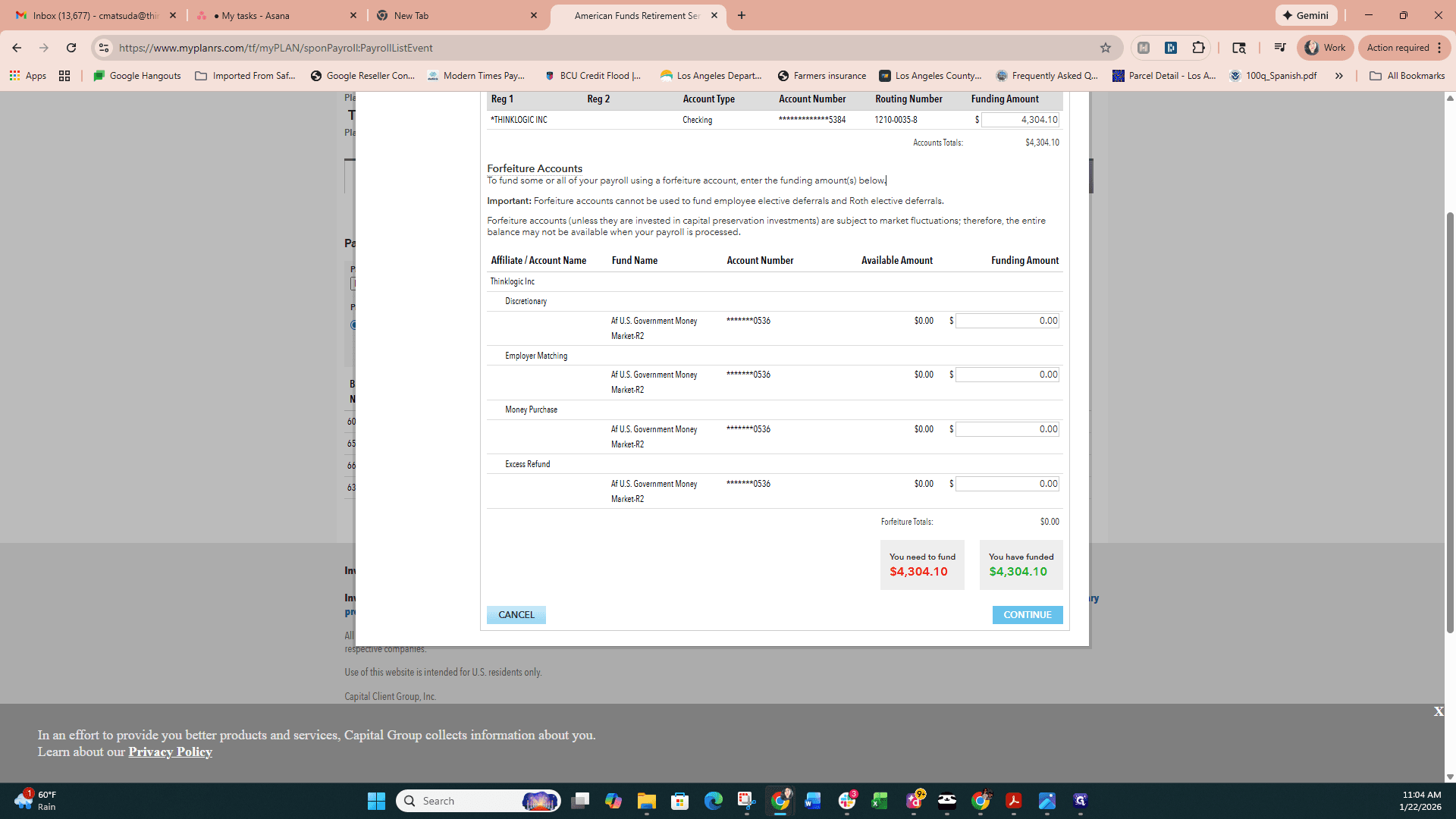
I will enter the funding amount, which is $4,304.10.
I will enter the funding amount, which is $4,304.10.
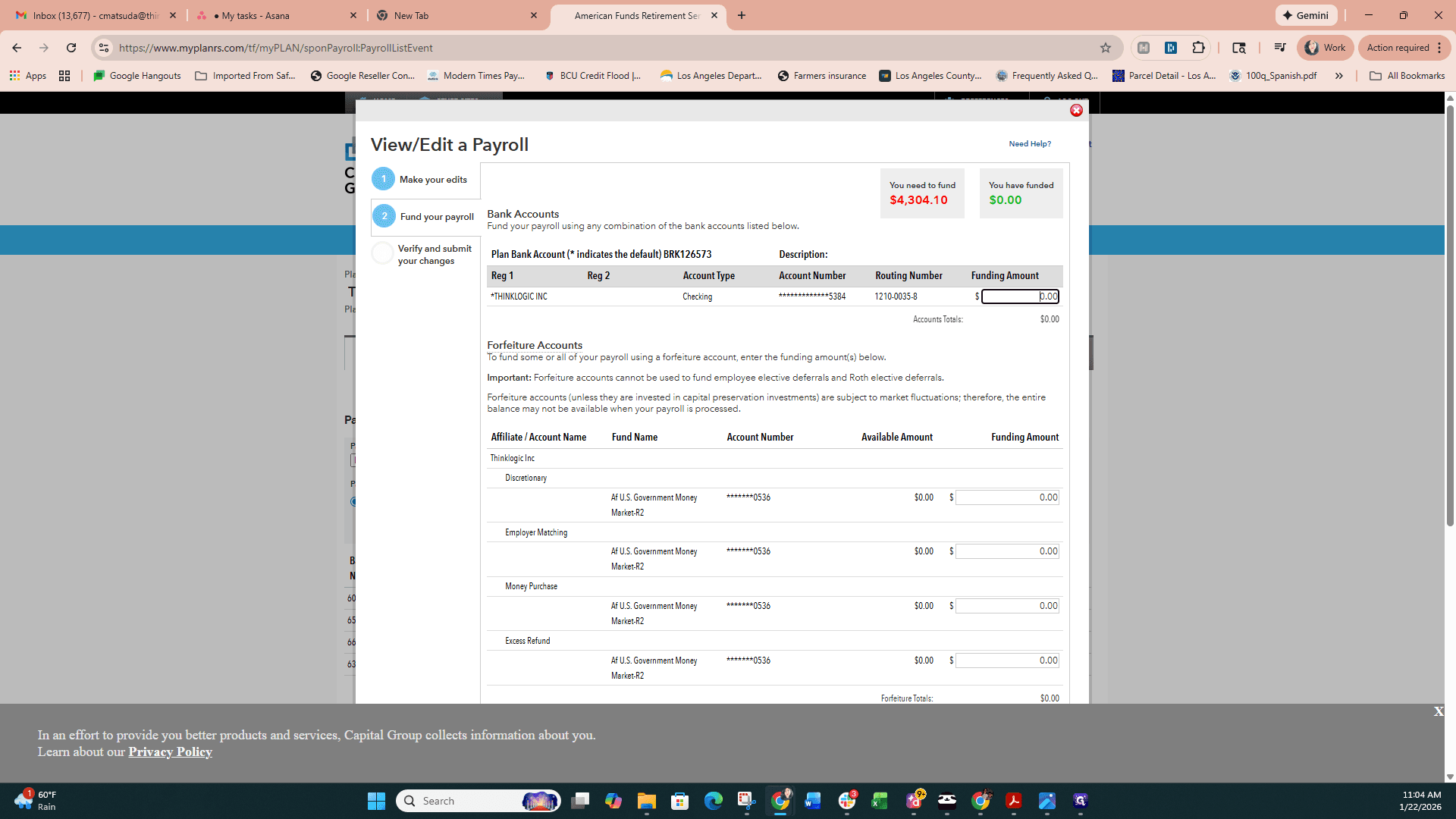
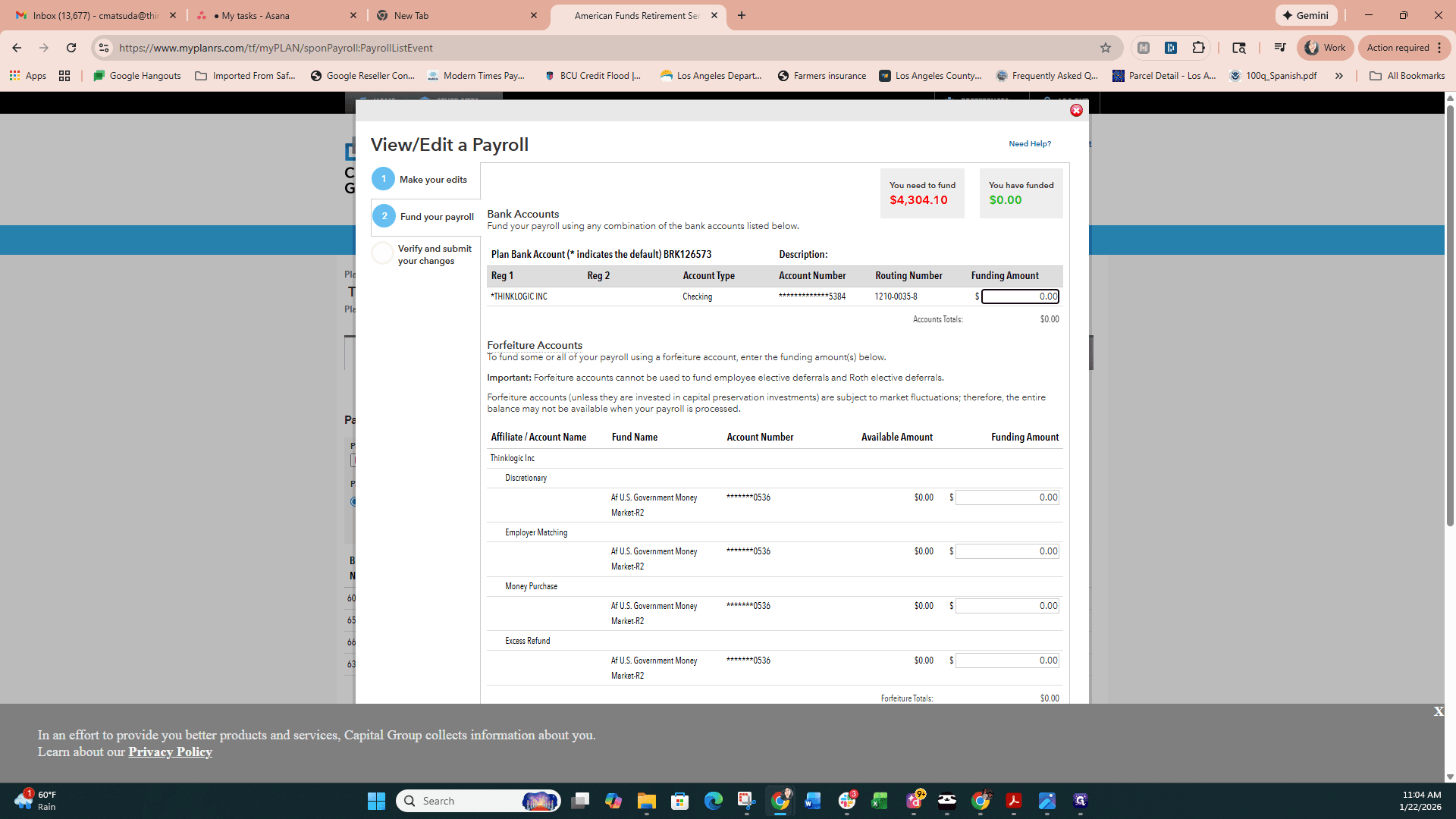
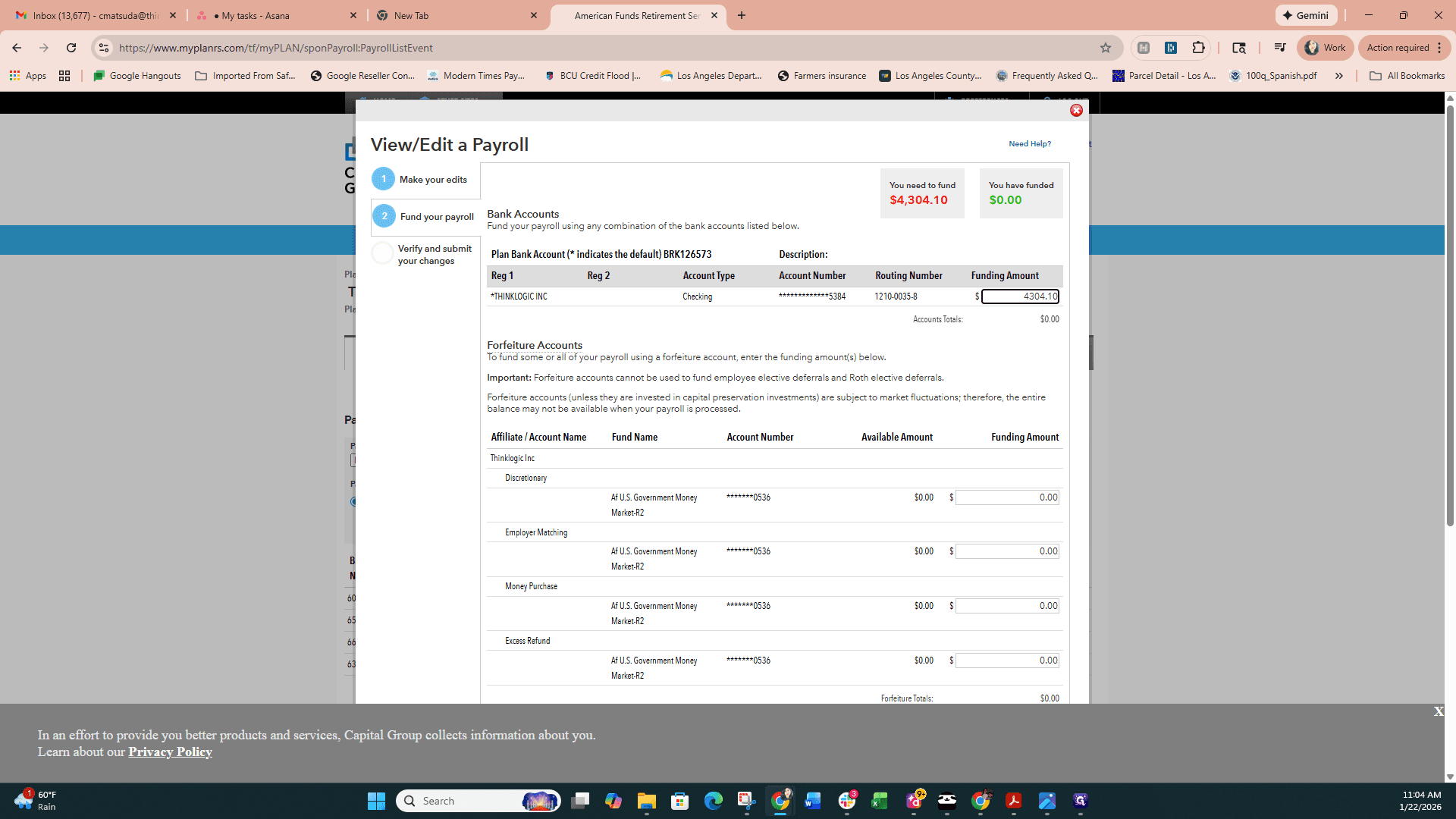
The contribution type has already been entered and selected by the employees, so I will continue.
The contribution type has already been entered in the edits and was chosen by the employees, so I will continue.
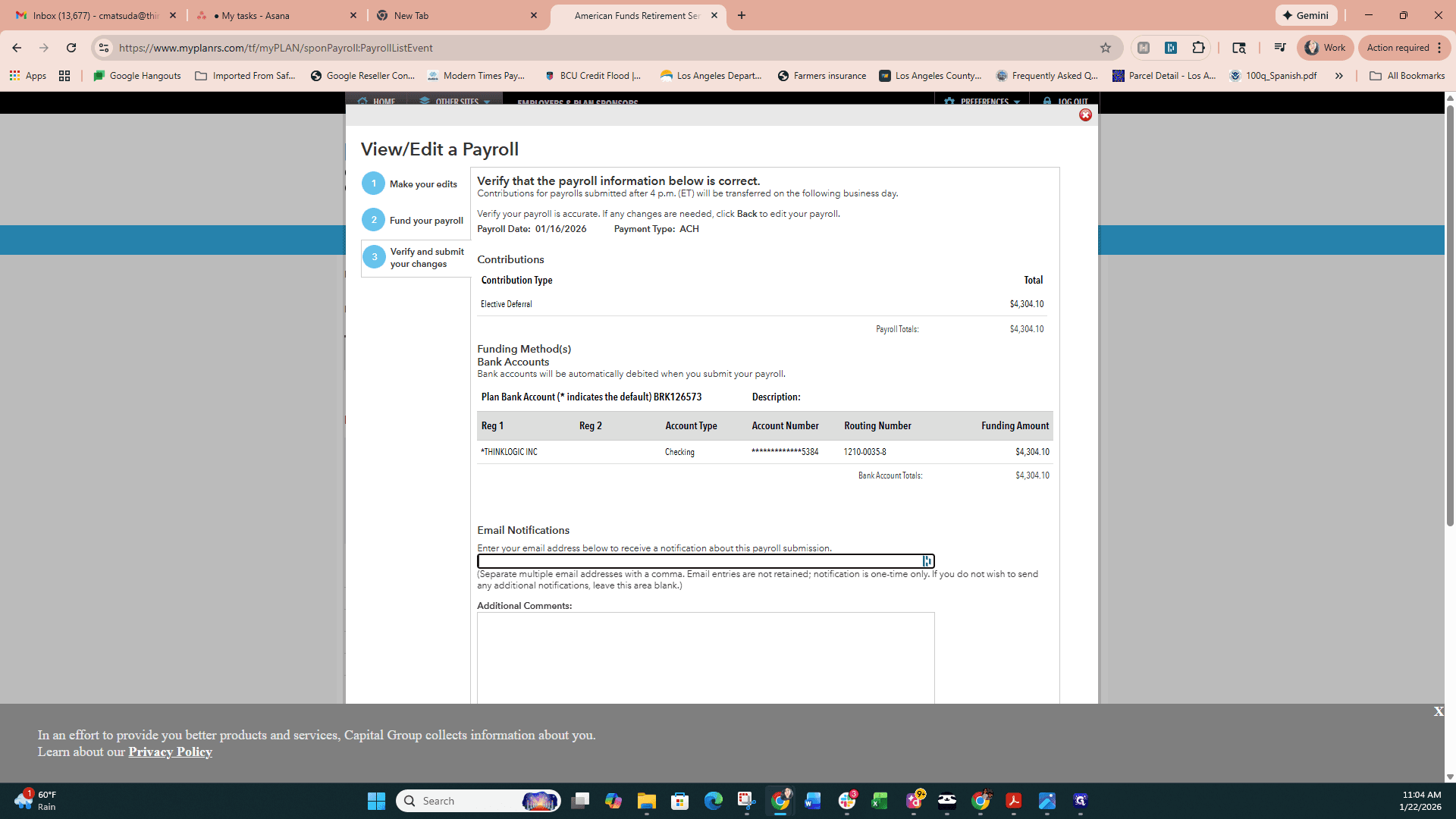
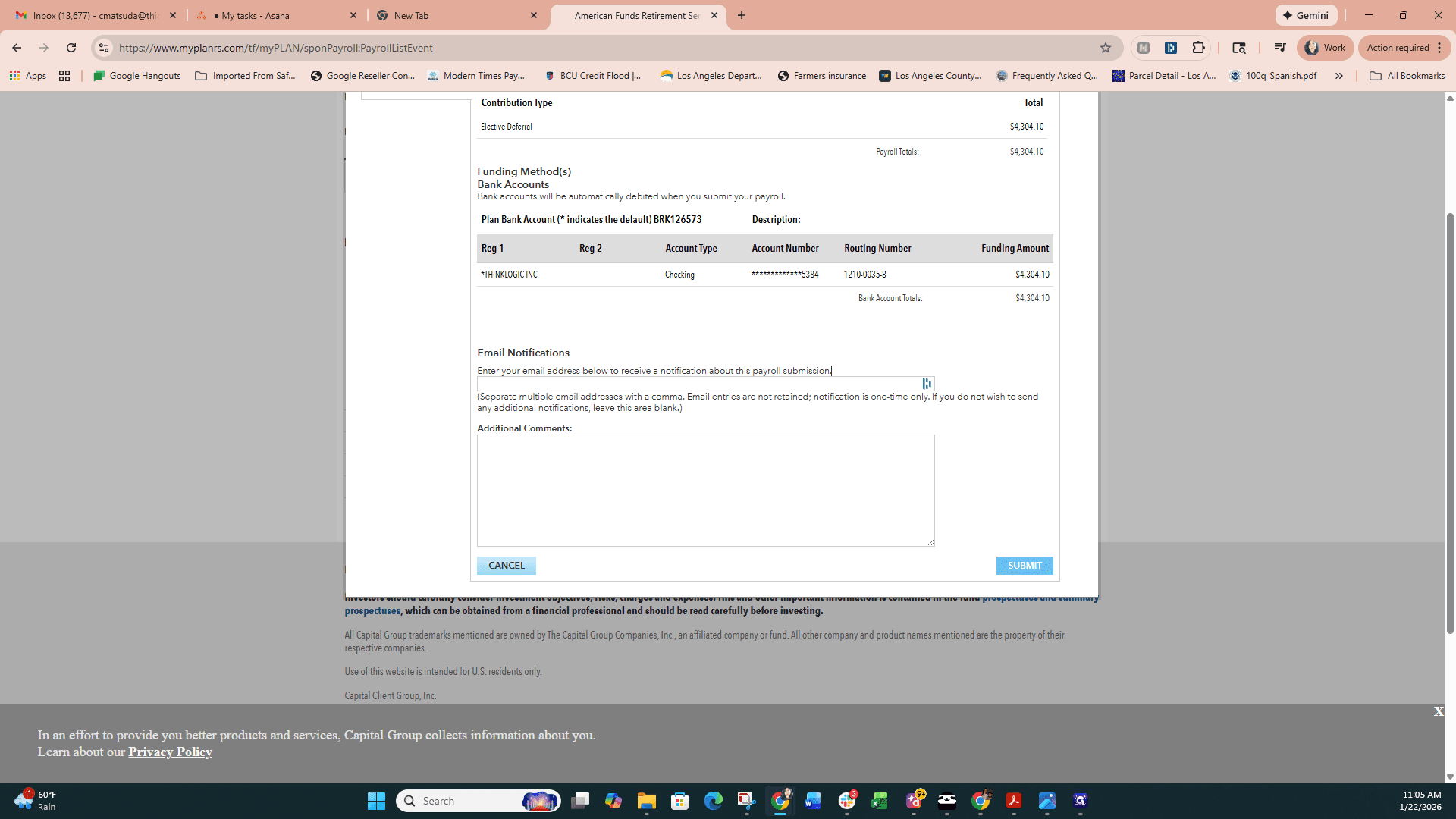
On this page, I can choose to email myself a copy or simply submit.
On this page, I can choose to email myself a copy or simply submit.
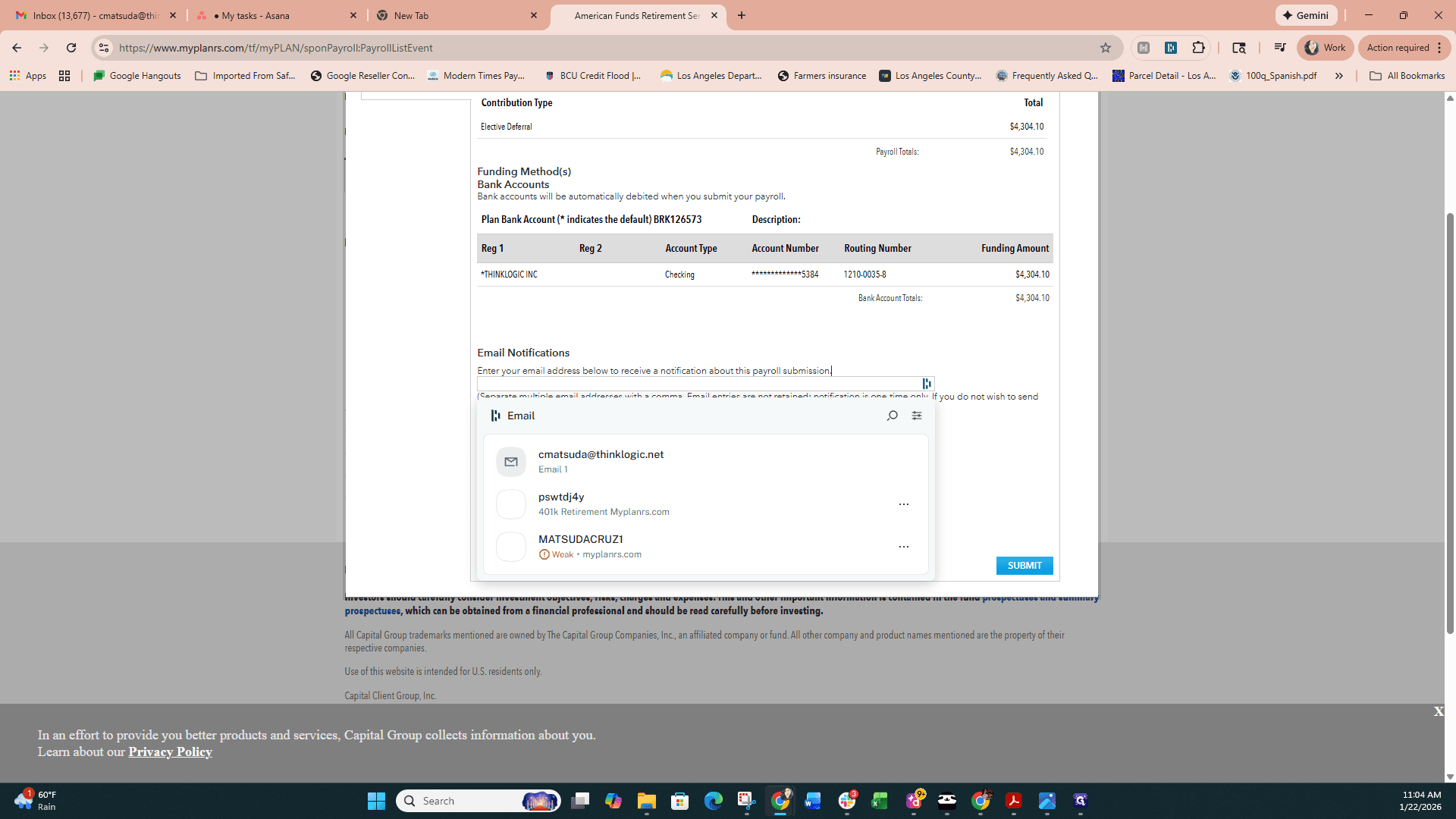
Once submitted, it will be processed. You will receive a summary of the contribution, and you can view its status on the American Funds website.
Once submitted, it will be processed. You will receive a summary of the contribution, and you can view its status on the American Funds website.
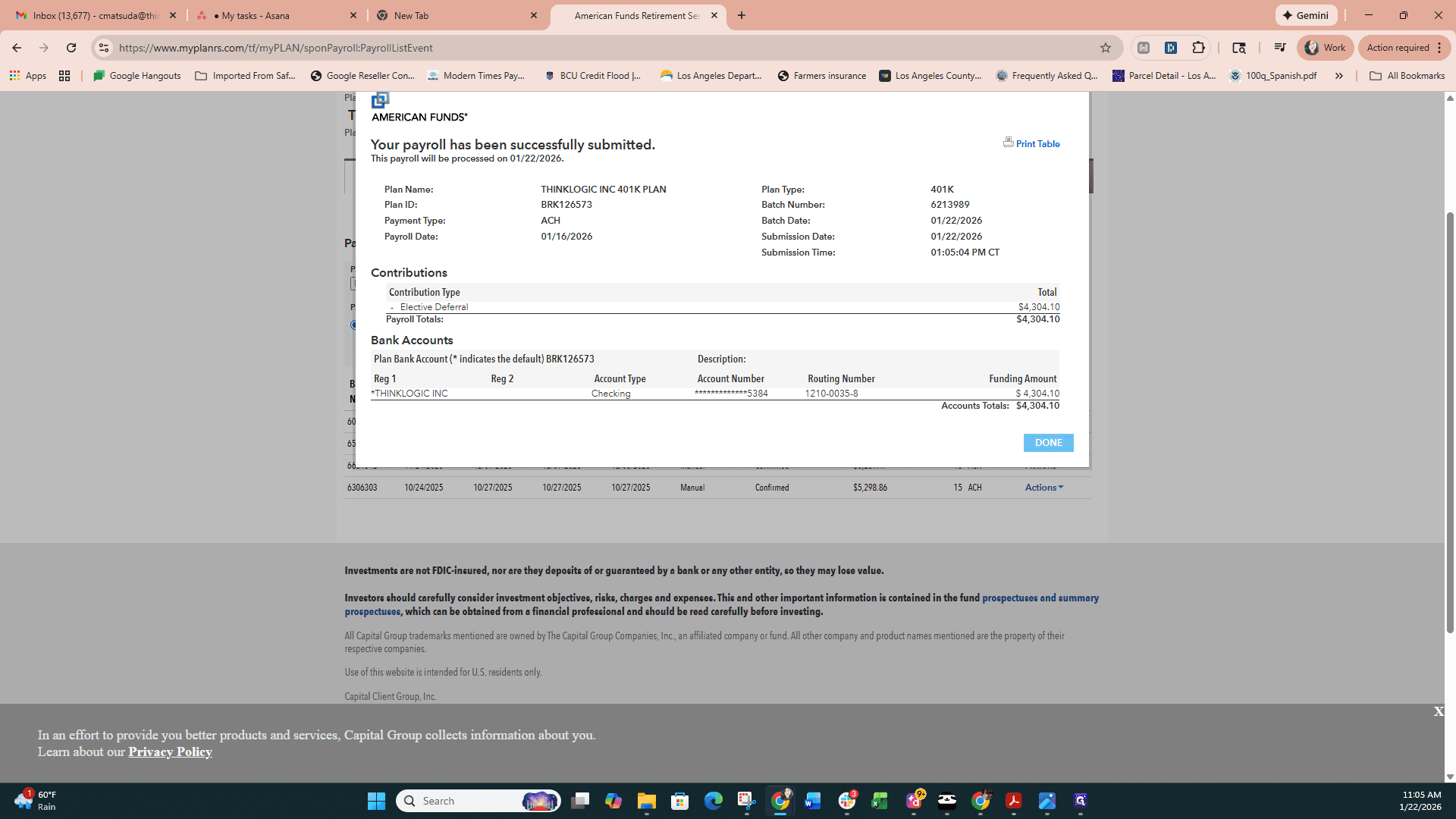
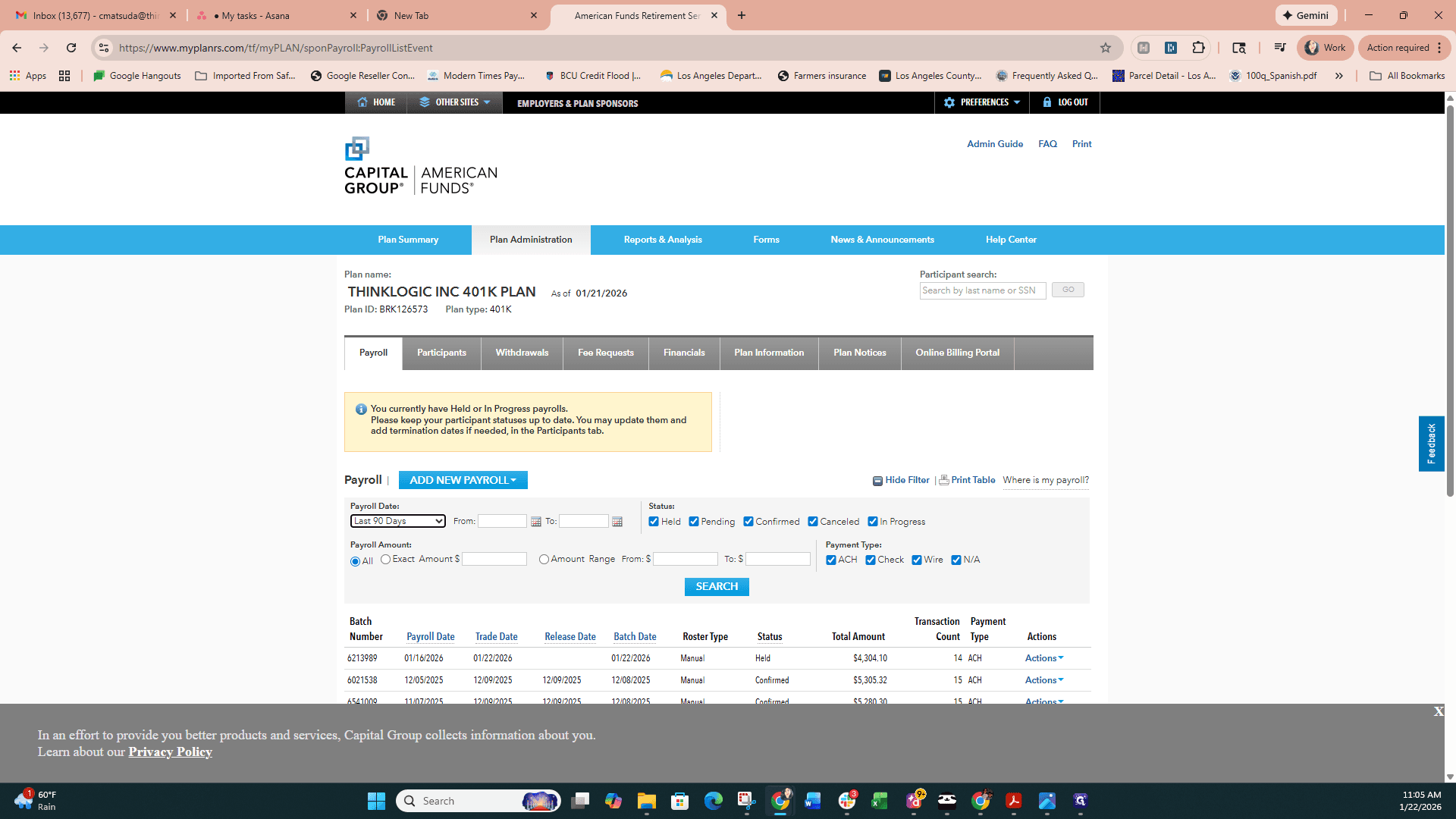
Once the funds have been withdrawn from the bank, it will be confirmed.
Once the funds have been withdrawn from the bank, it will be confirmed.
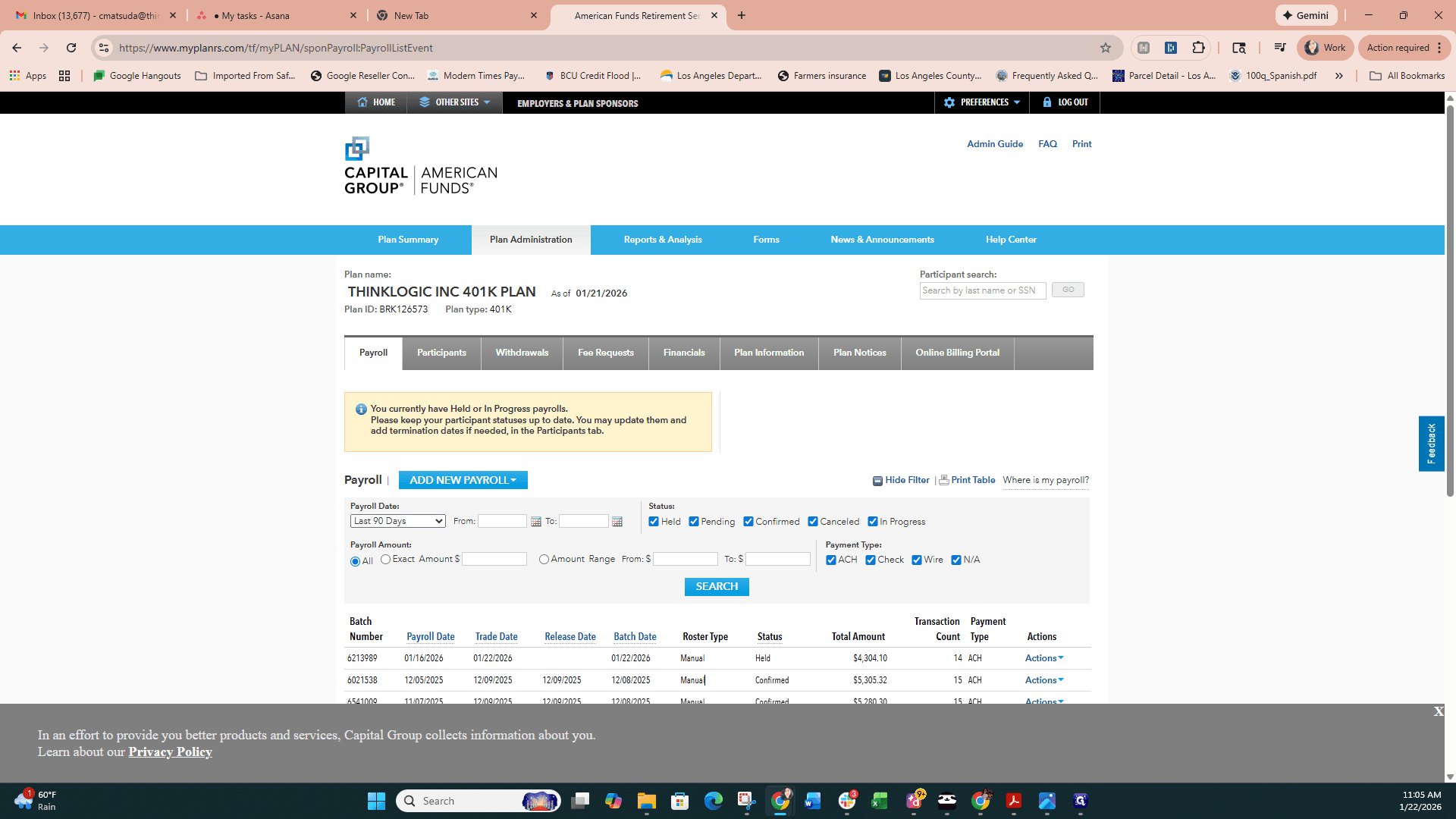
That is how I handle 401(k) contributions.
That is how I handle 401(k) contributions.