Icon

How to Enter Daily Payroll in Sage: Step-by-Step Guide

Learn the best practices for entering daily payroll in Sage, including tips for organizing columns, updating job and comp codes, and ensuring accuracy for shop and office staff.

By Elisha Hicks

In this guide, we'll learn how to complete a daily payroll entry in Sage. This process helps ensure payroll data is accurate by reviewing and updating key fields such as job, locality, cost code, comp code, and department. By following these steps, you can catch errors before finalizing payroll and keep records organized.

Let's get started

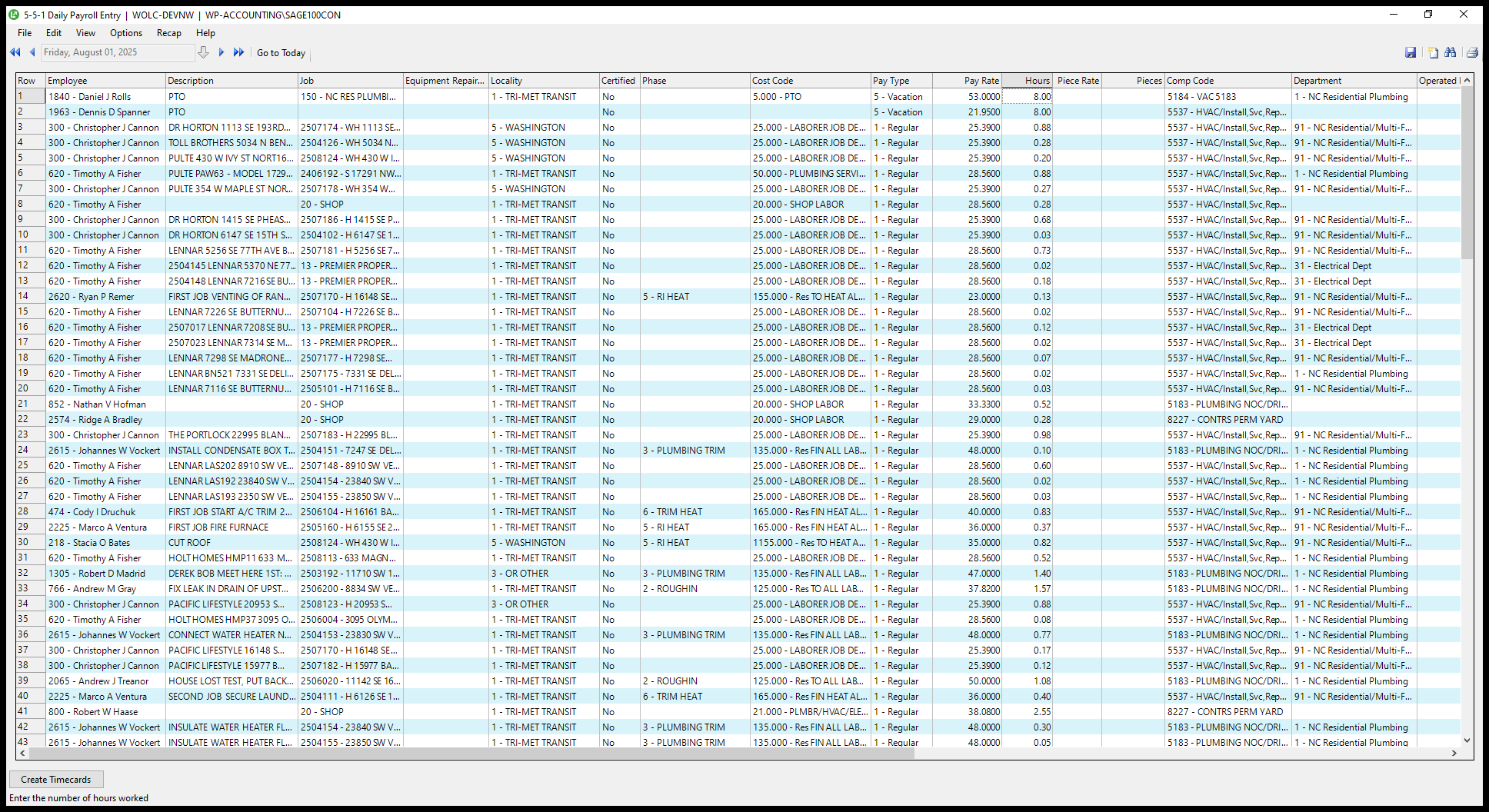
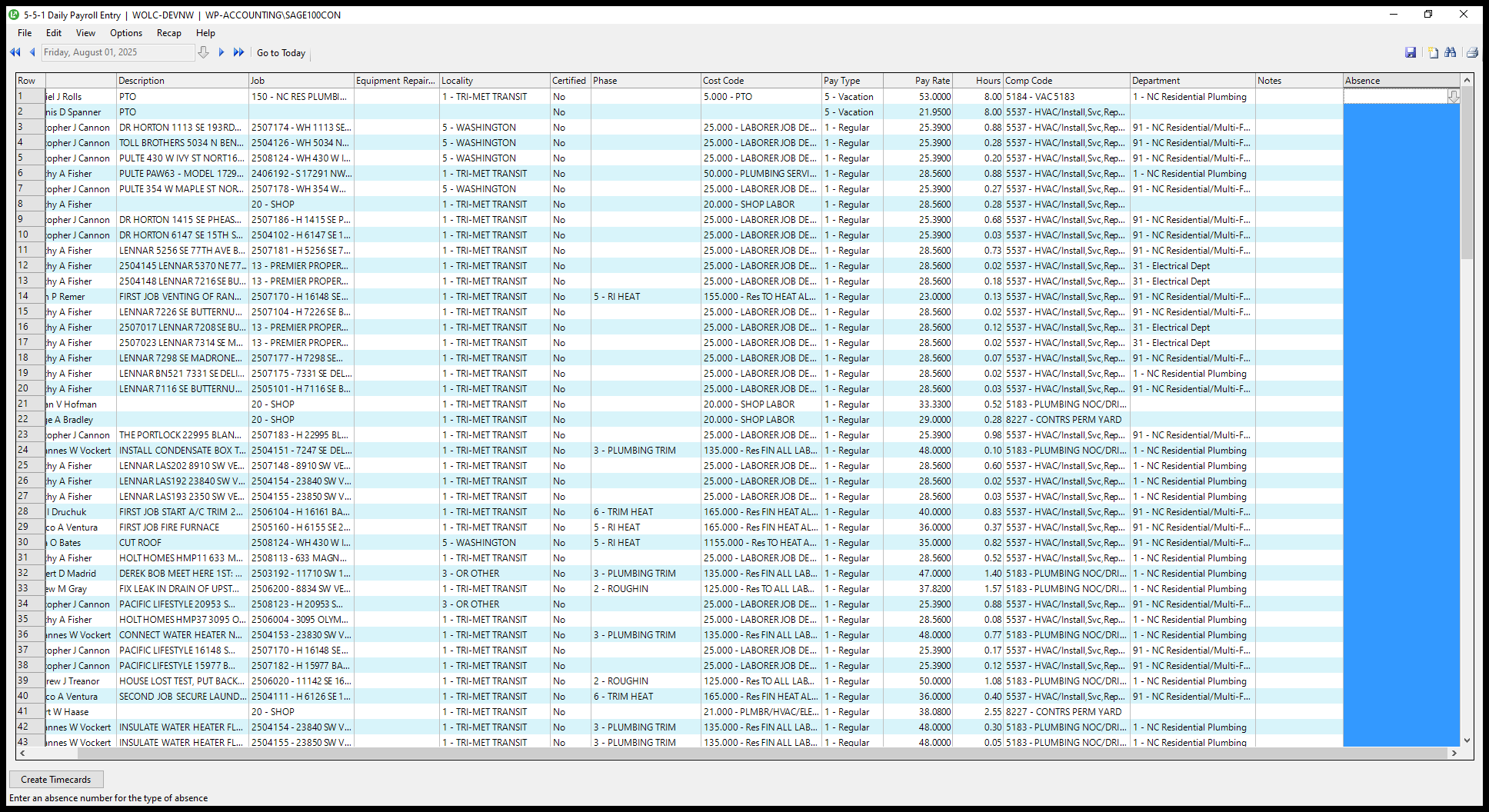
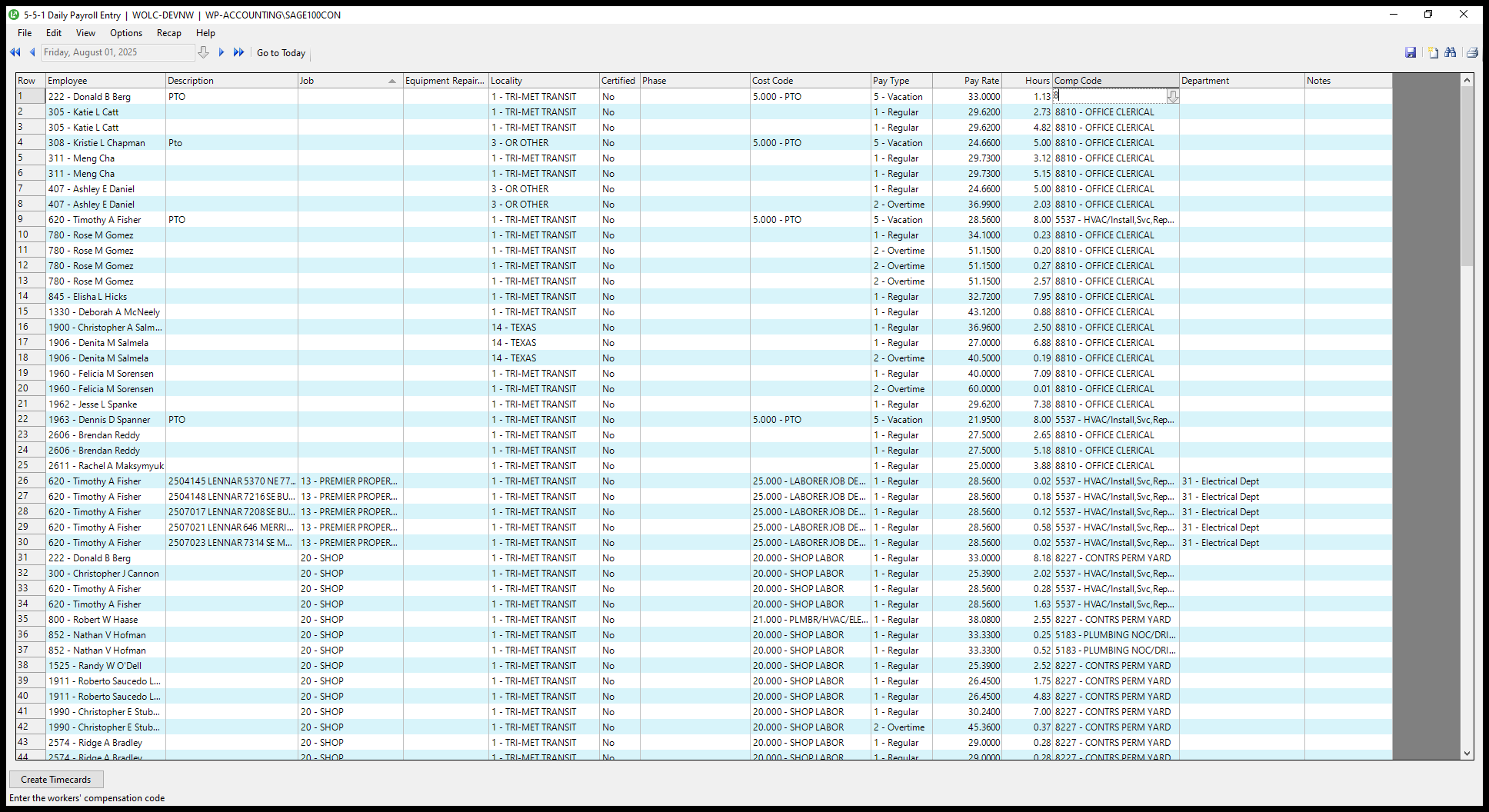
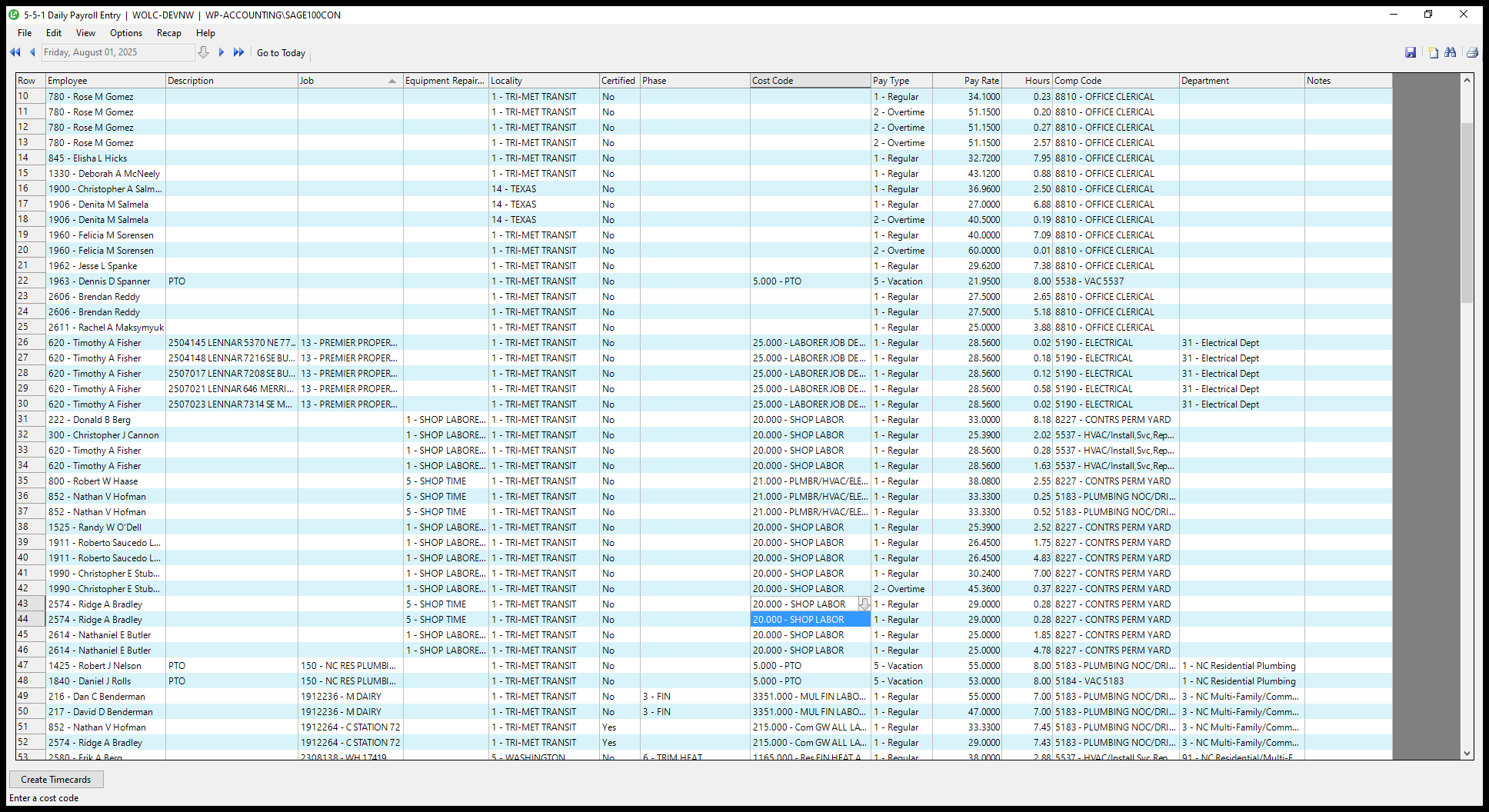
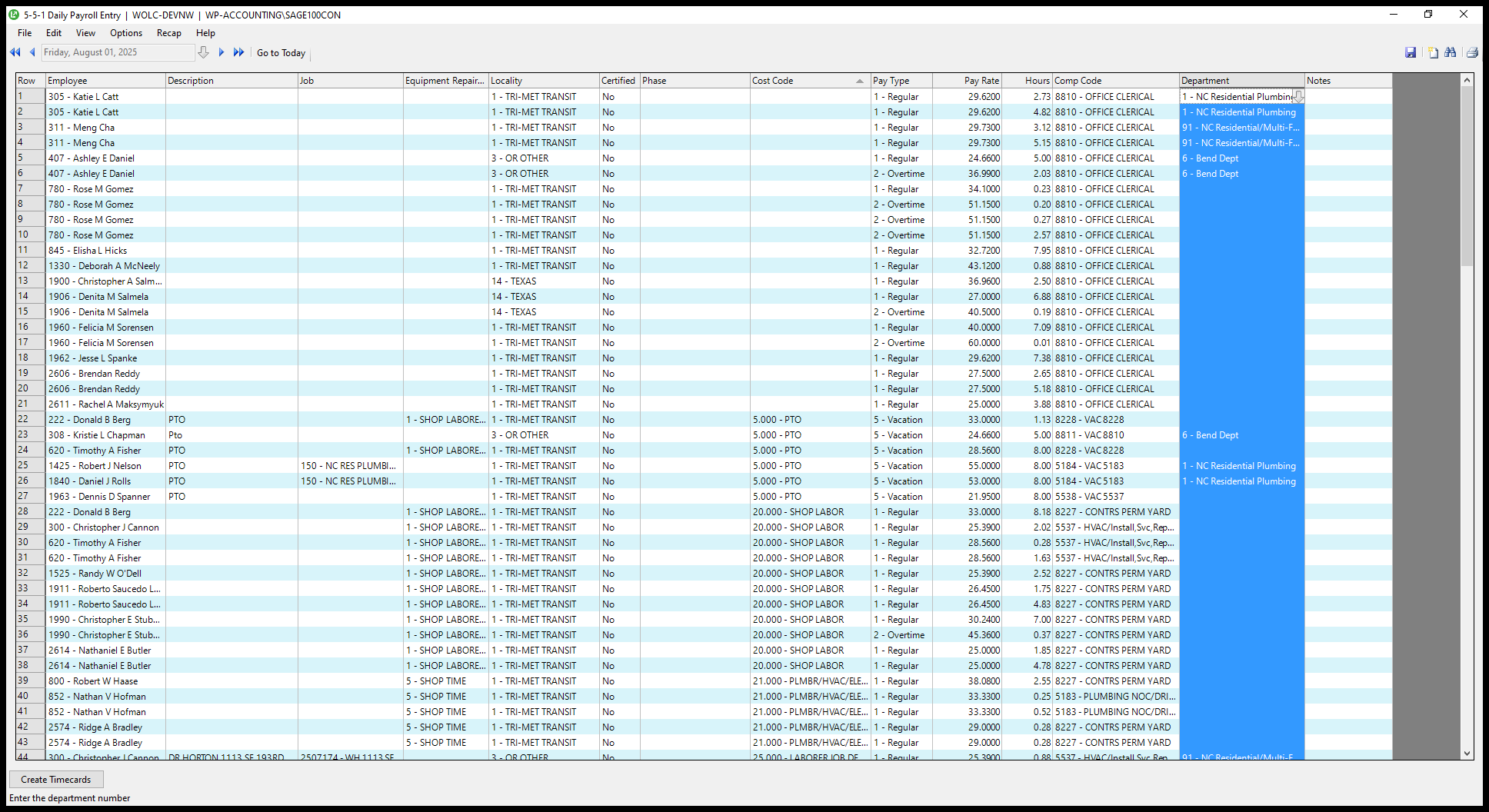
Hello. This is the daily payroll entry screen in Sage. I go through this daily at the... Either at lunchtime the day before, or at the end of the day. This is done so that when you enter payroll into Sage, it serves as your final check since you have already reviewed everything.
1
Drag "Job"
Step #1: Drag "Job"
2
Drag here
Step #2: Drag here

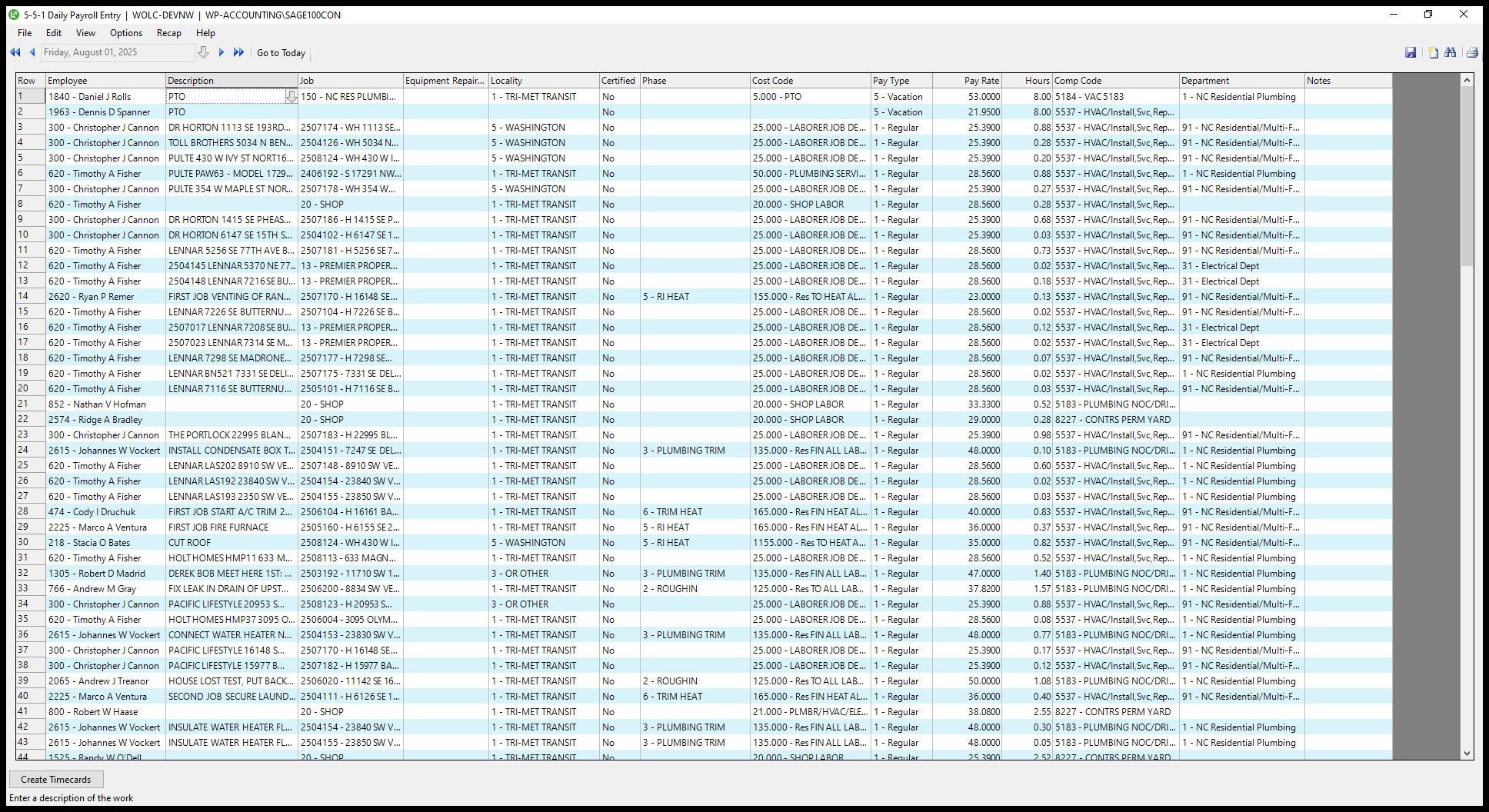
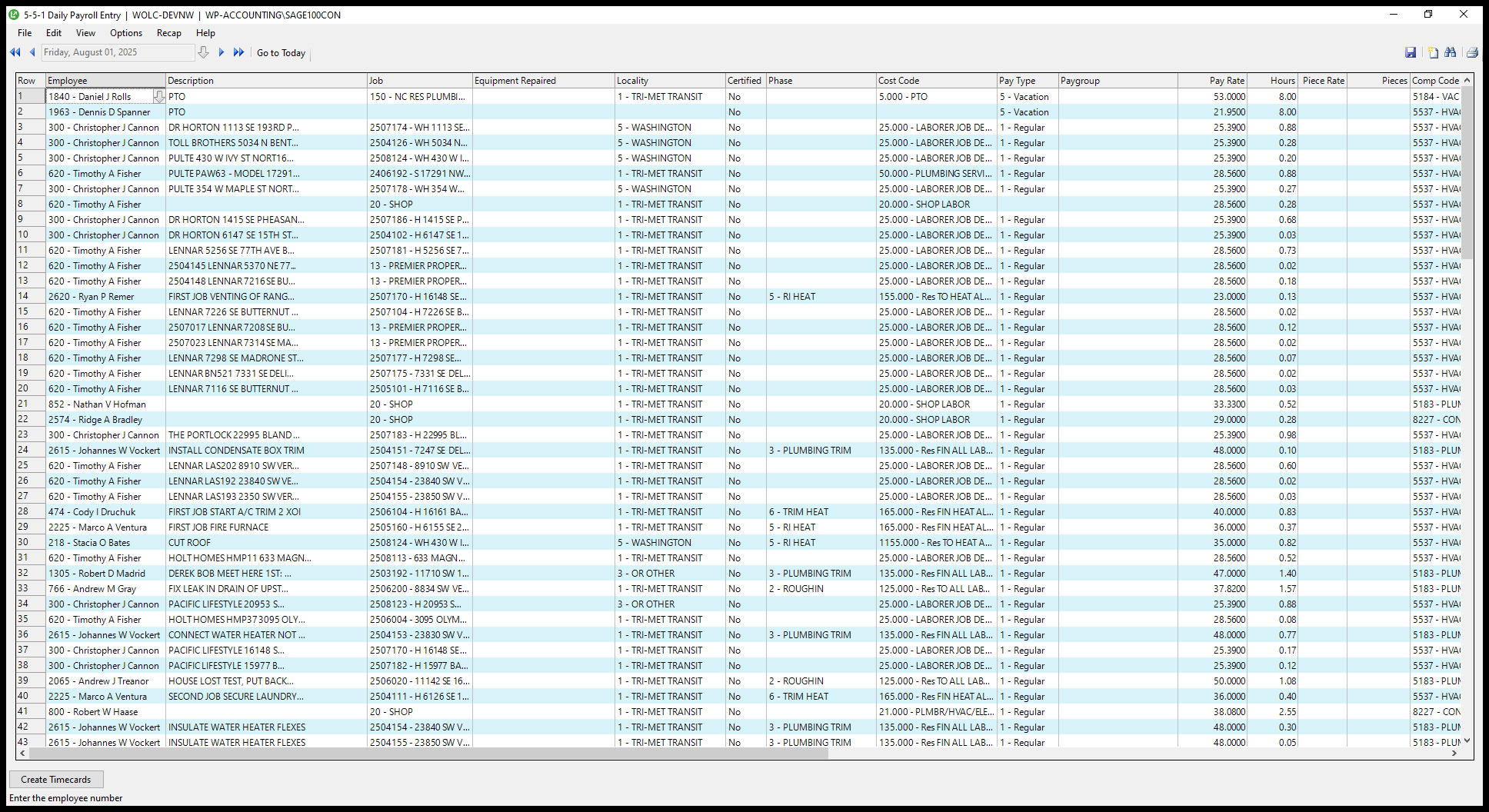
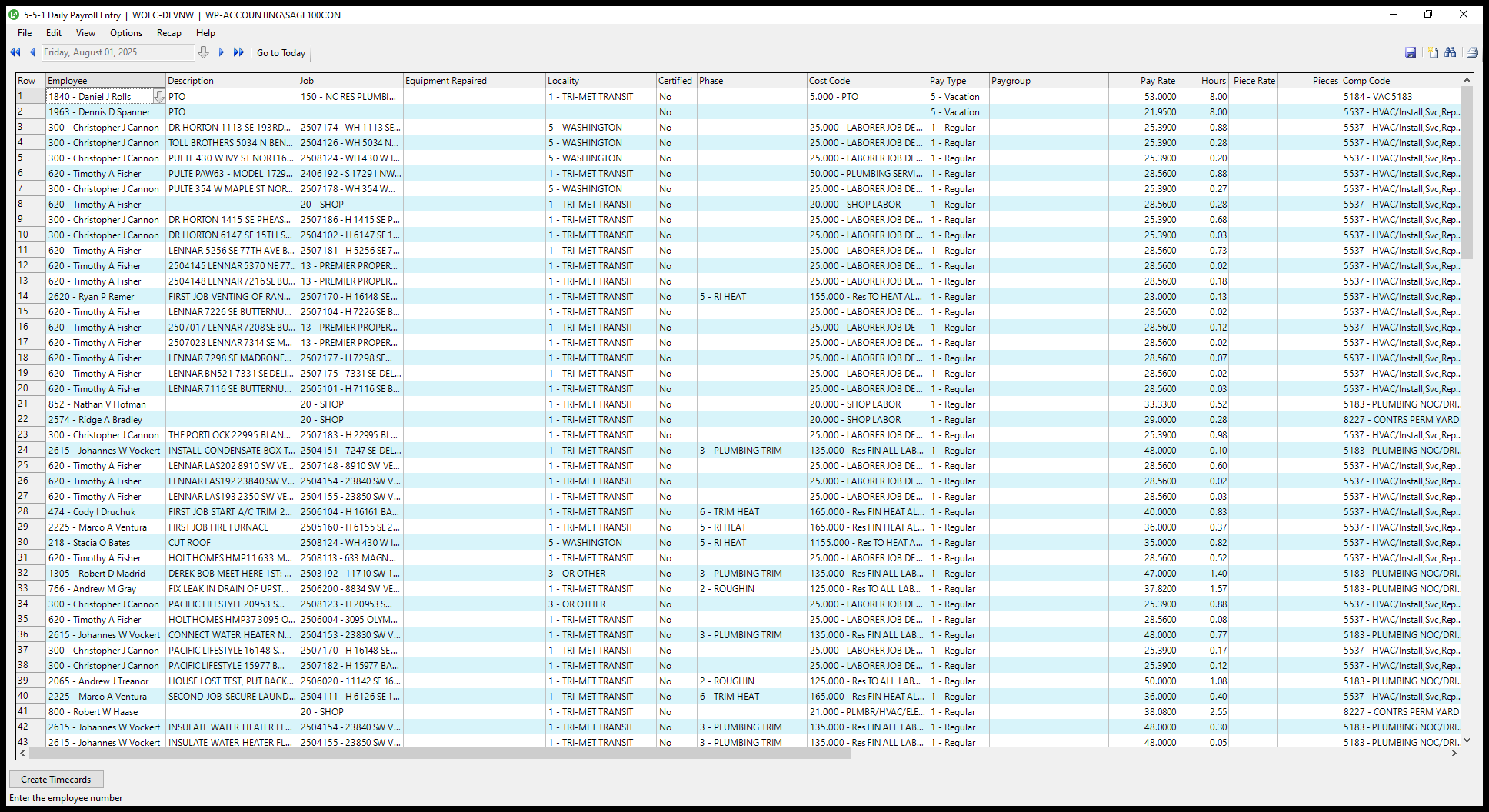
I condense and squeeze some columns so they display better.
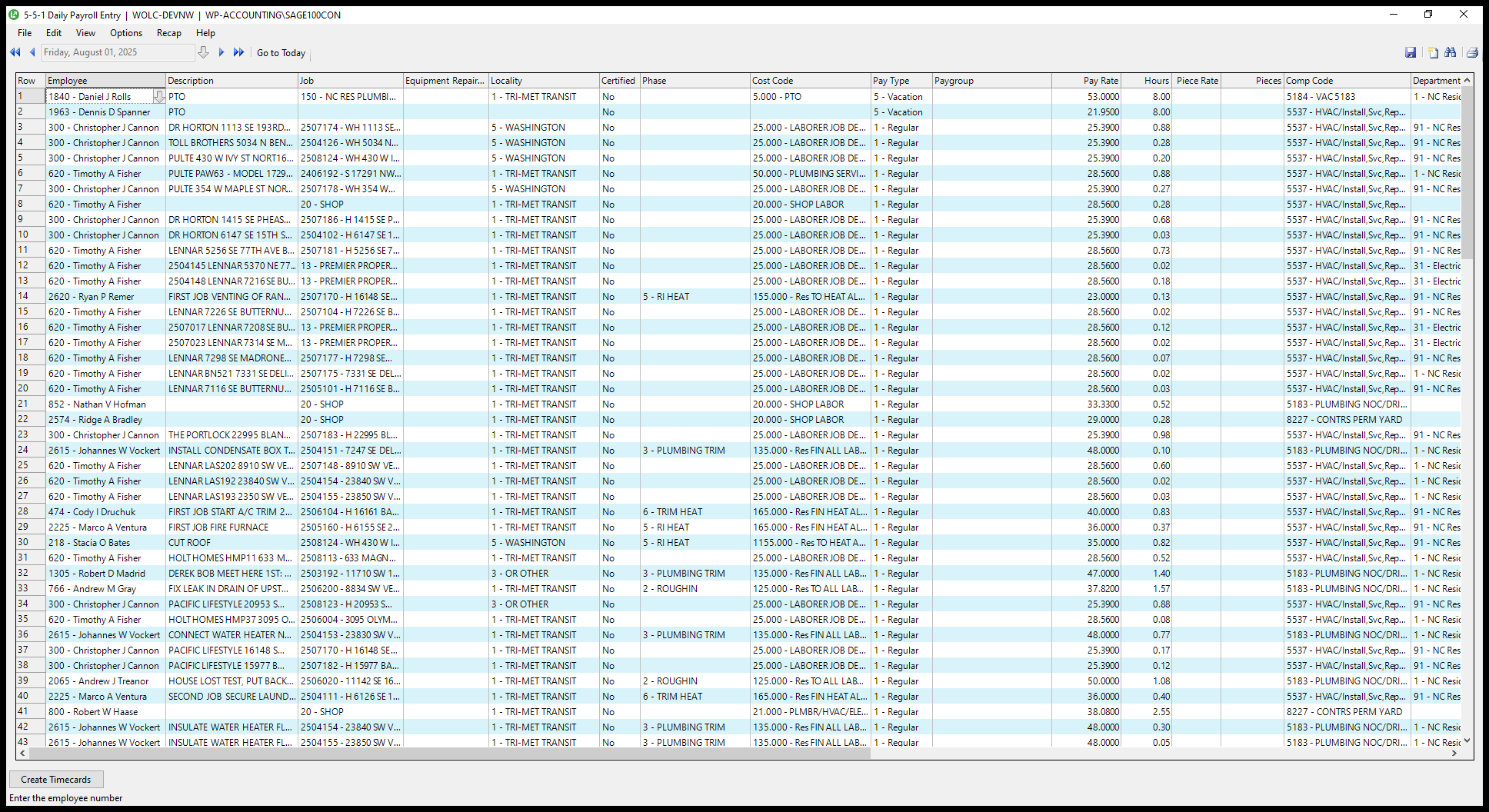
3
Click on "Paygroup"
Step #3: Click on "Paygroup"

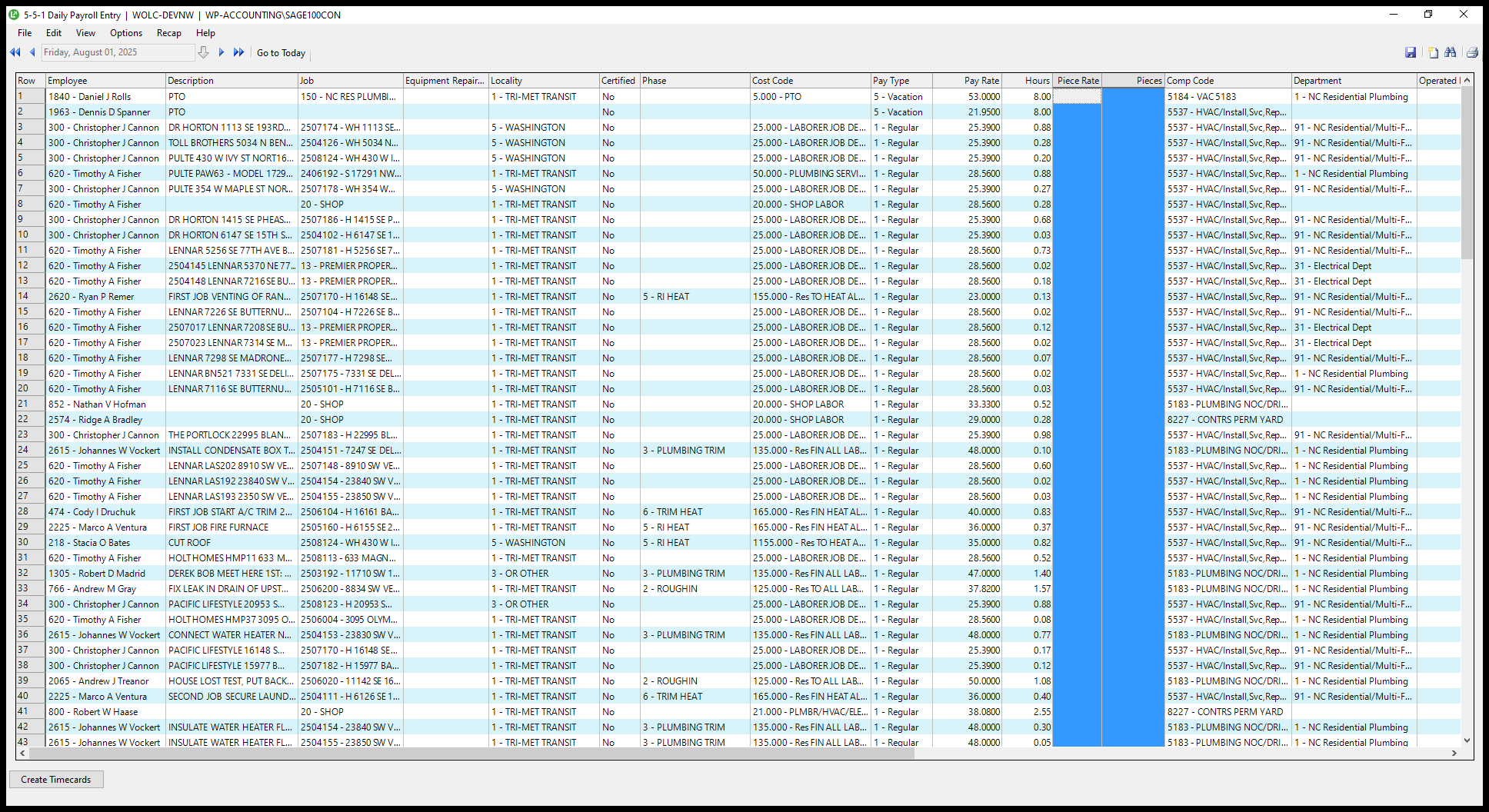
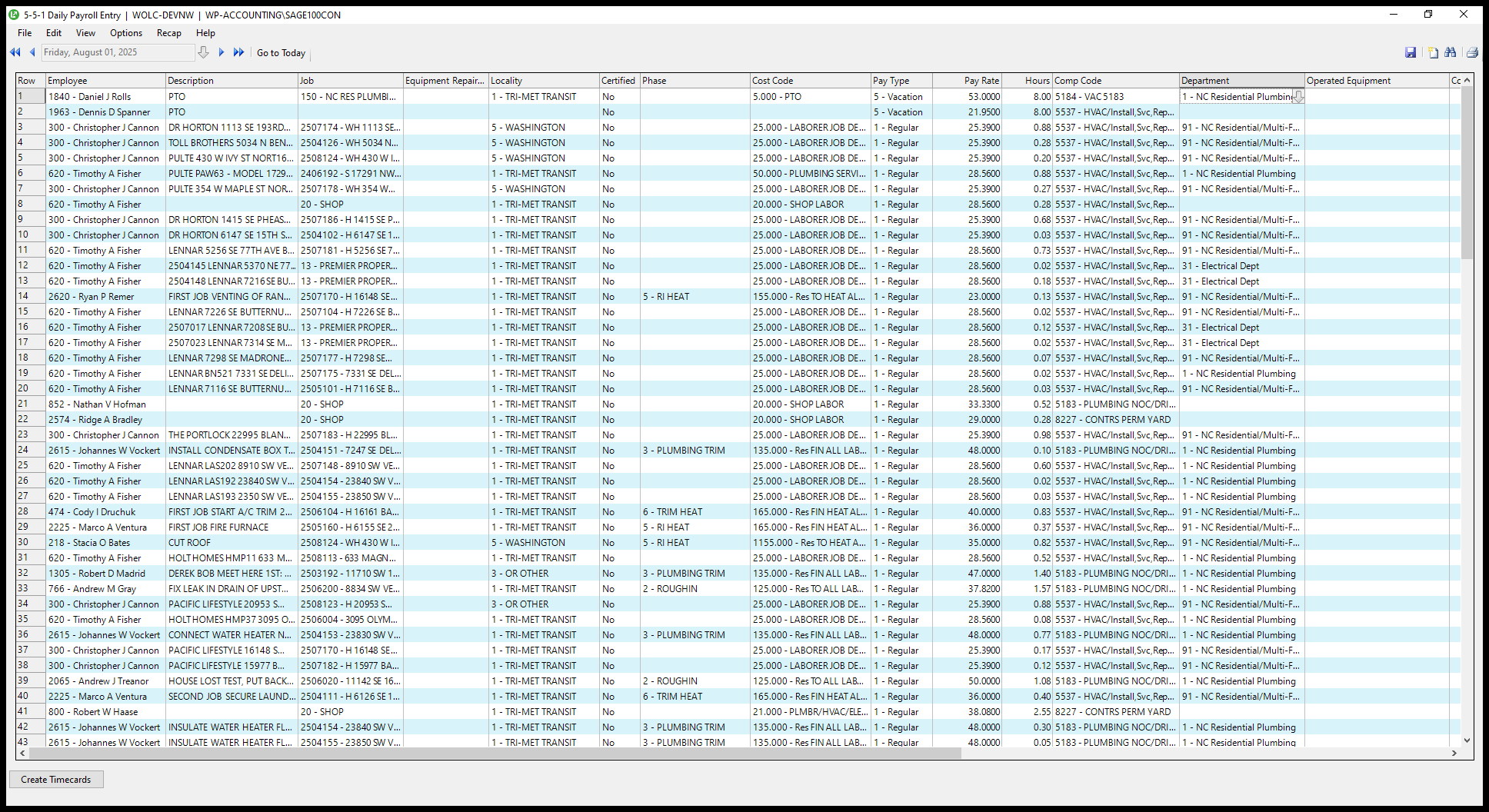
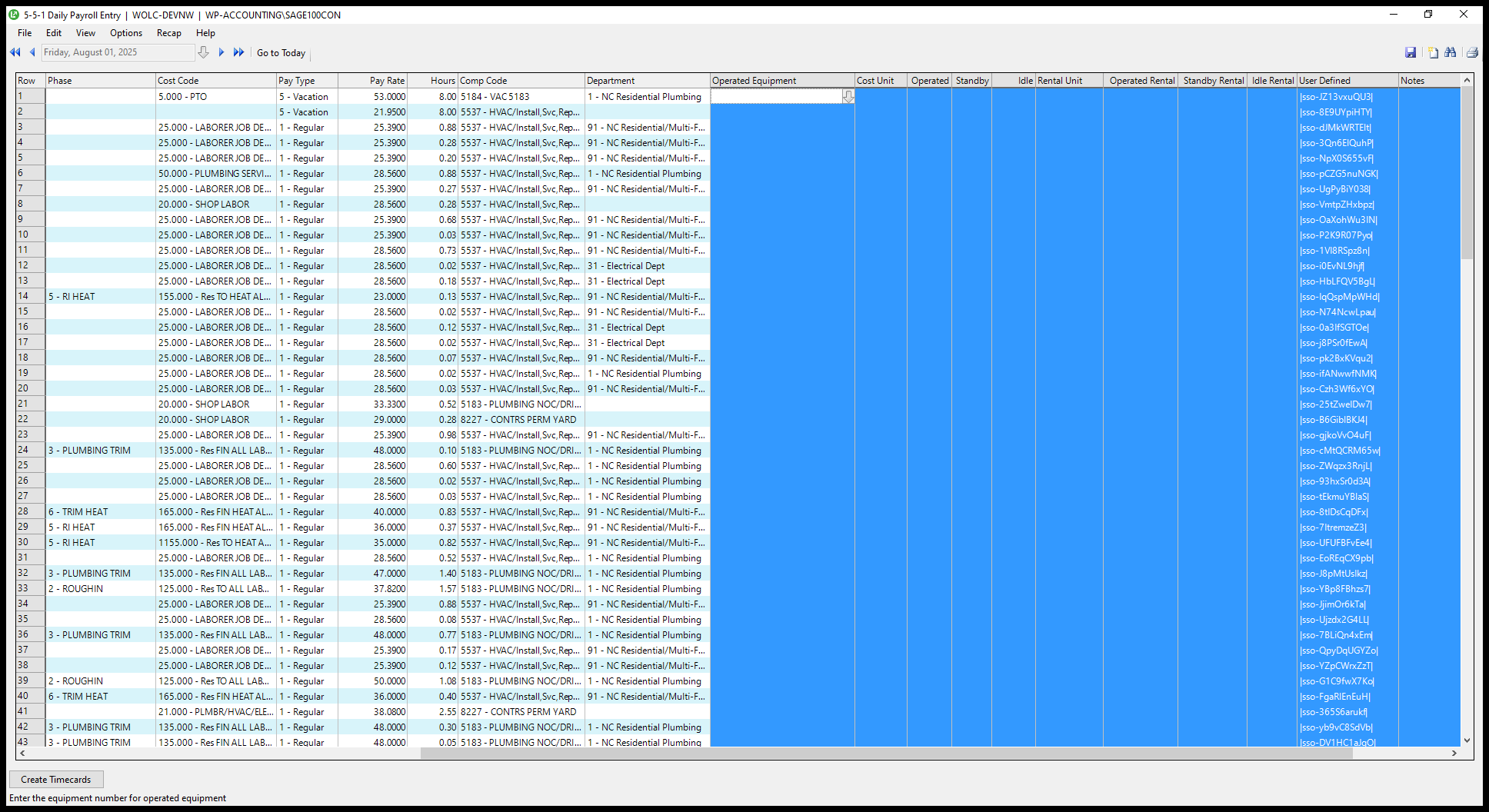
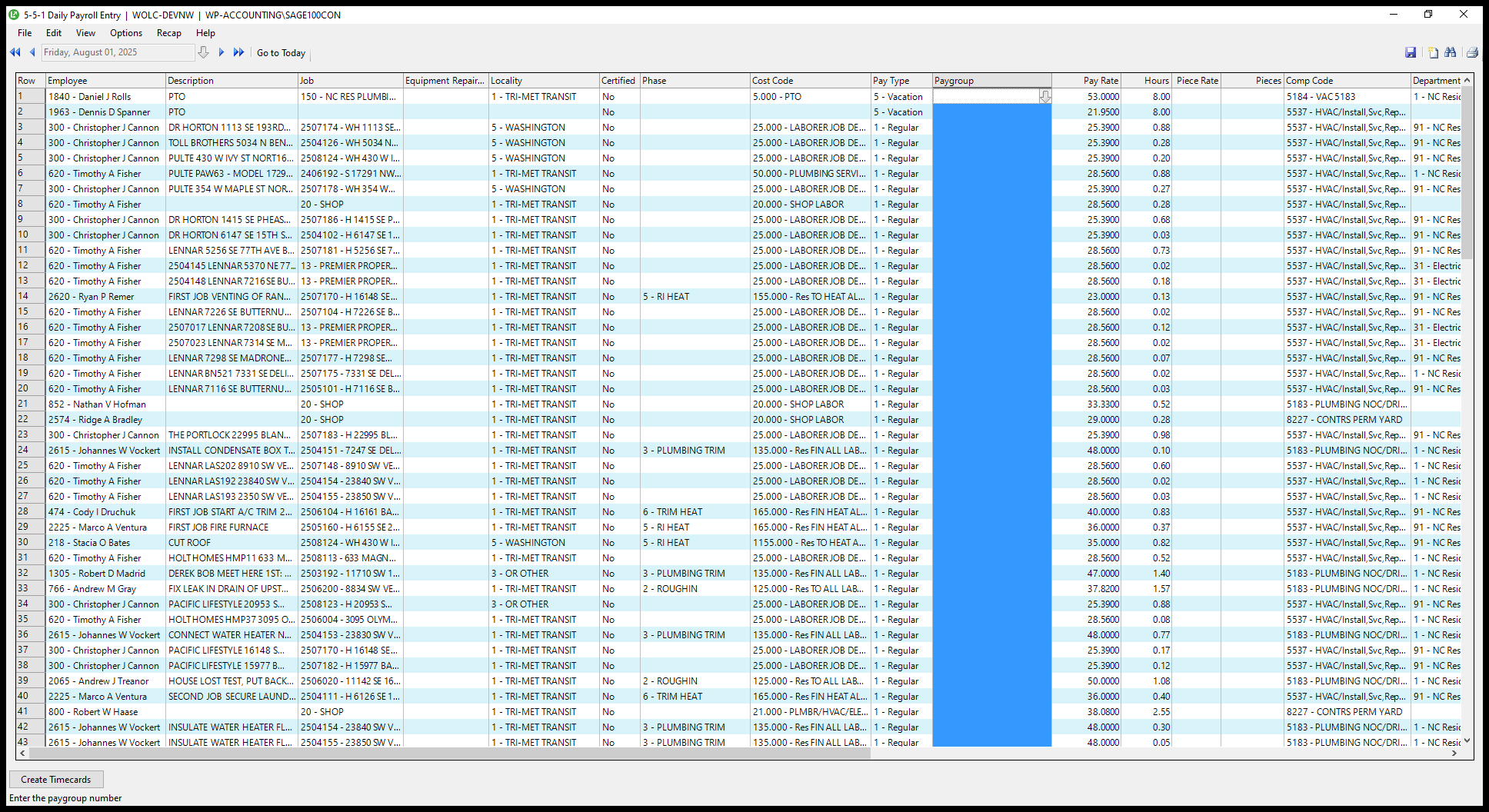
I remove pay group, piece rate, pieces, everything between department and notes, and absence.
4
Right-click here
Step #4: Right-click here
5
Click here
Step #5: Click here
6
Drag here
Step #6: Drag here
7
Double-click here
Step #7: Double-click here
8
Drag here
Step #8: Drag here
9
Double-click here
Step #9: Double-click here

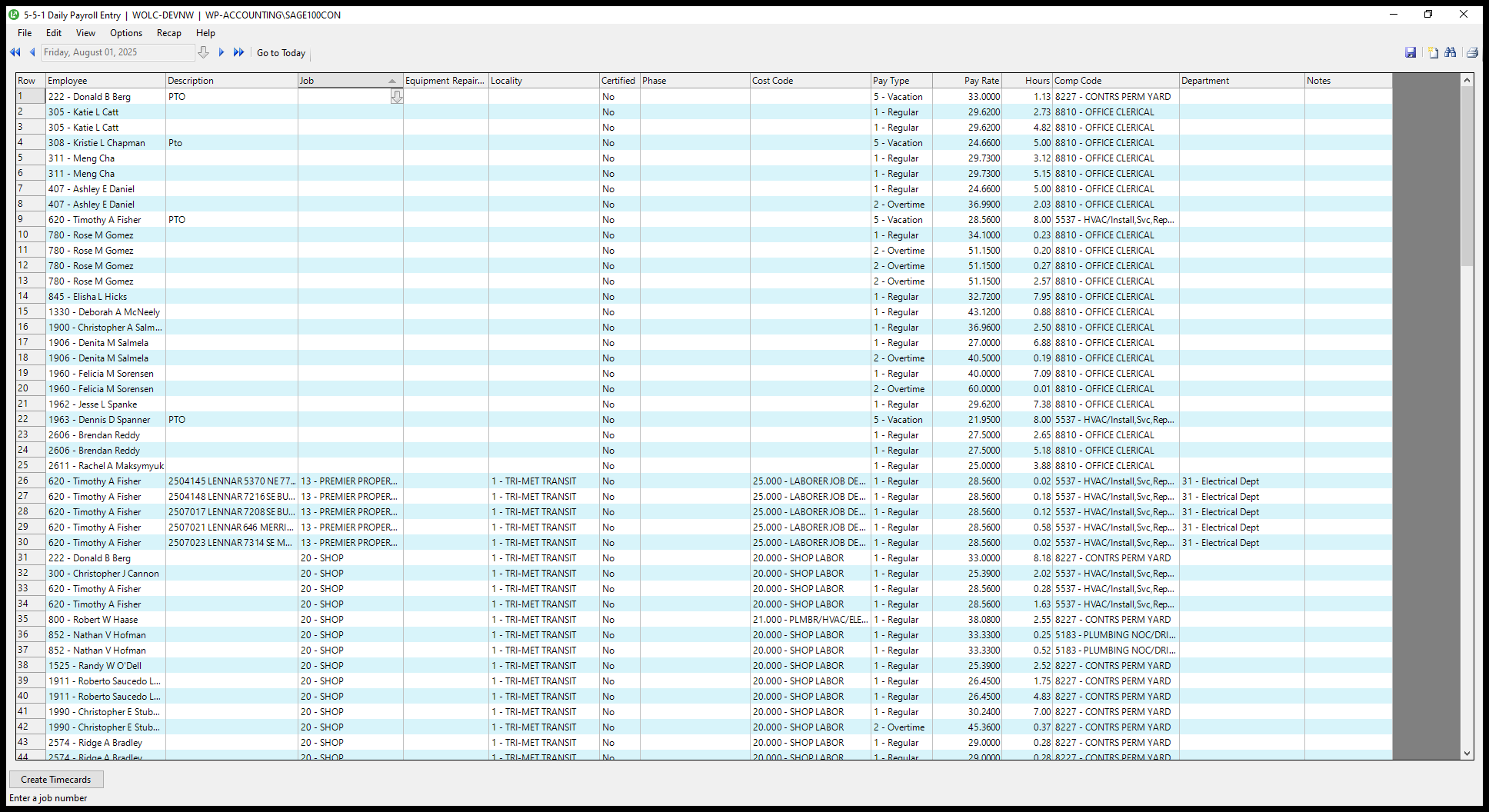
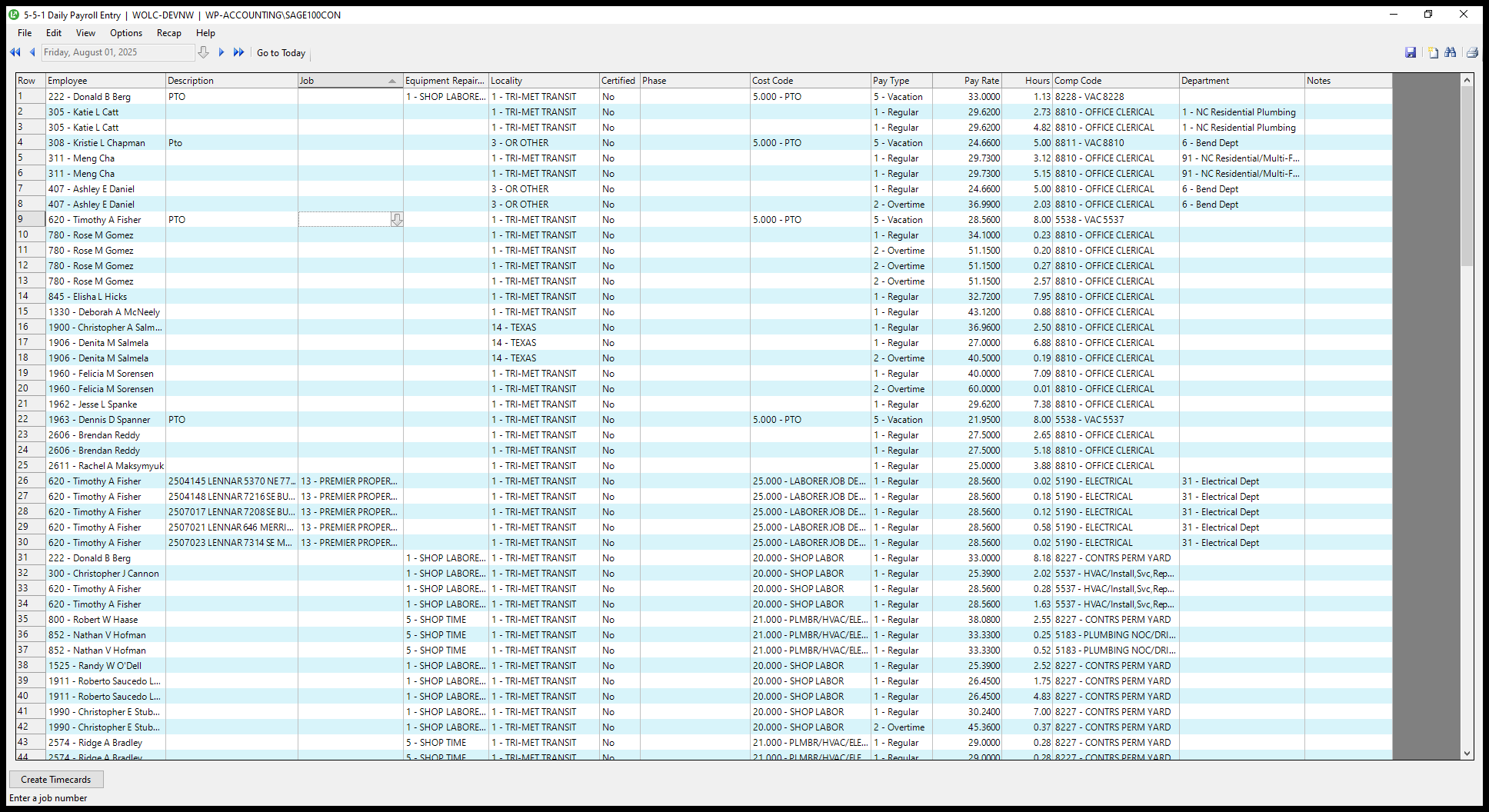
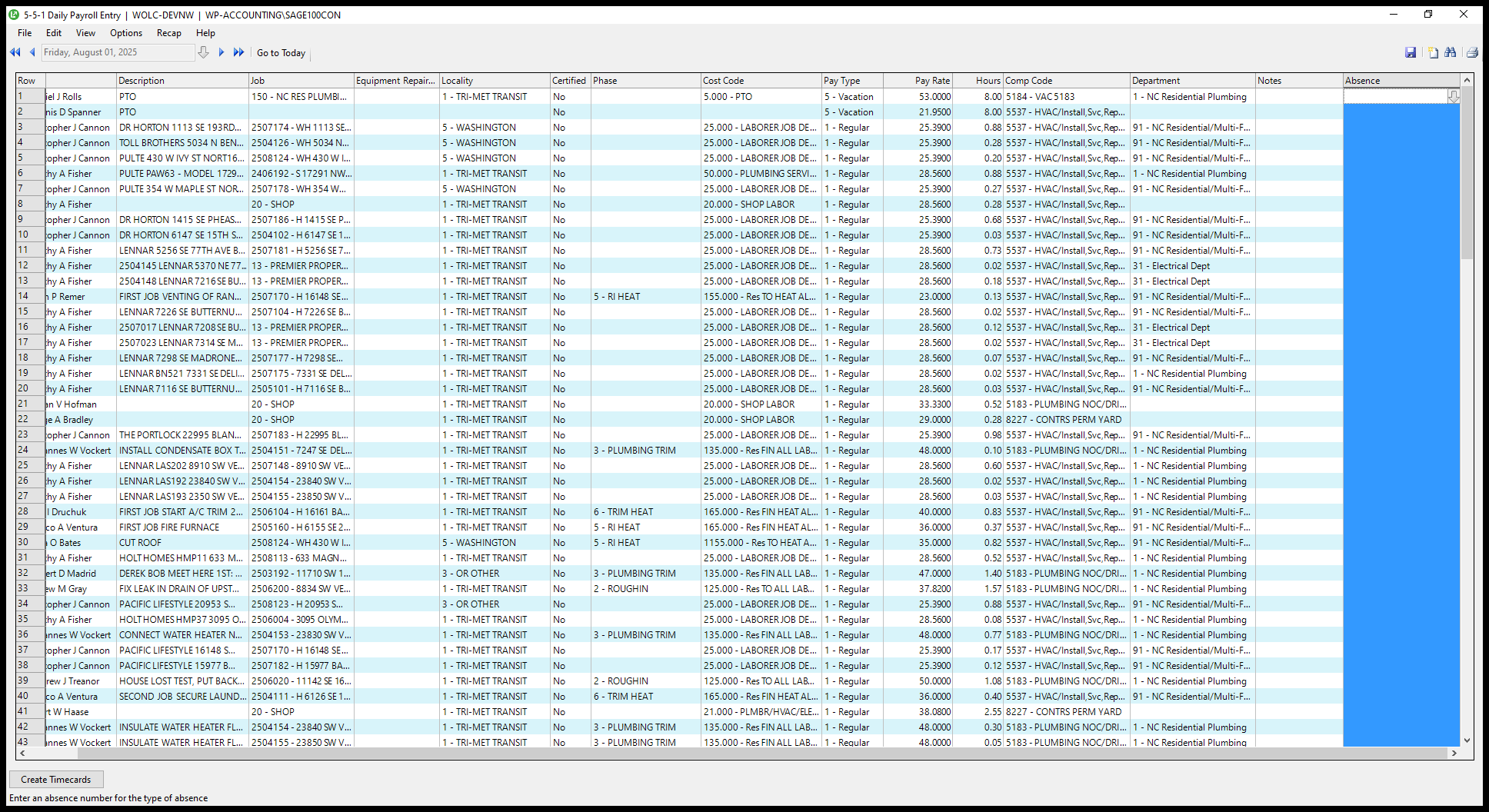
I go through some of the columns. The first one is "job," which sorts the data.
10
Right-click here
Step #10: Right-click here
11
Click here
Step #11: Click here
12
Double-click on "Job"
Step #12: Double-click on "Job"

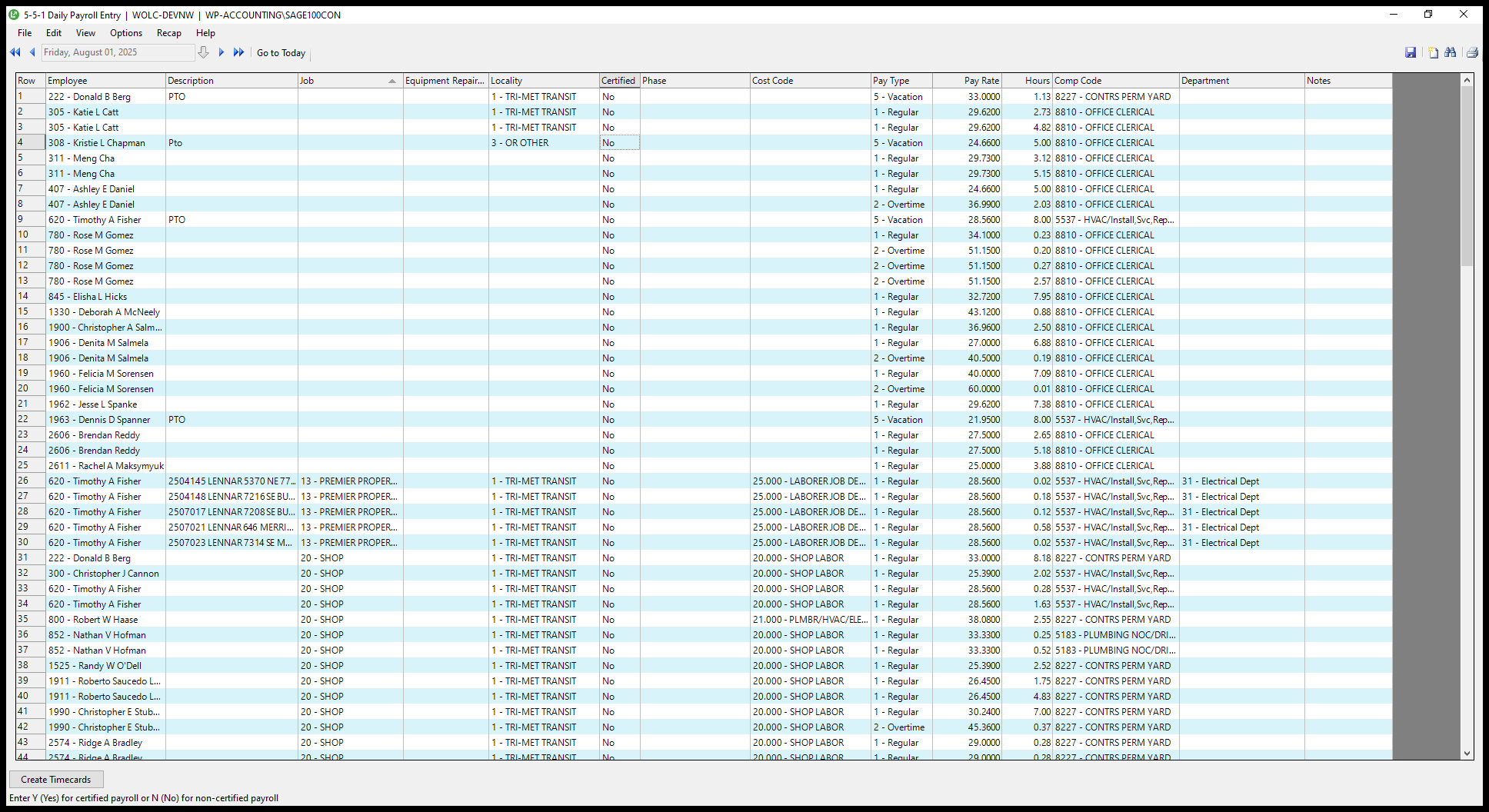
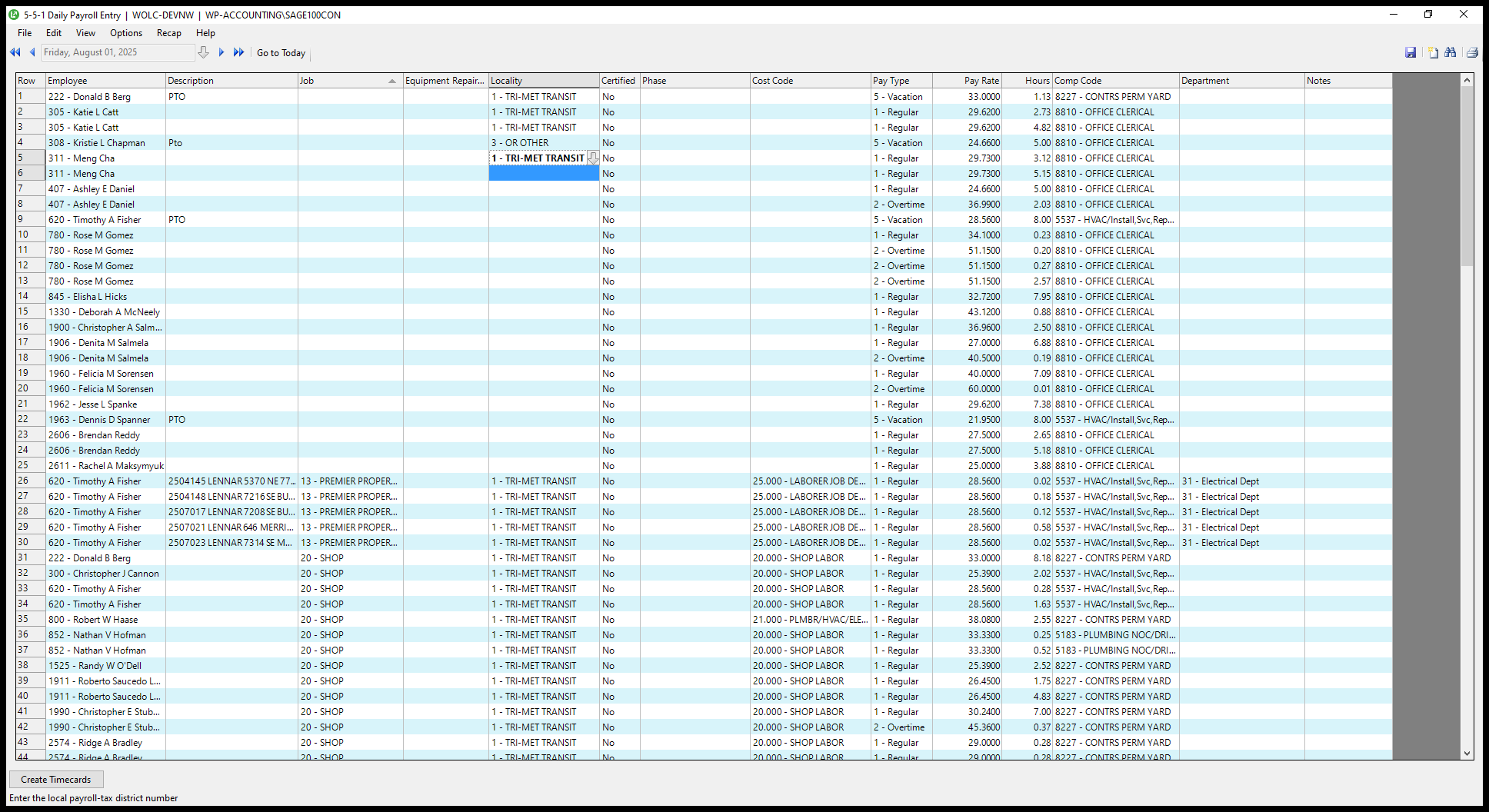
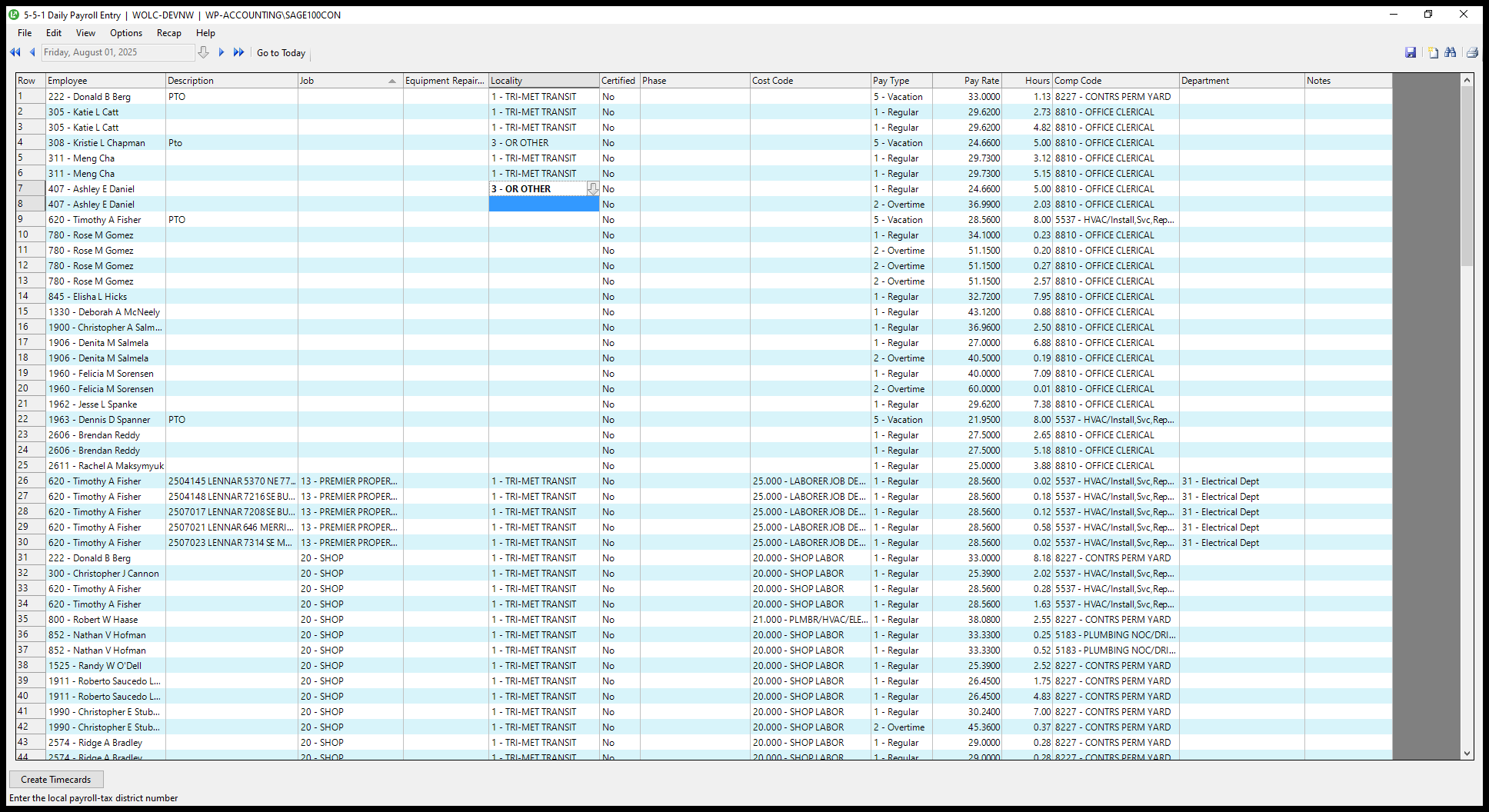
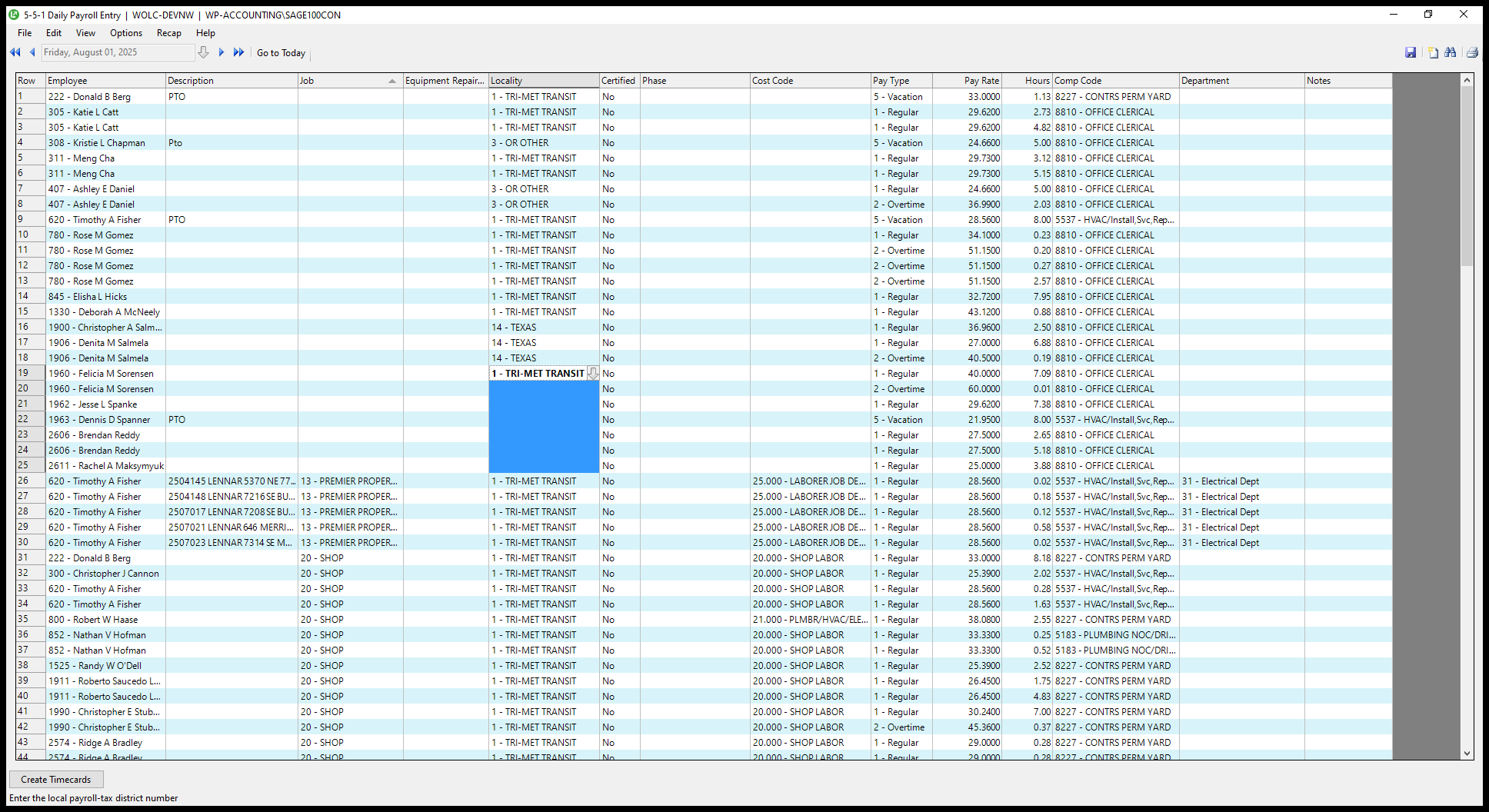
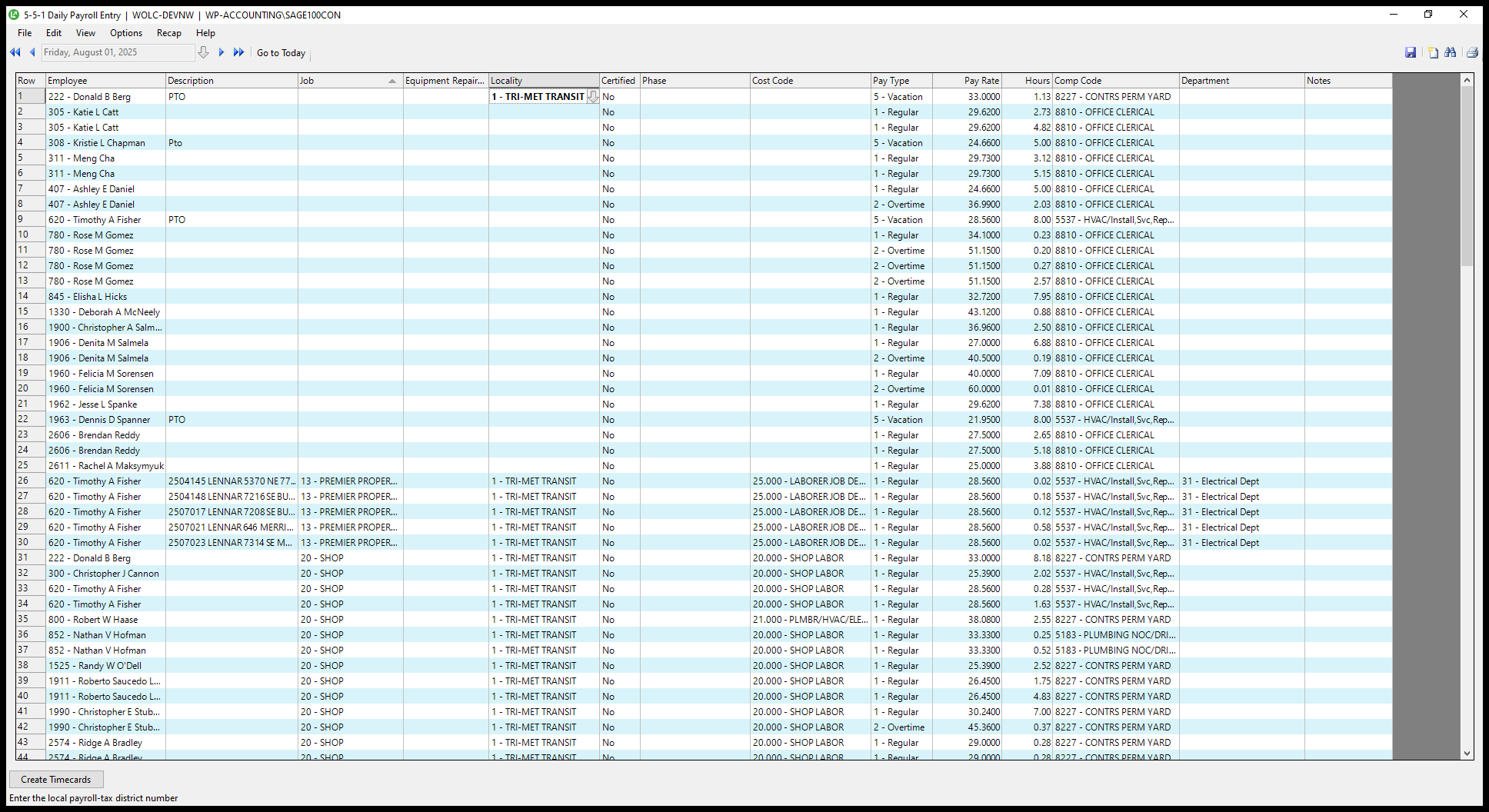
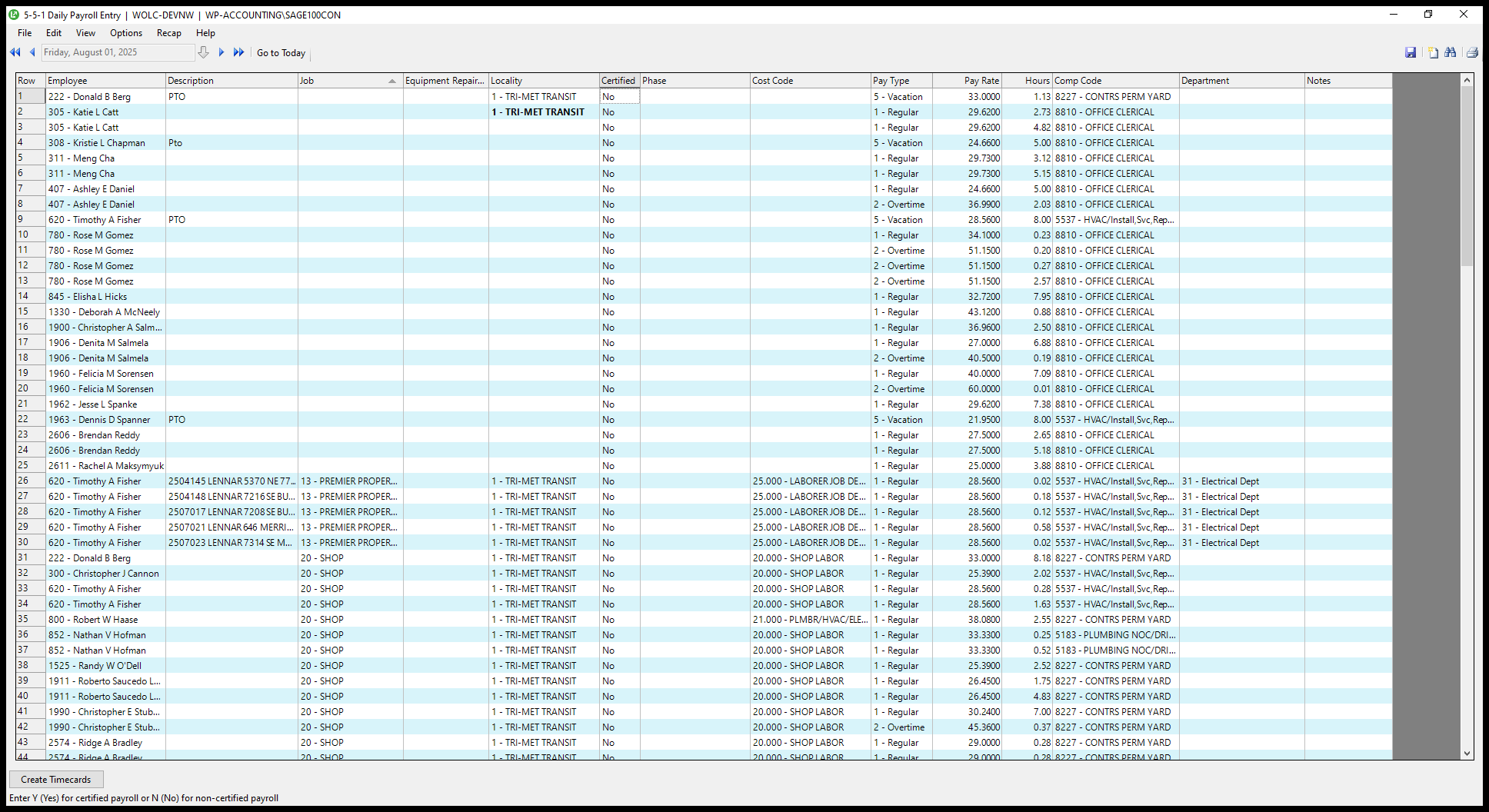
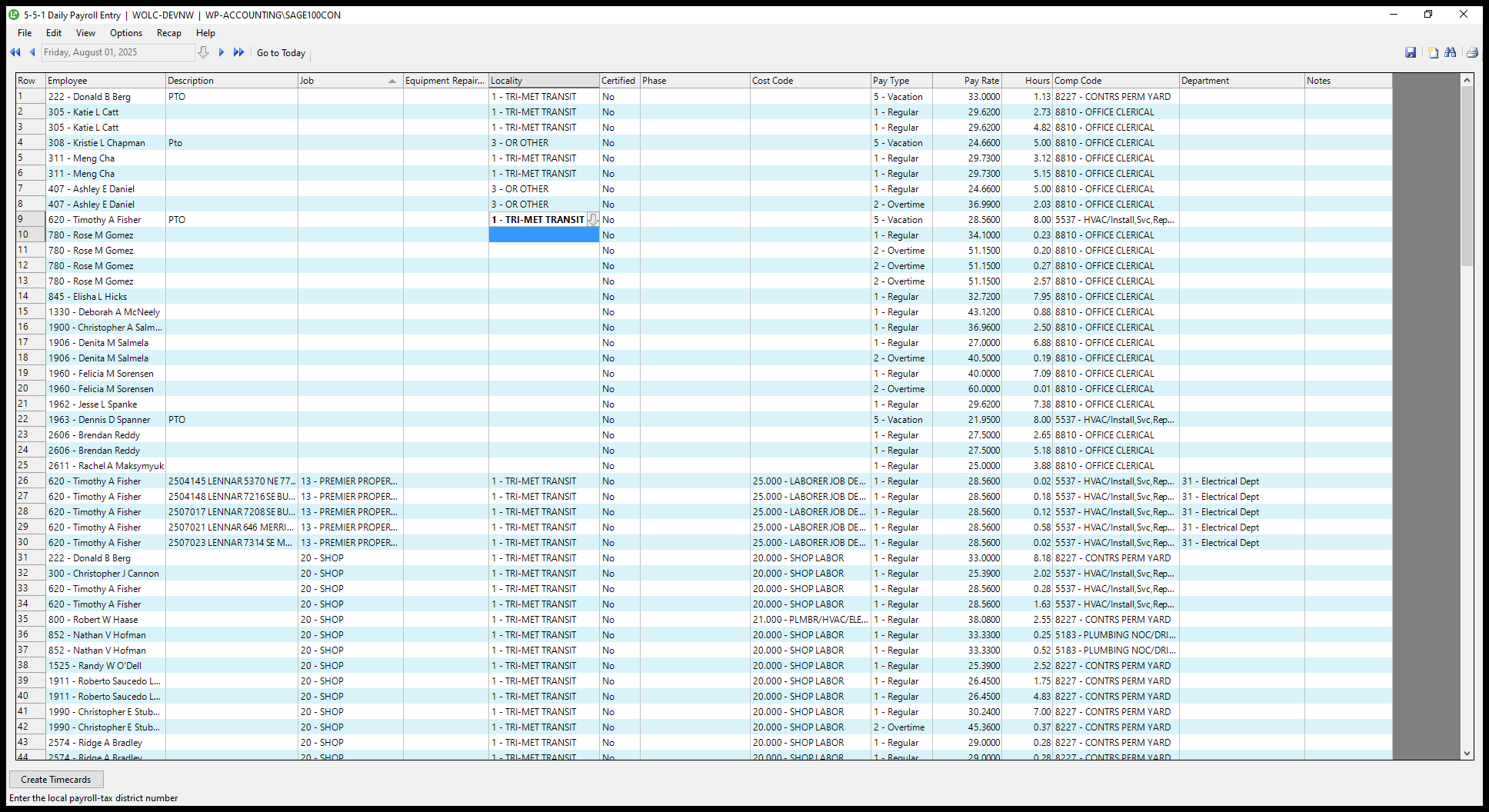
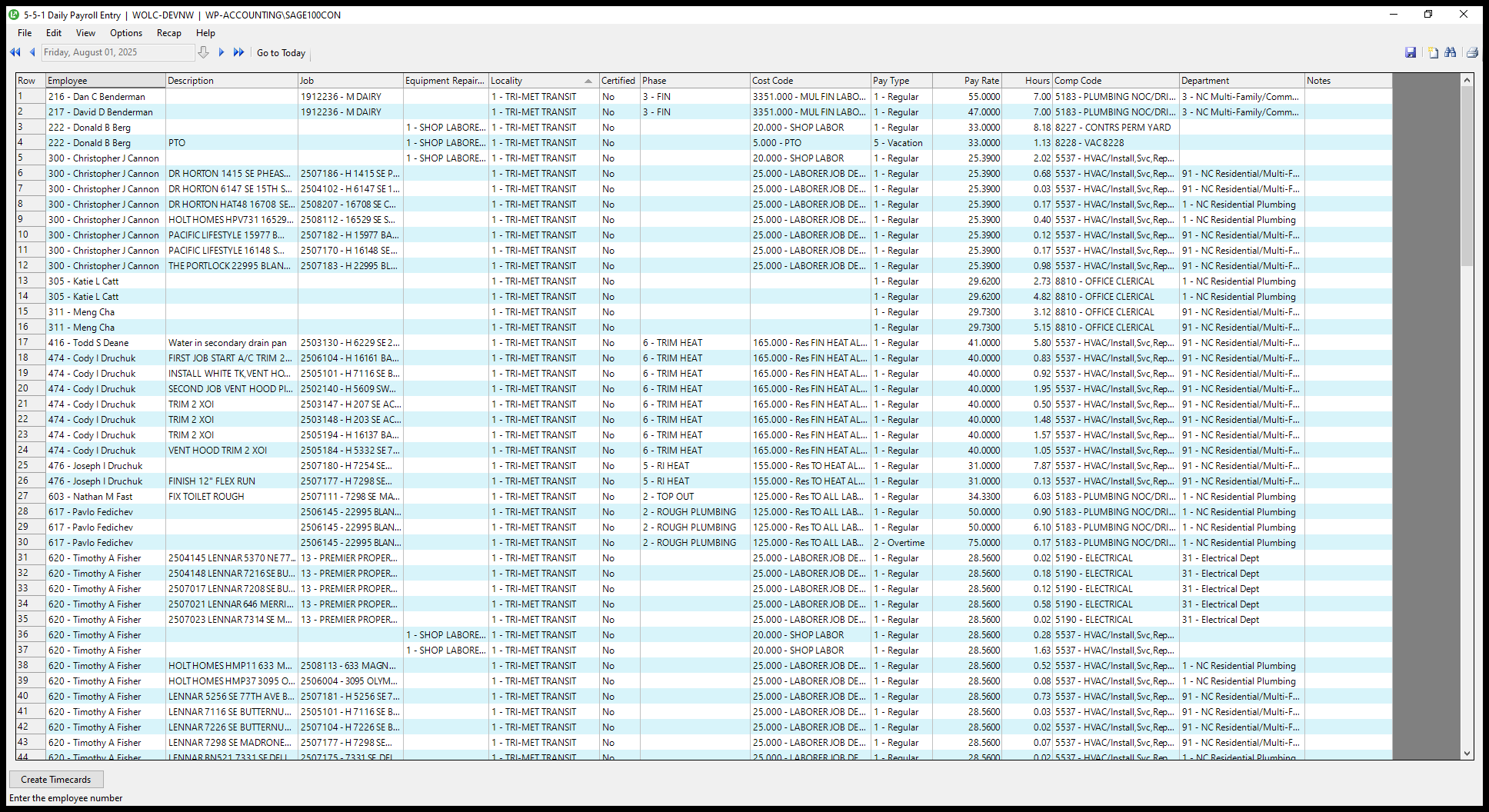
This includes both shop staff and office staff. I fill in the locality. I just need to watch for a few people from Bend and a few from Texas.
13
Click on "1 - TRI - MET TRANSIT"
Step #13: Click on "1 - TRI - MET TRANSIT"
14
Click on "1 - TRI - MET TRANSIT"
Step #14: Click on "1 - TRI - MET TRANSIT"
15
Click here
Step #15: Click here
16
Click here
Step #16: Click here
17
Click on "3 - OR OTHER"
Step #17: Click on "3 - OR OTHER"

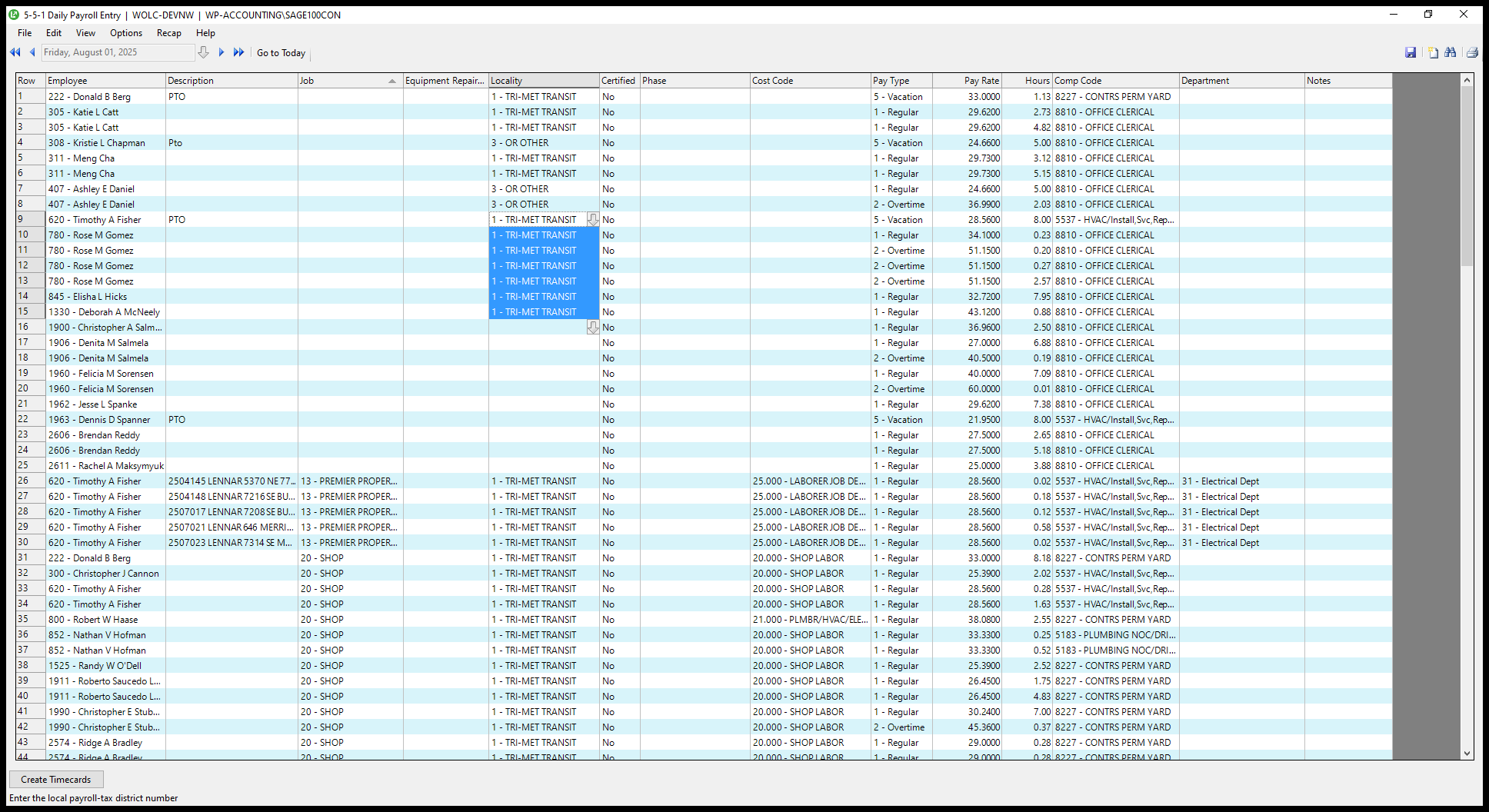
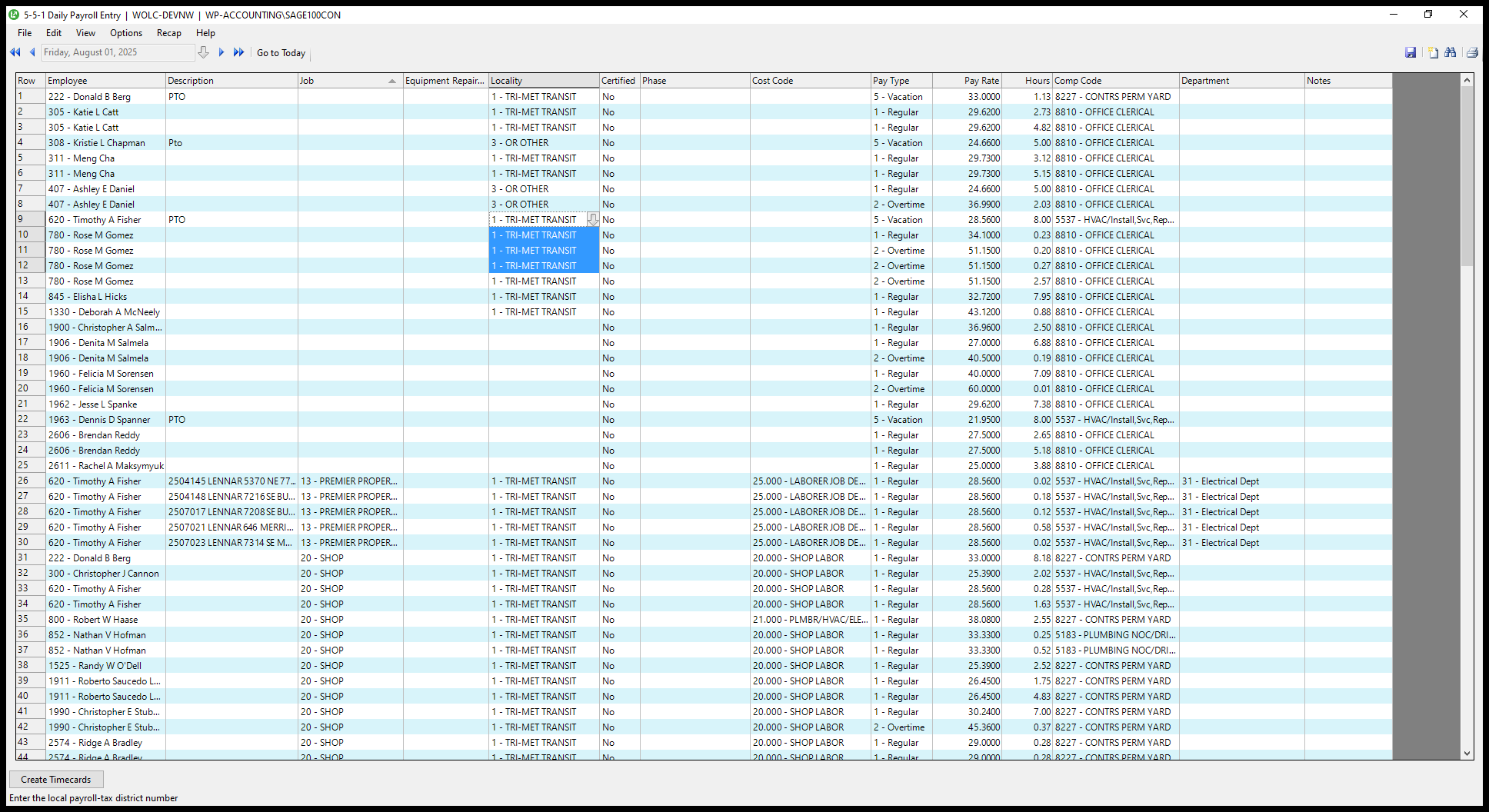
If you move your cursor down, it also highlights this area, allowing you to see the names you are selecting.
18
Drag here
Step #18: Drag here
19
Click on "1- TRI"
Step #19: Click on "1- TRI"

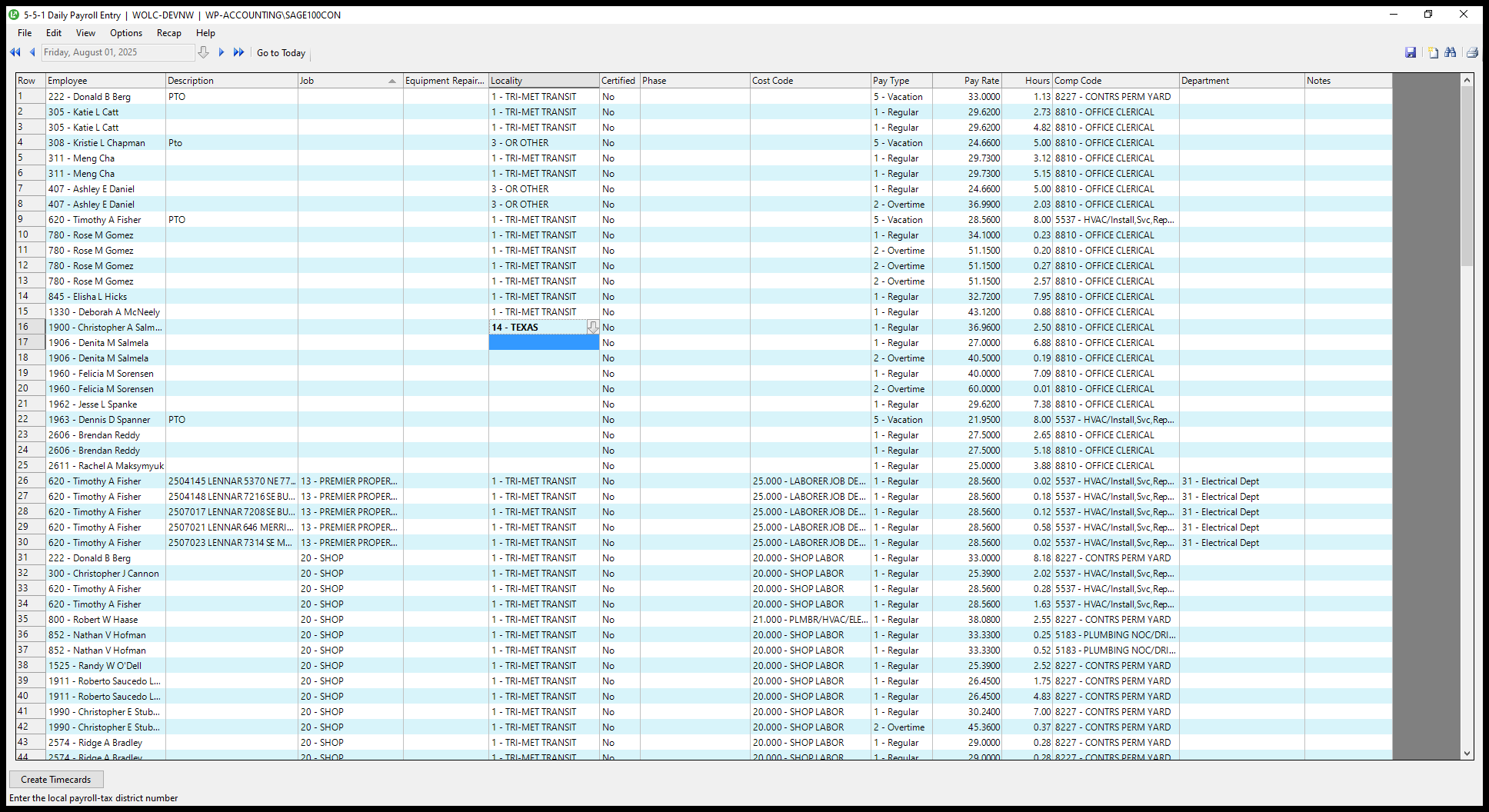
Texas and the others are local.

20
Click on "- TRI - MET TRANSIT"
Step #20: Click on "- TRI - MET TRANSIT"
21
Click on "14 - TEXAS"
Step #21: Click on "14 - TEXAS"
22
Click on "1 - TRI - MET TRANSIT"
Step #22: Click on "1 - TRI - MET TRANSIT"

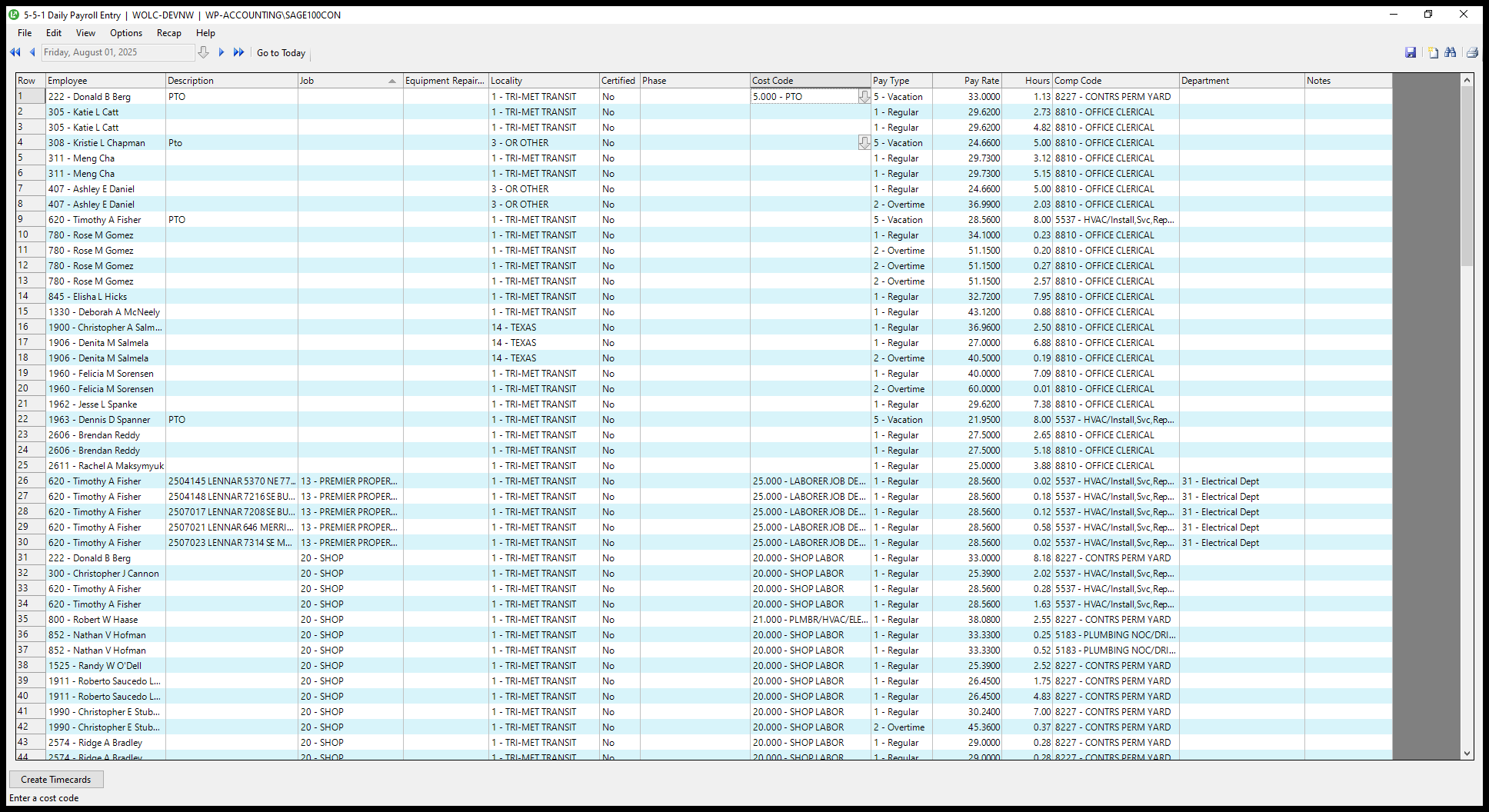
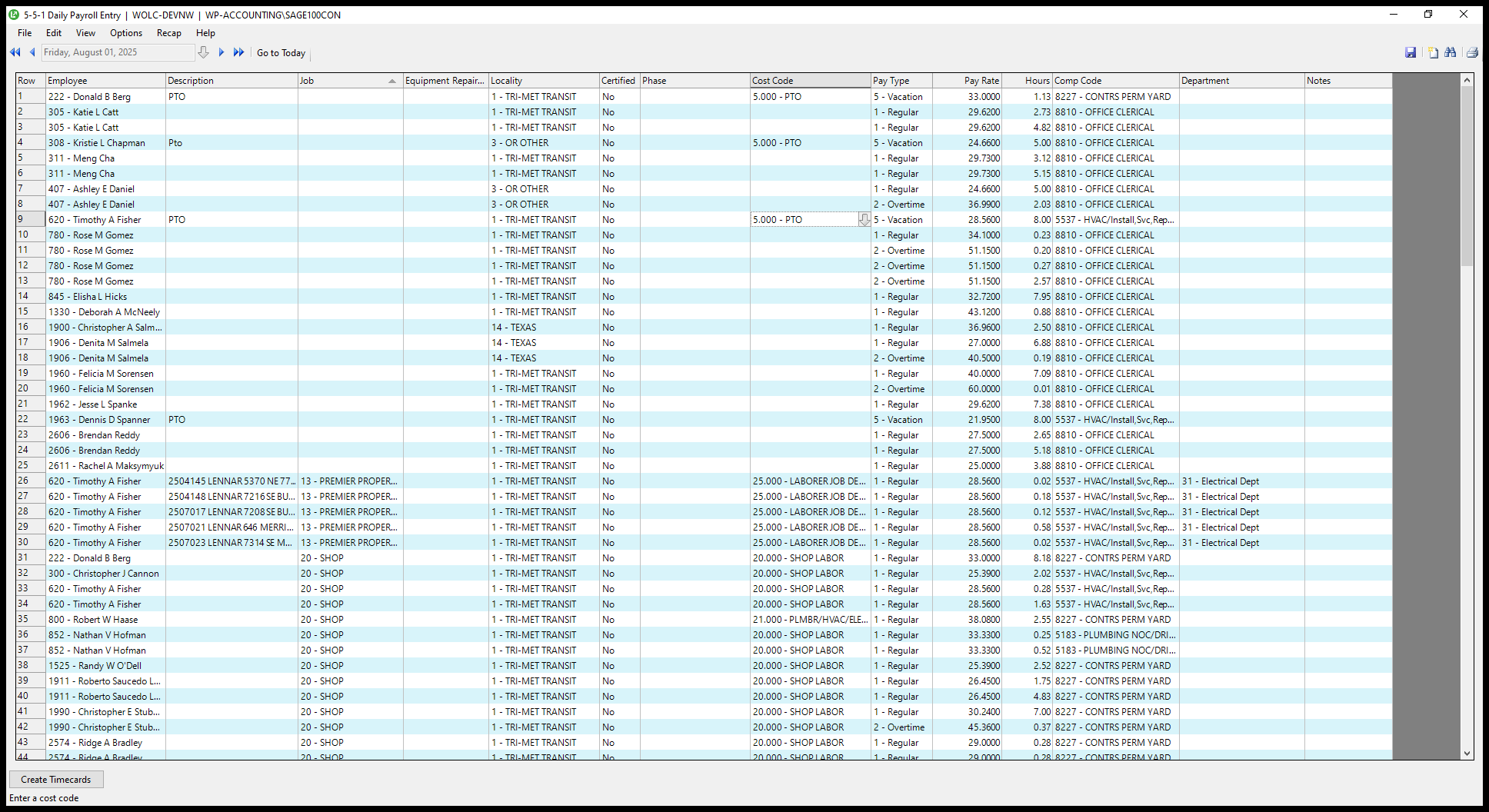
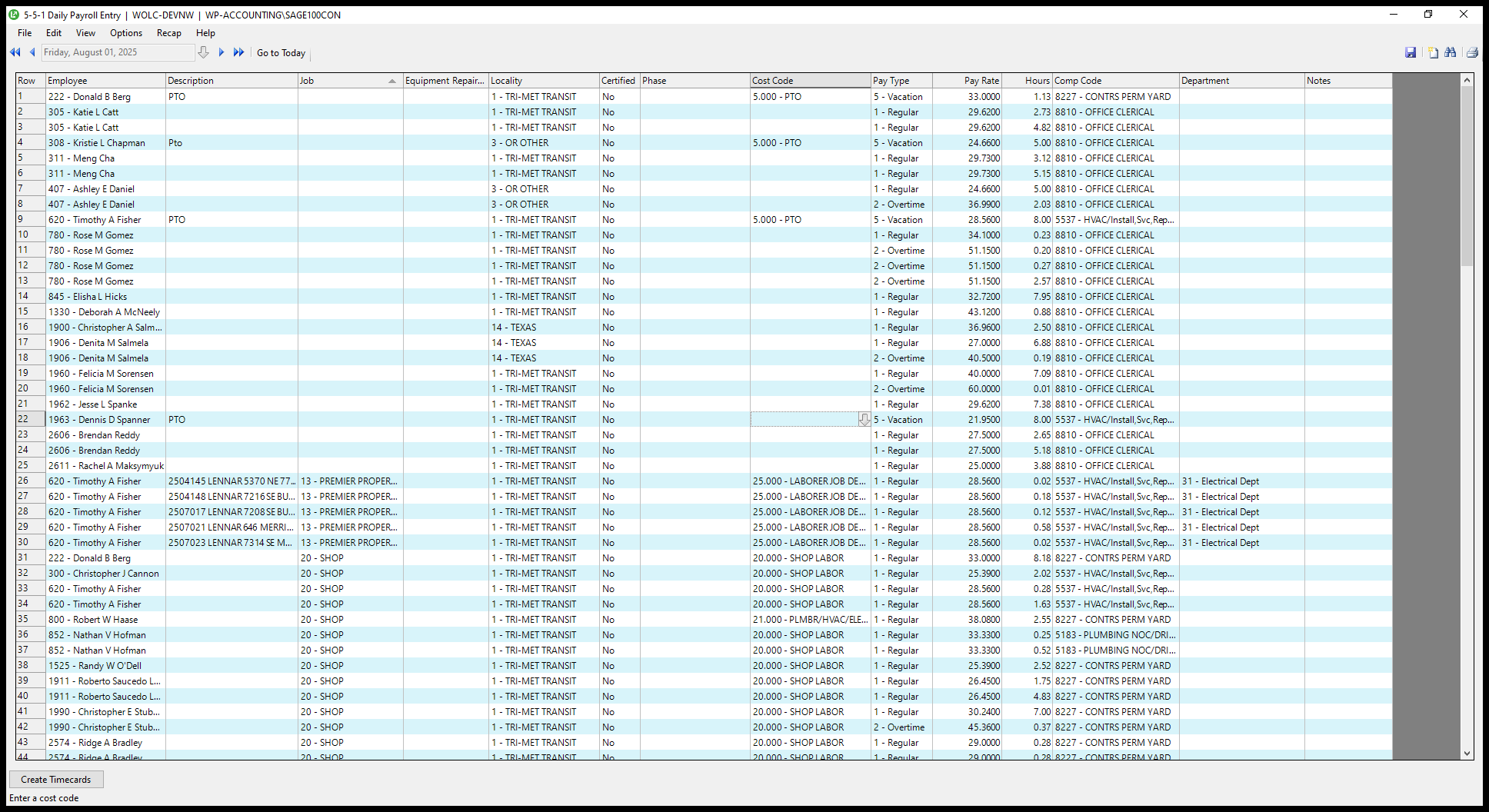
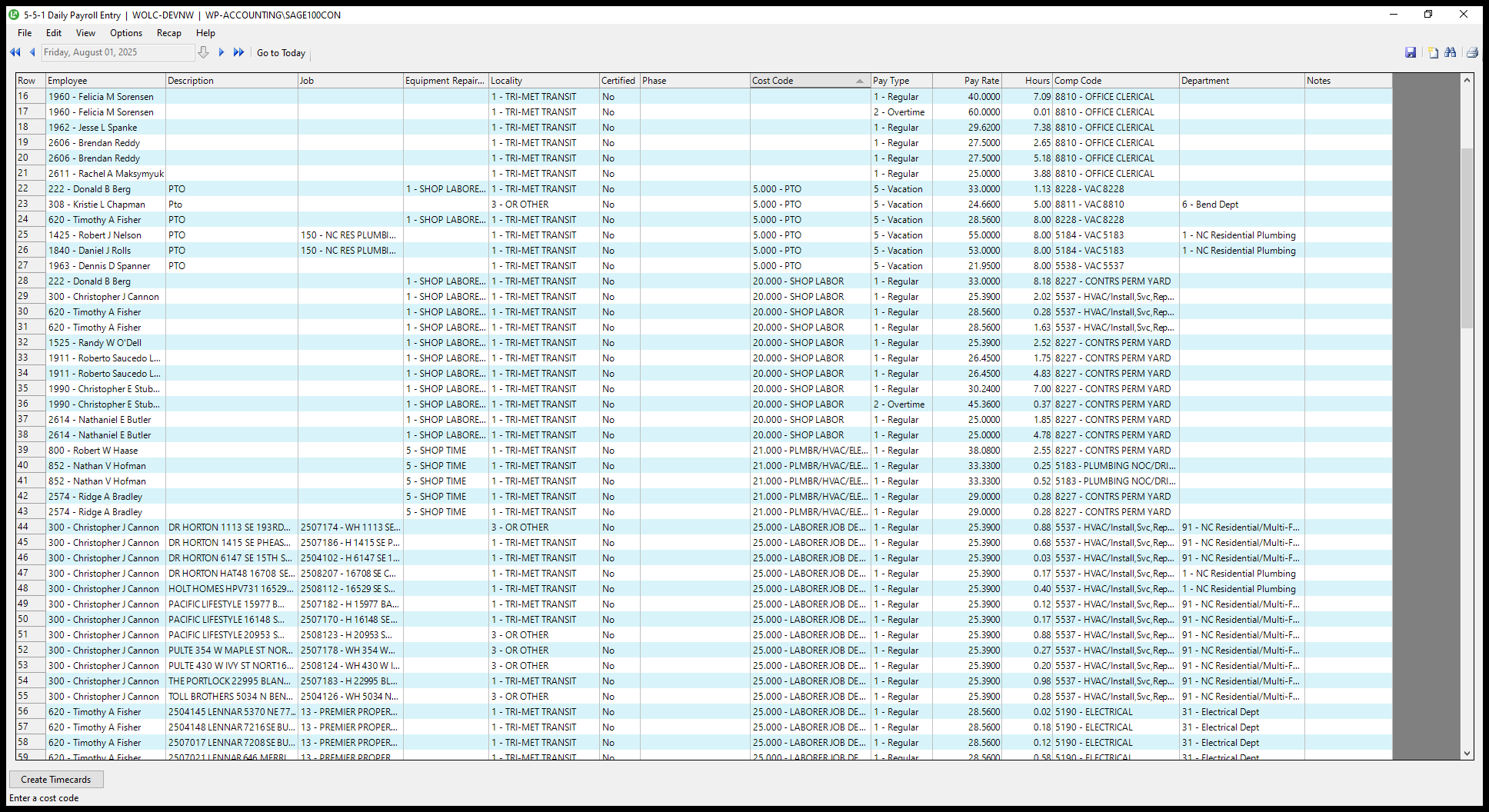
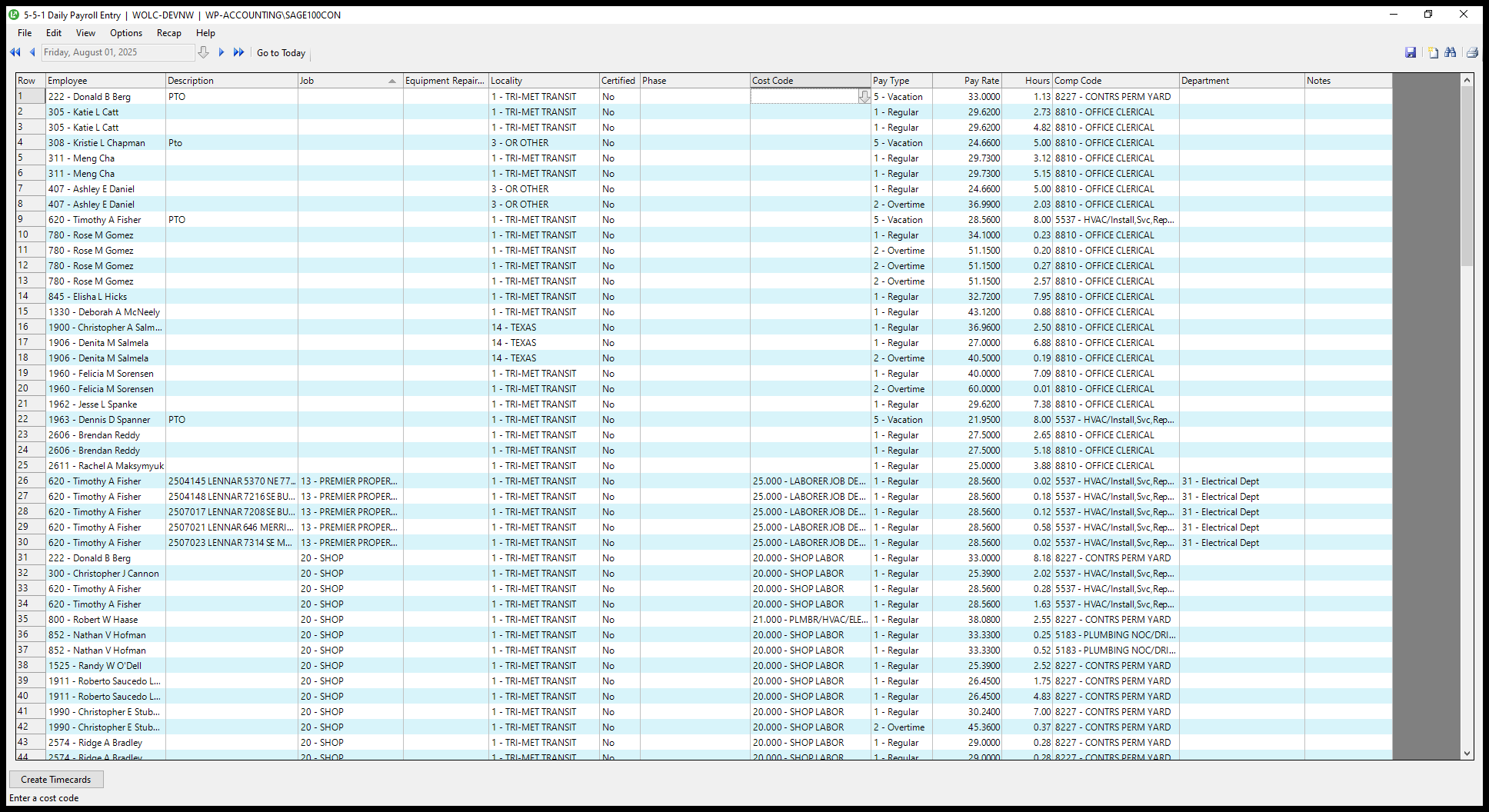
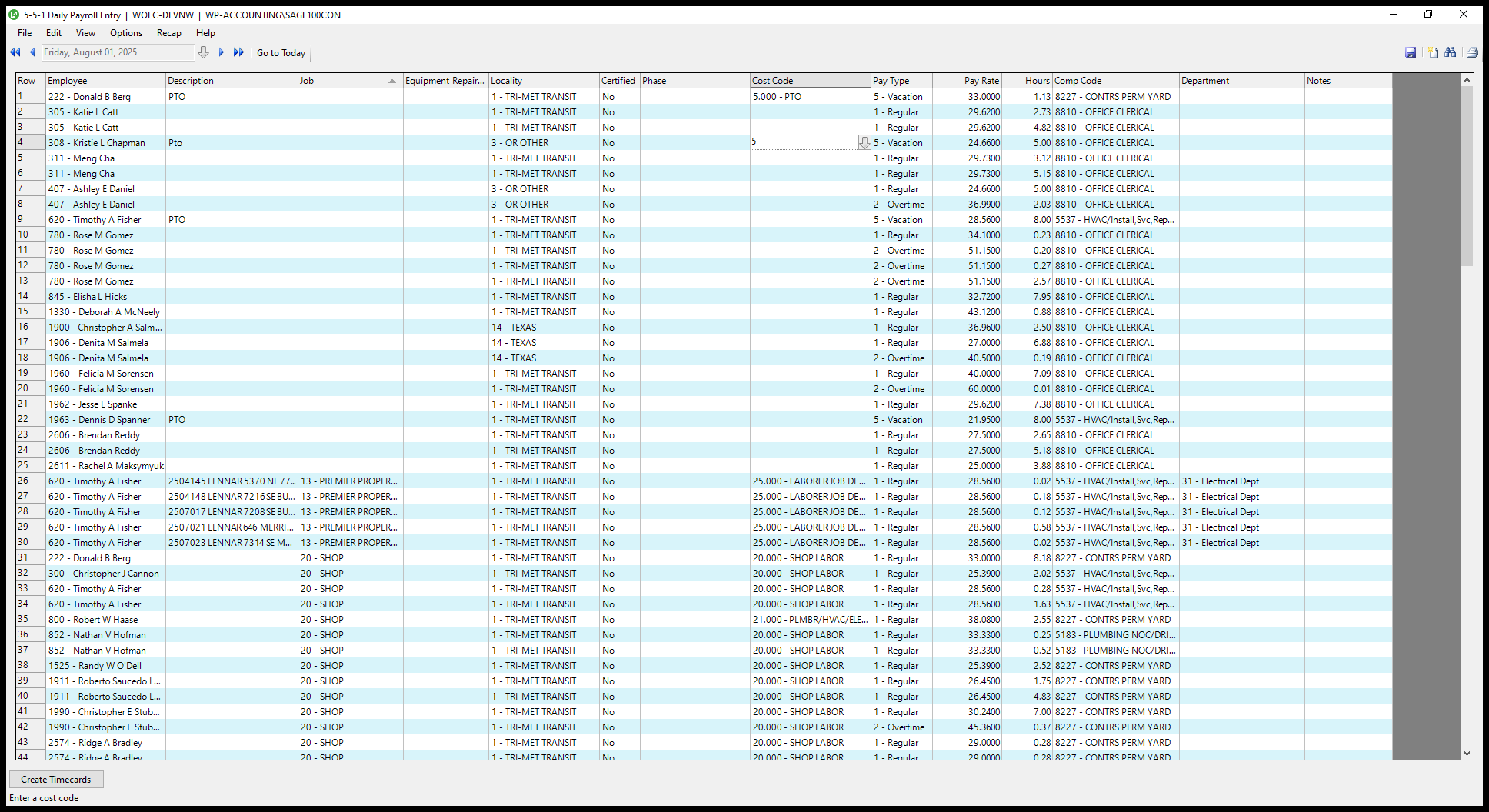
And then go... Here's some PTO. Make sure the cost code is entered.
23
Click on "Cost Code"
Step #23: Click on "Cost Code"
24
Click here
Step #24: Click here

And then, include their comp code immediately after that to avoid missing it.
25
Click here
Step #25: Click here
26
Click here
Step #26: Click here
27
Click here
Step #27: Click here
28
Double-click here
Step #28: Double-click here
29
Click on "-"
Step #29: Click on "-"

Then here is some...

30
Click on "0.23 8810 - OFFICE CLERICAL"
Step #30: Click on "0.23 8810 - OFFICE CLERICAL"
31
Click on "7.38 8810 OFFICE CLERICAL"
Step #31: Click on "7.38 8810 OFFICE CLERICAL"

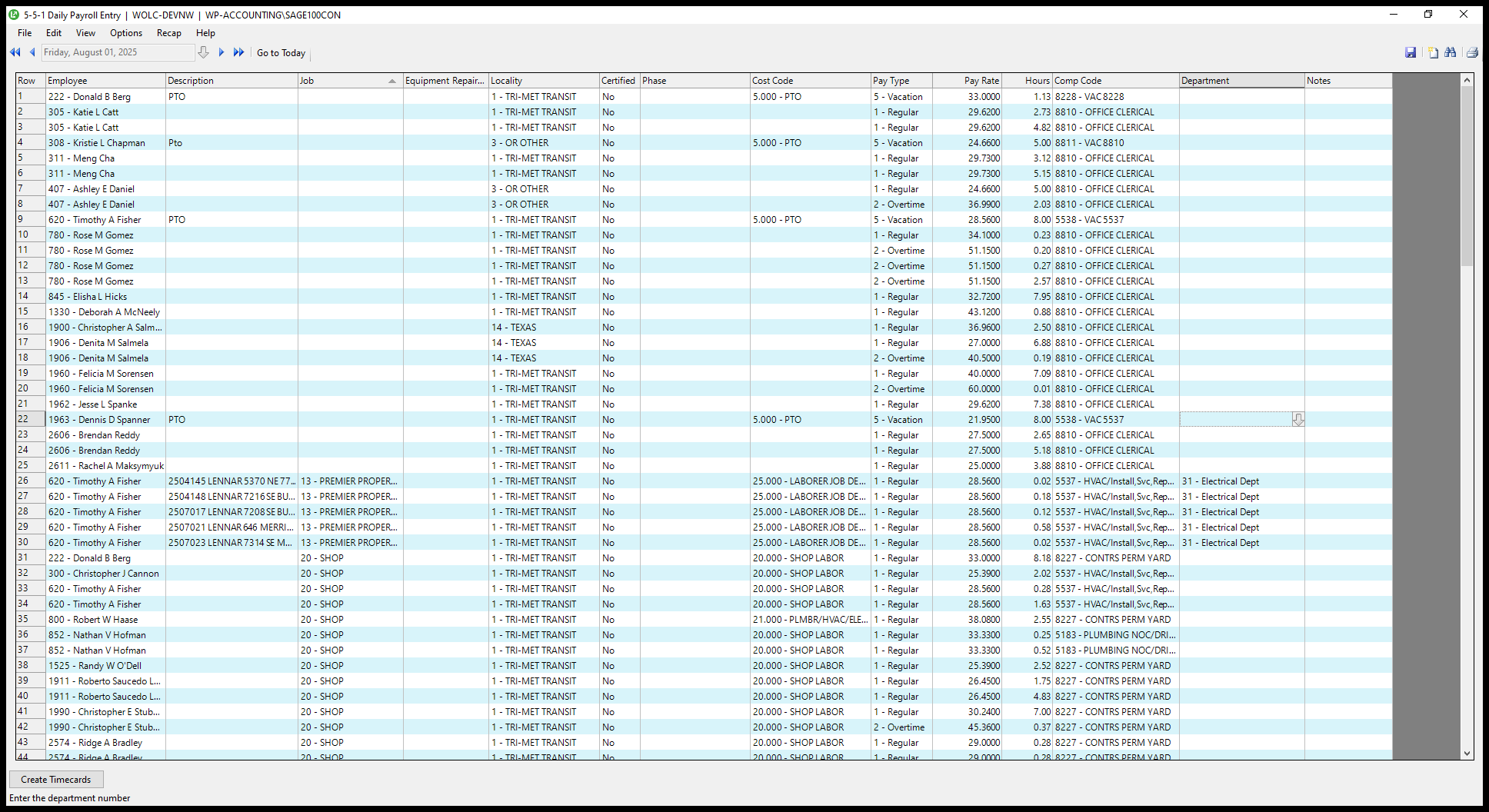
The drivers for the electrical system update the computer code.
32
Drag "5537 - HVAC /"
Step #32: Drag "5537 - HVAC /"

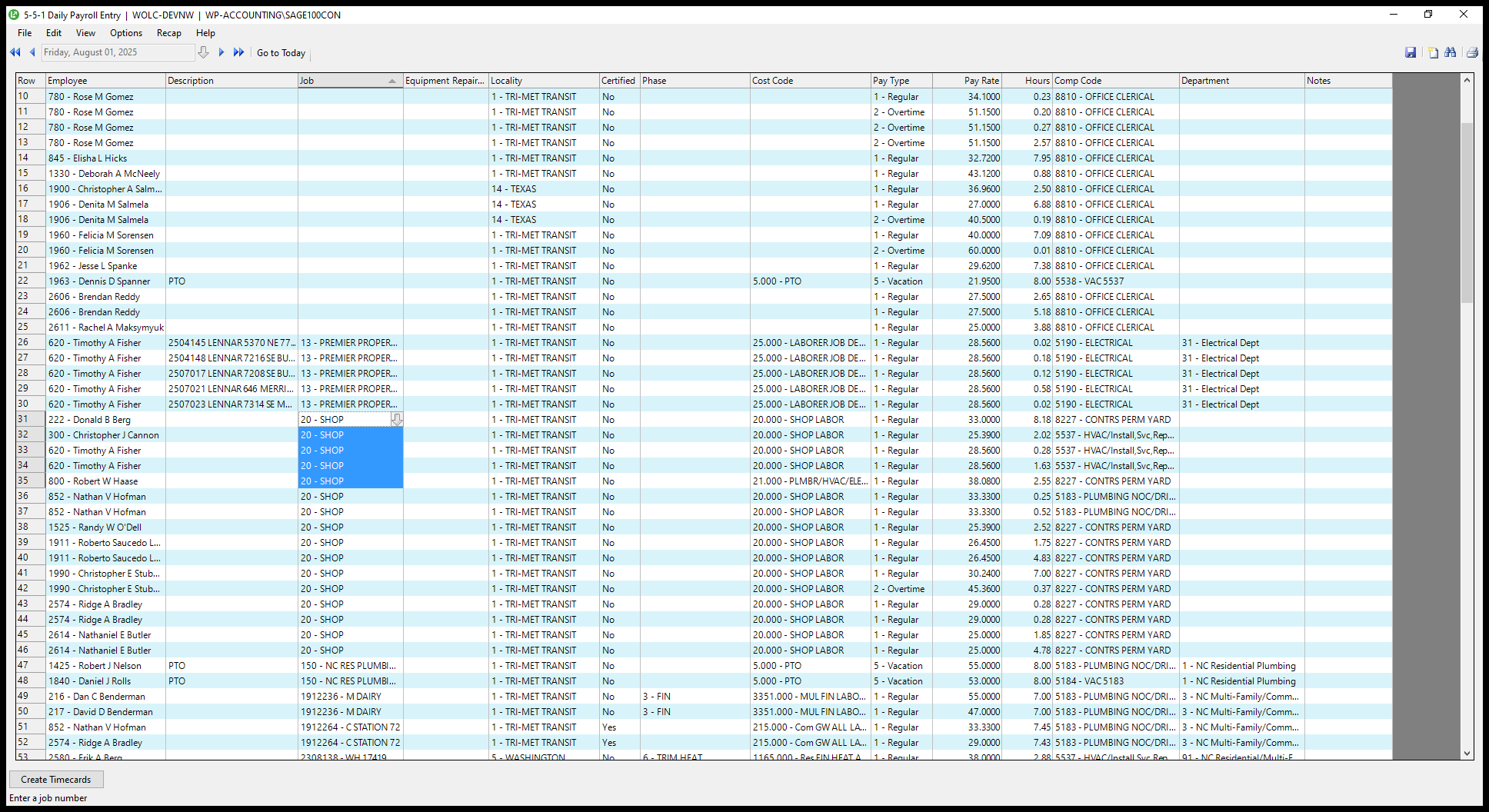
Next, we have the shop staff, which currently includes some journeymen and apprentices.
33
Drag here
Step #33: Drag here
34
Drag here
Step #34: Drag here

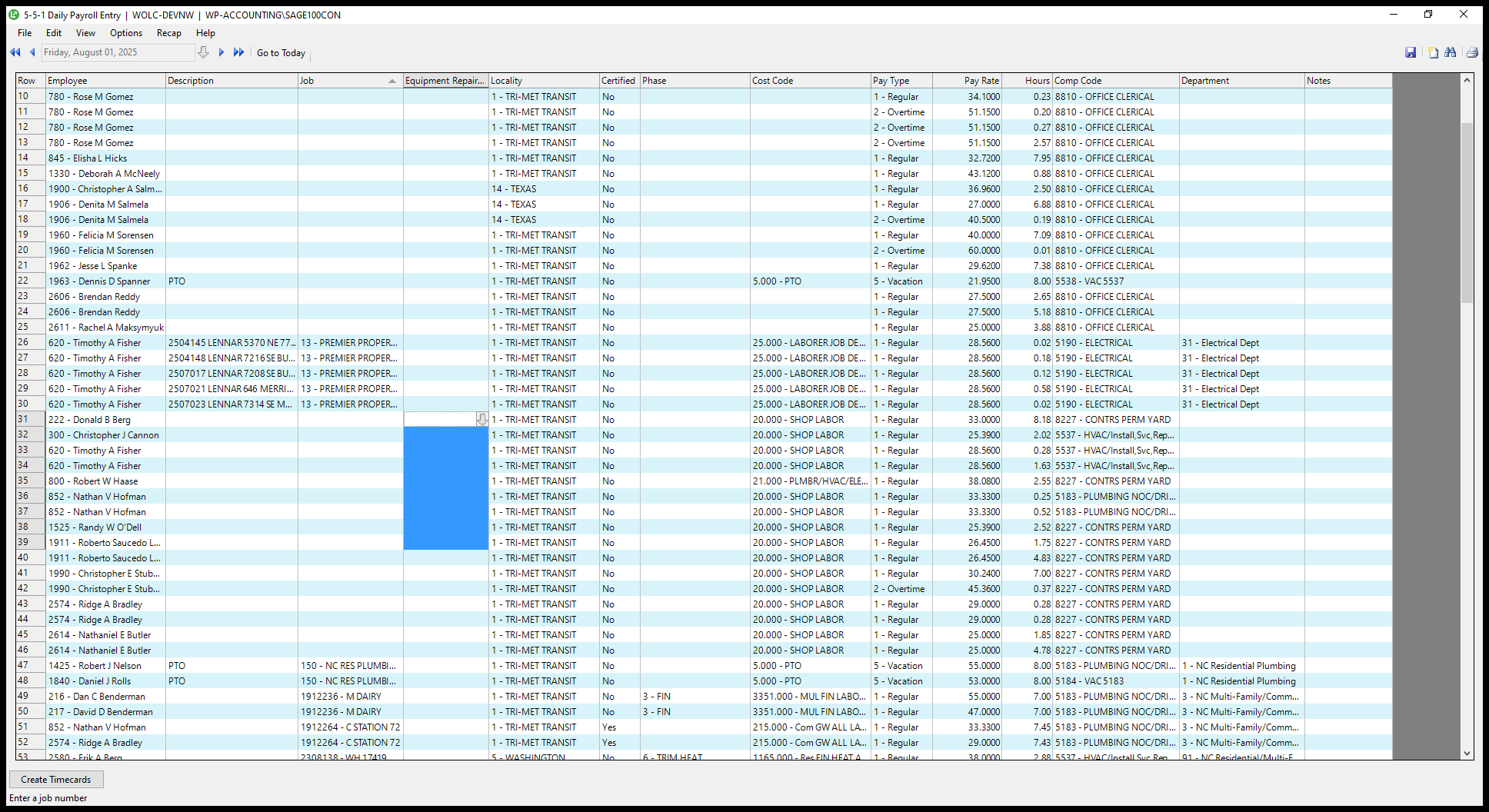
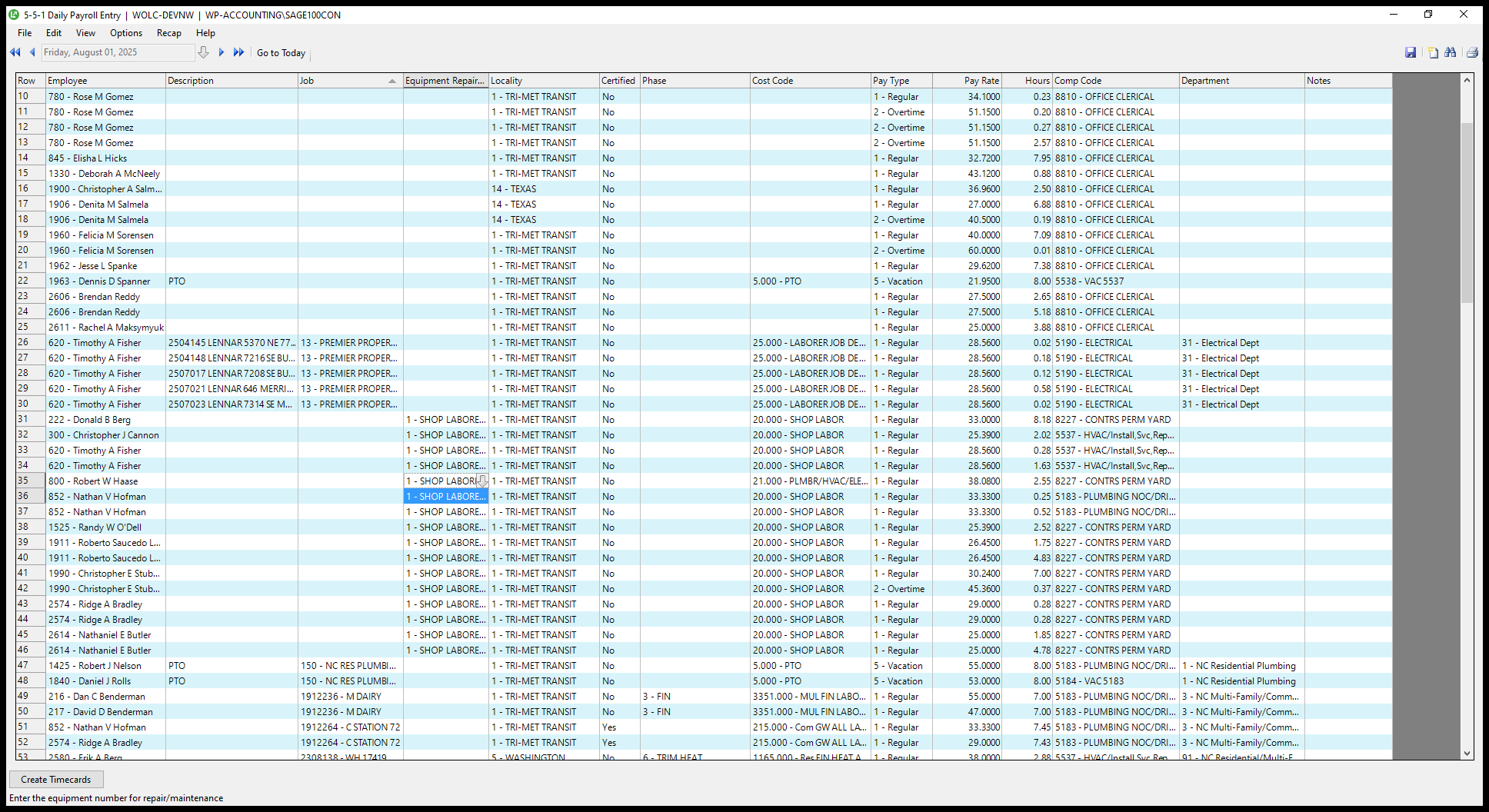
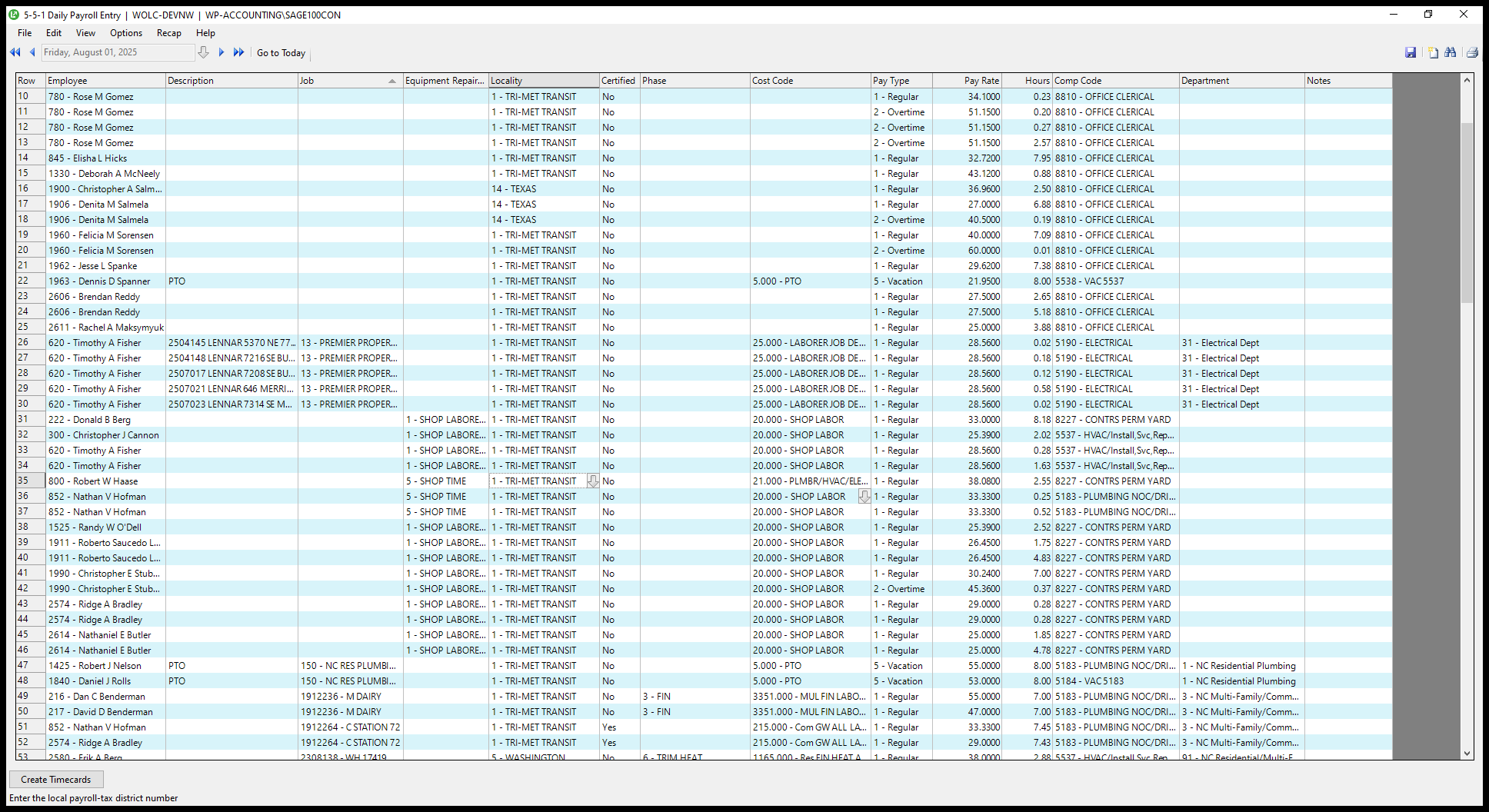
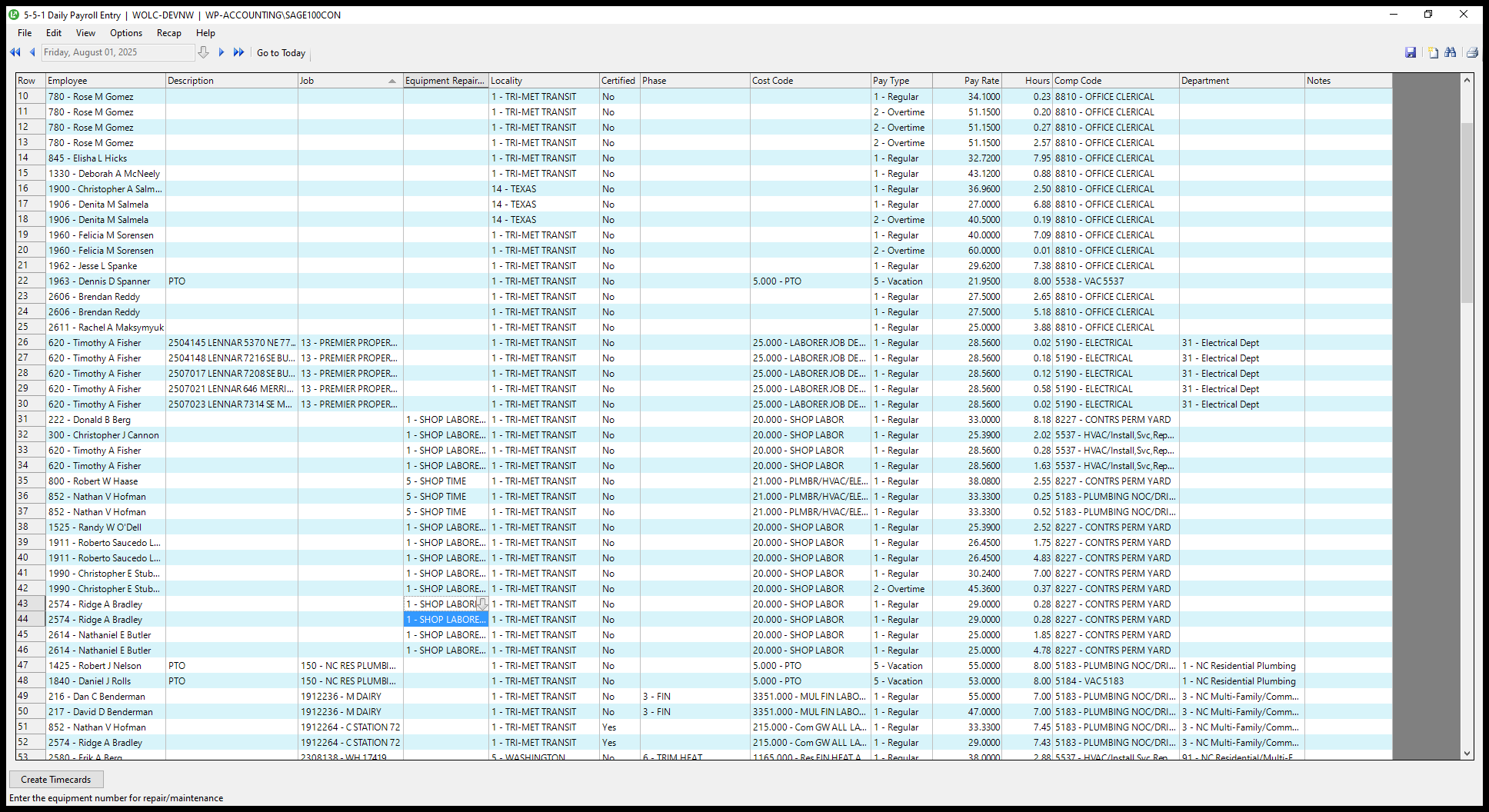
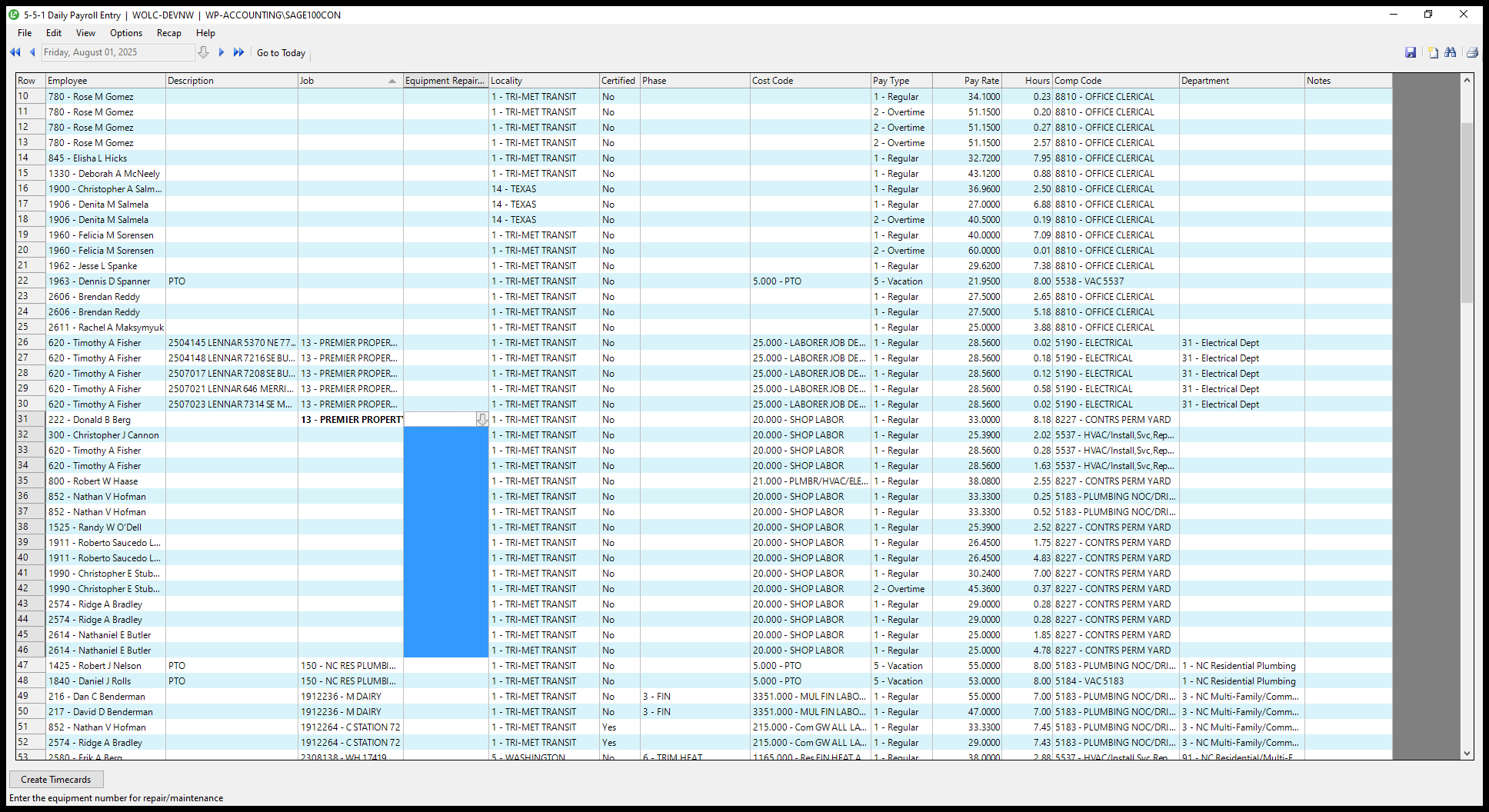
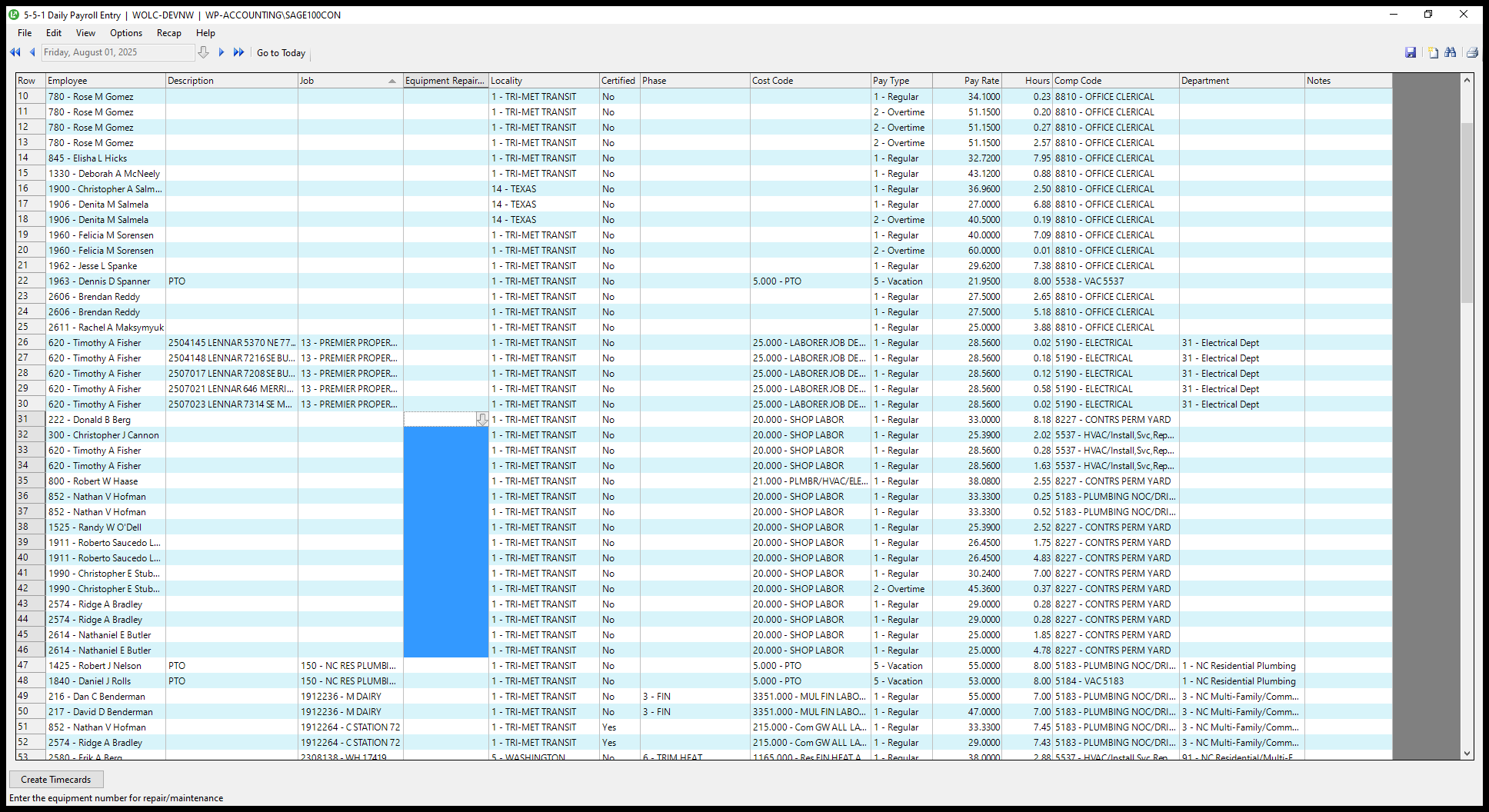
Remove the shop and move it to equipment under section one. Update any journeymen or apprentices to five and 21.
35
Click on "13 - PREMIER PROPERT"
Step #35: Click on "13 - PREMIER PROPERT"
36
Drag here
Step #36: Drag here
37
Click on "1 - SHOP LABORE ..."
Step #37: Click on "1 - SHOP LABORE ..."
38
Click on "20.000"
Step #38: Click on "20.000"

Okay.

39
Click on "1 - SHOP LABORE"
Step #39: Click on "1 - SHOP LABORE"
40
Click on "20.000 - SHOP LABOR"
Step #40: Click on "20.000 - SHOP LABOR"

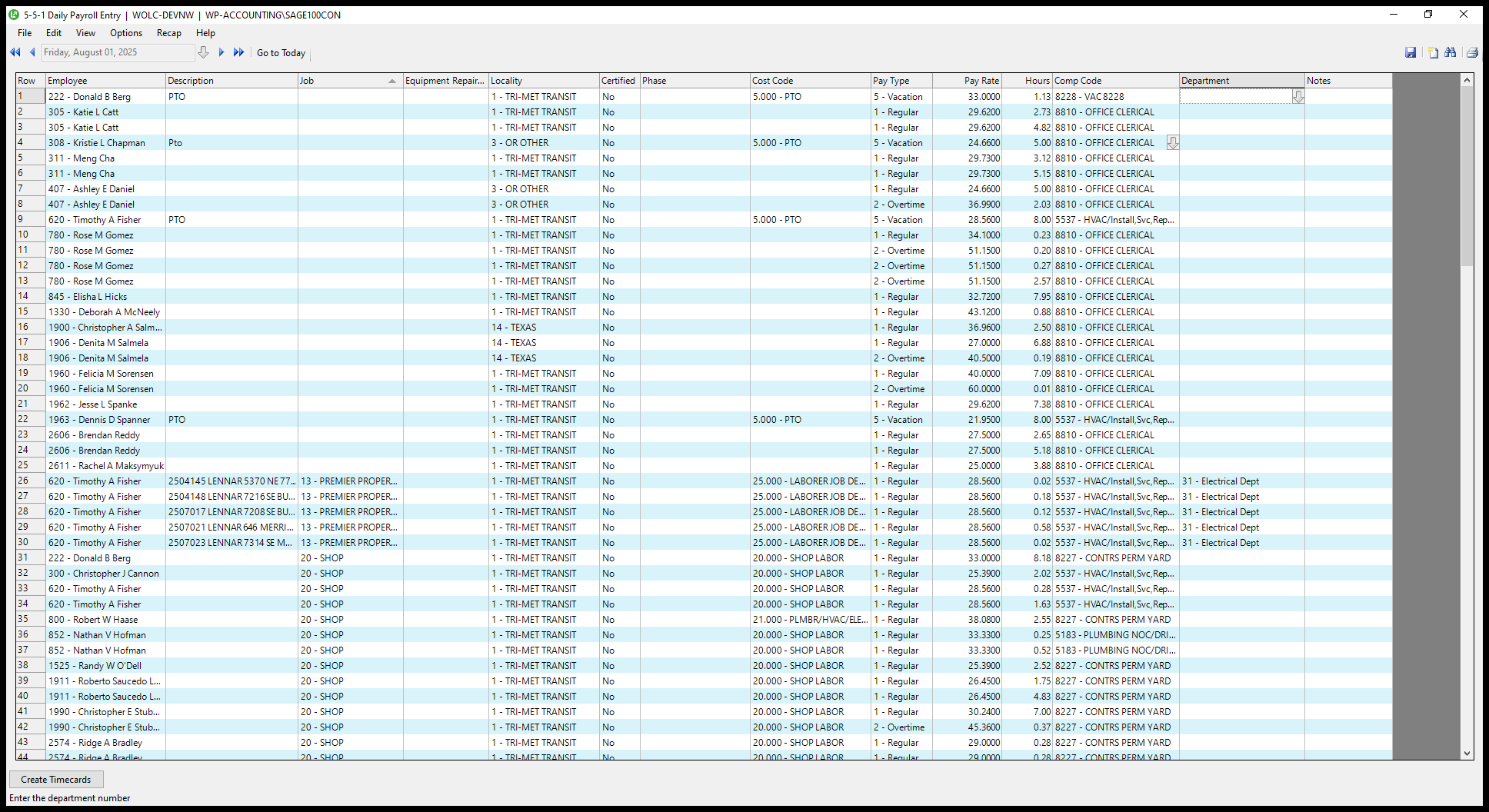
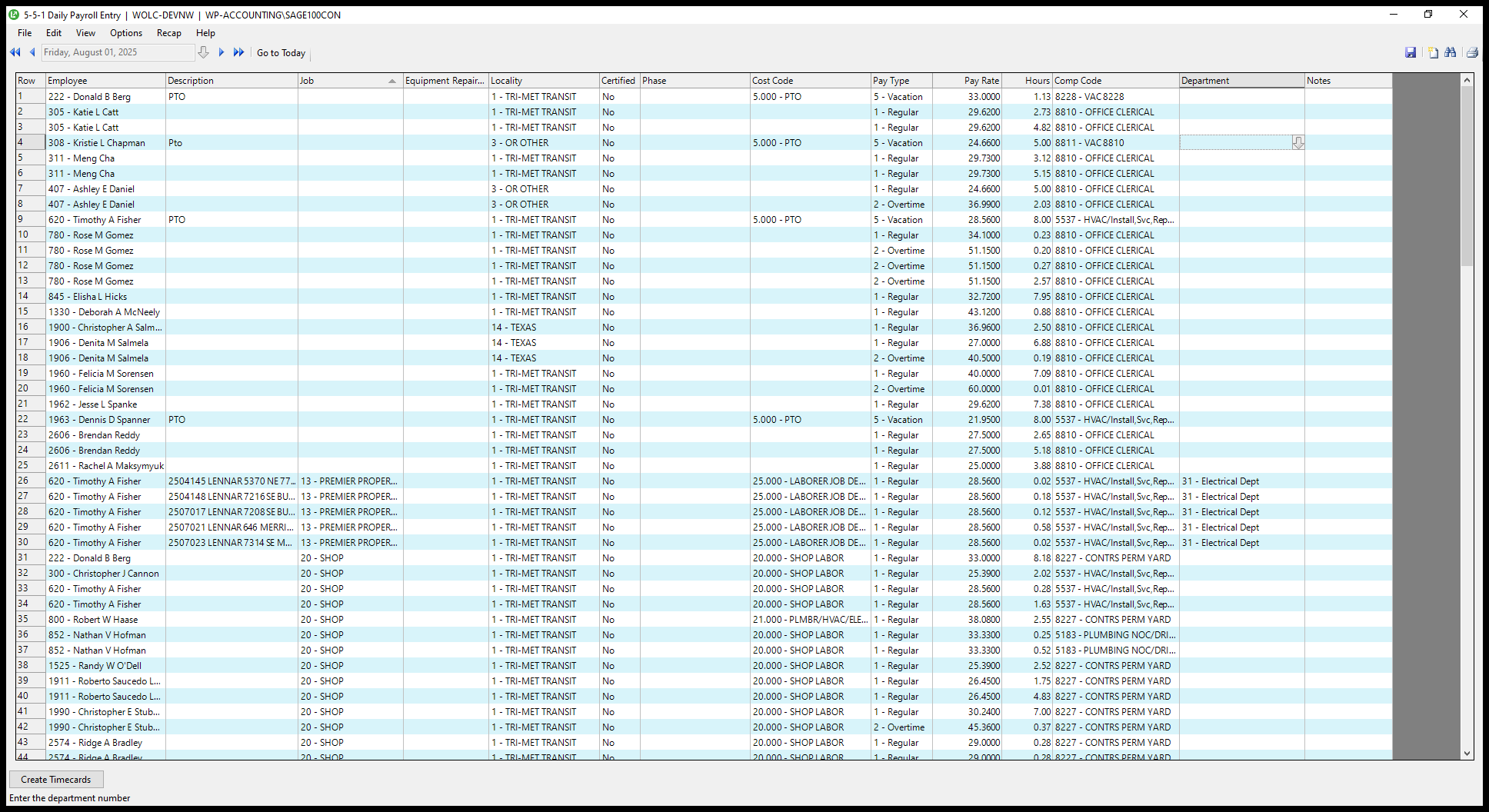
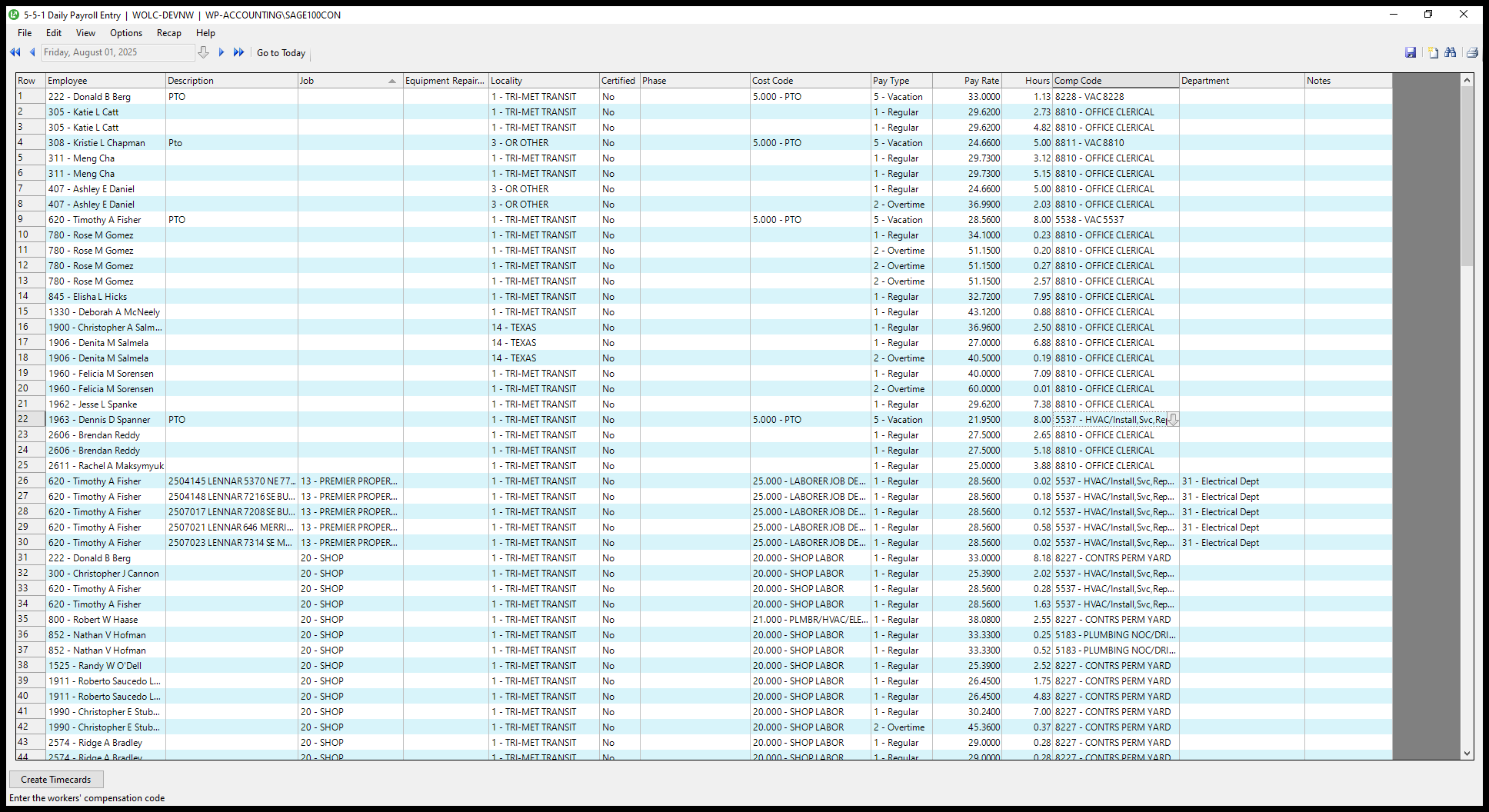
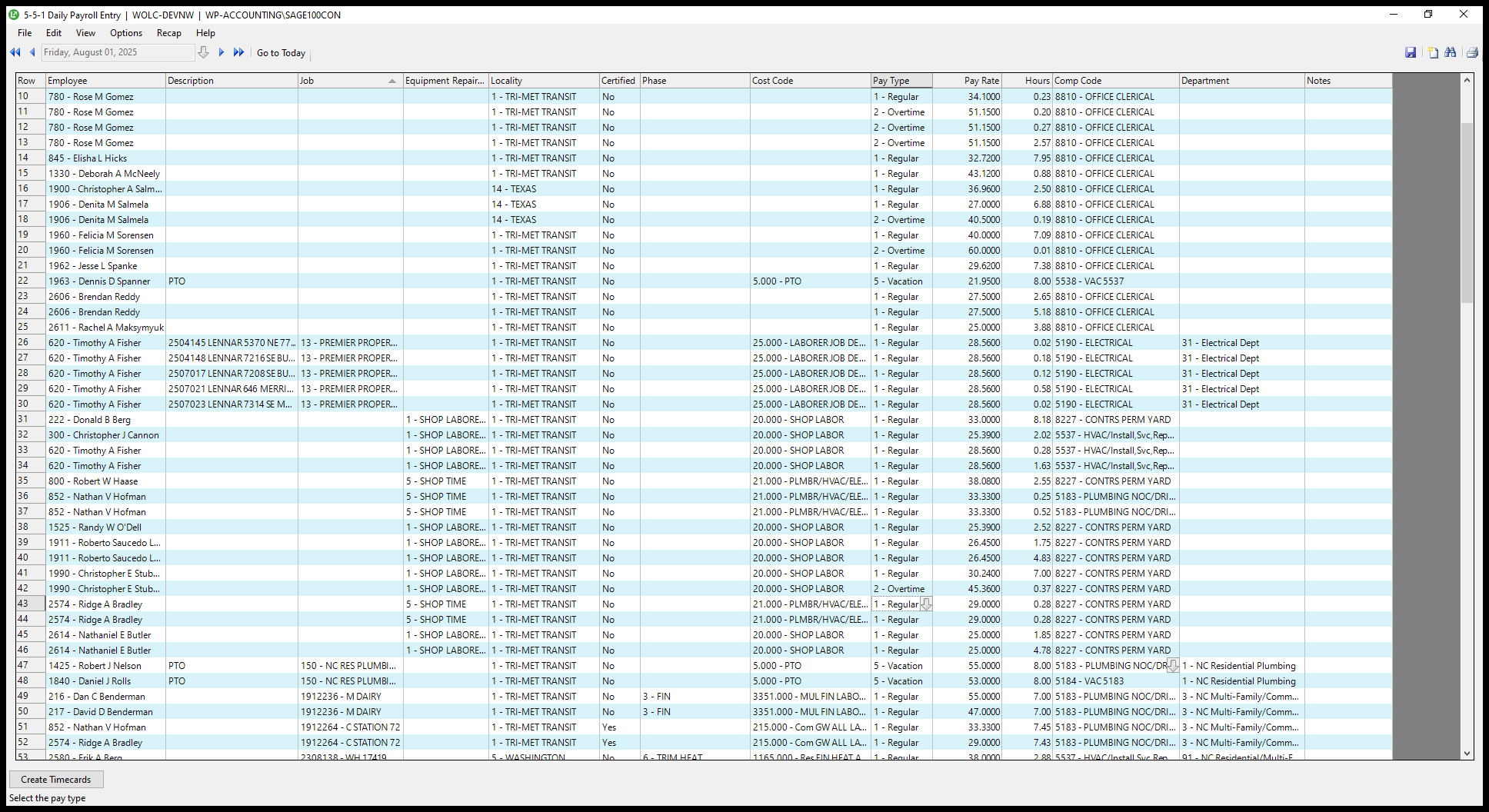
Then I update here, show some PTO, and make sure the comp codes are correct.
41
Click on "8.00 5184 VAC 5183"
Step #41: Click on "8.00 5184 VAC 5183"

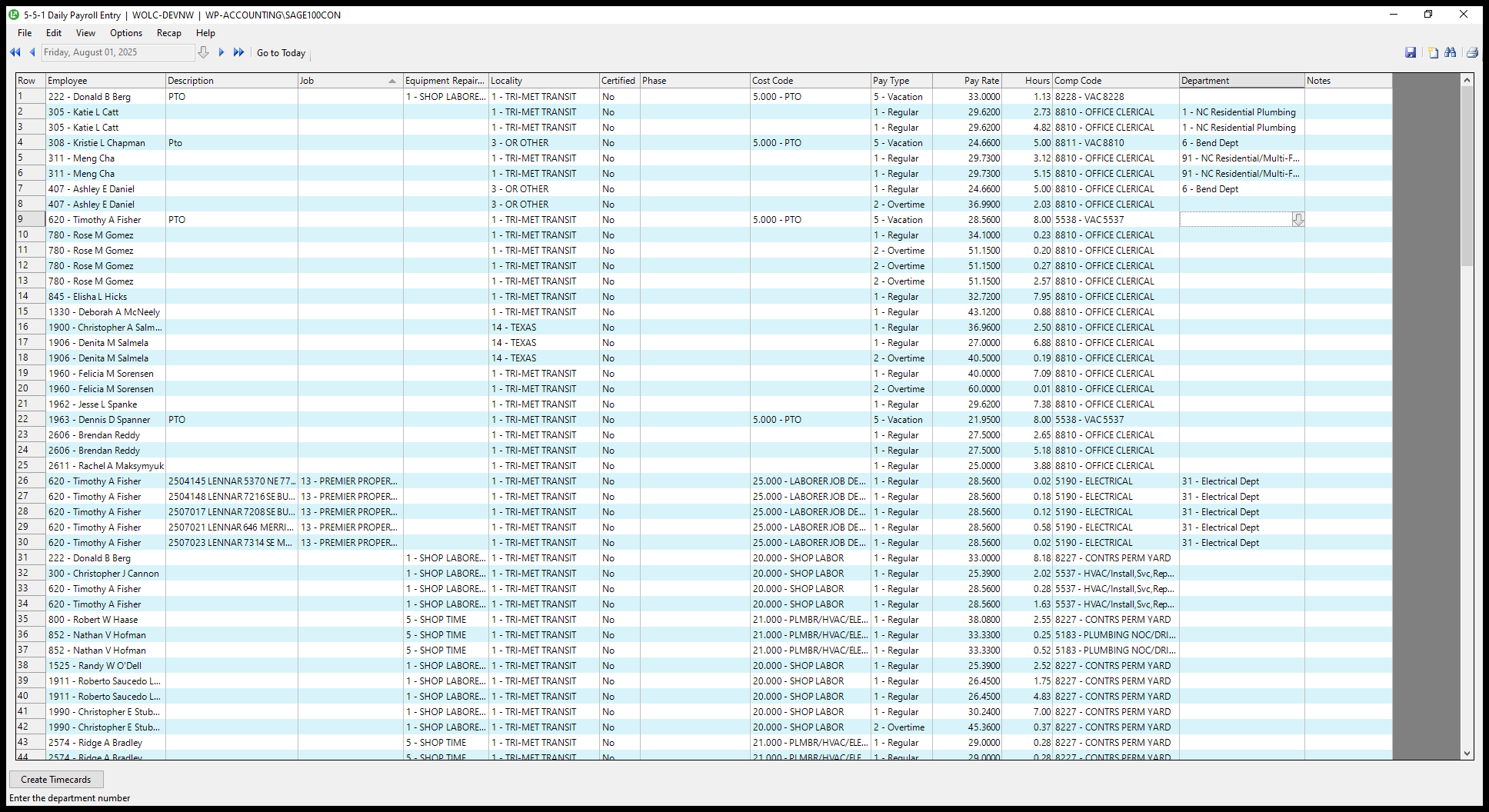
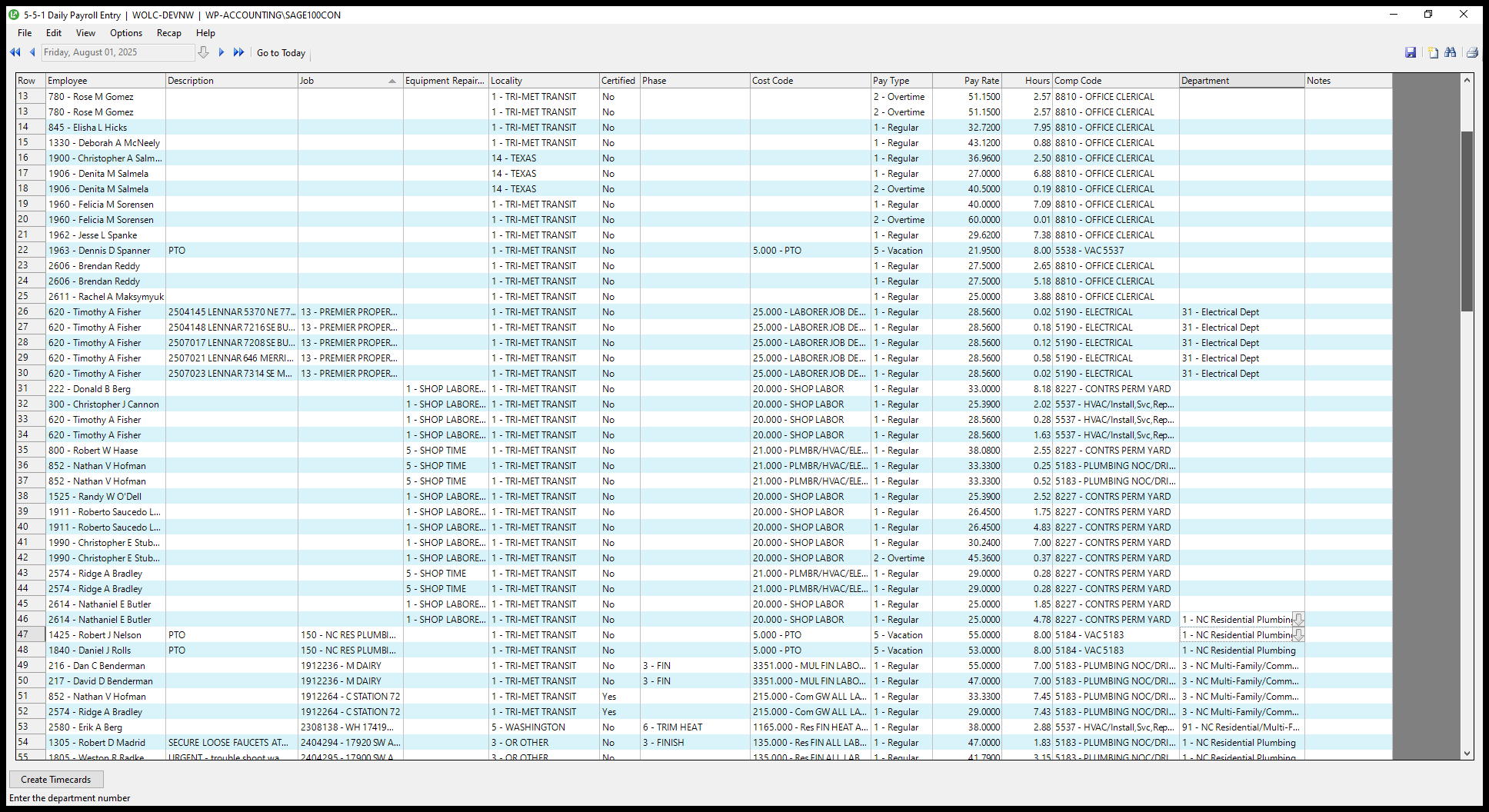
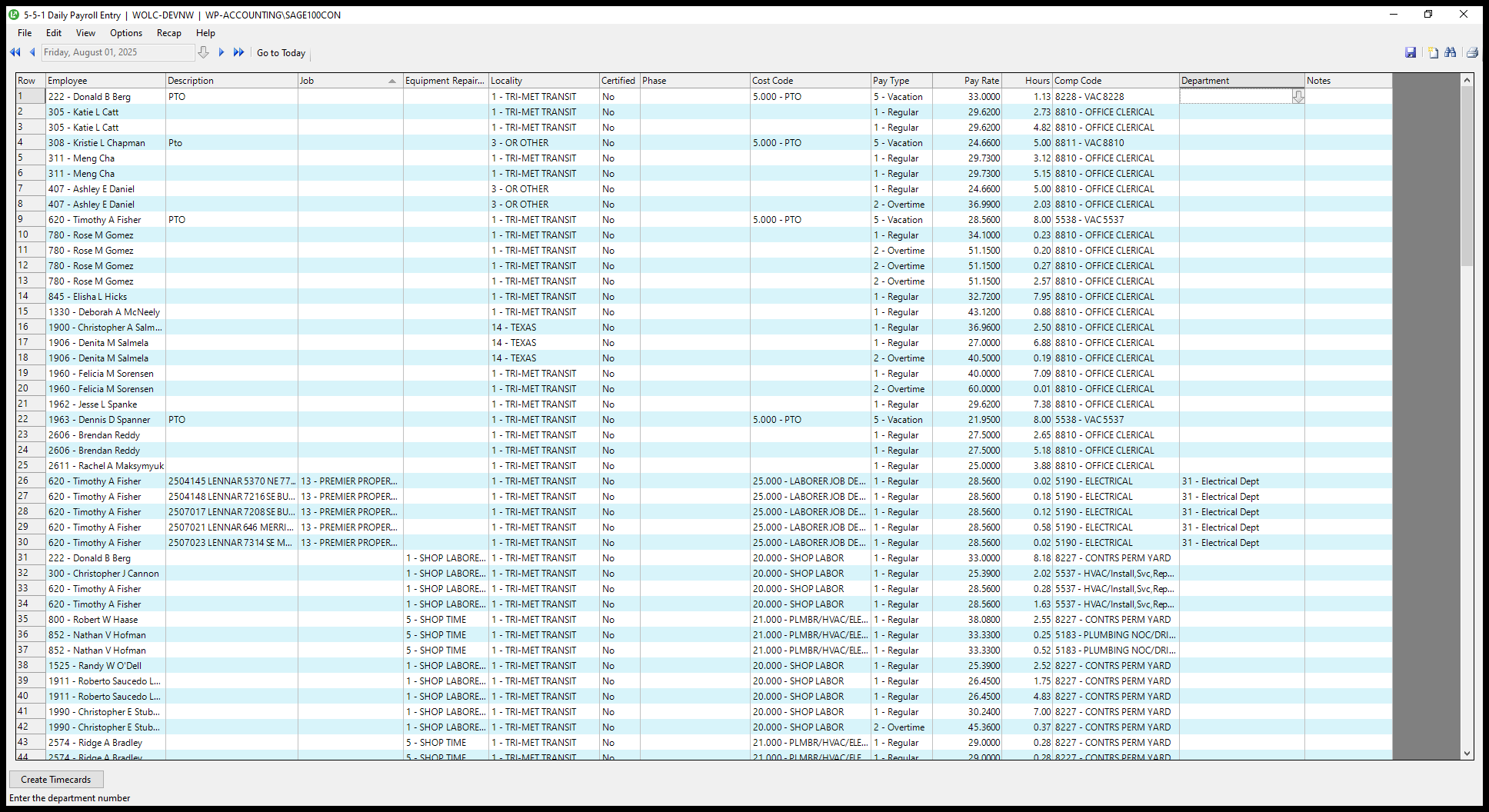
Scan the first few numbers to check for any entries marked as miscellaneous or using the 200,000 job code. Determine what the job number should be. Then I come over here and enter the department, if they have one.
42
Drag here
Step #42: Drag here
43
Click here
Step #43: Click here

Shop doesn't, but... Oh, excuse me, I need to enter.
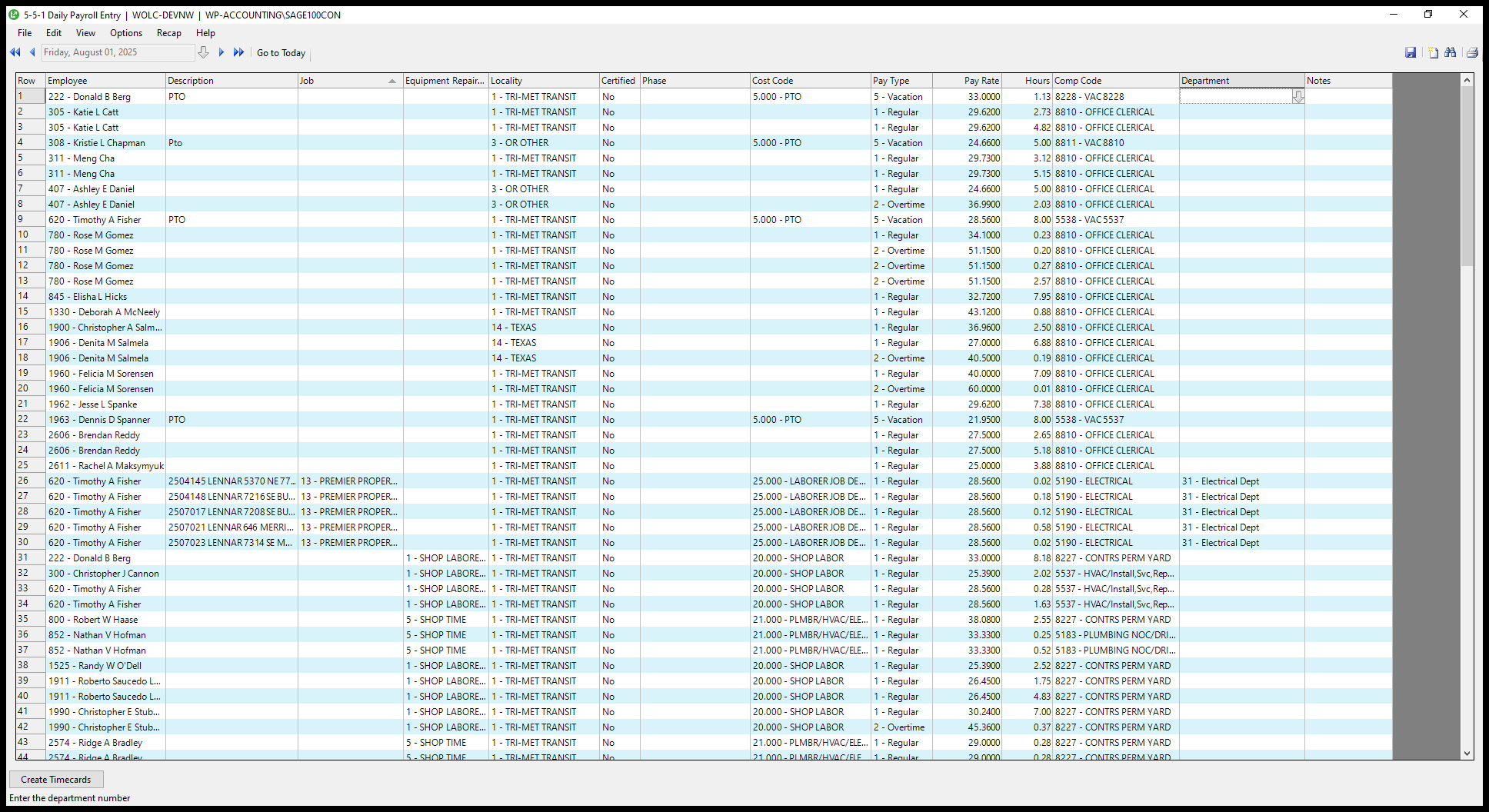
44
Click on "Equipment Repair ... Locality"
Step #44: Click on "Equipment Repair ... Locality"

This can be tricky. You need to act as if you're entering something in the job to get the equipment to appear for that PTO. Then I enter the departments they work in.
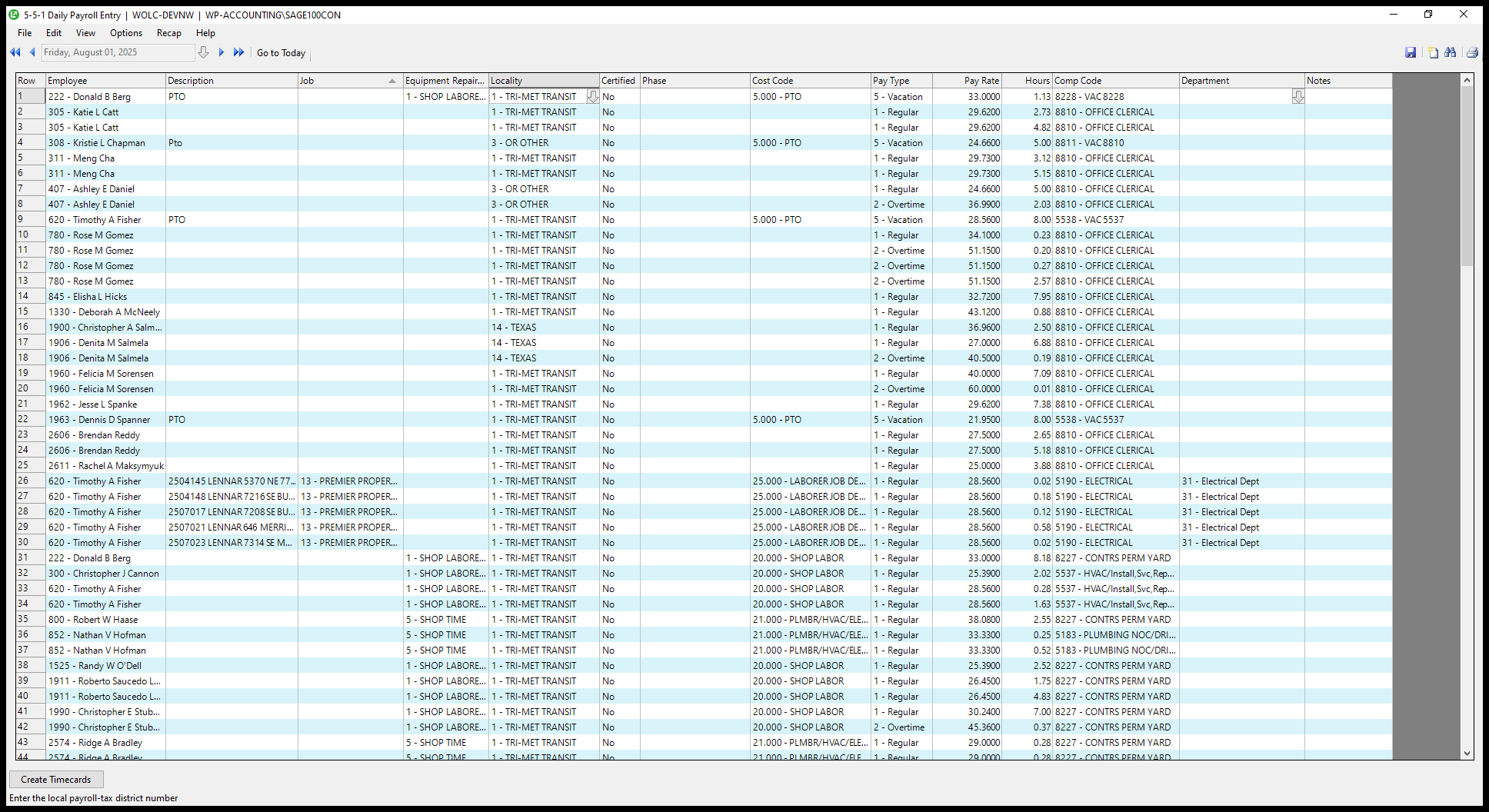
45
Click on "Department"
Step #45: Click on "Department"

Whoops. Back up.

46
Click here
Step #46: Click here

Again.

47
Click here
Step #47: Click here

Is it Tim? Update this. I did not catch it before.
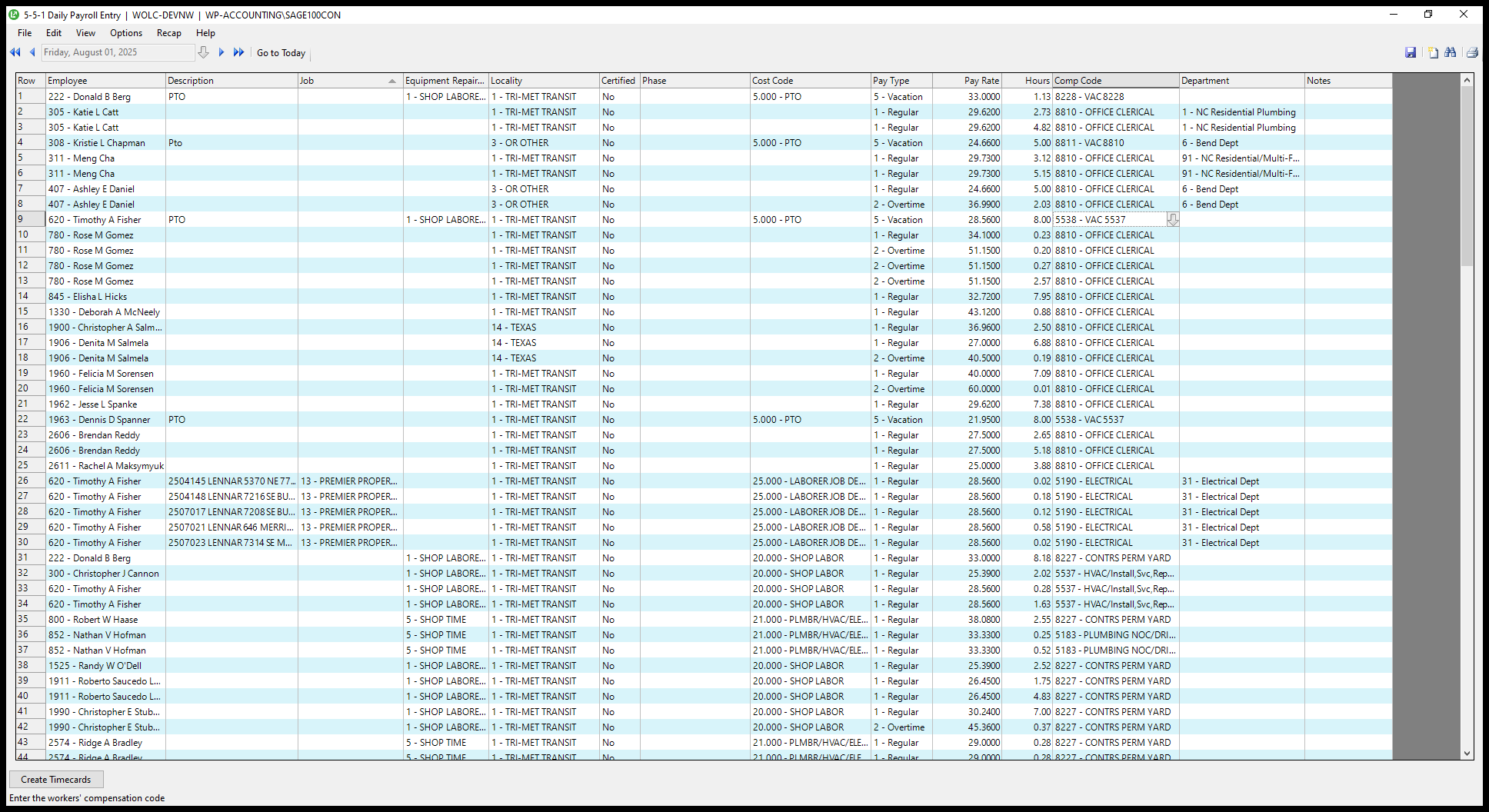
48
Click on "2.03 8810 - OFFICE CLERICAL"
Step #48: Click on "2.03 8810 - OFFICE CLERICAL"

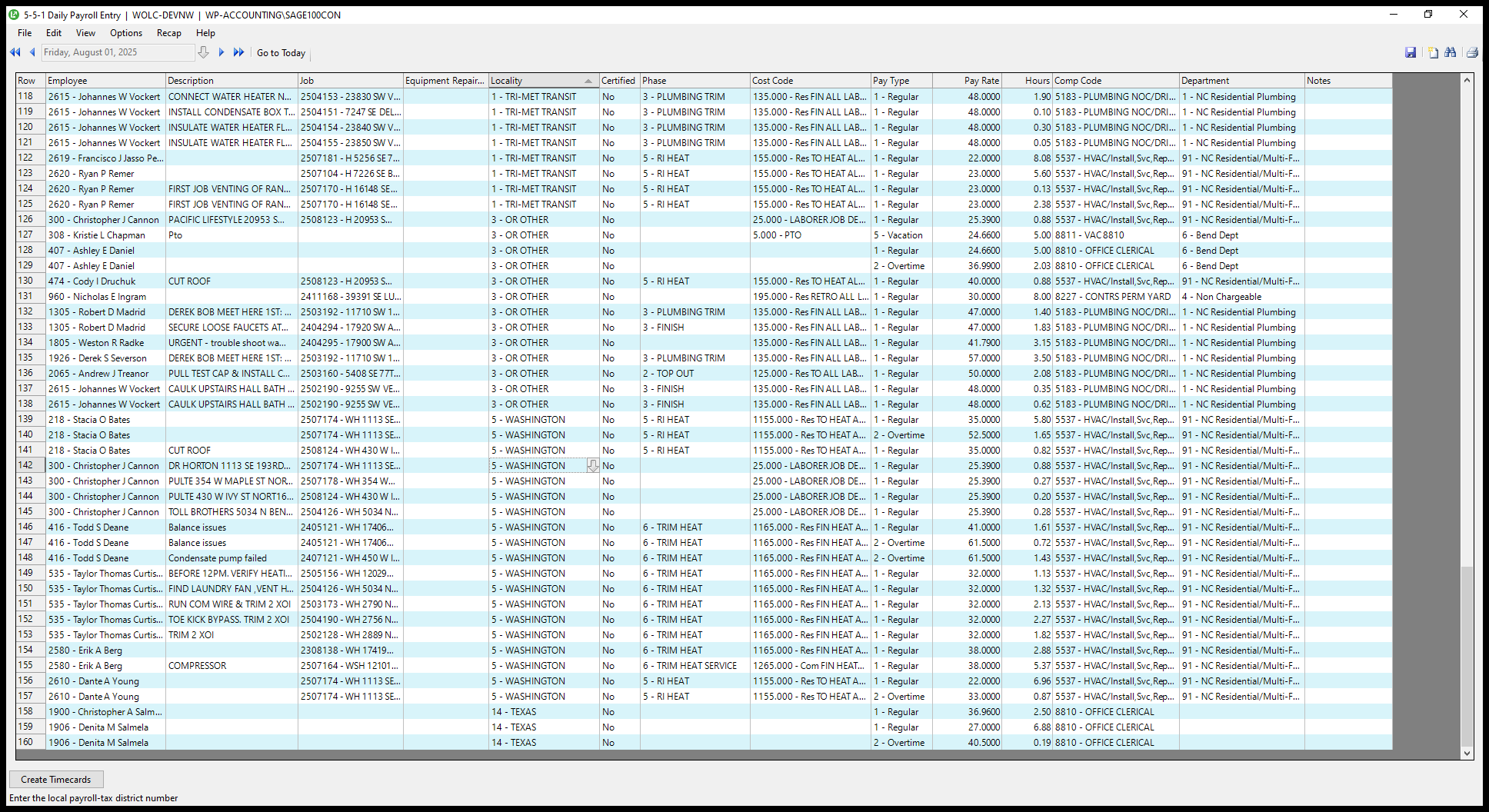
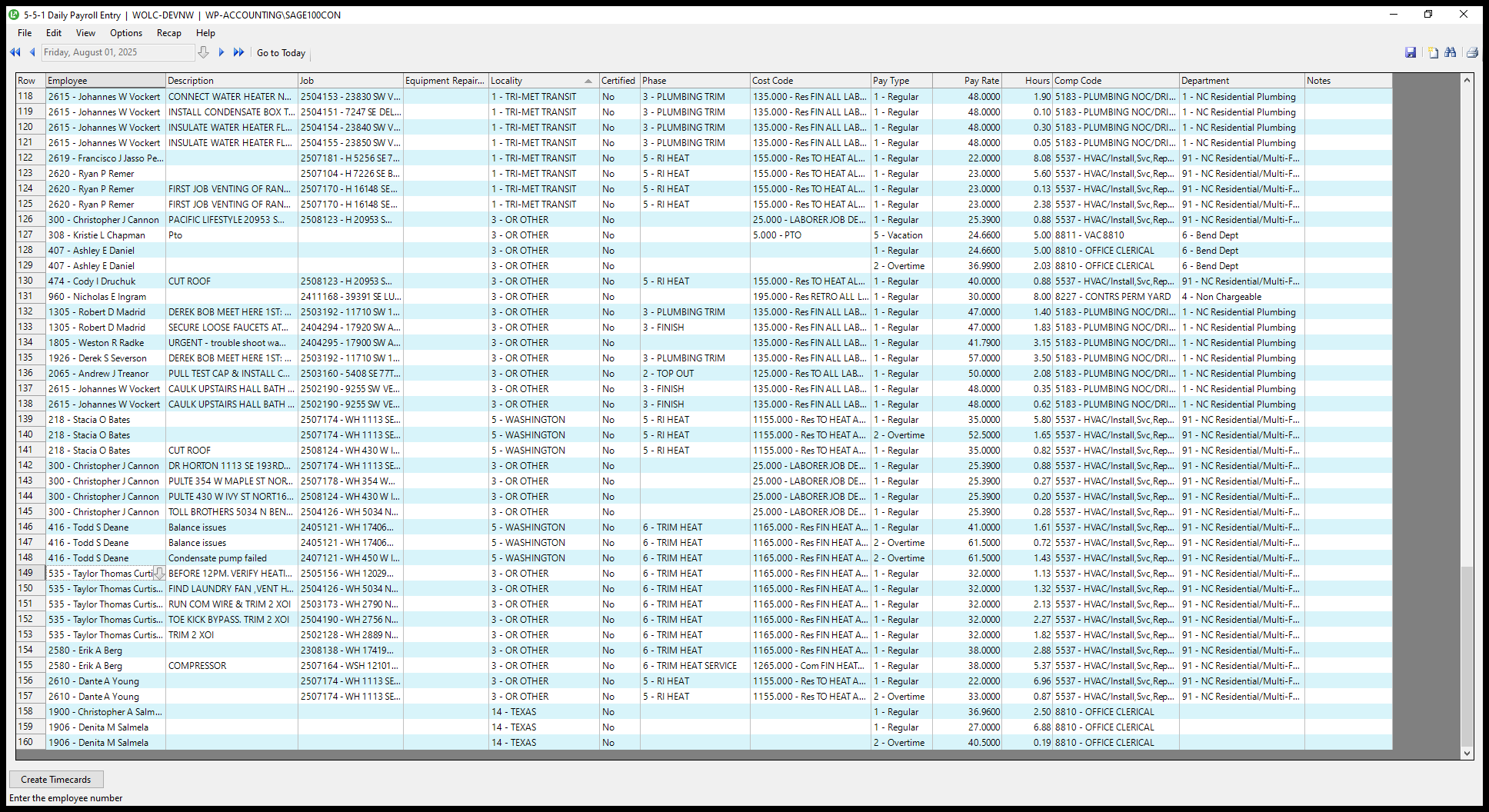
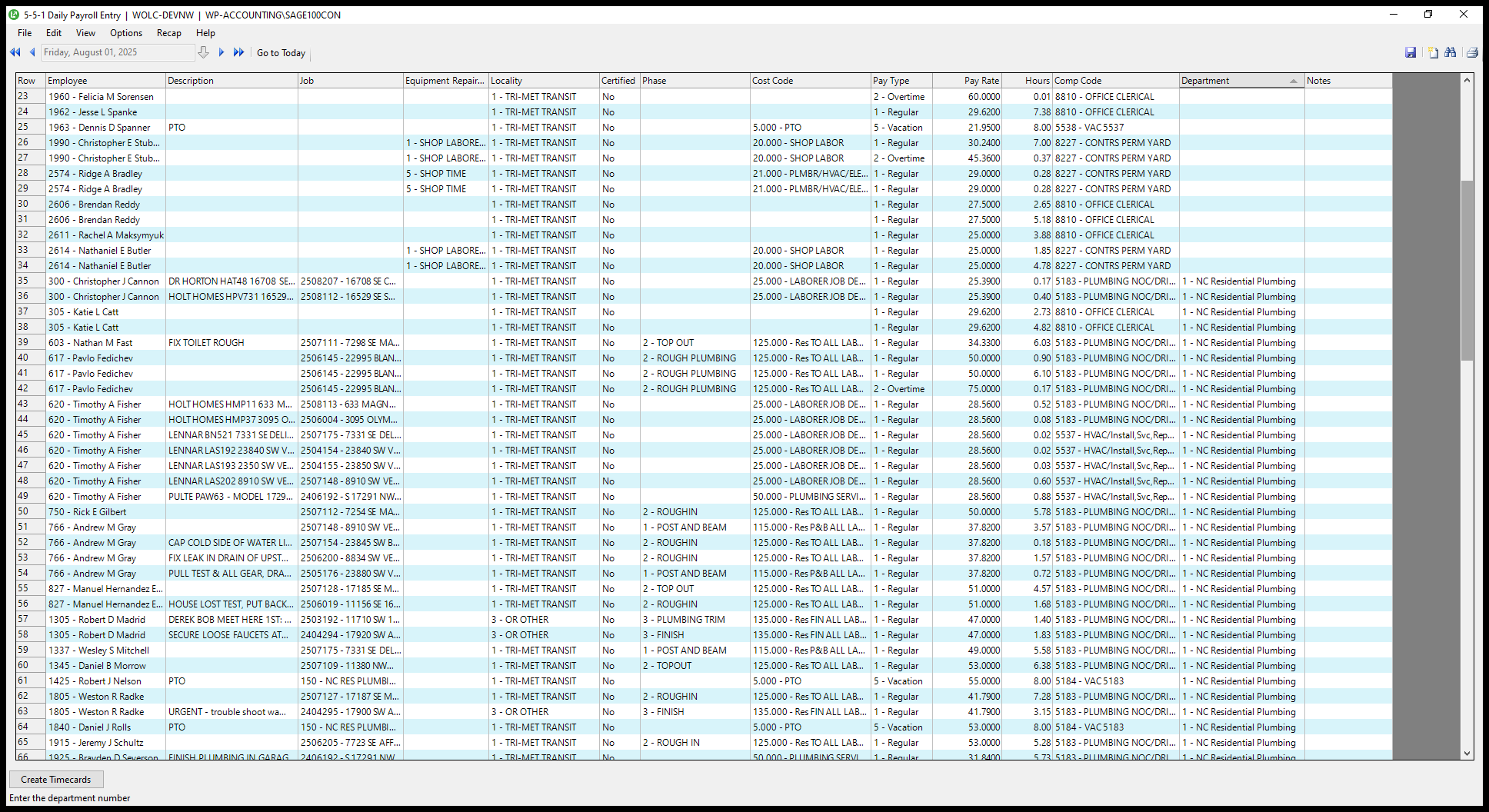
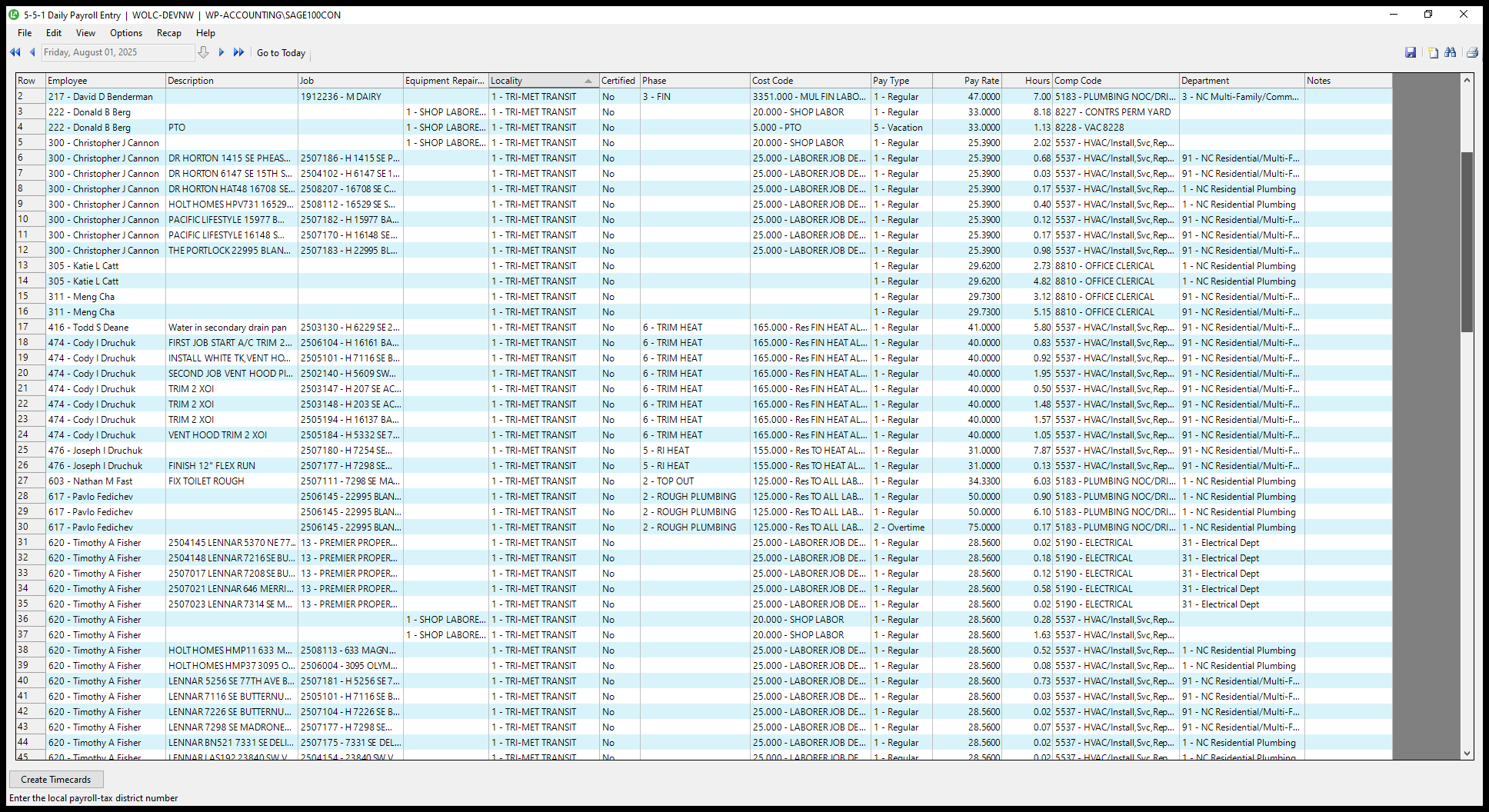
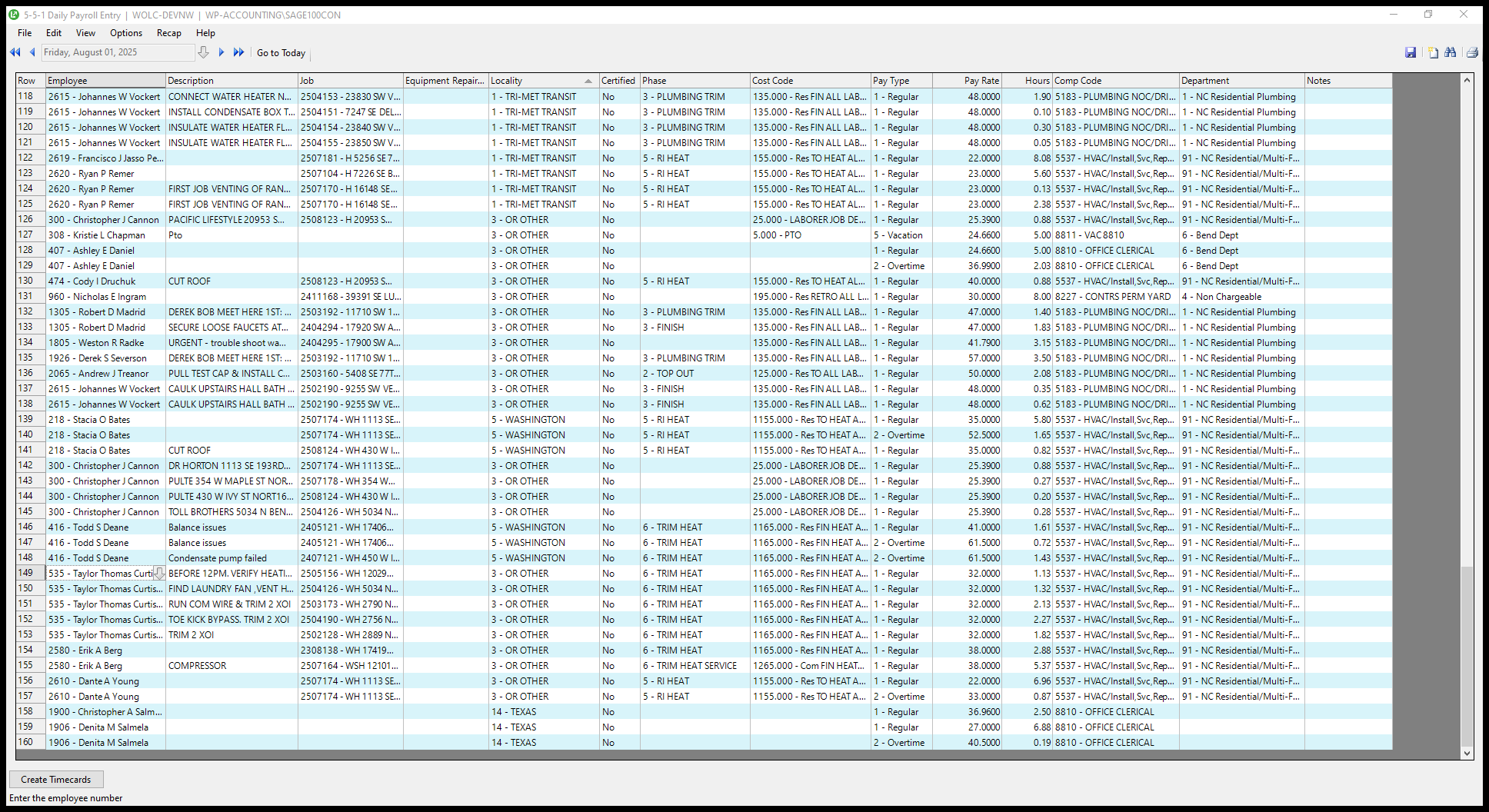
For efficiency, I make sure all entries are complete. Then, I sort by locality and scroll to the bottom to display those from Washington.
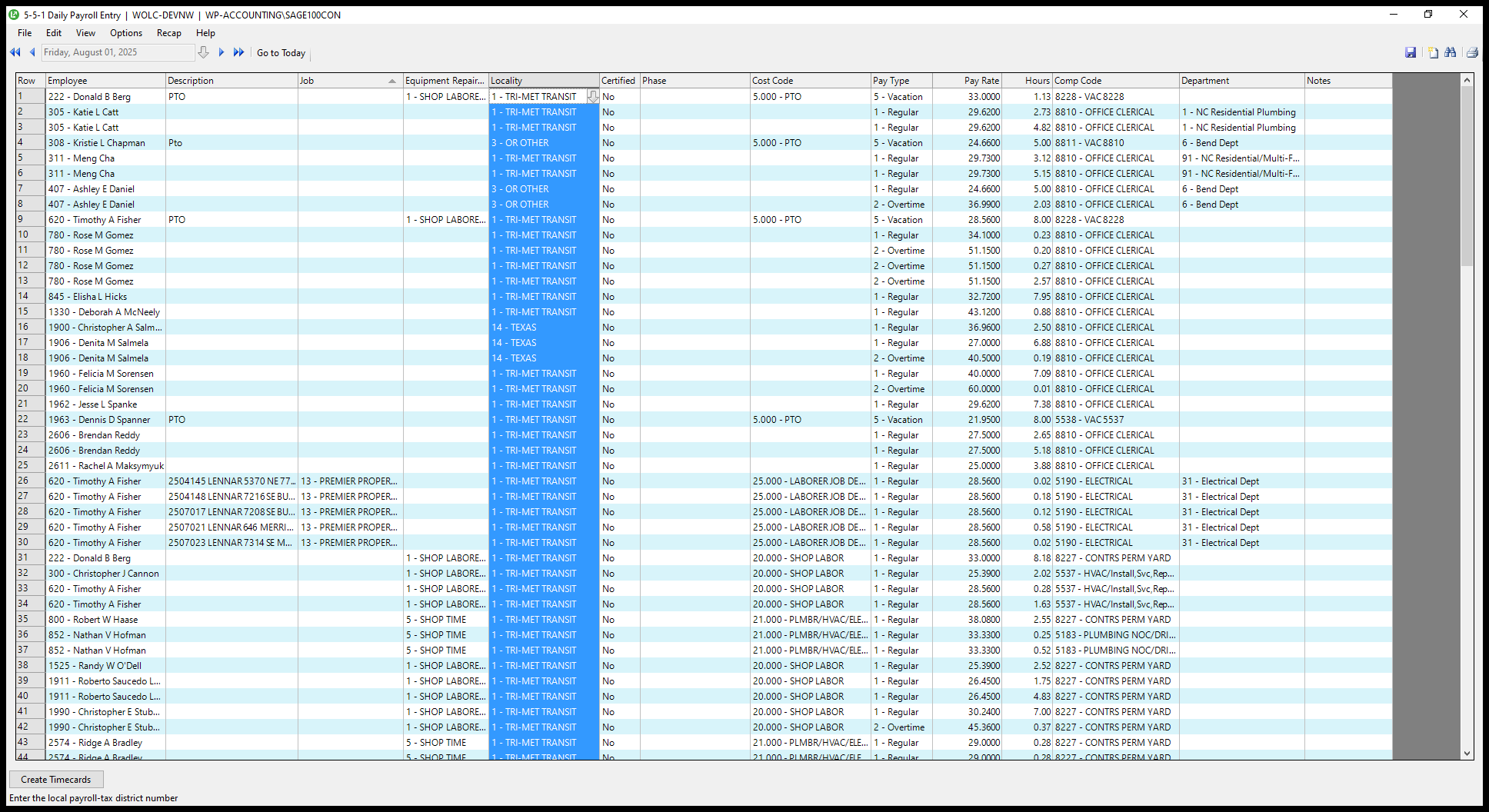
49
Double-click here
Step #49: Double-click here
50
Drag here
Step #50: Drag here

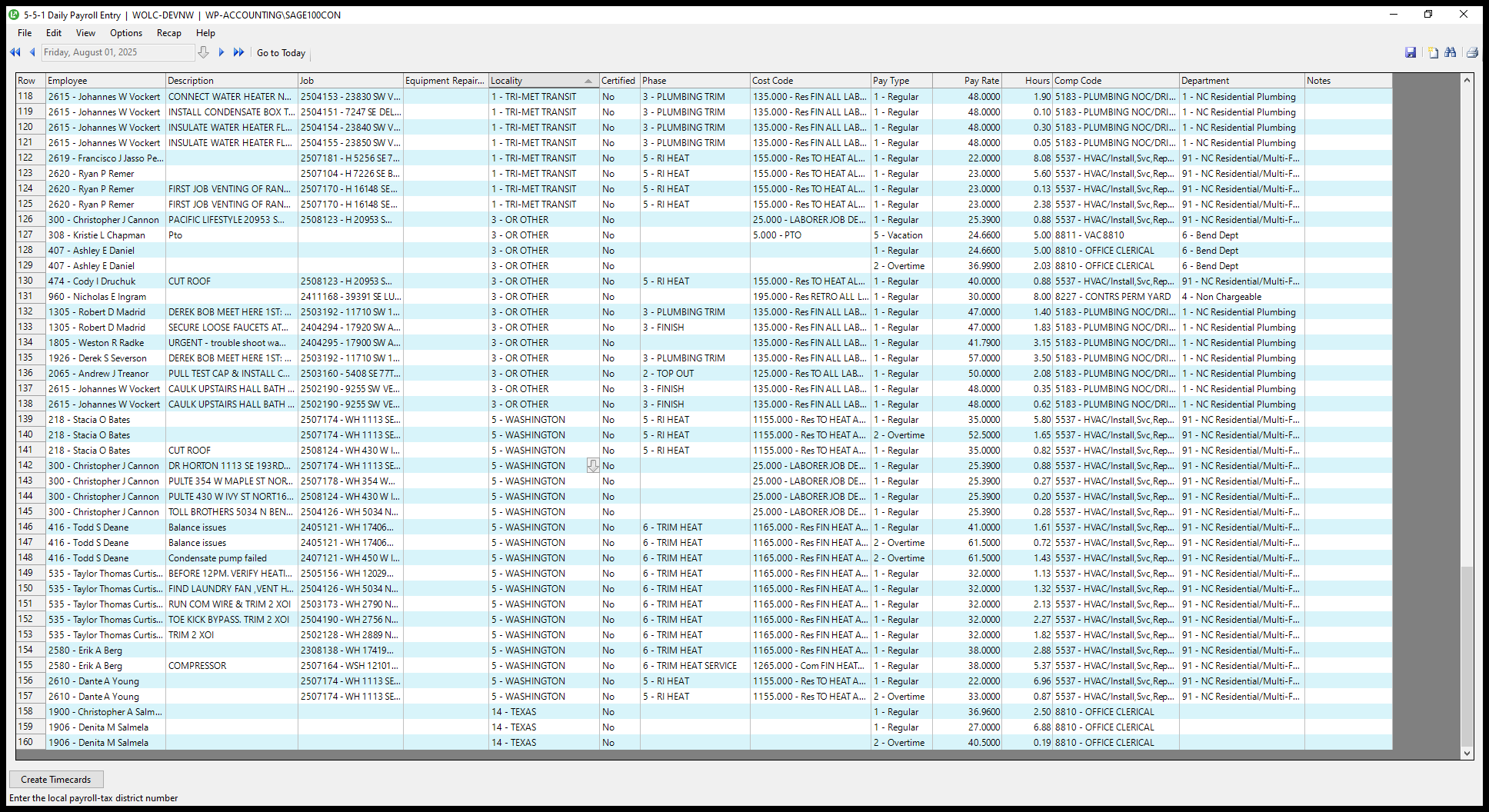
I update anyone who is an Oregon resident to "other."
51
Click on "5 - WASHINGTON"
Step #51: Click on "5 - WASHINGTON"
52
Drag "5- WASHINGTON"
Step #52: Drag "5- WASHINGTON"

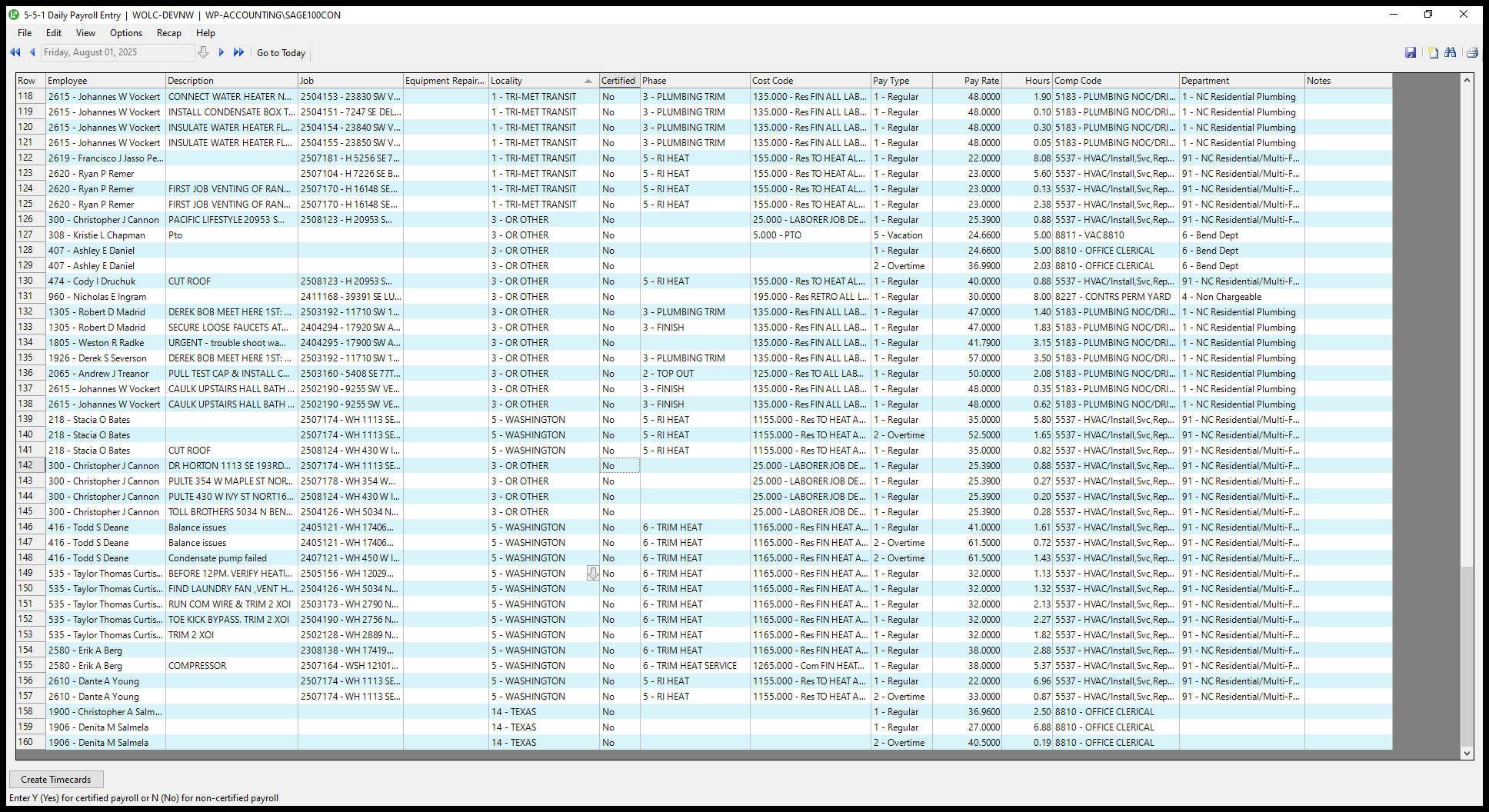
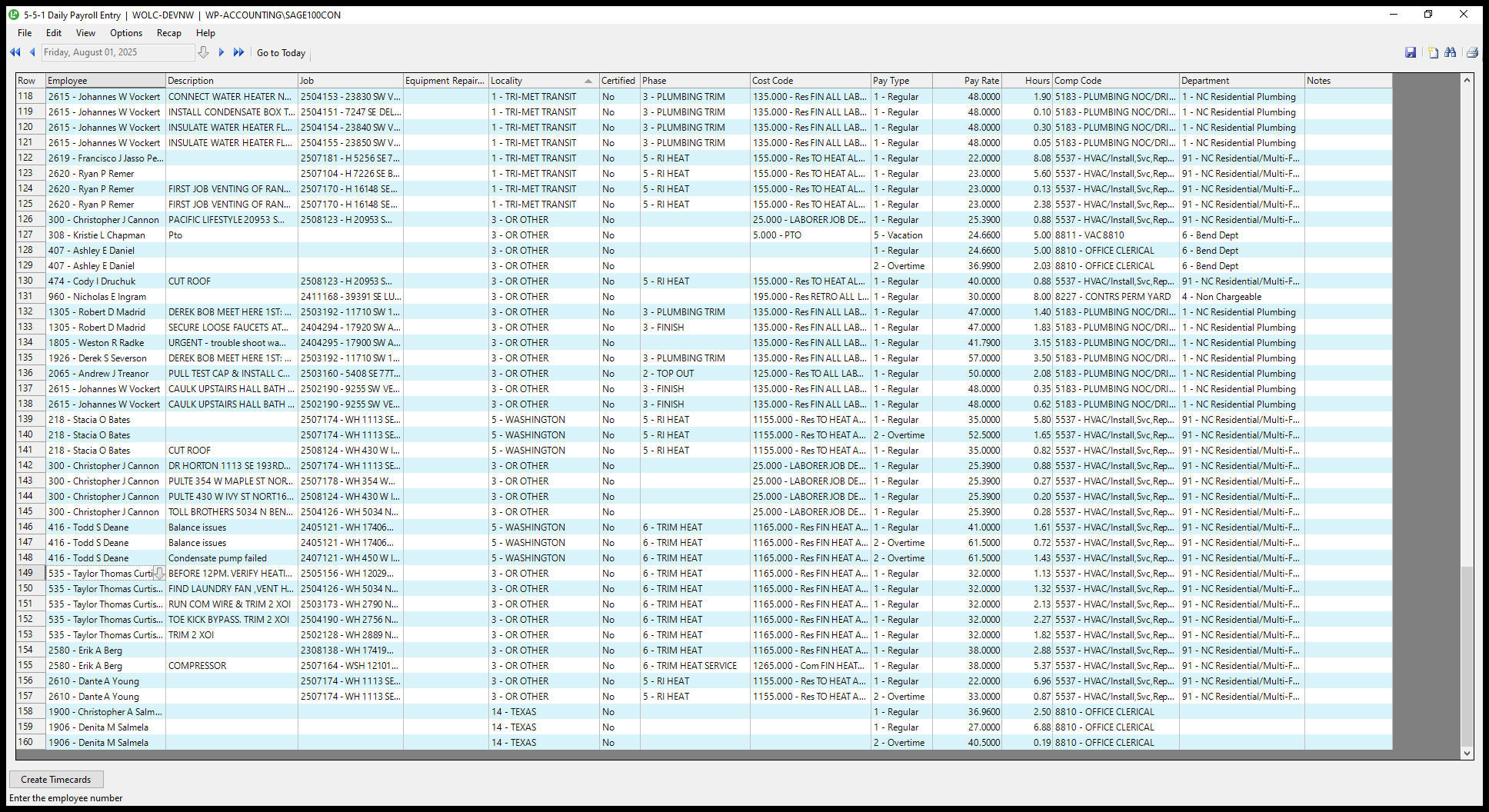
To identify whether someone is in Washington or Oregon, use this drop-down menu to view your address without leaving the screen.
53
Drag "5- WASHINGTON"
Step #53: Drag "5- WASHINGTON"
54
Click on "Curti"
Step #54: Click on "Curti"
55
Click on "BEFORE 12PM ."
Step #55: Click on "BEFORE 12PM ."

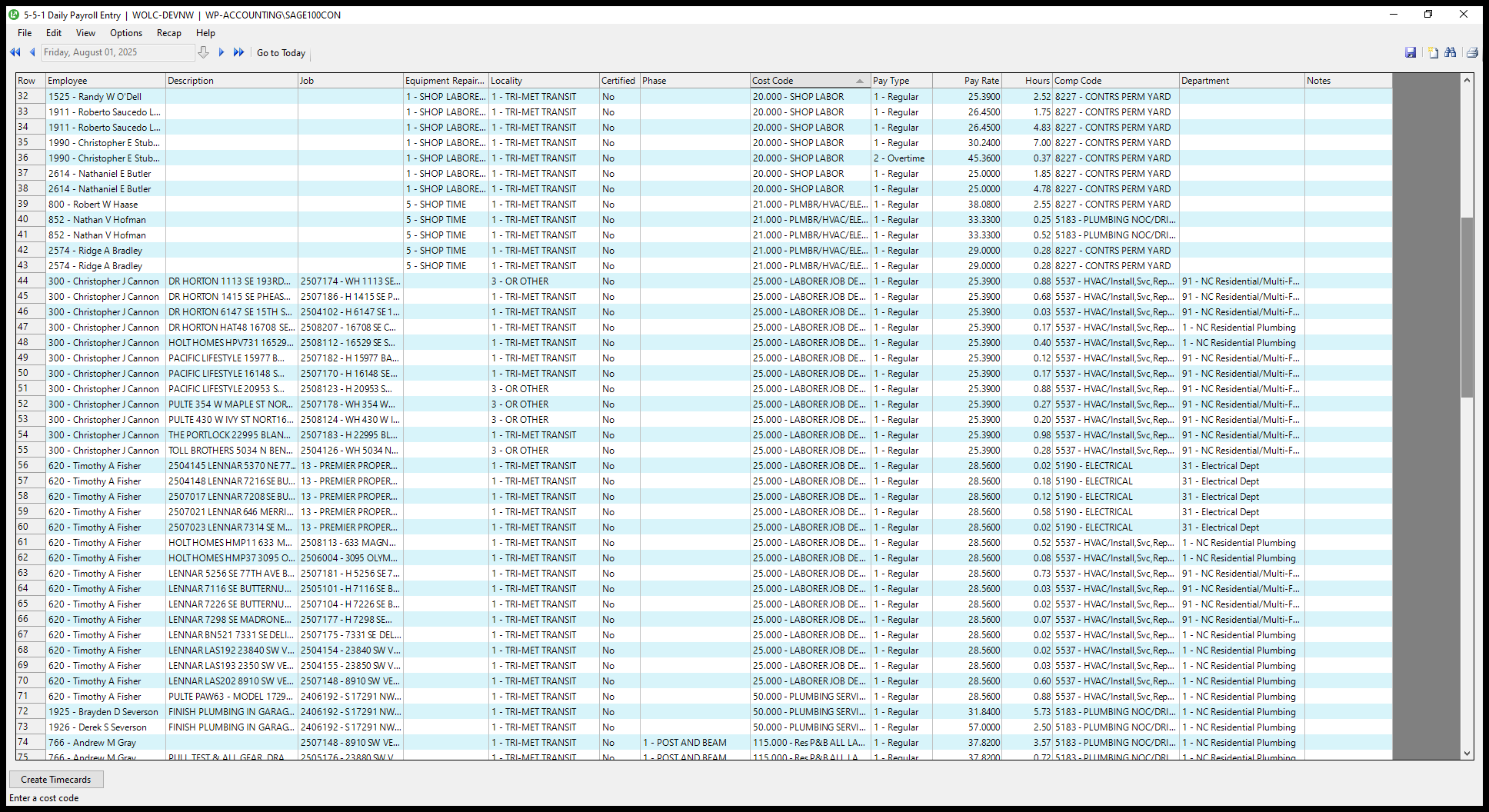
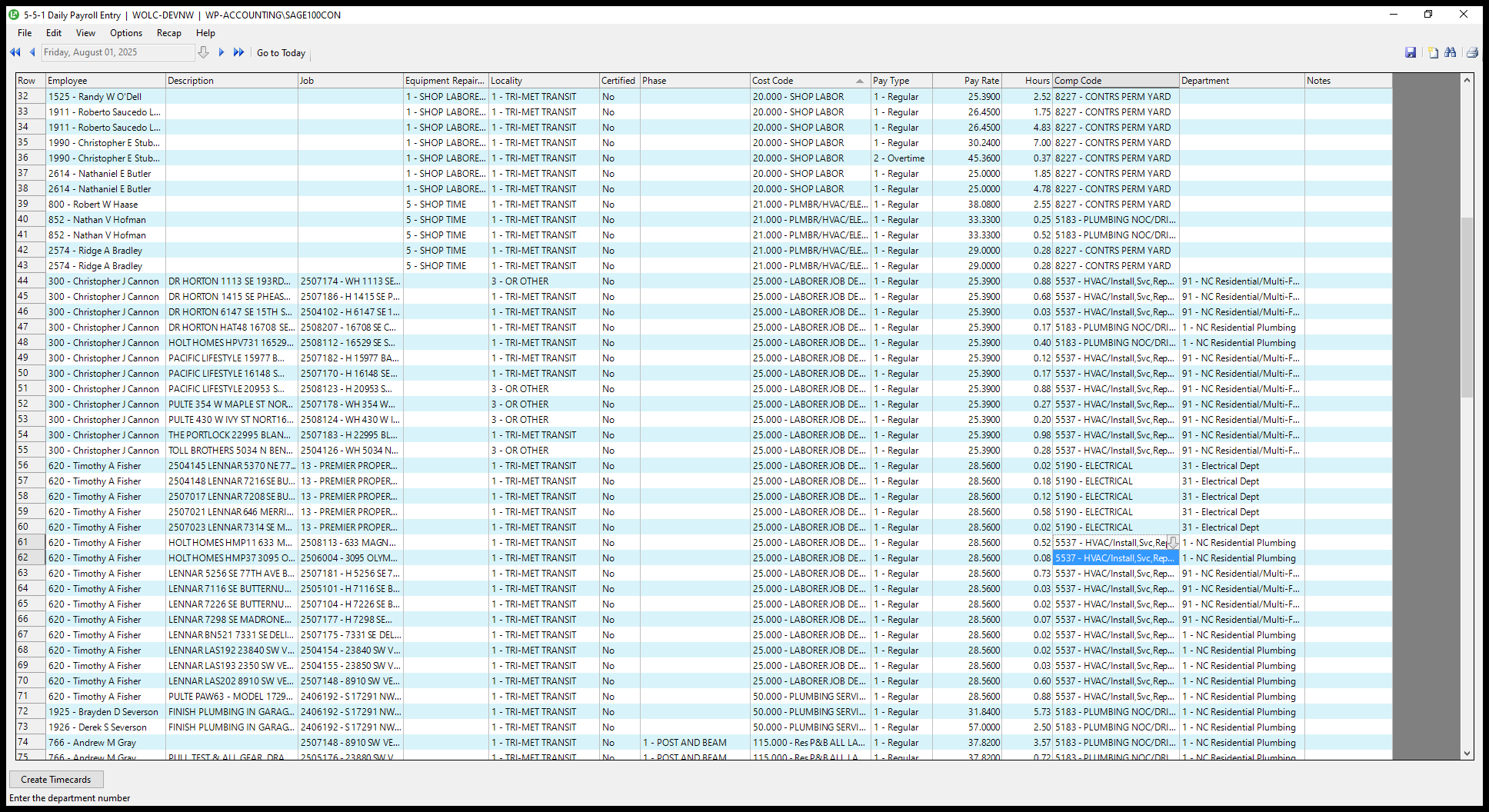
I go back up and sort by cost code. Here, I update the comp codes for the delivery drivers based on the stops they made, which are these 25 cost codes.
56
Click on "- F"
Step #56: Click on "- F"
57
Drag "3351.000 - MUL FIN LABO ..."
Step #57: Drag "3351.000 - MUL FIN LABO ..."
58
Double-click here
Step #58: Double-click here
59
Drag here
Step #59: Drag here
60
Drag "0.17 5183 - PLUMBING NOC /"
Step #60: Drag "0.17 5183 - PLUMBING NOC /"

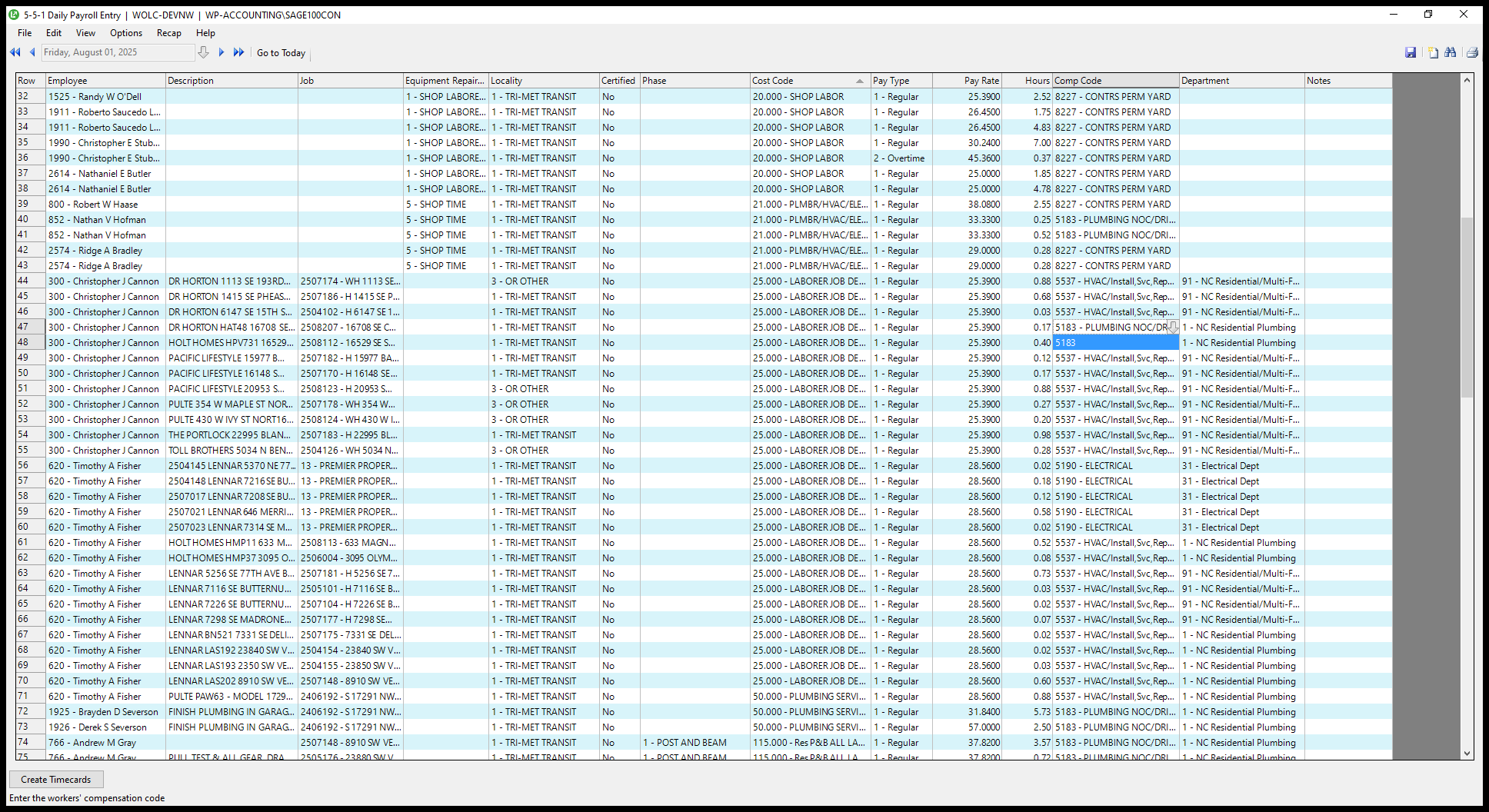
Then, update the comp code column.
61
Click on "0.08 5537 - HVAC /"
Step #61: Click on "0.08 5537 - HVAC /"

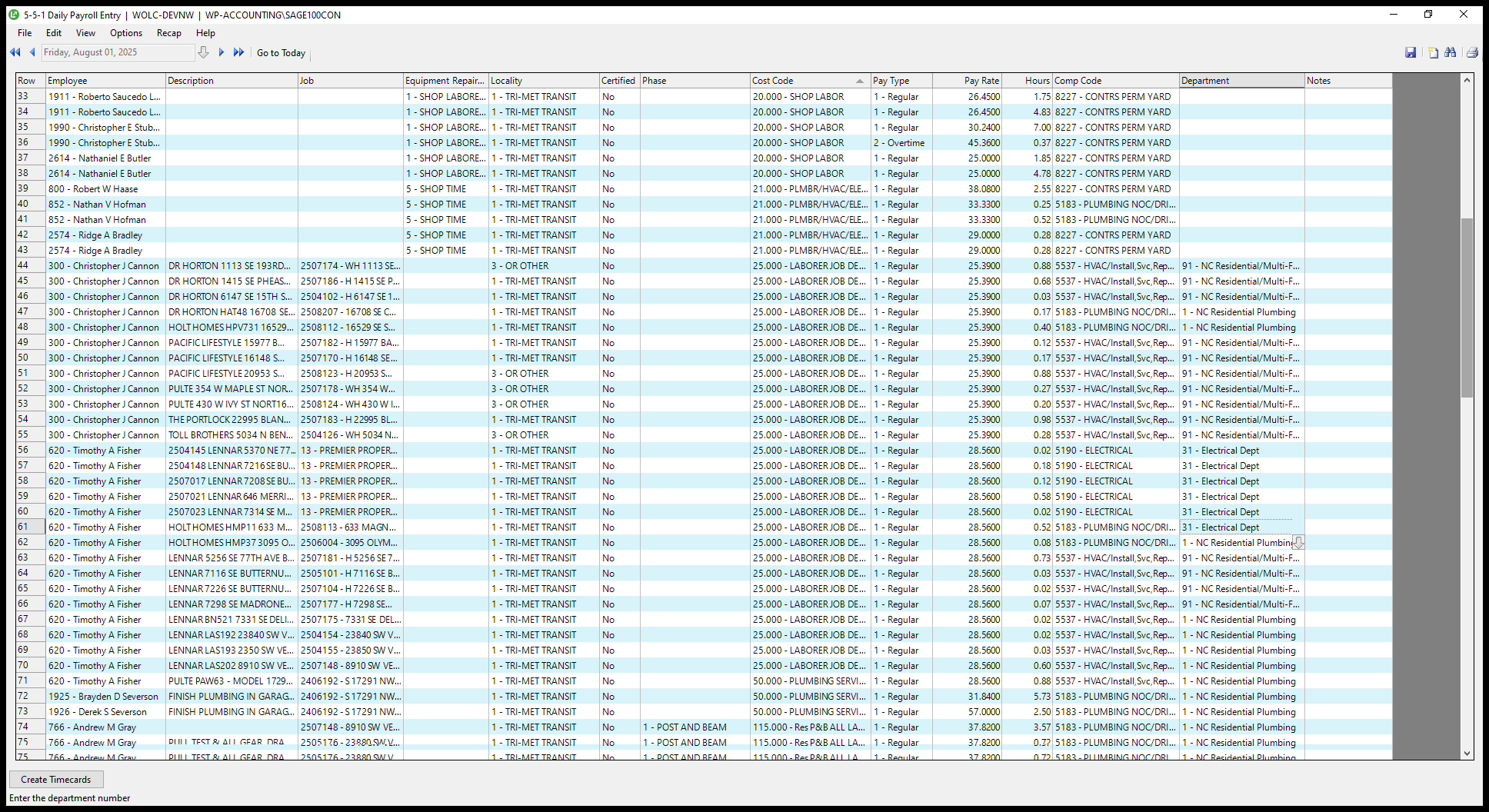
To save time, I triple-check the phase and comp code, ensure they are correct, and fill in any blanks.
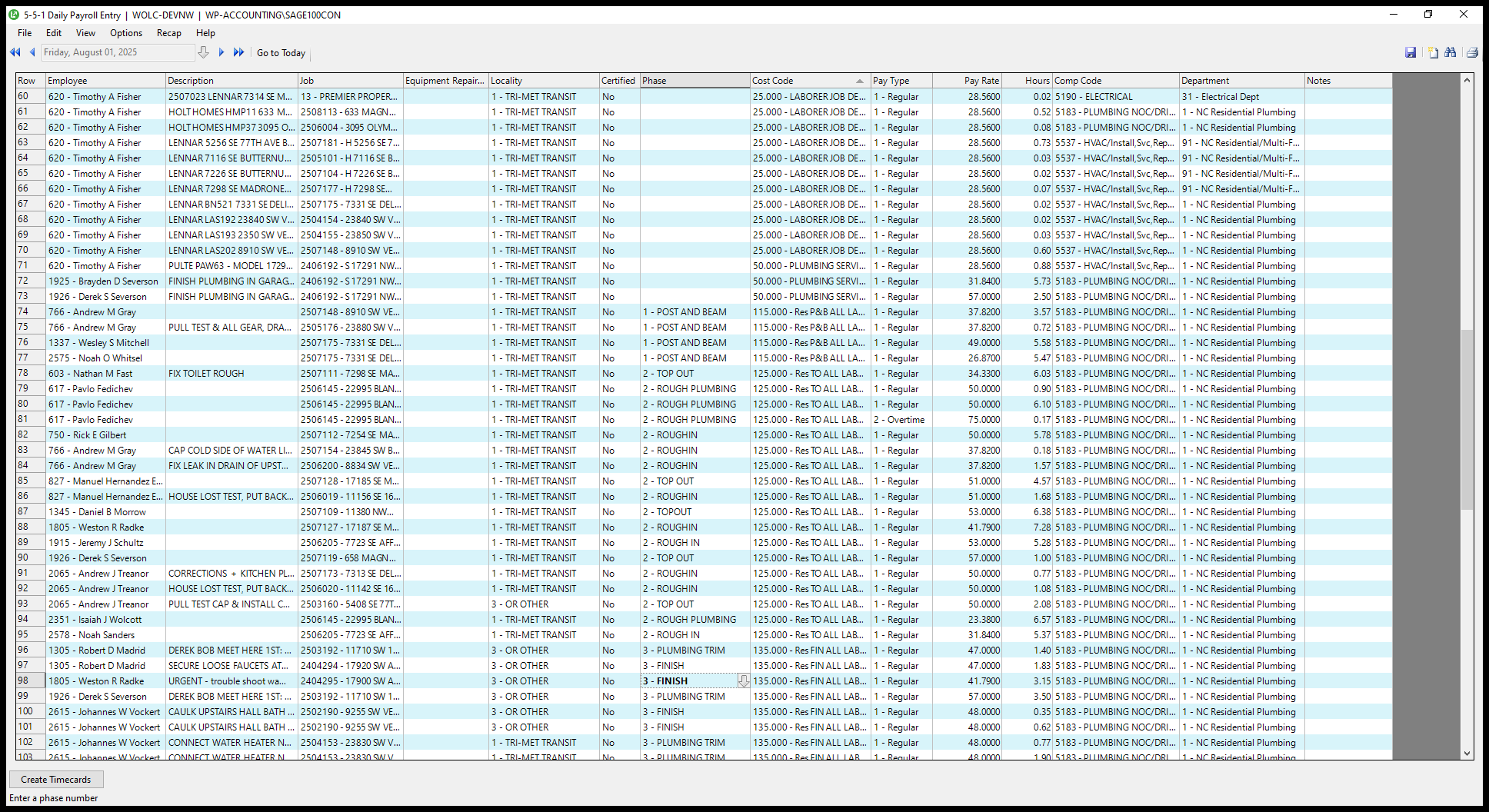
62
Drag here
Step #62: Drag here
63
Click here
Step #63: Click here

After I finish that, I go to the department section and sort by department.
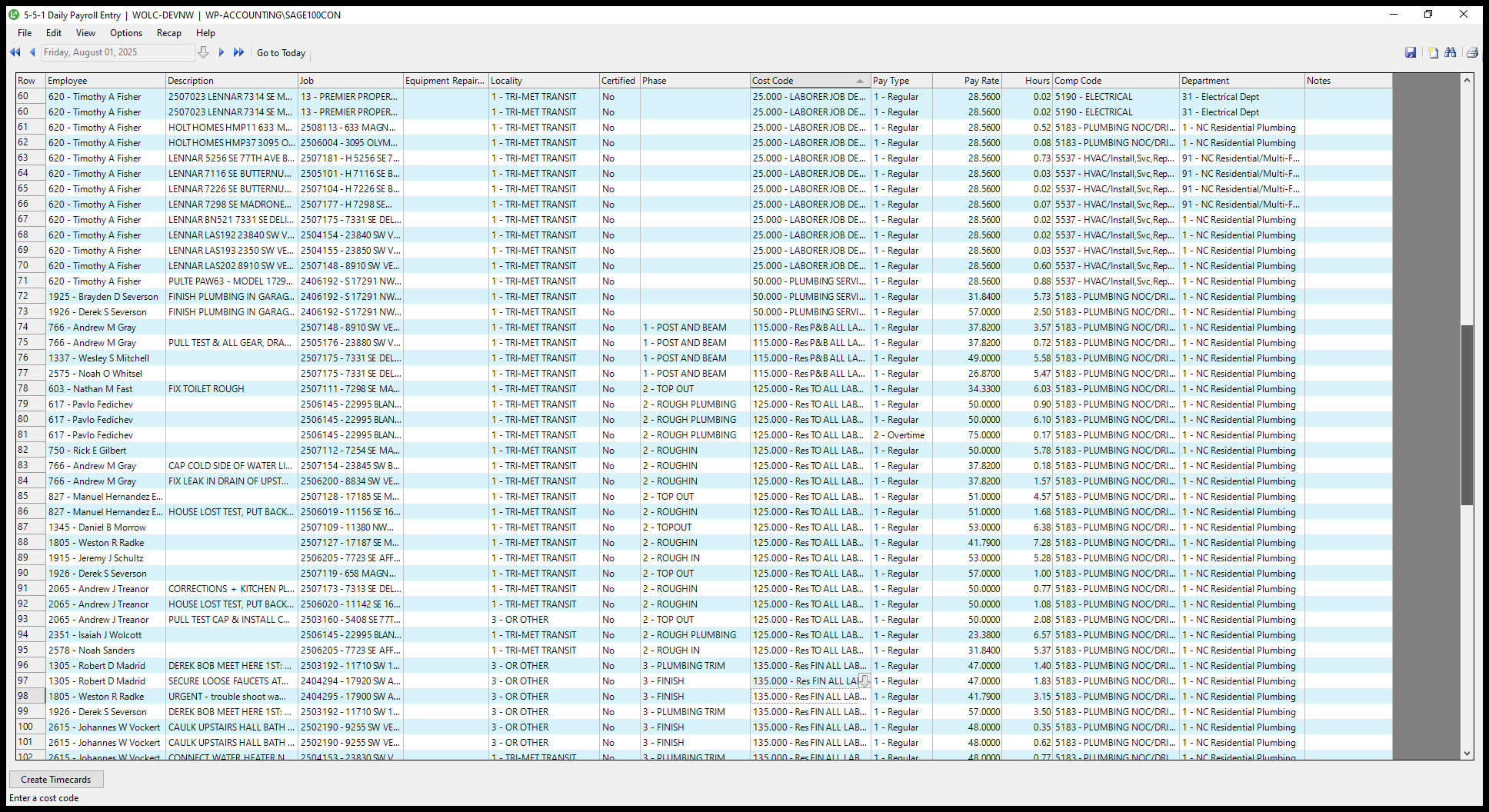
64
Drag here
Step #64: Drag here
65
Double-click on "Department"
Step #65: Double-click on "Department"

Triple-check that comp codes and departments match all the way down.
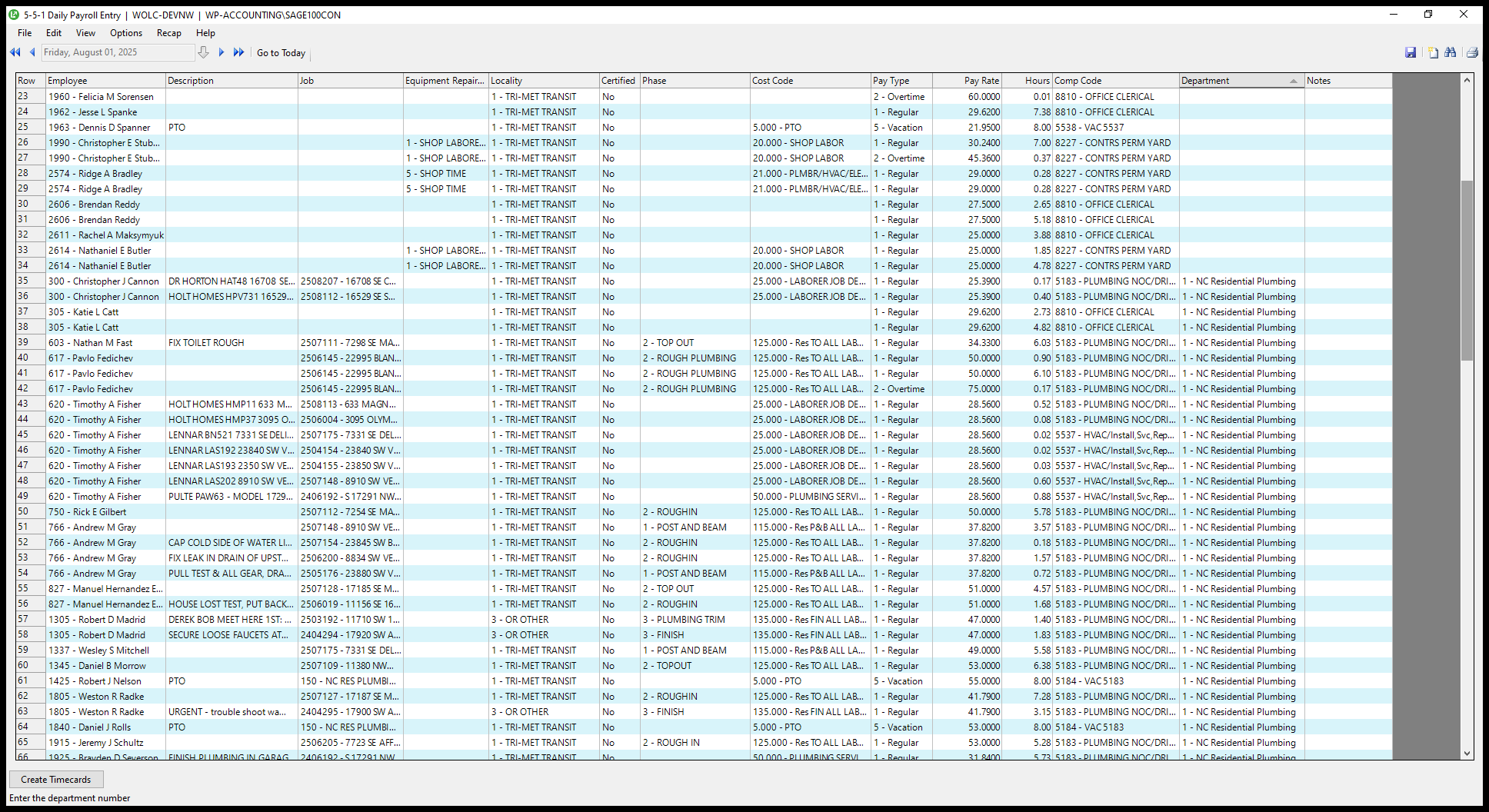
66
Drag "2.73 8810 OFFICE CLERICAL"
Step #66: Drag "2.73 8810 OFFICE CLERICAL"
67
Click here
Step #67: Click here

Then click and save.