How to Export Excluded Transactions
Learn how to export excluded transactions as a CSV file for easy review and auditing.
By Aasma Technology Solutions
This guide explains how to view and export transactions that have been excluded from the main transaction list. Exporting excluded transactions allows users to review the data in a CSV file for auditing, reconciliation, and record-keeping purposes.
1
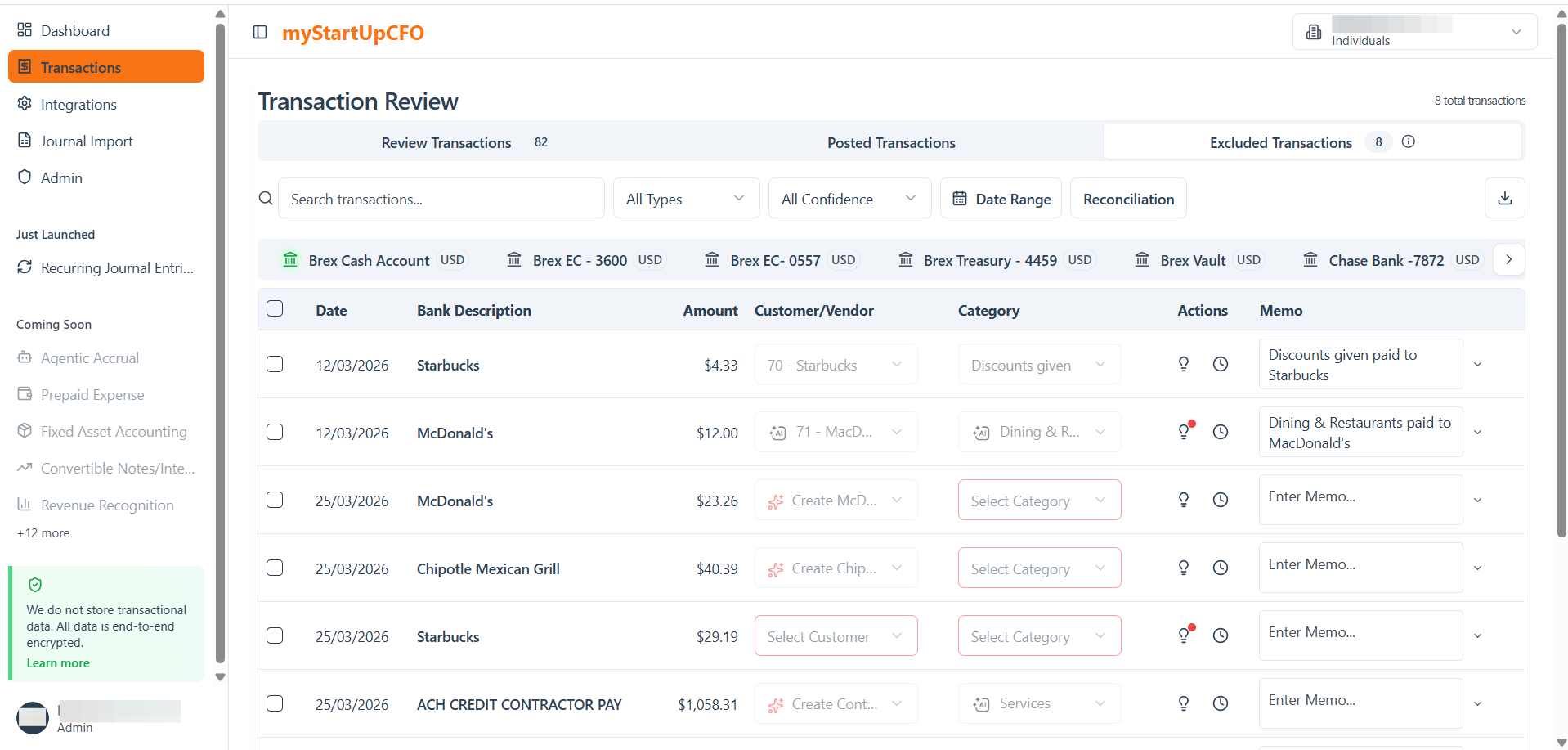
Go to the Transactions tab and click the Excluded Transactions tab to view all excluded transactions.
2
Click the Export icon in the top-right corner of the transaction table to export the excluded transactions.
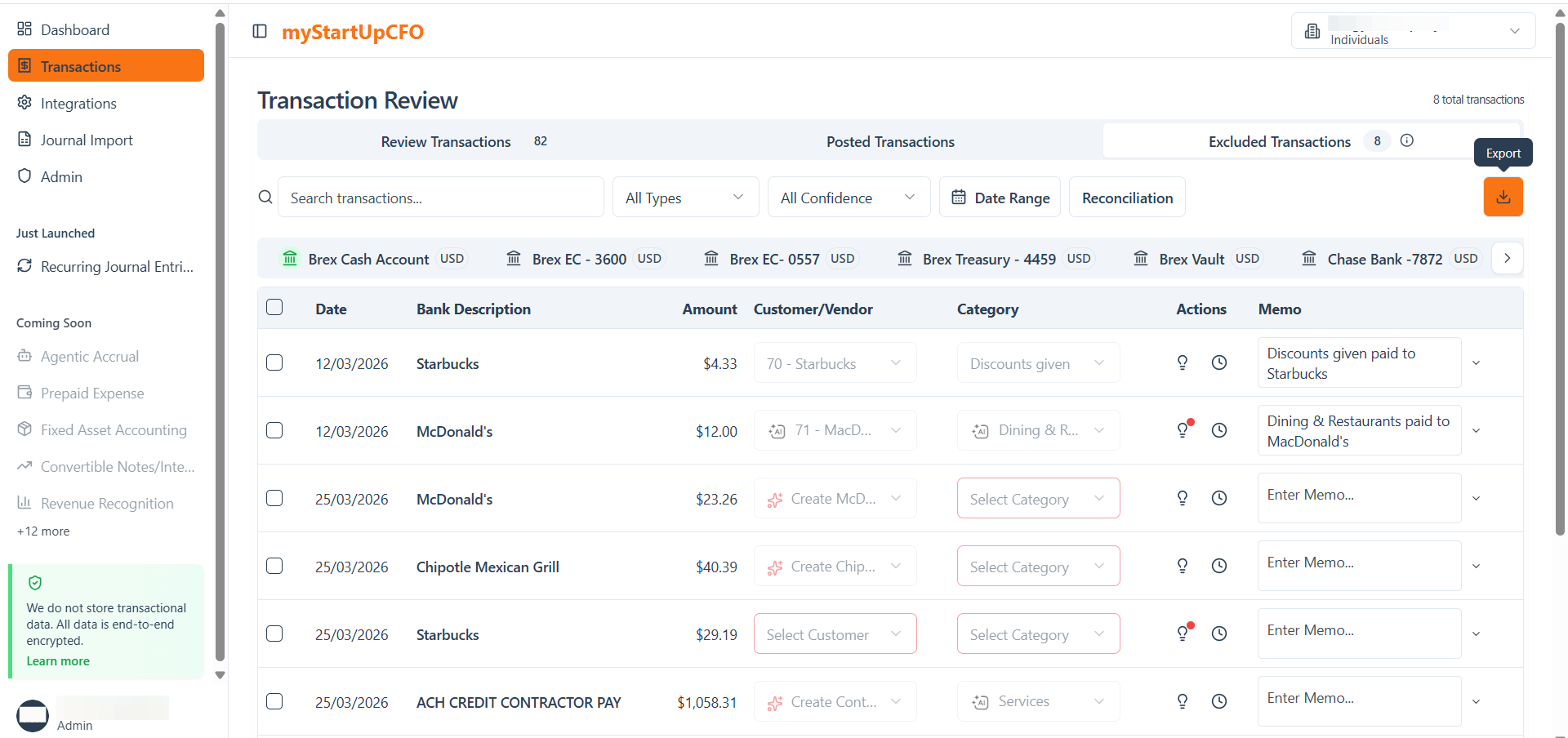
The CSV file will automatically download to your computer.
3
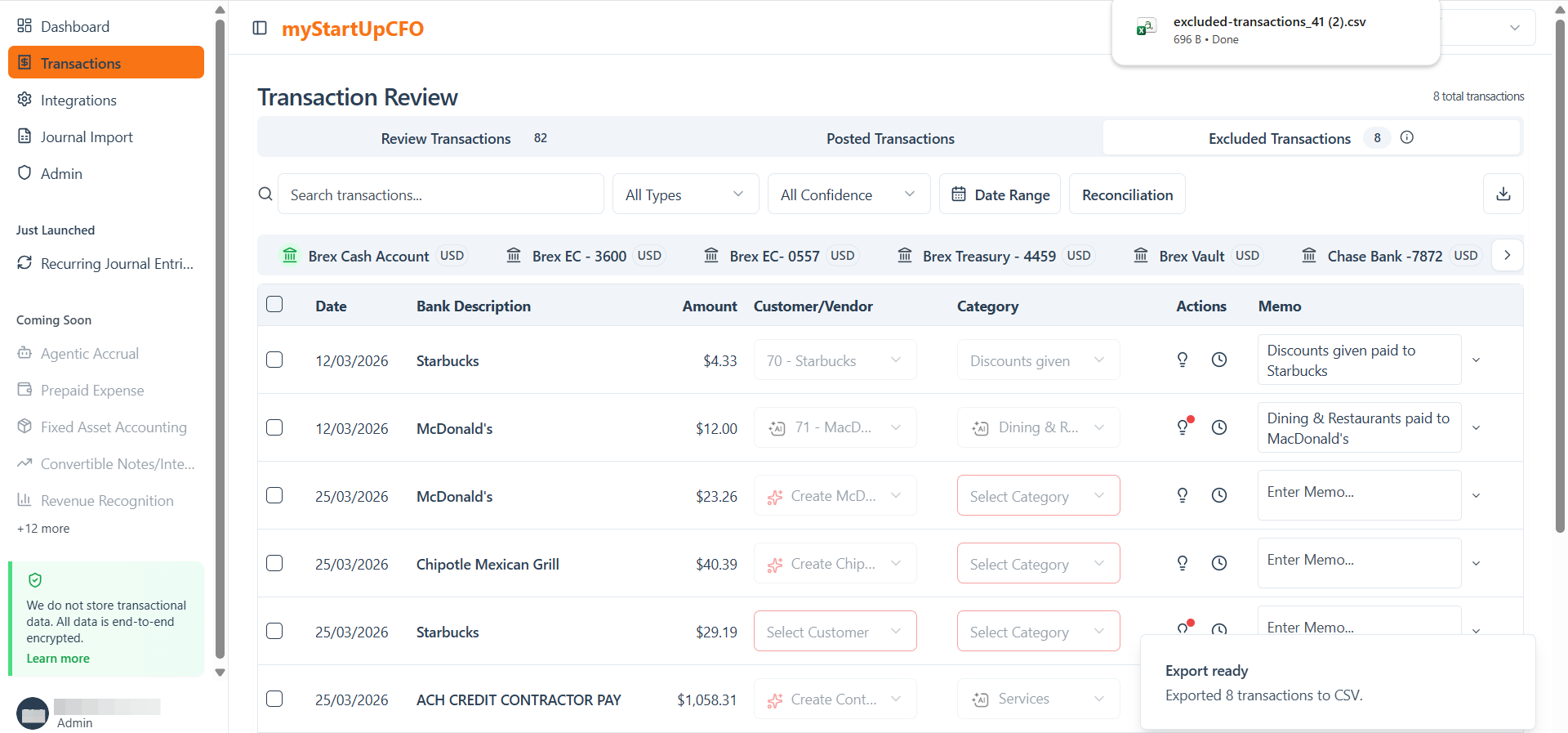
Click the downloaded file notification in your browser to open and review the exported transaction data.
4
The downloaded CSV file contains the list of excluded transactions.
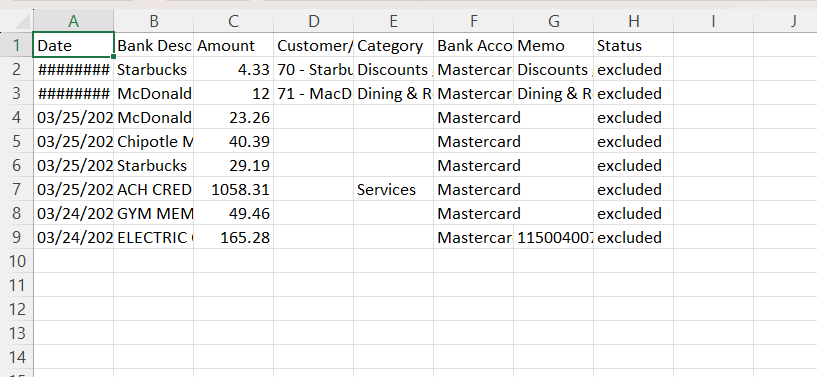
Review the exported data to get a clear overview of excluded transactions and use it for auditing, reconciliation, or record-keeping purposes.
The Export feature provides a convenient way to download and review excluded transaction data outside the application.