How to Extend the Rental Period for Existing Orders
Learn step-by-step how to extend the rental period for an existing order, update payment, and process charges automatically in your system.
By Reservety
In this guide, we'll learn how to extend the rental period for an existing order. We will review the steps to update the rental dates, calculate the new payment due, and process the payment using the stored credit card.
This process helps ensure that orders remain up to date and payments are collected efficiently.
Let's get started
1
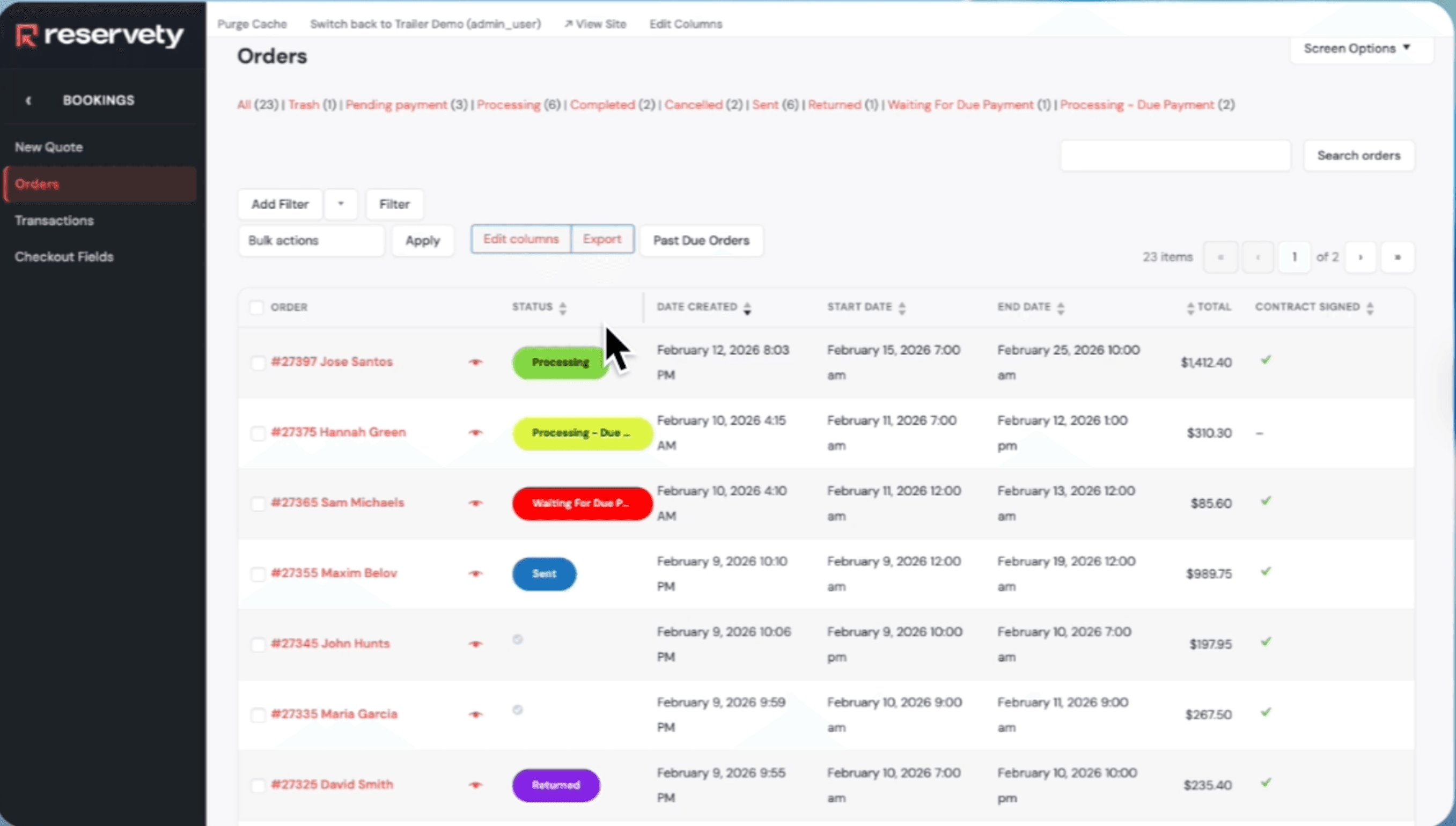
Go to Rental Dashboard, click on Bookings, then click on Orders
2
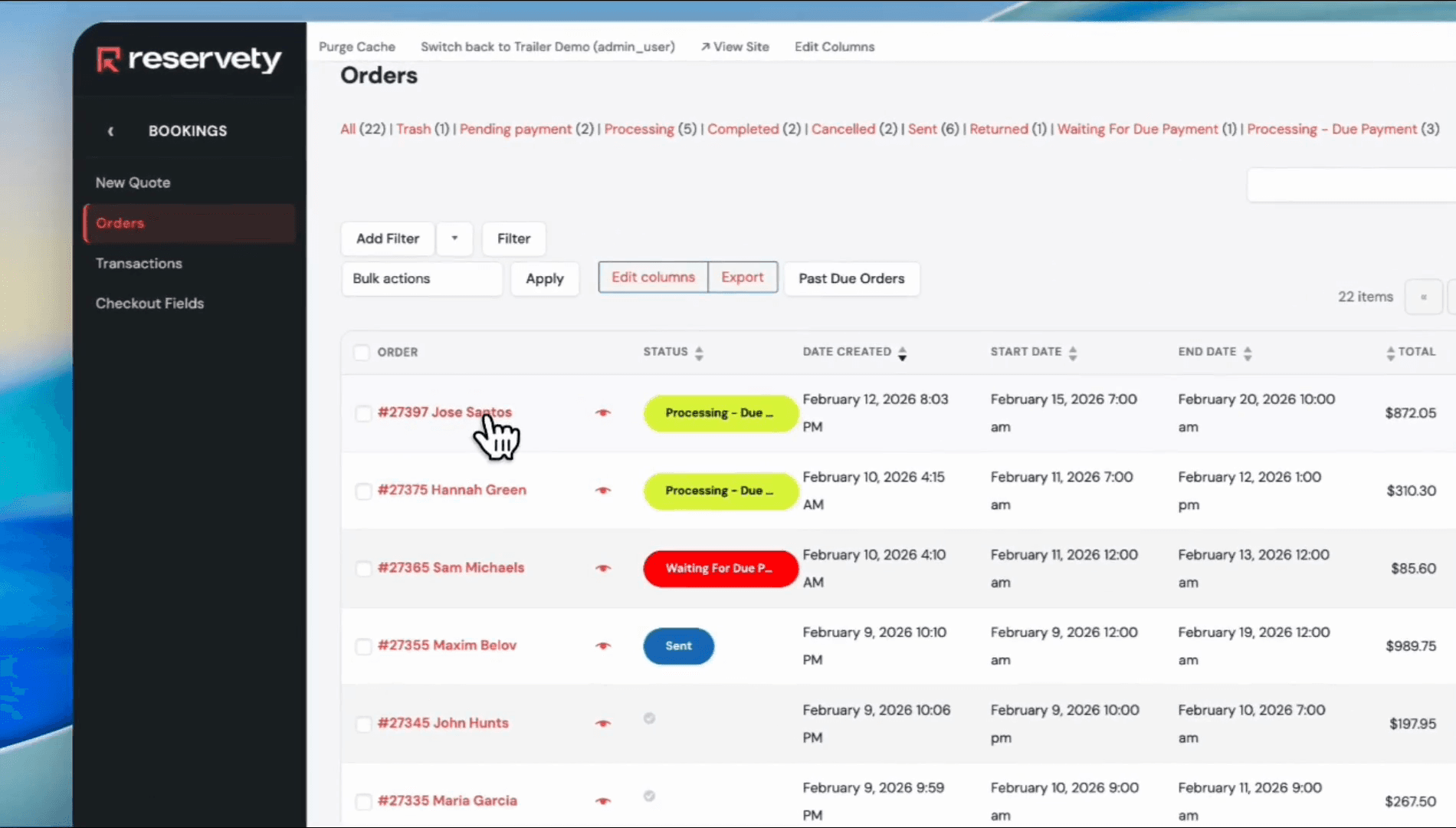
Select the order you want to extend.
3
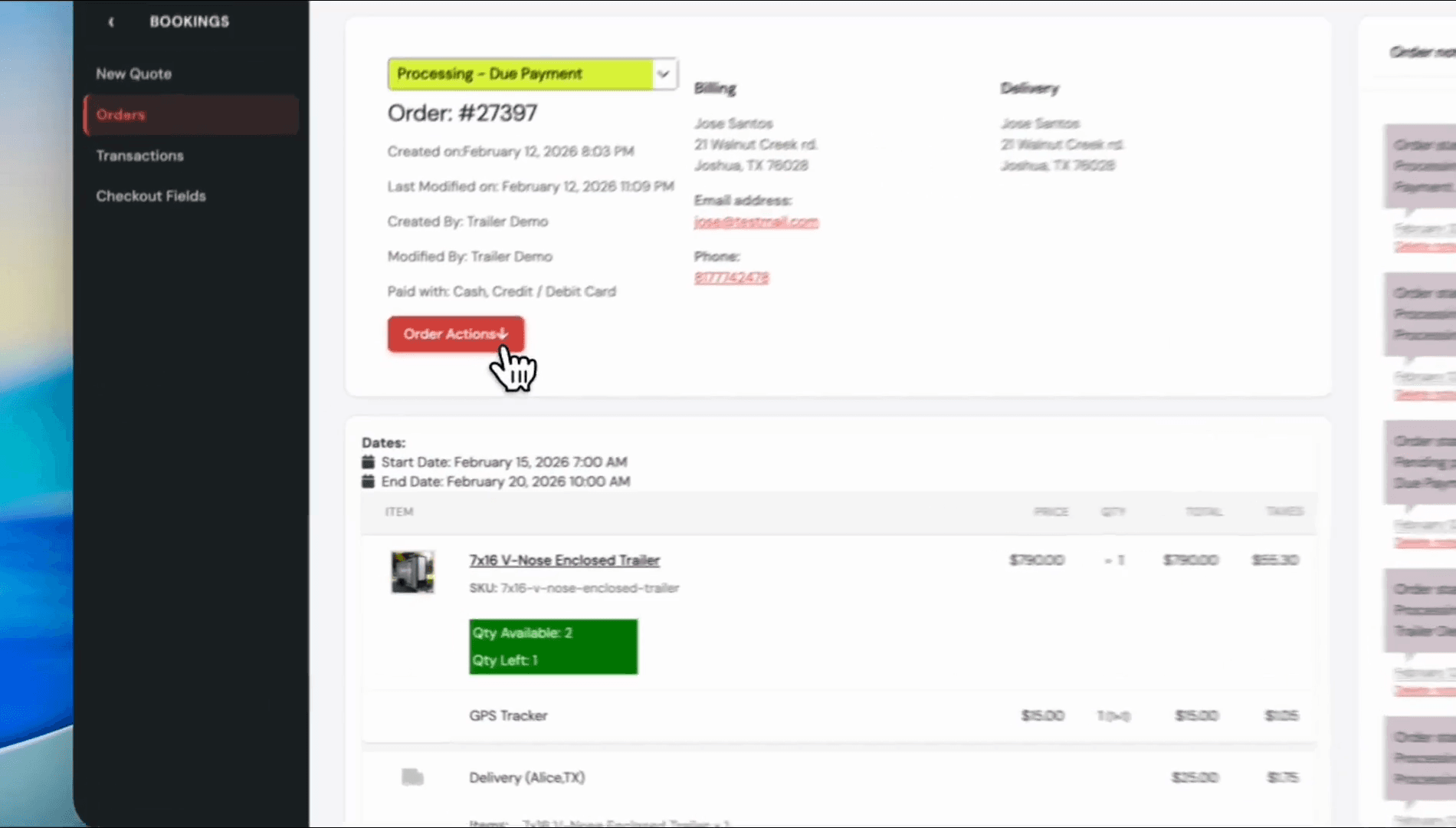
Click the Order Actions button.
4
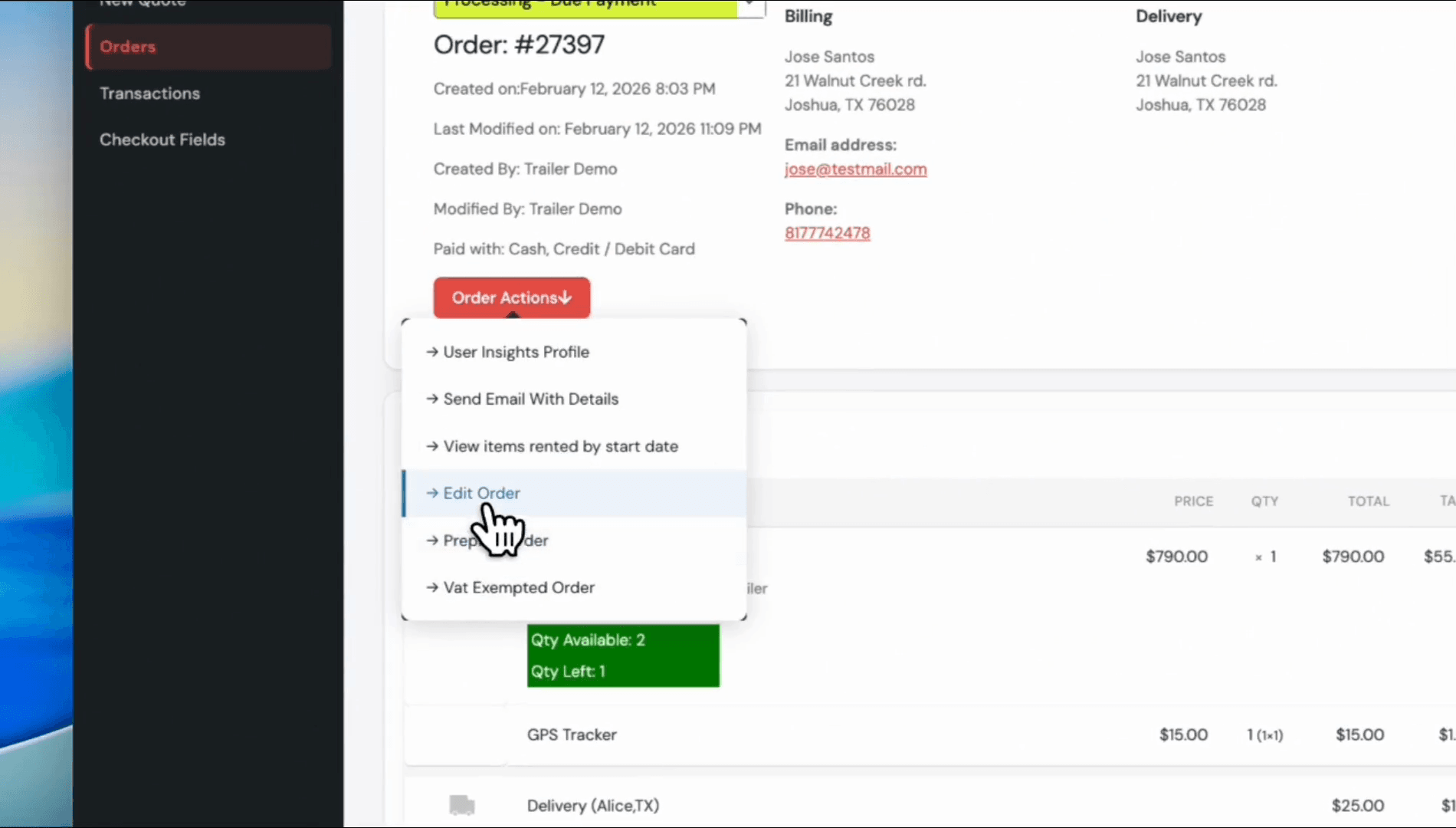
Click Edit Order.
5
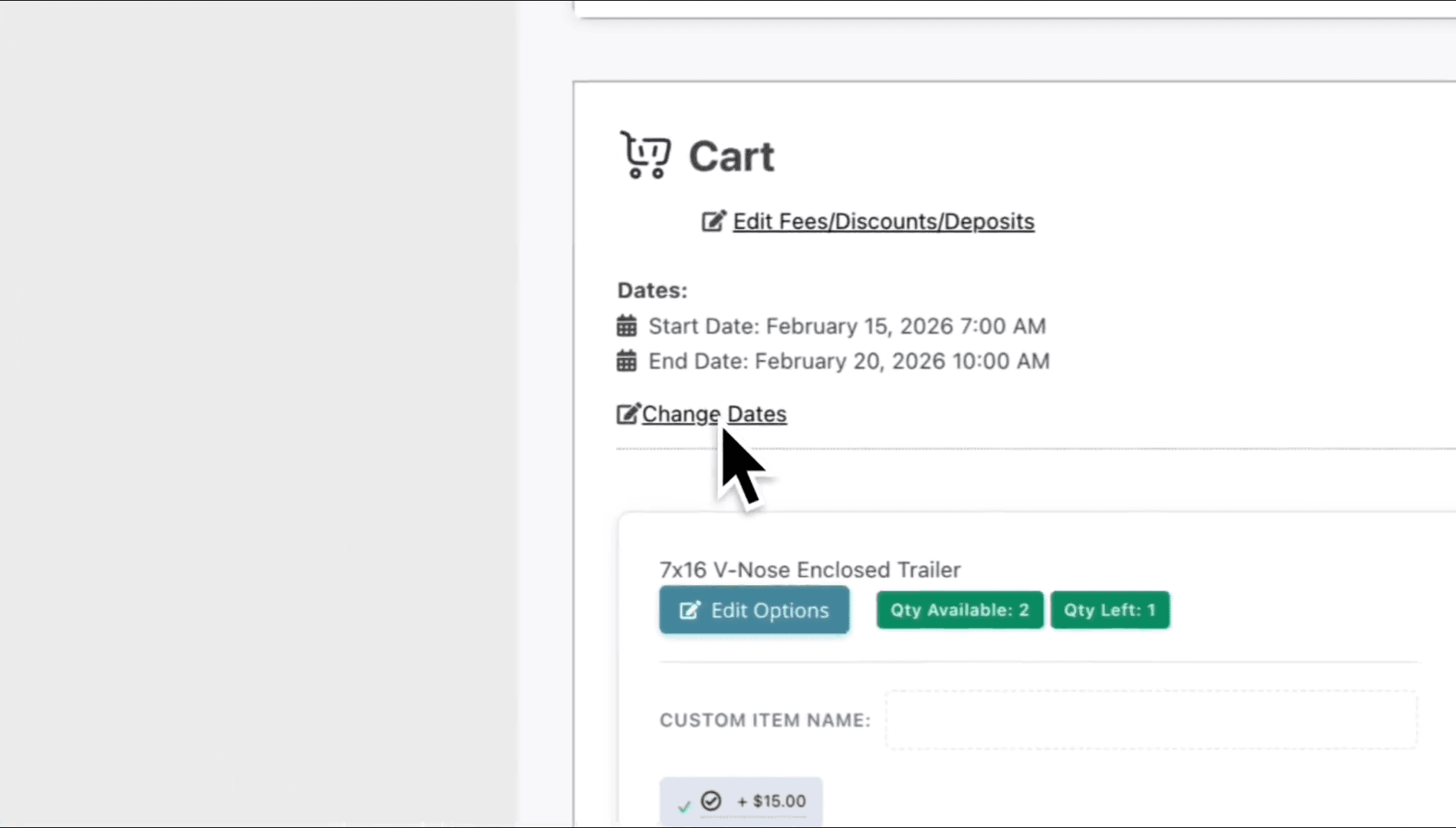
Click the Change Dates checkbox.
6
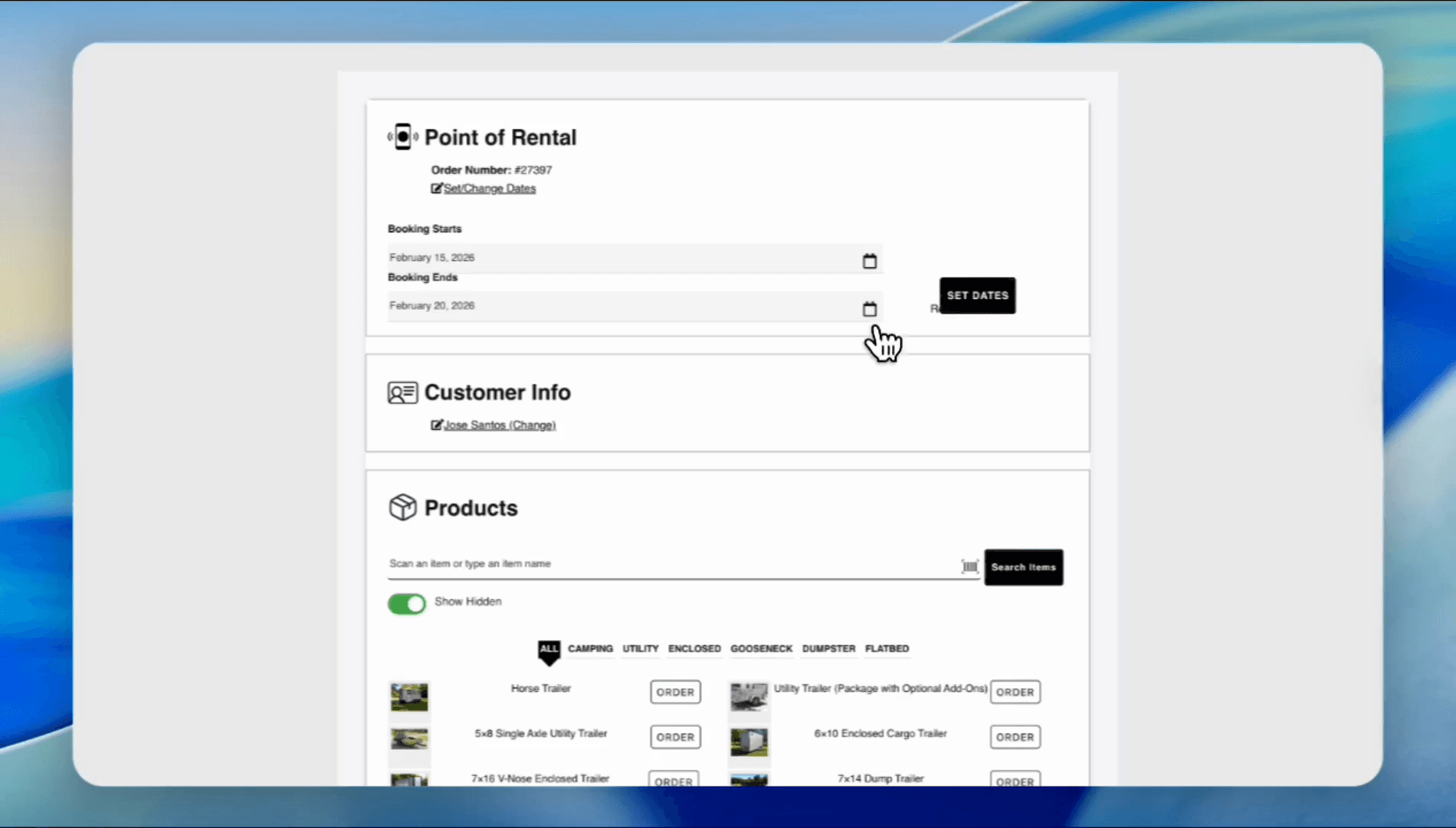
Click the calendar icon next to Booking Ends.
7
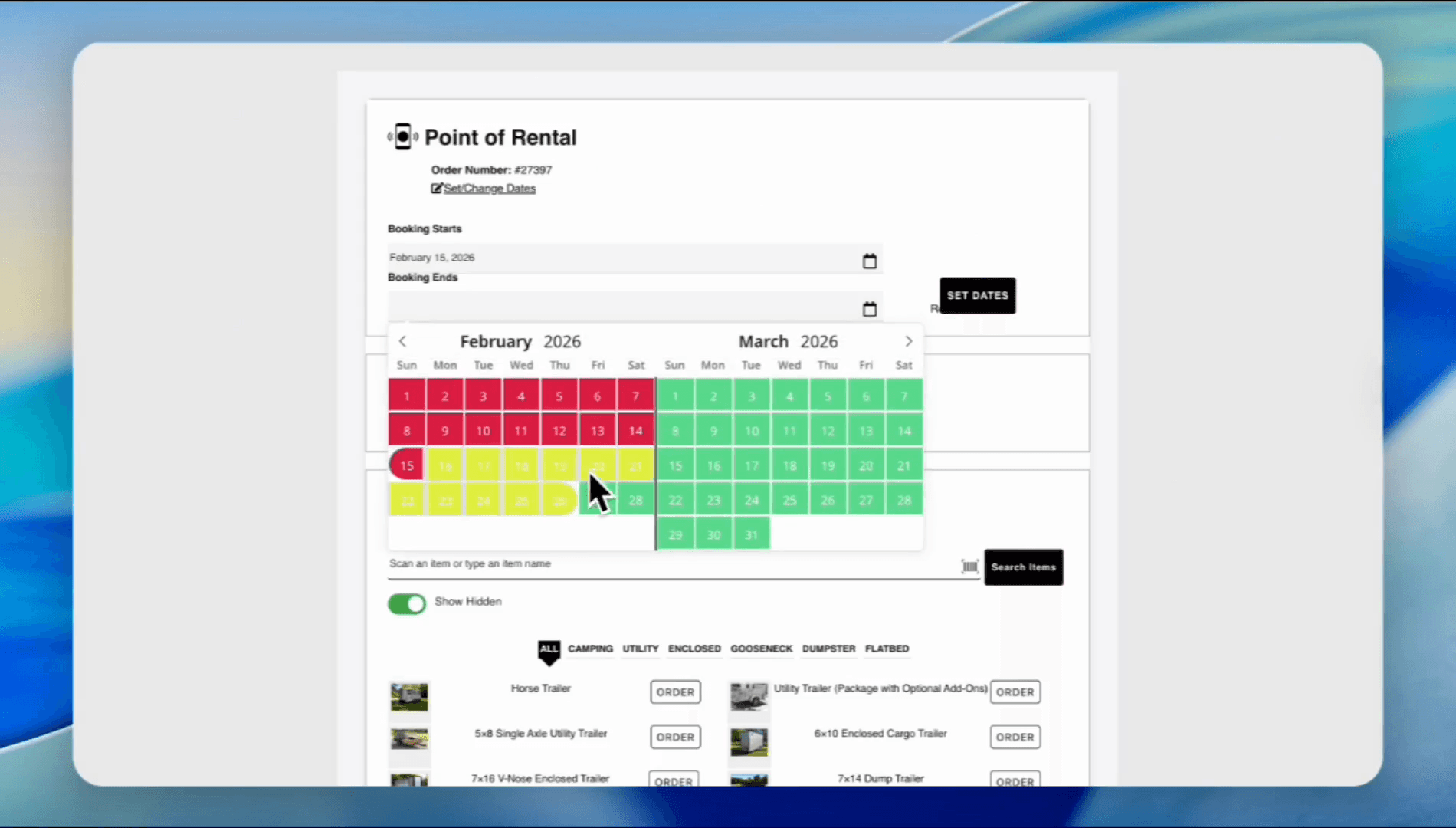
Select the date. For example, we want to extend it until the 25th. Click on the 25th.
8
Click the Set Dates button.
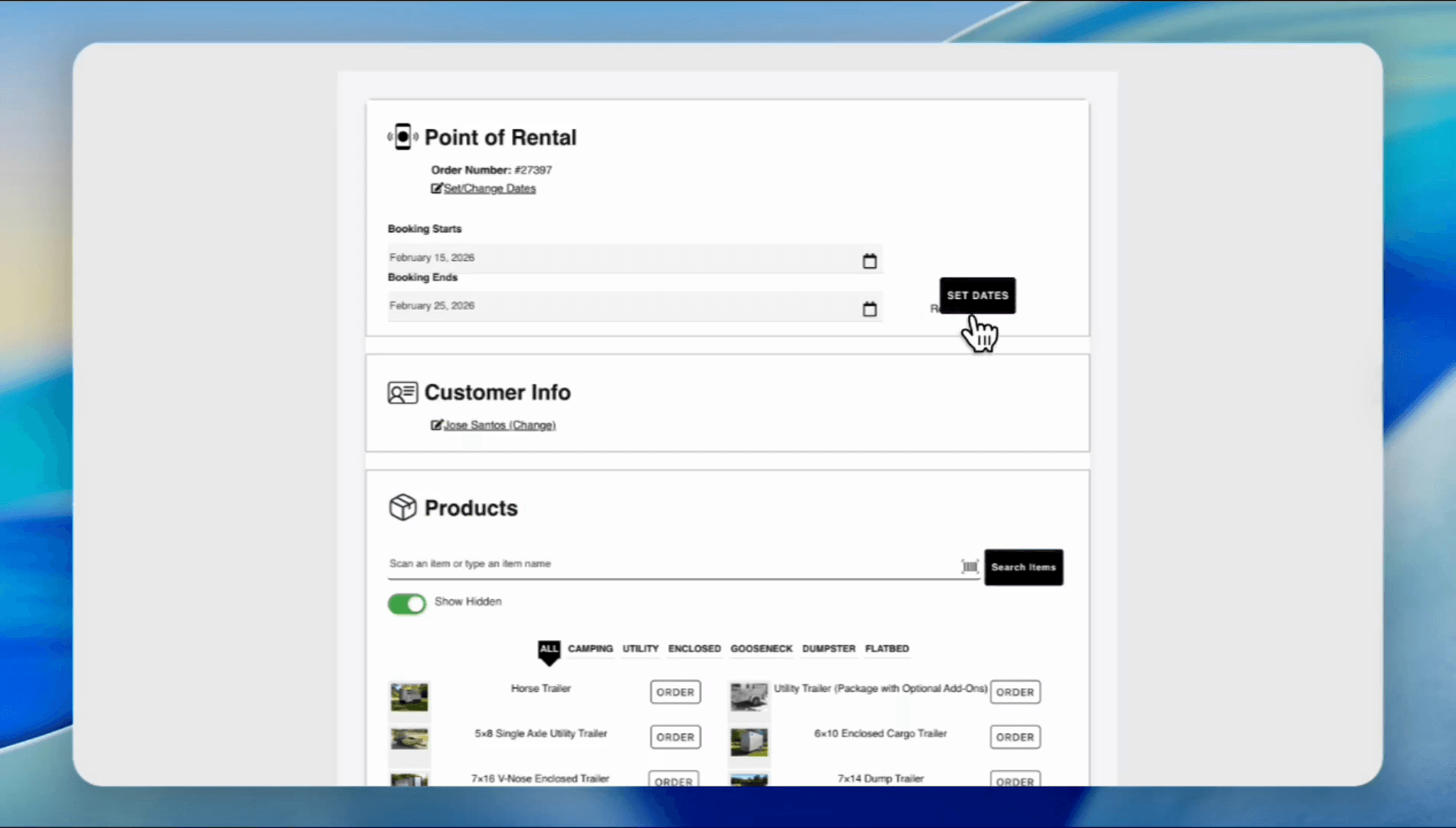
The system added five extra days, and the payment due for that is $535.
Now, let's return to the order. He owes us $535. You can charge that amount automatically.
9
Click on Order Actions.
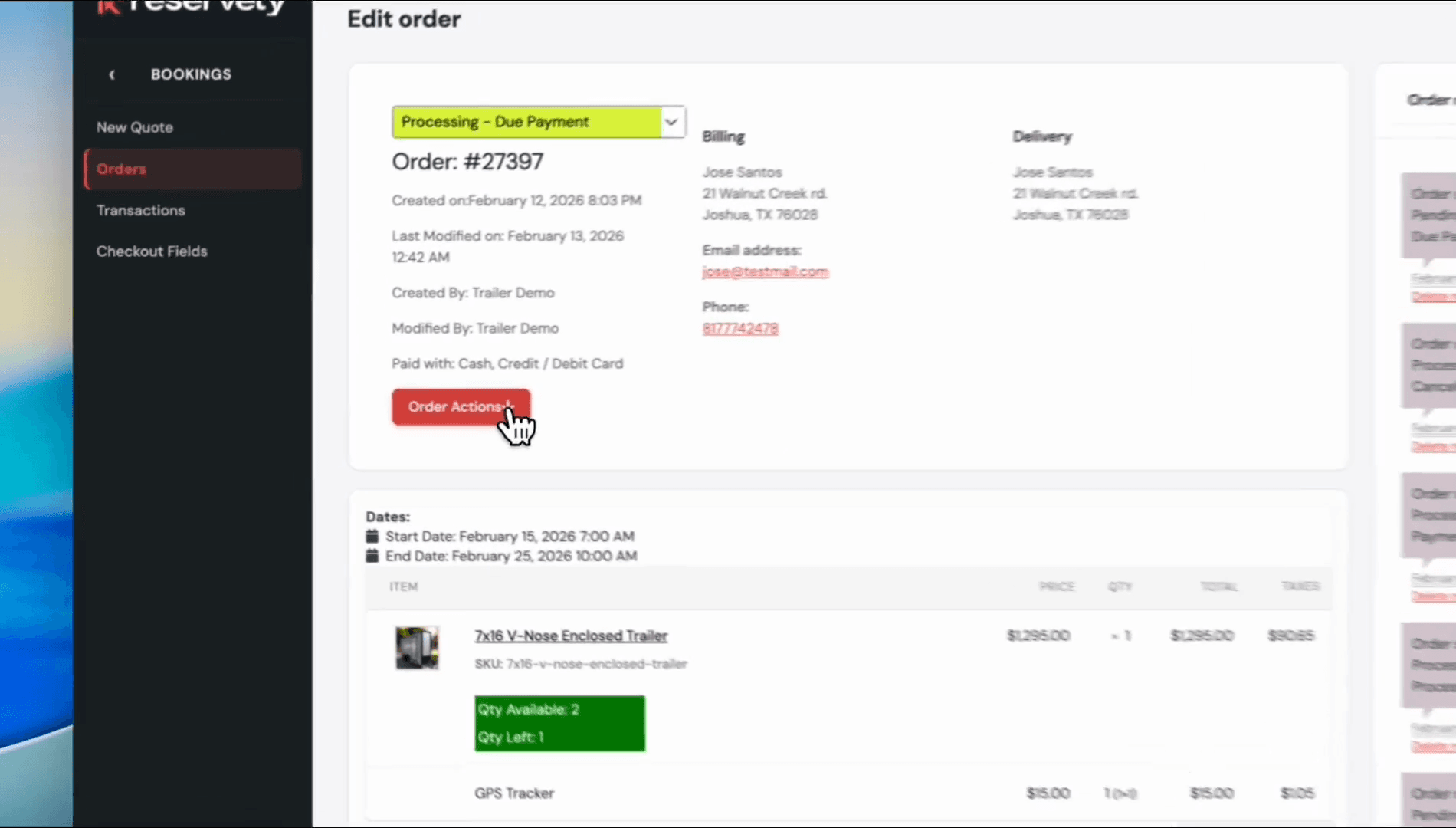
10
Click on Pay for user.
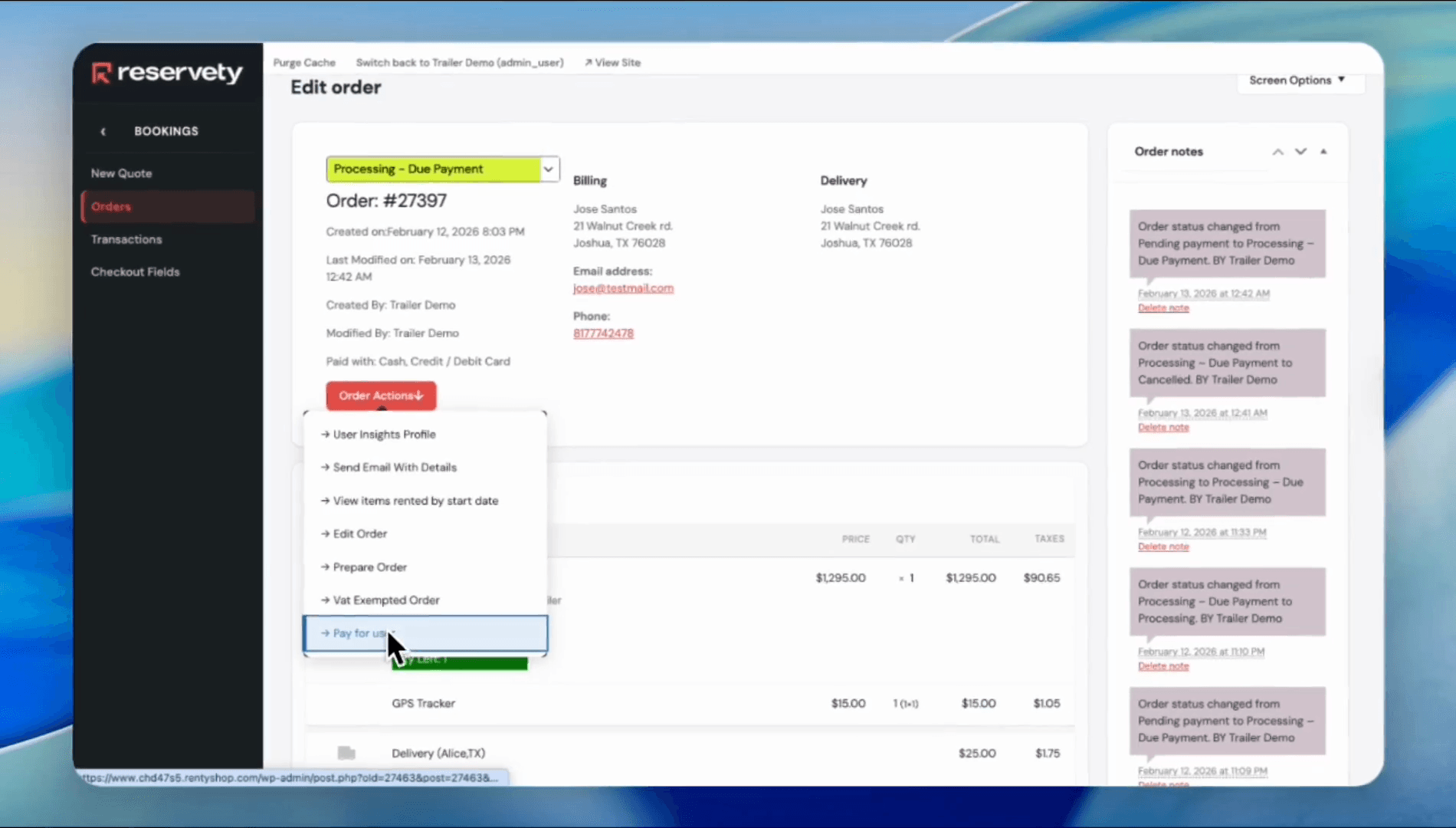
11
Click the Pay for order button.
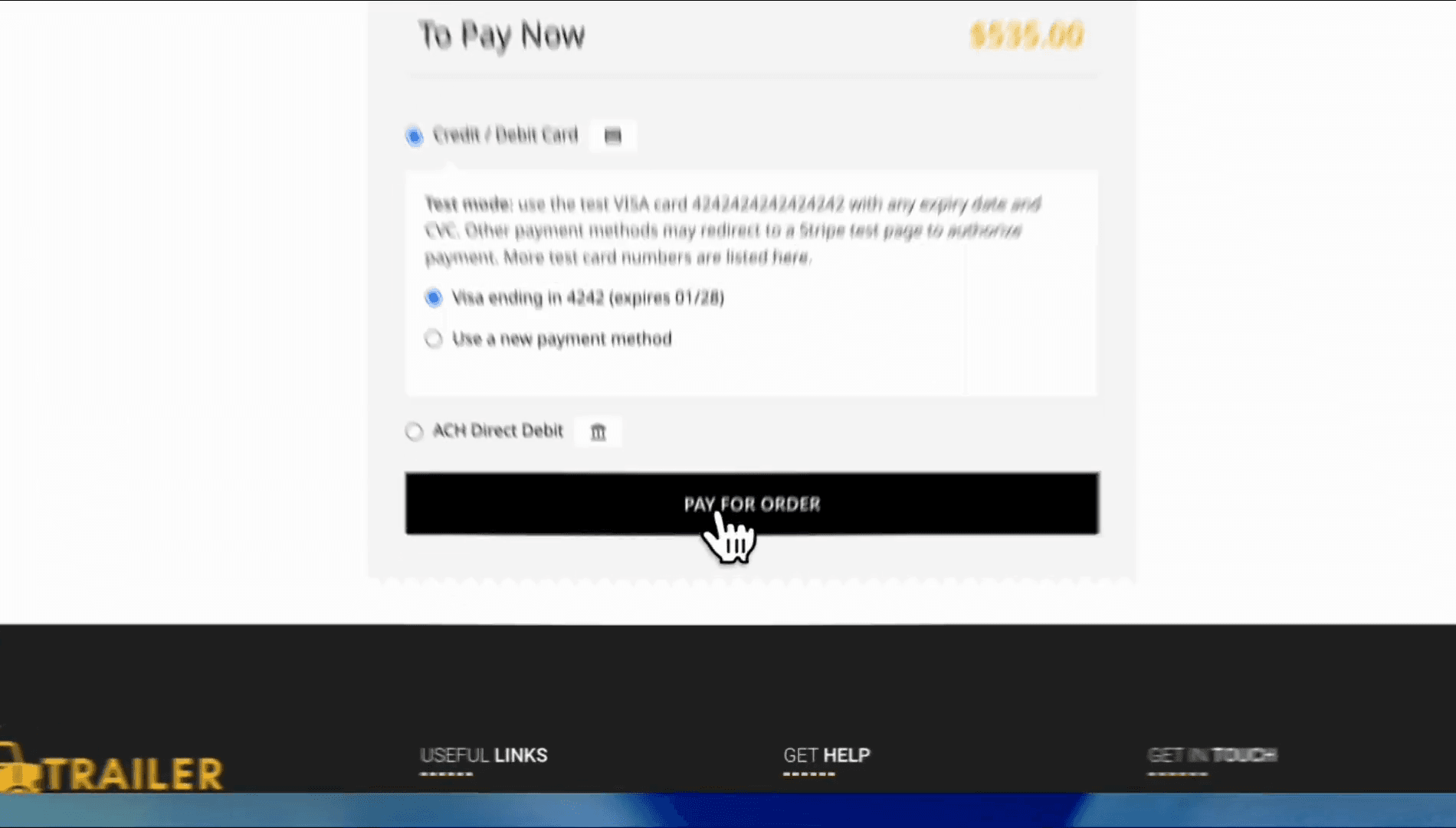
12
The status has changed from "processing with a due payment" to "processing," and there is no due payment for this order.